Tabs and the bottom panel
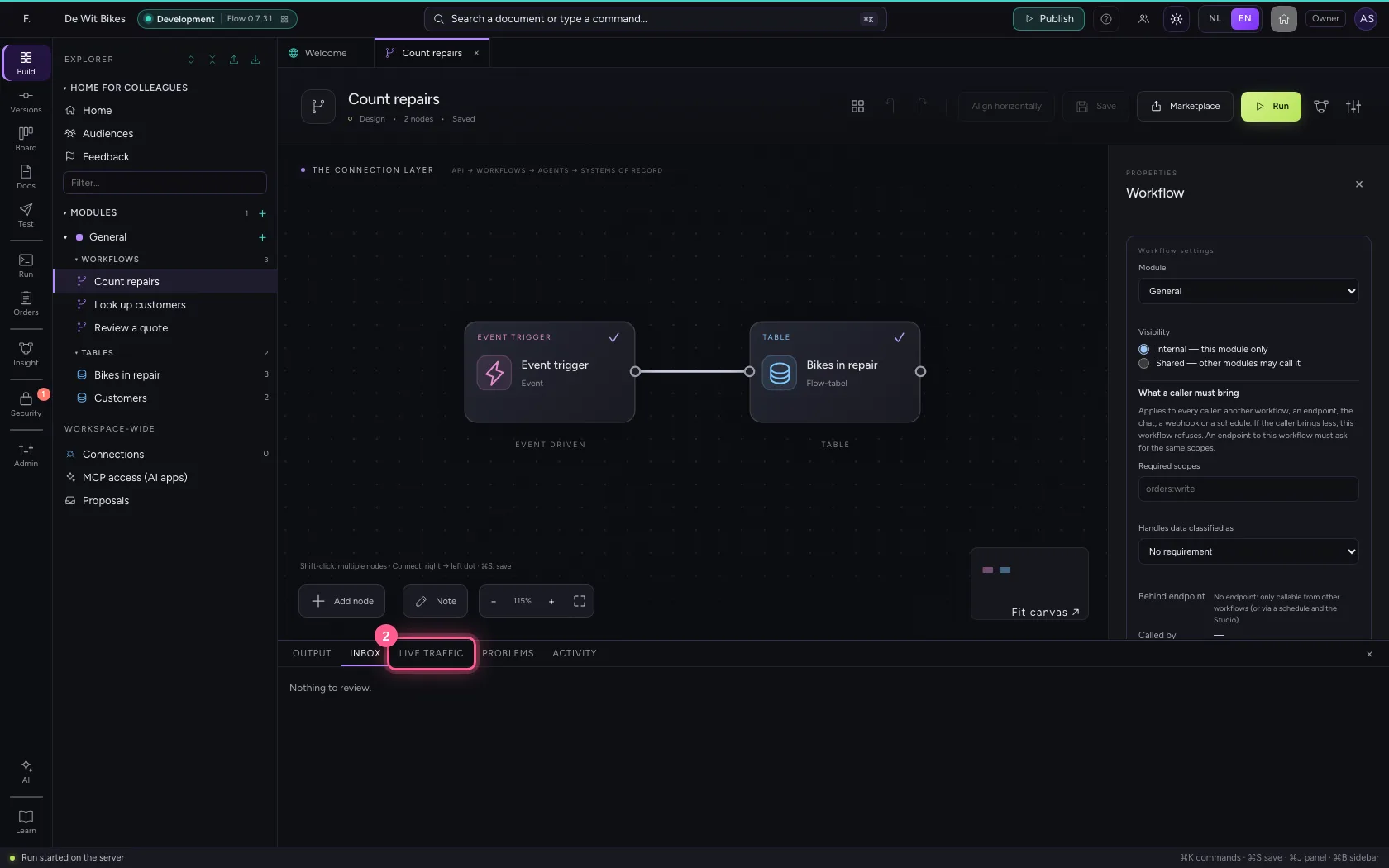
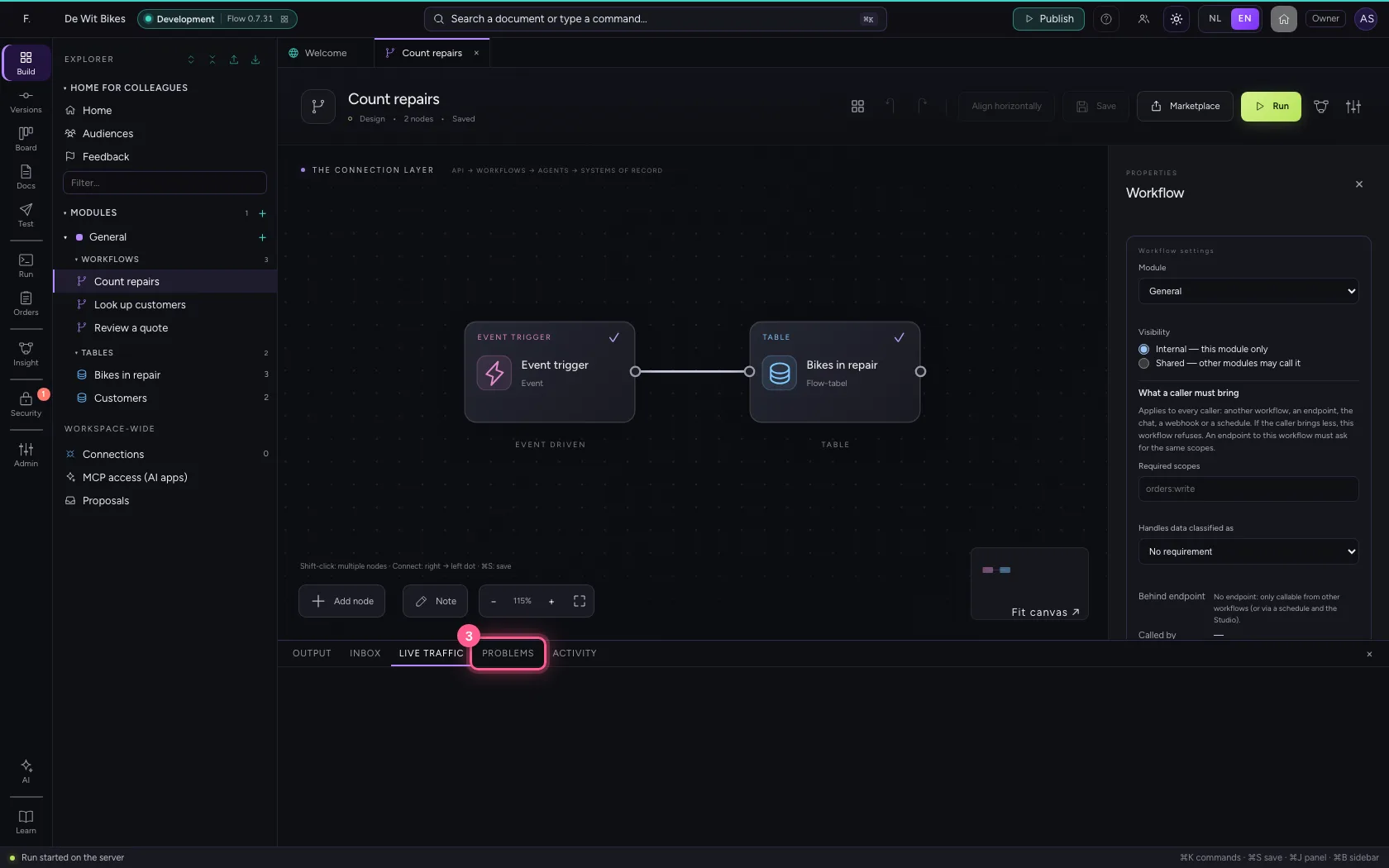
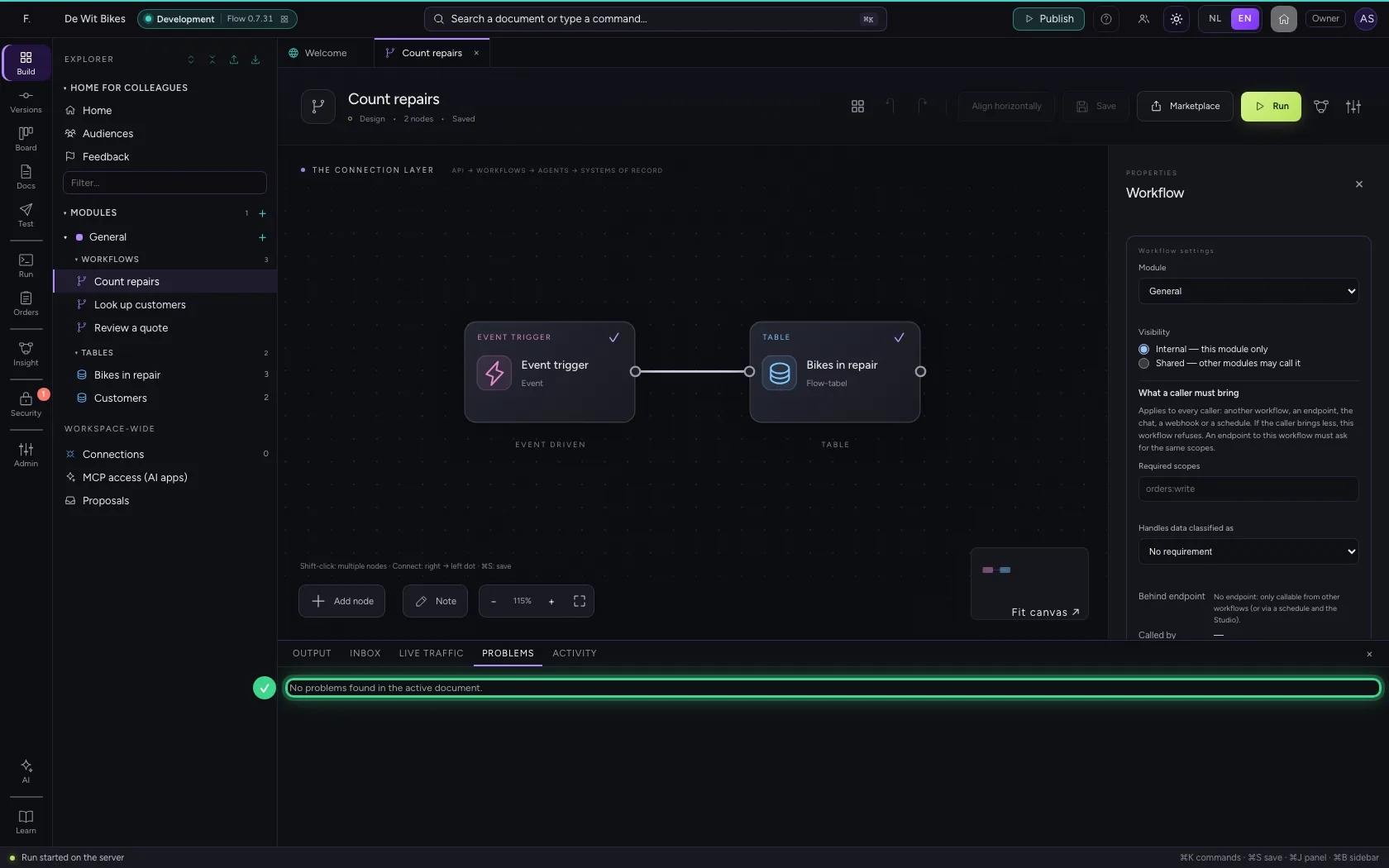
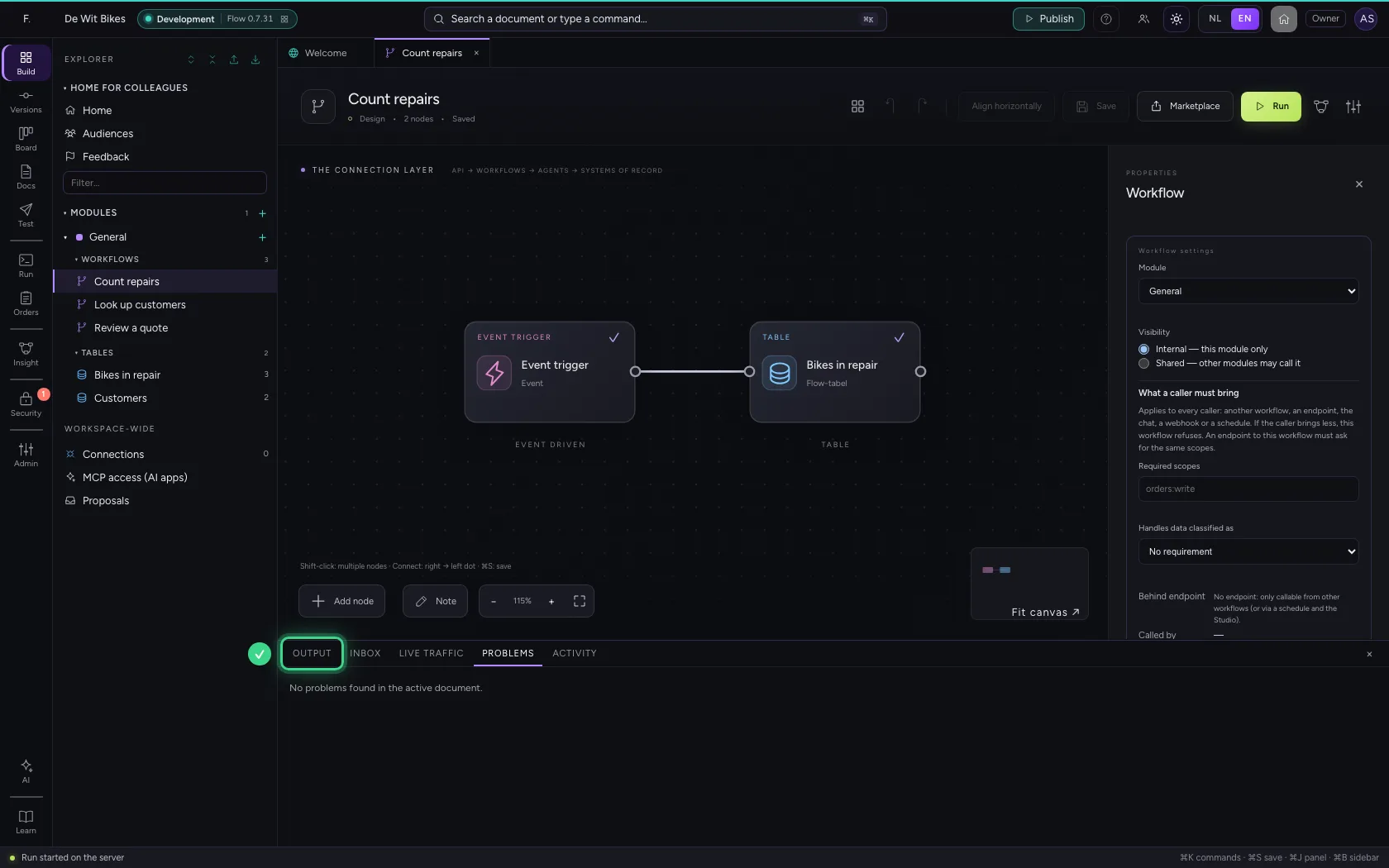
Everything you open gets a tab, so you can quickly switch between, for example, a workflow and the table it writes to. At the bottom is a panel with four tabs: Output (what a workflow does), Inbox (what waits for your review), Live traffic (calls to your APIs) and Problems (what is wrong in the open document).
Open your development environment
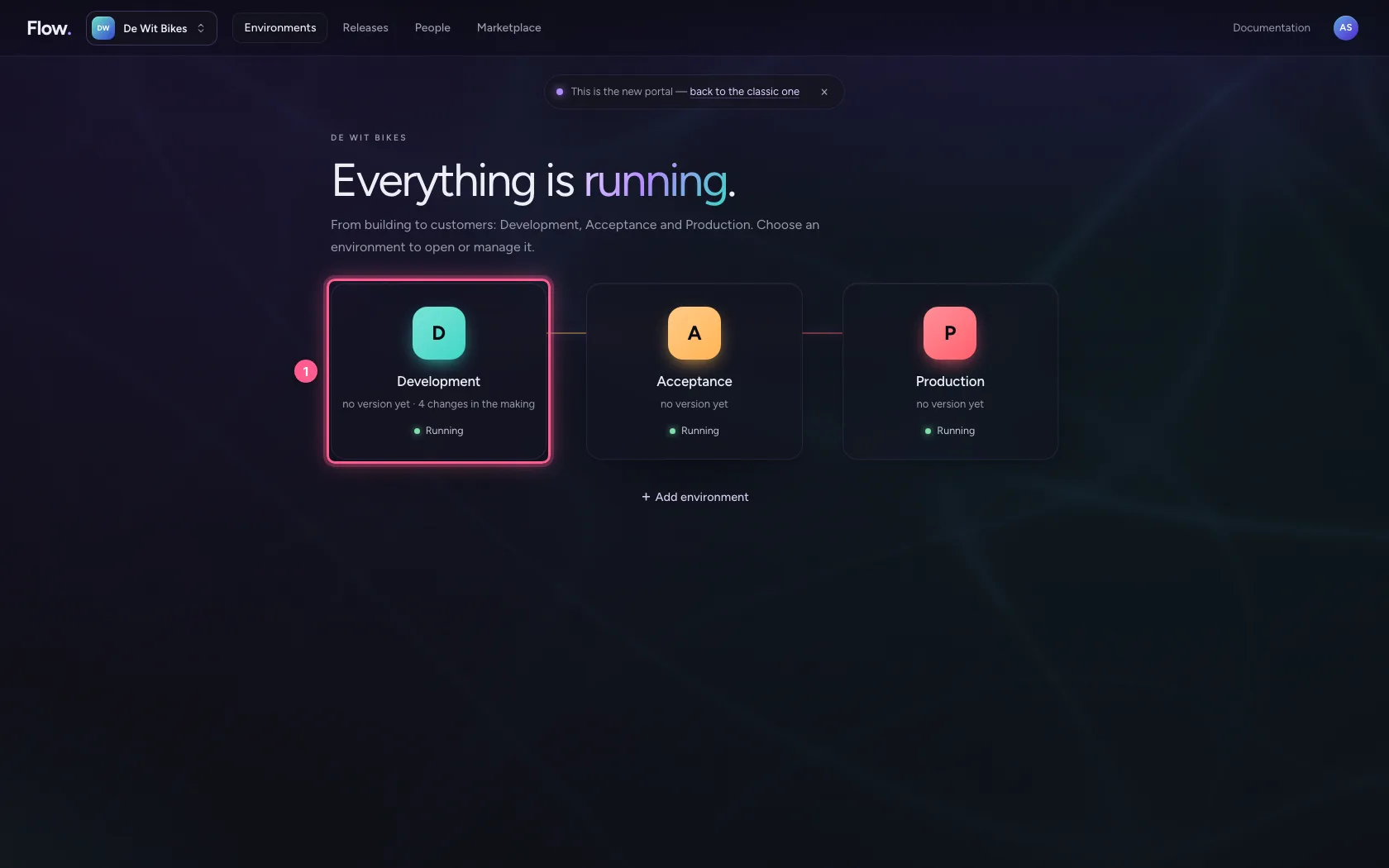
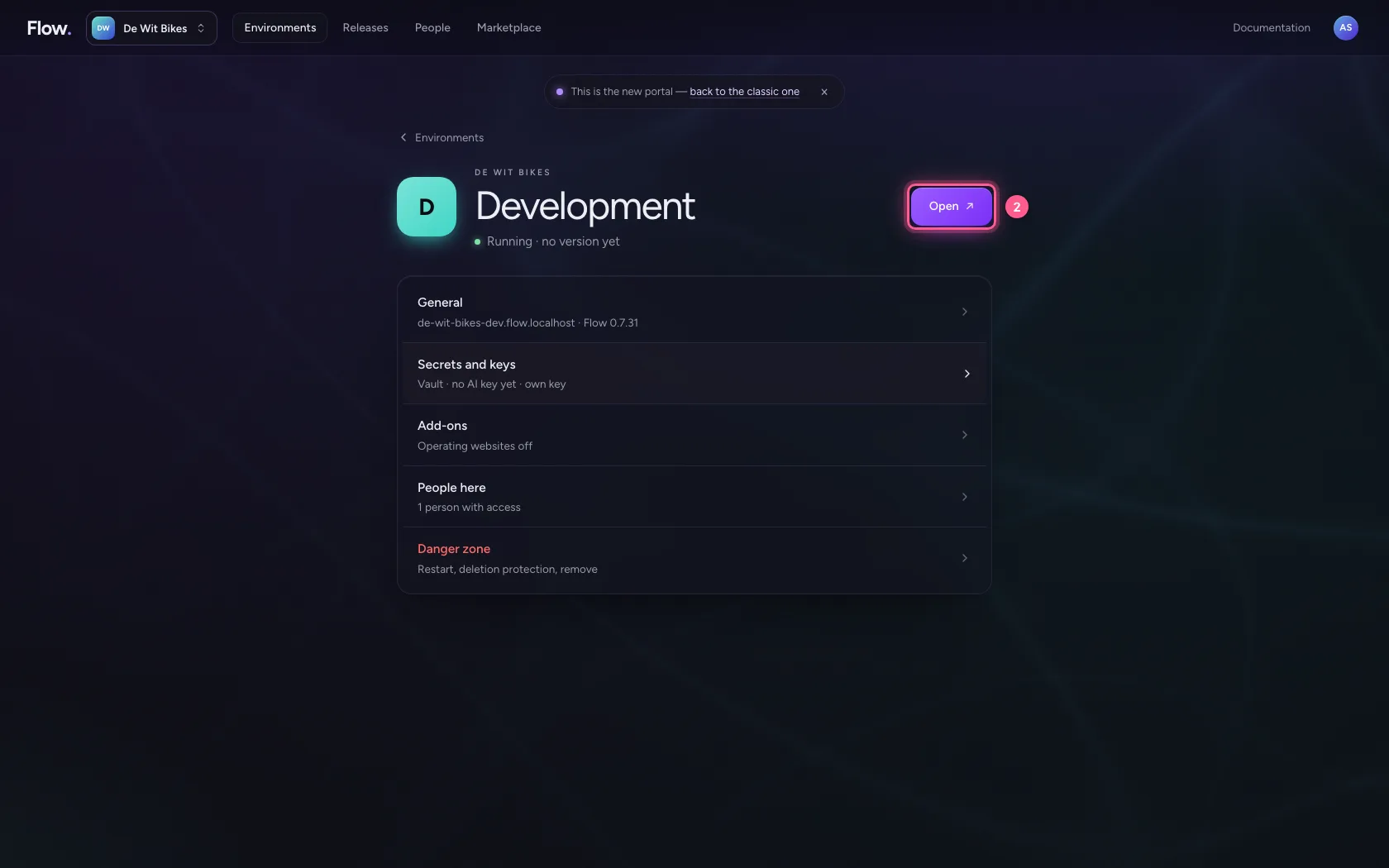
In the portal, under Environments, click Development, and there Open. Flow opens in a new tab and you are signed in straight away.
- Click Development
- Click Open ↗
Open two documents
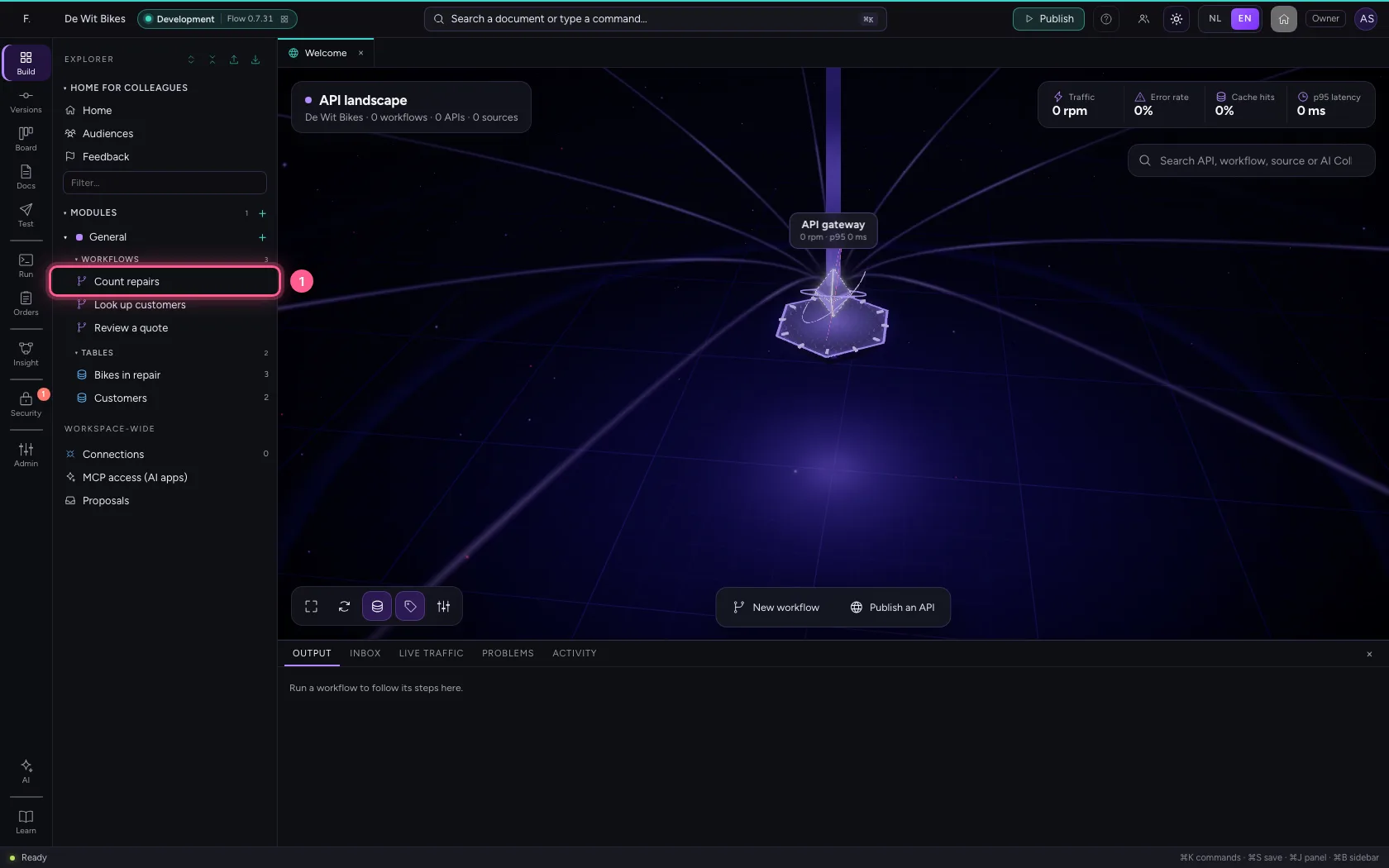
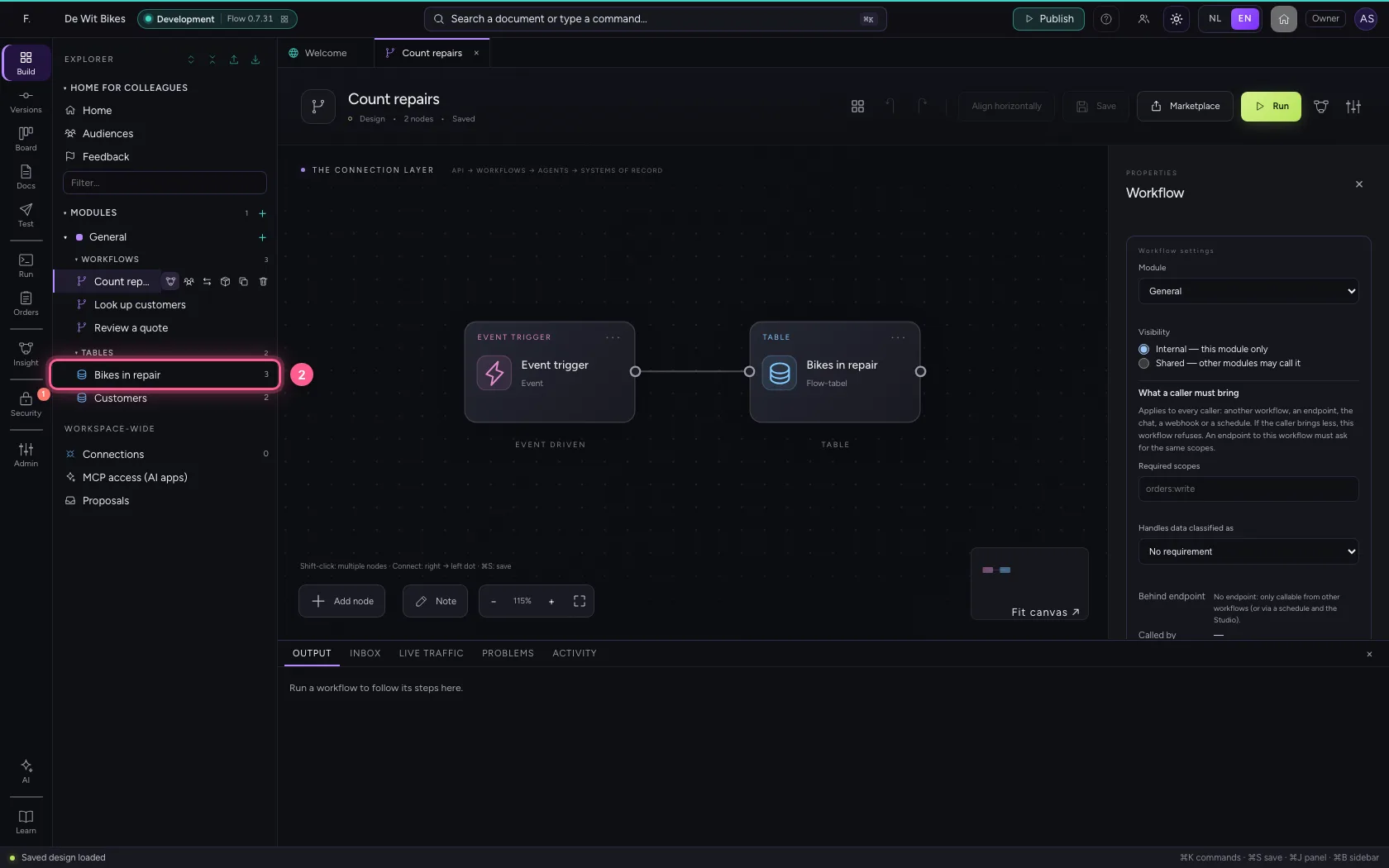
In the explorer, click the workflow and then the table. Each gets a tab above the editor; the highlighted tab is the document you are looking at. Flow remembers your tabs, even when you reload the page.
- Click the workflow
- Click the table
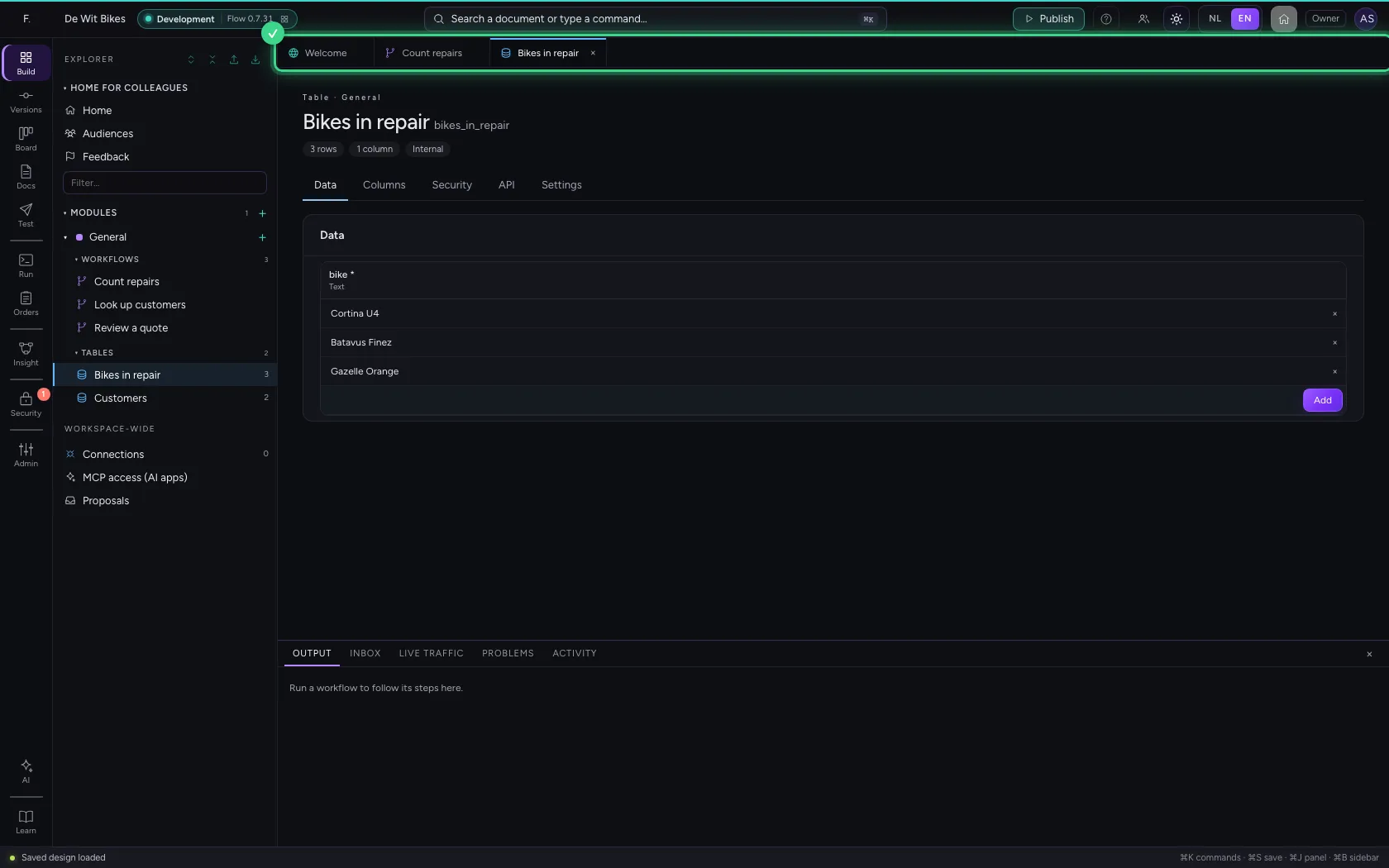
Switch and close
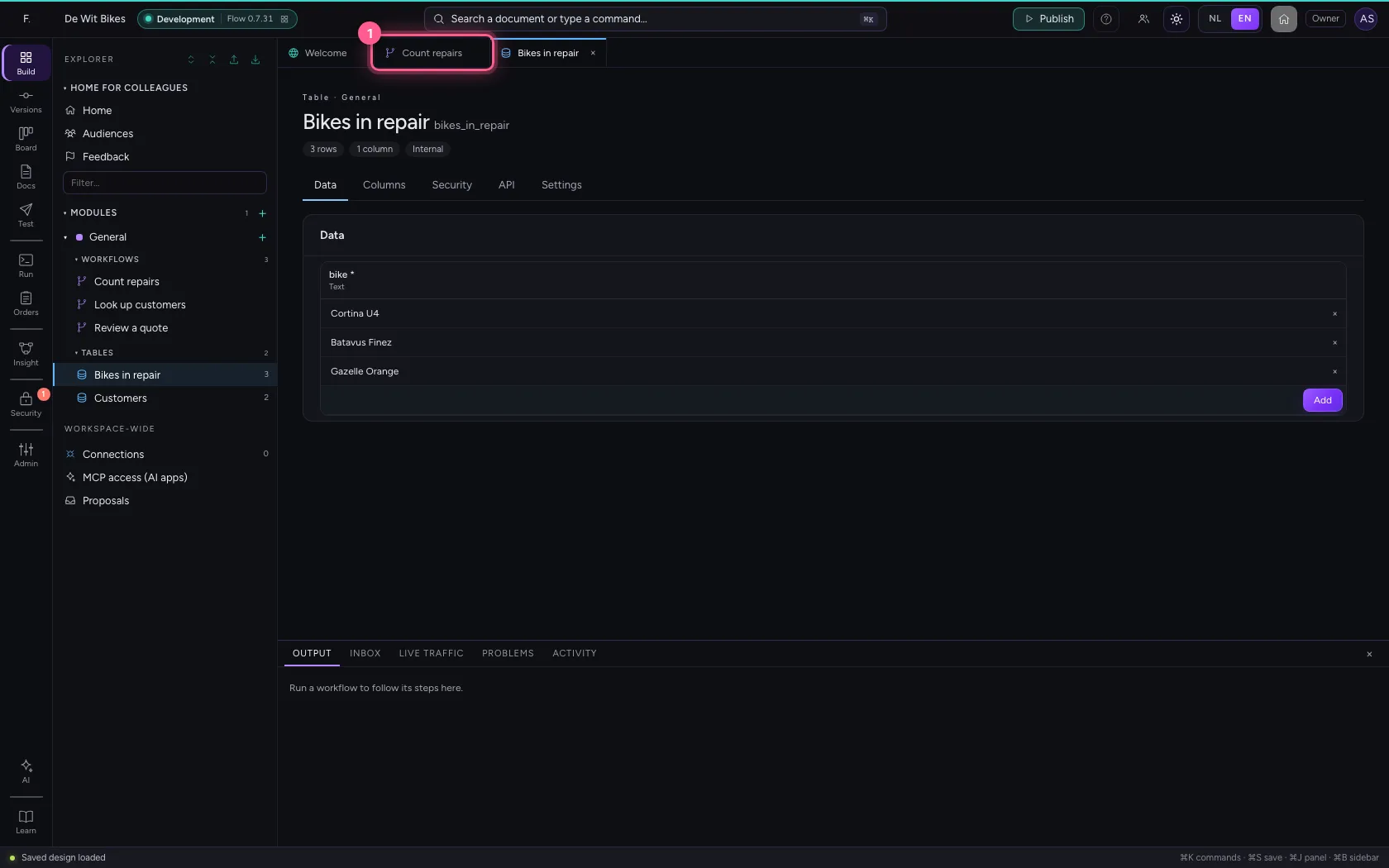
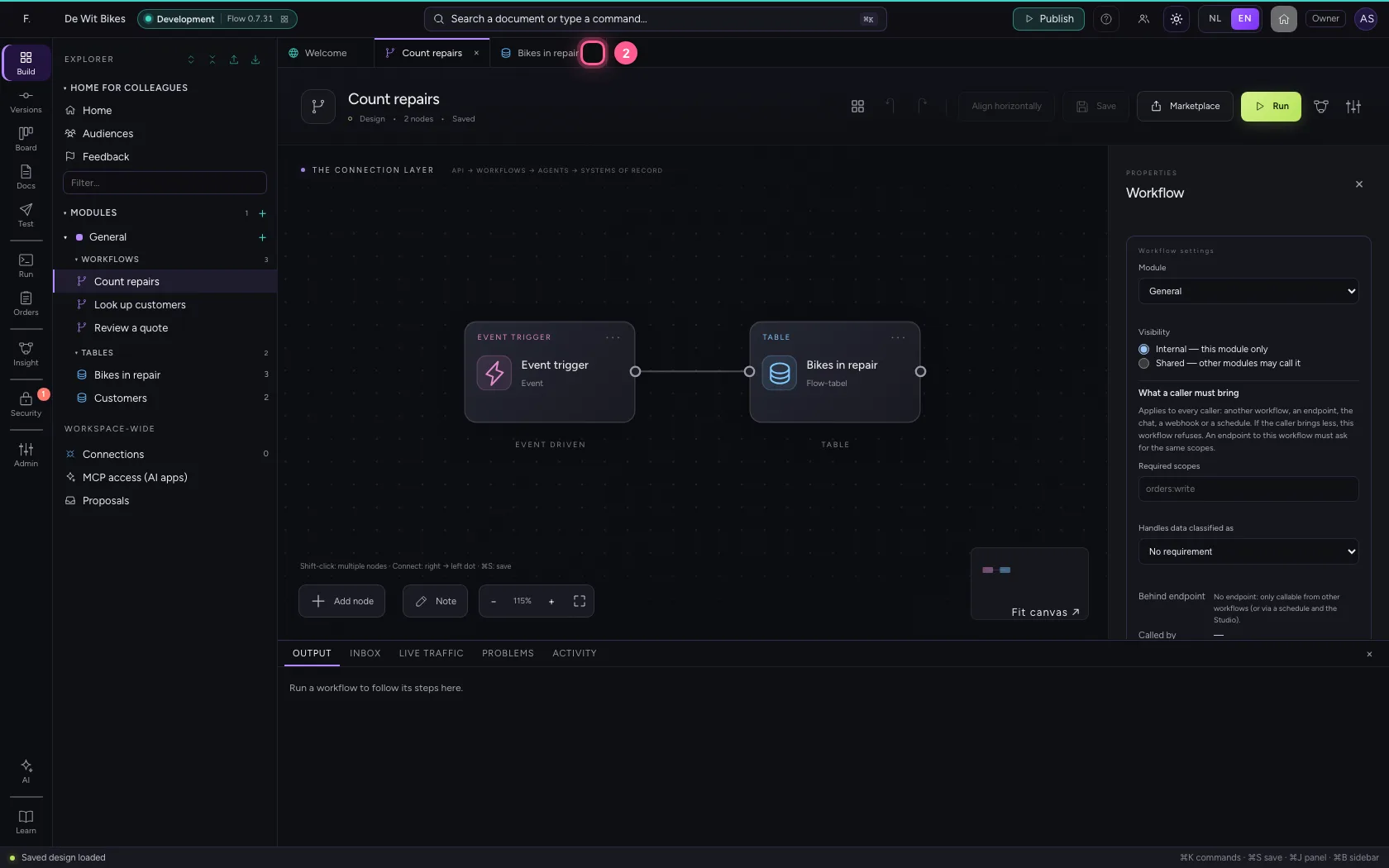
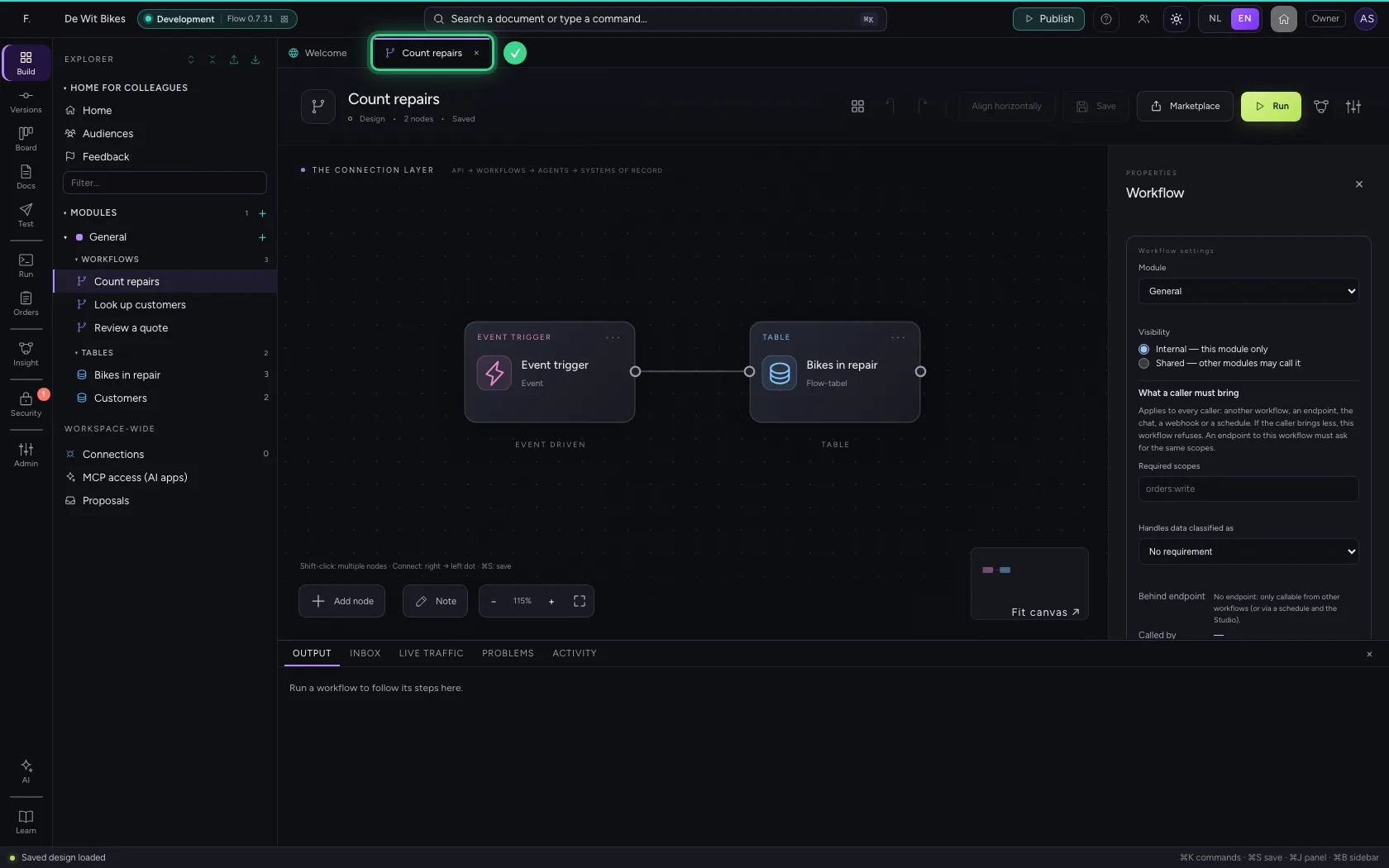
Click a tab to go back. The cross closes a tab; if there is a dot instead, you have not saved yet and Flow asks first whether you really want to close. You can also drag tabs around.
- Click the workflow's tab
- Click Close tab
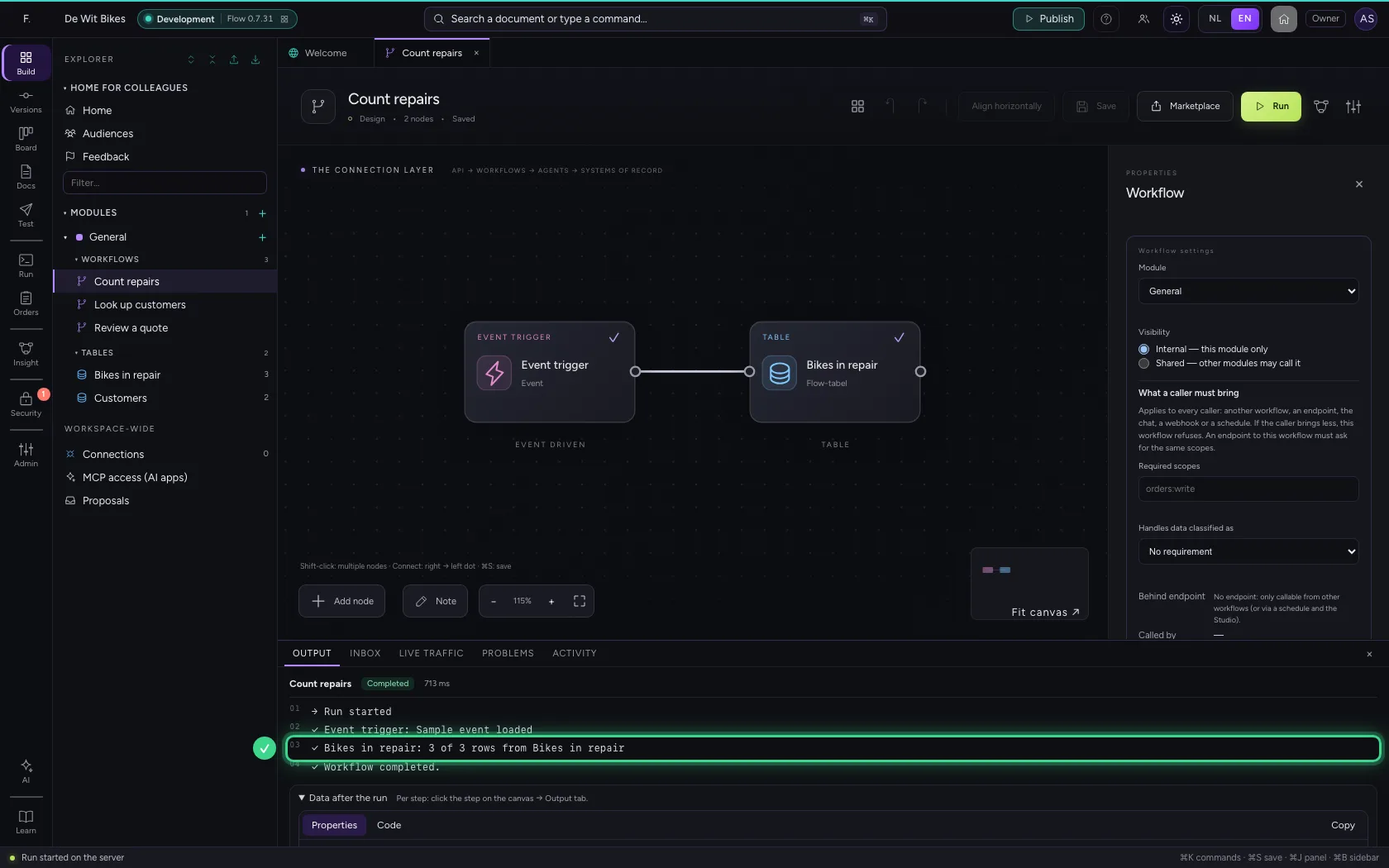
Output: what a workflow does
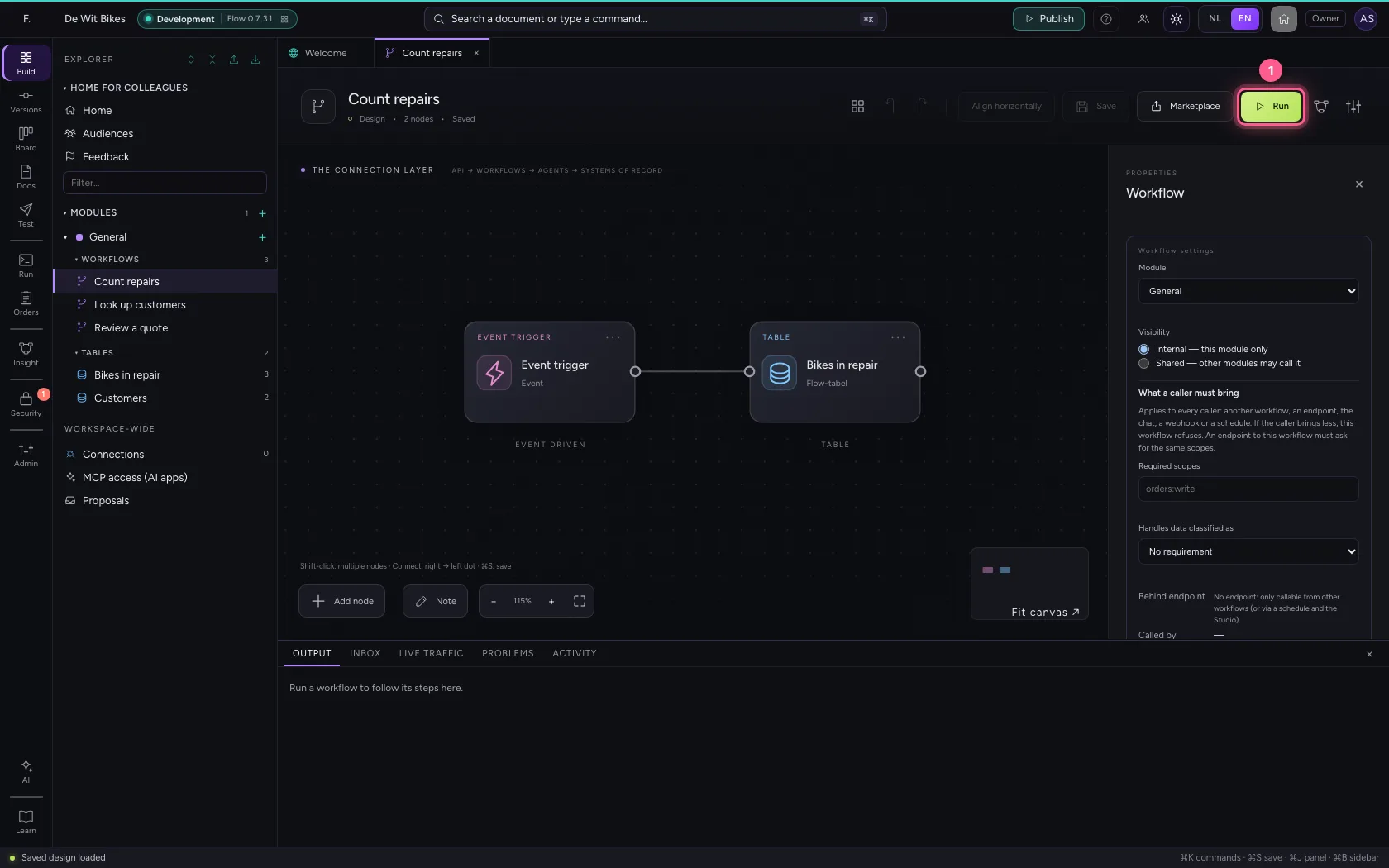
Run the workflow. Under Output you see line by line what each step did, and the data at the end. Click a step on the canvas to see its own output in the properties panel.
- Click Run
Inbox, Live traffic and Problems
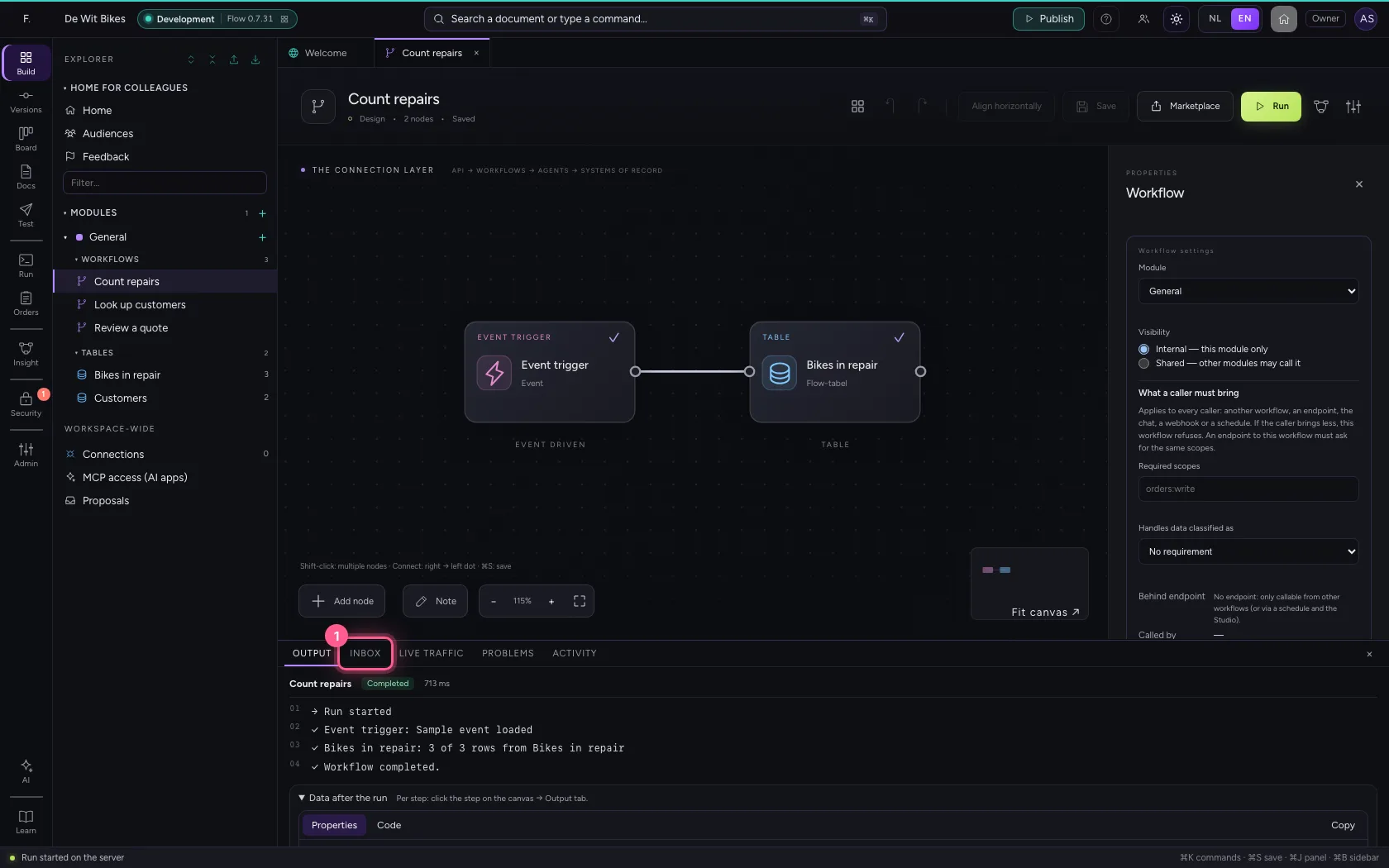
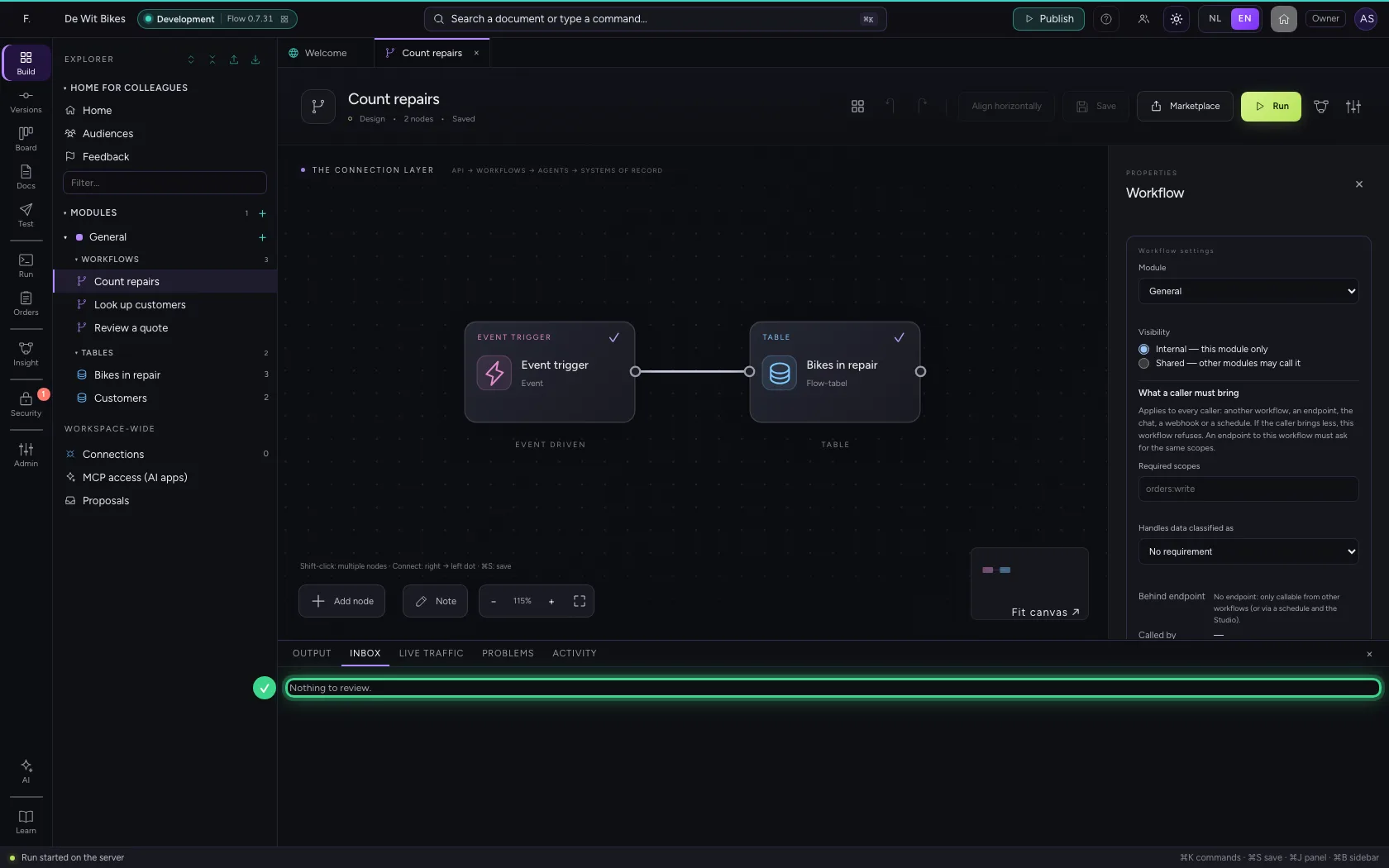
Inbox shows workflows waiting for your approval (a Review step). Live traffic shows the latest calls to your APIs, with status and time. Problems shows what Flow finds in the open document, such as an unconnected step; click a problem to go there.
- Click INBOX
- Click LIVE TRAFFIC
- Click PROBLEMS
Hide the panel
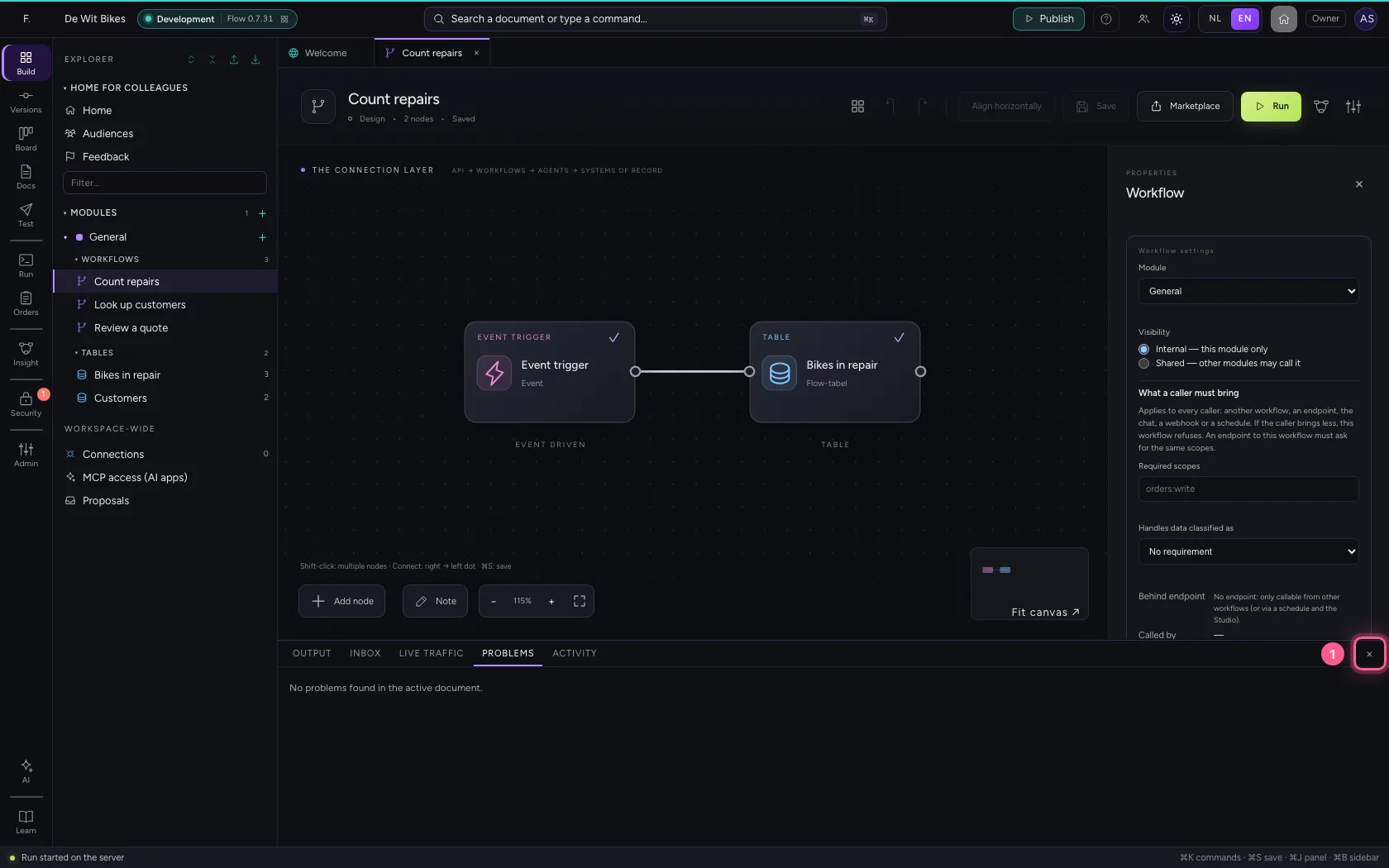
Need the space? Close the panel with the cross on the right, or with ⌘J (Ctrl+J). The same key brings it back. Drag the edge above it to make the panel taller or shorter.
- Click the cross
This guide was carried out step by step on 22 Oct 2026 by an automated test on Flow (version 3e563176).