Keeping an AI Colleague up to date together
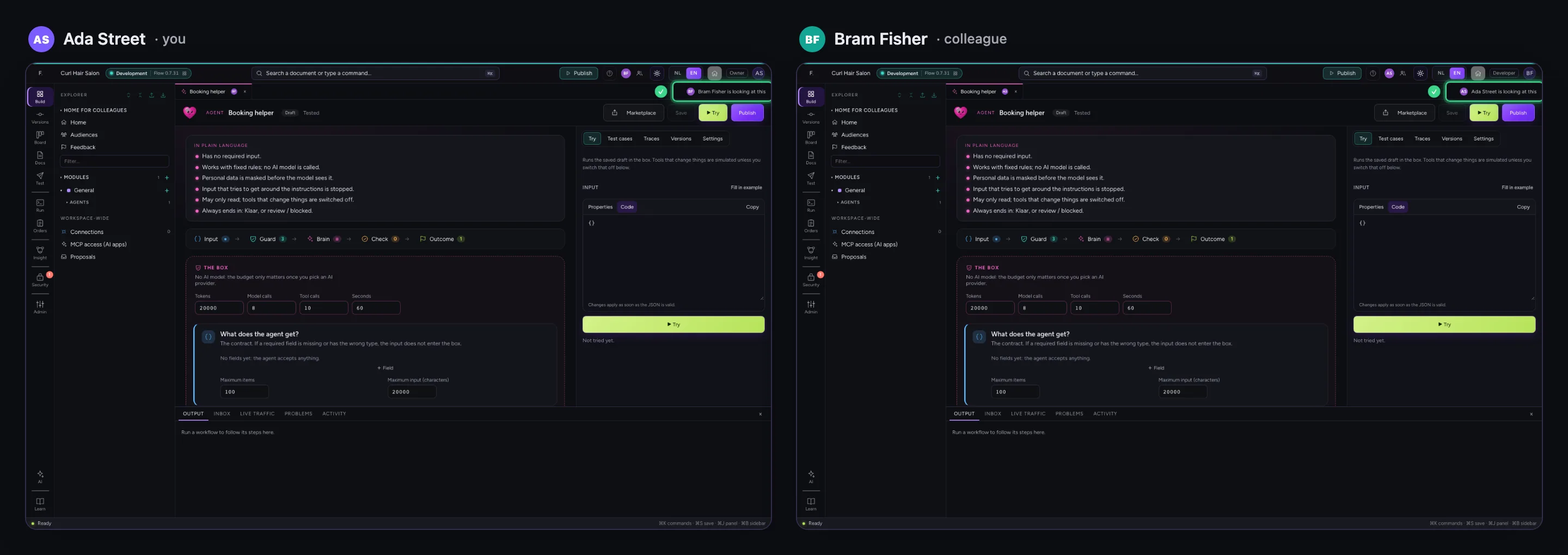
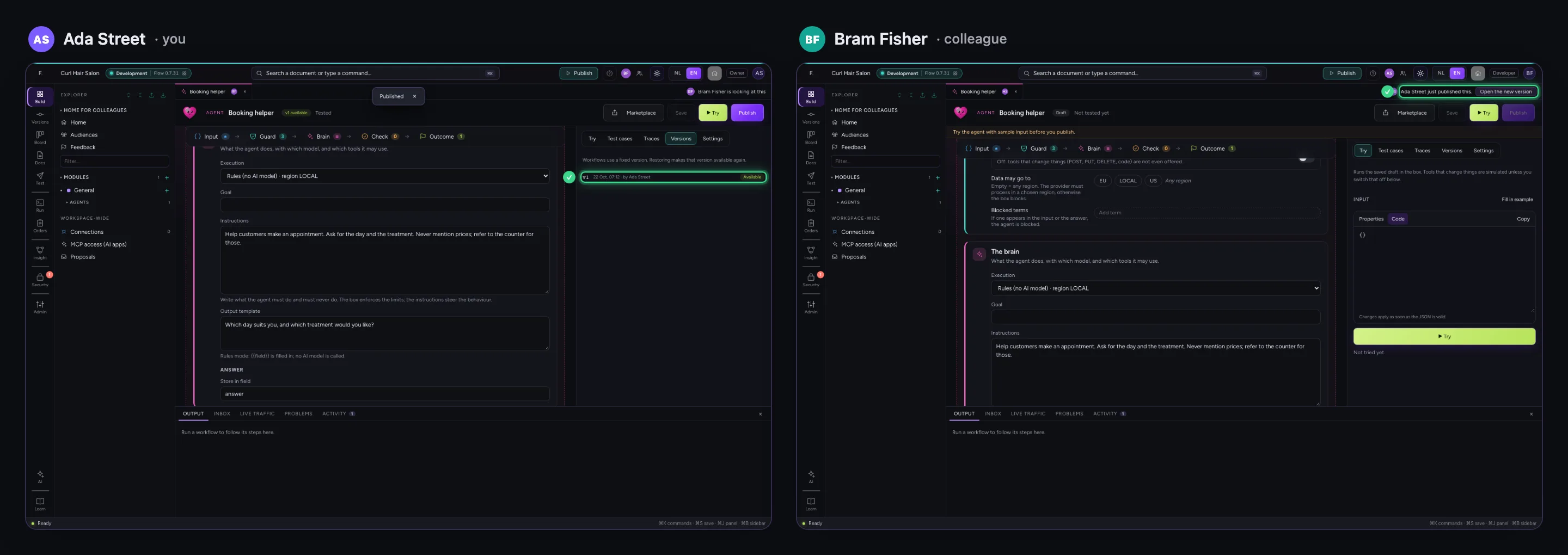
Often two builders keep one AI Colleague up to date together: one sharpens the instructions, the other tests and publishes. Flow shows who has the AI Colleague open, says so at once when the other saves something, and never publishes a draft you have not seen: when your colleague changed it in the meantime, you first see their version and test it. Every version shows who published it. Below you see both builders' screens side by side.
Open your development environment
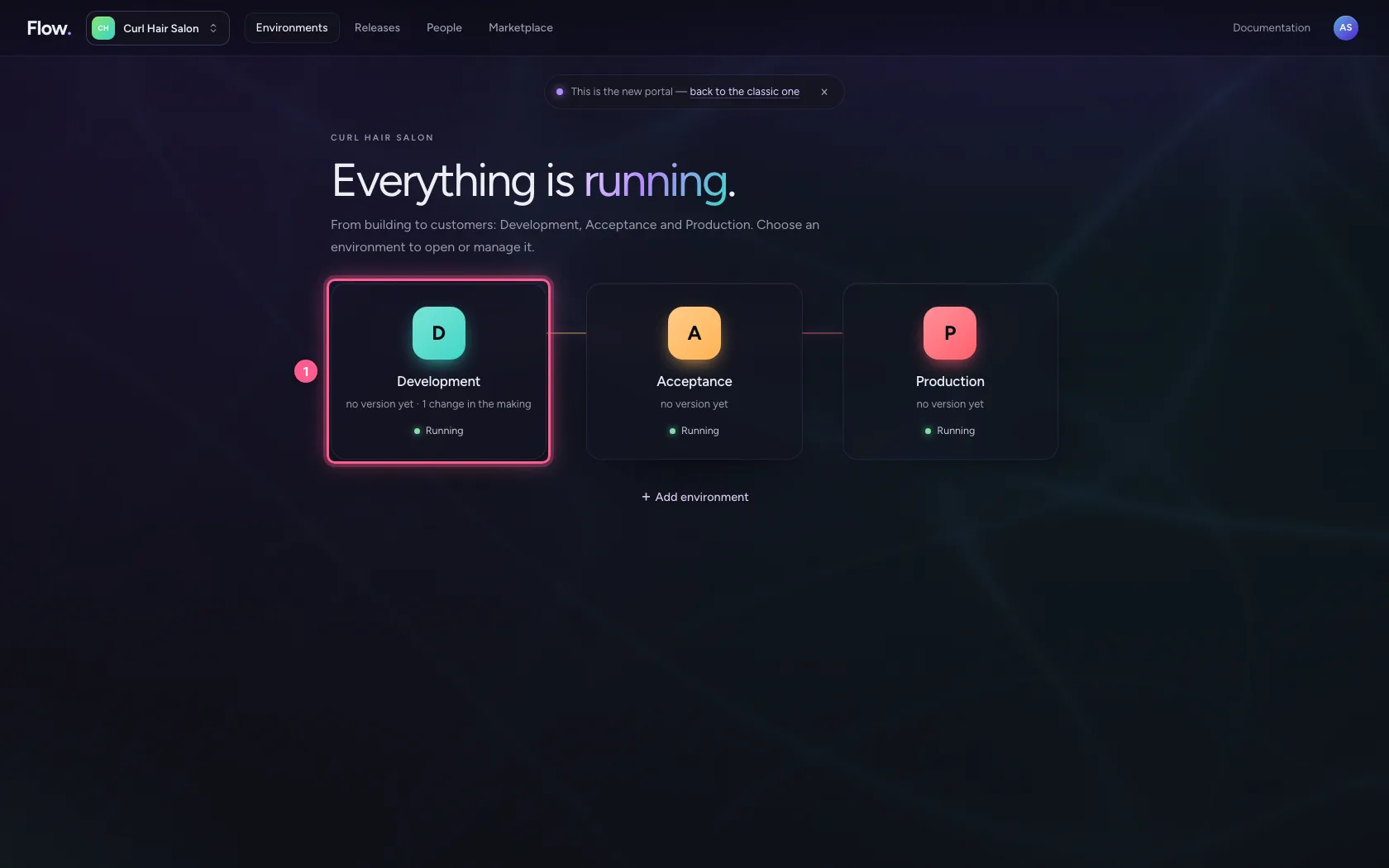
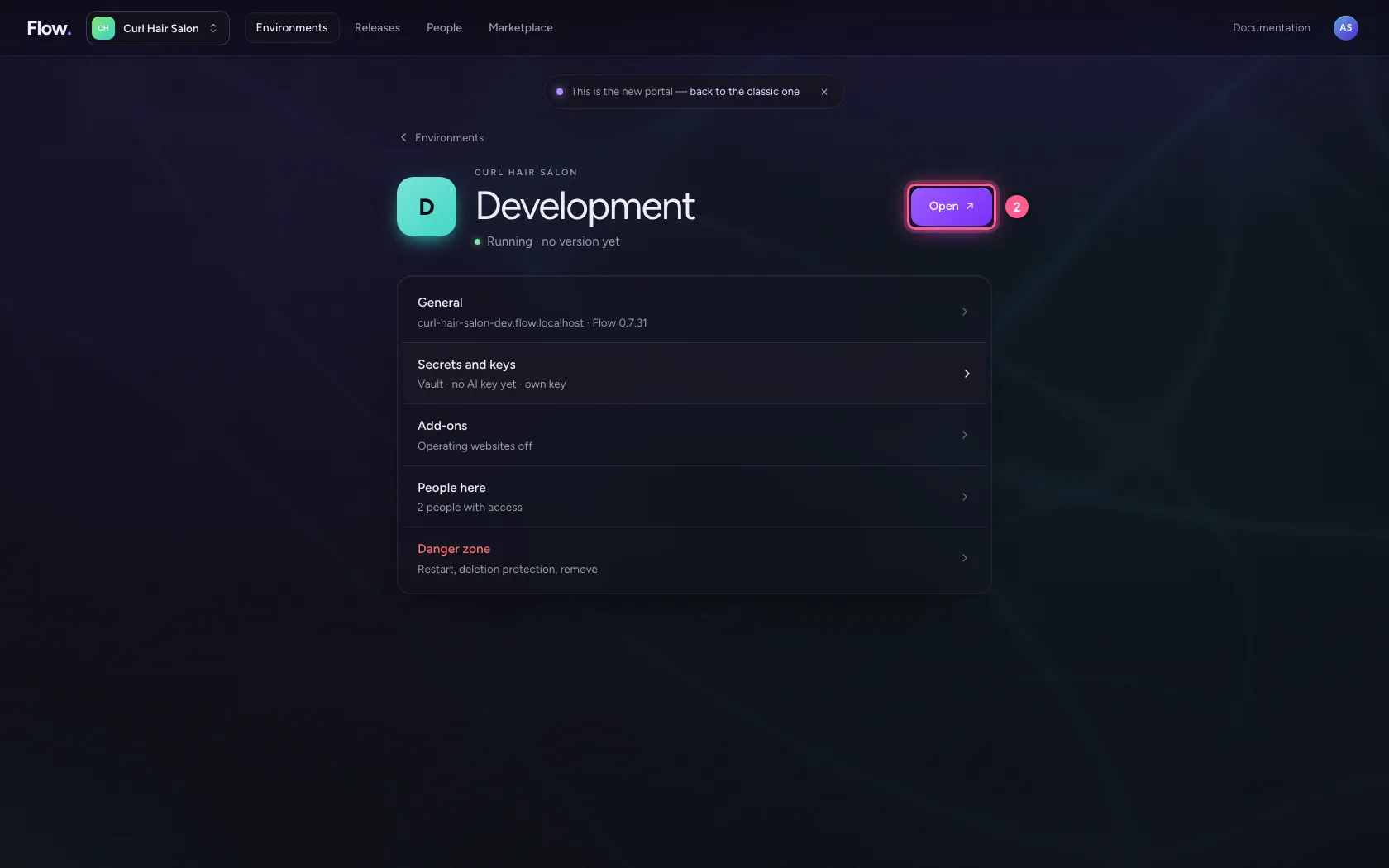
In the portal, under Environments, click Development, and there Open. Flow opens in a new tab and you are signed in straight away.
- Click Development
- Click Open ↗
Together in one AI Colleague
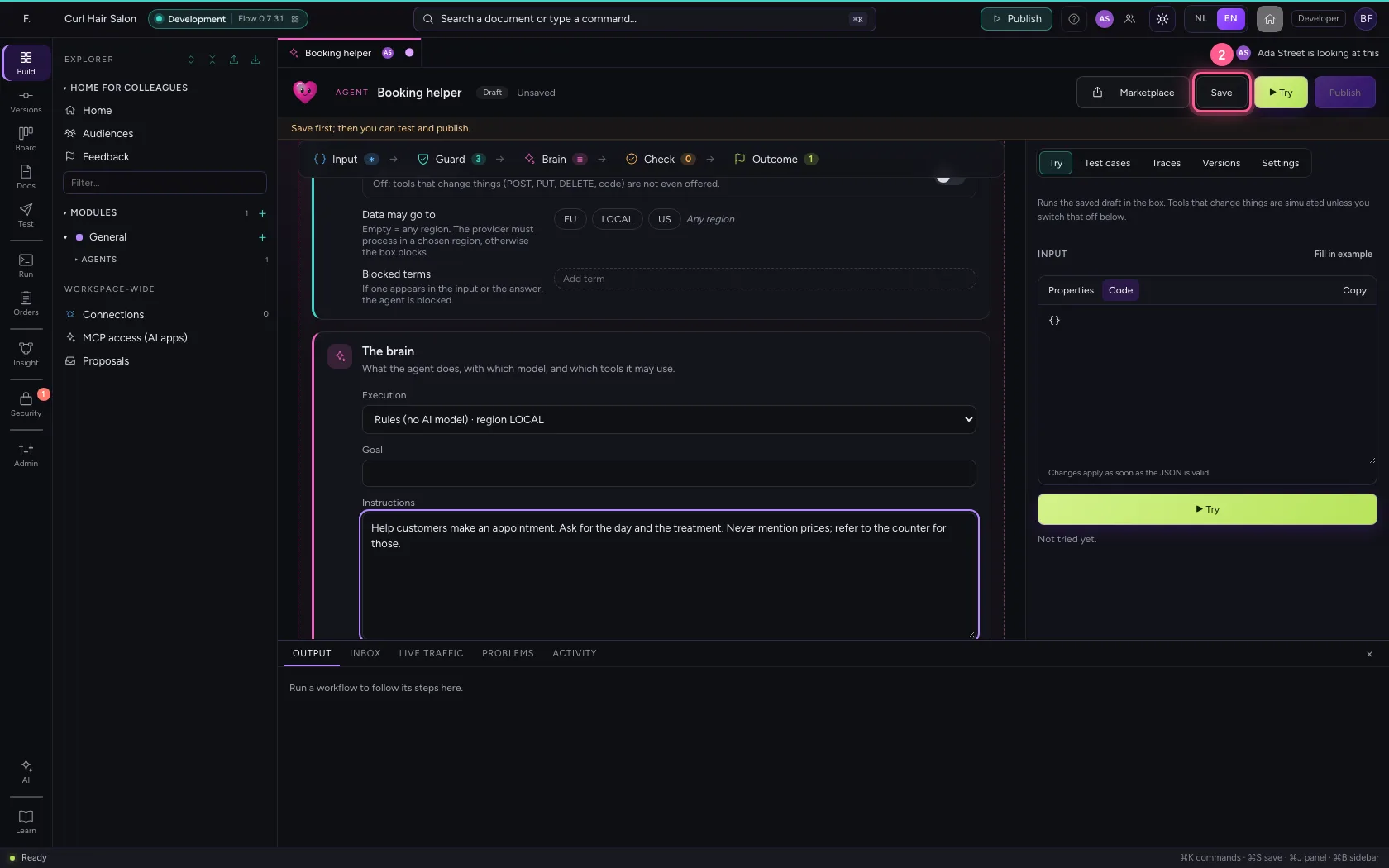
Bram and you have the same AI Colleague open, each in a browser of their own. Top right and on the tab you see who else is looking; above the screen it says so in words.
Your colleague sharpens the instructions
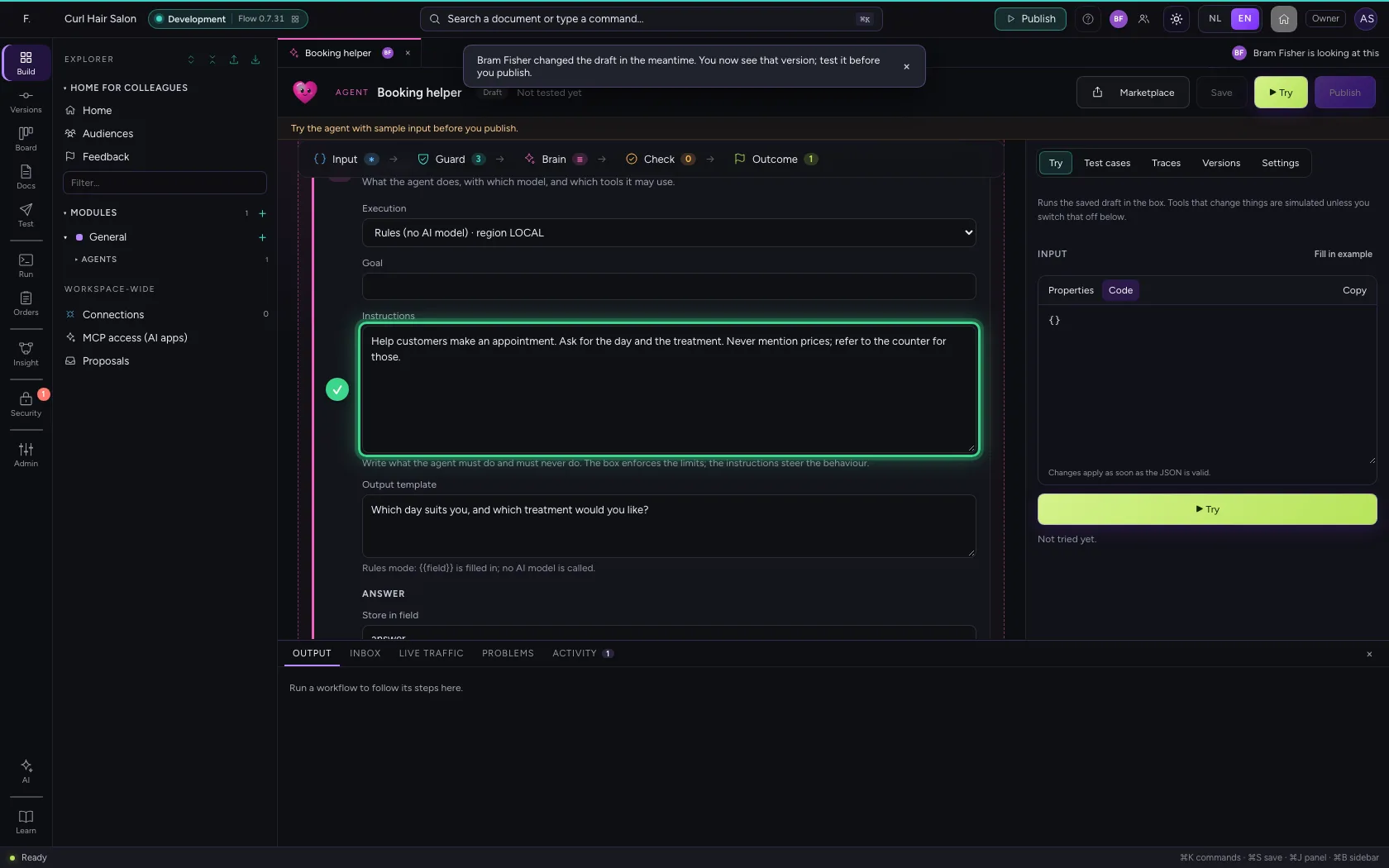
Bram adds to the instructions and saves. He does not test yet.
- In Instructions, type
Help customers make an appointment. Ask for the day and the treatment. Never mention prices; refer to the counter for those.
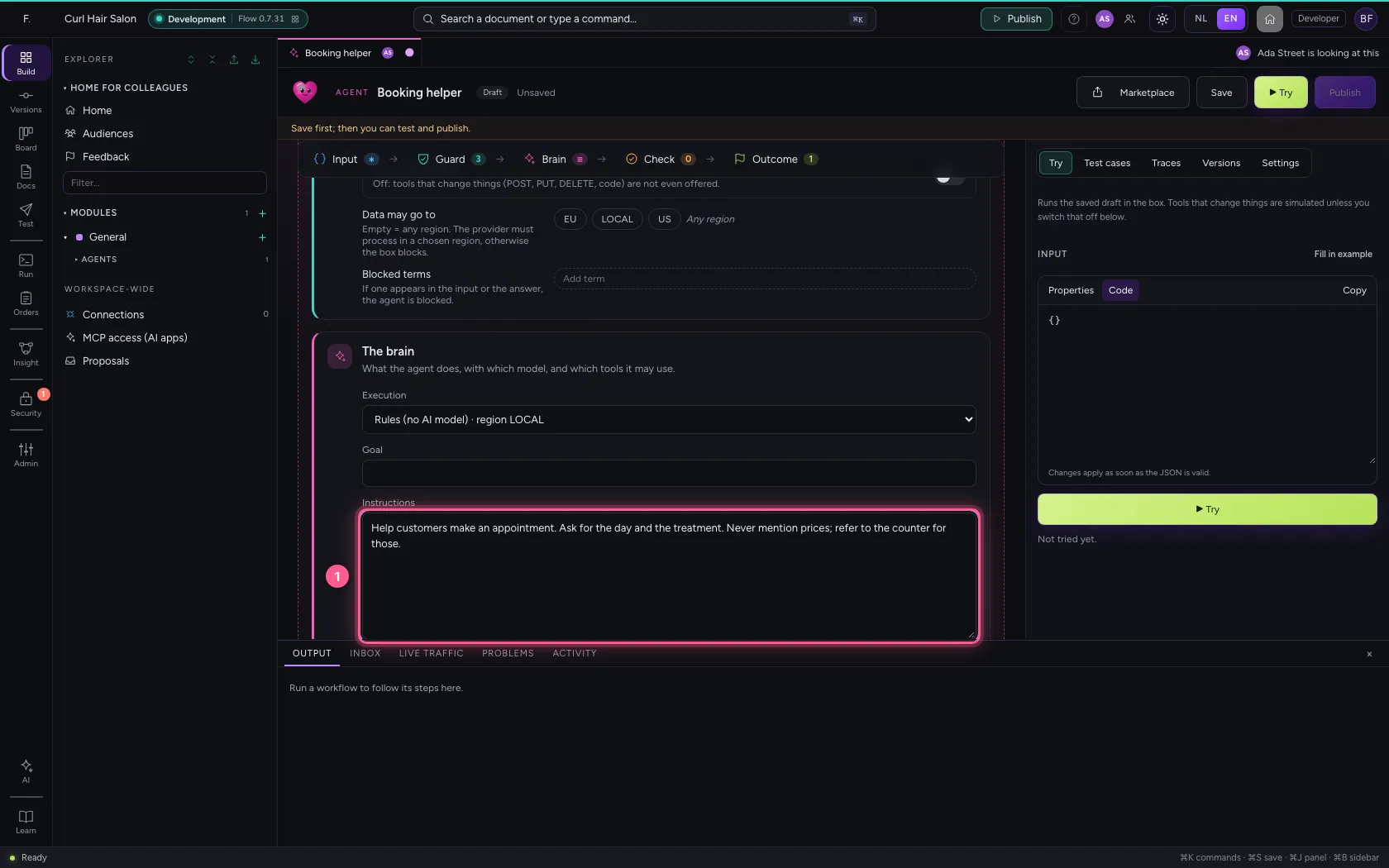
- Click Save
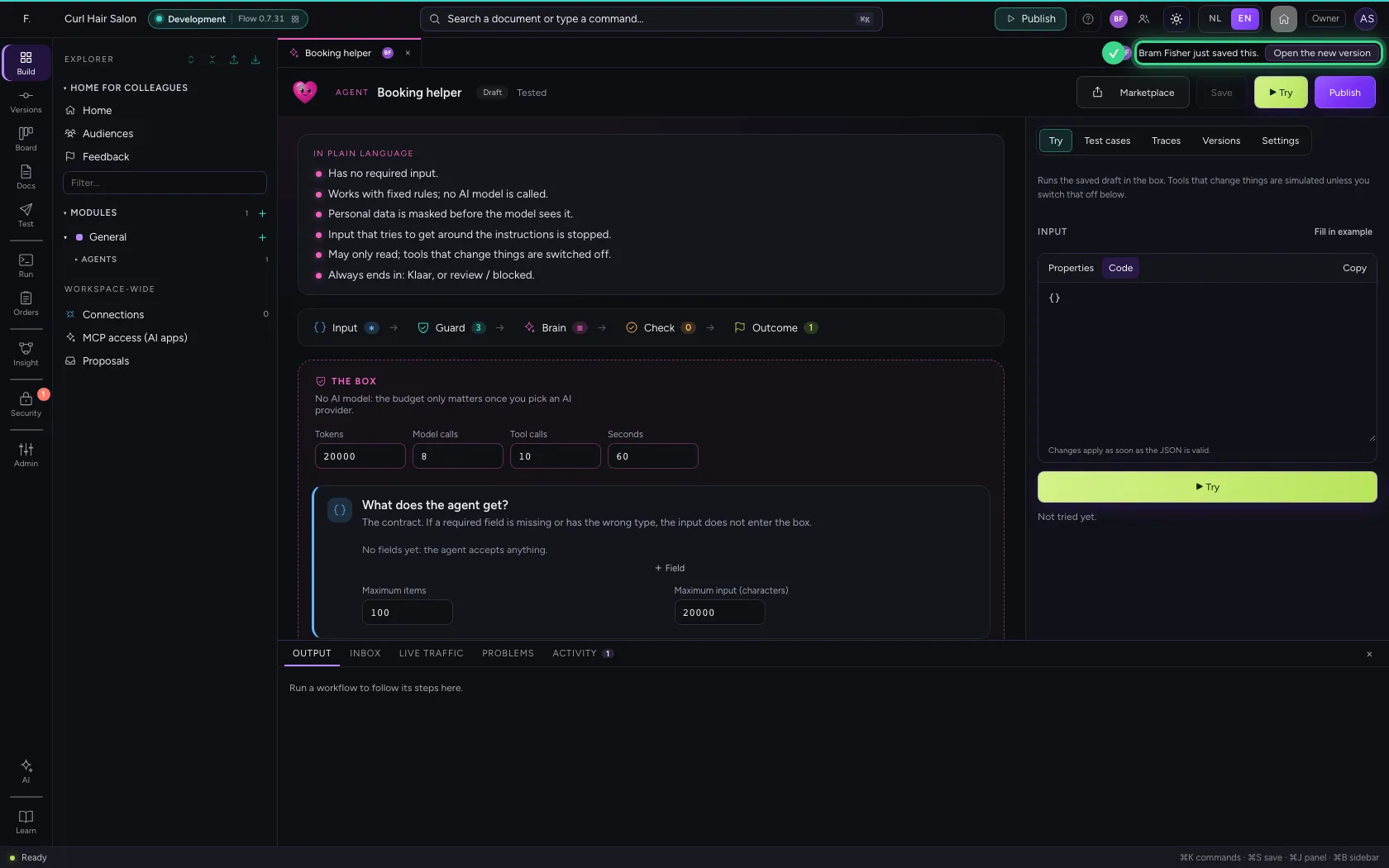
You hear it at once
On your screen Flow says at once that Bram just saved this. Open the new version fetches his version; but even if you miss it, you publish nothing you have not seen.
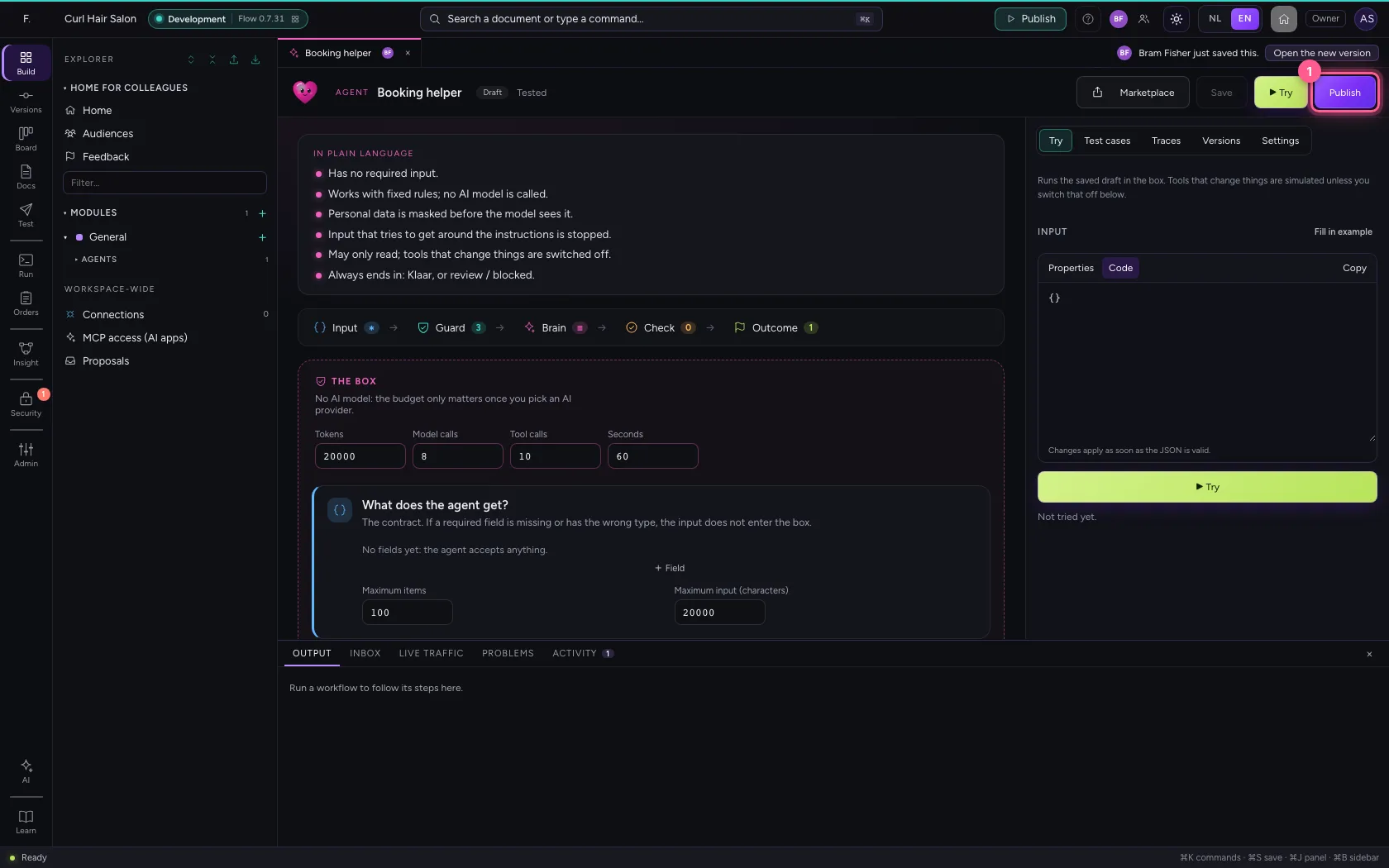
Publishing after a colleague
You had tested the AI Colleague and click Publish. Flow does not publish Bram's draft unseen: you hear who changed it, your screen now shows his version, and Publish waits until you have tried it.
- Click Publish
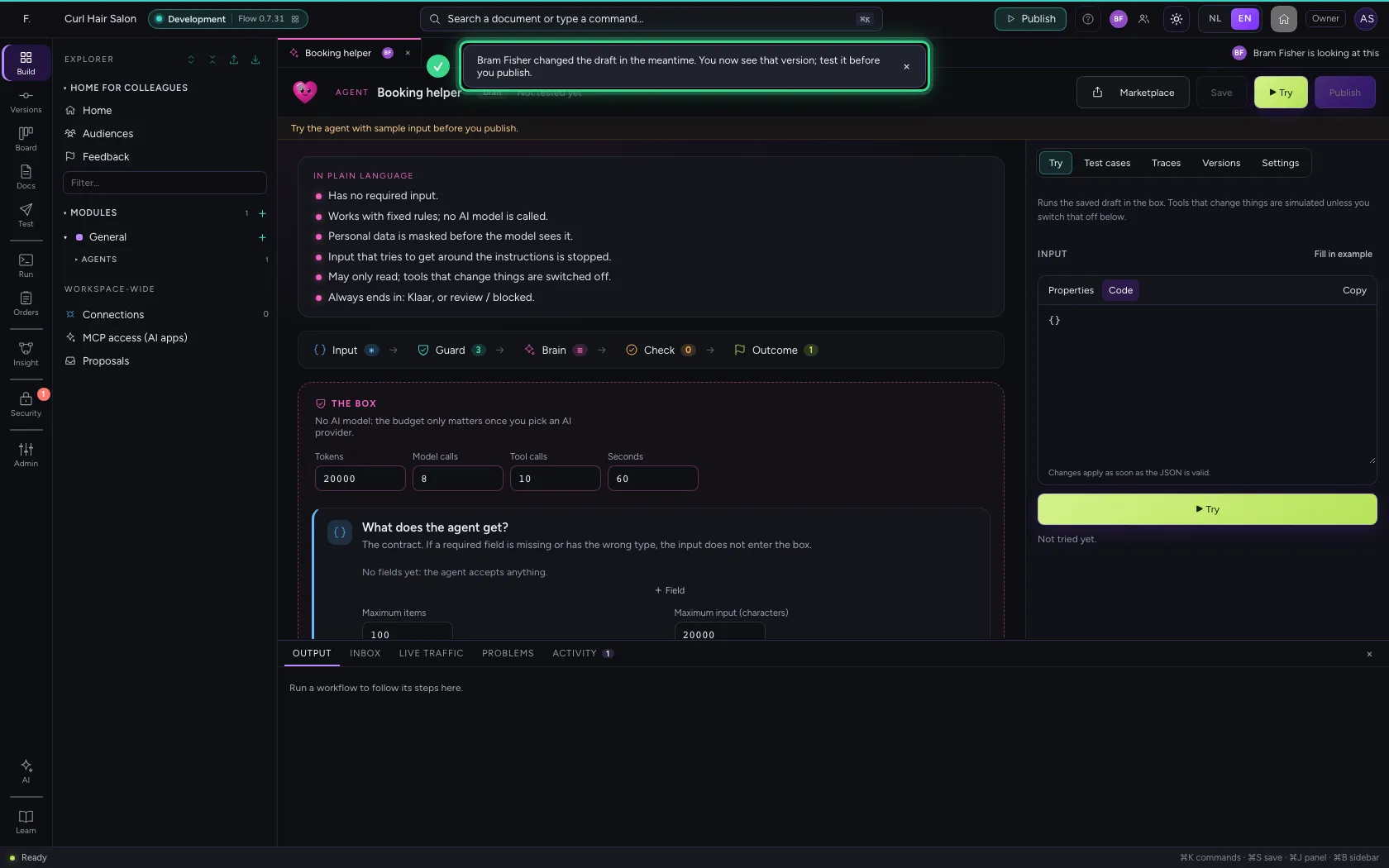
Try and publish
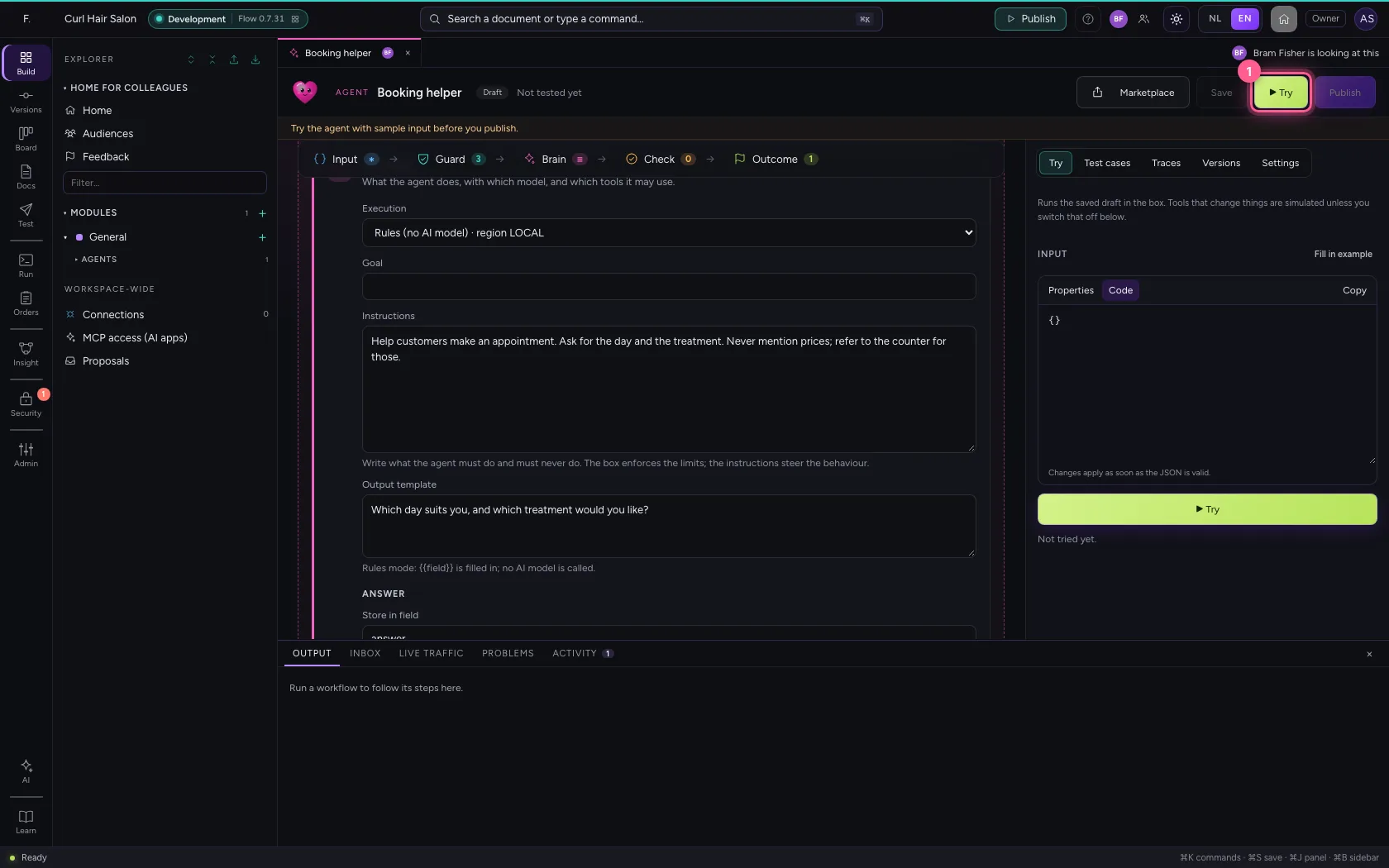
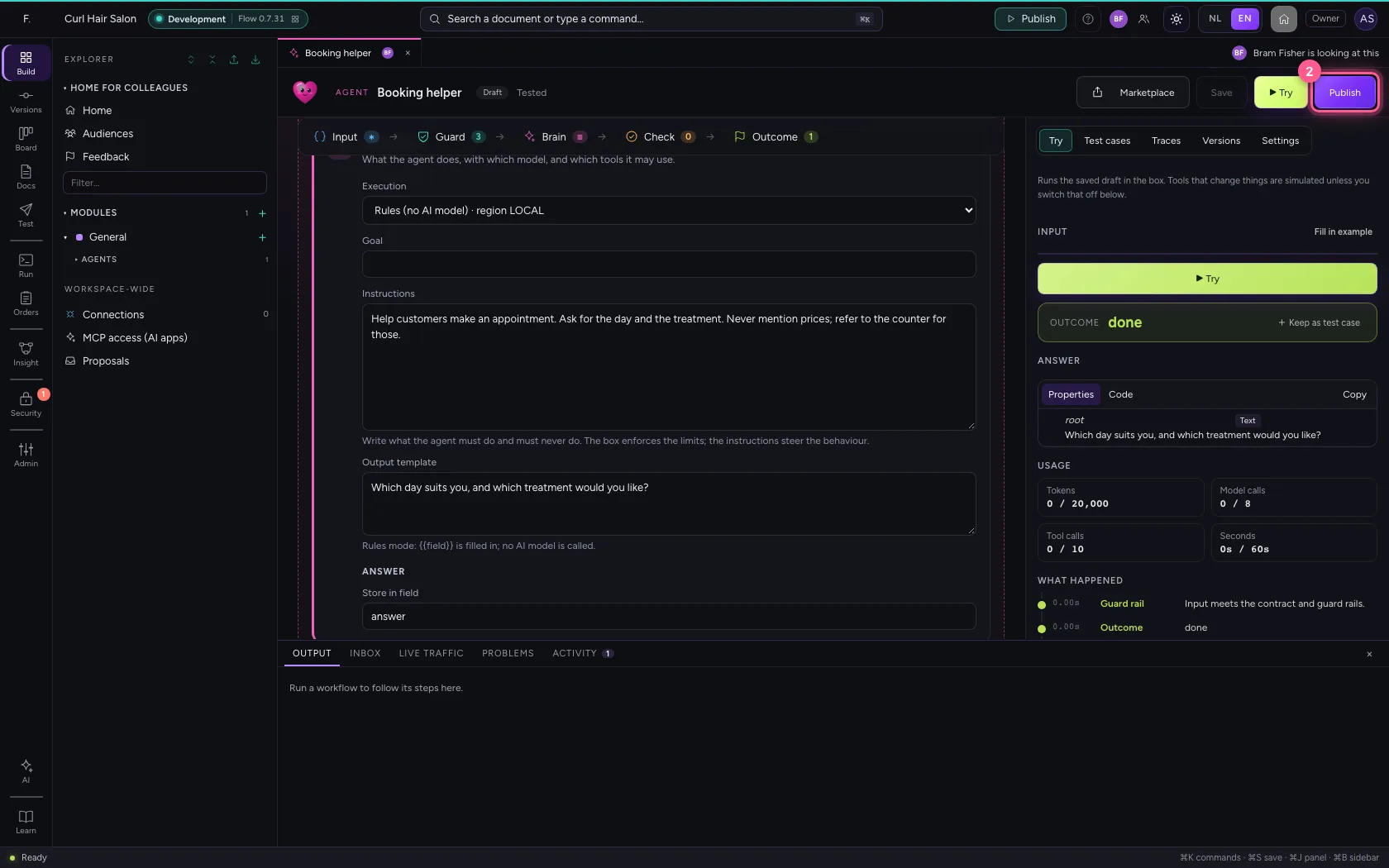
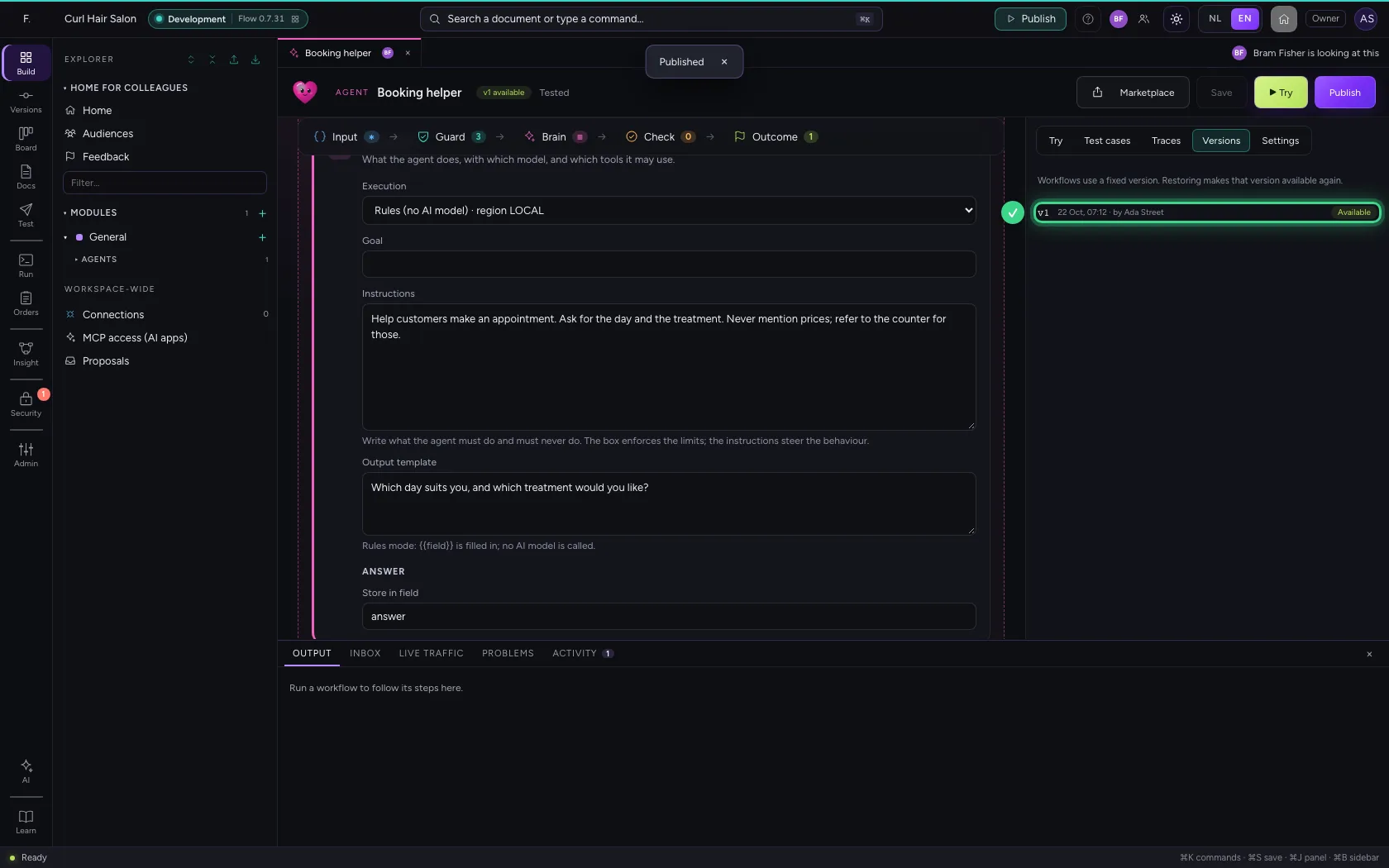
Try the new version and publish it. Under Versions every version shows who published it.
- Click Try
- Click Publish
Your colleague hears it too
Bram is told on his screen that you published the AI Colleague. That way you both know which version colleagues in the chat get now.
This guide was carried out step by step on 22 Oct 2026 by an automated test on Flow (version 3e563176).