Build with the AI Architect
- Step 1 · Open your development environment
- Step 2 · Open the AI Architect
- Step 3 · Say what you want
- Step 4 · See what it knows
- Step 5 · Confirm part by part
- Step 6 · Build the first part
- Step 7 · Build the next part, and see how it fixes a mistake
- Step 8 · See what was made
- Step 9 · Open what it made
- Step 10 · Revert all
Tell the AI Architect what you want. It works in small steps: it first reads Flow's guide and your workspace, writes down what it knows, and proposes the plan part by part: what it will make, in which order, and what stays for you. Only when you say ‘Build it’ does it build, part by part, with the same tools an AI app uses over MCP and never with more rights than you. You see every step live; a mistake Flow finds, it fixes itself; access it proposes instead of granting. Before it changes anything Flow records a version, so ‘Revert all’ puts everything back in one go.
Open your development environment
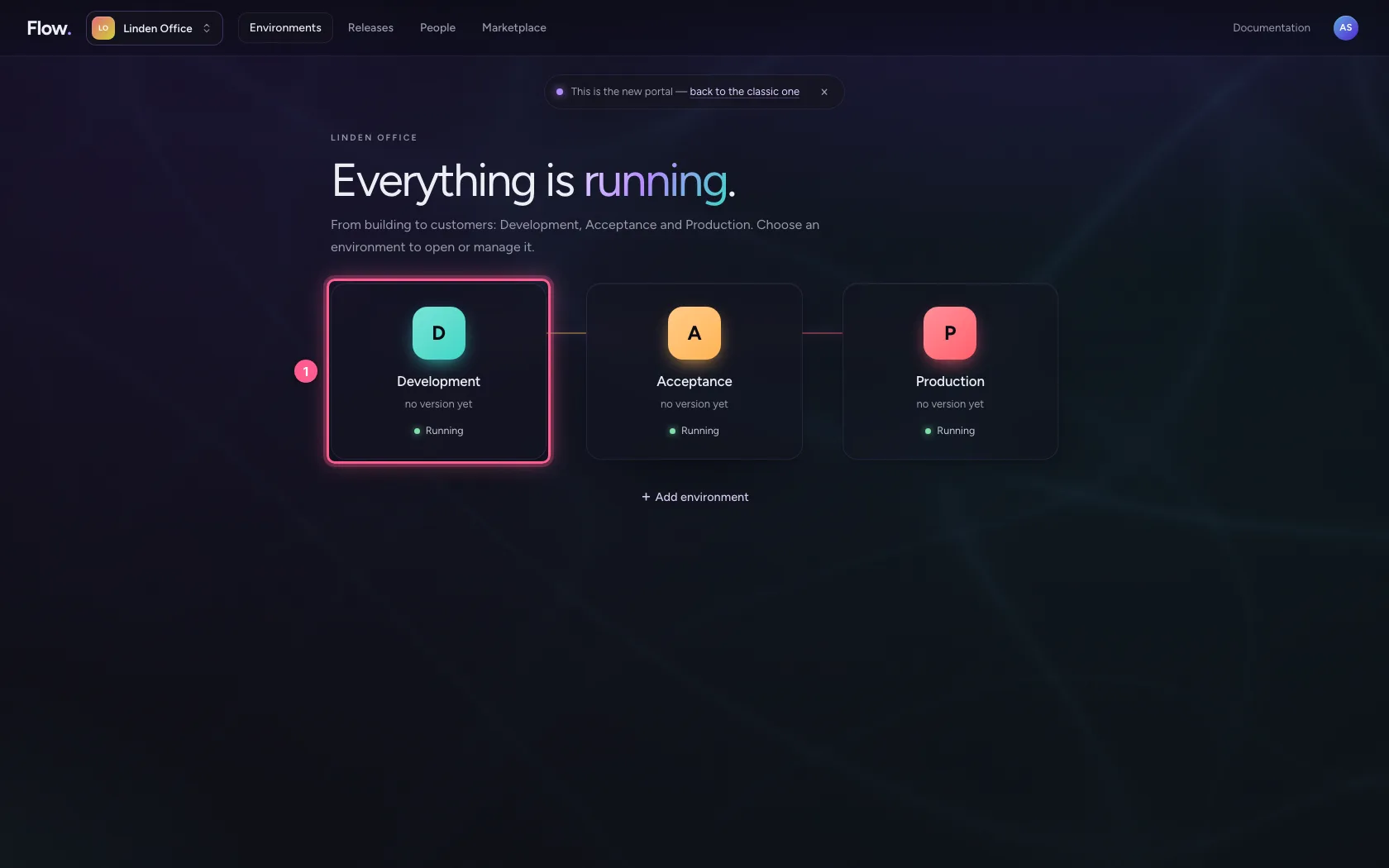
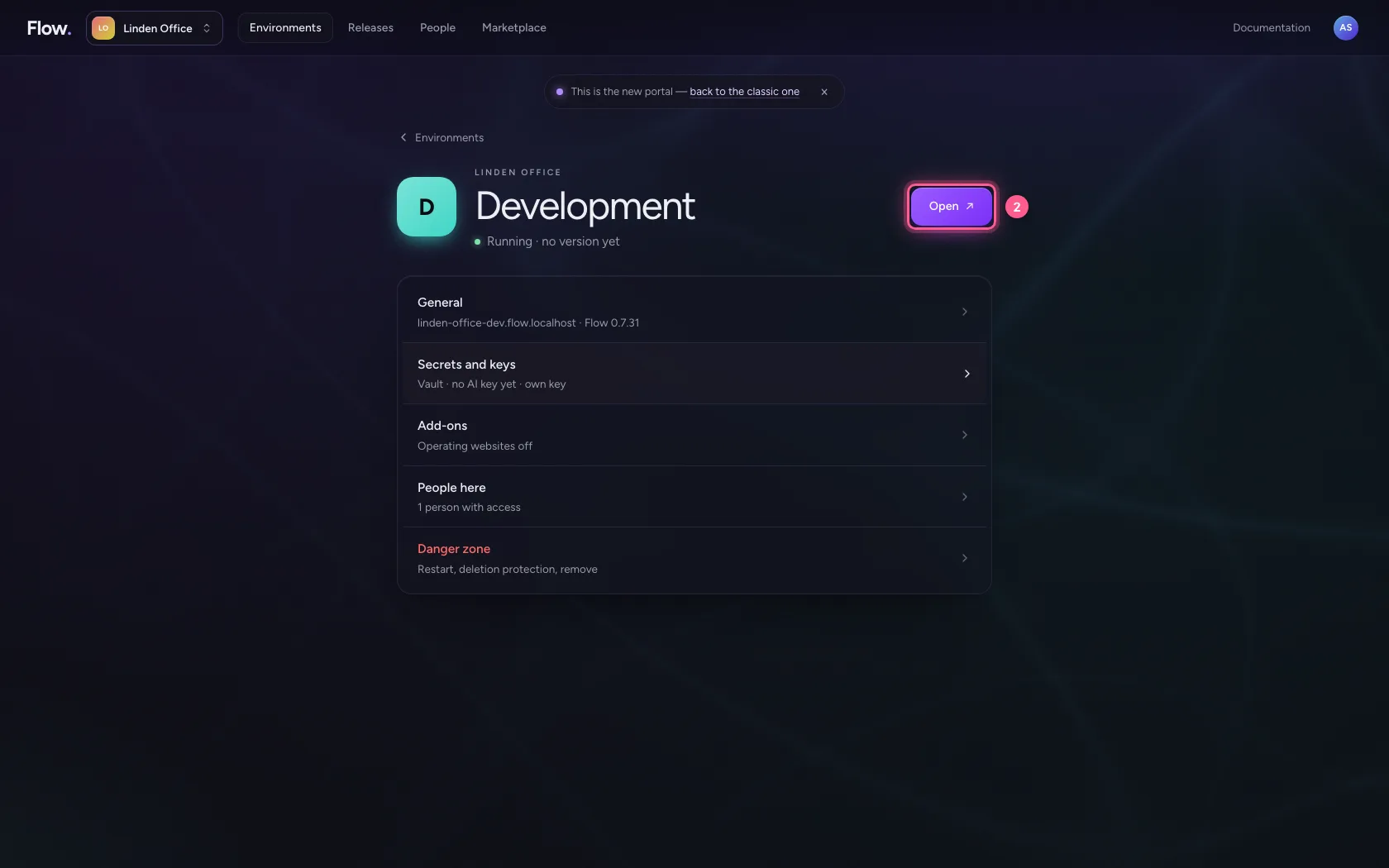
In the portal, under Environments, click Development, and there Open. Flow opens in a new tab and you are signed in straight away.
- Click Development
- Click Open ↗
Open the AI Architect
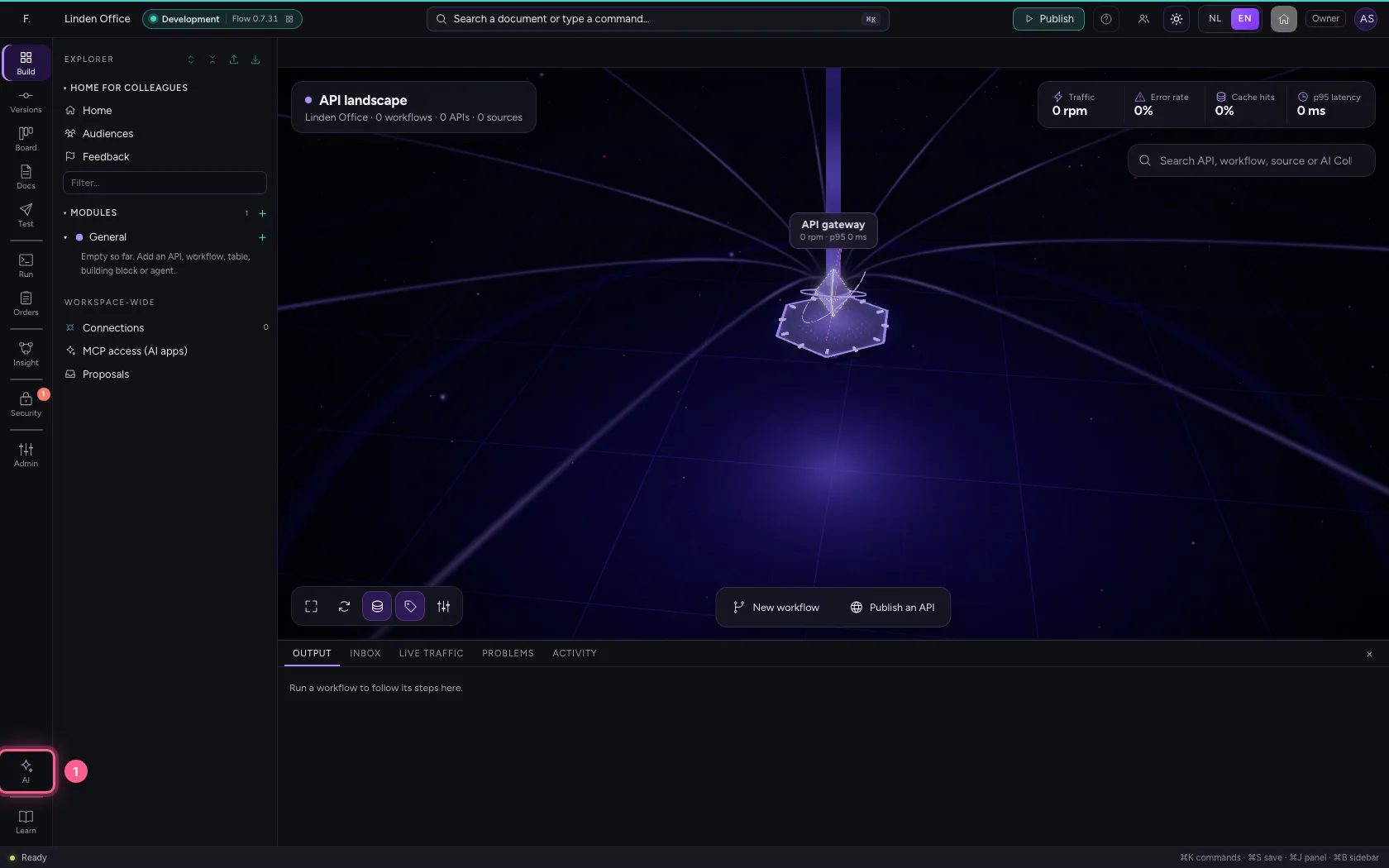
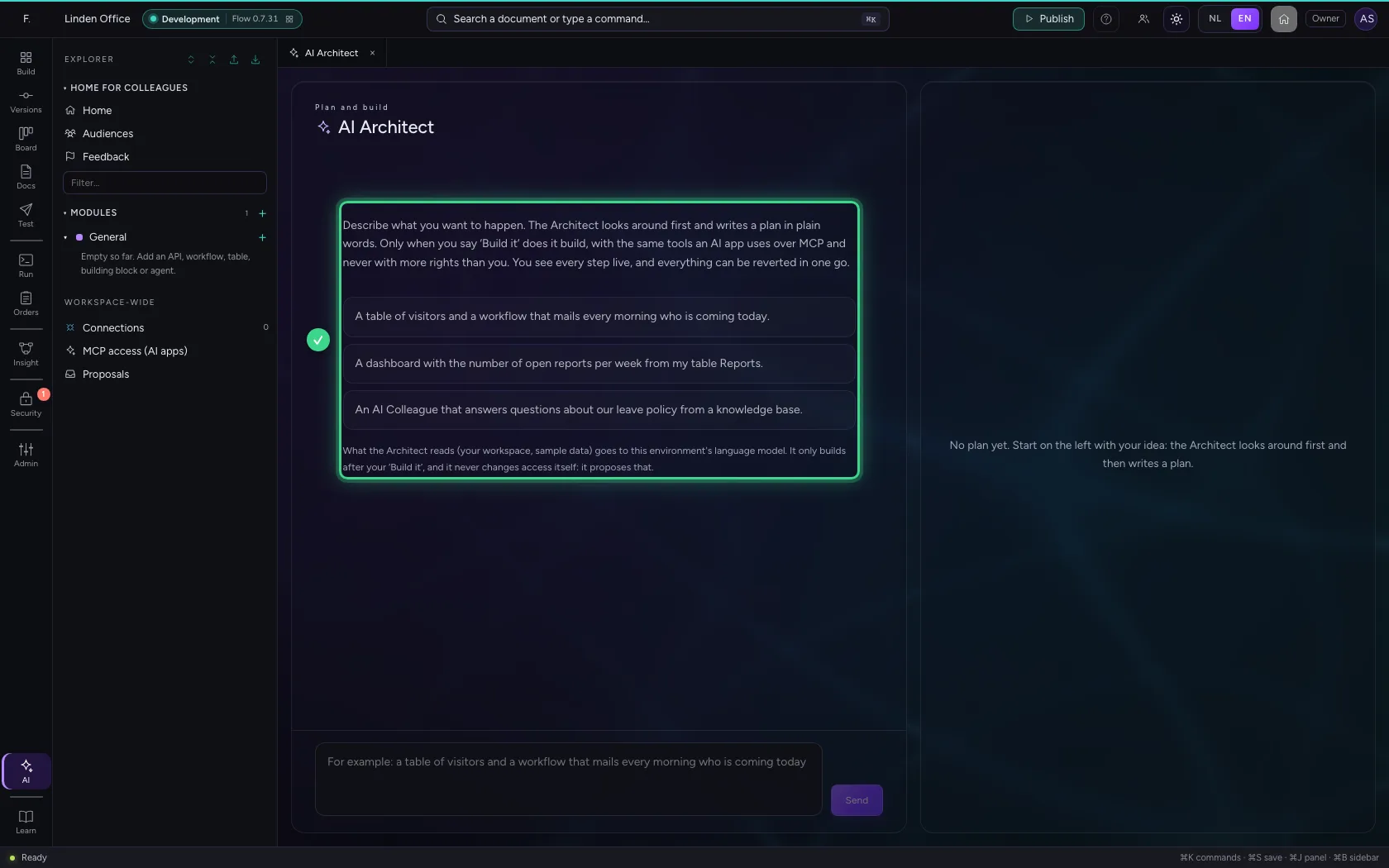
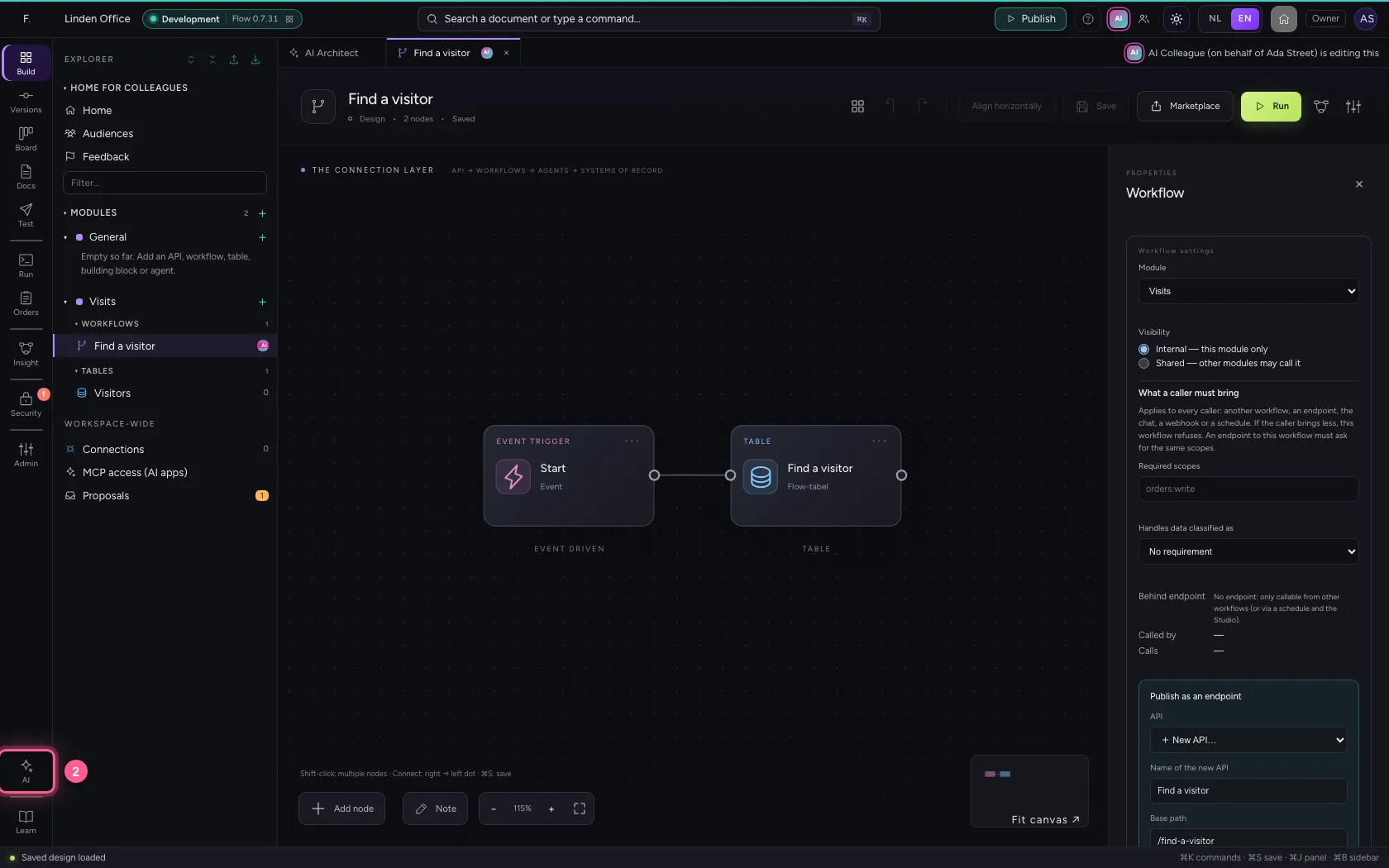
At the bottom of the bar on the left is AI: the AI Architect. It lies like glass over Flow's water. On the left you talk to it, on the right the plan appears.
- Click AI
Say what you want
Write in your own words what you want to happen and send it. The Architect first reads, once per conversation, Flow's guide and what is in your workspace; after that it works in small steps. Every step shows as a card. It proposes the plan part by part: the data first. In this phase it changes nothing.
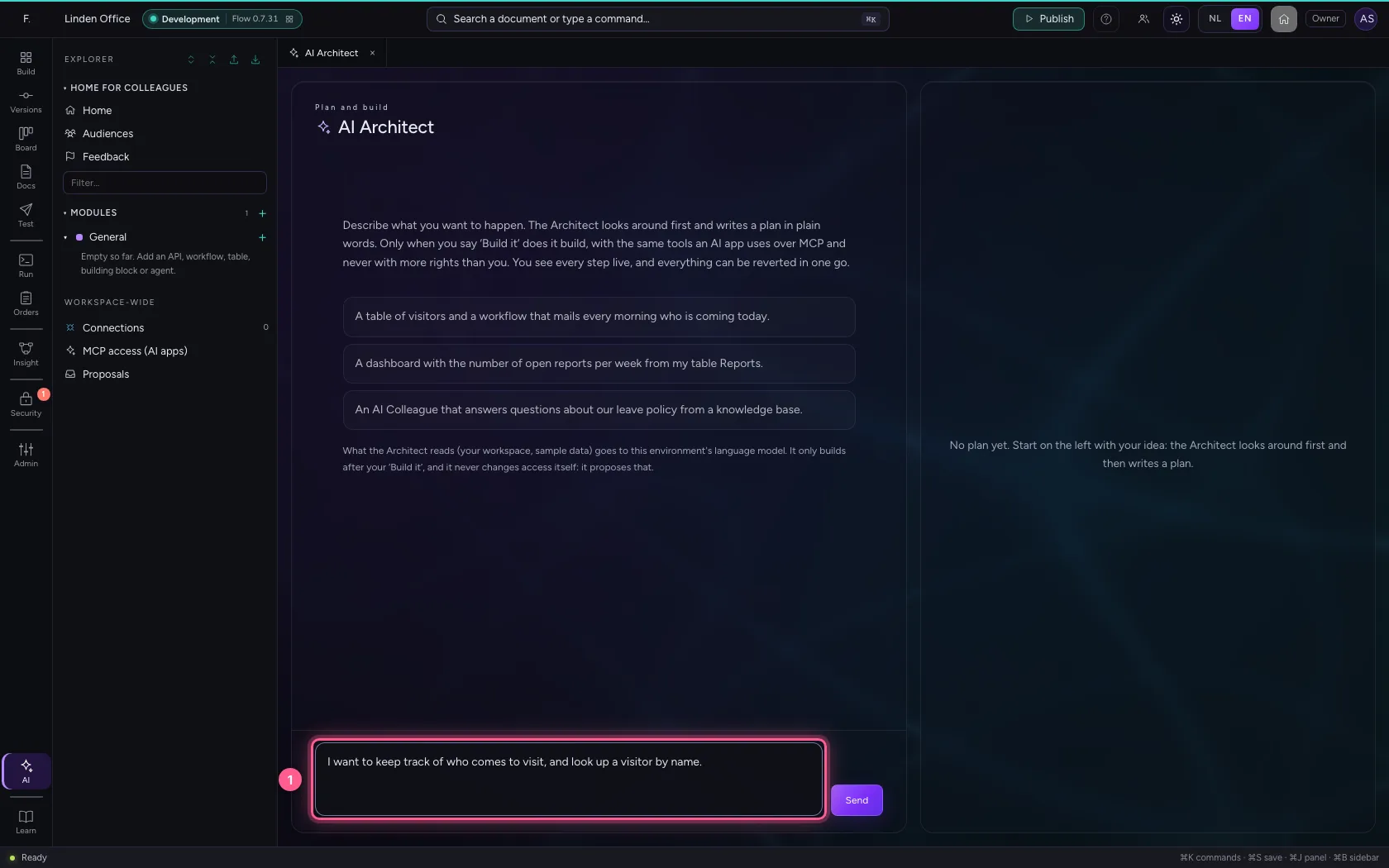
- In **For example: a table of visitors and a workflow that mails every morning who is **, type
I want to keep track of who comes to visit, and look up a visitor by name.
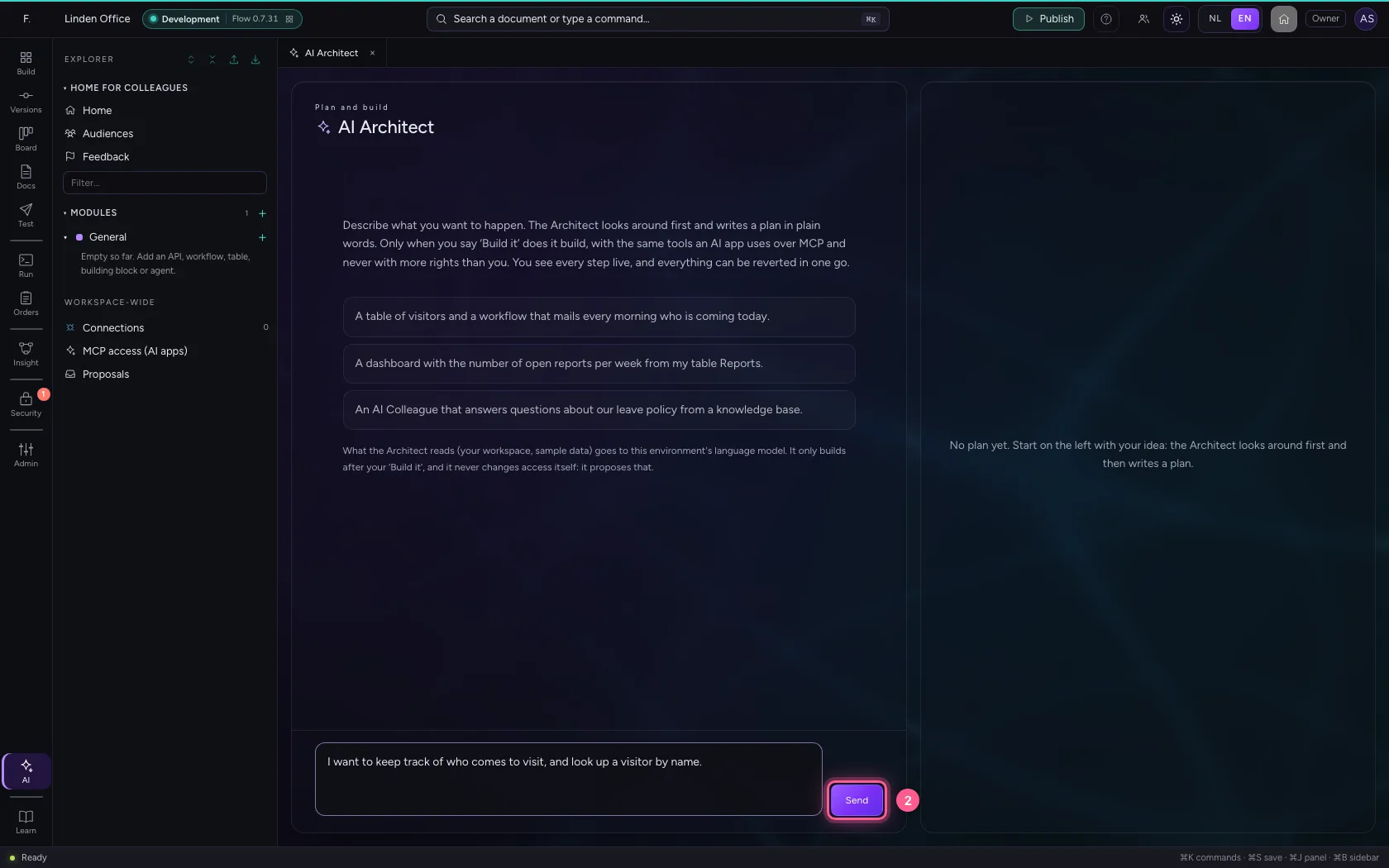
- Click Send
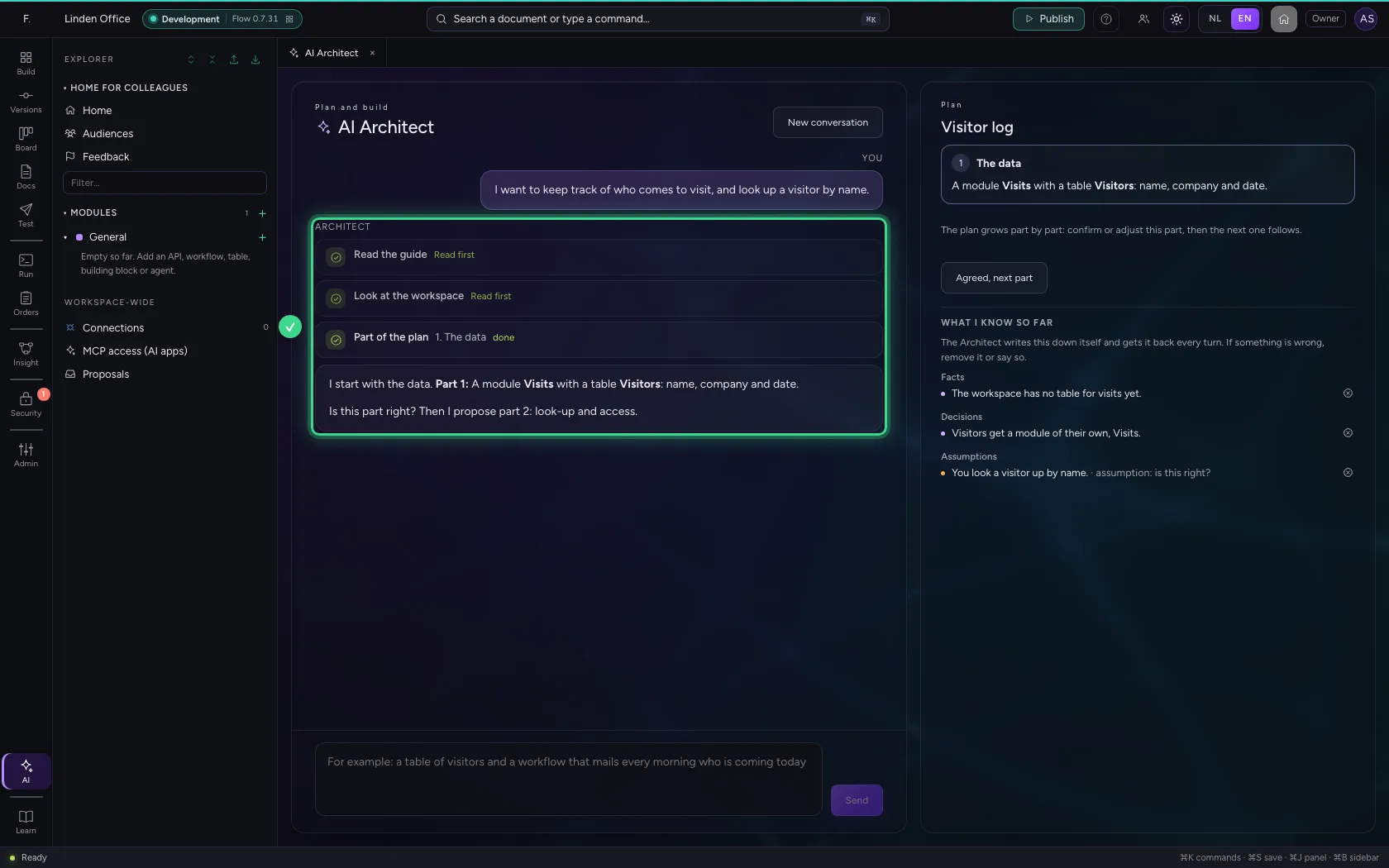
See what it knows
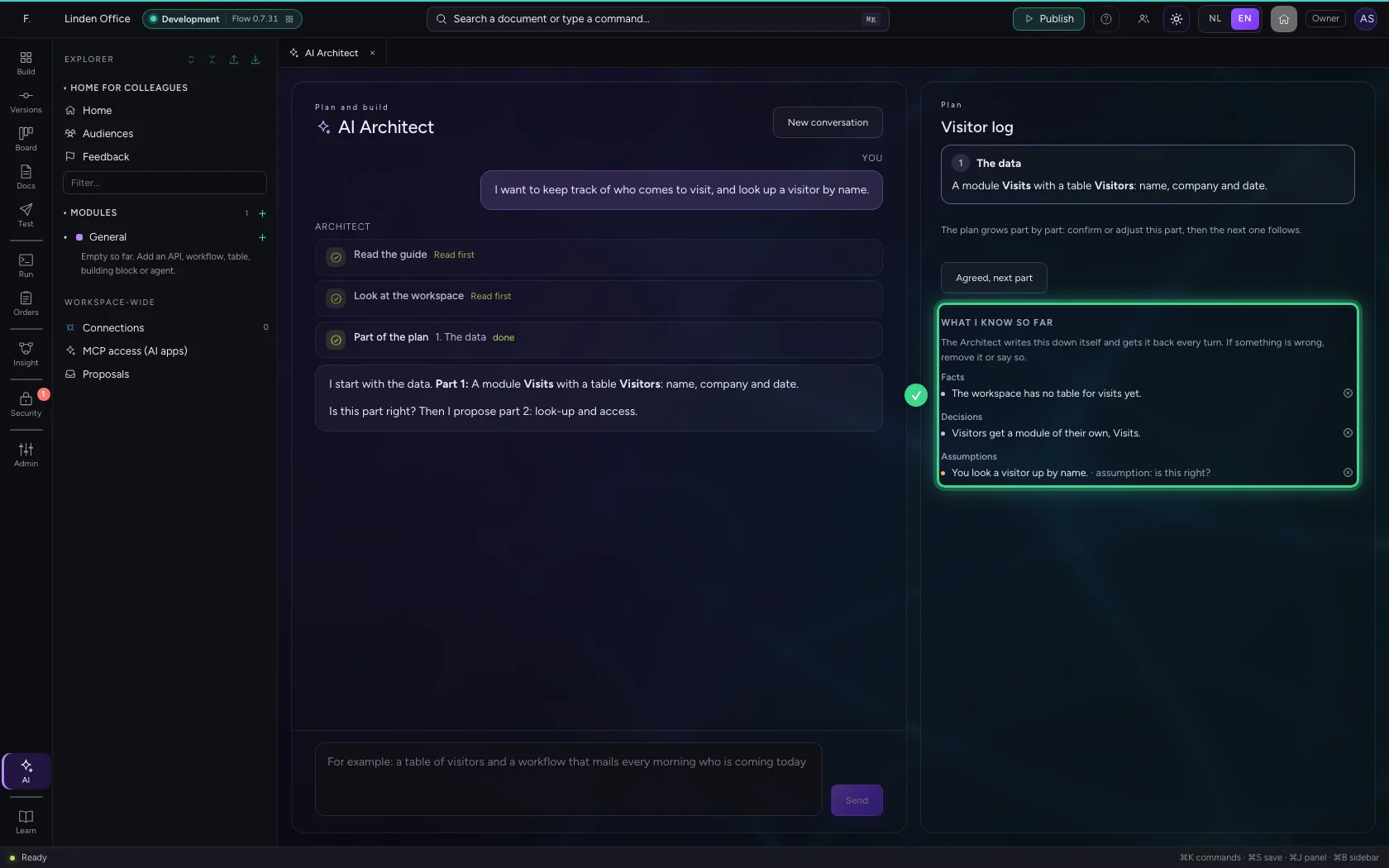
On the right, under What I know so far, the Architect writes down itself what it learned and decided, and what it assumes. It gets that back every turn, so it does not look everything up again. If an assumption is wrong, remove it or say so in the conversation.
Confirm part by part
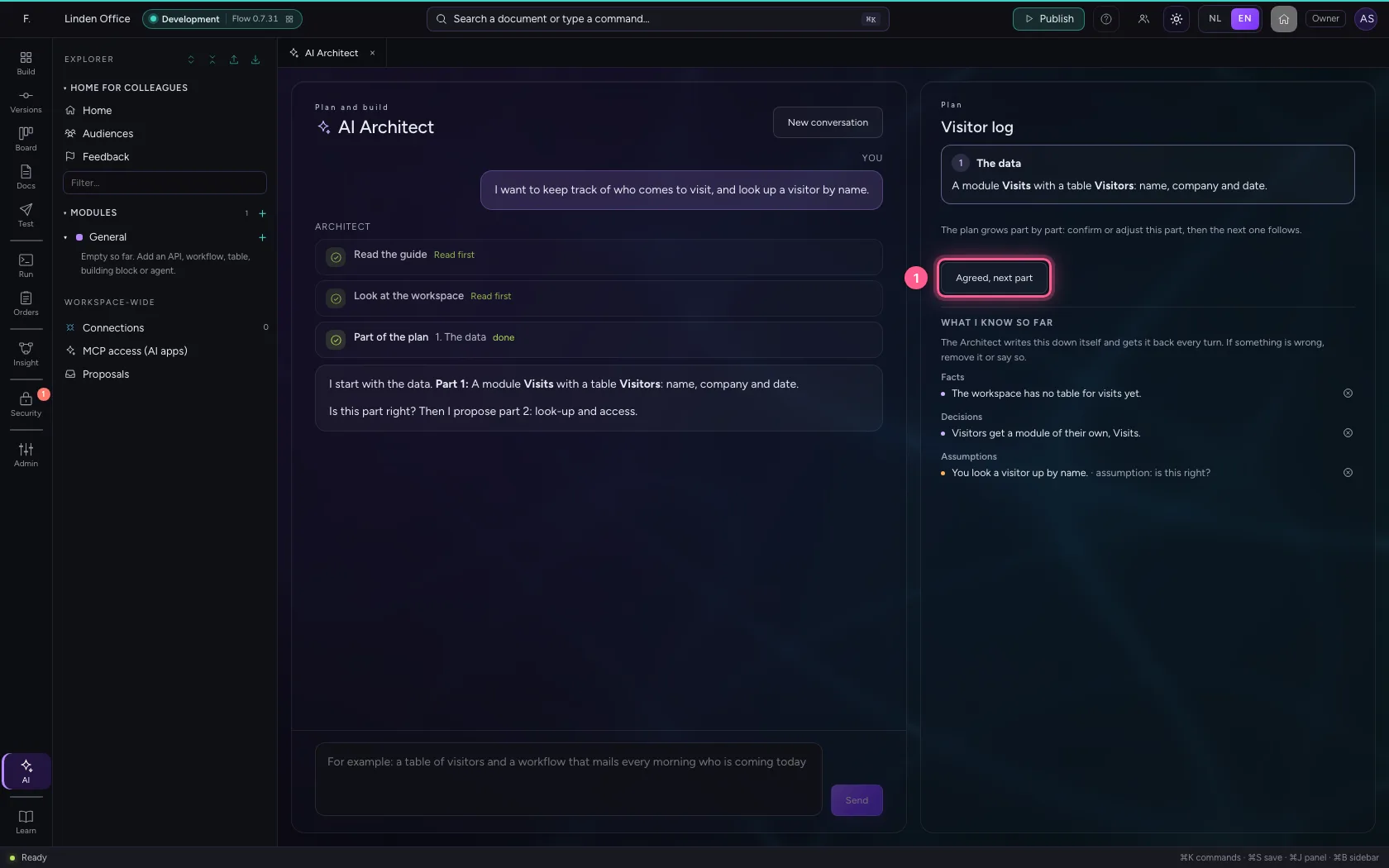
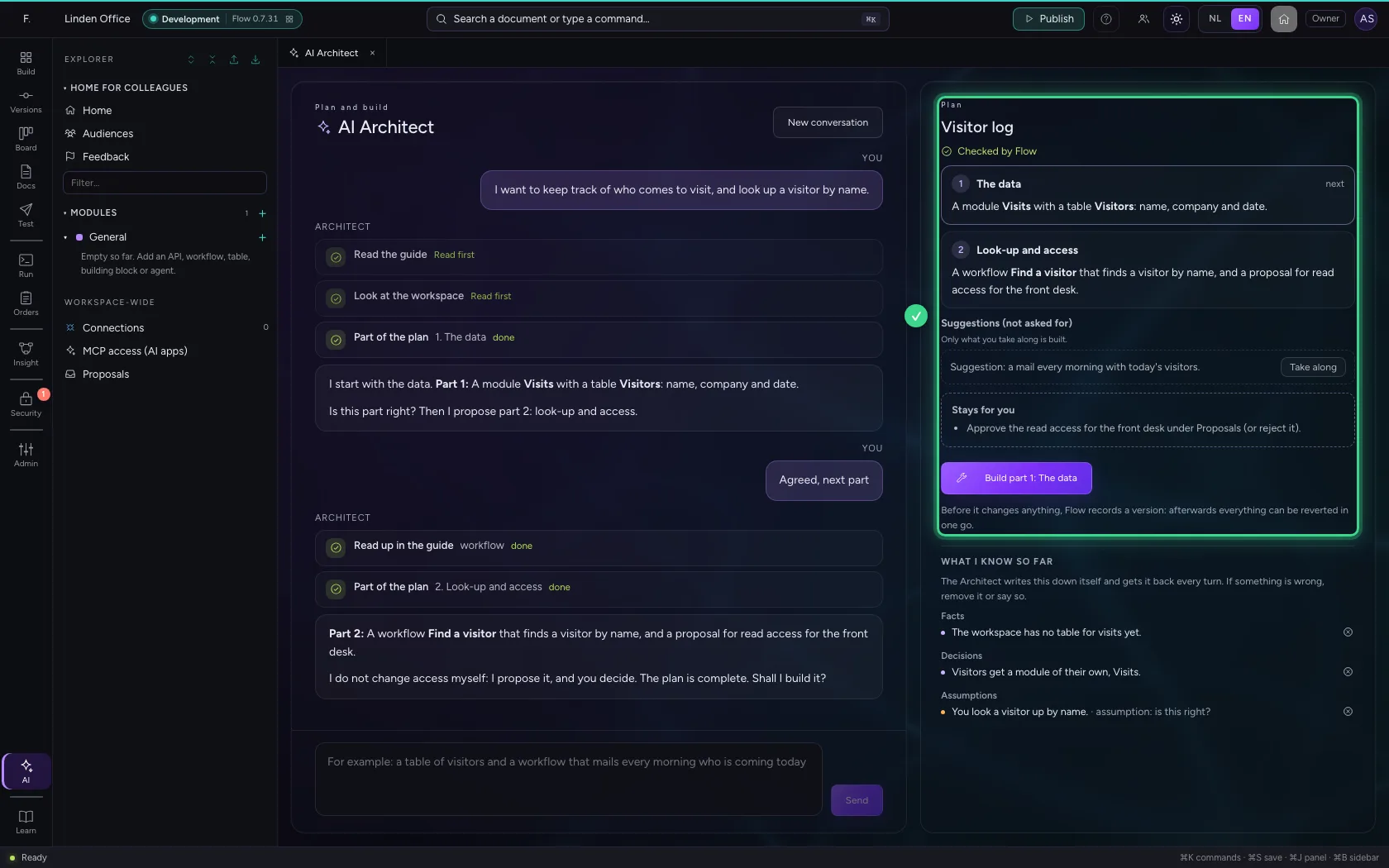
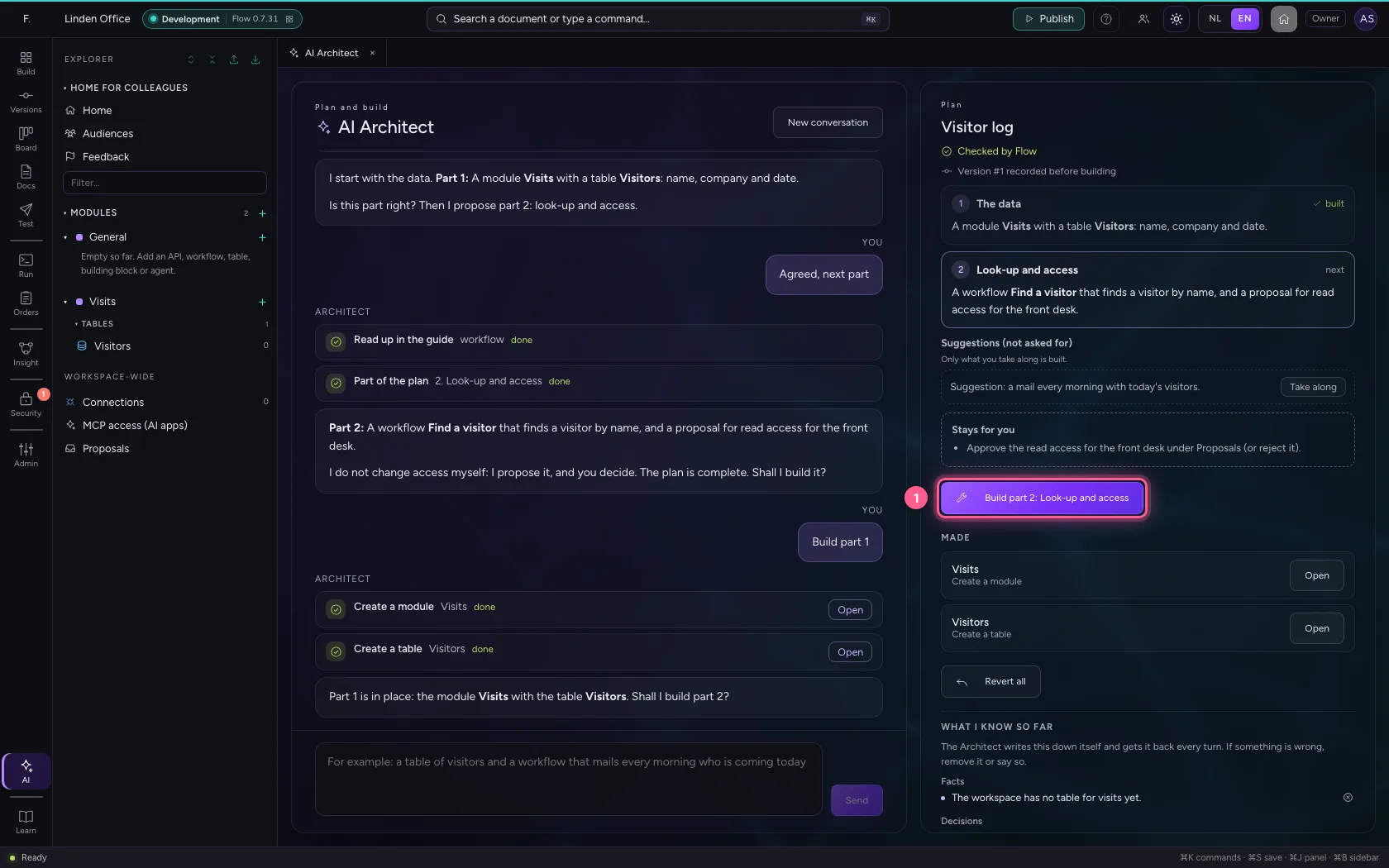
Is part 1 right? Click Agreed, next part (or say what should change). Then it proposes part 2. Access (here: read access for the front desk) it never grants itself; it proposes it. An idea you did not ask for stands apart as a suggestion: only what you take along is built.
- Click Agreed, next part
Build the first part
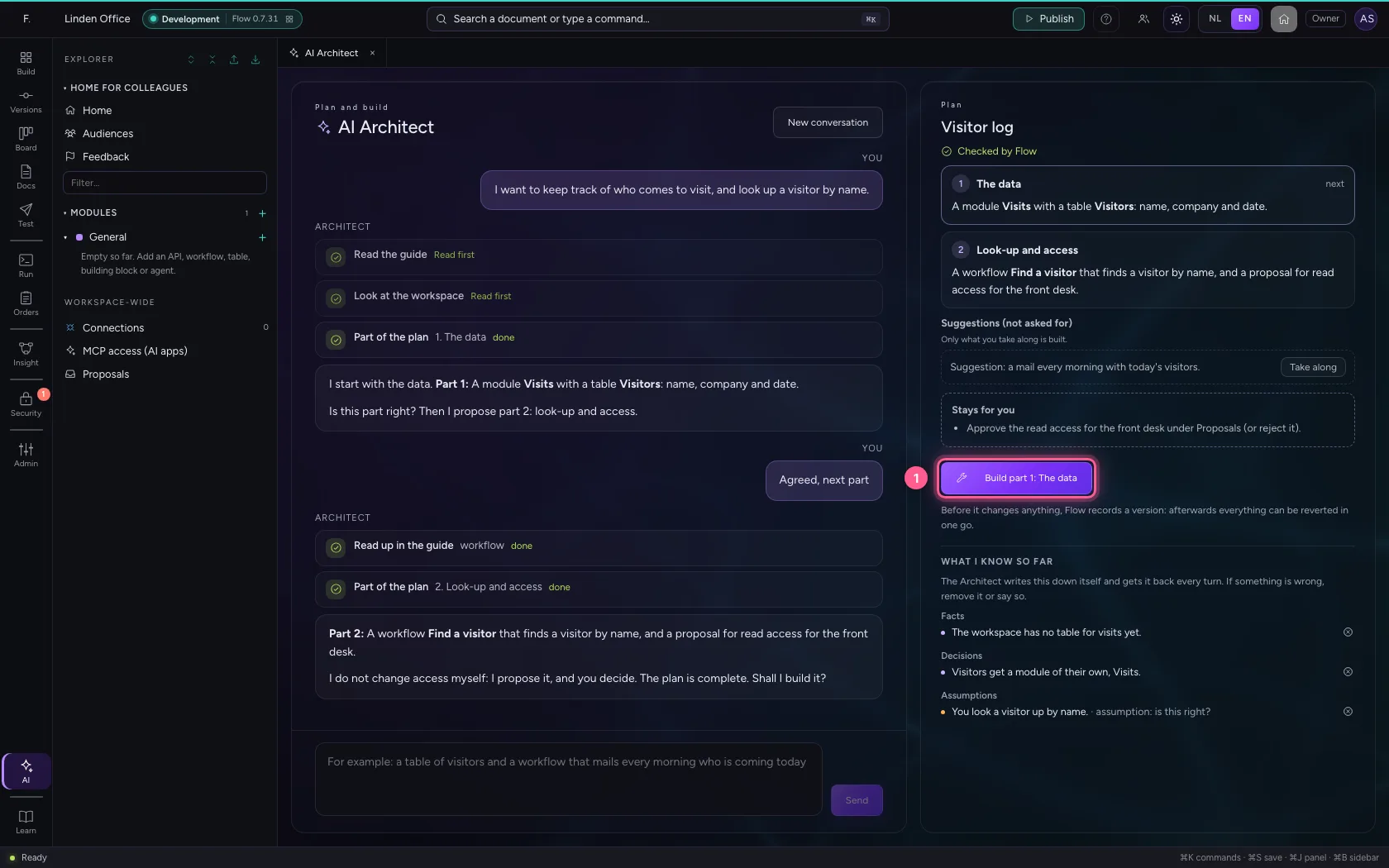
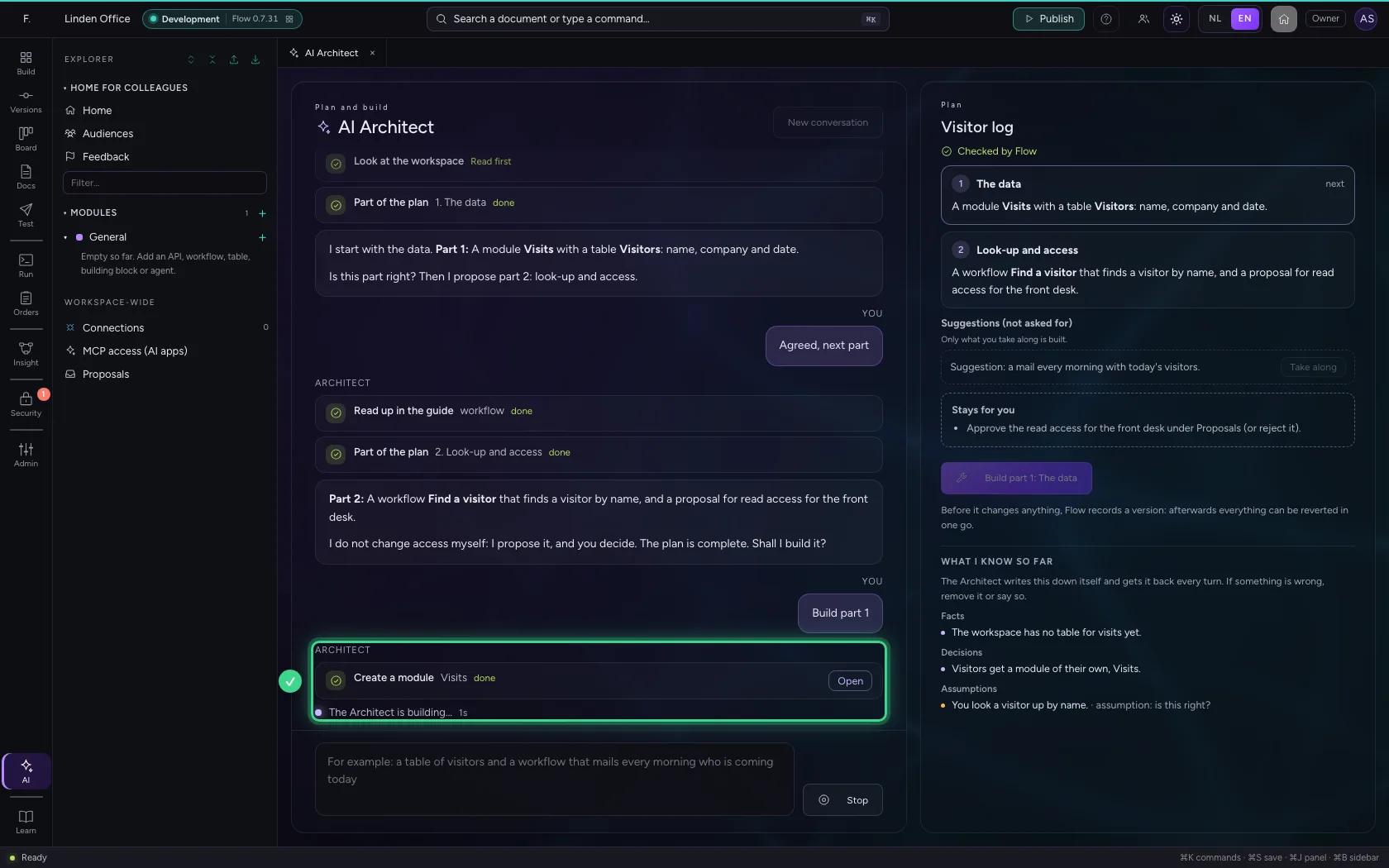
Click Build part 1. Before anything changes, Flow records a version: Before the AI Architect: …. Then it builds only this part, with your rights, and you see every step appear live. Stop makes it stop after the step it is working on.
- Click Build part 1: The data
Build the next part, and see how it fixes a mistake
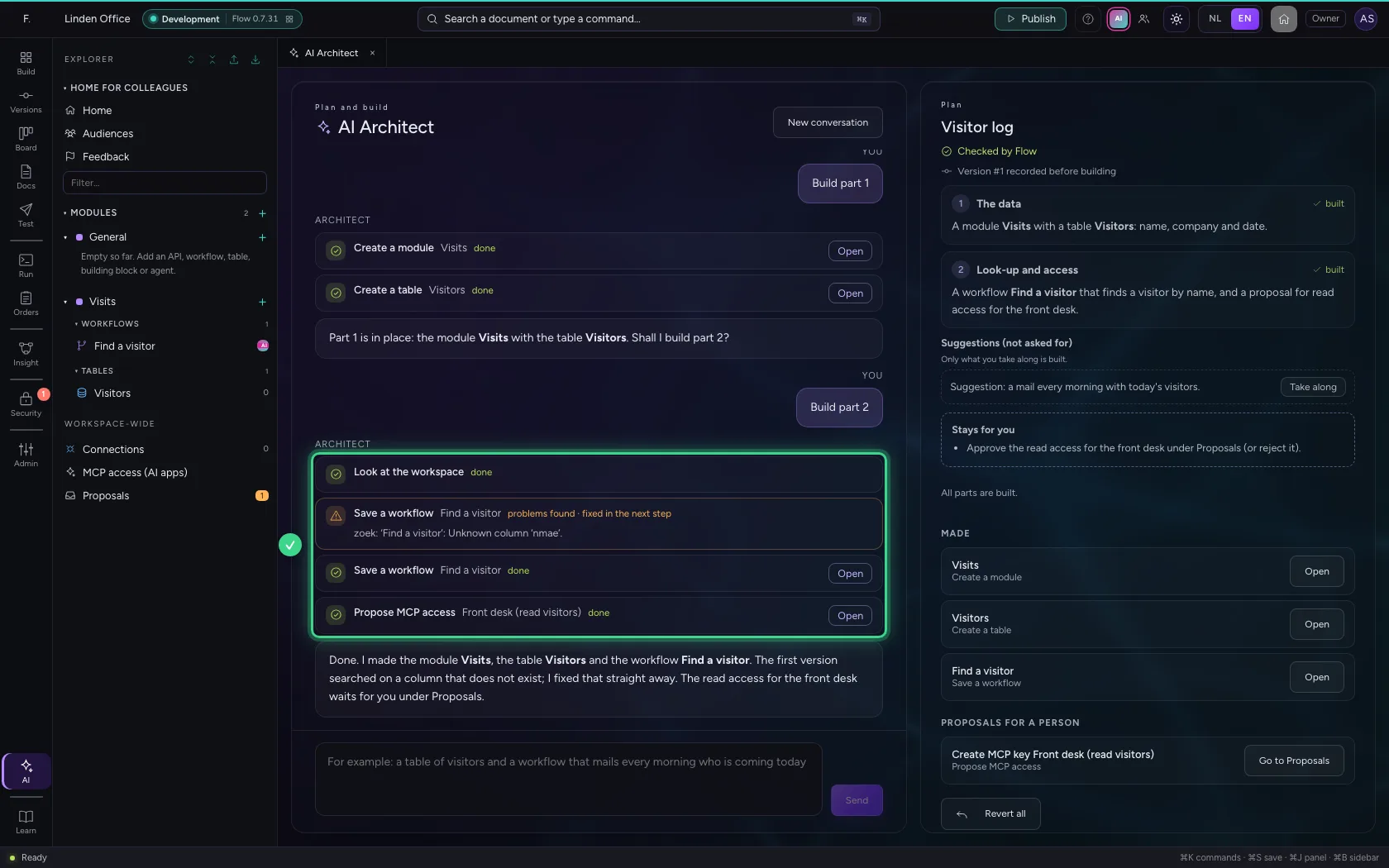
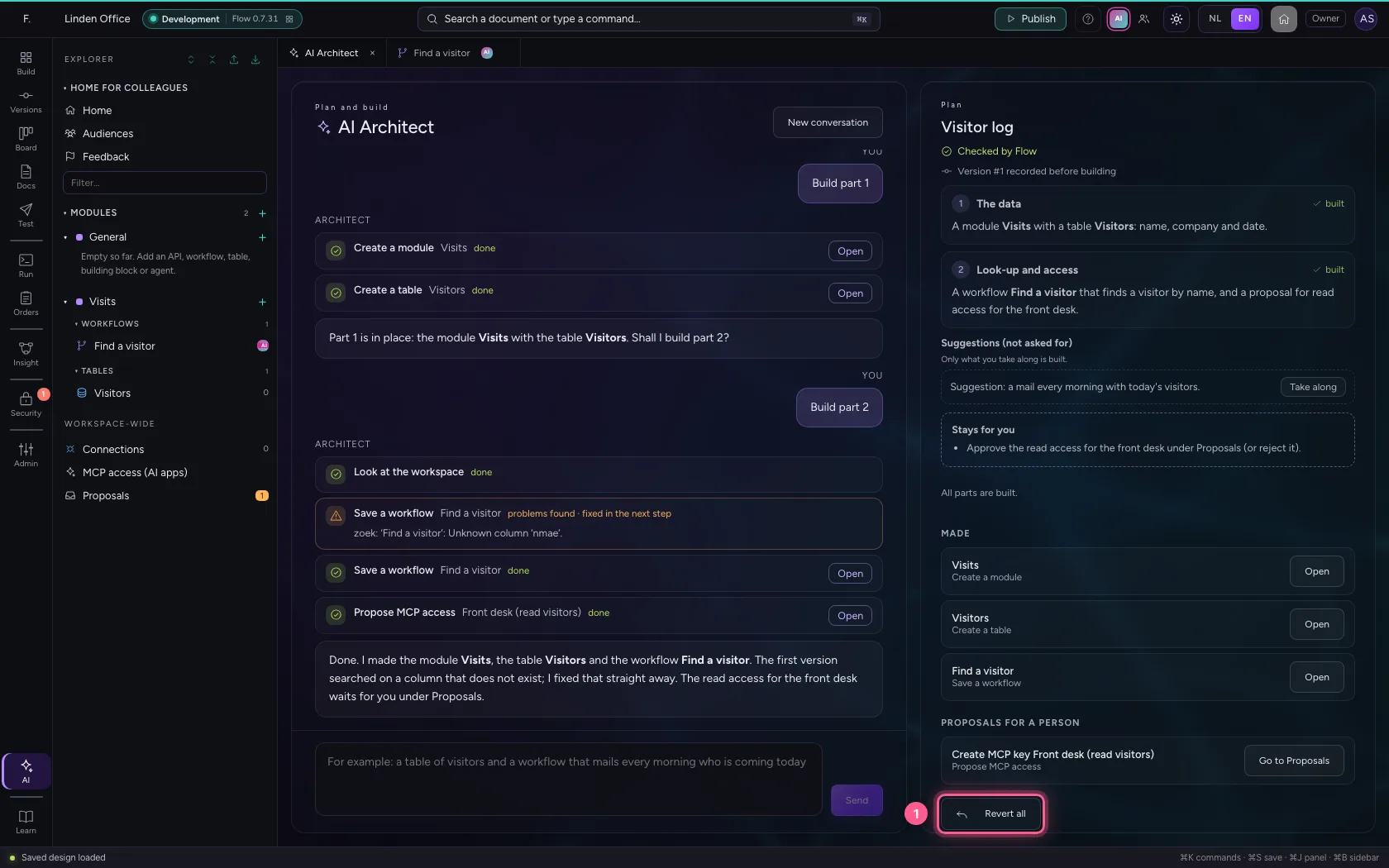
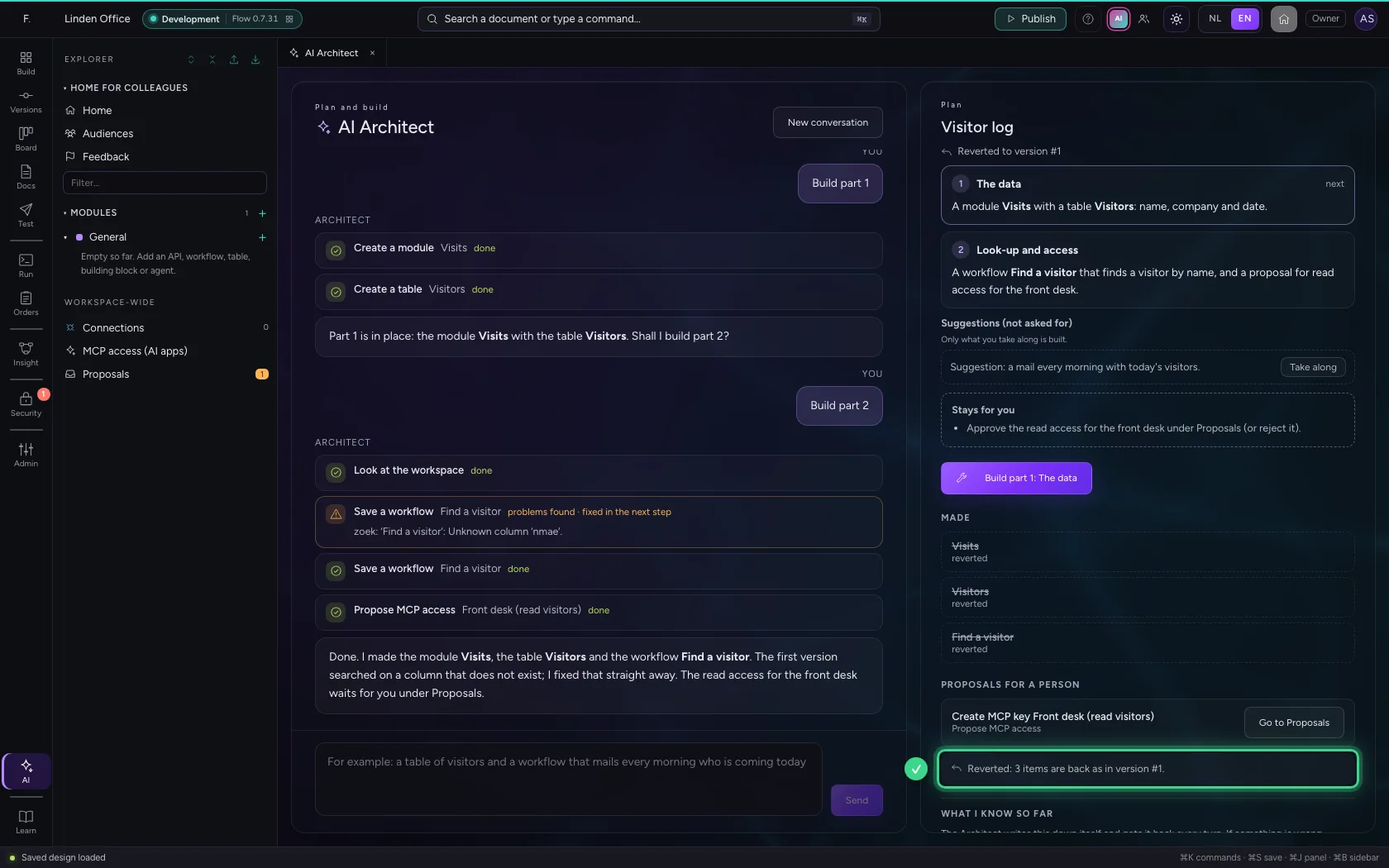
Part 1 is built. Click Build part 2. Flow checks every saved workflow. The first version searched on a column that does not exist: that card is orange, with the problem next to it. The Architect reads it, changes exactly that and saves again: now it is green. Its proposal for the front desk is there too.
- Click Build part 2: Look-up and access
See what was made
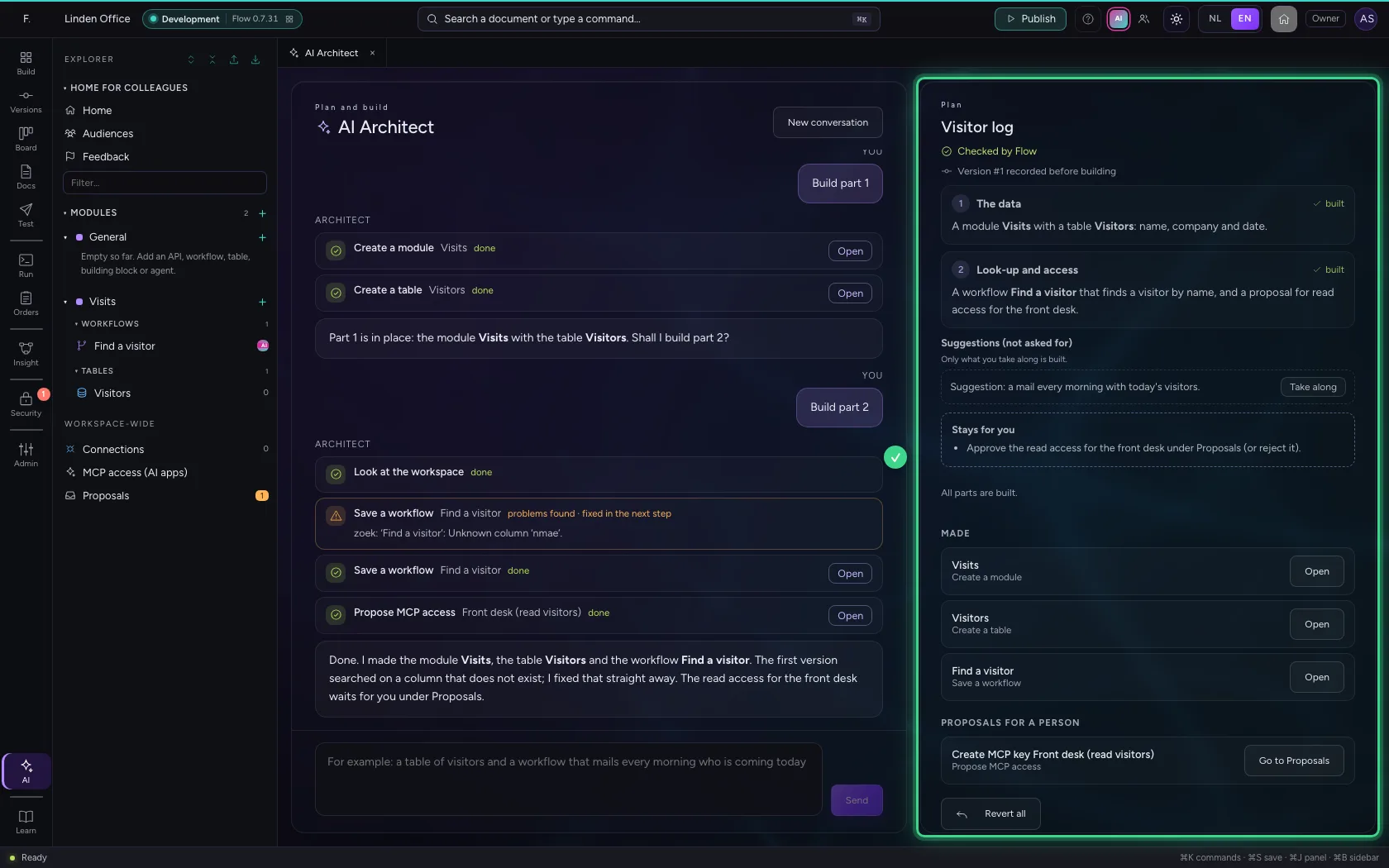
On the right is the result: what was made, each with Open, the proposal waiting for a person (under Proposals), what stays for you, and Revert all. On the left the Architect sums it up.
Open what it made
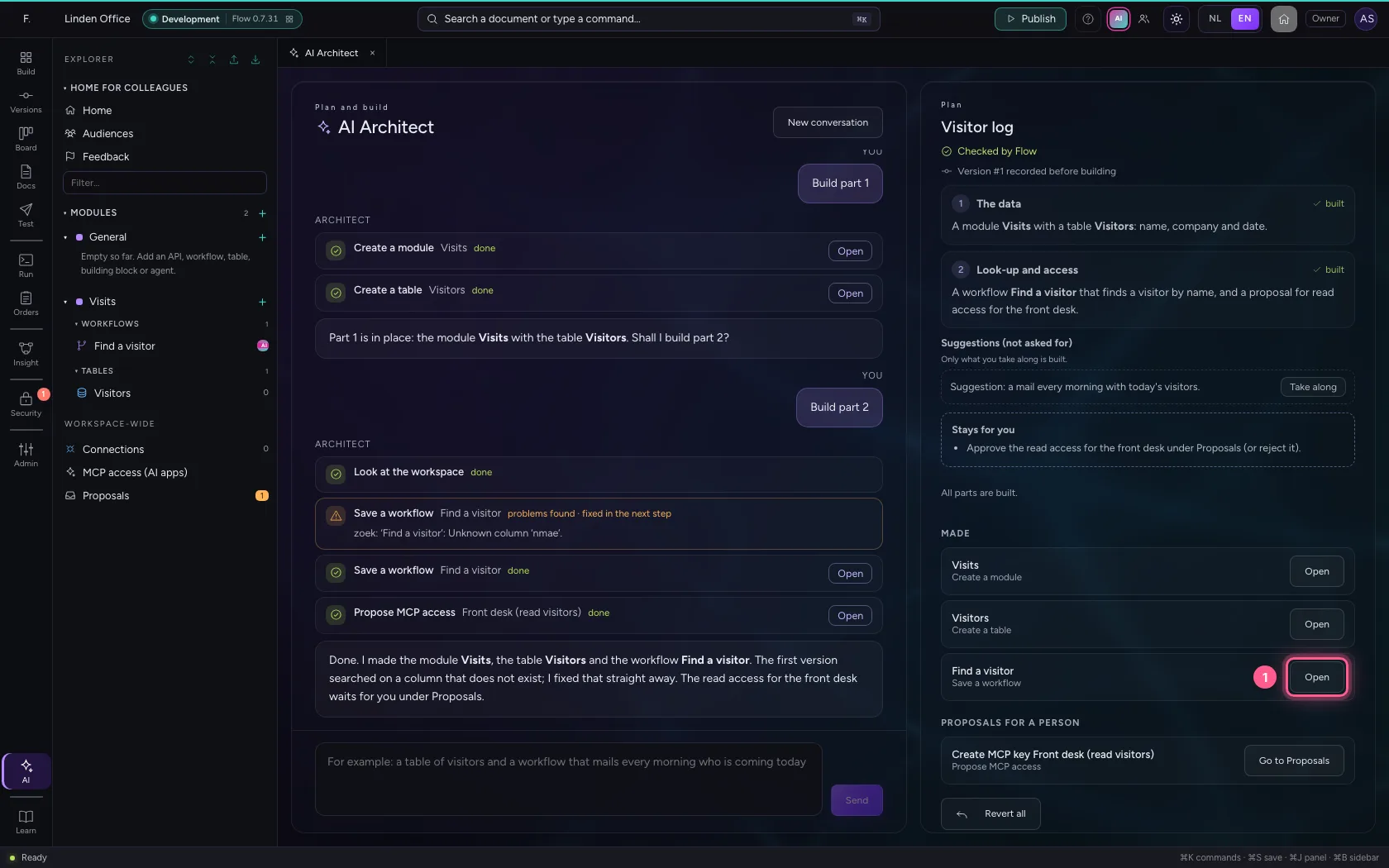
Click Open next to the workflow: it opens in the studio, like any other item. You can look at it, change it and run it. Then AI takes you back to the conversation.
- Click Open
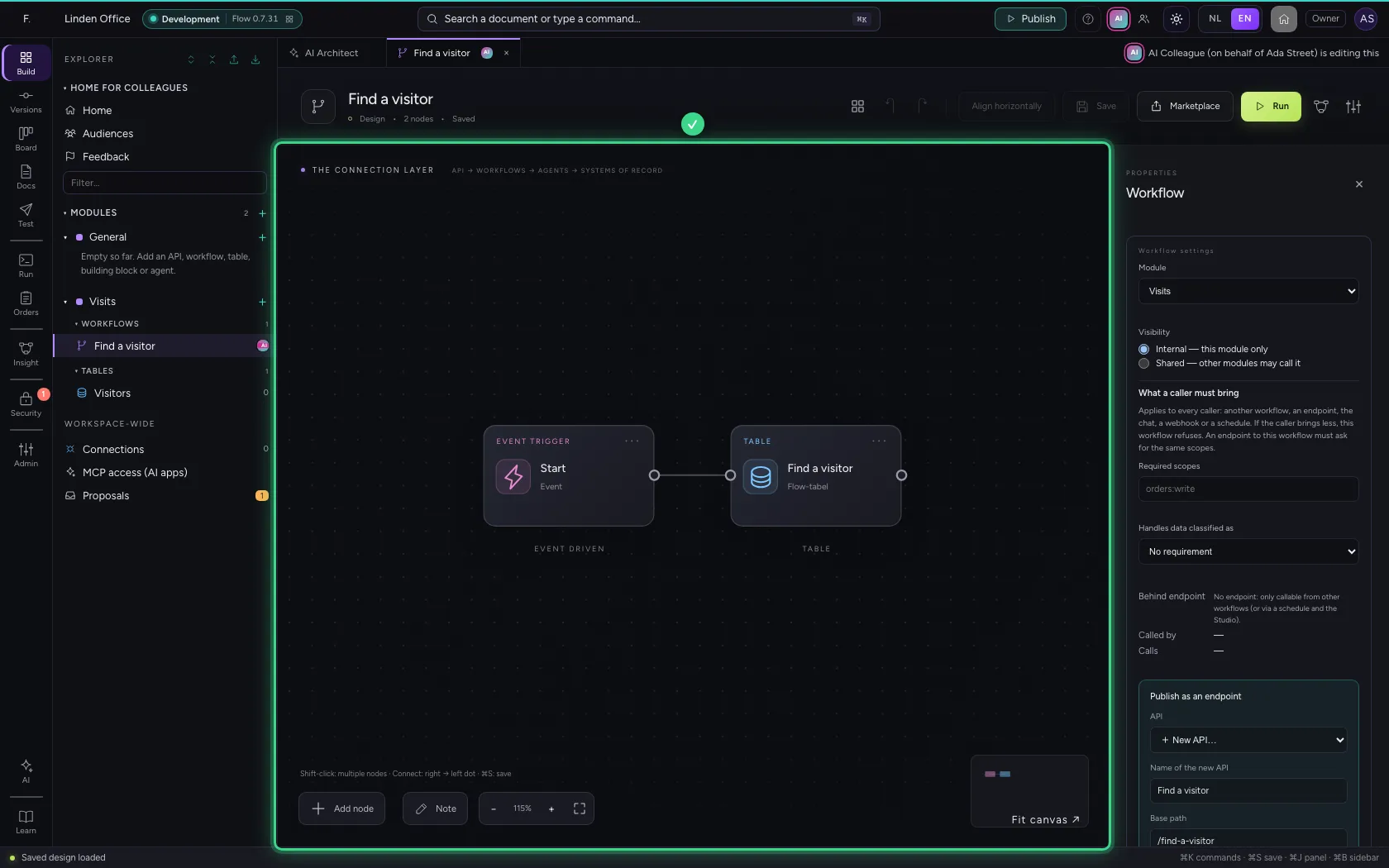
- Click AI
Revert all
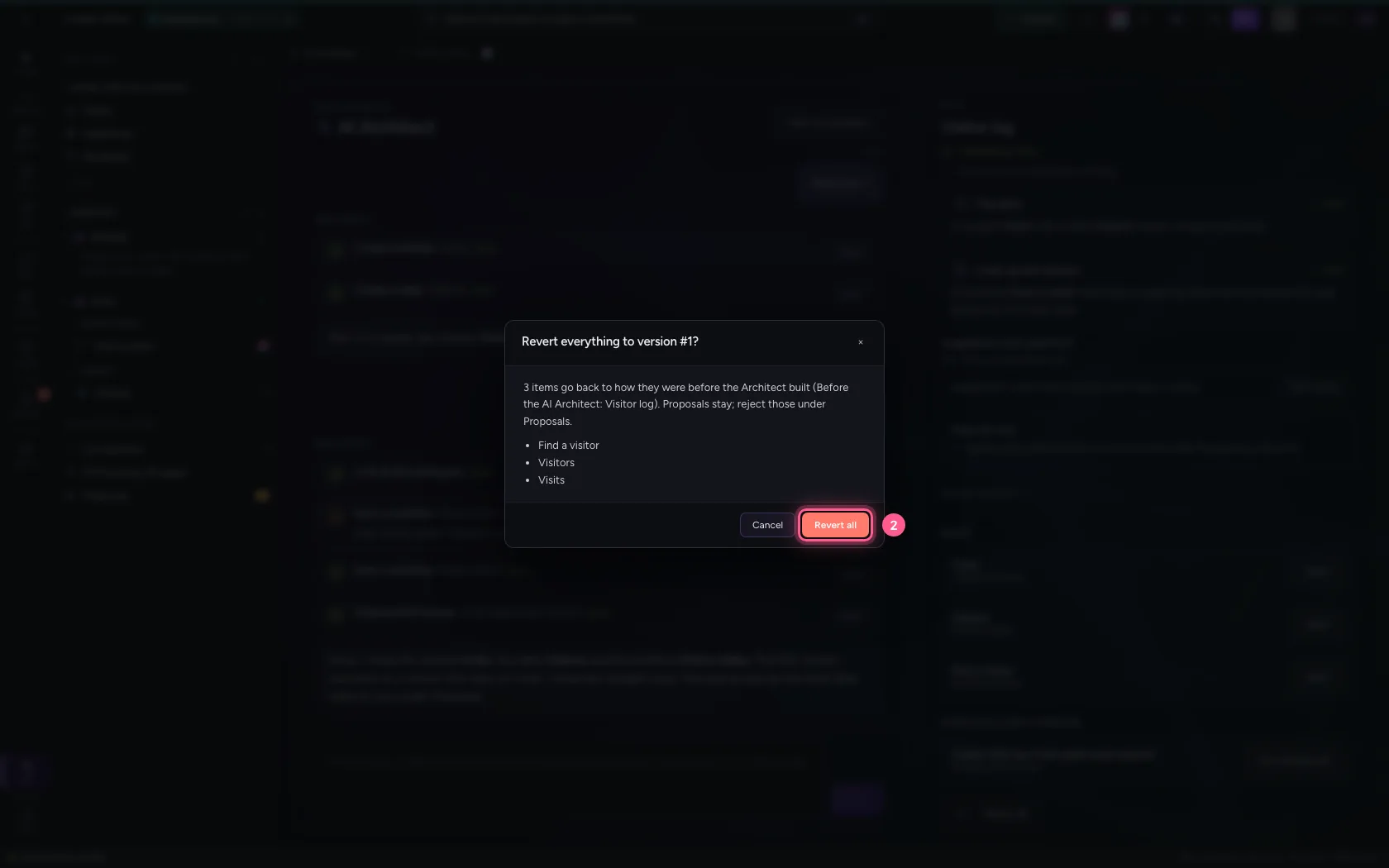
Not what you wanted after all? Revert all puts everything back to the version from before the build, with version control's restore. Flow first shows what goes back. Proposals stay: reject those under Proposals.
- Click Revert all
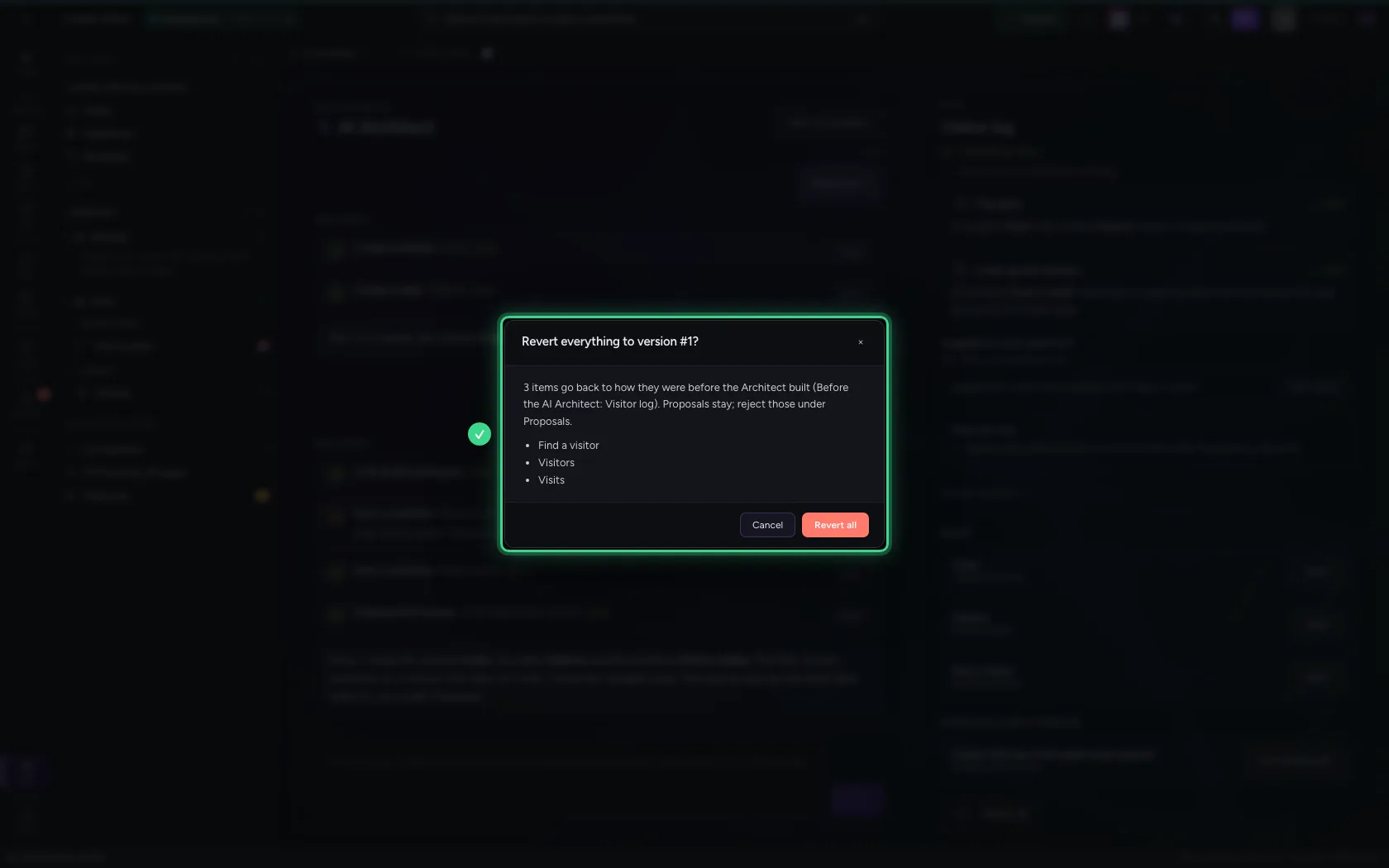
- Click Revert all
This guide was carried out step by step on 22 Oct 2026 by an automated test on Flow (version 3e563176).