Committing and publishing together
When several people work in Development, you commit versions together and publish them to Acceptance. Flow says with every change who made it, records only what you looked at, shows your colleagues your version at once and publishes exactly the version you saw in the preview. What is not committed yet does not go along; it says so, with who is working on it.
Open your development environment
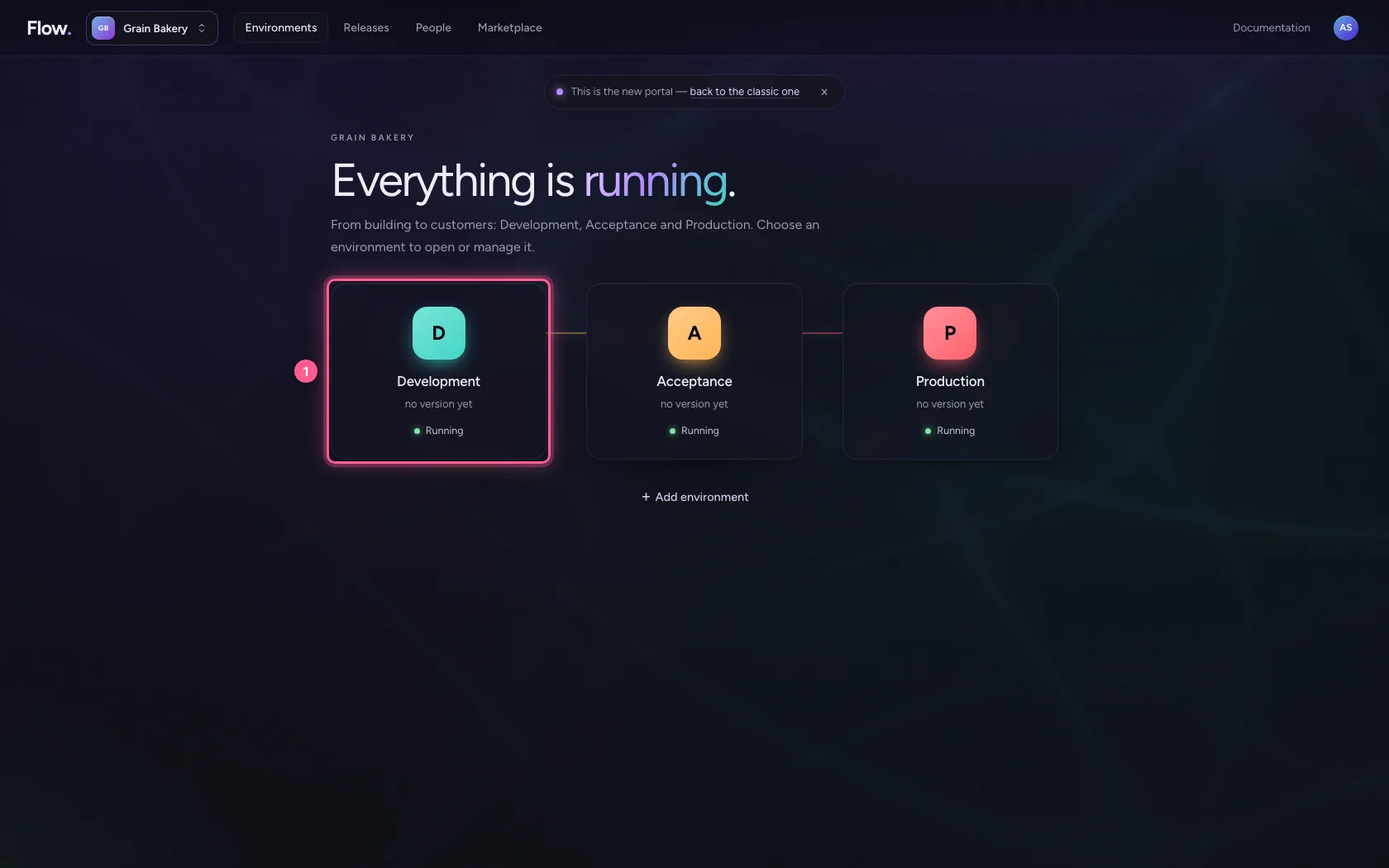
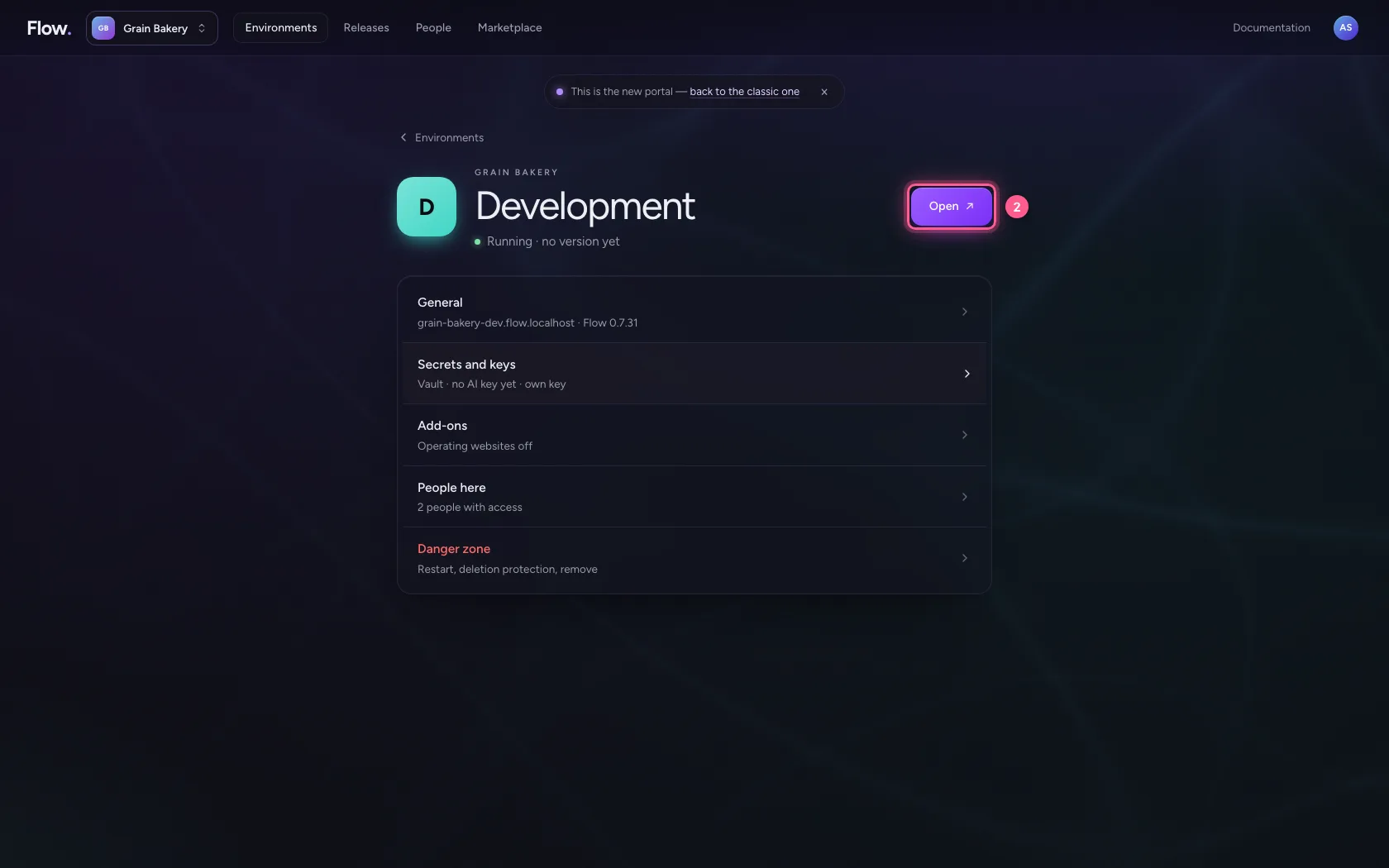
In the portal, under Environments, click Development, and there Open. Flow opens in a new tab and you are signed in straight away.
- Click Development
- Click Open ↗
See who changed what
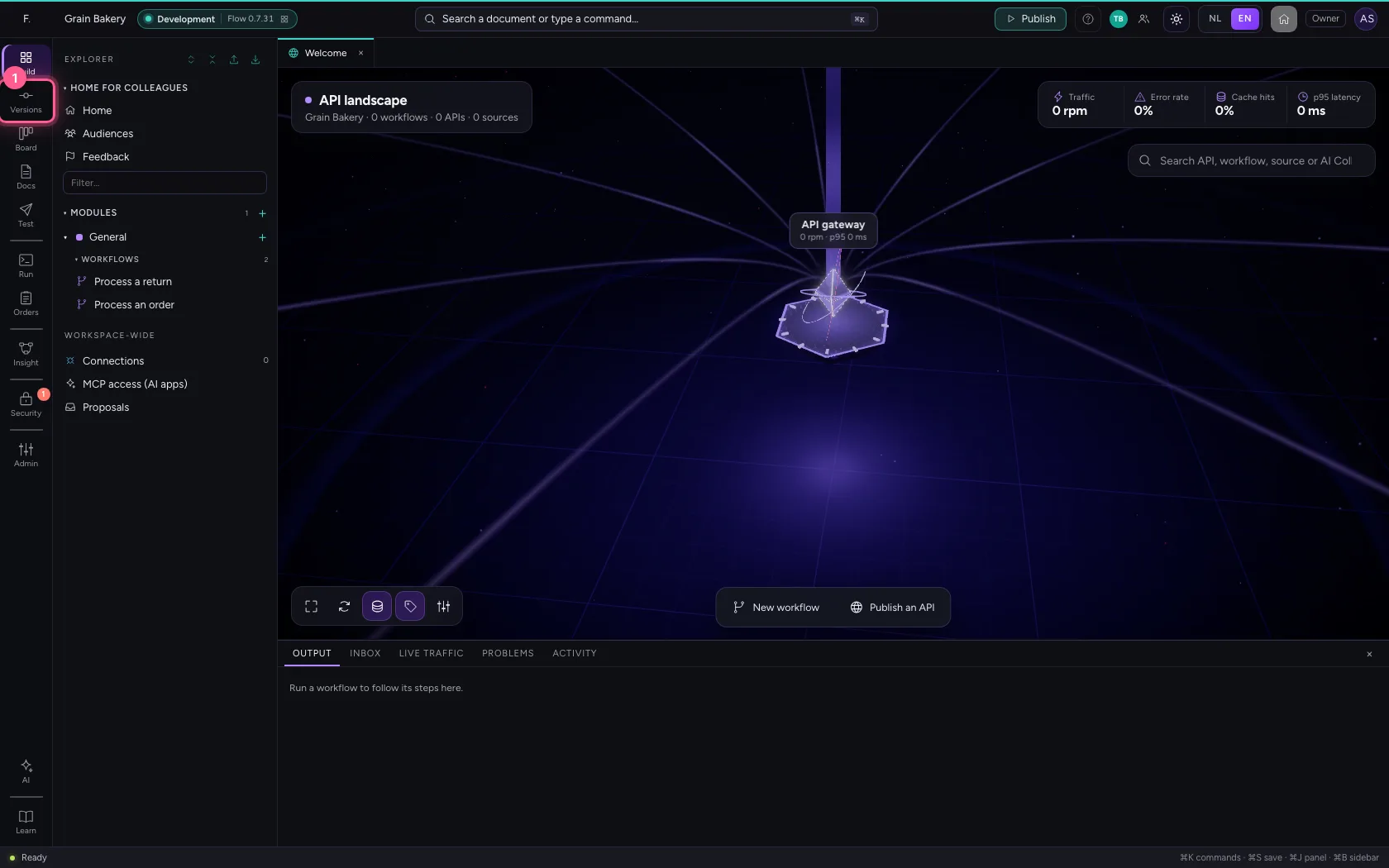
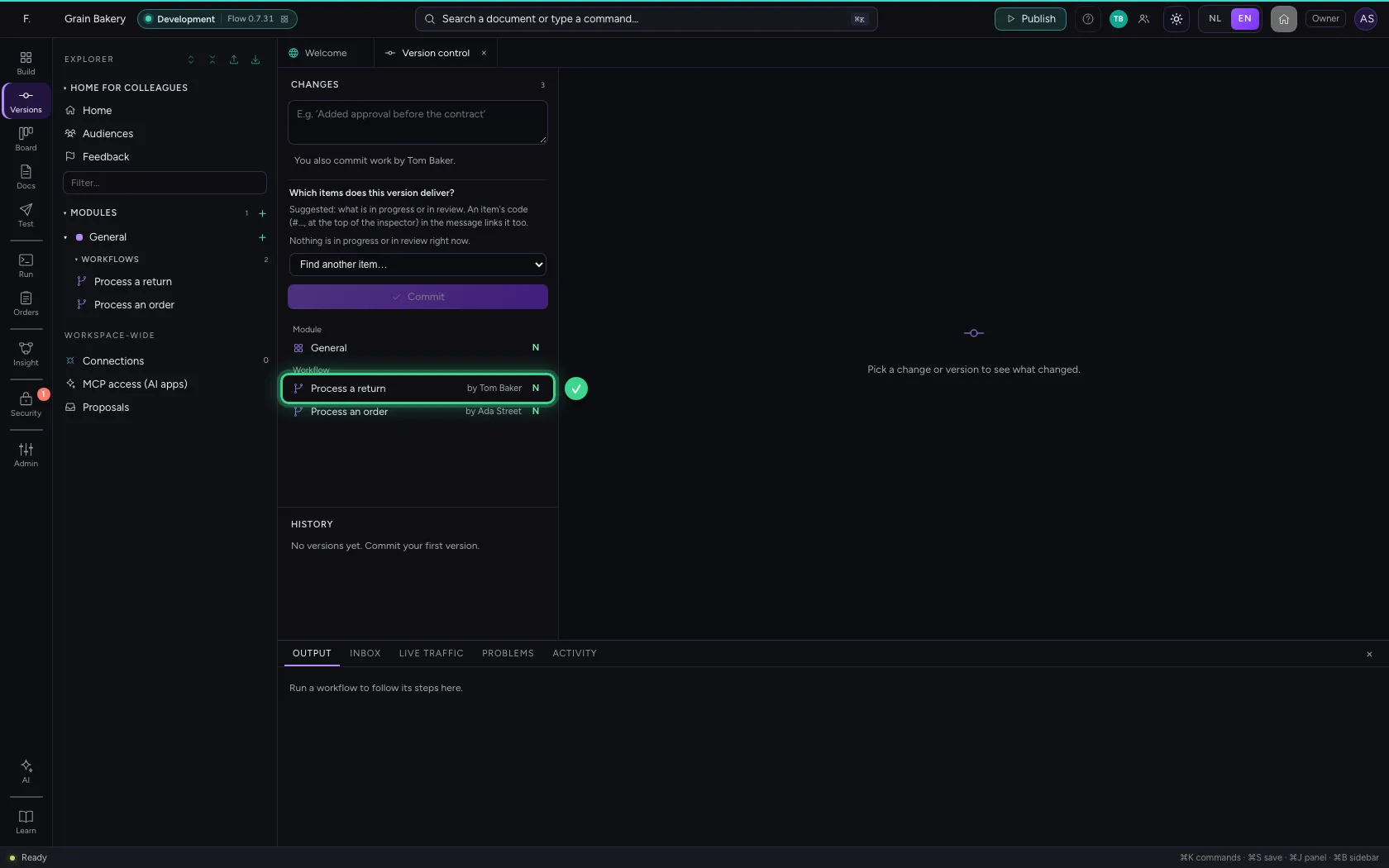
Click Versions in the bar on the left. With every change since the previous version it says who made it. When a colleague works along, Flow says above the button that you also commit their work: a version is a snapshot of the whole environment.
- Click Versions
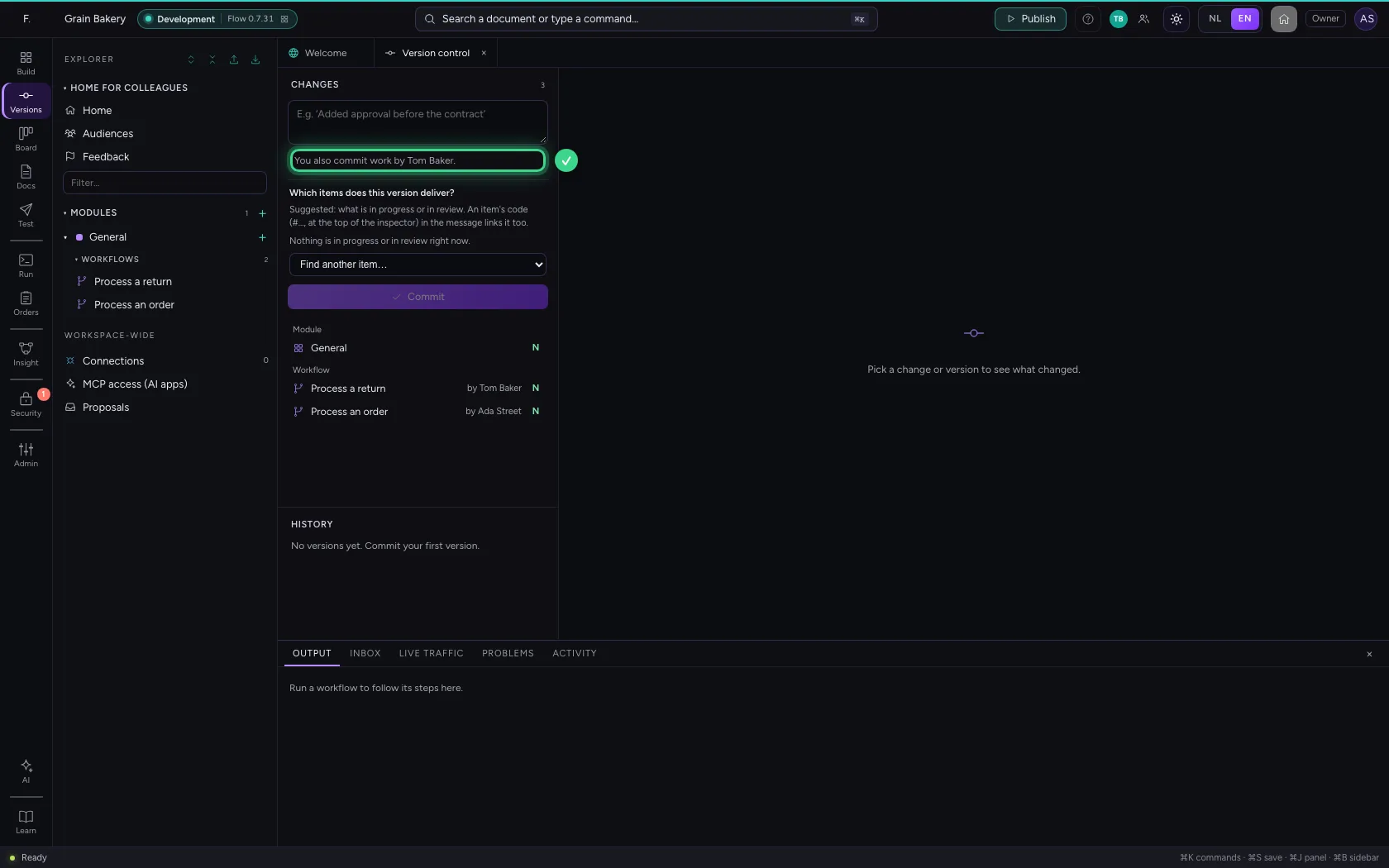
Commit what you saw
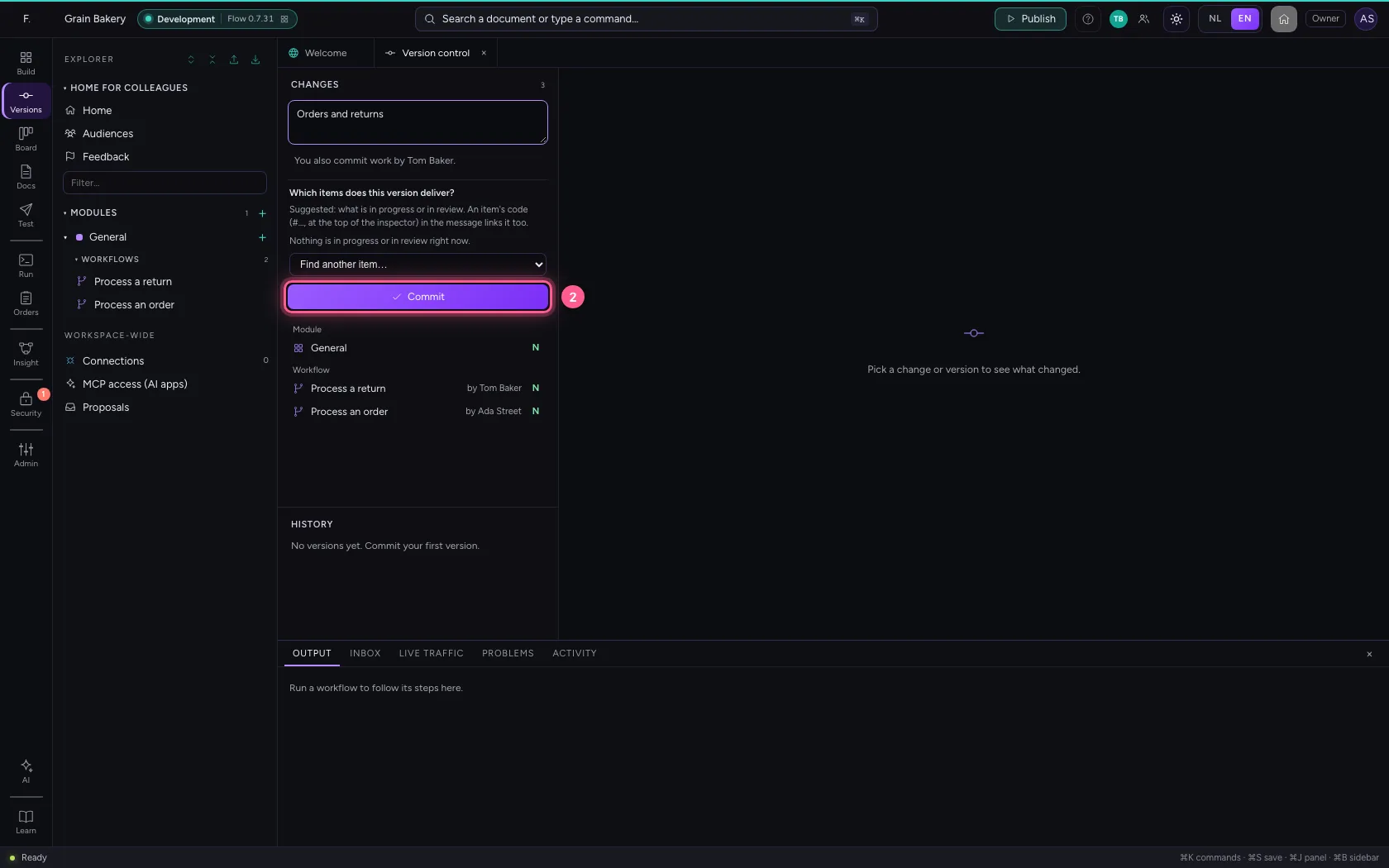
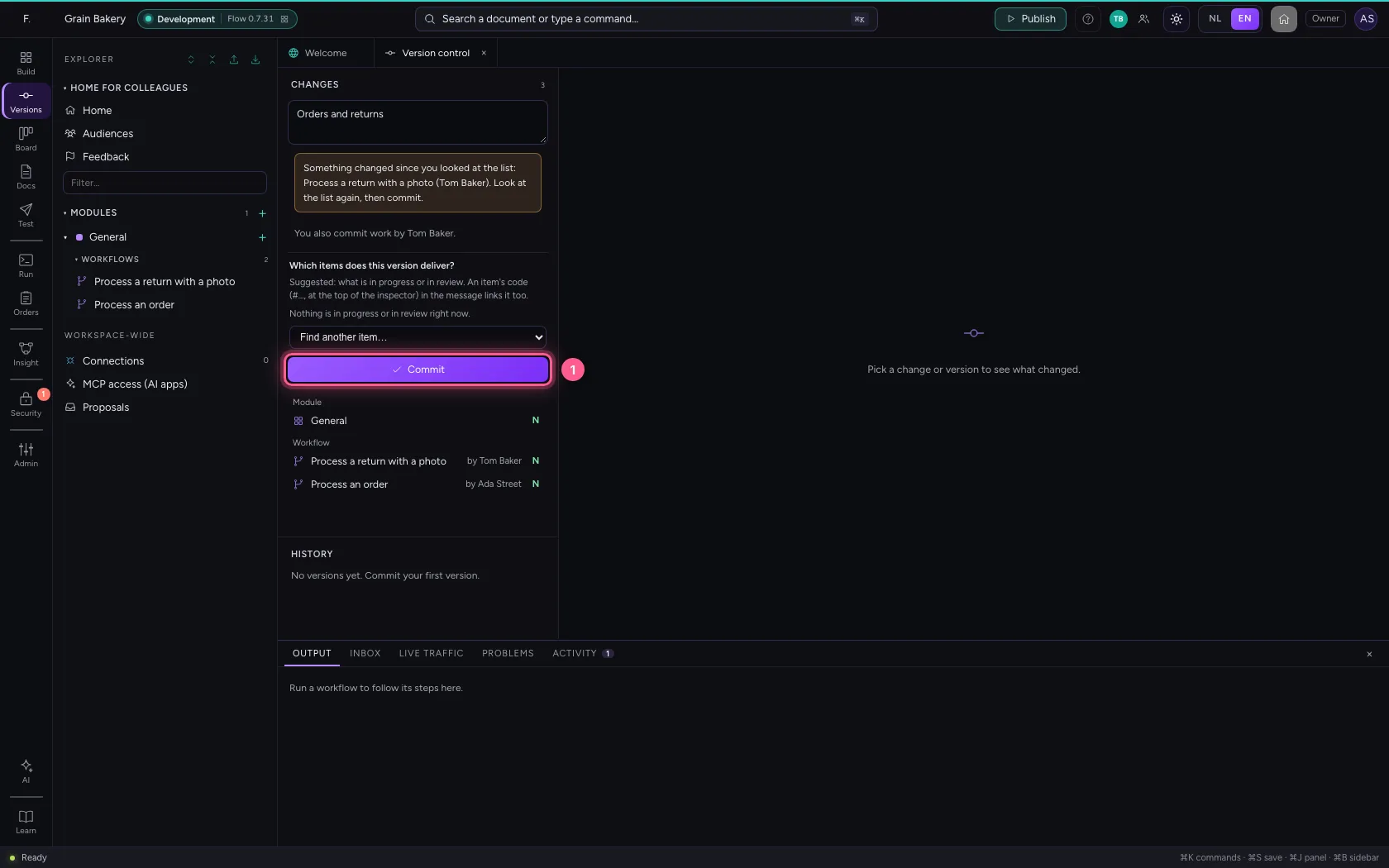
You write what changed and click Commit. At that very moment Tom Baker saves something else. Flow then commits nothing you did not see: it says what changed and by whom, and shows the list again.
- In What did you change?, type
Orders and returns
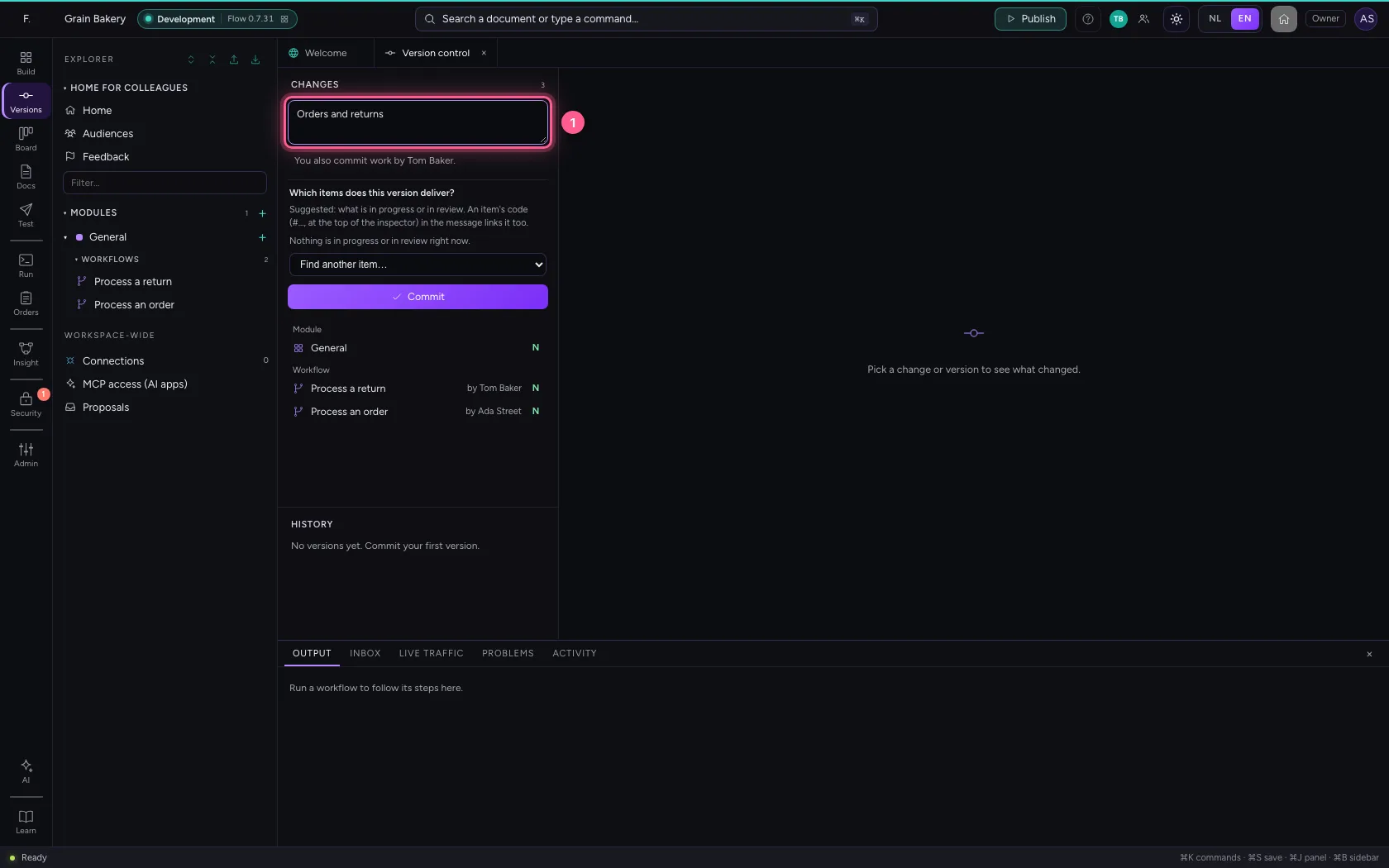
- Click Commit
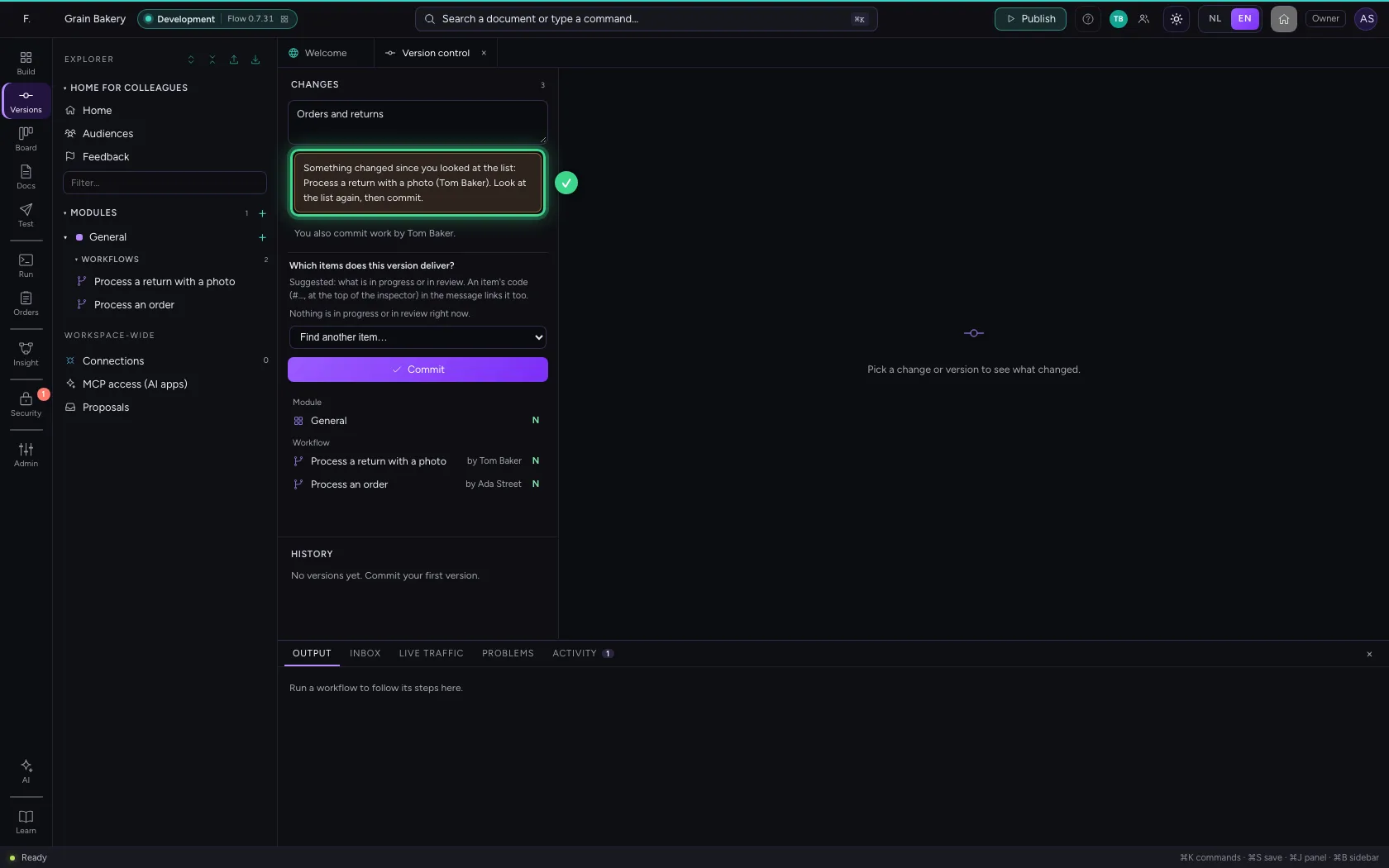
Commit again
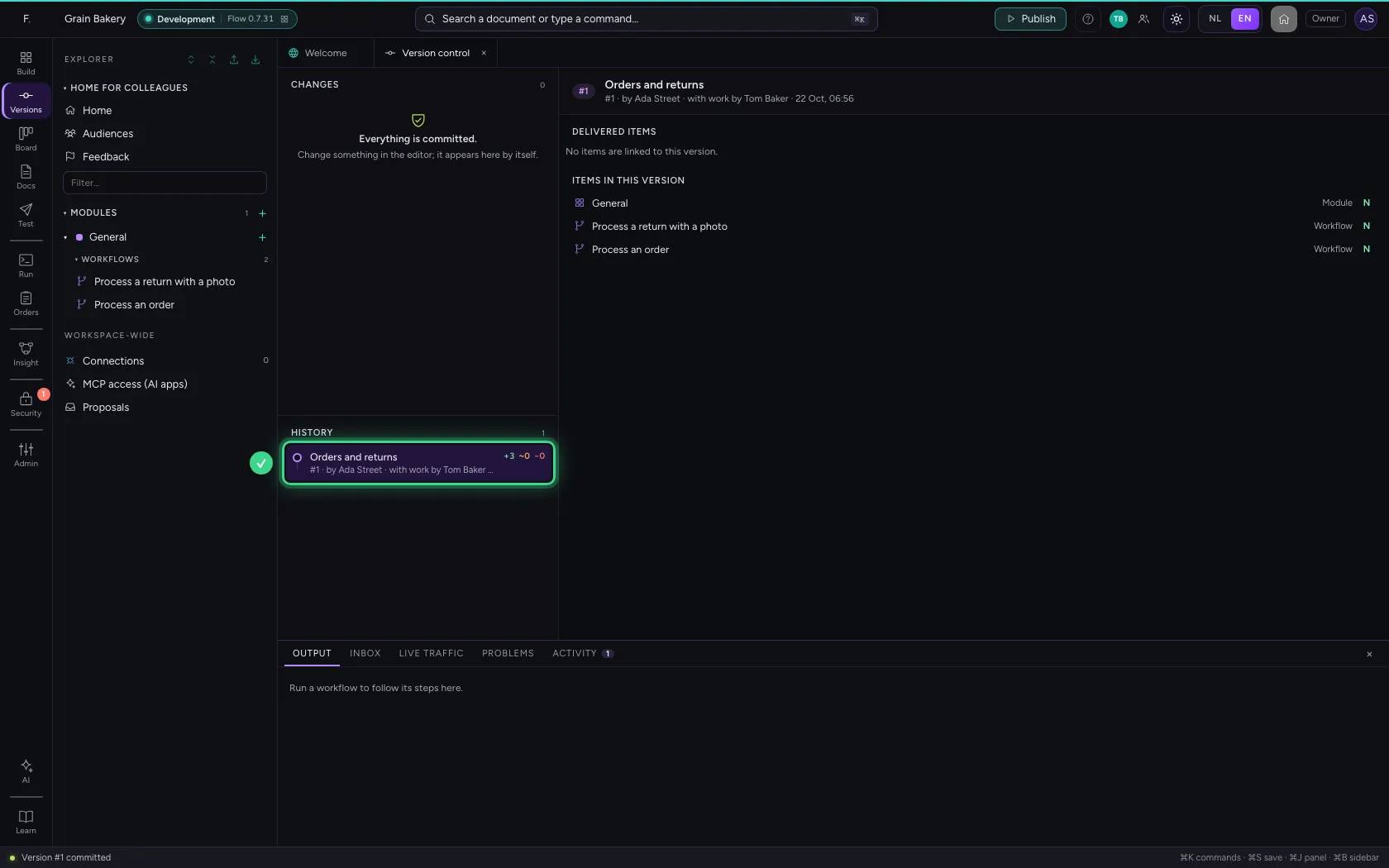
You see the list as it is now. Click Commit once more: the version is in the history, with whose work is in it.
- Click Commit
Your colleague sees it at once
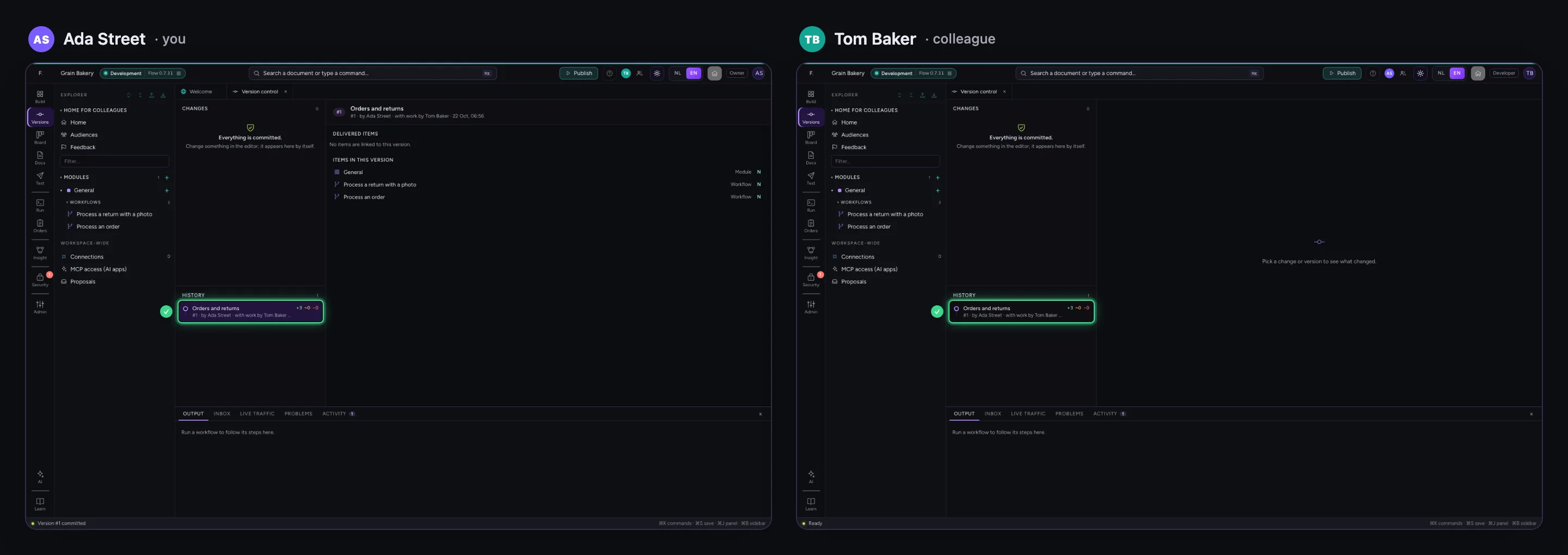
Tom Baker had Version control open too. Your version appears there without refreshing, and his changes are gone from the list: they are in your version.
Publish to Acceptance
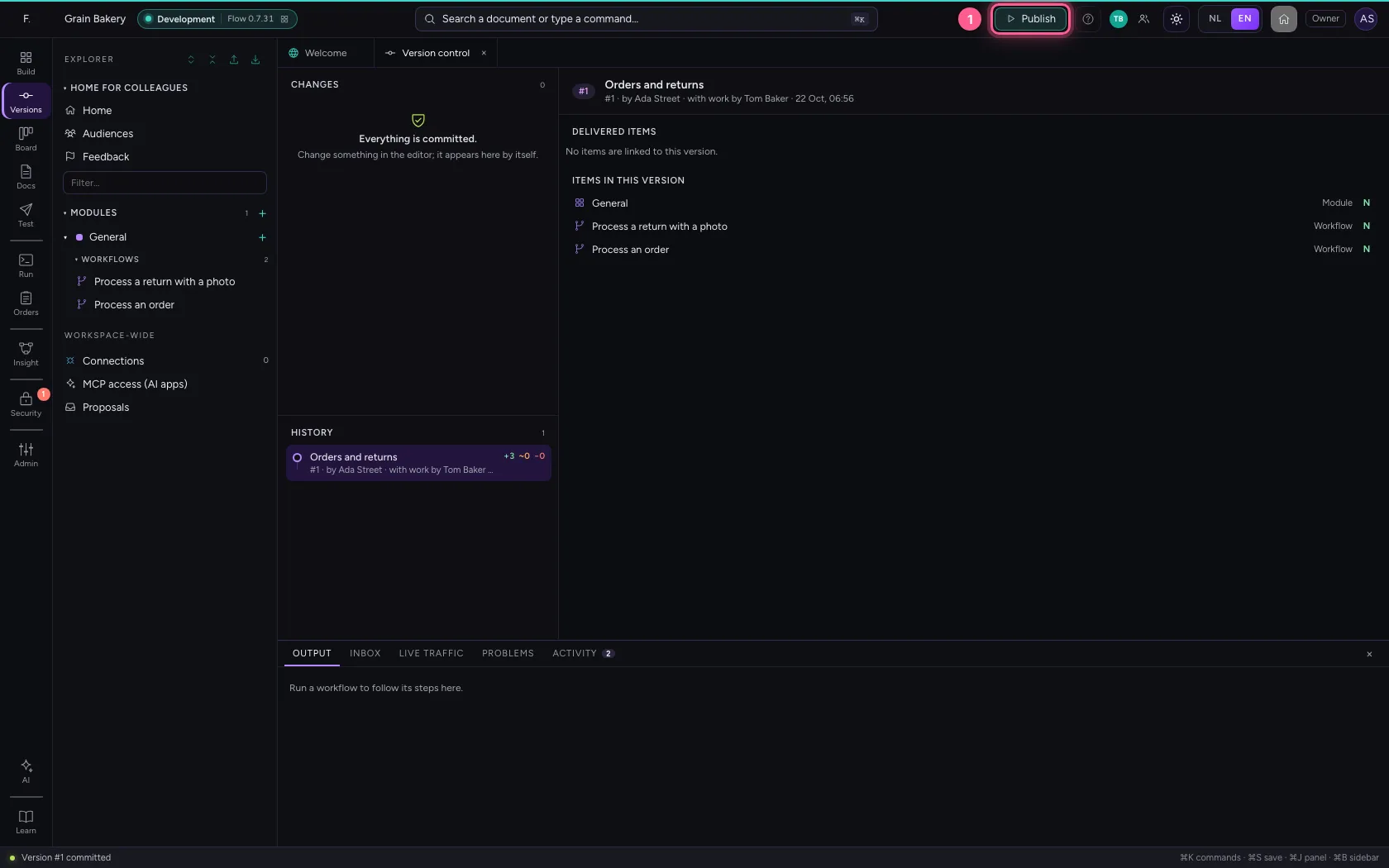
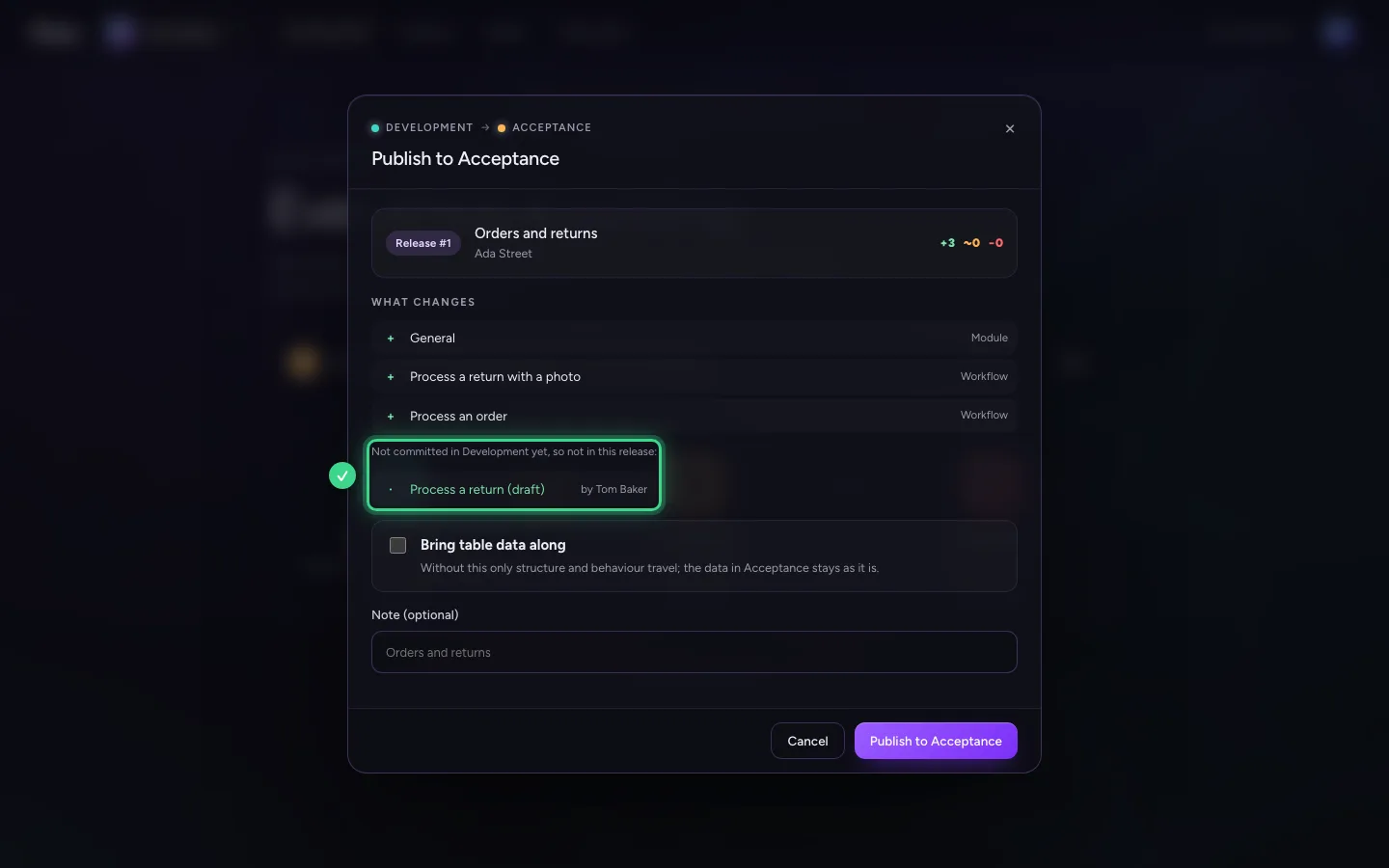
Click Publish, top right. The preview shows what goes along, and also what is not committed in Development yet and so does not go along: Tom Baker is still working on his workflow.
- Click Publish
A colleague just committed a newer version
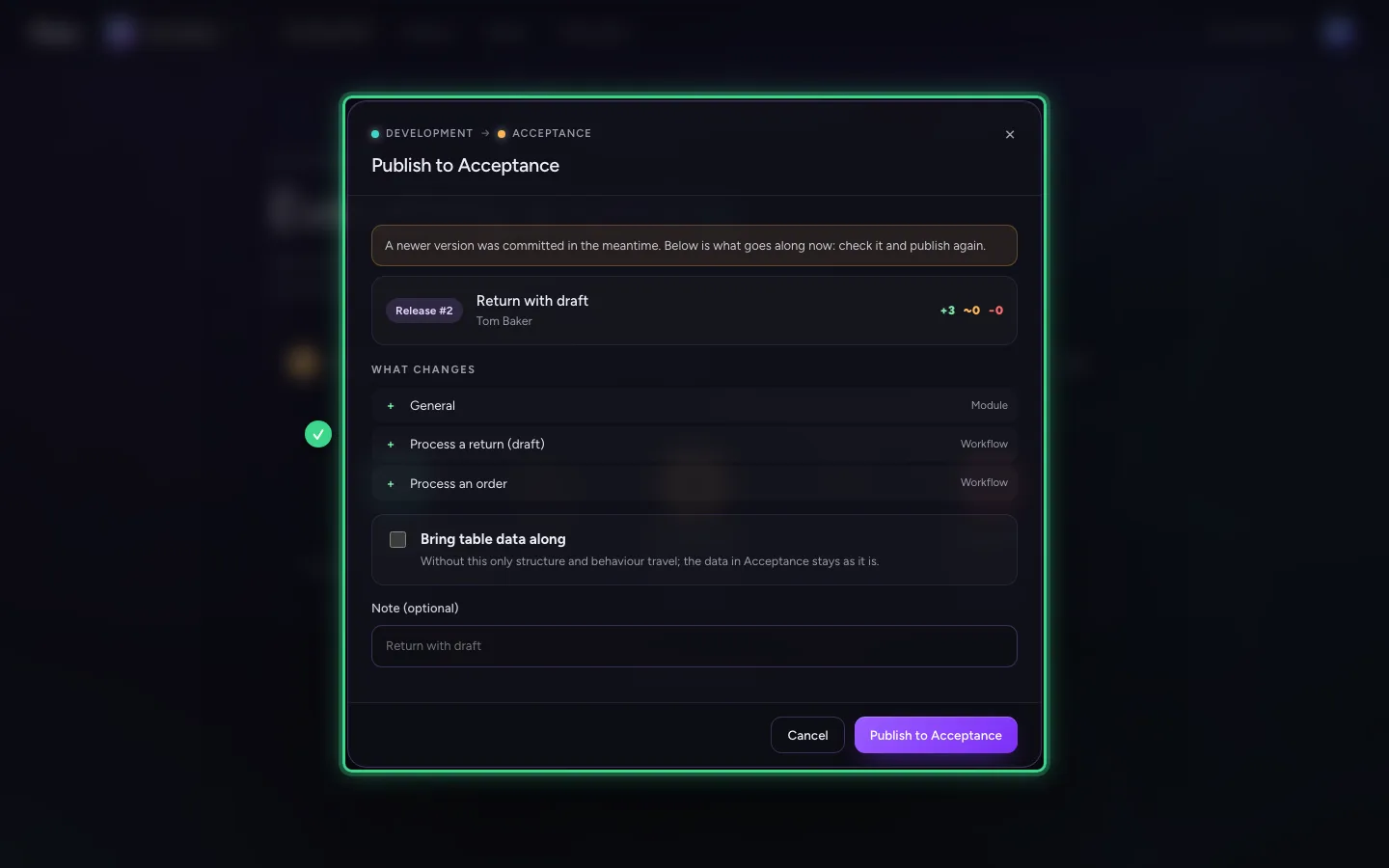
While you look, Tom Baker commits a new version. When you click Publish, Flow does not publish that newer version unseen: it says what happened and shows the preview again, with what goes along now.
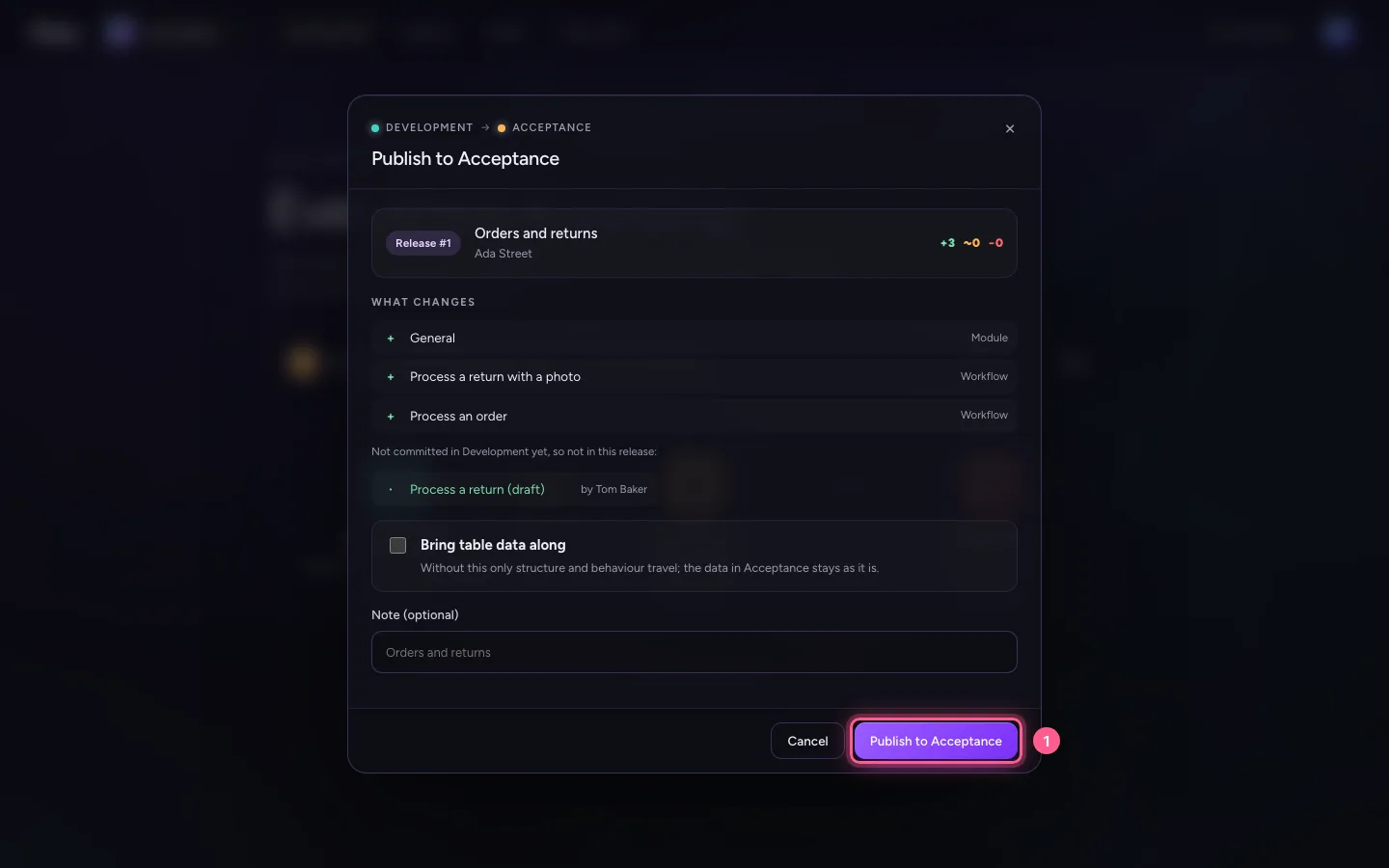
- Click Publish to Acceptance
Publish what you see now
You have looked at the new version. Click Publish once more: Acceptance now runs exactly this version, under the number it was committed as in Development: version #2 from Development. So one piece of work has one number, from Development to Production.
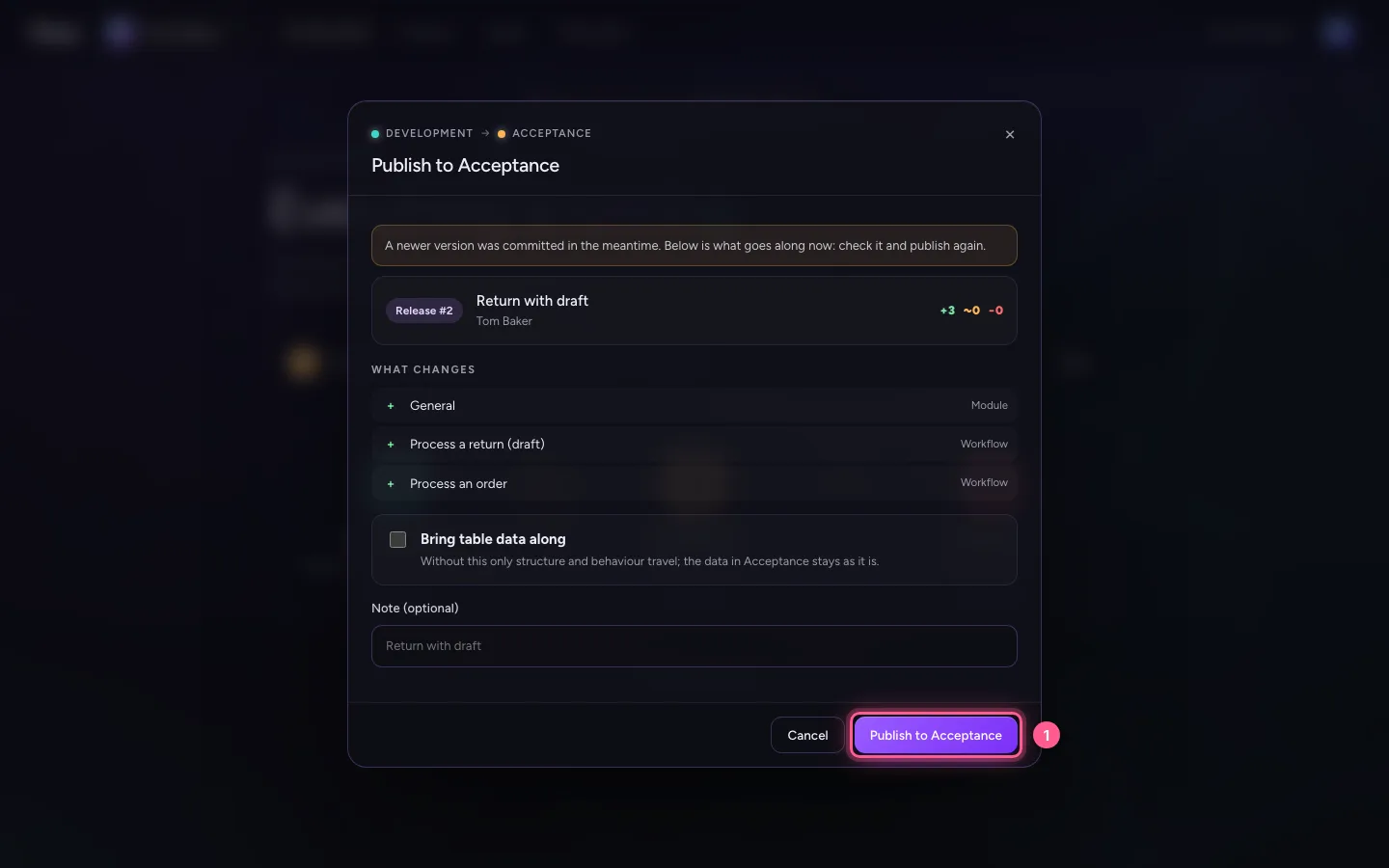
- Click Publish to Acceptance
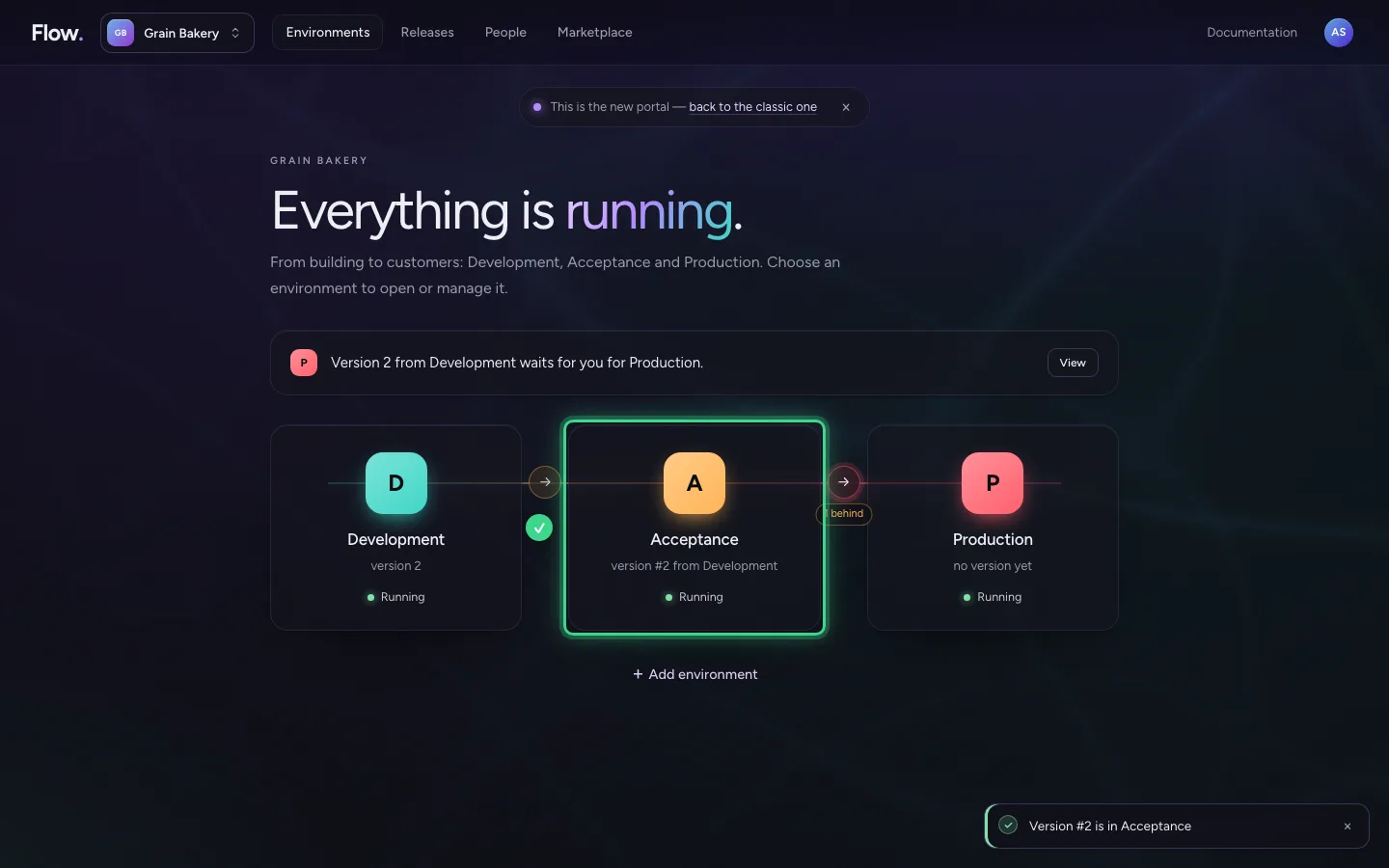
This guide was carried out step by step on 22 Oct 2026 by an automated test on Flow (version 3e563176).