Reviewing together
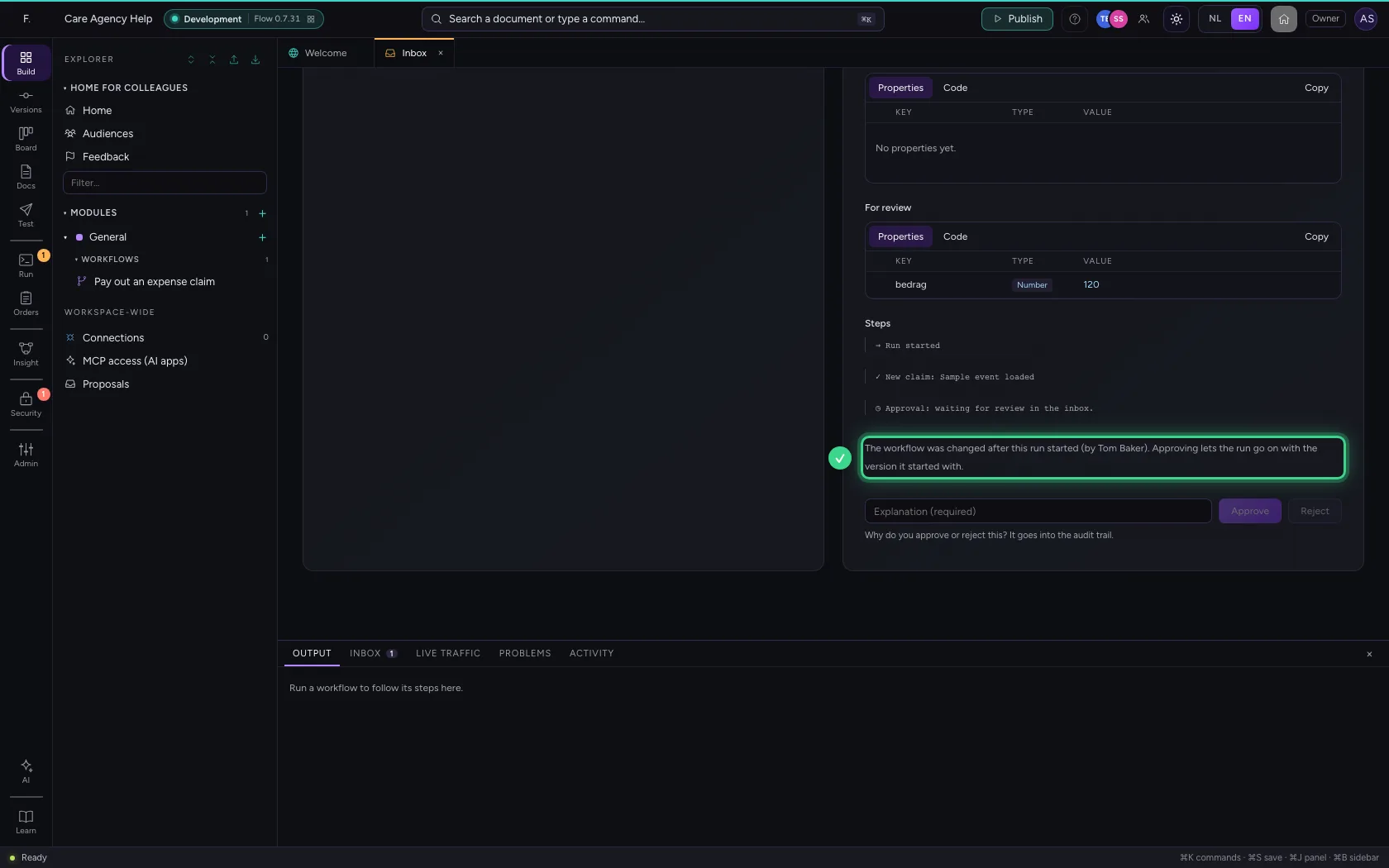
When a run waits for a review, several people can look at it in the inbox, and a builder can change the workflow meanwhile. Flow shows who started the run, says so when the workflow changed since (the run goes on with the version it started with), and when two people decide at the same moment, the second is told who decided first and why.
Open your development environment
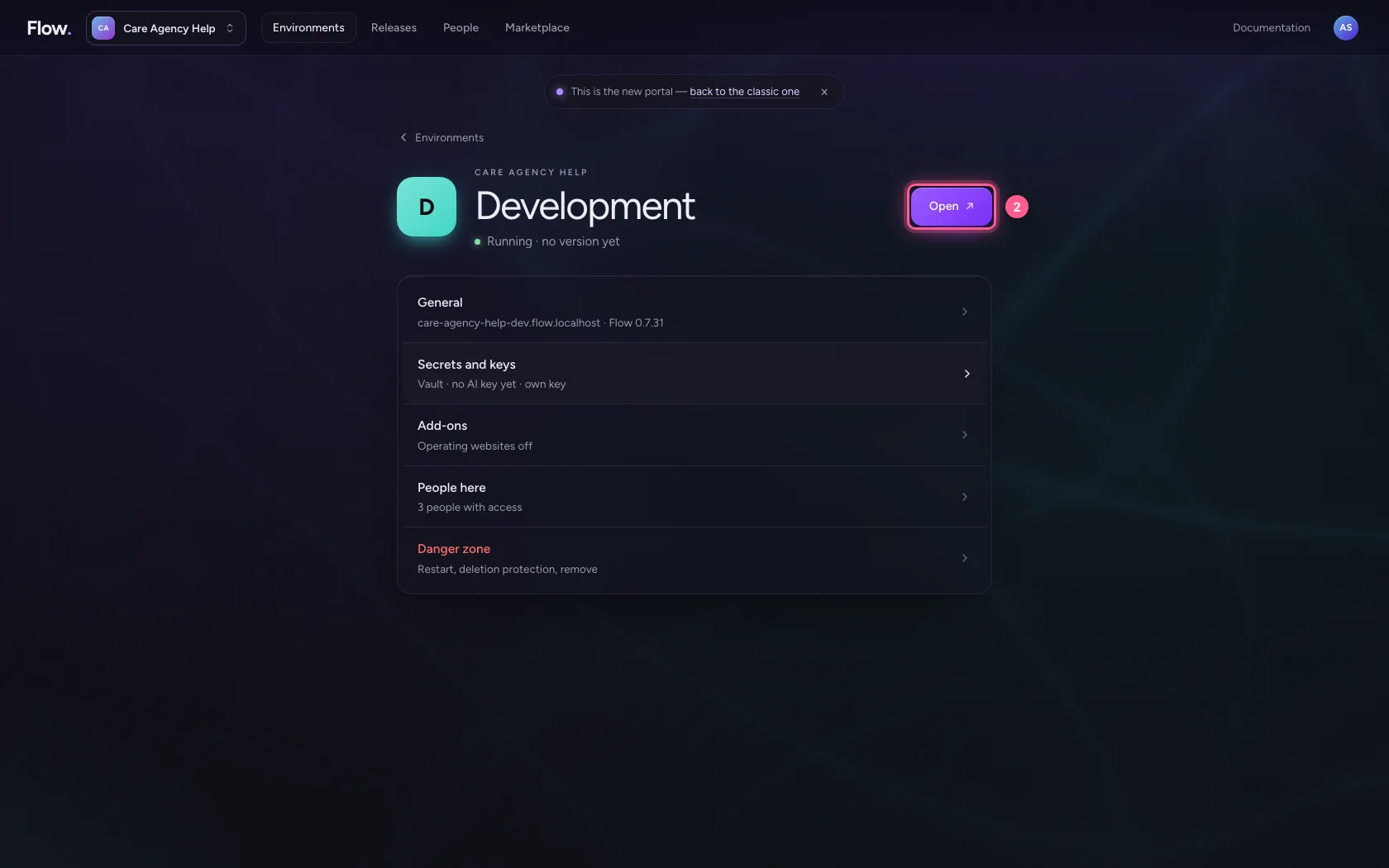
In the portal, under Environments, click Development, and there Open. Flow opens in a new tab and you are signed in straight away.
- Click Development

- Click Open ↗
Open the inbox
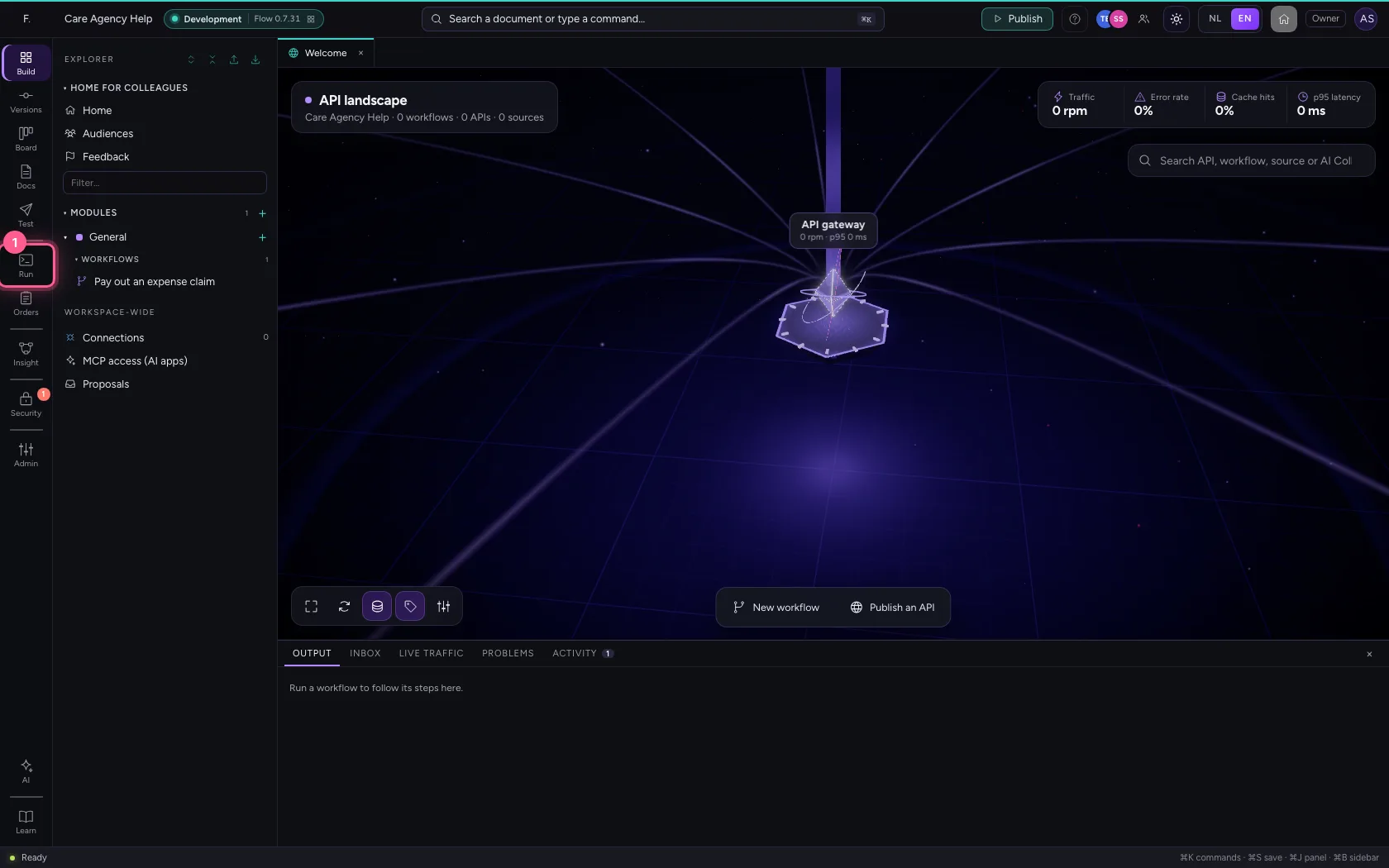
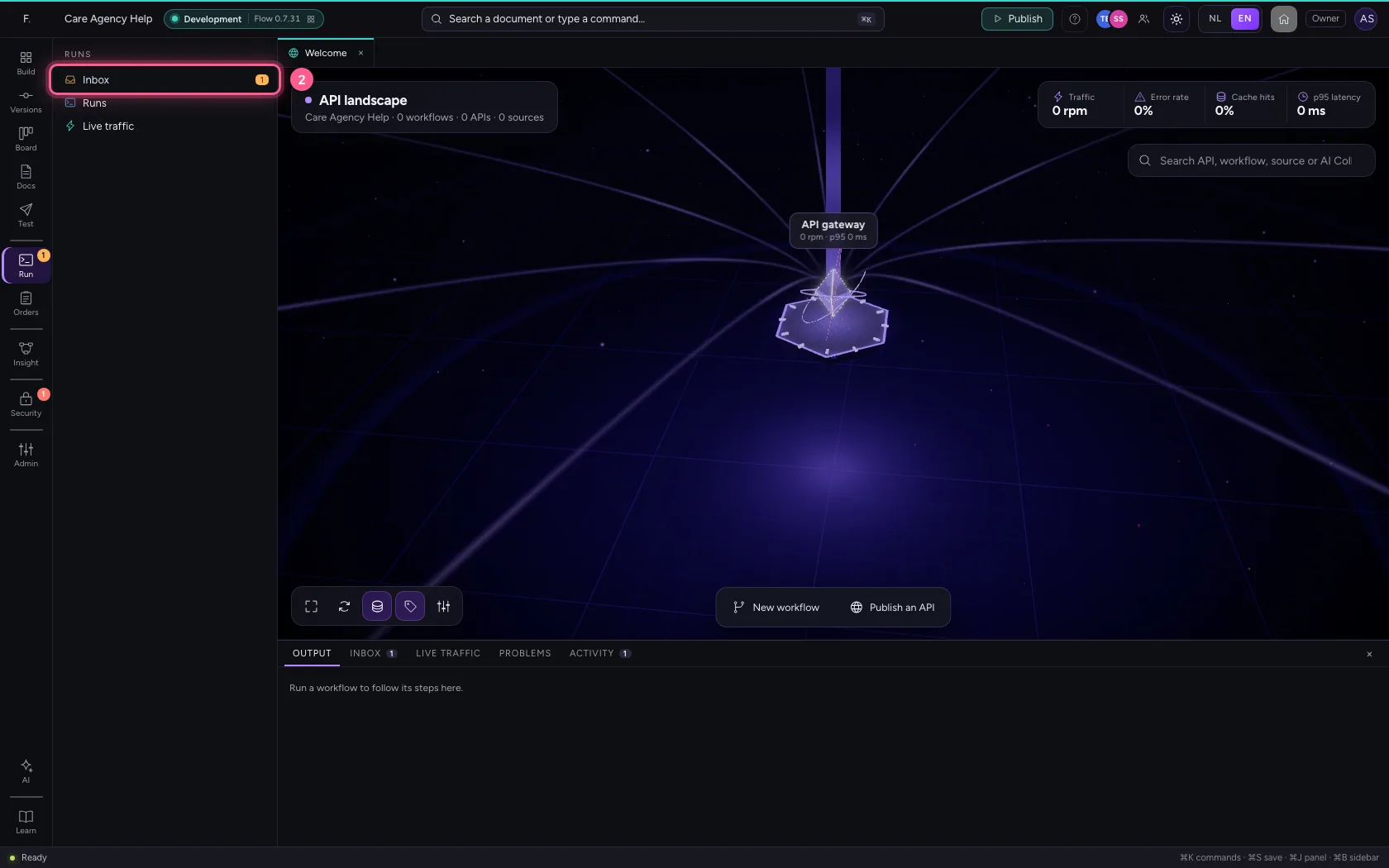
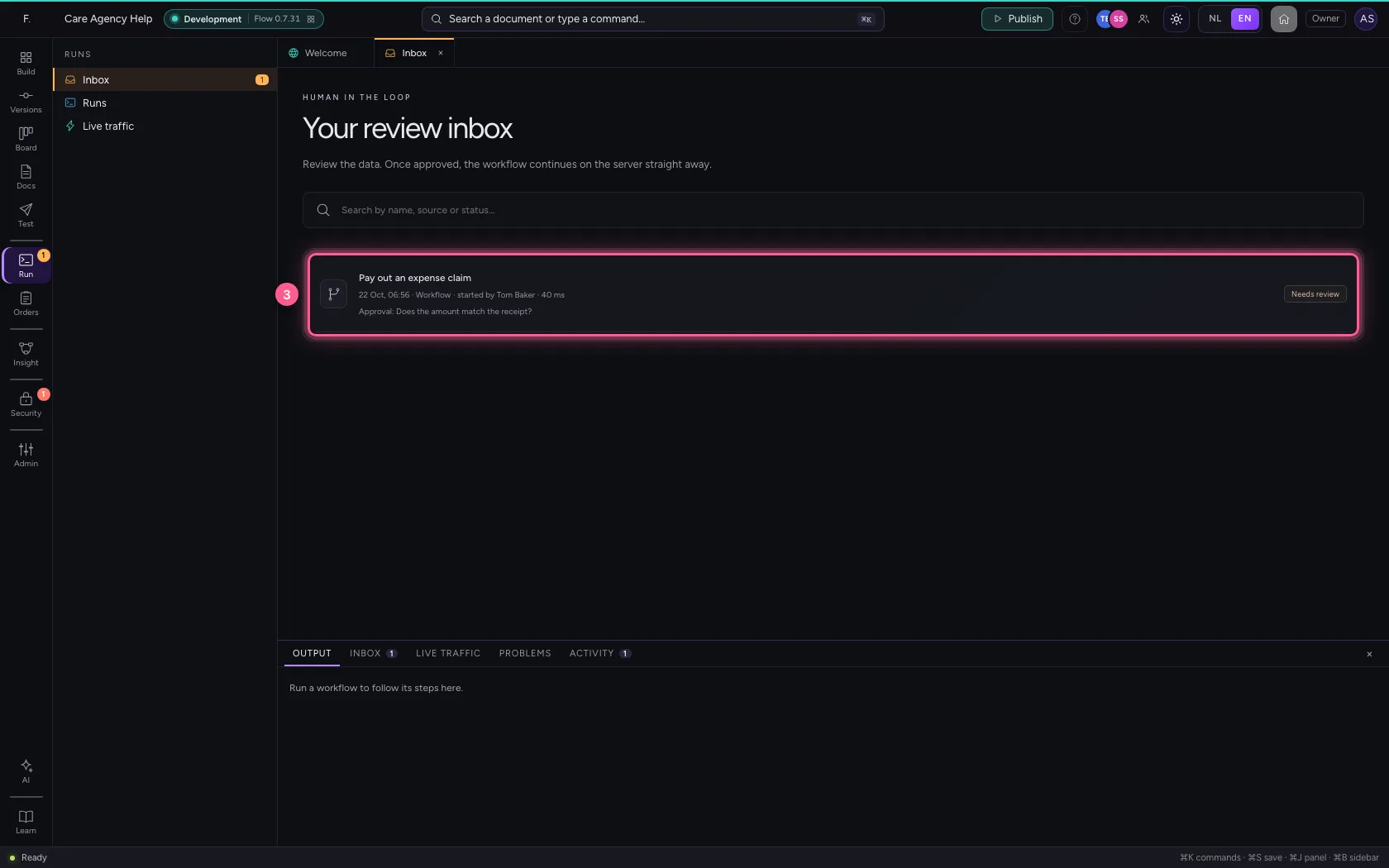
Under Run → Inbox is what waits for a review. With the run it says who started it: Tom Baker.
- Click Run
- Click Inbox
- Click the run
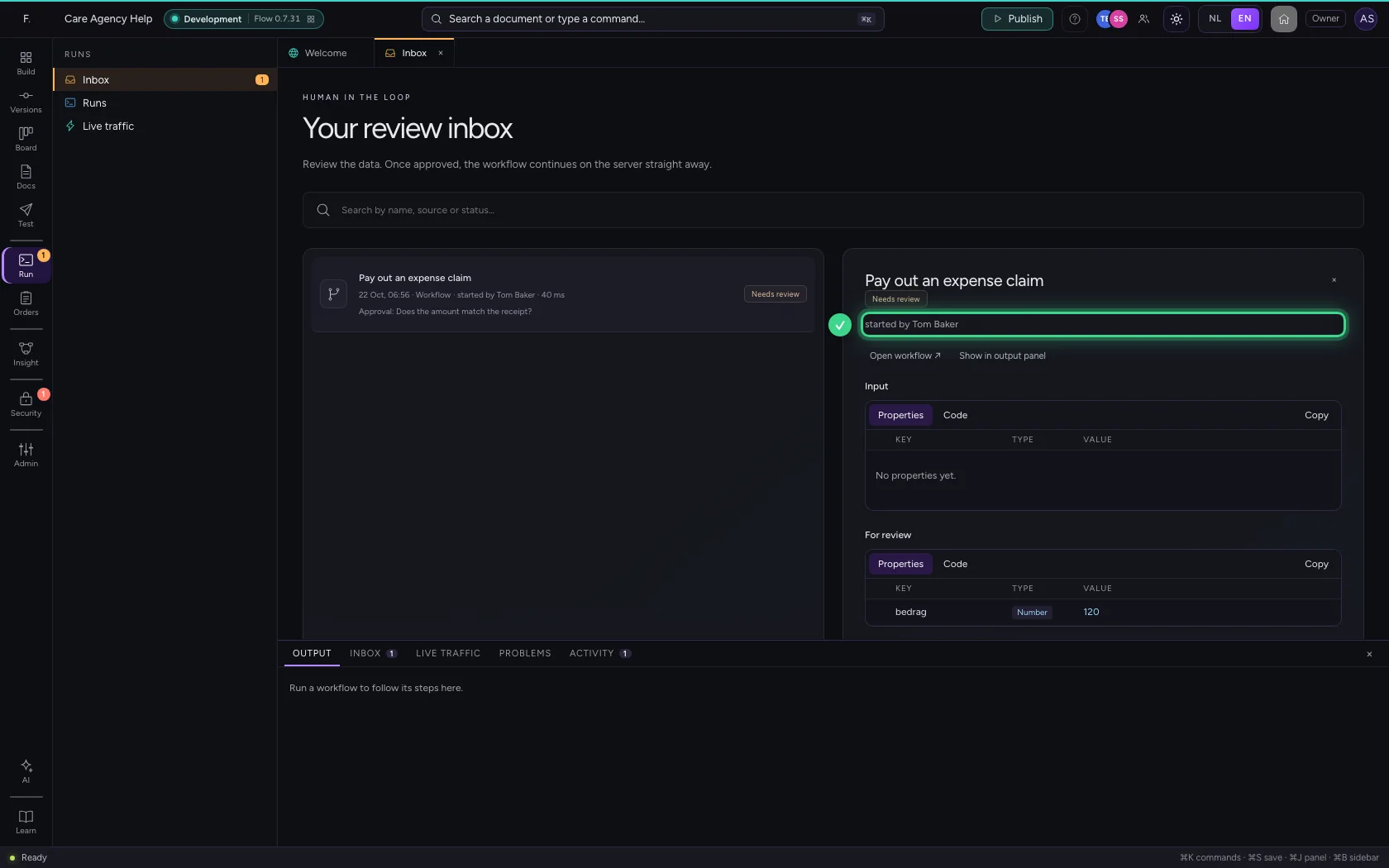
The workflow changed meanwhile
Tom Baker changes the workflow while the run waits. The review says so, with who did it: if you approve, this run goes on with the version it started with. The change applies to the next runs.
Two reviewers at once
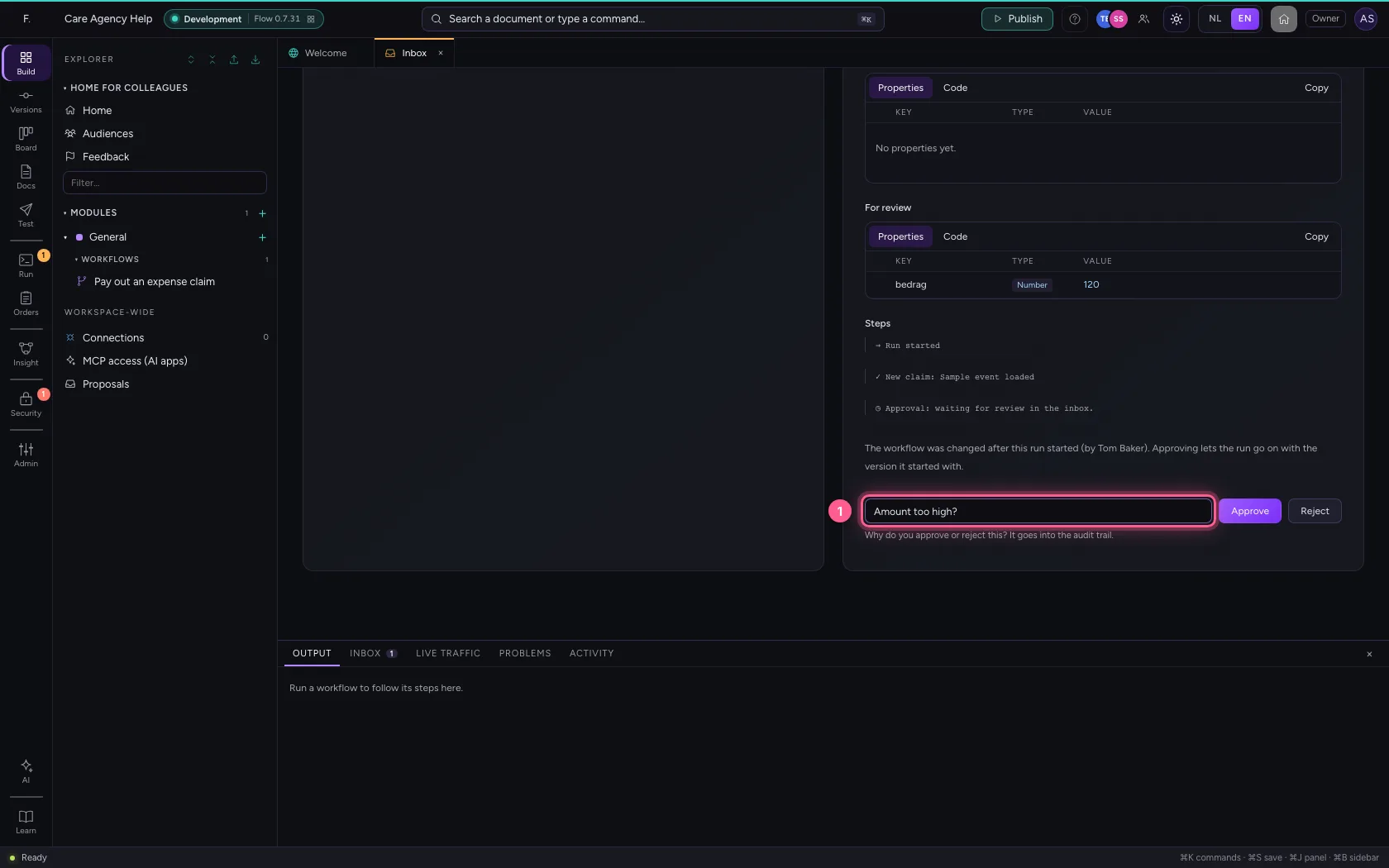
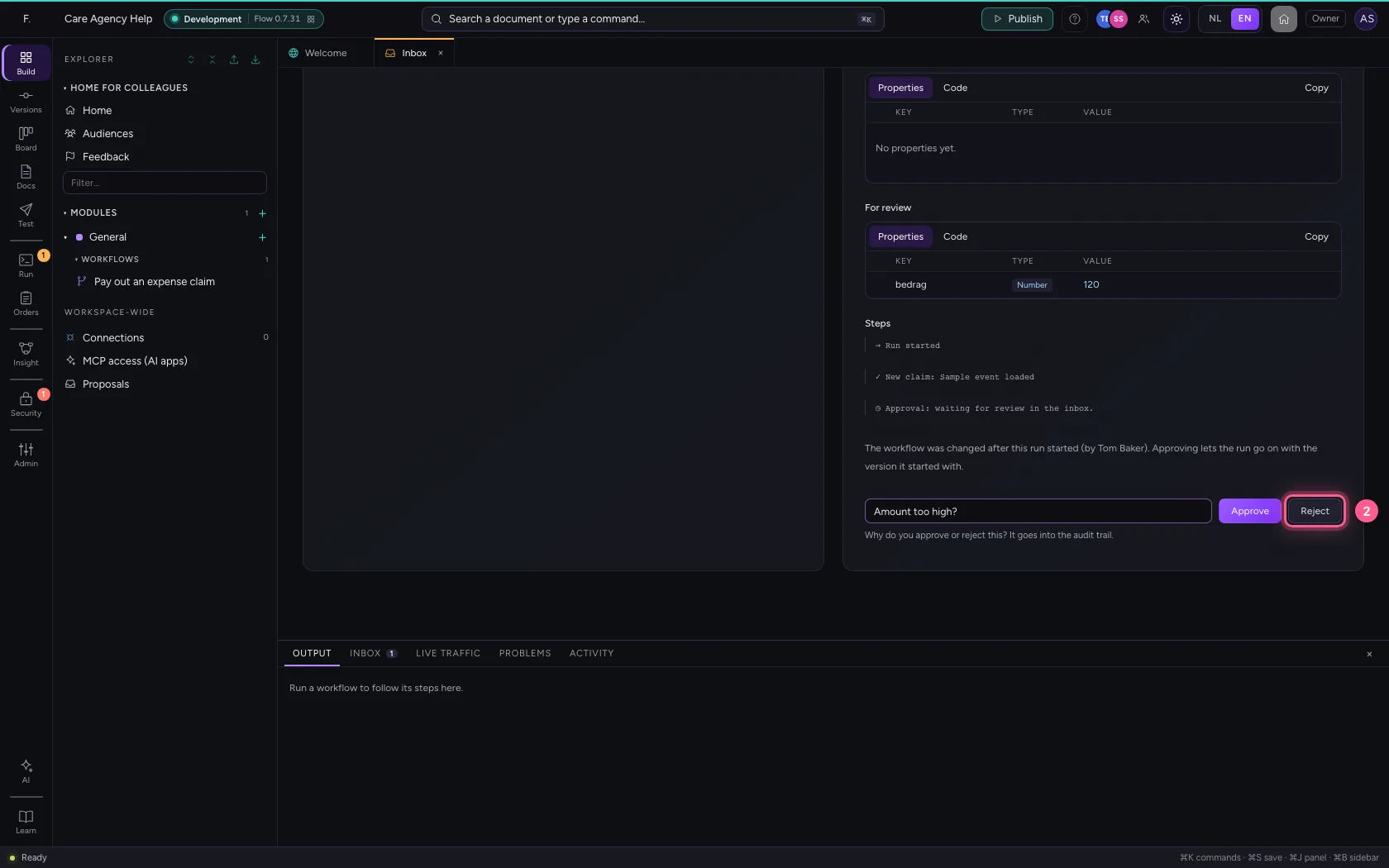
You hesitate and reject, but Sara Smith approves the same run at the same moment. Flow does not decide twice: you are told who already decided and with which explanation.
- In Explanation (required), type
Amount too high?
- Click Reject
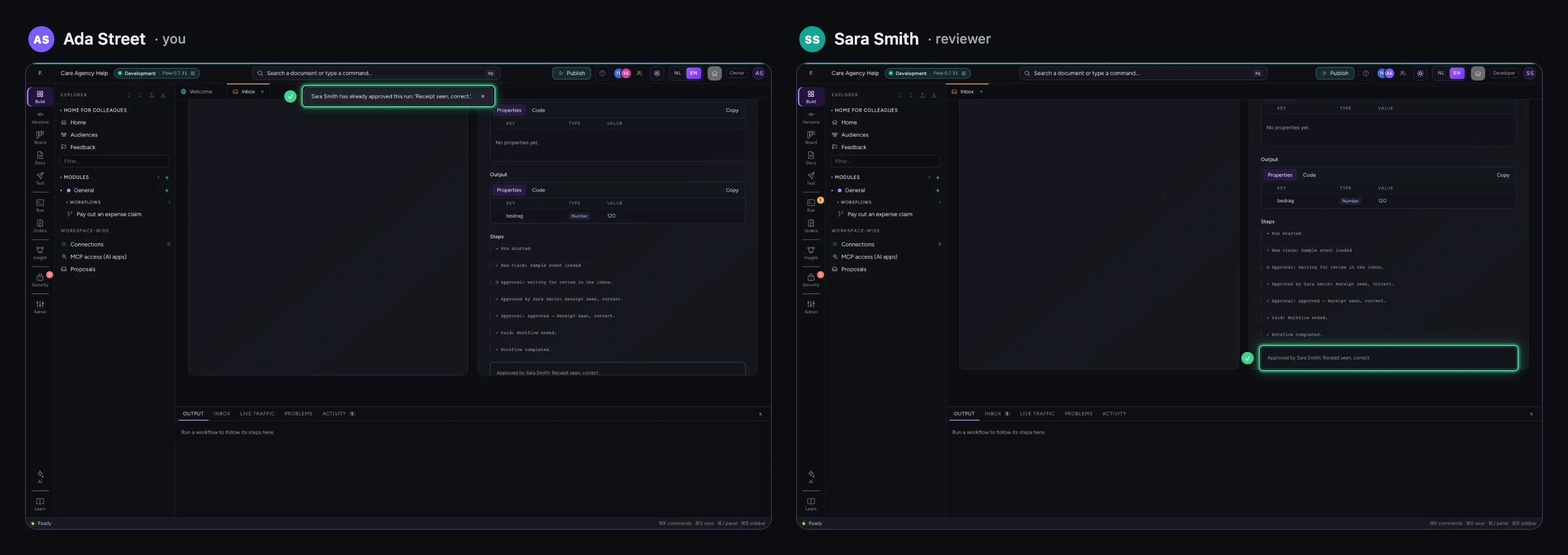
See what happened
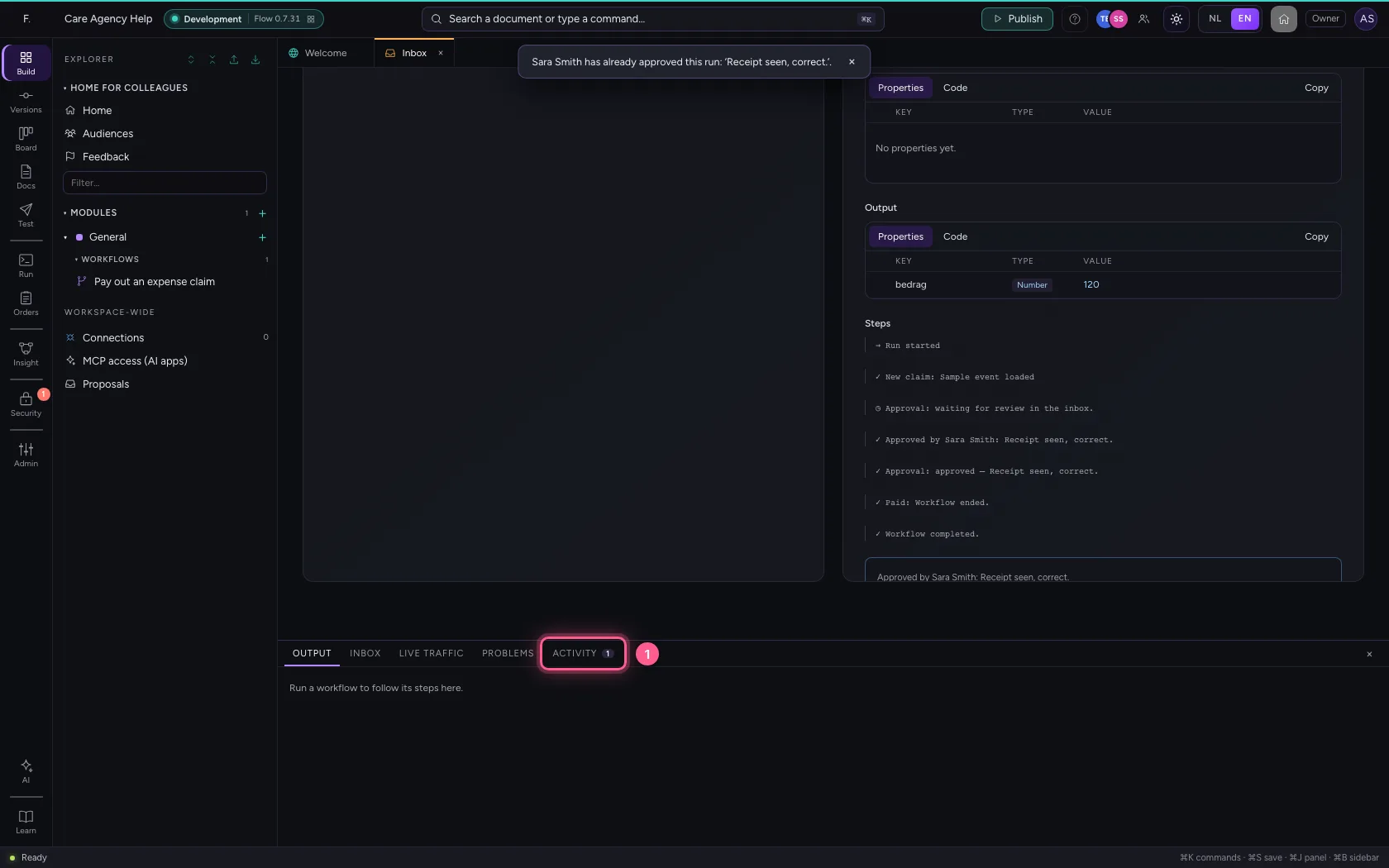
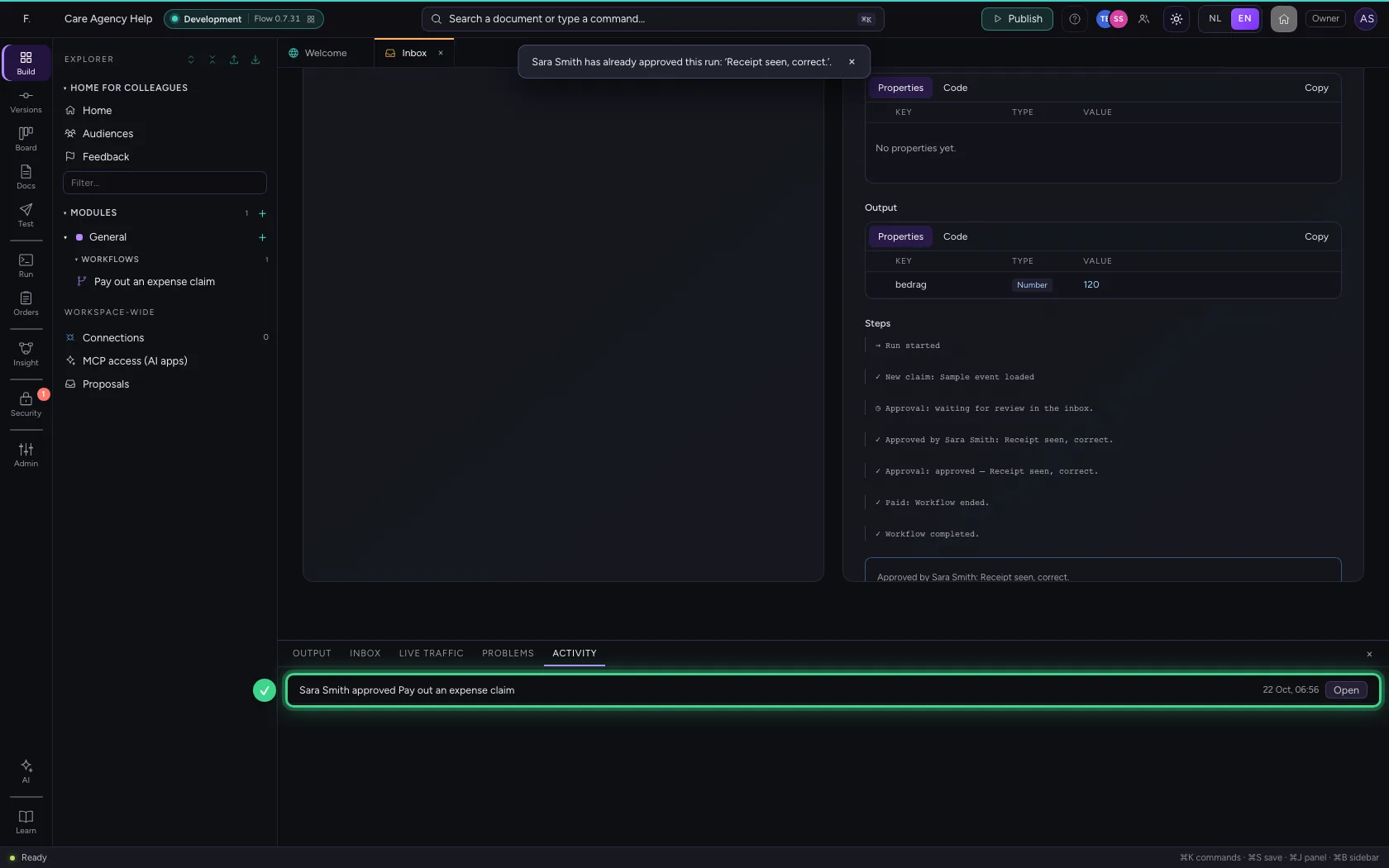
The Activity tab at the bottom says who did what: which run waited and who reviewed it.
- Click Activity
This guide was carried out step by step on 22 Oct 2026 by an automated test on Flow (version 3e563176).