Searching knowledge bases from a dashboard
Next to the figures you sometimes want the answer to a question straight away: how to adjust the brakes, what the contract says. A search tile searches by meaning in the knowledge bases you choose and shows the best matching parts, with the document they come from. Bind it to a search text in the filter bar, and it searches along with what you type there.
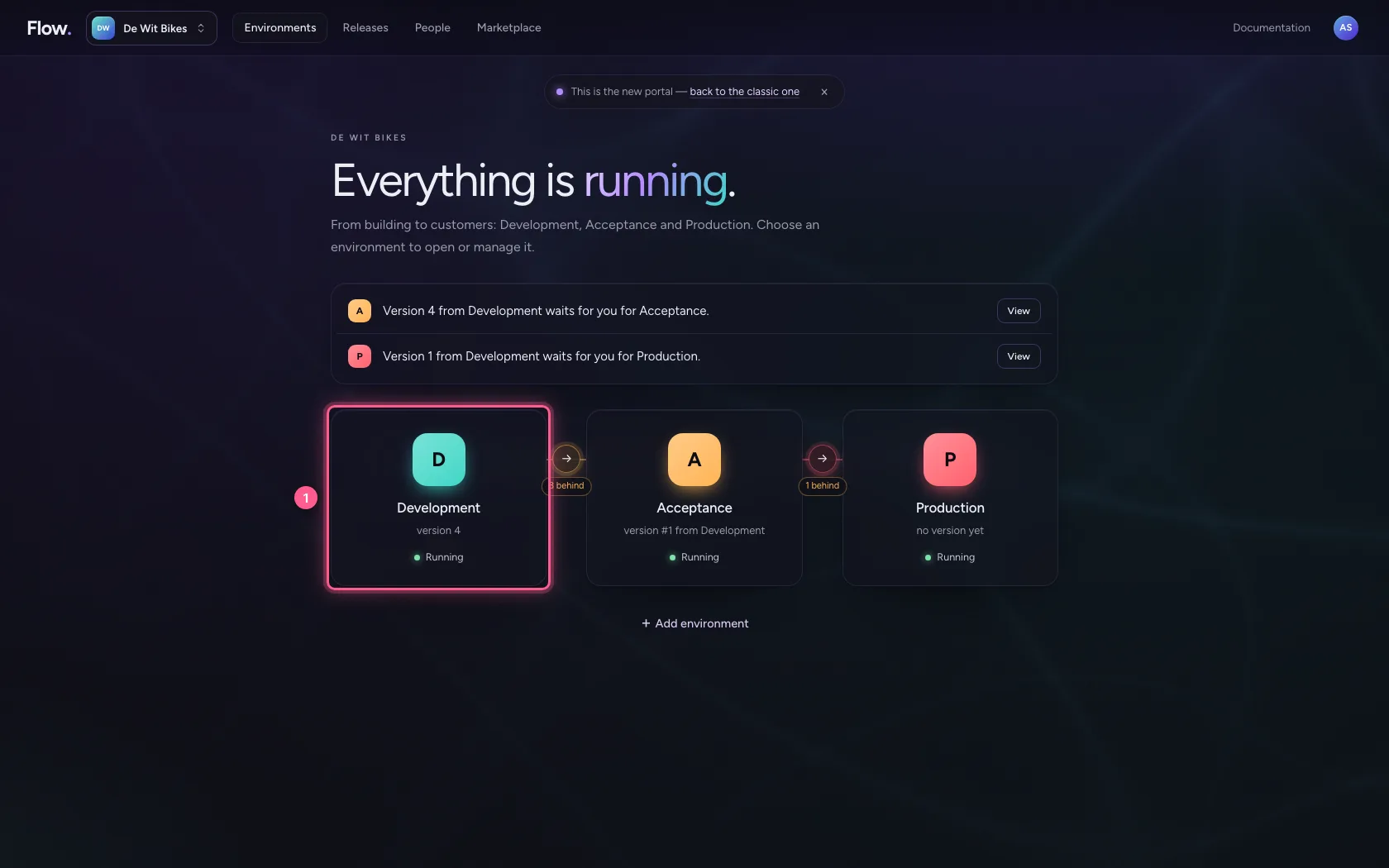
Open your development environment
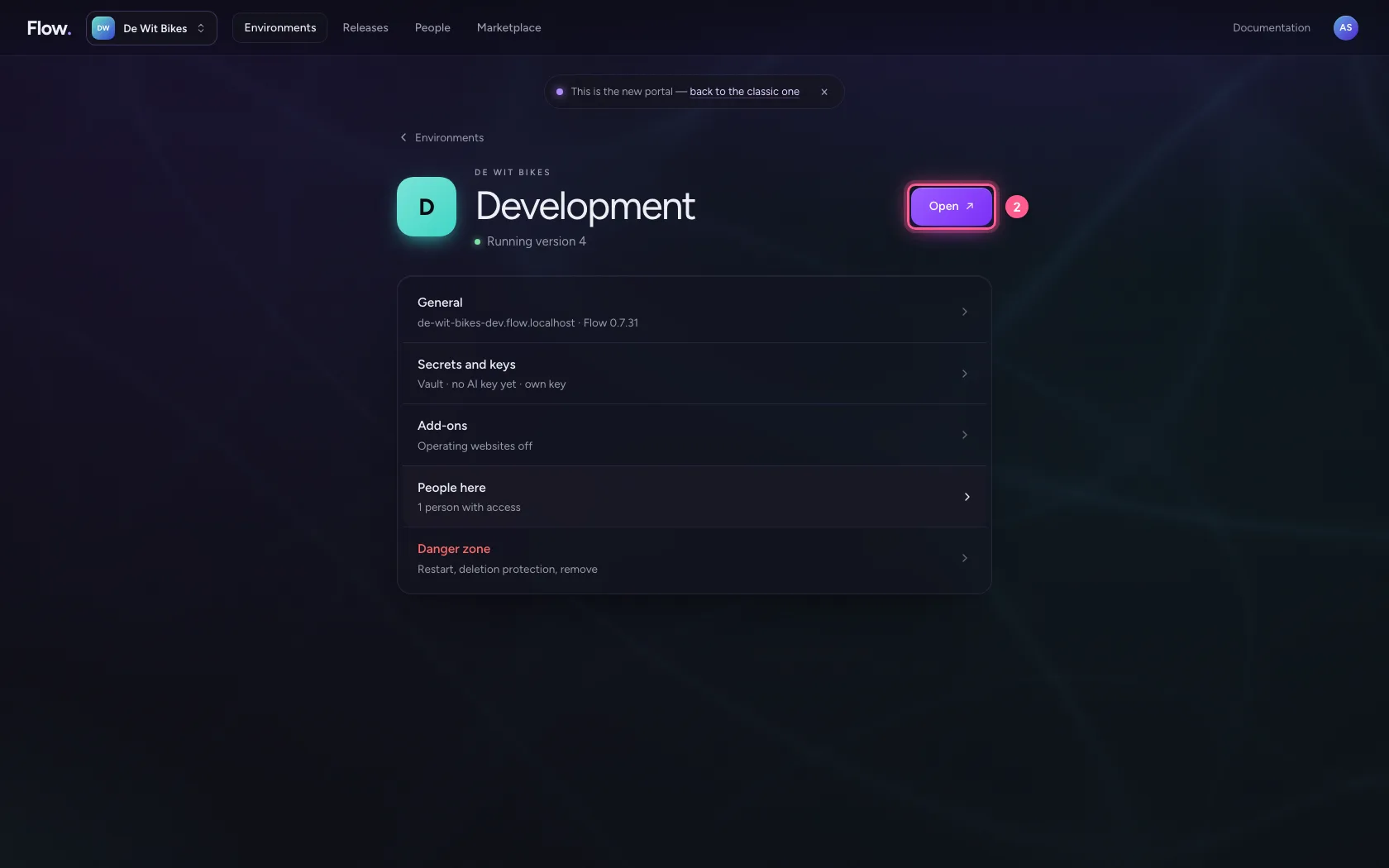
In the portal, under Environments, click Development, and there Open. Flow opens in a new tab and you are signed in straight away.
- Click Development
- Click Open ↗
Put down a search tile
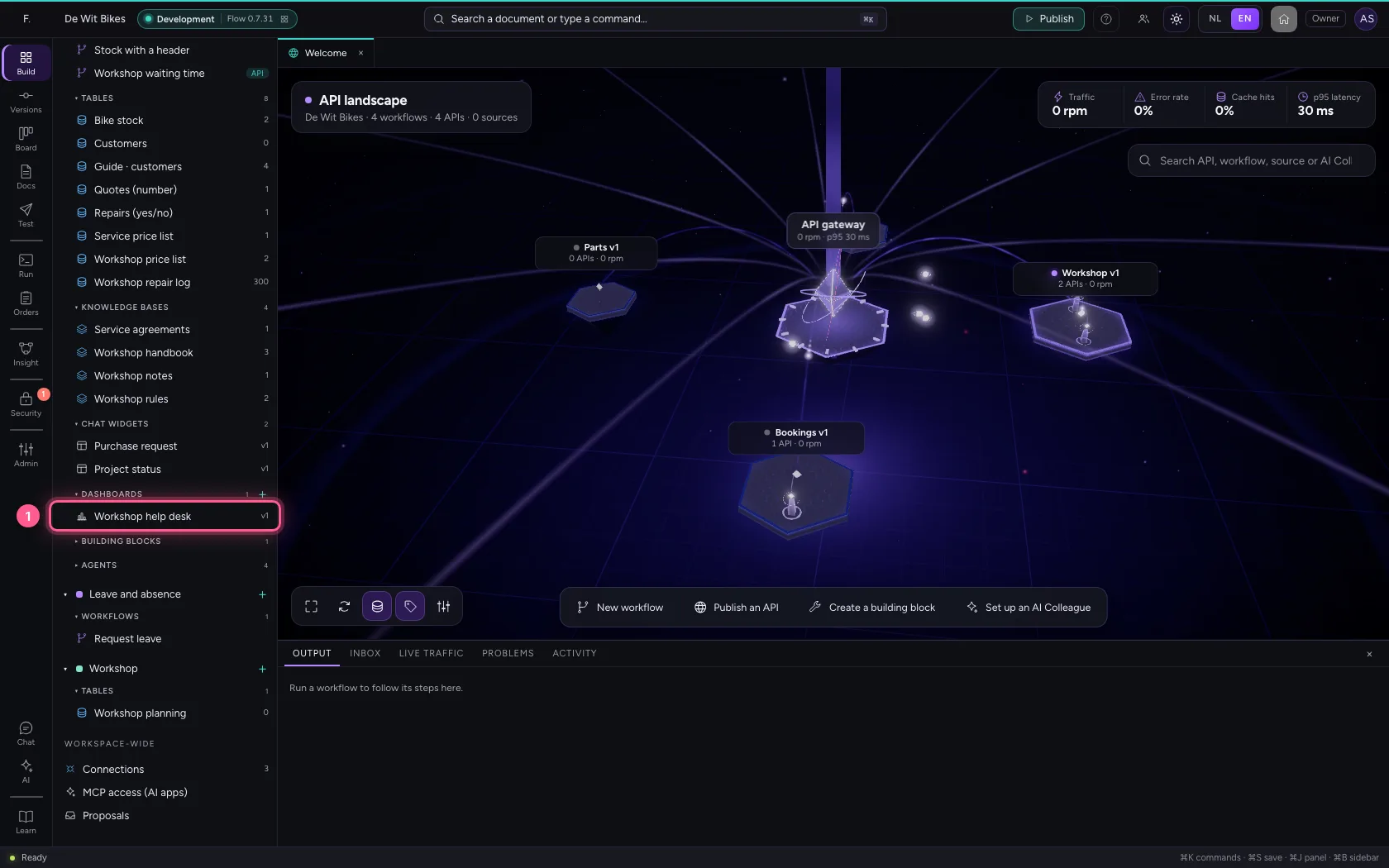
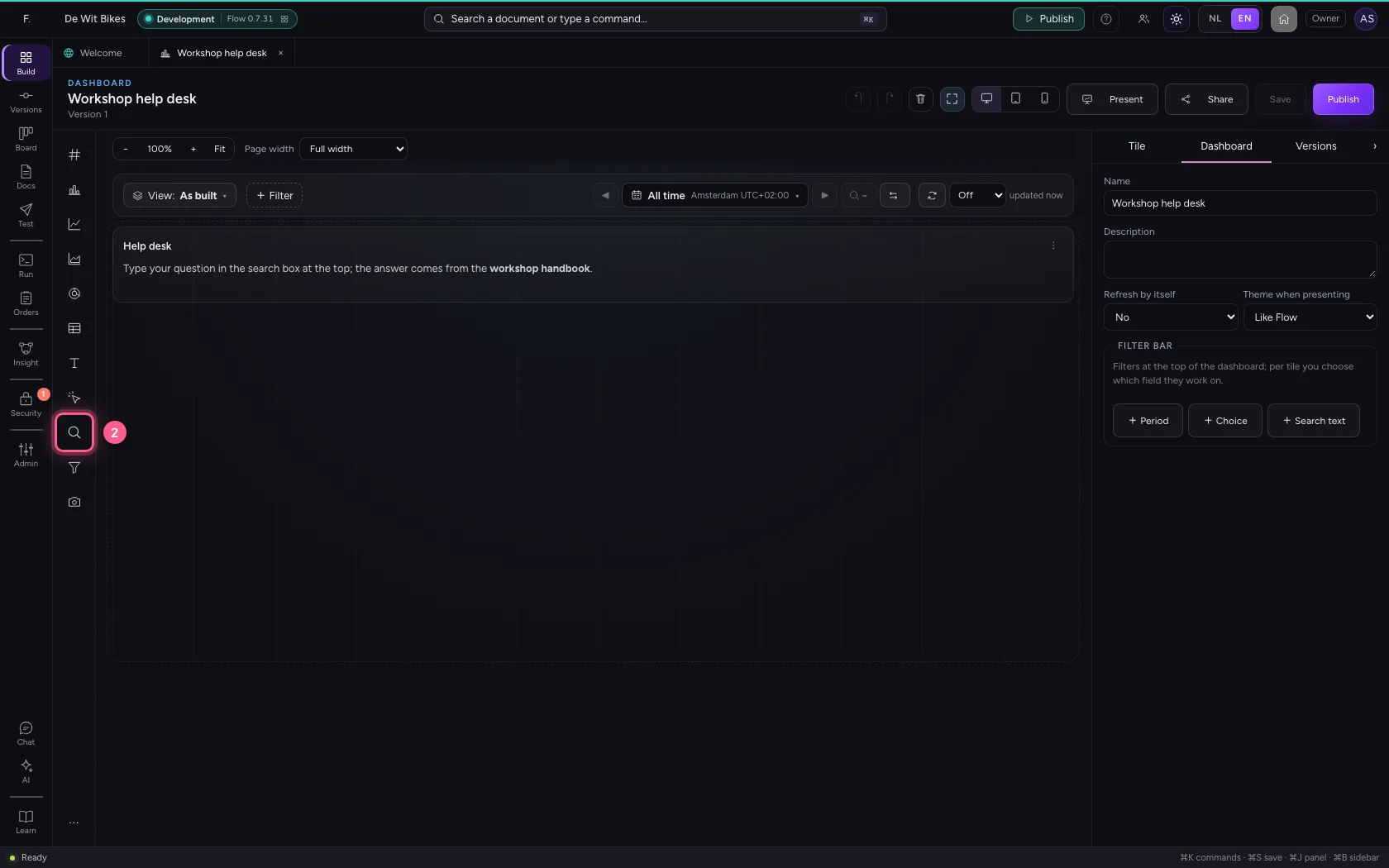
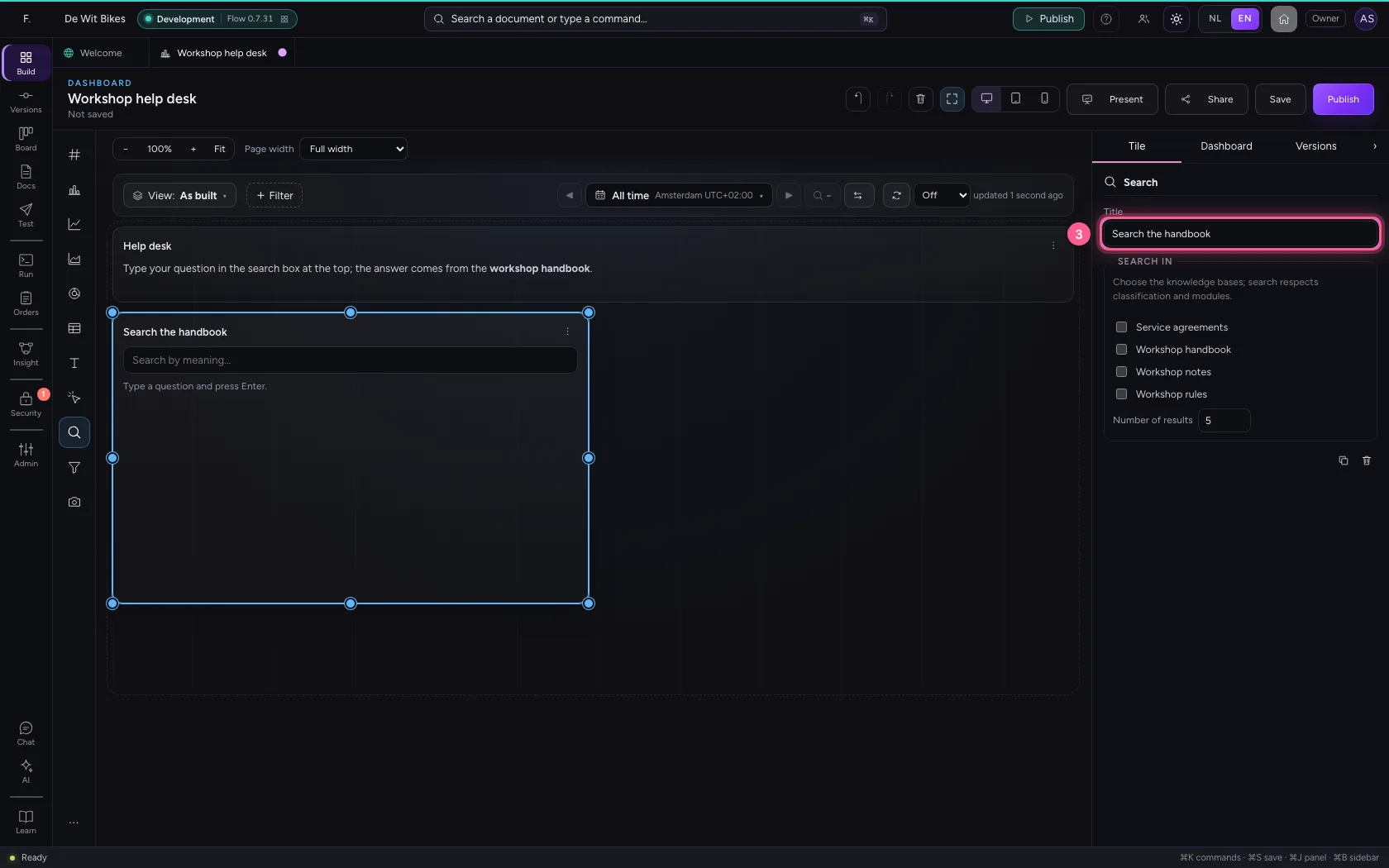
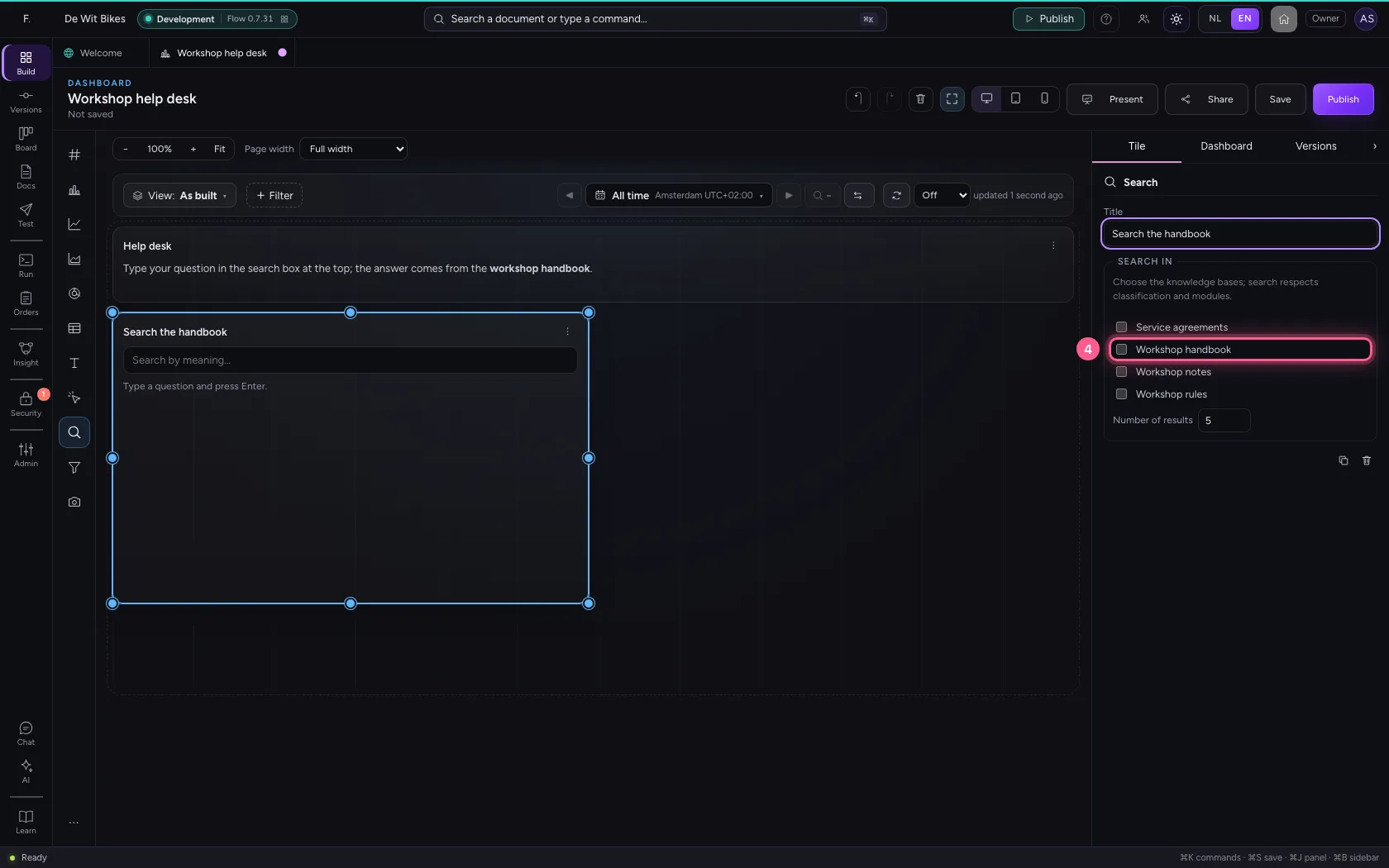
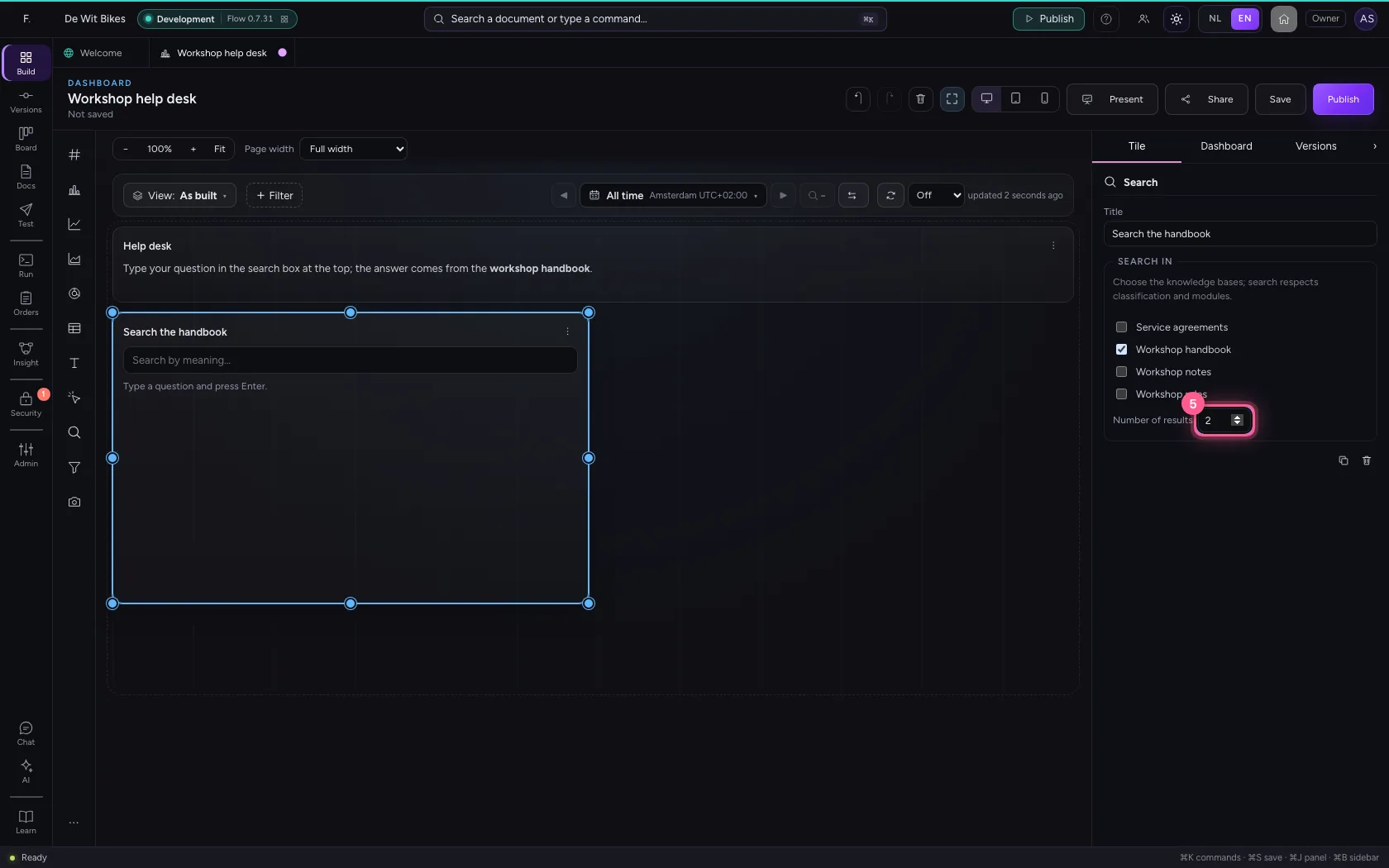
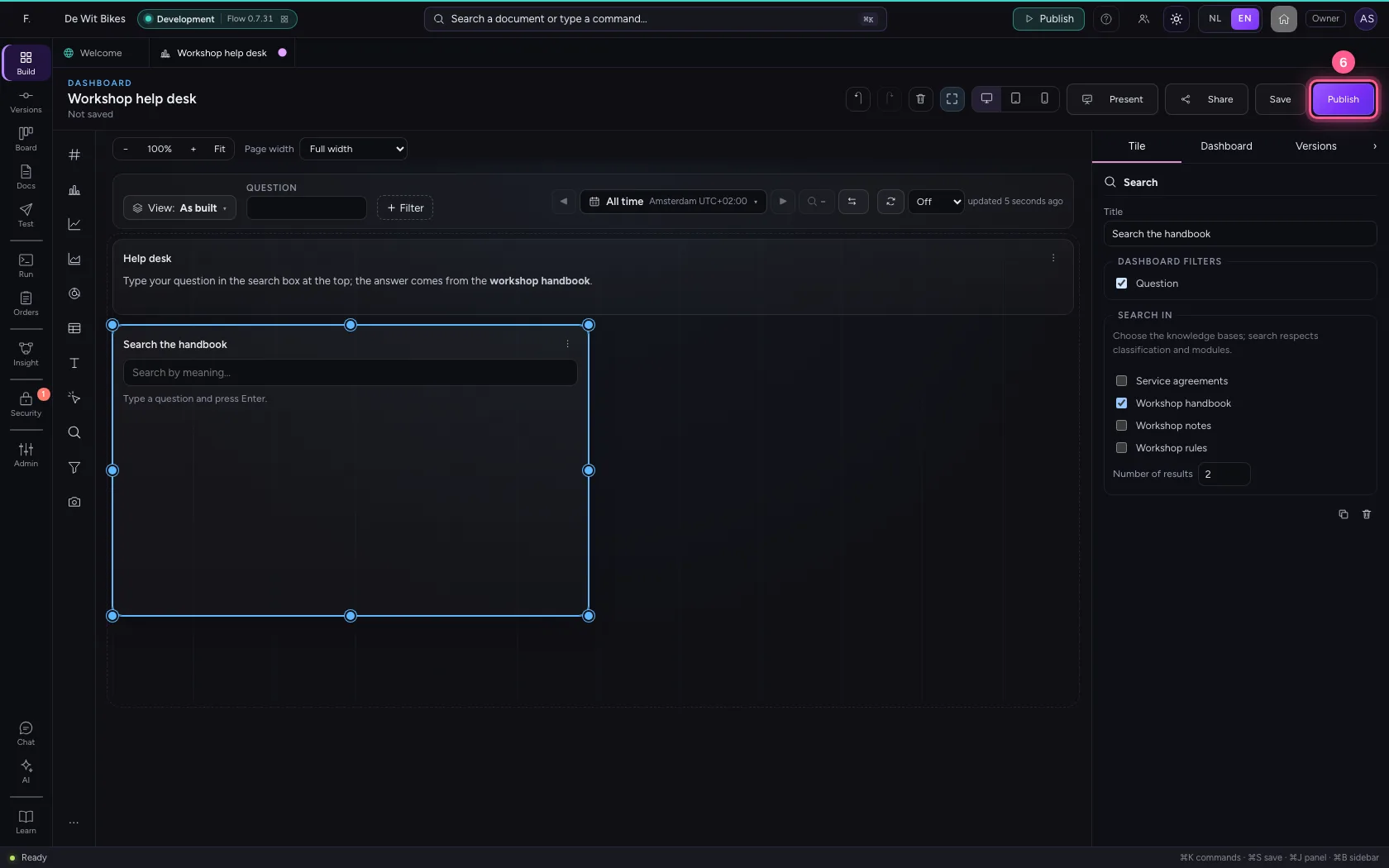
Open the dashboard and click Search in the palette. On the right, under Search in, choose the knowledge bases the tile searches, and how many results it shows. Search respects classification and modules: whoever looks at the dashboard only finds what they may read.
- Click the dashboard ‘Workshop help desk’
- Click Search
- In Title, type
Search the handbook
- Click the knowledge base ‘Workshop handbook’
- In Number of results, type
2
Bind the tile to a search text at the top
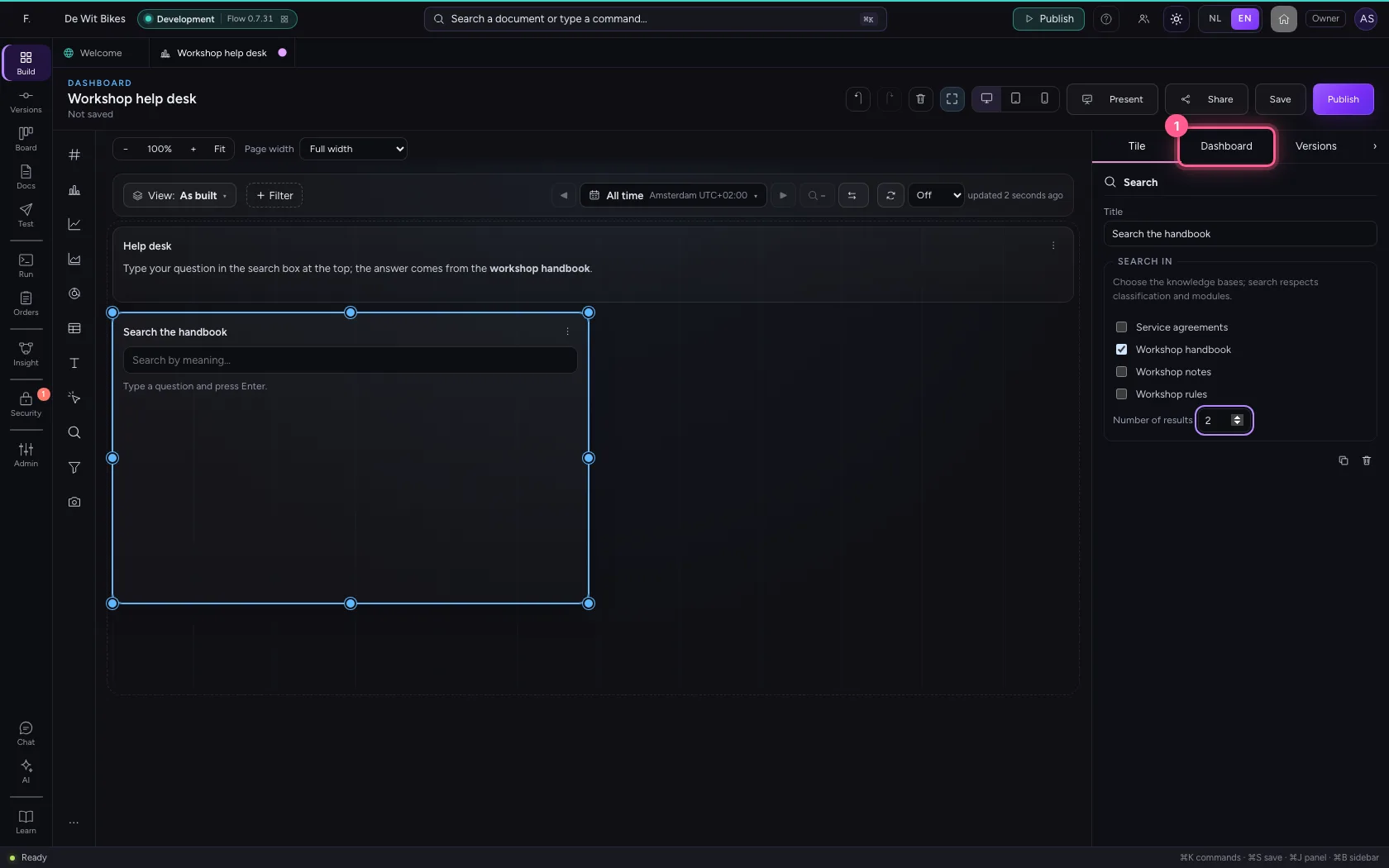
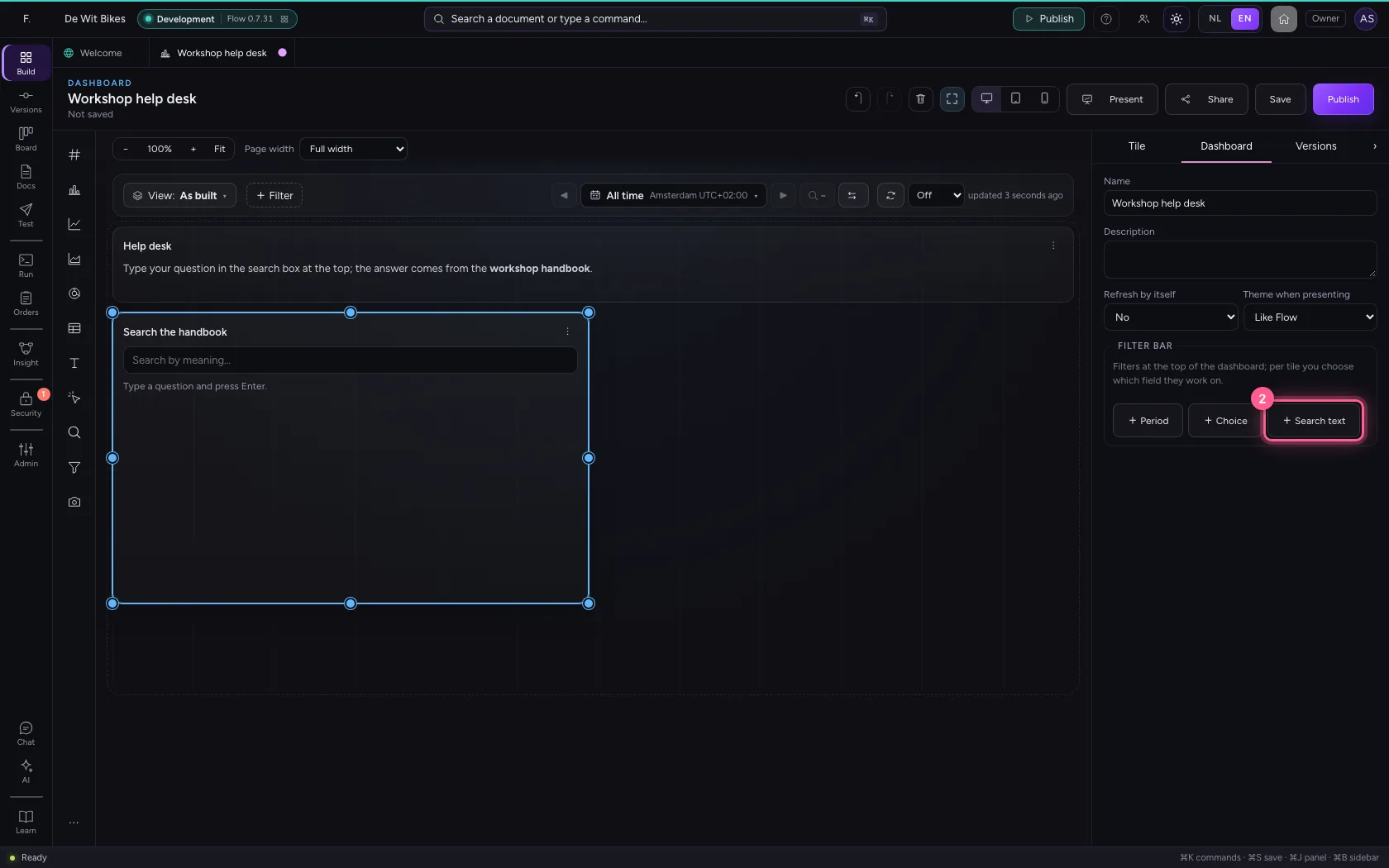
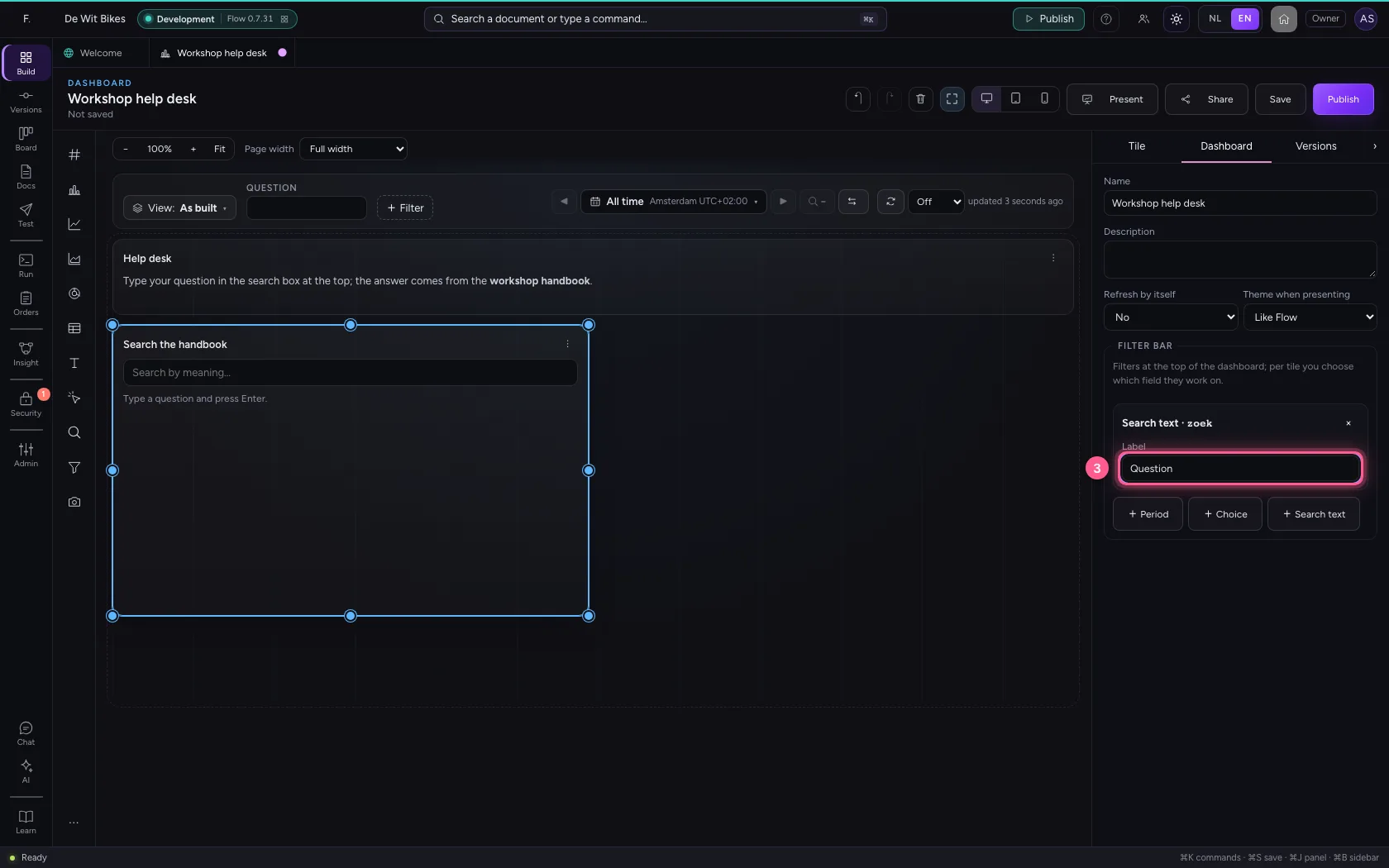
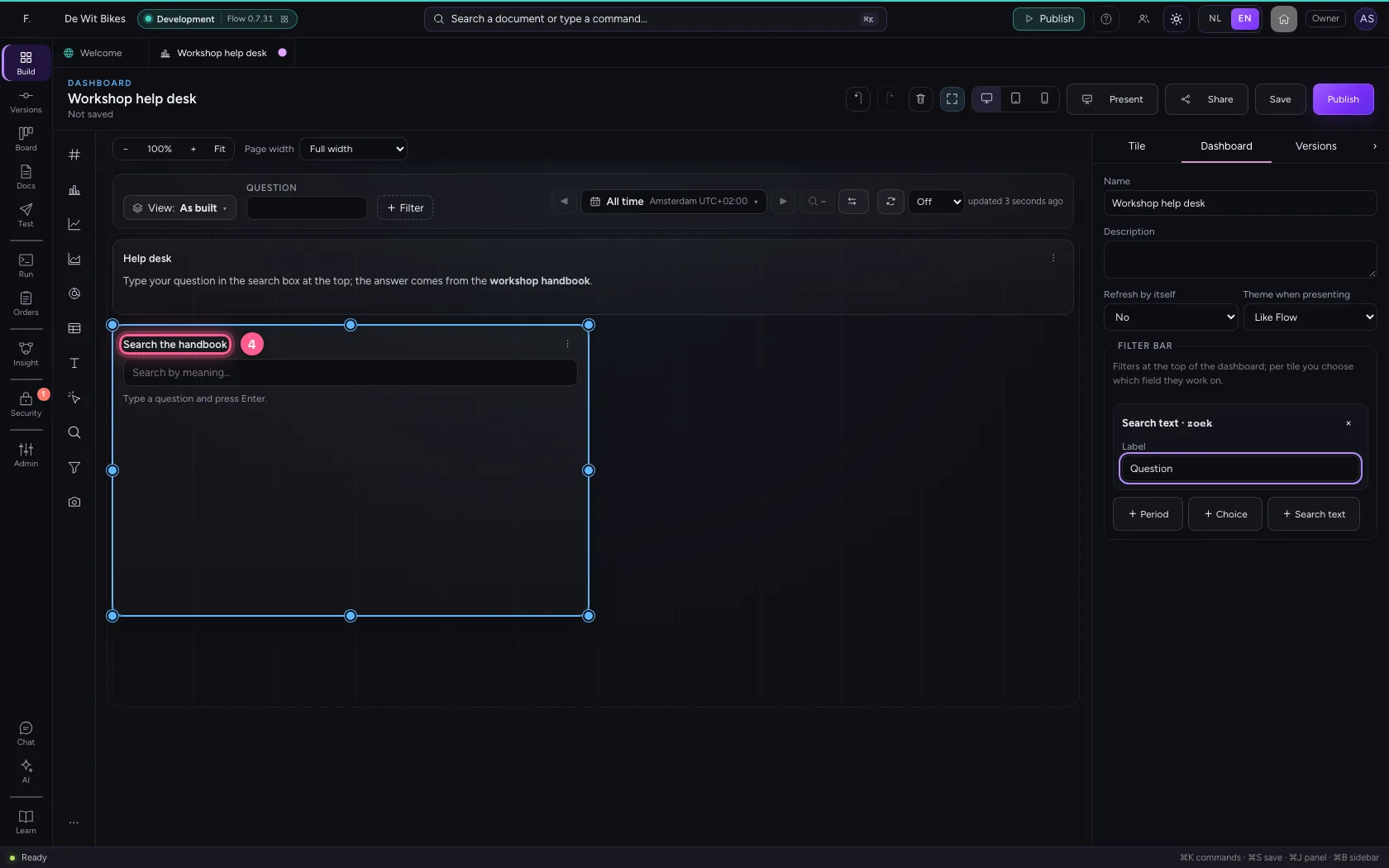
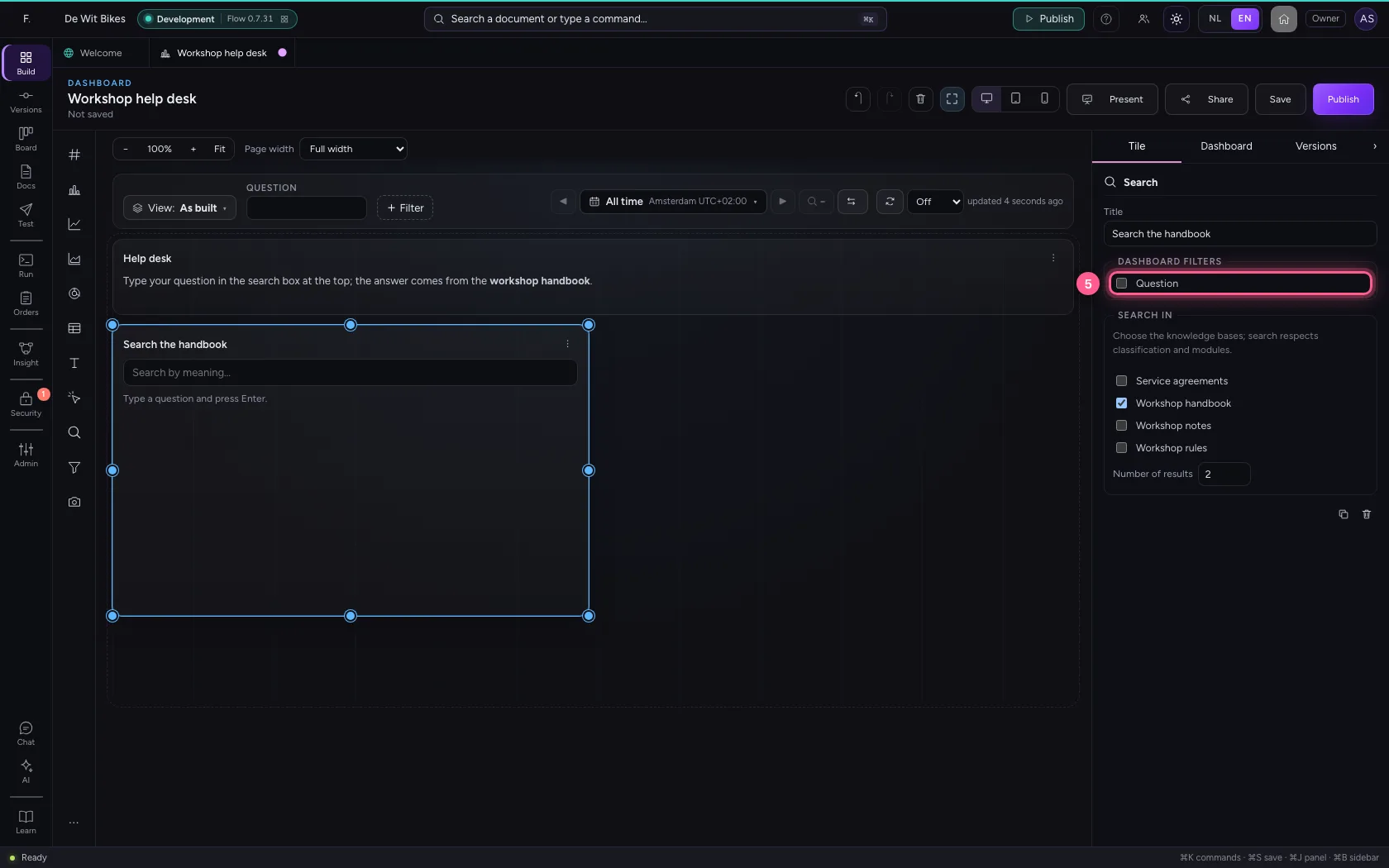
On the Dashboard tab you add a text filter to the filter bar with + Search text; call it Question. Then choose the search tile again and tick Question under Dashboard filters: what someone types at the top is now the tile's question. Publish, so that the people you share it with get the search tile too.
- Click Dashboard
- Click + Search text
- In Label, type
Question
- Click the search tile
- Click Question
- Click Publish
Ask a question
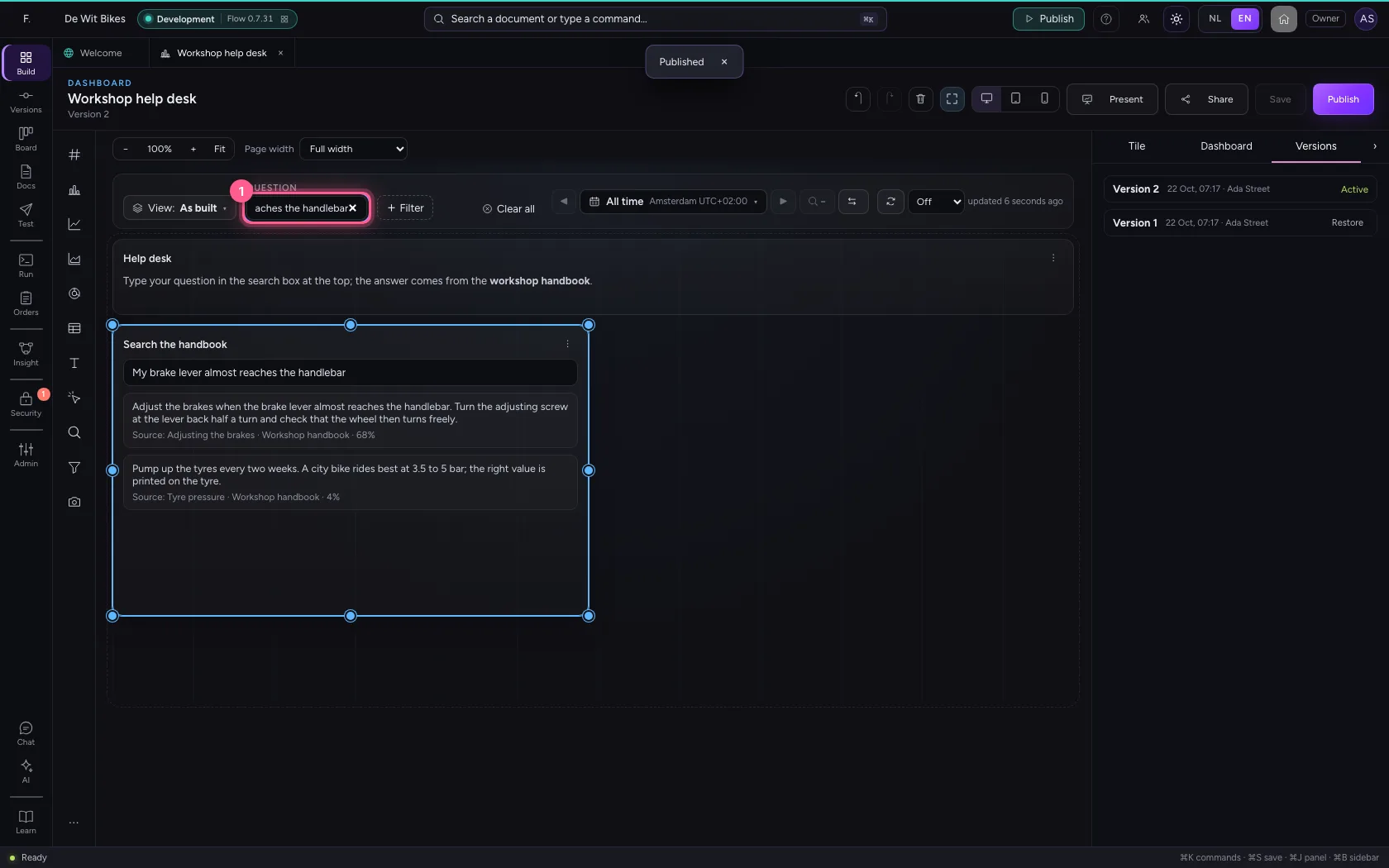
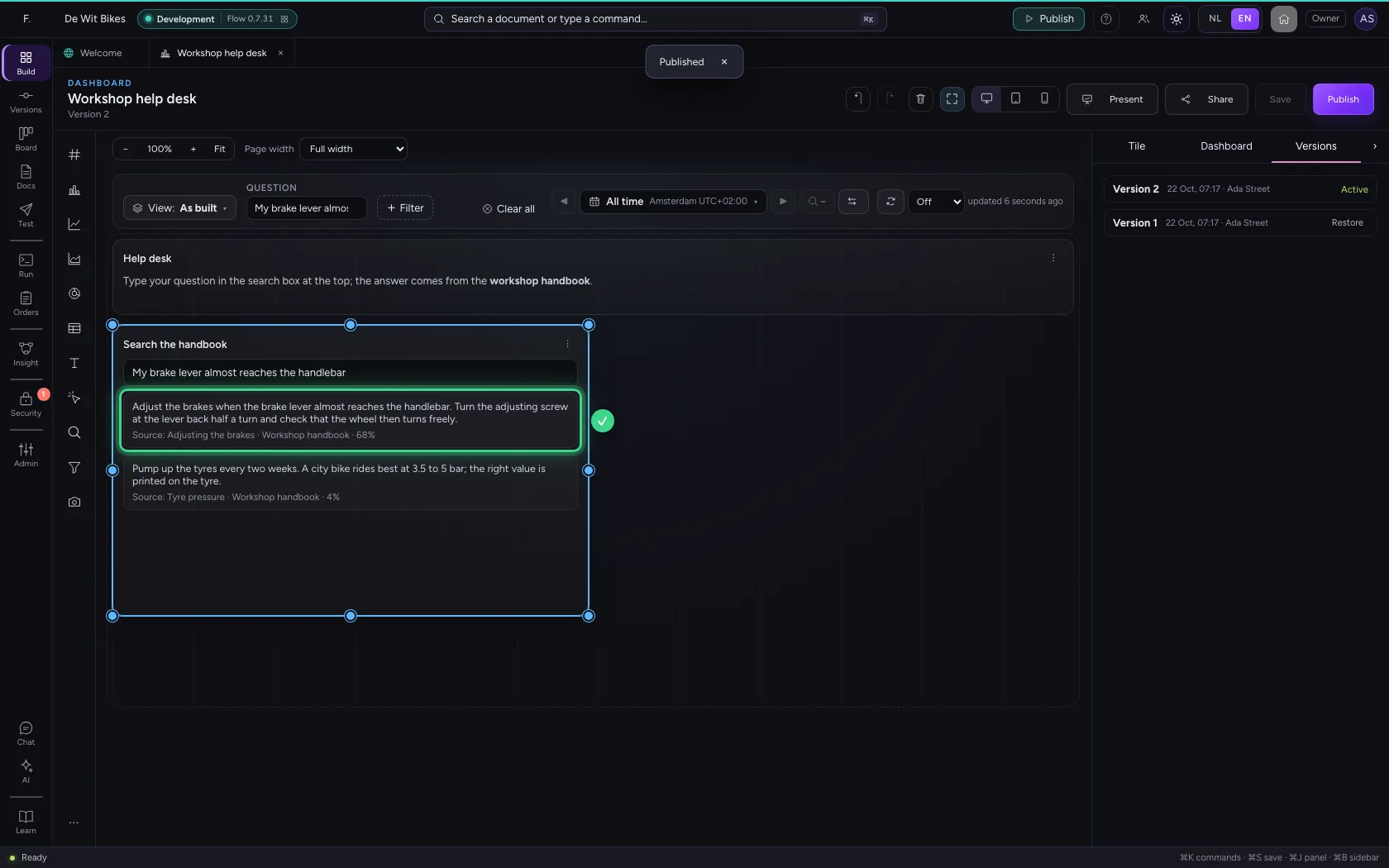
Type a question at the top, in your own words. The tile searches by meaning: even without exactly the same words it finds the part about it, with the document and the knowledge base below it as the source, and how well it fits.
- In QUESTION, type
My brake lever almost reaches the handlebar
This guide was carried out step by step on 22 Oct 2026 by an automated test on Flow (version 3e563176).