Buttons that run workflows
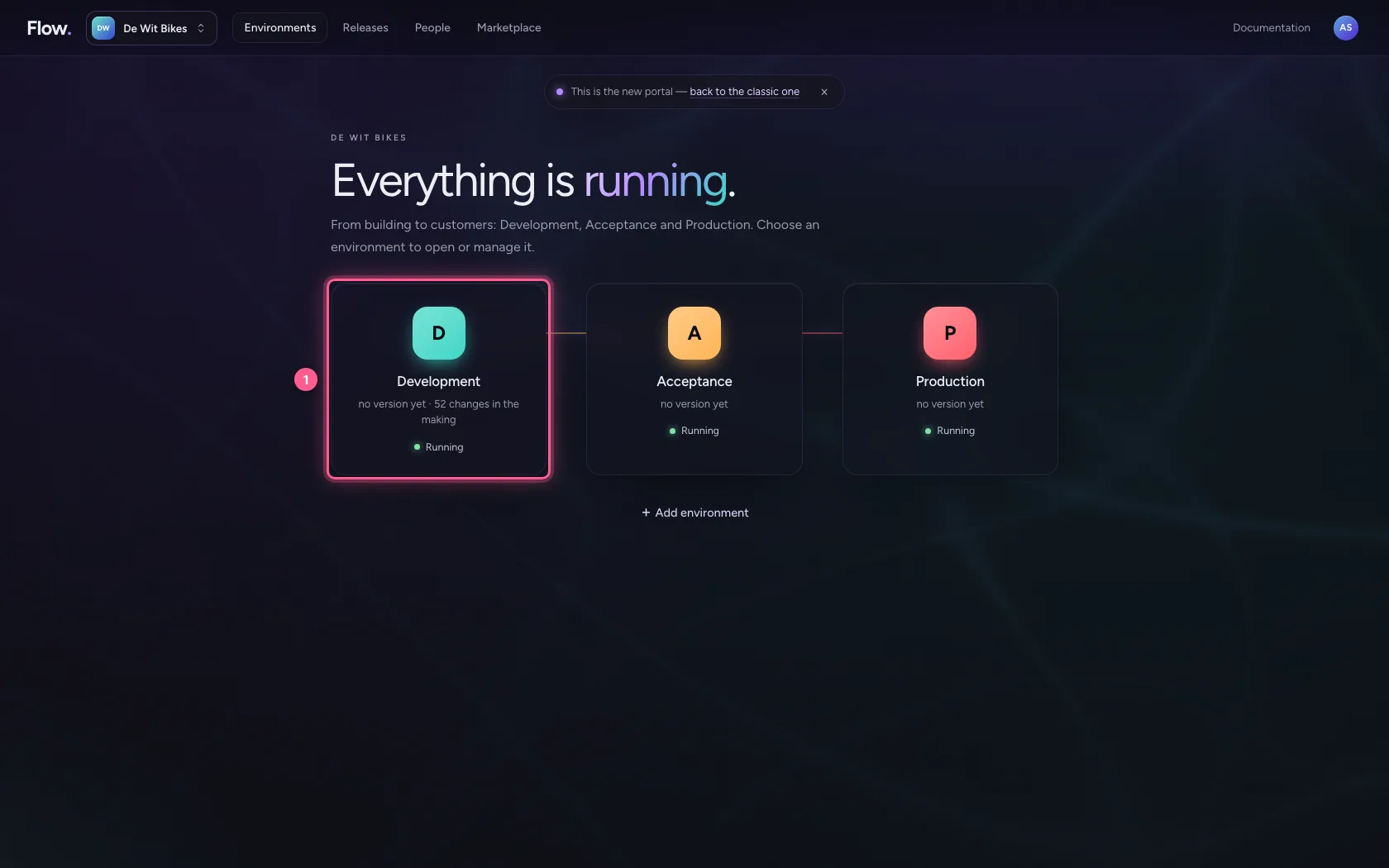
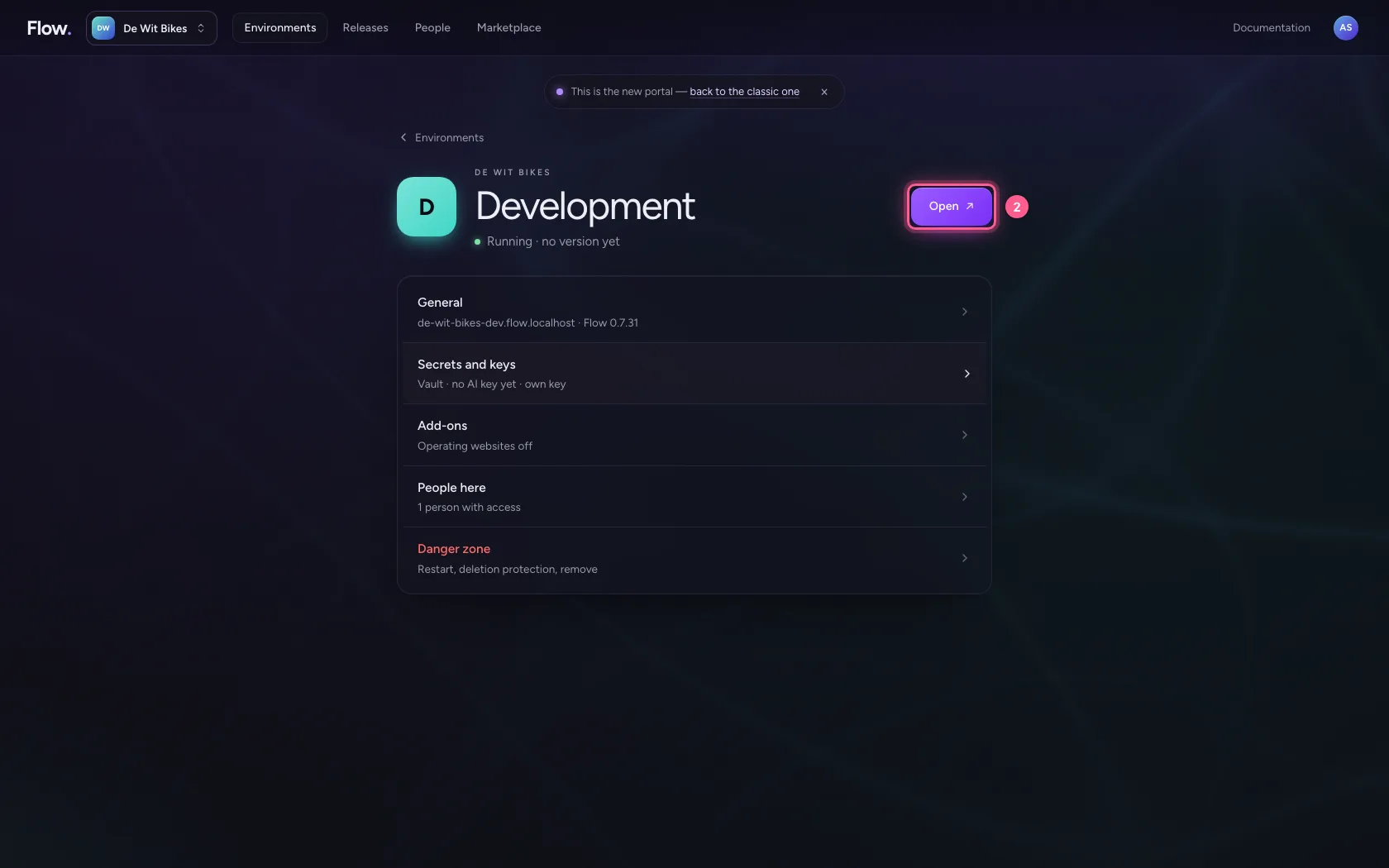
- Step 1 · Open your development environment
- Step 2 · Open the dashboard and put down a button
- Step 3 · Let the button ask questions first
- Step 4 · Confirm, and refresh afterwards
- Step 5 · Save, publish and press the button
- Step 6 · Follow the run and watch the tiles refresh
- Step 7 · An action on every row
- Step 8 · Start the action for one row
A dashboard is not only for looking. A button starts a workflow: enter an order, make a report, fetch data again. The button can ask a few questions first and ask for confirmation; then you watch the run happen live and the tiles refresh. A table can have an action on every row, with that row as input.
Open your development environment
In the portal, under Environments, click Development, and there Open. Flow opens in a new tab and you are signed in straight away.
- Click Development
- Click Open ↗
Open the dashboard and put down a button
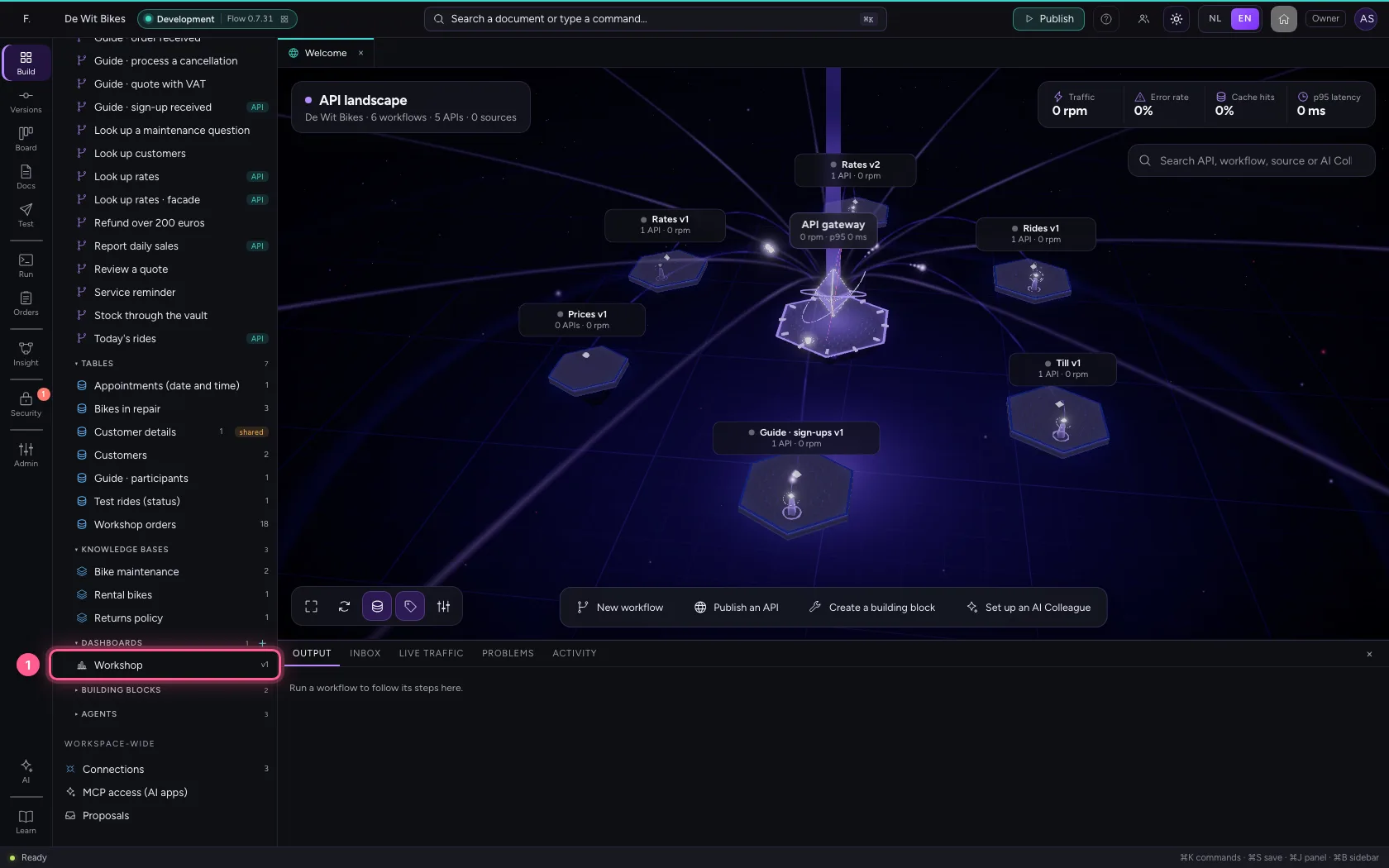
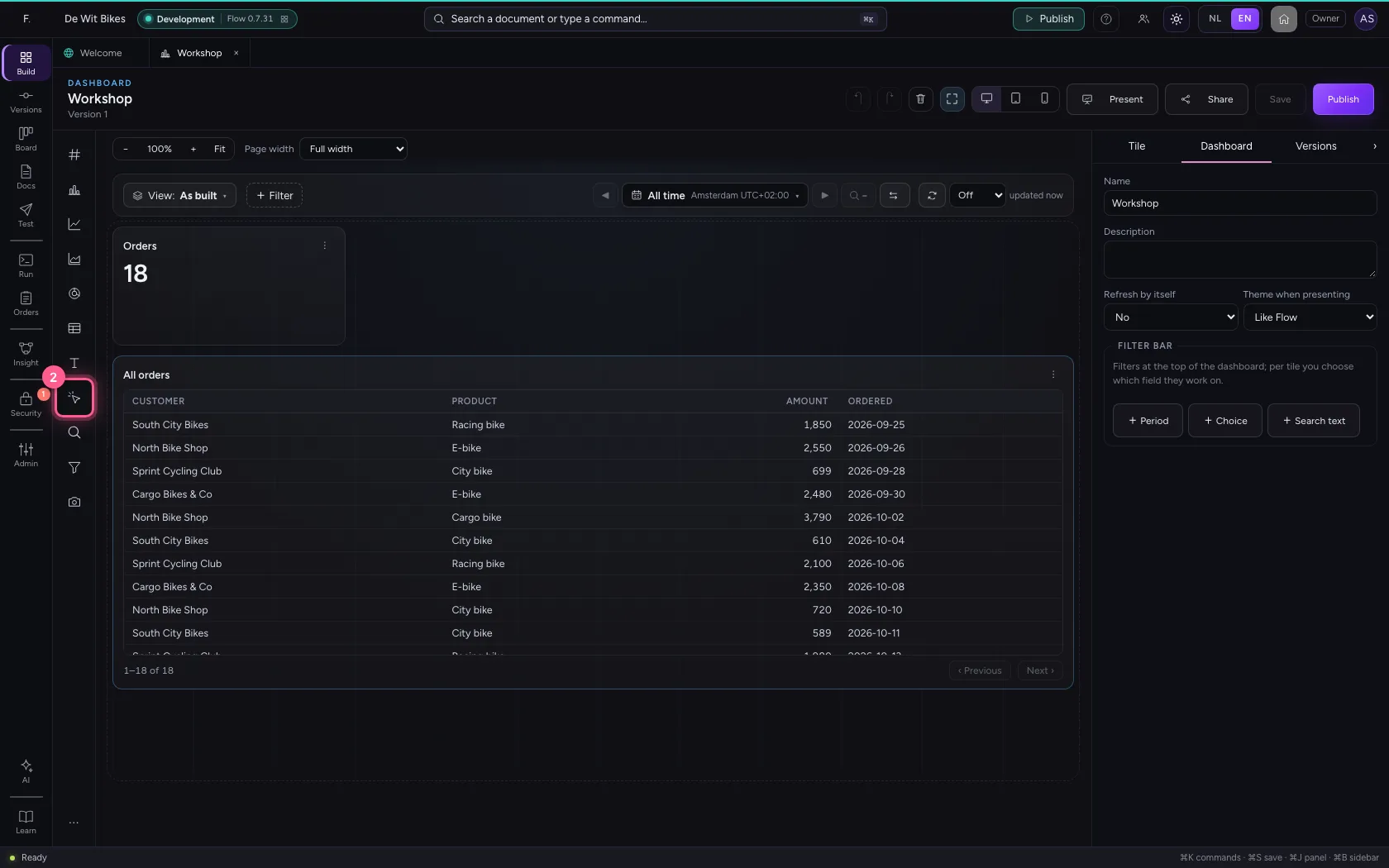
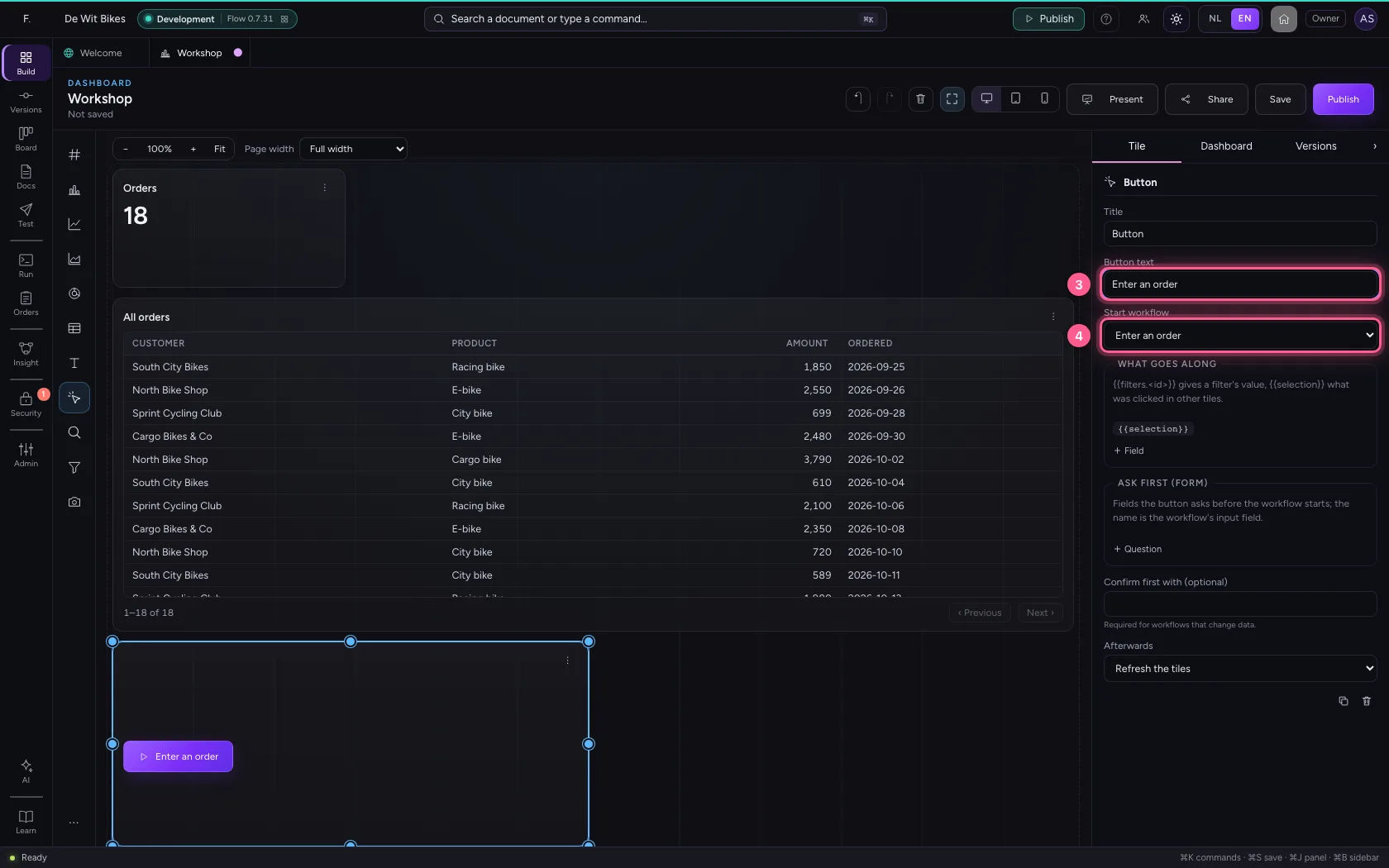
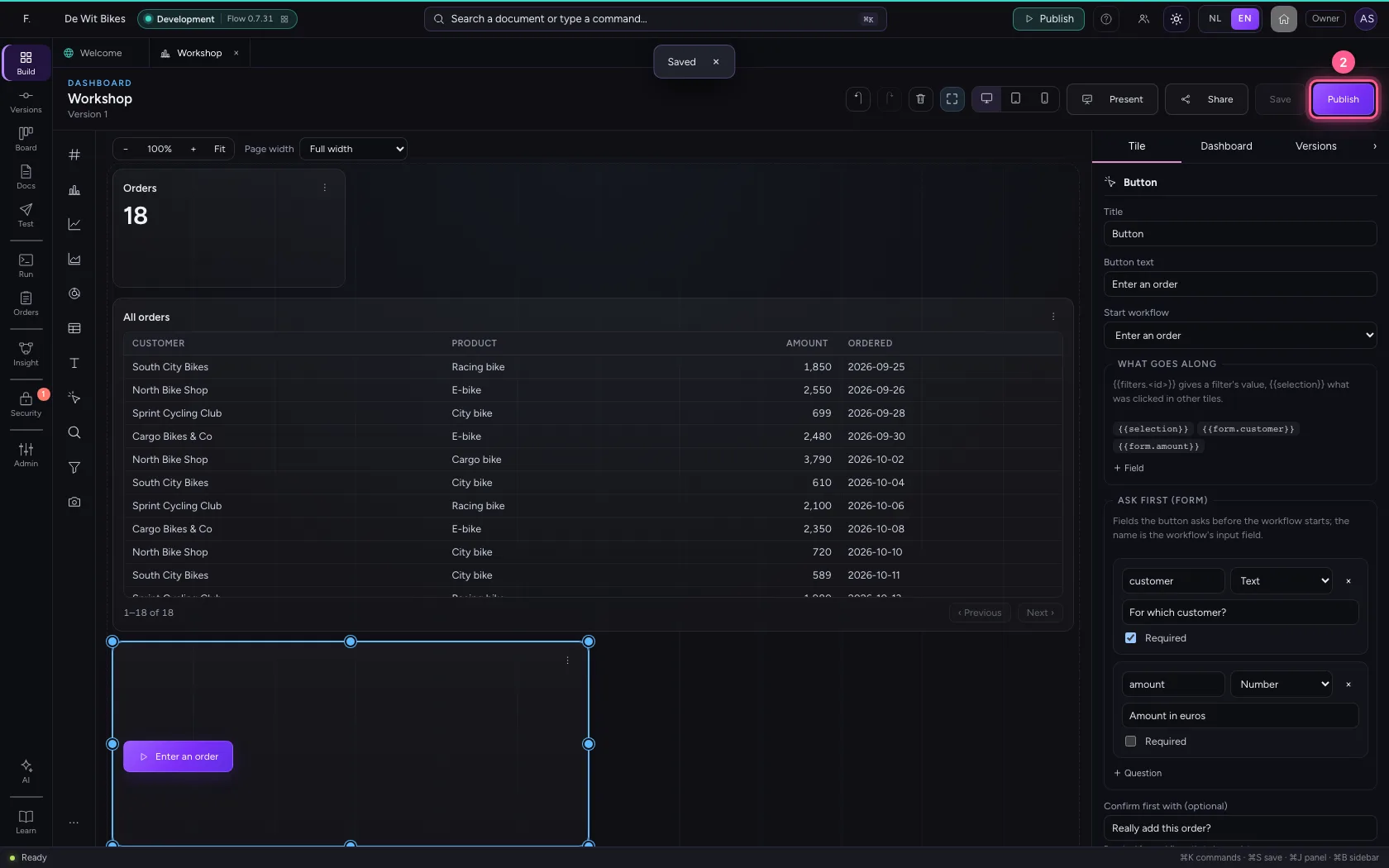
Open the dashboard and click Button in the palette. The tile has room straight away for the progress of the run and the answer under the button; for more, make it wider (Shift + arrows, or drag a corner). If the answer still does not fit, Show larger shows the run in a window. On the right you give the button a text and choose which workflow it starts.
- Click the dashboard ‘Workshop’
- Click Button
- In Button text, type
Enter an order - In Start workflow, choose Enter an order
Let the button ask questions first
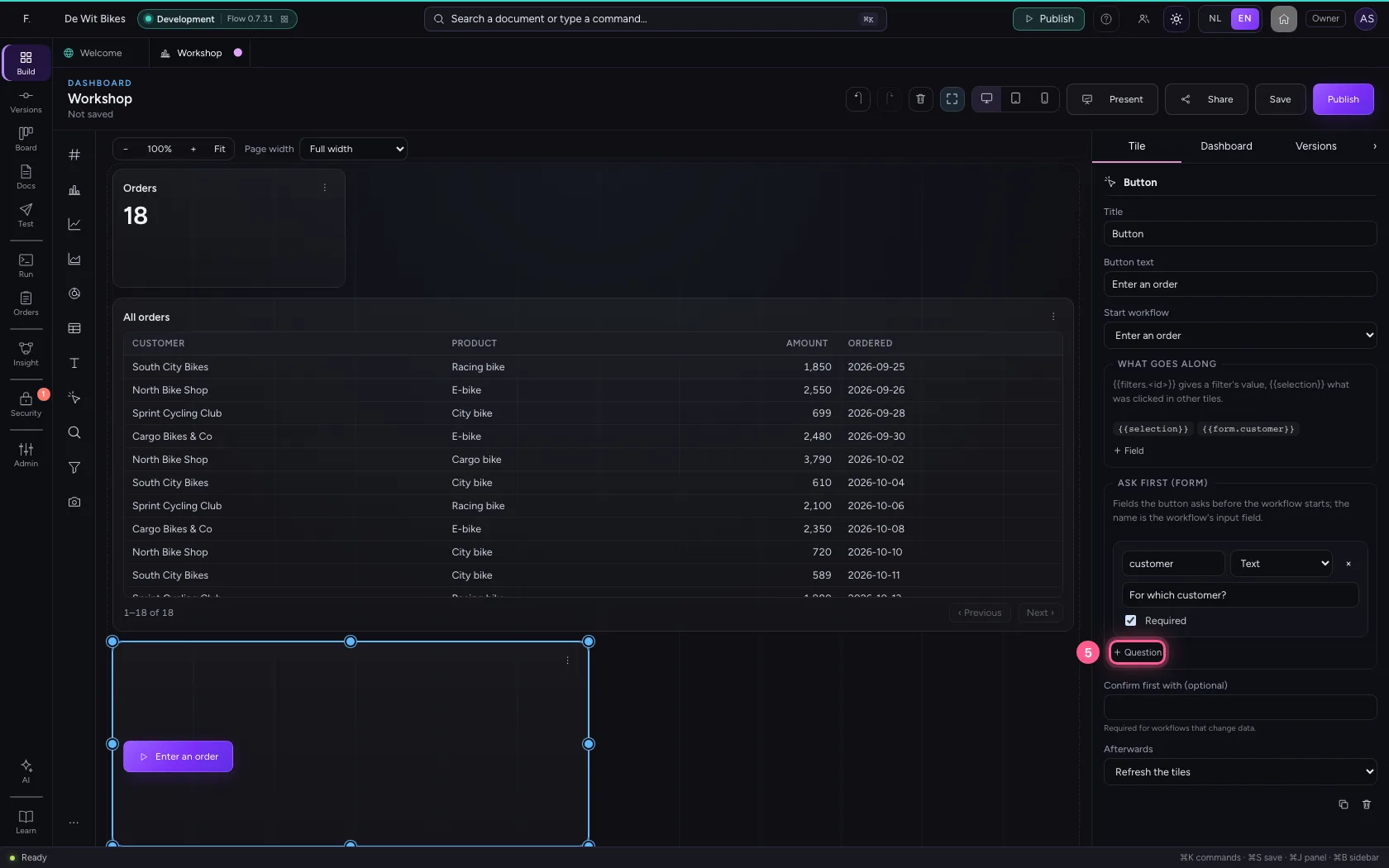
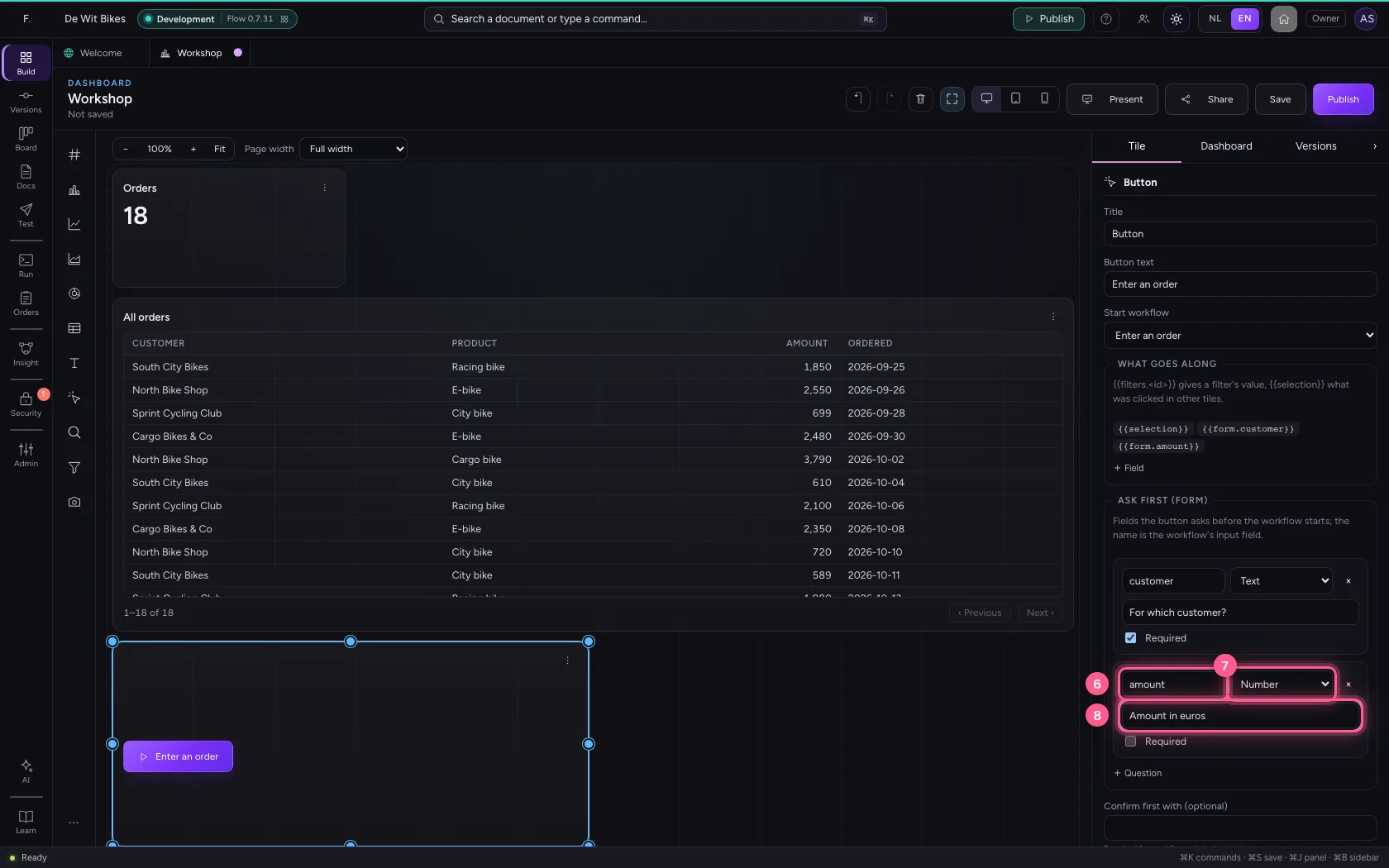
Under Ask first you add with + Question the fields the button asks before the workflow starts. The name is the workflow's input field, the question is what the user reads. When you publish, Flow checks that every name is an input field of the workflow, of the right kind.
- Click + Question
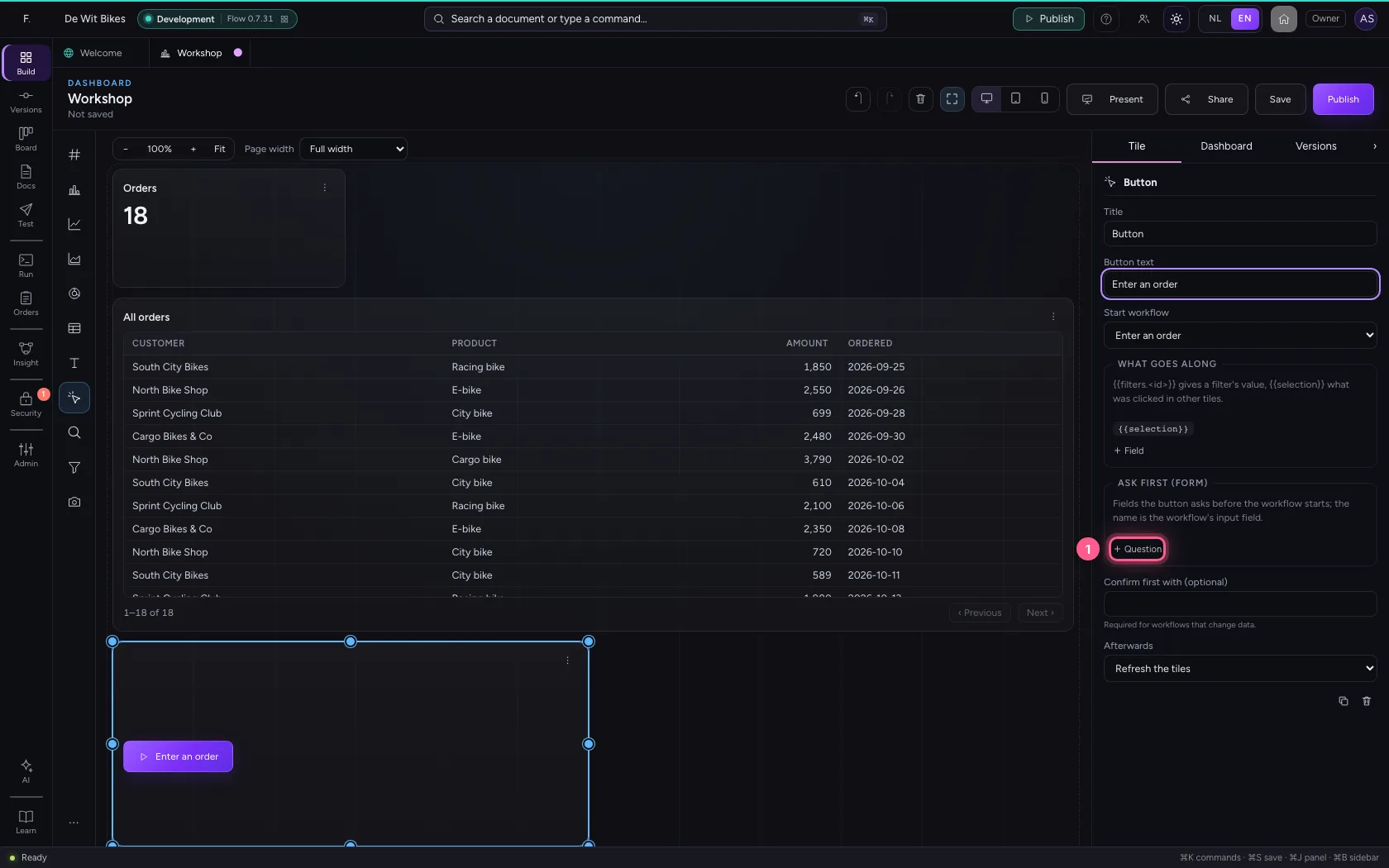
- In Name (input field), type
customer - In Question, type
For which customer?
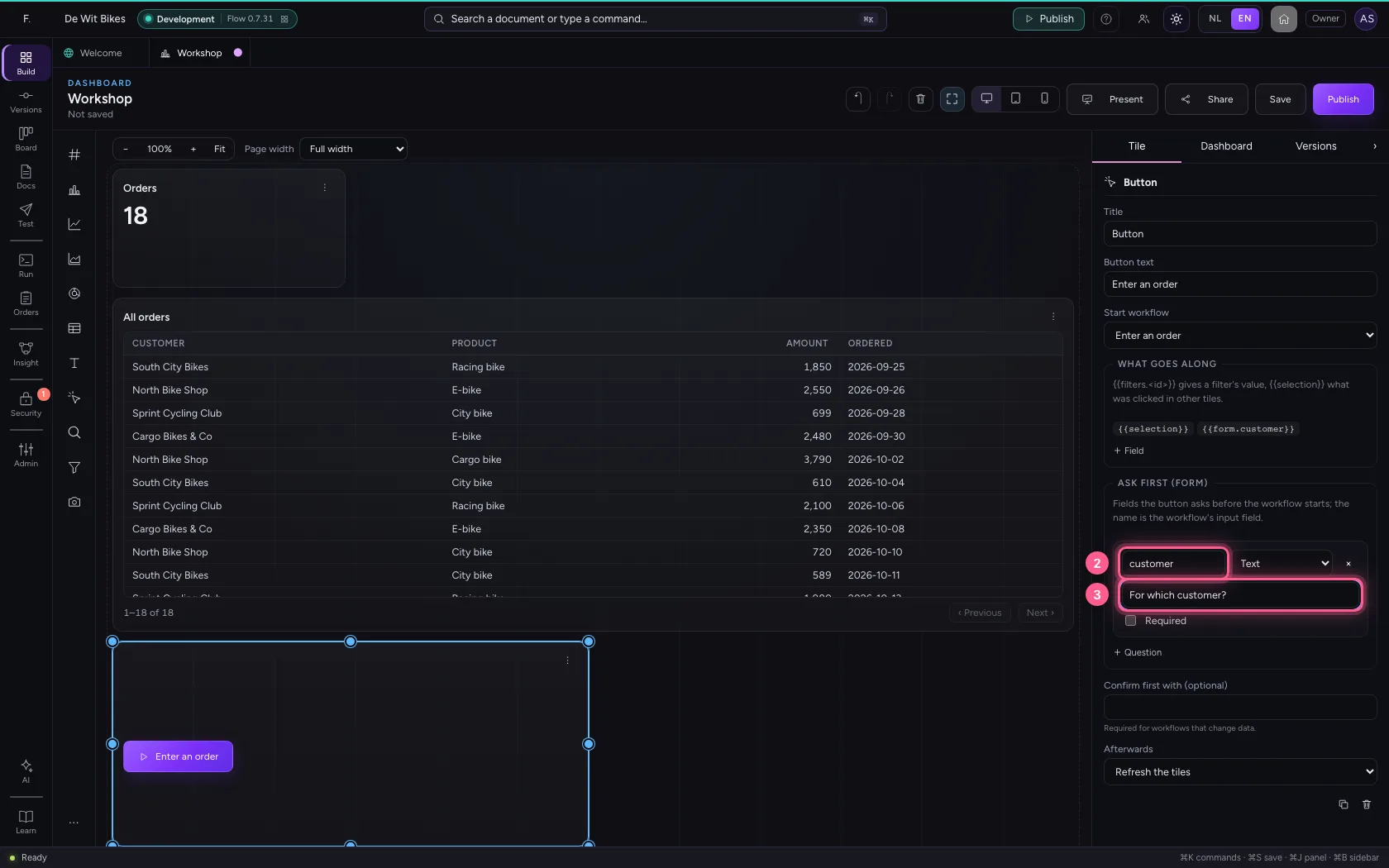
- Click Required
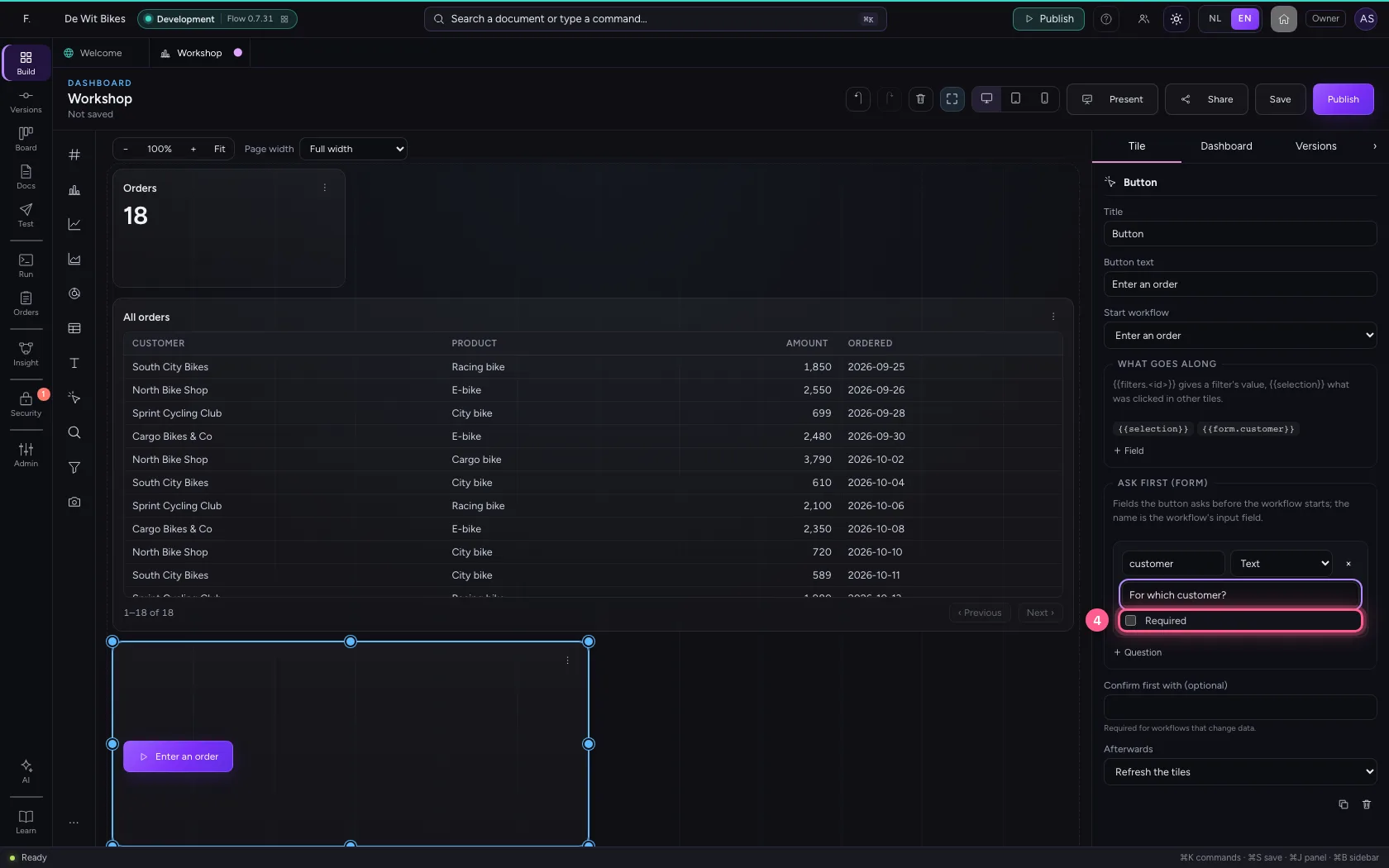
- Click + Question
- In Name (input field), type
amount - In Kind, choose Number
- In Question, type
Amount in euros
Confirm, and refresh afterwards
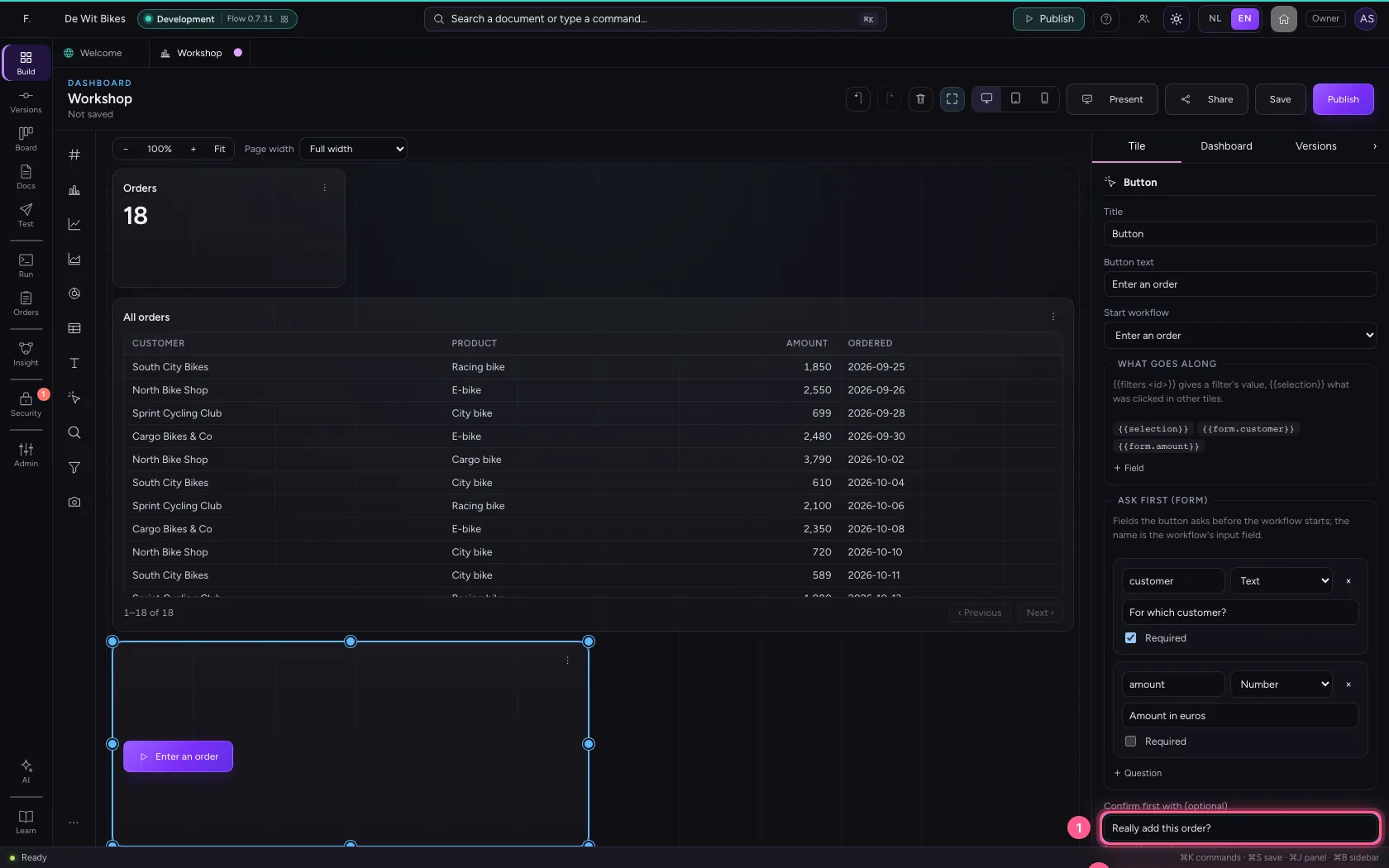
This workflow adds an order: it changes data. Buttons like that always ask for confirmation first; write the question. Under Afterwards you choose what the dashboard does when the run is done: refresh the tiles, set filters from the answer, show the result or open a link.
- In Confirm first with (optional), type
Really add this order? - In Afterwards, choose Refresh the tiles
Save, publish and press the button
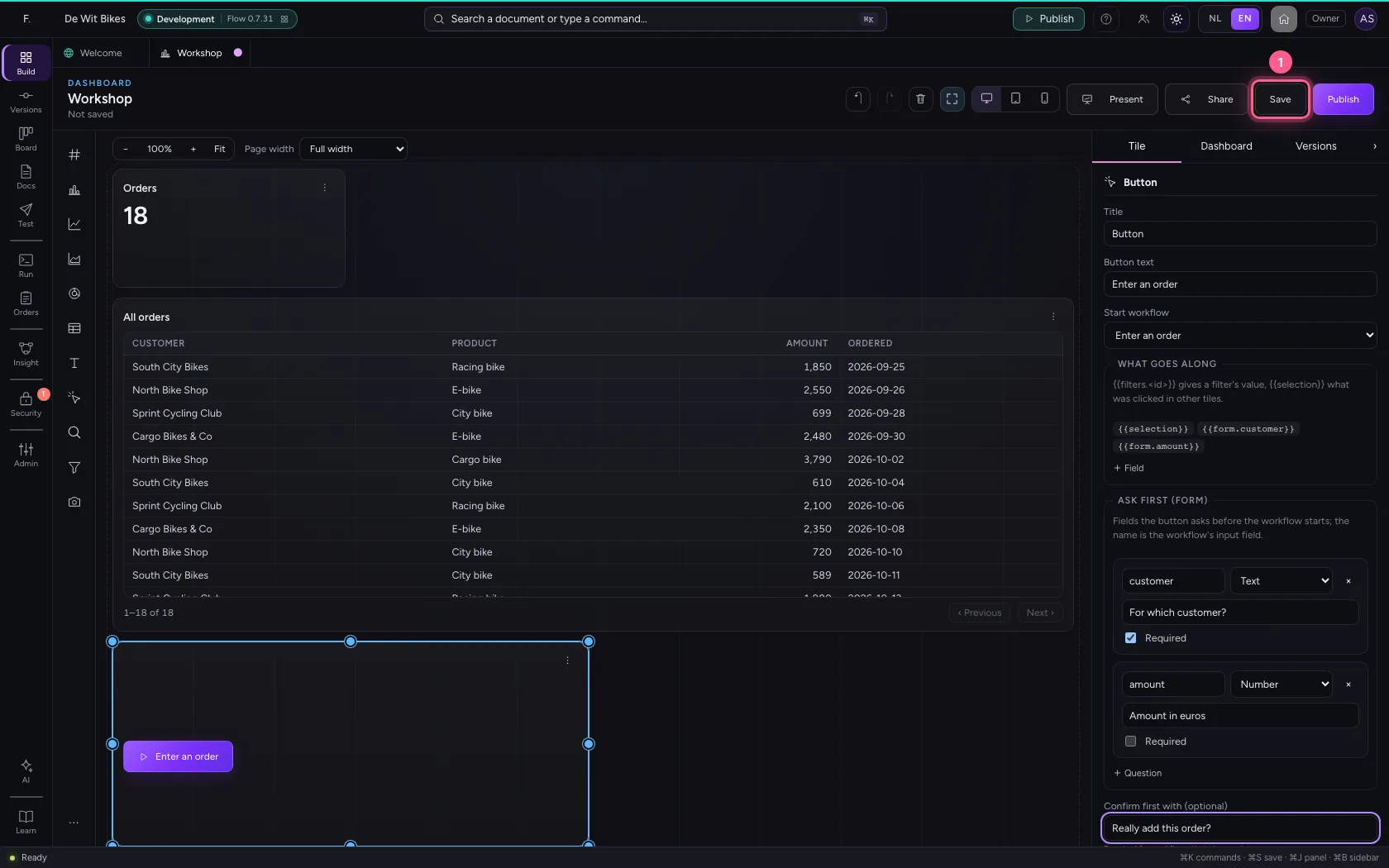
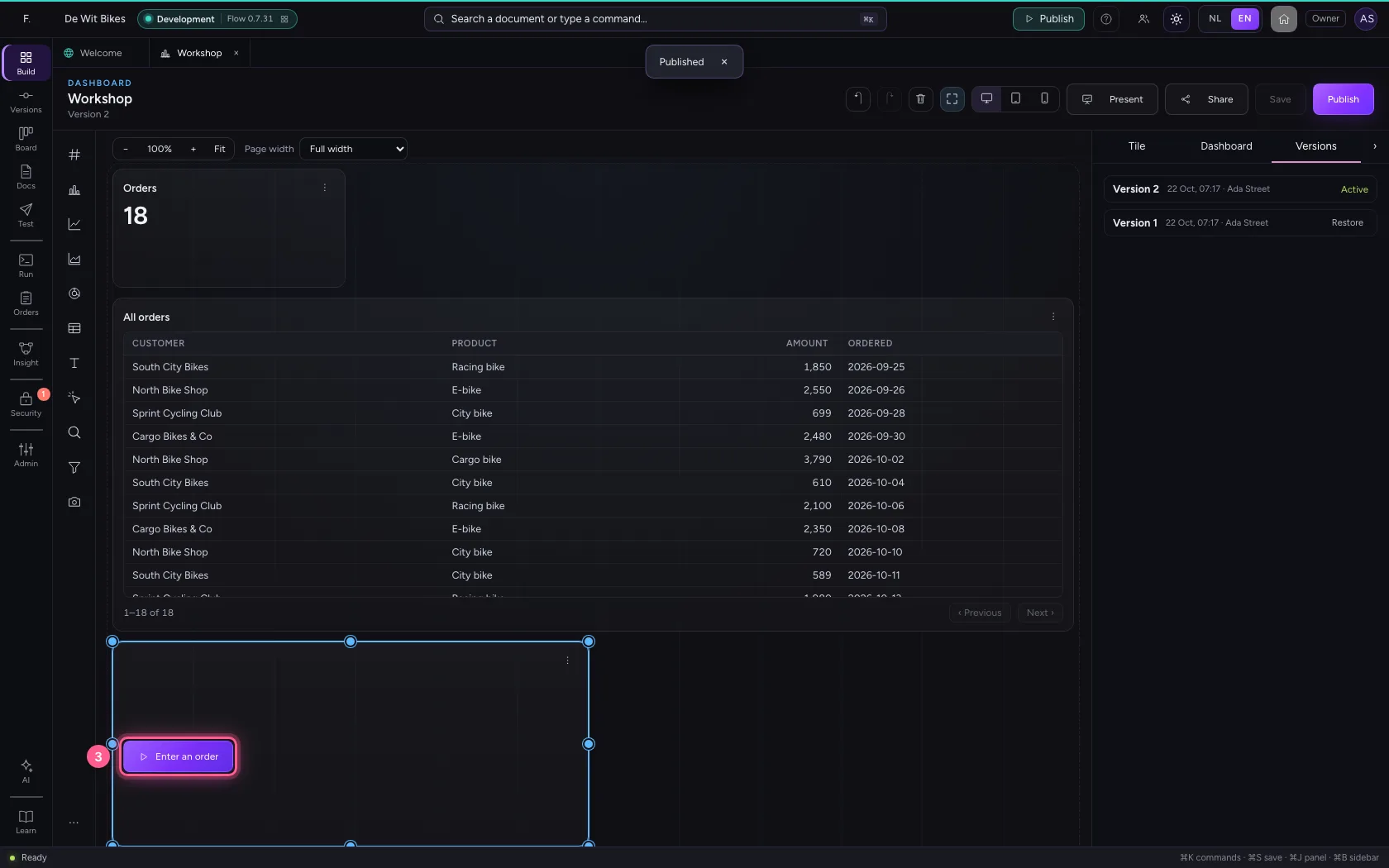
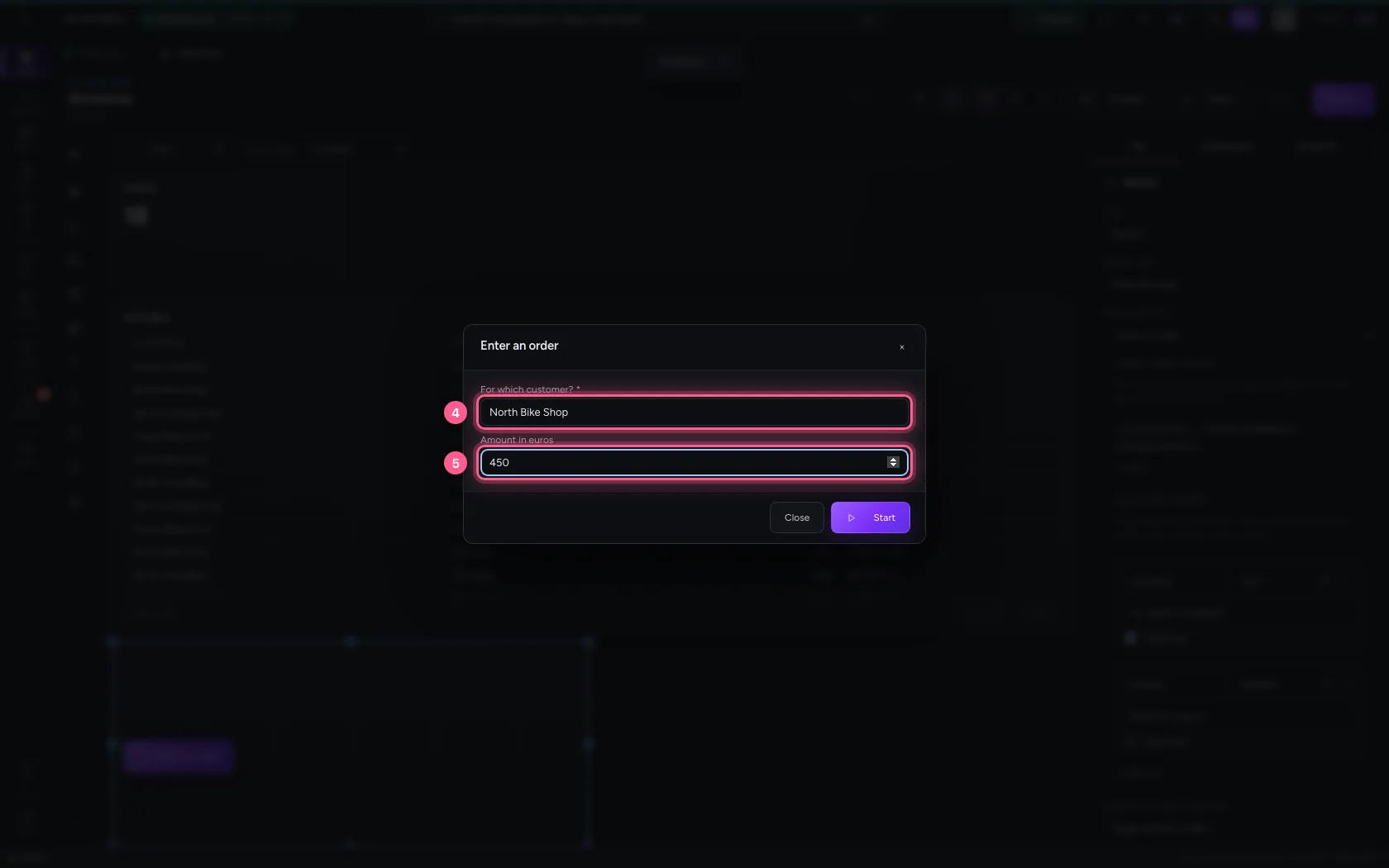
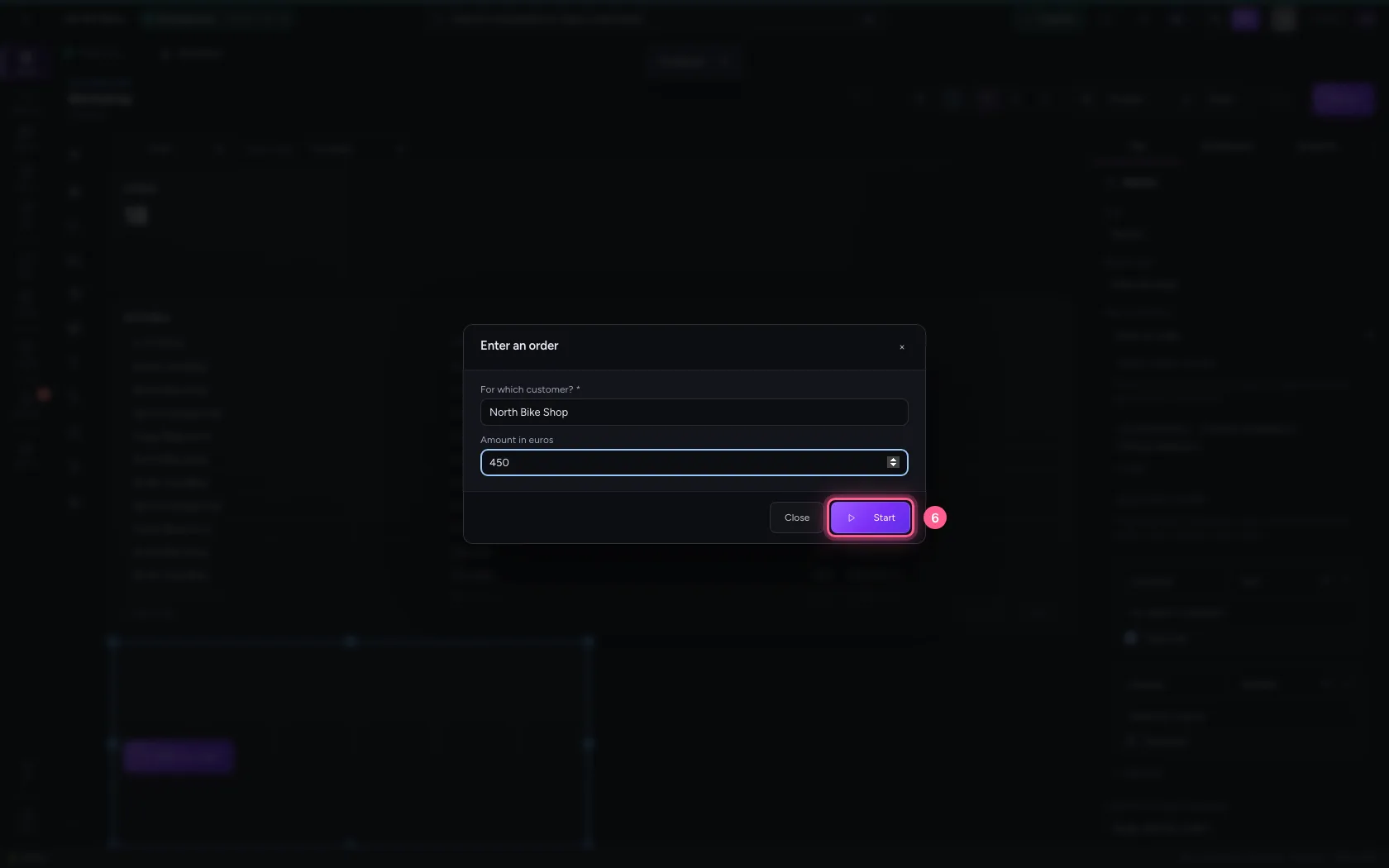
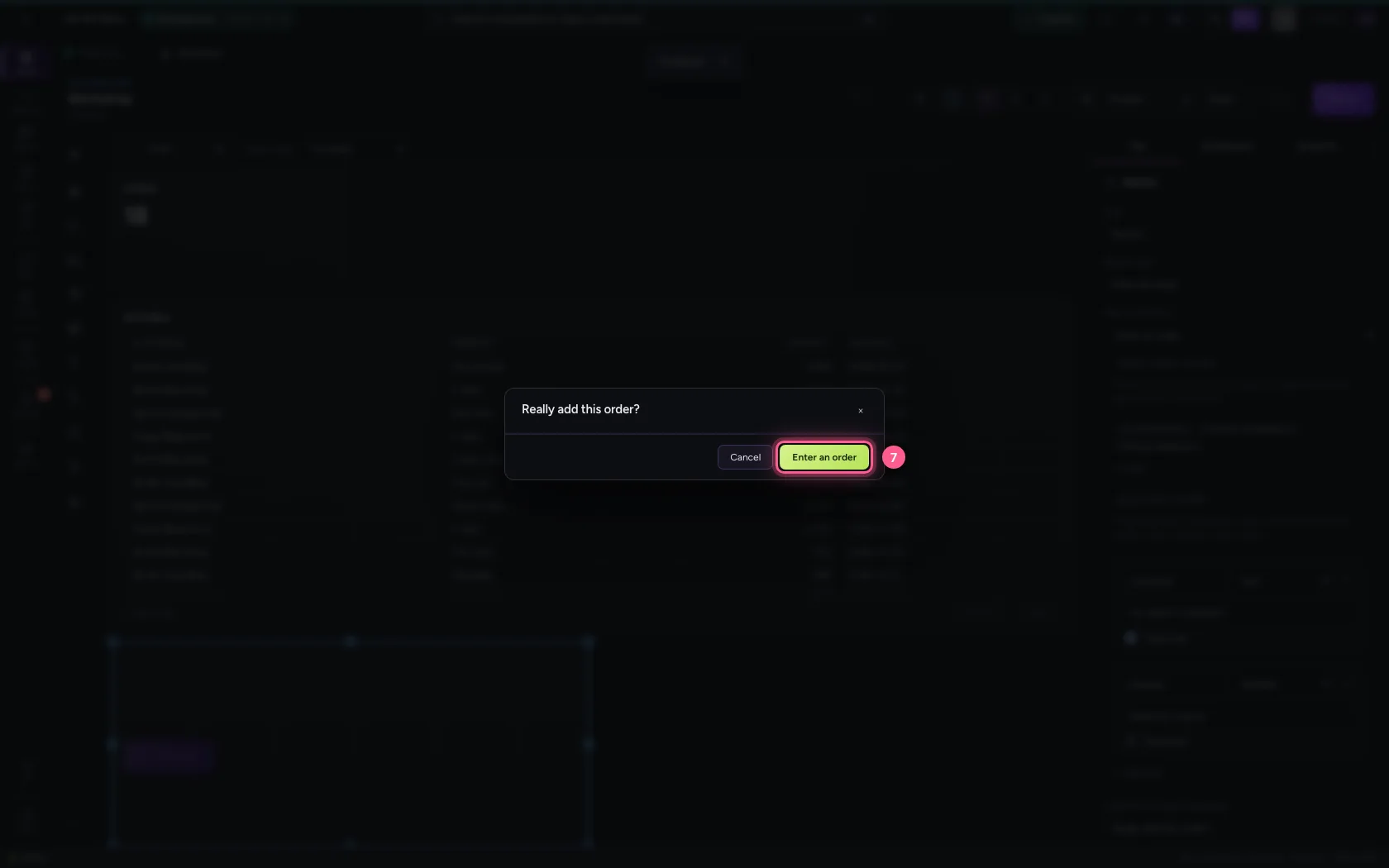
Publish the dashboard: Flow checks the questions against the workflow. Then press the button. It asks for the customer and the amount; Start still asks for confirmation.
- Click Save
- Click Publish
- Click Enter an order
- In **For which customer? ***, type
North Bike Shop - In Amount in euros, type
450
- Click Start
- Click the confirmation
Follow the run and watch the tiles refresh
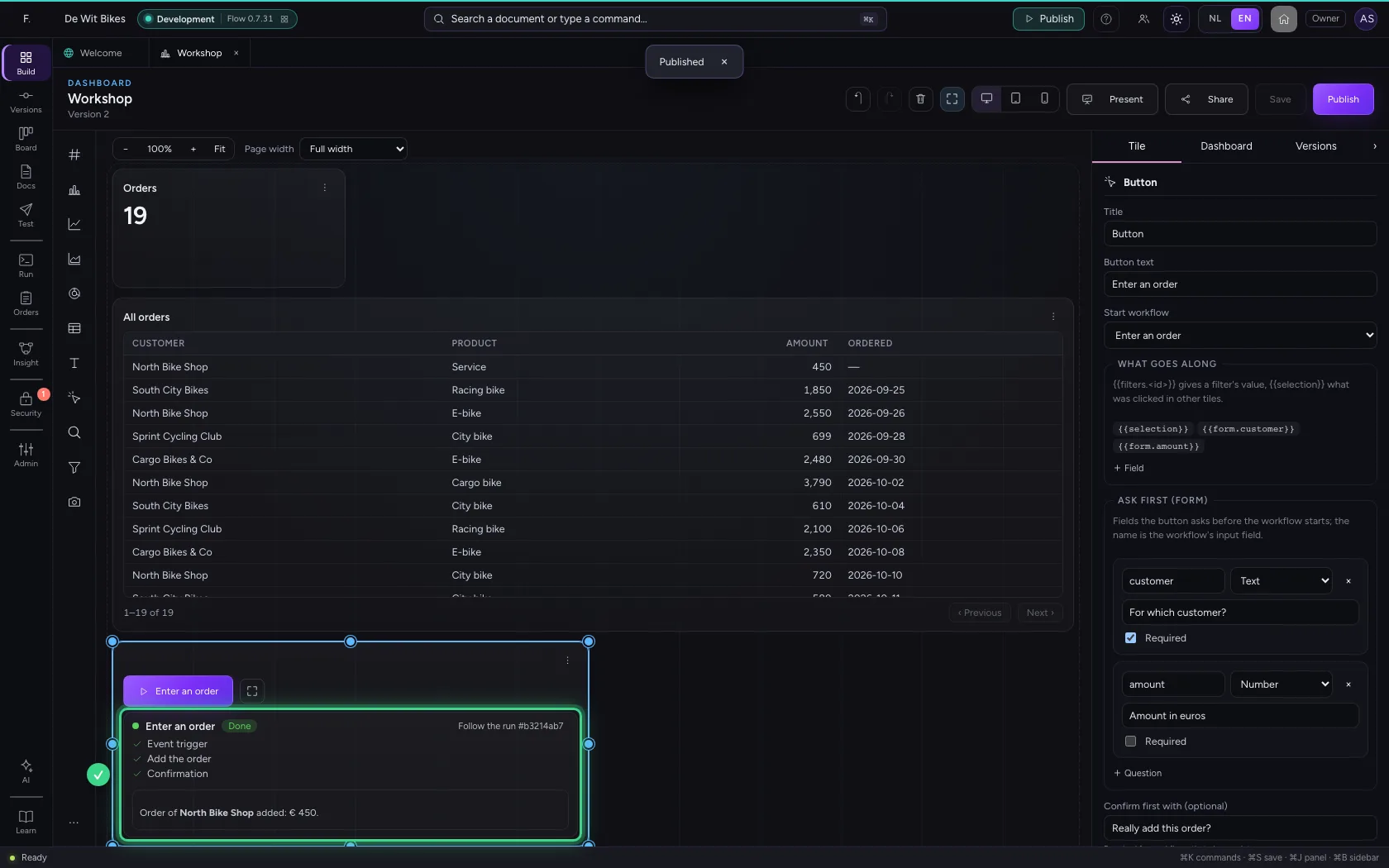
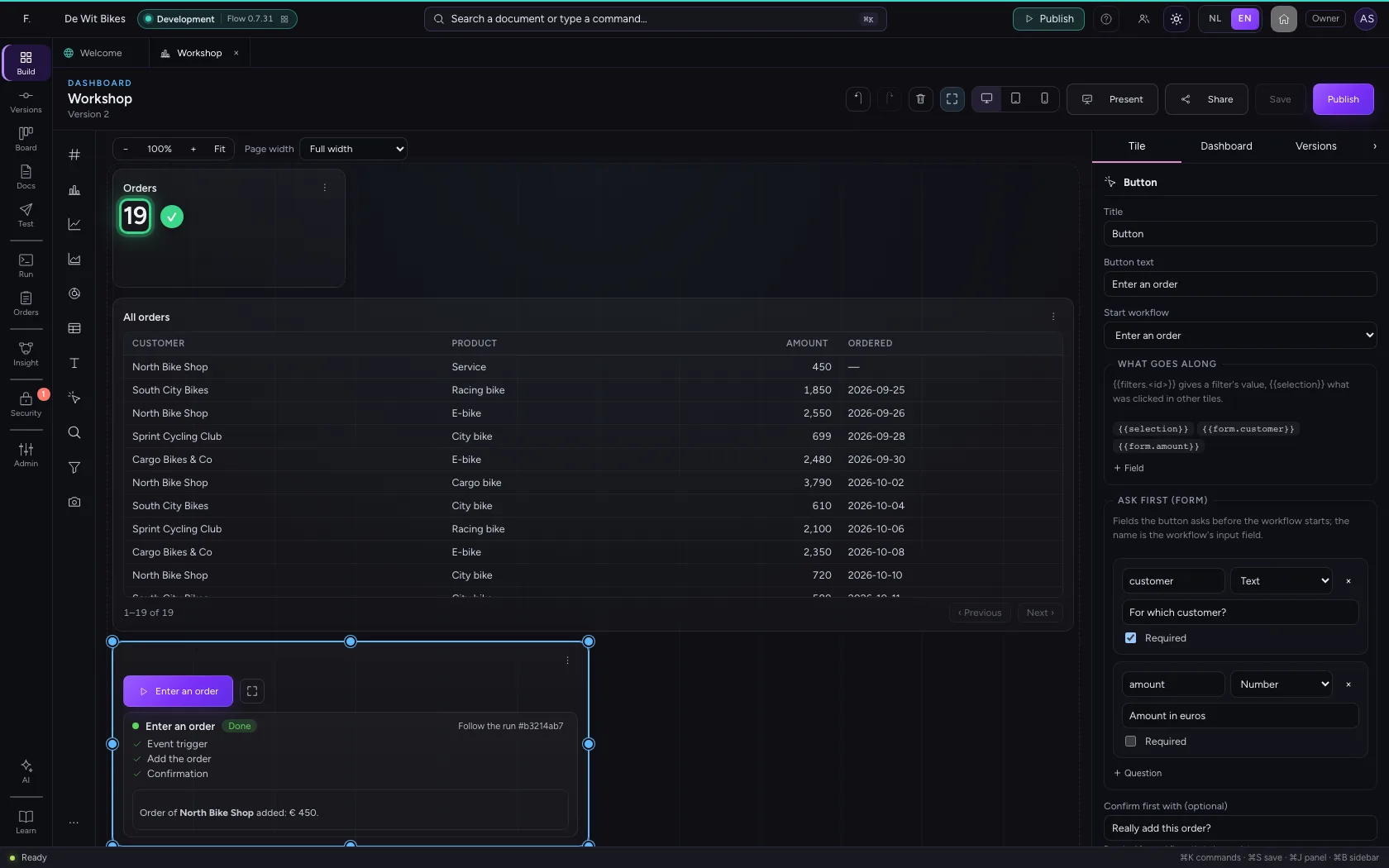
Under the button the steps appear while they run, and then the workflow's answer. Then the tiles refresh: there is one more order. With Follow the run you open the run itself, with every step and its data.
An action on every row
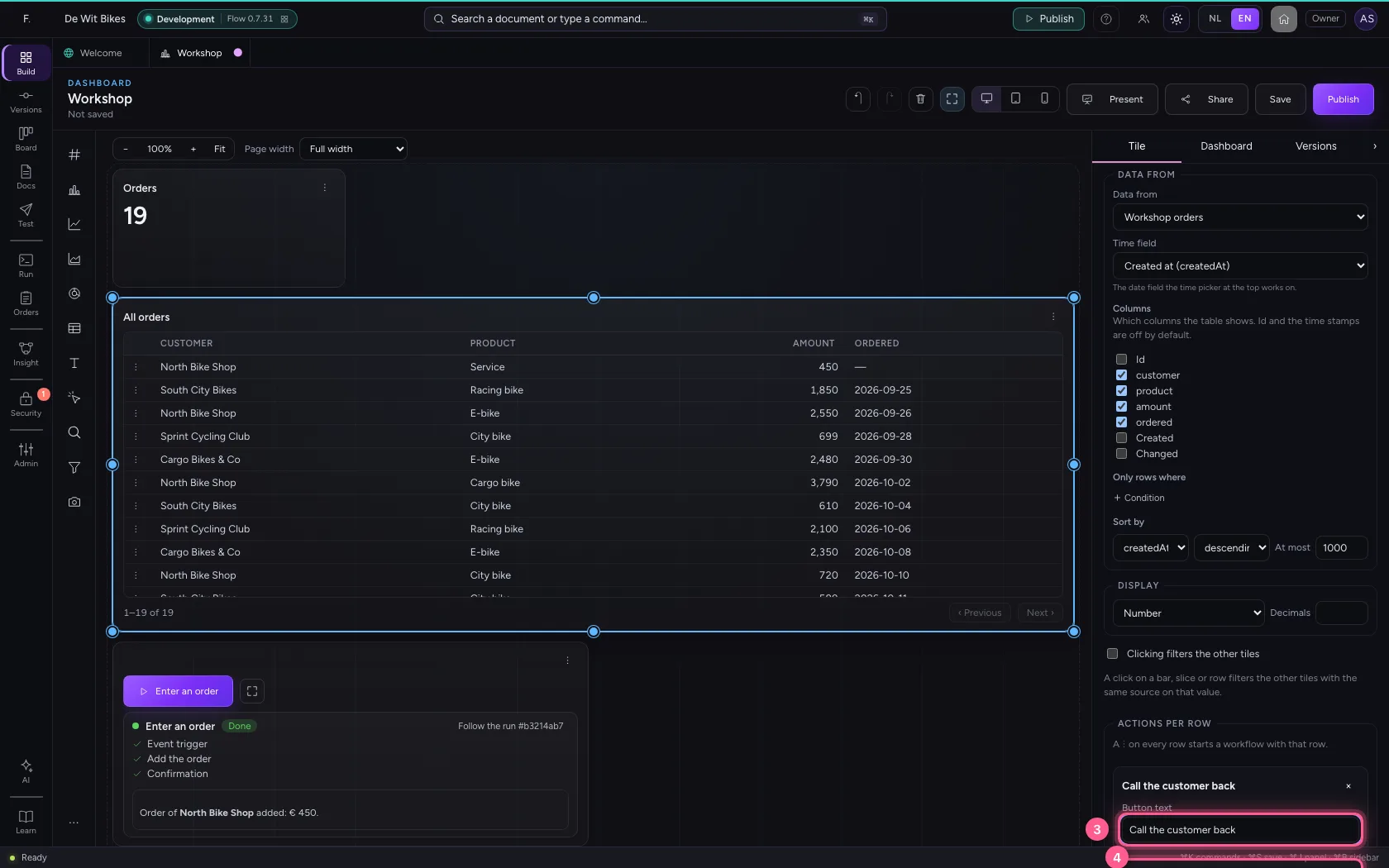
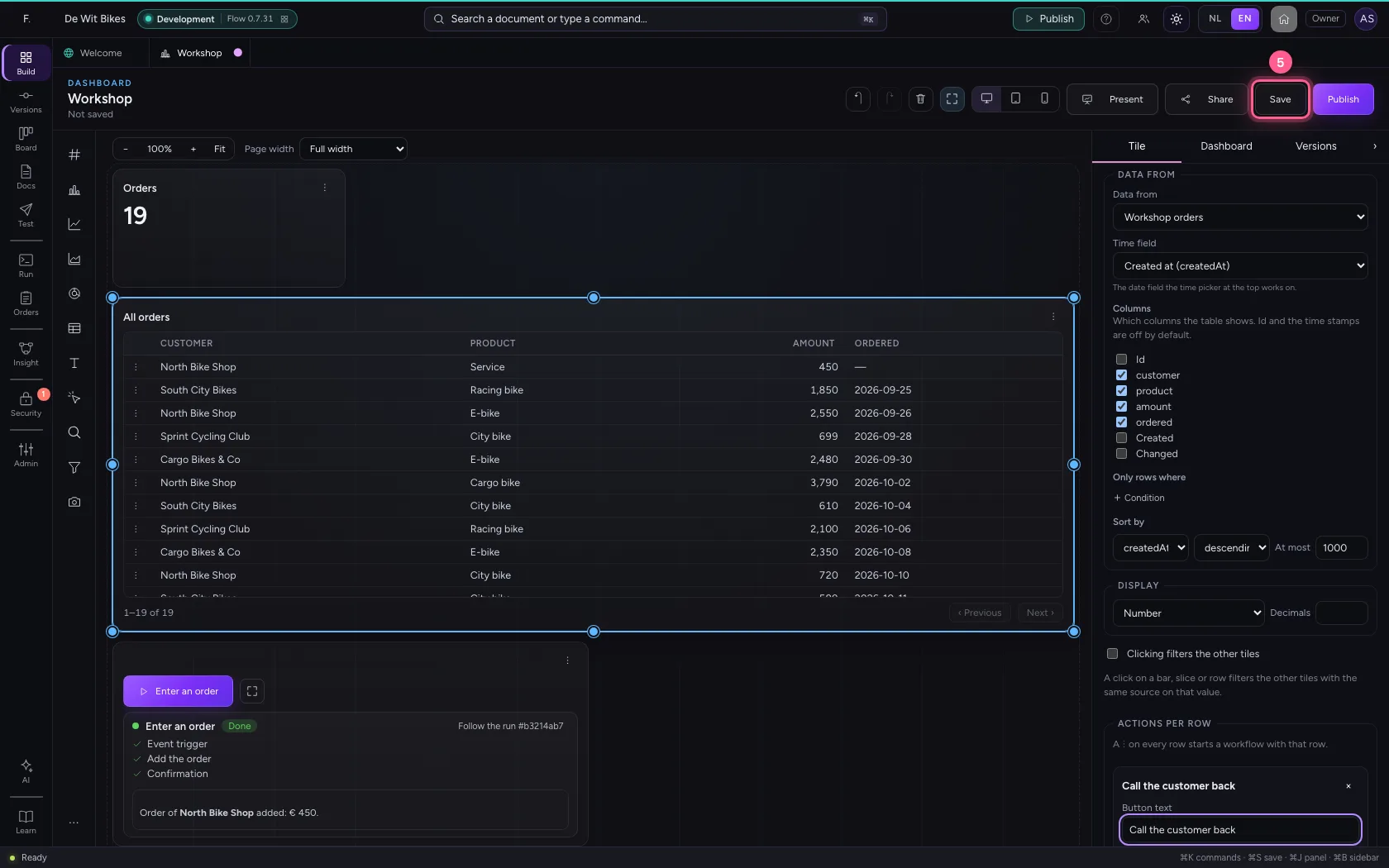
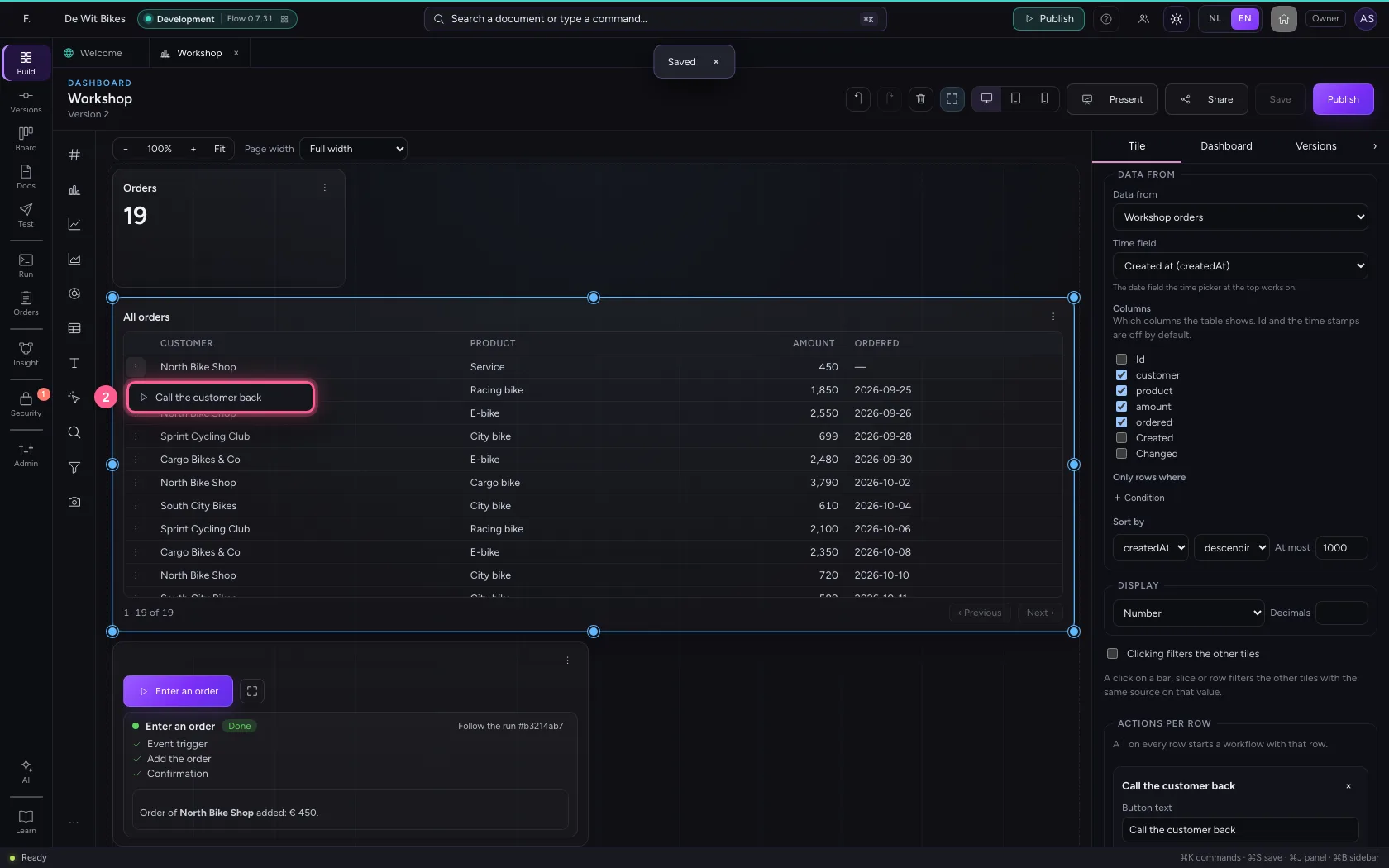
Choose the table tile and click + Action per row on the right. Give the action a name and choose the workflow. What goes along is already there: {{row}} is the whole row. The workflow always reads the row again on the server, with the rights of whoever clicks: nobody can change a row they may not see this way. Save.
- Click the table tile
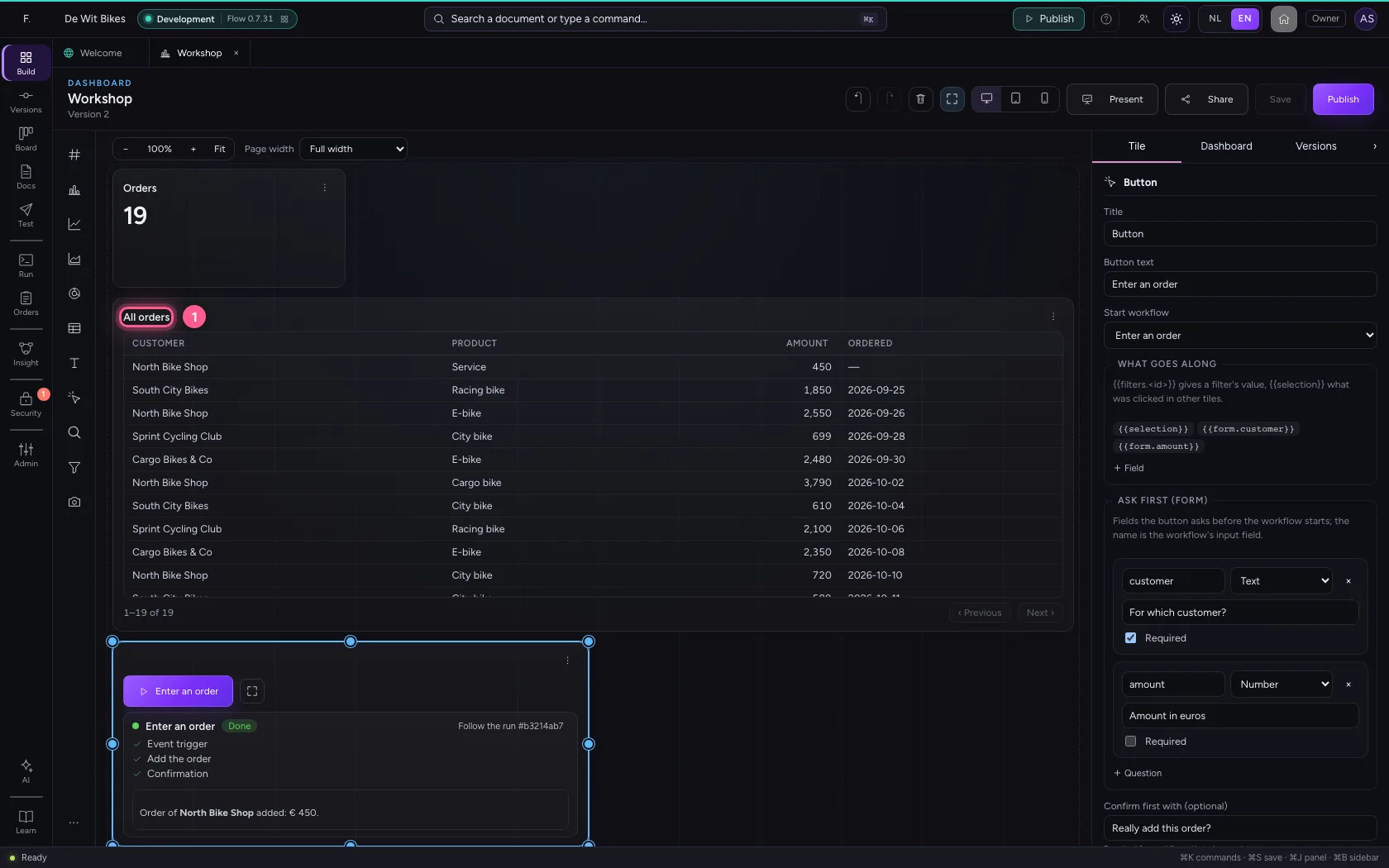
- Click + Action per row
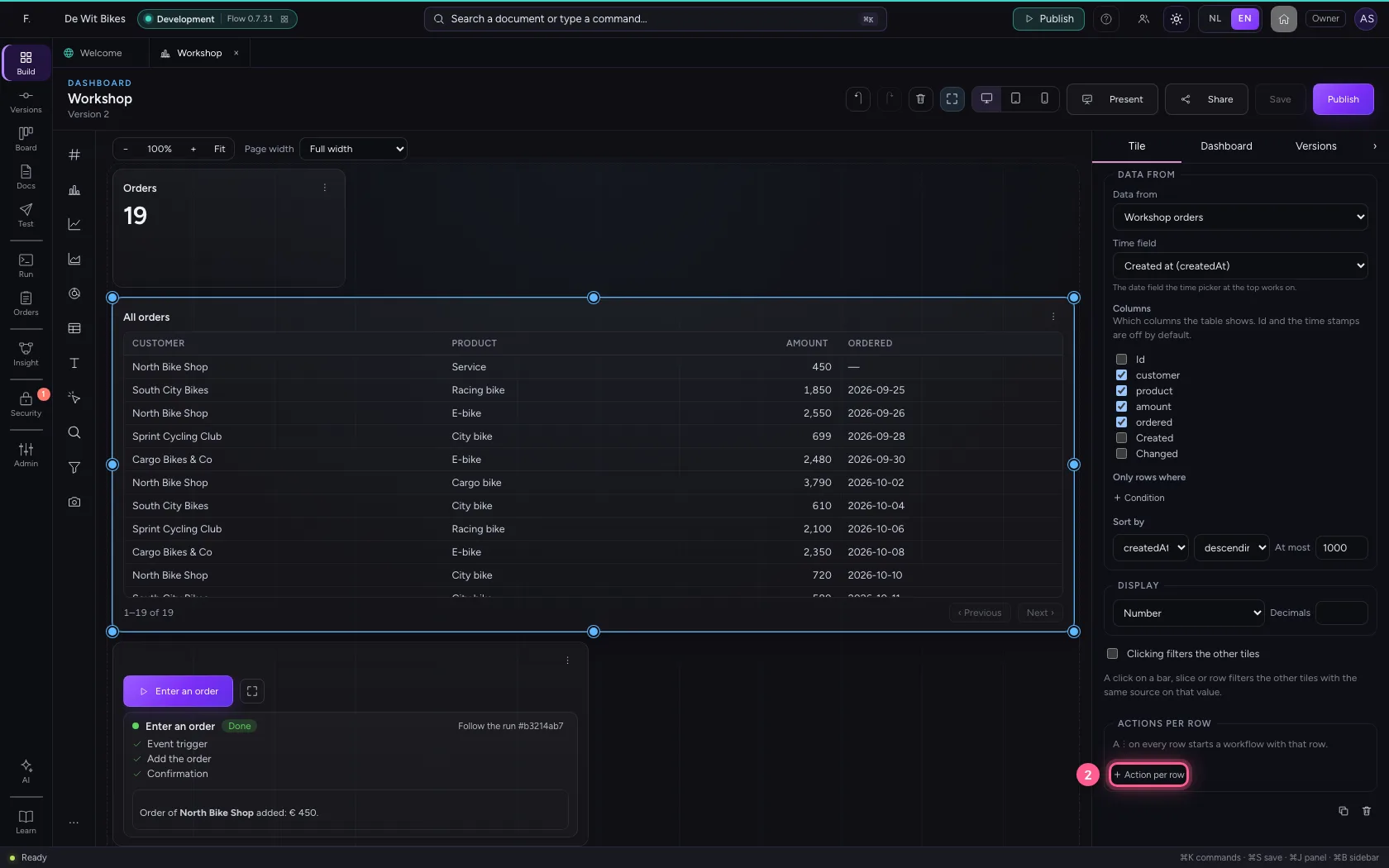
- In Button text, type
Call the customer back - In Start workflow, choose Call the customer back
- Click Save
Start the action for one row
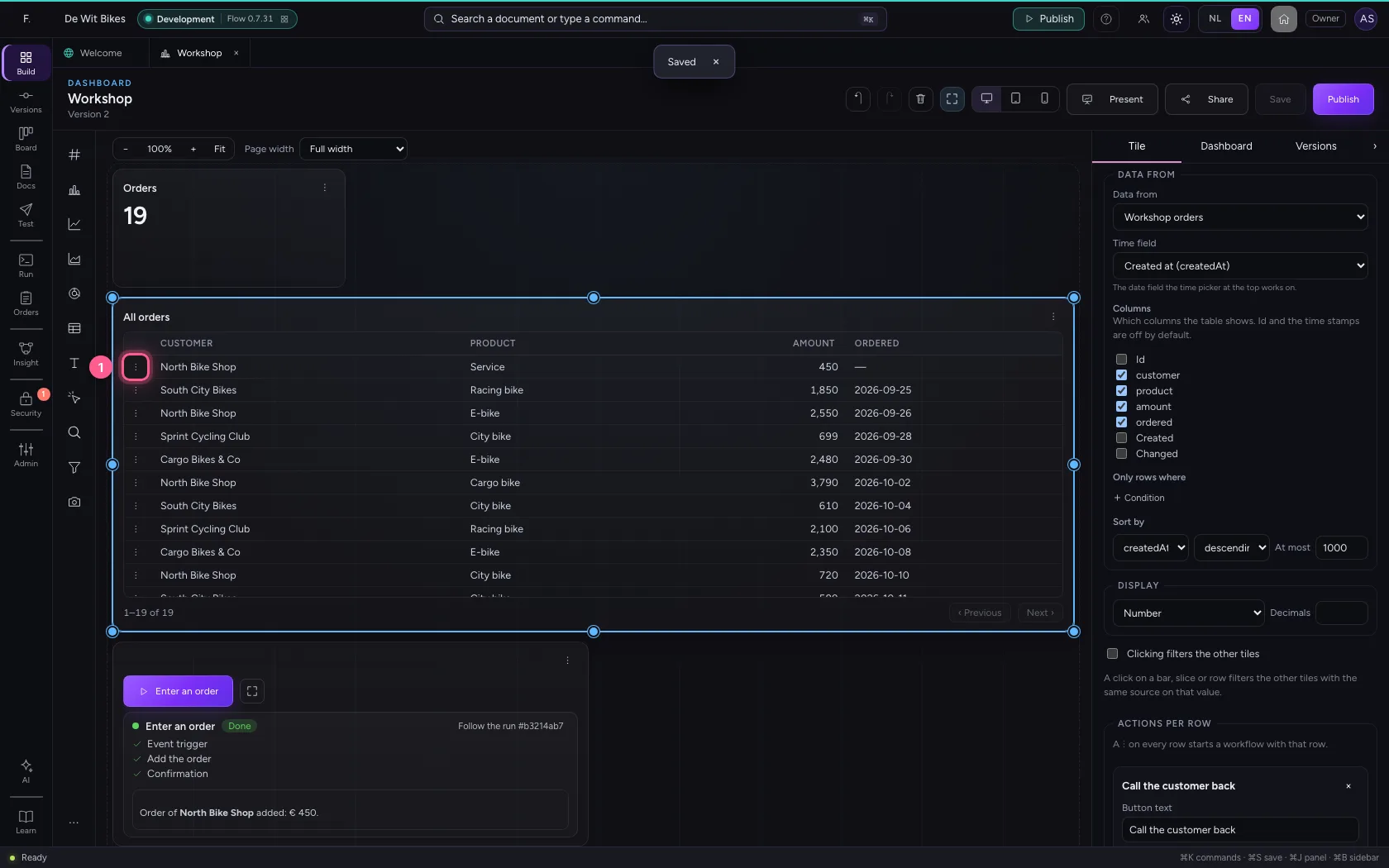
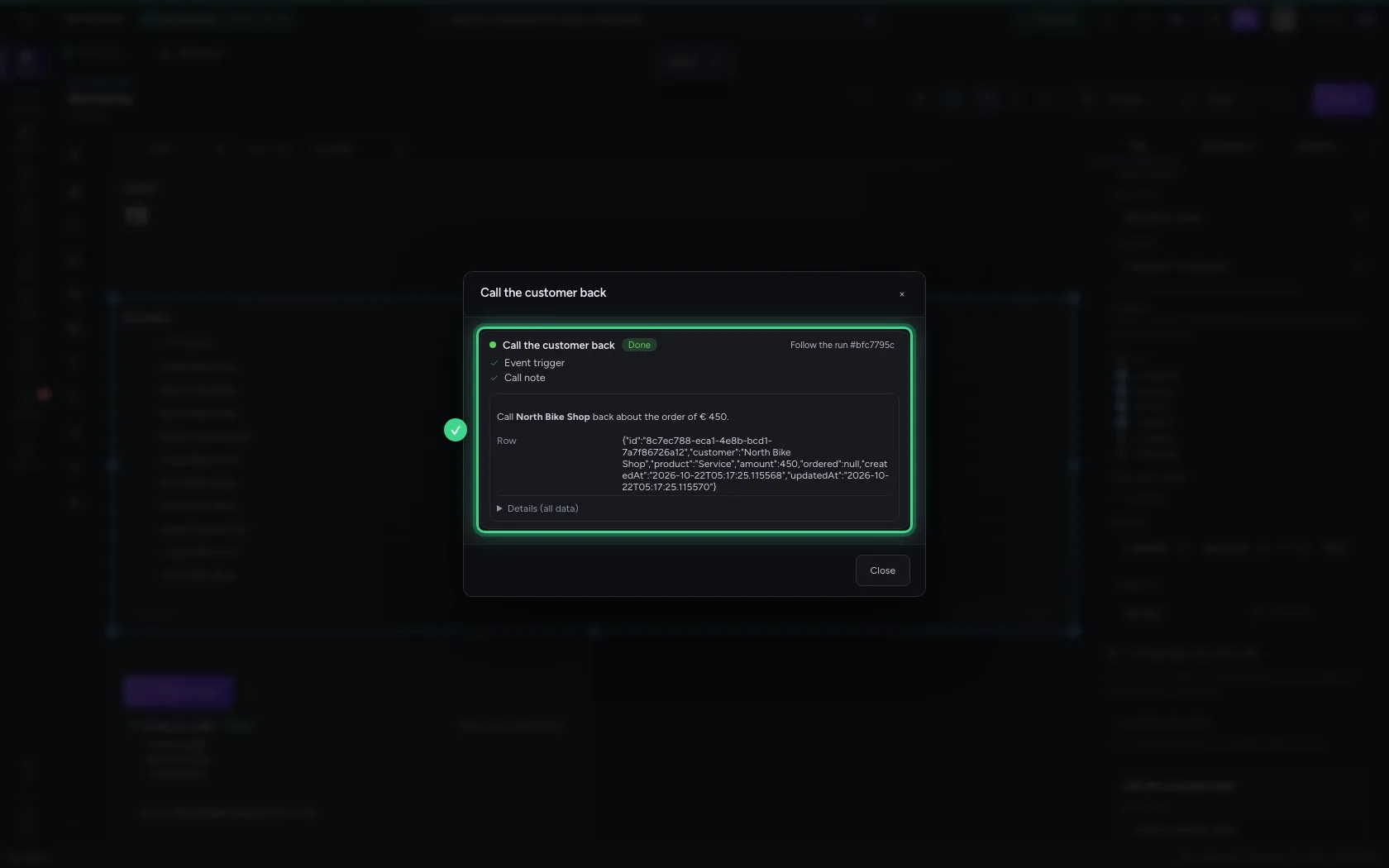
Every row now has a ⋮. Click it and choose the action: the workflow runs for that one order, and you watch it live in a window.
- Click Actions for this row
- Click Call the customer back
This guide was carried out step by step on 22 Oct 2026 by an automated test on Flow (version 3e563176).