The data graph: how your data hangs together
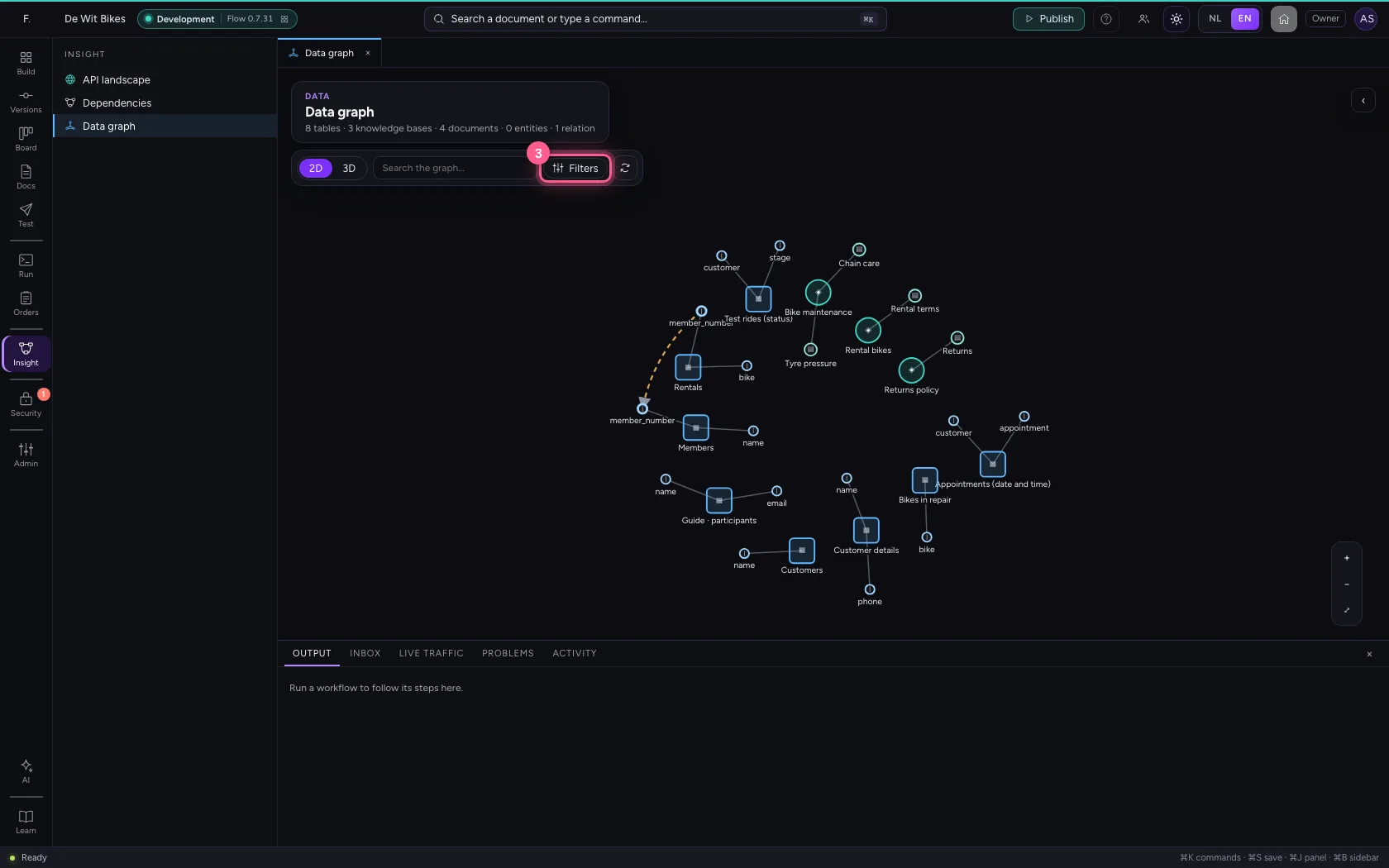
The data graph draws your tables and knowledge bases with their columns and rows, and the relations between them. Flow finds relations itself, from the names of columns and the values in them. You confirm or reject them, so workflows and AI Colleagues know which data belongs together.
Open your development environment
In the portal, under Environments, click Development, and there Open. Flow opens in a new tab and you are signed in straight away.
- Click Development

- Click Open ↗

Open the data graph
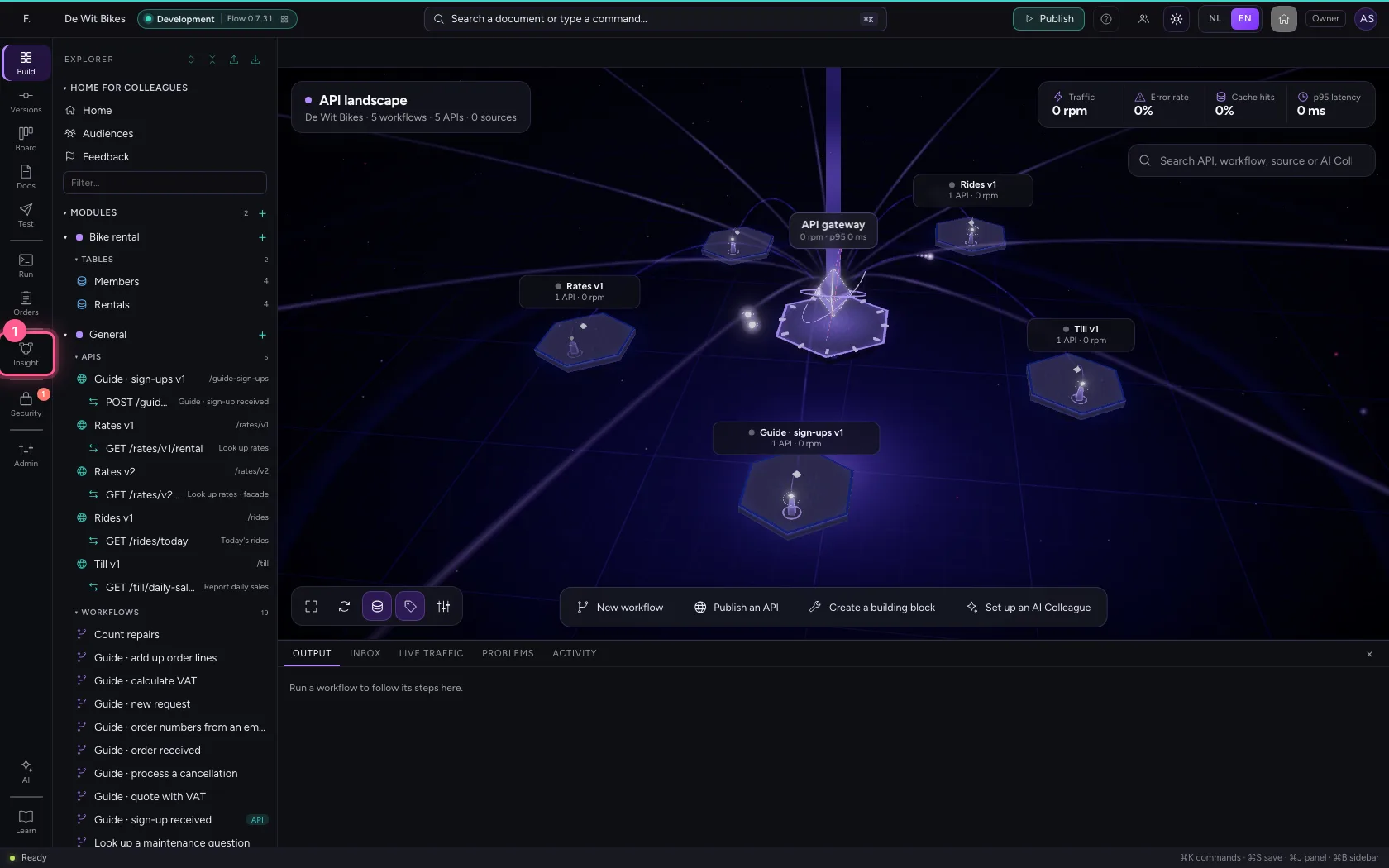
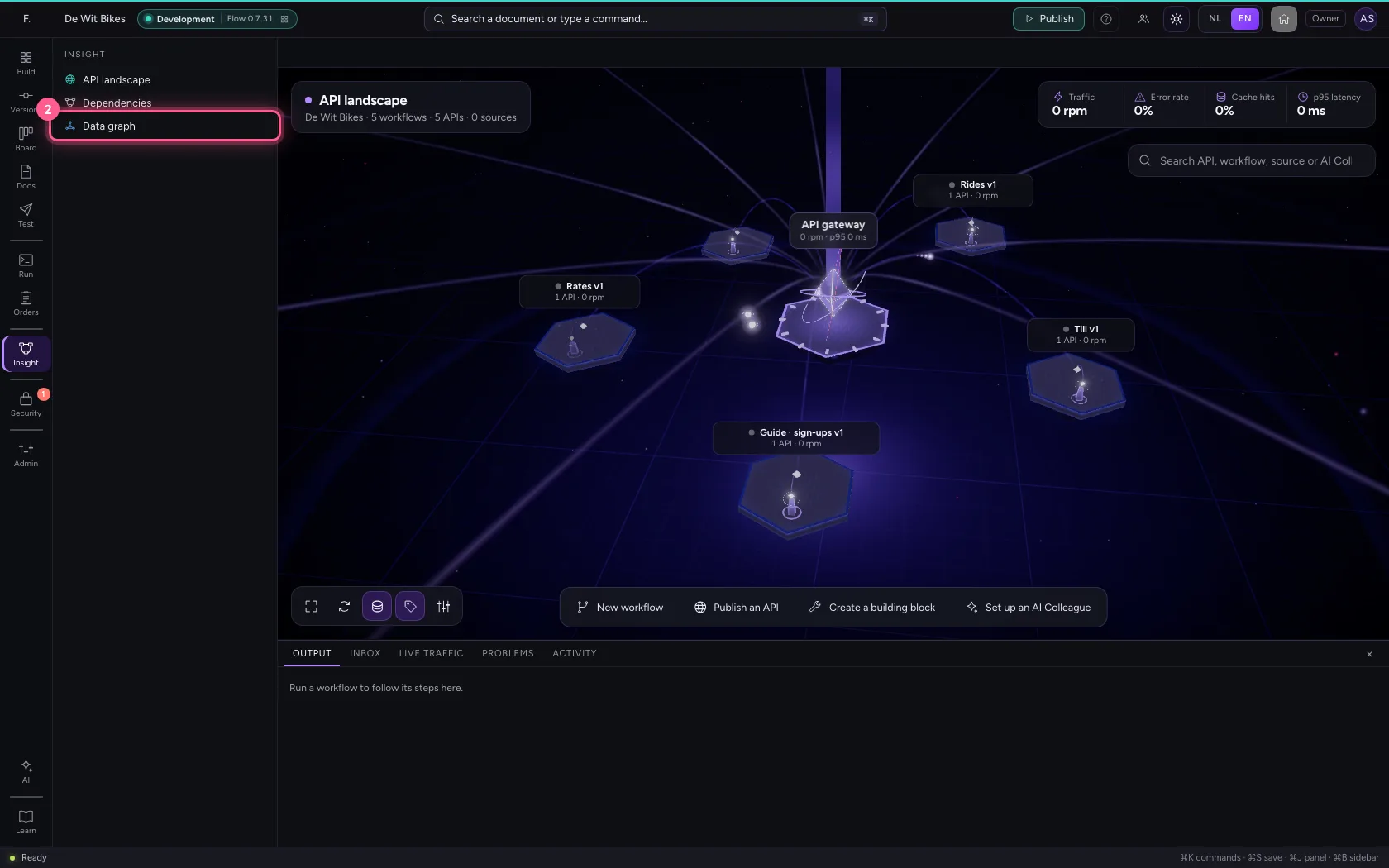
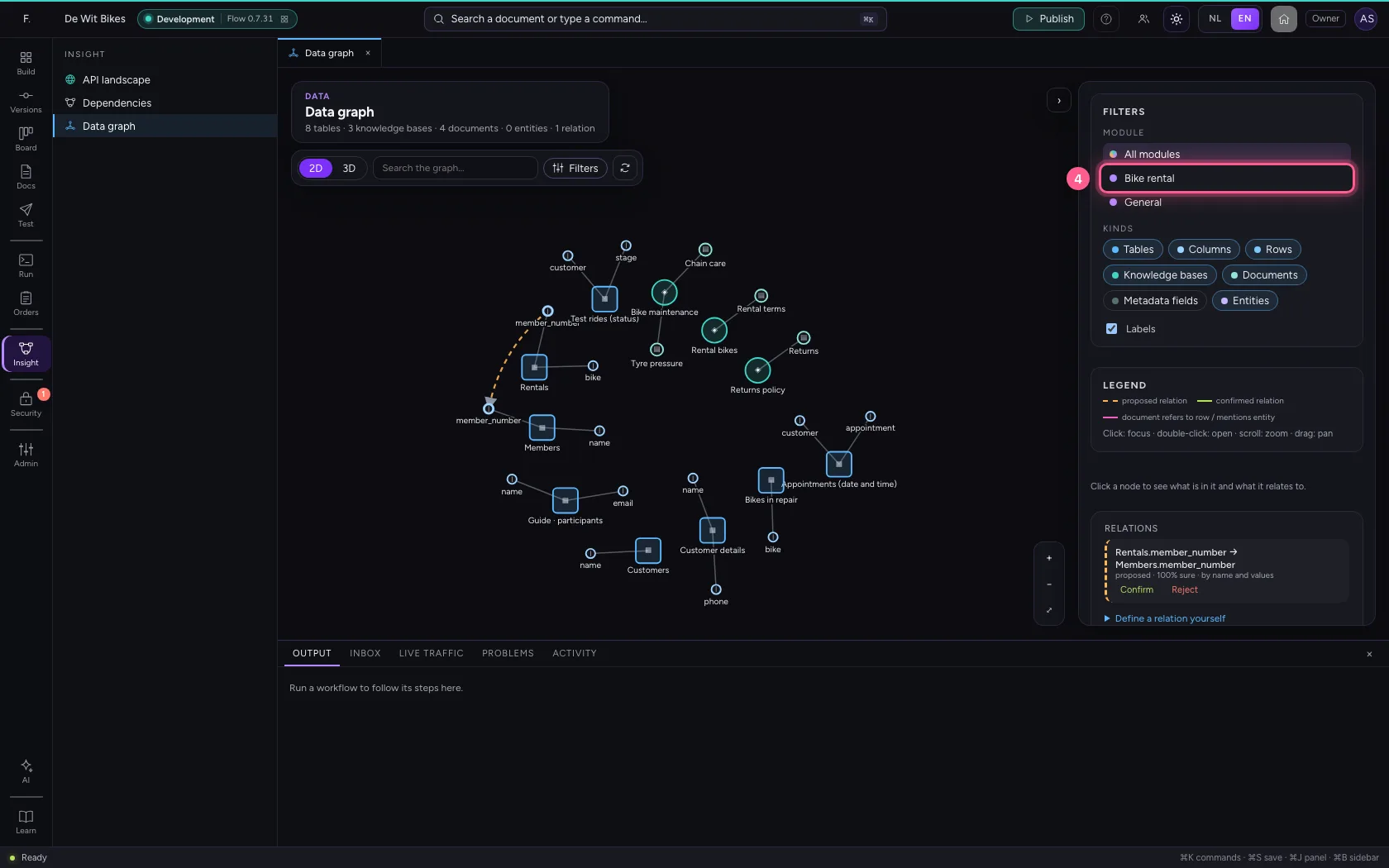
Click Insight in the bar on the left and choose Data graph. With Filters you pick one module, so you only see what you are working on: here Bike rental, with the tables Members and Rentals.
- Click Insight
- Click Data graph
- Click Filters
- Click Bike rental
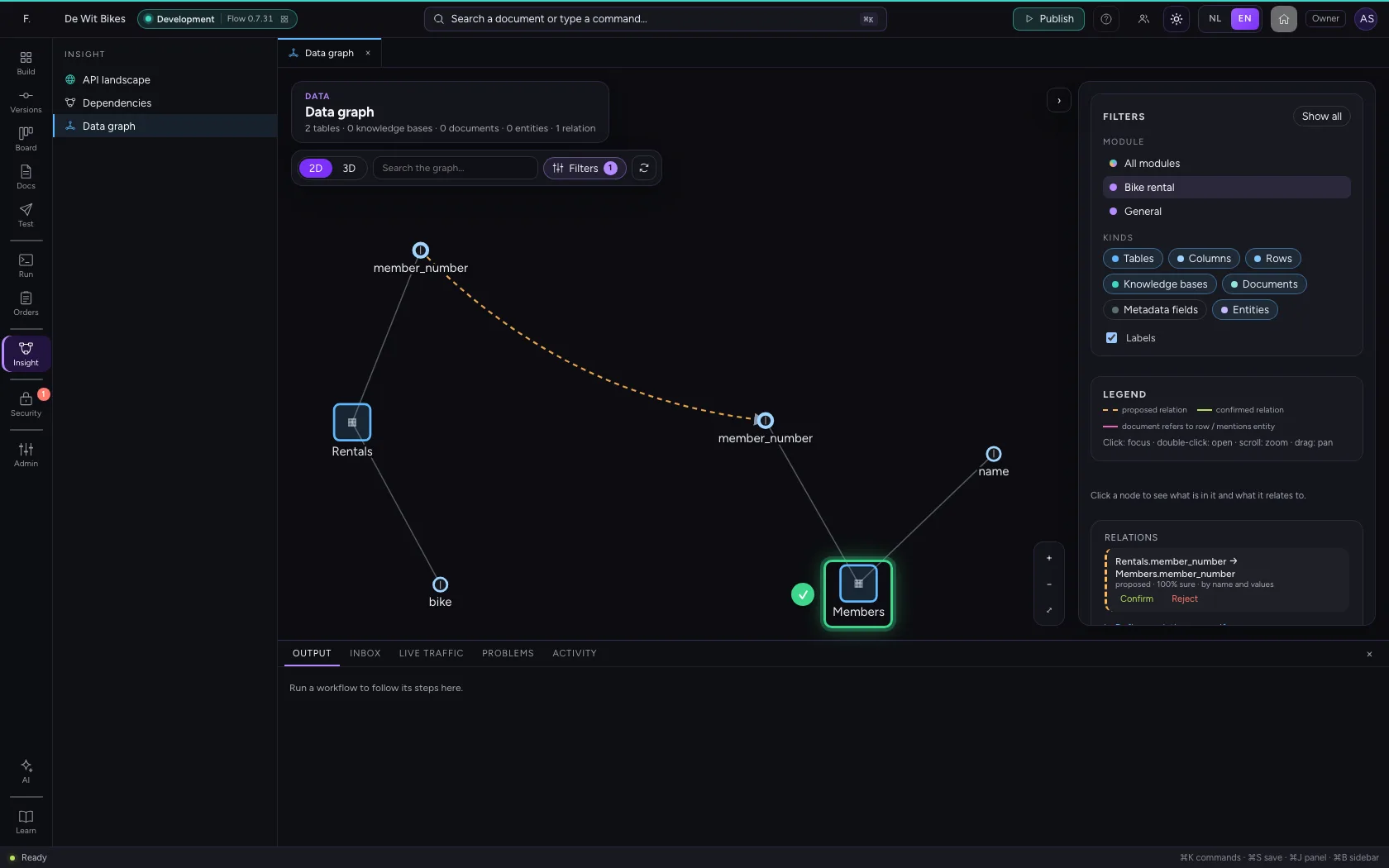
Click a table
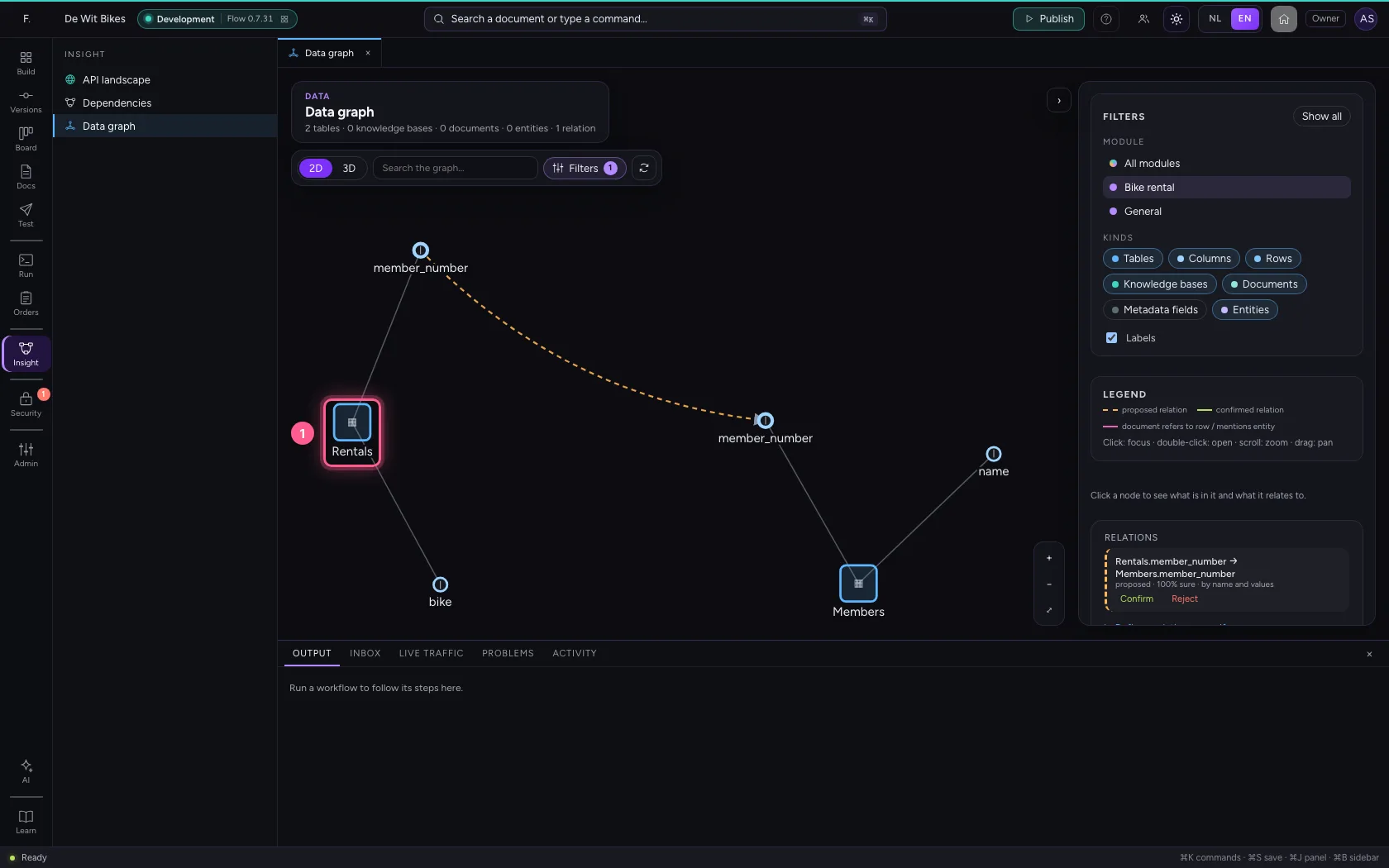
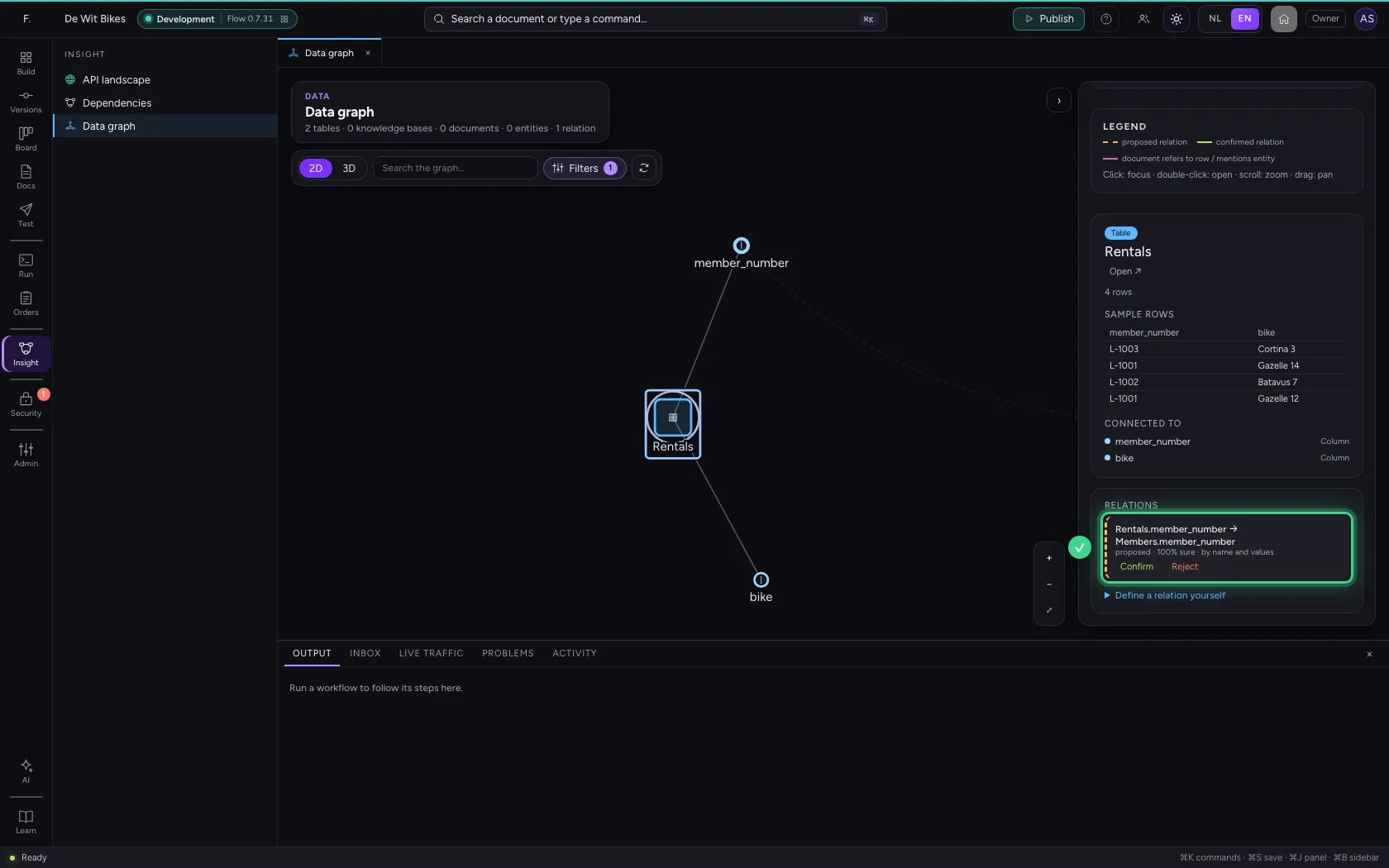
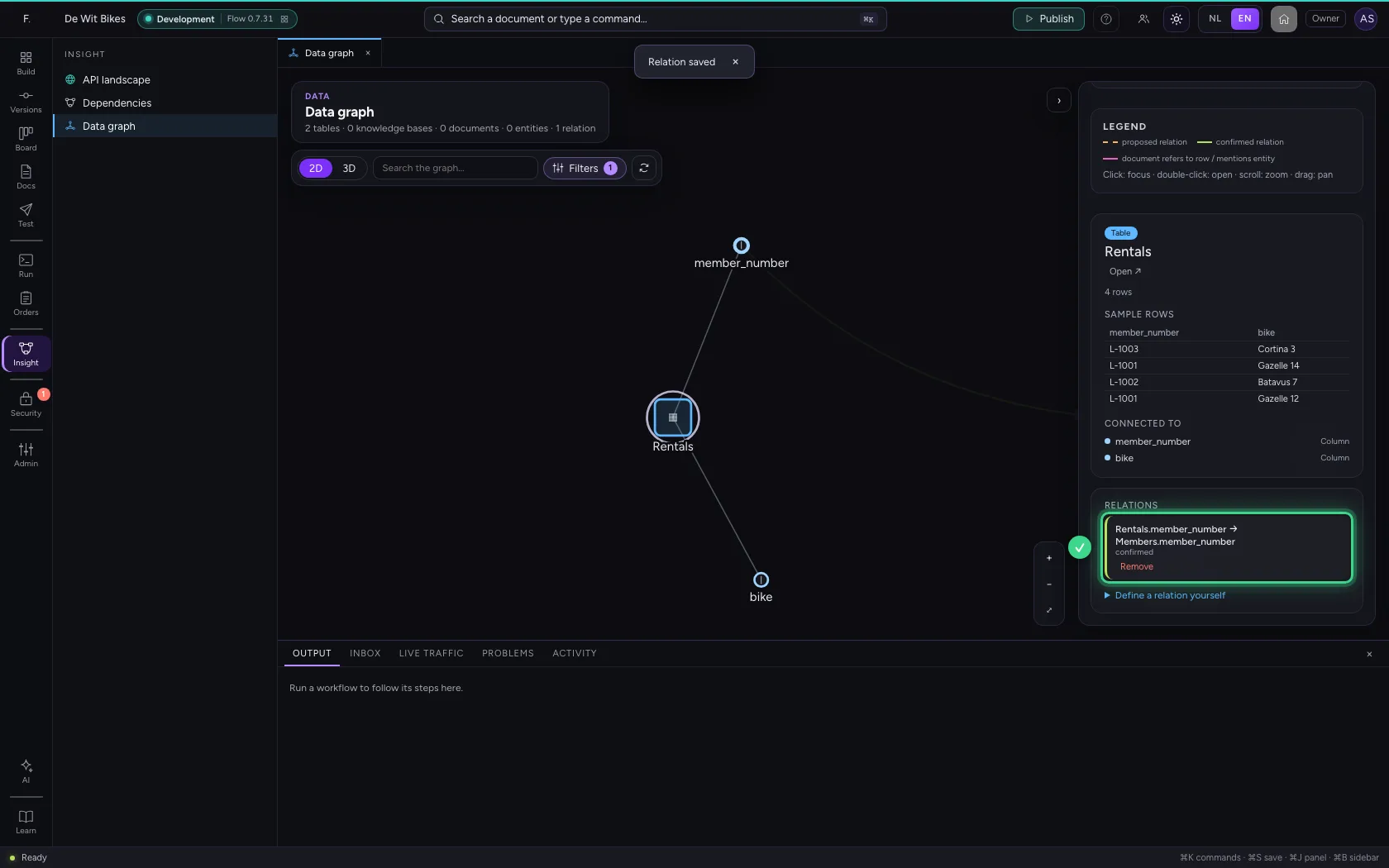
Click the table Rentals. On the right you see how many rows it has, a few sample rows, and under Relations what Flow found: the column member_number in Rentals refers to the column member_number in Members. It also says how sure Flow is, and why.
- Click the table Rentals
Confirm the relation
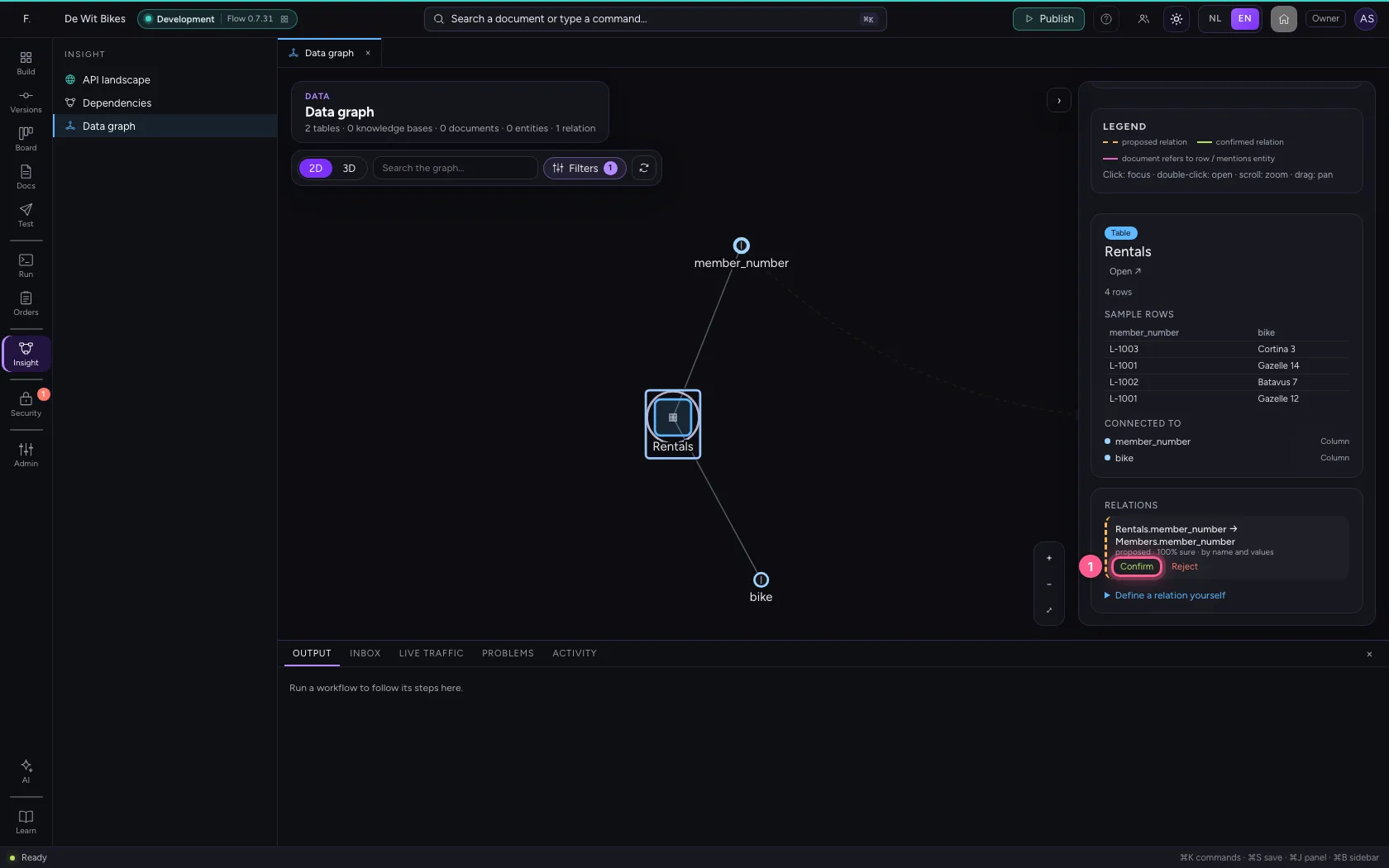
If the relation is right, click Confirm. From now on it is recorded and the graph draws it as a solid line. A relation that is wrong you reject: Flow does not propose it again after that.
- Click Confirm
This guide was carried out step by step on 22 Oct 2026 by an automated test on Flow (version 3e563176).