A security policy on an API
A security policy says who gets into an API: with which sign-in method, with which permission and from which network. You create it once and hang it on one or more APIs. Every endpoint of those APIs inherits it and may only make it stricter.
Open your development environment
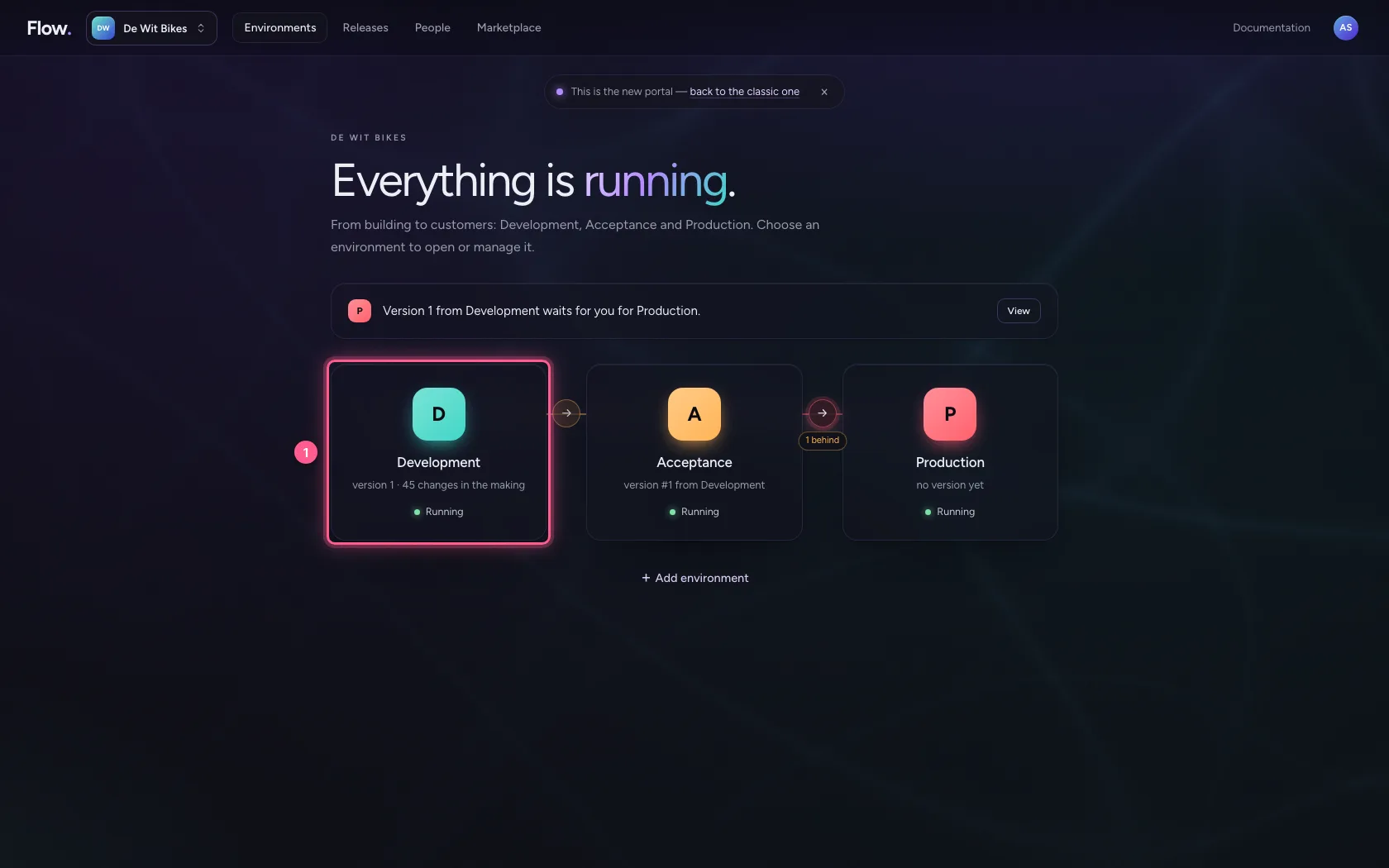
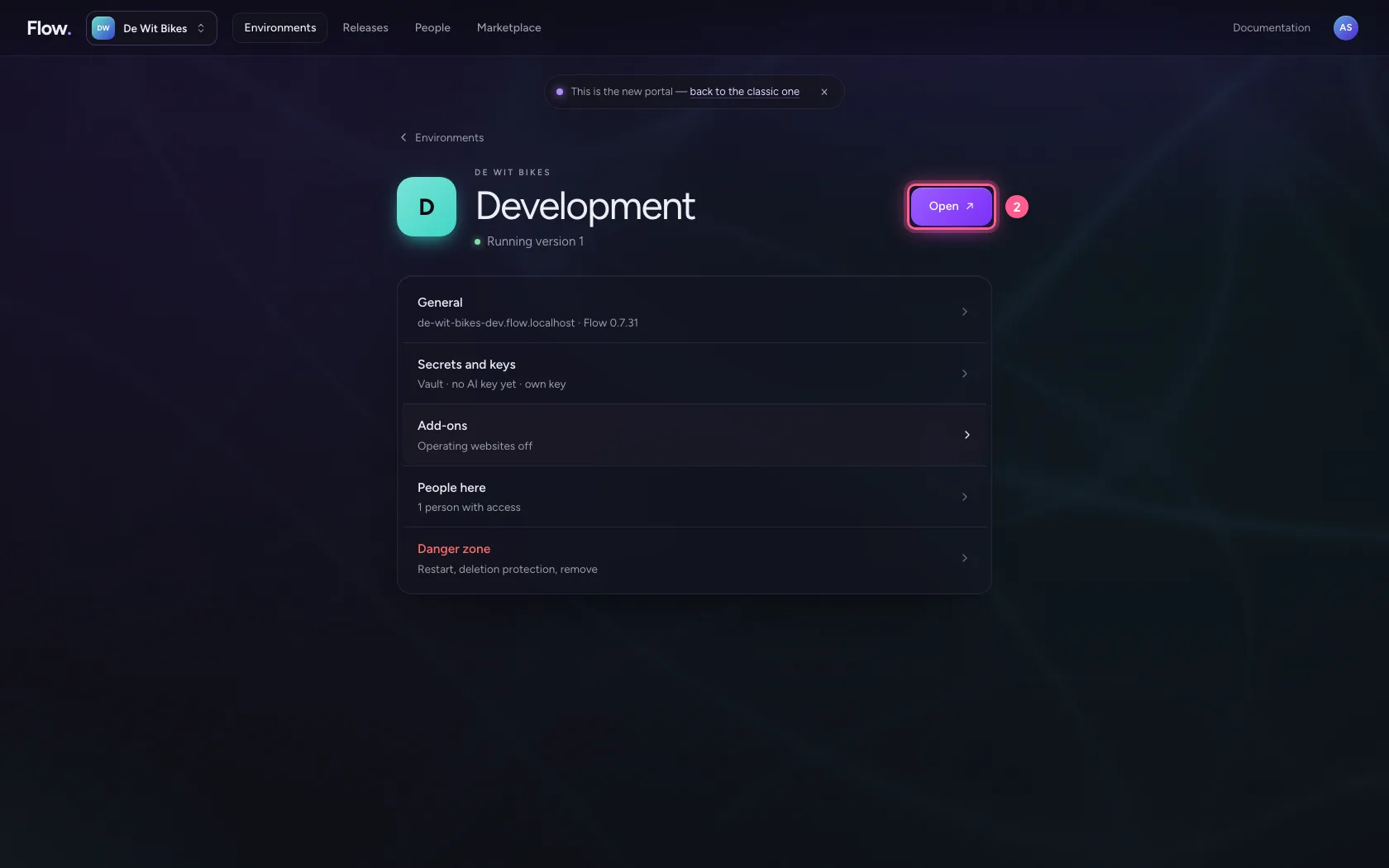
In the portal, under Environments, click Development, and there Open. Flow opens in a new tab and you are signed in straight away.
- Click Development
- Click Open ↗
Create a policy
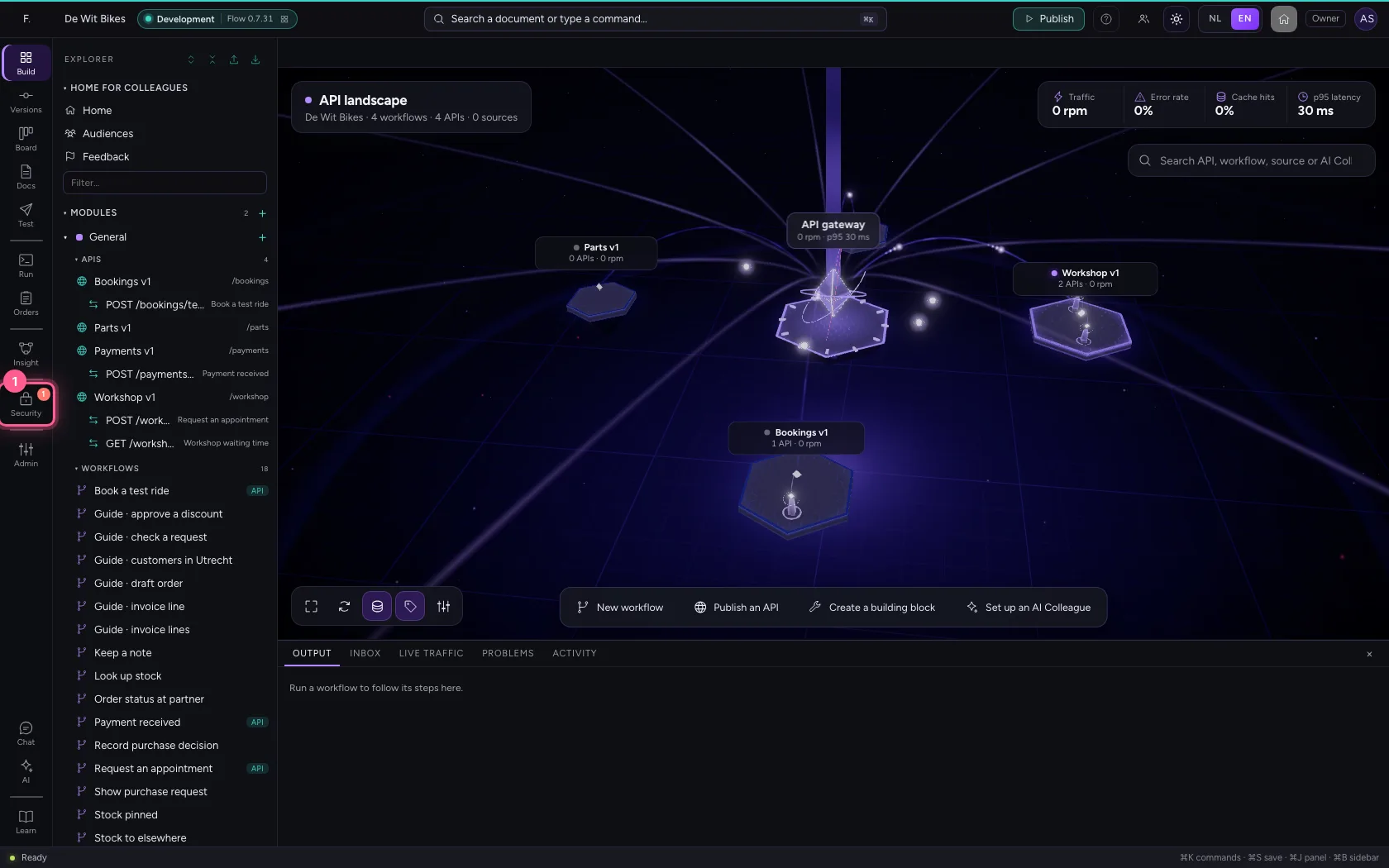
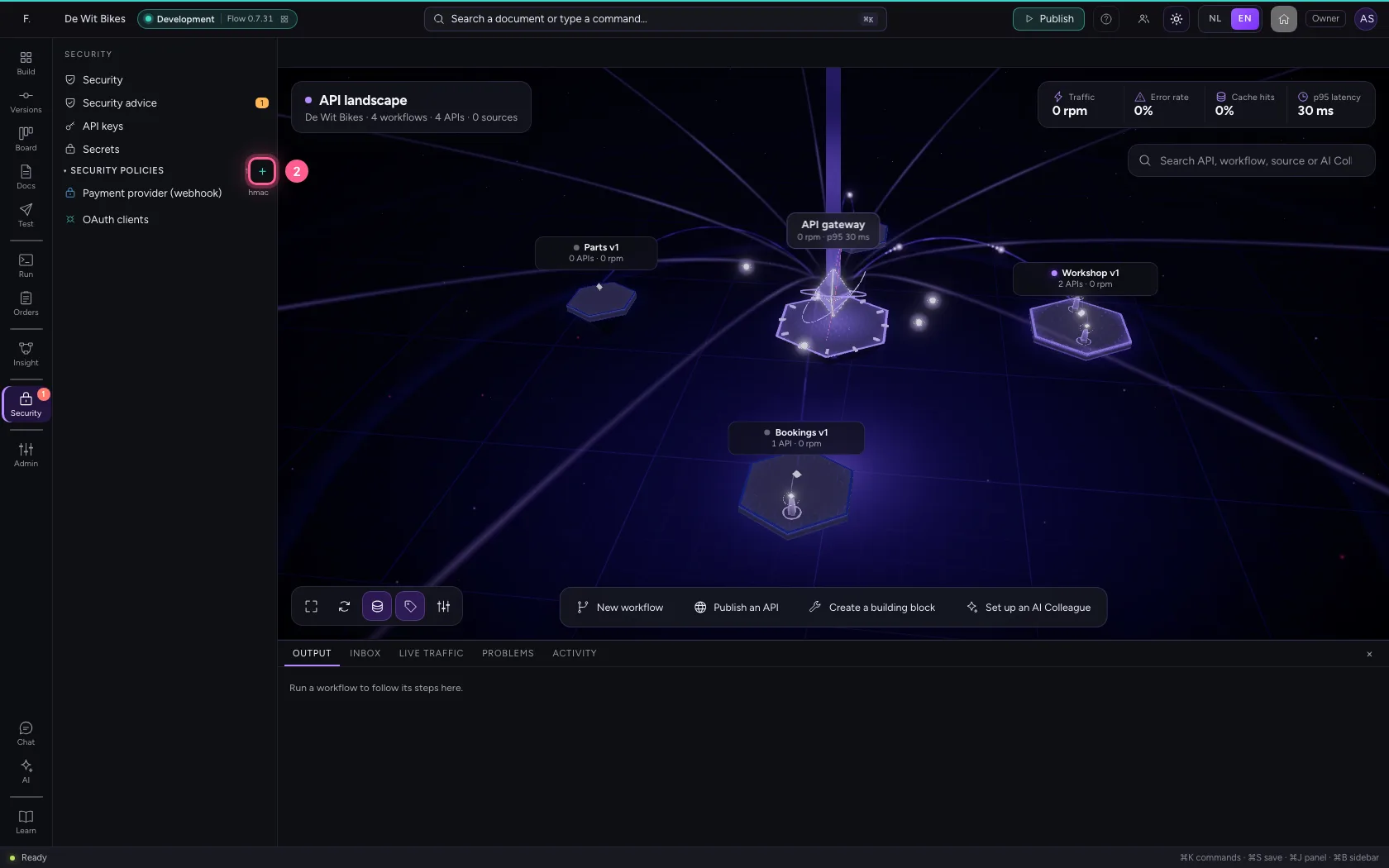
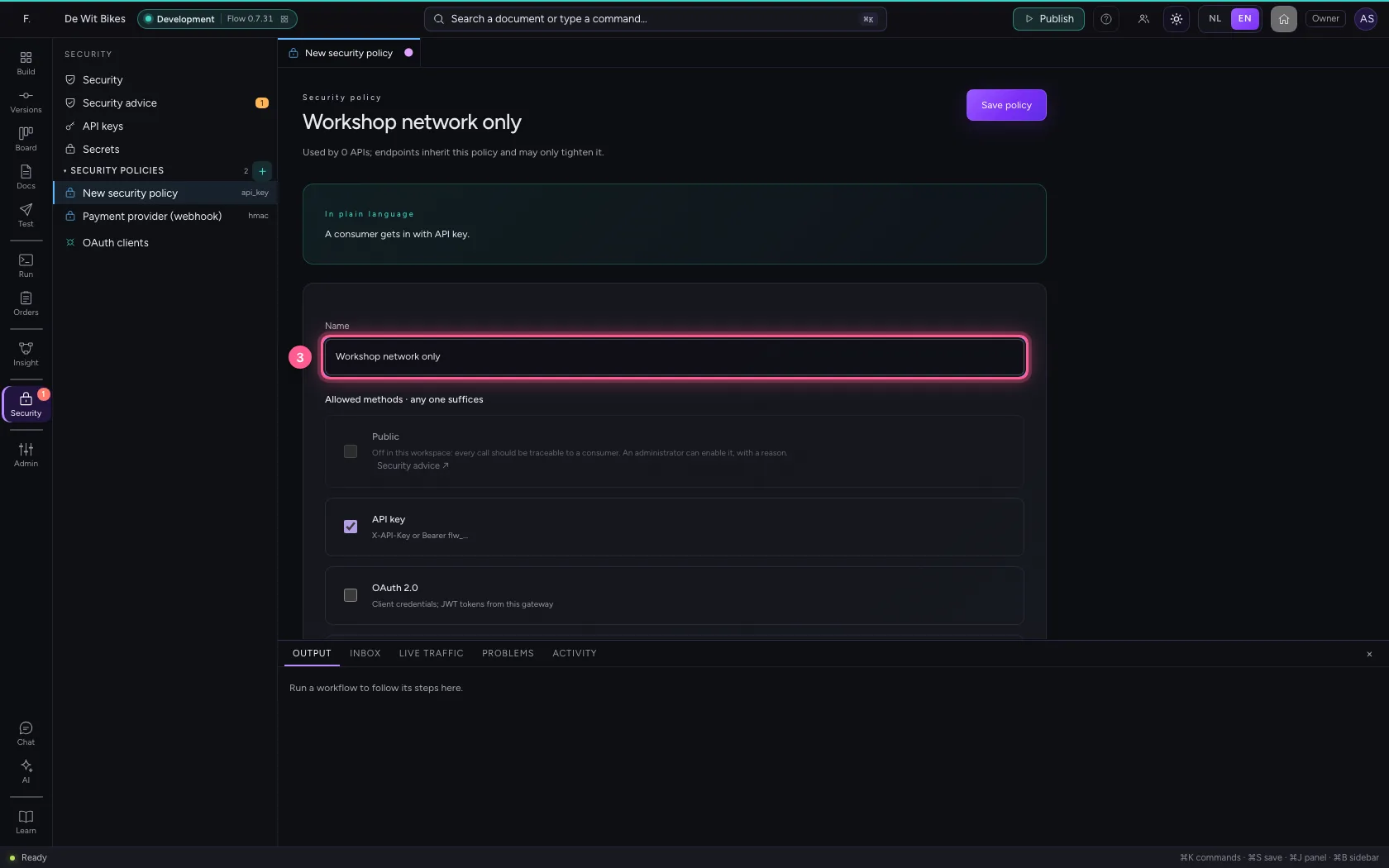
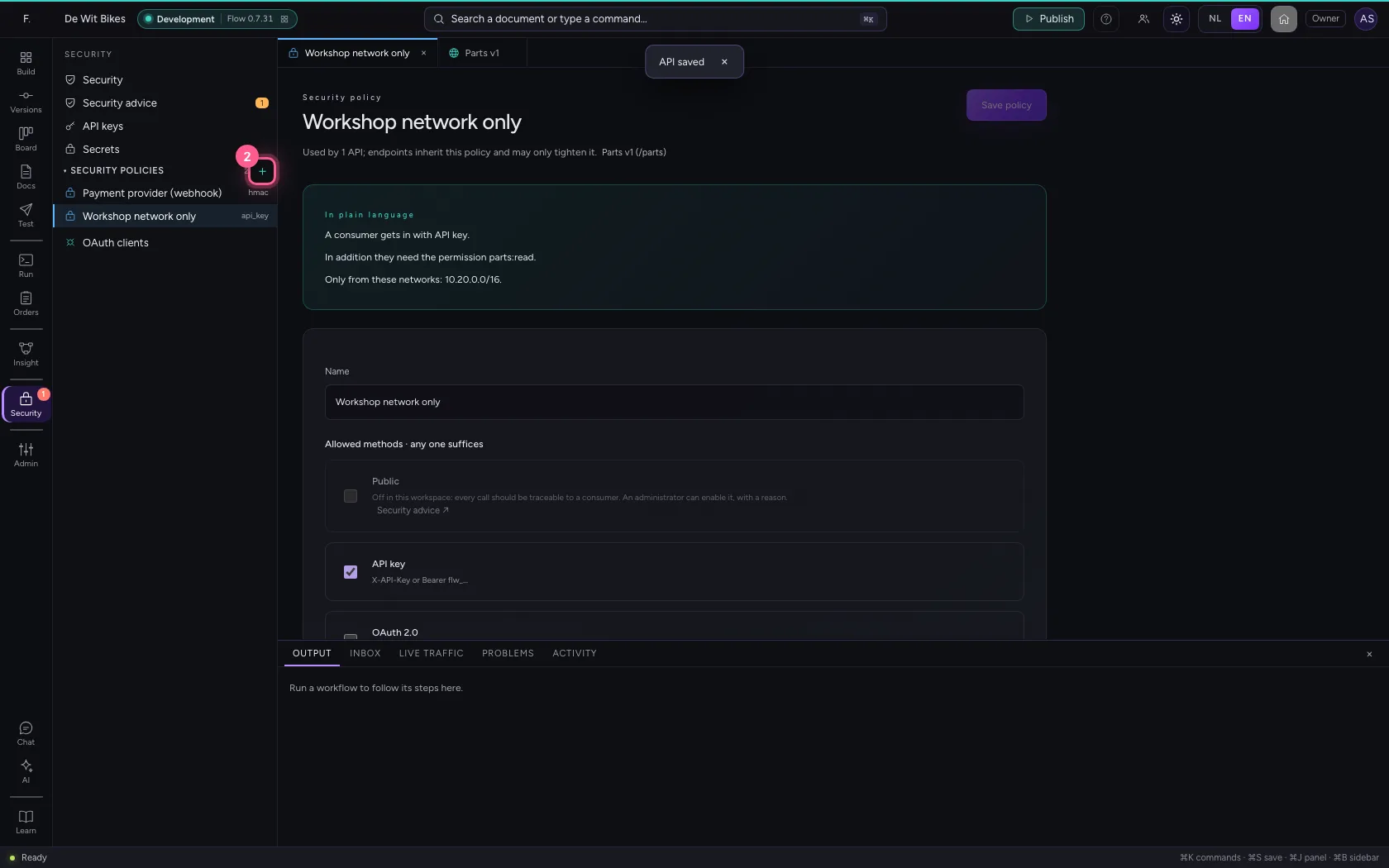
Click Security in the bar on the left and + next to Security policies. A new policy lets consumers in with an API key. Give it a name that says what it is for.
- Click Security
- Click New security policy
- In Name, type
Workshop network only
Demand a permission and a network
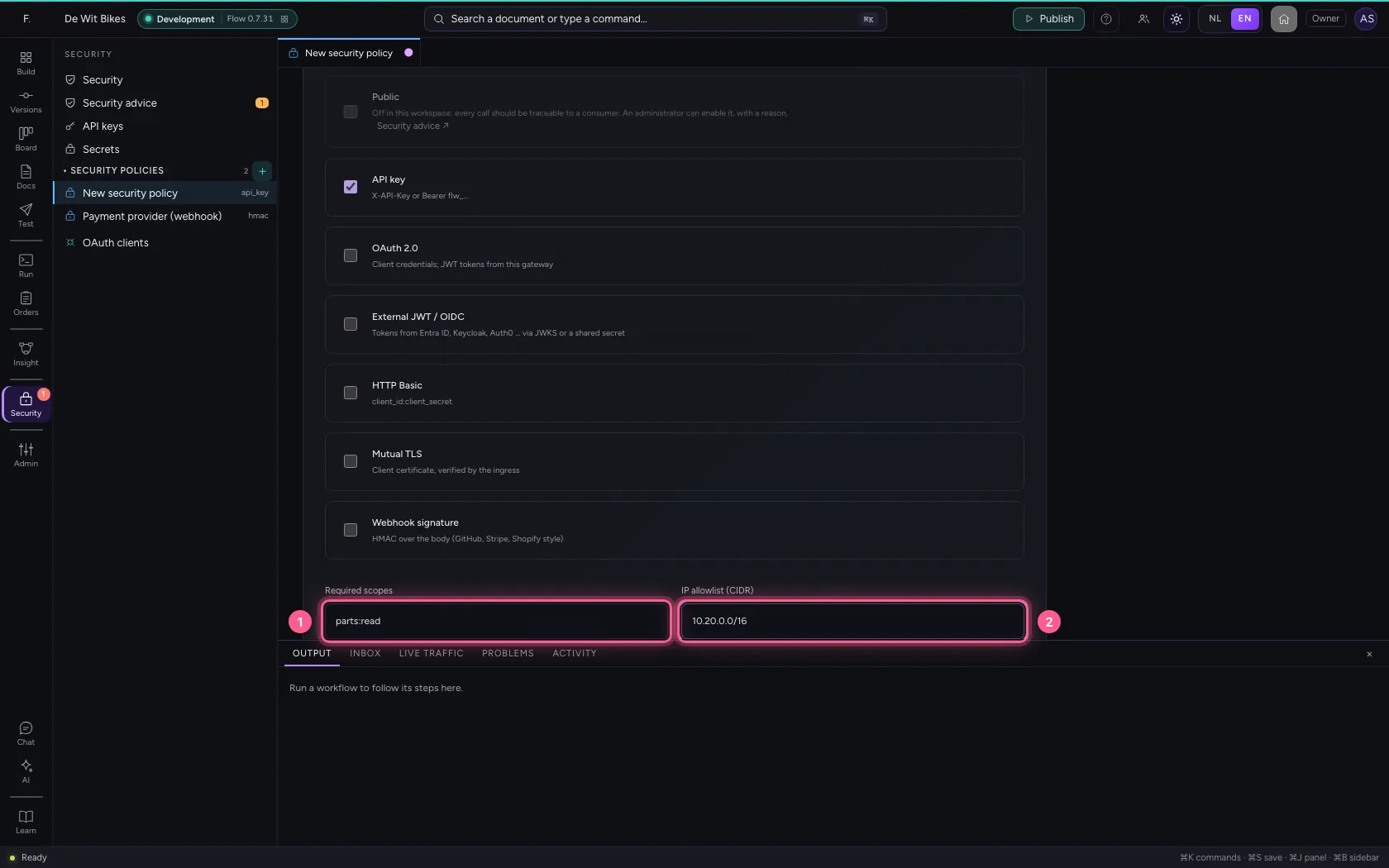
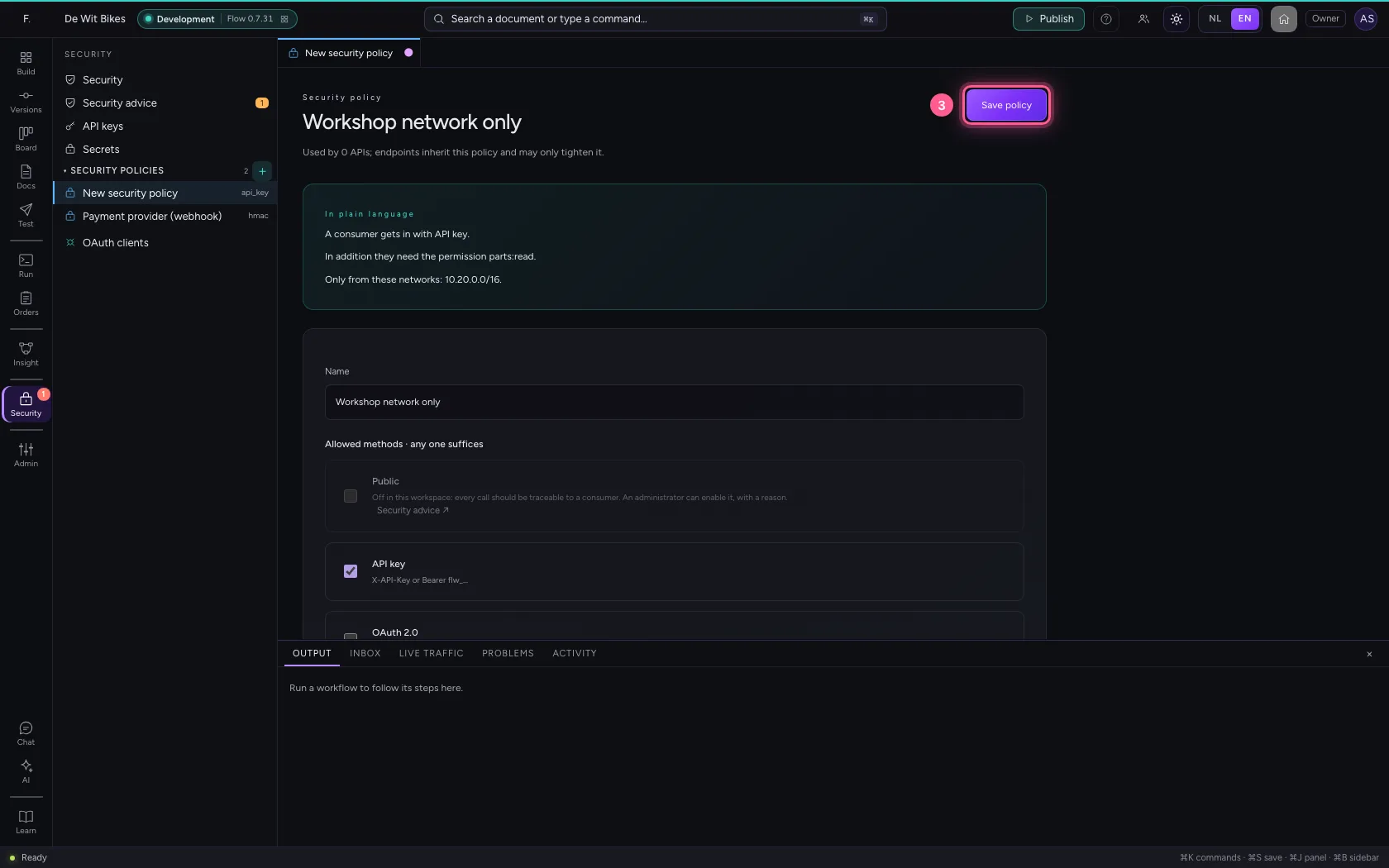
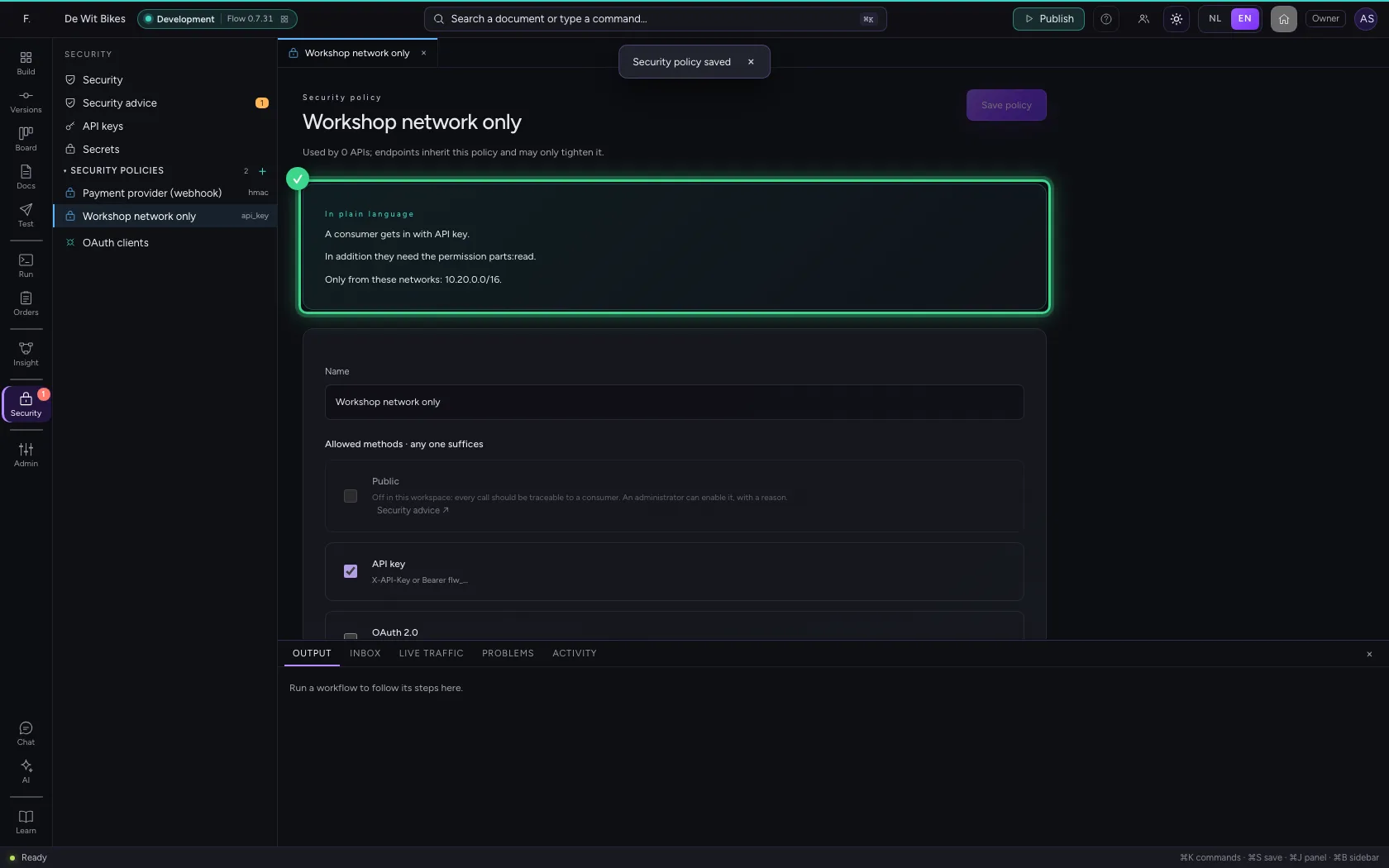
Under Required scopes you put the permission every key must have. Under IP allowlist you put the networks calls may come from; empty means from anywhere. At the top Flow reads the policy back in plain language. Save it.
- In Required scopes, type
parts:read - In IP allowlist (CIDR), type
10.20.0.0/16
- Click Save policy
Hang the policy on the API
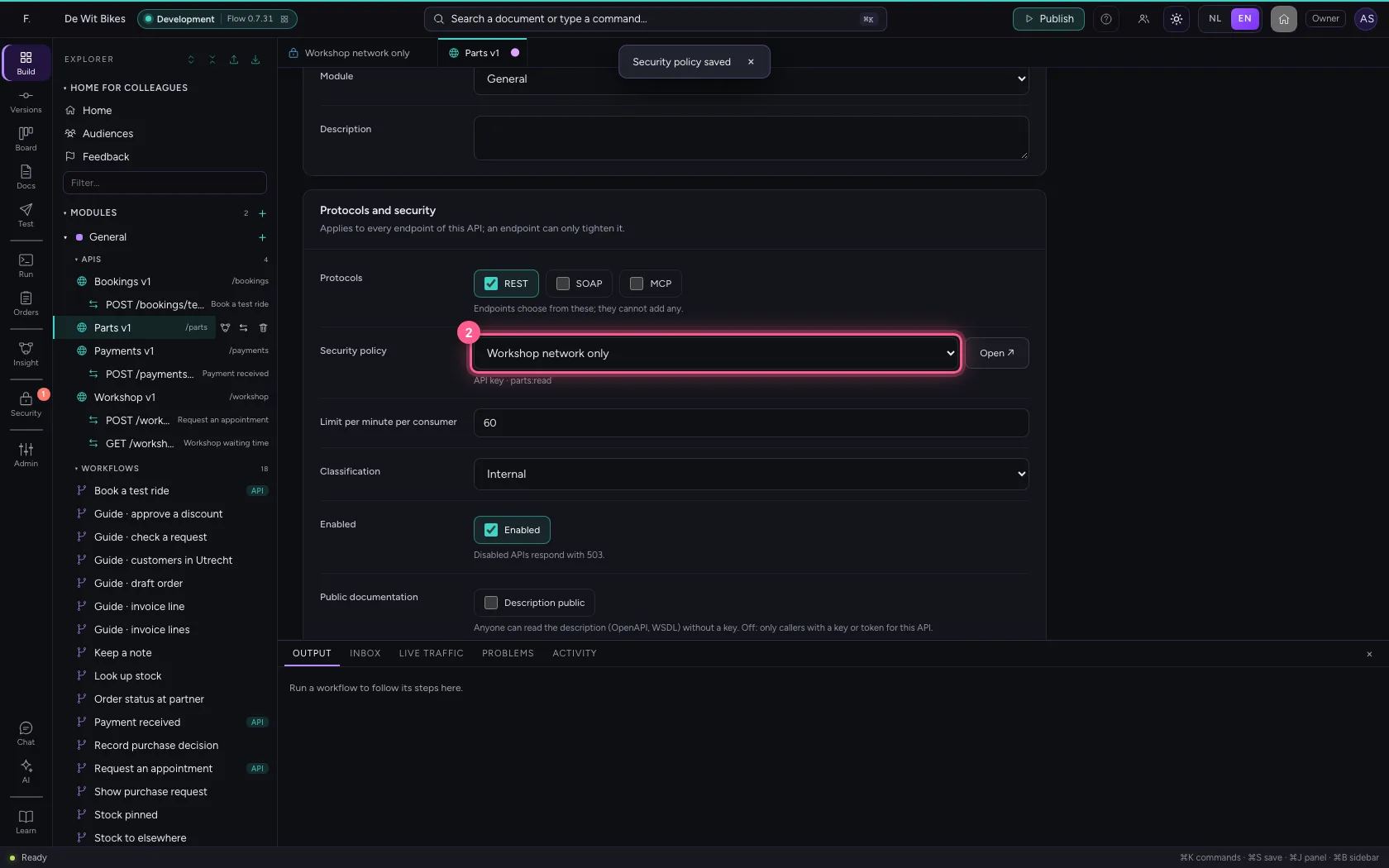
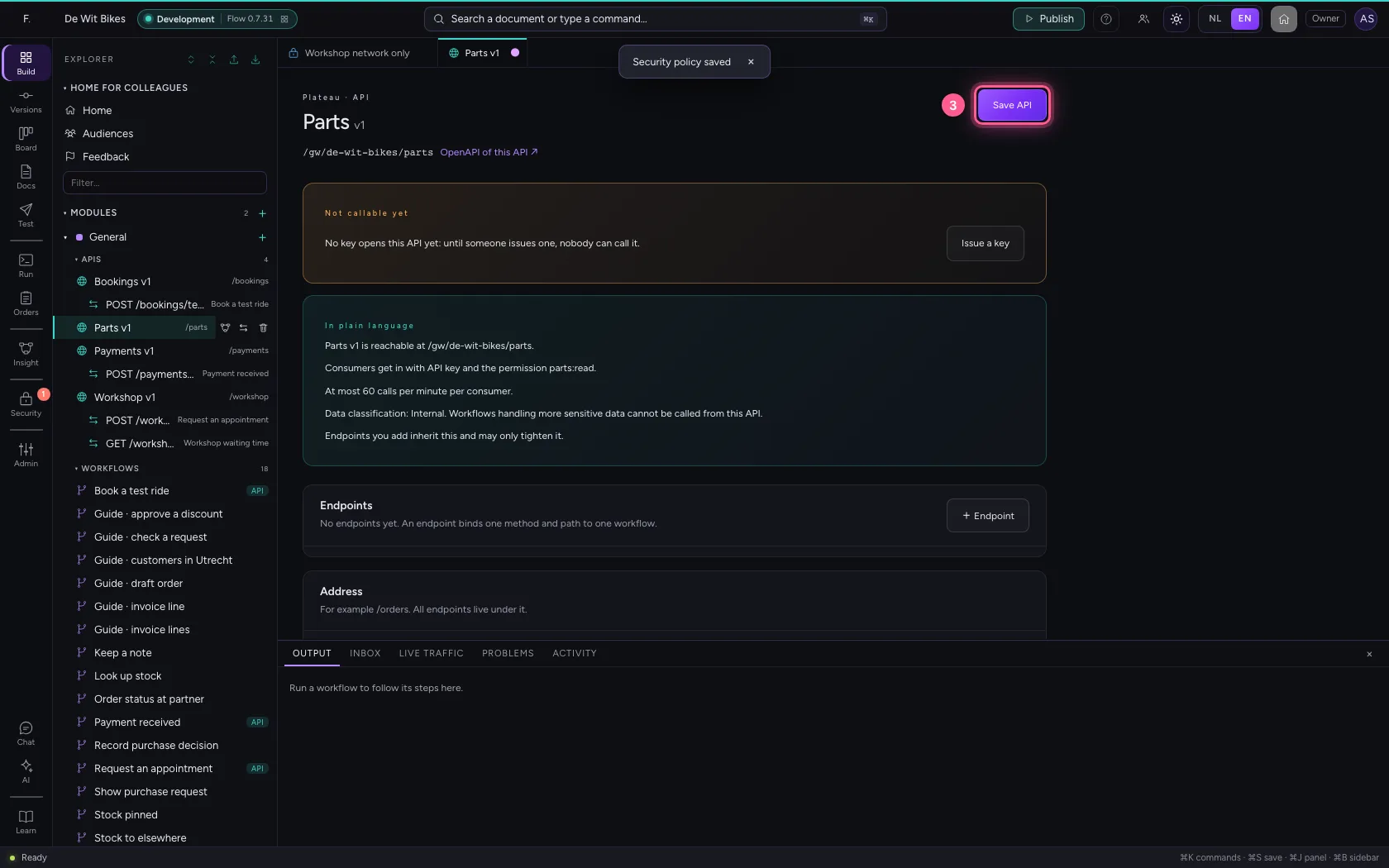
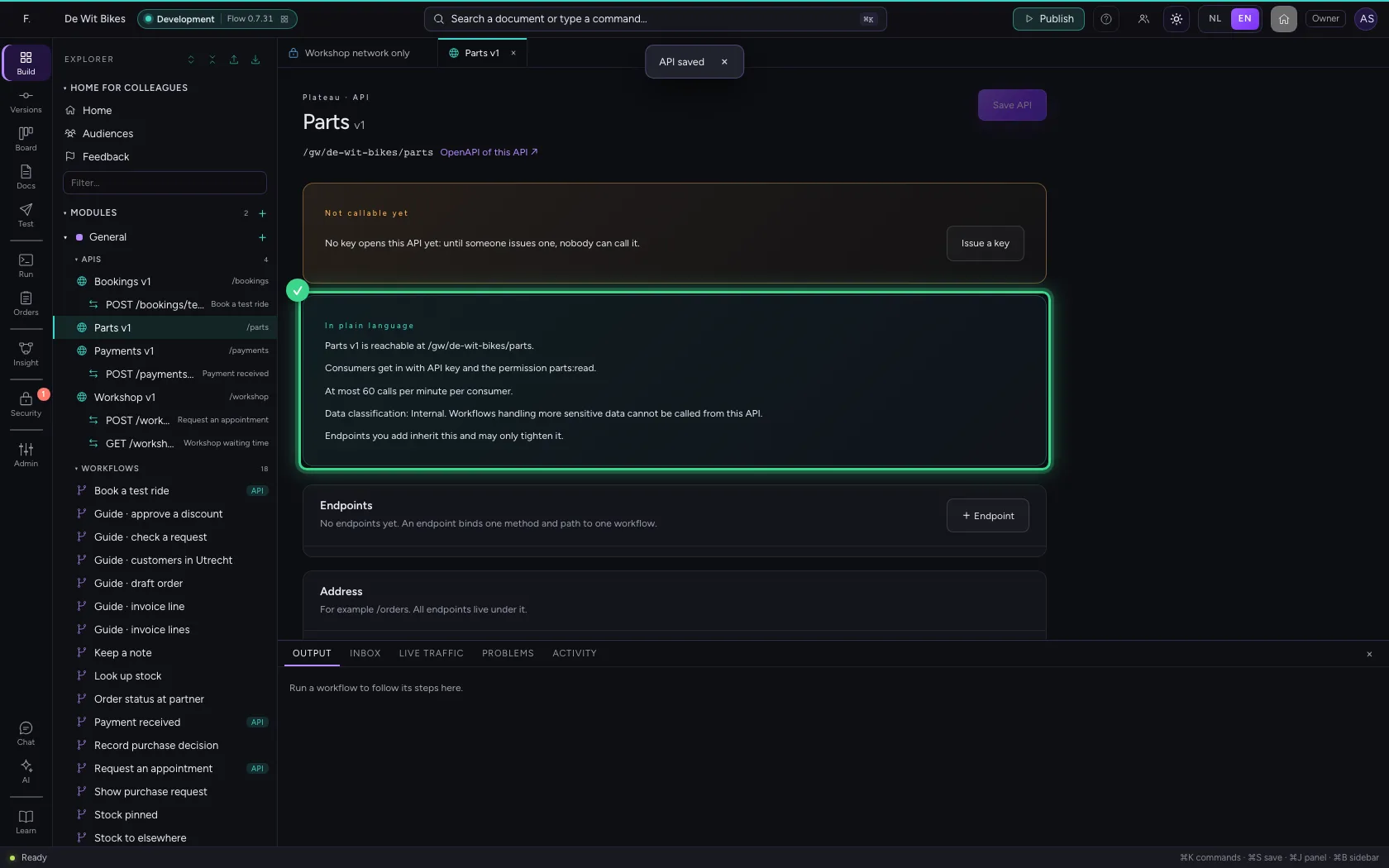
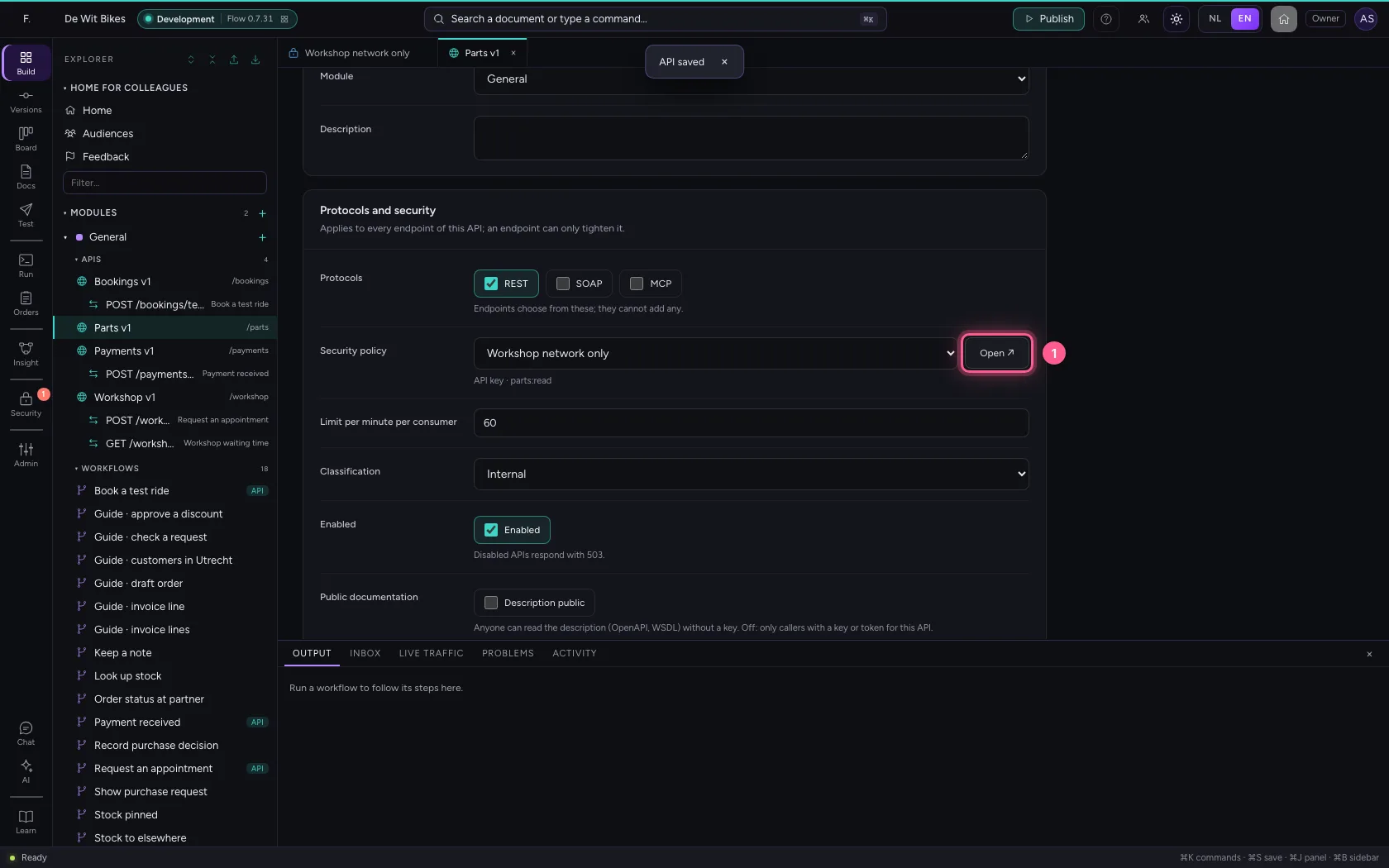
Open the API in the explorer. Under Security policy choose the new policy and save the API. The API's explanation now says that a consumer needs an API key and the permission.
- Click the API
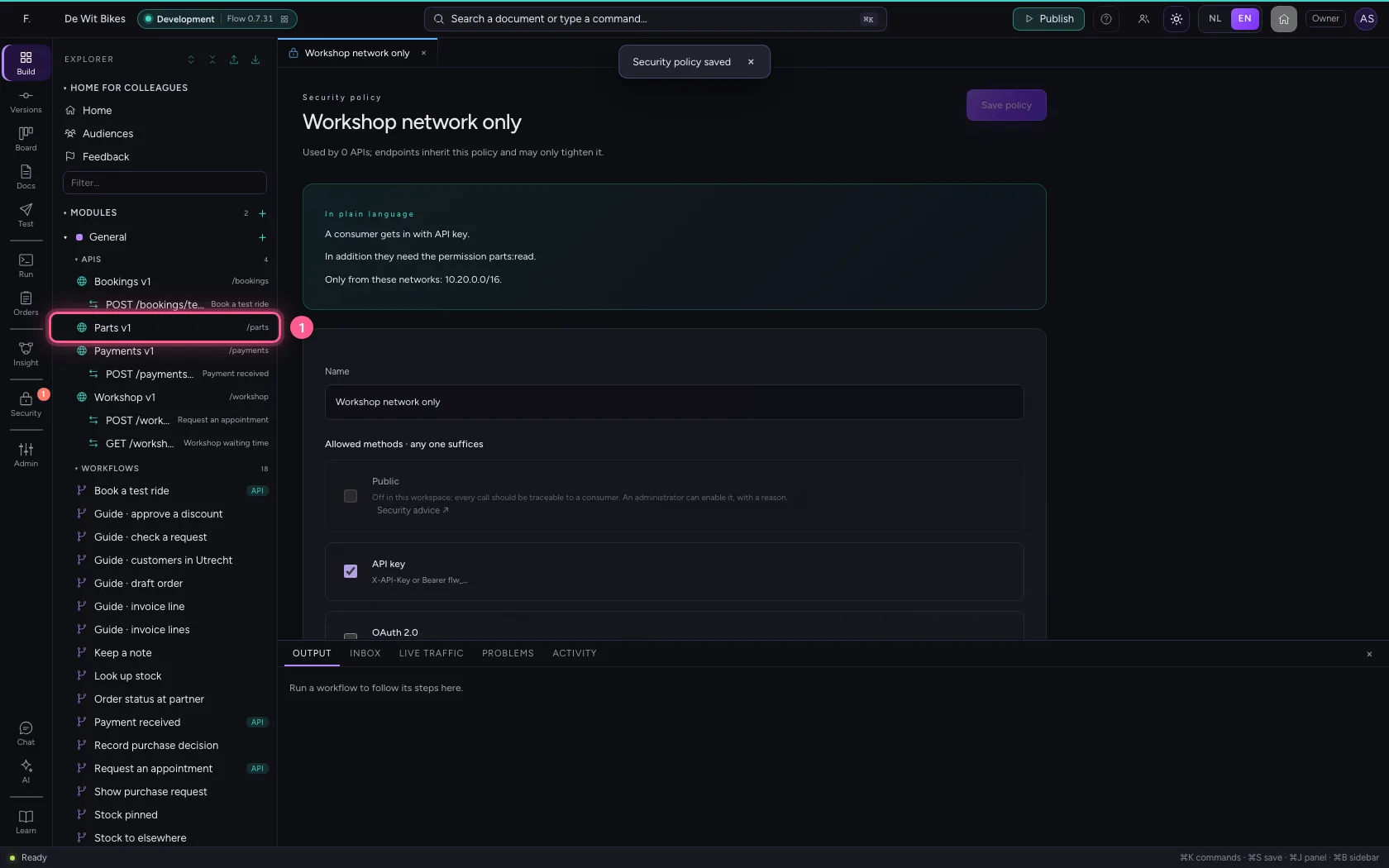
- In Security policy, choose Workshop network only
- Click Save API
See where the policy applies
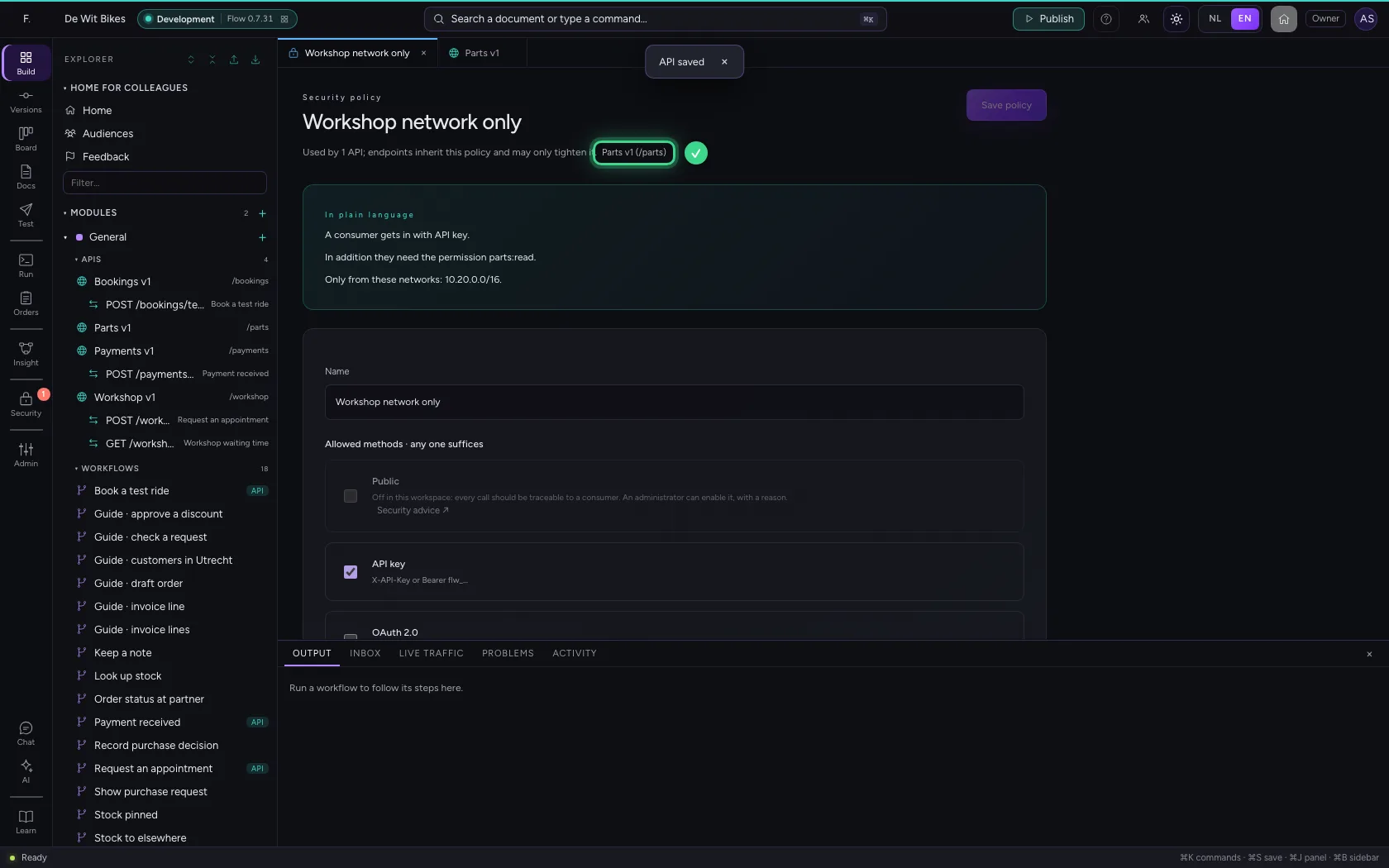
With Open ↗ next to the policy you go back to the policy. At the top it now says which APIs it belongs to. If you change the policy, the change applies to all those APIs straight away.
- Click Open ↗
Webhooks with a signature
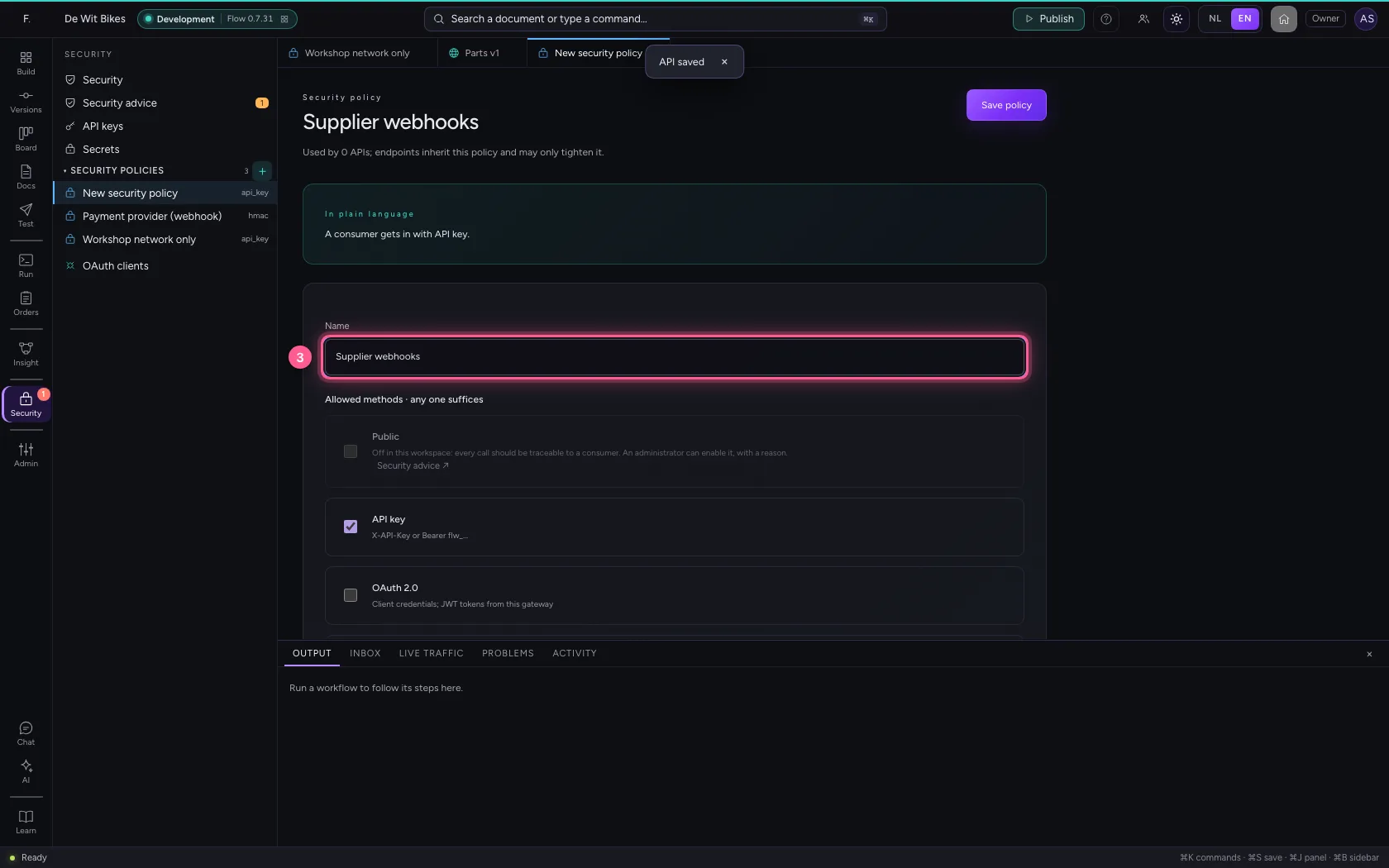
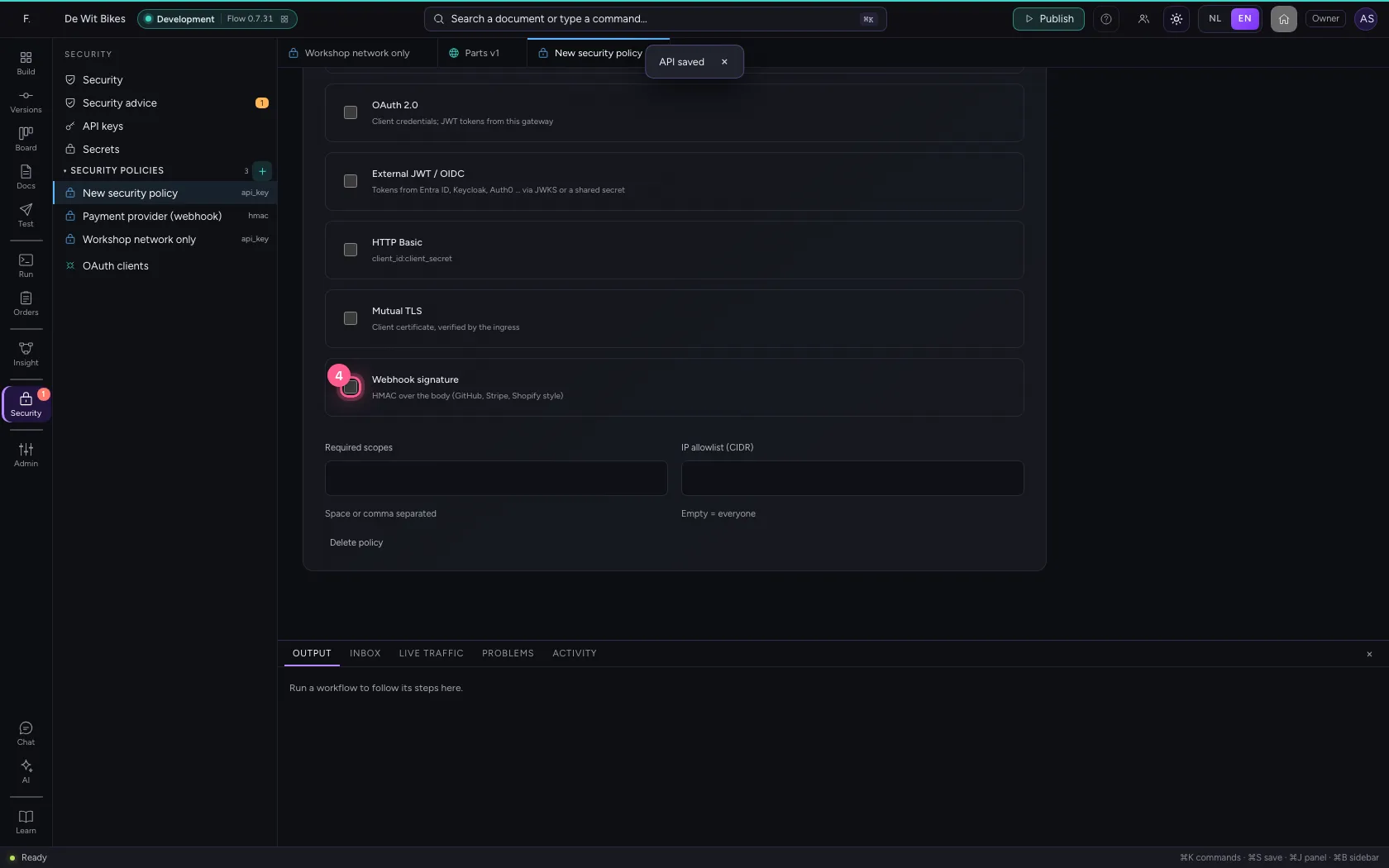
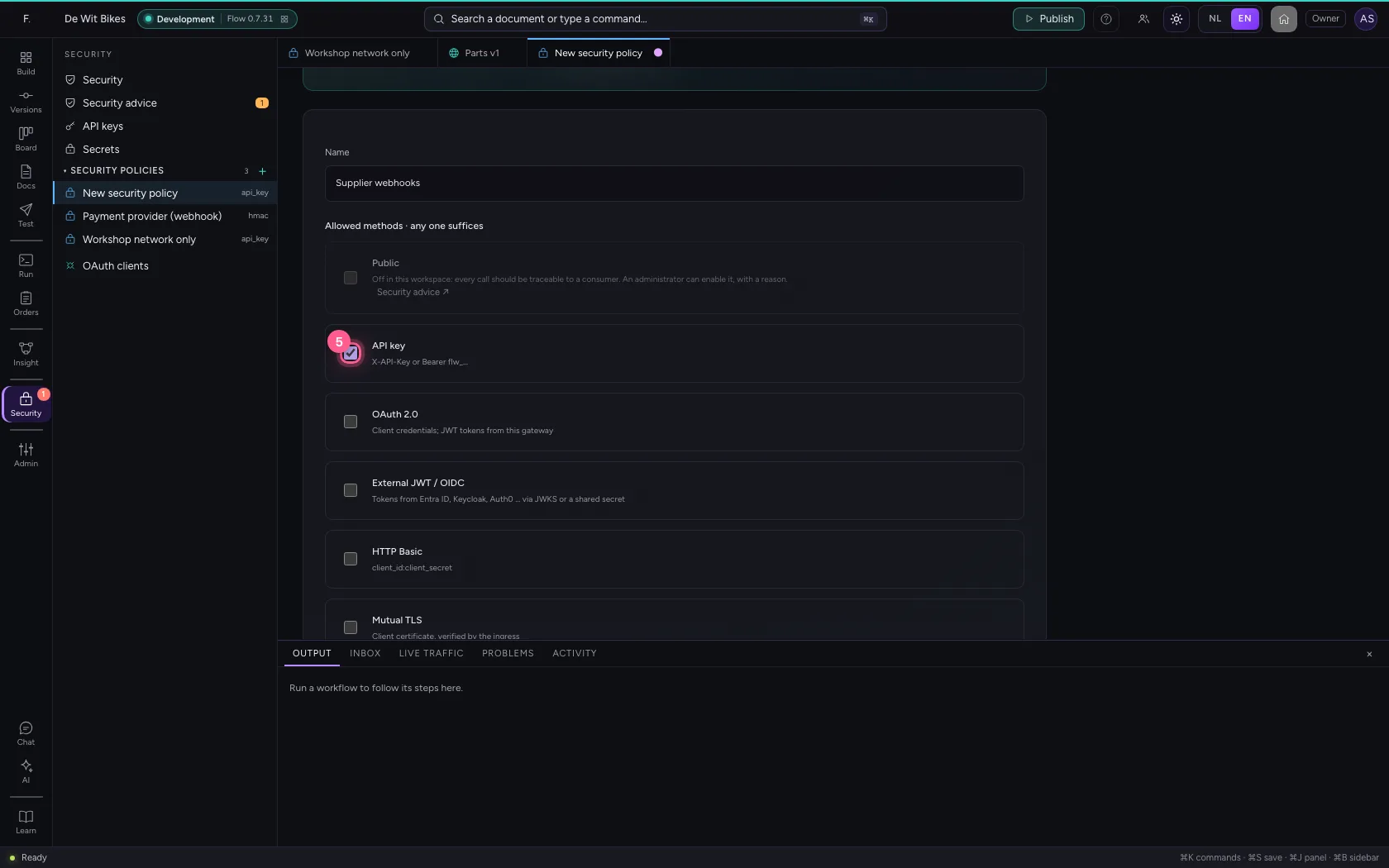
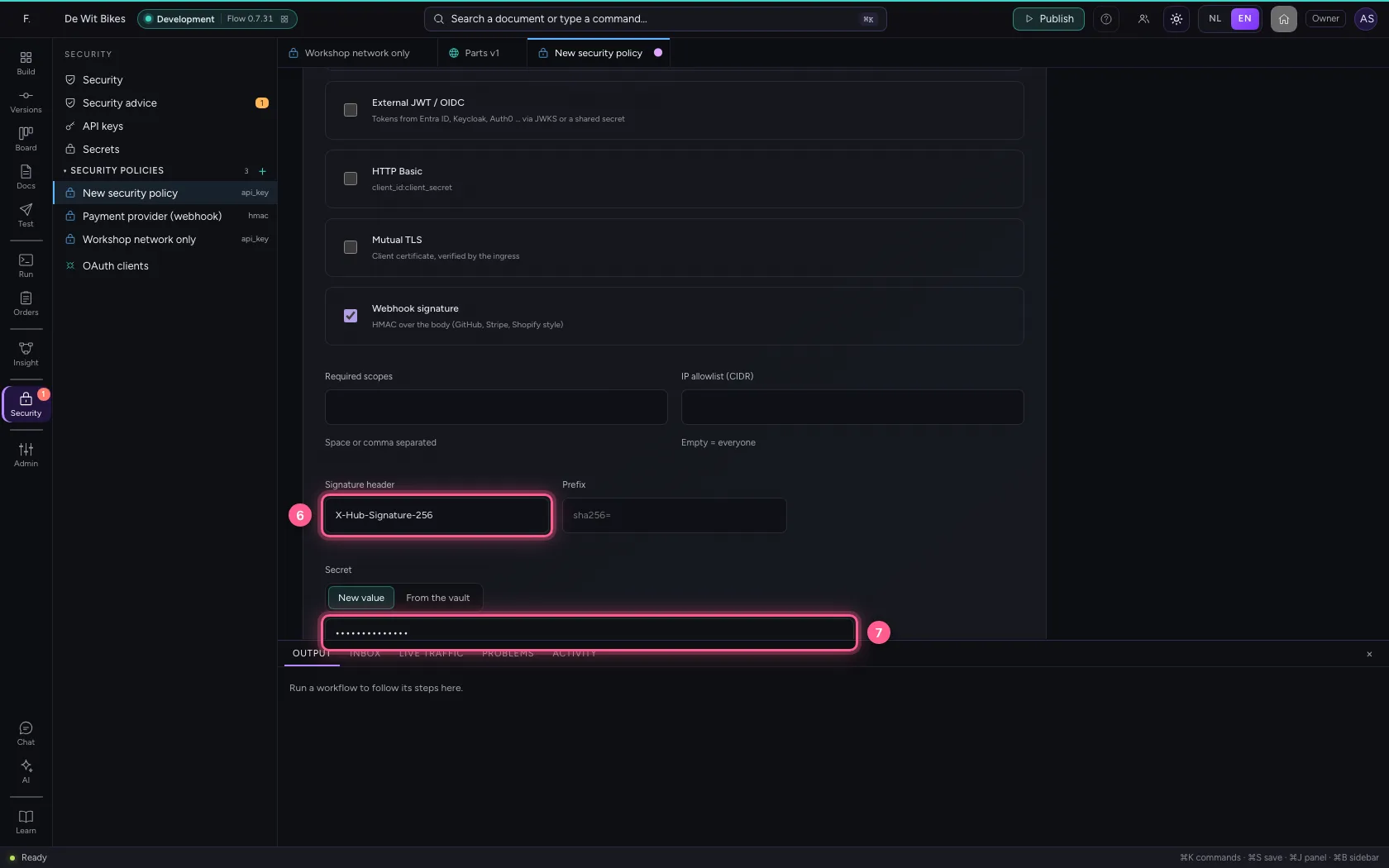
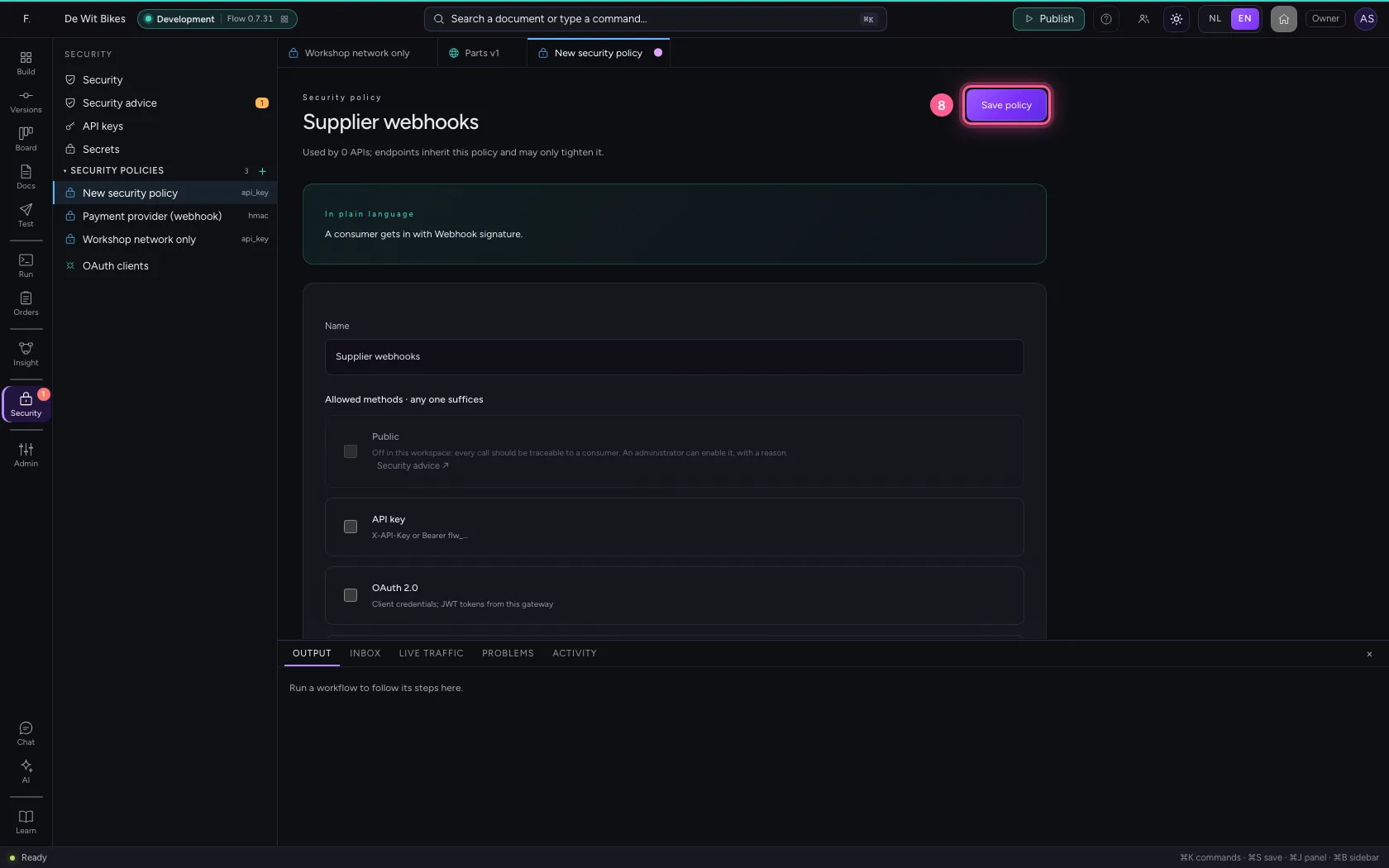
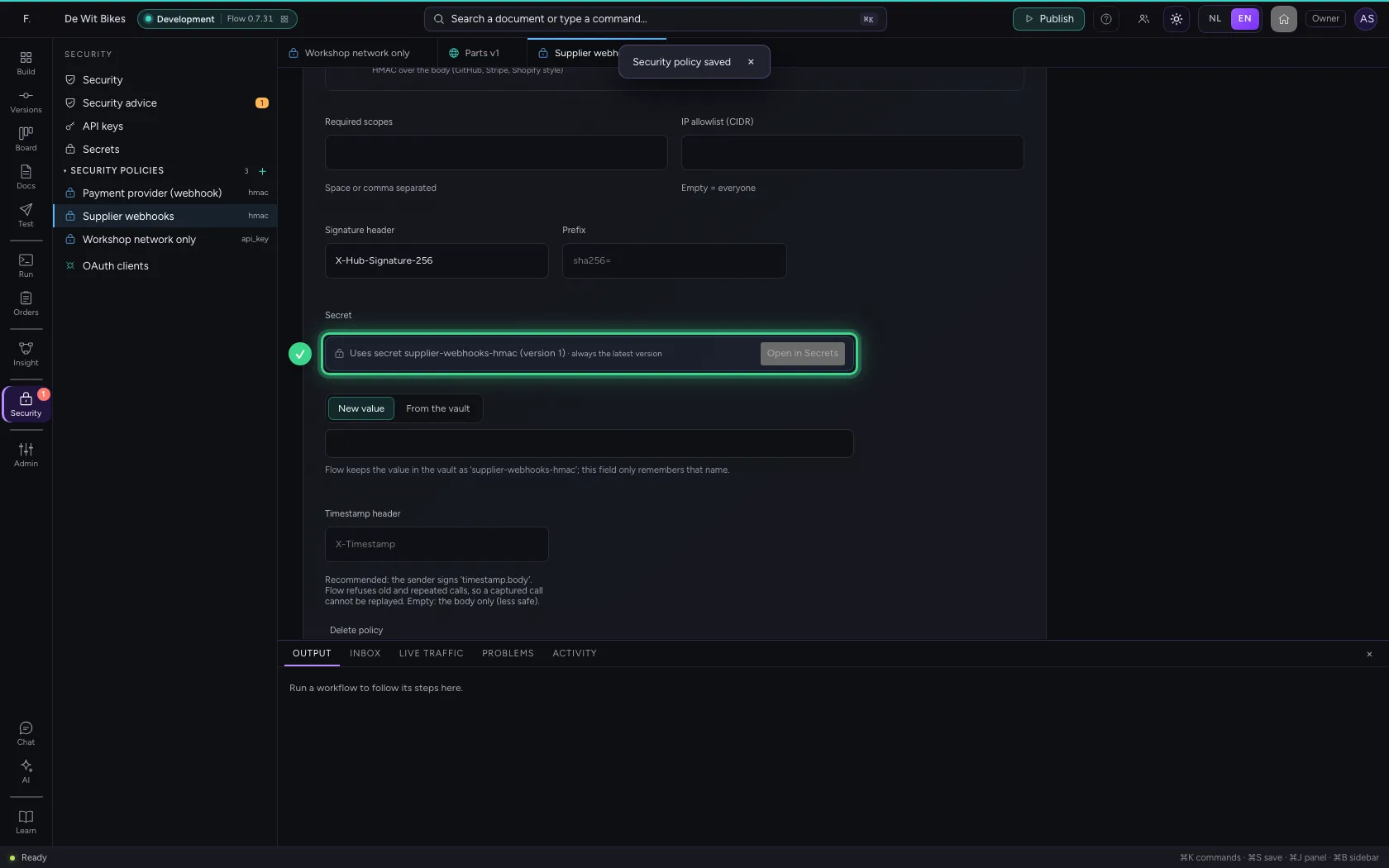
When another system sends webhooks, it signs every call with a shared secret. Create a policy with Webhook signature for it, fill in the header and type the secret, or choose one From the vault. Flow keeps a typed value as a named secret; the policy only remembers that name and shows which version it uses. A new version in Secrets applies at the next call. The same field appears under External JWT when the identity provider signs tokens with a shared secret. When Flow checks tokens with the identity provider's keys (JWKS), issuer and audience are required: the same keys also sign the tokens of other organisations, and without those two the policy lets nobody in.
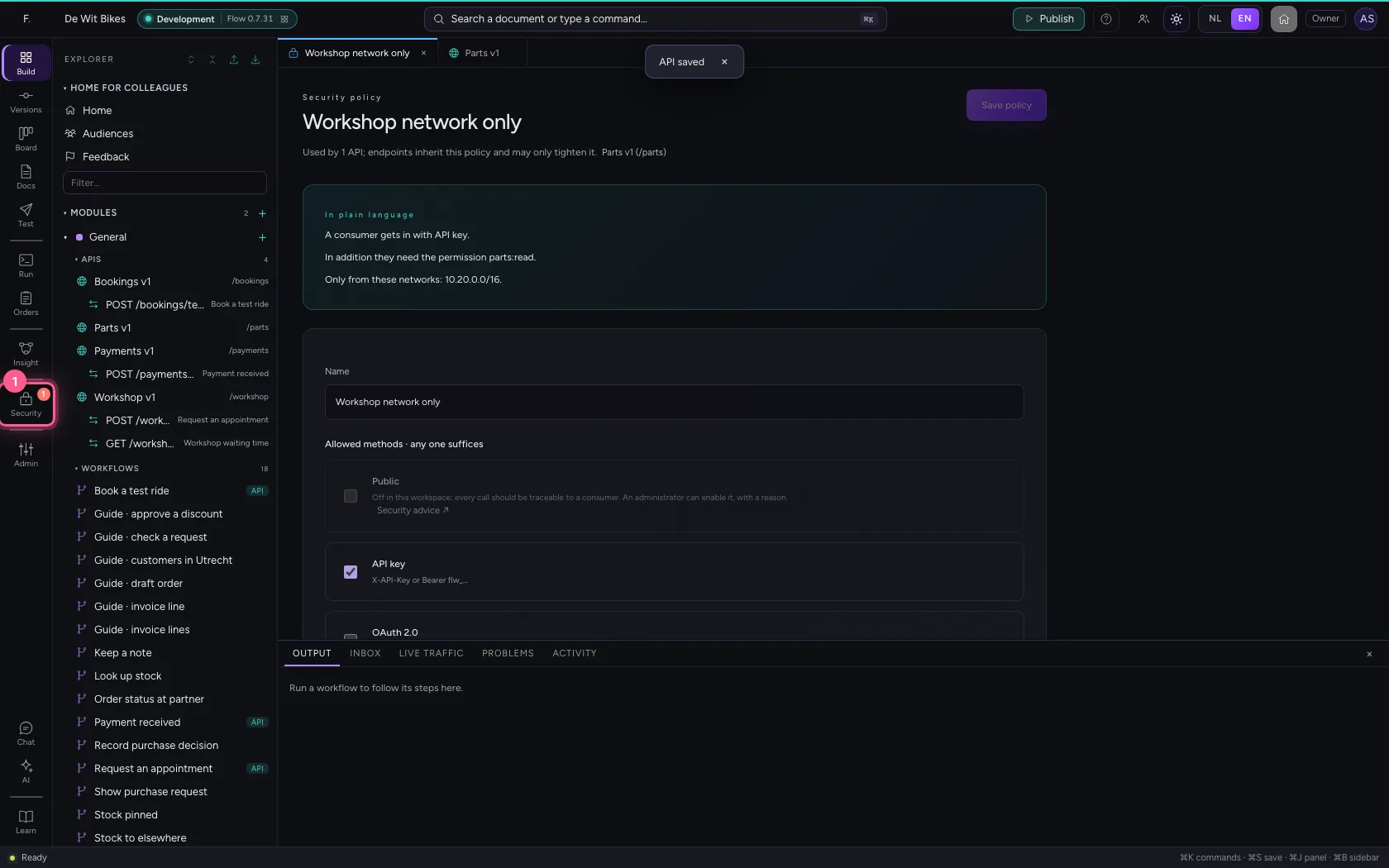
- Click Security
- Click New security policy
- In Name, type
Supplier webhooks
- Click Webhook signature
- Click API key off
- In Signature header, type
X-Hub-Signature-256 - In the shared secret, type
••••••••
- Click Save policy
This guide was carried out step by step on 22 Oct 2026 by an automated test on Flow (version 3e563176).