Where is this used? Dependencies
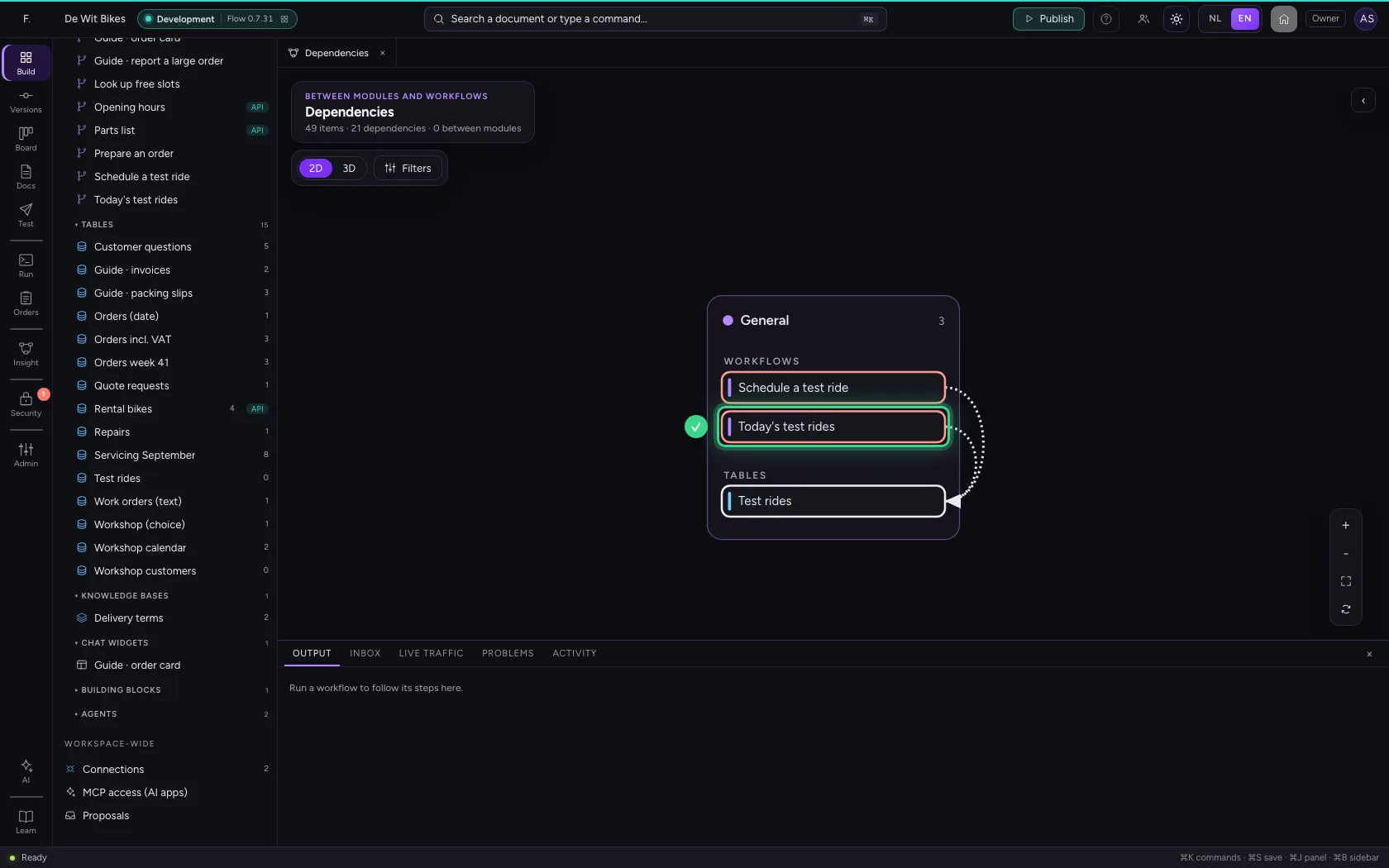
Before you change a table, workflow or API, you want to know what relies on it. Where used? tells you per item: which workflows, endpoints and agents read or write it. The Dependencies map shows the same for your whole environment, across modules.
Open your development environment
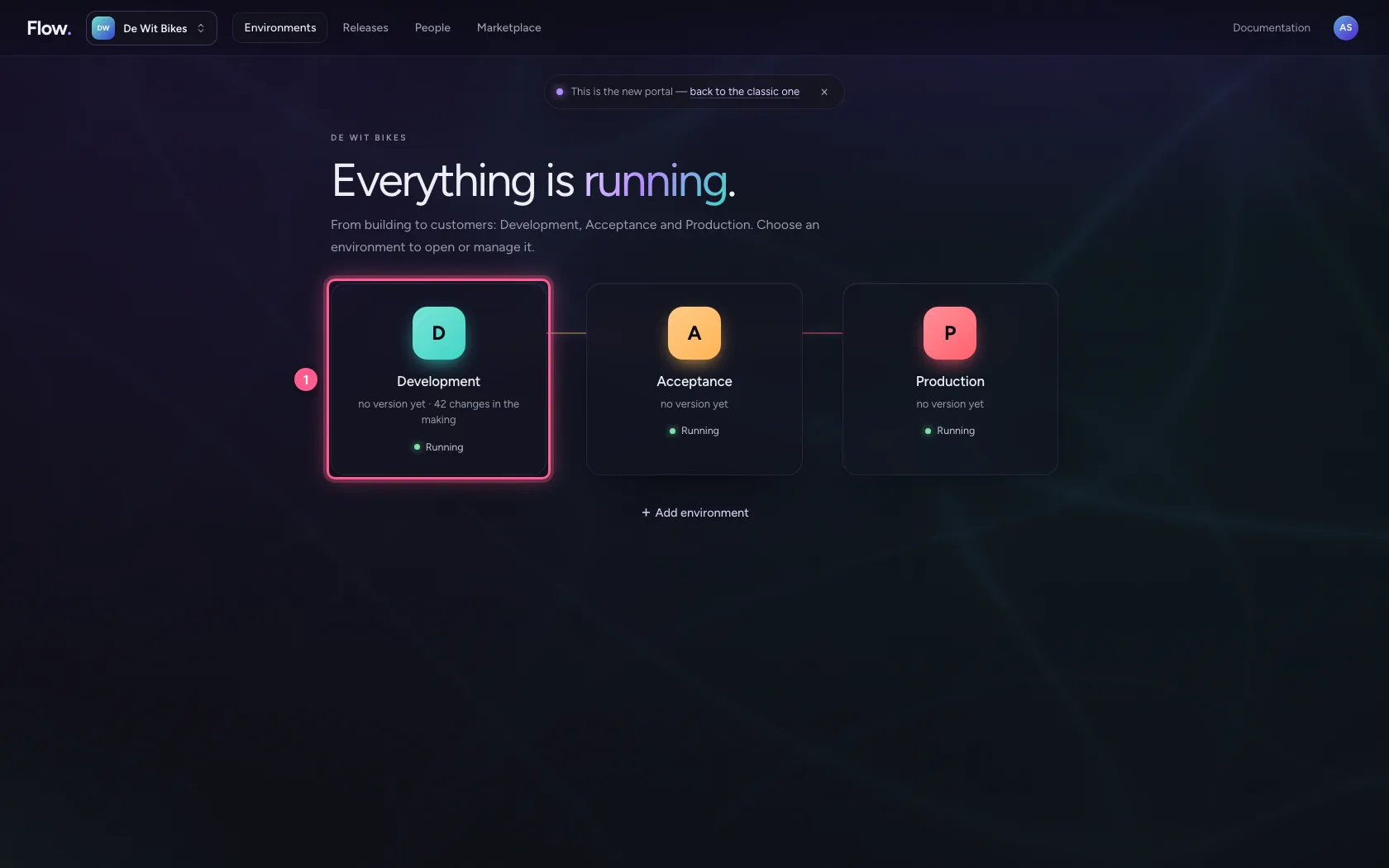
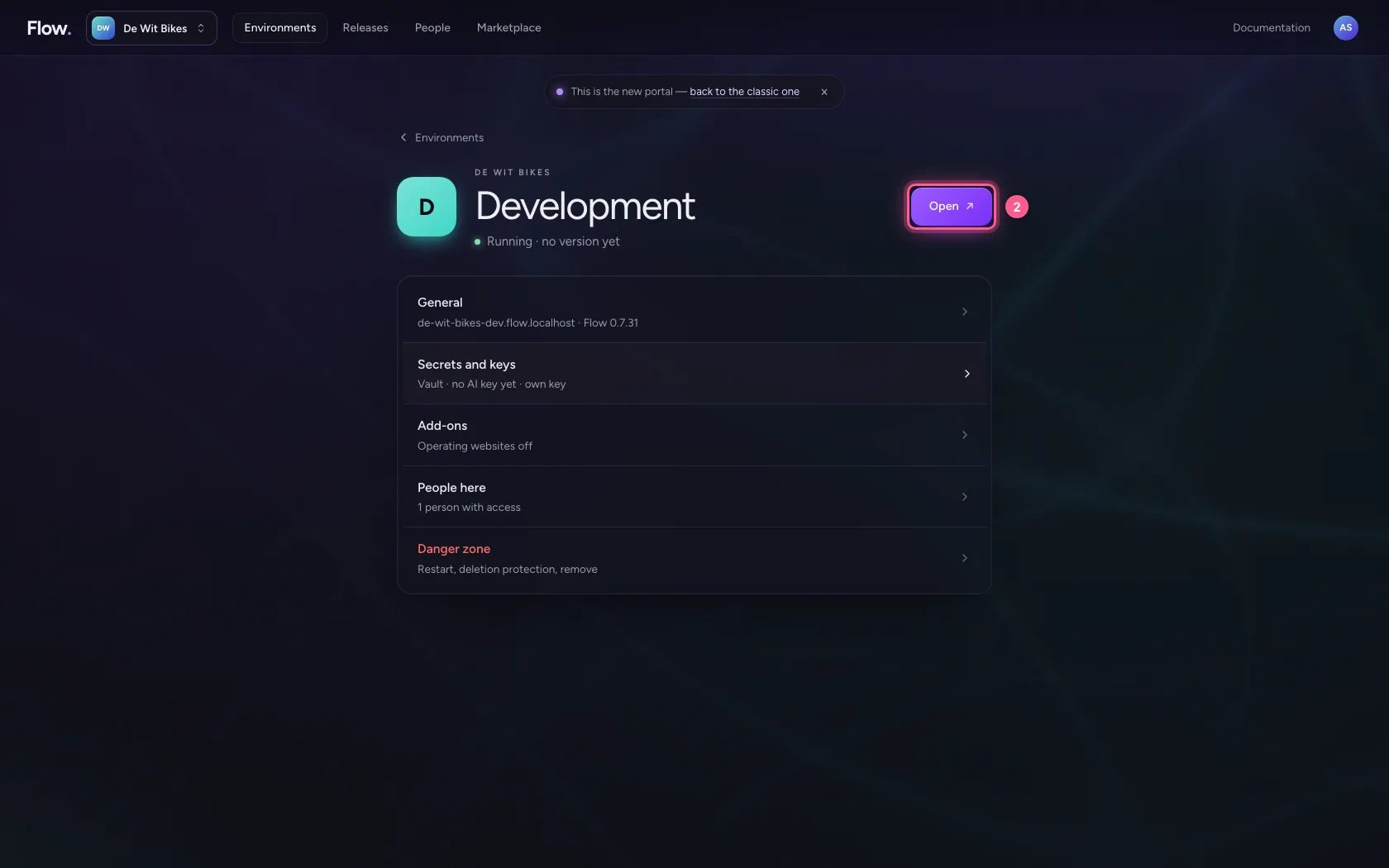
In the portal, under Environments, click Development, and there Open. Flow opens in a new tab and you are signed in straight away.
- Click Development
- Click Open ↗
Ask where the table is used
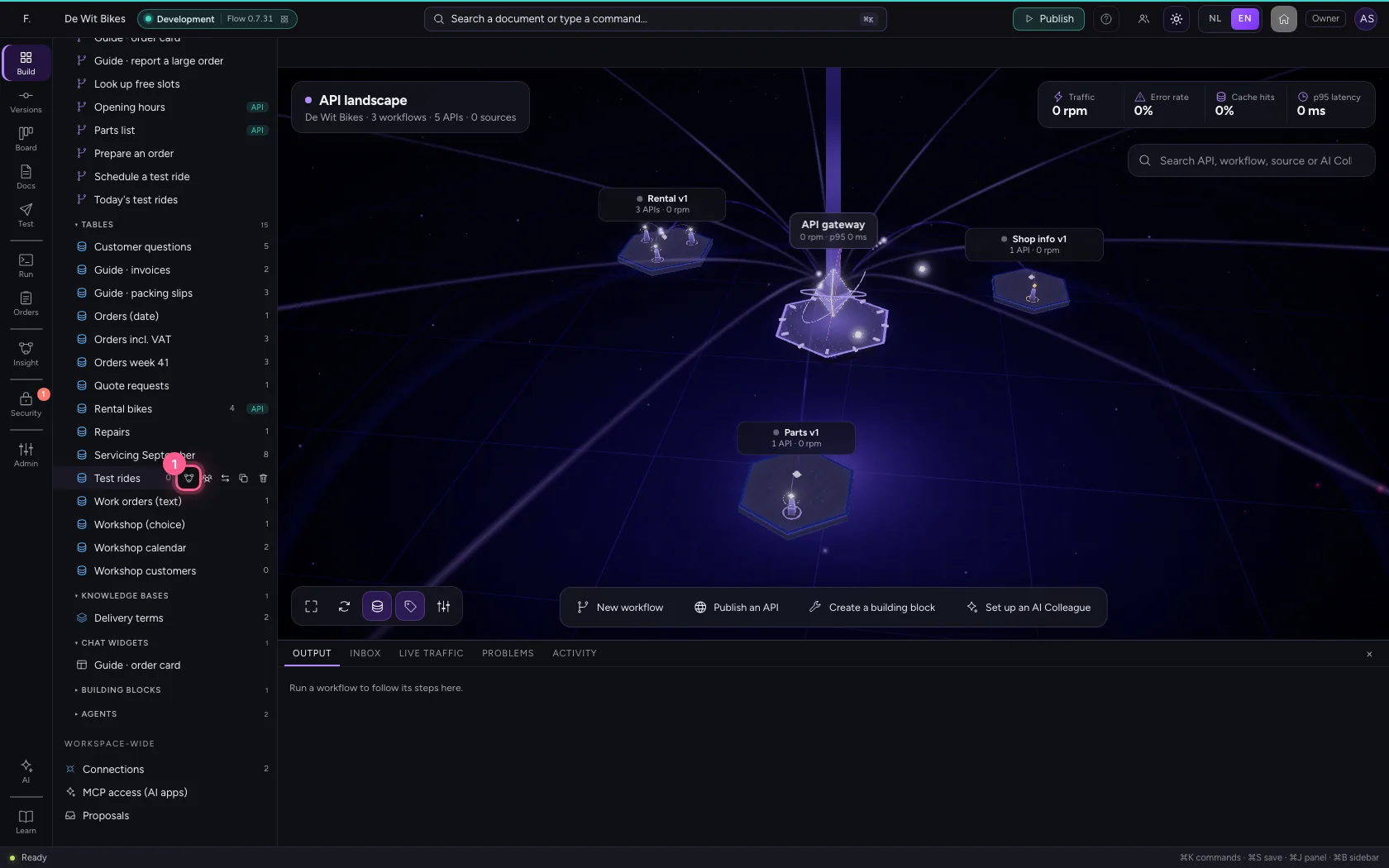
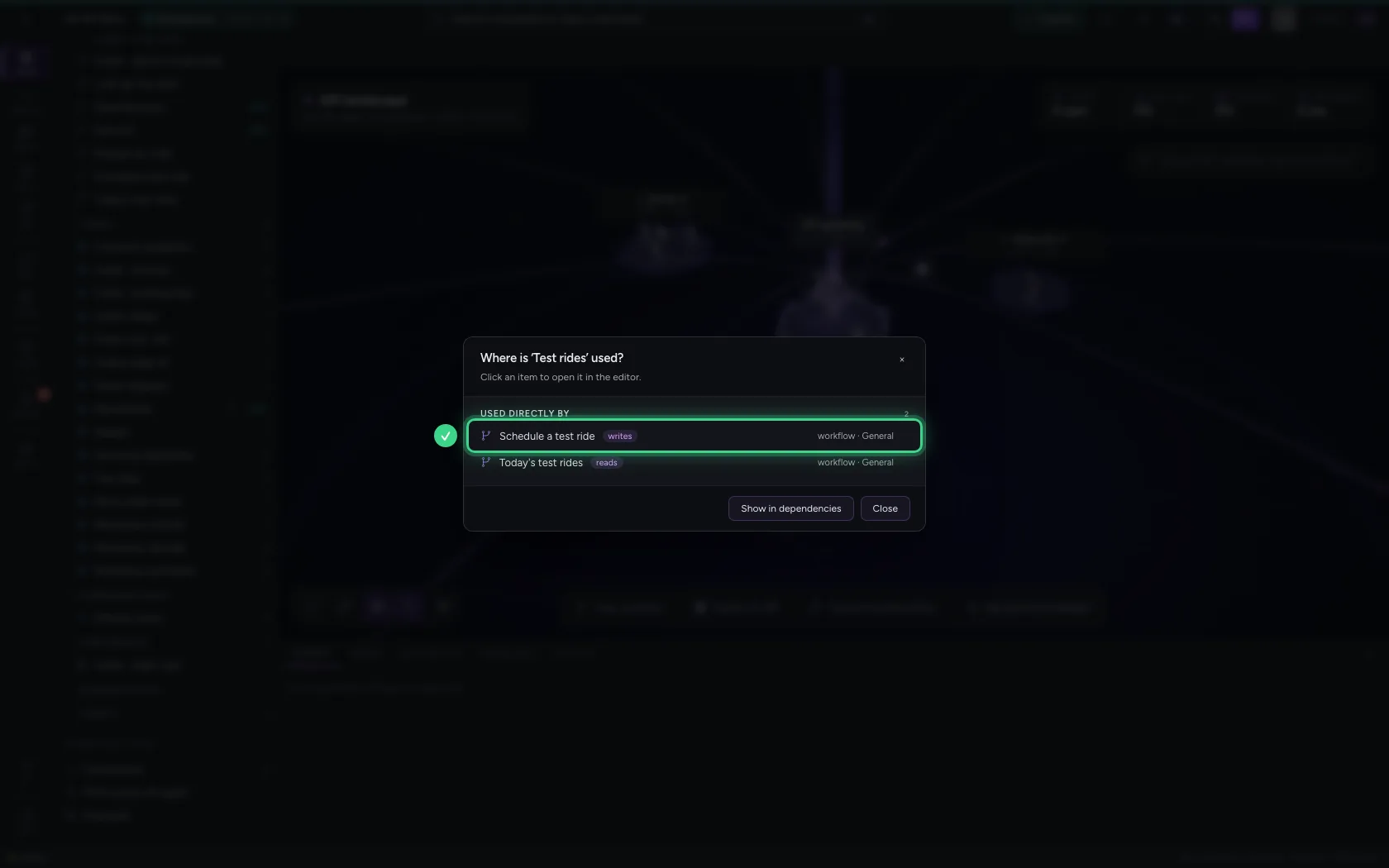
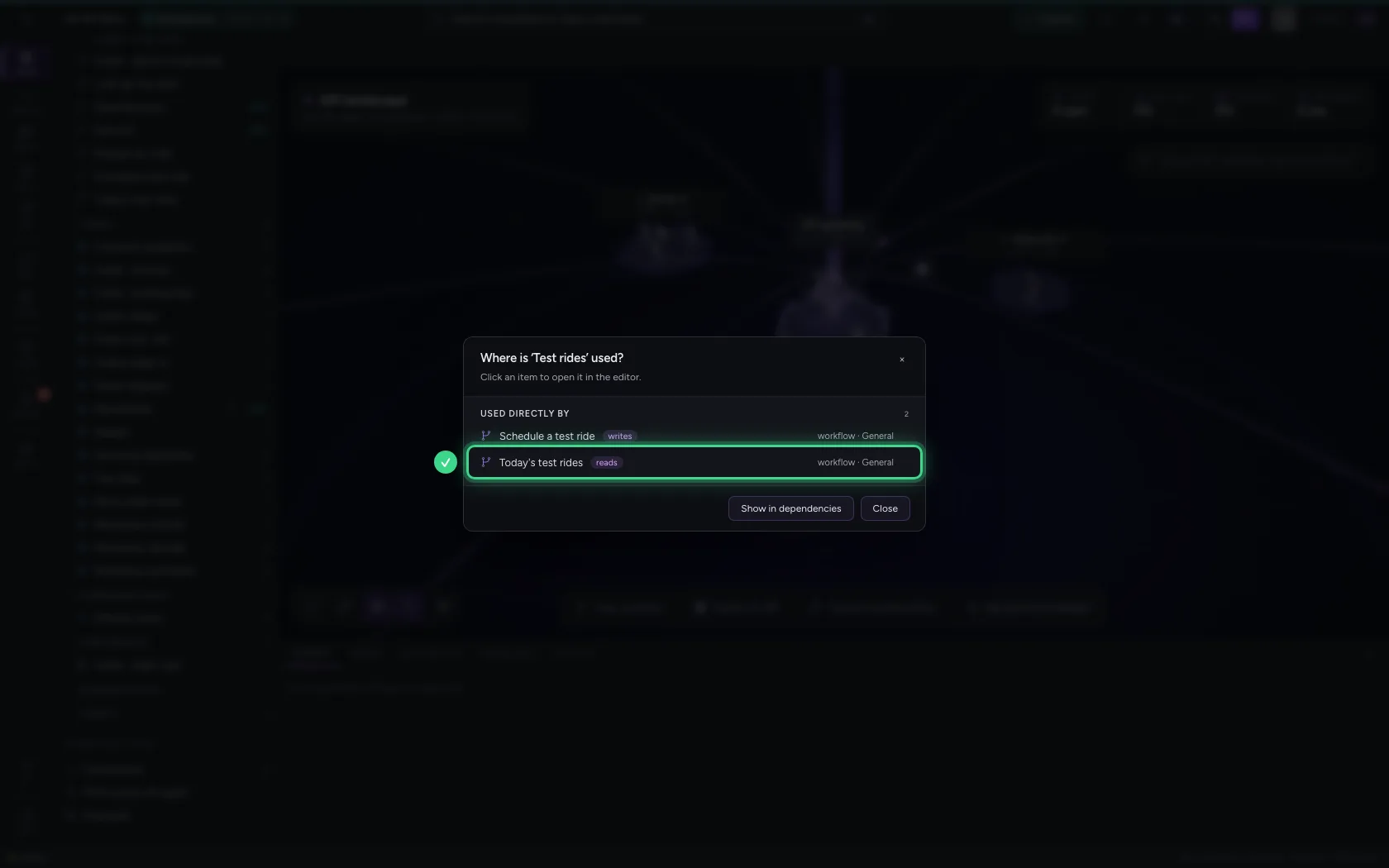
Next to every item in the explorer is a small map icon: Where used?. Click it next to the table Test rides. You see which workflows use the table directly, and how: read or write. Under Indirectly affected is what is also affected through a workflow or API in between.
- Click Where used?: Test rides
See it on the map
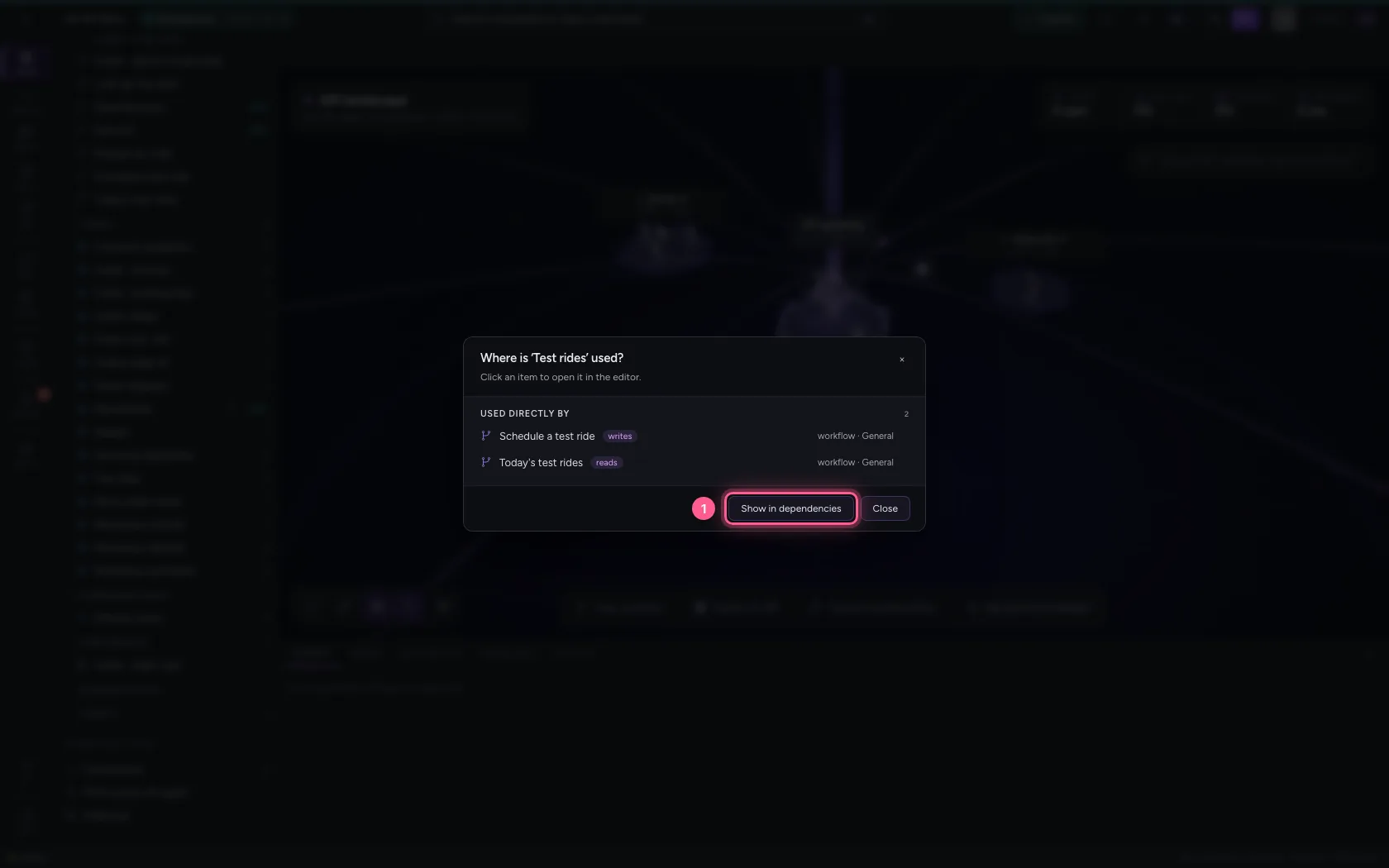
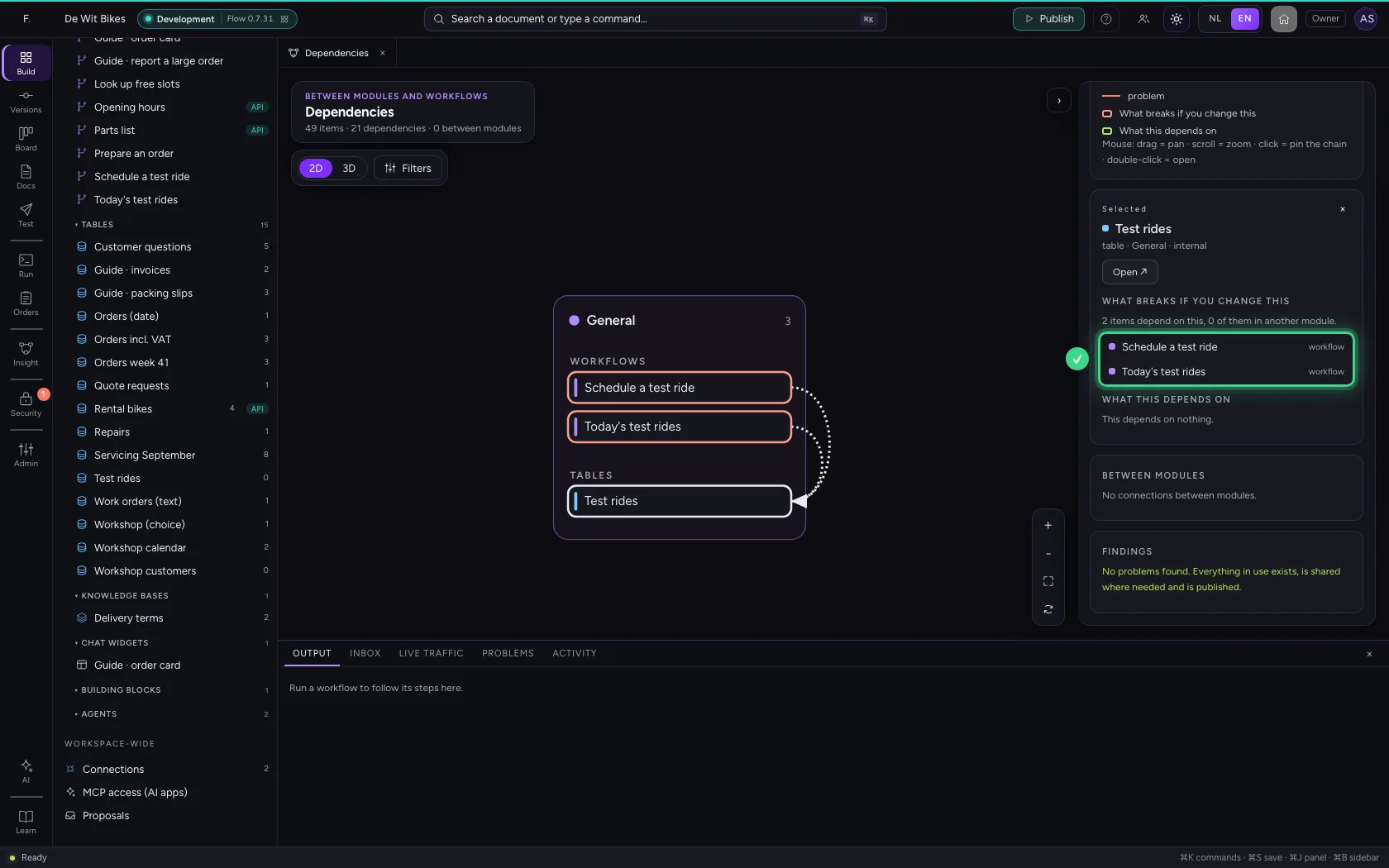
Click Show in dependencies. The map shows your modules as lanes, with the items inside and lines for who uses what. Because you came from the table, only its chain is on it.
- Click Show in dependencies
Read what breaks
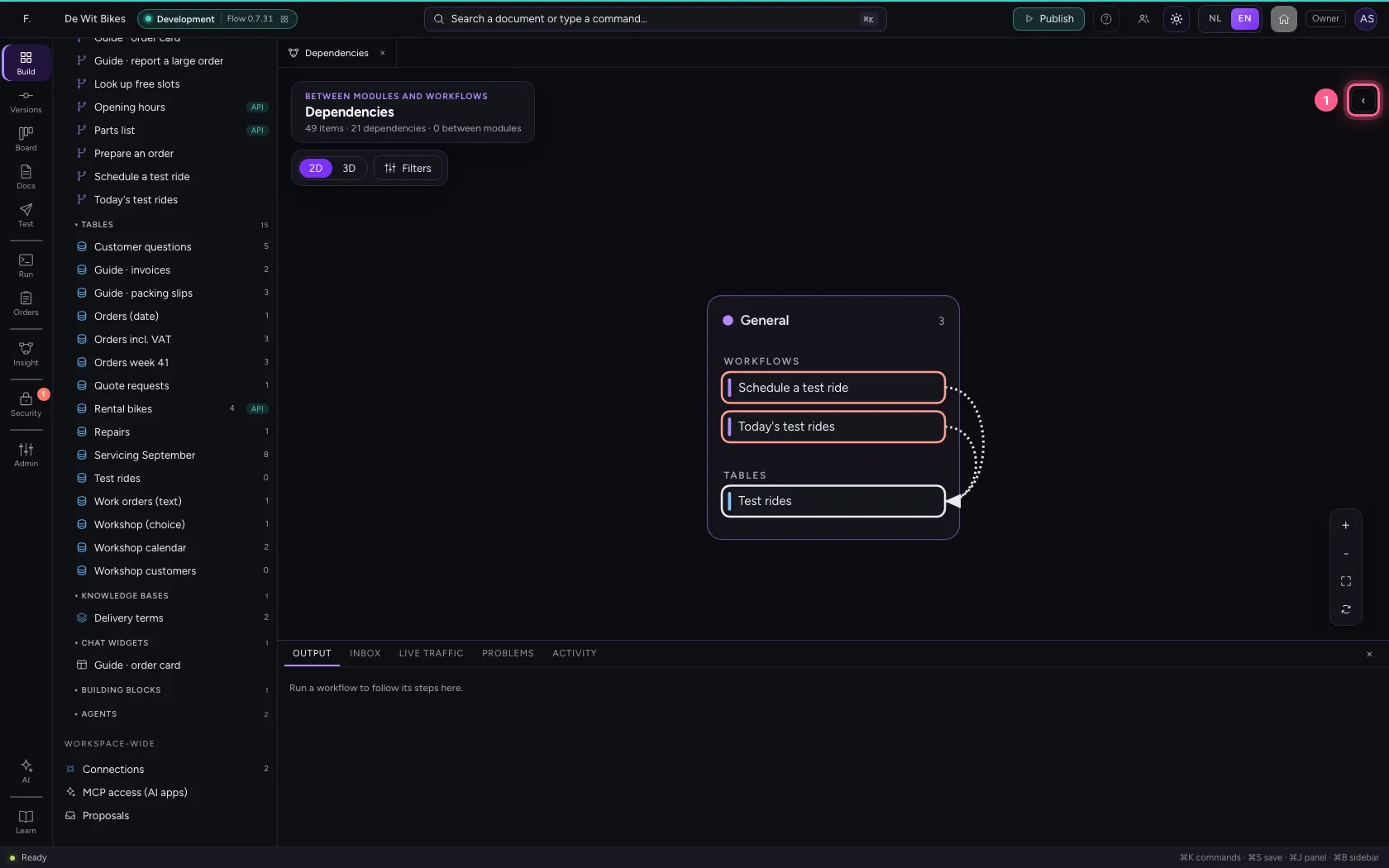
Open the detail panel on the right. Under What breaks if you change this are the items that depend on the table — here both workflows. If you rename a column, those two are the ones to check. Double-click an item to open it.
- Click Show or hide the detail panel
This guide was carried out step by step on 22 Oct 2026 by an automated test on Flow (version 3e563176).