Sign in with HTTP Basic
Some systems can only send a user name and password: HTTP Basic. In Flow that is a client with a client_id and a client_secret, the same as for OAuth 2.0. You create a security policy with HTTP Basic, attach it to an API, create a client and call the API the way that system does.
Open your development environment
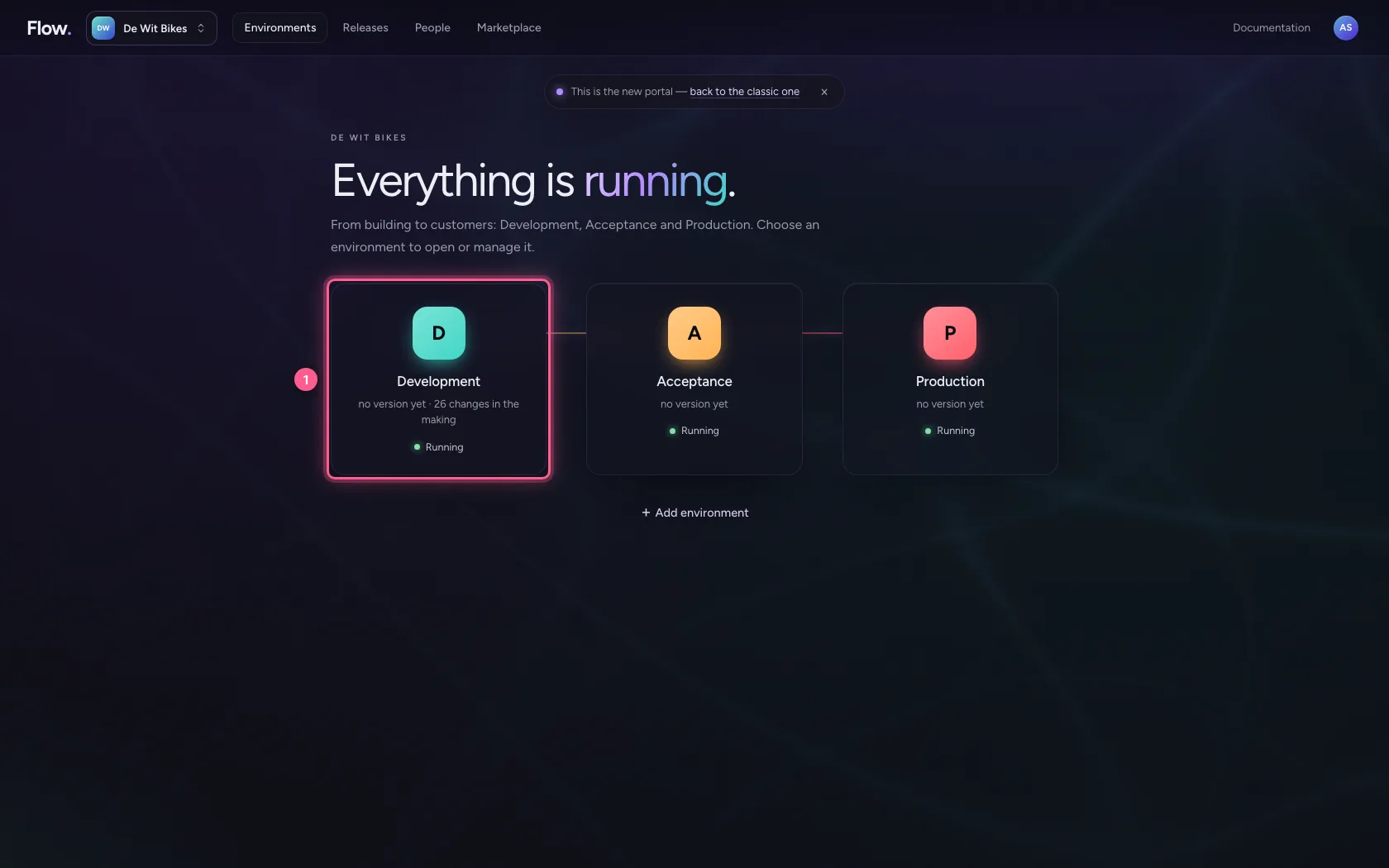
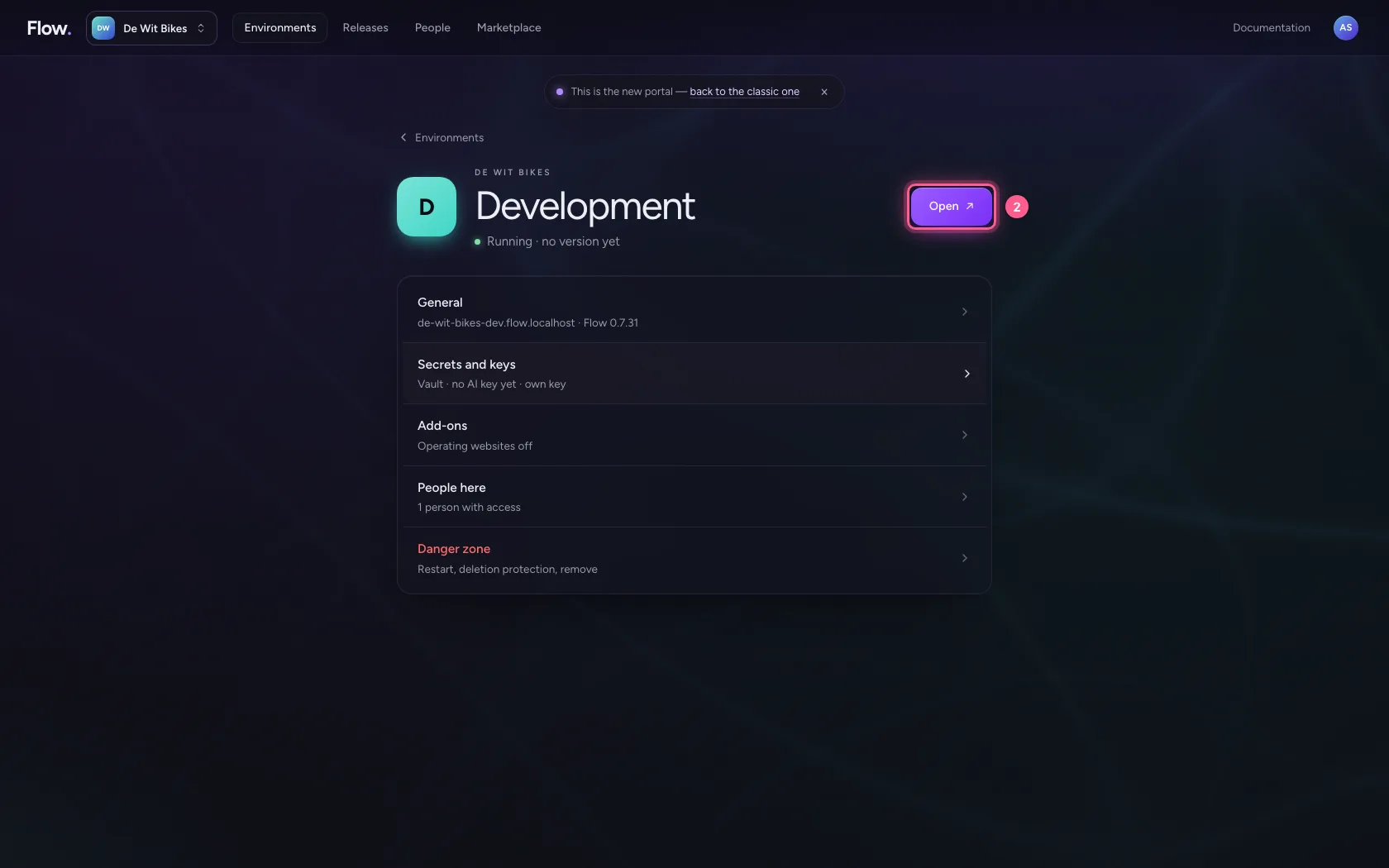
In the portal, under Environments, click Development, and there Open. Flow opens in a new tab and you are signed in straight away.
- Click Development
- Click Open ↗
A policy with HTTP Basic
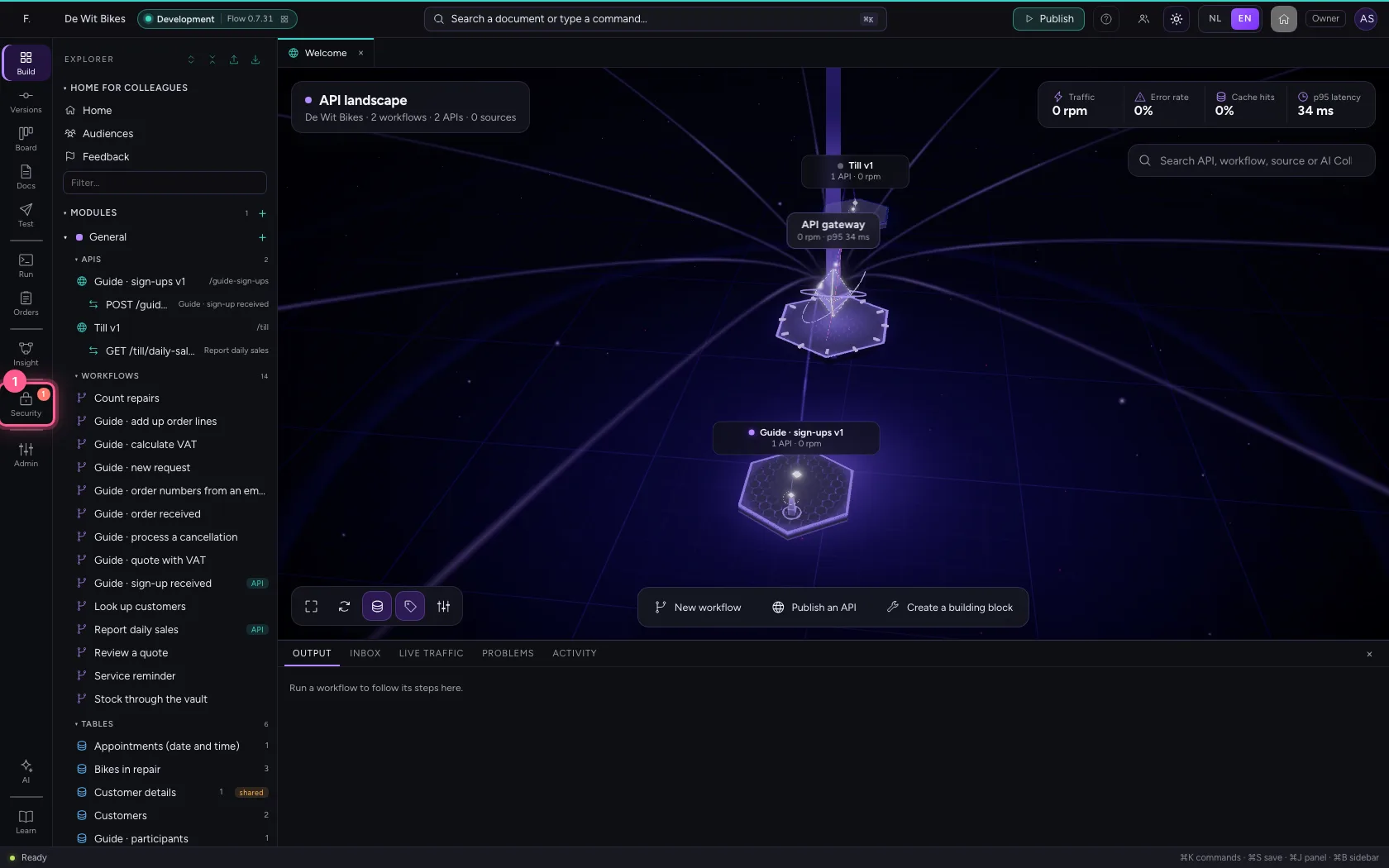
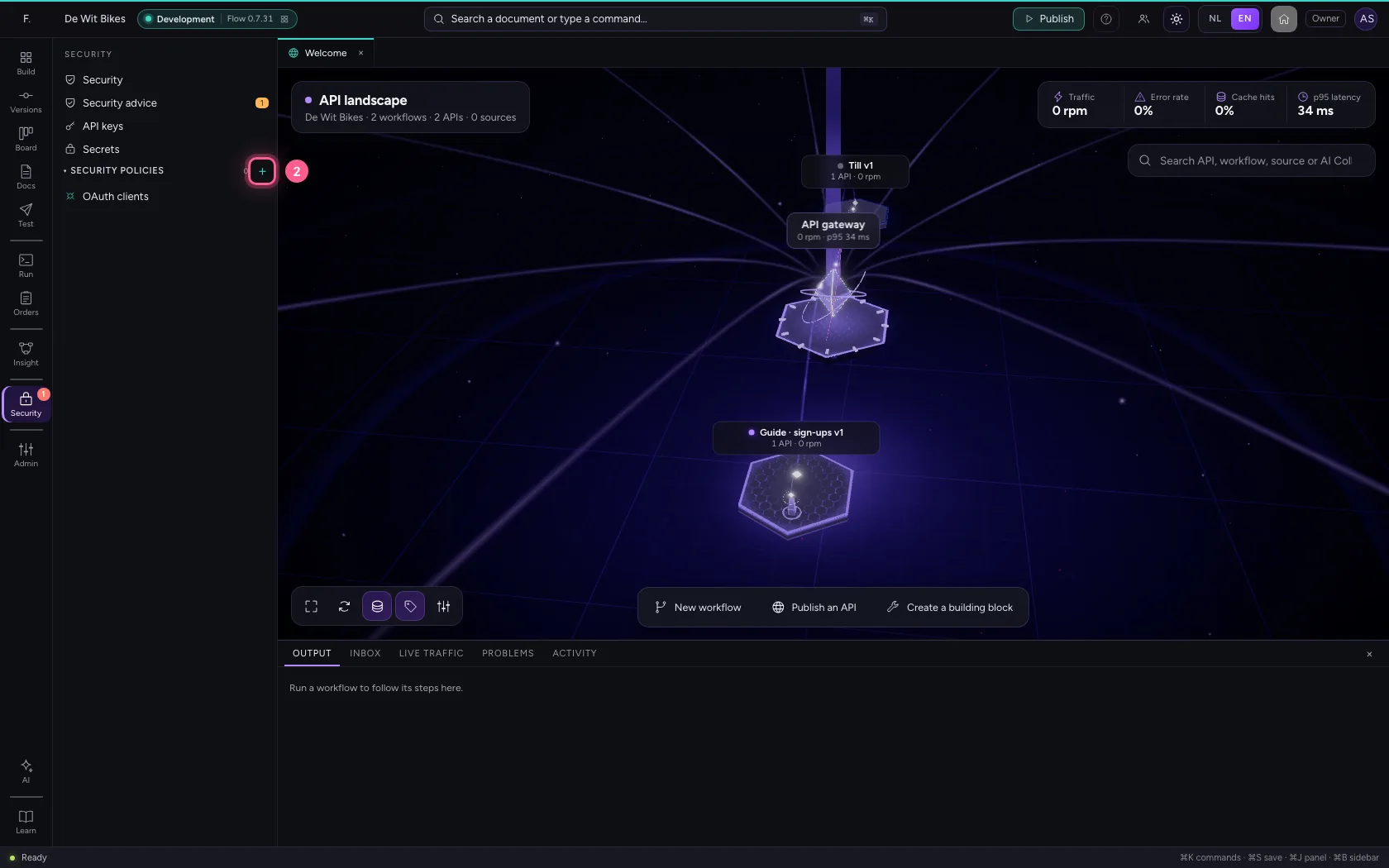
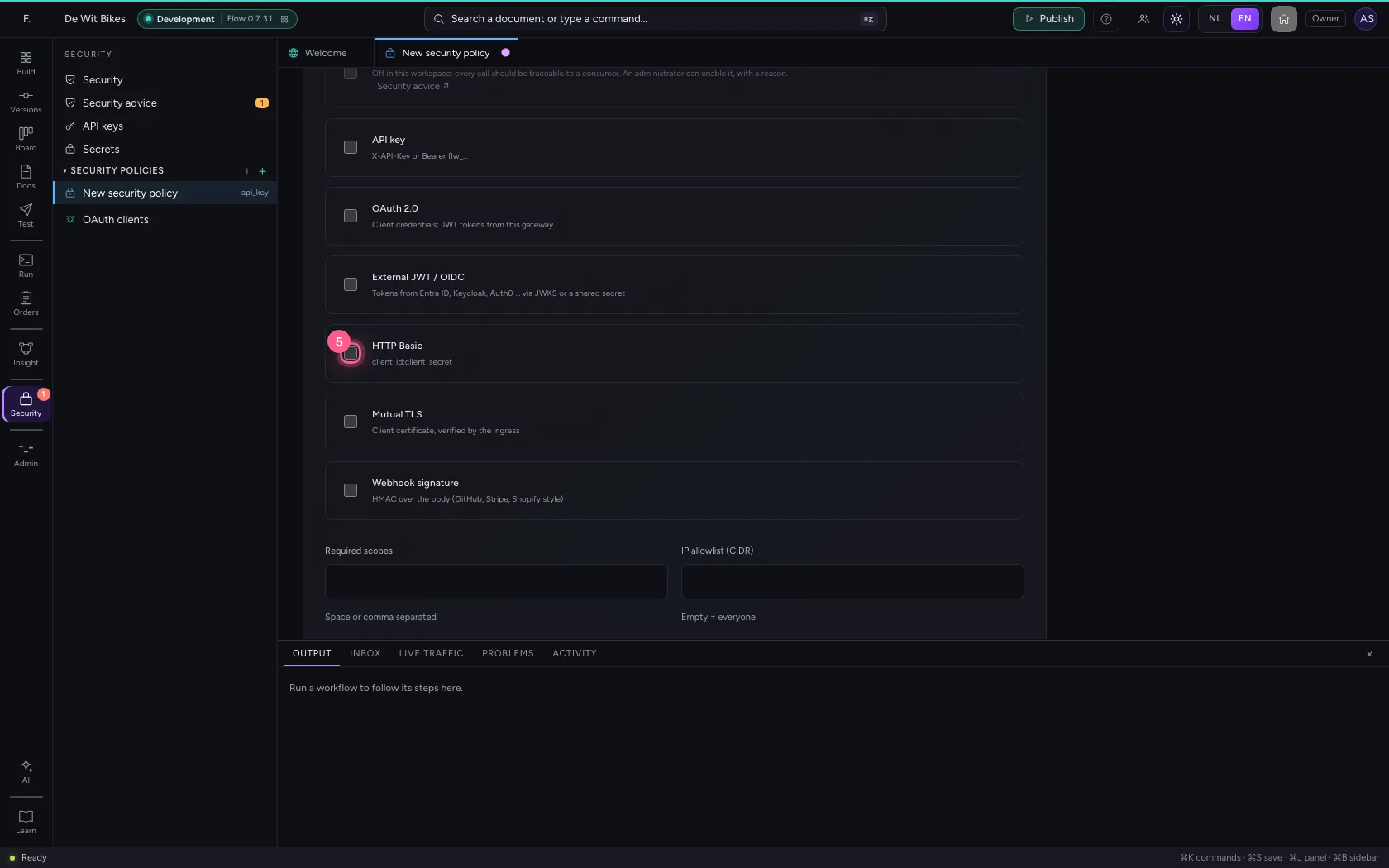
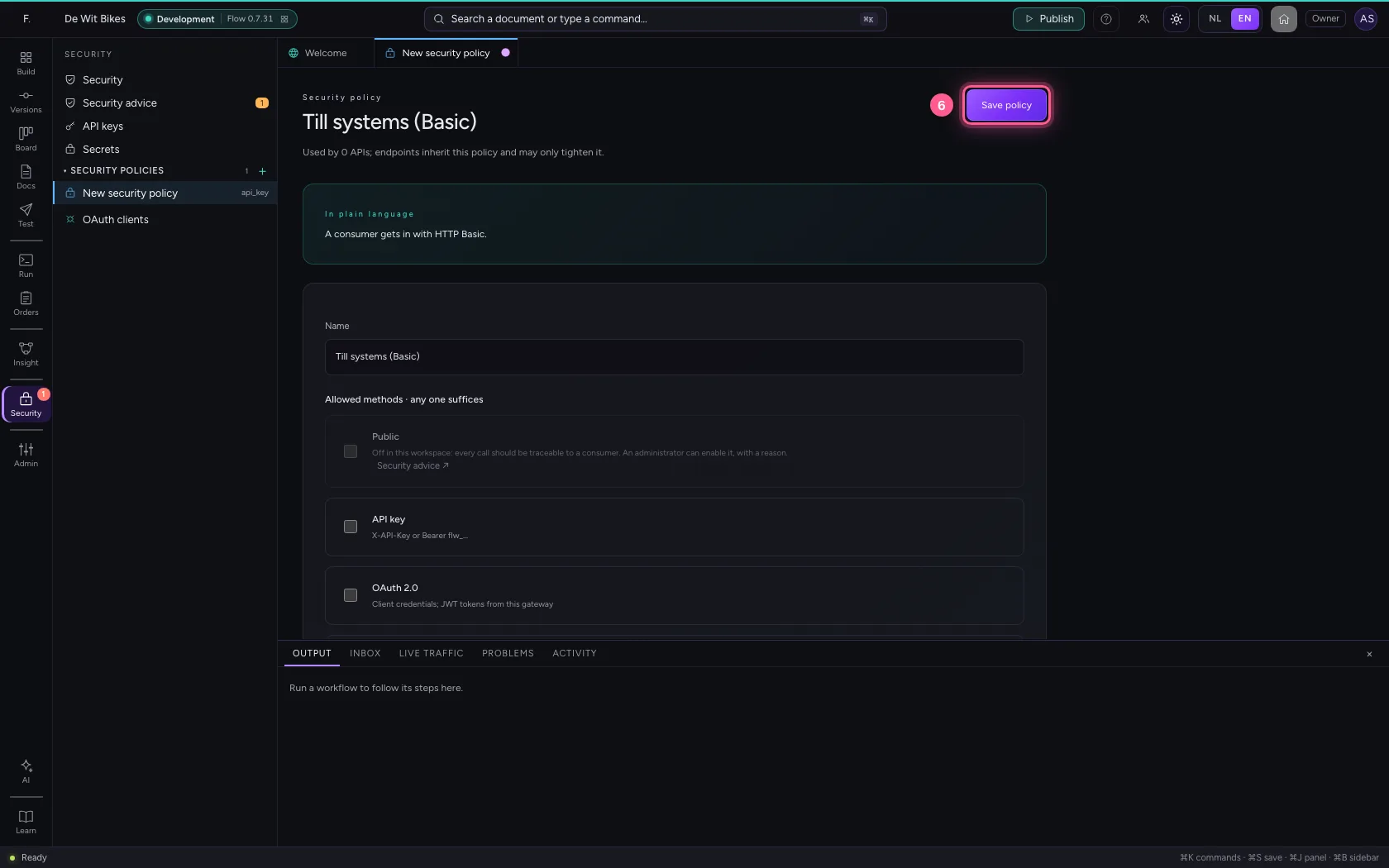
Under Security click + next to Security policies. Give it a name, switch API key off and HTTP Basic on. Above, in plain language, it says who gets in.
- Click Security
- Click New security policy
- In Name, type
Till systems (Basic)
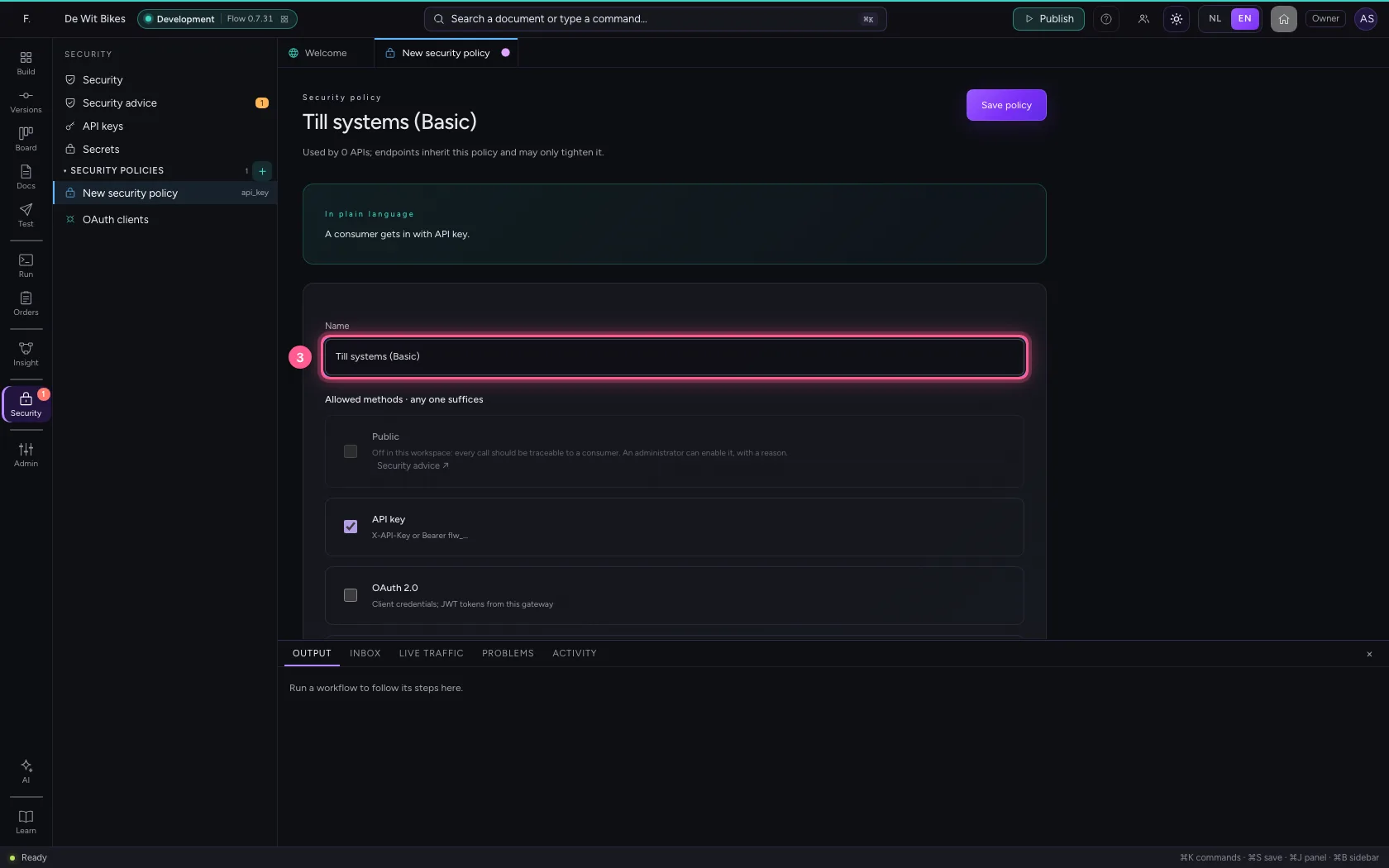
- Click API key X-API-Key or Bearer flw_…
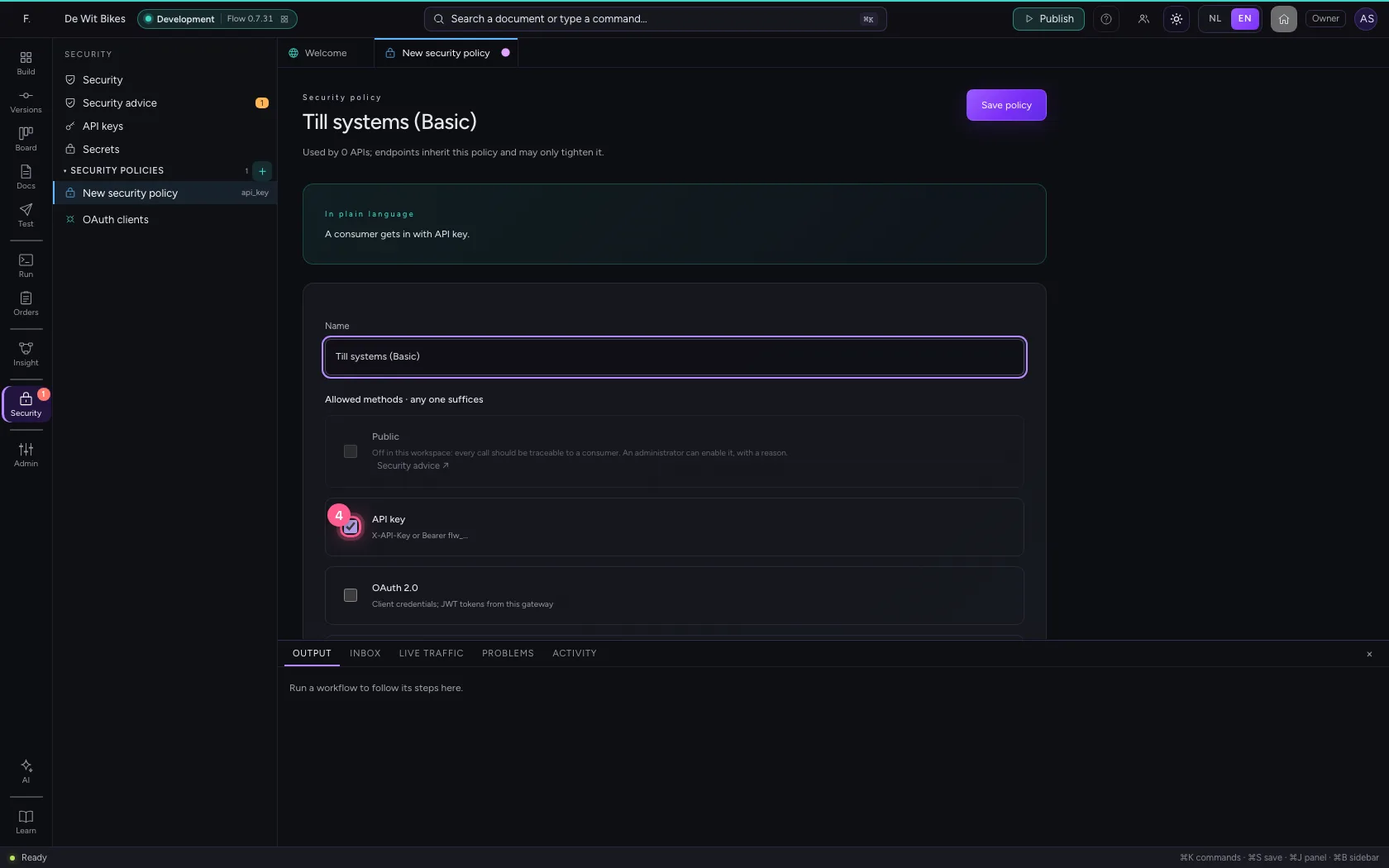
- Click HTTP Basic client_id:client_secret
- Click Save policy
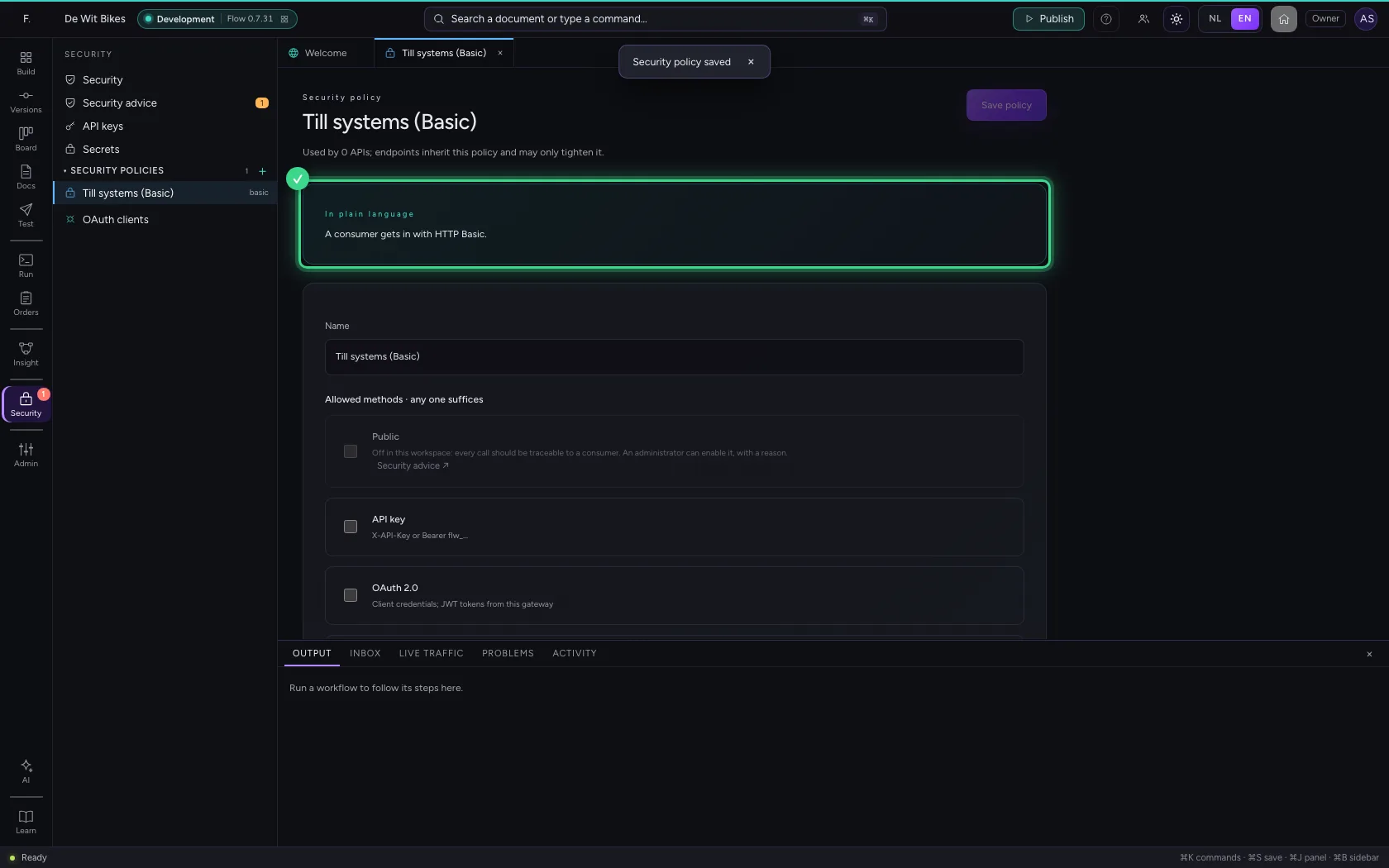
Attach the policy to the API
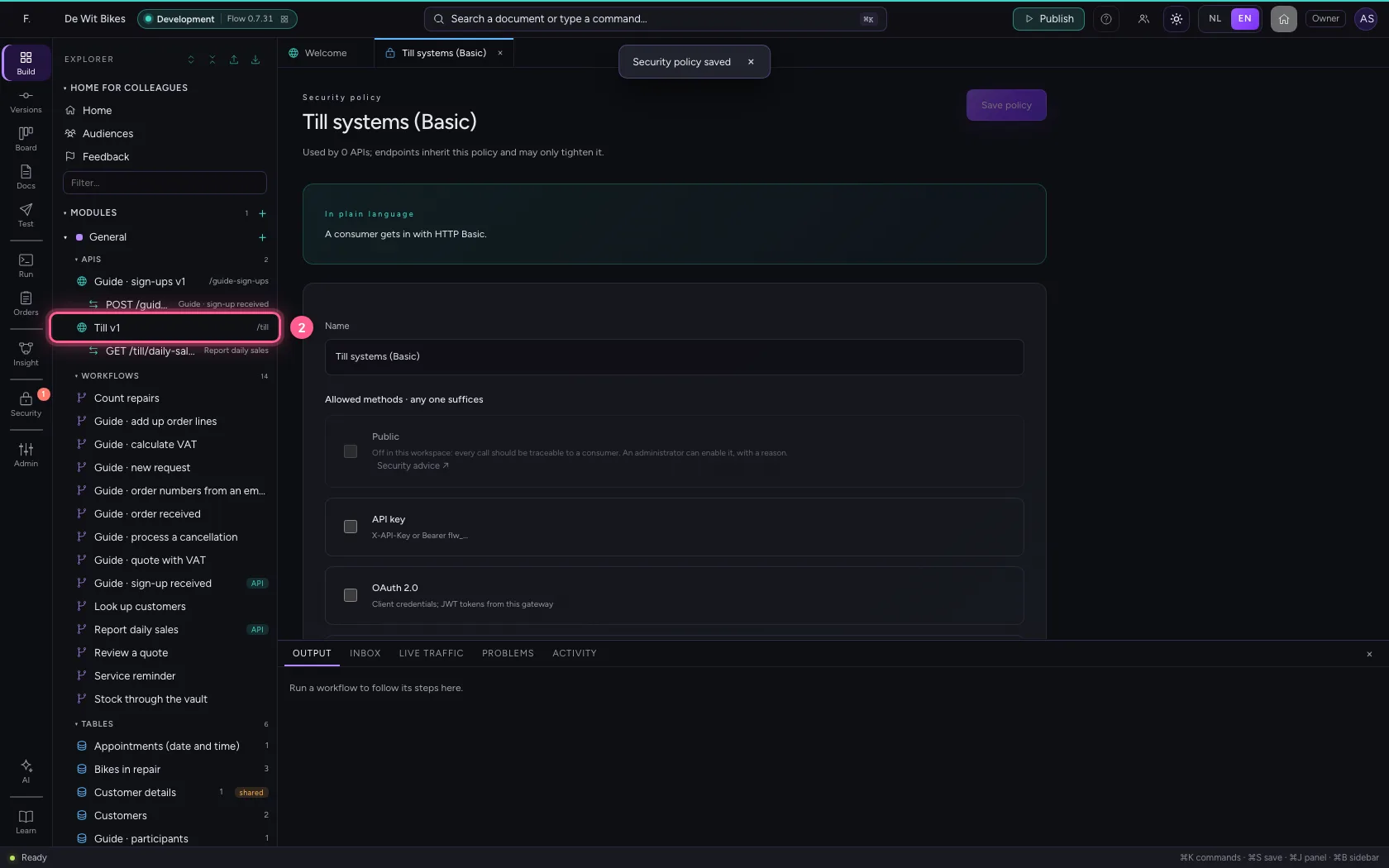
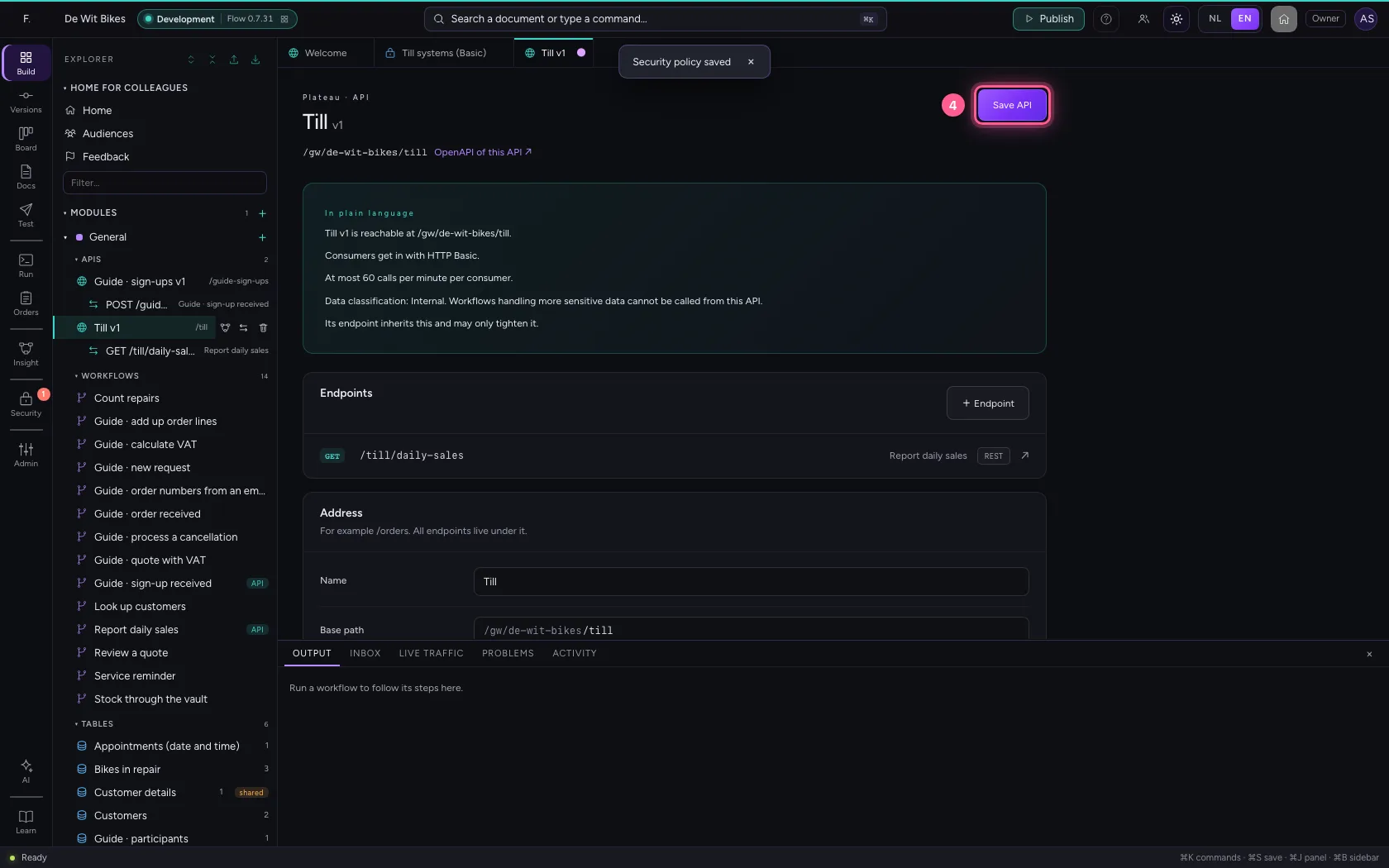
Open the API and choose the policy under Security policy. Every endpoint of the API inherits it.
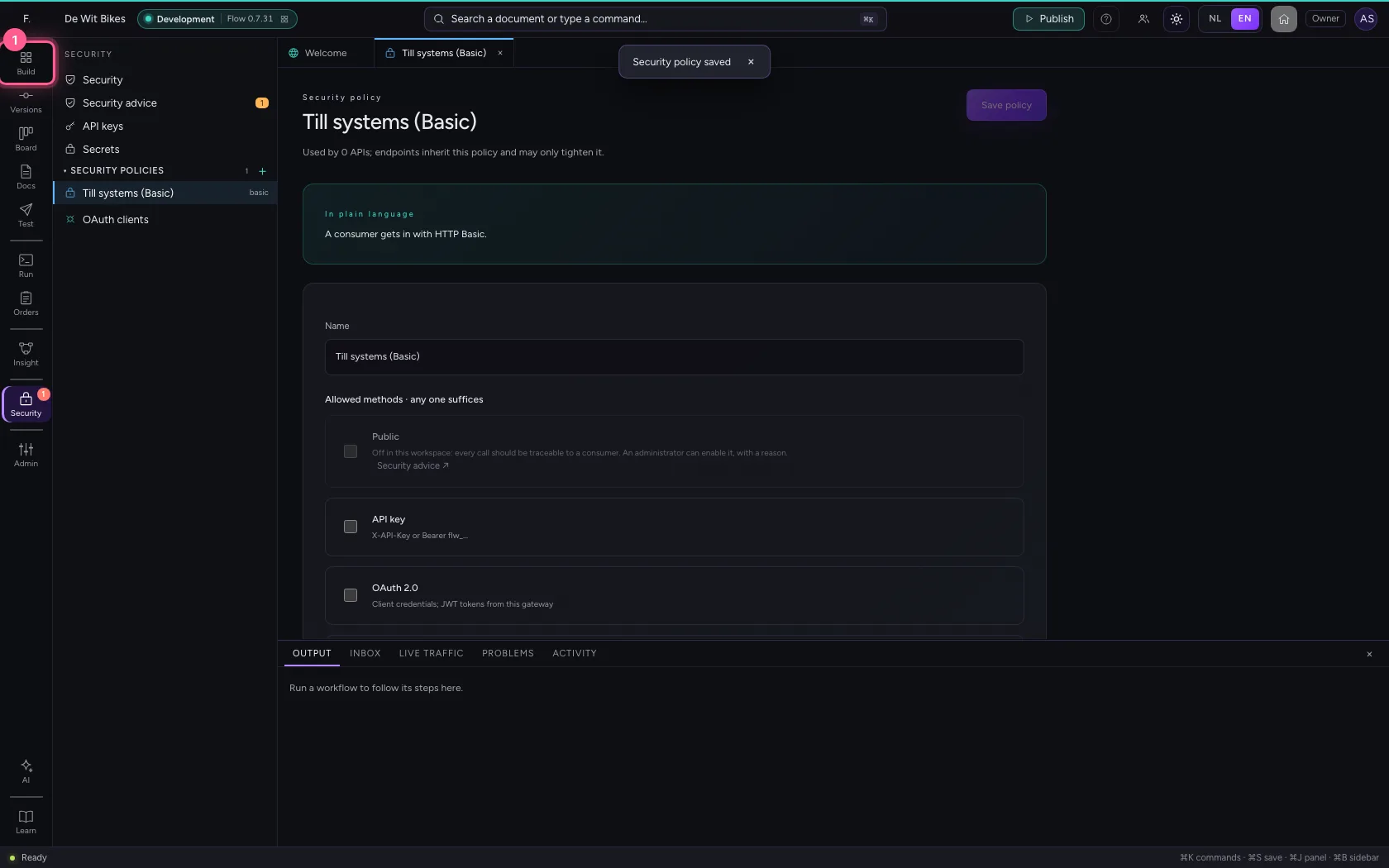
- Click Explorer
- Click the API
- In Security policy, choose Till systems (Basic)
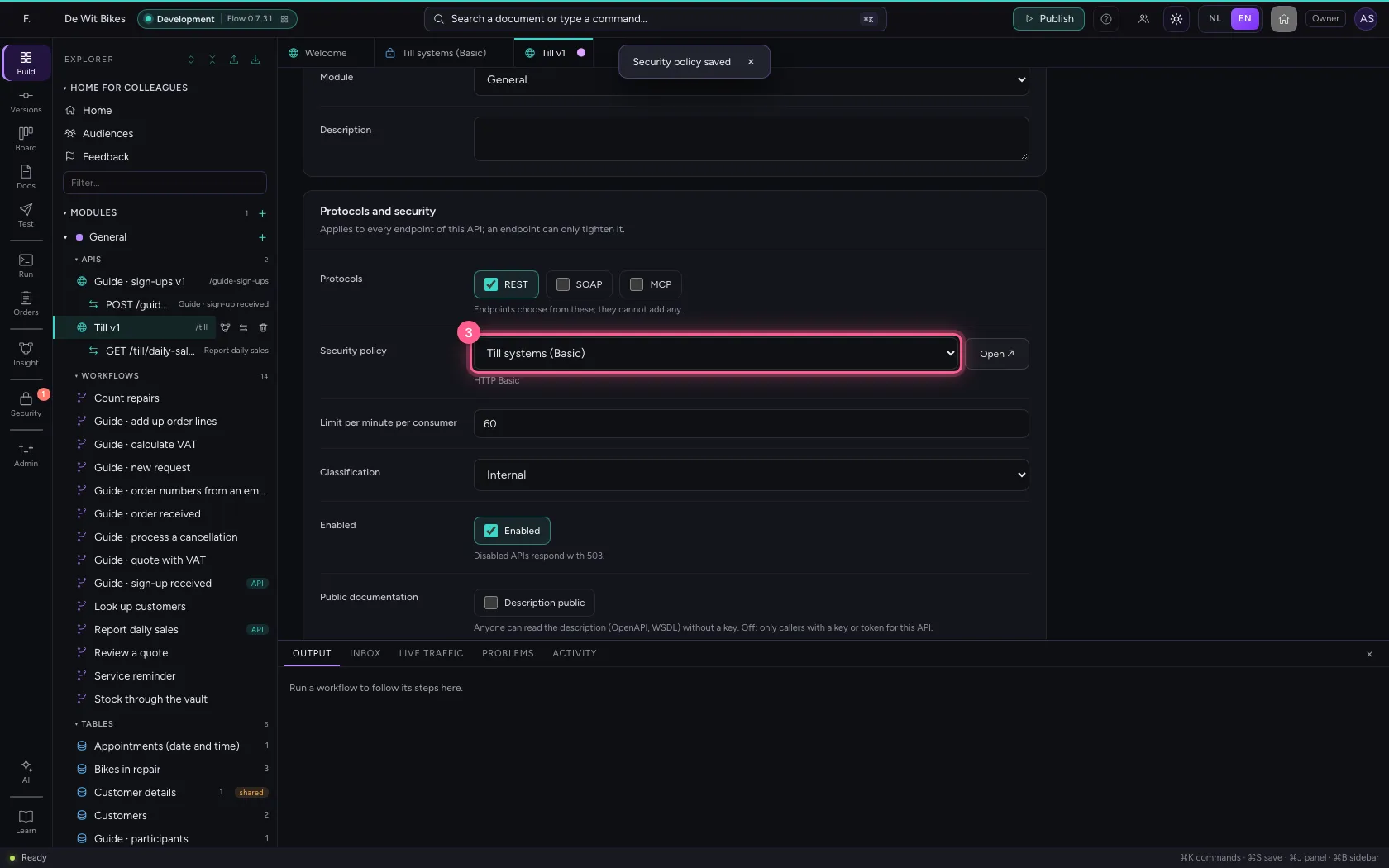
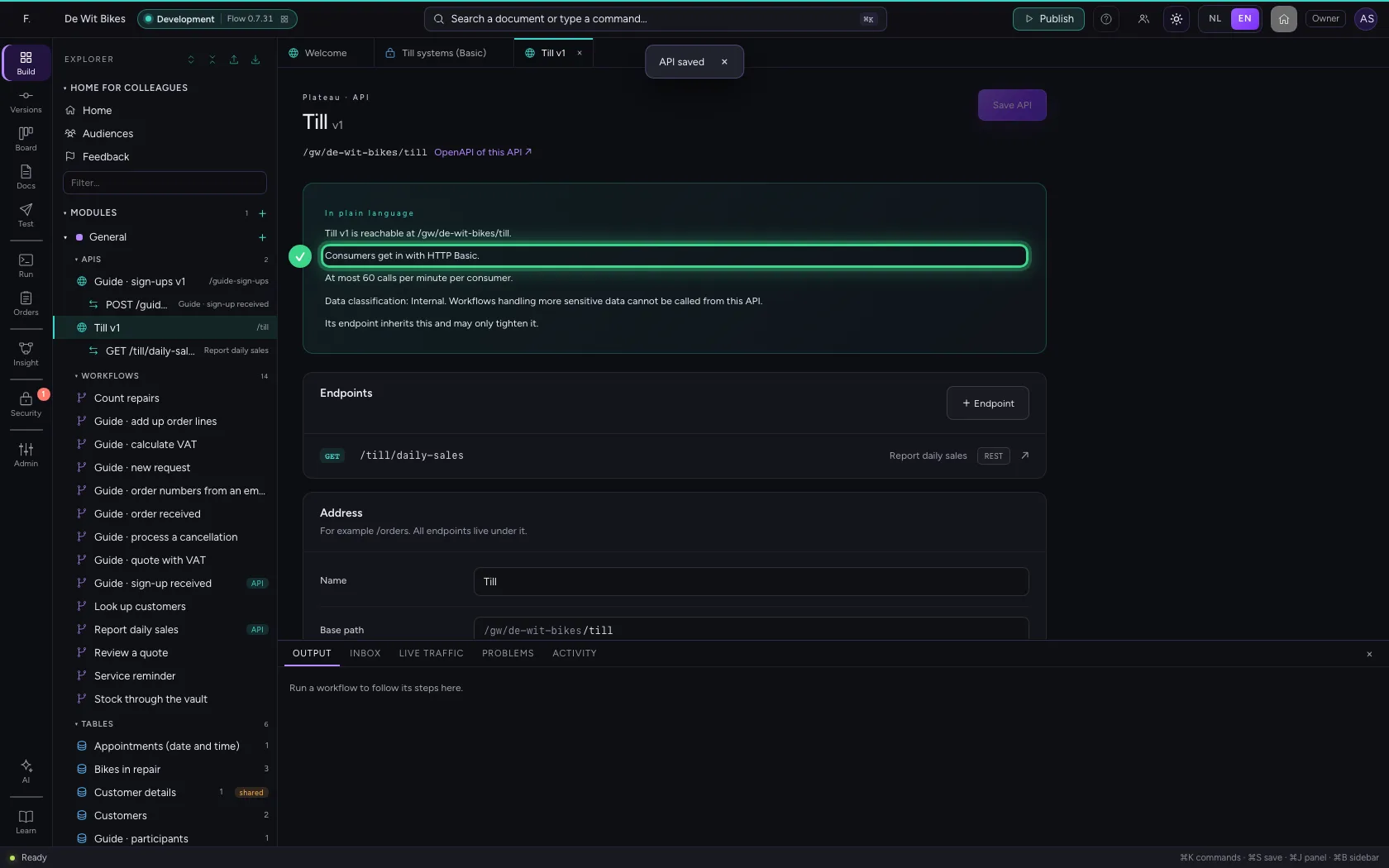
- Click Save API
Create a client for the system
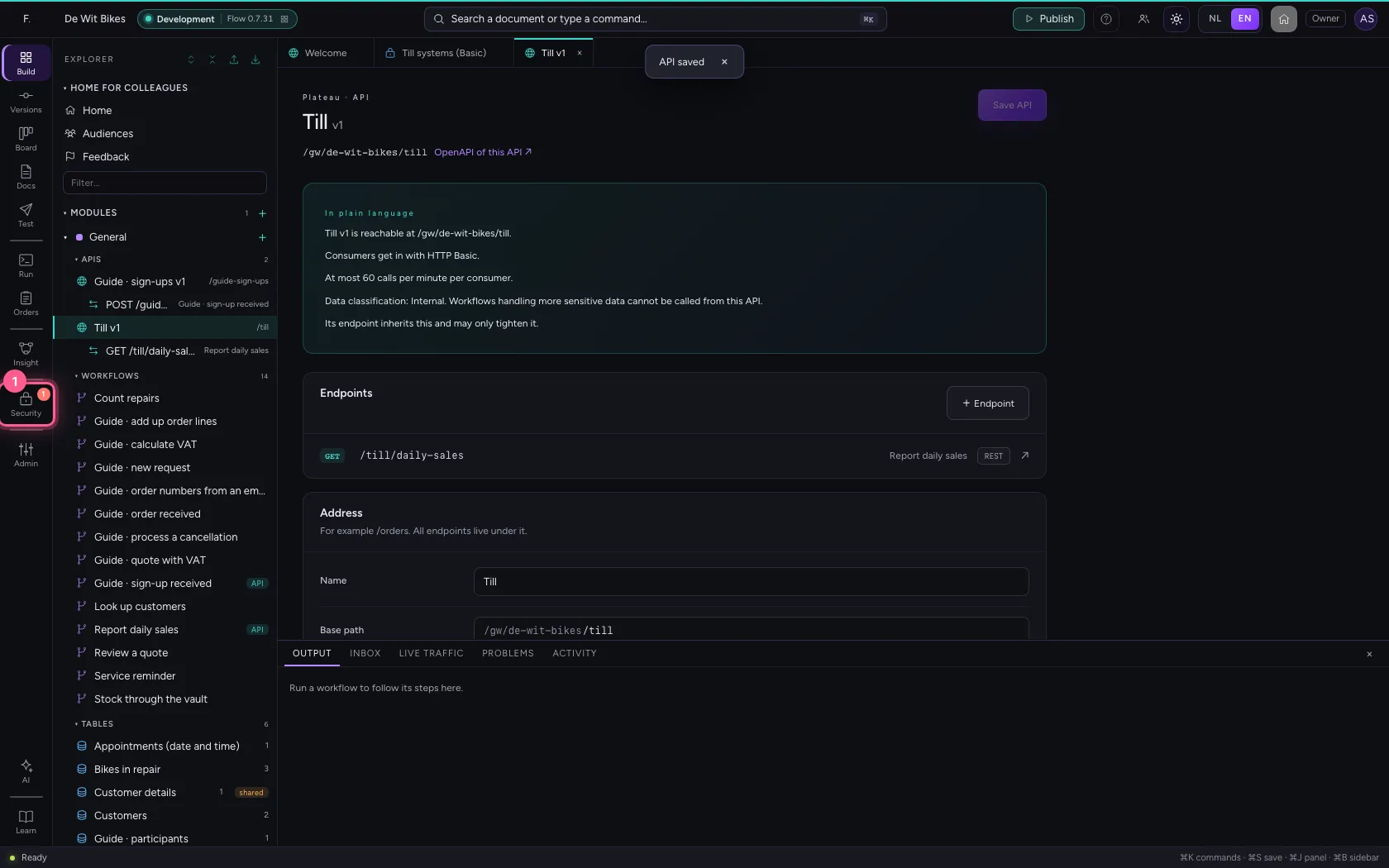
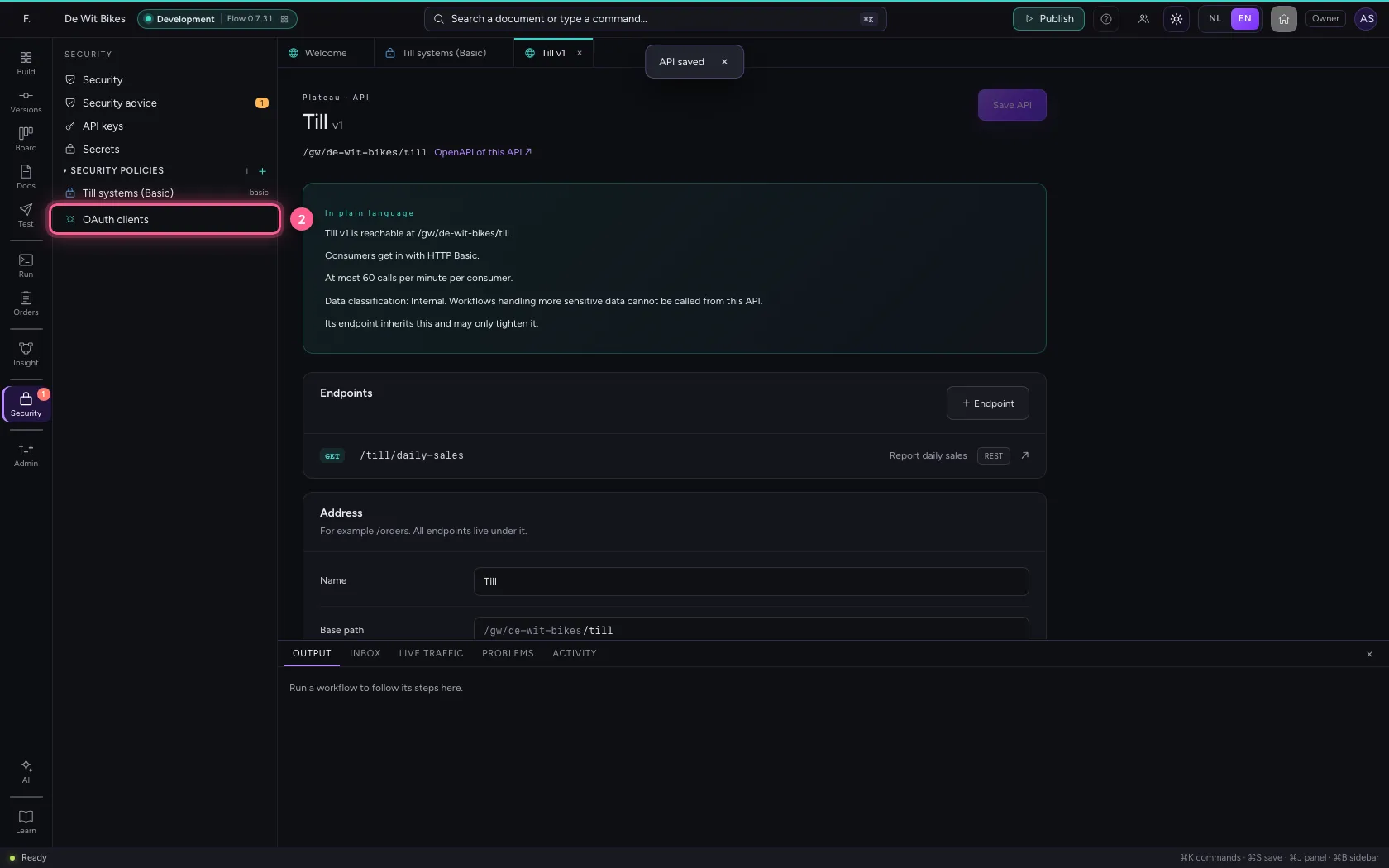
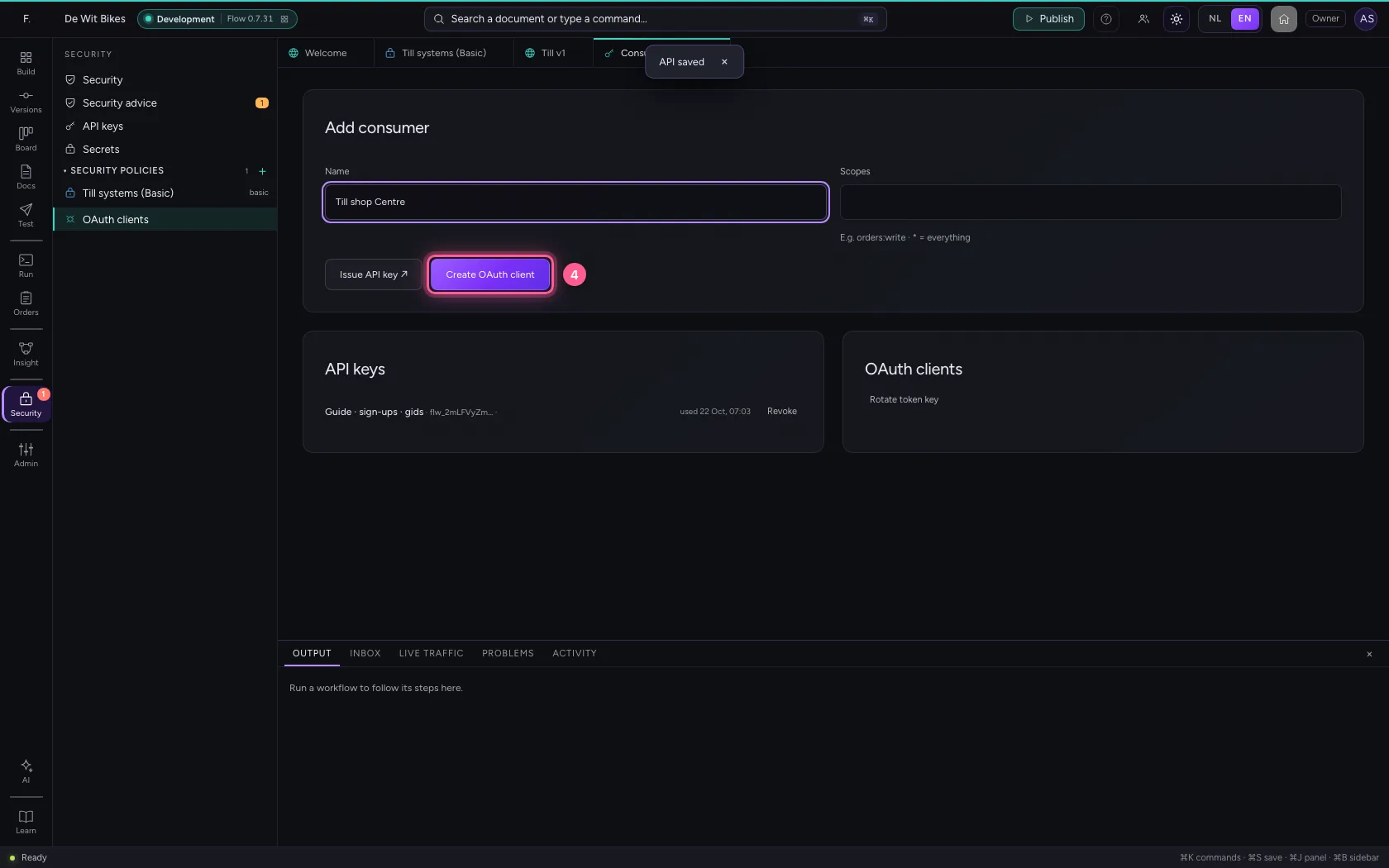
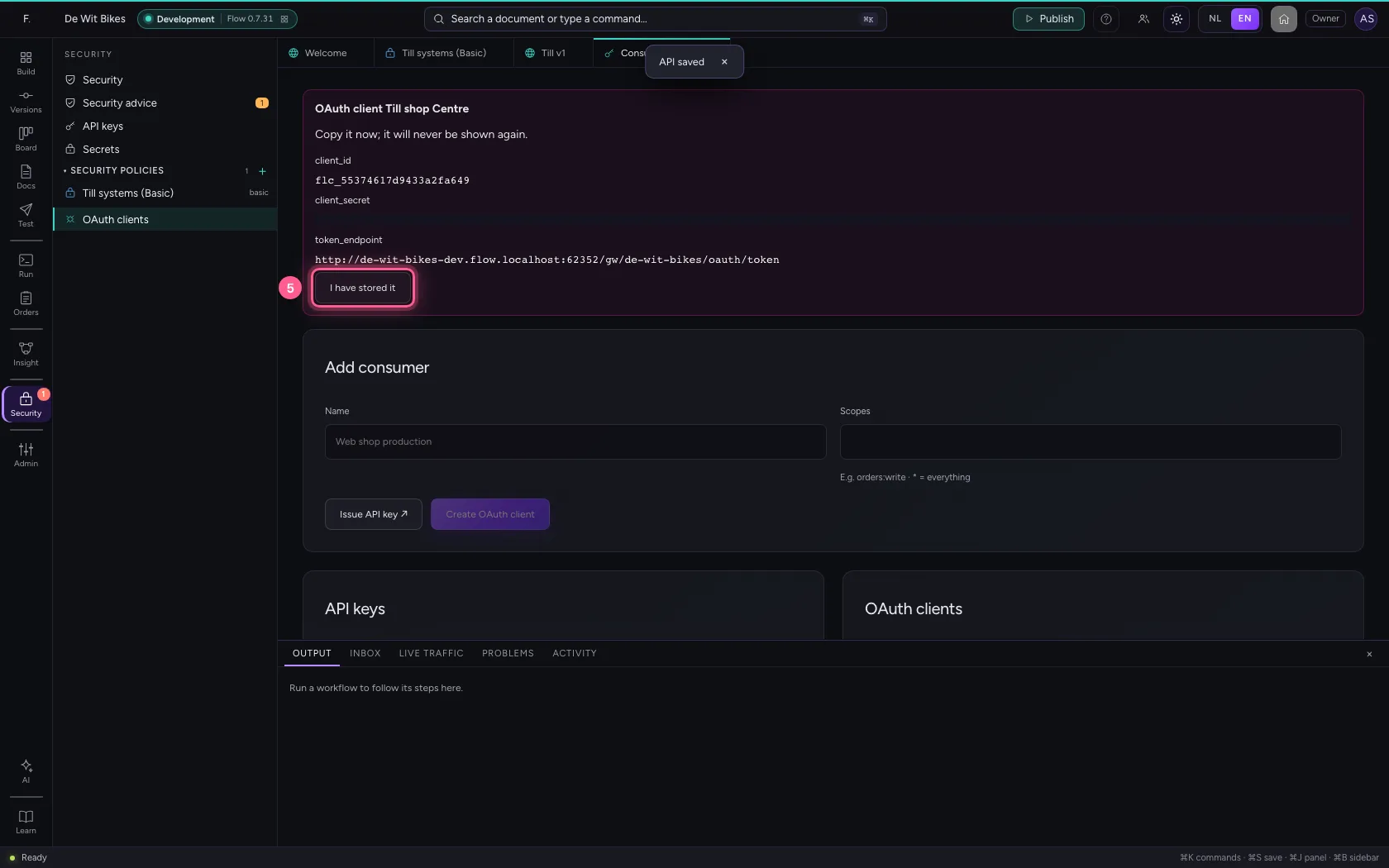
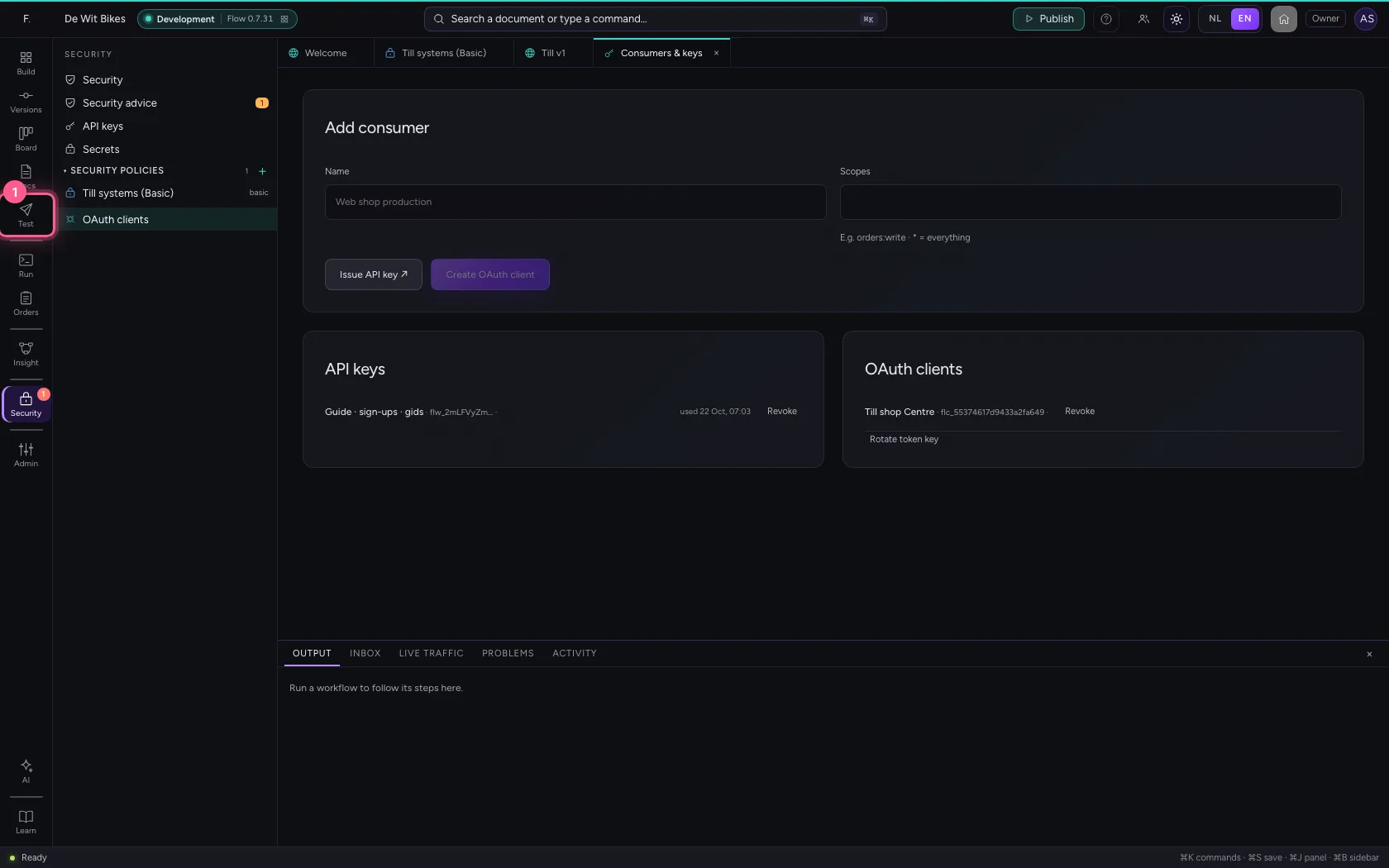
Under Security → OAuth clients you add a consumer and click Create OAuth client. You get a client_id and a client_secret: with HTTP Basic those are the user name and the password. You see the secret only once.
- Click Security
- Click OAuth clients
- In Name, type
Till shop Centre
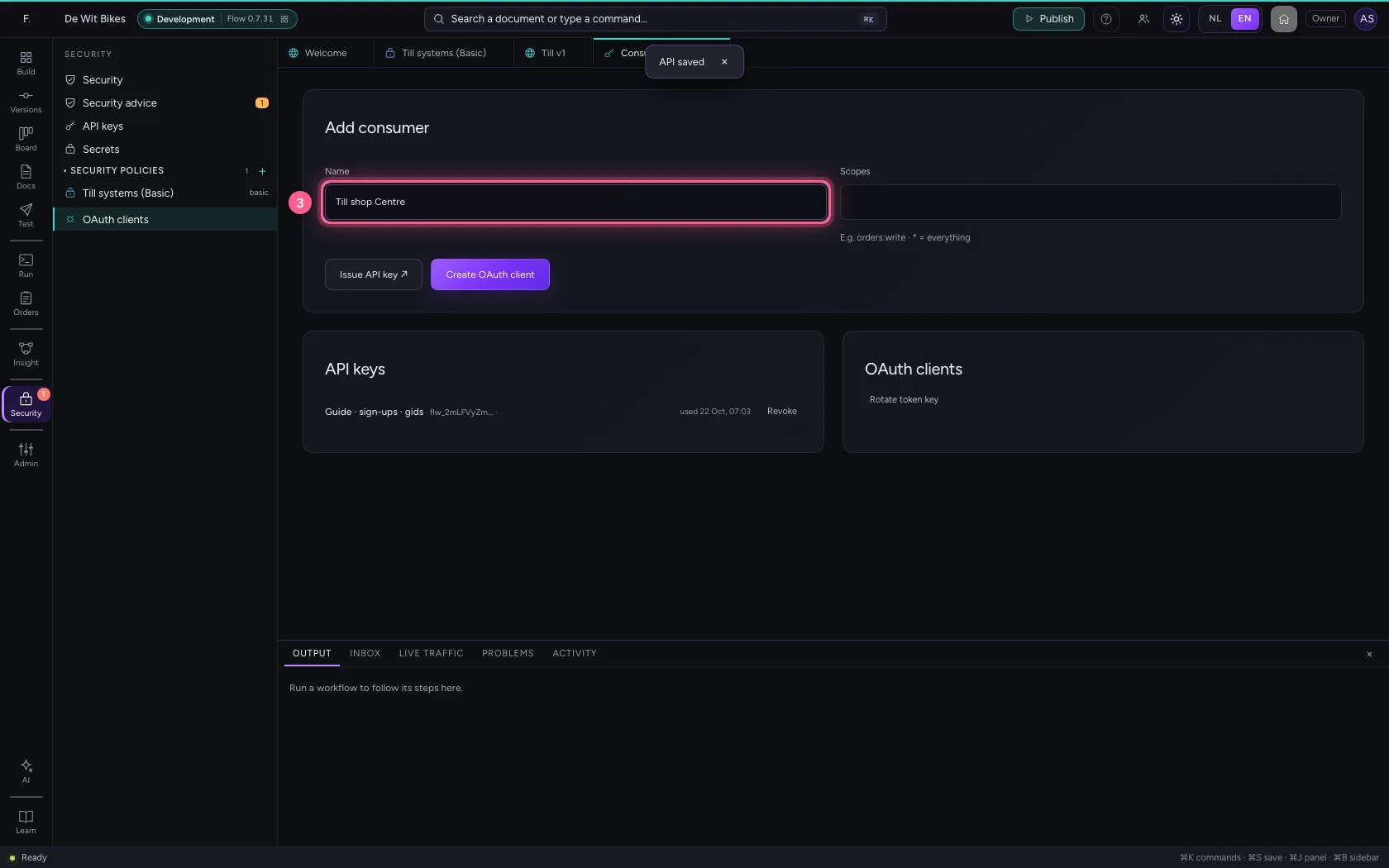
- Click Create OAuth client
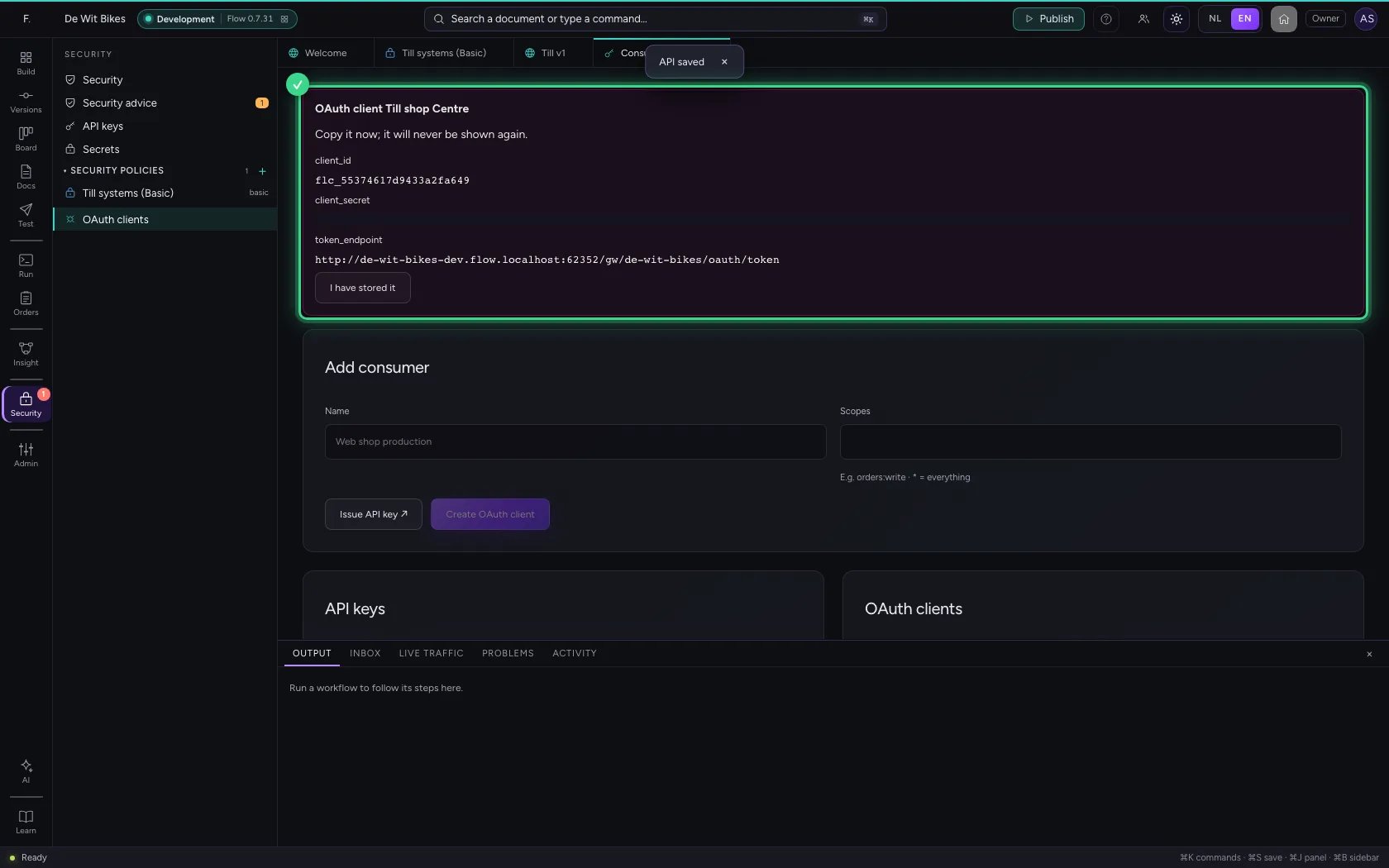
- Click I have stored it
Call the API with Basic
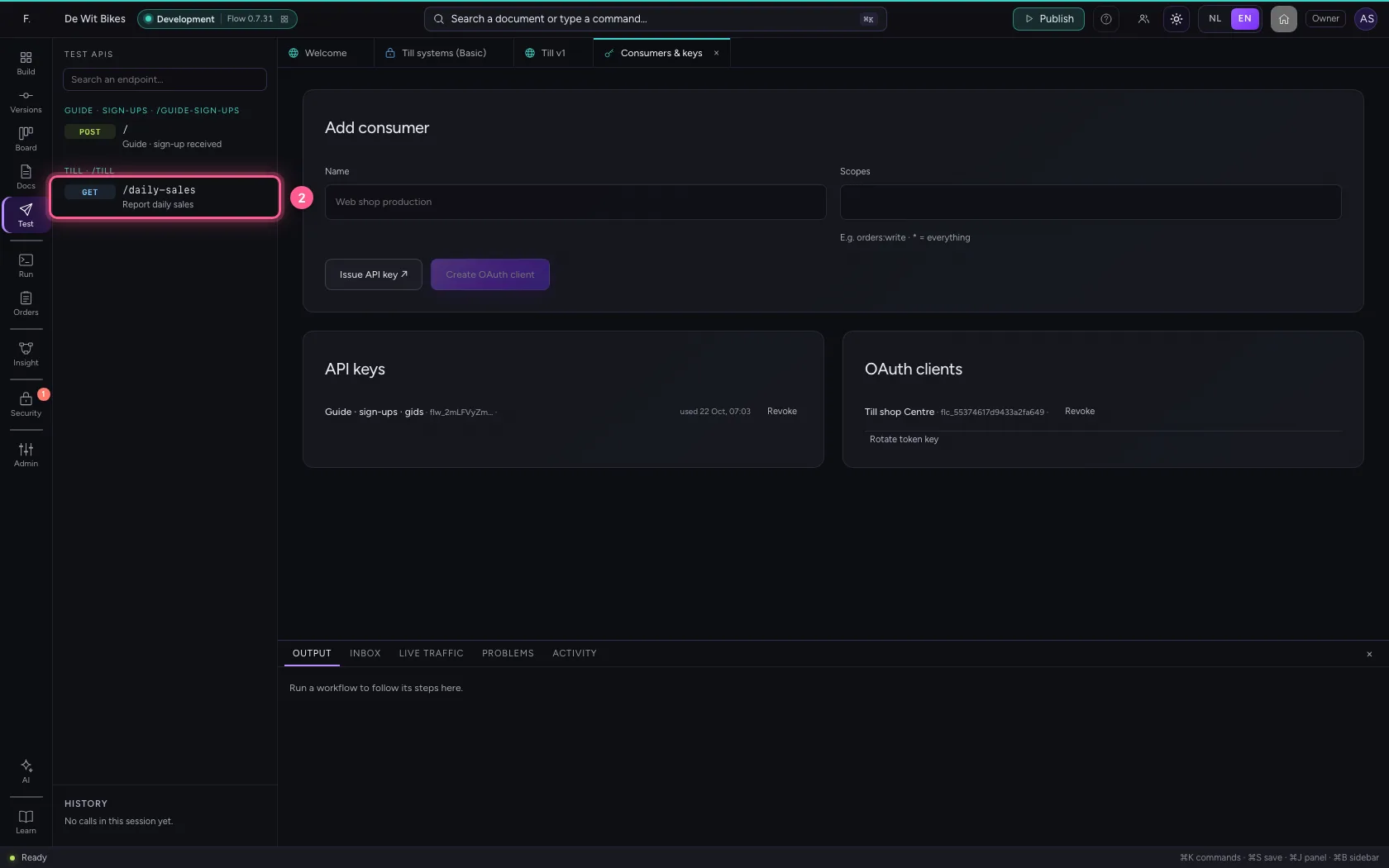
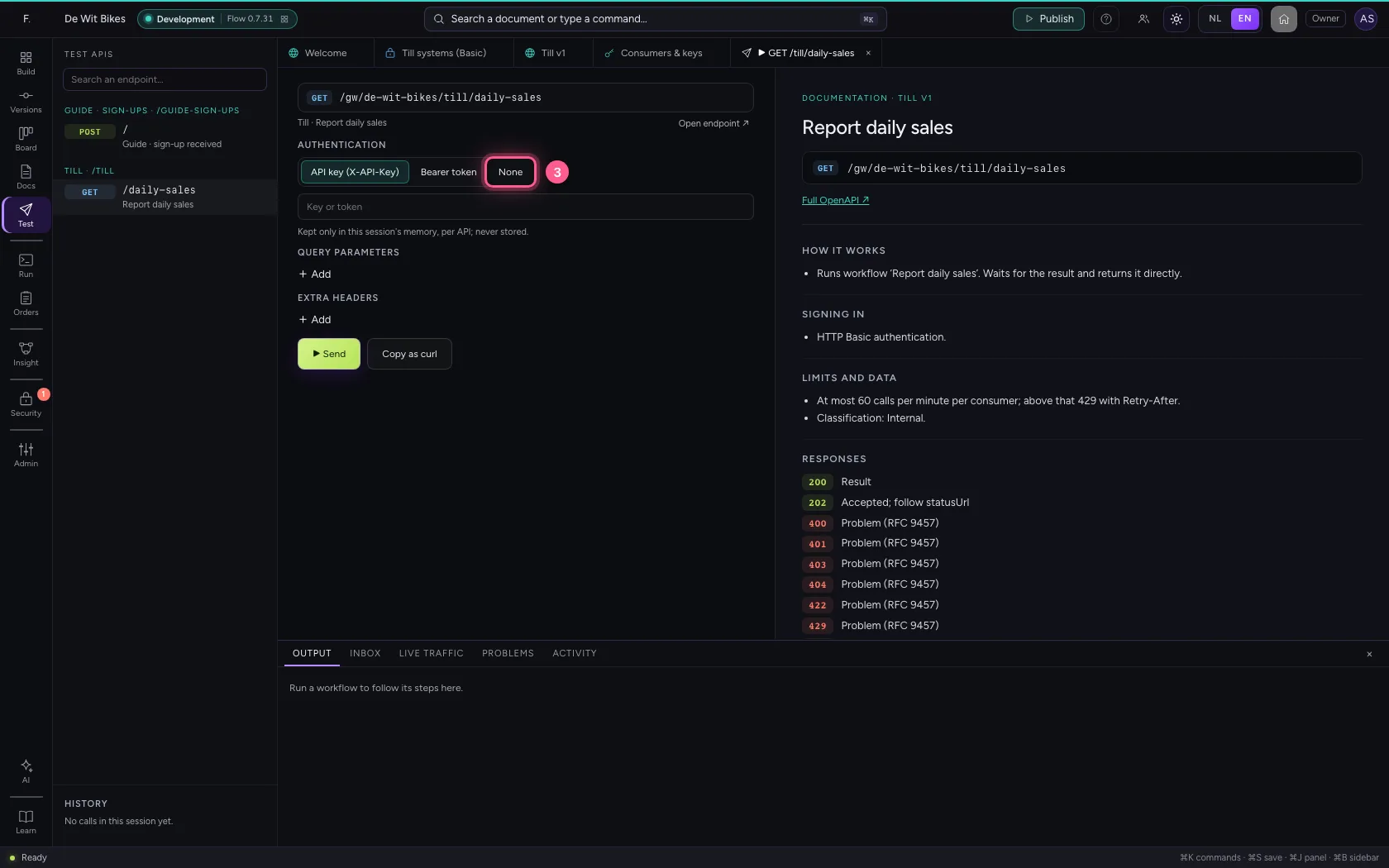
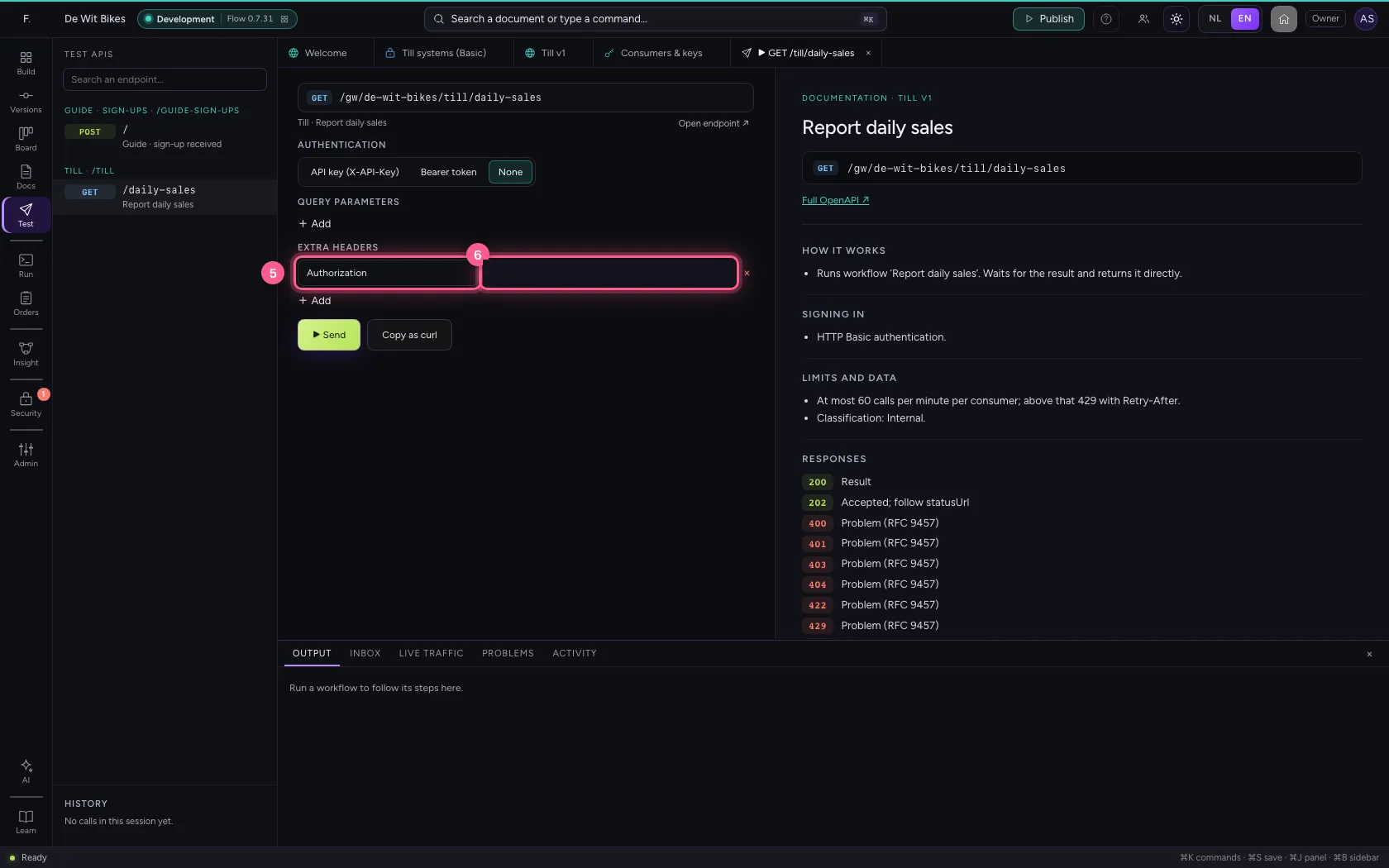
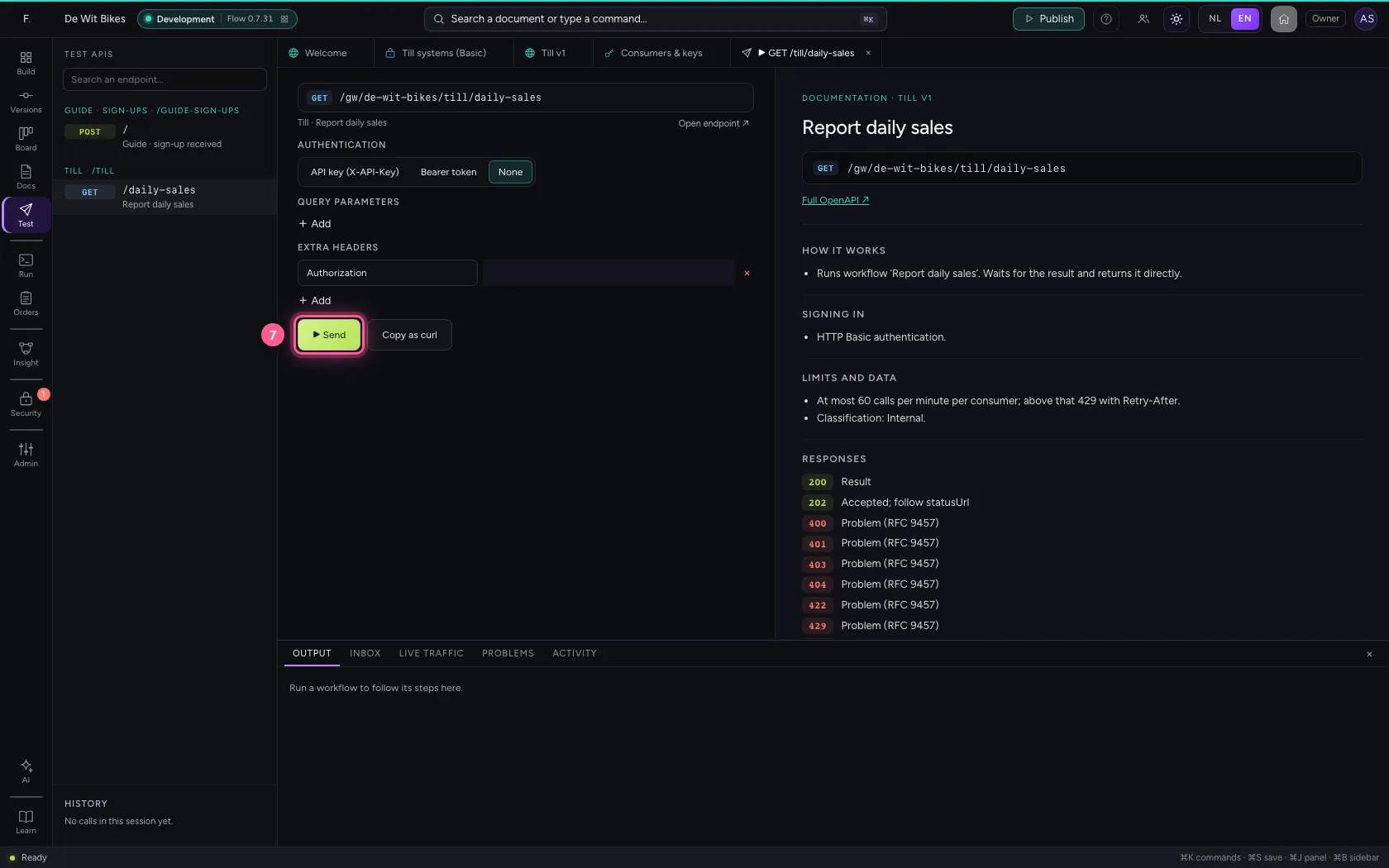
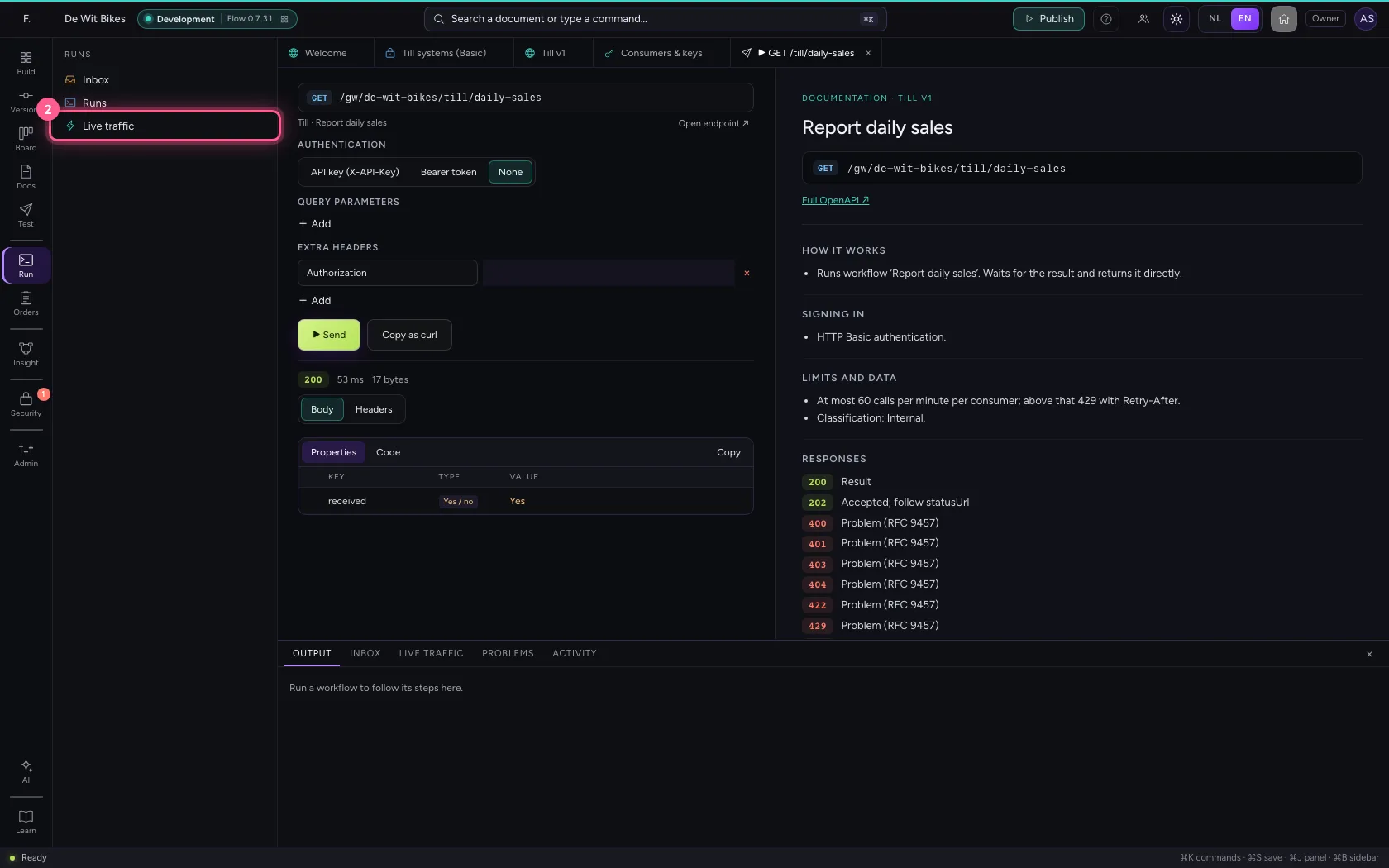
In Test APIs (in the bar on the left) you choose the endpoint. Set Authentication to None and add the header Authorization with Basic followed by client_id:client_secret in base64 — what every system with Basic support does by itself.
- Click Test APIs
- Click the endpoint
- Click None
- Click + Add
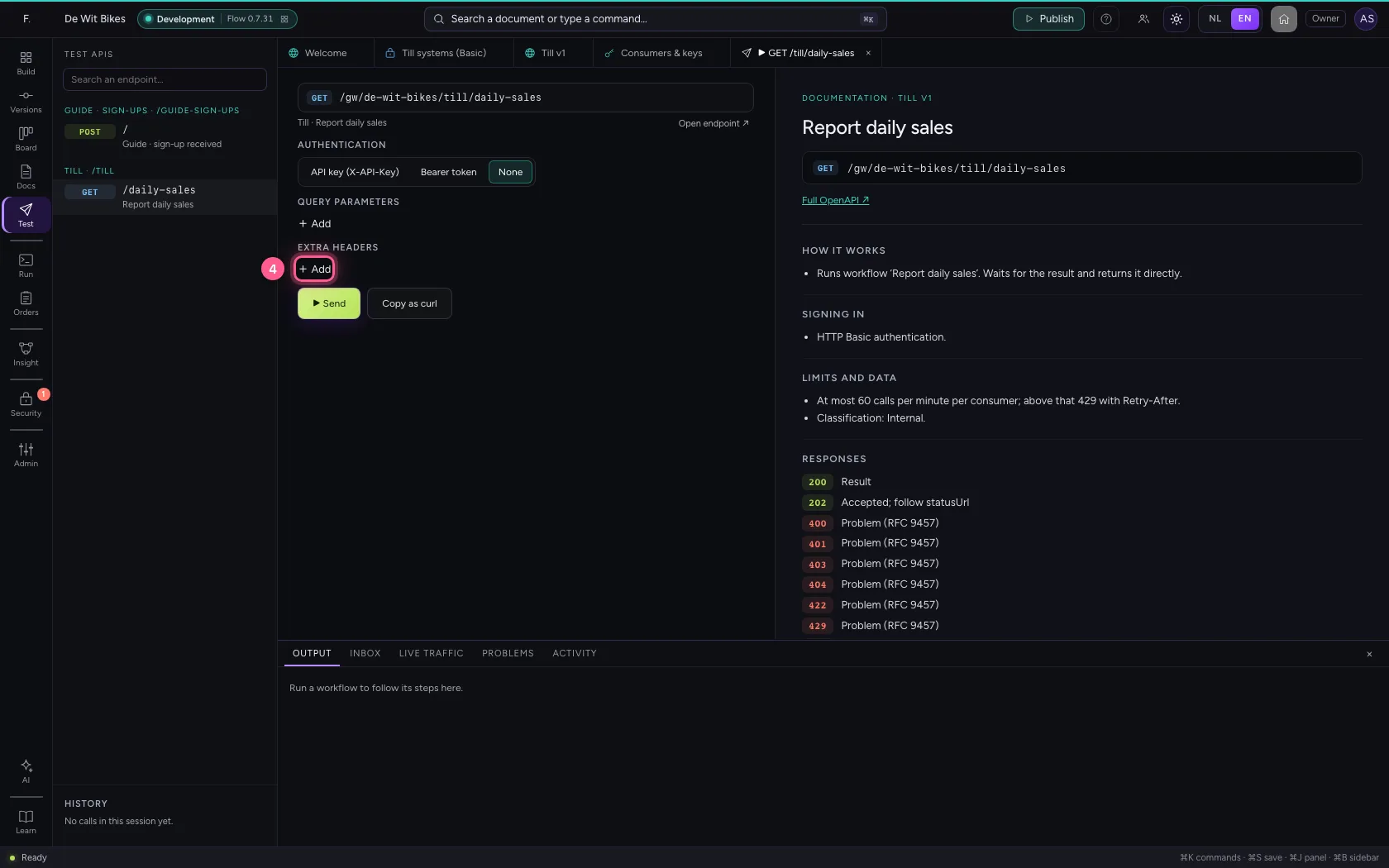
- In Name, type
Authorization - In Value, type
••••••••
- Click ▶ Send
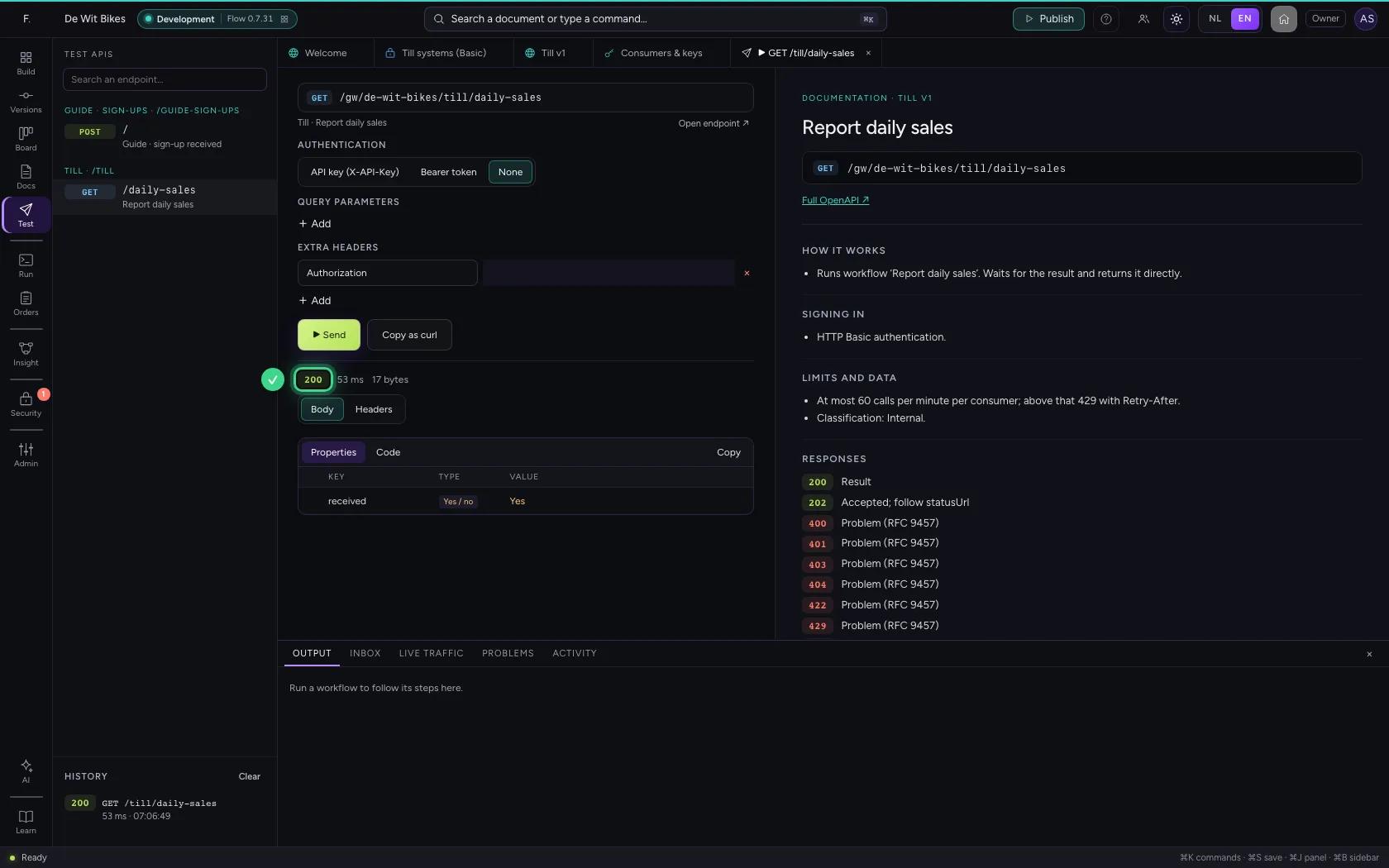
See who called
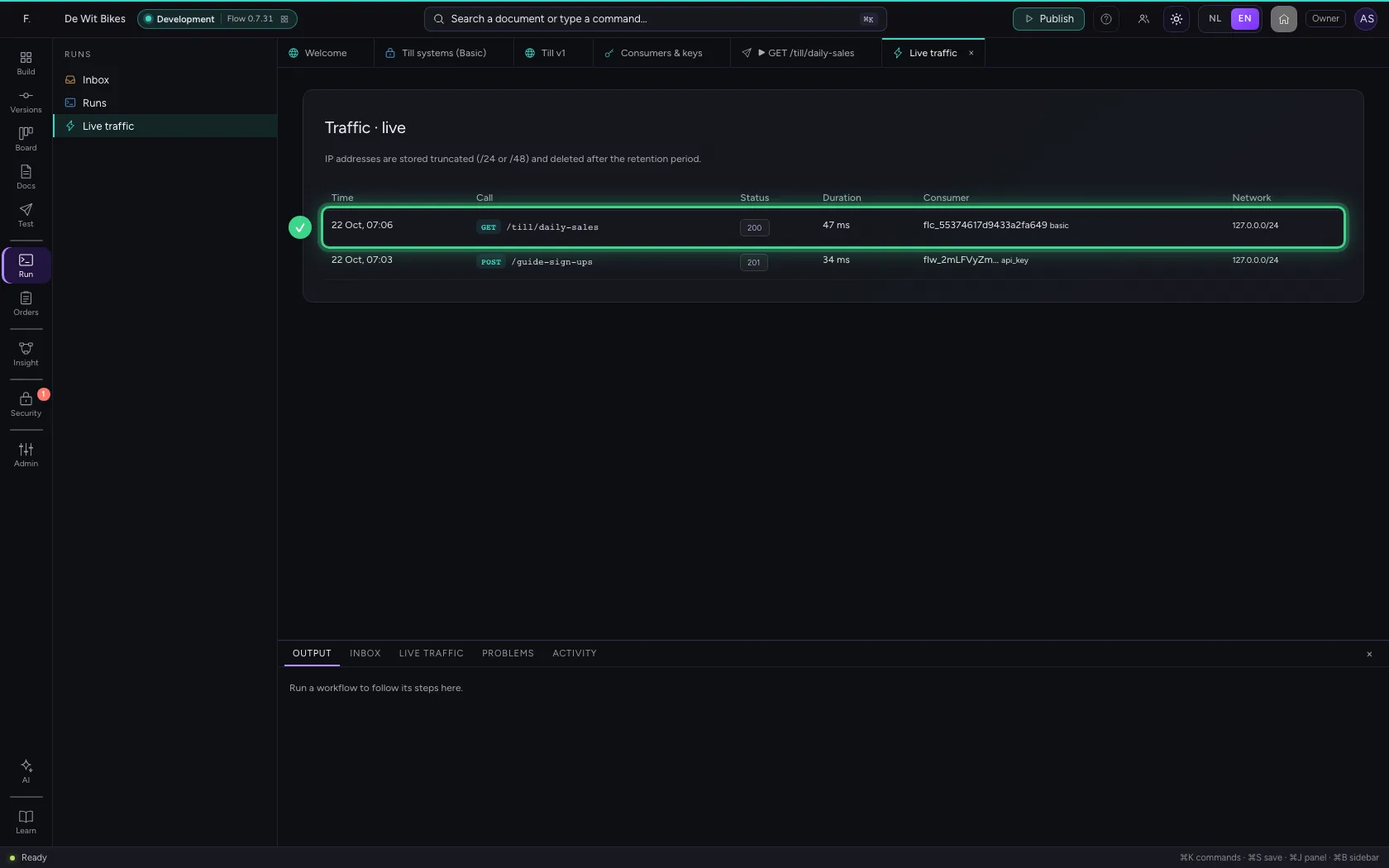
Under Runs → Live traffic you find every call, with the client that signed in and the method basic. That way every call can be traced to one system.
- Click Runs
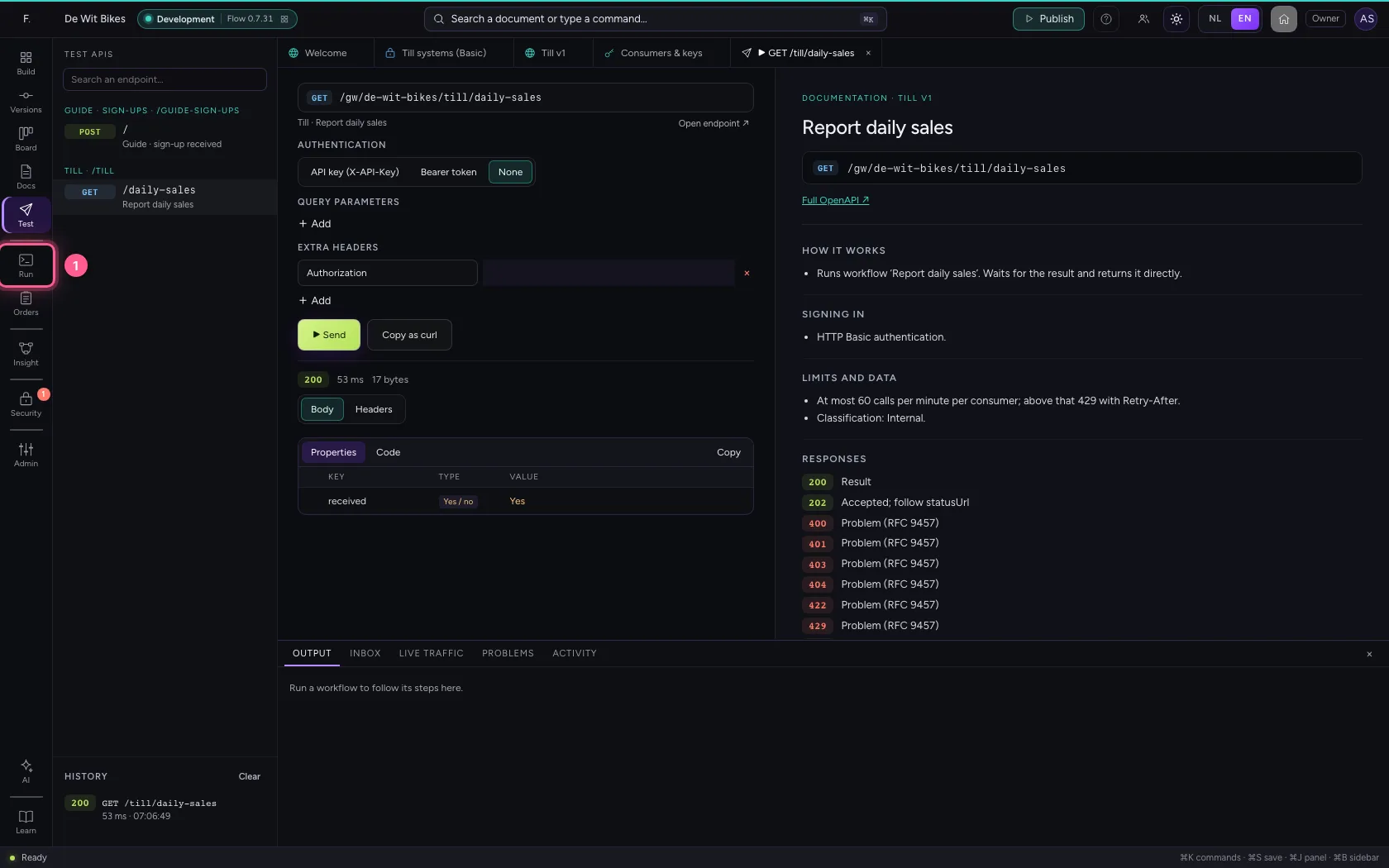
- Click Live traffic
This guide was carried out step by step on 22 Oct 2026 by an automated test on Flow (version 3e563176).