API keys and permissions (scopes)
An API key belongs to a department or team, opens only the APIs you tick, has only the permissions (scopes) you name and expires by itself. An endpoint can demand an extra permission. You issue a key without that permission and see 403, add it and see 200, and revoke the key: 401.
Open your development environment
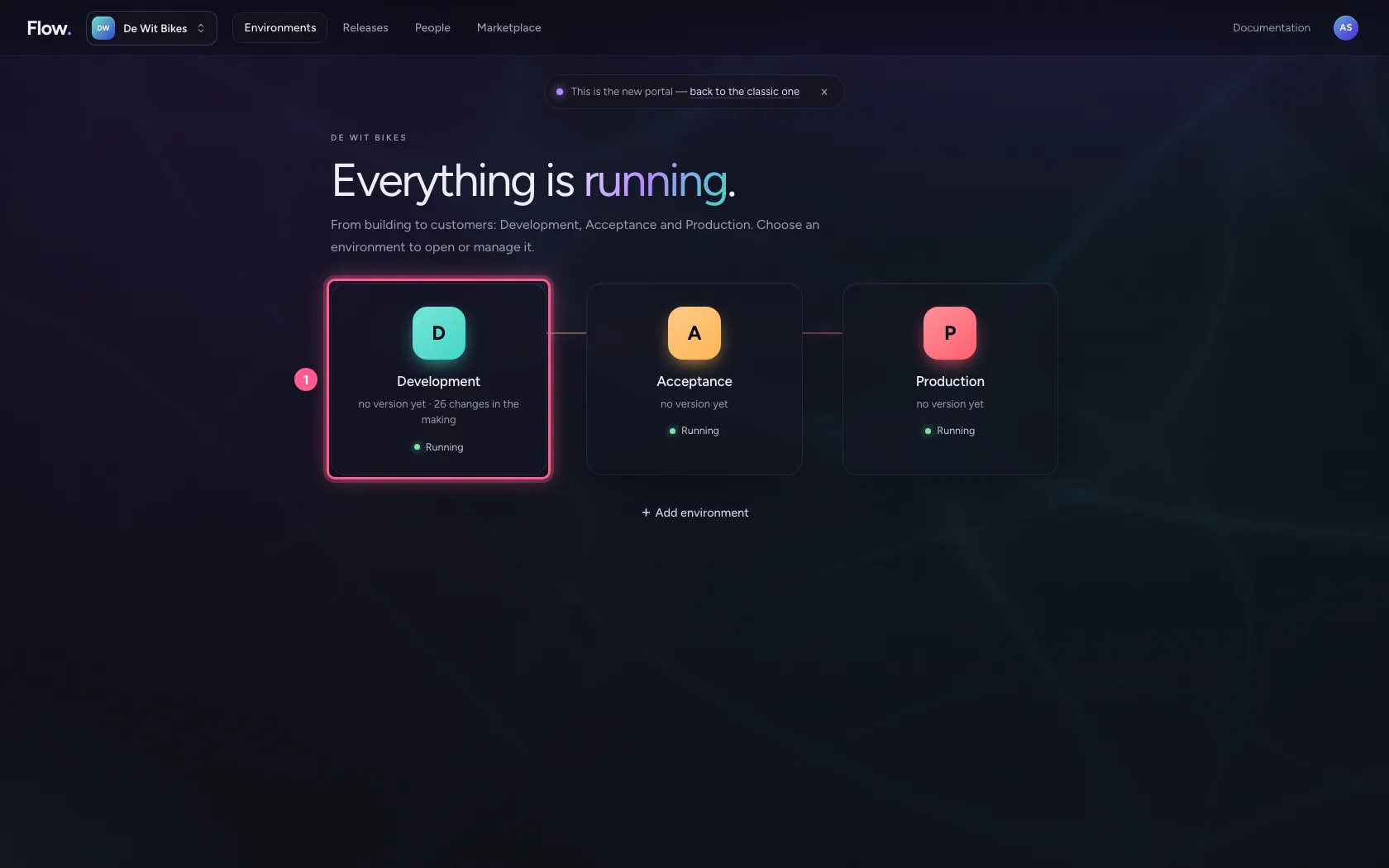
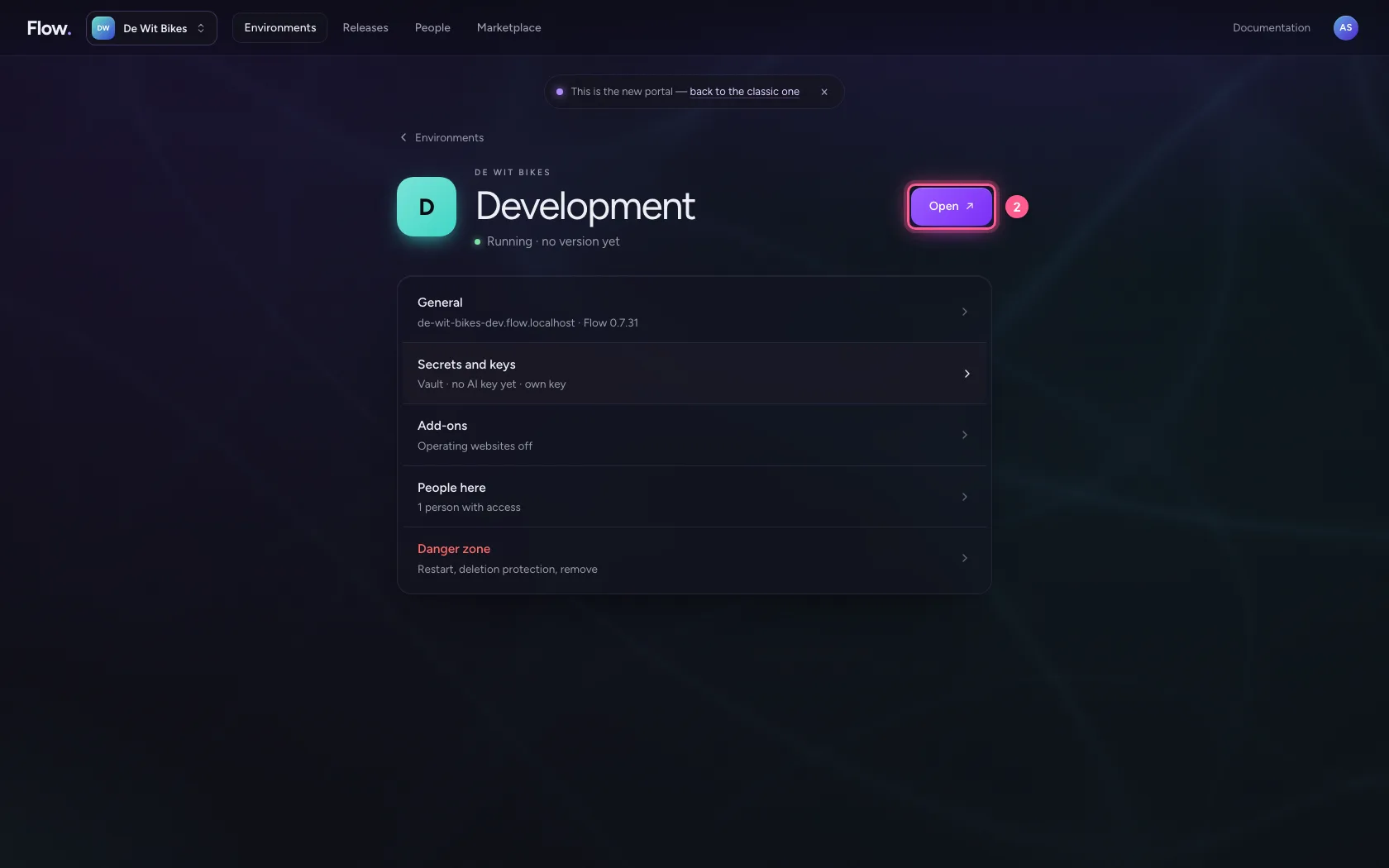
In the portal, under Environments, click Development, and there Open. Flow opens in a new tab and you are signed in straight away.
- Click Development
- Click Open ↗
Issue a key
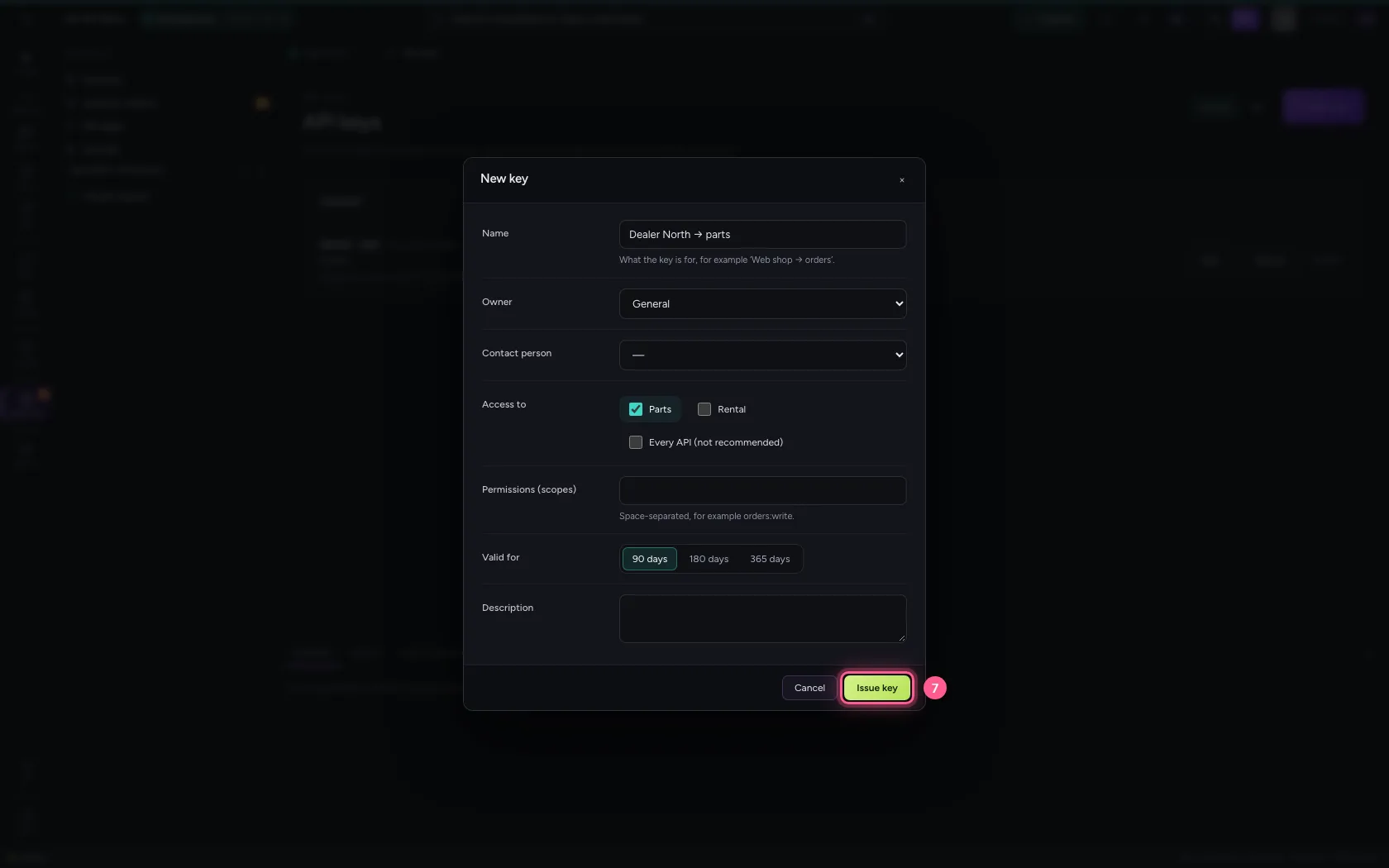
Under Security → API keys click + New key. Give it a name that says for whom and what for, an owner, and tick only the API it may open. Leave permissions empty for now. It expires after the chosen period.
- Click Security
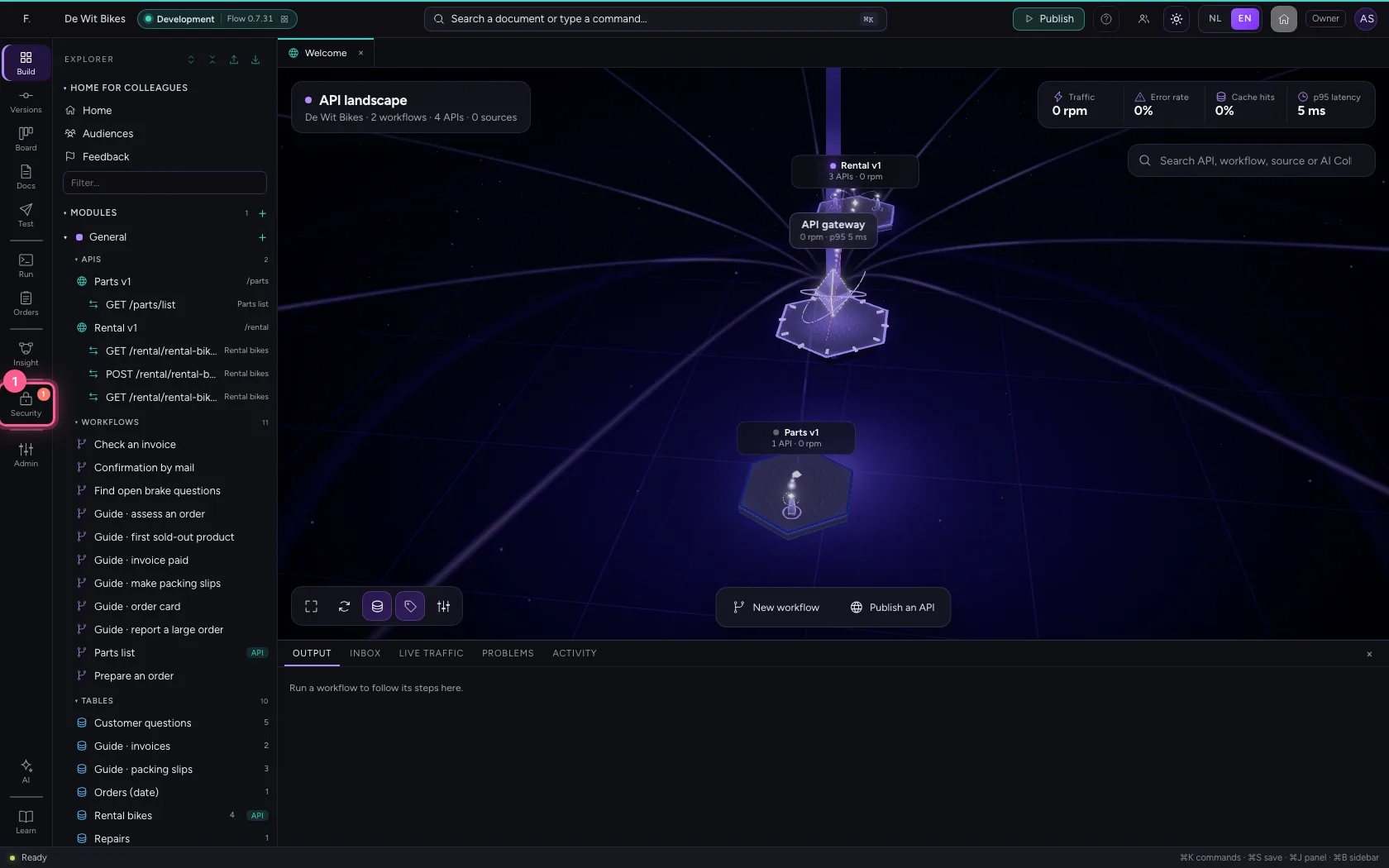
- Click API keys
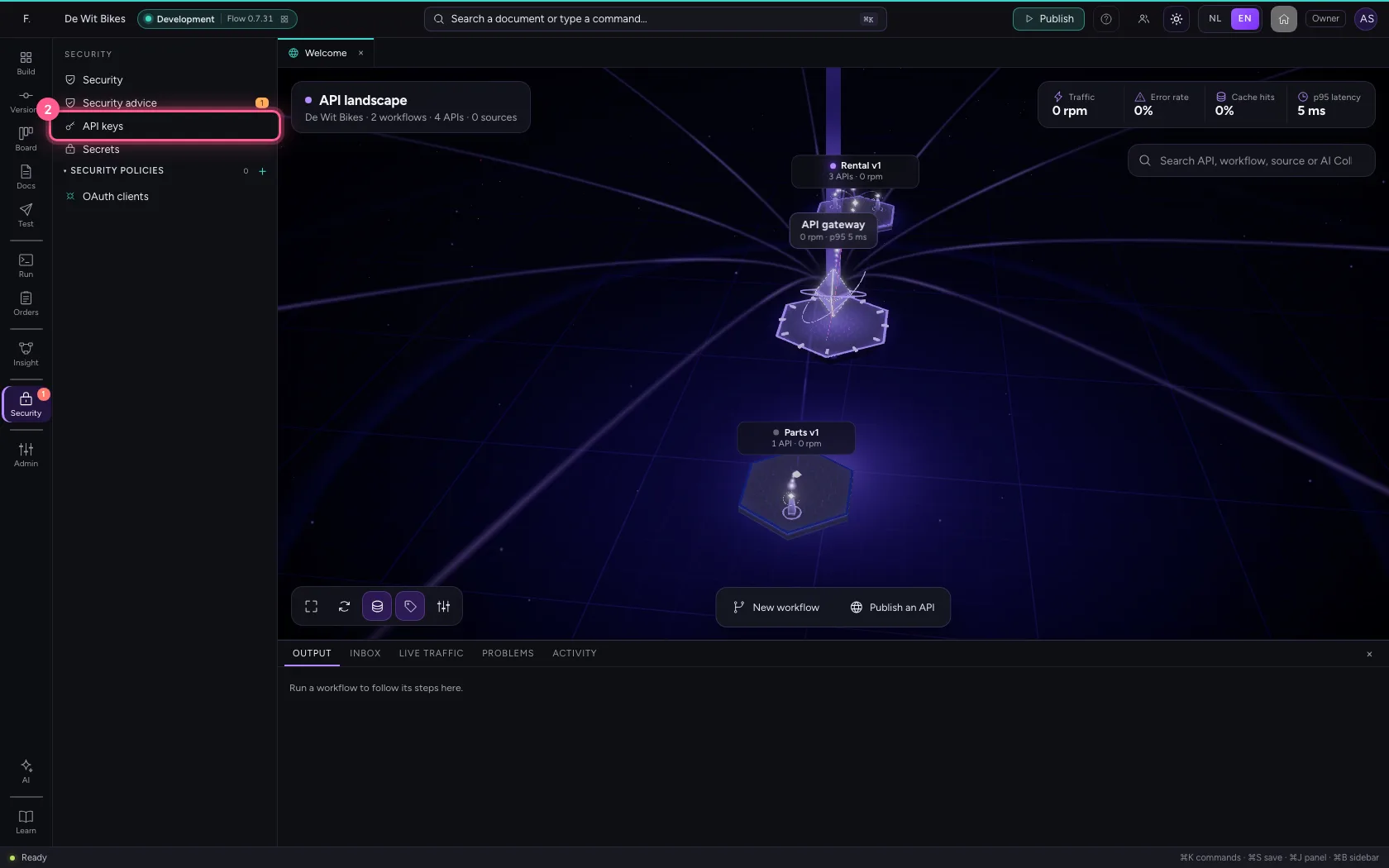
- Click + New key
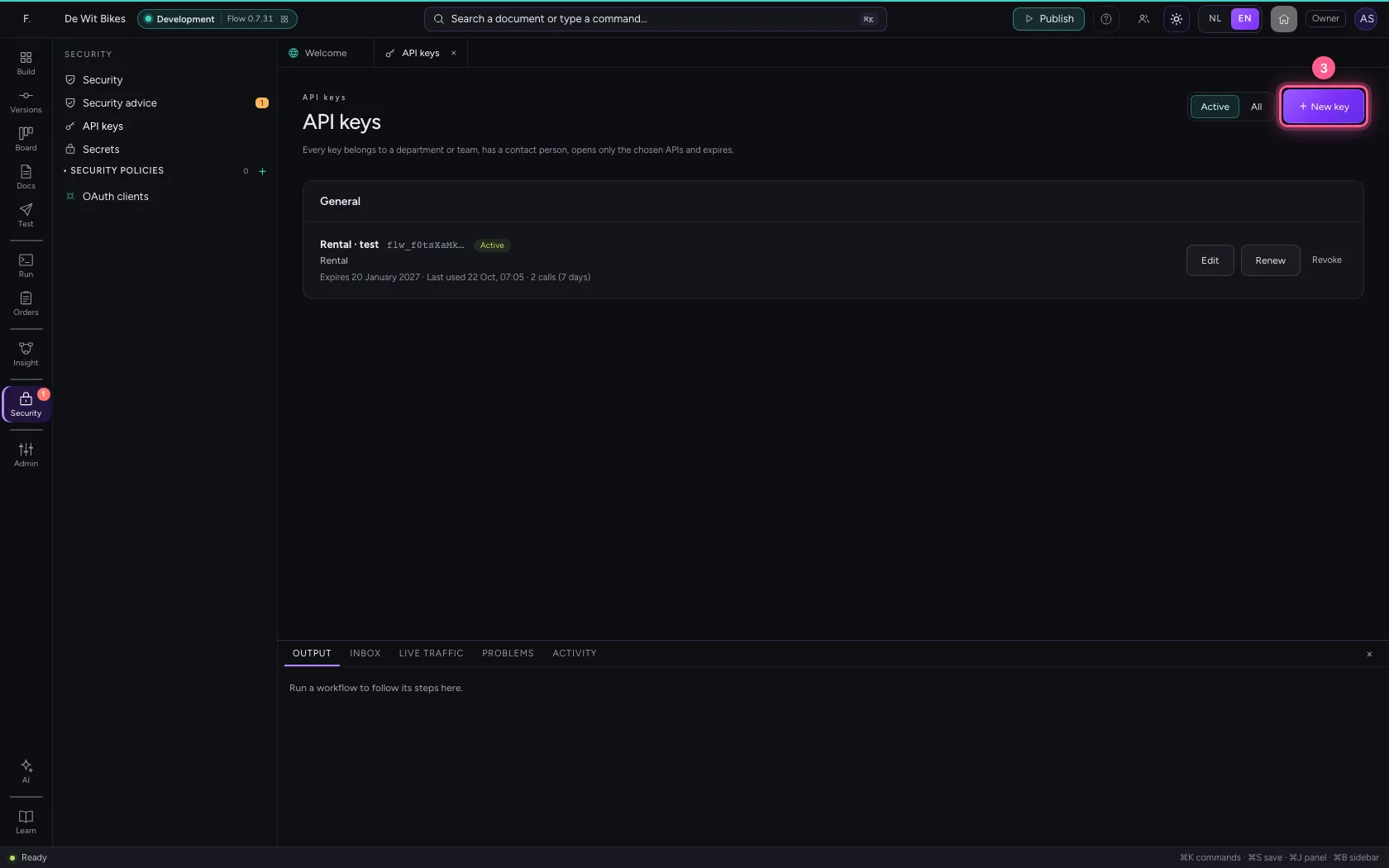
- In Name, type
Dealer North → parts
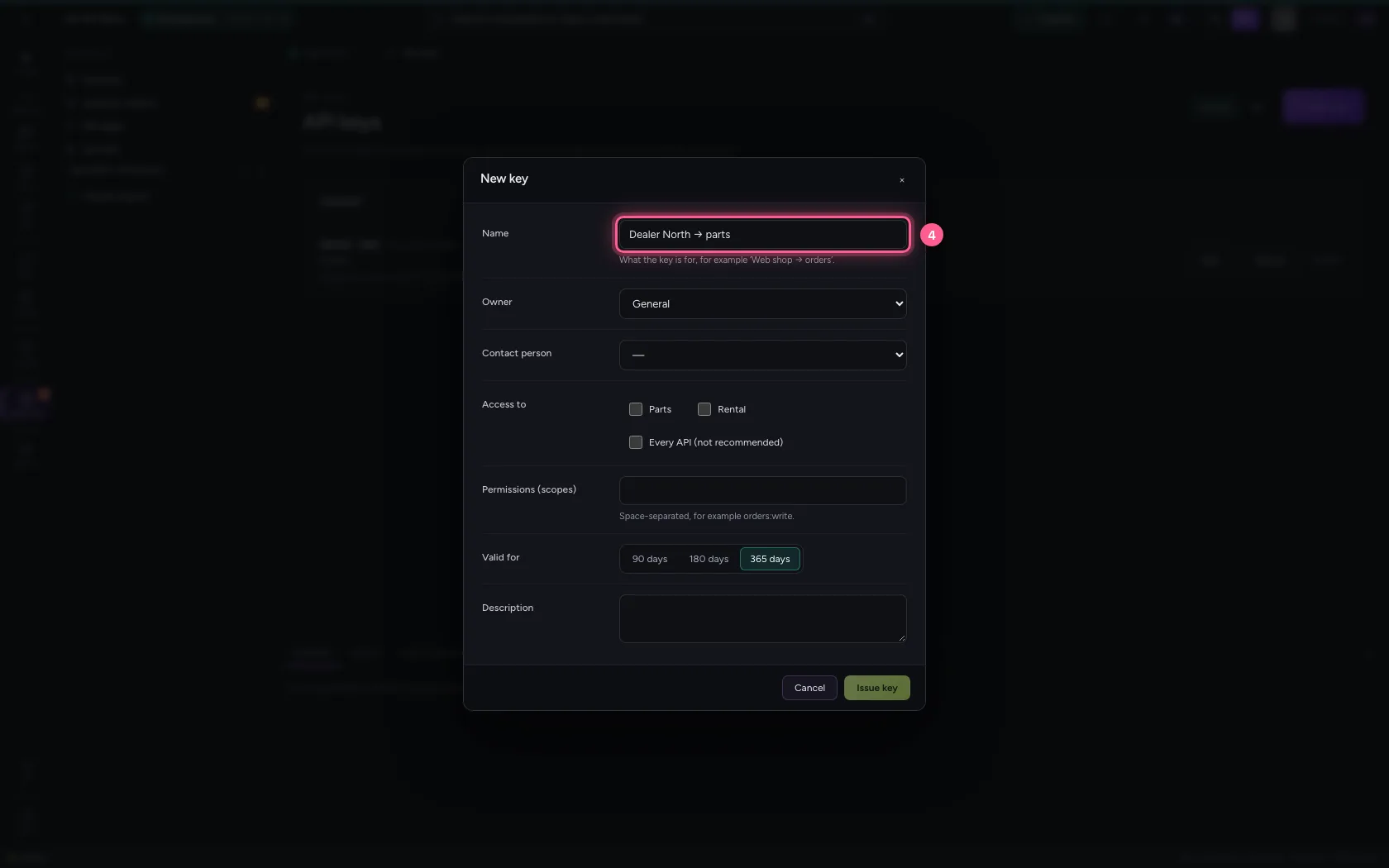
- Click Parts
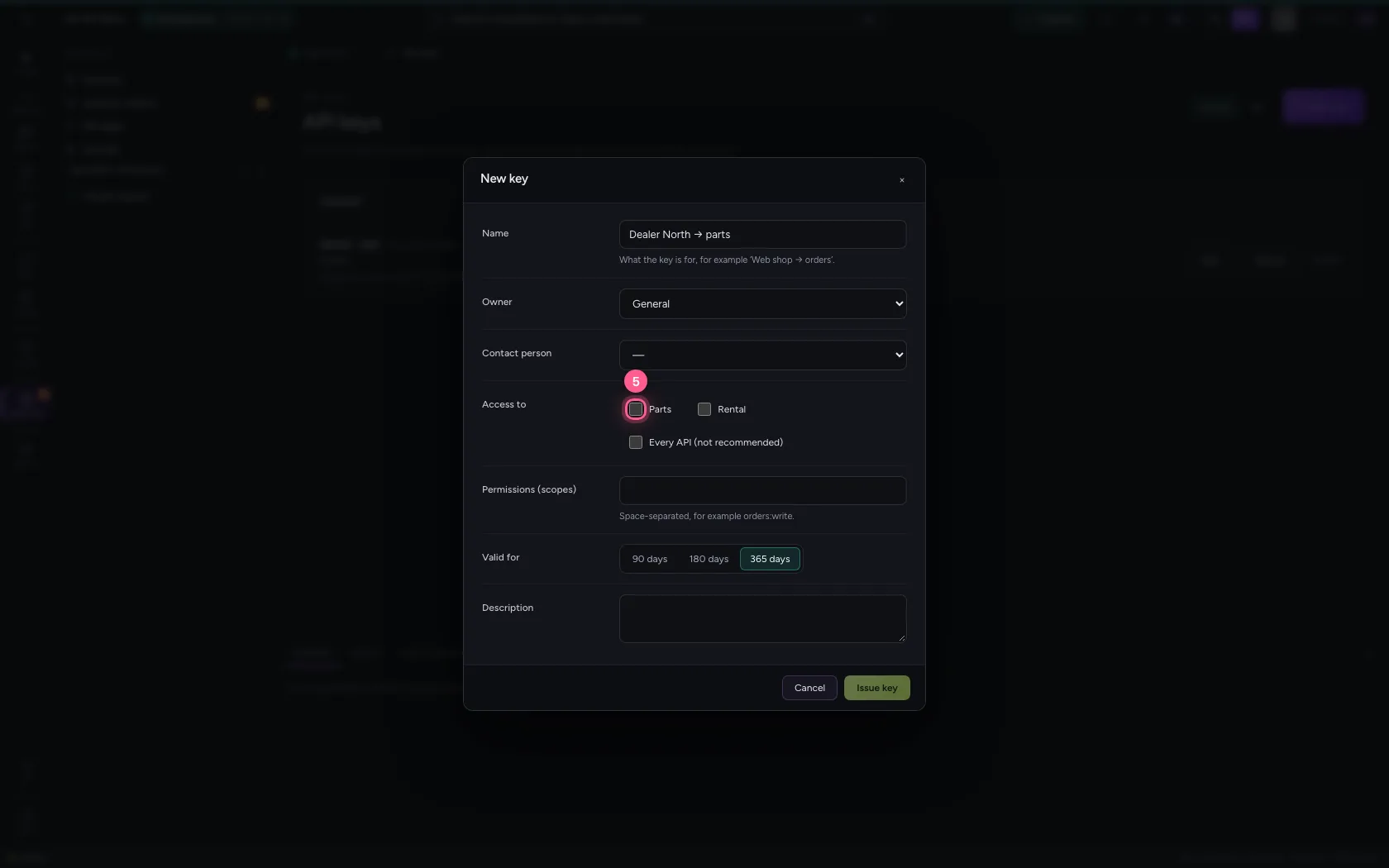
- Click 90 days
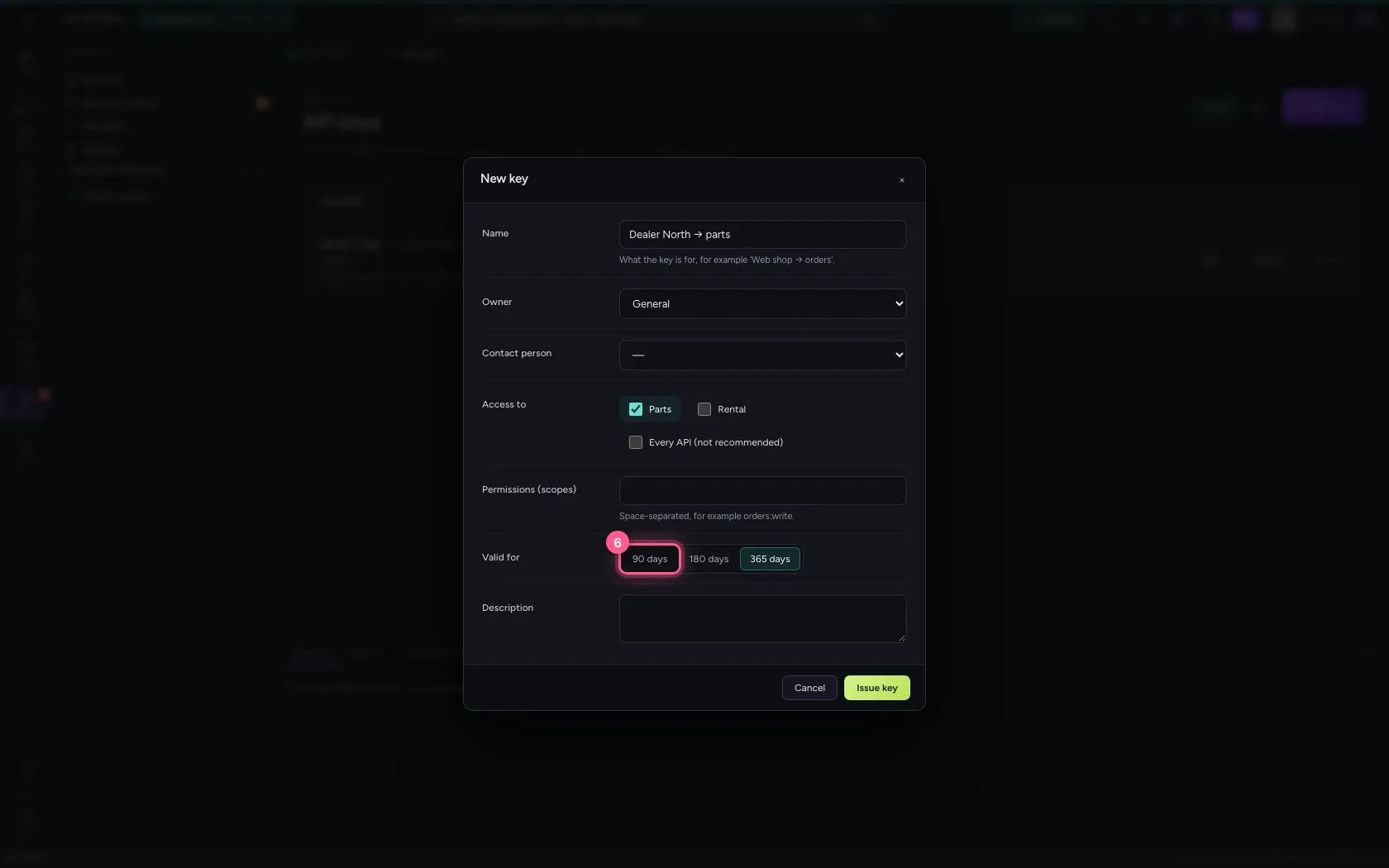
- Click Issue key
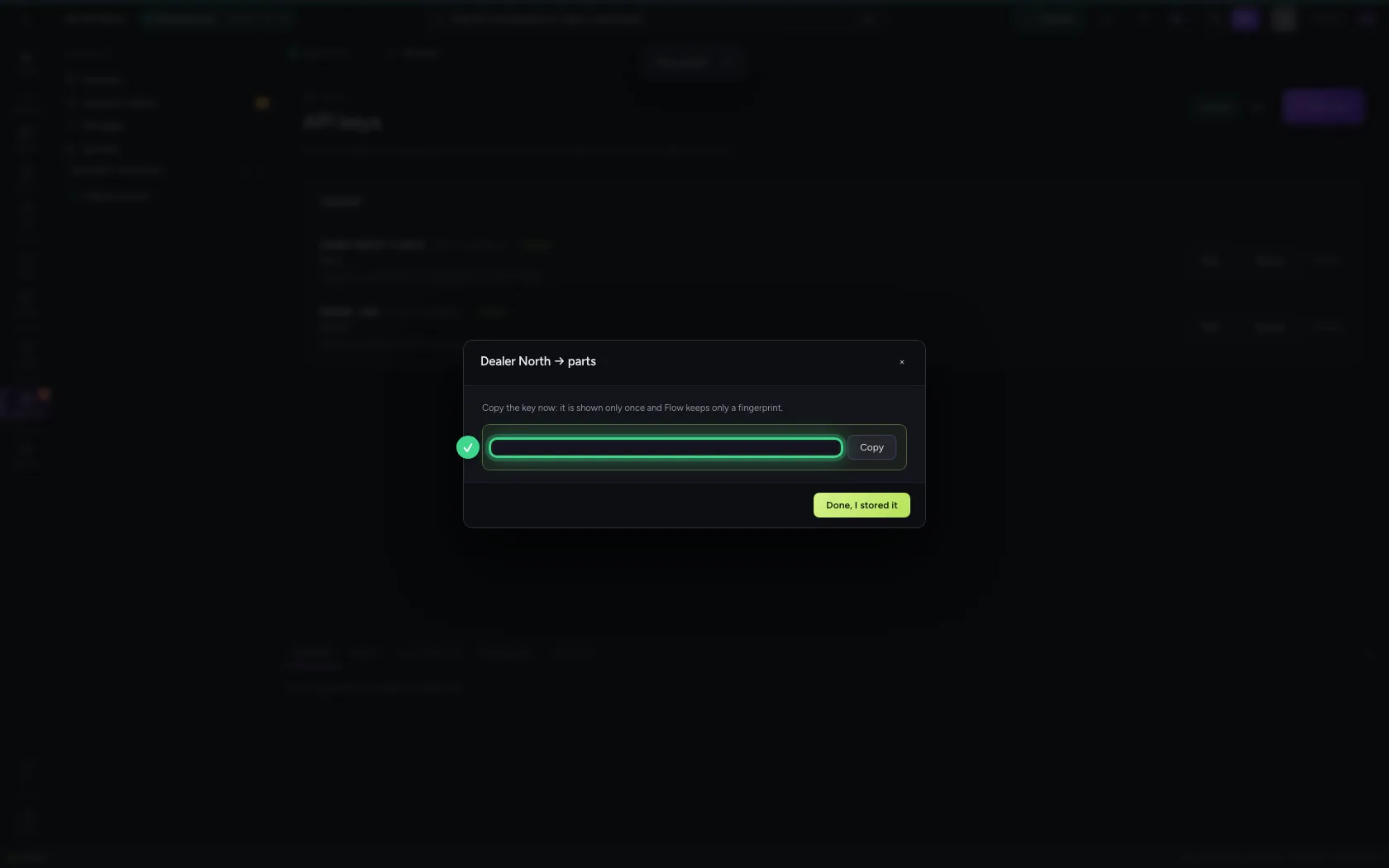
- Click Done, I stored it
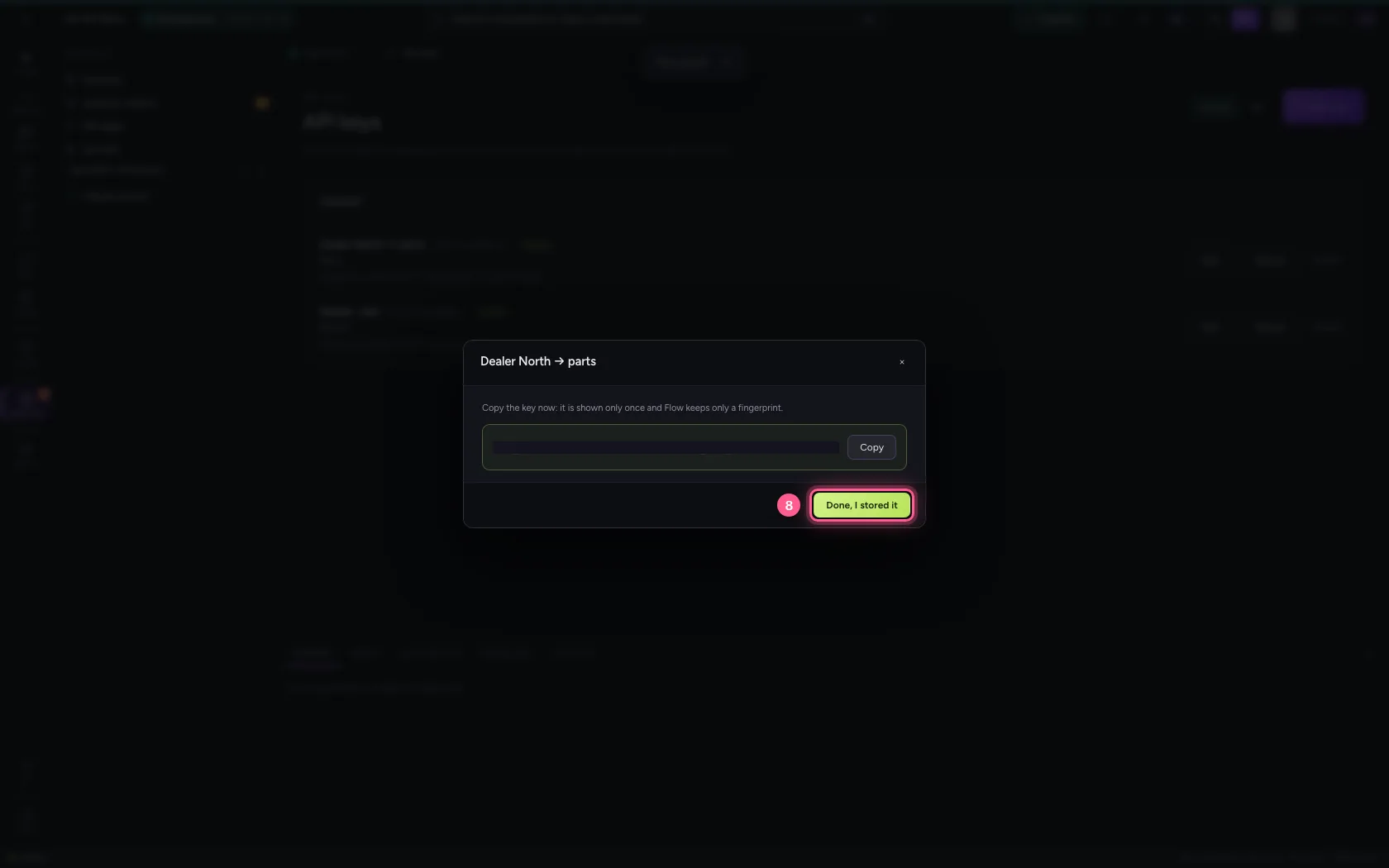
Without the permission: 403
The endpoint demands the permission parts:read. The key does open the API, but lacks that permission: the gateway answers 403 Insufficient scope and the workflow does not run.
- Click the endpoint
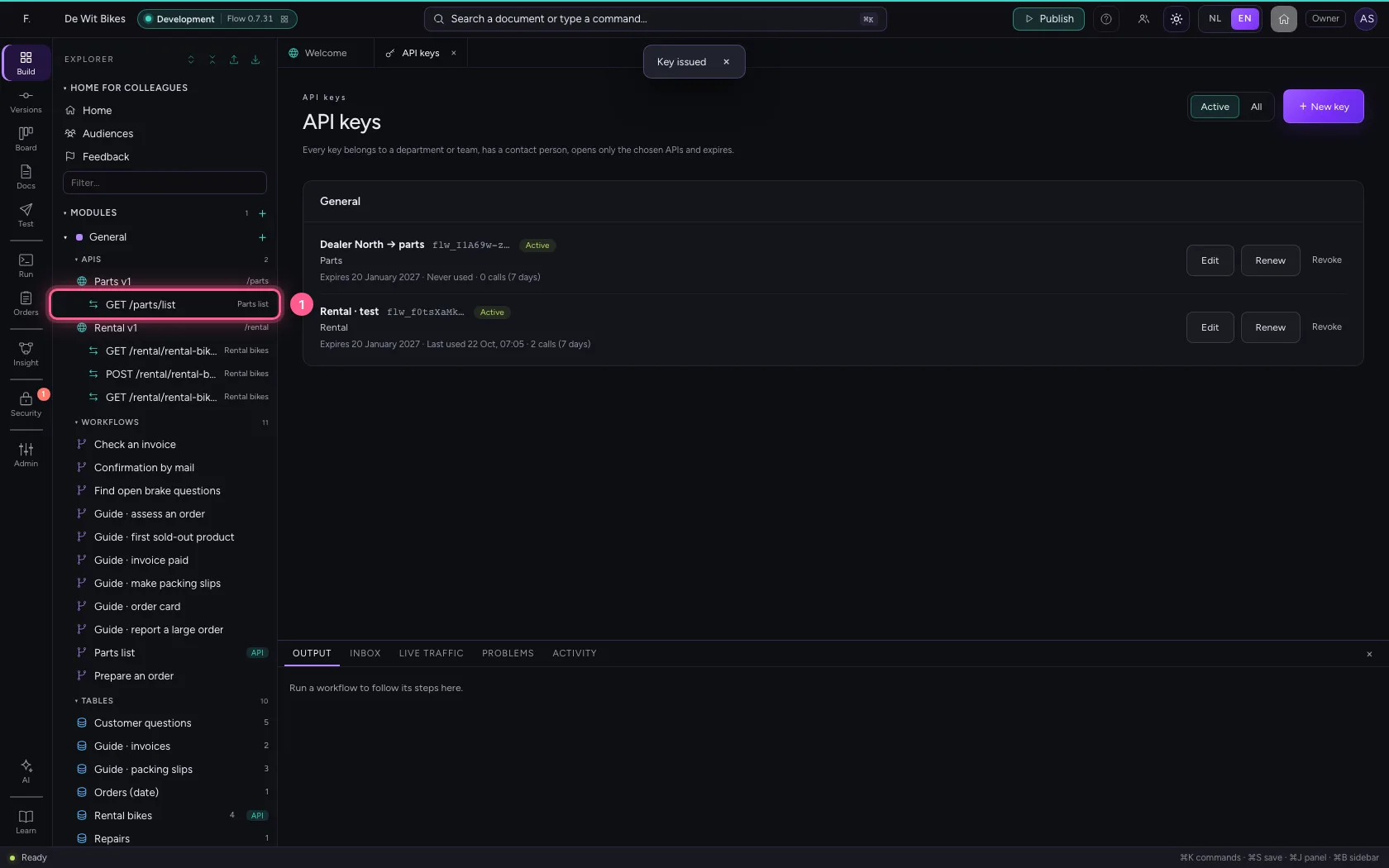
- In Key or token, type
••••••••
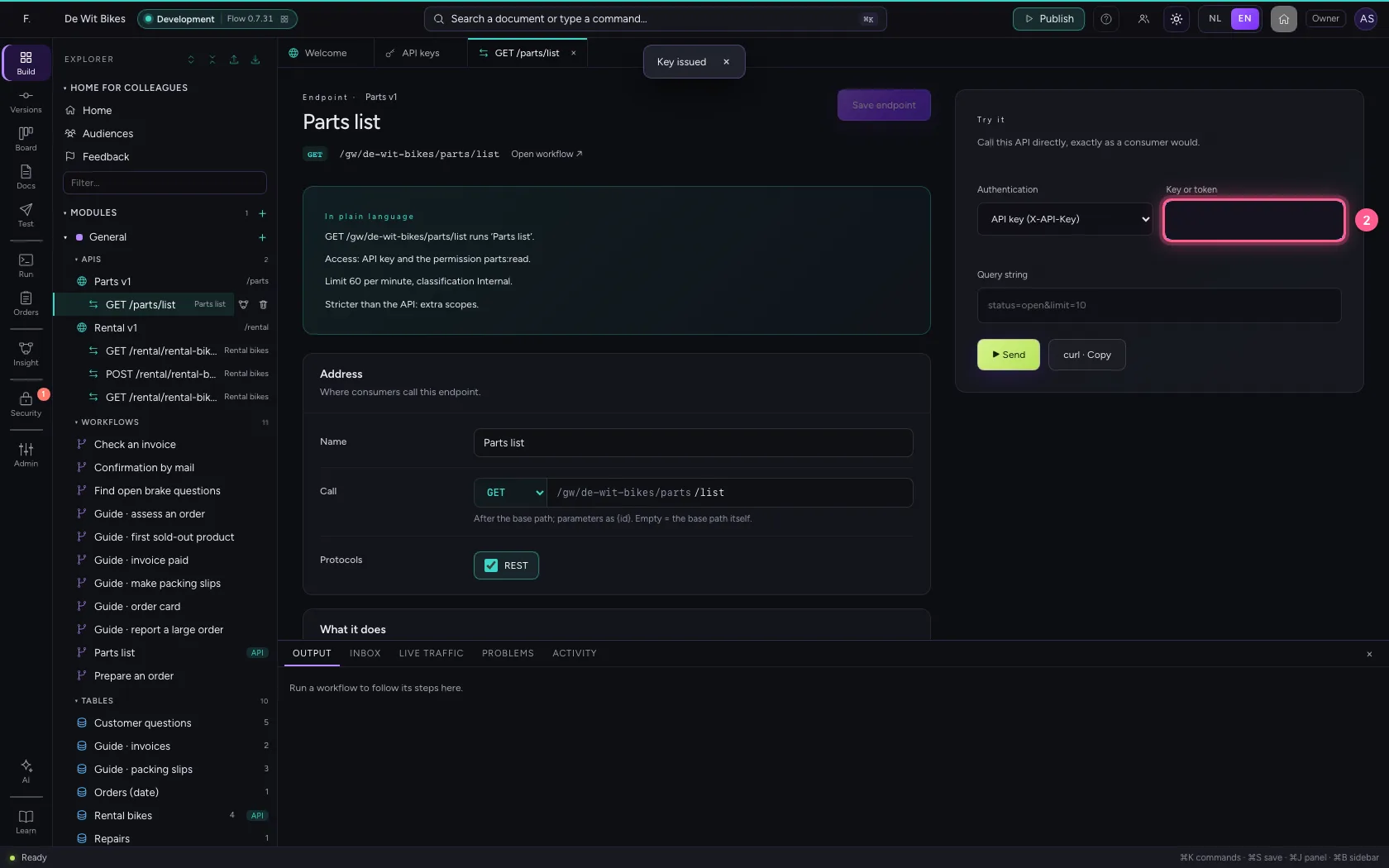
- Click ▶ Send
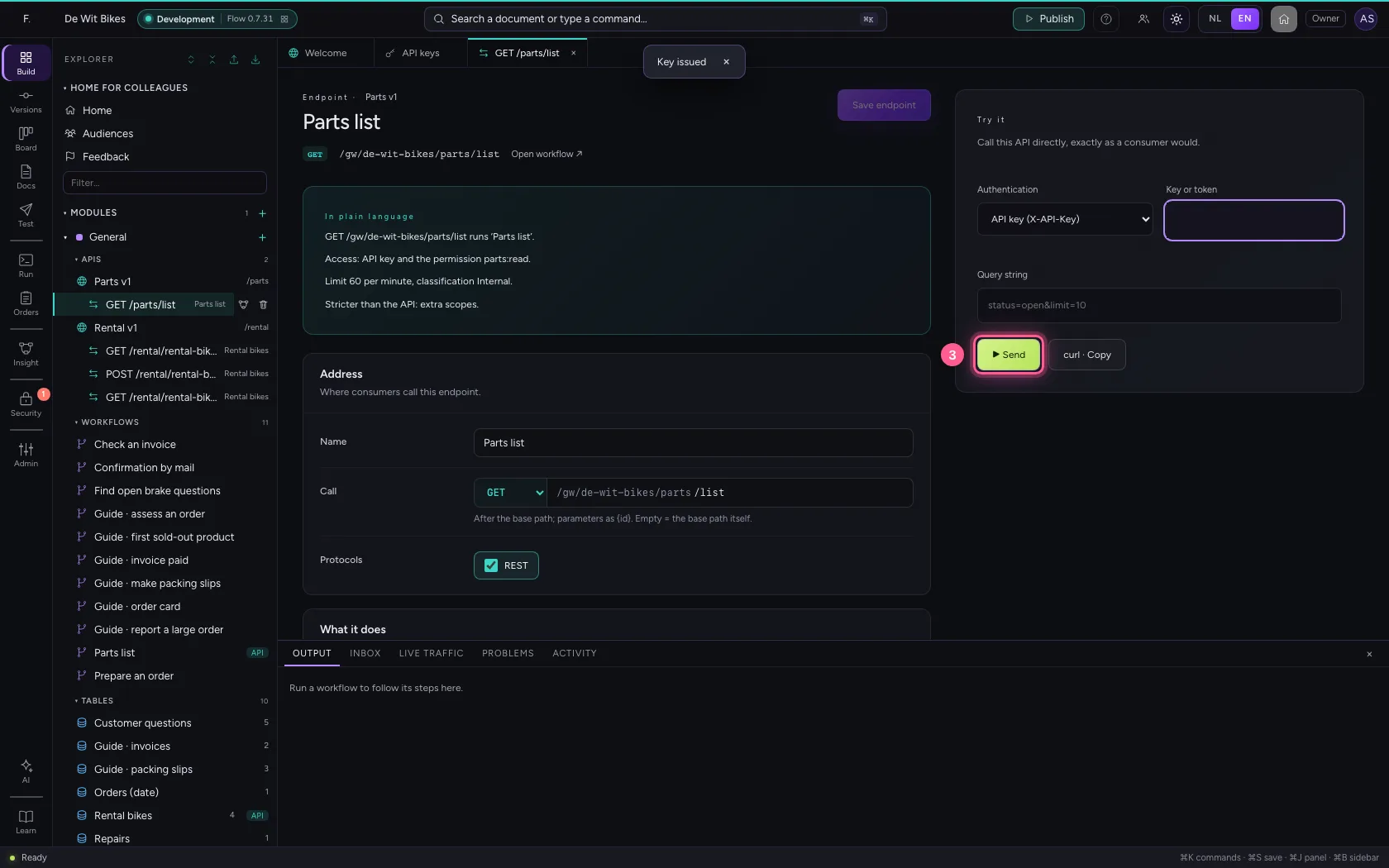
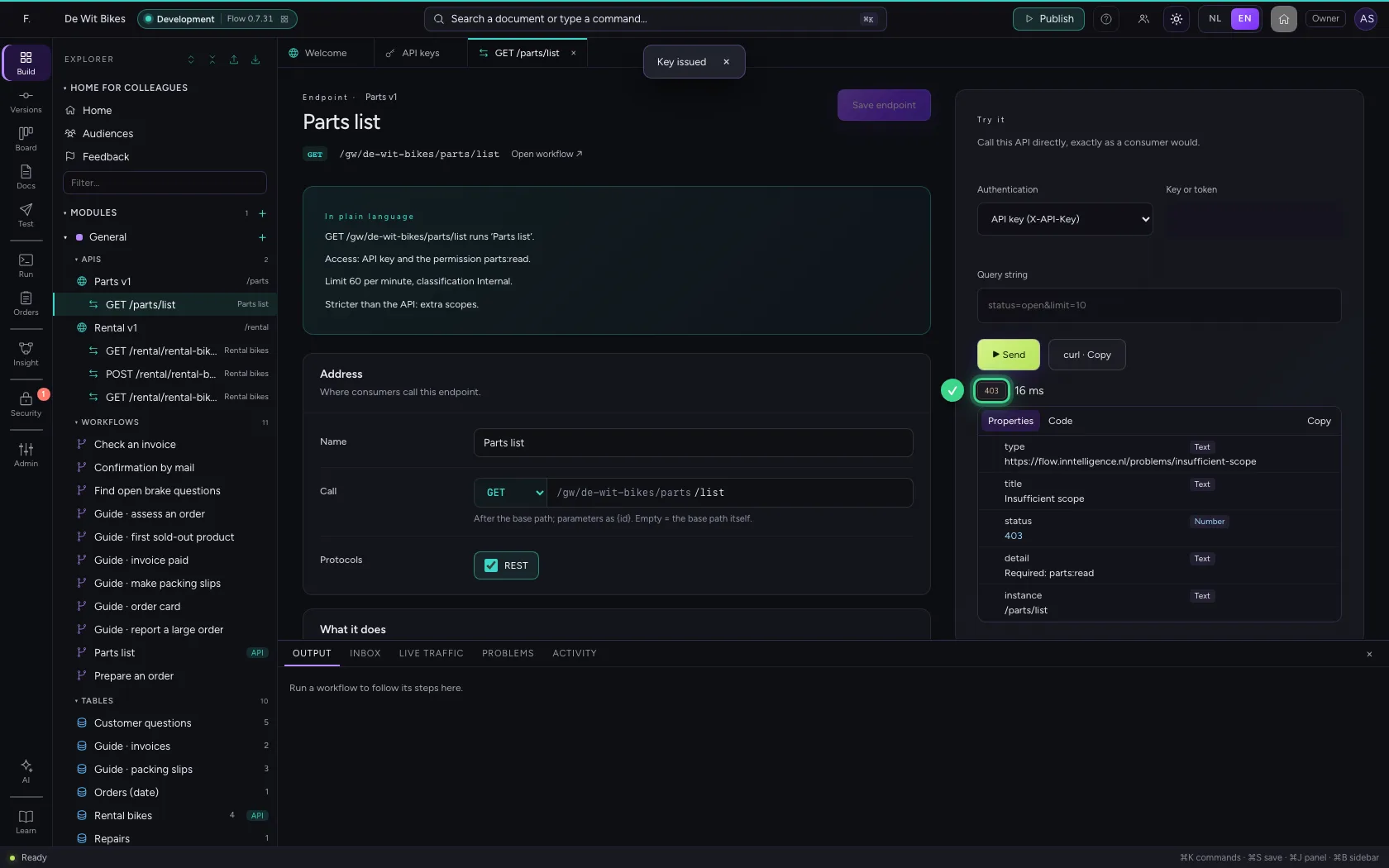
Grant the permission and try again
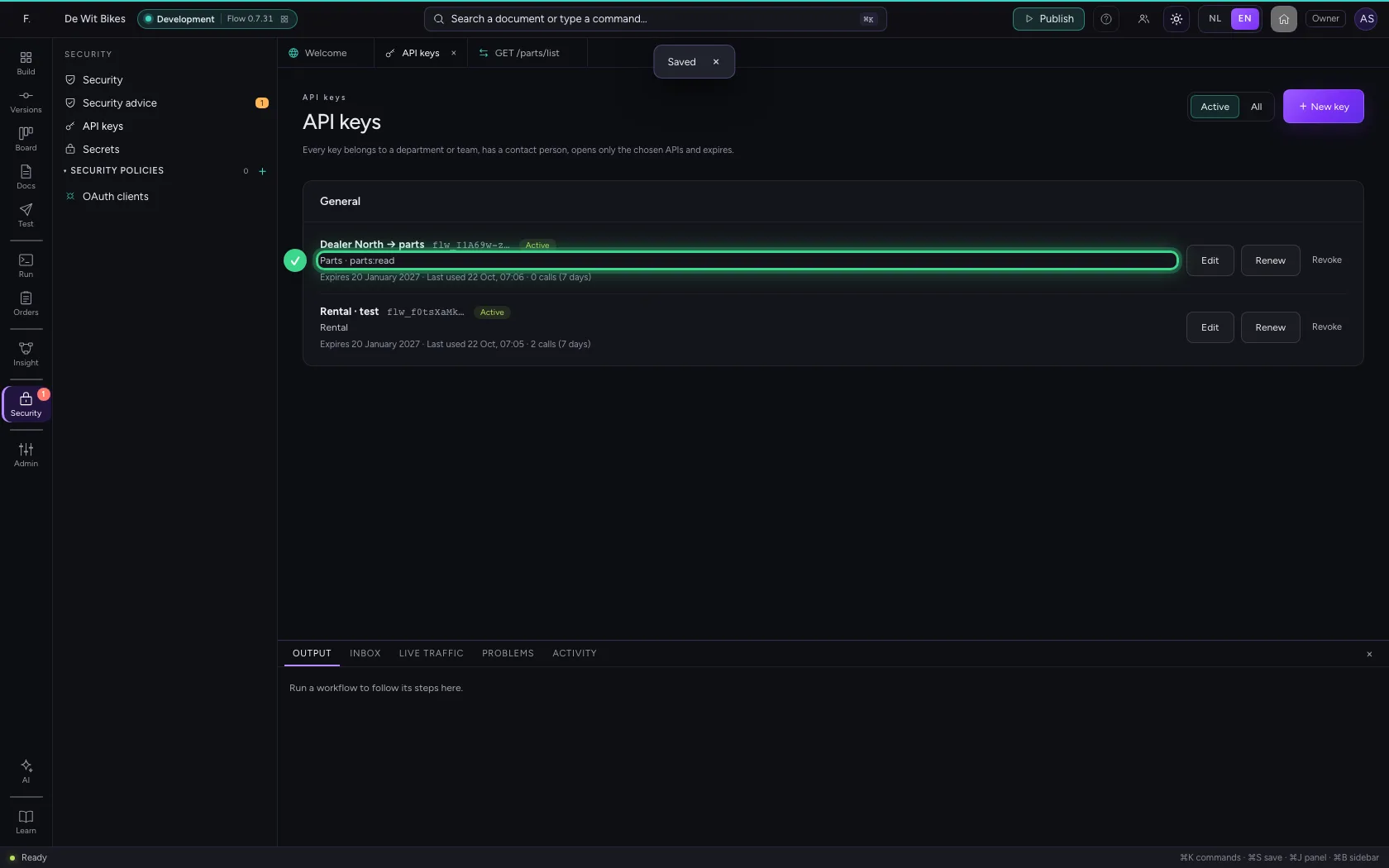
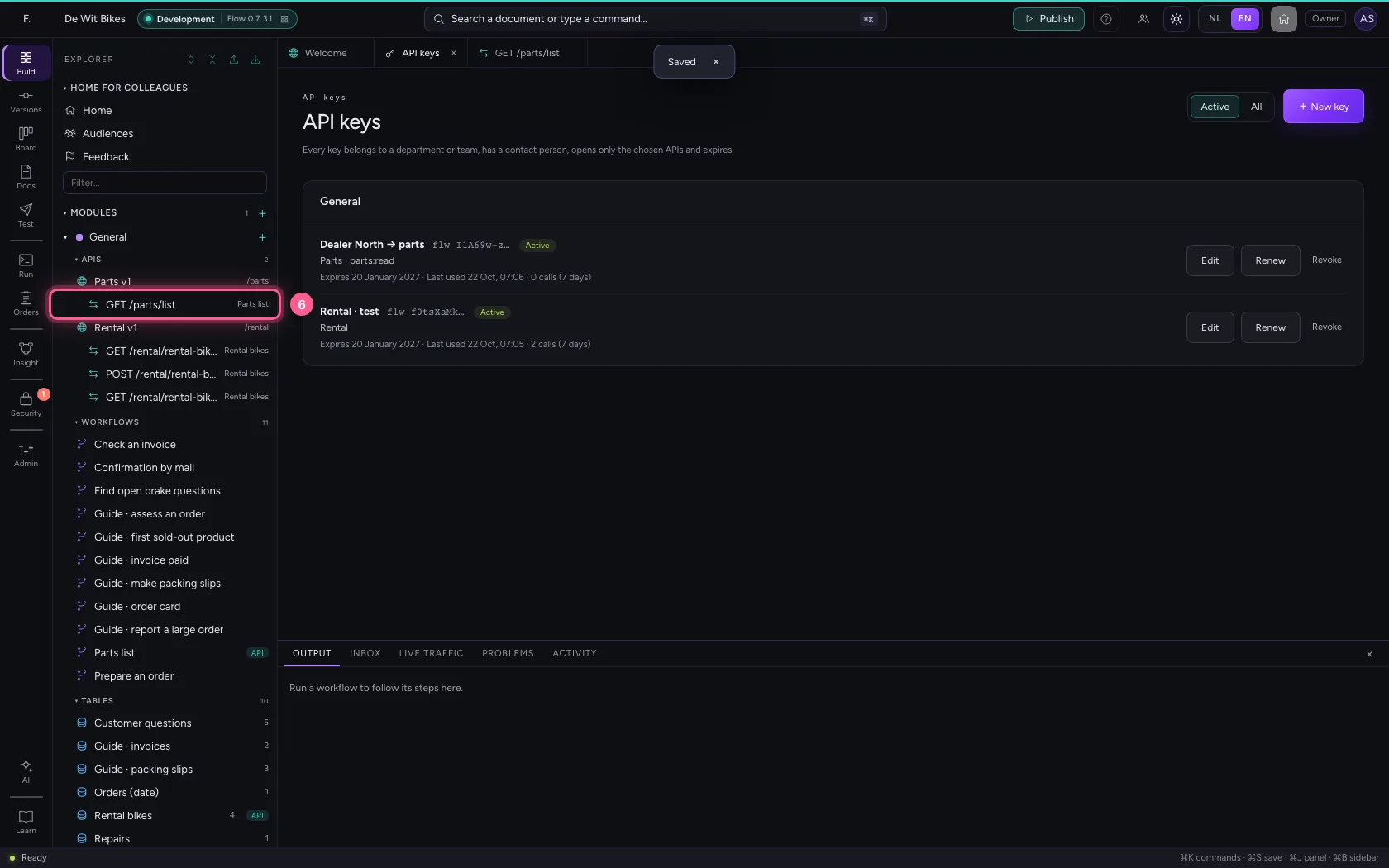
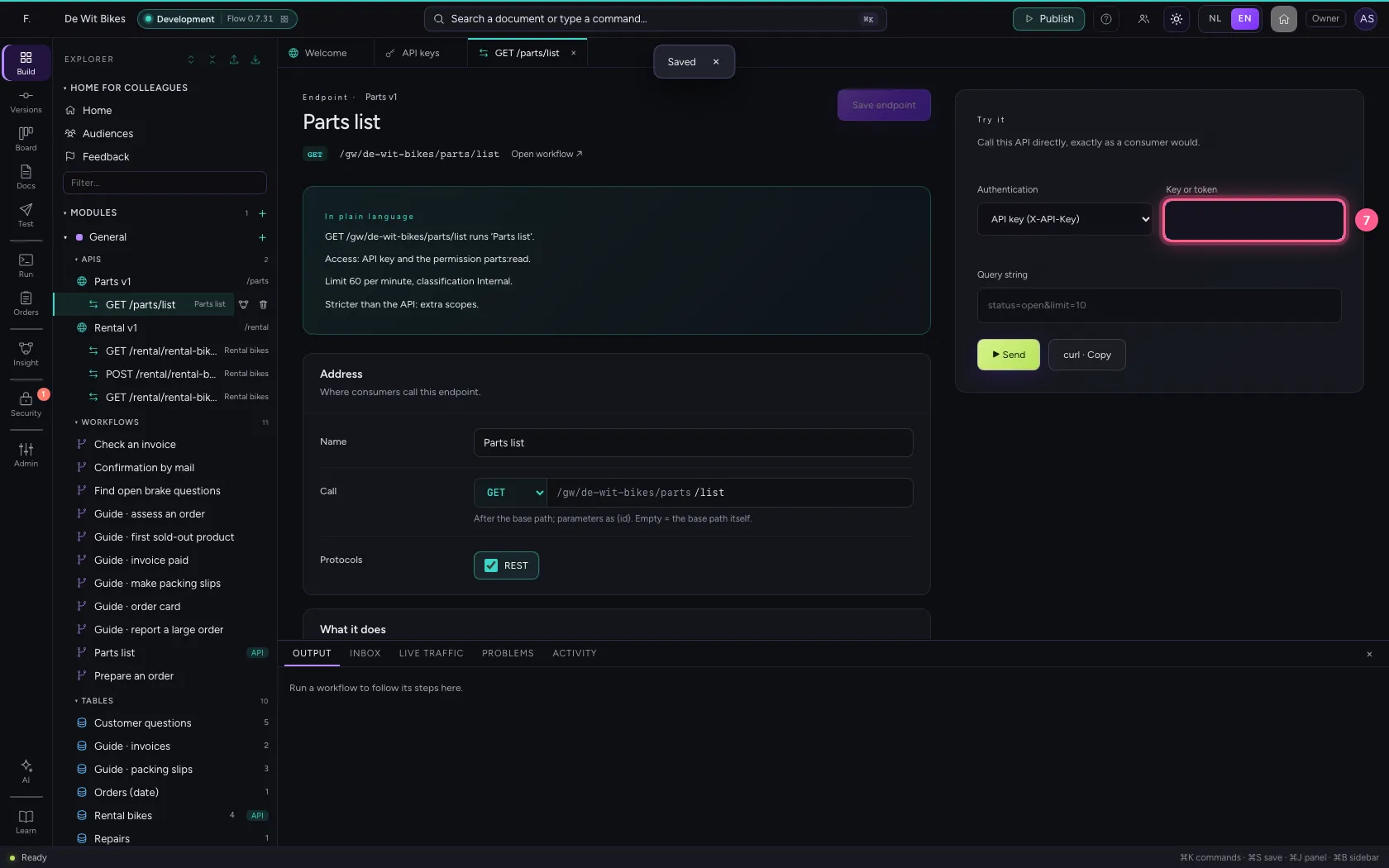
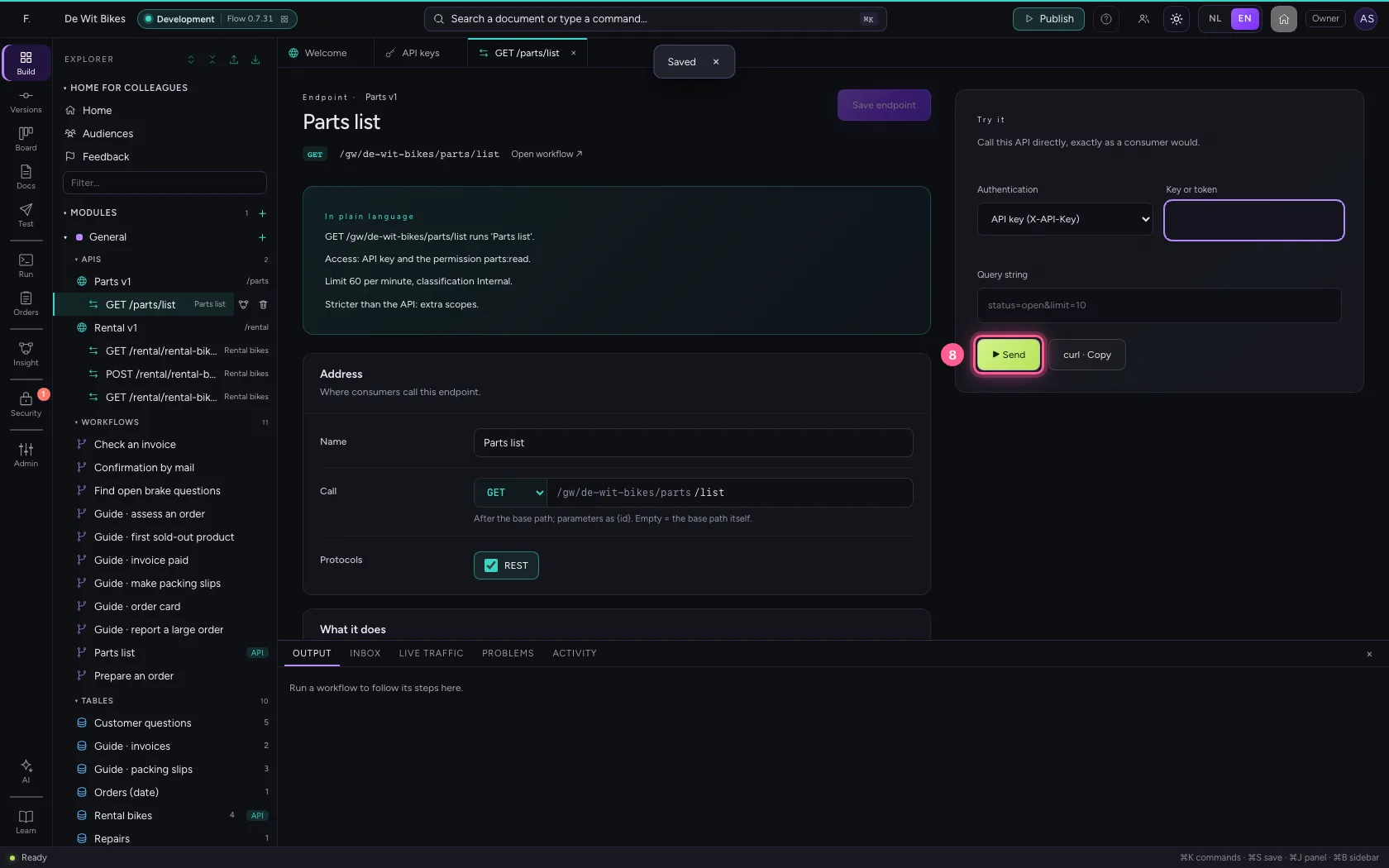
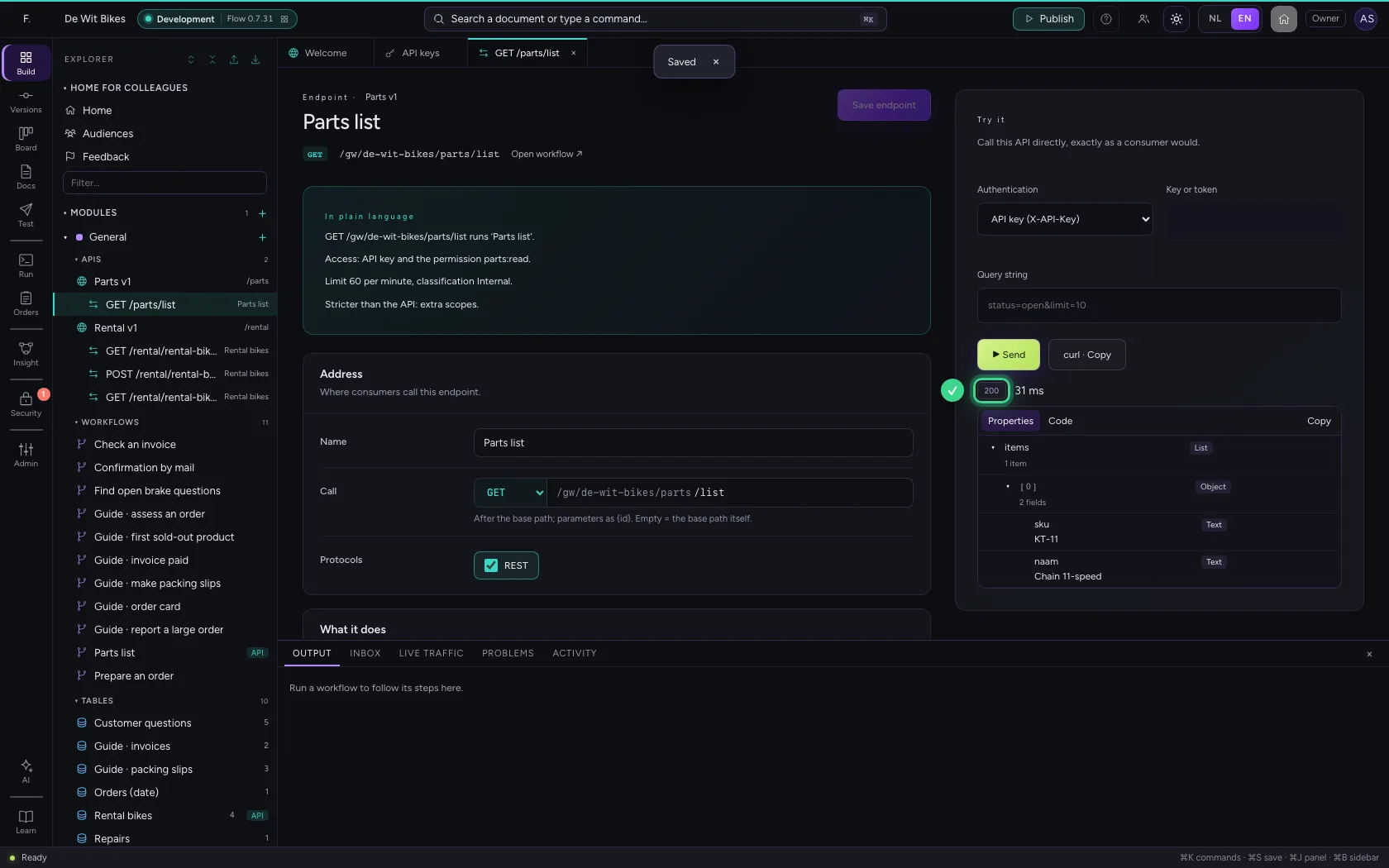
Edit the key and fill in parts:read under Permissions (scopes). The key itself stays the same: the consumer changes nothing. Now the endpoint answers 200.
- Click Security
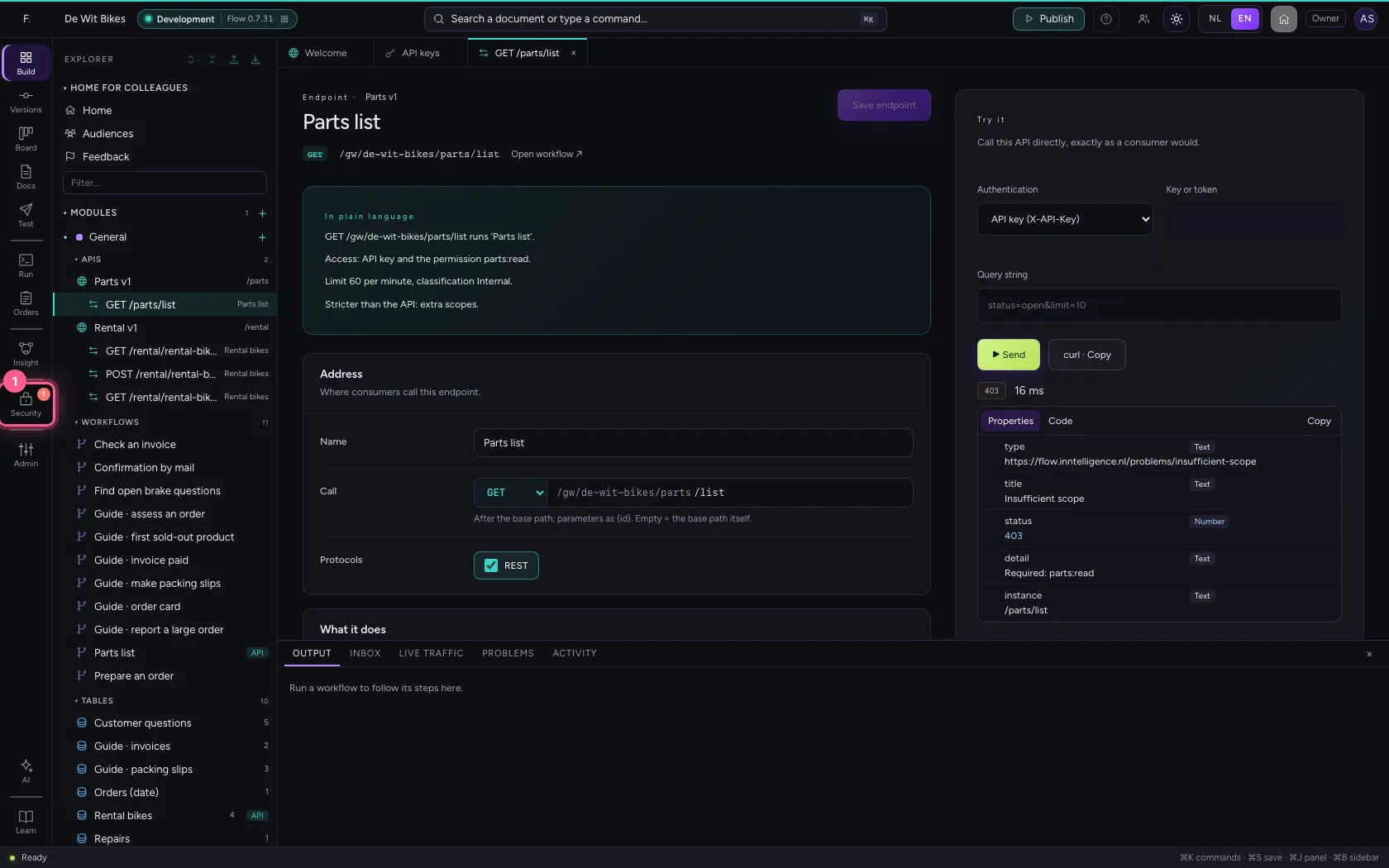
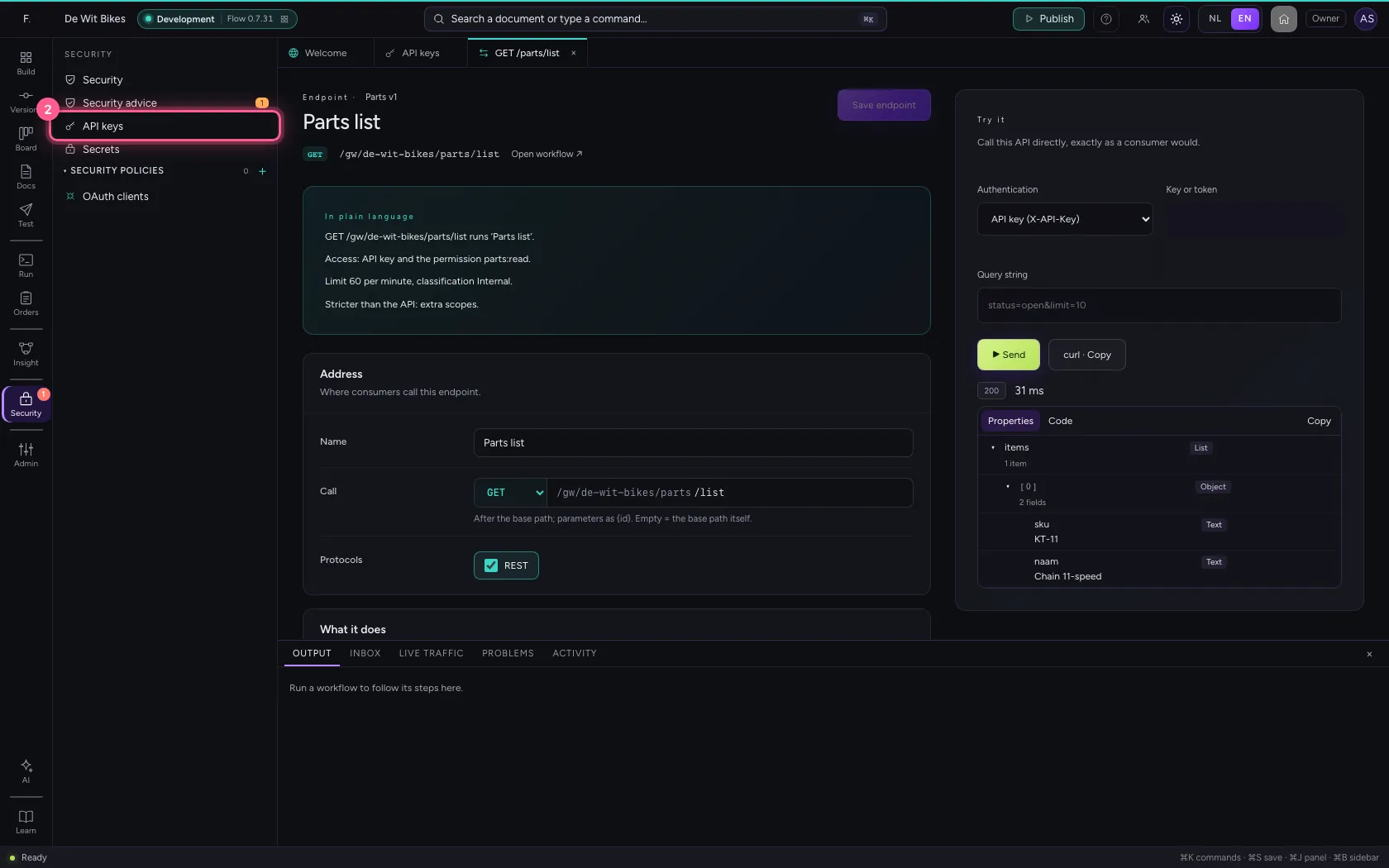
- Click API keys
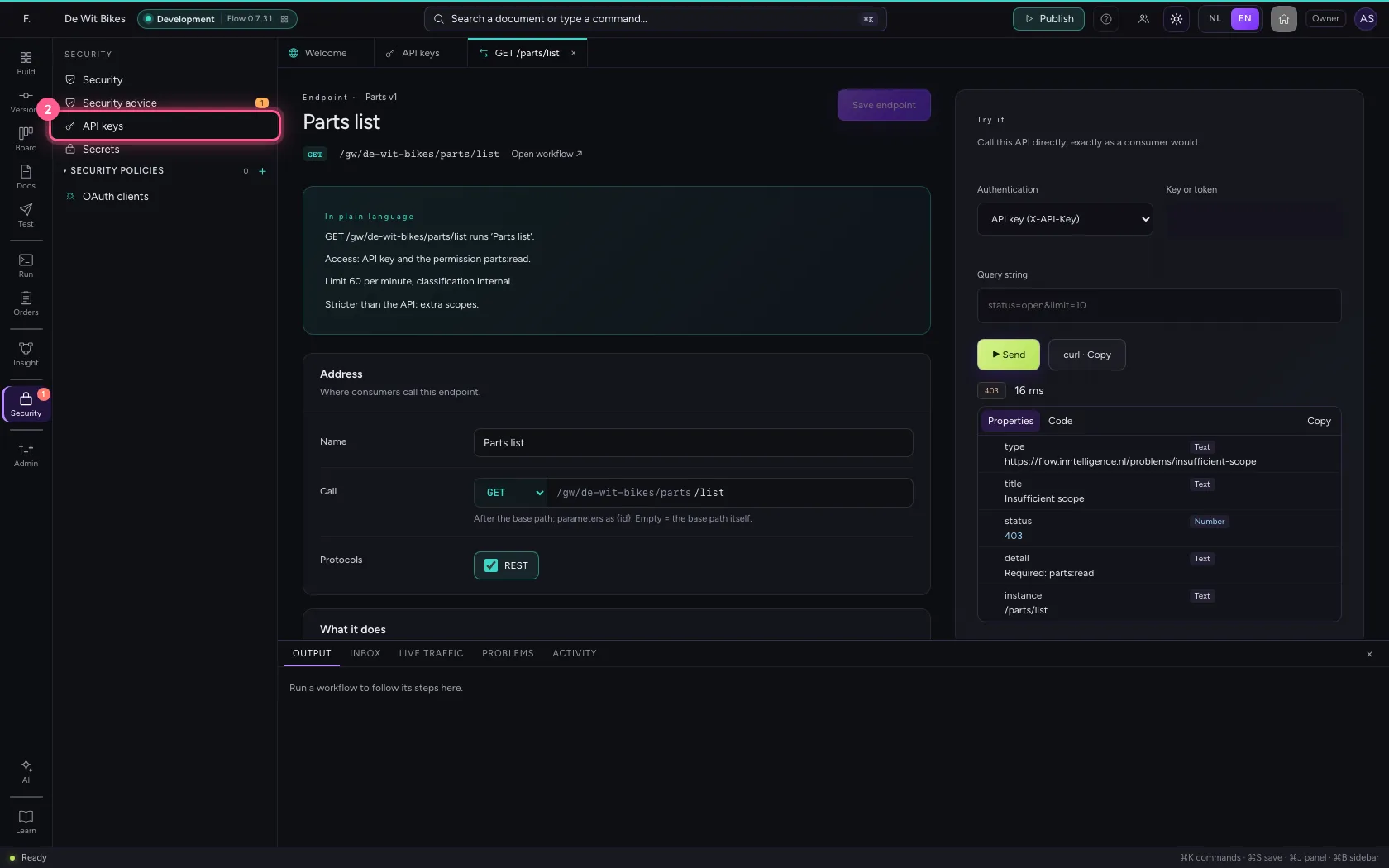
- Click Edit
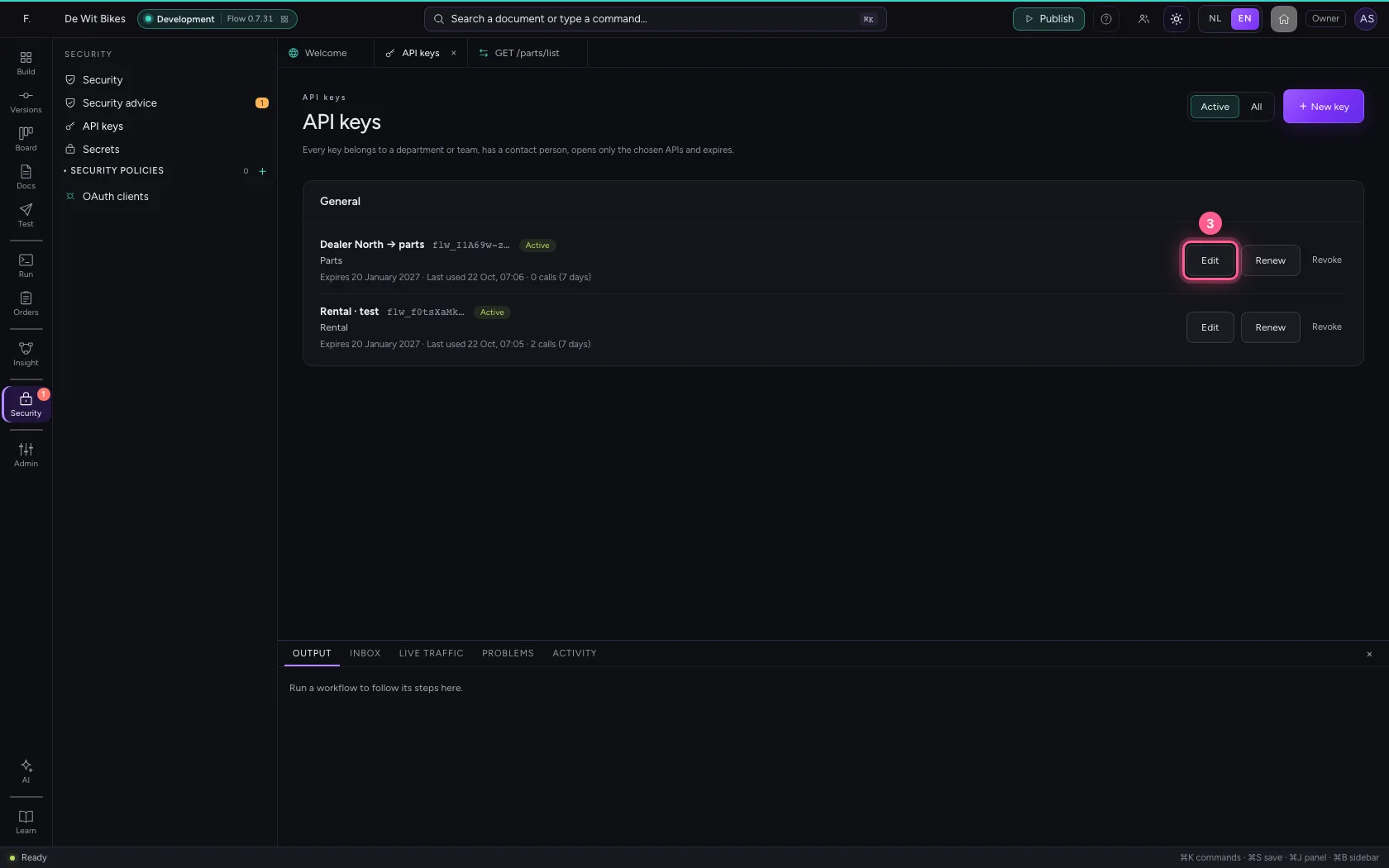
- In Permissions (scopes), type
parts:read
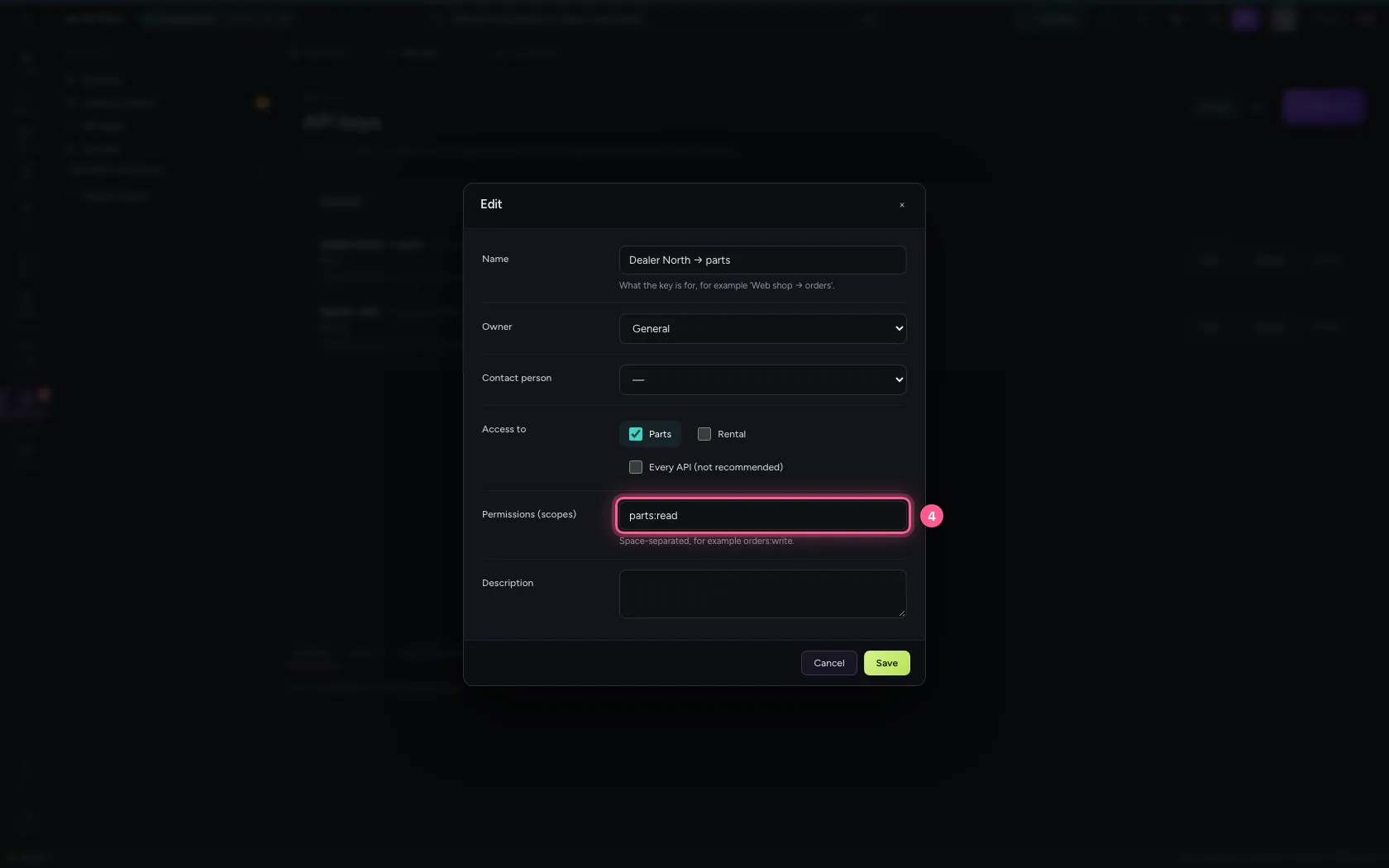
- Click Save
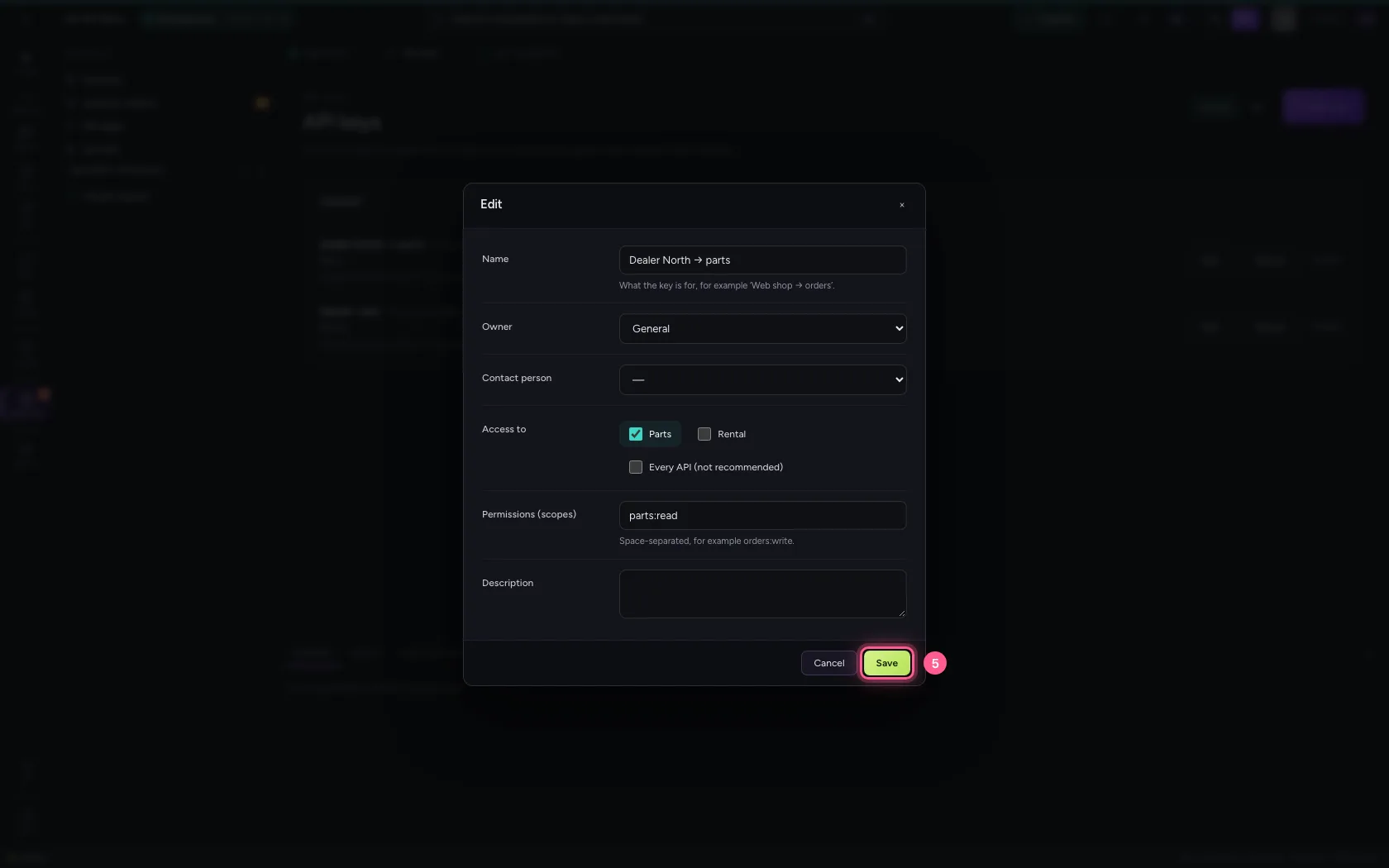
- Click the endpoint
- In Key or token, type
••••••••
- Click ▶ Send
Revoke the key
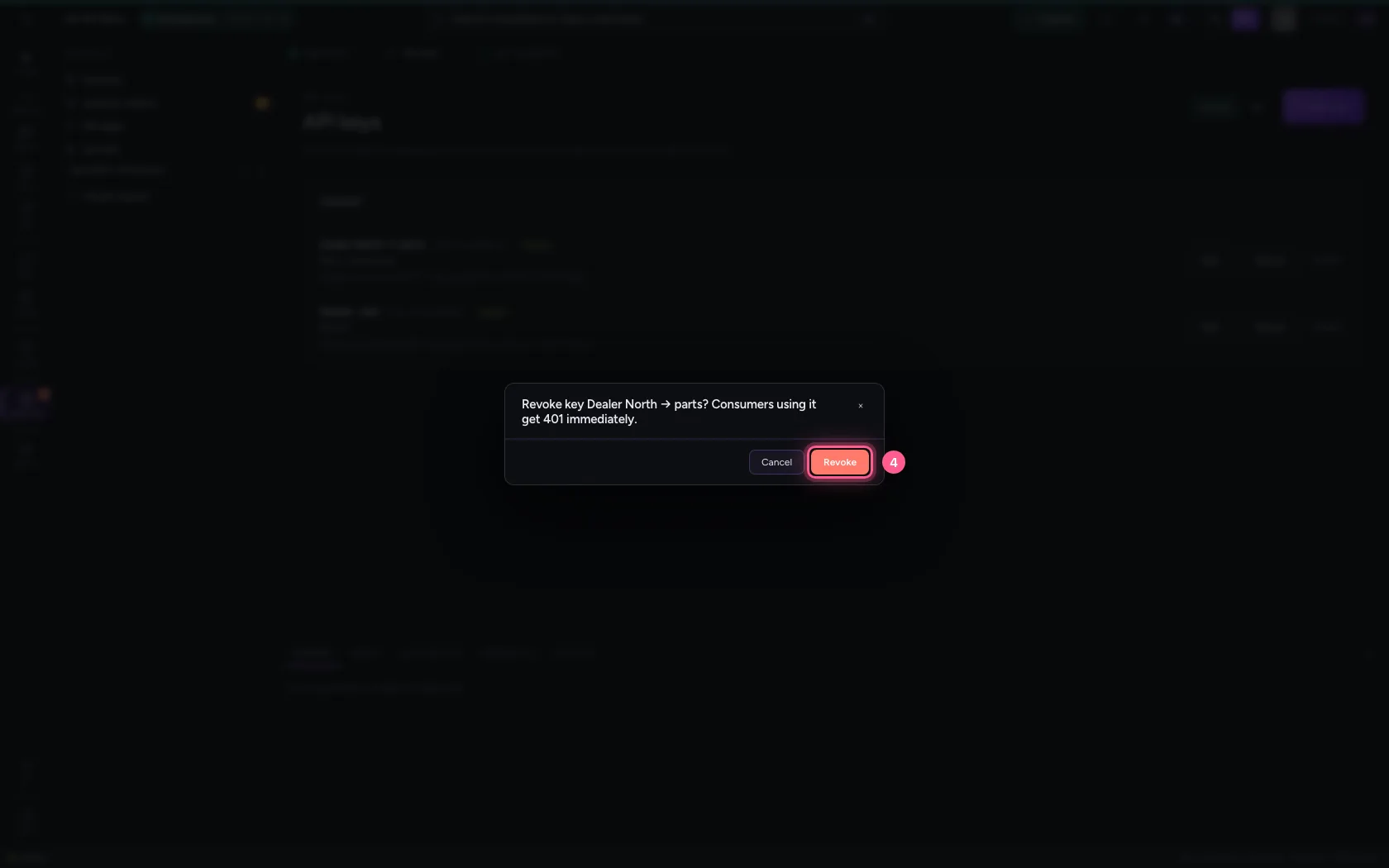
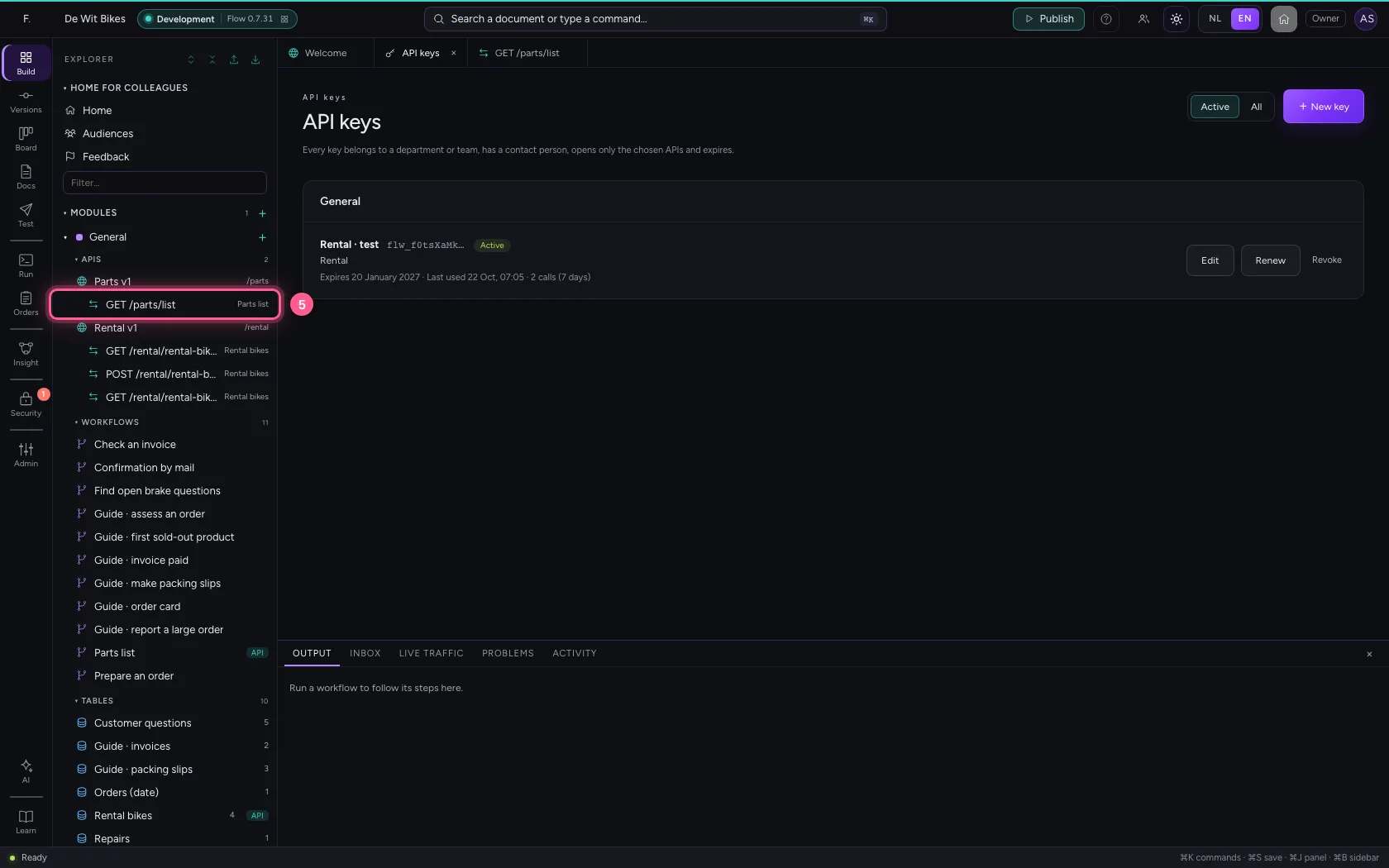
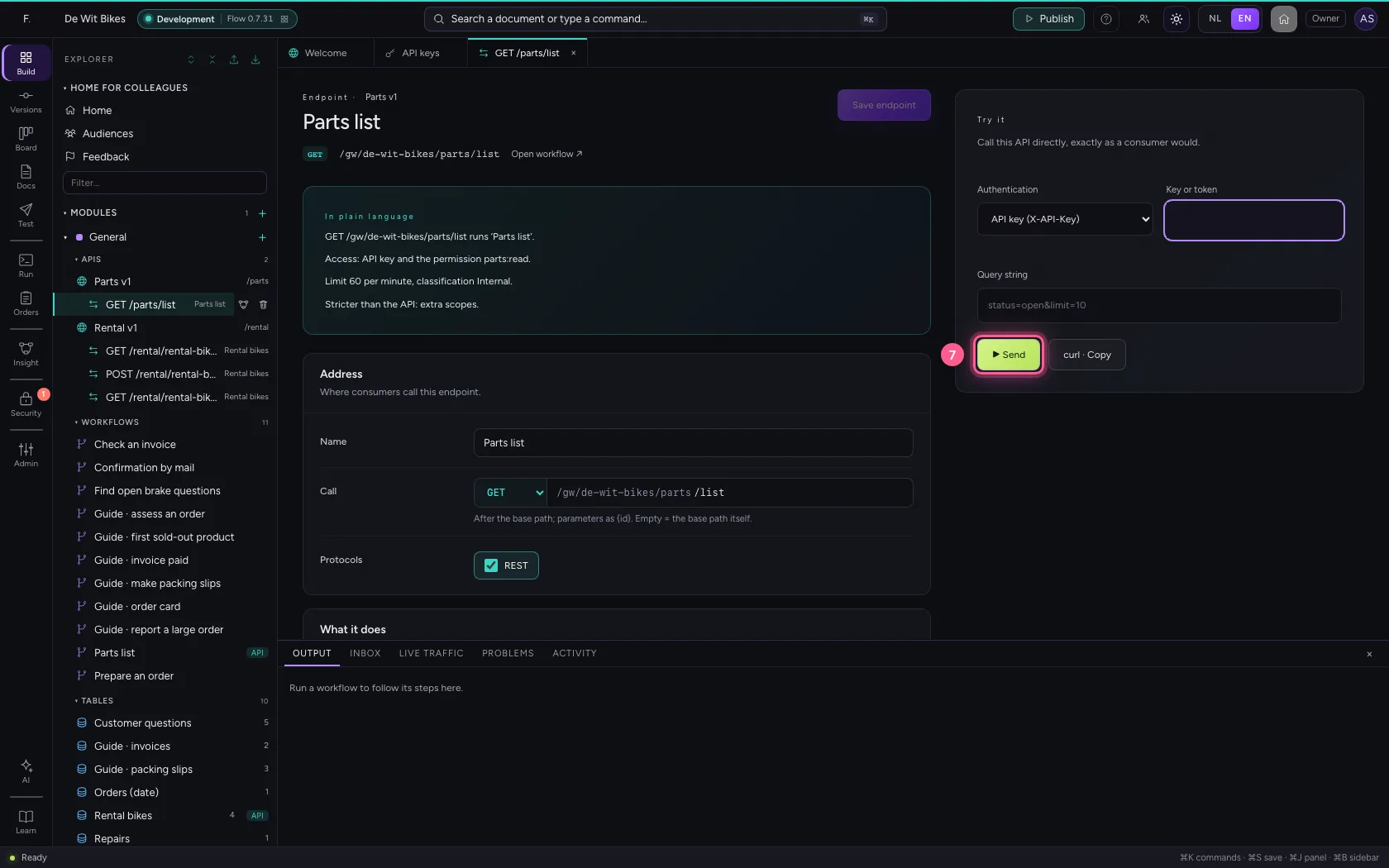
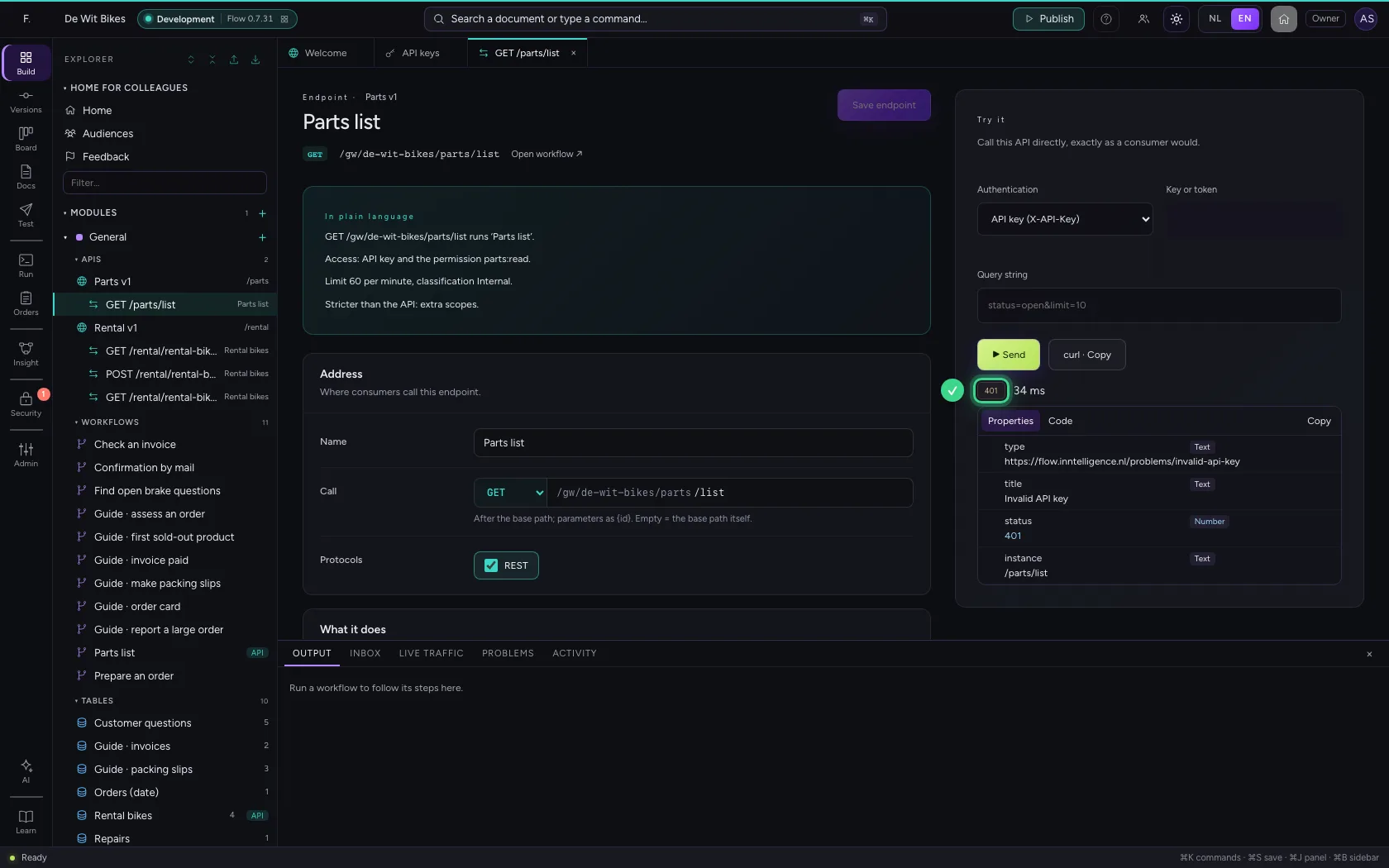
A consumer stops, or a key leaked? Revoking works at once: every next call gets 401. To replace a key without interruption instead, choose Renew: the old one keeps working for a while.
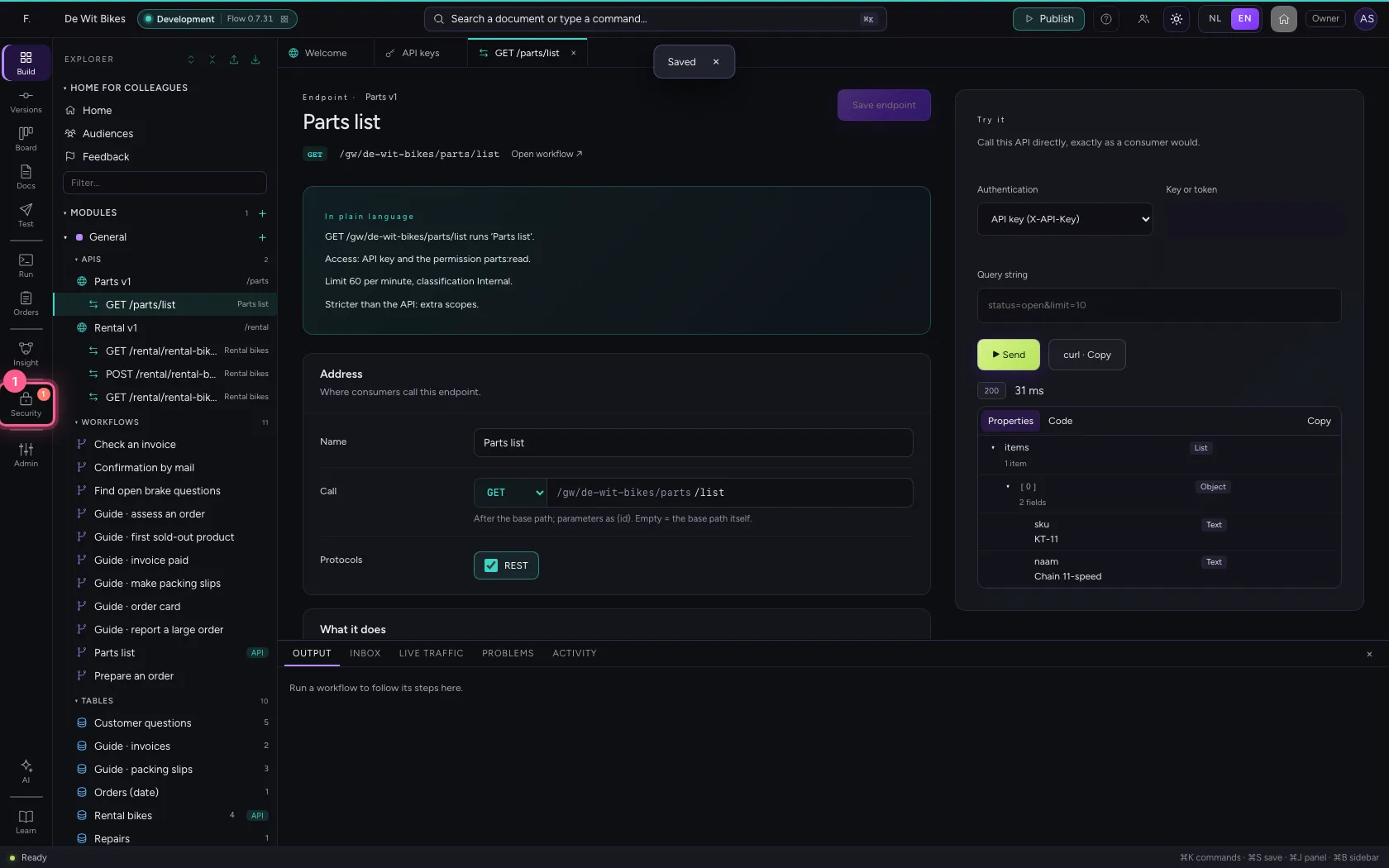
- Click Security
- Click API keys
- Click Revoke
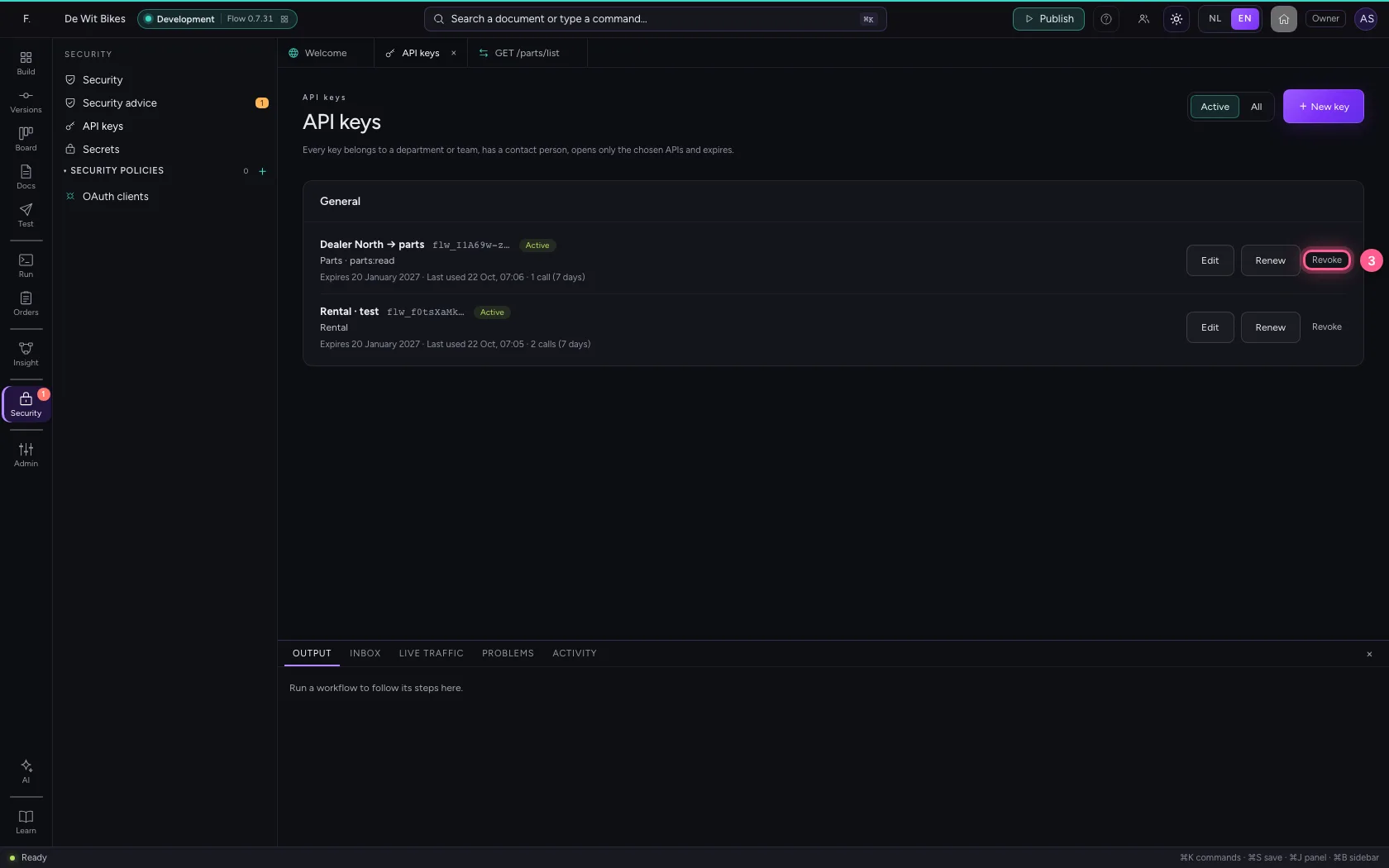
- Click Revoke
- Click the endpoint
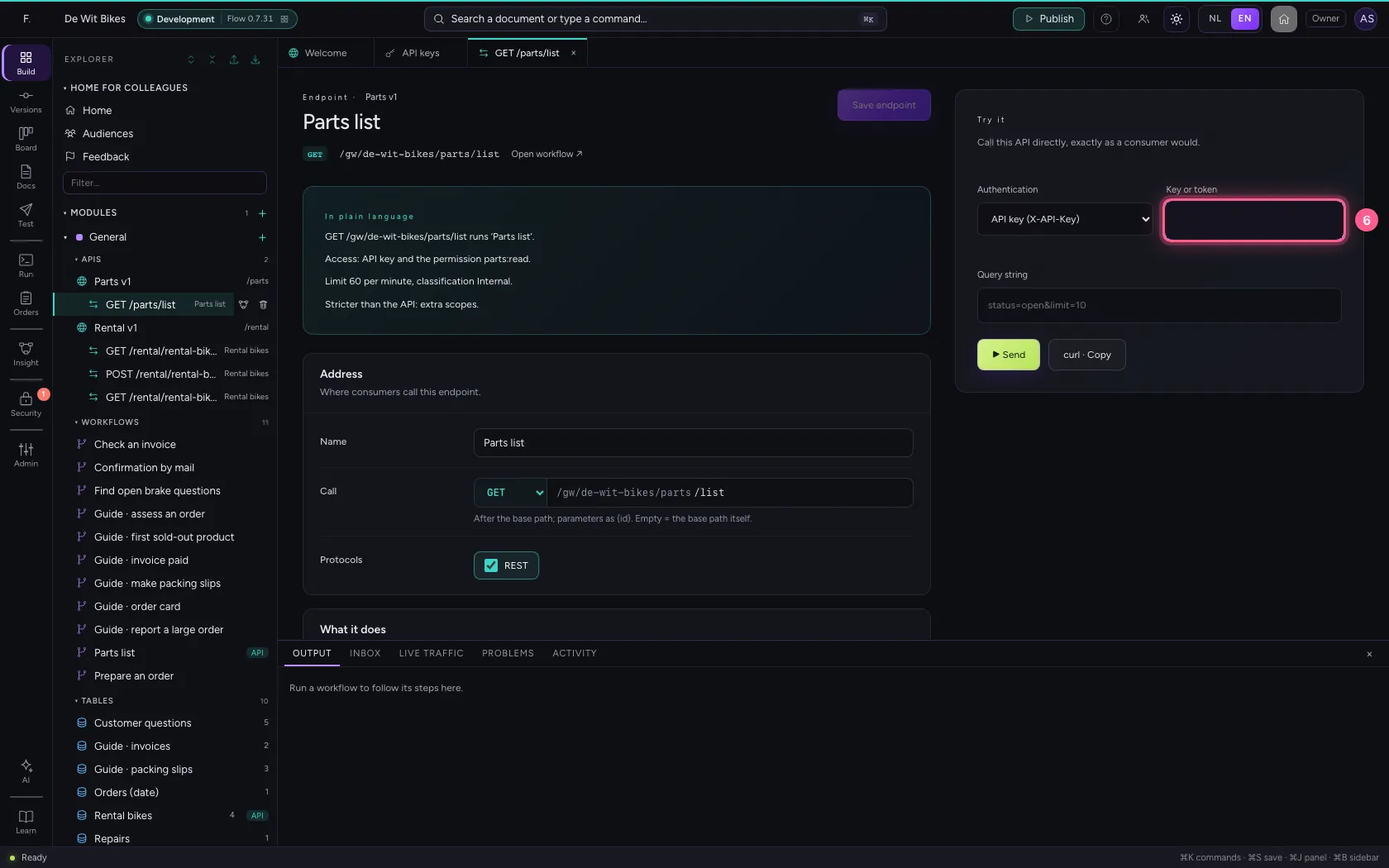
- In Key or token, type
••••••••
- Click ▶ Send
This guide was carried out step by step on 22 Oct 2026 by an automated test on Flow (version 3e563176).