An endpoint that forwards to a connection
With Forward to connection you put an existing system behind your own API, without a workflow in between. The consumer sees your address and your security; Flow forwards the request with the key from the connection, which the consumer never sees. Path parameters such as {id} go along to the upstream path.
Open your development environment
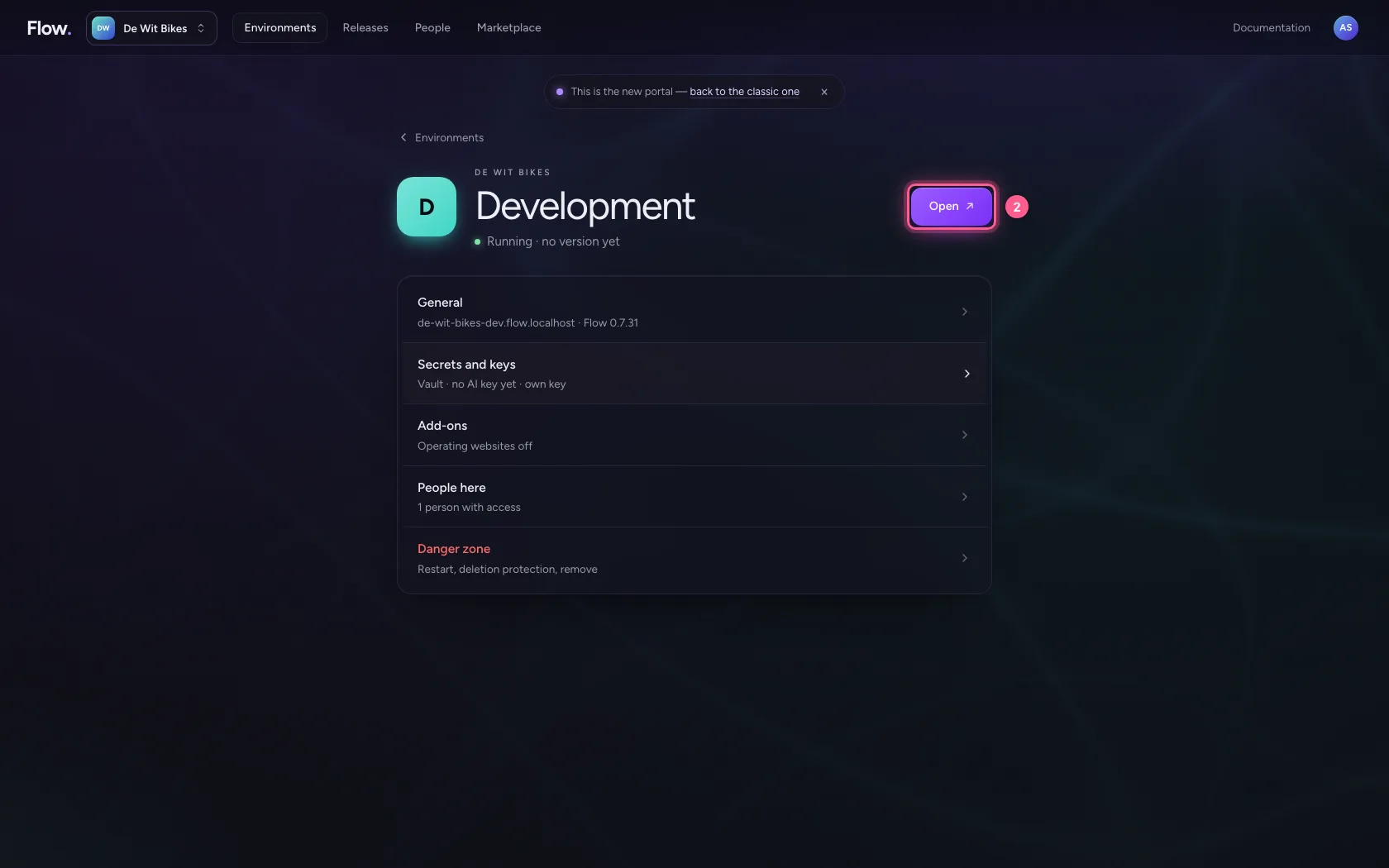
In the portal, under Environments, click Development, and there Open. Flow opens in a new tab and you are signed in straight away.
- Click Development
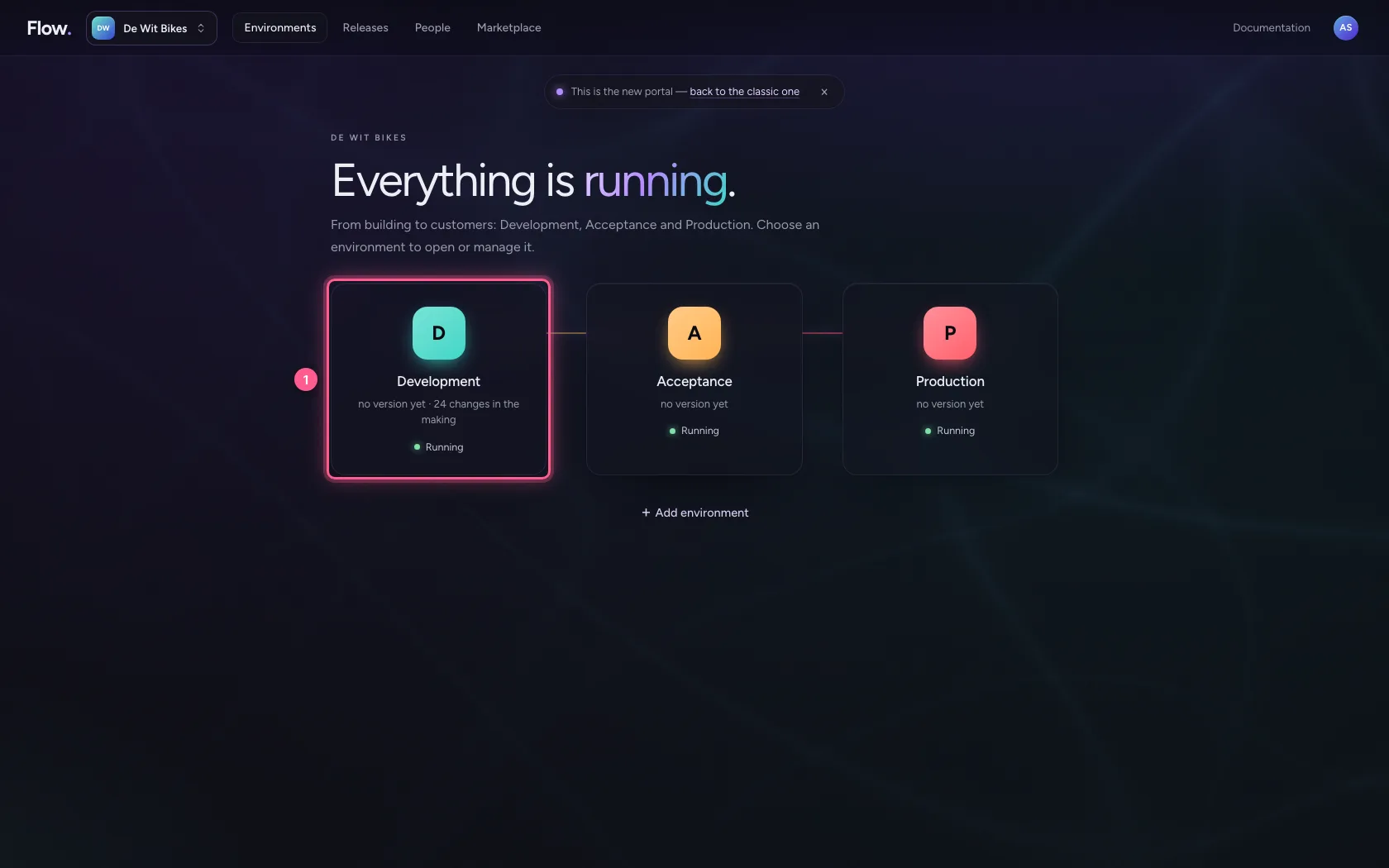
- Click Open ↗
An endpoint that forwards
Open the API and click + Endpoint. Under What it does choose Forward to connection, the connection with the existing system and the upstream path: the path after that connection's base URL. Save.
- Click the API
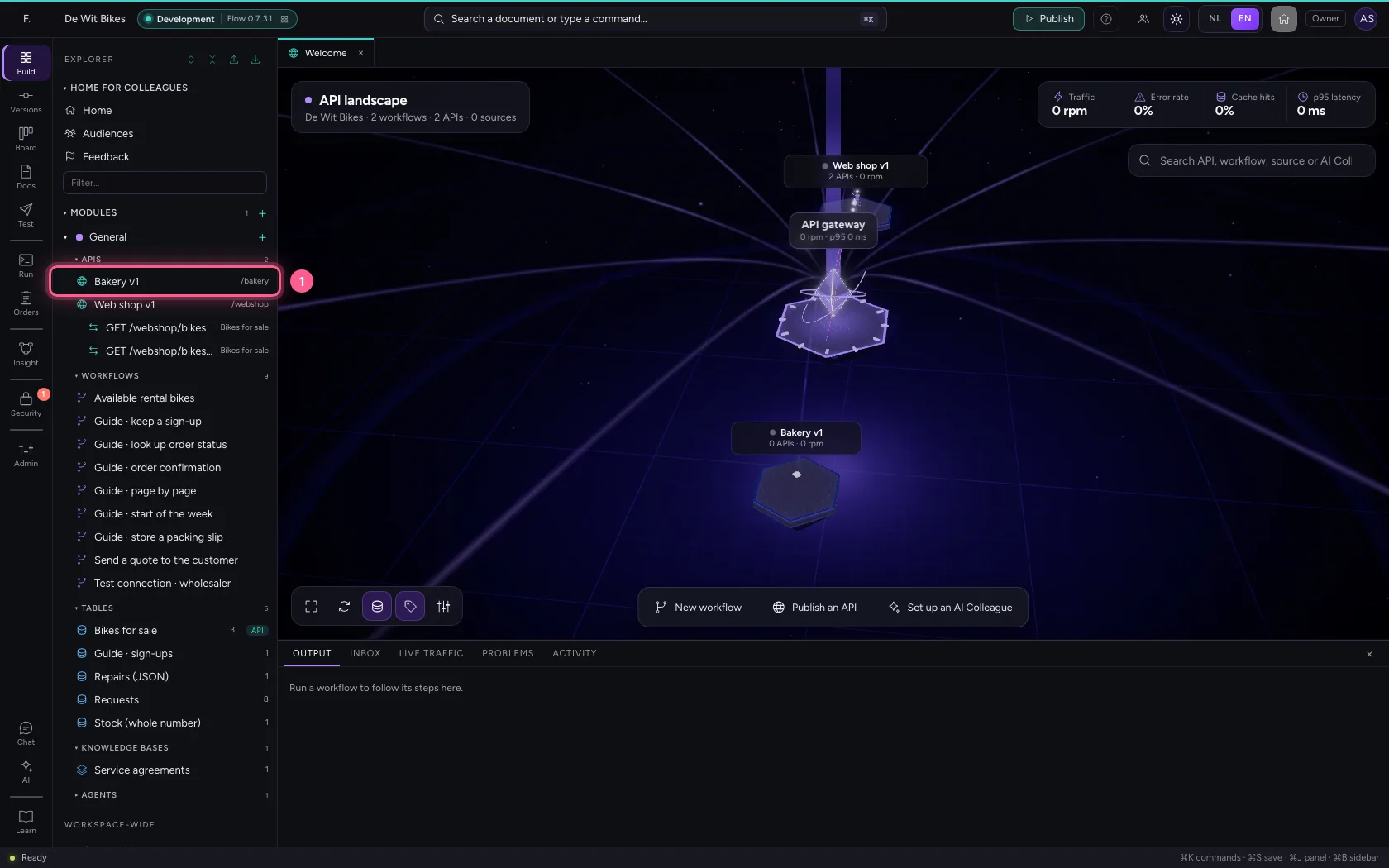
- Click + Endpoint
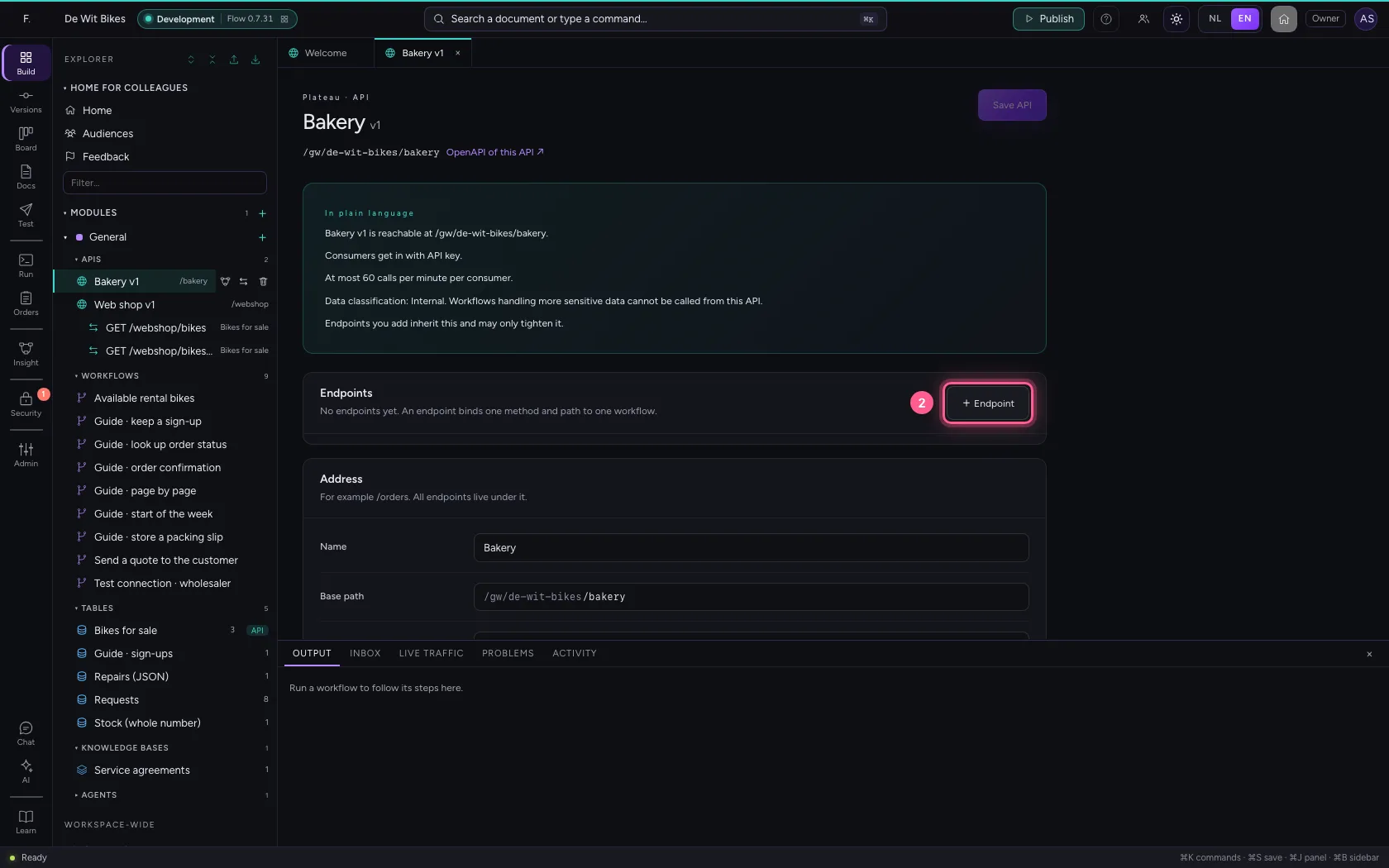
- In Name, type
Stock - In Method, choose GET
- In Path, type
/stock
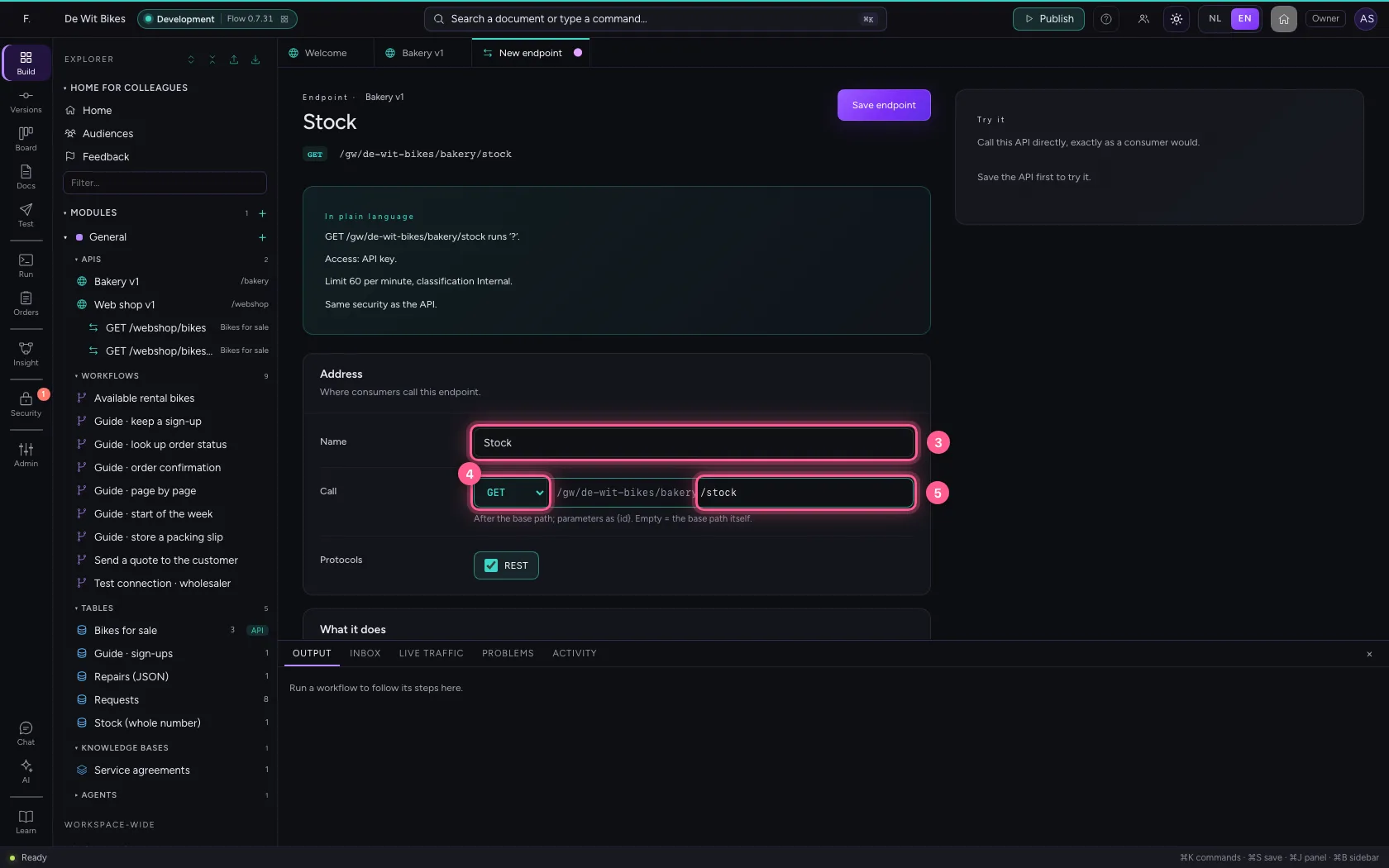
- Click Forward to connection
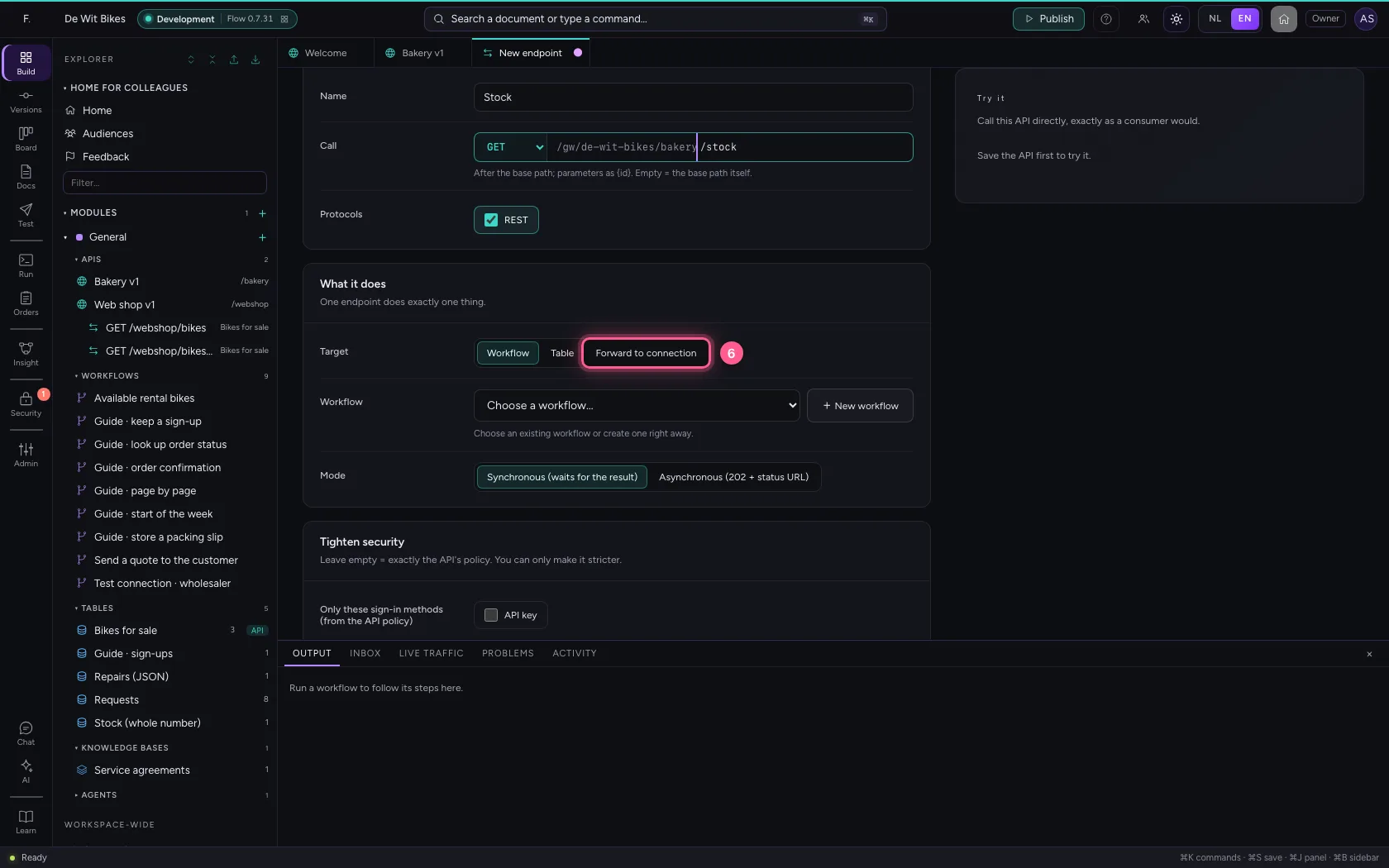
- In Connection, choose Bakery · partner API
- In Upstream path, type
/stock
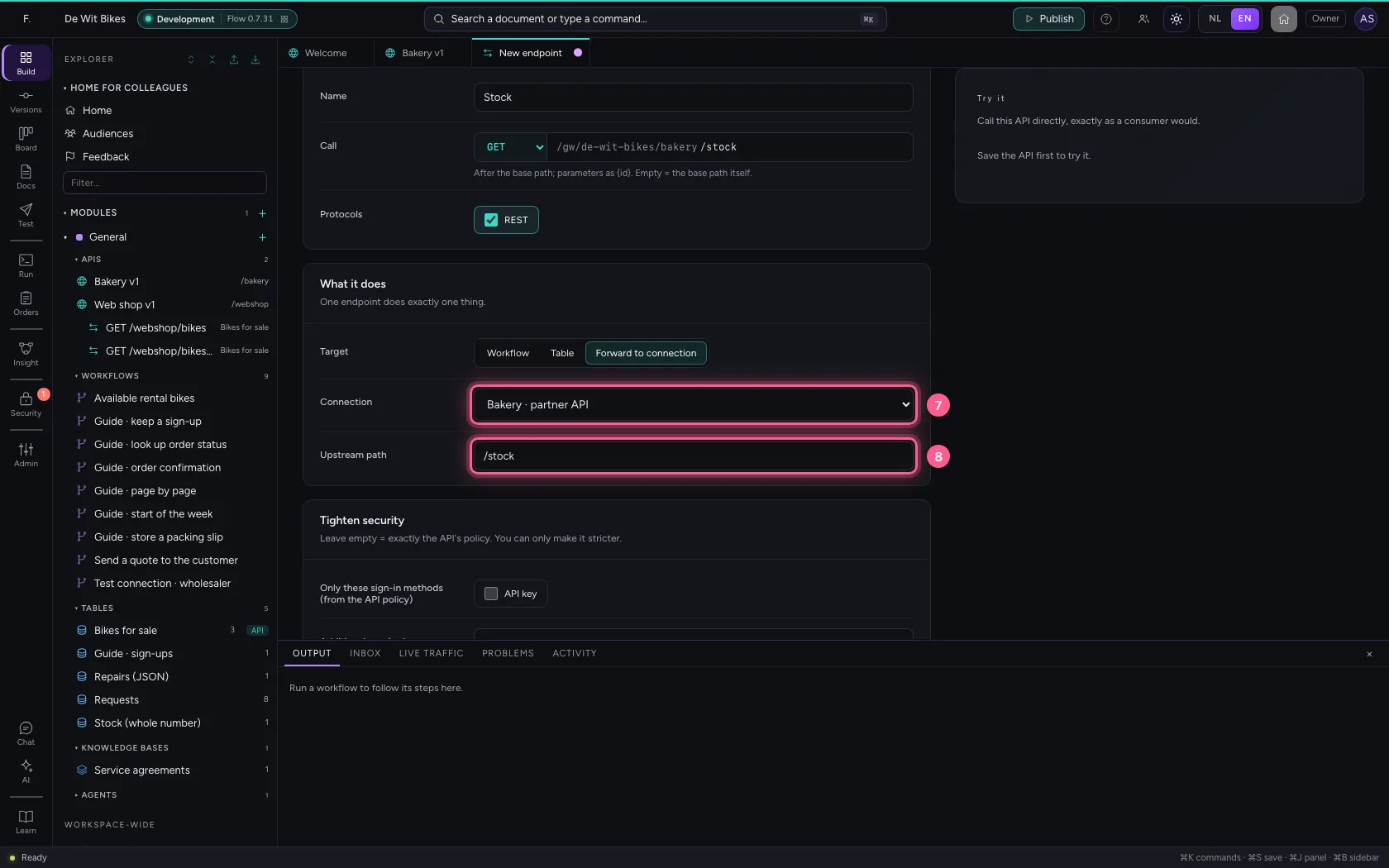
- Click Save endpoint
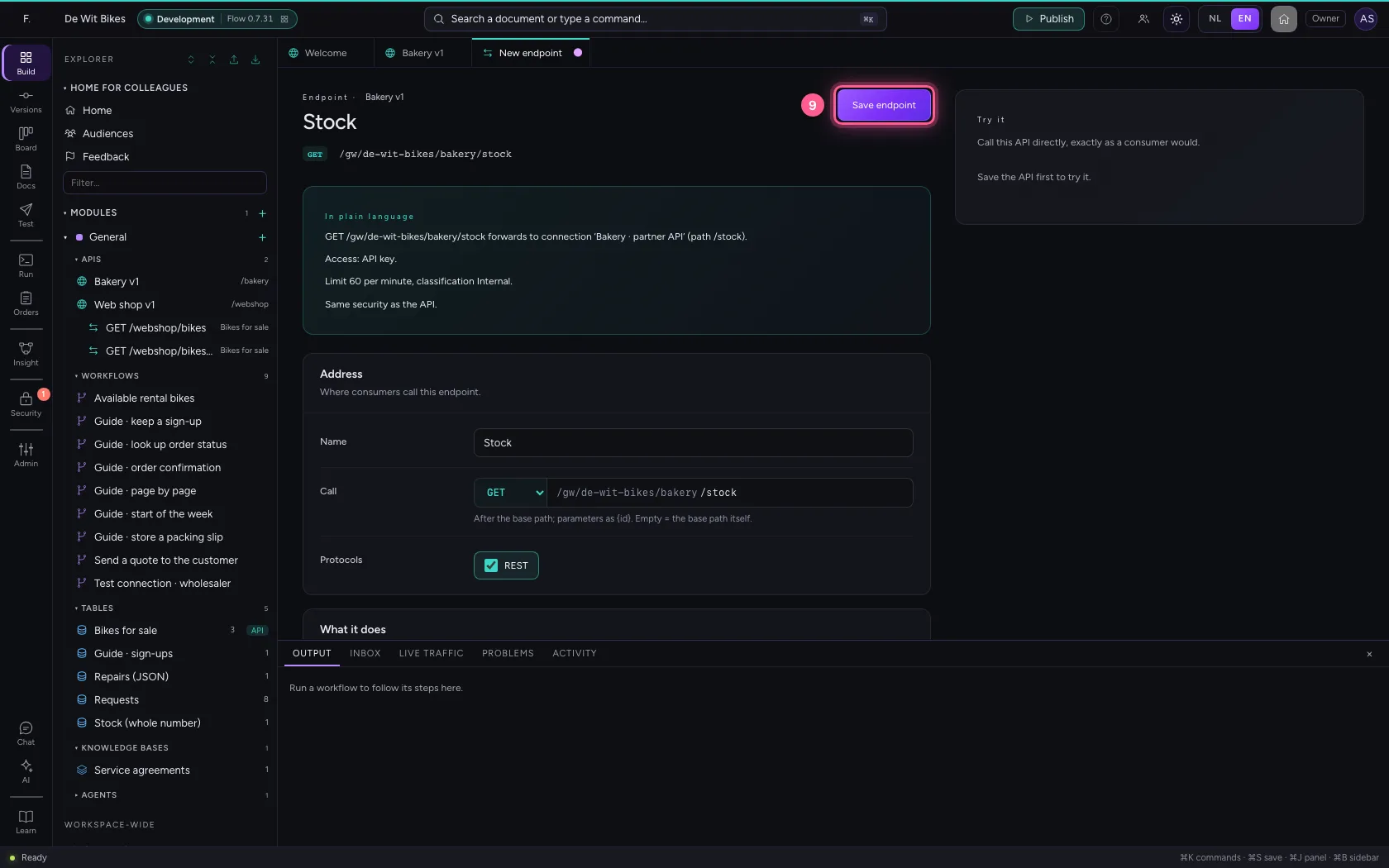
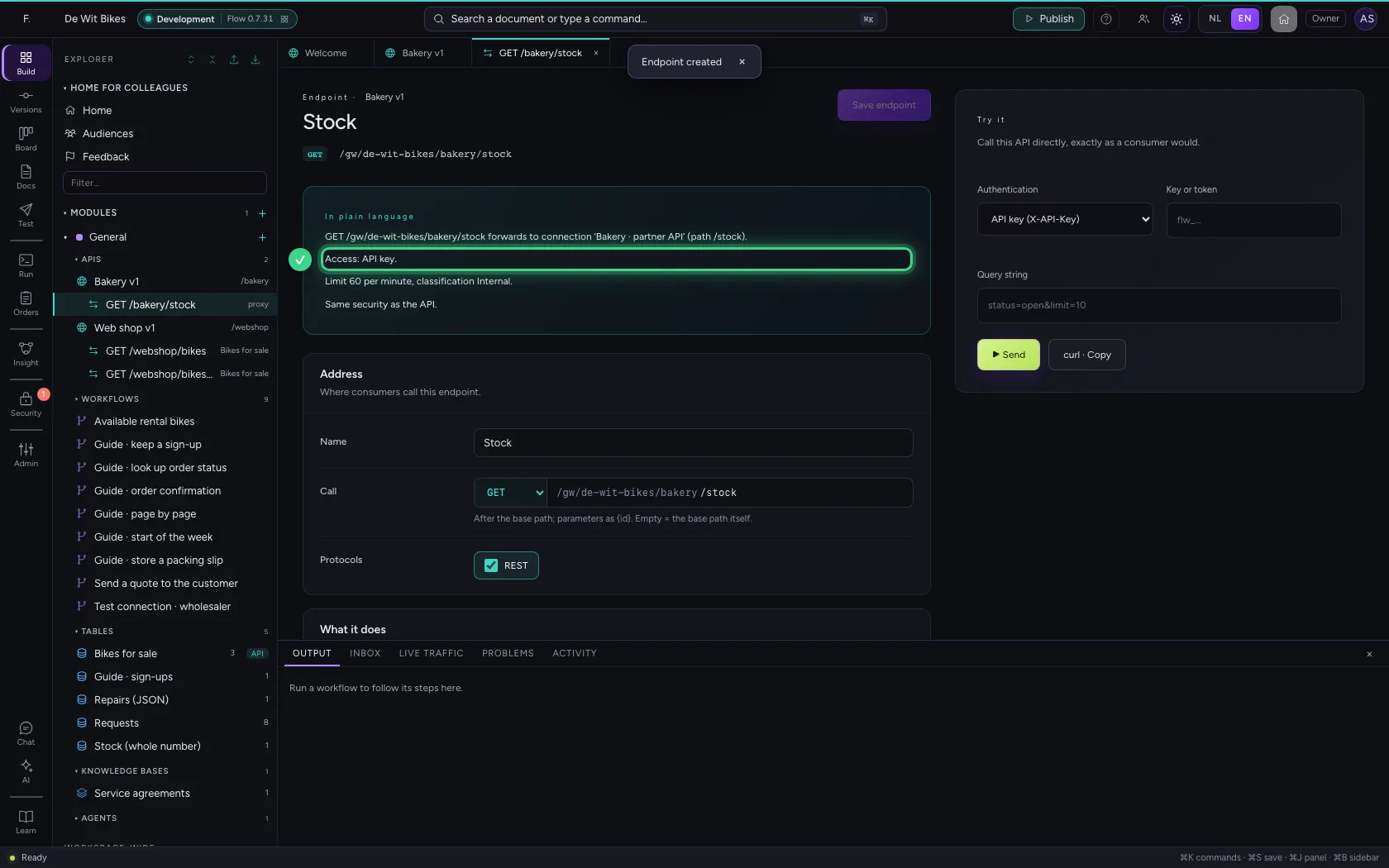
Call it
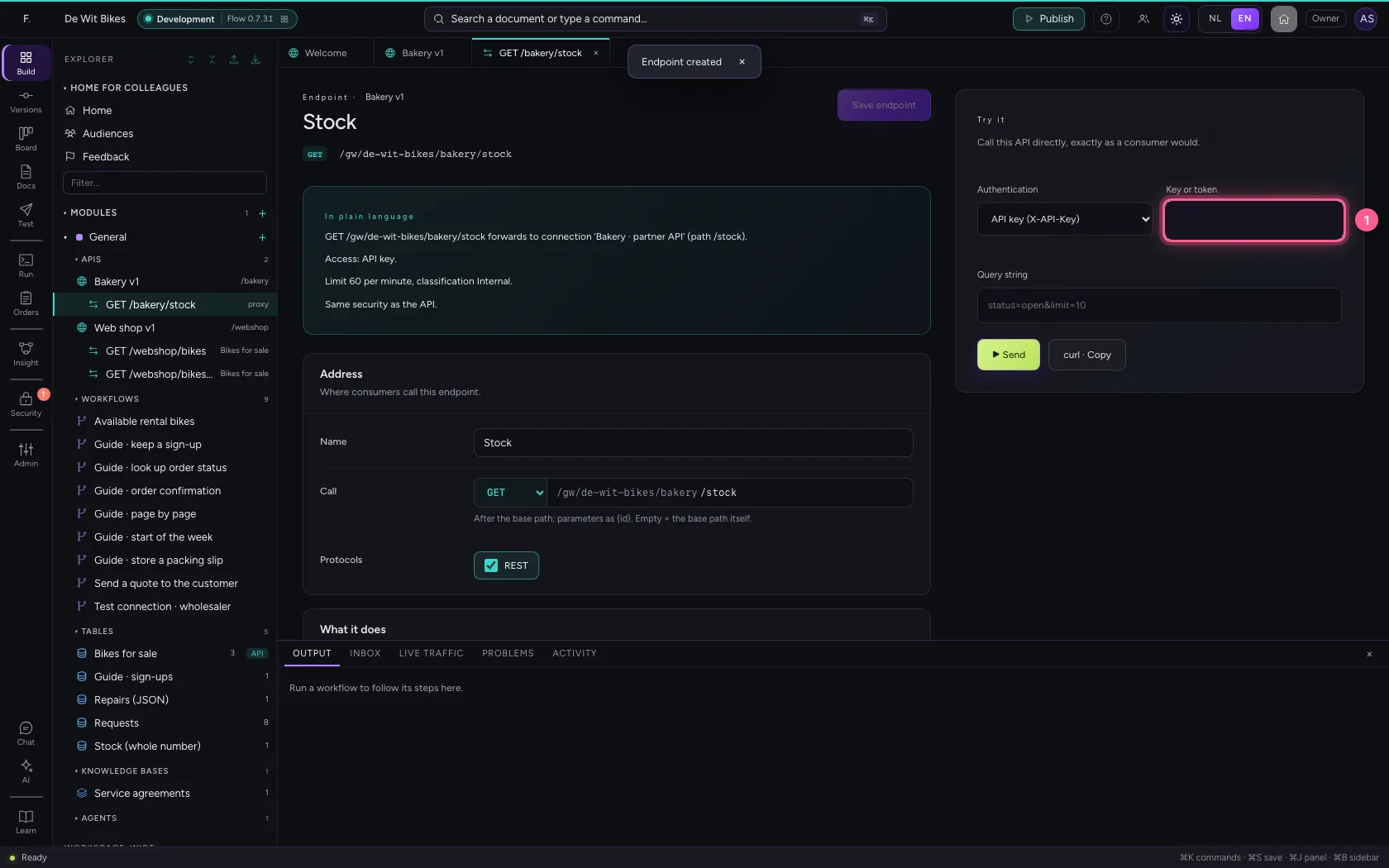
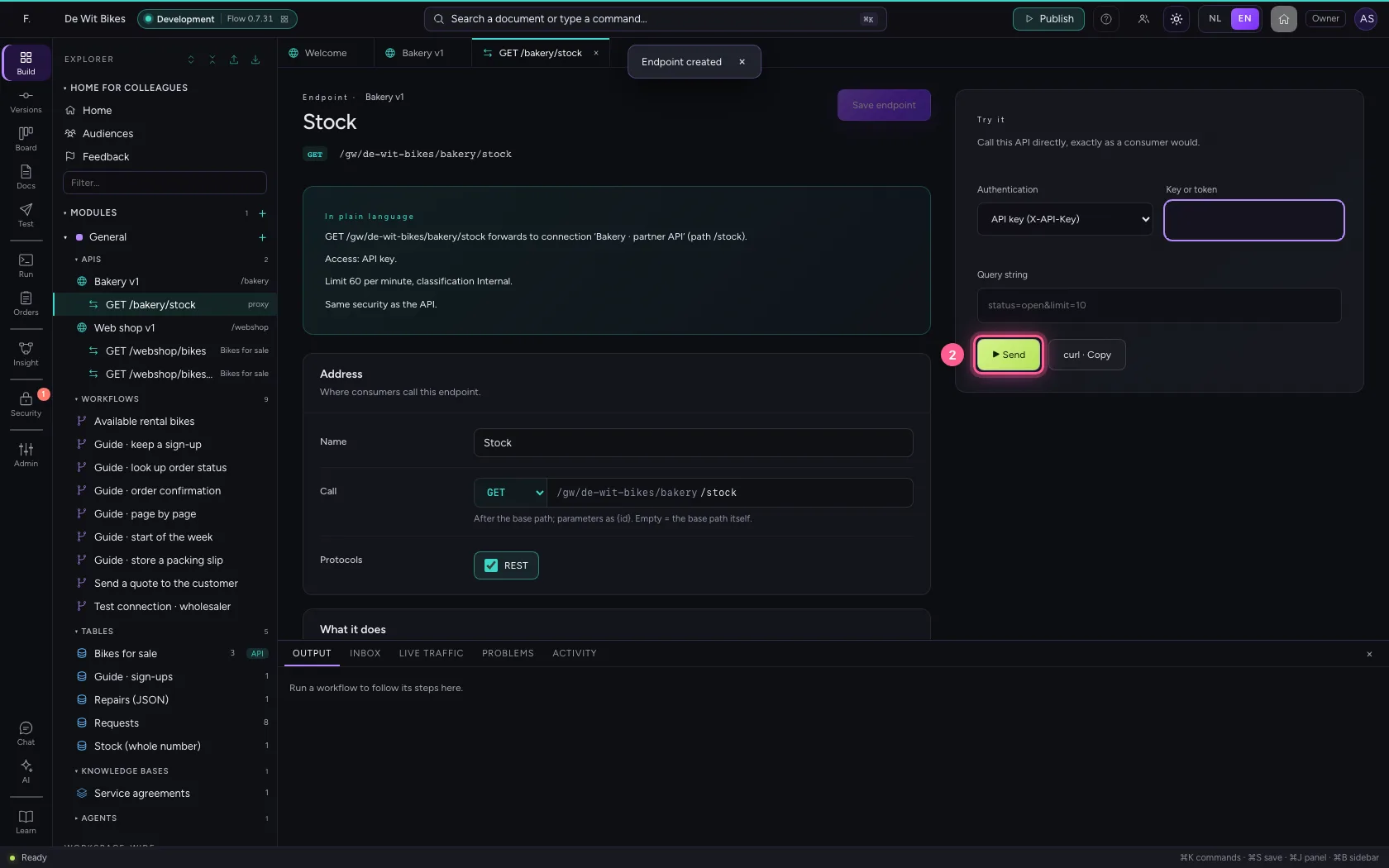
Under Try it you call the endpoint with an API key of your API. Flow checks that key, forwards the request with the connection's key and returns the system's answer unchanged.
- In Key or token, type
••••••••
- Click ▶ Send
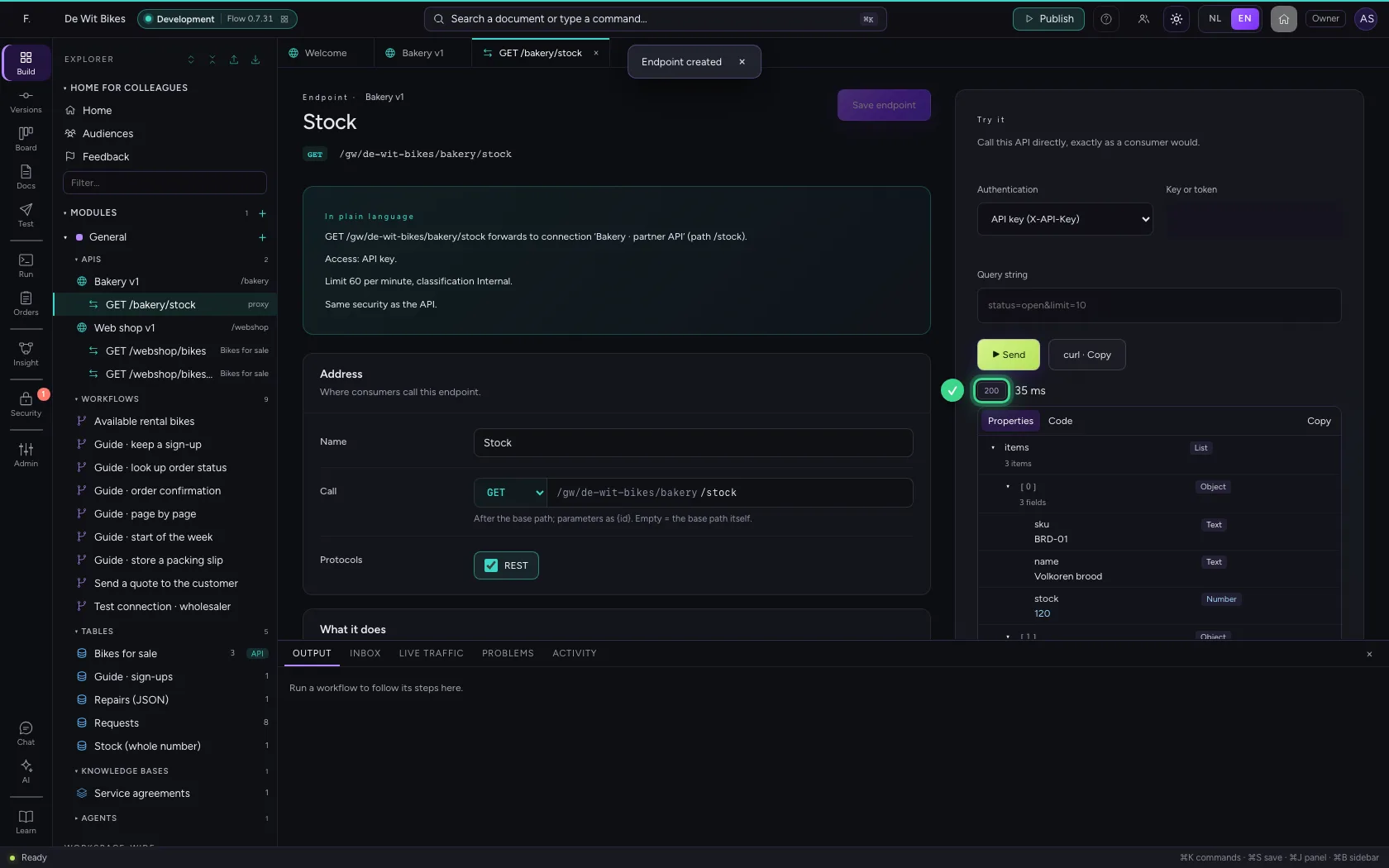
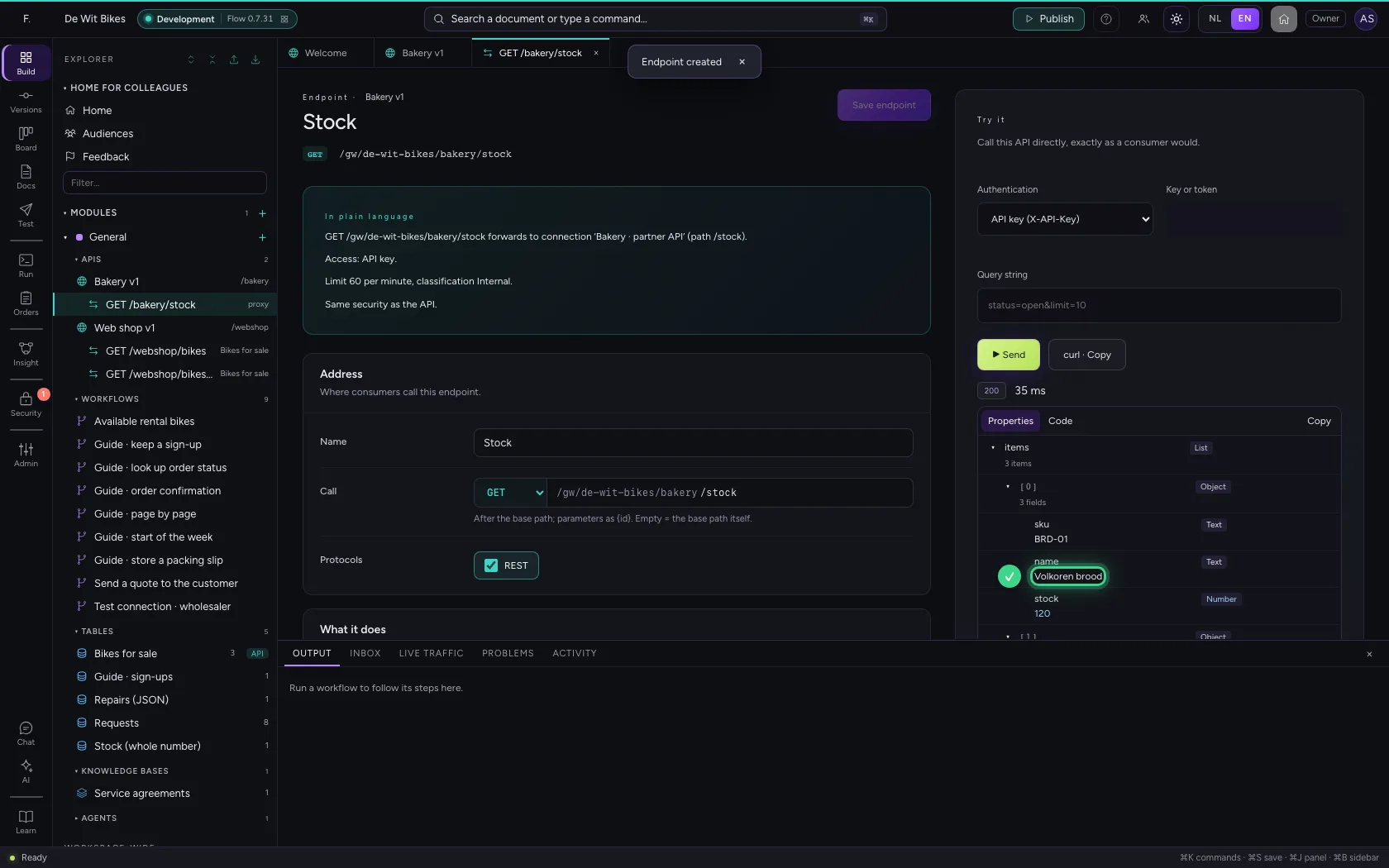
Path parameters go along
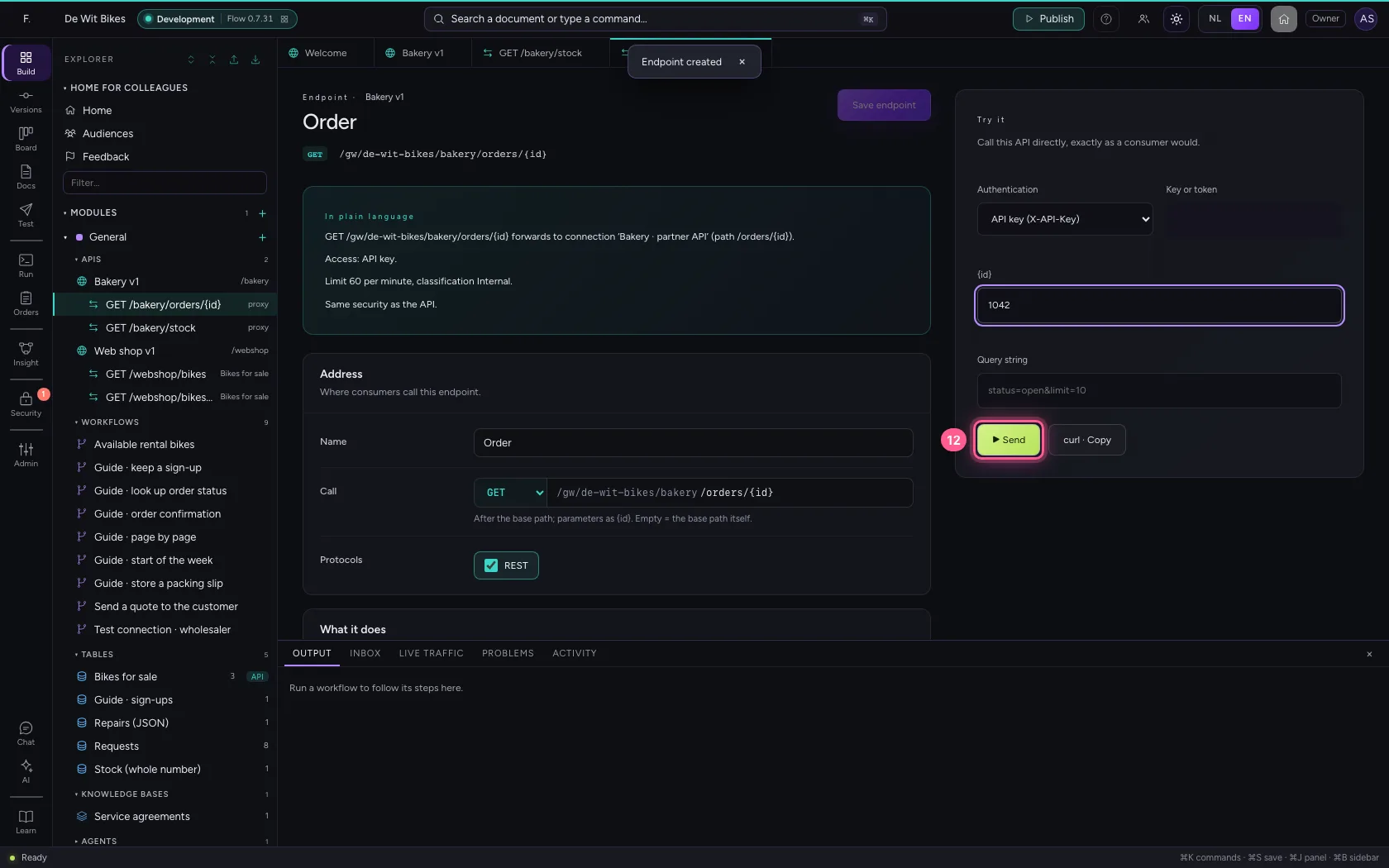
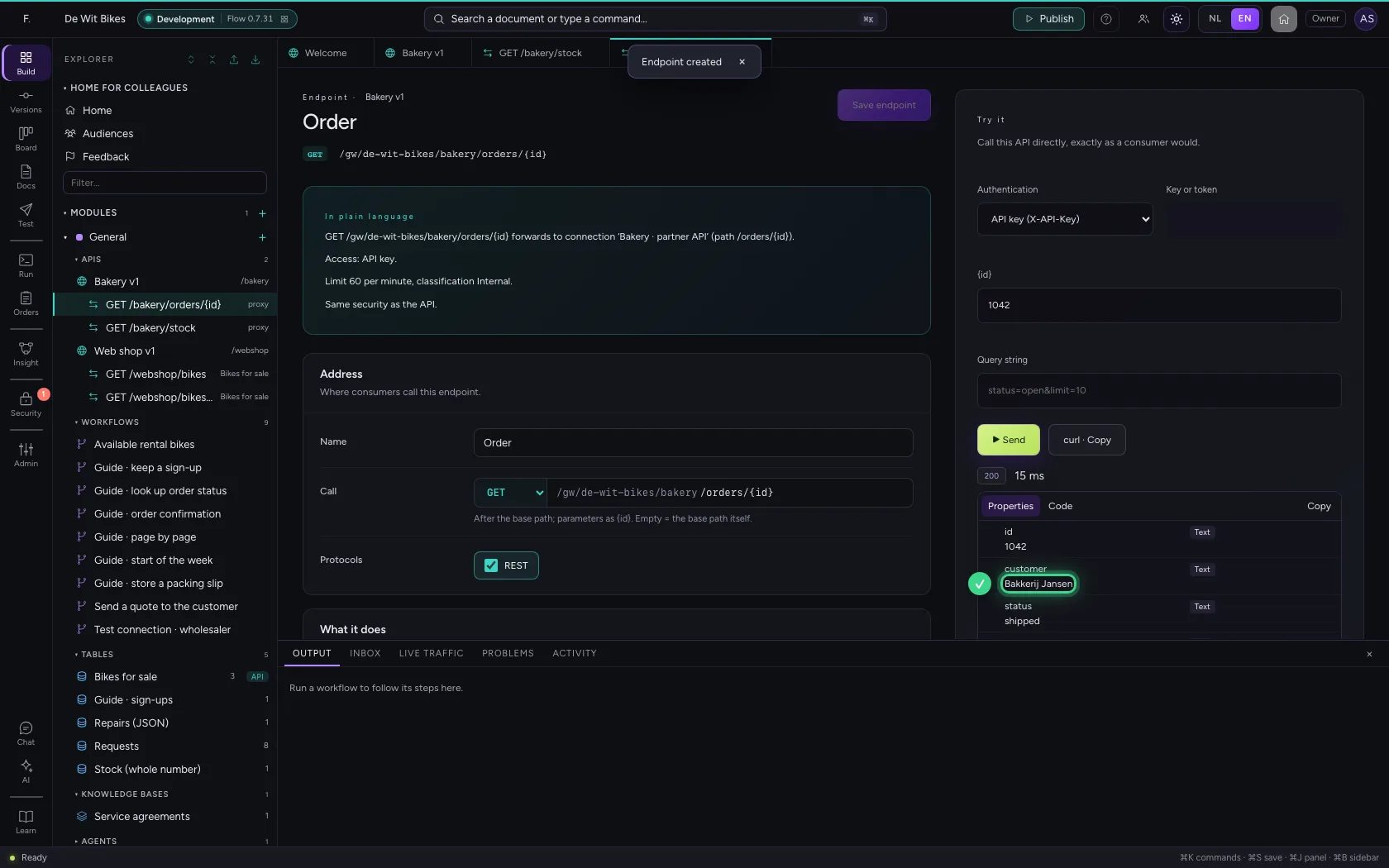
A second endpoint with {id} in the path, and {id} in the upstream path too: Flow fills in the consumer's value. That way you offer one order without the consumer knowing the system's address.
- Click the API
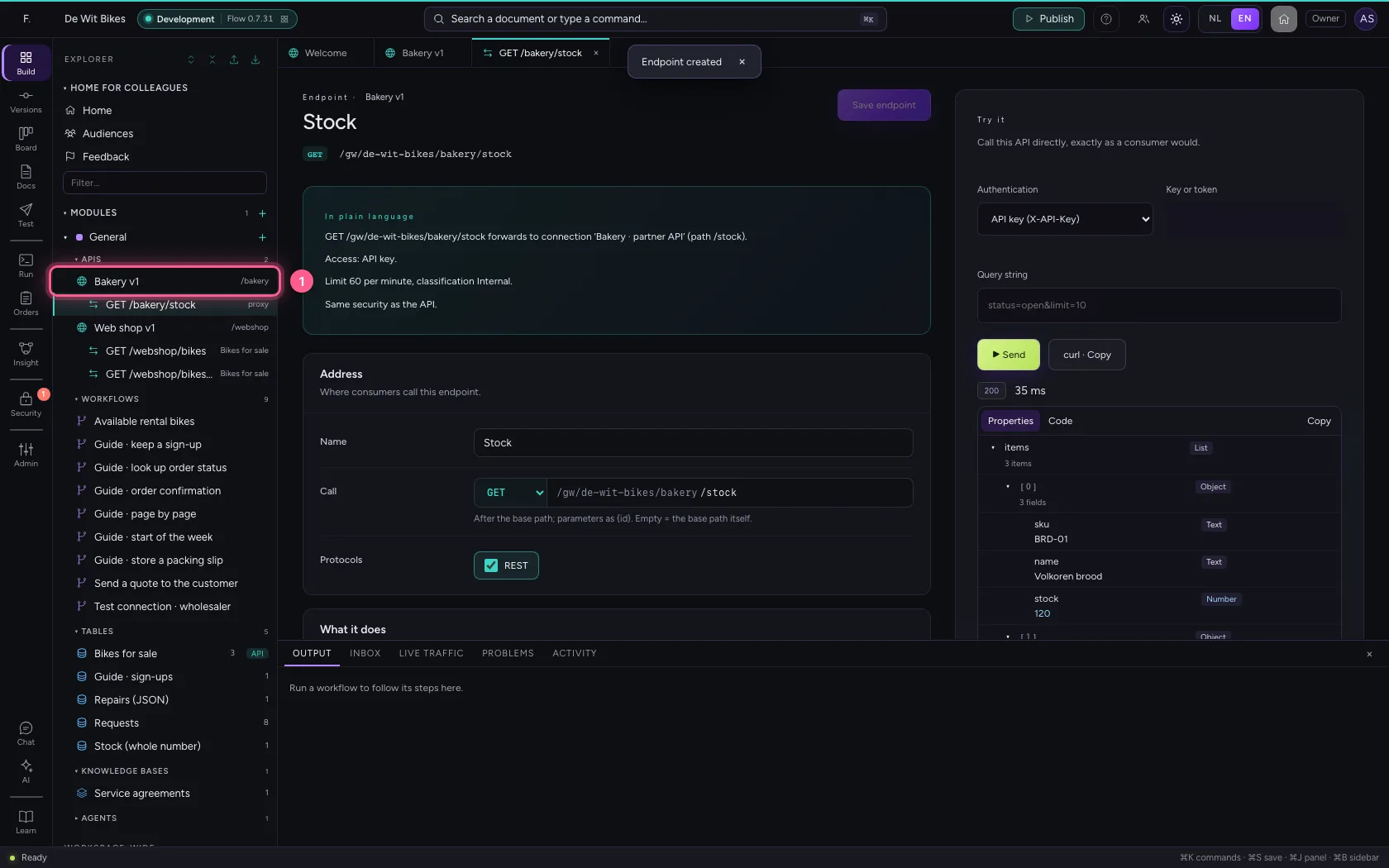
- Click + Endpoint
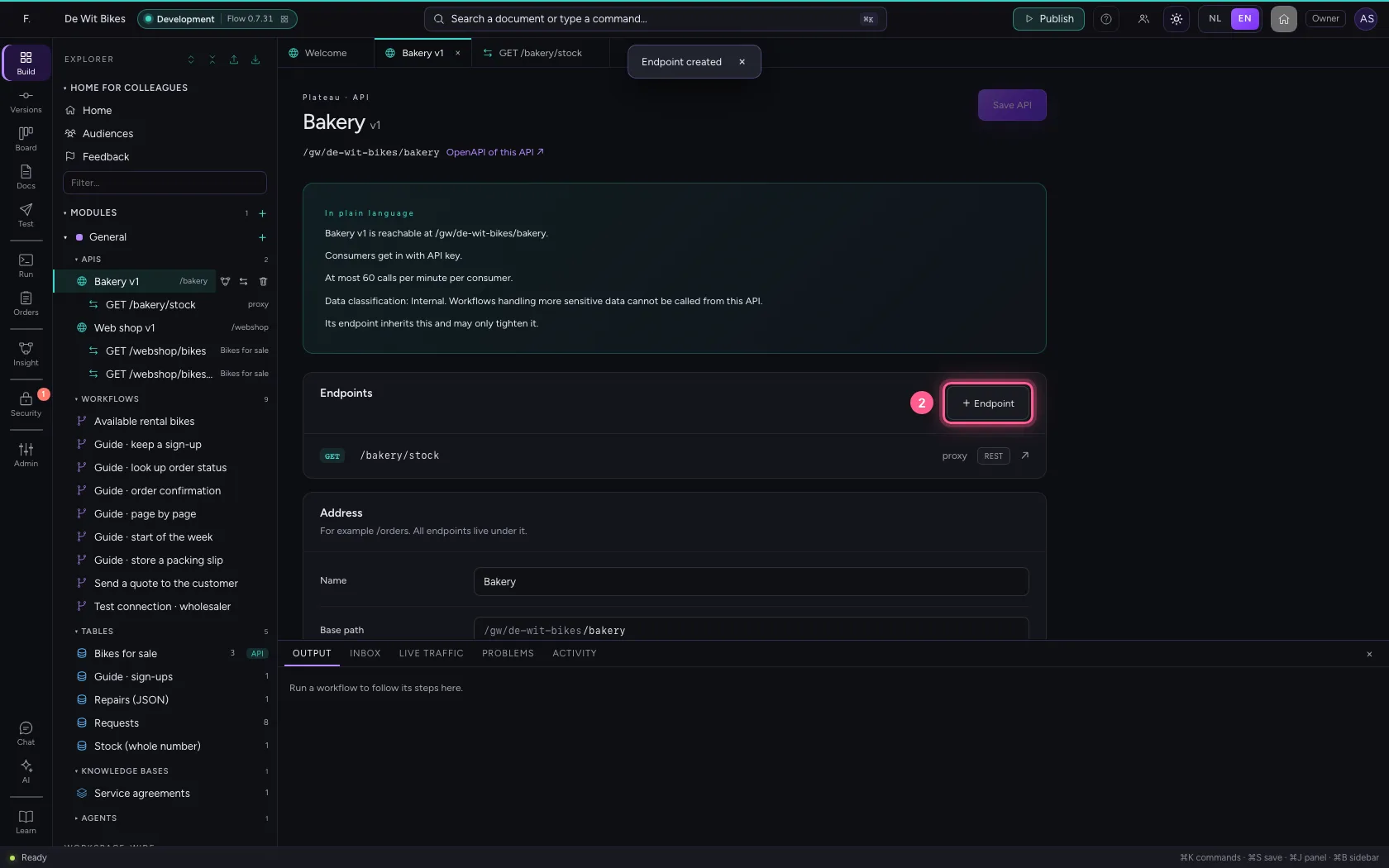
- In Name, type
Order - In Method, choose GET
- In Path, type
/orders/{id}
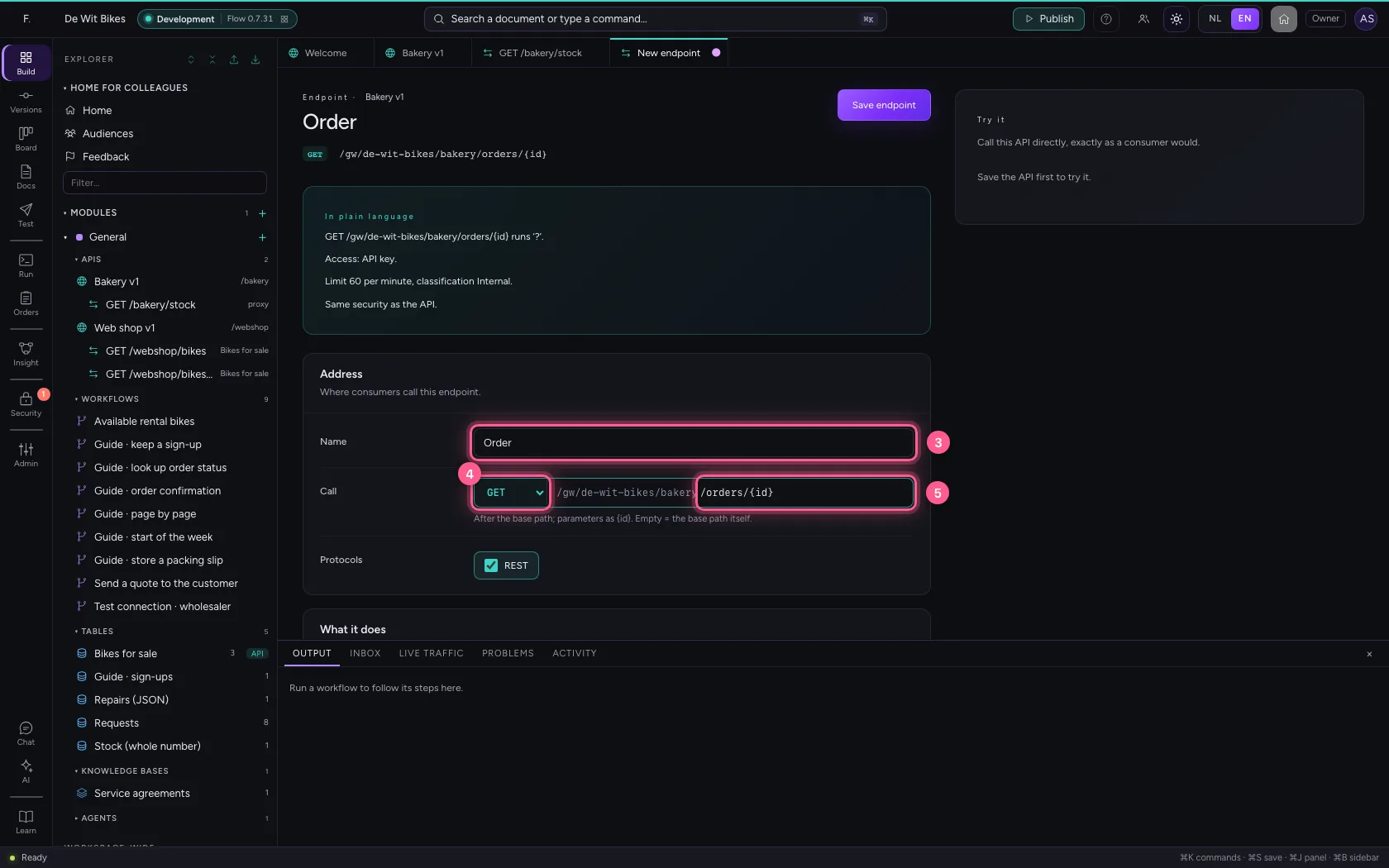
- Click Forward to connection
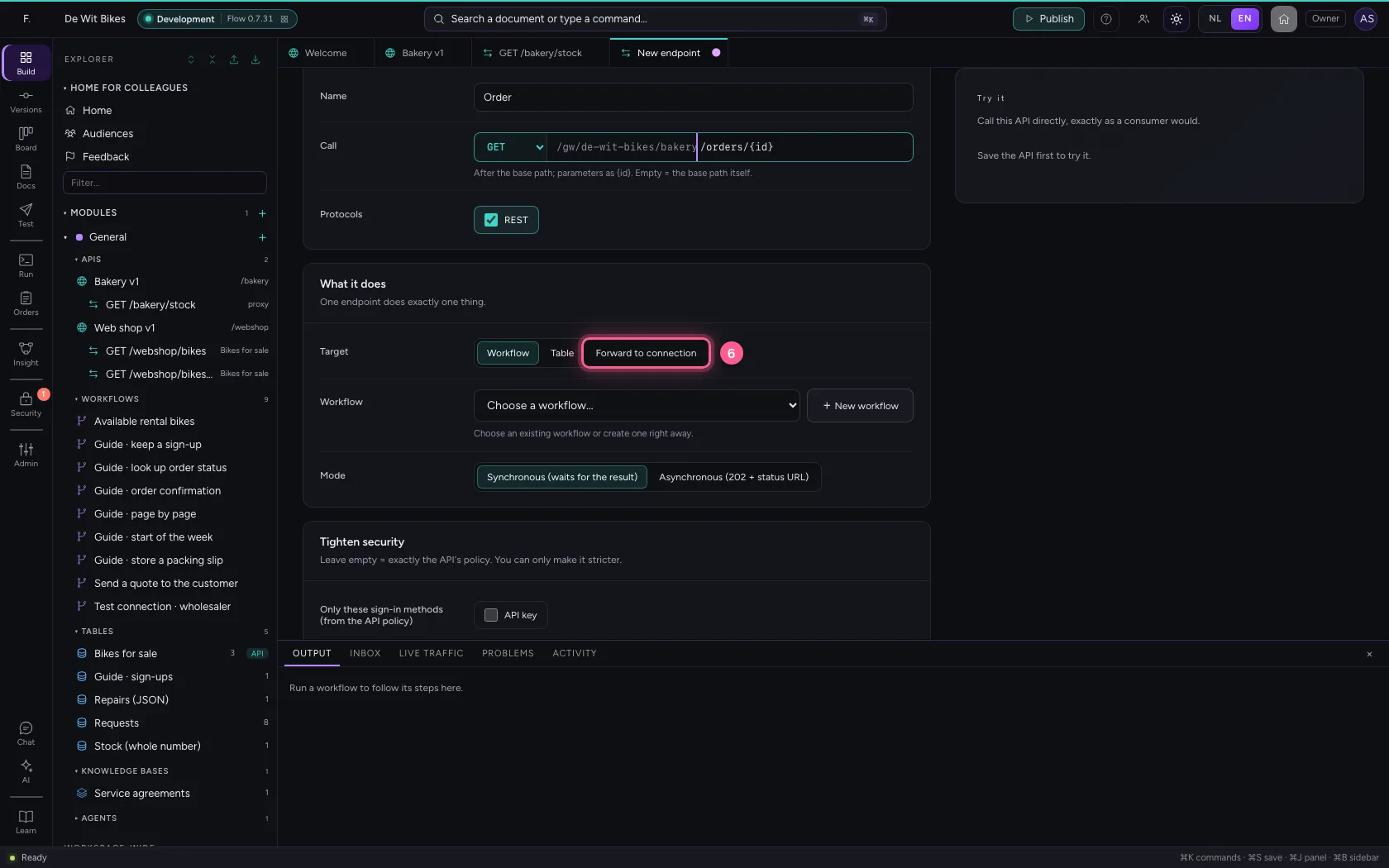
- In Connection, choose Bakery · partner API
- In Upstream path, type
/orders/{id}
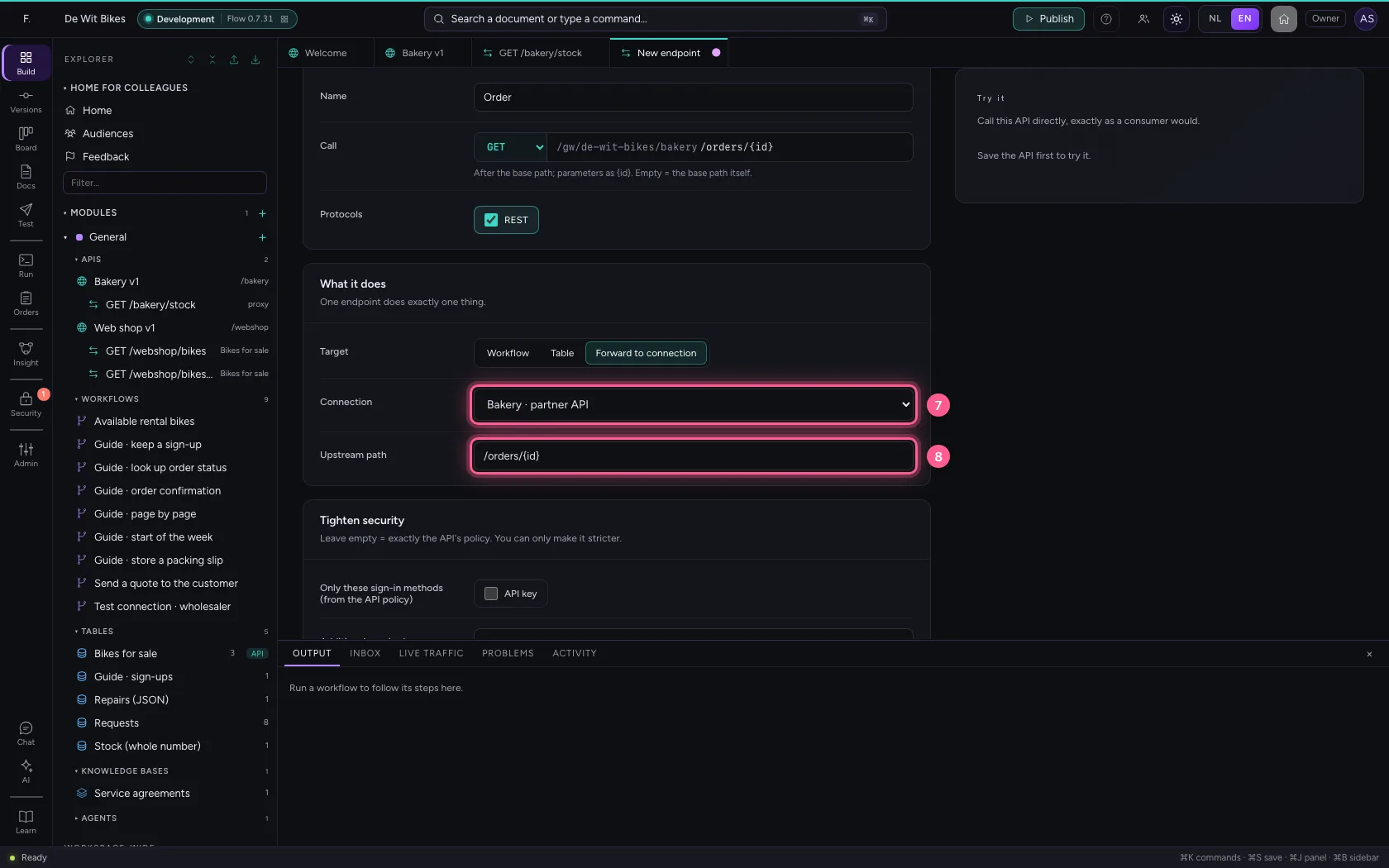
- Click Save endpoint
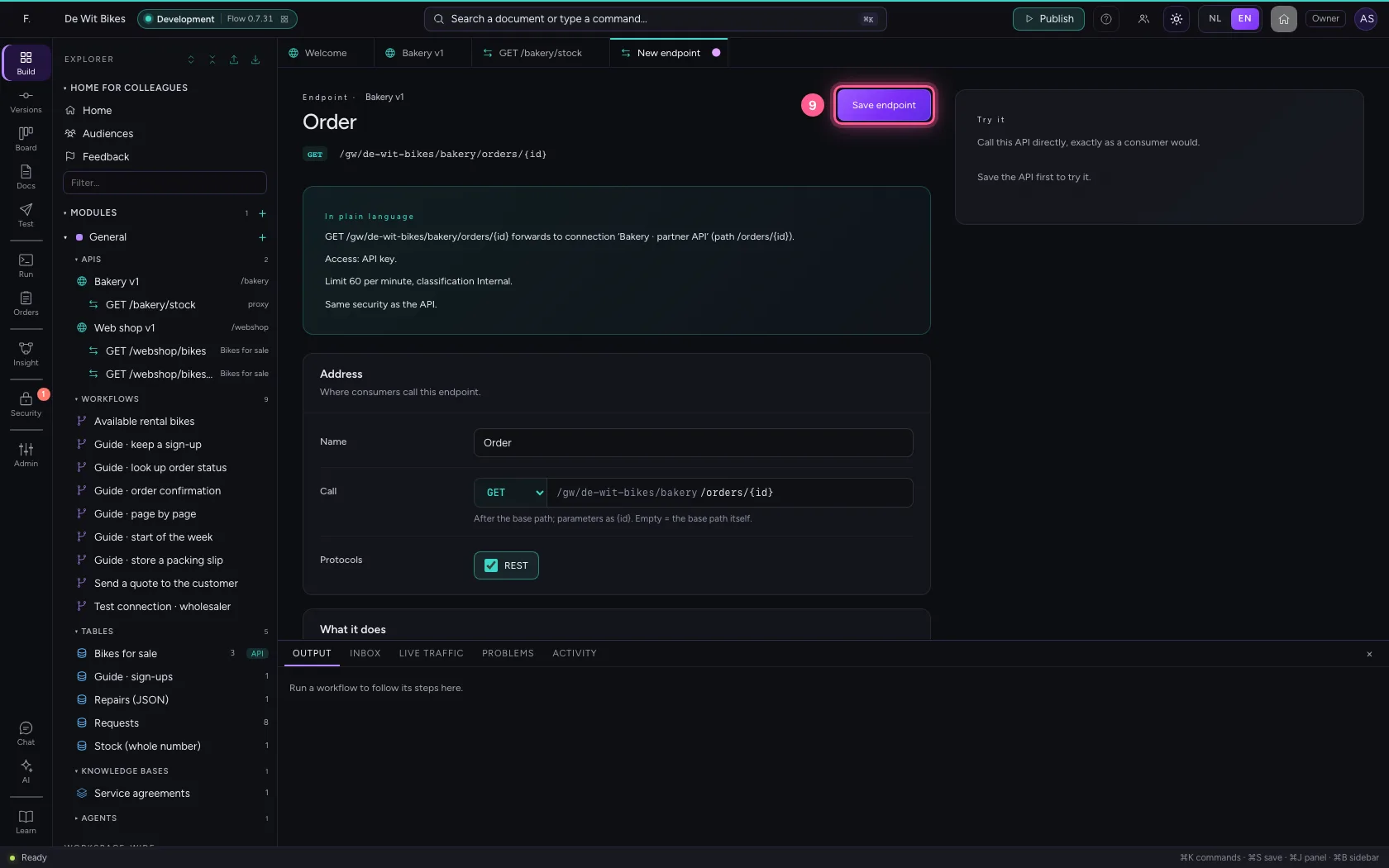
- In Key or token, type
•••••••• - In {id}, type
1042
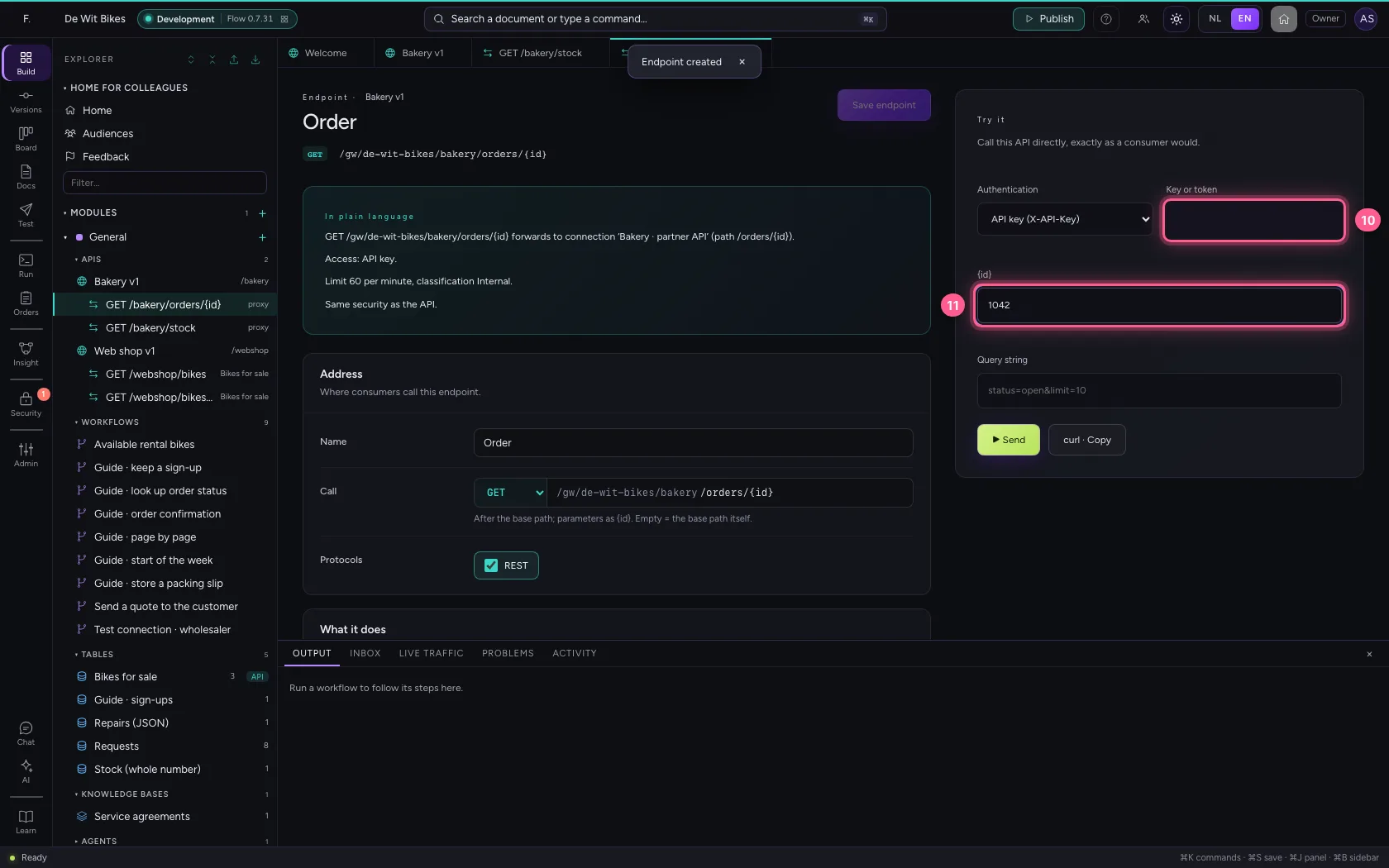
- Click ▶ Send
This guide was carried out step by step on 22 Oct 2026 by an automated test on Flow (version 3e563176).