An API's description: OpenAPI and WSDL
Flow describes every API itself, from what you build: an OpenAPI description for REST and a WSDL for endpoints that also speak SOAP. By default only callers with a key or token for that API can read the description. With Public documentation anyone can read it — partners' developers build against it without an account — while calling it still requires signing in.
Open your development environment
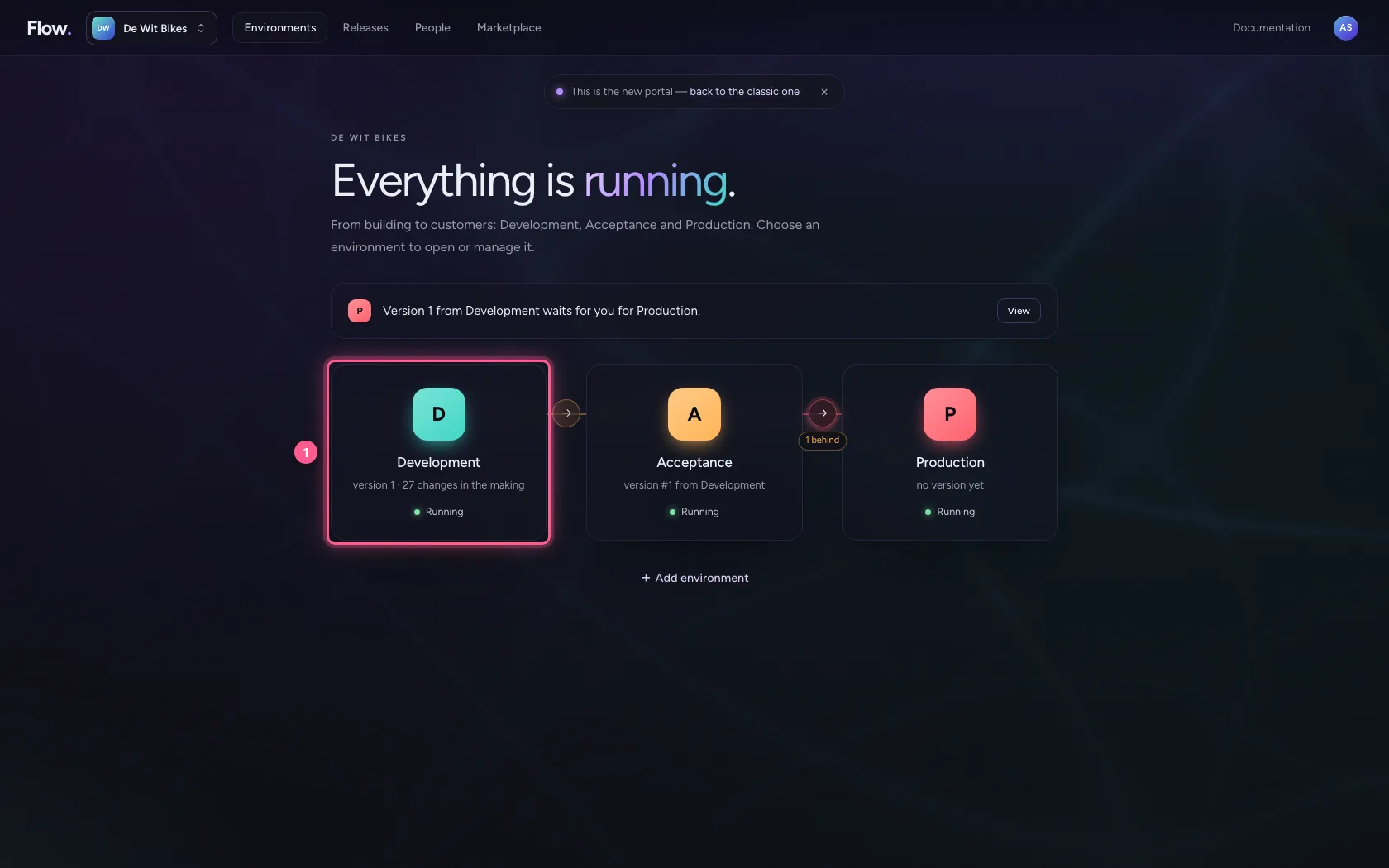
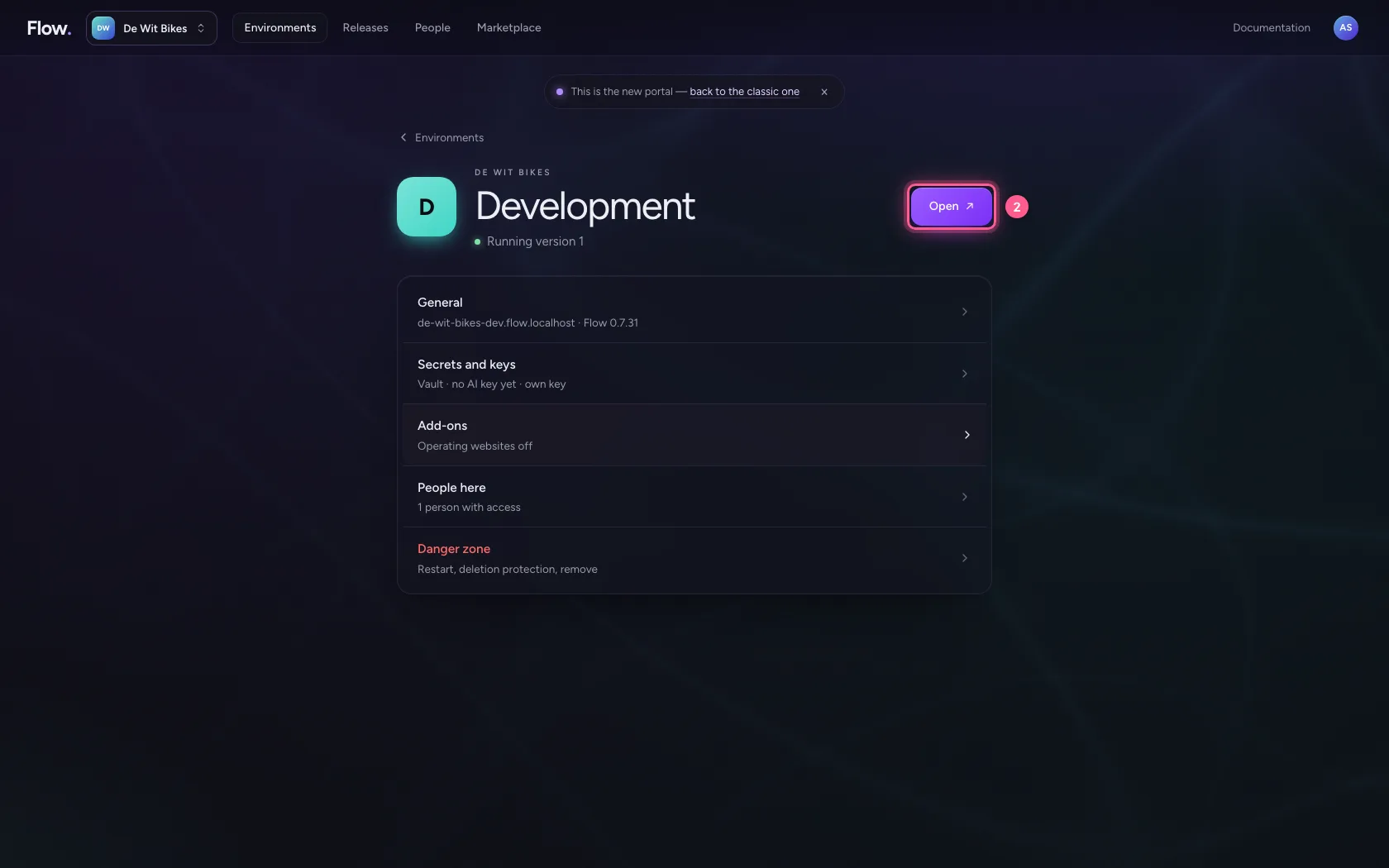
In the portal, under Environments, click Development, and there Open. Flow opens in a new tab and you are signed in straight away.
- Click Development
- Click Open ↗
Switch on SOAP and public documentation
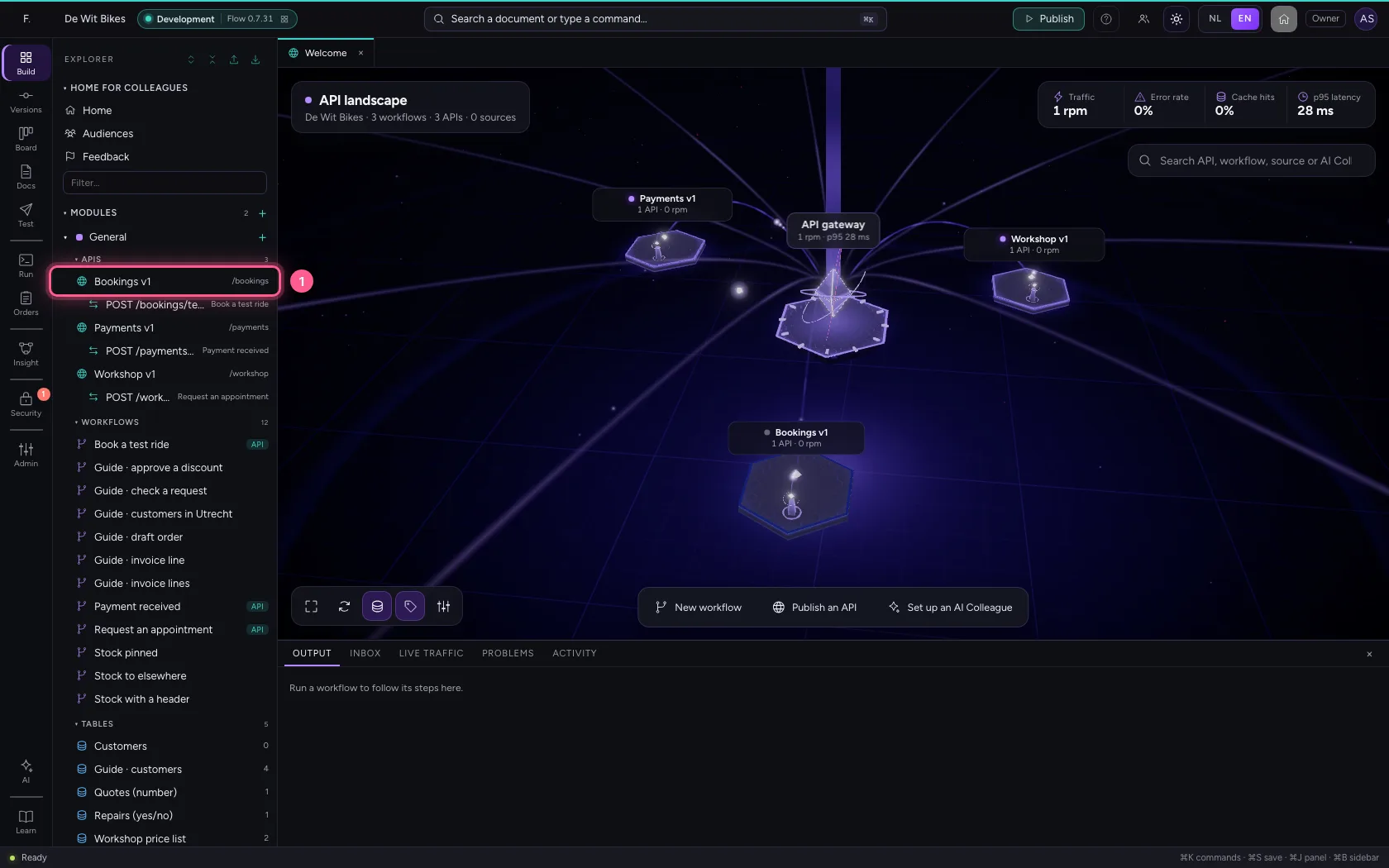
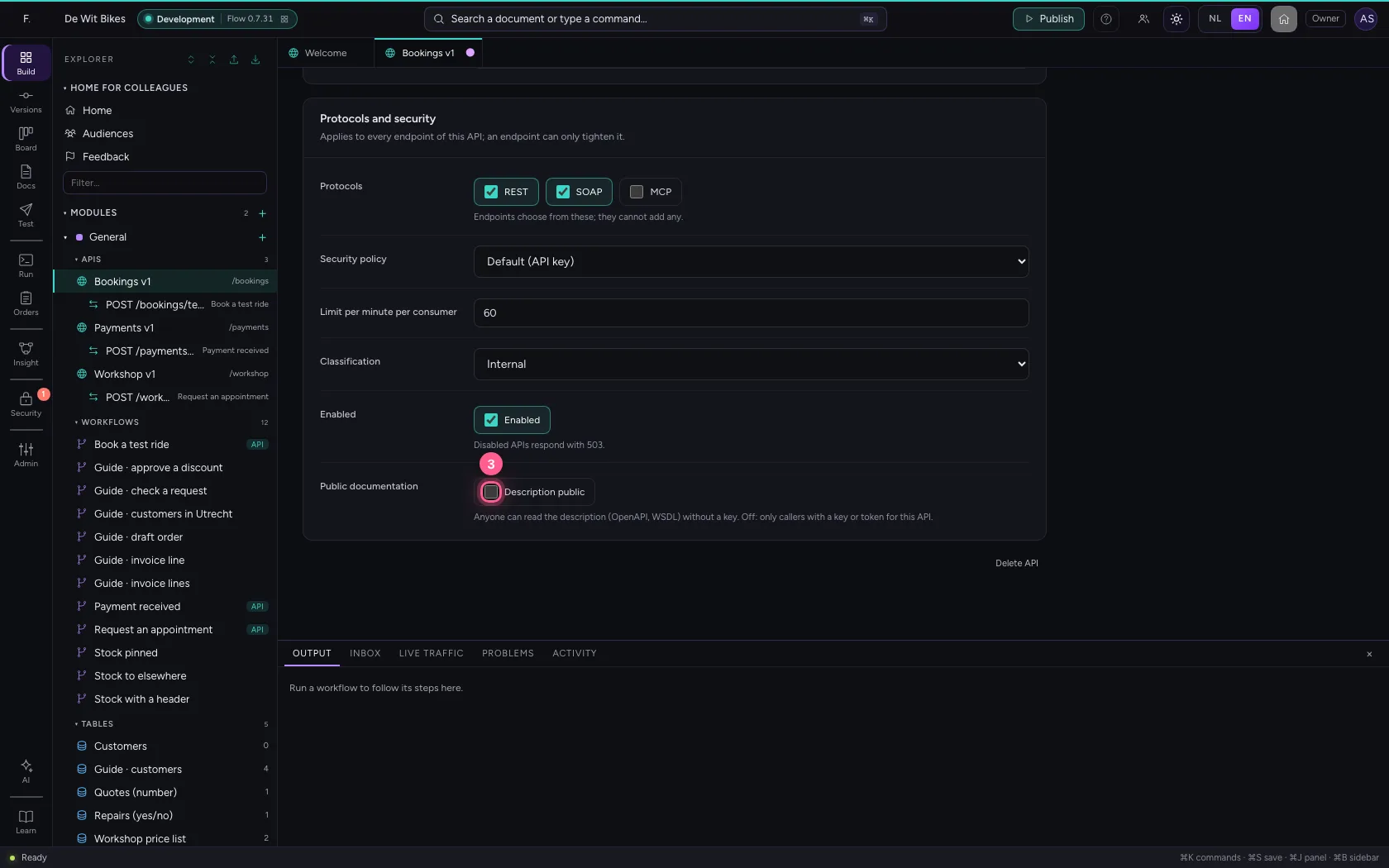
Open the API. Under Protocols and security tick SOAP if consumers also use SOAP, and Description public to make the description readable for everyone. Calling it still requires signing in.
- Click the API
- Click SOAP
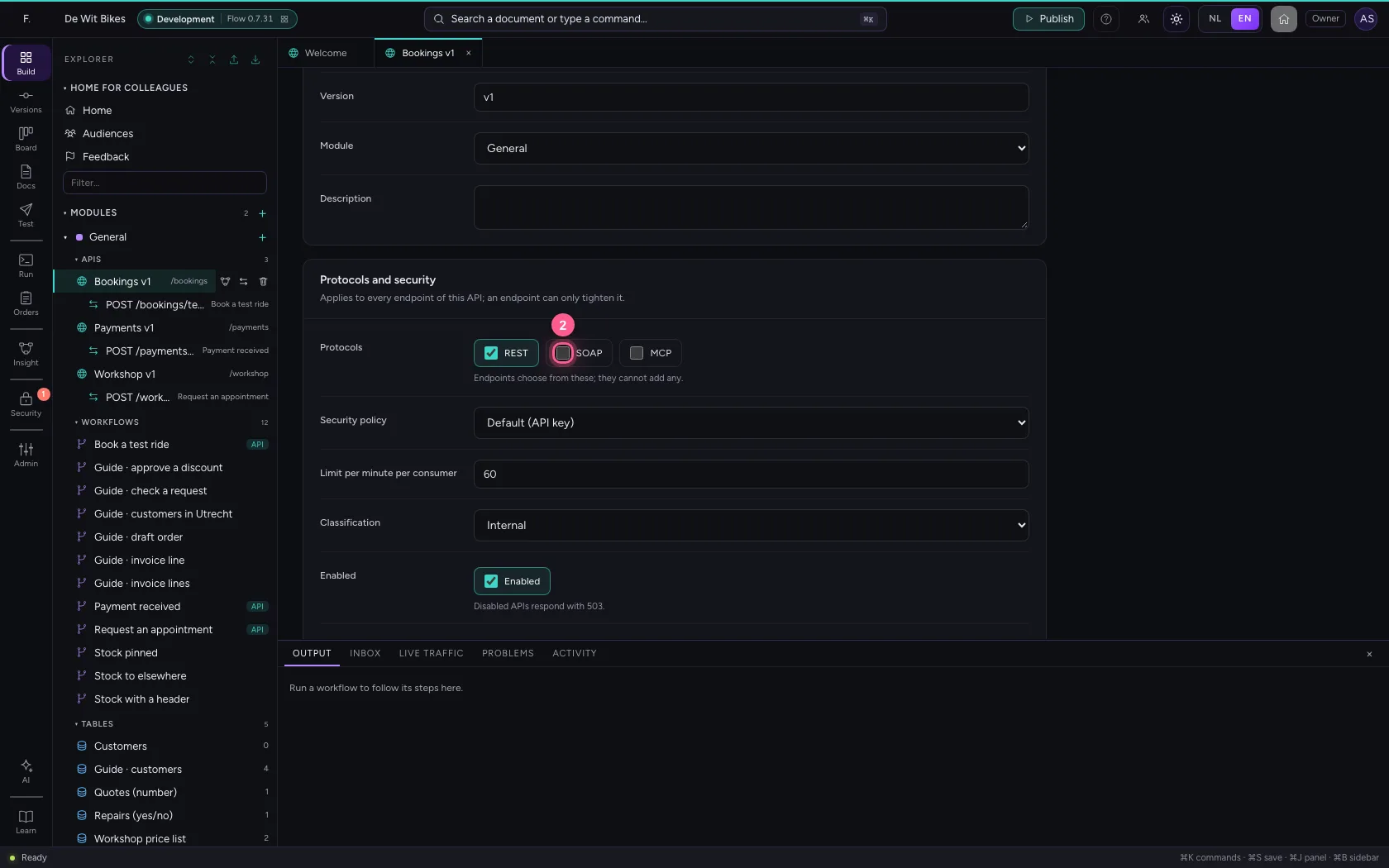
- Click Description public
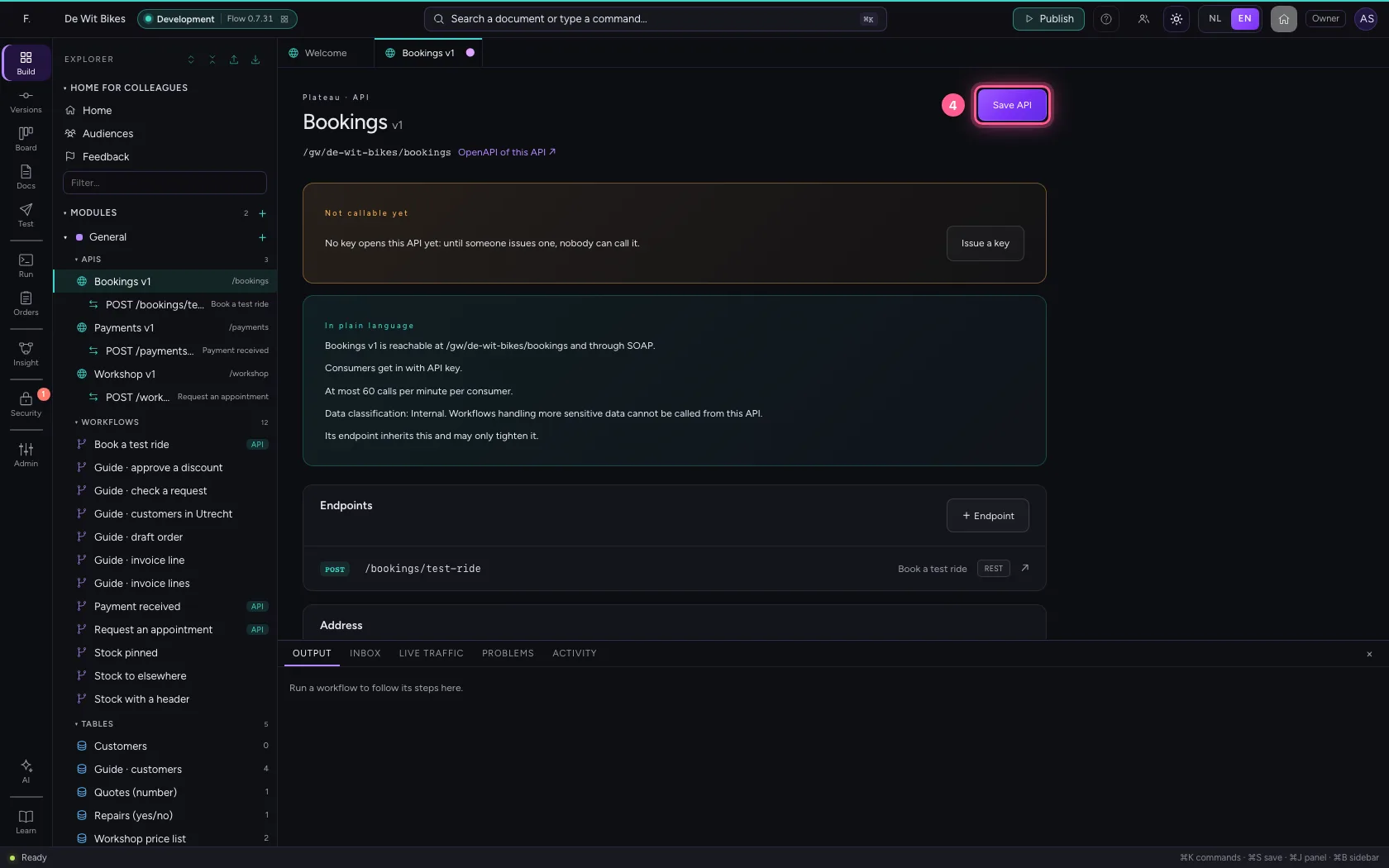
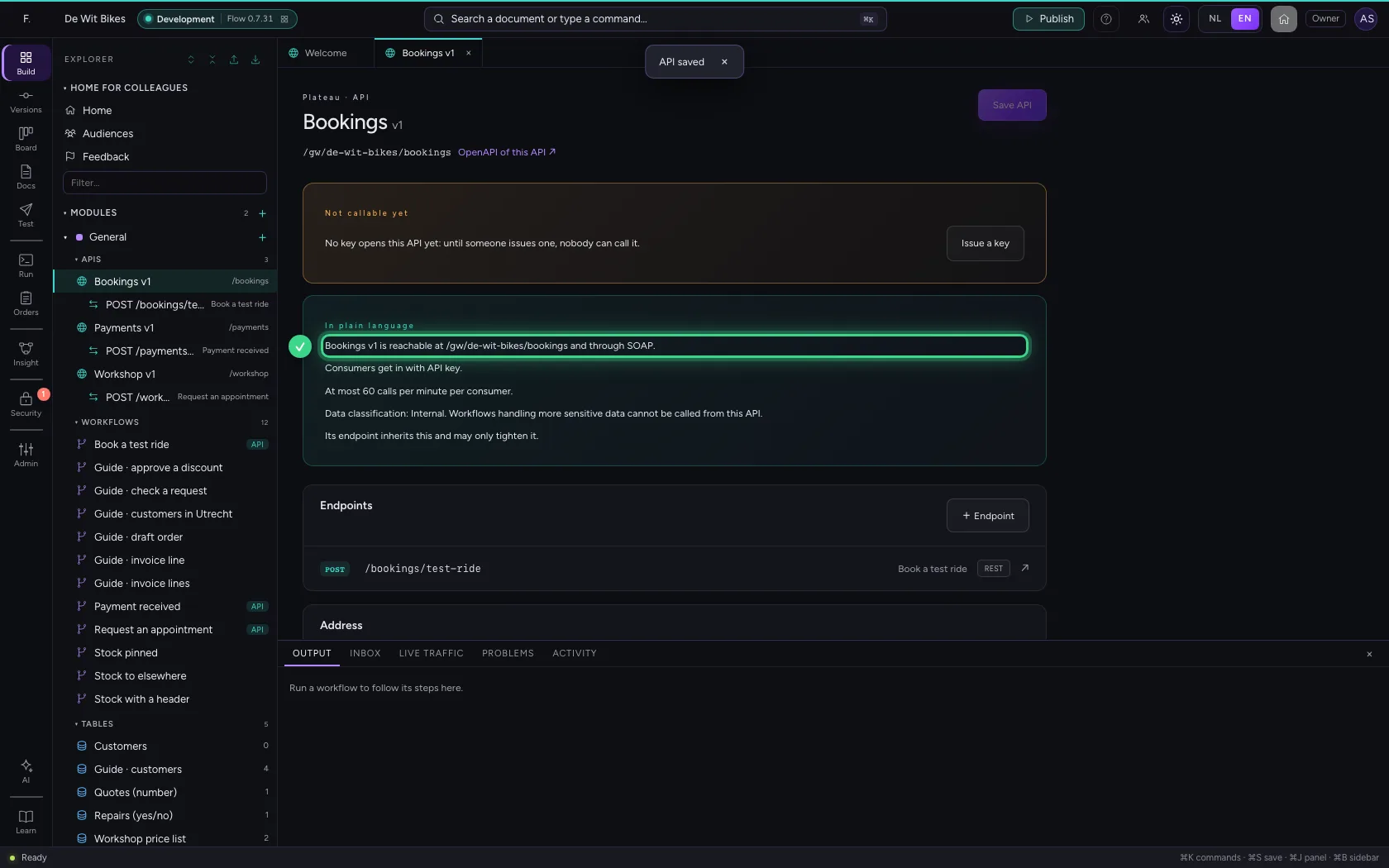
- Click Save API
Read the OpenAPI description
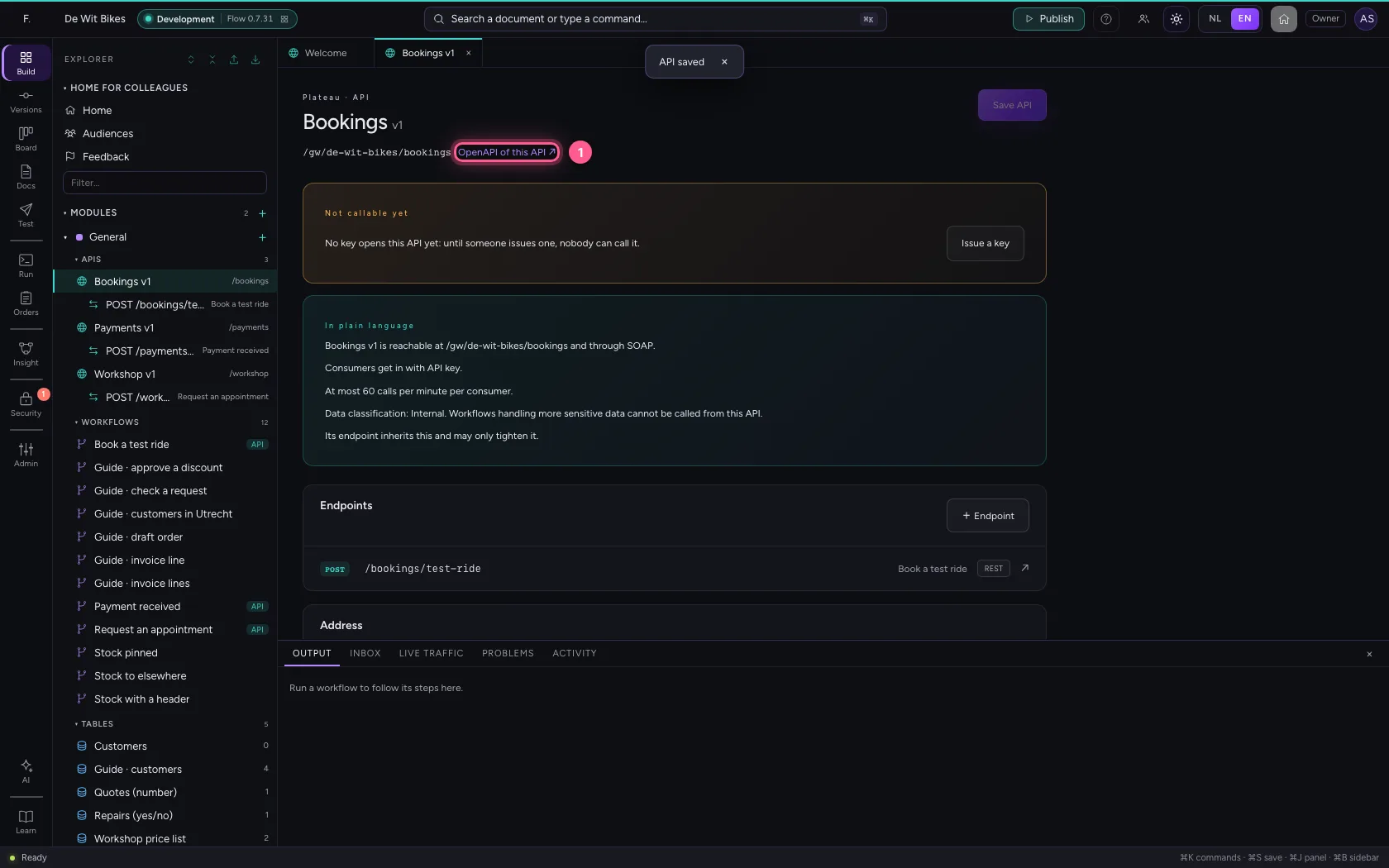
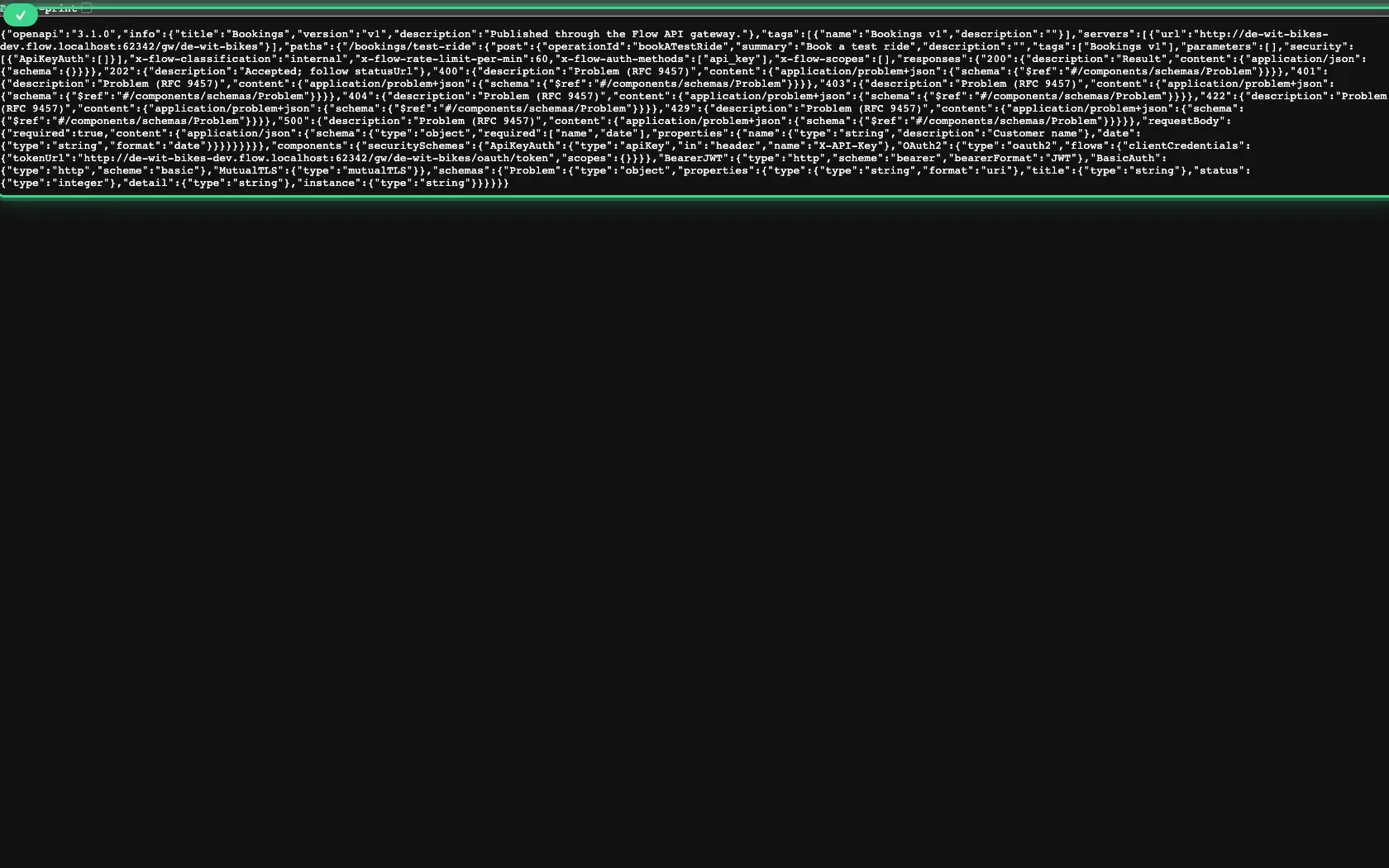
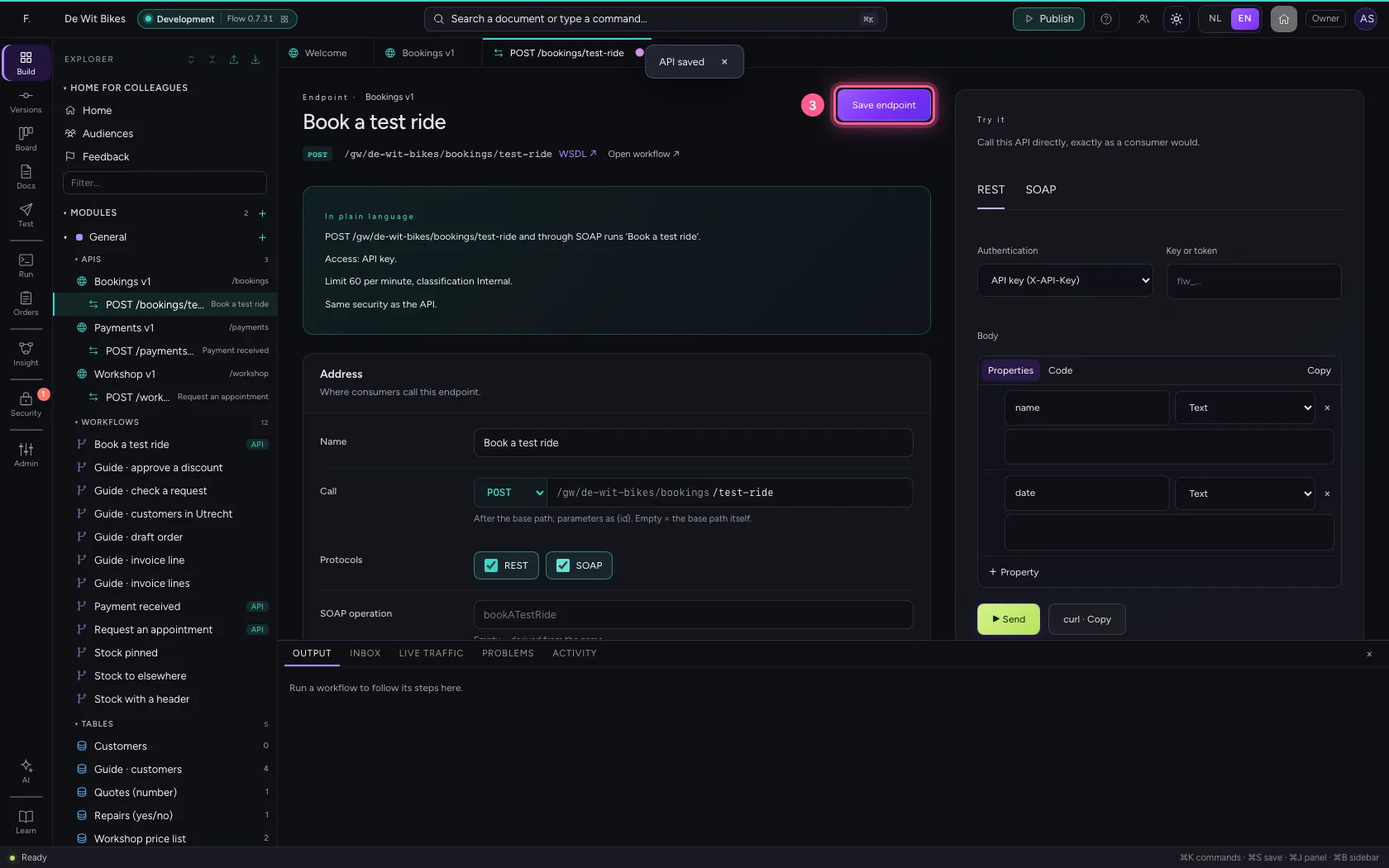
The link OpenAPI of this API opens the description in a new tab, without signing in: paths, methods, the request schema with required fields, the responses and how to sign in.
- Click OpenAPI of this API ↗
Let the endpoint speak SOAP too
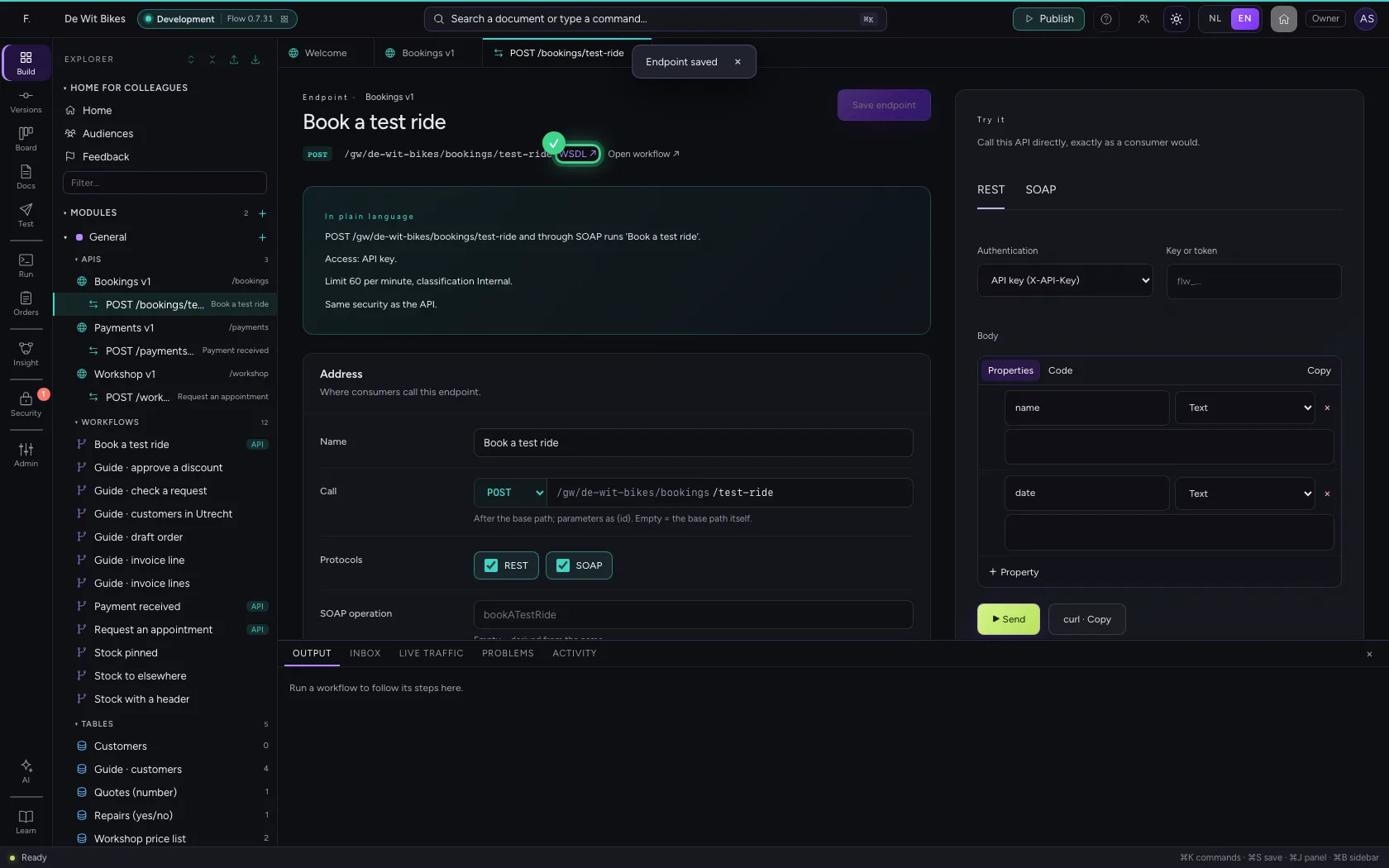
Open the endpoint and tick SOAP. The SOAP operation is named after the endpoint's name; you can override it. After saving, a link to the WSDL appears next to the address.
- Click the endpoint
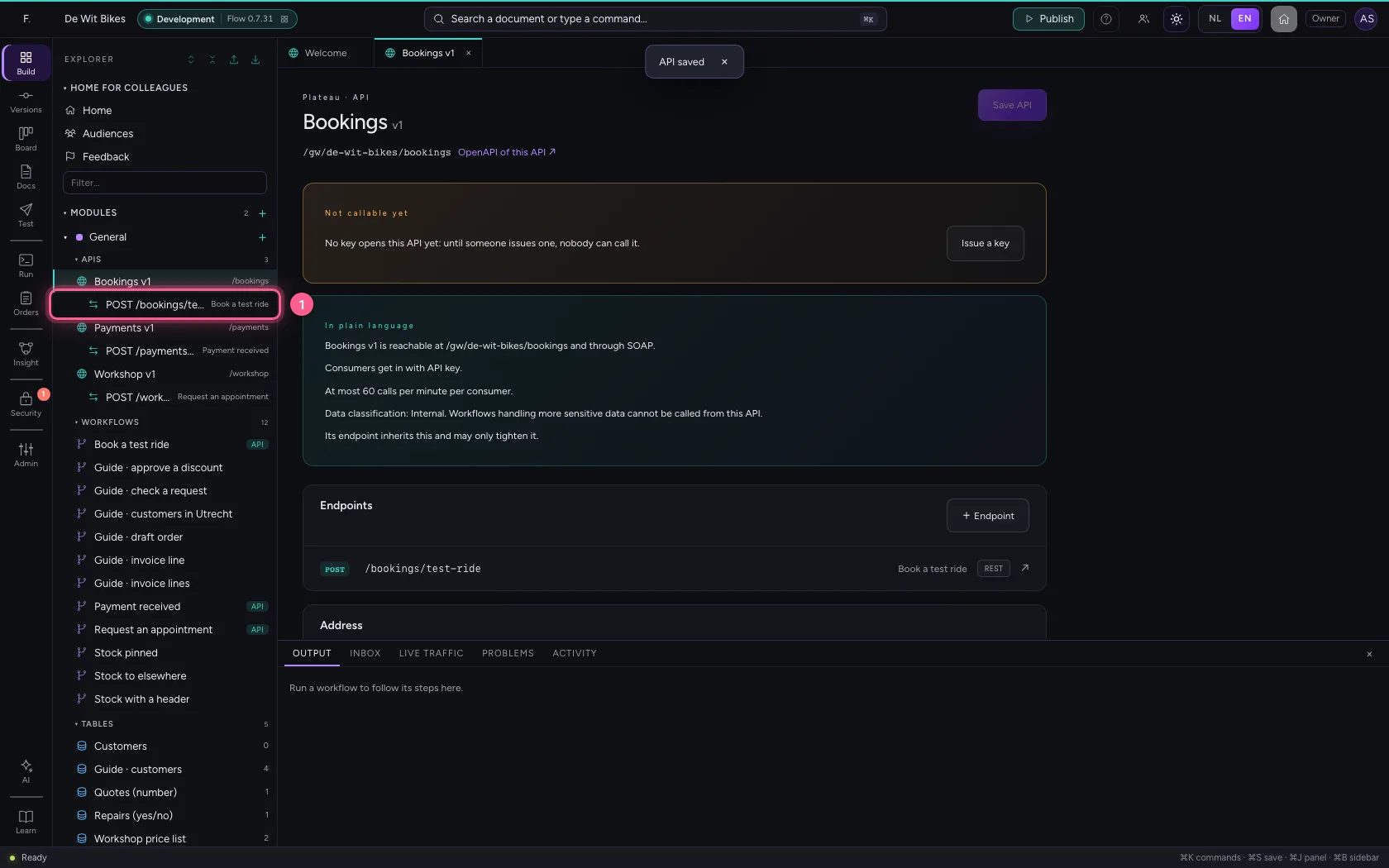
- Click SOAP
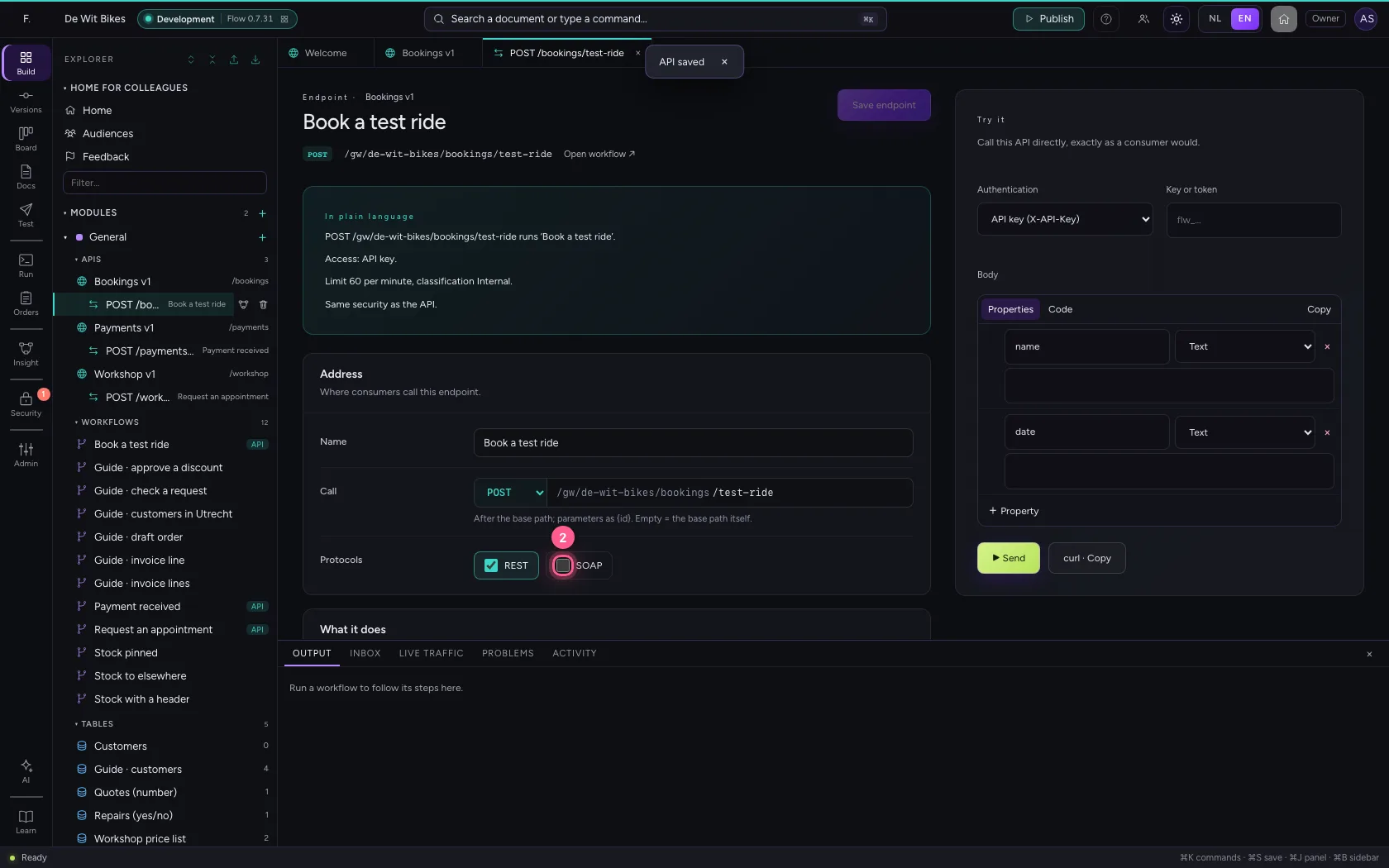
- Click Save endpoint
This guide was carried out step by step on 22 Oct 2026 by an automated test on Flow (version 3e563176).