Flow.Documentation
ProfessionalAPIs

A public API, without signing in

6 steps± 4 minVideoVerified 22 Oct 2026
  1. Step 1 · Open your development environment
  2. Step 2 · Allow public APIs, with a reason
  3. Step 3 · A policy Public
  4. Step 4 · Attach the policy to the API
  5. Step 5 · Call it without a key
  6. Step 6 · Switch it off again

Sometimes anyone may ask for something: opening hours, a product catalogue, a status. A public API is off by default, because every call should be traceable to a consumer. An administrator switches it on for the workspace, with a reason that goes into the audit log. After that a policy Public opens an API without a key — and when the administrator switches it off again, every public API closes at once.

Watch the whole guide as a video6 steps in one film
Step 1 / 6

Open your development environment

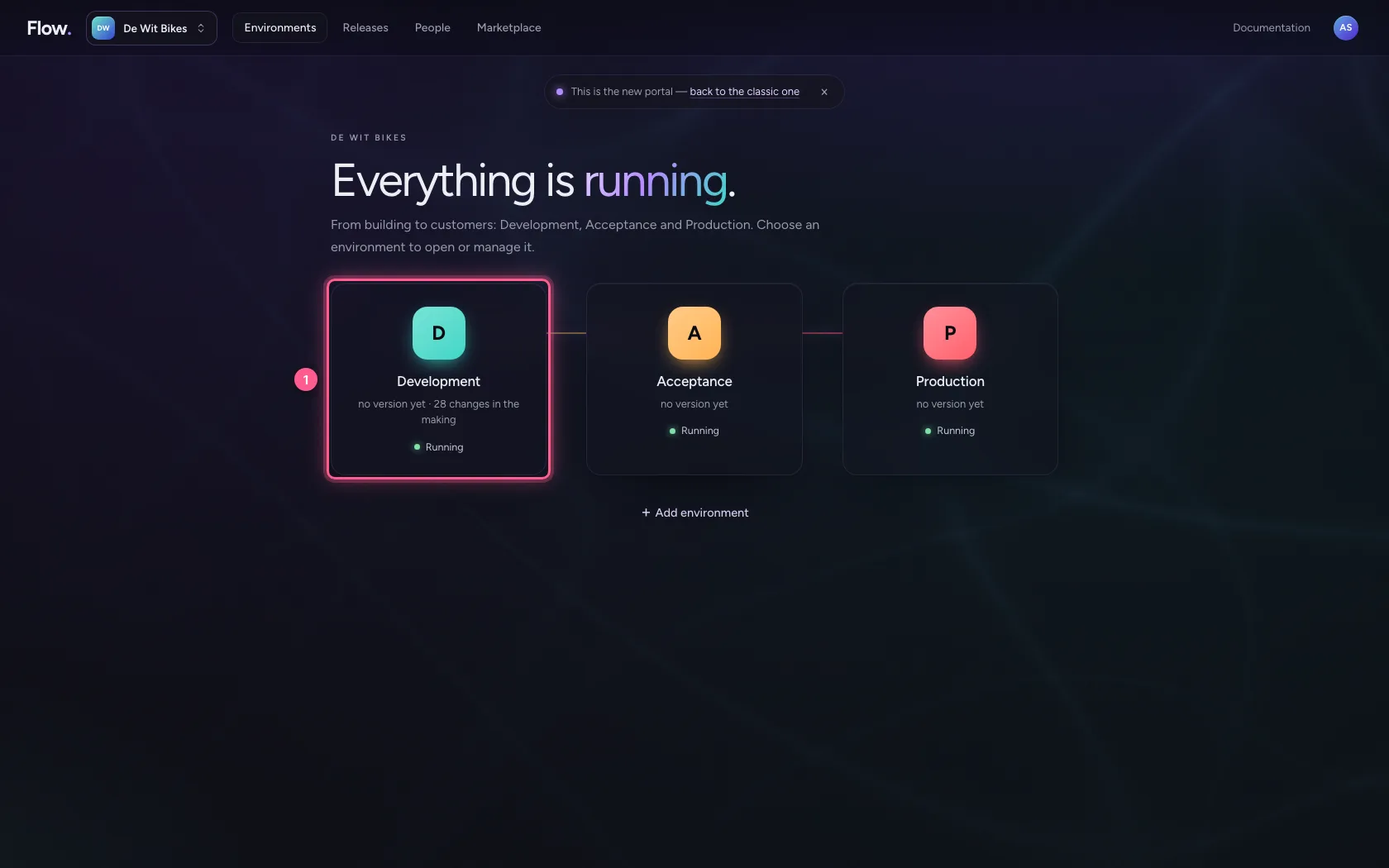
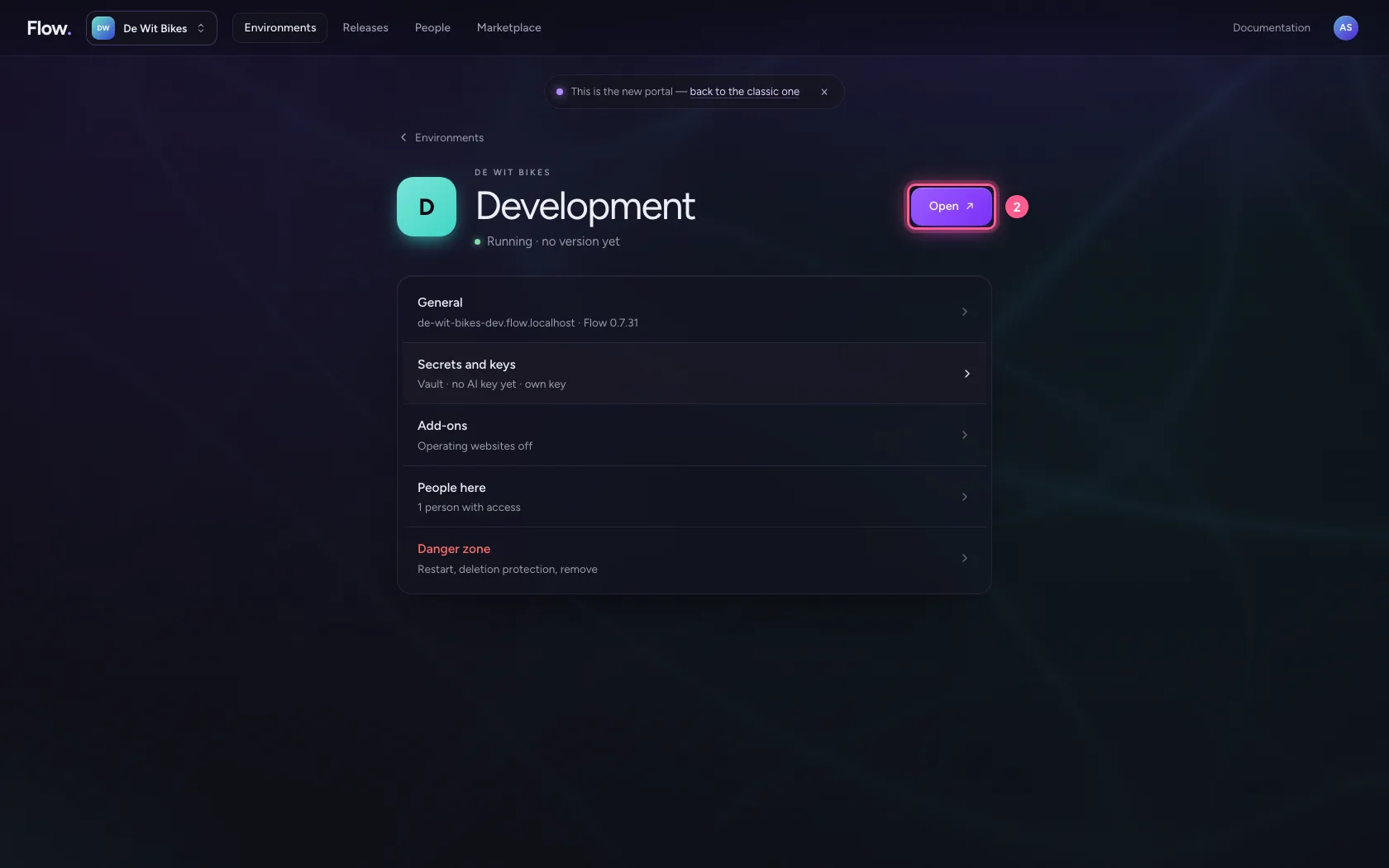
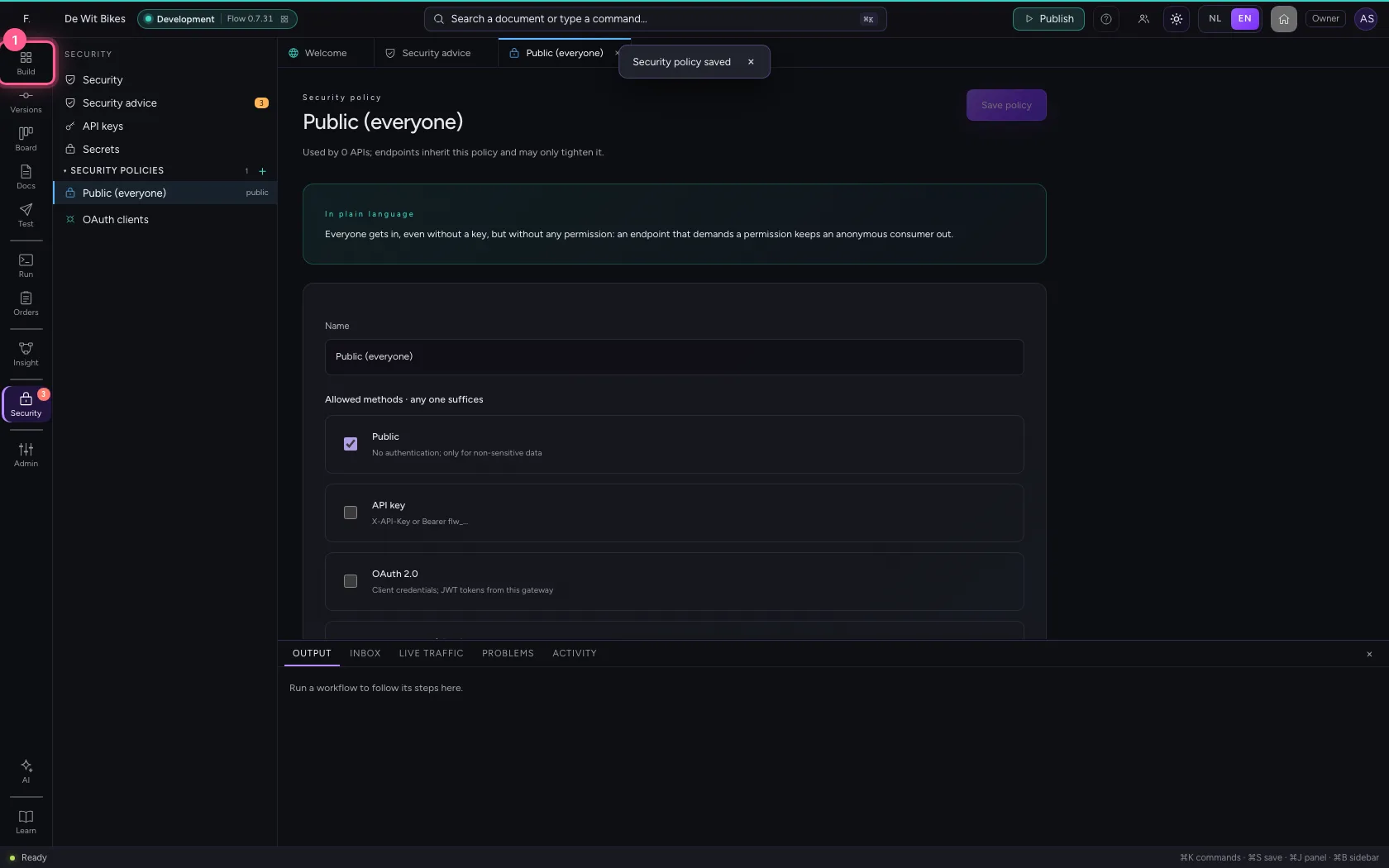
In the portal, under Environments, click Development, and there Open. Flow opens in a new tab and you are signed in straight away.

  1. Click Development
Open your development environment · Click Development
  1. Click Open ↗
Open your development environment · Click Open ↗
Step 2 / 6

Allow public APIs, with a reason

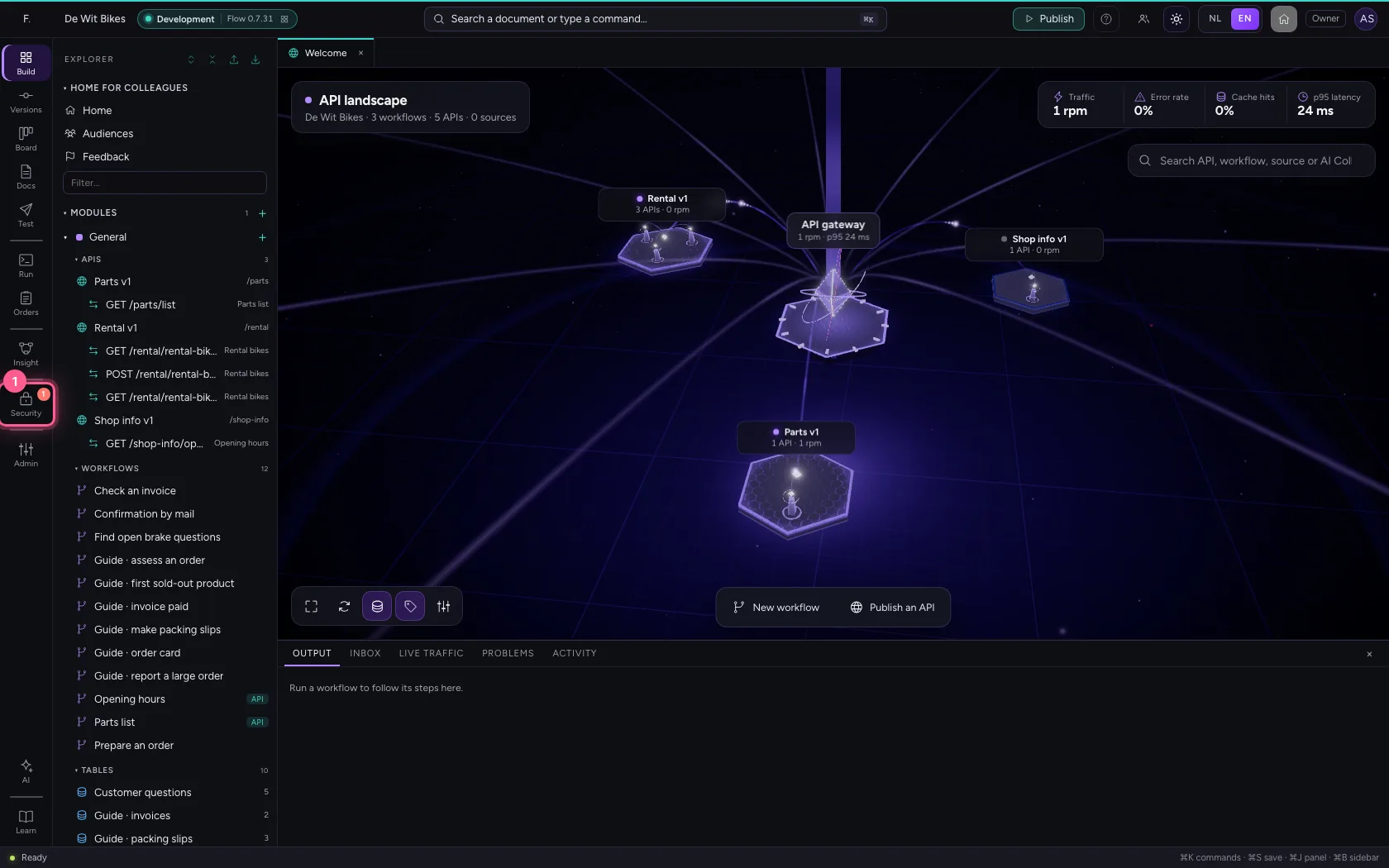
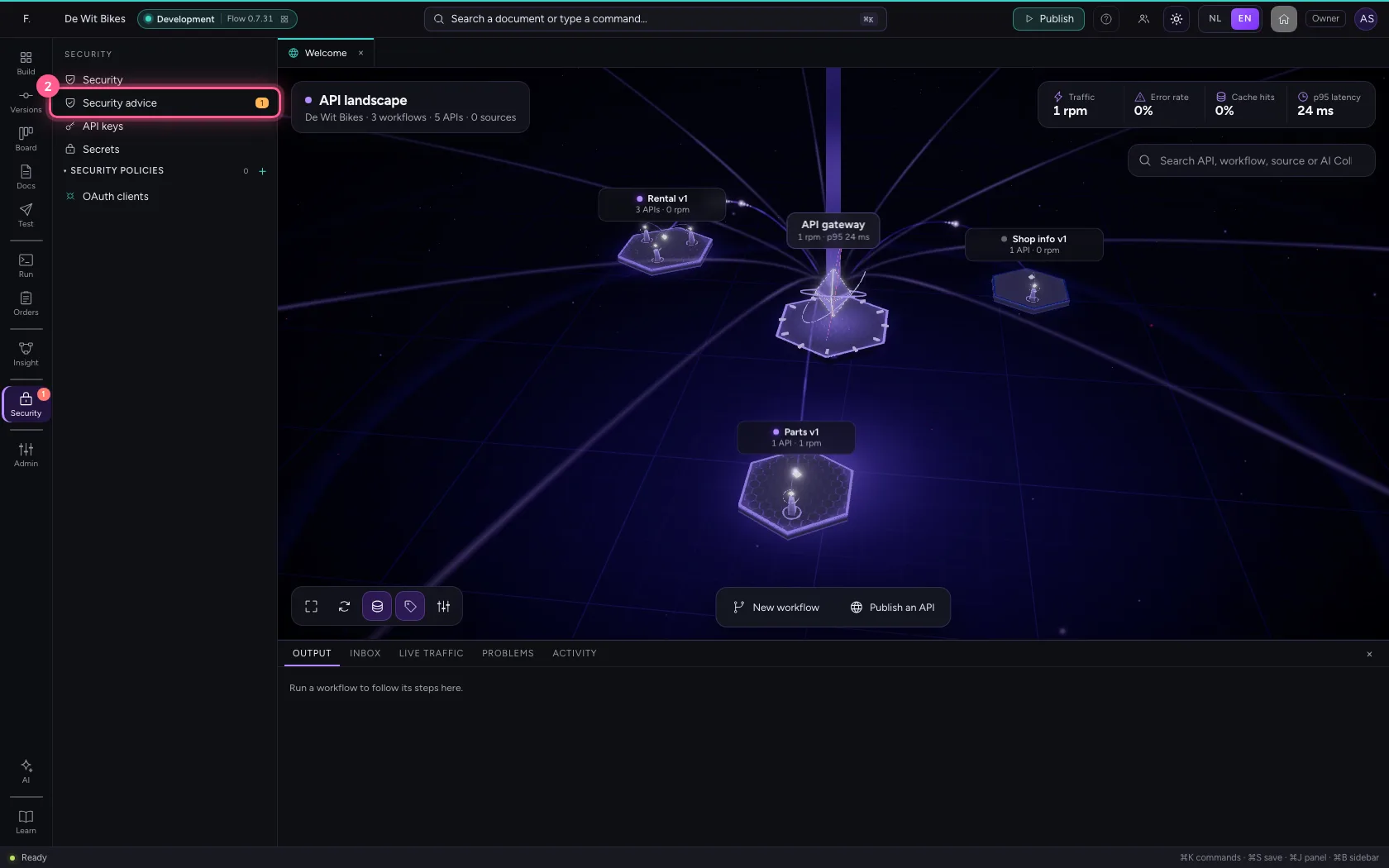
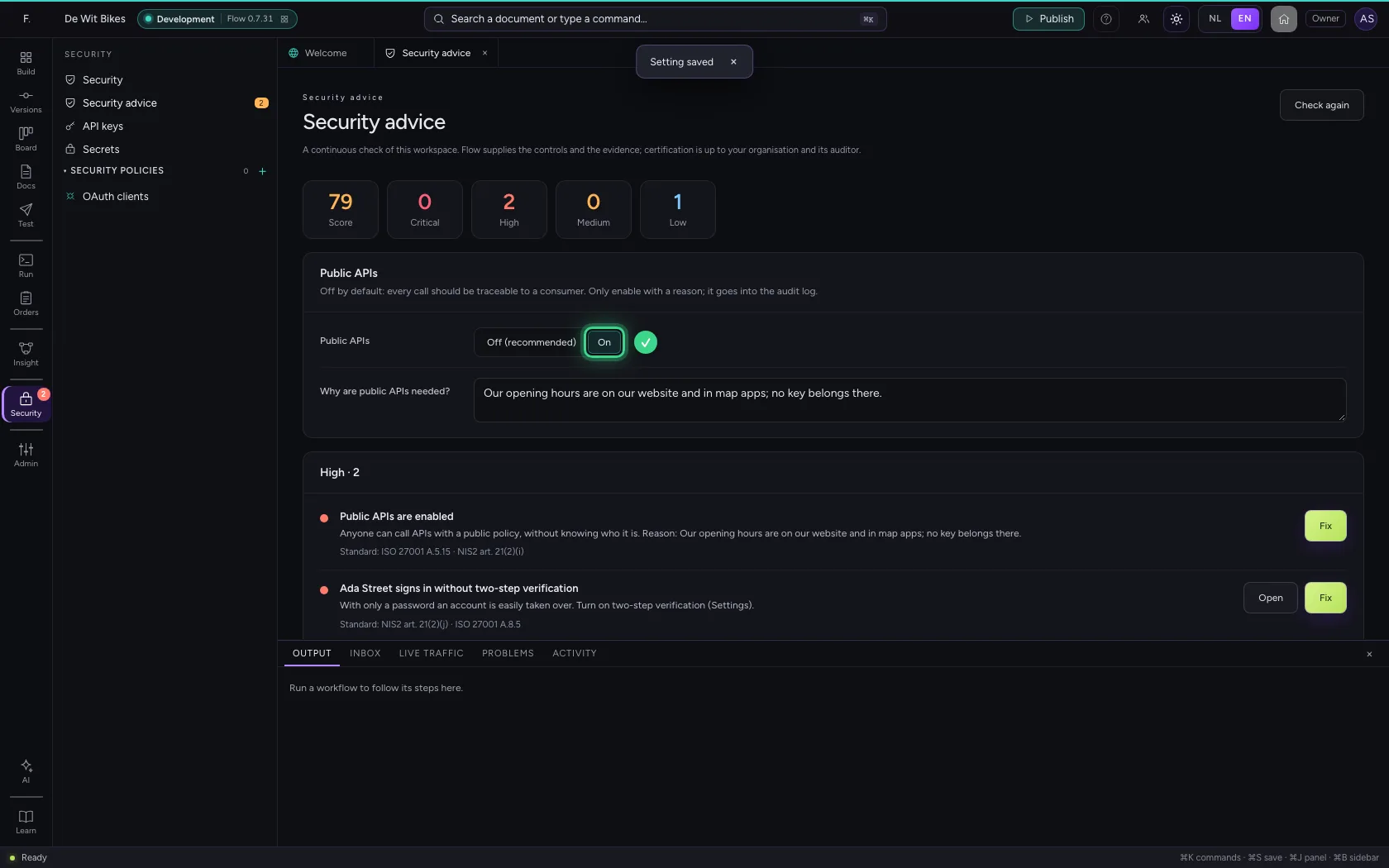
Under Security → Security advice, Public APIs is off by default. An administrator switches it on and writes down why; that reason goes into the audit log.

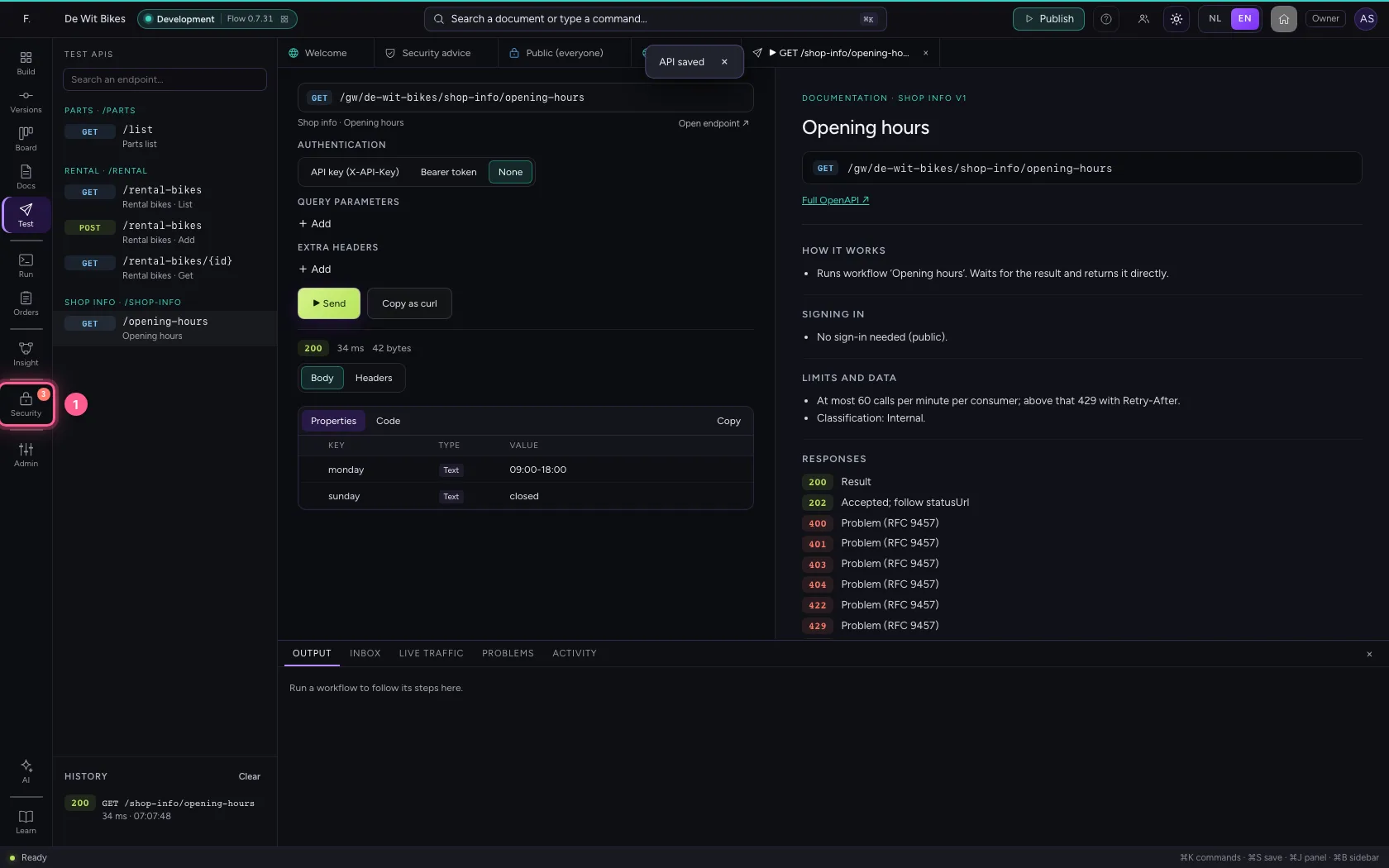
  1. Click Security
Allow public APIs, with a reason · Click Security
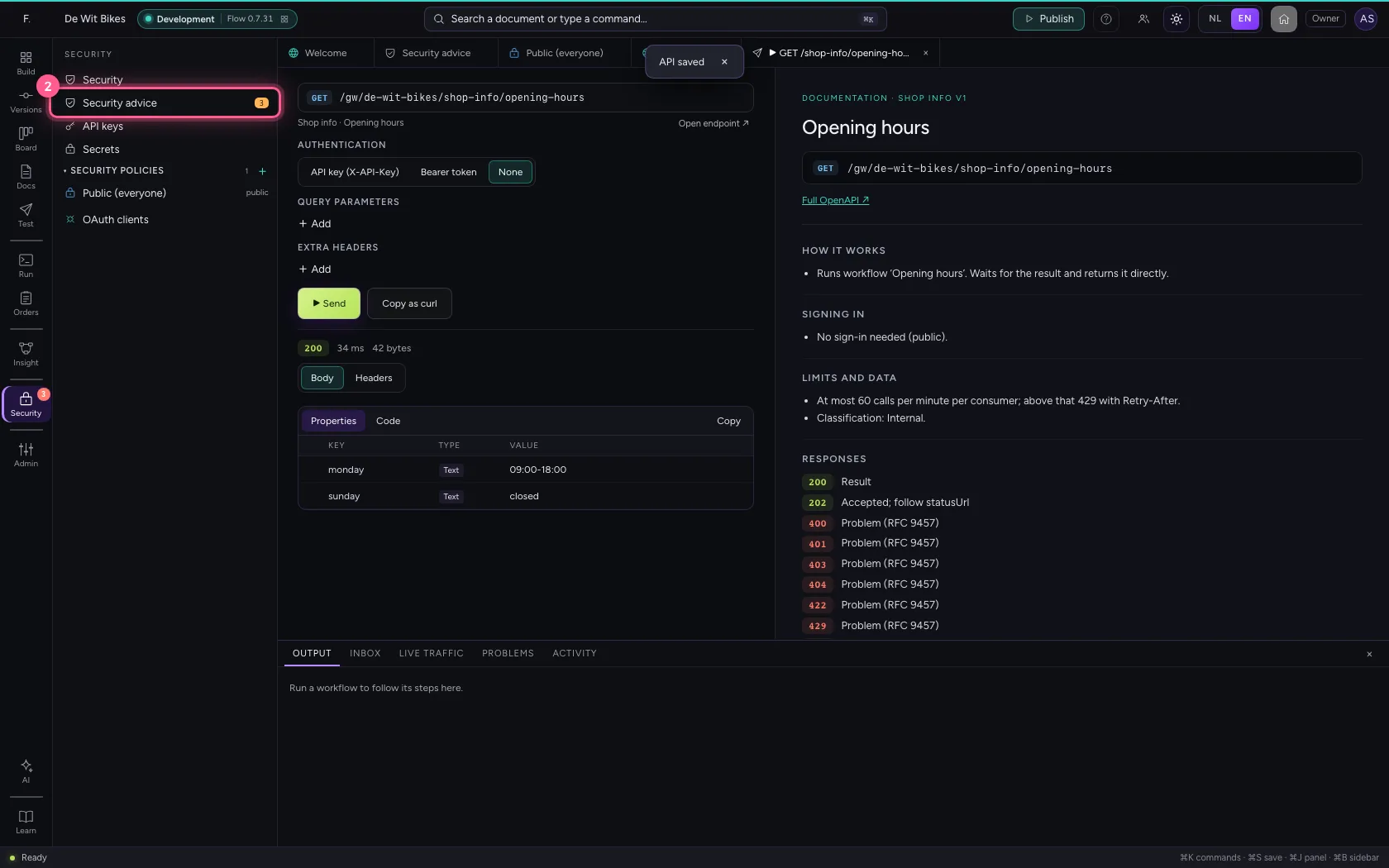
  1. Click Security advice
Allow public APIs, with a reason · Click Security advice
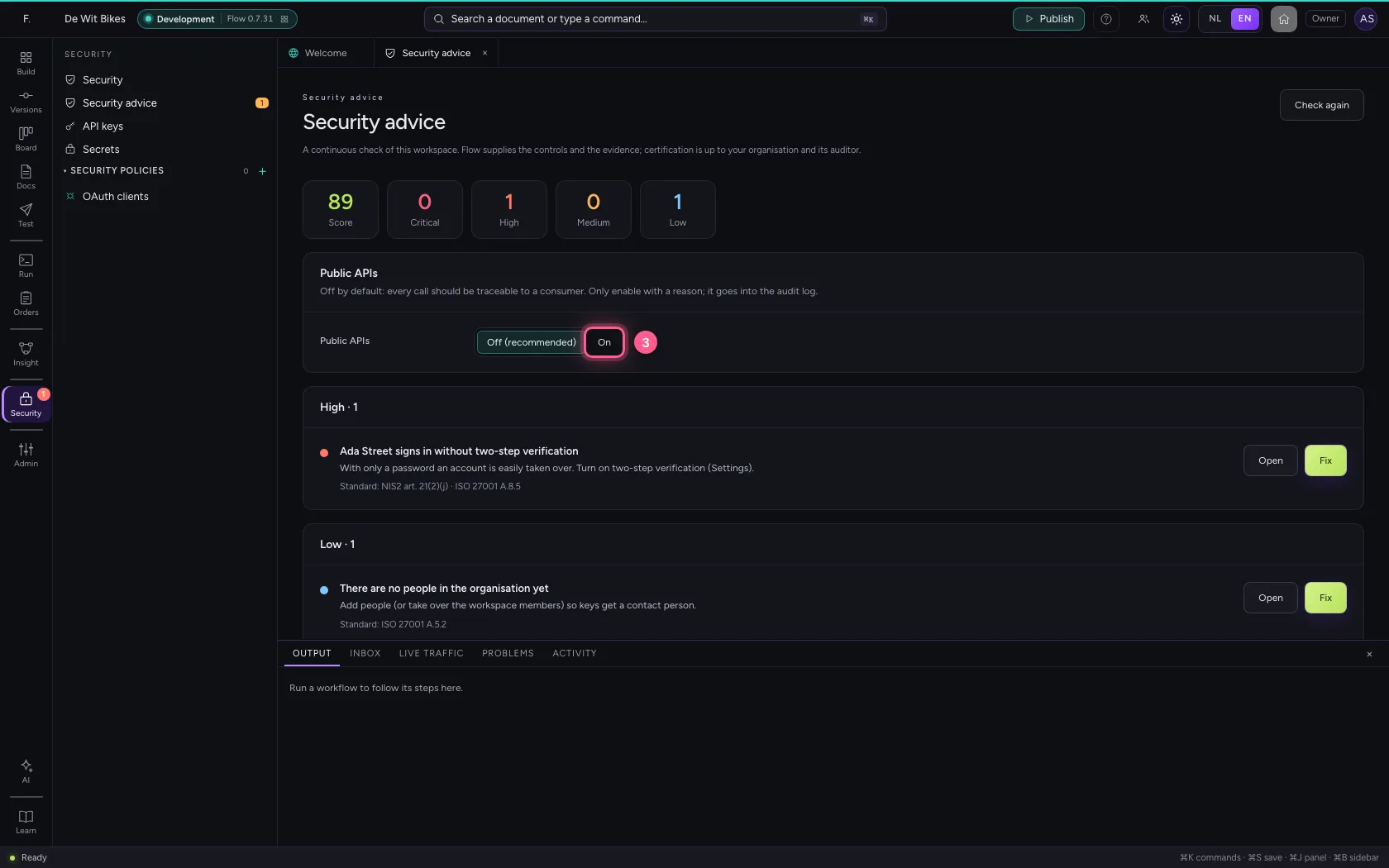
  1. Click On
Allow public APIs, with a reason · Click On
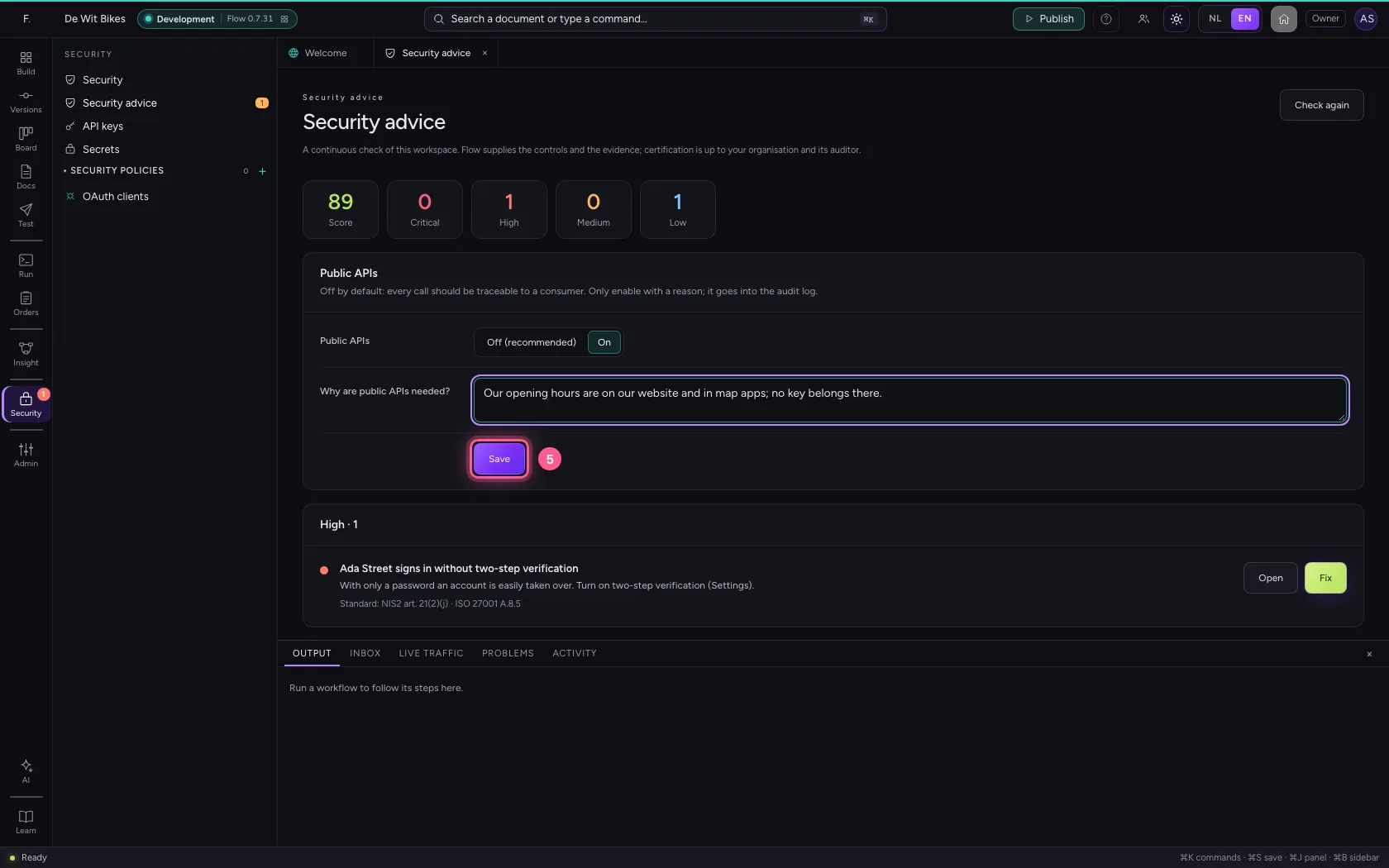
  1. In Why are public APIs needed?, type Our opening hours are on our website and in map apps; no key belongs there.
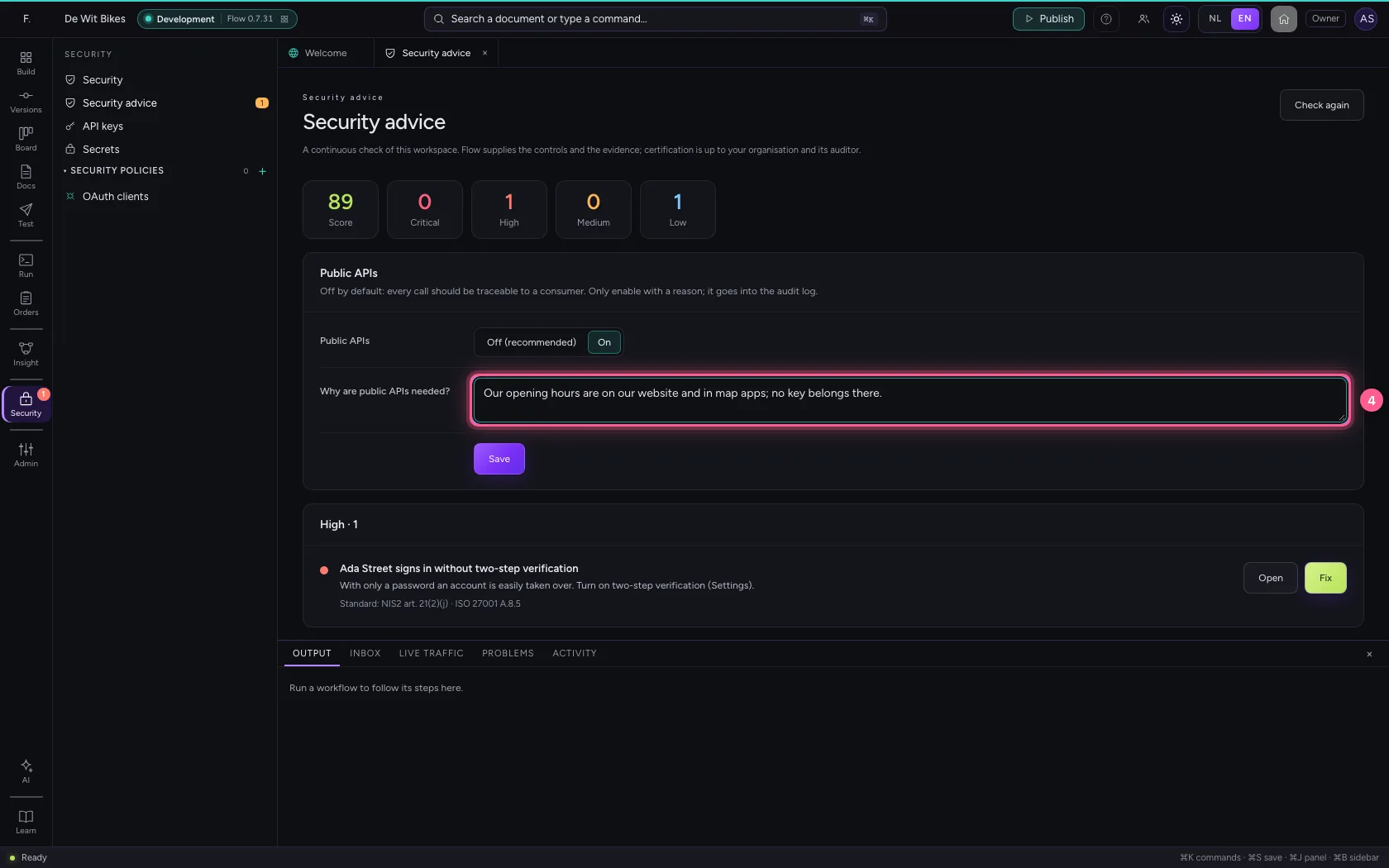
Allow public APIs, with a reason · In Why are public APIs needed?, type Our opening hours are on our website and in map apps; no key belongs there.
  1. Click Save
Allow public APIs, with a reason · Click Save
Allow public APIs, with a reason · Public APIs: On.
Step 3 / 6

A policy Public

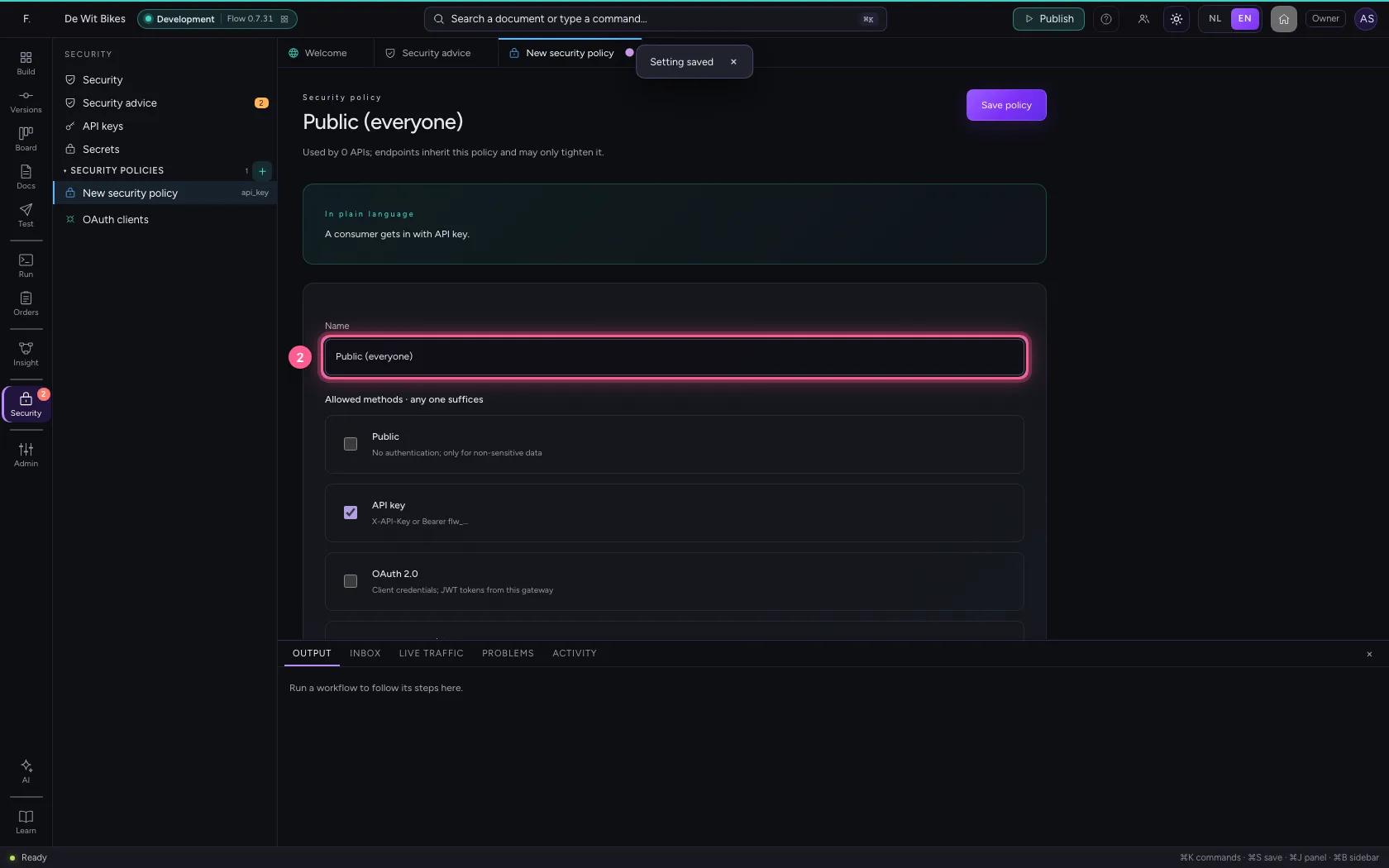
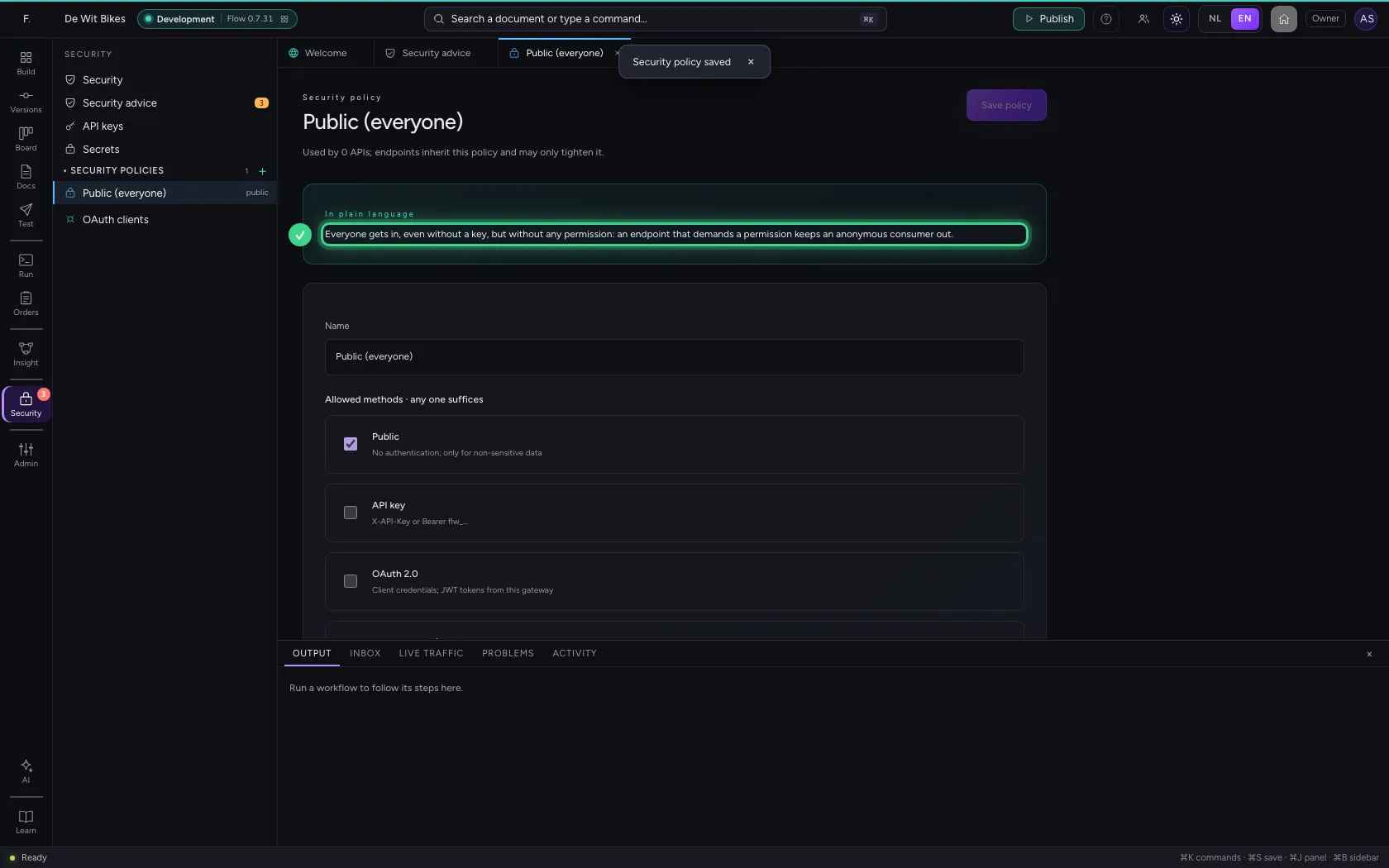
Create a policy, switch API key off and Public on. Without the setting before this you cannot tick Public. Use it only for data that is not sensitive.

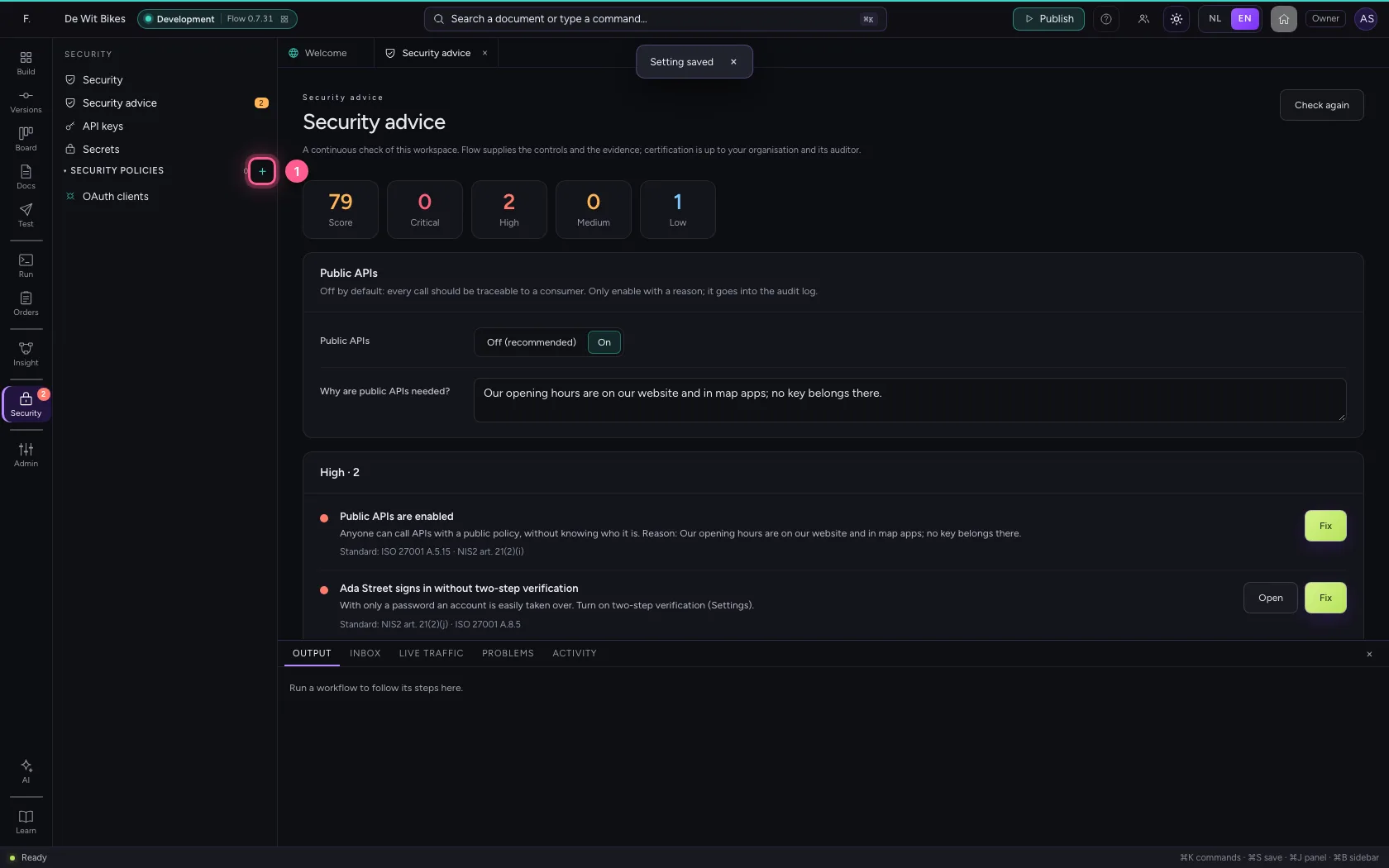
  1. Click New security policy
A policy Public · Click New security policy
  1. In Name, type Public (everyone)
A policy Public · In Name, type Public (everyone)
  1. Click API key X-API-Key or Bearer flw_…
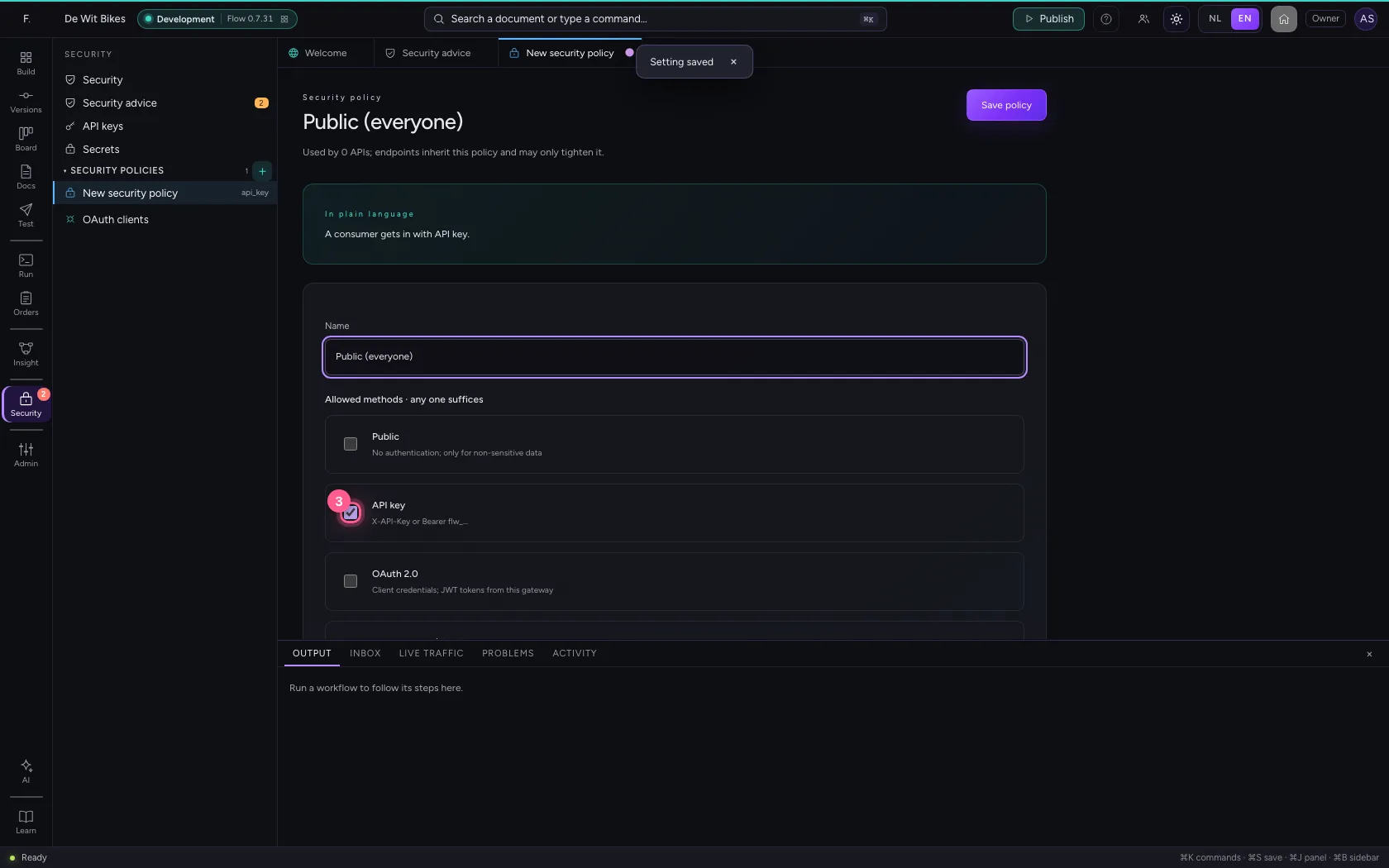
A policy Public · Click API key X-API-Key or Bearer flw_…
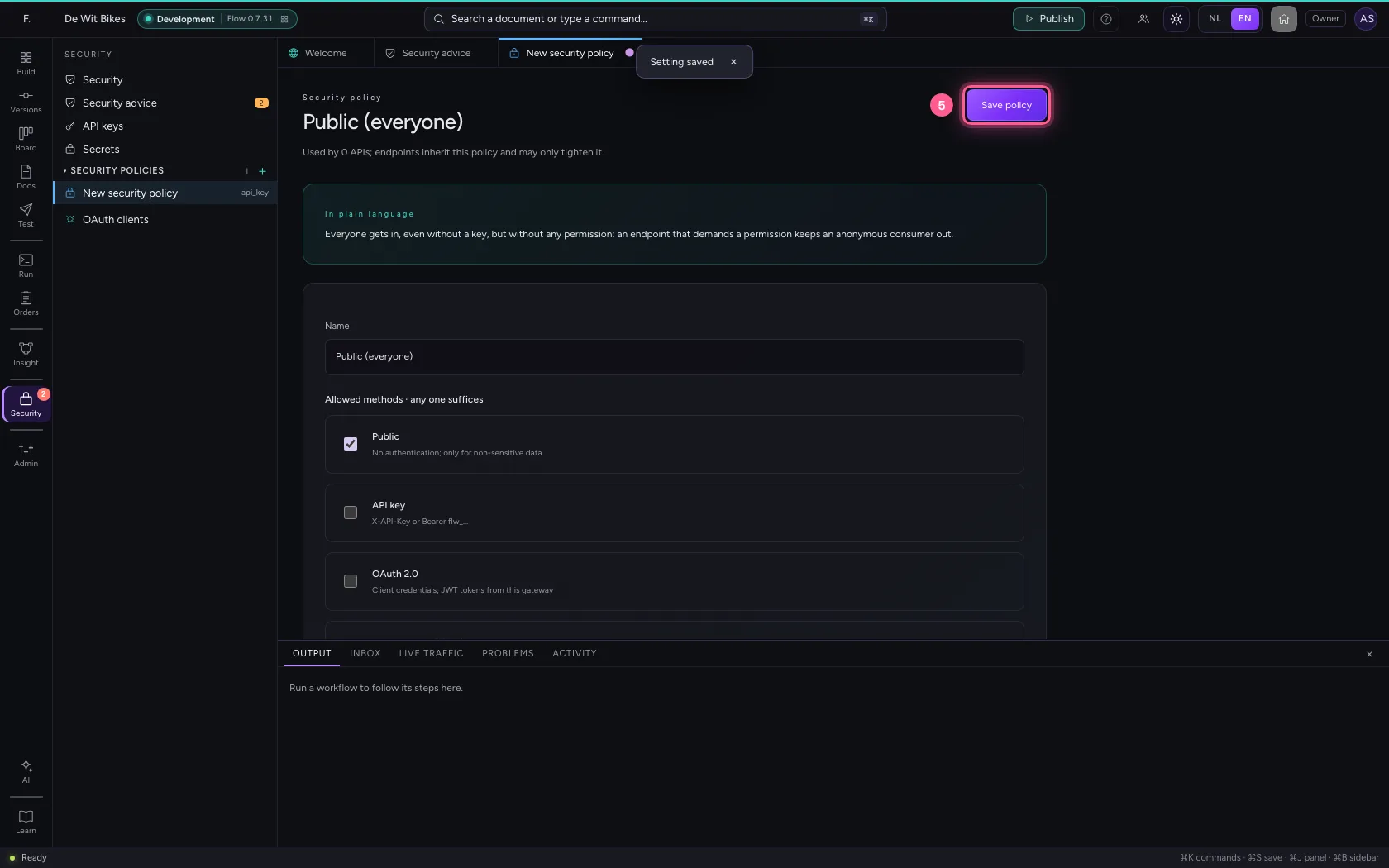
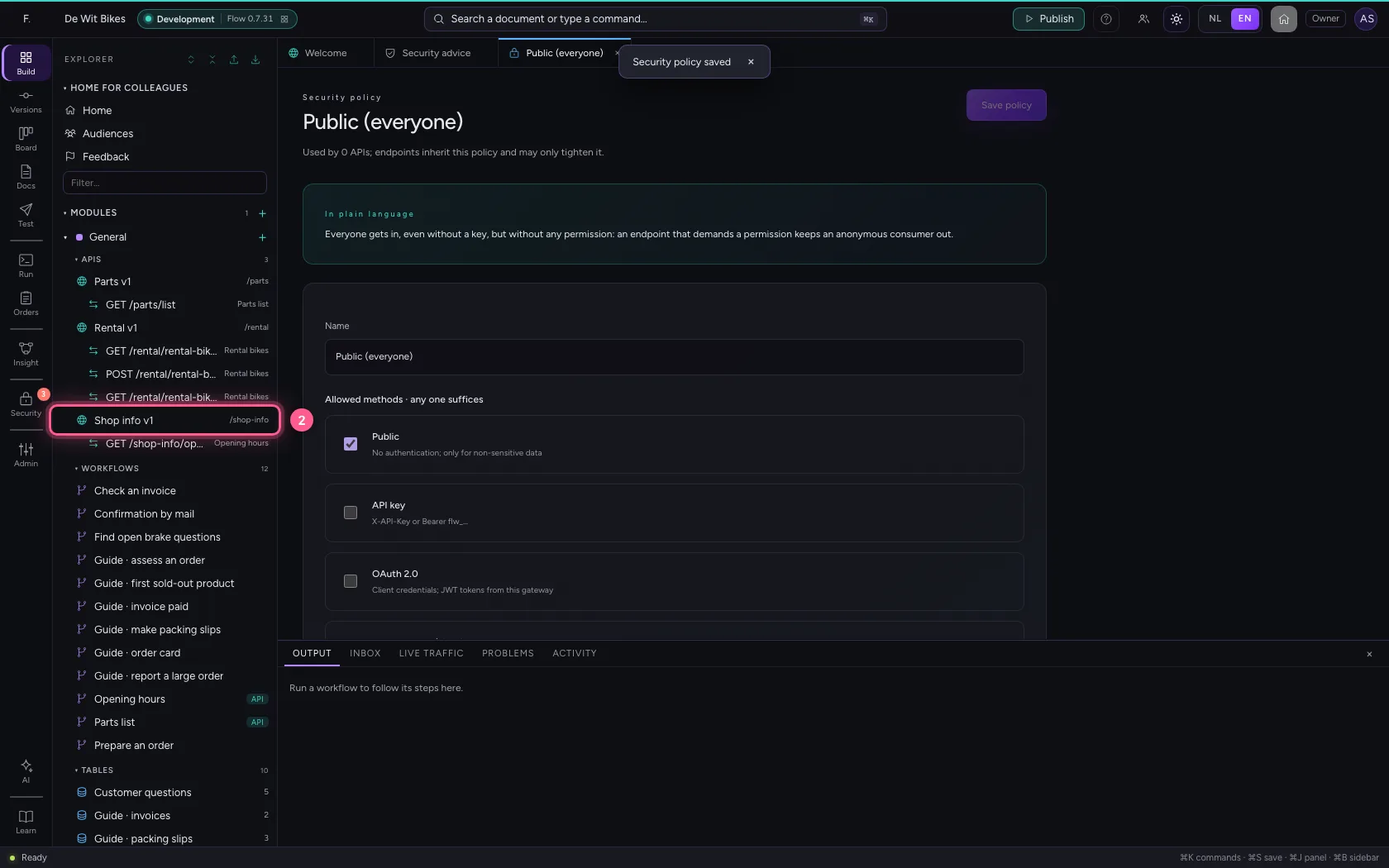
  1. Click Public No authentication; only for non-sensitive data
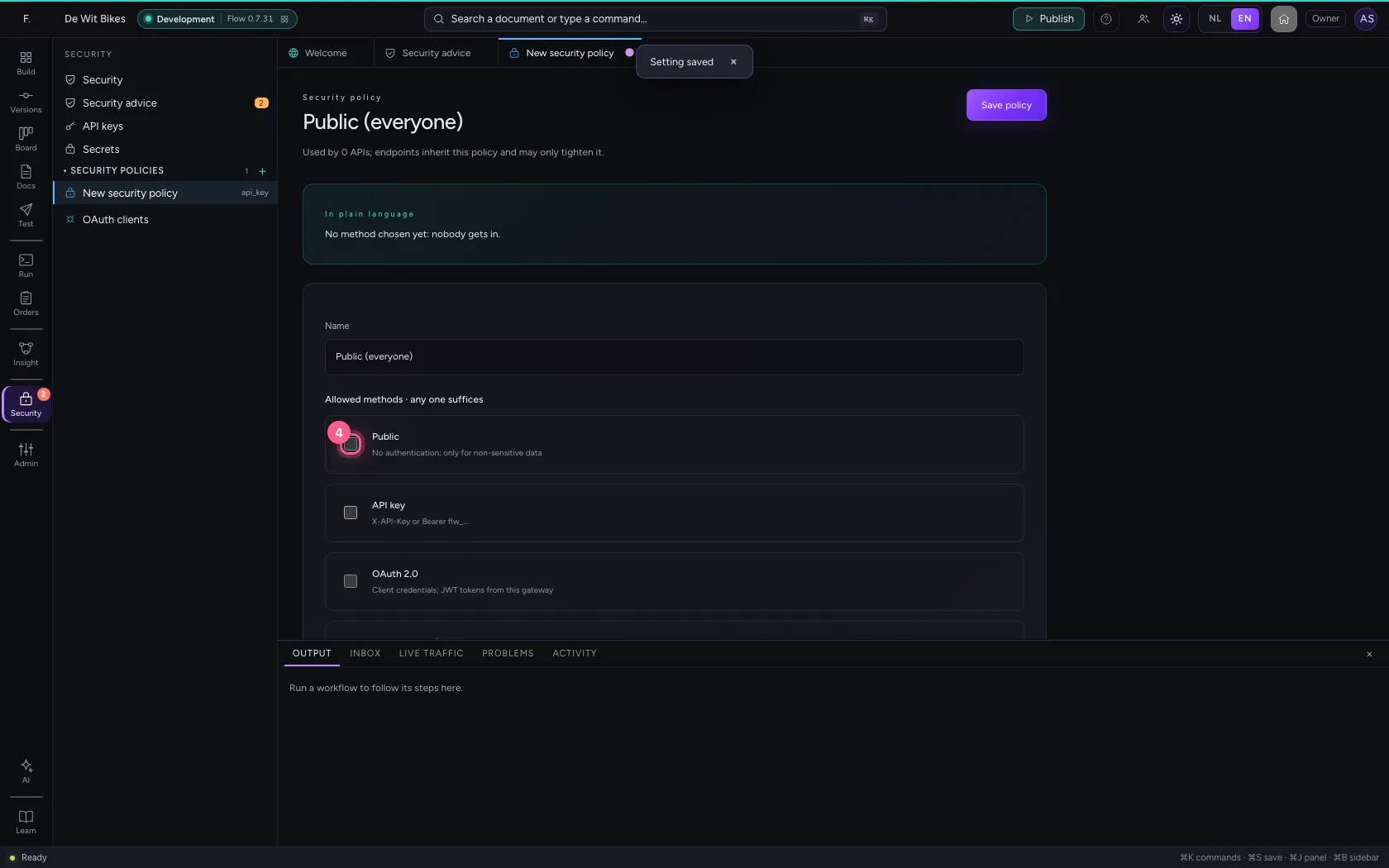
A policy Public · Click Public No authentication; only for non-sensitive data
  1. Click Save policy
A policy Public · Click Save policy
A policy Public · Everyone gets in, even without a key, but without any permission: an endpoint that demands a permission keeps an anonymous consumer out.
Step 4 / 6

Attach the policy to the API

Open the API, choose the policy and save.

  1. Click Explorer
Attach the policy to the API · Click Explorer
  1. Click the API
Attach the policy to the API · Click the API
  1. In Security policy, choose Public (everyone)
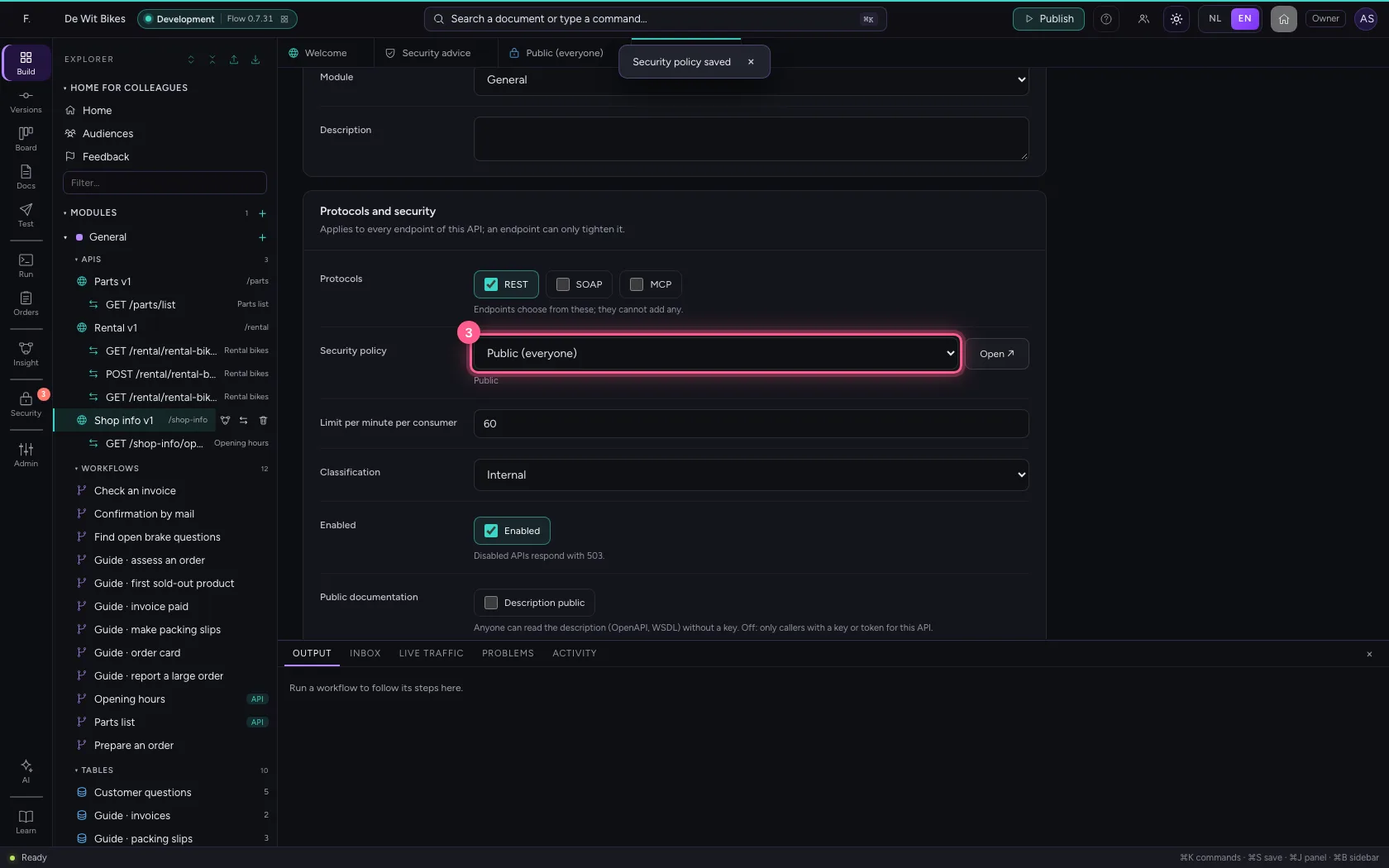
Attach the policy to the API · In Security policy, choose Public (everyone)
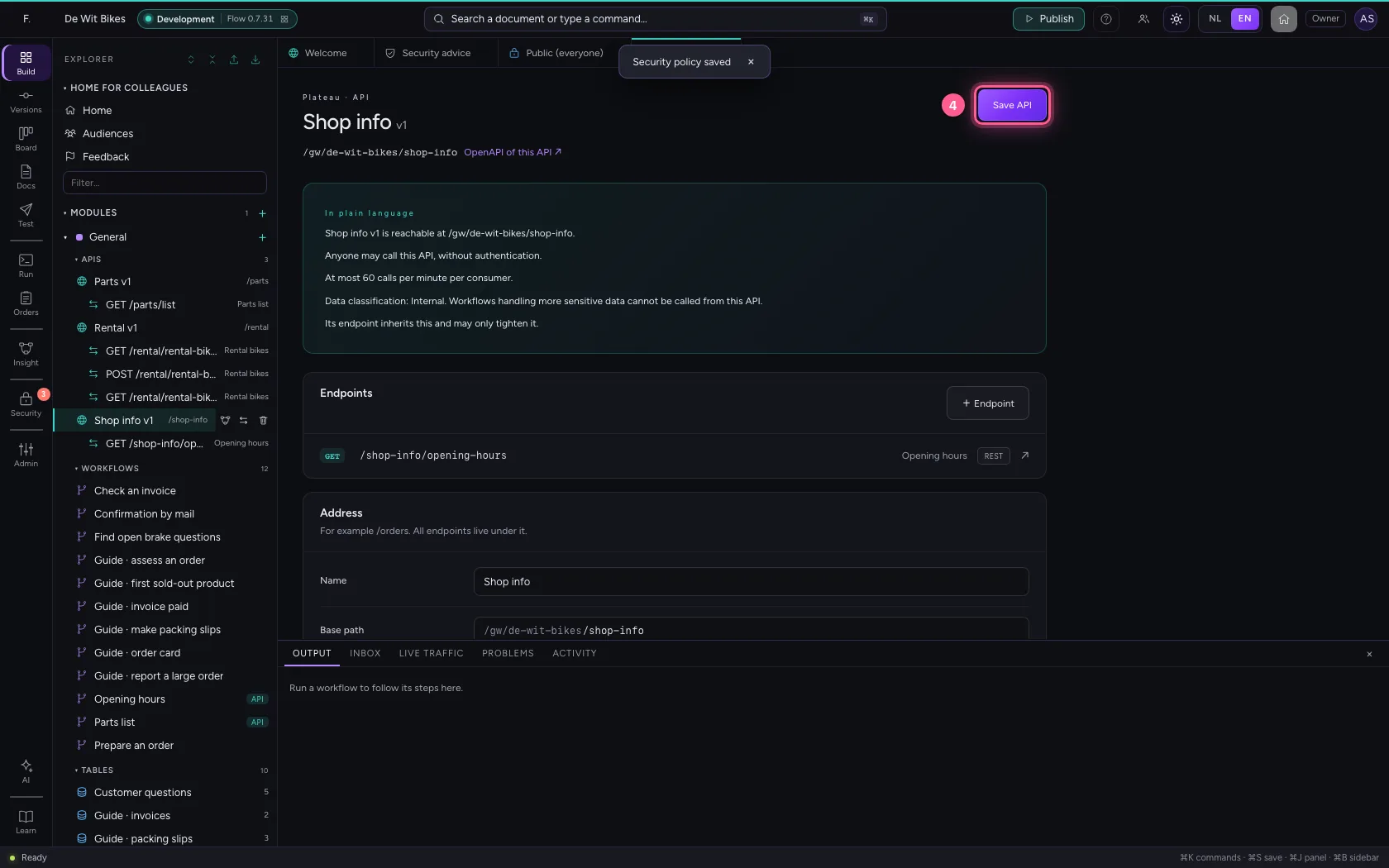
  1. Click Save API
Attach the policy to the API · Click Save API
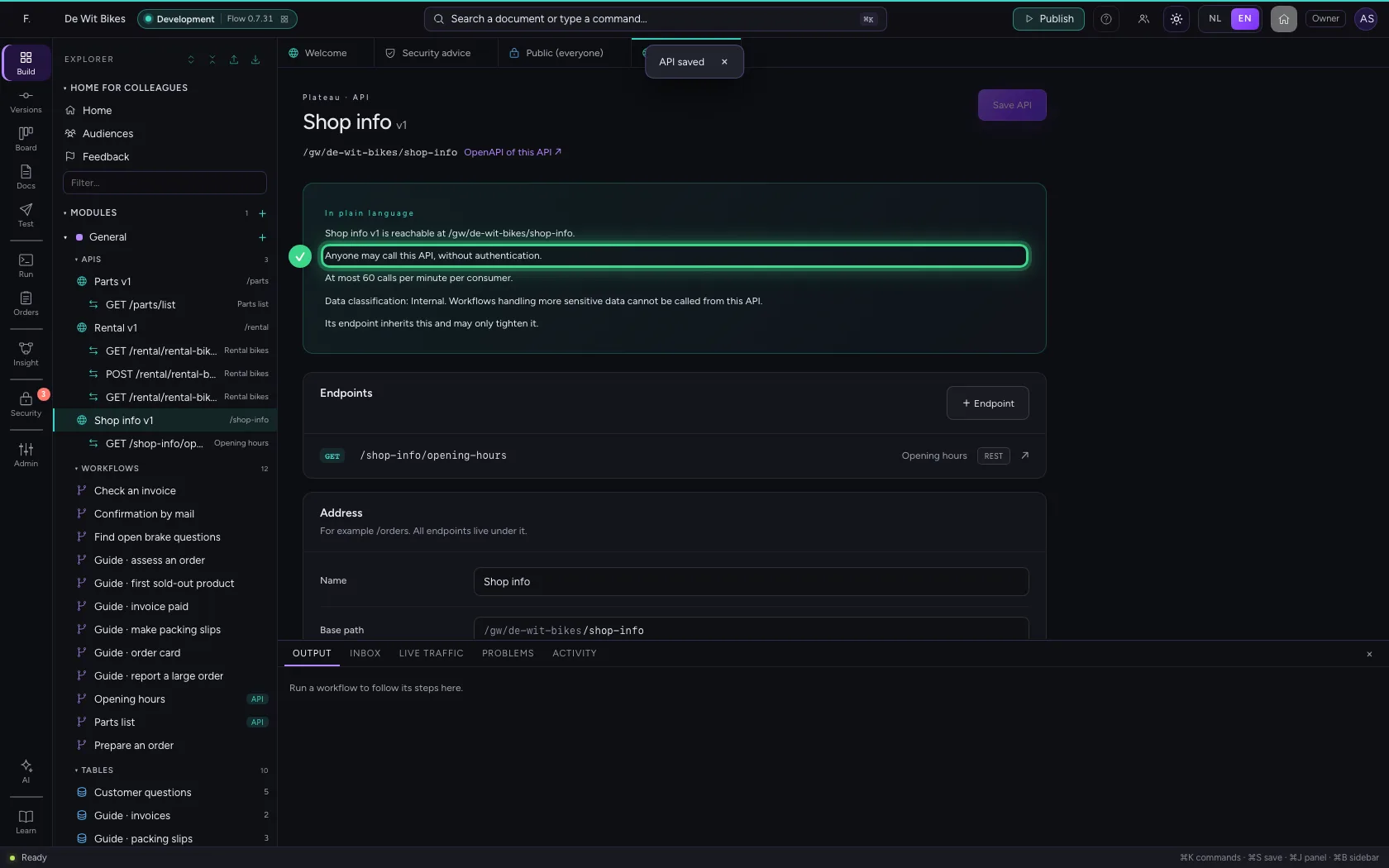
Attach the policy to the API · In plain language: anyone may call this API.
Step 5 / 6

Call it without a key

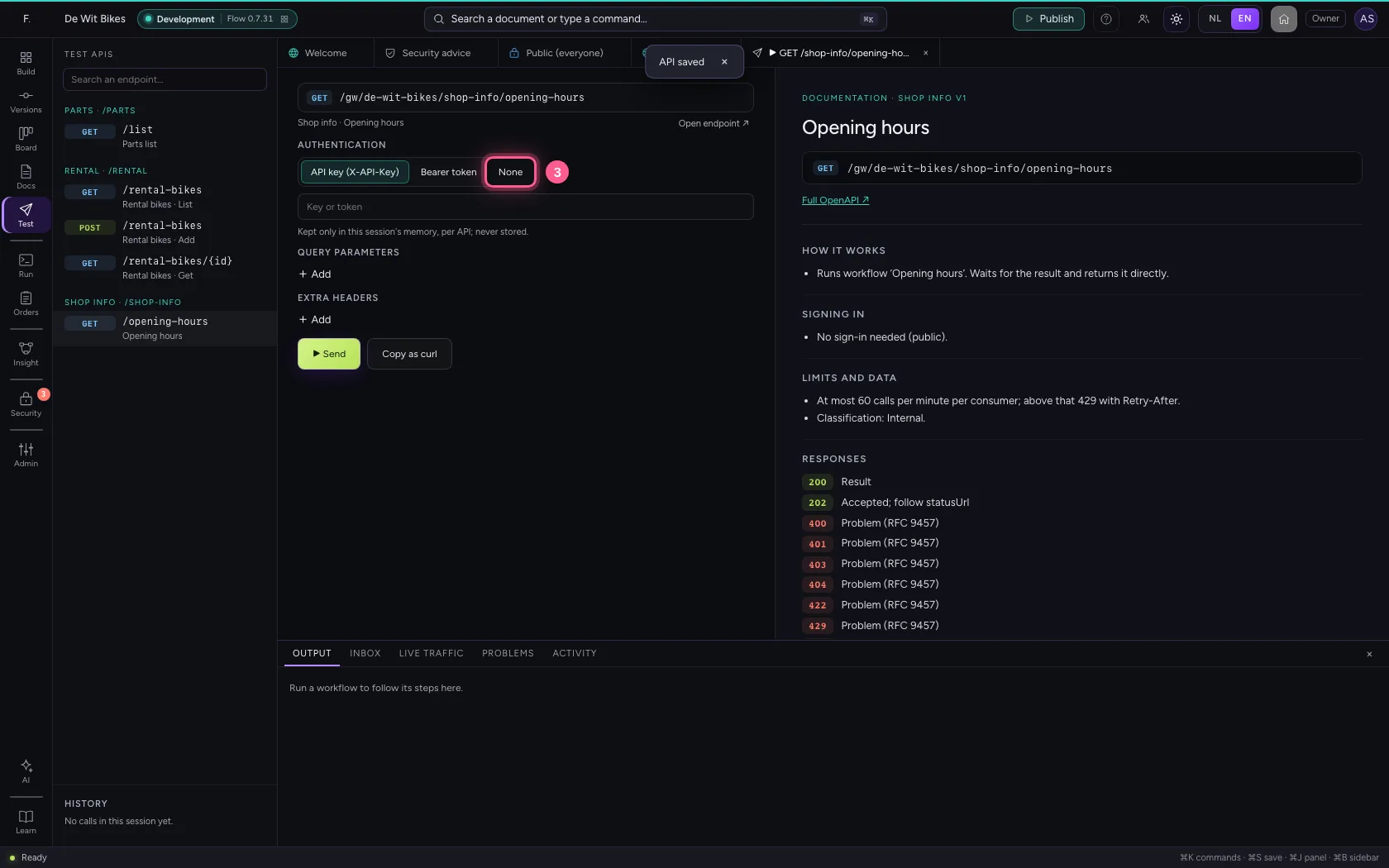
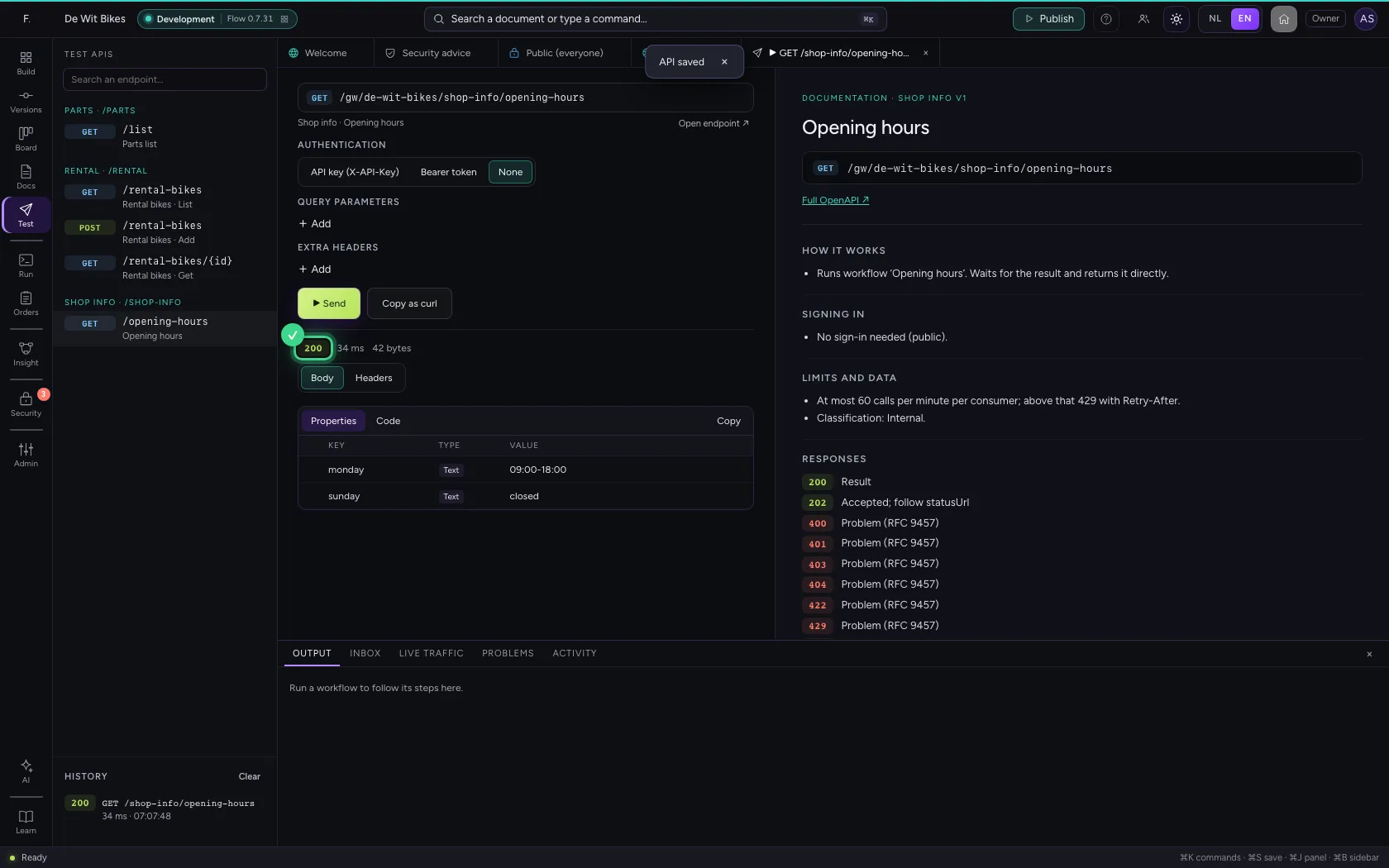
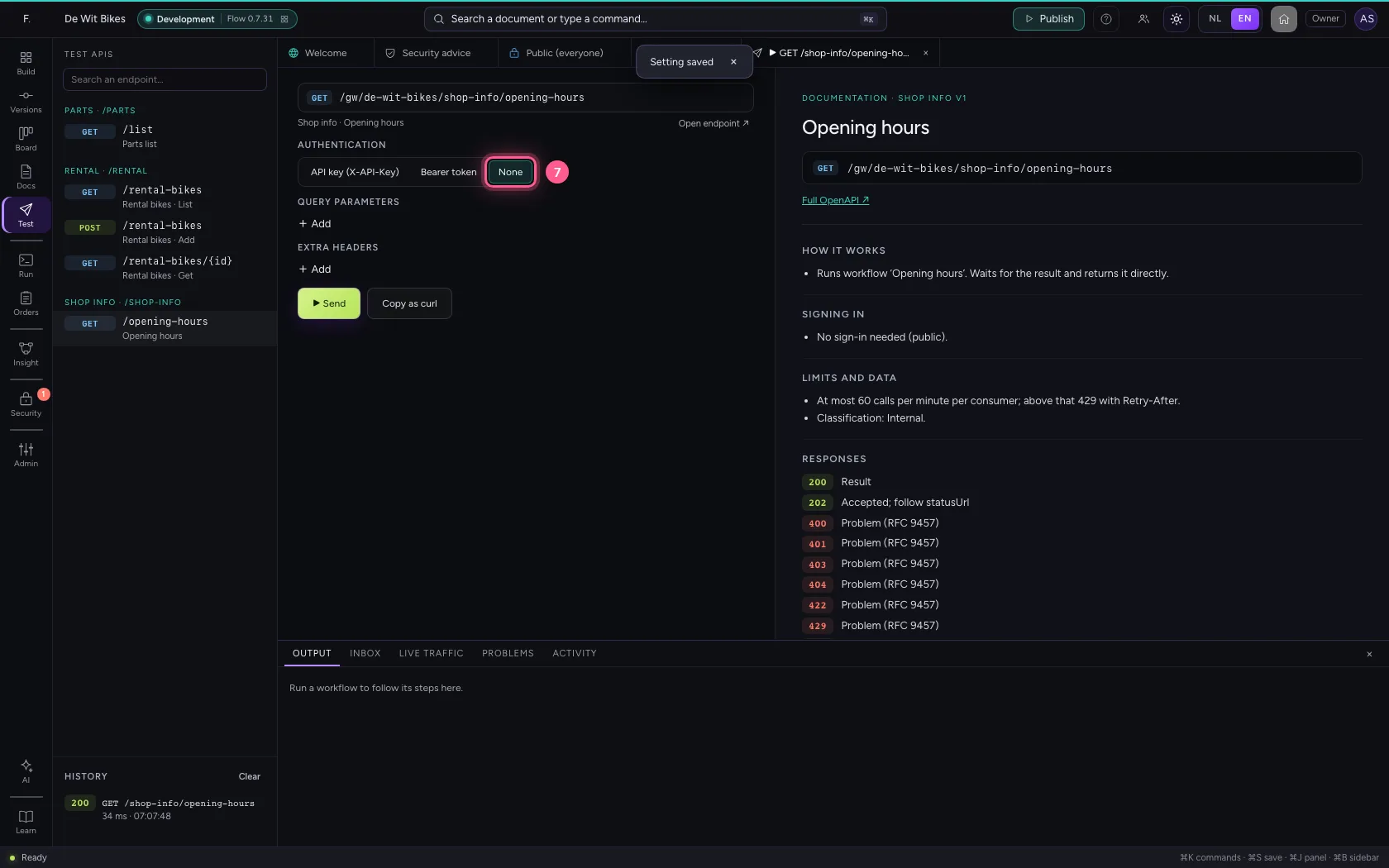
In Test APIs you set Authentication to None and send. You get 200; in Live traffic the call shows as public, with the sender's truncated network.

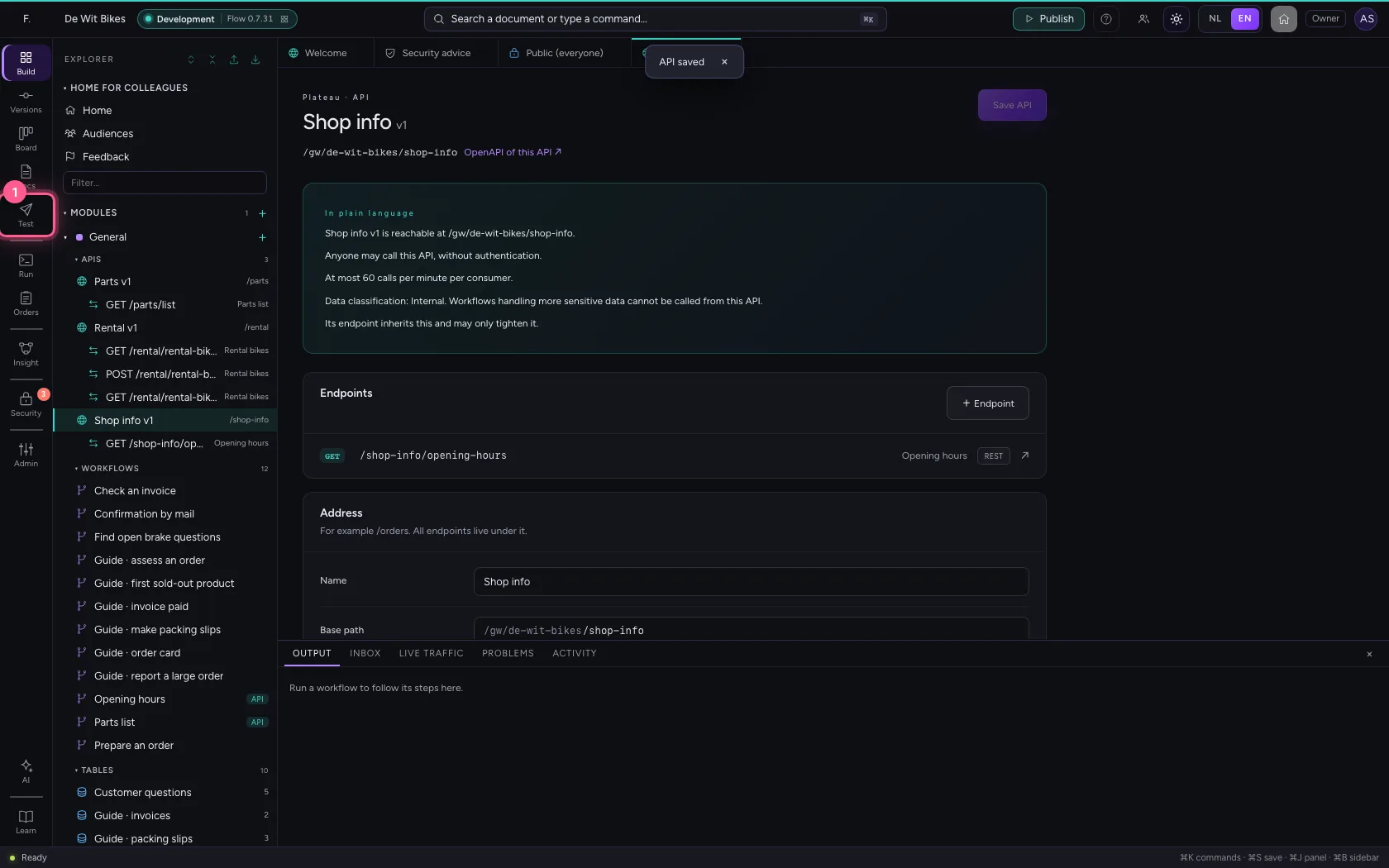
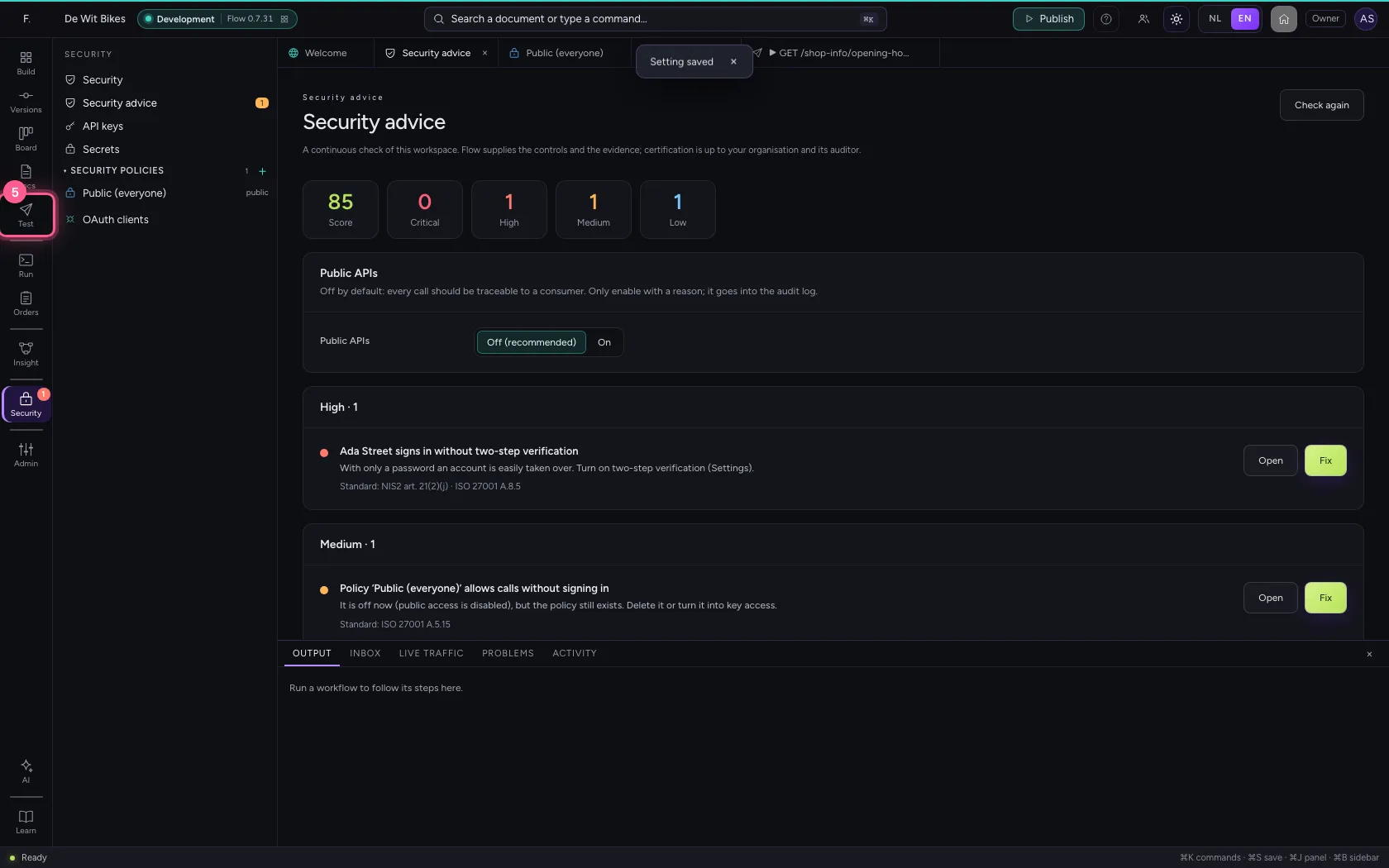
  1. Click Test APIs
Call it without a key · Click Test APIs
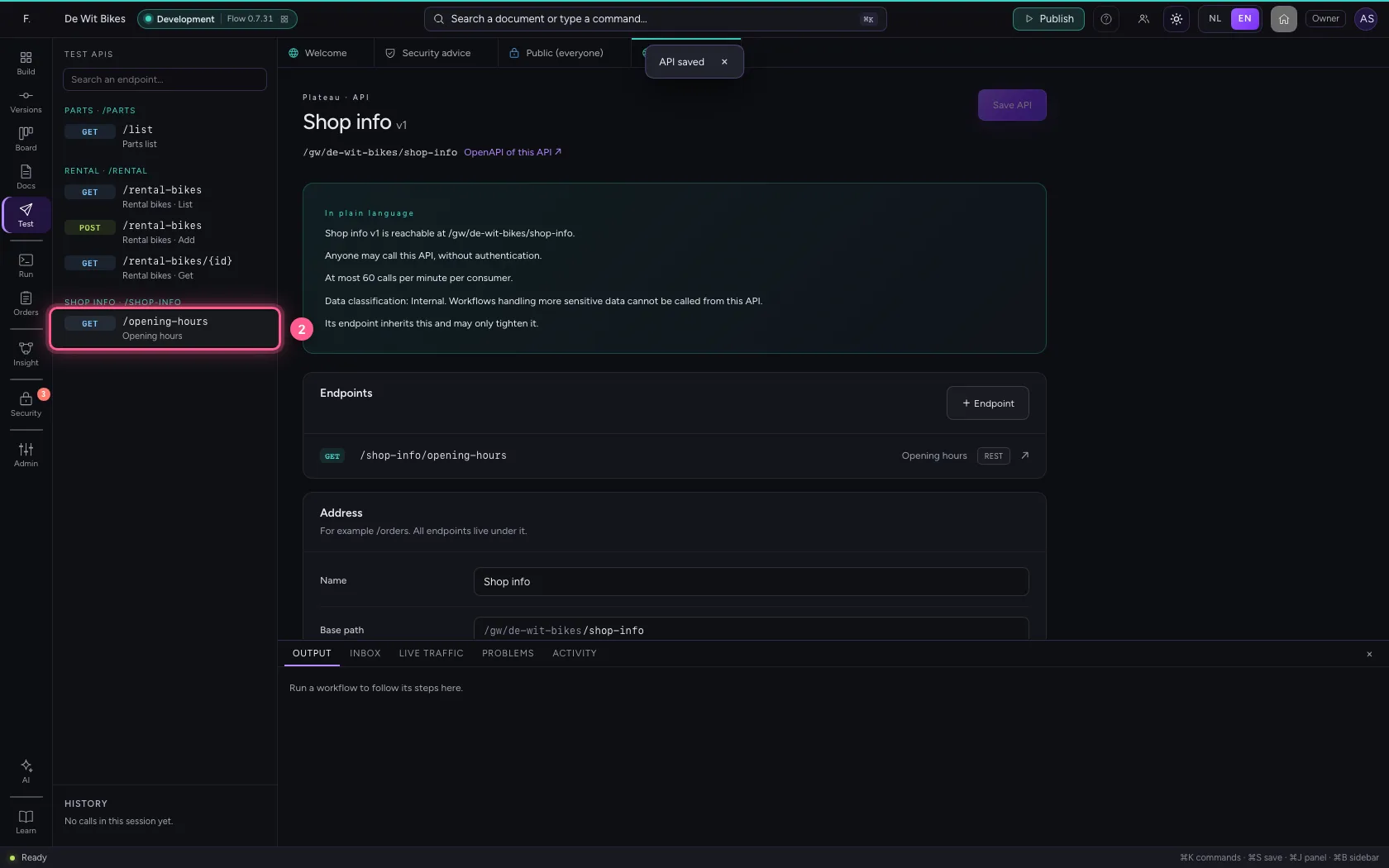
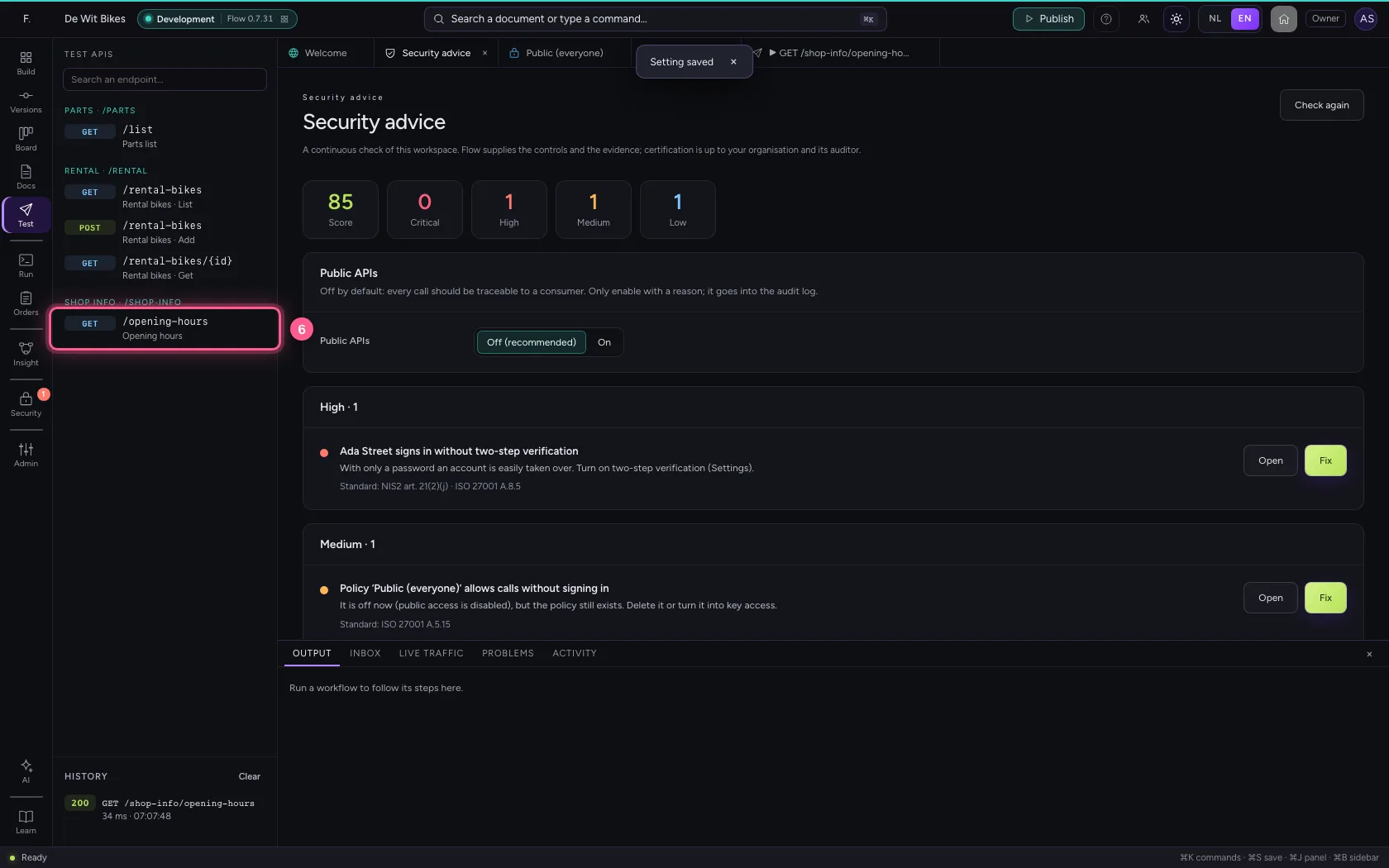
  1. Click the endpoint
Call it without a key · Click the endpoint
  1. Click None
Call it without a key · Click None
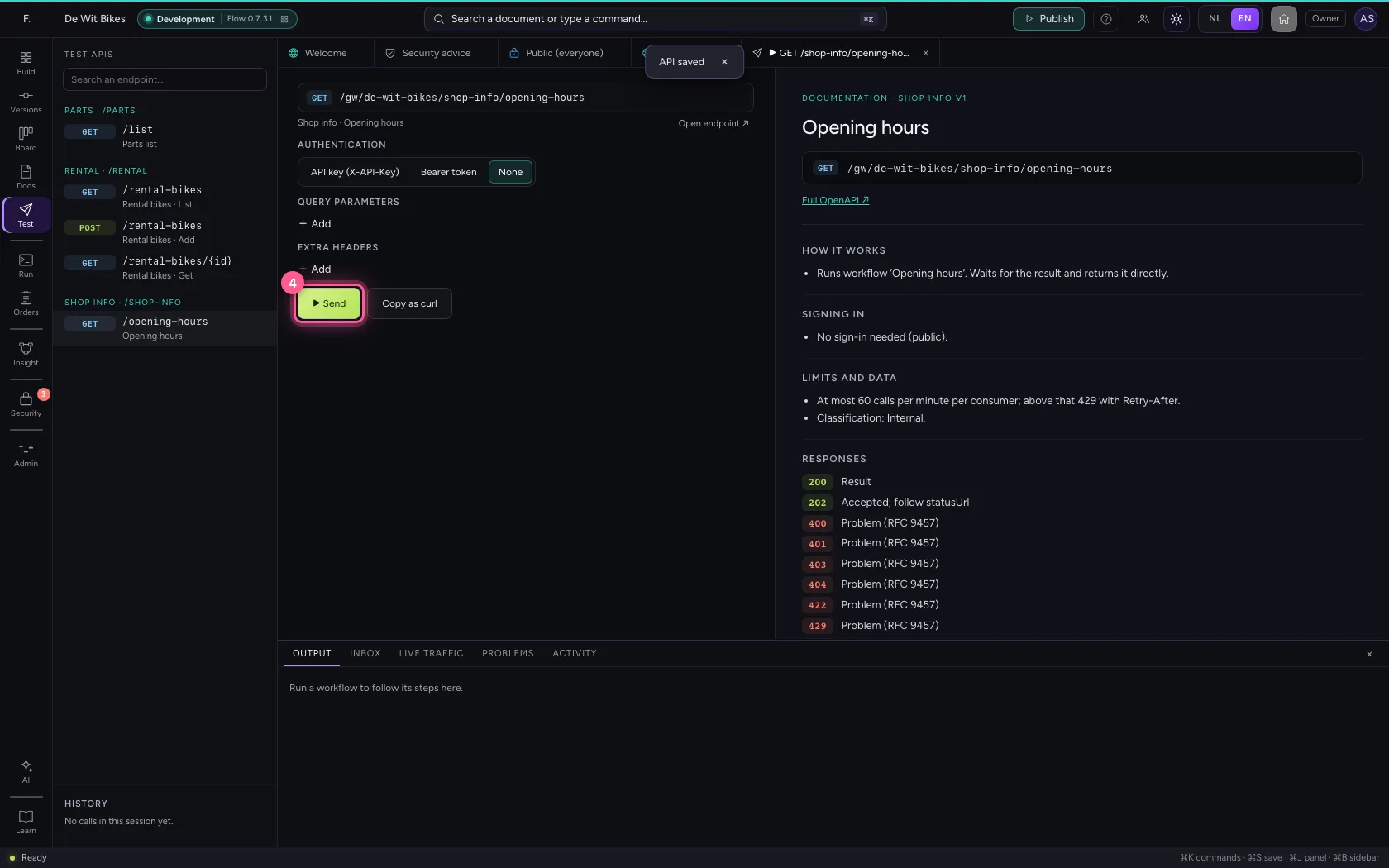
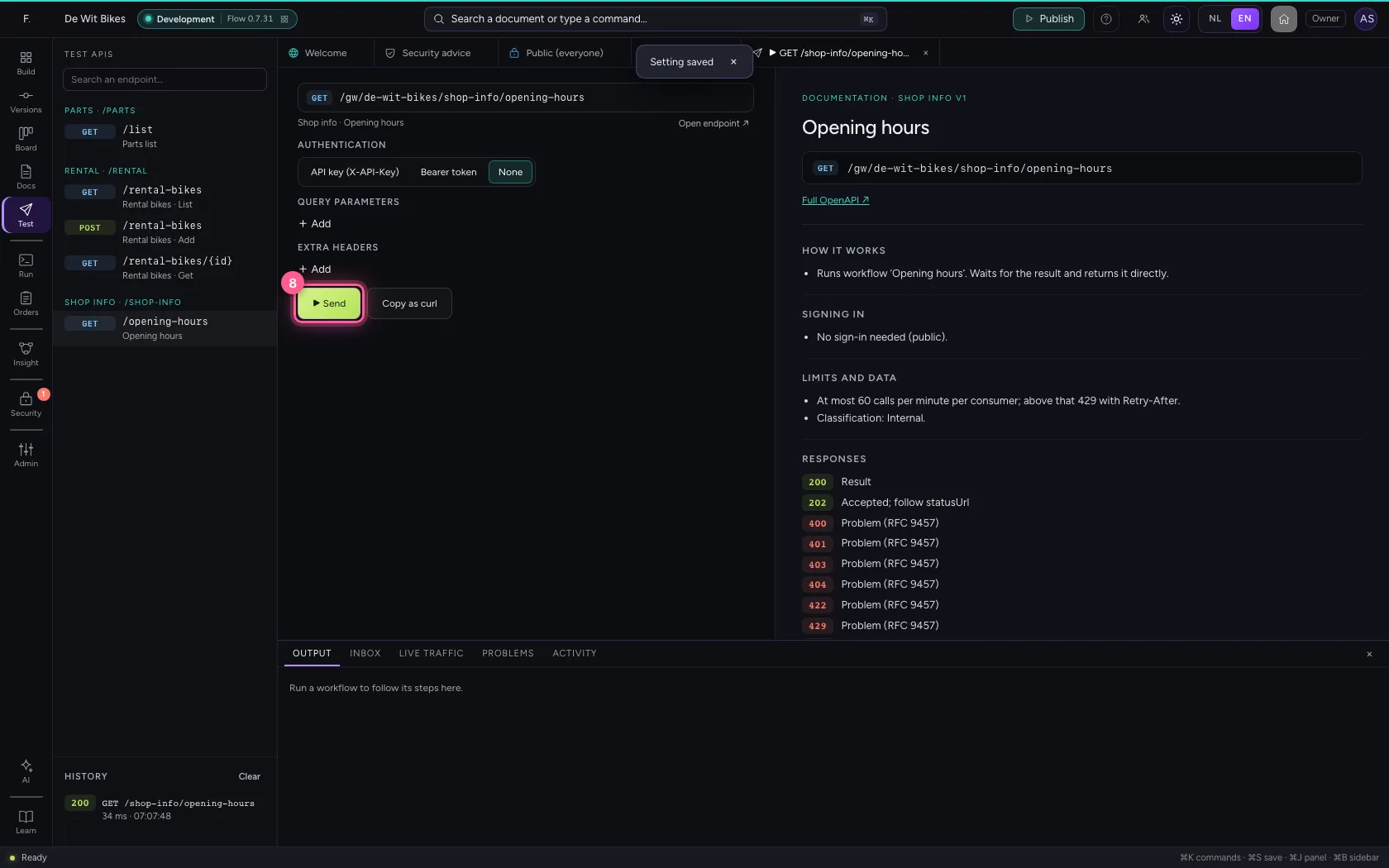
  1. Click ▶ Send
Call it without a key · Click ▶ Send
Call it without a key · 200, without a key.
Step 6 / 6

Switch it off again

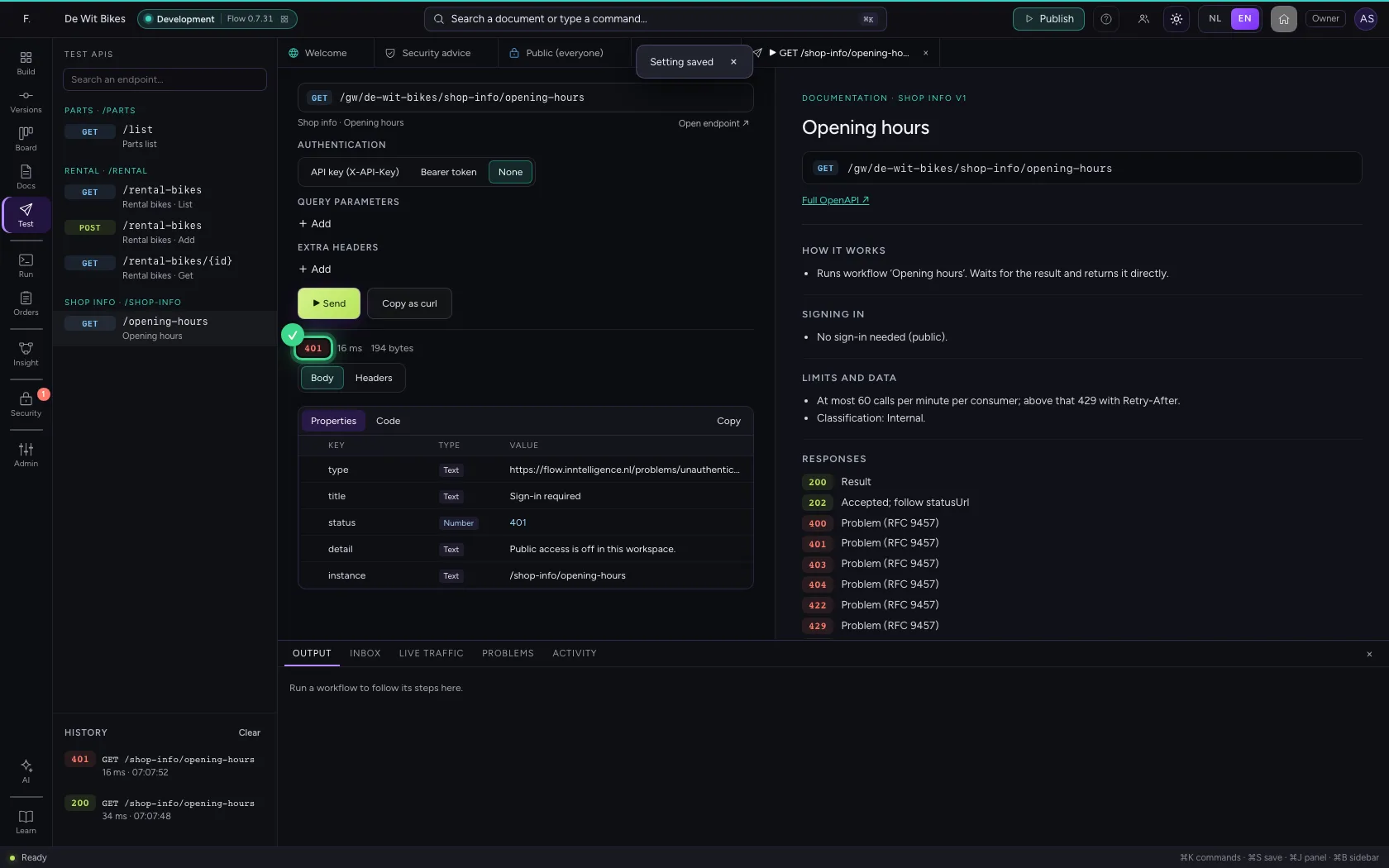
Set Public APIs back to Off. Every policy Public then stops working: the same call gets 401 Sign-in required. One switch closes everything that was public.

  1. Click Security
Switch it off again · Click Security
  1. Click Security advice
Switch it off again · Click Security advice
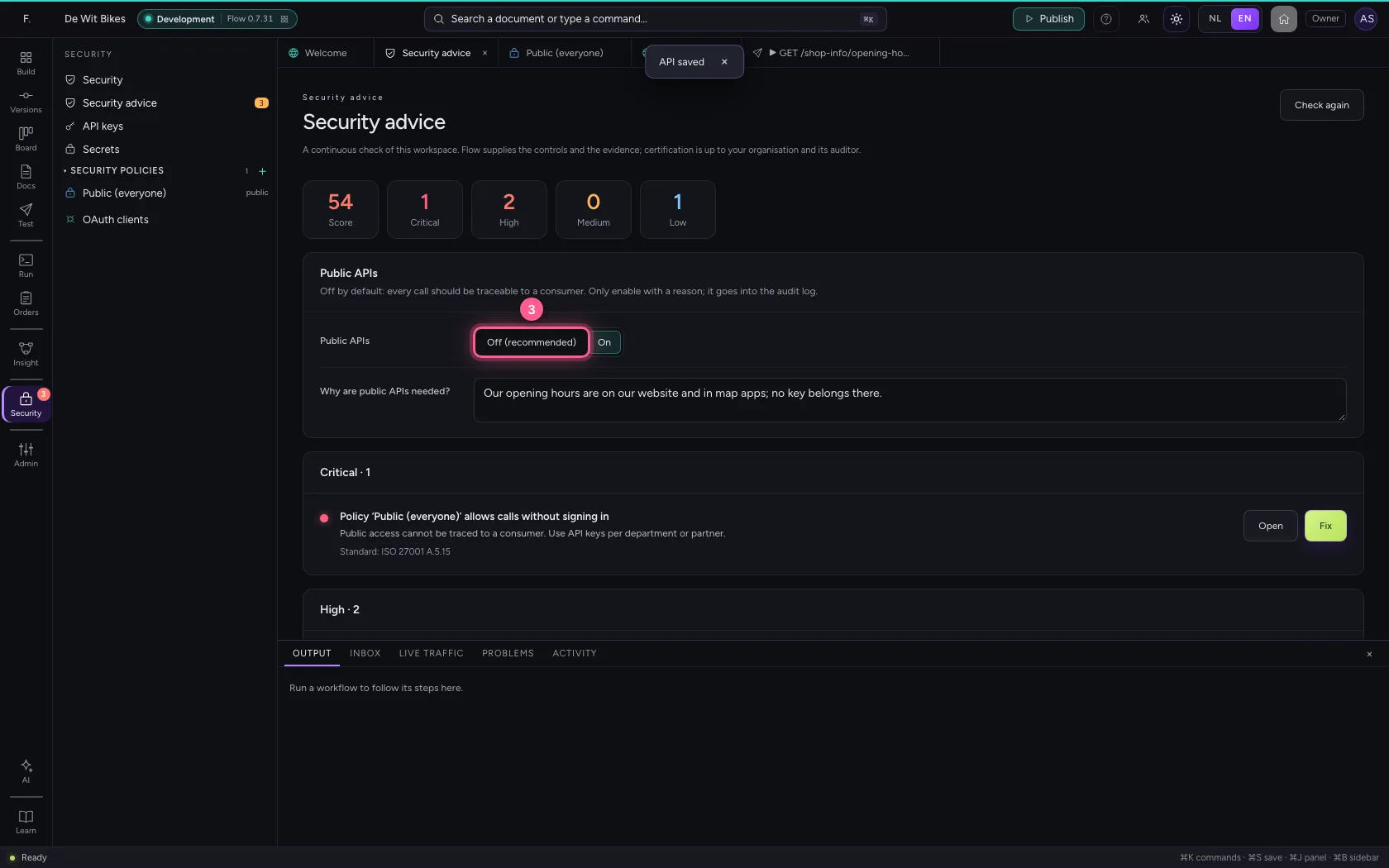
  1. Click Off (recommended)
Switch it off again · Click Off (recommended)
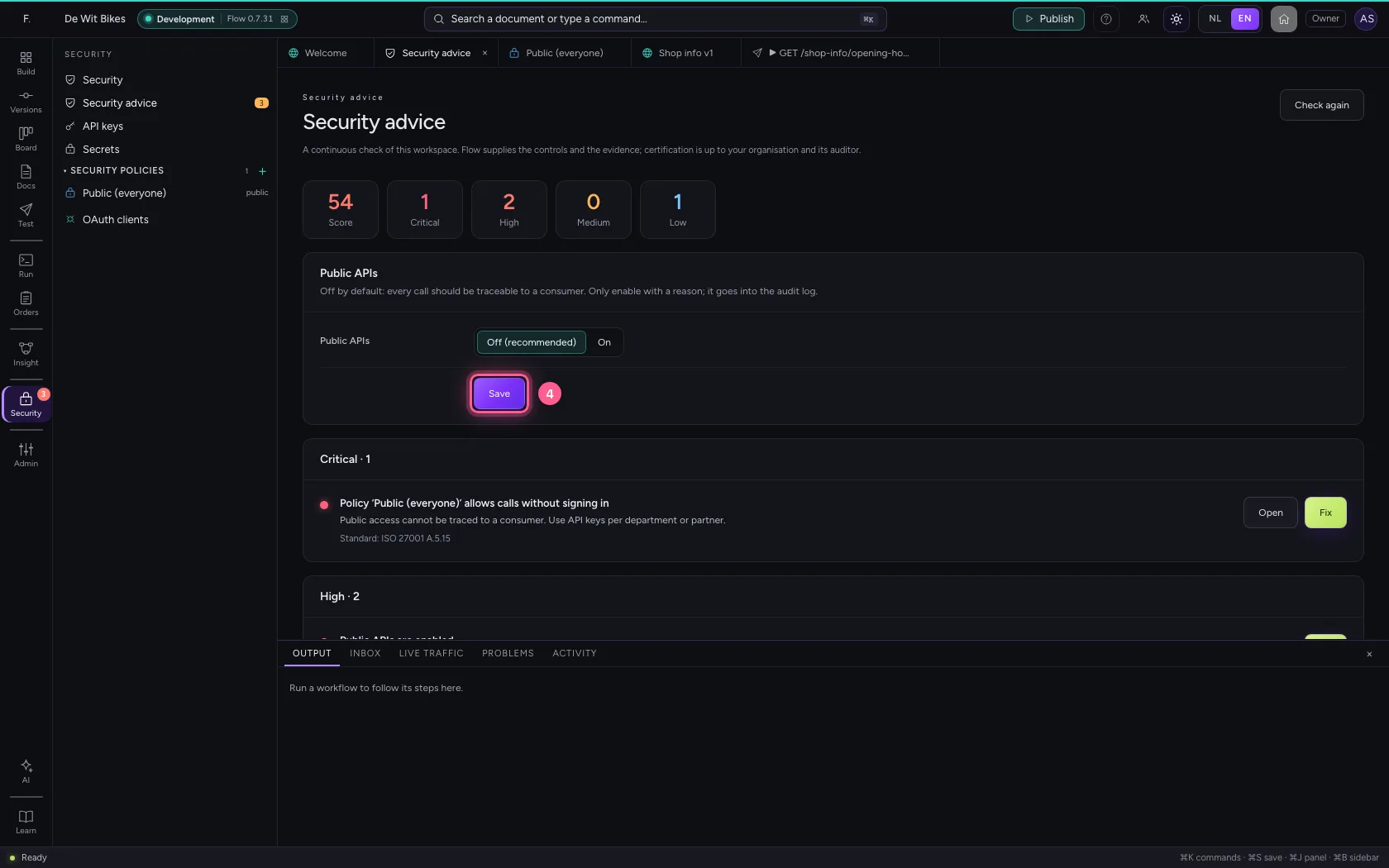
  1. Click Save
Switch it off again · Click Save
  1. Click Test APIs
Switch it off again · Click Test APIs
  1. Click the endpoint
Switch it off again · Click the endpoint
  1. Click None
Switch it off again · Click None
  1. Click ▶ Send
Switch it off again · Click ▶ Send
Switch it off again · 401: public access is off.

This guide was carried out step by step on 22 Oct 2026 by an automated test on Flow (version 3e563176).