Test APIs: try any endpoint
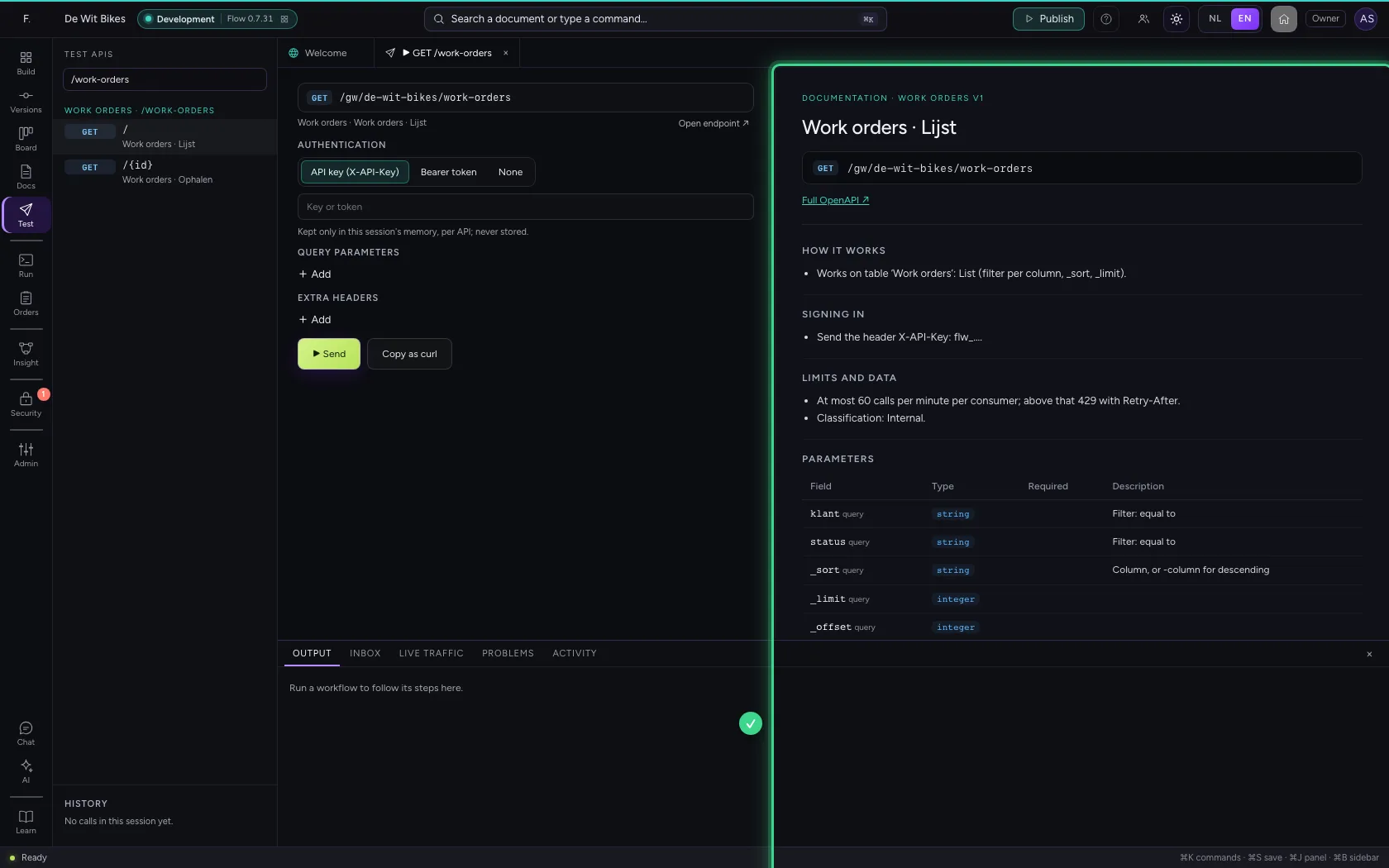
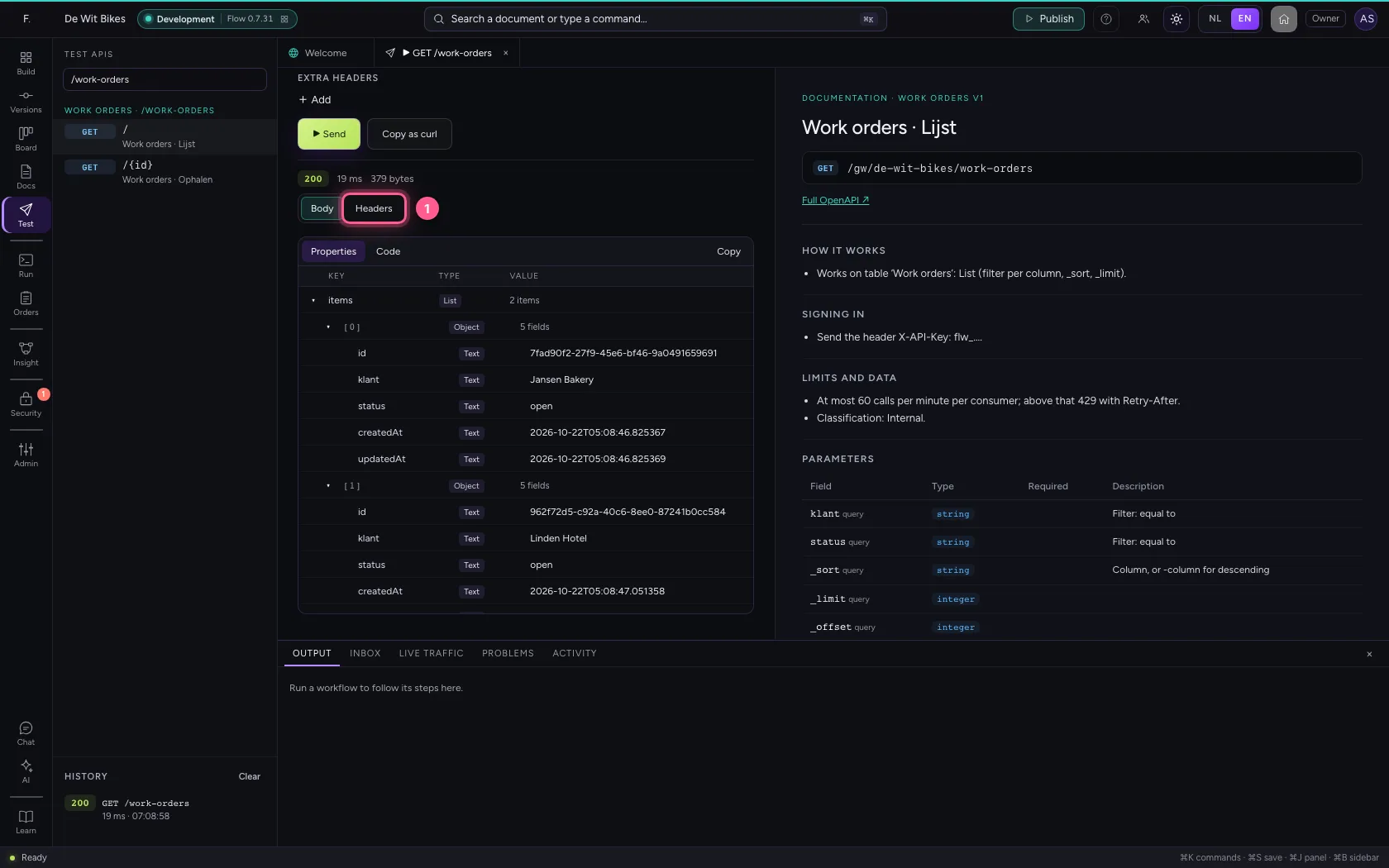
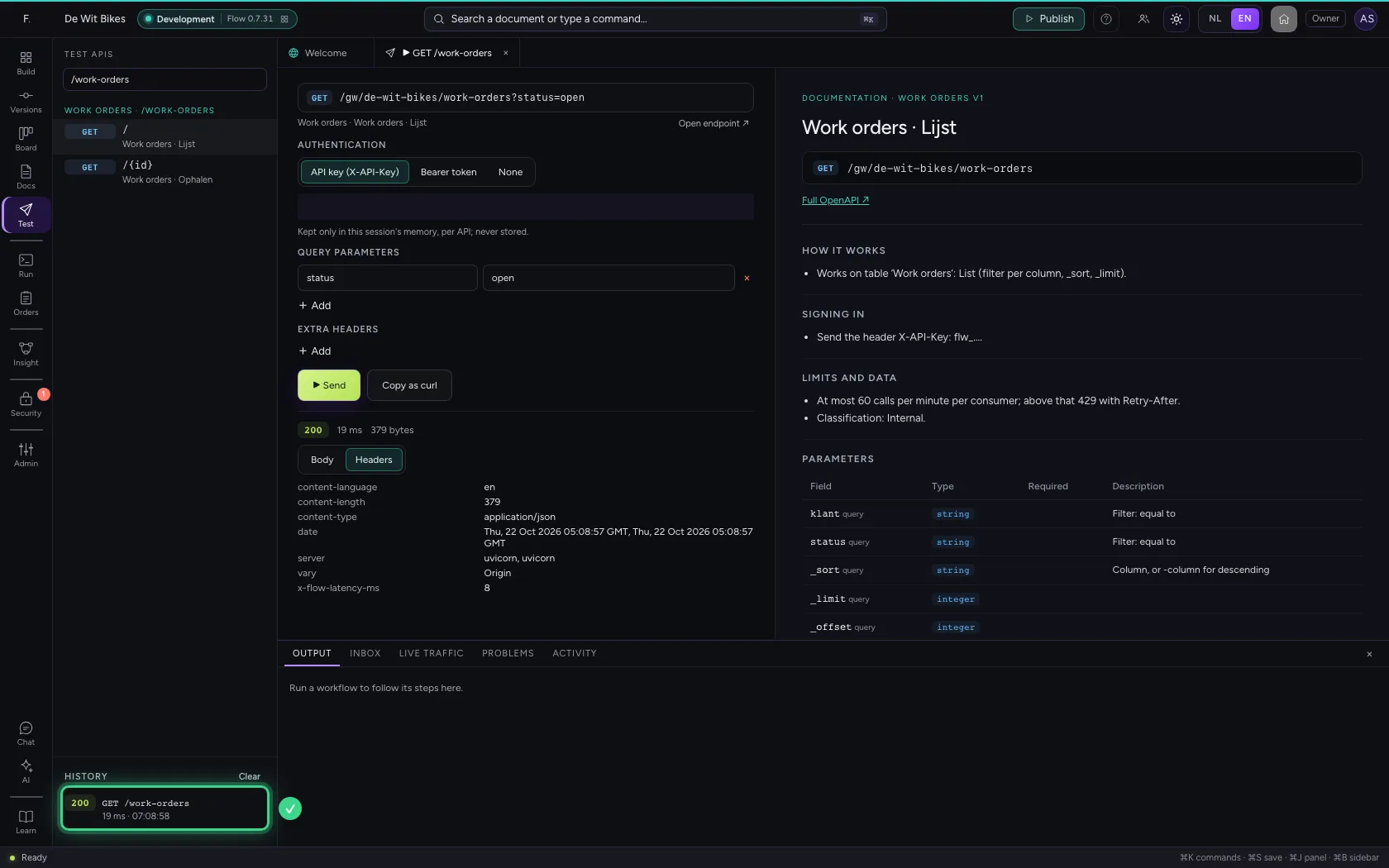
Test APIs in the bar on the left is a workbench for all your endpoints: on the left the request and the answer, on the right the documentation Flow makes from the endpoint. You find an endpoint, sign in like a consumer, add query parameters and read the body and headers of the answer. Keys stay only in your session's memory.
Open your development environment
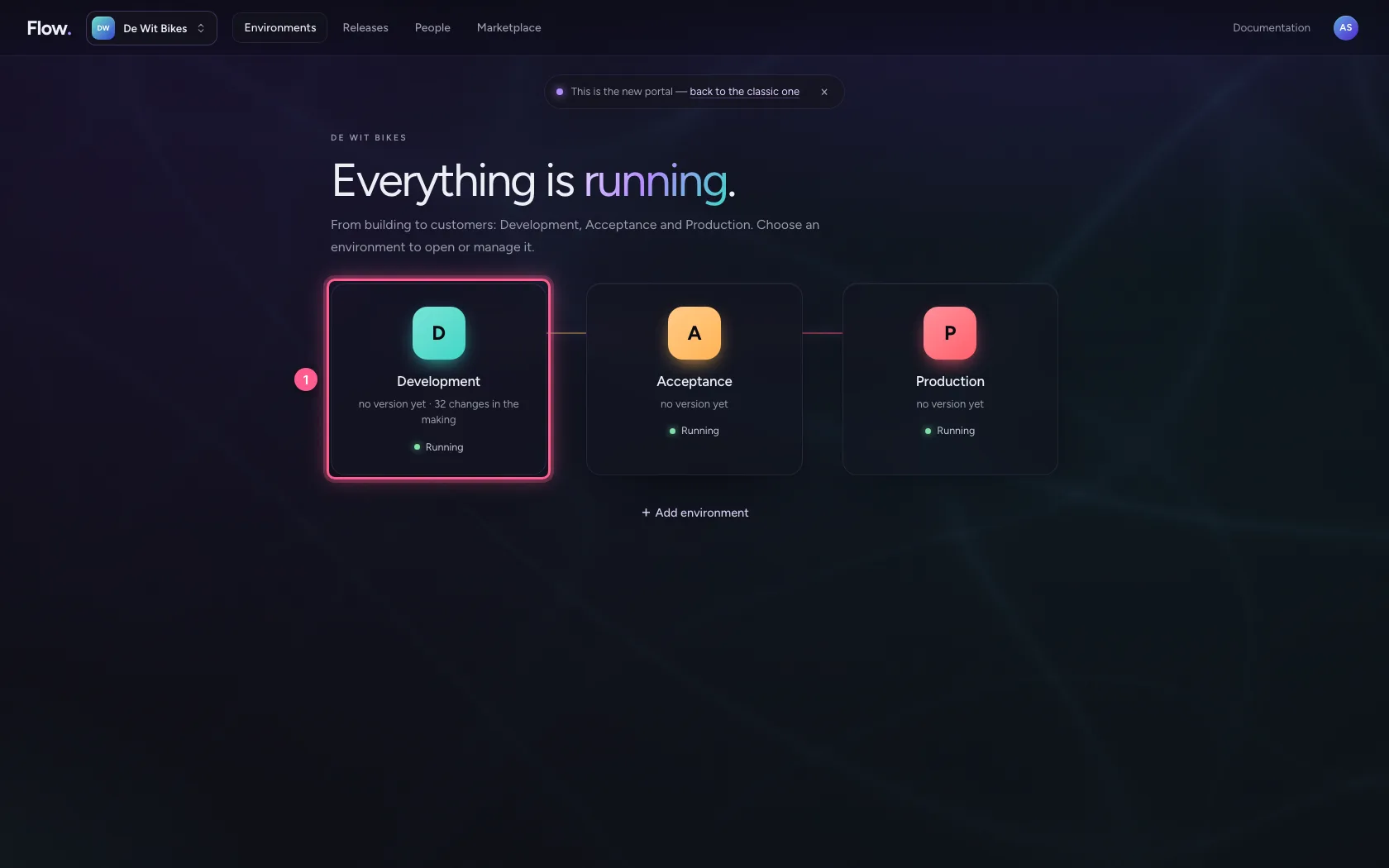
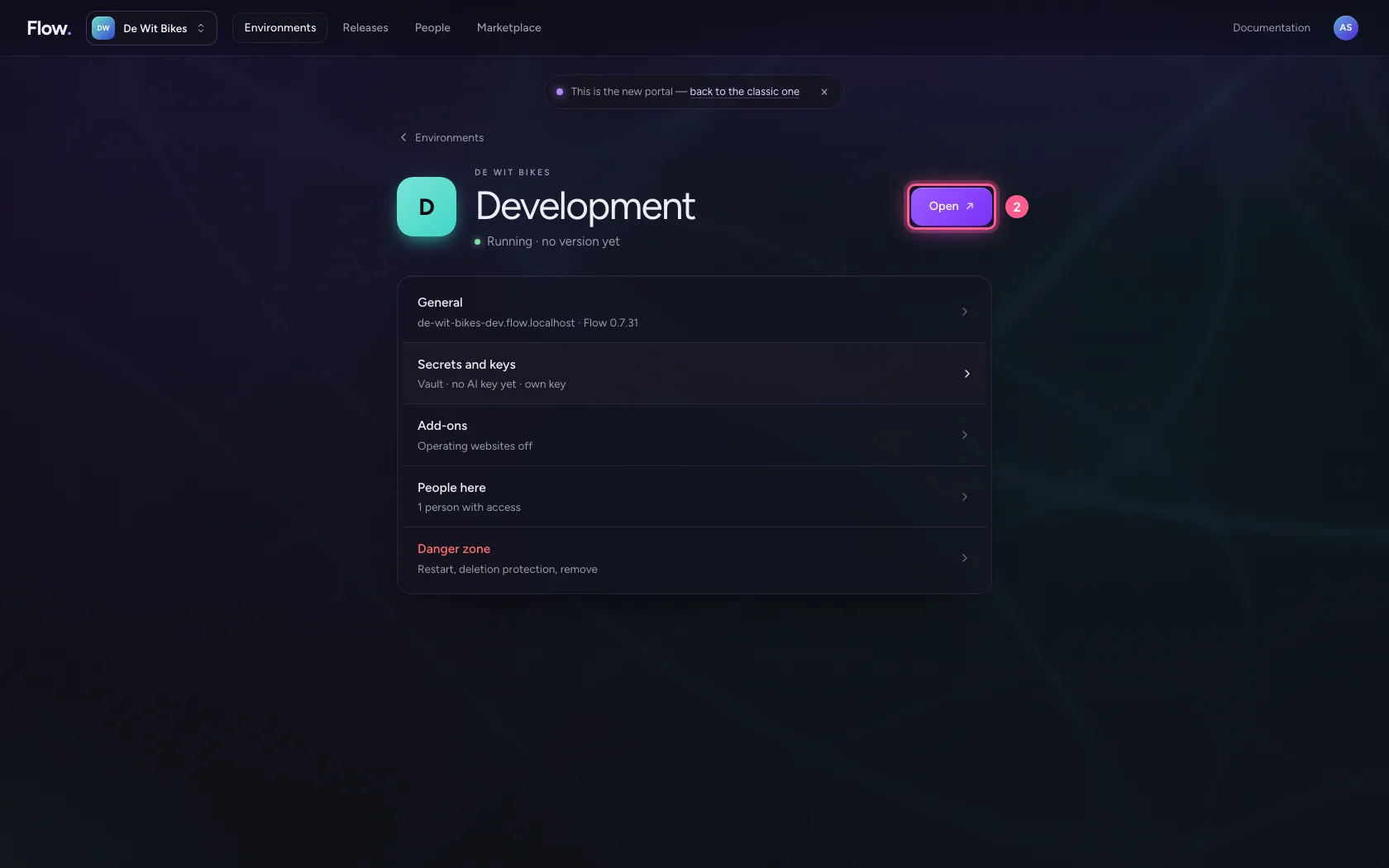
In the portal, under Environments, click Development, and there Open. Flow opens in a new tab and you are signed in straight away.
- Click Development
- Click Open ↗
Find the endpoint
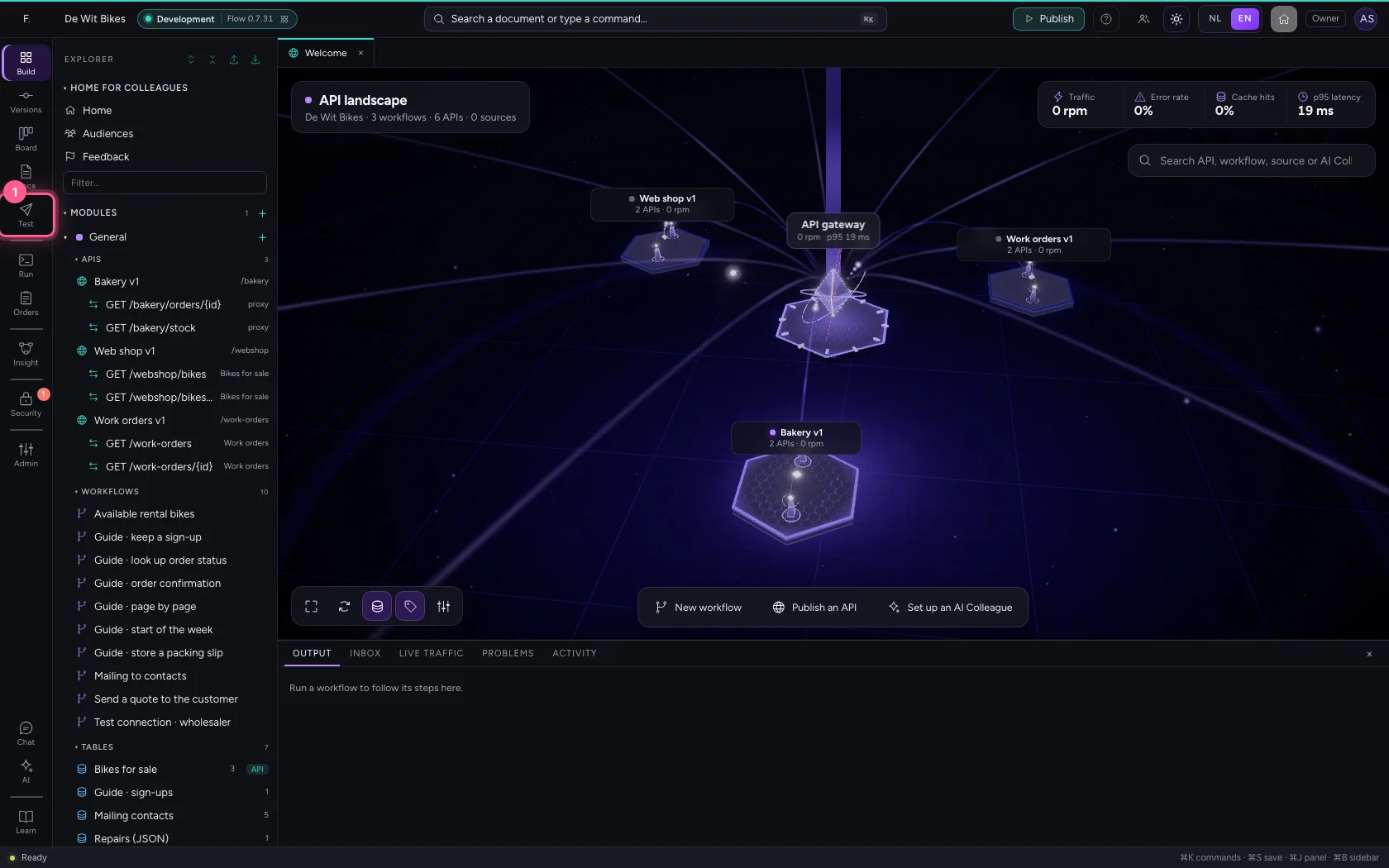
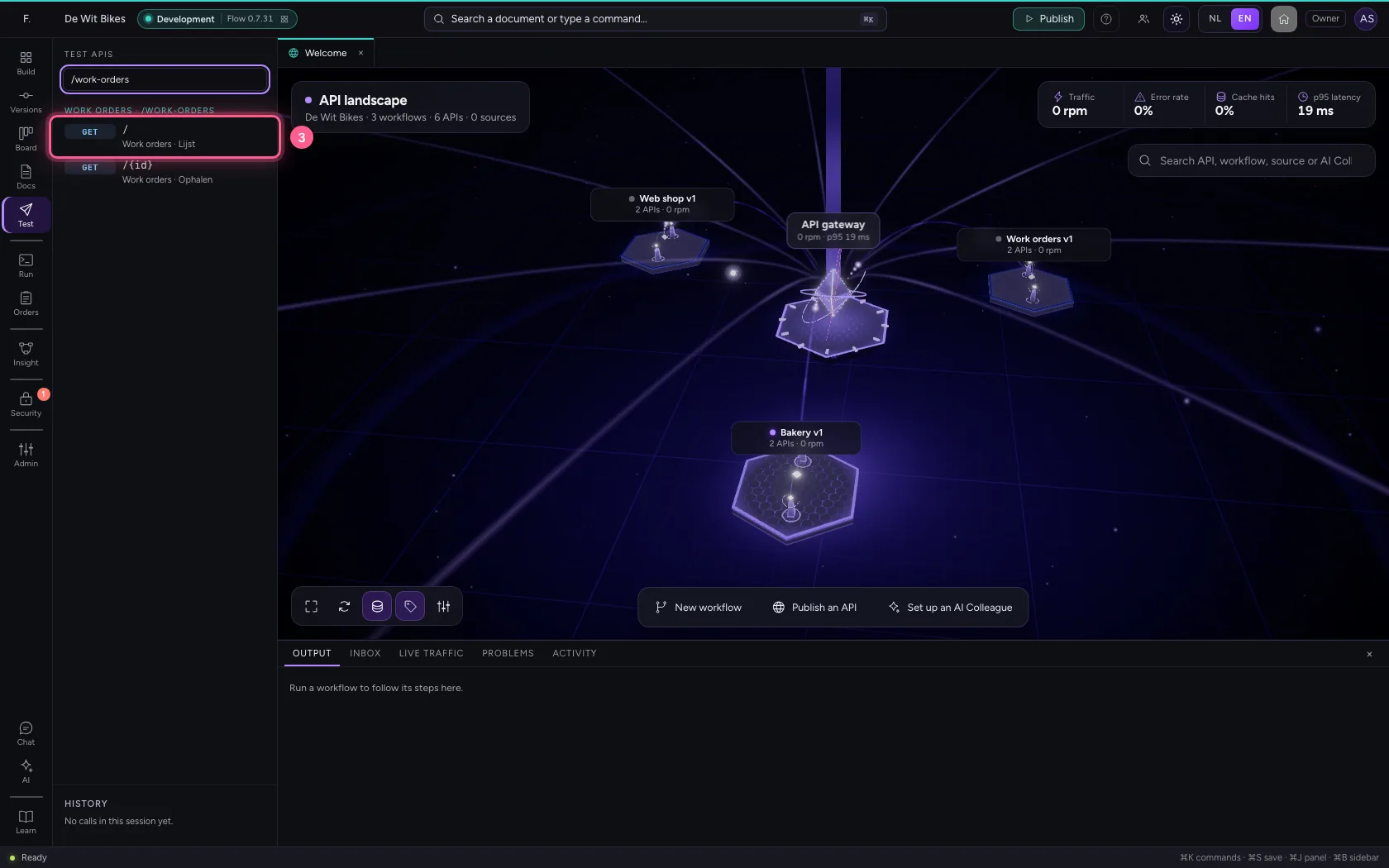
Click Test (Test APIs) in the bar on the left. You see all your endpoints per API; type to search. Choose one: on the left is the request, on the right the documentation — what the endpoint does, how to sign in, the limits and an example.
- Click Test APIs
- In Search an endpoint…, type
/work-orders
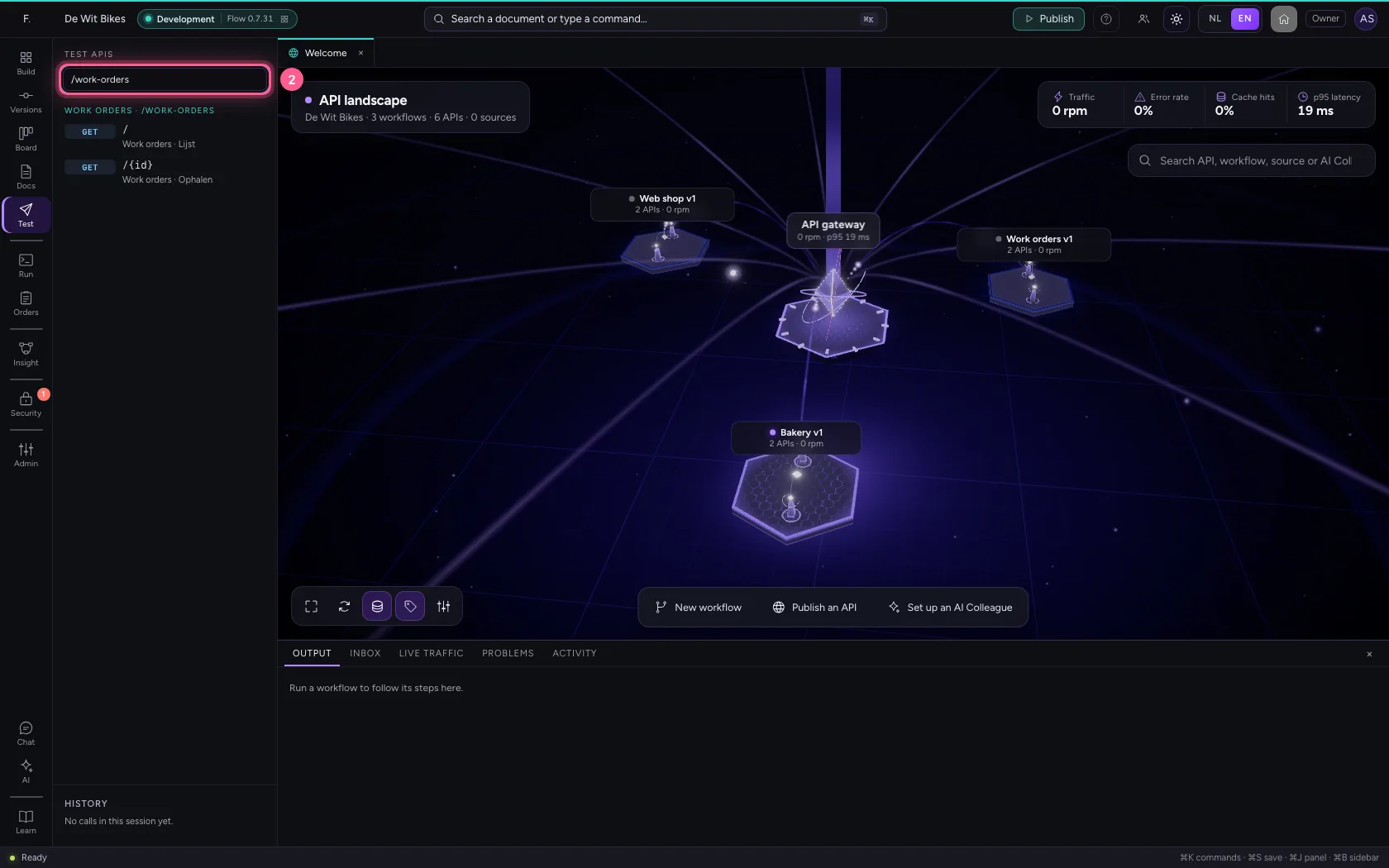
- Click GET /work-orders
Sign in and filter with query parameters
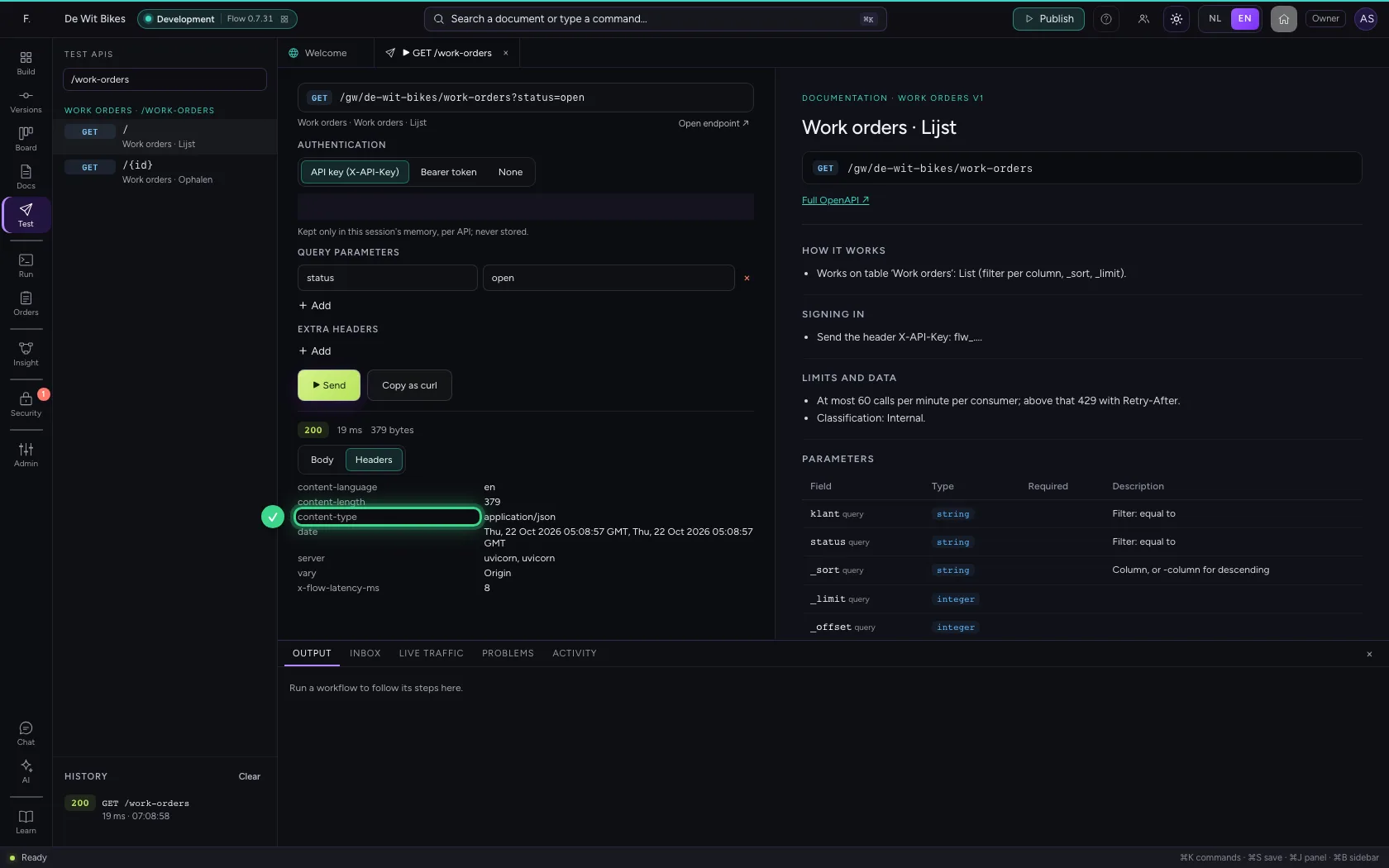
Choose API key and paste a consumer's key; it stays only in this session's memory. Under Query parameters you add a name and value per line: here status=open. Send.
- Click API key (X-API-Key)

- In Key or token, type
••••••••

- Click + Add

- In Name, type
status - In Value, type
open


- Click ▶ Send


Read the headers of the answer
Under Headers you find what the gateway sent back: the type, and with a limit how many calls are left. A workflow endpoint also gives X-Flow-Run: with it you open the run.
- Click Headers
Your history
On the left under History you find every call of this session, with status and time. Click one to load it again, with the same parameters; the key is stored nowhere.
This guide was carried out step by step on 22 Oct 2026 by an automated test on Flow (version 3e563176).