Flow.Documentation
ProfessionalAPIs

A new version of an API

5 steps± 4 minVideoVerified 22 Oct 2026
  1. Step 1 · Open your development environment
  2. Step 2 · Create version v2 next to v1
  3. Step 3 · Reuse the logic through a facade
  4. Step 4 · Try v2
  5. Step 5 · Switch v1 off once everyone has moved

You do not change what consumers use under their hands. You put a new version next to the old one: the same name, version v2 and a base path of its own. An endpoint of v2 can reuse v1's logic through a facade — one workflow belongs to one endpoint, so one's security never leaks through the other. Once every consumer has moved, you switch v1 off.

Watch the whole guide as a video5 steps in one film
Step 1 / 5

Open your development environment

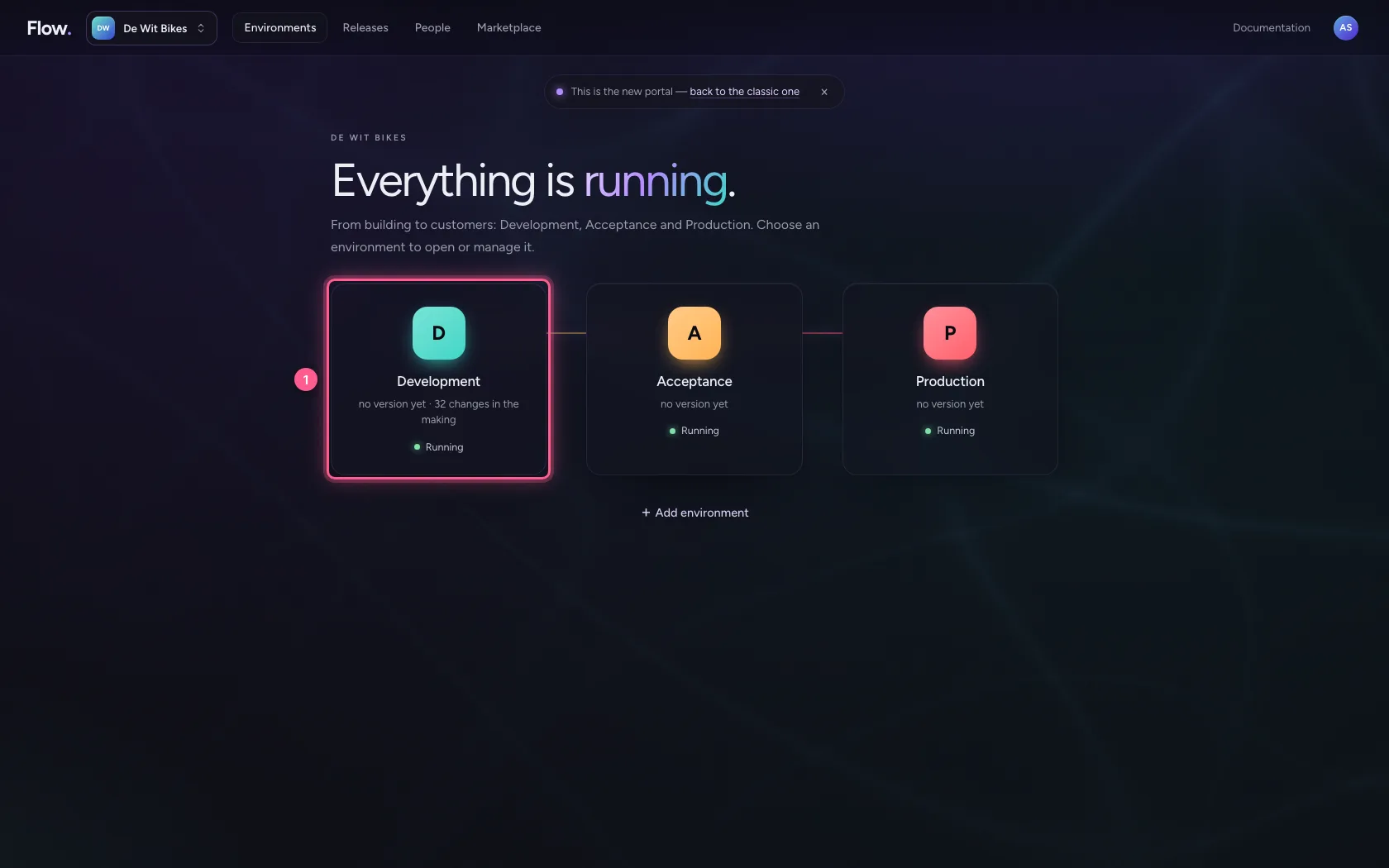
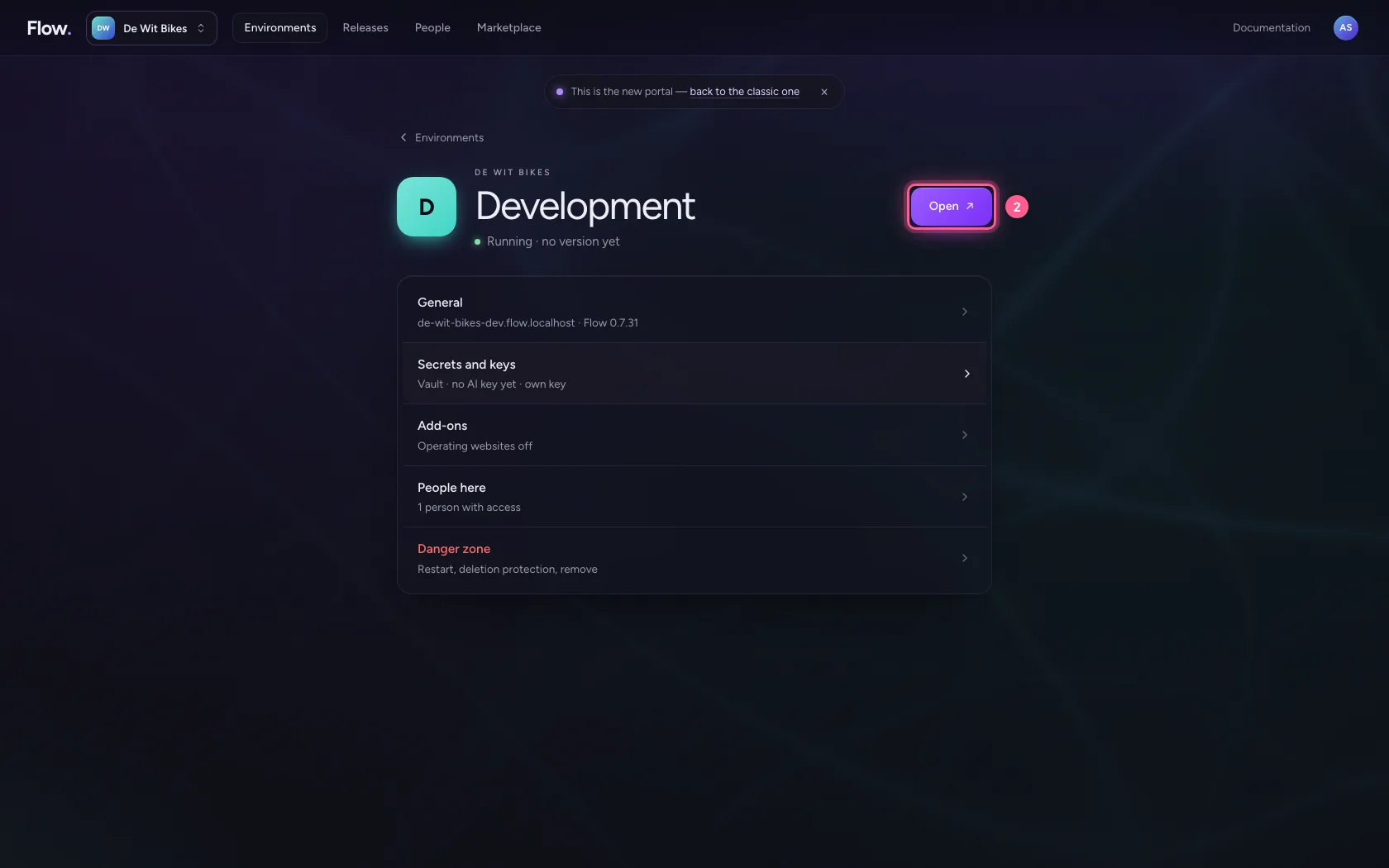
In the portal, under Environments, click Development, and there Open. Flow opens in a new tab and you are signed in straight away.

  1. Click Development
Open your development environment · Click Development
  1. Click Open ↗
Open your development environment · Click Open ↗
Step 2 / 5

Create version v2 next to v1

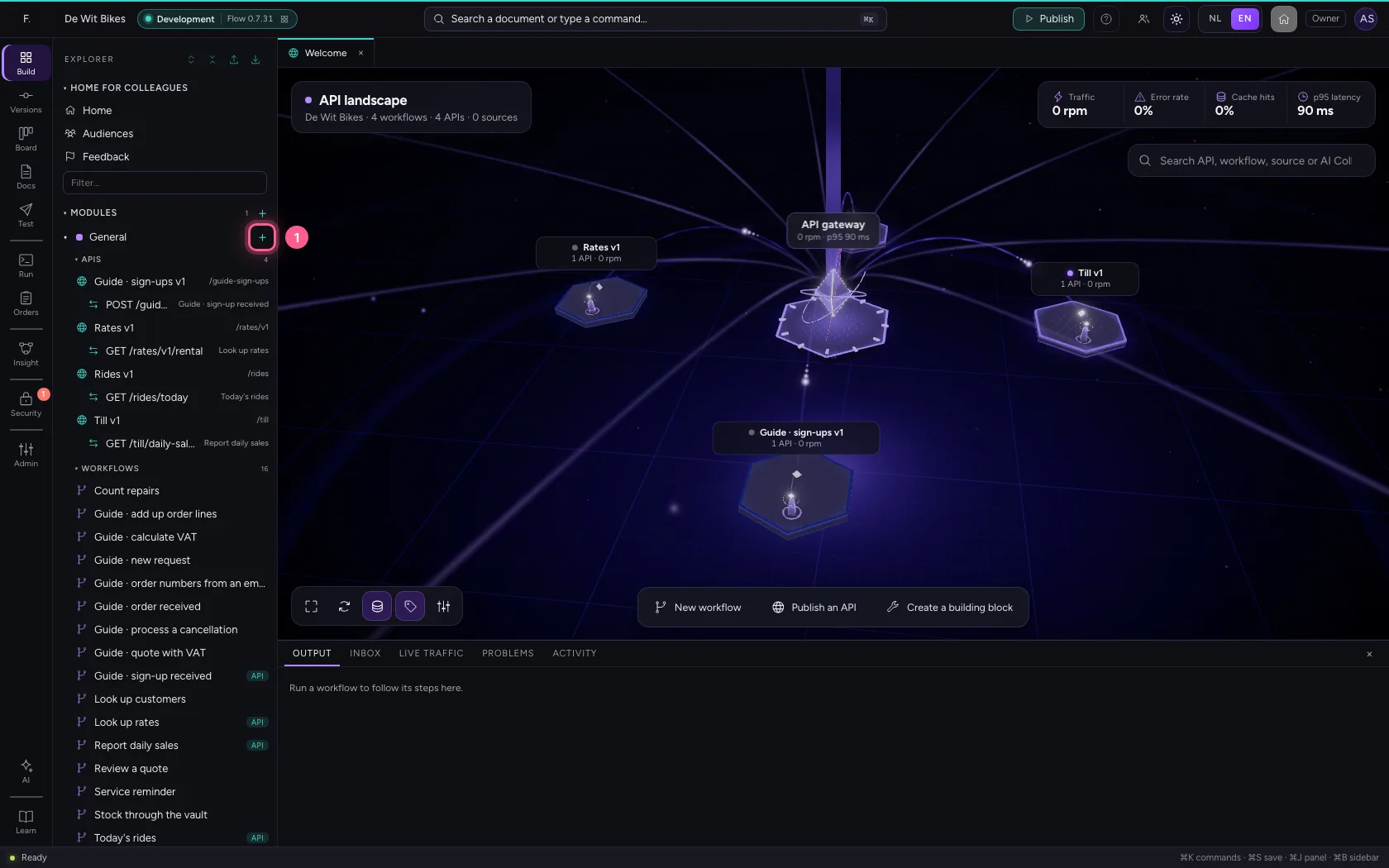
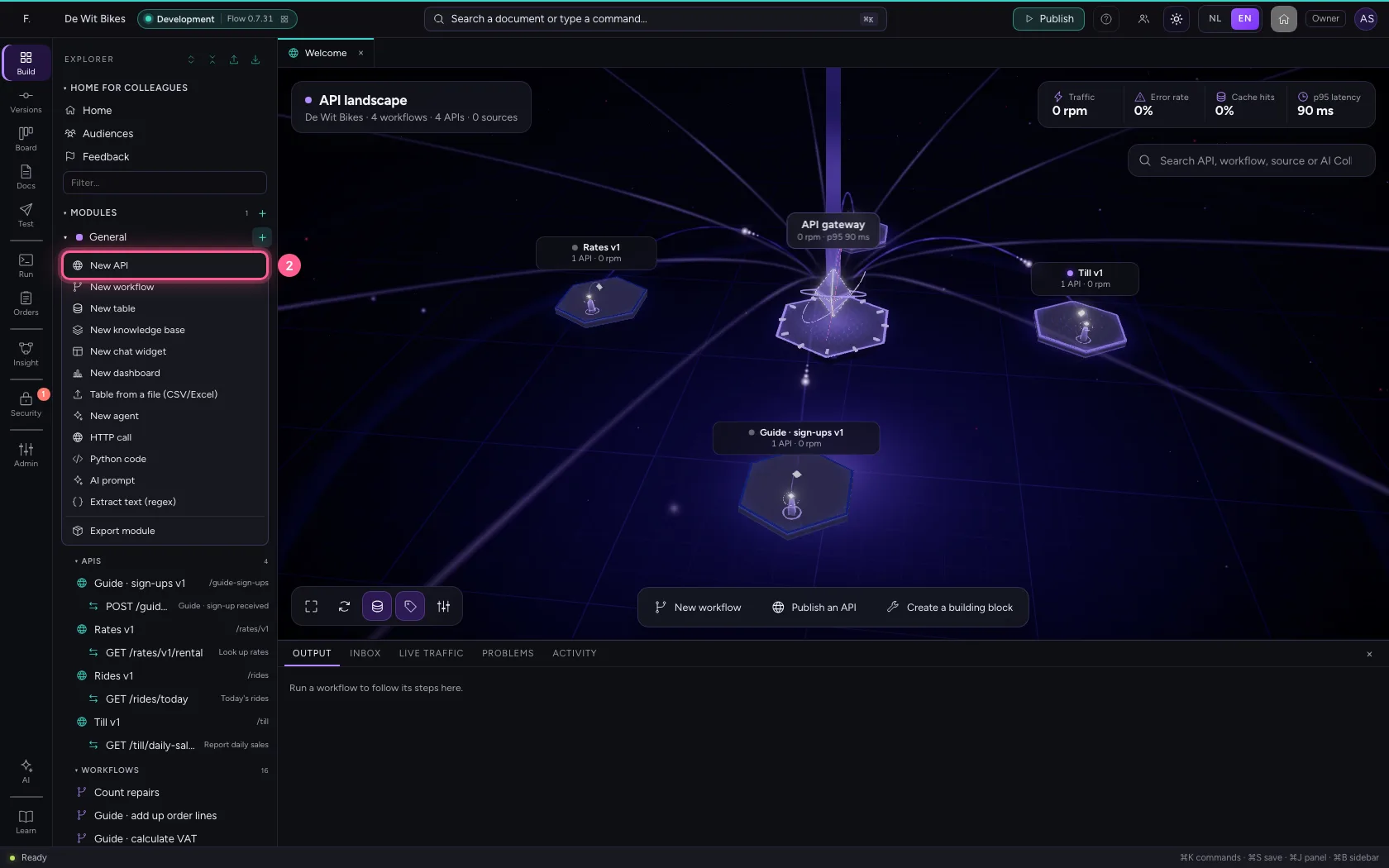
Create a new API with the same name, the base path with /v2 and Version v2. In the explorer they sit next to each other; v1's consumers notice nothing.

  1. Click Add to General
Create version v2 next to v1 · Click Add to General
  1. Click New API
Create version v2 next to v1 · Click New API
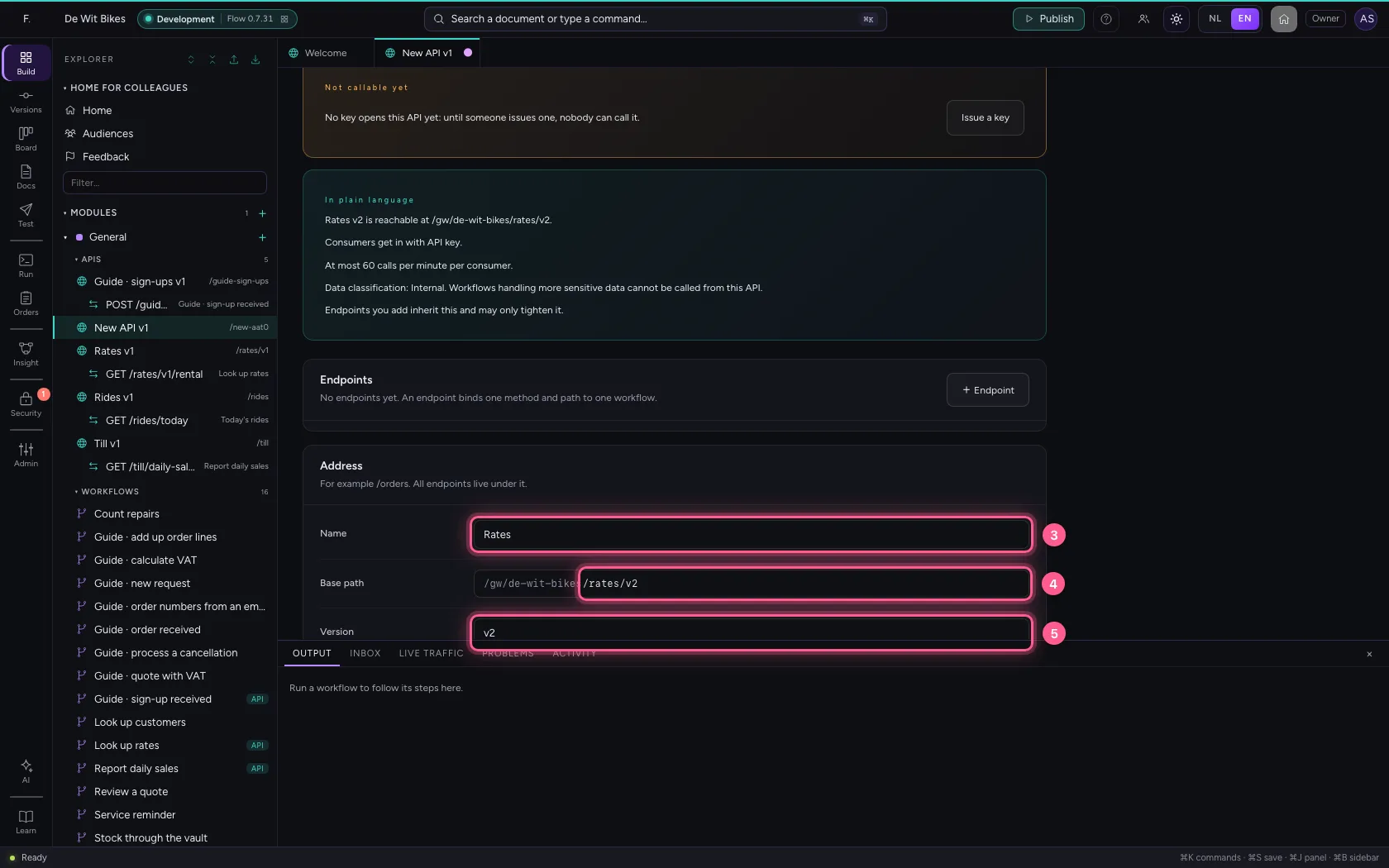
  1. In Name, type Rates
  2. In Base path, type /rates/v2
  3. In Version, type v2
Create version v2 next to v1 · In Name, type Rates; In Base path, type /rates/v2; In Version, type v2
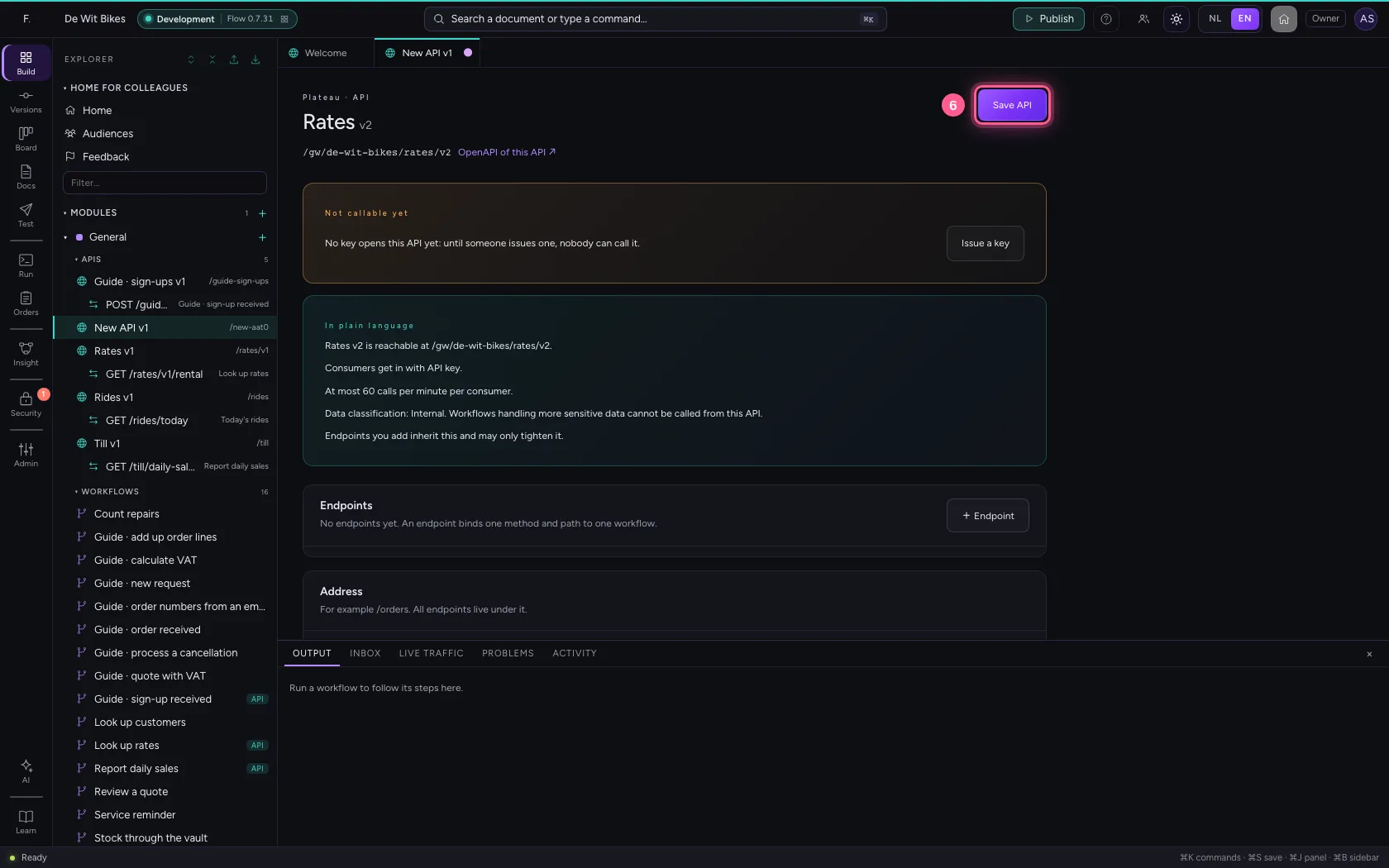
  1. Click Save API
Create version v2 next to v1 · Click Save API
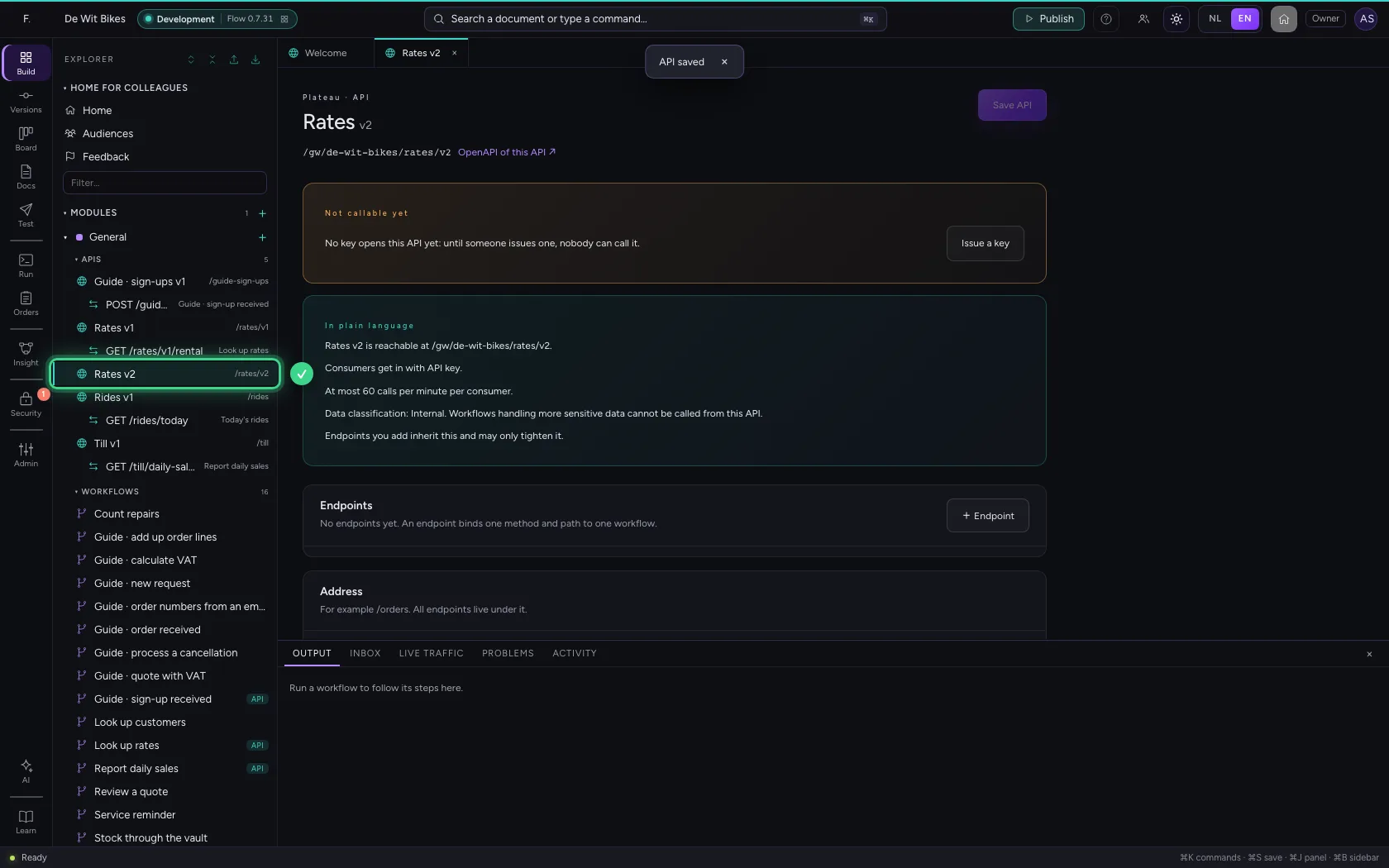
Create version v2 next to v1 · Rates v1 and Rates v2 in the explorer.
Step 3 / 5

Reuse the logic through a facade

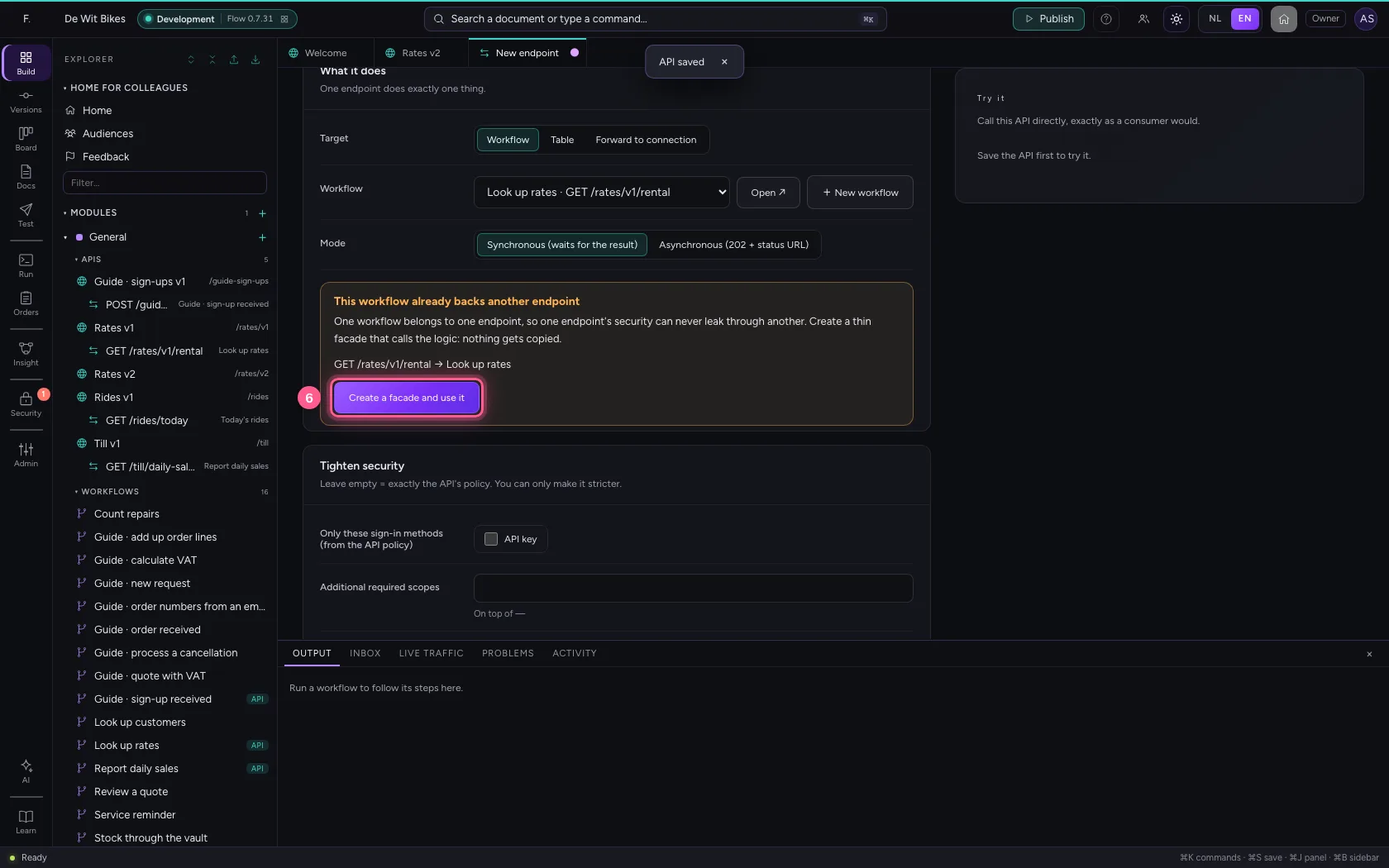
+ Endpoint, GET and the same path. Under Workflow choose v1's workflow: Flow says it already backs another endpoint, and offers a facade — a thin workflow that calls the logic. Nothing gets copied.

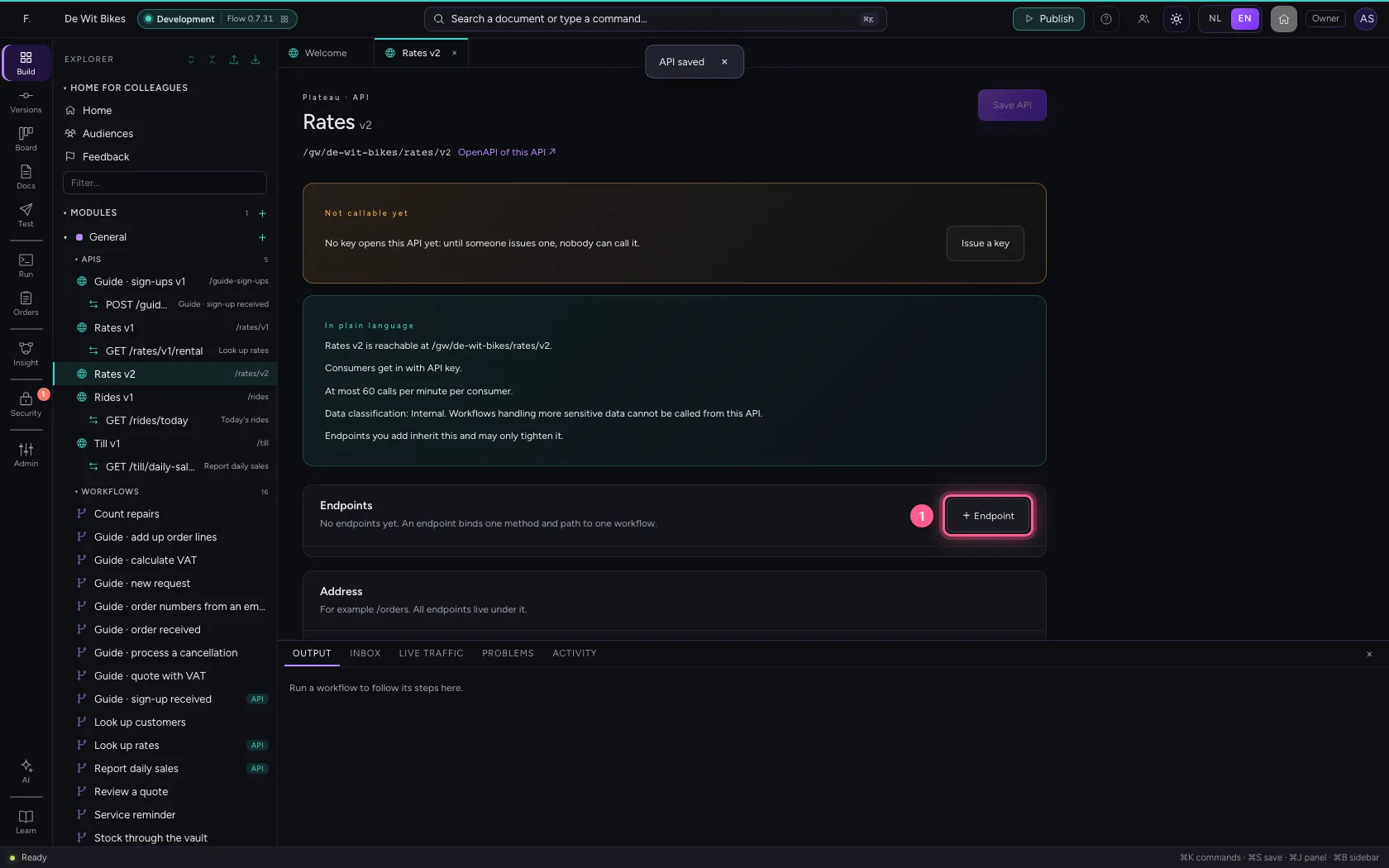
  1. Click + Endpoint
Reuse the logic through a facade · Click + Endpoint
  1. In Name, type Look up rates v2
  2. In Method, choose GET
  3. In Path, type /rental
  4. In Workflow, choose Look up rates · GET /rates/v1/rental
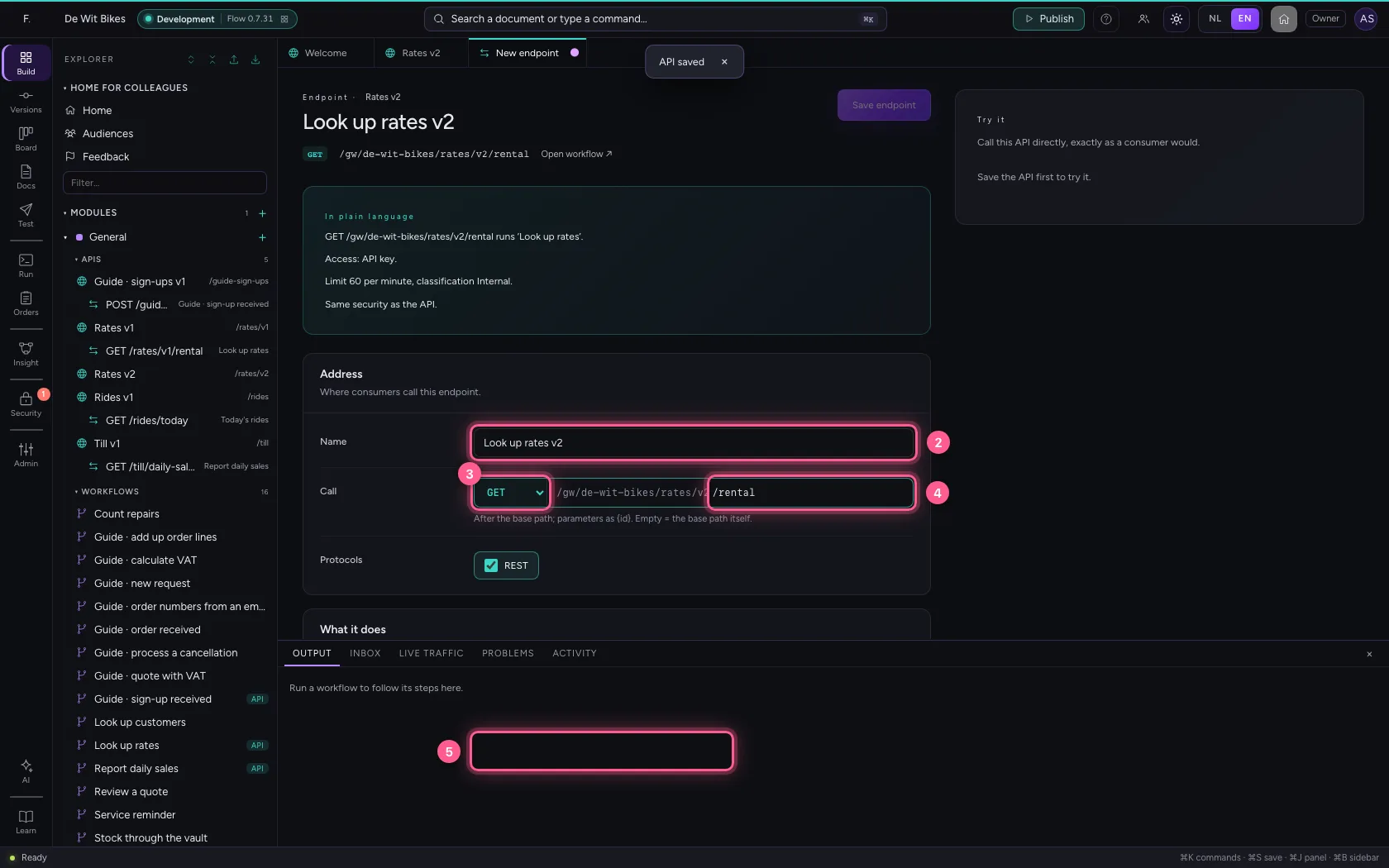
Reuse the logic through a facade · In Name, type Look up rates v2; In Method, choose GET; In Path, type /rental; In Workflow, choose Look up rates · GET /rates/v1/rental
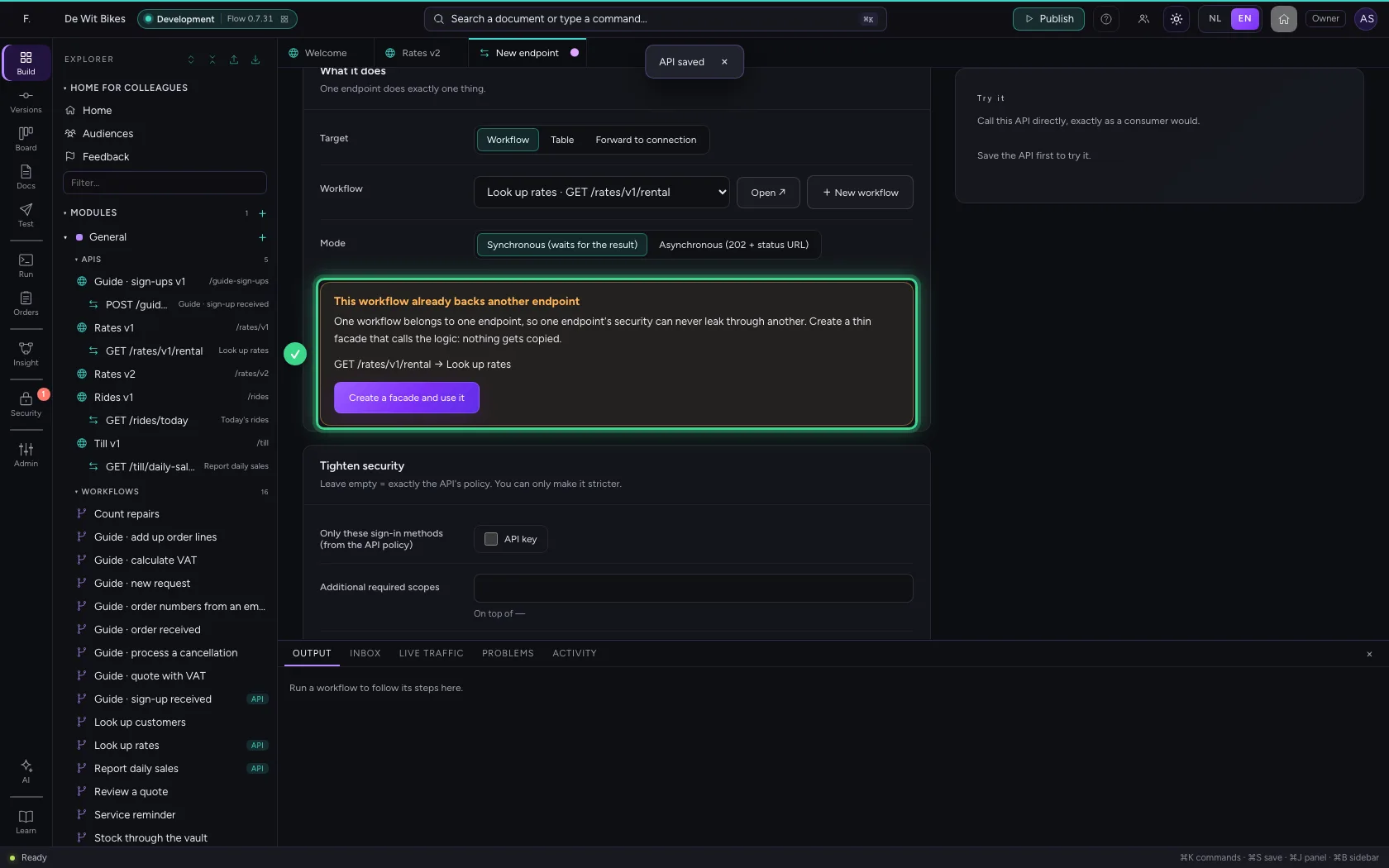
Reuse the logic through a facade · This workflow already backs another endpoint.
  1. Click Create a facade and use it
Reuse the logic through a facade · Click Create a facade and use it
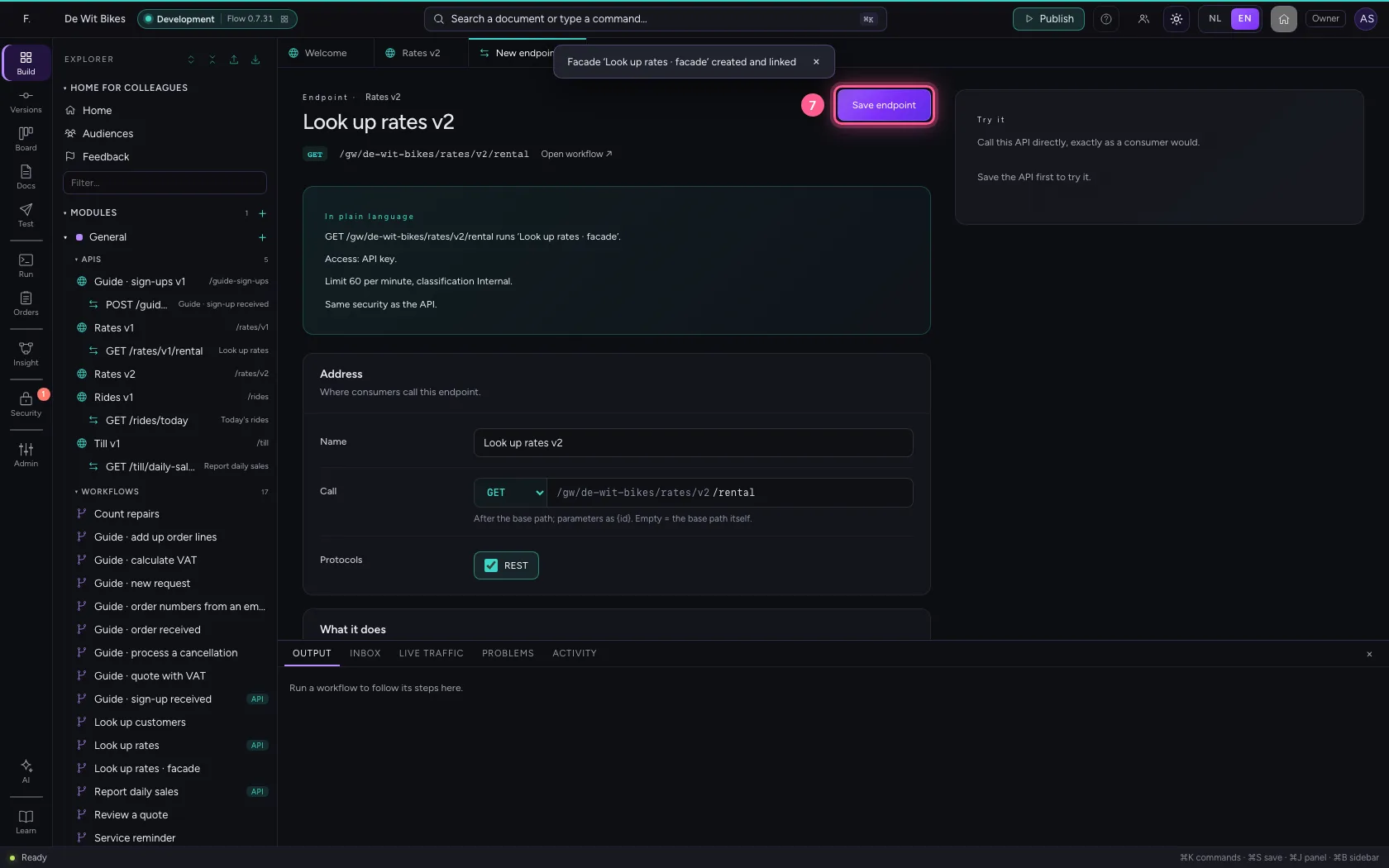
  1. Click Save endpoint
Reuse the logic through a facade · Click Save endpoint
Reuse the logic through a facade · The v2 endpoint runs the facade, which calls v1's logic.
Step 4 / 5

Try v2

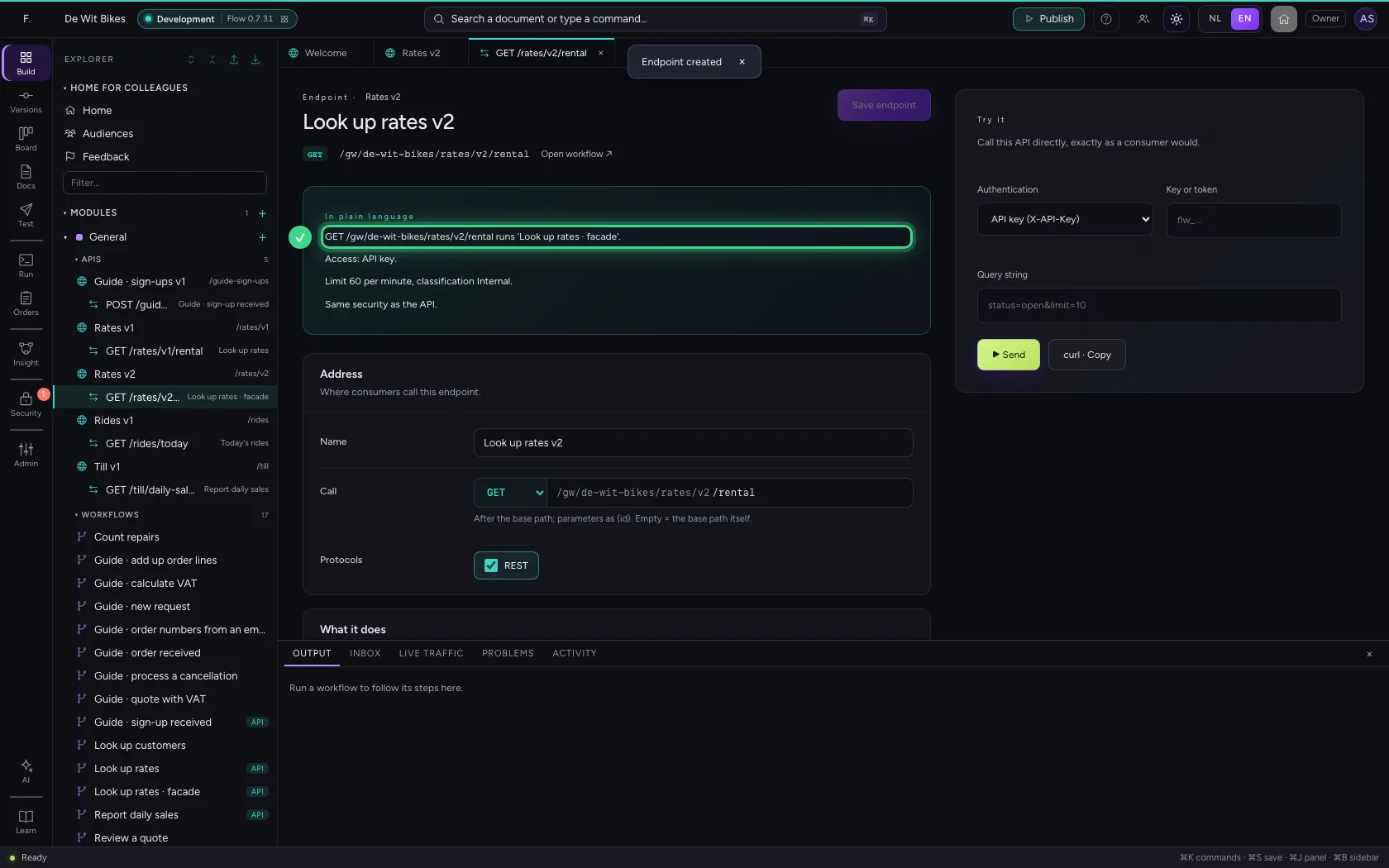
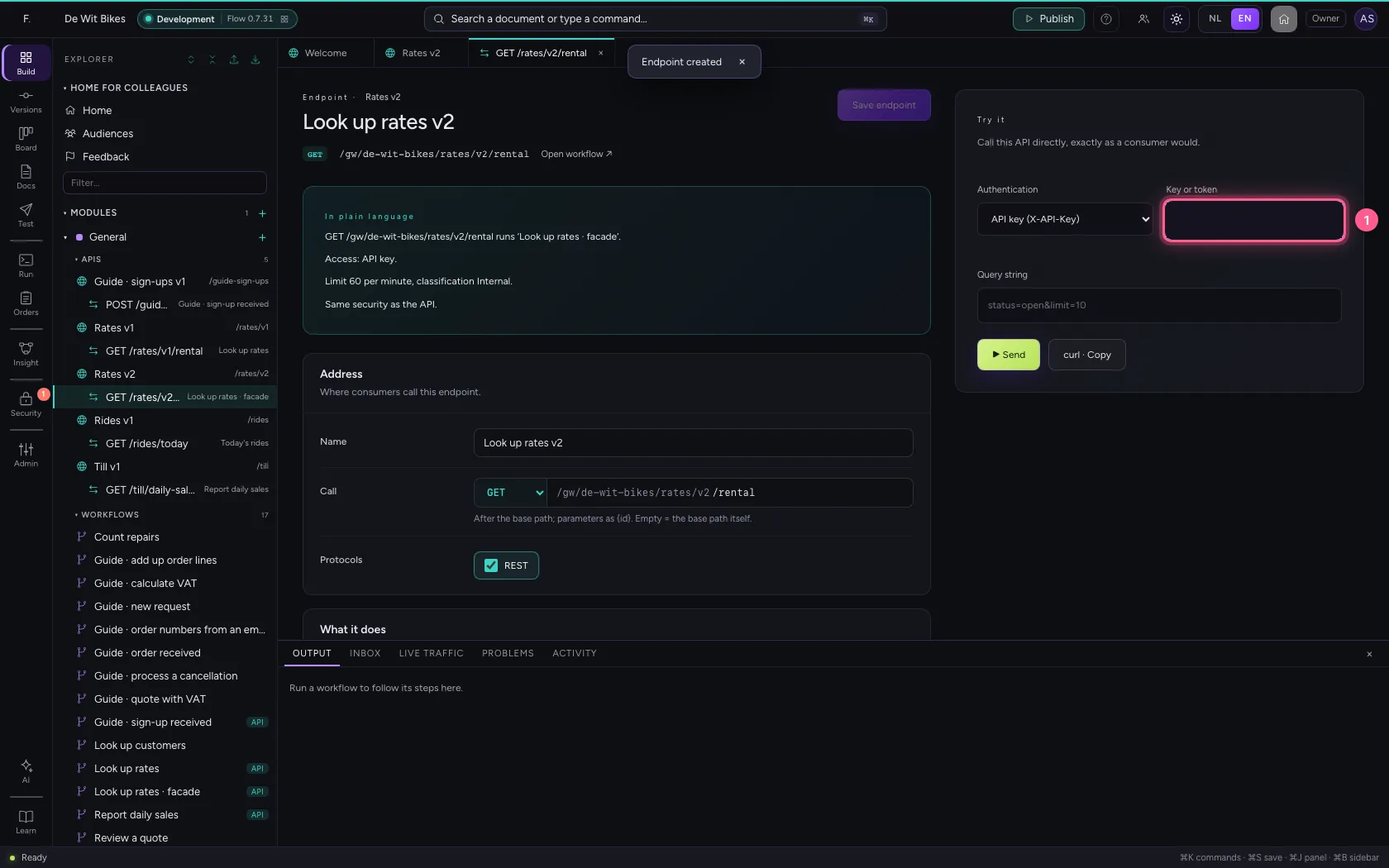
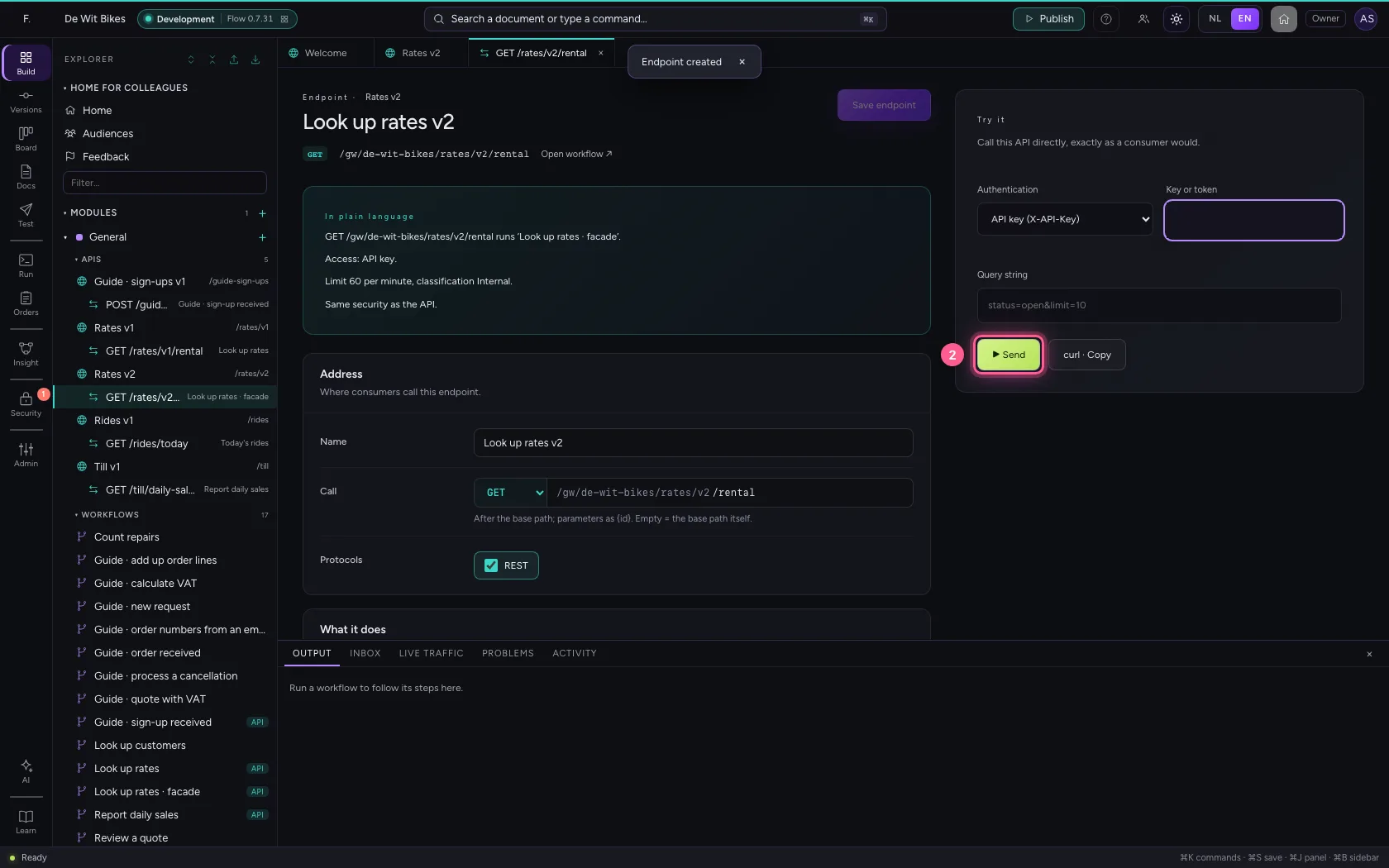
Under Try it you call v2 with a key that opens both versions. The answer comes from the same logic as with v1.

  1. In Key or token, type ••••••••
Try v2 · In Key or token, type ••••••••
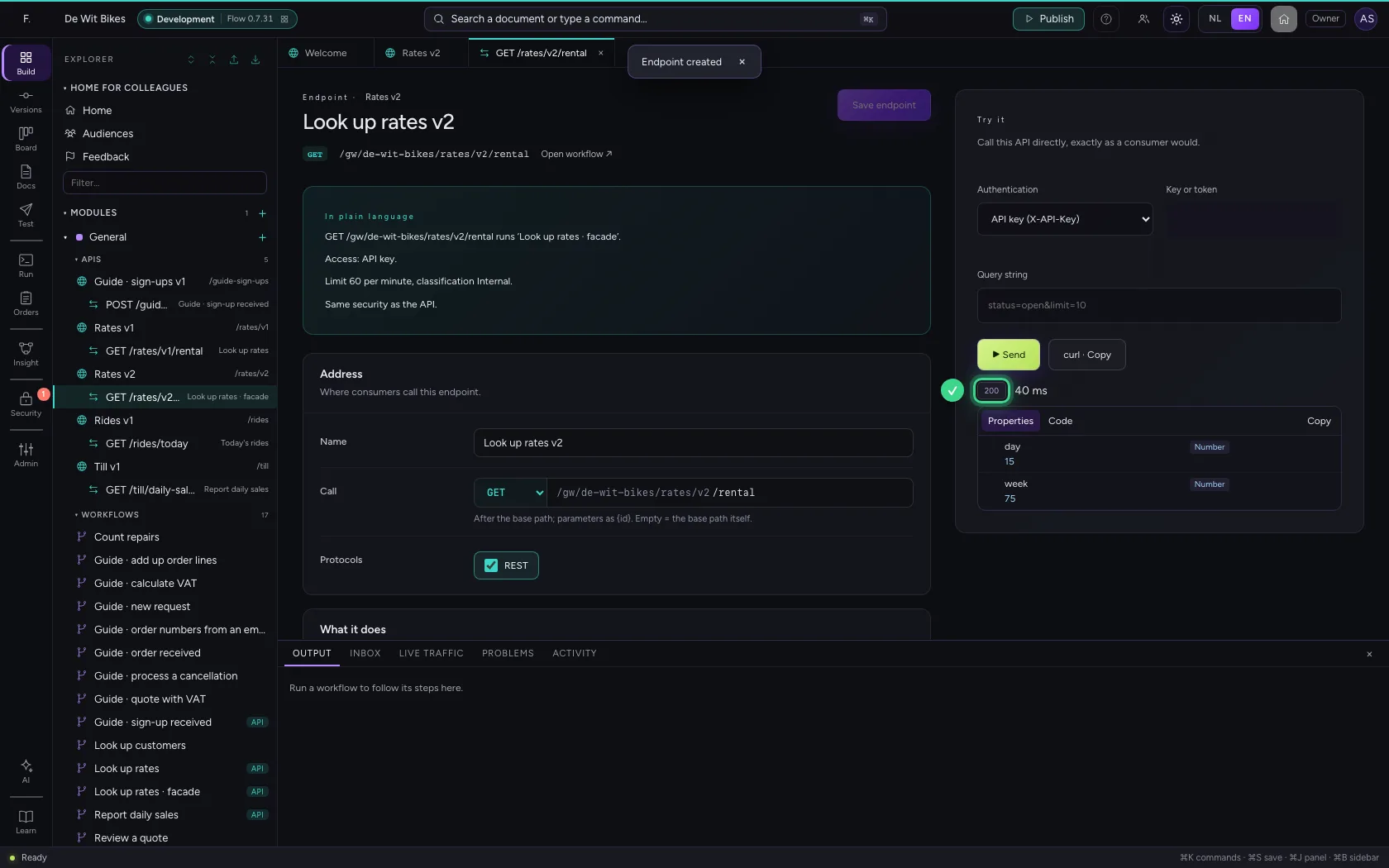
  1. Click ▶ Send
Try v2 · Click ▶ Send
Try v2 · 200 from v2.
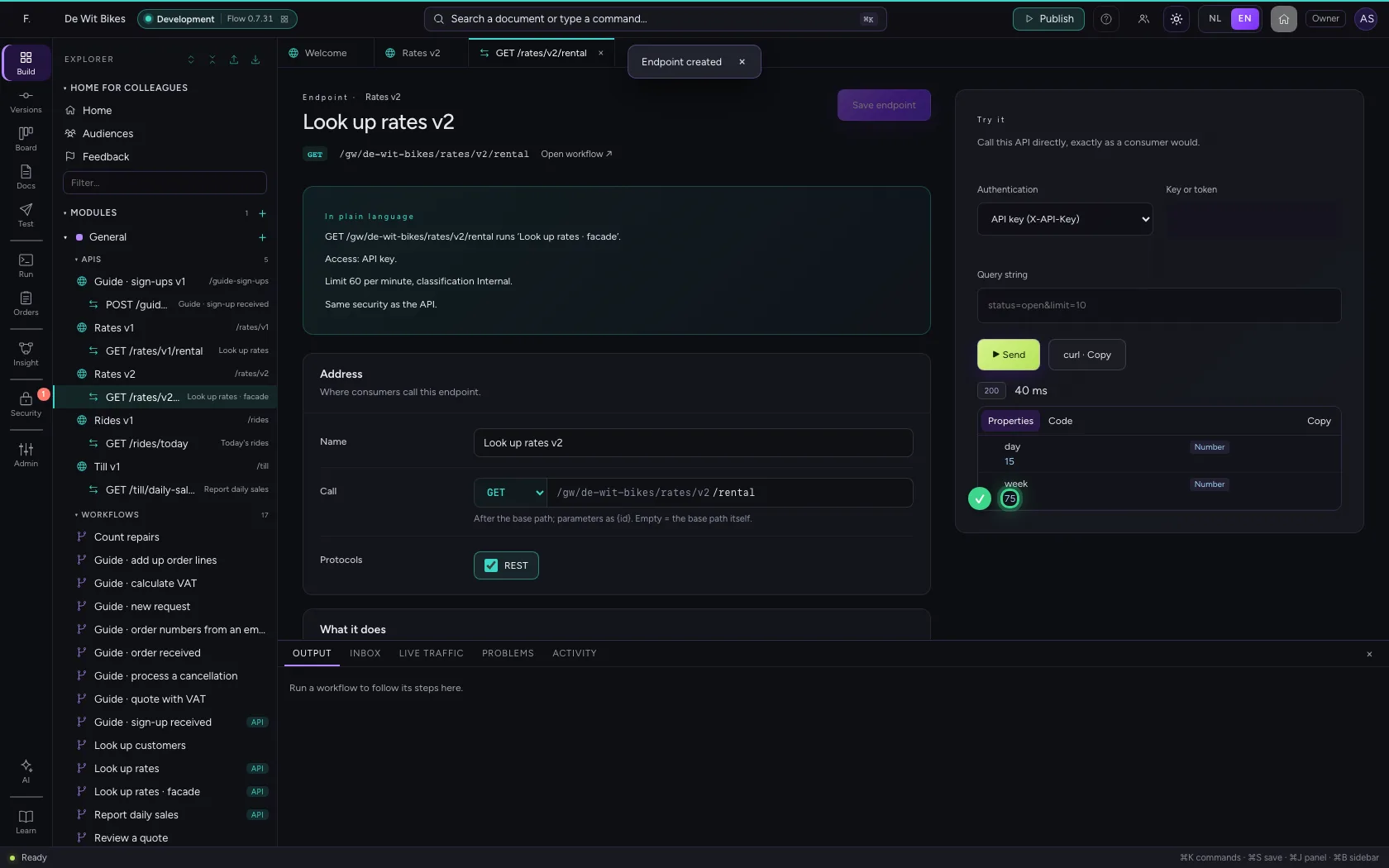
Try v2 · The same rate as in v1.
Step 5 / 5

Switch v1 off once everyone has moved

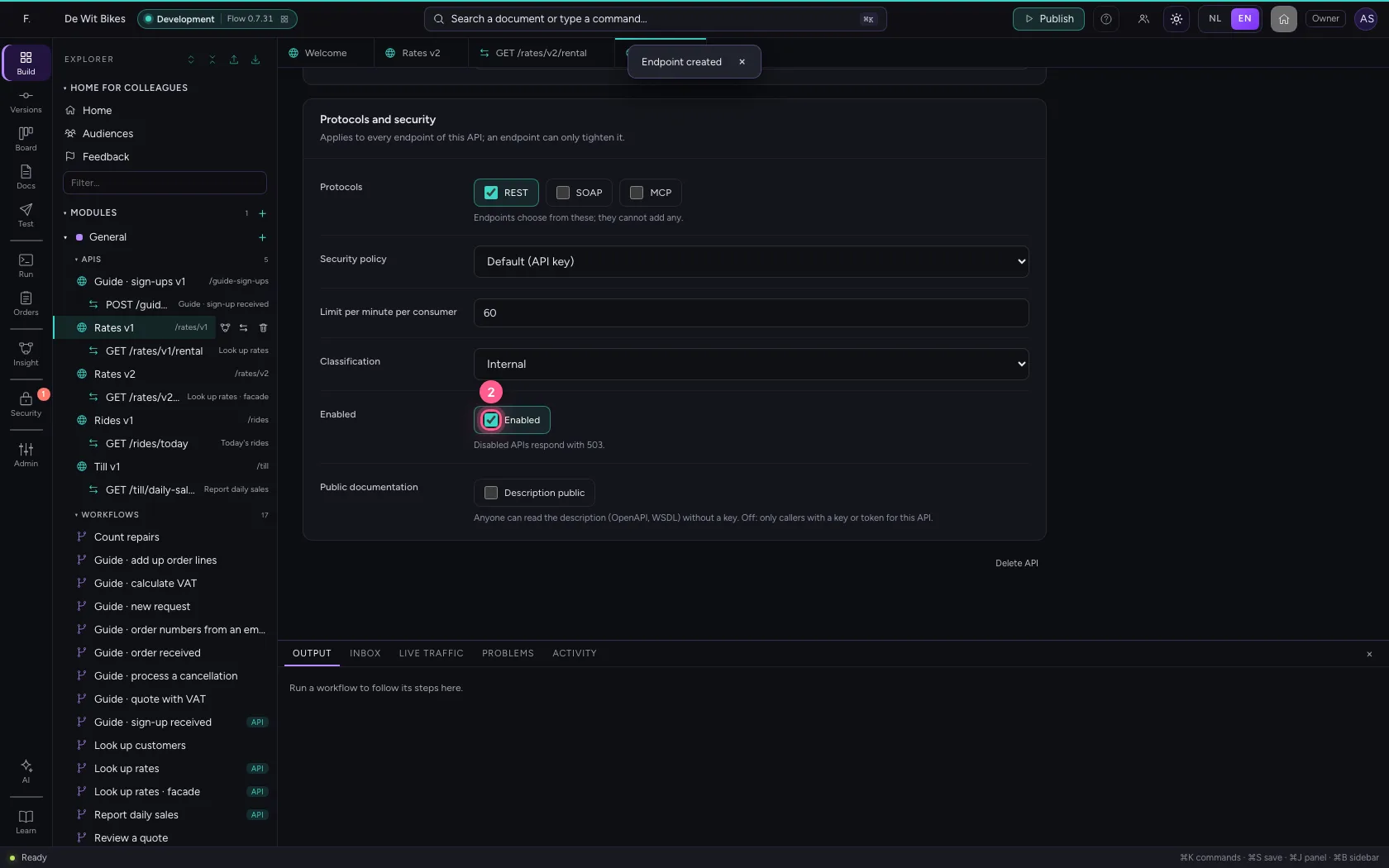
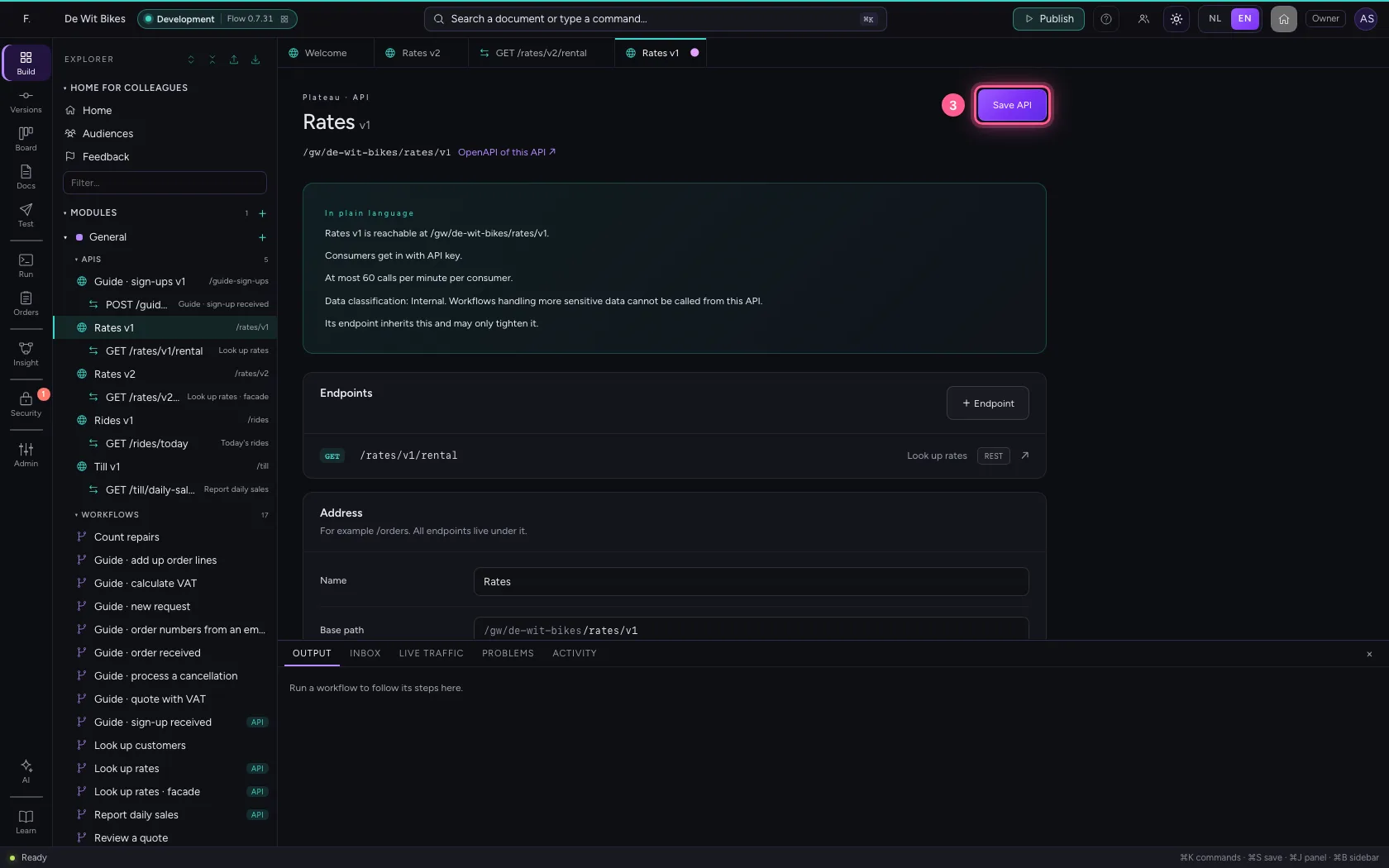
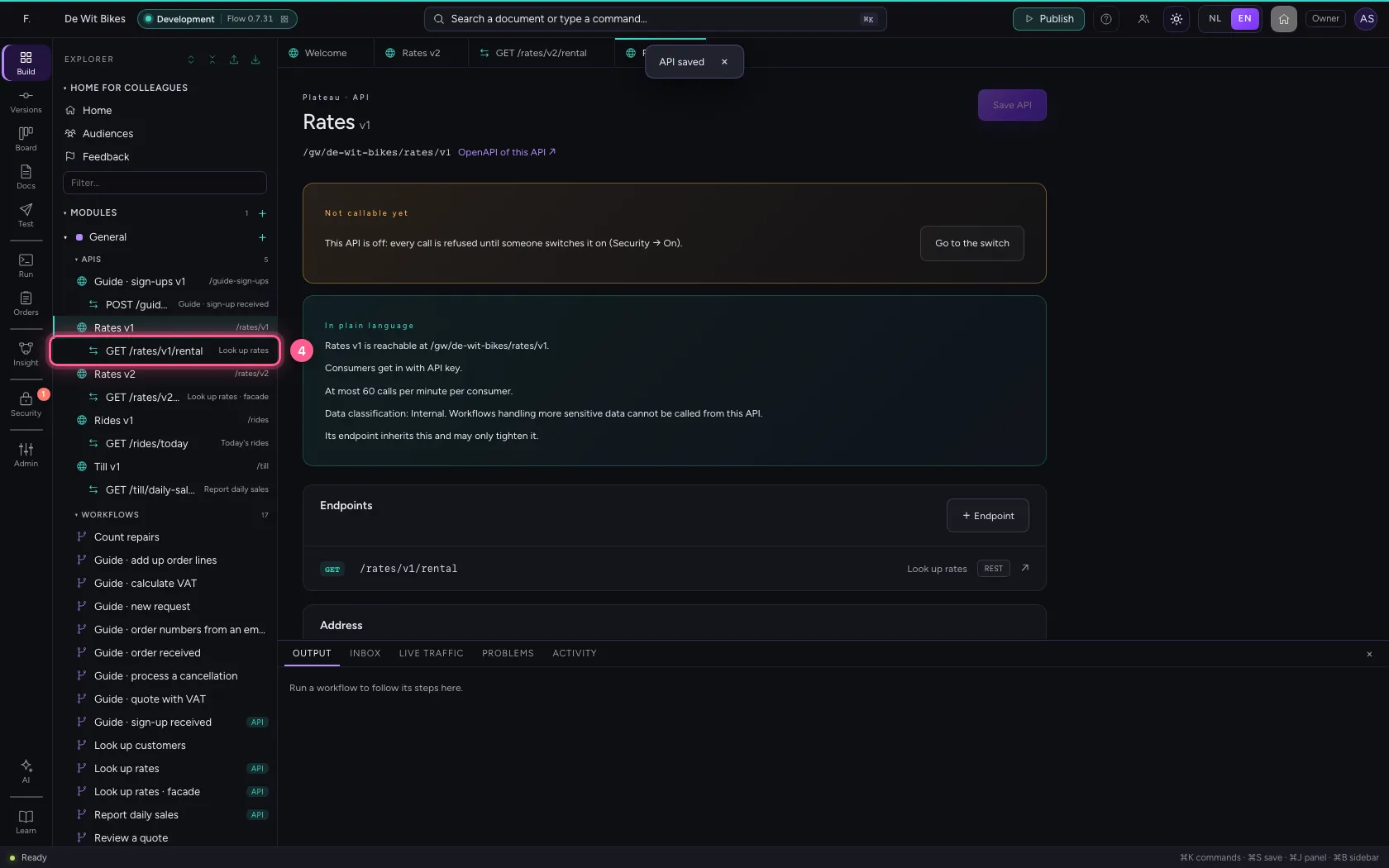
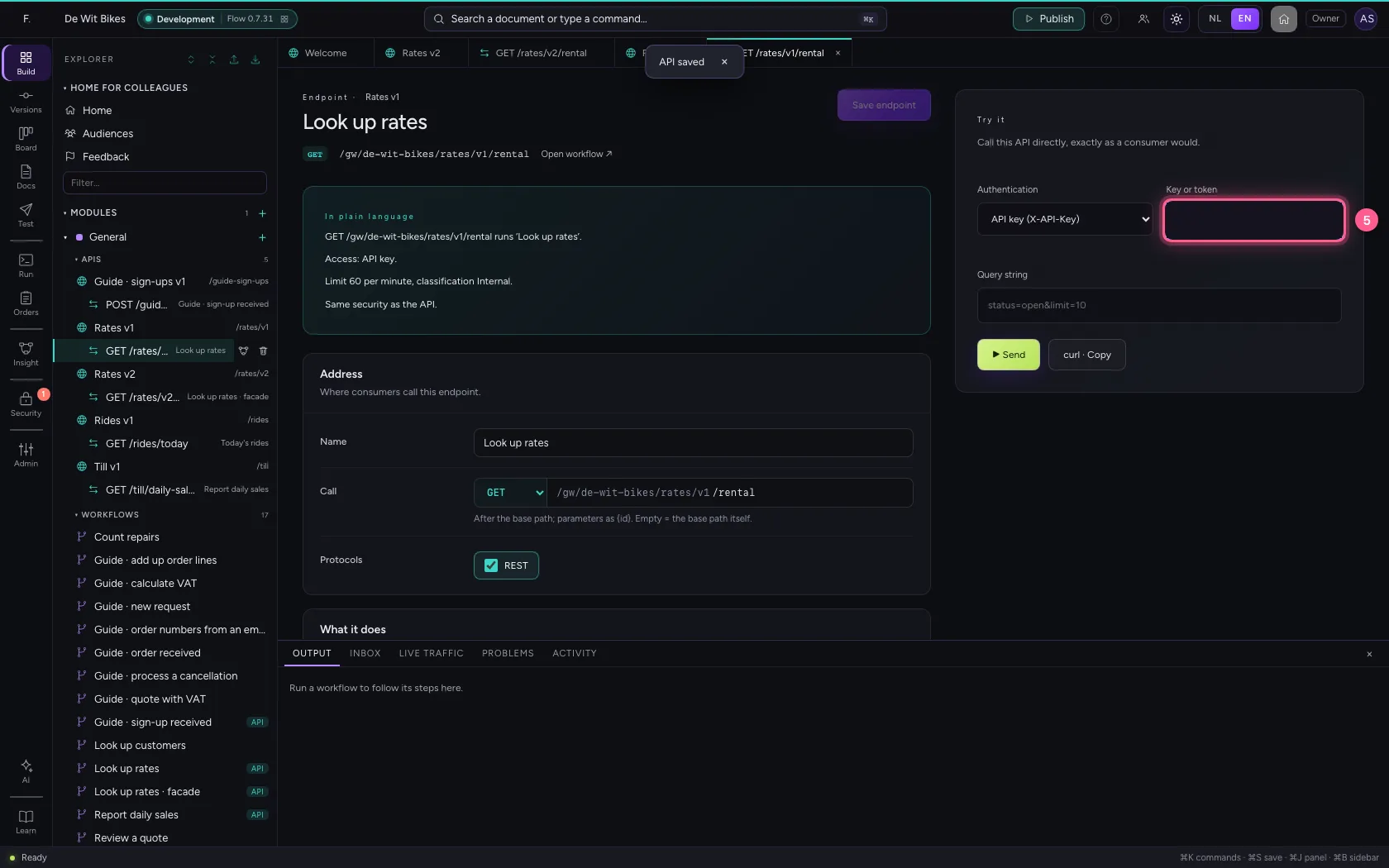
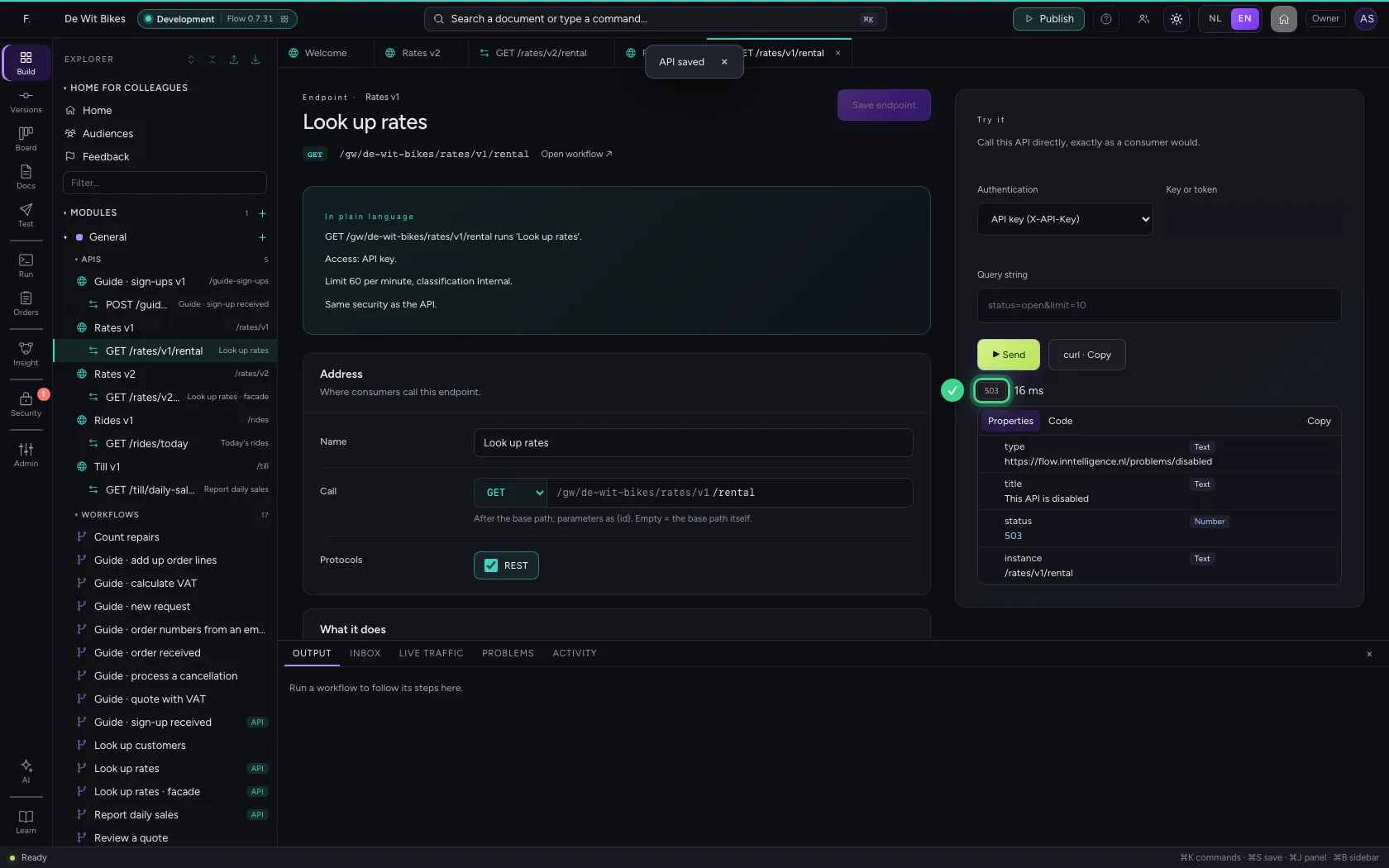
Once Live traffic shows no more calls on v1, open v1 and switch Enabled off. Consumers that still call v1 get 503; v2 keeps working.

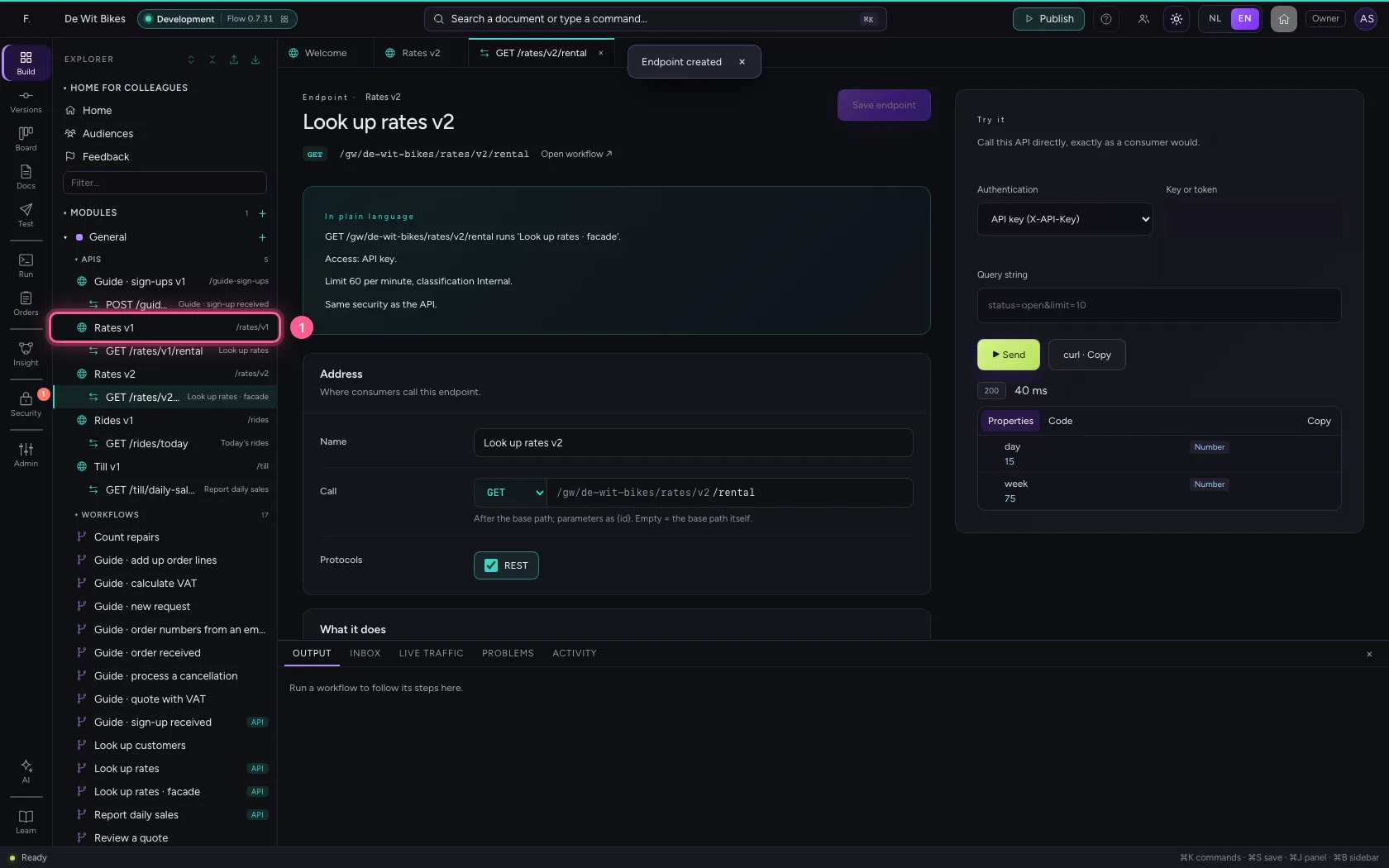
  1. Click Rates v1
Switch v1 off once everyone has moved · Click Rates v1
  1. Click Enabled
Switch v1 off once everyone has moved · Click Enabled
  1. Click Save API
Switch v1 off once everyone has moved · Click Save API
  1. Click the v1 endpoint
Switch v1 off once everyone has moved · Click the v1 endpoint
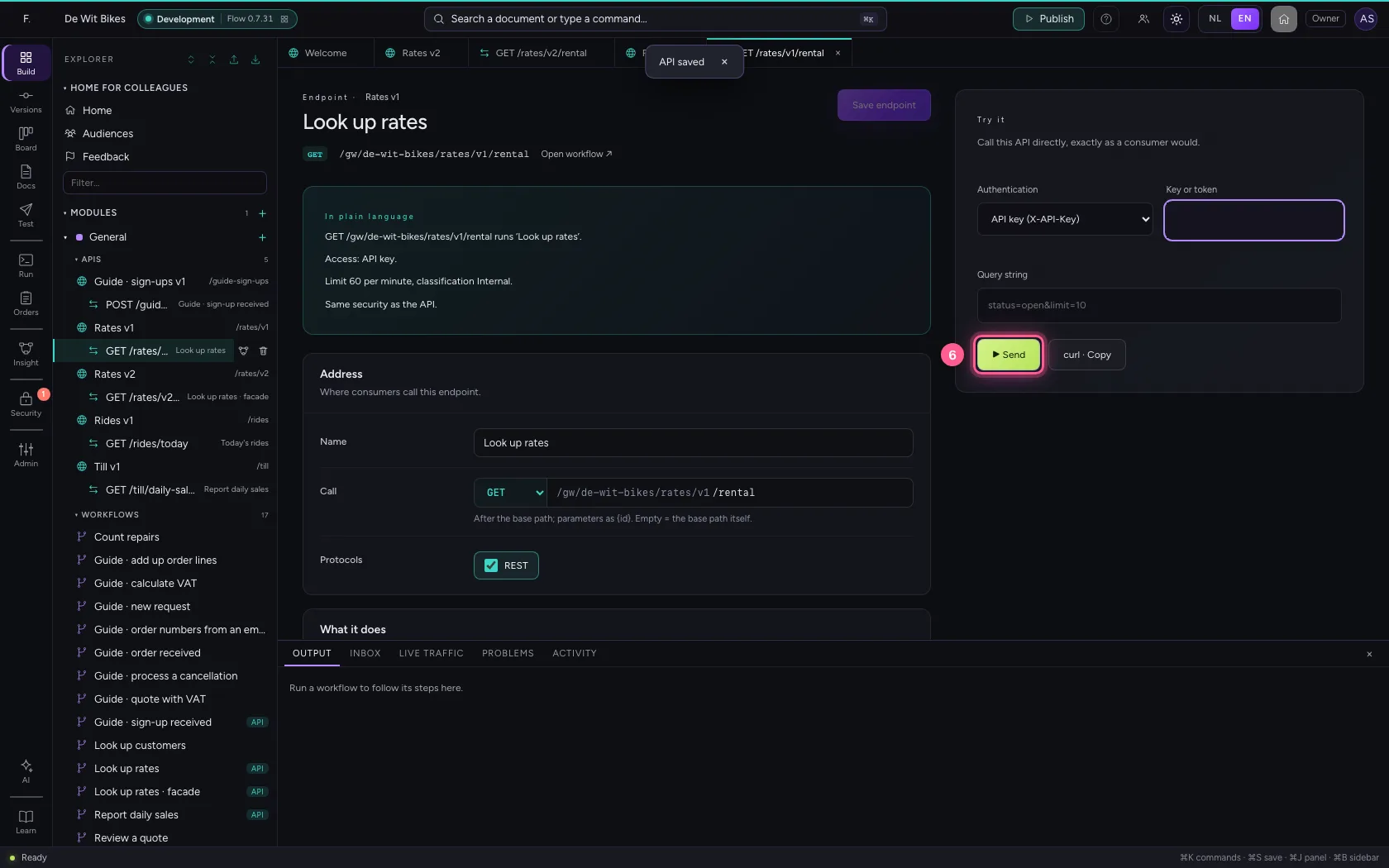
  1. In Key or token, type ••••••••
Switch v1 off once everyone has moved · In Key or token, type ••••••••
  1. Click ▶ Send
Switch v1 off once everyone has moved · Click ▶ Send
Switch v1 off once everyone has moved · 503: v1 is switched off.

This guide was carried out step by step on 22 Oct 2026 by an automated test on Flow (version 3e563176).