API response: what the caller gets back
When a workflow sits behind an endpoint, the API response step decides what the caller gets back: the HTTP status and the body, with data from the workflow. Without an API response the caller gets everything the workflow collected. You build the answer, publish the workflow as an endpoint and call it the way a consumer does.
Open Flow and create a workflow
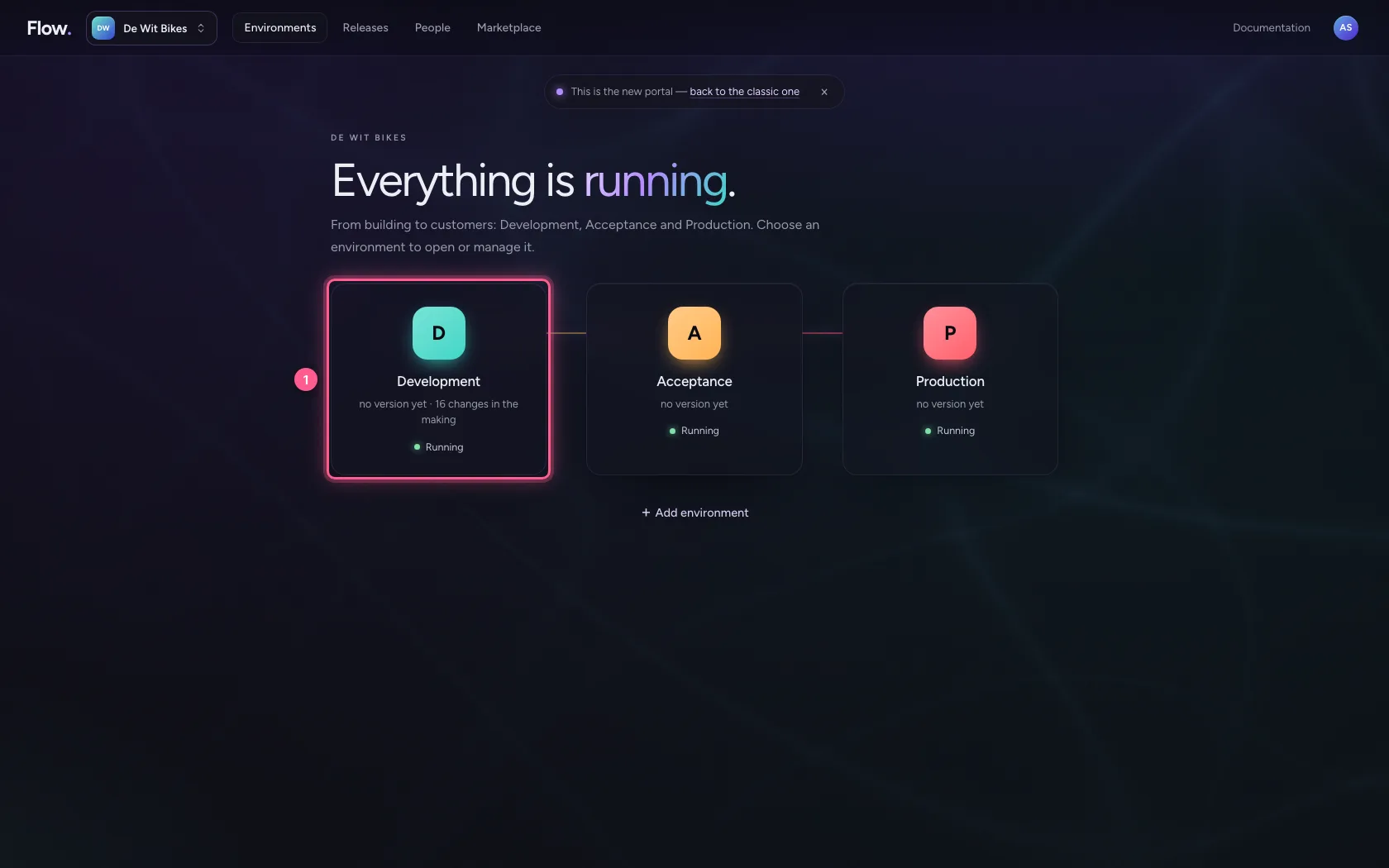
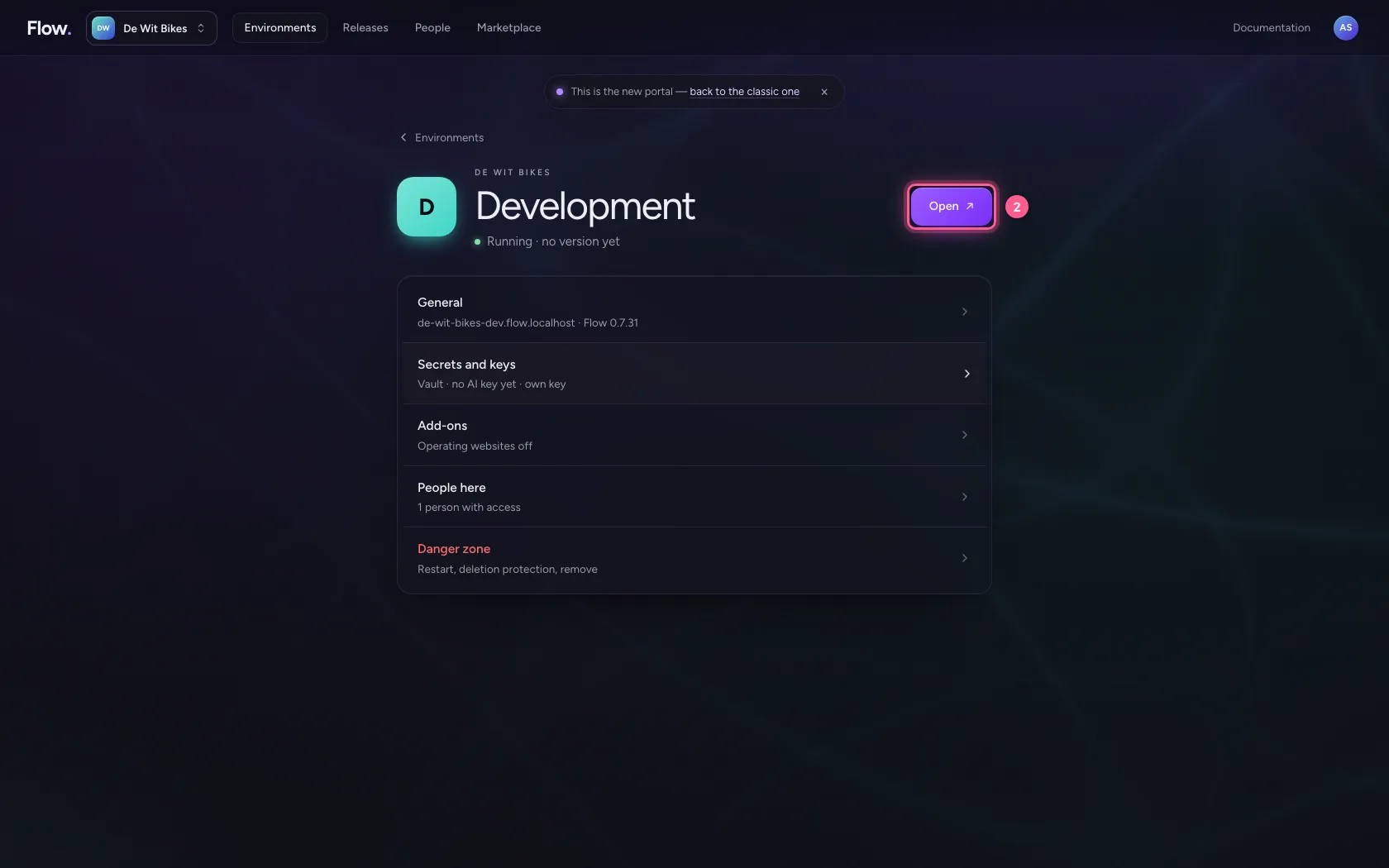
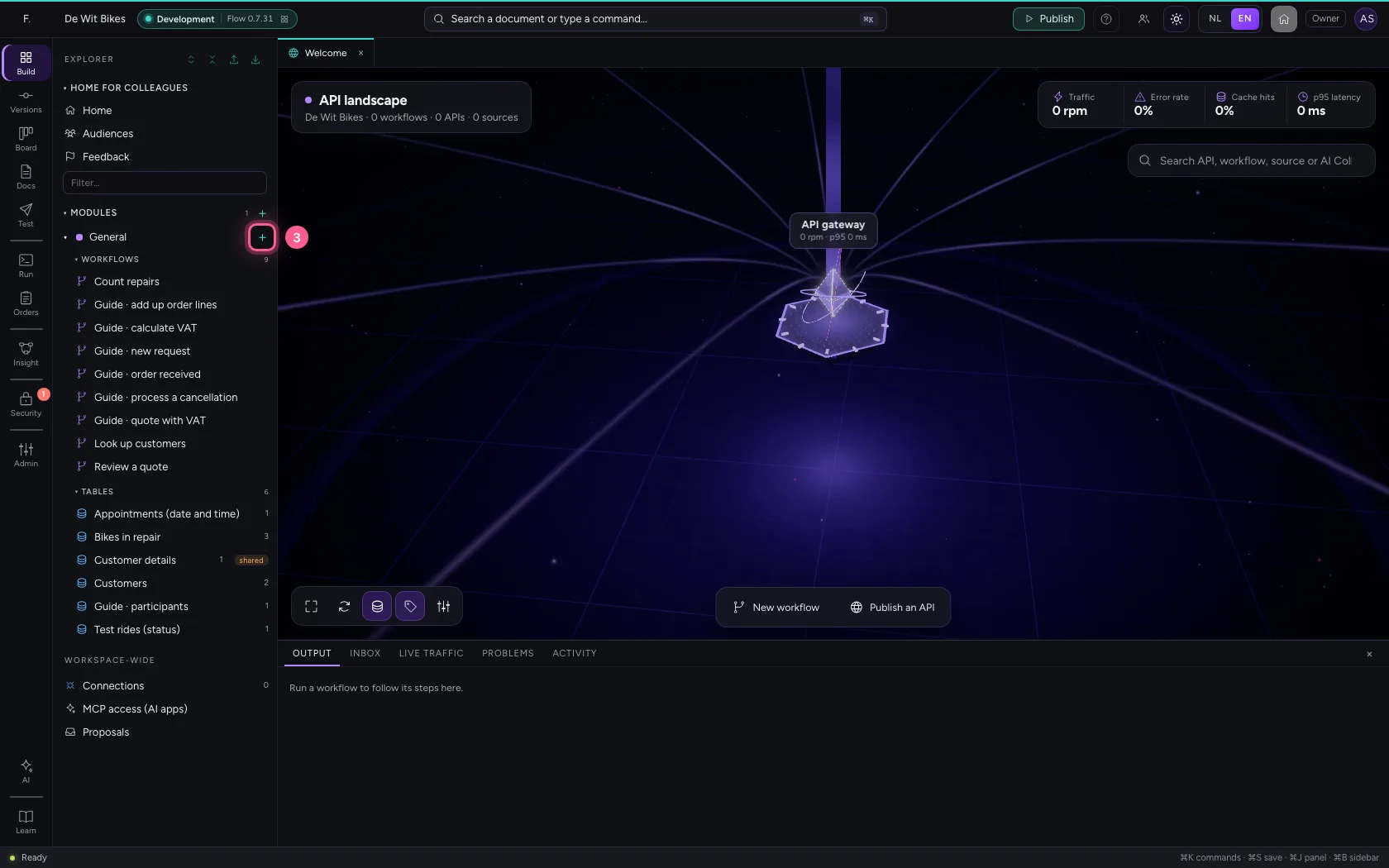
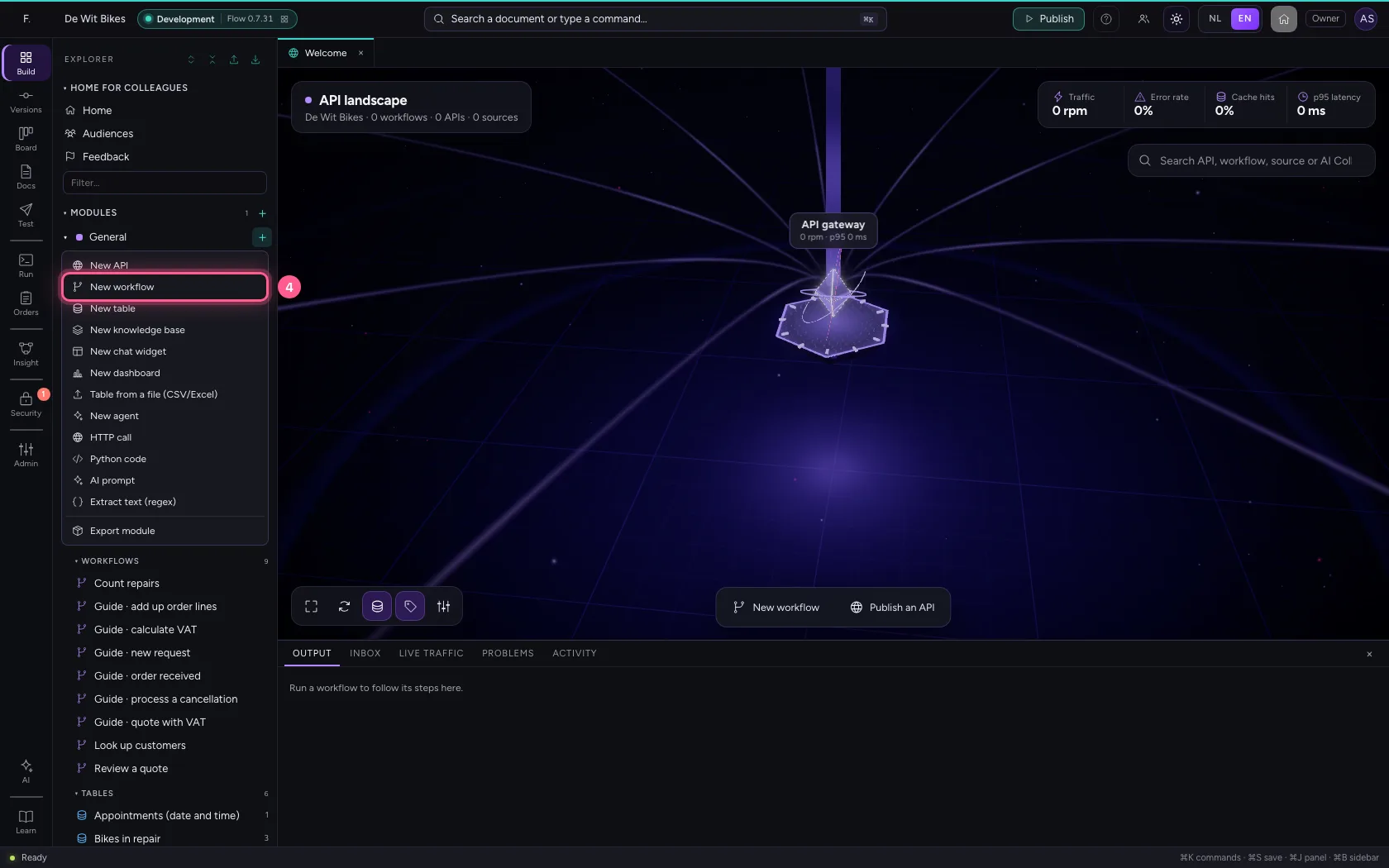
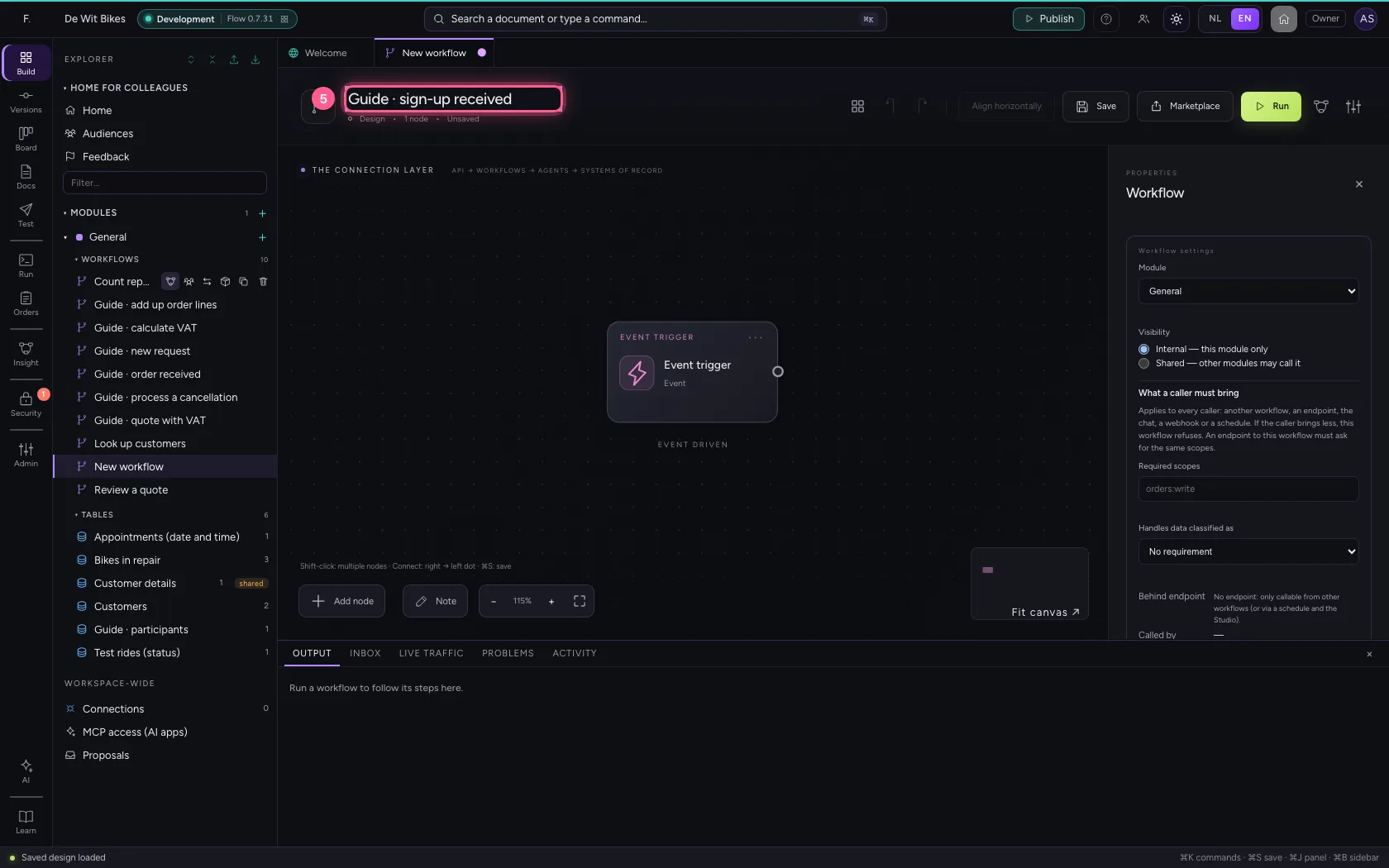
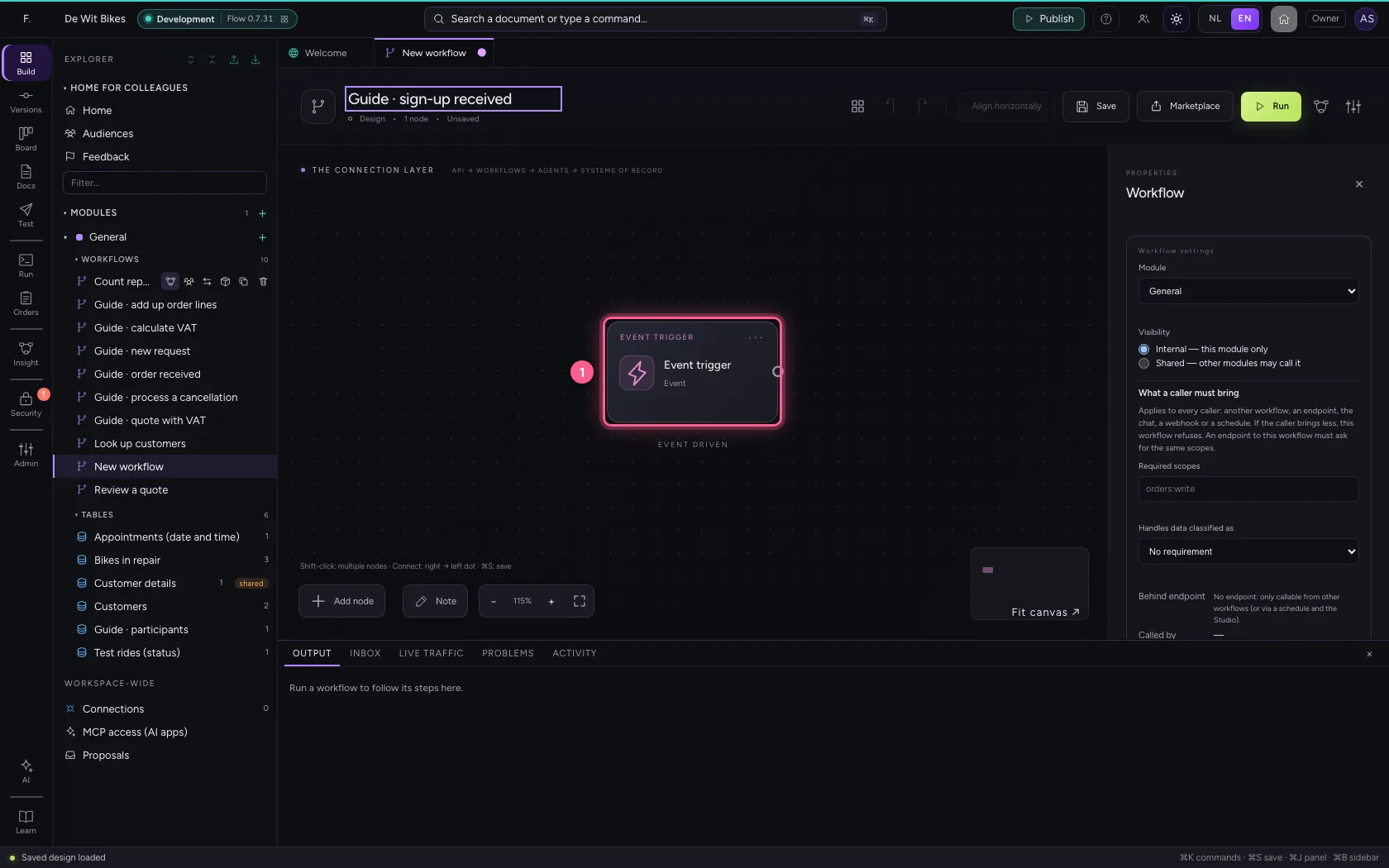
In the portal, under Environments, click Development and there Open; Flow opens in a new tab. There, click + next to General, choose New workflow and give it a name. A new workflow starts with an Event trigger: the point where it begins.
- Click Development
- Click Open ↗
- Click Add to General
- Click New workflow
- In Workflow name, type
Guide · sign-up received
Build the answer
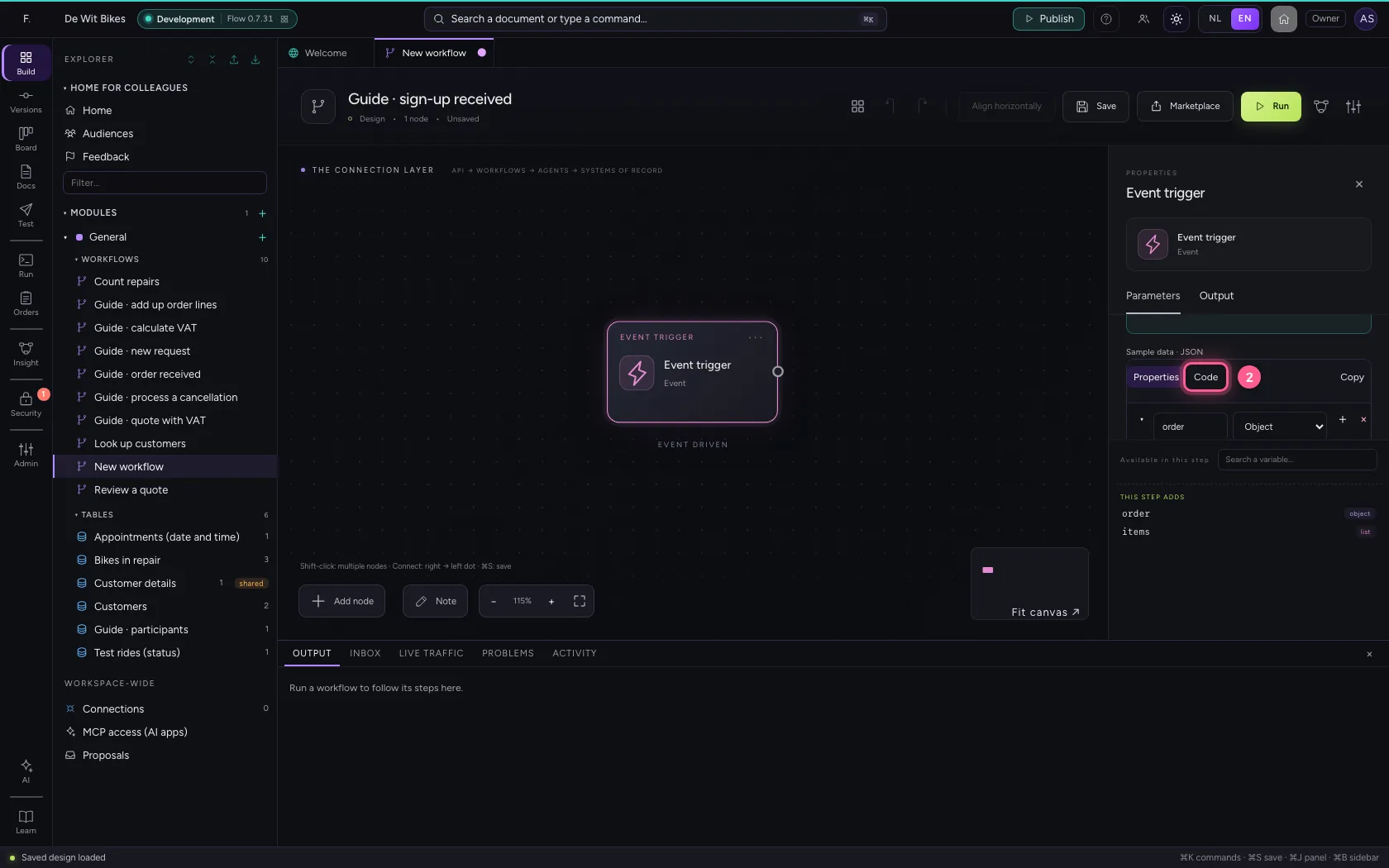
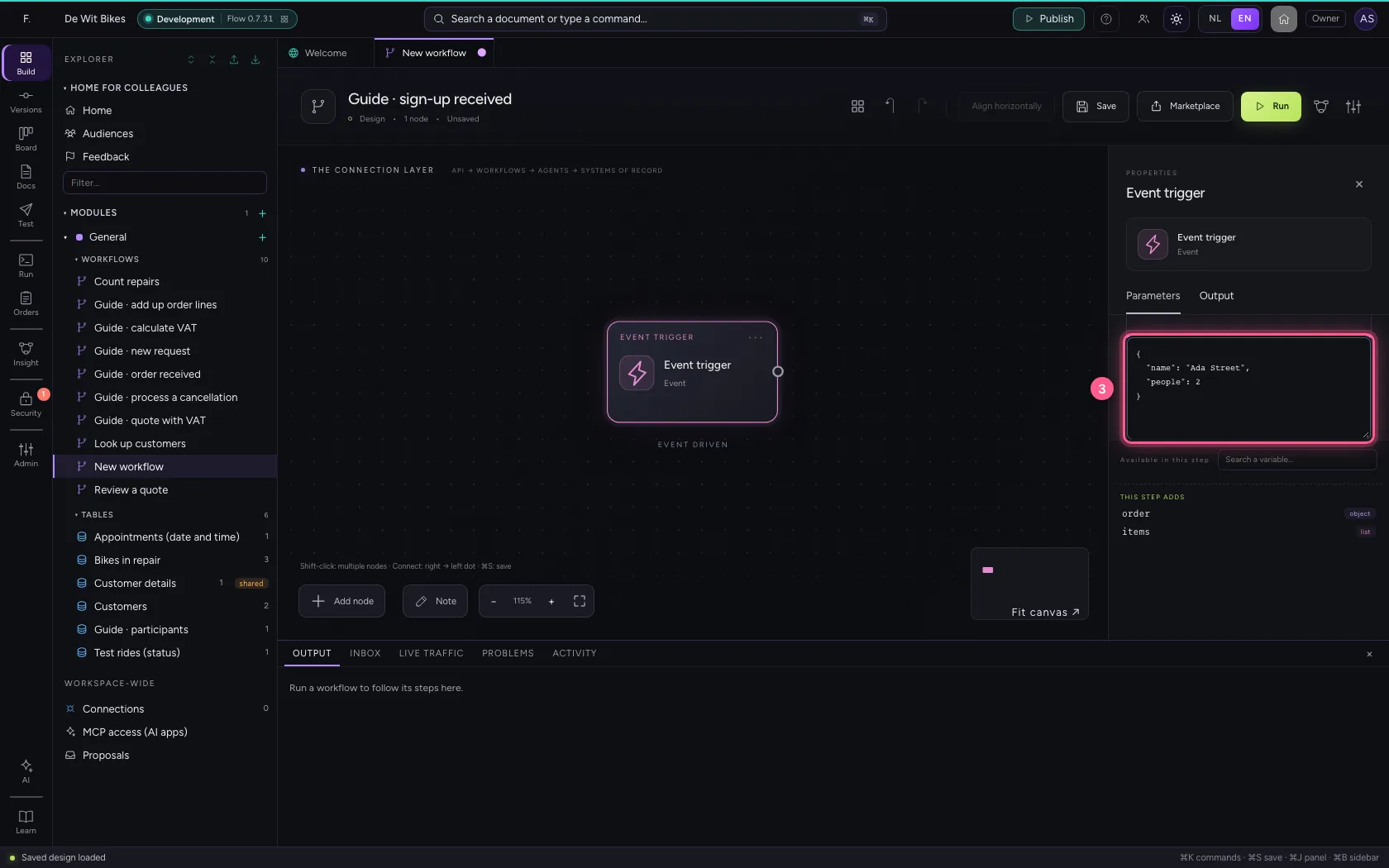
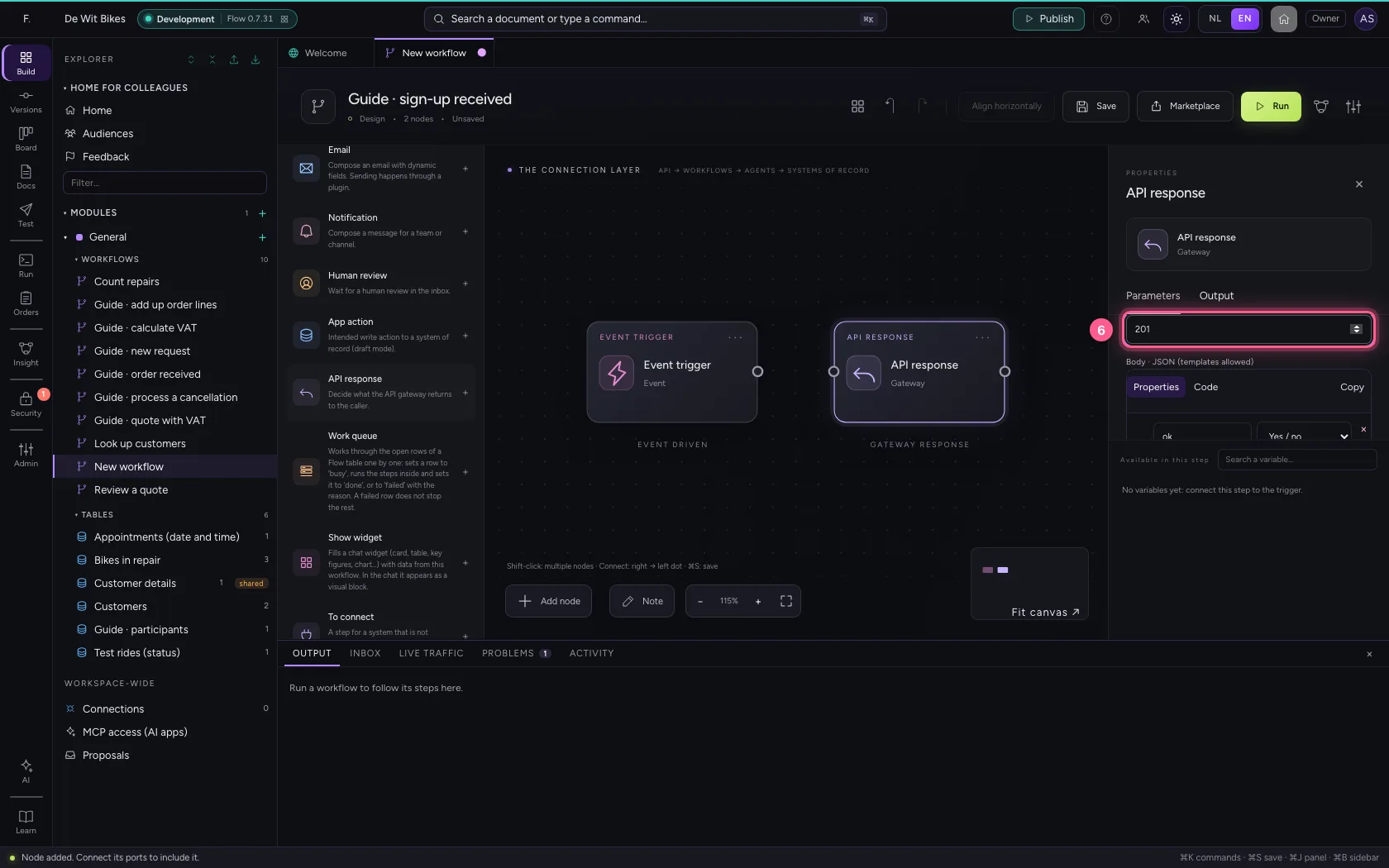
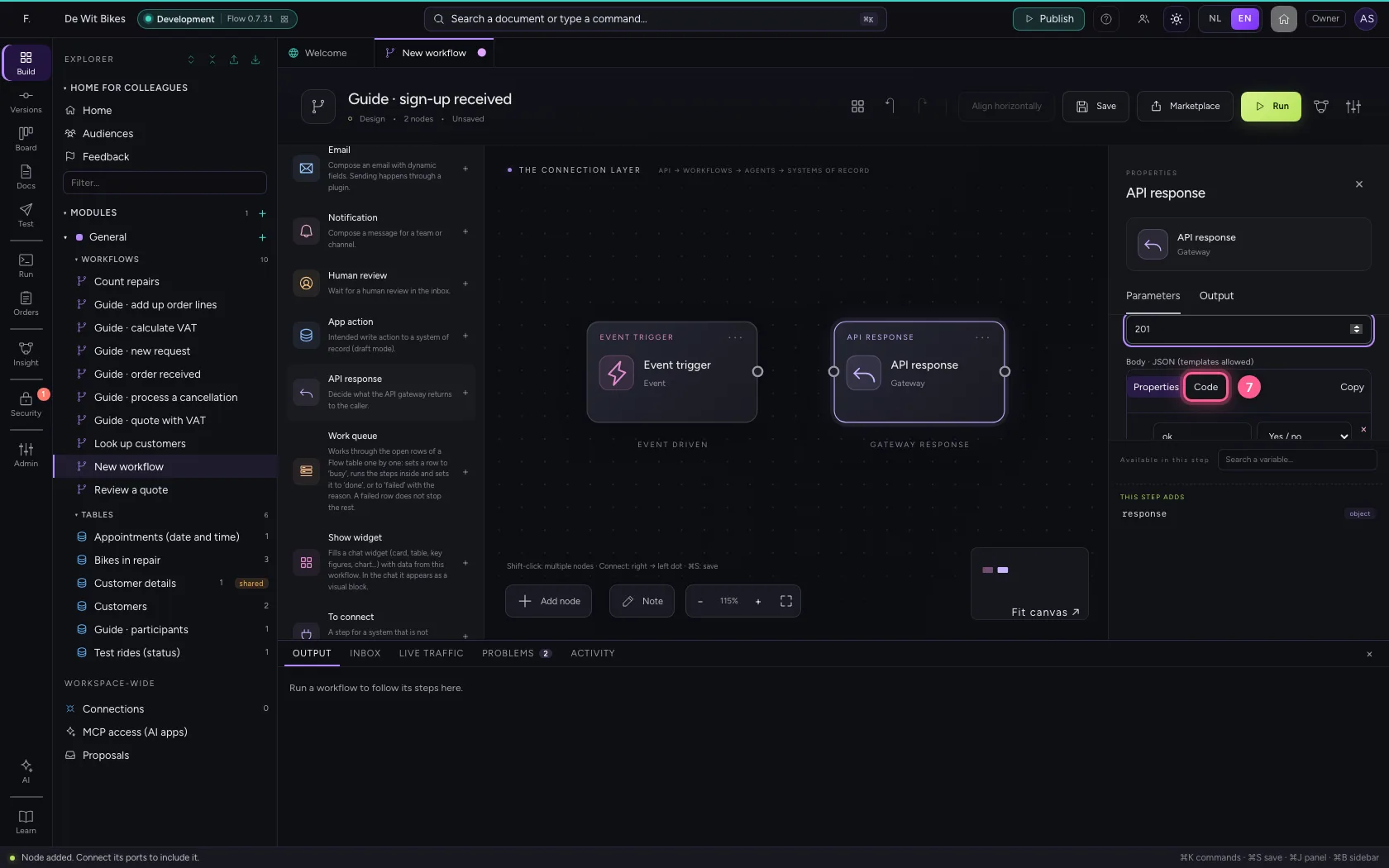
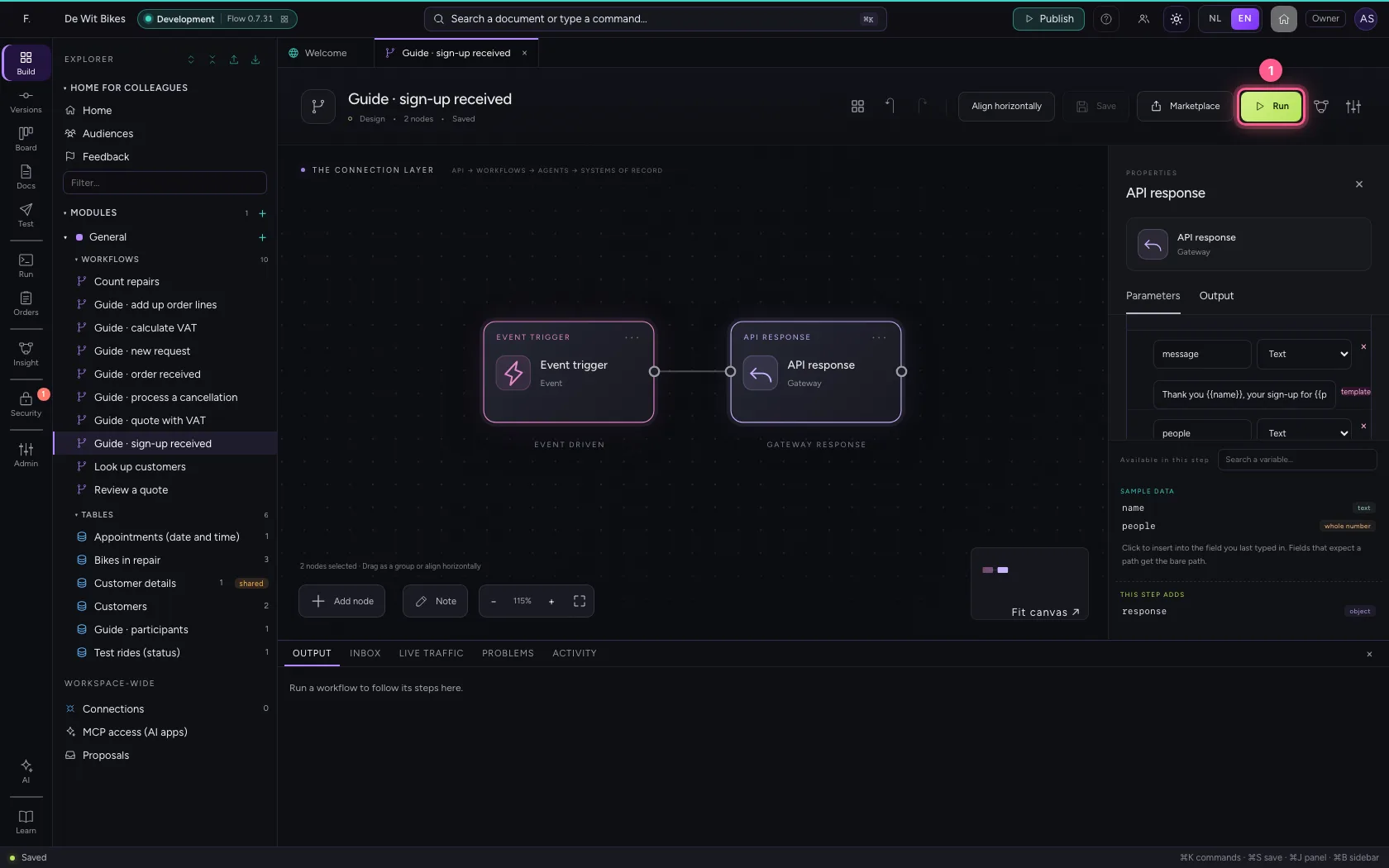
Put in the sample data what a caller sends along. Add API response. Choose the HTTP status: 201 means created. In the body (Code) you put what the caller gets back, with {{field}} for data from the request.
- Click the step ‘Event trigger’
- Click Code
- In the sample data, type `{
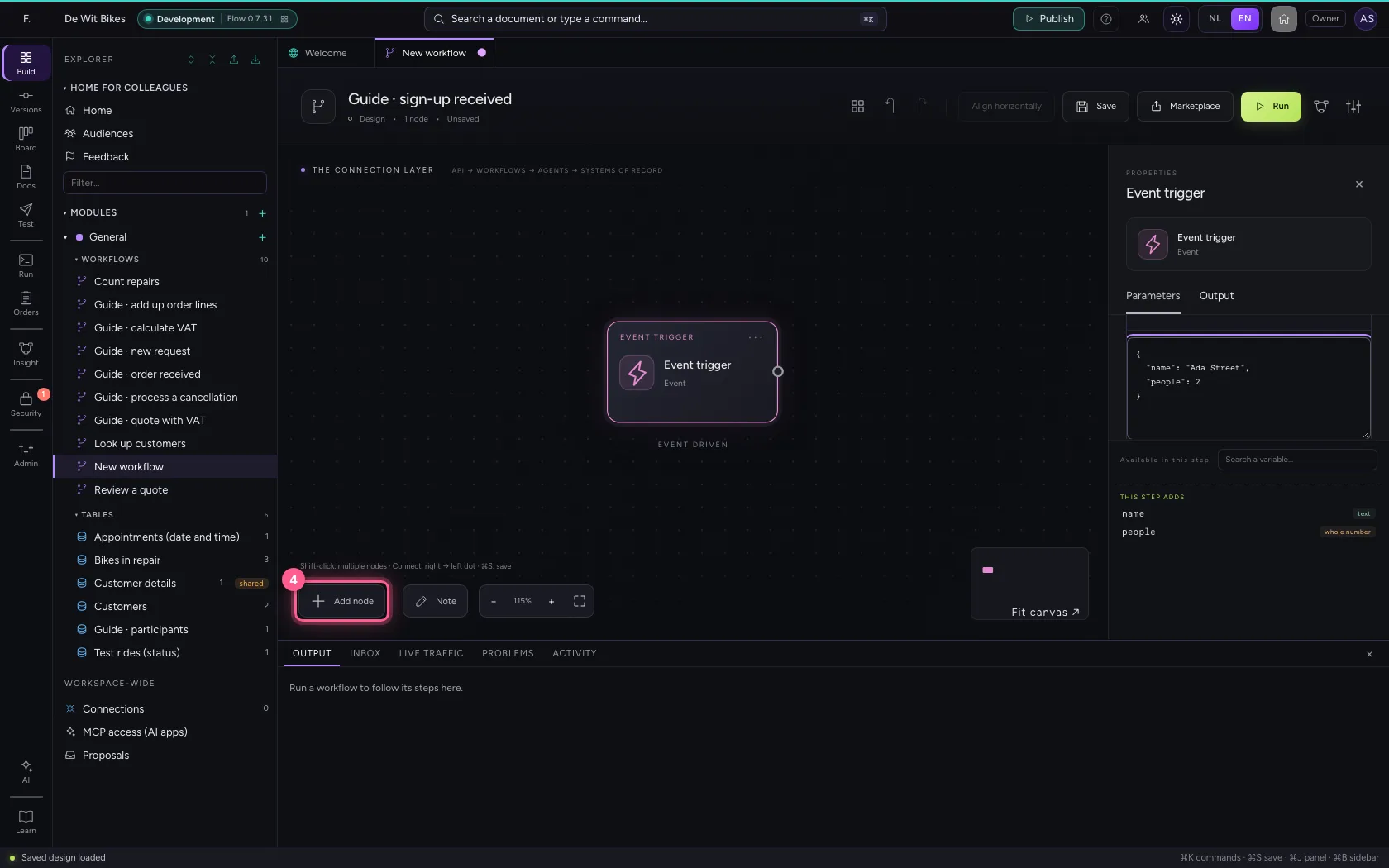
- Click Add node
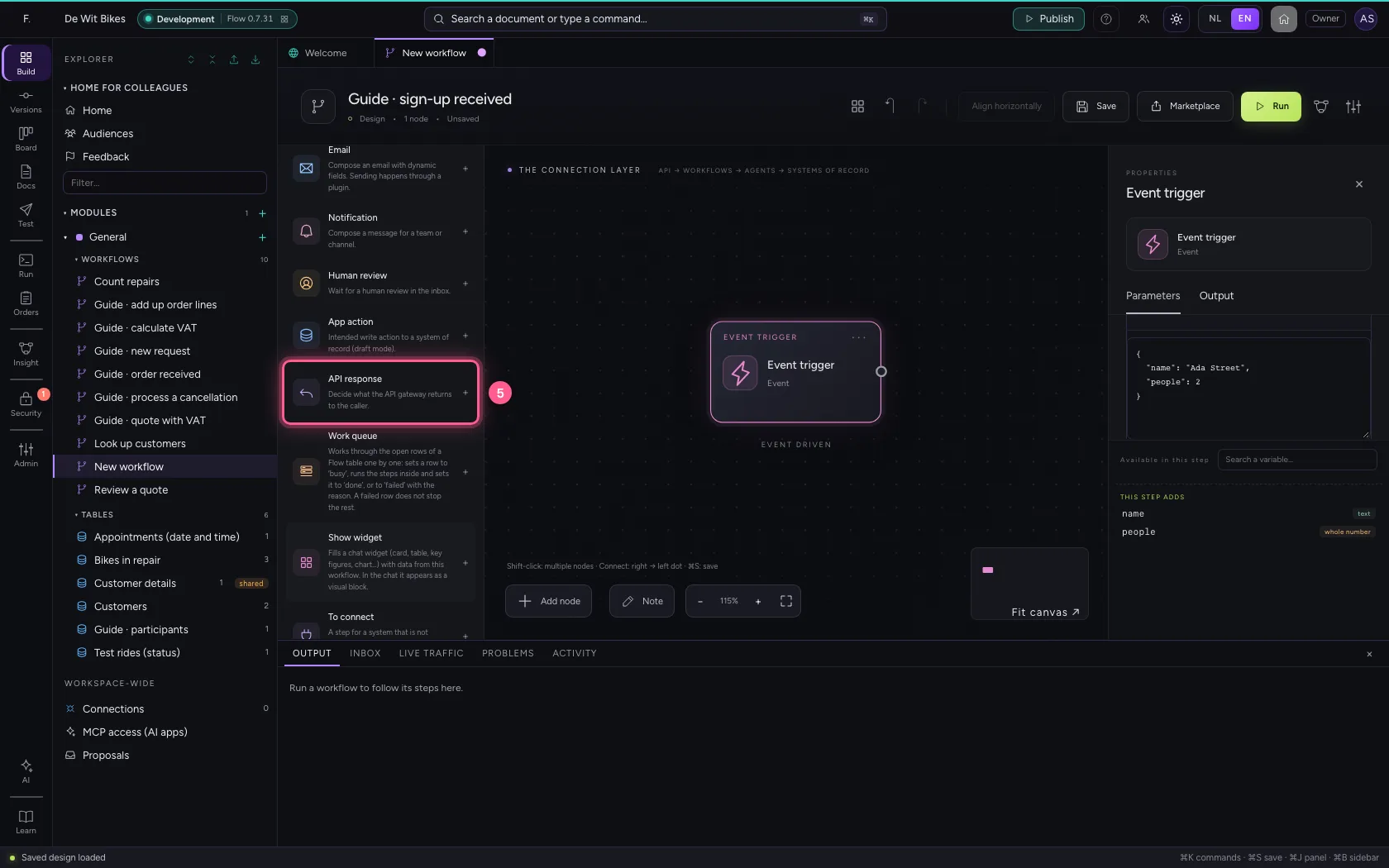
- Click API response
- In HTTP status, type
201
- Click Code
- In the body, type `{
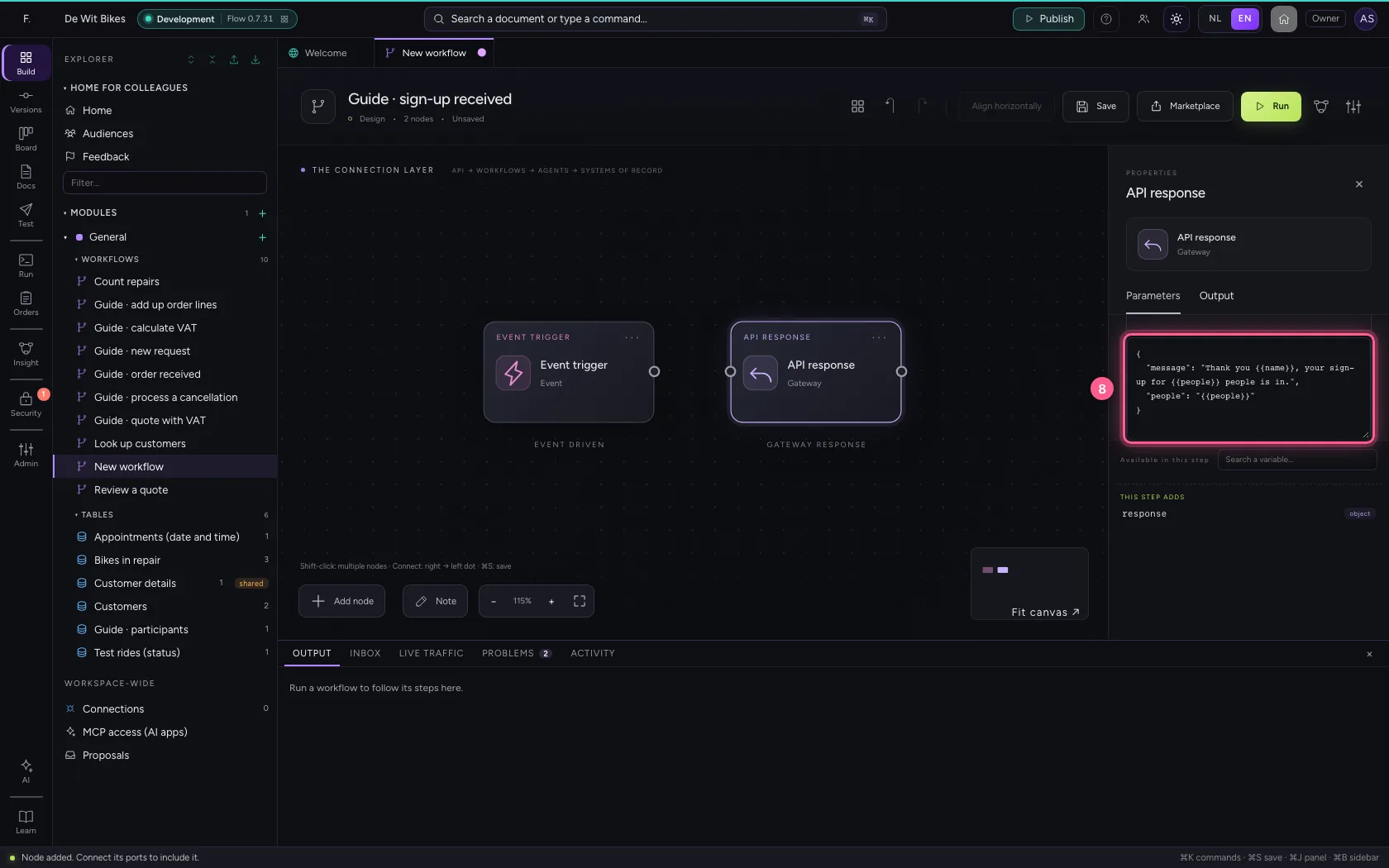
- Click the dot of ‘Event trigger’
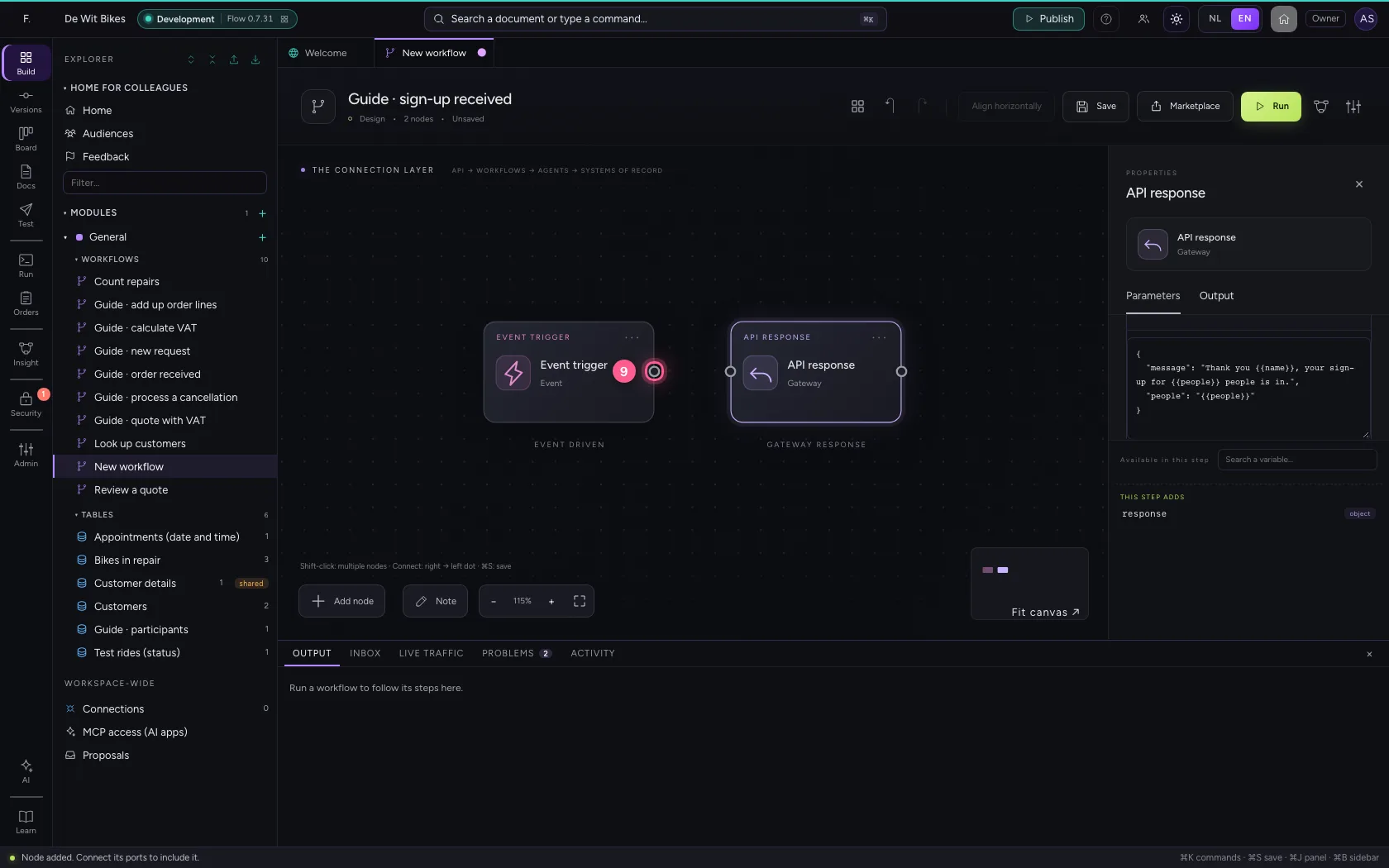
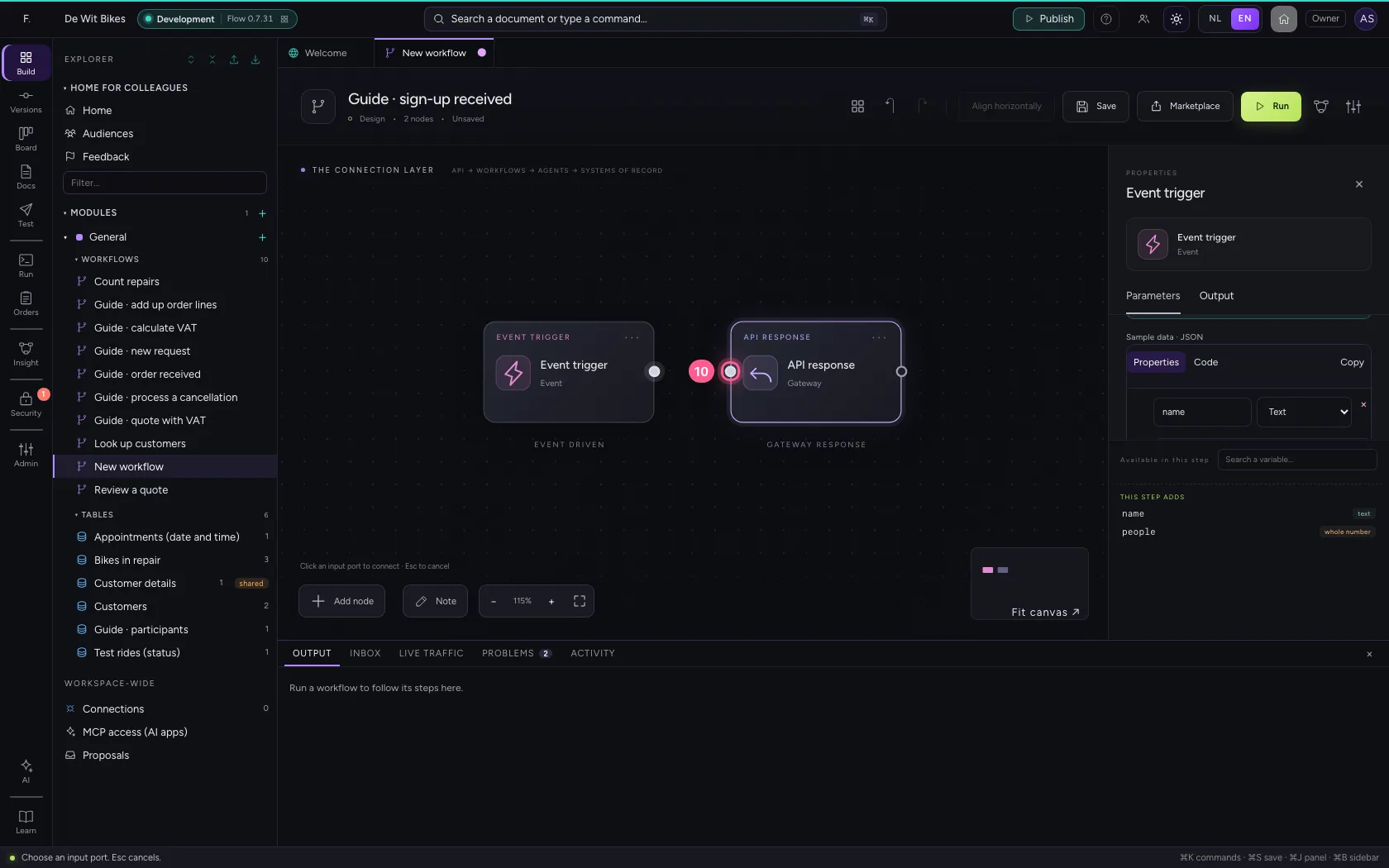
- Click the dot of ‘API response’
Put the steps in one line and save
Select the steps (click the first, and the others while holding Shift) and click Align horizontally: they then stand in one line and you read the workflow from left to right; a branch (such as No of an If / Else) gets its own row below. Fit to view puts everything in sight; then Save.
- Click ‘Event trigger’
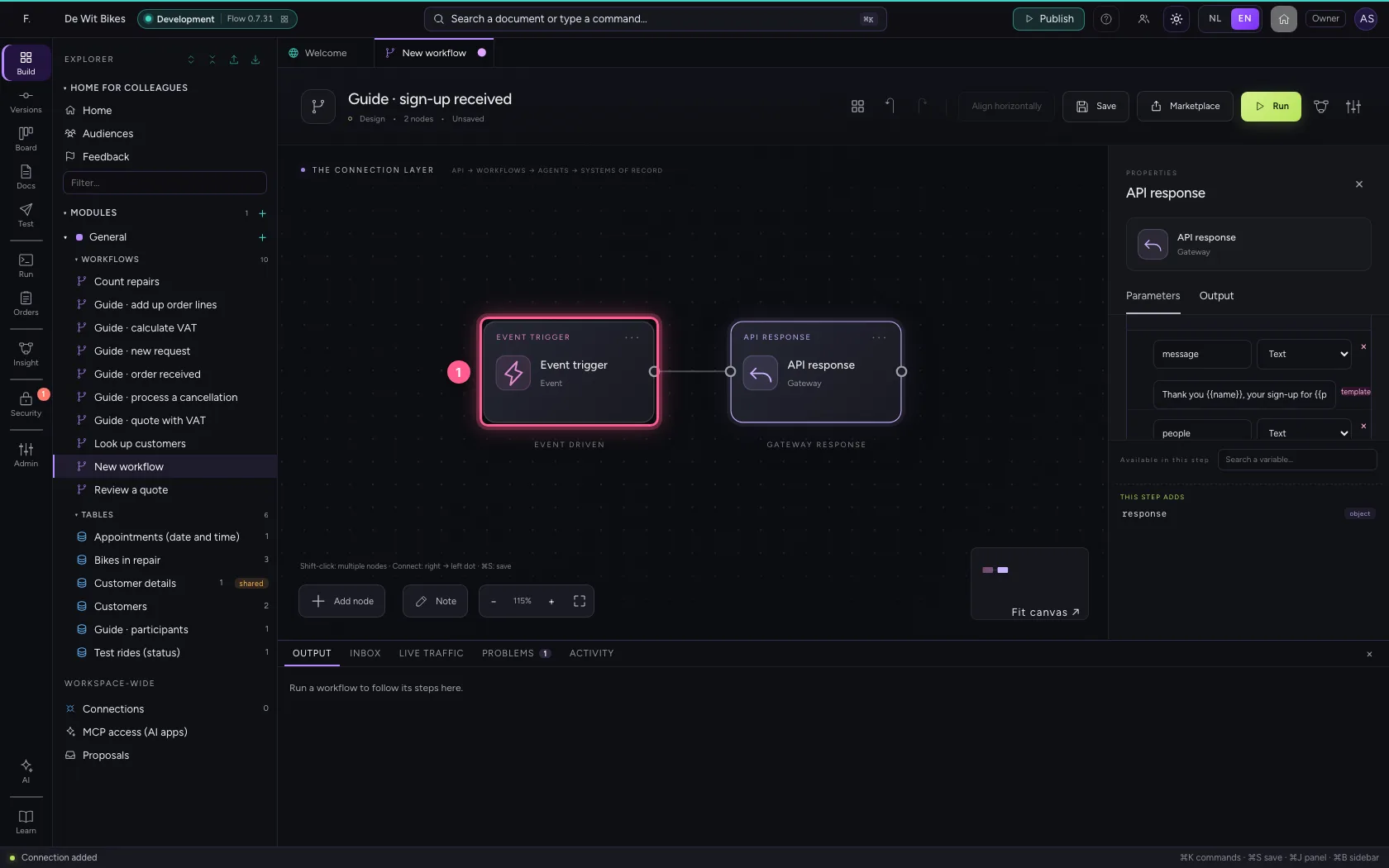
- Click ‘API response’ while holding Shift
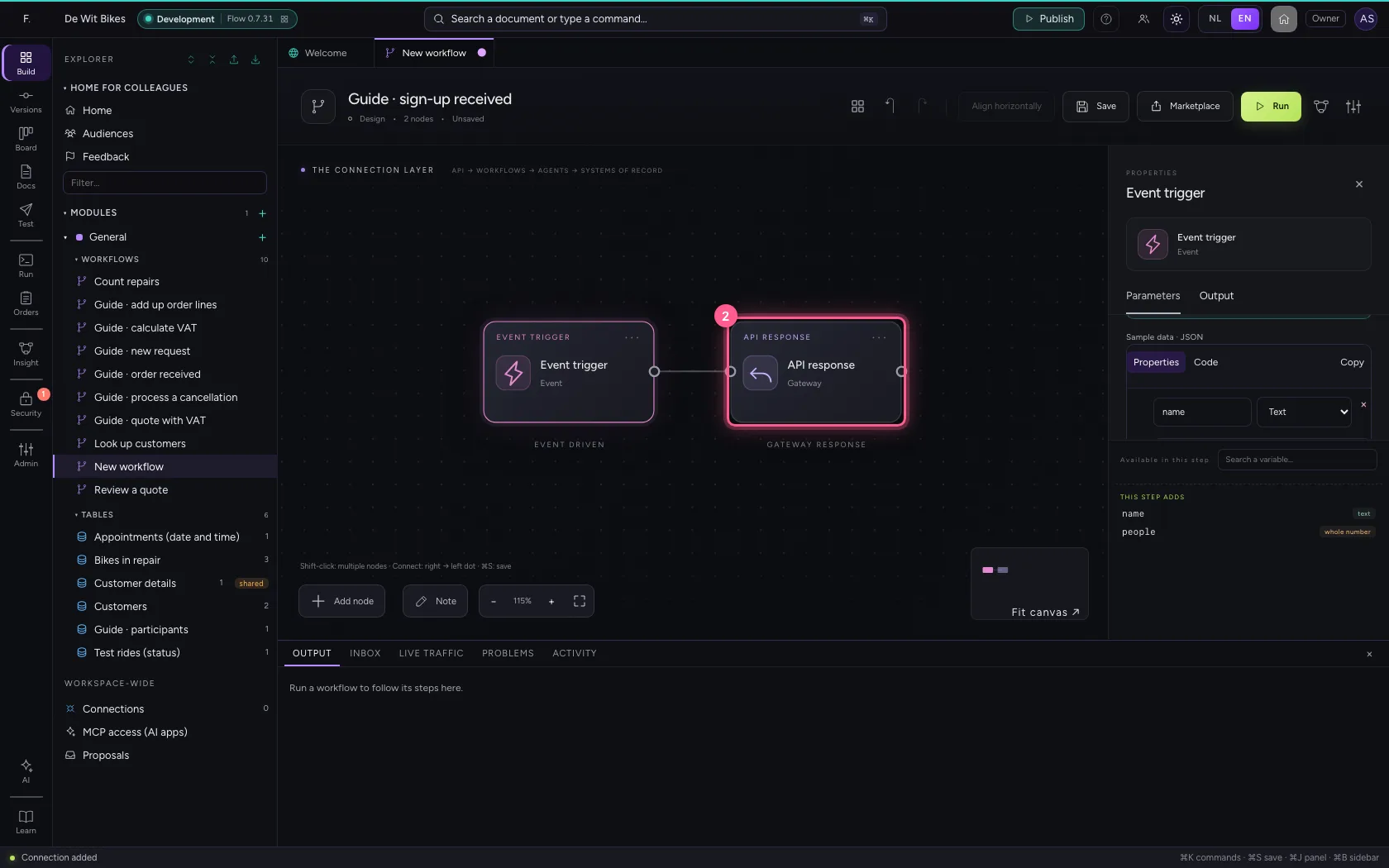
- Click Align horizontally
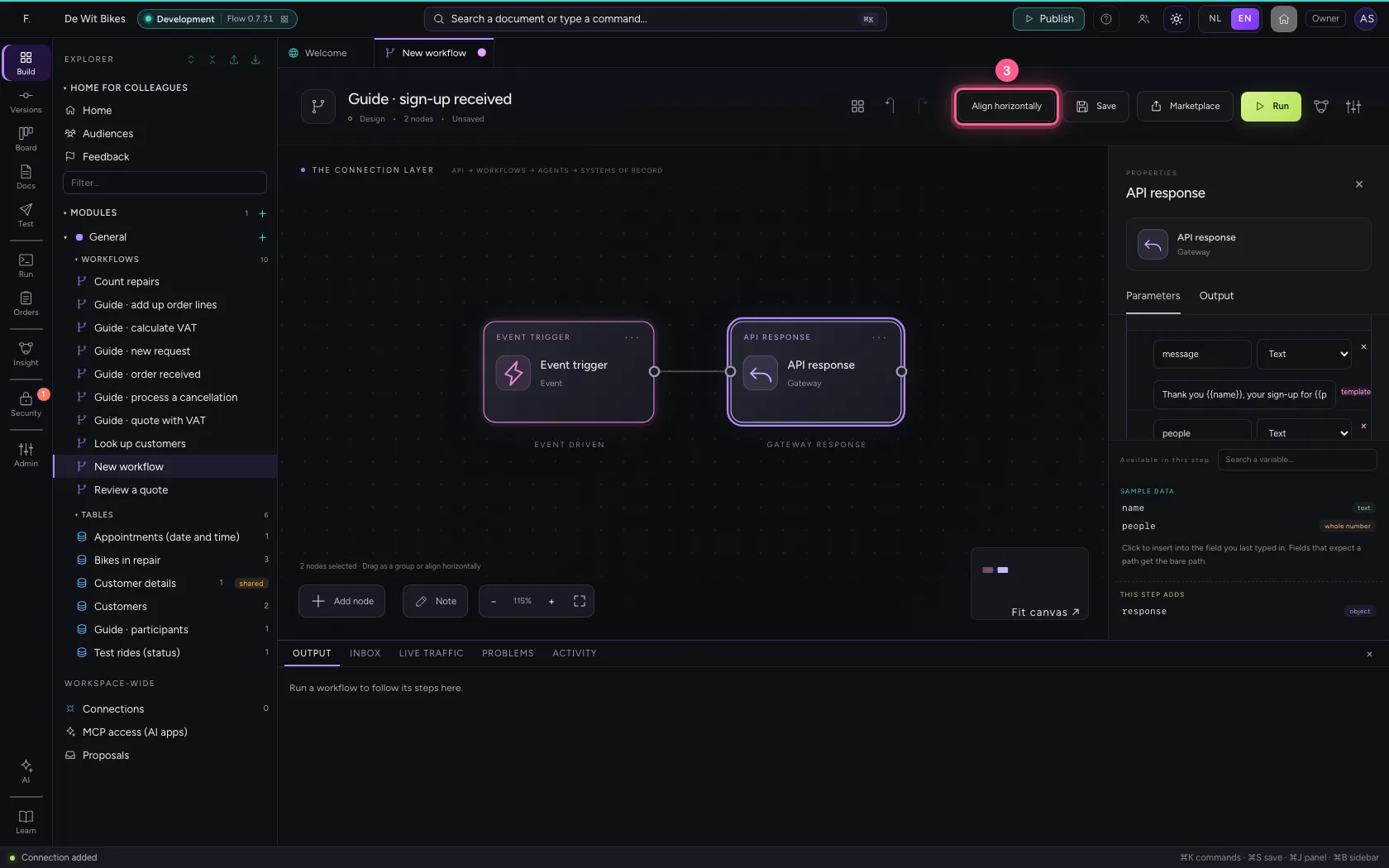
- Click Fit to view
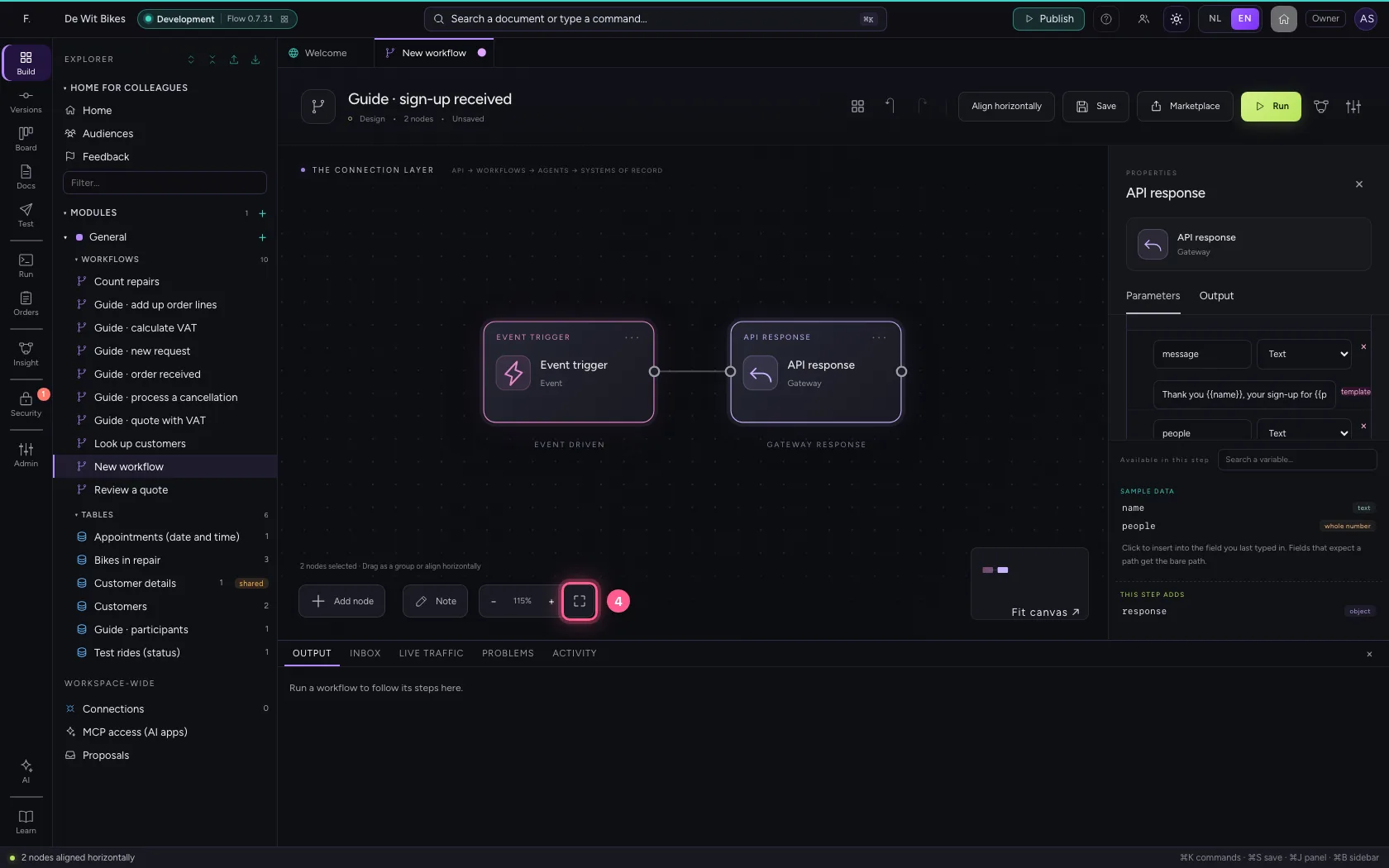
- Click Save
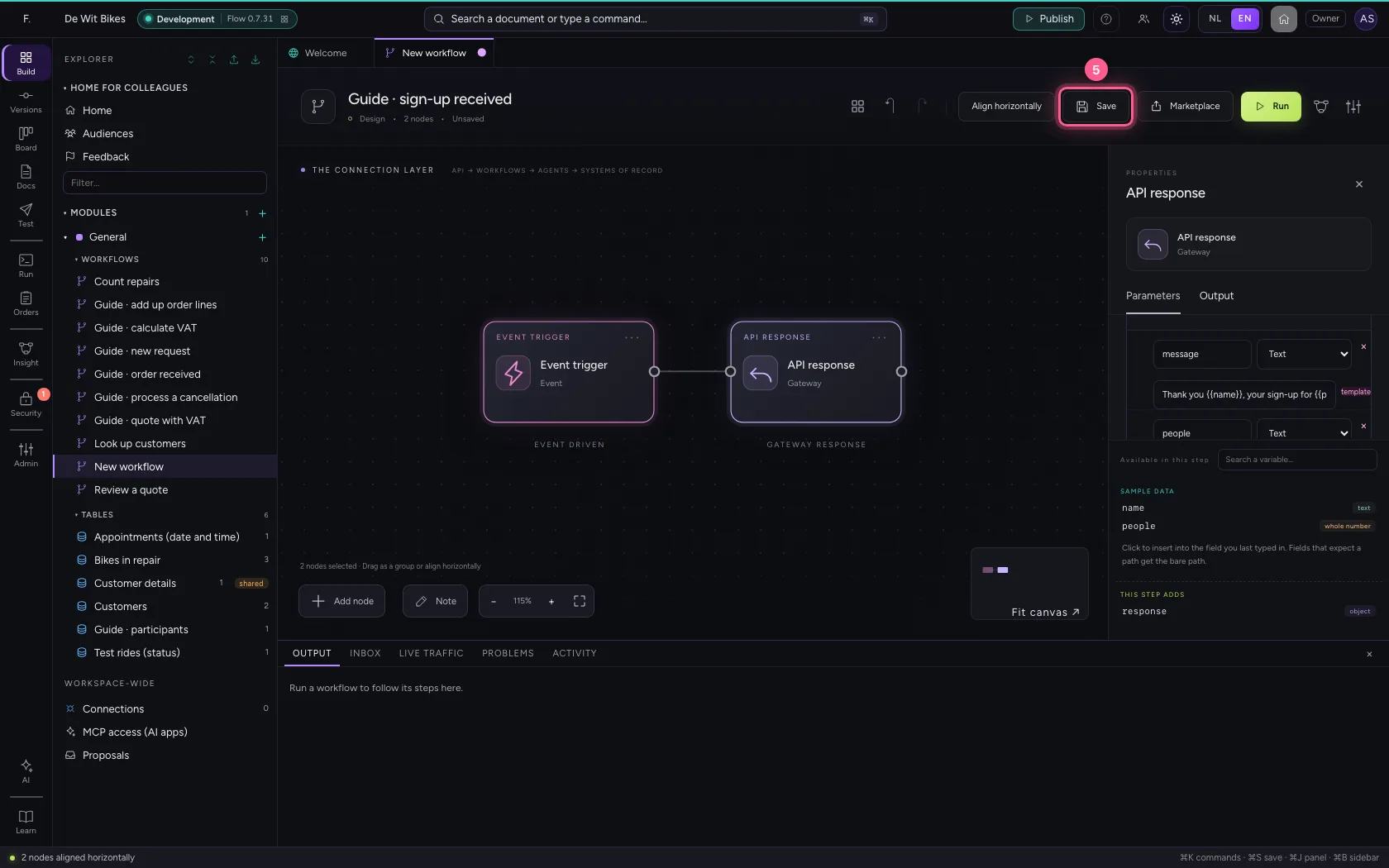
Try it in the Studio
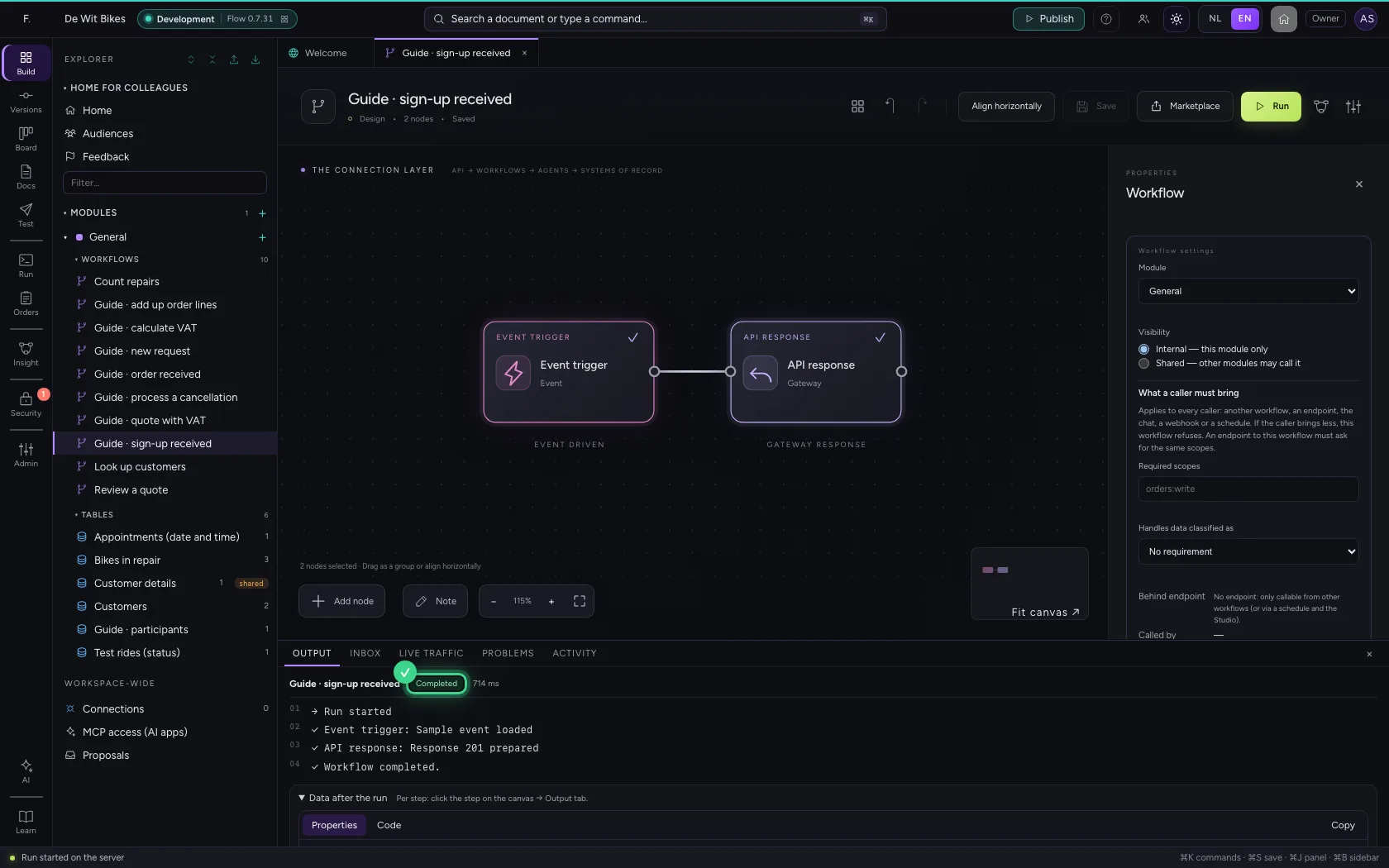
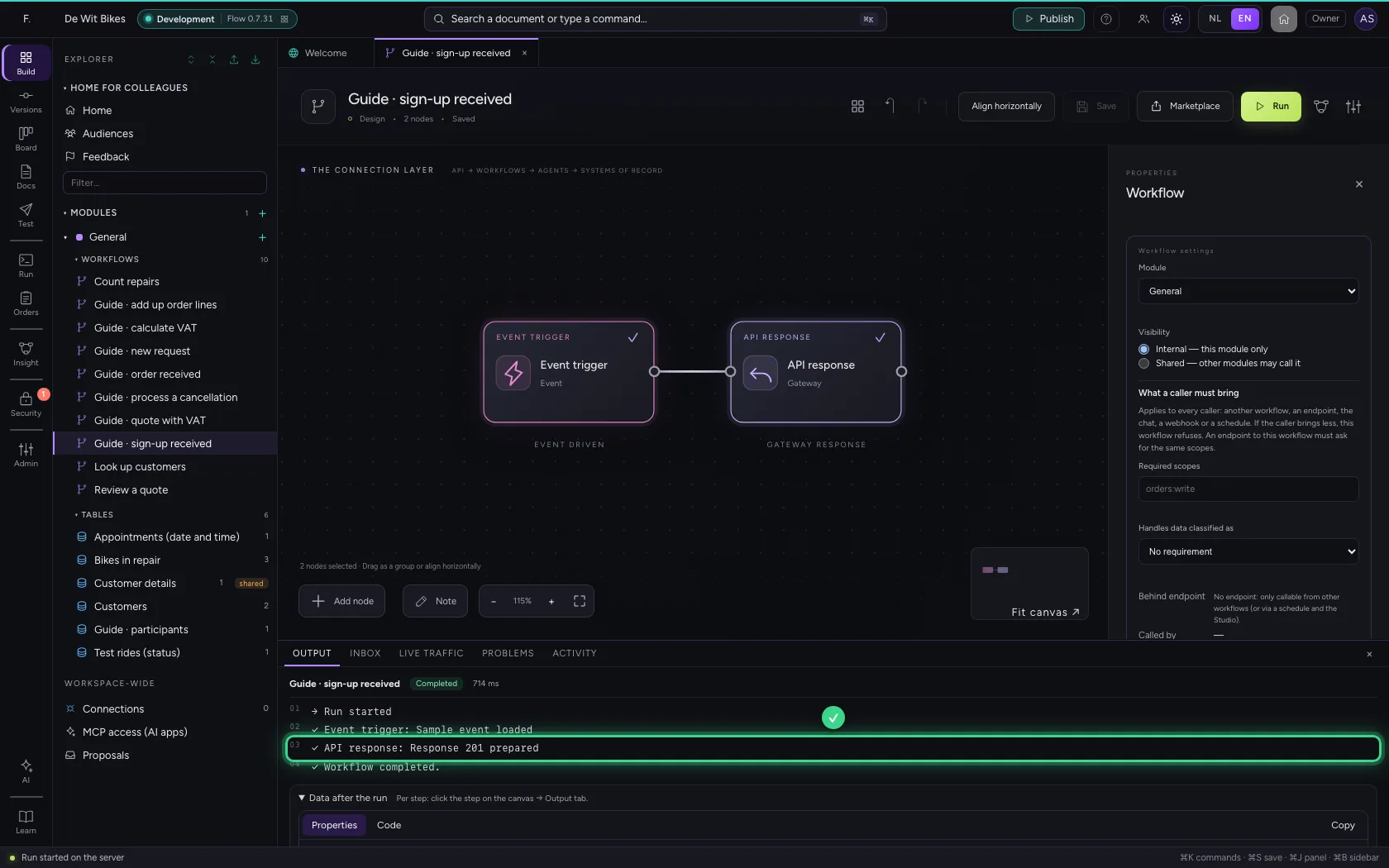
Run: at the bottom you see the answer was prepared, with the status. Under Data after the run you see it as response.status and response.body.
- Click Run
Publish the workflow as an endpoint
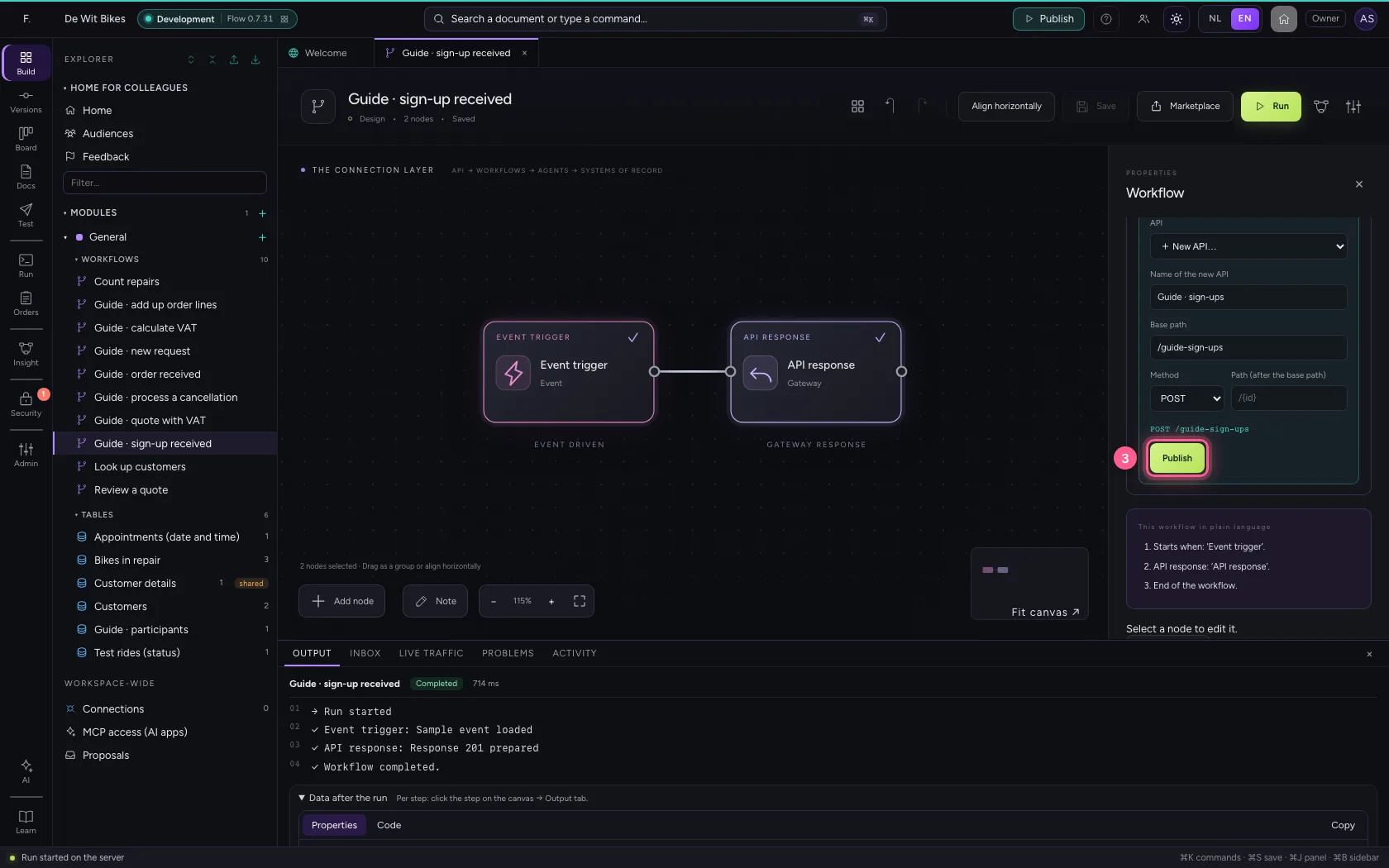
Press Esc: with no step selected, the Workflow settings are on the right. Under Publish as an endpoint you choose a new API, with a name; the method POST suits creating something. Click Publish: the endpoint opens.
- In API, choose + New API…
- In Name of the new API, type
Guide · sign-ups
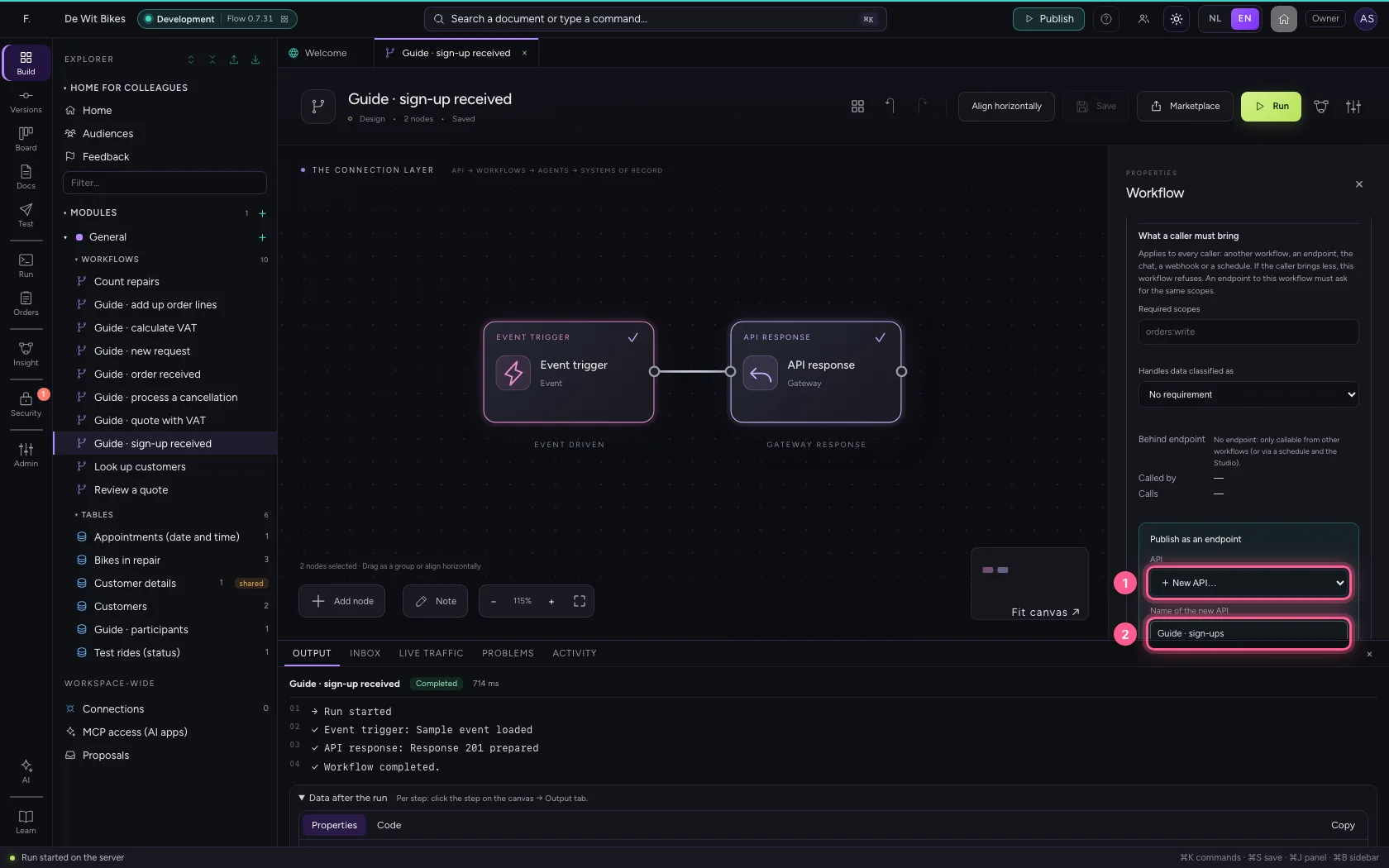
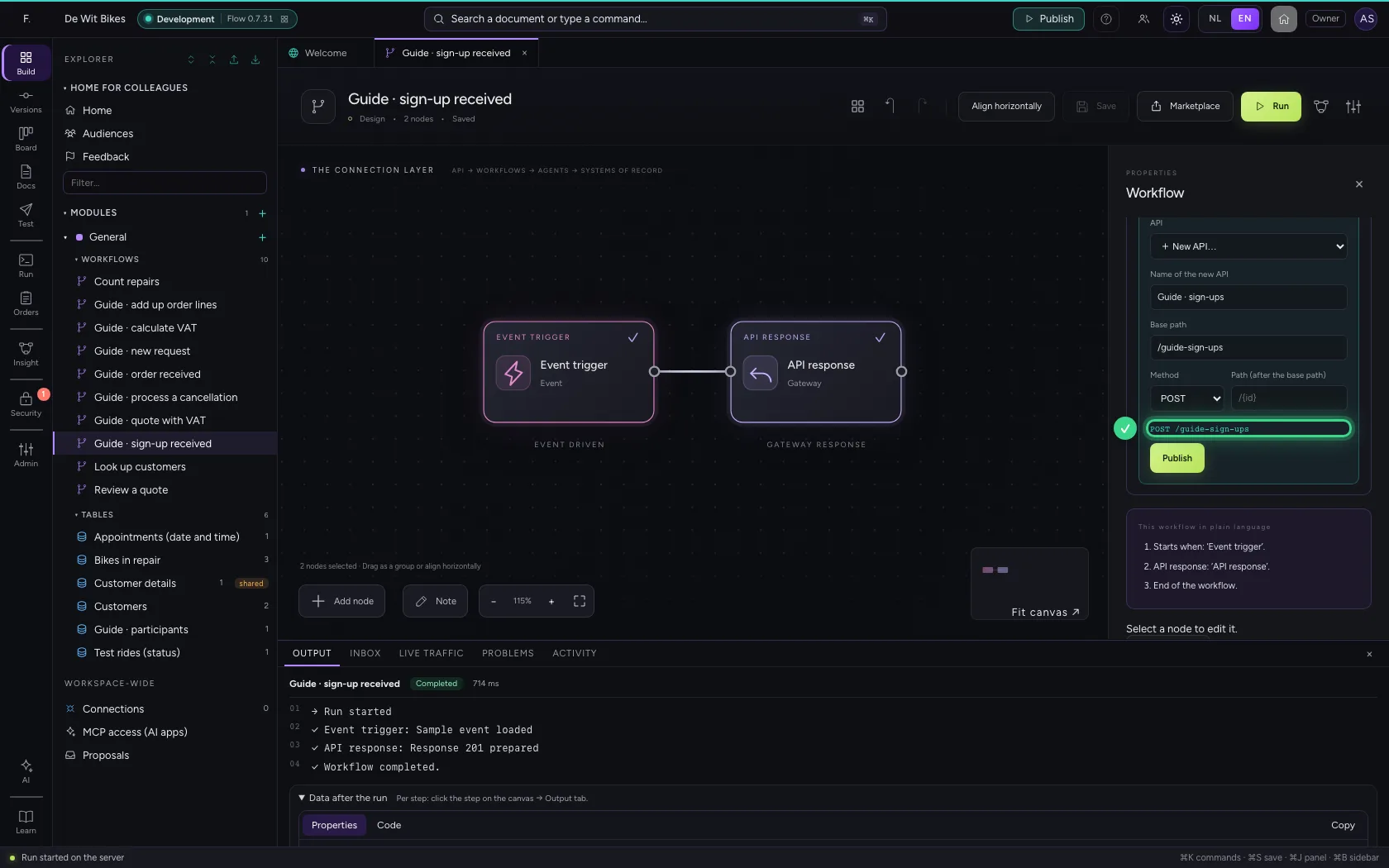
- Click Publish
Call the endpoint
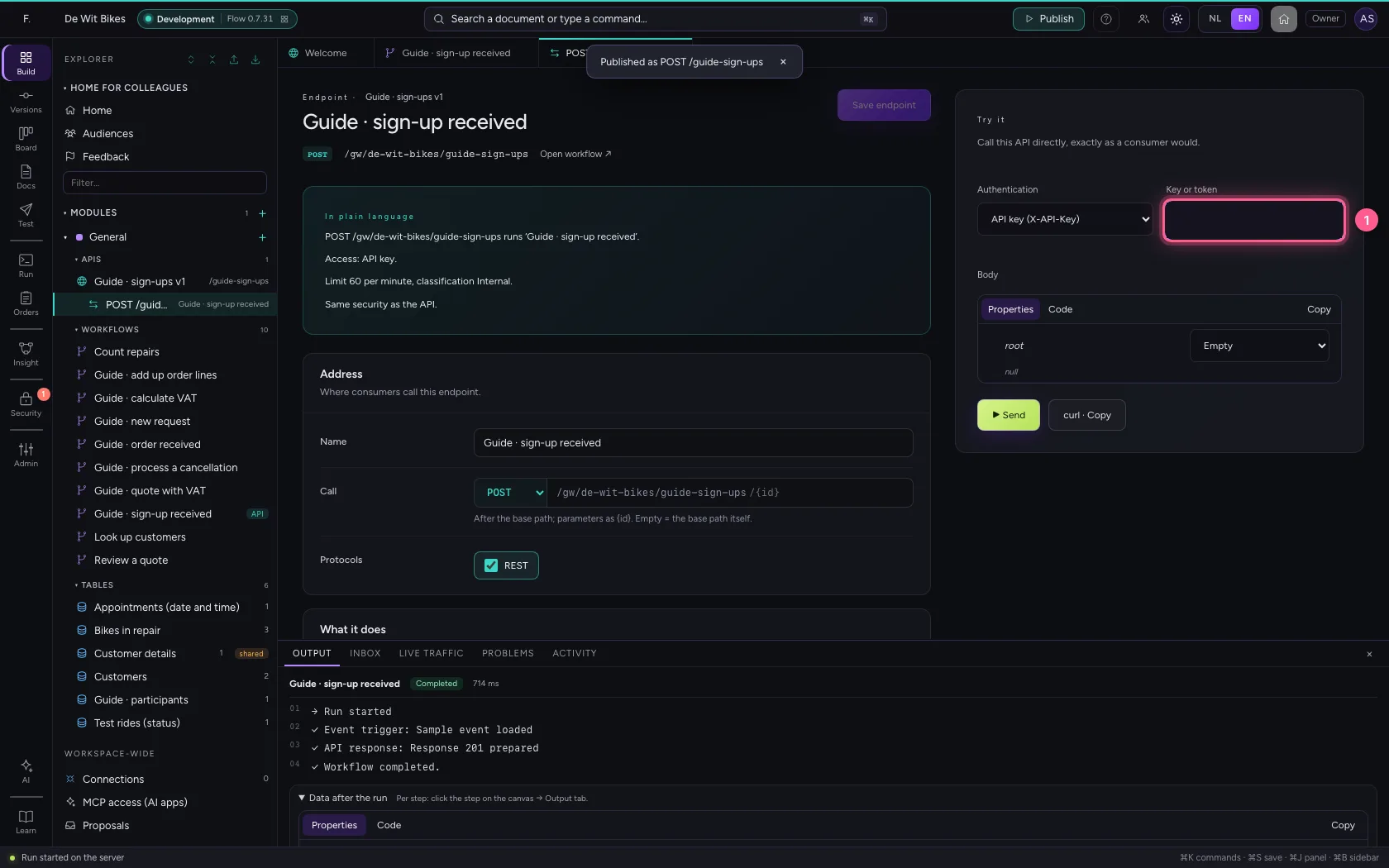
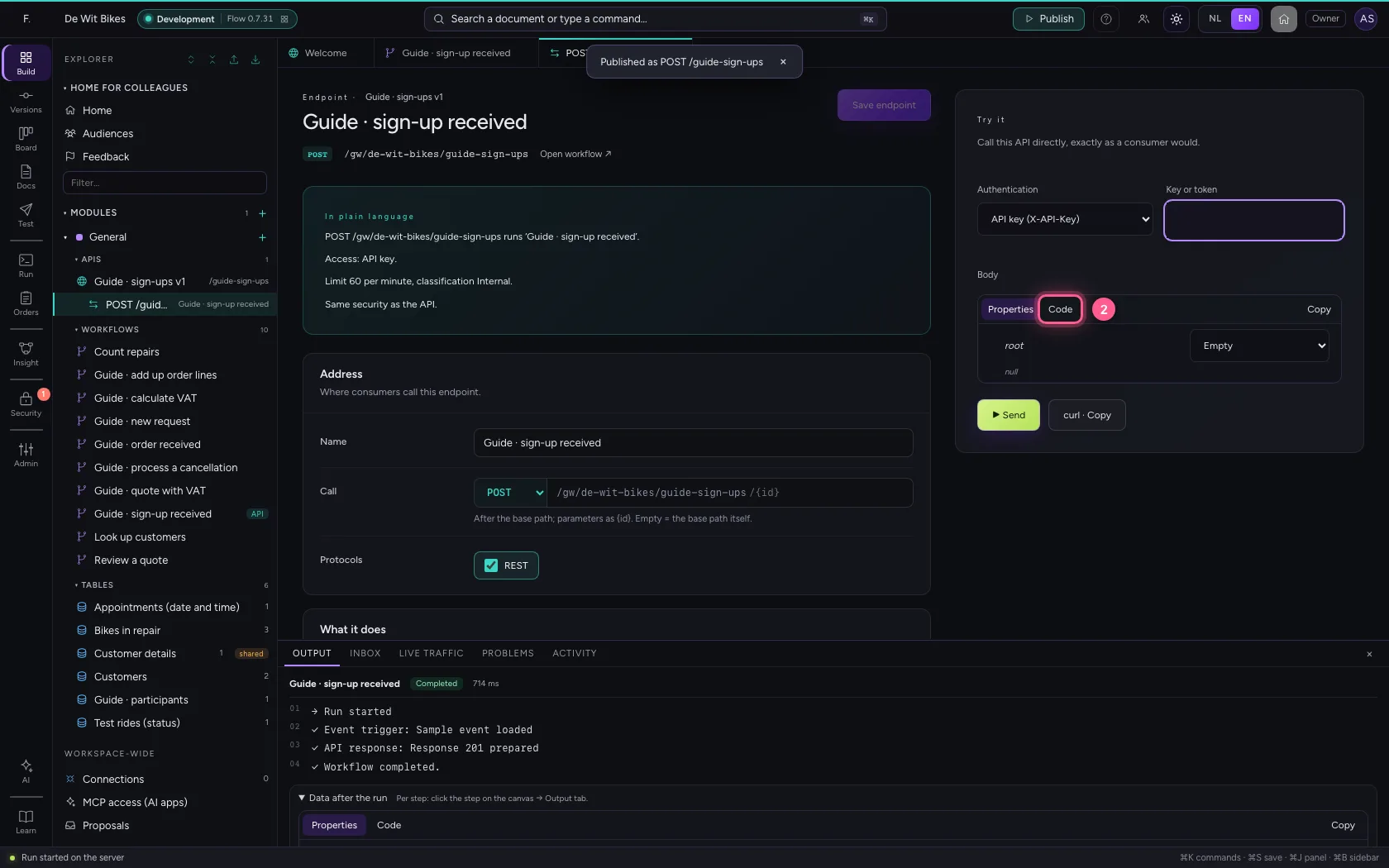
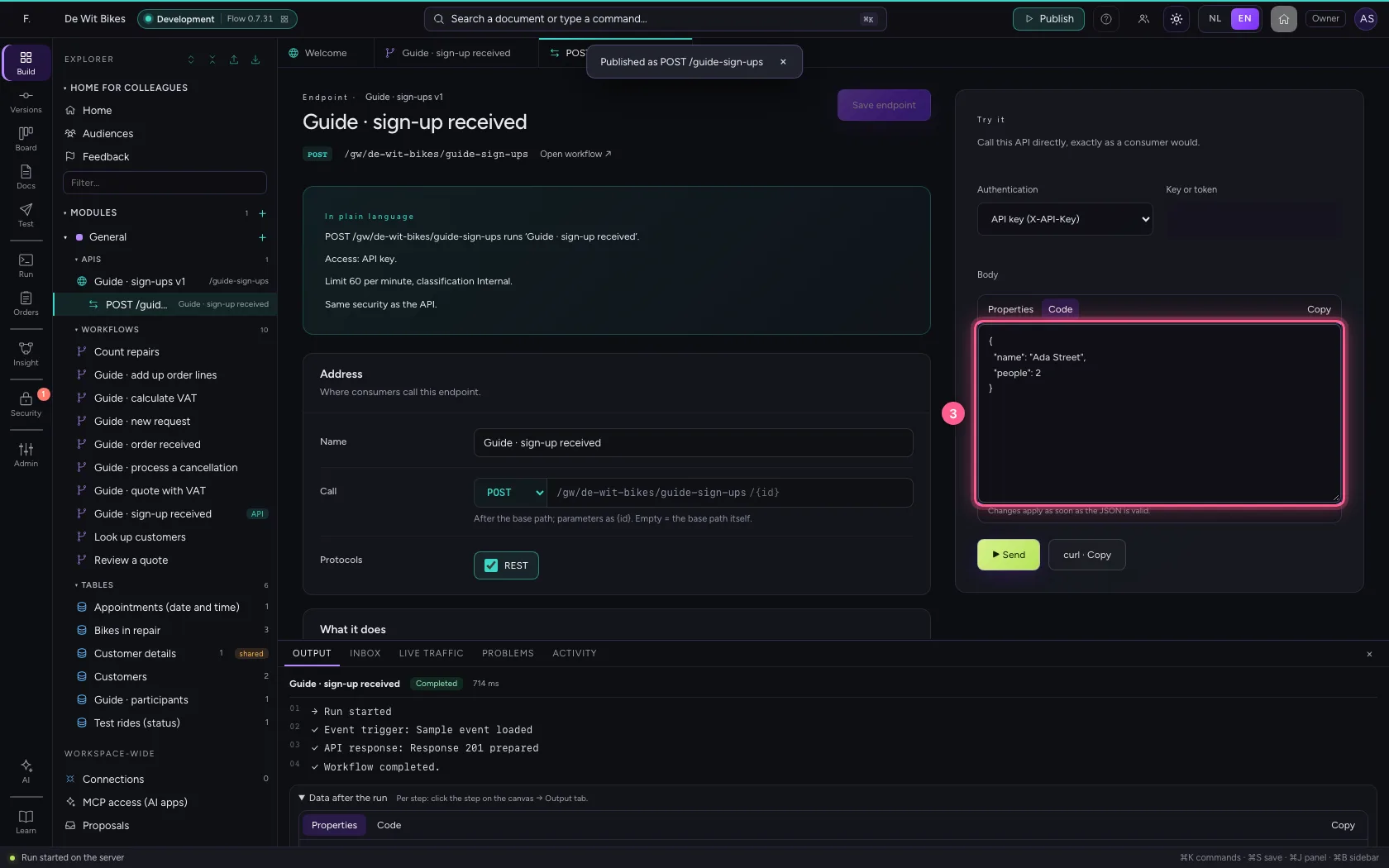
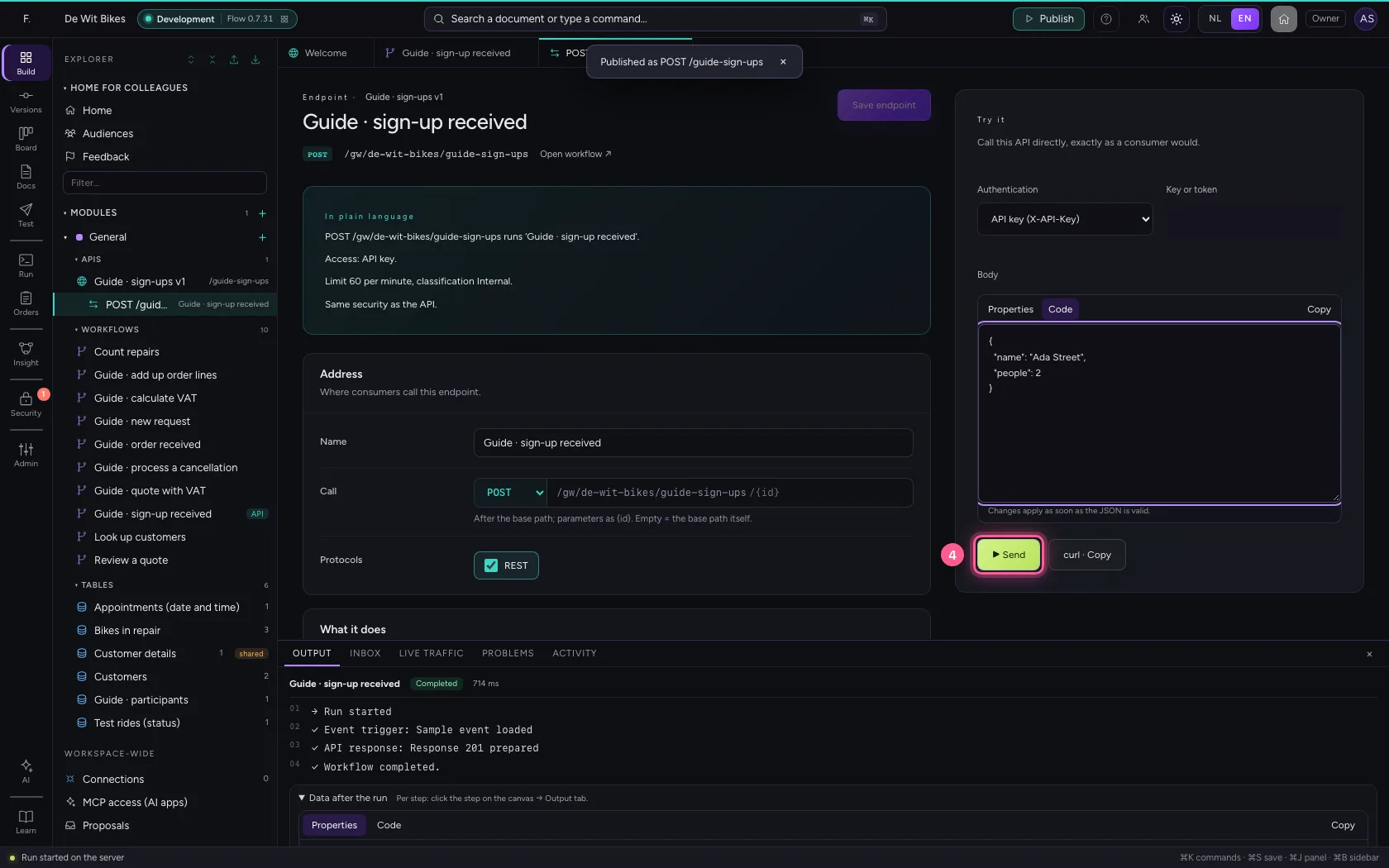
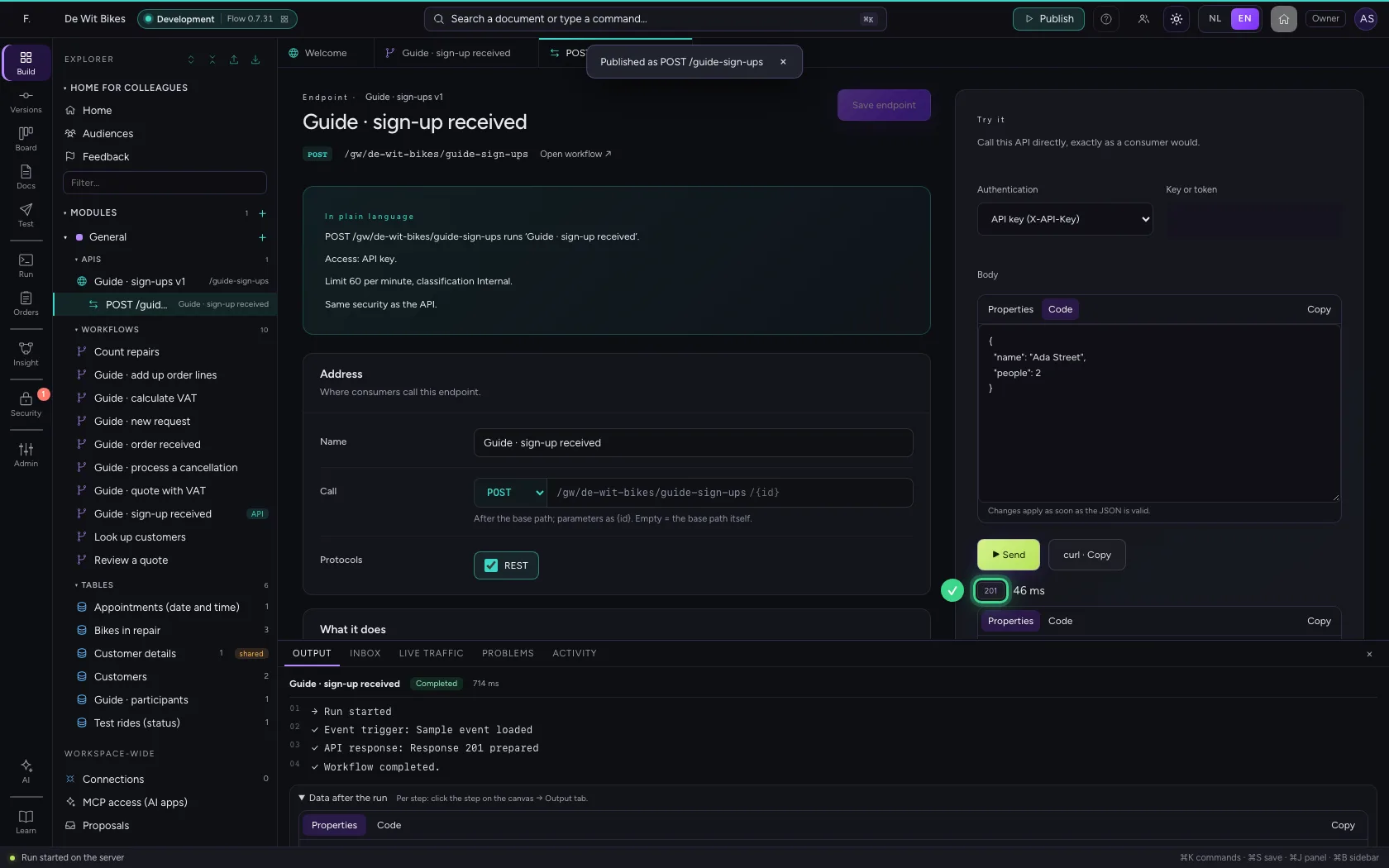
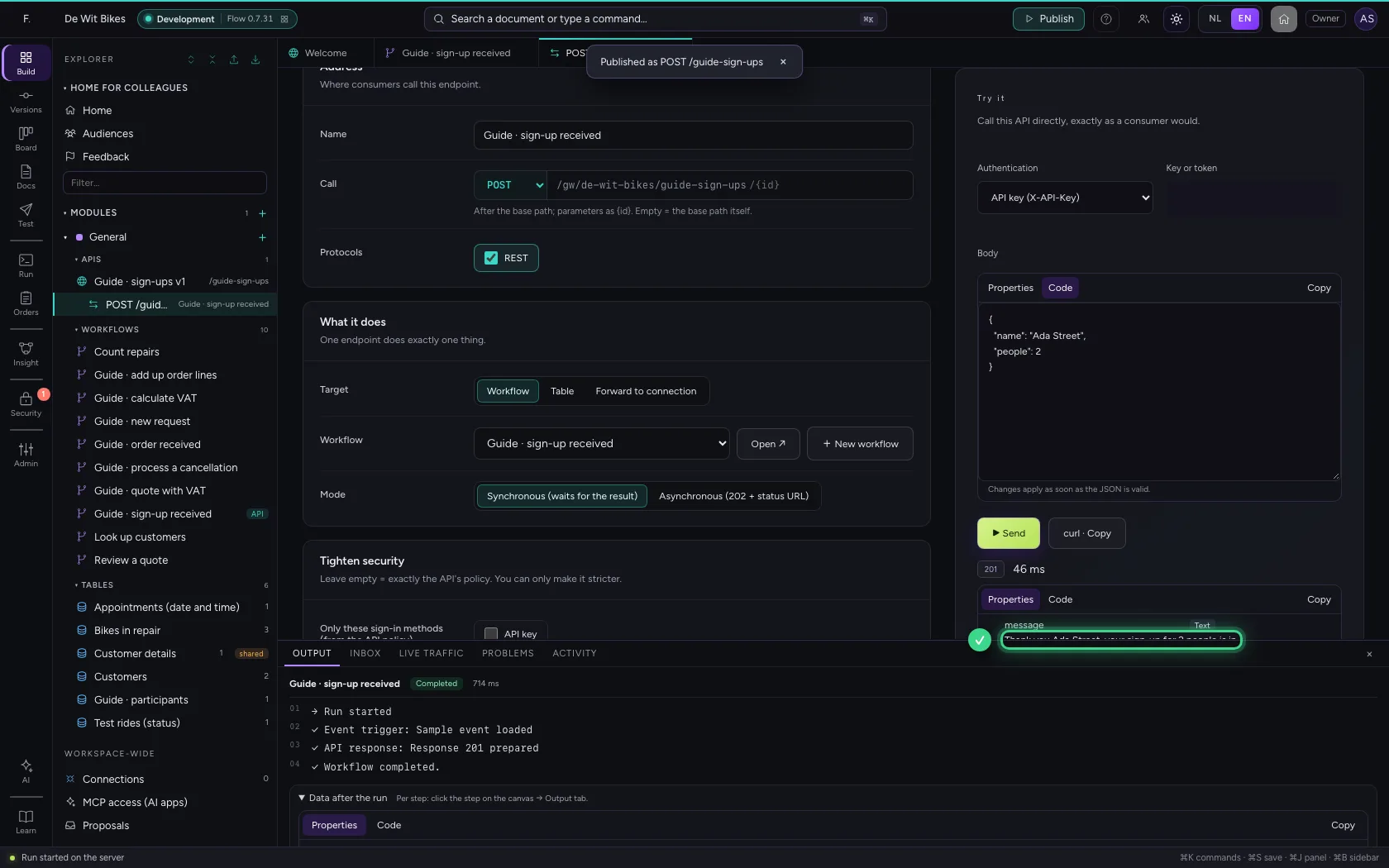
On the right is Try it: it calls the API as a consumer would, with a key (covered up here). Put in the body what the consumer sends and click Send. You get 201 back, with exactly the body from API response.
- In Key or token, type
••••••••
- Click Code
- In Body, type
{"name": "Ada Street", "people": 2}
- Click ▶ Send
This guide was carried out step by step on 22 Oct 2026 by an automated test on Flow (version 3e563176).