Call workflow: reuse a workflow
What you need more often, you build once: a VAT calculation, a customer check, a standard message. With Call workflow you use such a workflow as one step in another. It runs inside the same run, gets the input you pass, and what it returns with its API response comes back under the name you choose.
Open Flow and create a workflow
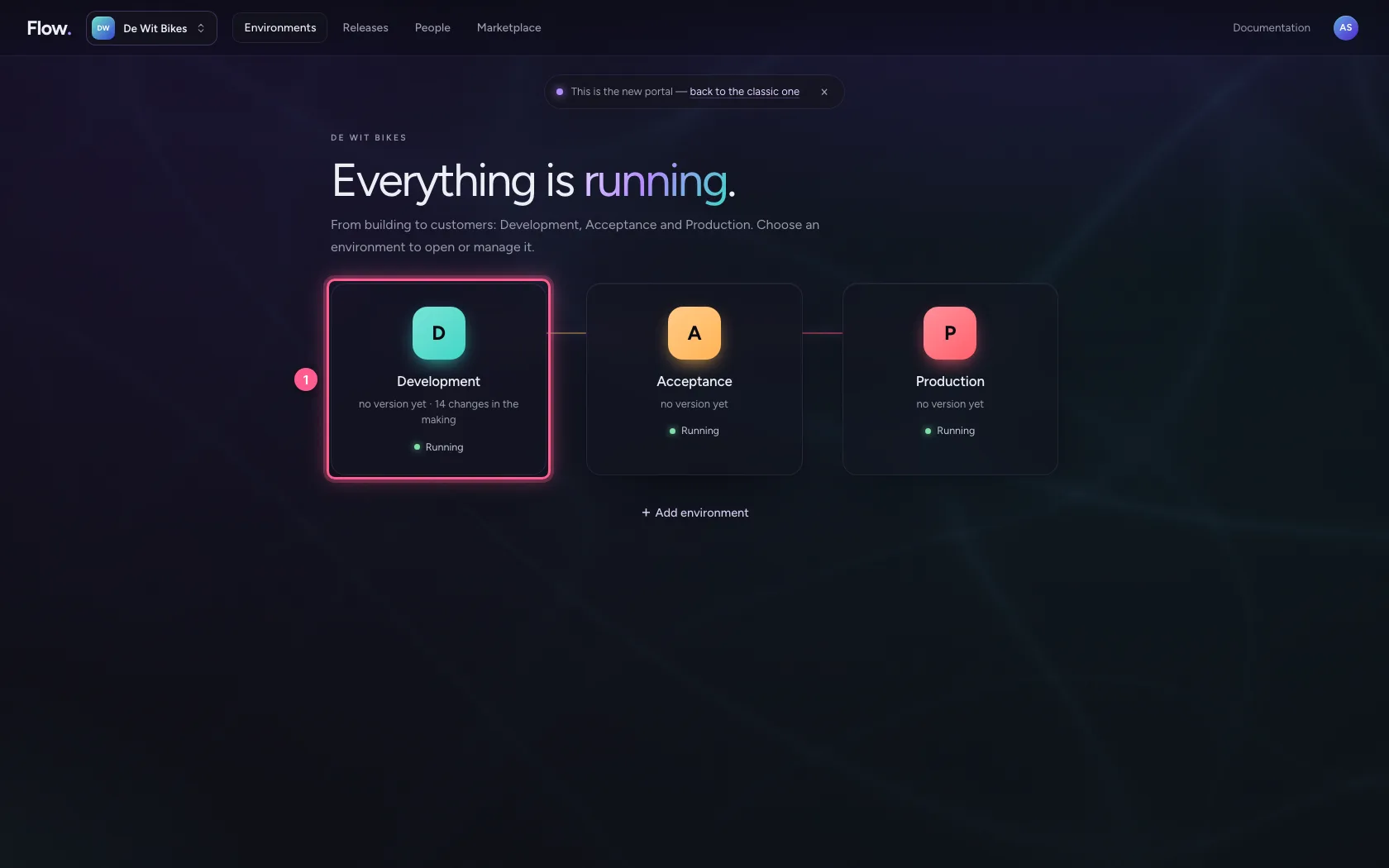
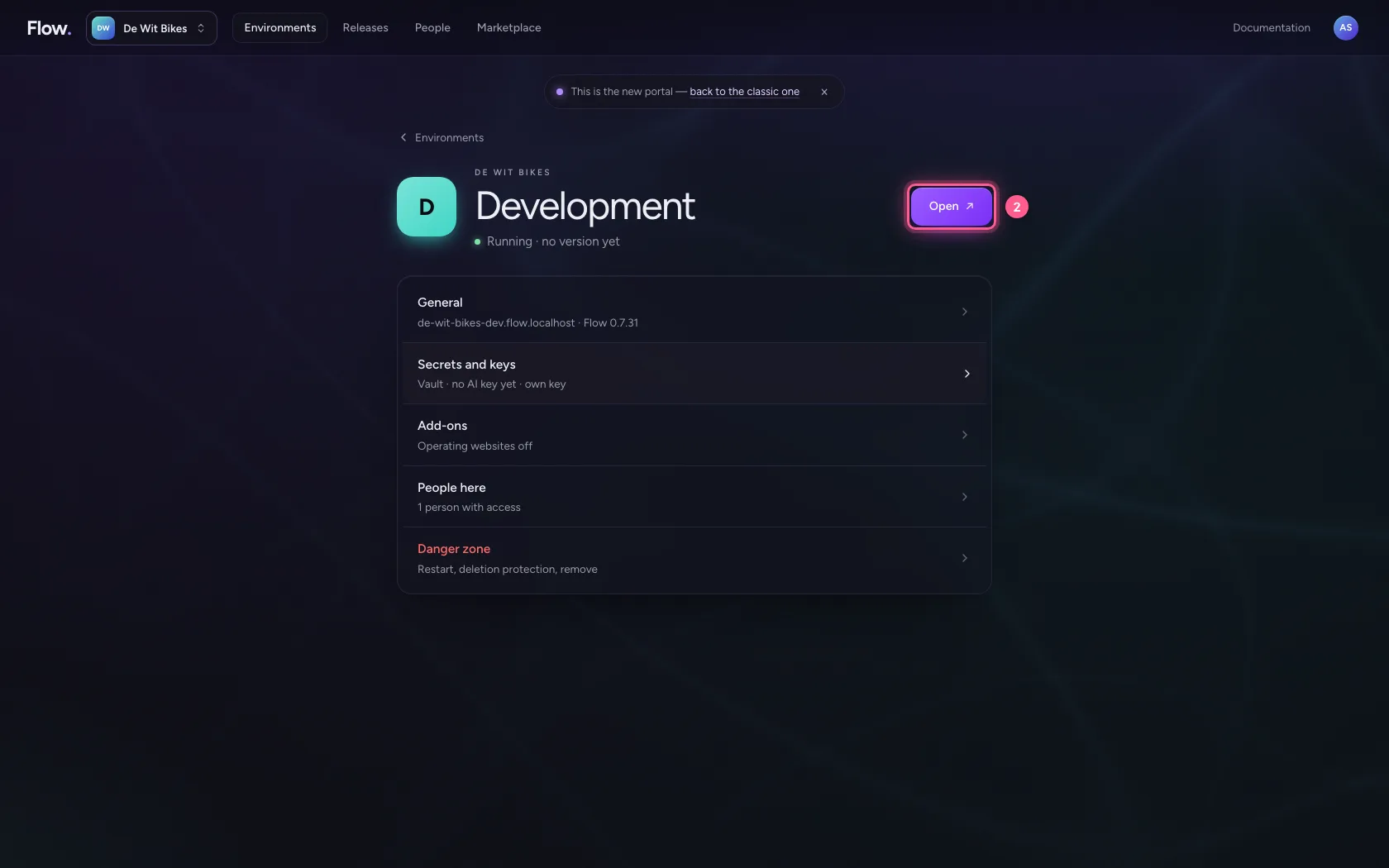
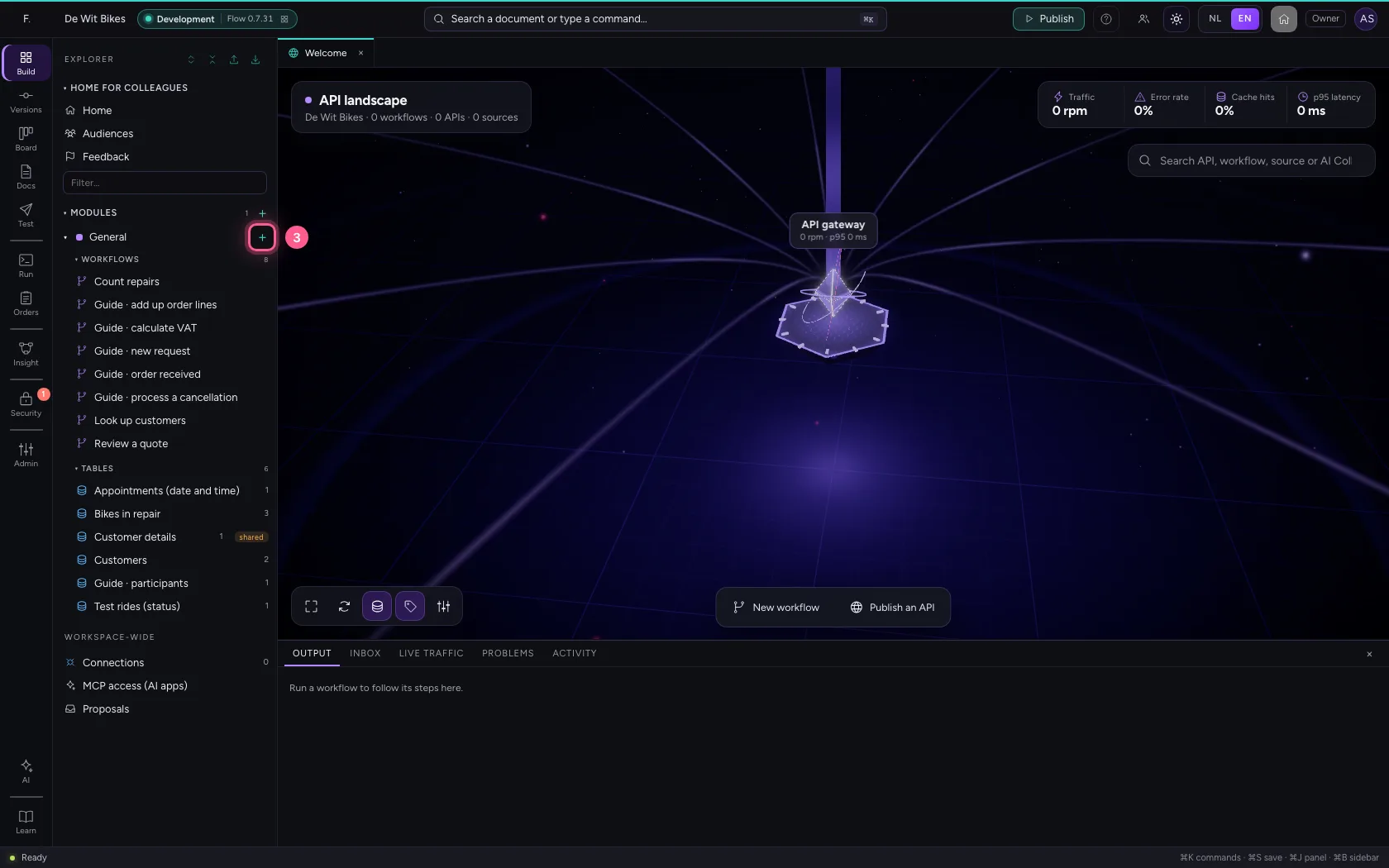
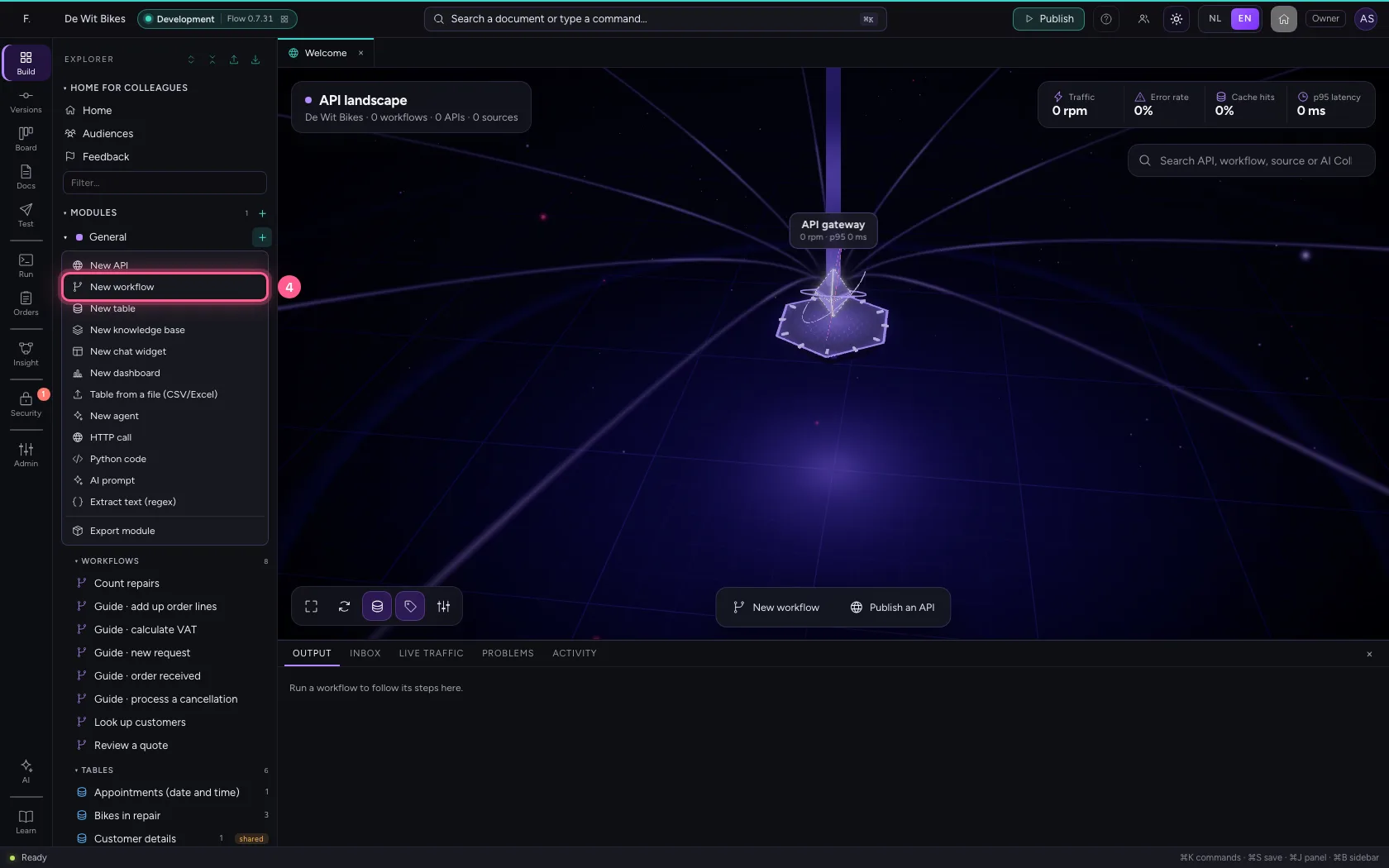
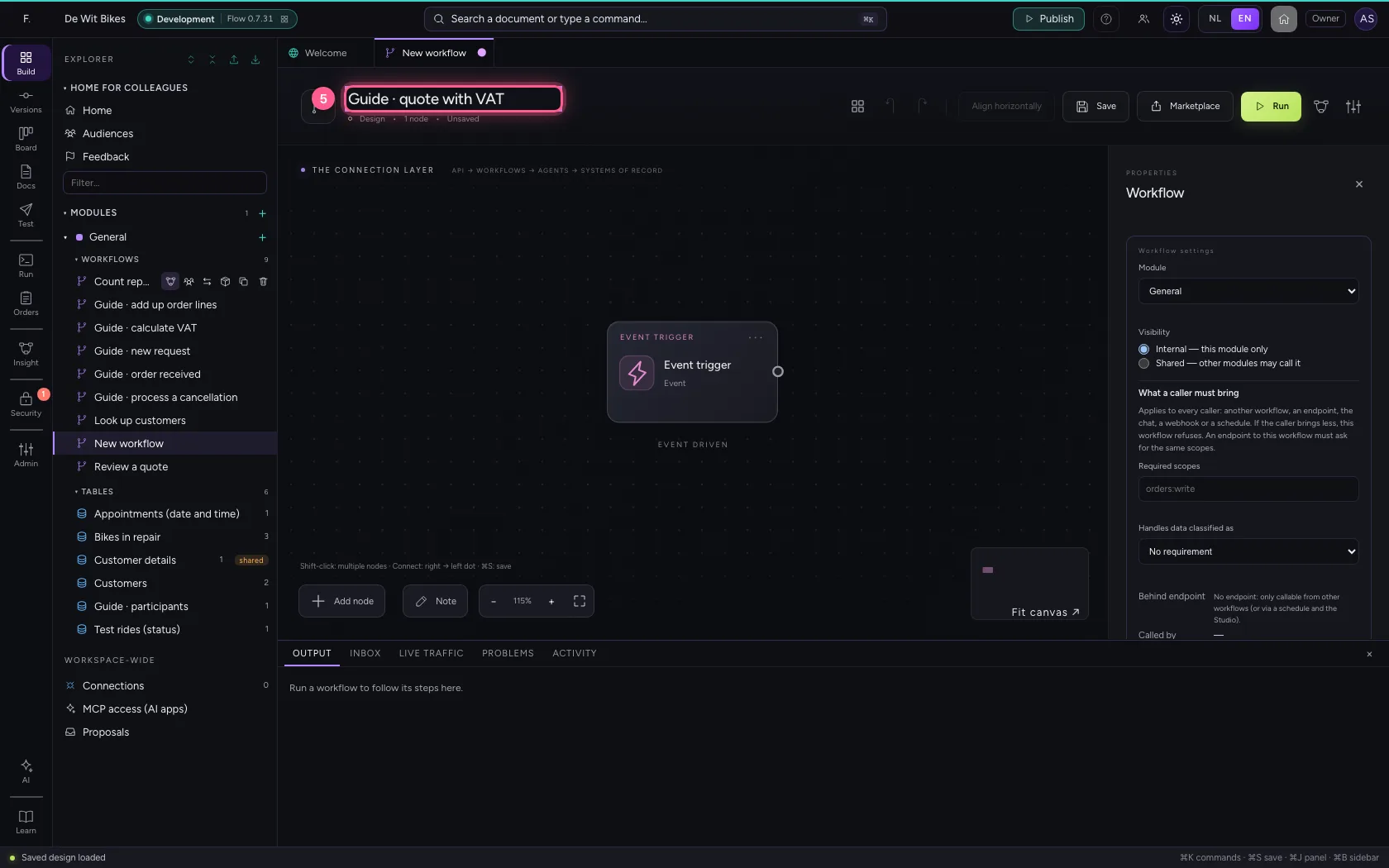
In the portal, under Environments, click Development and there Open; Flow opens in a new tab. There, click + next to General, choose New workflow and give it a name. A new workflow starts with an Event trigger: the point where it begins.
- Click Development
- Click Open ↗
- Click Add to General
- Click New workflow
- In Workflow name, type
Guide · quote with VAT
Choose the workflow you call
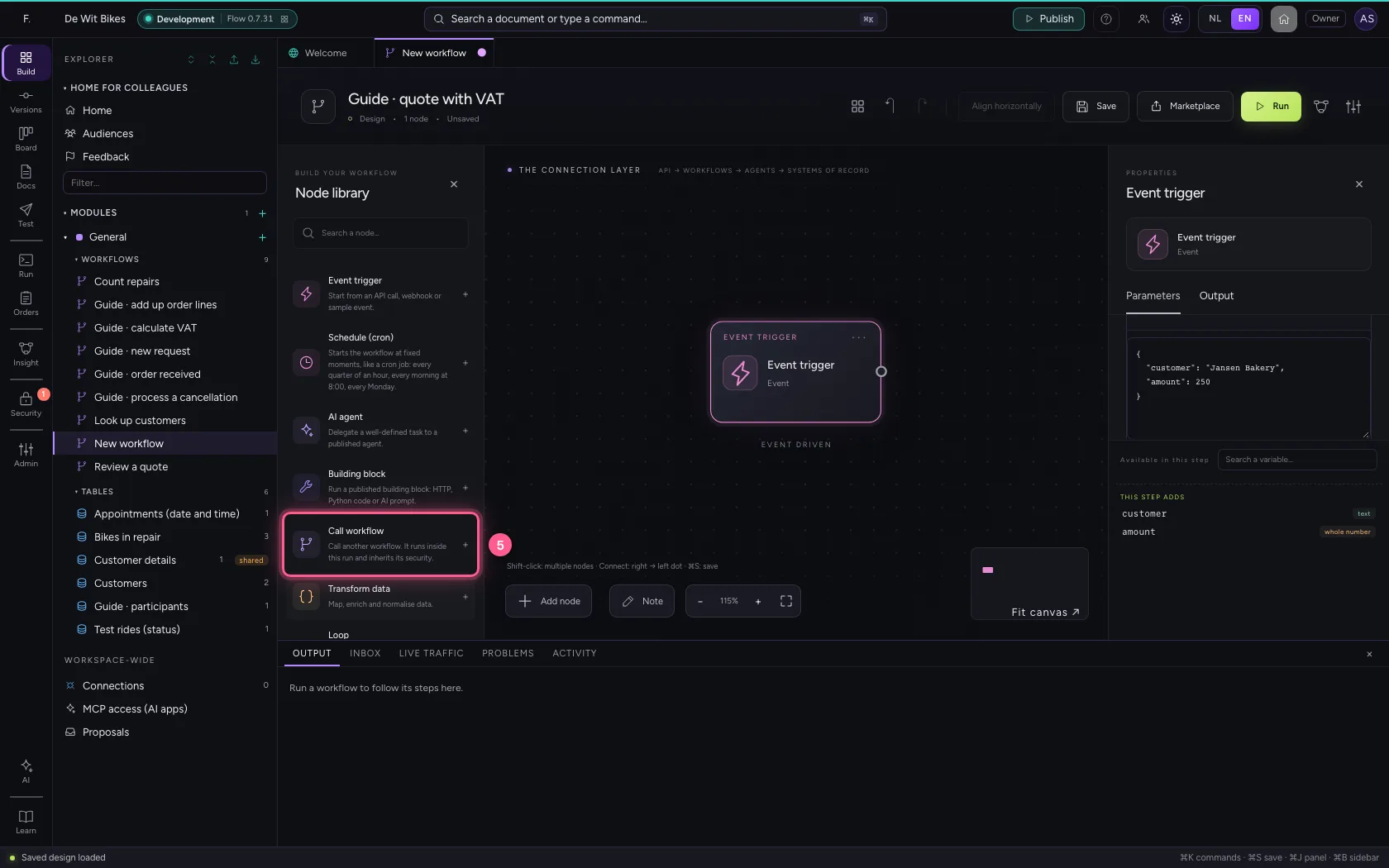
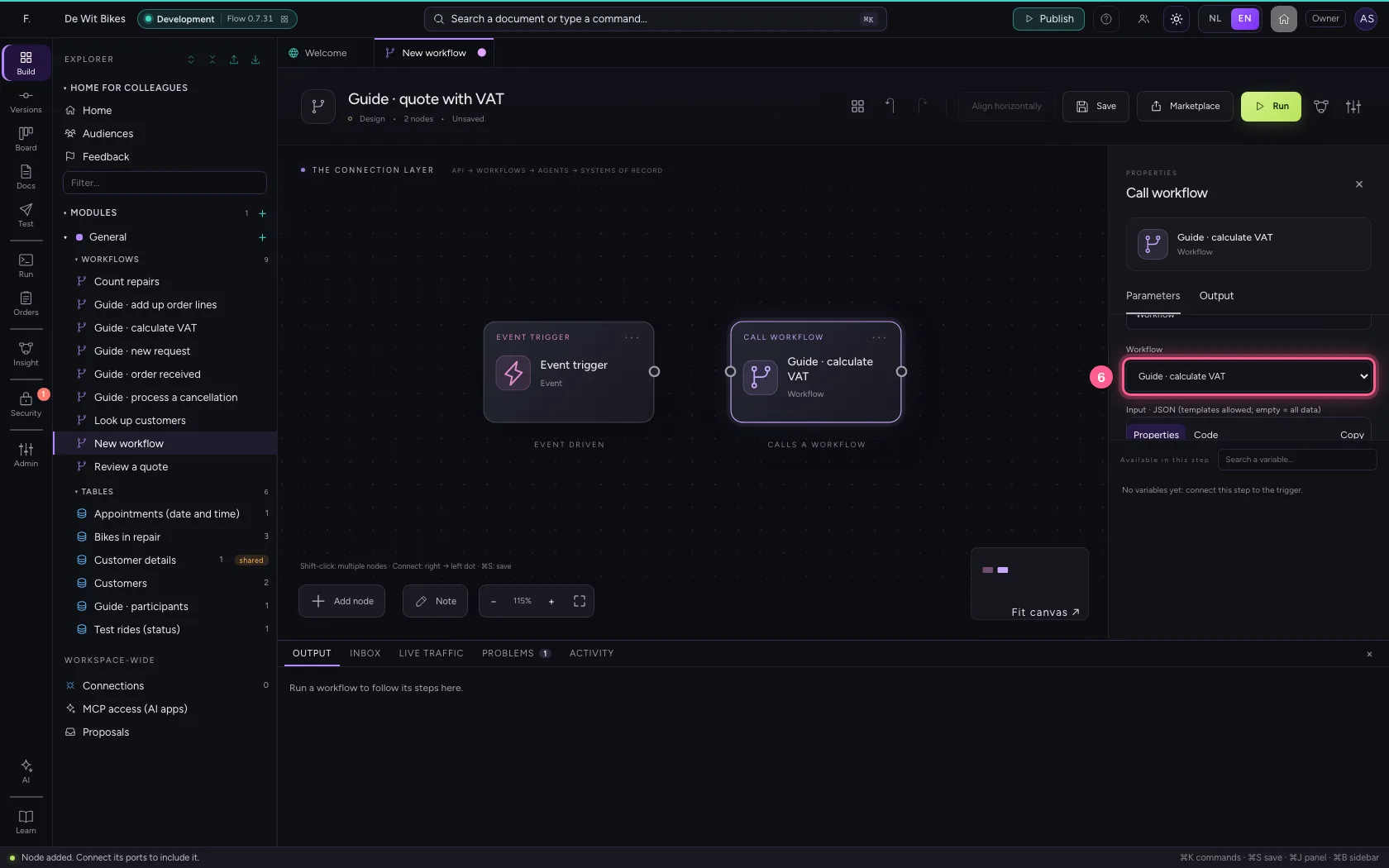
Put an amount in the sample data. Add Call workflow and choose the workflow: here one that calculates the VAT. The step gets its name by itself. You only see workflows from this module, or ones set to Shared.
- Click the step ‘Event trigger’
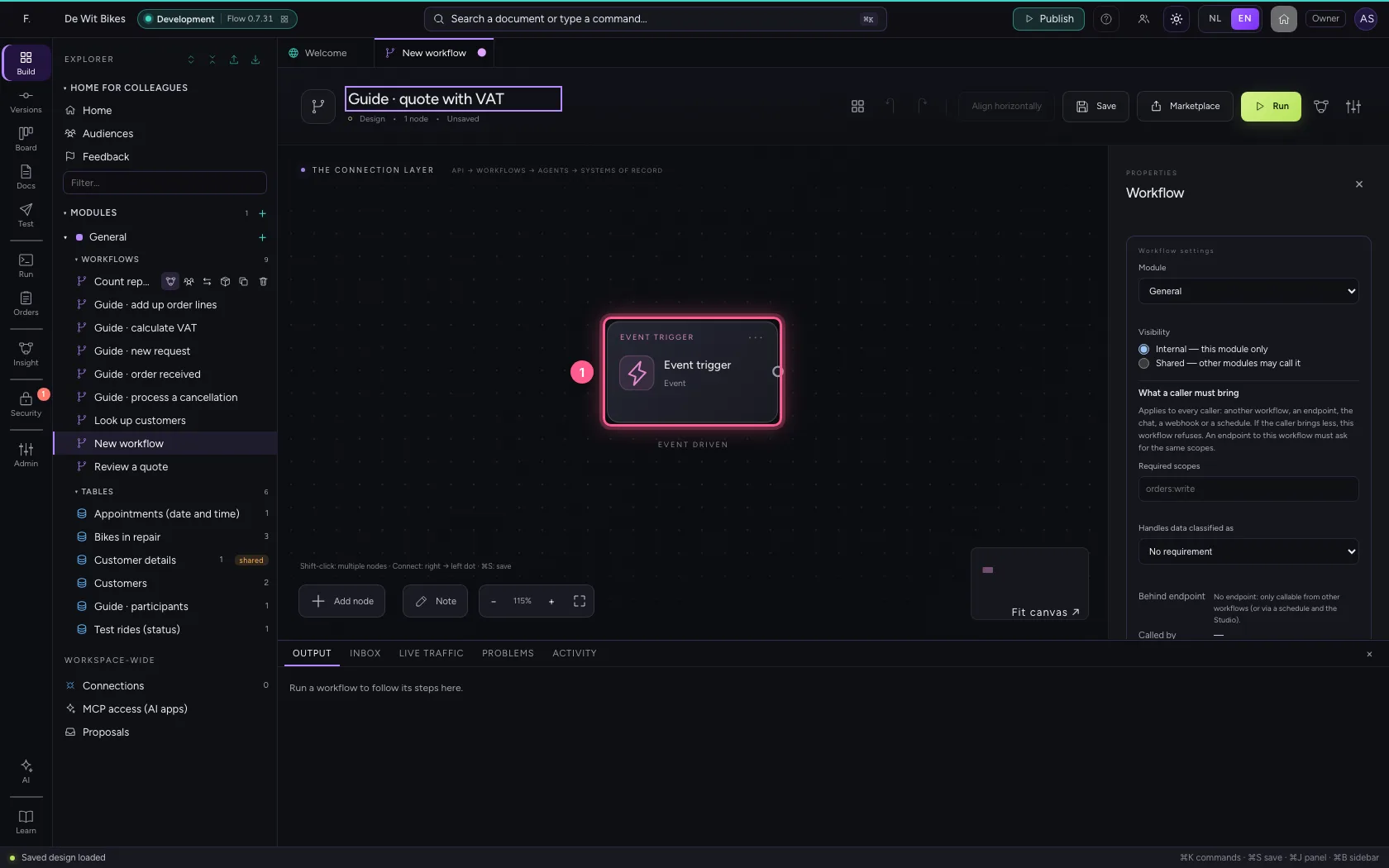
- Click Code
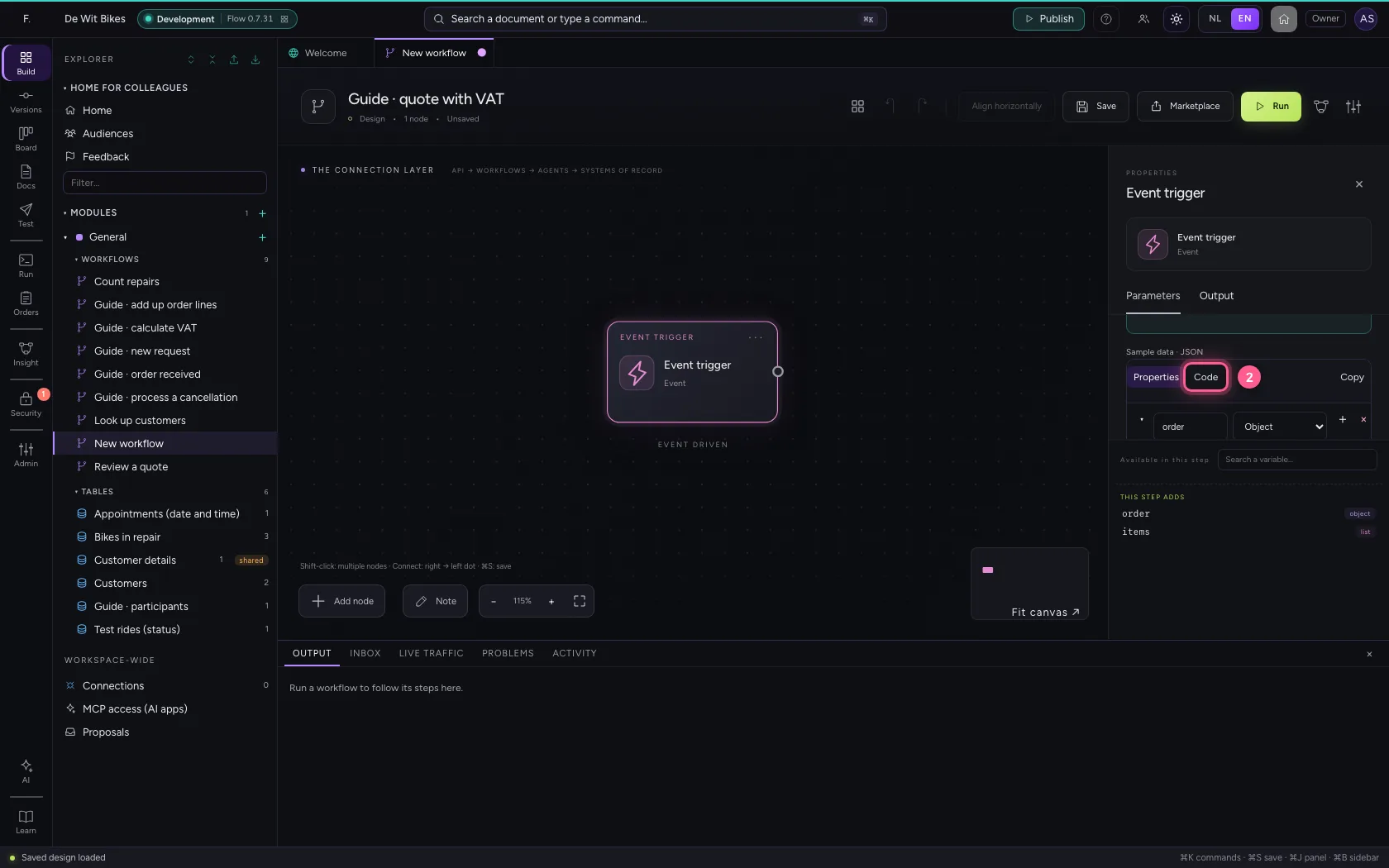
- In the sample data, type `{
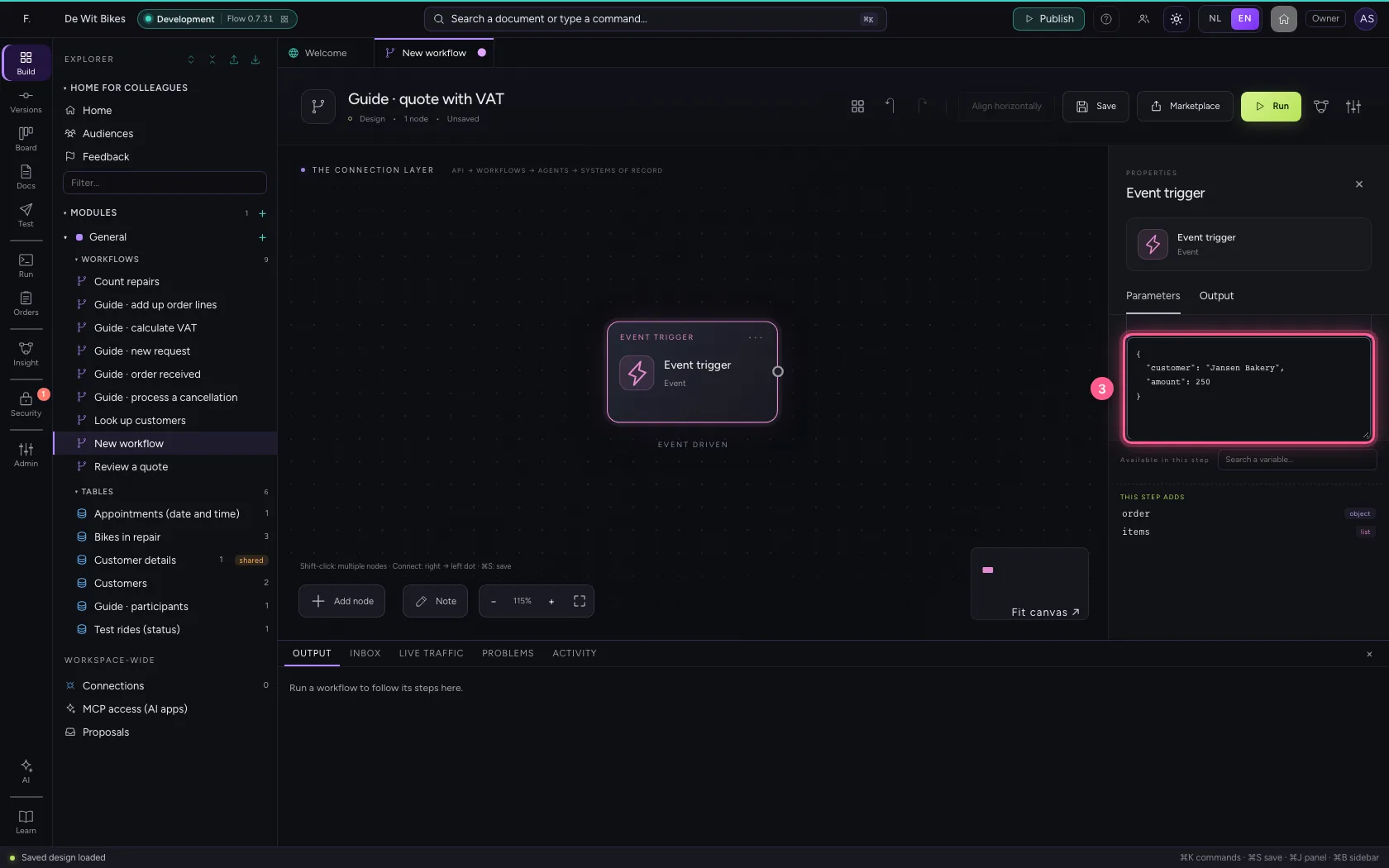
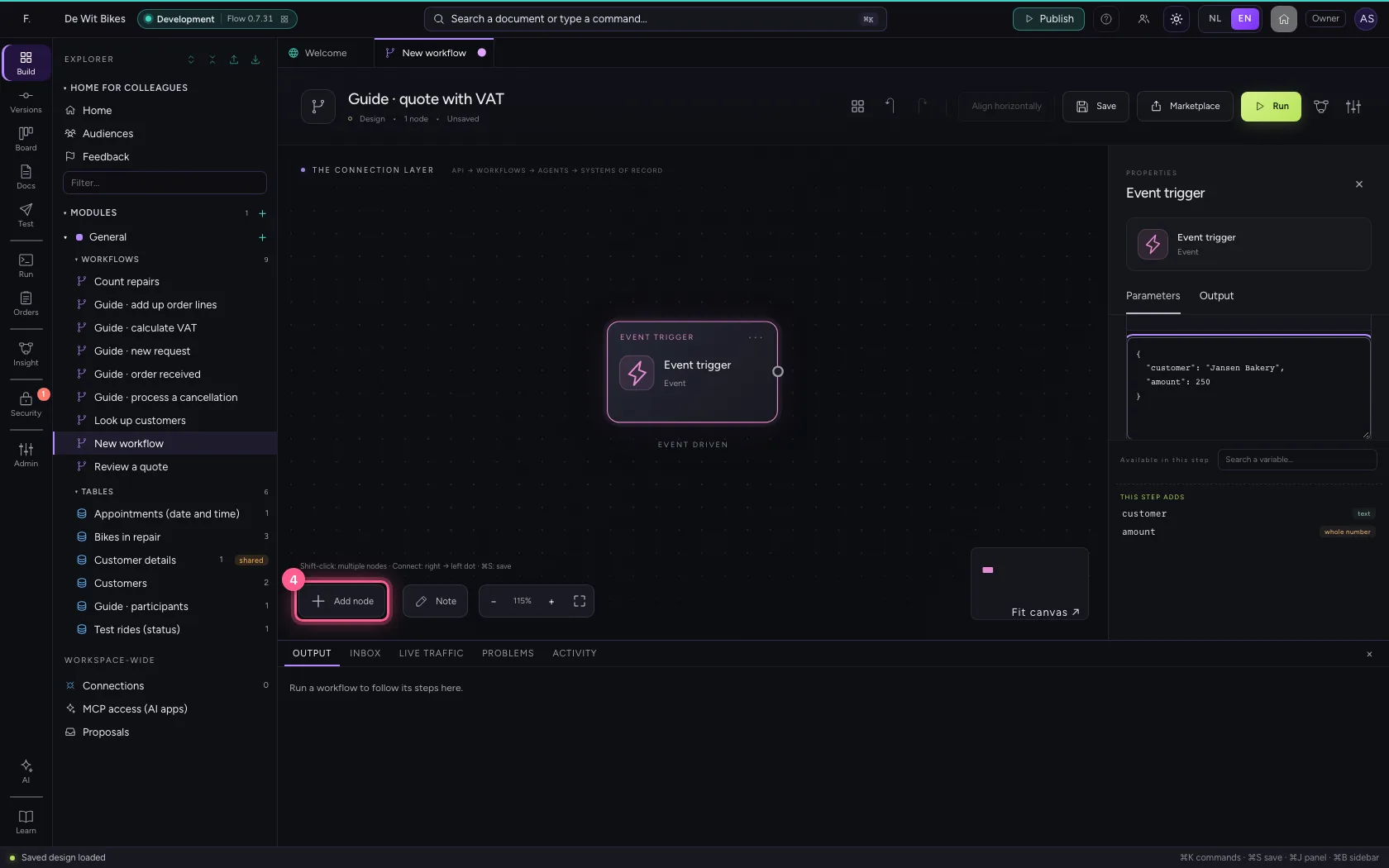
- Click Add node
- Click Call workflow
- In Workflow, choose Guide · calculate VAT
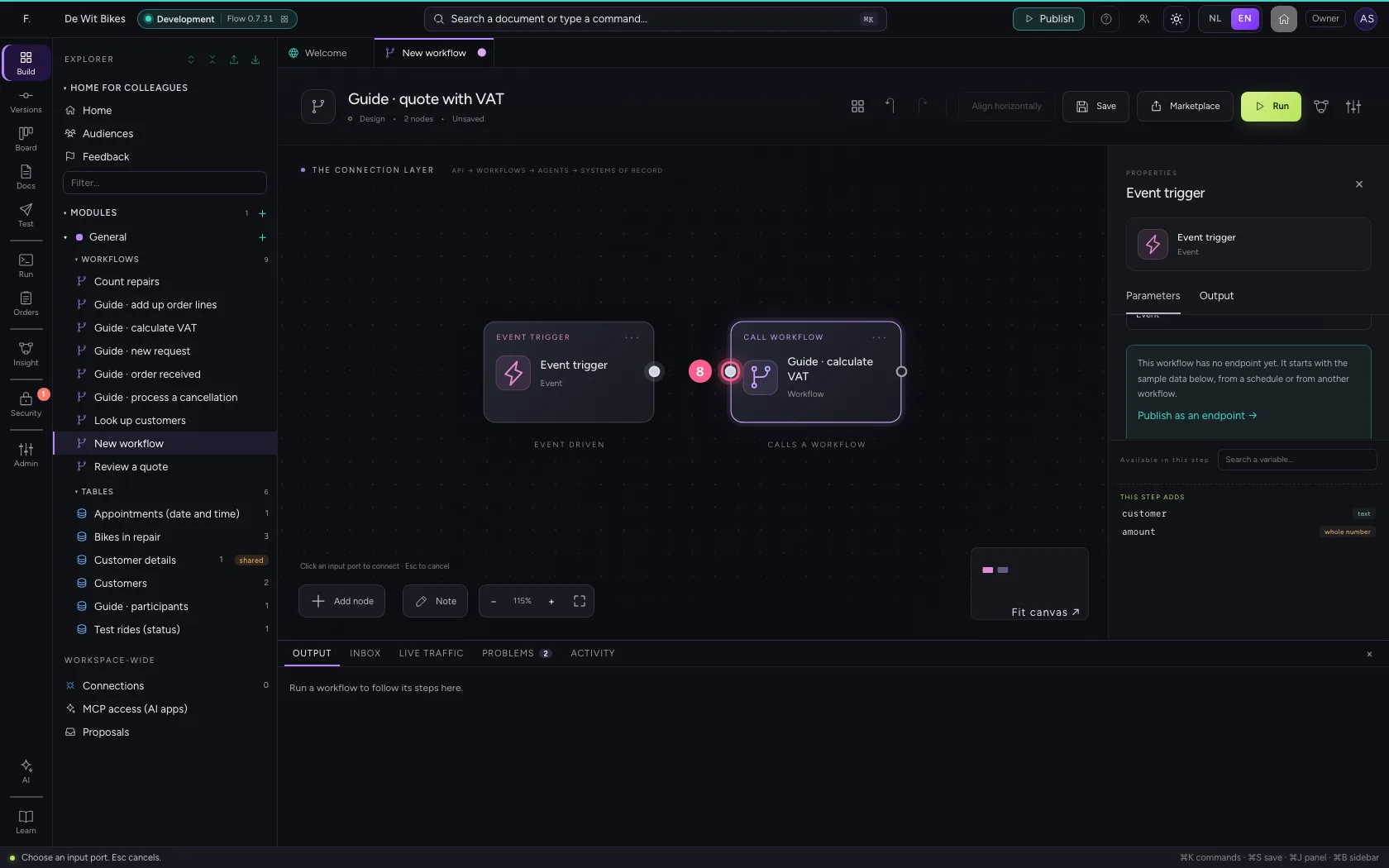
- Click the dot of ‘Event trigger’
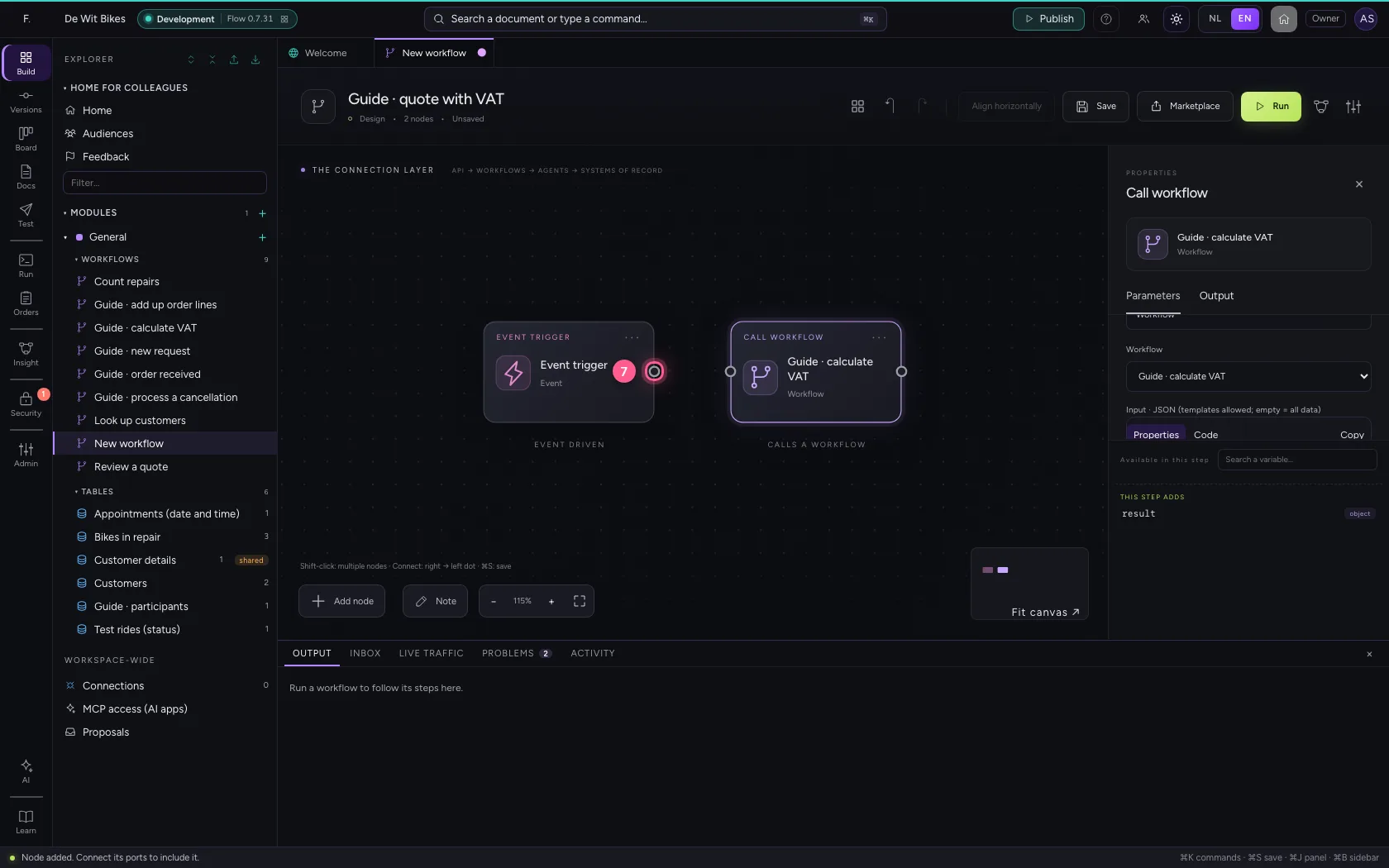
- Click the dot of ‘Guide · calculate VAT’
Pass what it needs
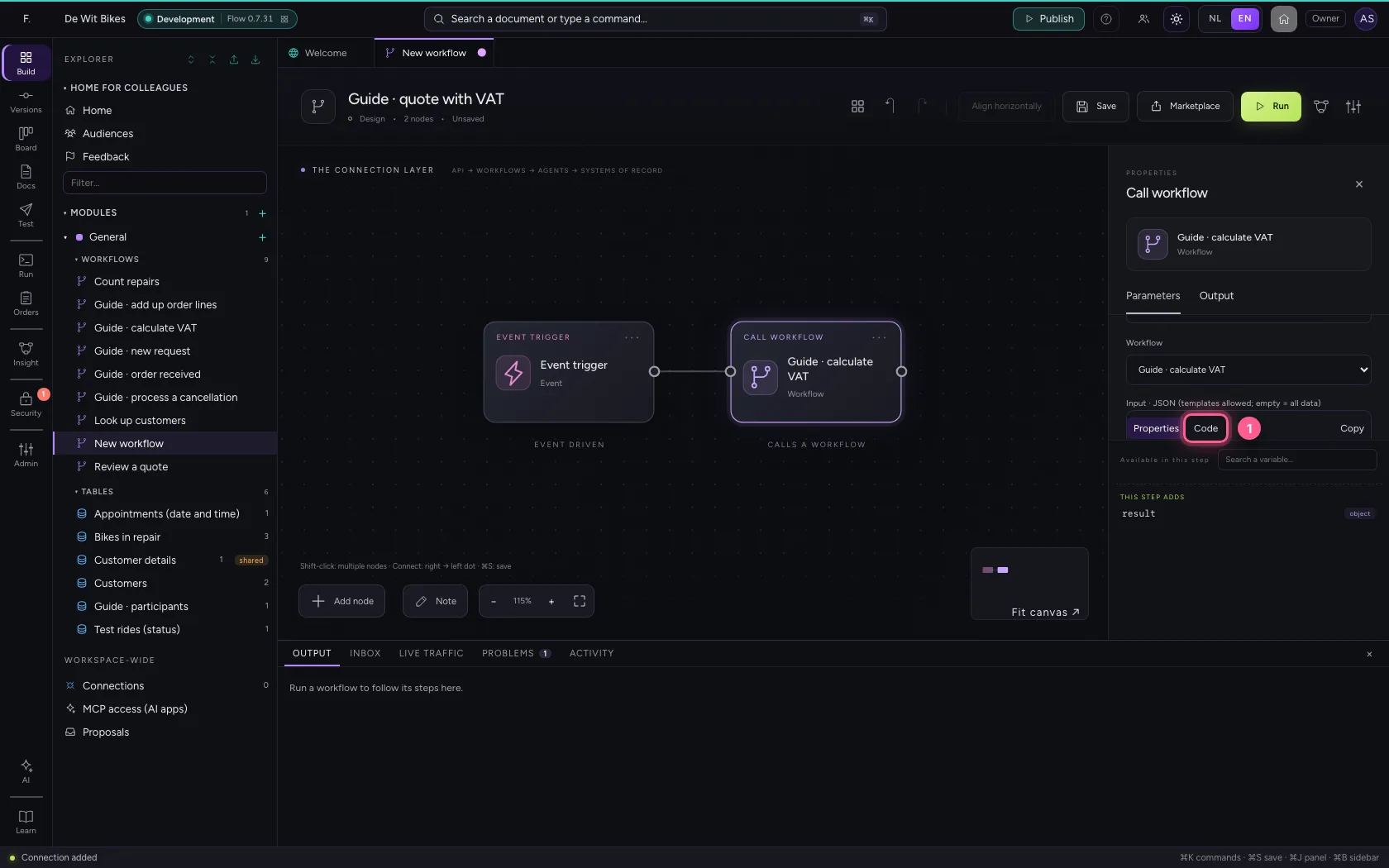
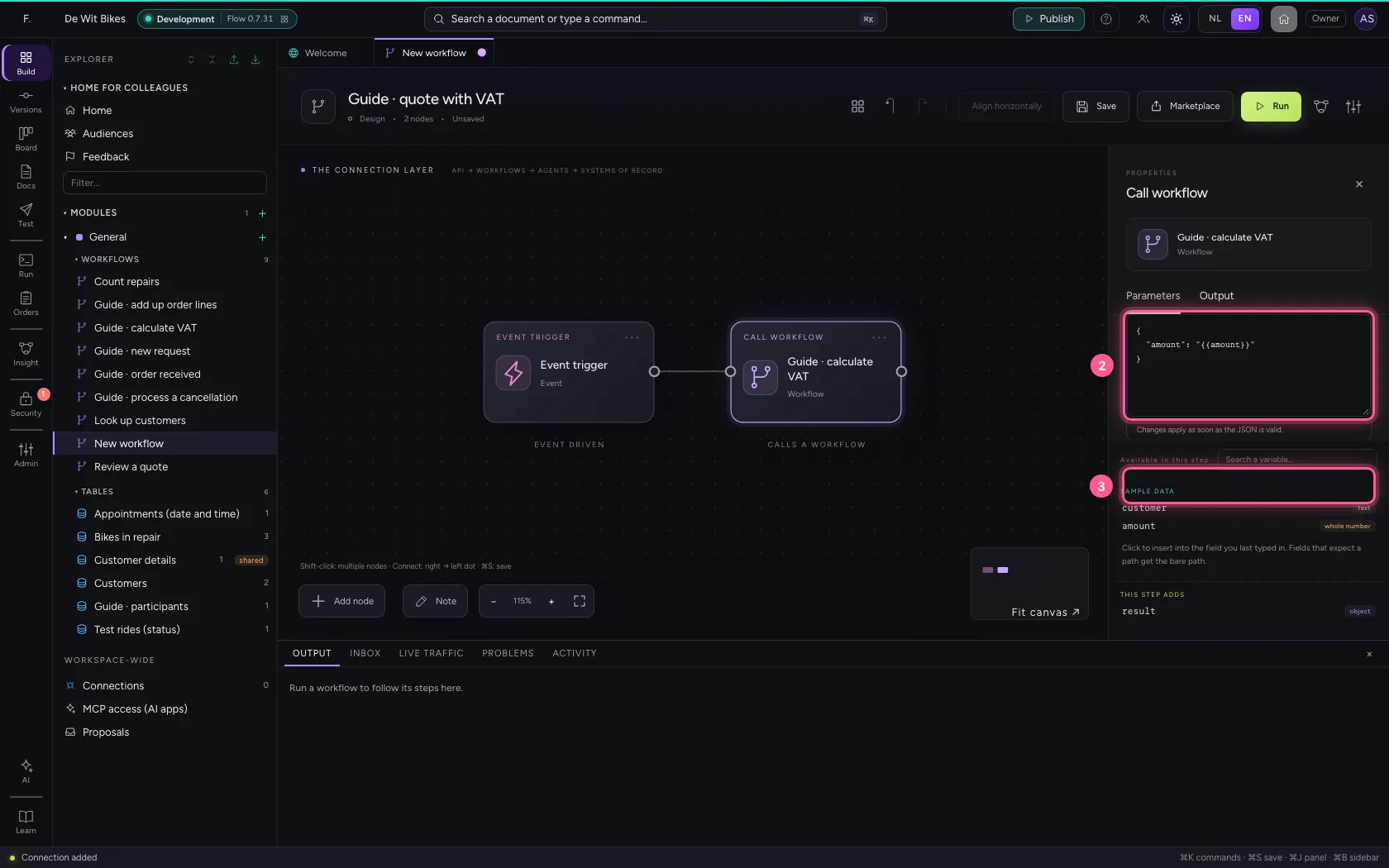
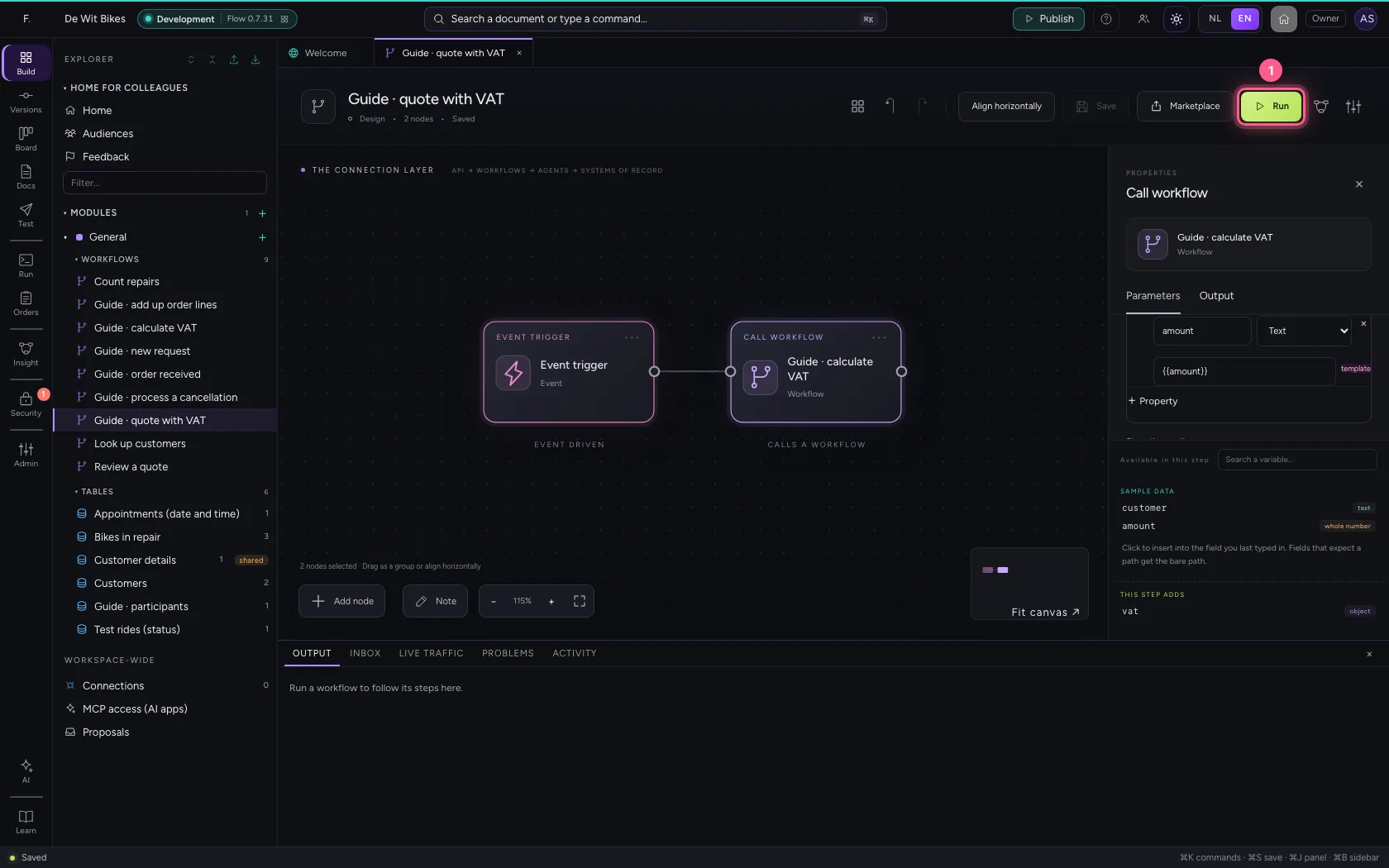
Under Input you put only what the called workflow needs; empty passes everything. Passing less is safer. Under Store the result as you name the answer: vat.
- Click Code
- In the input, type `{
- In Store the result as, type
vat
Put the steps in one line and save
Select the steps (click the first, and the others while holding Shift) and click Align horizontally: they then stand in one line and you read the workflow from left to right; a branch (such as No of an If / Else) gets its own row below. Fit to view puts everything in sight; then Save.
- Click ‘Event trigger’
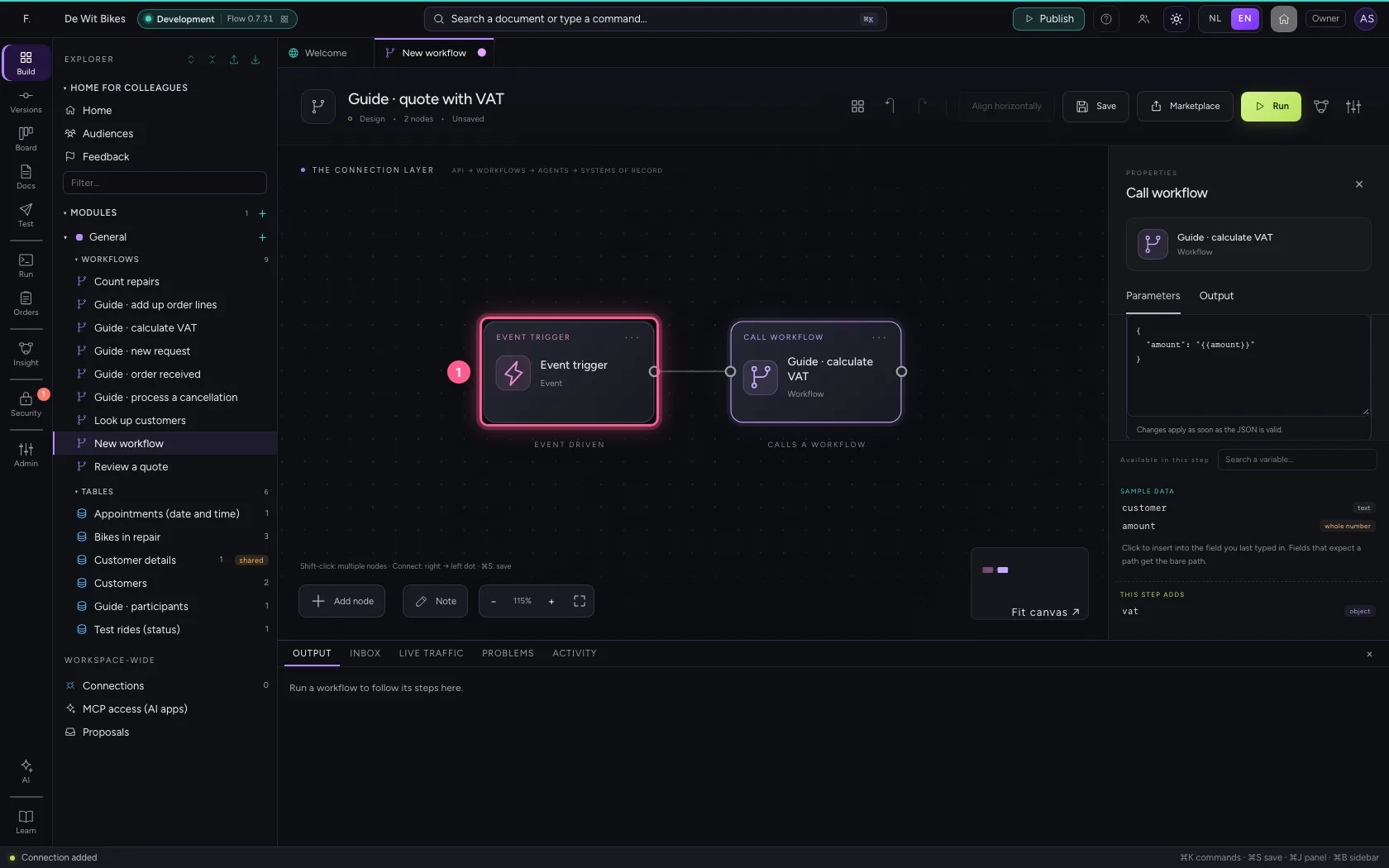
- Click ‘Guide · calculate VAT’ while holding Shift
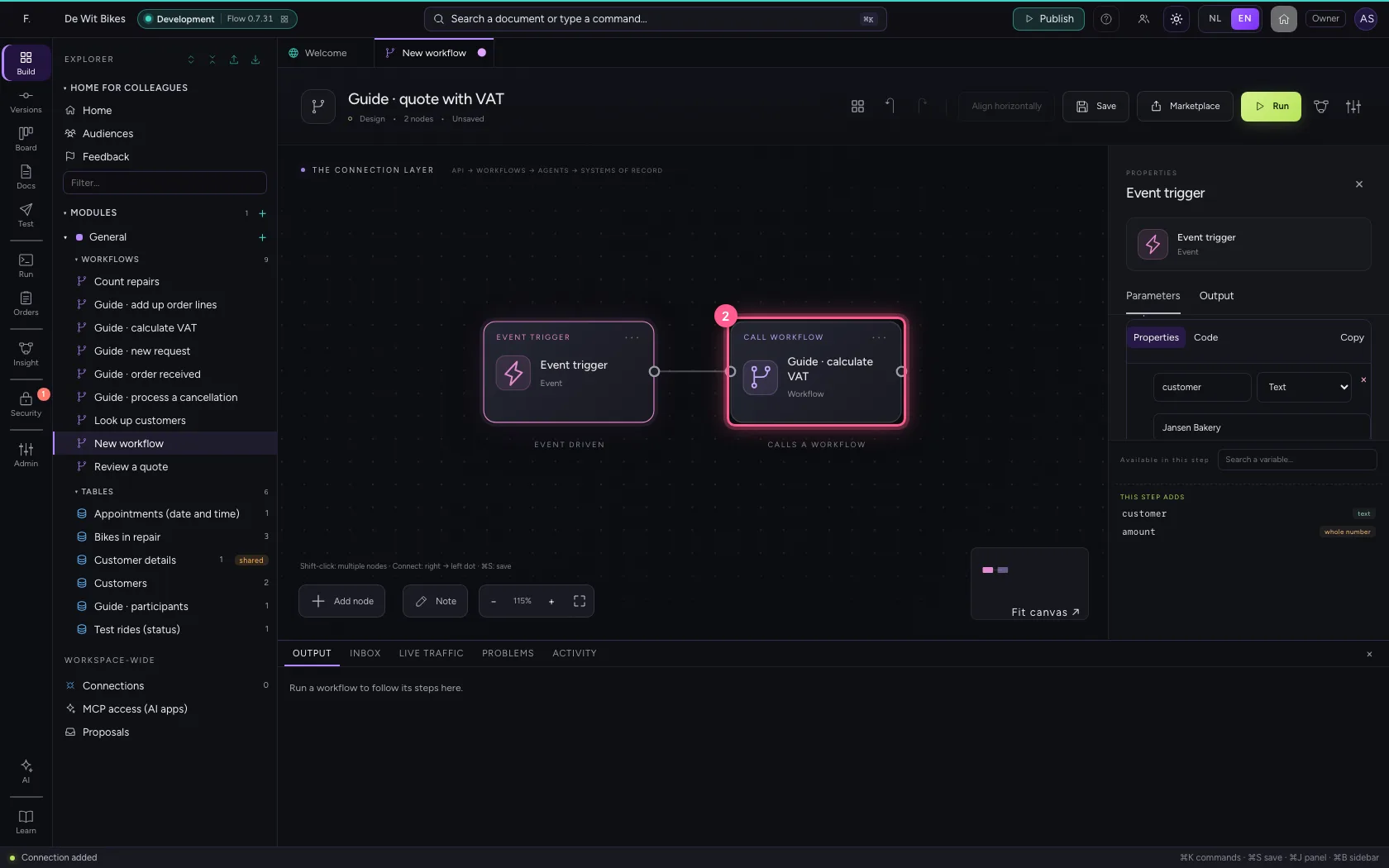
- Click Align horizontally
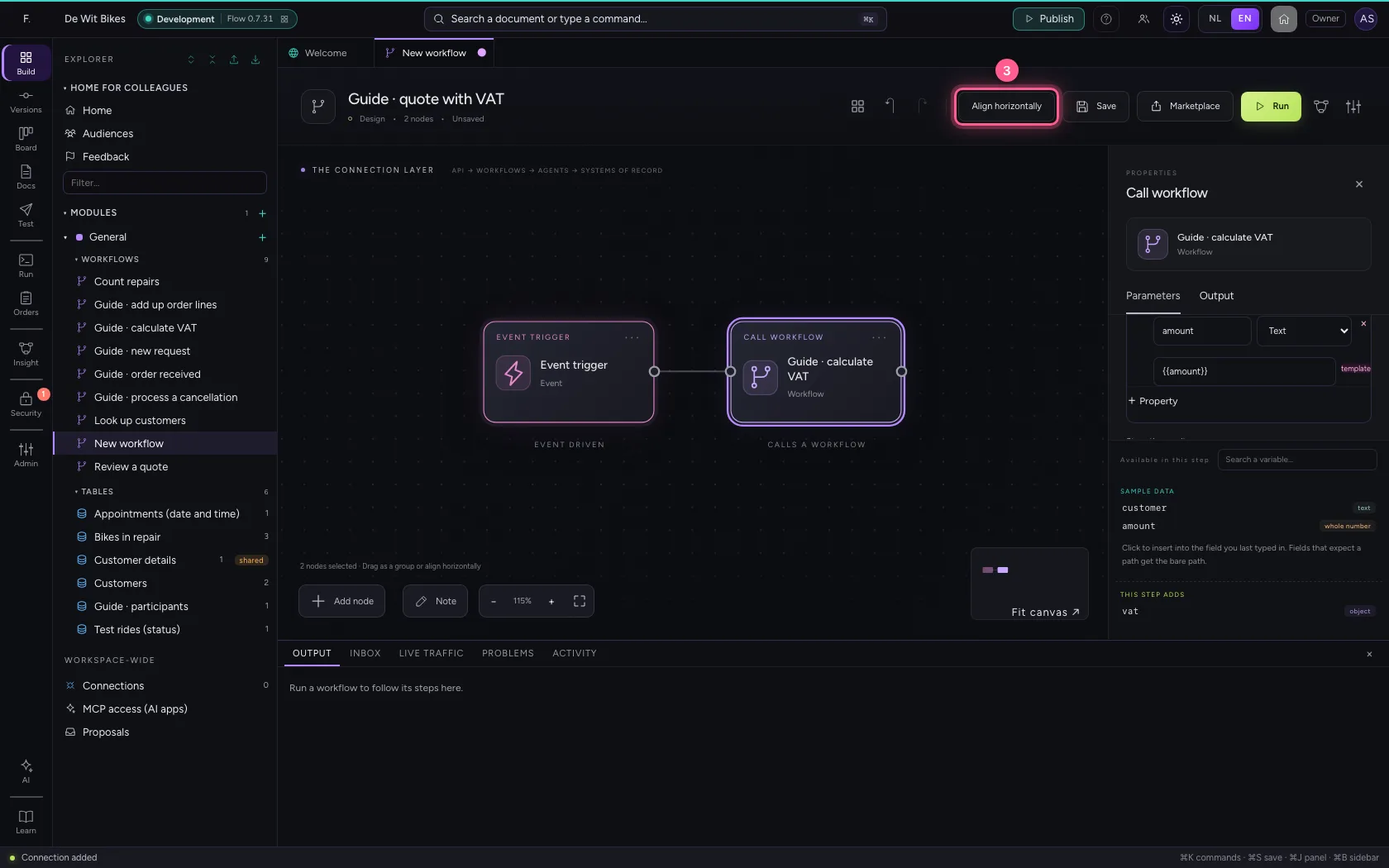
- Click Fit to view
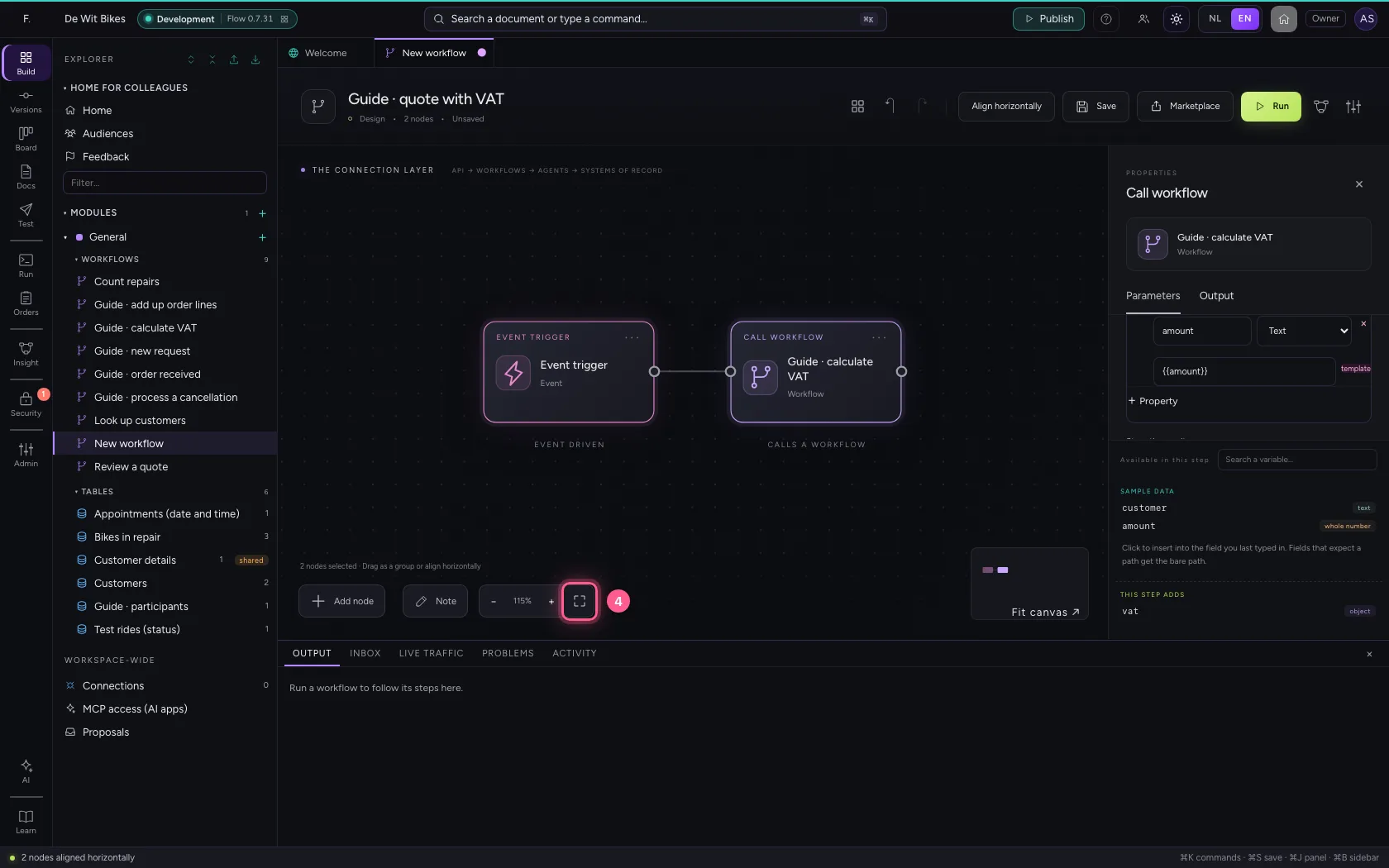
- Click Save
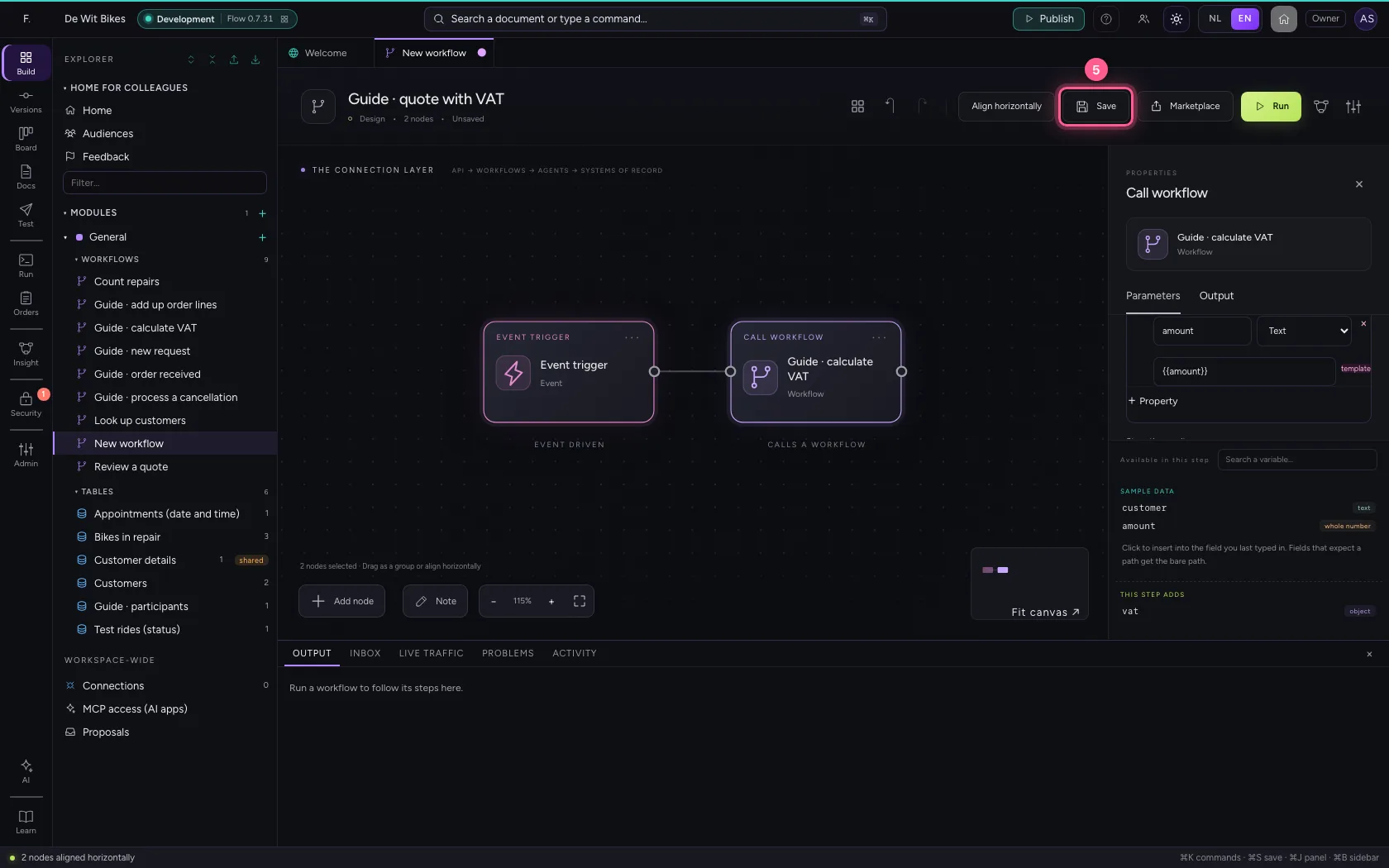
Run
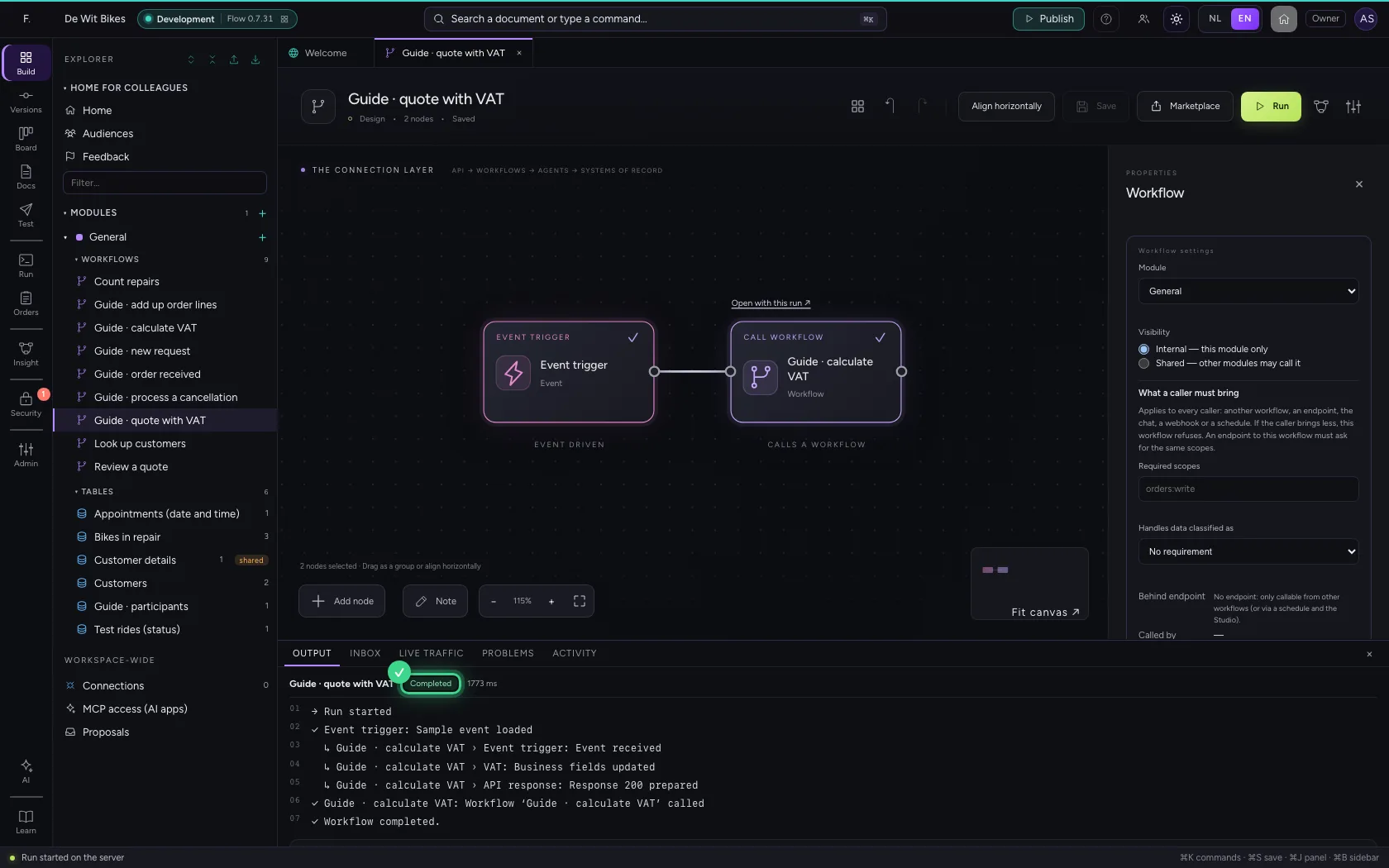
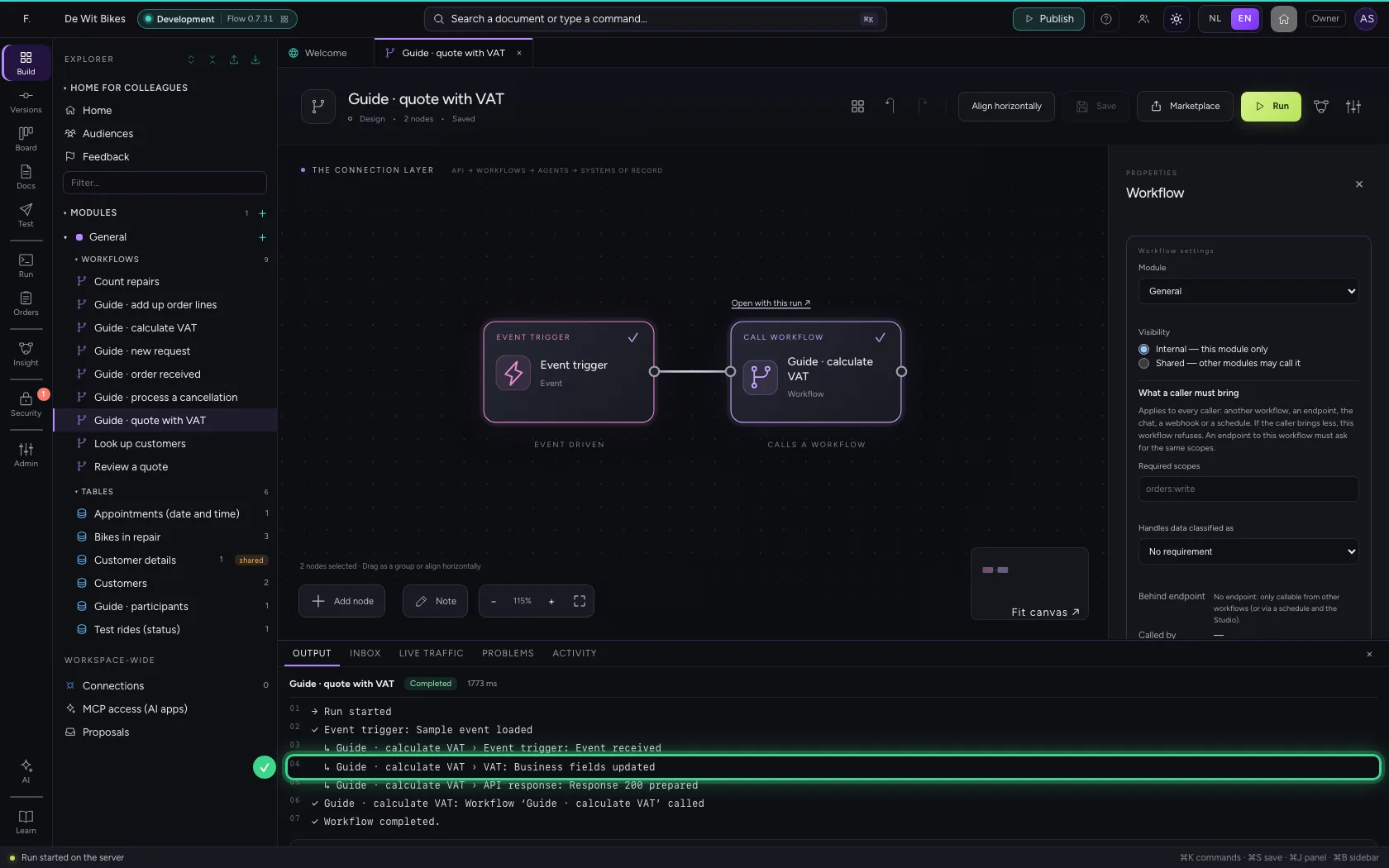
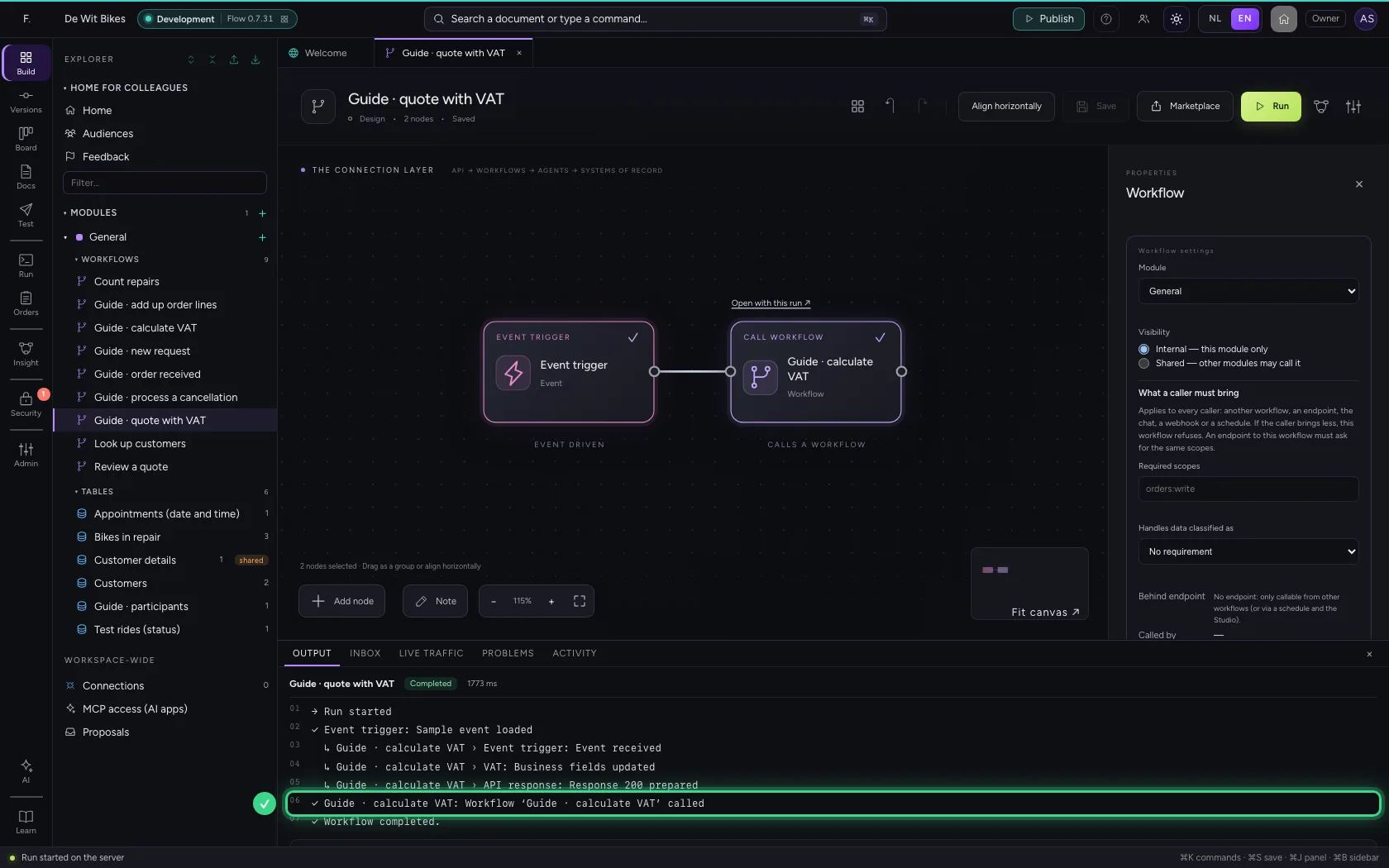
At the bottom the steps of the called workflow appear while it runs (marked ↳), and then that the workflow was called. The answer is under vat: 250 euros is 302.50 including VAT.
- Click Run
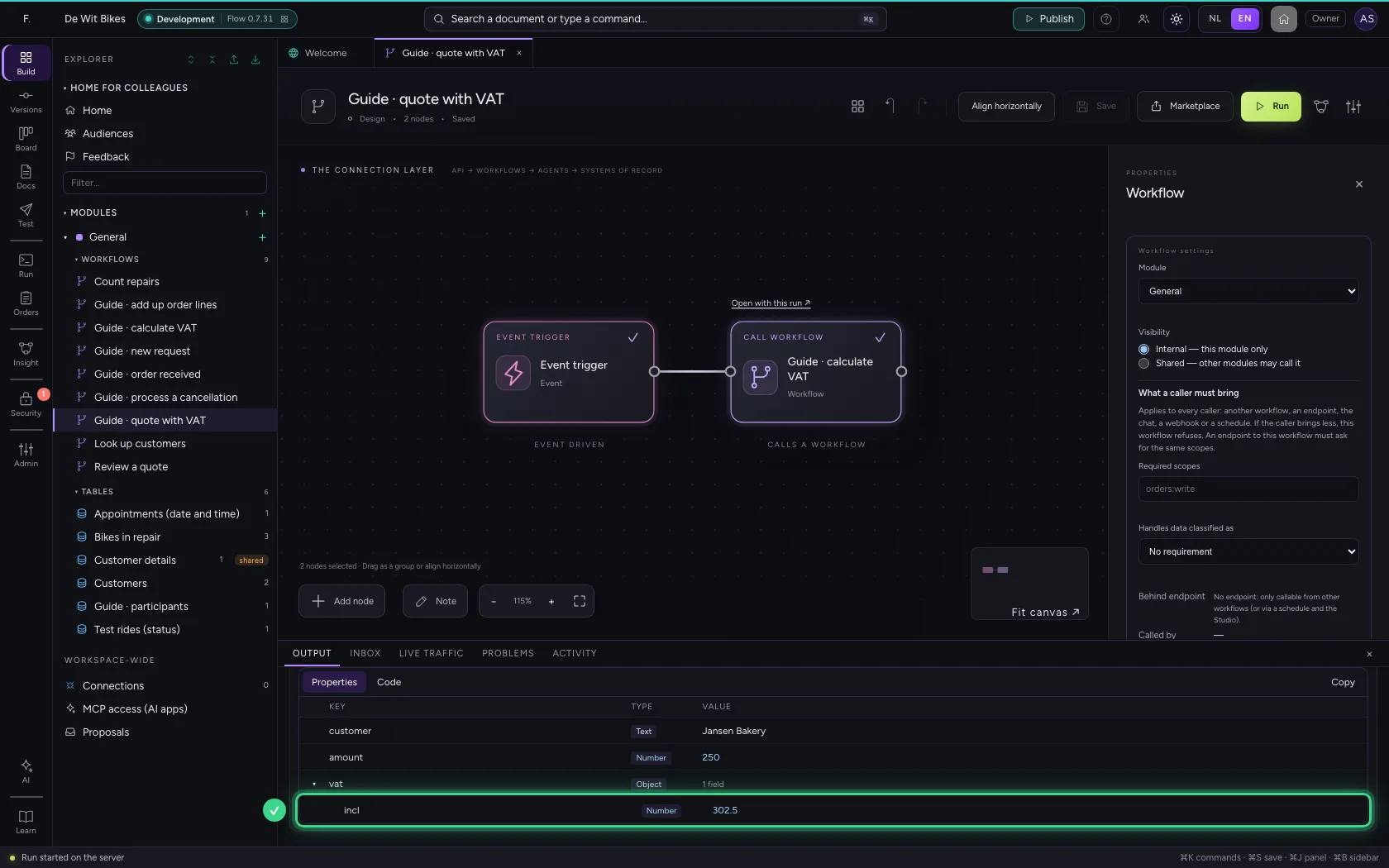
Follow the run into the called workflow
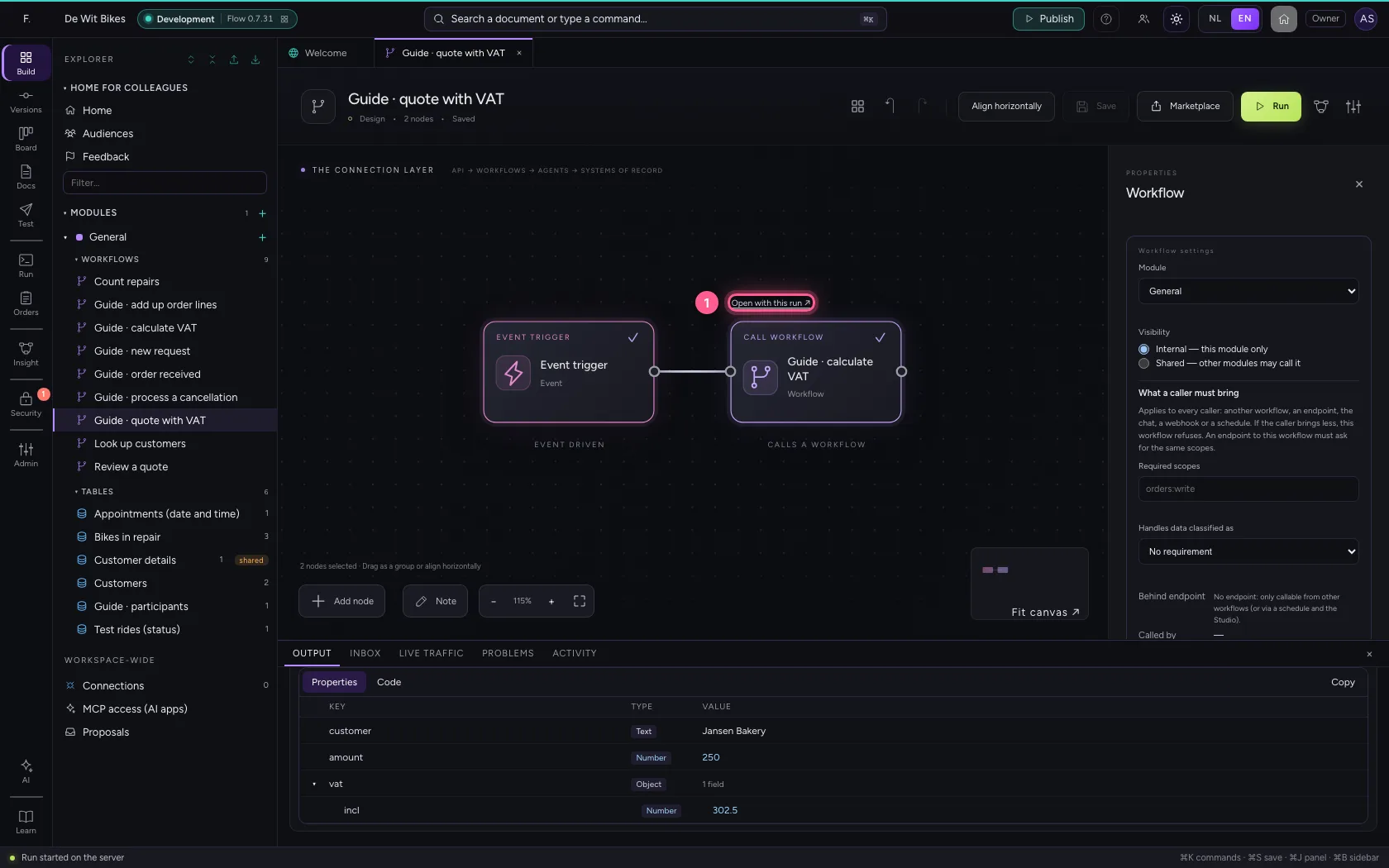
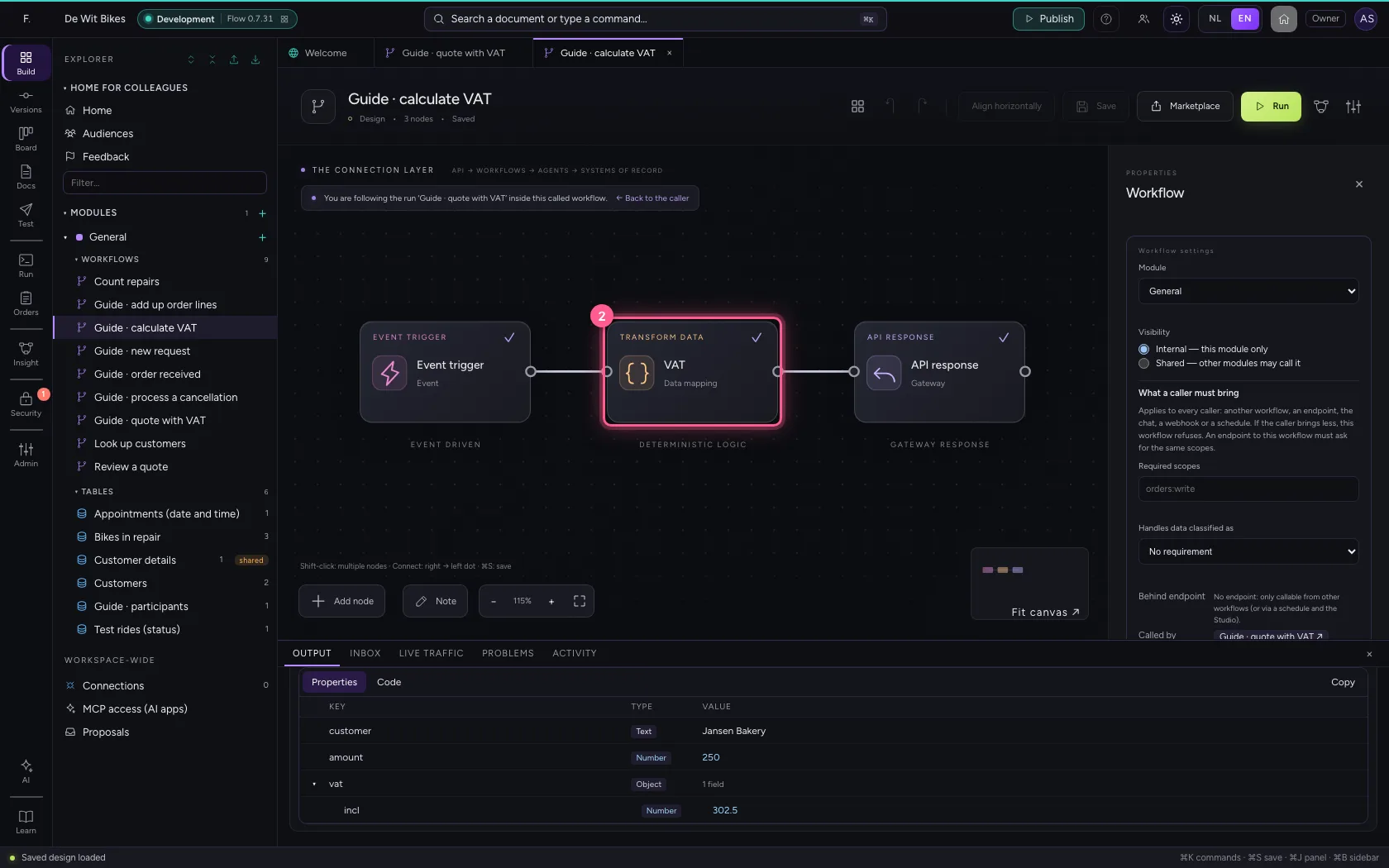
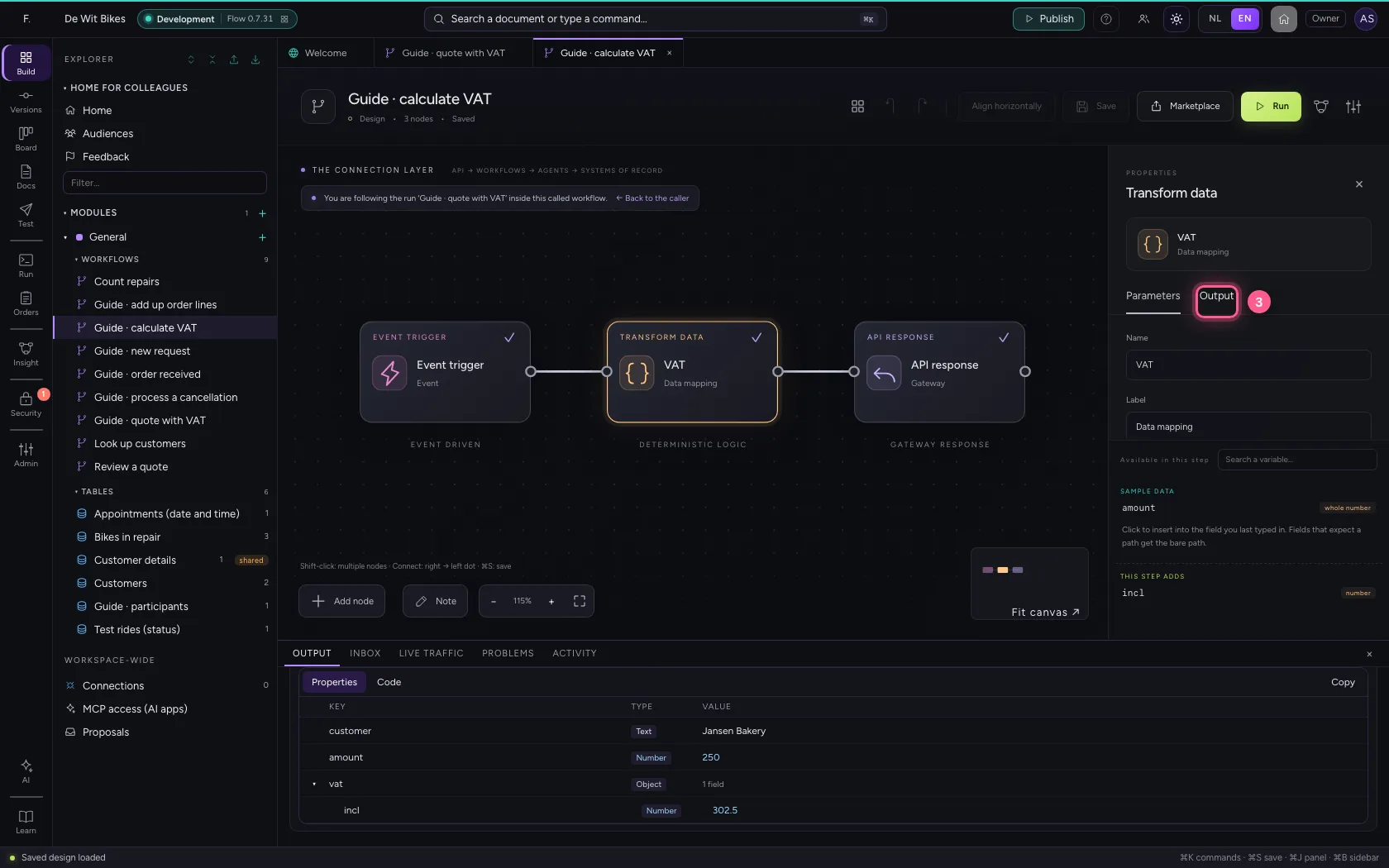
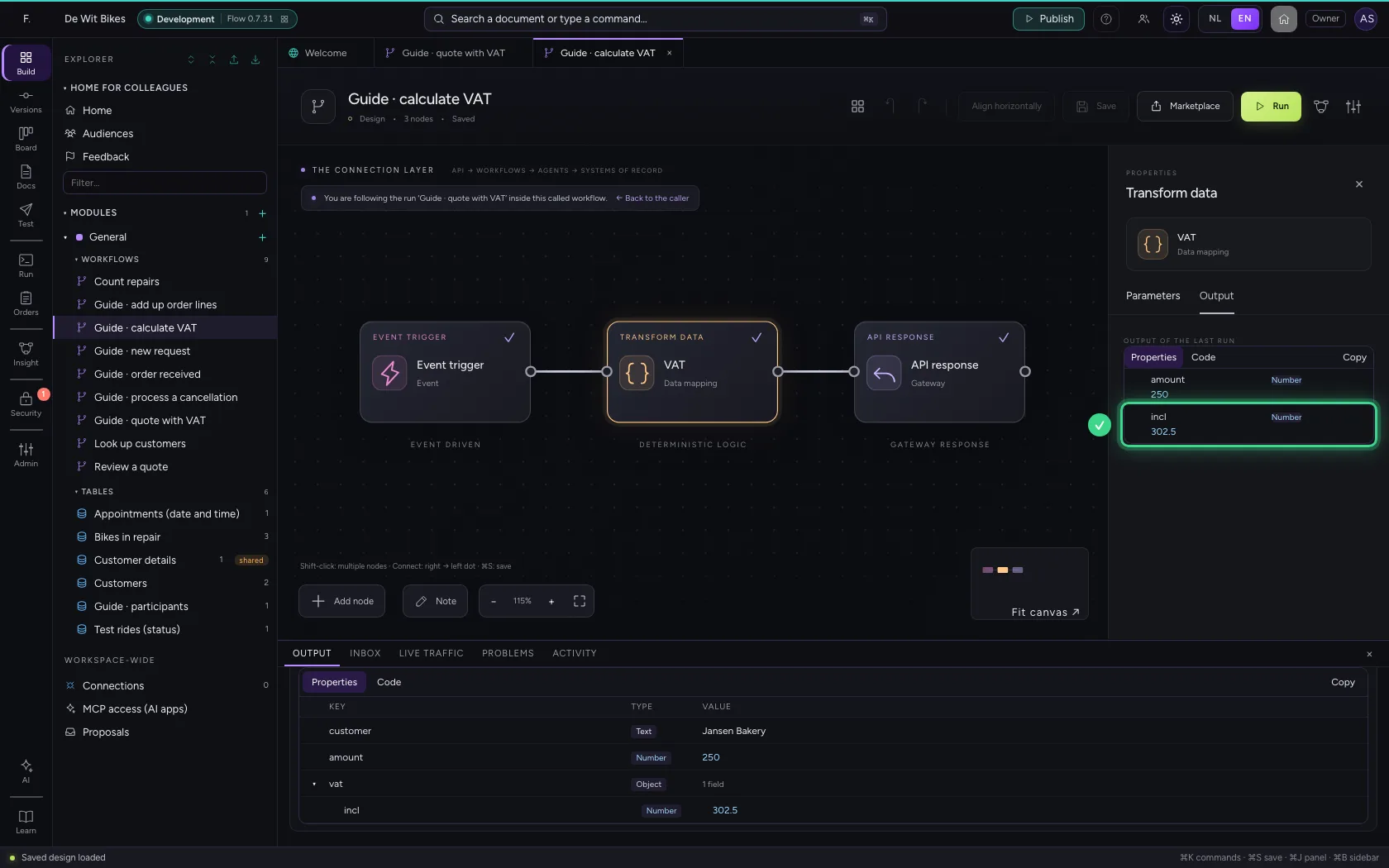
The Call workflow step shows Open with this run. While the run goes on, it also says which workflow it is in. Click it: the called workflow opens with this run. Its steps light up while they run and are ticked when done; under a step's Output you see what that step had in this run.
- Click Open with this run ↗
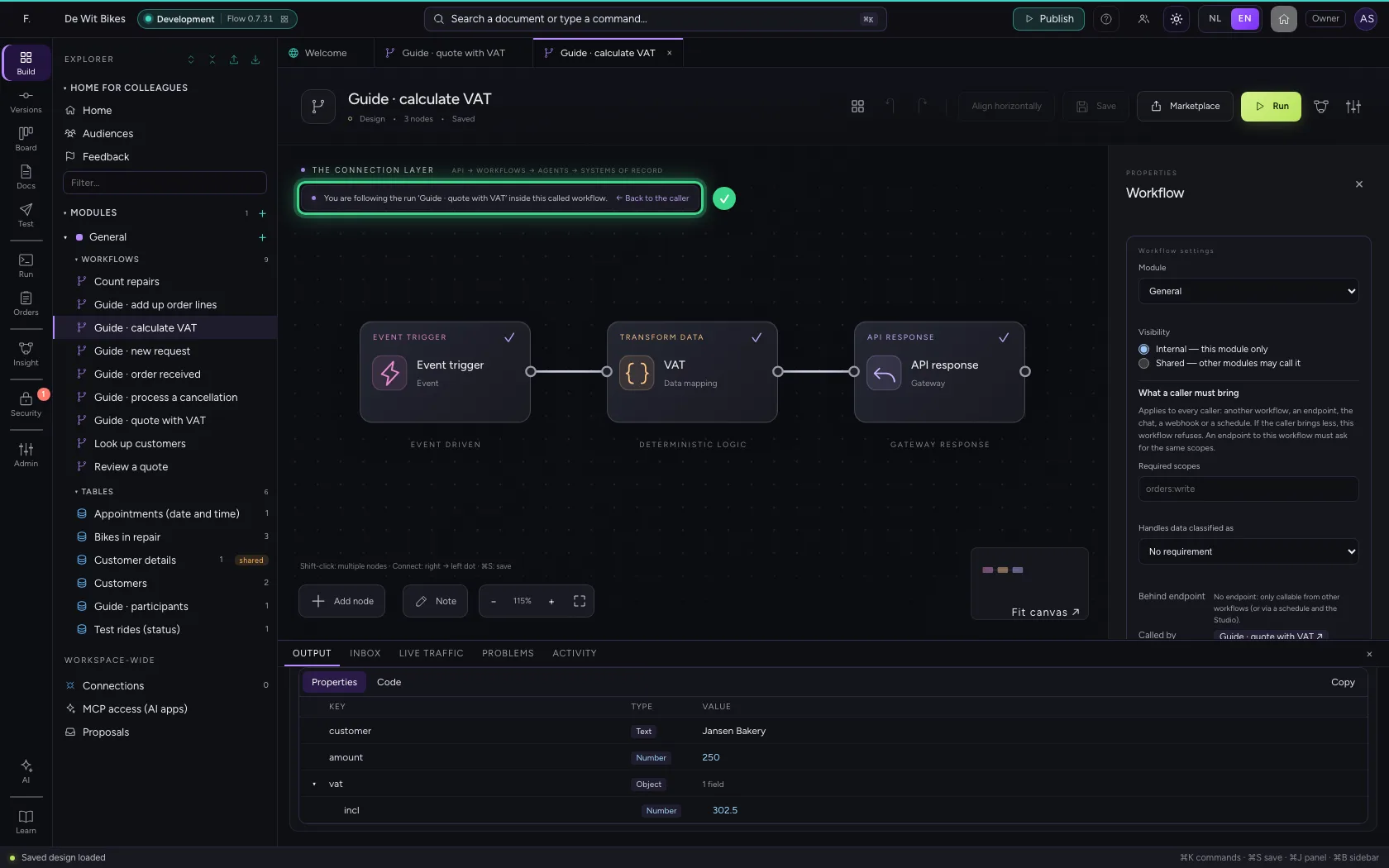
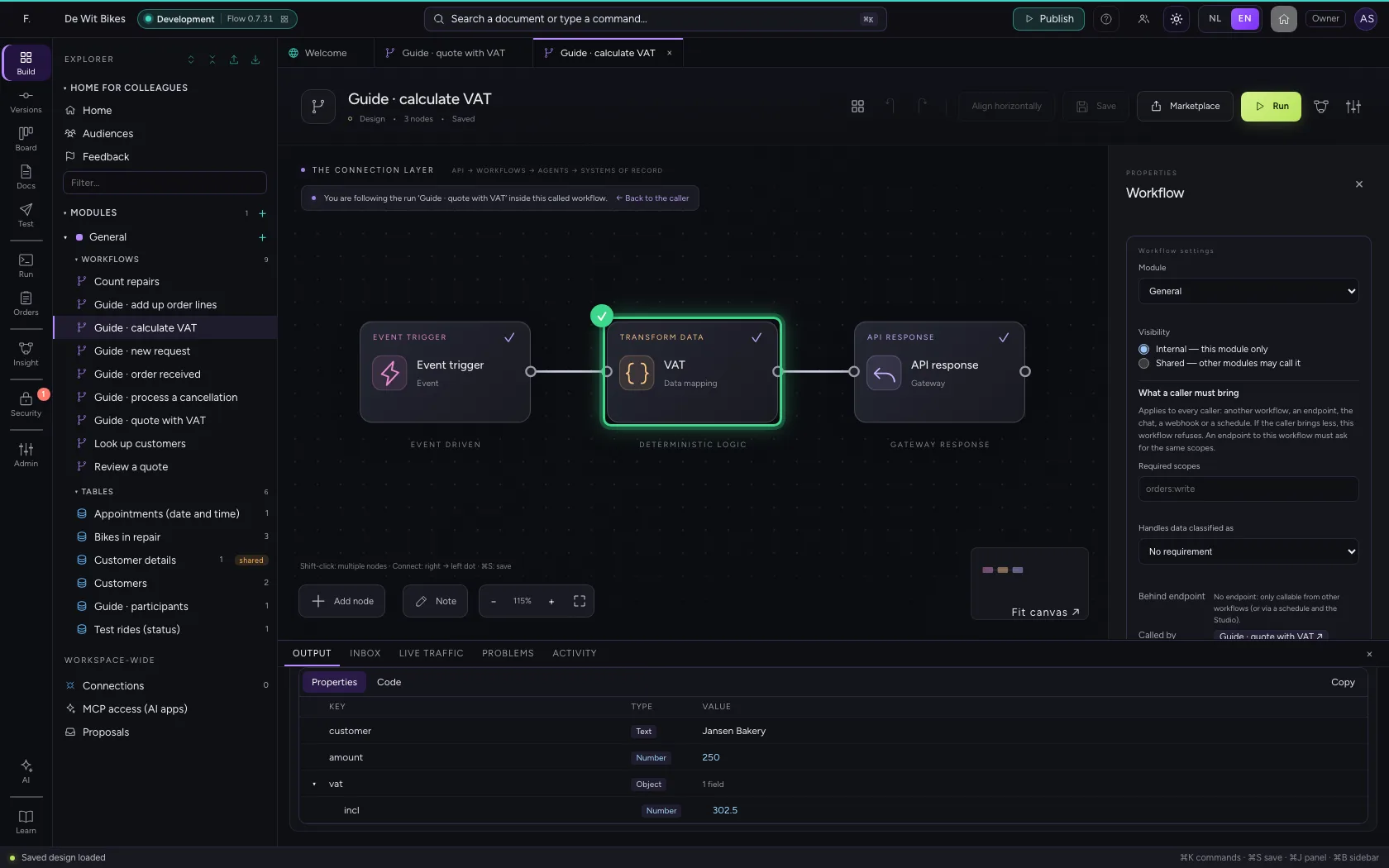
- Click the step ‘VAT’
- Click Output
This guide was carried out step by step on 22 Oct 2026 by an automated test on Flow (version 3e563176).