Human review: wait for approval
Some decisions you do not leave to a workflow: a large discount, a refund, an exception. With the Human review step the workflow pauses until someone approves or rejects in the Inbox, with an explanation that goes into the audit trail. After approval the workflow continues where it was; after rejection it stops.
Open Flow and create a workflow
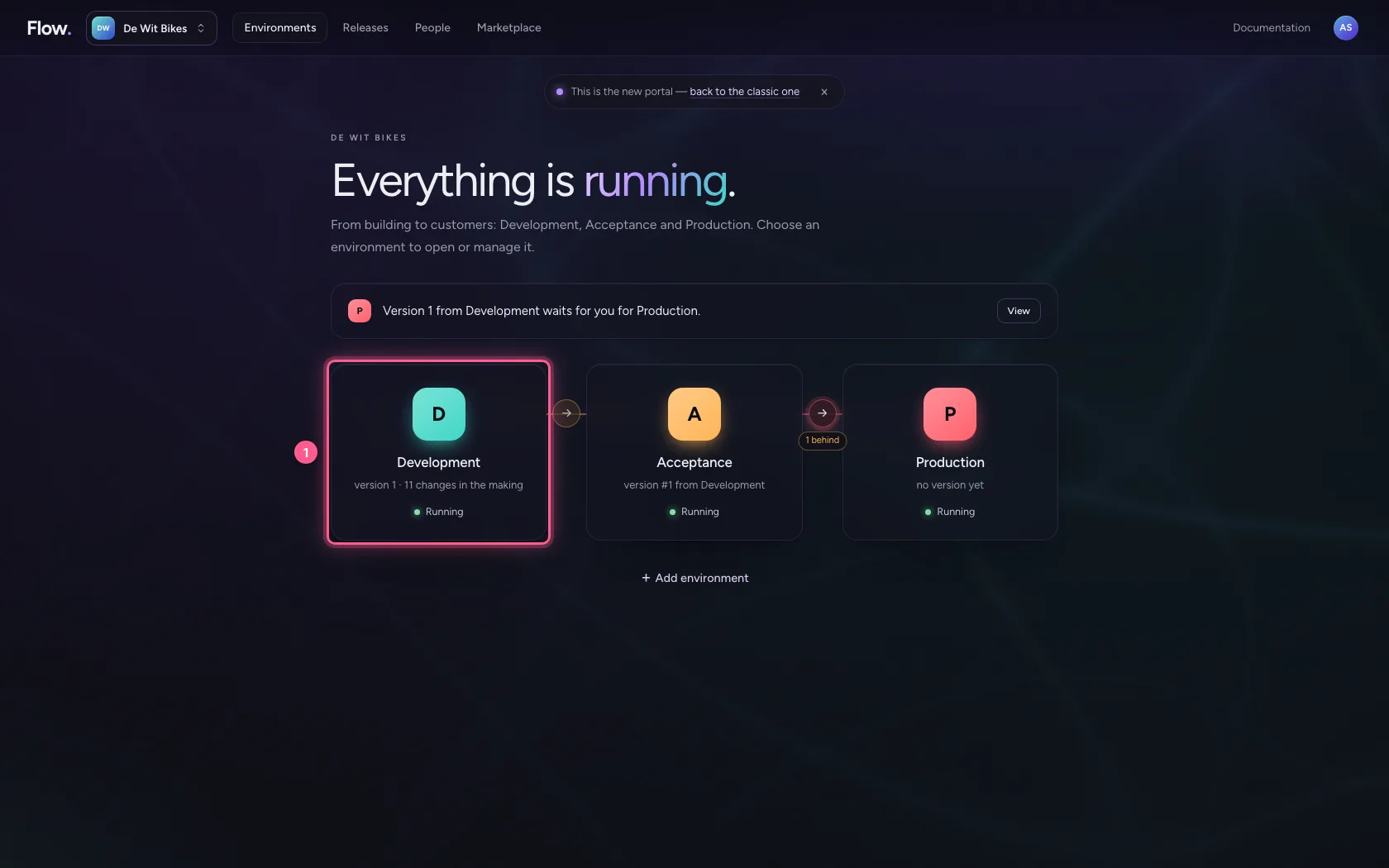
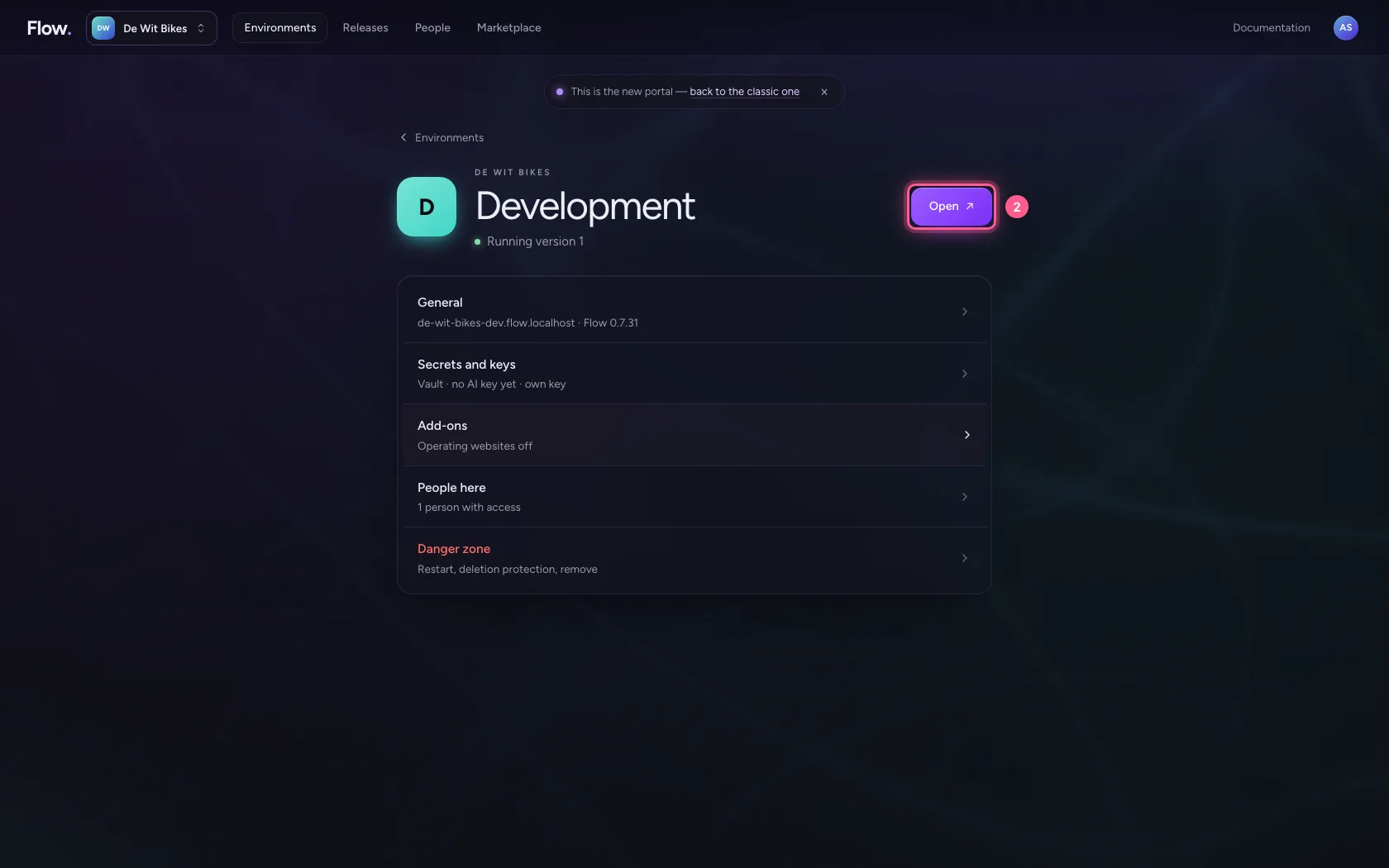
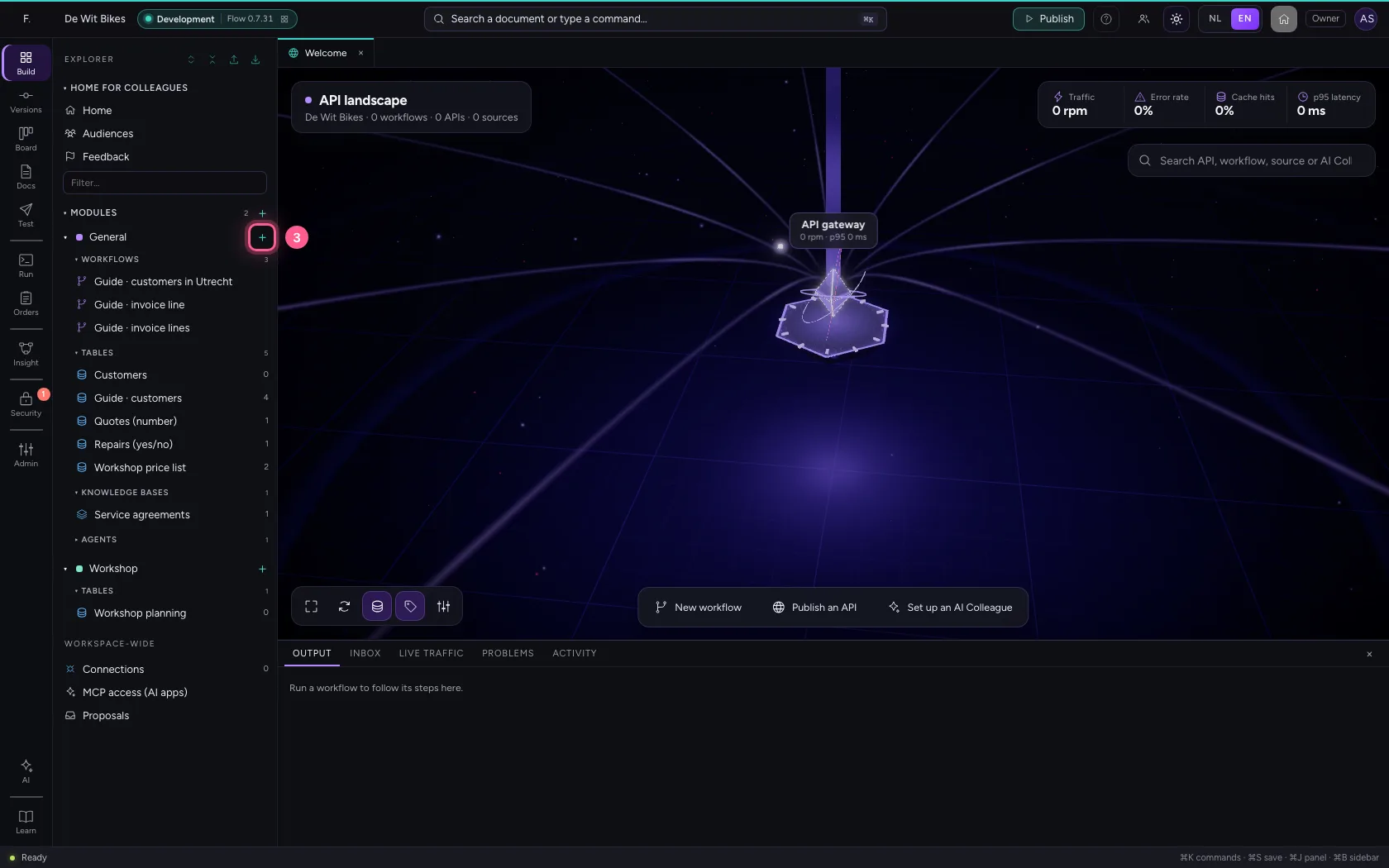
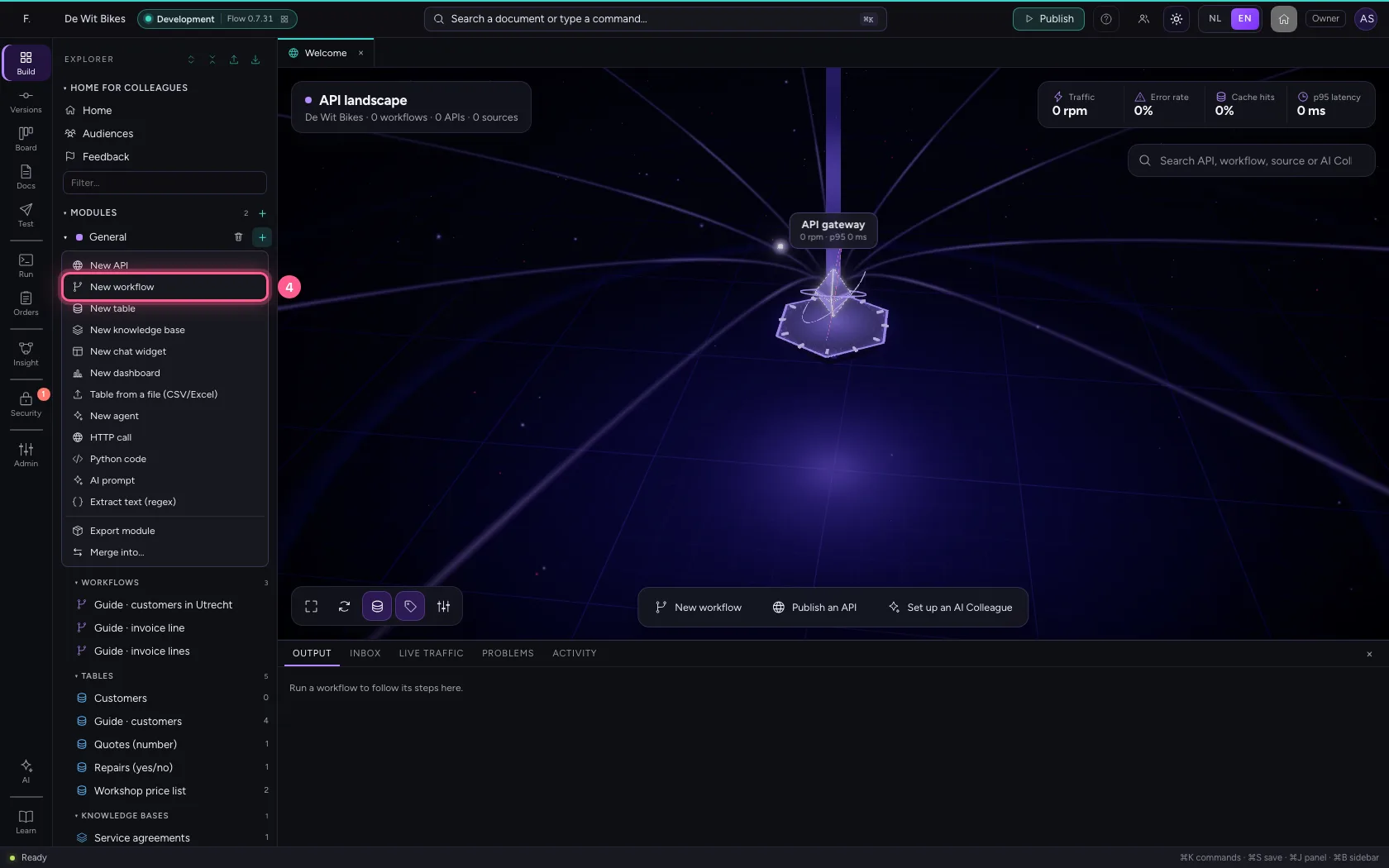
In the portal, under Environments, click Development and there Open; Flow opens in a new tab. There, click + next to General, choose New workflow and give it a name. A new workflow starts with an Event trigger: the point where it begins.
- Click Development
- Click Open ↗
- Click Add to General
- Click New workflow
- In Workflow name, type
Guide · approve a discount
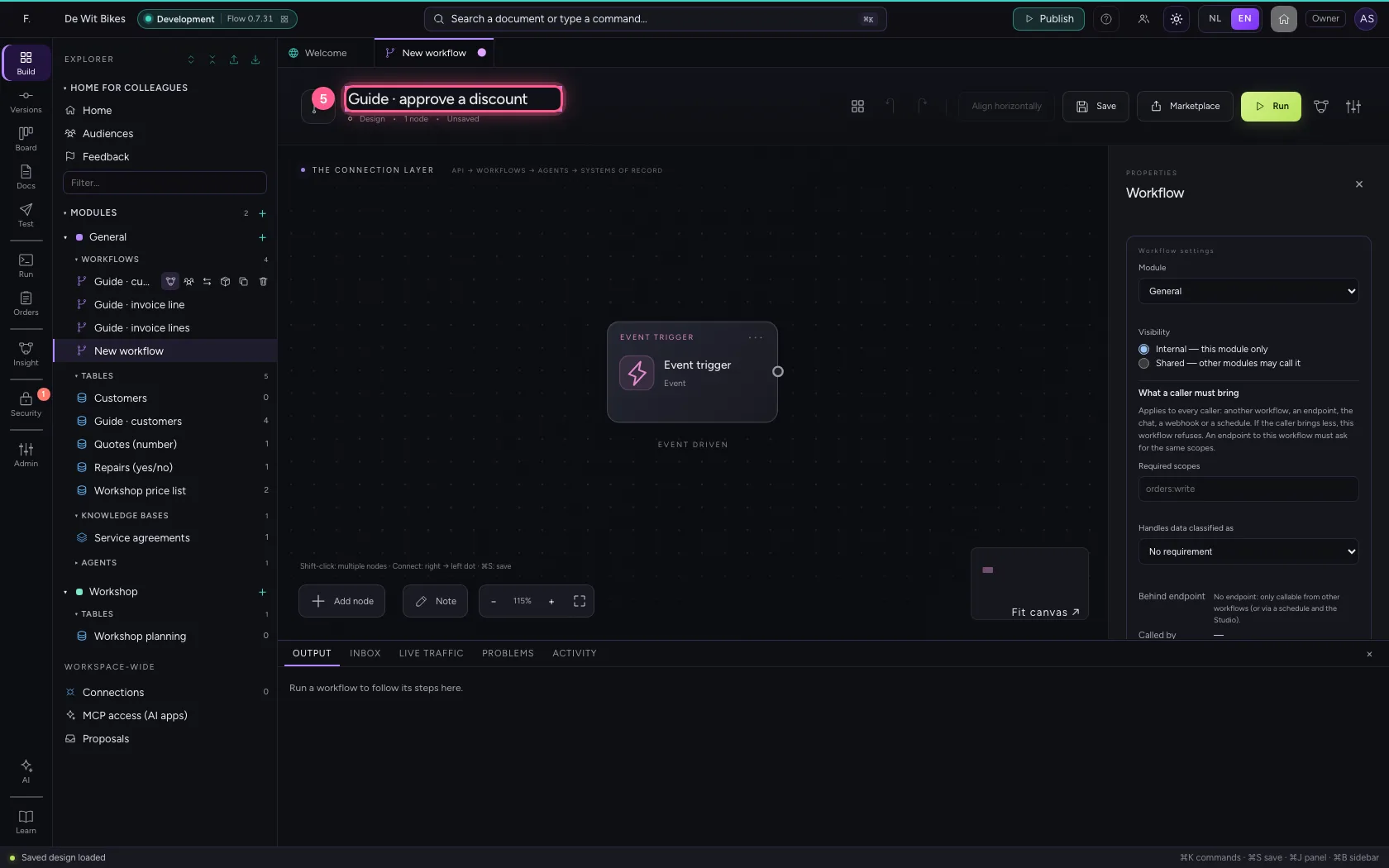
Add Human review
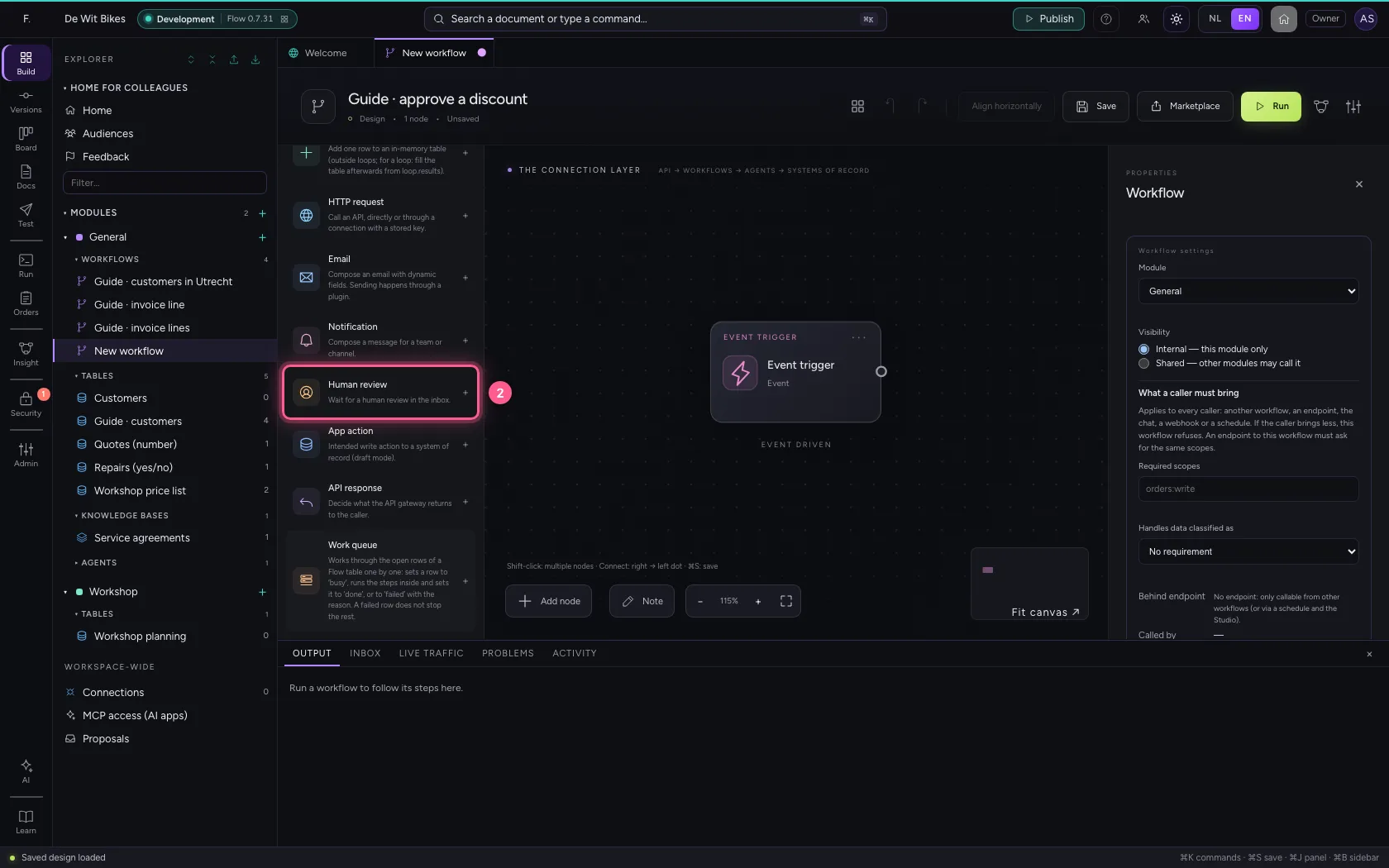
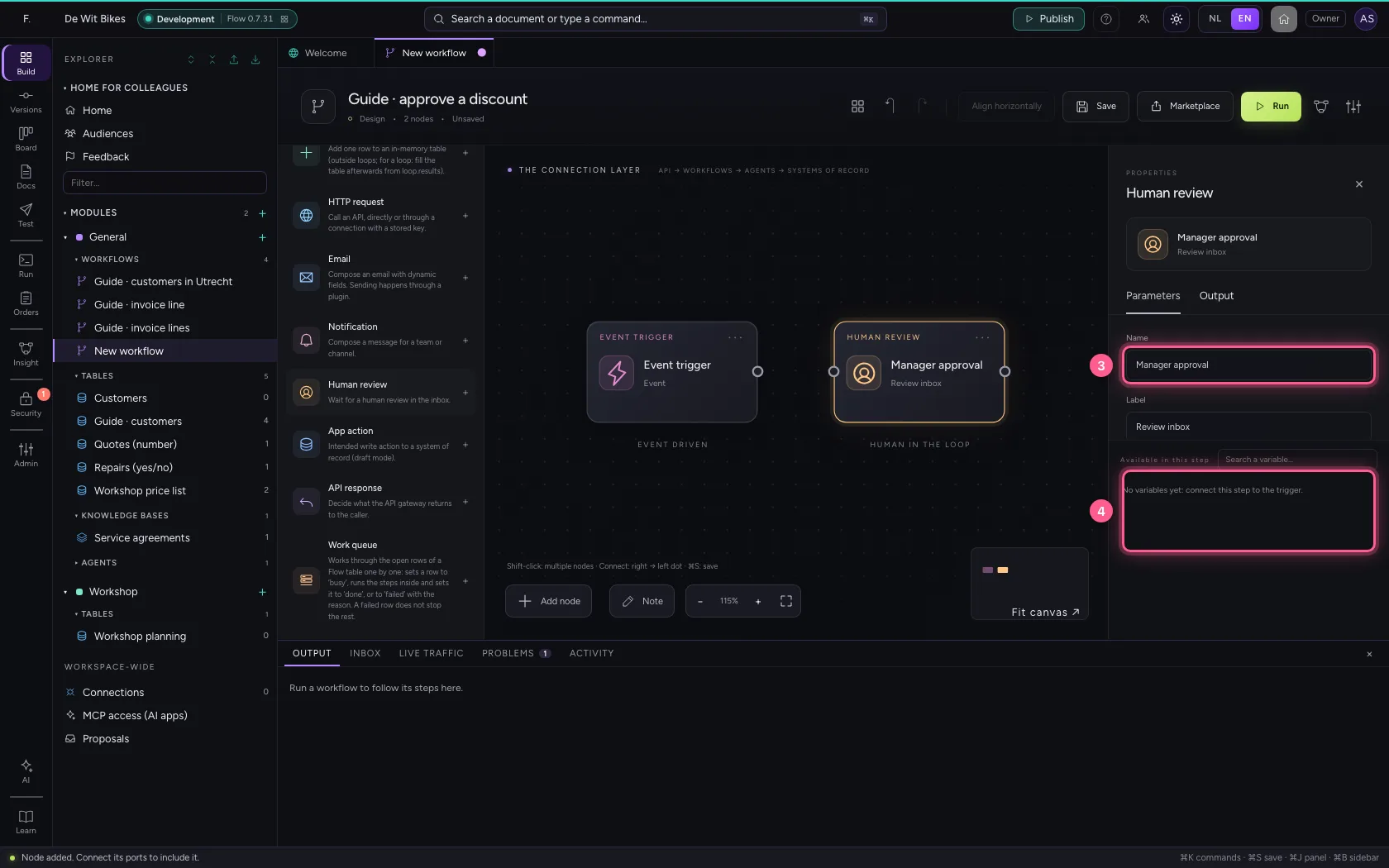
Choose Human review in the library. Write down what the reviewer should check: it is shown with the request in the Inbox. Then add the step that may only happen after approval, and connect trigger → review → step.
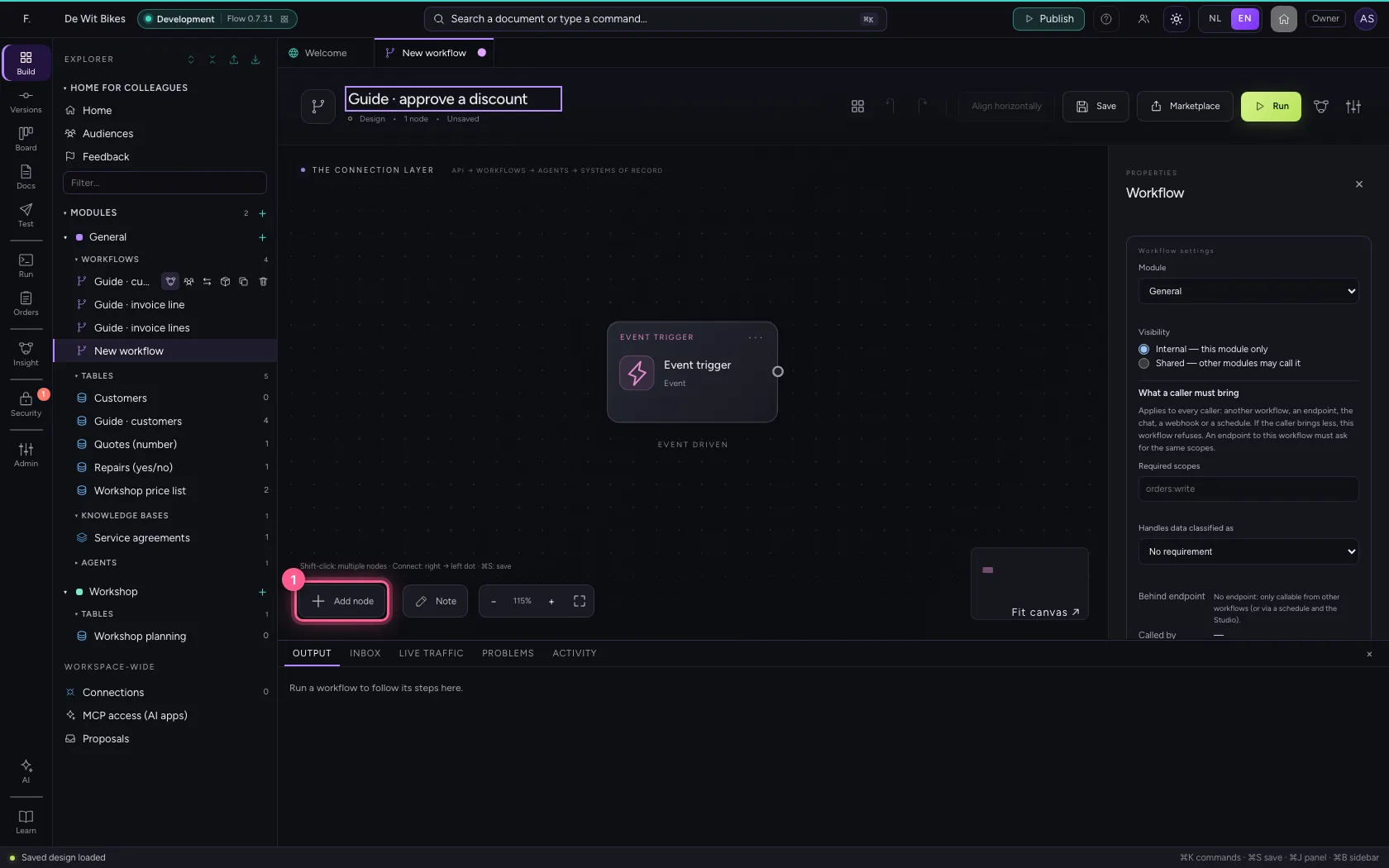
- Click Add node
- Click Human review
- In Name, type
Manager approval - In What should the reviewer check?, type
Is the 15% discount for {{order.customer}} right?
- Click Transform data
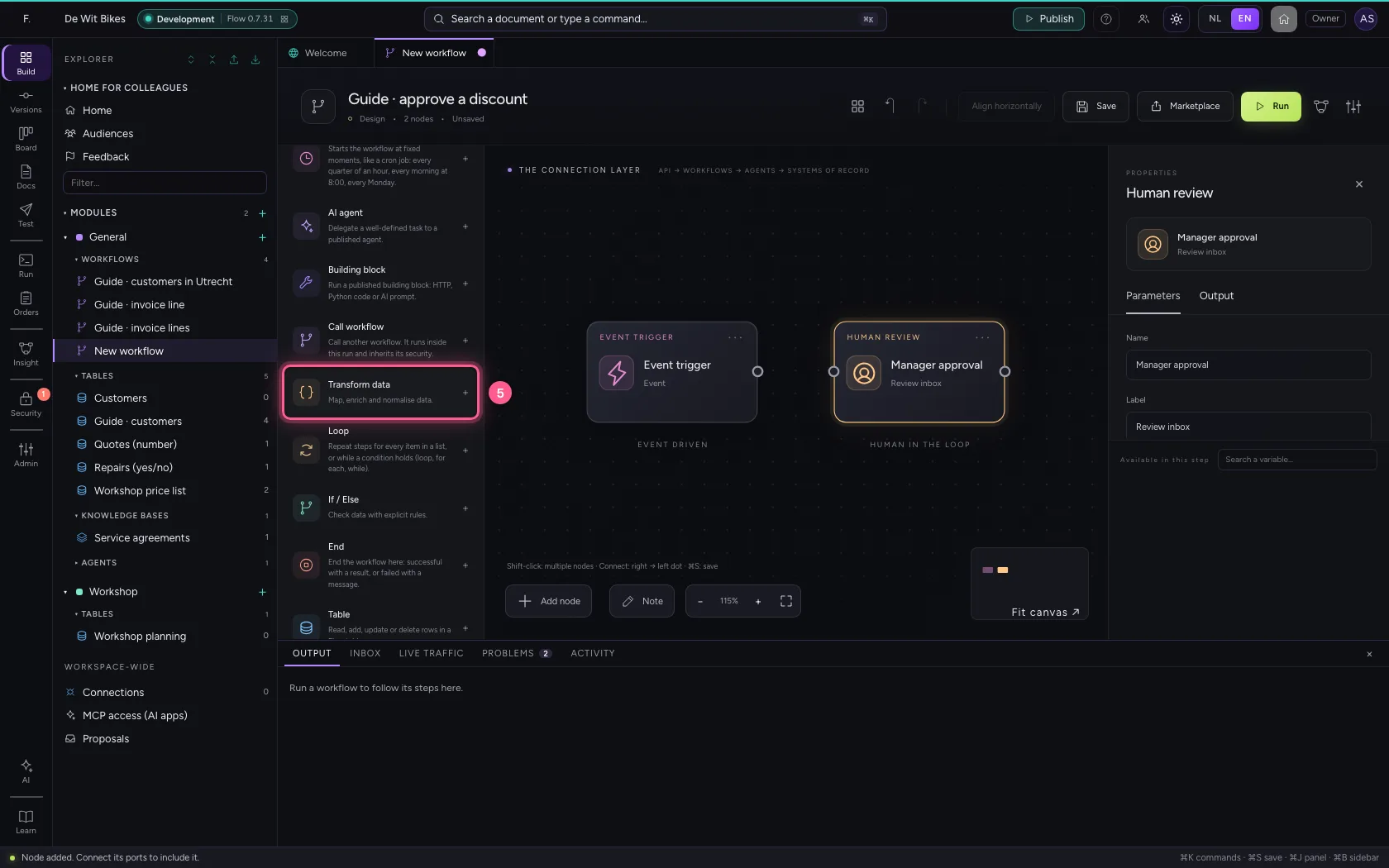
- In Name, type
Apply discount
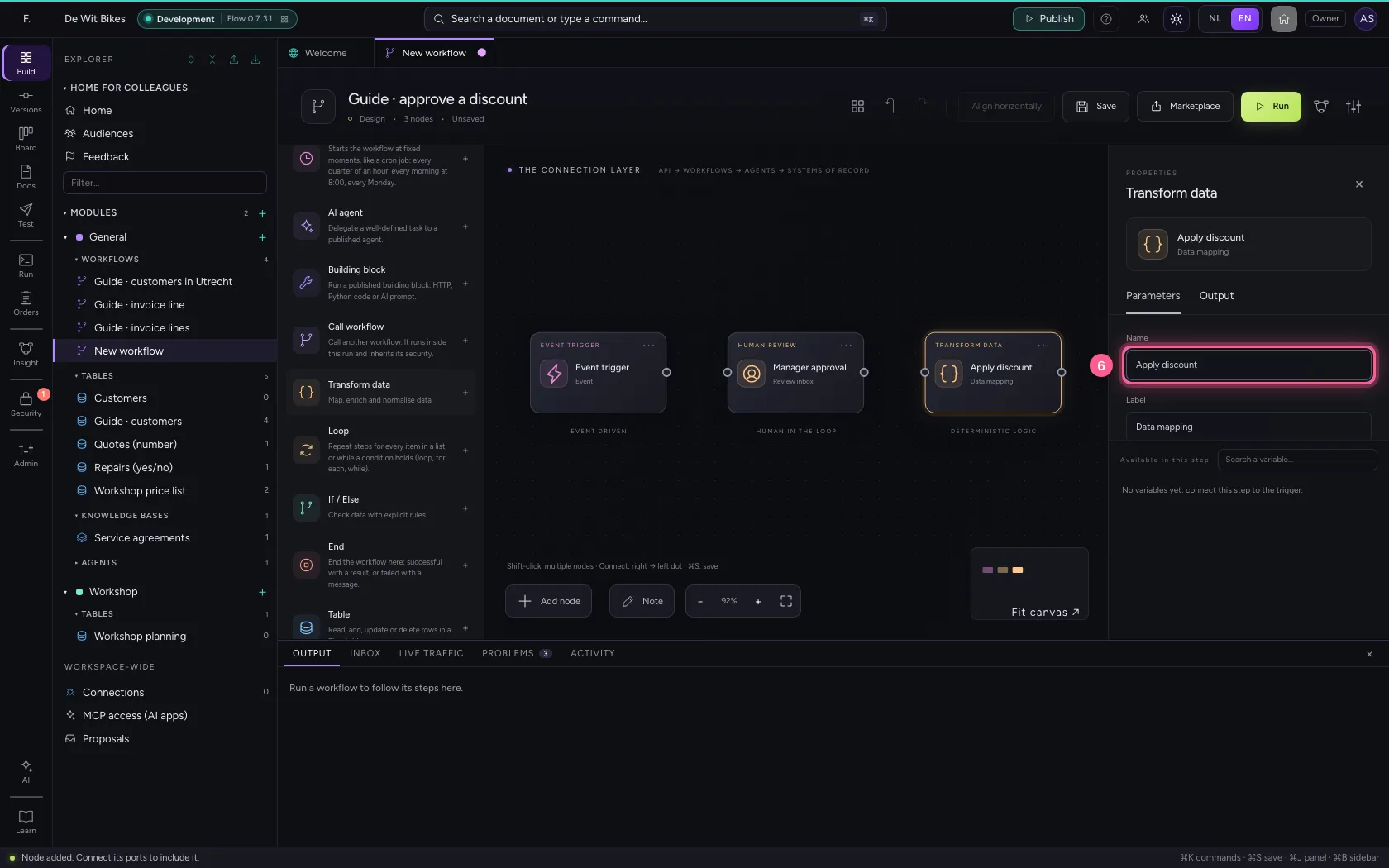
- Click Remove field
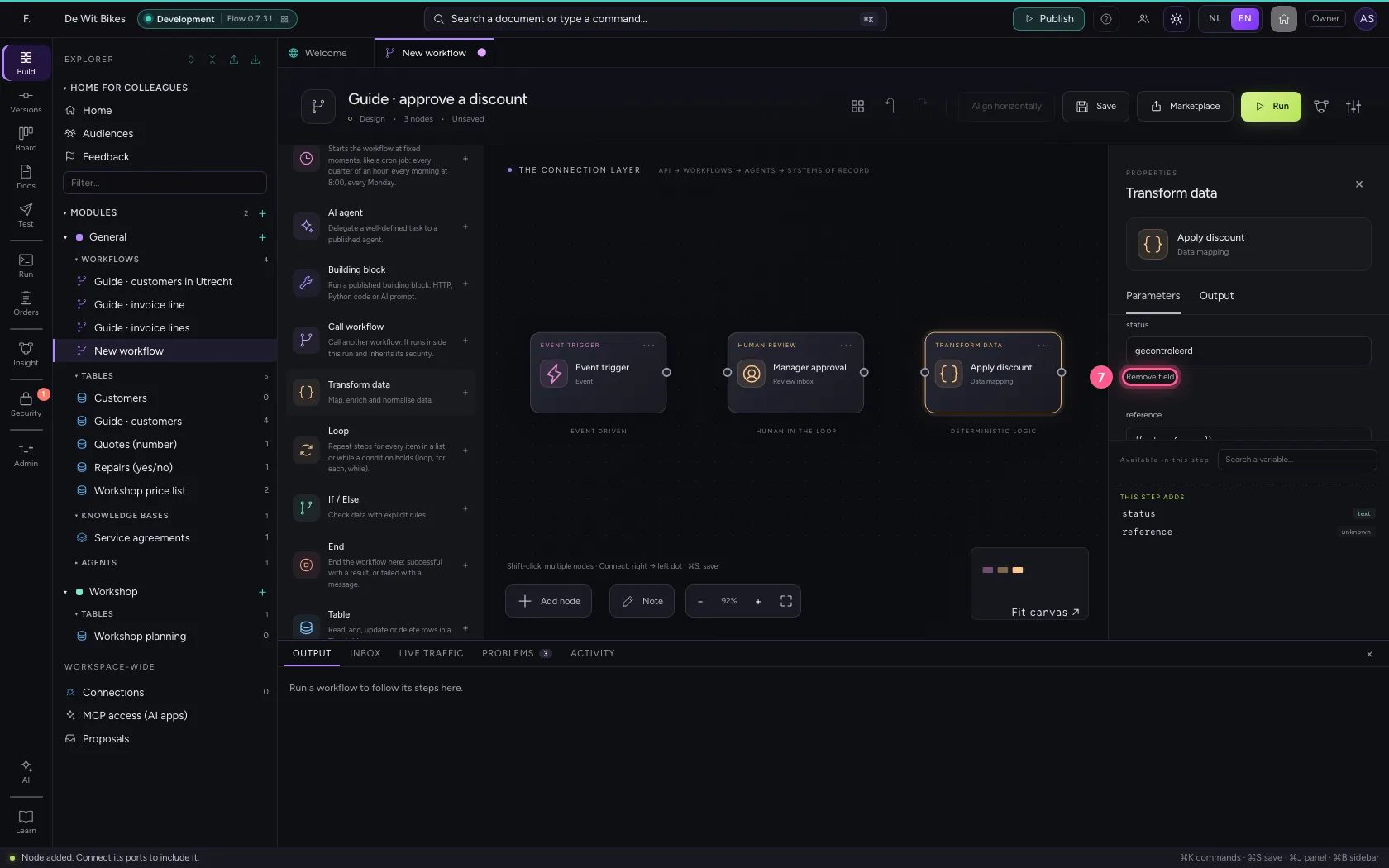
- Click Remove field
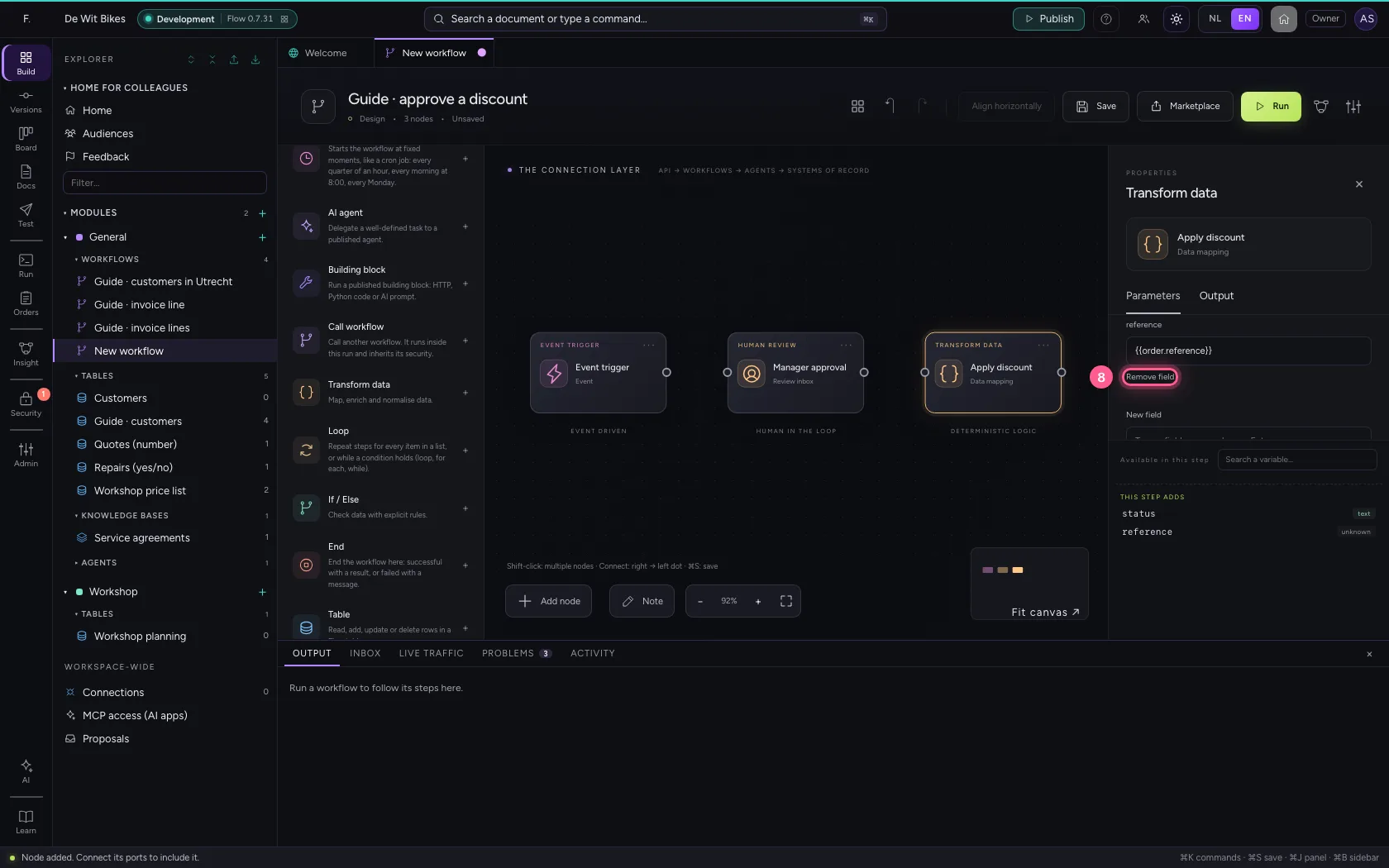
- In New field, type
discount - In discount, type
15%
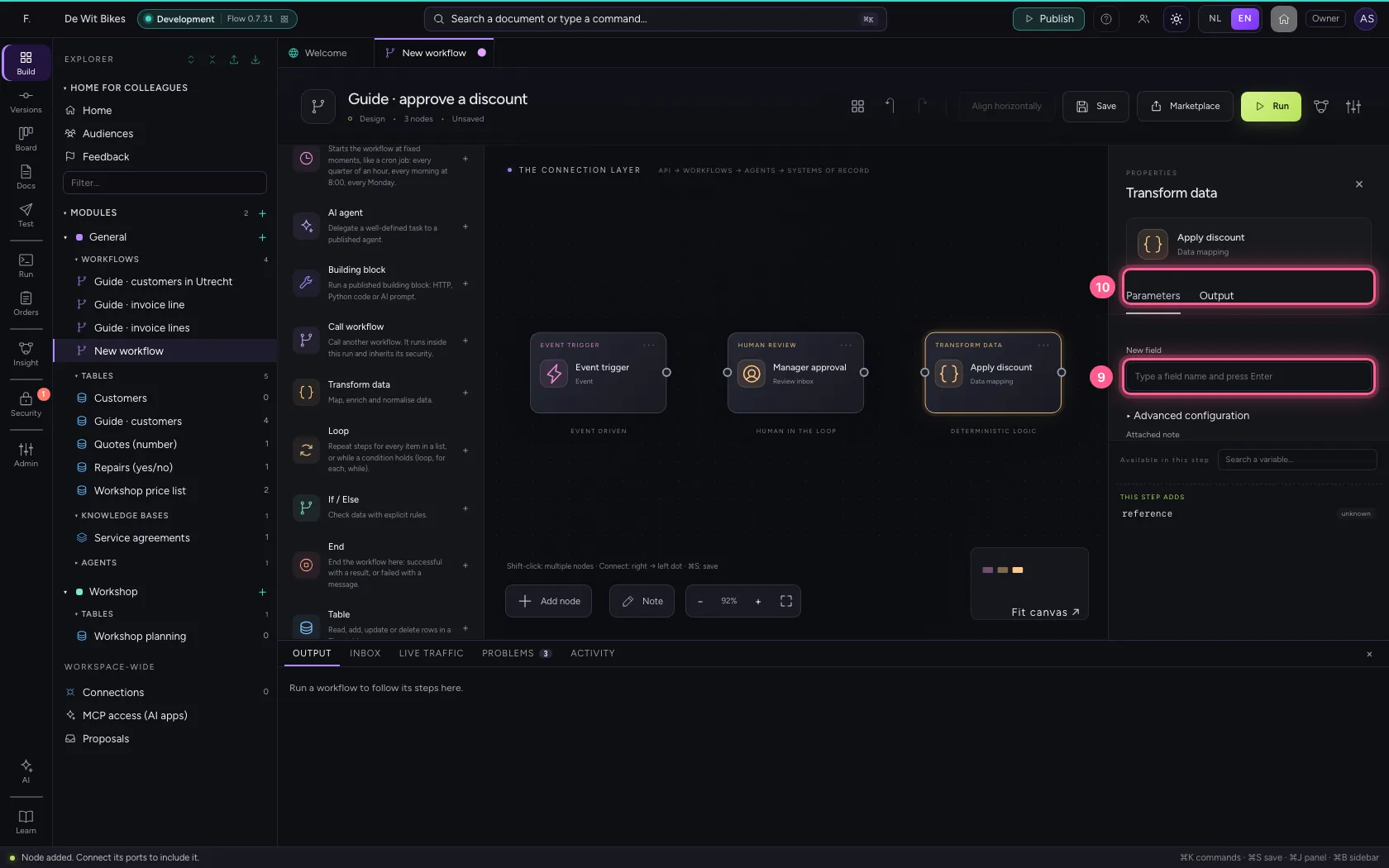
- Click the dot of ‘Event trigger’
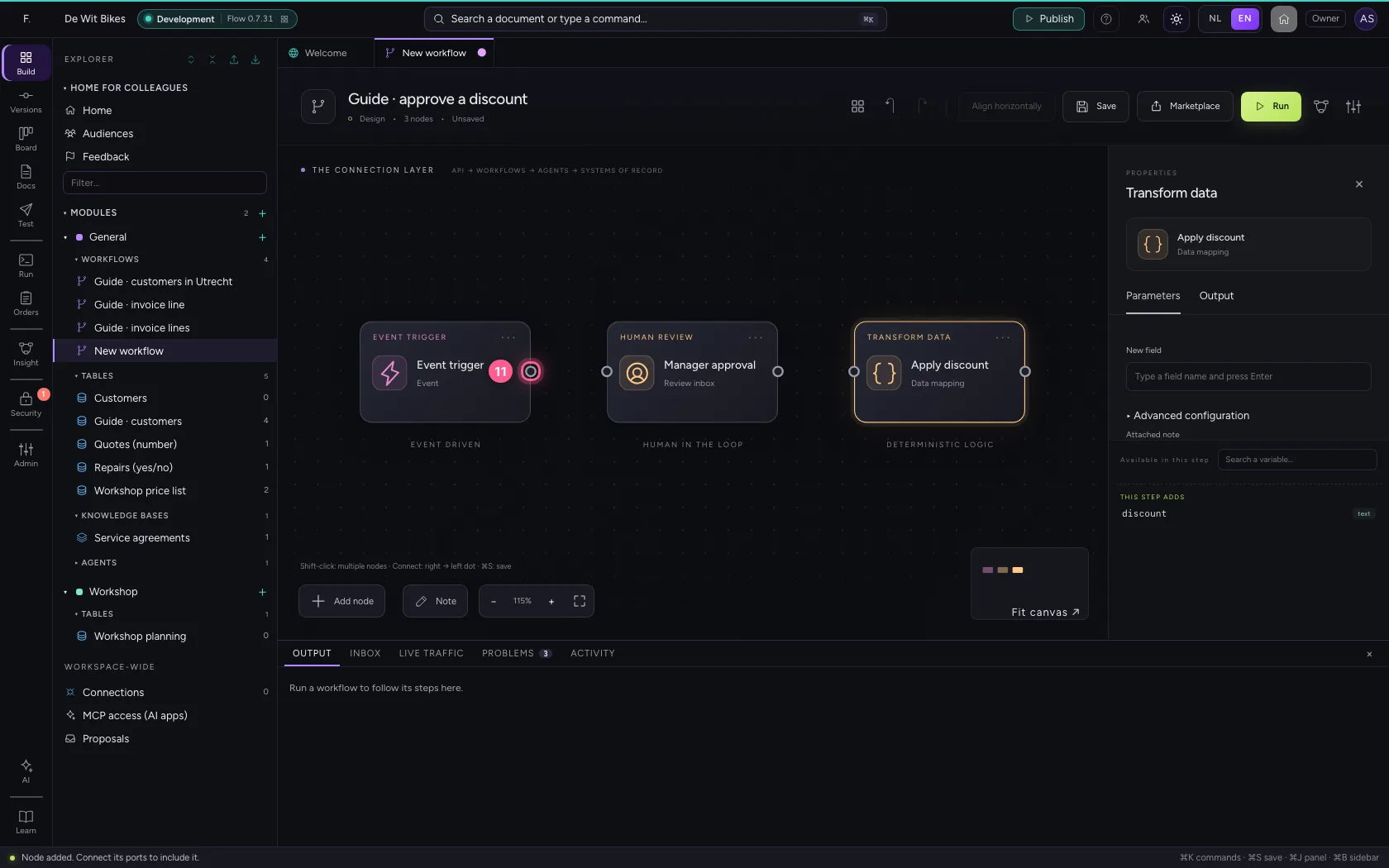
- Click the dot of ‘Manager approval’
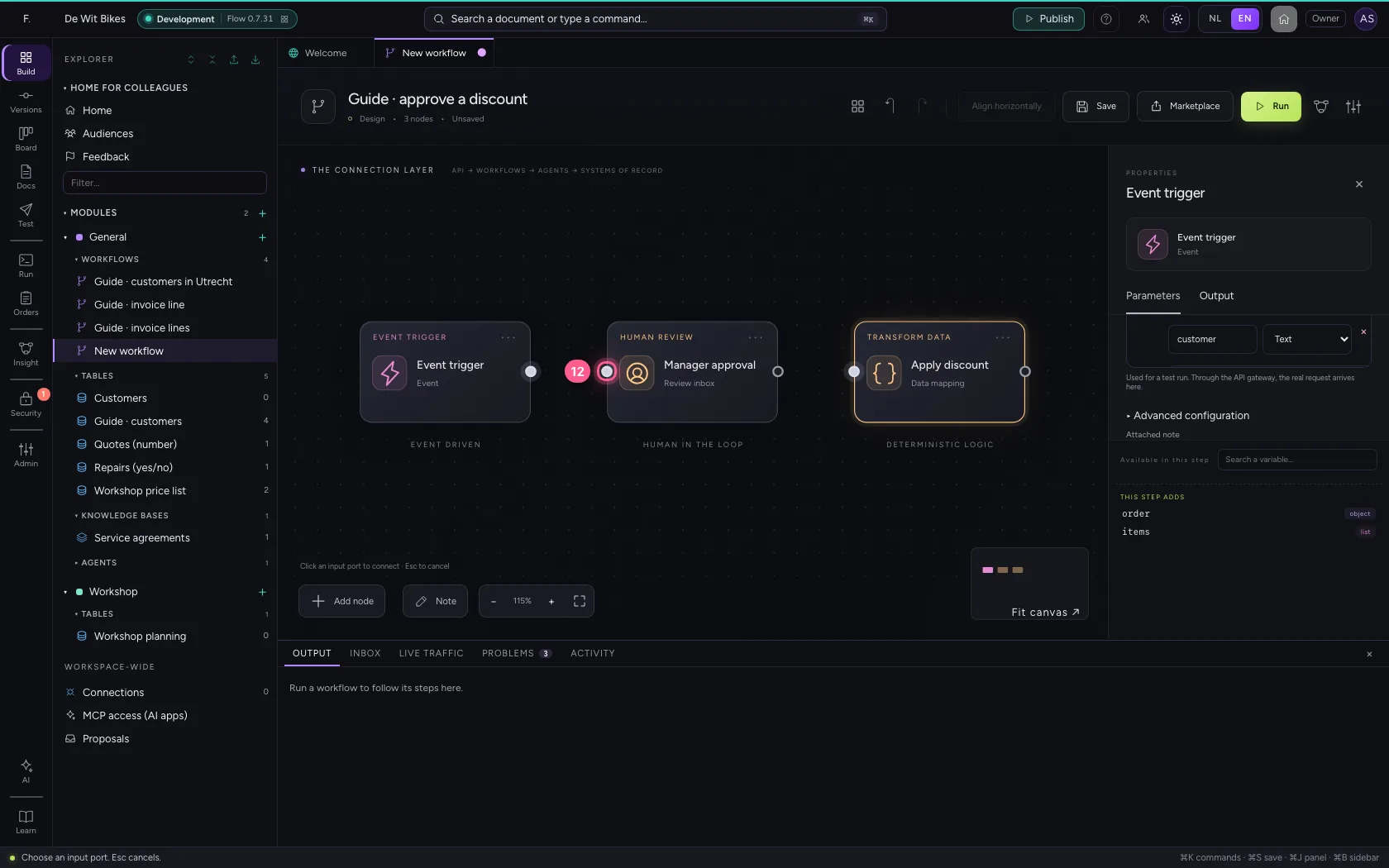
- Click the dot of ‘Manager approval’
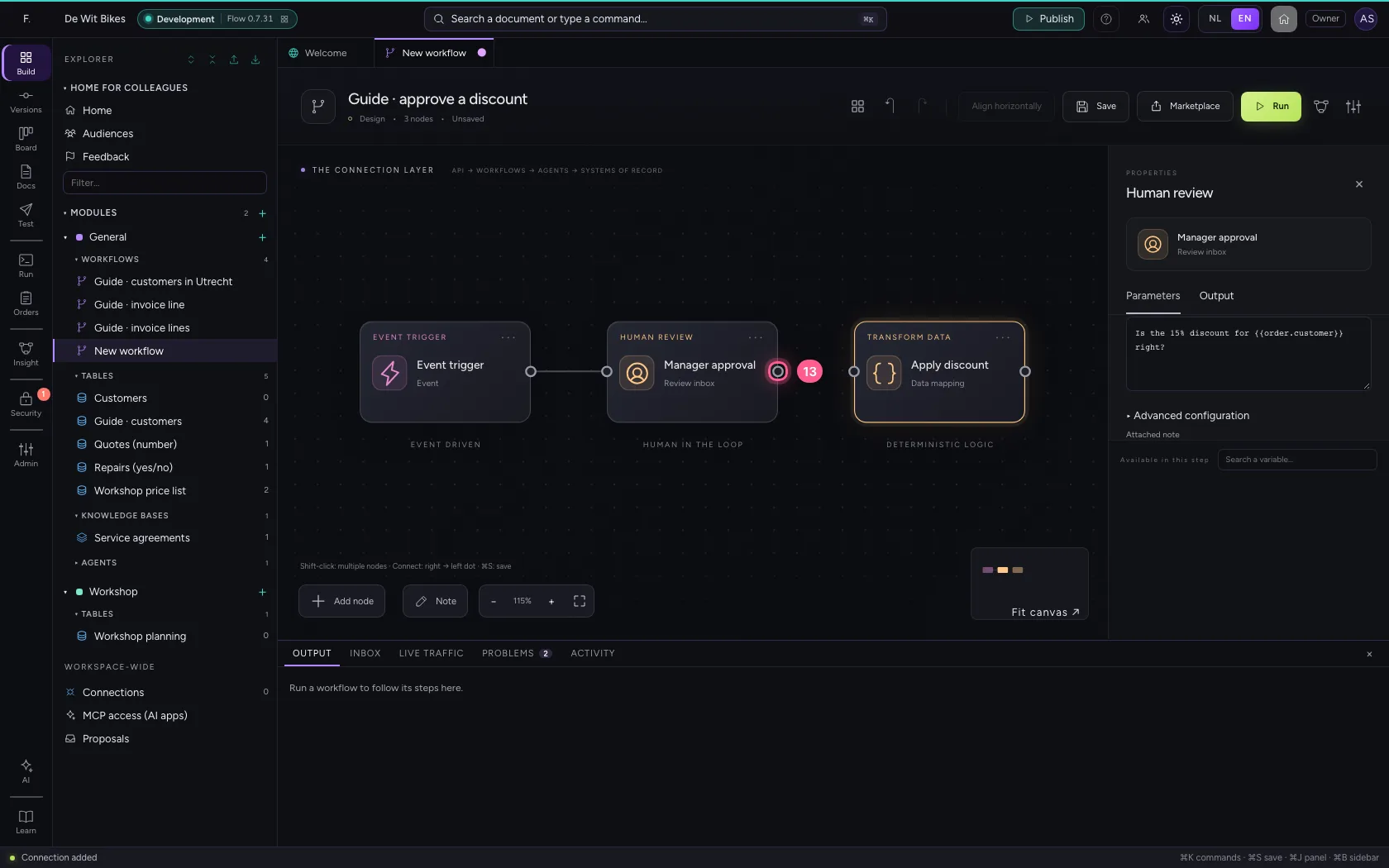
- Click the dot of ‘Apply discount’
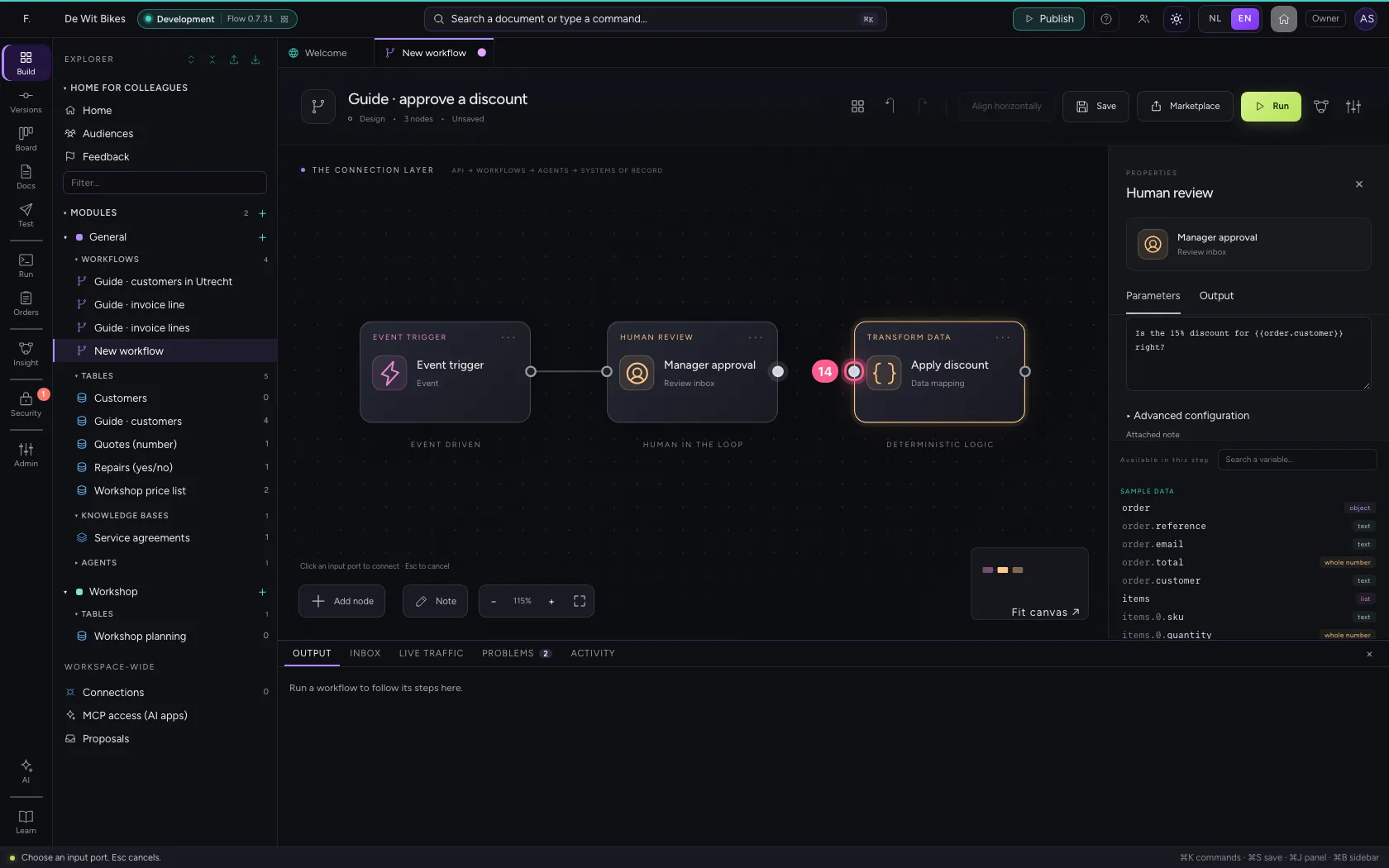
Put the steps in one line and save
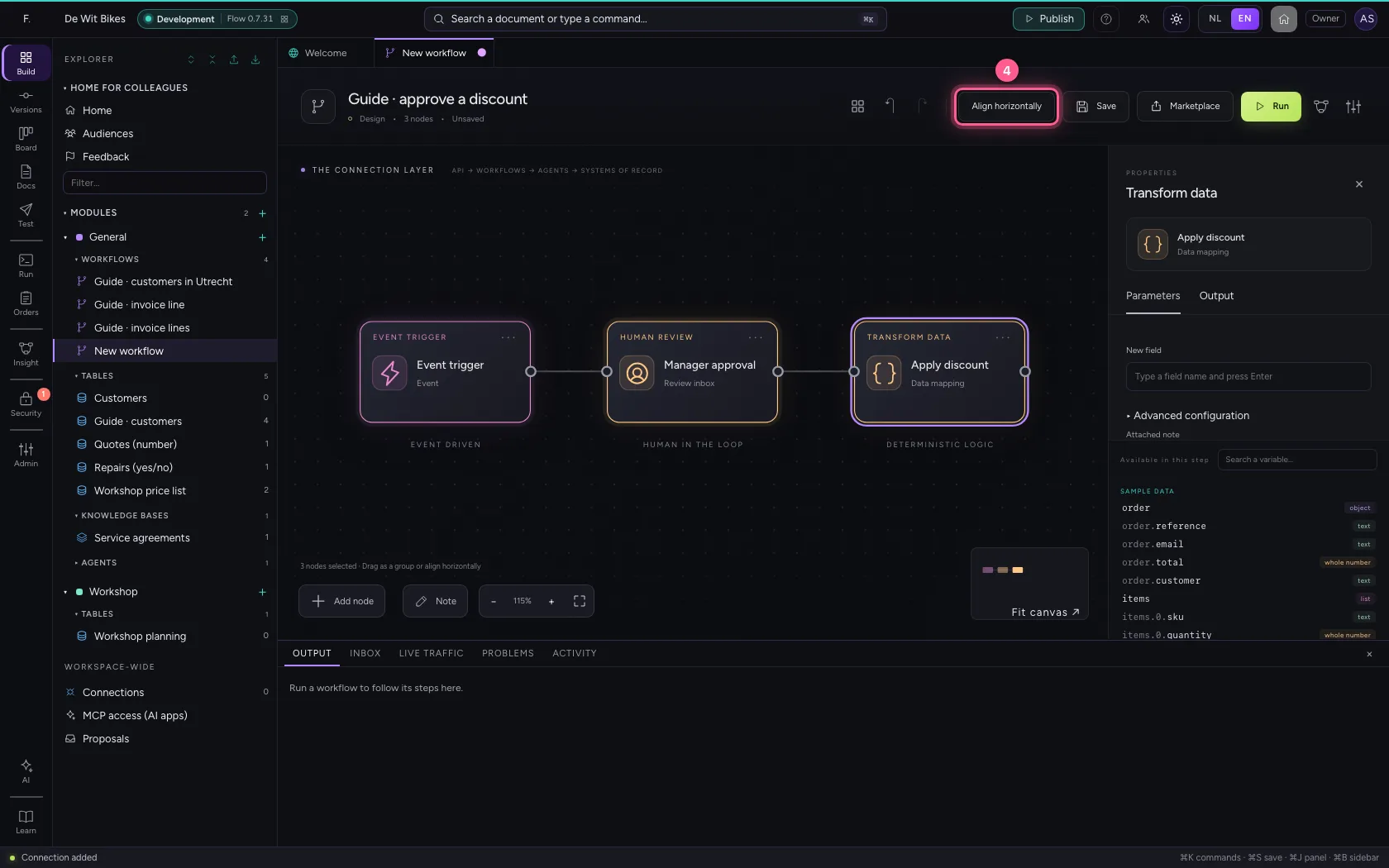
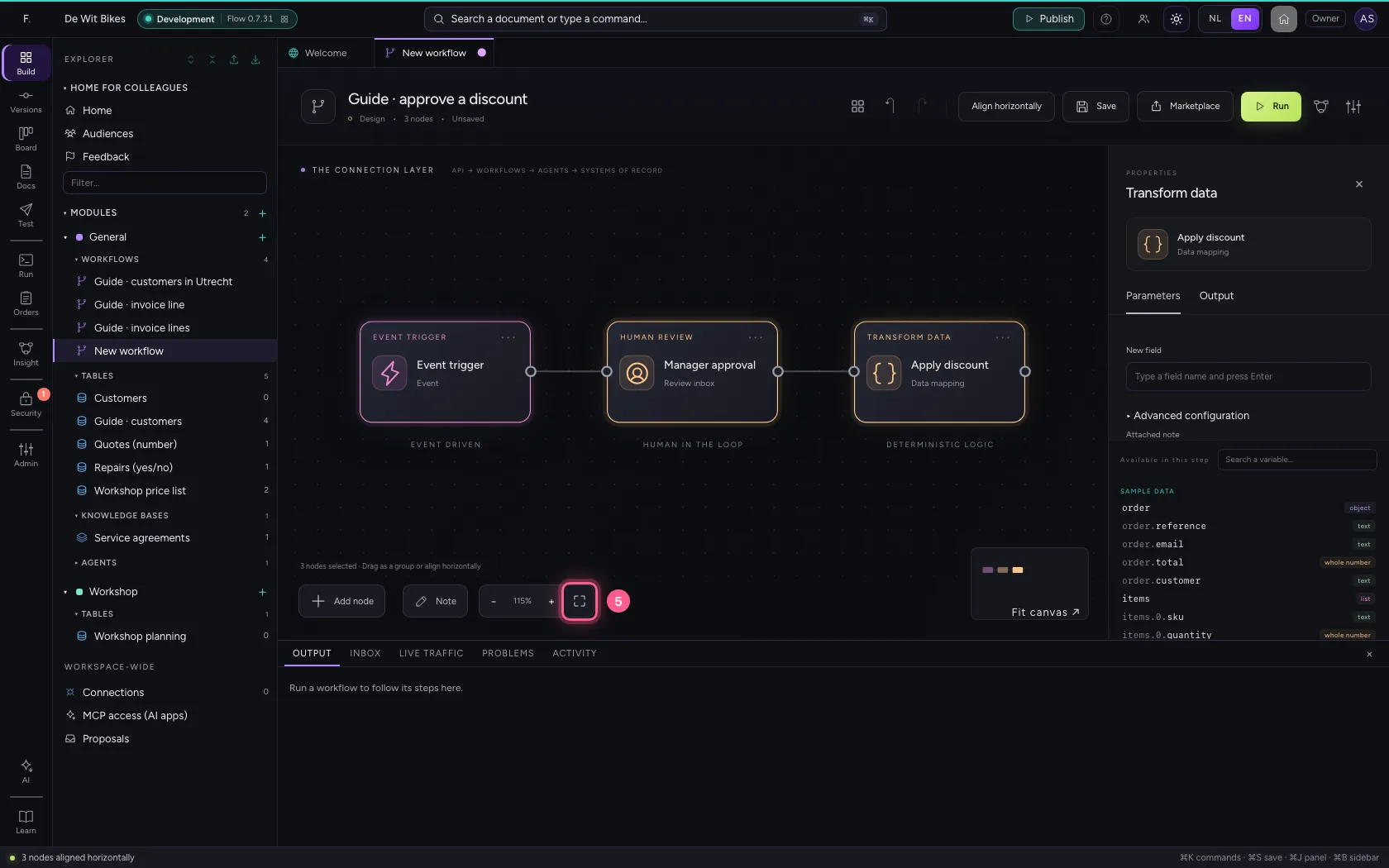
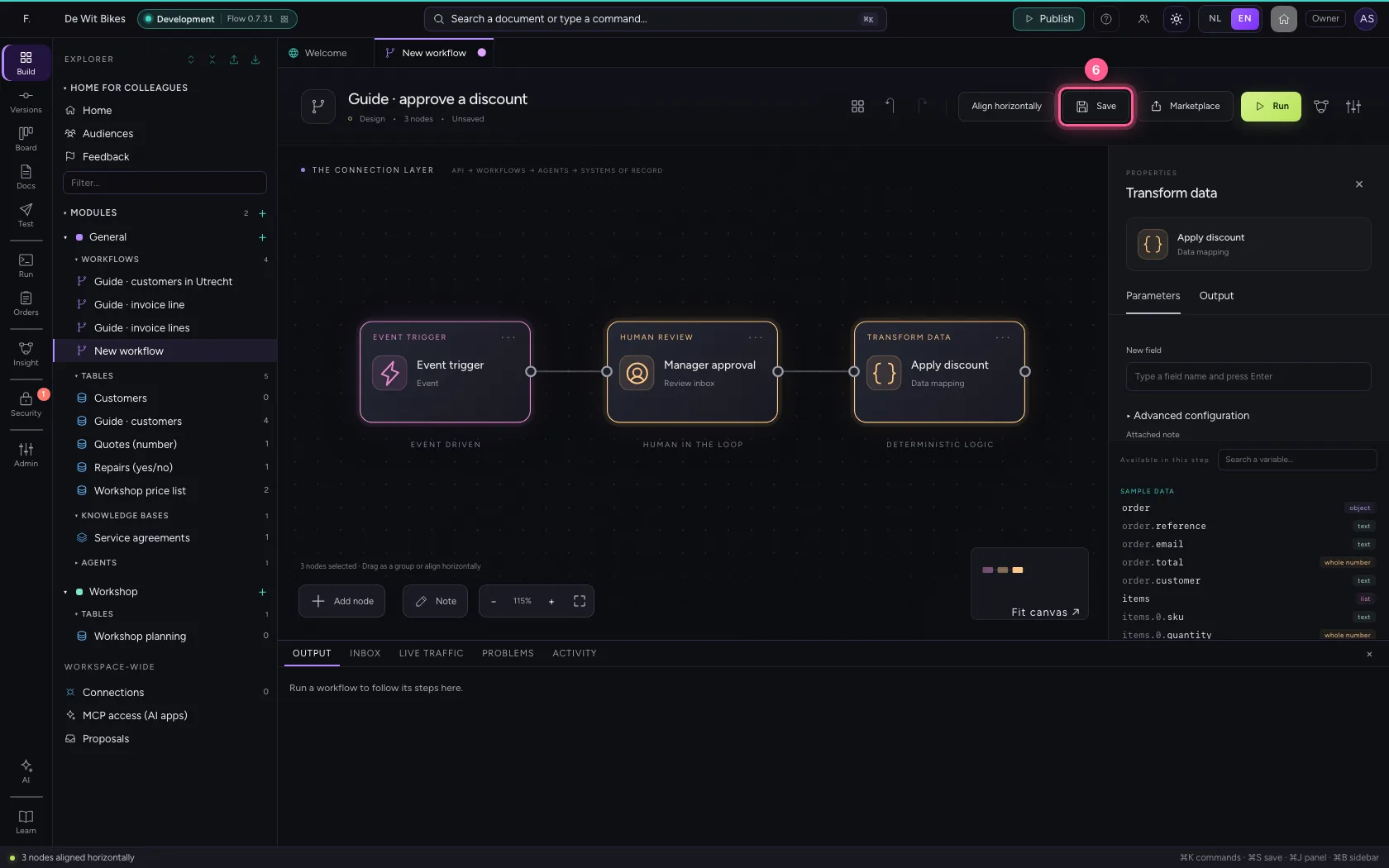
Select the steps (click the first, and the others while holding Shift) and click Align horizontally: they then stand in one line and you read the workflow from left to right; a branch (such as No of an If / Else) gets its own row below. Fit to view puts everything in sight; then Save.
- Click ‘Event trigger’
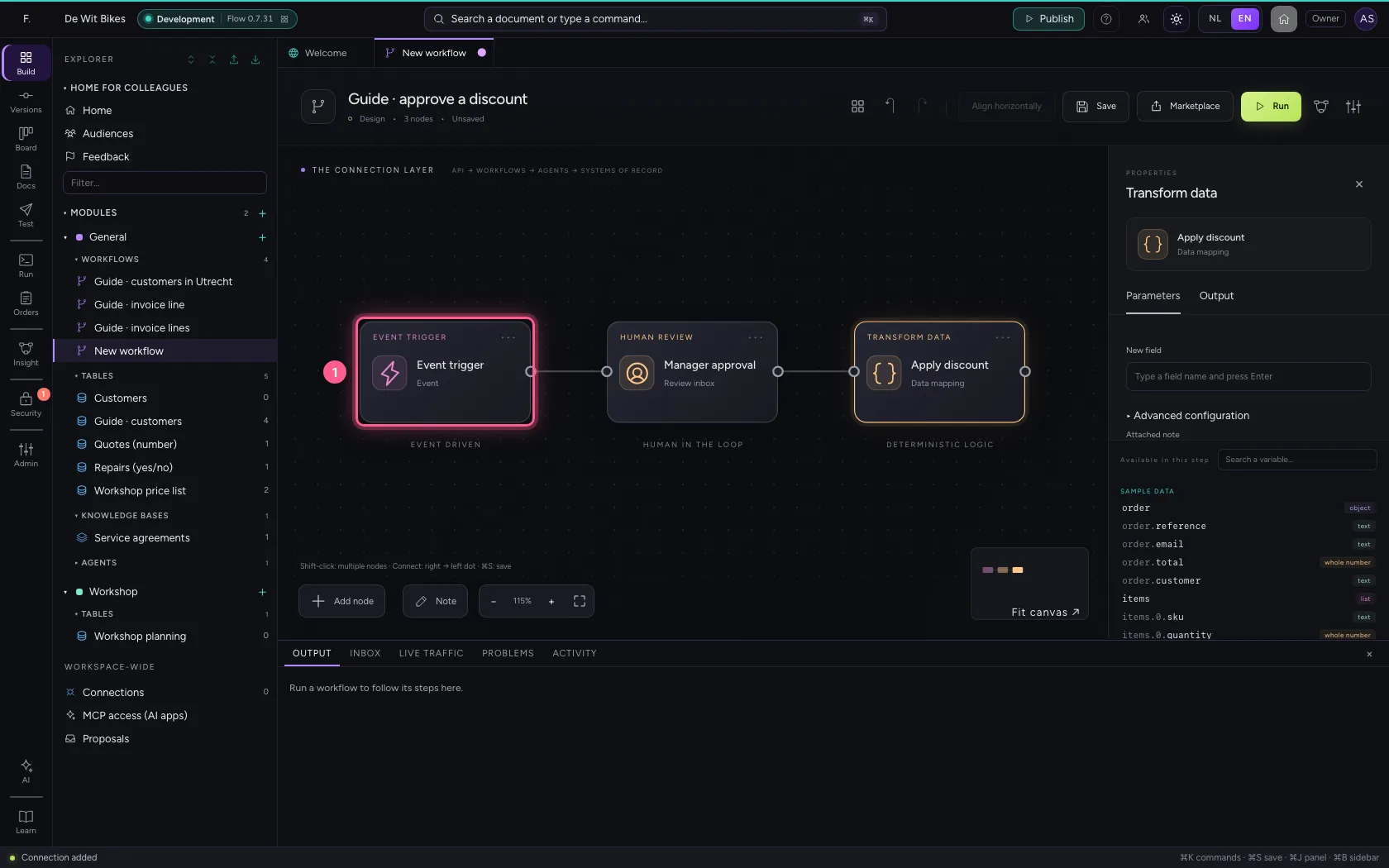
- Click ‘Manager approval’ while holding Shift
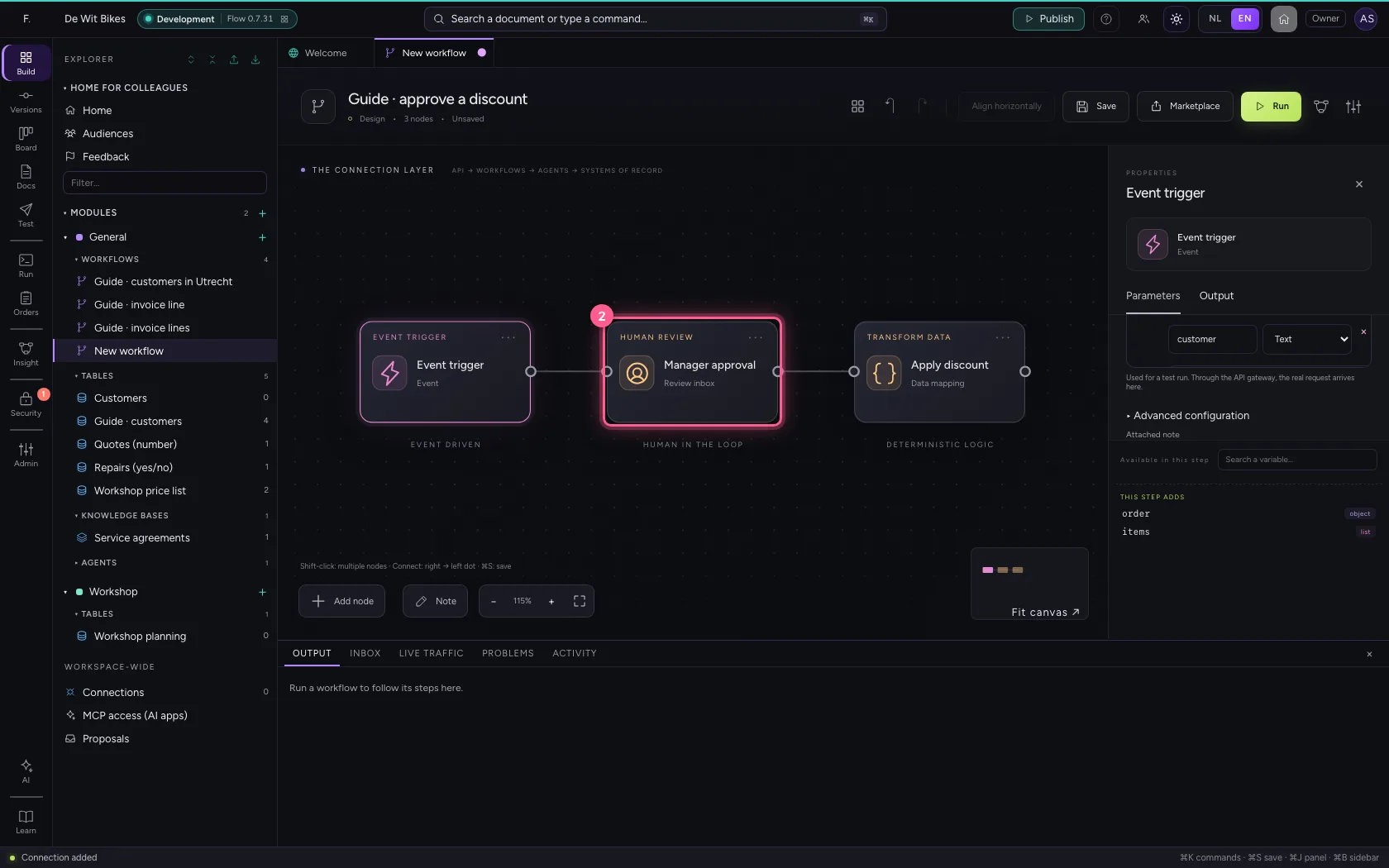
- Click ‘Apply discount’ while holding Shift
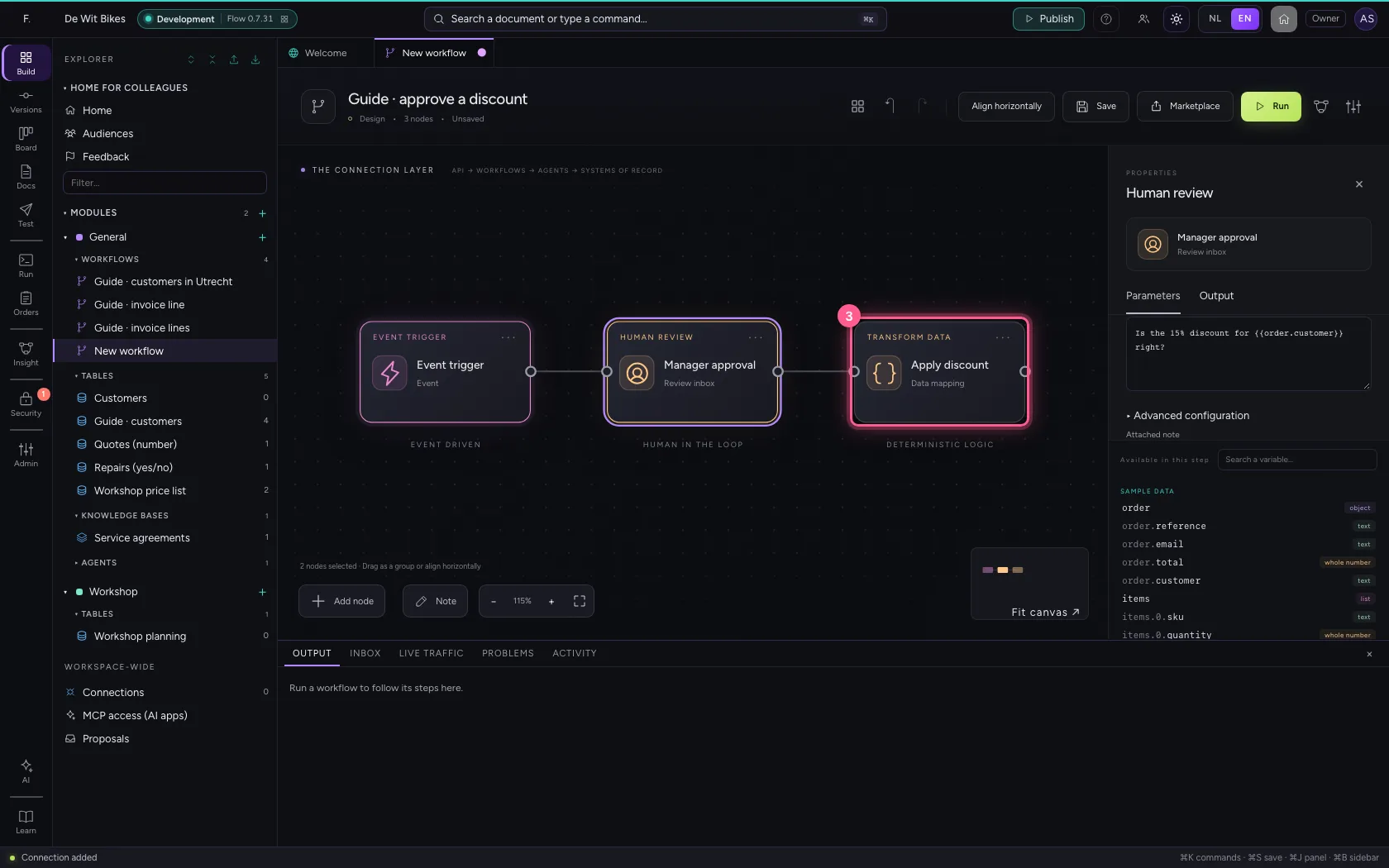
- Click Align horizontally
- Click Fit to view
- Click Save
Run: the workflow waits
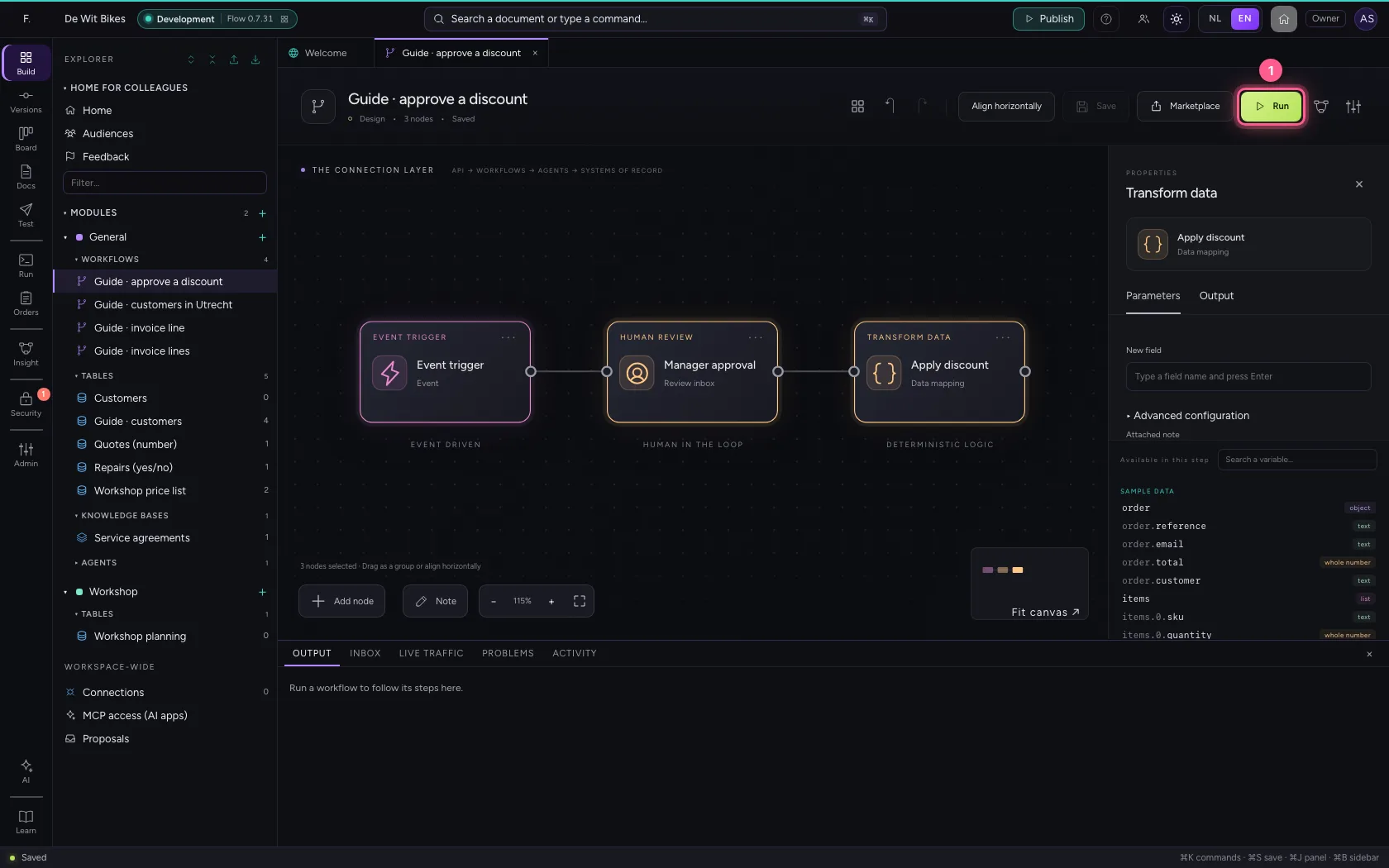
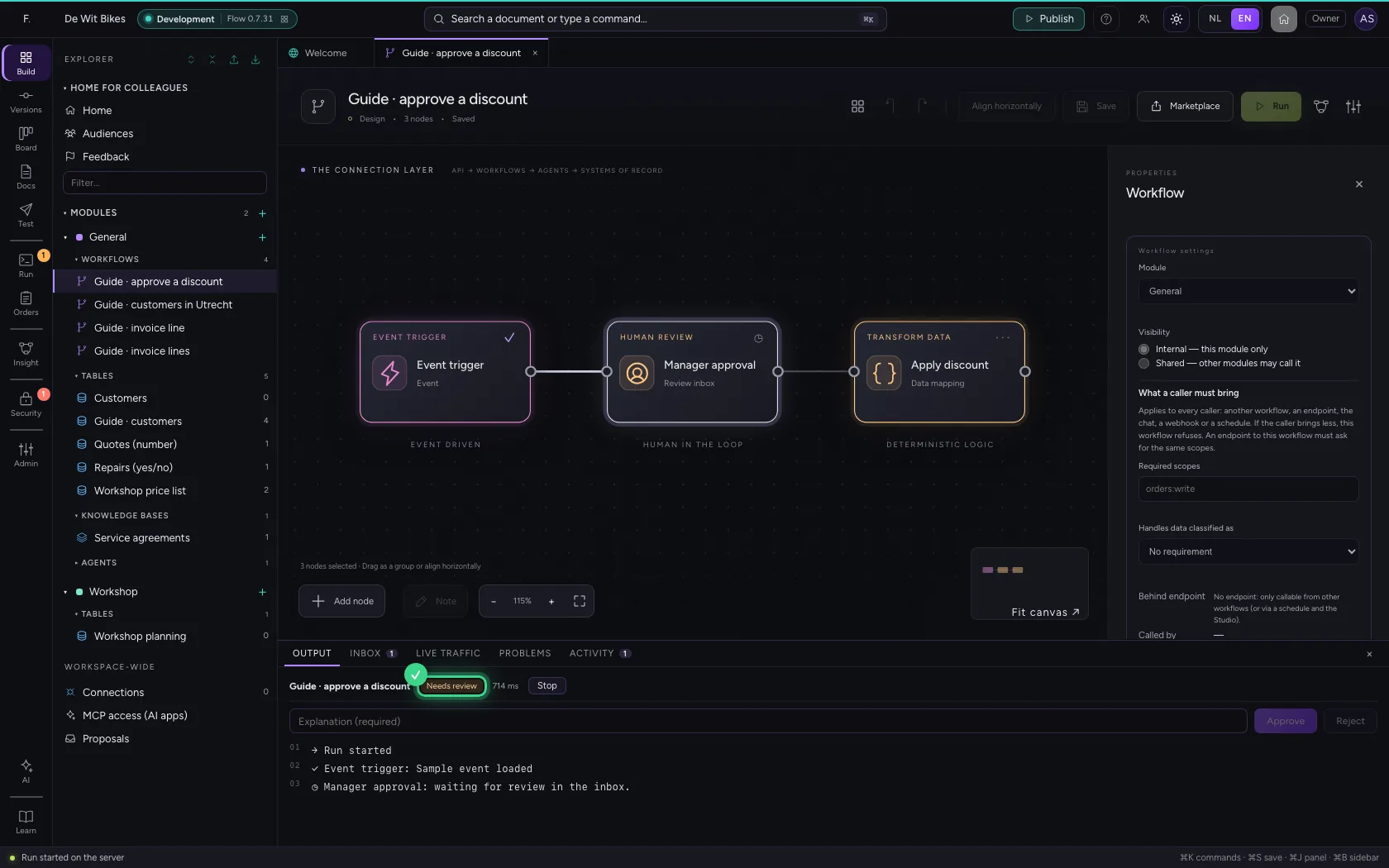
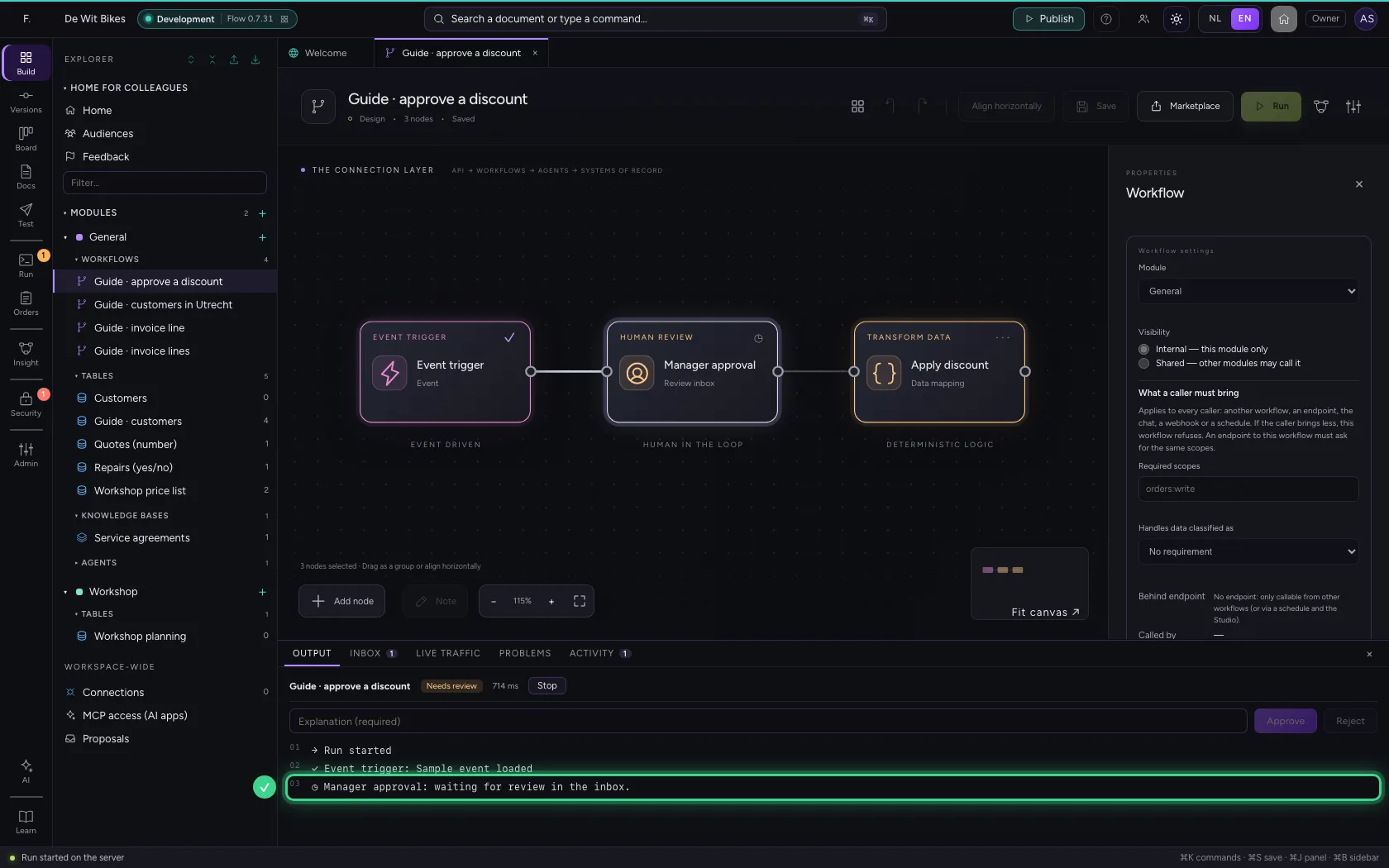
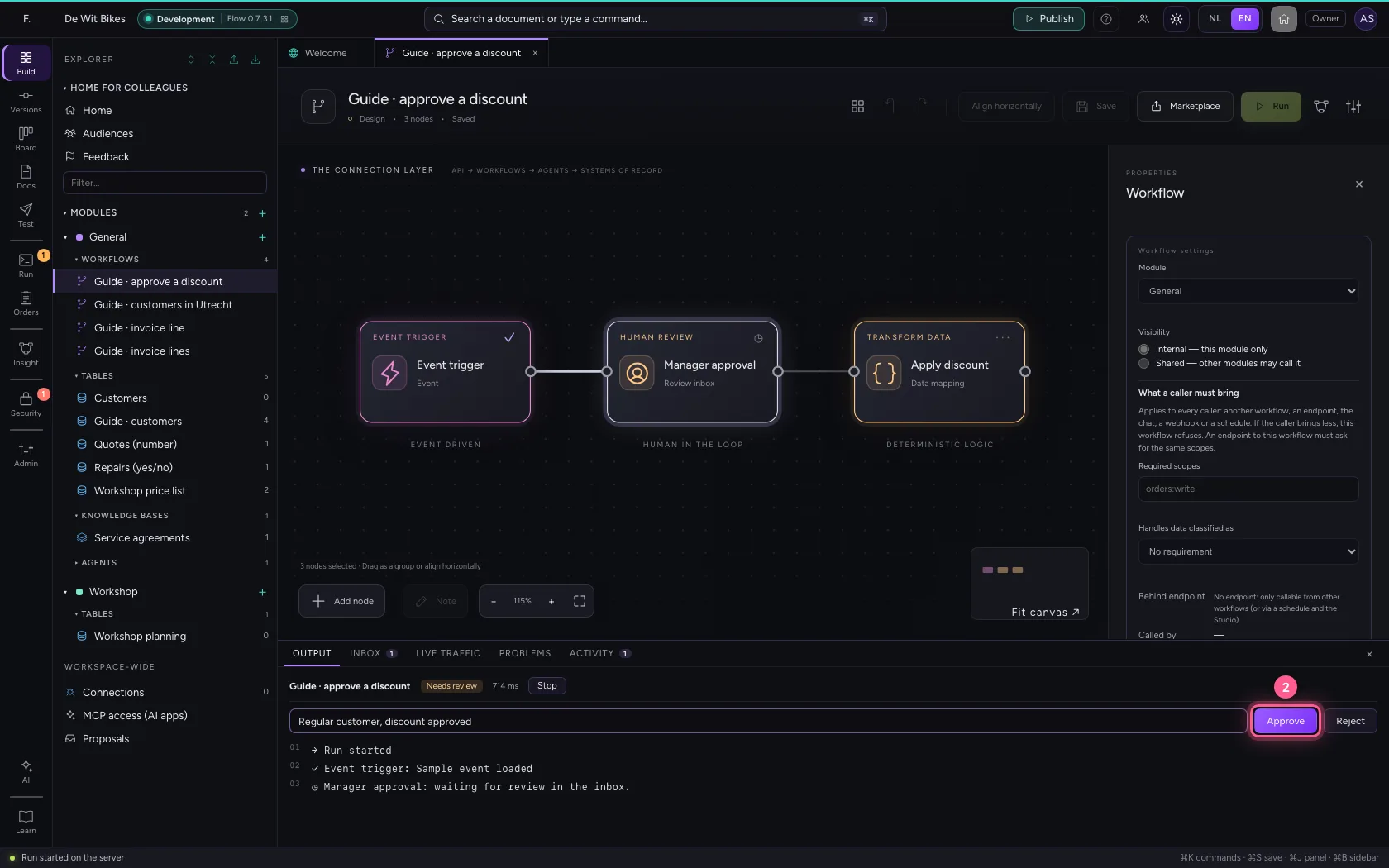
The workflow runs up to Human review and stays there, with status Waiting. Nothing happens until someone decides; that may take hours or days.
- Click Run
Approve
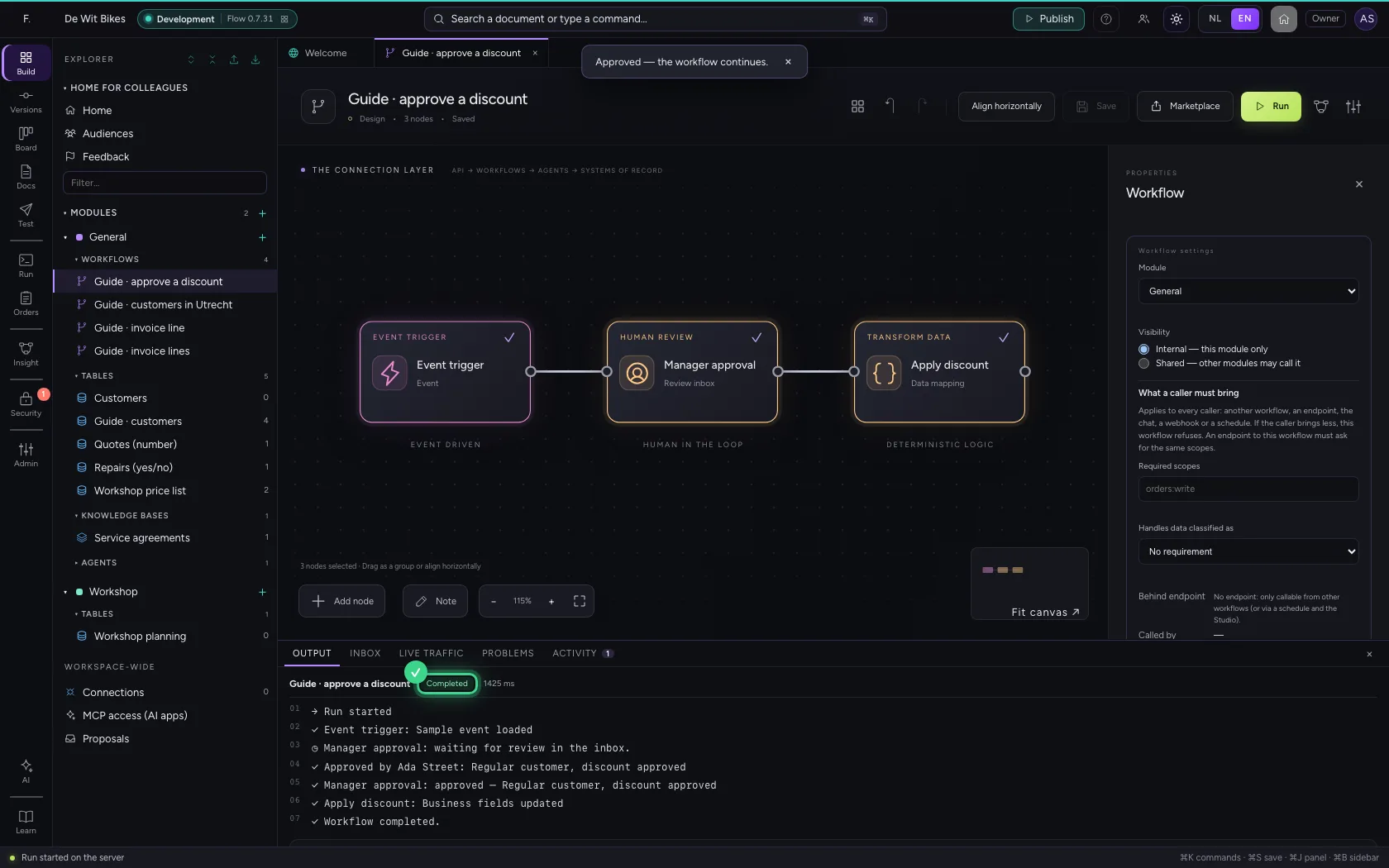
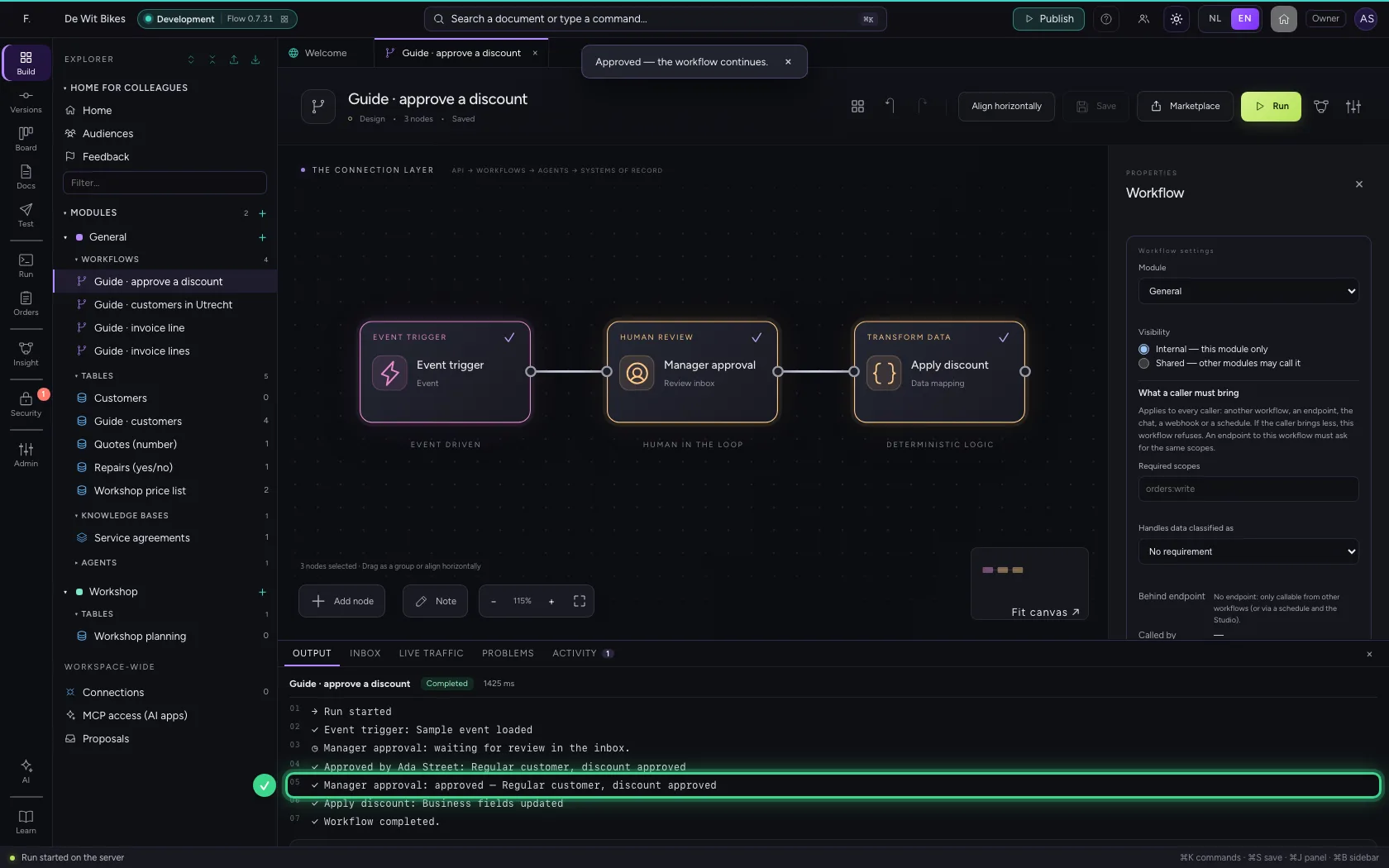
Below the run the review is ready: an explanation is required (why do you approve this?), then you click Approve and the workflow continues straight away. Someone without the workflow open finds the same request at the bottom under Inbox, with the question you wrote down; the number next to Inbox counts what is waiting.
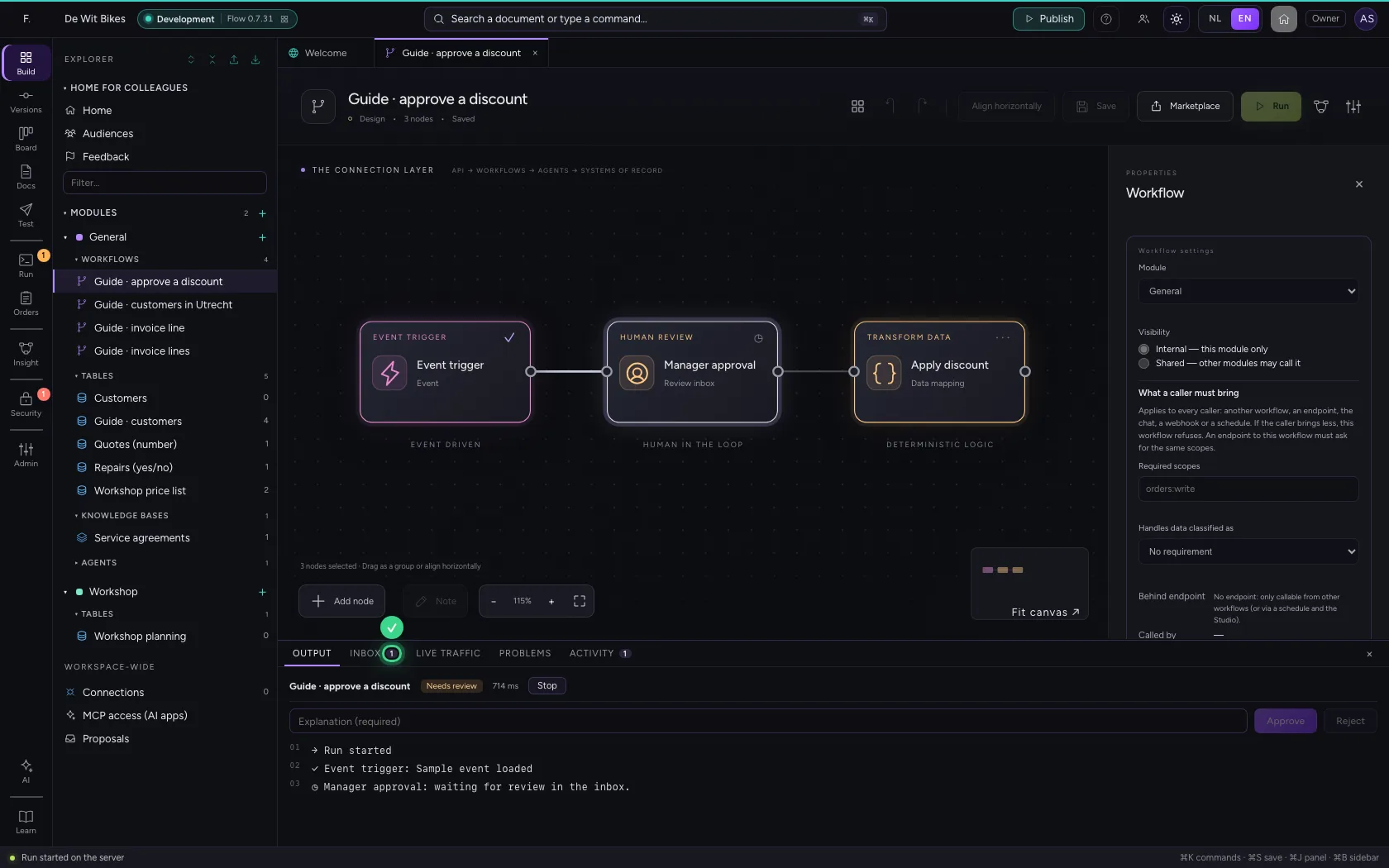
- In Explanation (required), type
Regular customer, discount approved
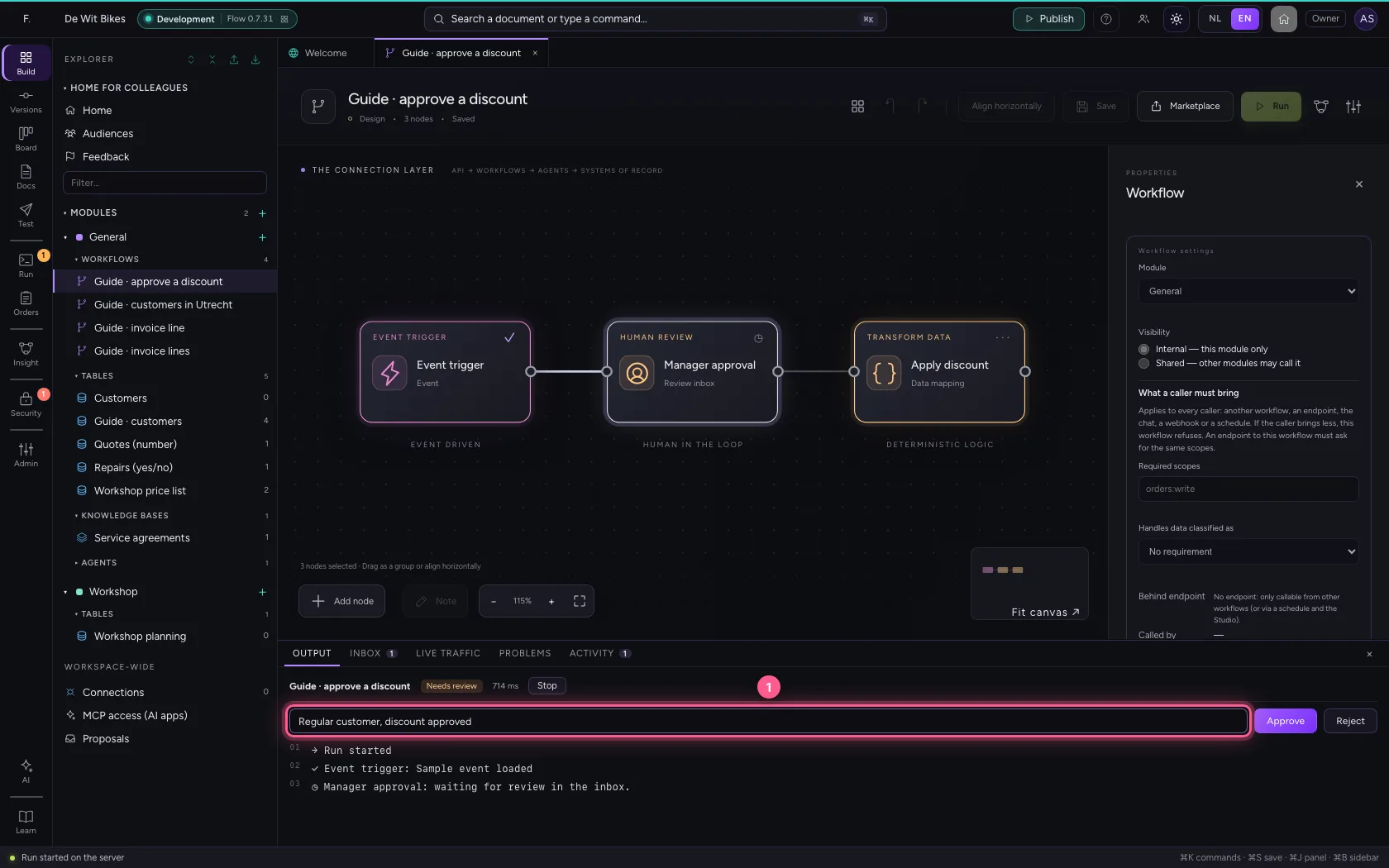
- Click Approve
This guide was carried out step by step on 22 Oct 2026 by an automated test on Flow (version 3e563176).