Flow.Documentation

What a connection may do: read, drafts, write

5 steps± 4 minVideoVerified 22 Oct 2026
  1. Step 1 · Open your development environment
  2. Step 2 · A connection that may only read
  3. Step 3 · A workflow that wants to create something
  4. Step 4 · Allow drafts
  5. Step 5 · Deleting stays closed

Every connection has an allowed access. Read only lets only GET through, Prepare drafts everything except DELETE, Read and write everything. Flow checks this itself, before the call leaves — even when a workflow or AI Colleague tries something else. Here you see a POST refused, then allowed, and a DELETE that is still not allowed with Drafts.

Watch the whole guide as a video5 steps in one film
Step 1 / 5

Open your development environment

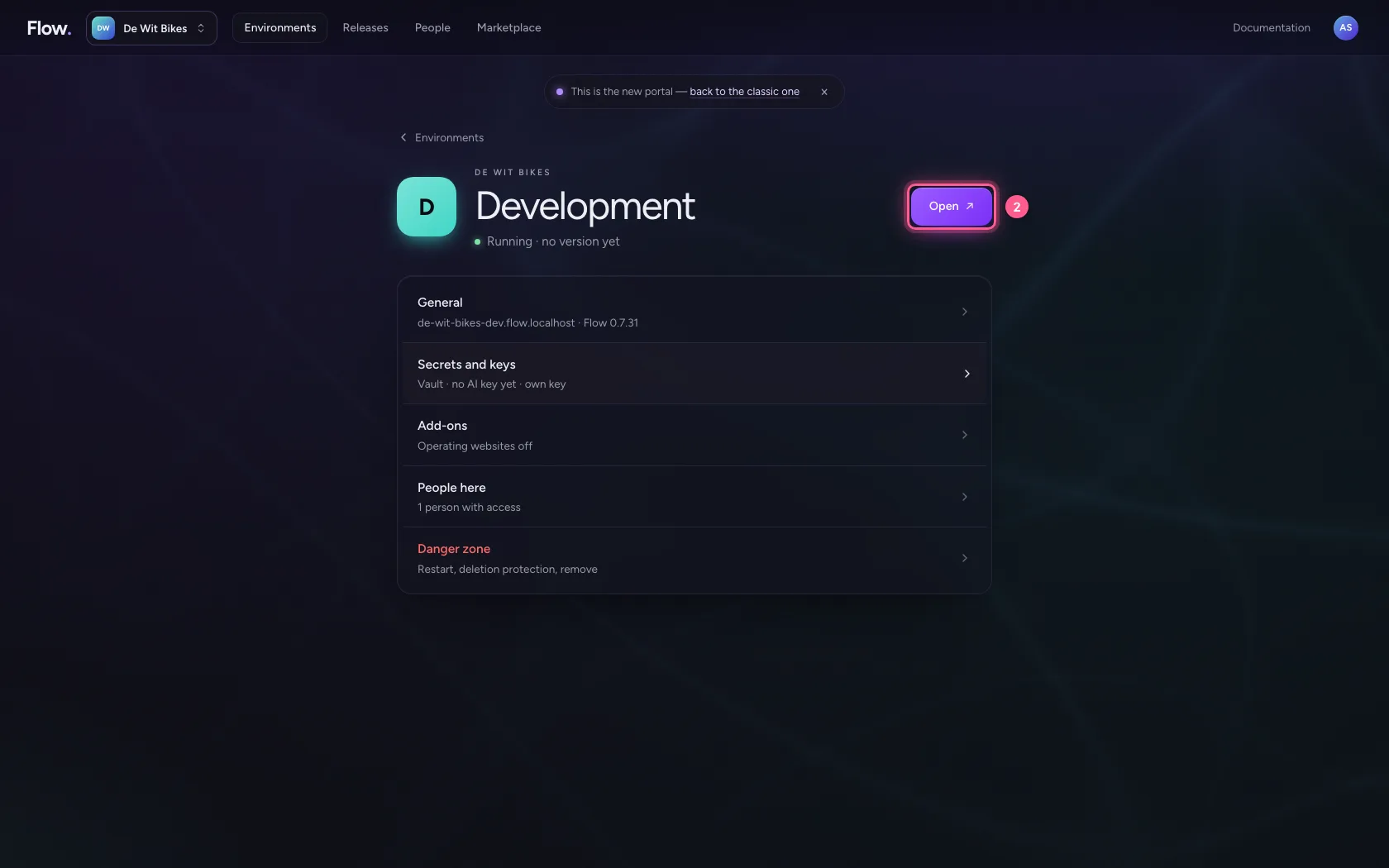
In the portal, under Environments, click Development, and there Open. Flow opens in a new tab and you are signed in straight away.

  1. Click Development
Open your development environment · Click Development
  1. Click Open ↗
Open your development environment · Click Open ↗
Step 2 / 5

A connection that may only read

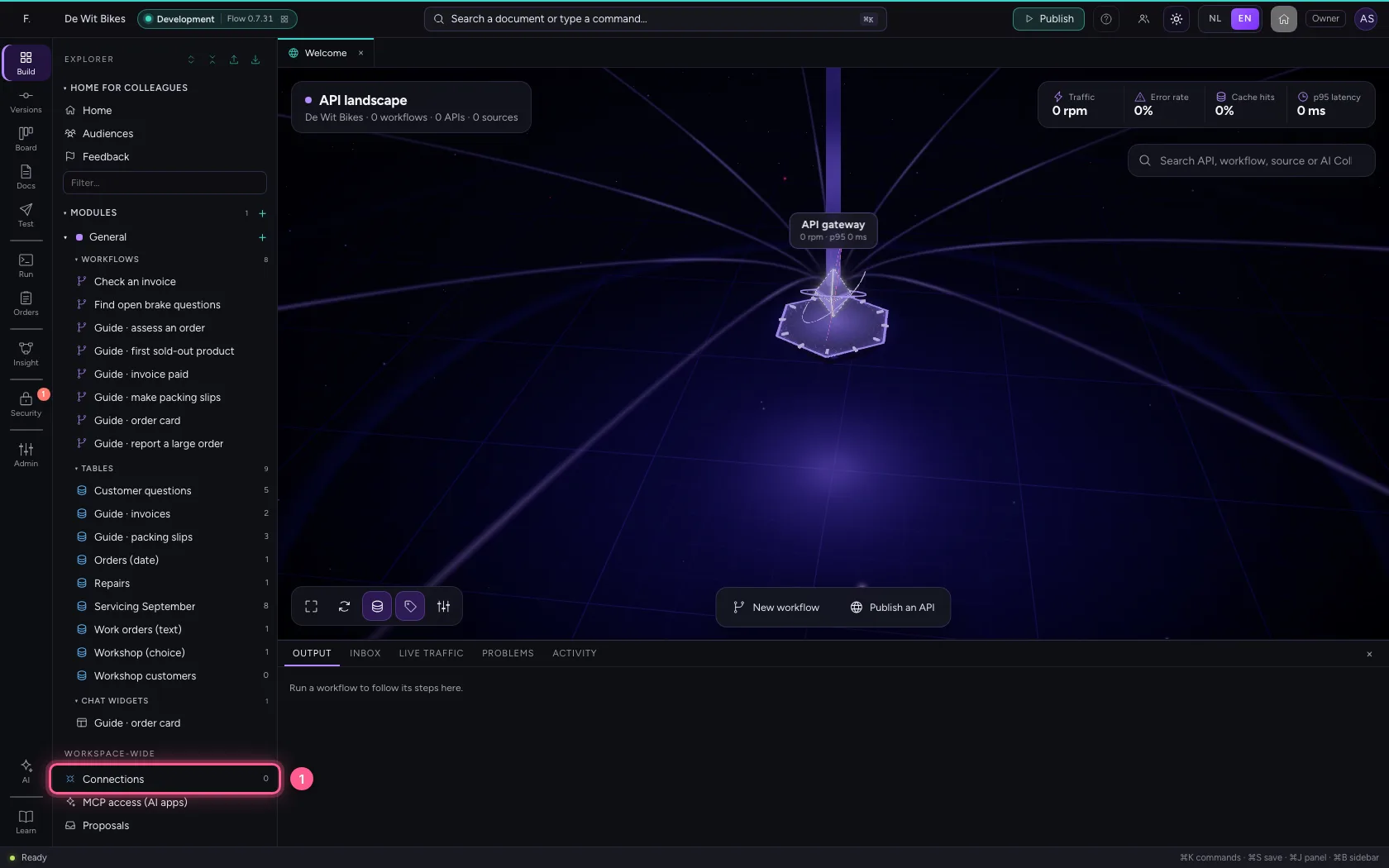
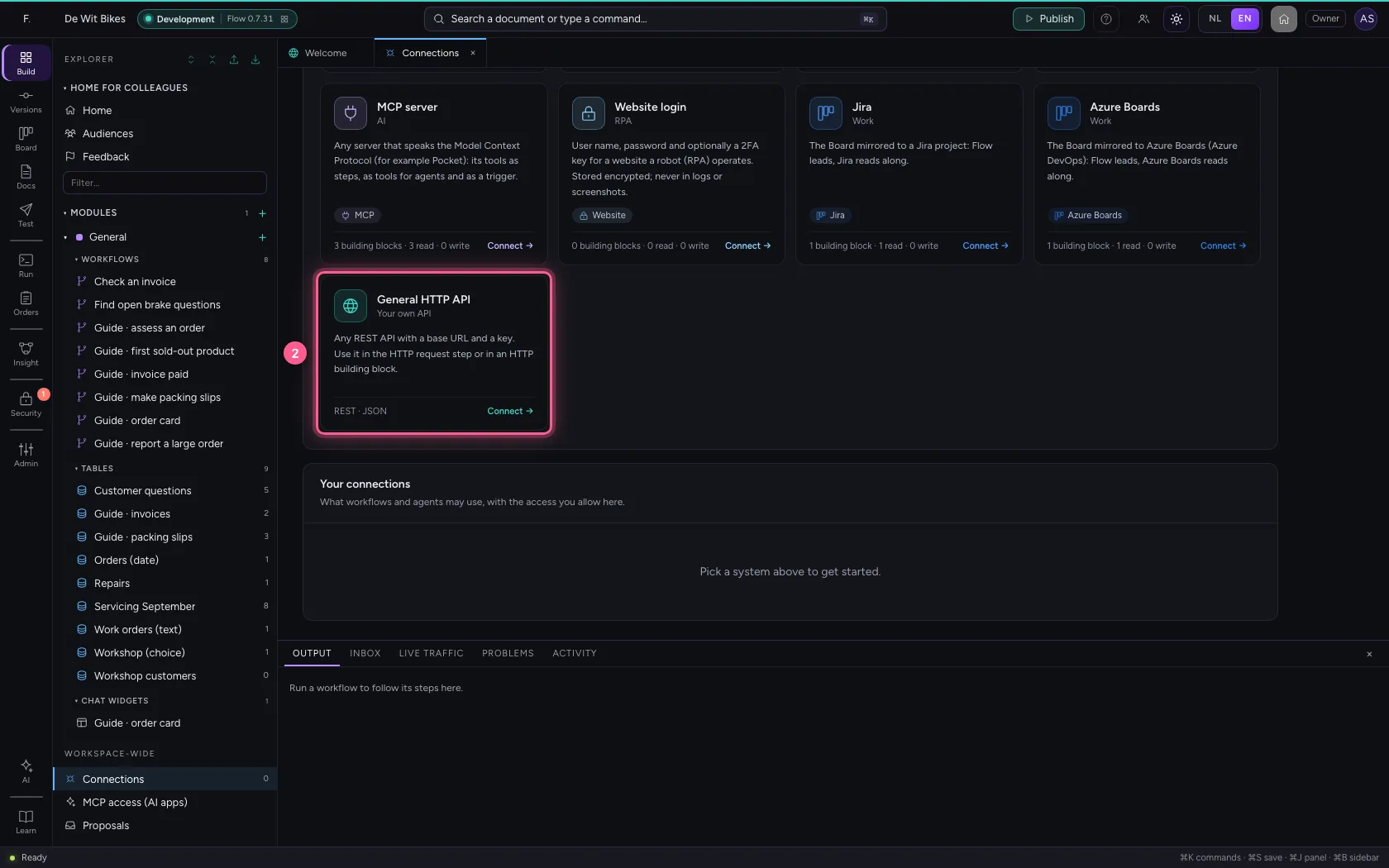
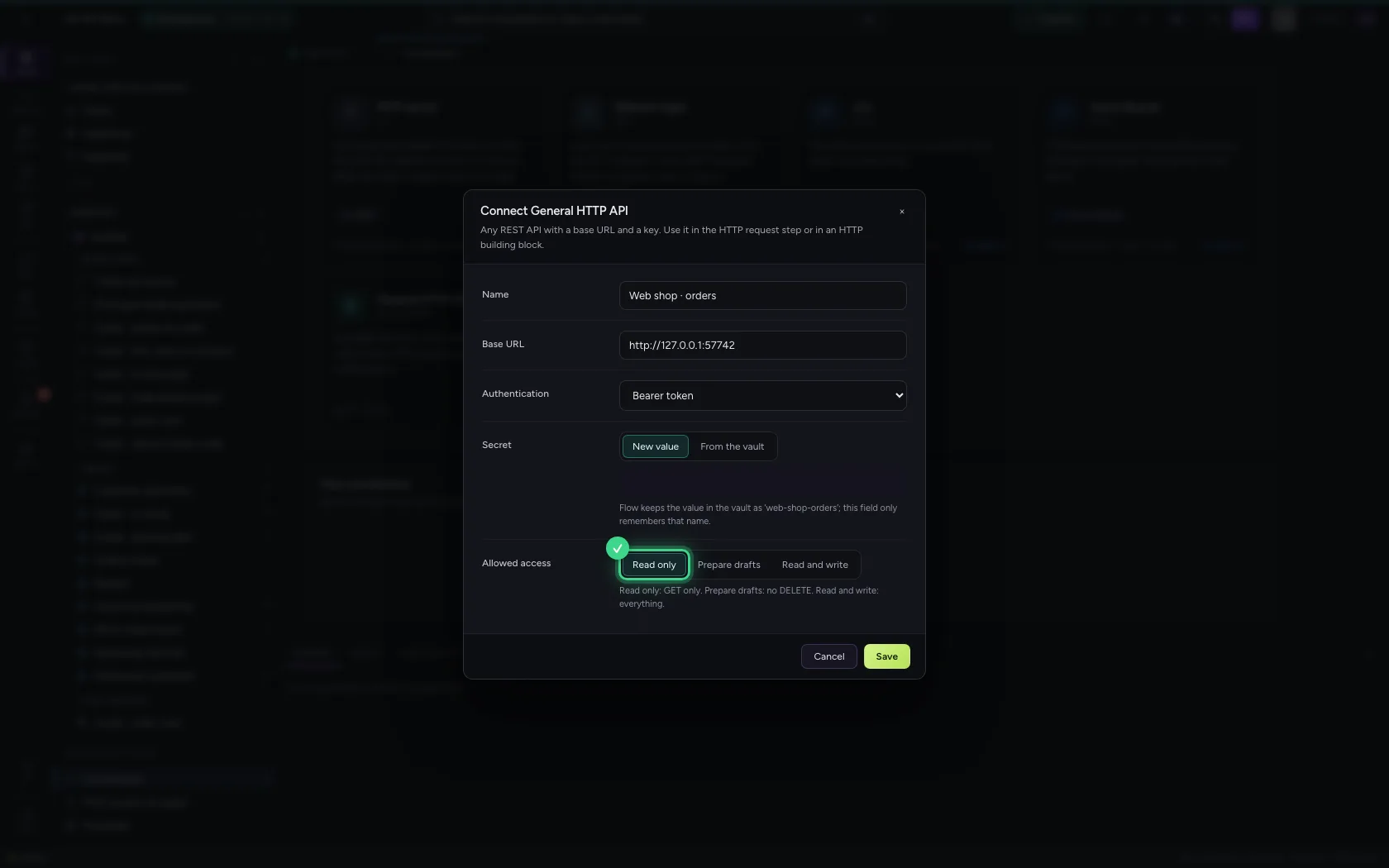
Under Connections create a General HTTP API. Allowed access is Read only by default: the safest choice, and enough as long as you only fetch data.

  1. Click Connections
A connection that may only read · Click Connections
  1. Click General HTTP API
A connection that may only read · Click General HTTP API
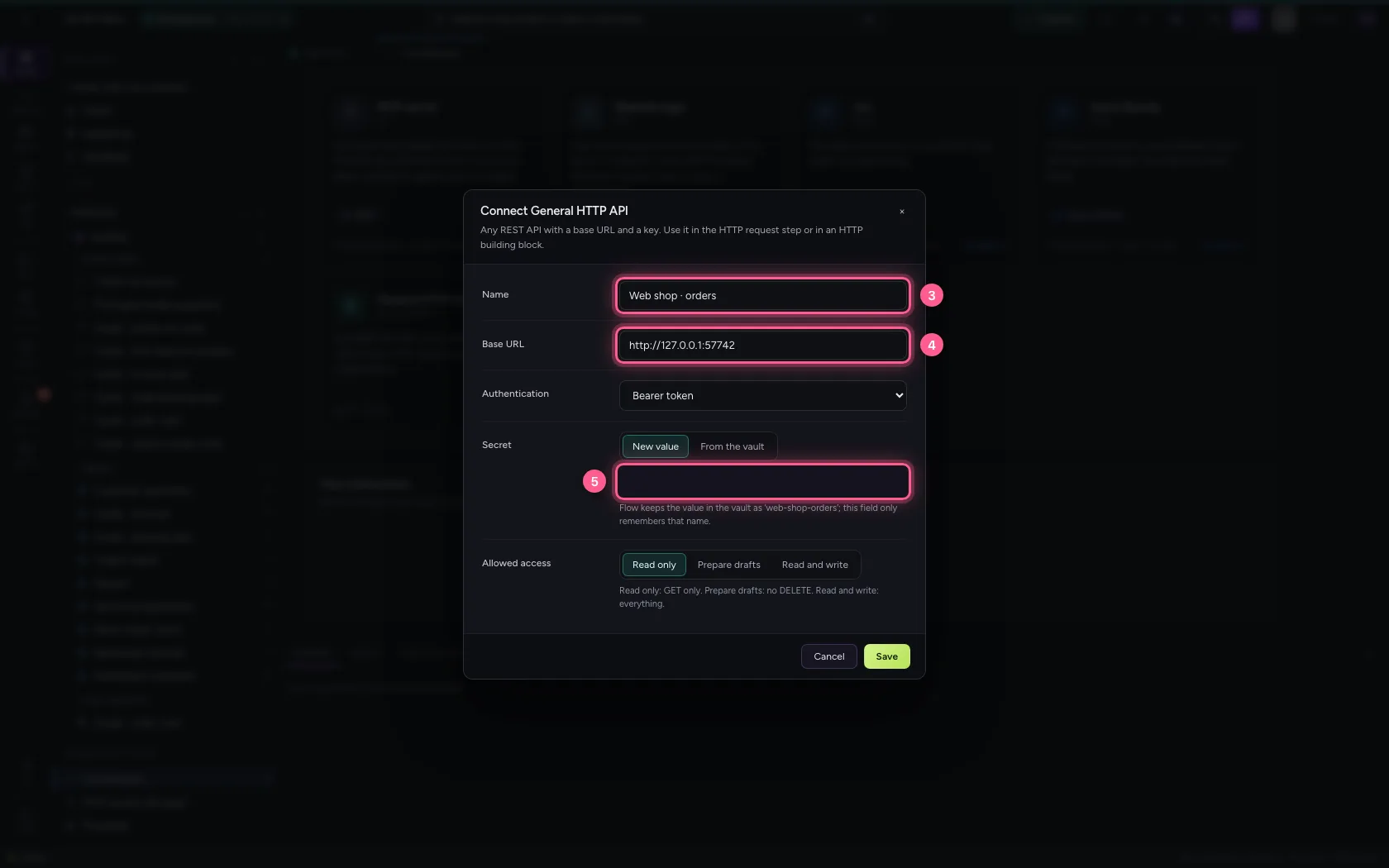
  1. In Name, type Web shop · orders
  2. In Base URL, type http://127.0.0.1:57742
  3. In Secret, type ••••••••
A connection that may only read · In Name, type Web shop · orders; In Base URL, type http://127.0.0.1:57742; In Secret, type ••••••••
A connection that may only read · Allowed access: Read only (GET only).
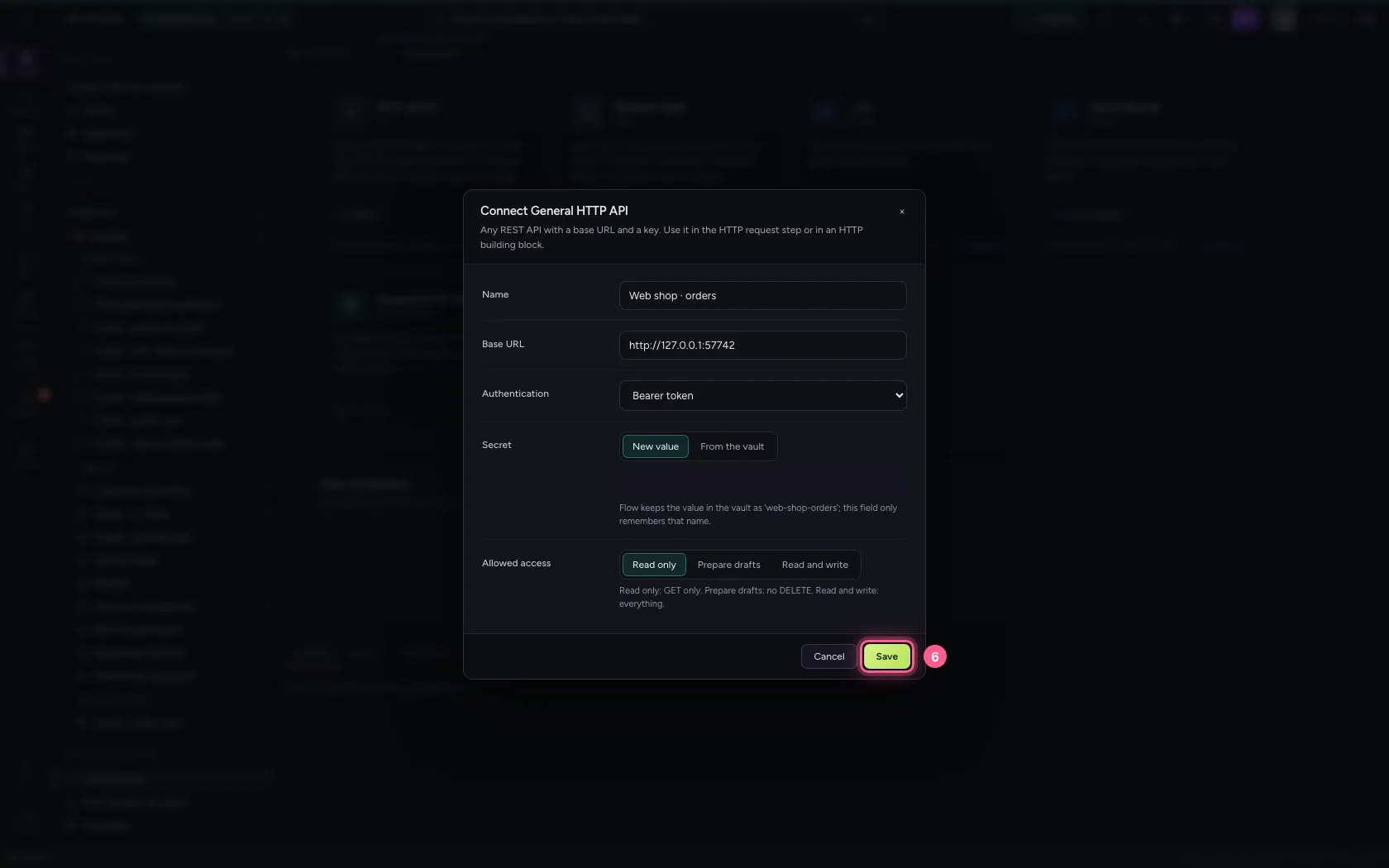
  1. Click Save
A connection that may only read · Click Save
Step 3 / 5

A workflow that wants to create something

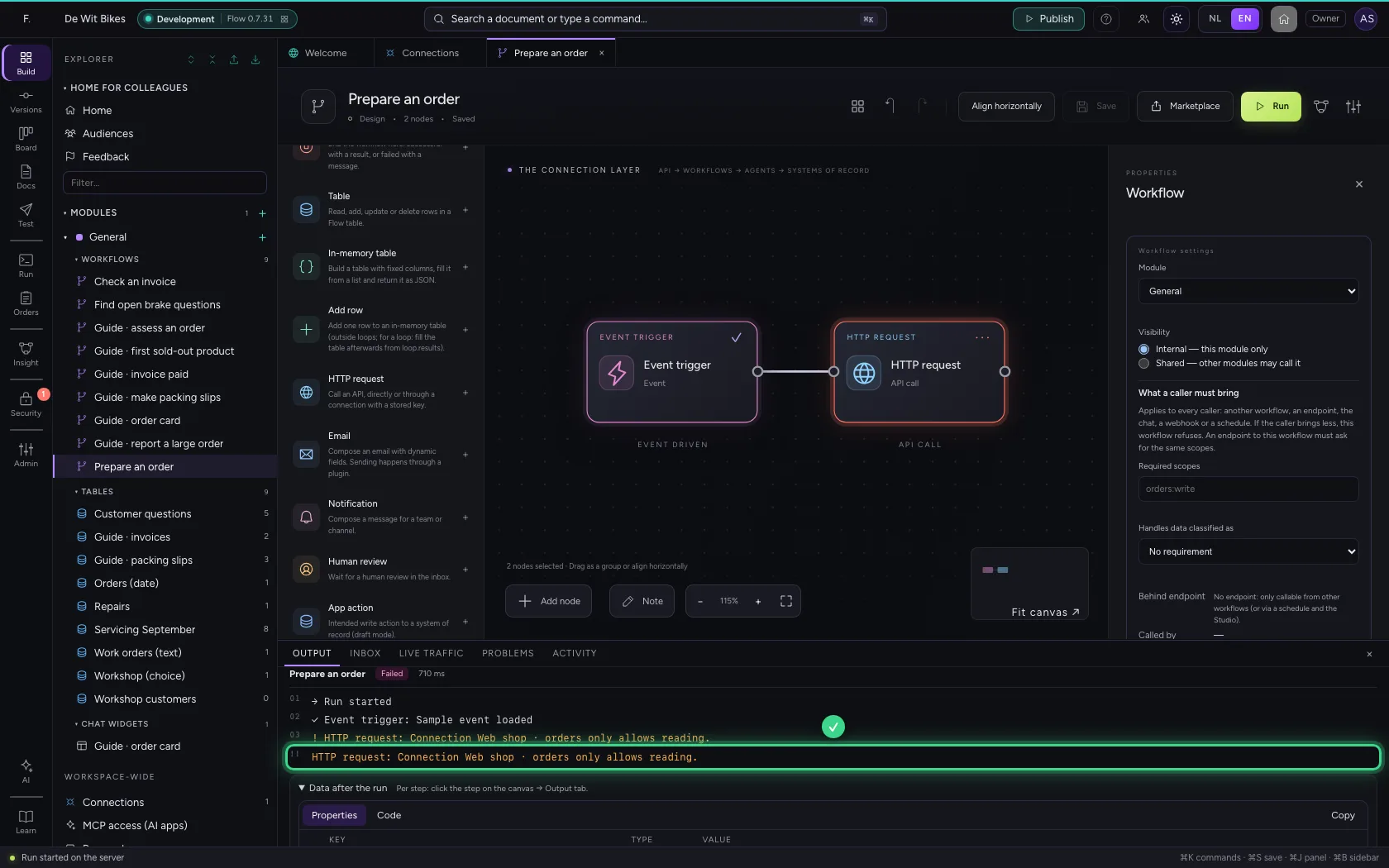
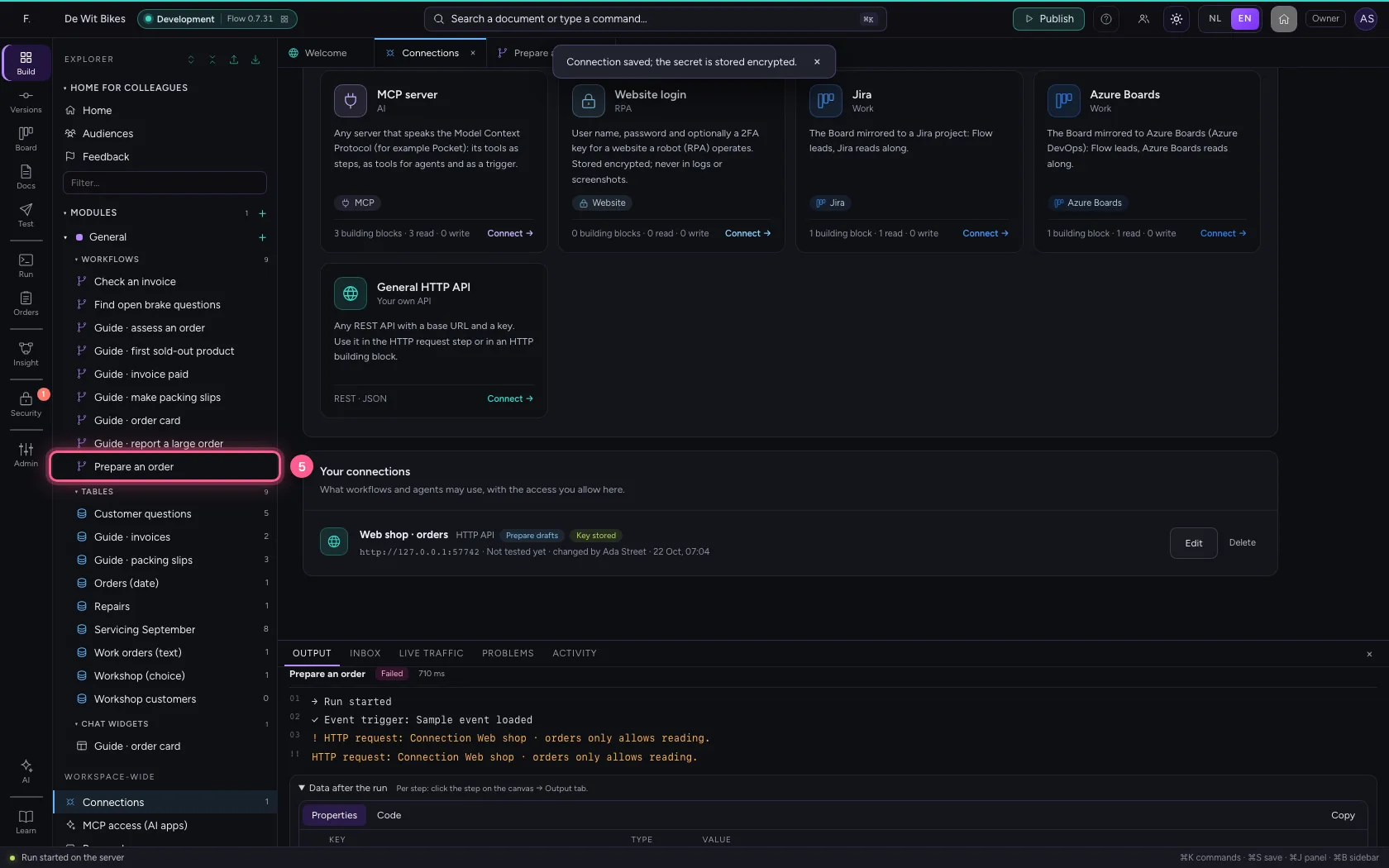
An HTTP request step with the method POST through this connection: it wants to create a draft order. Line up the steps, save and run. Flow refuses the call: the connection may only read. The other system sees nothing.

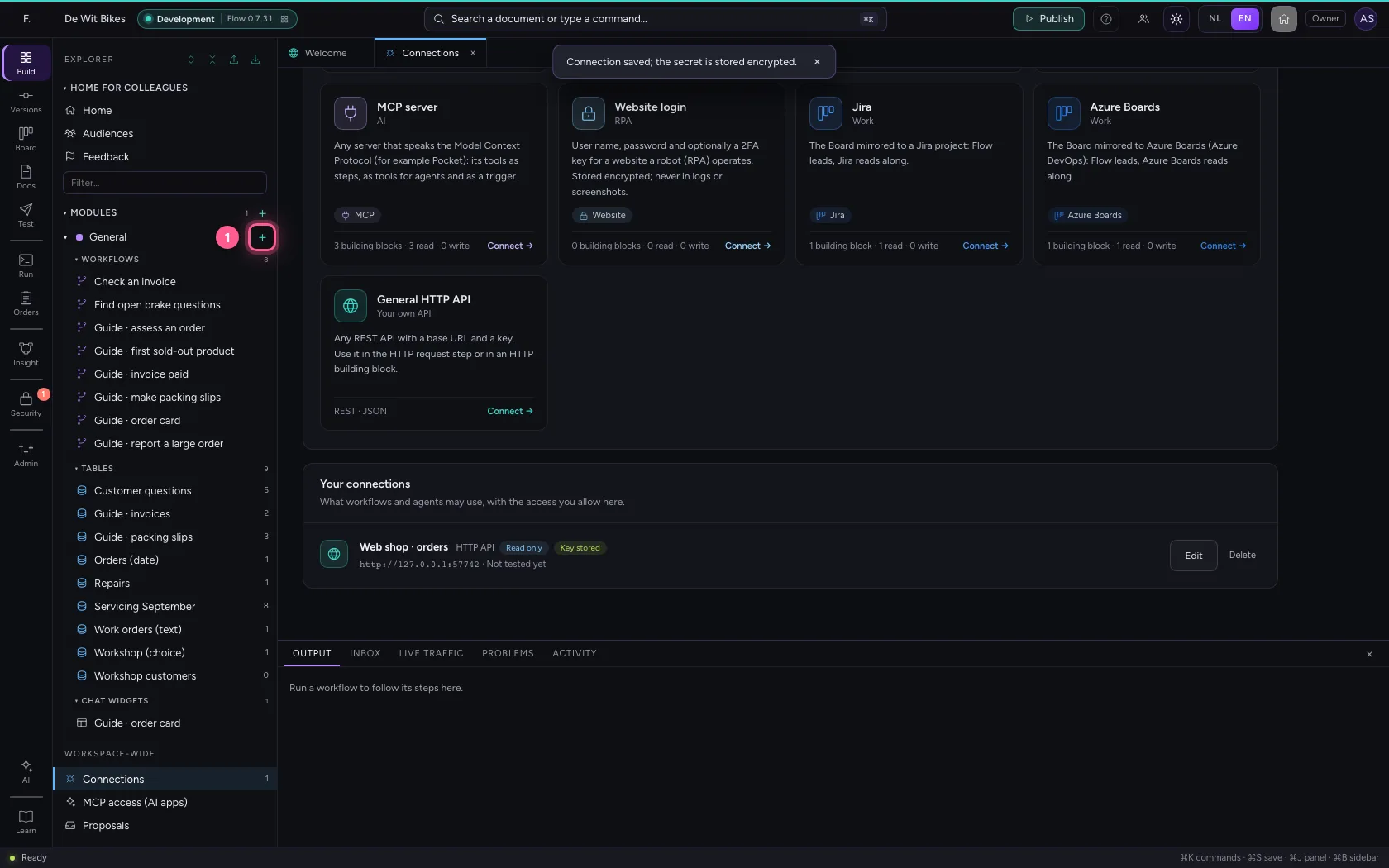
  1. Click Add to General
A workflow that wants to create something · Click Add to General
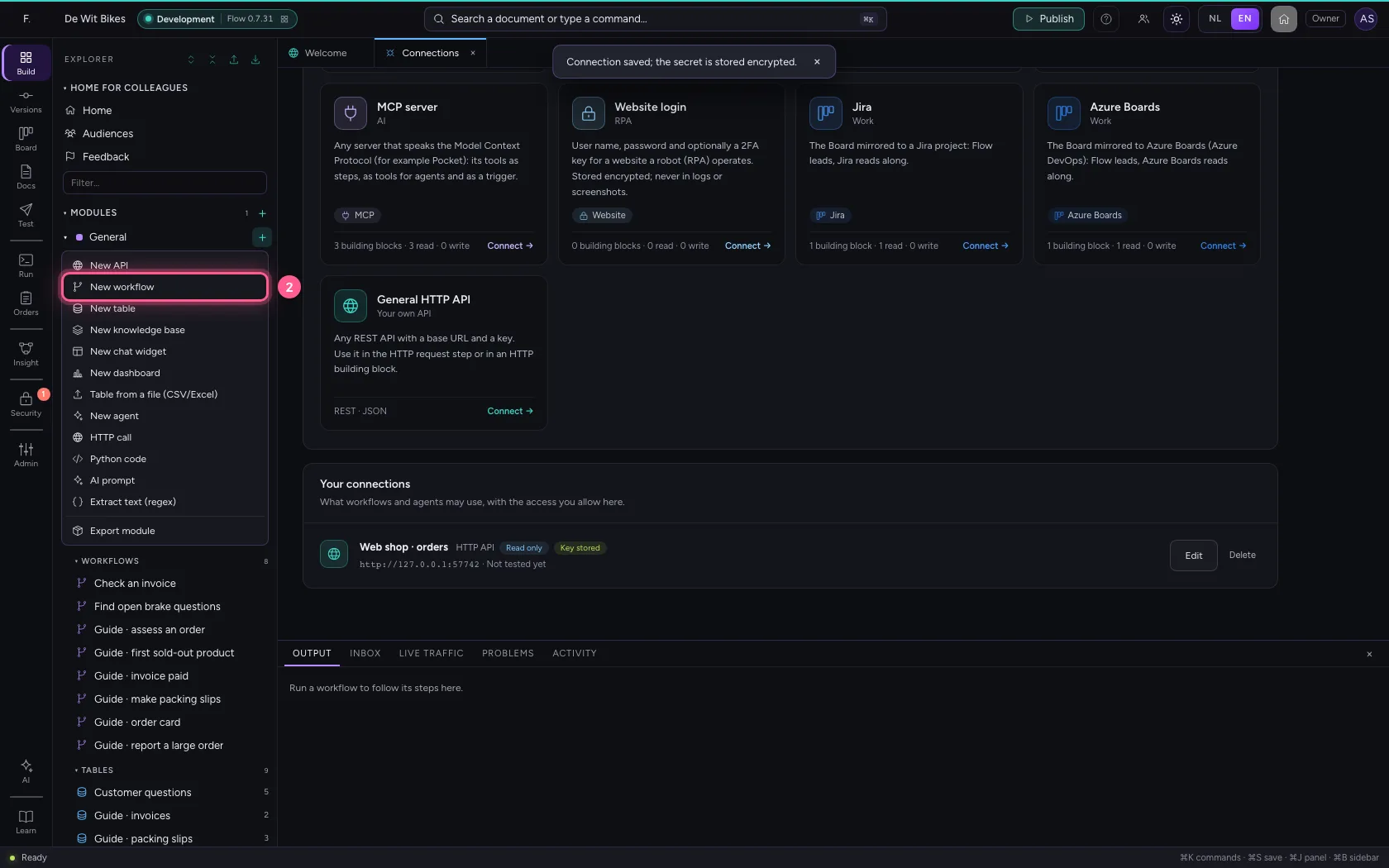
  1. Click New workflow
A workflow that wants to create something · Click New workflow
  1. In Workflow name, type Prepare an order
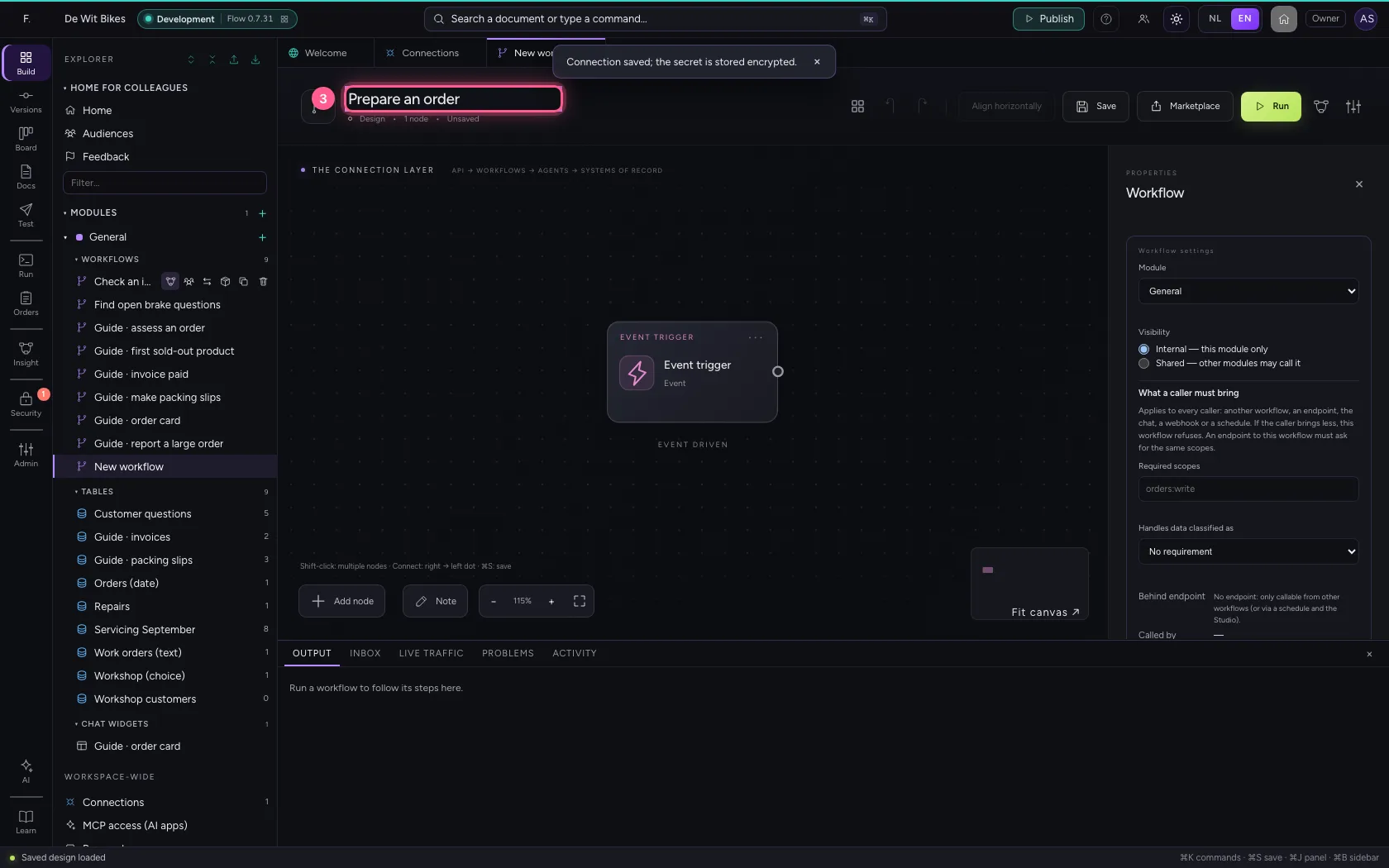
A workflow that wants to create something · In Workflow name, type Prepare an order
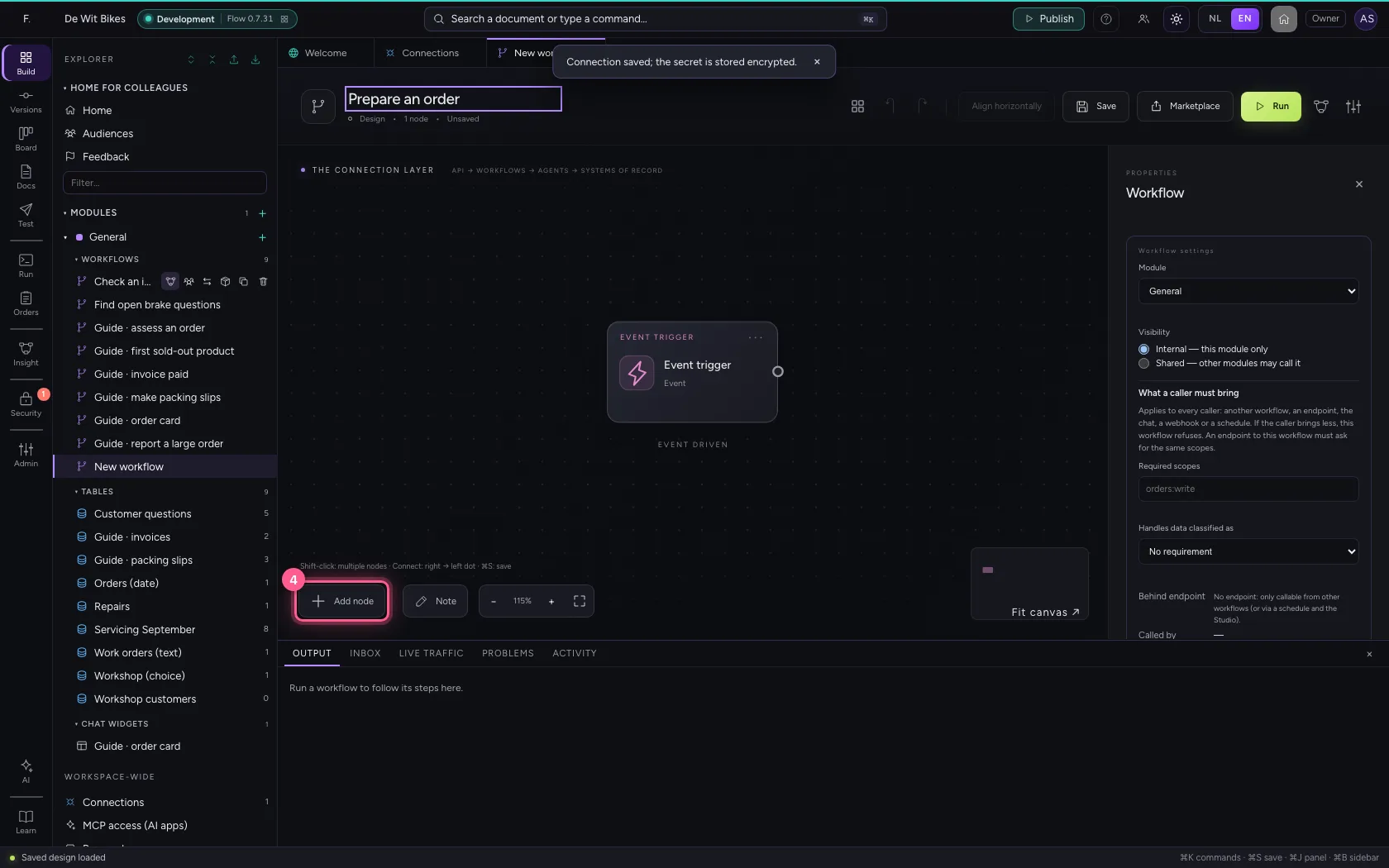
  1. Click Add node
A workflow that wants to create something · Click Add node
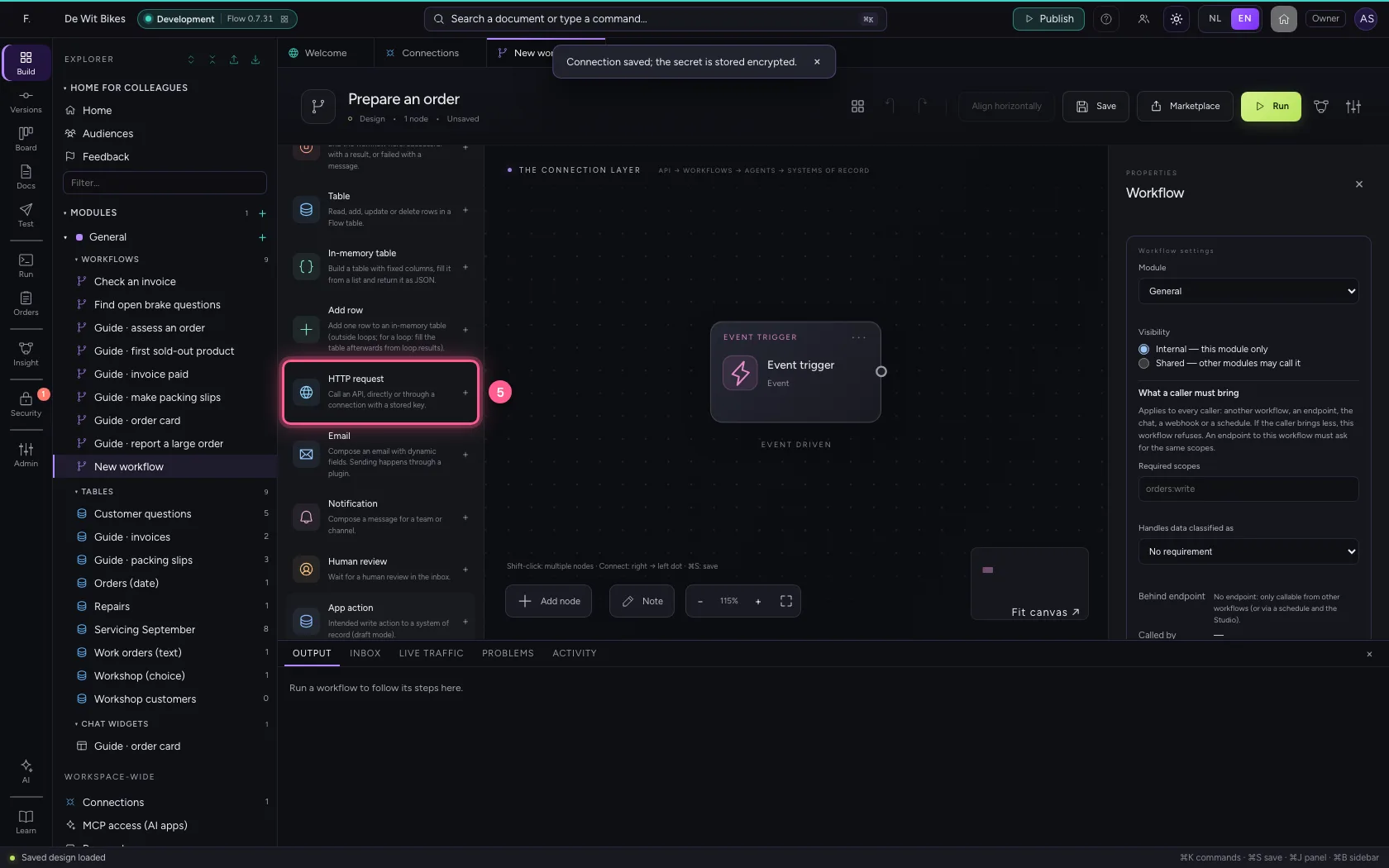
  1. Click HTTP request
A workflow that wants to create something · Click HTTP request
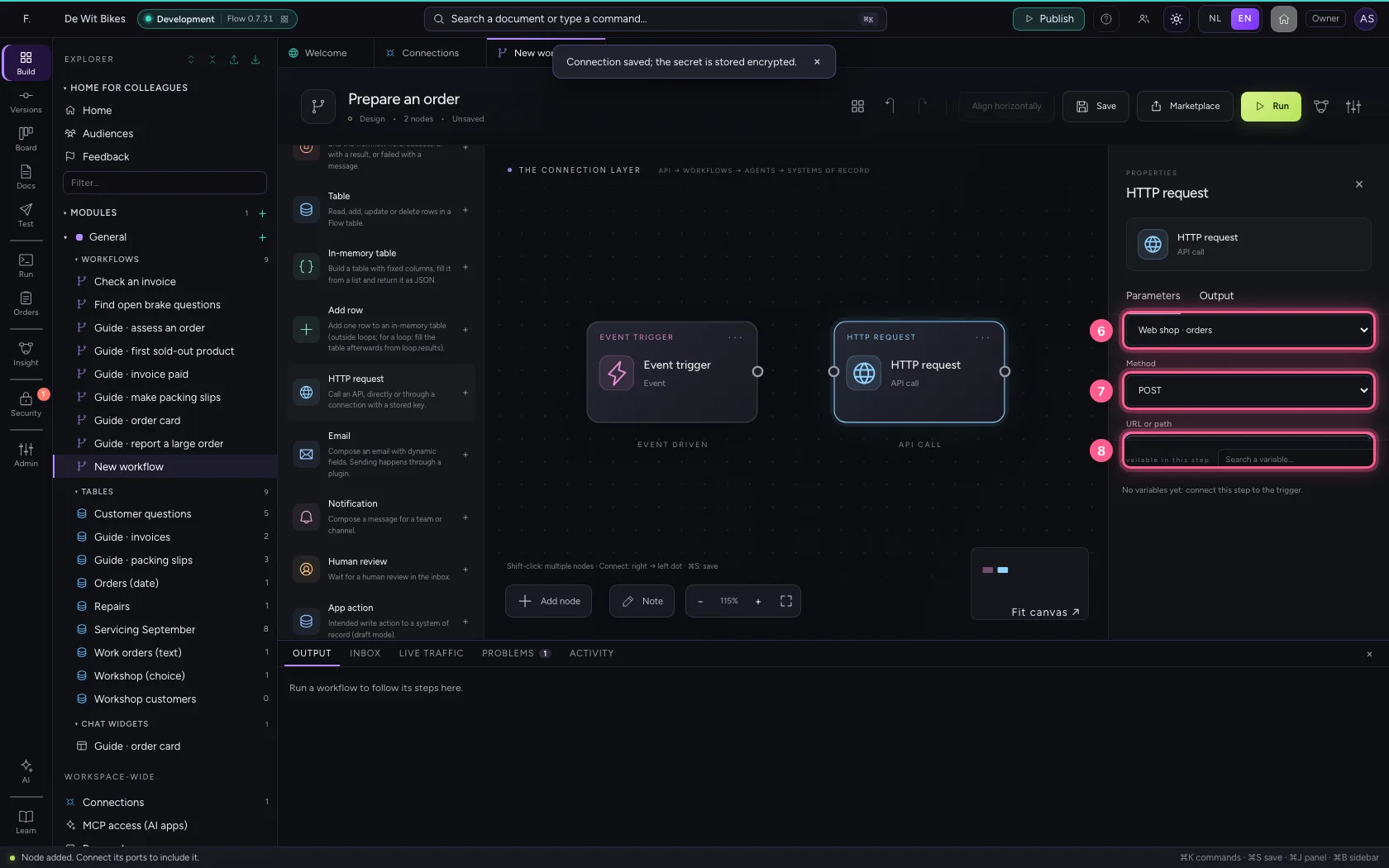
  1. In Connection, choose Web shop · orders
  2. In Method, choose POST
  3. In URL or path, type /orders
A workflow that wants to create something · In Connection, choose Web shop · orders; In Method, choose POST; In URL or path, type /orders
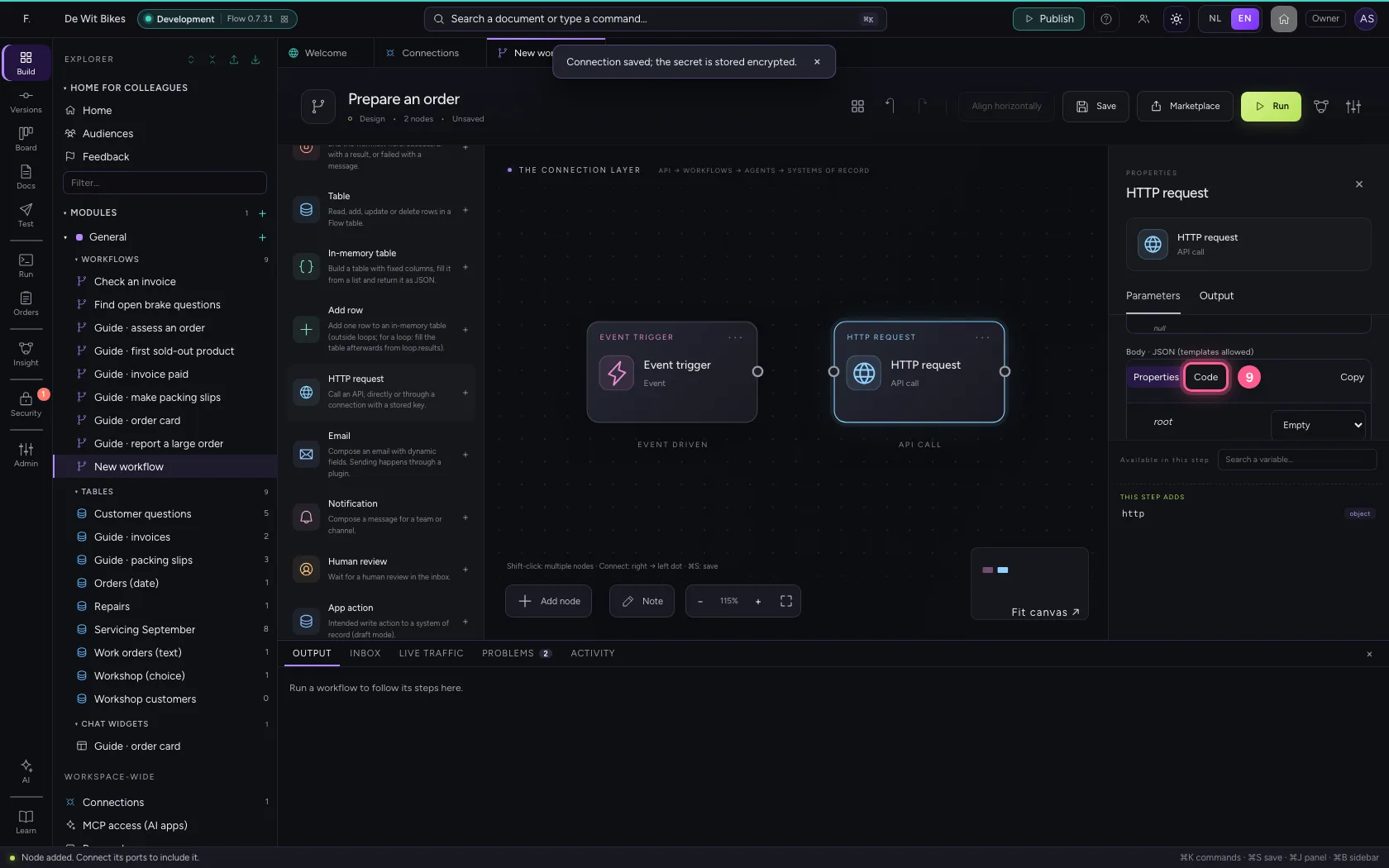
  1. Click Code
A workflow that wants to create something · Click Code
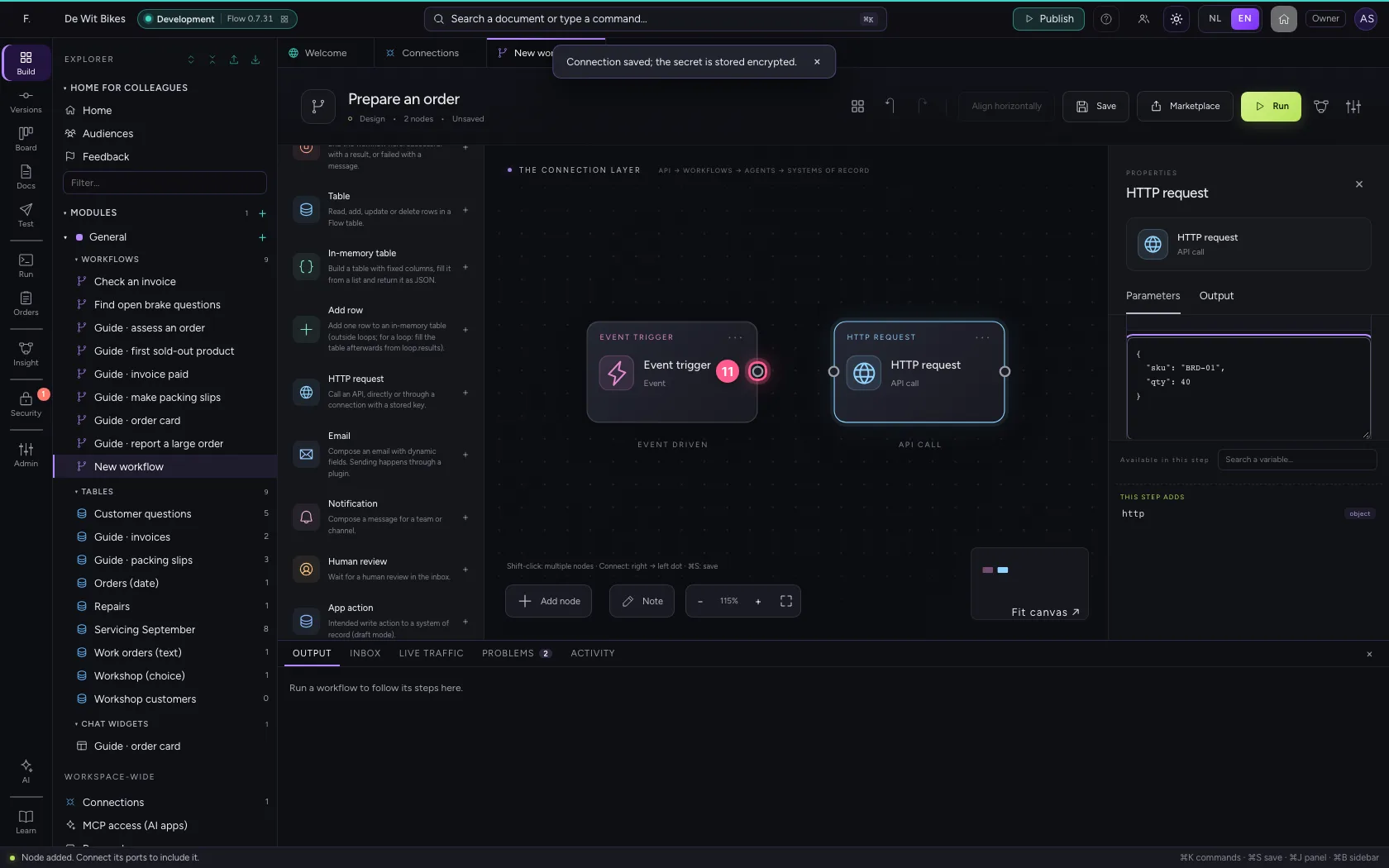
  1. In Body, type {"sku": "BRD-01", "qty": 40}
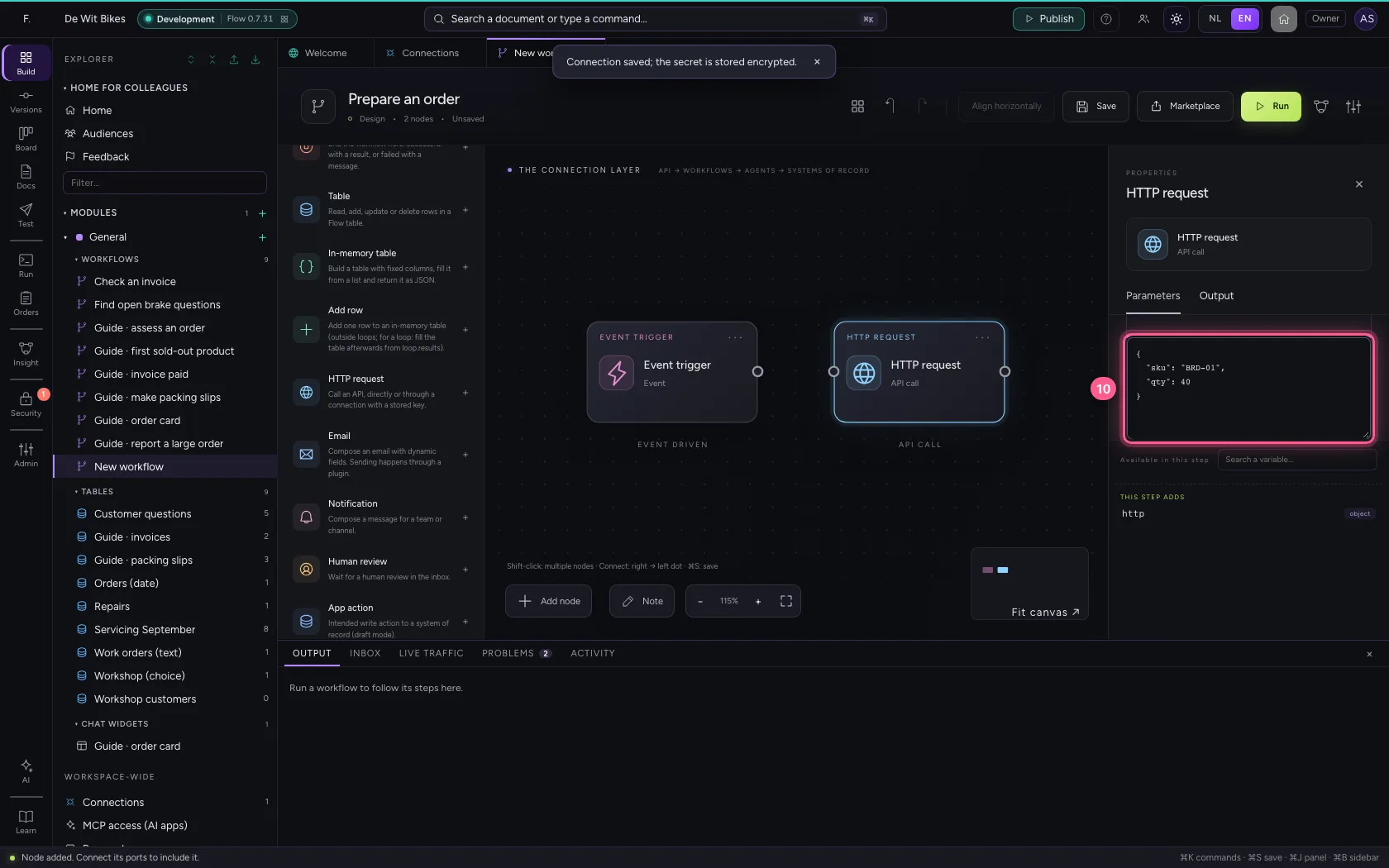
A workflow that wants to create something · In Body, type {"sku": "BRD-01", "qty": 40}
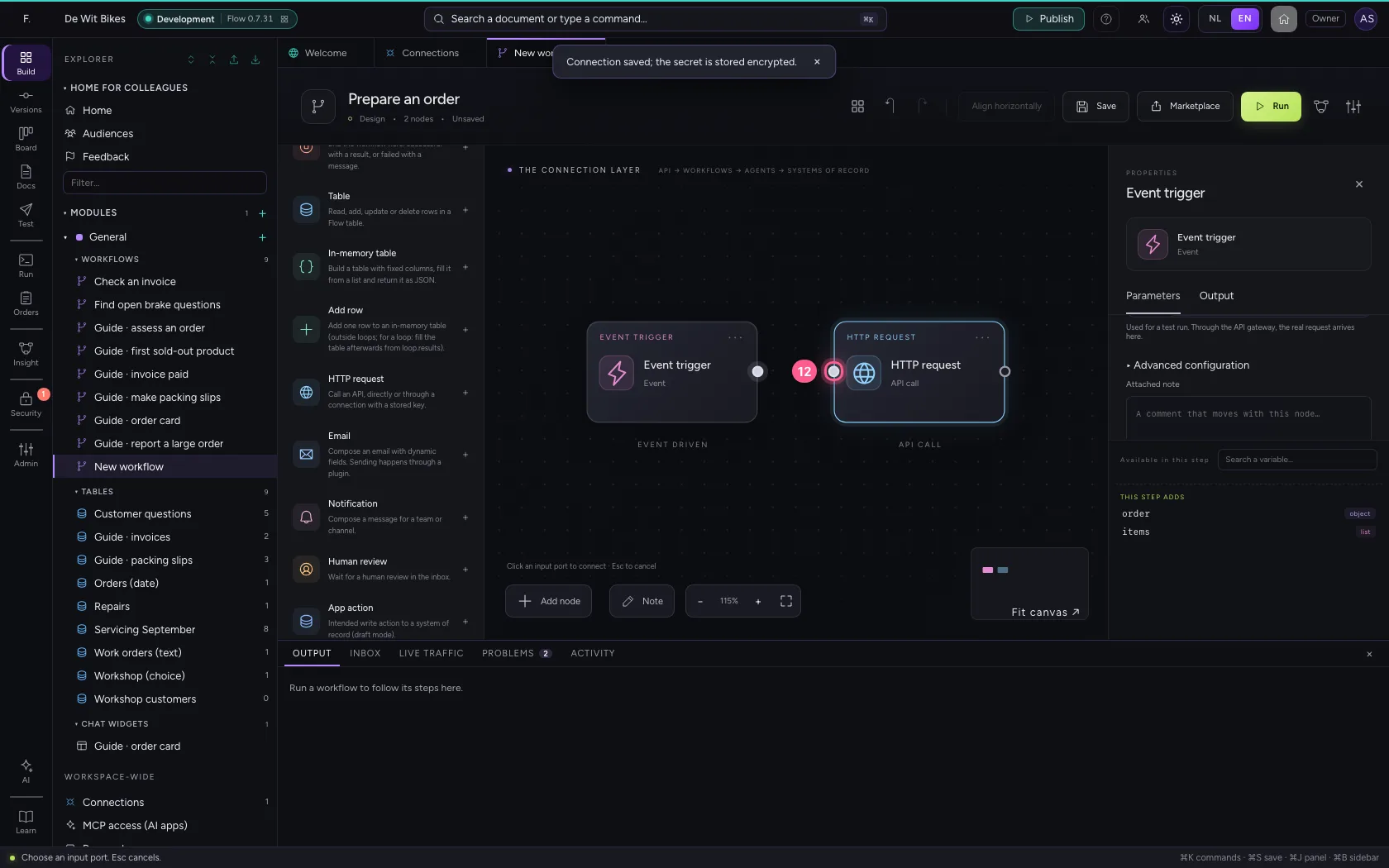
  1. Click the dot of ‘Event trigger’
A workflow that wants to create something · Click the dot of ‘Event trigger’
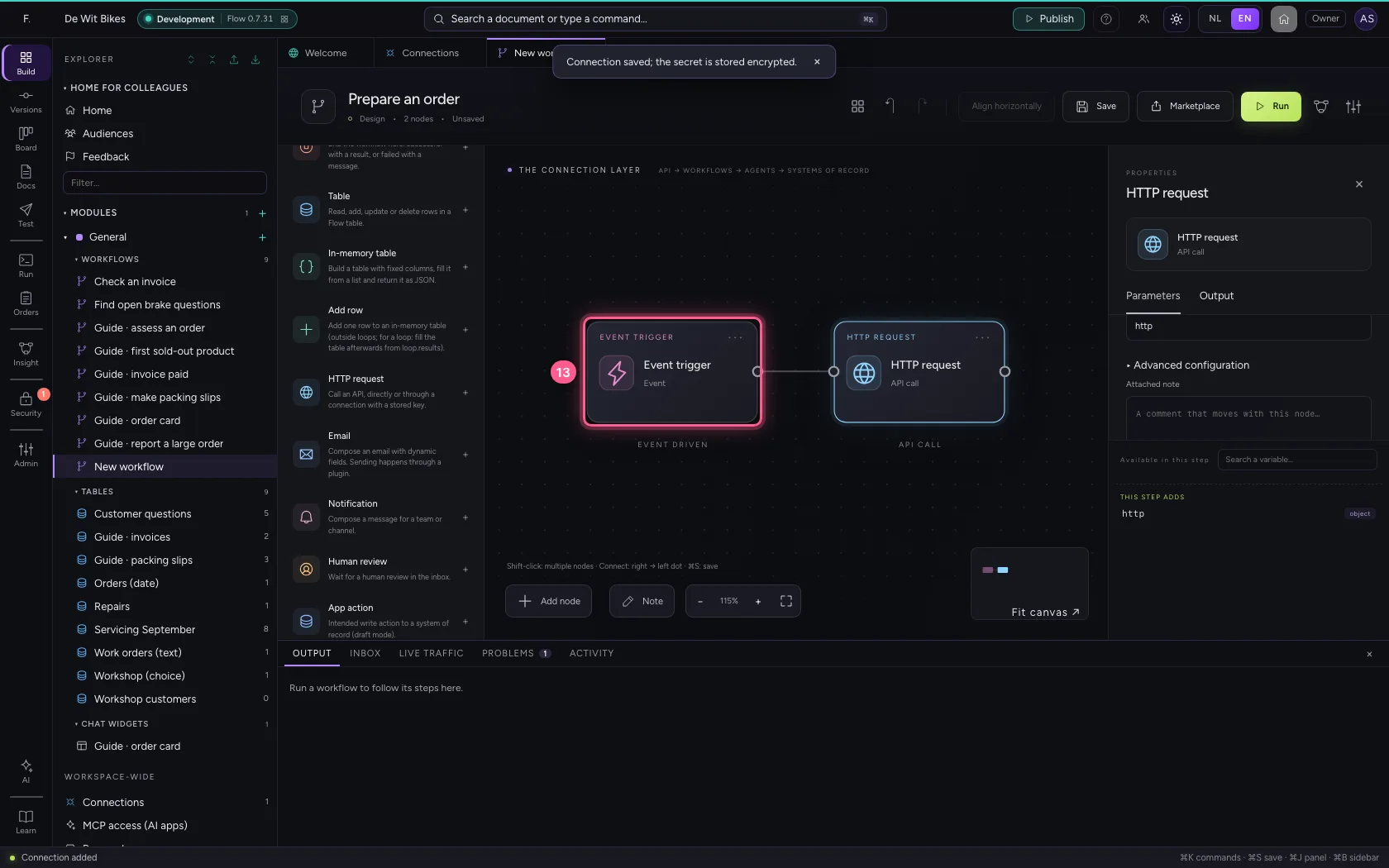
  1. Click the dot of ‘HTTP request’
A workflow that wants to create something · Click the dot of ‘HTTP request’
  1. Click the step ‘Event trigger’
A workflow that wants to create something · Click the step ‘Event trigger’
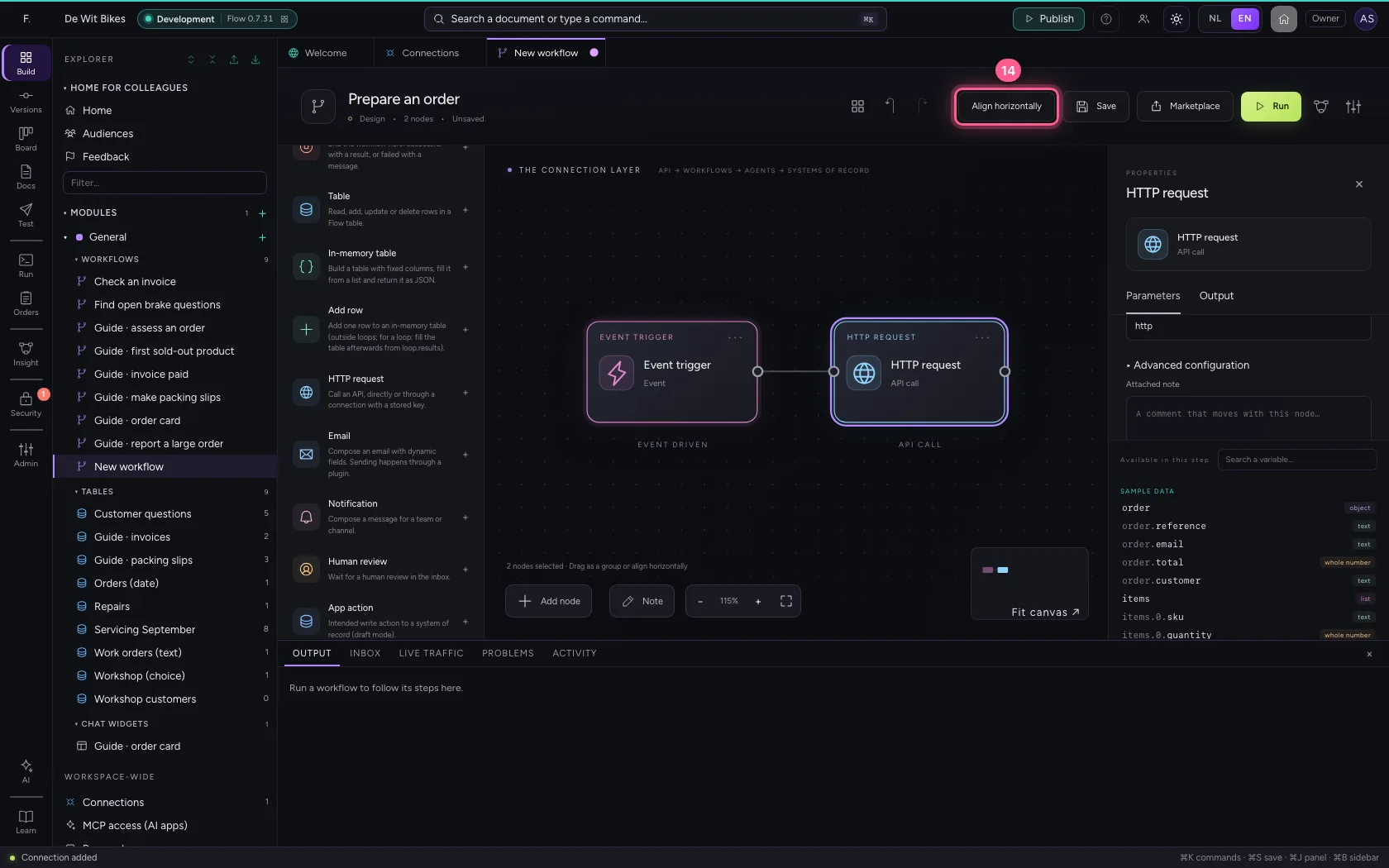
  1. Click Align horizontally
A workflow that wants to create something · Click Align horizontally
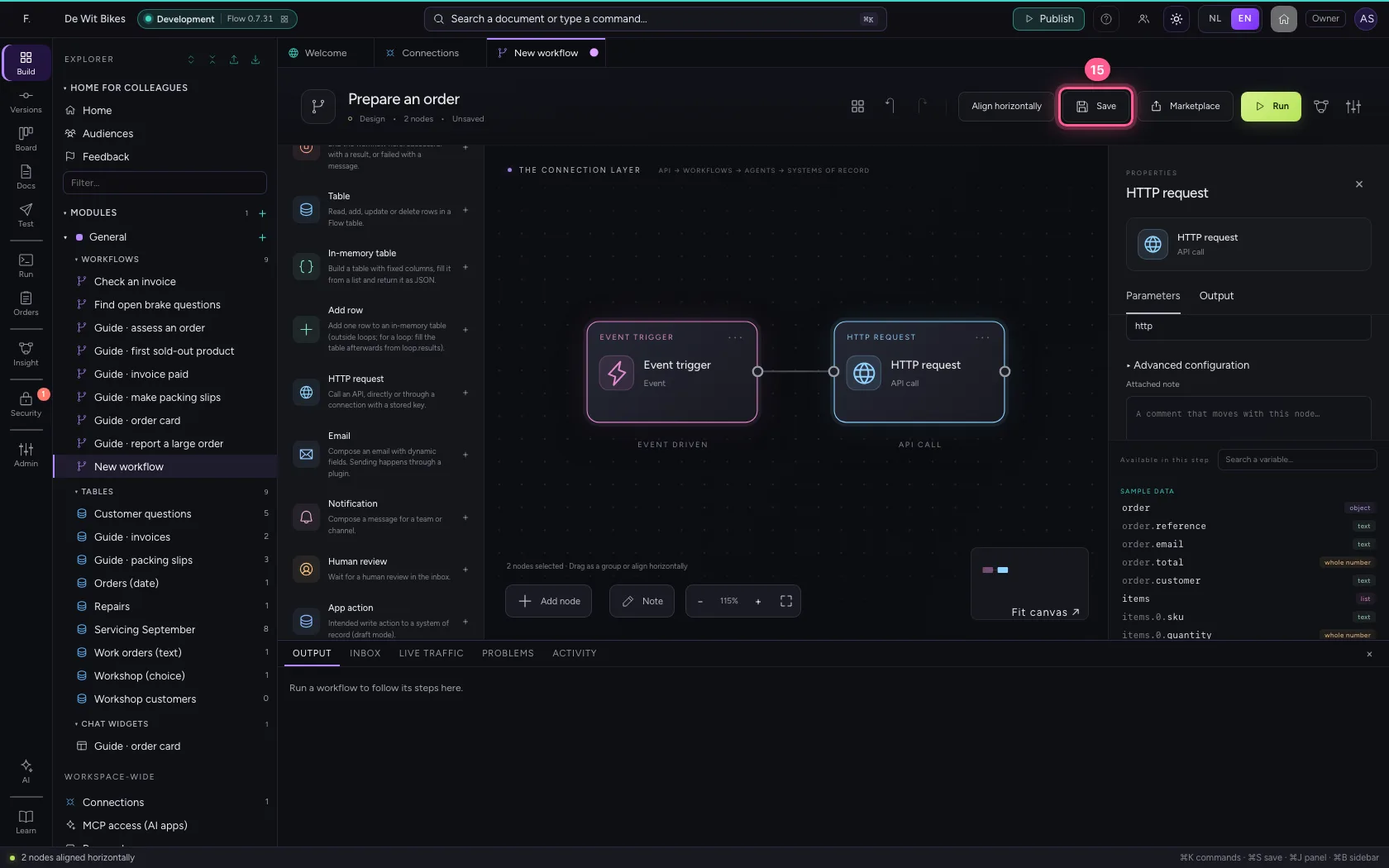
  1. Click Save
A workflow that wants to create something · Click Save
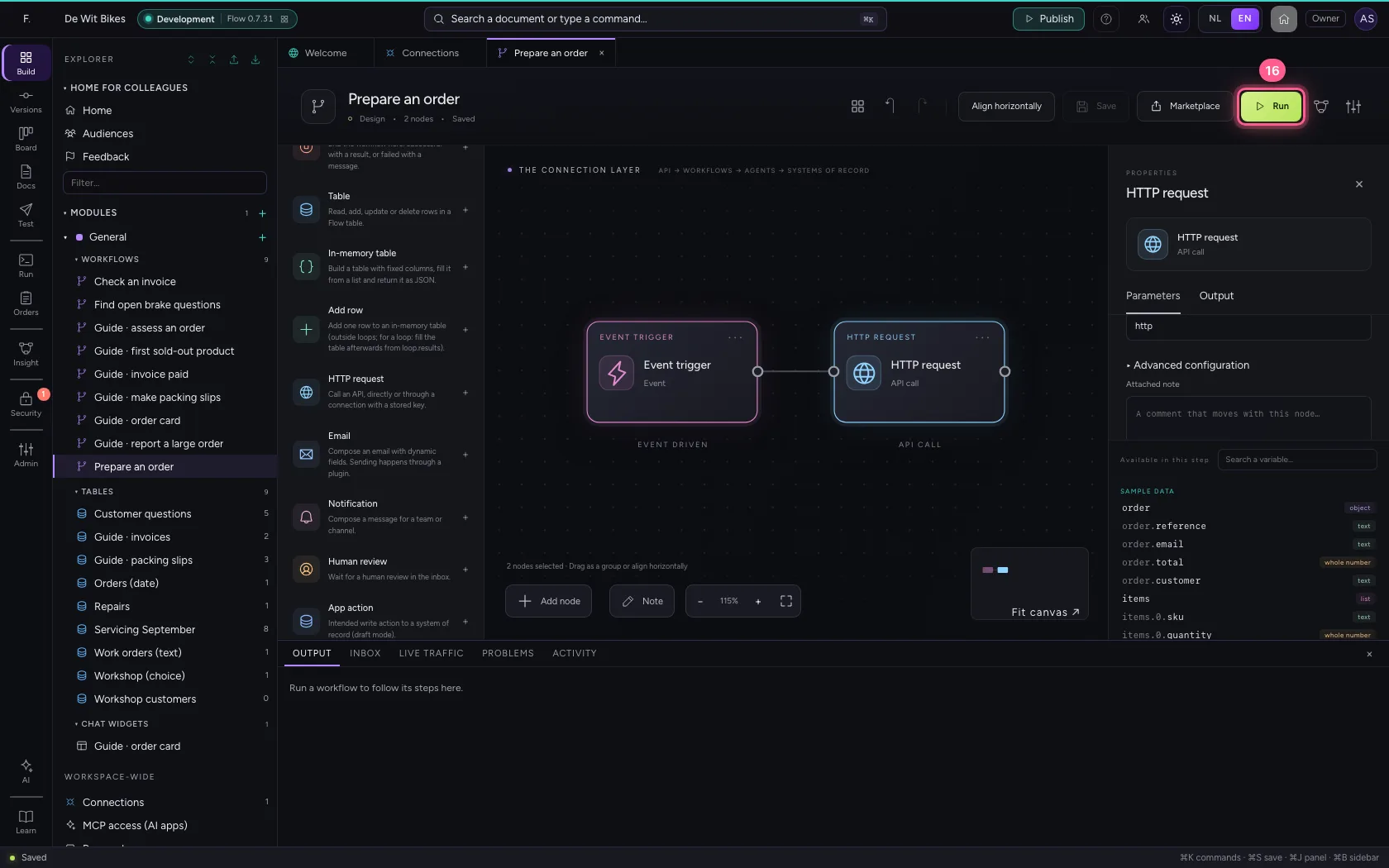
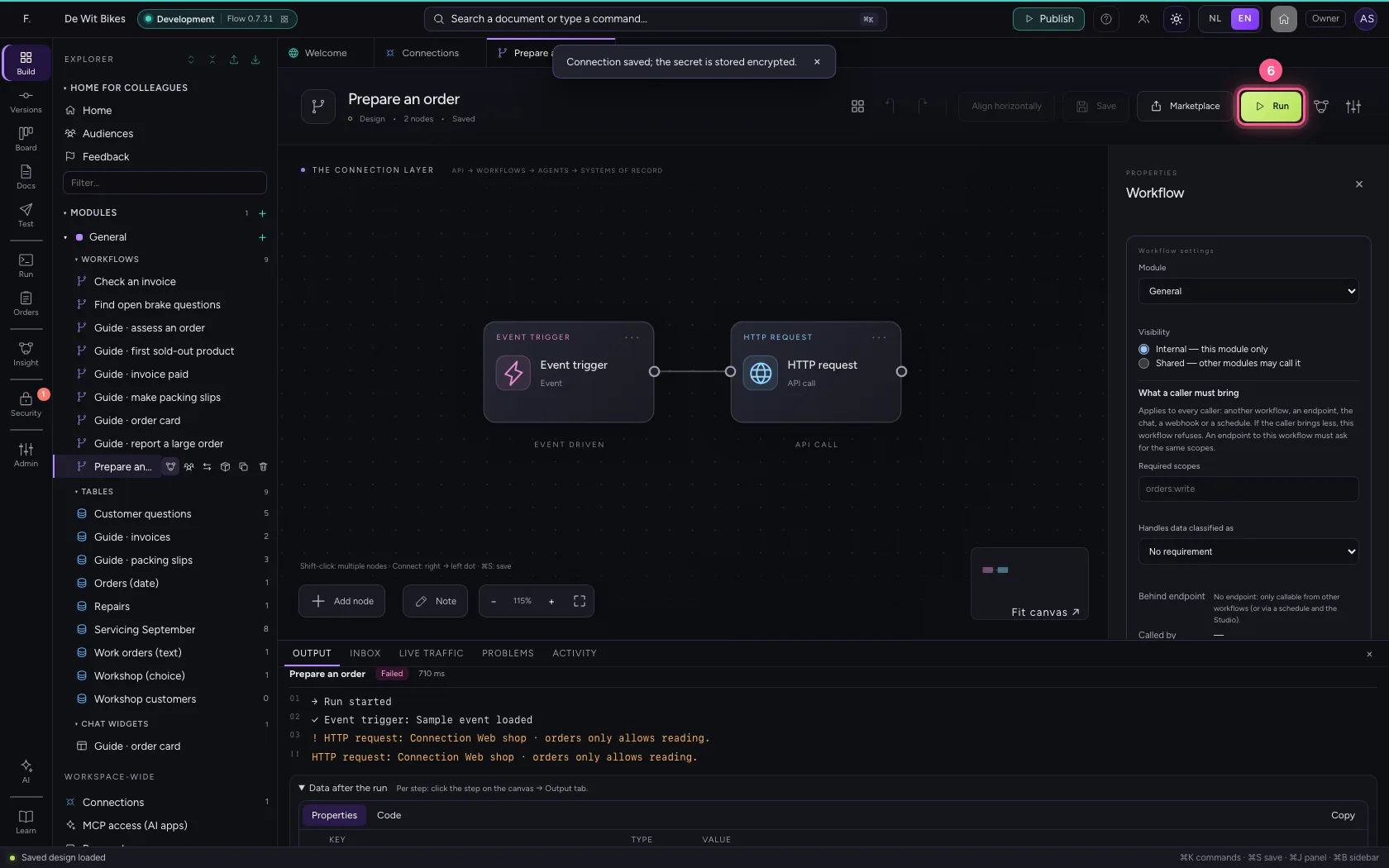
  1. Click Run
A workflow that wants to create something · Click Run
A workflow that wants to create something · ‘…only allows reading’: Flow stopped the POST.
Step 4 / 5

Allow drafts

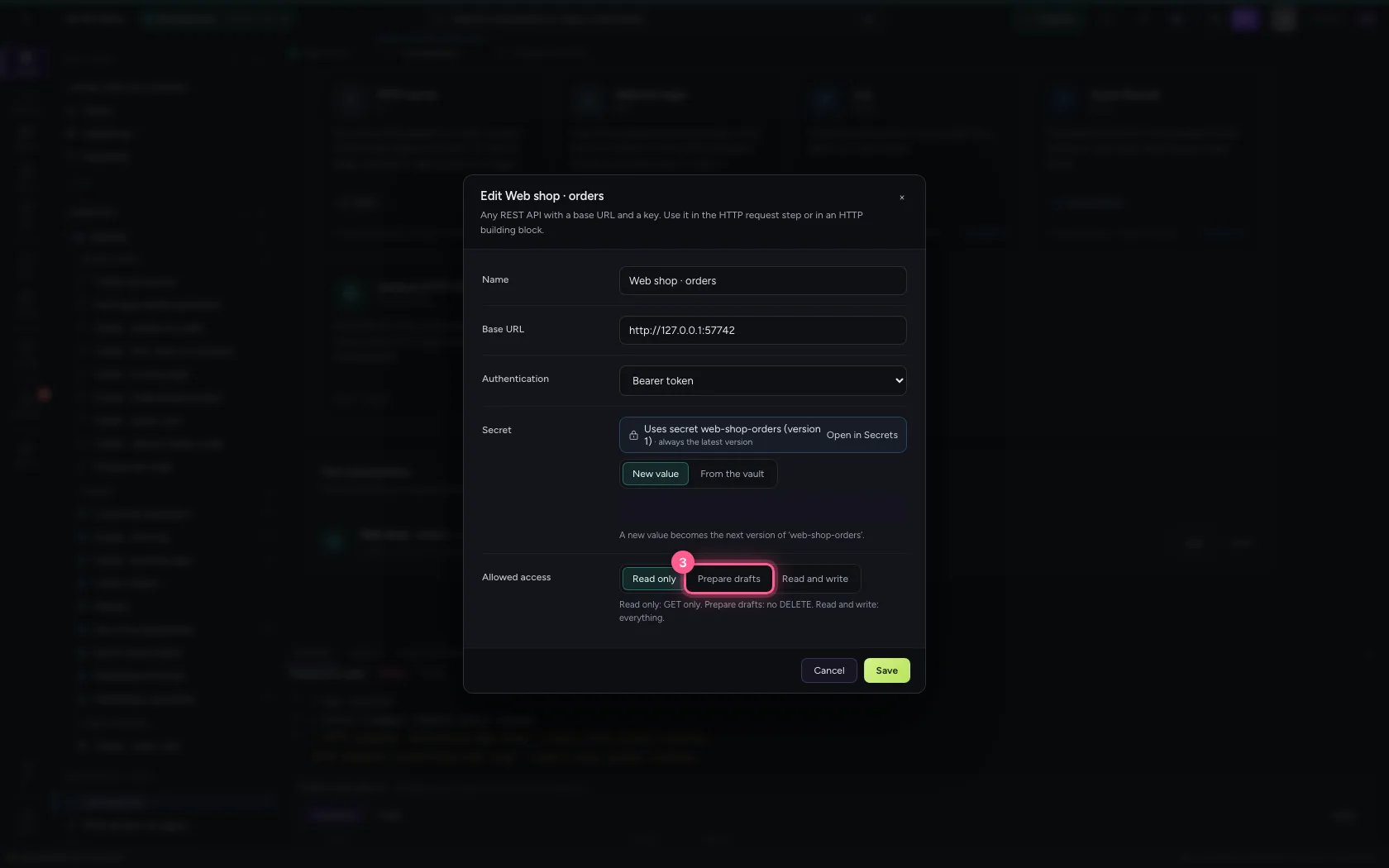
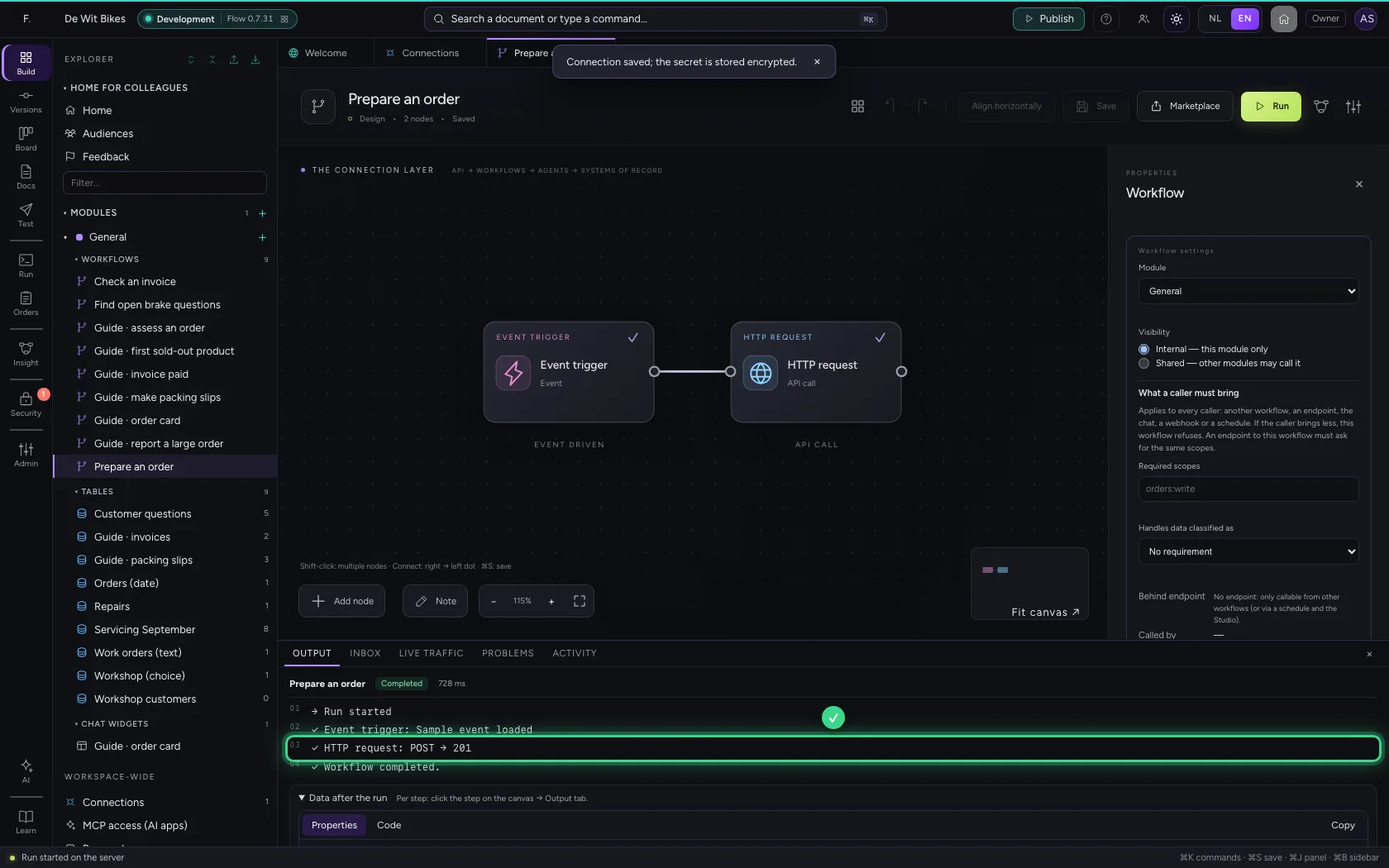
Edit the connection and choose Prepare drafts: creating and changing is allowed, deleting is not. Run the workflow again: now the POST goes through and the system answers 201.

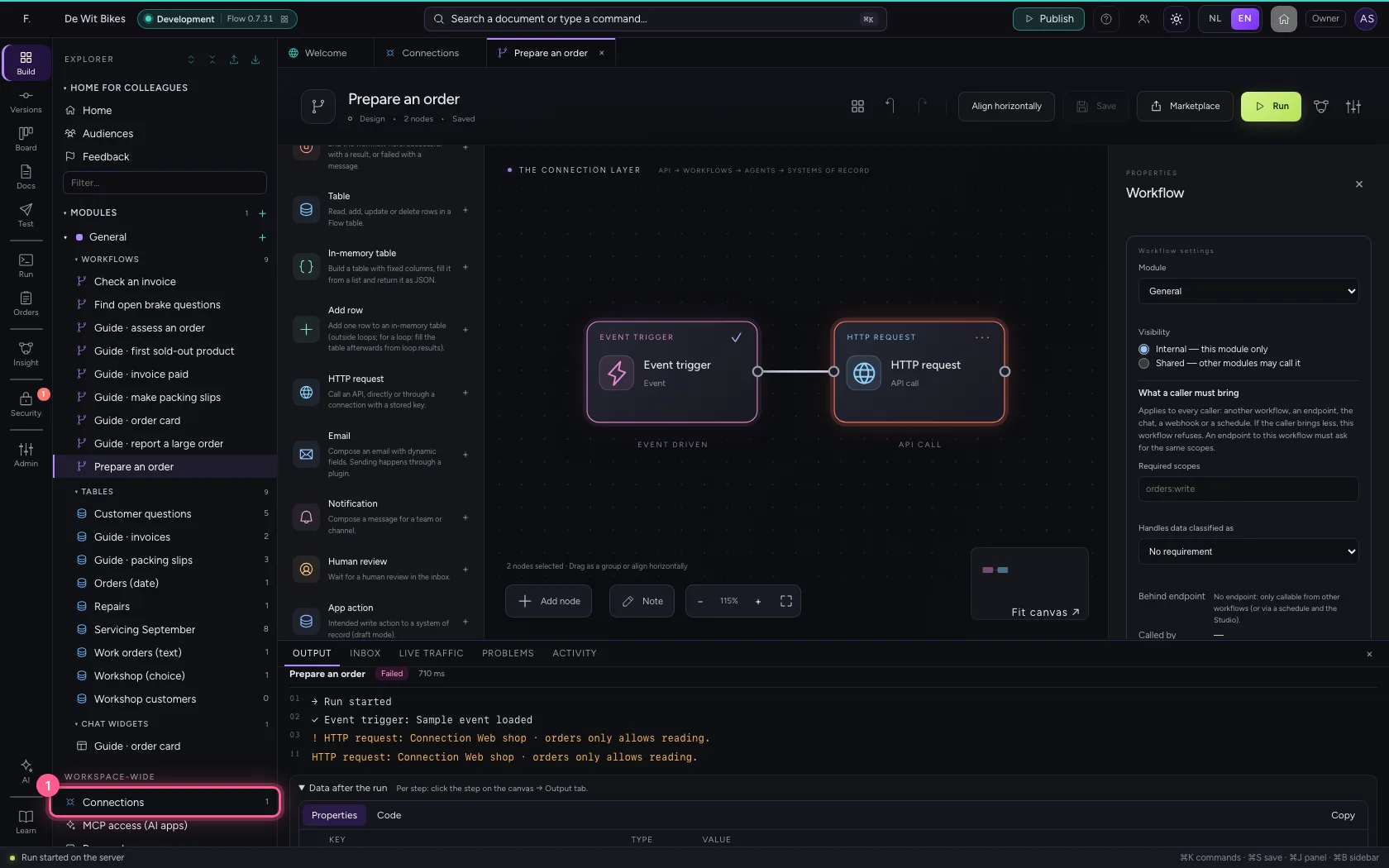
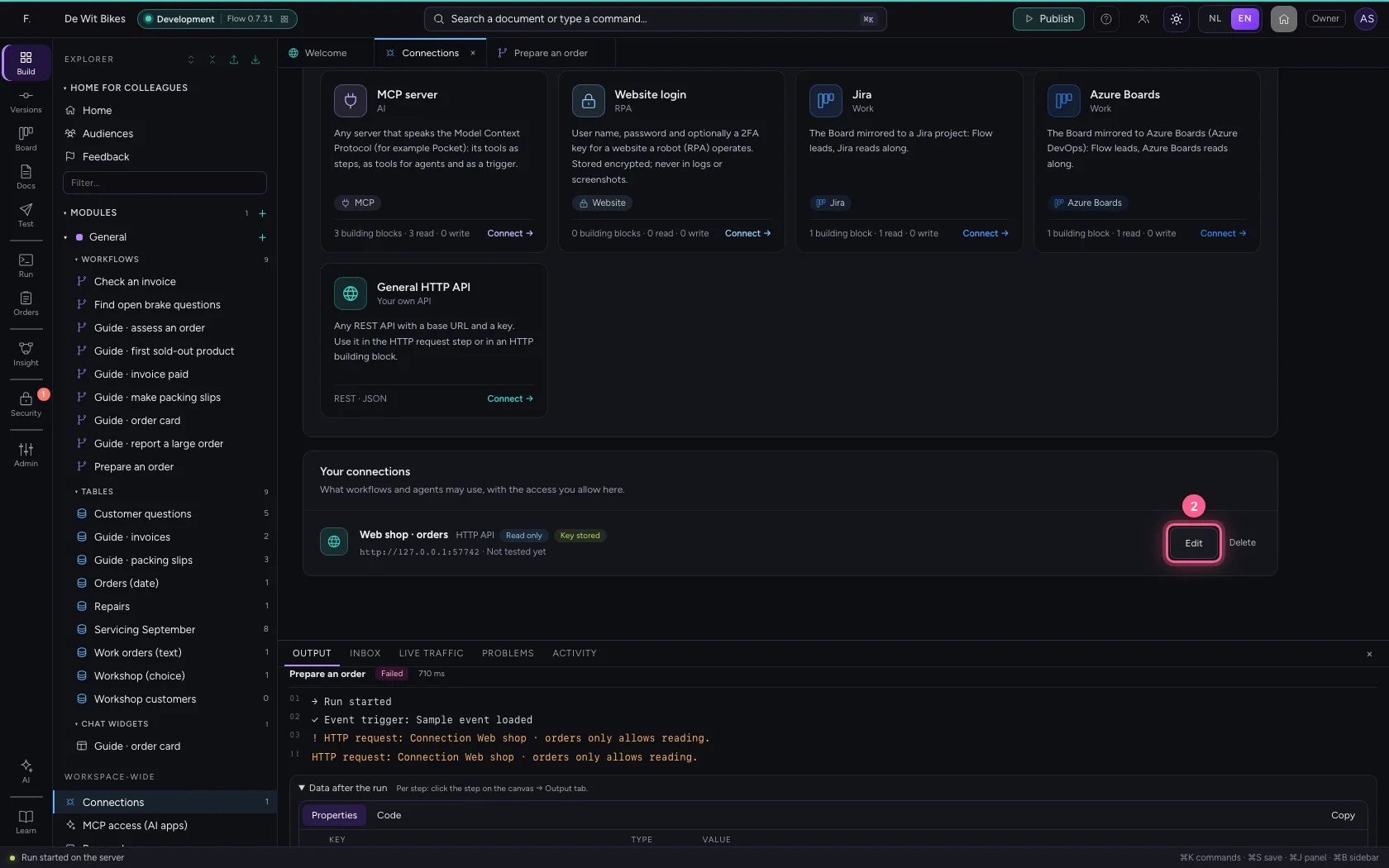
  1. Click Connections
Allow drafts · Click Connections
  1. Click Edit
Allow drafts · Click Edit
  1. Click Prepare drafts
Allow drafts · Click Prepare drafts
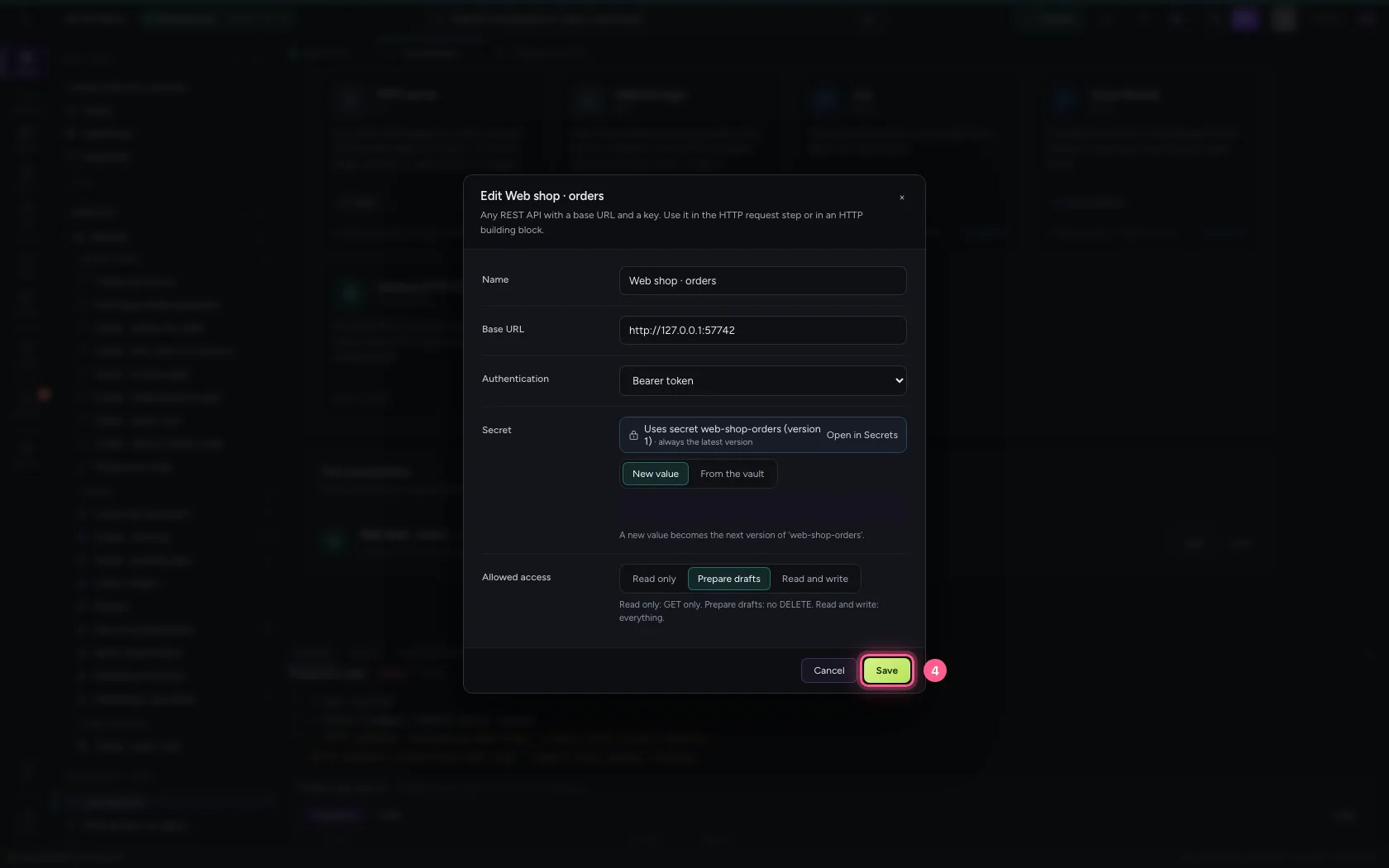
  1. Click Save
Allow drafts · Click Save
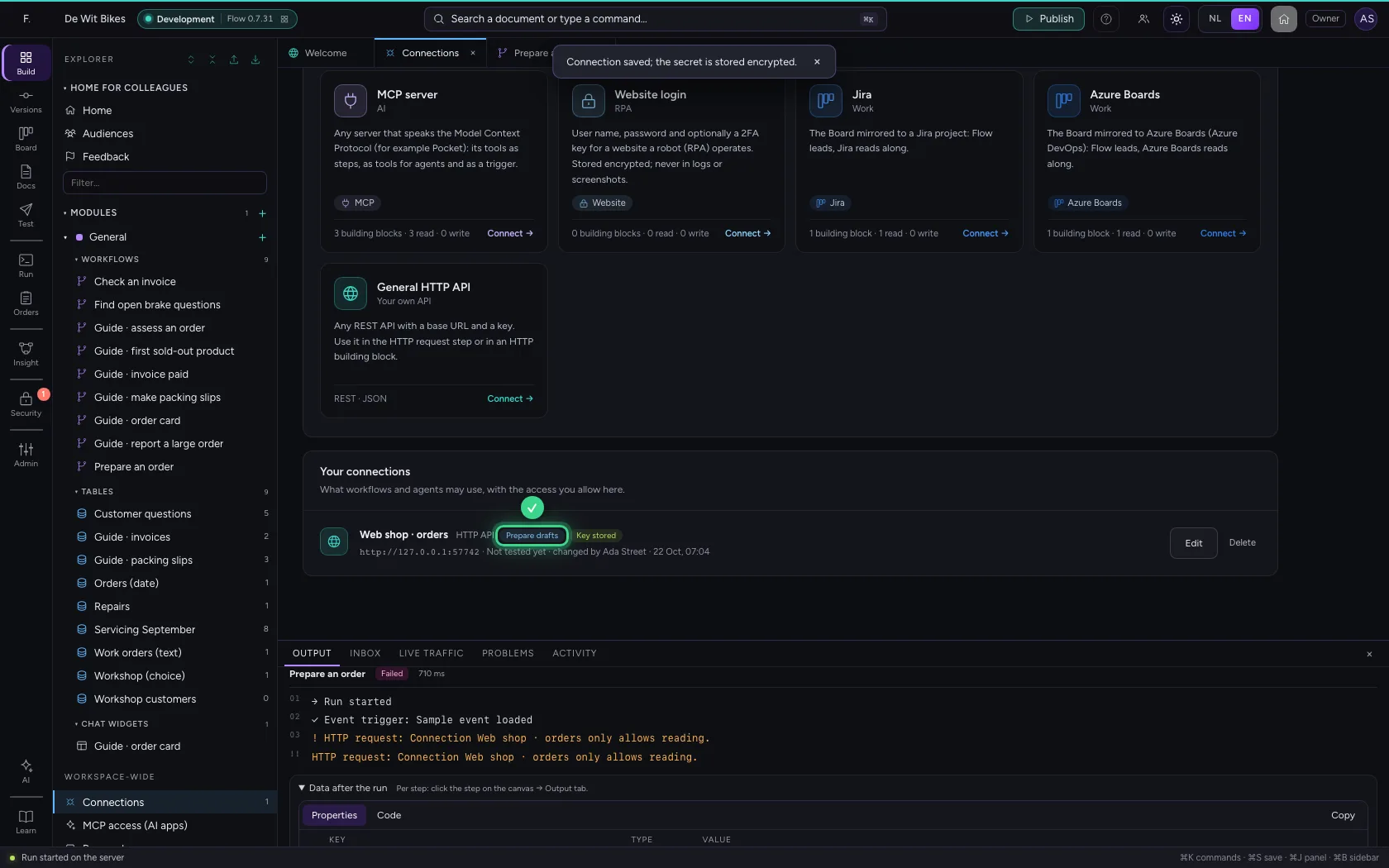
Allow drafts · The connection is now on Prepare drafts.
  1. Click the workflow
Allow drafts · Click the workflow
  1. Click Run
Allow drafts · Click Run
Allow drafts · POST → 201: the draft order was created.
Step 5 / 5

Deleting stays closed

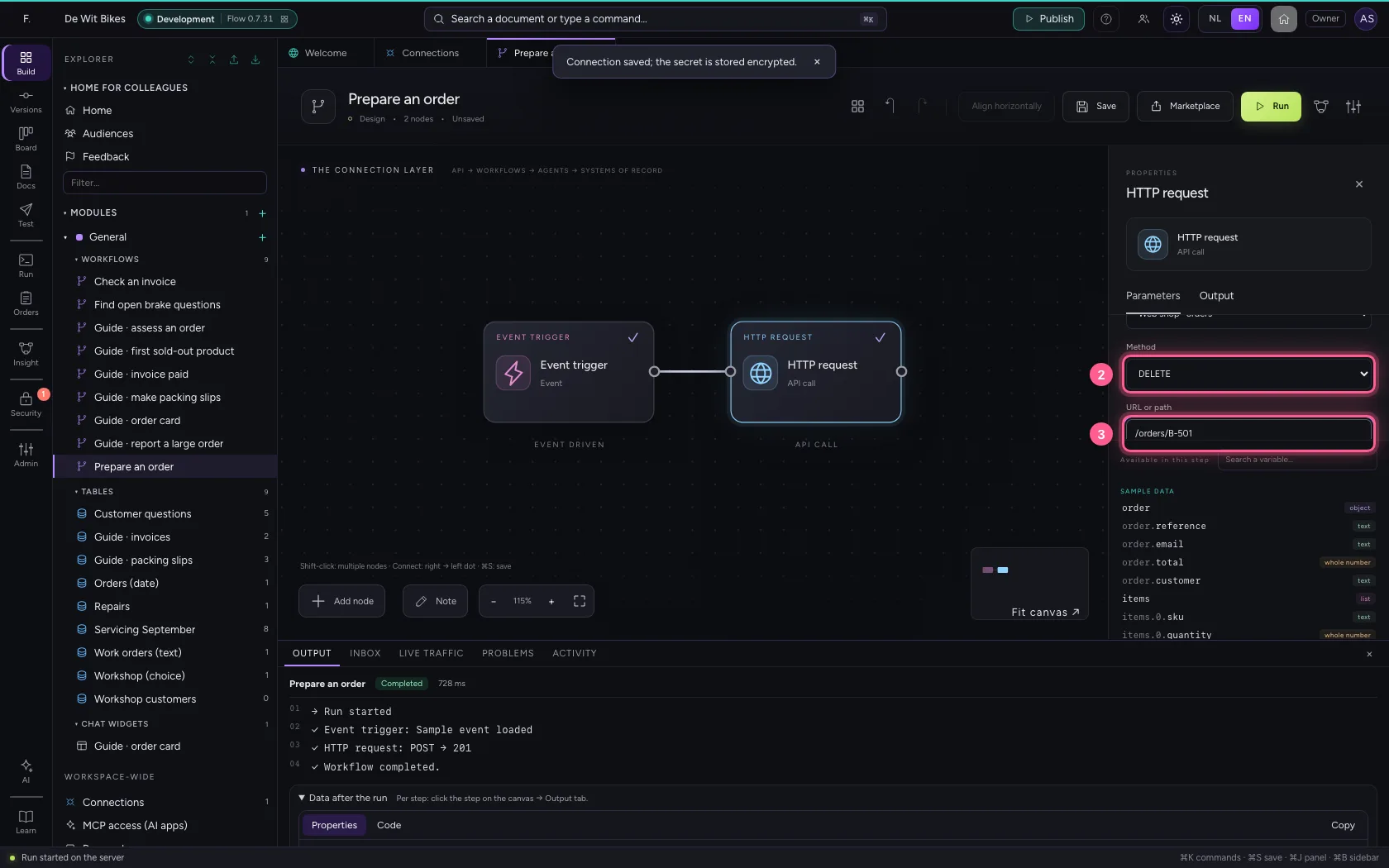
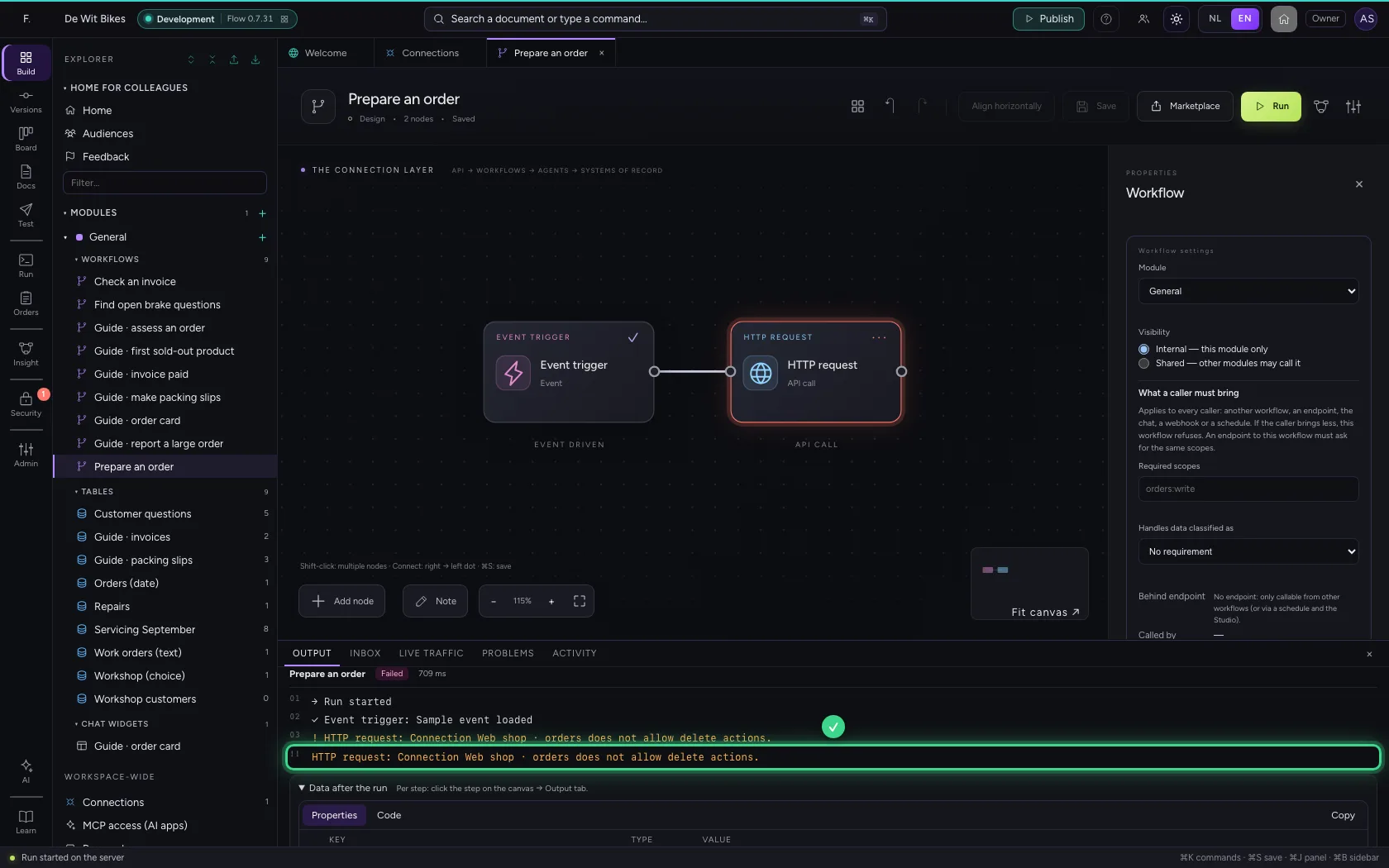
Set the method to DELETE and run. With Prepare drafts Flow refuses every DELETE: a workflow or AI Colleague that goes wrong cannot throw anything away. Only Read and write allows that.

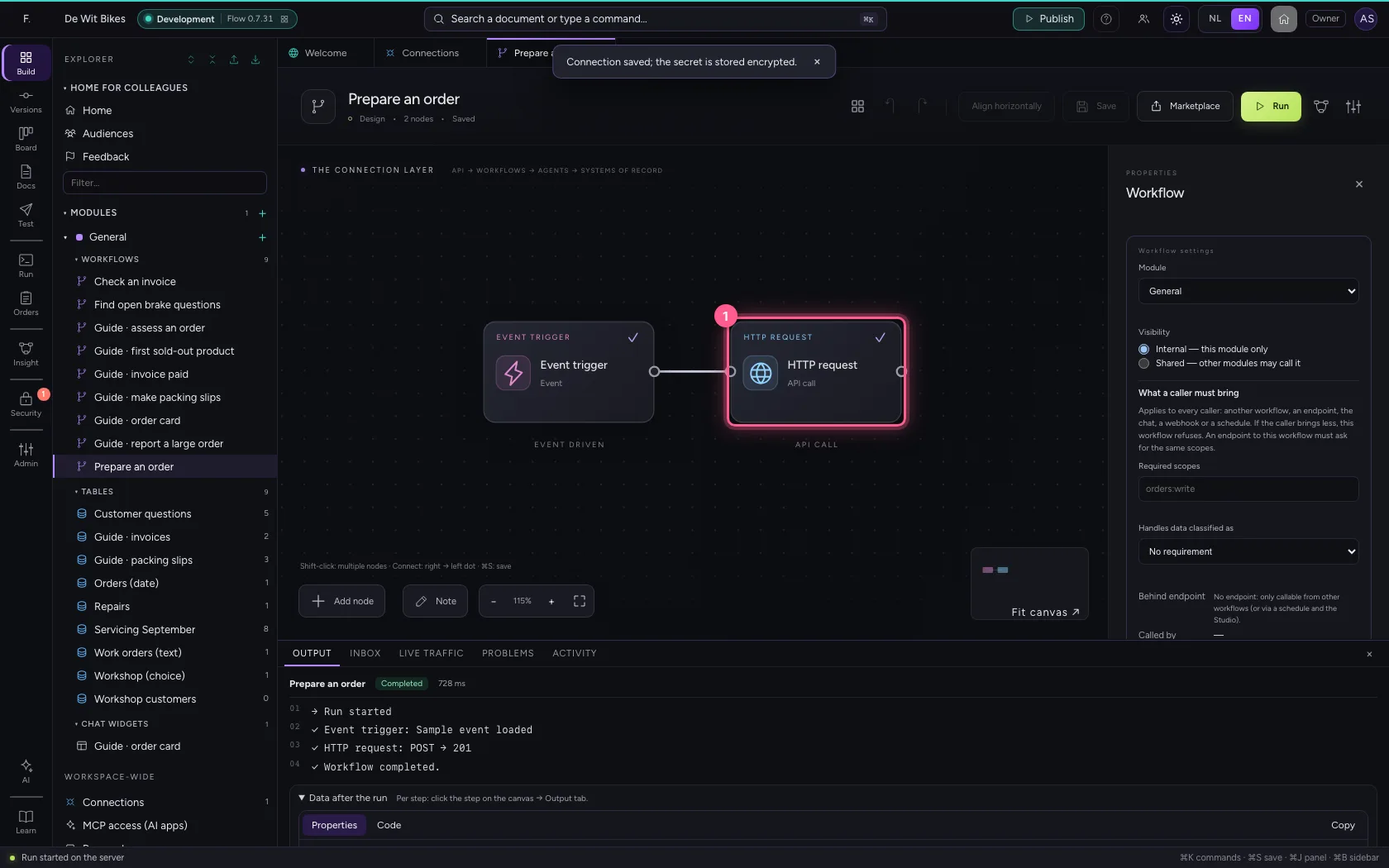
  1. Click the step ‘HTTP request’
Deleting stays closed · Click the step ‘HTTP request’
  1. In Method, choose DELETE
  2. In URL or path, type /orders/B-501
Deleting stays closed · In Method, choose DELETE; In URL or path, type /orders/B-501
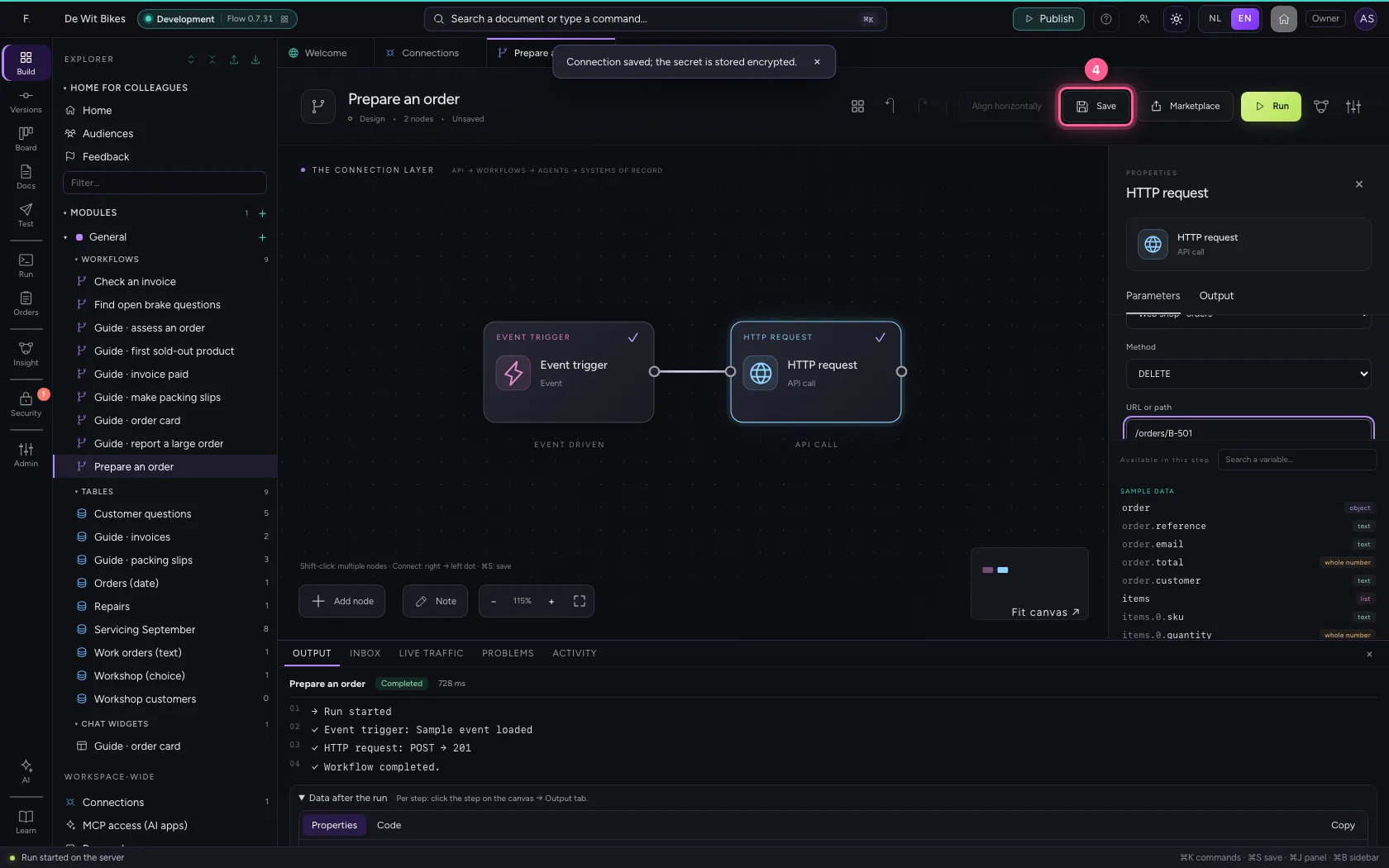
  1. Click Save
Deleting stays closed · Click Save
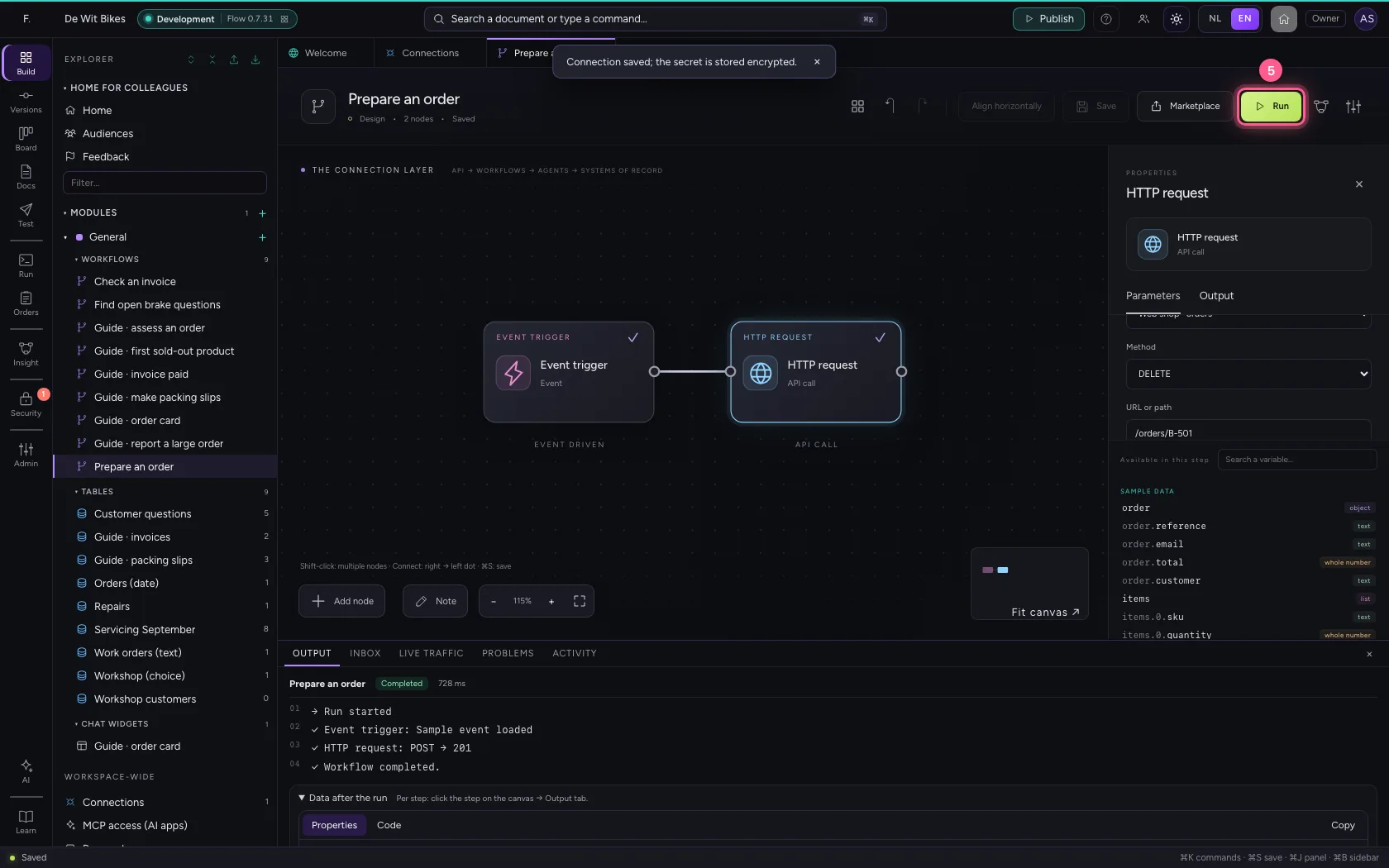
  1. Click Run
Deleting stays closed · Click Run
Deleting stays closed · ‘…does not allow delete actions’: the DELETE never left.

This guide was carried out step by step on 22 Oct 2026 by an automated test on Flow (version 3e563176).