Keep secrets in a vault
- Step 1 · Open your development environment
- Step 2 · Create a secret
- Step 3 · Use it in a connection
- Step 4 · Call the API
- Step 5 · Add a new version
- Step 6 · The next call uses version 2
- Step 7 · Turn the old version off and see what uses it
- Step 8 · From a field to its secret
- Step 9 · This environment's AI keys
- Step 10 · Secrets in the security overview
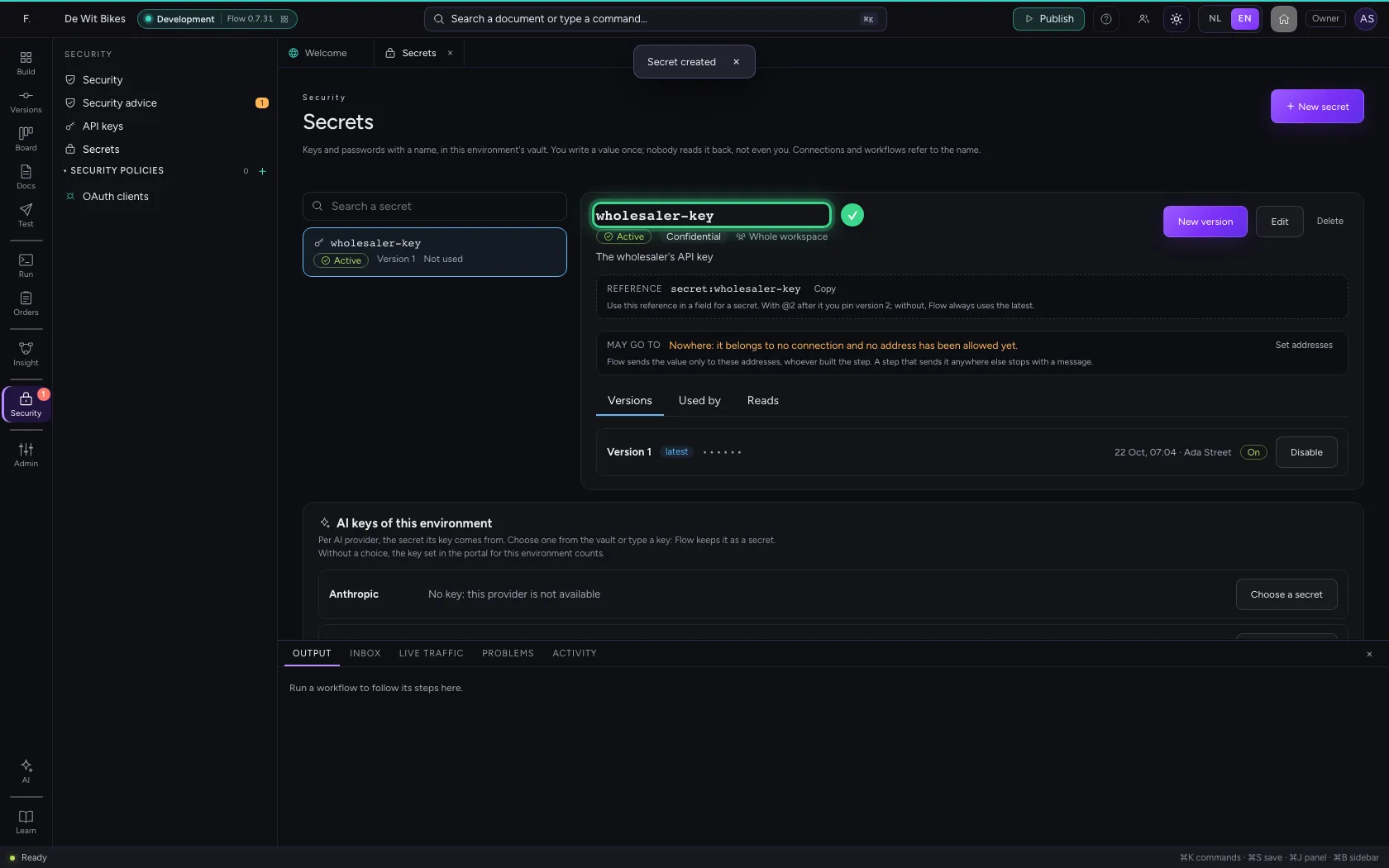
You store a key or password once, with a name, in your environment's vault. Connections and workflows refer to that name; Flow never shows the value again, not even to you. A new key becomes a new version, used at the next call without a restart. In this guide you create a secret, use it in a connection, add a version and see who read it when.
Open your development environment
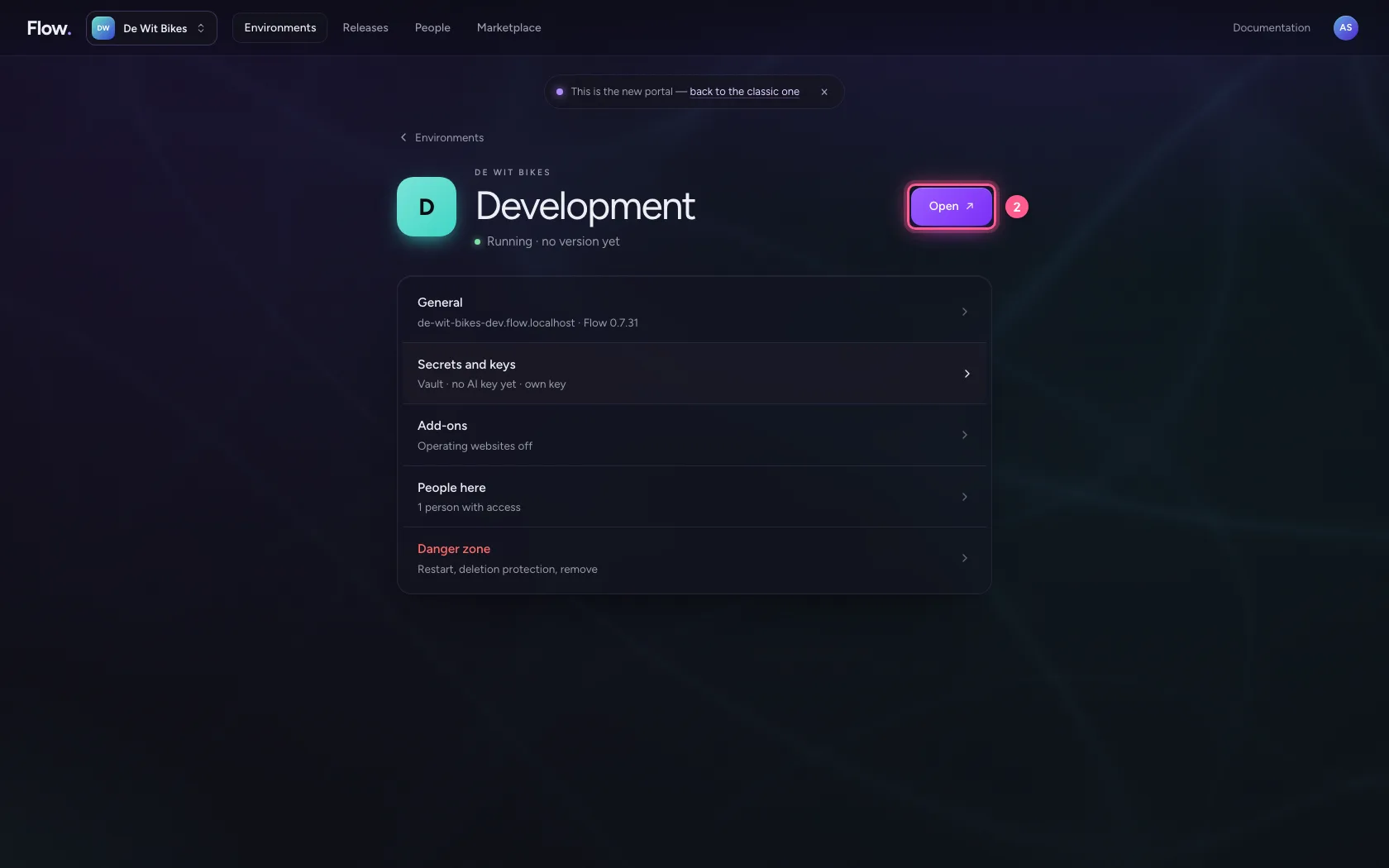
In the portal, under Environments, click Development, and there Open. Flow opens in a new tab and you are signed in straight away.
- Click Development
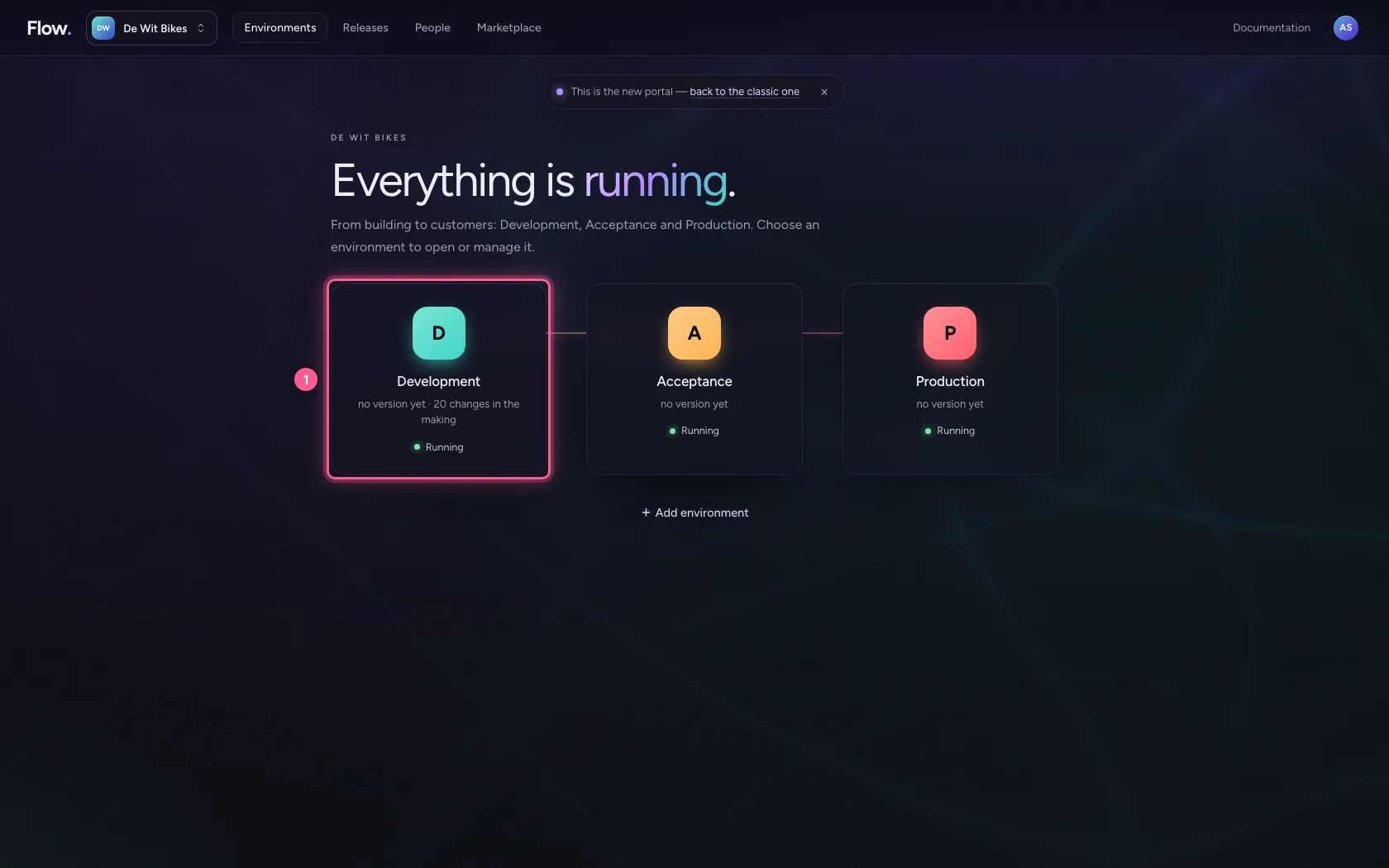
- Click Open ↗
Create a secret
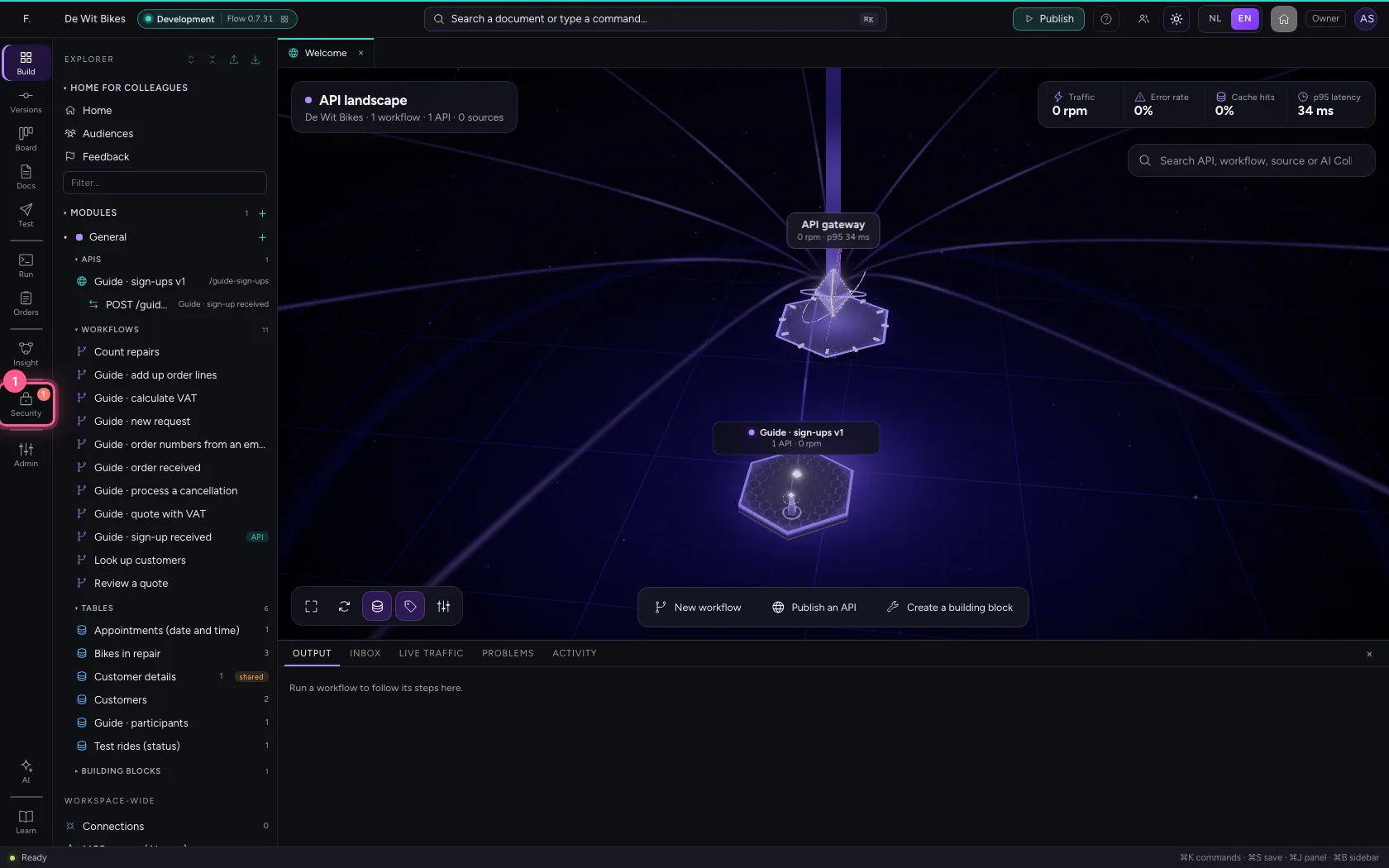
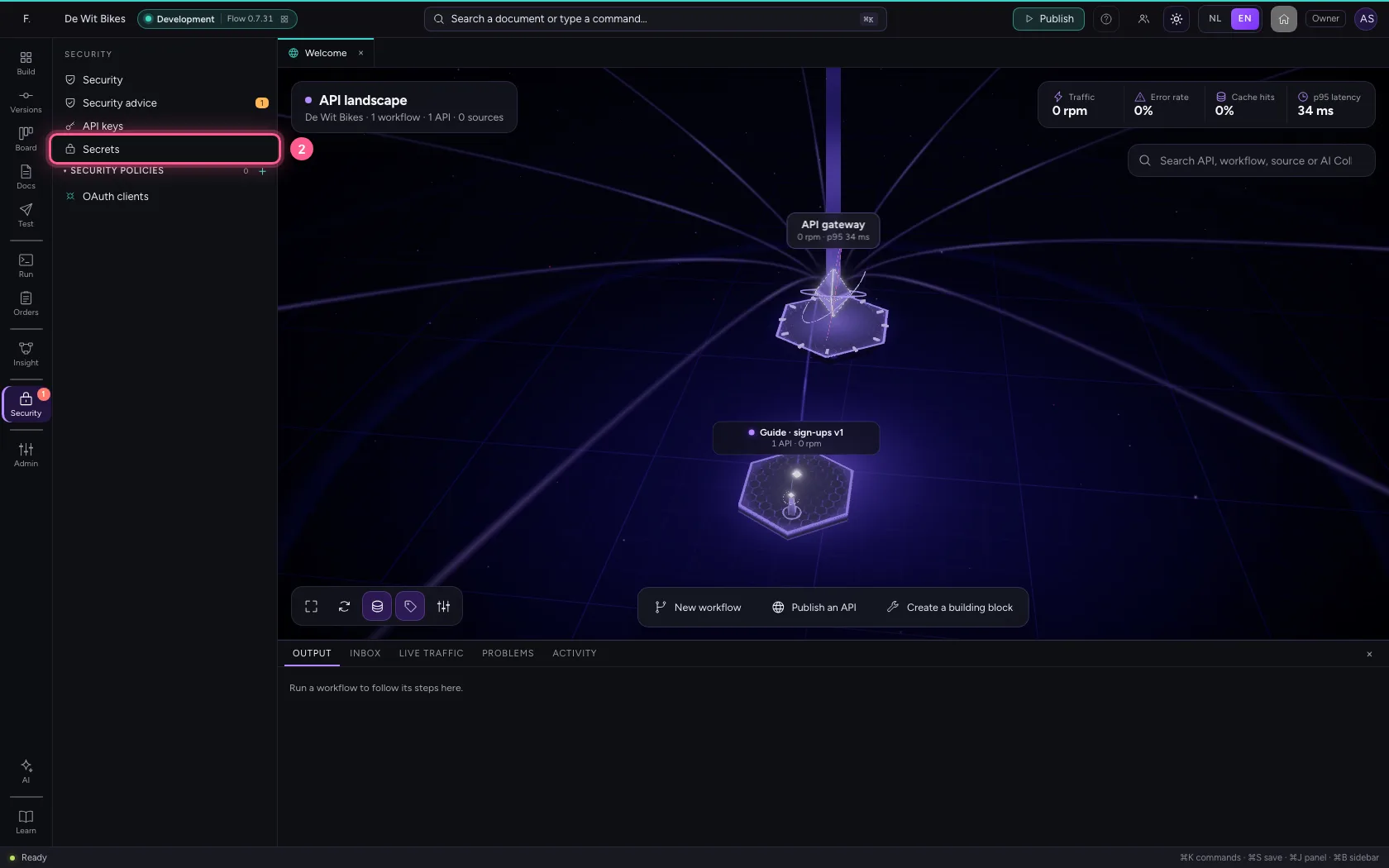
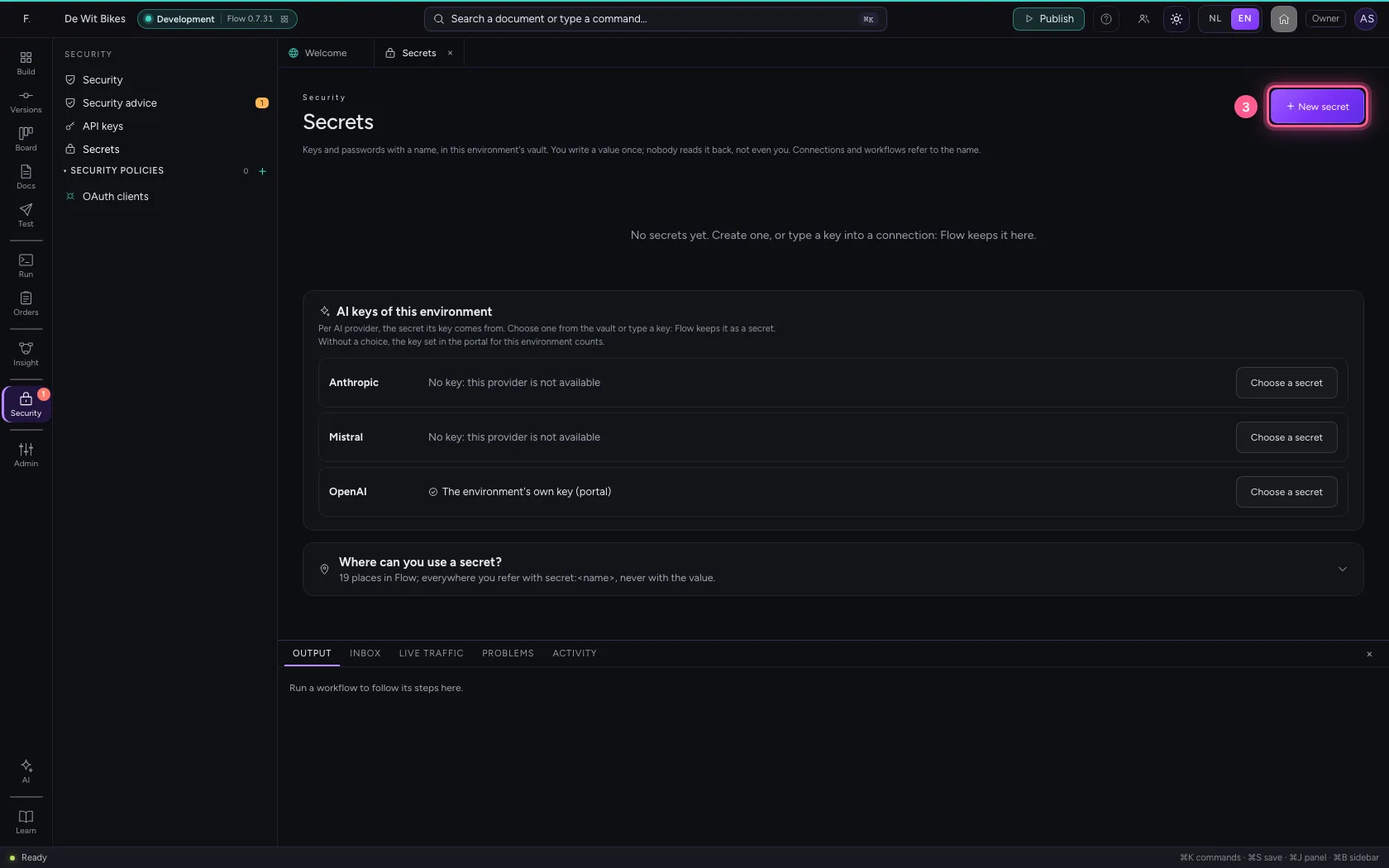
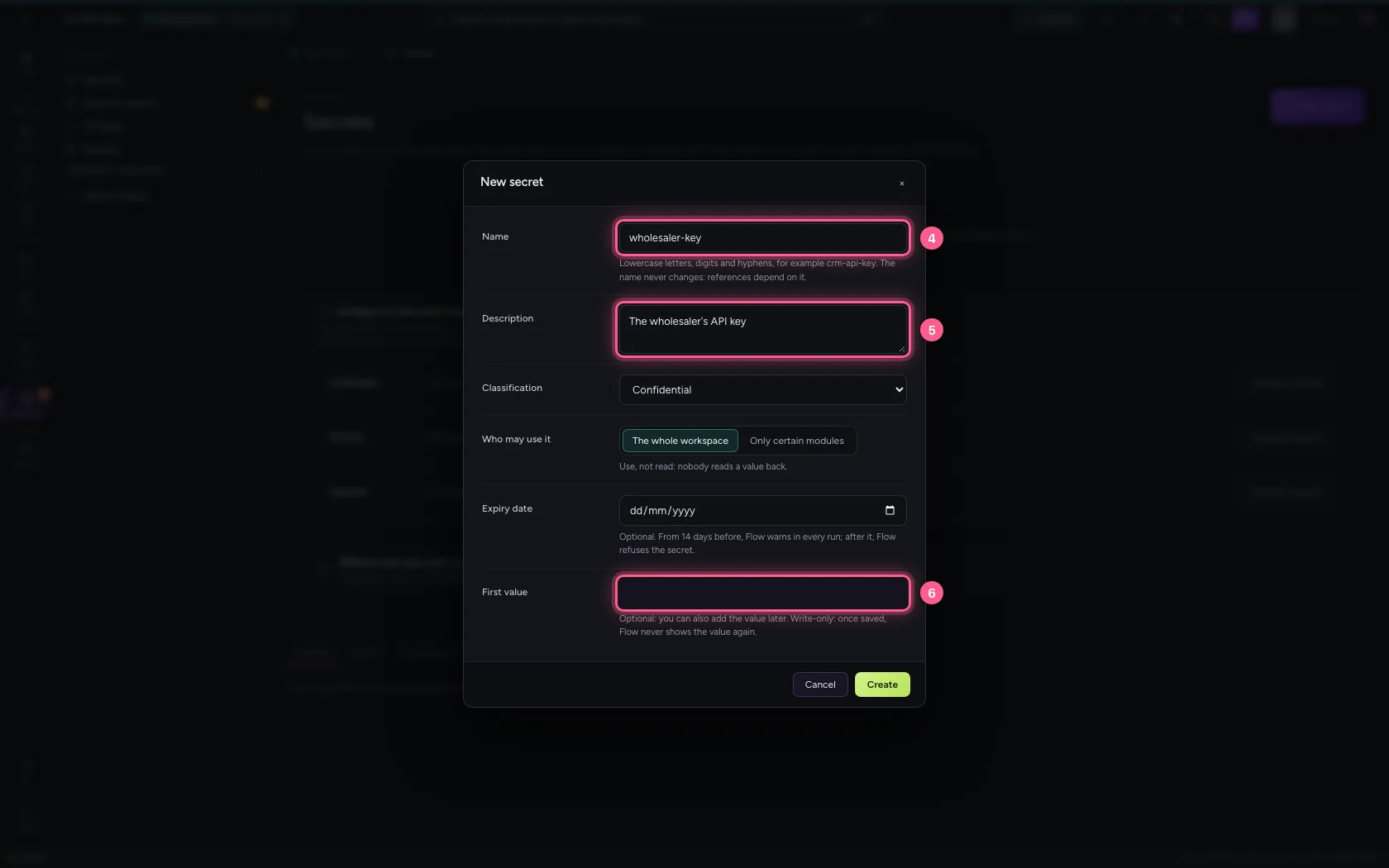
Under Security → Secrets click + New secret. The name is how everything refers to it: lowercase letters, digits and hyphens, and it never changes. Choose who may use it (the whole workspace, or only certain modules) and fill in the first value. Once saved, Flow never shows that value again.
- Click Security
- Click Secrets
- Click + New secret
- In Name, type
wholesaler-key - In Description, type
The wholesaler's API key - In First value, type
••••••••
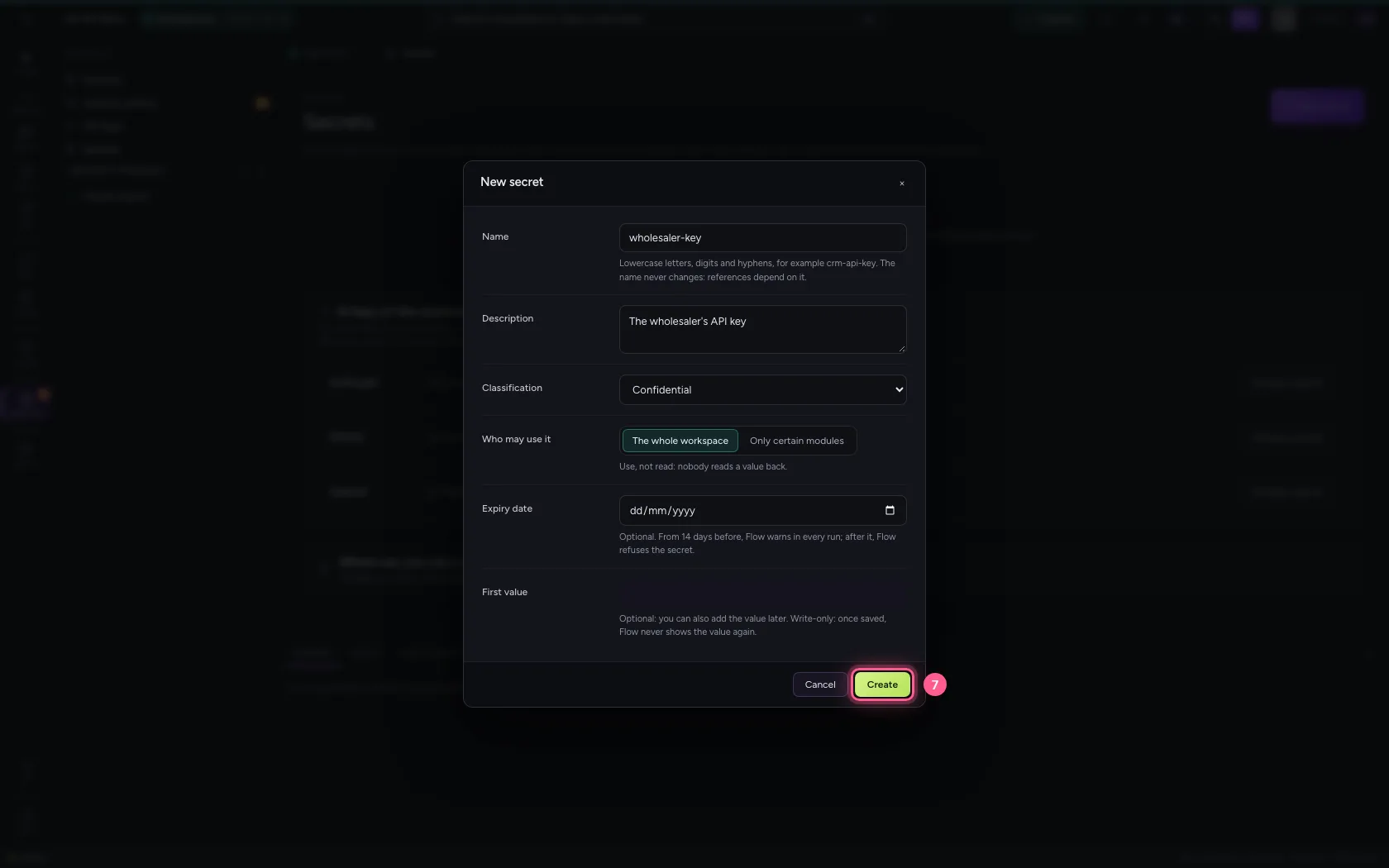
- Click Create
Use it in a connection
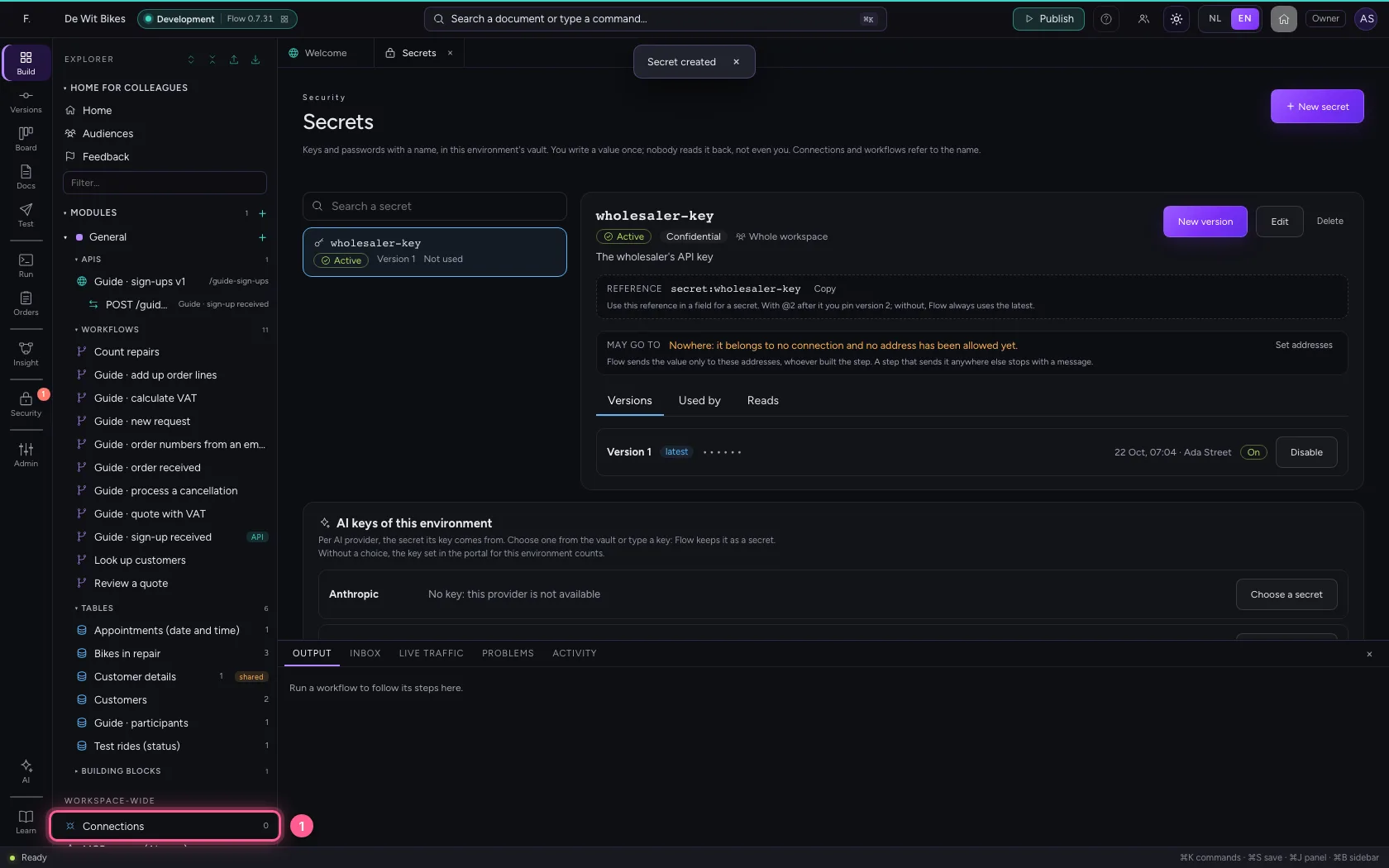
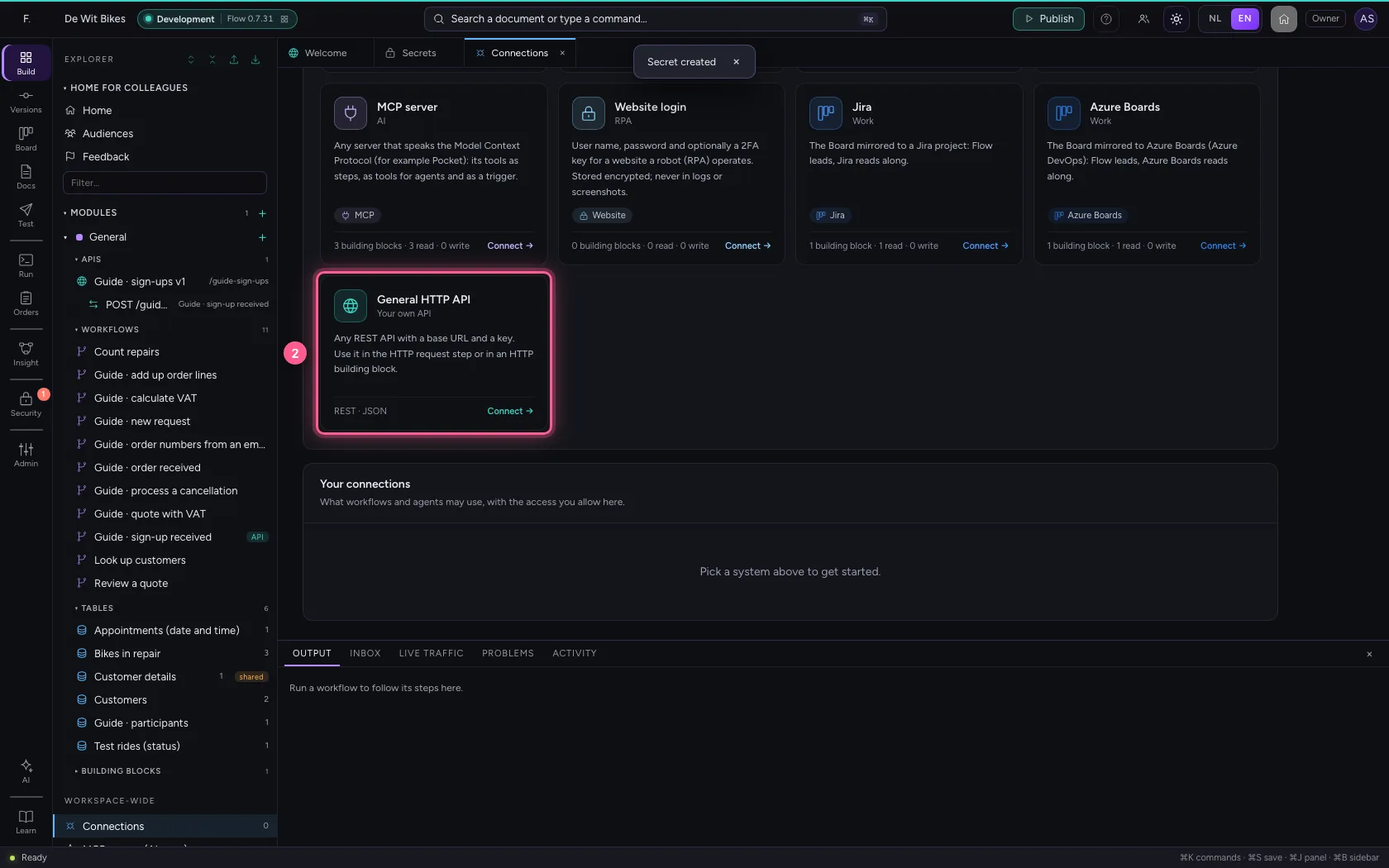
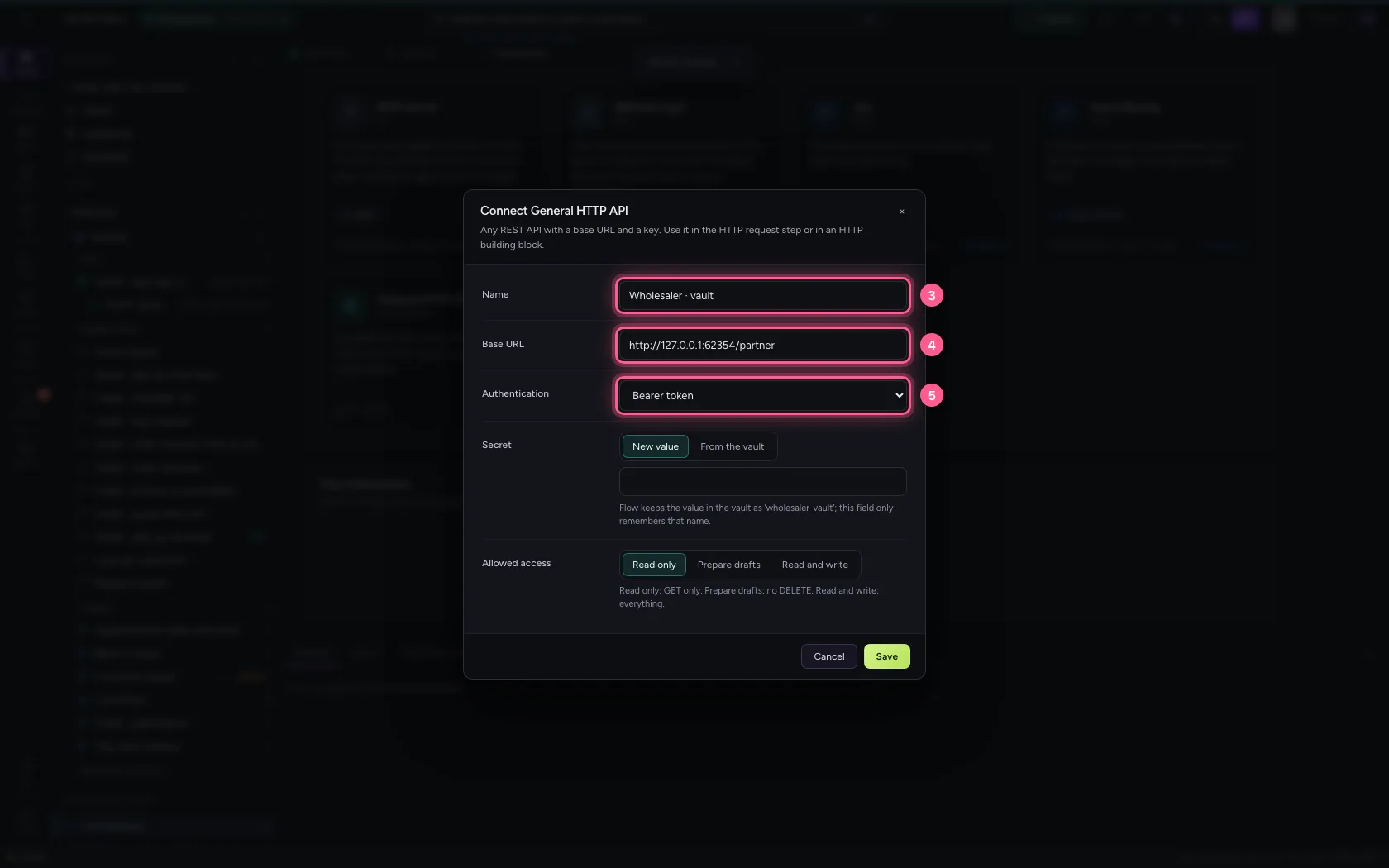
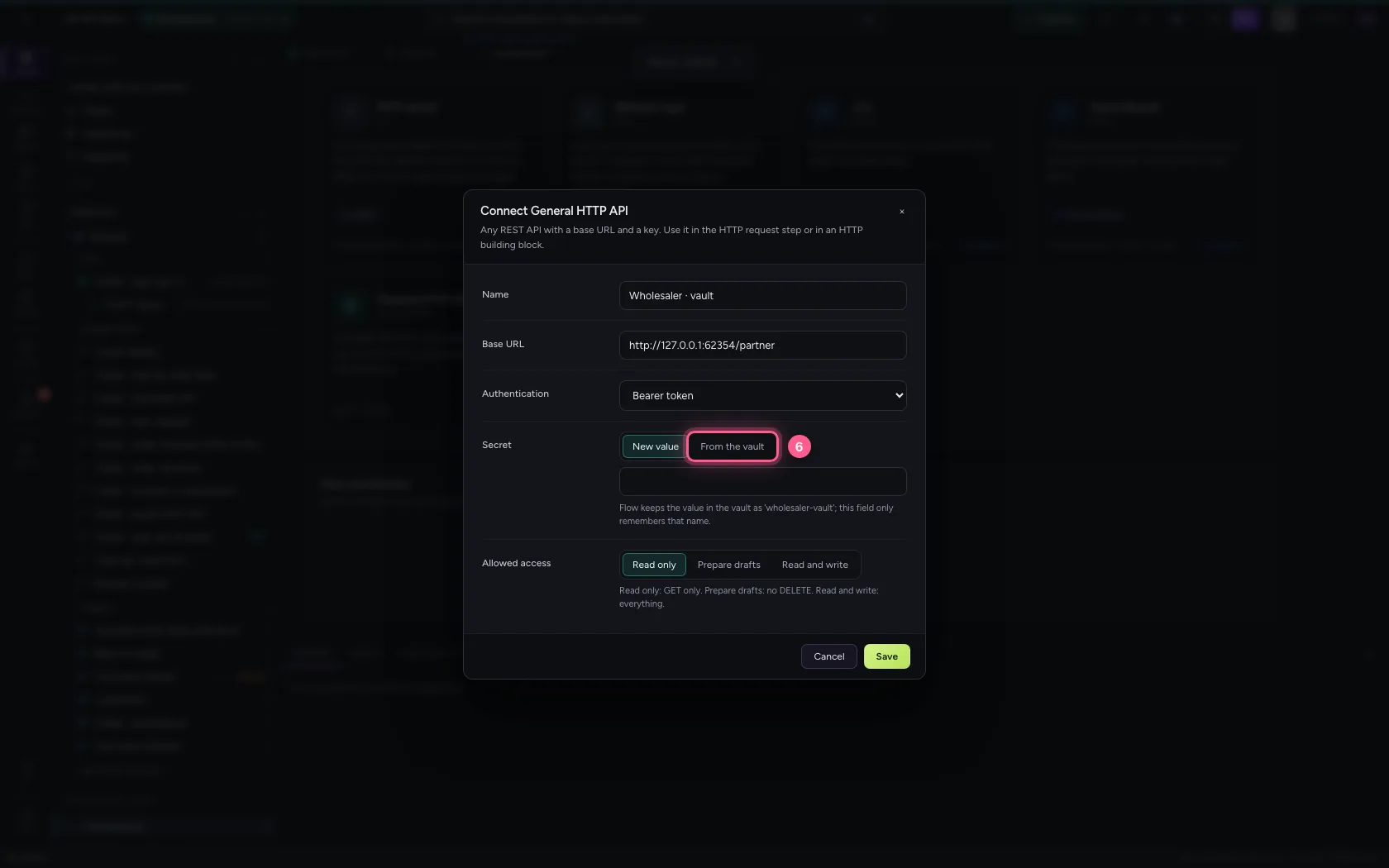
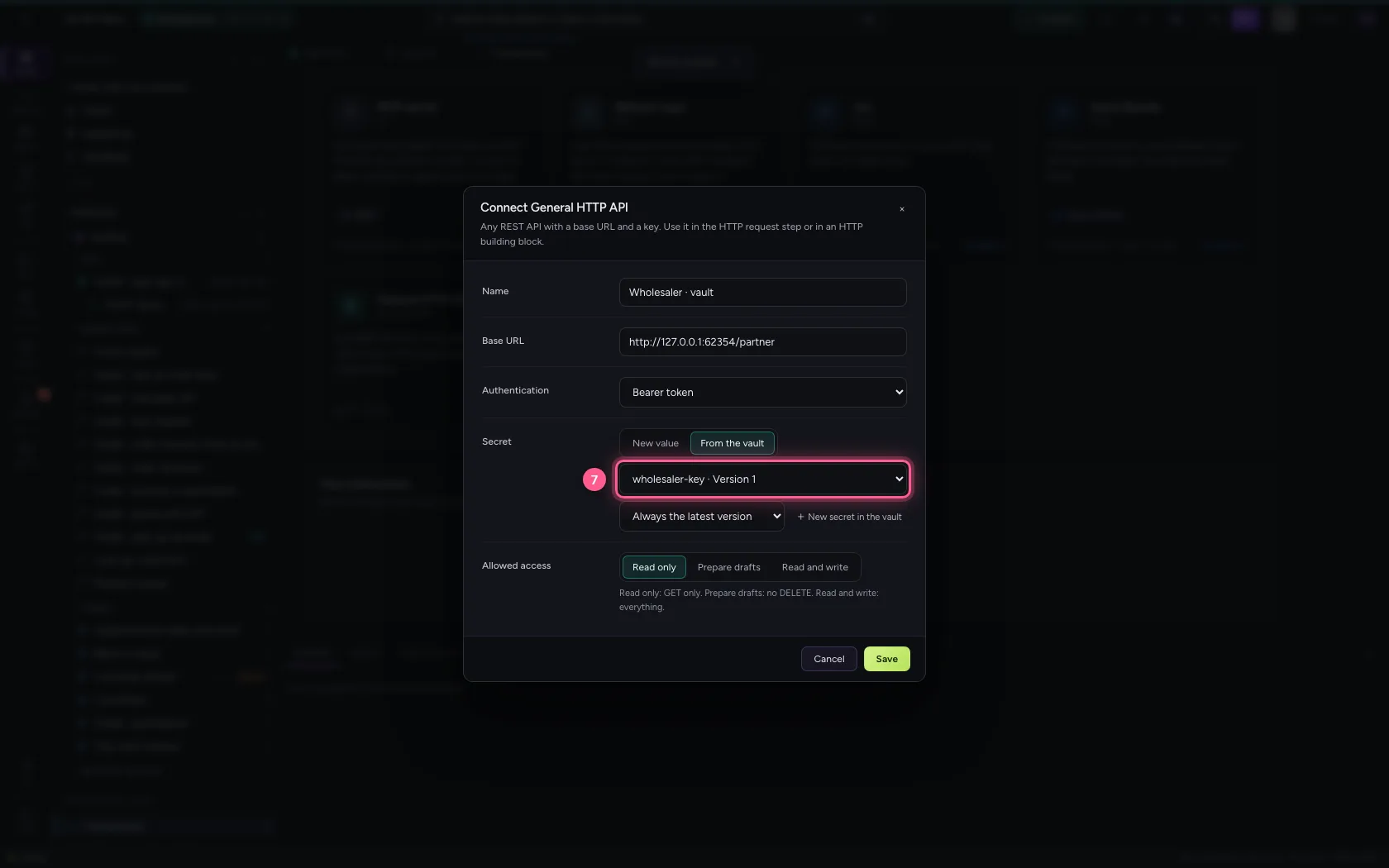
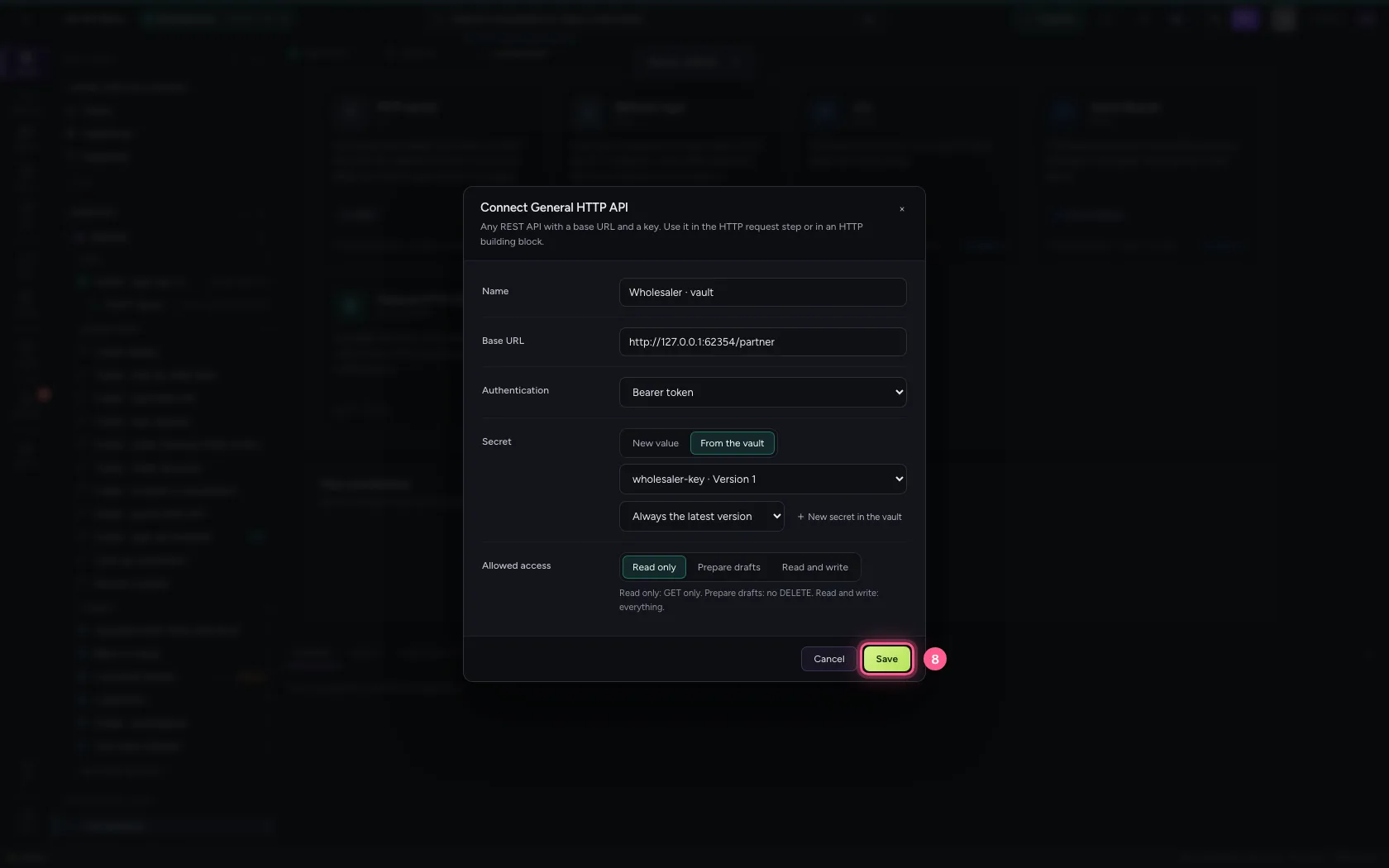
Create a General HTTP API connection with Bearer token. Under Secret choose From the vault and then your secret: the connection only remembers the name. With Always the latest version it always uses the newest one.
- Click Connections
- Click General HTTP API
- In Name, type
Wholesaler · vault - In Base URL, type
http://127.0.0.1:62354/partner - In Authentication, choose Bearer token
- Click From the vault
- In Choose a secret, choose wholesaler-key · Version 1
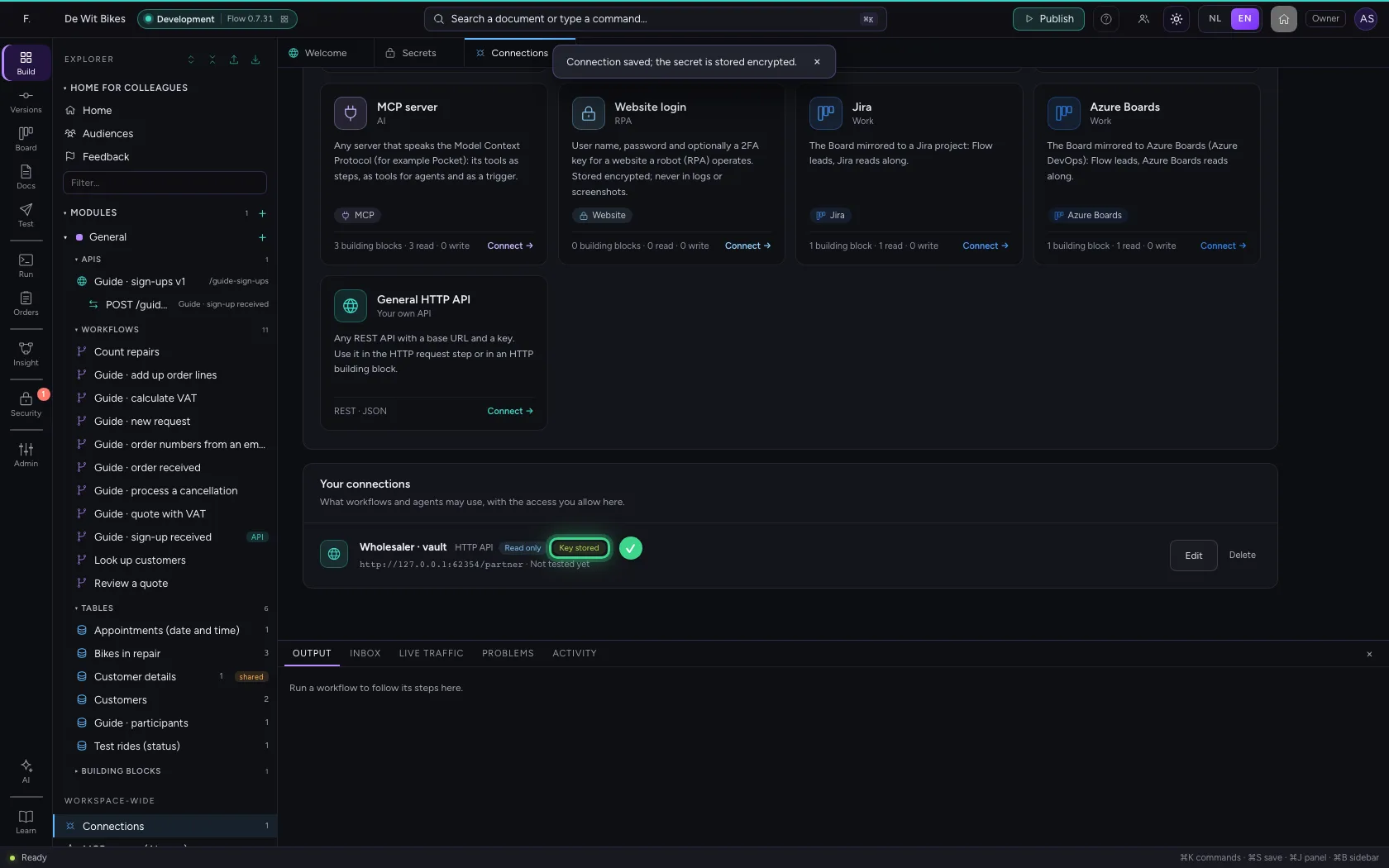
- Click Save
Call the API
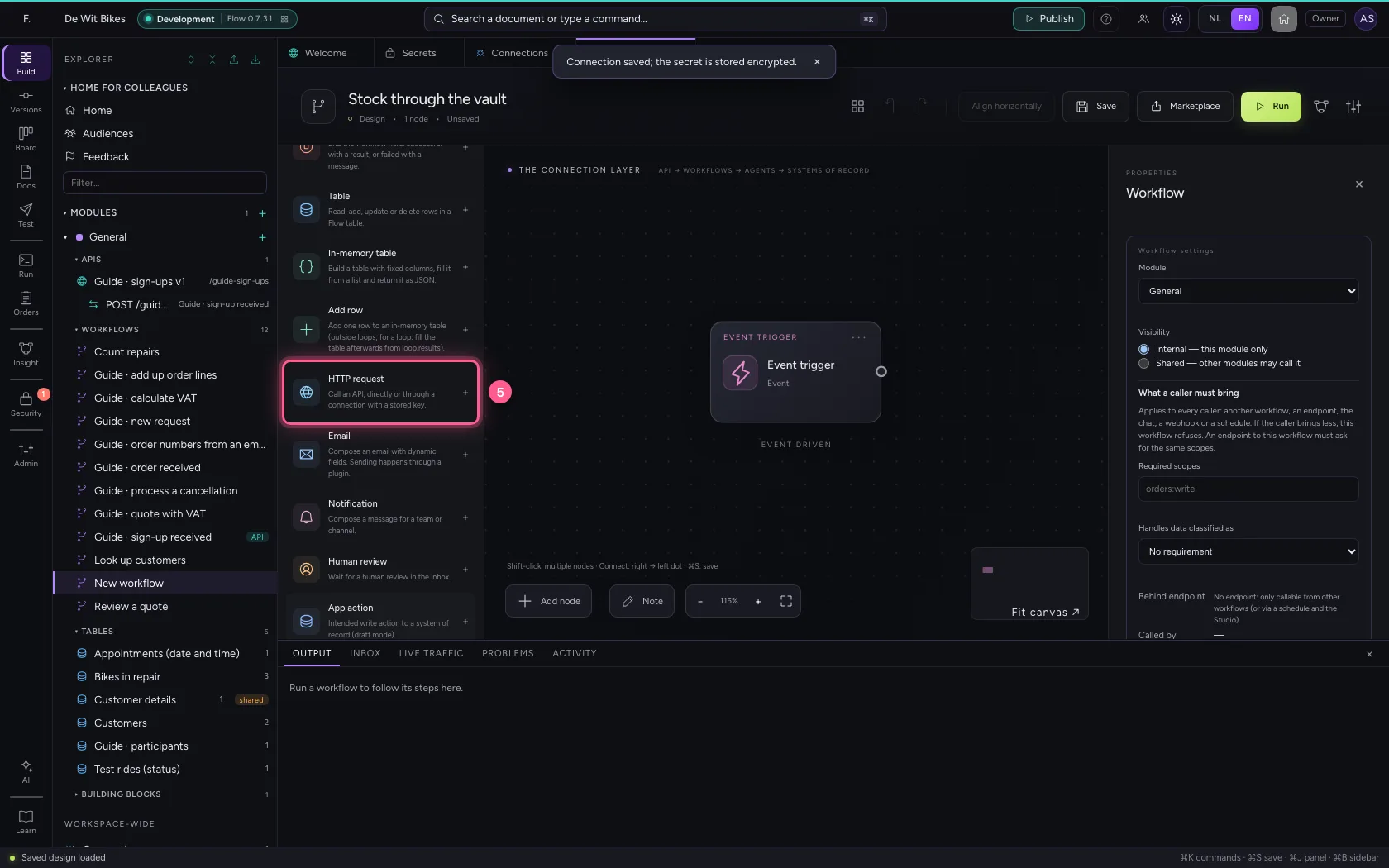
A small workflow with the HTTP request step, your connection and the path /stock. When it runs, Flow takes the value from the vault, for that one call only.
- Click Add to General
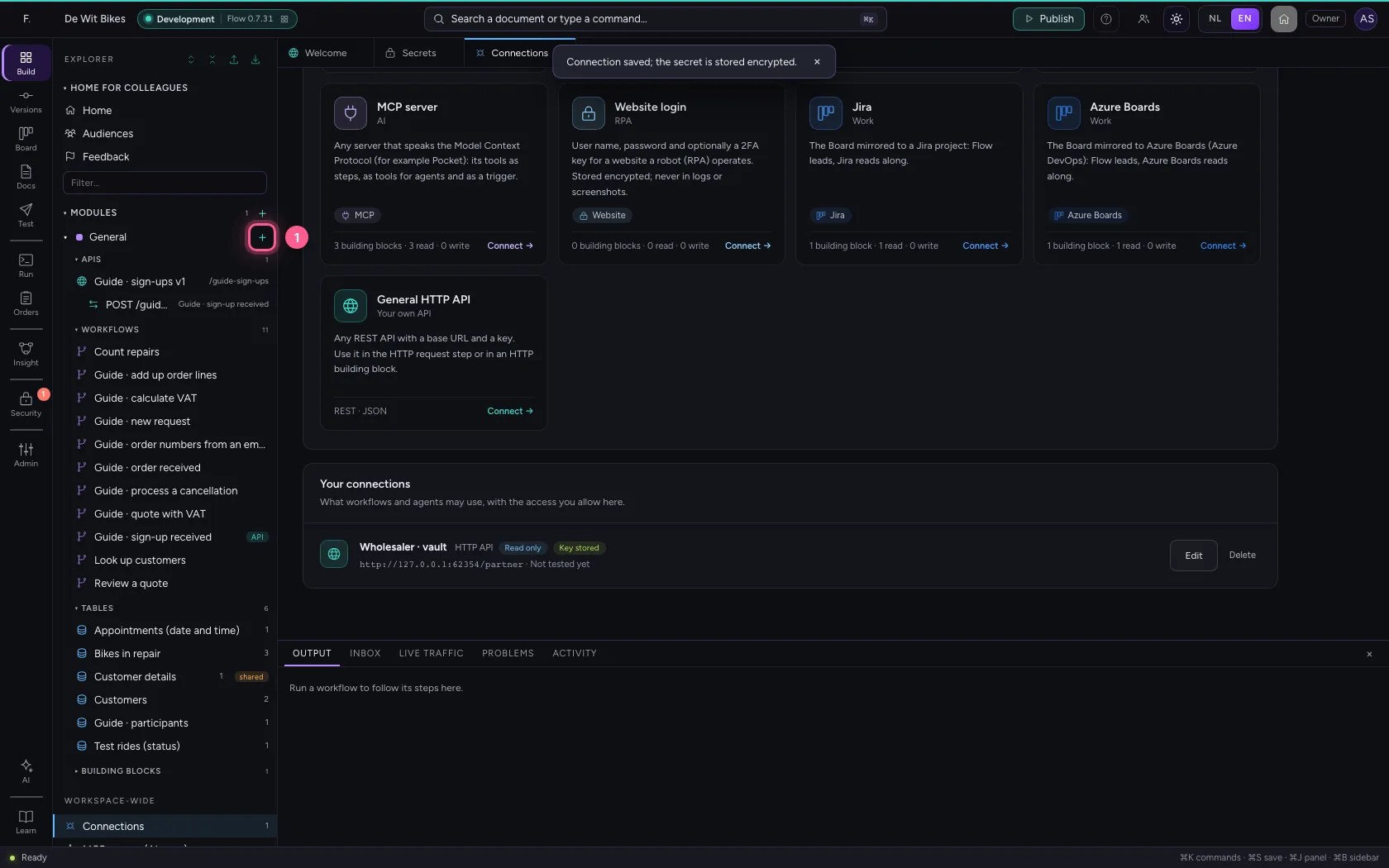
- Click New workflow
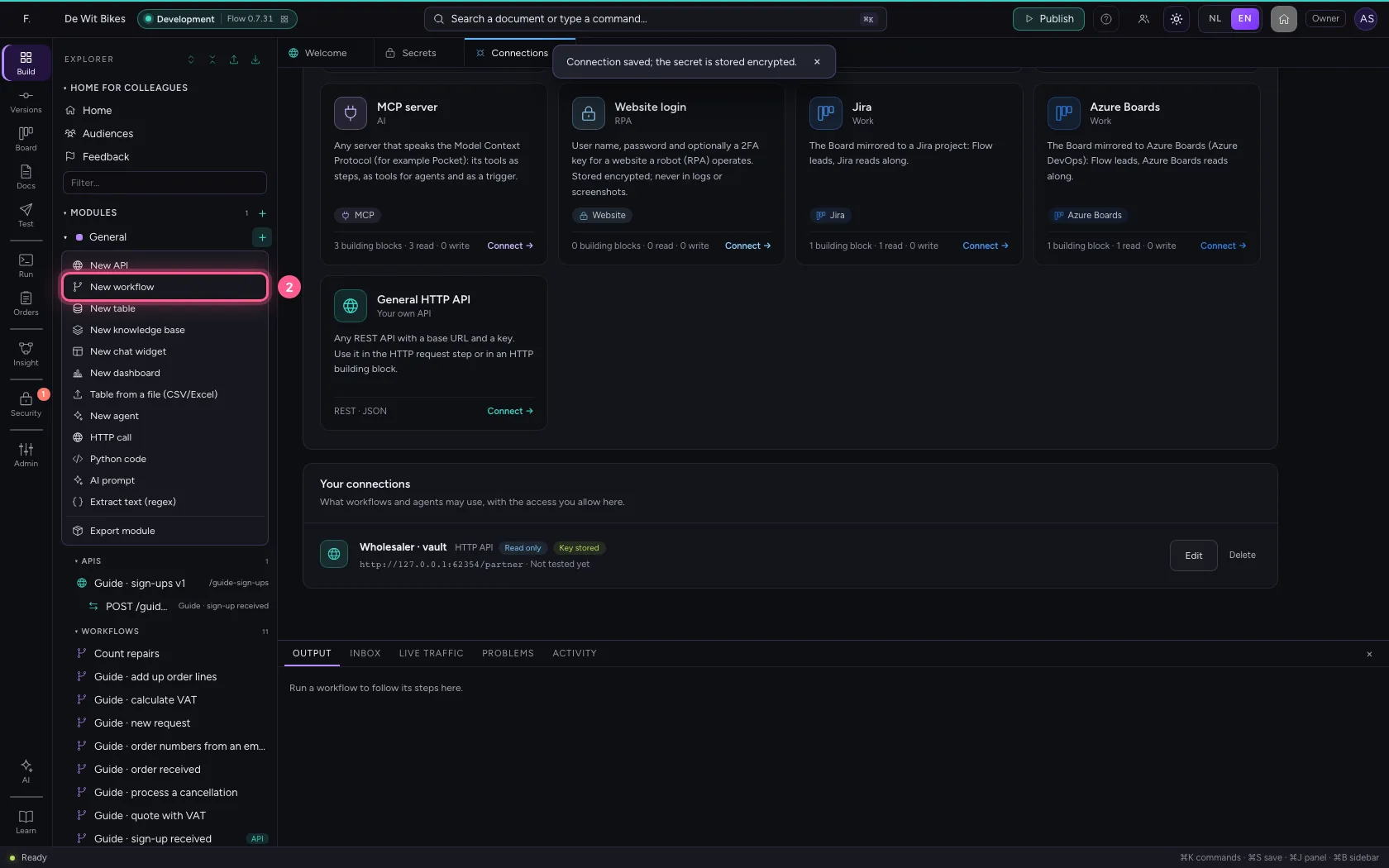
- In Workflow name, type
Stock through the vault
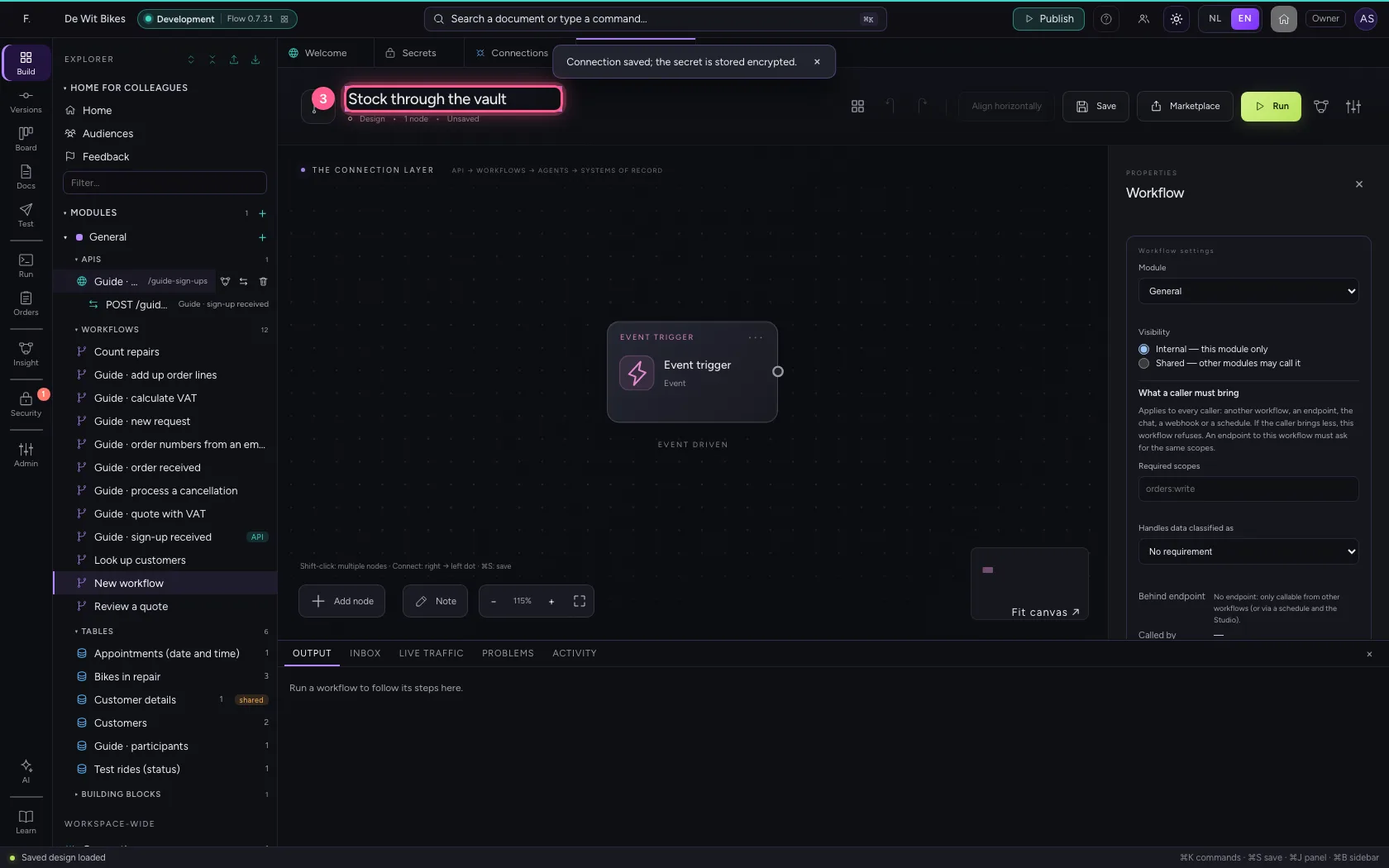
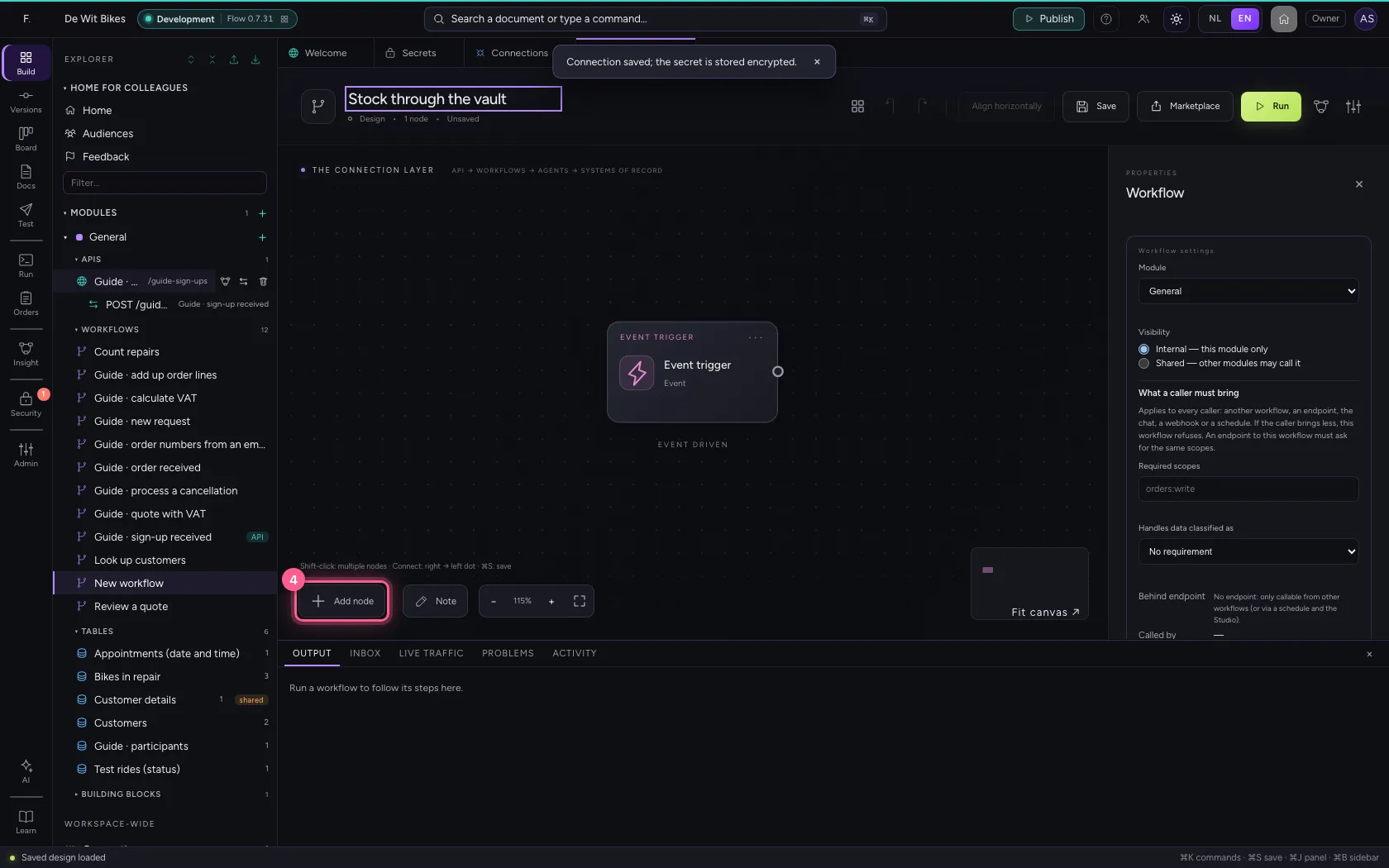
- Click Add node
- Click HTTP request
- In Connection, choose Wholesaler · vault
- In URL or path, type
/stock
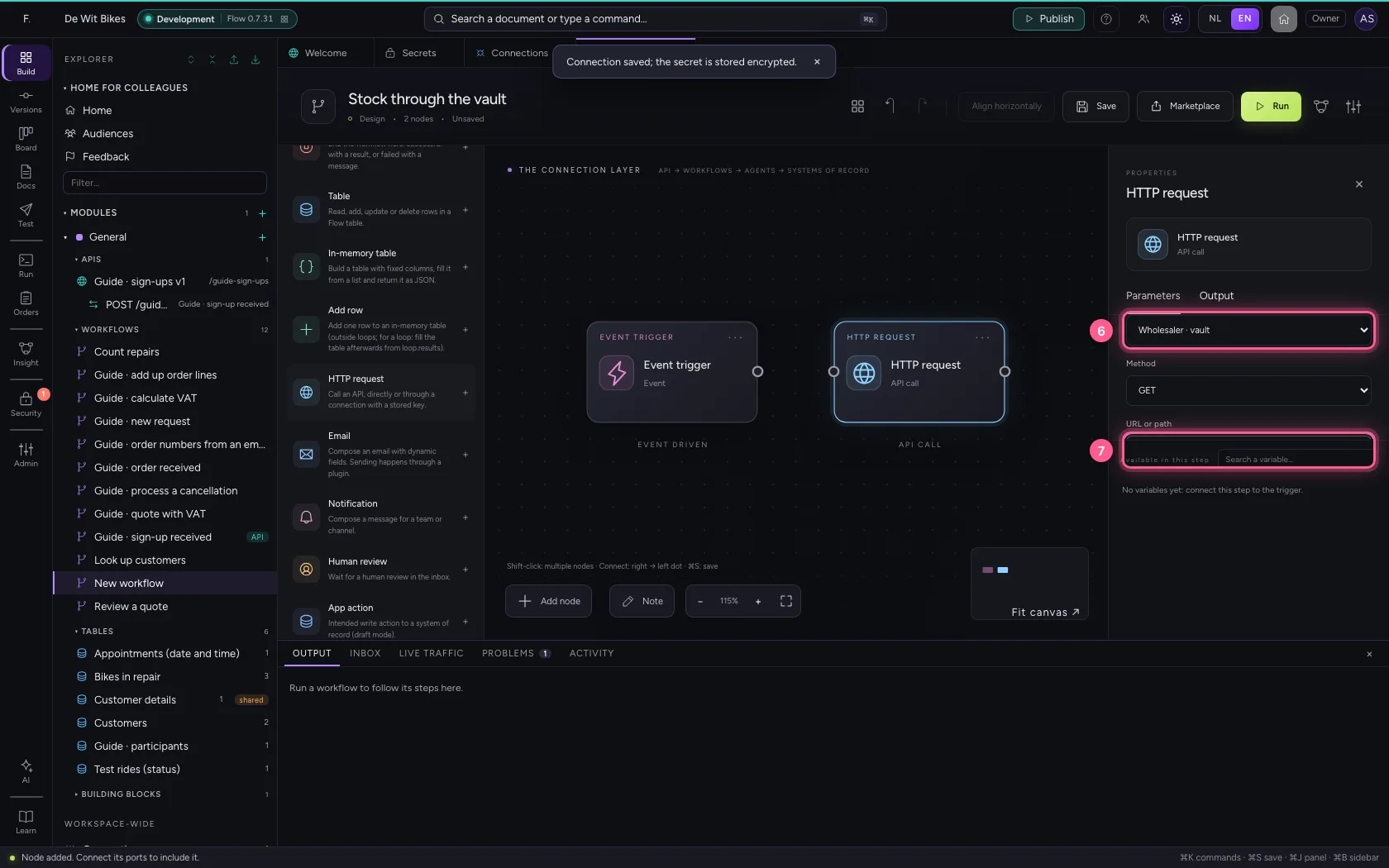
- Click the dot of ‘Event trigger’
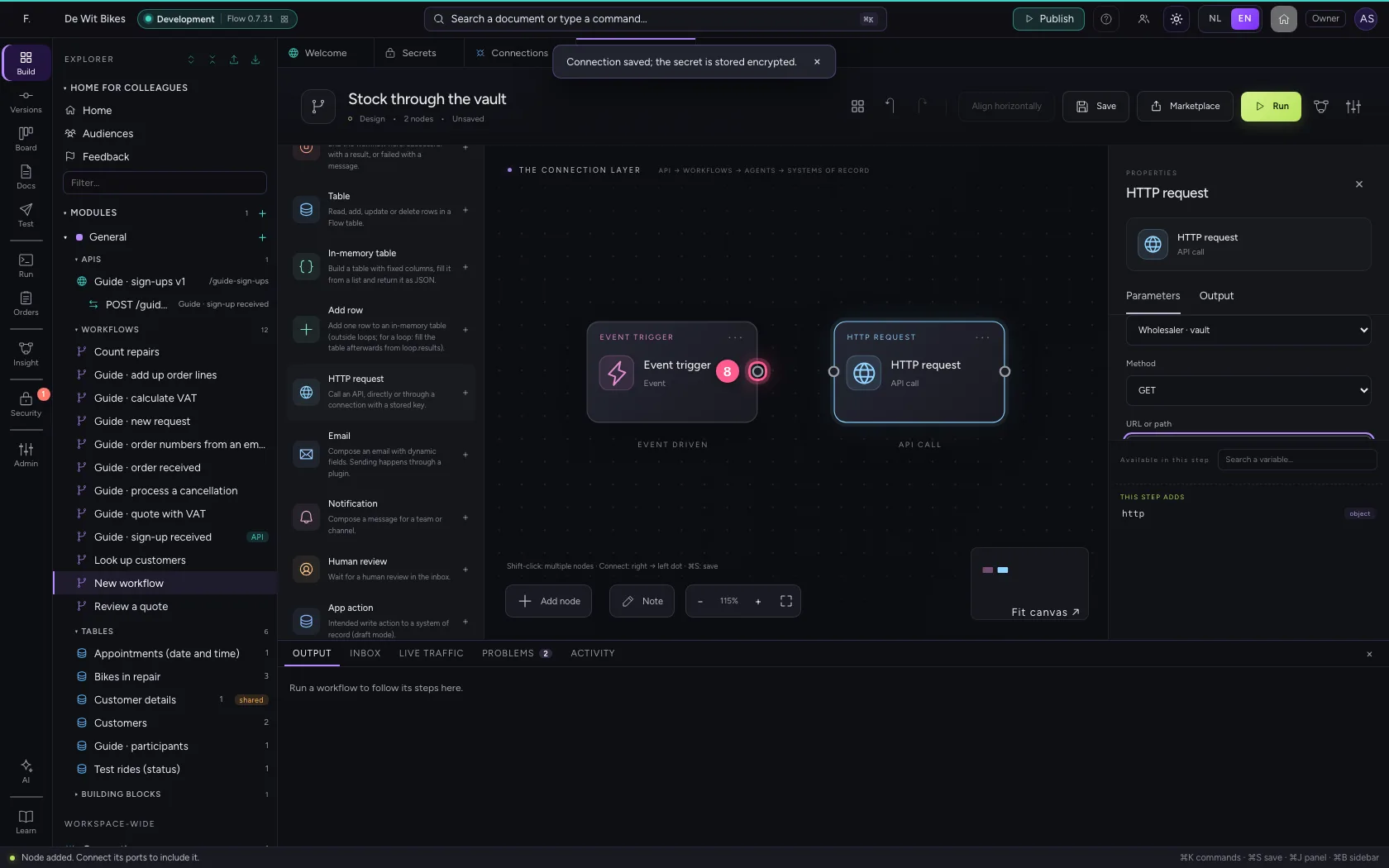
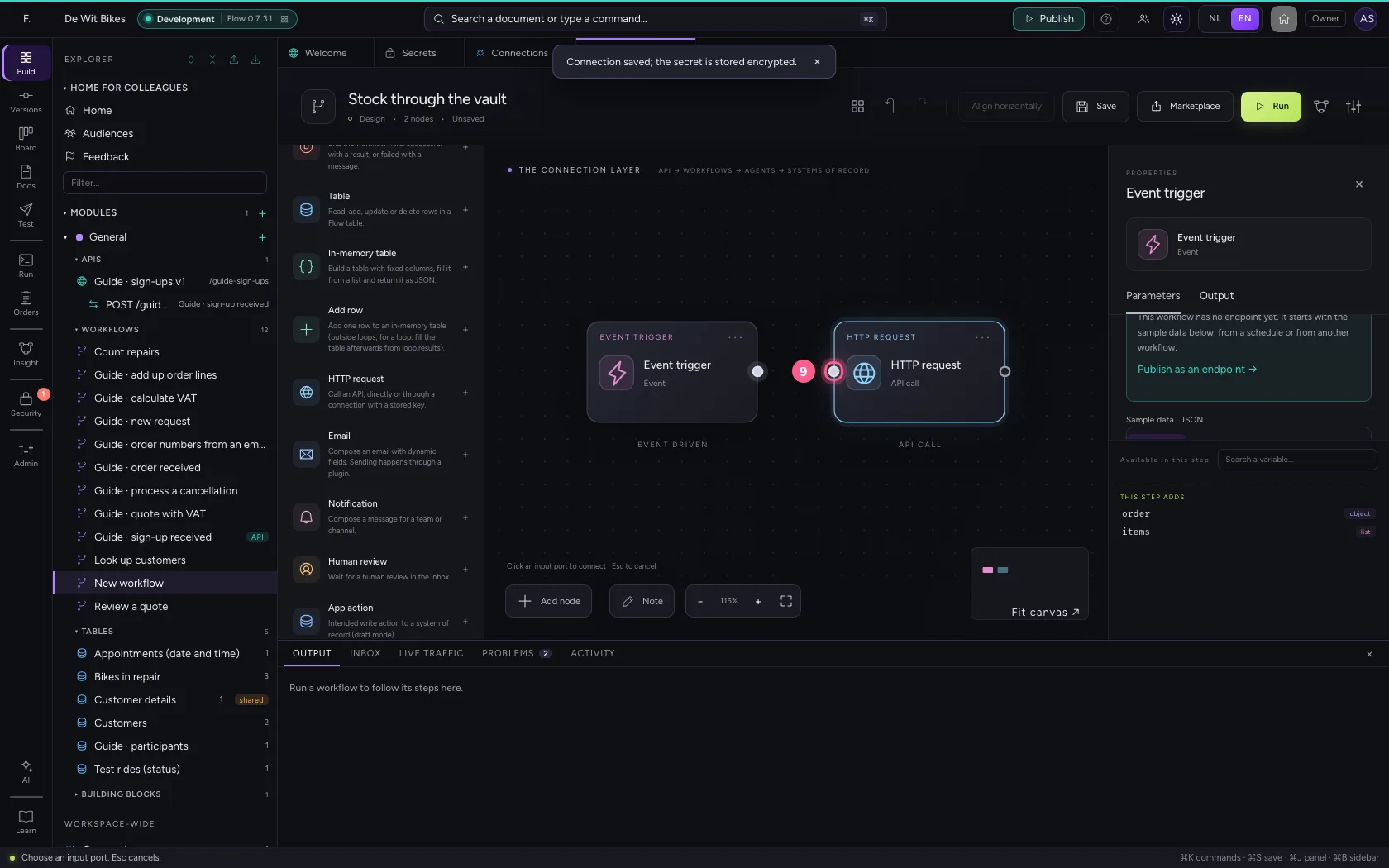
- Click the dot of ‘HTTP request’
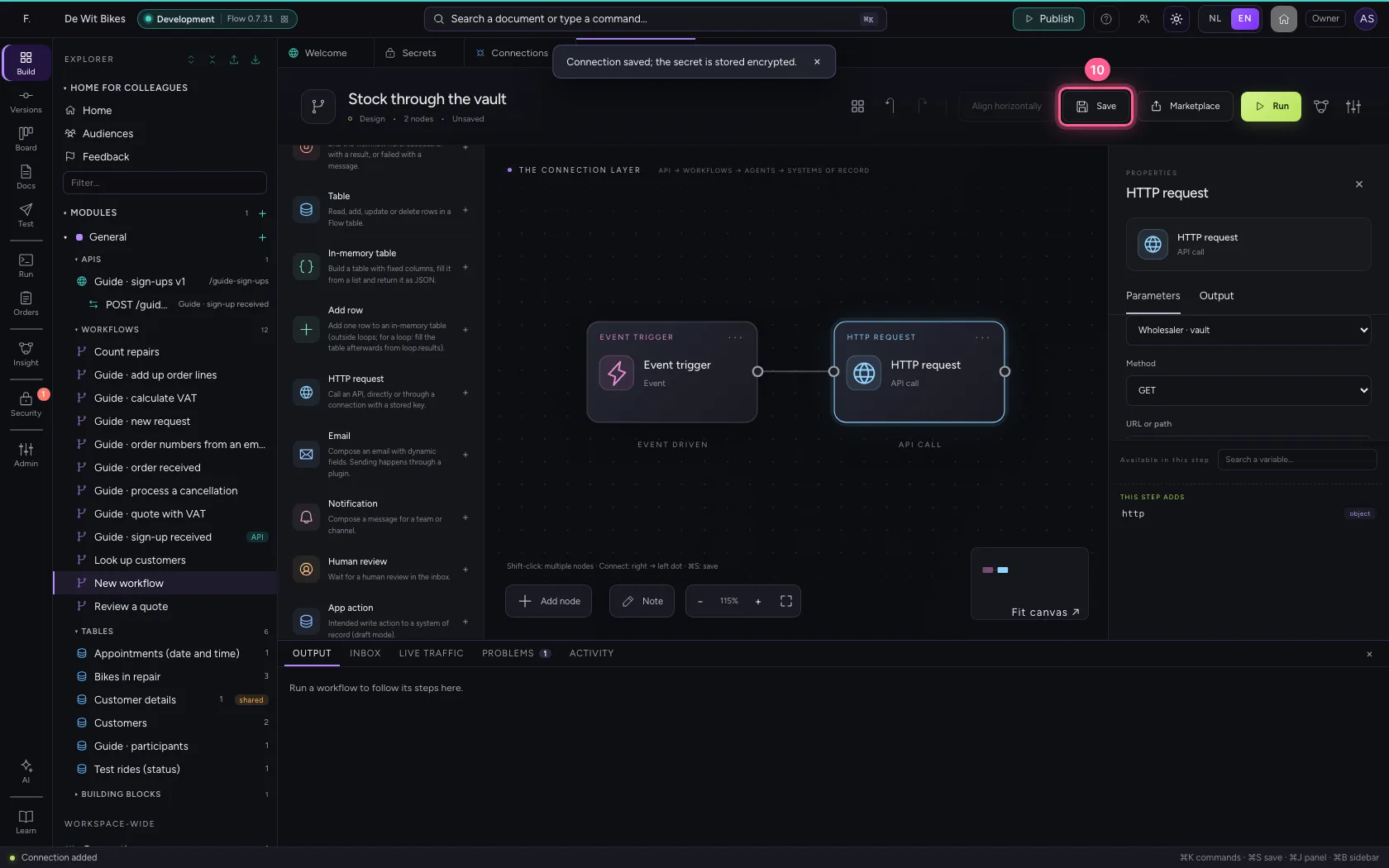
- Click Save
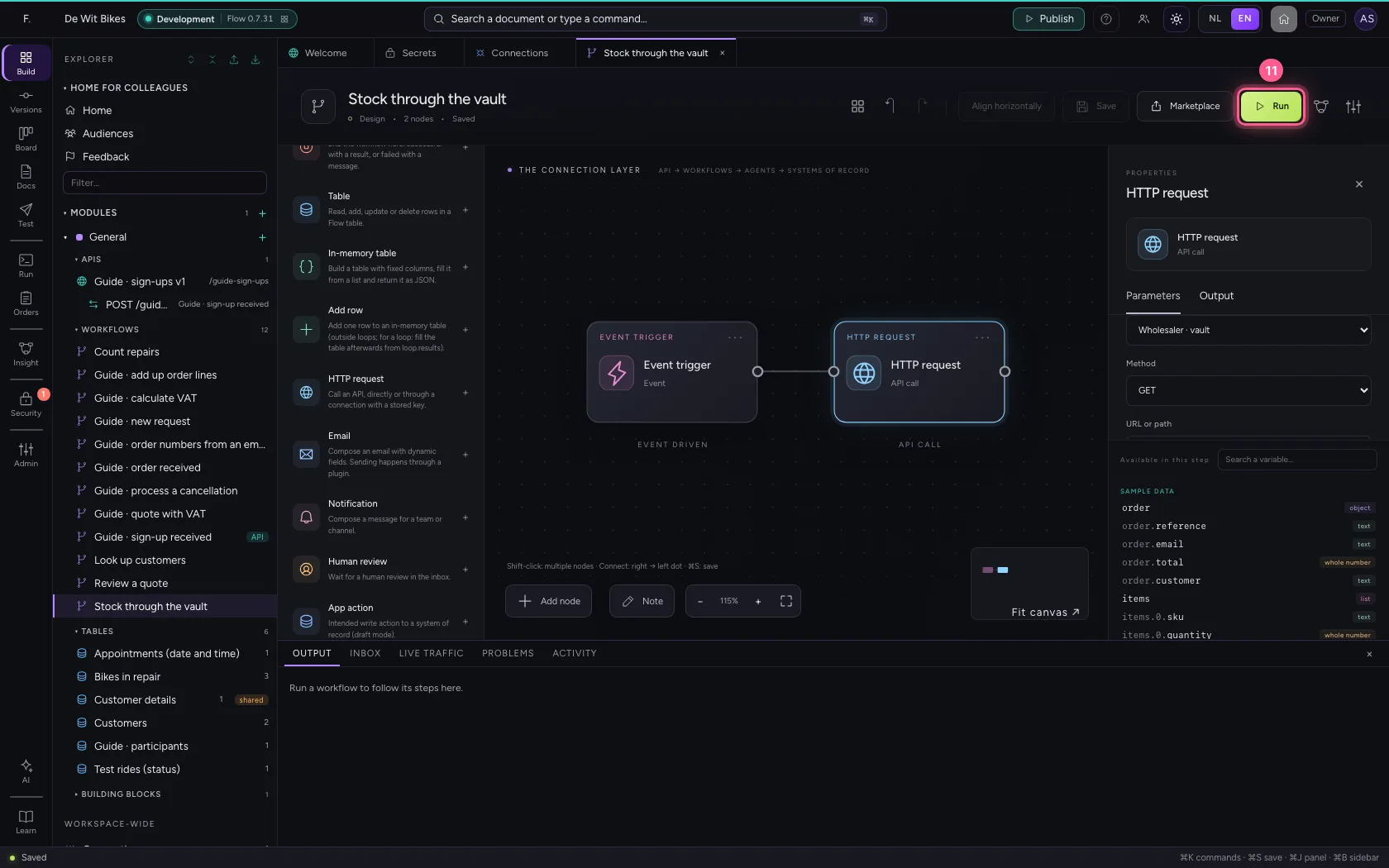
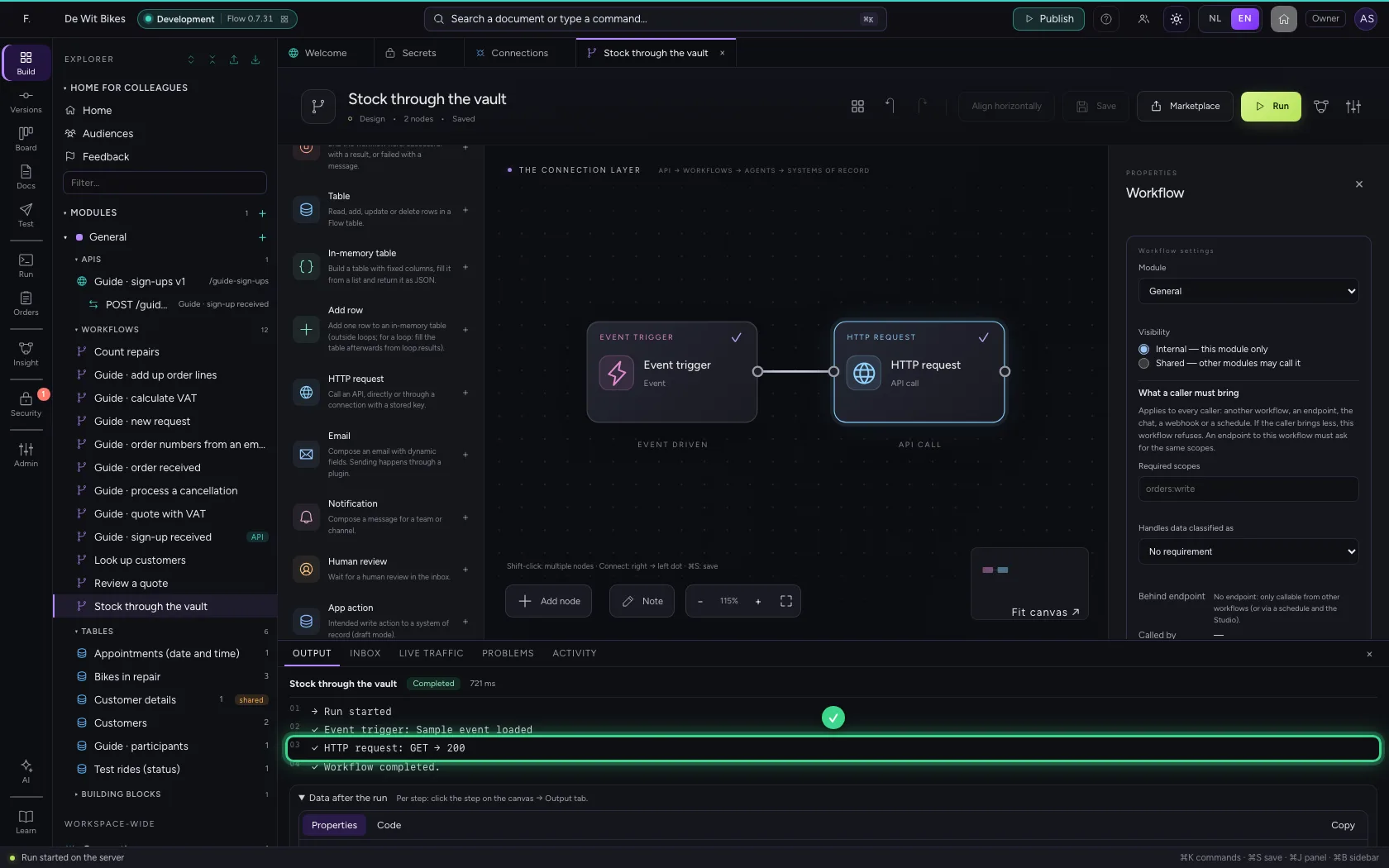
- Click Run
Add a new version
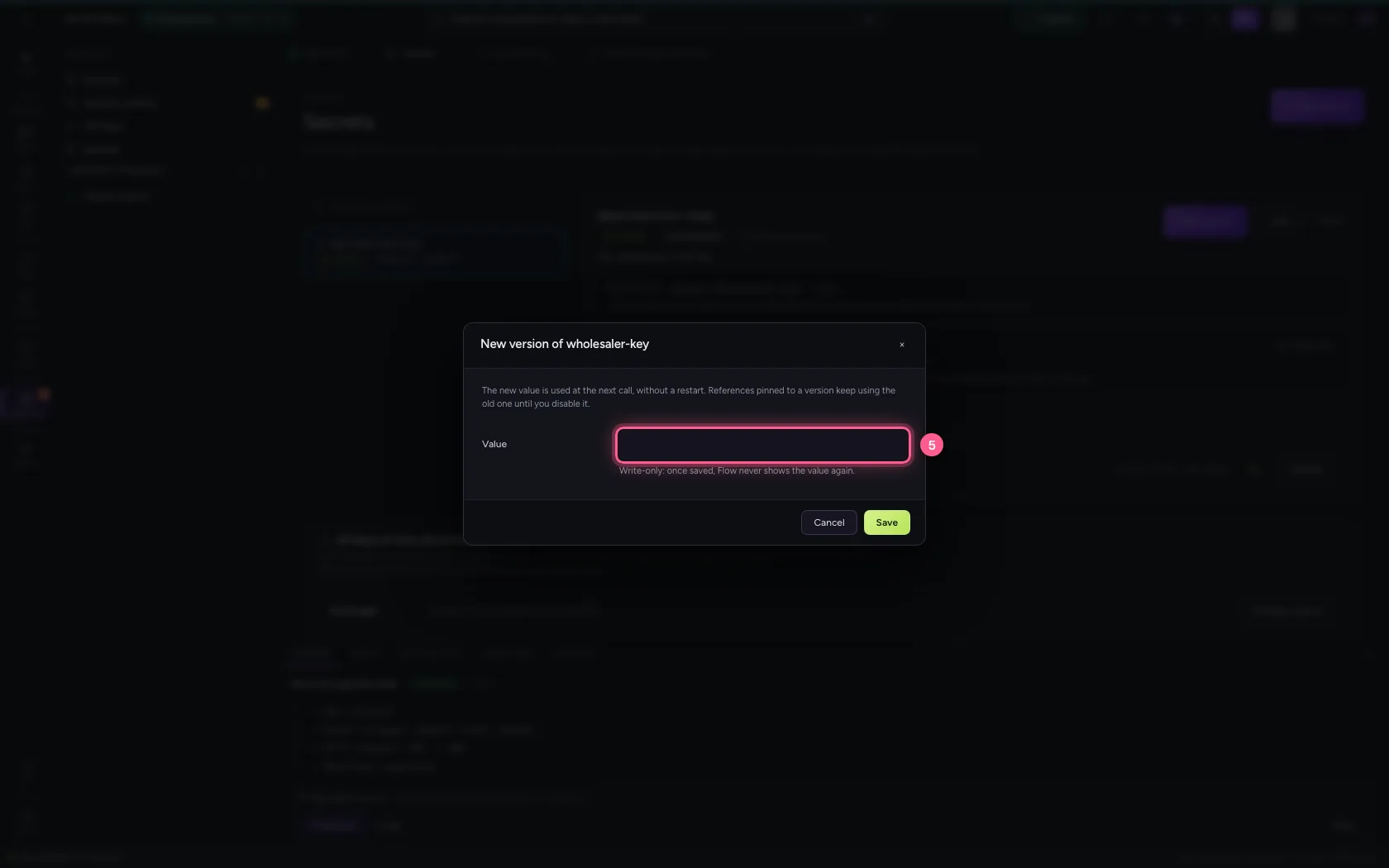
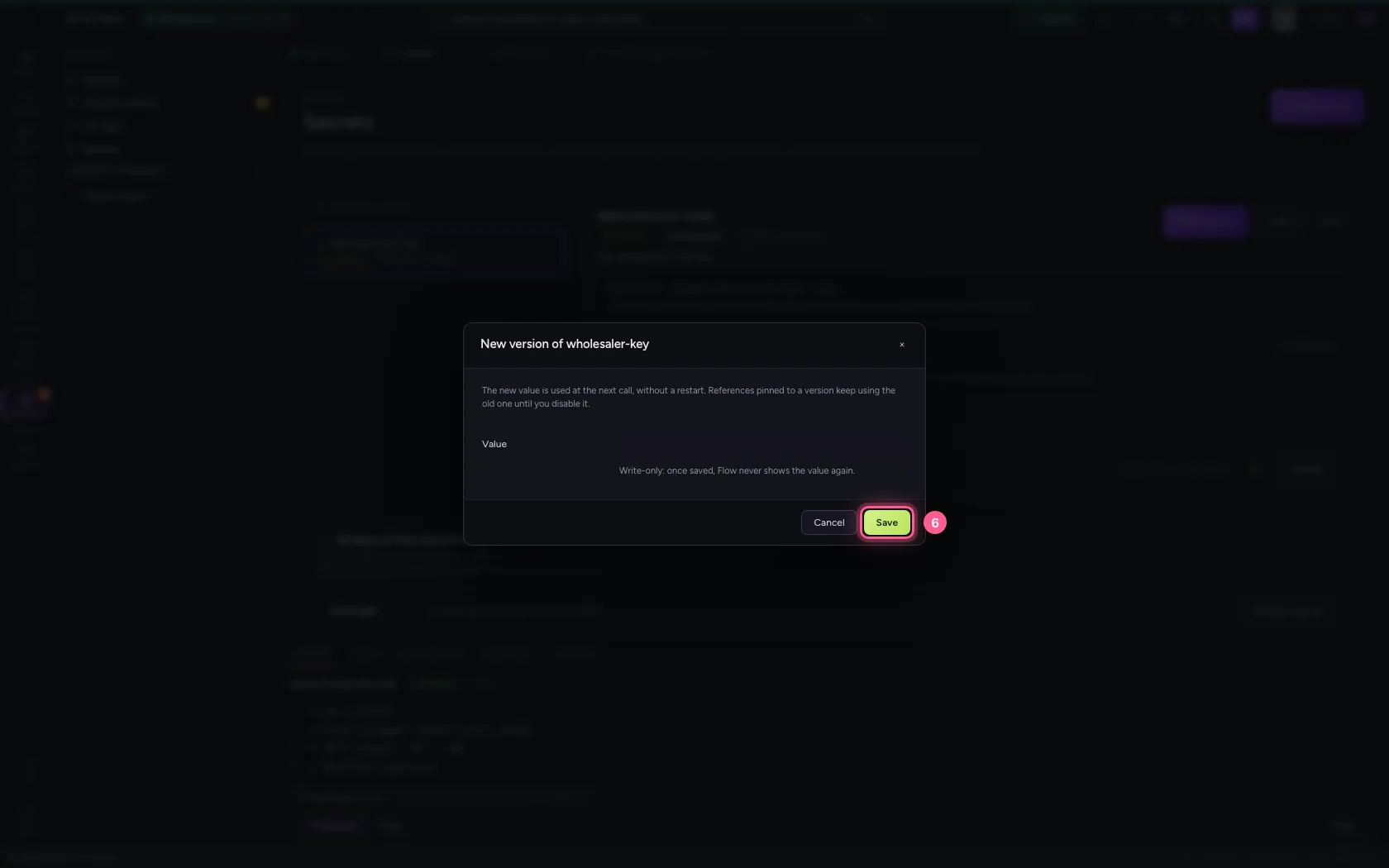
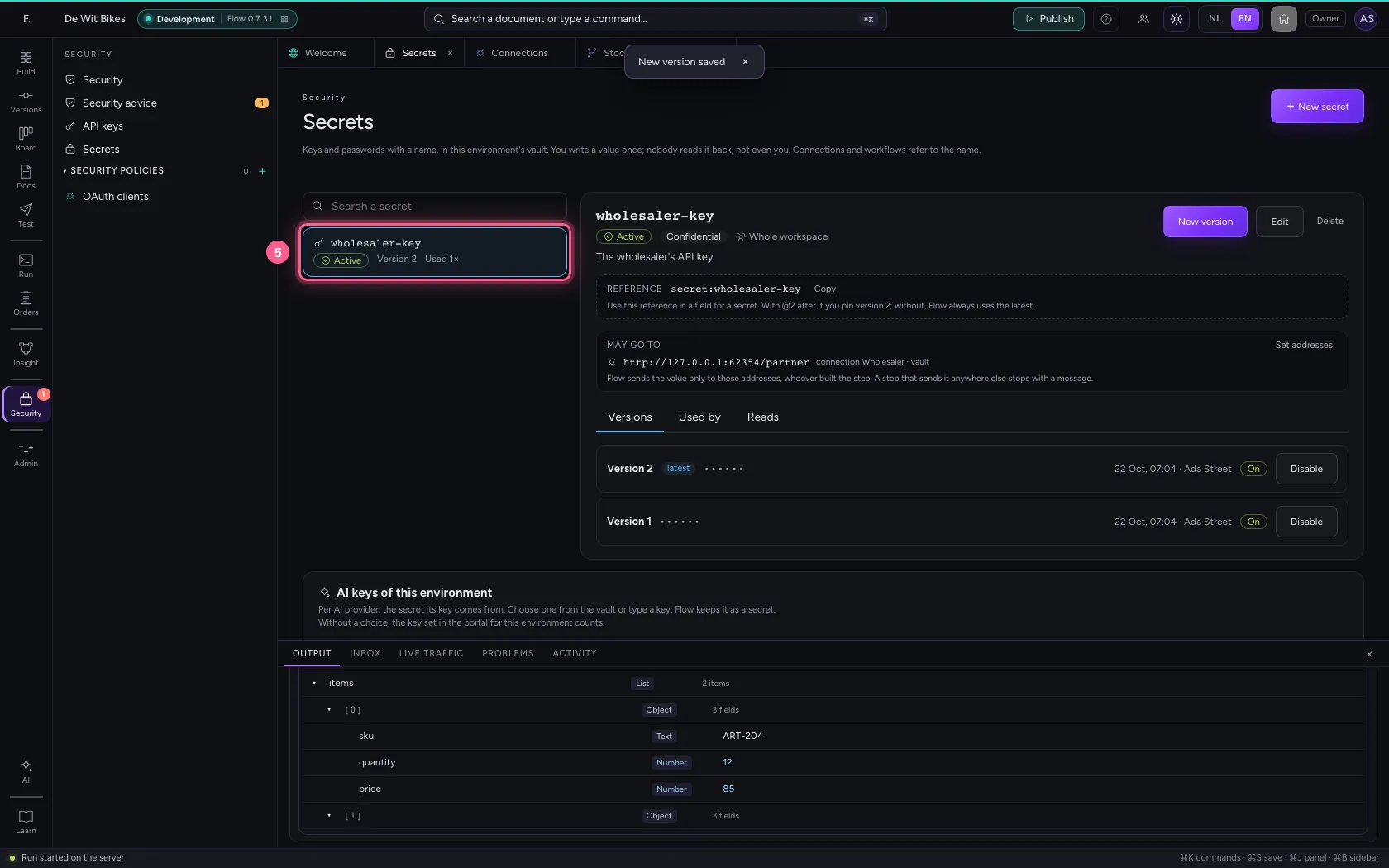
When you get a new key, open the secret and click New version. The connection uses it at the next call, without setting it up again and without a restart. References pinned to a version (secret:name@1) keep using the old one.
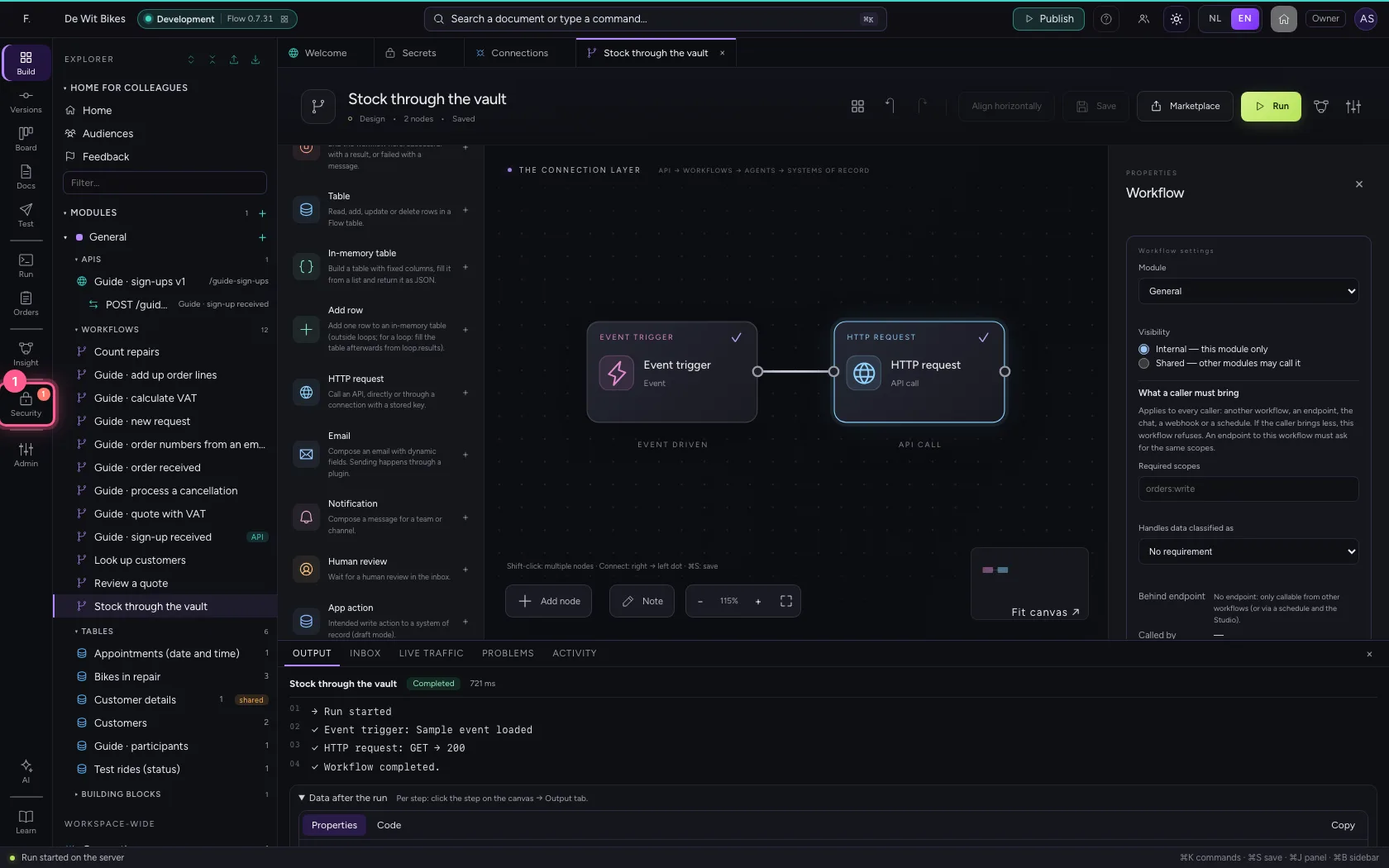
- Click Security
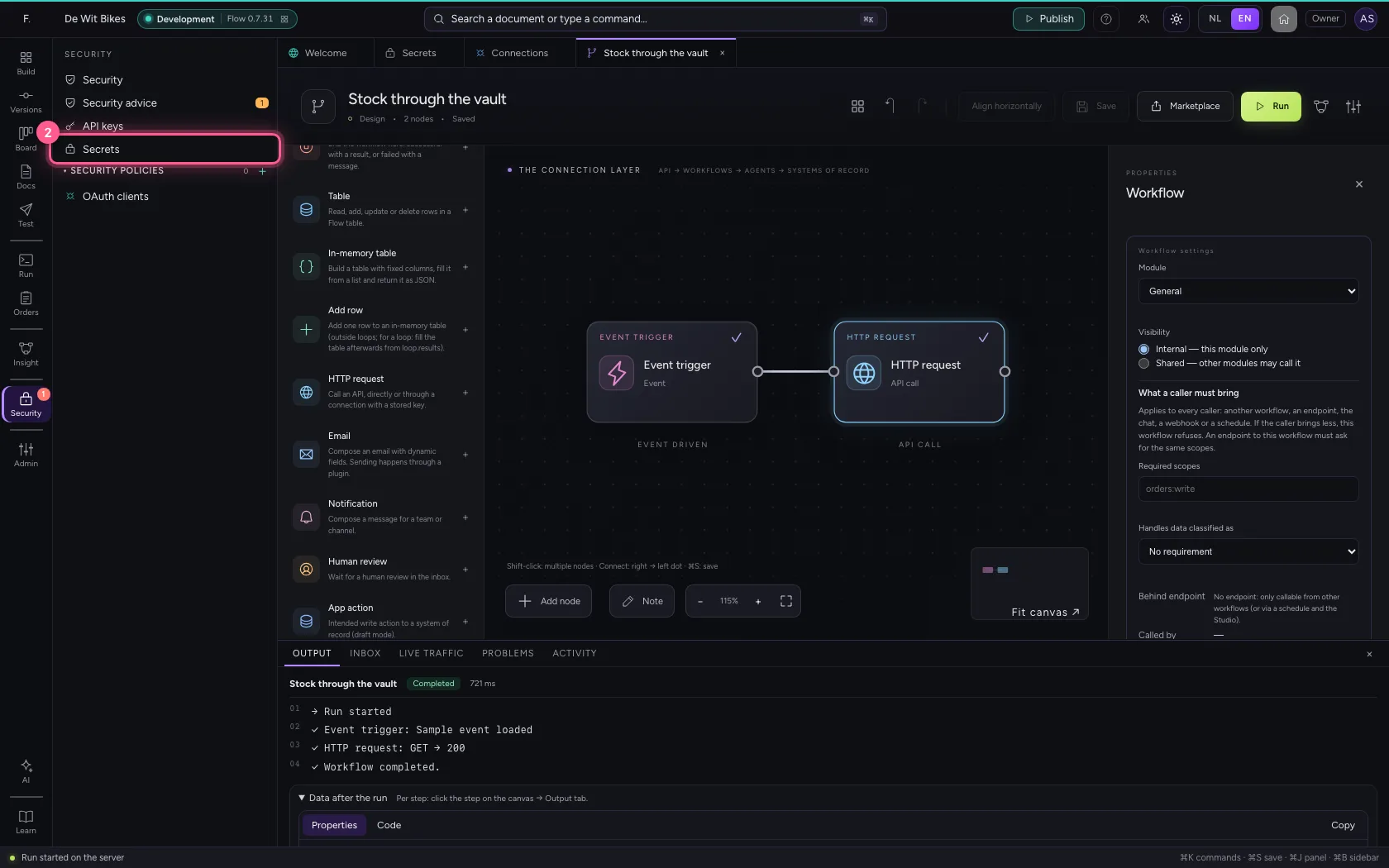
- Click Secrets
- Click the secret ‘wholesaler-key’
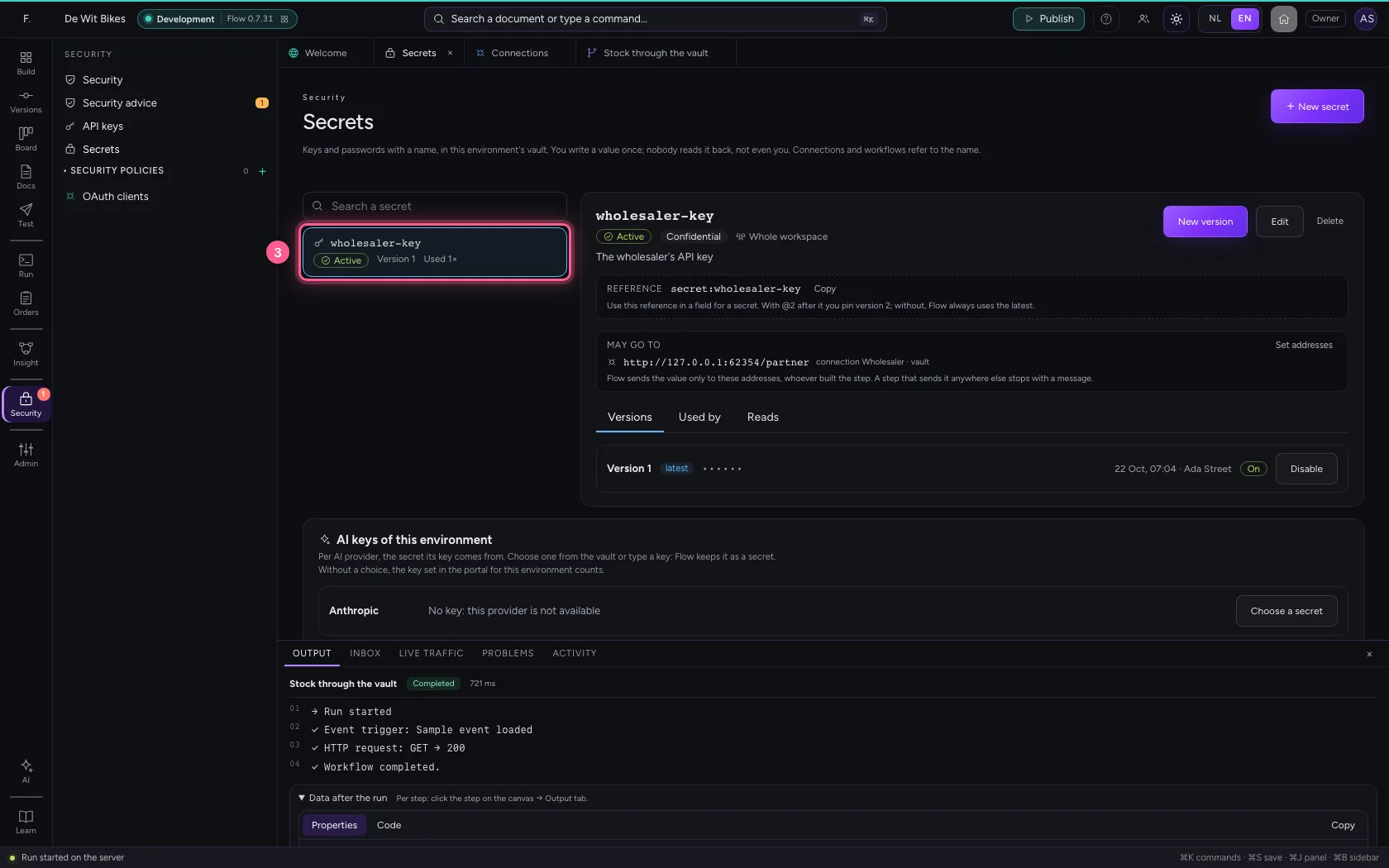
- Click New version
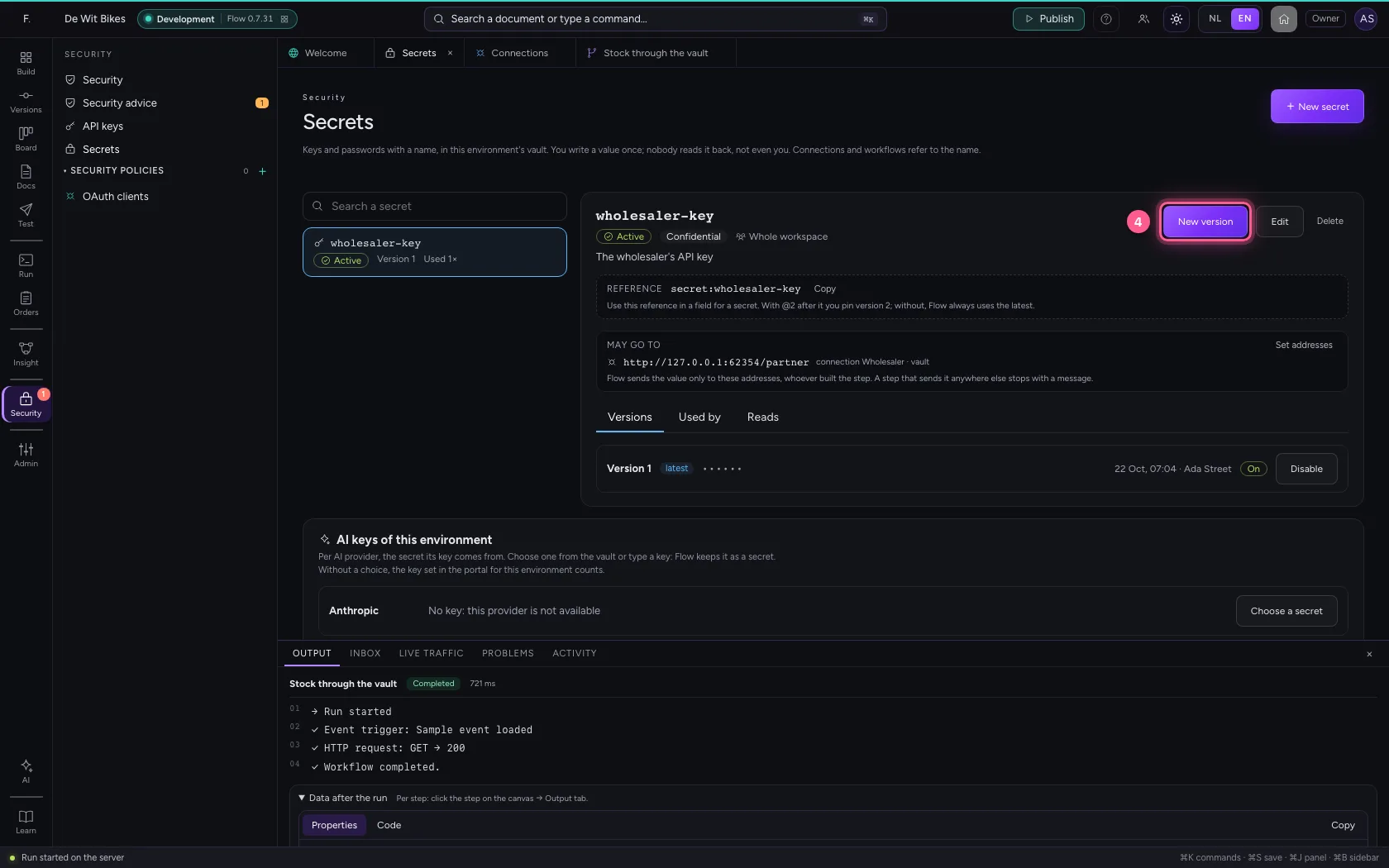
- In Value, type
••••••••
- Click Save
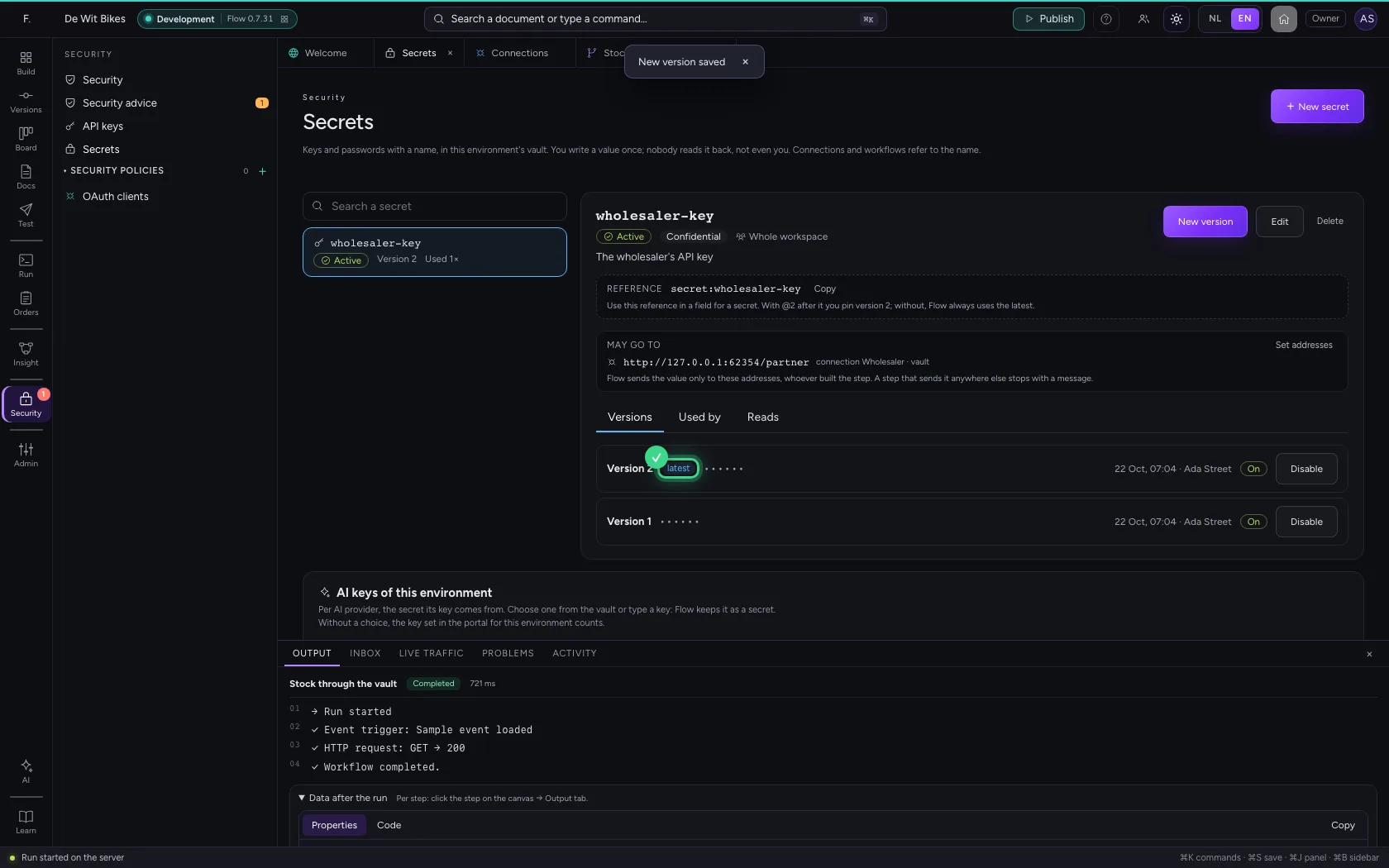
The next call uses version 2
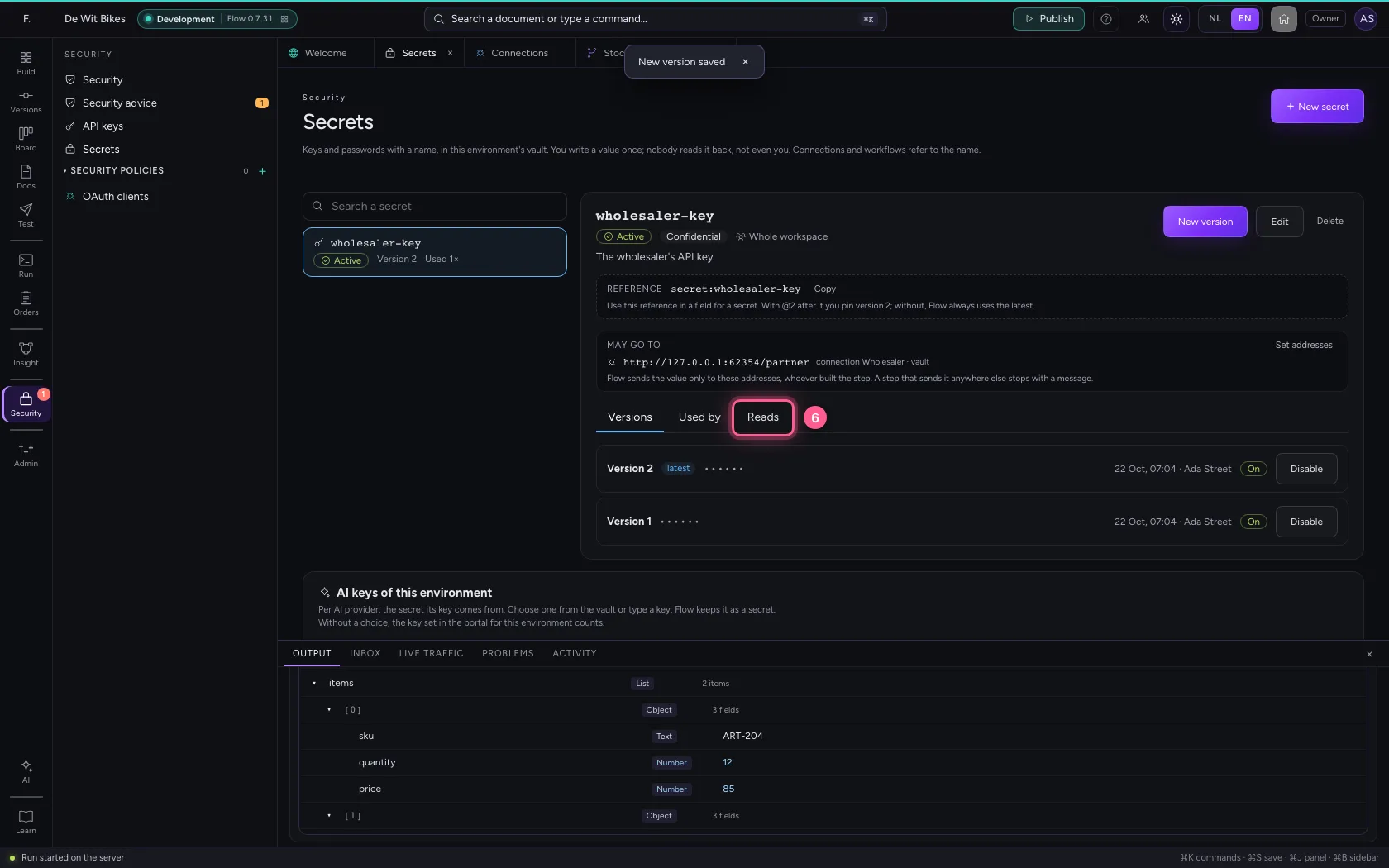
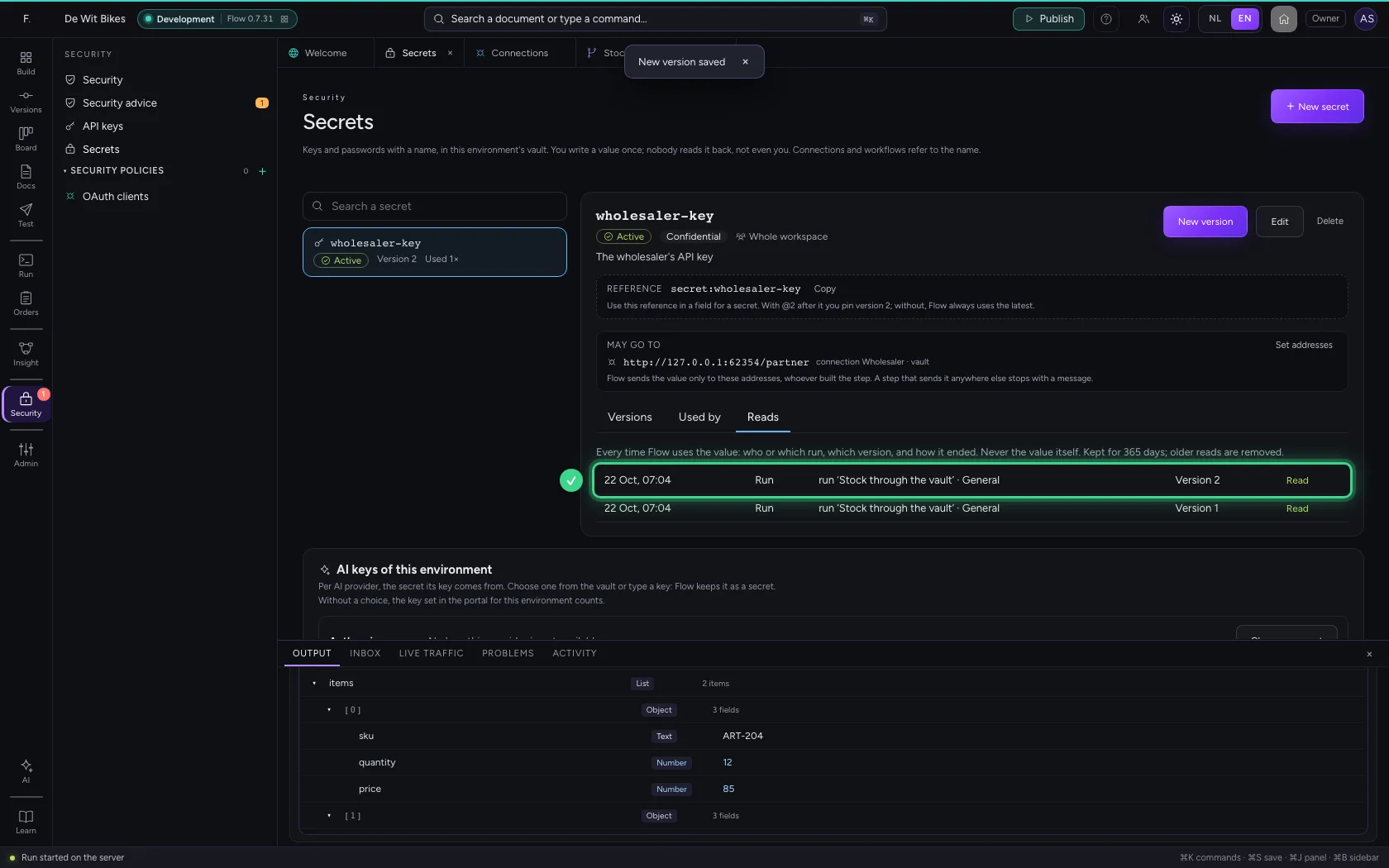
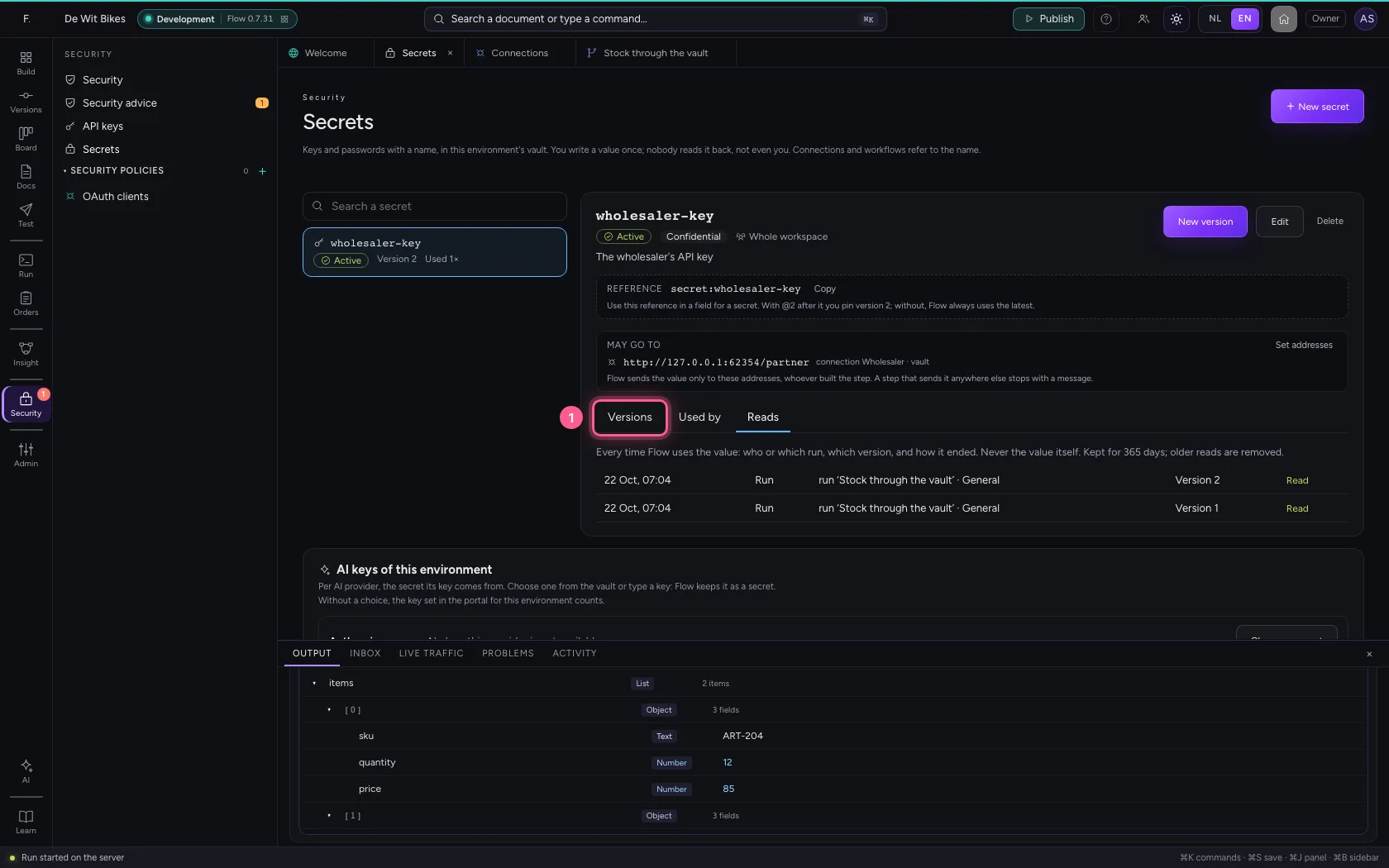
Run the workflow once more. Under Reads you then find every time Flow used the secret: which run, which version and how it ended. The value itself is nowhere, not even in the run.
- Click the workflow ‘Stock through the vault’
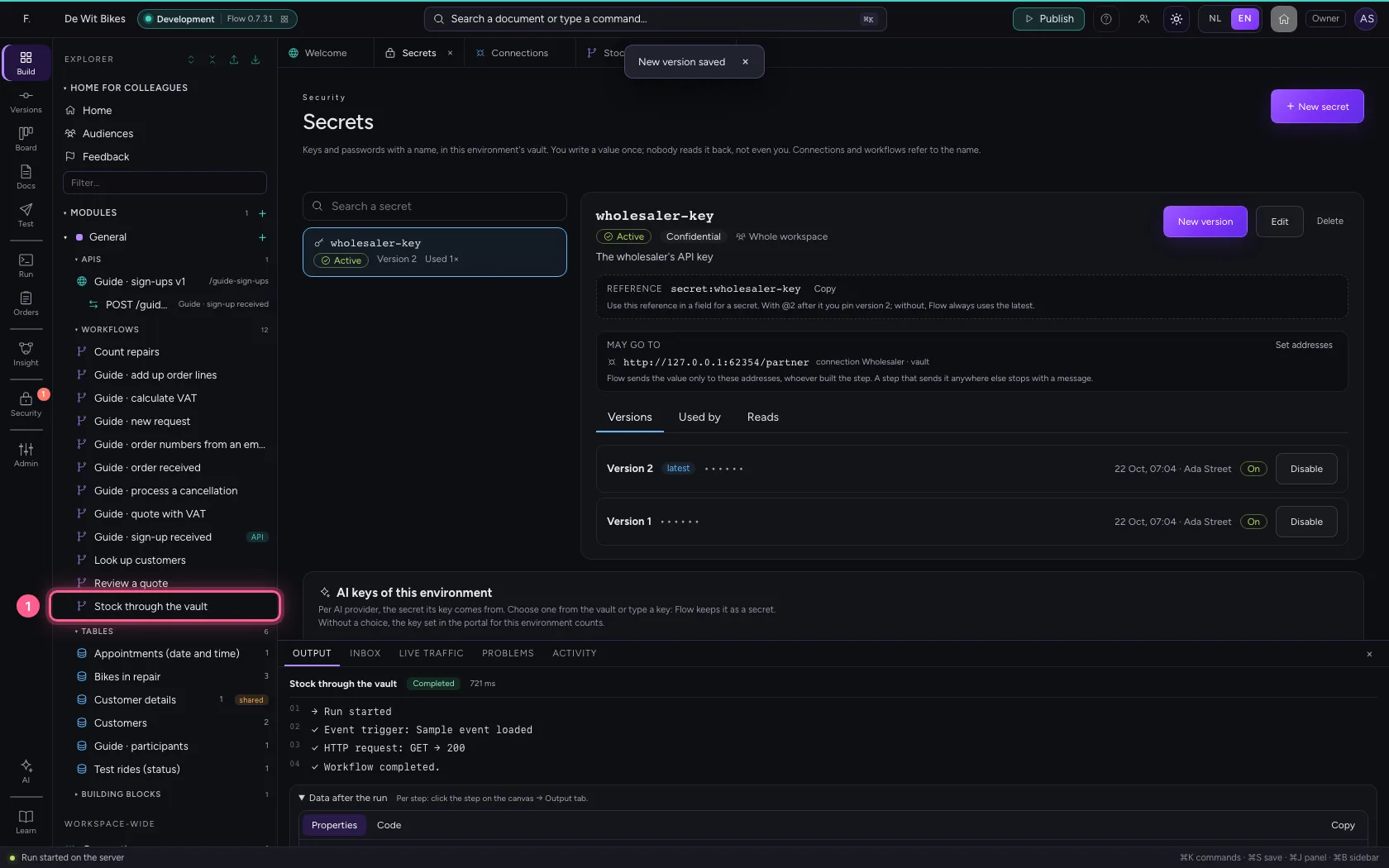
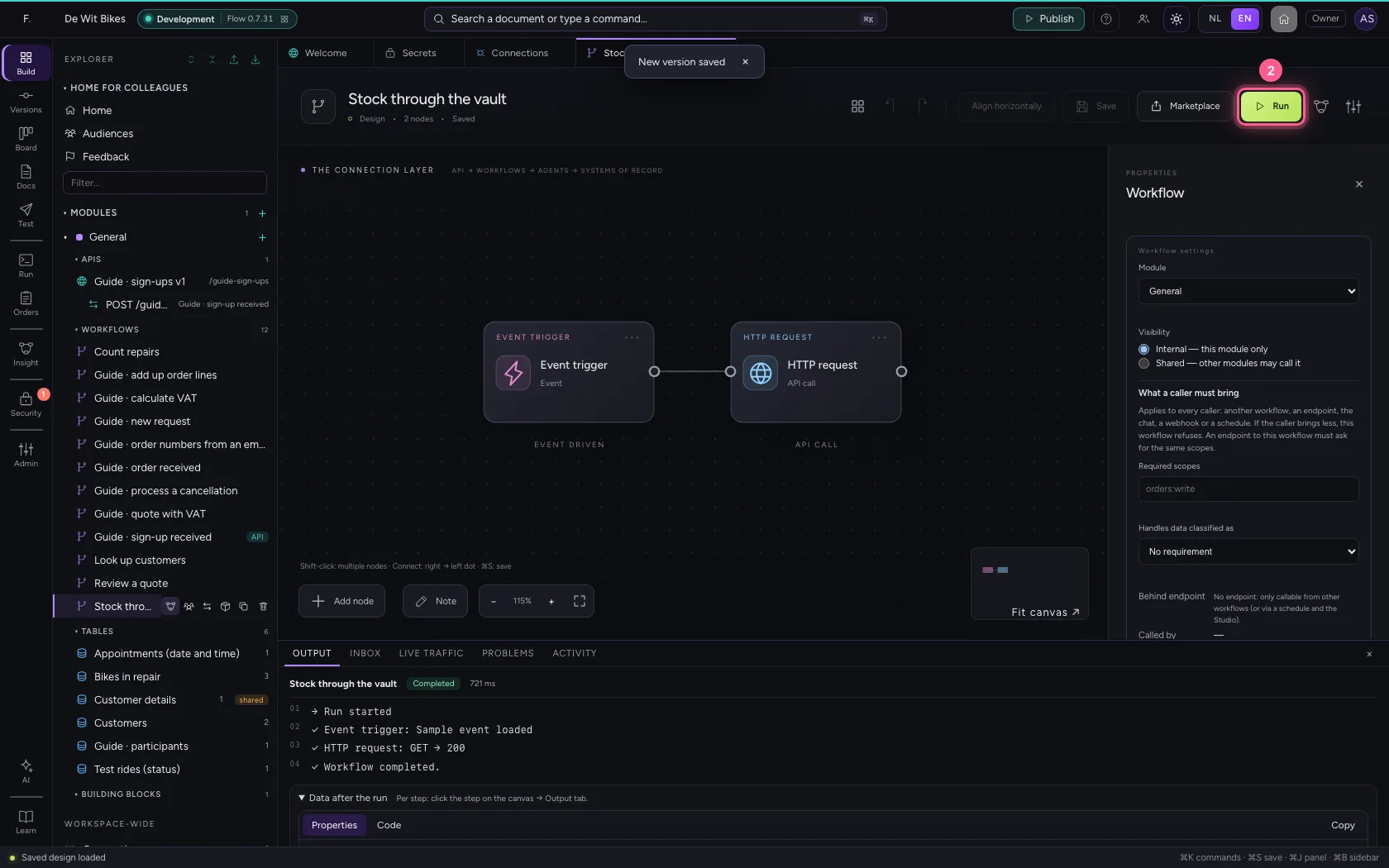
- Click Run
- Click Security
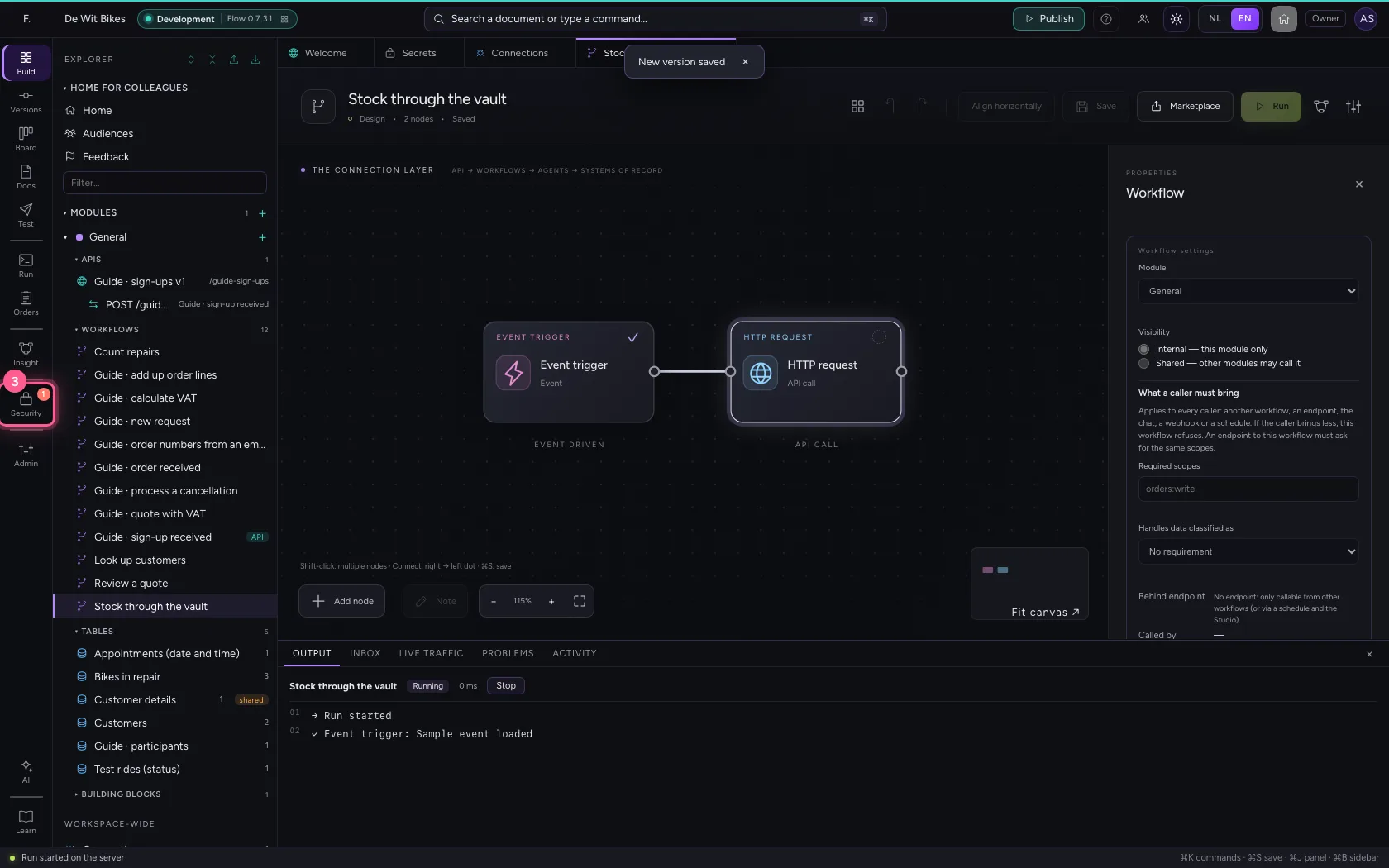
- Click Secrets
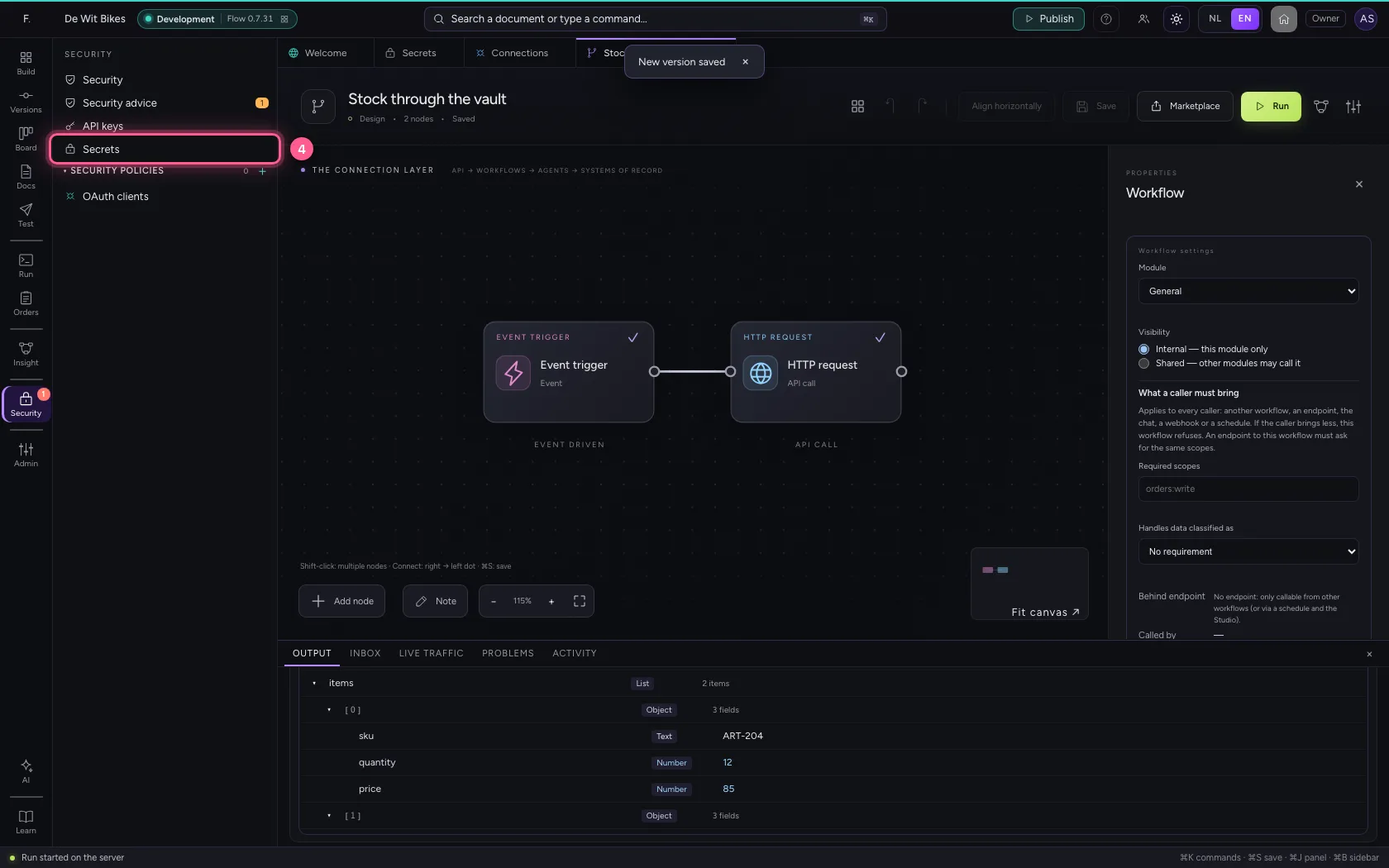
- Click the secret ‘wholesaler-key’
- Click Reads
Turn the old version off and see what uses it
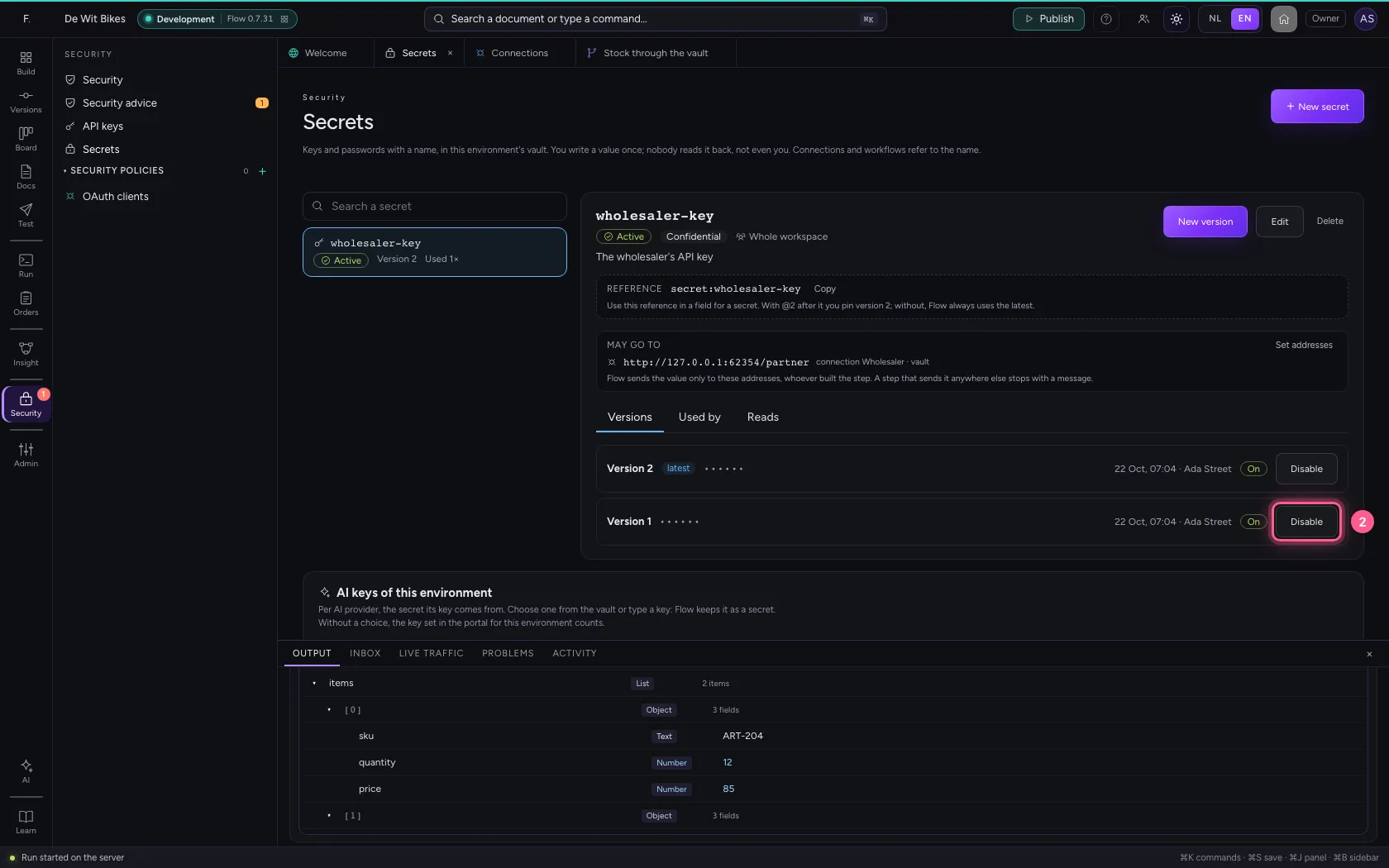
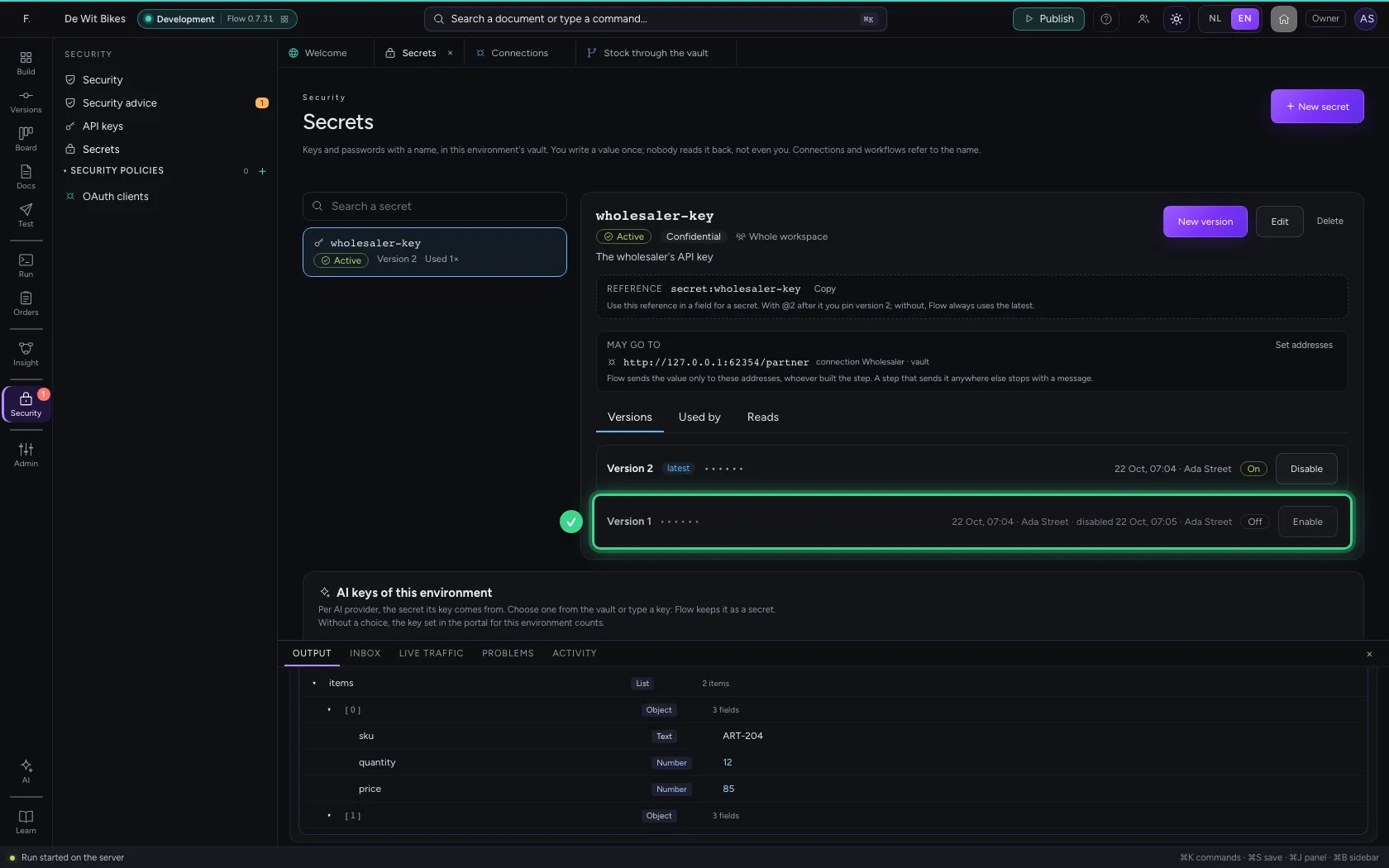
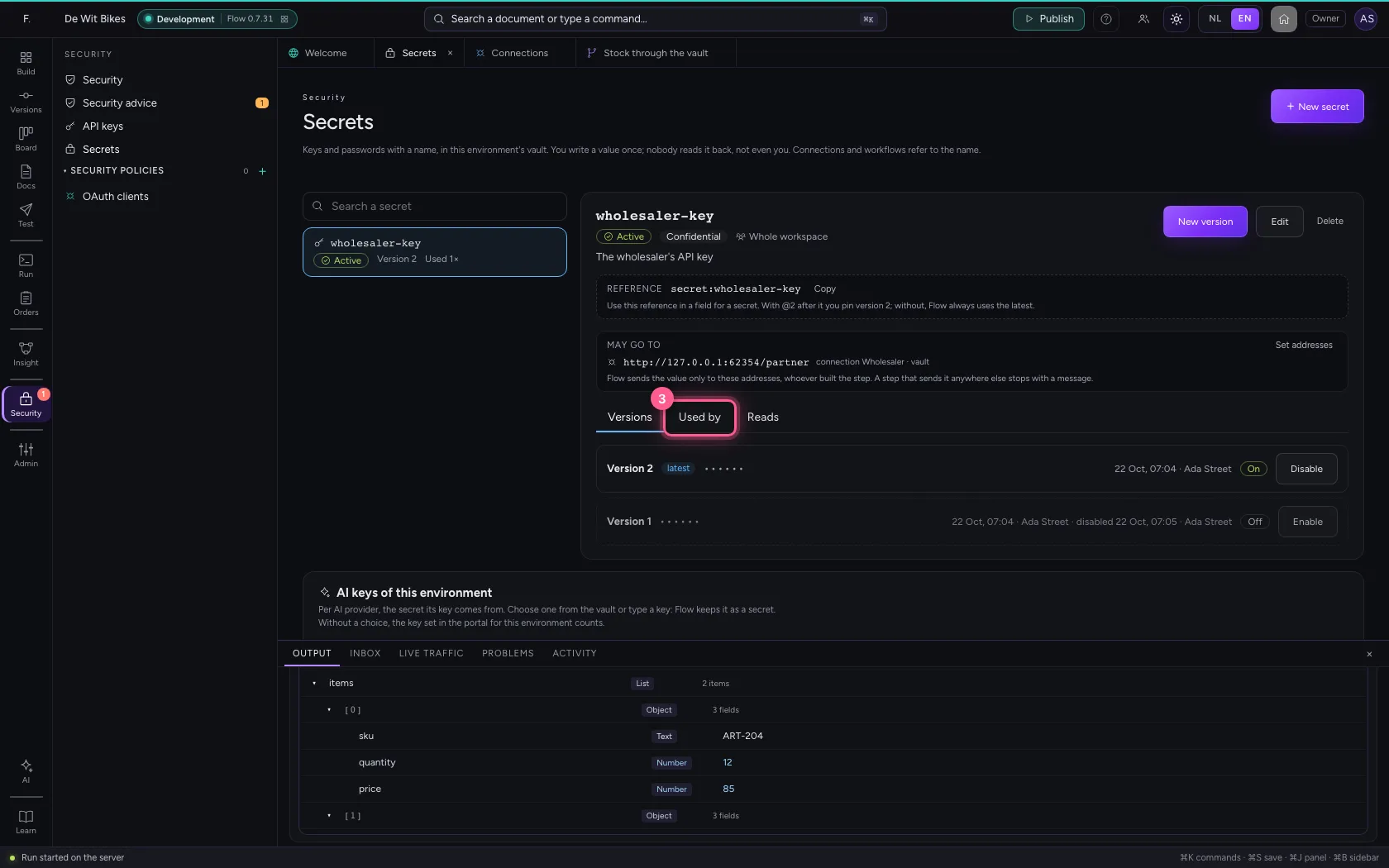
Once everything works with the new version, turn the old one off: nothing can use it afterwards. Under Used by you find the connections that use the secret, and through which workflows. Flow does not delete a secret that is still in use.
- Click Versions
- Click Disable
- Click Used by
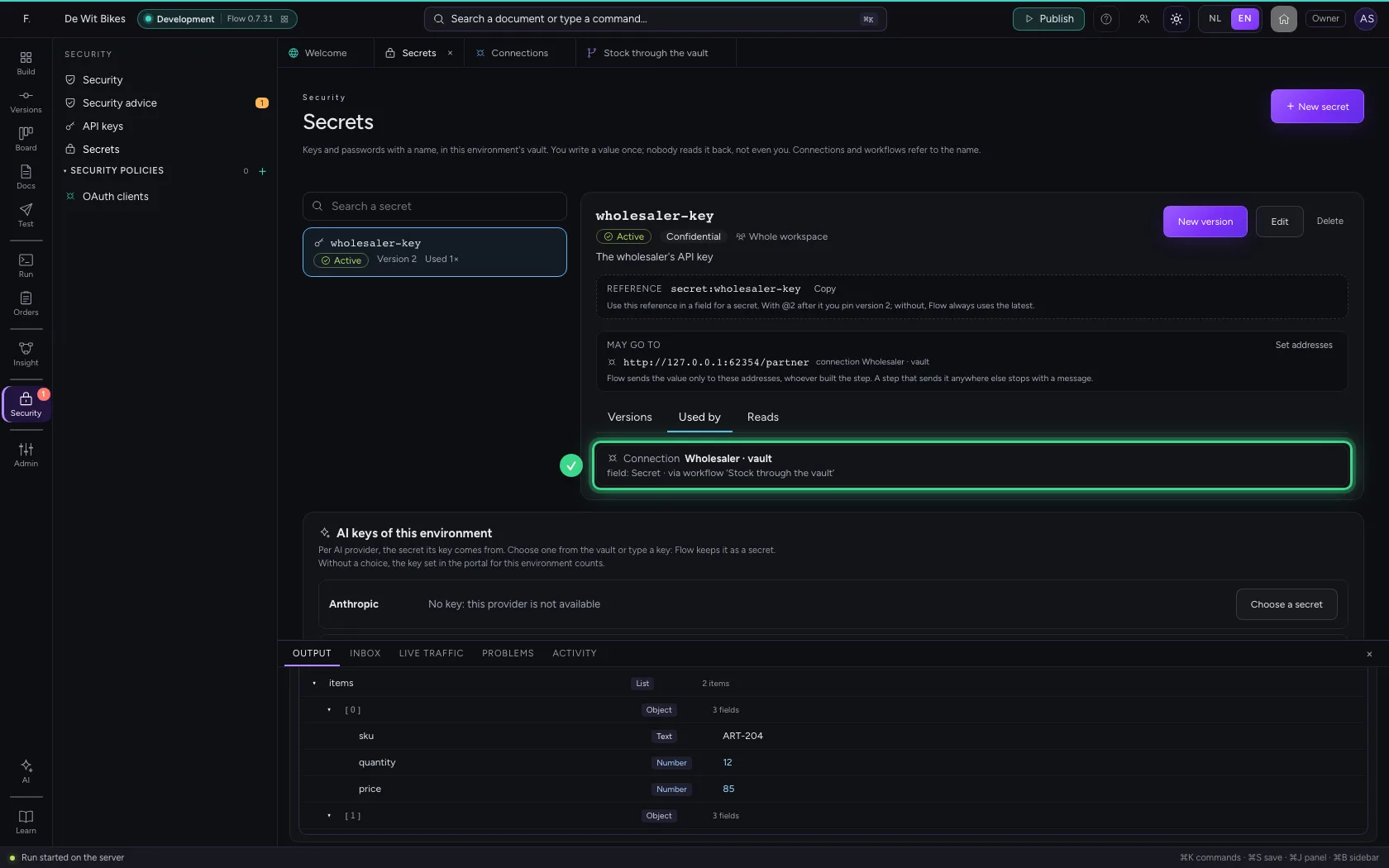
From a field to its secret
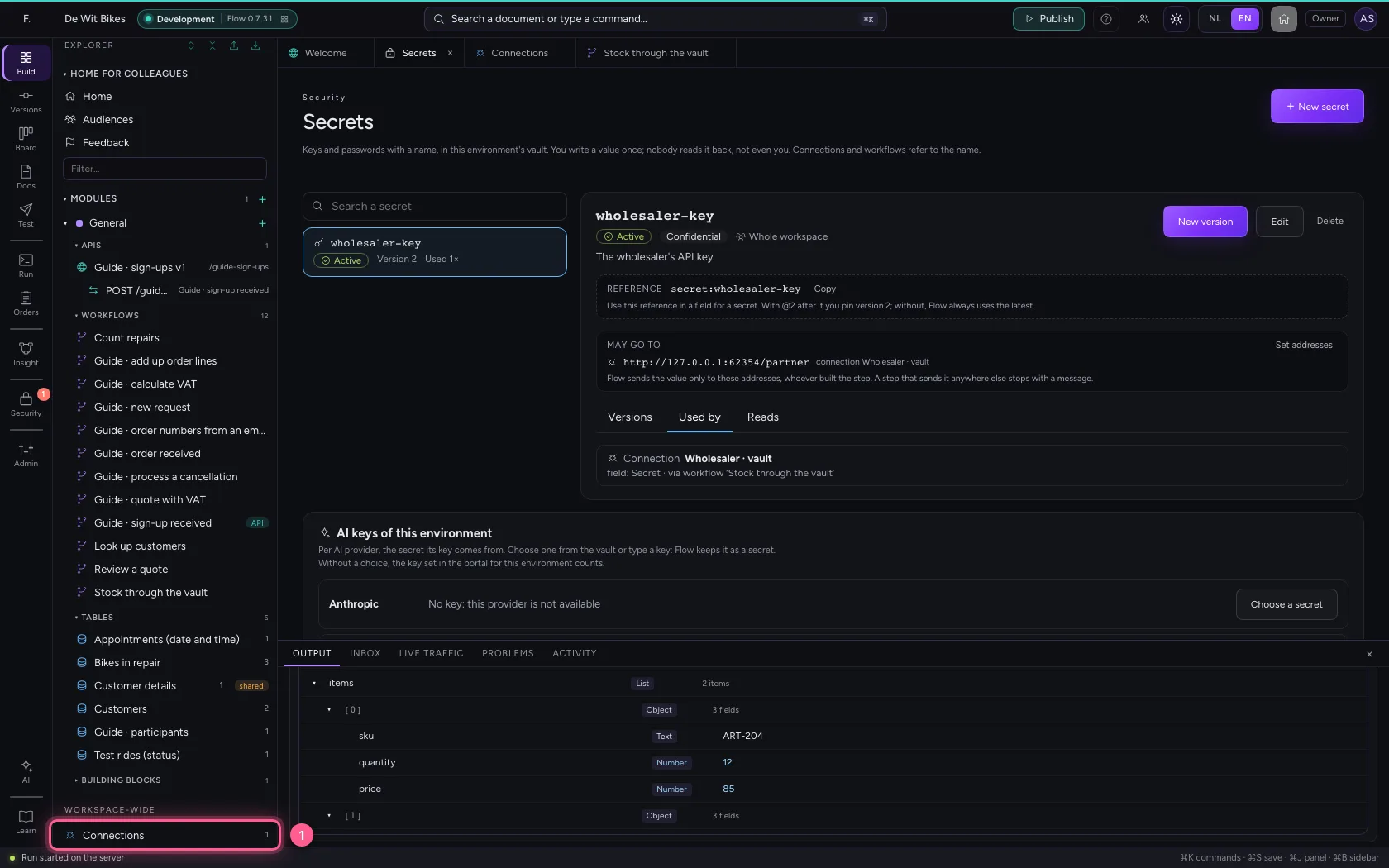
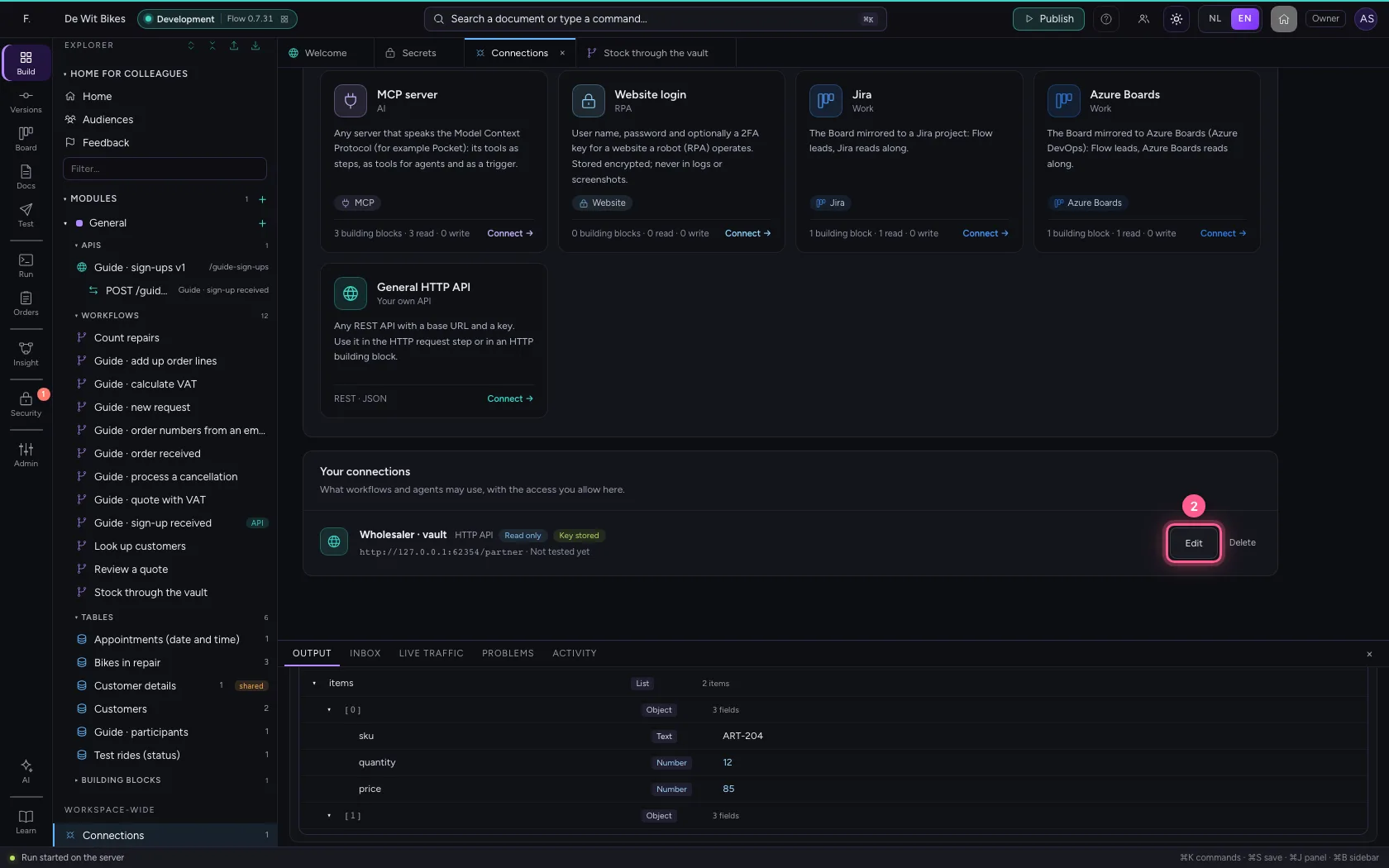
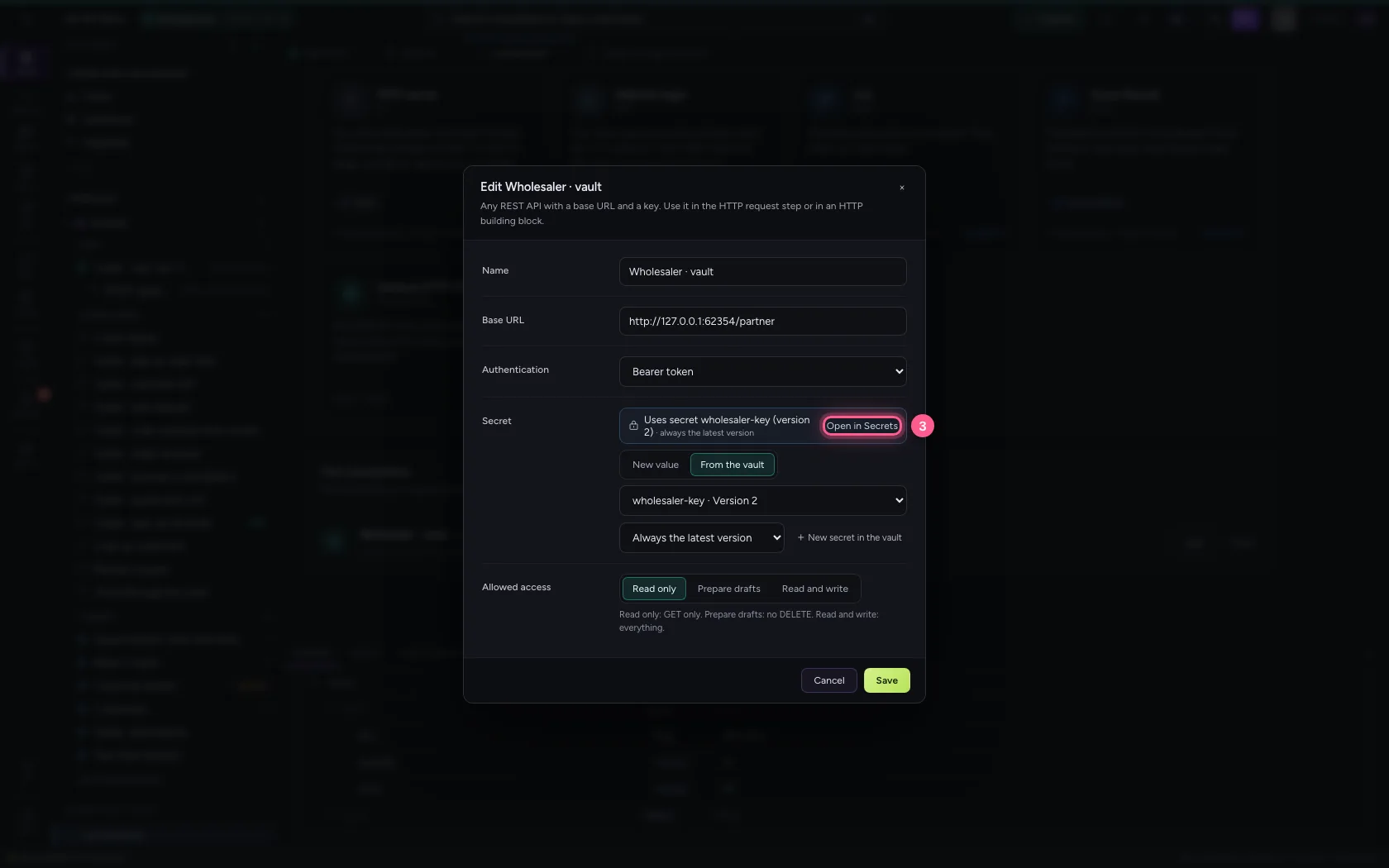
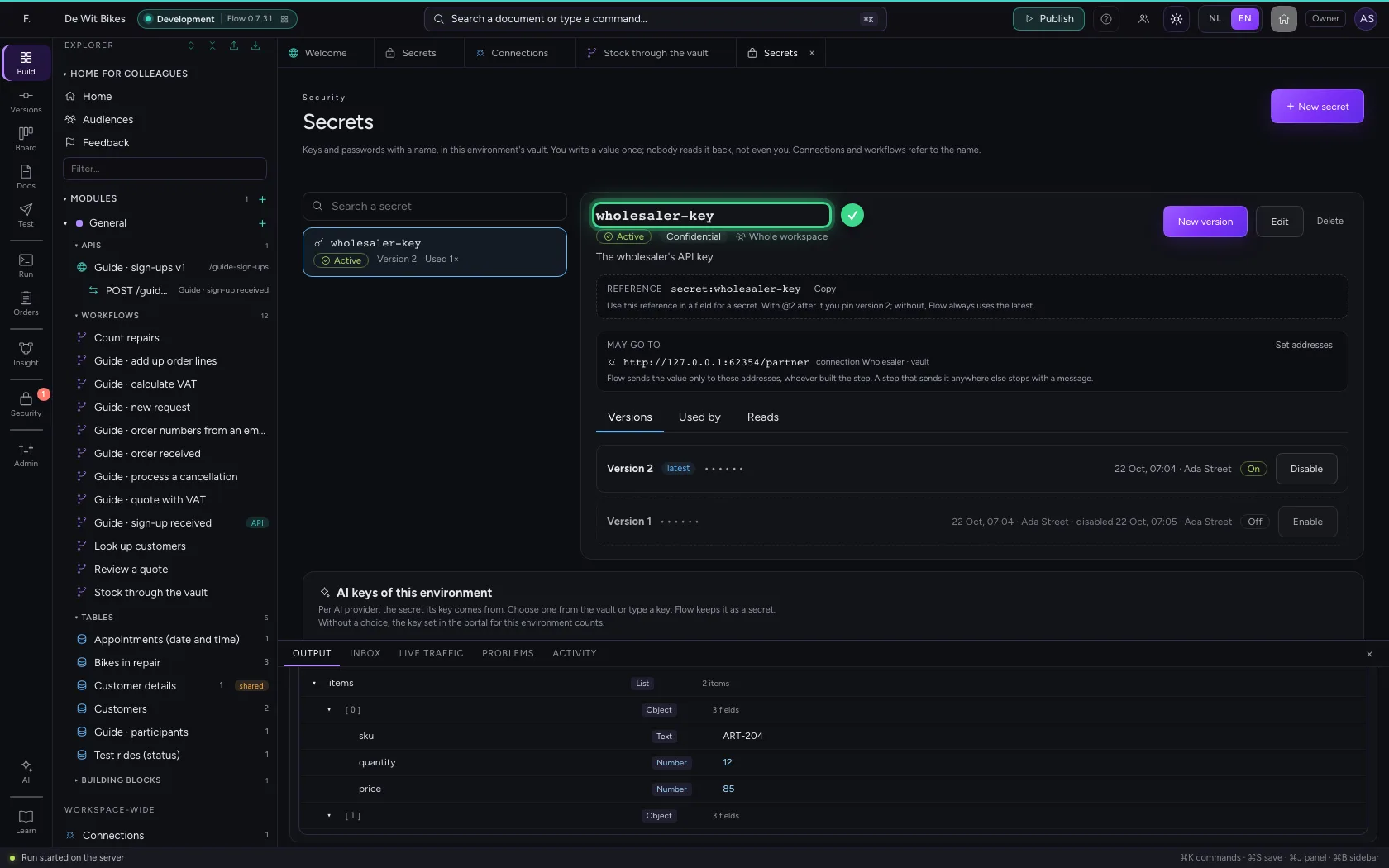
Every place that uses a secret says which secret and which version: a connection, an API's security policy (a webhook's signature, the shared secret of JWT tokens) and the environment's AI keys. Open in Secrets takes you straight there.
- Click Connections
- Click Edit
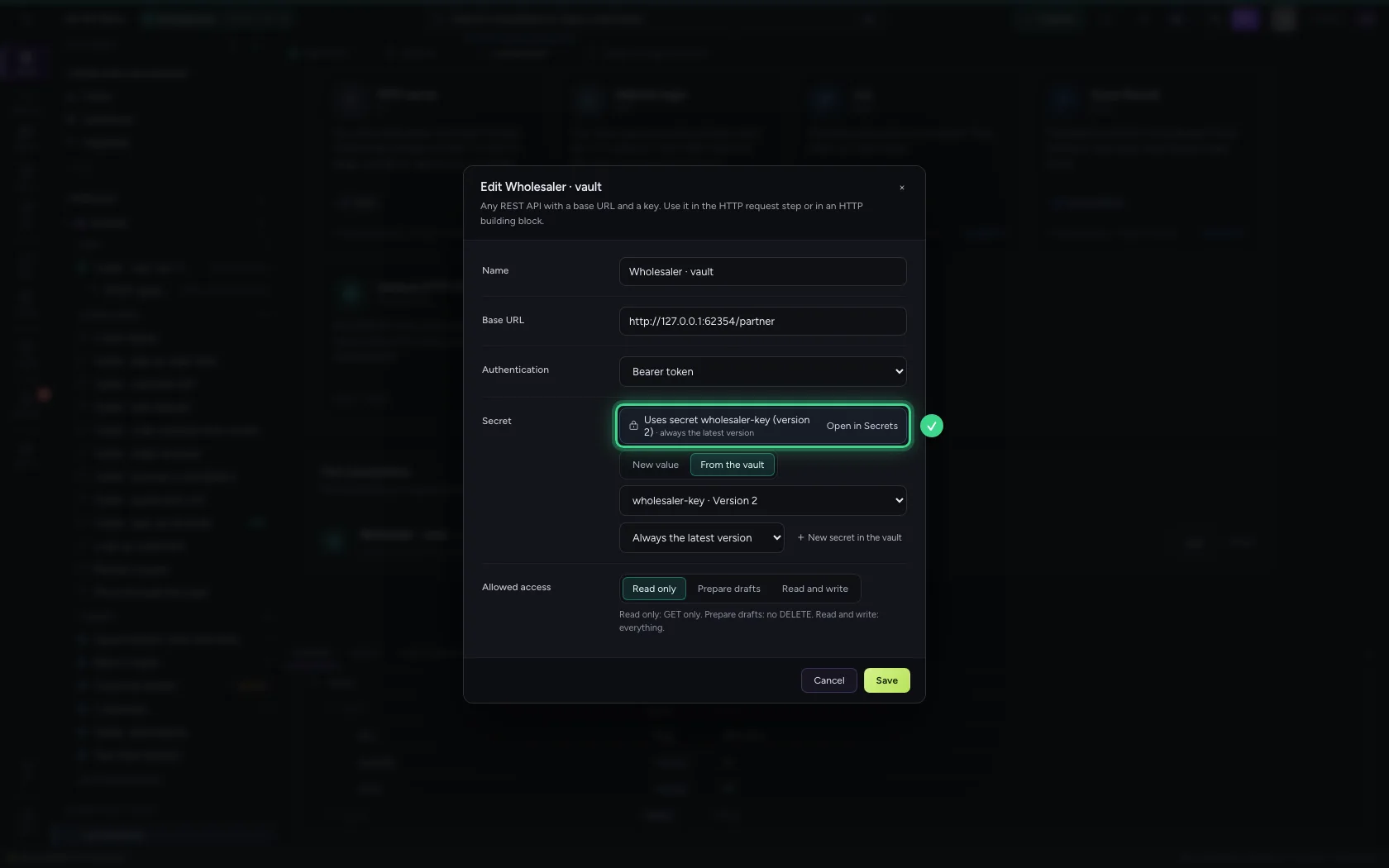
- Click Open in Secrets
This environment's AI keys
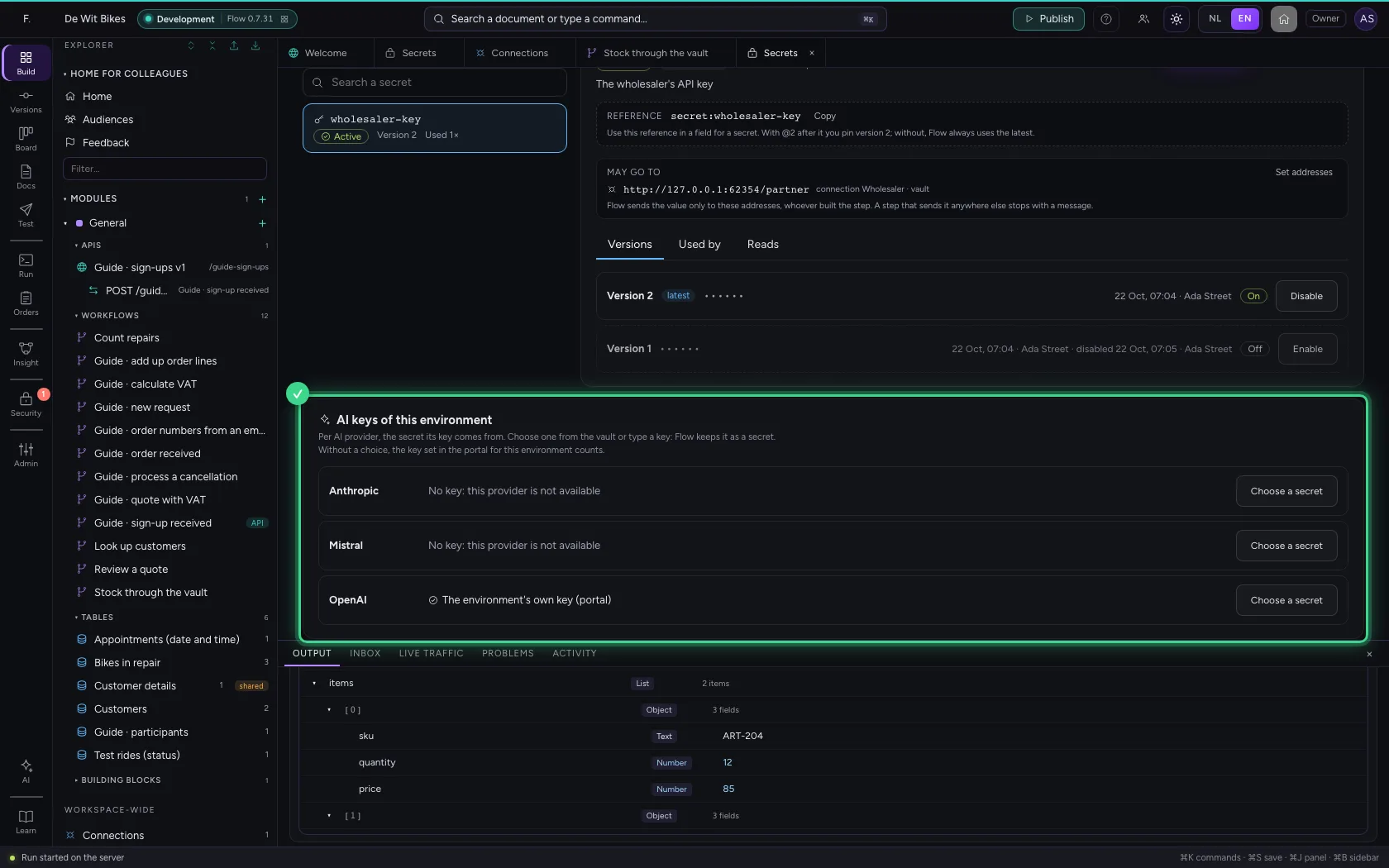
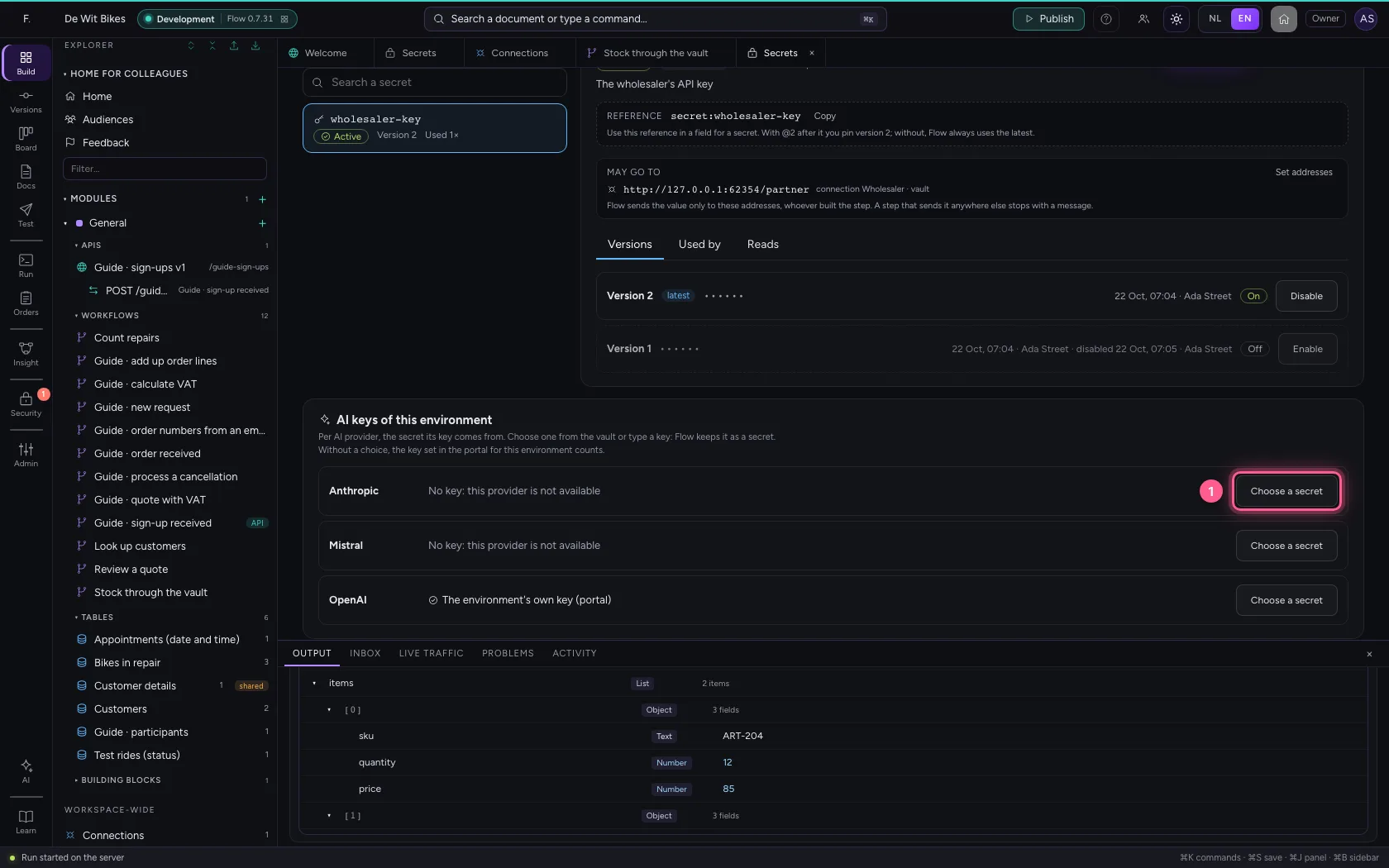
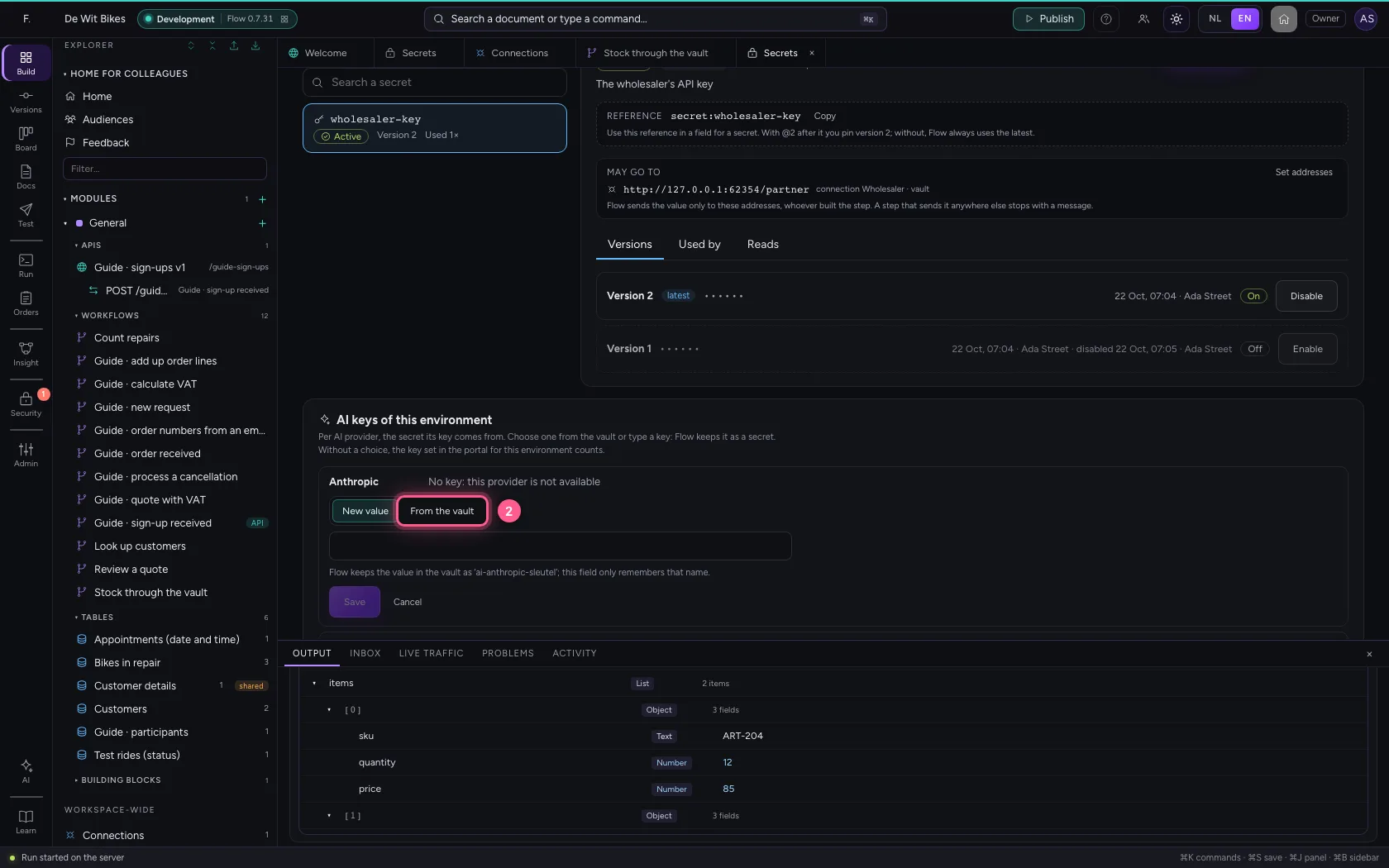
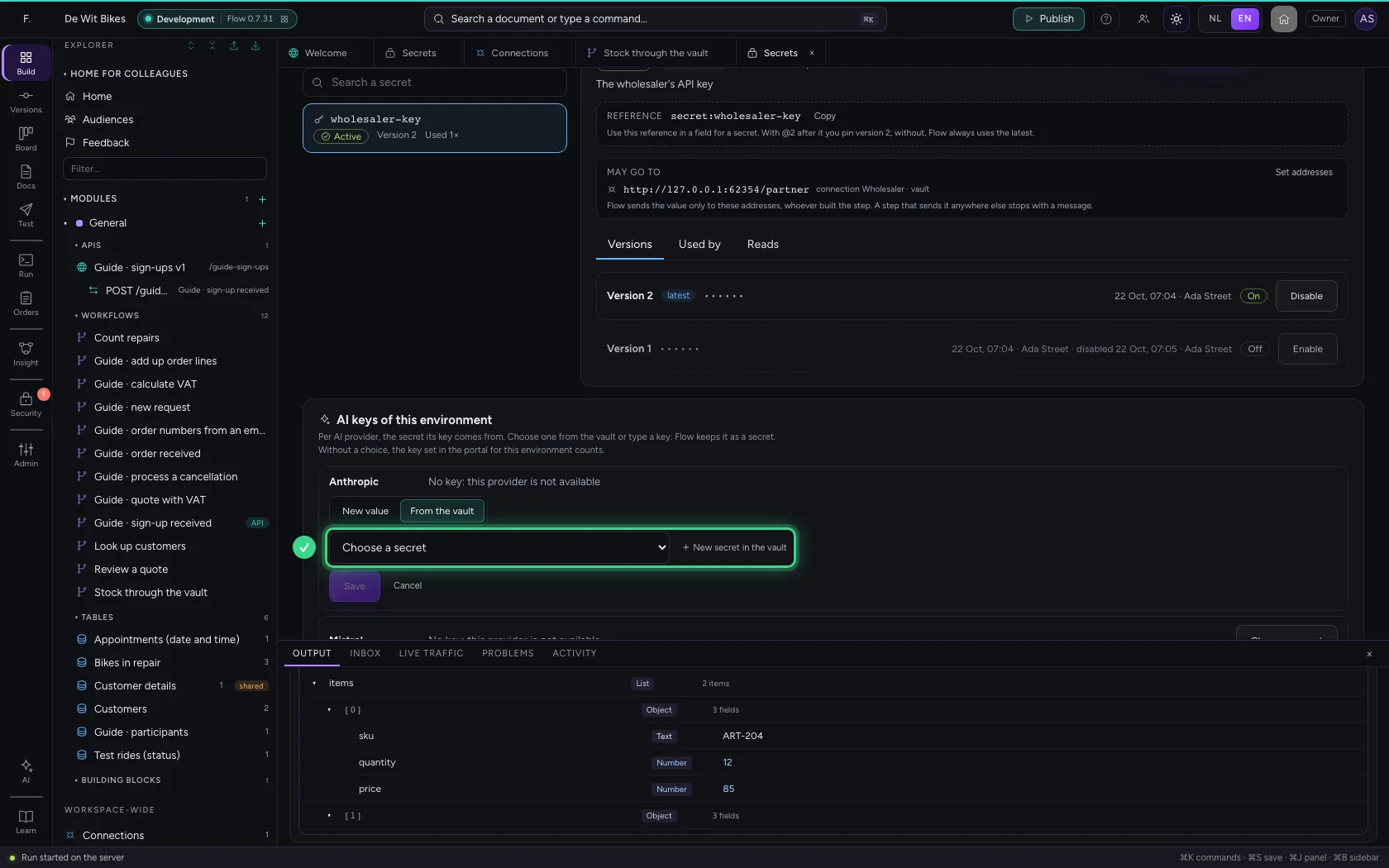
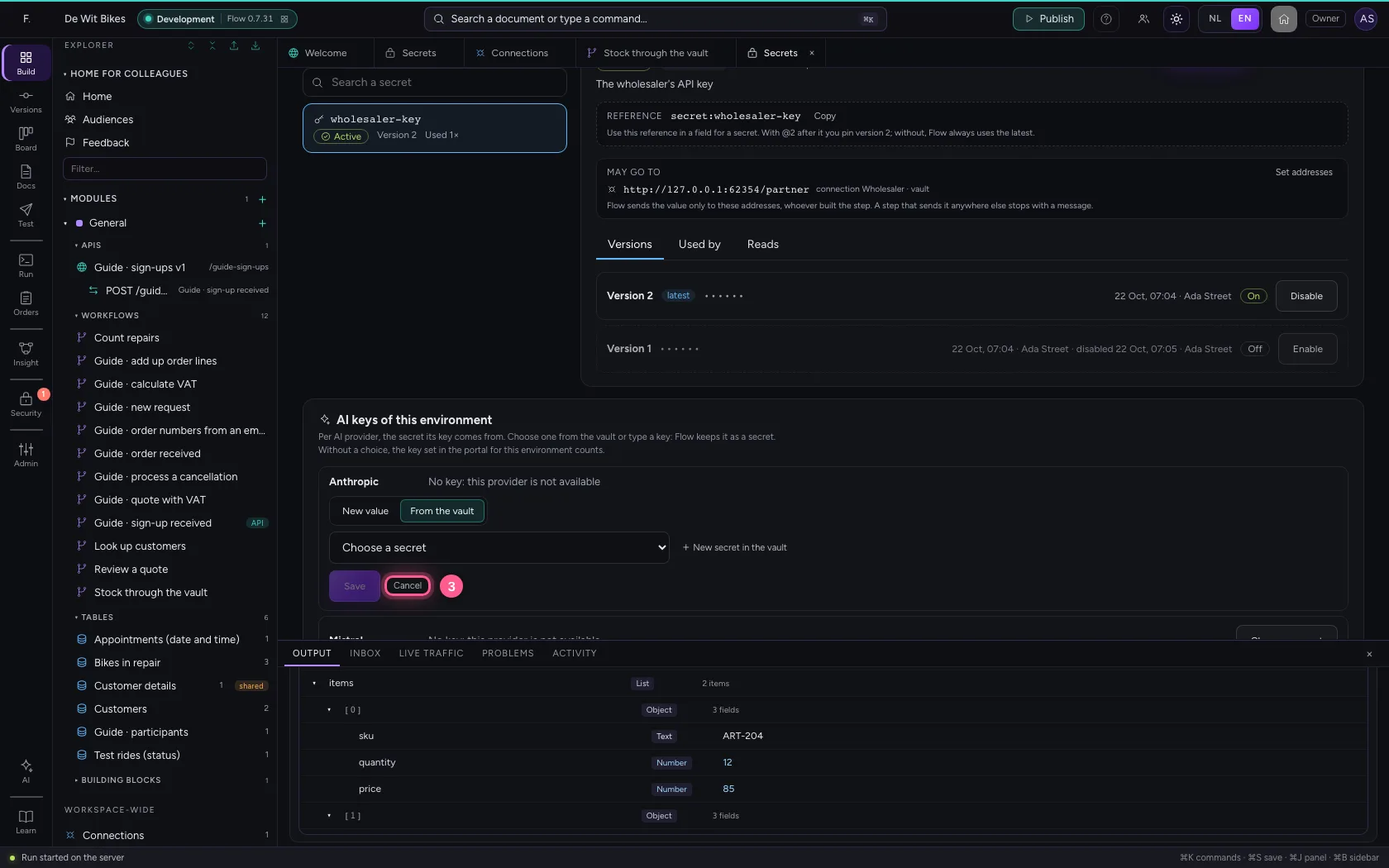
Below the secrets are the environment's AI keys: per AI provider, the secret its key comes from. Without a choice, the key set in the portal counts. With Choose a secret you take one from the vault, or type a key: Flow keeps it as a secret and uses it at the next question to the model.
- Click Choose a secret
- Click From the vault
- Click Cancel
Secrets in the security overview
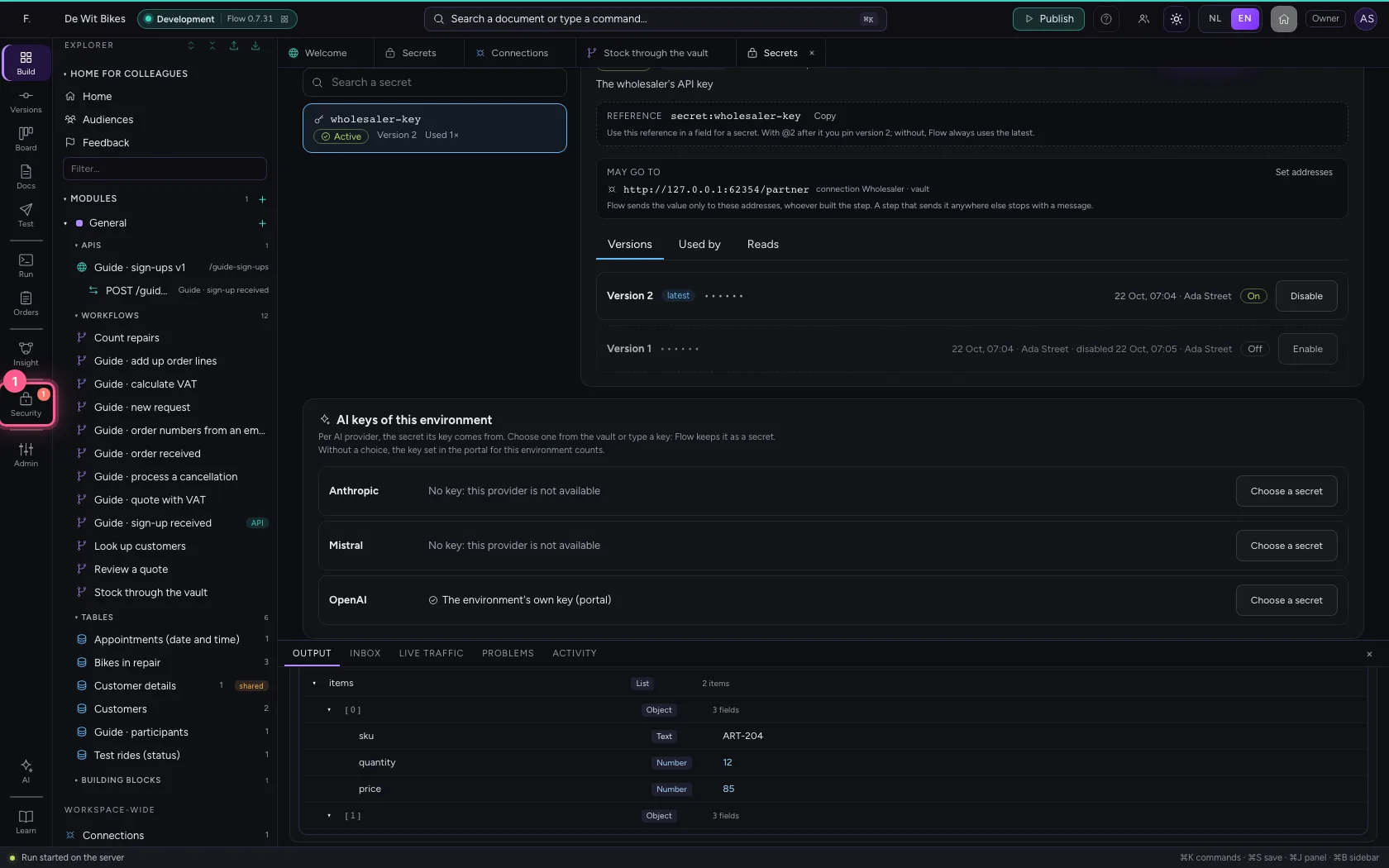
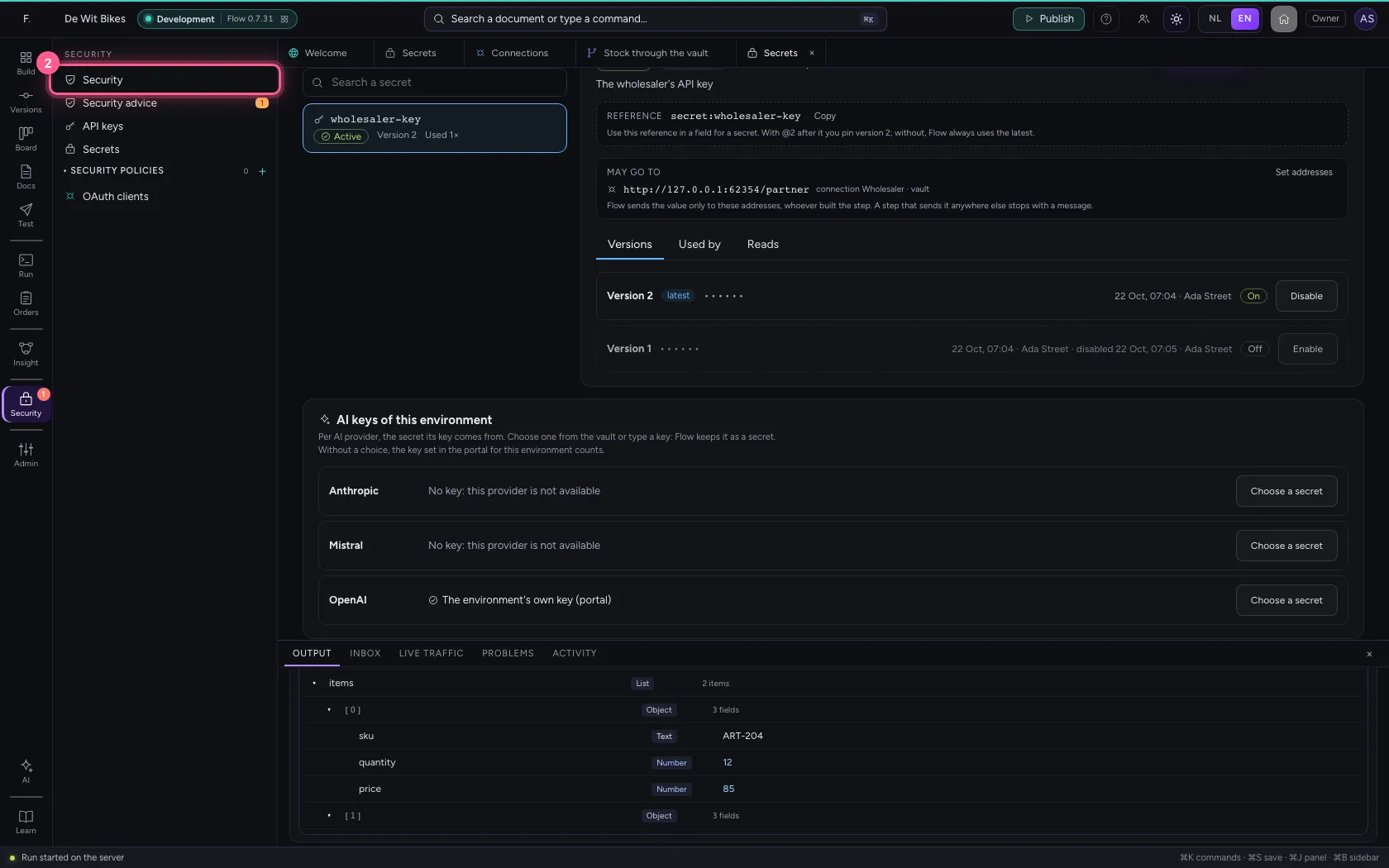
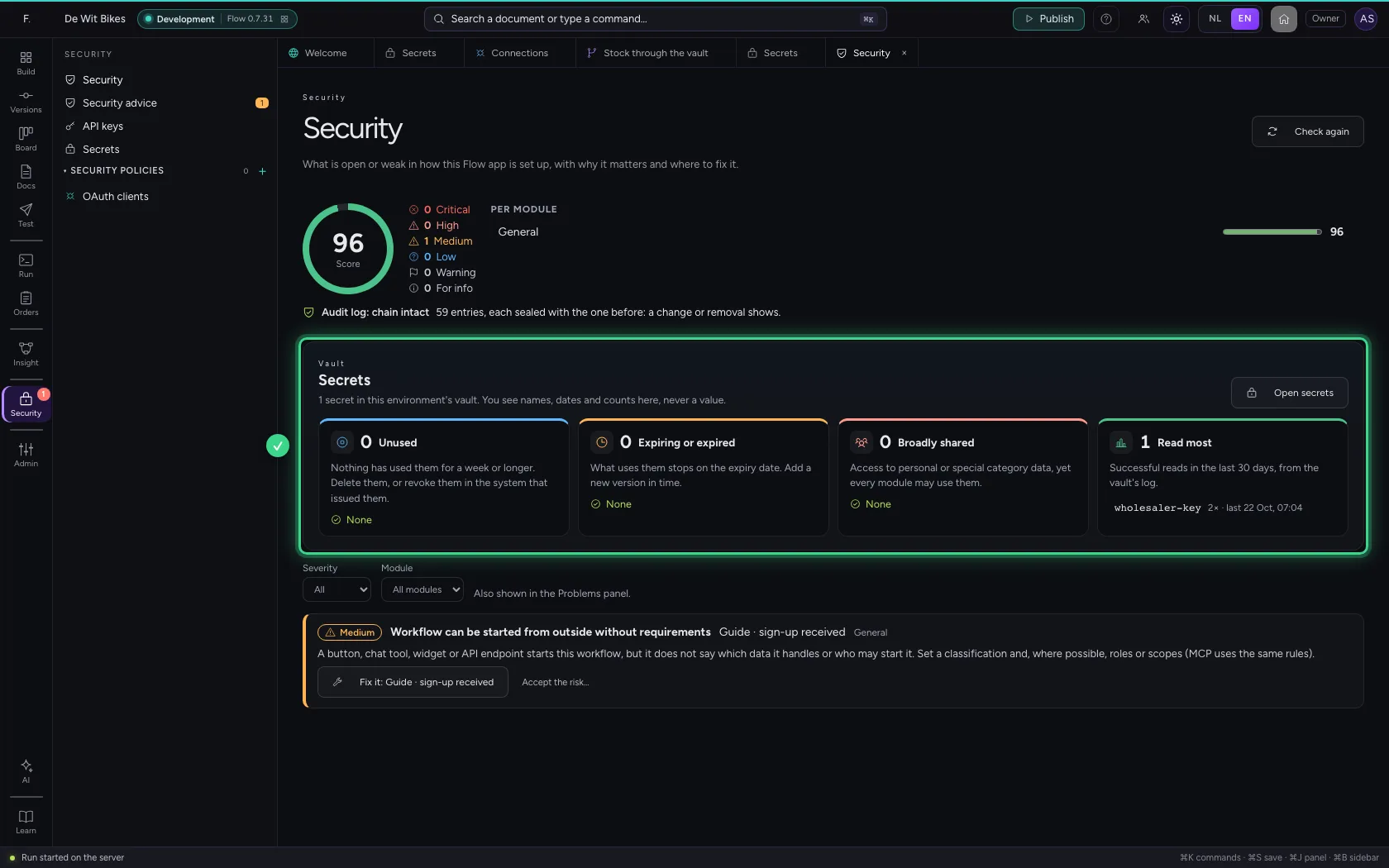
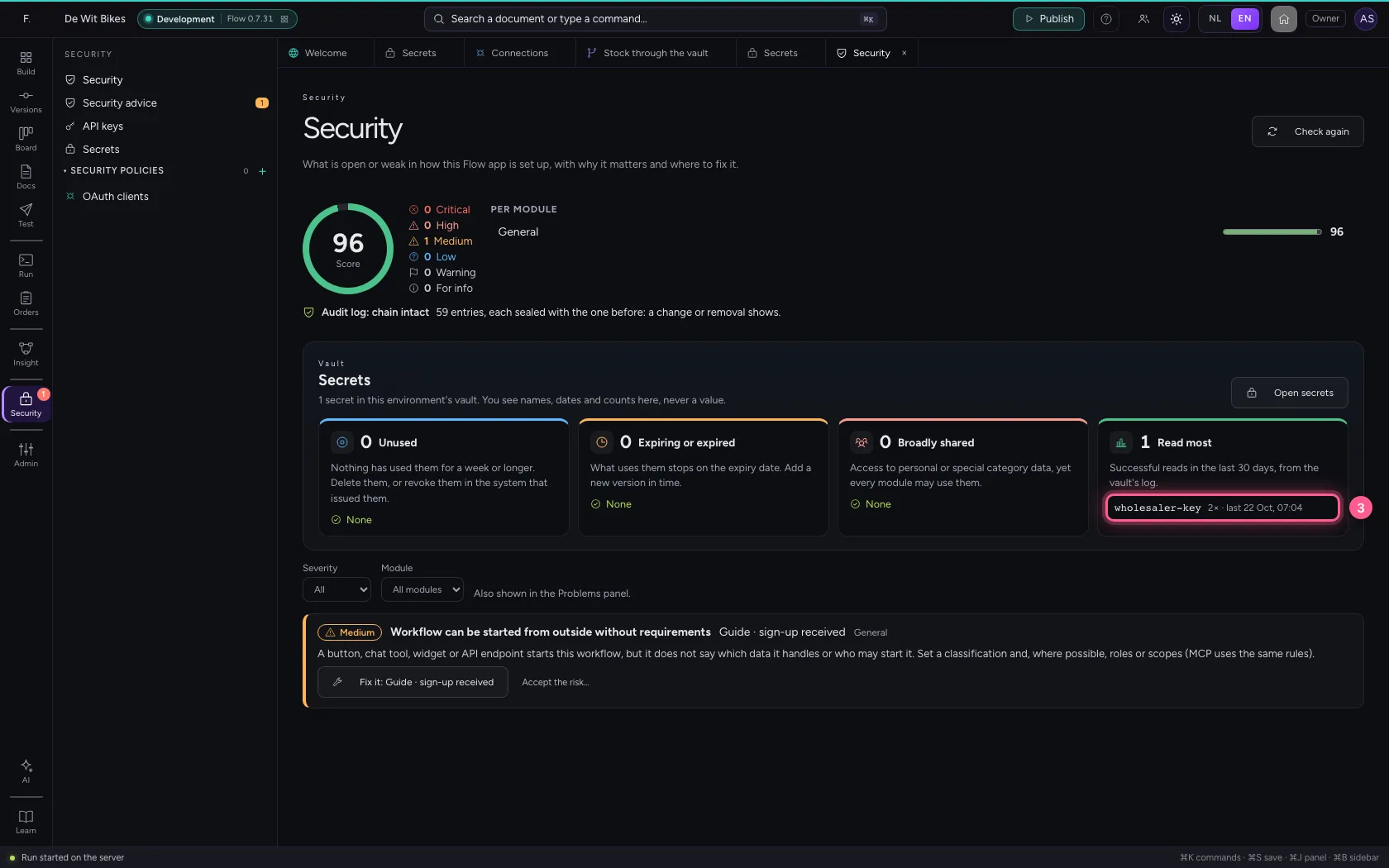
Under Security → Security is the Secrets block: which secrets nothing uses any more, which (almost) expired, which with personal data are open to the whole workspace, and which are read most in the last 30 days, from the vault's log. You see names, dates and counts, never a value. A click on a name opens the secret.
- Click Security
- Click Security
- Click the secret read most
This guide was carried out step by step on 22 Oct 2026 by an automated test on Flow (version 3e563176).