Flow.Documentation

Connect an MCP server and call a tool

5 steps± 4 minVideoVerified 22 Oct 2026
  1. Step 1 · Open your development environment
  2. Step 2 · Connect the MCP server
  3. Step 3 · Call a tool in a workflow
  4. Step 4 · Run and read the result
  5. Step 5 · A tool that changes something: refused

More and more services offer their functions as an MCP server (Model Context Protocol): a list of tools with a name, a description and arguments. Flow connects such a server as a connection; its tools become steps in workflows and tools for AI Colleagues. Tools that change something only work when the connection may write. You need: the MCP server's address (Streamable HTTP, usually ending in /mcp) and possibly a key.

Watch the whole guide as a video5 steps in one film
Step 1 / 5

Open your development environment

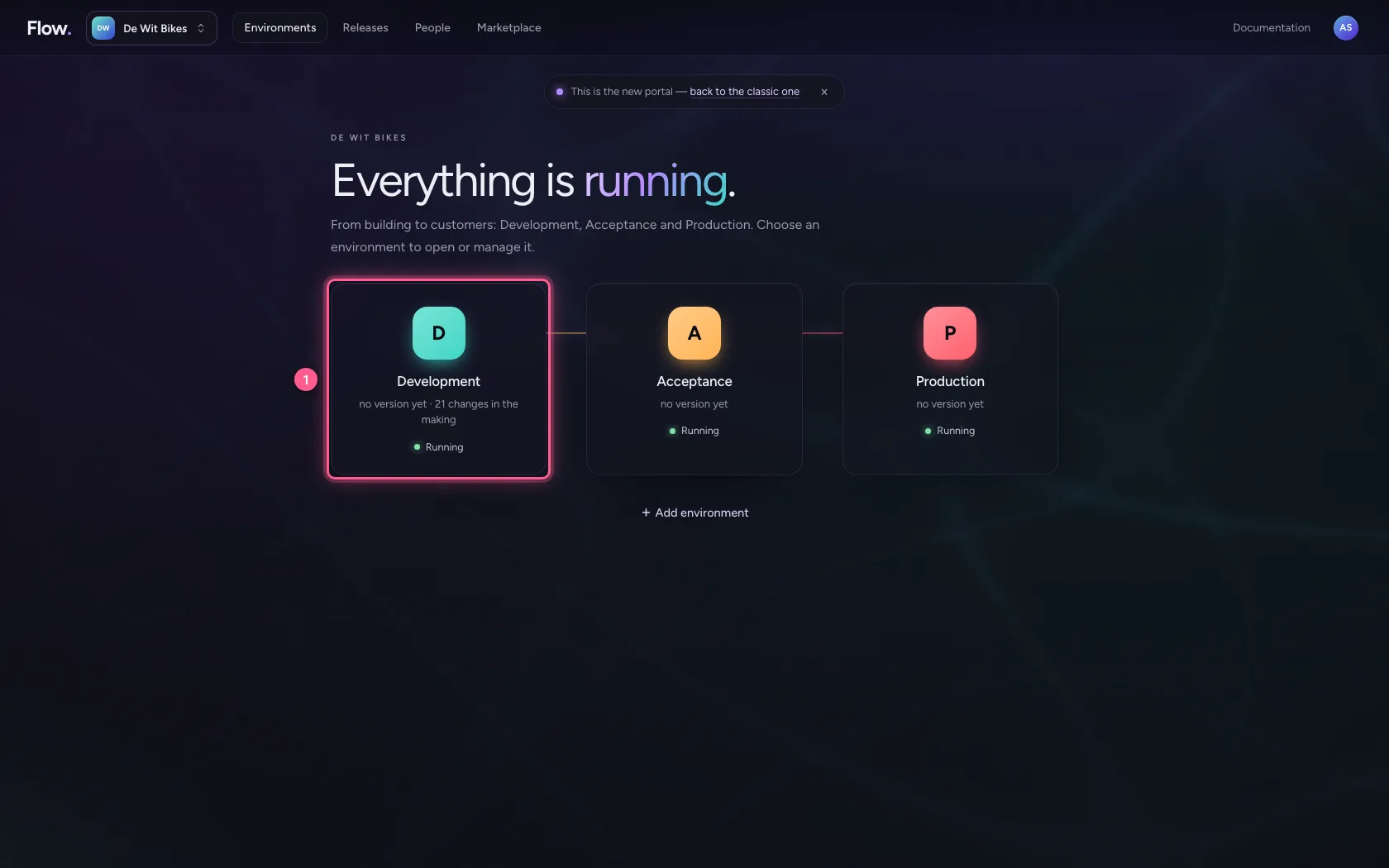
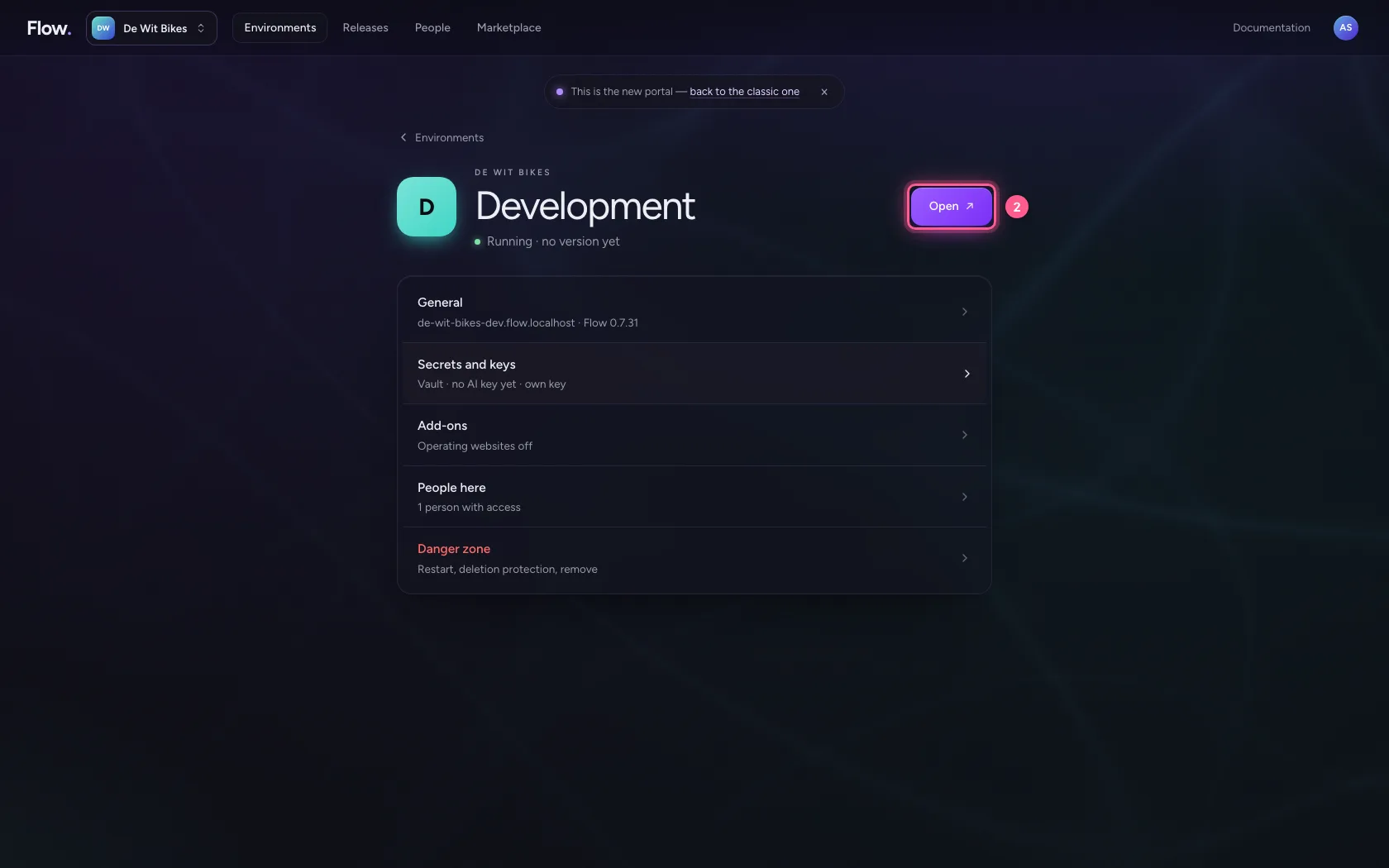
In the portal, under Environments, click Development, and there Open. Flow opens in a new tab and you are signed in straight away.

  1. Click Development
Open your development environment · Click Development
  1. Click Open ↗
Open your development environment · Click Open ↗
Step 2 / 5

Connect the MCP server

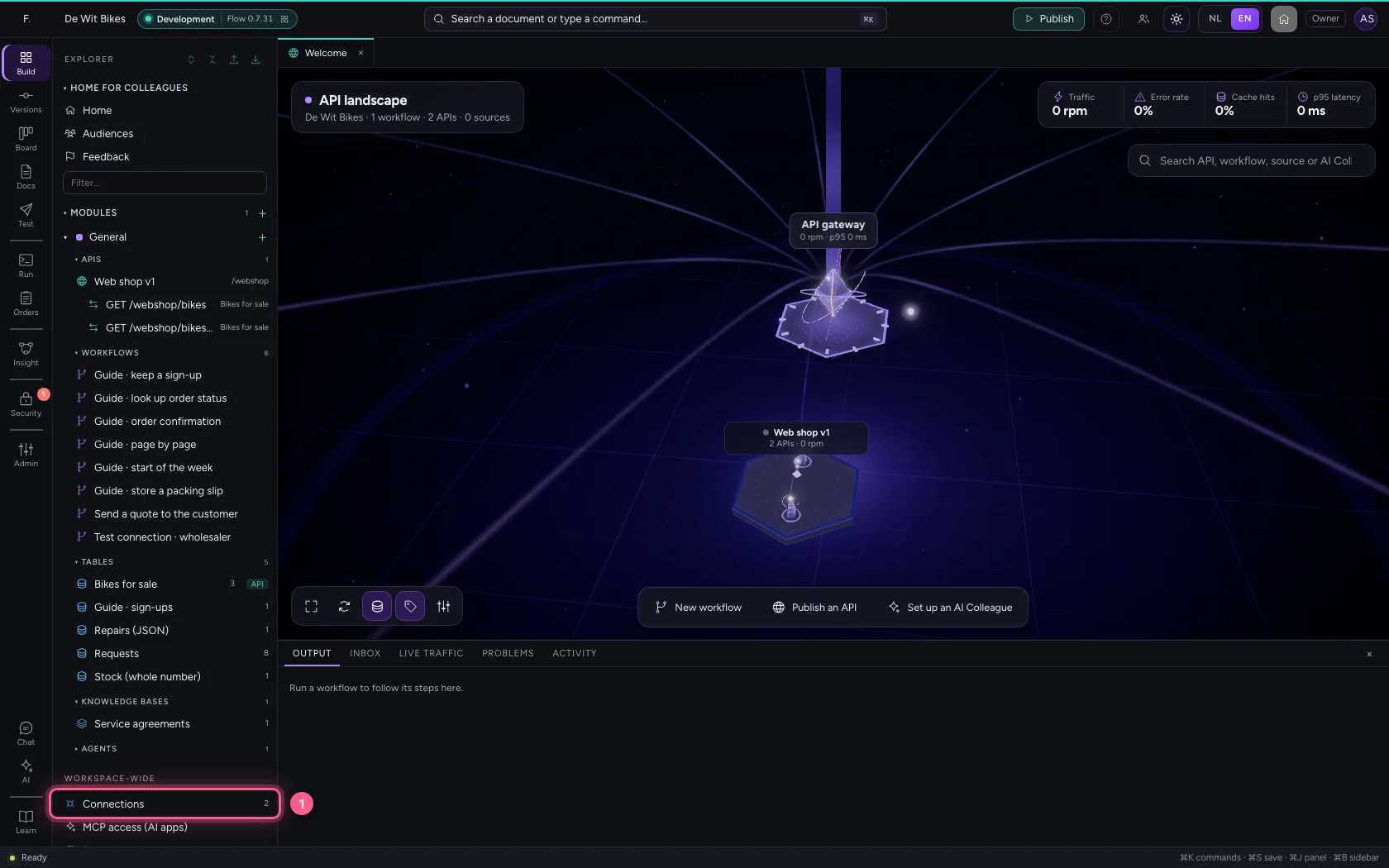
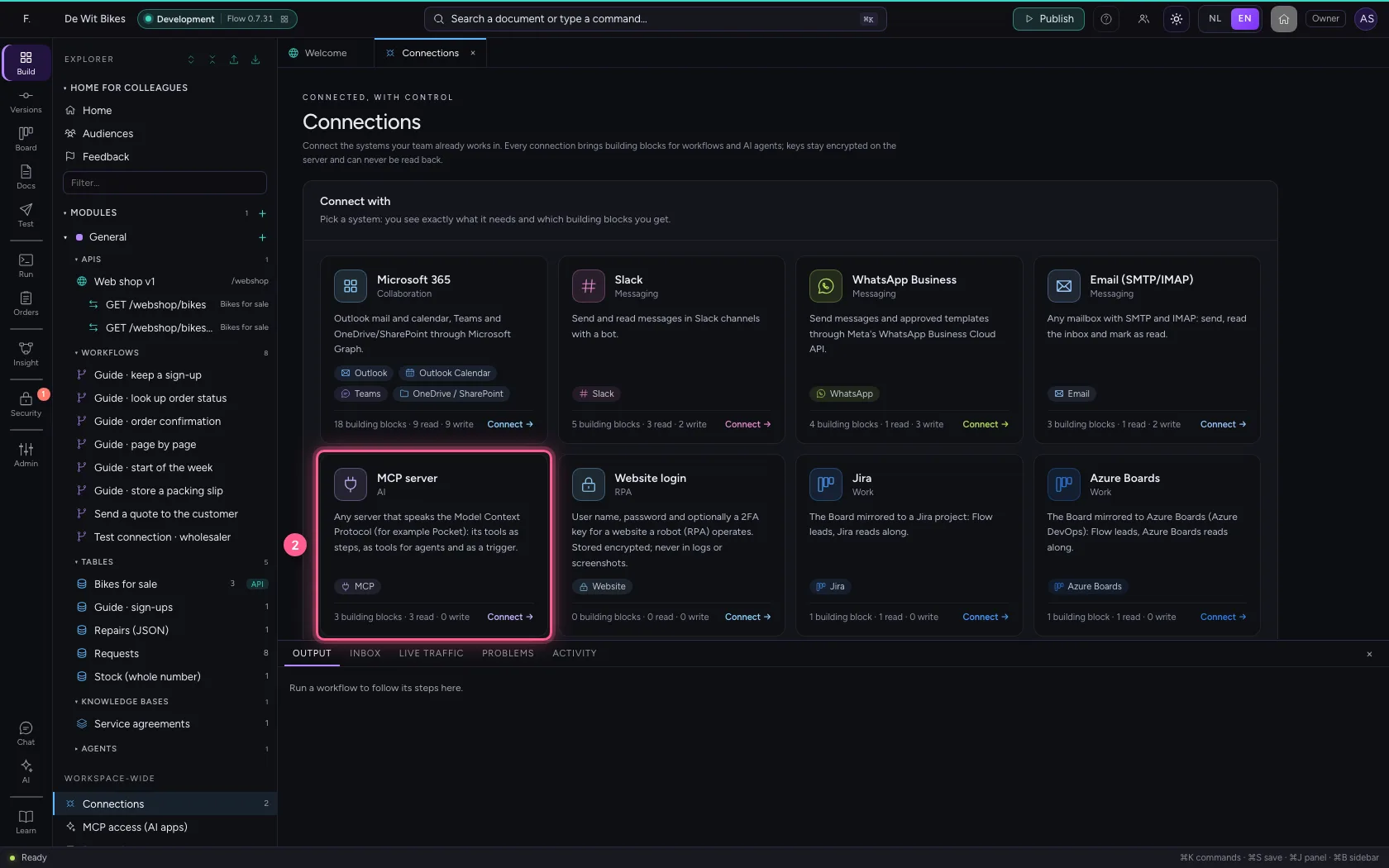
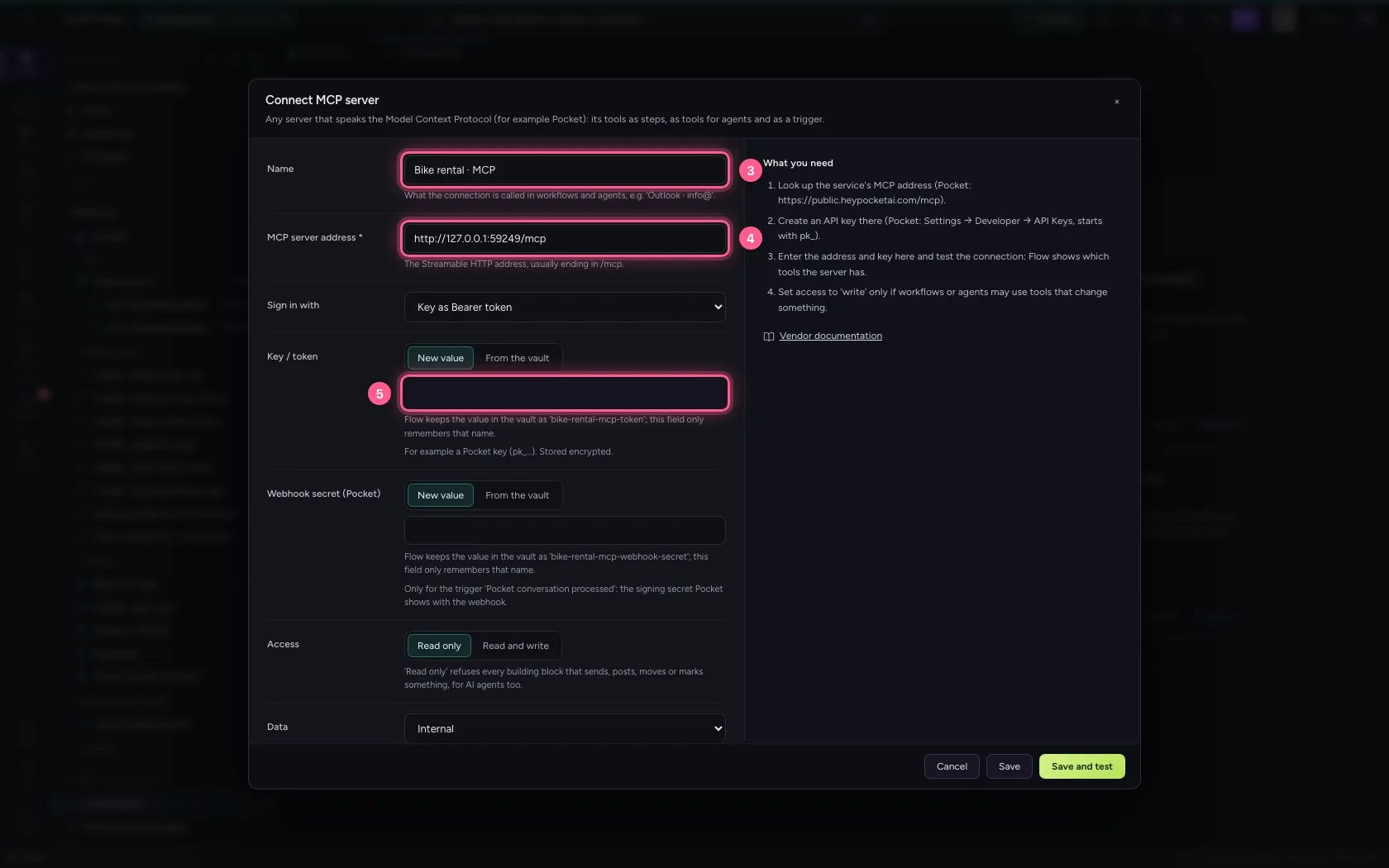
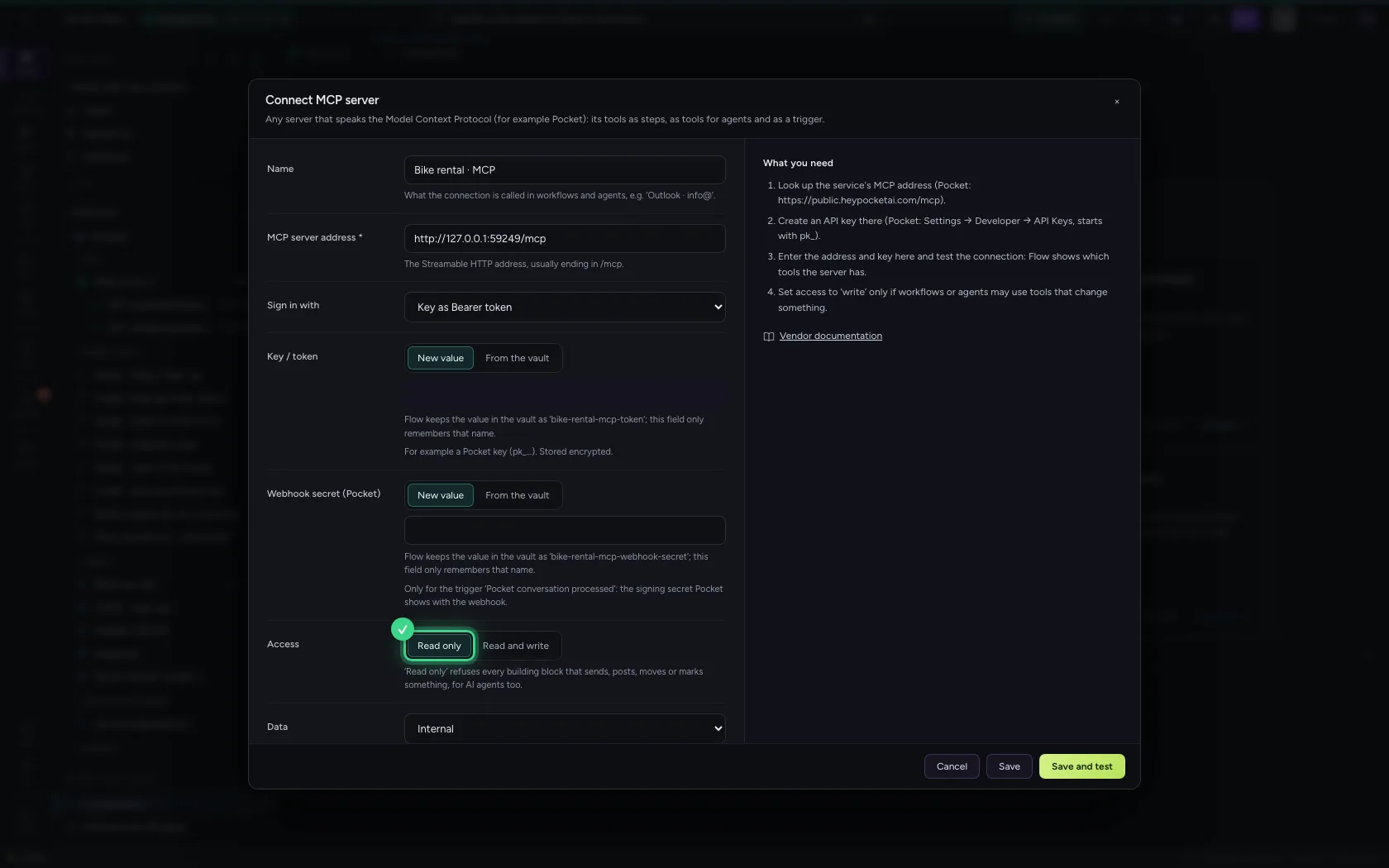
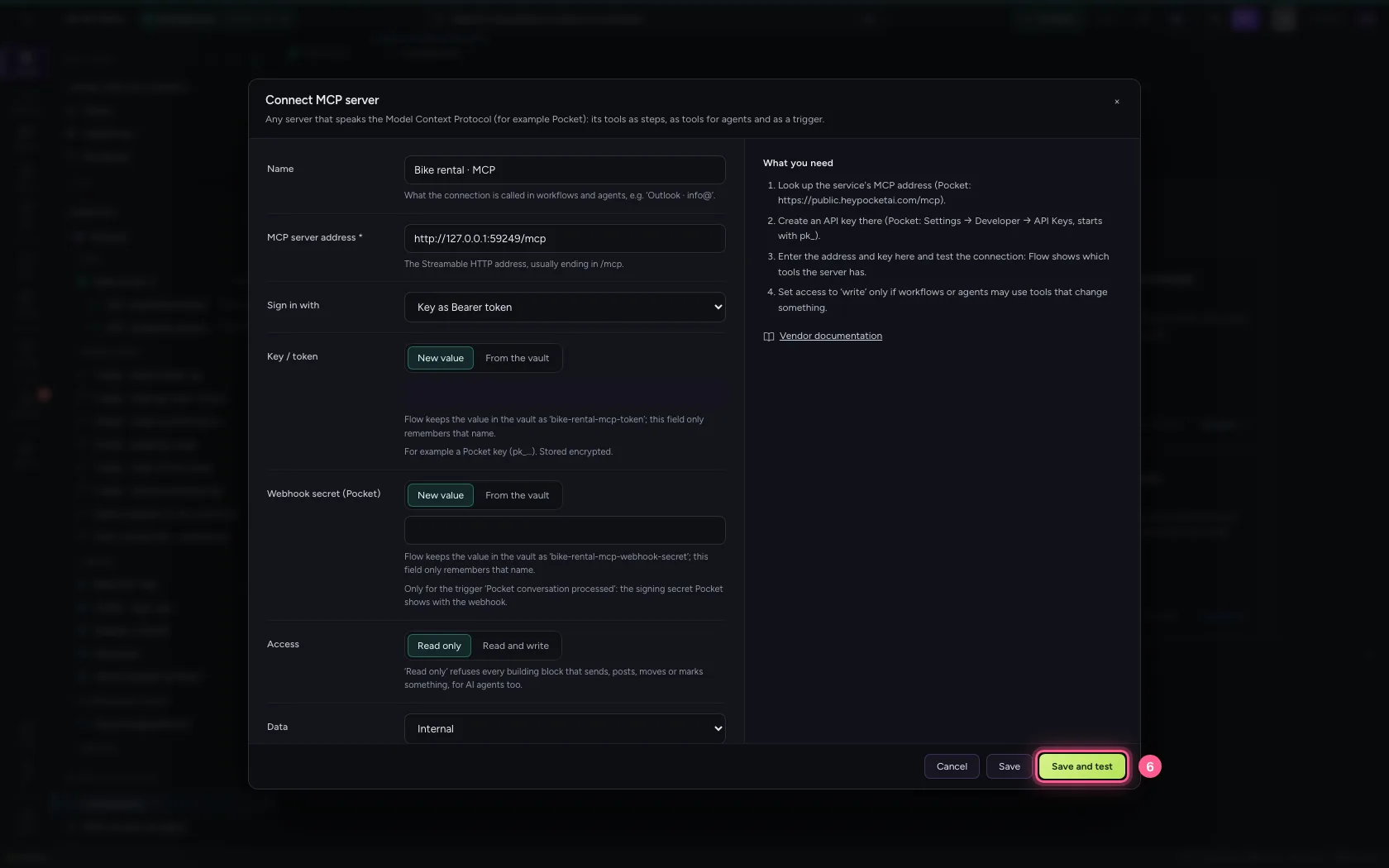
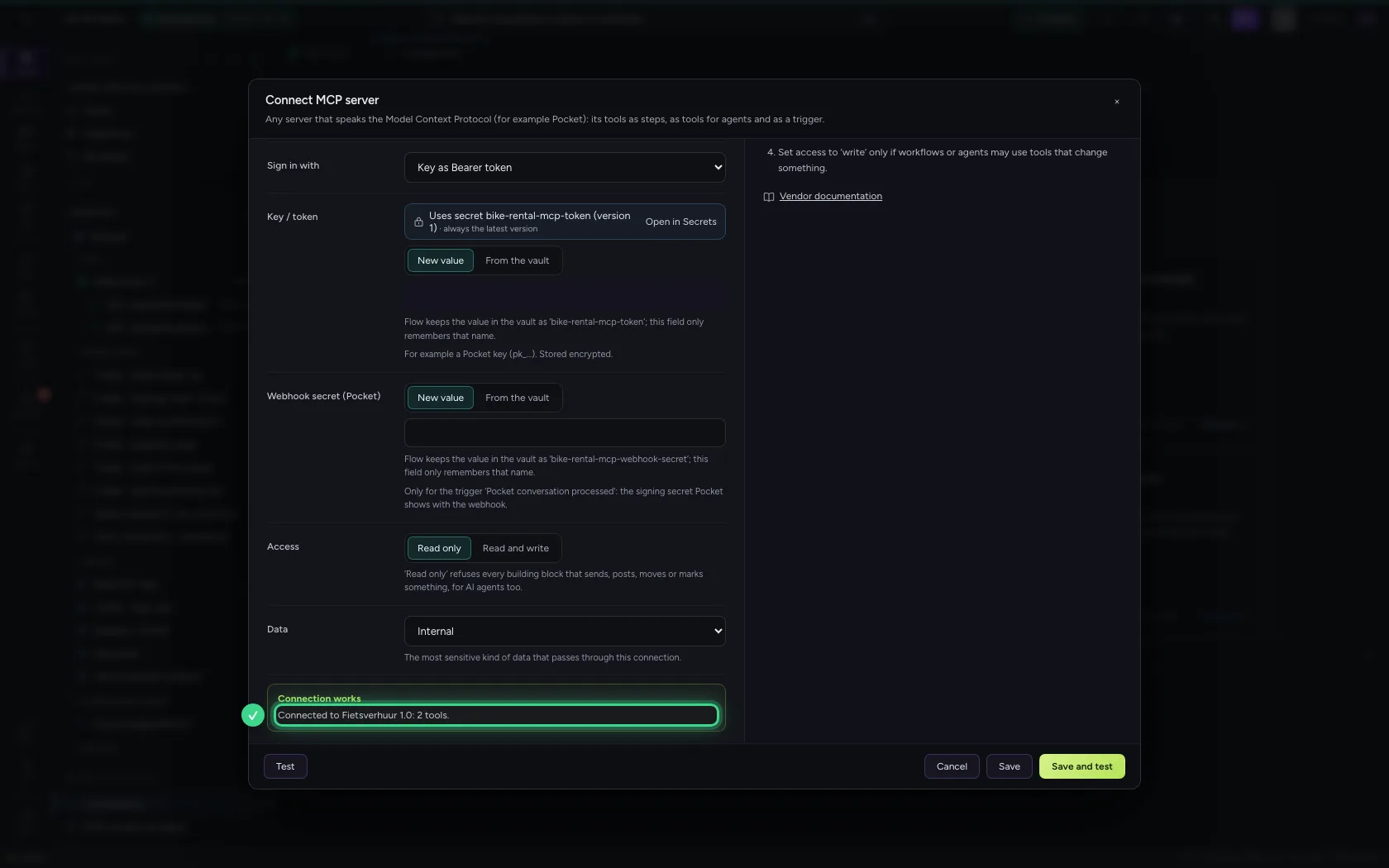
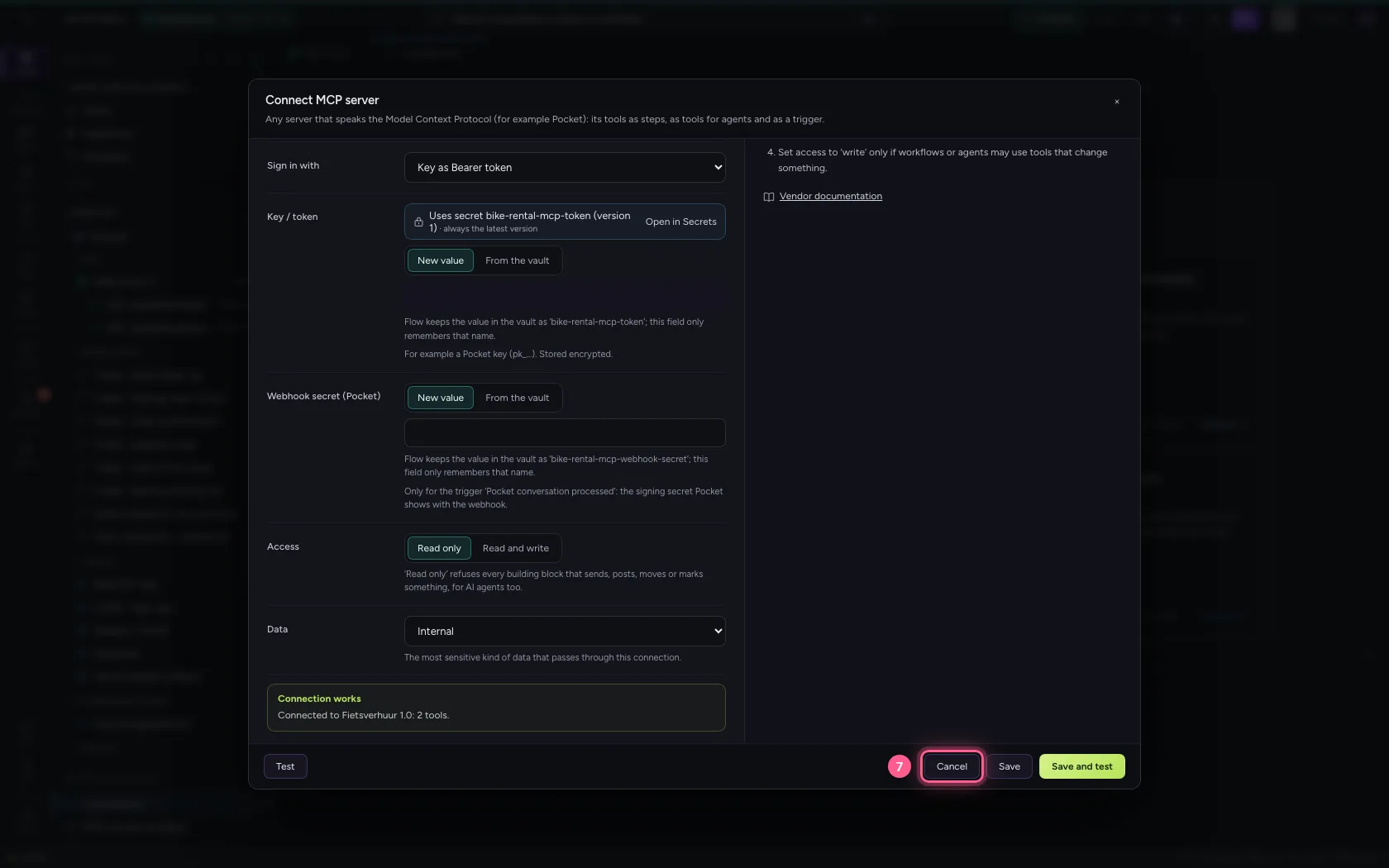
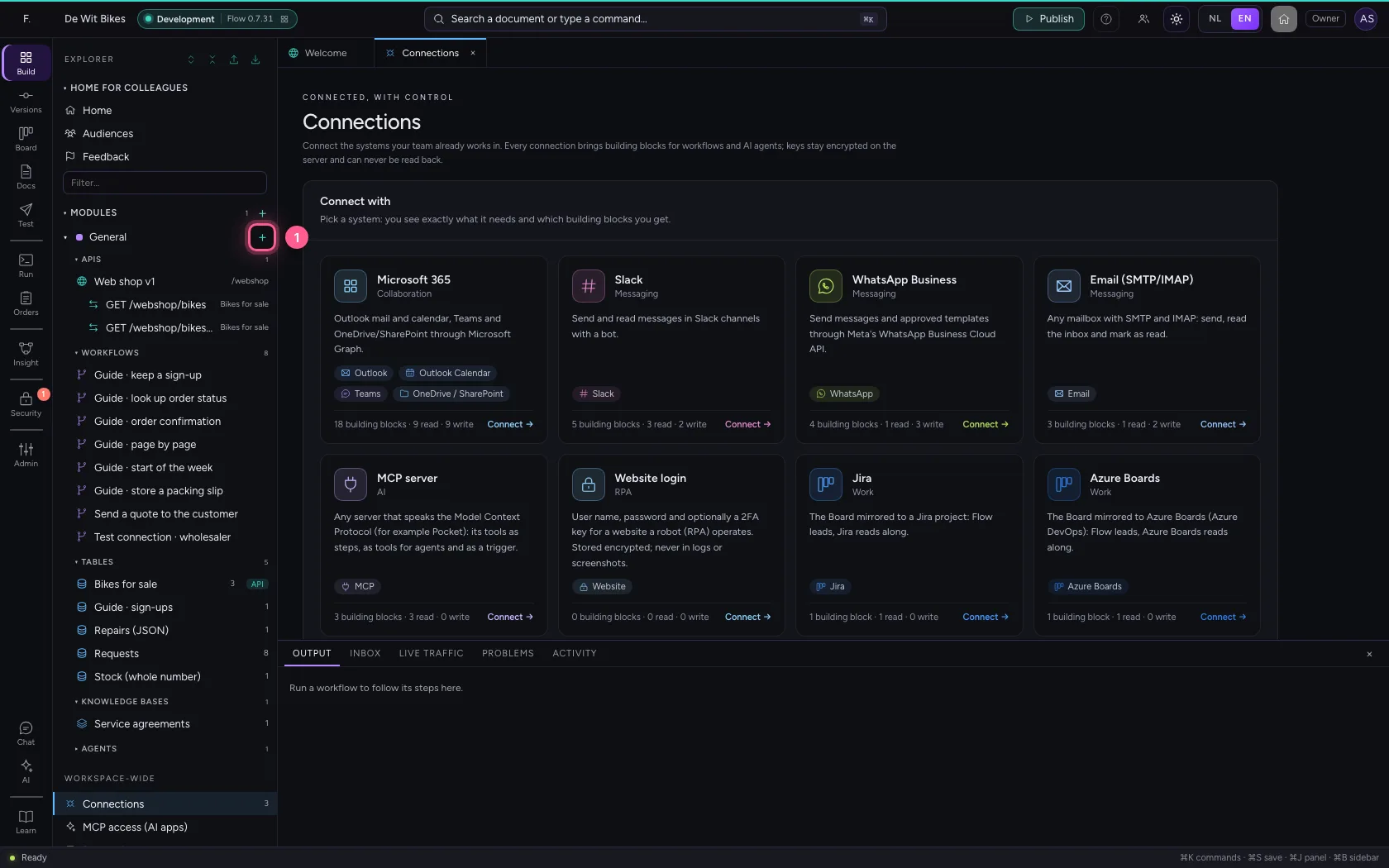
Under Connections choose MCP server. Fill in the address and the key; it is stored encrypted. Leave access on Read only: Flow may then only use tools the server marks as reading. Save and test makes contact straight away and counts the tools.

  1. Click Connections
Connect the MCP server · Click Connections
  1. Click MCP server
Connect the MCP server · Click MCP server
  1. In Name, type Bike rental · MCP
  2. In **MCP server address ***, type http://127.0.0.1:59249/mcp
  3. In Key / token, type ••••••••
Connect the MCP server · In Name, type Bike rental · MCP; In **MCP server address ***, type http://127.0.0.1:59249/mcp; In Key / token, type ••••••••
Connect the MCP server · Access: read only.
  1. Click Save and test
Connect the MCP server · Click Save and test
Connect the MCP server · Connection works: connected to the server, 2 tools.
  1. Click Cancel
Connect the MCP server · Click Cancel
Step 3 / 5

Call a tool in a workflow

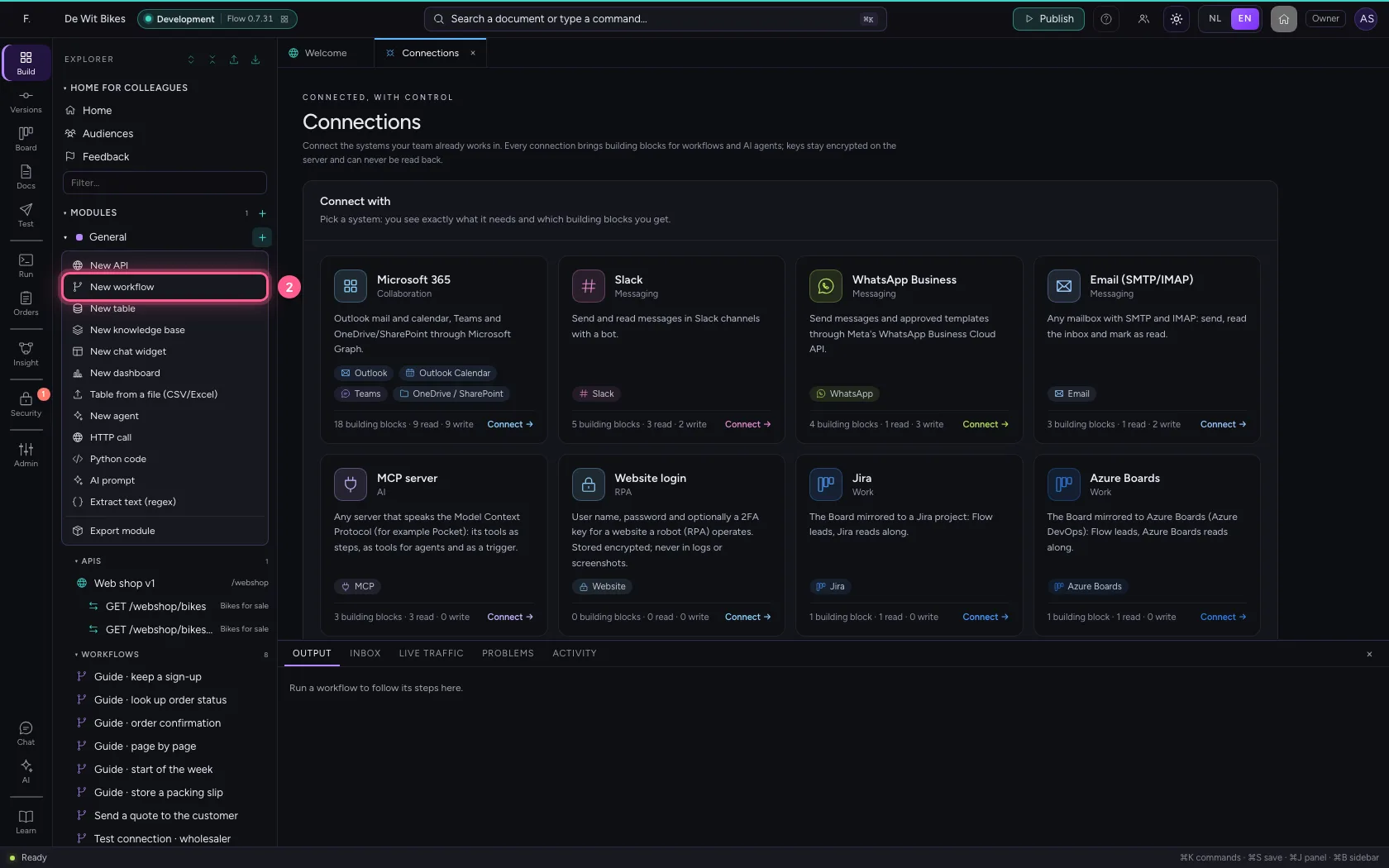
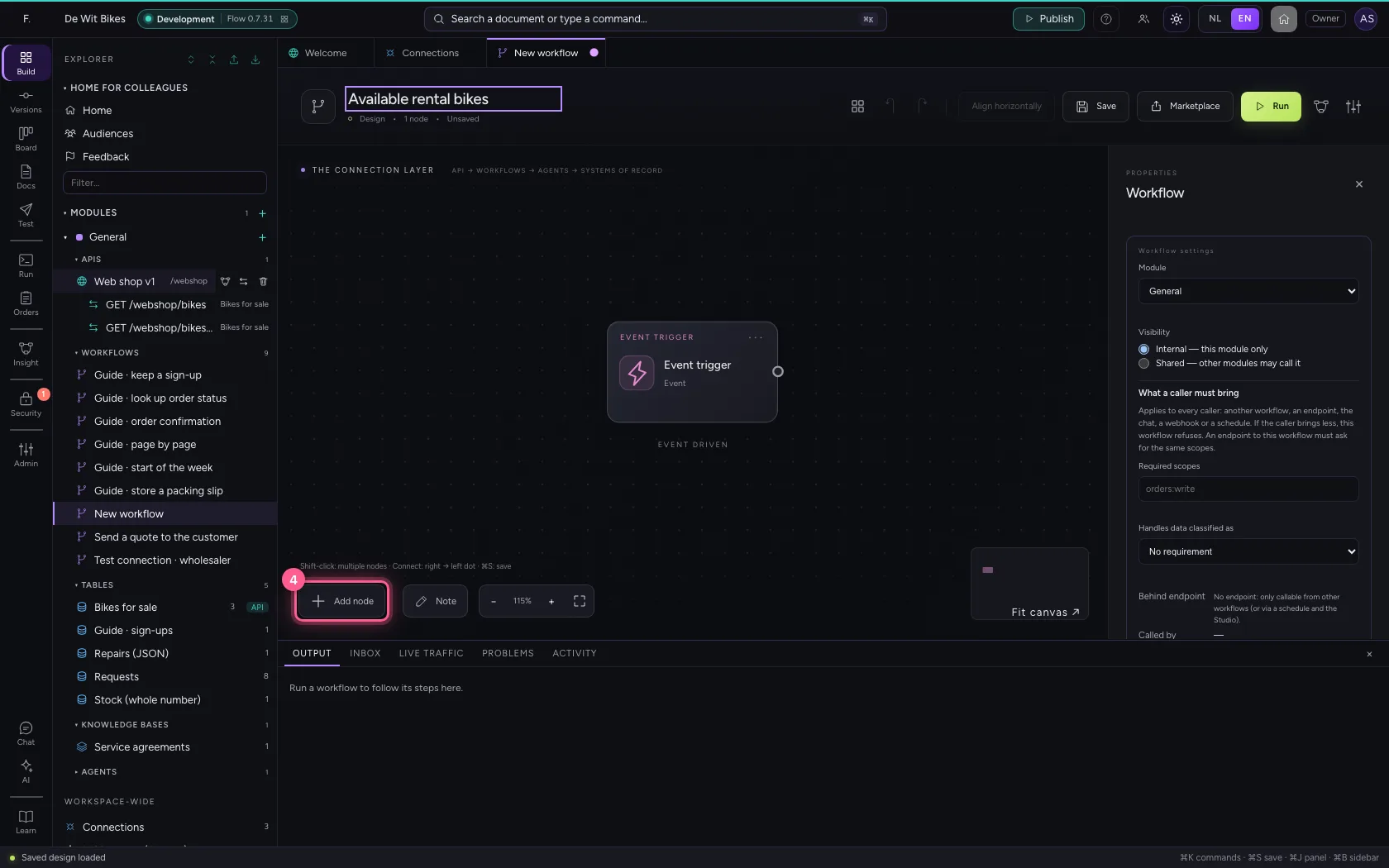
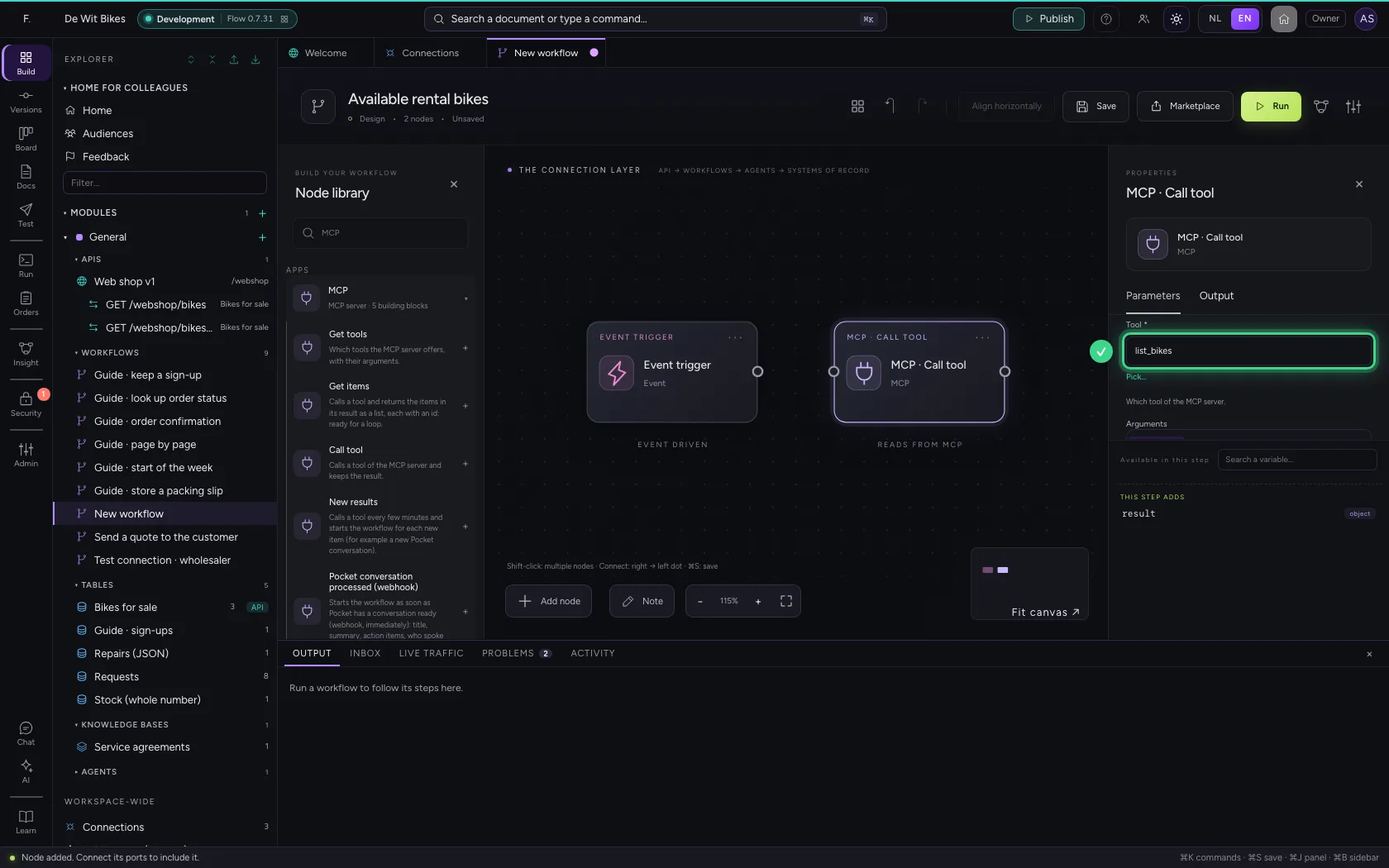
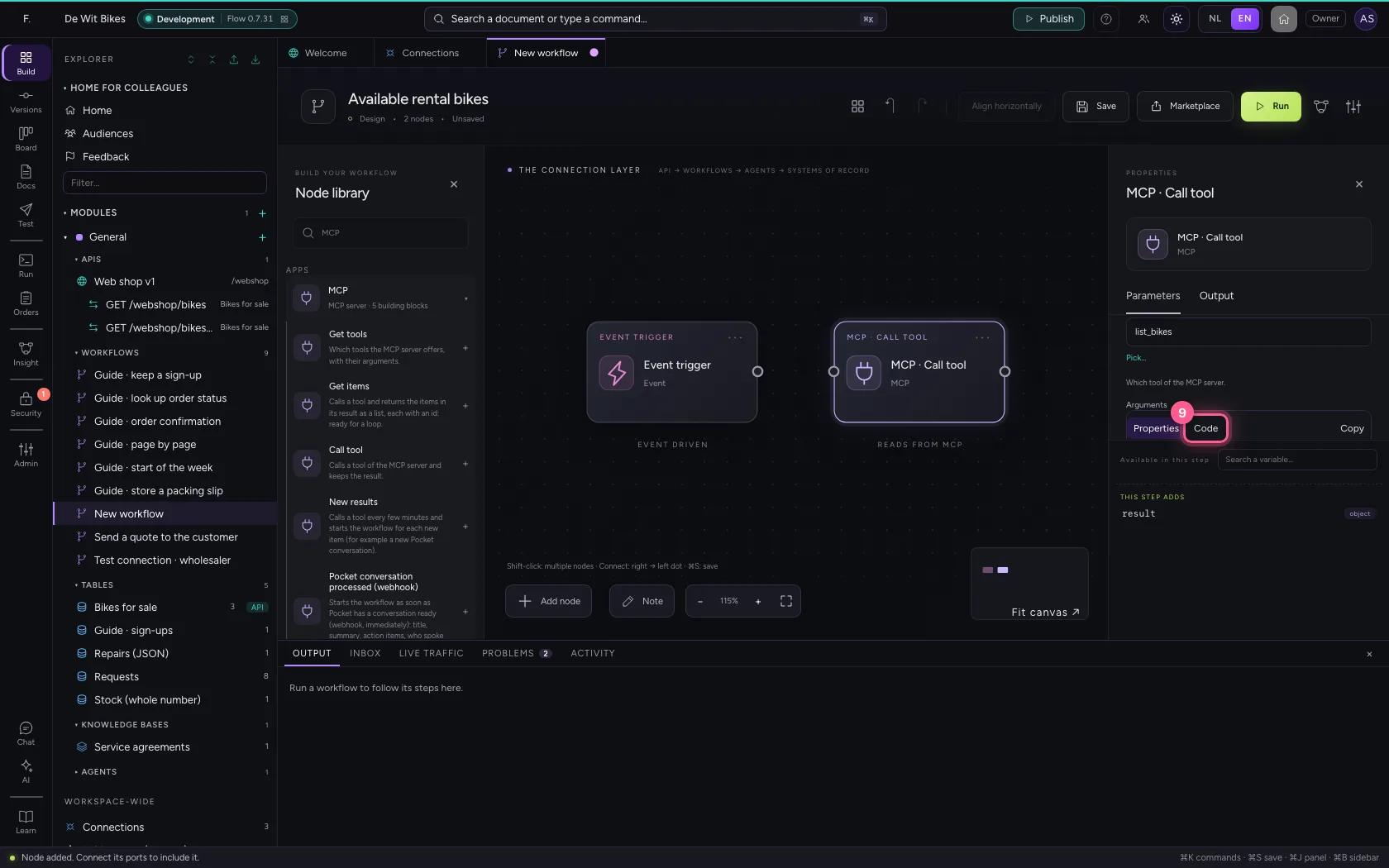
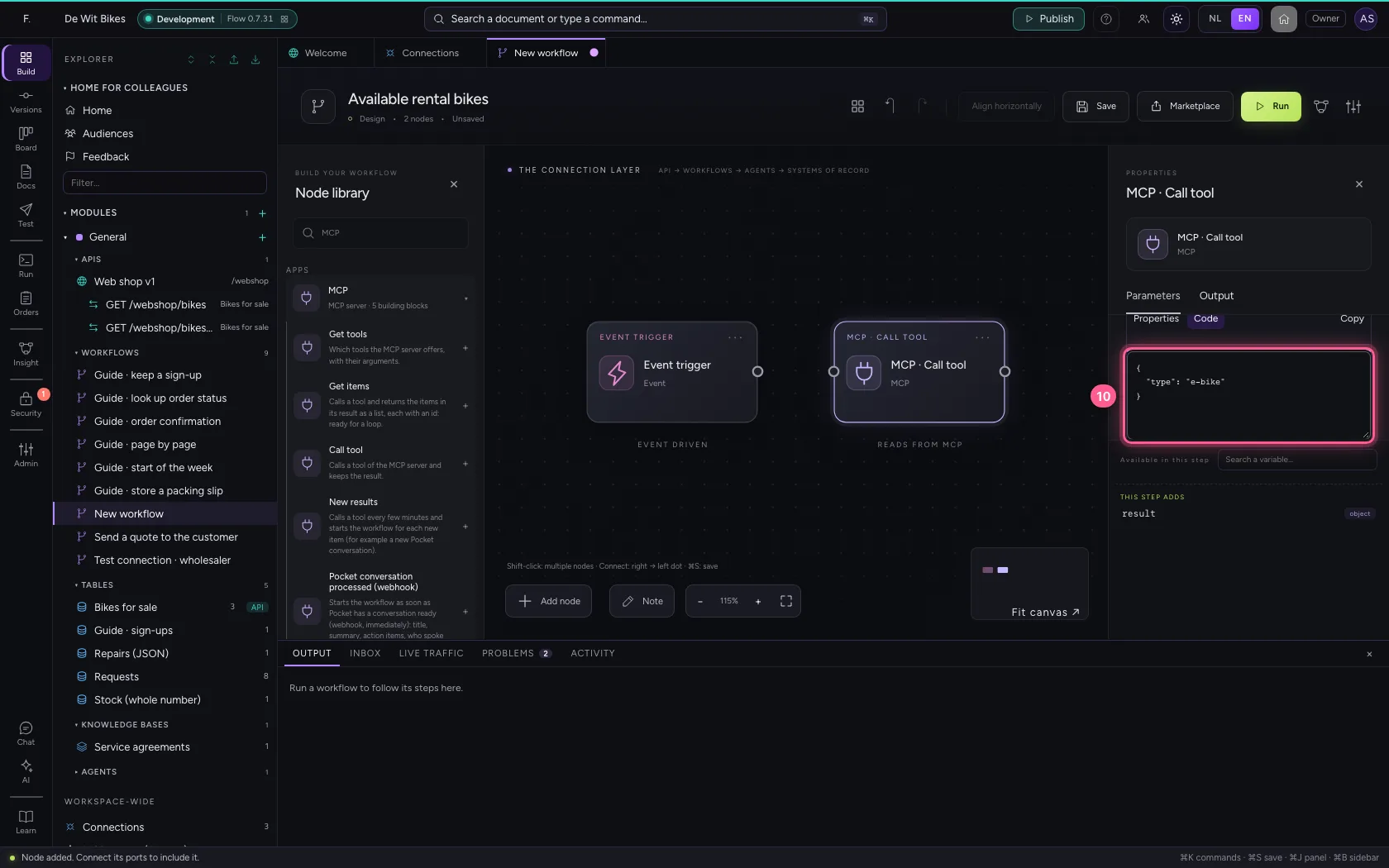
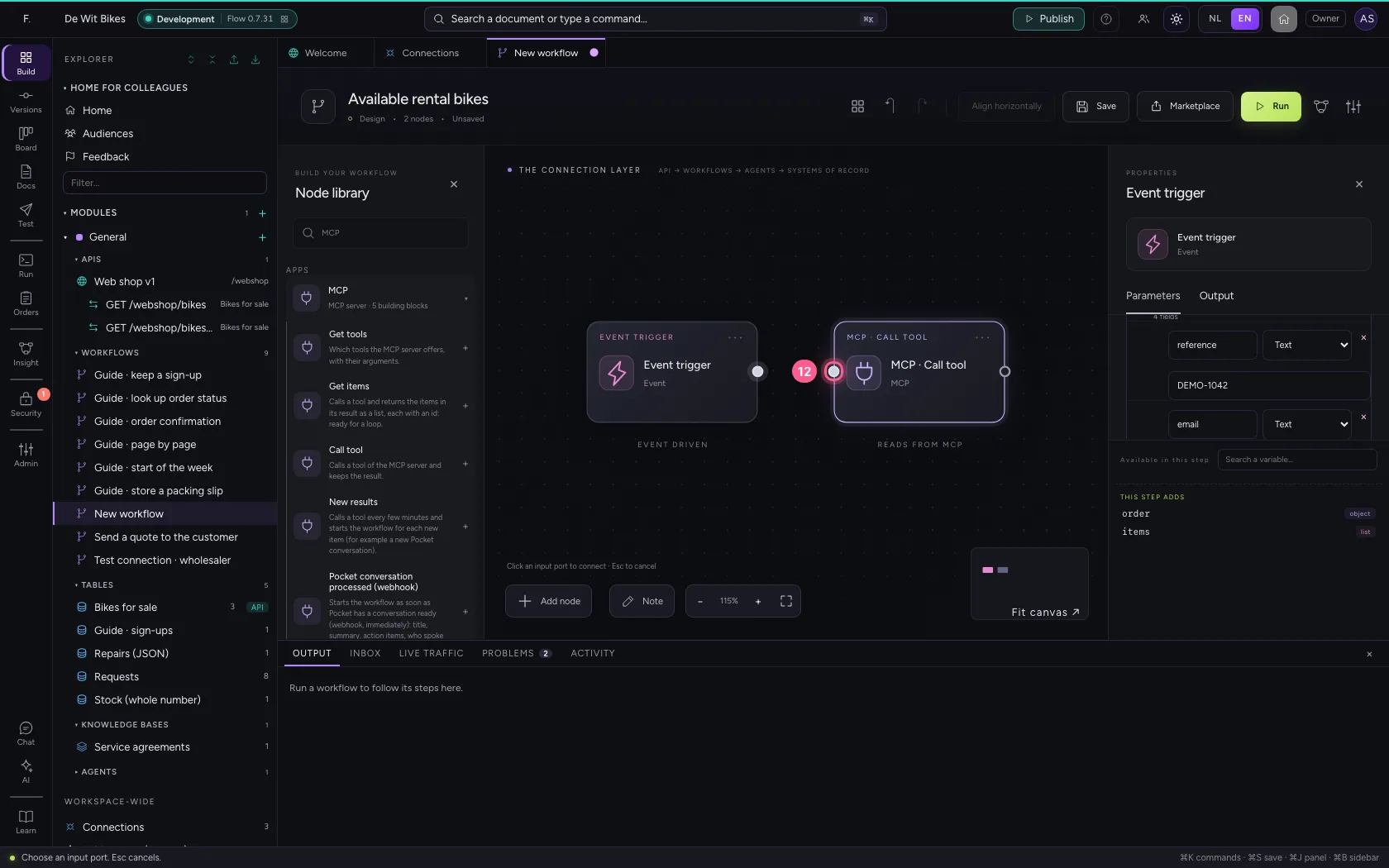
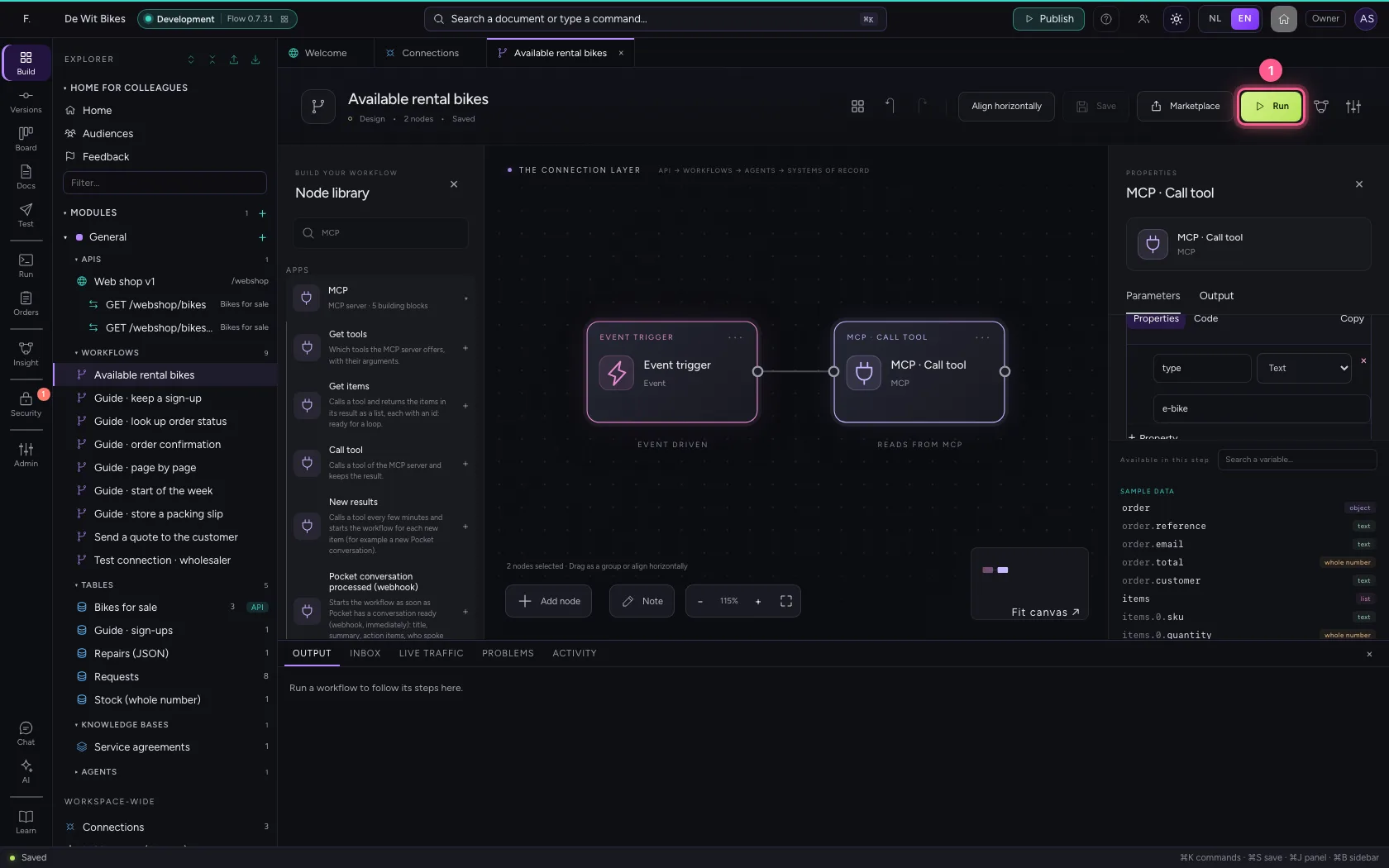
Create a workflow and search the library for MCP. Choose MCP · Call tool and your connection. Under Tool click Pick…: Flow fetches the server's tools. Choose List bikes and give the arguments as JSON — here only e-bikes.

  1. Click Add to General
Call a tool in a workflow · Click Add to General
  1. Click New workflow
Call a tool in a workflow · Click New workflow
  1. In Workflow name, type Available rental bikes
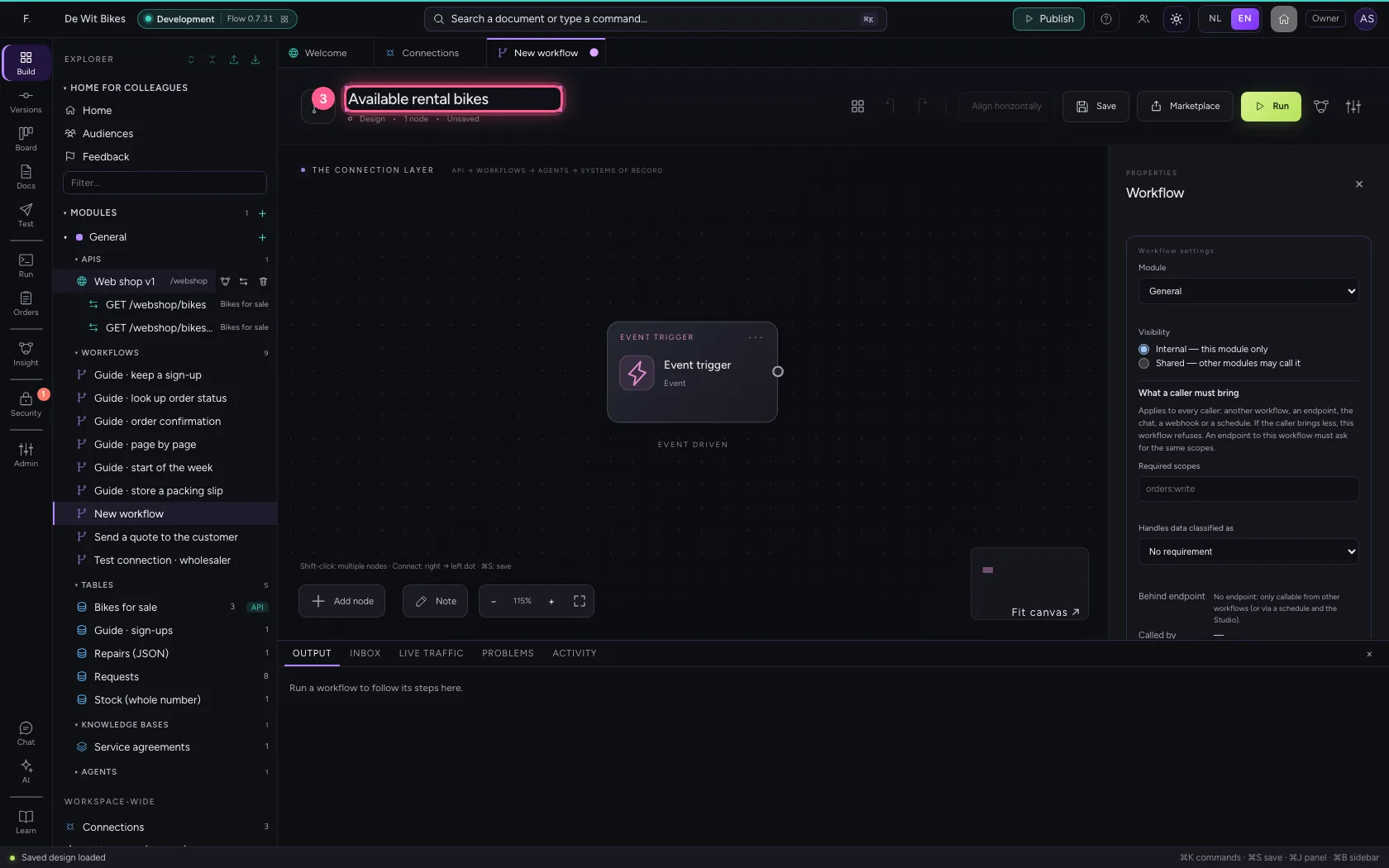
Call a tool in a workflow · In Workflow name, type Available rental bikes
  1. Click Add node
Call a tool in a workflow · Click Add node
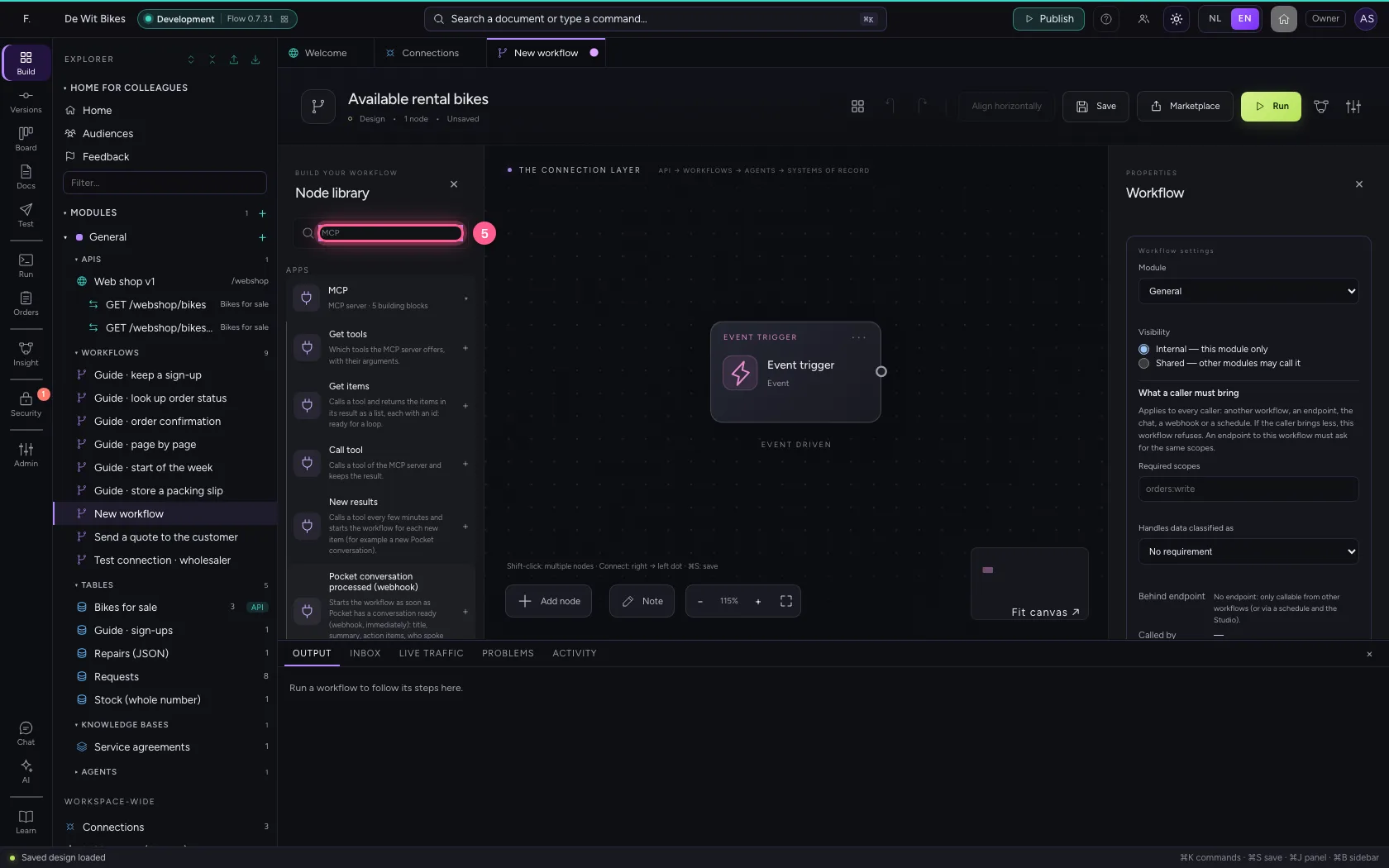
  1. In Search a node, type MCP
Call a tool in a workflow · In Search a node, type MCP
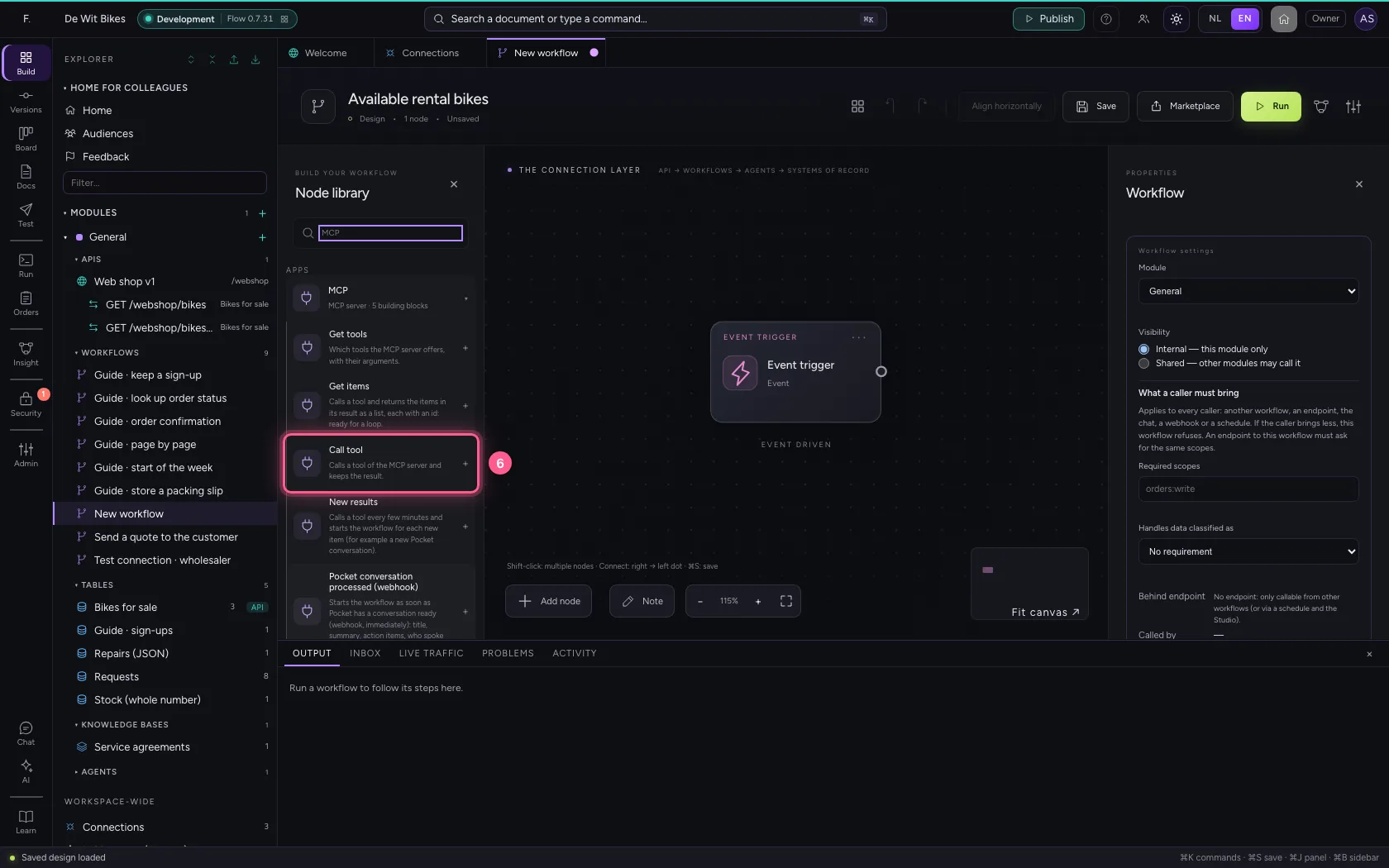
  1. Click Call tool
Call a tool in a workflow · Click Call tool
  1. In Connection, choose Bike rental · MCP · Read only
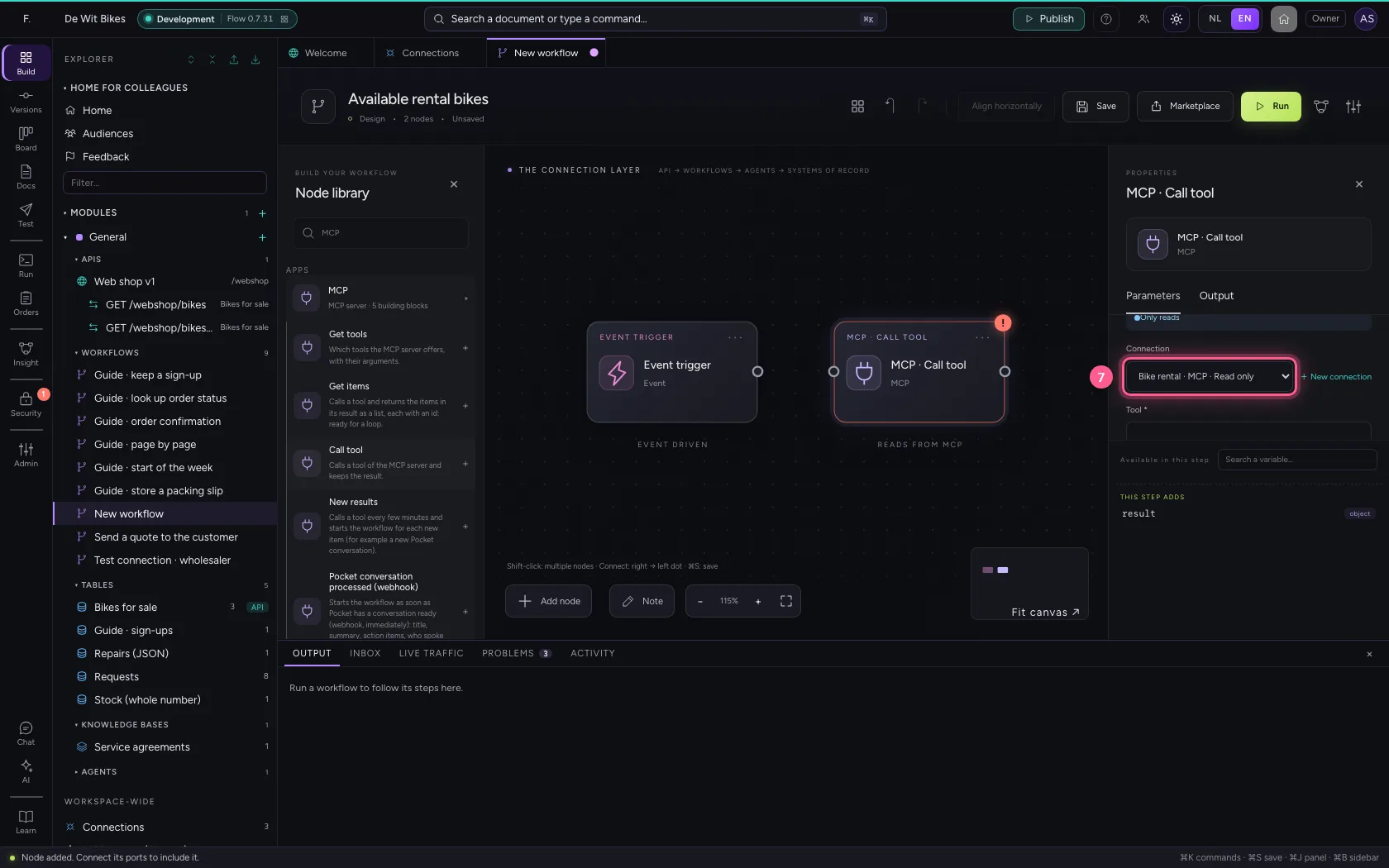
Call a tool in a workflow · In Connection, choose Bike rental · MCP · Read only
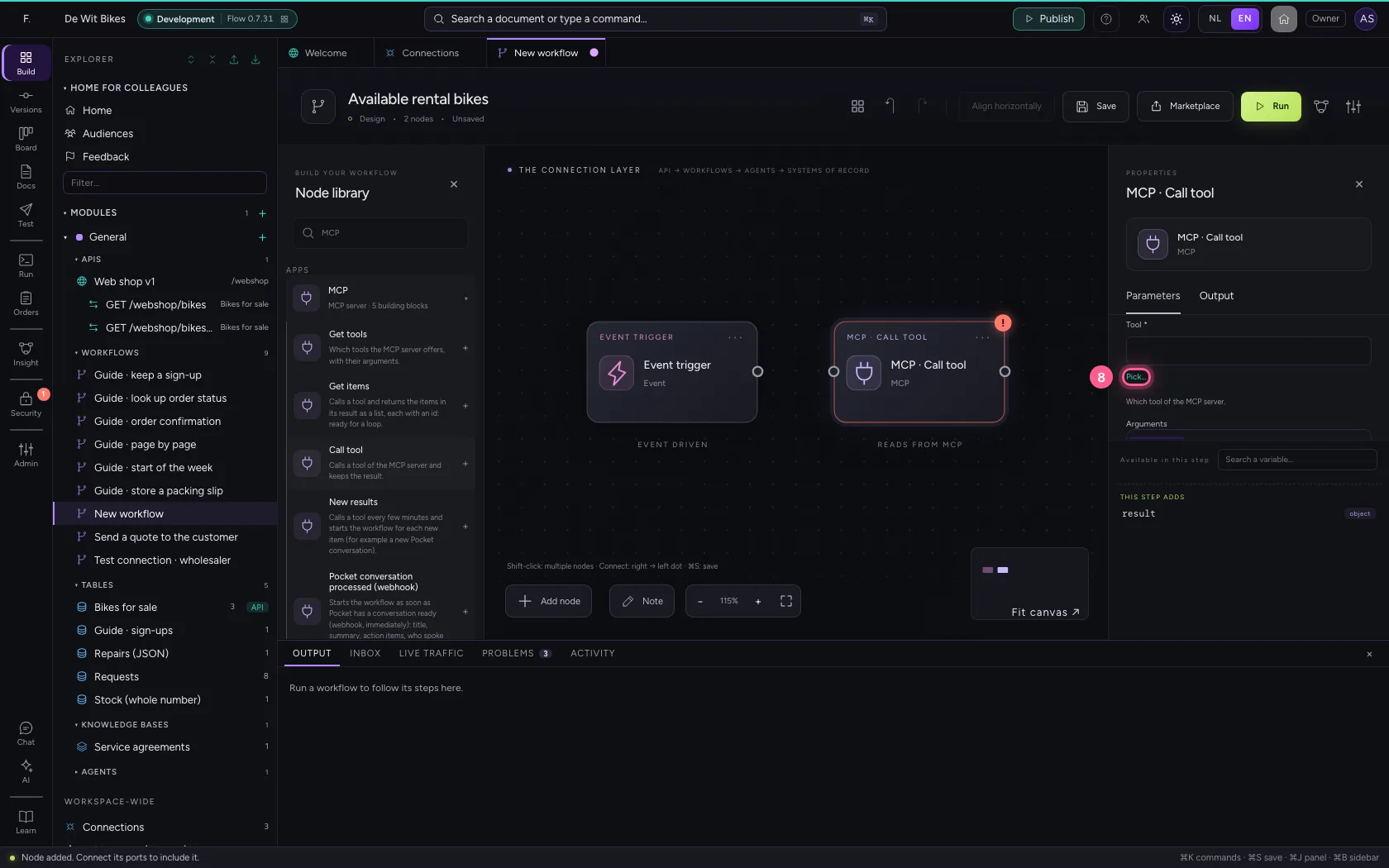
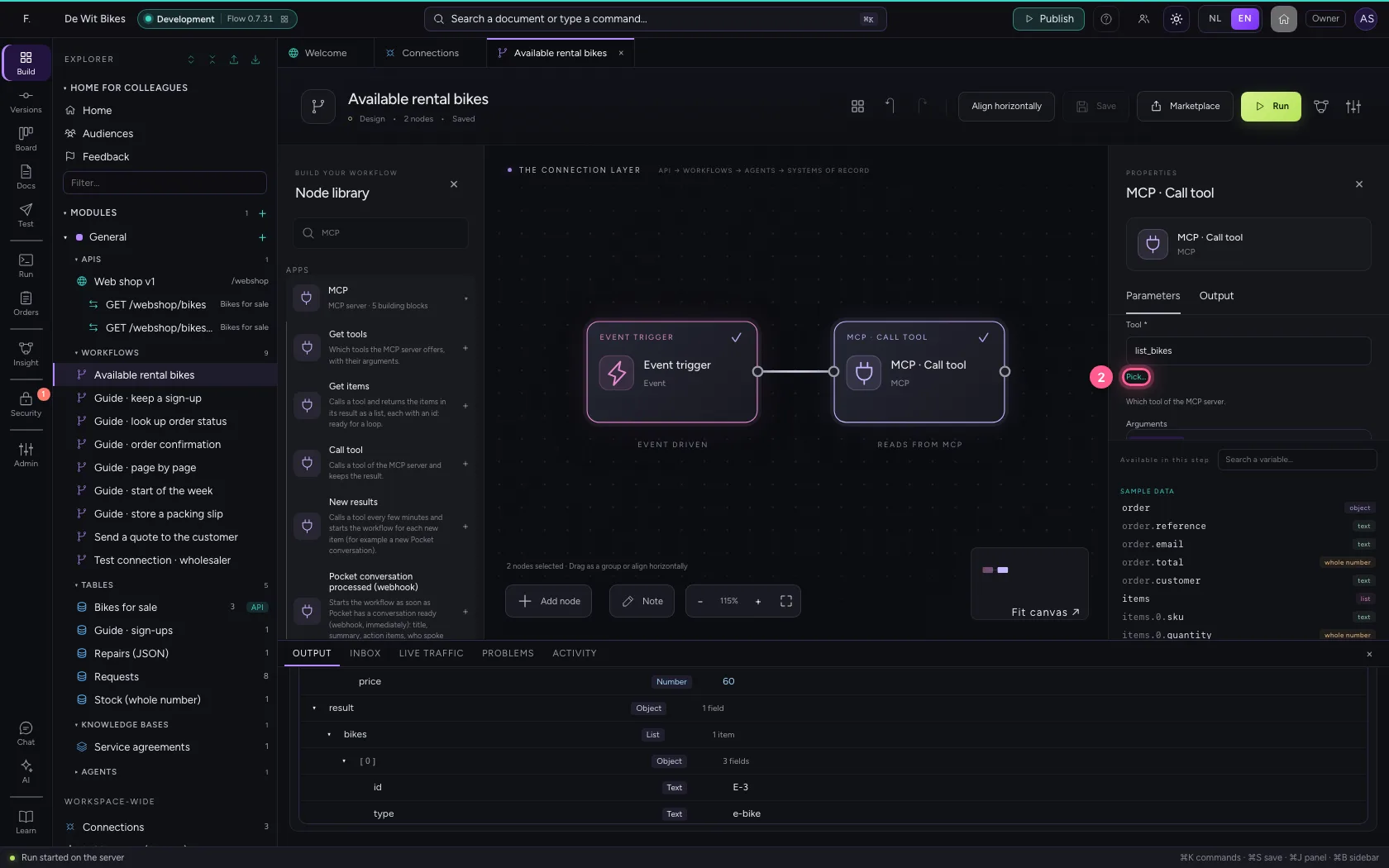
  1. Click Pick…
Call a tool in a workflow · Click Pick…
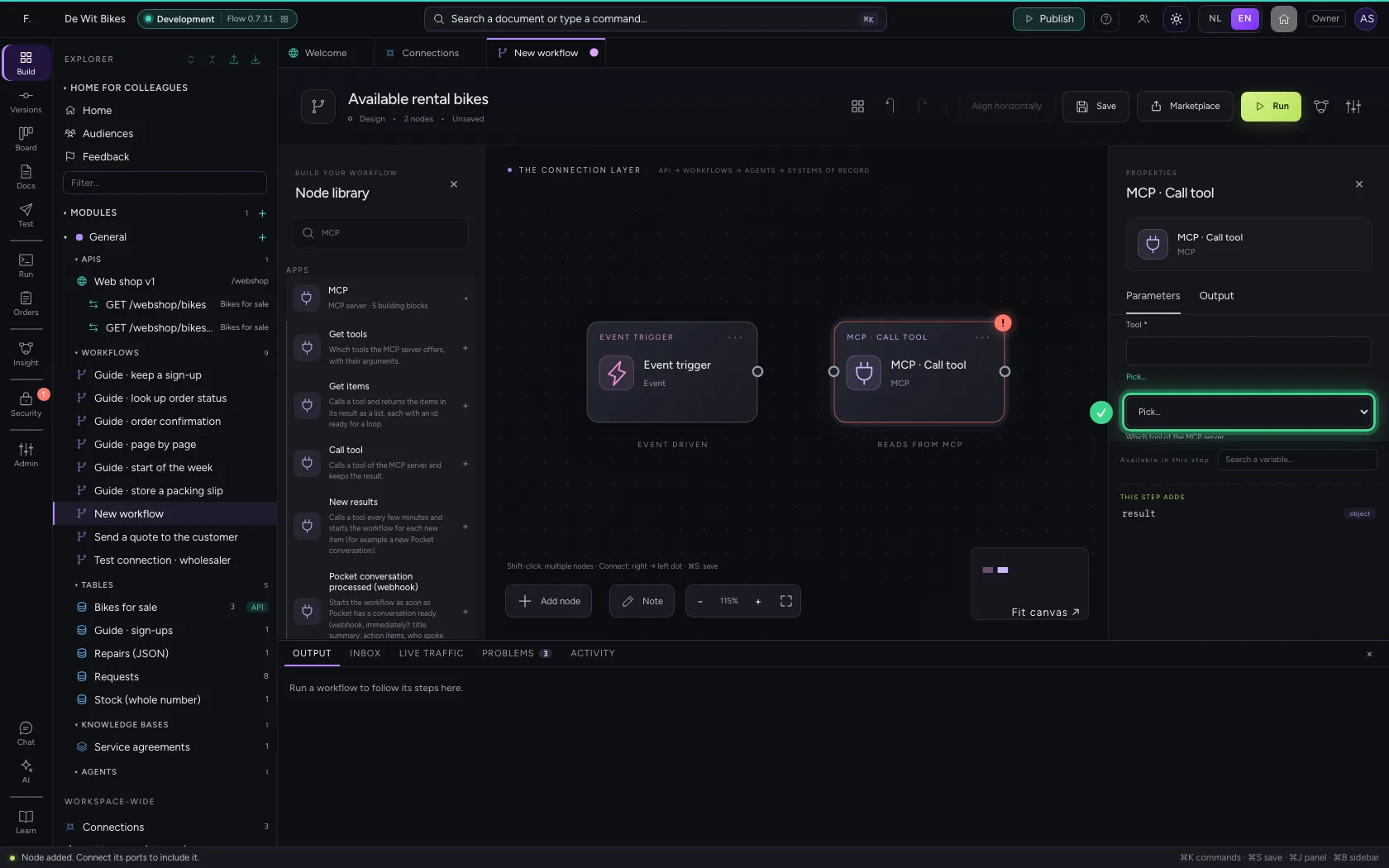
Call a tool in a workflow · The server's tools, fetched through the connection.
Call a tool in a workflow · Tool: list_bikes.
  1. Click Code
Call a tool in a workflow · Click Code
  1. In Arguments, type {"type": "e-bike"}
Call a tool in a workflow · In Arguments, type {"type": "e-bike"}
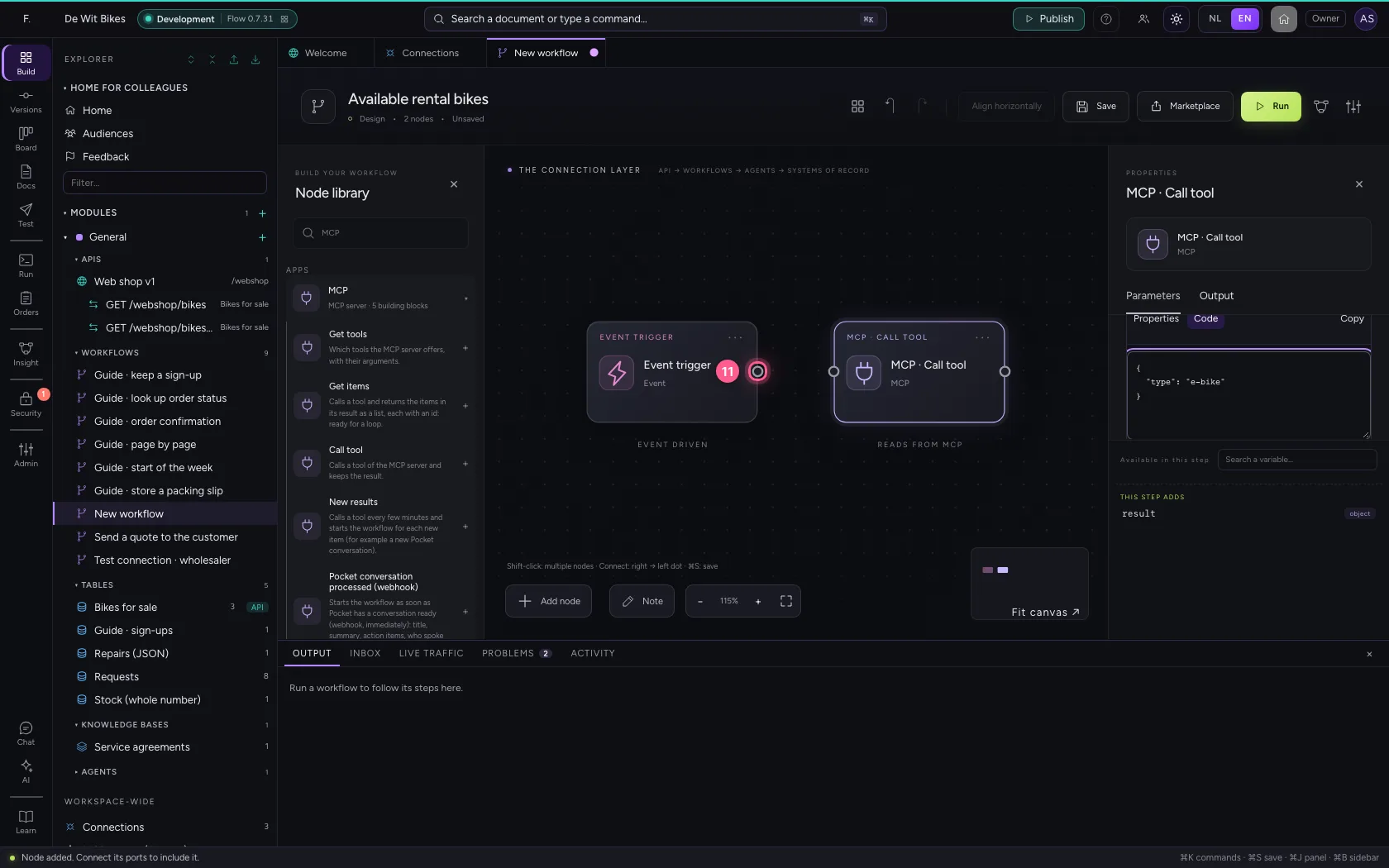
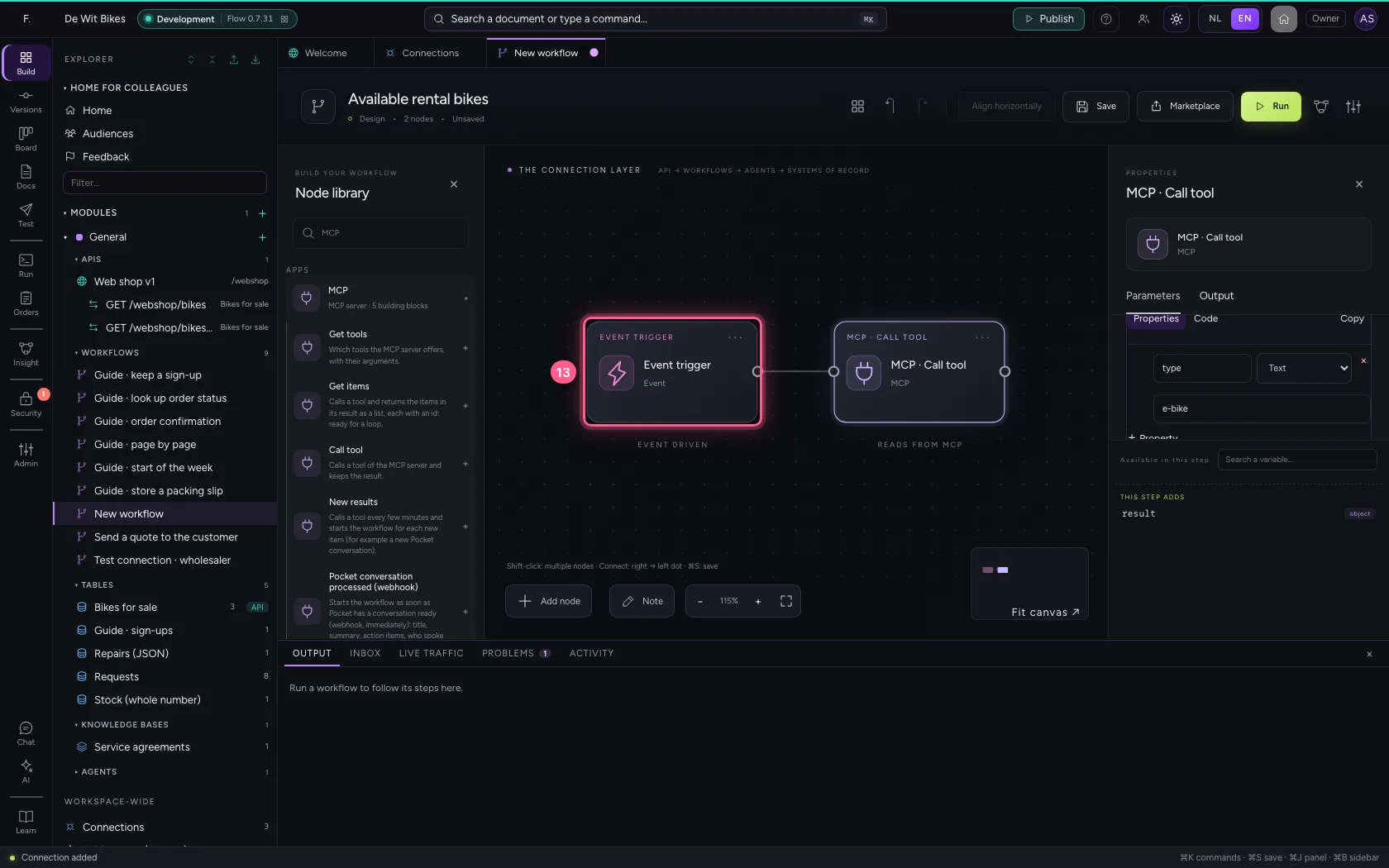
  1. Click the dot of ‘Event trigger’
Call a tool in a workflow · Click the dot of ‘Event trigger’
  1. Click the dot of ‘MCP · Call tool’
Call a tool in a workflow · Click the dot of ‘MCP · Call tool’
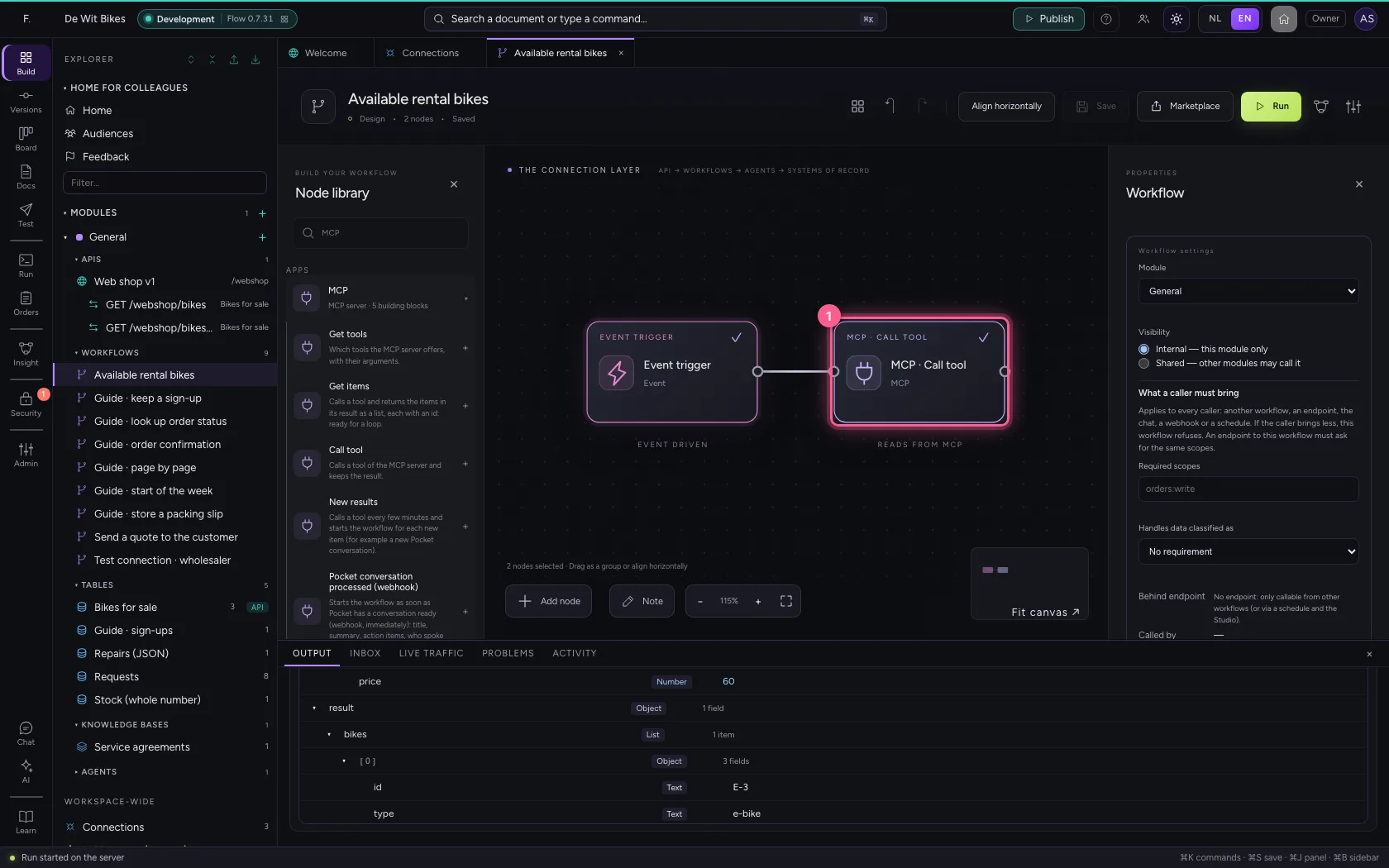
  1. Click the step ‘Event trigger’
Call a tool in a workflow · Click the step ‘Event trigger’
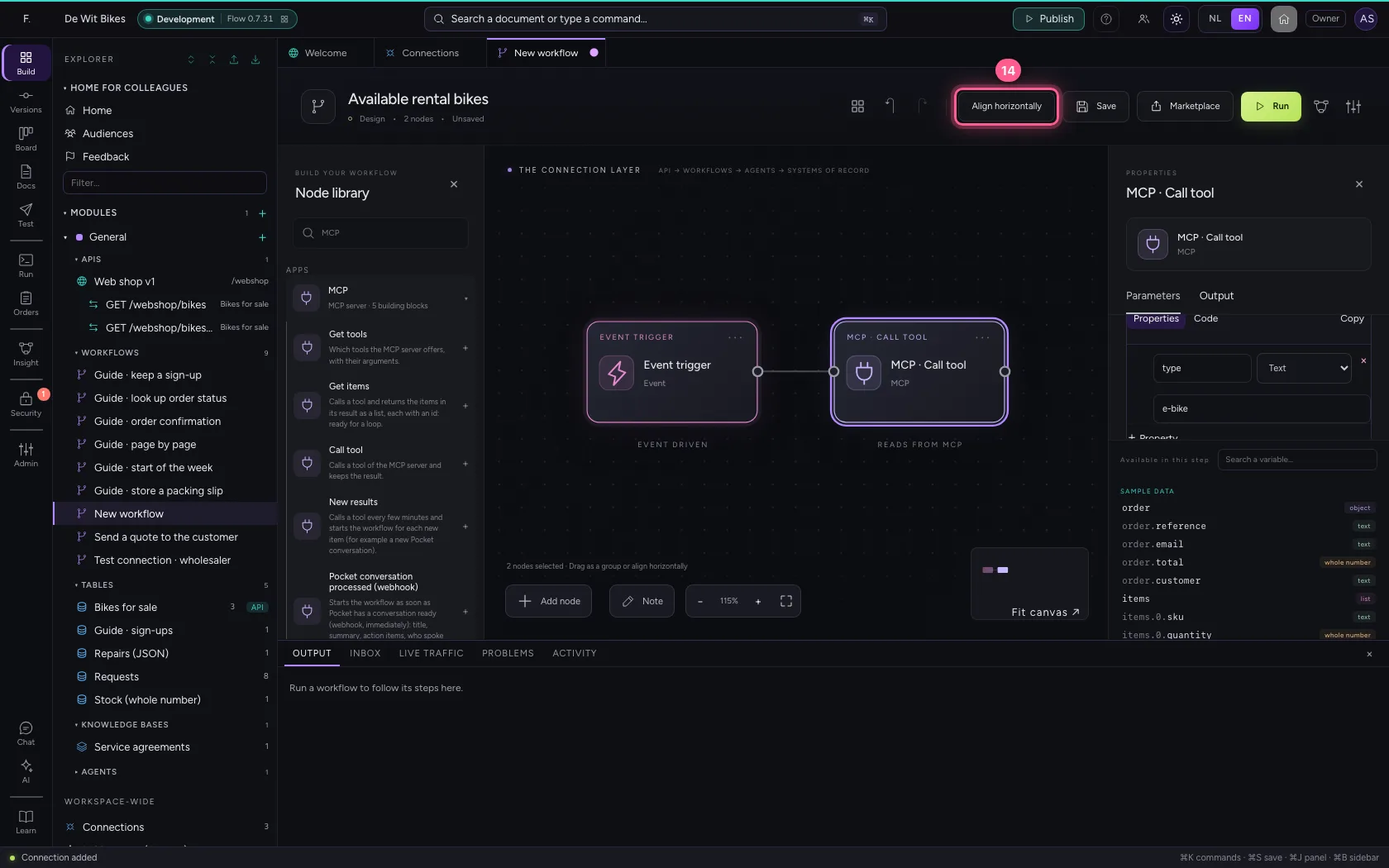
  1. Click Align horizontally
Call a tool in a workflow · Click Align horizontally
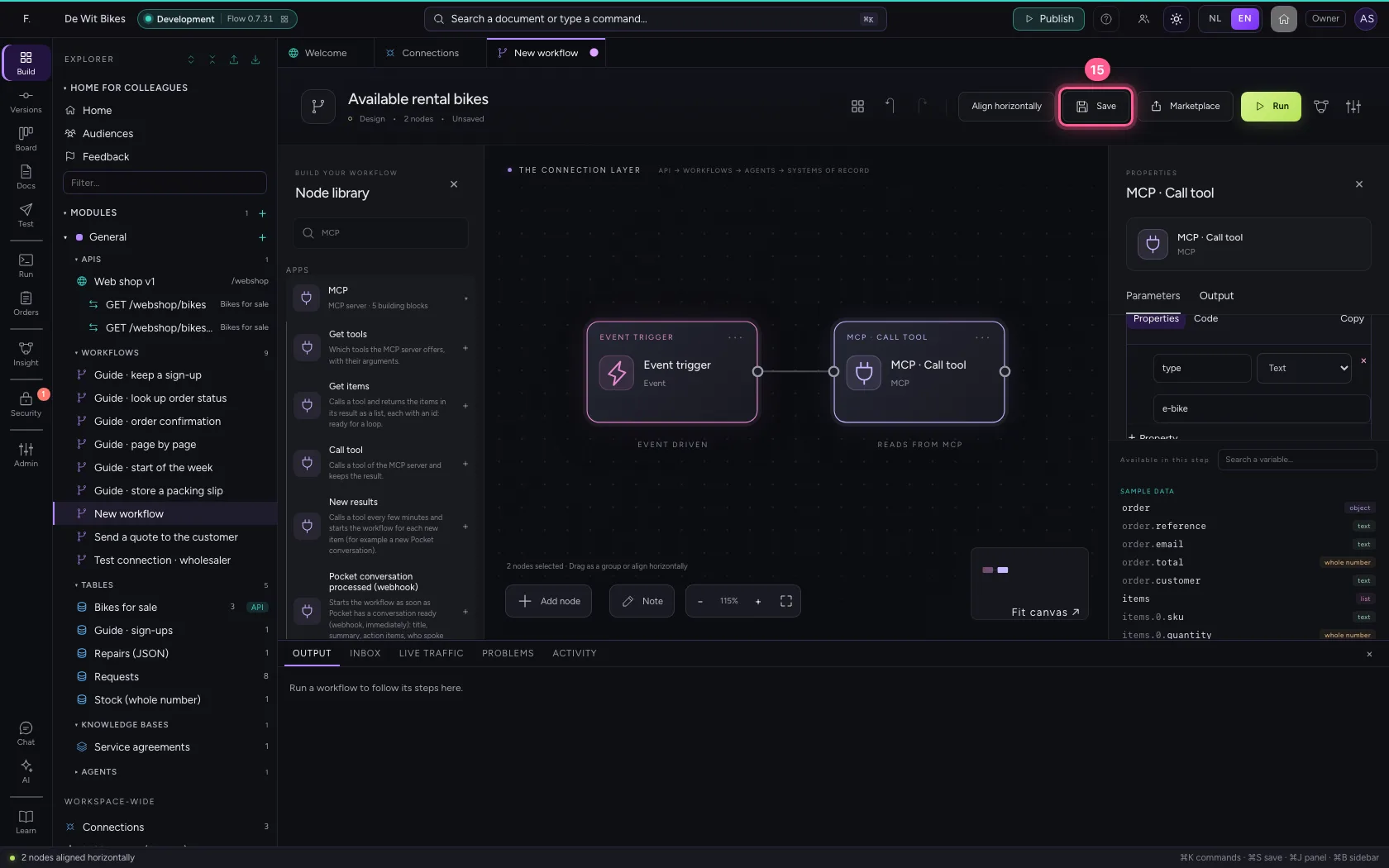
  1. Click Save
Call a tool in a workflow · Click Save
Step 4 / 5

Run and read the result

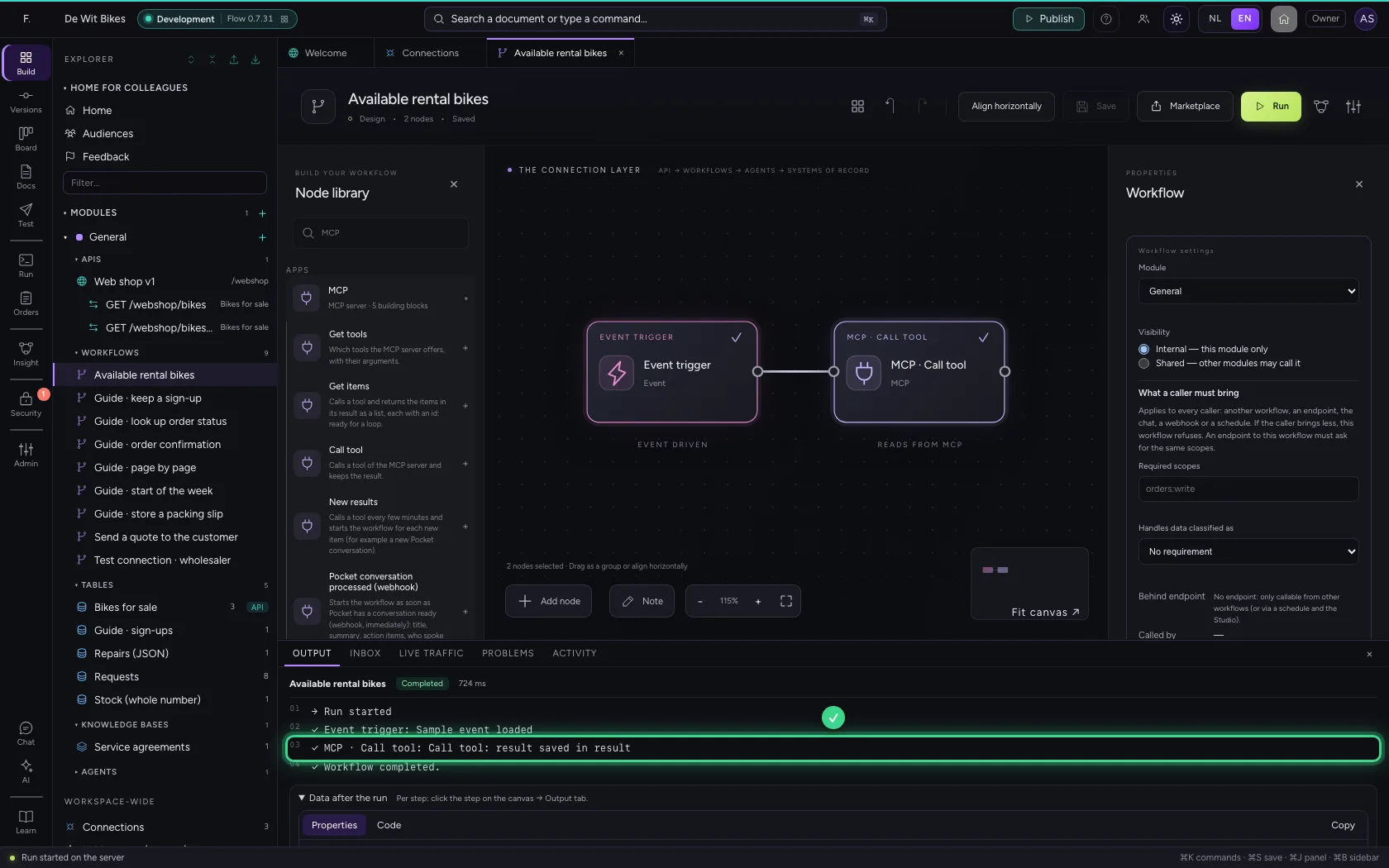
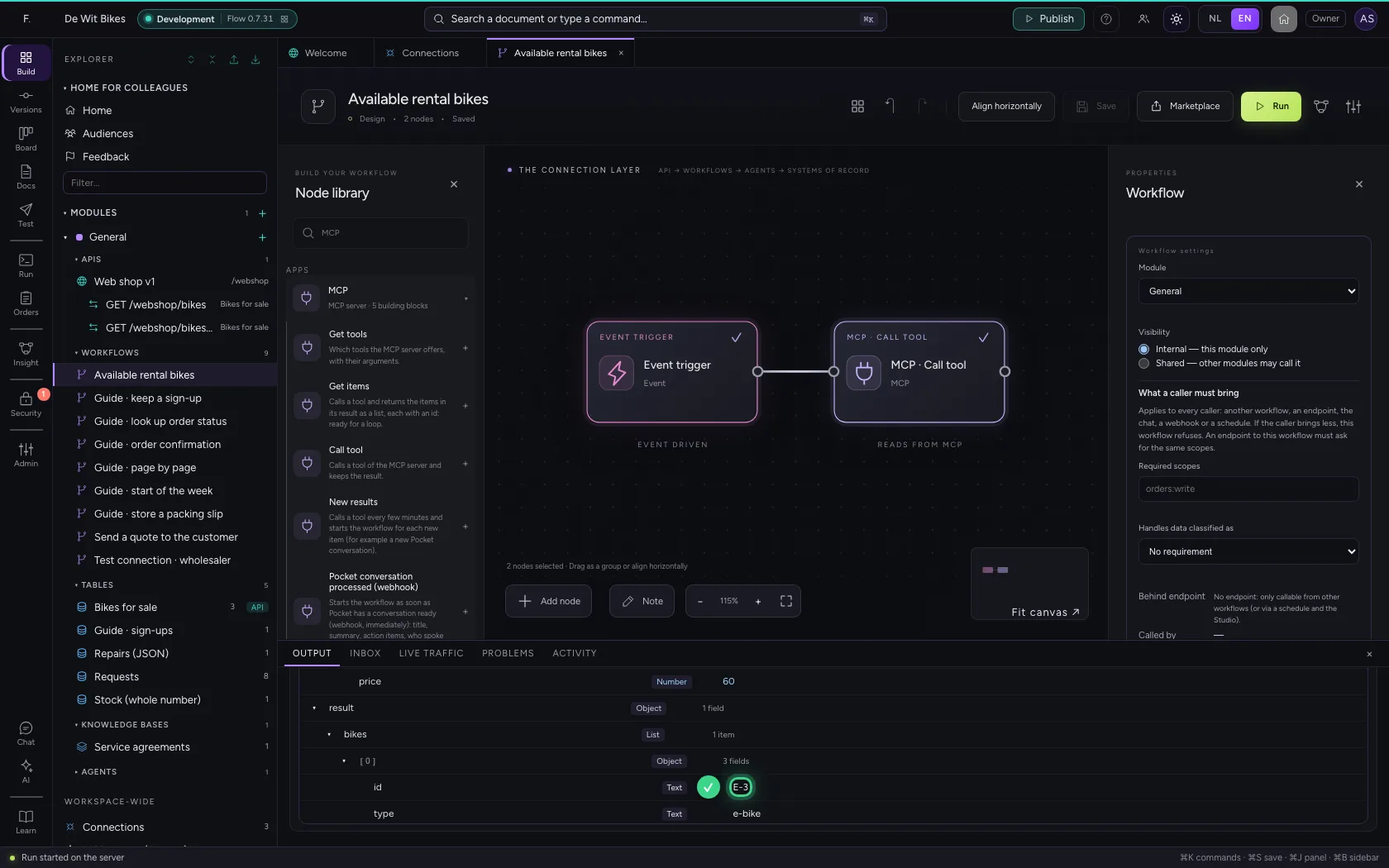
At the bottom you see that the step stored the tool's result. Under Data after the run you find it, ready for the next step.

  1. Click Run
Run and read the result · Click Run
Run and read the result · The tool was called; the result is in the run's data.
Run and read the result · The free e-bike, as the server returned it.
Step 5 / 5

A tool that changes something: refused

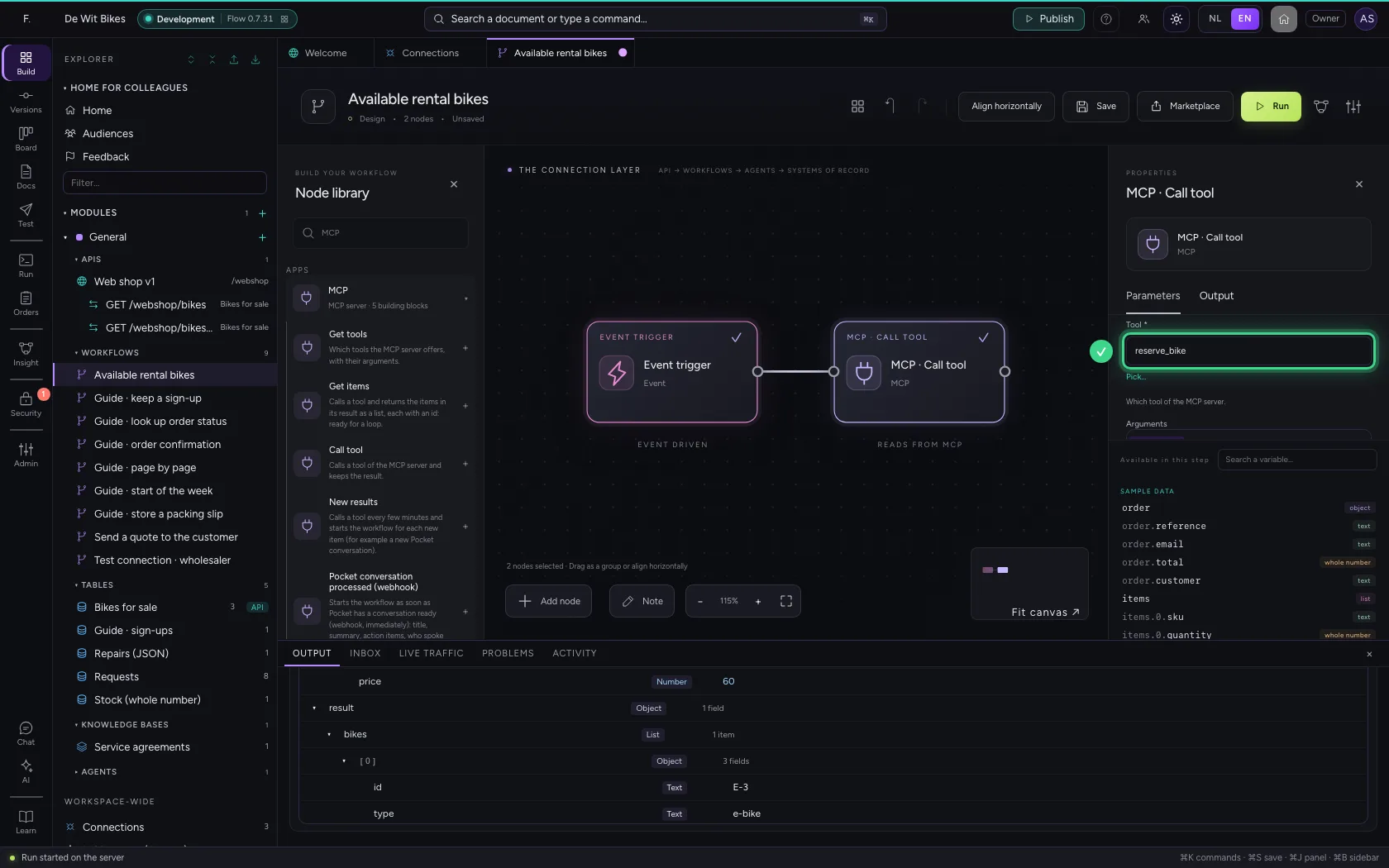
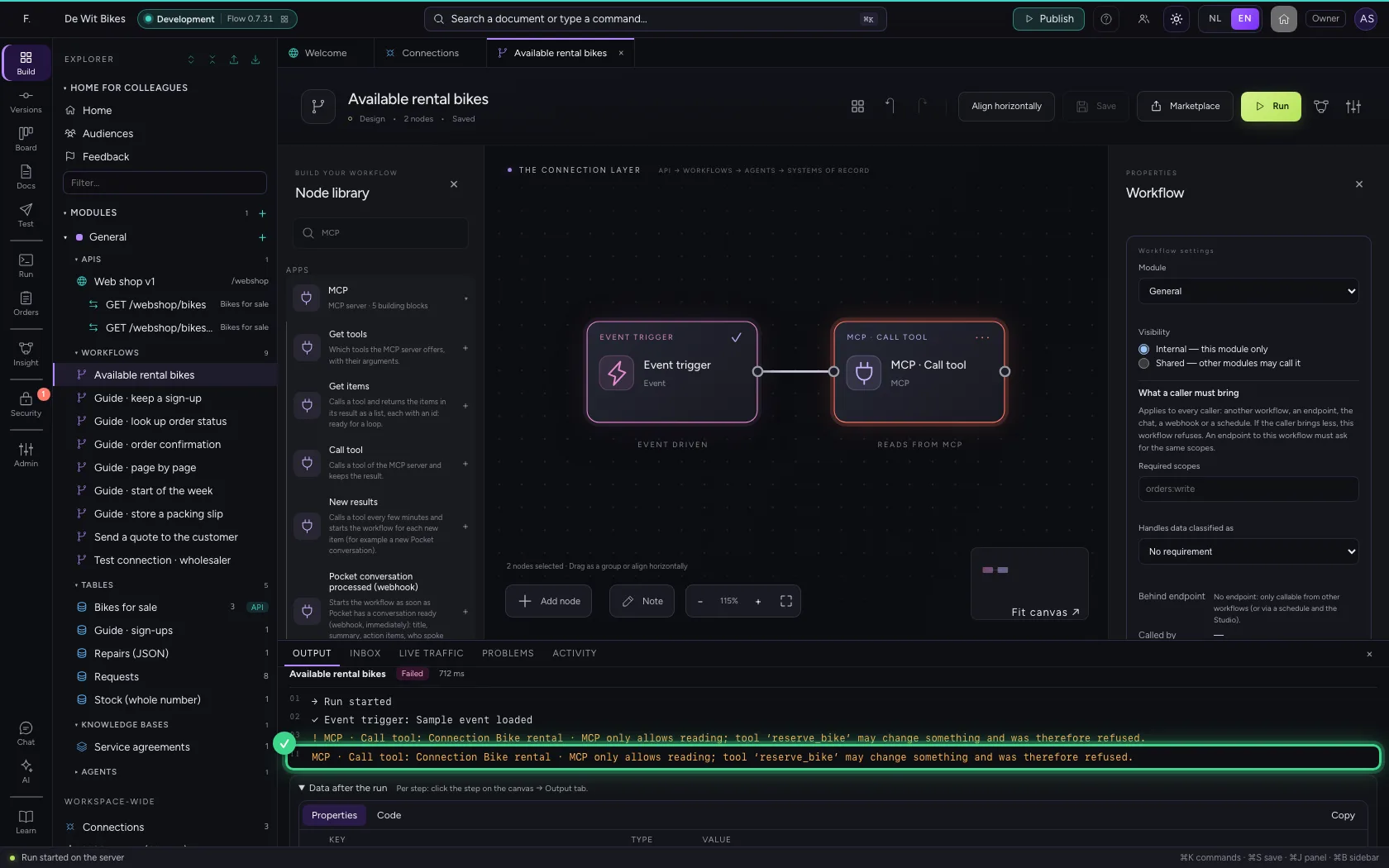
Now choose the tool Reserve bike. The server marks it as writing; because the connection may only read, Flow refuses the call before it reaches the server. Only when you set access to Read and write is it allowed.

  1. Click the step
A tool that changes something: refused · Click the step
  1. Click Pick…
A tool that changes something: refused · Click Pick…
A tool that changes something: refused · Tool: reserve_bike.
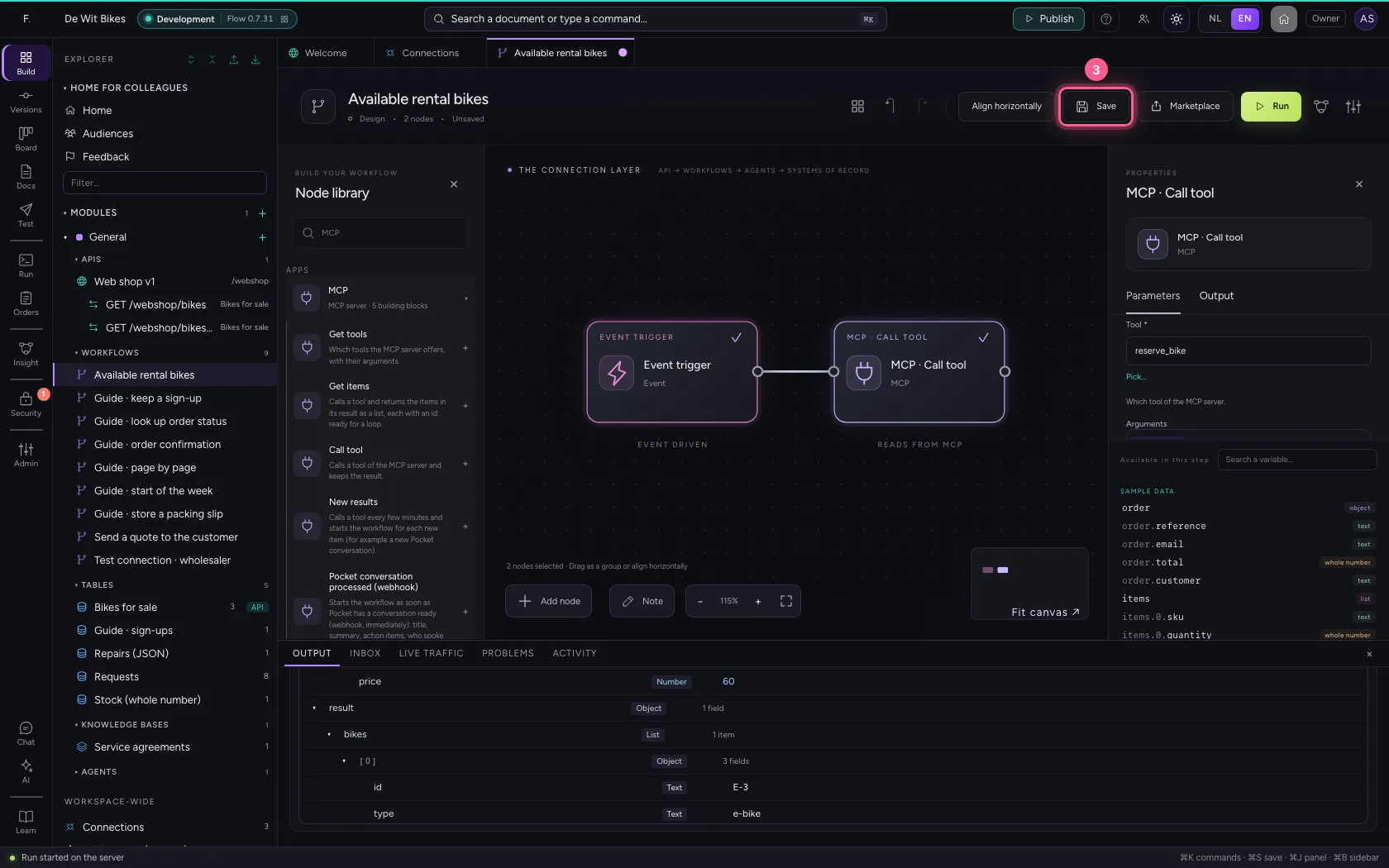
  1. Click Save
A tool that changes something: refused · Click Save
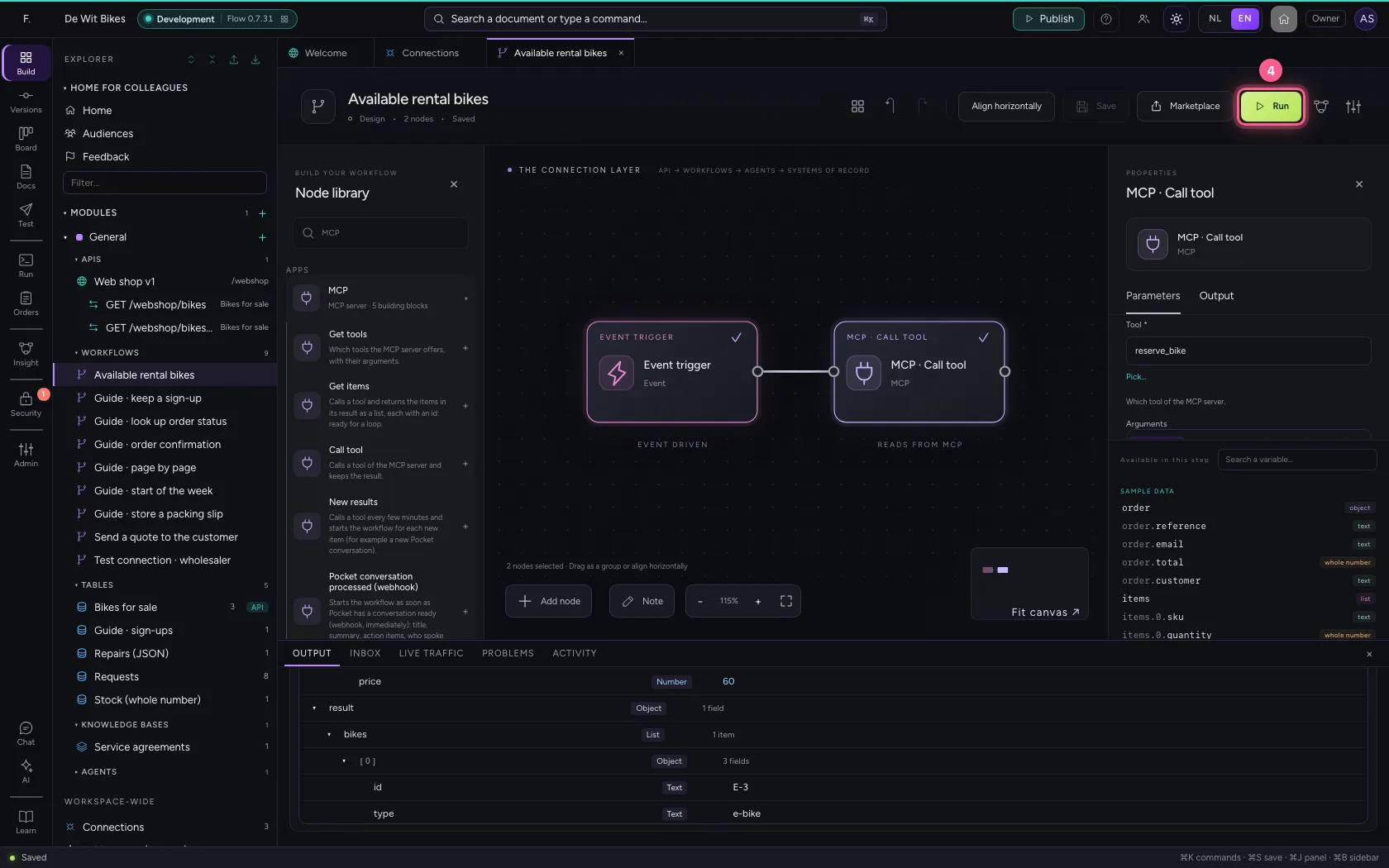
  1. Click Run
A tool that changes something: refused · Click Run
A tool that changes something: refused · Refused: the connection may only read.

This guide was carried out step by step on 22 Oct 2026 by an automated test on Flow (version 3e563176).