E-mail over SMTP: connect and send
Not every mailbox lives in Microsoft 365. With the connection E-mail (SMTP/IMAP) Flow sends from any mailbox that speaks SMTP — a hosting package, your own mail server. You fill in the server, port, security and an (app) password, test the sign-in and send an e-mail from a workflow. You need: your mail provider's SMTP details.
Open your development environment
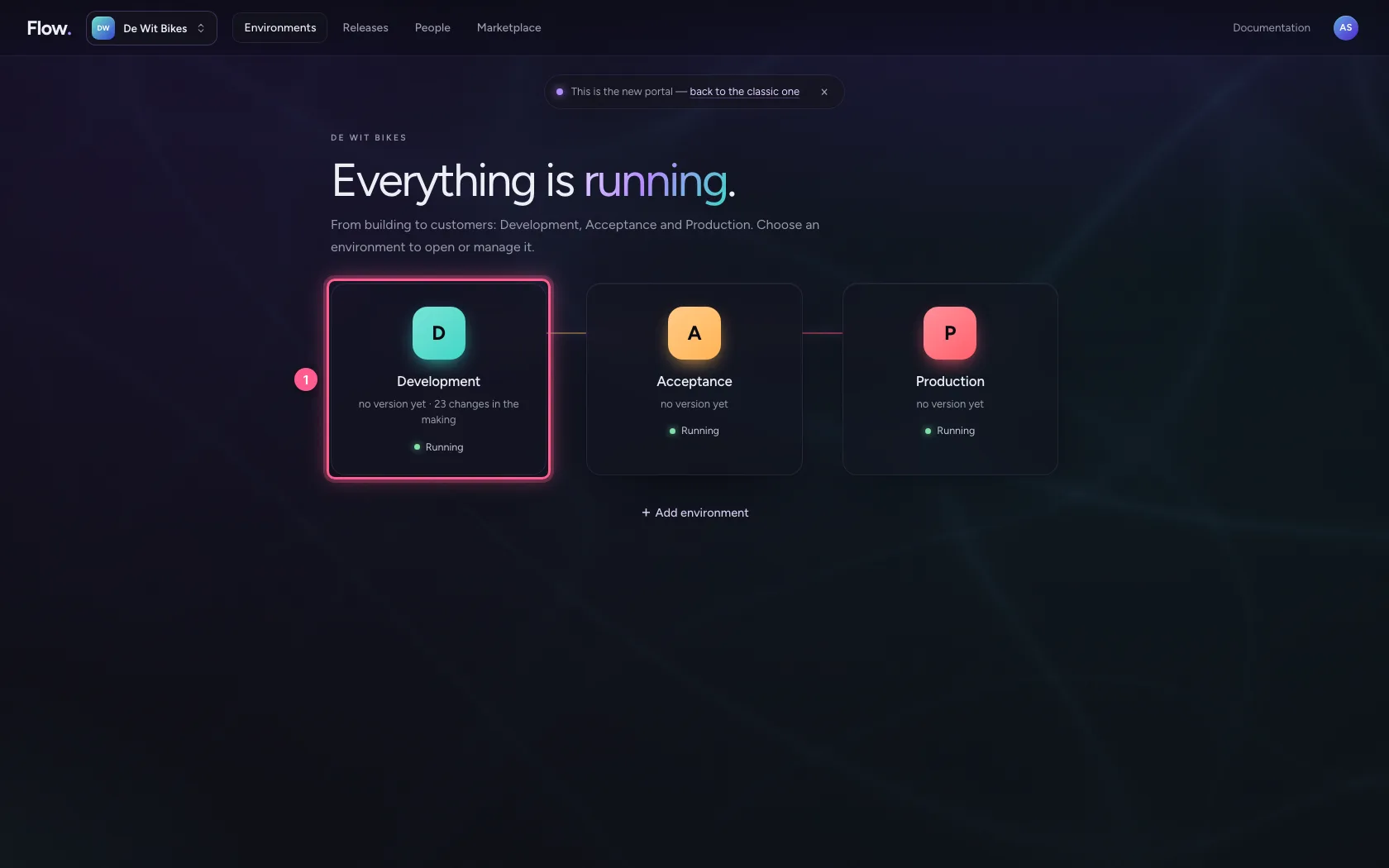
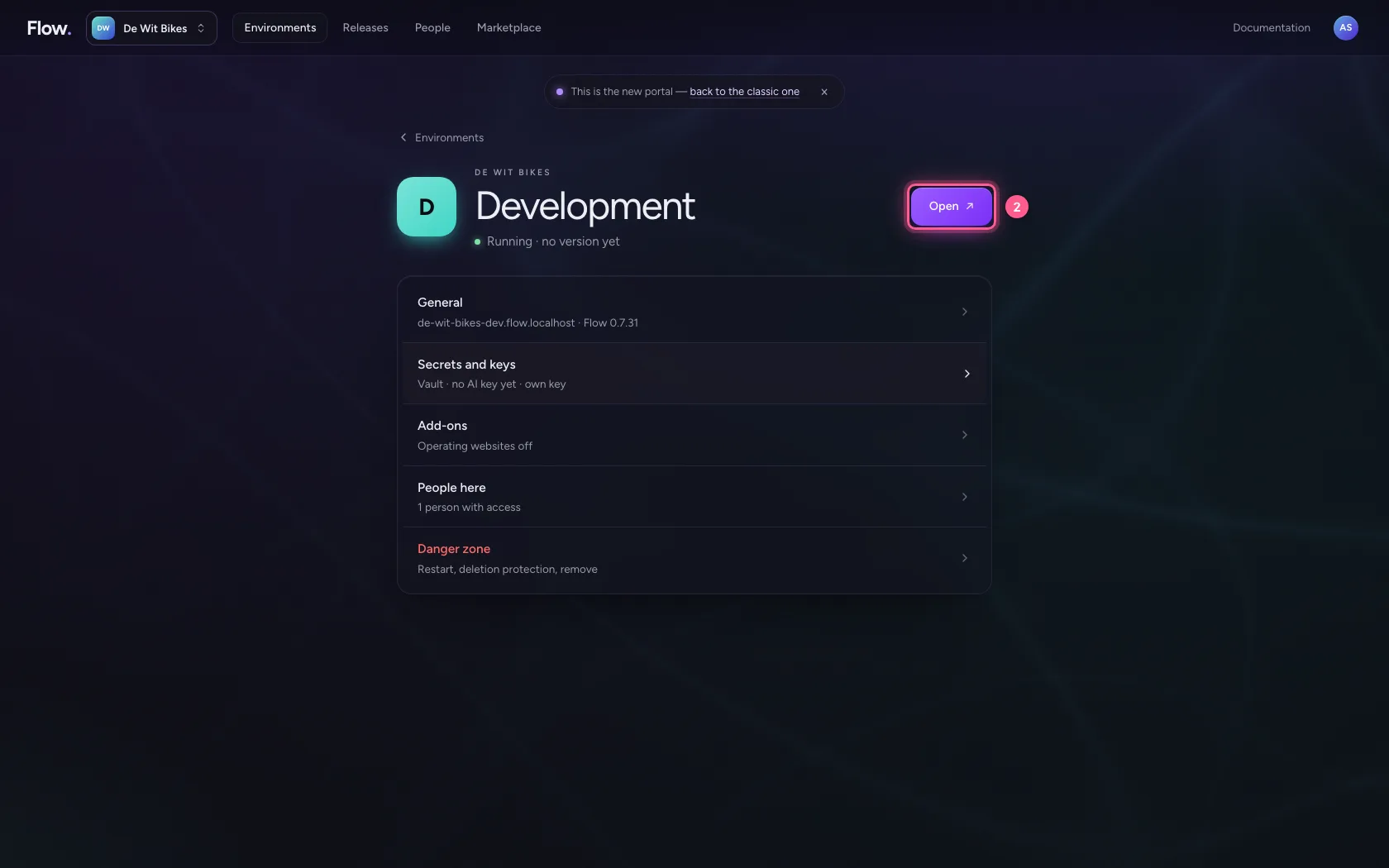
In the portal, under Environments, click Development, and there Open. Flow opens in a new tab and you are signed in straight away.
- Click Development
- Click Open ↗
Connect the mailbox
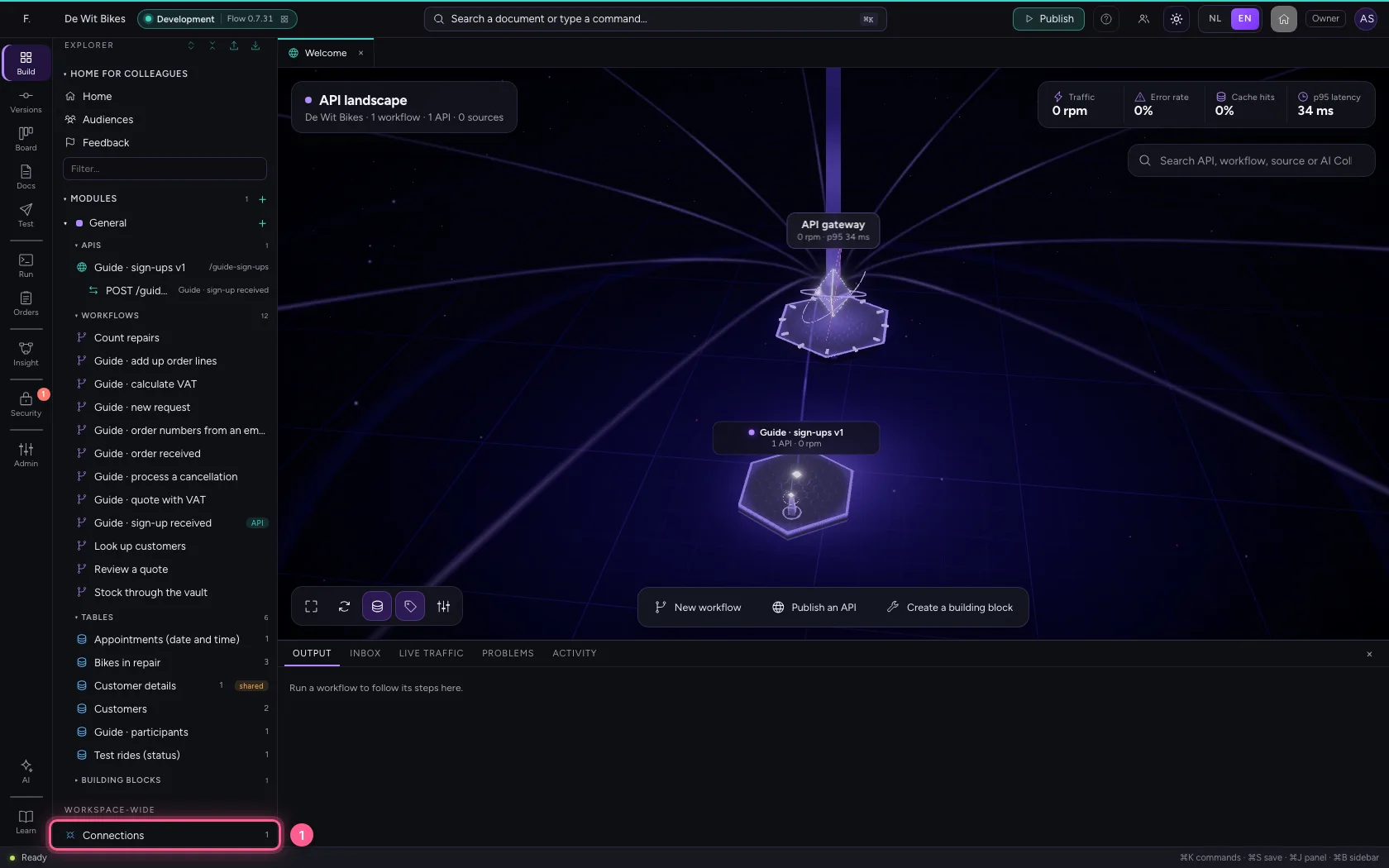
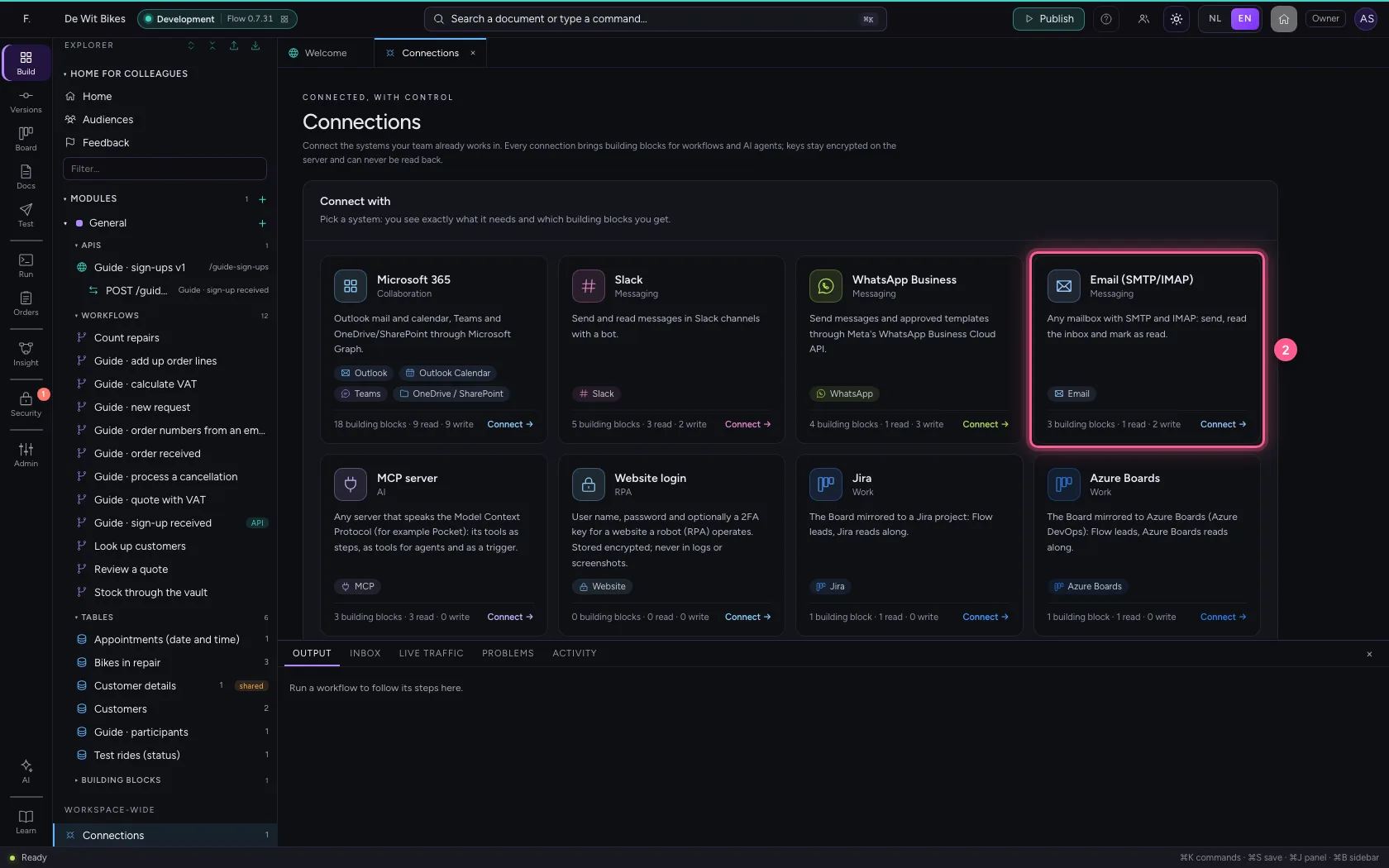
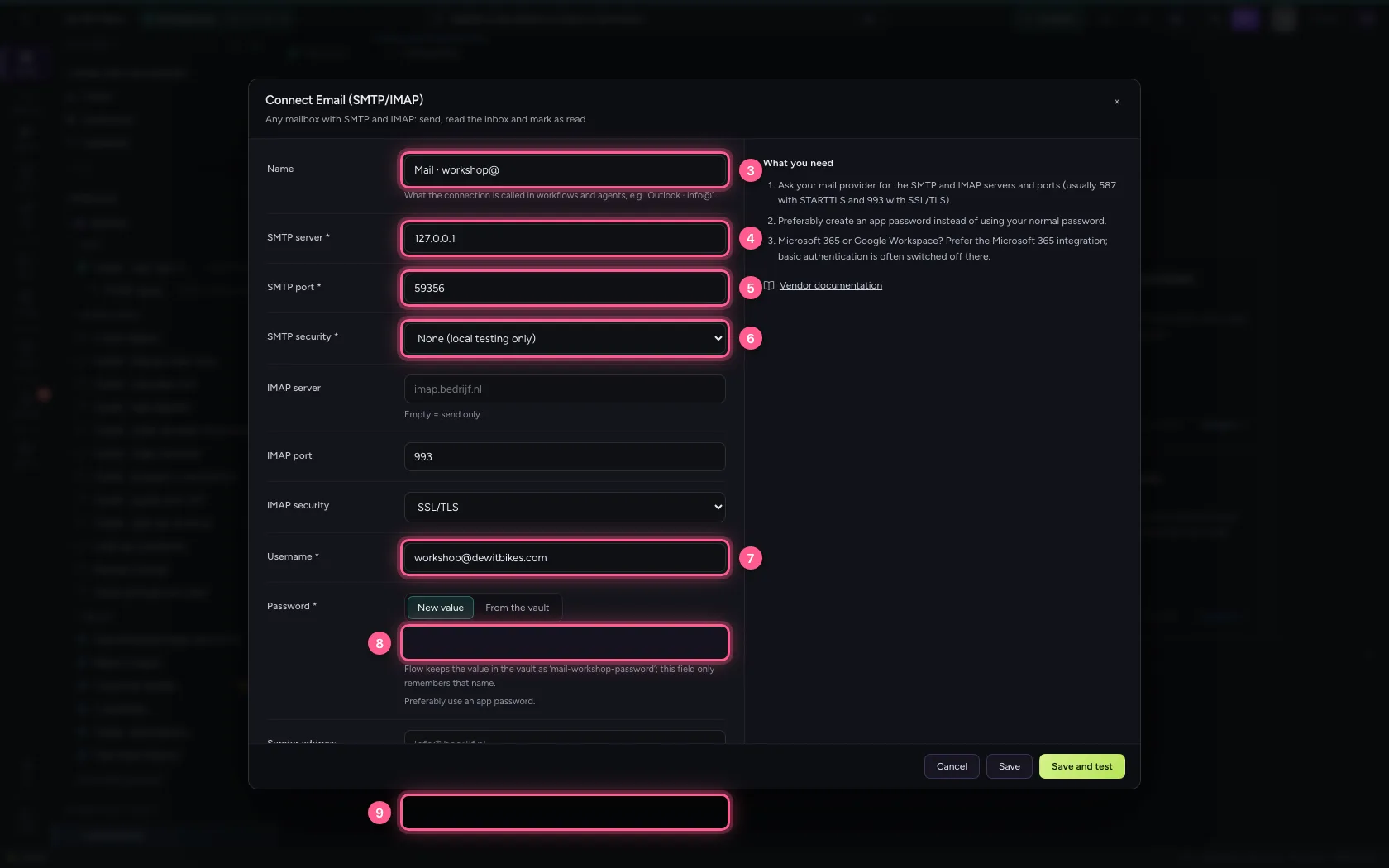
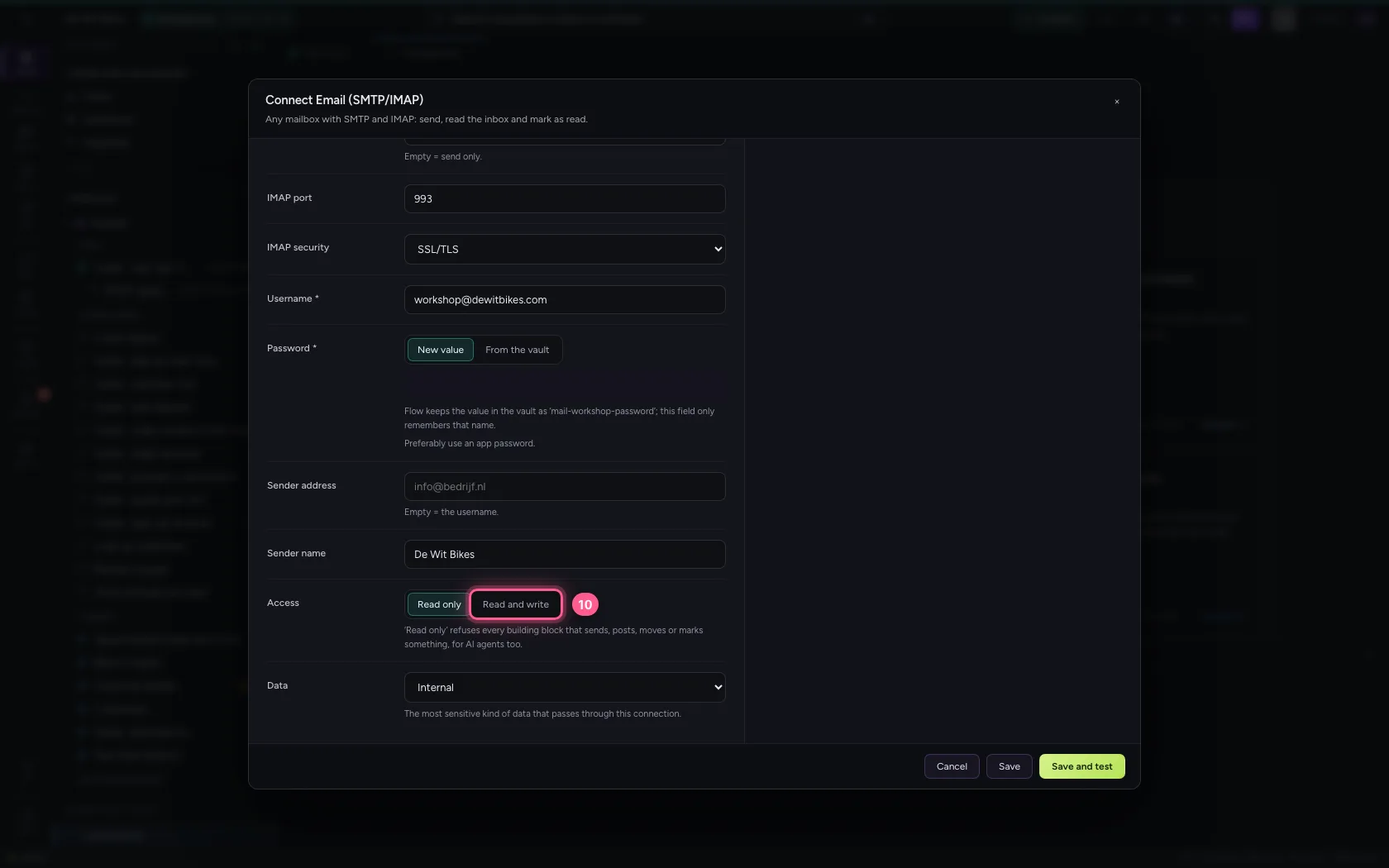
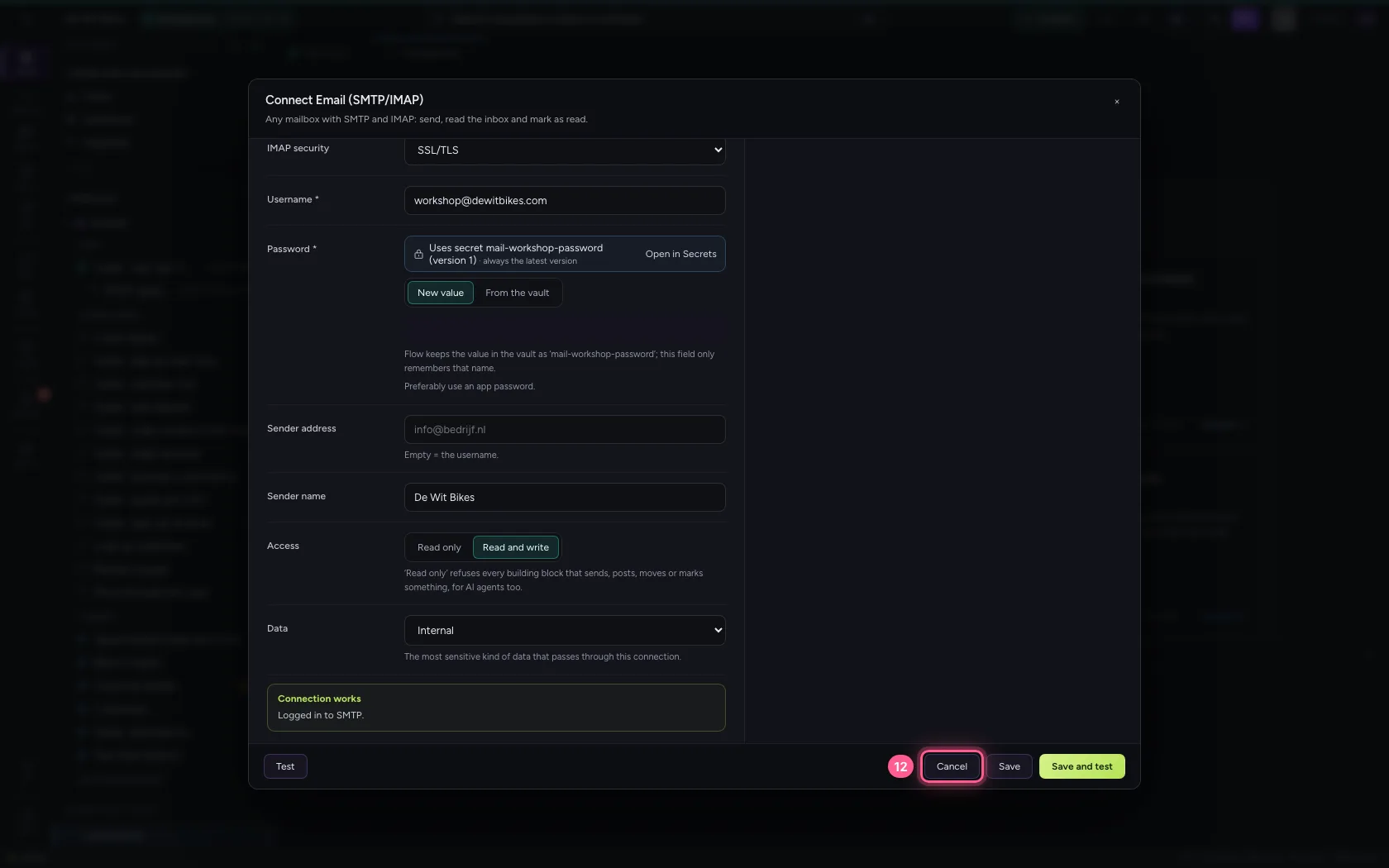
Under Connections choose E-mail (SMTP/IMAP). Fill in your provider's SMTP server, port and security — usually 587 with STARTTLS or 465 with SSL/TLS; here a test mail server runs locally, without encryption — and the user name and an app password. Read and write, because sending changes something.
- Click Connections
- Click Email (SMTP/IMAP)
- In Name, type
Mail · workshop@ - In **SMTP server ***, type
127.0.0.1 - In **SMTP port ***, type
59356 - In **SMTP security ***, choose None (local testing only)
- In **Username ***, type
workshop@dewitbikes.com - In **Password ***, type
•••••••• - In Sender name, type
De Wit Bikes
- Click Read and write
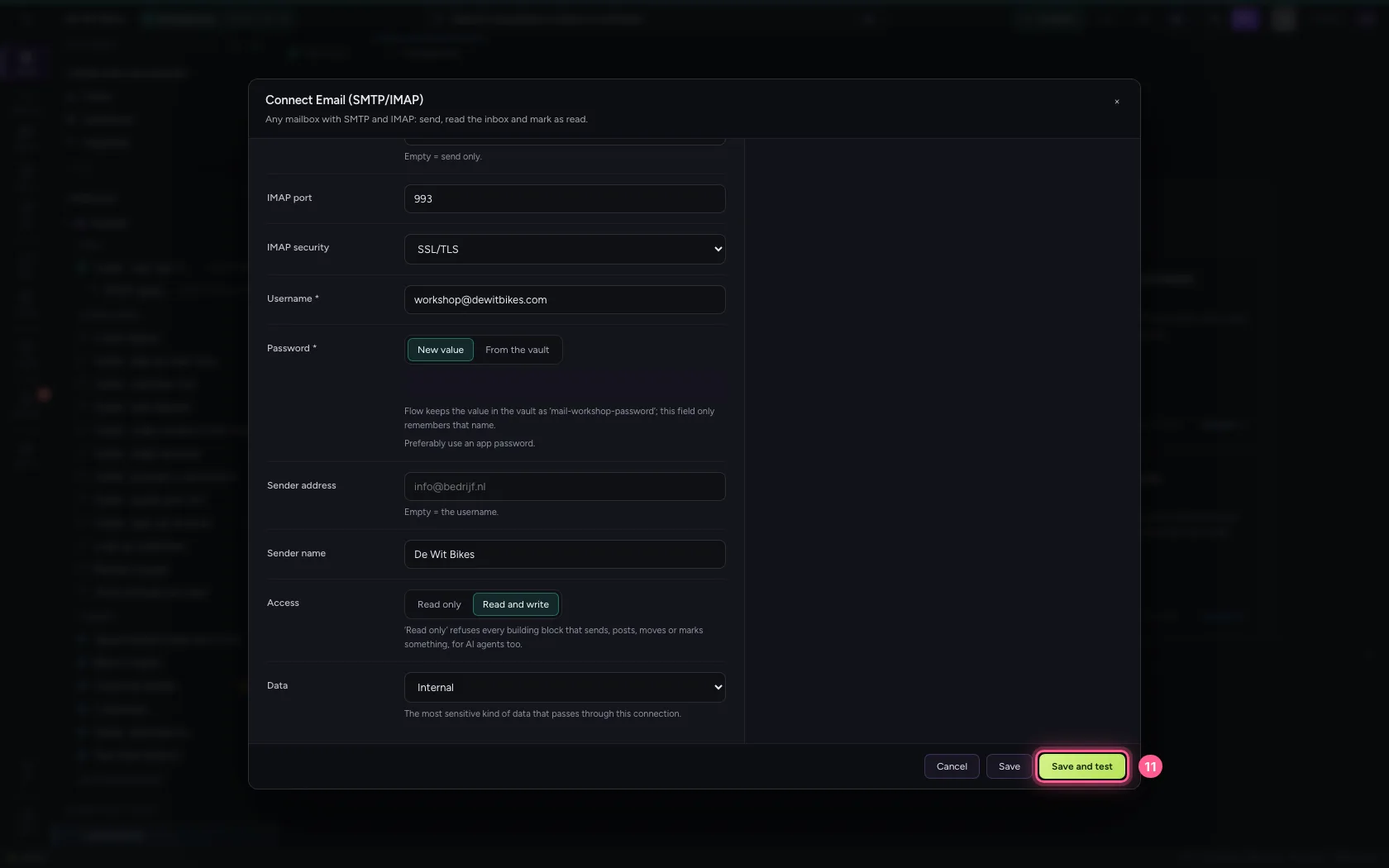
- Click Save and test
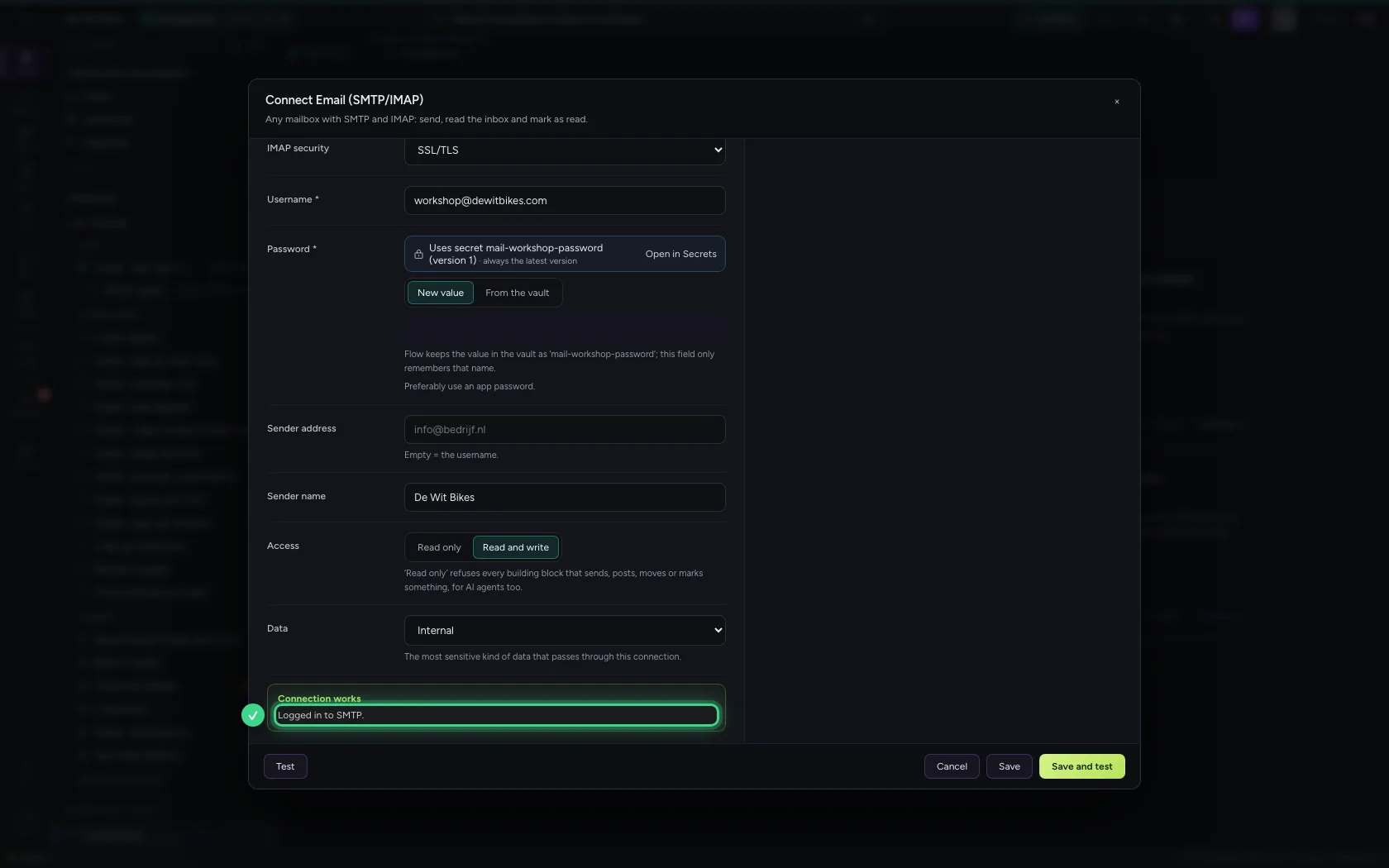
- Click Cancel
Send an e-mail from a workflow
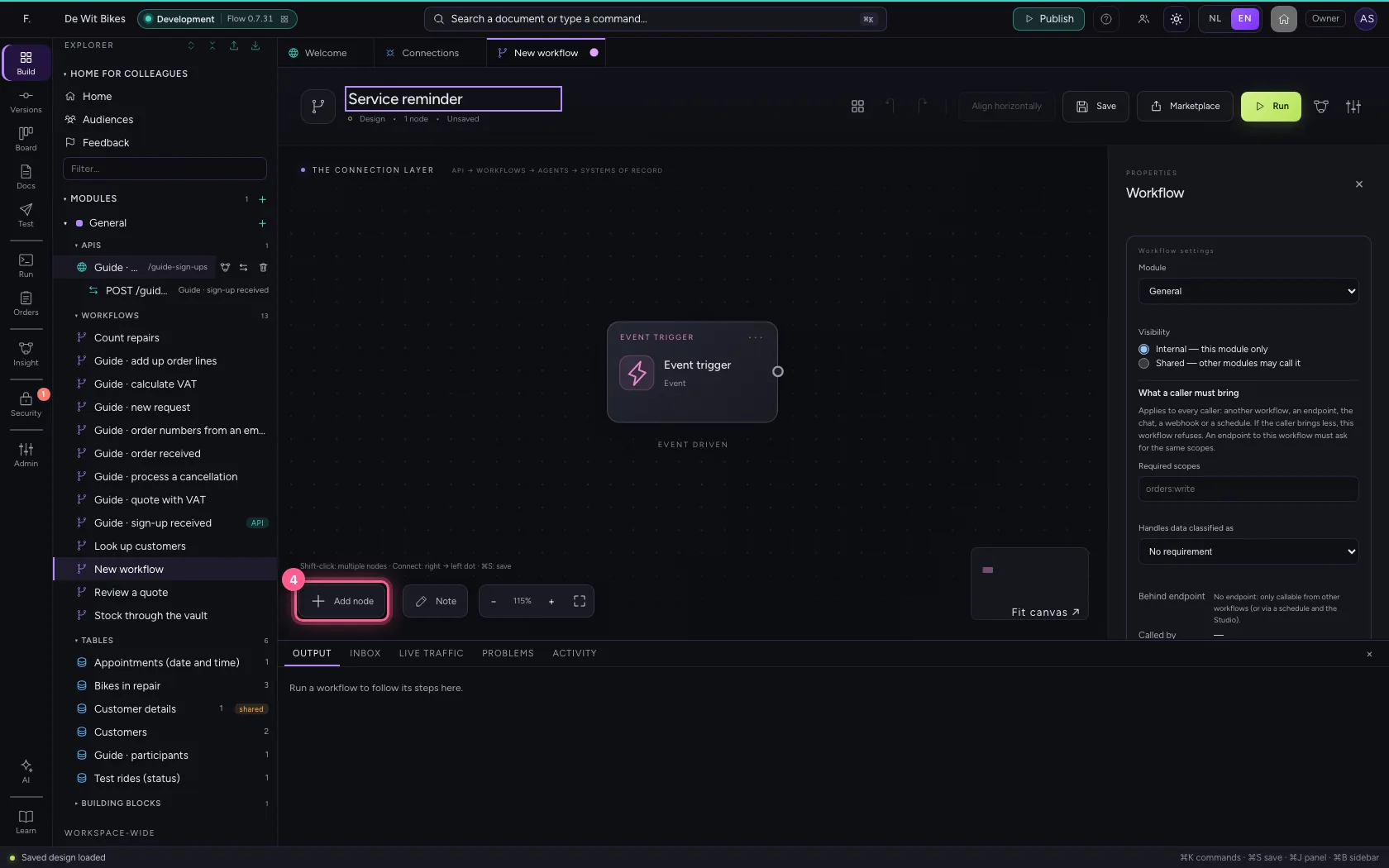
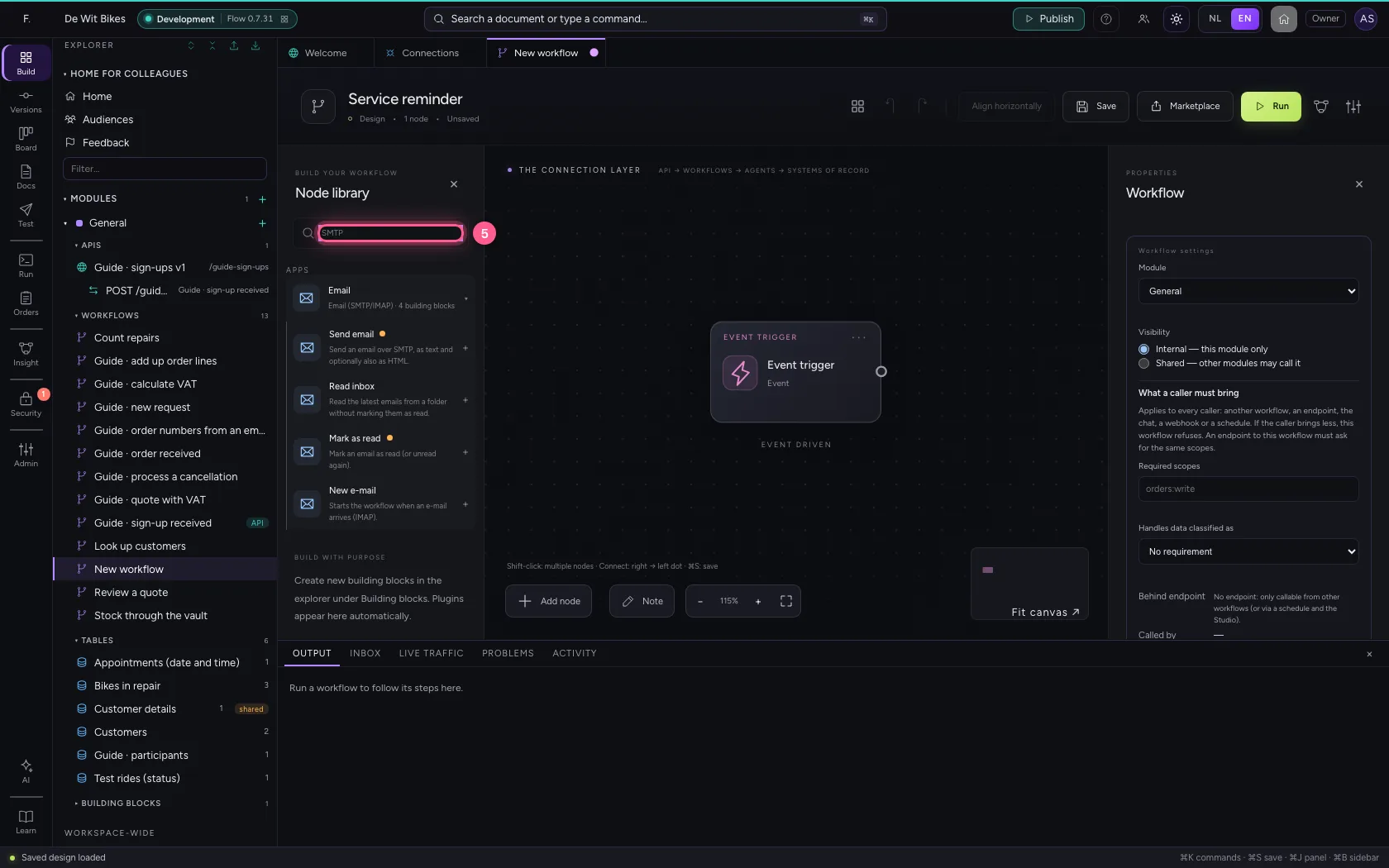
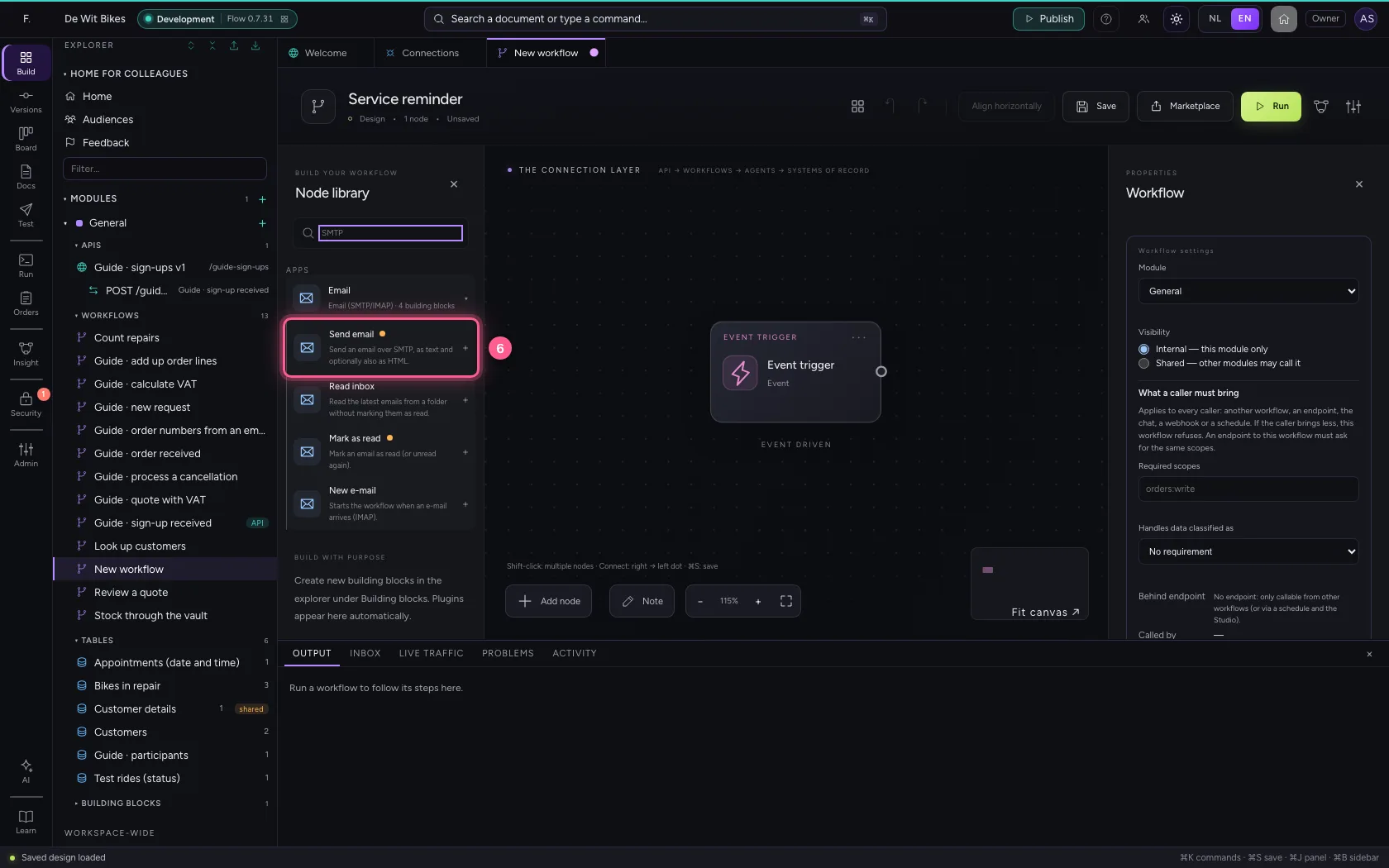
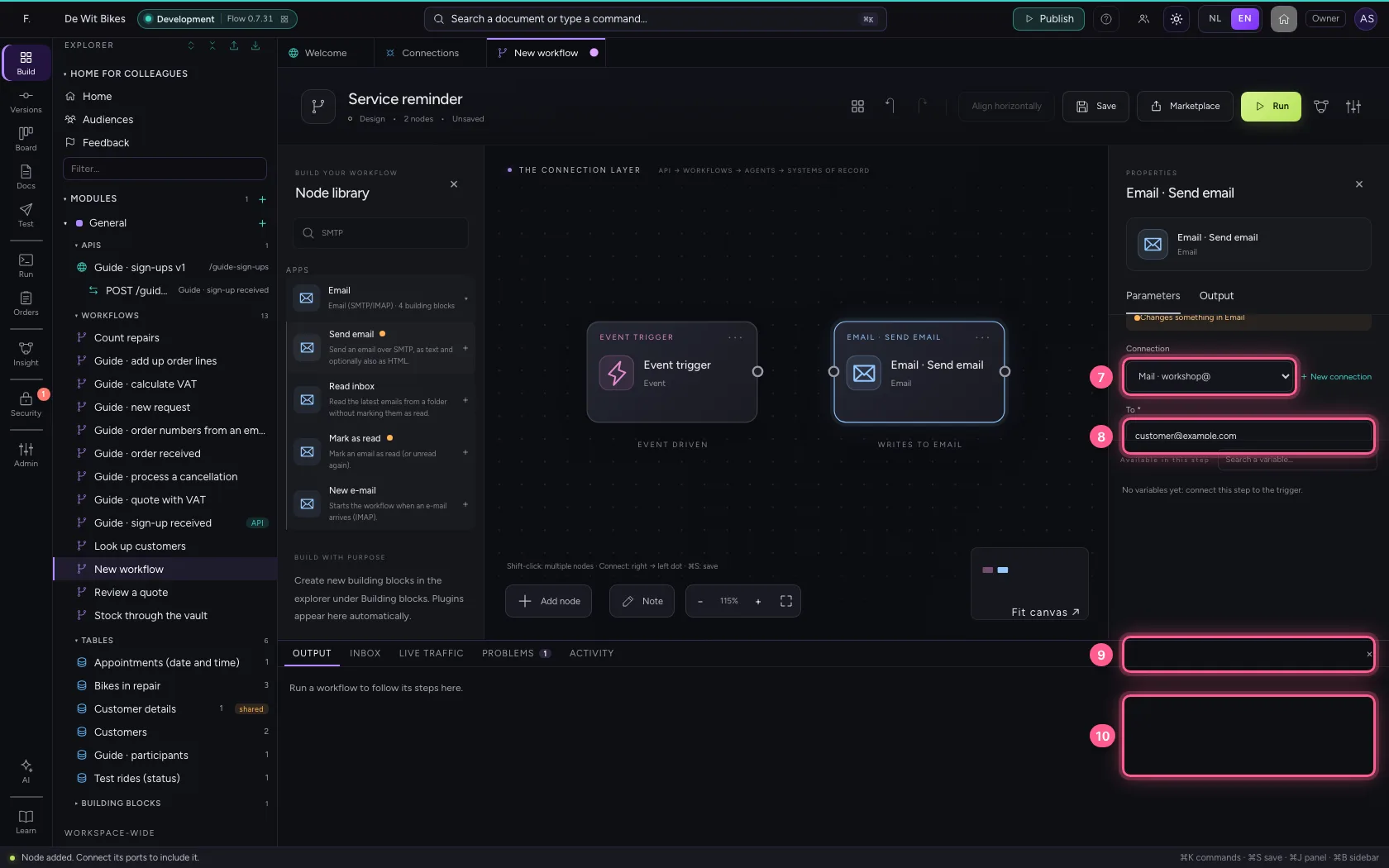
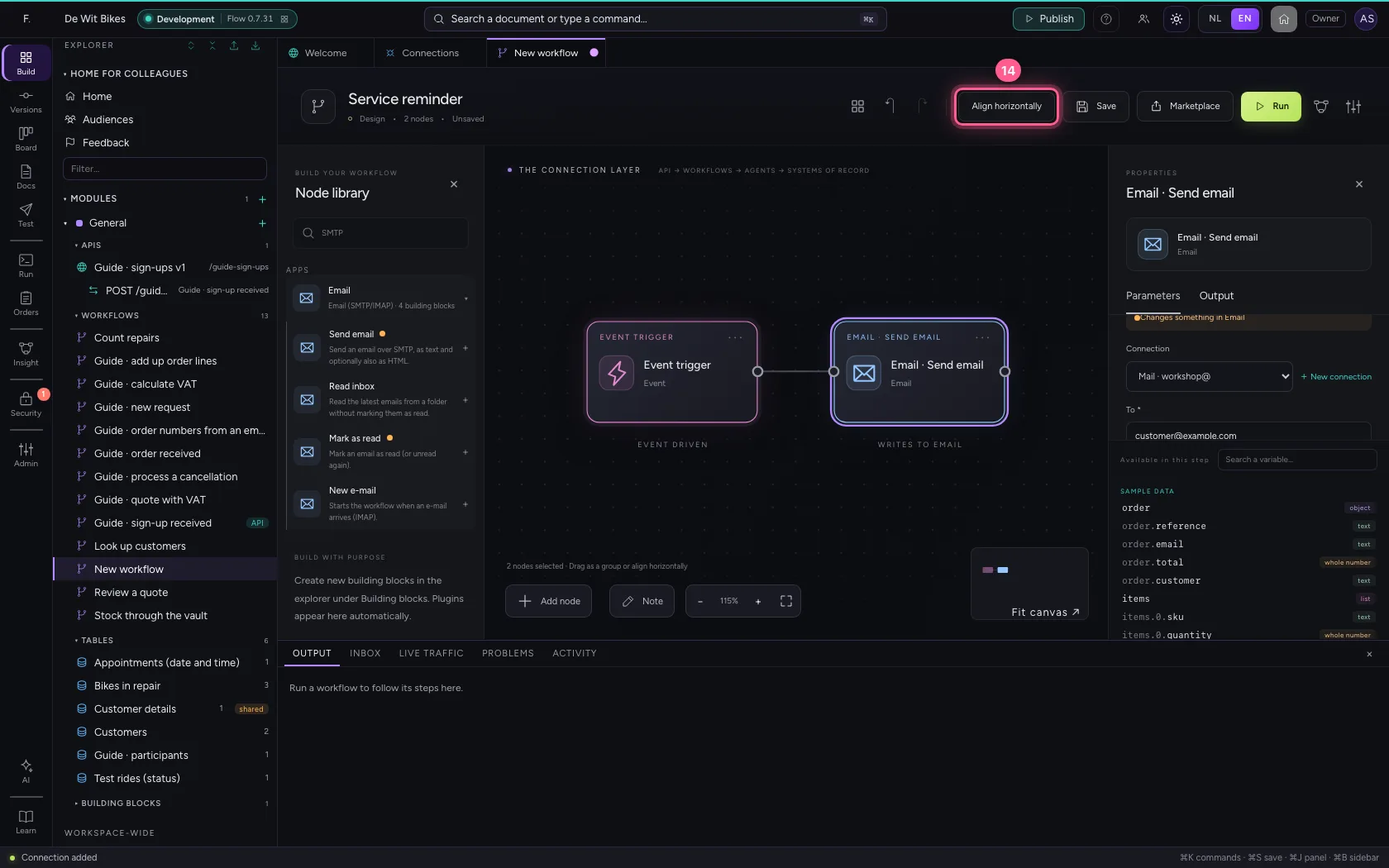
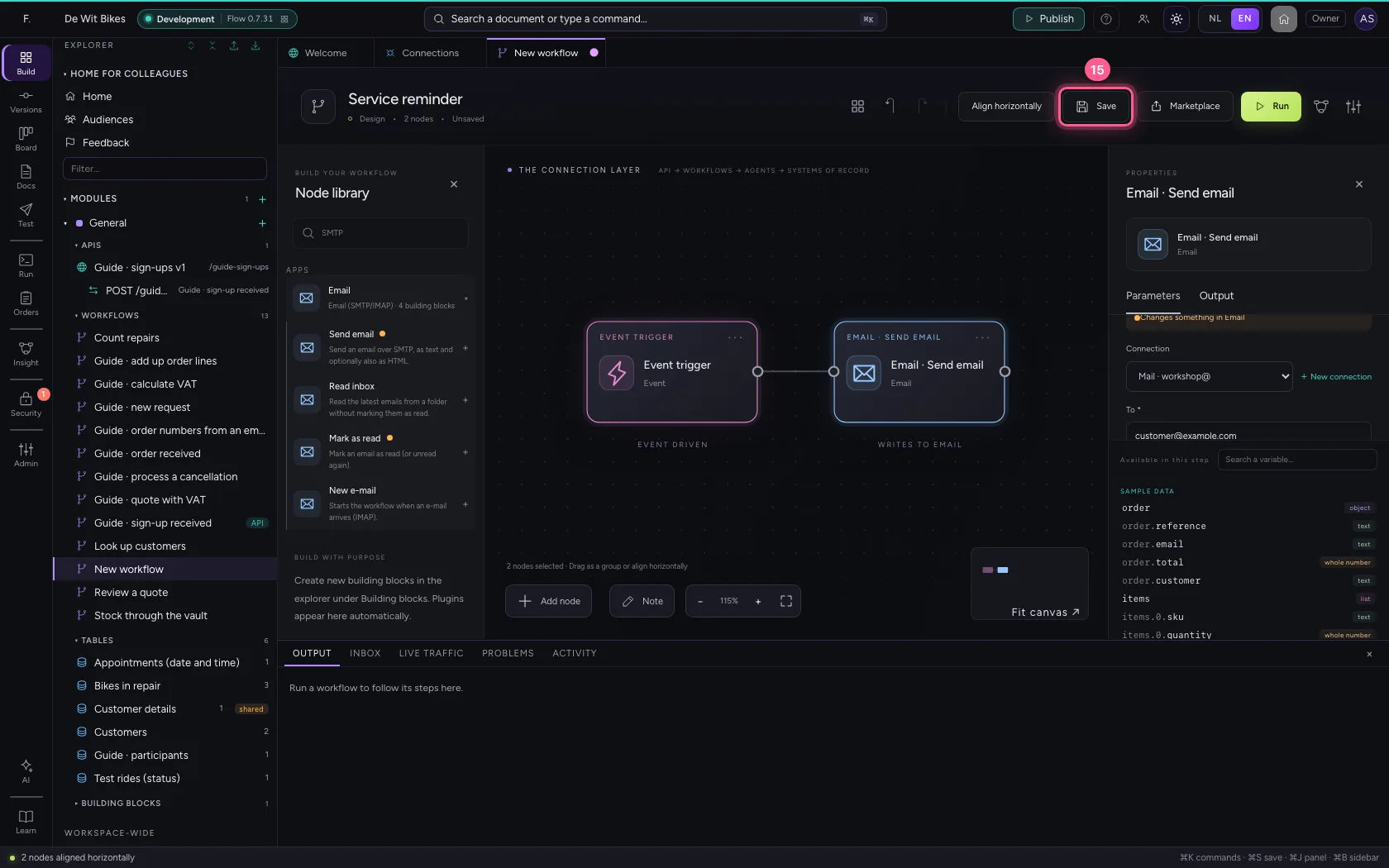
Create a workflow and search the library for SMTP. Choose Send email, your connection, and fill in To, Subject and Message. An HTML version is optional. Line up and save.
- Click Add to General
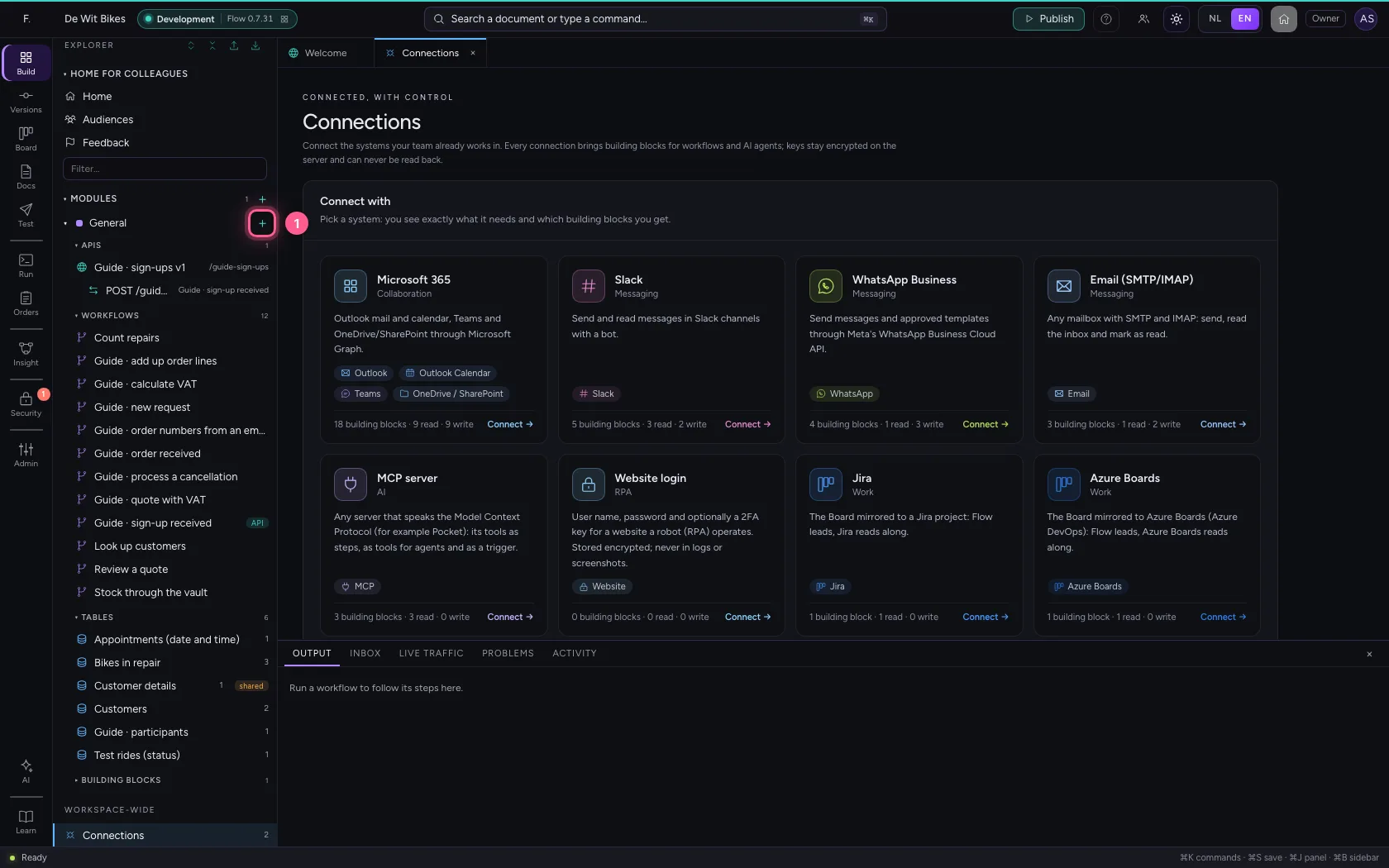
- Click New workflow
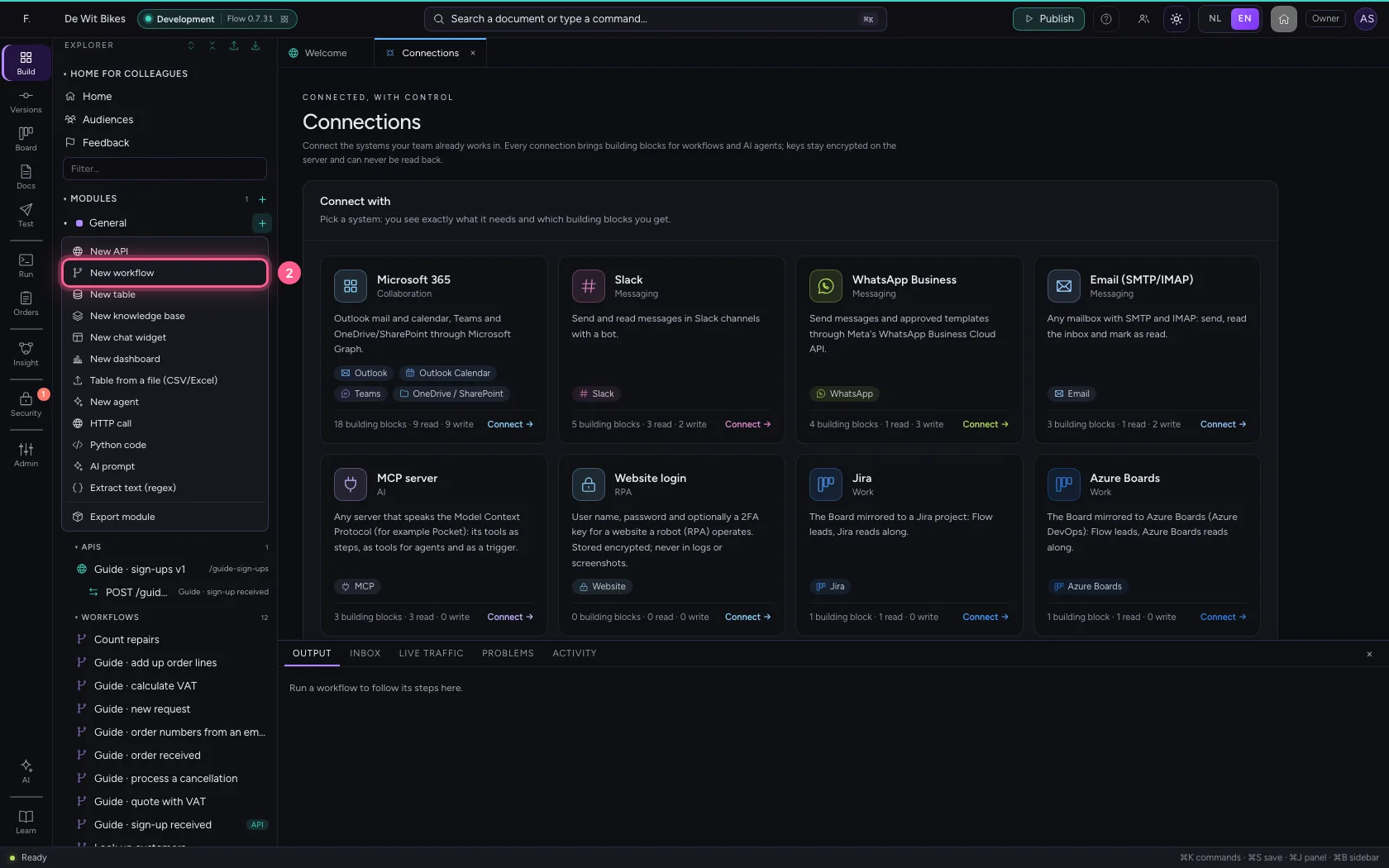
- In Workflow name, type
Service reminder
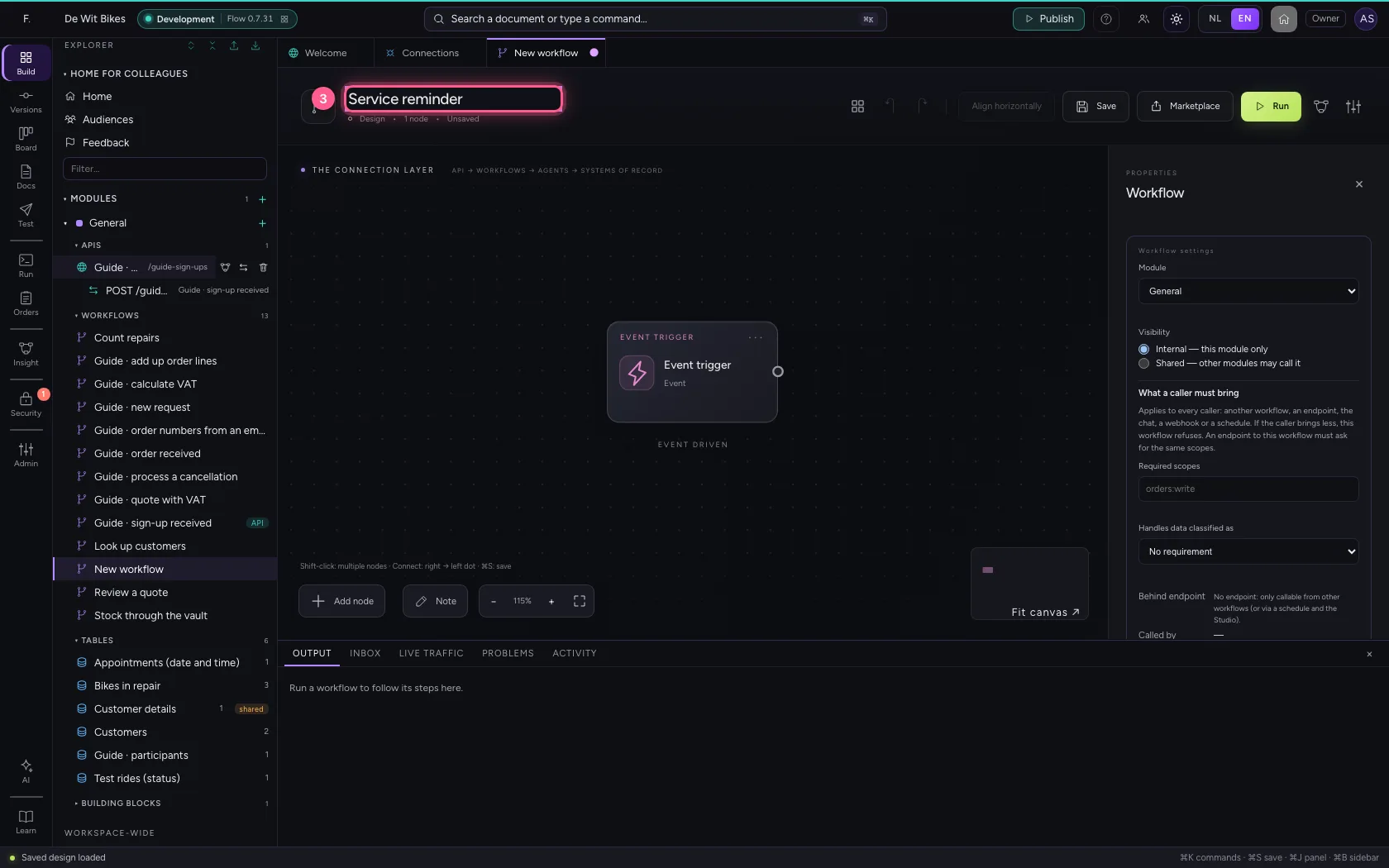
- Click Add node
- In Search a node, type
SMTP
- Click Email · Send email
Your bike was last serviced a year ago. Shall we plan a service?
Kind regards, The workshop`
- In Connection, choose Mail · workshop@
- In To, type
customer@example.com - In Subject, type
Time for a service #1792645537 - In Message, type `Dear customer,
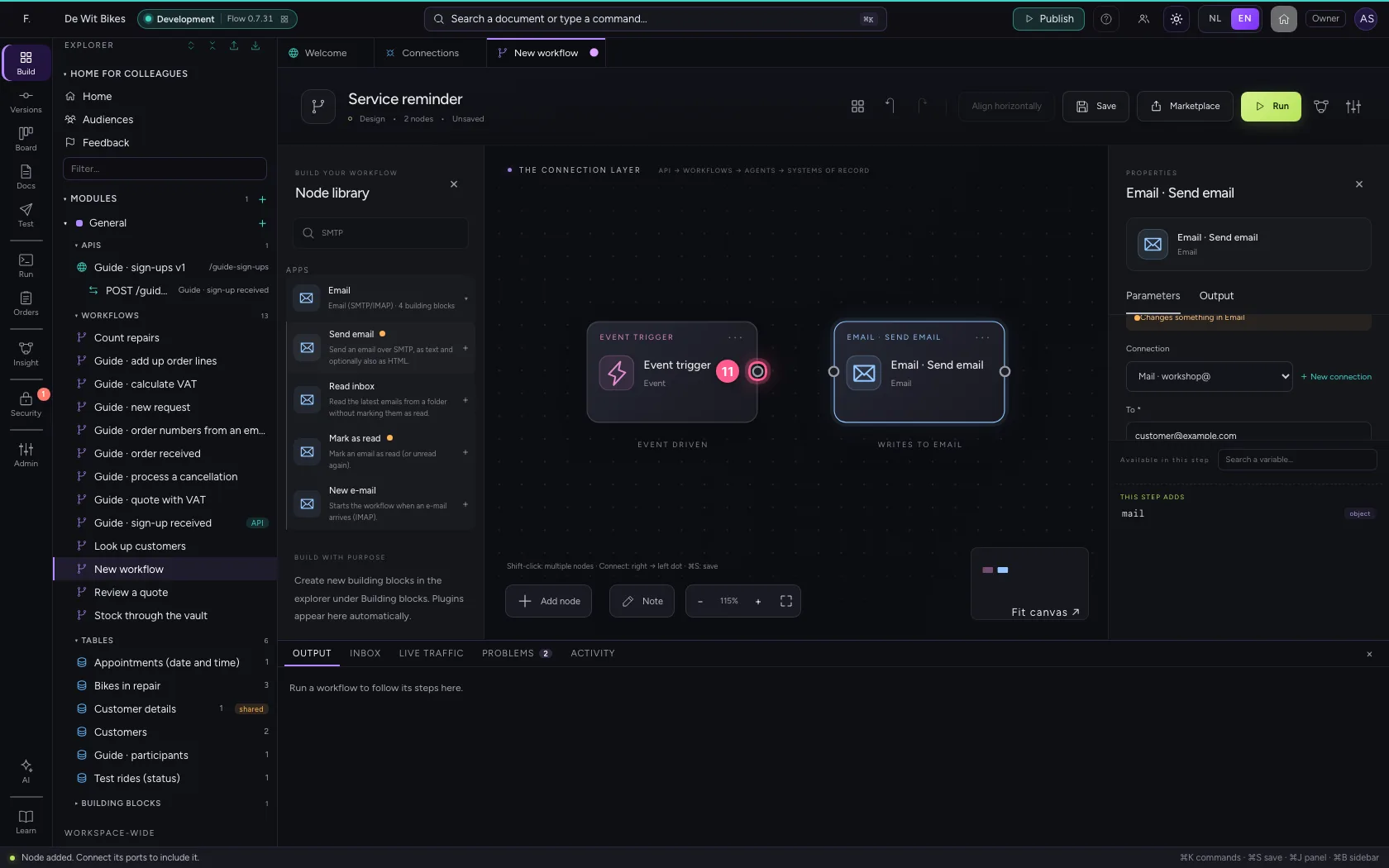
- Click the dot of ‘Event trigger’
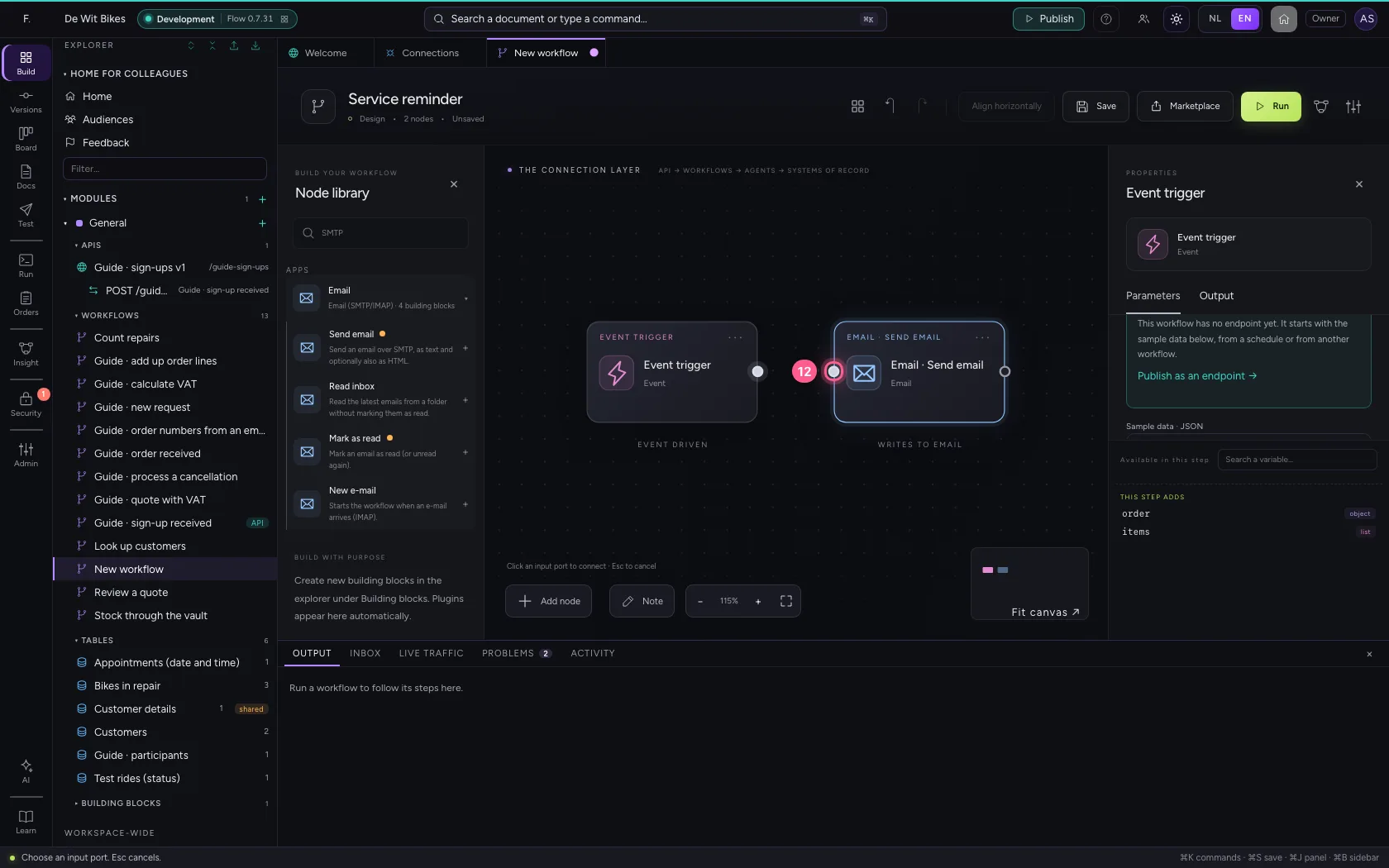
- Click the dot of ‘Email · Send email’
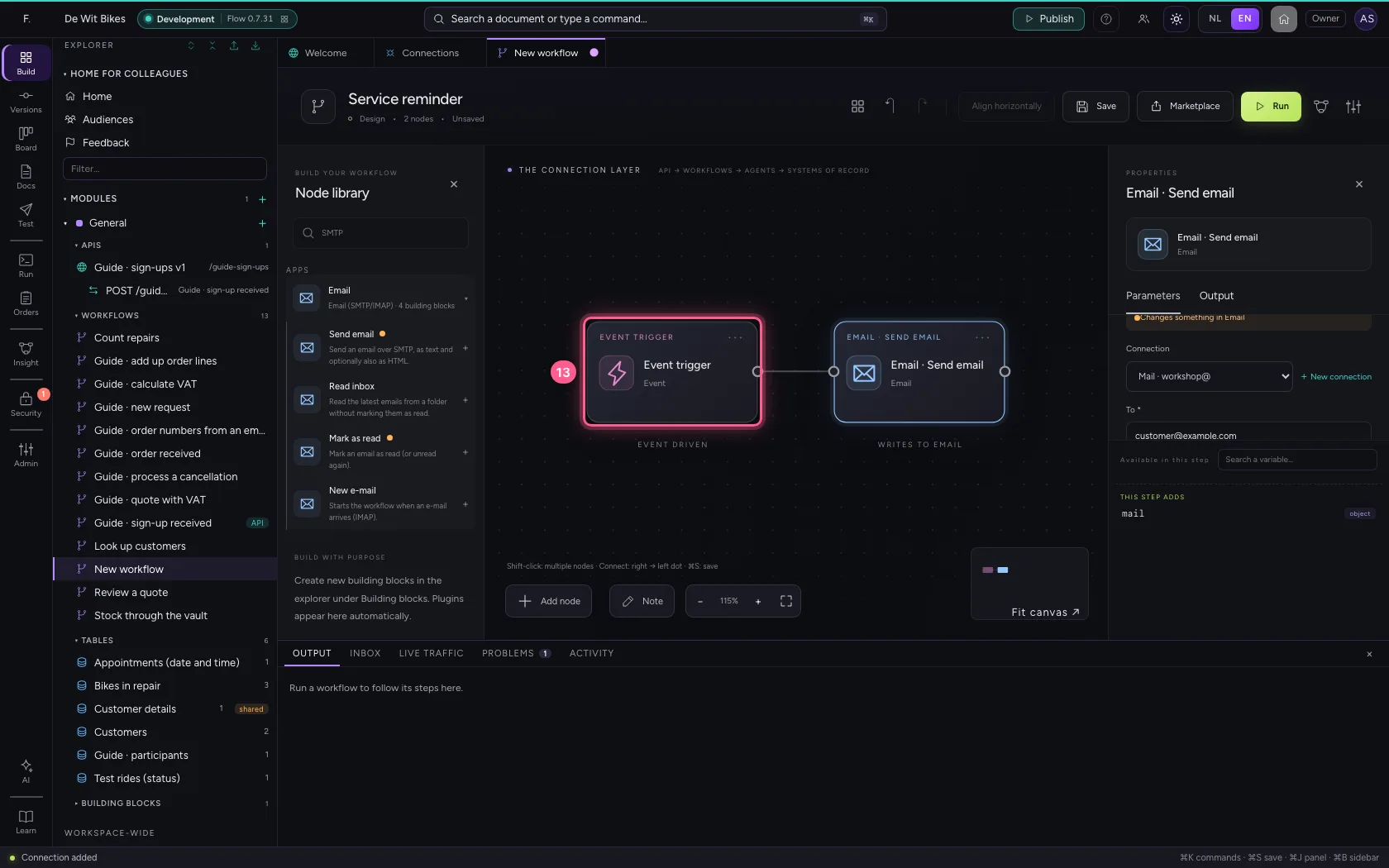
- Click the step ‘Event trigger’
- Click Align horizontally
- Click Save
Run
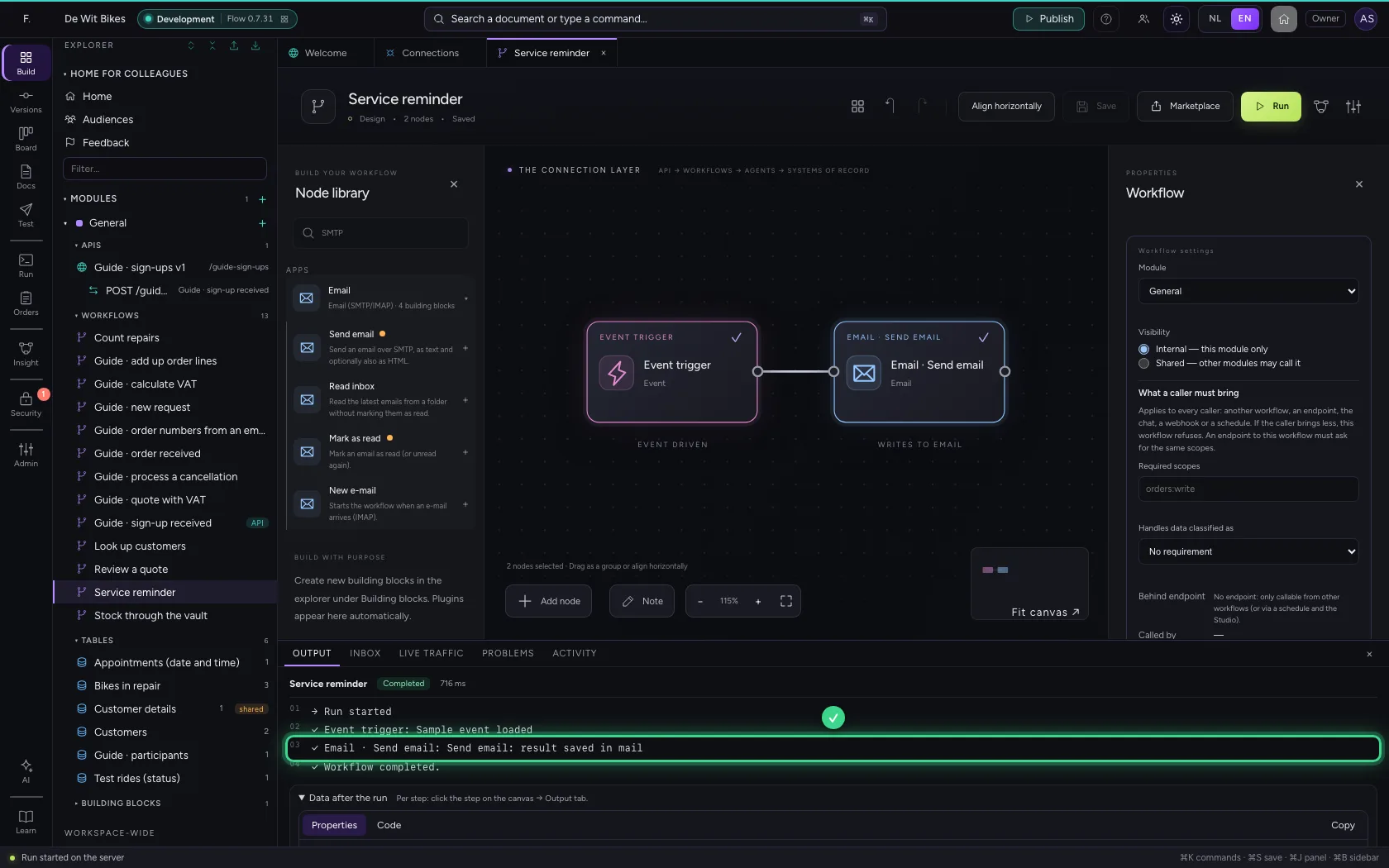
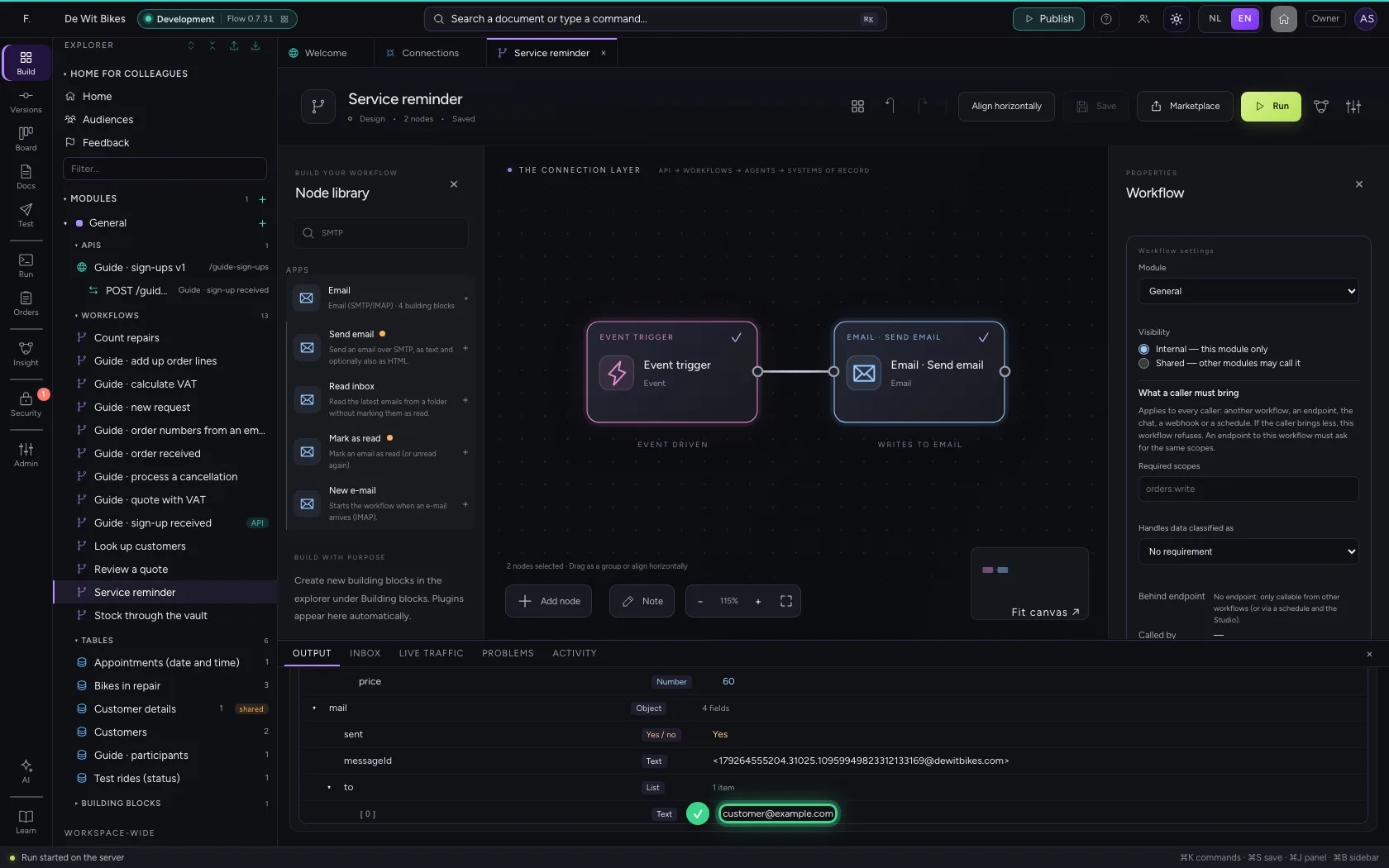
At the bottom you see that the mail was sent, with the Message-ID it got. If the server refuses a recipient, the result says so under refused.
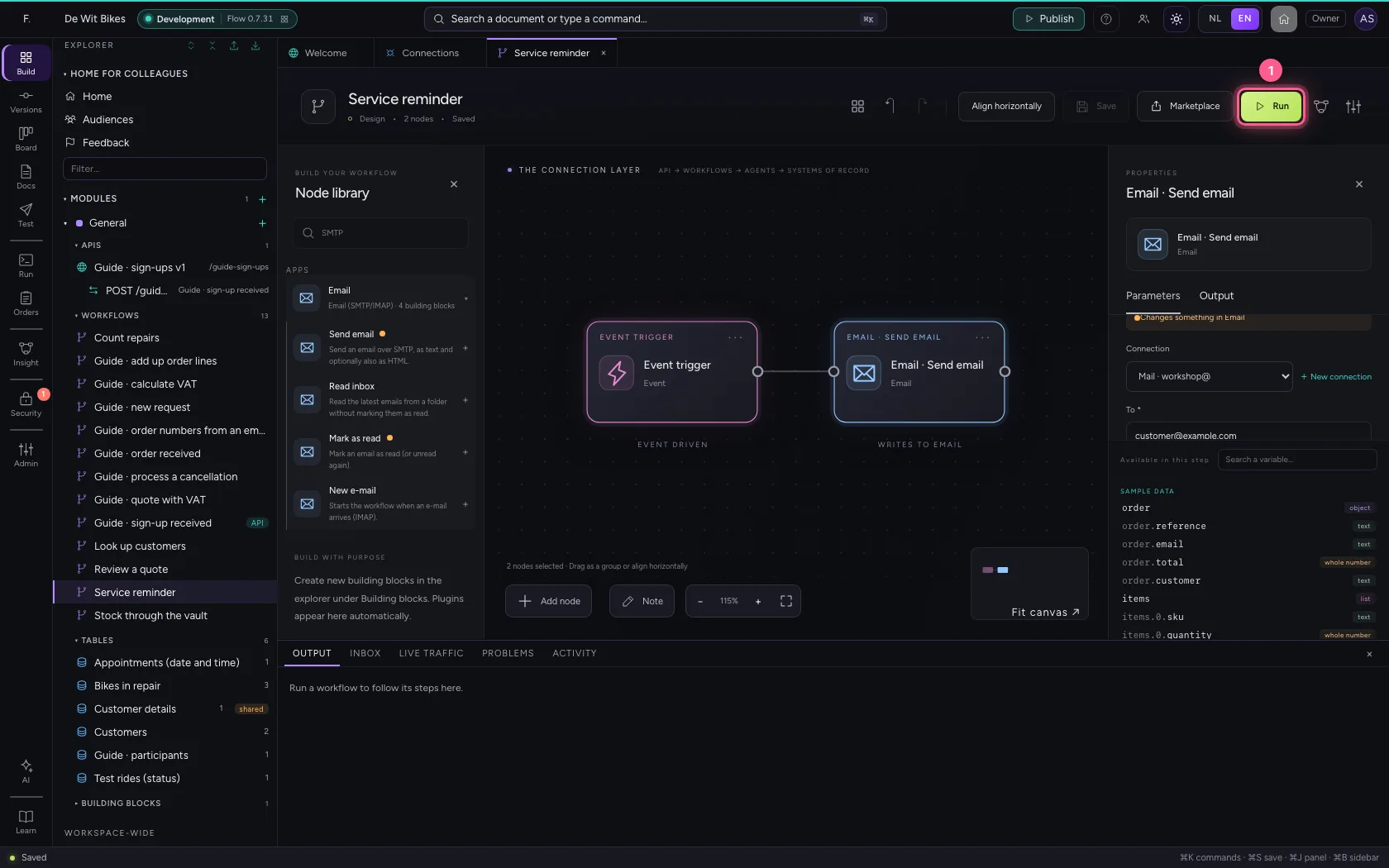
- Click Run
This guide was carried out step by step on 22 Oct 2026 by an automated test on Flow (version 3e563176).