In-memory table and Add row
An In-memory table exists only during the run. You give it fixed columns with a type, fill it from a list and get clean JSON back: every row is checked, so text in a number column stands out straight away. With Add row you then add single rows. Handy for an answer to a caller or an export.
Open Flow and create a workflow
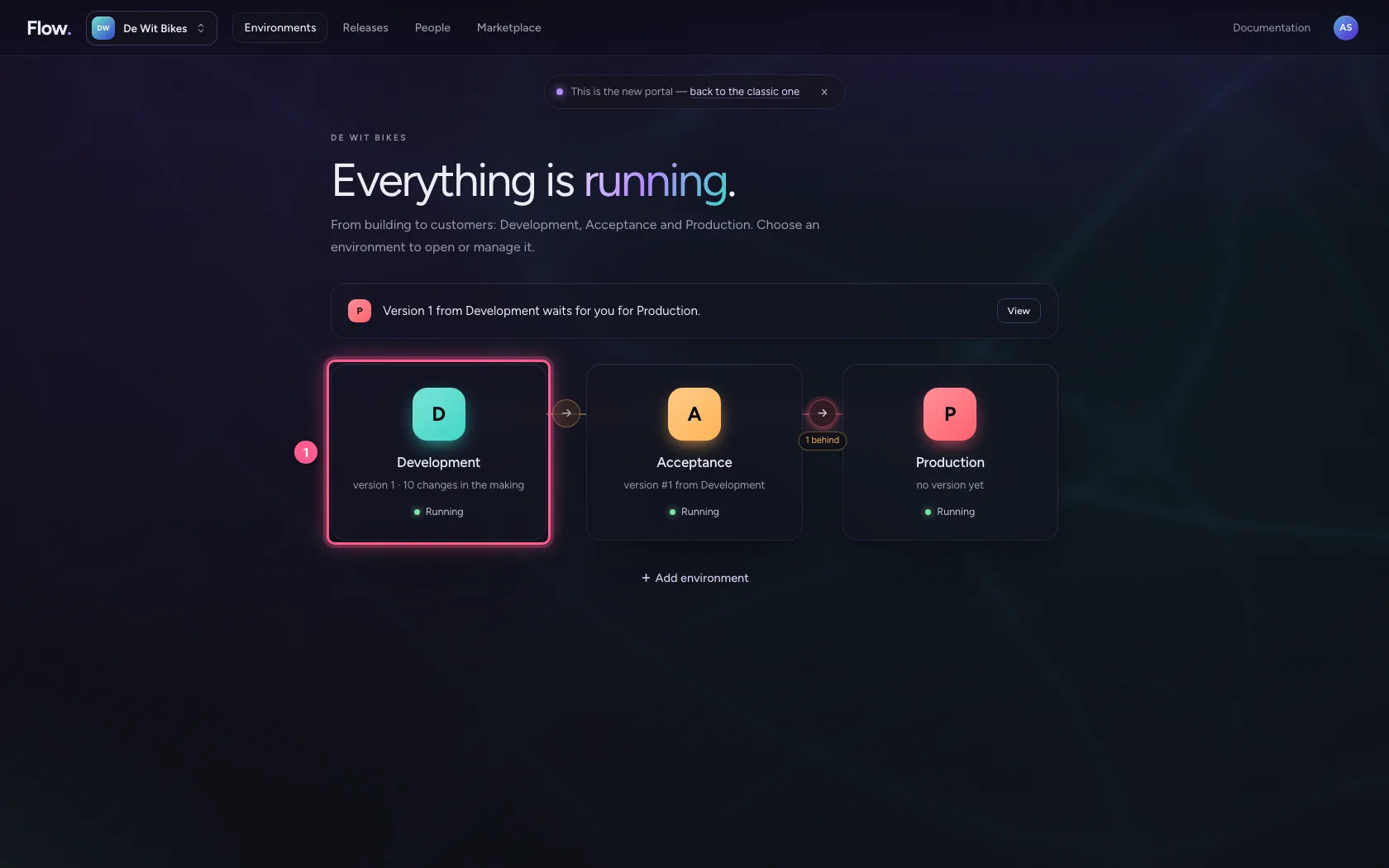
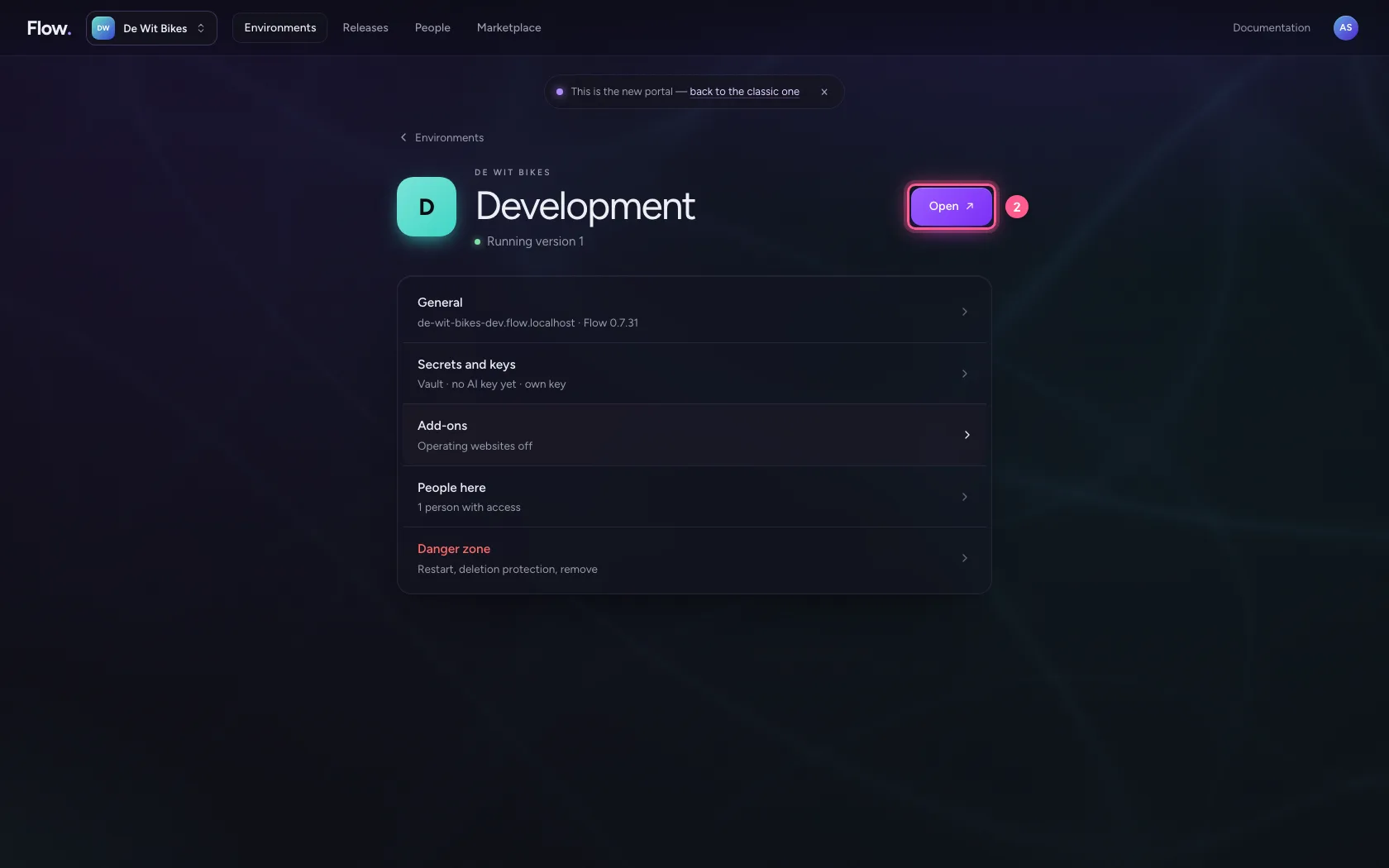
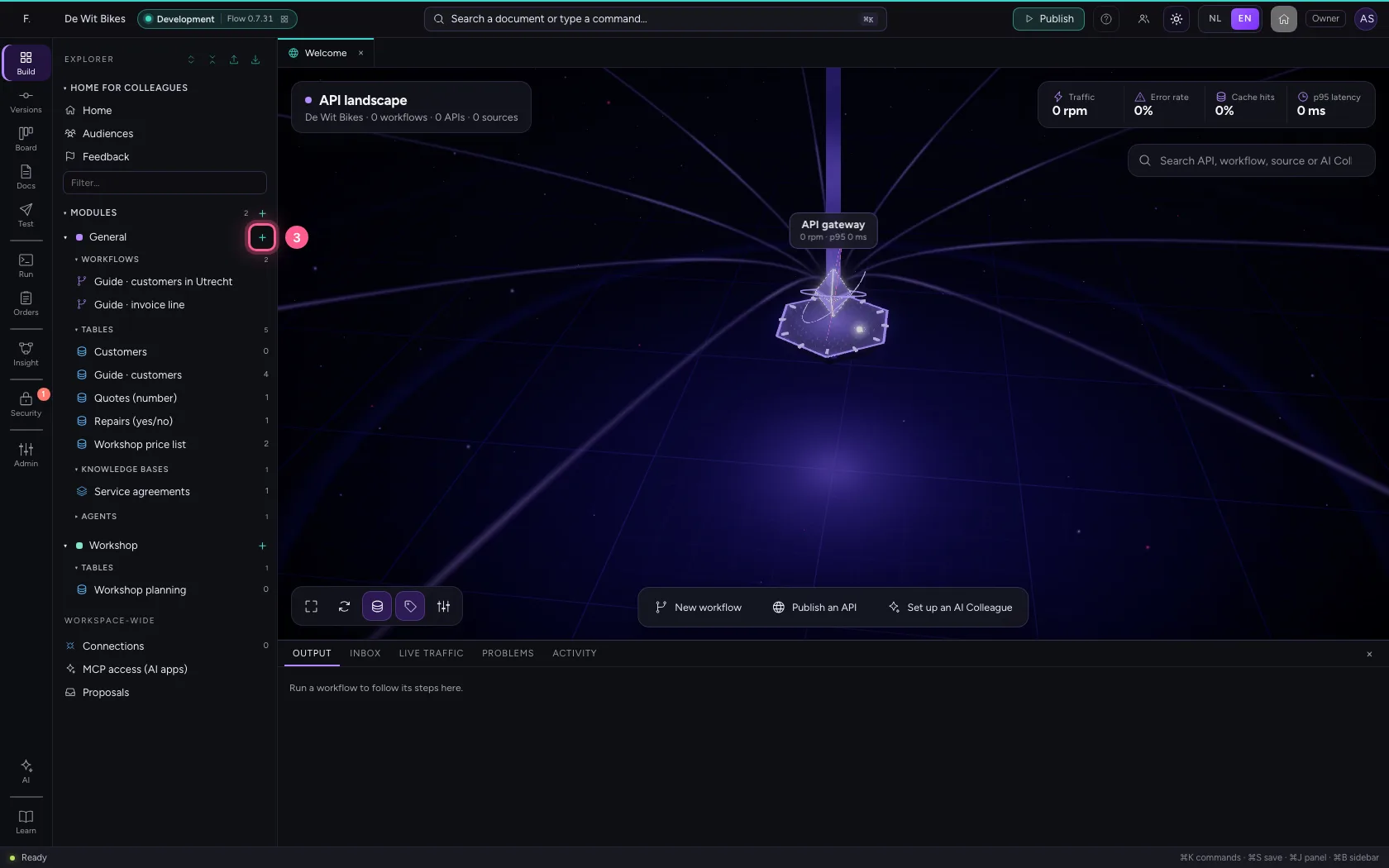
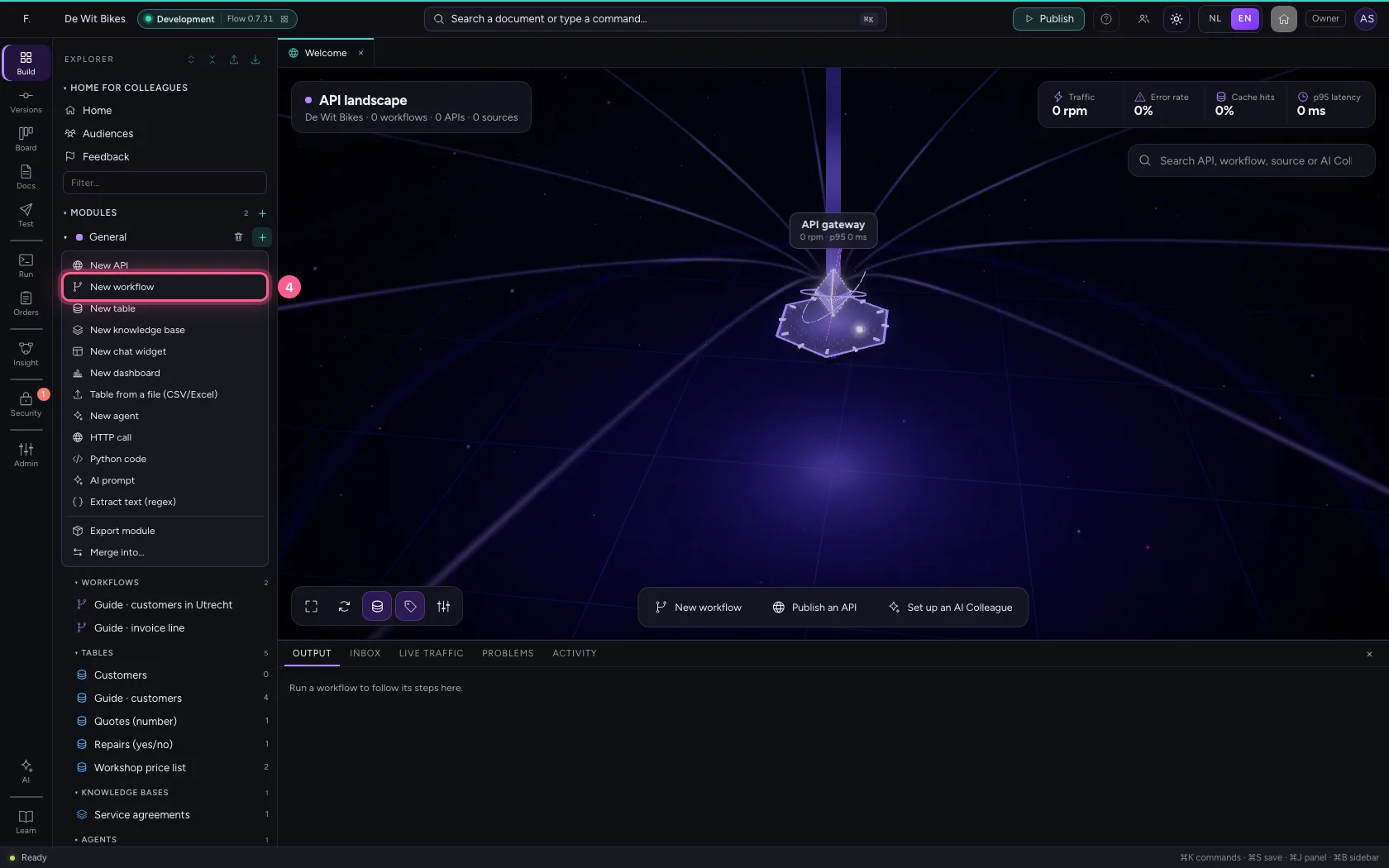
In the portal, under Environments, click Development and there Open; Flow opens in a new tab. There, click + next to General, choose New workflow and give it a name. A new workflow starts with an Event trigger: the point where it begins.
- Click Development
- Click Open ↗
- Click Add to General
- Click New workflow
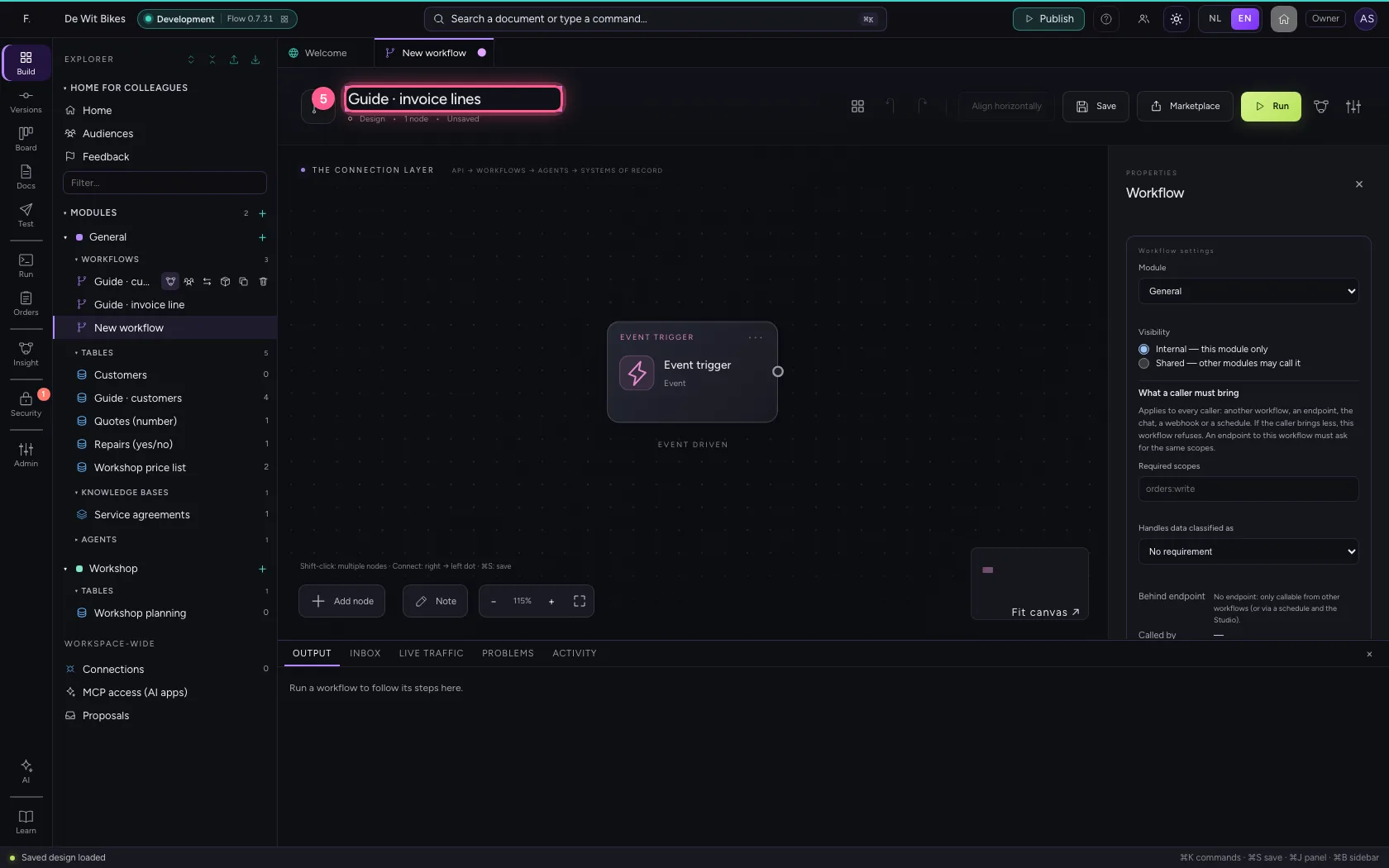
- In Workflow name, type
Guide · invoice lines
A list to start from
Put an order with lines in the trigger's sample data.
- Click the step ‘Event trigger’
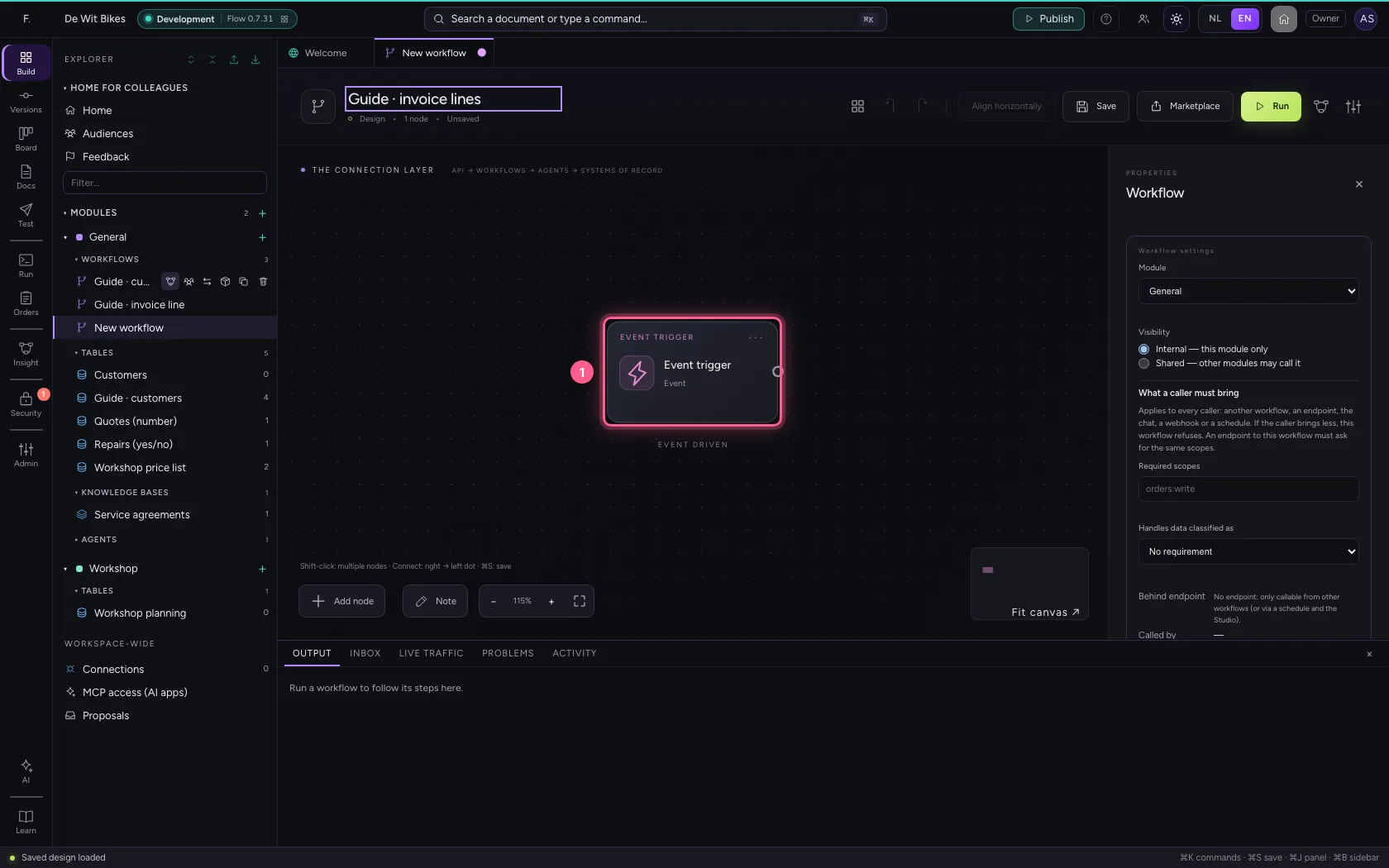
- Click Code
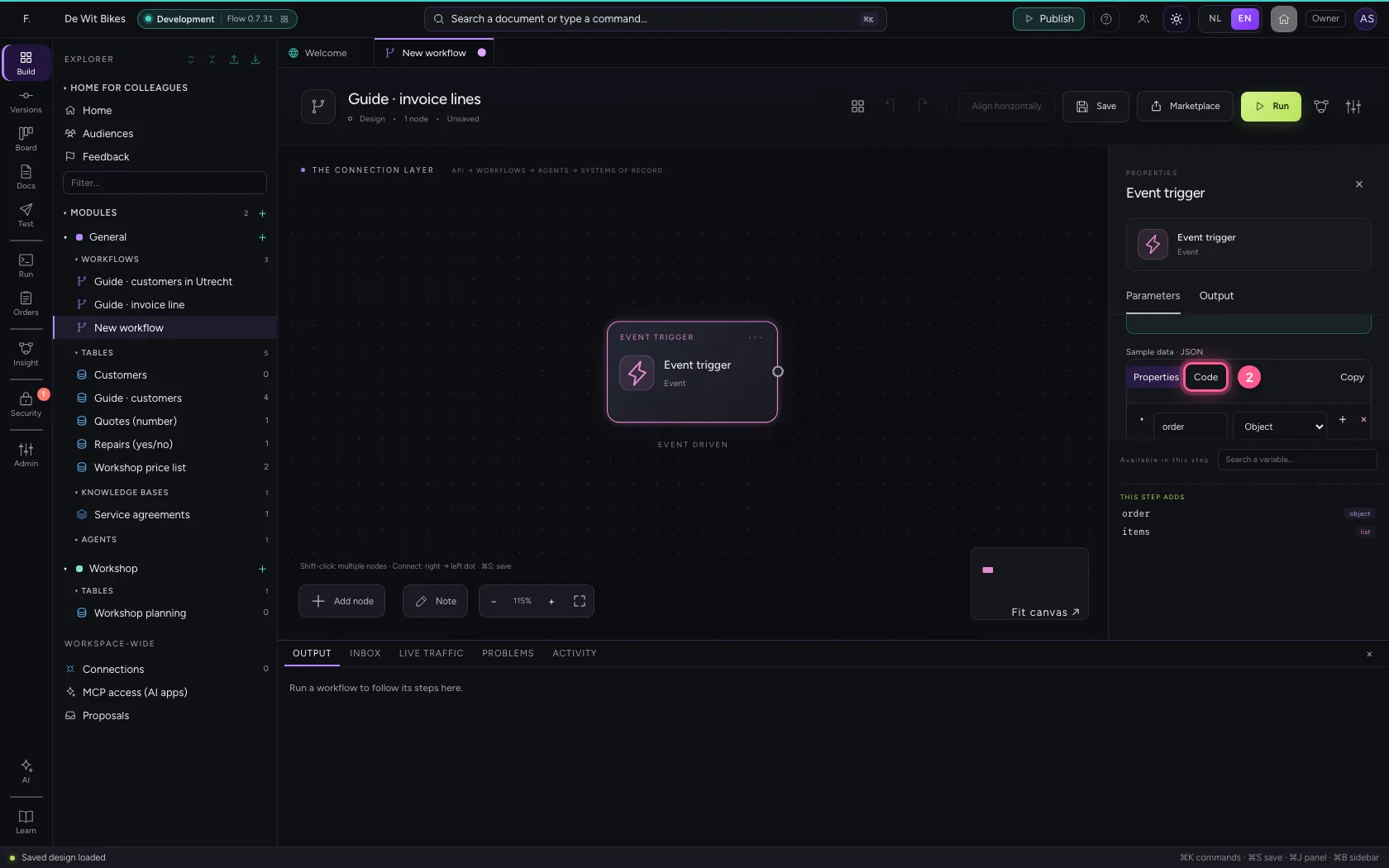
- In the sample data, type `{
Set the columns
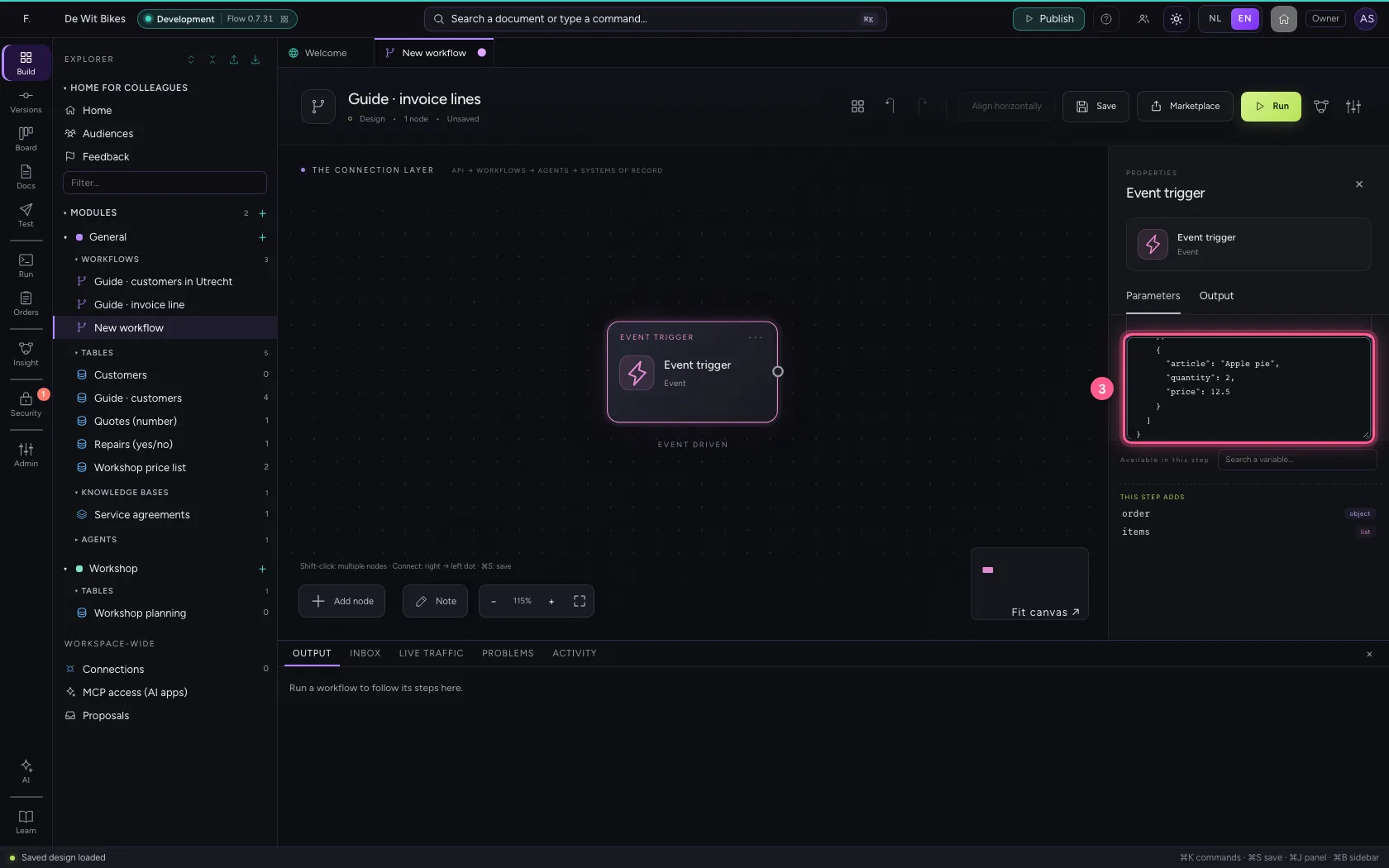
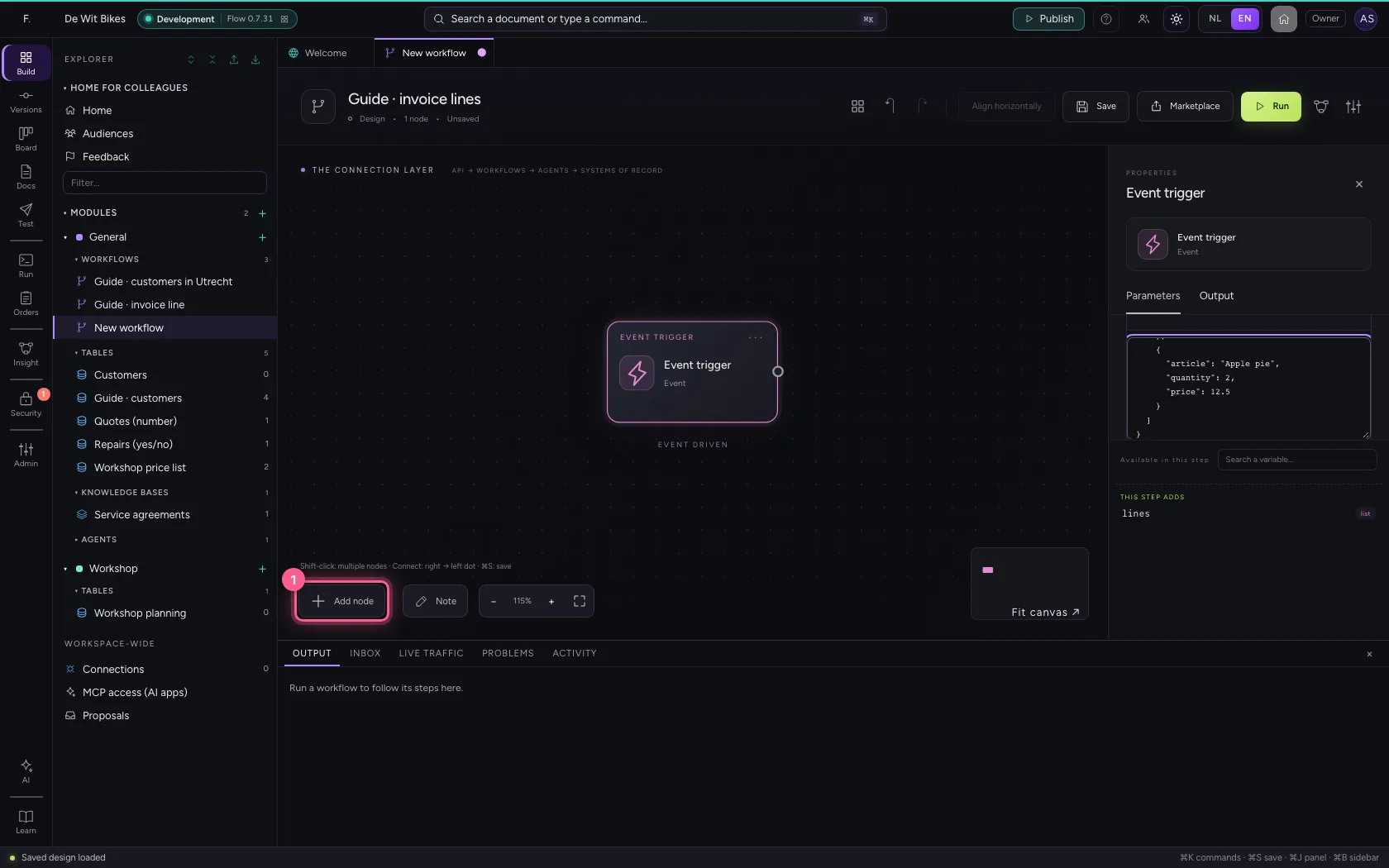
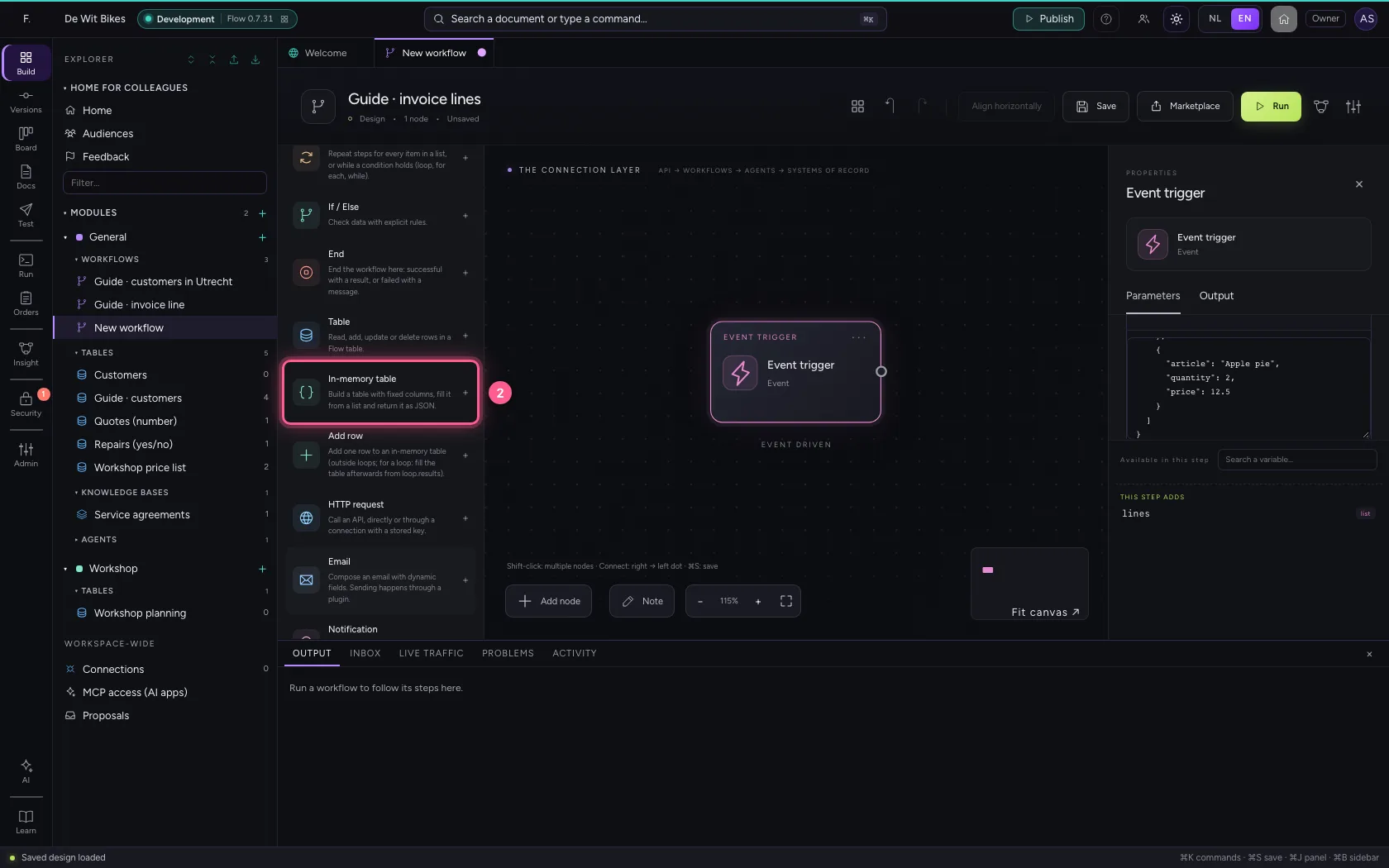
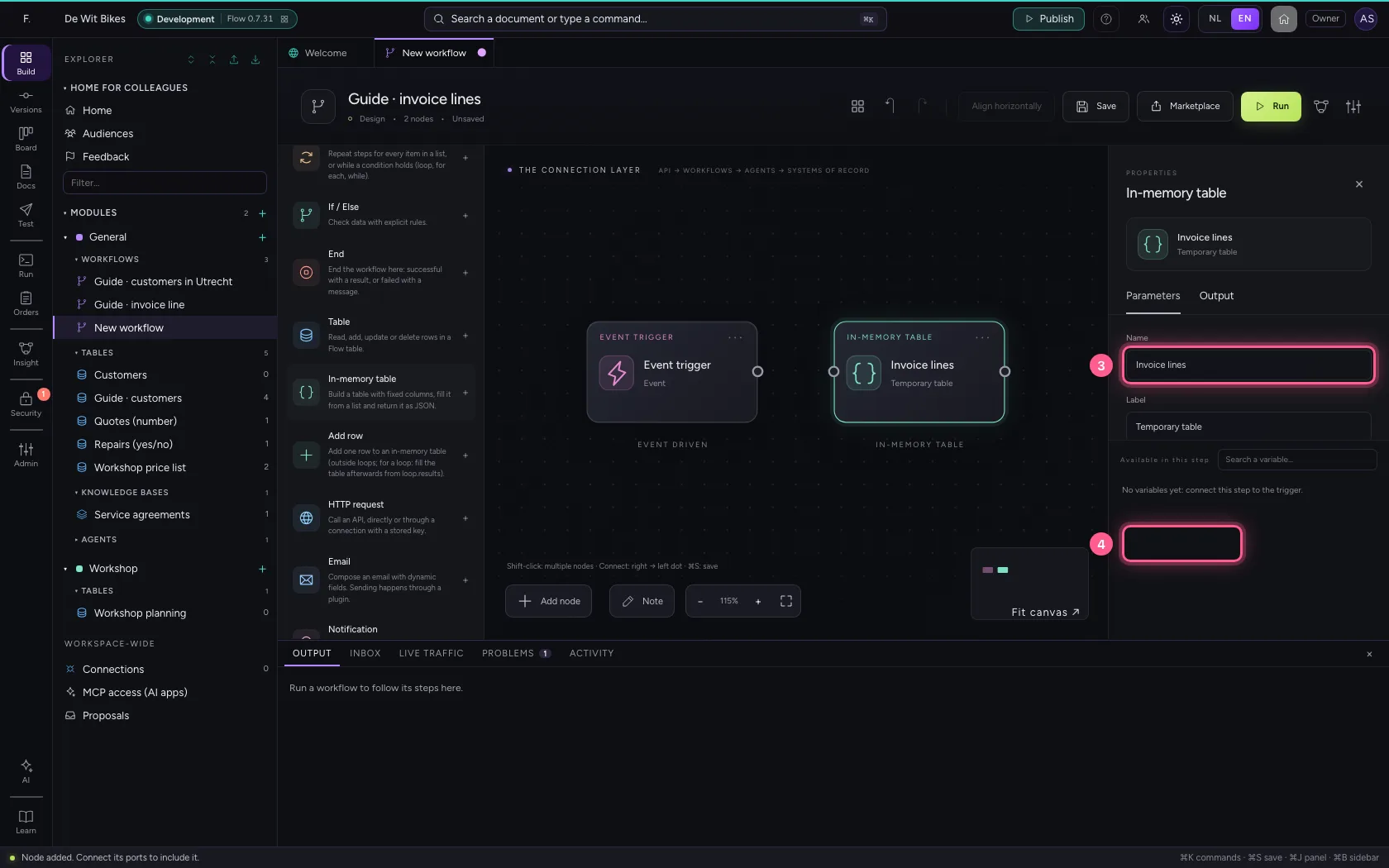
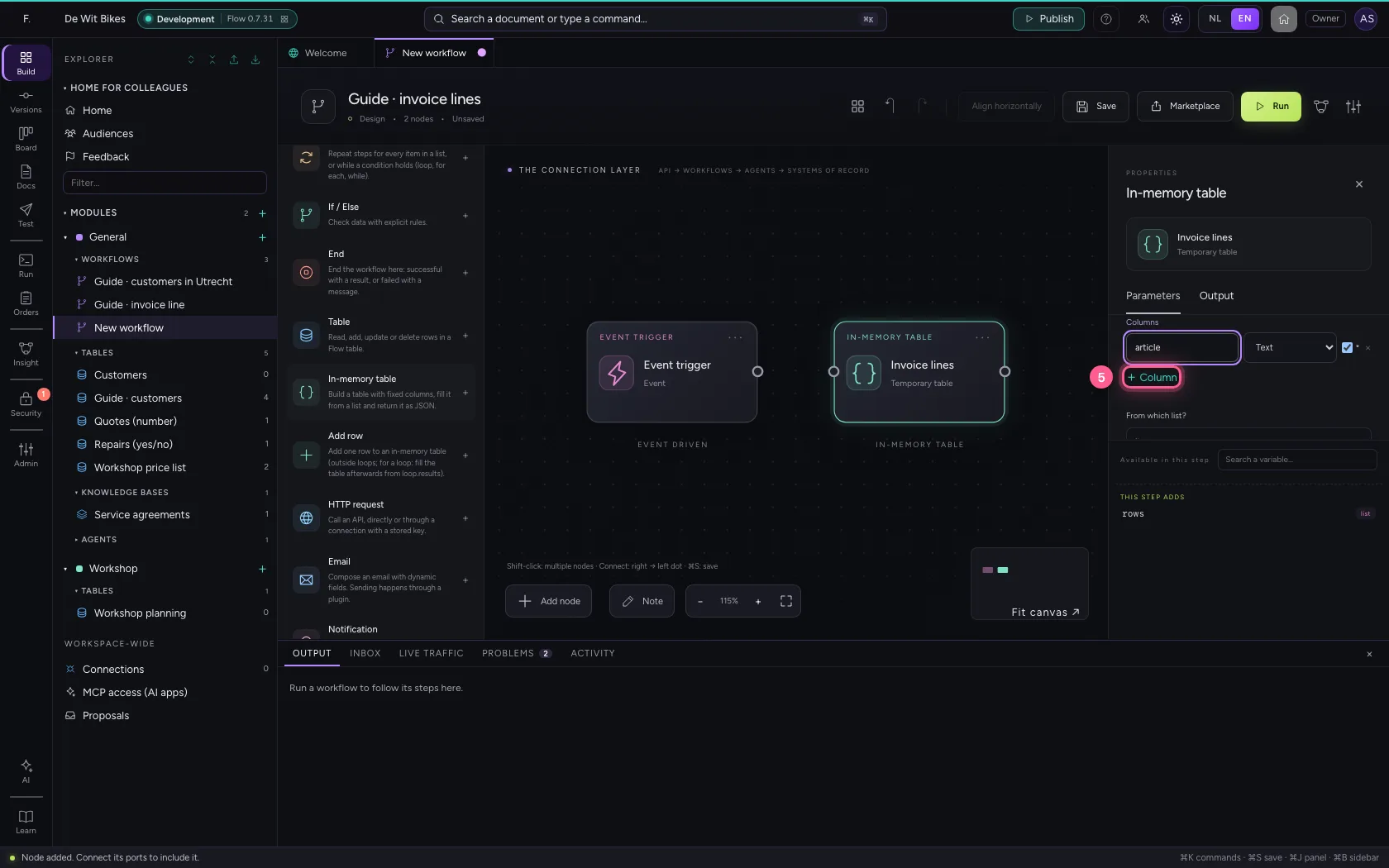
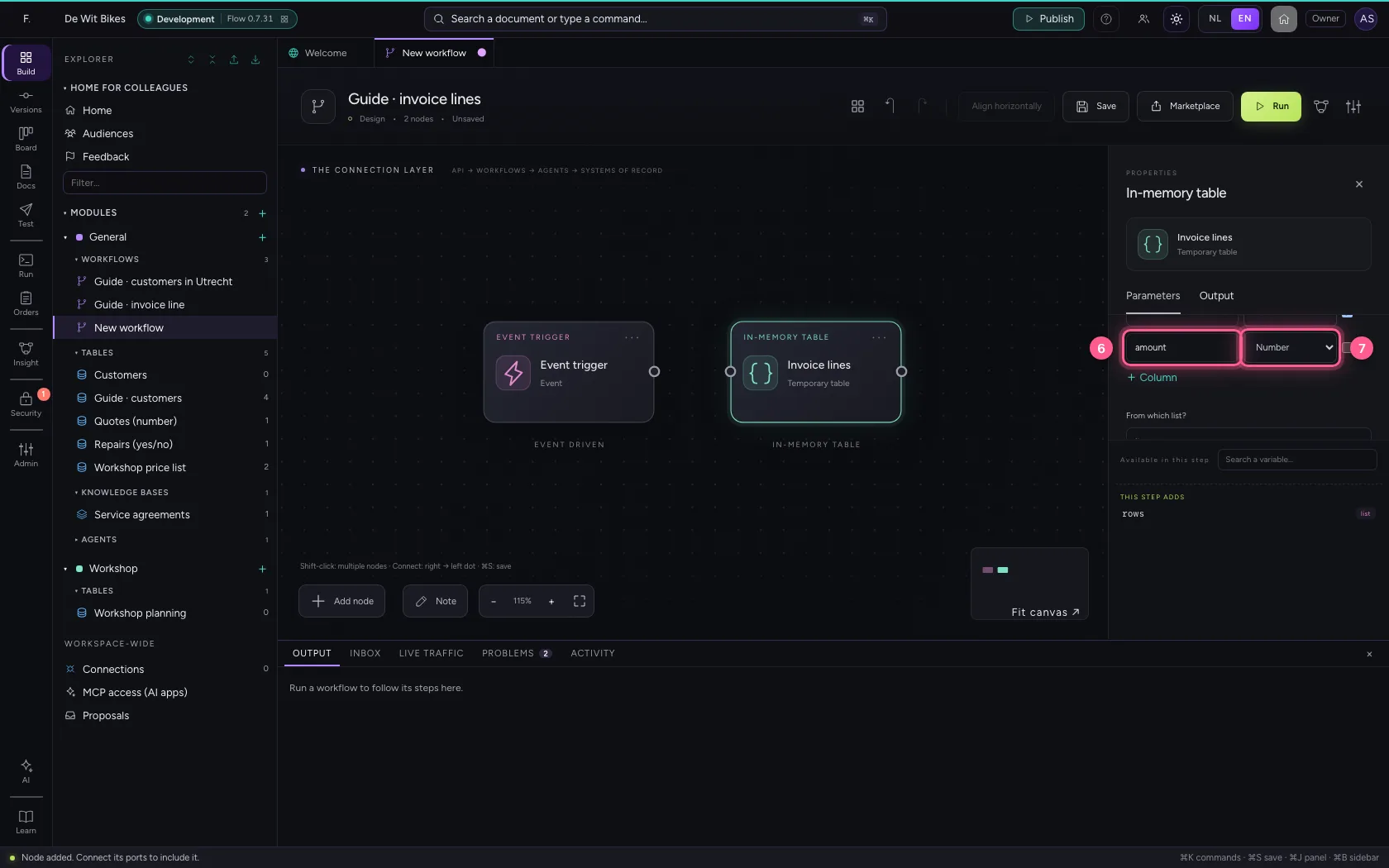
Add In-memory table. Under Columns you give every column a name and a type; + Column adds one. Here: article (text, required) and amount (number).
- Click Add node
- Click In-memory table
- In Name, type
Invoice lines - In column 1, type
article
- Click + Column
- In column 2, type
amount - In type of column 2, choose Number
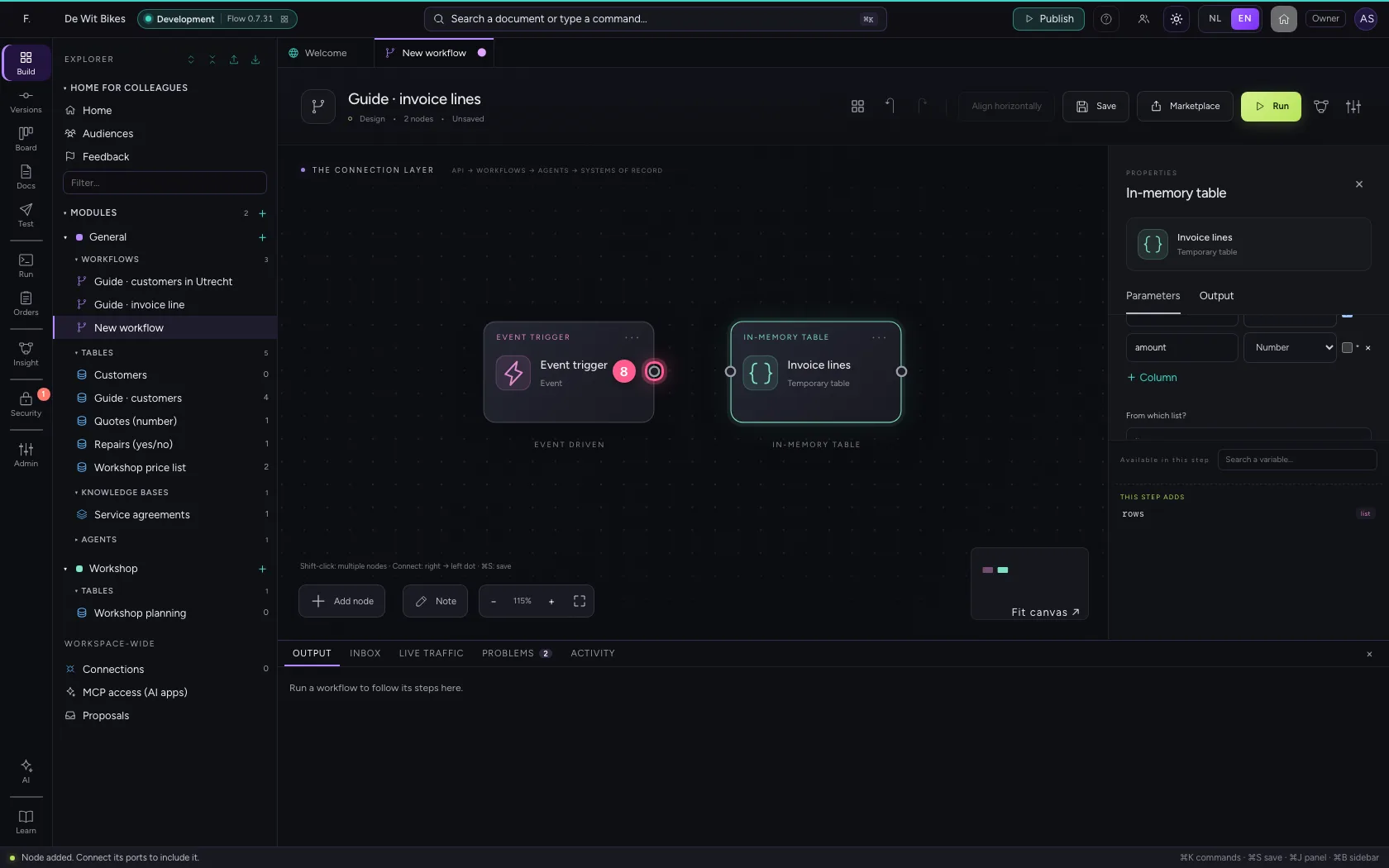
- Click the dot of ‘Event trigger’
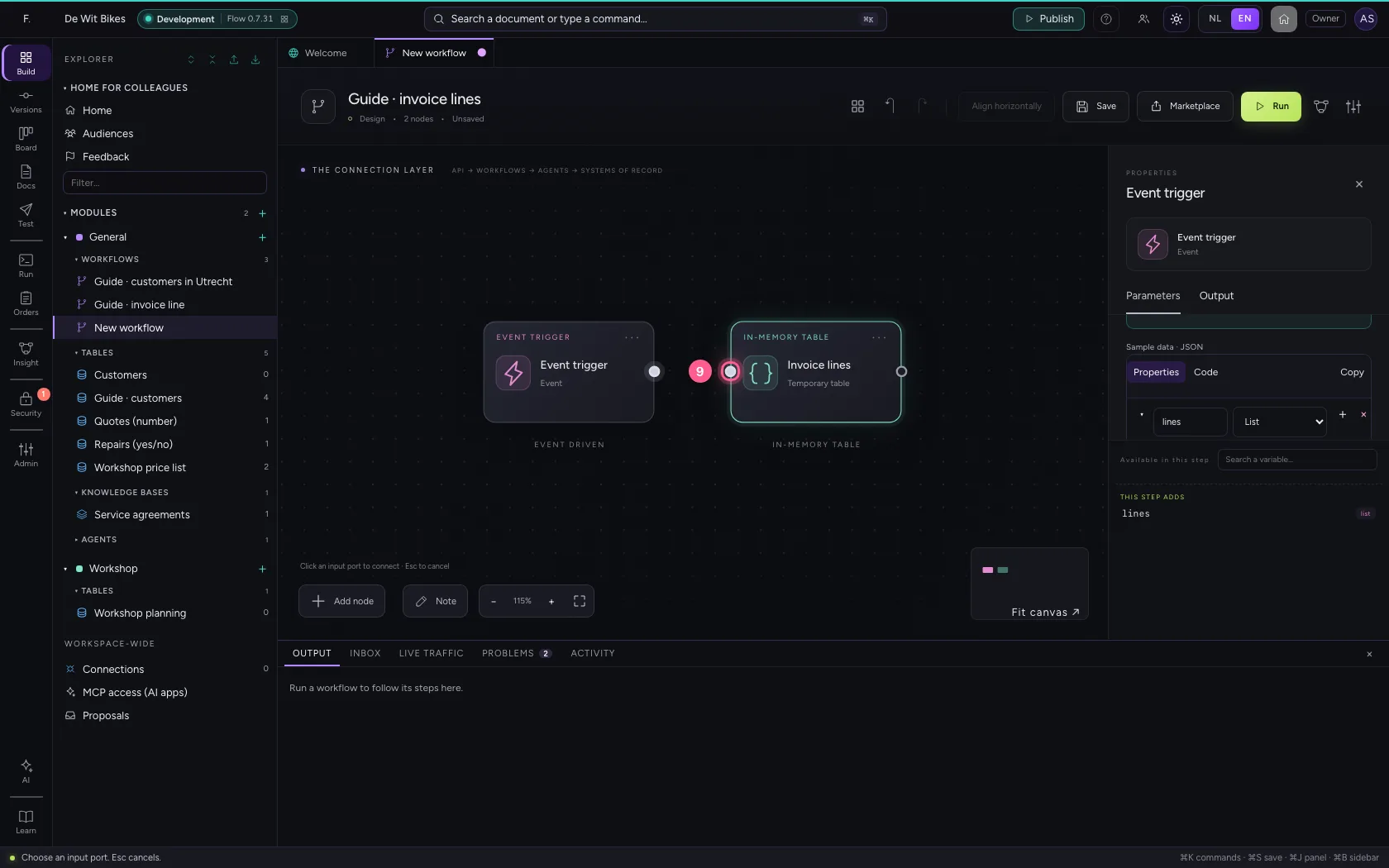
- Click the dot of ‘Invoice lines’
Fill it from the list
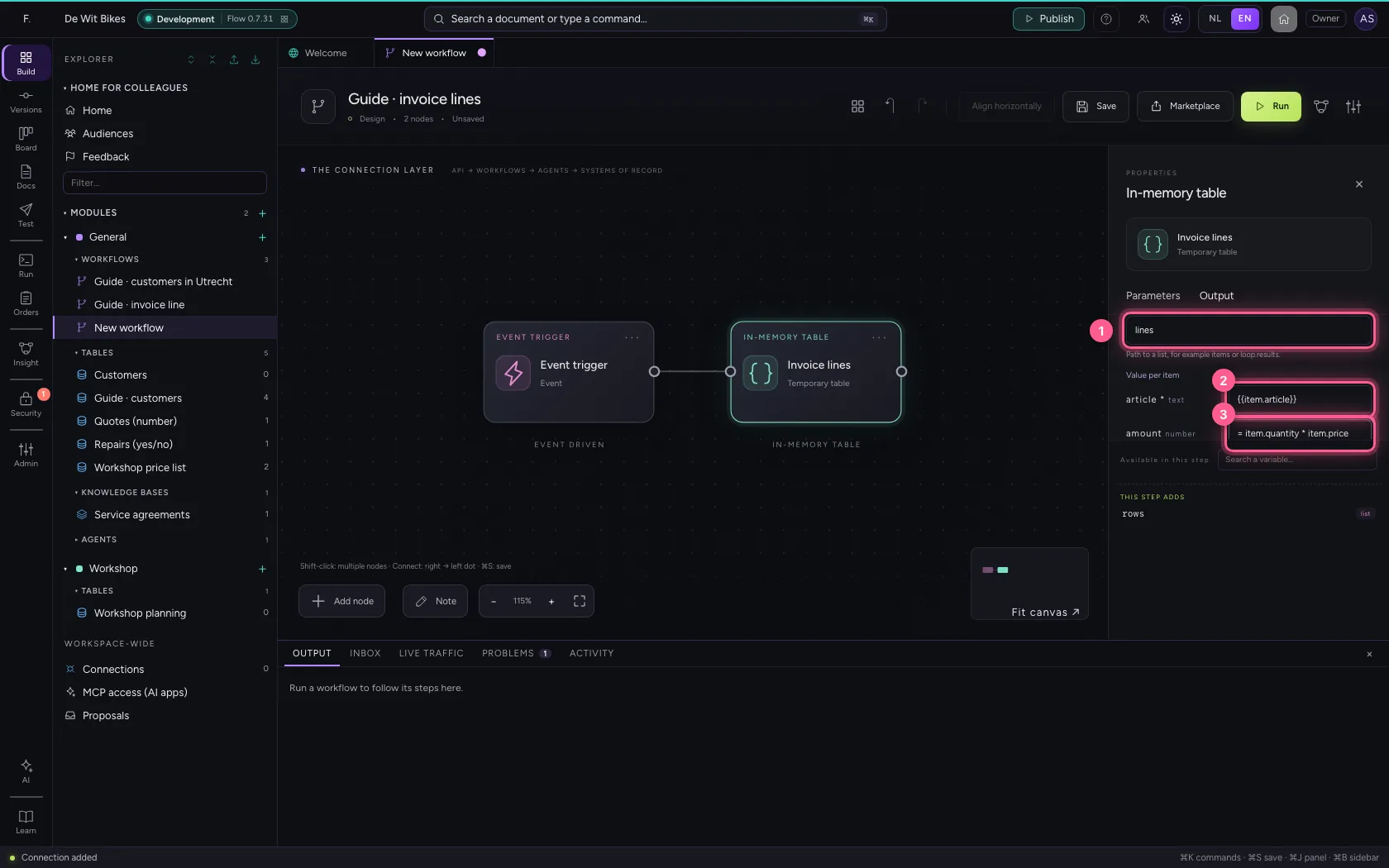
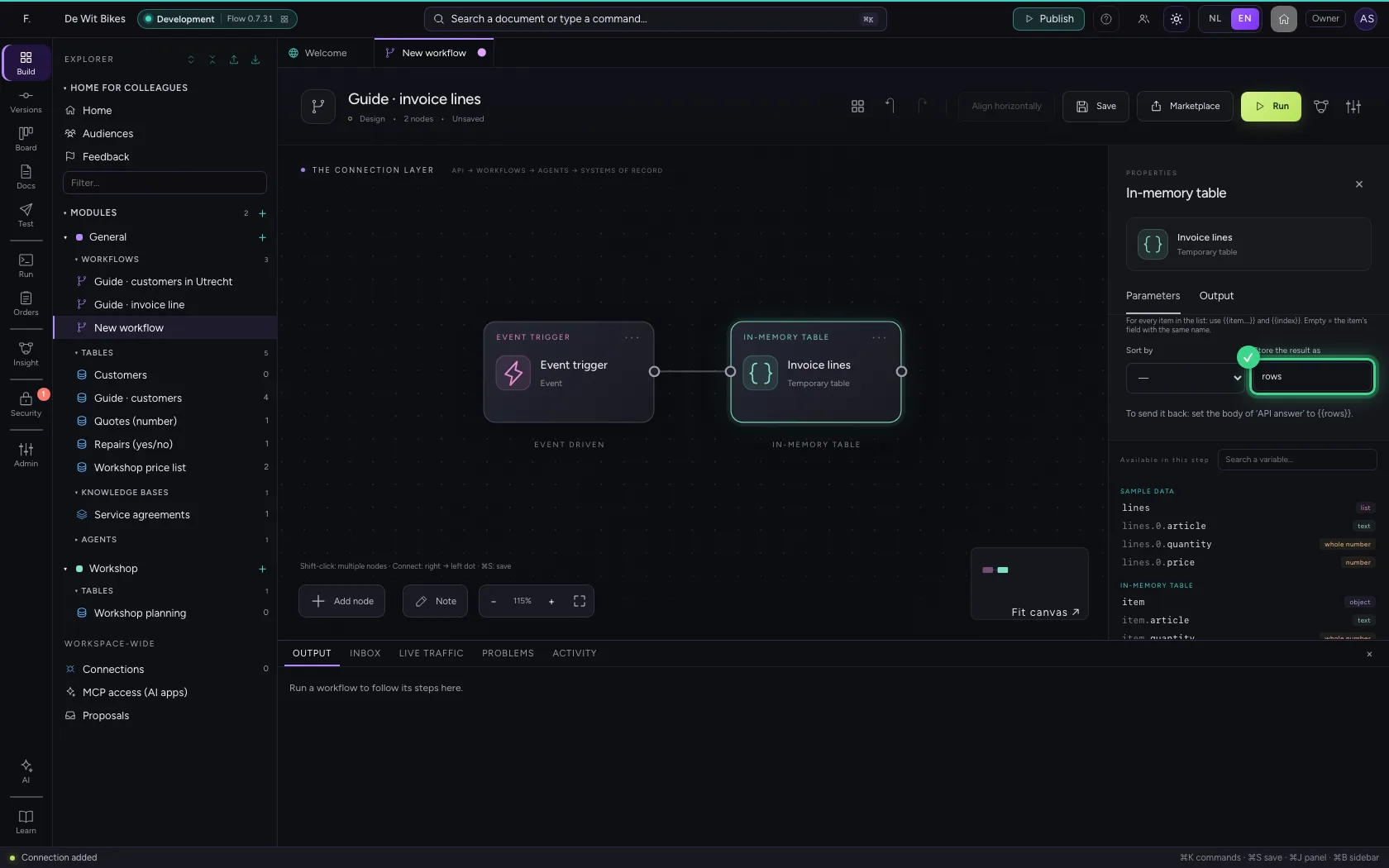
Under From which list you type lines. Per column you say what goes in, with {{item.…}} for the item whose turn it is; amount is a calculation: = item.quantity * item.price. The result is called rows.
- In From which list? Path to a list, for example items or loop.results., type
lines - In article * text, type
{{item.article}} - In amount number, type
= item.quantity * item.price
Add a row to it
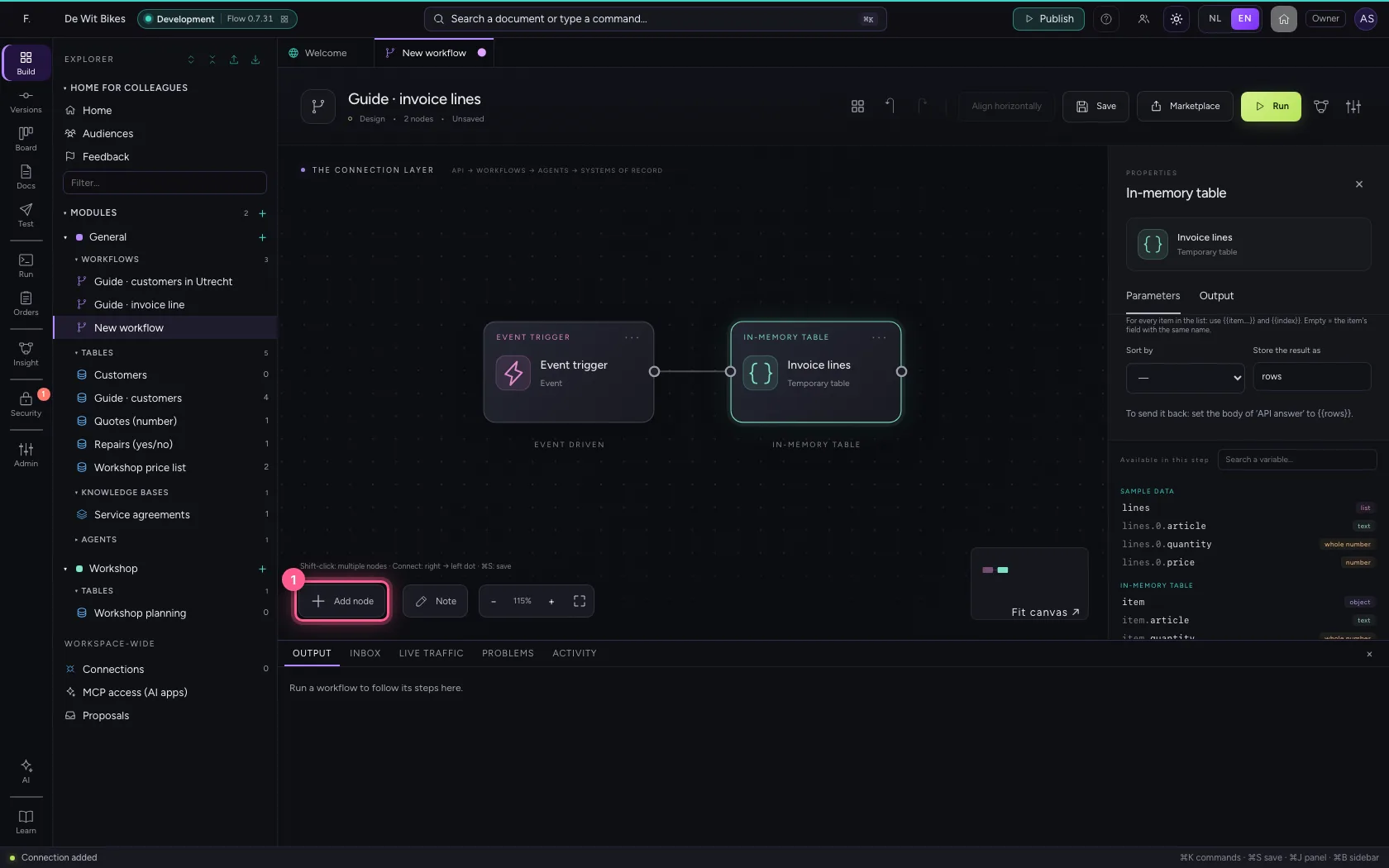
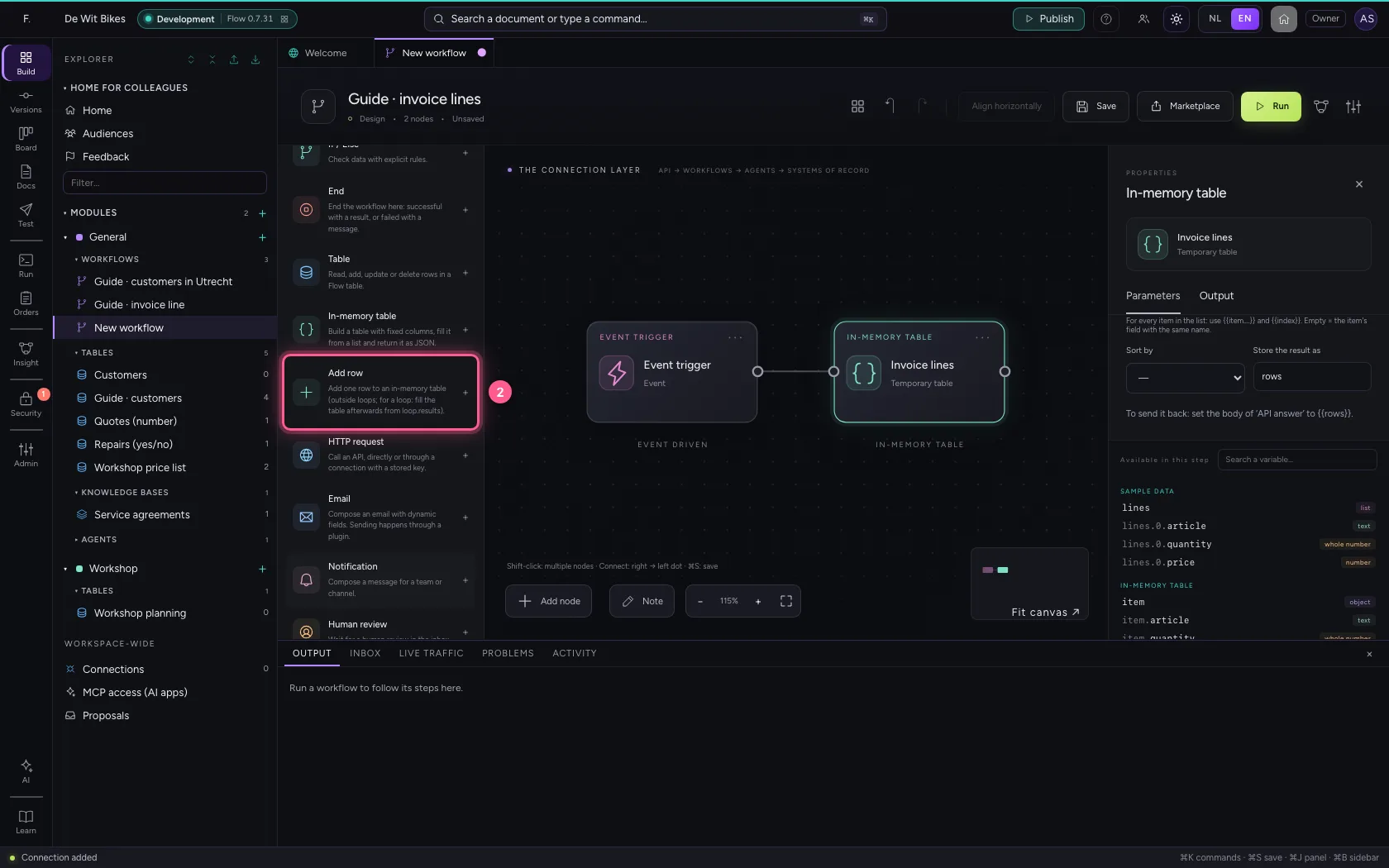
Add Add row; under Which in-memory table is rows. Fill in the columns for one extra line: the shipping costs.
- Click Add node
- Click Add row
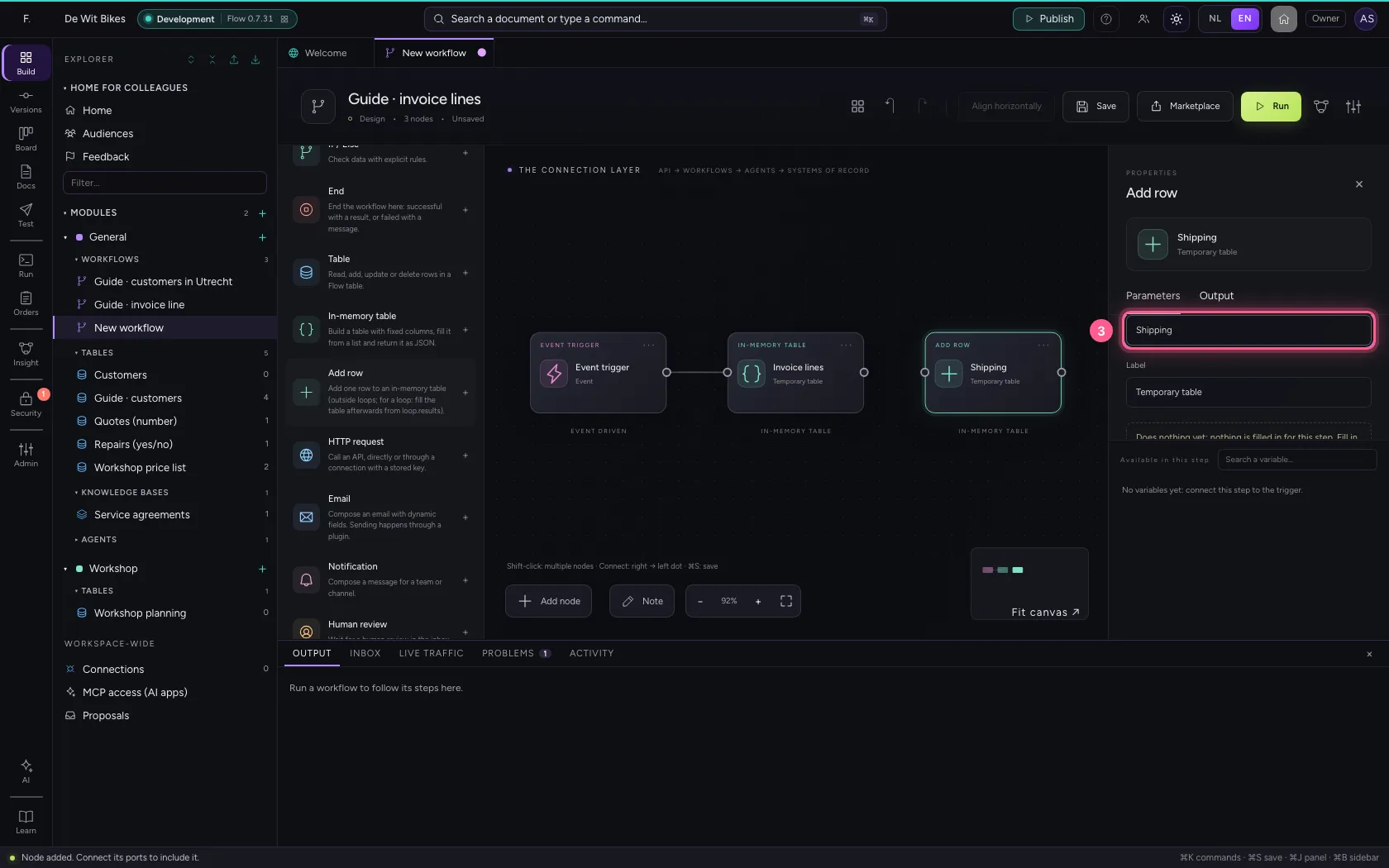
- In Name, type
Shipping
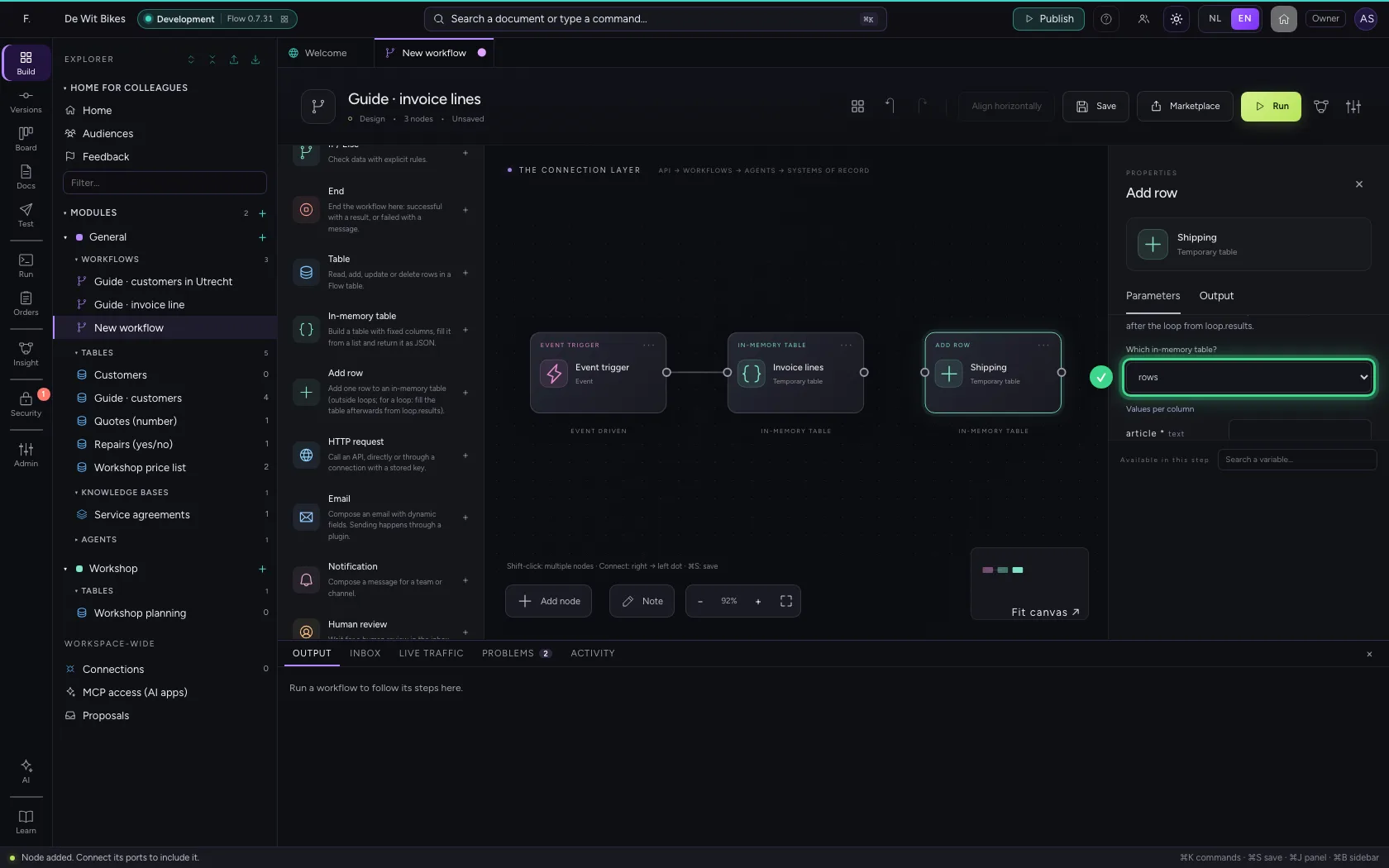
- In article * text, type
Shipping - In amount number, type
= 6.95
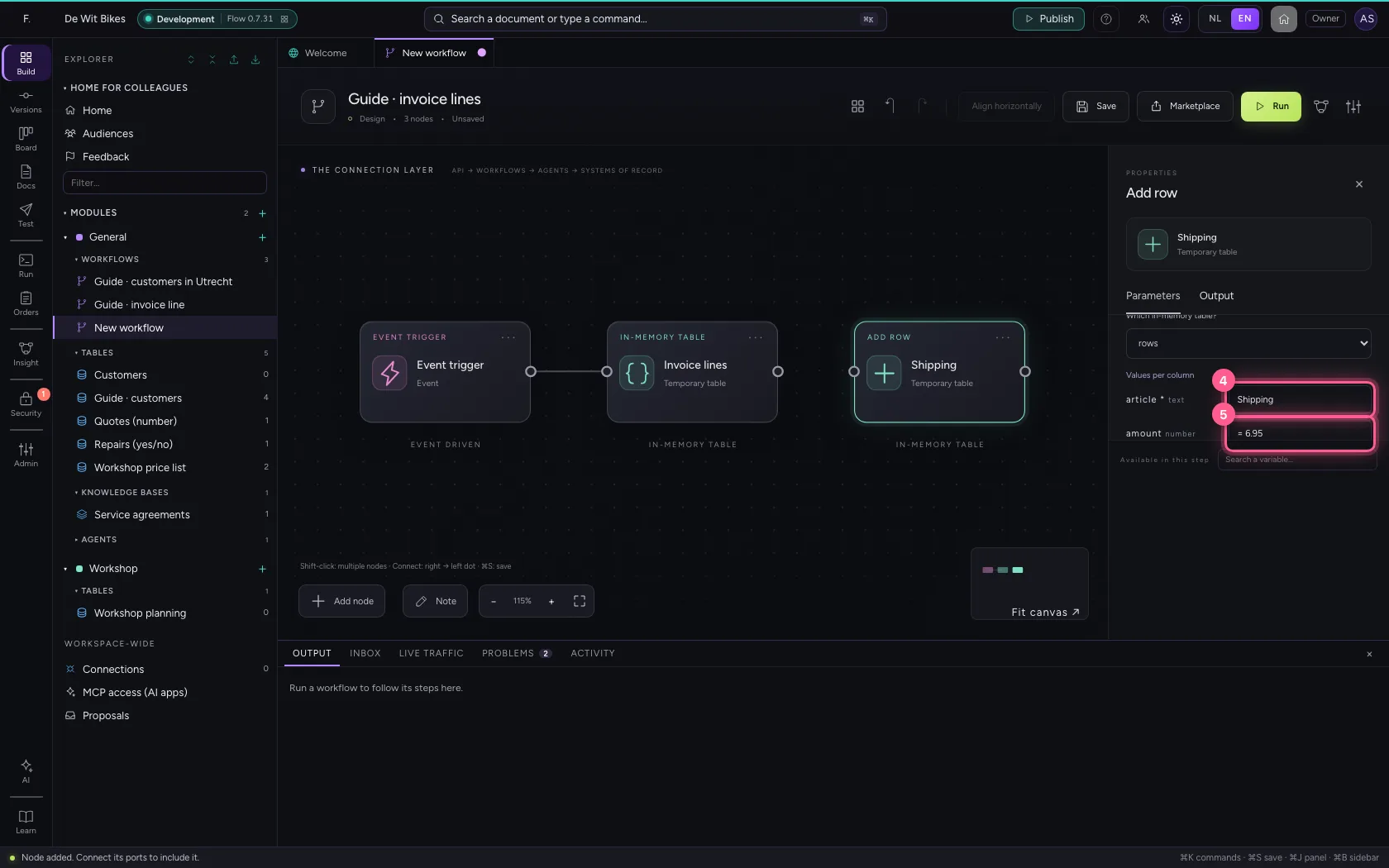
- Click the dot of ‘Invoice lines’
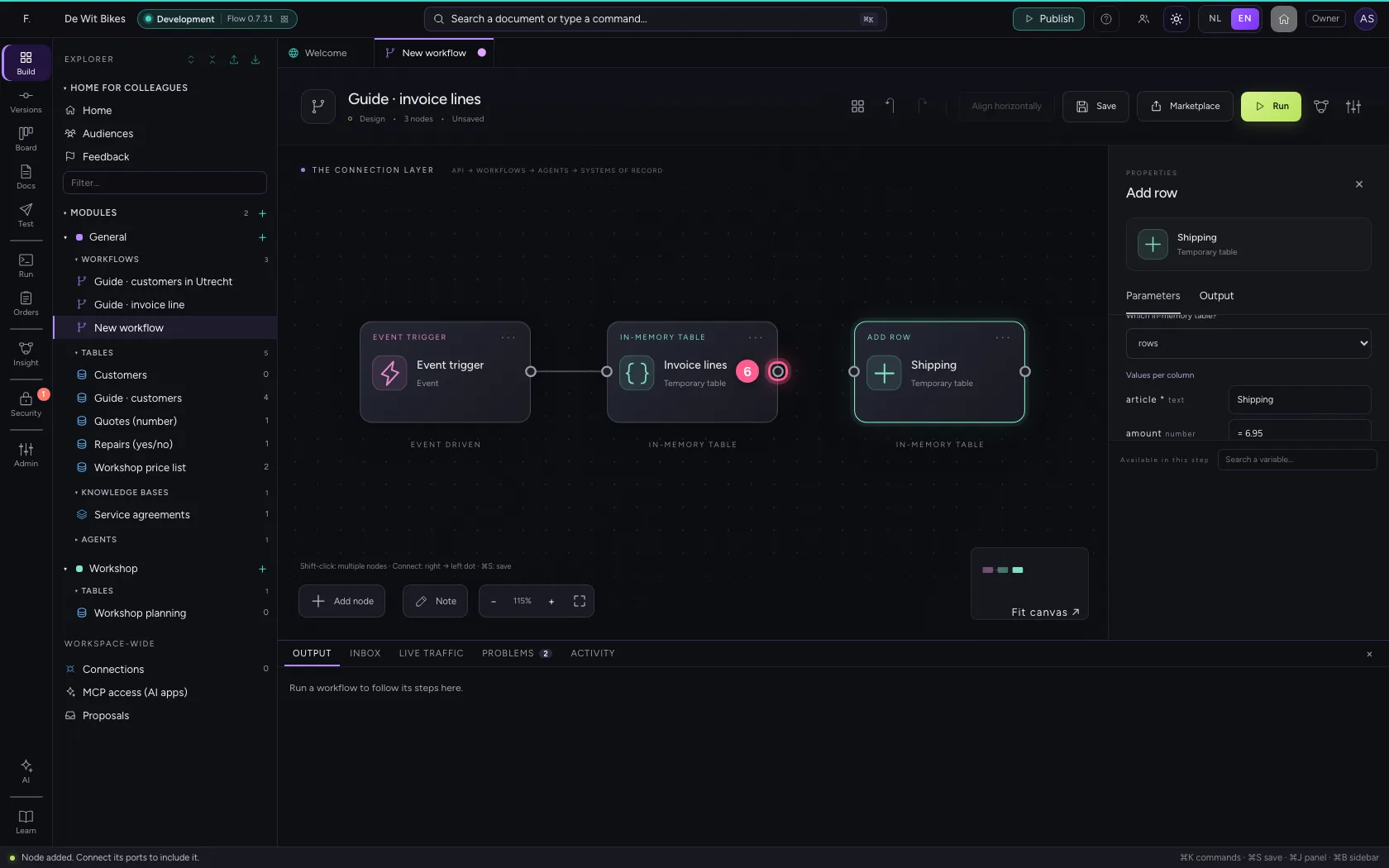
- Click the dot of ‘Shipping’
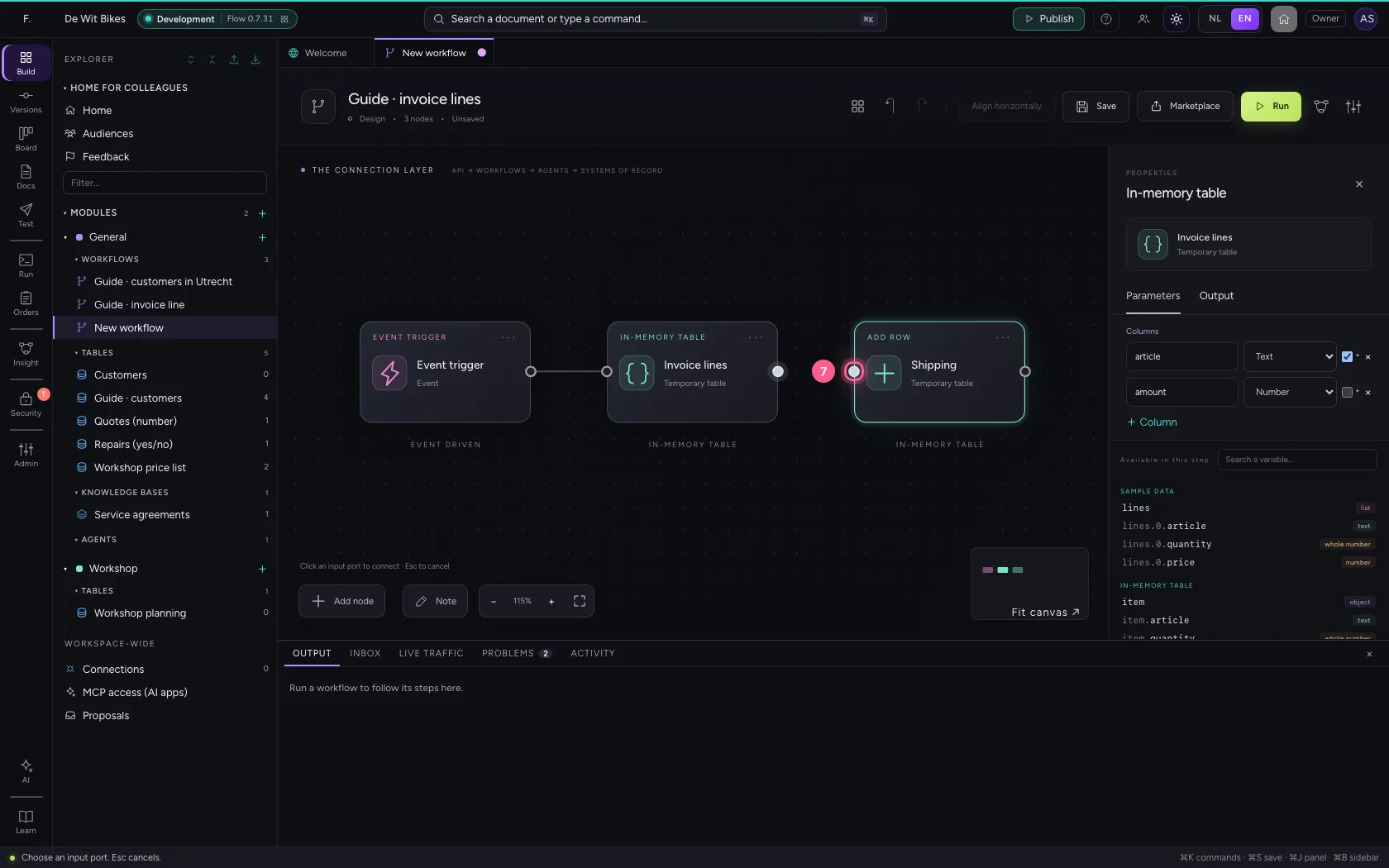
Put the steps in one line and save
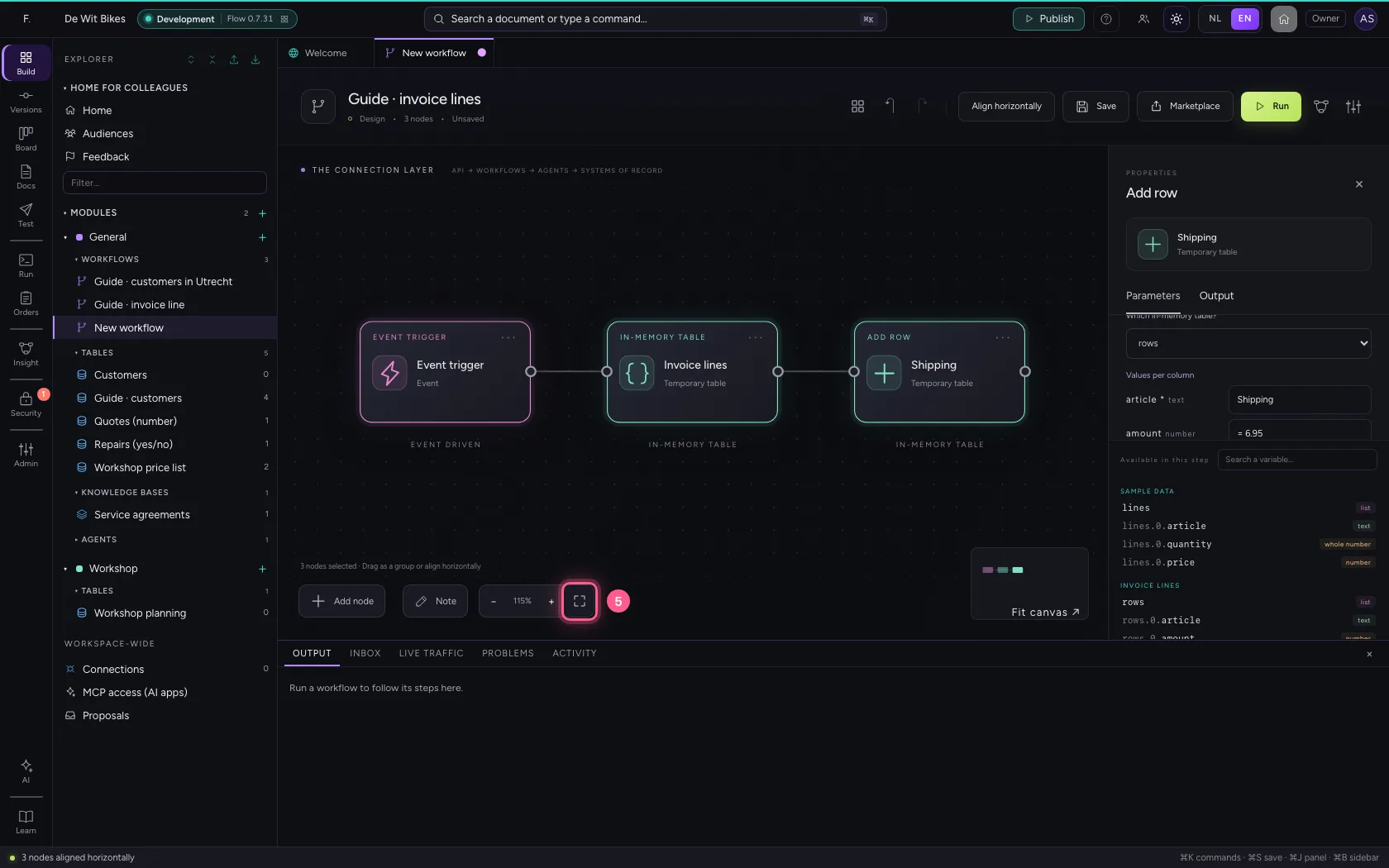
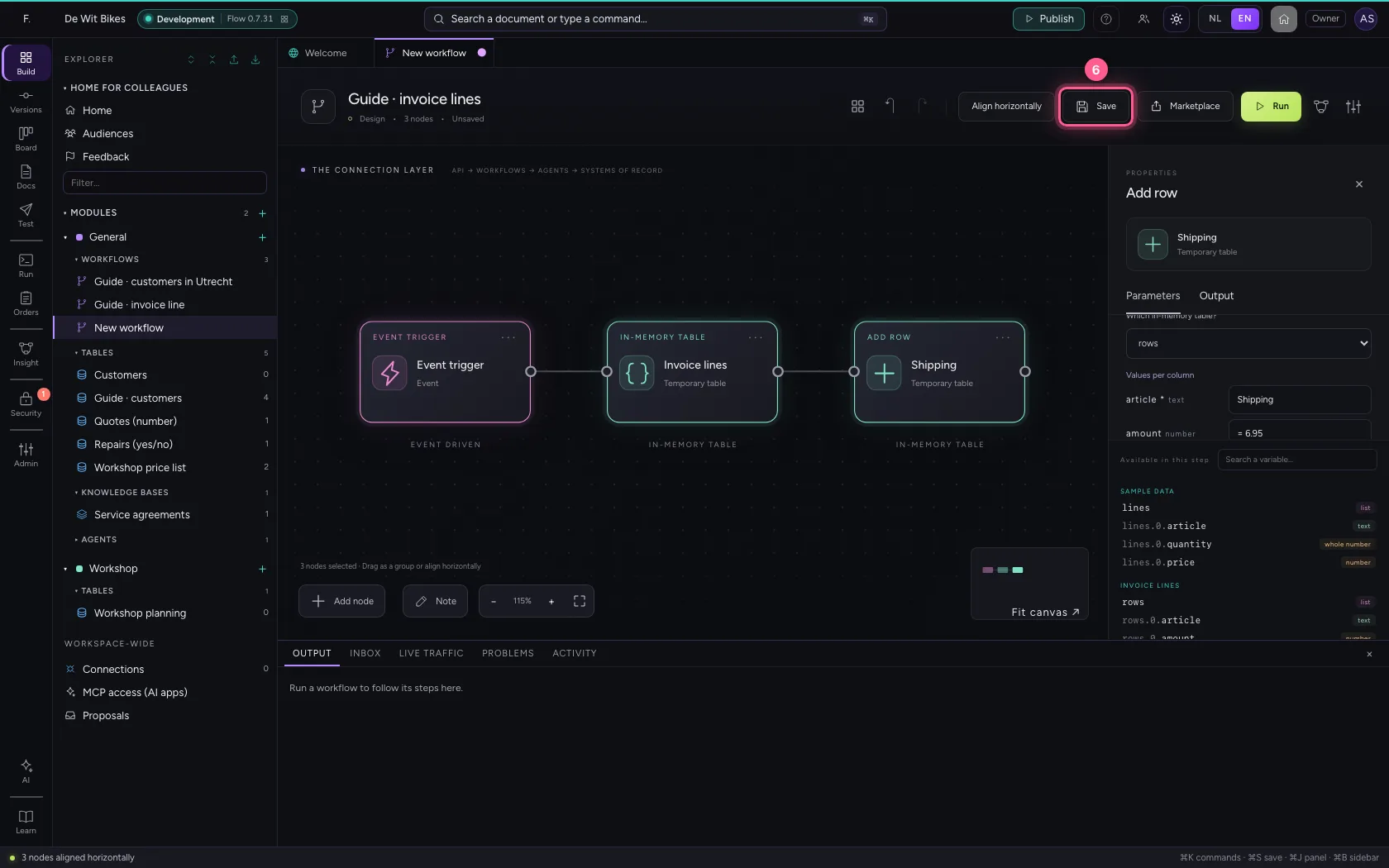
Select the steps (click the first, and the others while holding Shift) and click Align horizontally: they then stand in one line and you read the workflow from left to right; a branch (such as No of an If / Else) gets its own row below. Fit to view puts everything in sight; then Save.
- Click ‘Event trigger’
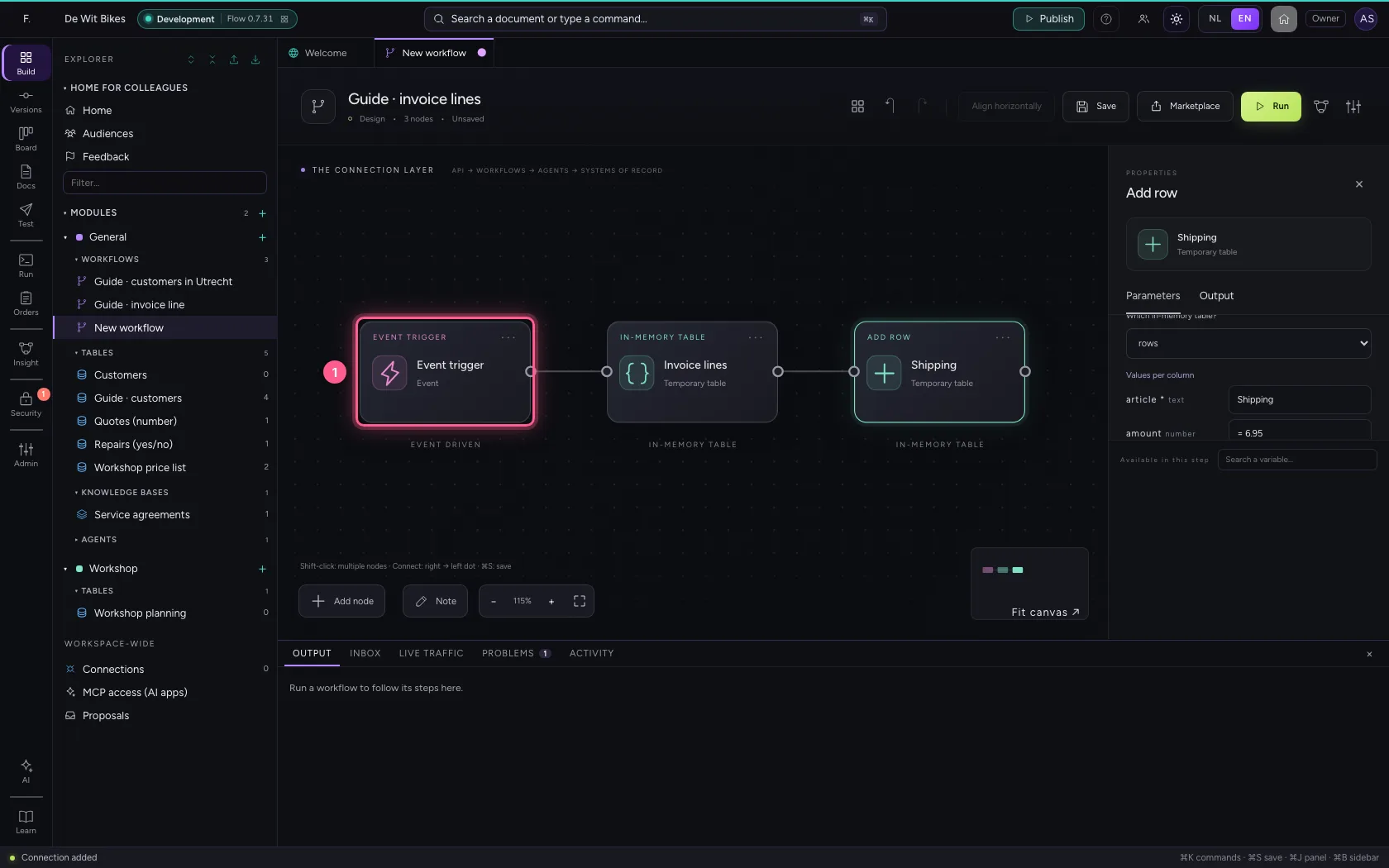
- Click ‘Invoice lines’ while holding Shift
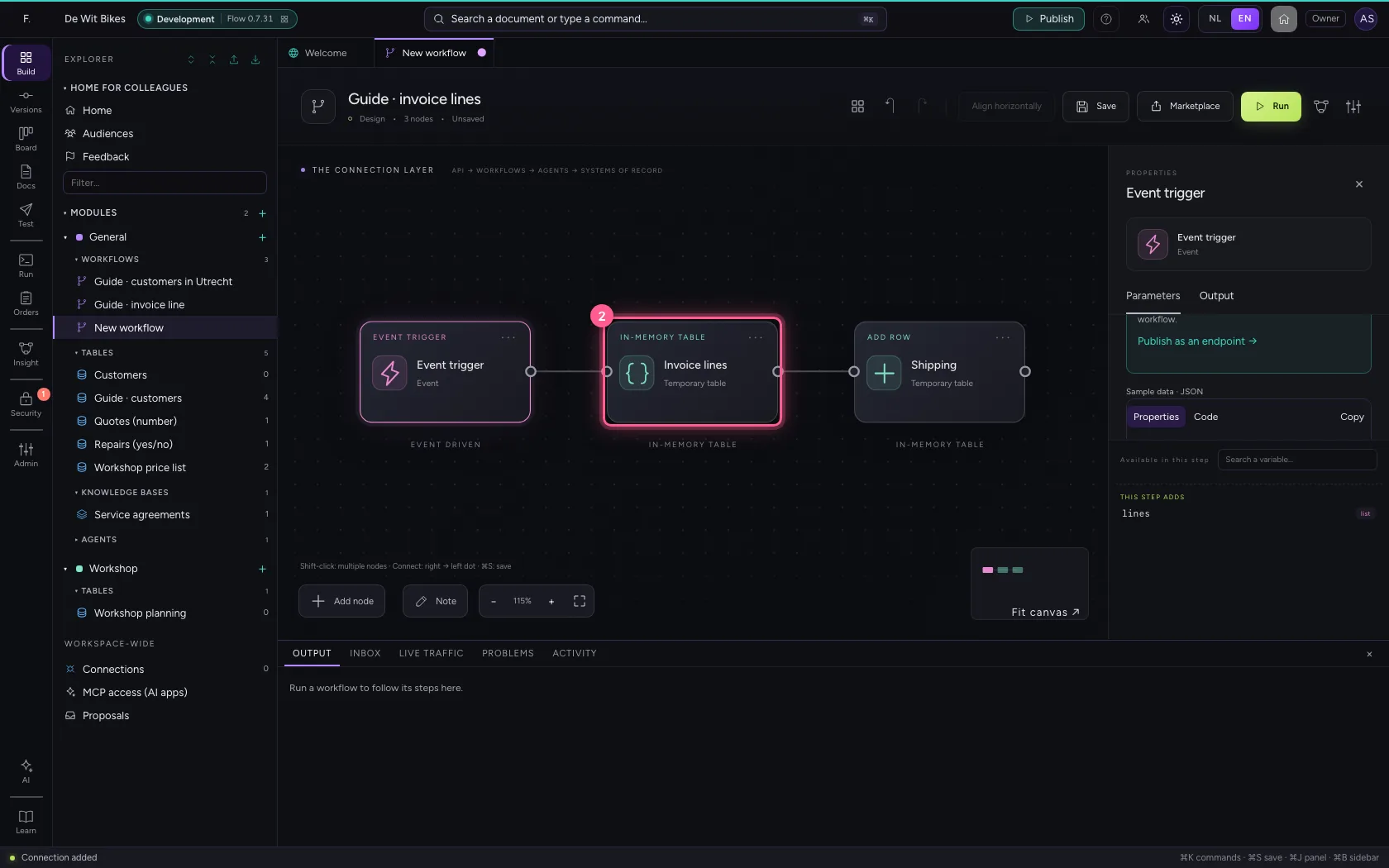
- Click ‘Shipping’ while holding Shift
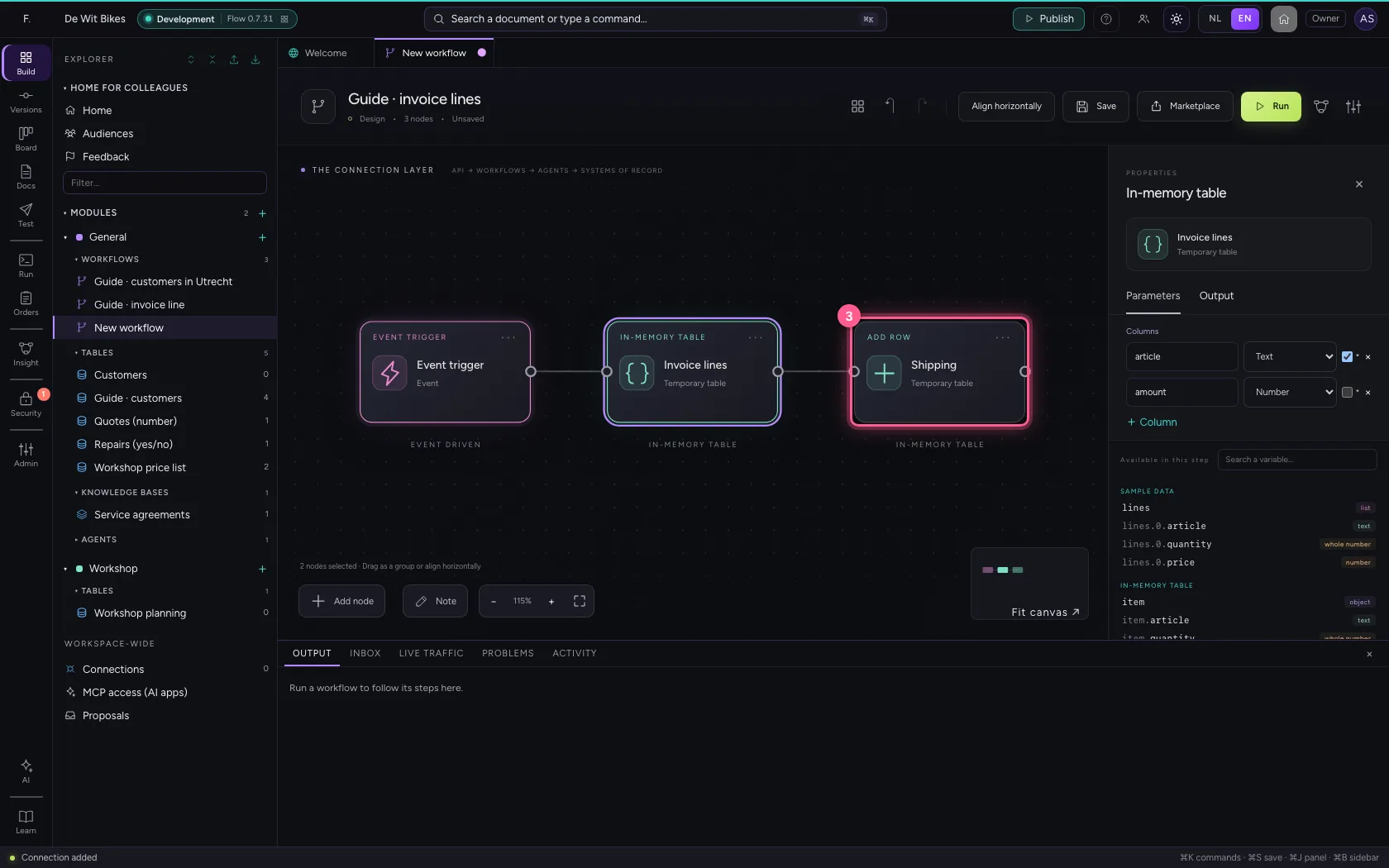
- Click Align horizontally
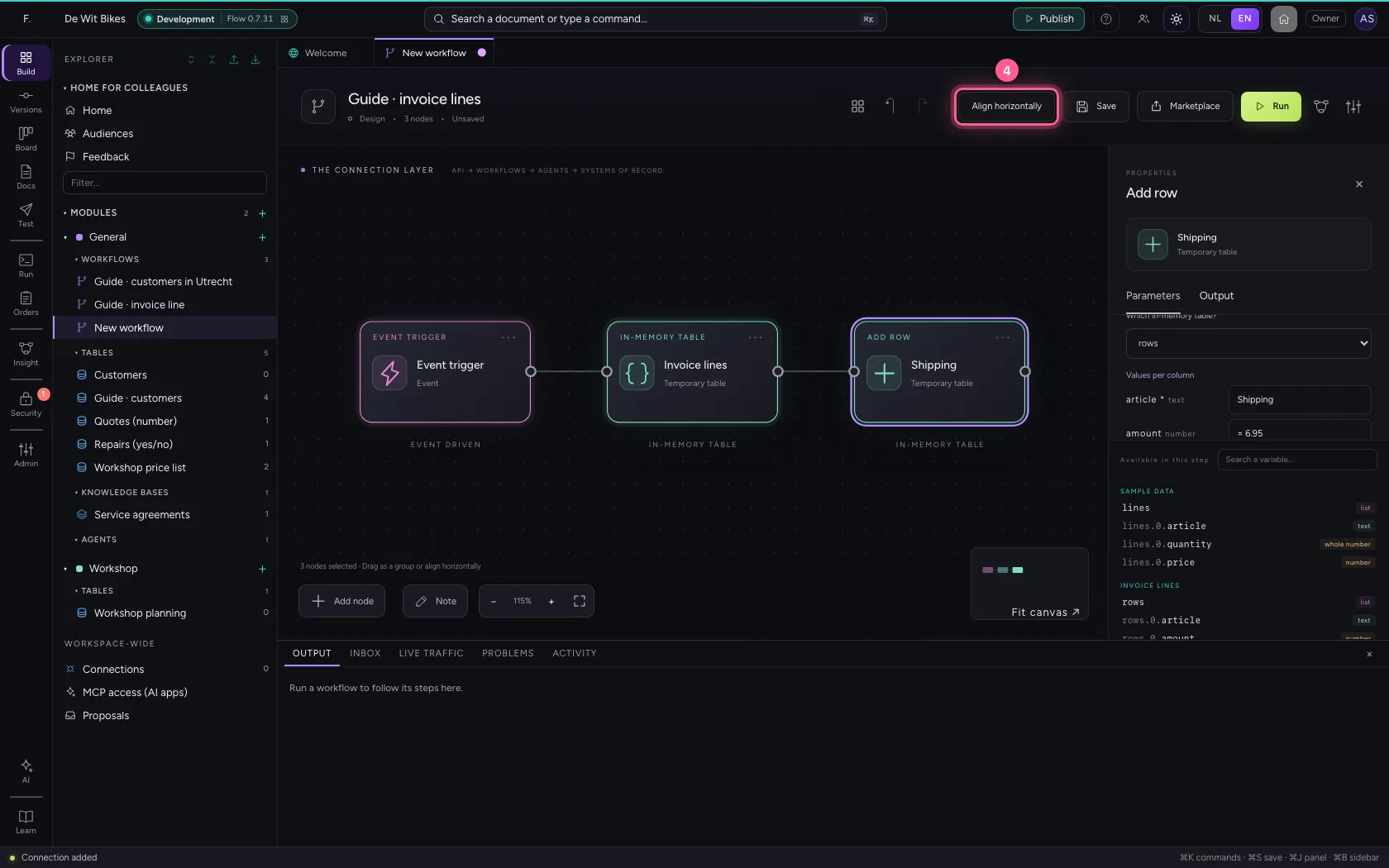
- Click Fit to view
- Click Save
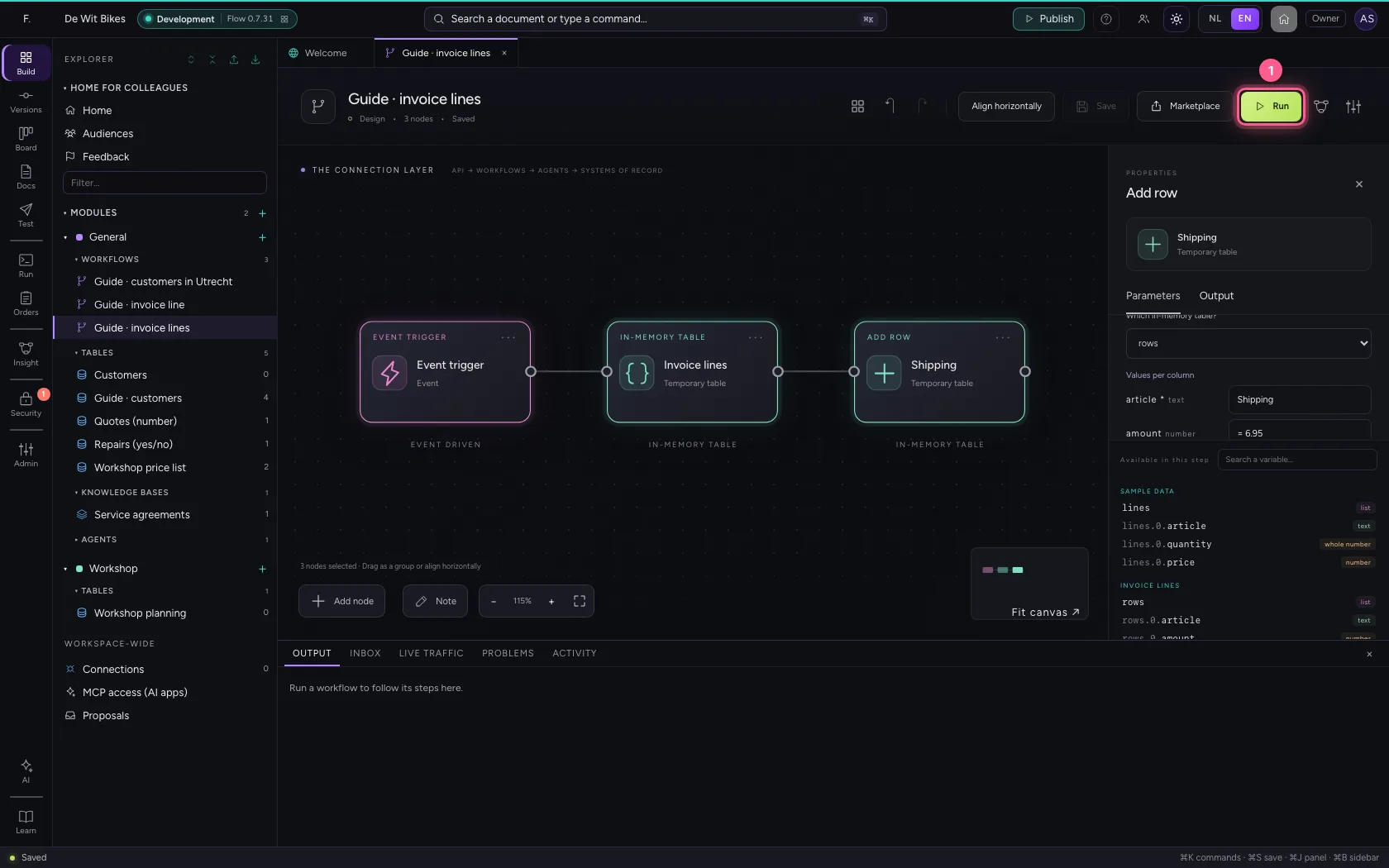
Run
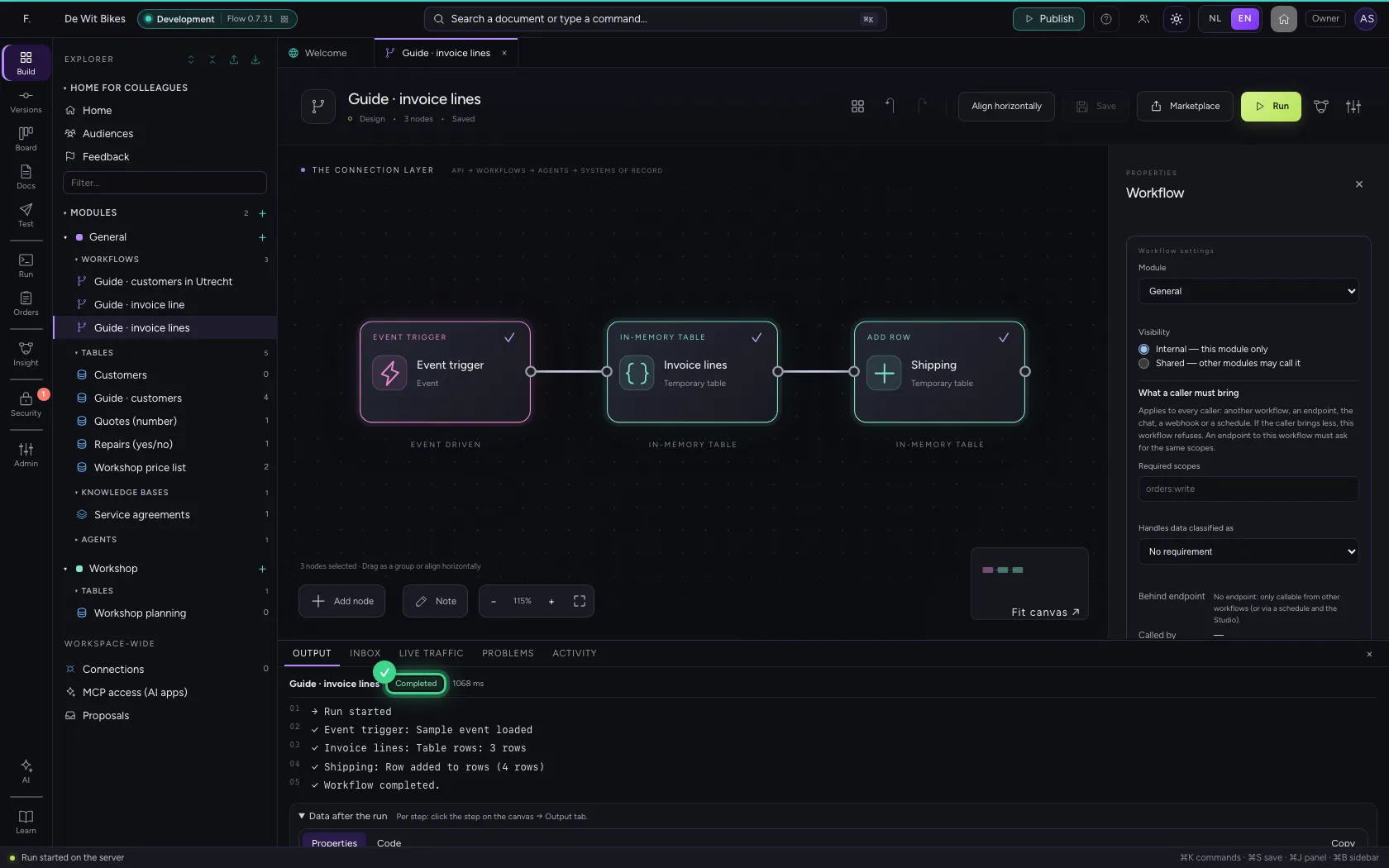
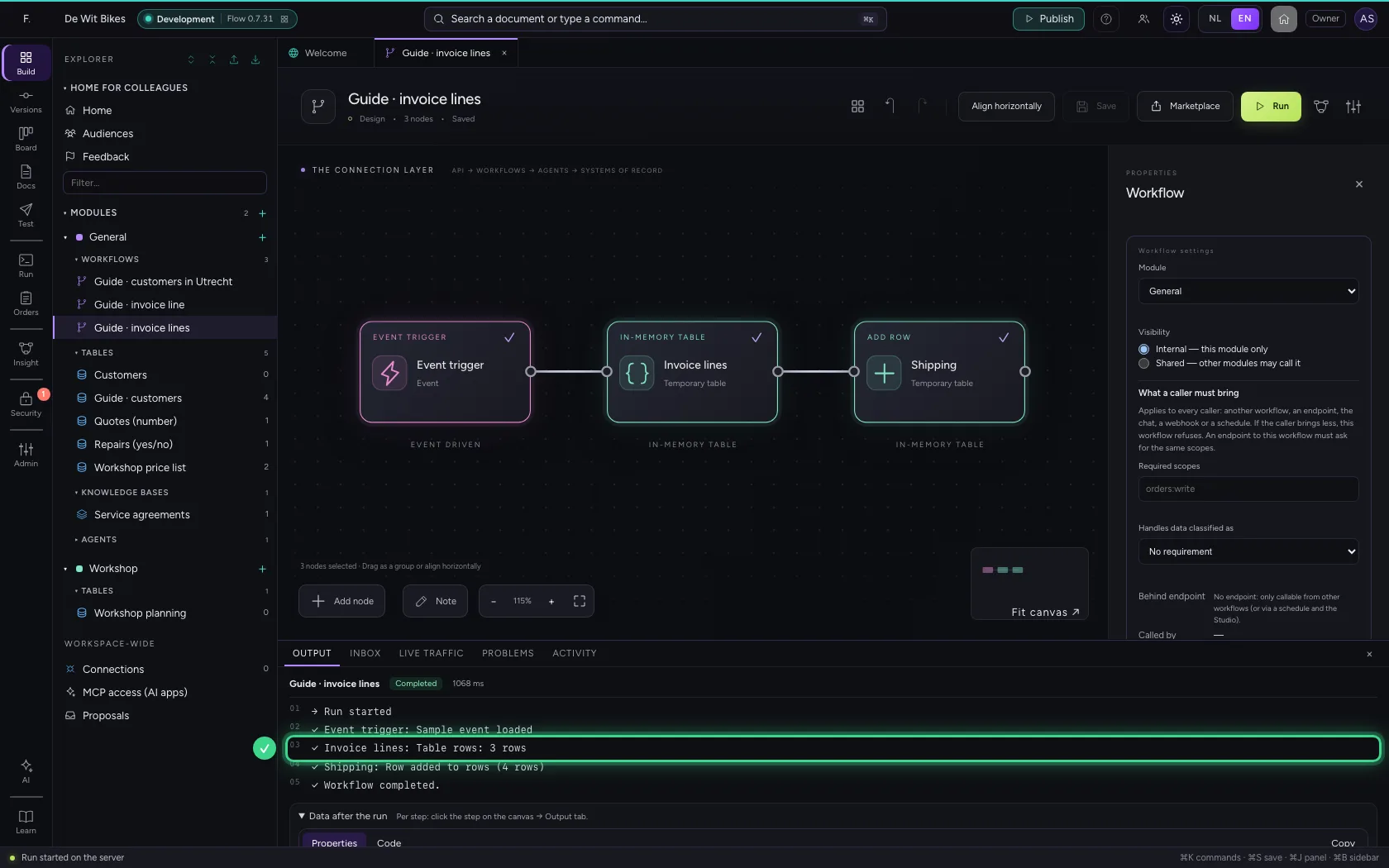
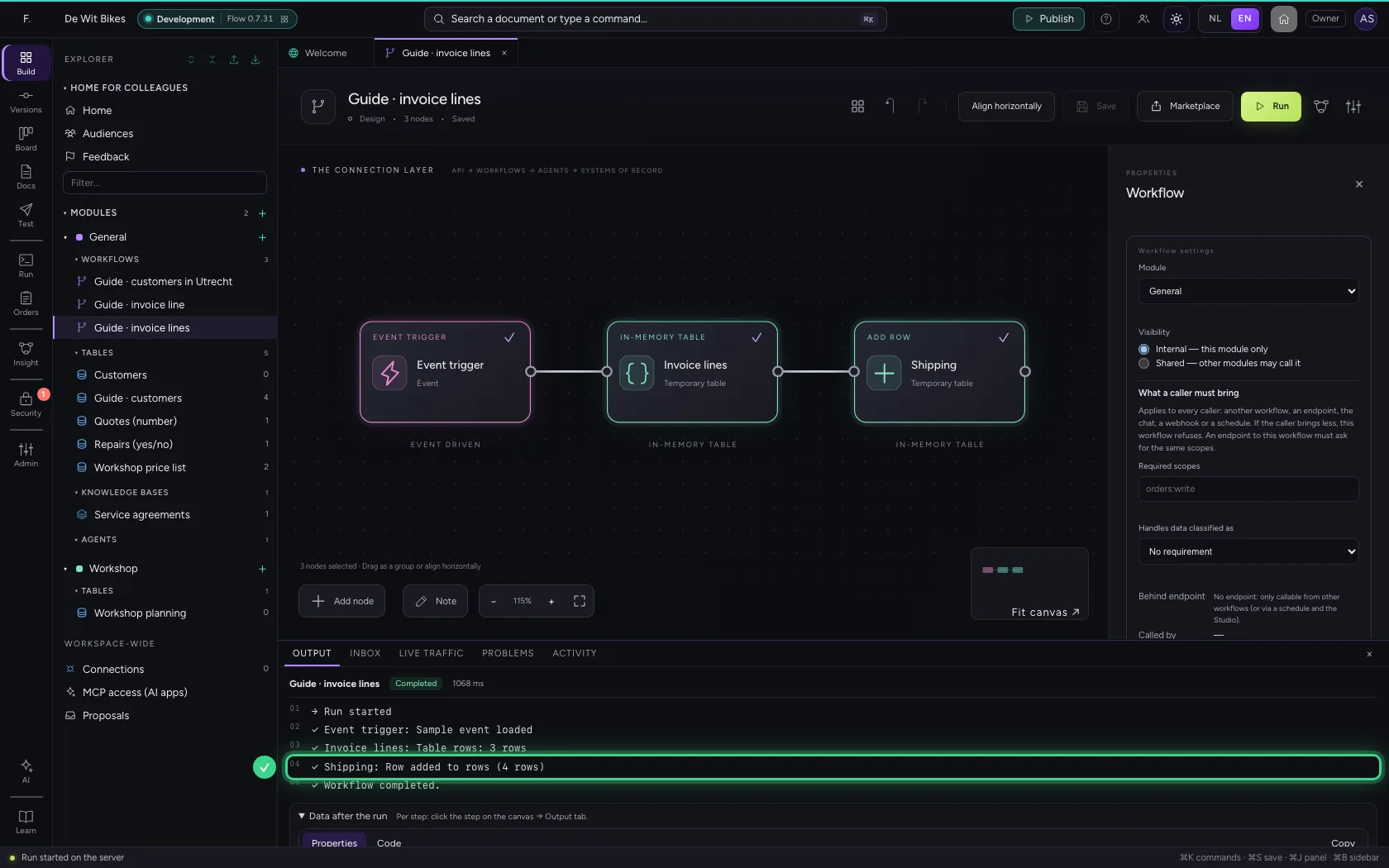
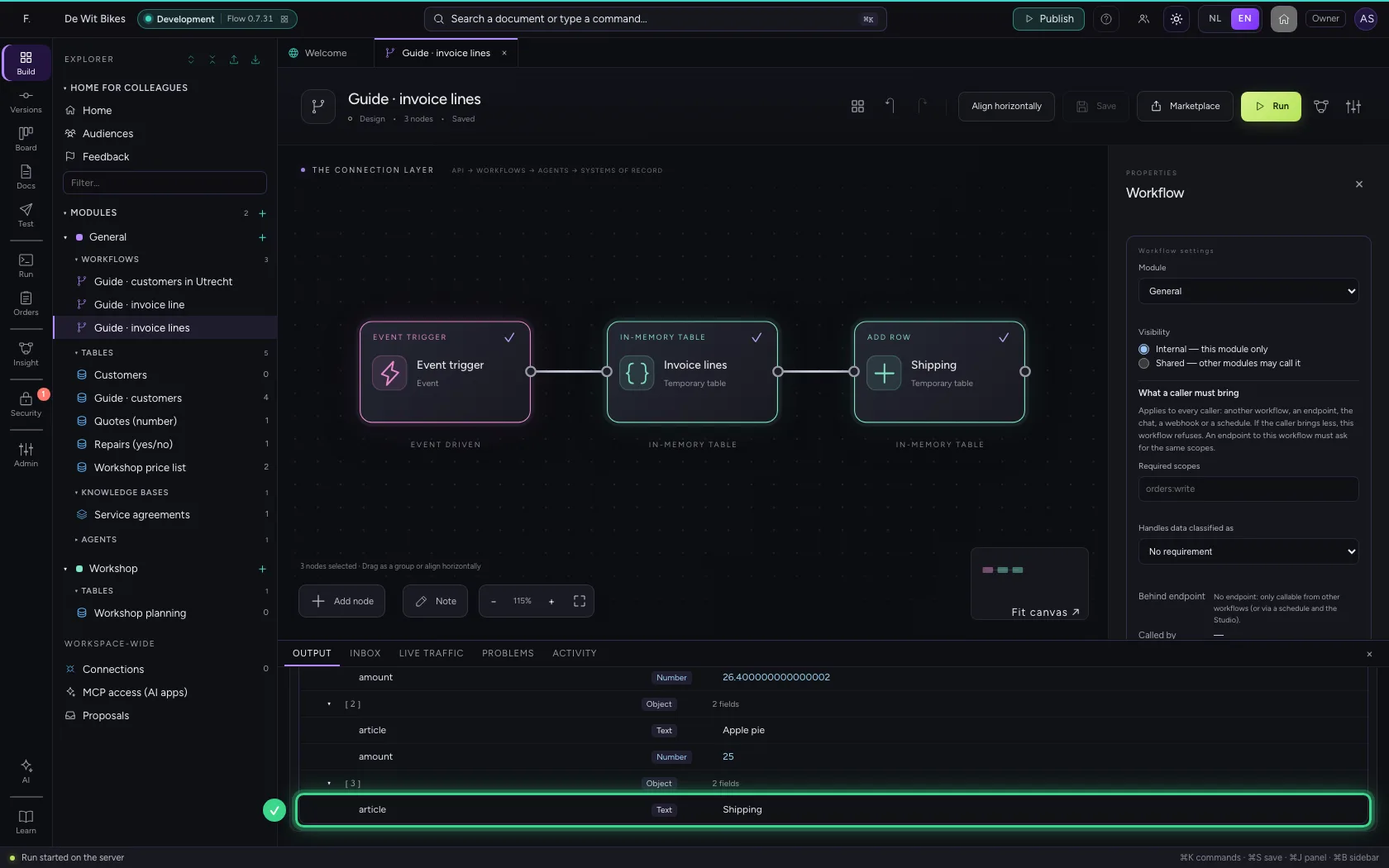
The table got three rows from the list and then one single row on top. Under Data after the run is rows: only the columns you set, with numbers as numbers.
- Click Run
This guide was carried out step by step on 22 Oct 2026 by an automated test on Flow (version 3e563176).