Environments: add, configure, restart
Every environment of your organisation is a Flow of its own, with its own database and address. In the portal you add a test environment, open an environment's settings, give it its own key for an AI model and restart it. A tour of every setting is in ‘One environment and its settings’.
Add a test environment
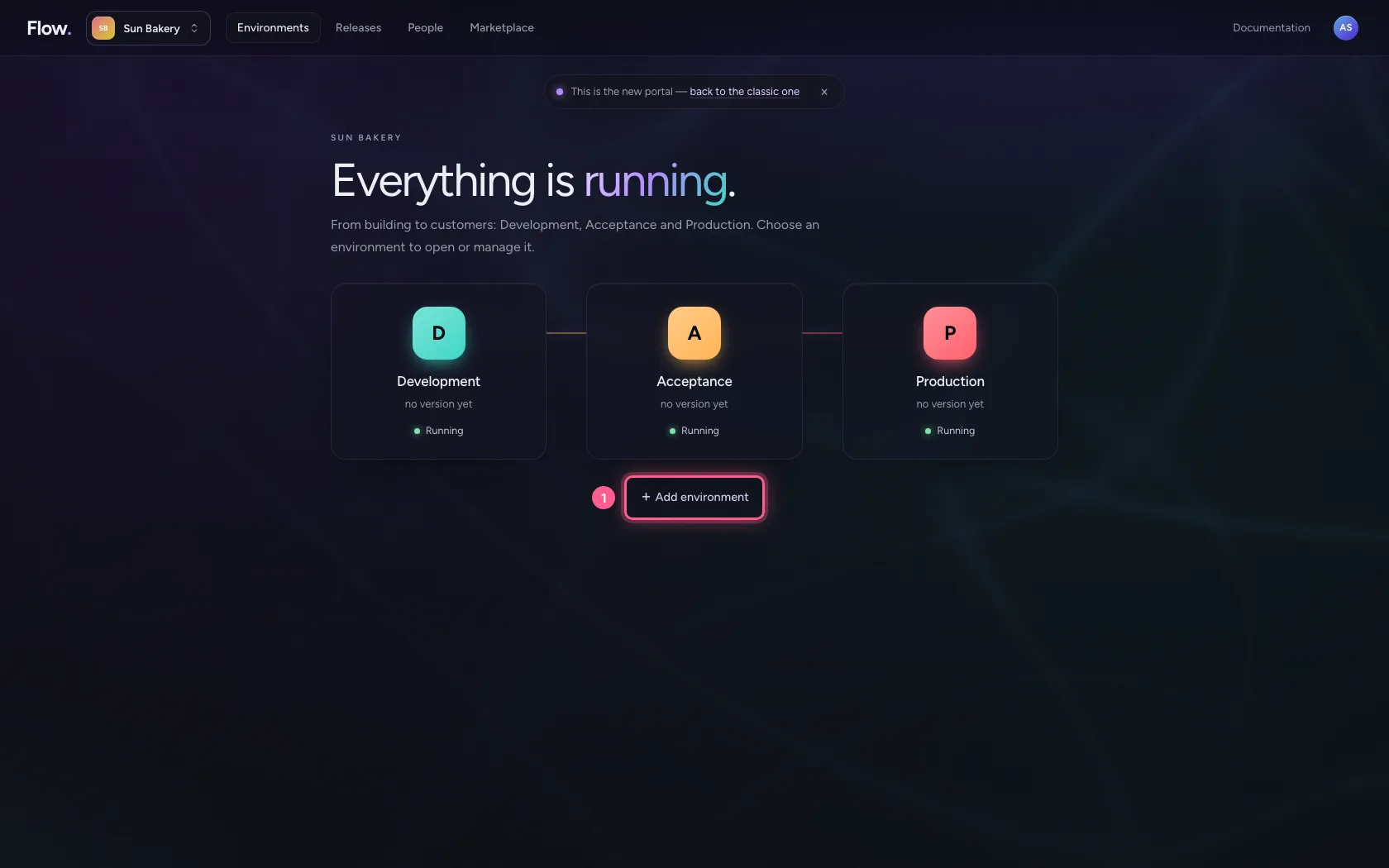
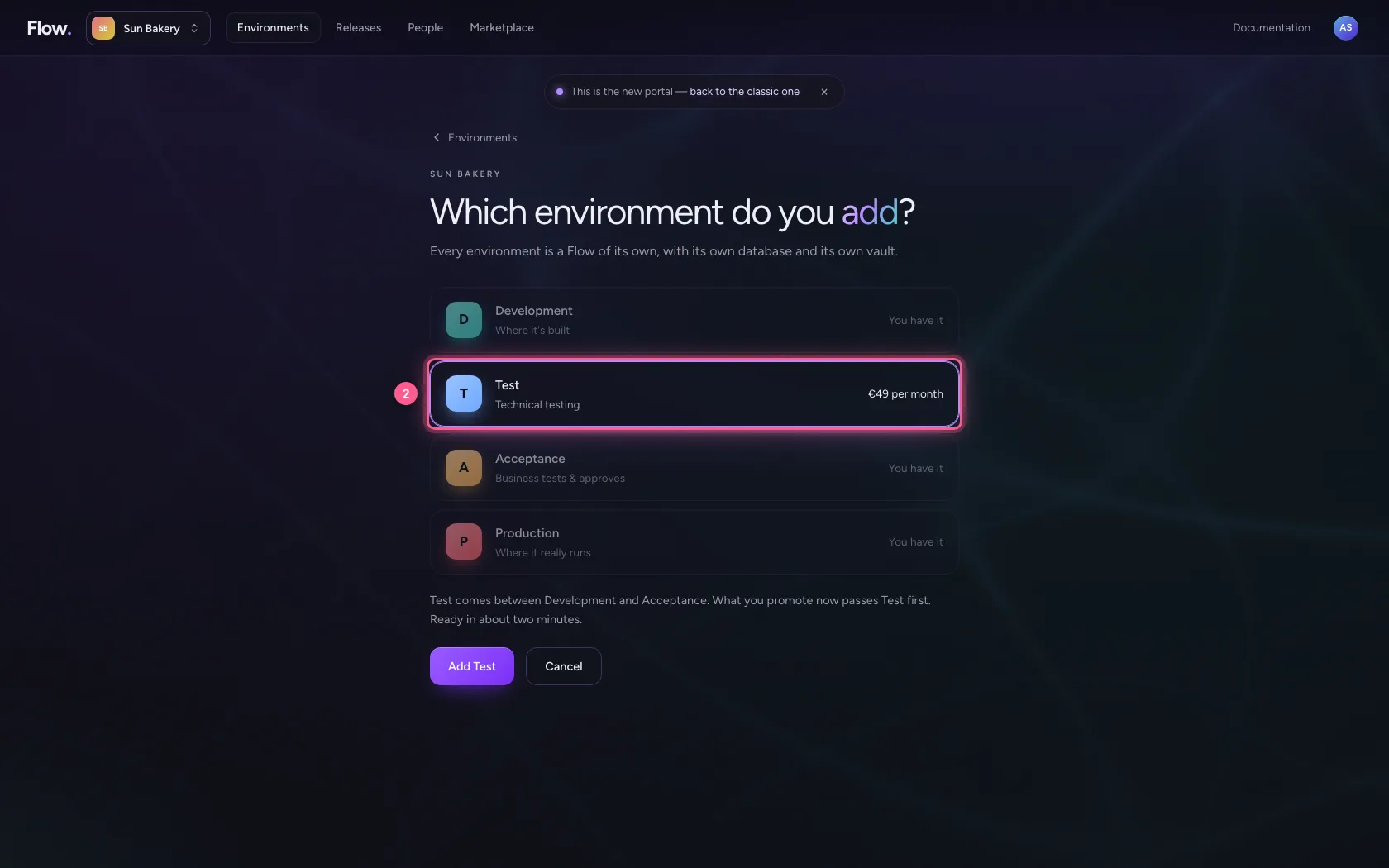
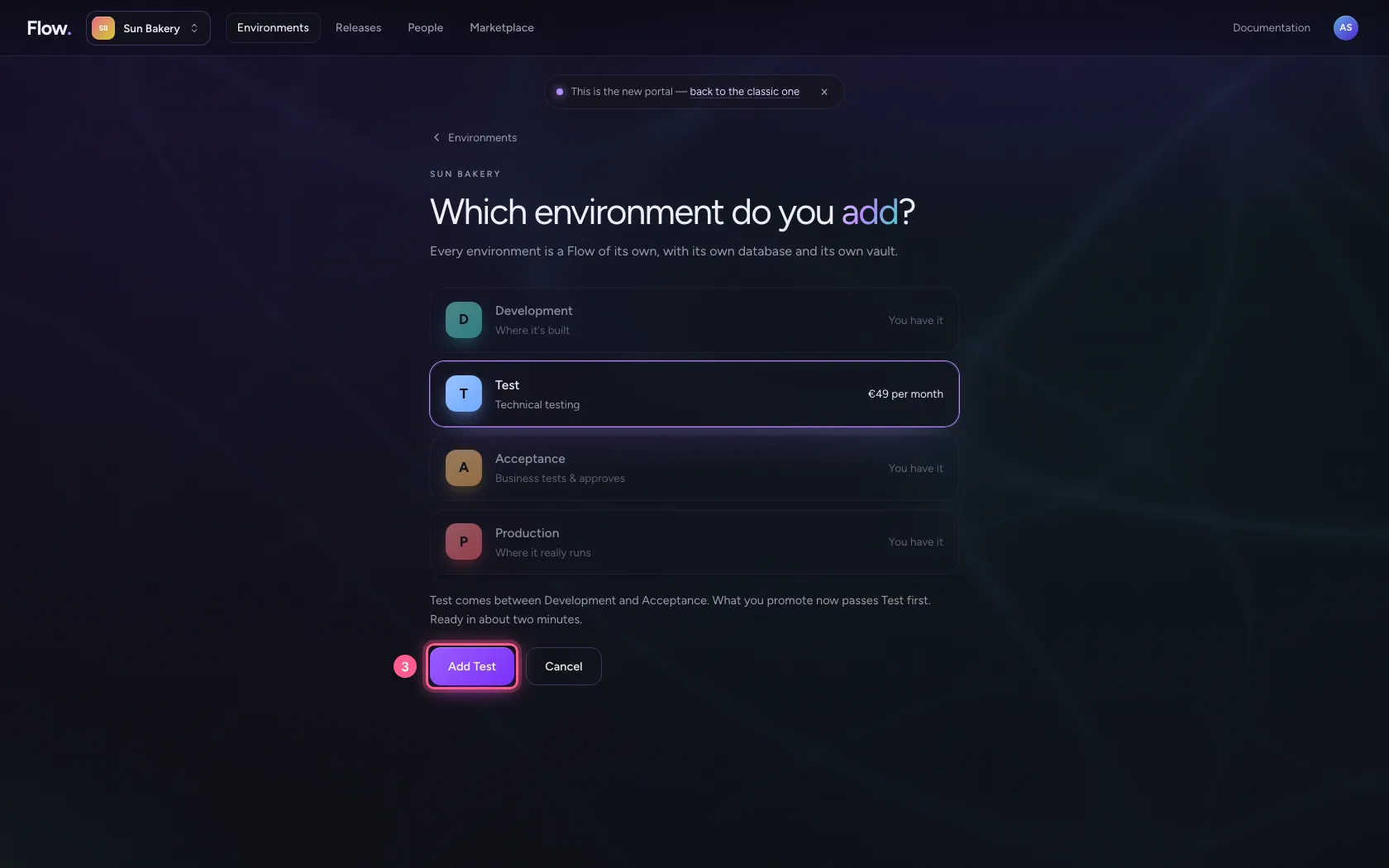
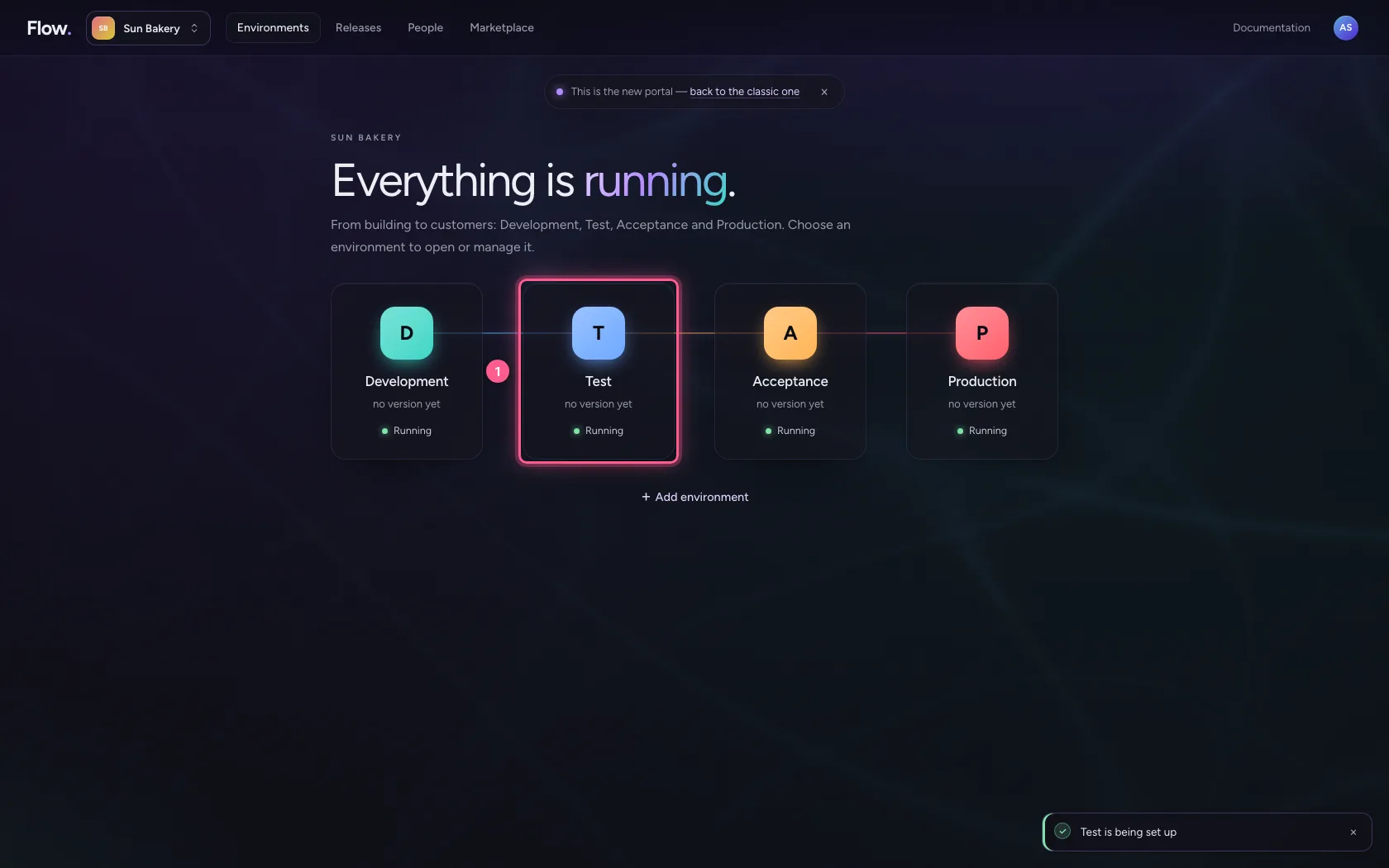
An organisation starts with Development, Acceptance and Production. If you want to test technically (connections, large volumes) without bothering the business, add a Test: choose + Add environment below the environments, then Test. It sits between Development and Acceptance and is read-only, like Acceptance. Setting it up usually takes less than a minute.
- Click + Add environment
- Click T
- Click Add Test
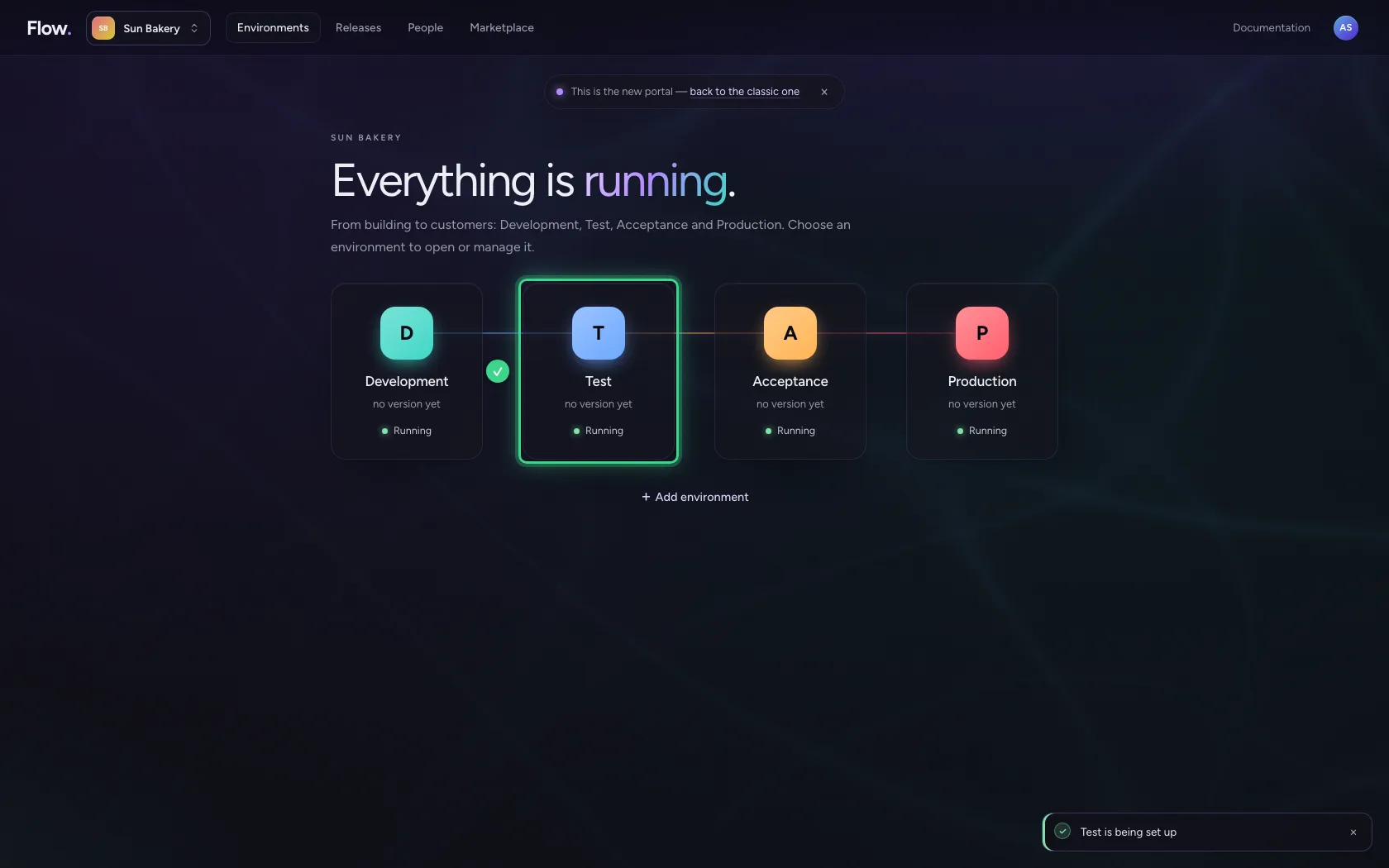
Open the settings of Test
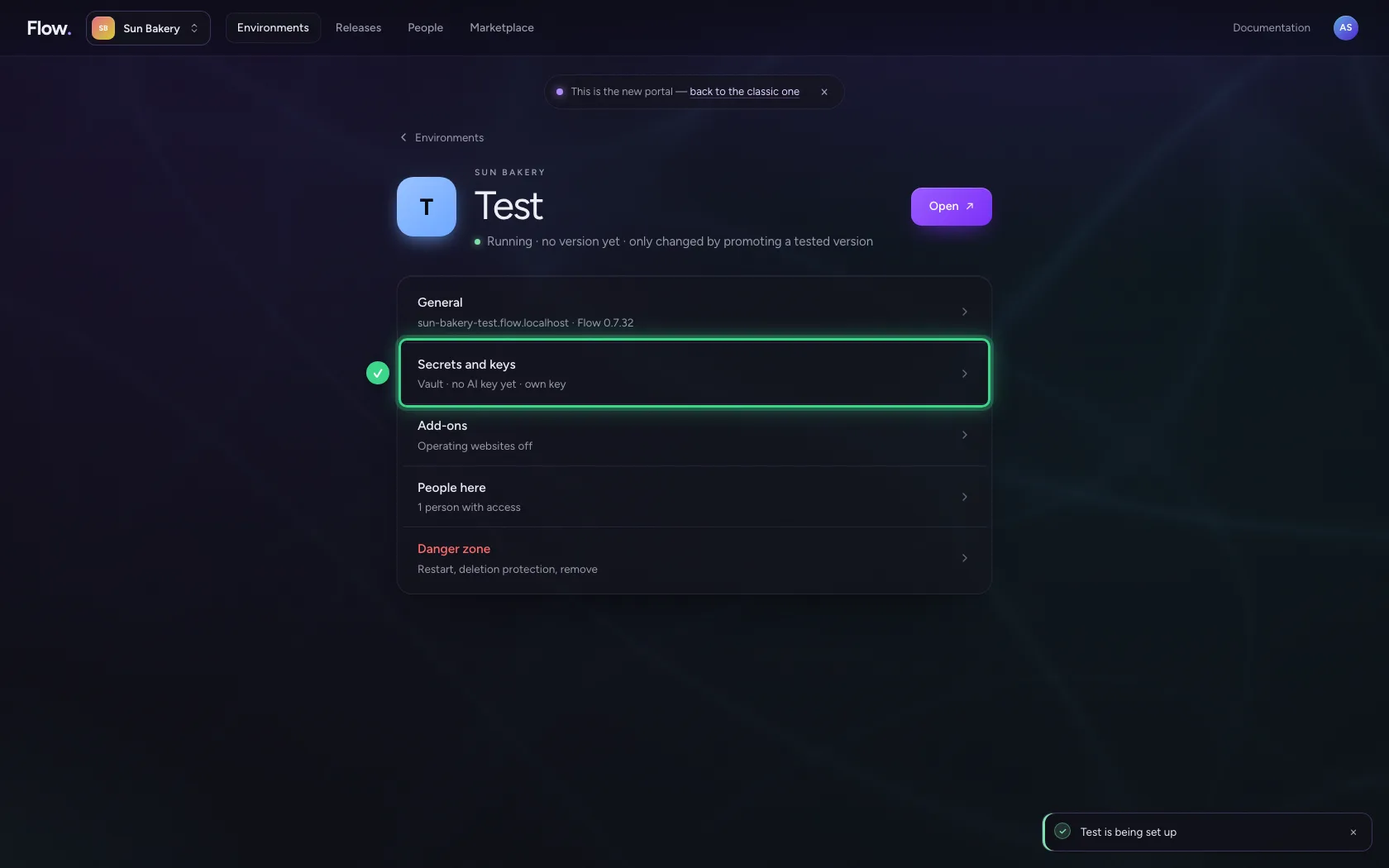
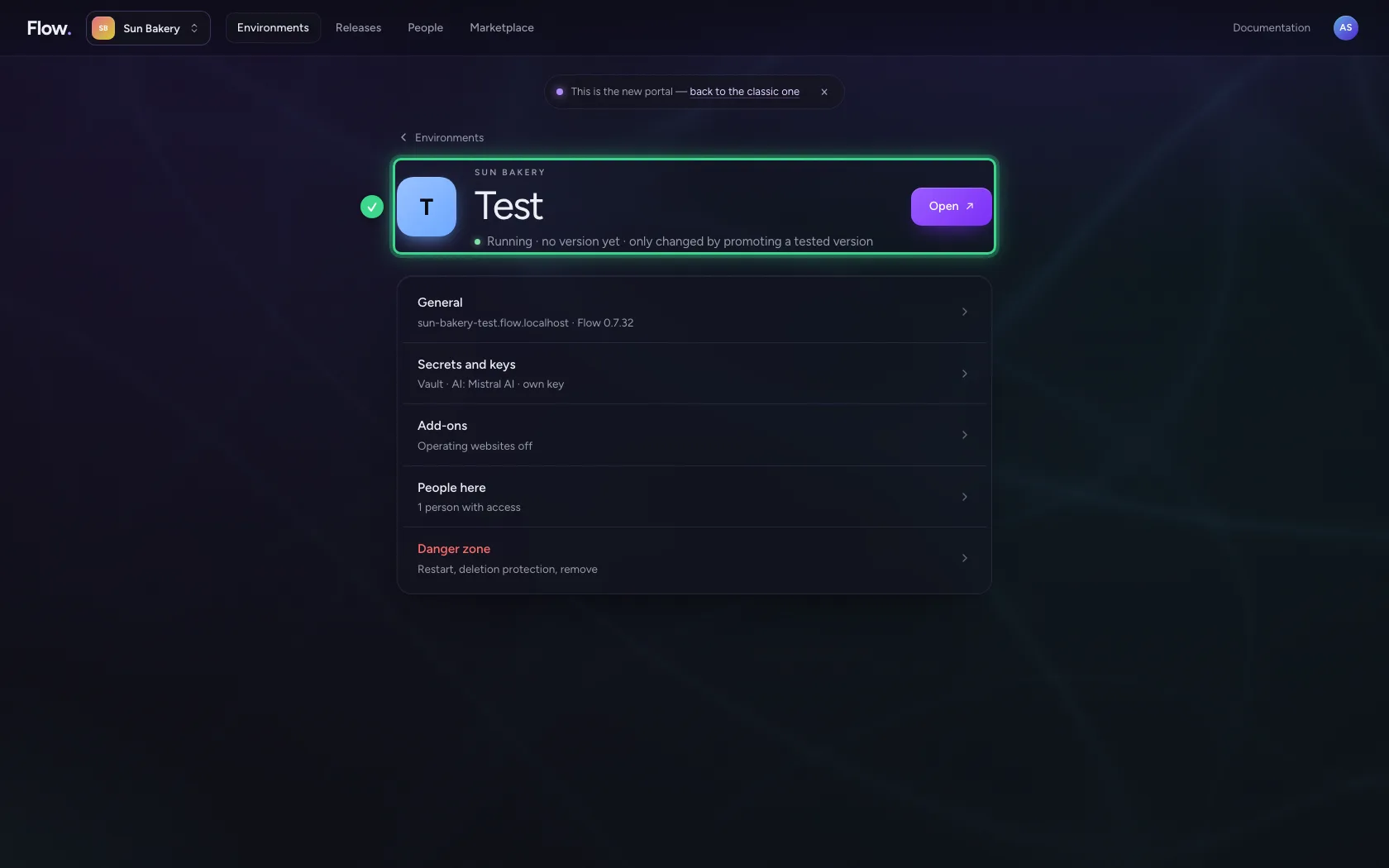
Click Test. At the top you see whether the environment runs and on which Flow version, with Open. Below is the short list of settings; each line says in a few words how it stands, for example that there is no AI key yet.
- Click Test
Give the environment its own AI key
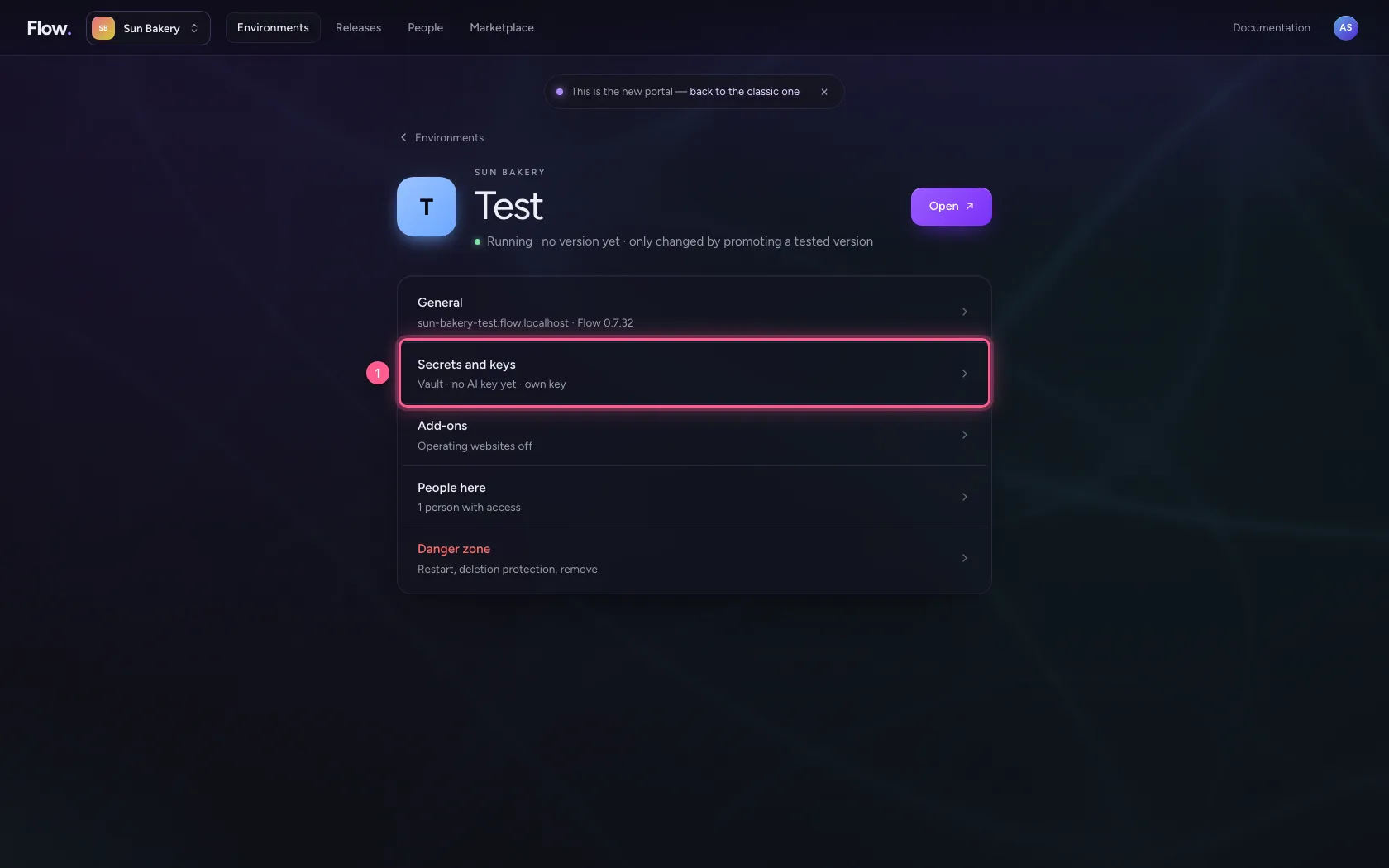
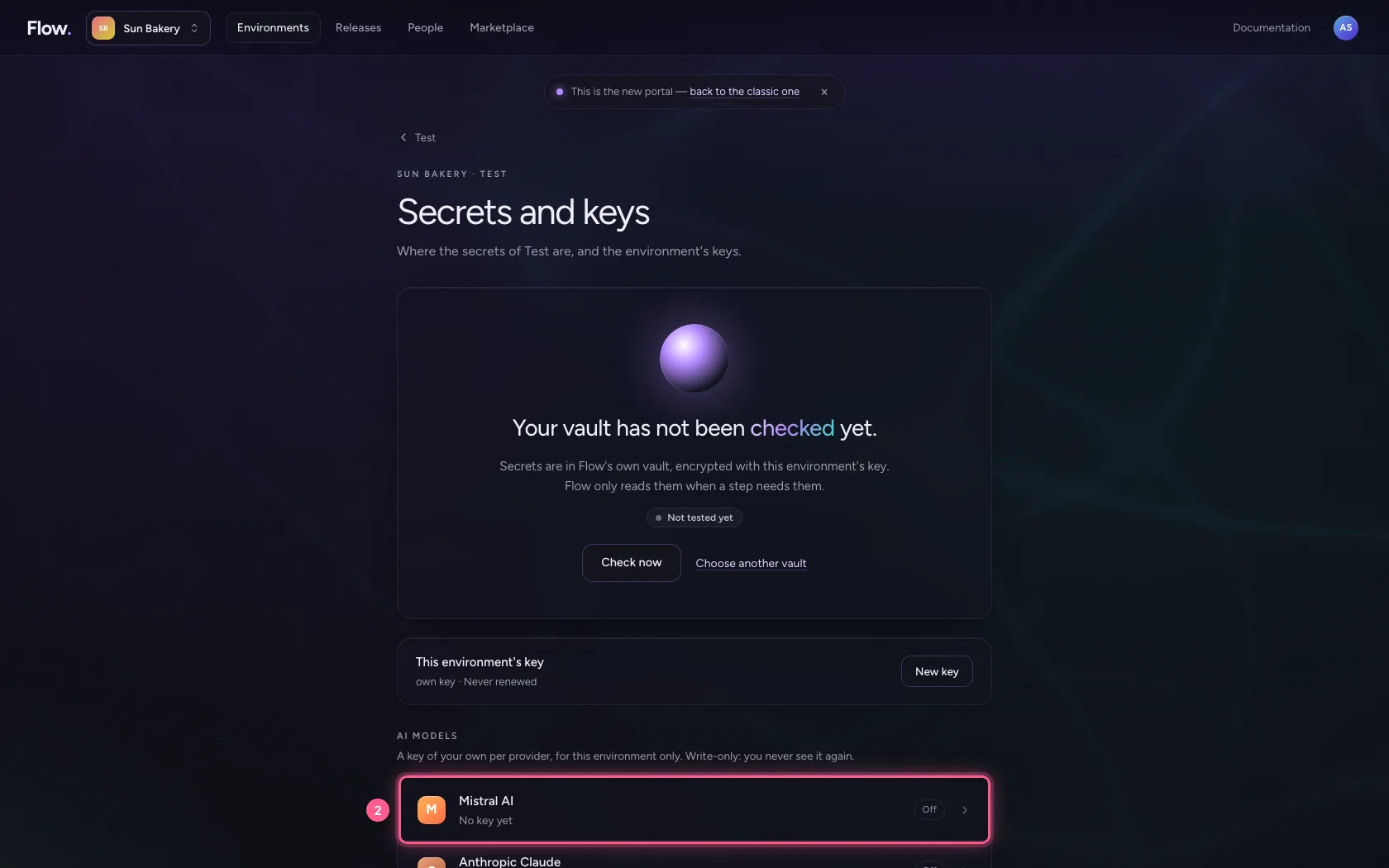
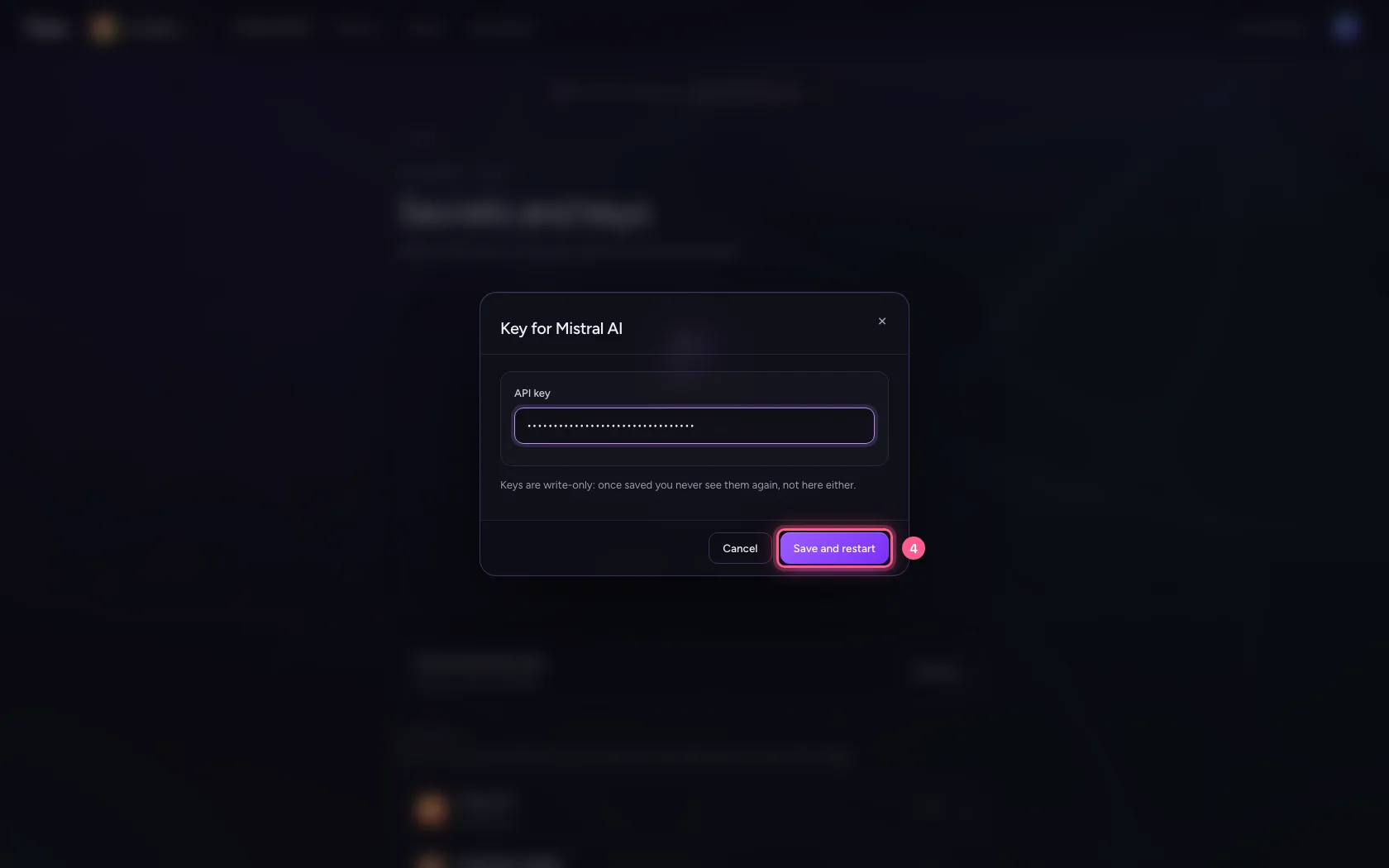
Choose Secrets and keys. Under AI models every provider has a line of its own. Click Mistral AI, paste the key you created at the provider and choose Save and restart. The key applies to this environment only: that way Test uses a different key (and a different budget) than Production.
- Click Secrets and keys Vault · no AI key yet · own key
- Click Mistral AI
- In Mistral AI's API key, type
••••••••
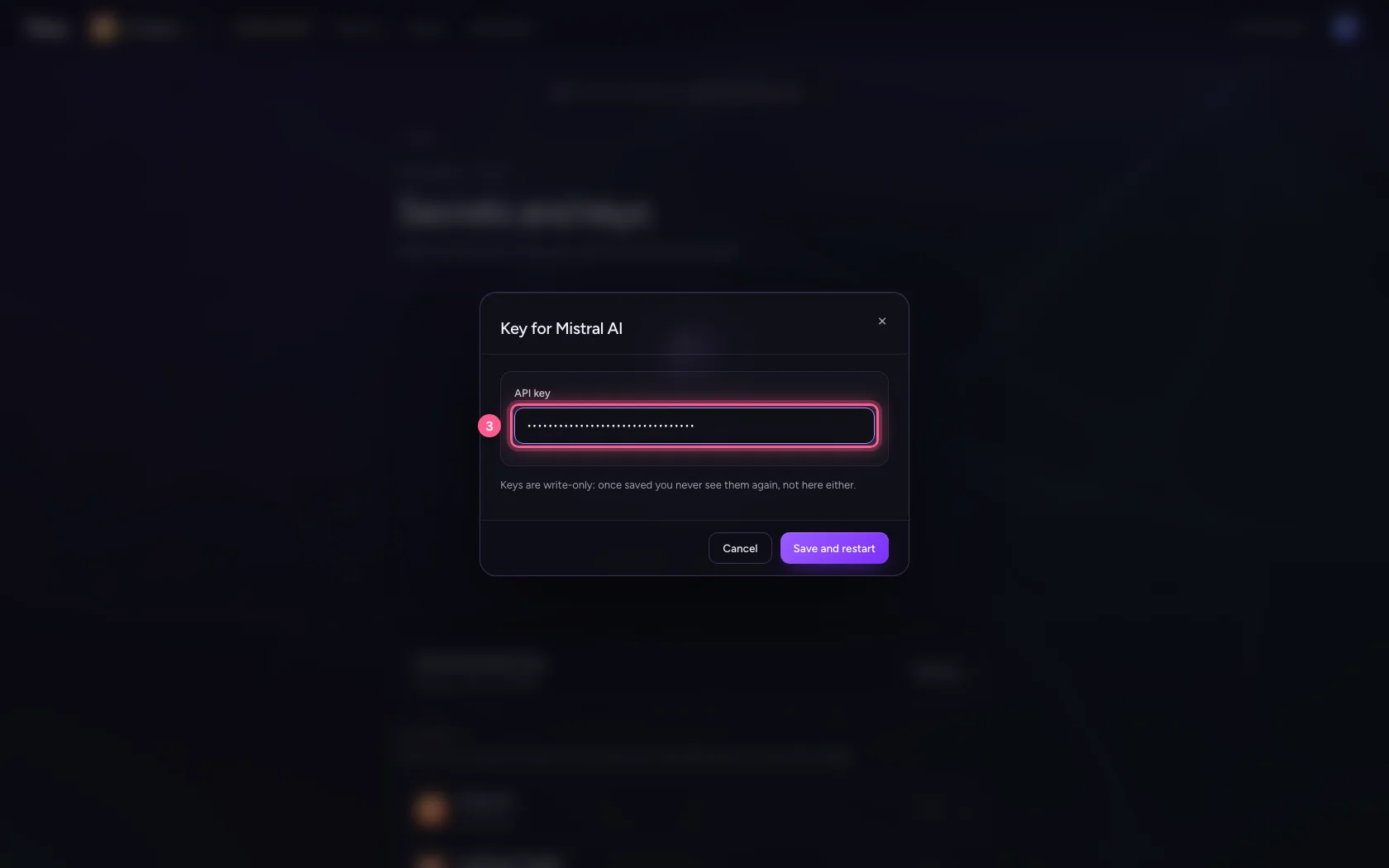
- Click Save and restart
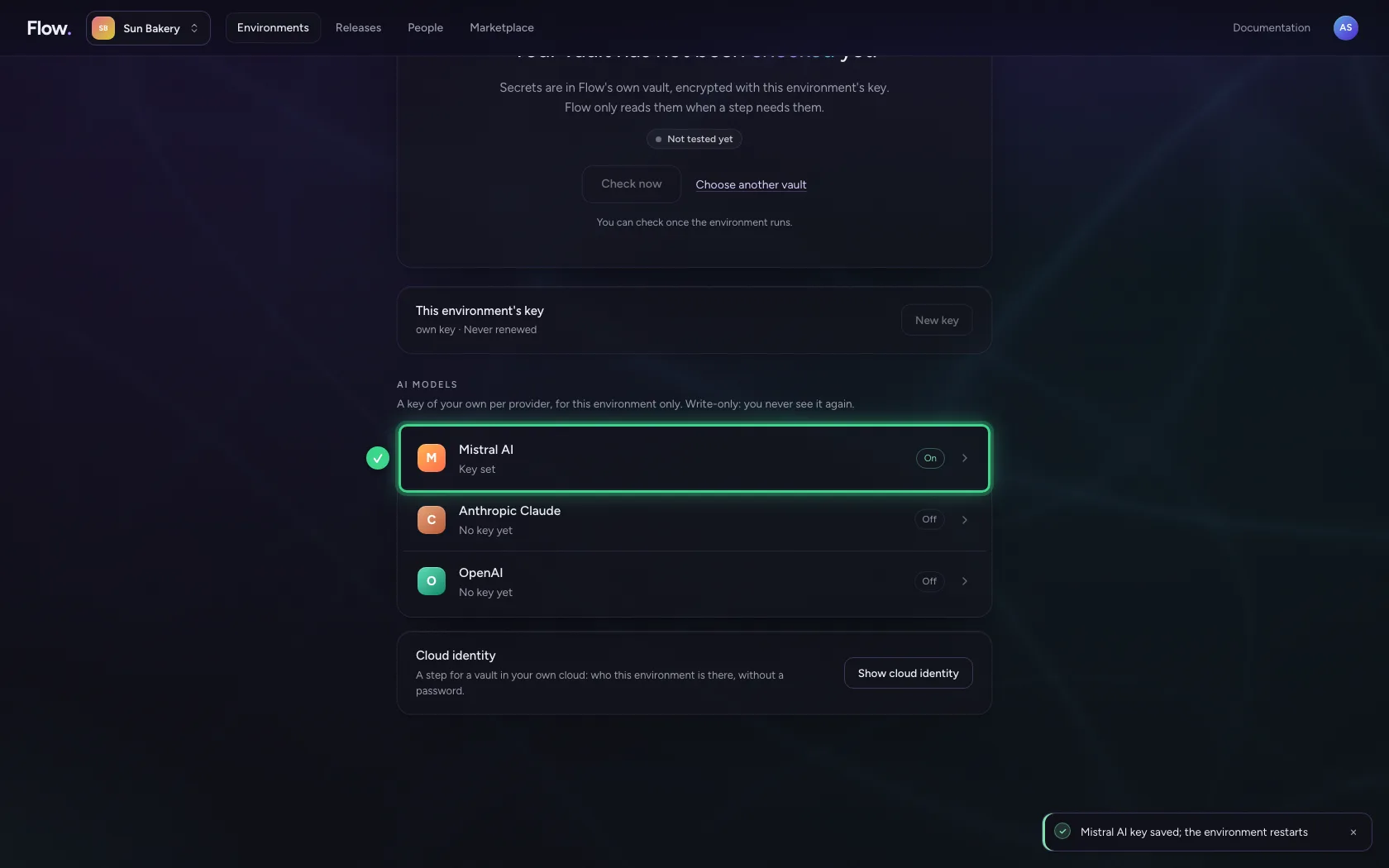
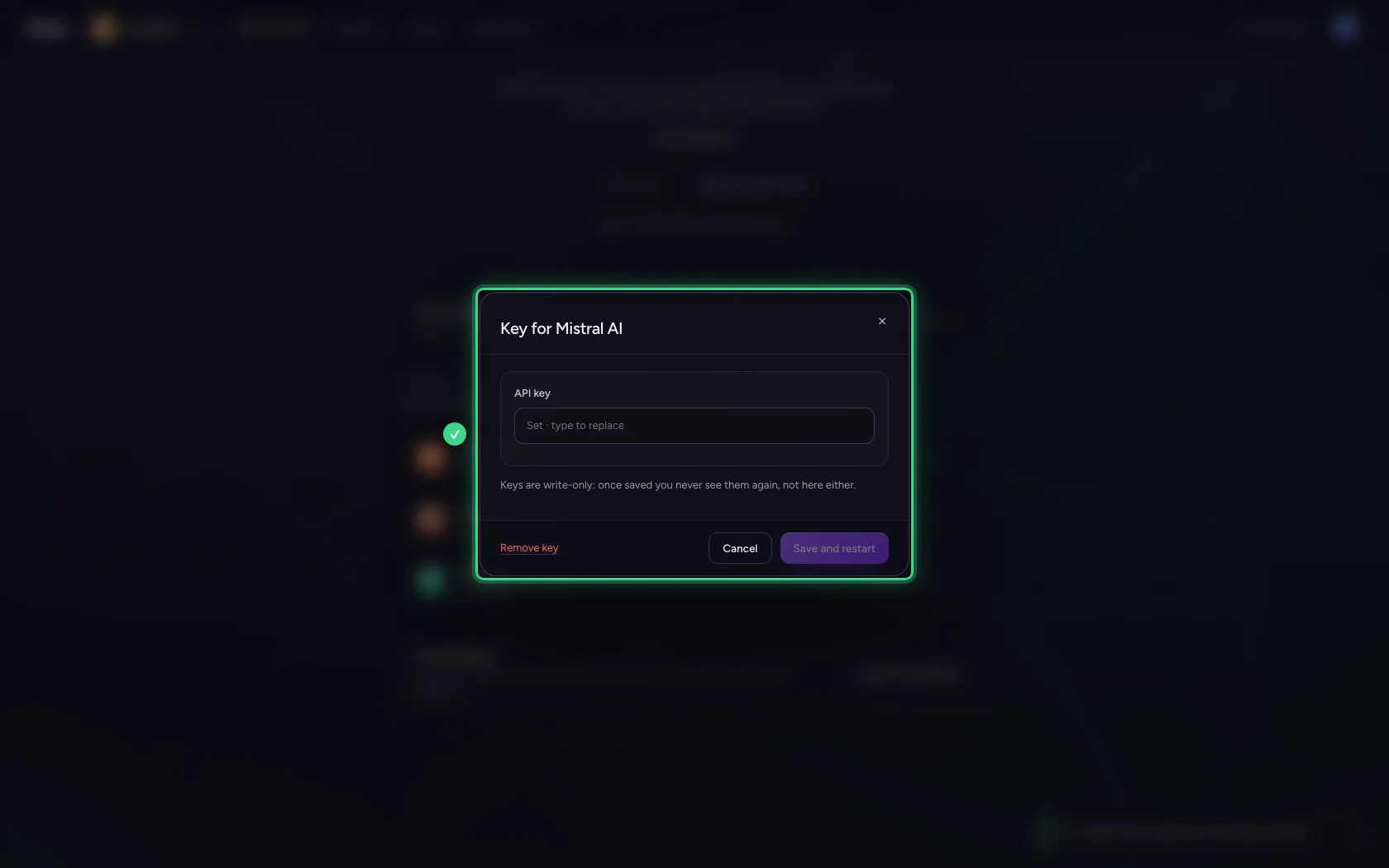
You never see the key again
Keys are write-only: once saved the portal never shows them anywhere again, not to you either. The field only says there is a key; type a new one to replace it. Lost it? Create a new one at the provider and paste it here.
Restart the environment
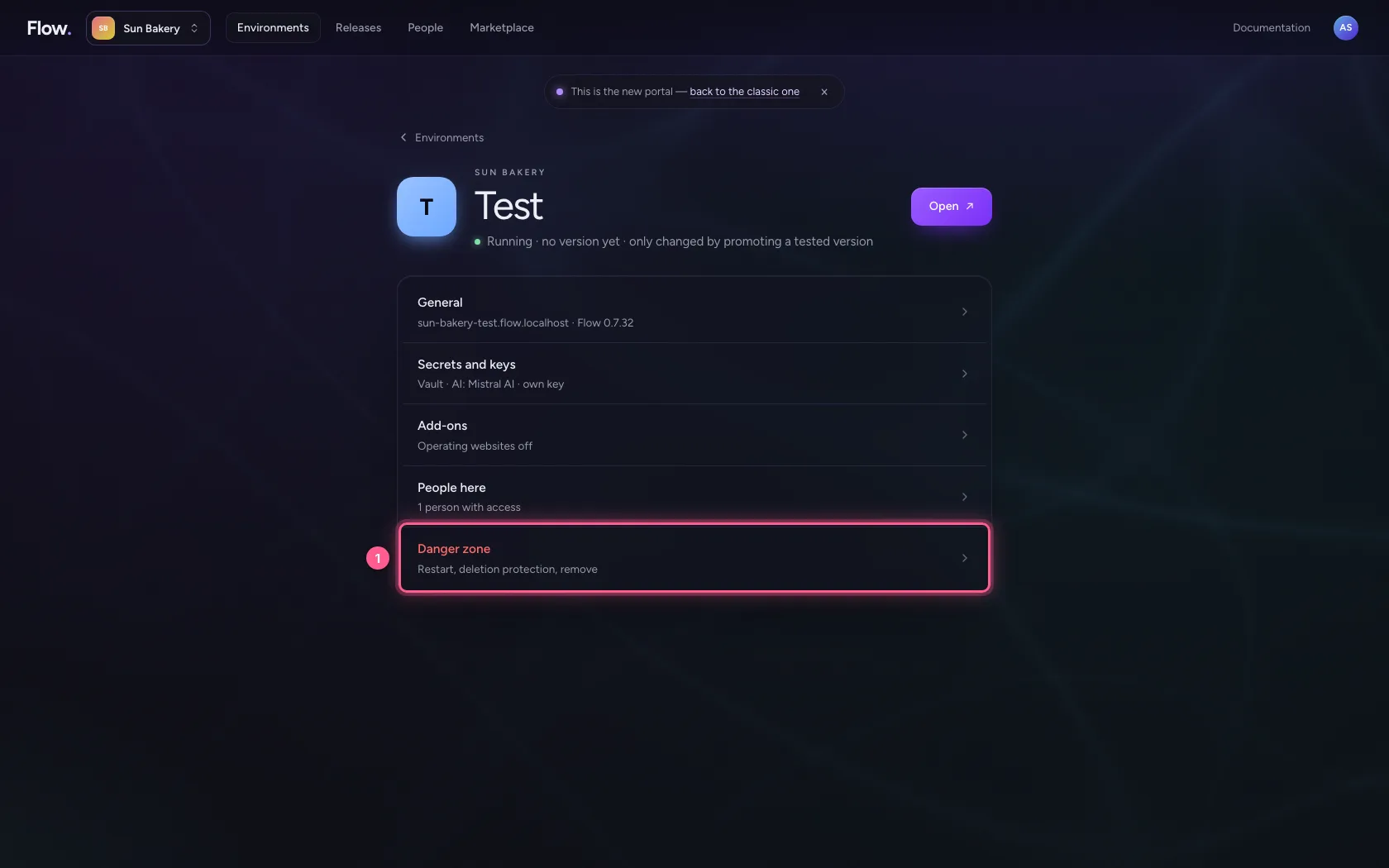
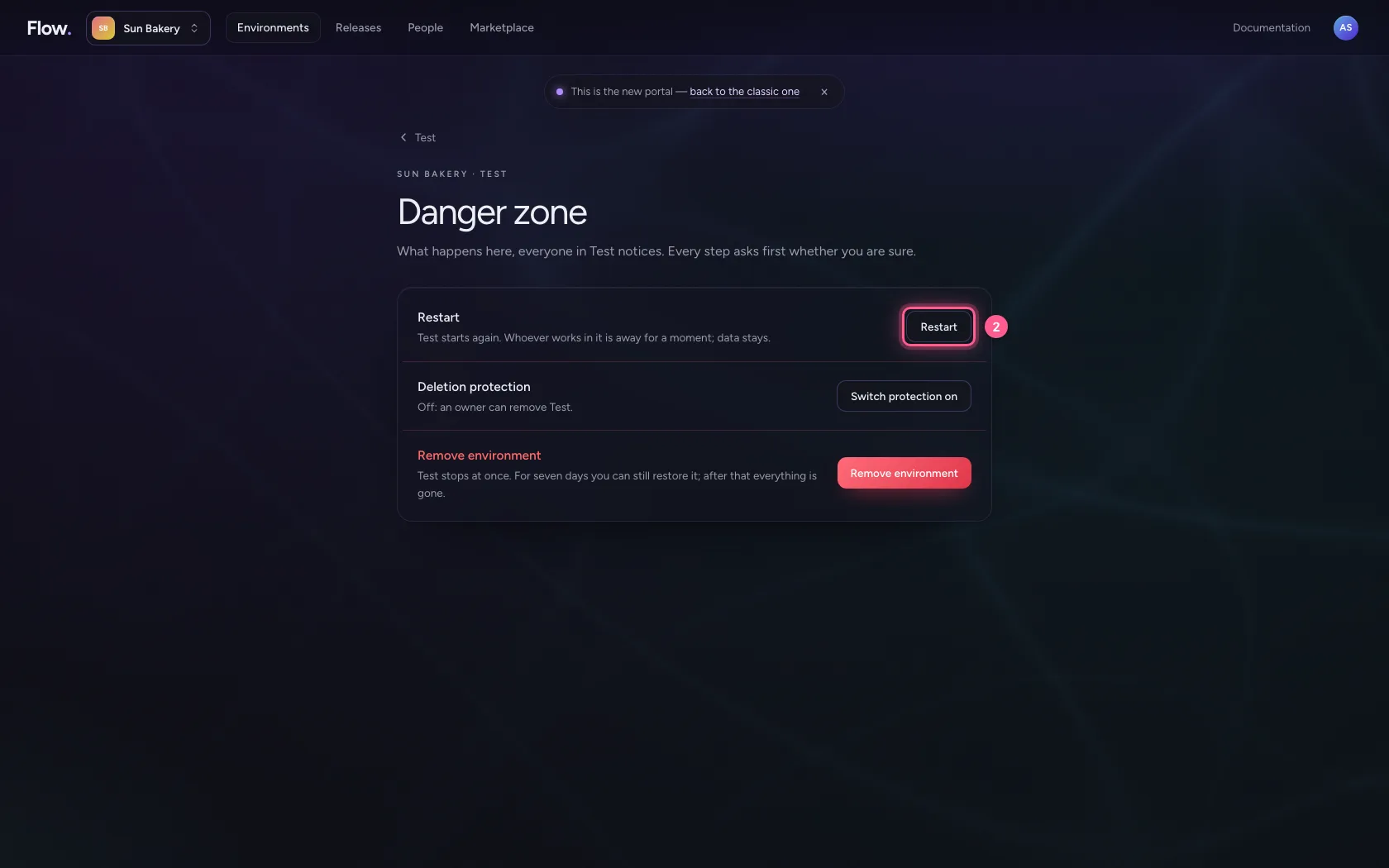
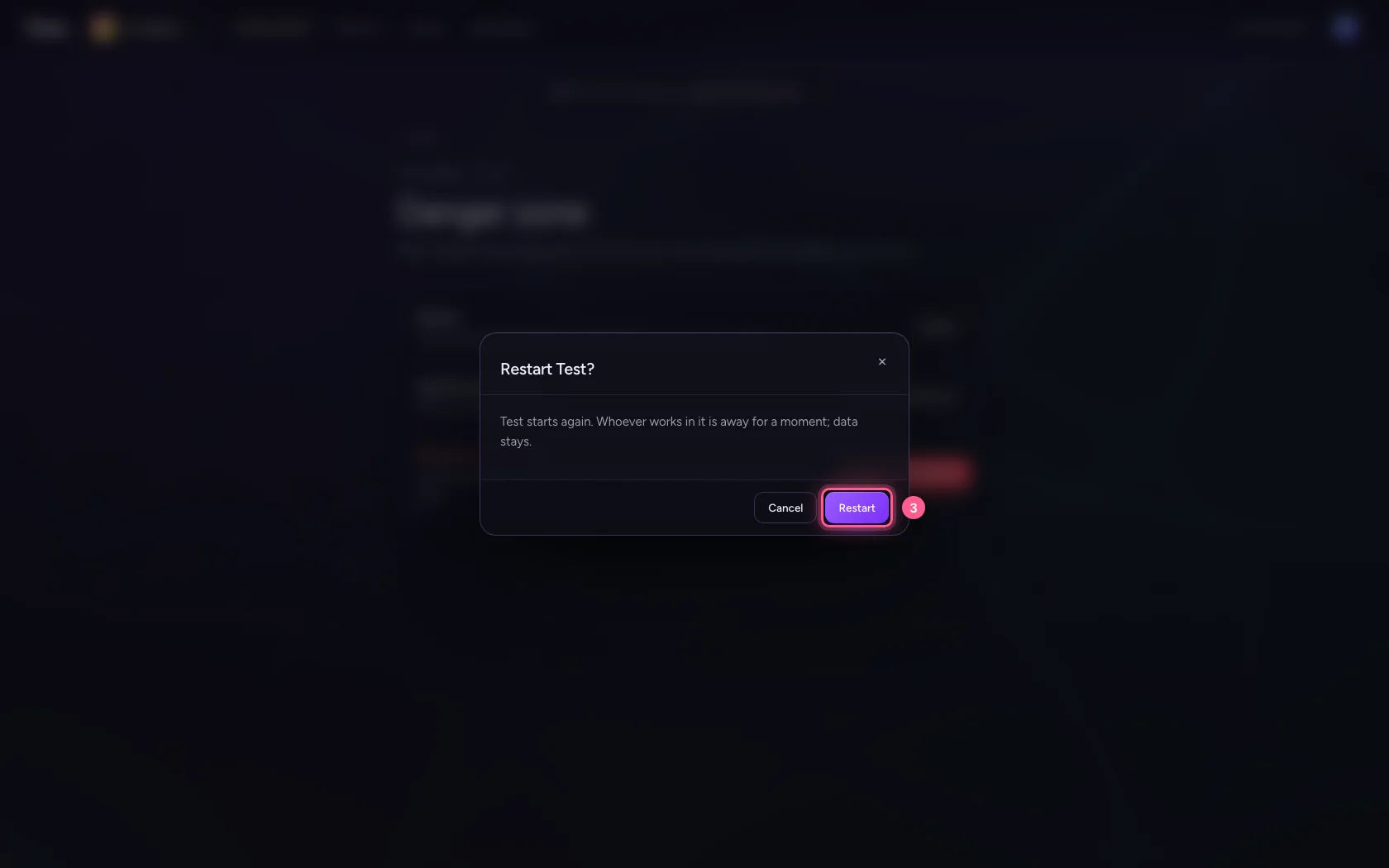
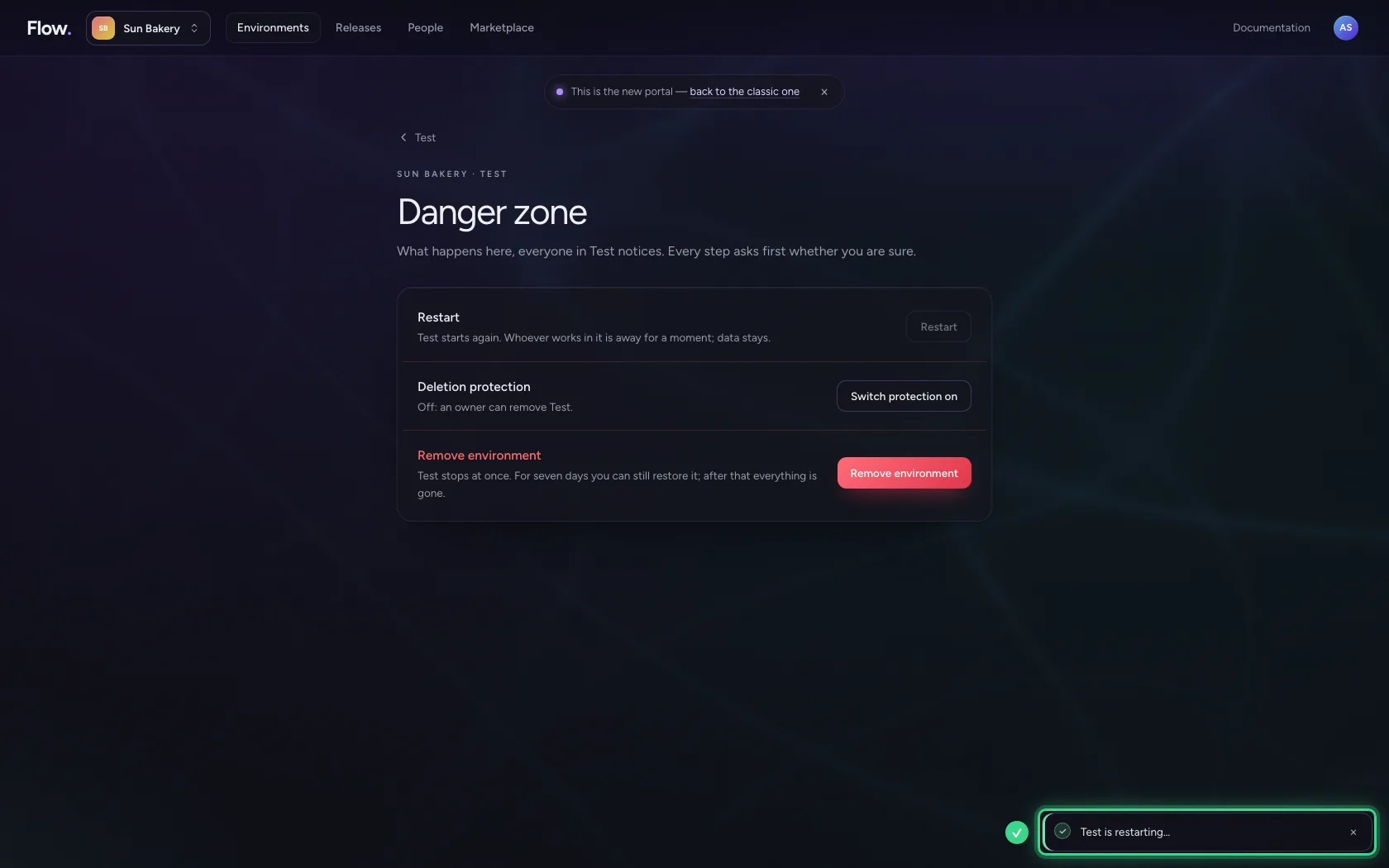
Something stuck, or want an environment to start afresh? Go back to Test and choose Danger zone at the bottom, then Restart. The environment starts again, with the same database and the same address. Your data stays; whoever works in this environment at that moment loses it for a little while.
- Click Danger zone Restart, deletion protection, remove
- Click Restart
- Click Restart
This guide was carried out step by step on 28 Oct 2026 by an automated test on Flow (version 96971699).