People: change roles and remove someone
Under People you manage who works in your organisation. You make a colleague co-owner, revoke an invitation that is no longer needed, and take someone out of the organisation. You also see what that means for that person. Where everything is in the new portal, you read in ‘The new portal: where to find what’.
Open the builders
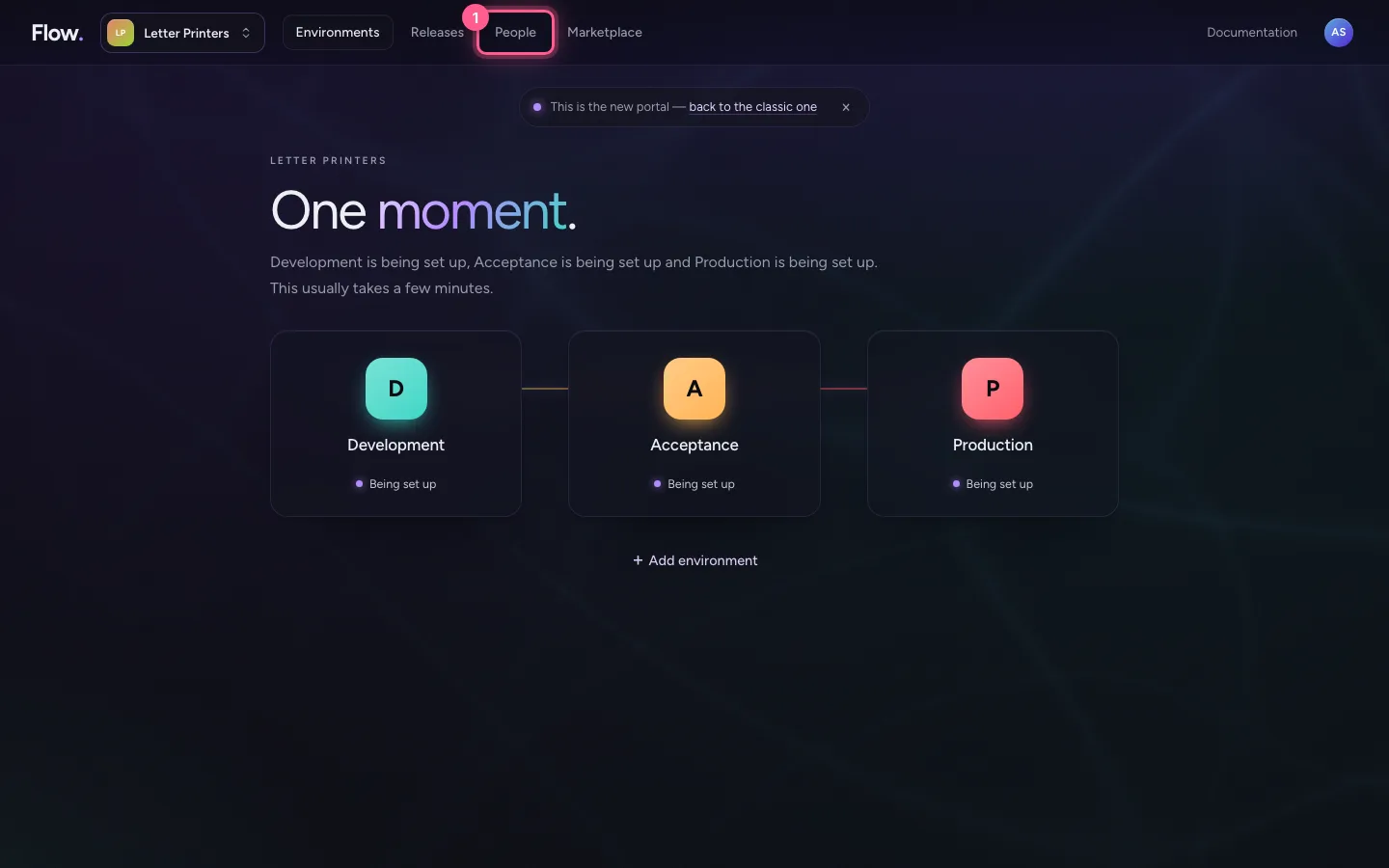
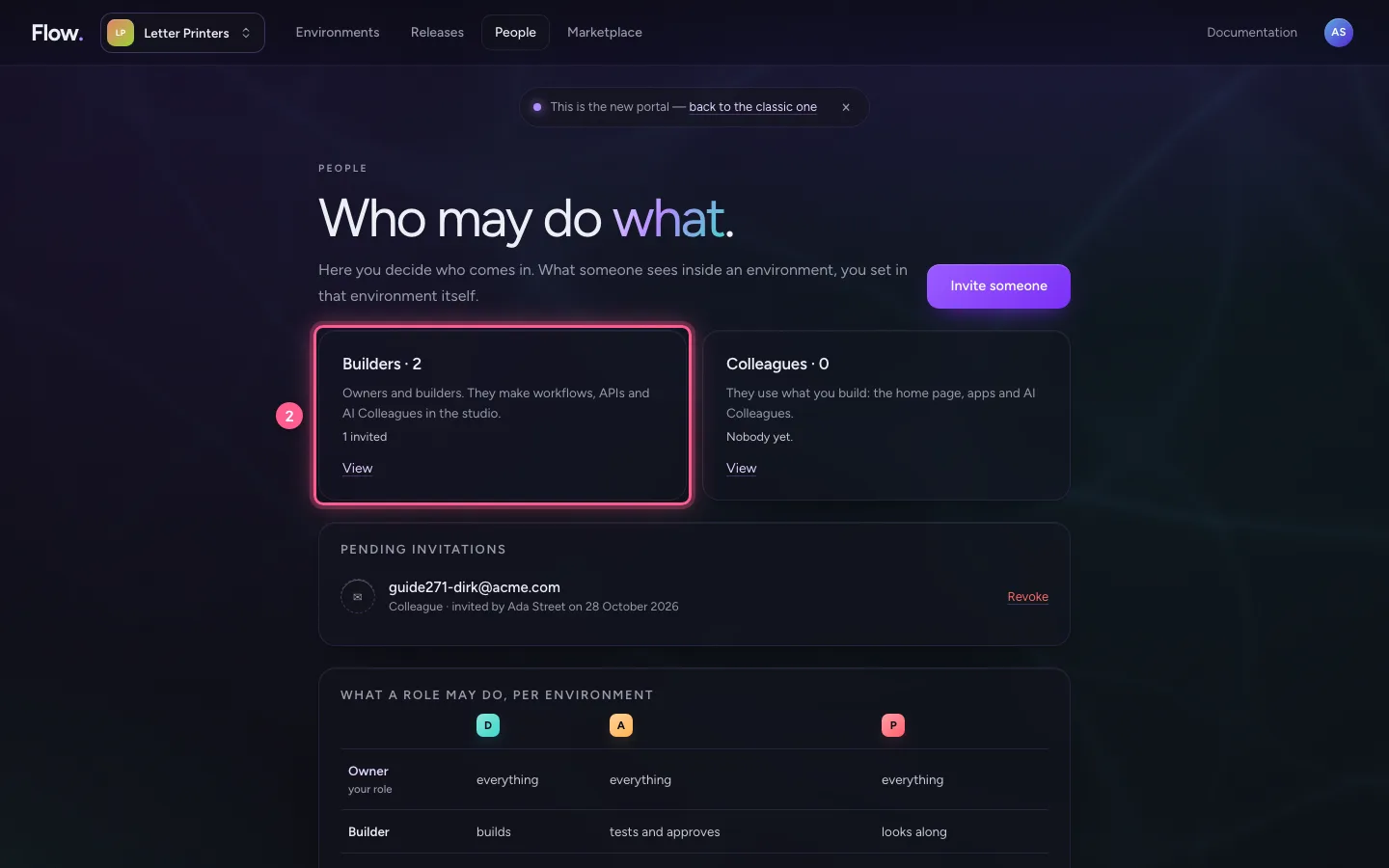
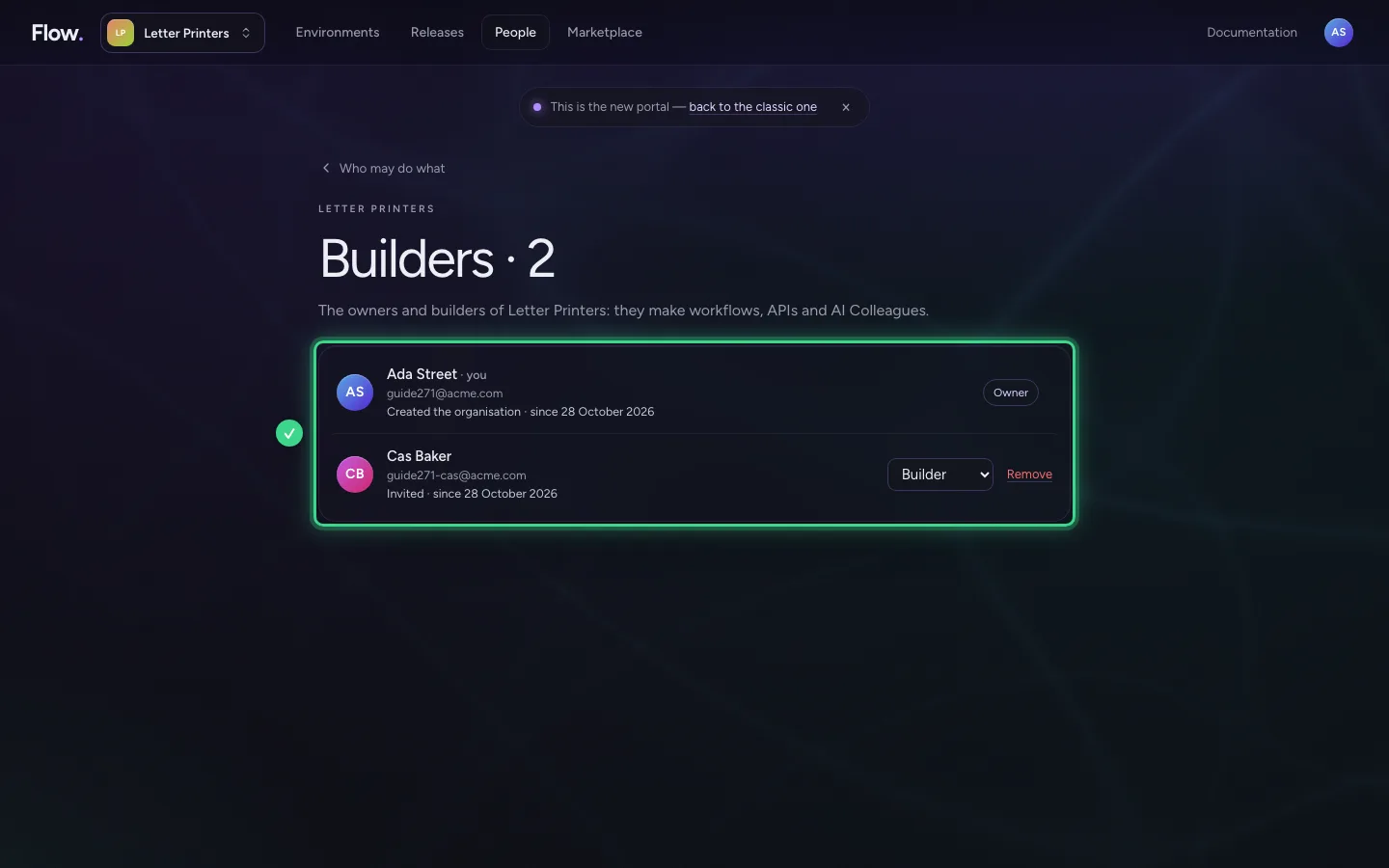
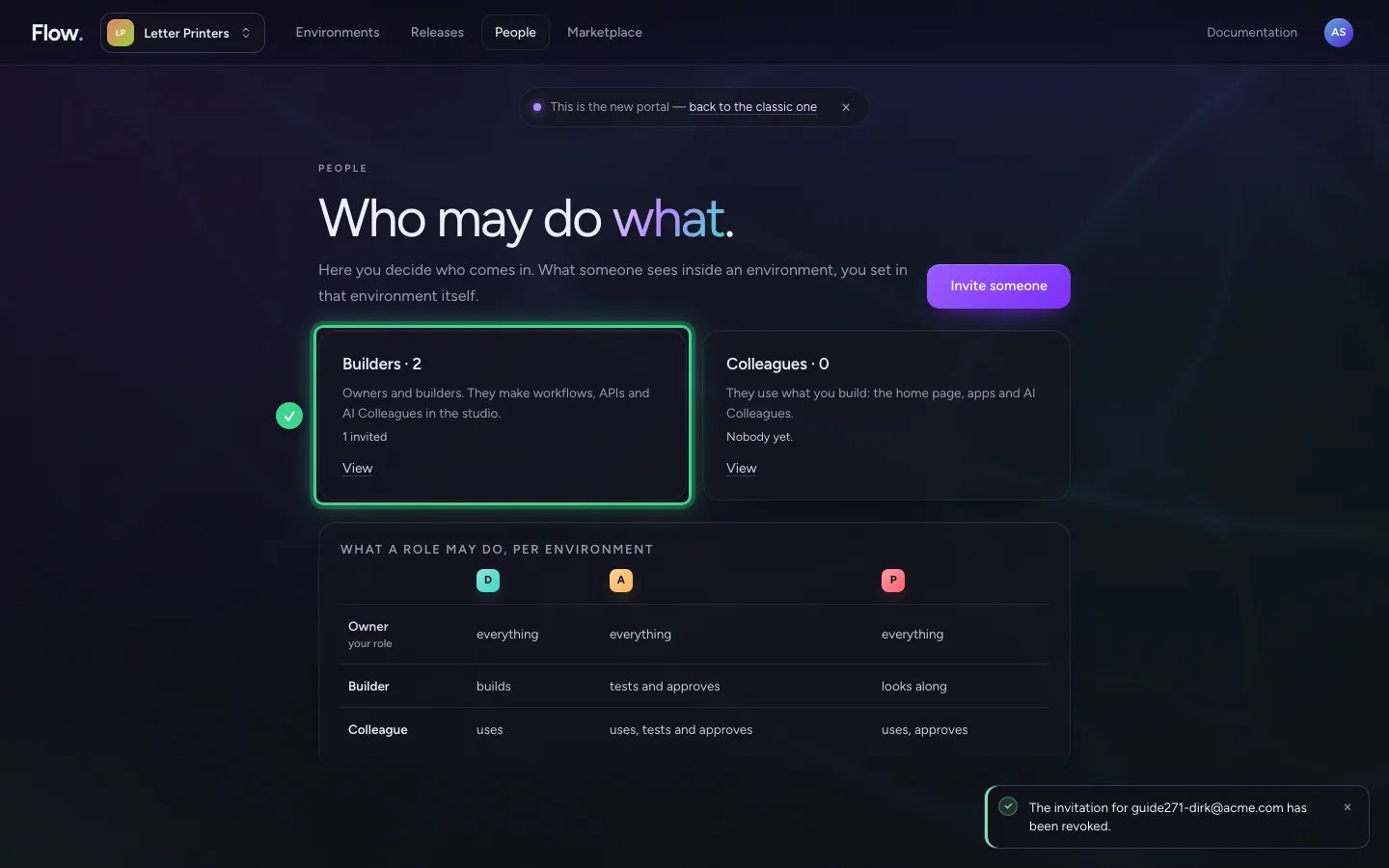
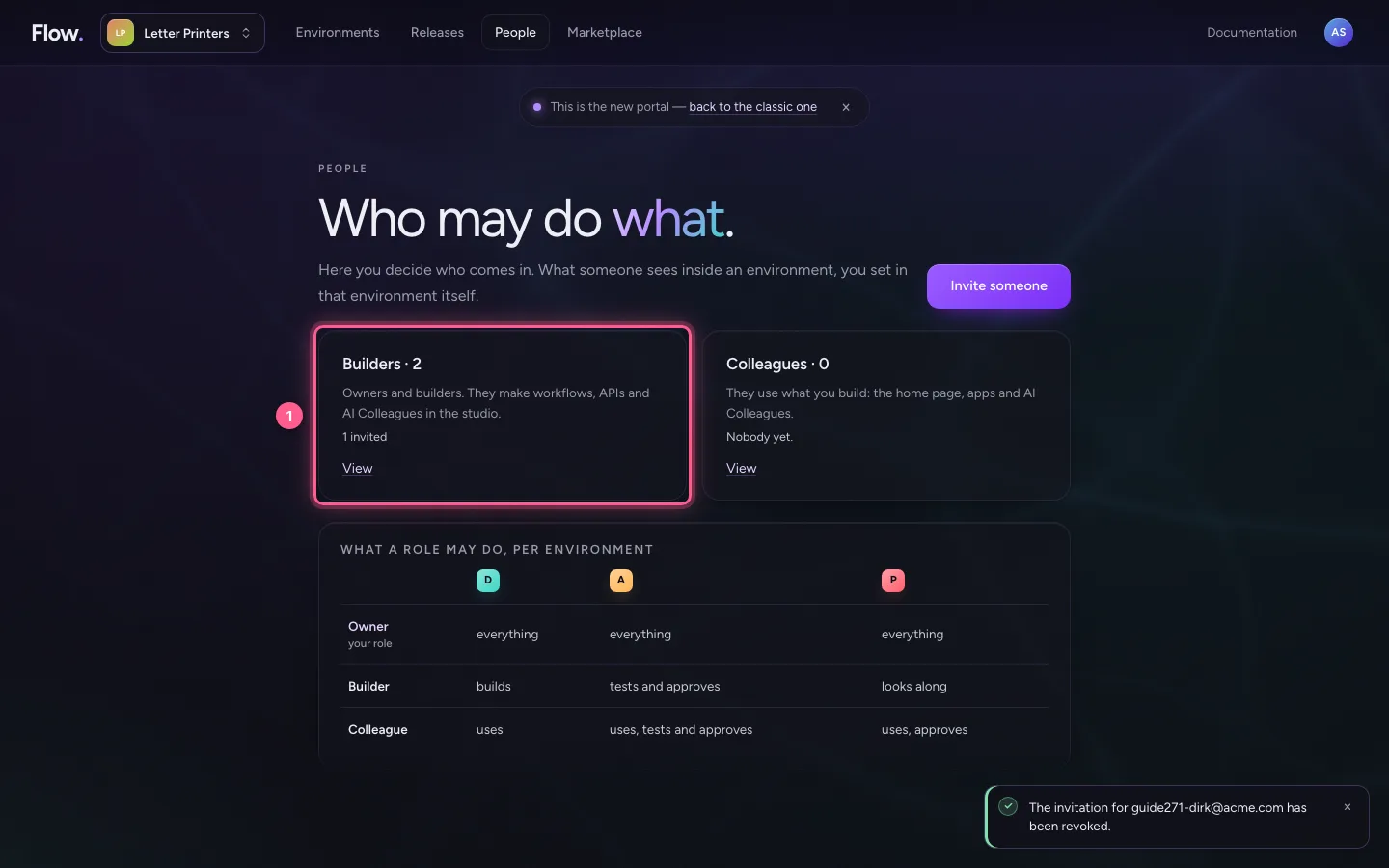
Click People at the top and then Builders. You see everyone who builds, with their role and how they came in. Next to your colleague is a list to choose from; next to yourself, as the founder of the organisation, there is none: the founder always stays owner.
- Click People
- Click Builders · 2 Owners and builders. They make workflows, APIs and AI Colleagues in
Make your colleague co-owner
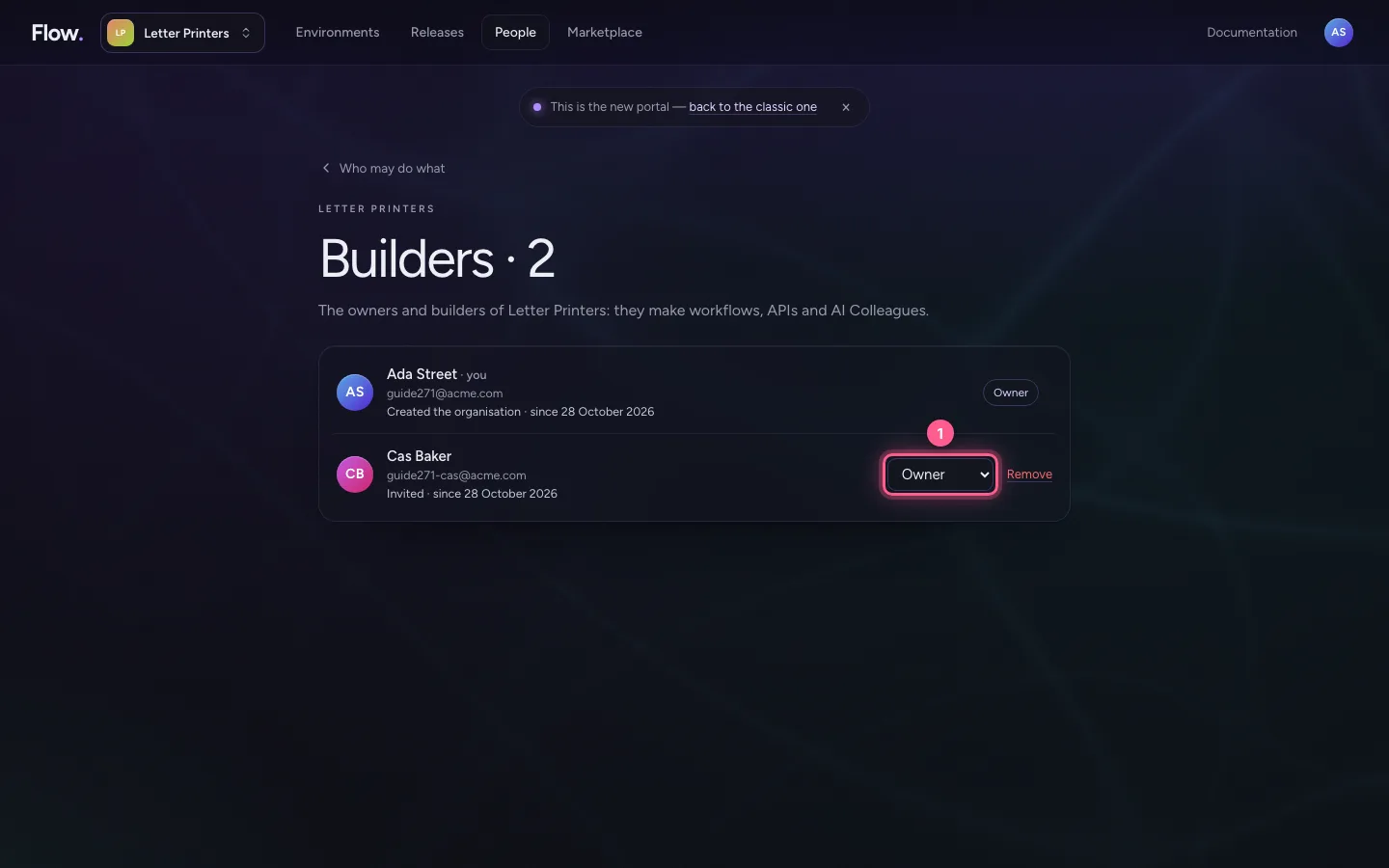
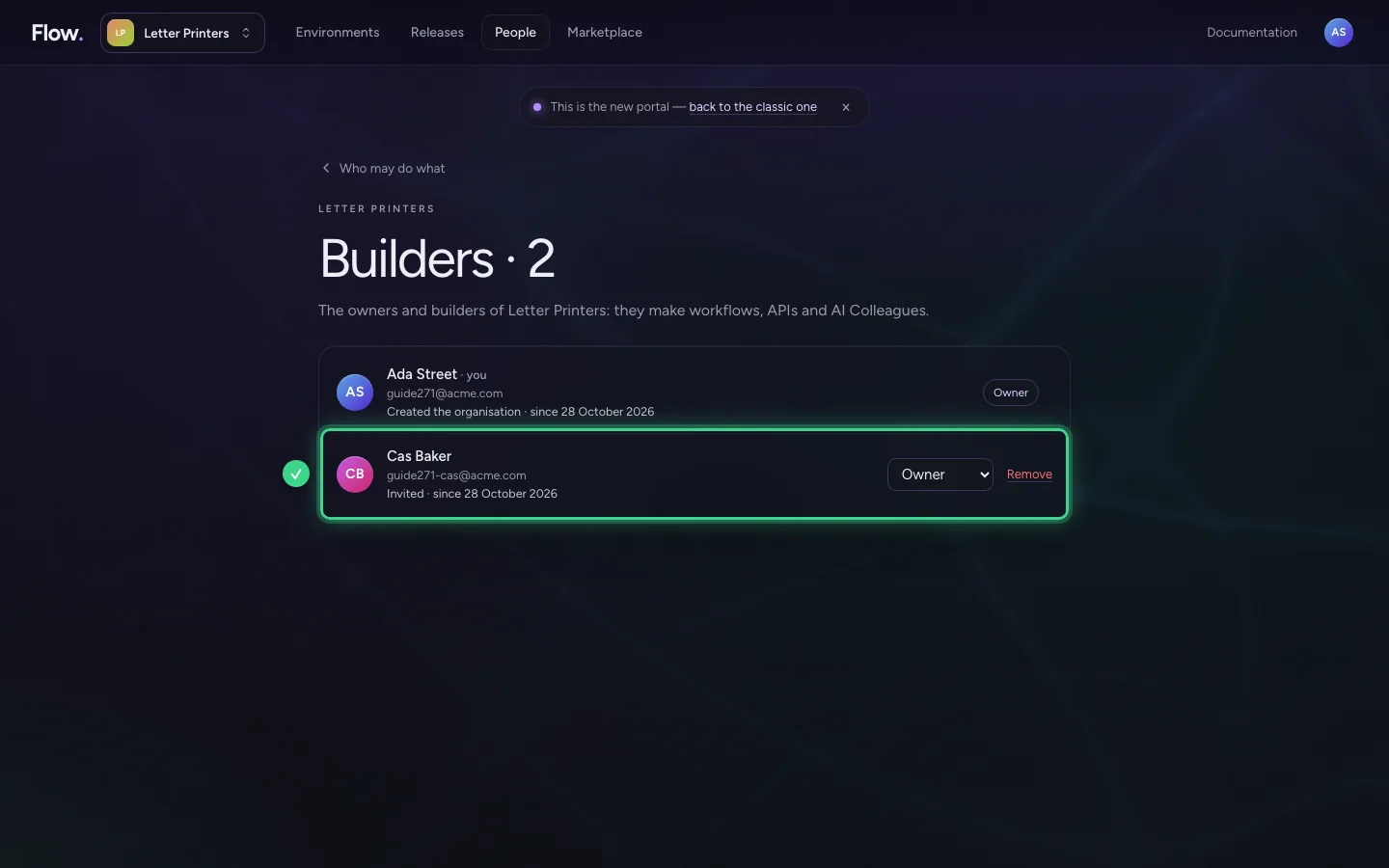
Pick another role in the list; it applies at once, in every environment. A second owner is wise: someone else can then also invite people, set keys and publish to Production when you are away. Owners do cost more than colleagues.
- In your colleague's role, choose Owner
Revoke an invitation
Back under People, Pending invitations lists the invitations nobody has accepted yet. If someone is no longer involved, revoke the invitation: the link in the email stops working.
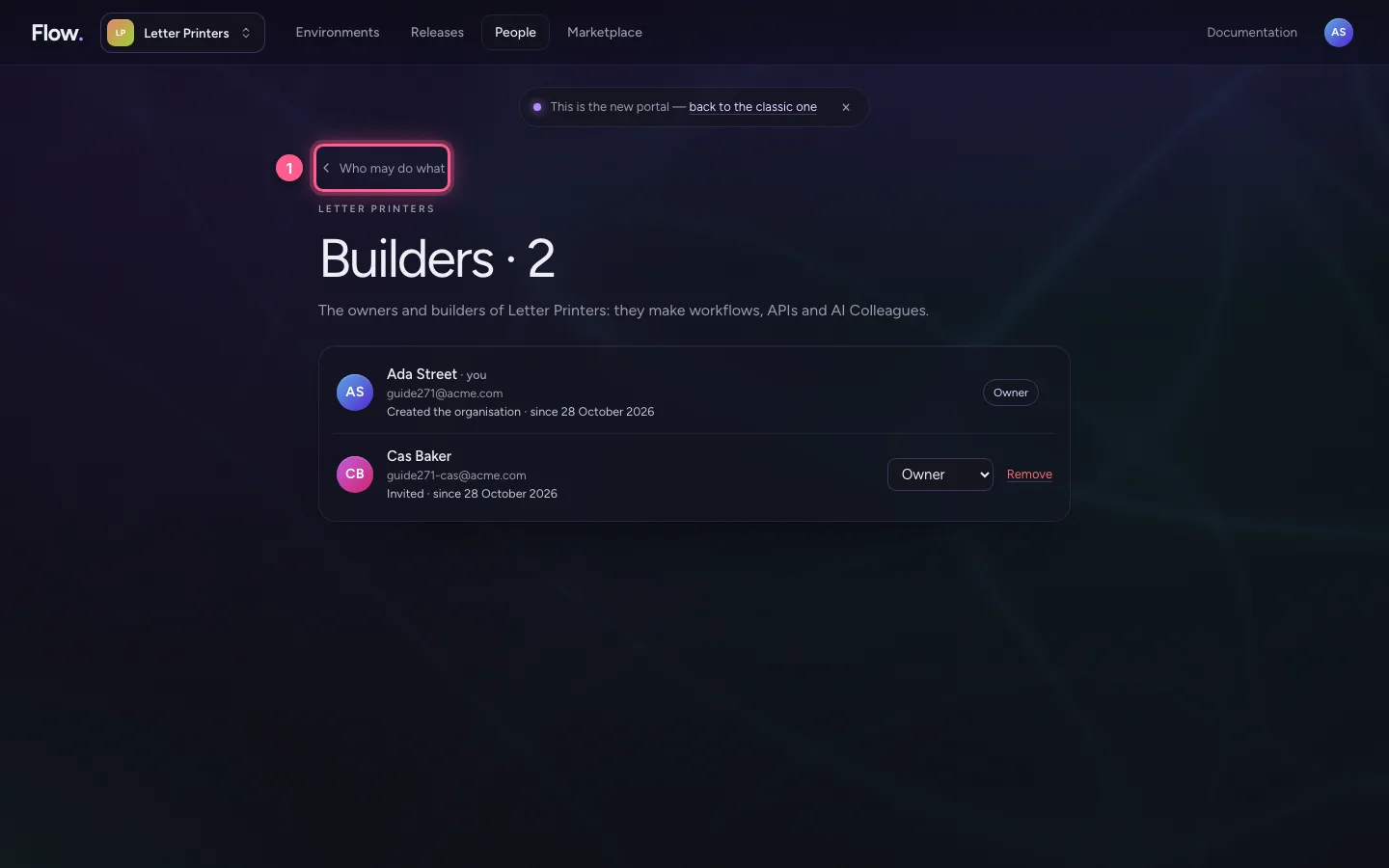
- Click Who may do what
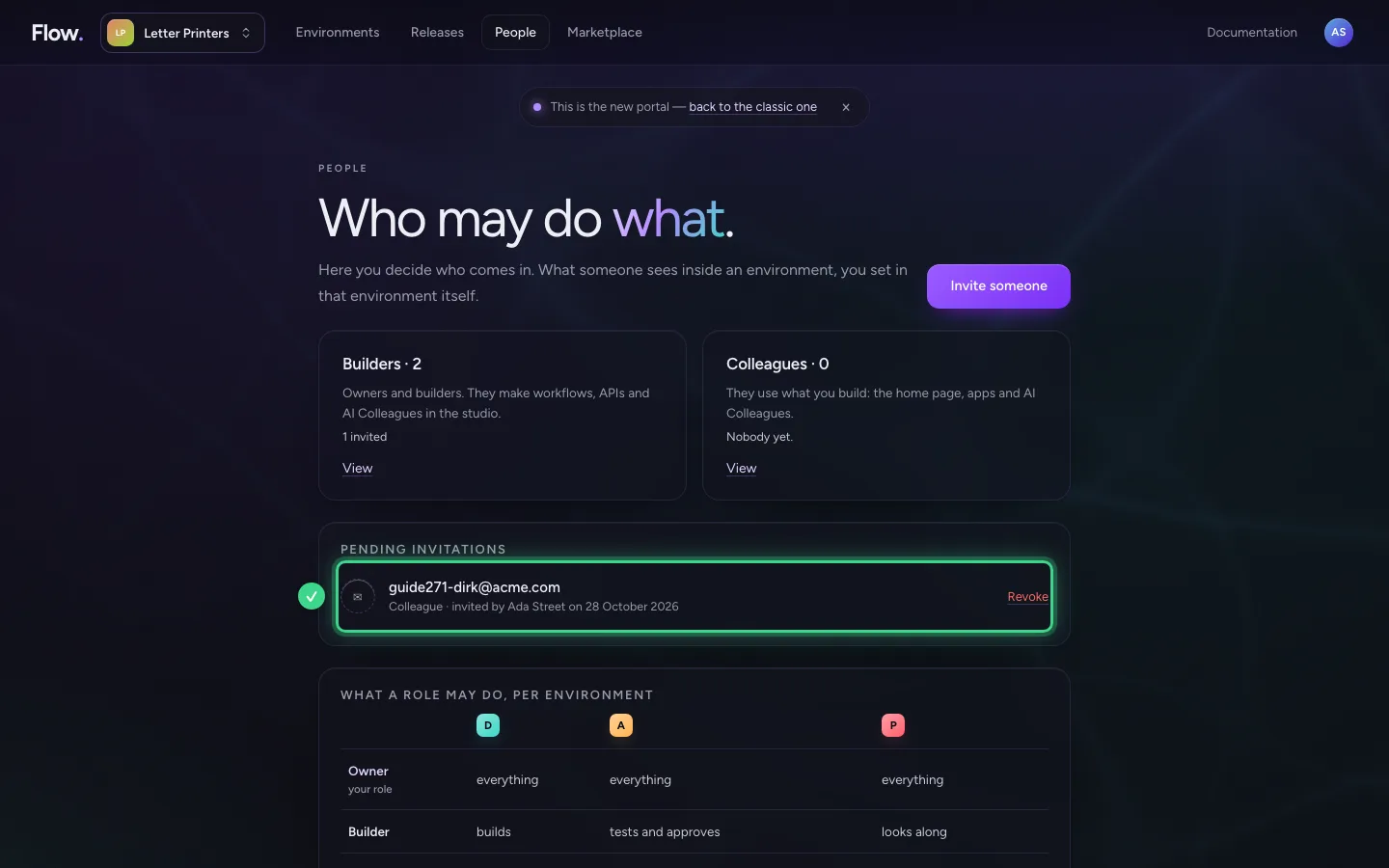
- Click Revoke
Take someone out of the organisation
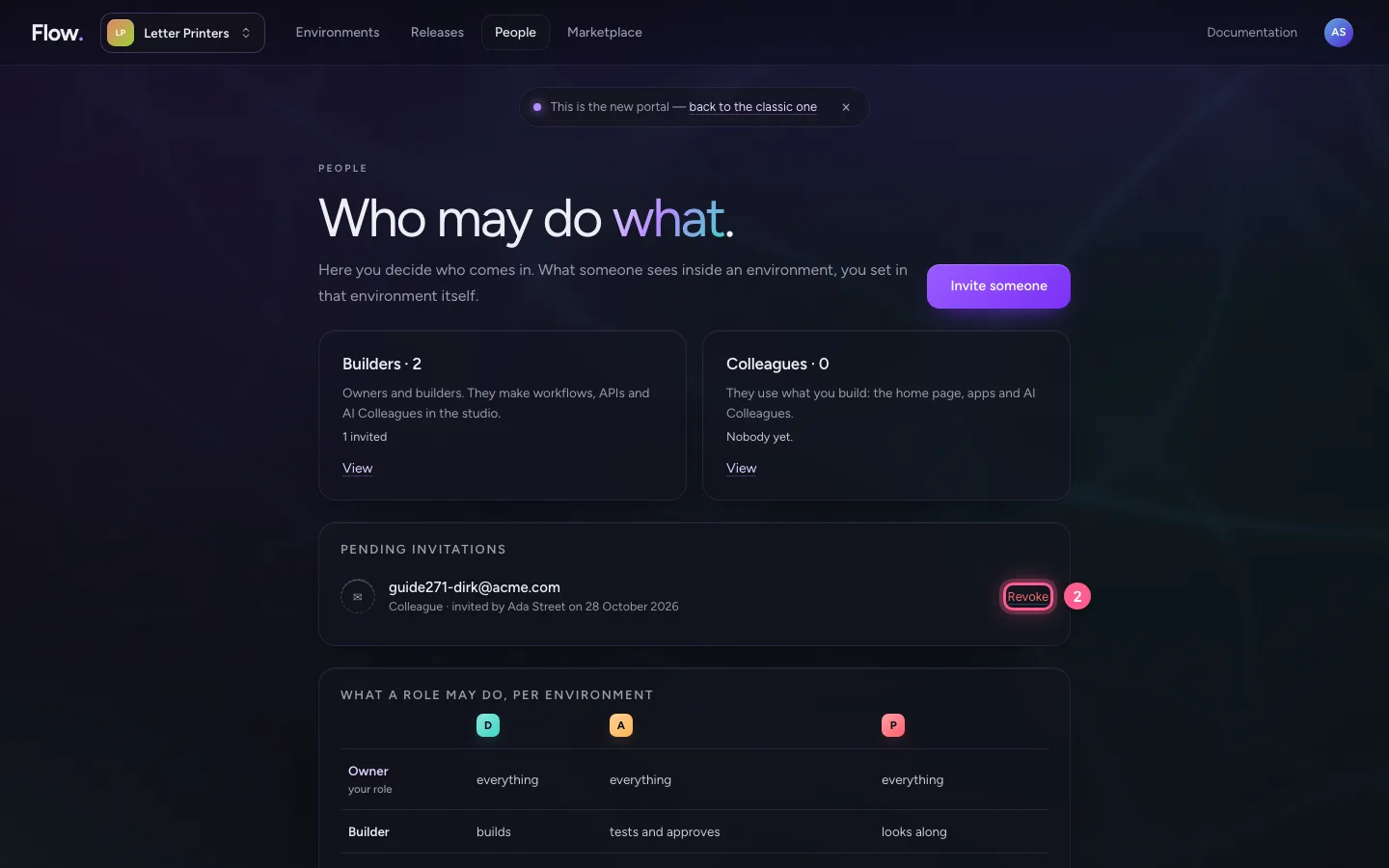
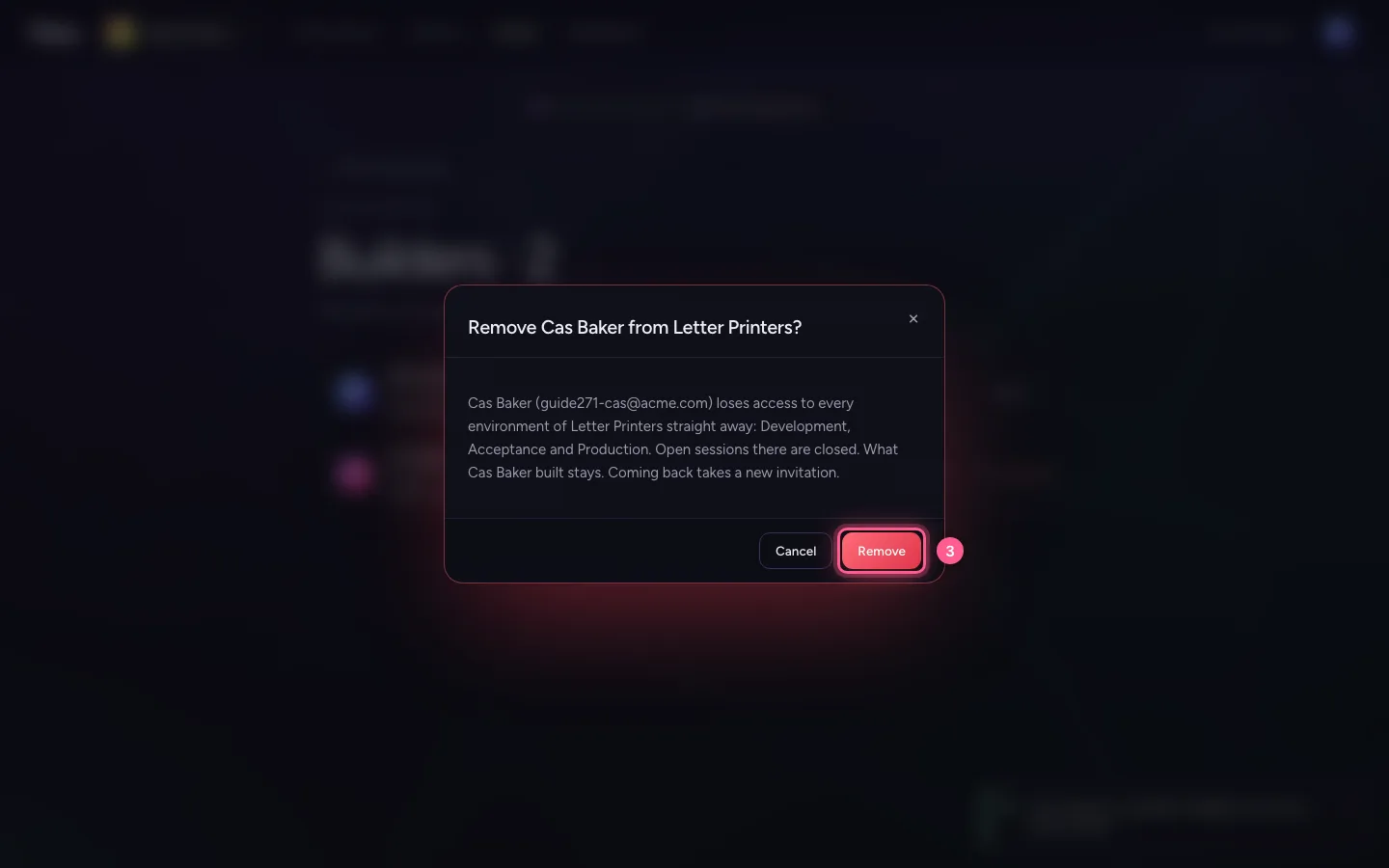
Open the builders again. Remove next to a name first asks whether you are sure, and says what that person loses: access to every environment of the organisation, open sessions included. What they built stays. Anyone removed by mistake, you invite again.
- Click Builders · 2 Owners and builders. They make workflows, APIs and AI Colleagues in
- Click Remove
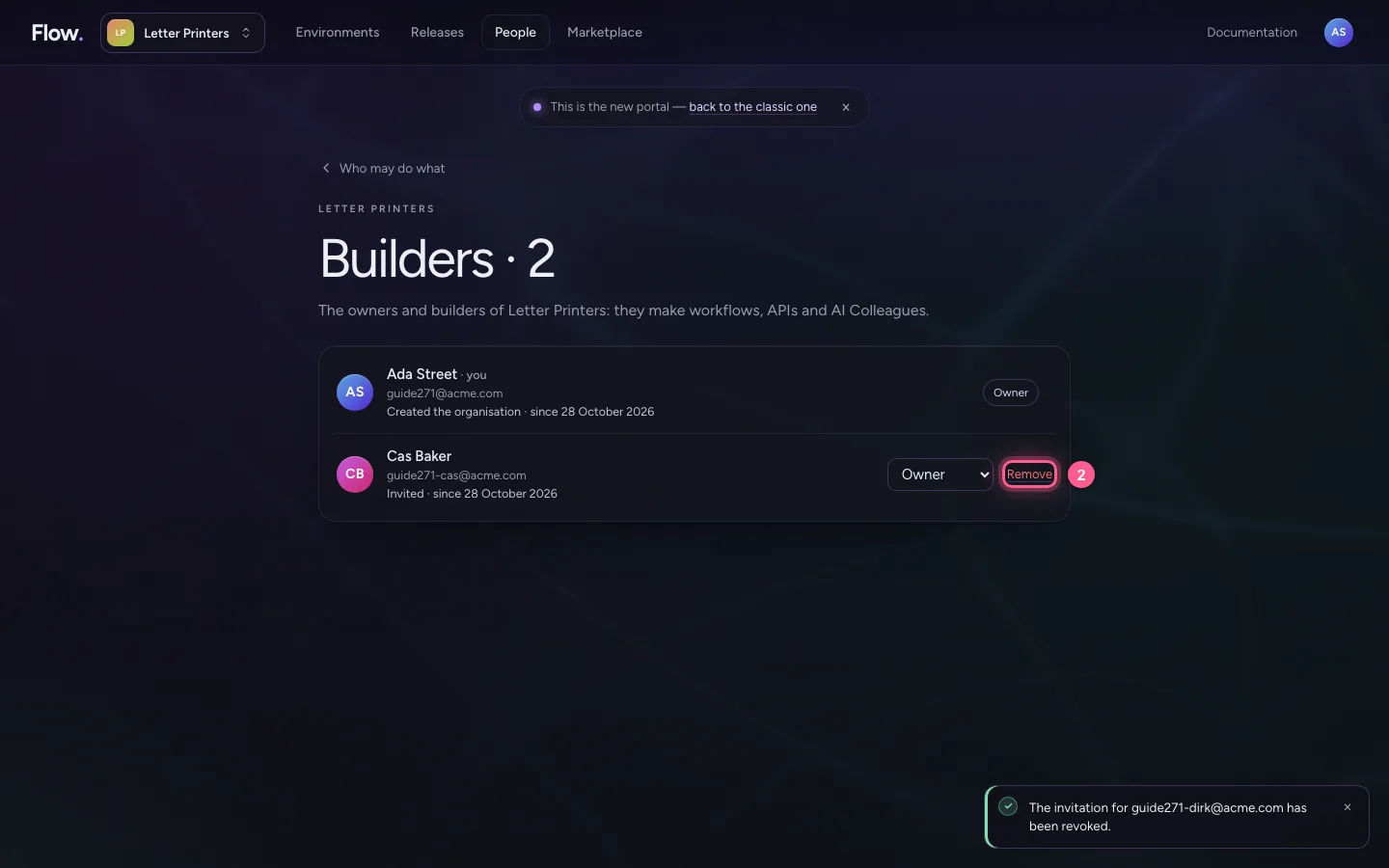
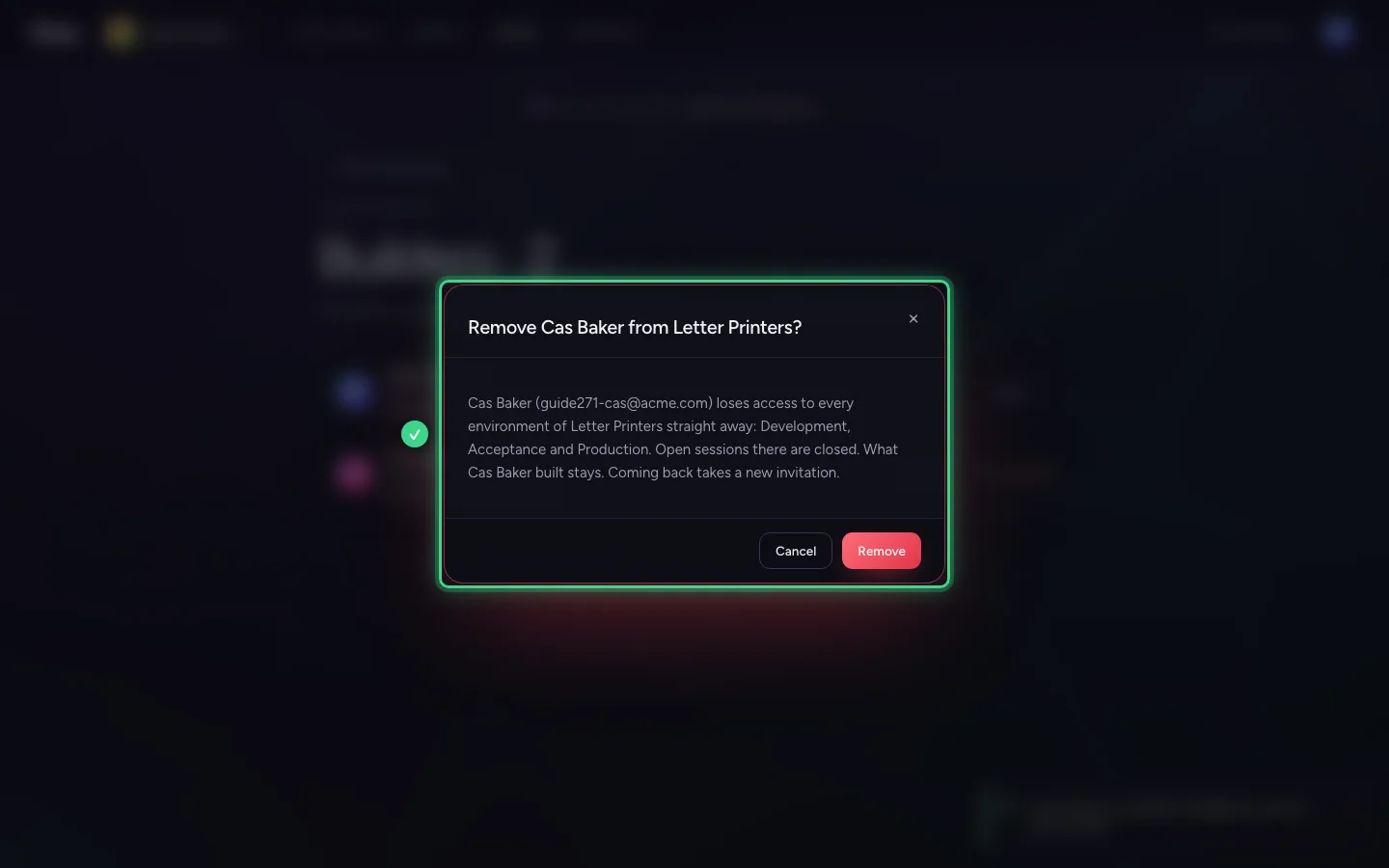
- Click Remove
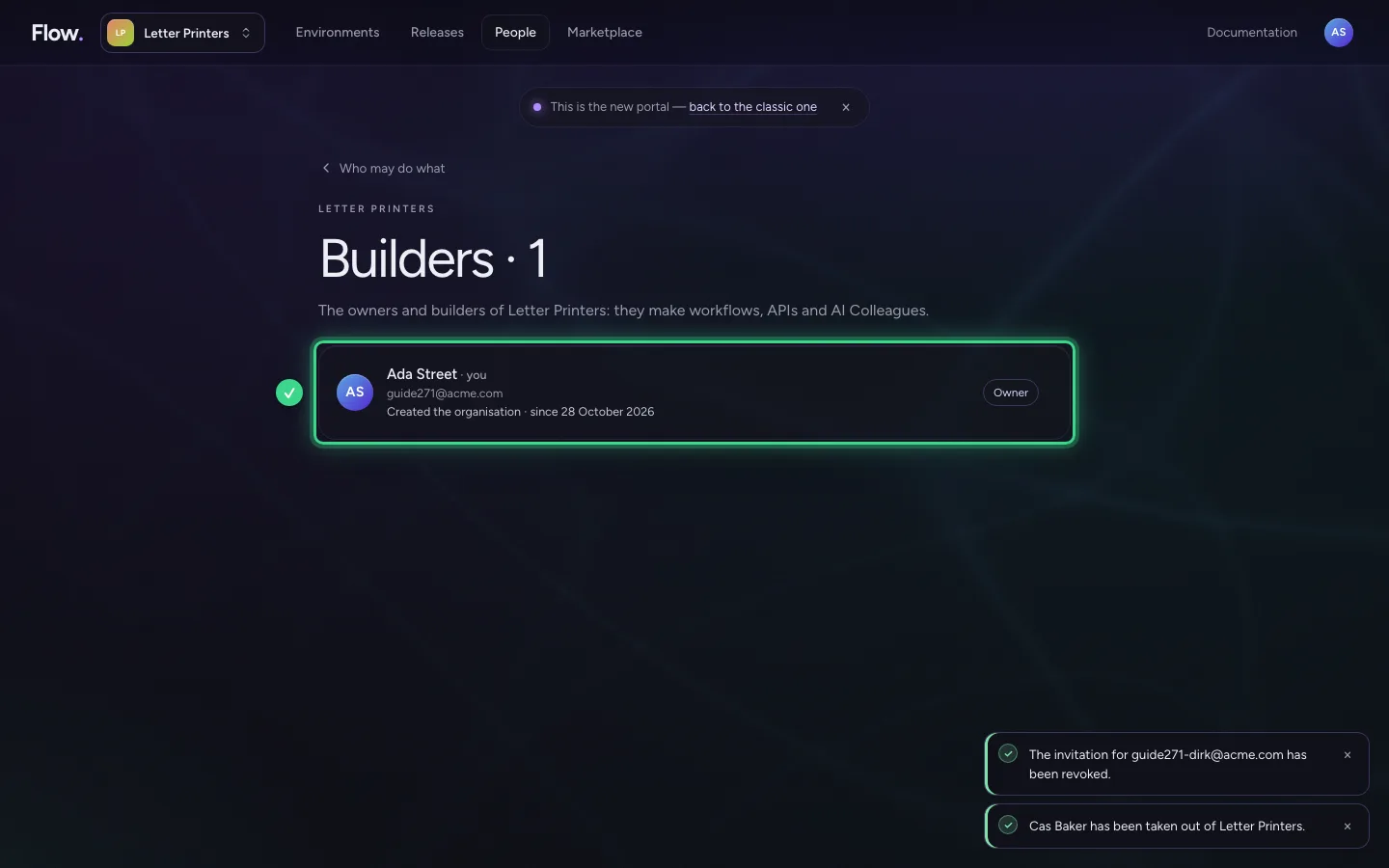
Your colleague is out
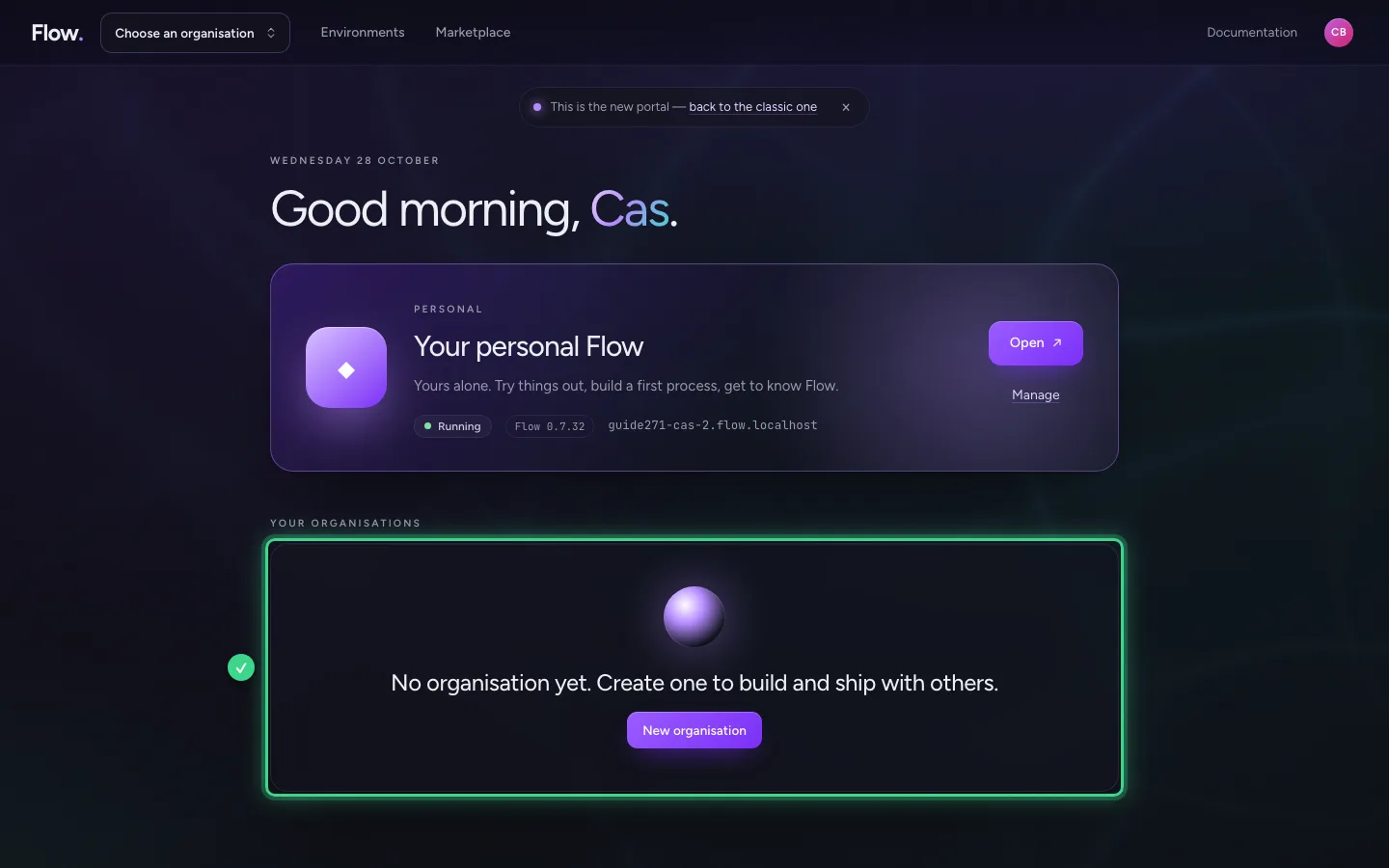
This is how your former colleague sees the portal now: the organisation is no longer on Start and the environments can no longer be opened. Their own personal Flow stays theirs.
This guide was carried out step by step on 28 Oct 2026 by an automated test on Flow (version 96971699).