Releases: what was promoted when
Releases → History is your organisation's log: every time a version moves on to the next environment, it is there, with a note, who did it, when and what changed. You publish a version with a note and table data, and read back what was recorded. Putting a version into Production step by step is in ‘Put a version into Production’.
Open Releases
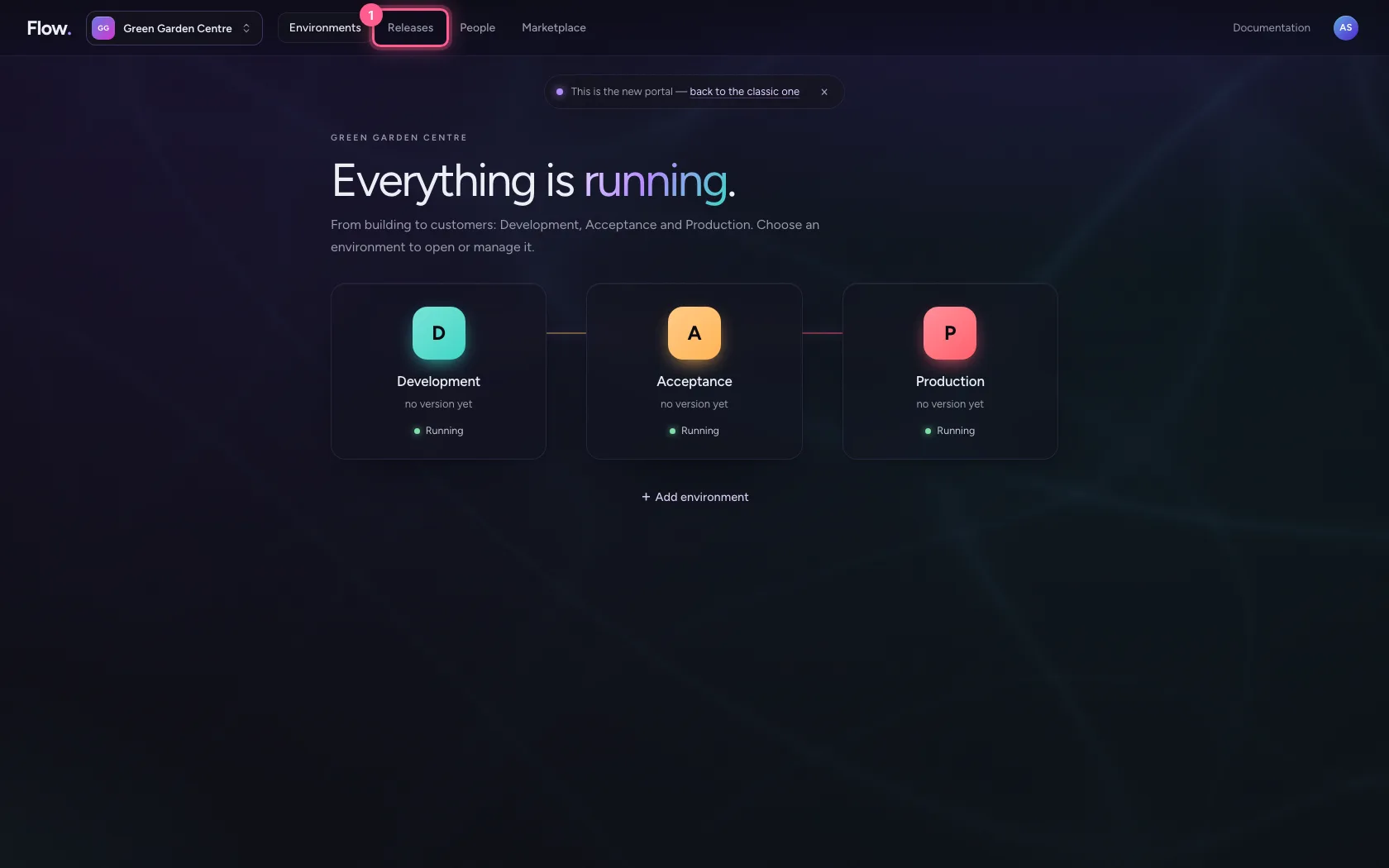
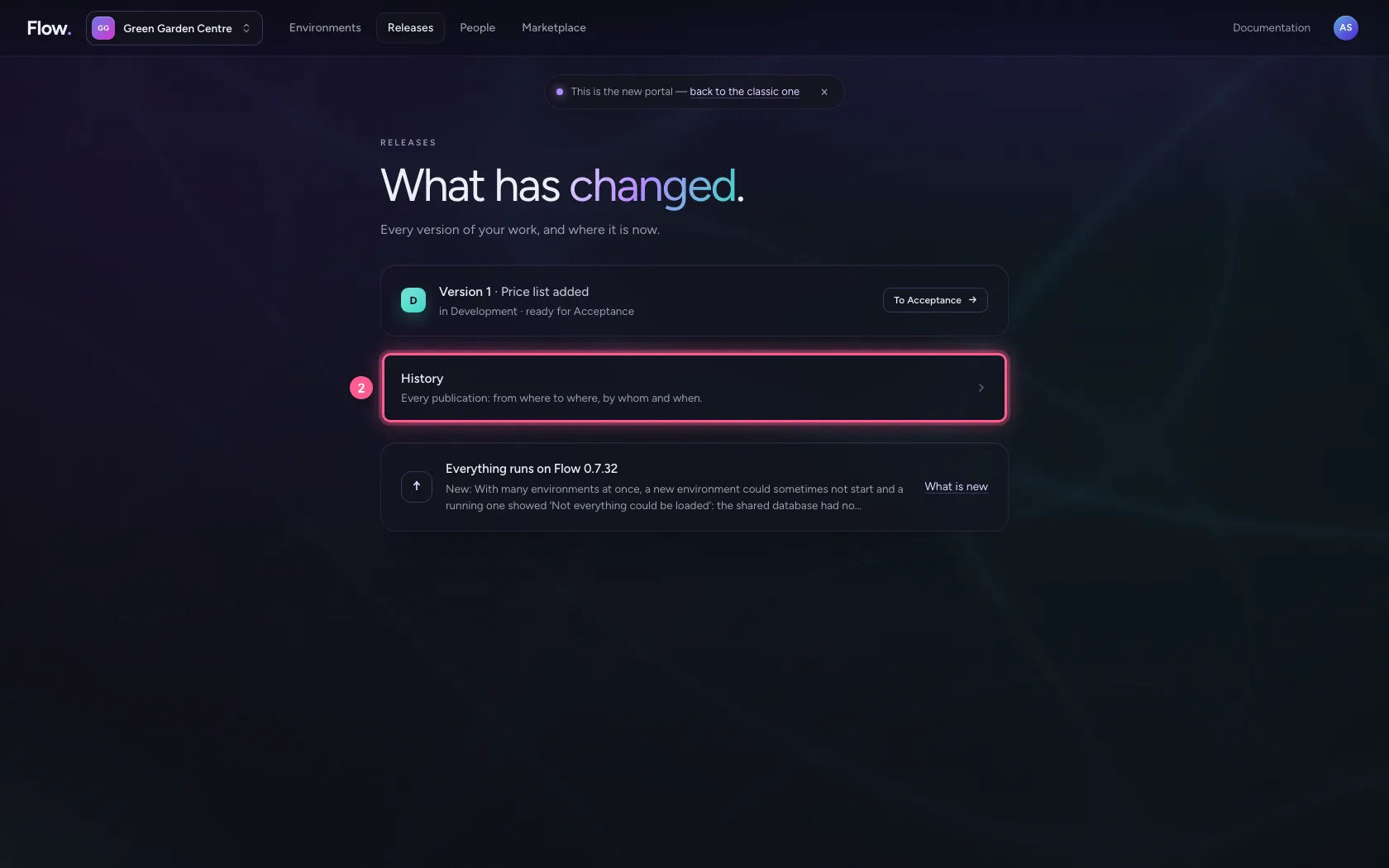
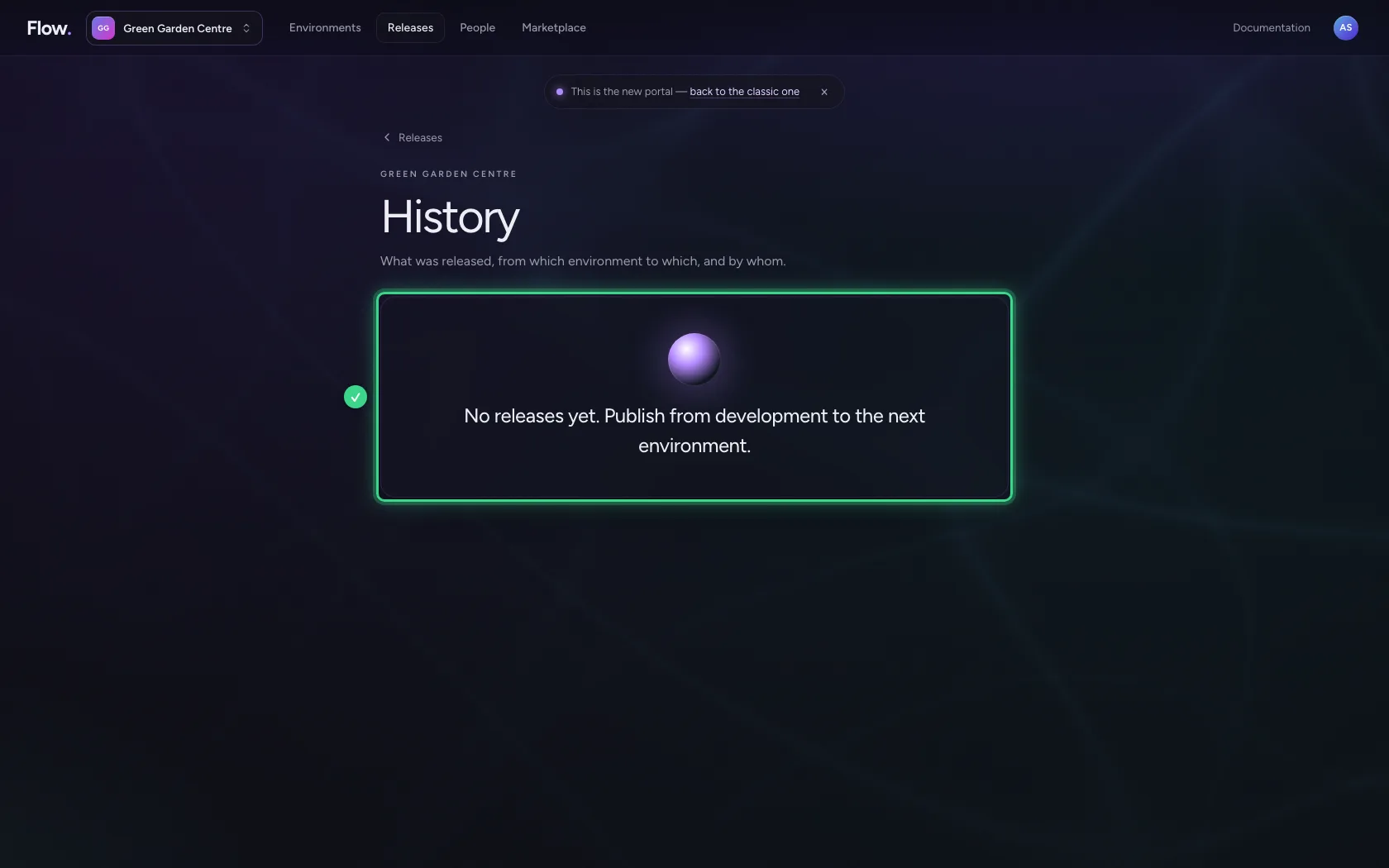
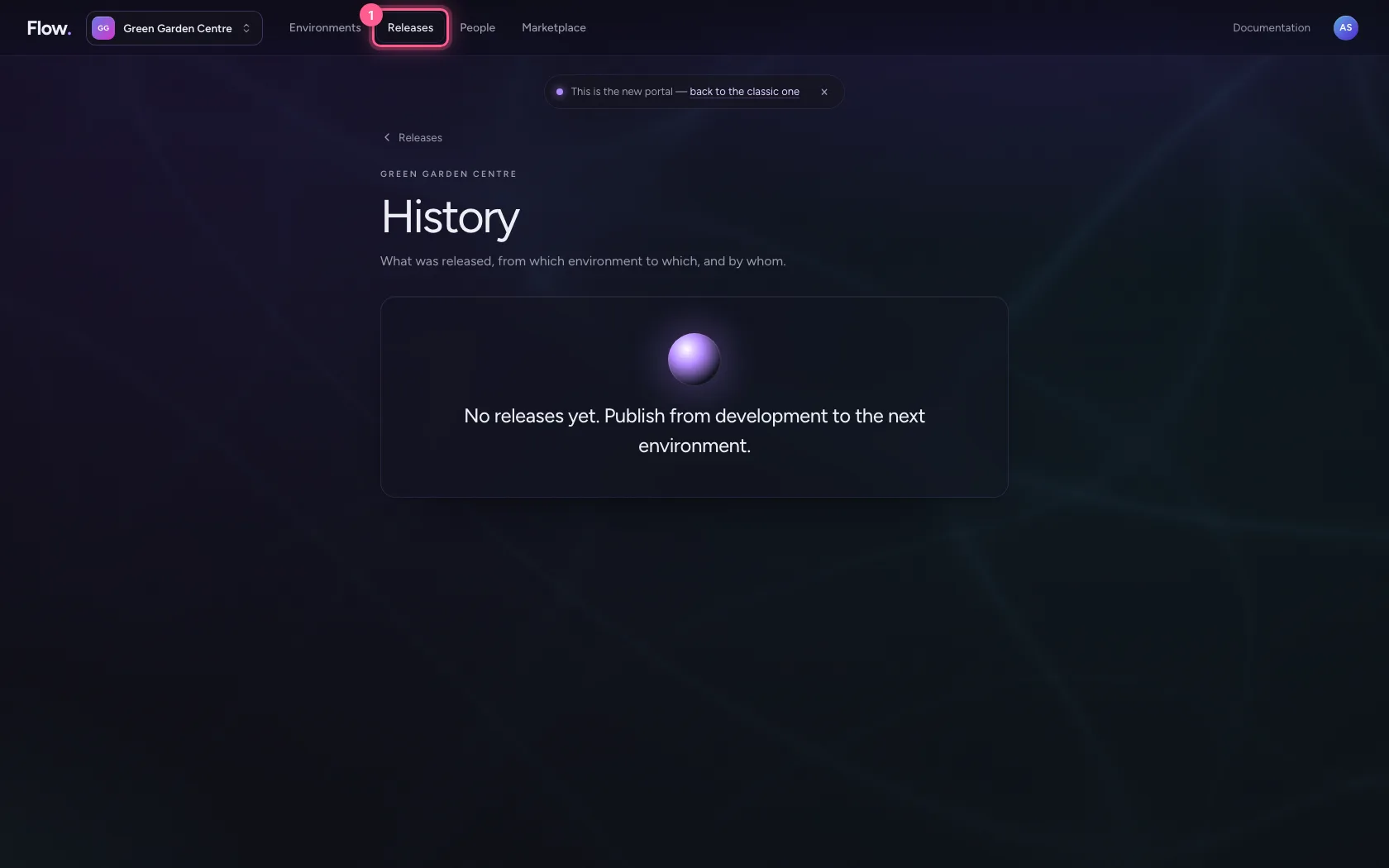
Click Releases at the top. Version 1 is in Development and ready for Acceptance. History lists every publication; as long as nothing has been promoted, it is empty: only what moves from one environment to the next ends up there. Committing in Development alone is not a release yet.
- Click Releases
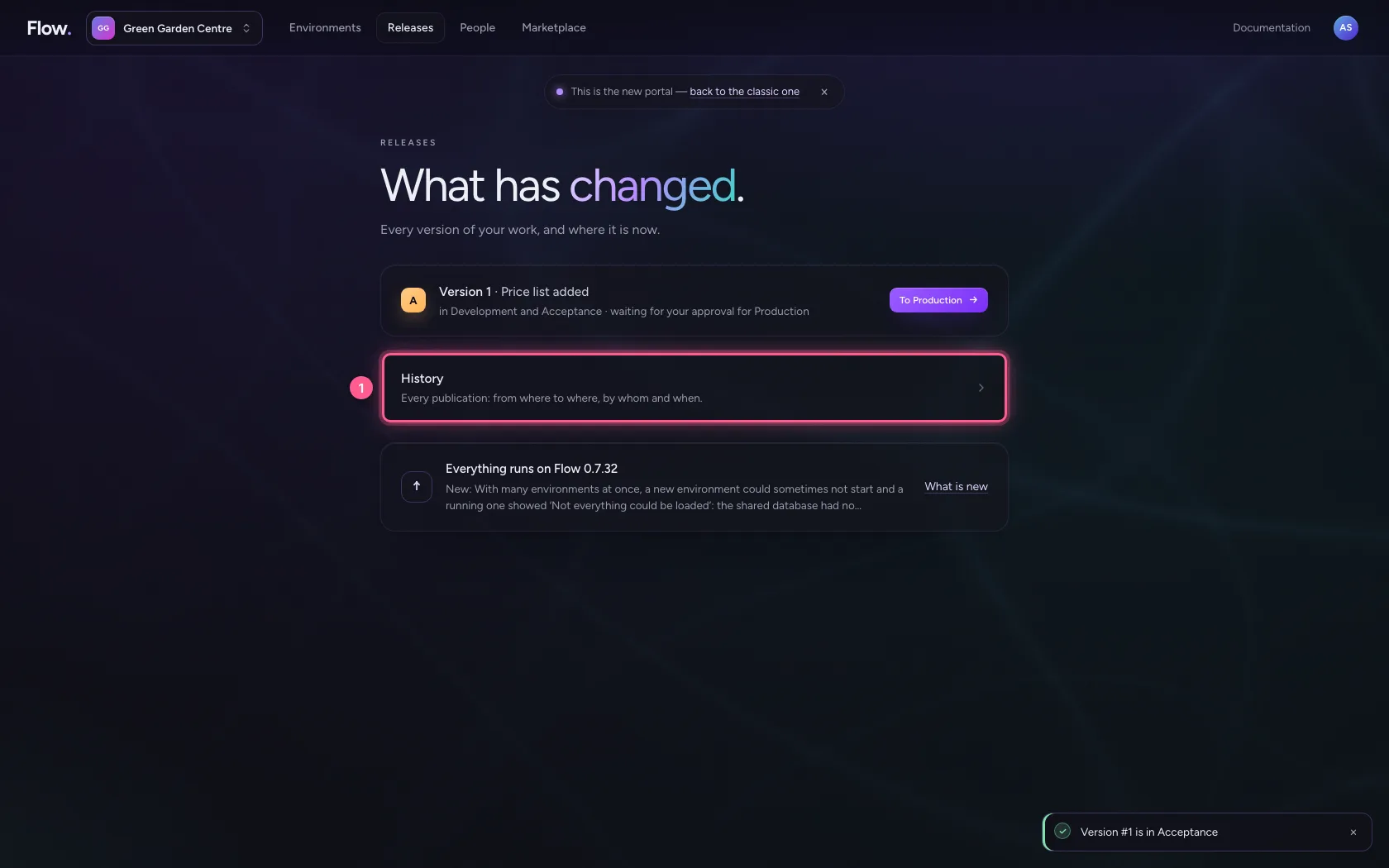
- Click History Every publication: from where to where, by whom and when.
Publish with a note
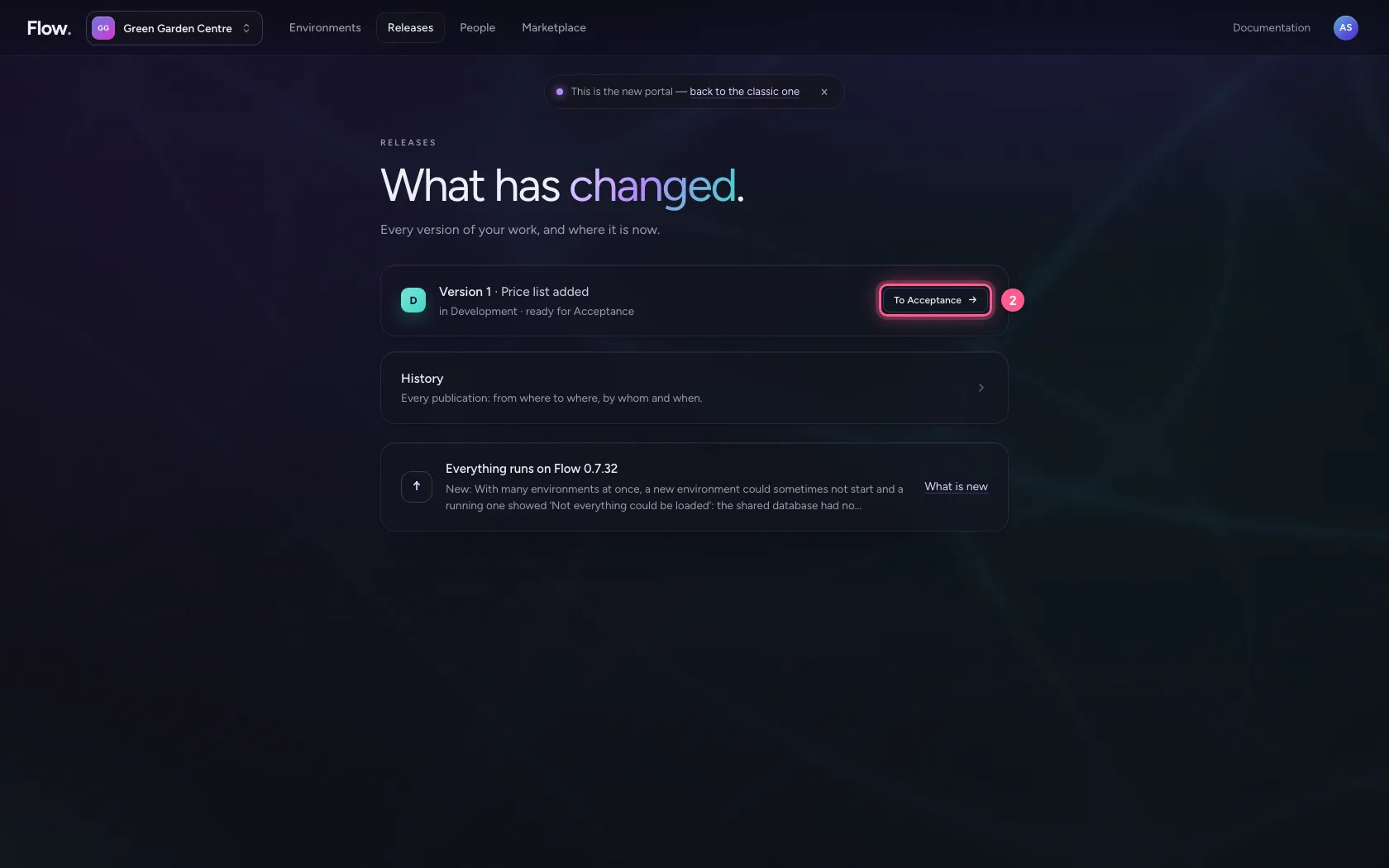
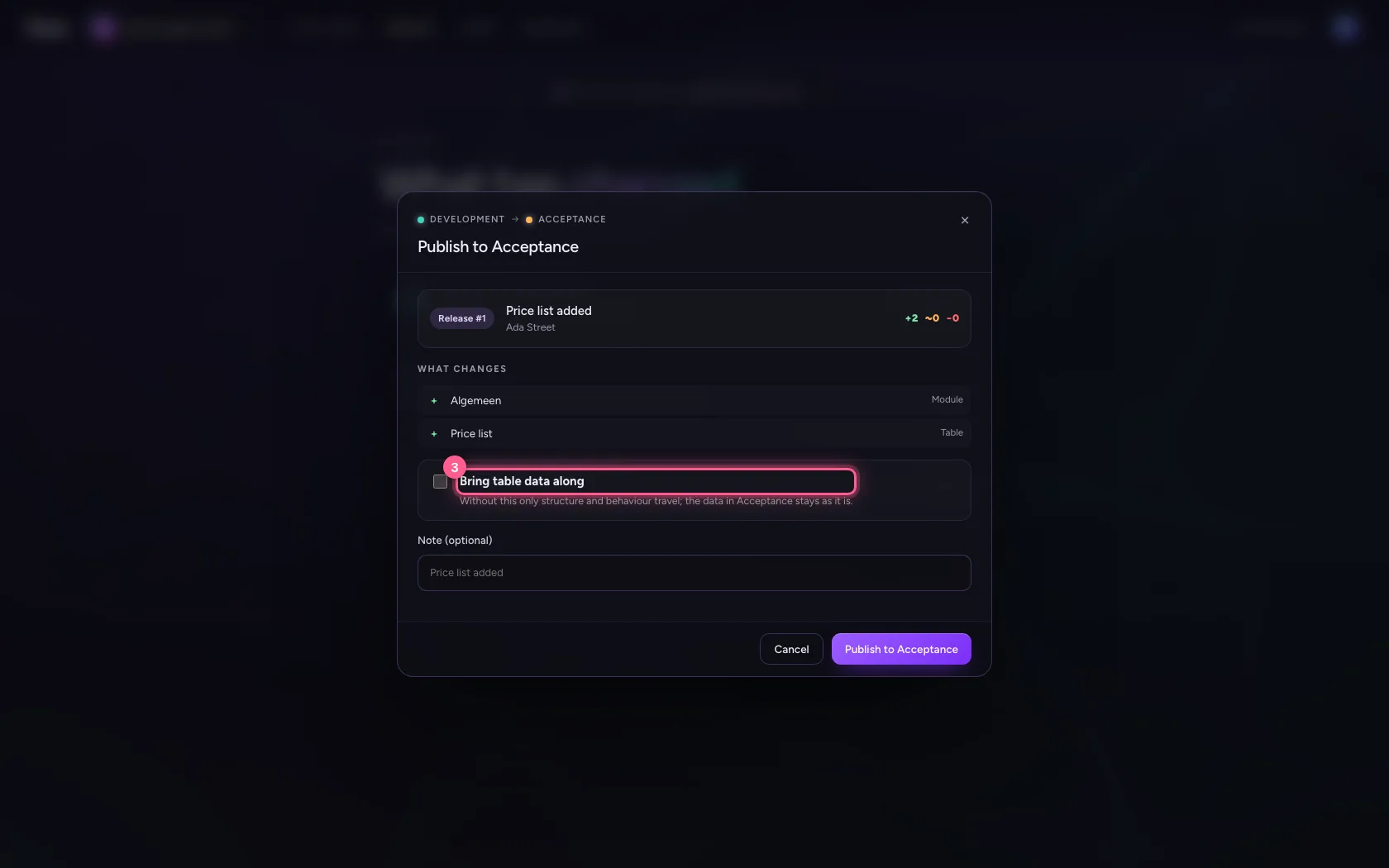
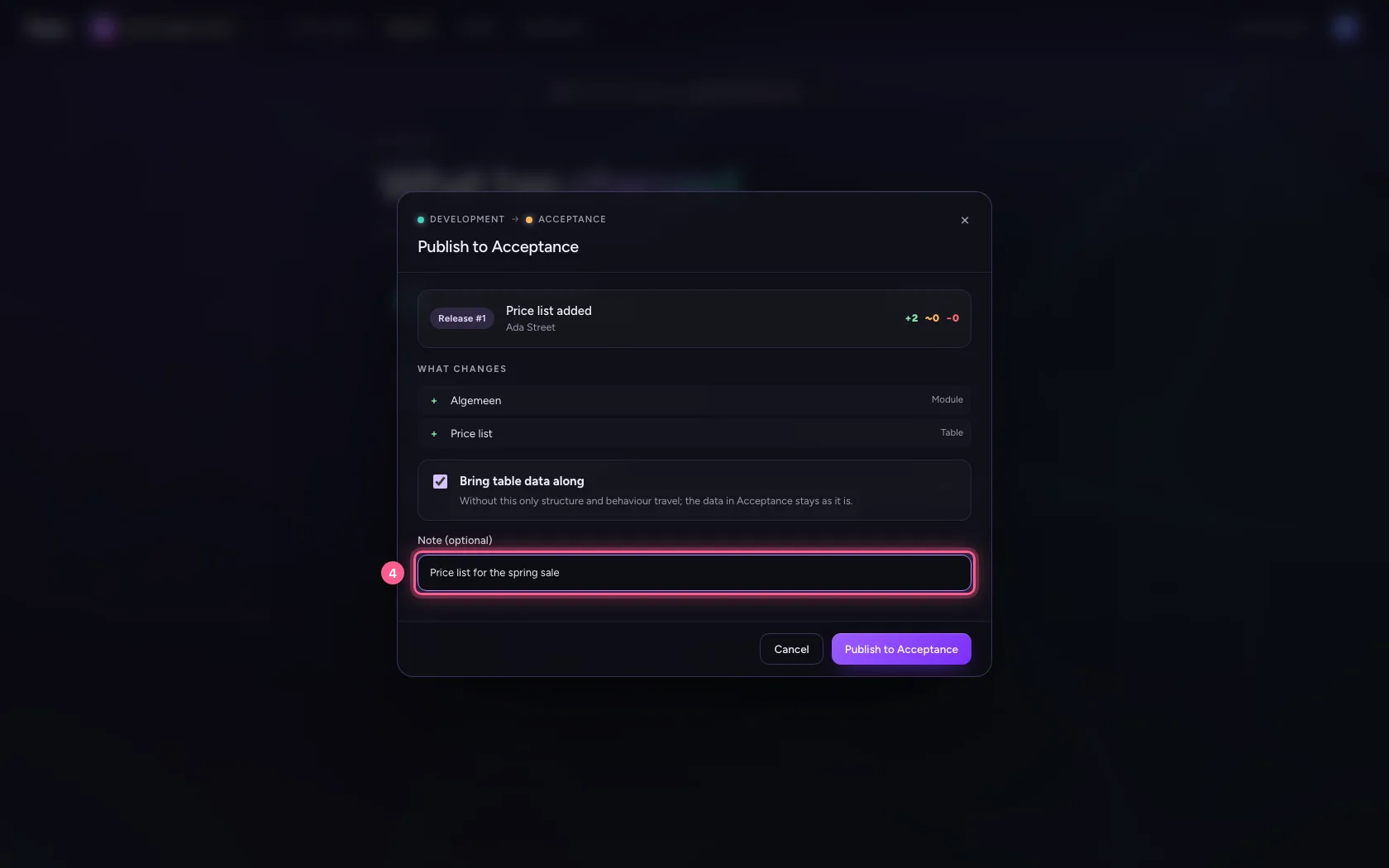
Back on Releases you promote the version to Acceptance. In the window you write why under Note: that is what the business and an auditor read in the history later. Without a note it shows the sentence the version was committed with. Switch on Bring table data along if Acceptance should also get the rows from Development.
- Click Releases
- Click To Acceptance →
- Click Bring table data along
- In Note (optional), type
Price list for the spring sale
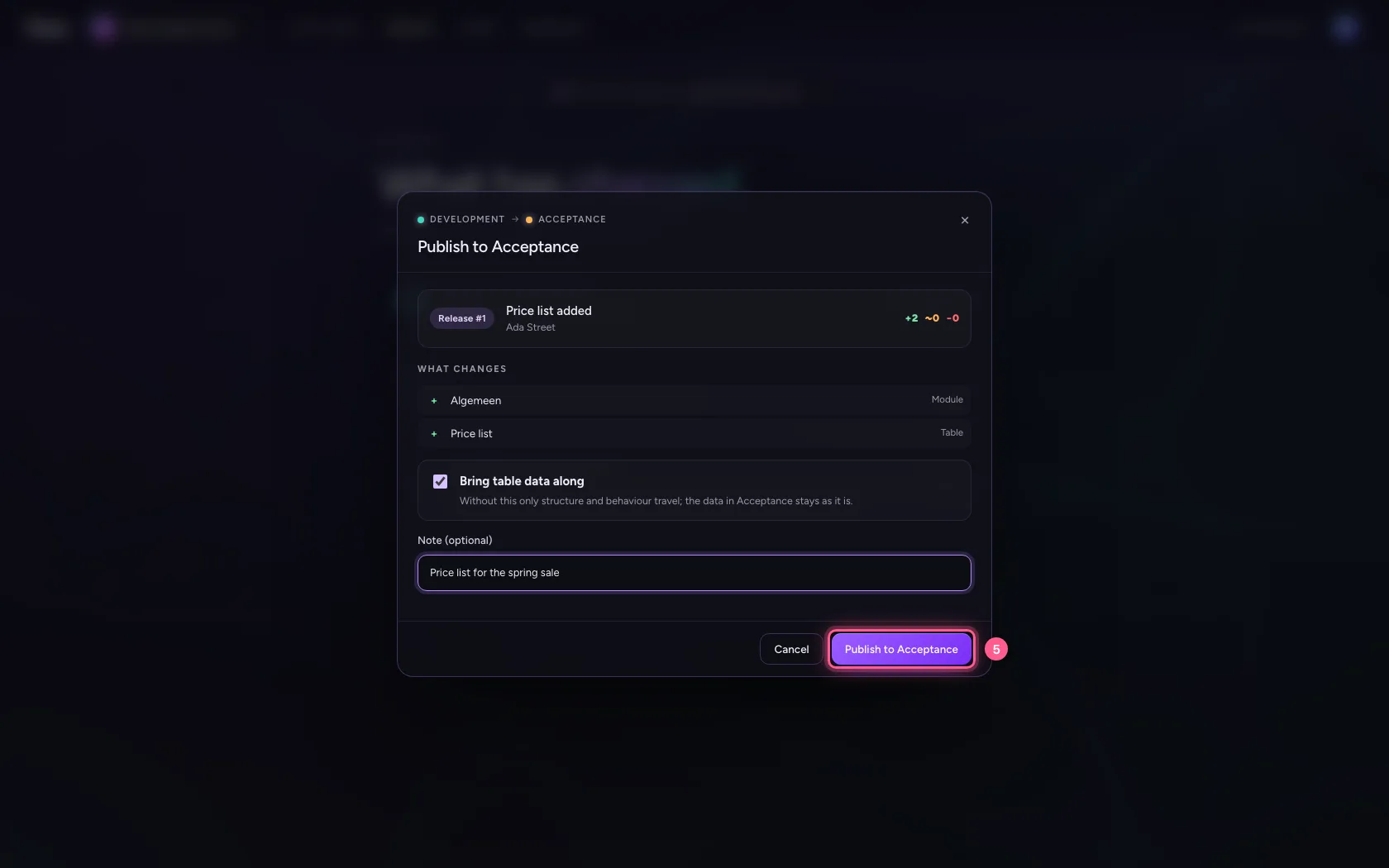
- Click Publish to Acceptance
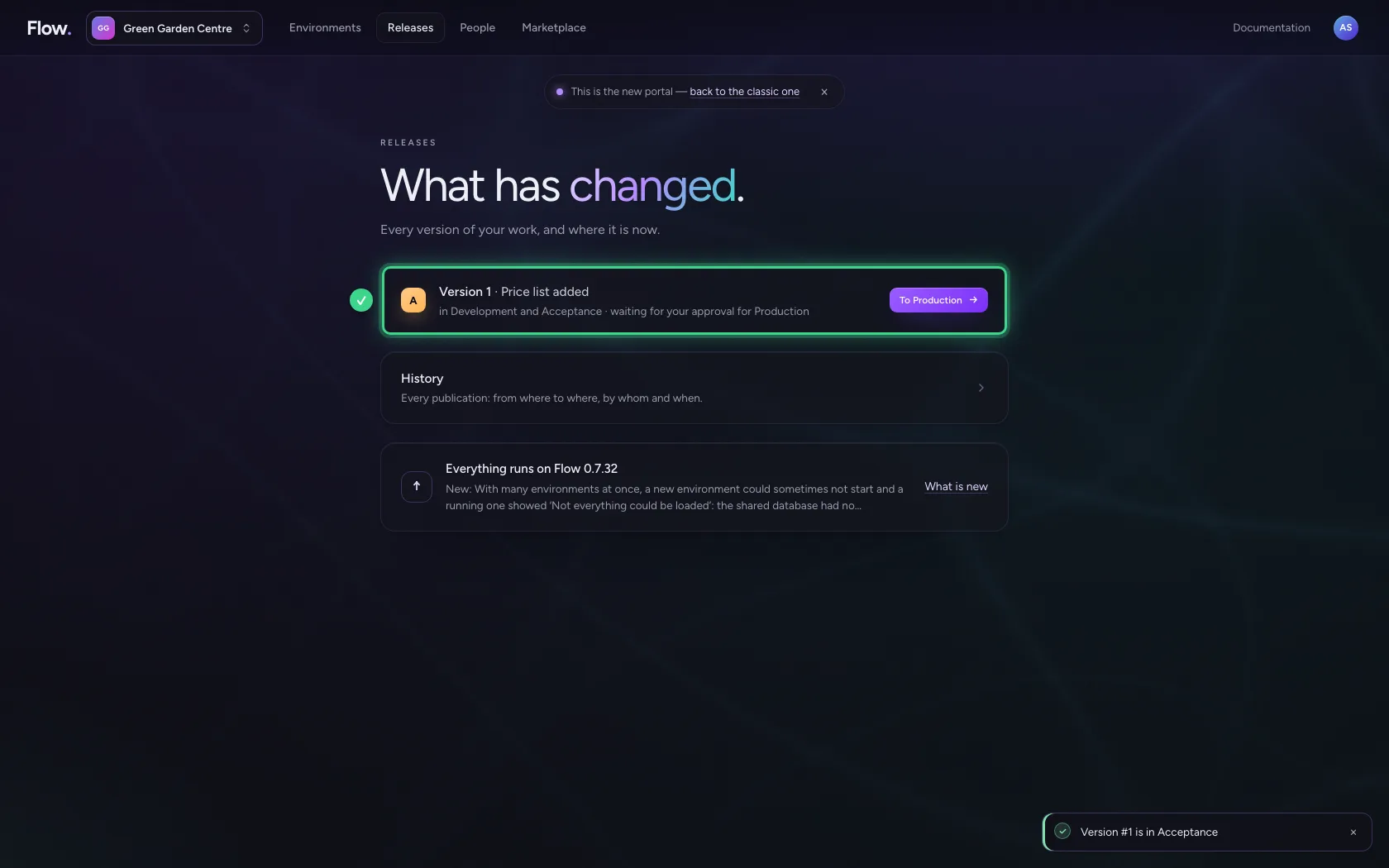
Read the release back
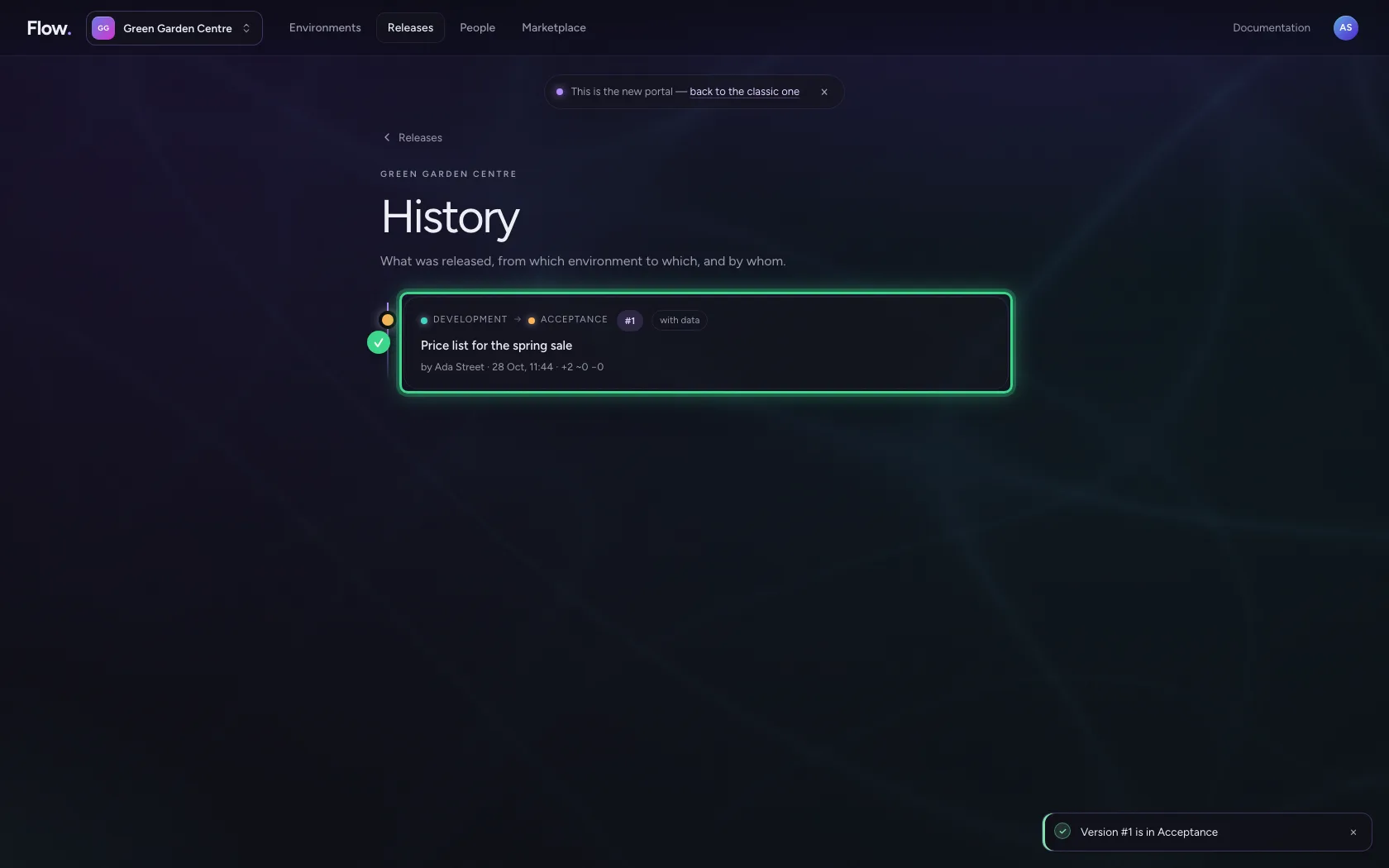
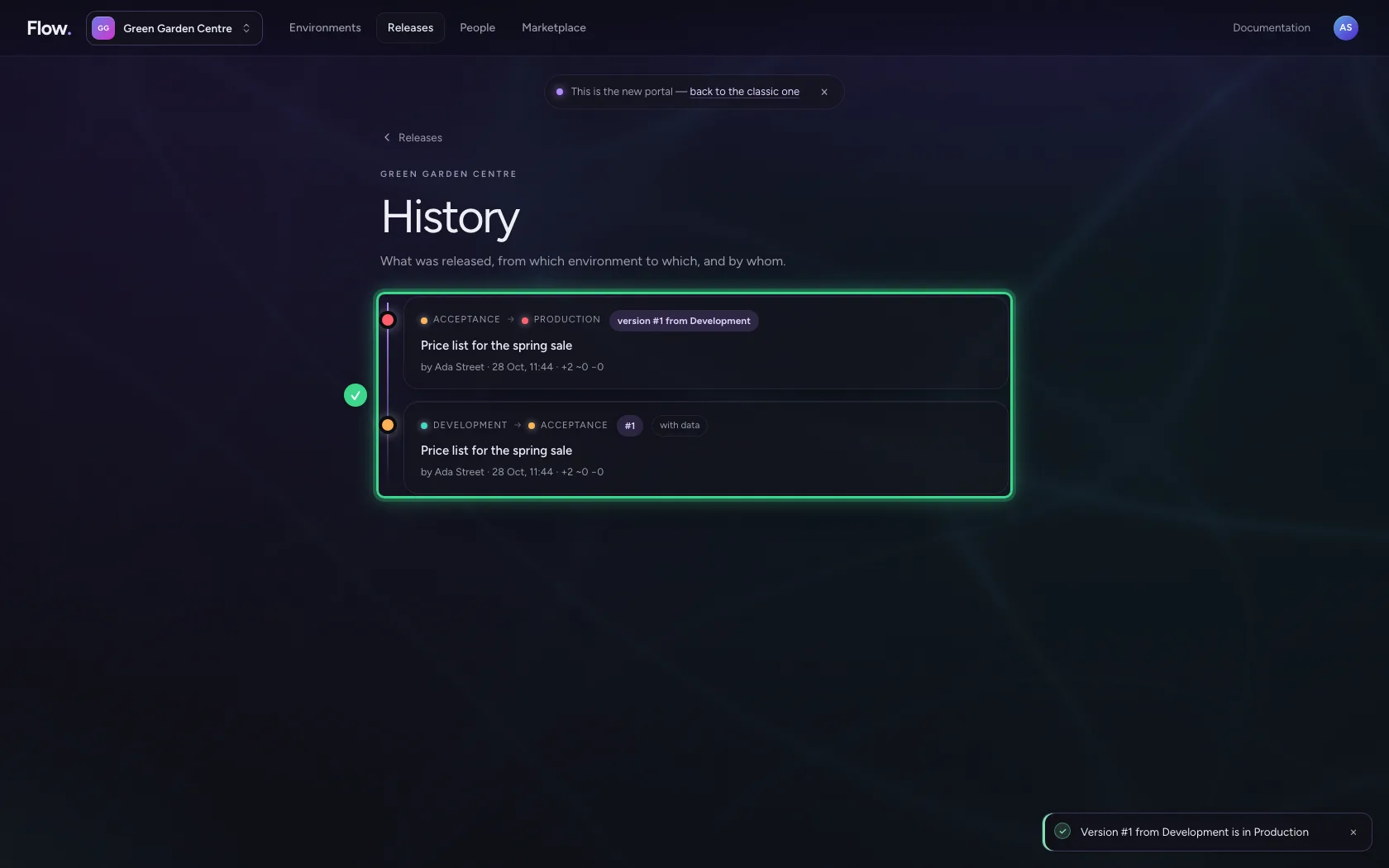
Under History the promotion is at the top: from Development to Acceptance, the version number, your note, the label with data because the rows went along, who did it and when, and what changed (+ new, ~ changed, − removed).
- Click History Every publication: from where to where, by whom and when.
Every step is added
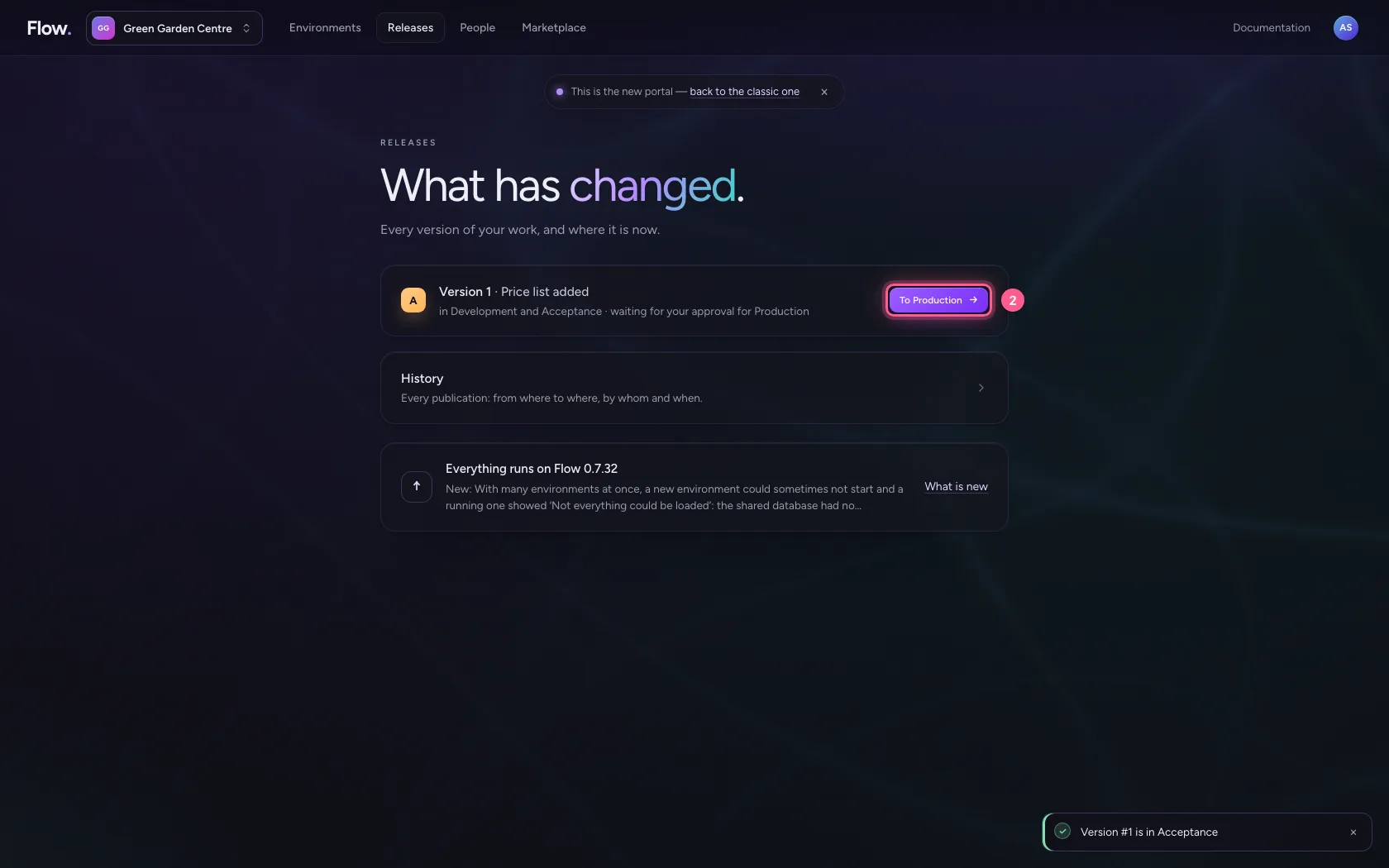
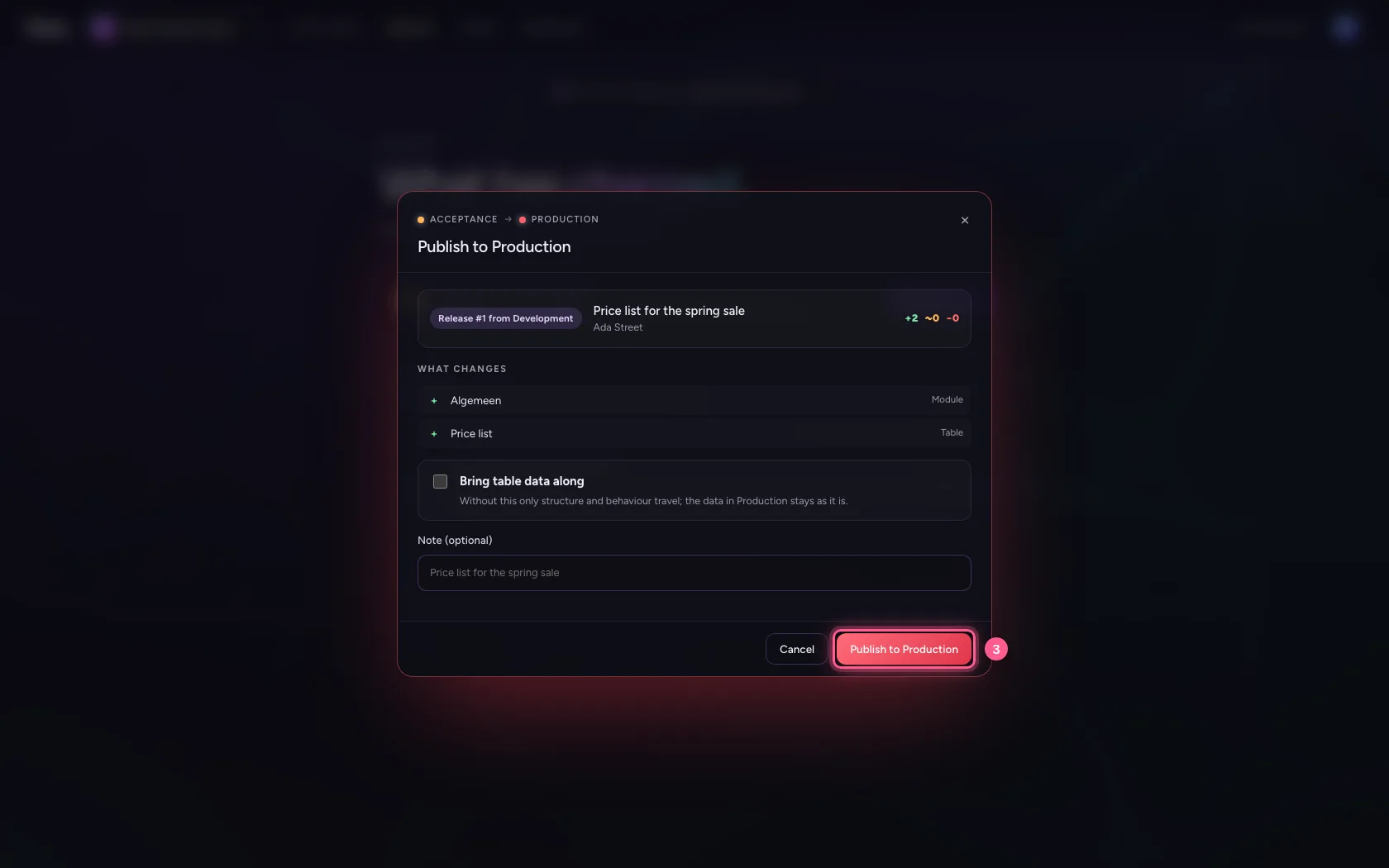
Promote the same version to Production, this time without a note and without data. Your note travels along: without a new note the release shows the sentence the version carries in Acceptance. The history keeps everything, newest at the top, without anyone having to keep track.
- Click Releases
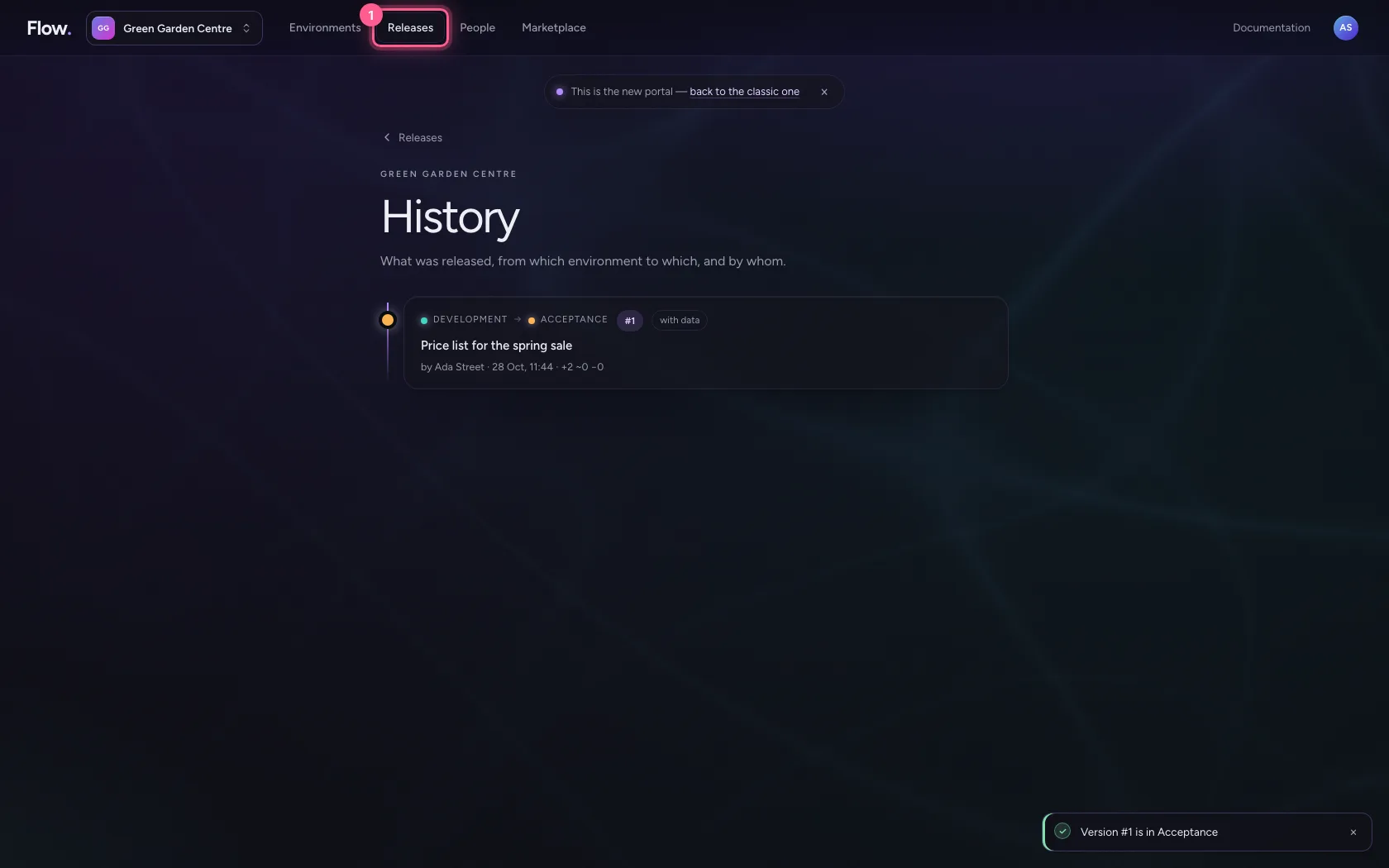
- Click To Production →
- Click Publish to Production
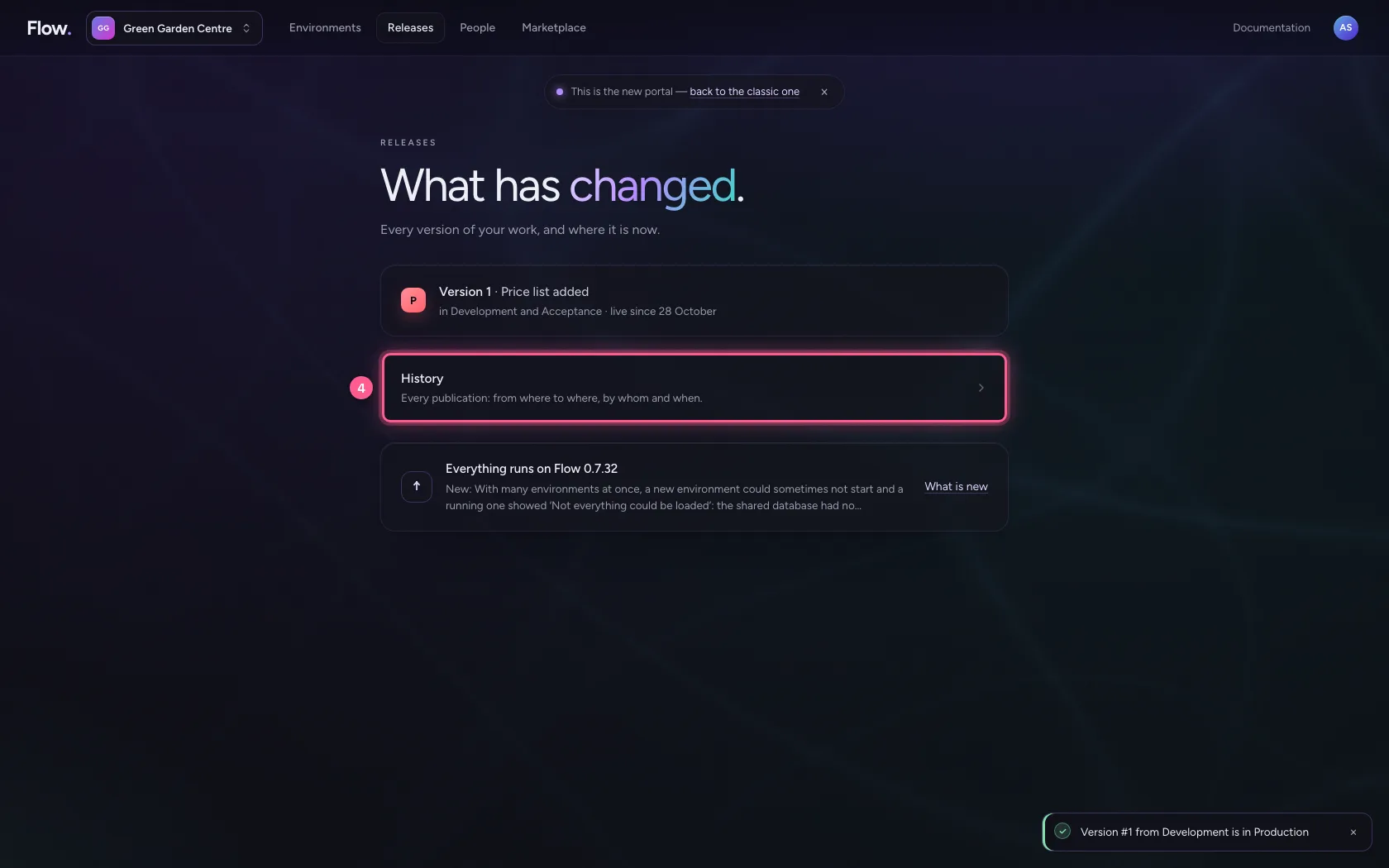
- Click History Every publication: from where to where, by whom and when.
This guide was carried out step by step on 28 Oct 2026 by an automated test on Flow (version 96971699).