Show widget: data as a card
A chat widget is a card, table or chart that appears in the chat. With Show widget a workflow fills such a widget with its own data. When an AI Colleague calls the workflow, the user sees the card in the chat instead of a wall of text. In the Studio you see the result straight away under the output.
Open Flow and create a workflow
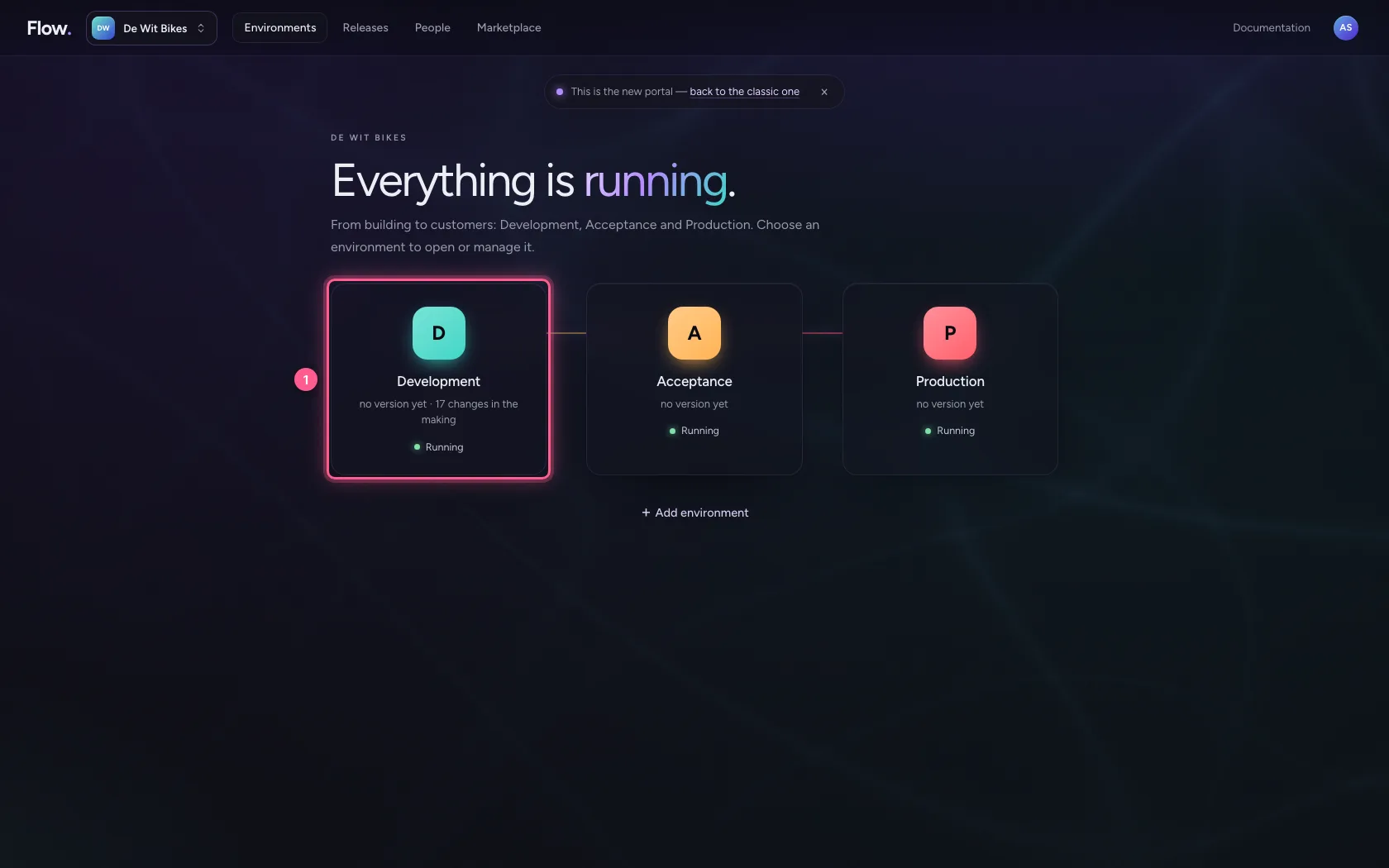
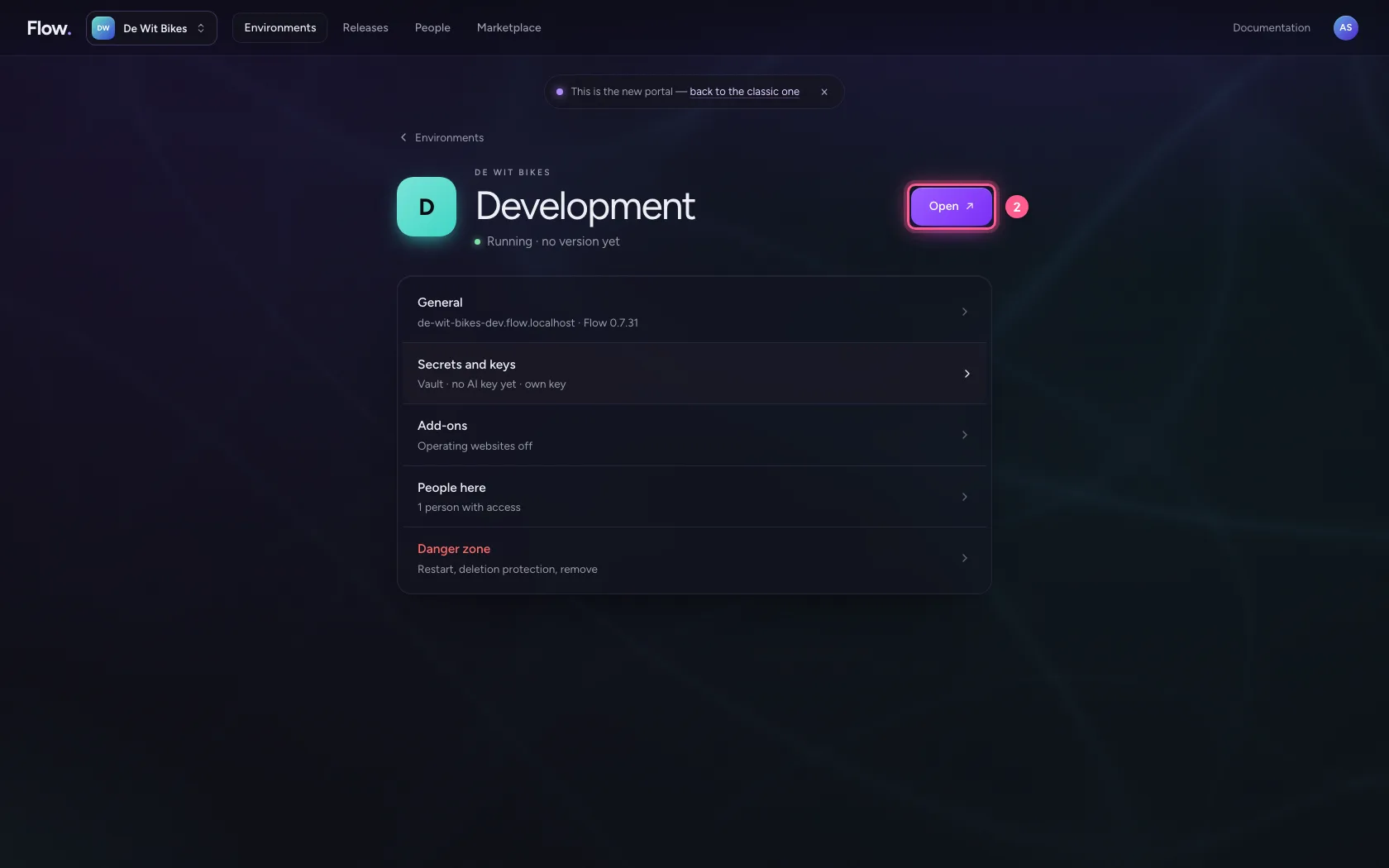
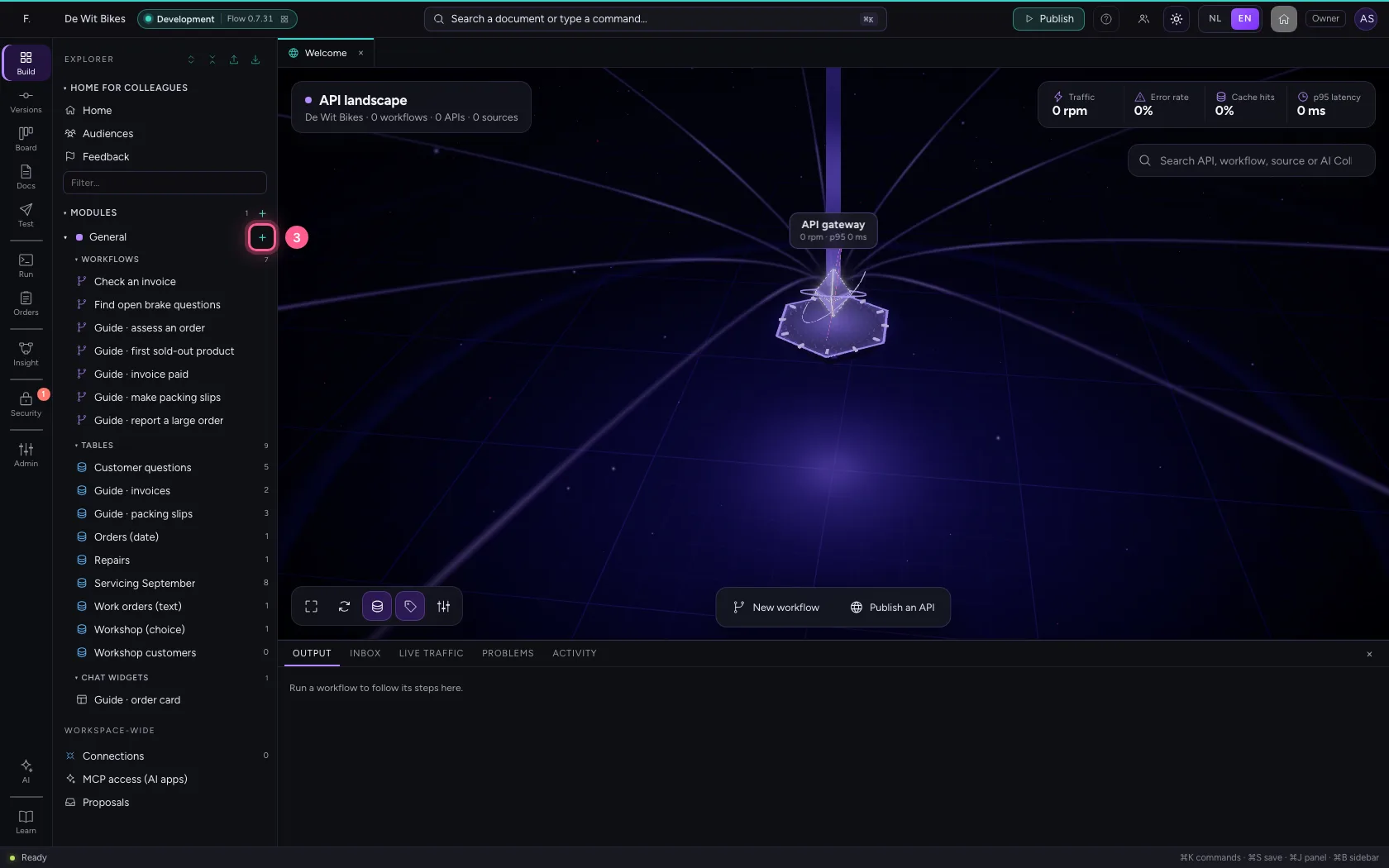
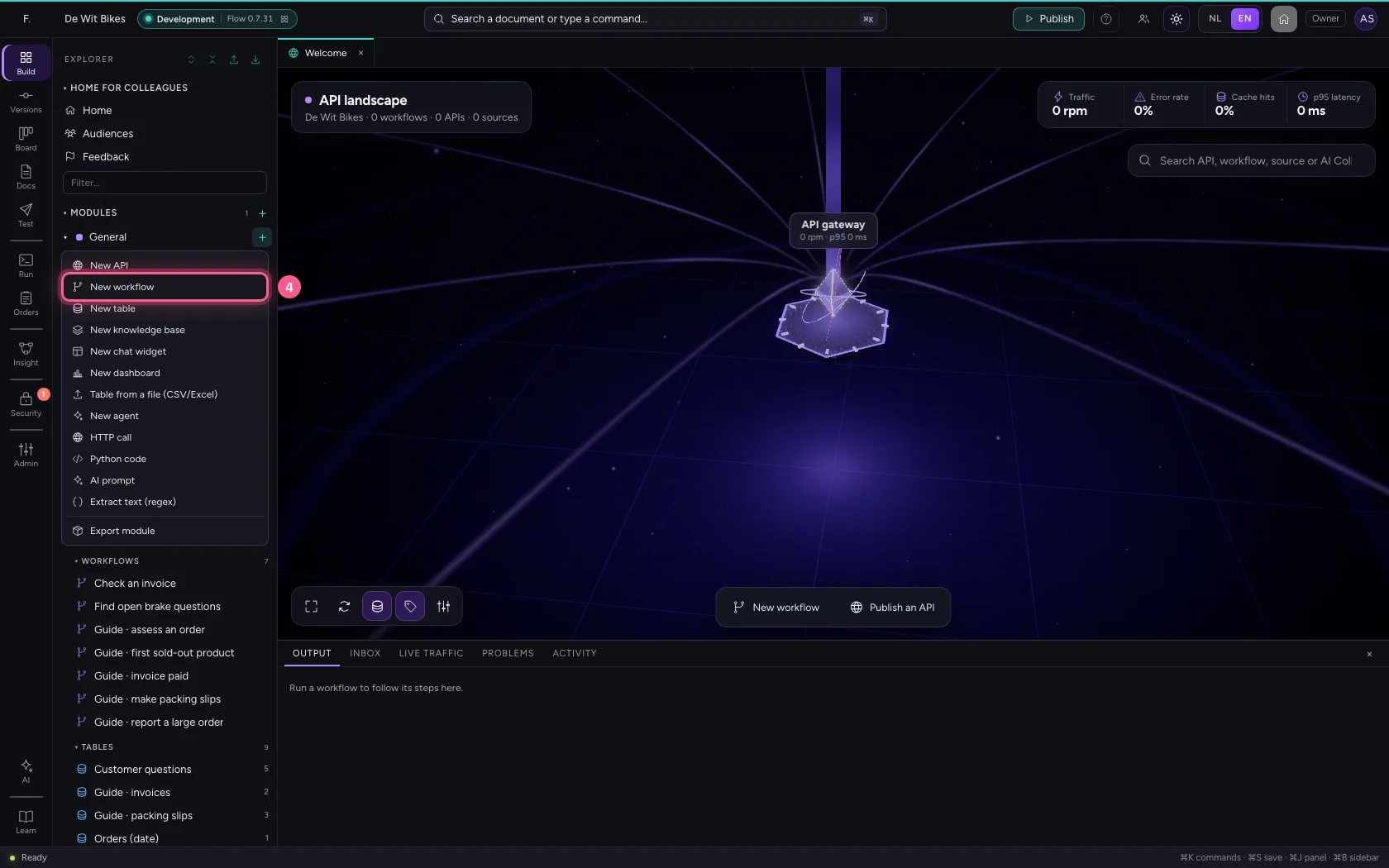
In the portal, under Environments, click Development and there Open; Flow opens in a new tab. There, click + next to General, choose New workflow and give it a name. A new workflow starts with an Event trigger: the point where it begins.
- Click Development
- Click Open ↗
- Click Add to General
- Click New workflow
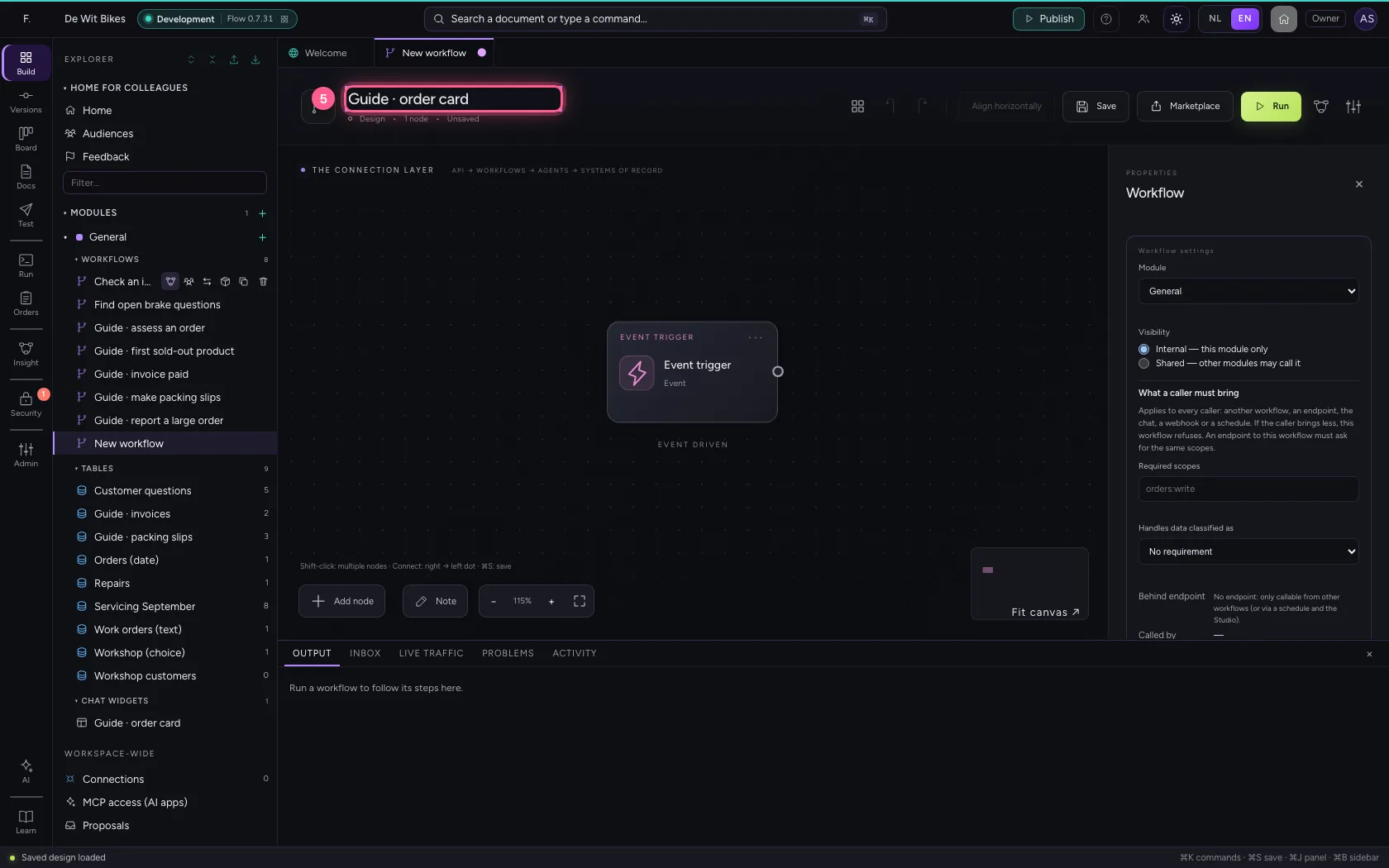
- In Workflow name, type
Guide · order card
Choose the widget and fill it
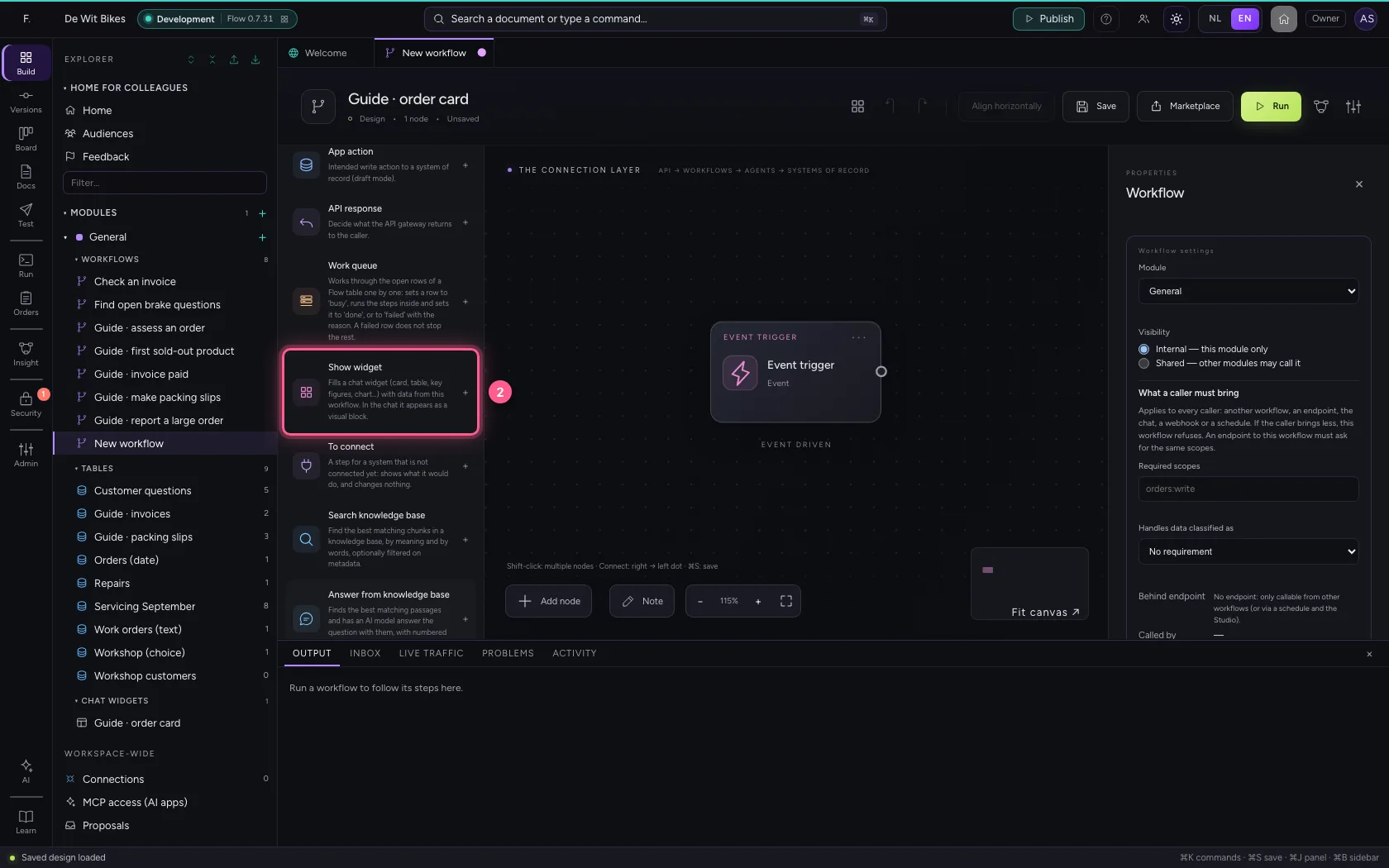
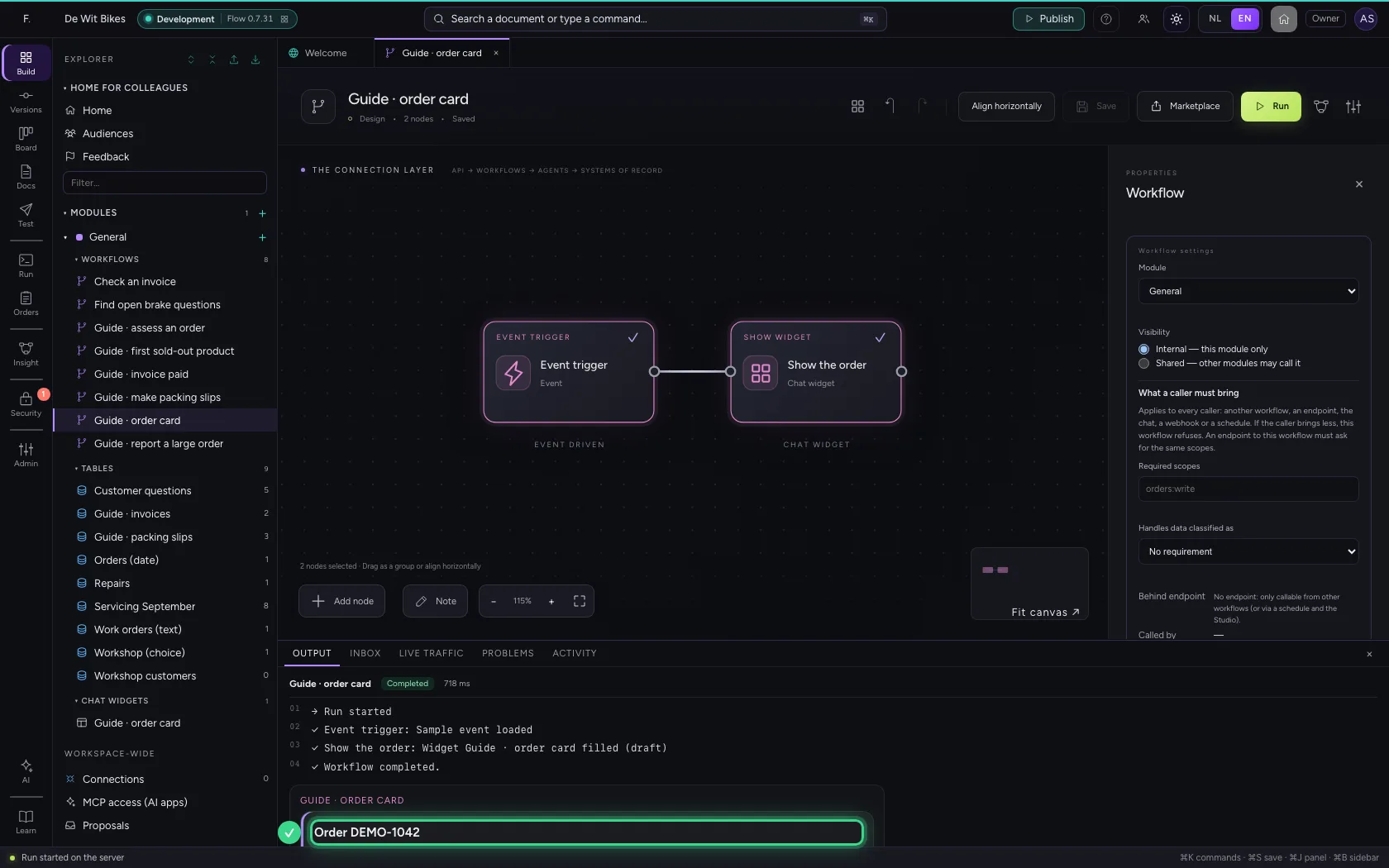
Add Show widget and choose the widget. Under Data (Code) you give every field of the widget a value, with {{field}} from the workflow. This widget has a title, a status and an amount.
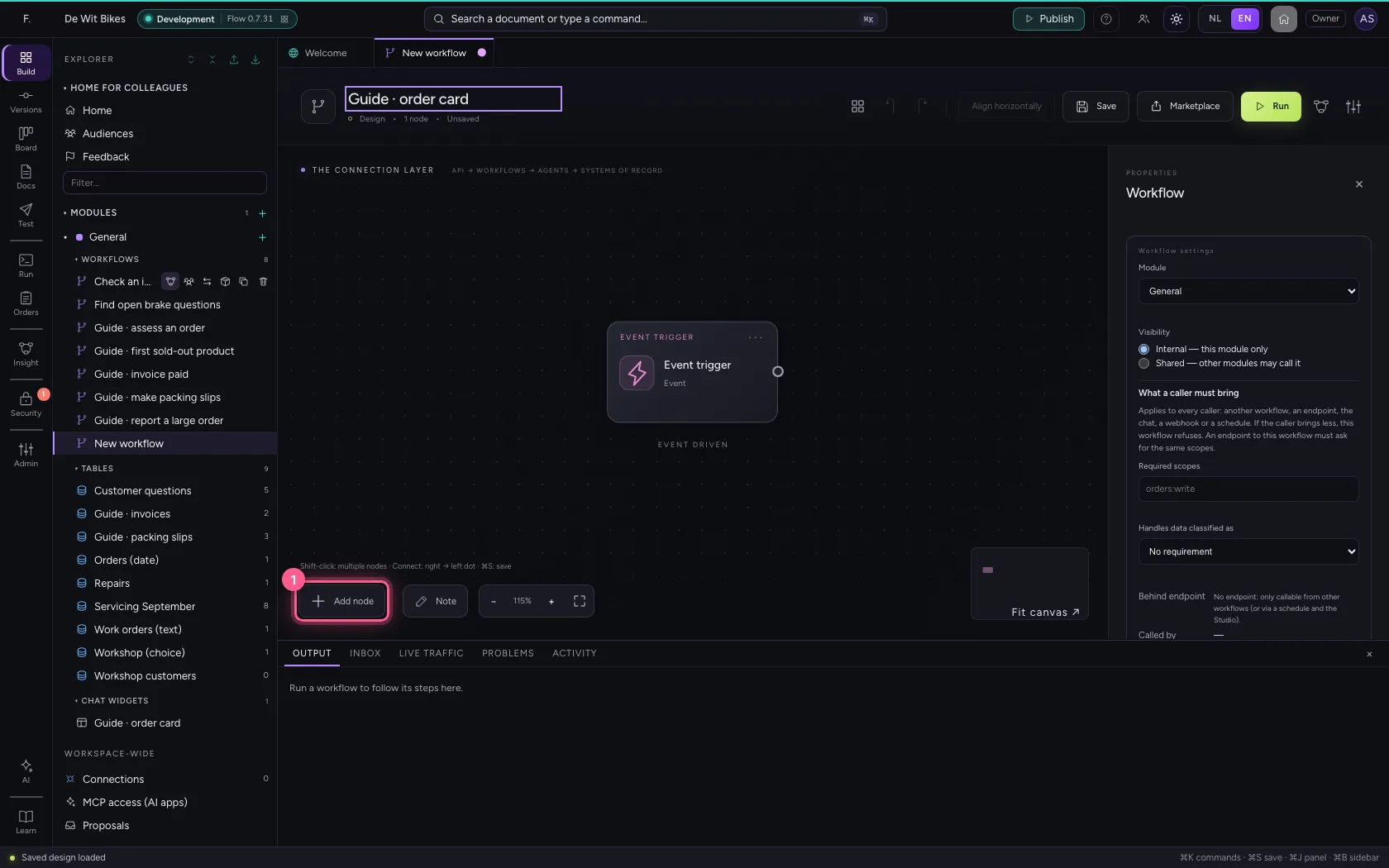
- Click Add node
- Click Show widget
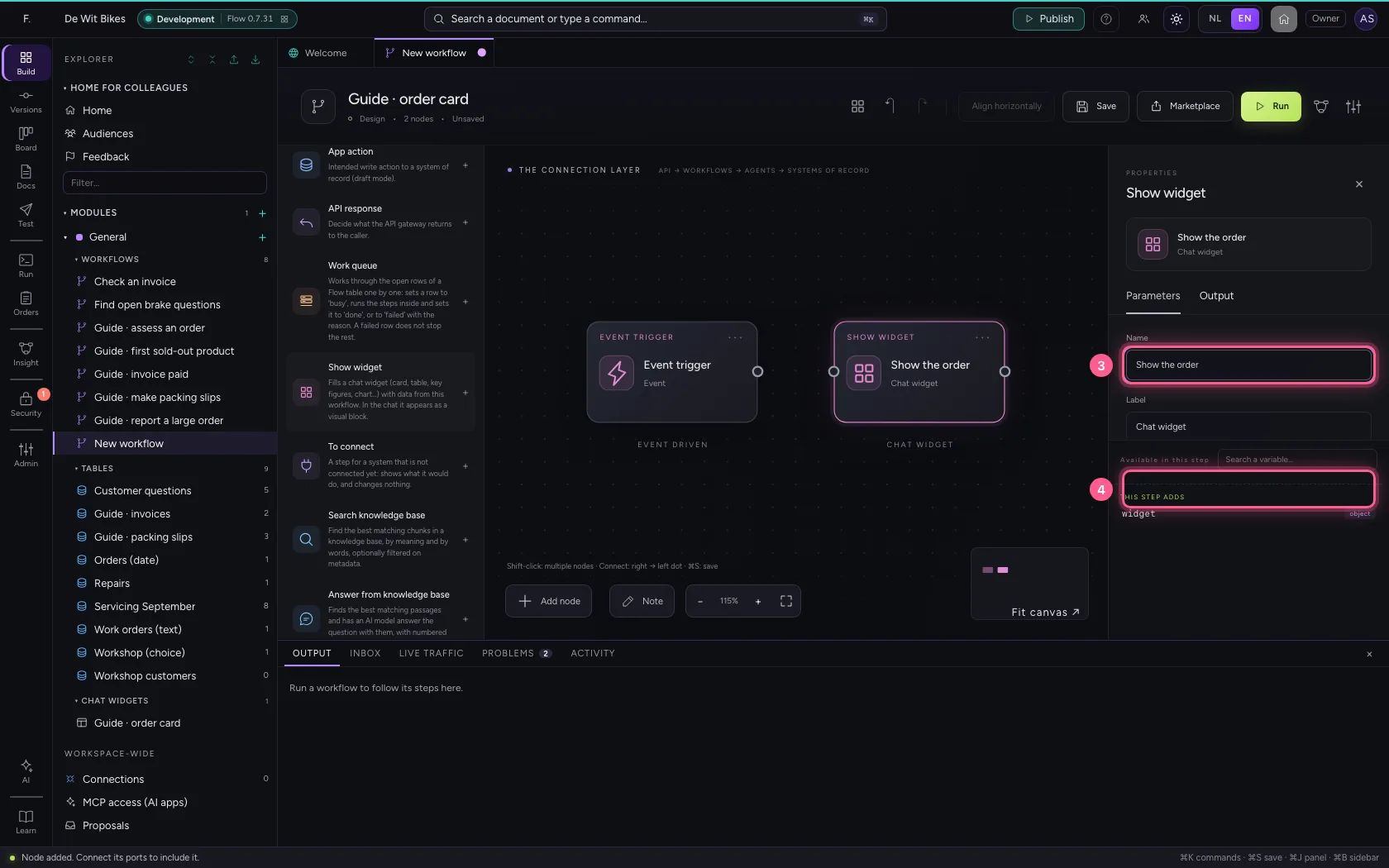
- In Name, type
Show the order - In Widget, choose Guide · order card · draft
- Click Code
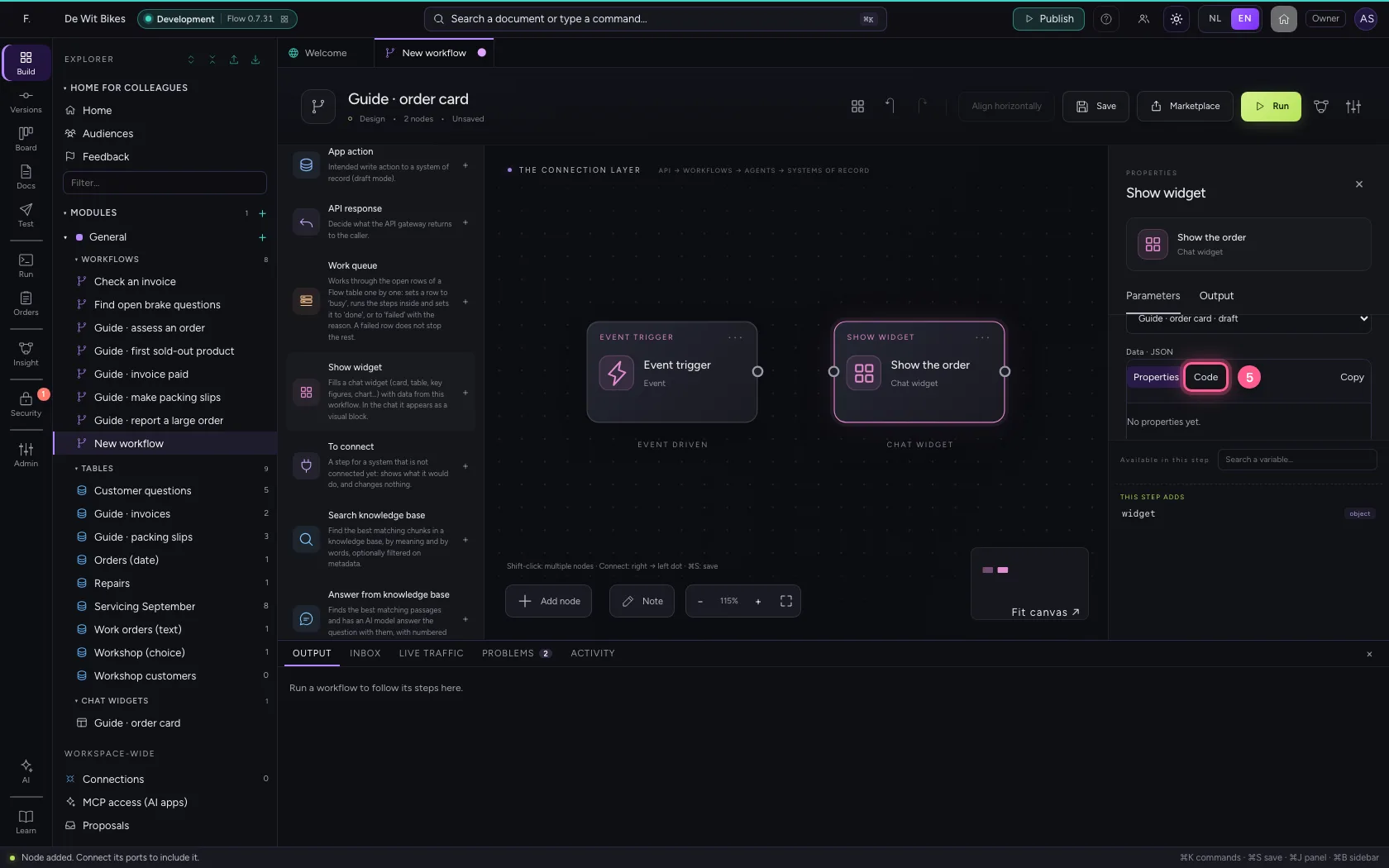
- In the data, type `{
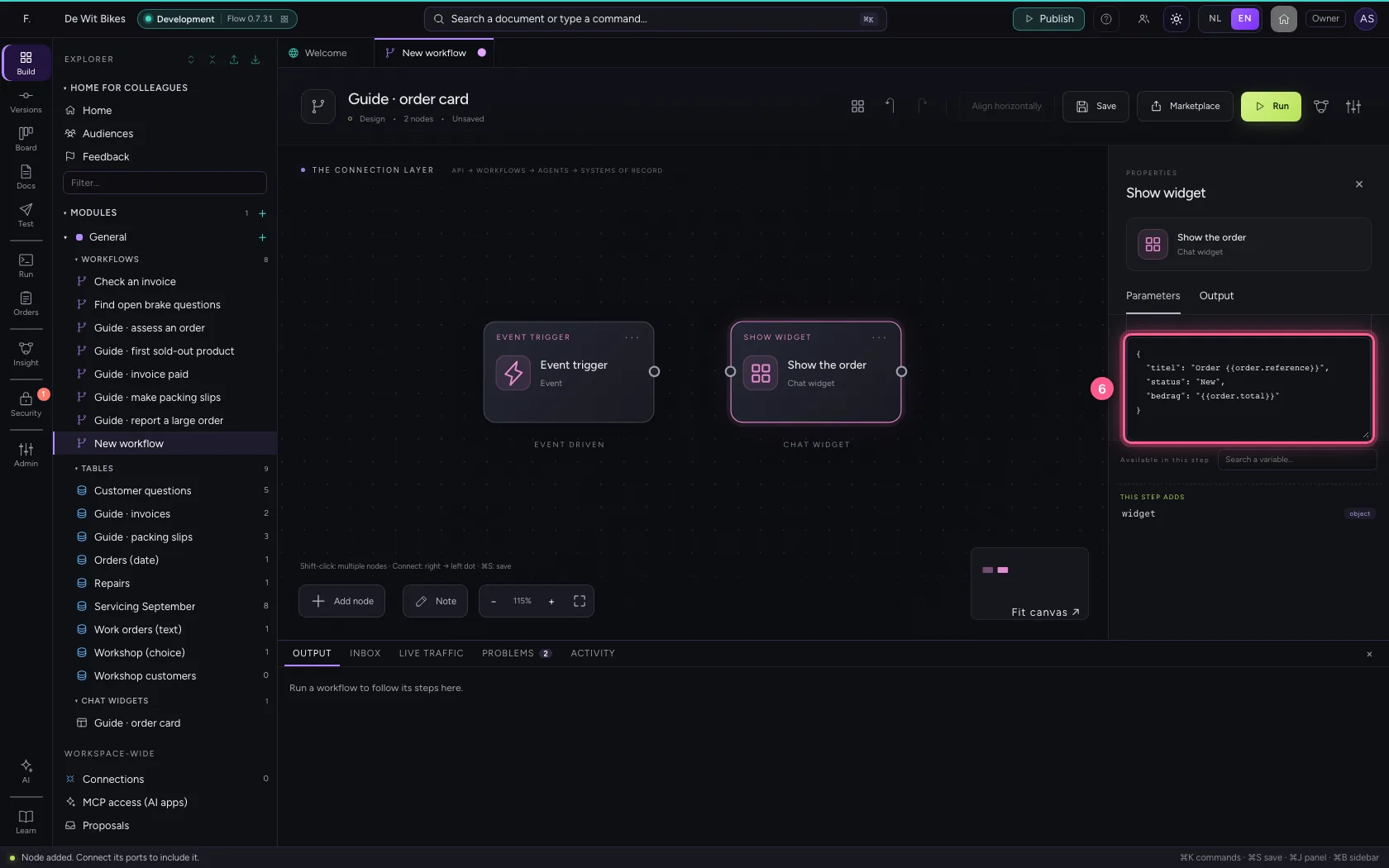
- Click the dot of ‘Event trigger’
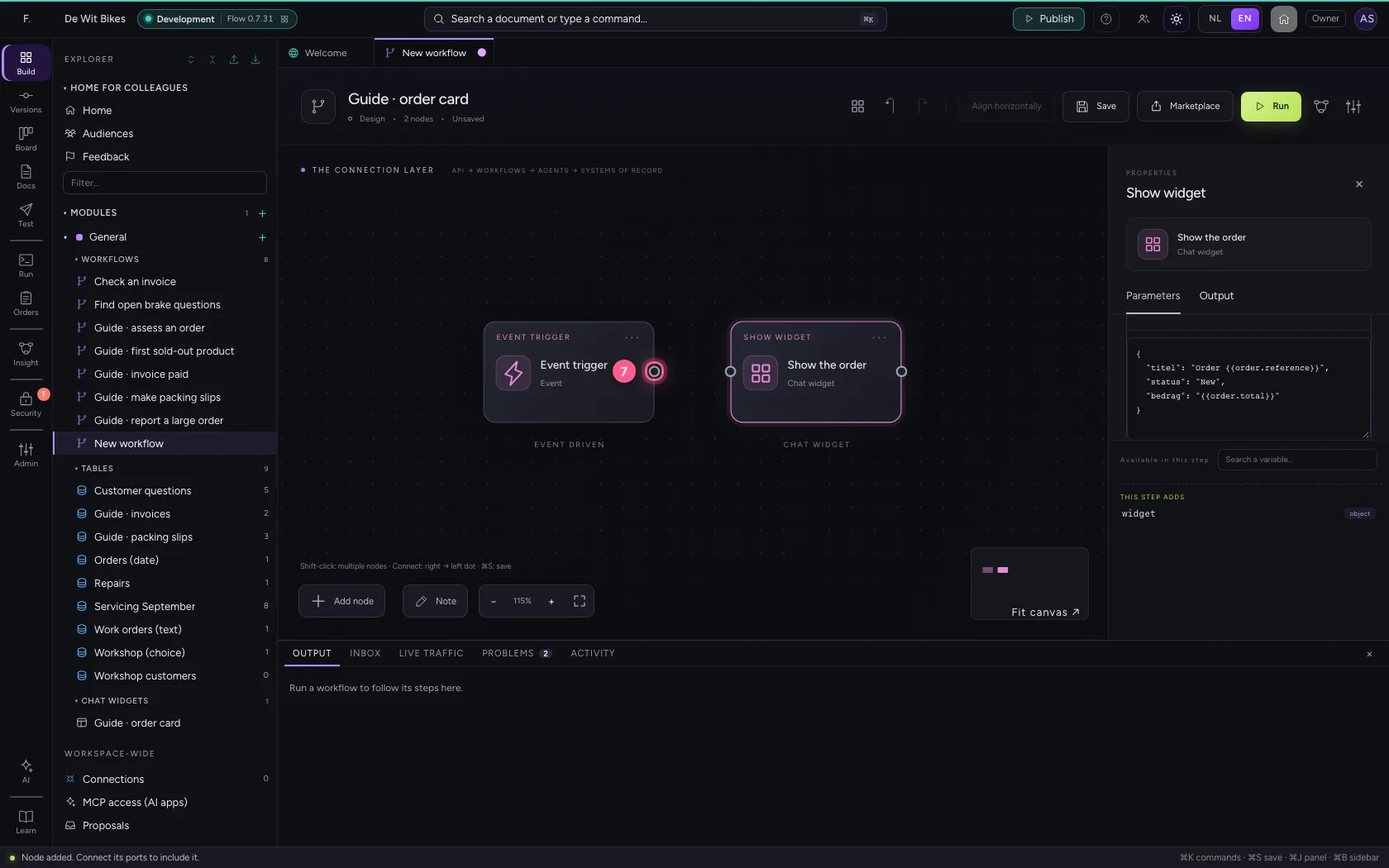
- Click the dot of ‘Show the order’
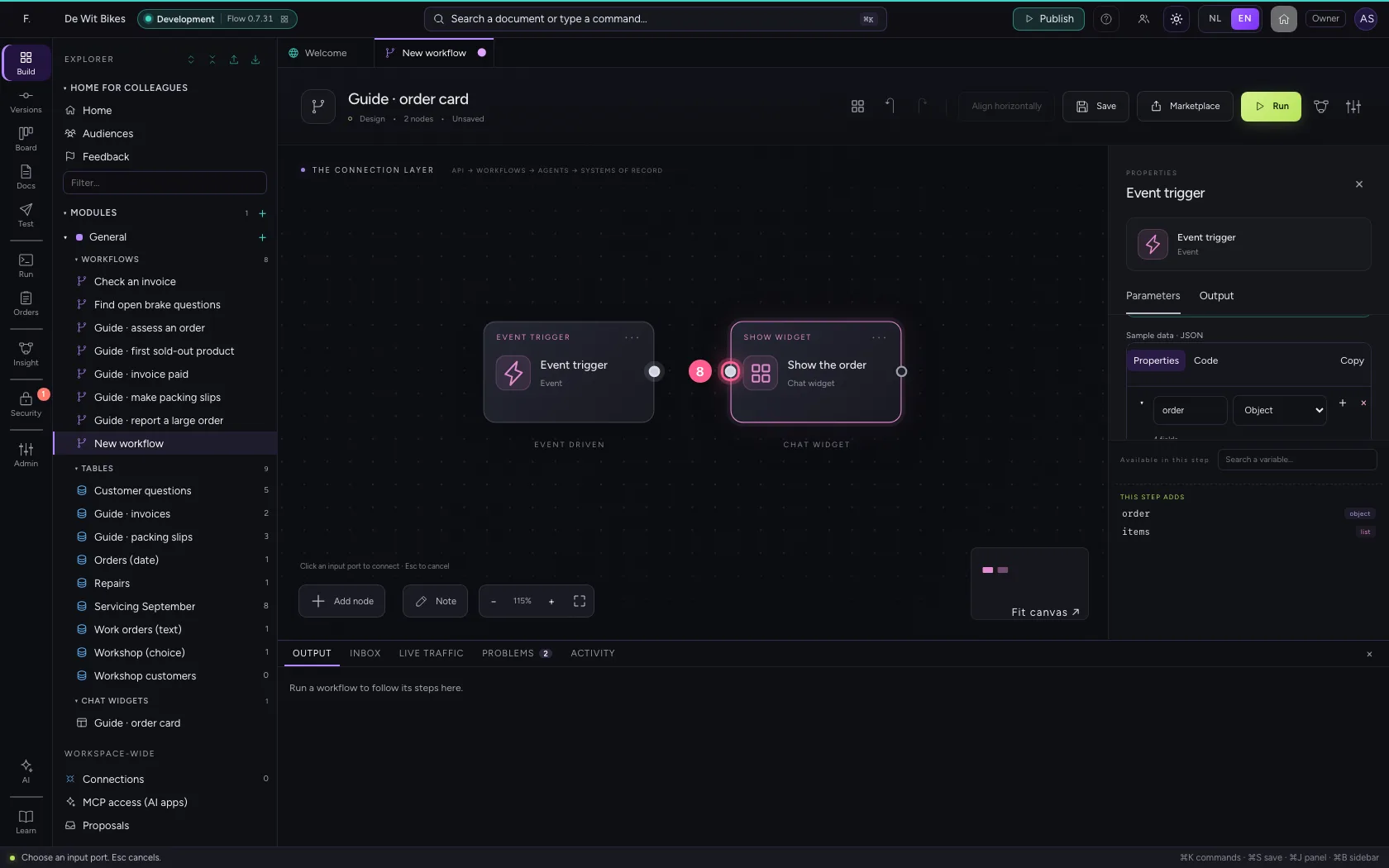
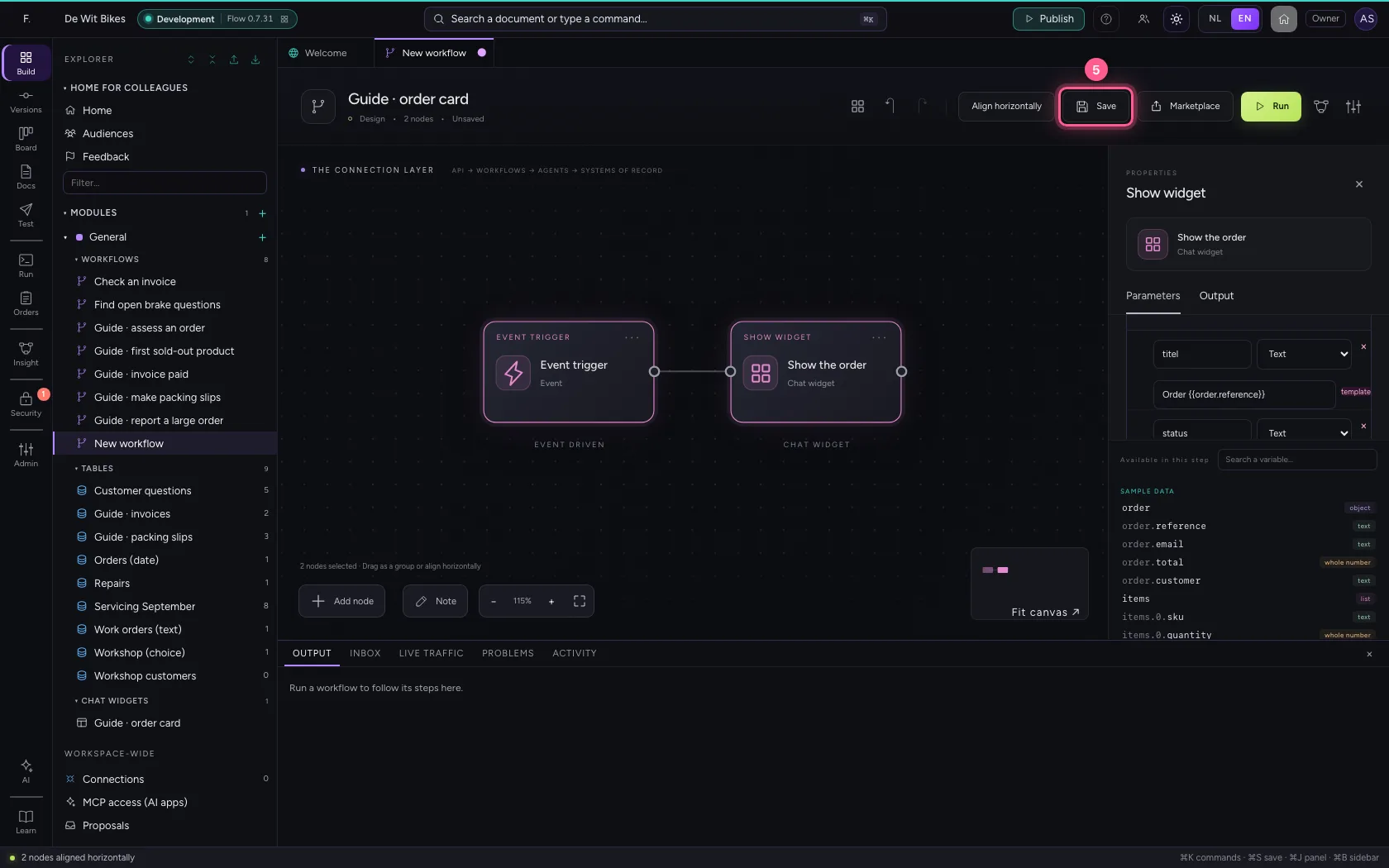
Put the steps in one line and save
Select the steps (click the first, and the others while holding Shift) and click Align horizontally: they then stand in one line and you read the workflow from left to right; a branch (such as No of an If / Else) gets its own row below. Fit to view puts everything in sight; then Save.
- Click ‘Event trigger’
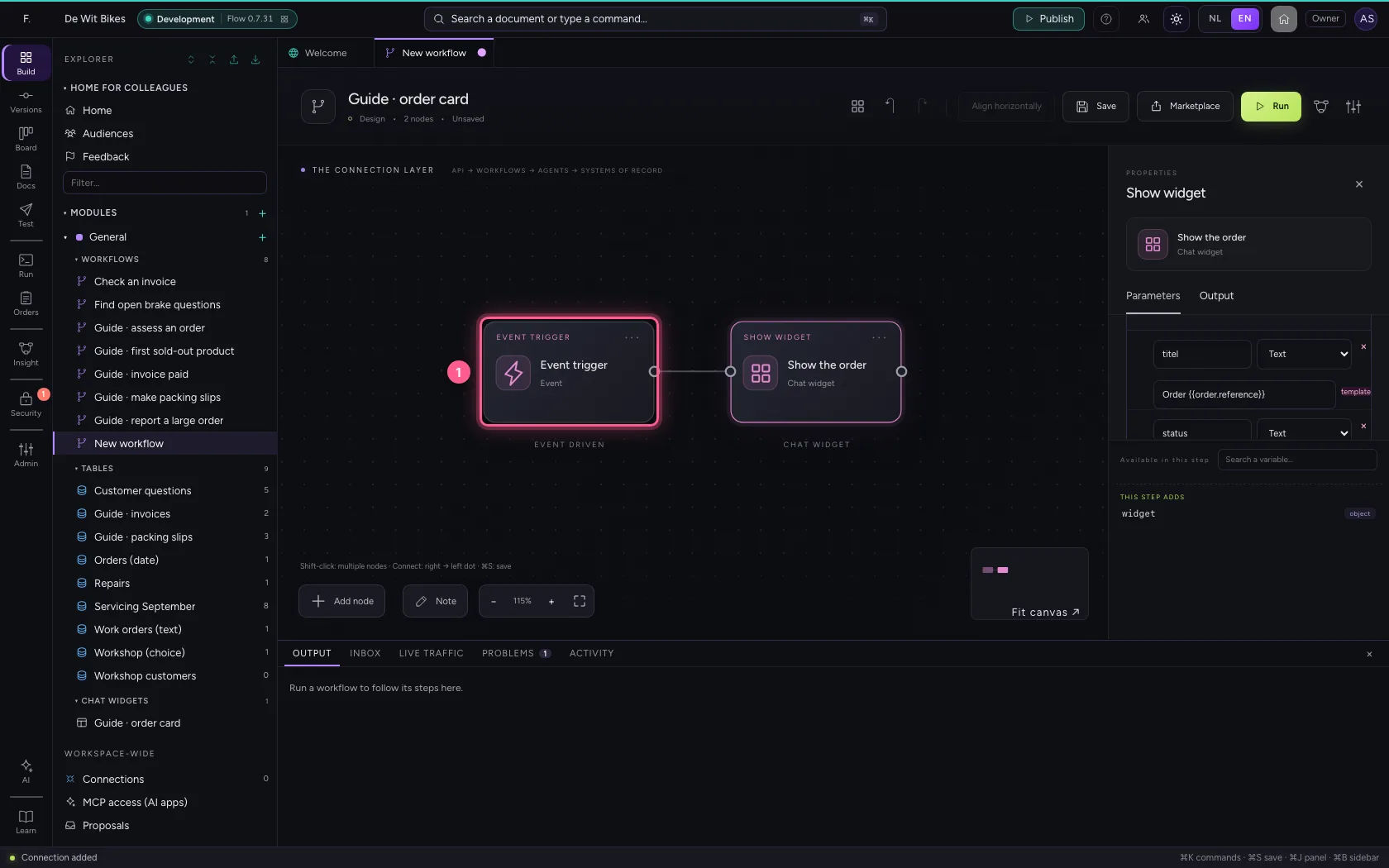
- Click ‘Show the order’ while holding Shift
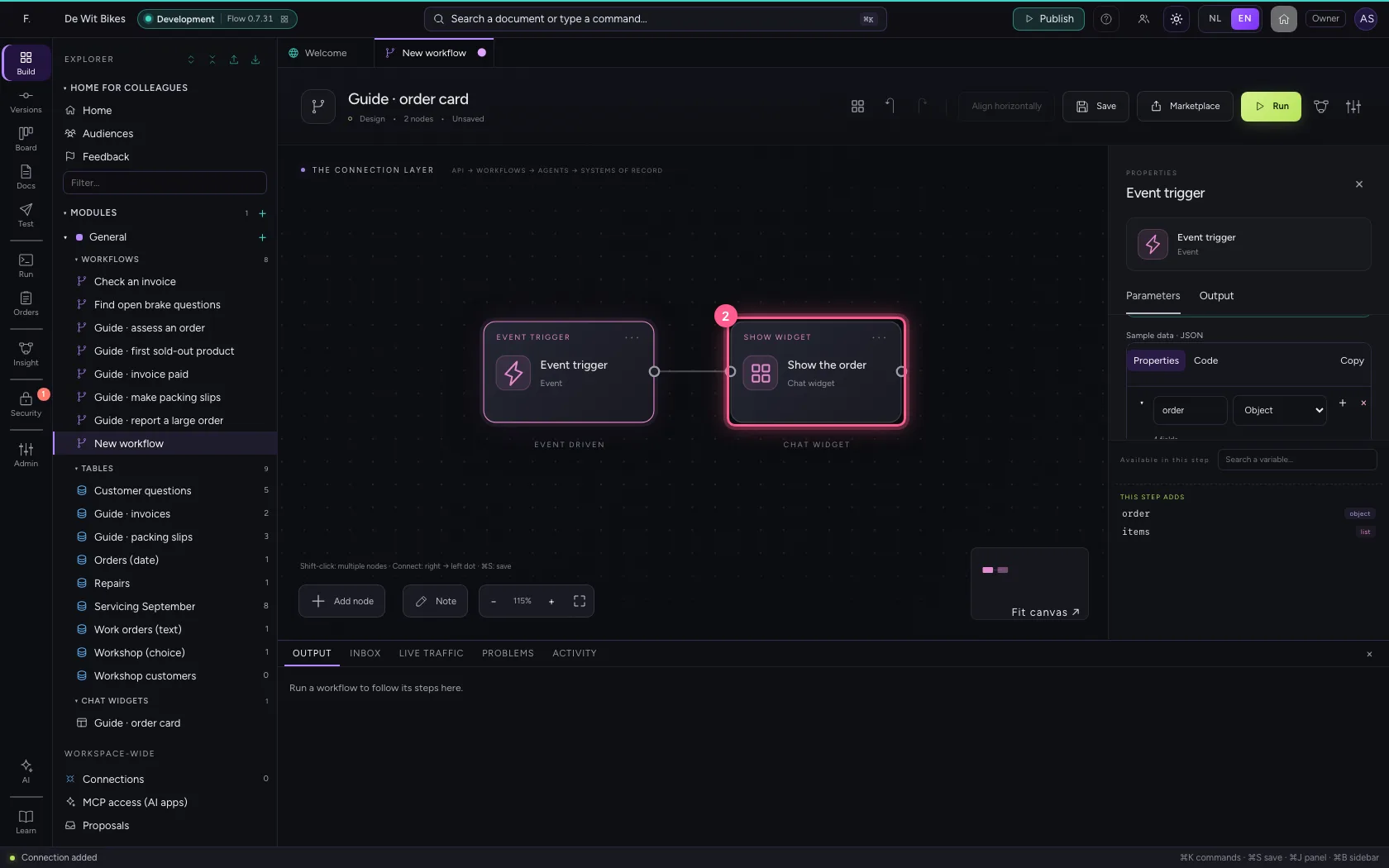
- Click Align horizontally
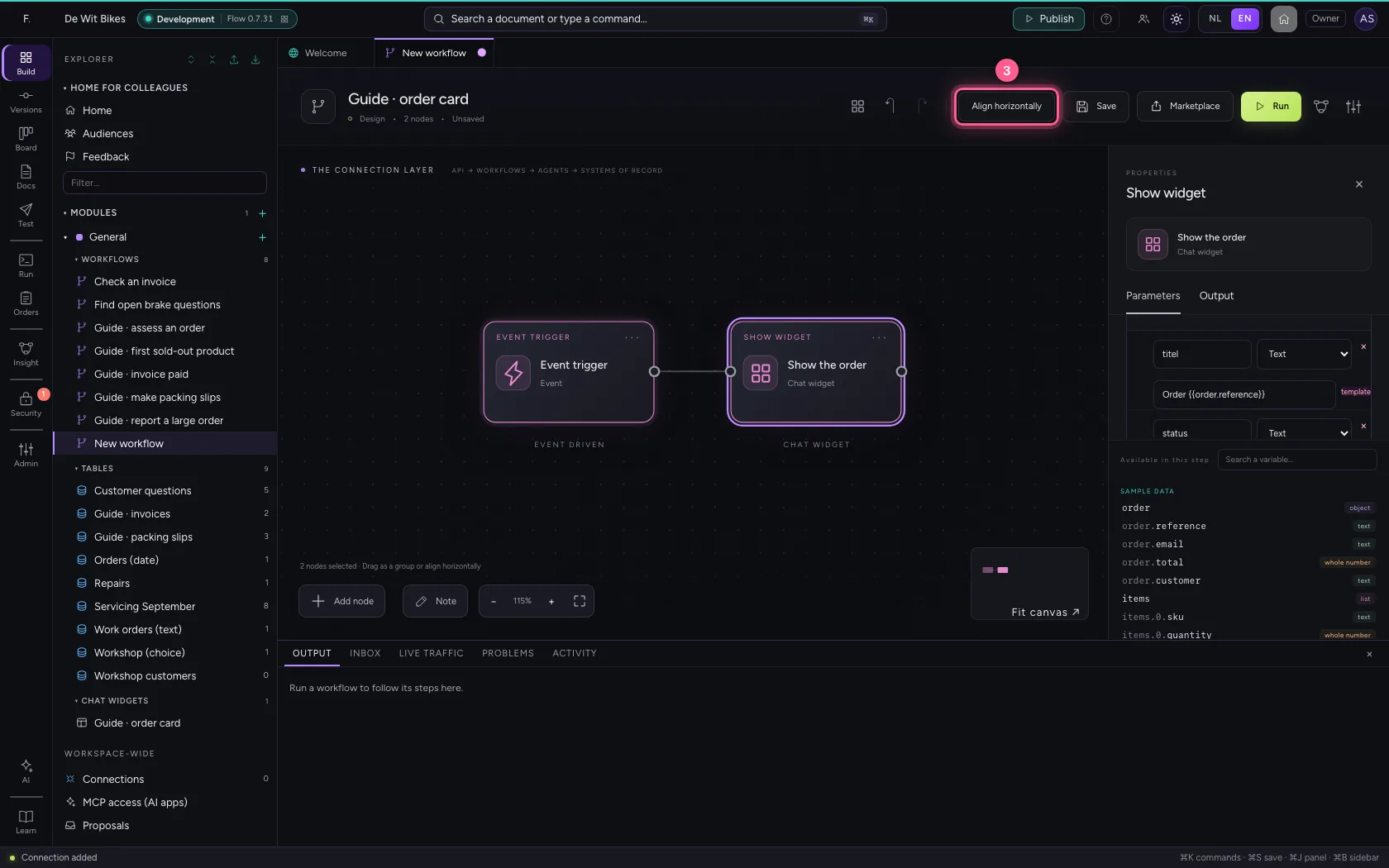
- Click Fit to view
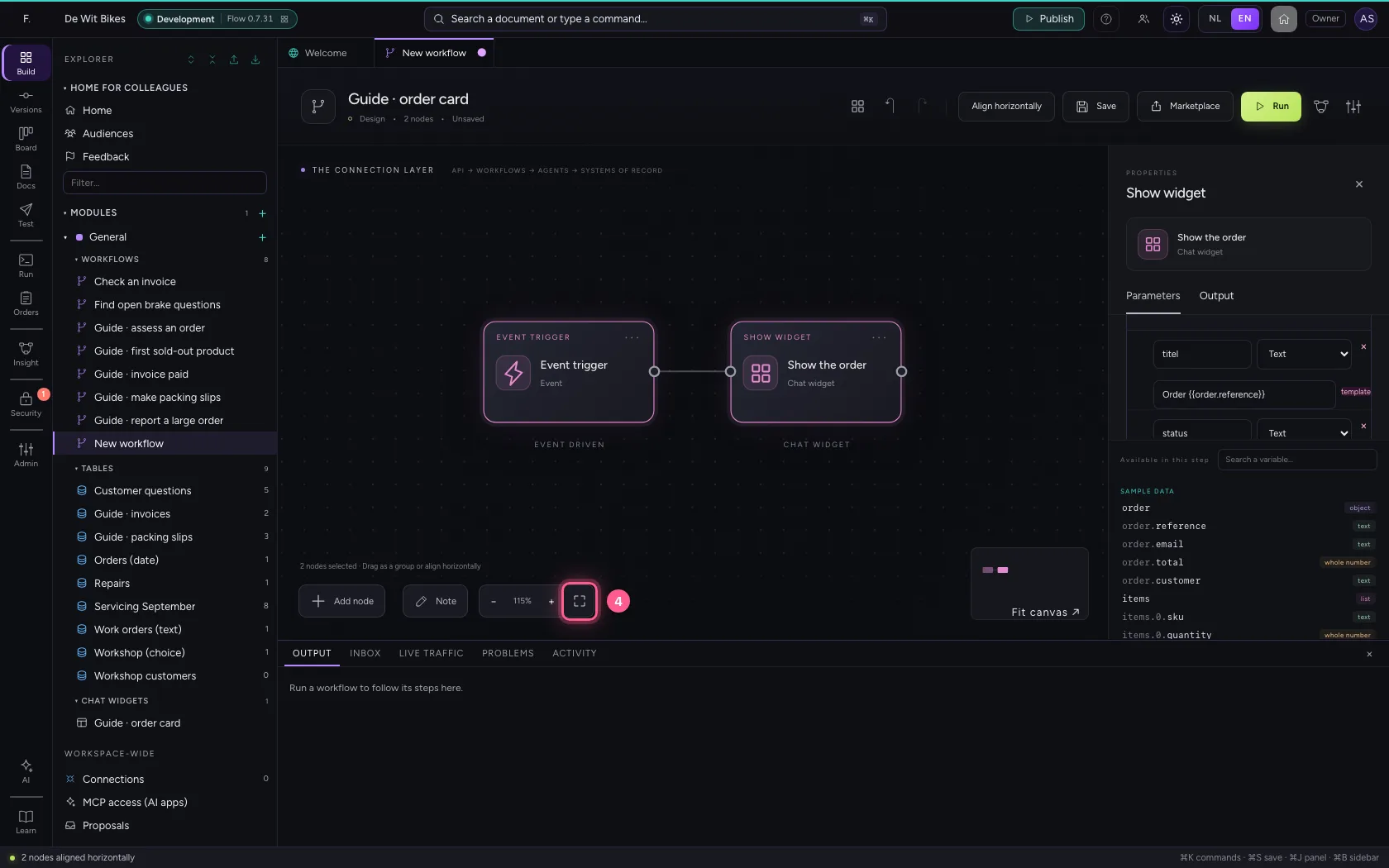
- Click Save
Run and look at the card
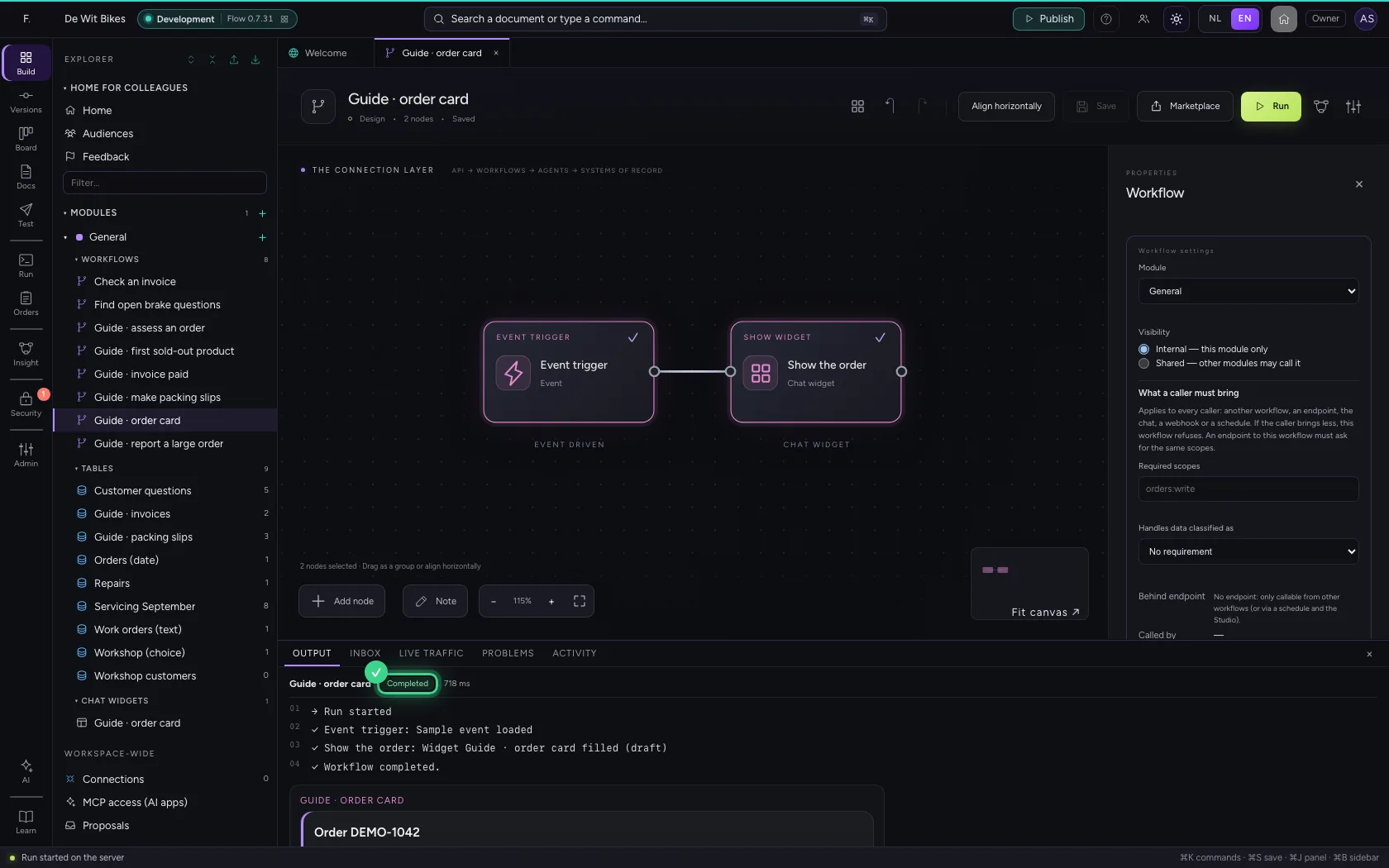
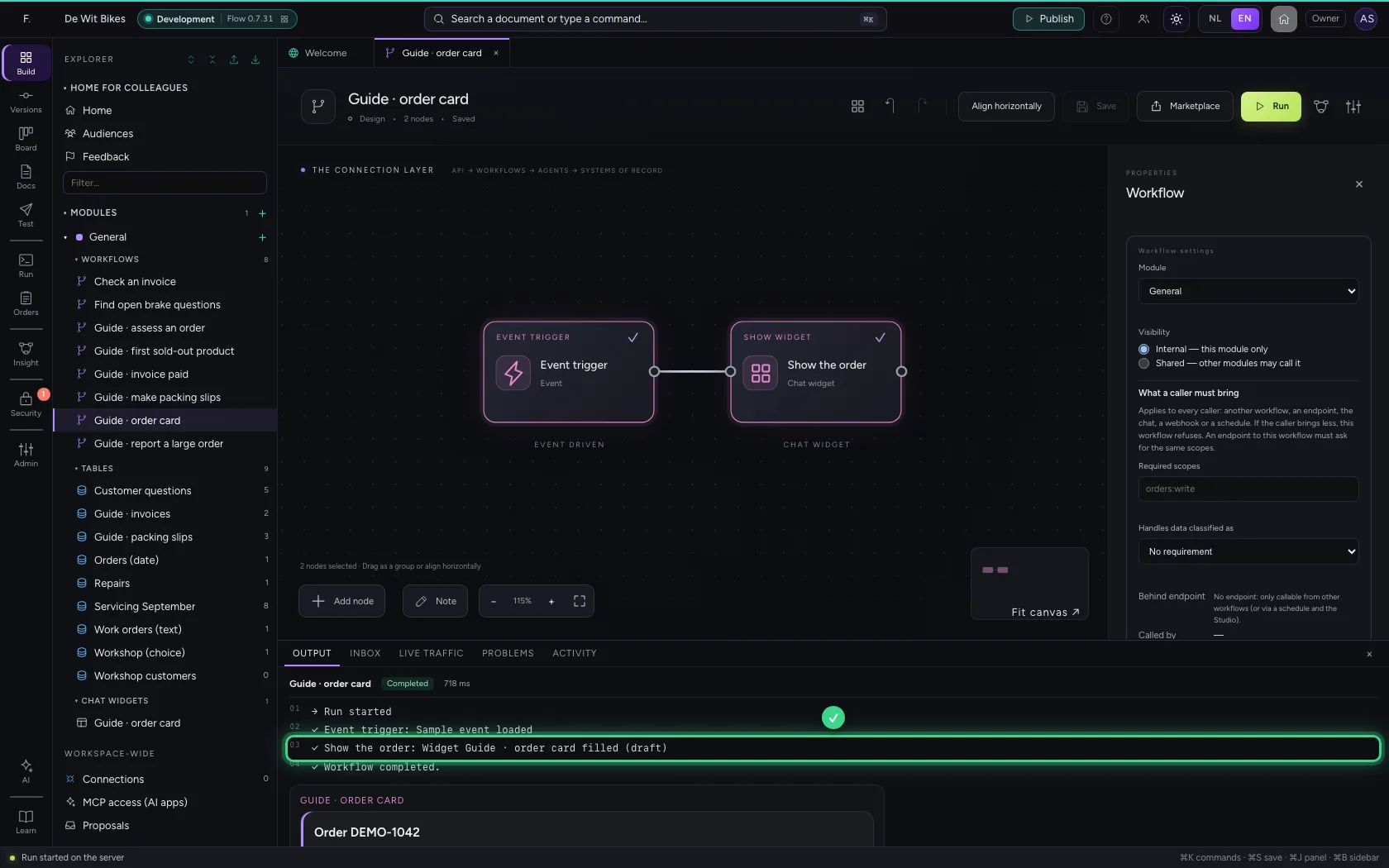
At the bottom you see the widget was filled, and below it the card itself, as it appears in the chat. As long as the widget is not published, the step uses the draft; publish it before the workflow goes live.
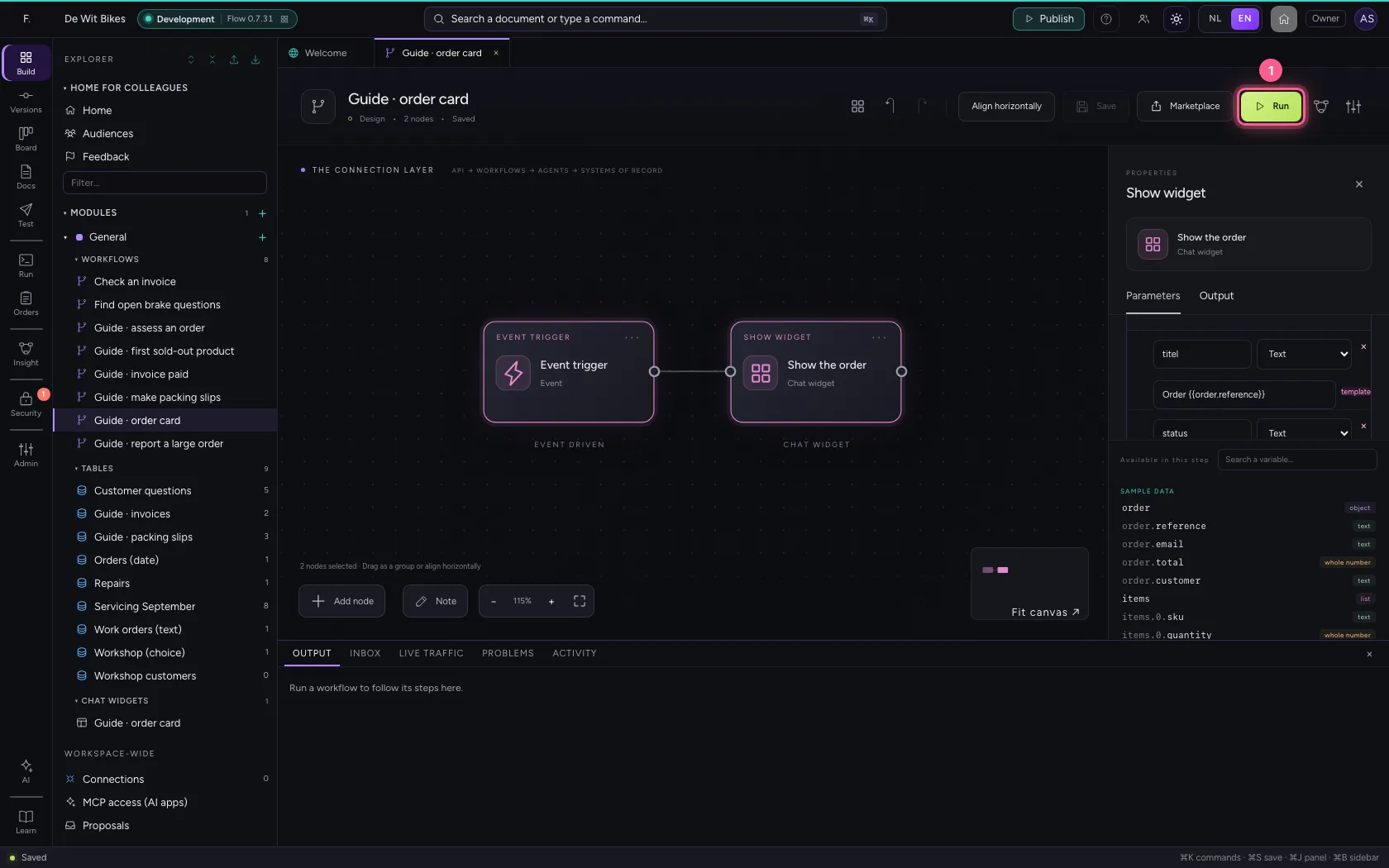
- Click Run
This guide was carried out step by step on 22 Oct 2026 by an automated test on Flow (version 3e563176).