The inbox: approve a run
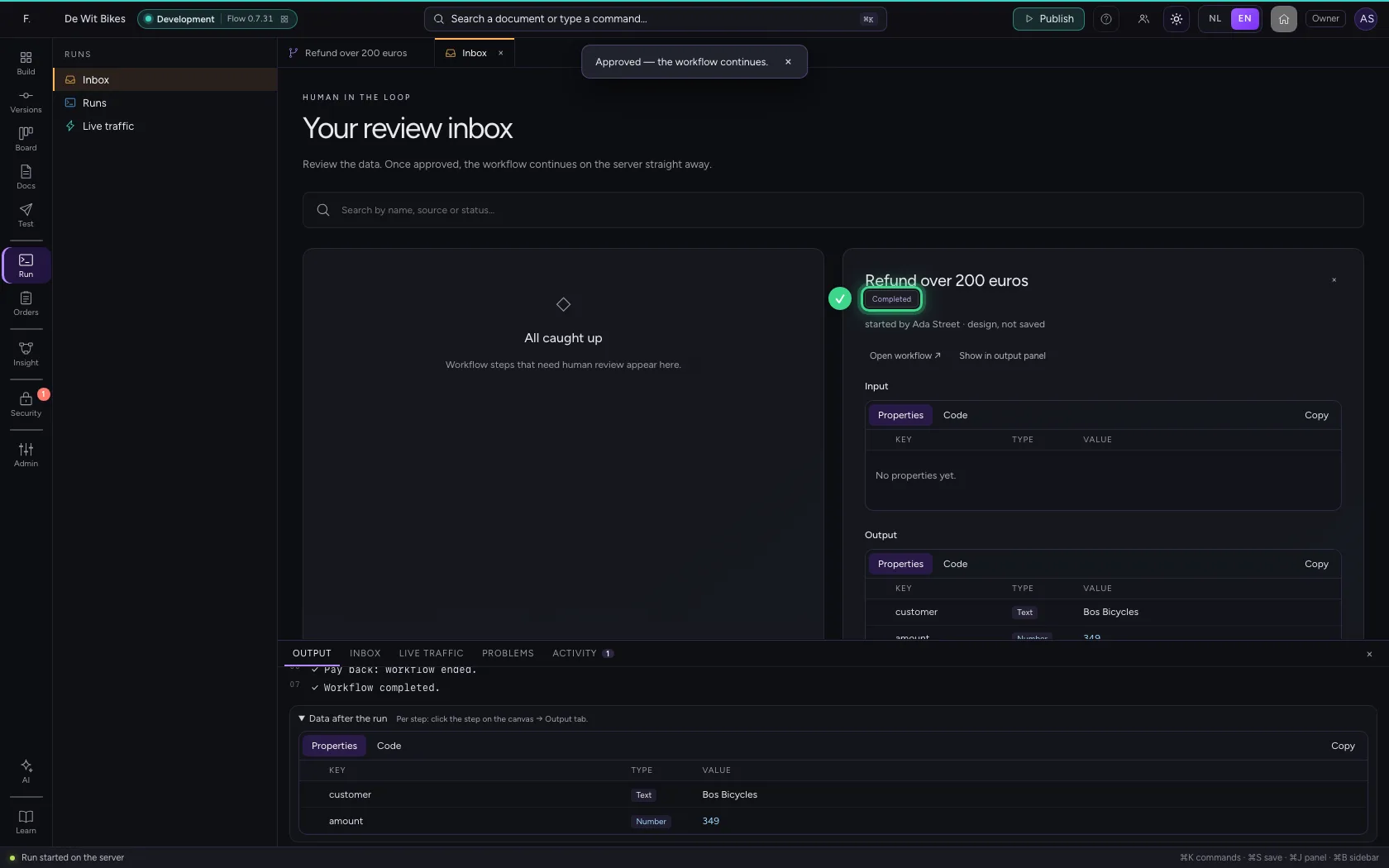
Some decisions you do not want to leave to a workflow. With the Human review step a run waits until someone has looked at the data. That run is then in the inbox, under Runs. You read what to check, briefly record why, and approve or reject. The workflow then carries on by itself.
Open your development environment
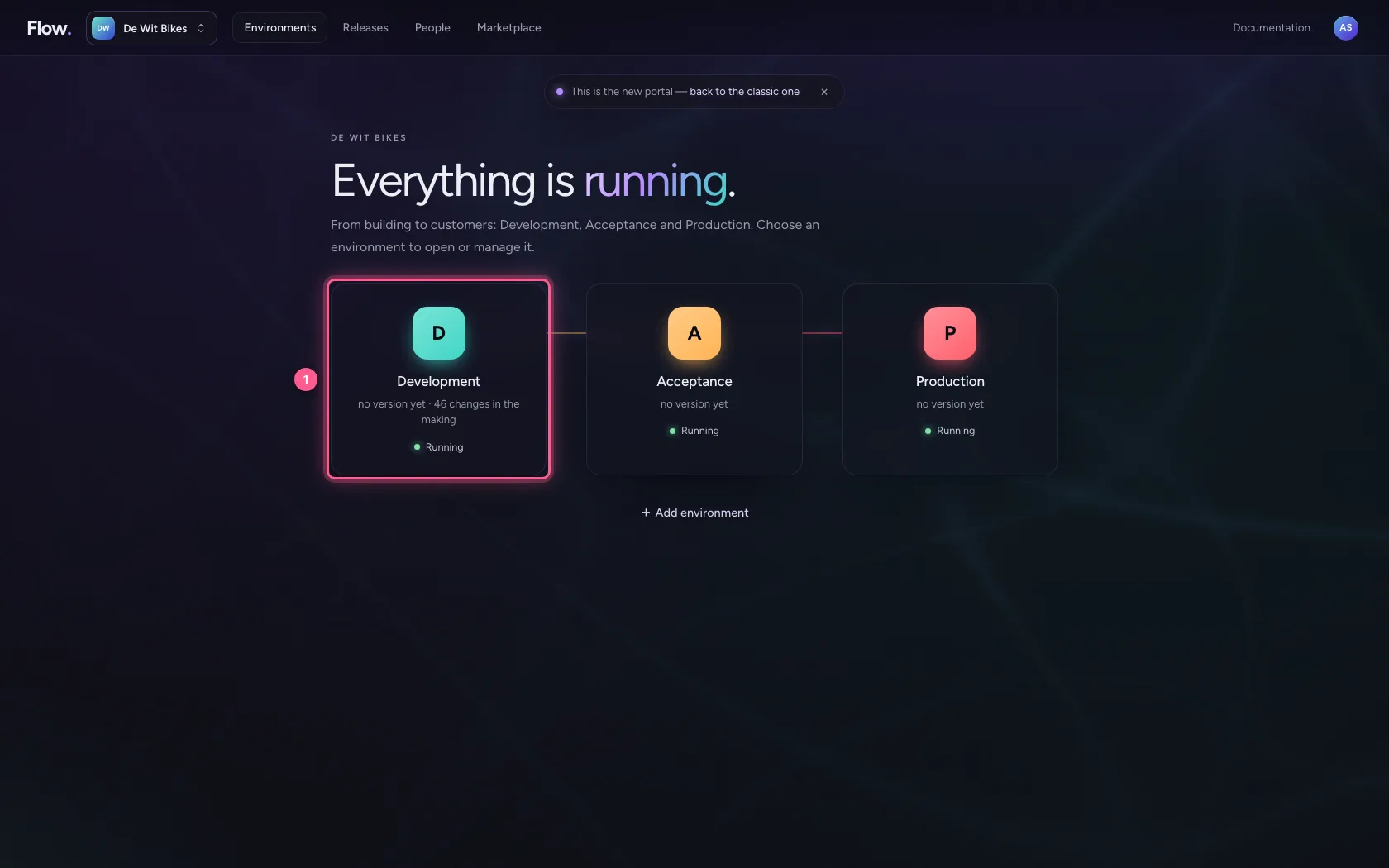
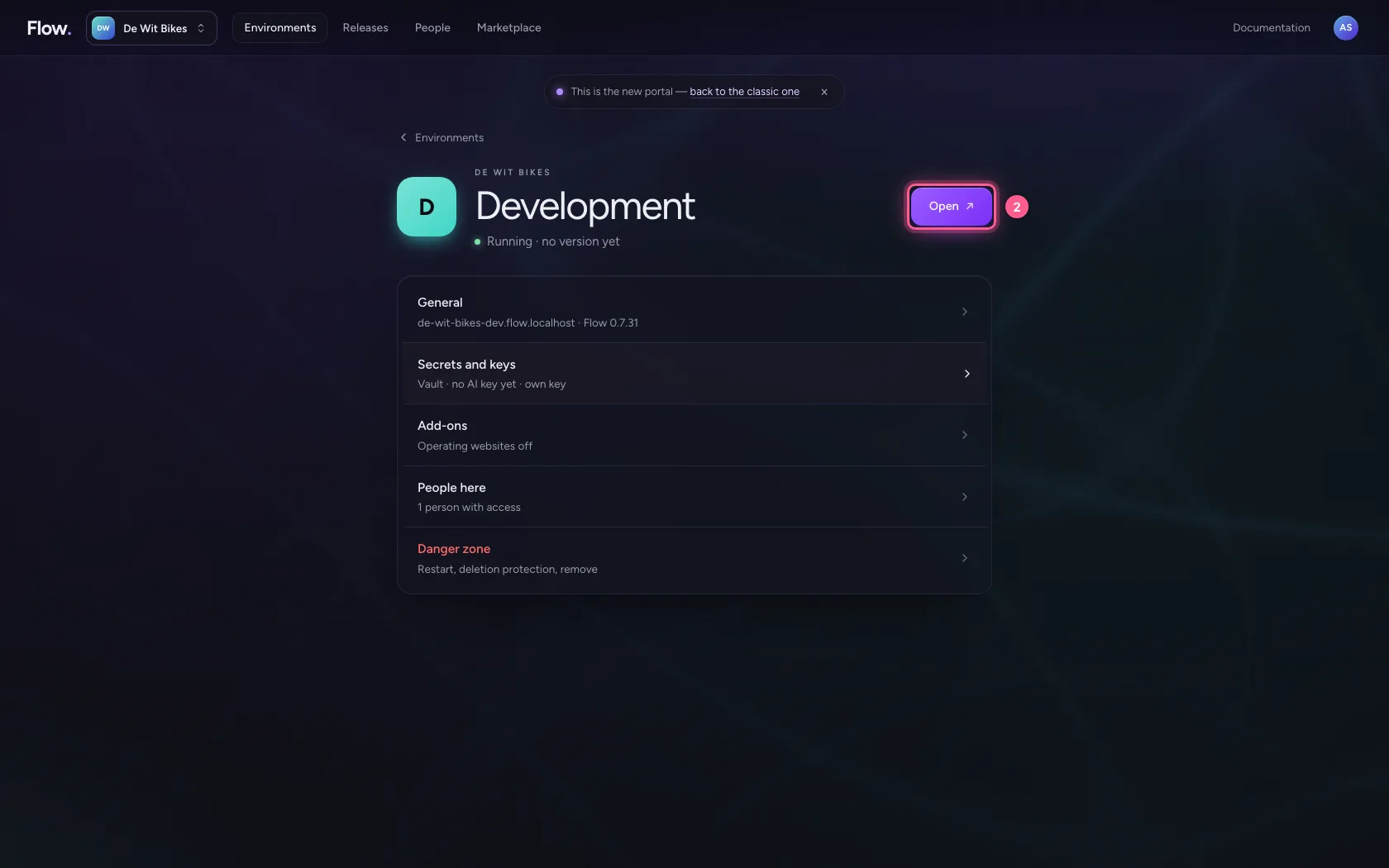
In the portal, under Environments, click Development, and there Open. Flow opens in a new tab and you are signed in straight away.
- Click Development
- Click Open ↗
Run the workflow
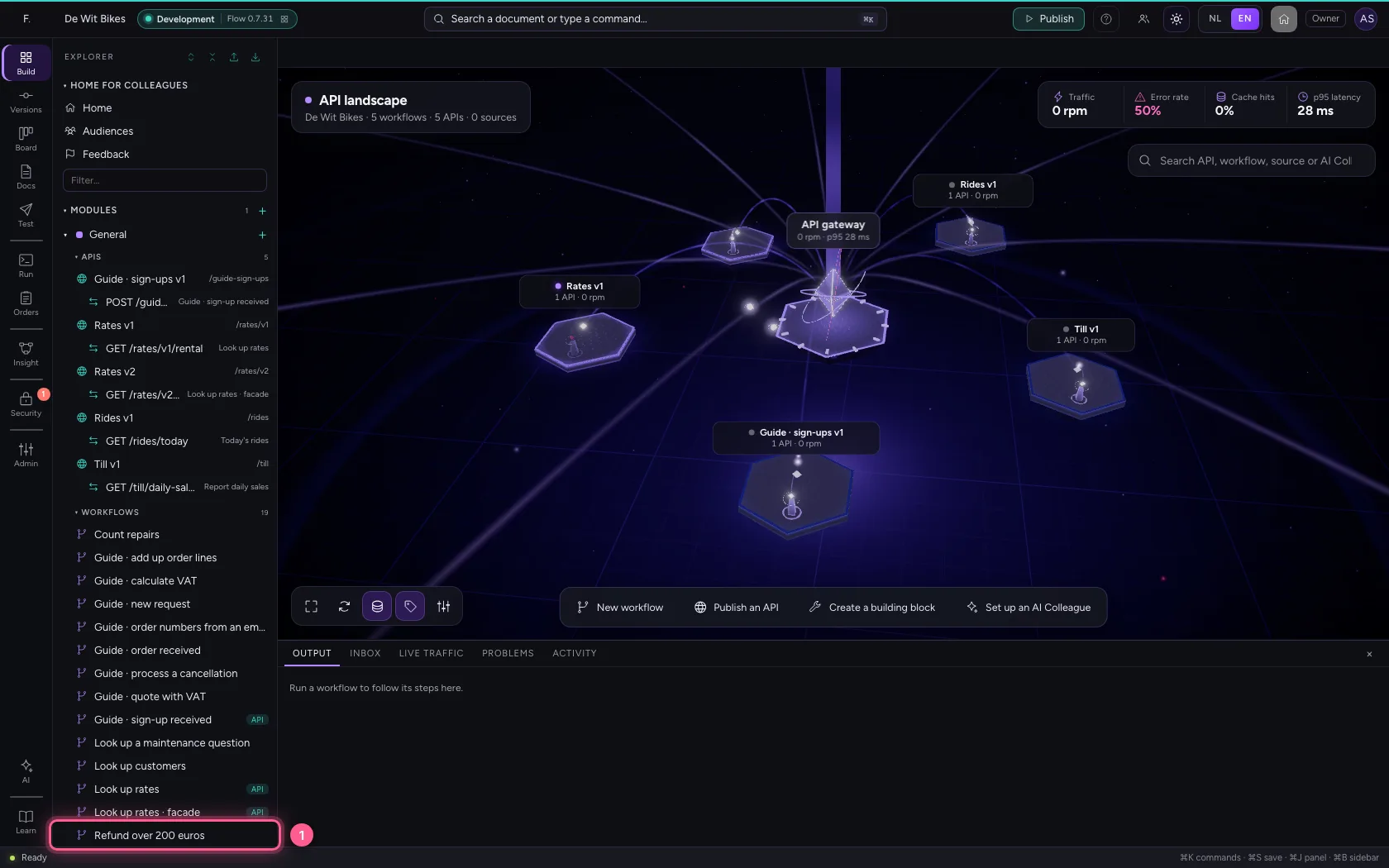
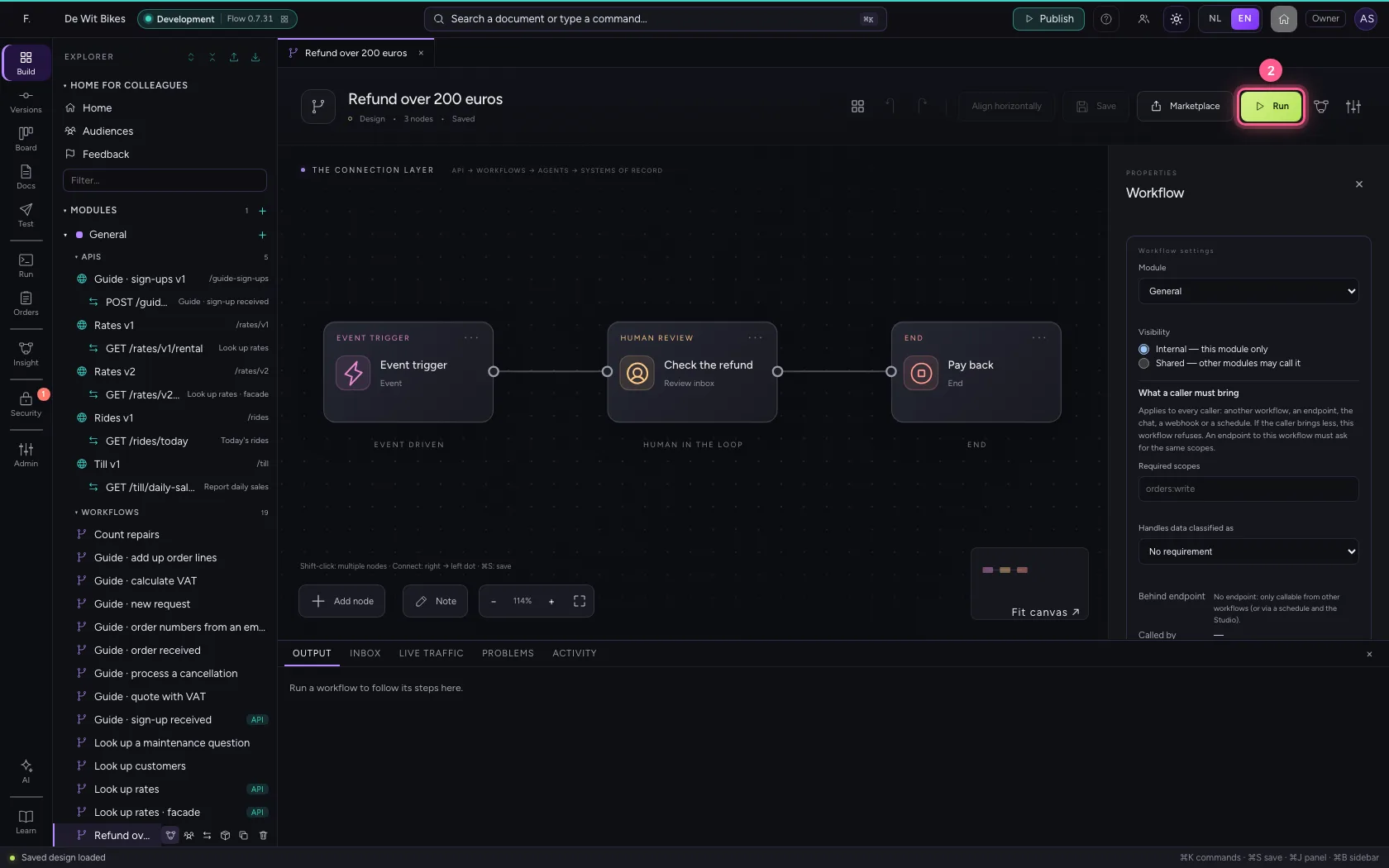
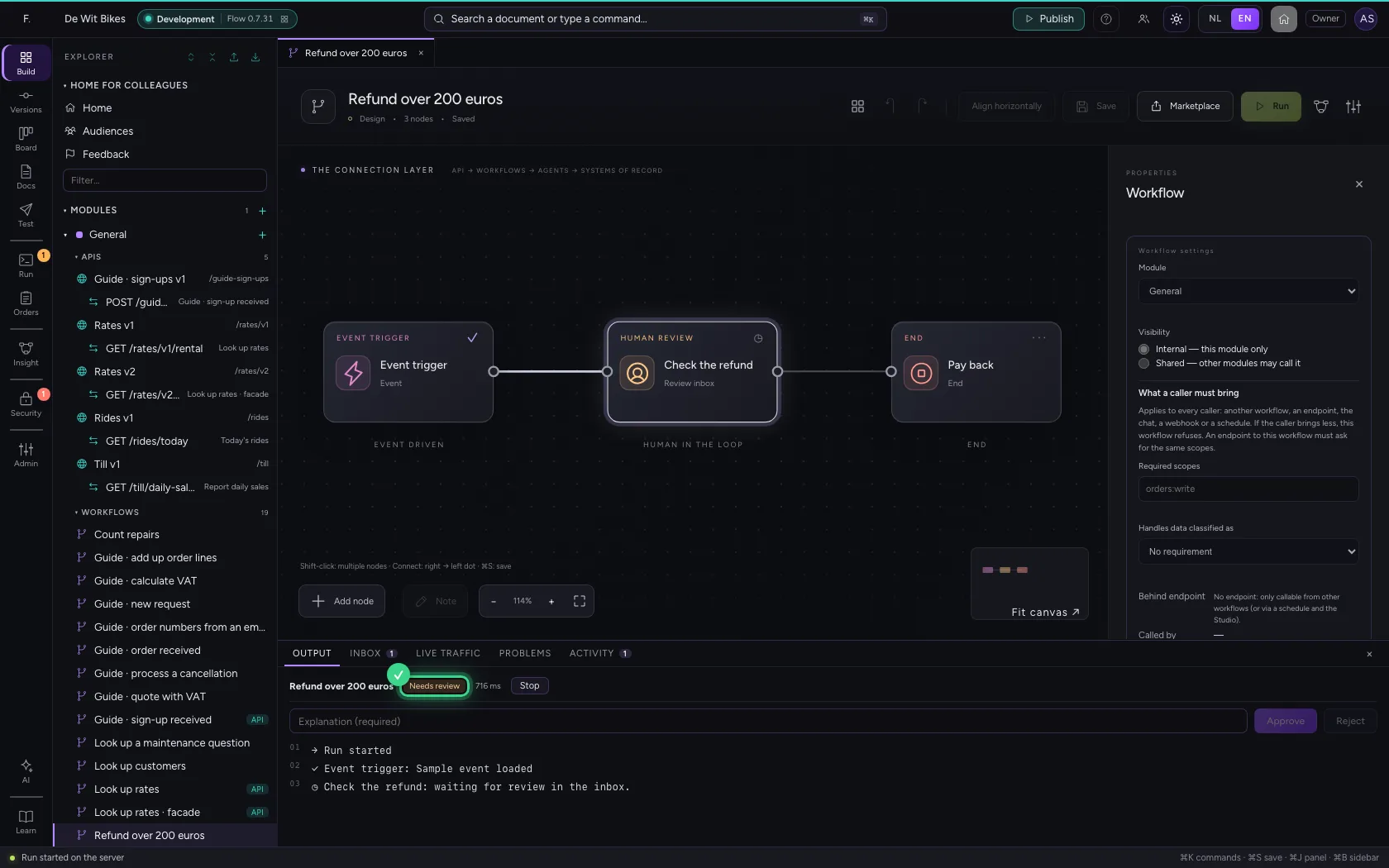
This workflow handles a refund. Before money goes back, there is a Human review step. Open the workflow and click Run: the run stops at that step and waits.
- Click the workflow
- Click Run
Open the inbox
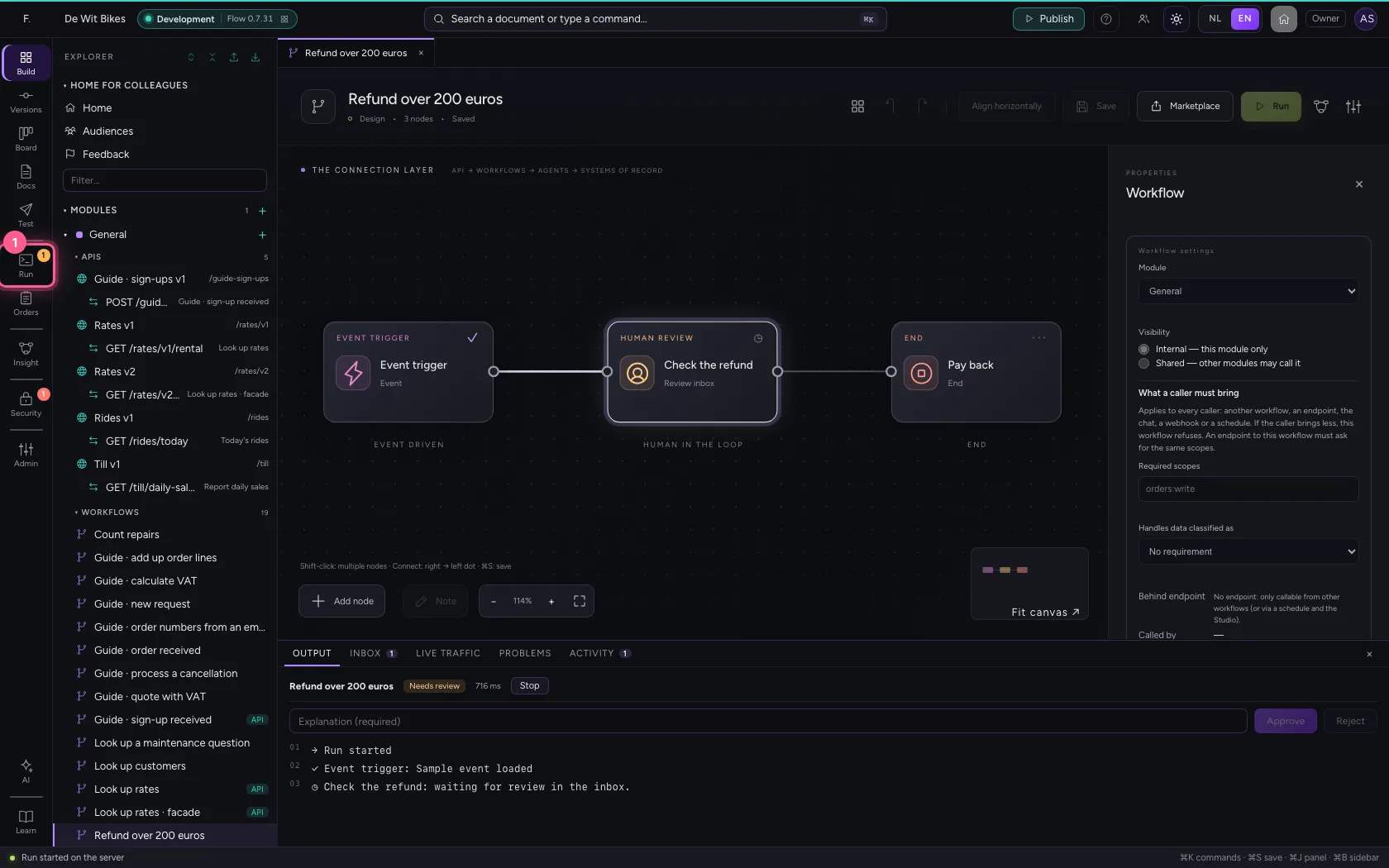
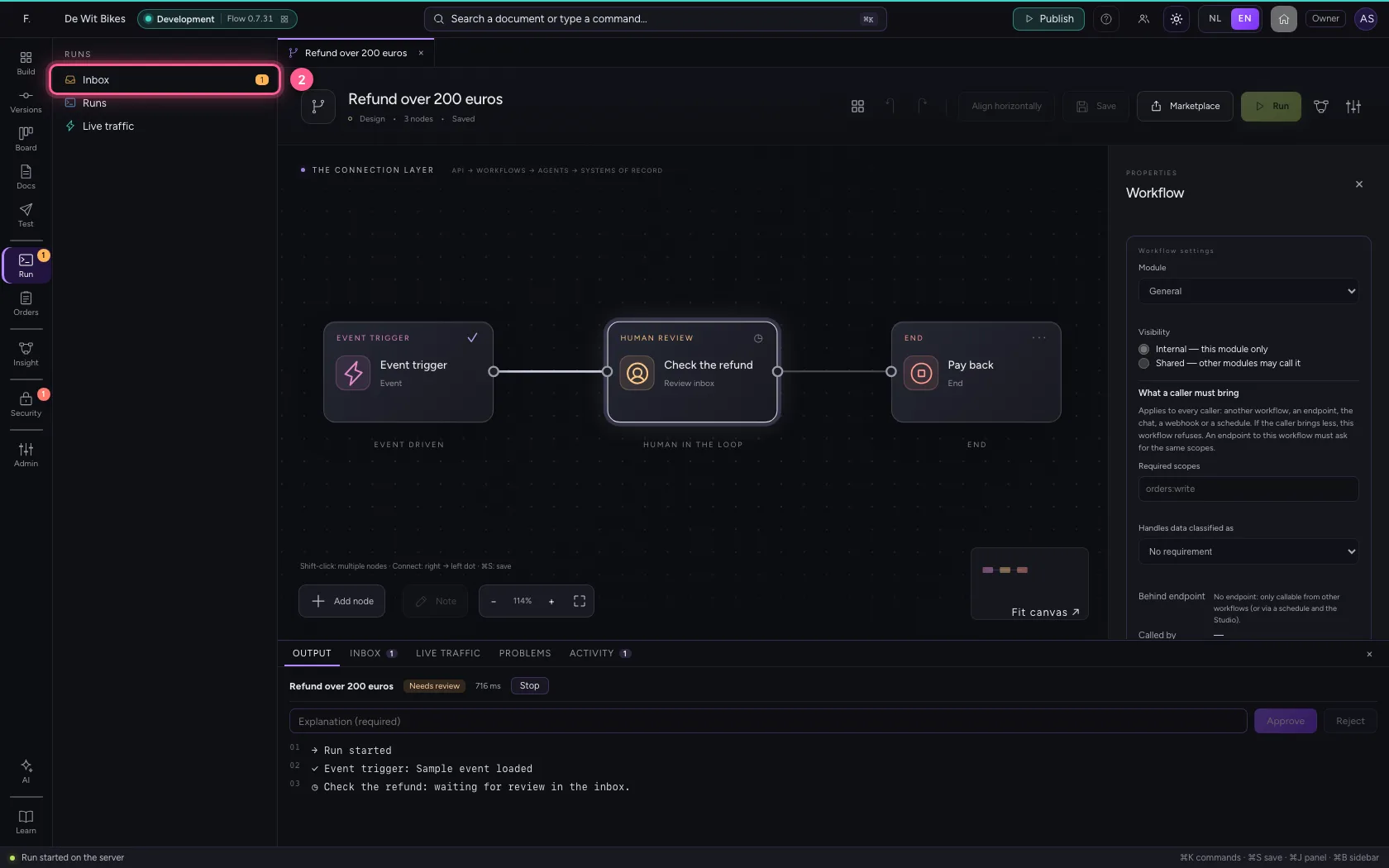
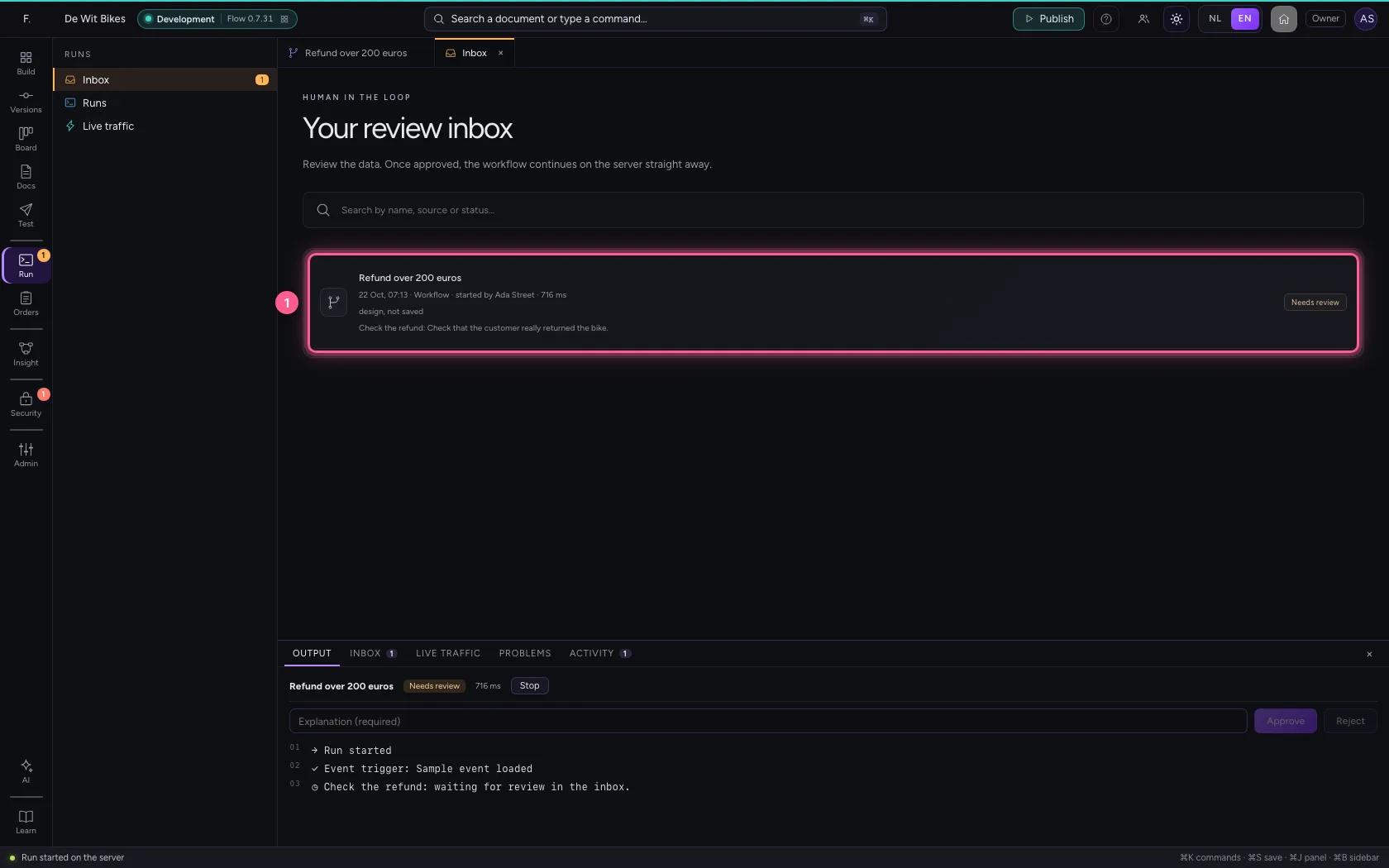
Click Runs in the bar on the left. The number on the icon is the number of runs waiting for someone. Click Inbox: that is where they are, with what the reviewer must check.
- Click Runs
- Click Inbox
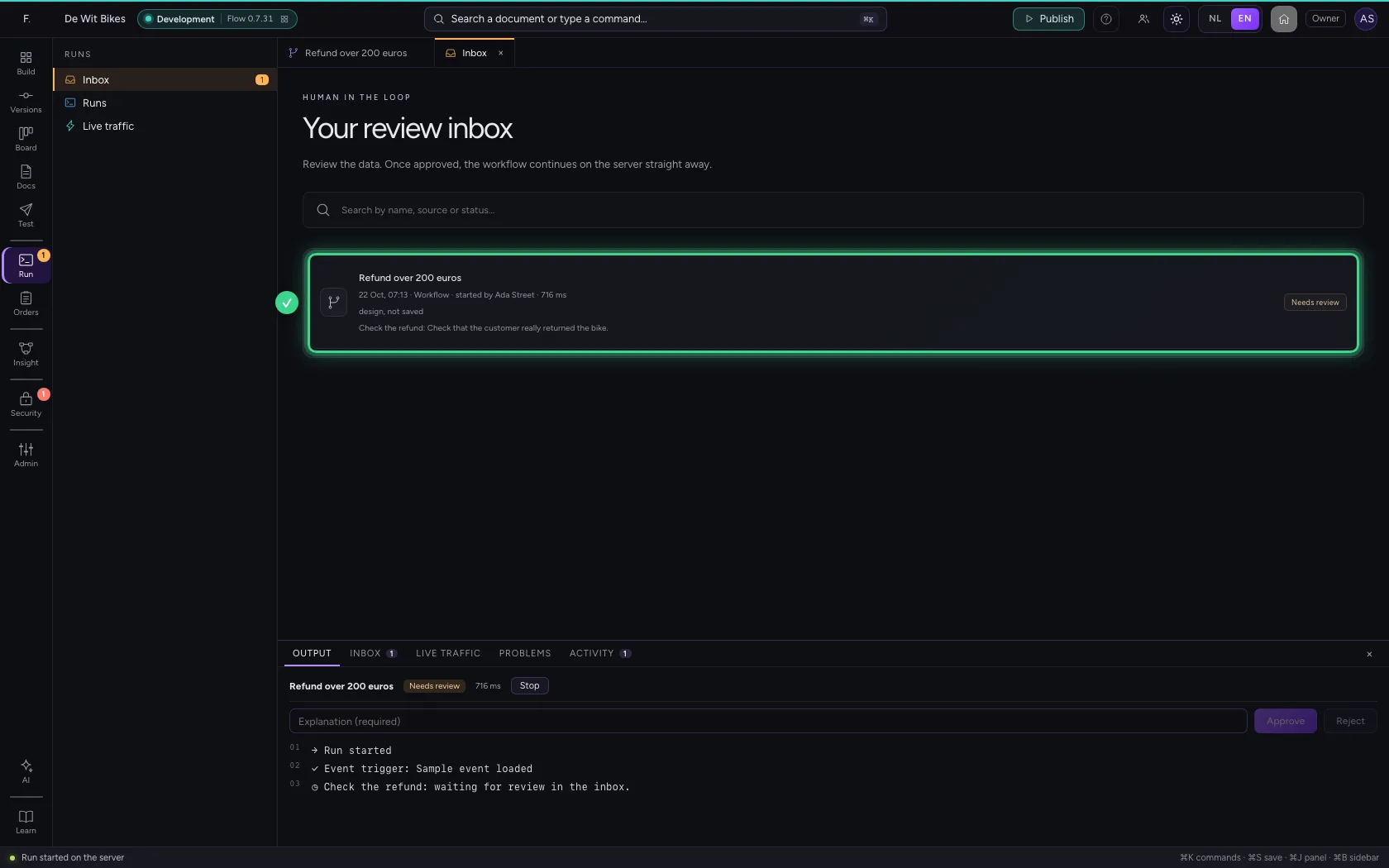
Look at what is up for review
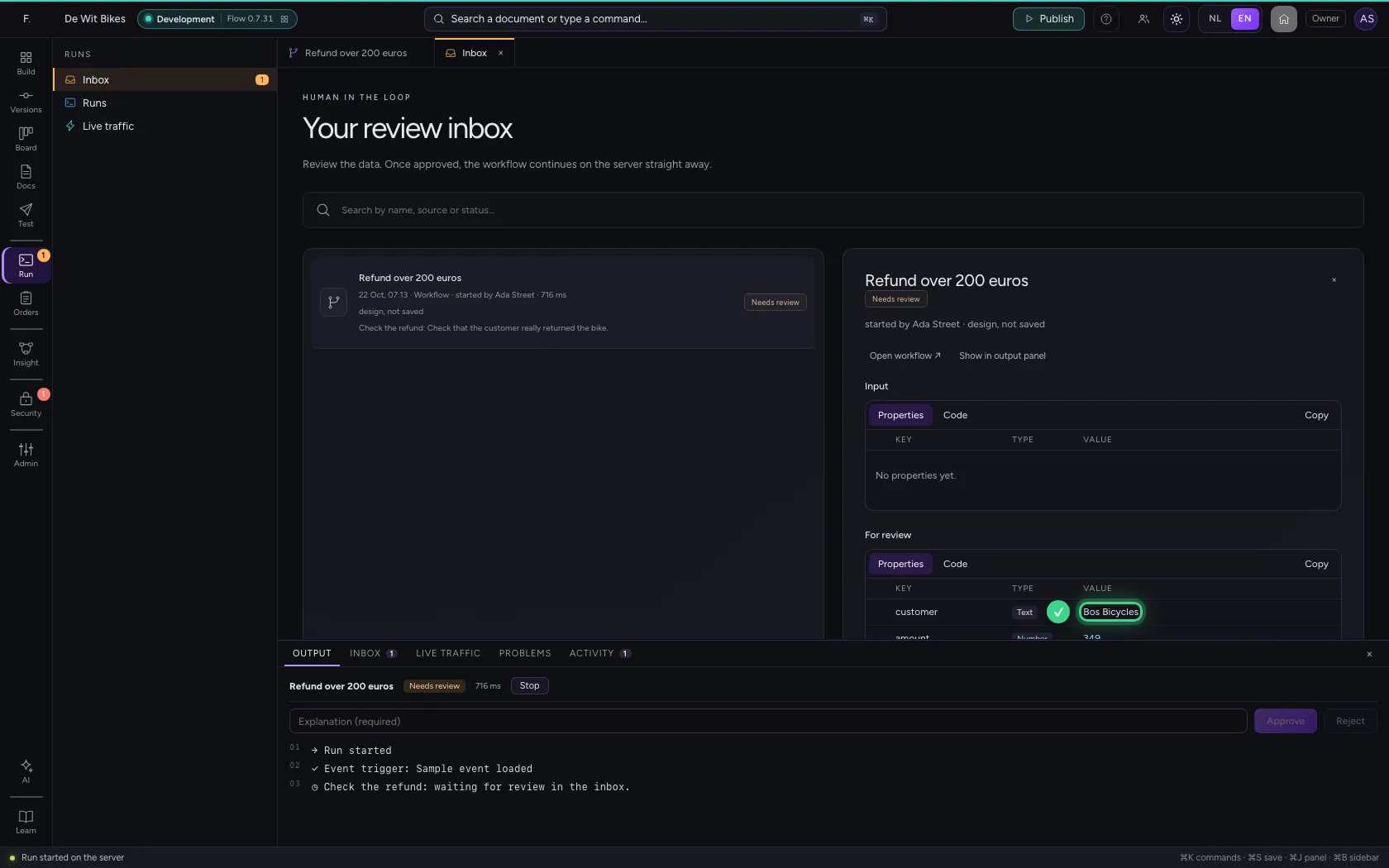
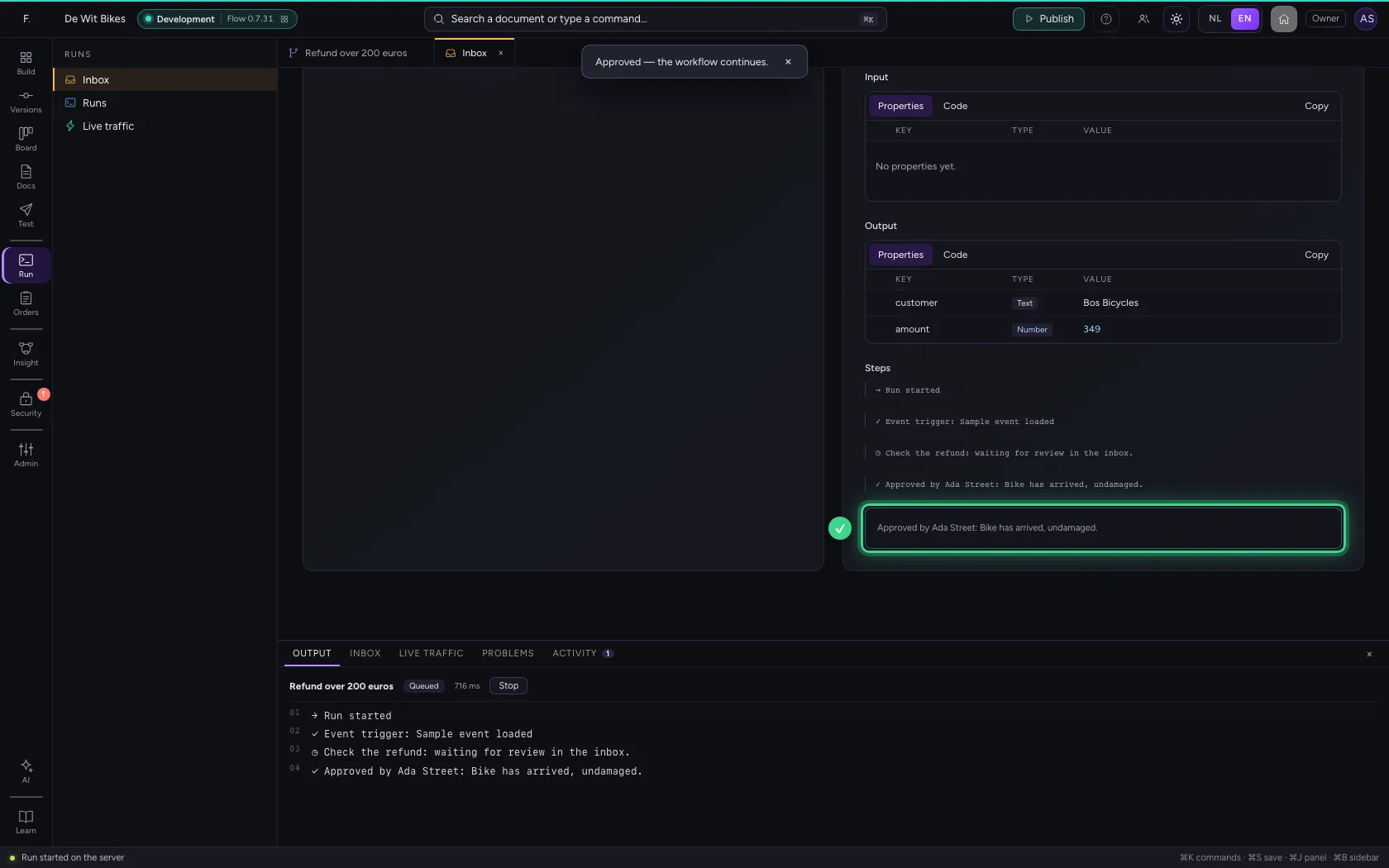
Click the run. On the right, under For review, is the data as it is in the workflow at this moment: which customer and which amount. Below it you read which steps have already run.
- Click the run
Approve, with an explanation
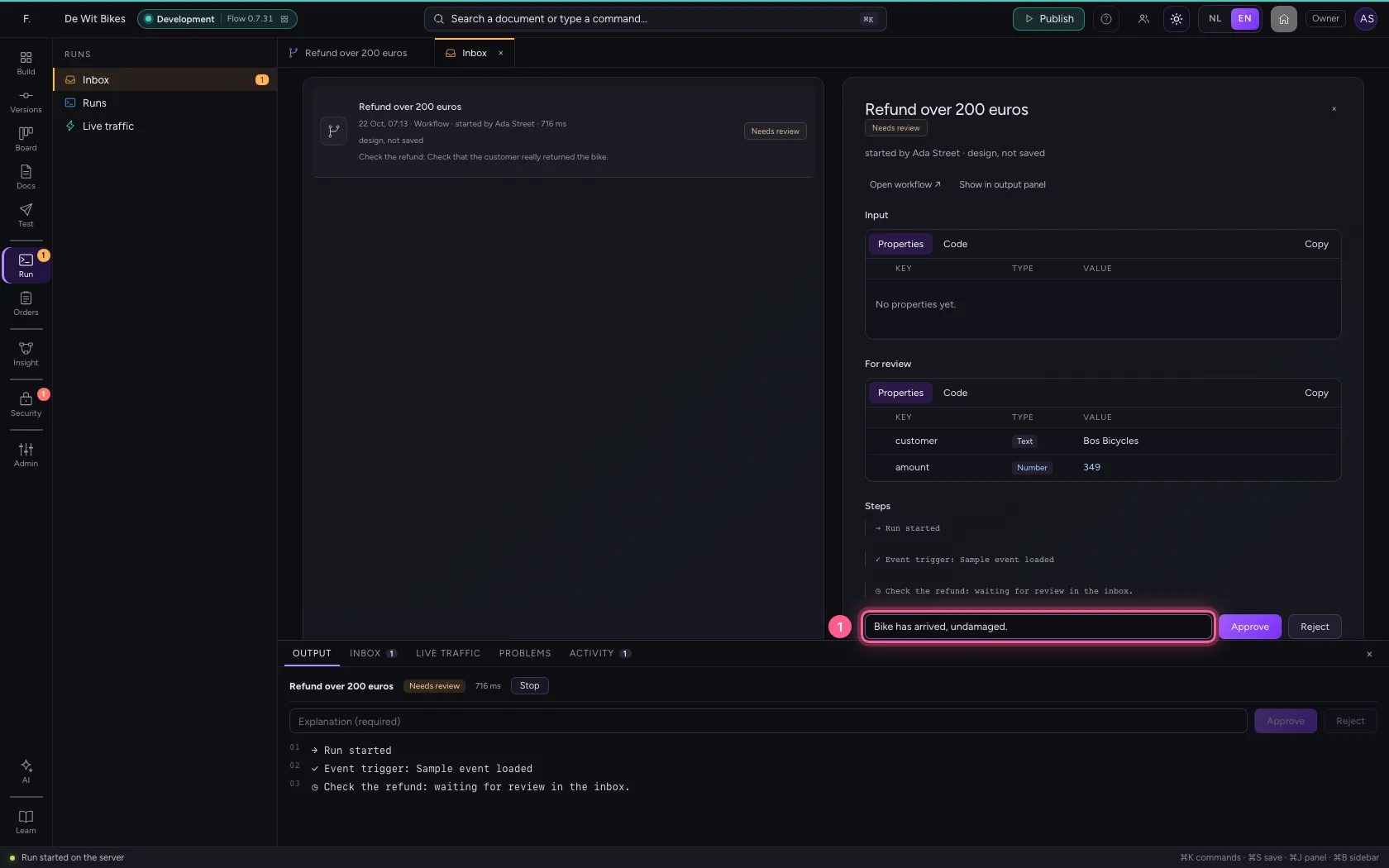
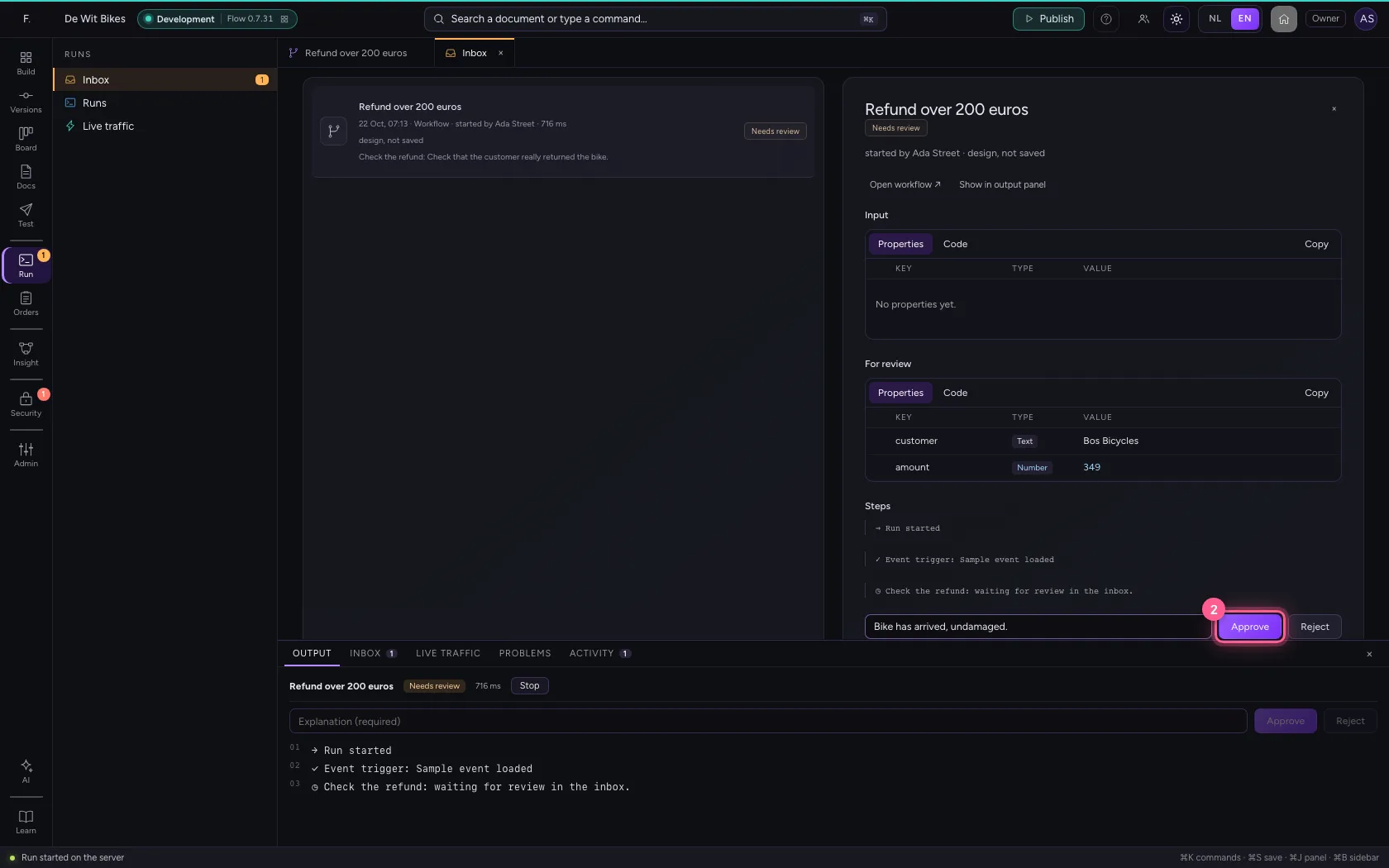
Write in one sentence why you approve; without an explanation the buttons stay off. Click Approve. The workflow carries on straight away on the server and pays back. Your decision and your name are kept with the run and in the audit log.
- In Explanation (required), type
Bike has arrived, undamaged.
- Click Approve
This guide was carried out step by step on 22 Oct 2026 by an automated test on Flow (version 3e563176).