An AI app builds along
An AI app with MCP access, such as Claude Desktop, builds in Flow on your behalf, also while colleagues work there. It first looks who is busy with what, leaves alone what a person is changing (or tells you), and what it saves your colleagues see at once, marked as AI. It never overwrites: a person's work and the app's are merged.
Open your development environment
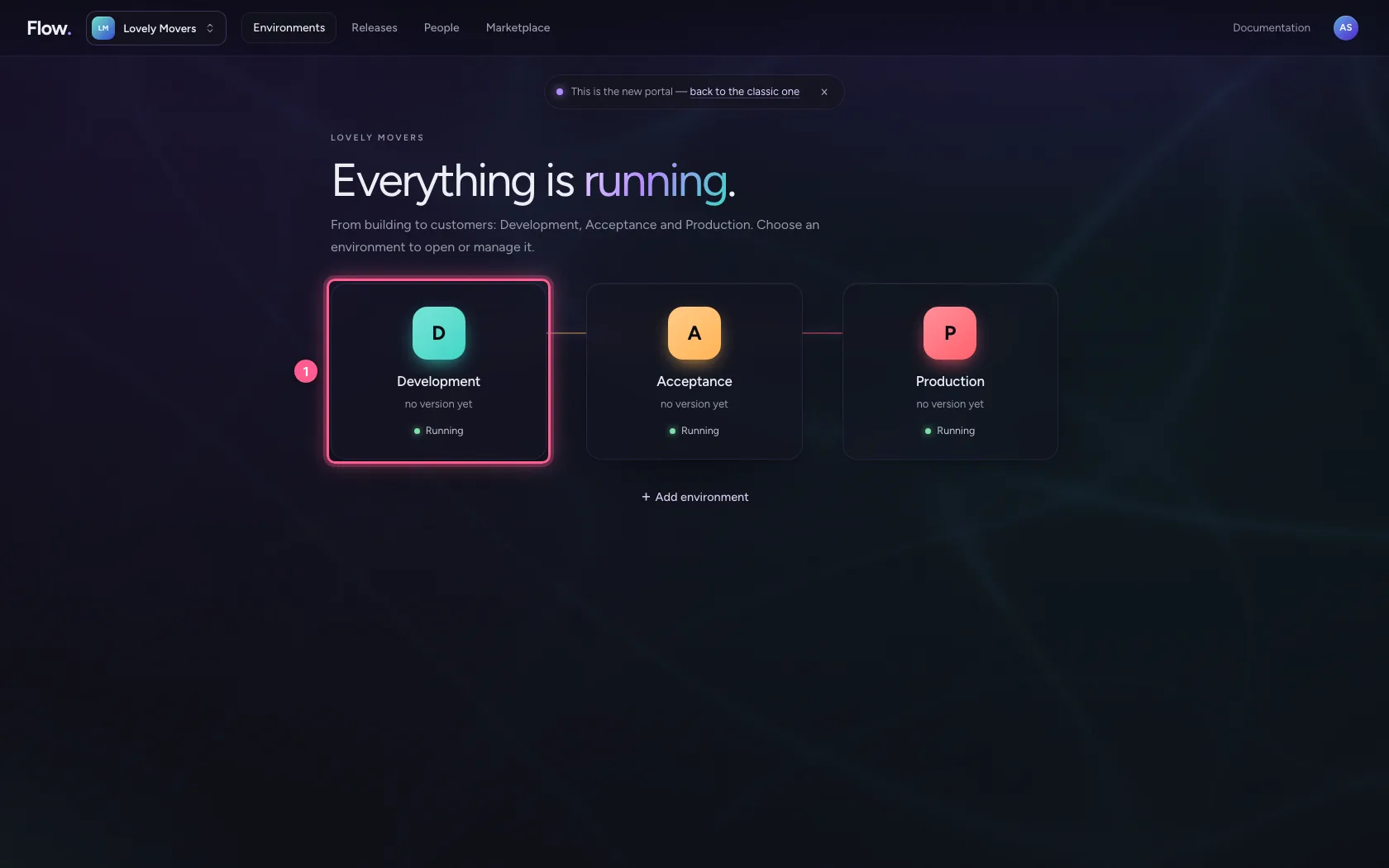
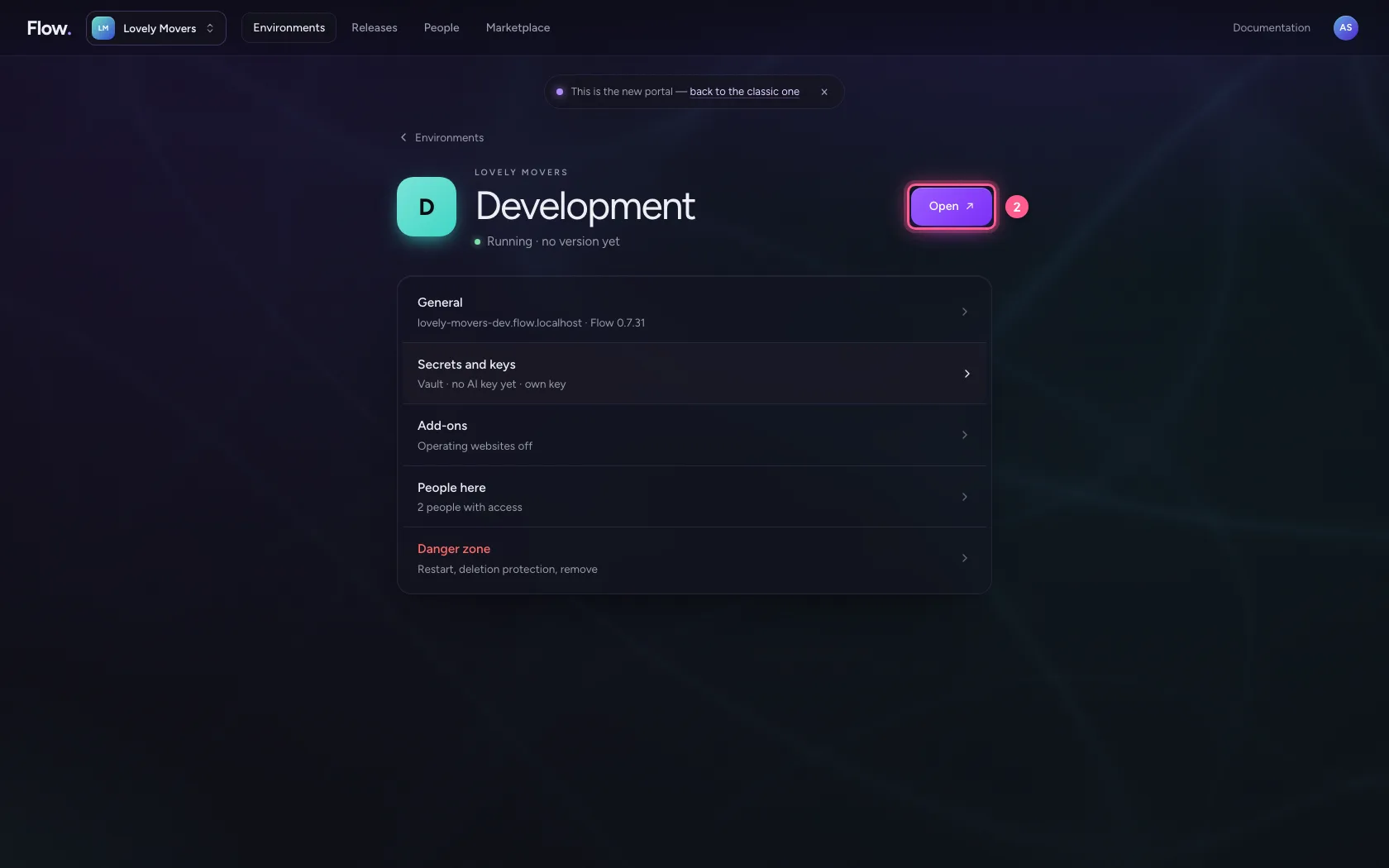
In the portal, under Environments, click Development, and there Open. Flow opens in a new tab and you are signed in straight away.
- Click Development
- Click Open ↗
The AI app has access
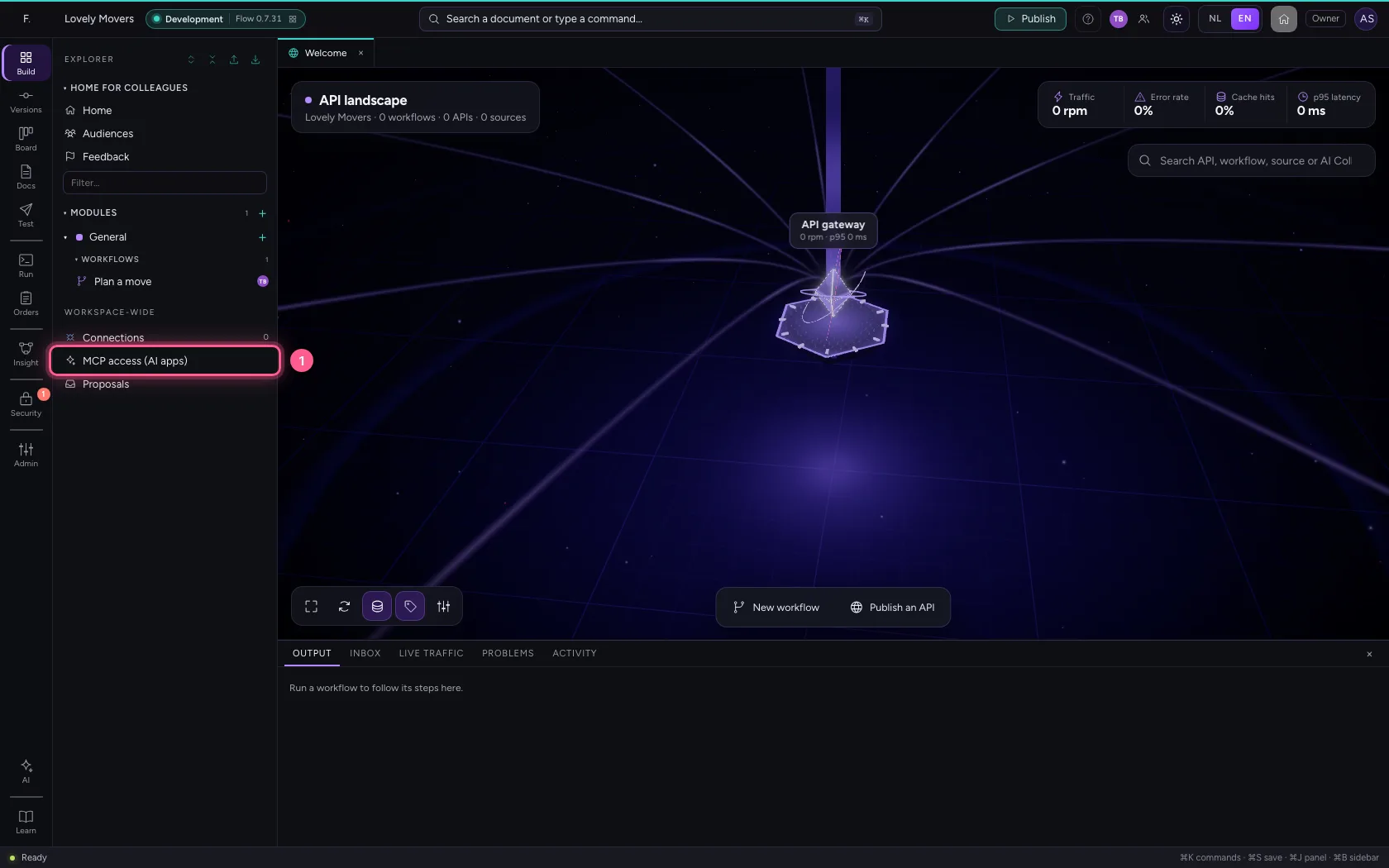
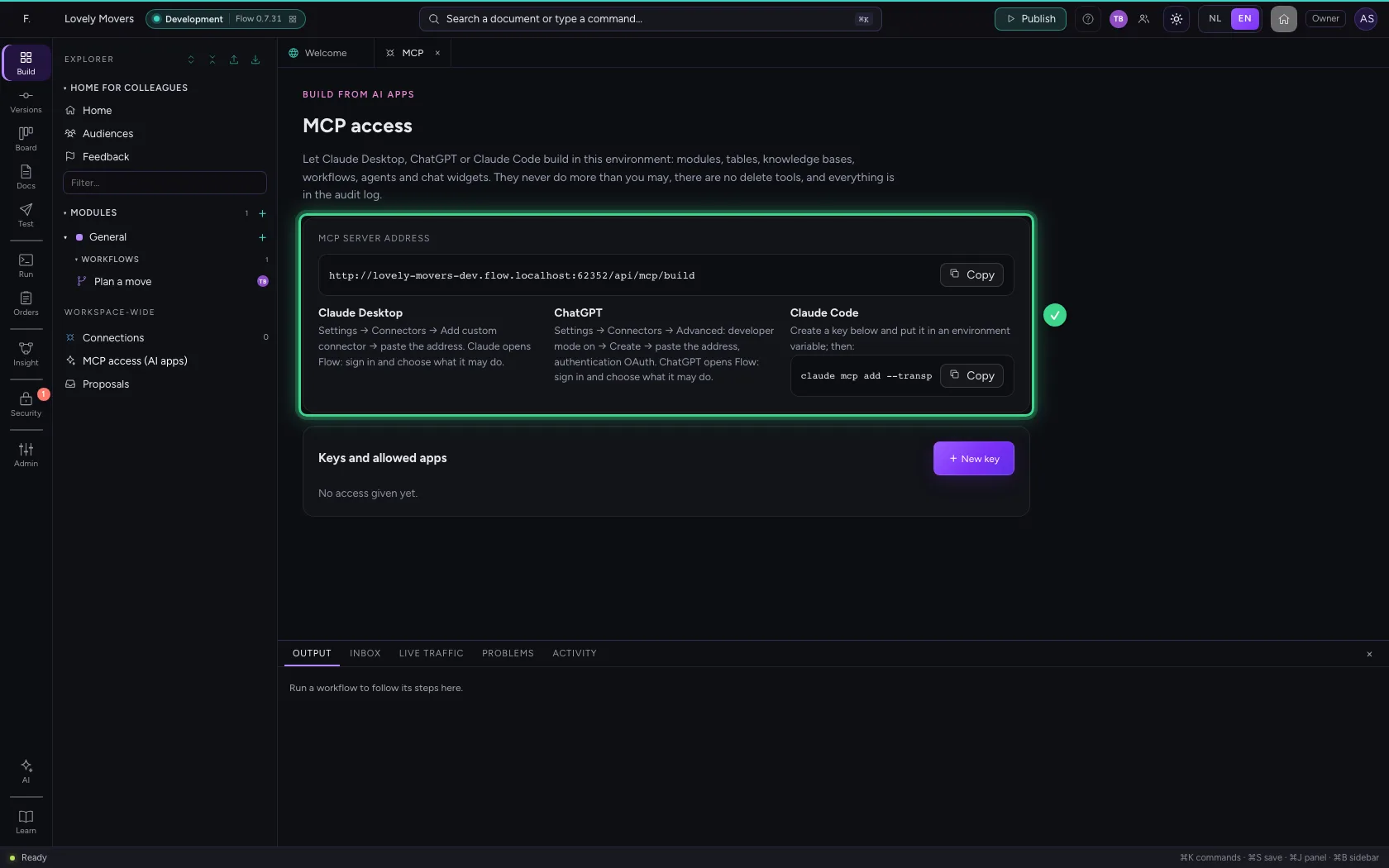
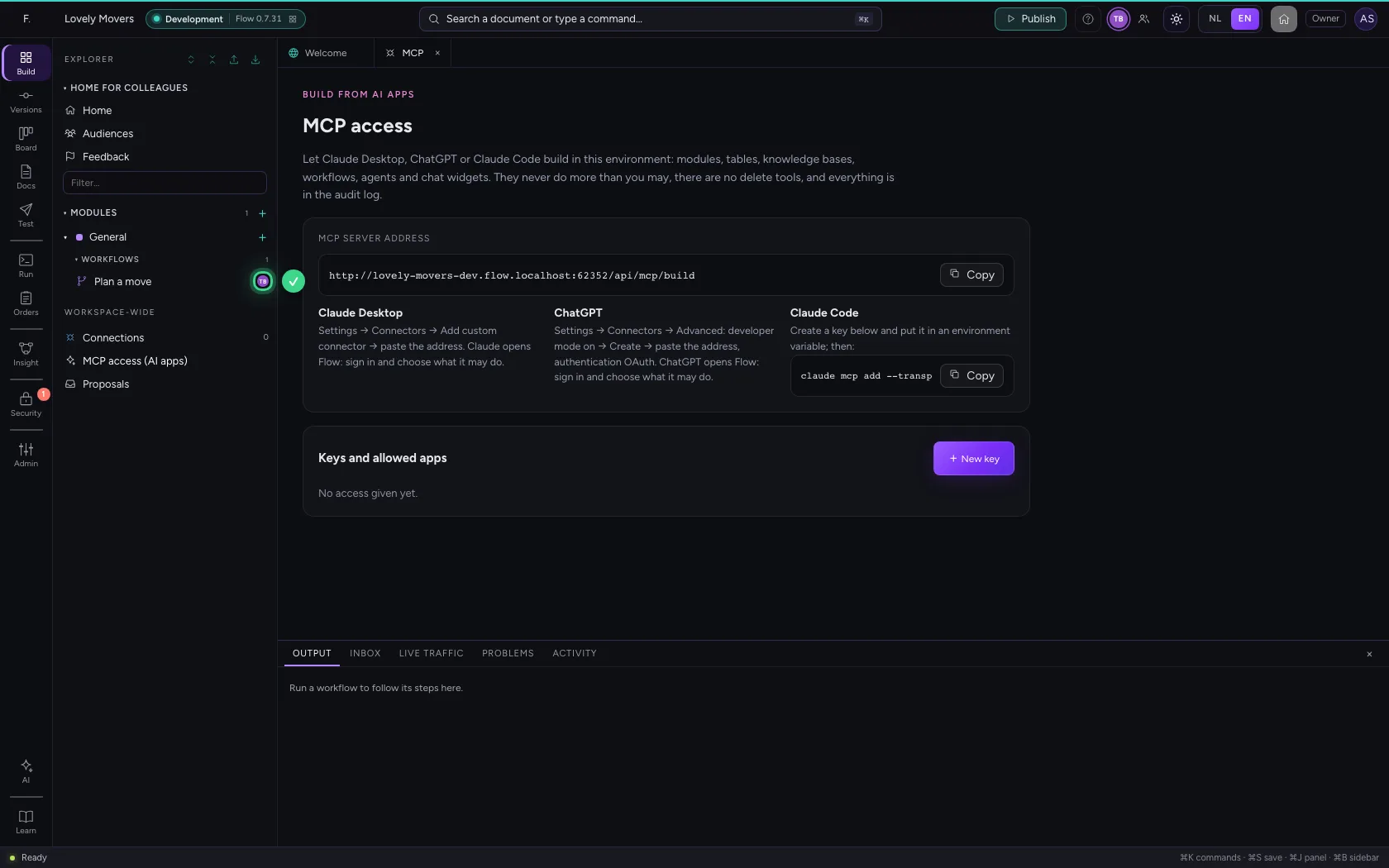
Under MCP access (AI apps) is the address you put into the AI app. The app acts as you and can never do more than your role. The guide Building from Claude Desktop shows how to connect it.
- Click MCP access (AI apps)
The app first looks who is busy
When you ask the app to change the workflow, it first looks with who_is_here who is there and what they have open. It hears that Tom Baker is changing this workflow, and tells you before it goes on. In the explorer you see the same: Tom Baker's dot is on the workflow.
Your colleague sees the app's work
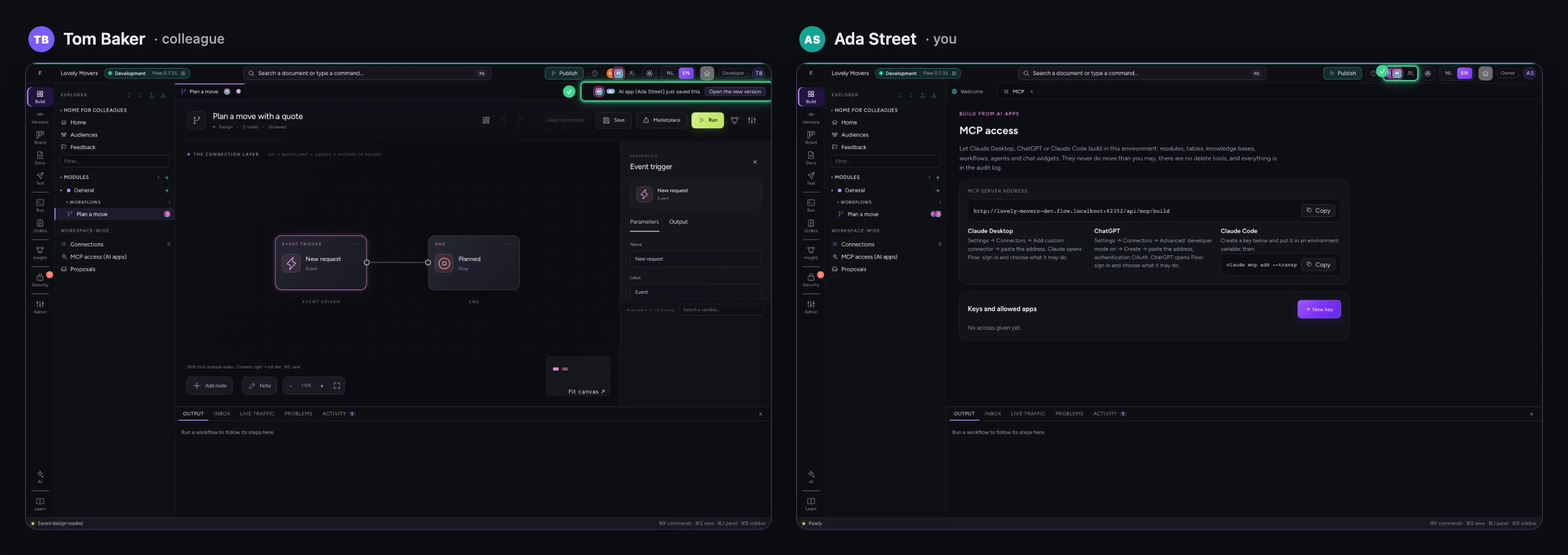
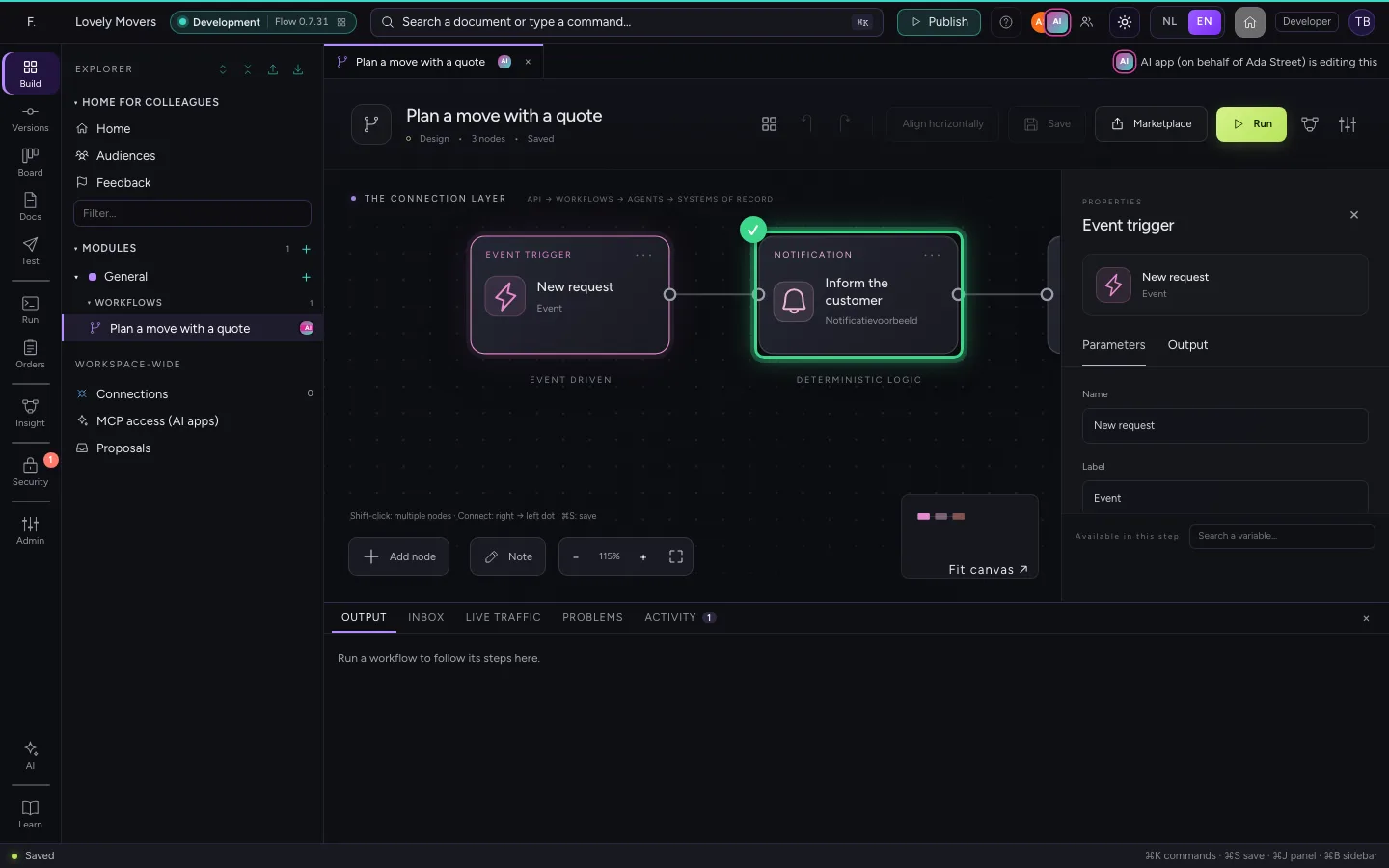
You tell the app to go on. It adds a step and then reports that Tom Baker had the workflow open. Tom Baker sees at once that the AI app (on your behalf) saved the workflow, with the AI mark; top right the AI app shows for a while as a visitor, marked as AI.
Your colleague saves: everything stays
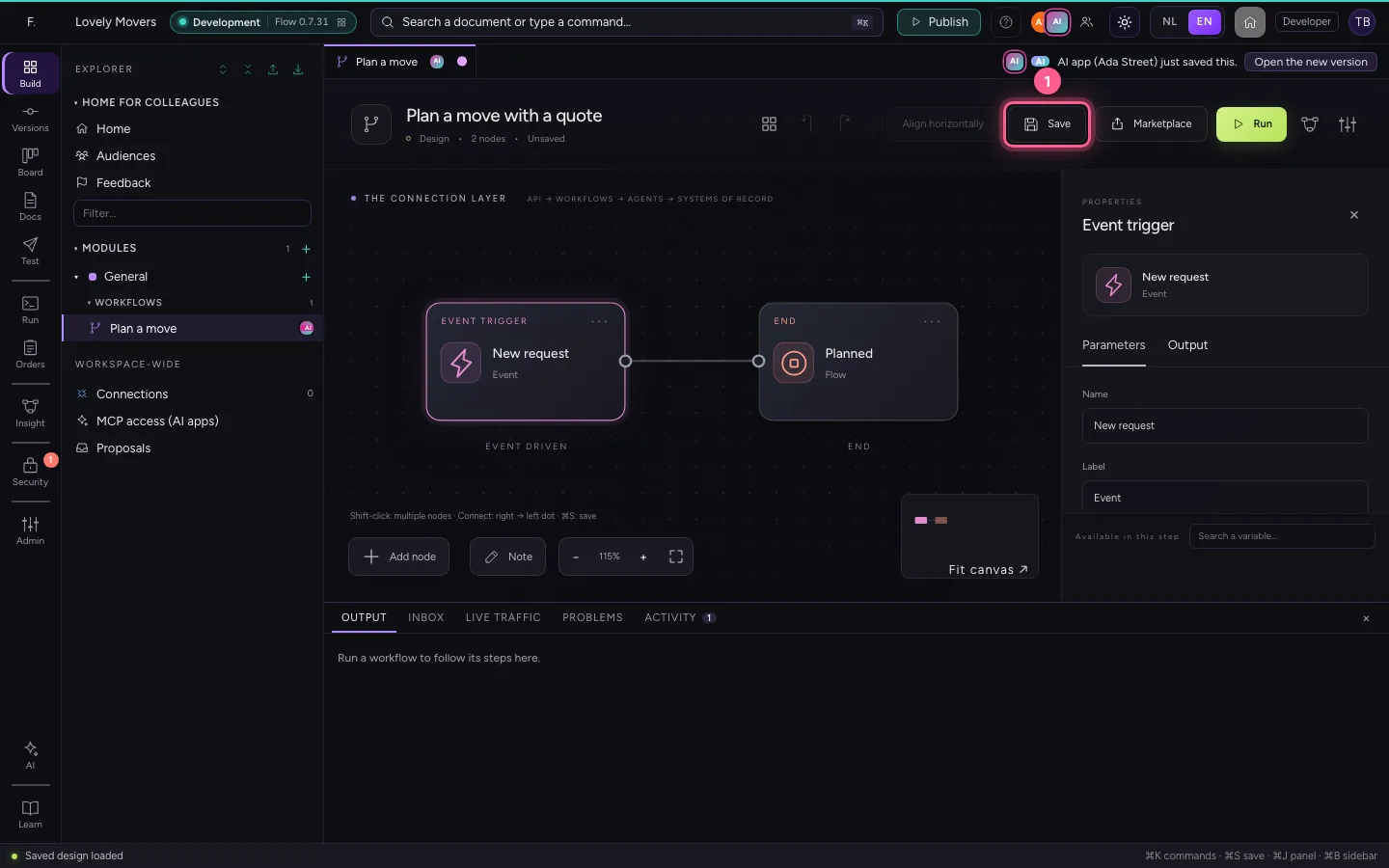
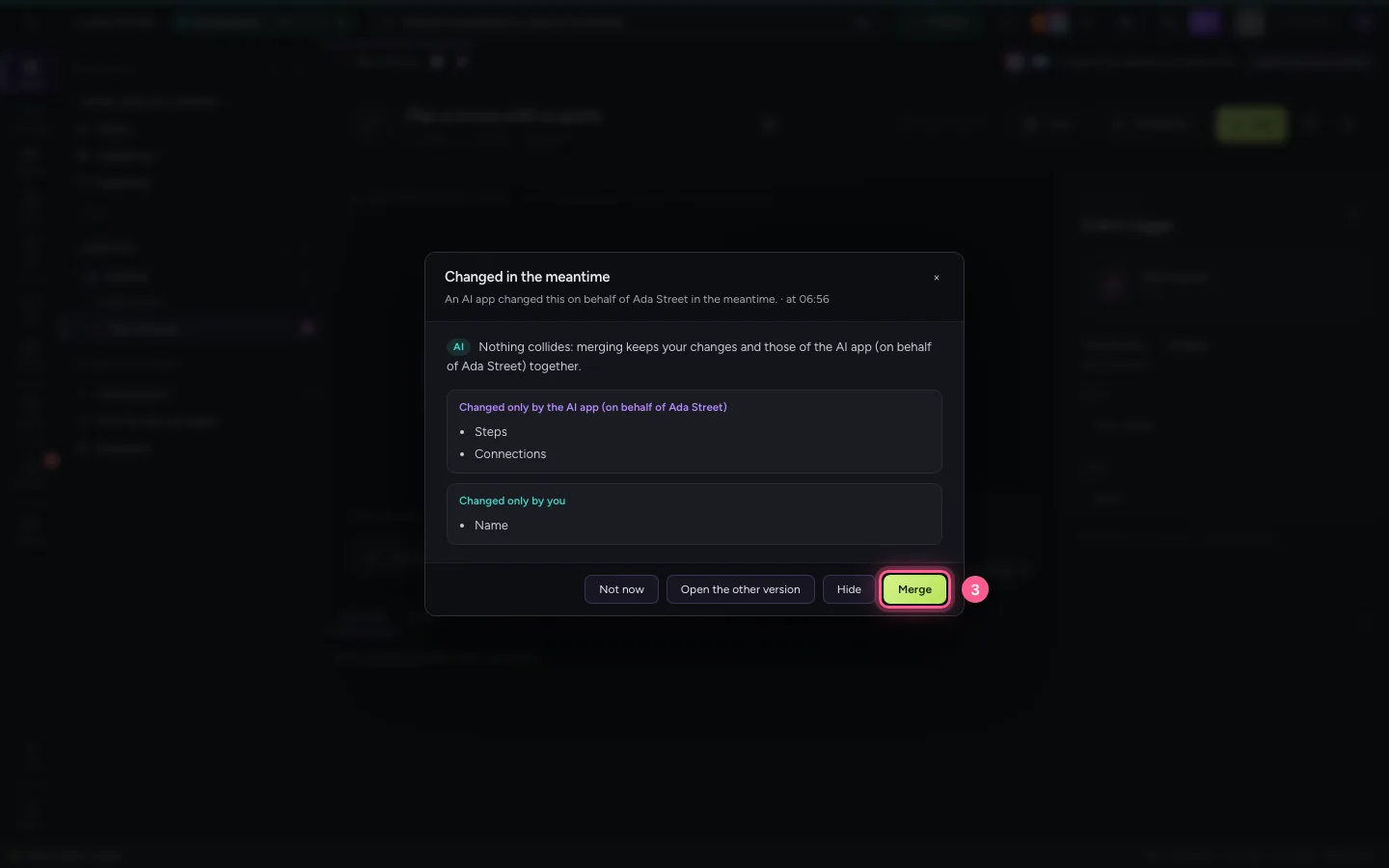
Tom Baker saves his own change. Flow does not overwrite the app's work: it shows what the app changed and what he did himself, and Merge keeps both.
- Click Save
- Click Review
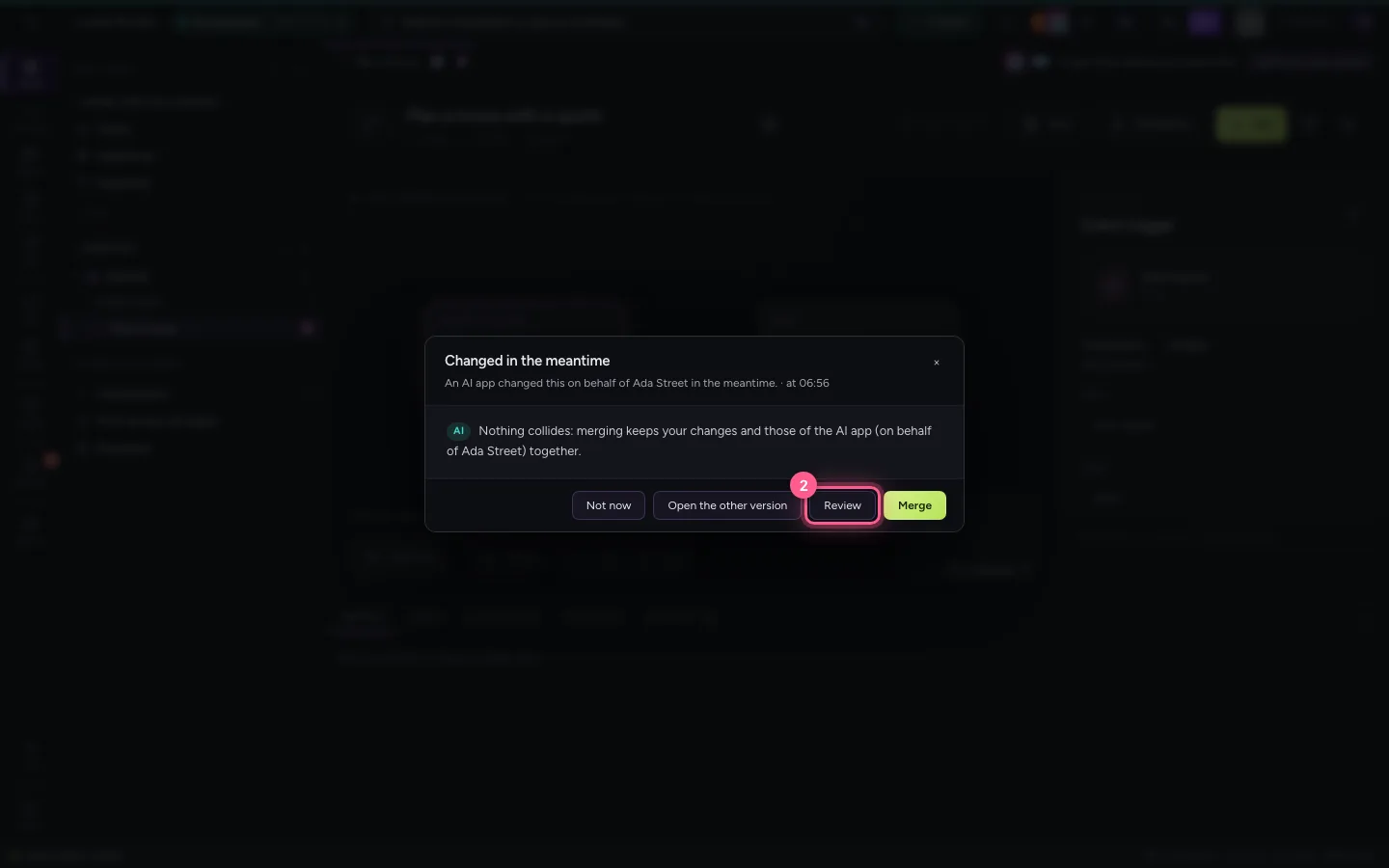
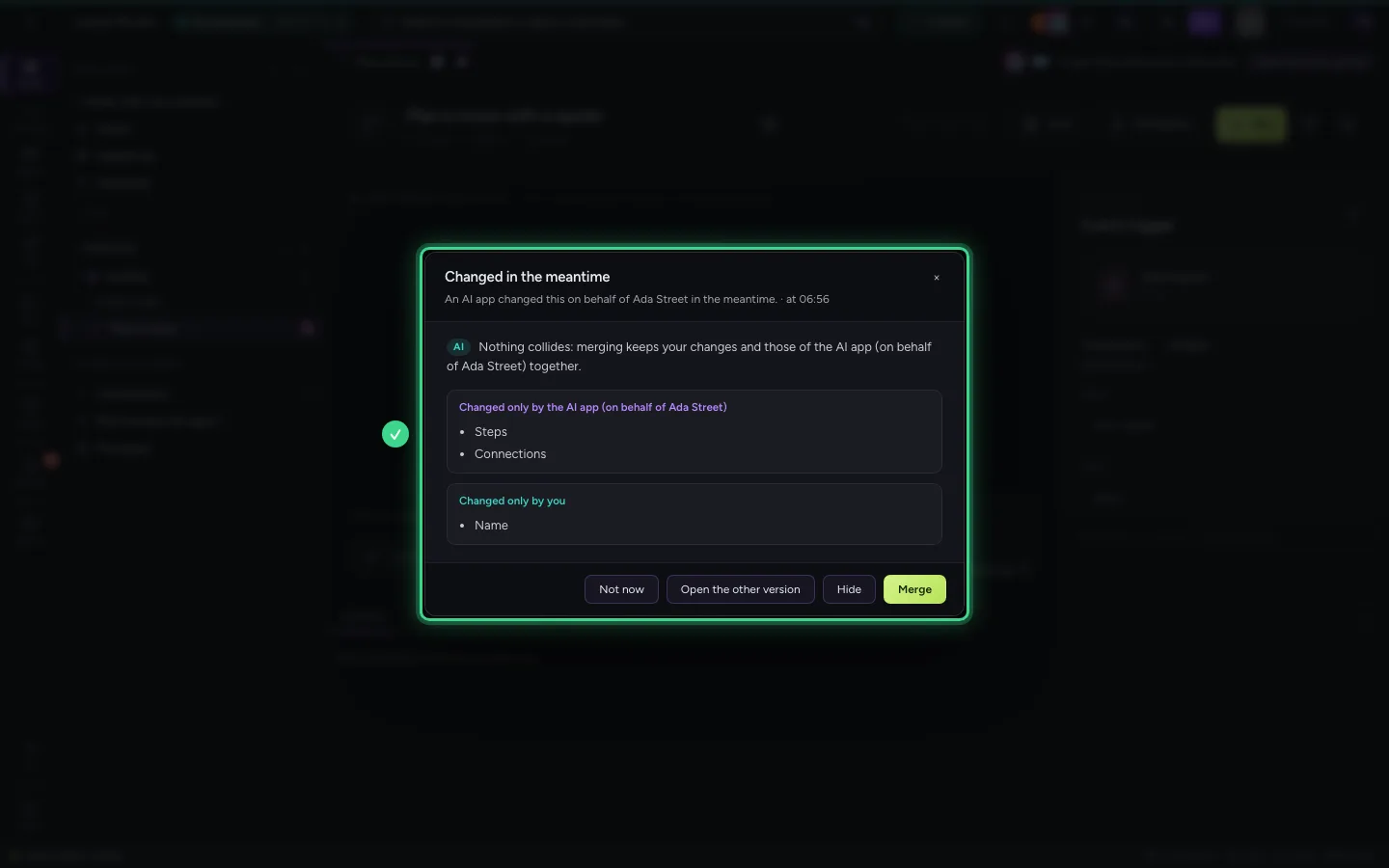
- Click Merge
This guide was carried out step by step on 22 Oct 2026 by an automated test on Flow (version 3e563176).