A table's security
On a table's Security tab you set how sensitive the data is, whether other modules may use the table, and who may read and change the rows: per role, and separately for consumers through the API and for workflows. You protect a table of customer details.
Open your development environment
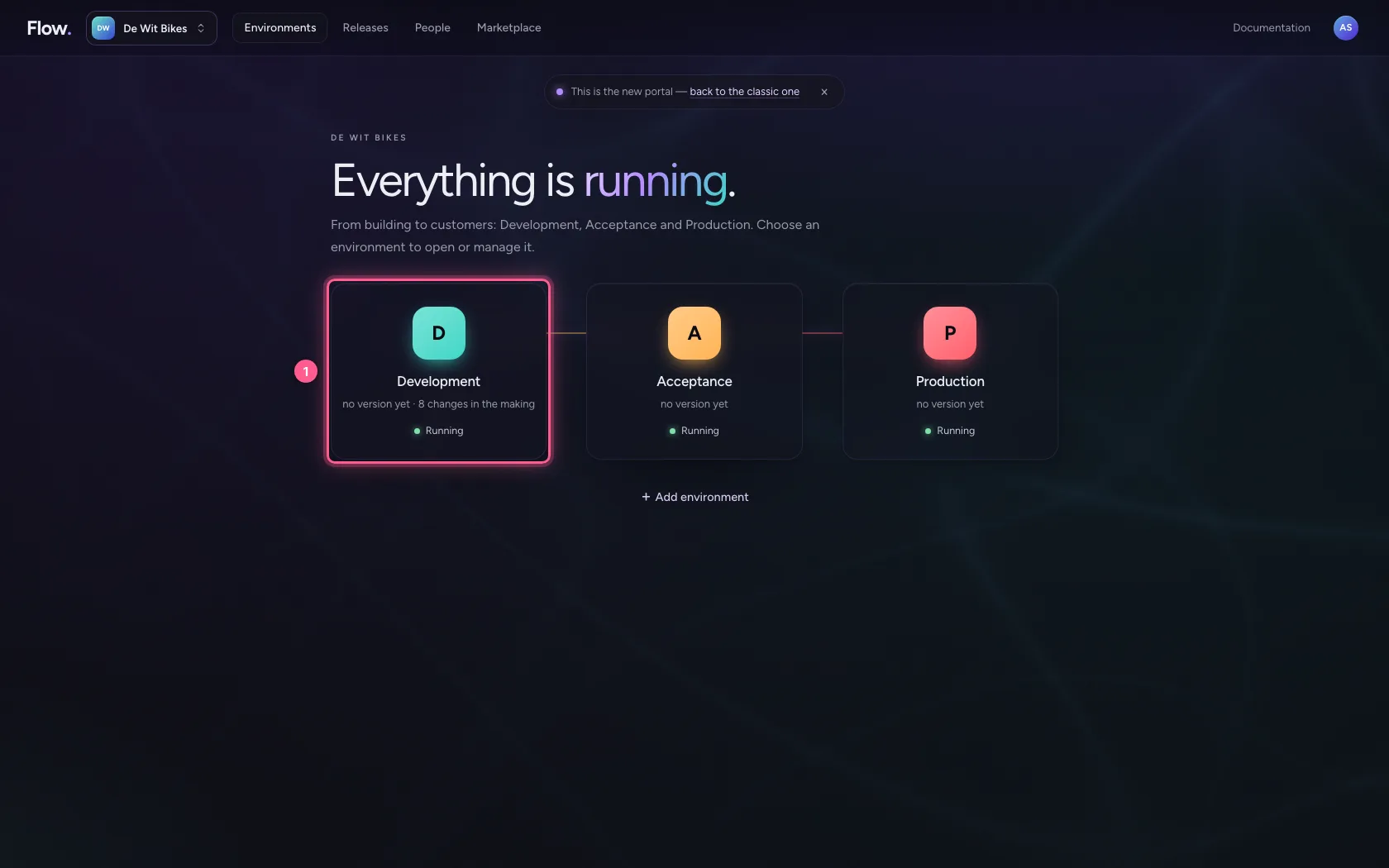
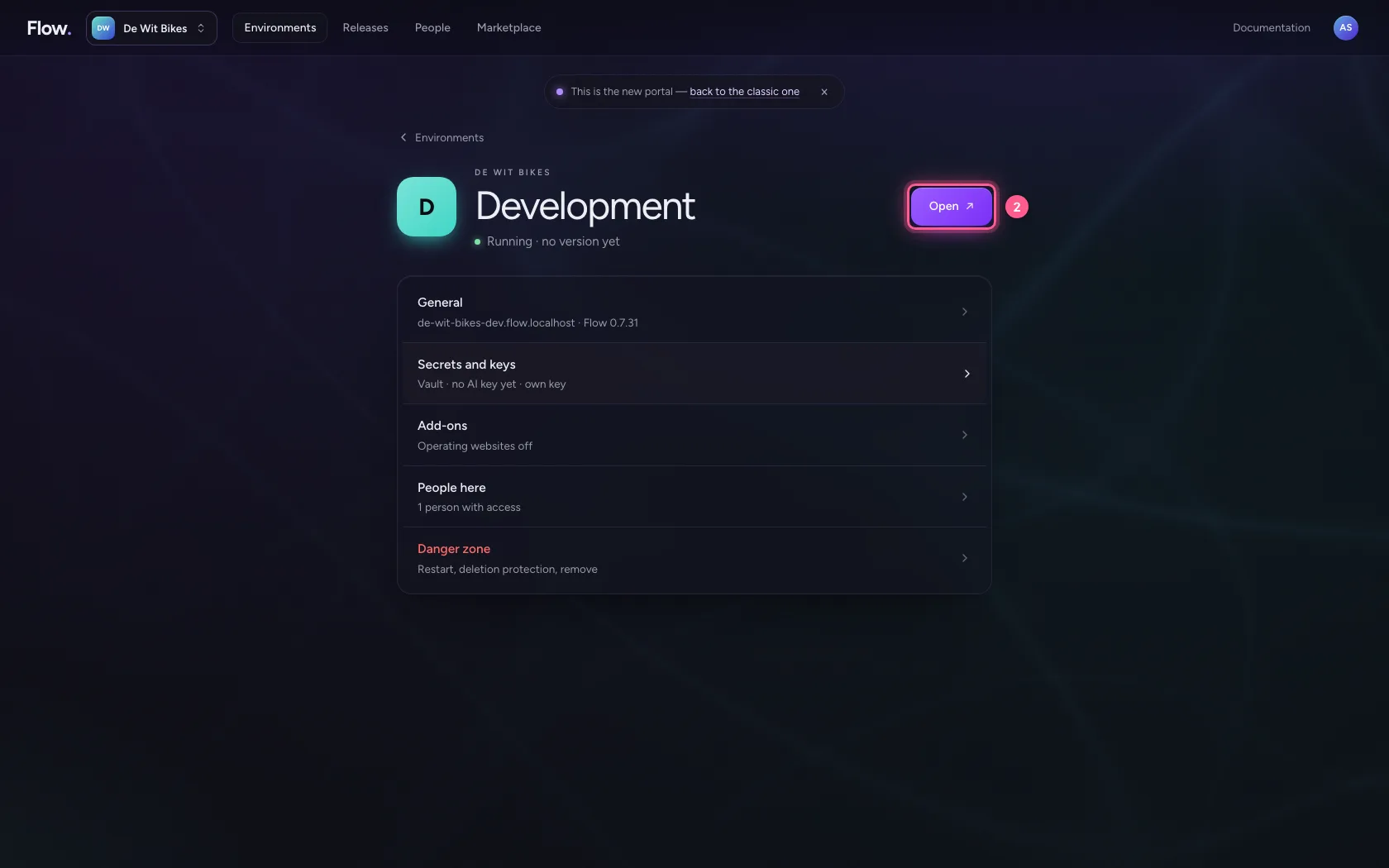
In the portal, under Environments, click Development, and there Open. Flow opens in a new tab and you are signed in straight away.
- Click Development
- Click Open ↗
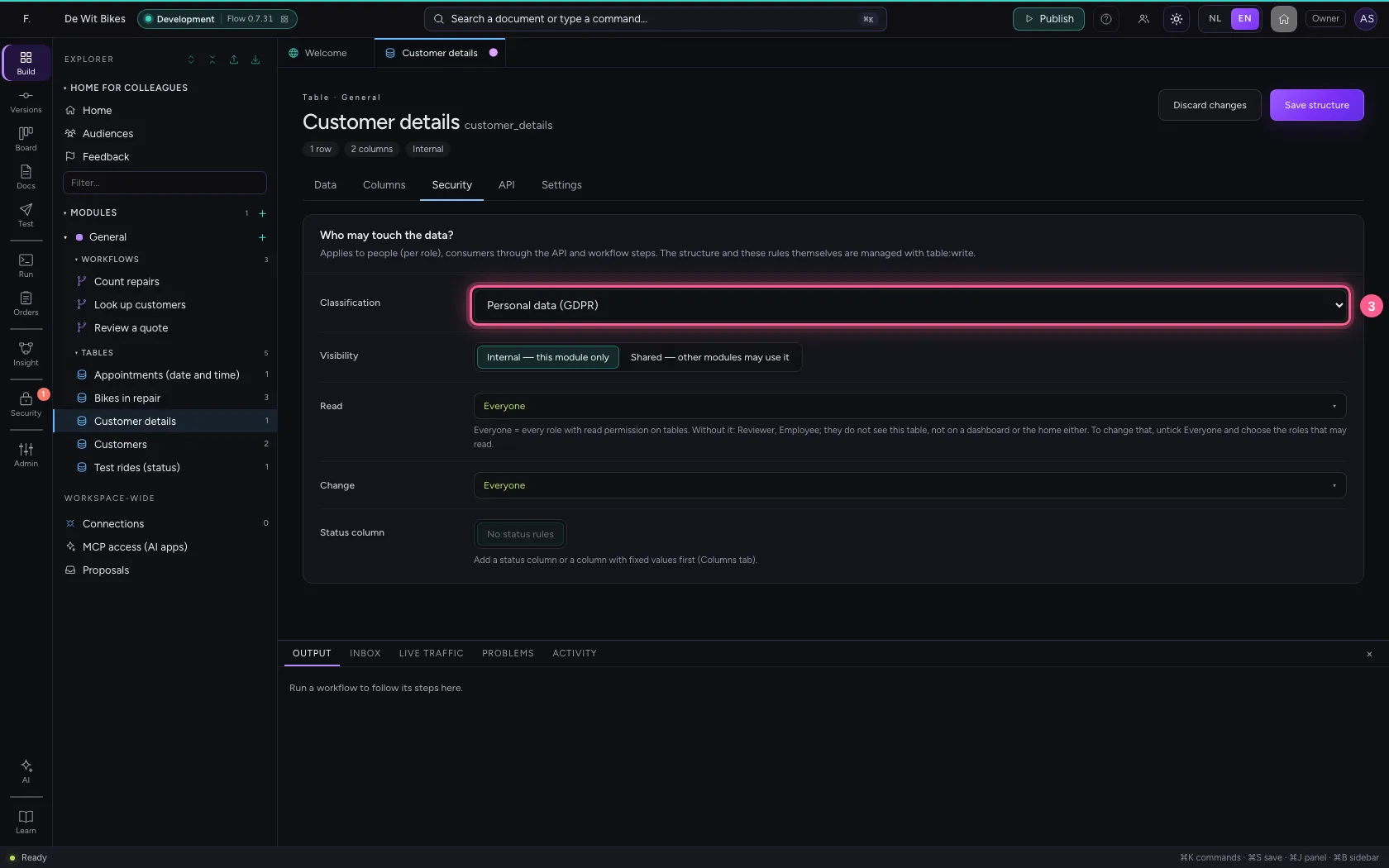
Choose the classification
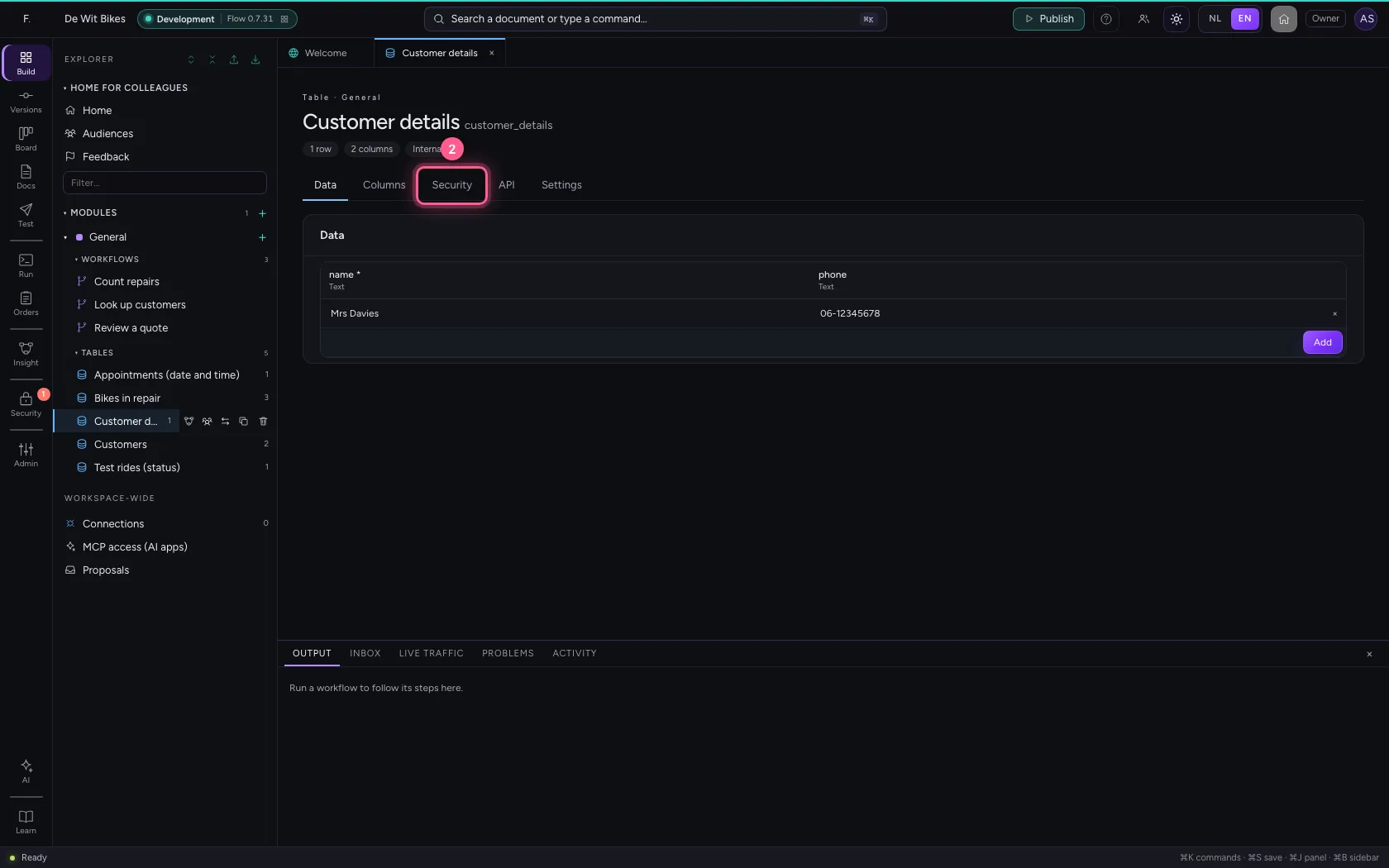
Open the table and go to Security. The classification says how sensitive the data is, from Public to Special category (health, national ID). Names and phone numbers are personal data. An endpoint or workflow with a lower classification does not get this data: it does not leak to a public API by accident.
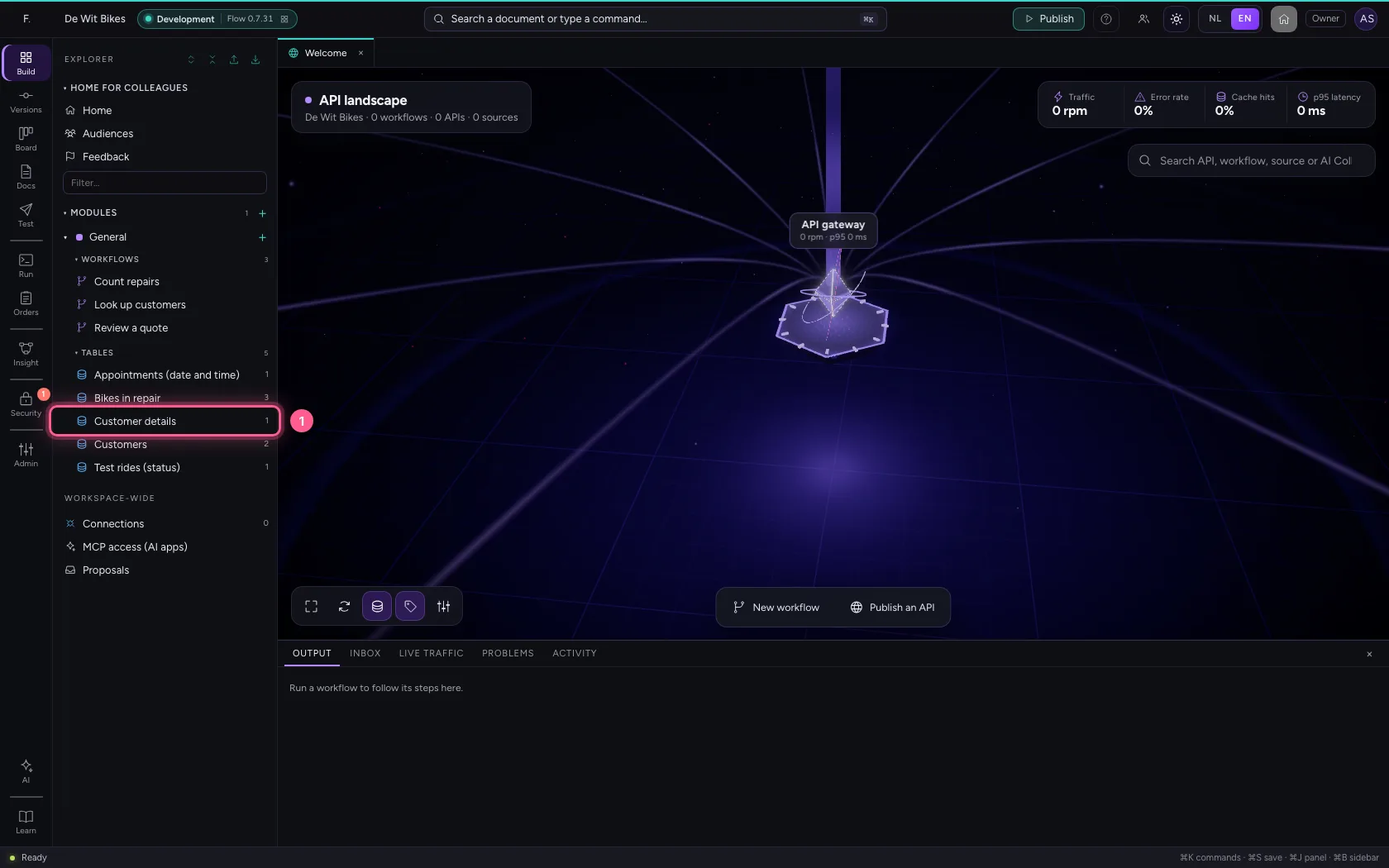
- Click the table ‘Customer details’
- Click Security
- In Classification, choose Personal data (GDPR)
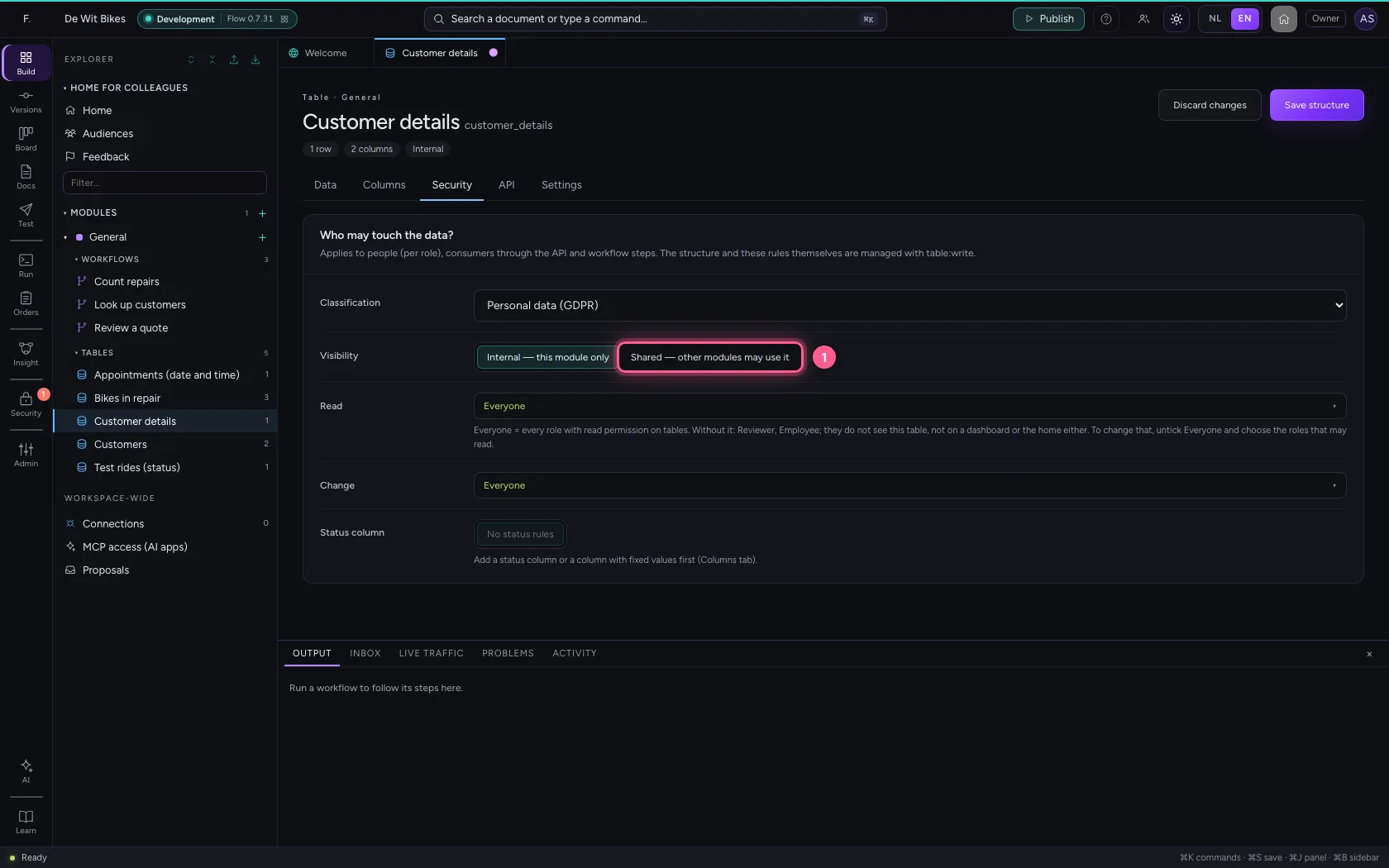
Shared or internal
A table is Internal by default: only workflows and APIs in the same module may use it. Choose Shared when other modules need it too, like a customer list the whole organisation uses.
- Click Shared — other modules may use it
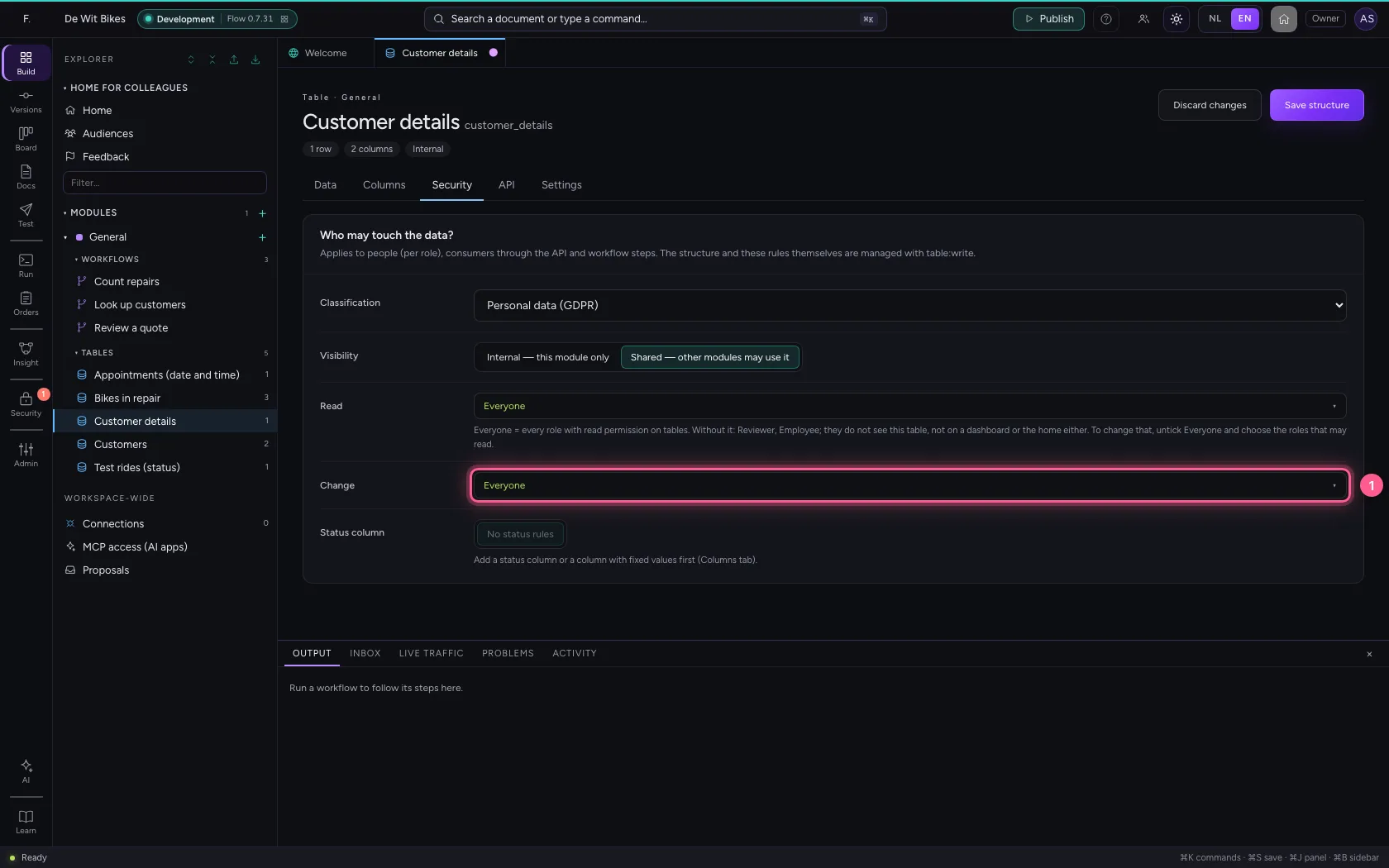
Who may change
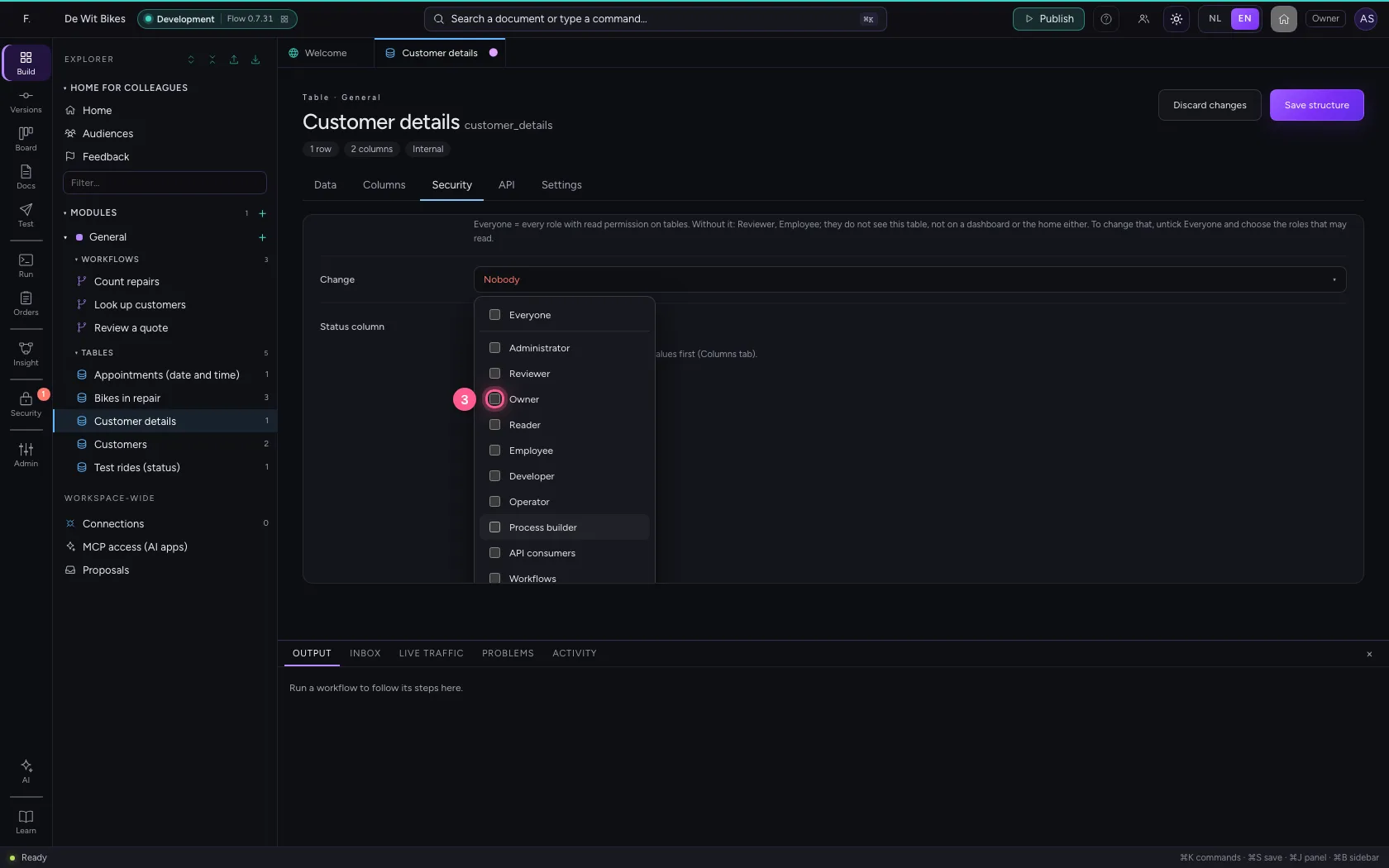
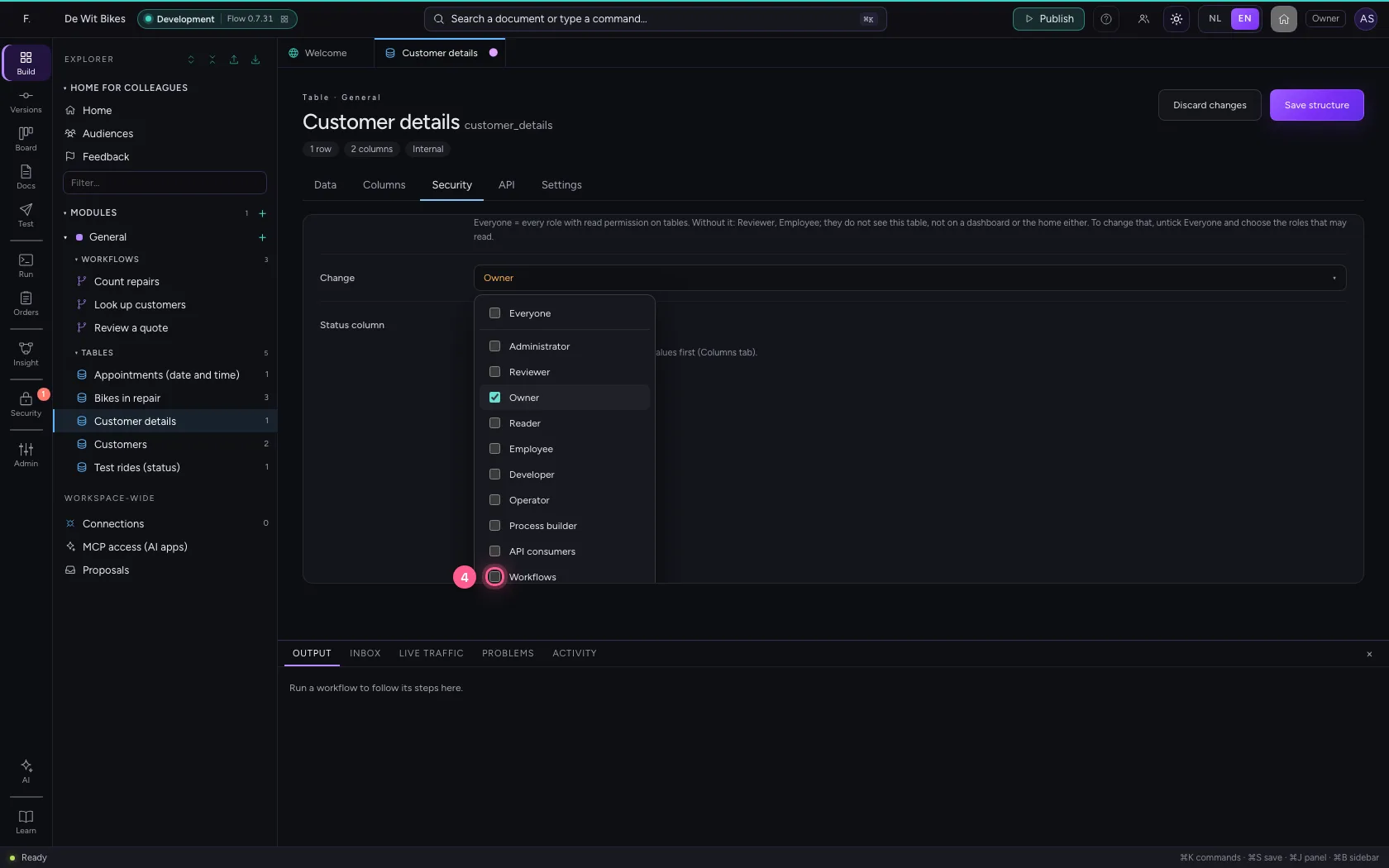
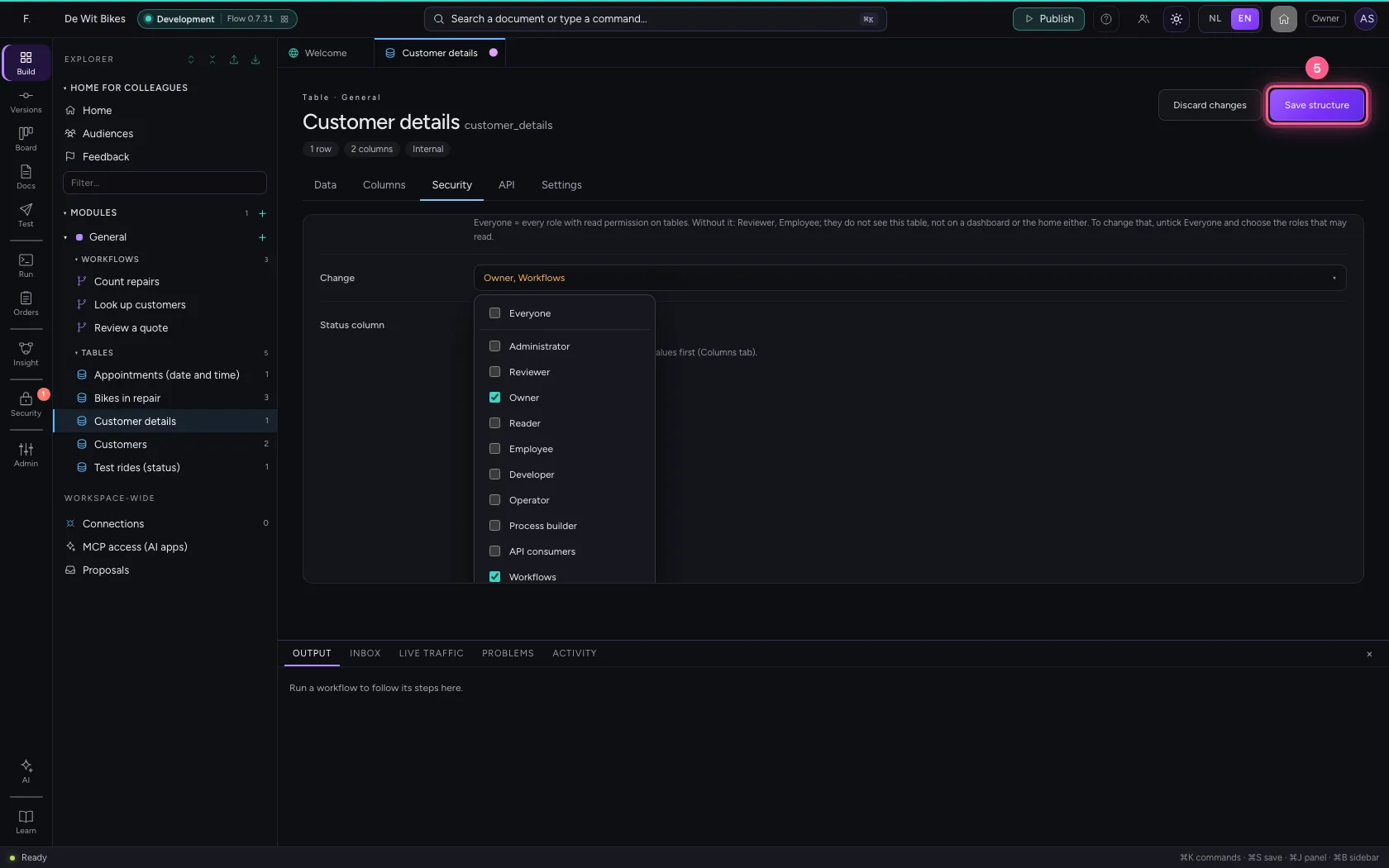
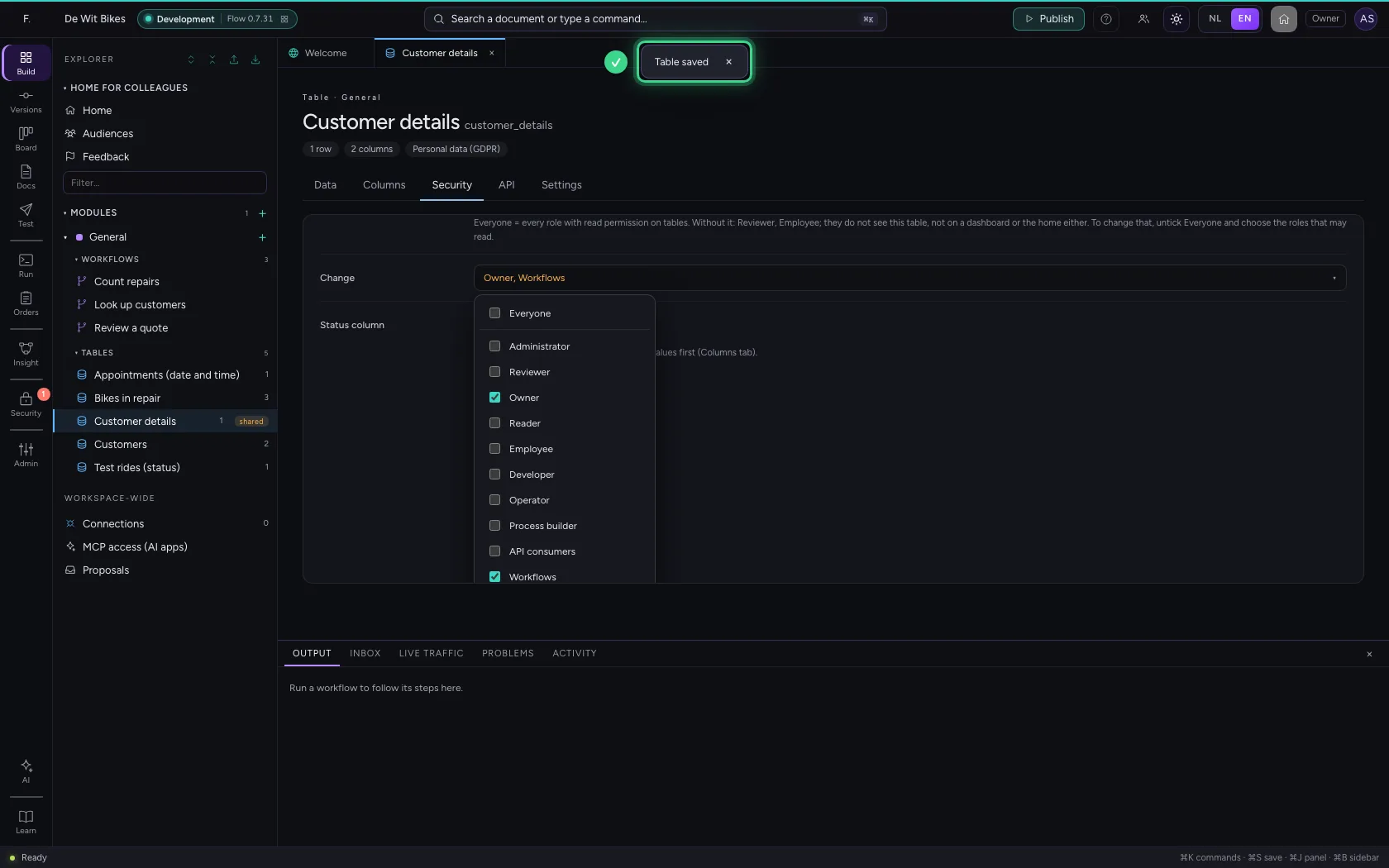
Read and Change are set to Everyone by default. Click Change, untick Everyone and choose who may: here only the owner and workflows. Consumers through the API may then read but change nothing, even when their key opens an endpoint that writes.
- Click Change
- Click Everyone
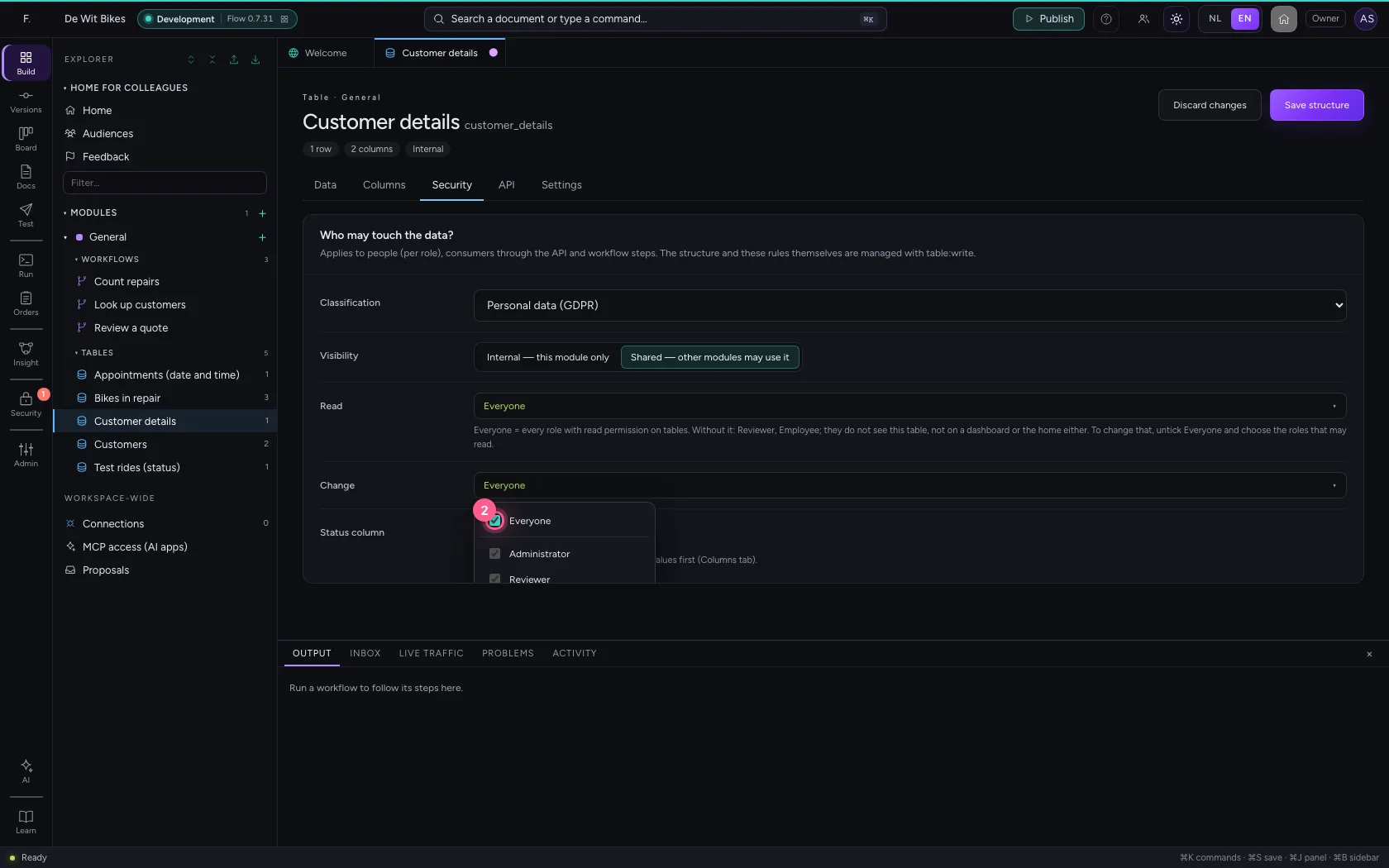
- Click Owner
- Click Workflows
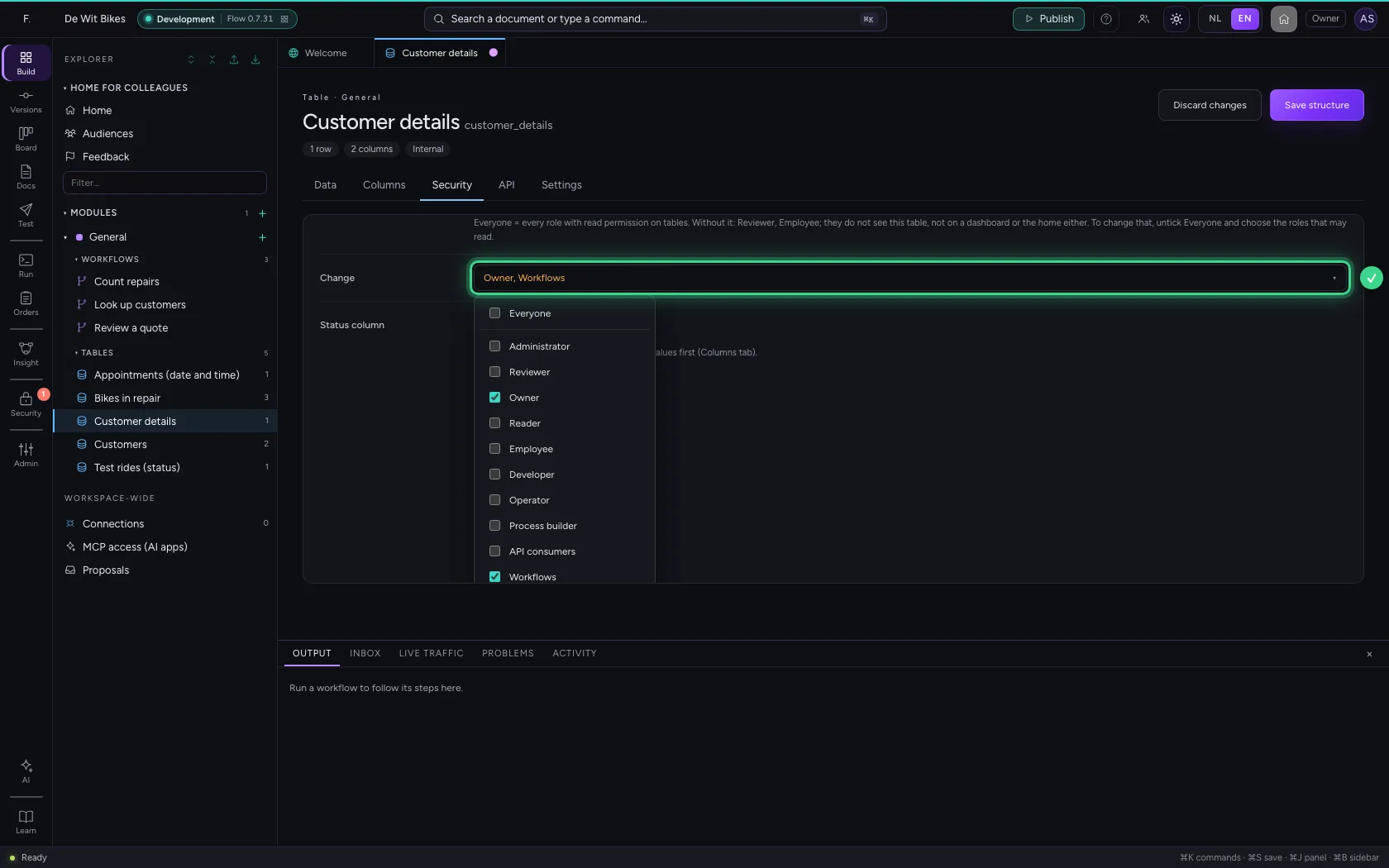
- Click Save structure
Check it
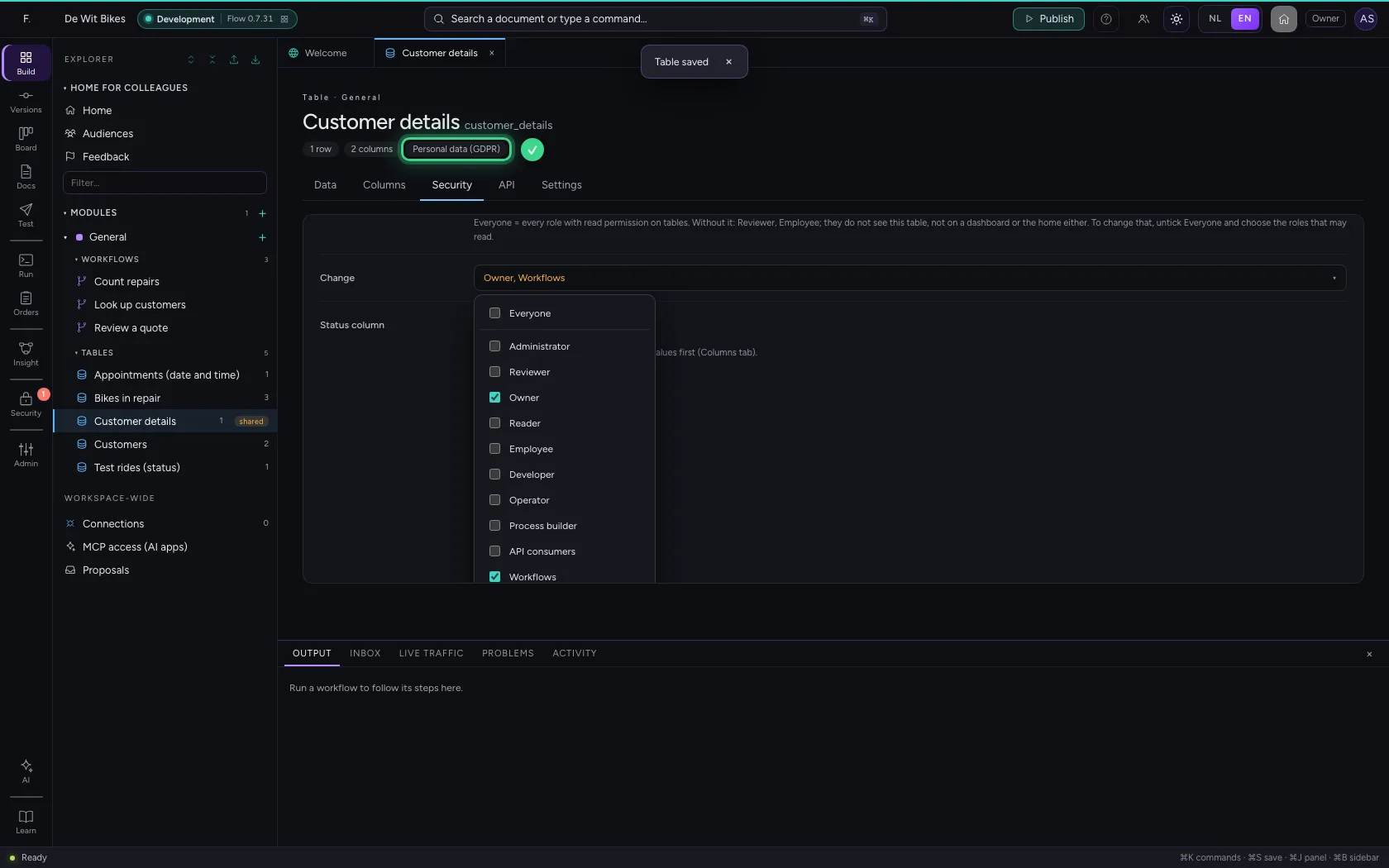
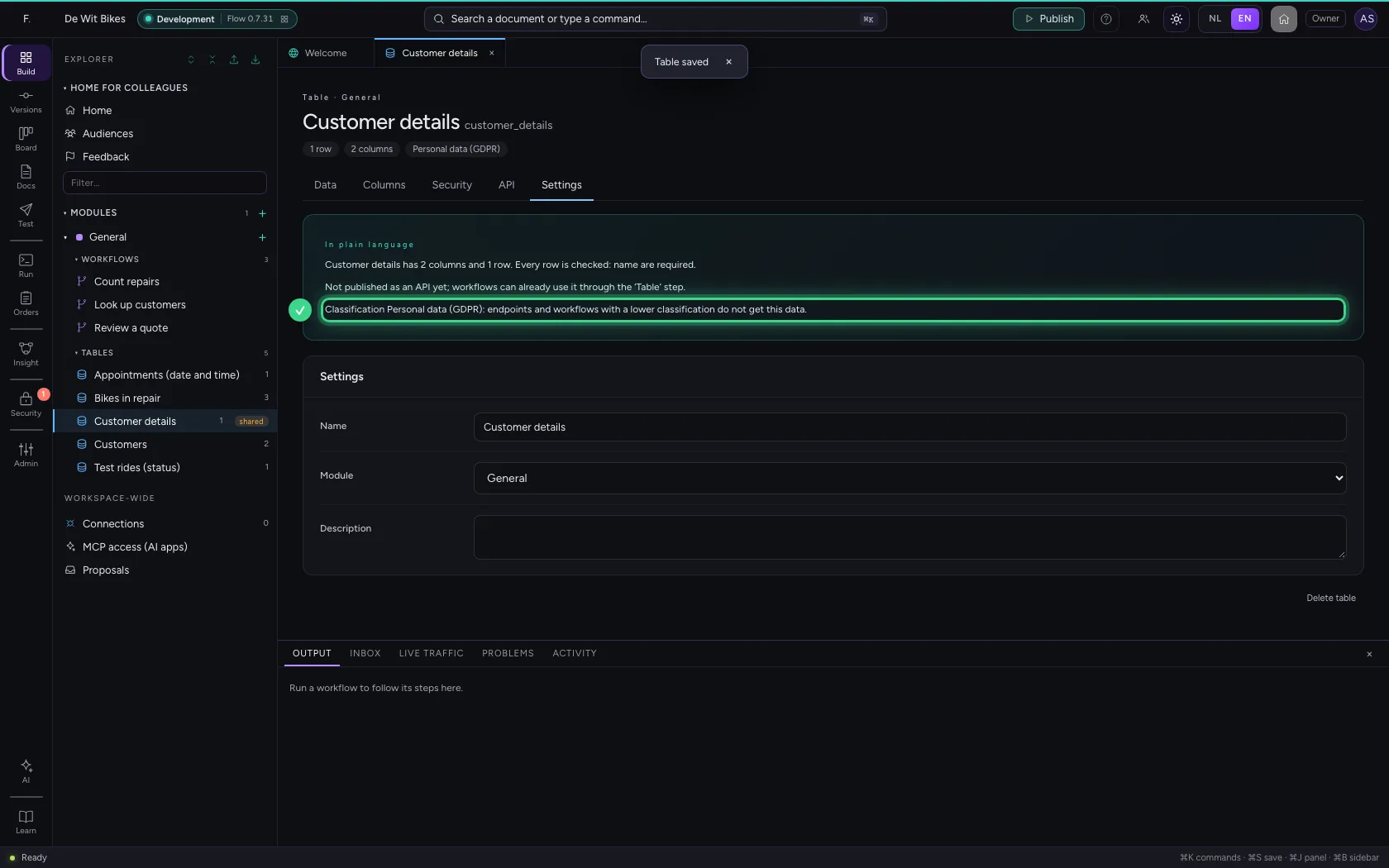
At the top of the table the classification is now shown. Under Settings, Flow sums it up in plain language.
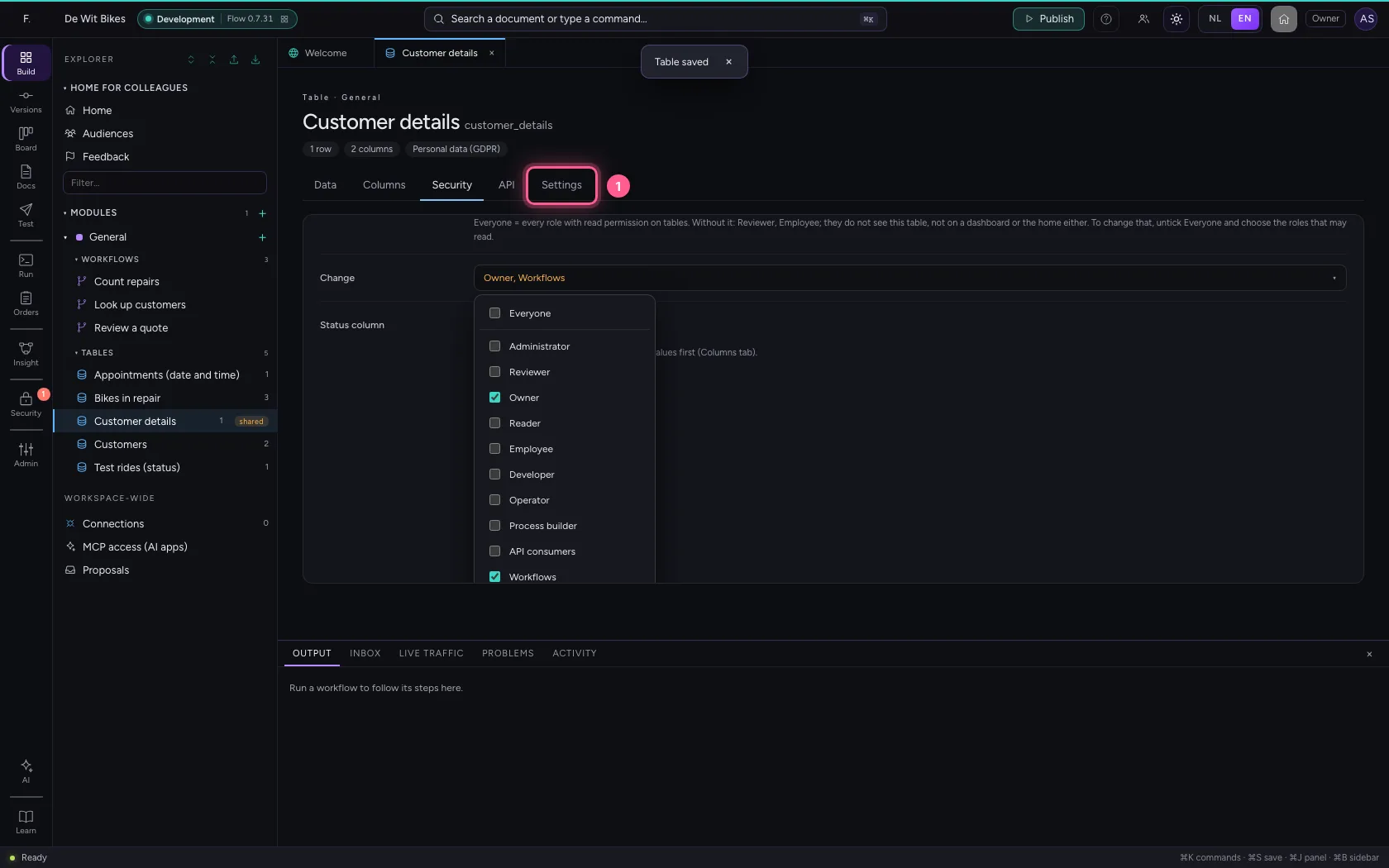
- Click Settings
This guide was carried out step by step on 22 Oct 2026 by an automated test on Flow (version 3e563176).