Together on the Board
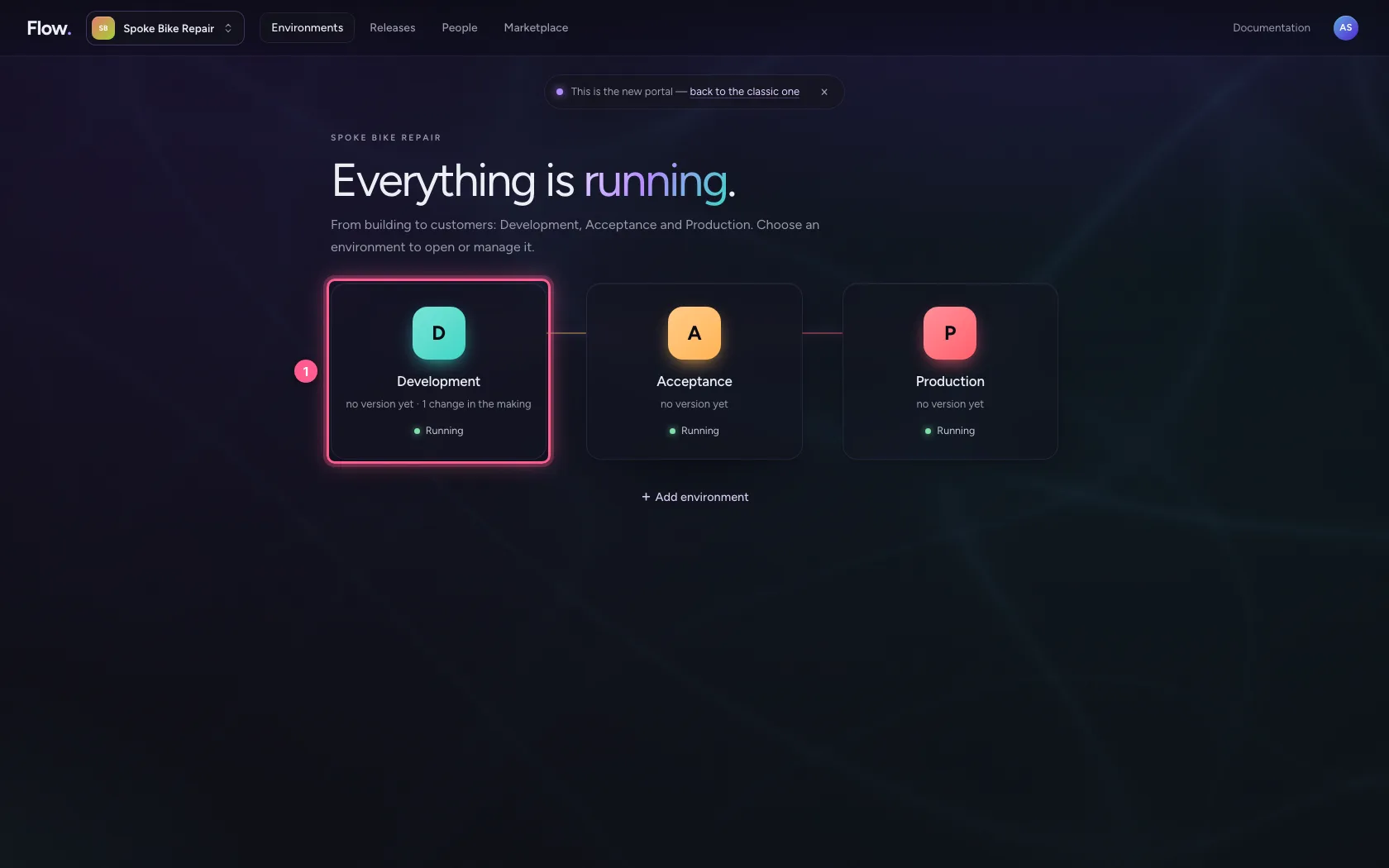
- Step 1 · Open your development environment
- Step 2 · Open the Board
- Step 3 · Your colleague moves a card
- Step 4 · You see it at once, and who did it
- Step 5 · A card that was already moved
- Step 6 · Your choice: leave it or move it on
- Step 7 · A template while you type
- Step 8 · Flow asks which text stays
- Step 9 · On your colleague's screen
On the Board a team works at the same time. When a colleague moves a card, comments or adds an item, you see it at once on your own Board, and Meanwhile says who did what. When you move a card a colleague just put somewhere else, Flow does not quietly move it back: you see who moved it where and decide yourself whether it stays. And when a colleague applies a template while you type the description, your text stays and Flow asks at the field which text stays.
Open your development environment
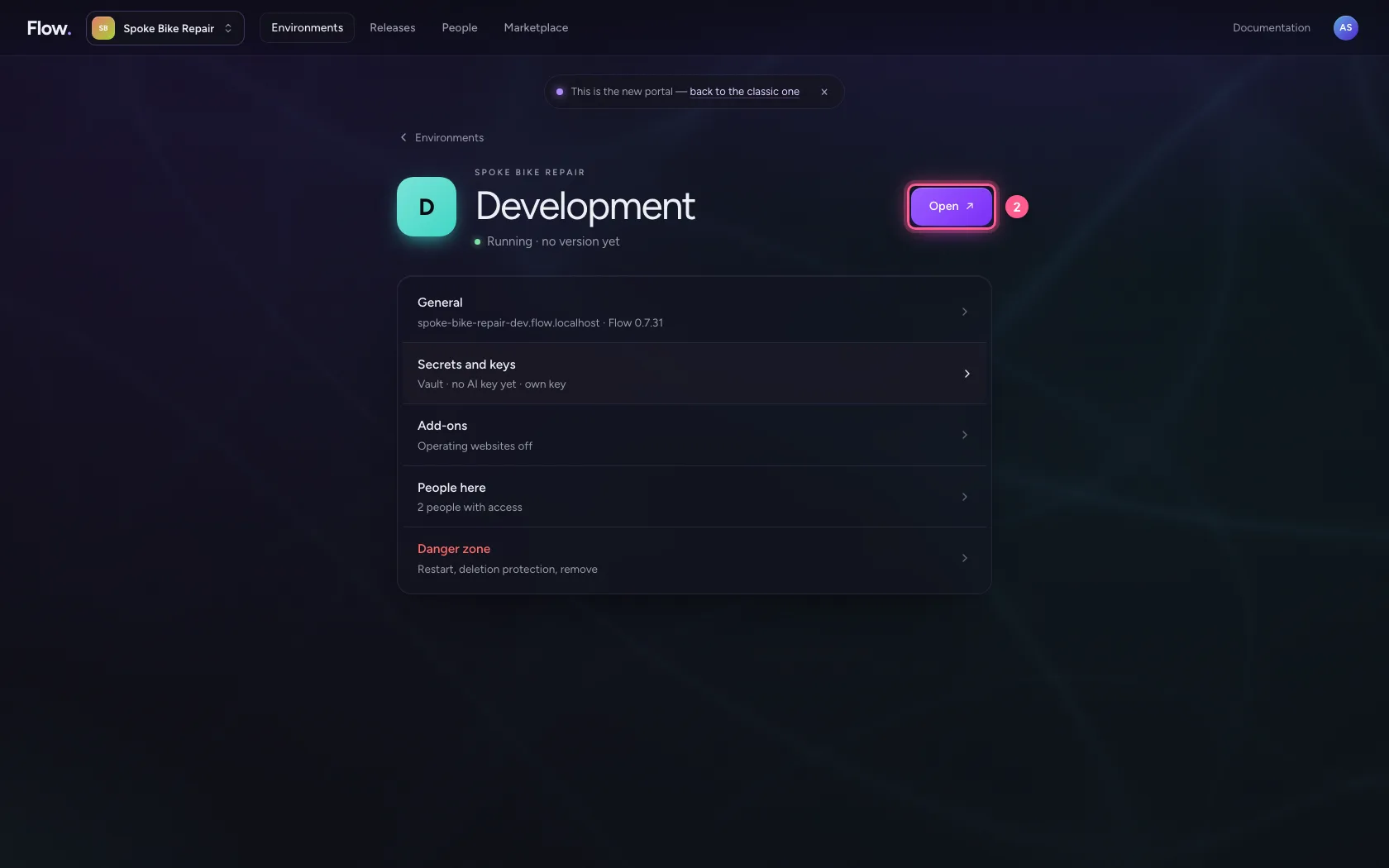
In the portal, under Environments, click Development, and there Open. Flow opens in a new tab and you are signed in straight away.
- Click Development
- Click Open ↗
Open the Board
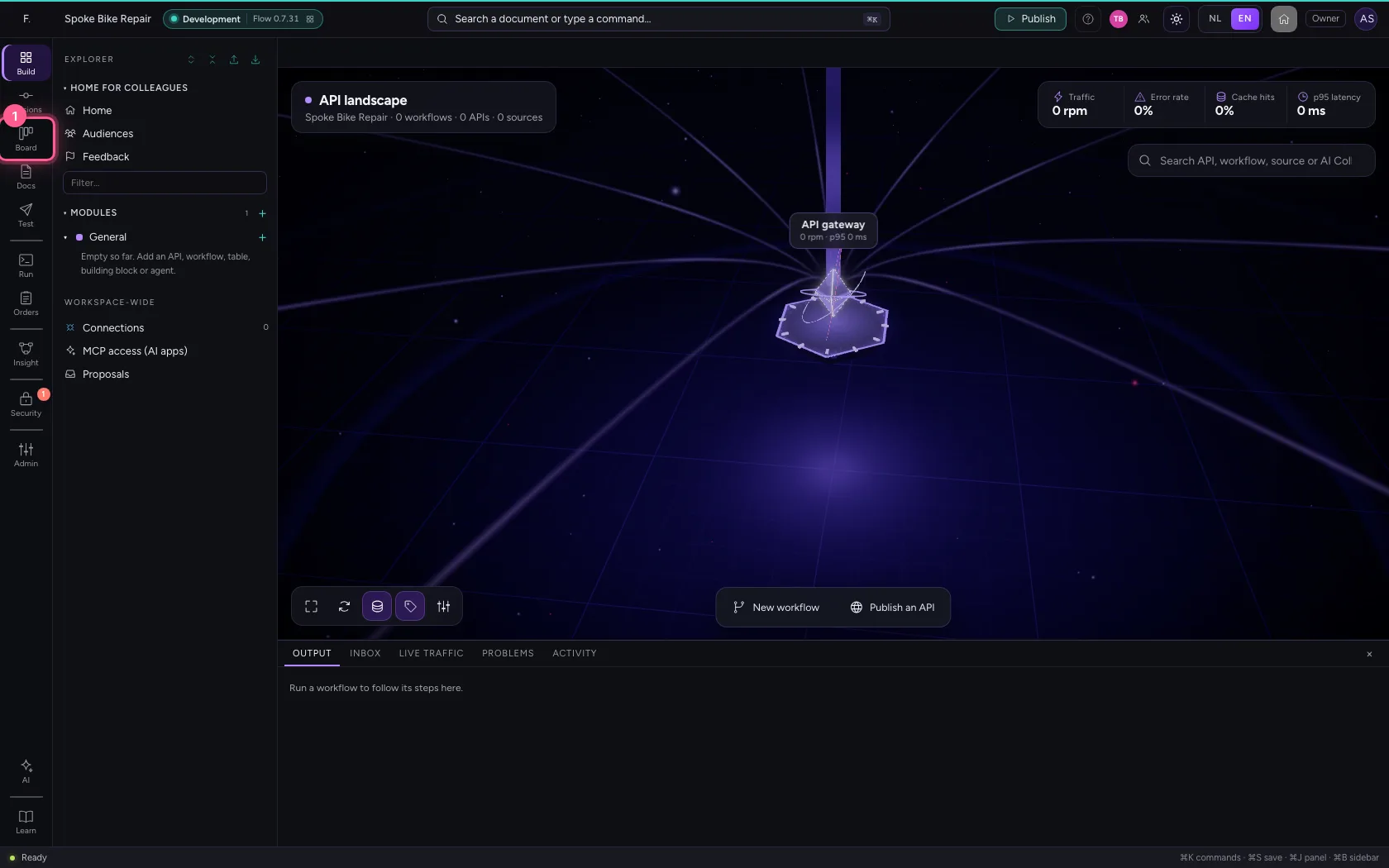
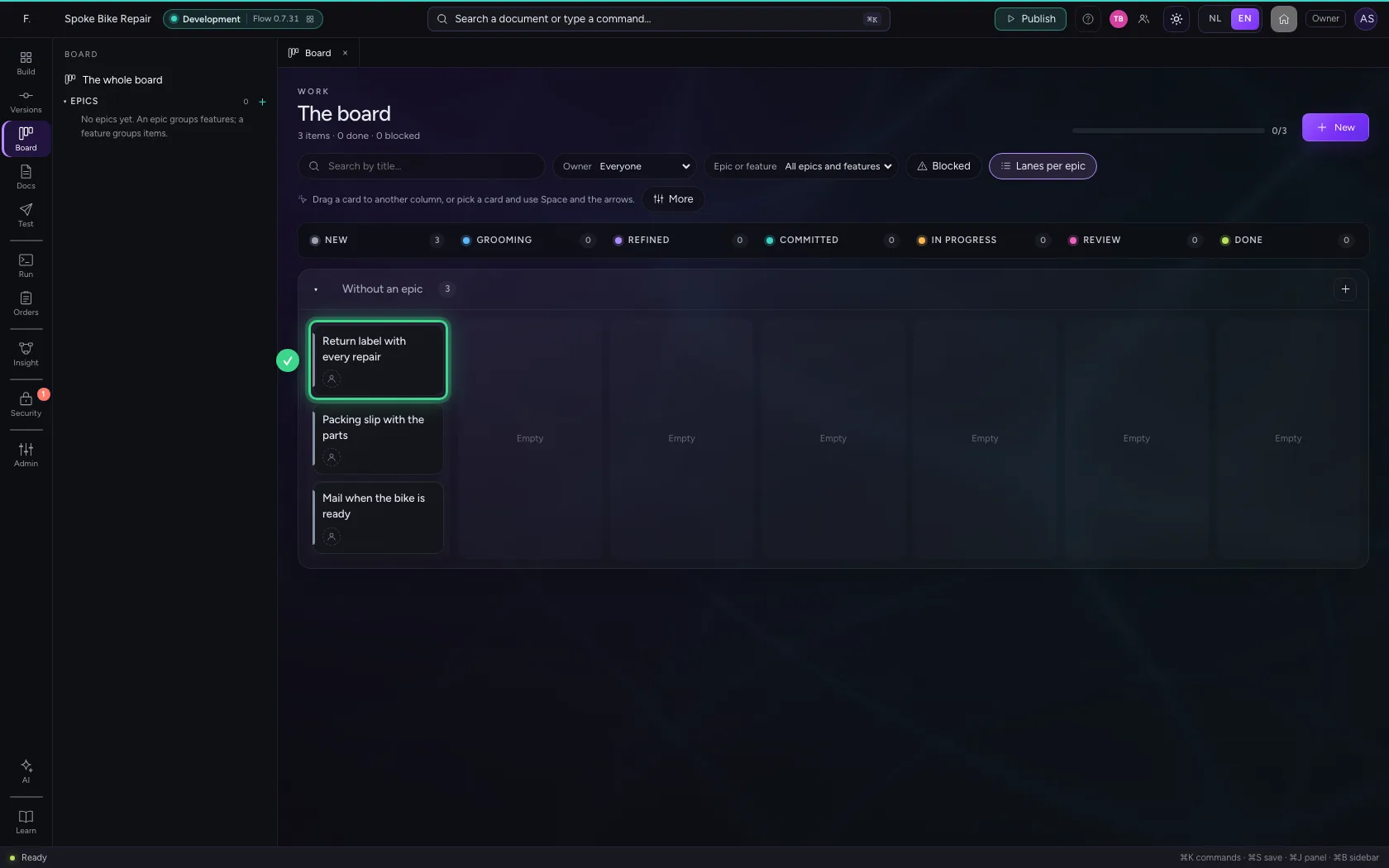
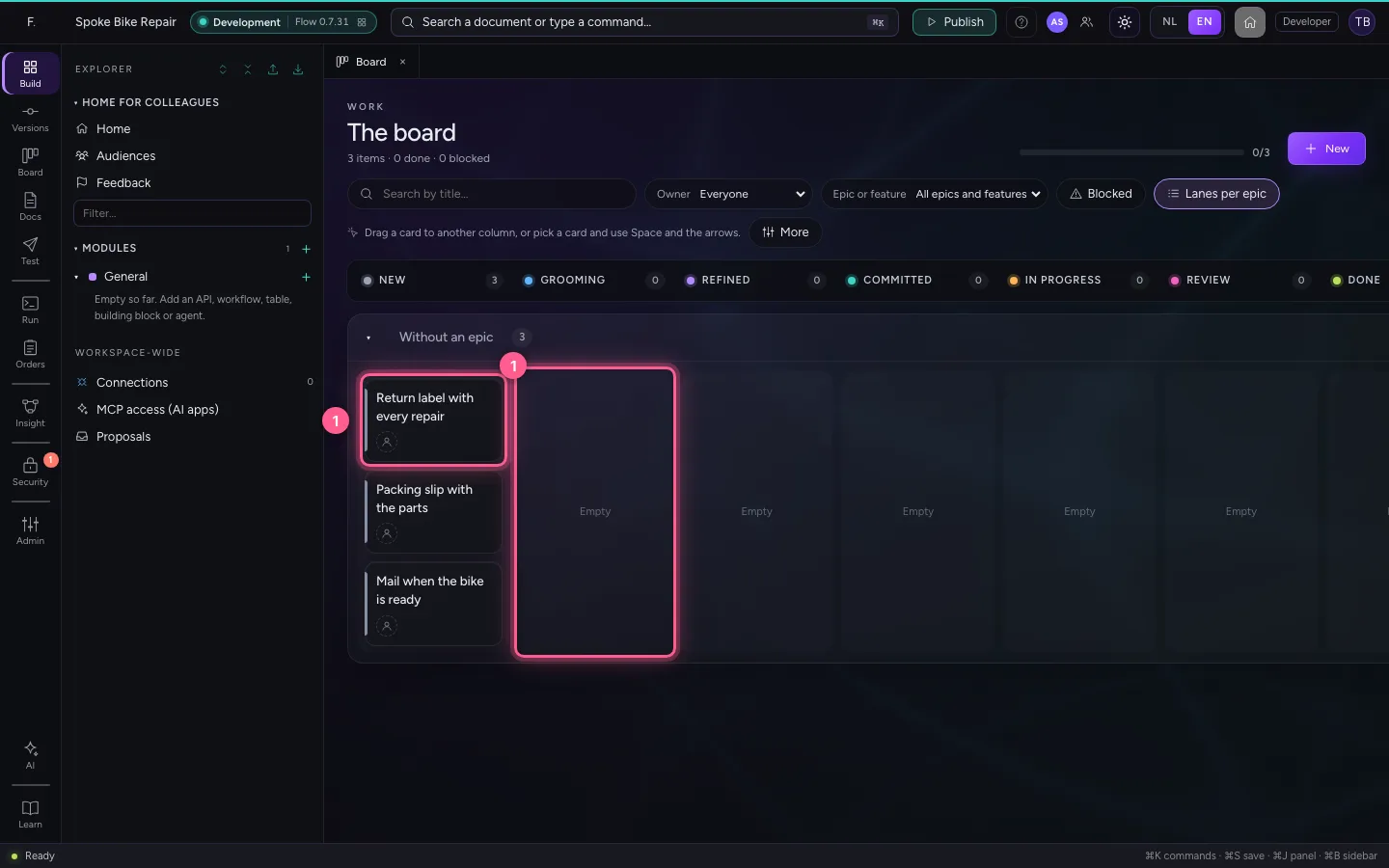
Your colleague has the Board open too. You see the same cards.
- Click Board
Your colleague moves a card
This is Tom Baker's screen. He drags Return label with every repair to Grooming.
- Drag the card to Grooming
You see it at once, and who did it
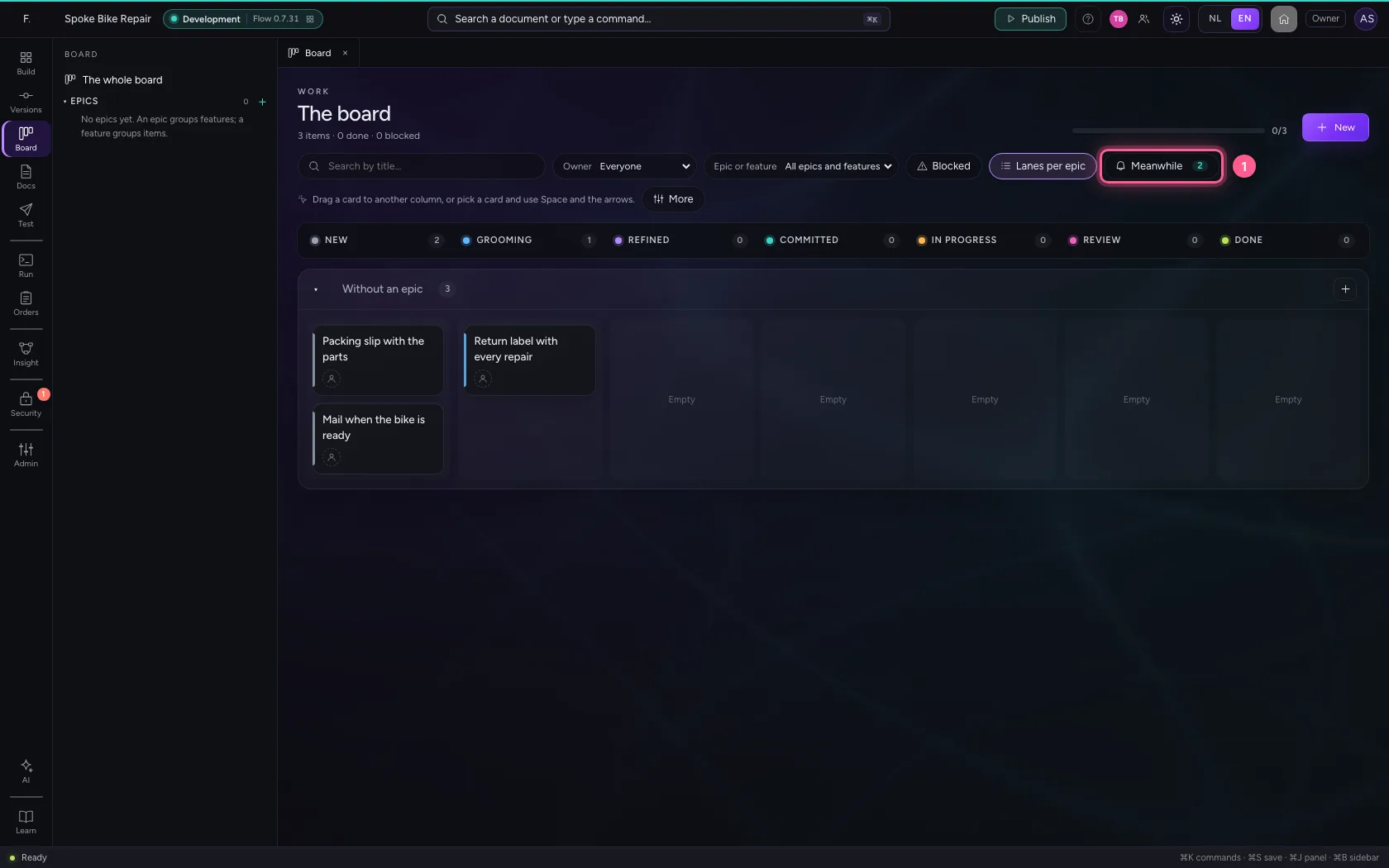
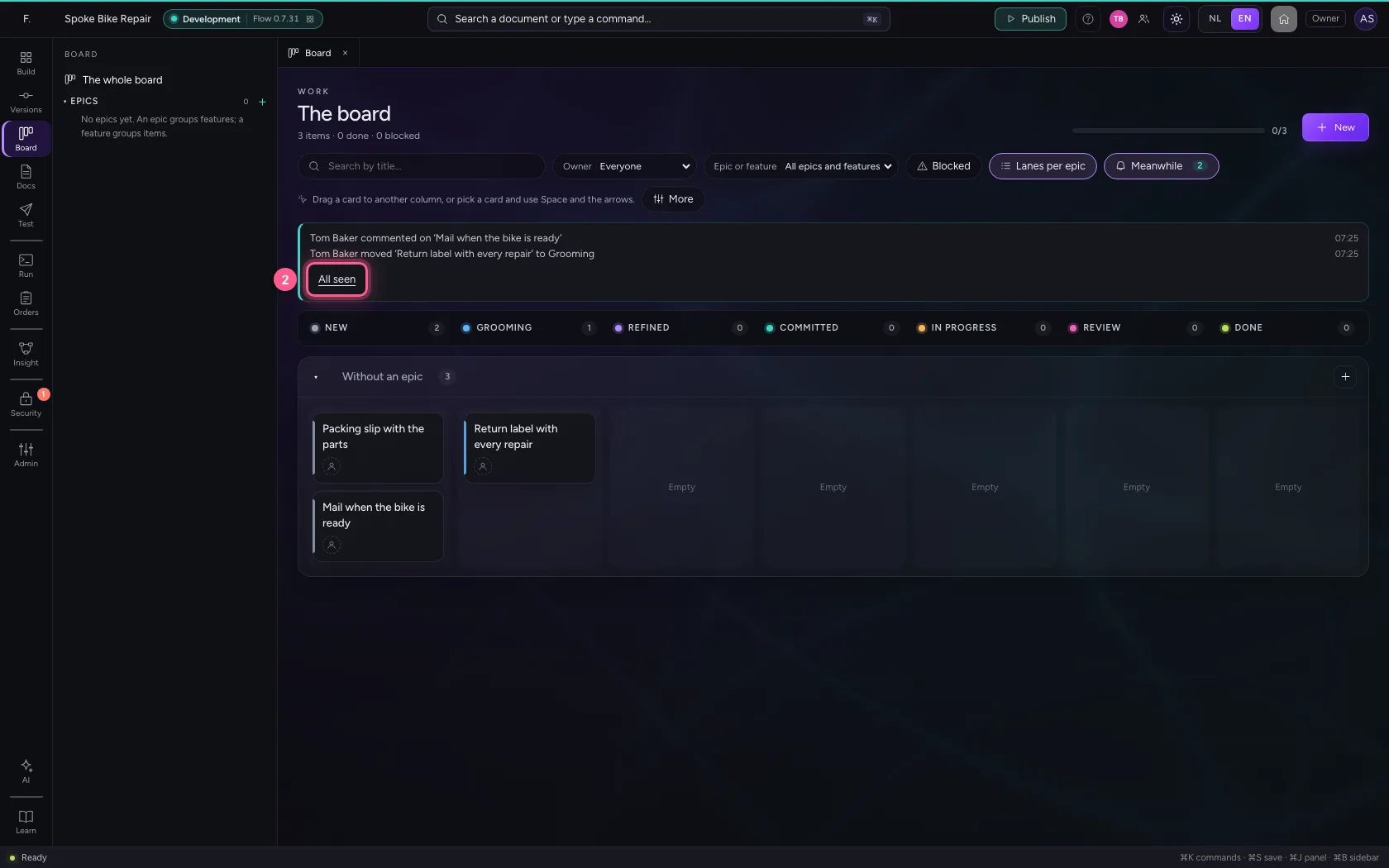
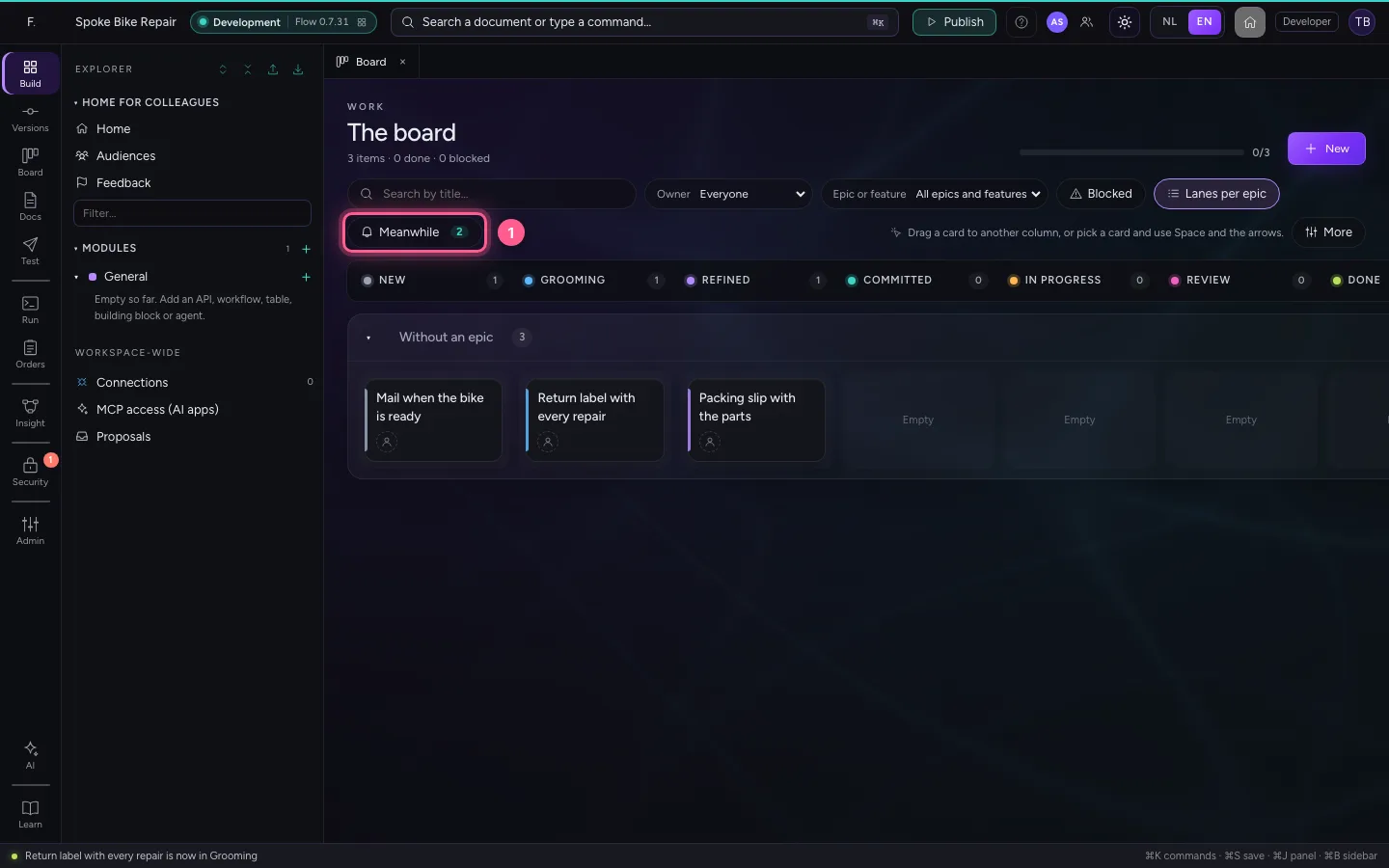
On your Board the card is in Grooming at once. Meanwhile counts what others did; open it and you read who did what and when. A line opens the card, All seen puts the list away.
- Click Meanwhile
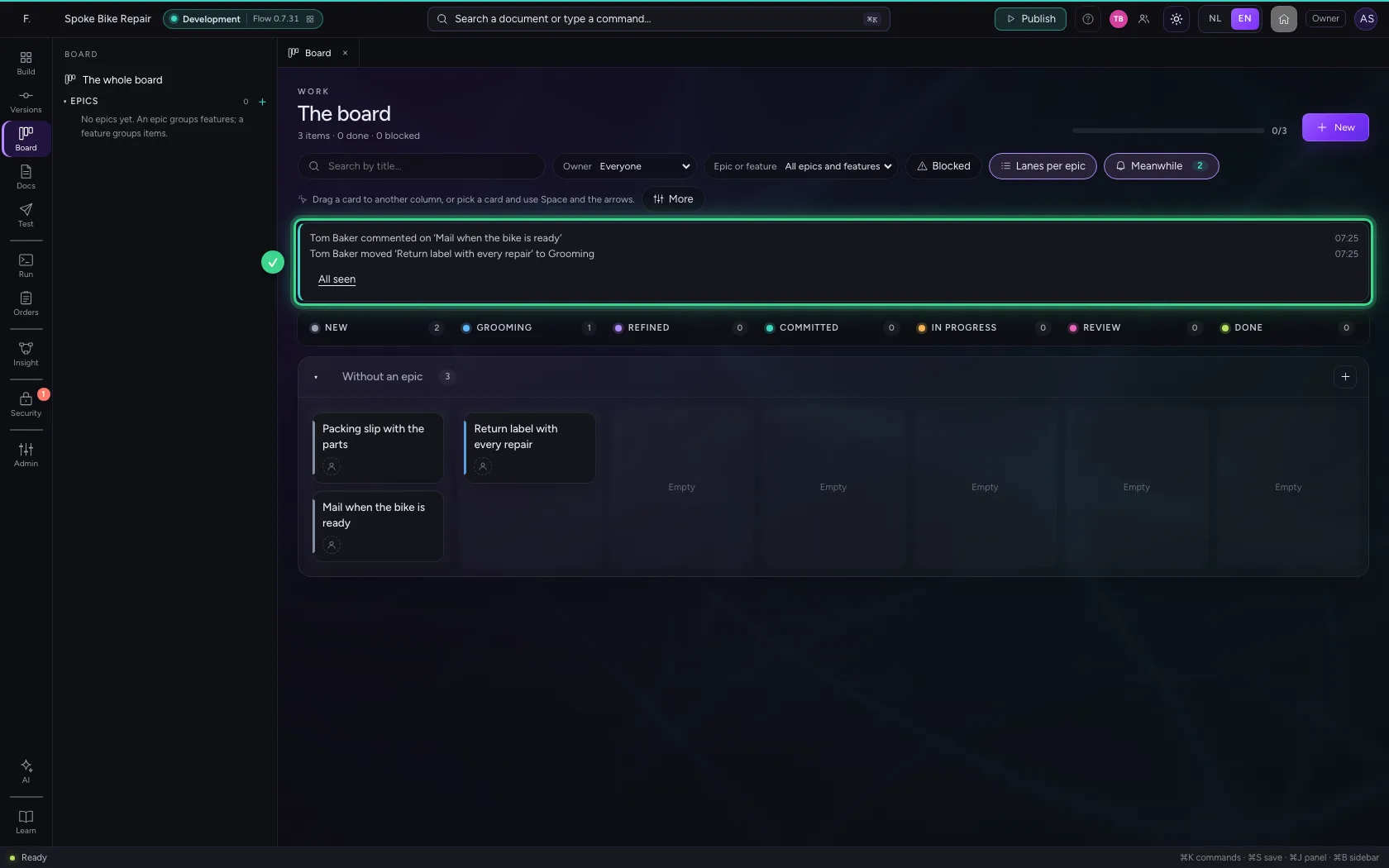
- Click All seen
A card that was already moved
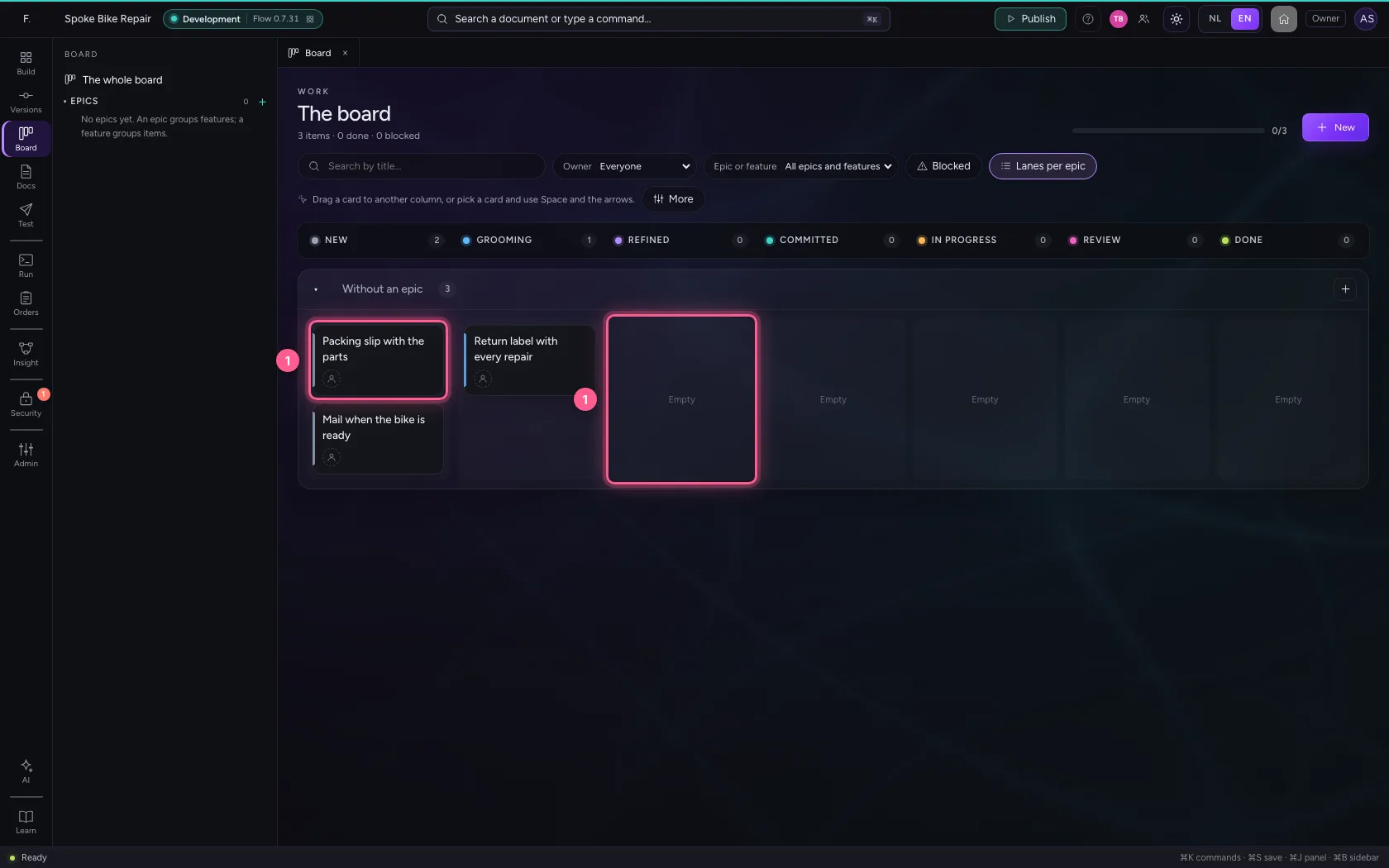
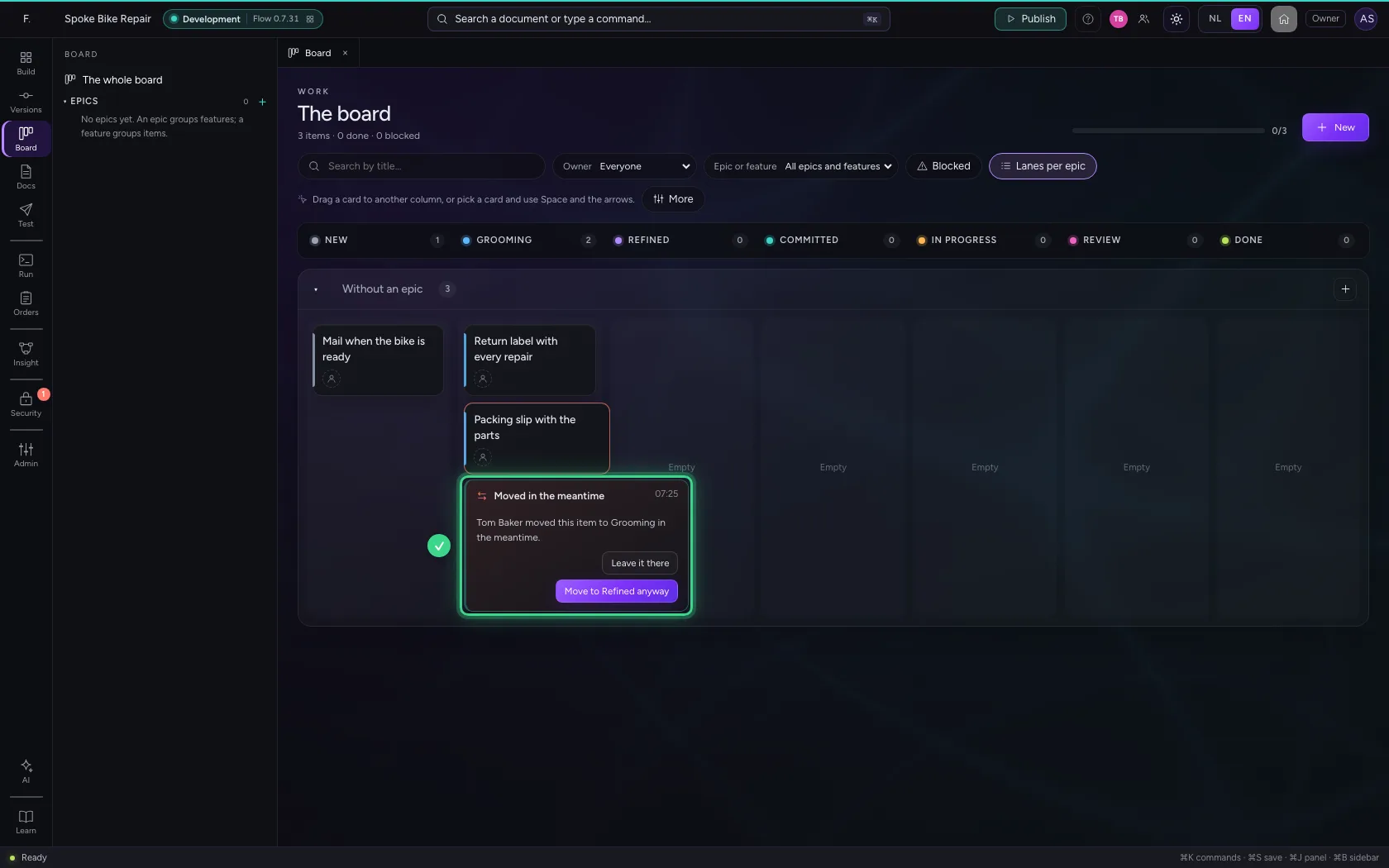
Say your screen heard nothing for a moment (the laptop slept, the network stuttered) while Tom Baker put Packing slip with the parts in Grooming. On your screen the card is still in New, and you drag it to Refined. Flow does not quietly move it back: the card goes where it really is, and you see who moved it where.
- Drag the card to Refined
Your choice: leave it or move it on
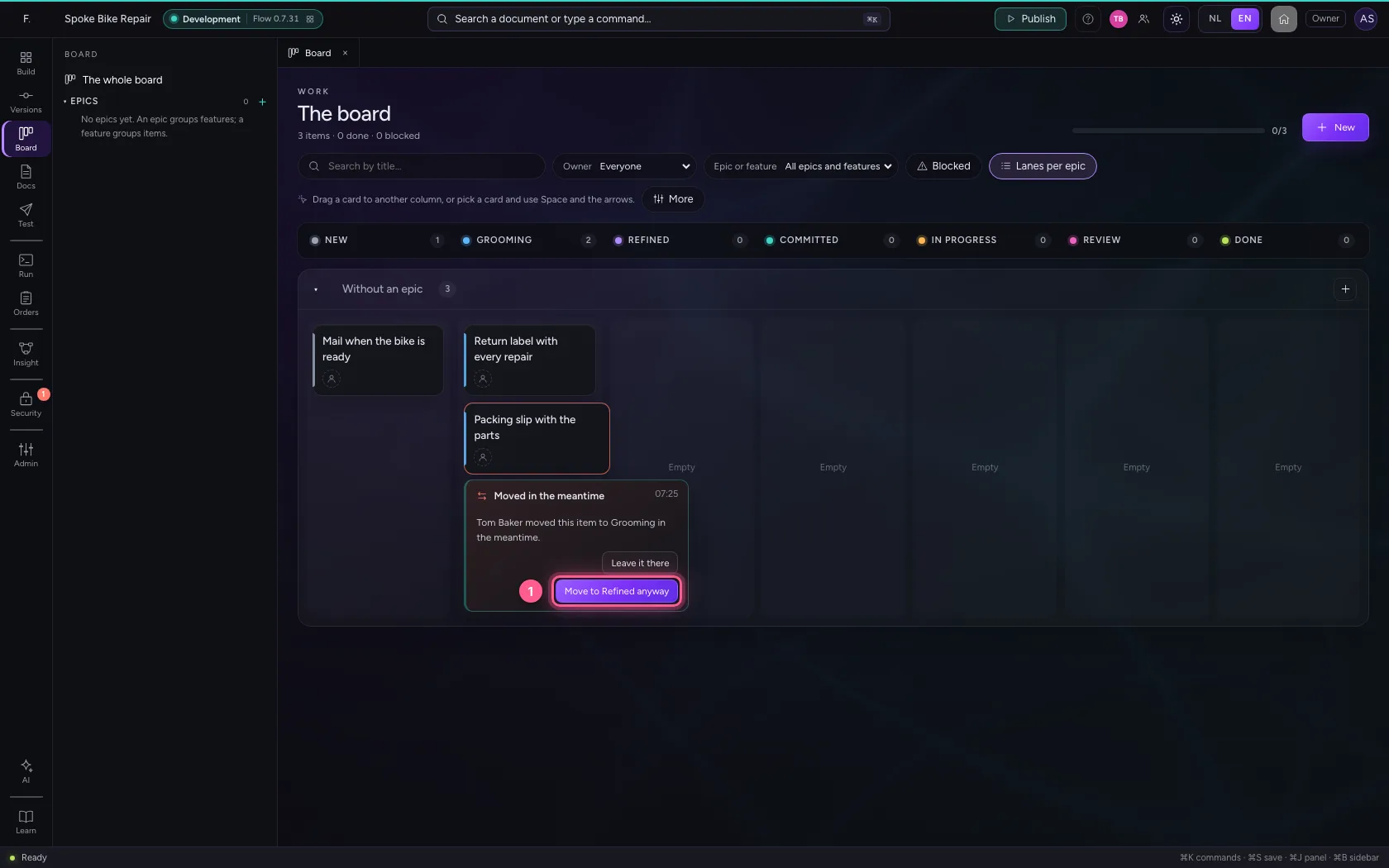
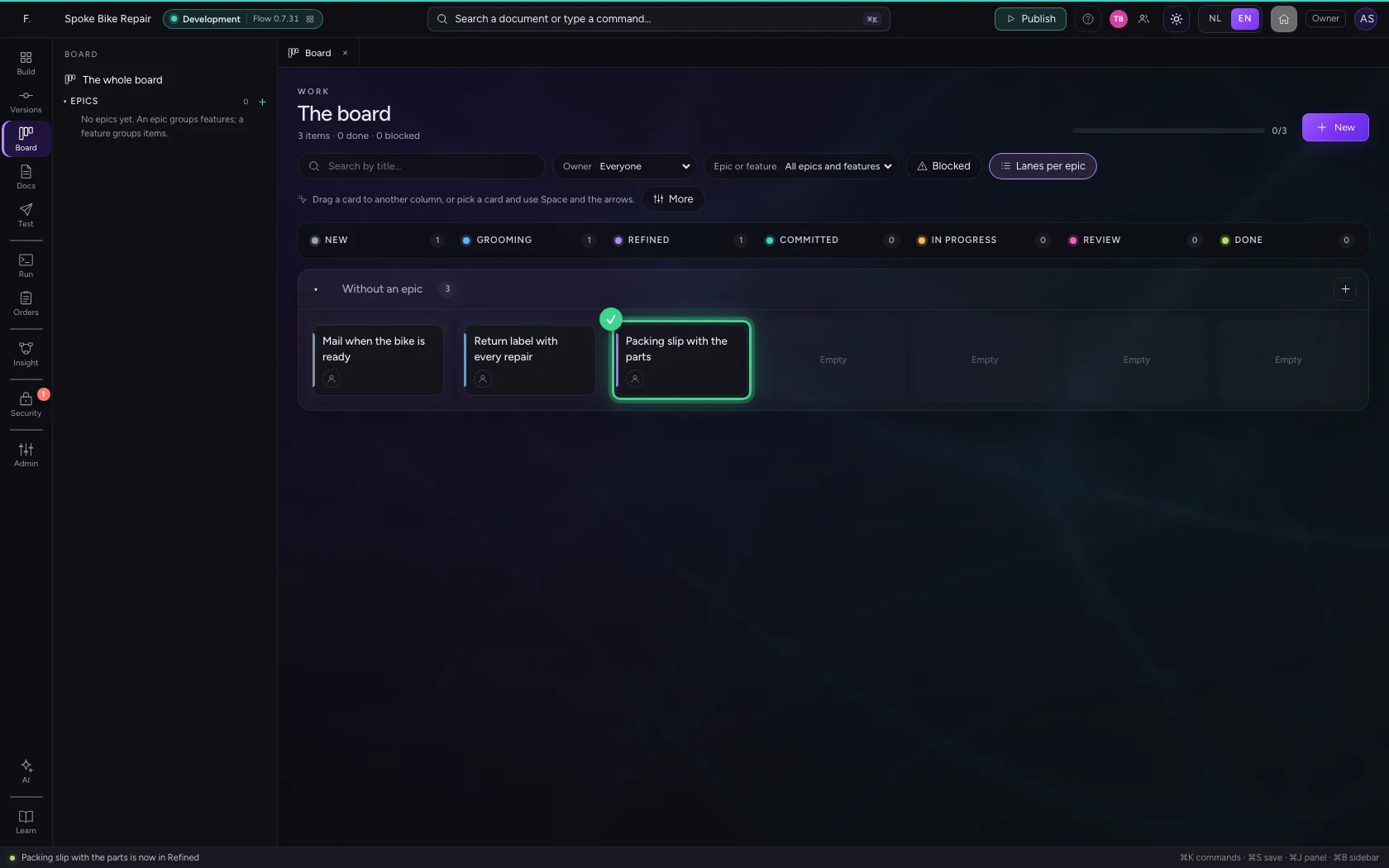
Leave it there keeps Tom Baker's choice. Move to Refined anyway moves the card on from where it is now, when that is allowed.
- Click Move to Refined anyway
A template while you type
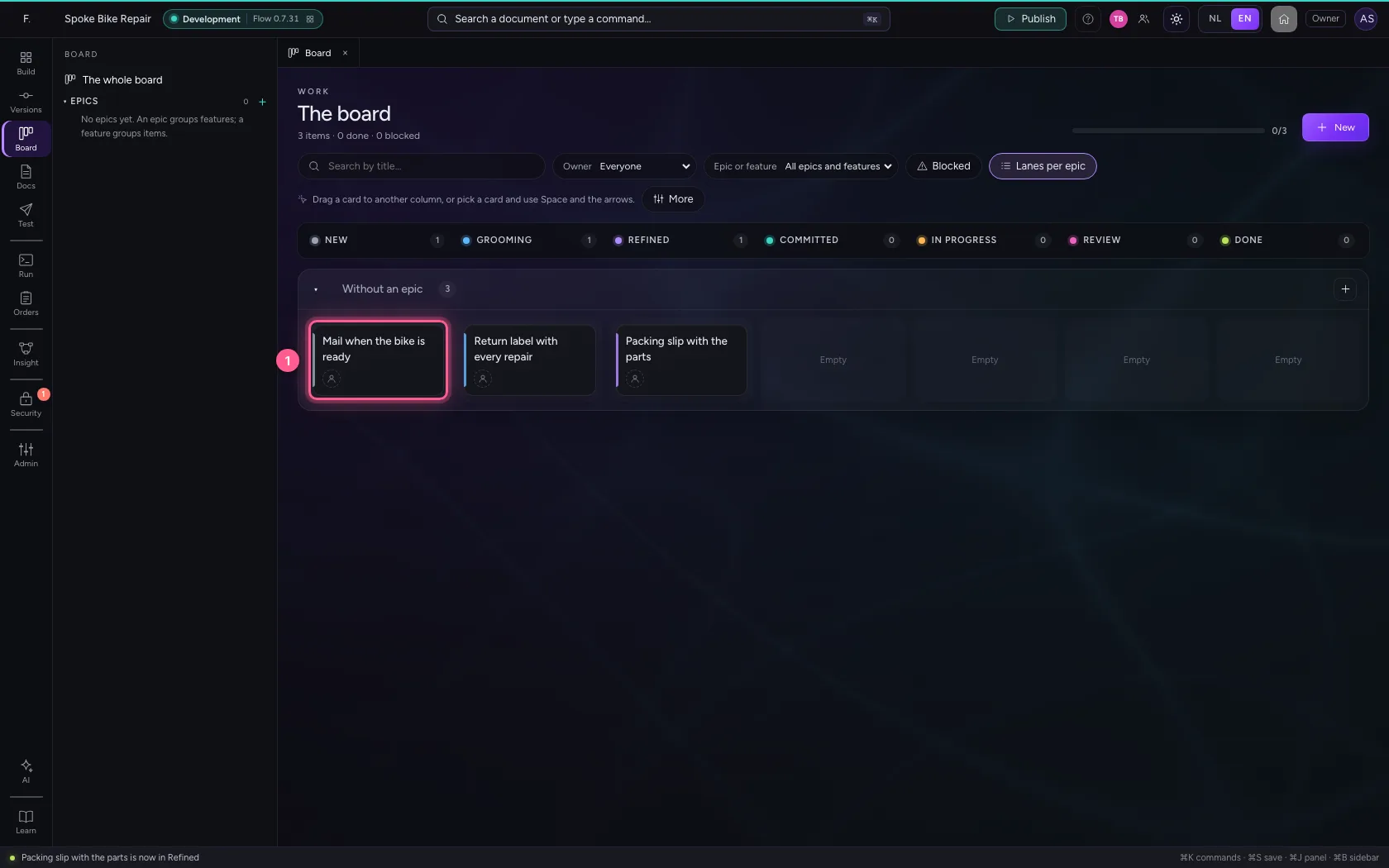
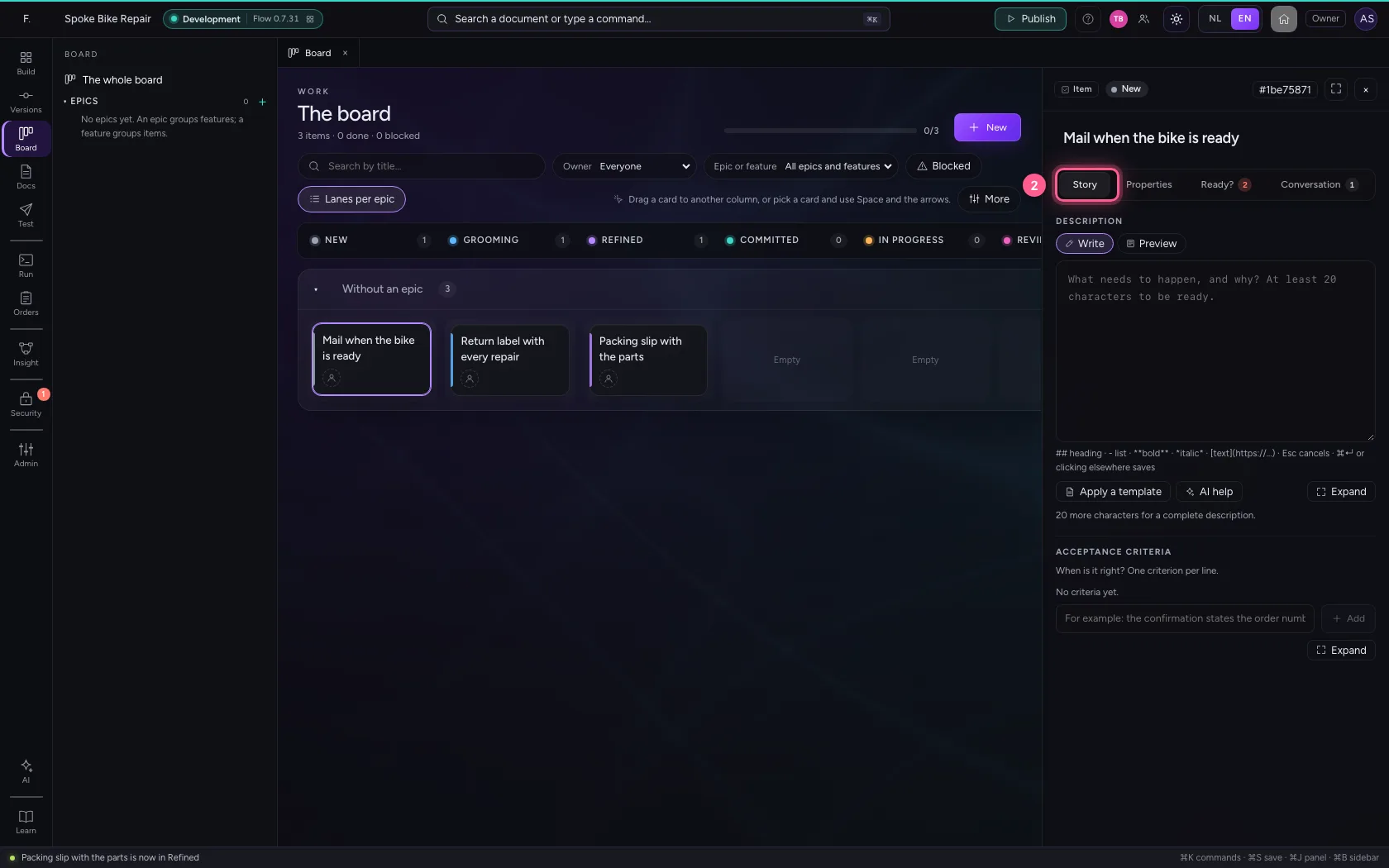
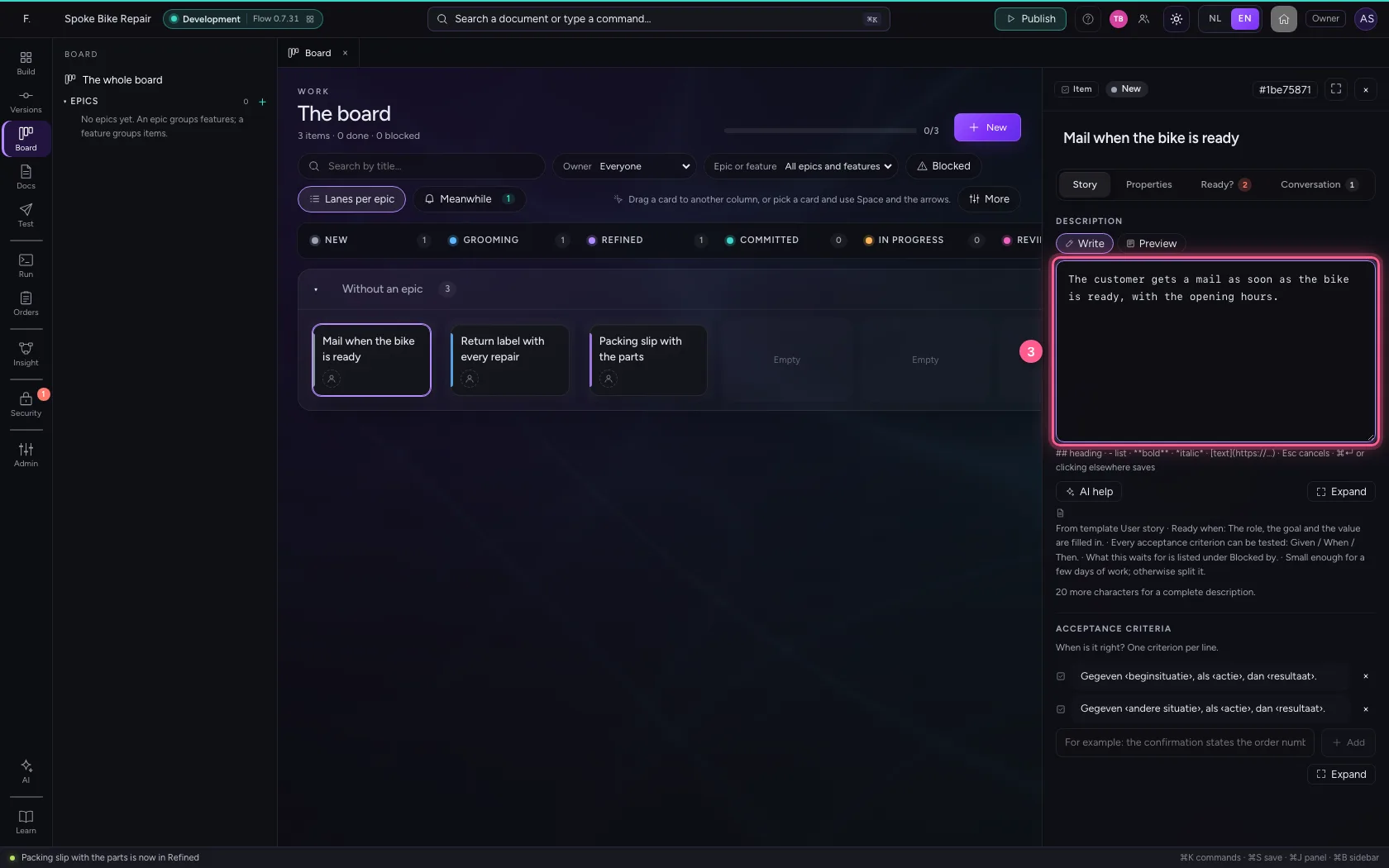
You write the description of Mail when the bike is ready. Before you are done, Tom Baker applies a template to that item. Your text simply stays; as soon as you leave the field, Flow does not quietly save over the template.
- Click the card ‘Mail when the bike is ready’
- Click Story
- In ## heading · - list · bold · italic · text · Esc cancels · ⌘↵, type
The customer gets a mail as soon as the bike is ready, with the opening hours.
Flow asks which text stays
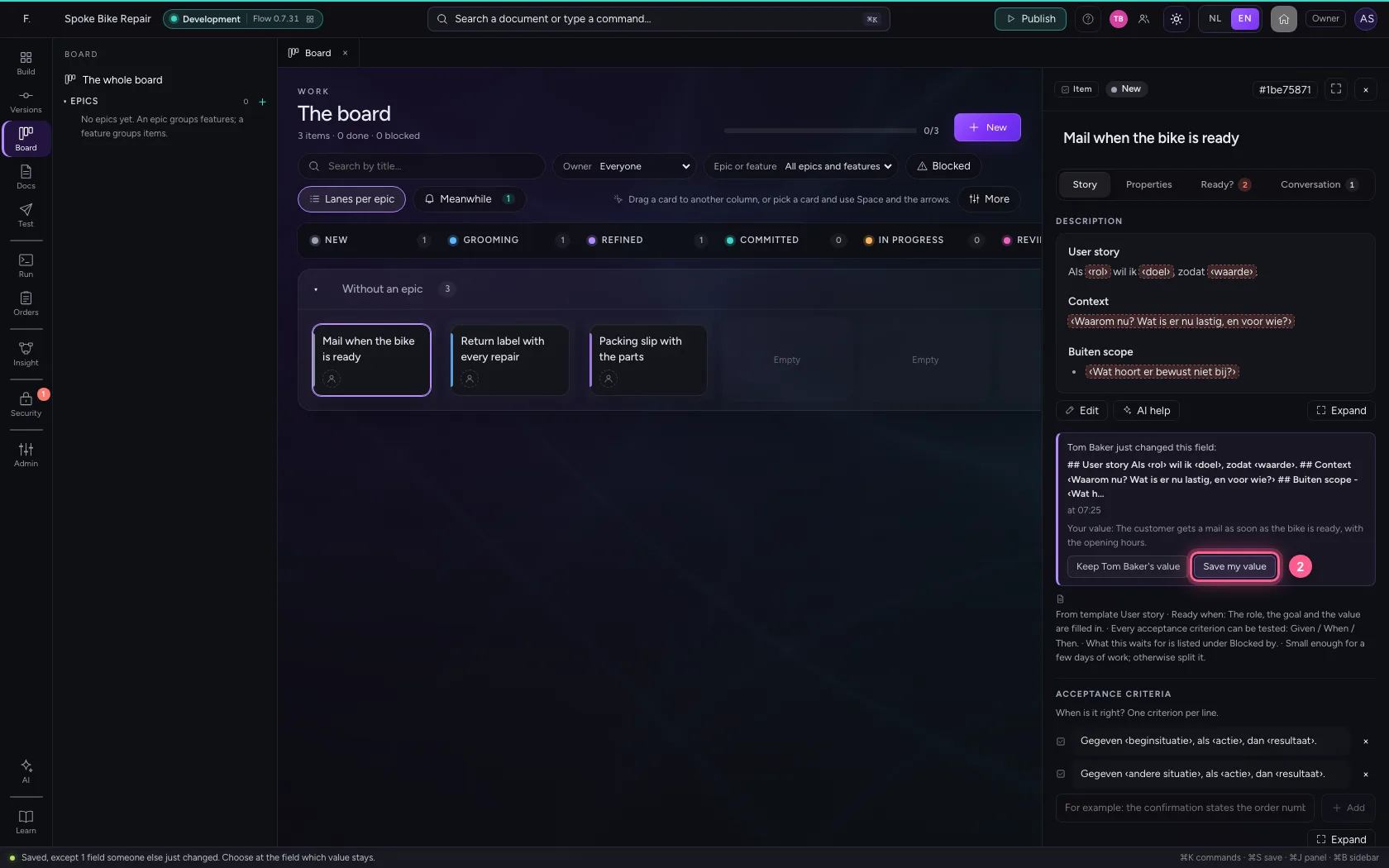
The field says who just changed it and to what, and you choose: keep your colleague's value, or save your own text.
- Press Tab: leave the field
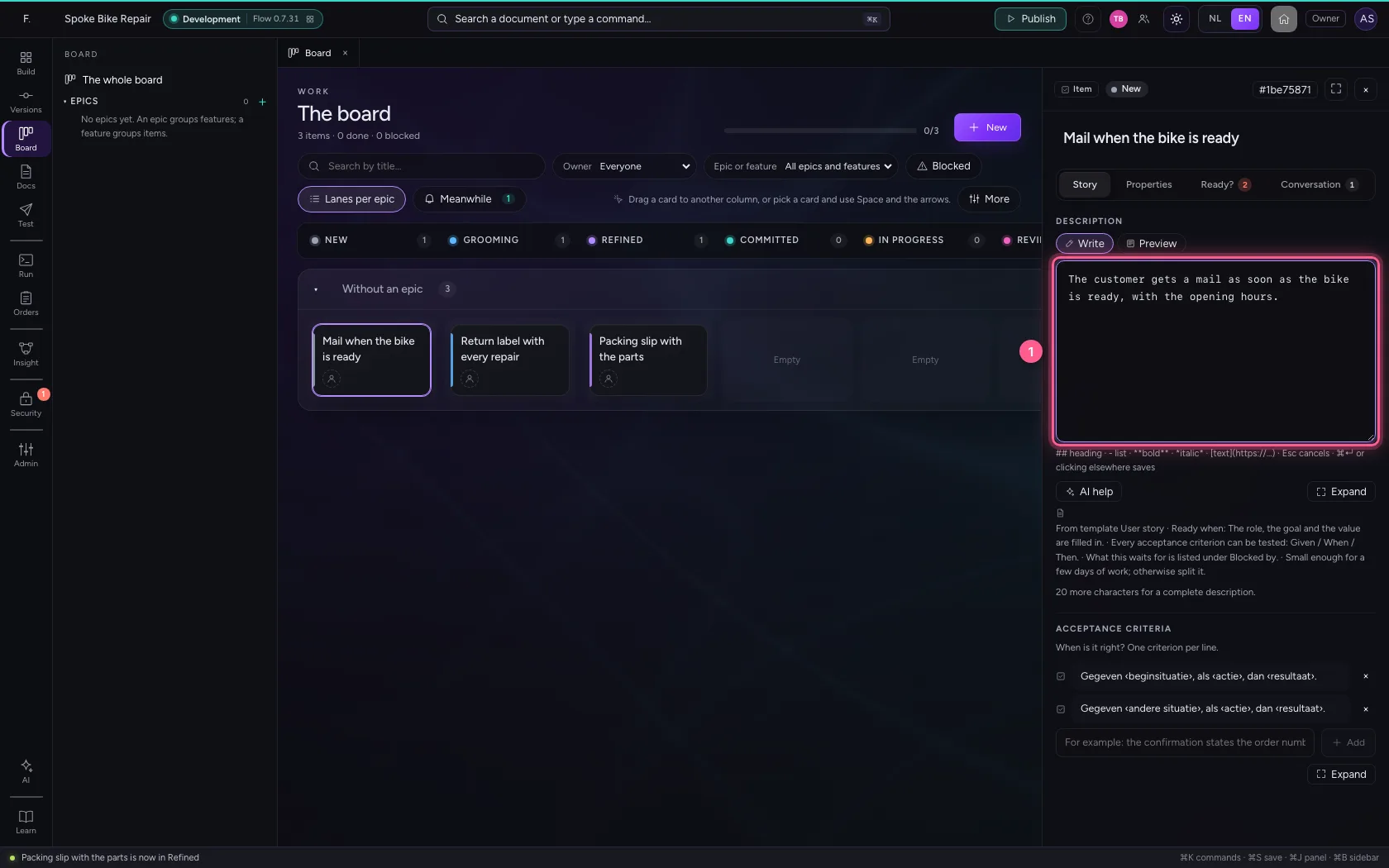
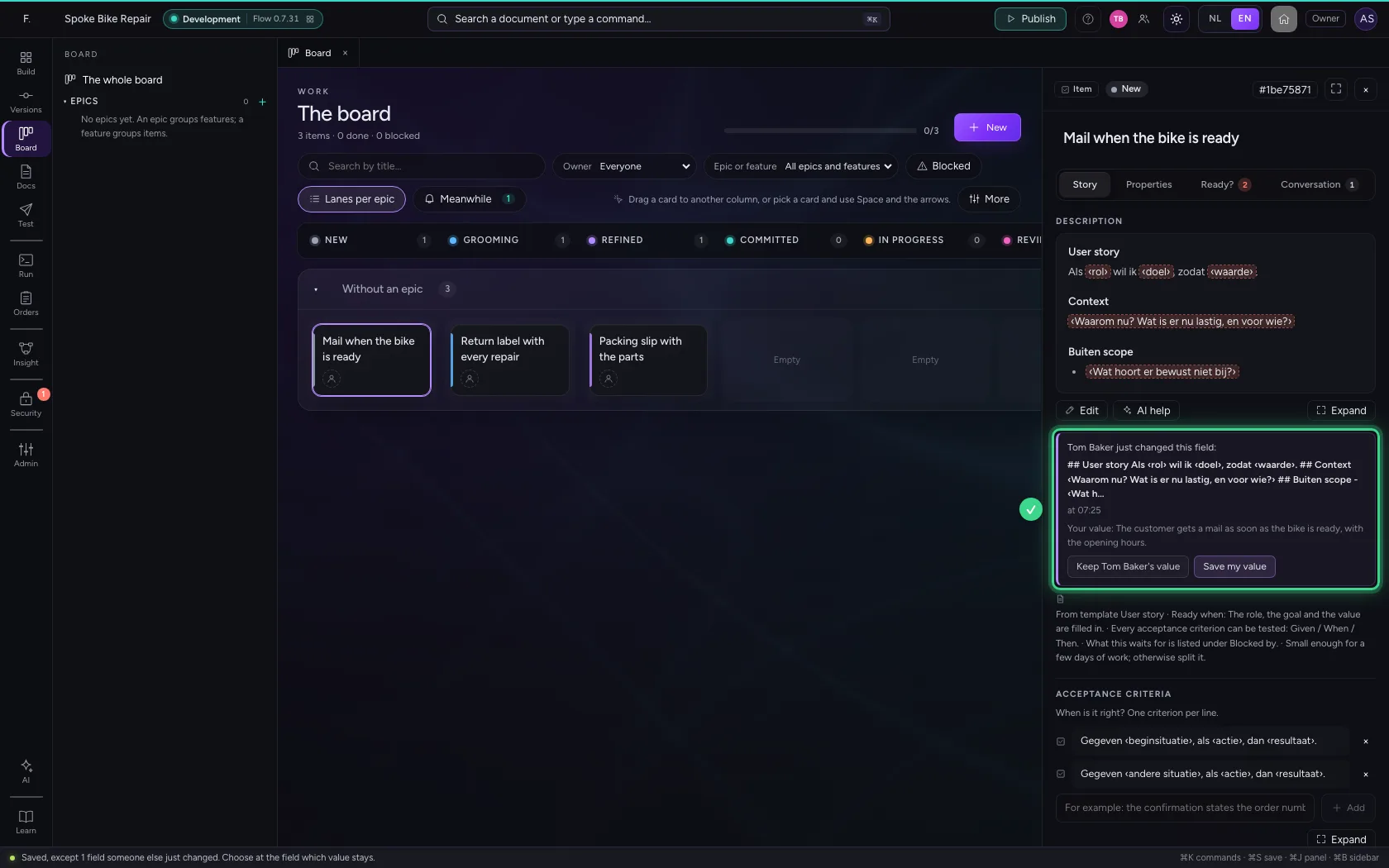
- Click Save my value
On your colleague's screen
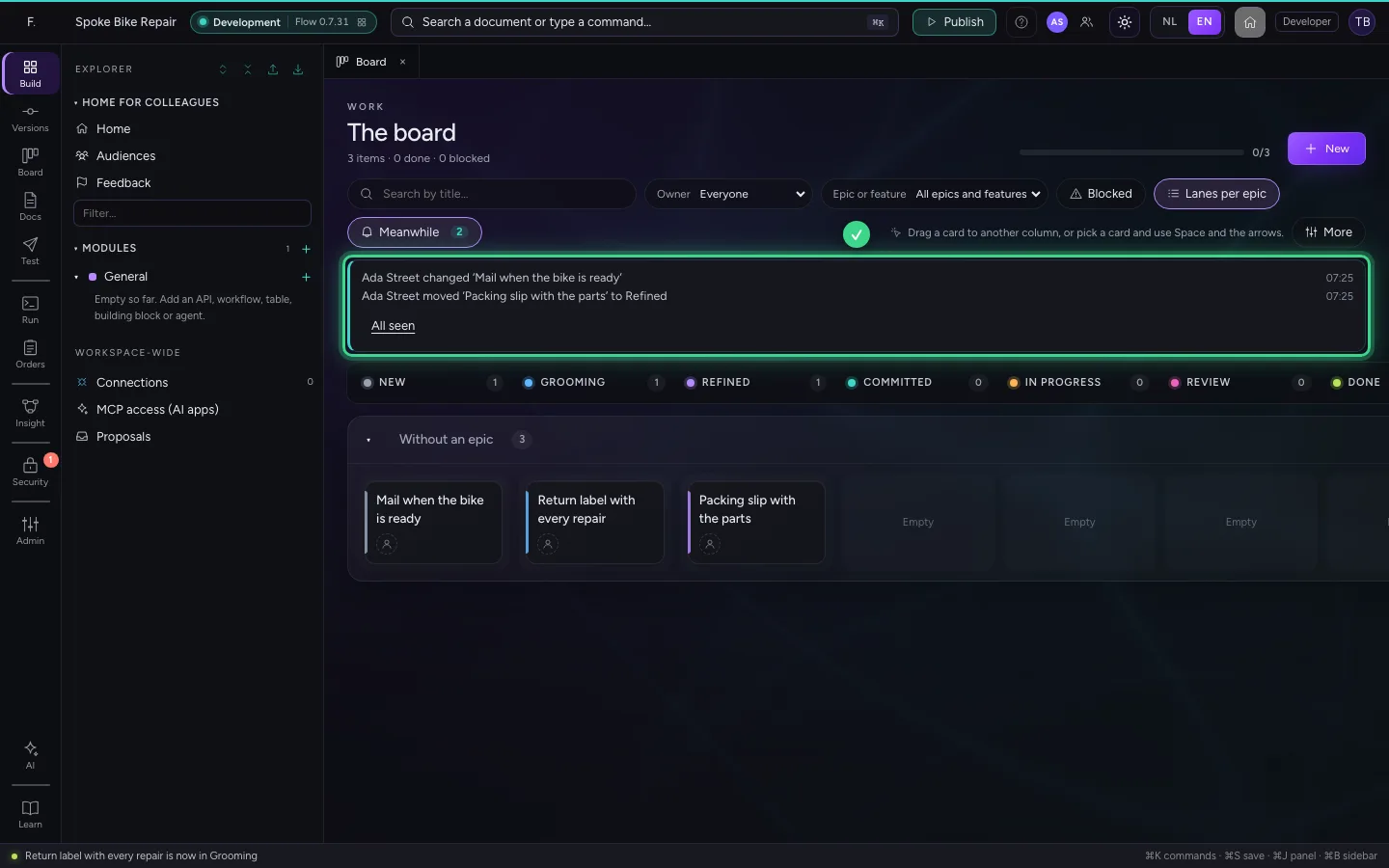
On Tom Baker's screen, Meanwhile says what you did.
- Click Meanwhile
This guide was carried out step by step on 22 Oct 2026 by an automated test on Flow (version 3e563176).