Mirroring the Board to Jira
- Step 1 · Open your development environment
- Step 2 · Make a Jira connection
- Step 3 · From the Board too
- Step 4 · Set up the mirror
- Step 5 · Test the connection: Flow suggests the statuses
- Step 6 · Switch the mirror on
- Step 7 · On the Board: every card's copy
- Step 8 · Bringing a story over from Jira to Flow
- Step 9 · Read the story
- Step 10 · Bring it over to Flow: Flow becomes the owner
When a team works in Jira, it can read along with the Board there. Flow leads: what you do on the Board appears in Jira; what someone changes in Jira does not come back and is overwritten the next time. That way there is one truth. You make a connection with a service account that may write only that one project, set up the mirror, let Flow suggest the statuses from the project's workflow and switch it on. Then every card shows whether its copy in Jira is up to date. A story that was in Jira already, you bring over to Flow from the Board's Jira tab.
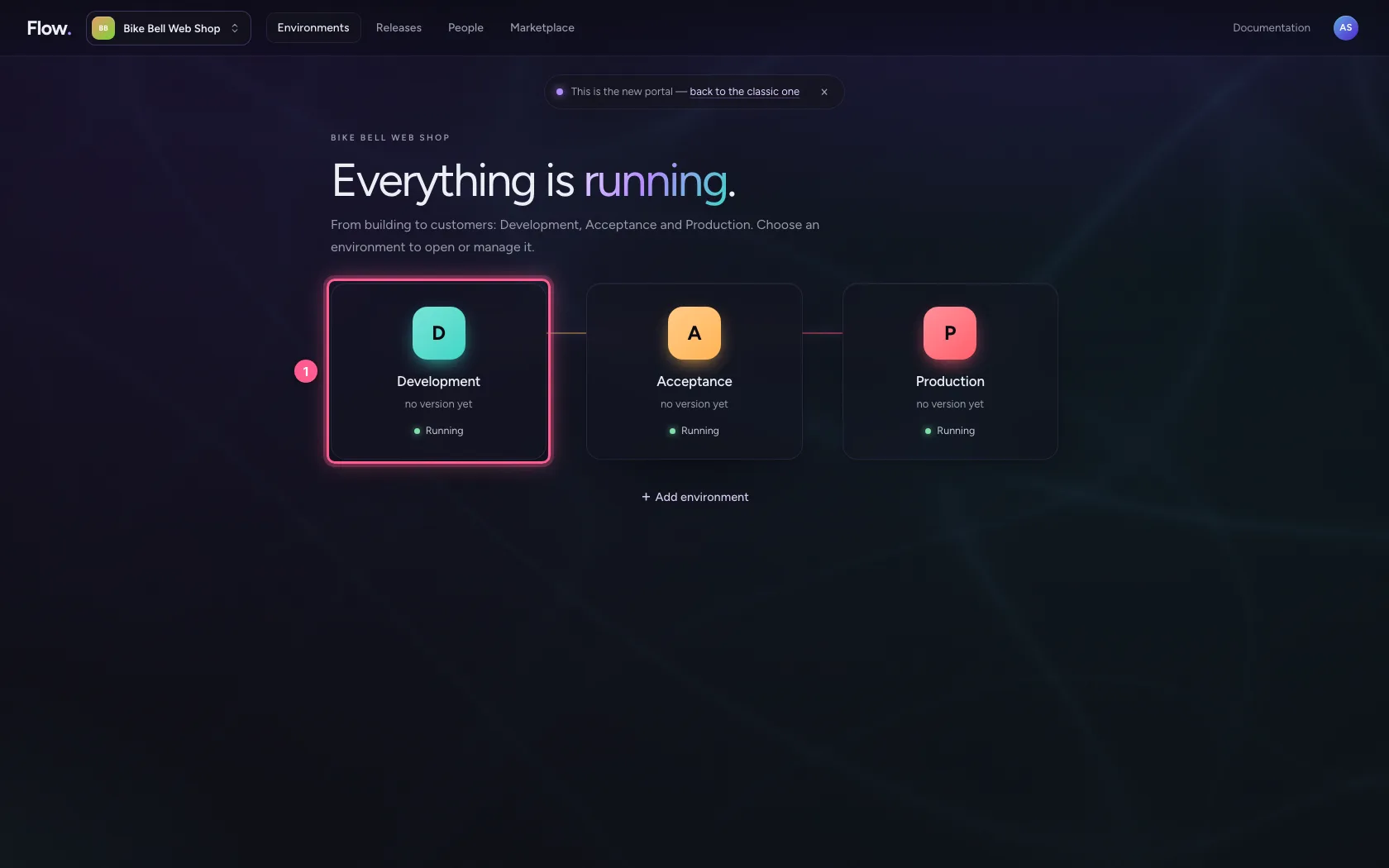
Open your development environment
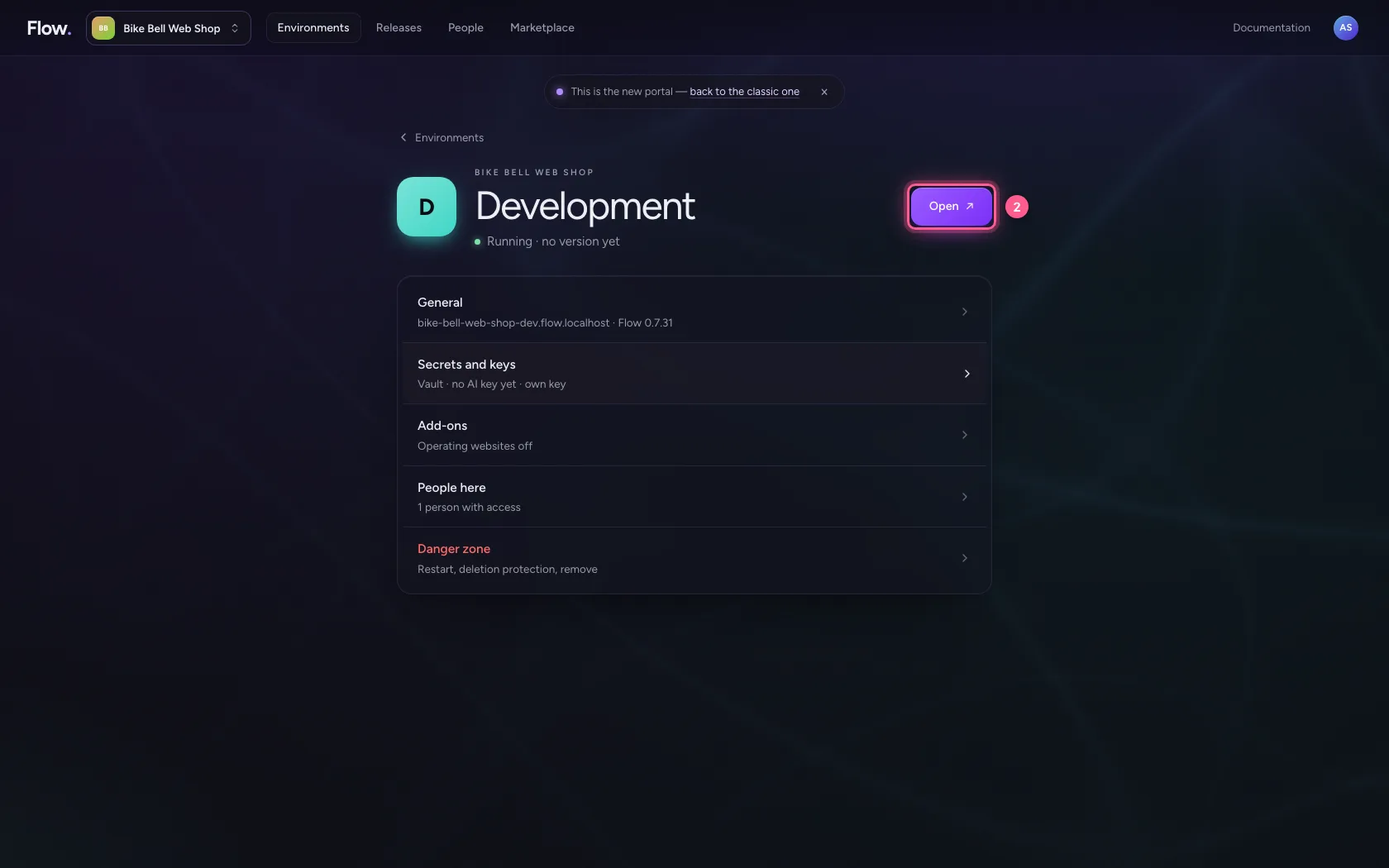
In the portal, under Environments, click Development, and there Open. Flow opens in a new tab and you are signed in straight away.
- Click Development
- Click Open ↗
Make a Jira connection
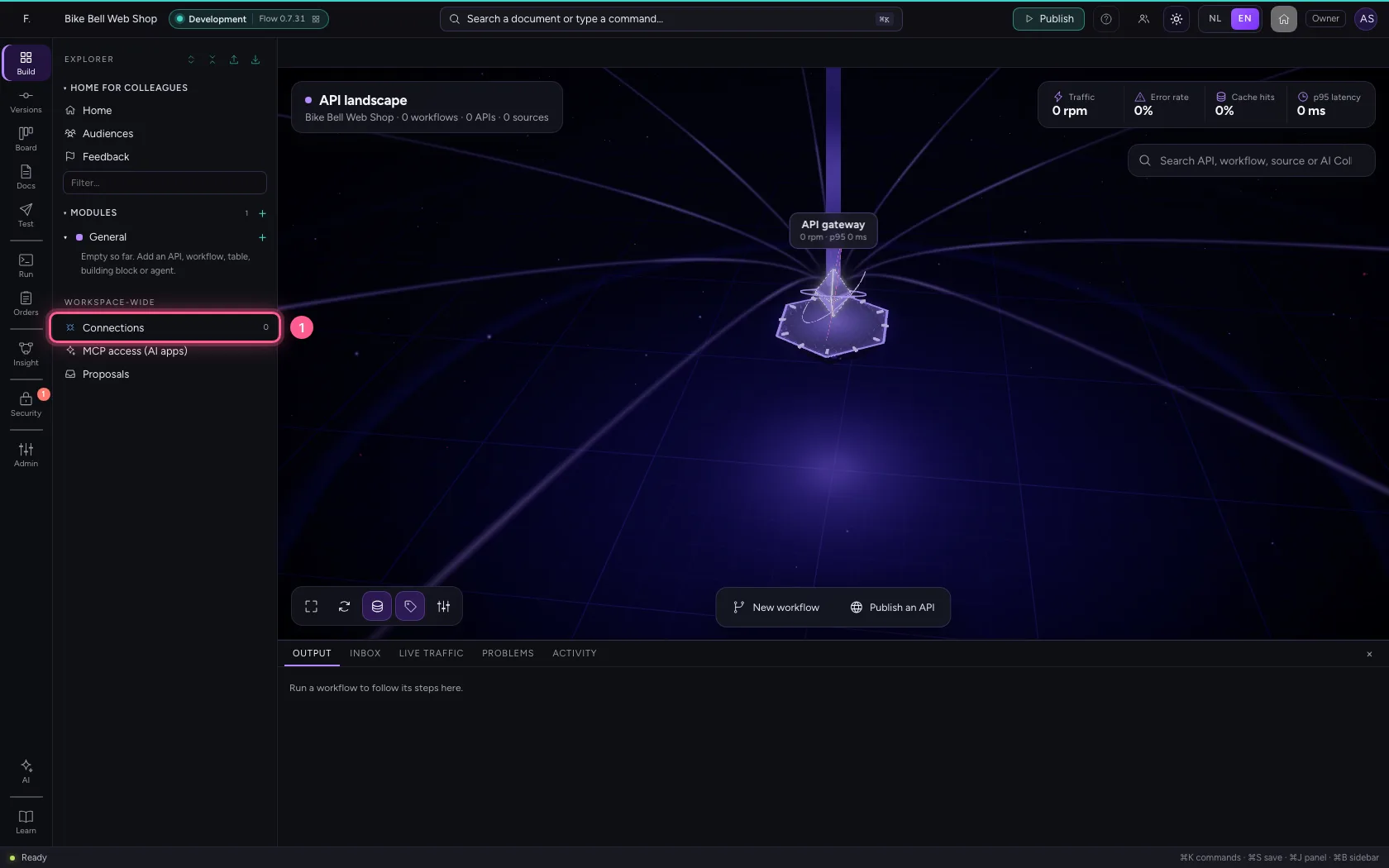
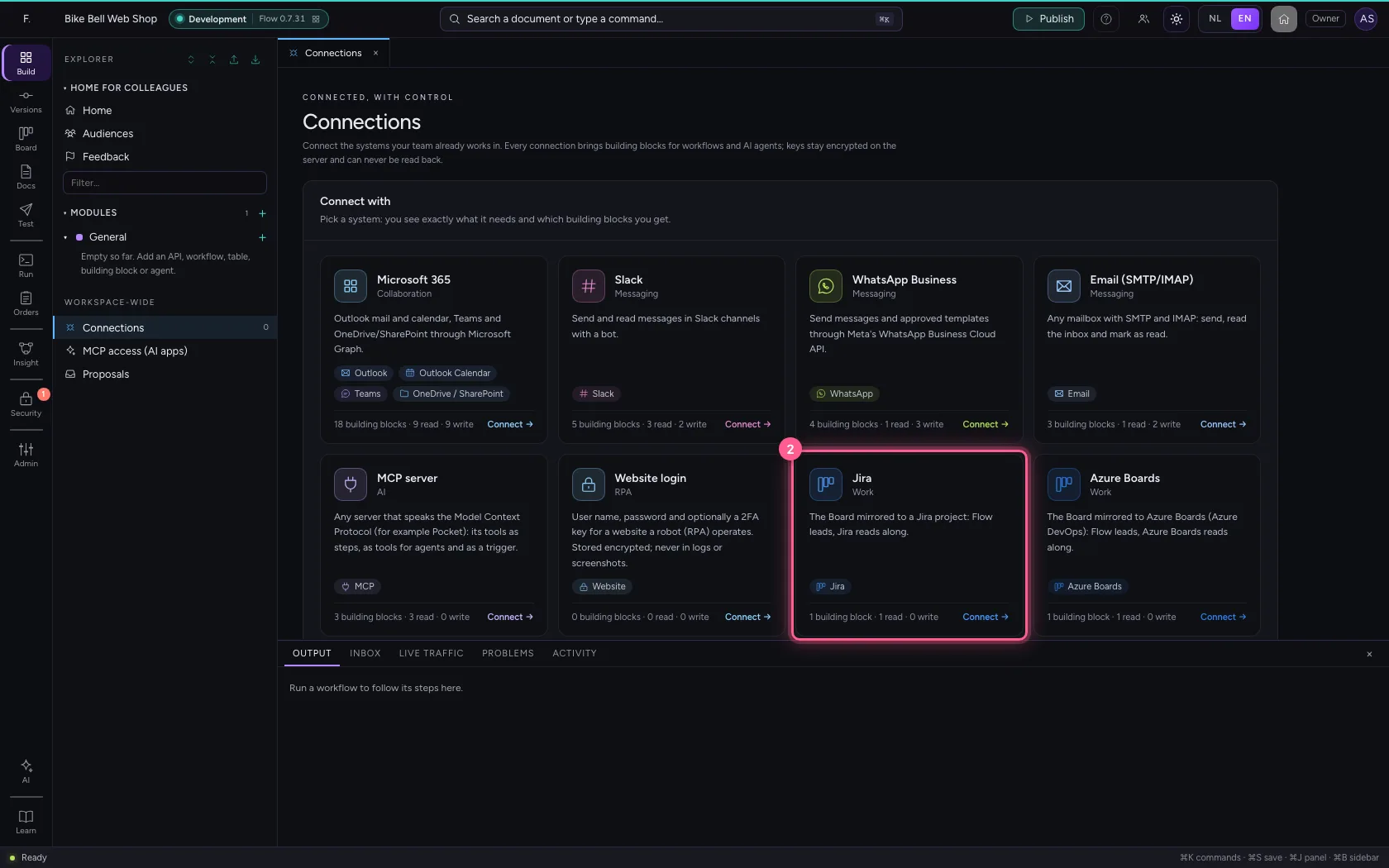
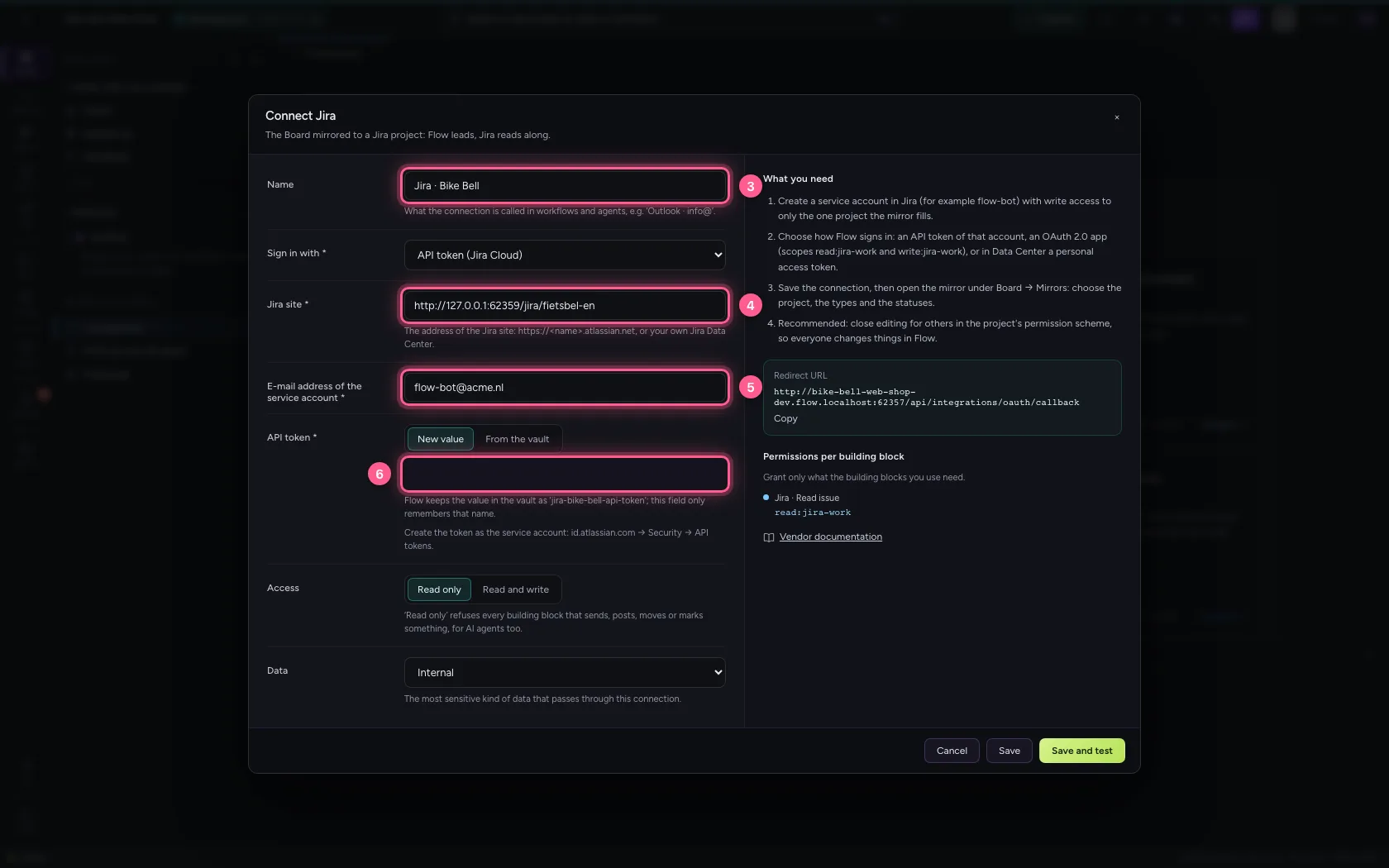
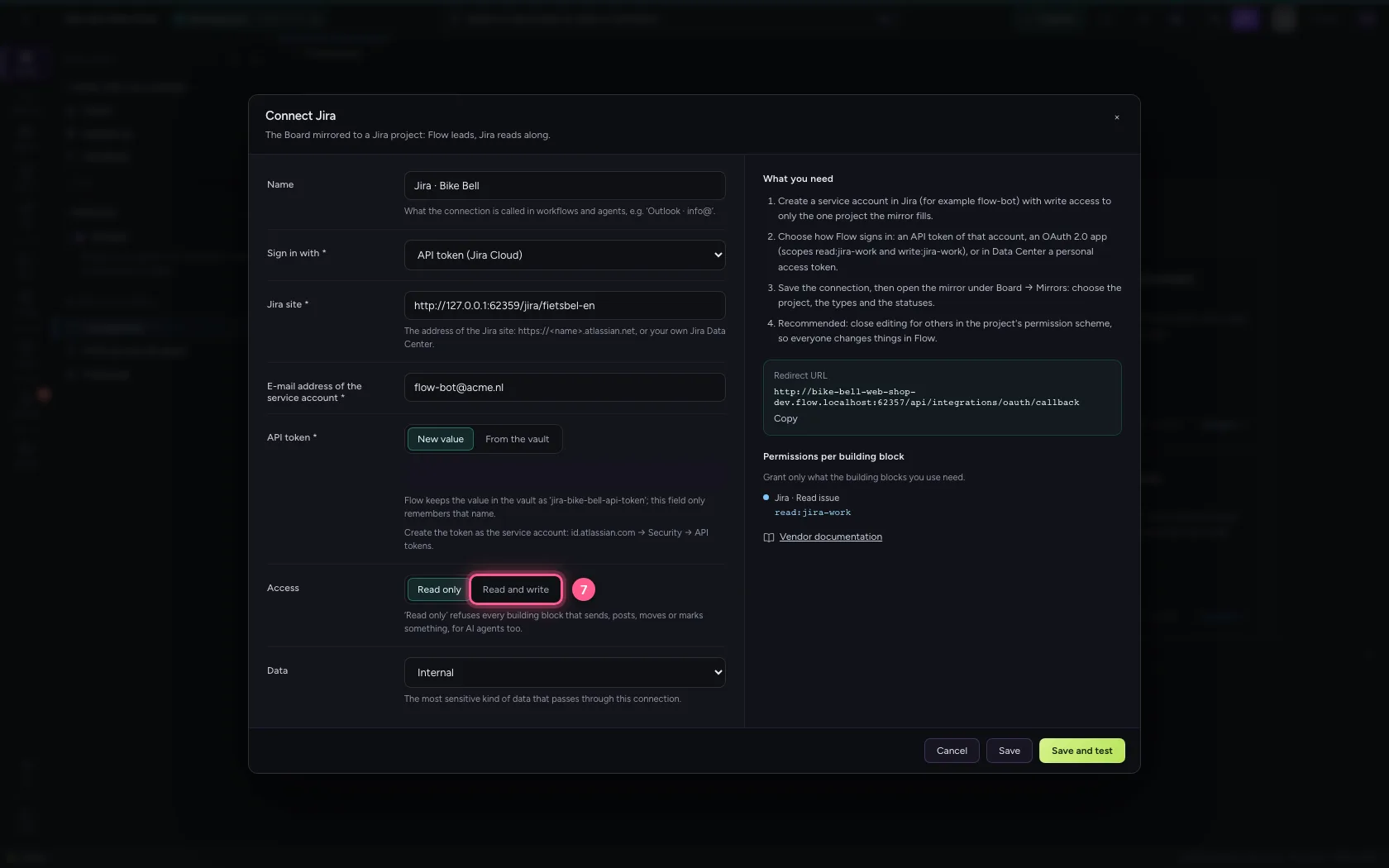
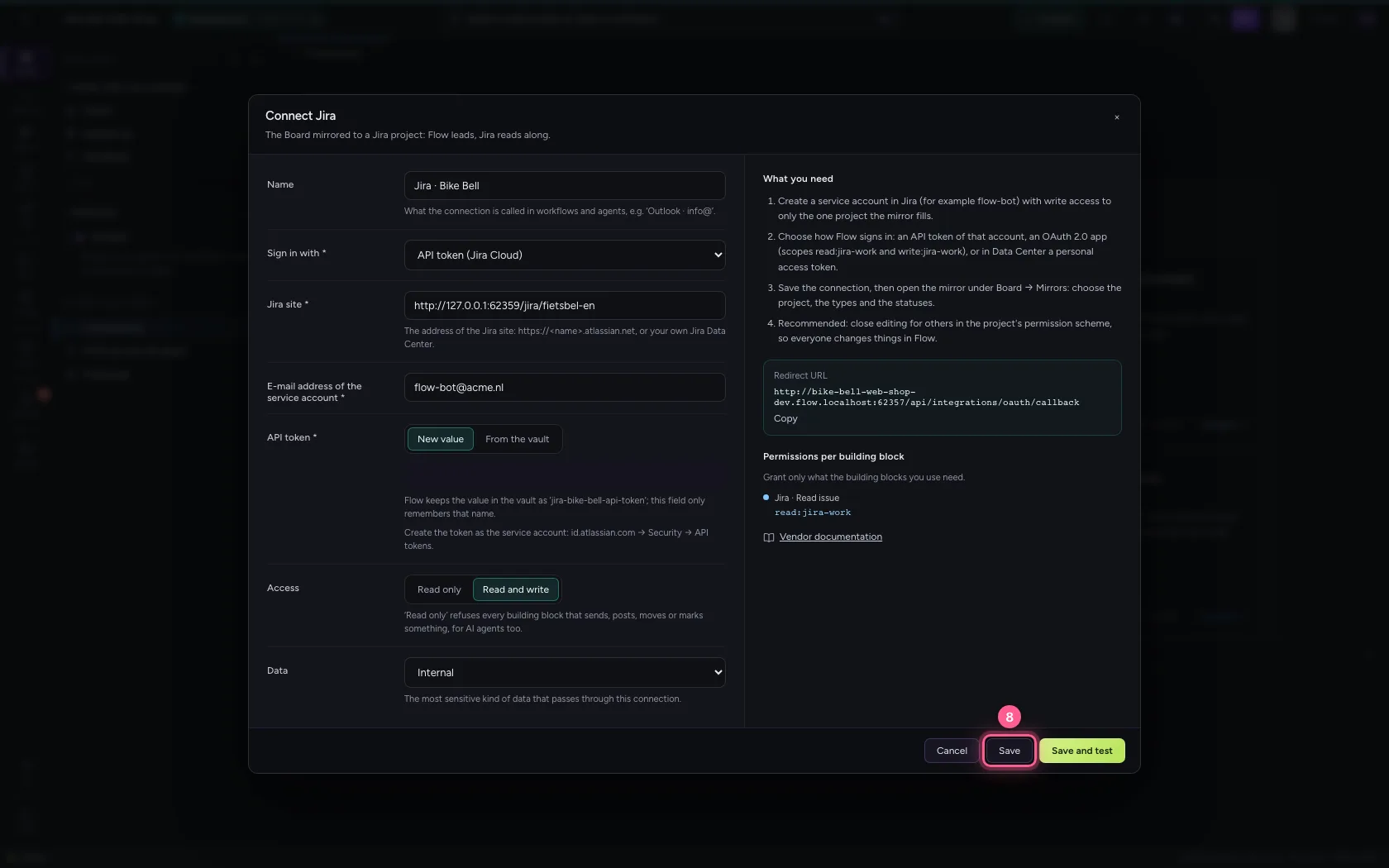
Open Connections and choose Jira. Flow signs in as a service account (for example flow-bot) that may write only the one project. Choose API token (Jira Cloud), fill in the site's address, the account's e-mail address and the API token. The token goes straight into the vault. Set access to Read and write: the mirror writes in Jira.
- Click Connections
- Click Jira
- In Name, type
Jira · Bike Bell - In **Jira site ***, type
http://127.0.0.1:62359/jira/fietsbel-en - In **E-mail address of the service account ***, type
flow-bot@acme.nl - In **API token ***, type
••••••••
- Click Read and write
- Click Save
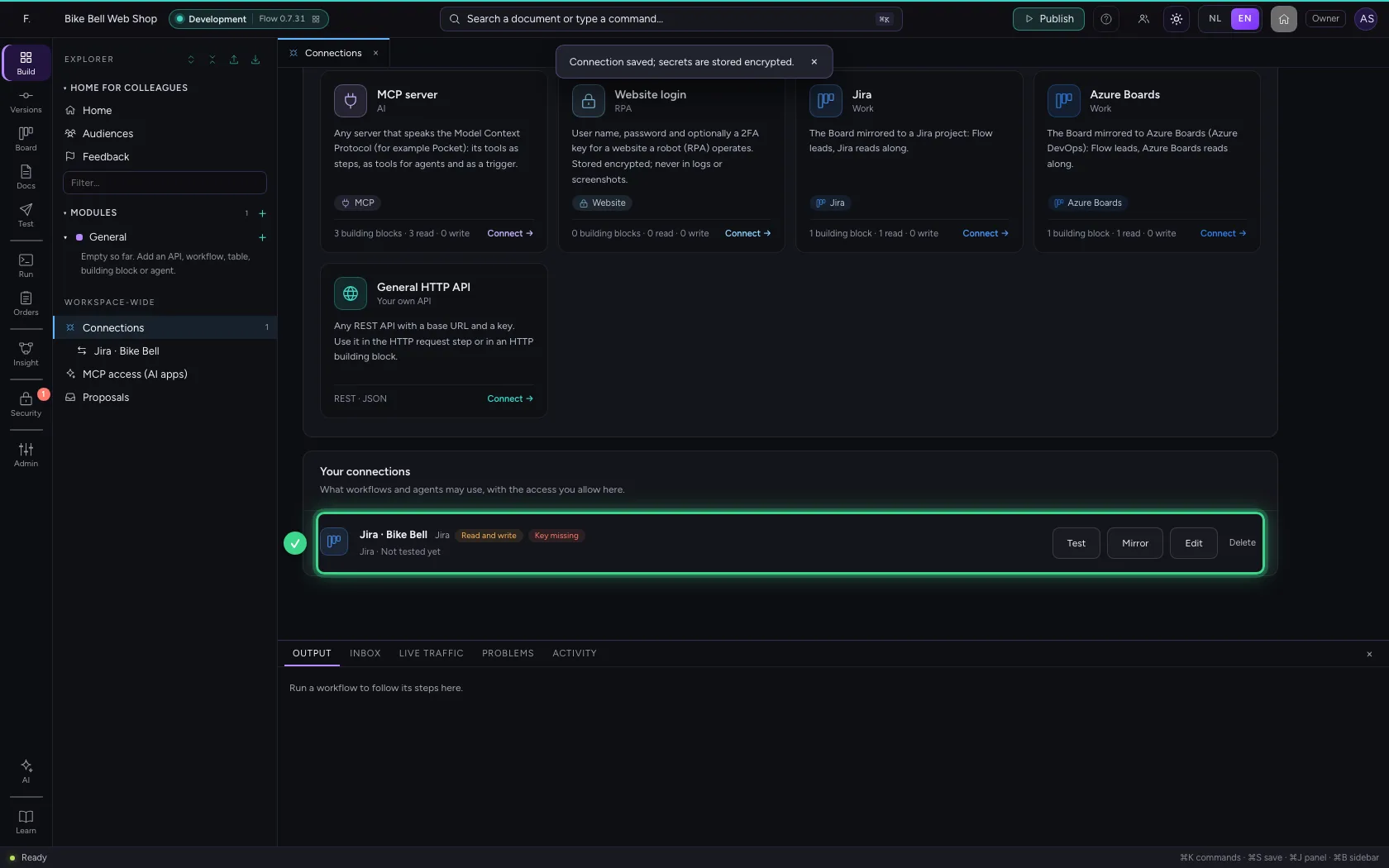
From the Board too
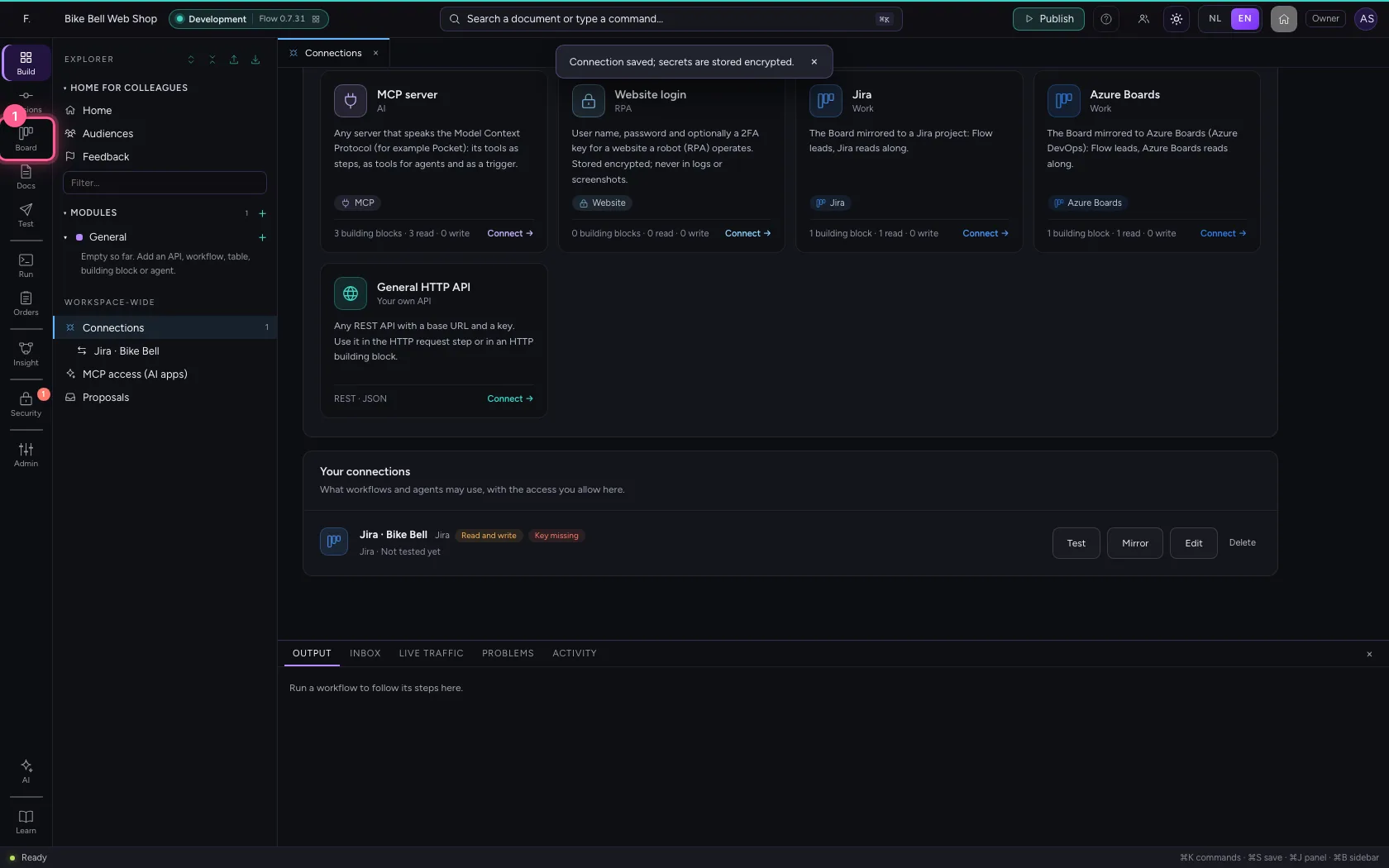
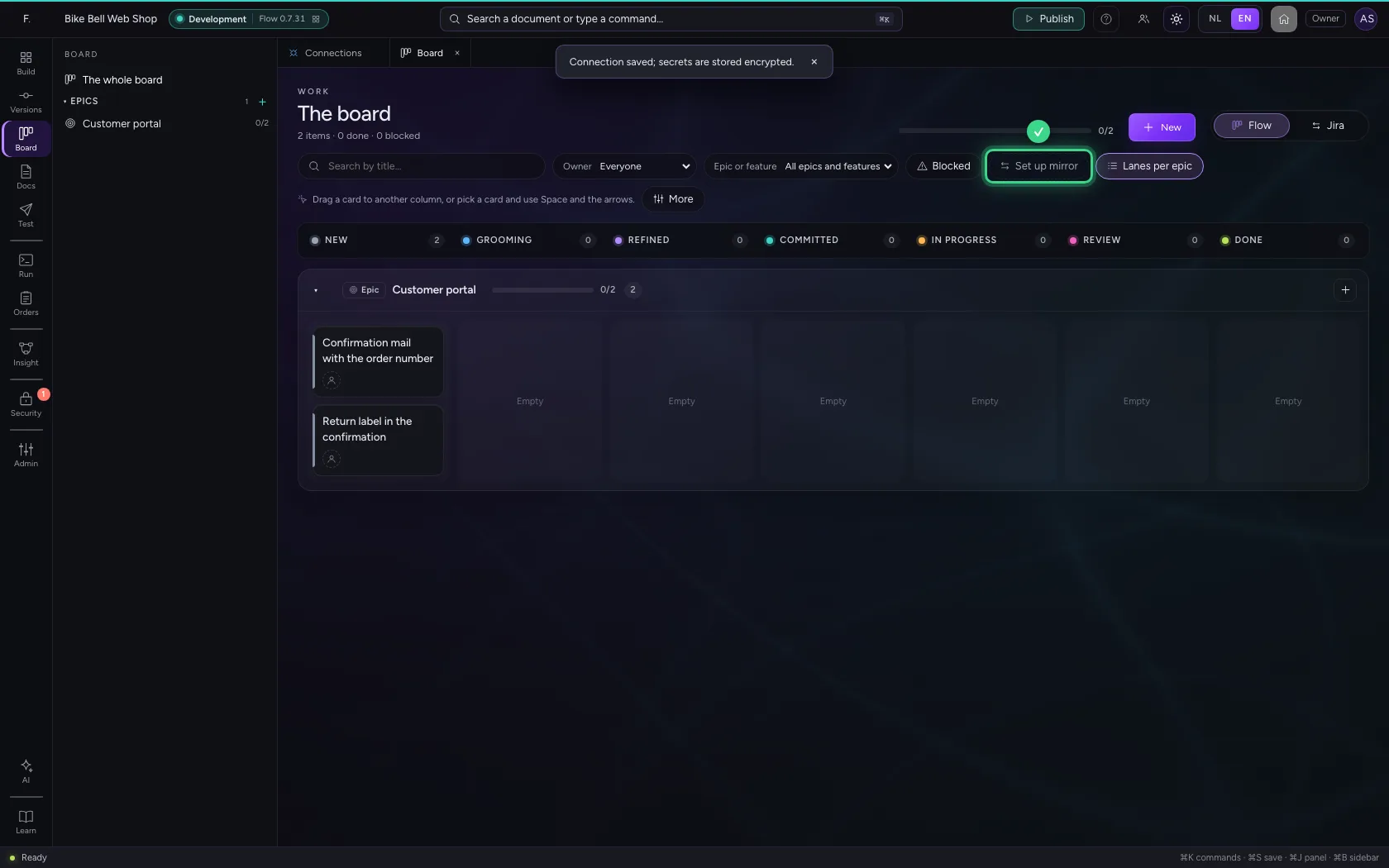
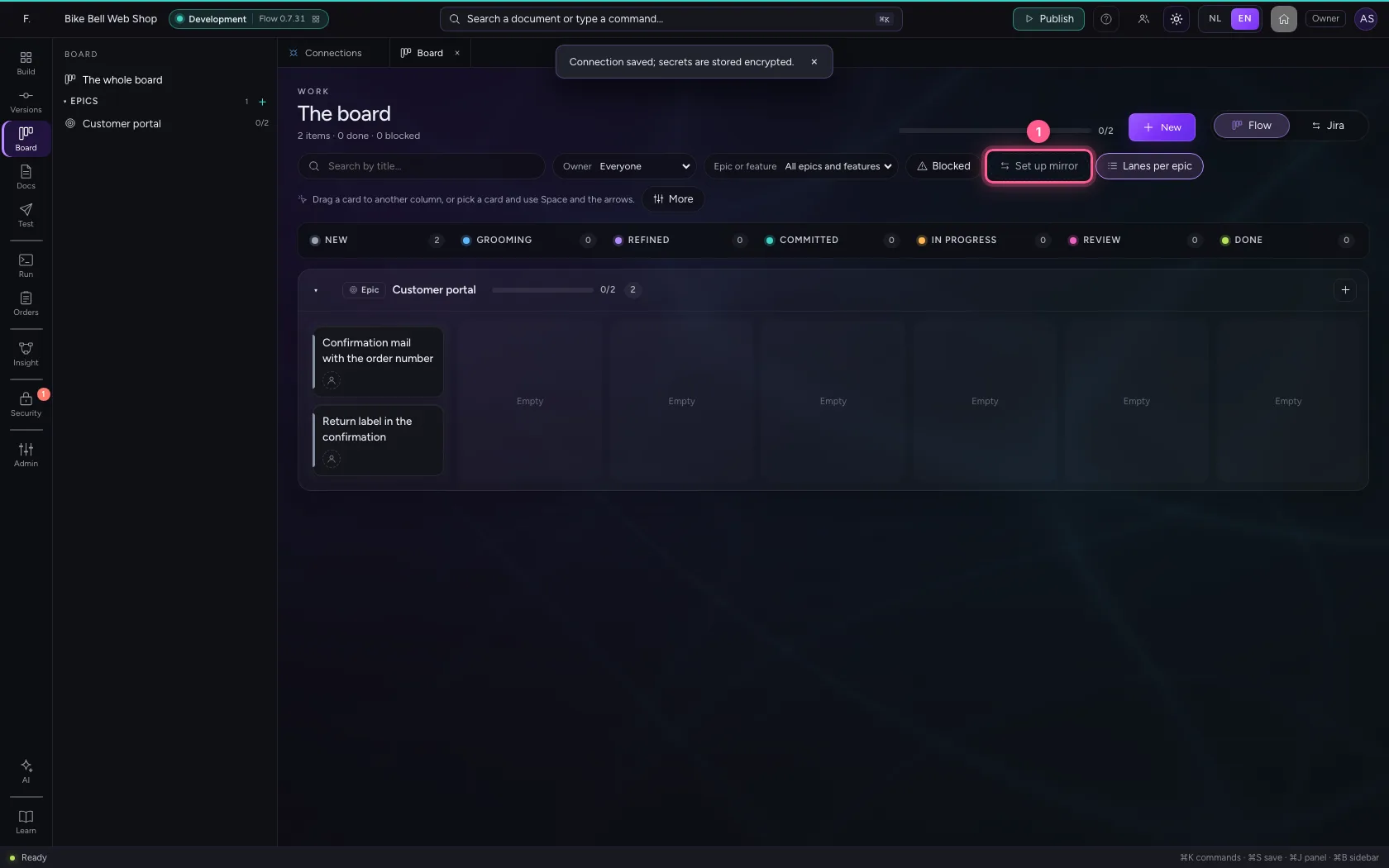
When there is a connection with Jira or Azure Boards and no mirror is on yet, the Board shows an owner or administrator Set up mirror at the top. When the mirror is set up but off, it says Mirror is off. Both open the mirror. Whoever may not set up a mirror sees no button here.
- Click Board
Set up the mirror
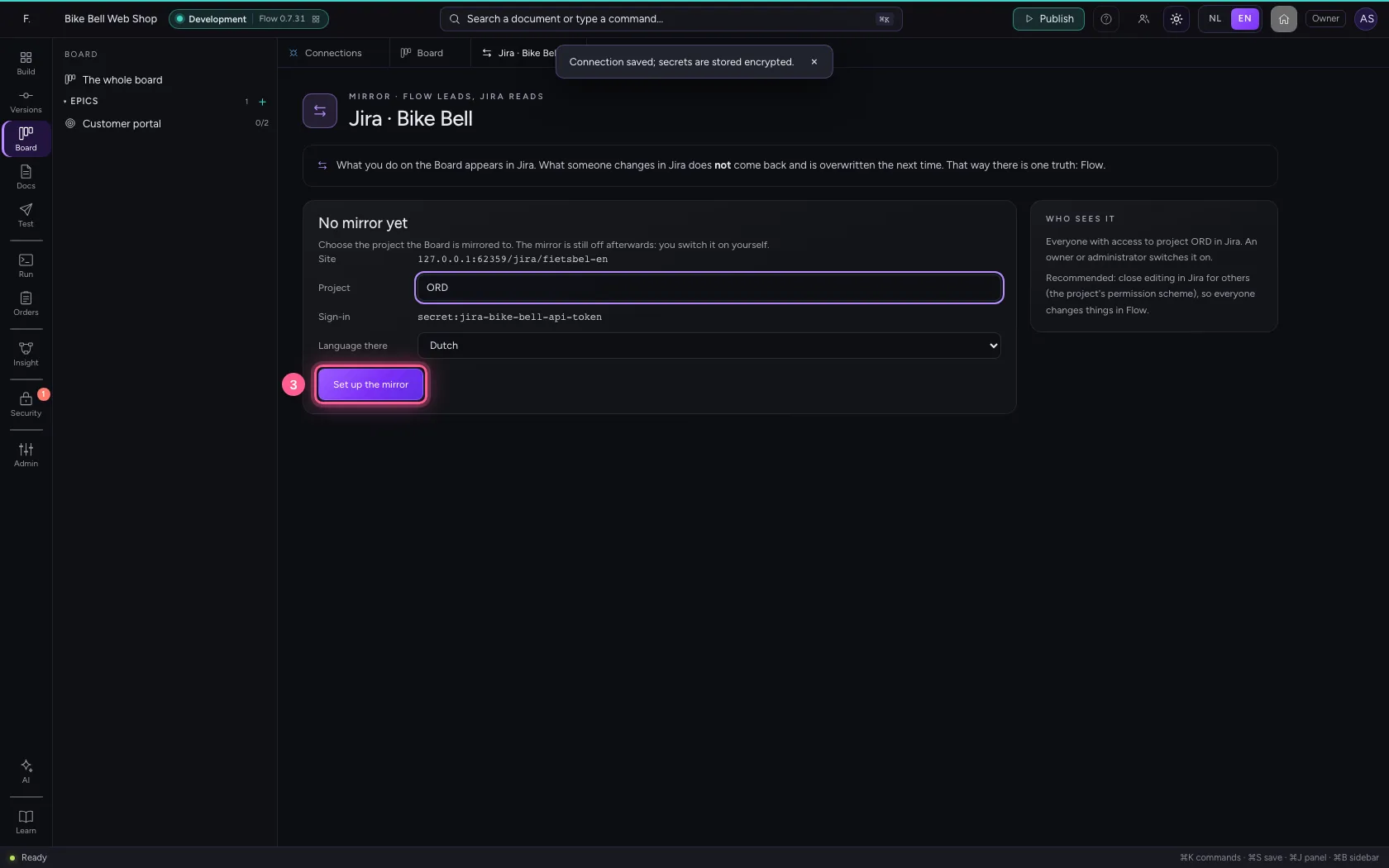
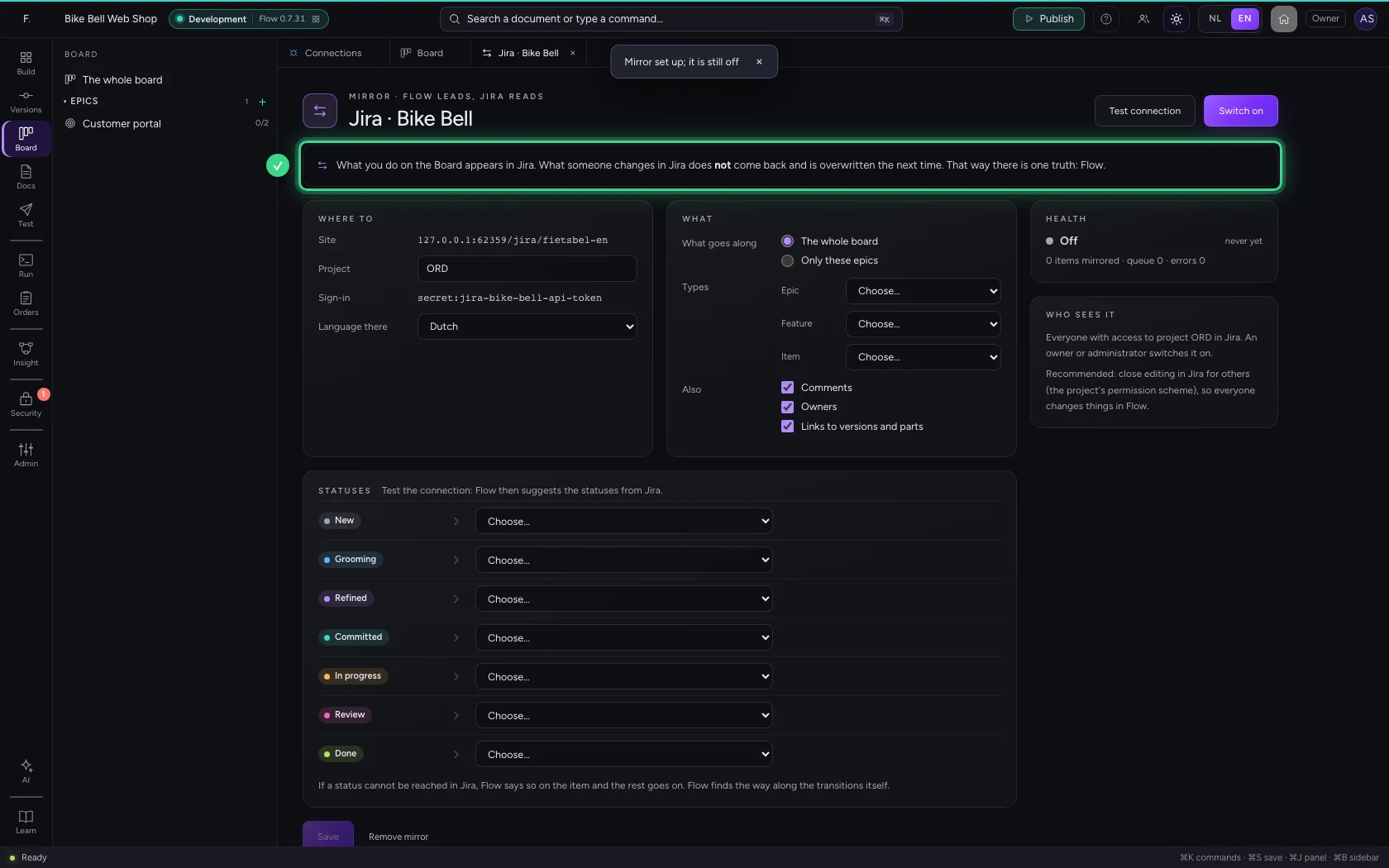
Click Set up mirror (or Mirror on the connection). At the top it says what a mirror is: Flow leads, Jira reads. Type the project's key (here ORD) and click Set up the mirror. The mirror is still off afterwards.
- Click Set up mirror
- In Project, type
ORD
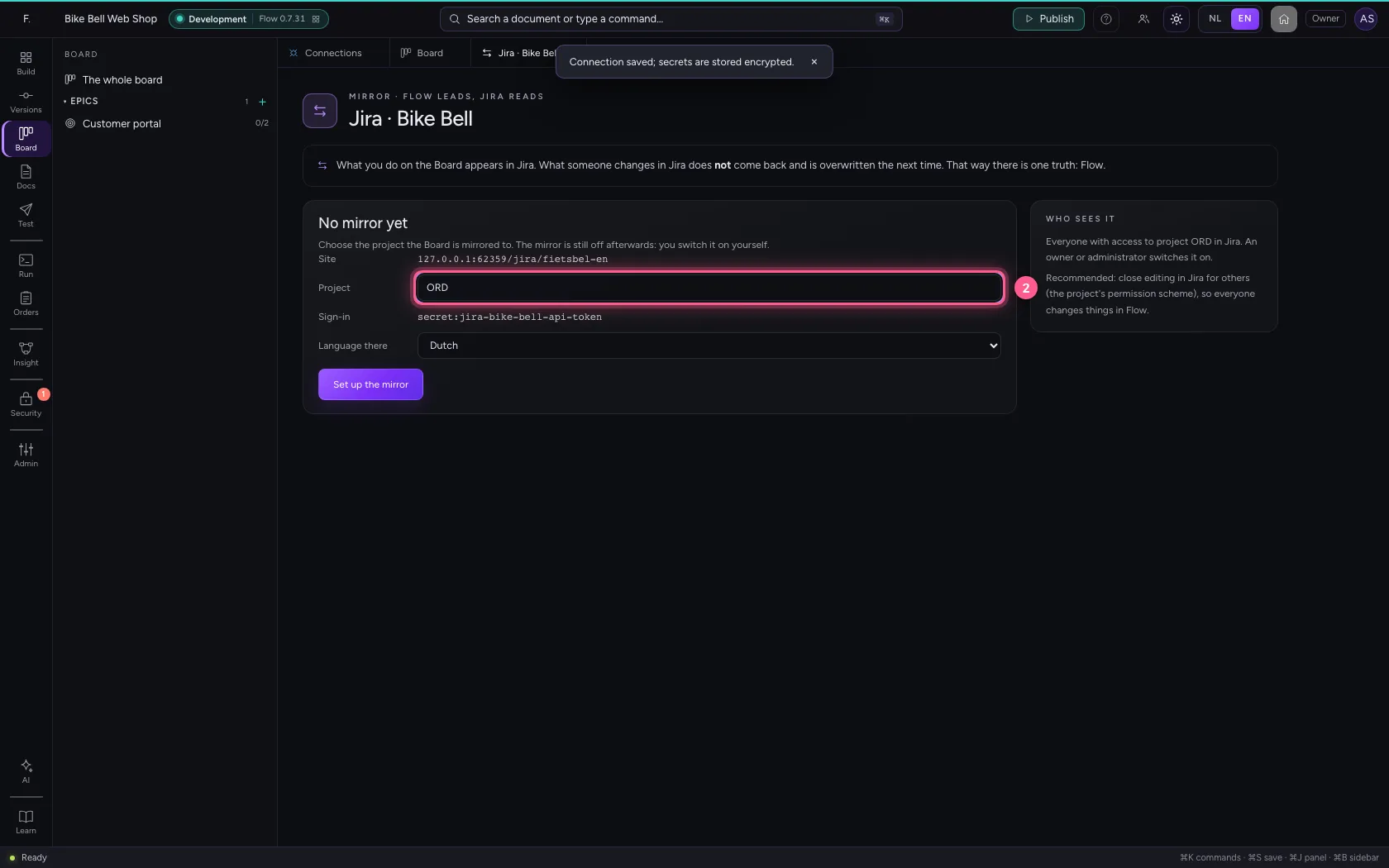
- Click Set up the mirror
Test the connection: Flow suggests the statuses
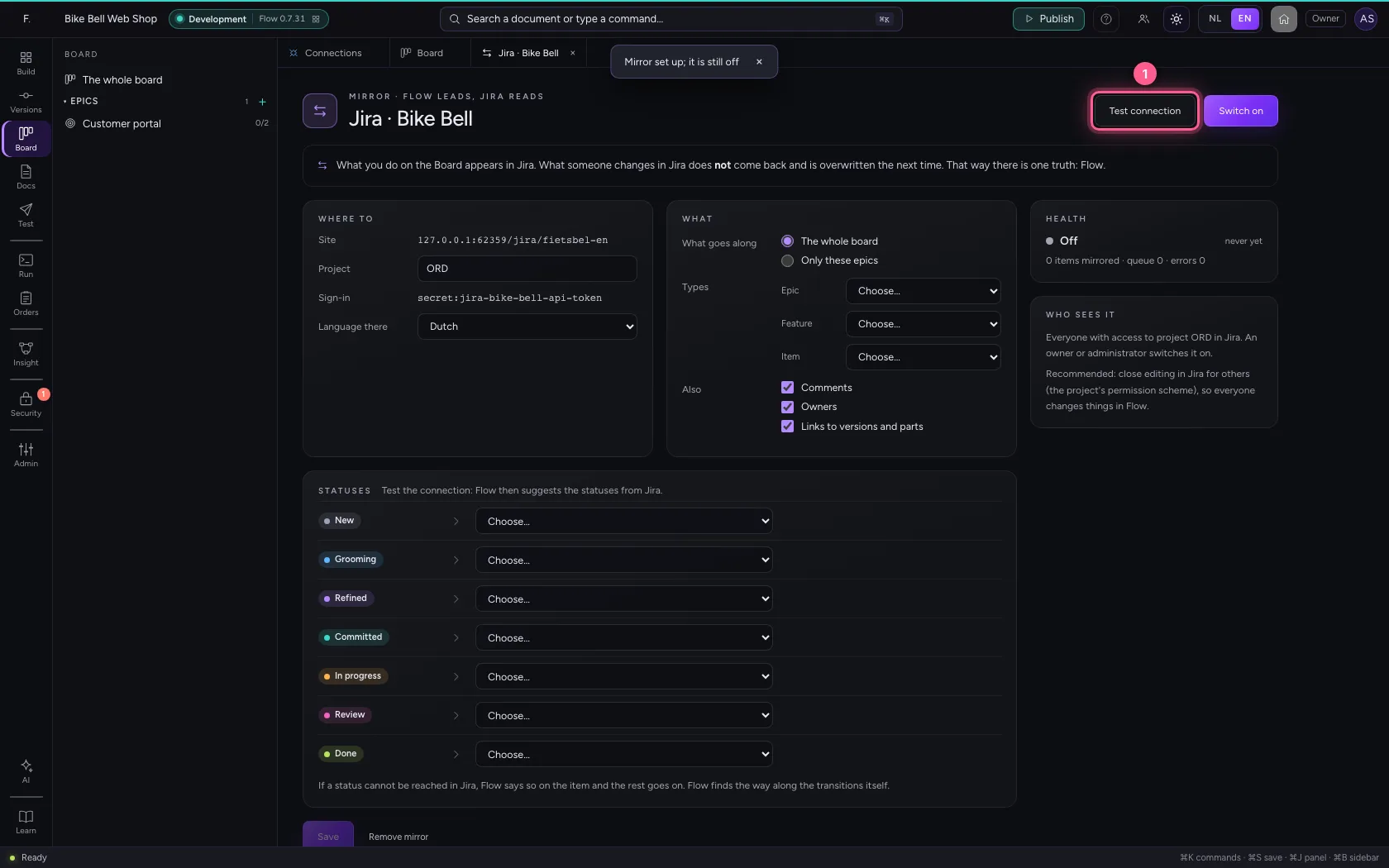
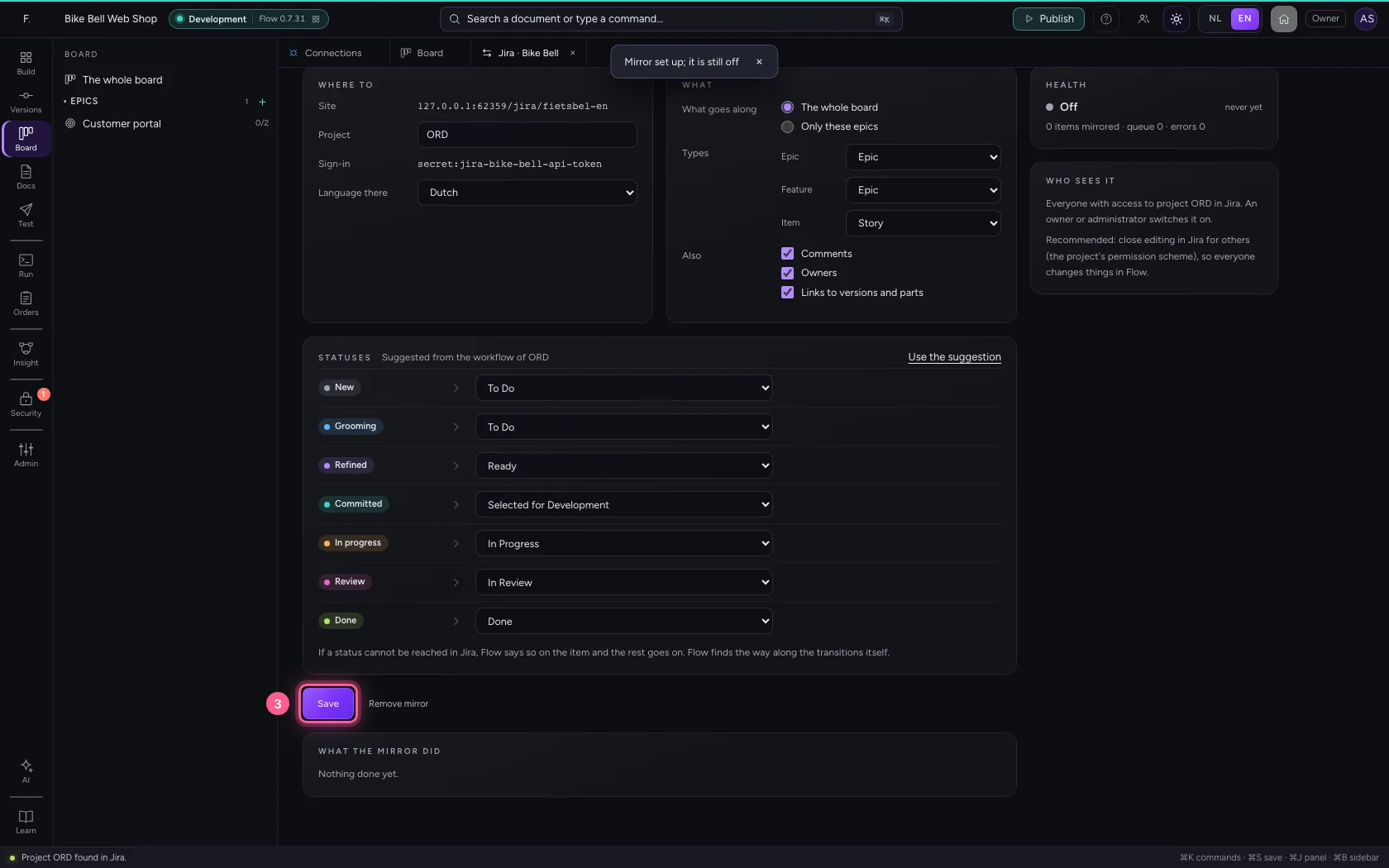
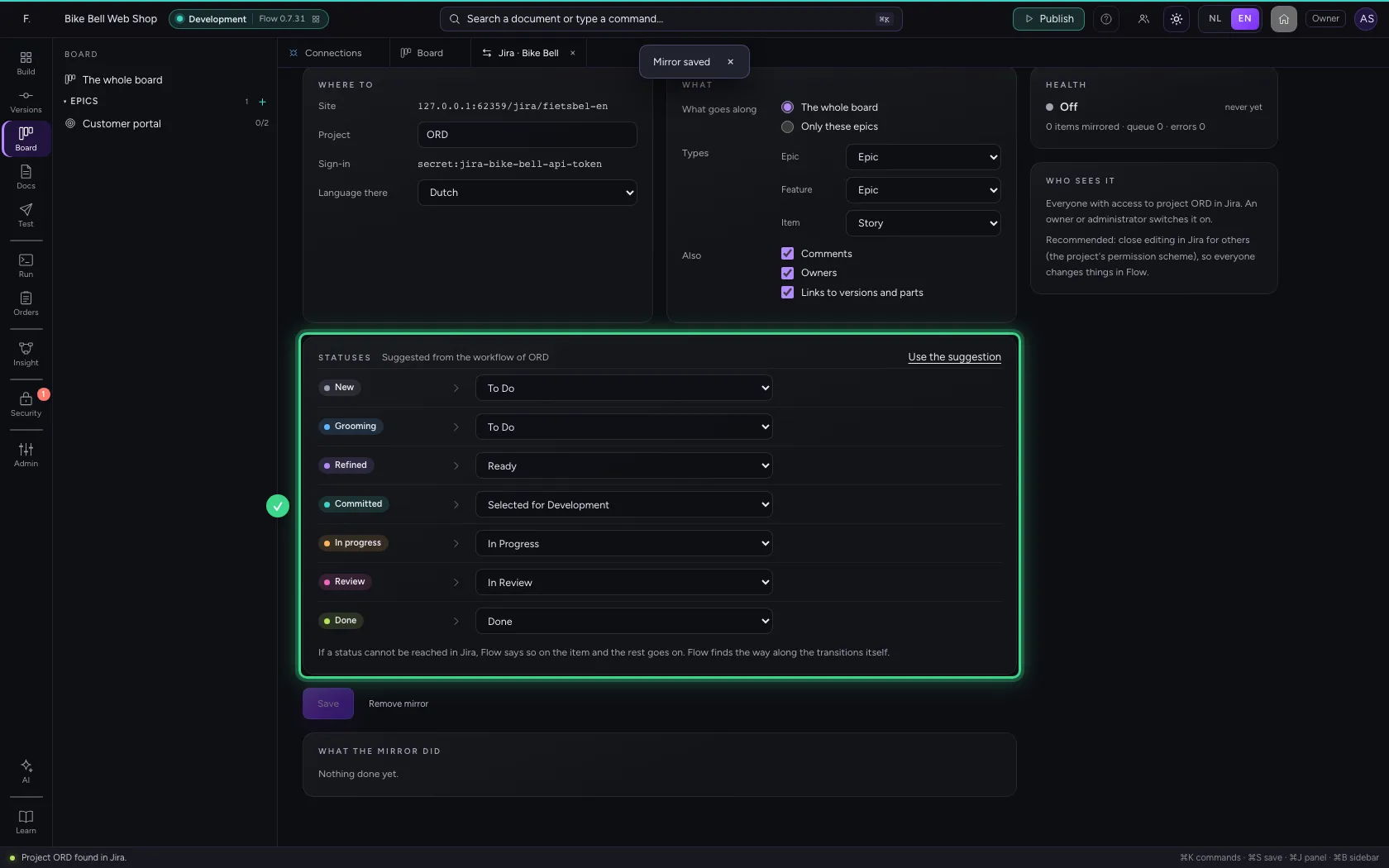
Click Test connection. Flow reads the project and its workflow, without writing anything, and suggests a status in Jira for every column of the Board. Take the suggestion, change what should differ, and save. If a status cannot be reached in Jira later, Flow says so on the item; the rest goes on.
- Click Test connection
- Click Use the suggestion
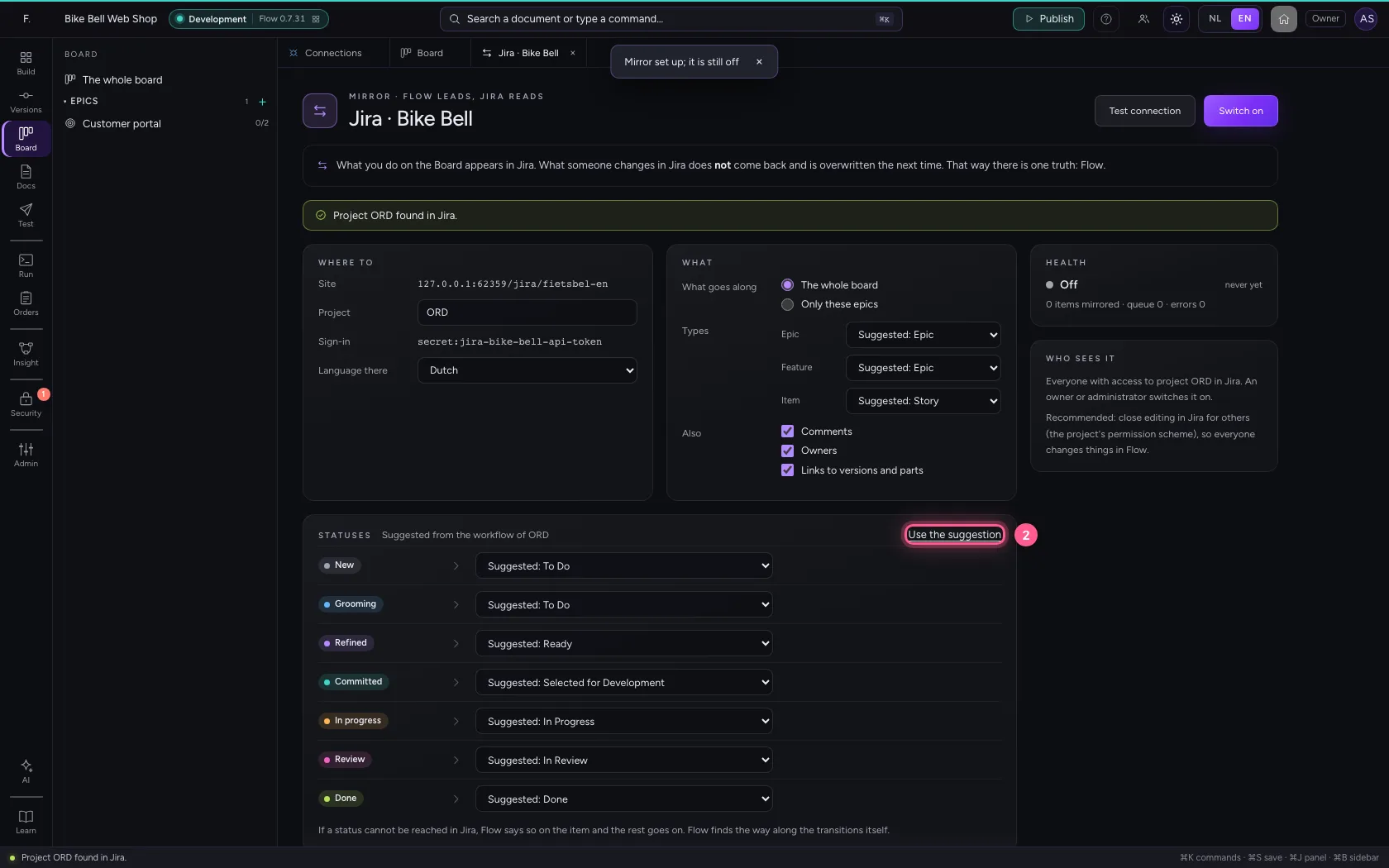
- Click Save
Switch the mirror on
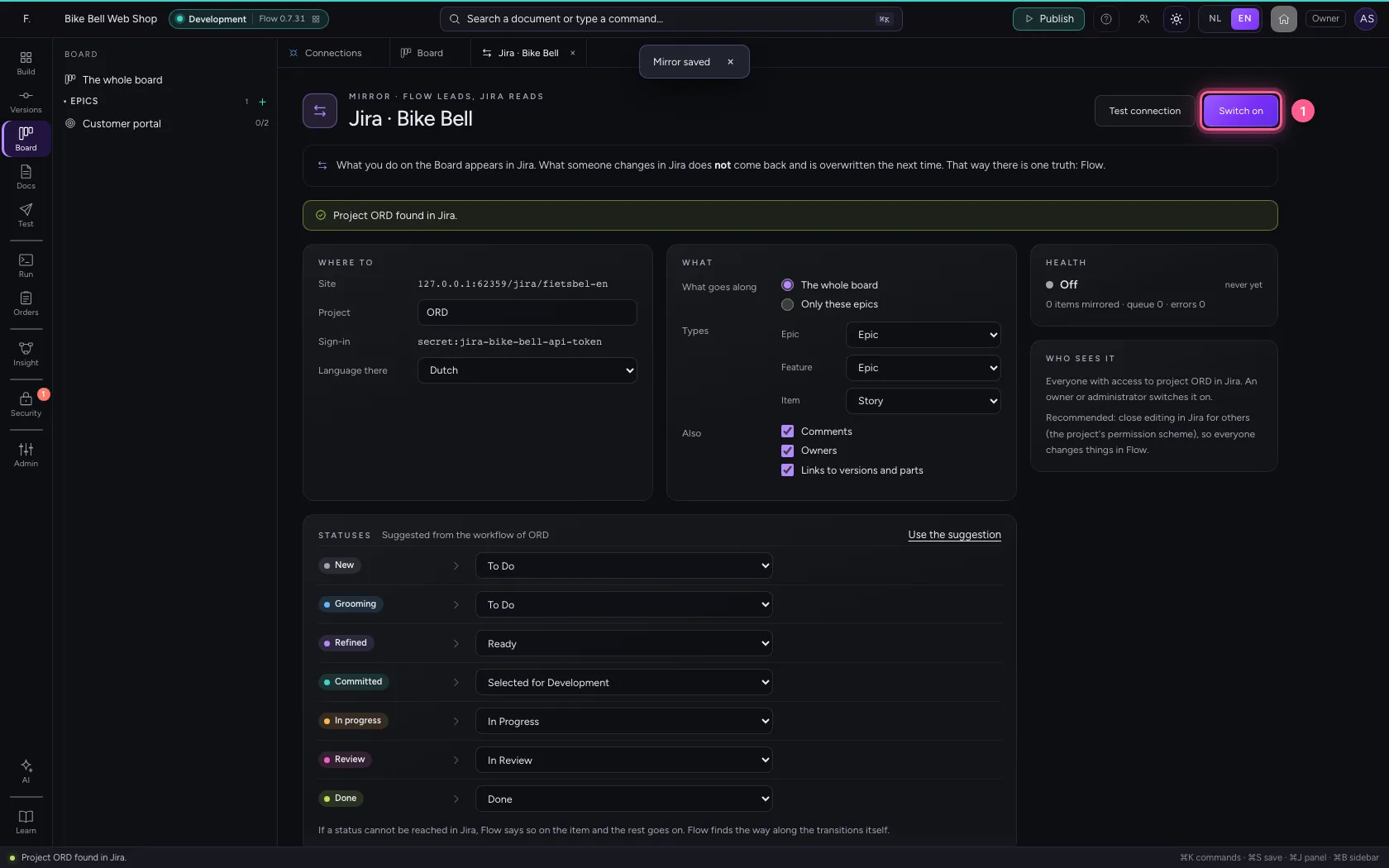
Click Switch on. Flow first says who reads the board in Jira afterwards: everyone with access to the project. Only an owner or administrator can do this. Then Flow puts the board in Jira, with at the top of every issue: ‘Mirrored from Flow — change this item in Flow’.
- Click Switch on
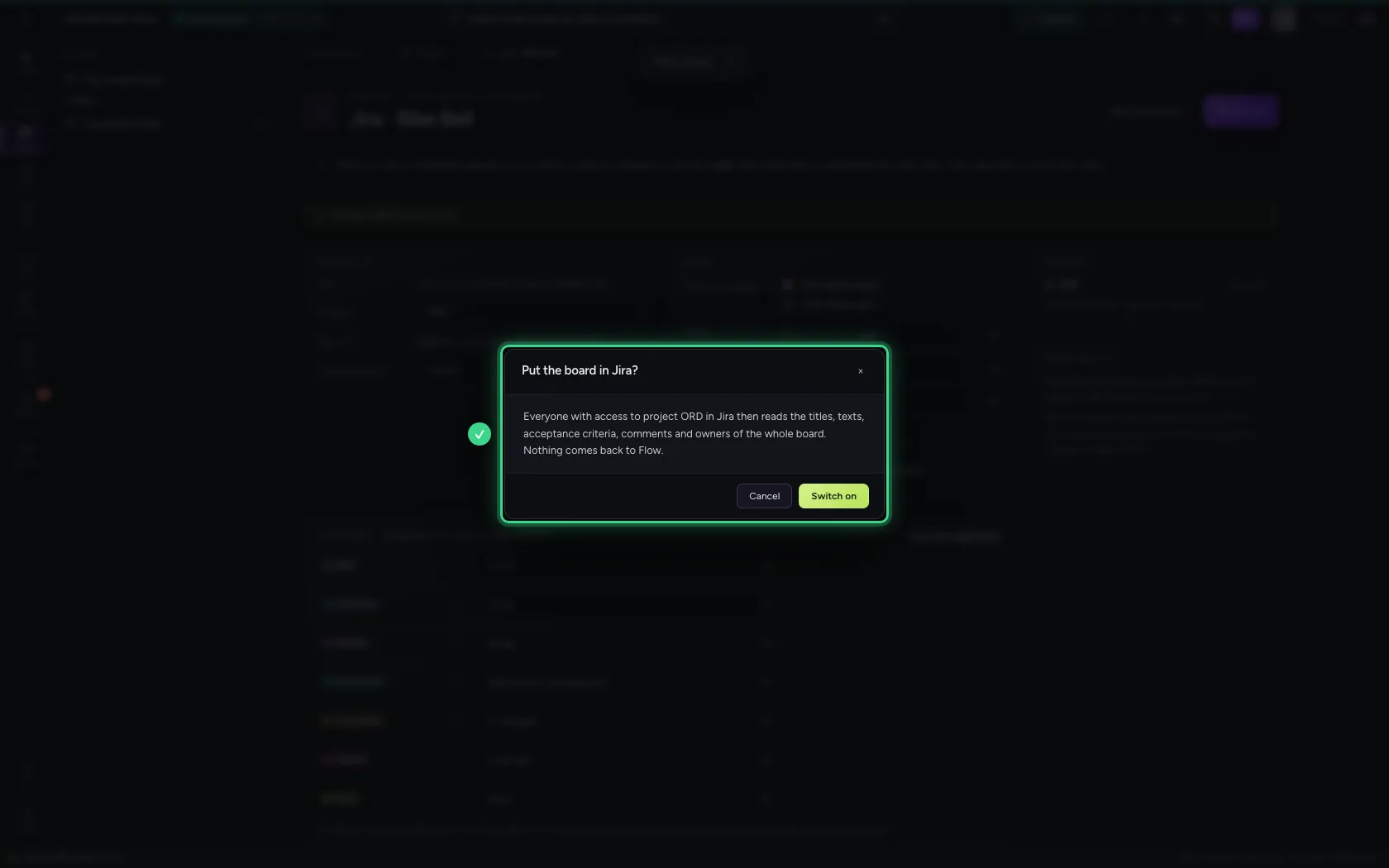
- Click Switch on
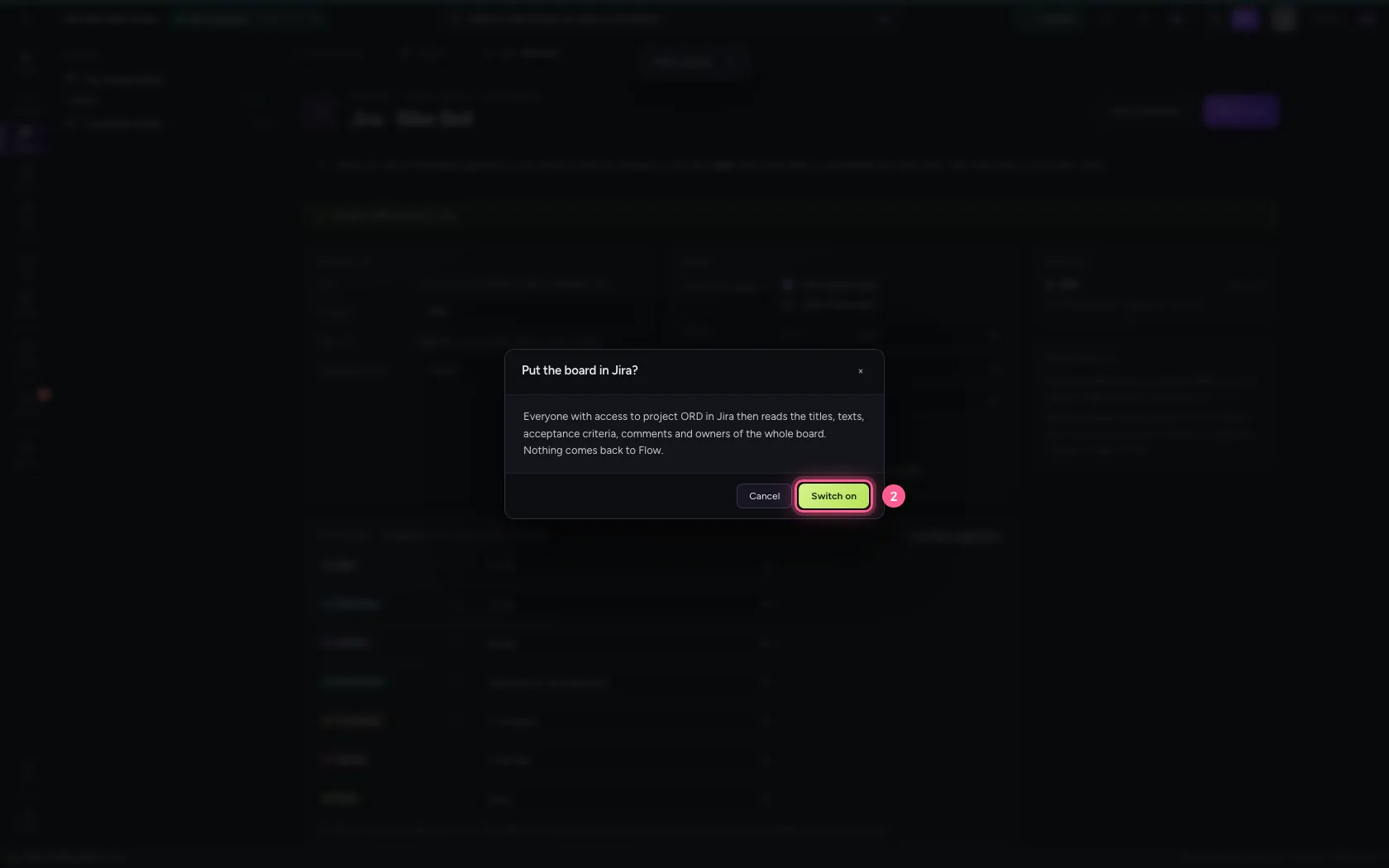
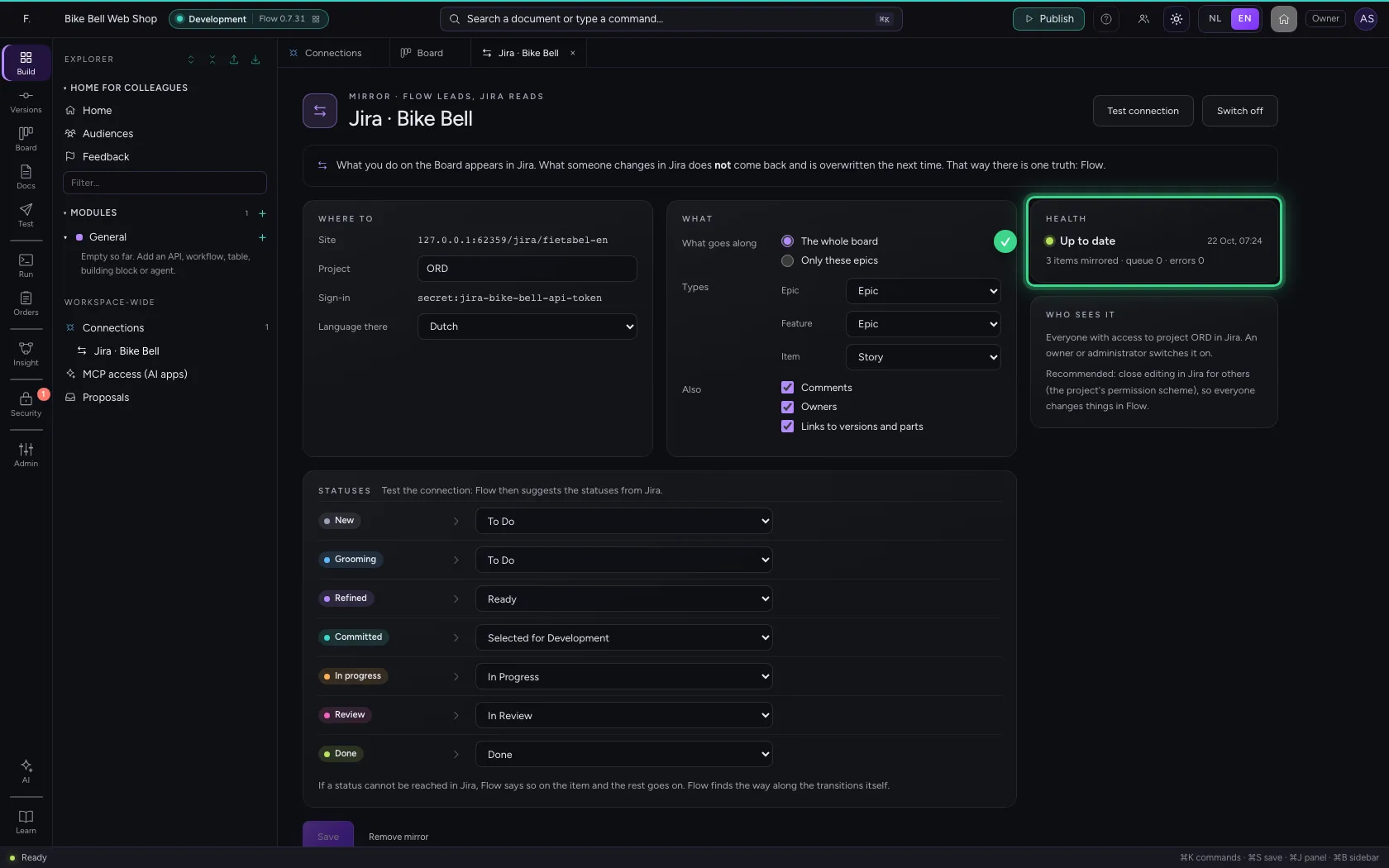
On the Board: every card's copy
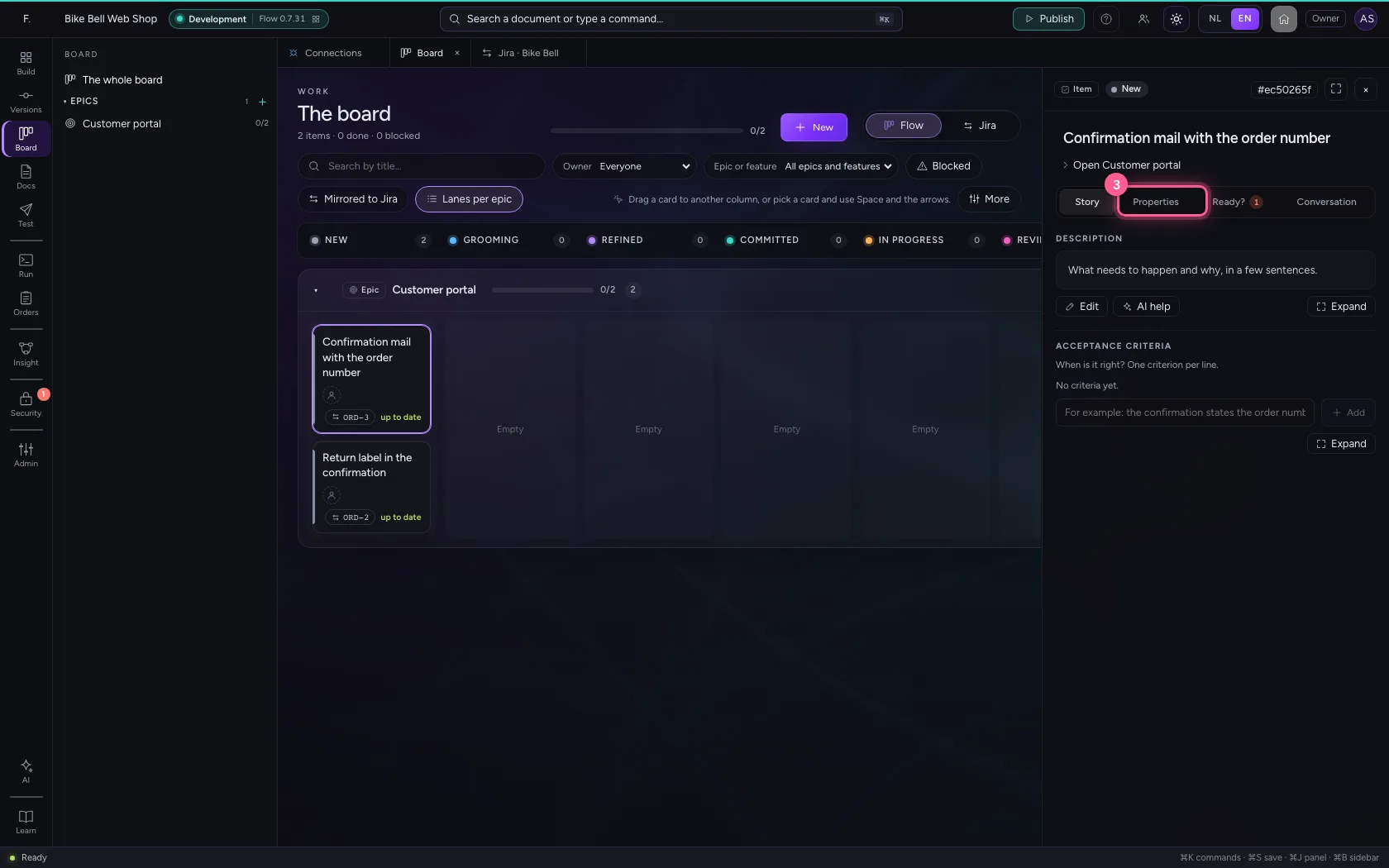
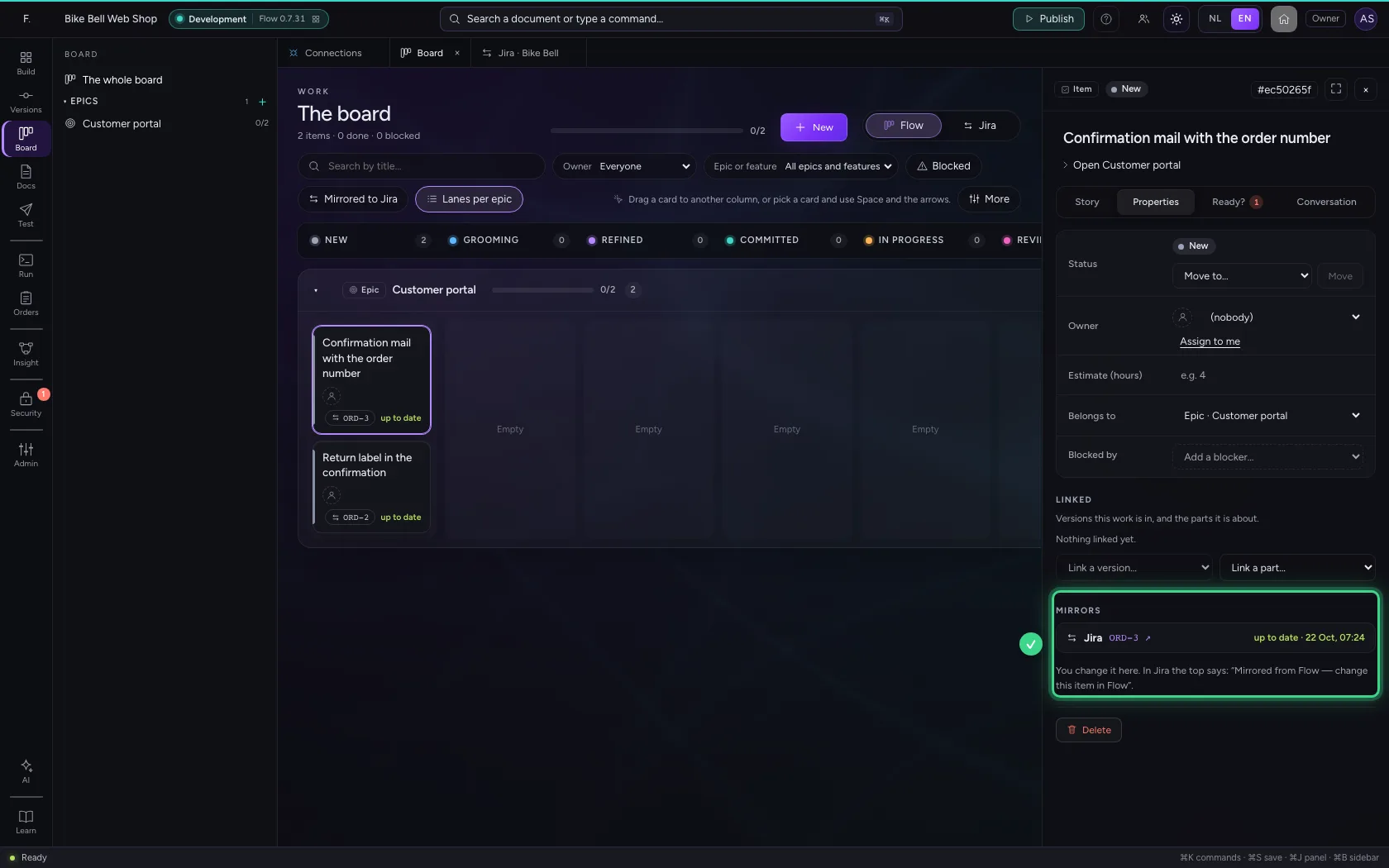
Open the Board. Every card shows its key in Jira and whether the copy is up to date. Behind filters the items that are not up to date yet. In the inspector, on the tab Properties under Mirrors, is the link to Jira; if there is an error or status not mirrored, it says why, with Push again.
- Click Board
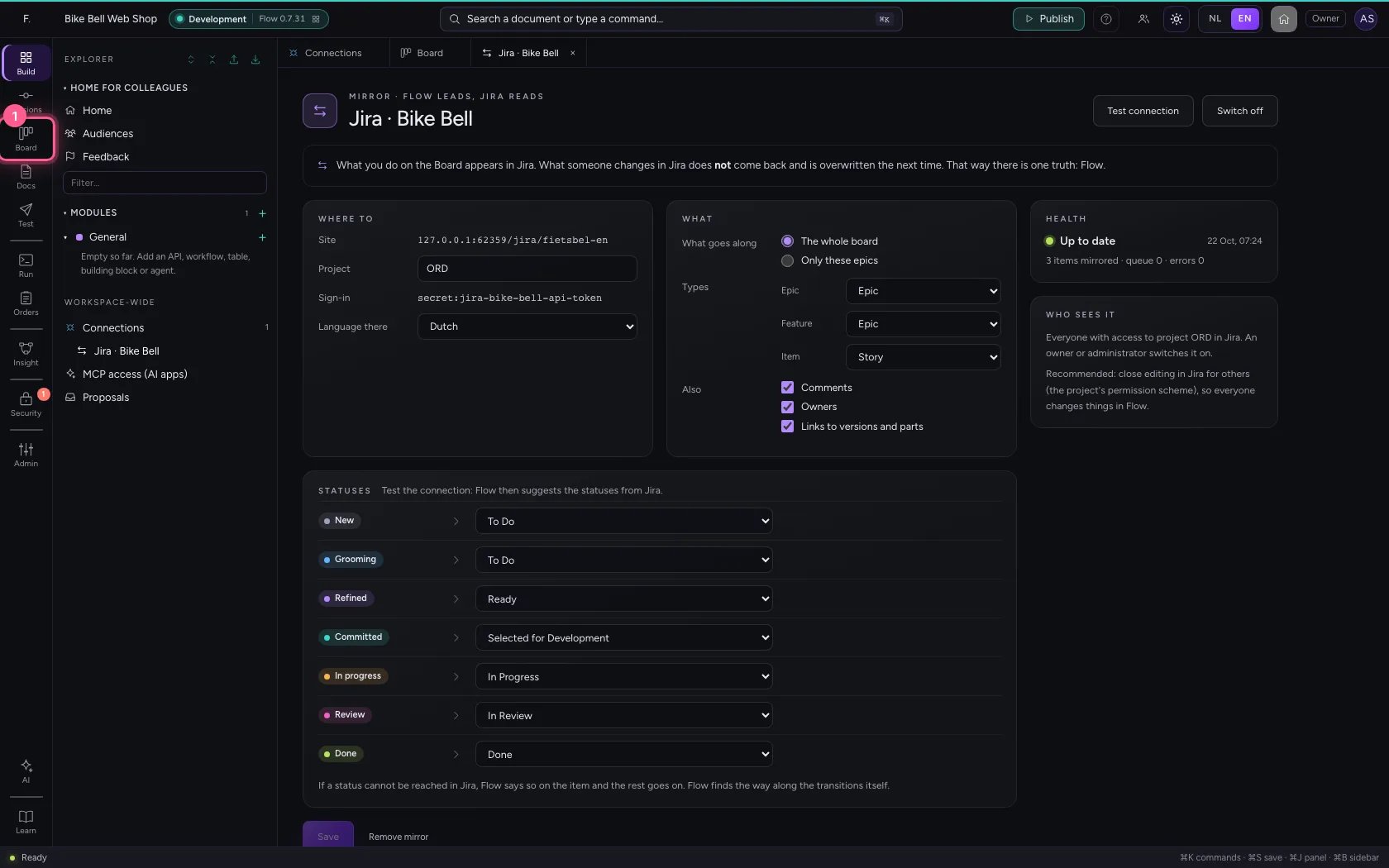
- Click Item Confirmation mail with the order number, New
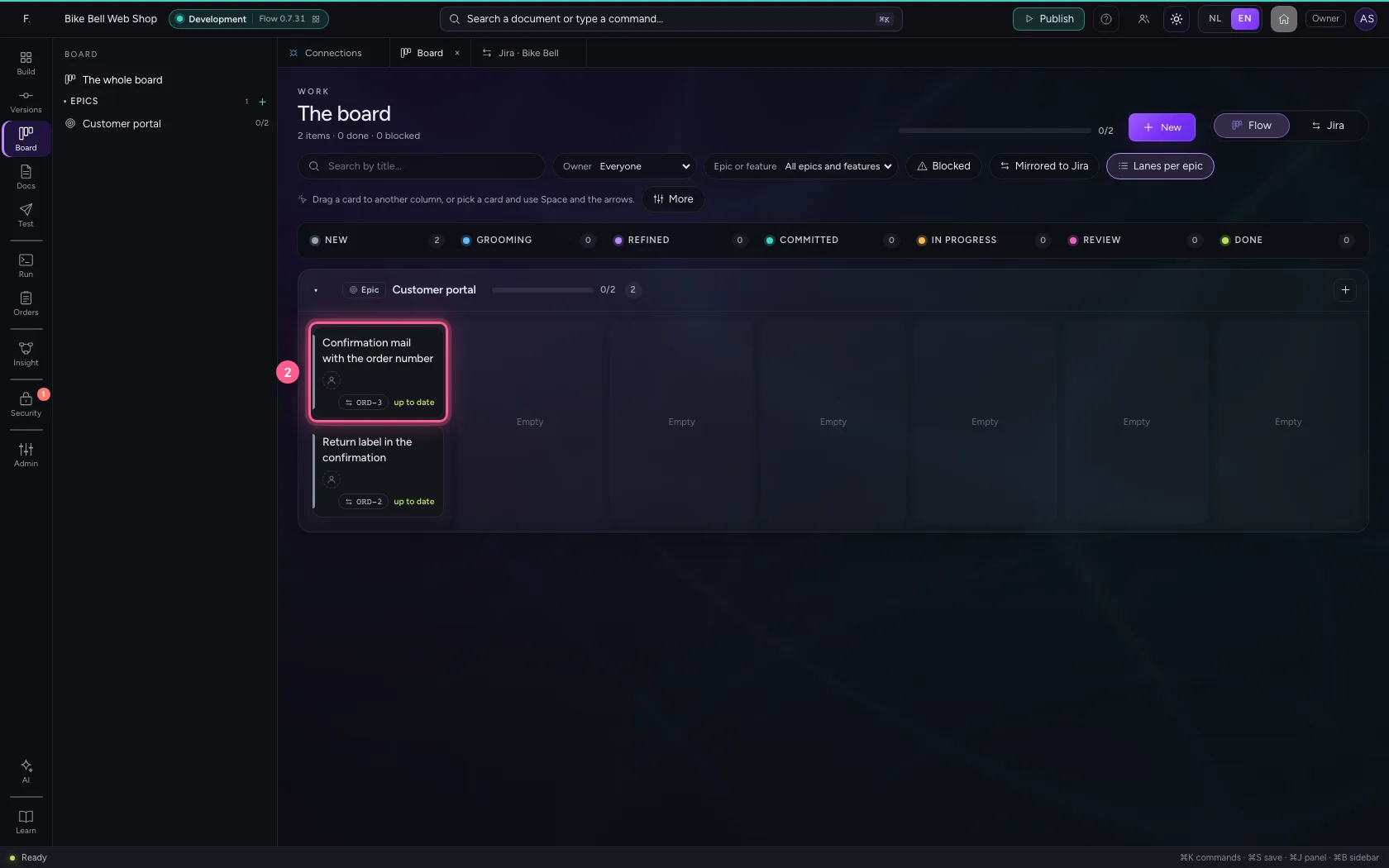
- Click Properties
Bringing a story over from Jira to Flow
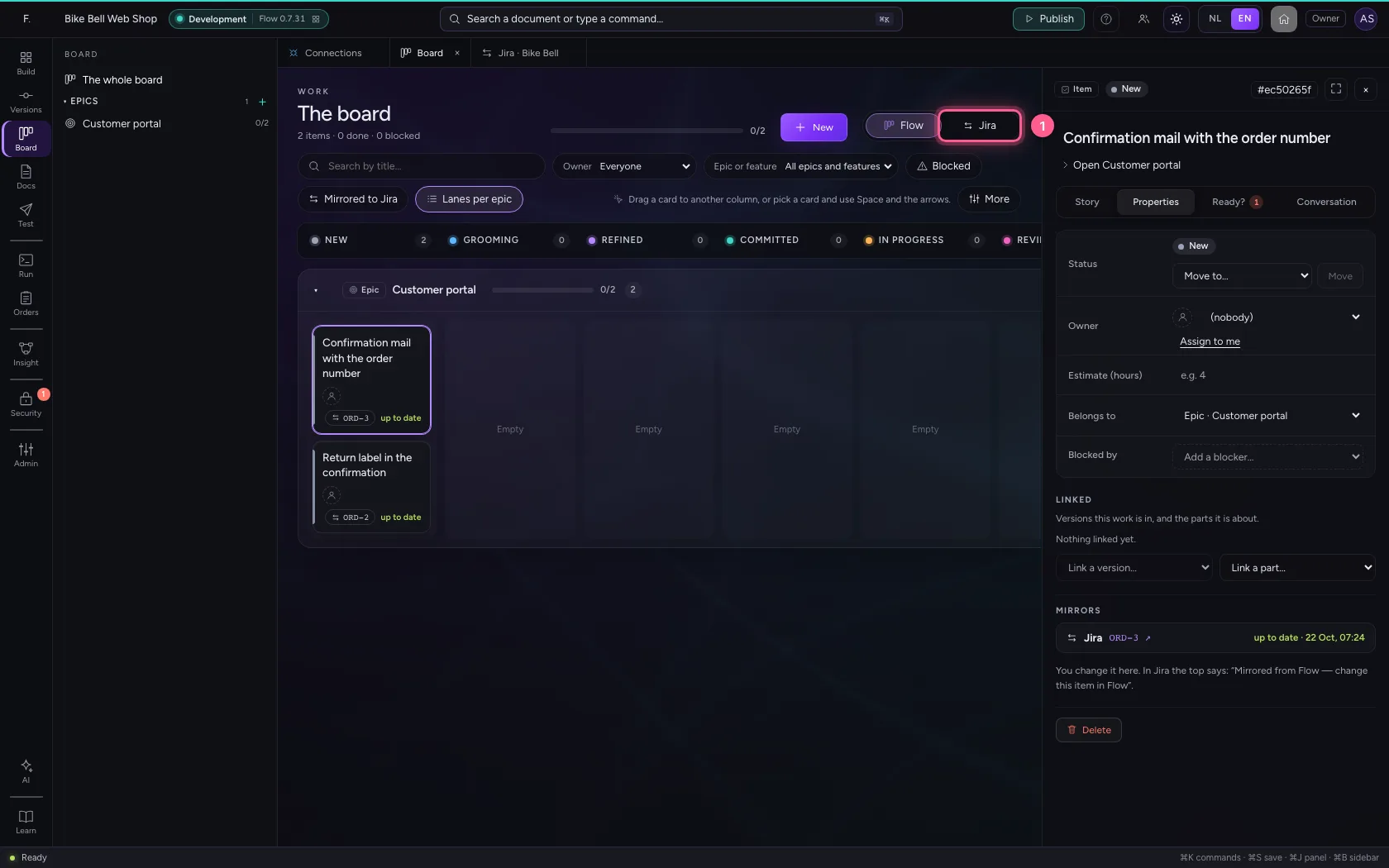
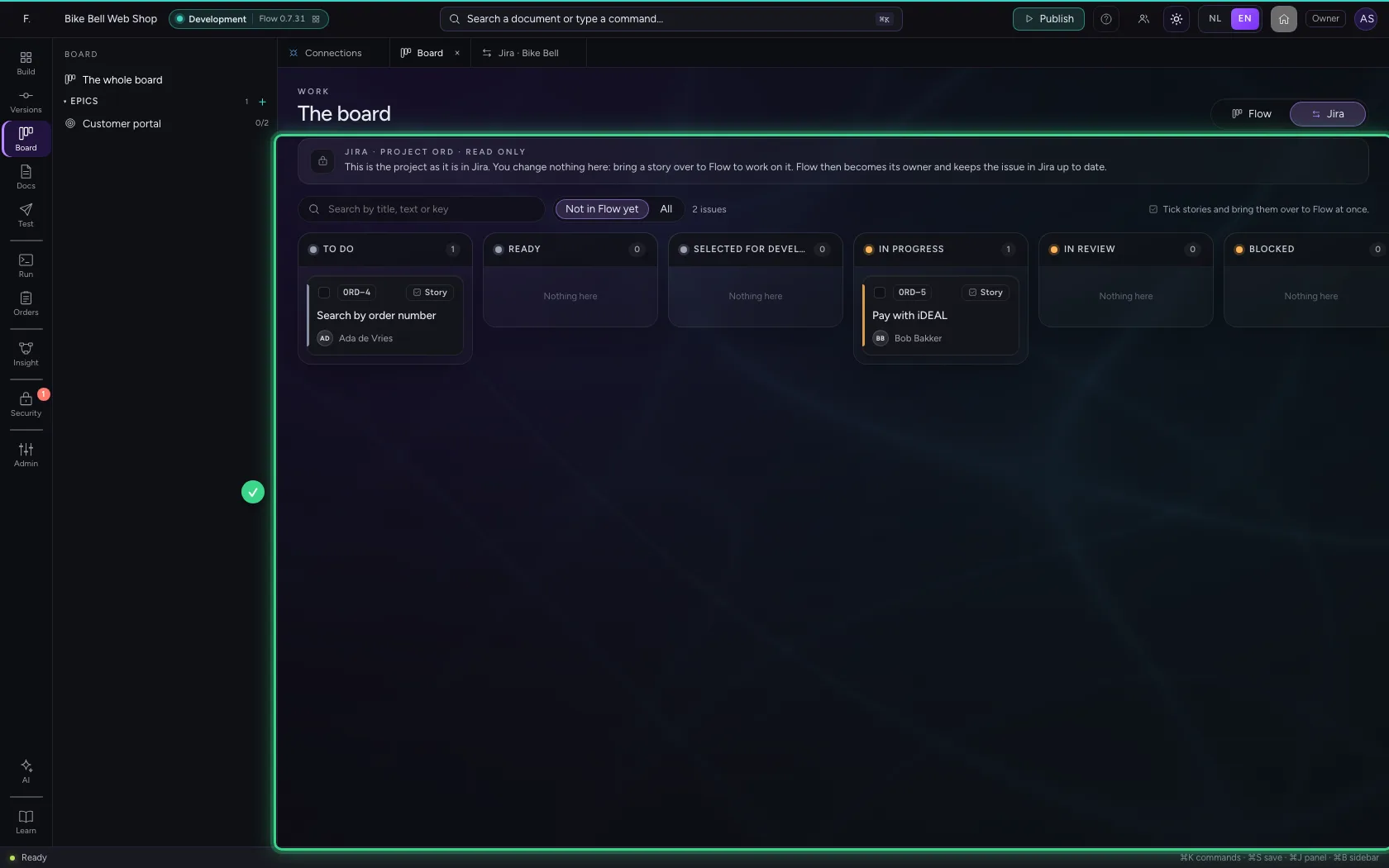
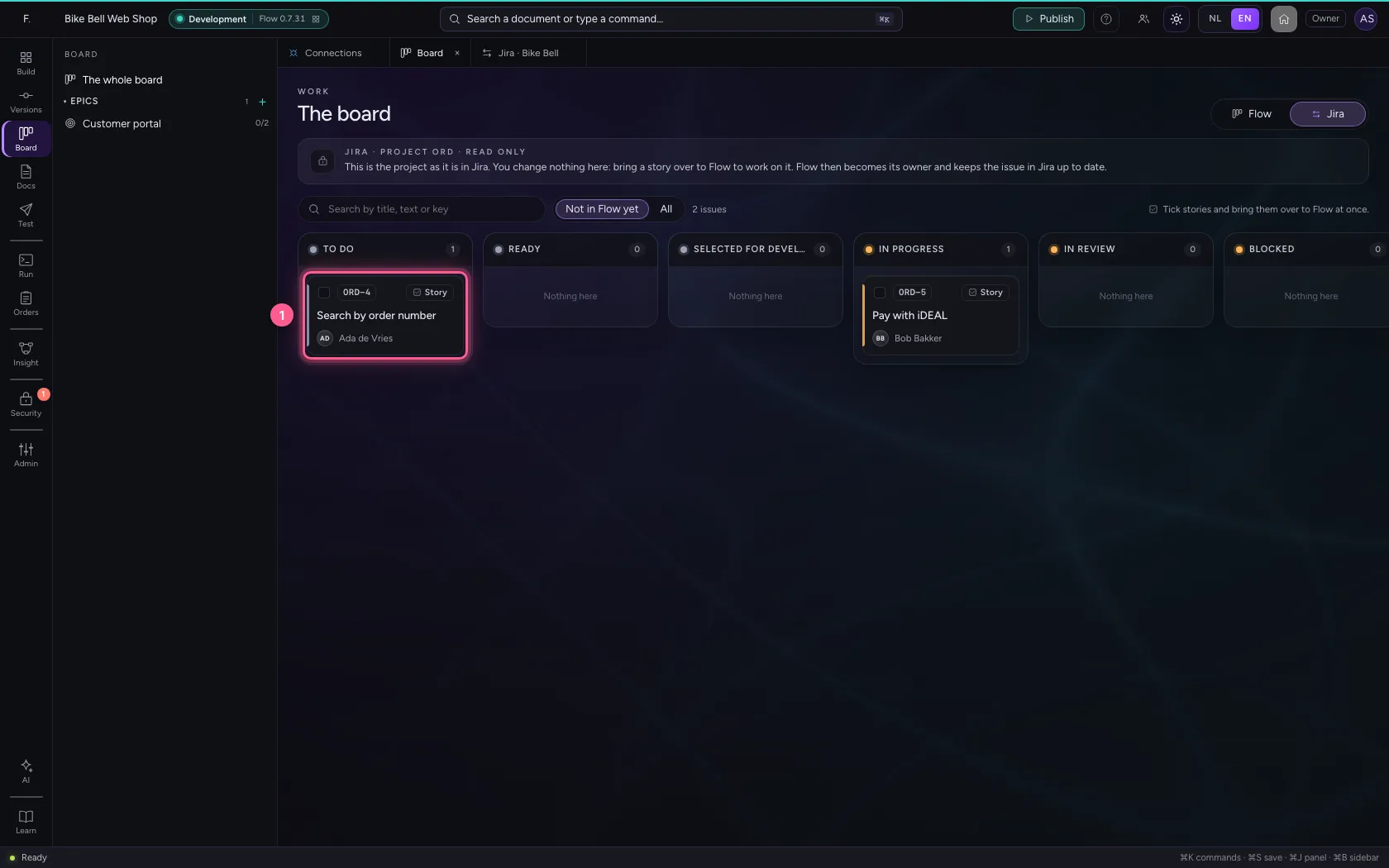
At the top of the Board it now says Flow | Jira. Click Jira: you see the project as it is in Jira, with the workflow's columns, read only. By default Flow shows the stories that are not in Flow yet; All shows the rest too, marked In Flow. Flow remembers which tab you chose.
- Click Jira
Read the story
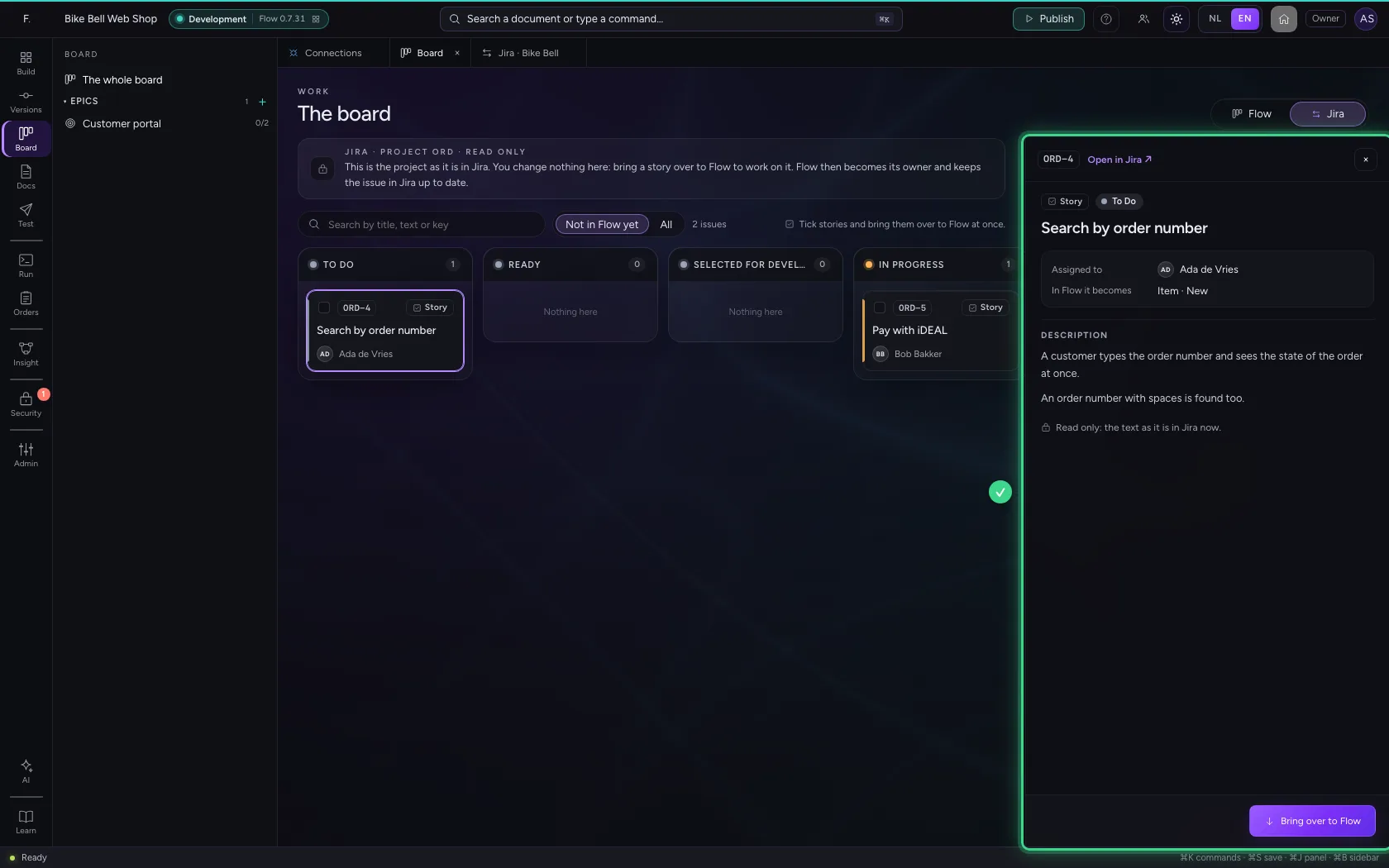
Click a card. On the right is the text as it is in Jira, who has it, what it becomes in Flow and a link Open in Jira. For an epic you choose whether the stories under it come along. To bring several at once, tick the cards and click the button at the bottom to bring them over.
- Click Search by order number
Bring it over to Flow: Flow becomes the owner
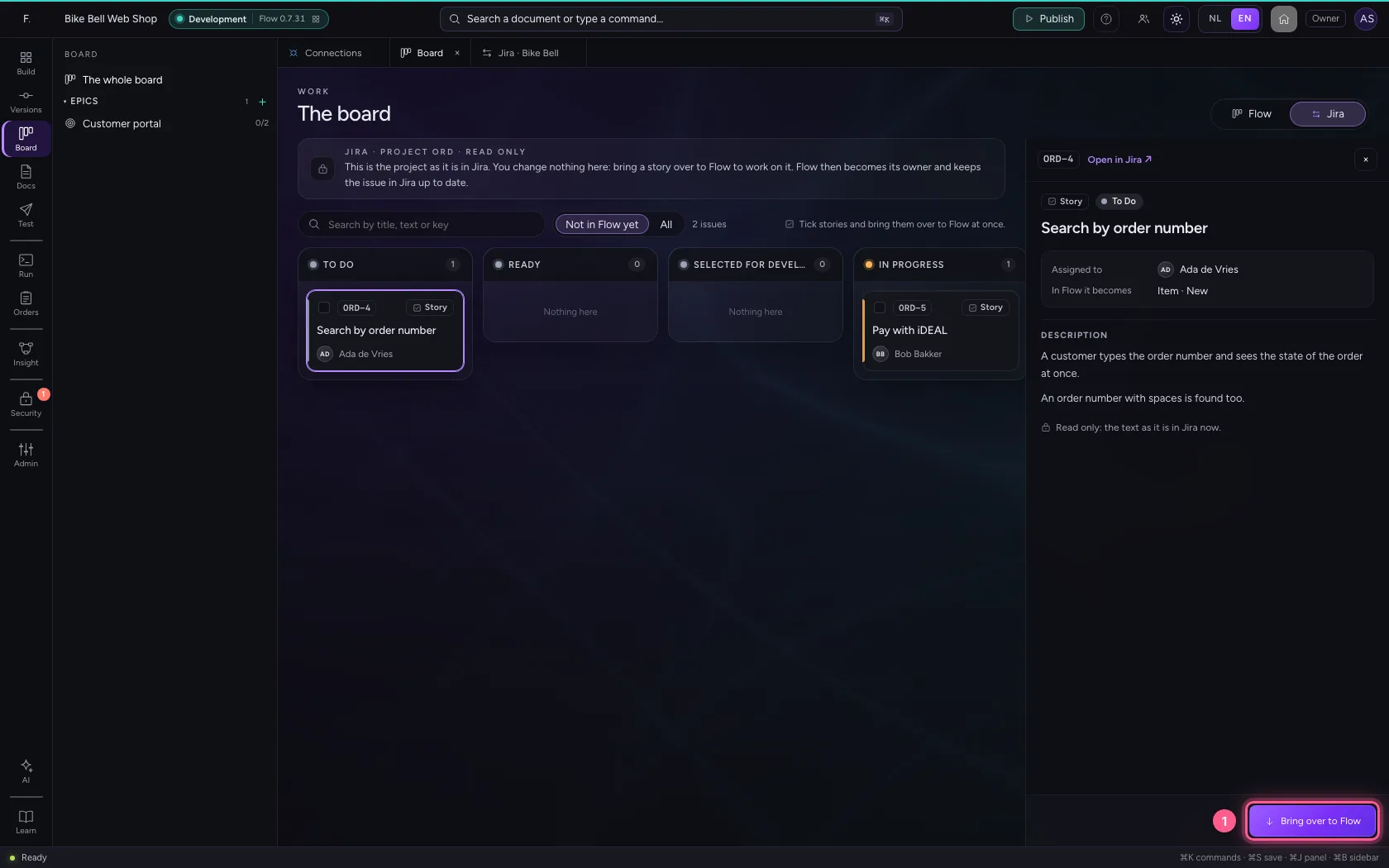
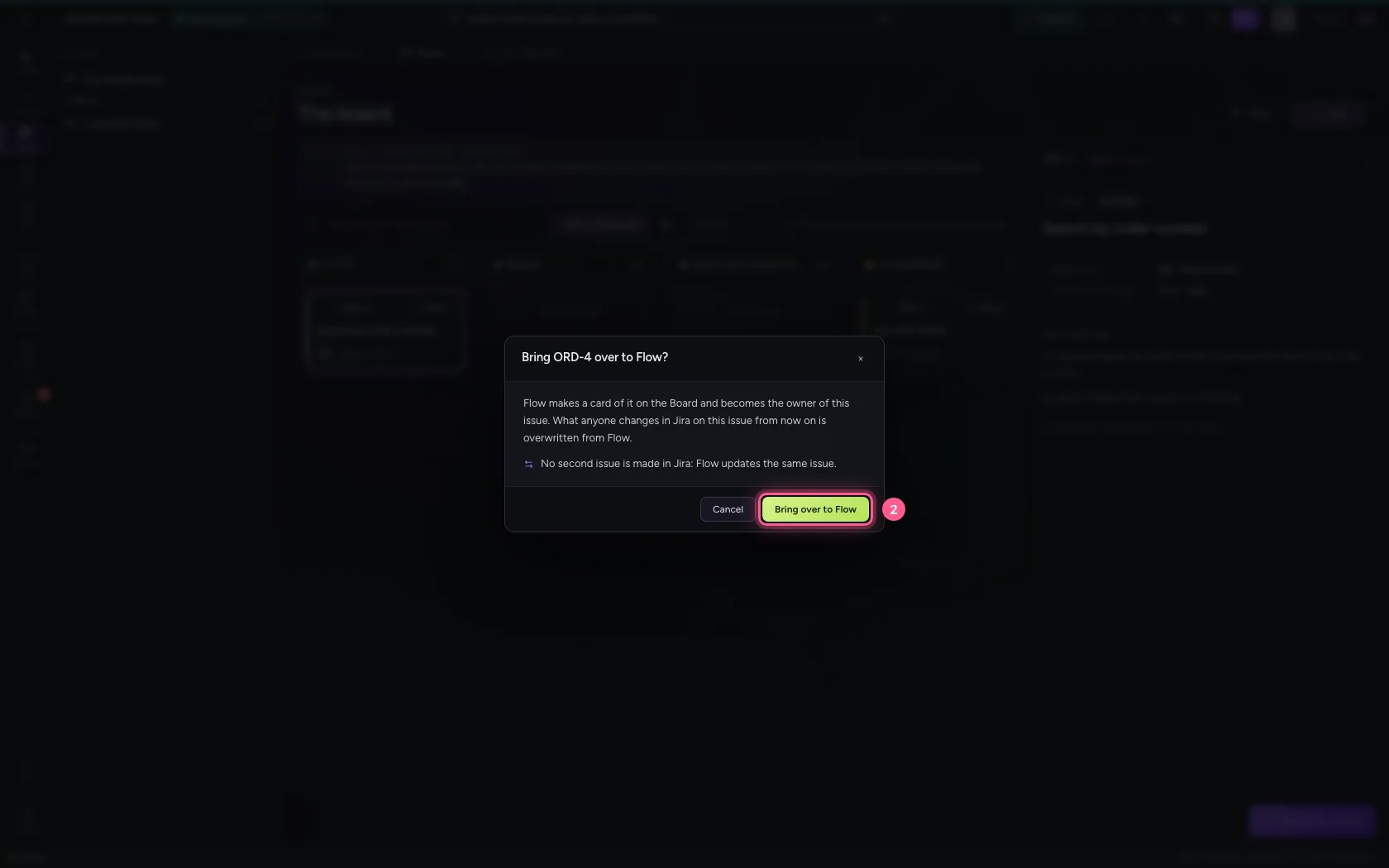
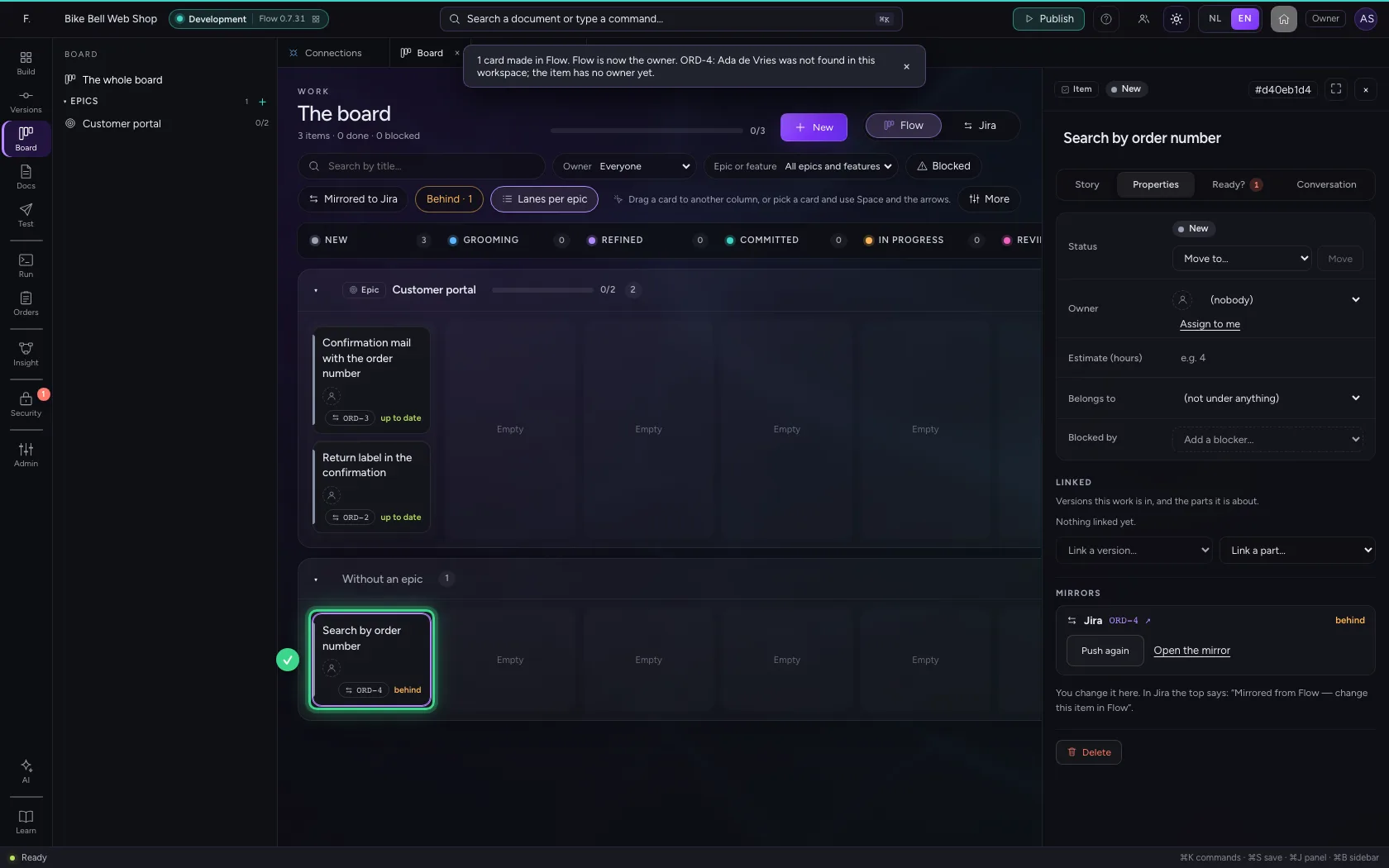
Click Bring over to Flow. Flow first says what changes: Flow makes a card of it and becomes the owner of the issue. What anyone changes in Jira on this issue afterwards is overwritten from Flow. No second issue is made: Flow updates the same issue, with Mirrored from Flow at the top. After confirming you are back on the Board, with the new card open.
- Click Bring over to Flow
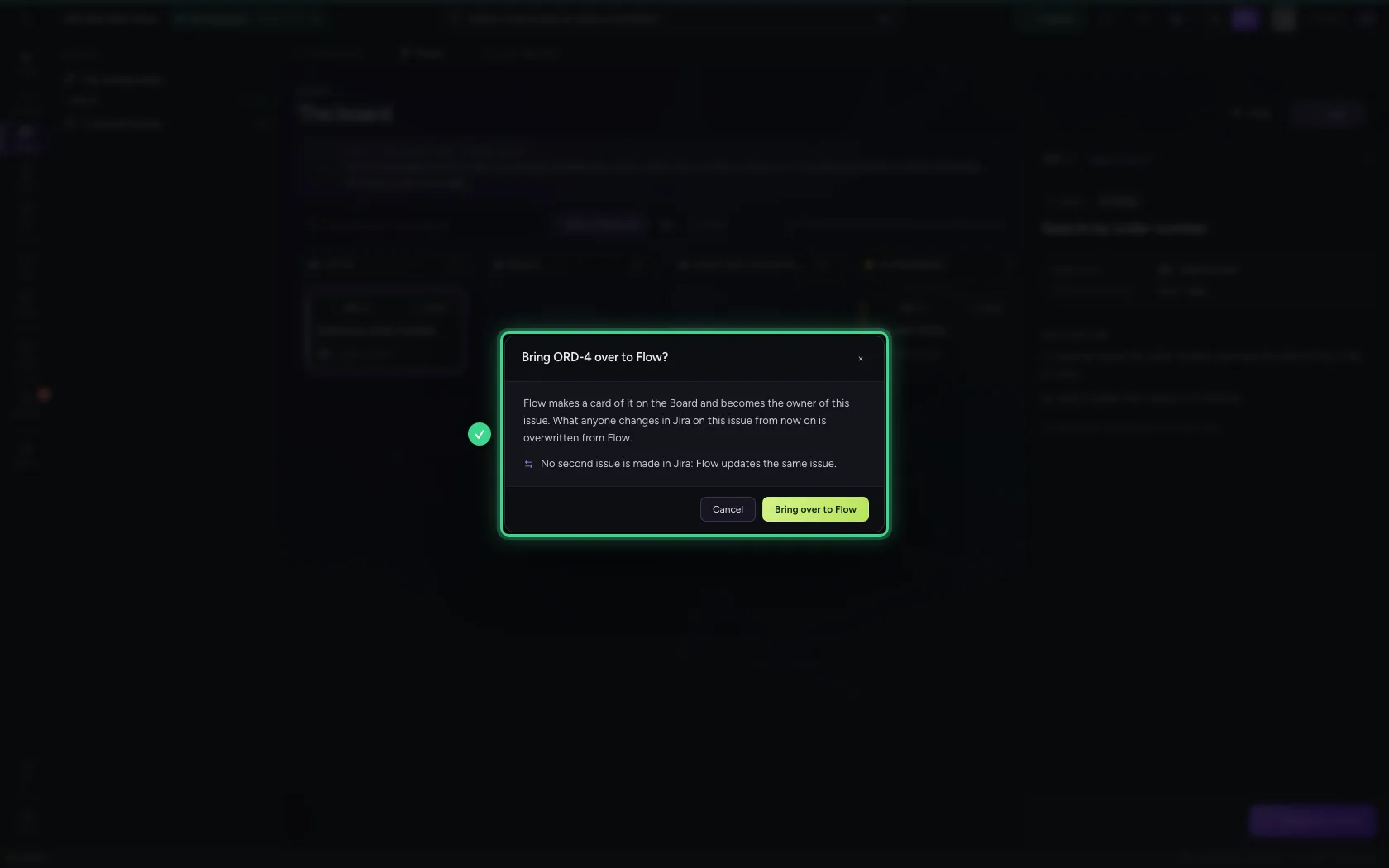
- Click Bring over to Flow
This guide was carried out step by step on 22 Oct 2026 by an automated test on Flow (version 3e563176).