Building block: HTTP call
An HTTP call is a building block that calls one API, for example the order status at a supplier. You make it once, test it and publish it; after that workflows use it as a step and agents as a tool. The API's key lives in a connection: the server adds it, the building block and the agent never see it.
Open your development environment
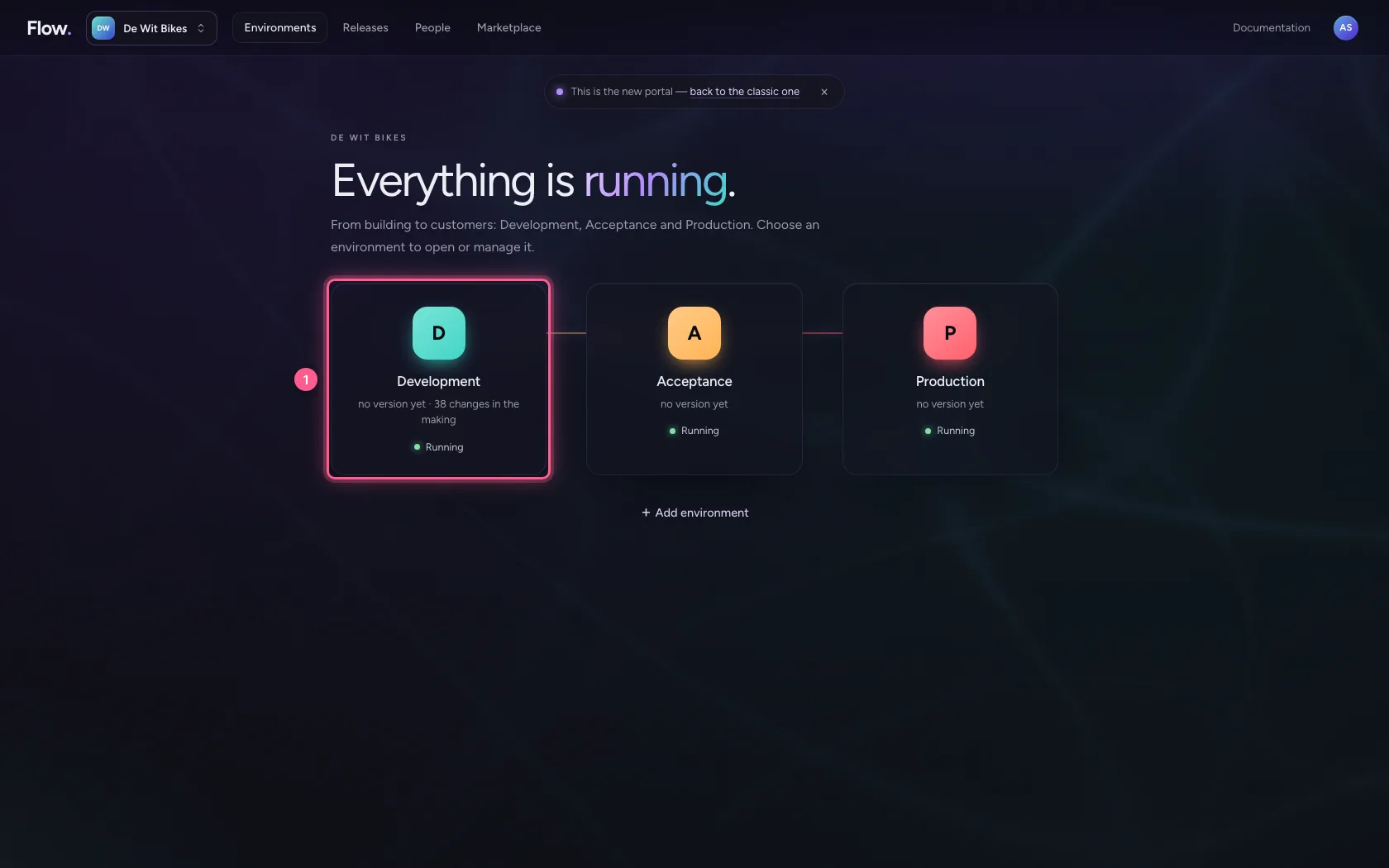
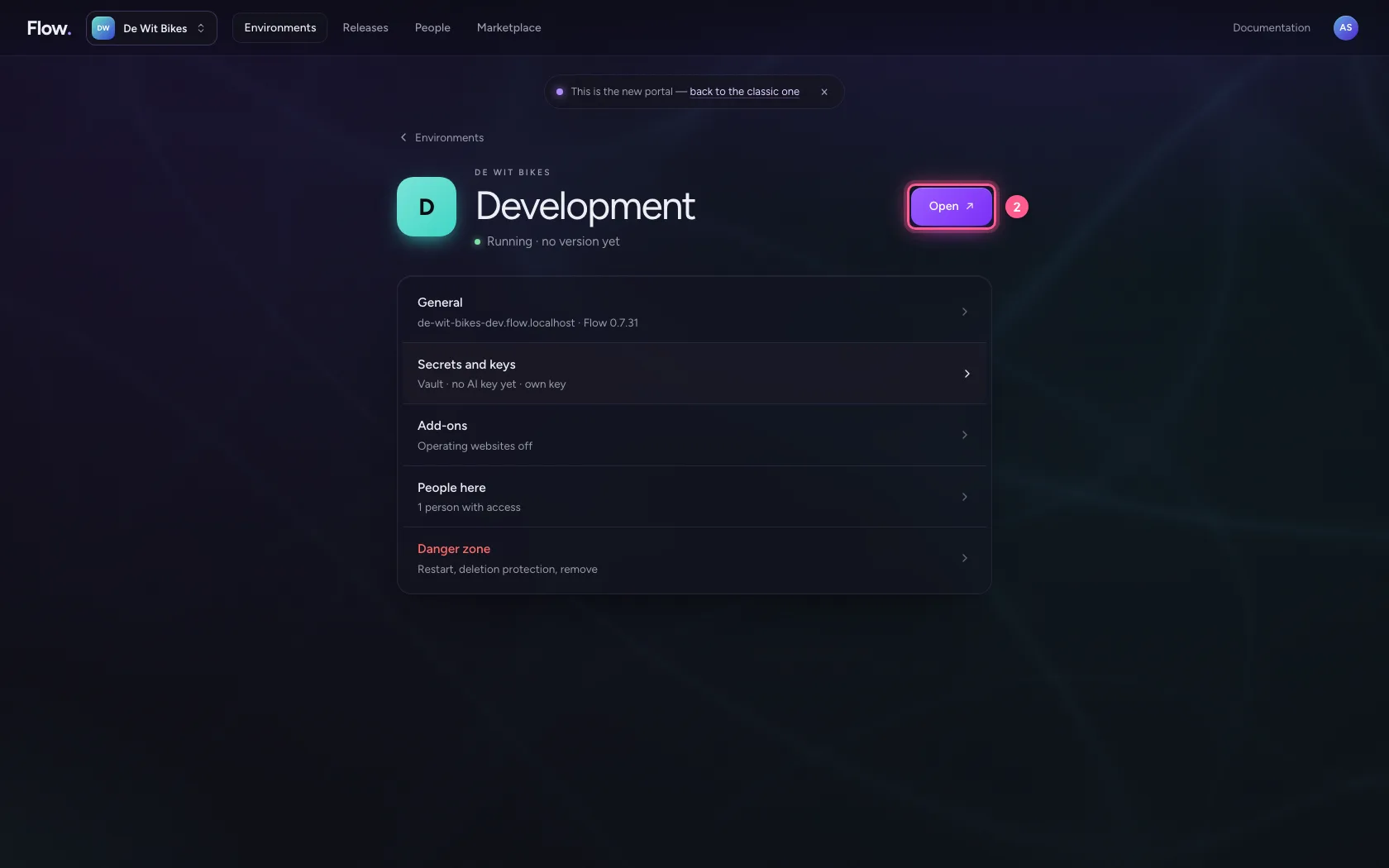
In the portal, under Environments, click Development, and there Open. Flow opens in a new tab and you are signed in straight away.
- Click Development
- Click Open ↗
Create an HTTP call
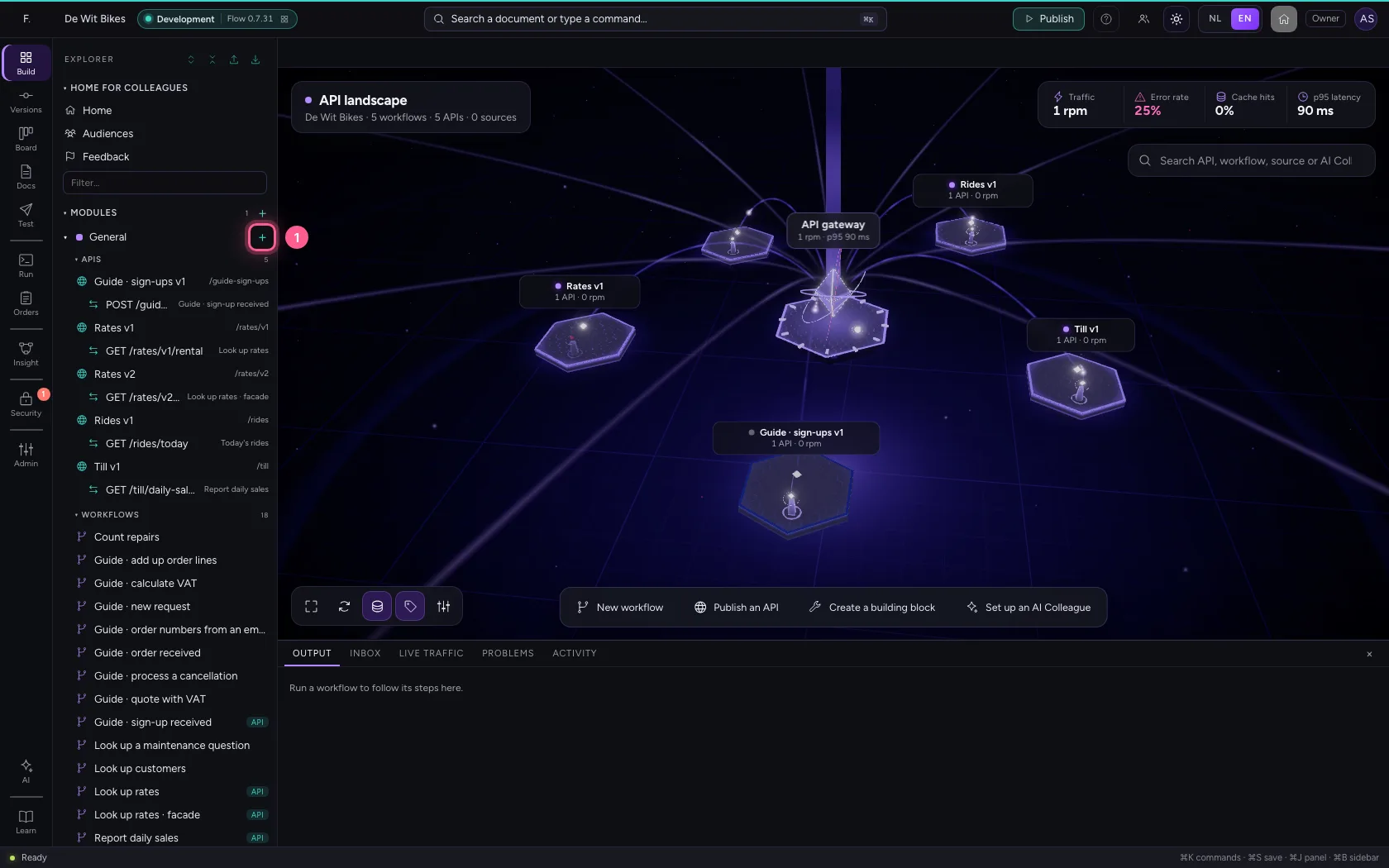
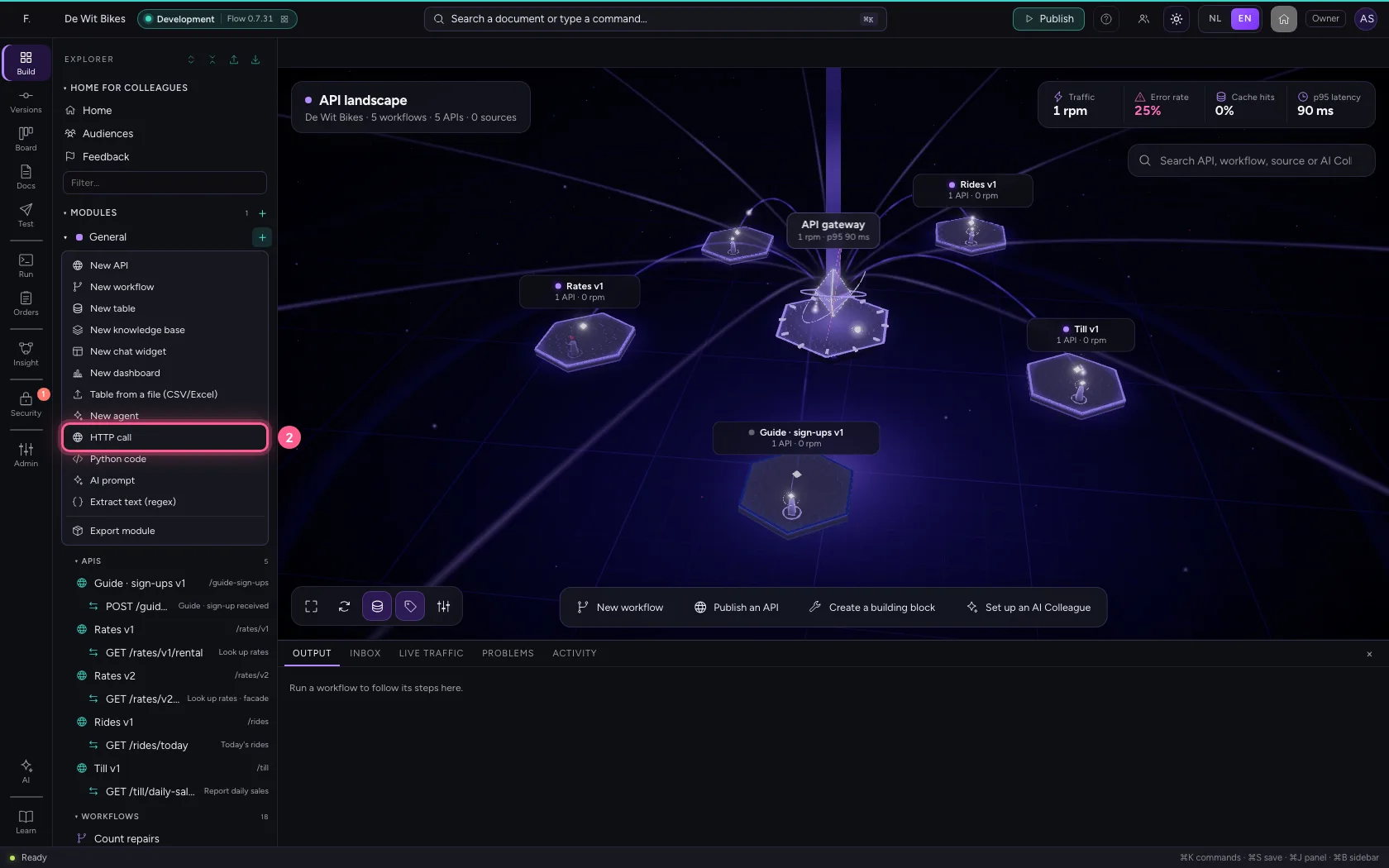
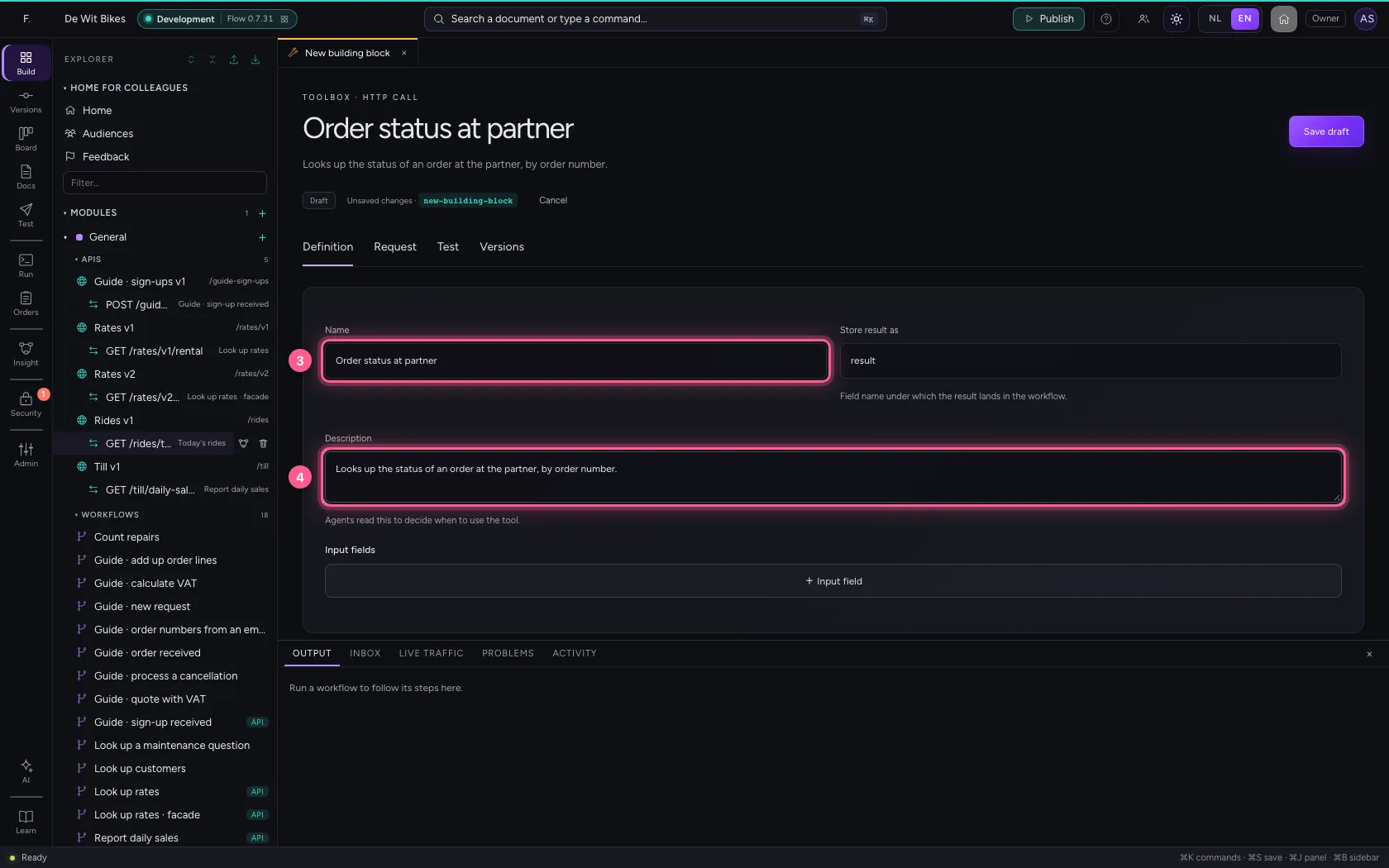
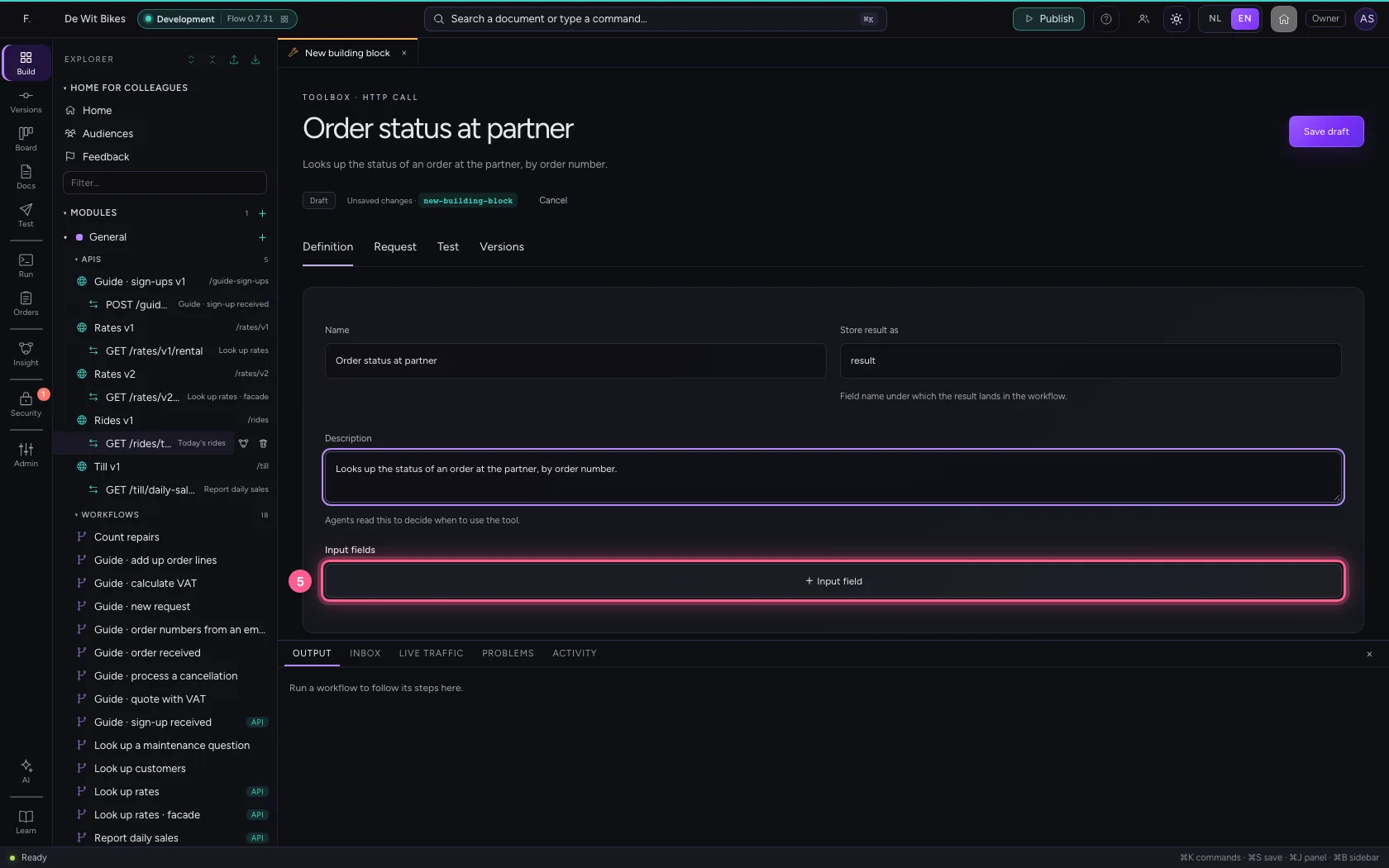
Click + next to General and choose HTTP call. Under Definition, give it a name and a description: an agent reads that description to decide when to use the tool. Add an input field for the order number.
- Click Add to General
- Click HTTP call
- In Name, type
Order status at partner - In Description, type
Looks up the status of an order at the partner, by order number.
- Click + Input field
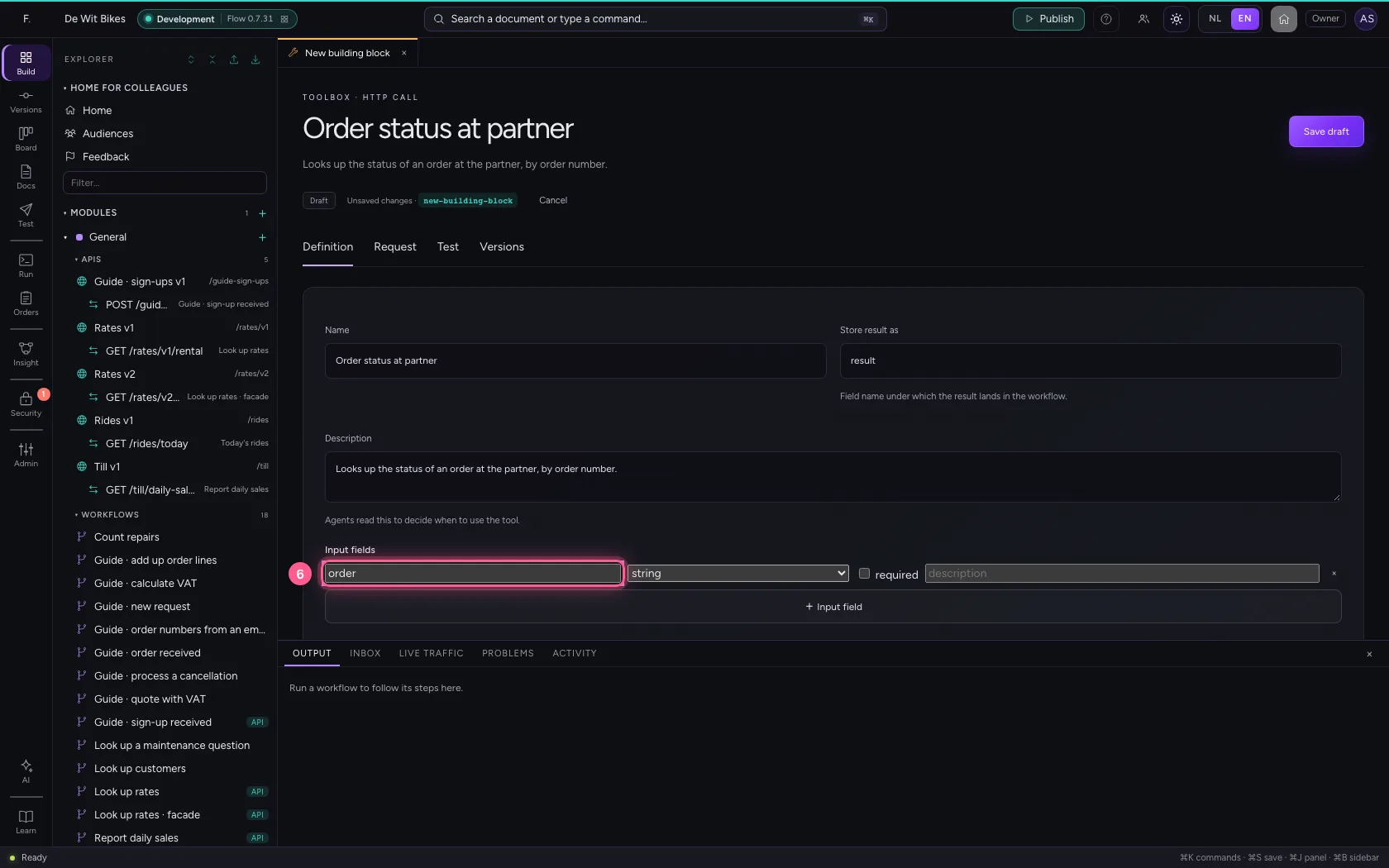
- In Name, type
order
Set up the call
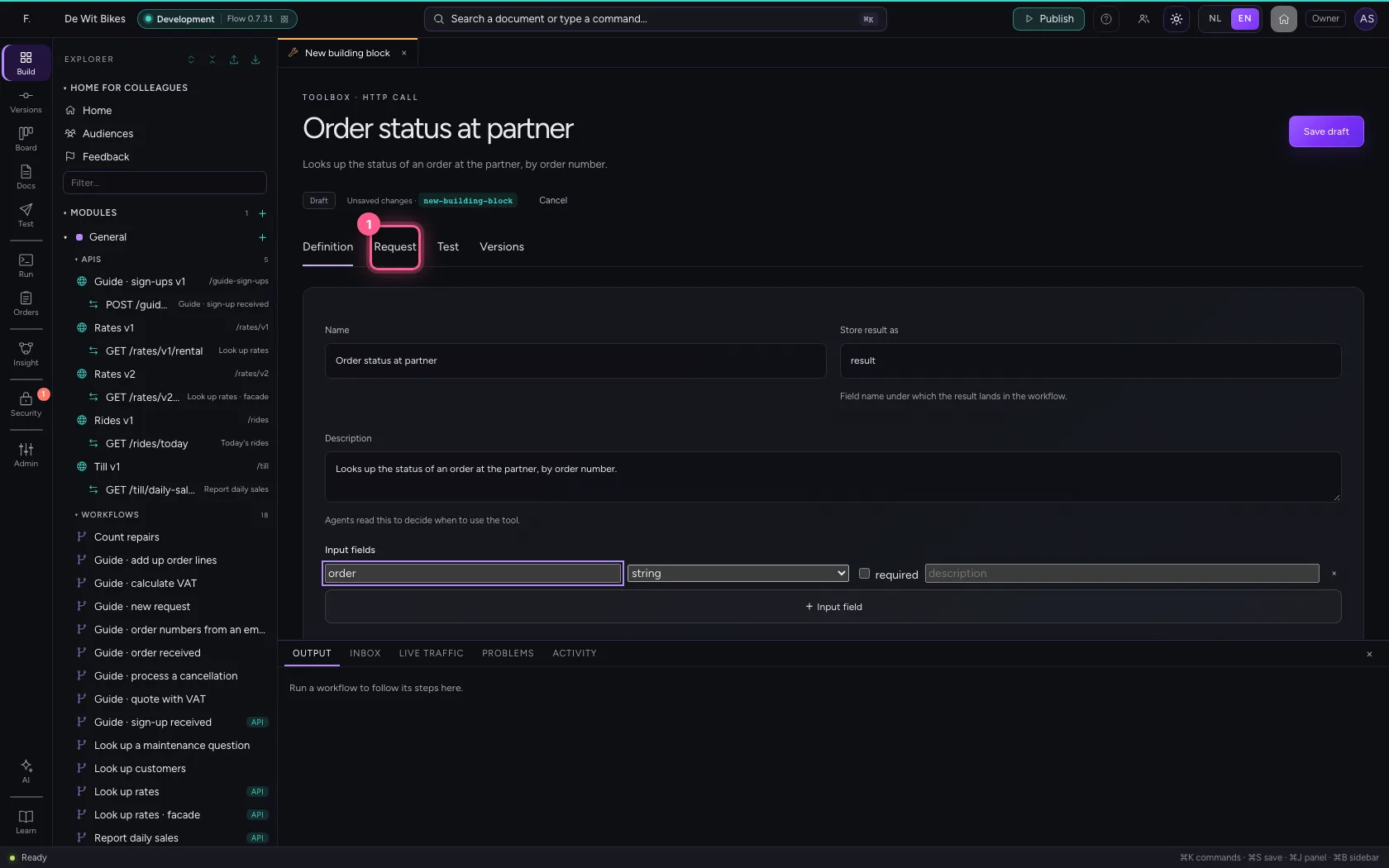
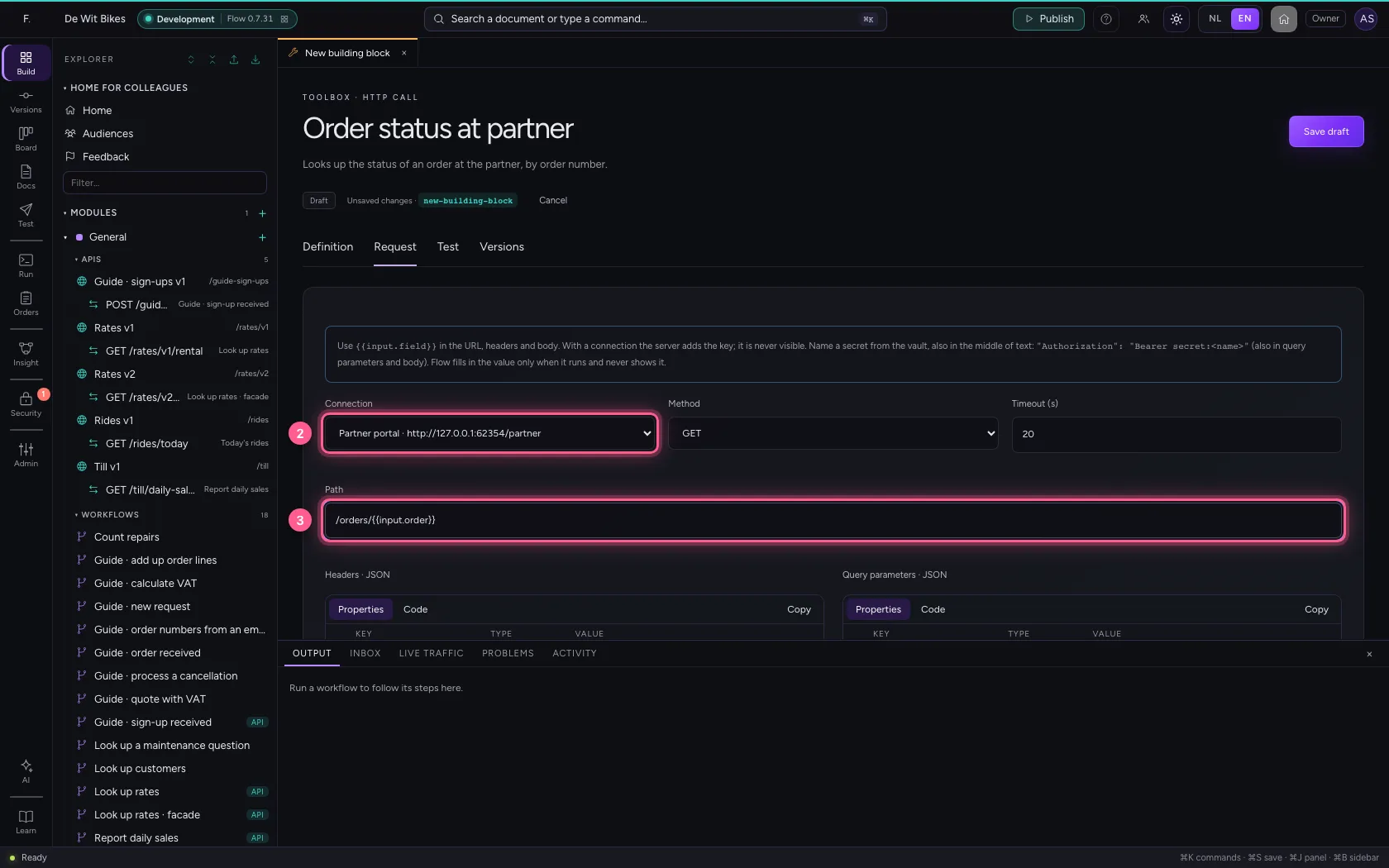
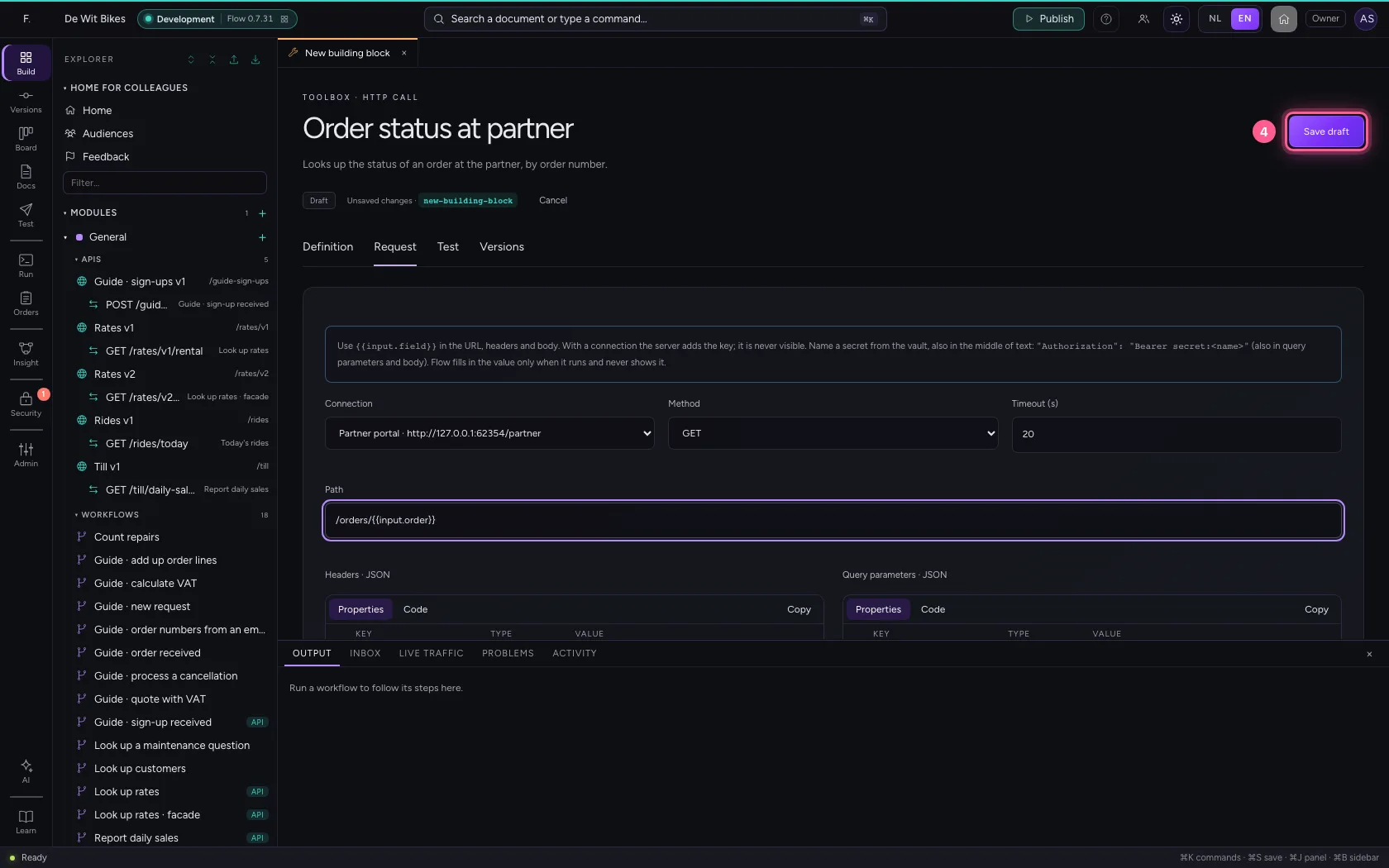
Under Request, choose the connection to the partner. The URL field then becomes the path after the connection's base address. {{input.order}} puts the order number from the input into the path. Save the draft.
- Click Request
- In Connection, choose Partner portal · http://127.0.0.1:62354/partner
- In Path, type
/orders/{{input.order}}
- Click Save draft
Test with an order number
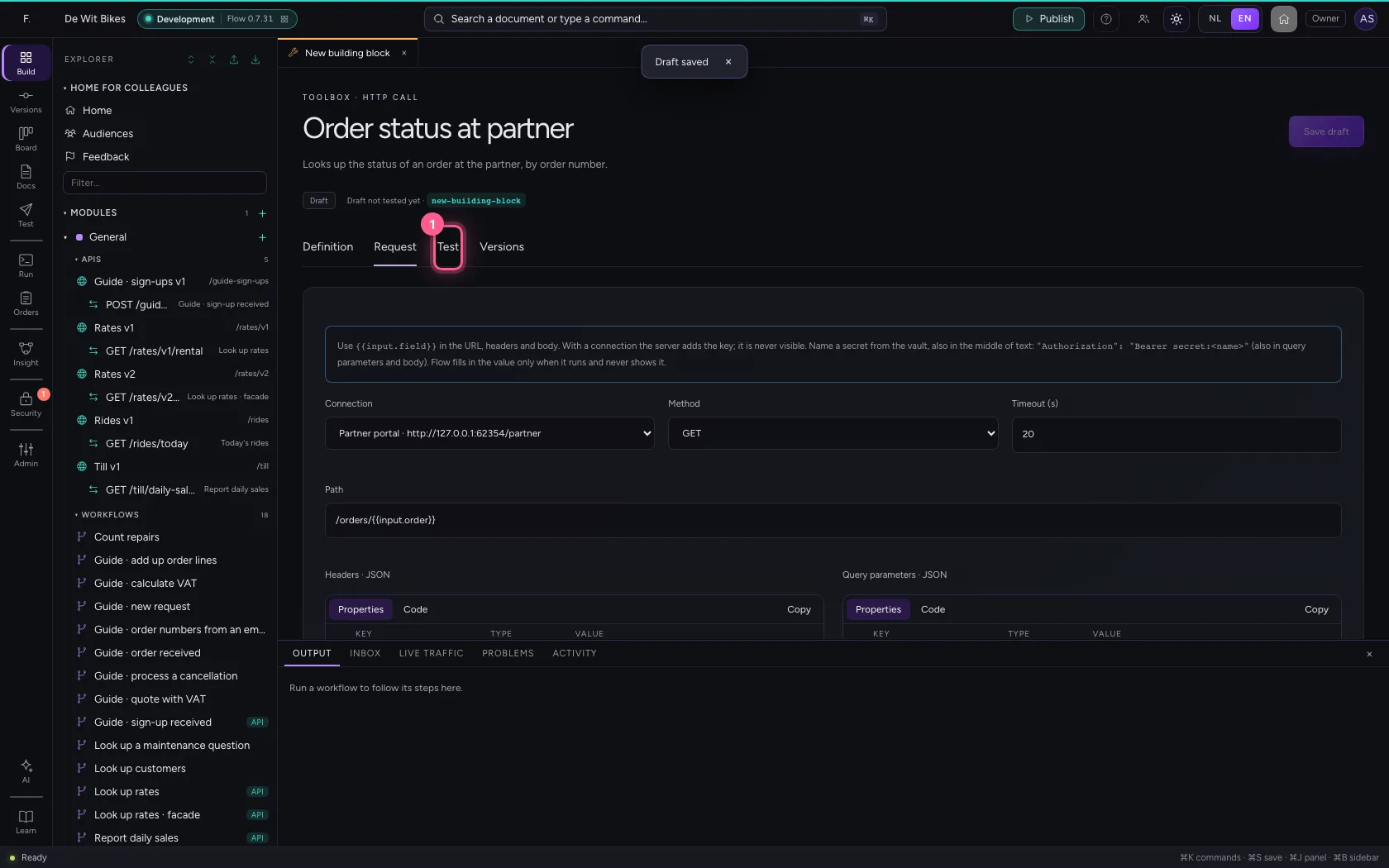
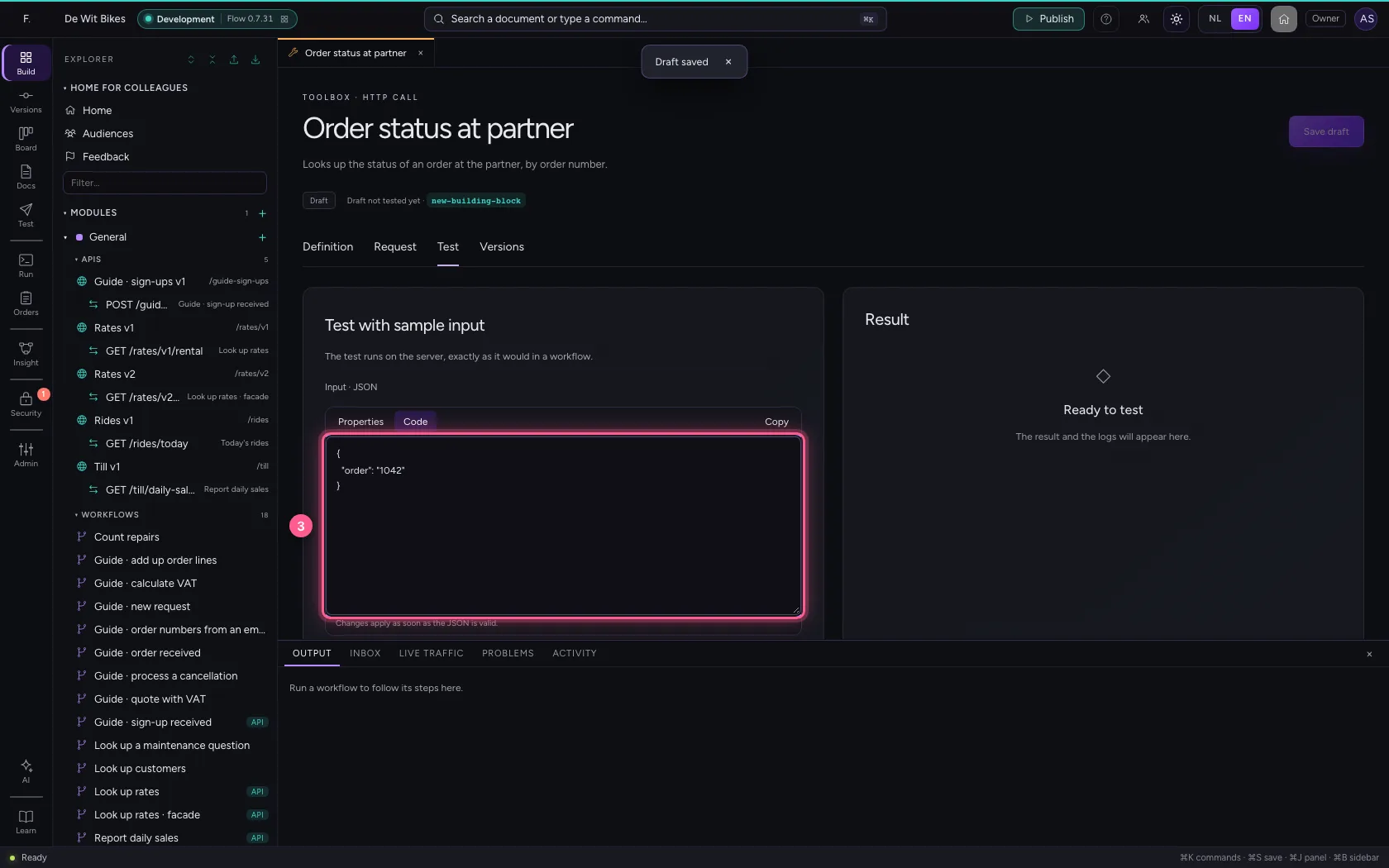
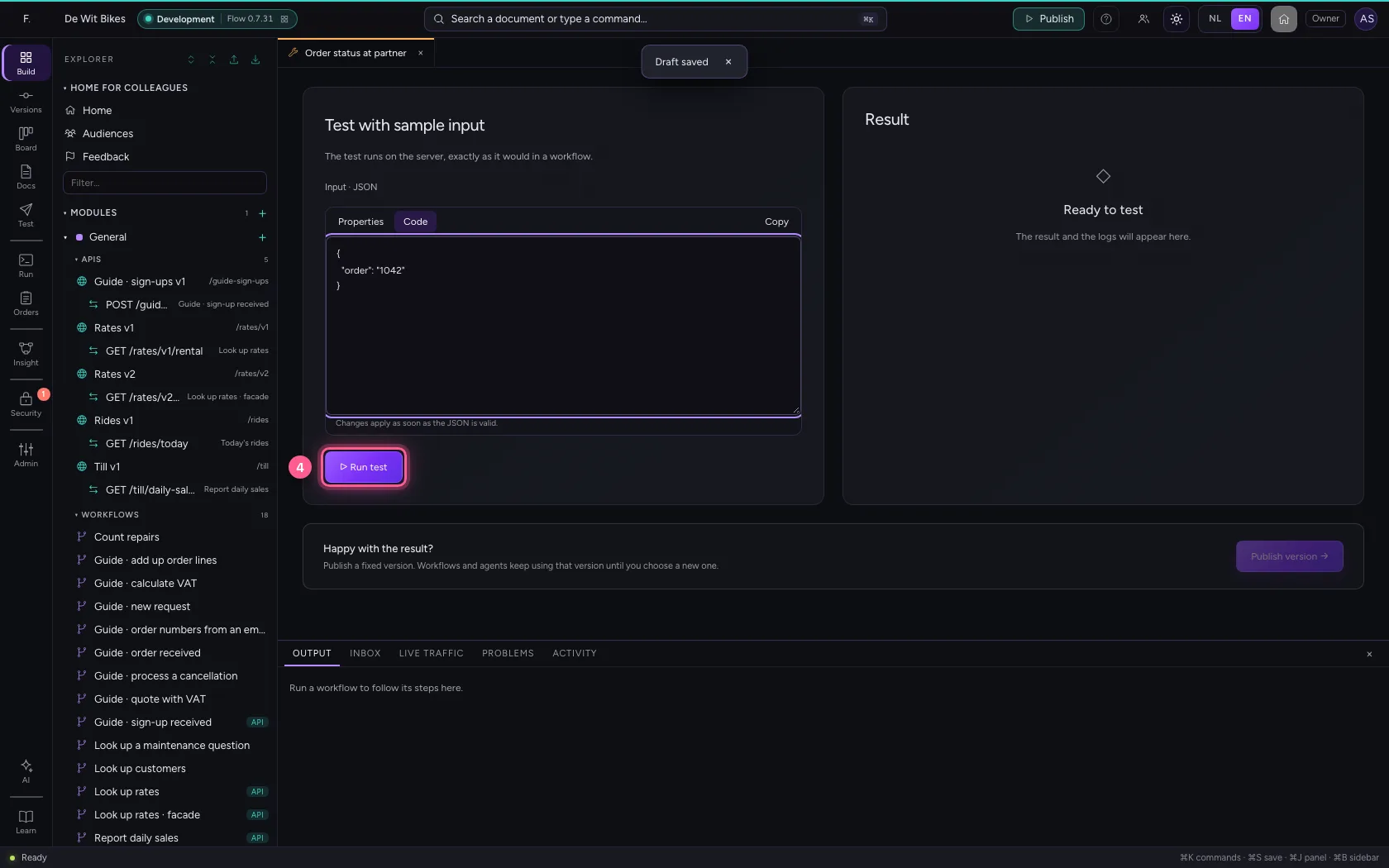
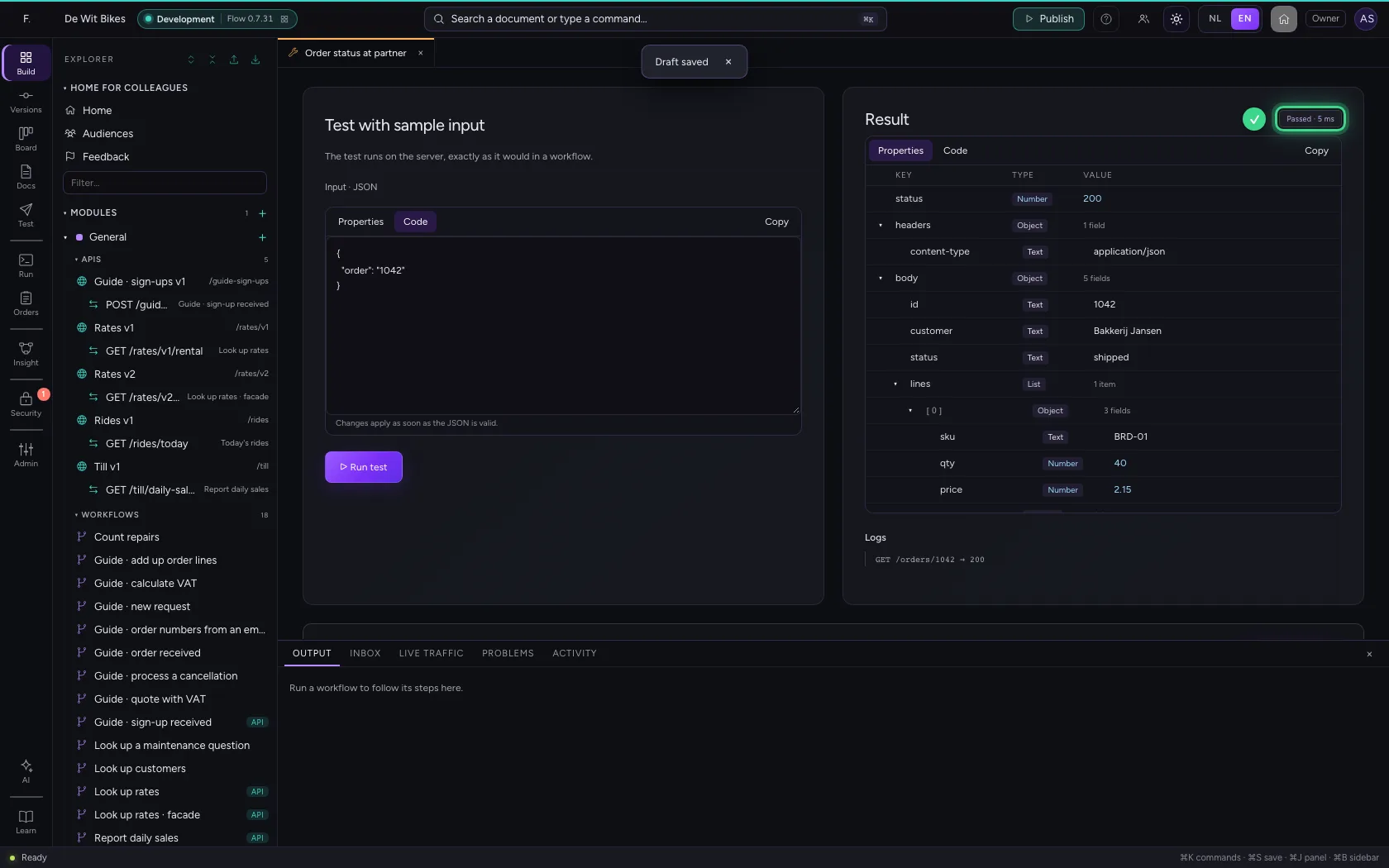
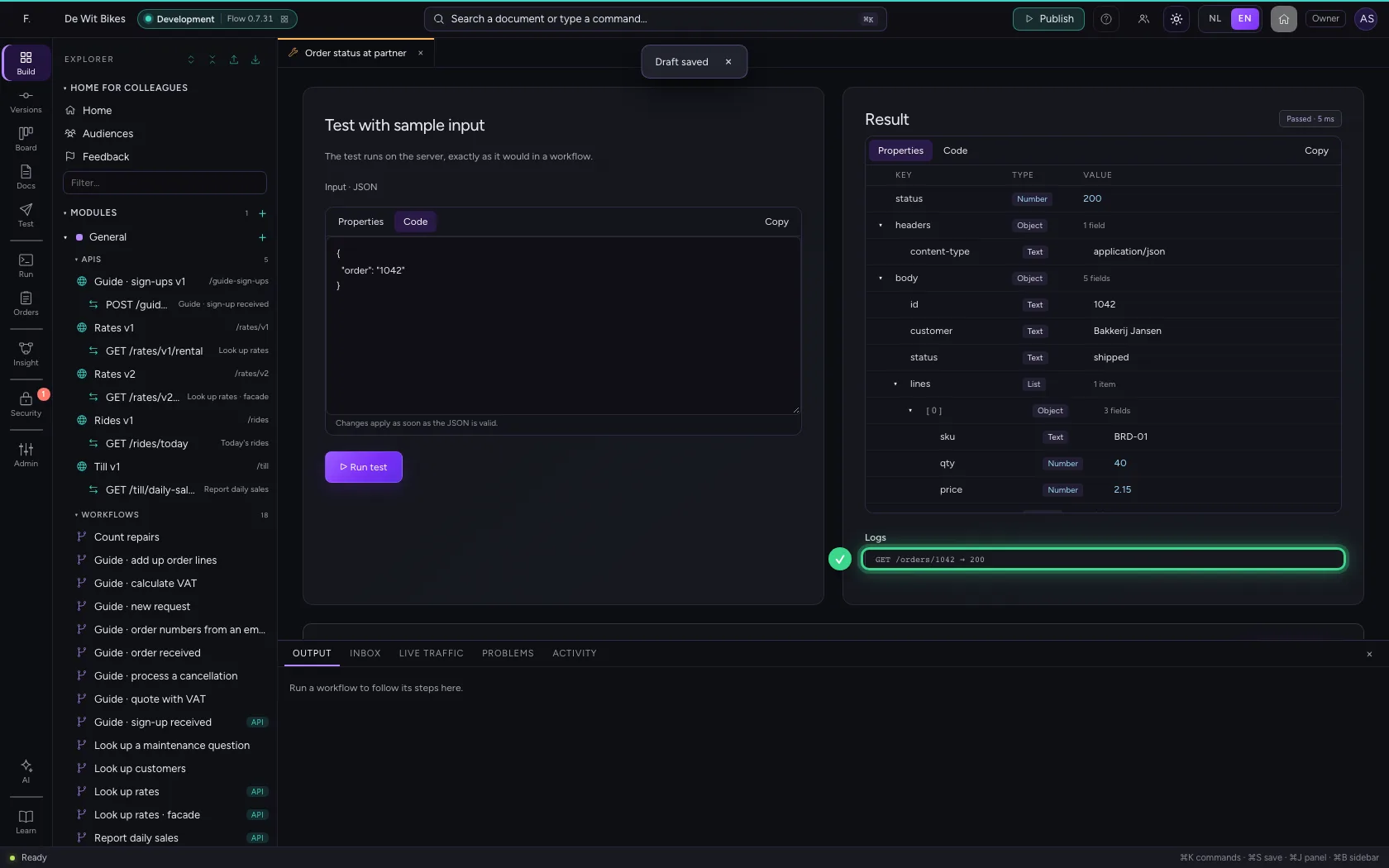
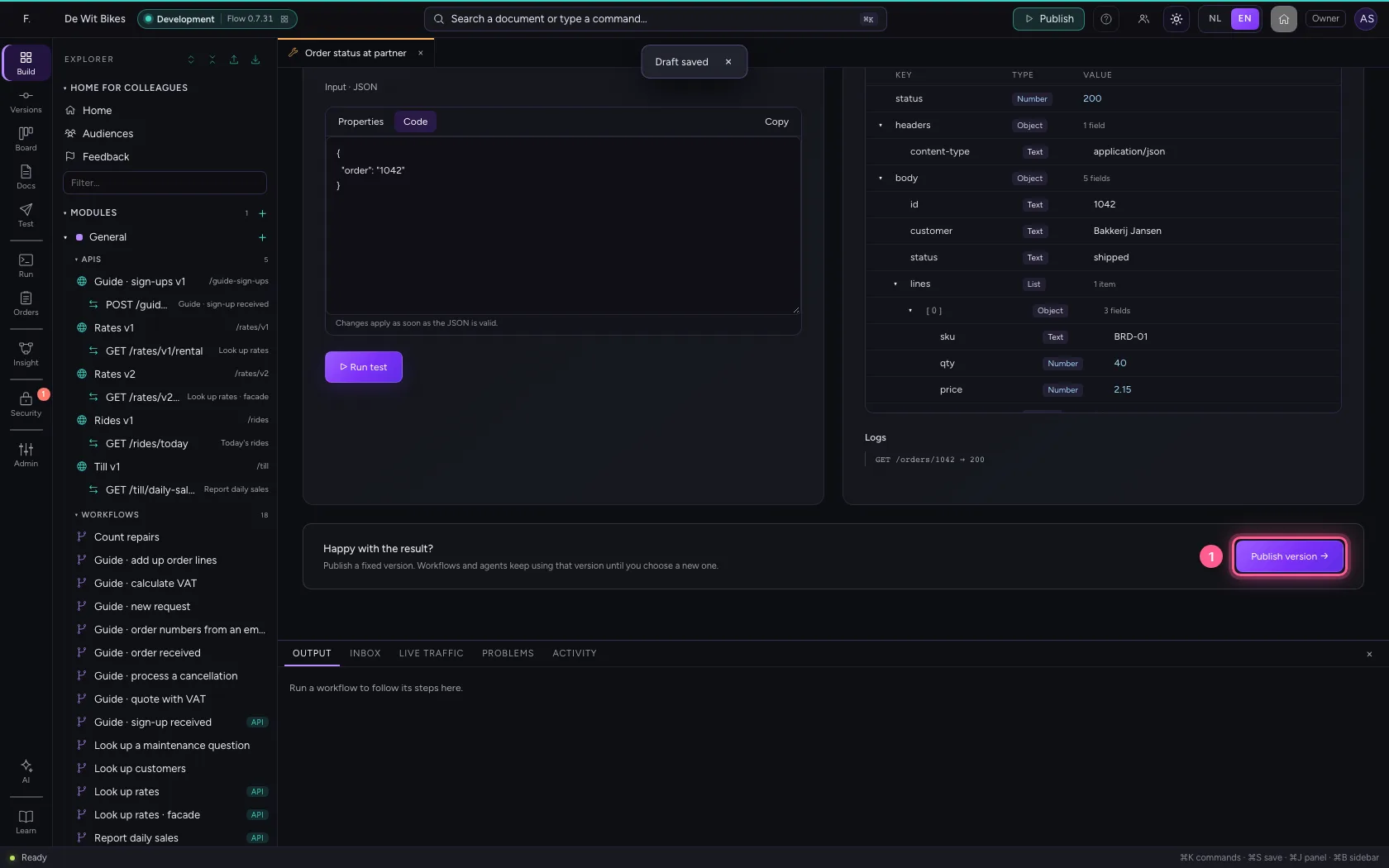
Under Test, give sample input and click Run test. The test really calls the API, exactly as a workflow or agent will later. You see the partner's answer, and in the logs the call with its status code.
- Click Test
- Click Code
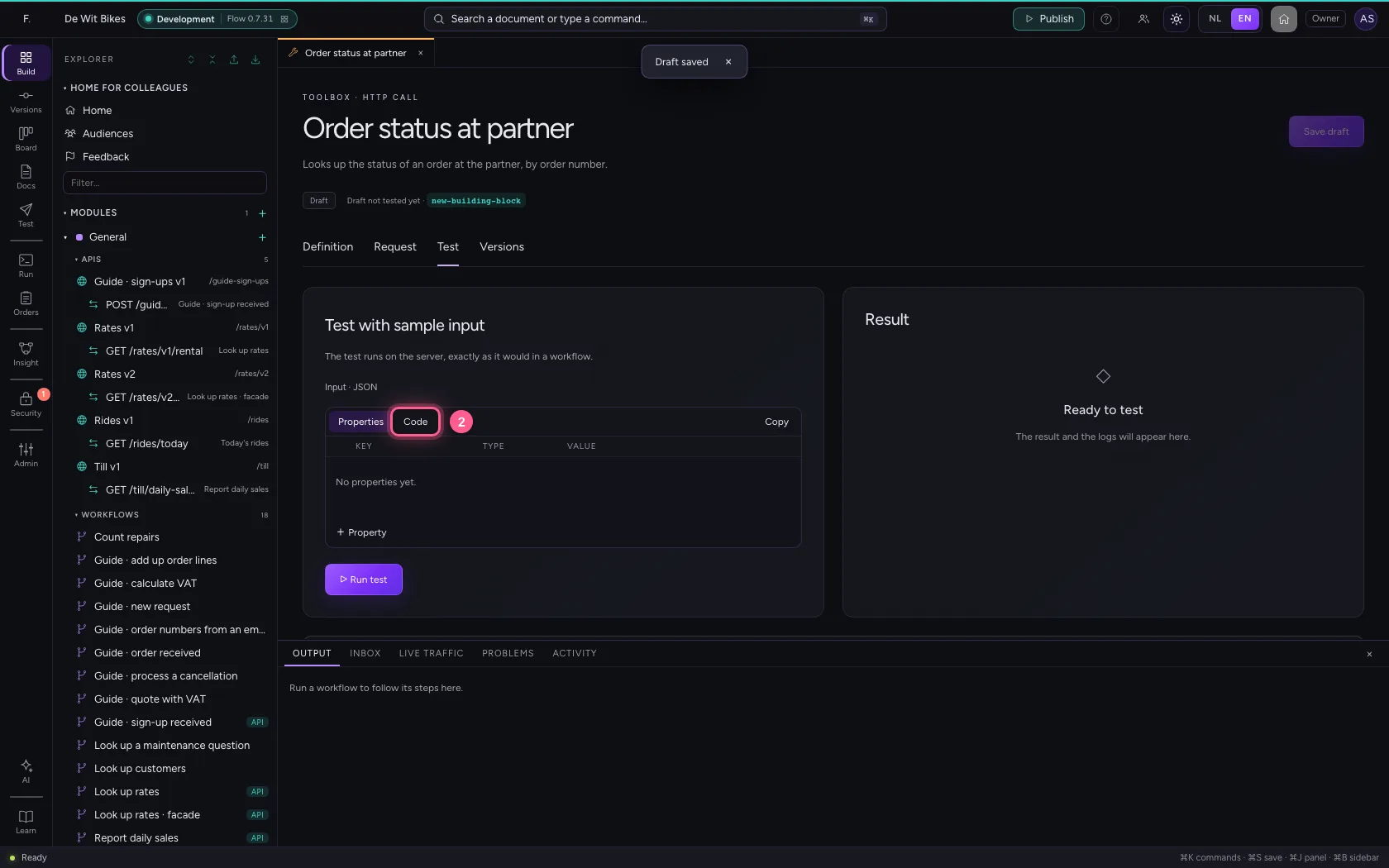
- In Input, type
{"order": "1042"}
- Click ▷ Run test
Publish a version
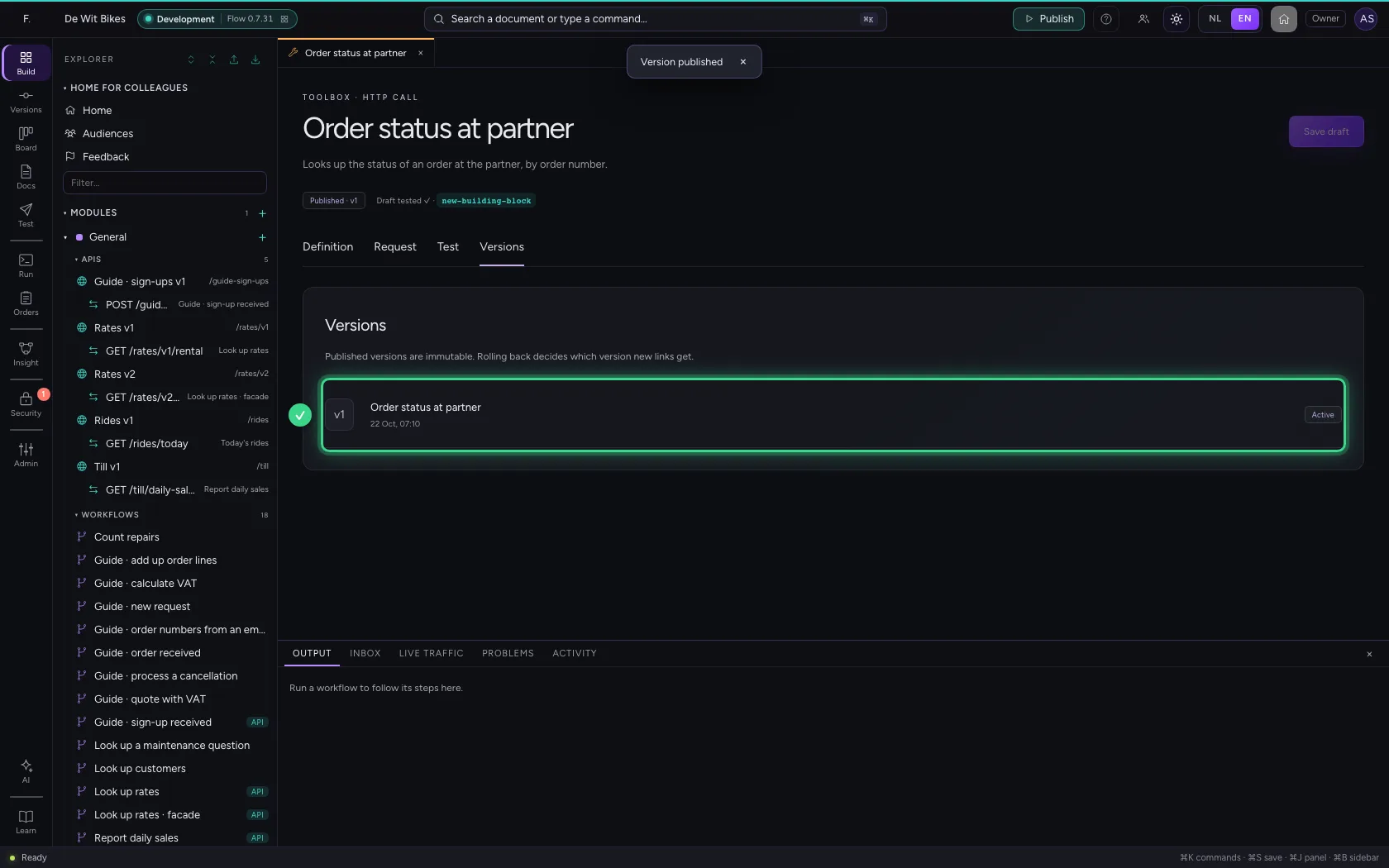
Happy? Publish a fixed version. Workflows and agents keep using that version until you choose a new one; what you change afterwards stays a draft.
- Click Publish version →
Give it to an agent
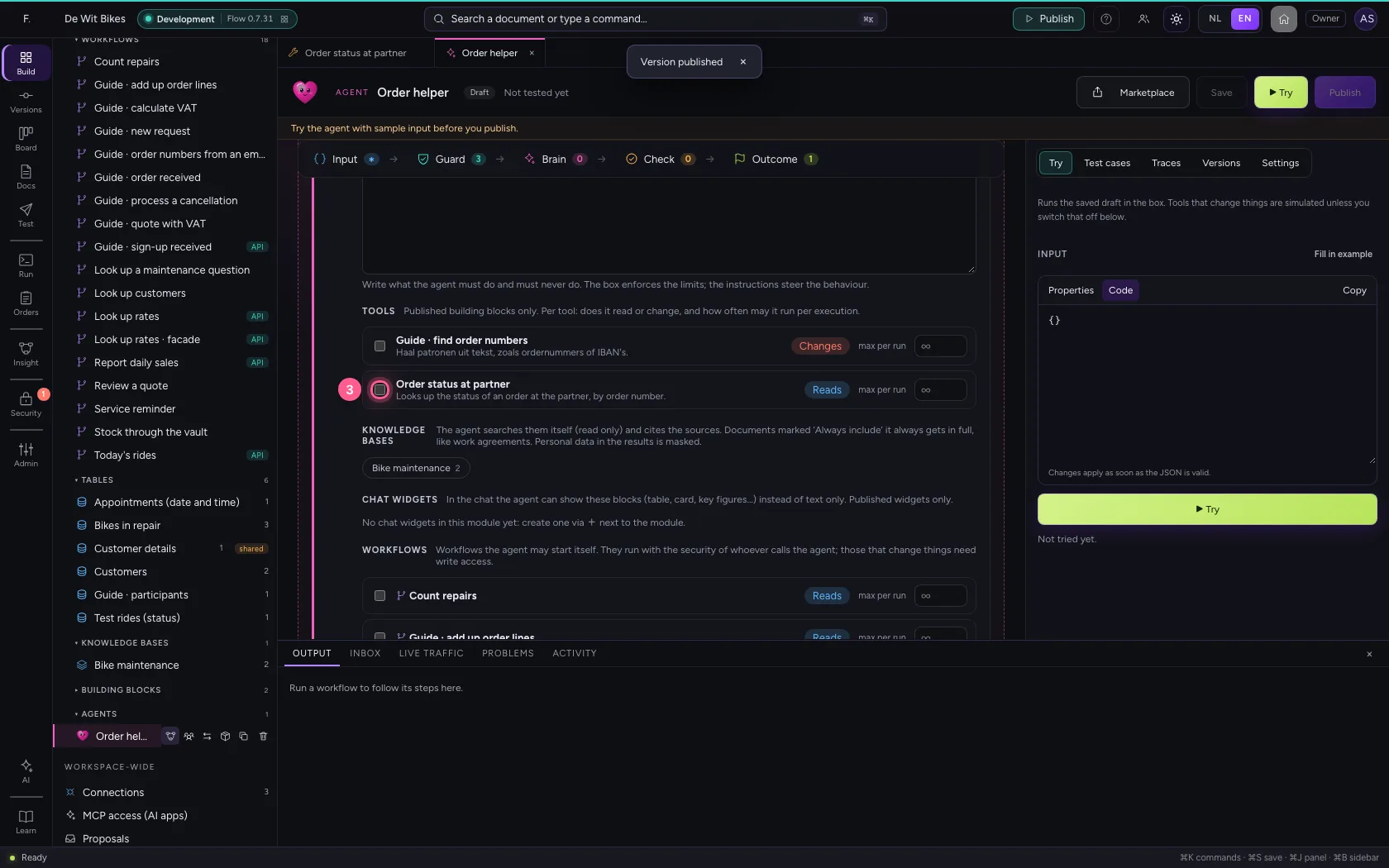
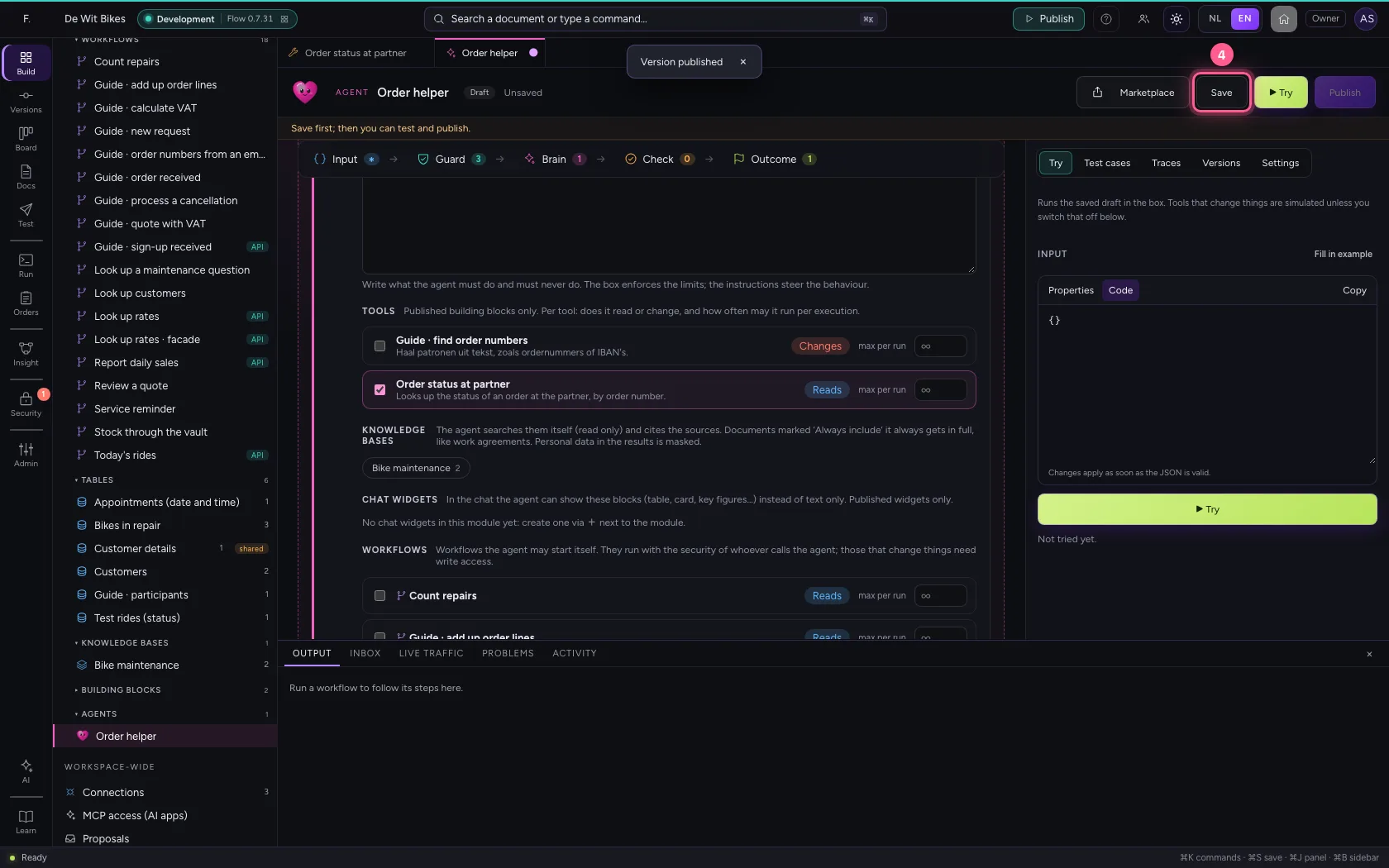
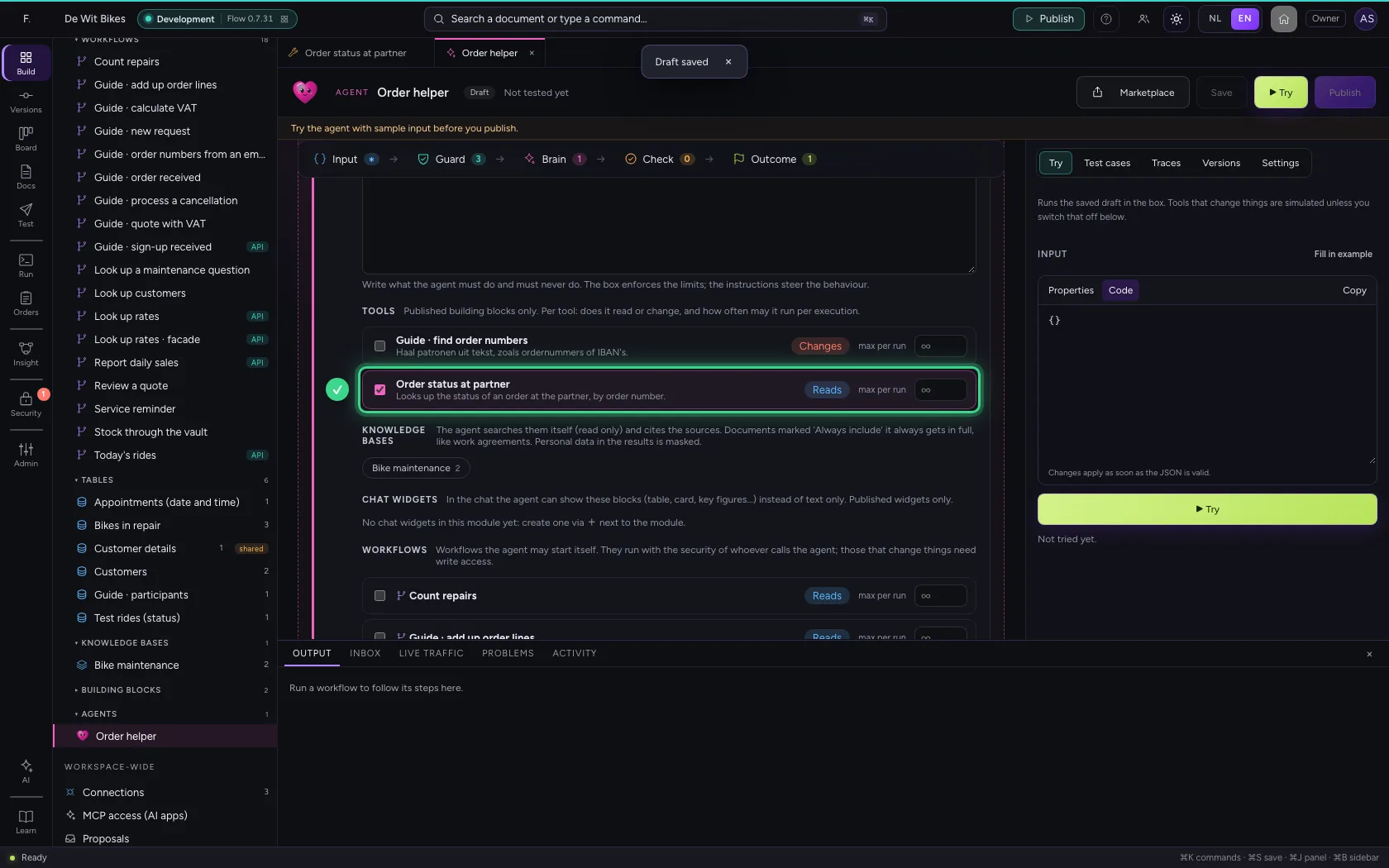
Open an agent. Under Brain → Tools are all published building blocks; tick the HTTP call and save. A GET counts as Reads; a call that changes something (POST, PUT, DELETE) is only offered once you allow writing in the guard rails.
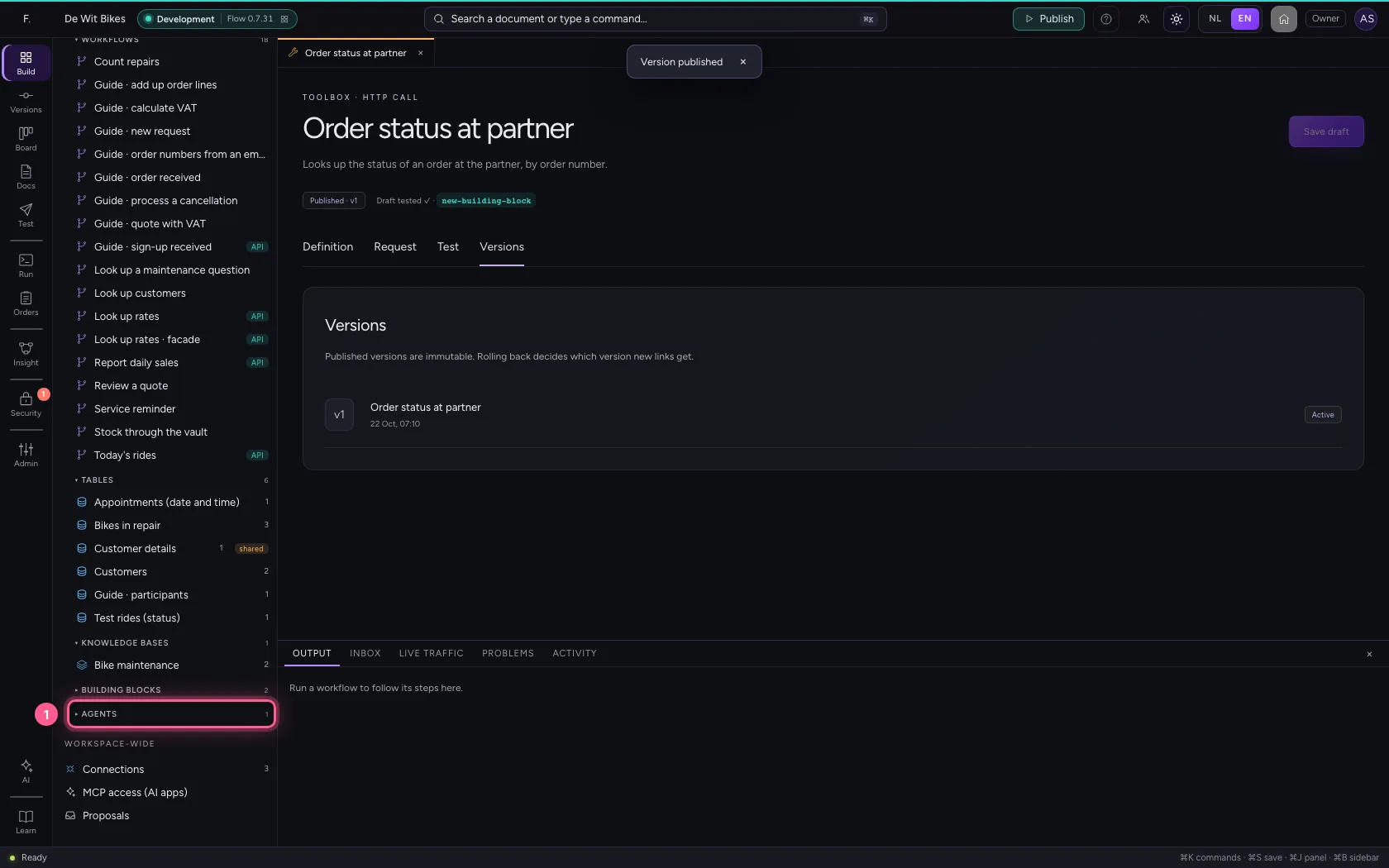
- Click Agents
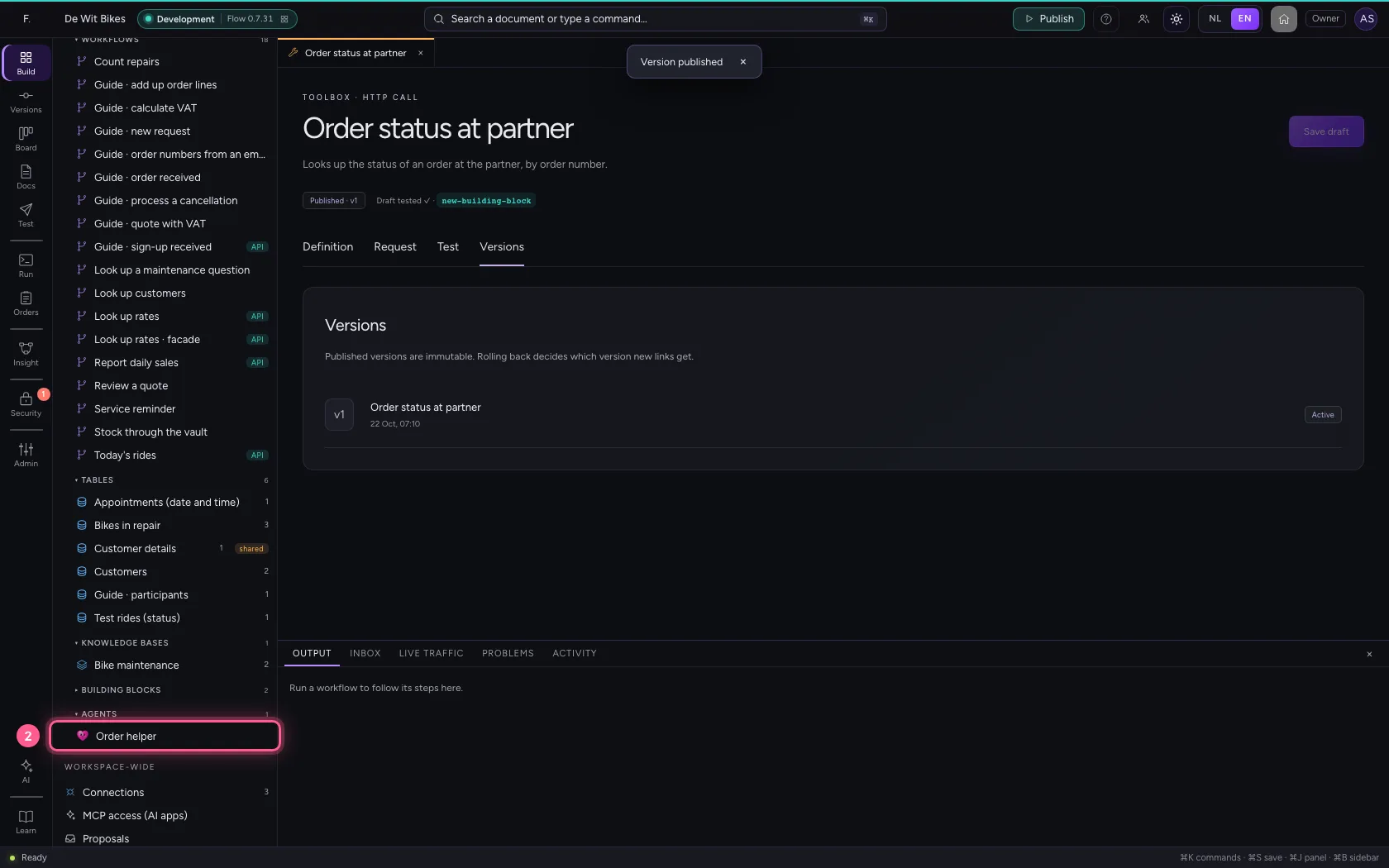
- Click the agent ‘Order helper’
- Click Order status at partner
- Click Save
This guide was carried out step by step on 22 Oct 2026 by an automated test on Flow (version 3e563176).