Step: Extract metadata
The step Extract metadata pulls typed data out of text, for example out of an invoice: the number, the dates, the amounts and the IBAN. Flow first uses fixed rules (labels, dates, amounts, IBAN with its check digits) and an AI model only when you set that up. Later steps know exactly what they get: the total is a number, the date a date.
Open your development environment
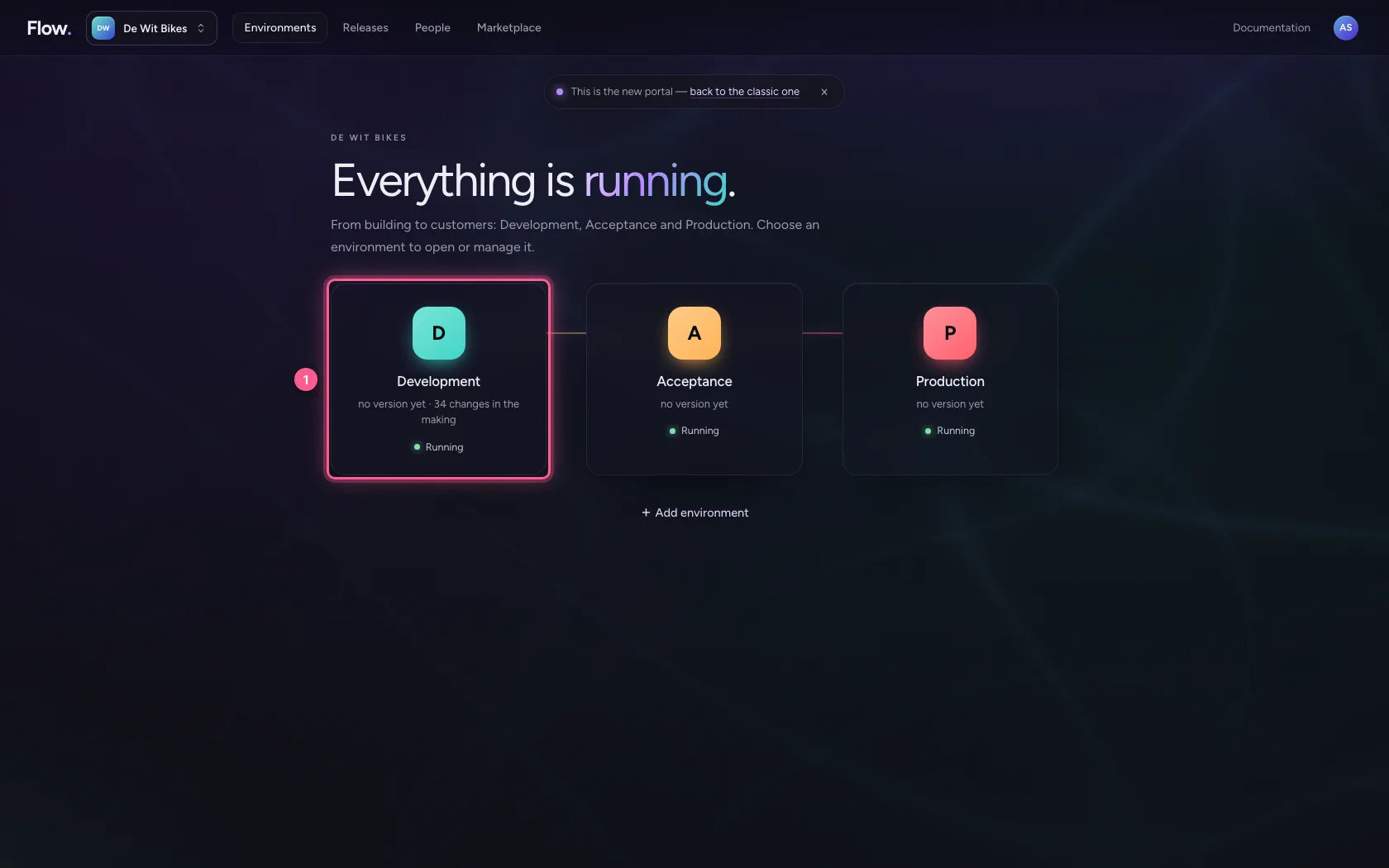
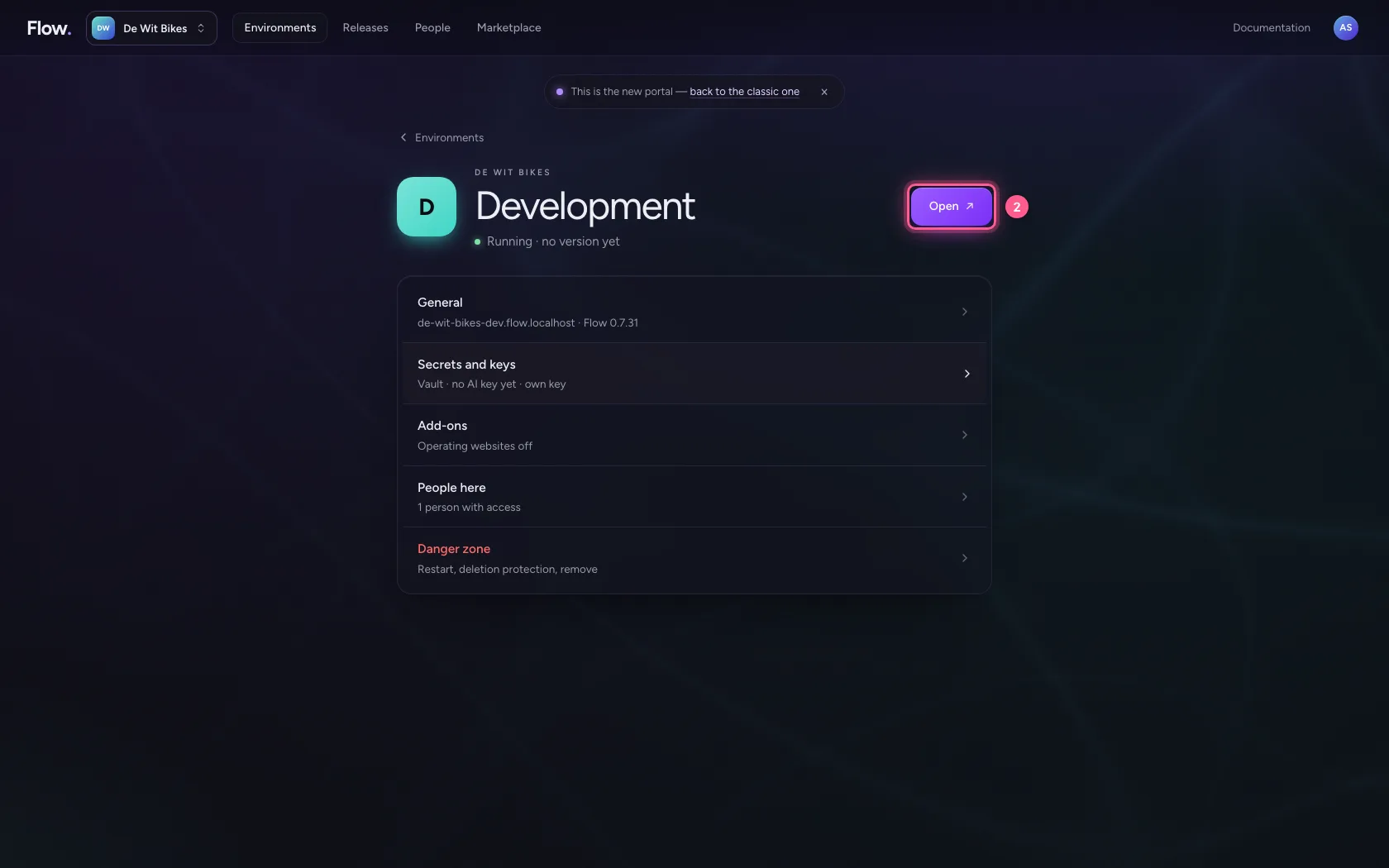
In the portal, under Environments, click Development, and there Open. Flow opens in a new tab and you are signed in straight away.
- Click Development
- Click Open ↗
Create a workflow with an invoice
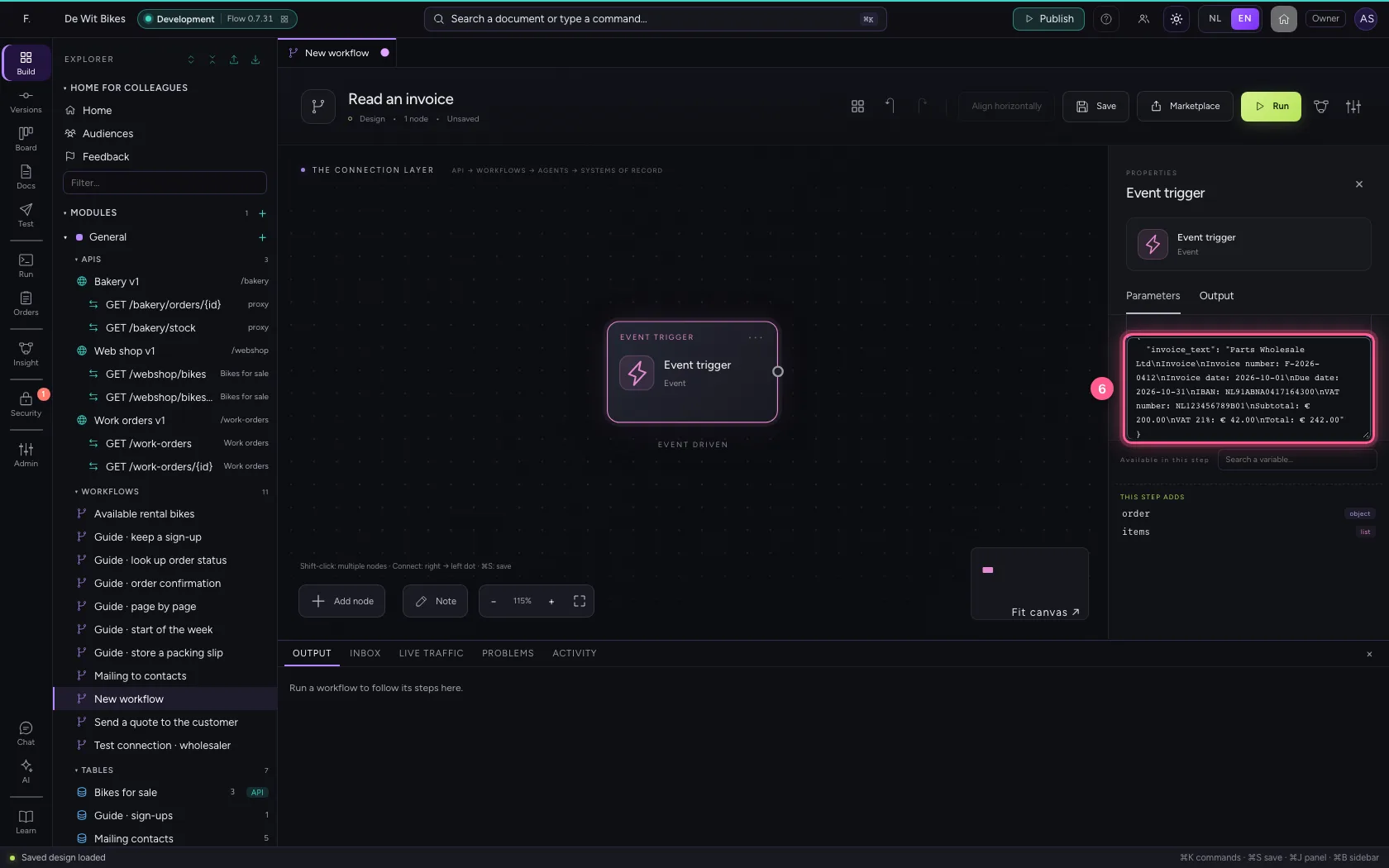
Create a new workflow and put the text of an invoice in the trigger's sample data. In real life it comes from a PDF in a mailbox or a folder.
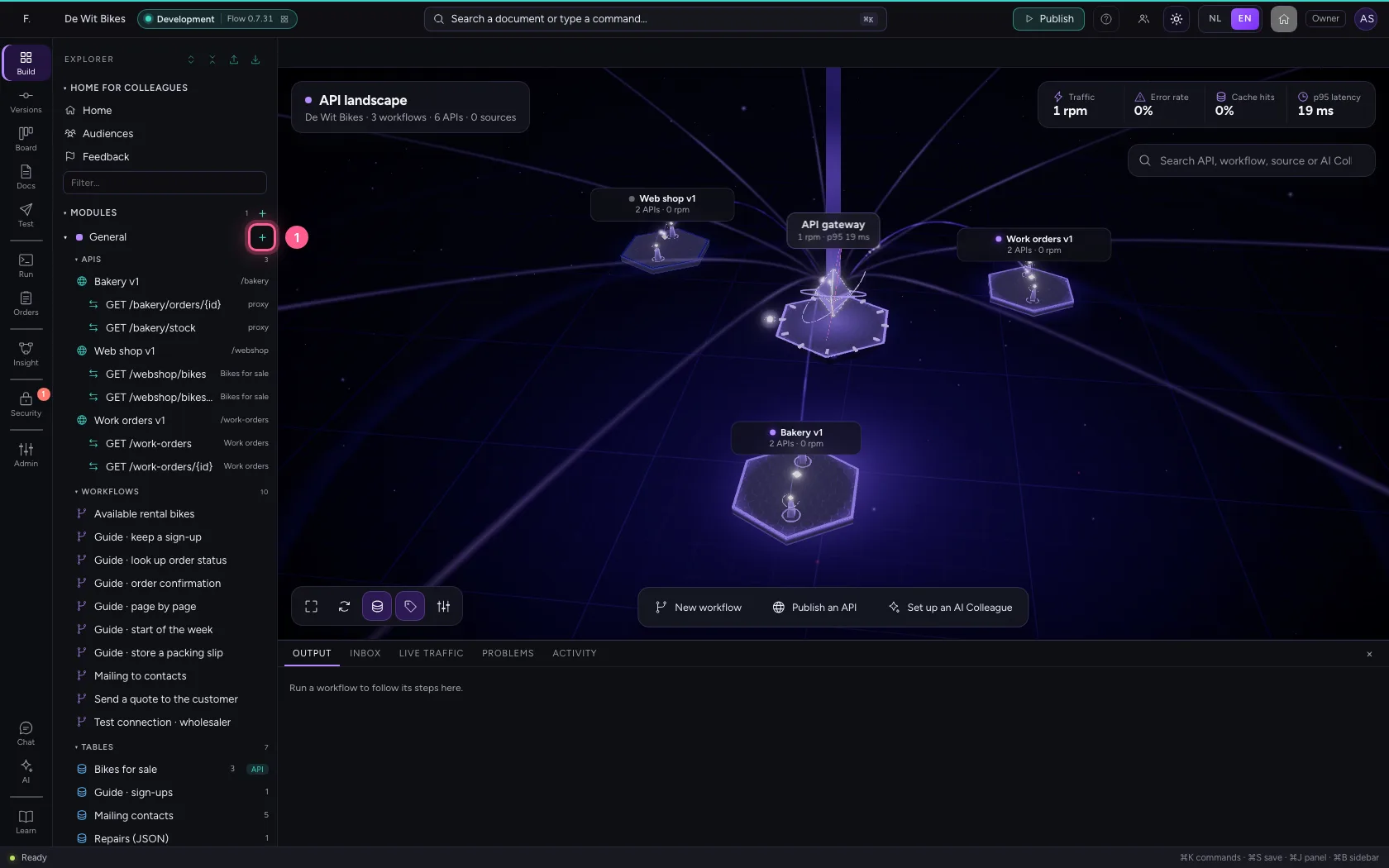
- Click Add to General
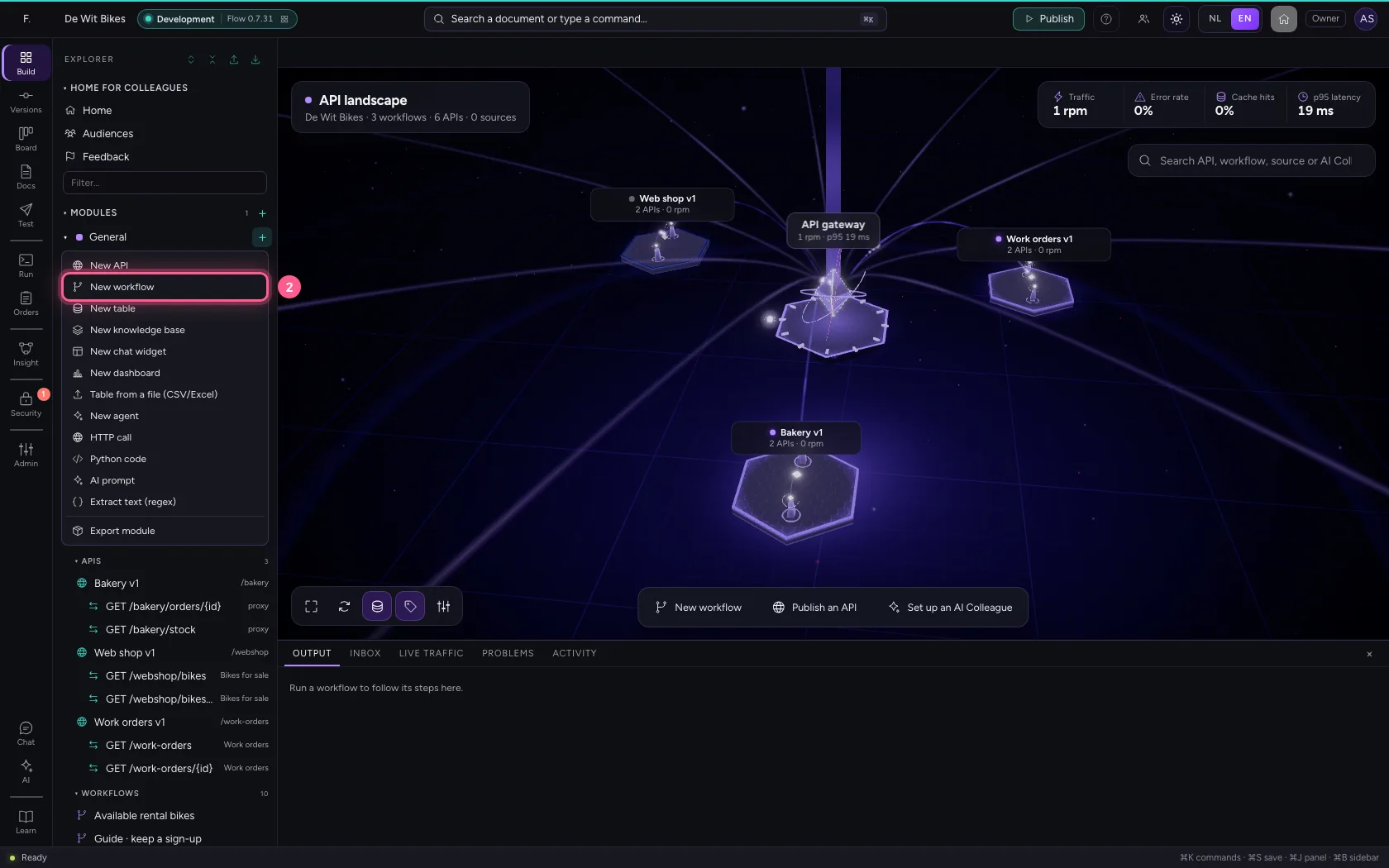
- Click New workflow
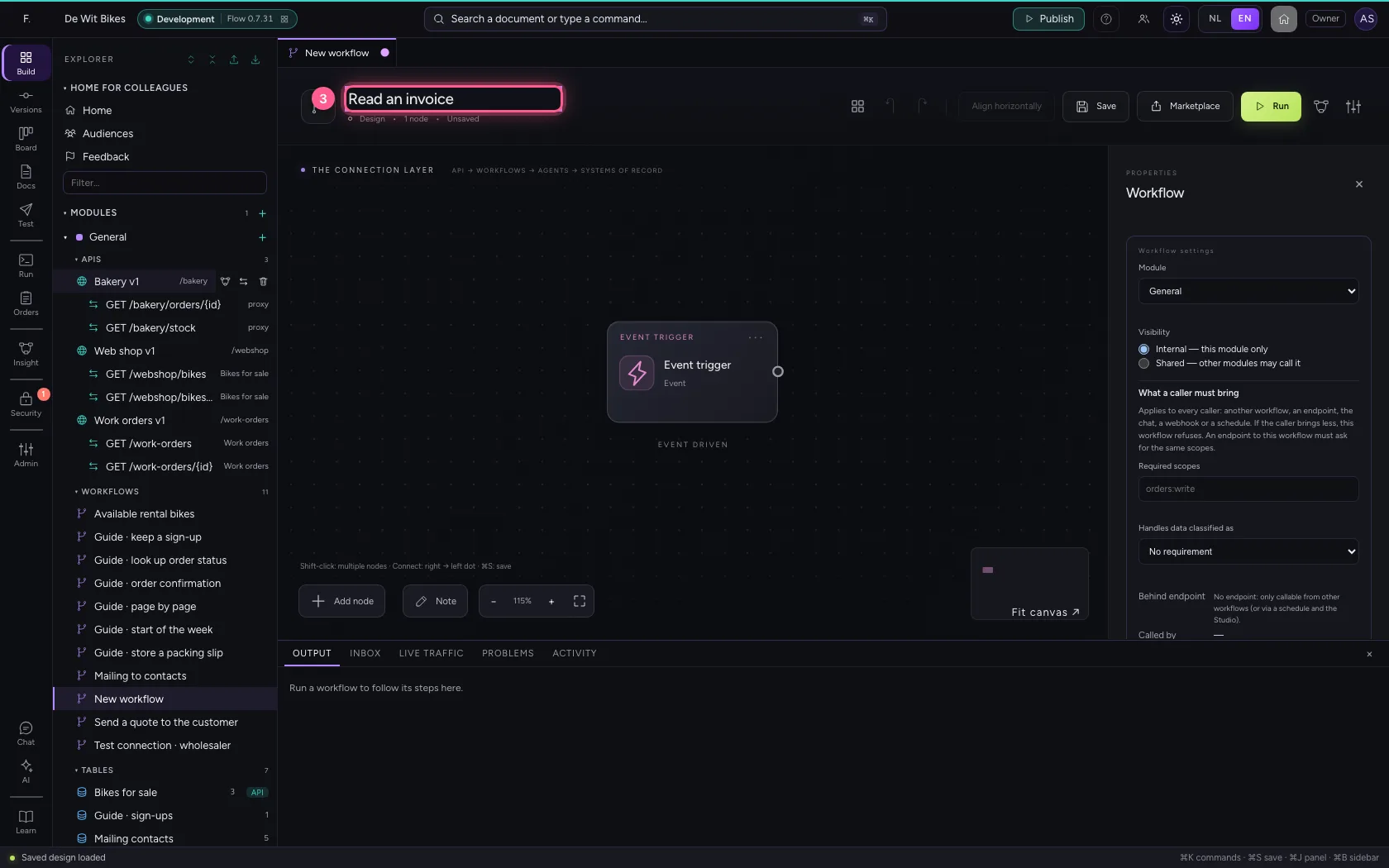
- In Workflow name, type
Read an invoice
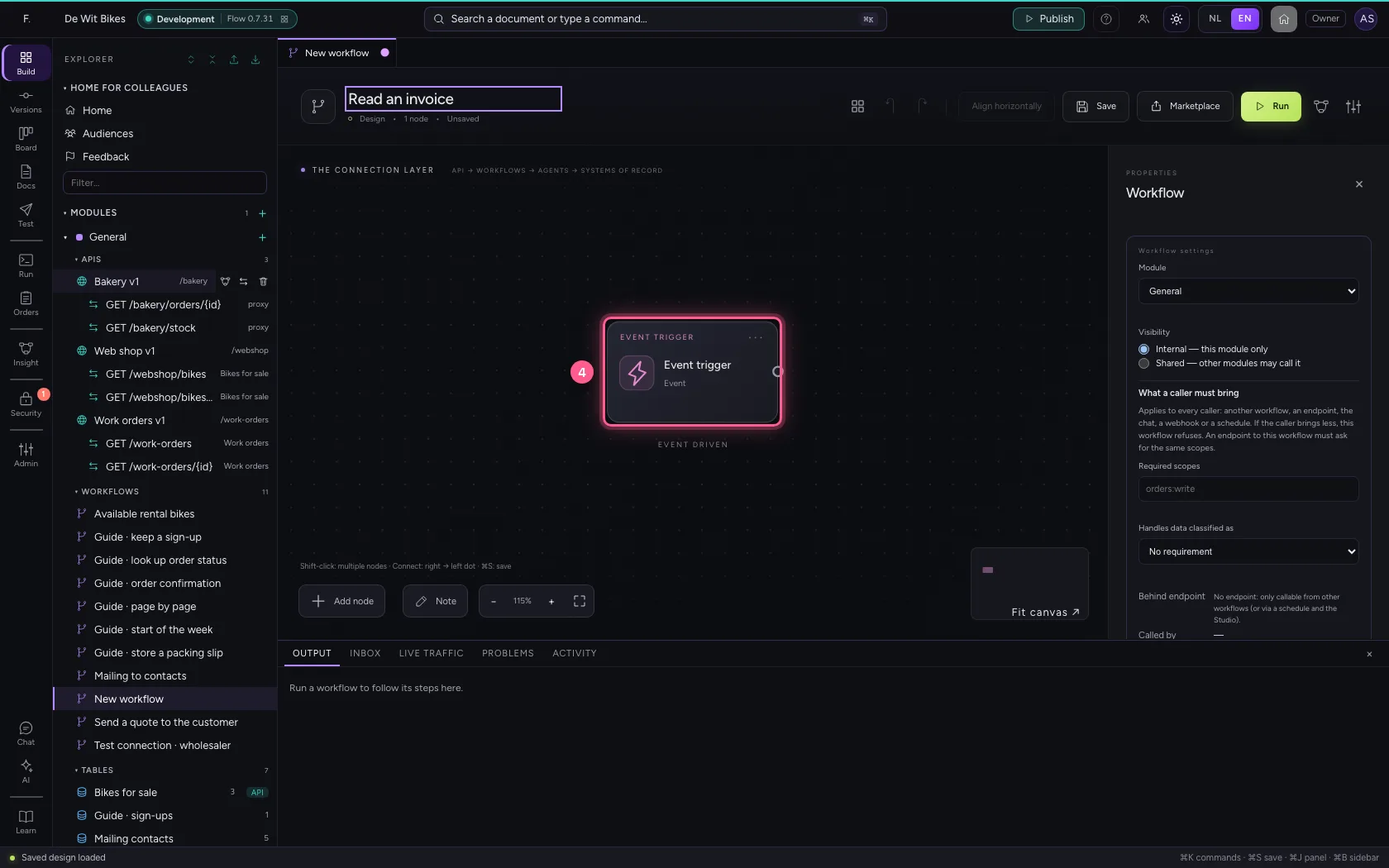
- Click the trigger
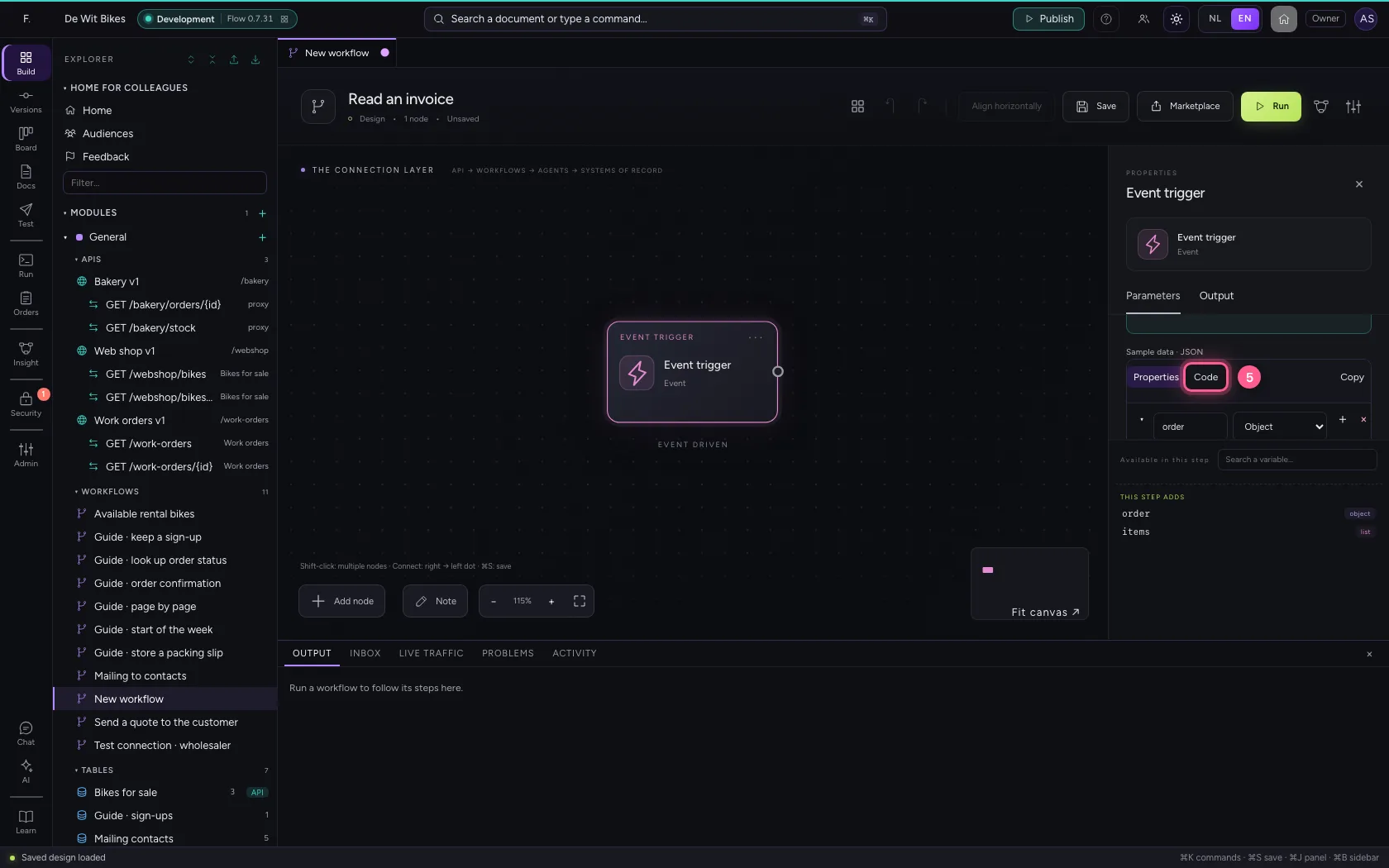
- Click Code
- In Sample data, type `{
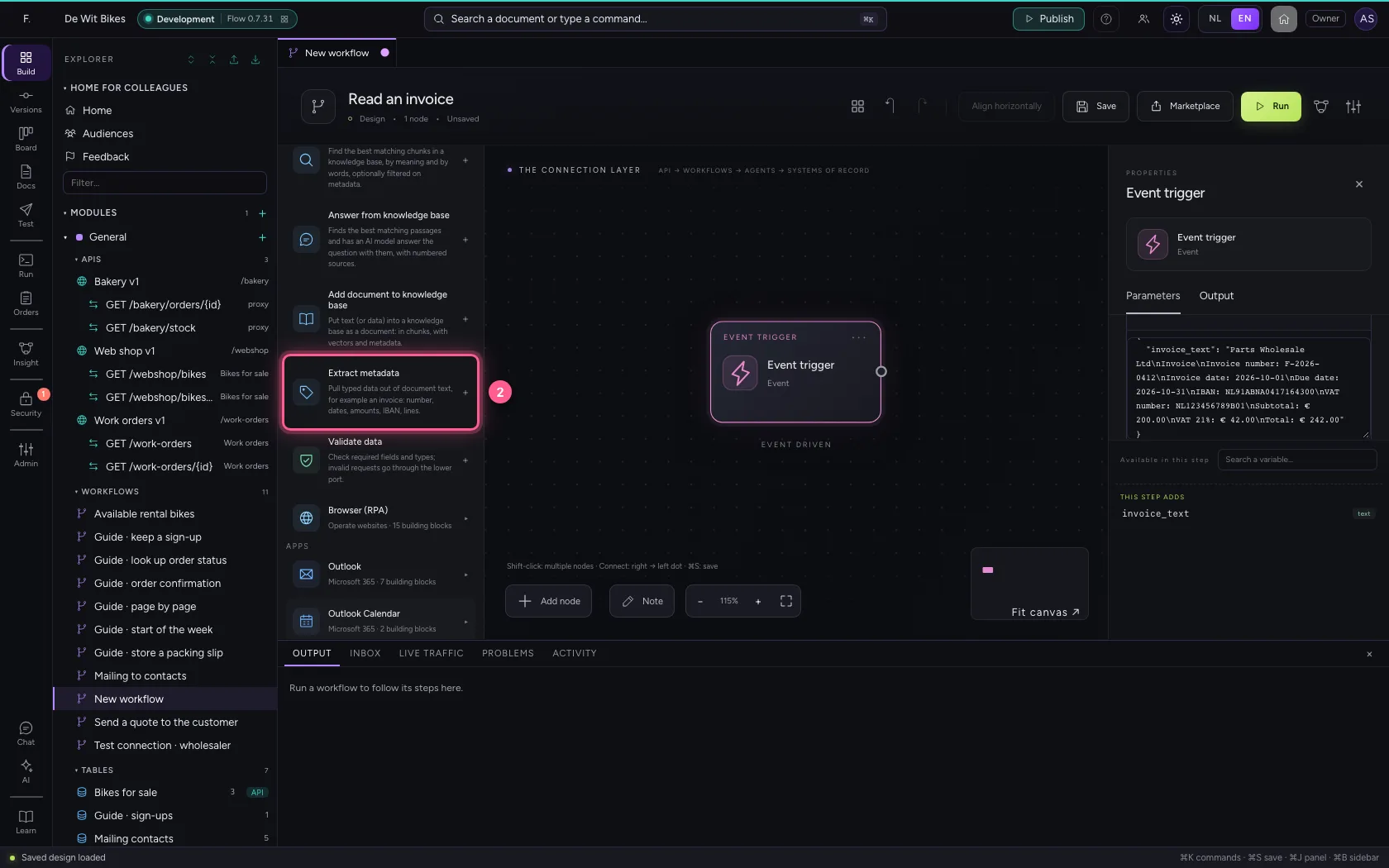
Add the step Extract metadata
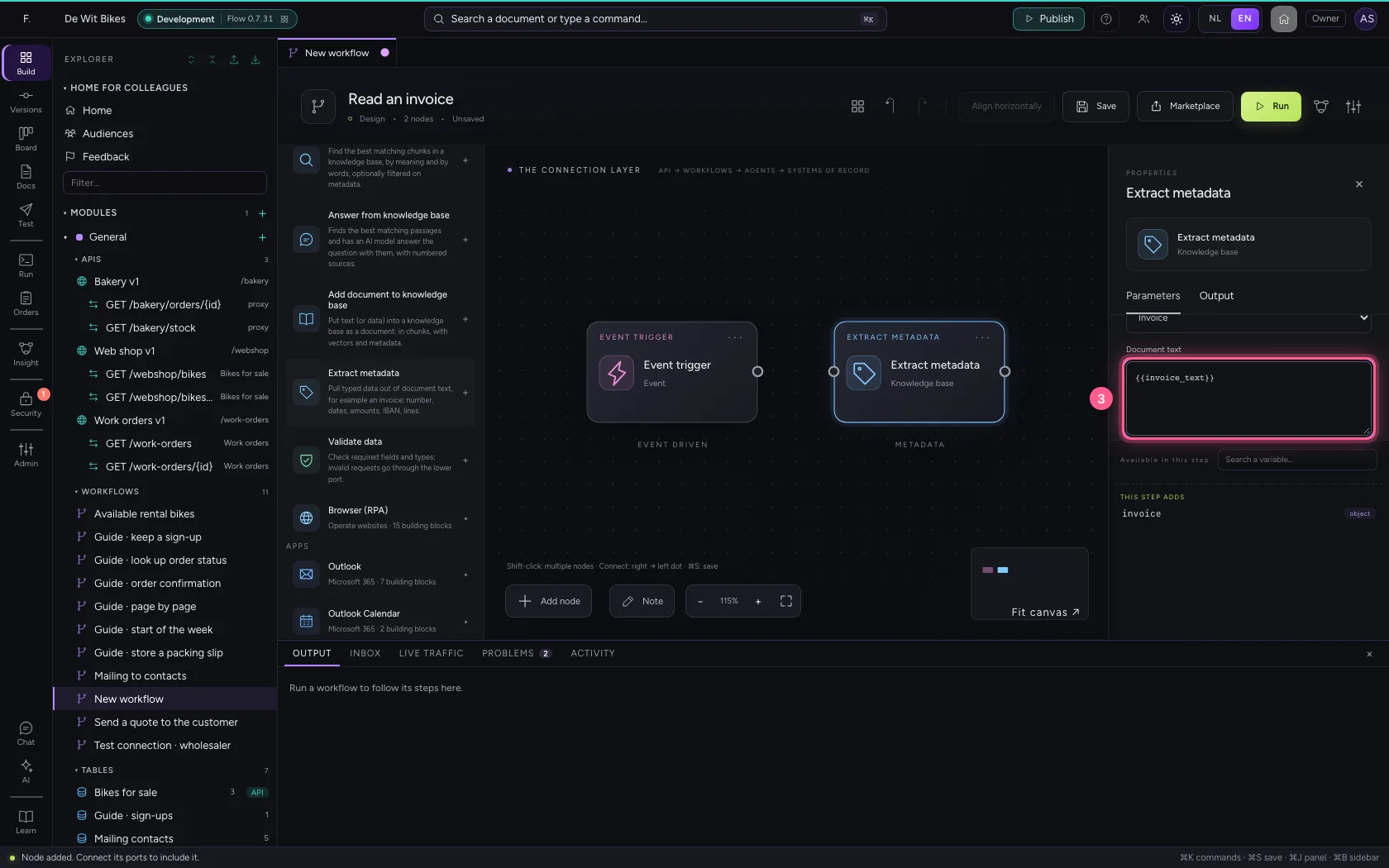
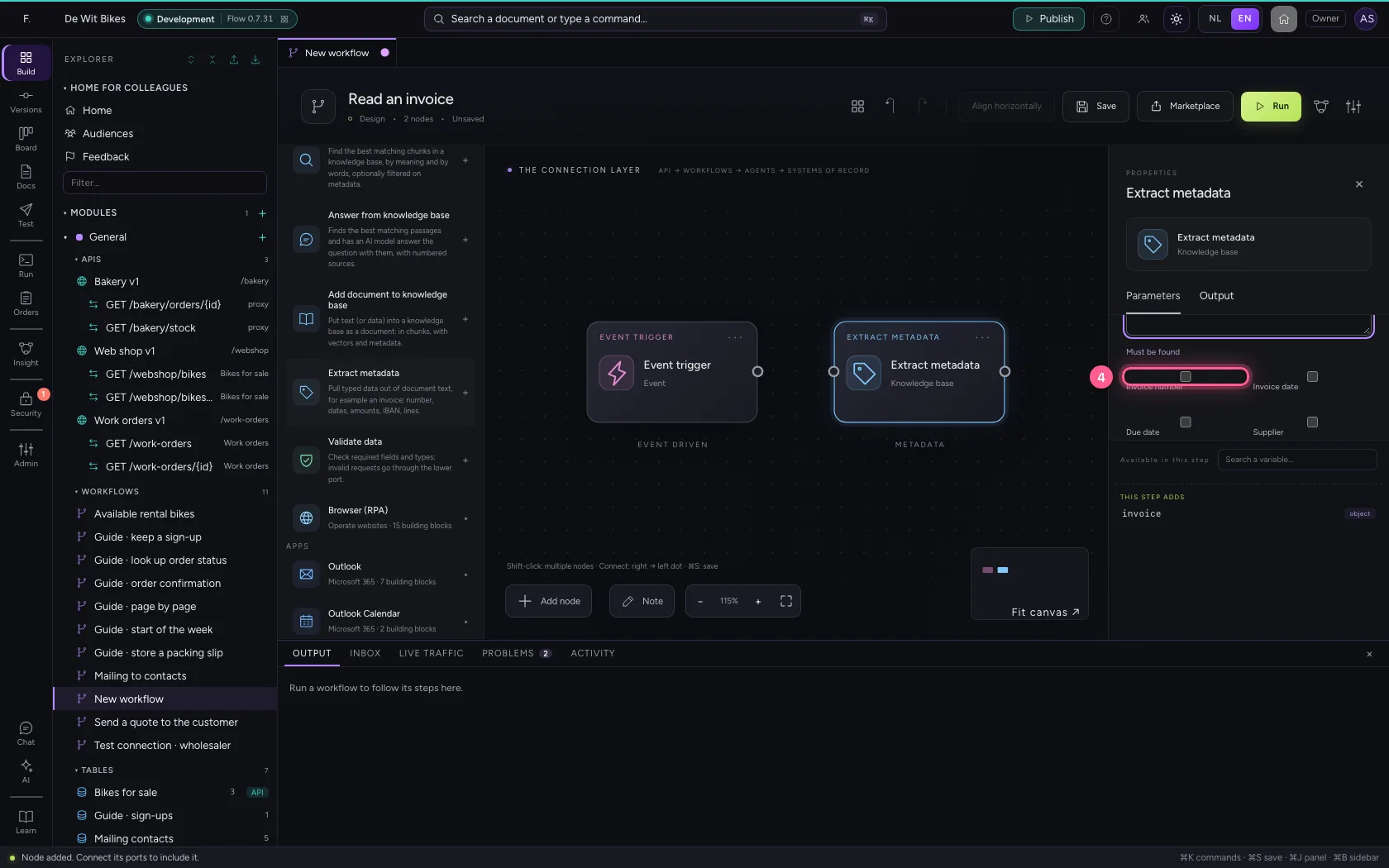
Choose which fields you want: the Invoice template, or the schema of a knowledge base with your own fields. Say where the text comes from. Tick fields that must be found: if one is missing, the step stops with an error instead of quietly carrying on.
- Click Add node
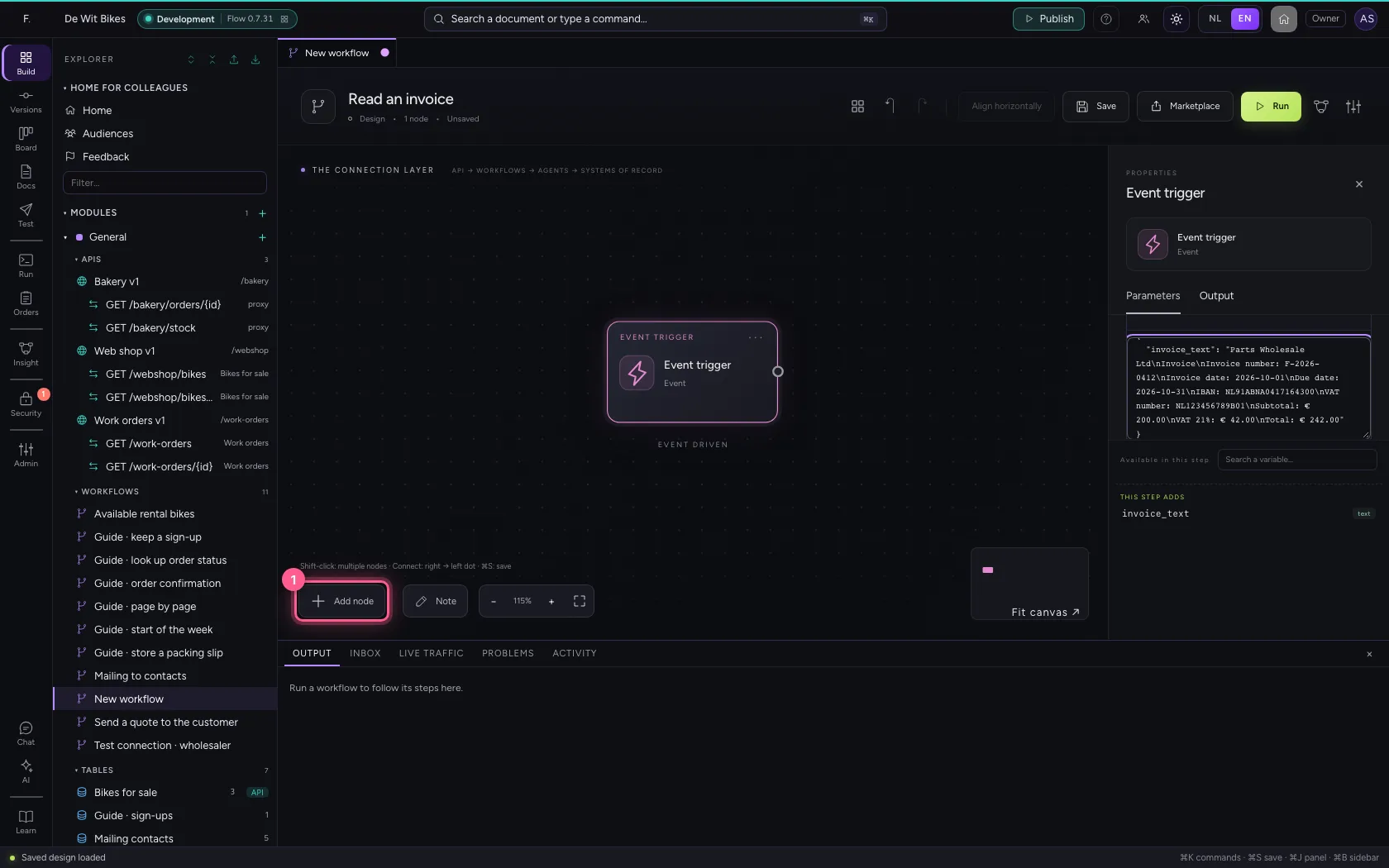
- Click Extract metadata
- In Document text, type
{{invoice_text}}
- Click Invoice number
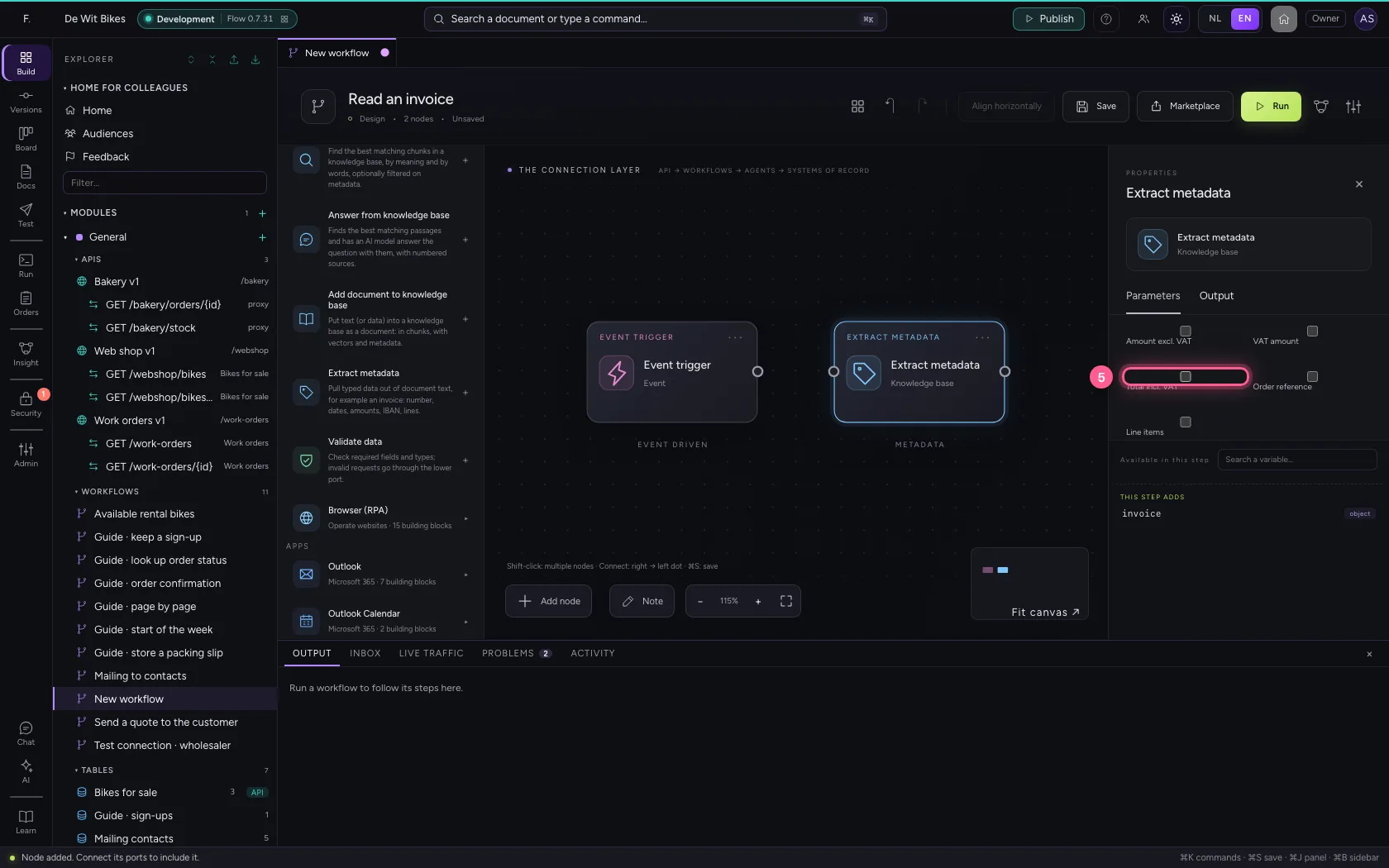
- Click Total incl. VAT
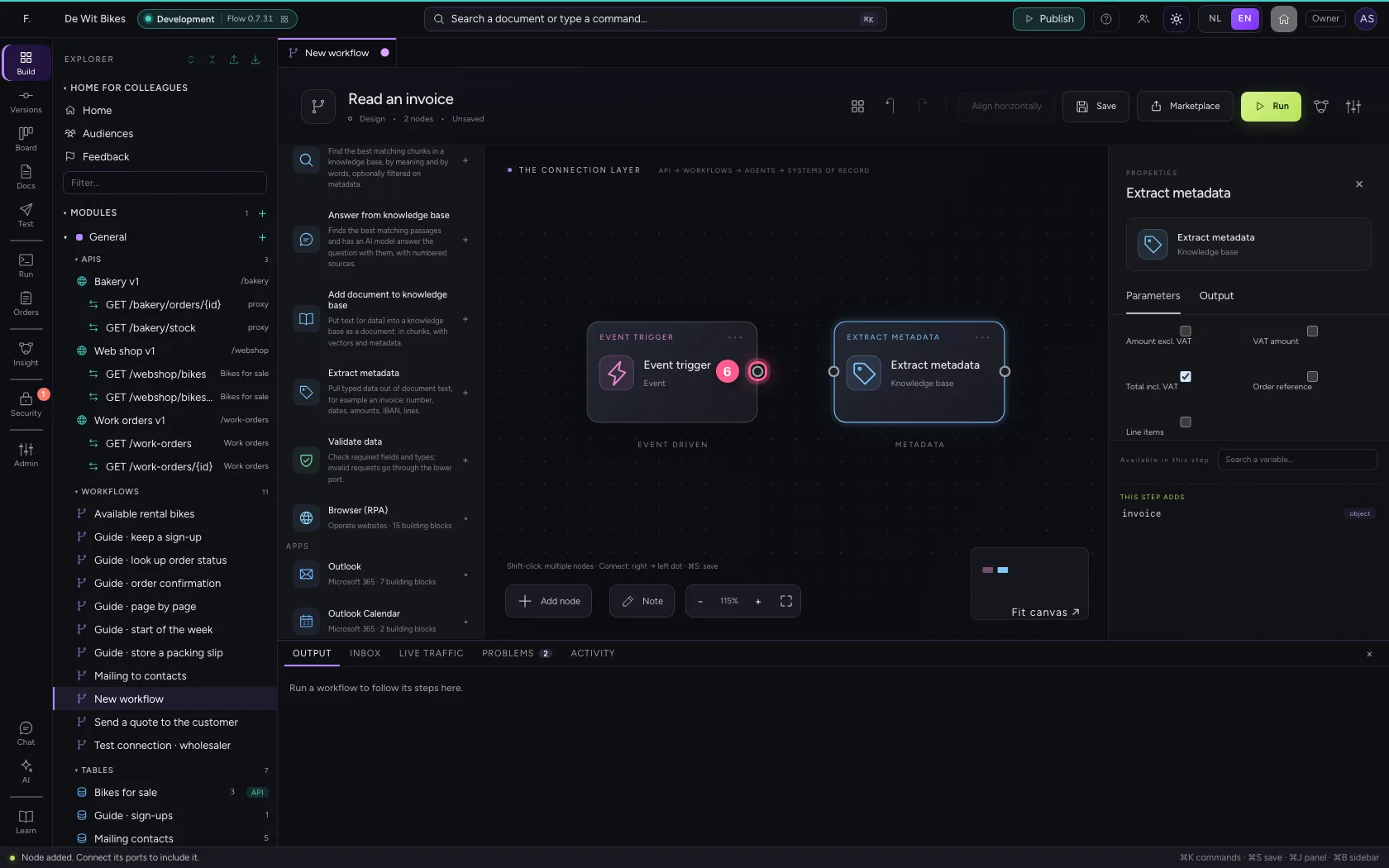
- Click the dot of ‘Event trigger’
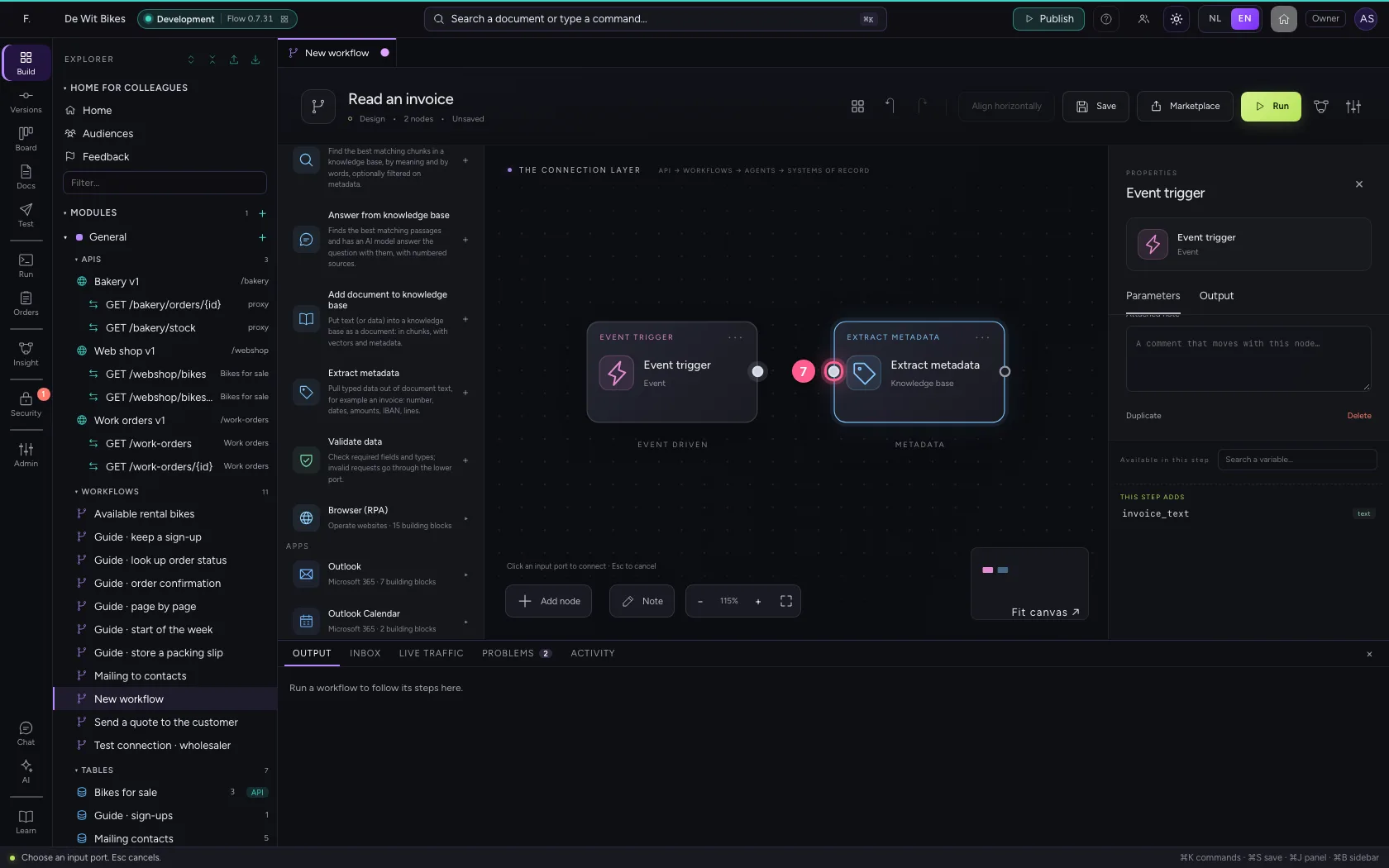
- Click the dot of ‘Extract metadata’
Align, save and run
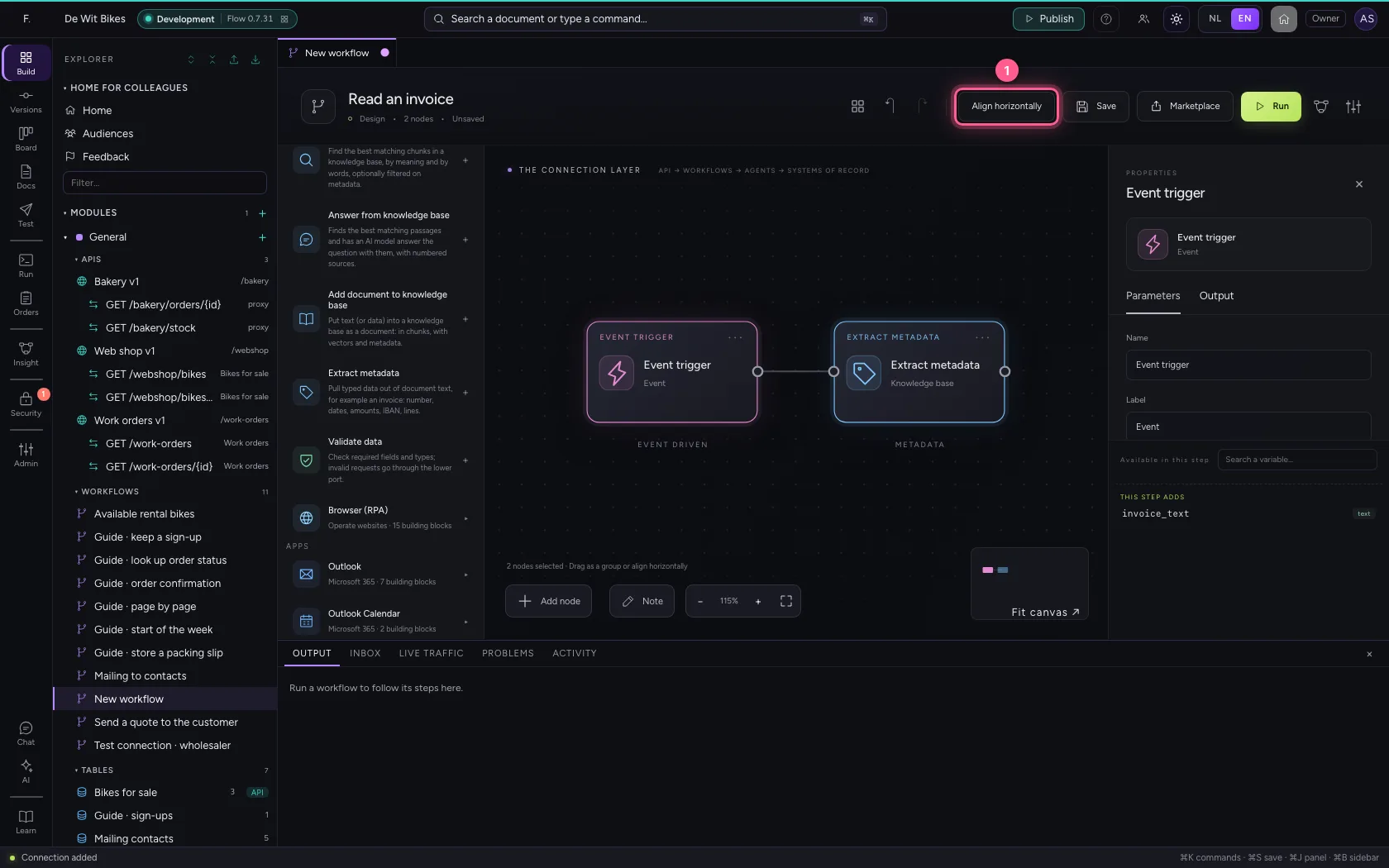
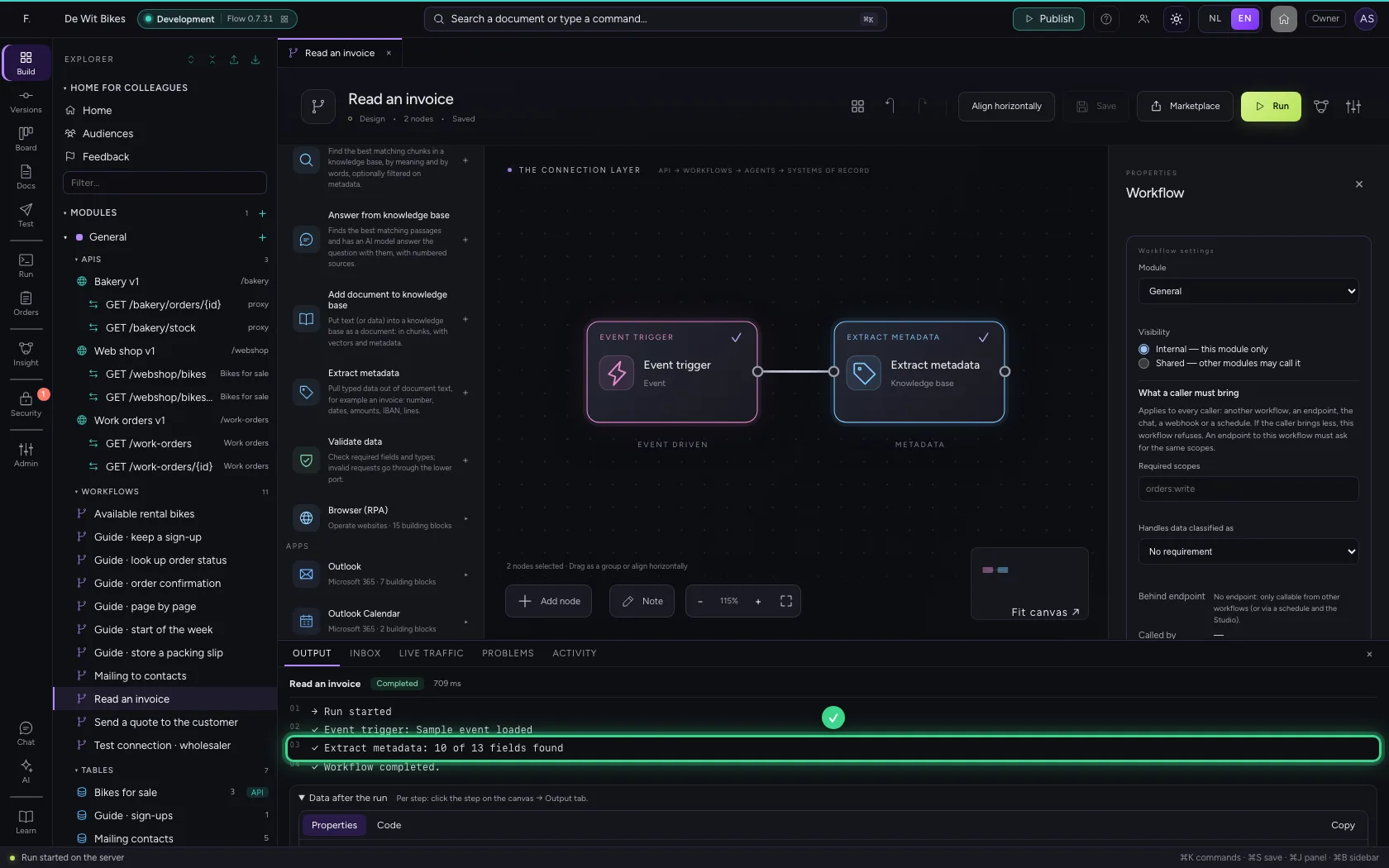
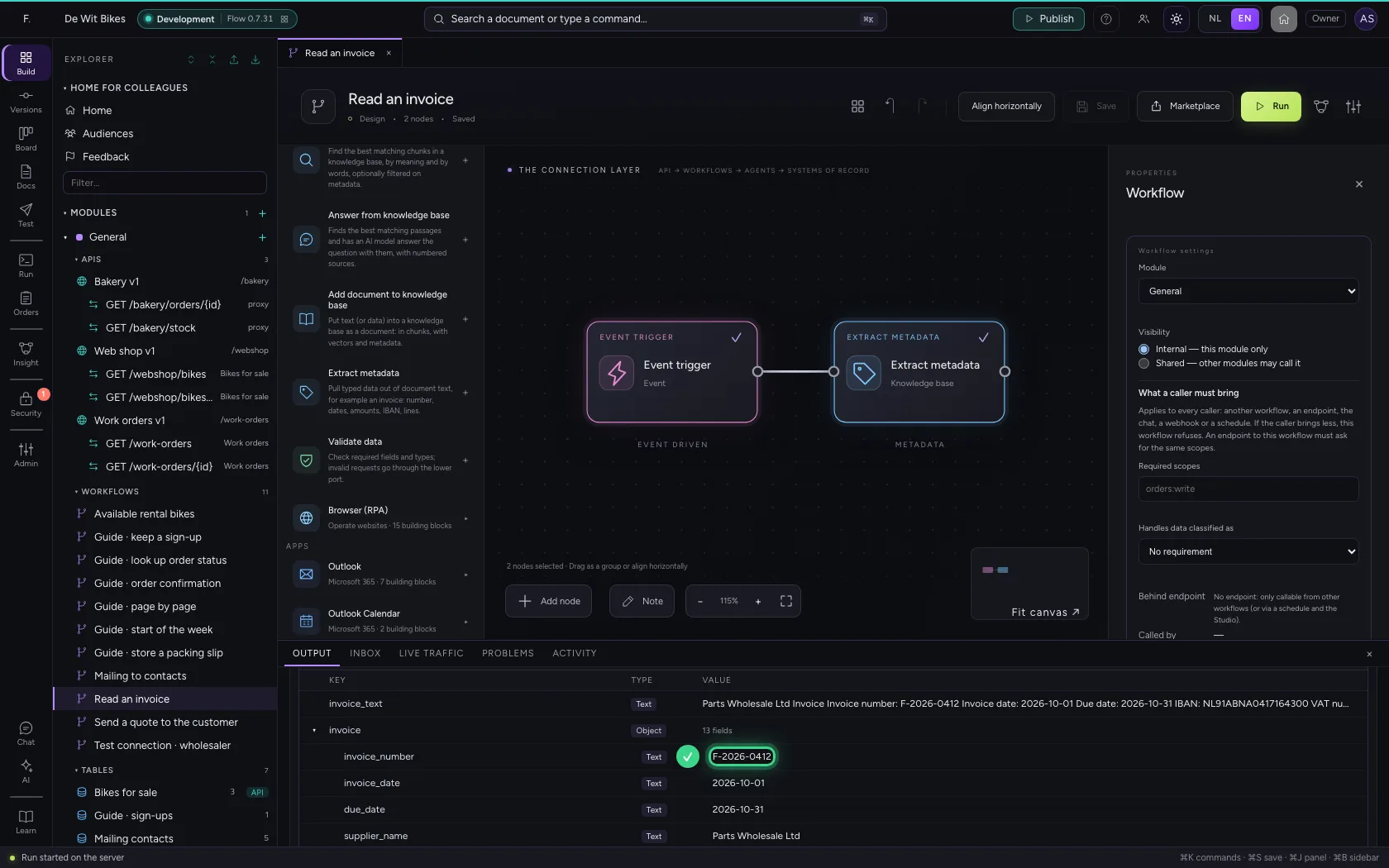
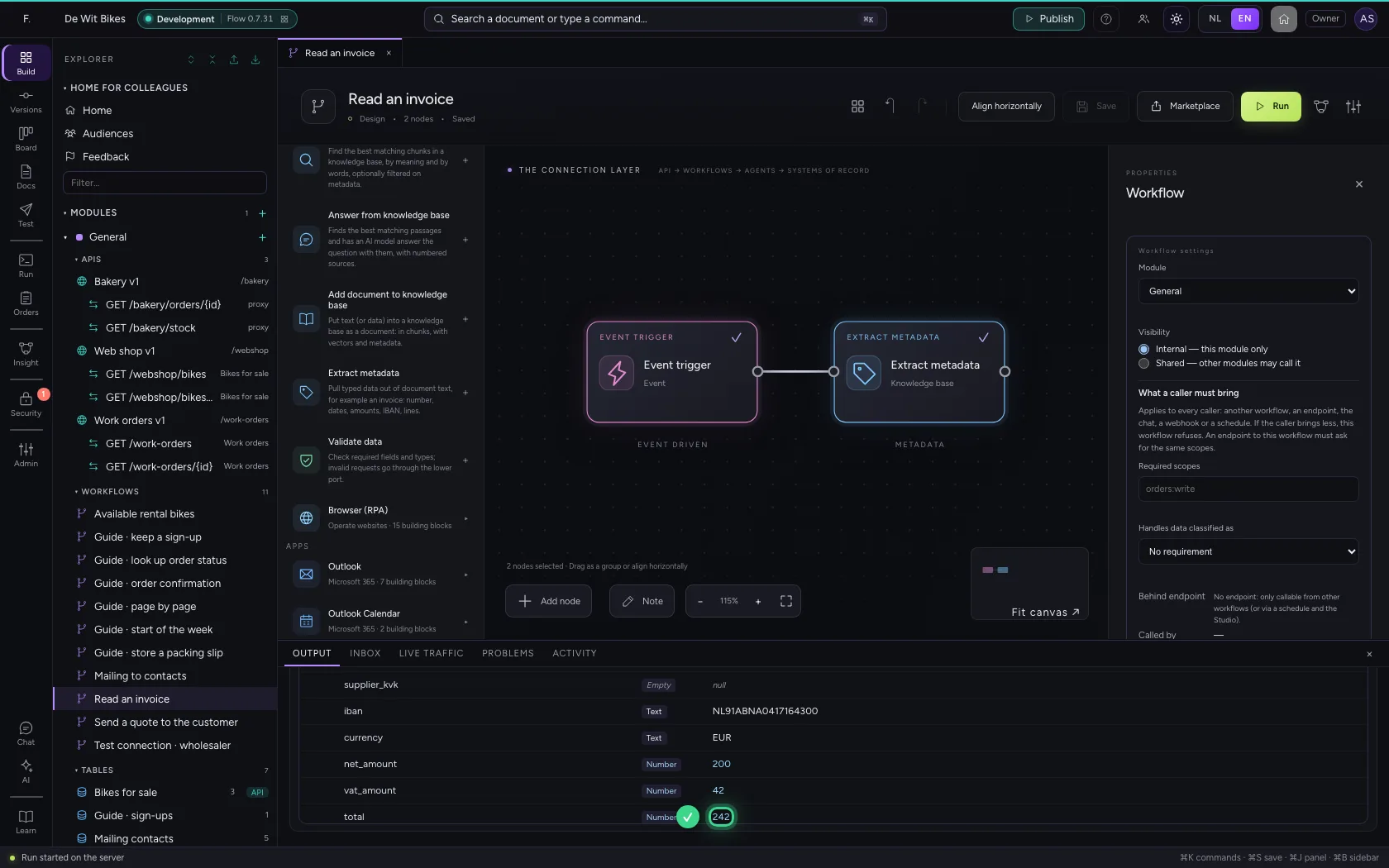
Align the steps, save and run. At the bottom you see how many fields Flow found, and in the step's output the values themselves under invoice: the invoice number as text, the total as a number.
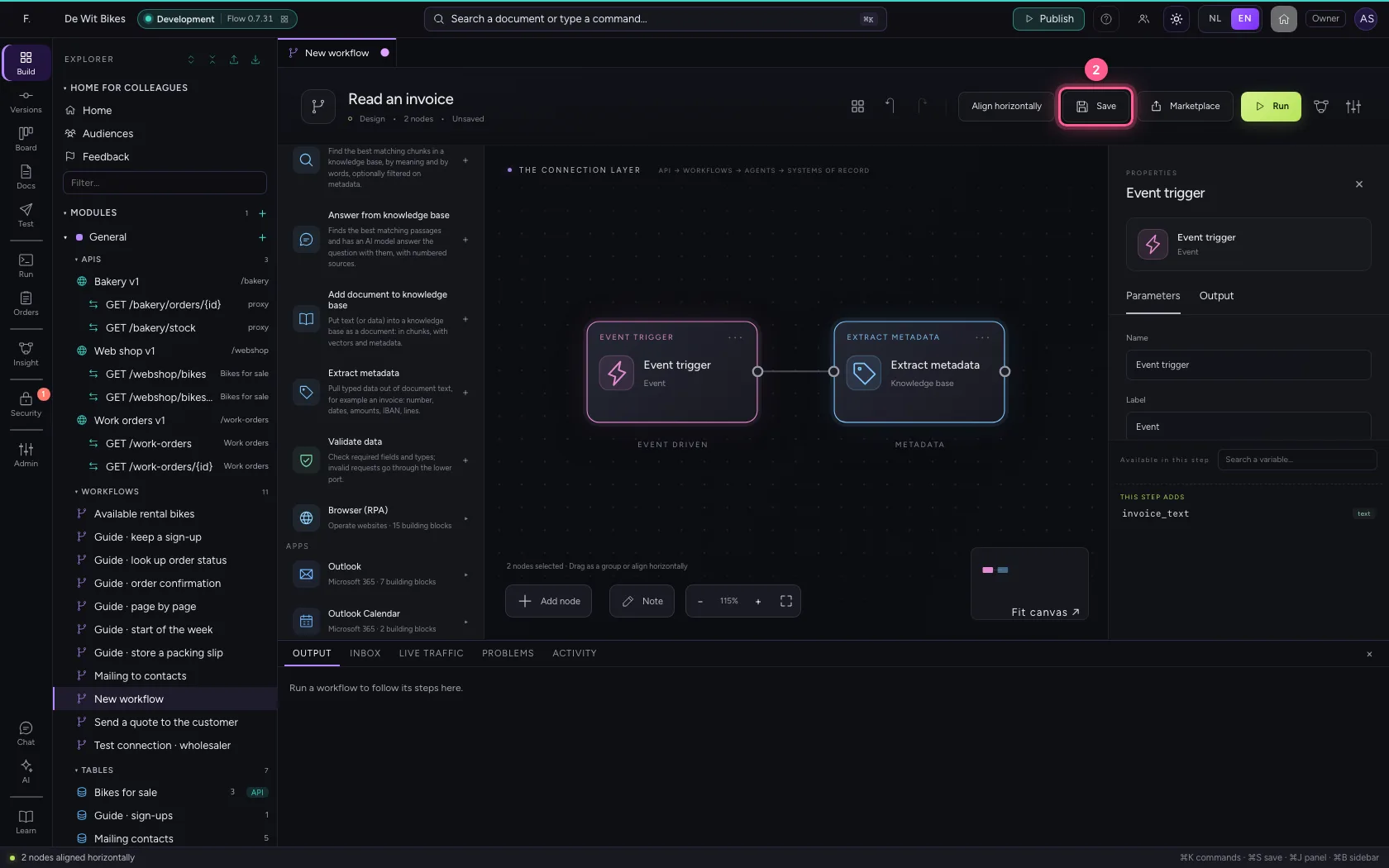
- Click Align horizontally
- Click Save
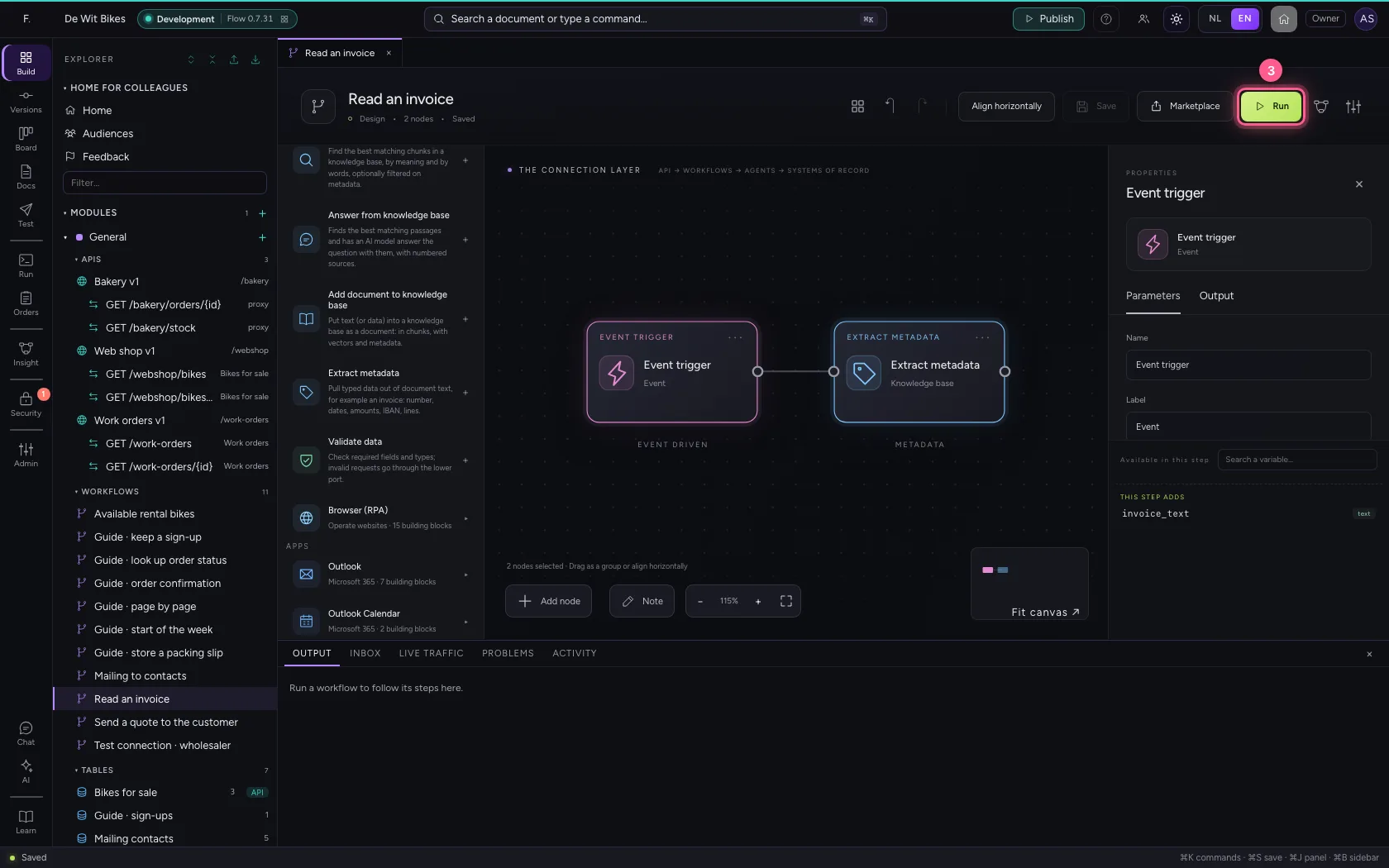
- Click Run
This guide was carried out step by step on 22 Oct 2026 by an automated test on Flow (version 3e563176).