Building block: AI prompt
An AI prompt is a building block with one AI call following a fixed template: summarise, classify, pull data out of text. You fix the instruction and the template; whoever uses it only gives the input. That way every workflow and every agent gets the same, tested prompt.
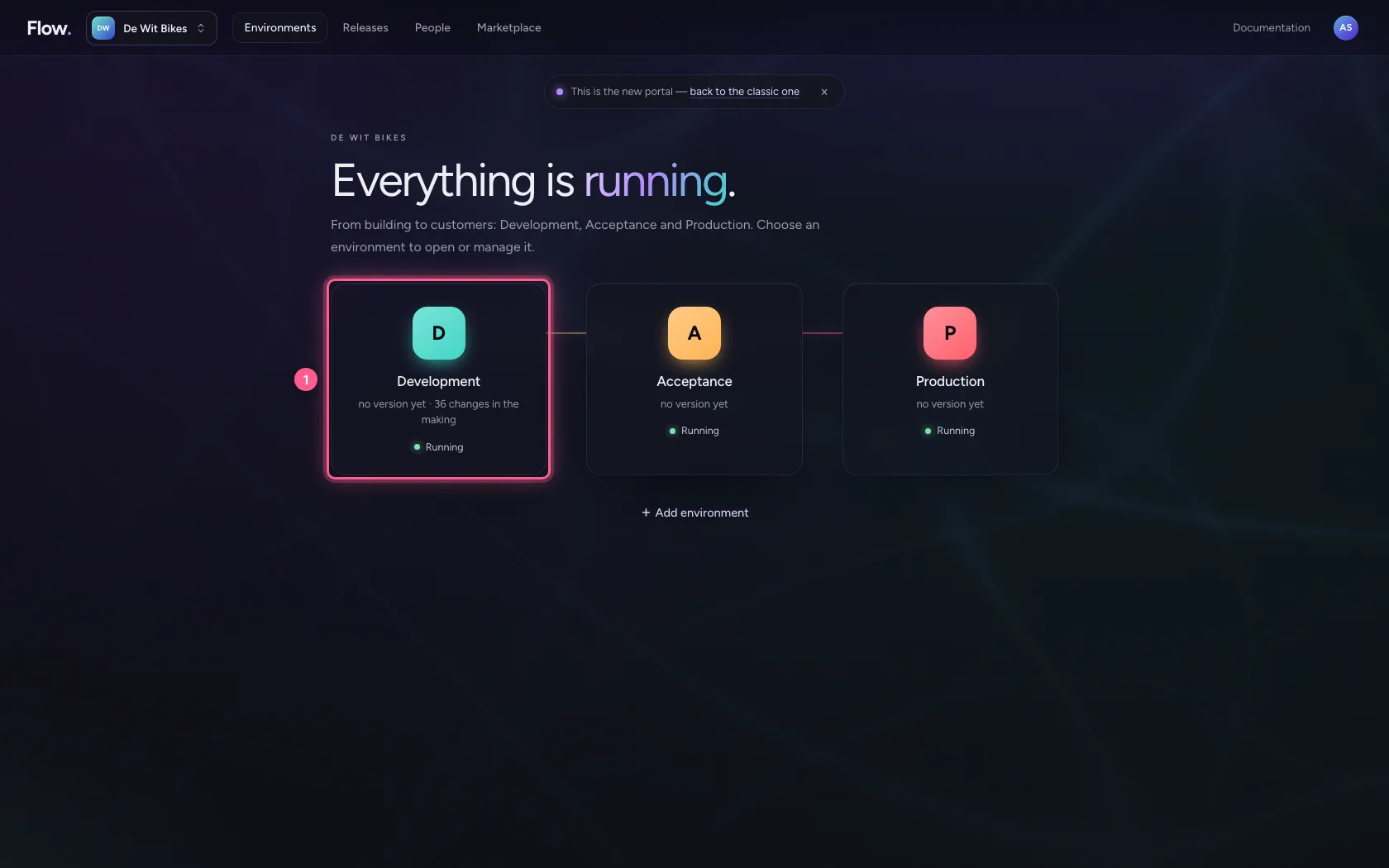
Open your development environment
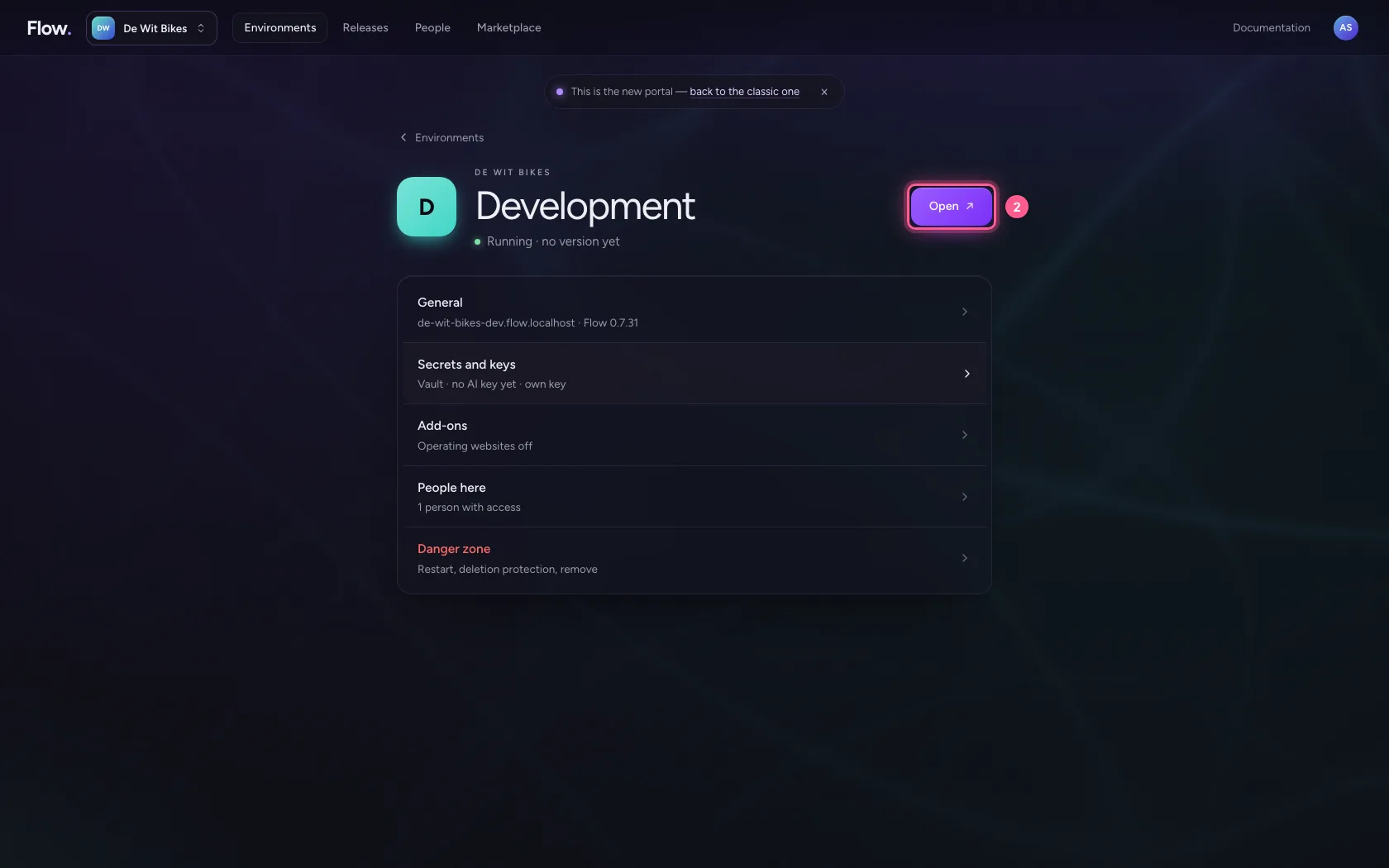
In the portal, under Environments, click Development, and there Open. Flow opens in a new tab and you are signed in straight away.
- Click Development
- Click Open ↗
Create an AI prompt
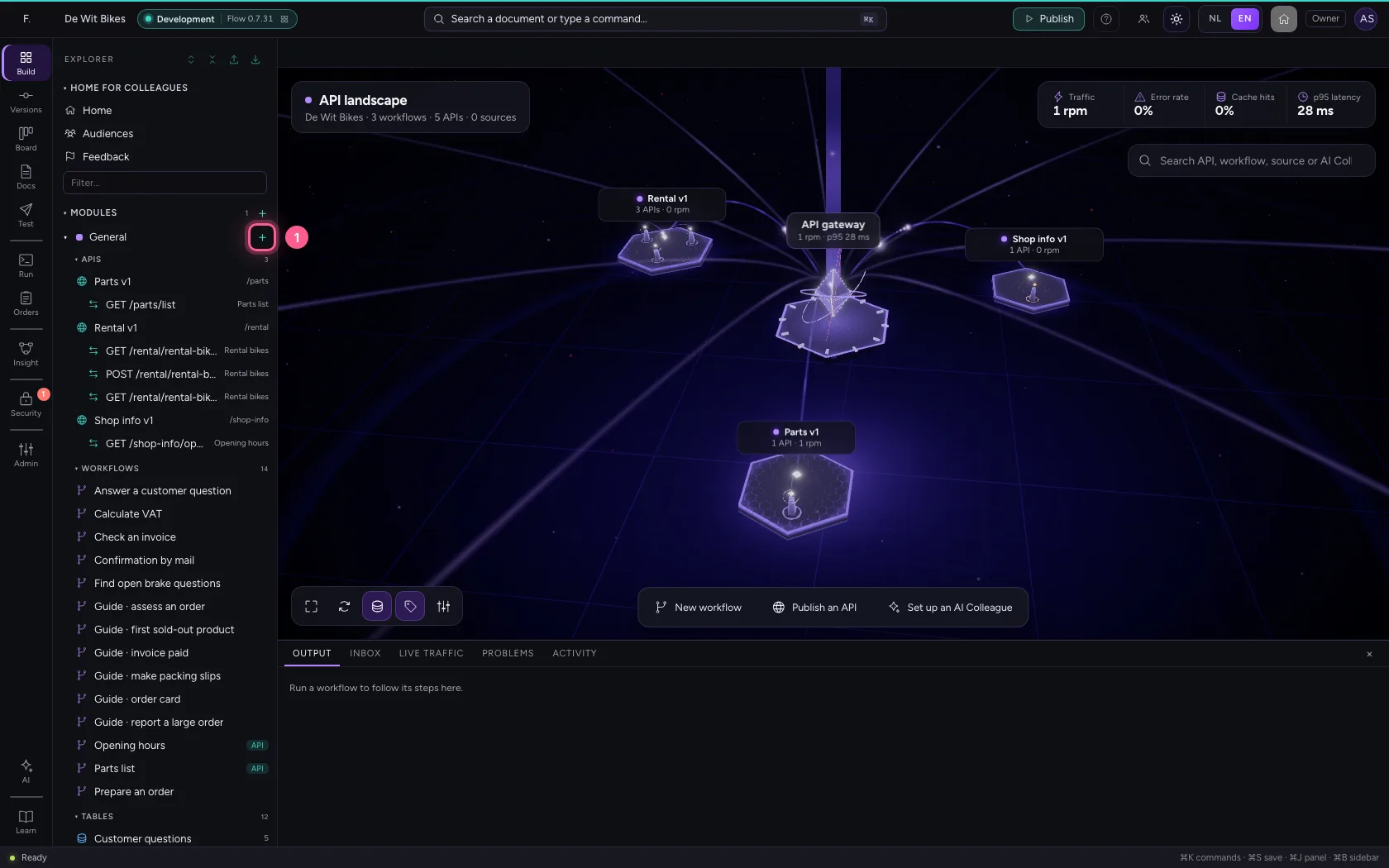
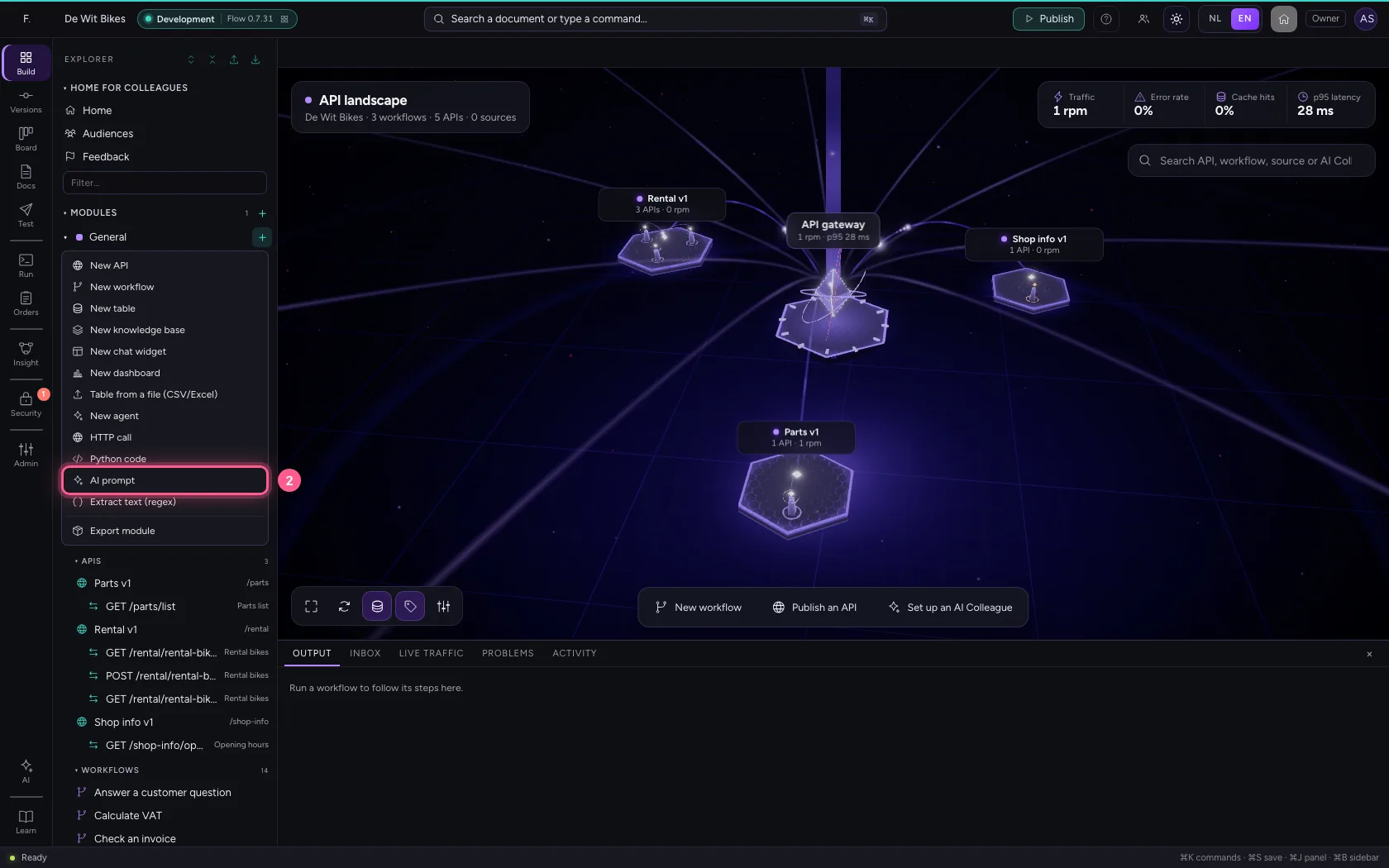
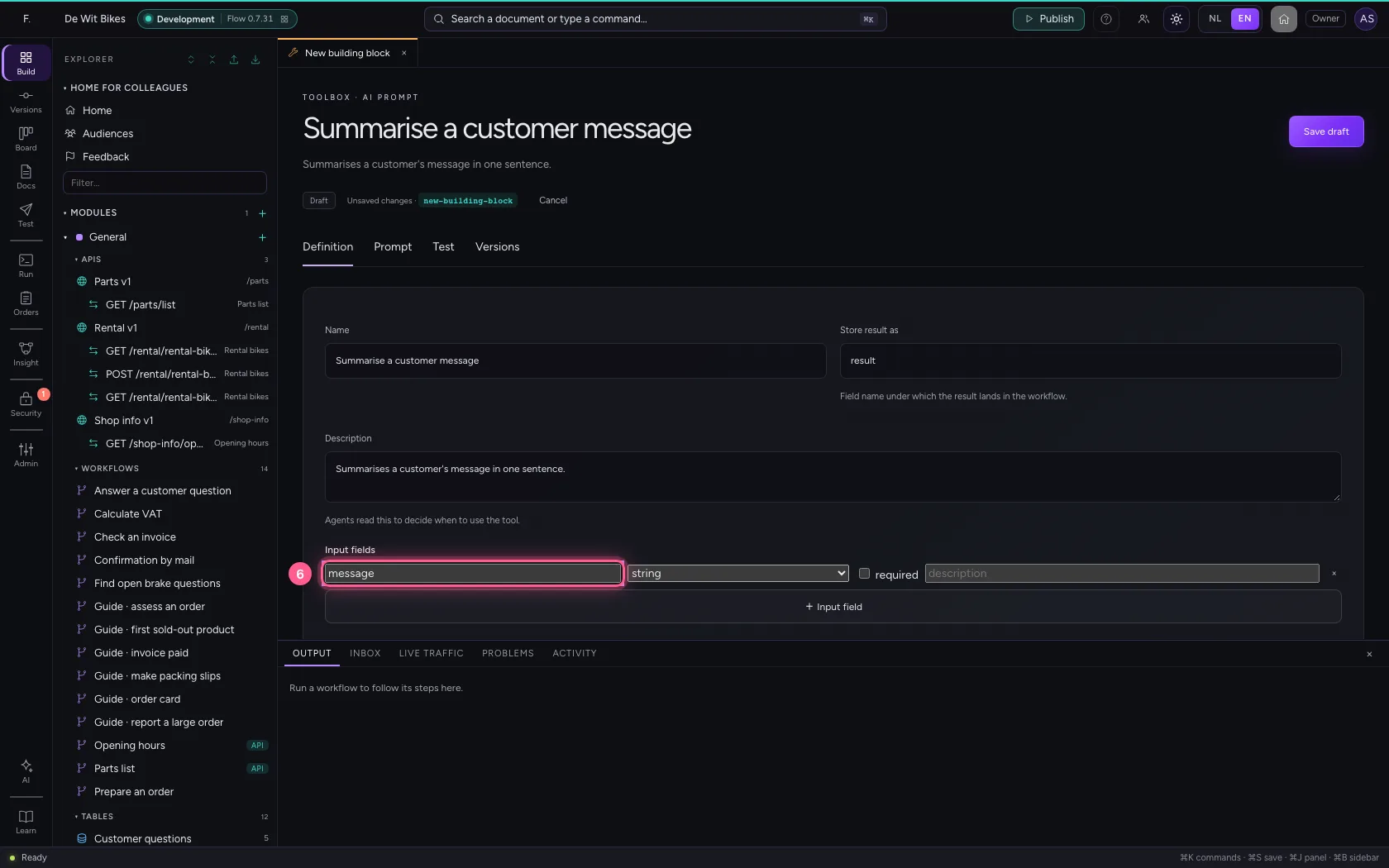
Click + next to General and choose AI prompt. Under Definition give it a name and a description, and an input field message: the text to summarise.
- Click Add to General
- Click AI prompt
- In Name, type
Summarise a customer message - In Description, type
Summarises a customer's message in one sentence.
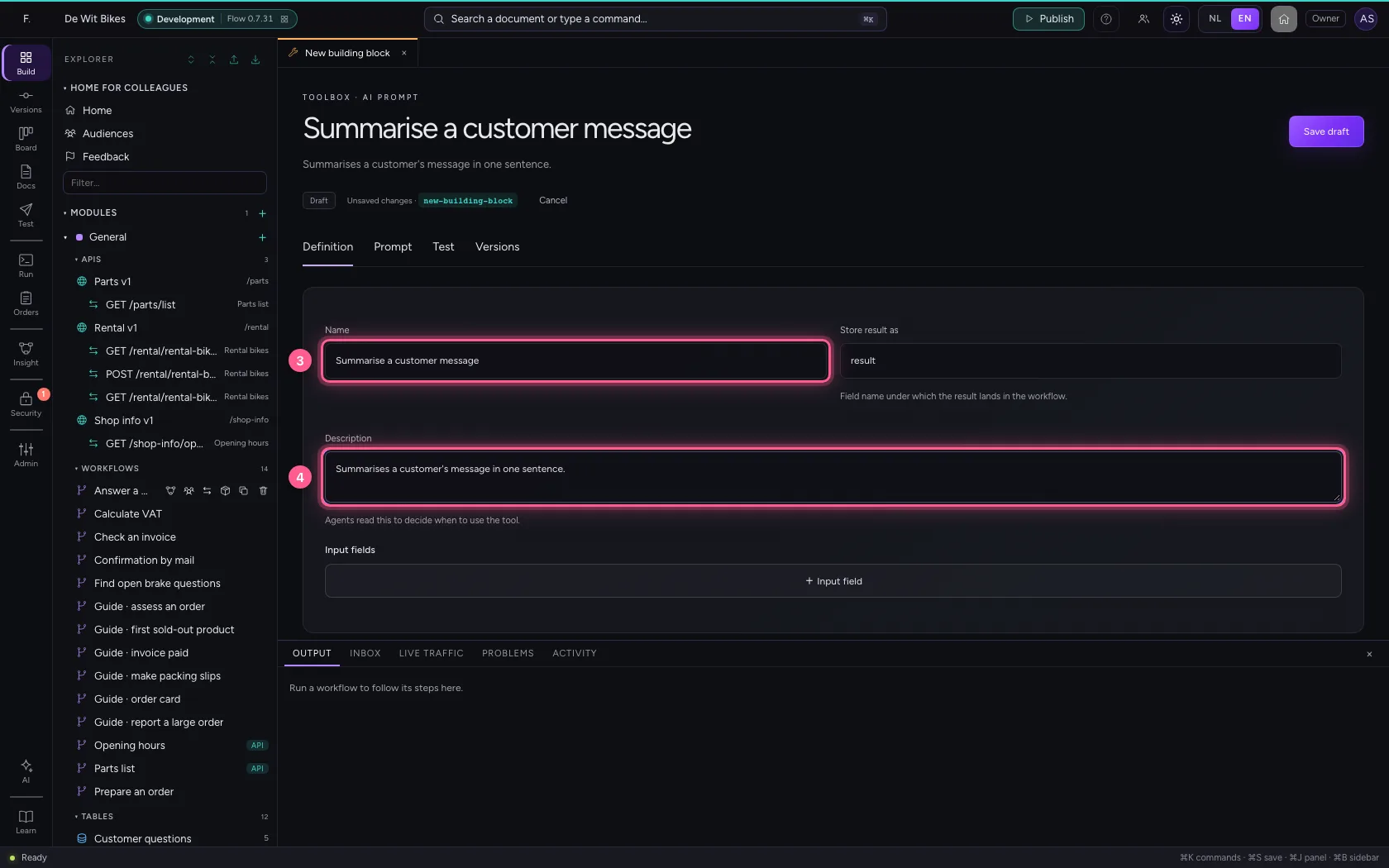
- Click + Input field
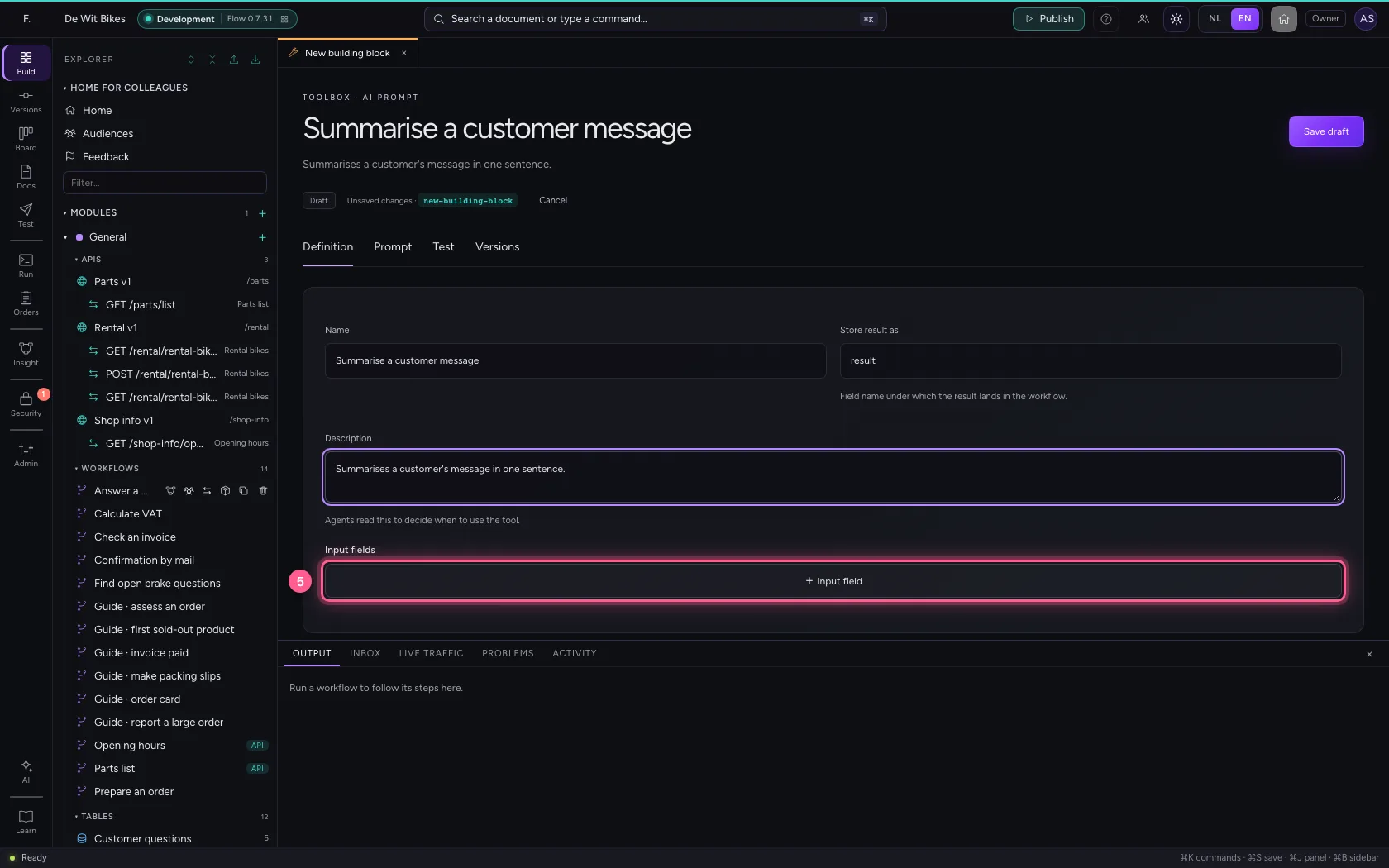
- In Name, type
message
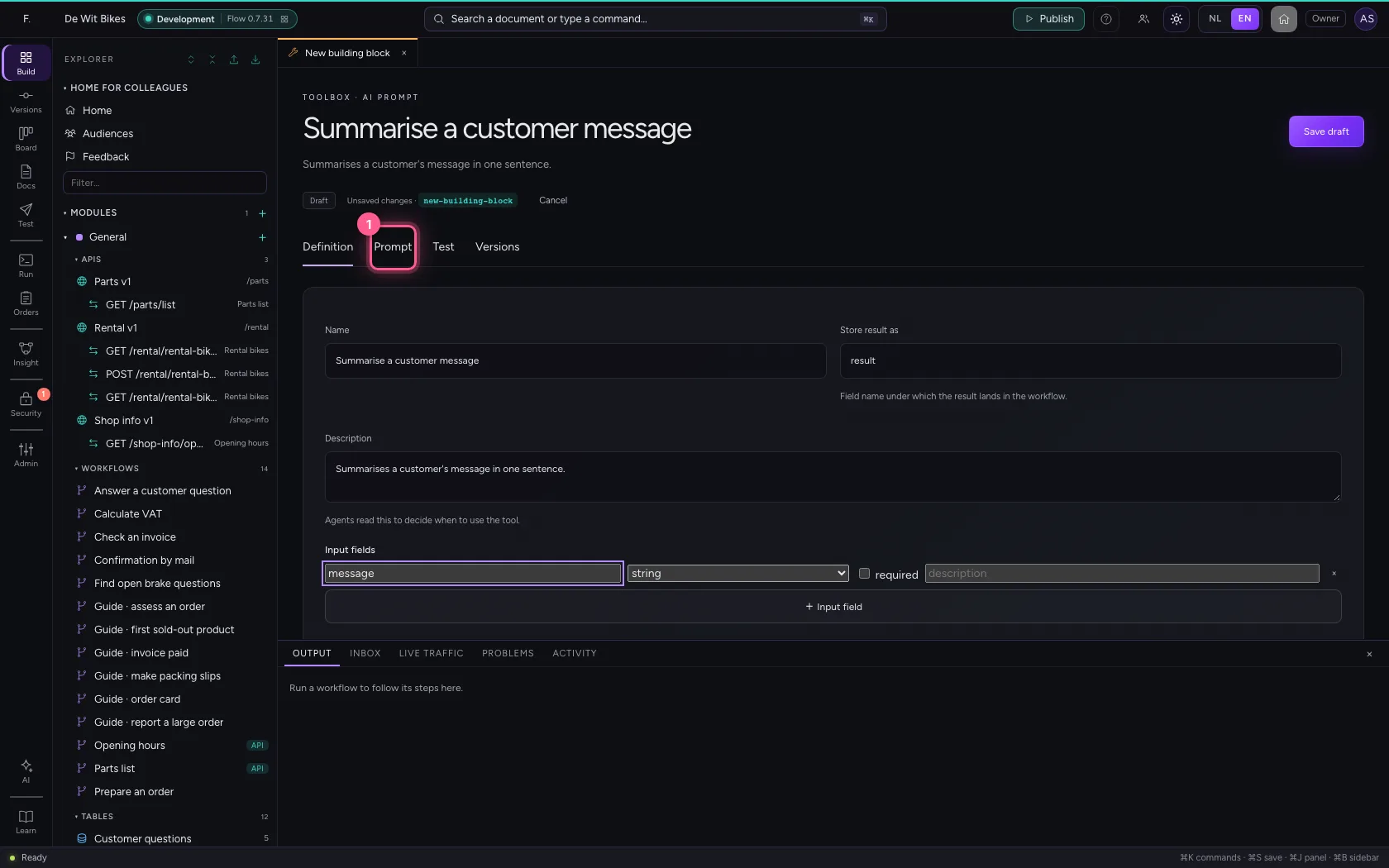
Write the prompt
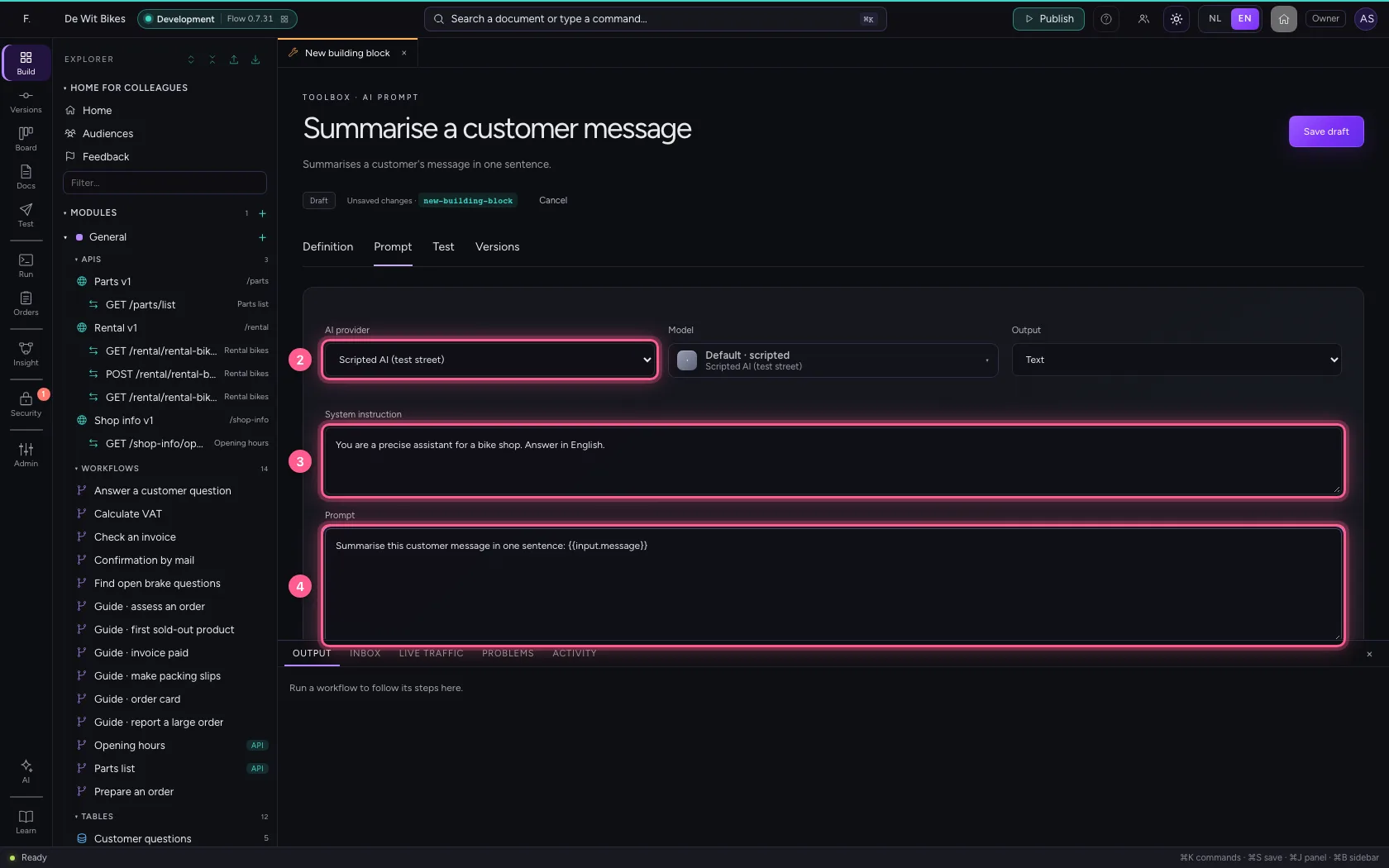
Under Prompt, choose the AI provider, write the system instruction (how the model behaves) and the prompt itself. {{input.message}} fills in the input. Choose JSON object under Output when a next step needs fields. Save the draft.
- Click Prompt
- In AI provider, choose Scripted AI (test street)
- In System instruction, type
You are a precise assistant for a bike shop. Answer in English. - In Prompt, type
Summarise this customer message in one sentence: {{input.message}}
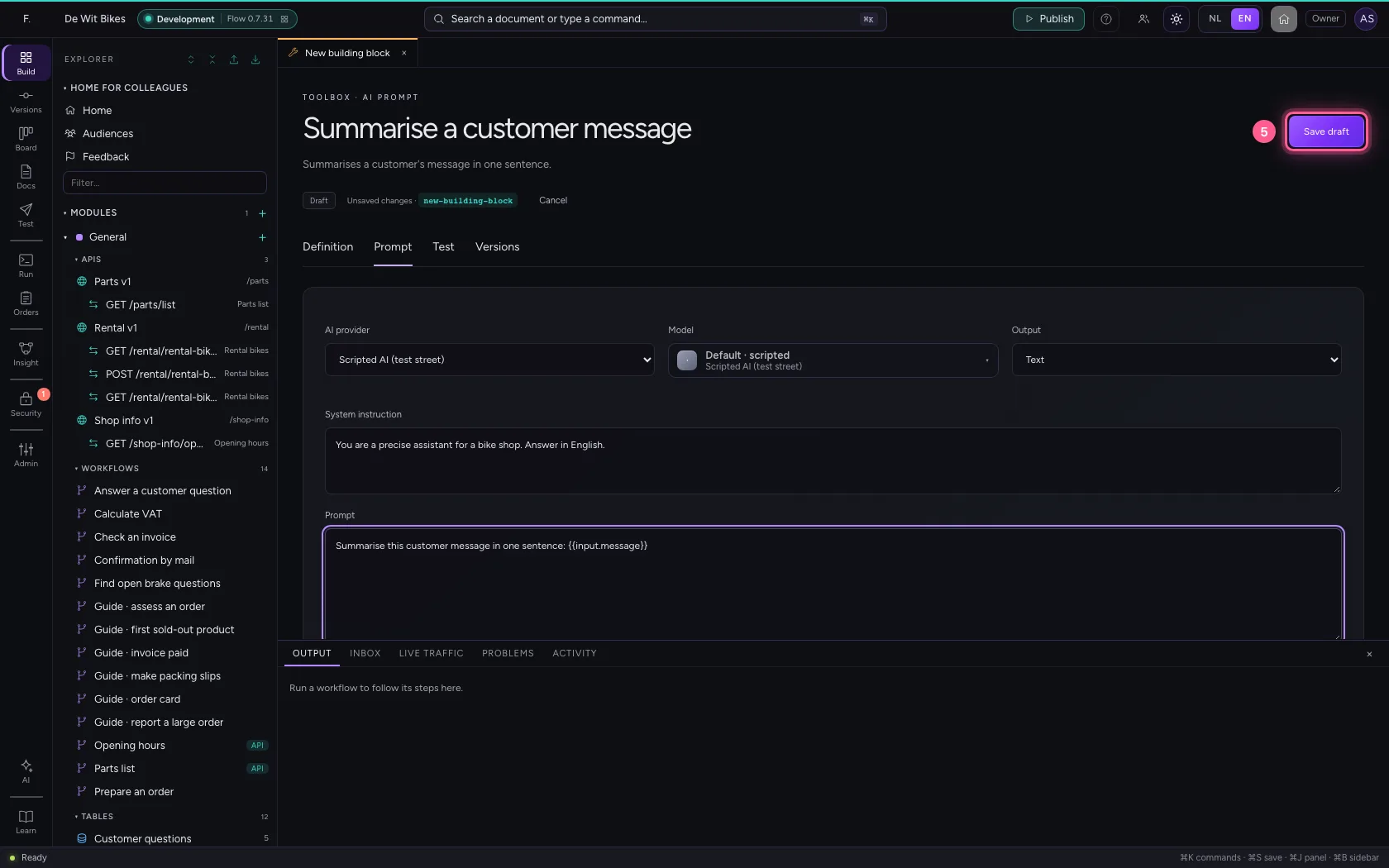
- Click Save draft
Test with a message
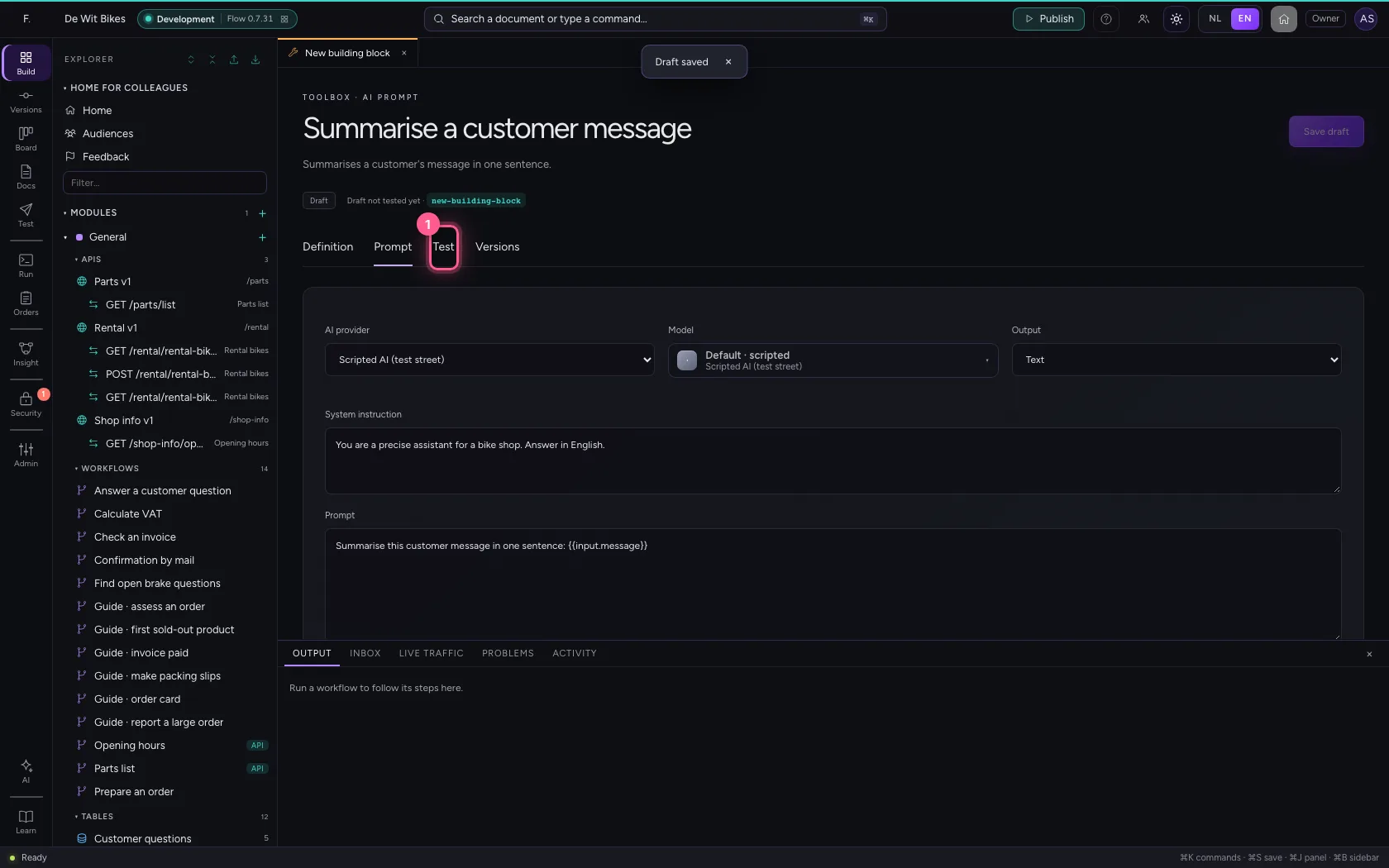
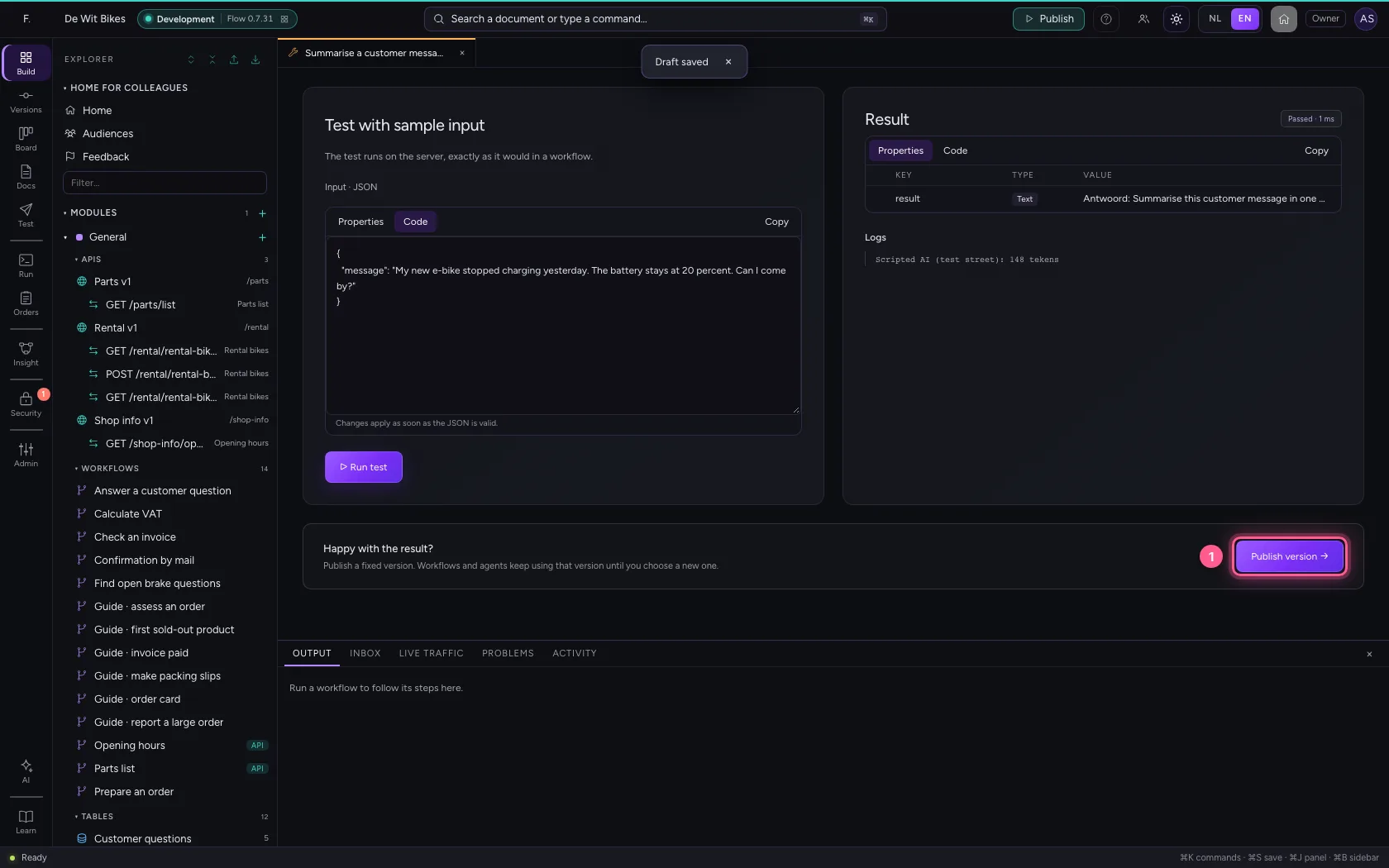
Under Test, give a sample message and click Run test. In this guide a fixed test model answers, which returns the prompt; with a real model you get the summary here. The logs show which model answered and how long the answer was.
- Click Test
- Click Code
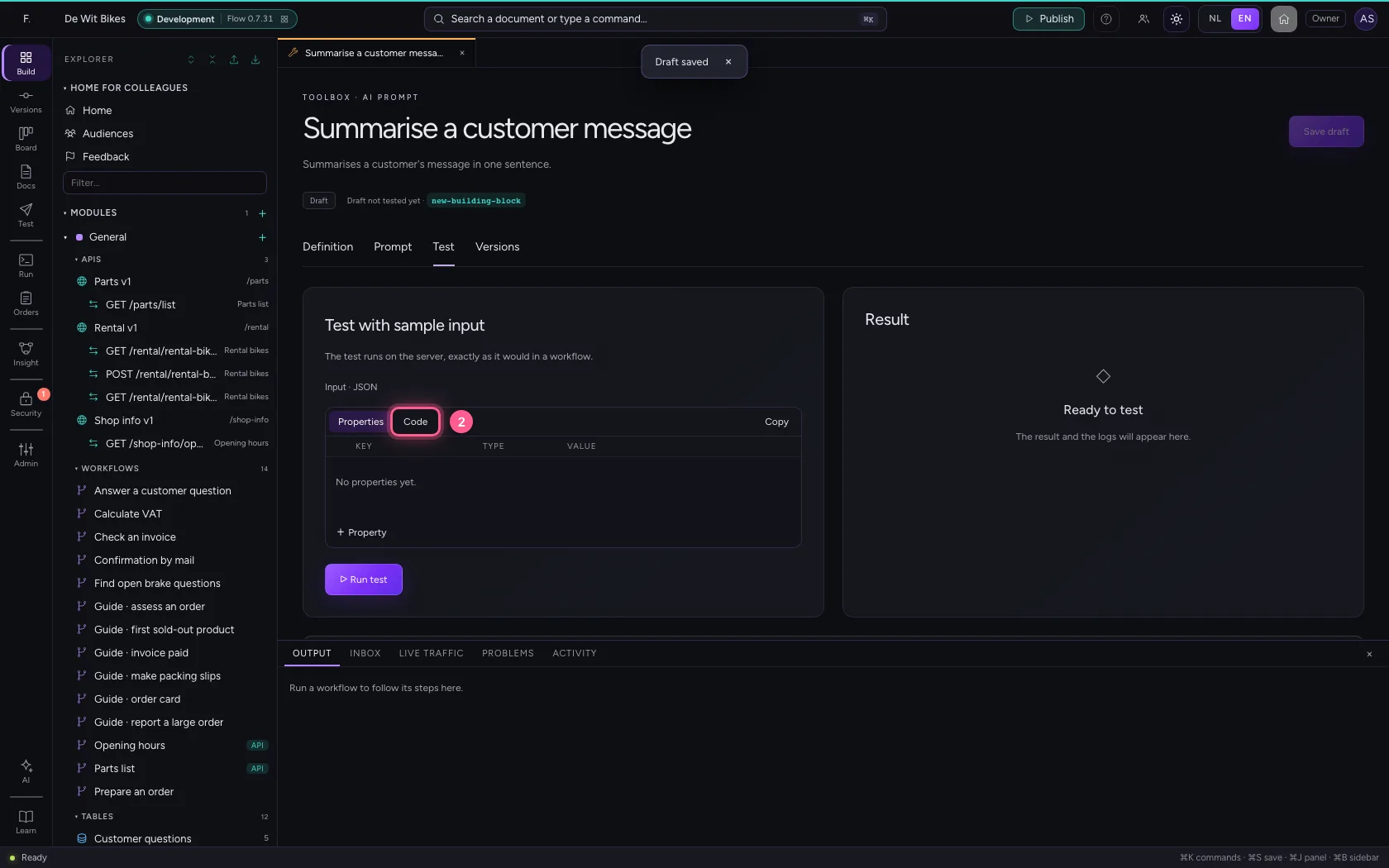
- In Input, type
{"message": "My new e-bike stopped charging yesterday. The battery stays at 20 percent. Can I come by?"}
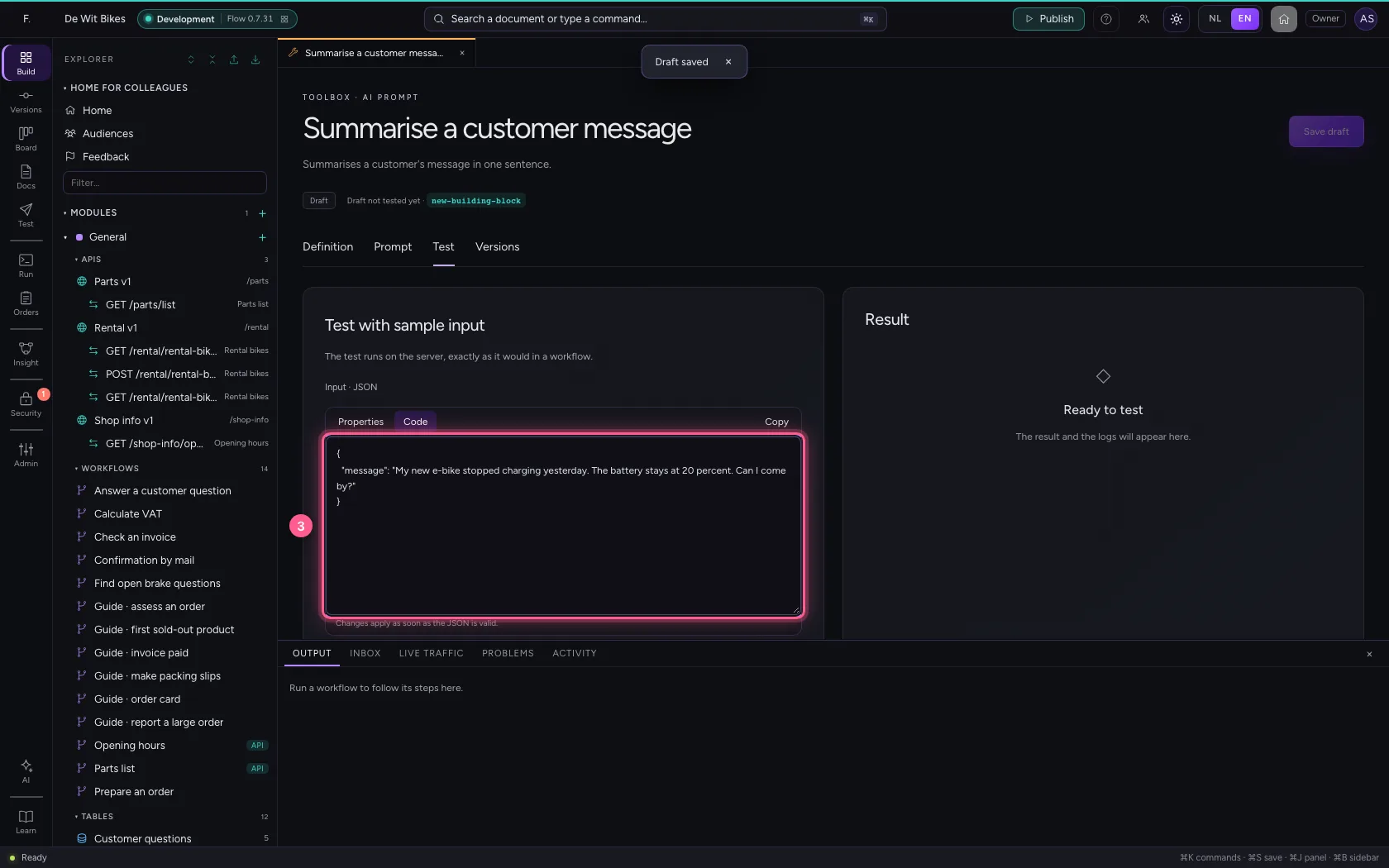
- Click ▷ Run test
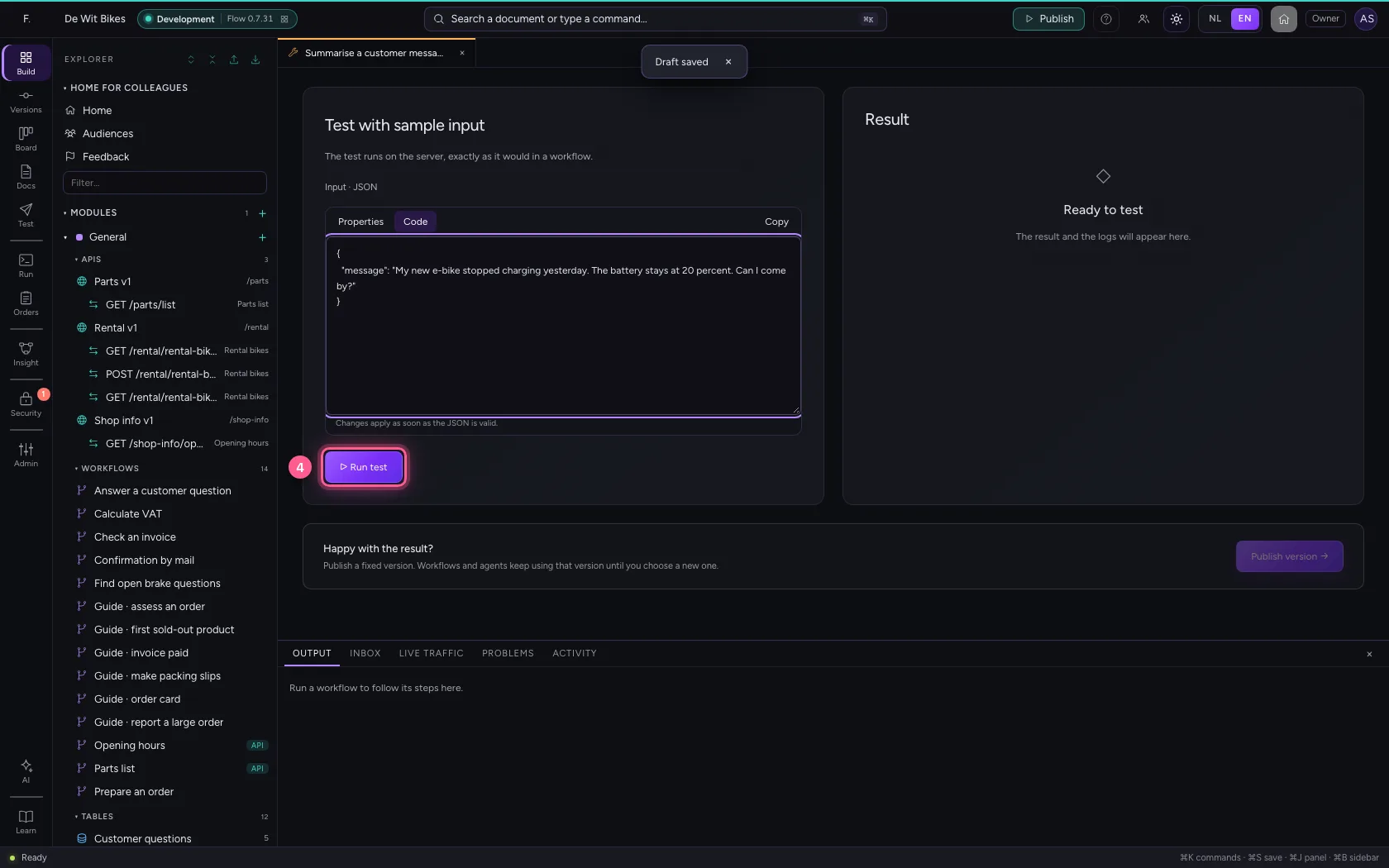
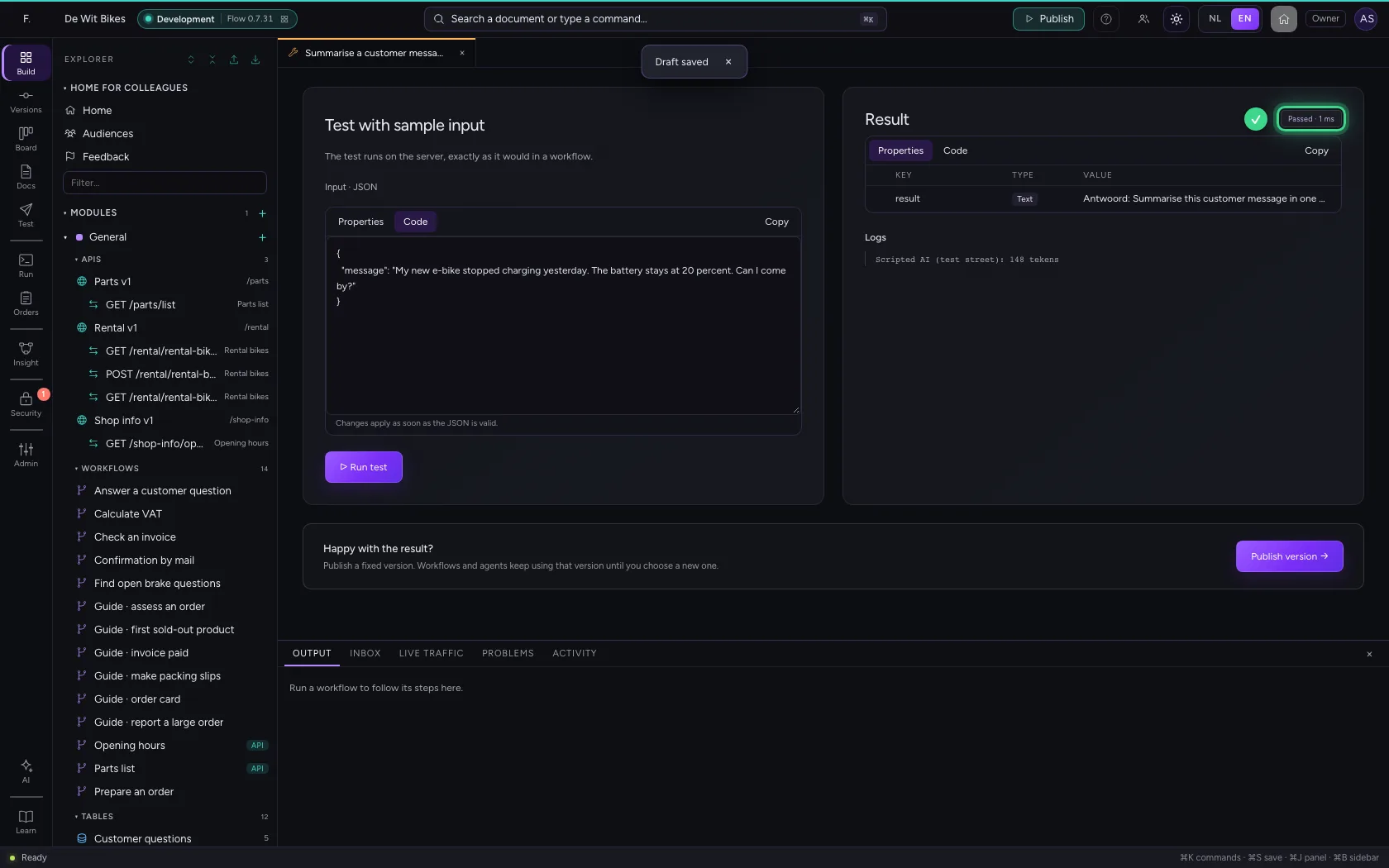
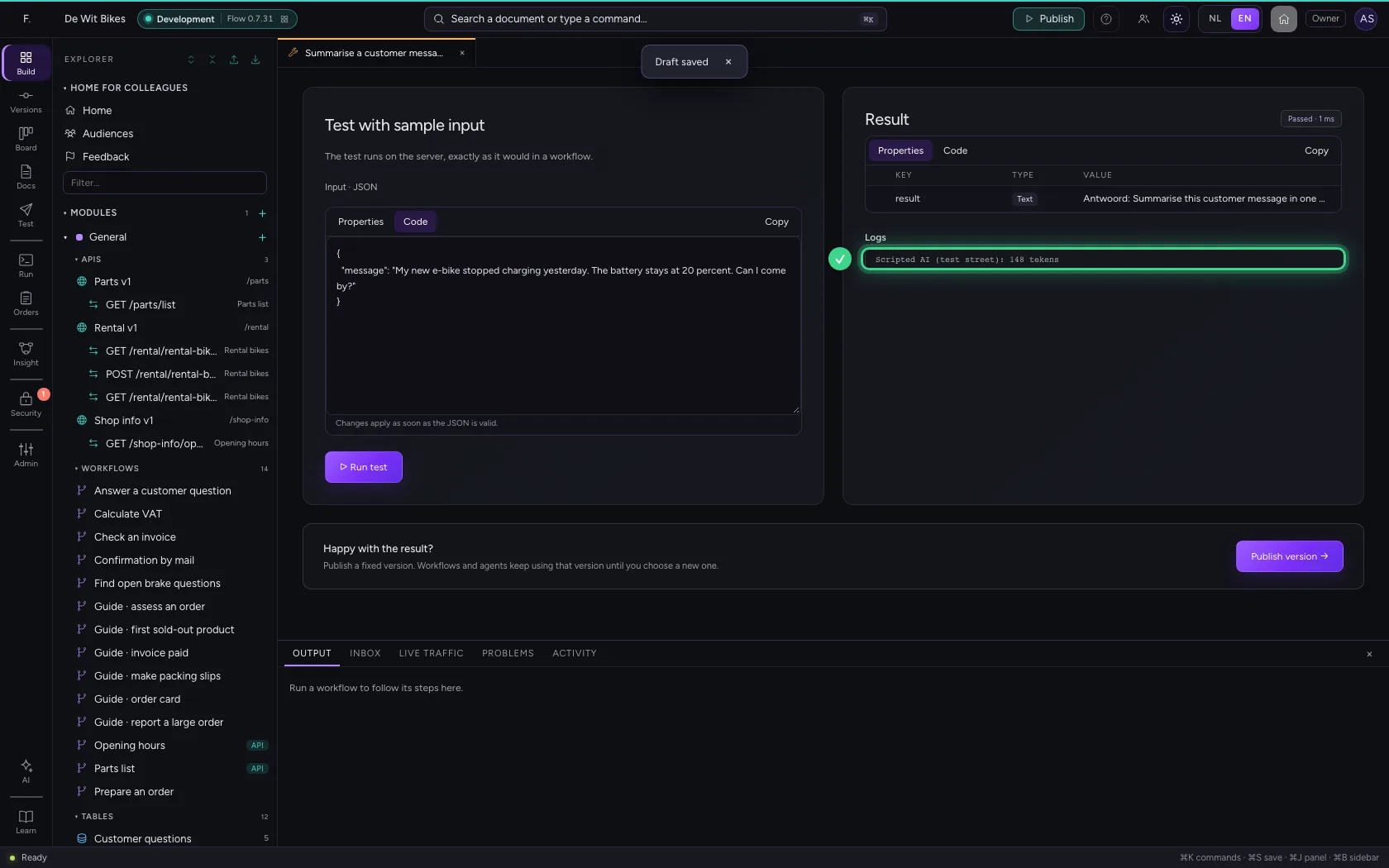
Publish a version
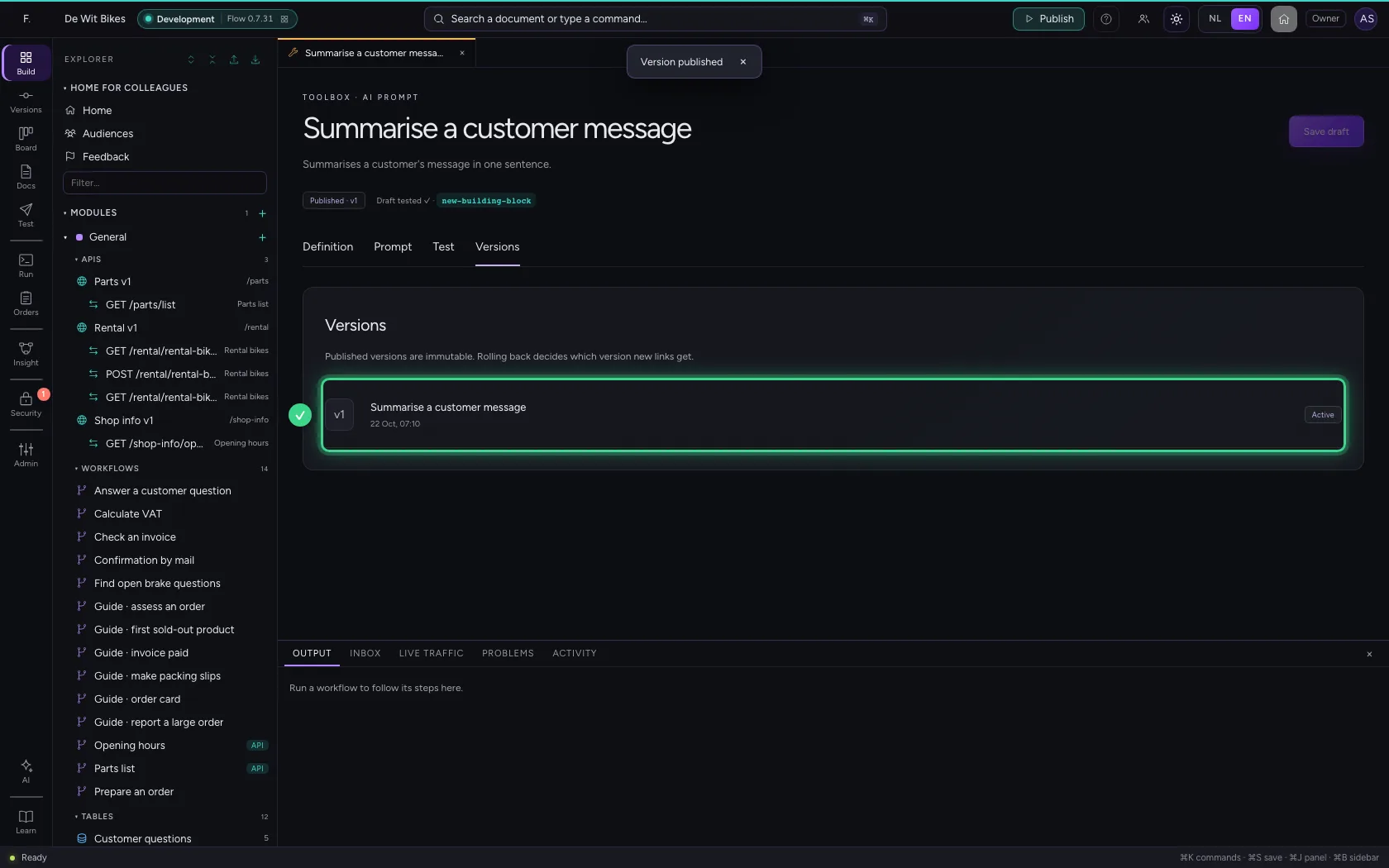
Publish a fixed version: that way the prompt never changes unnoticed under a workflow or agent.
- Click Publish version →
Give it to an agent
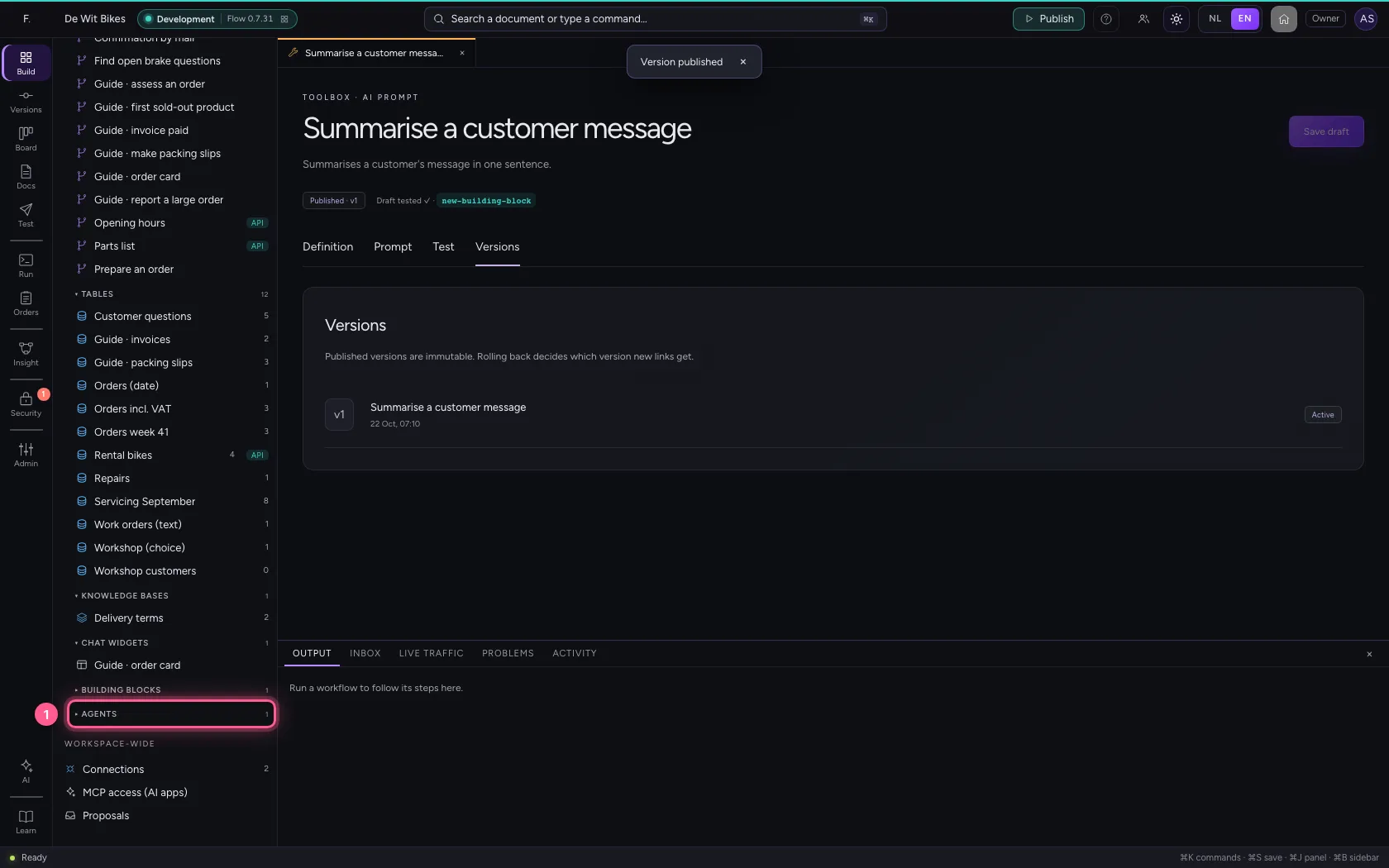
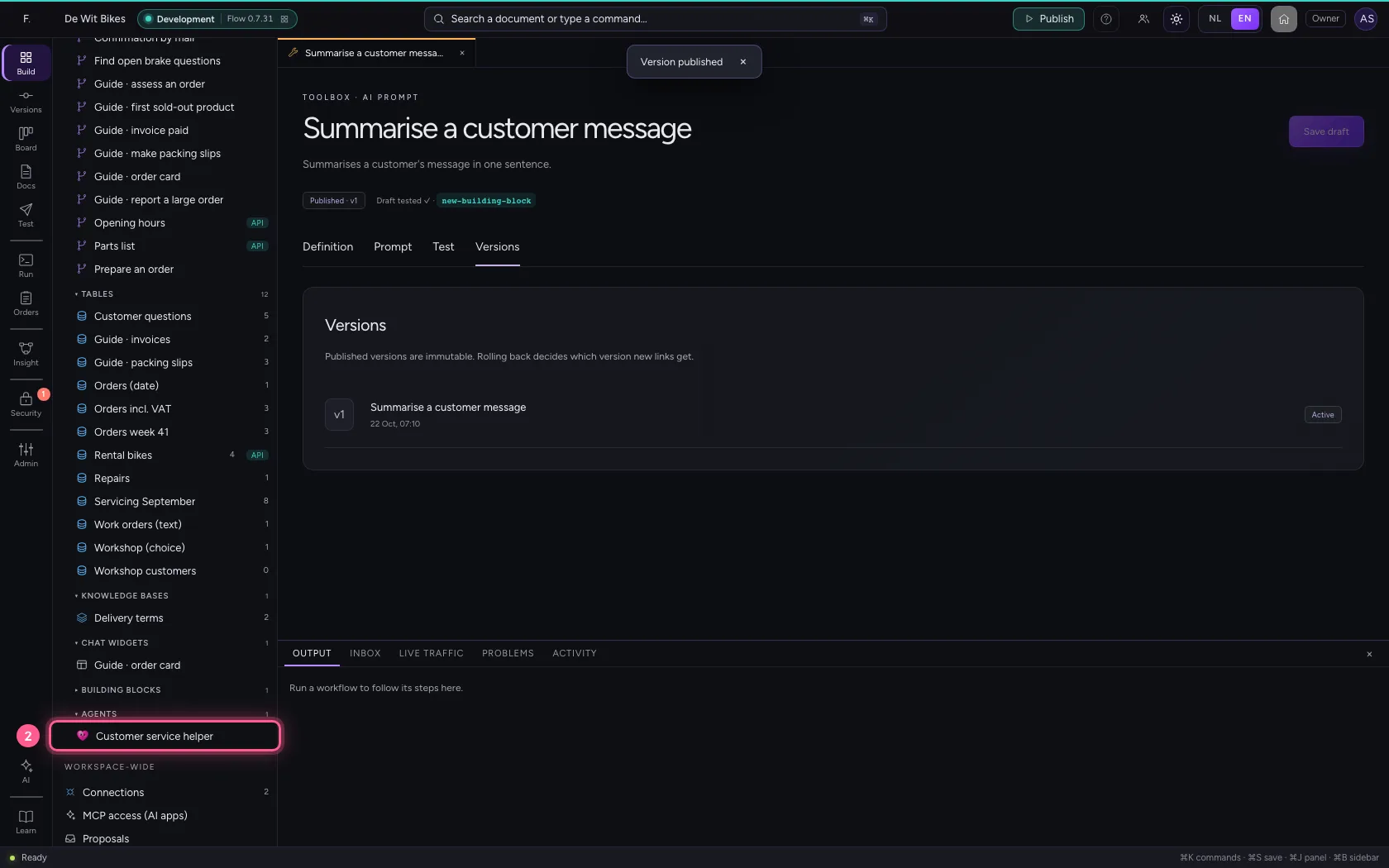
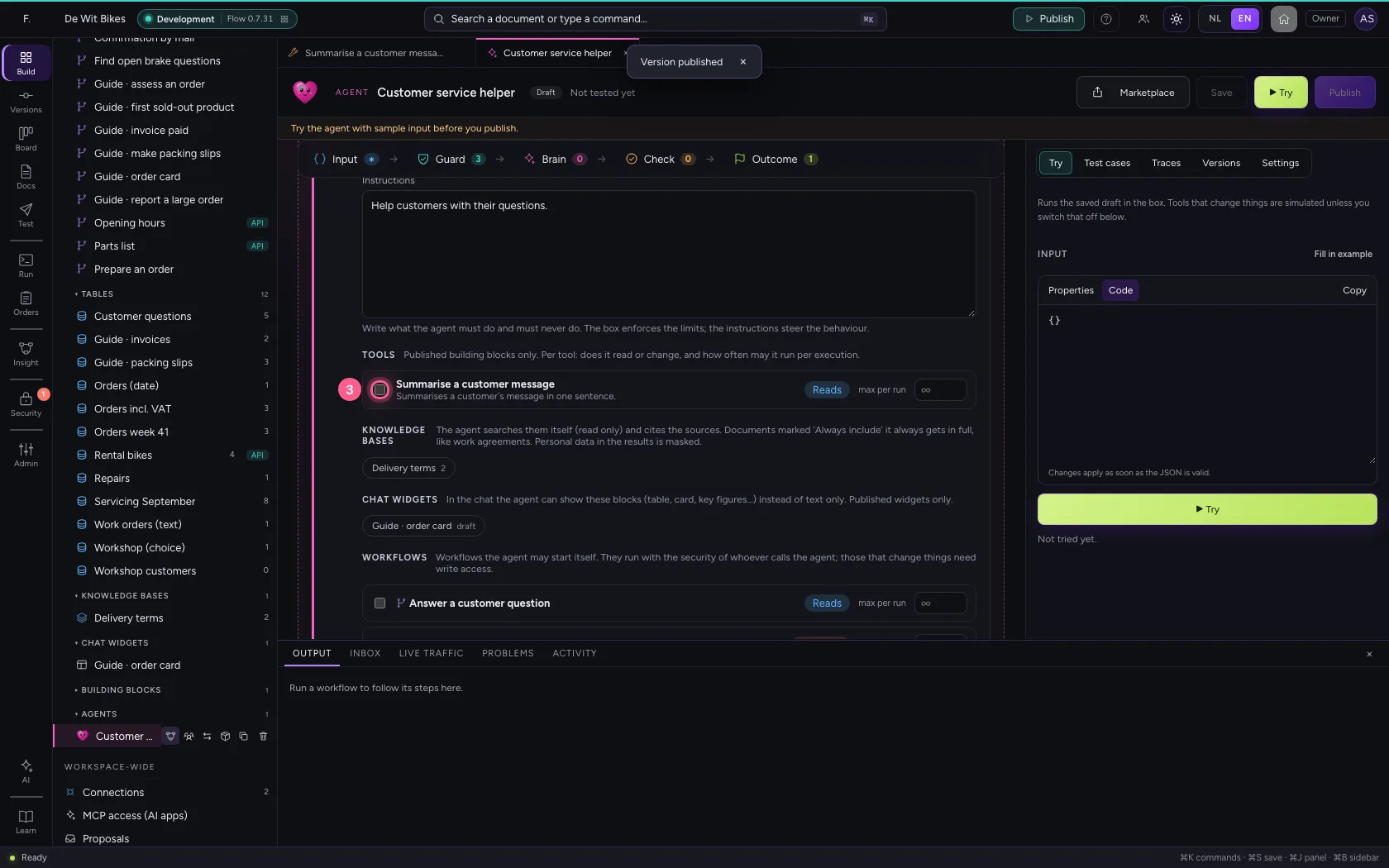
Open an agent and tick the prompt under Brain → Tools. An AI prompt only reads, so the agent may use it even when it may not change anything.
- Click Agents
- Click the agent ‘Customer service helper’
- Click Summarise a customer message
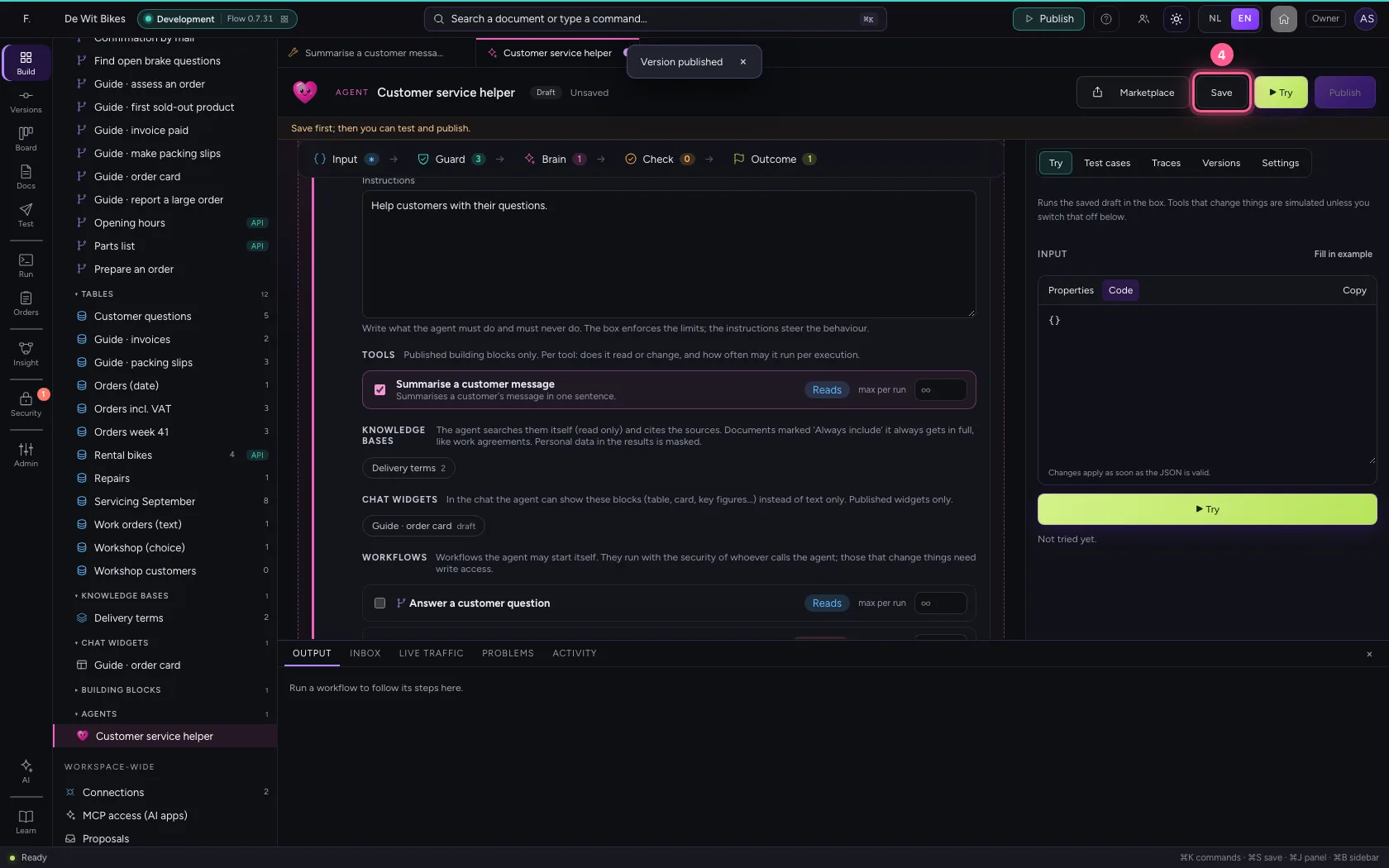
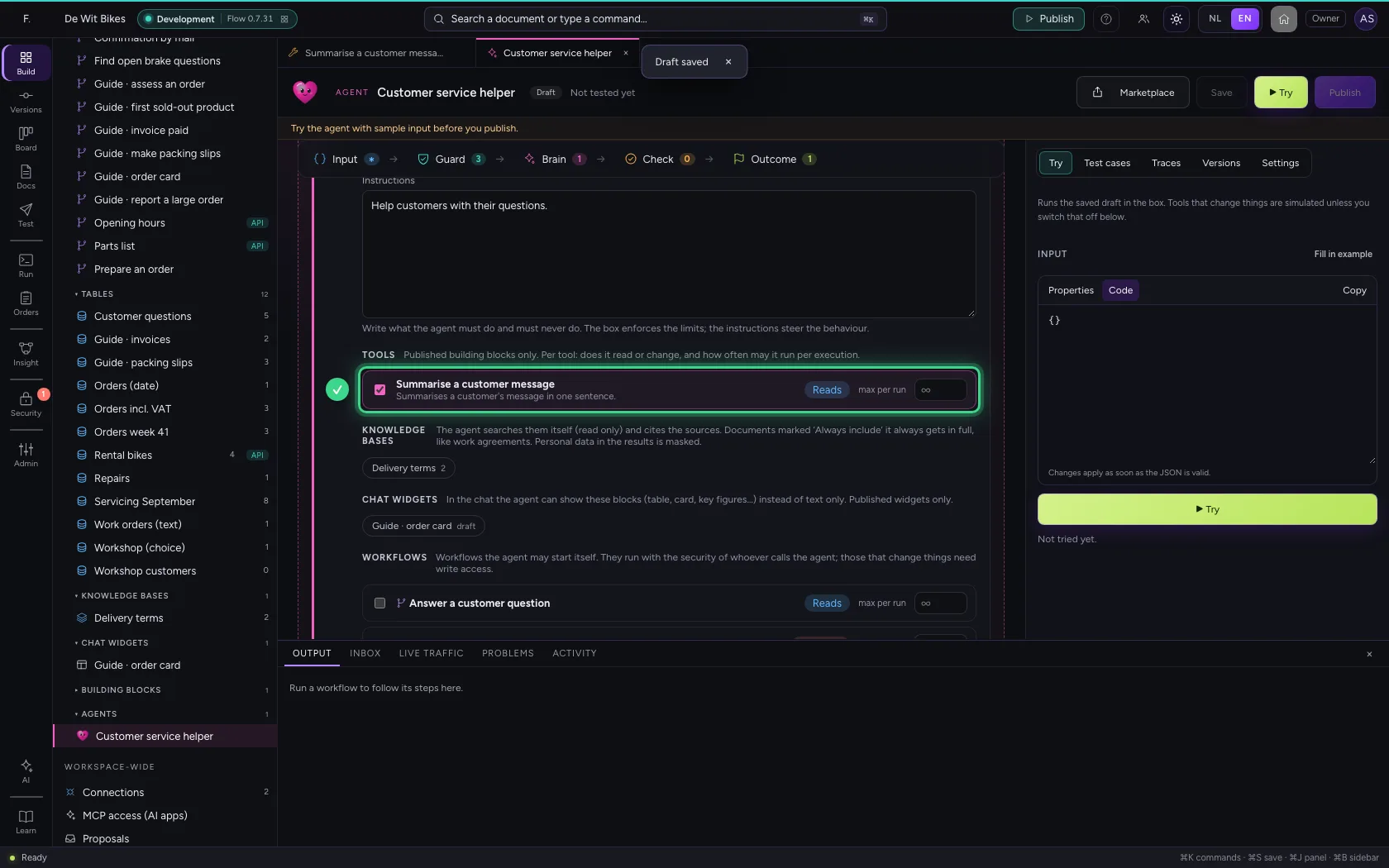
- Click Save
This guide was carried out step by step on 22 Oct 2026 by an automated test on Flow (version 3e563176).