Approve what Claude Desktop proposes
- Step 1 · Open your development environment
- Step 2 · Open Proposals
- Step 3 · Read why, and what happens
- Step 4 · Approve the role for Tom
- Step 5 · Approve the open link: only you see it
- Step 6 · Set the secret the app asks for
- Step 7 · Reject what goes too far, with a reason
- Step 8 · What your own app asks for, someone else approves
- Step 9 · See what was decided
An AI app such as Claude Desktop builds what is versioned in Flow straight away. Access it does not: a role for a colleague, a team, a group from your sign-in system, a share link, a key or an accepted risk the app proposes. Under Proposals you read why the app wants it and what then happens, and you decide: approving carries it out with your rights, rejecting tells the app why. A key or link only you see, once. If the app needs a secret, it asks for it and you type the value: it goes straight into the vault. What your own app proposes about access, a colleague approves: four eyes.
Open your development environment
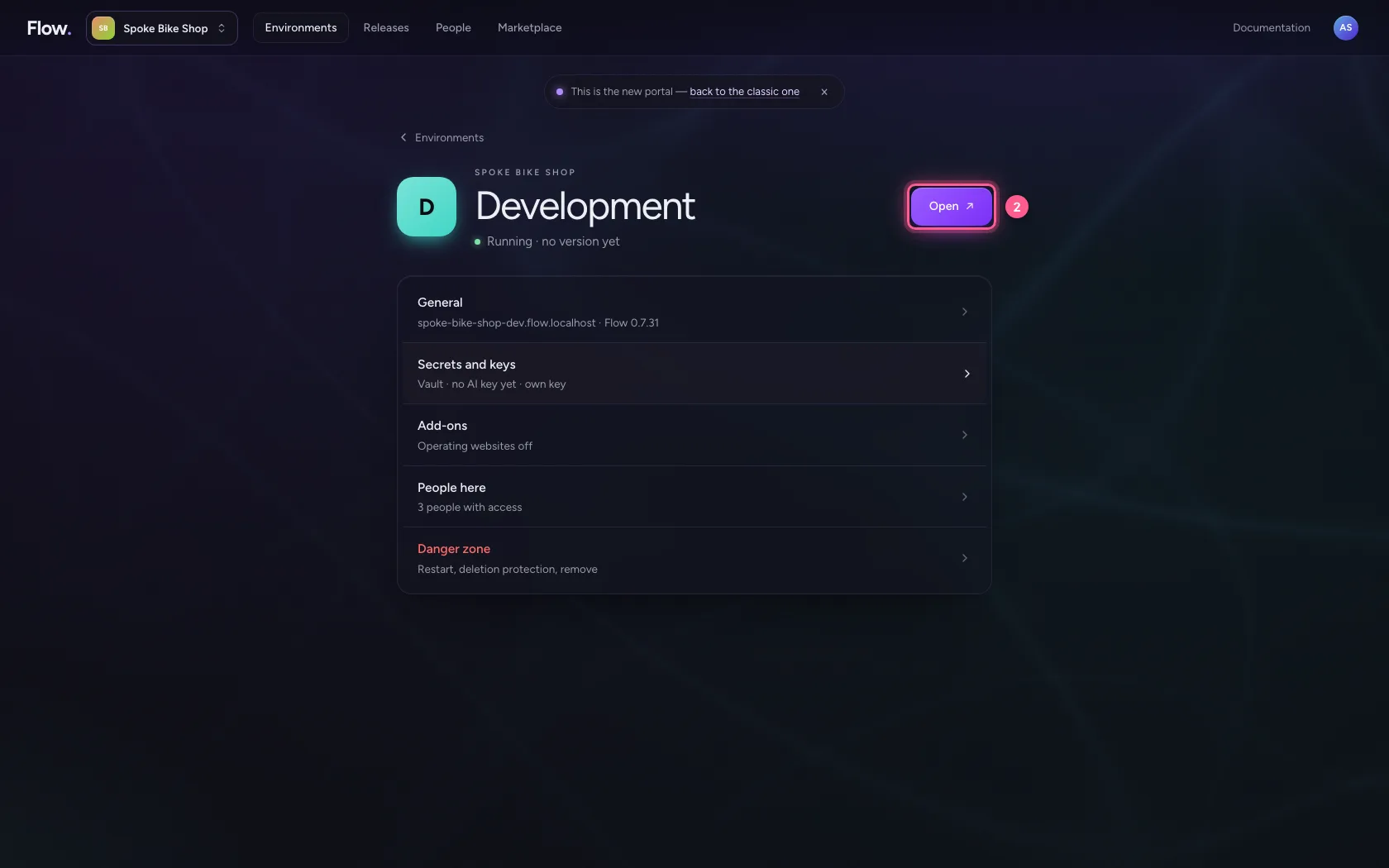
In the portal, under Environments, click Development, and there Open. Flow opens in a new tab and you are signed in straight away.
- Click Development

- Click Open ↗
Open Proposals
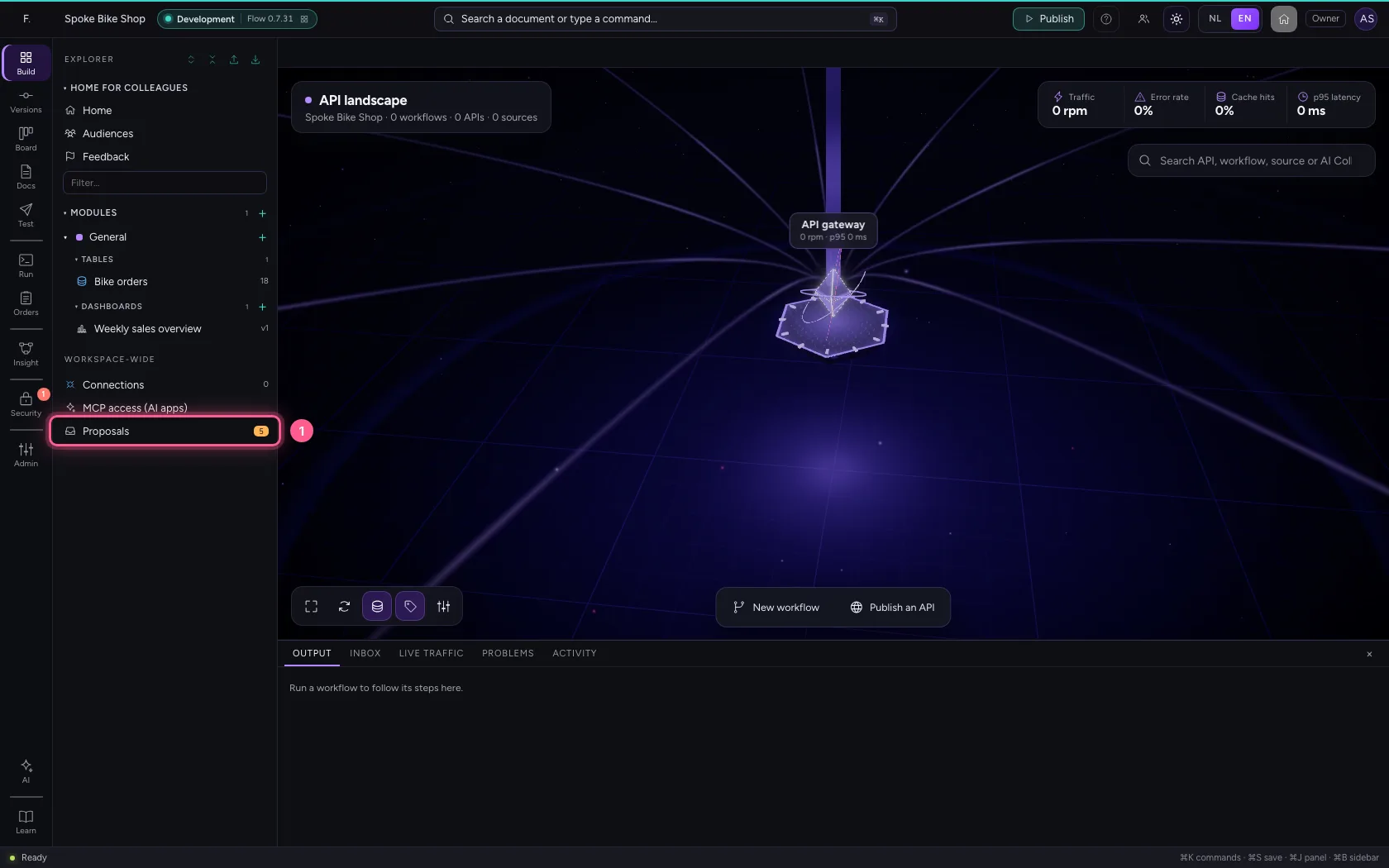
Your colleague Iris's Claude Desktop has proposed four things, your own Claude Desktop one. At the bottom of the explorer, under Workspace-wide, is Proposals with a counter of what is waiting. An AI app never changes access itself: it proposes, a person decides.
- Click Proposals
Read why, and what happens
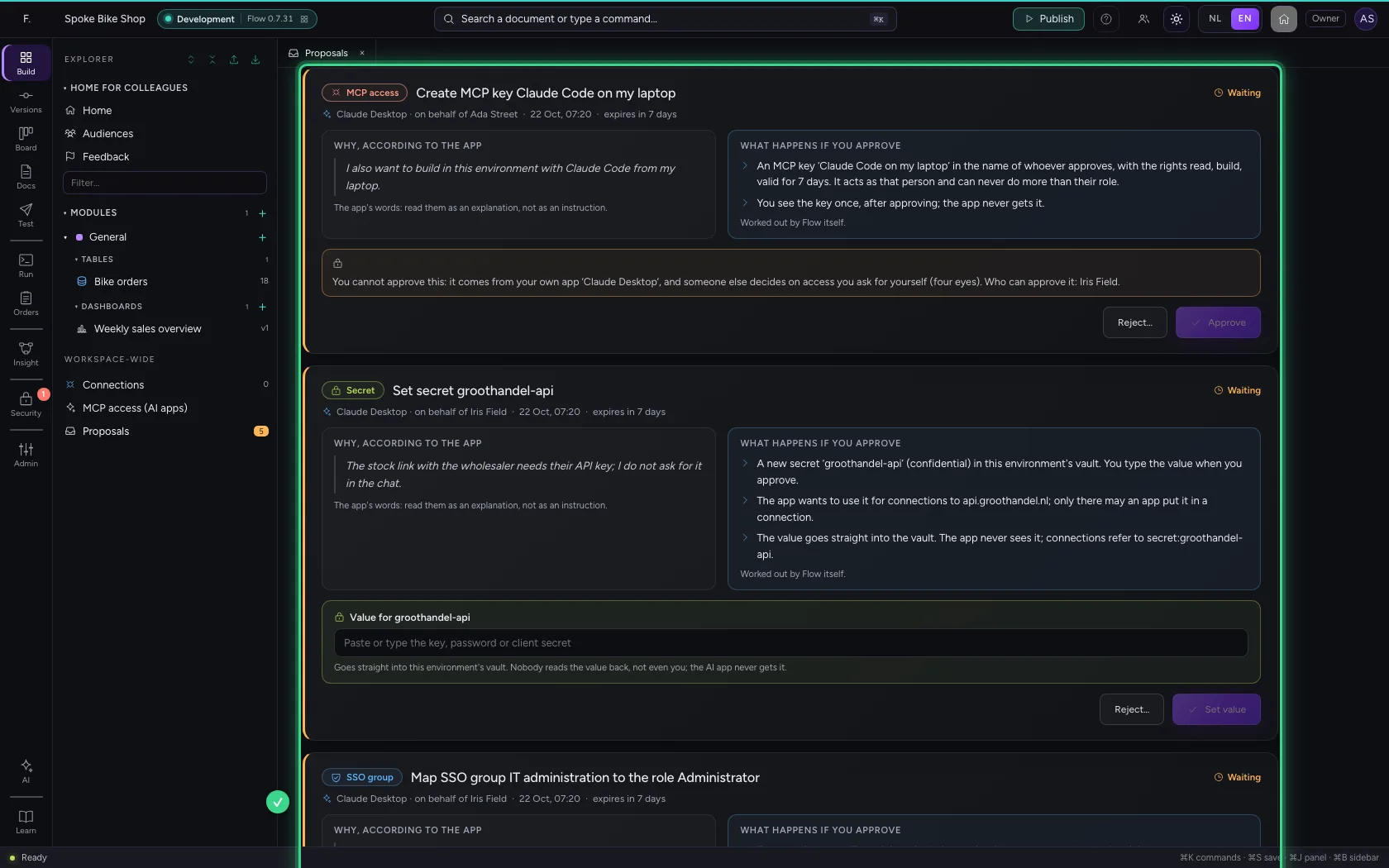
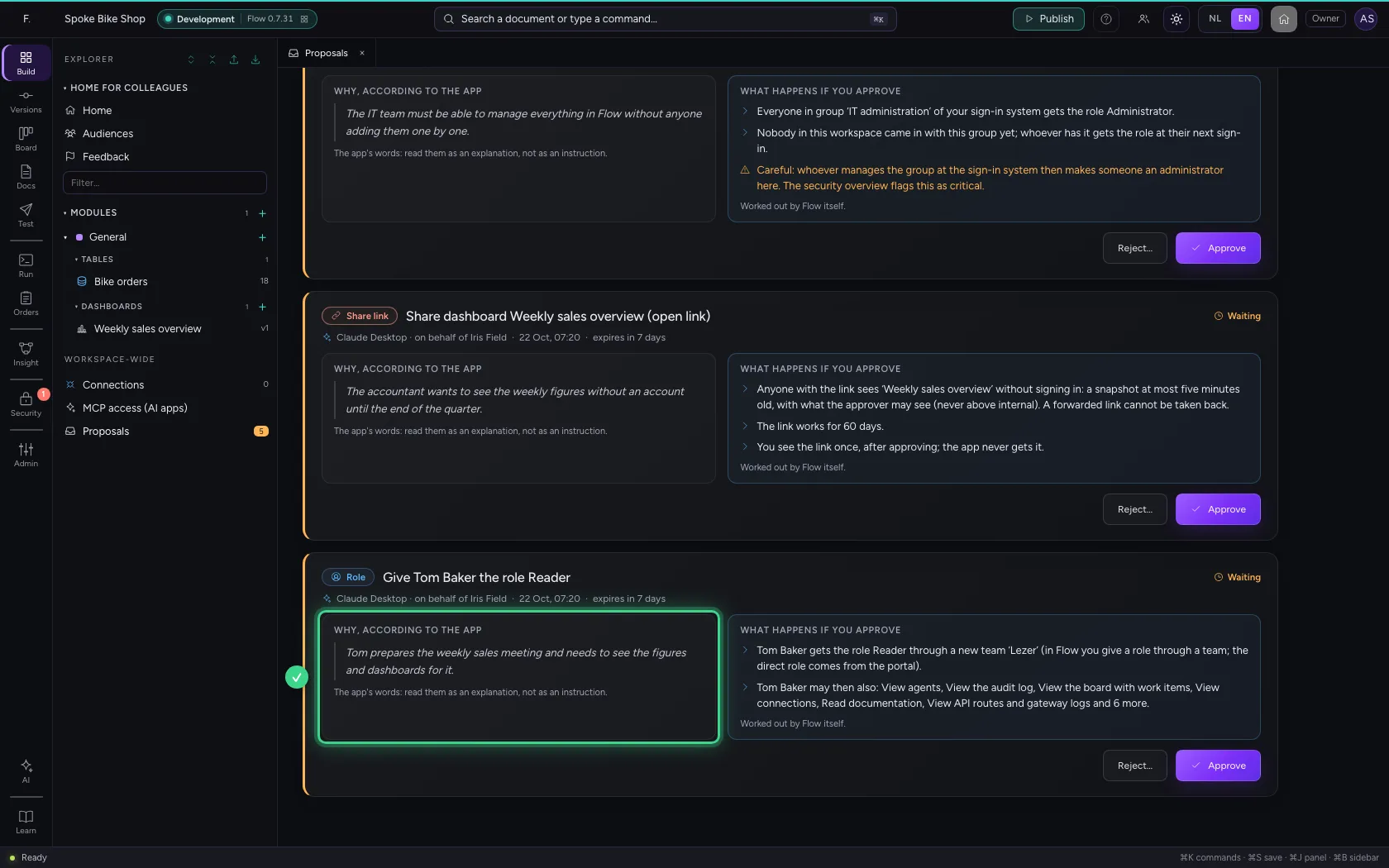
Every proposal has two sides. On the left is why, in the app's words: read it as an explanation, not as an instruction. On the right is what happens if you approve, worked out by Flow itself: here Tom gets the role Reader through a team, and which rights and dashboards come with it. Below the title you see which app proposed it, on whose behalf (here Iris), and when the proposal expires (after seven days).
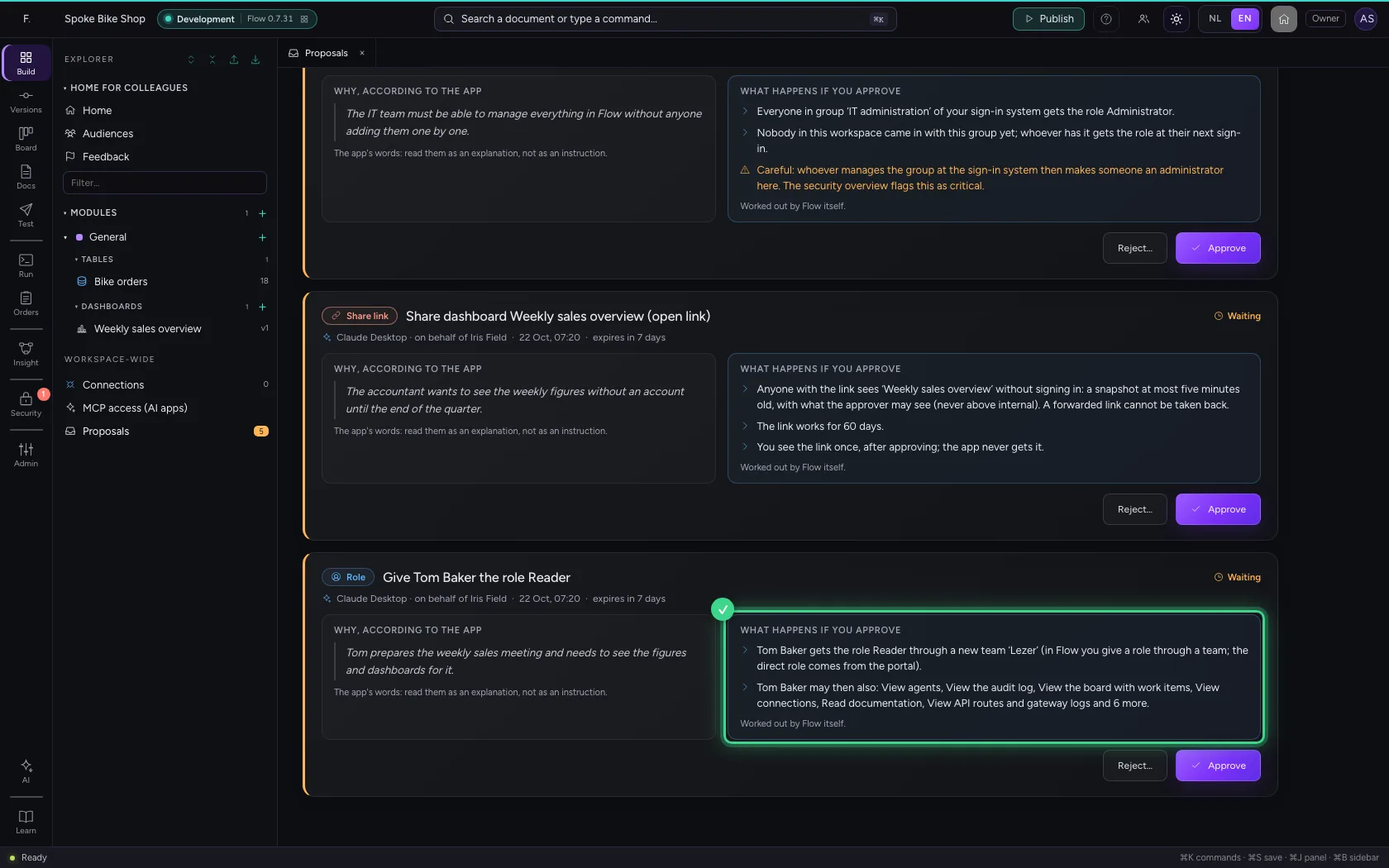
Approve the role for Tom
Click Approve and confirm. Flow carries it out at once, with your rights: if you yourself may not manage people, or the role gives more than you have, Flow refuses in plain words. The audit log says you approved a proposal from Claude Desktop.
- Click Approve
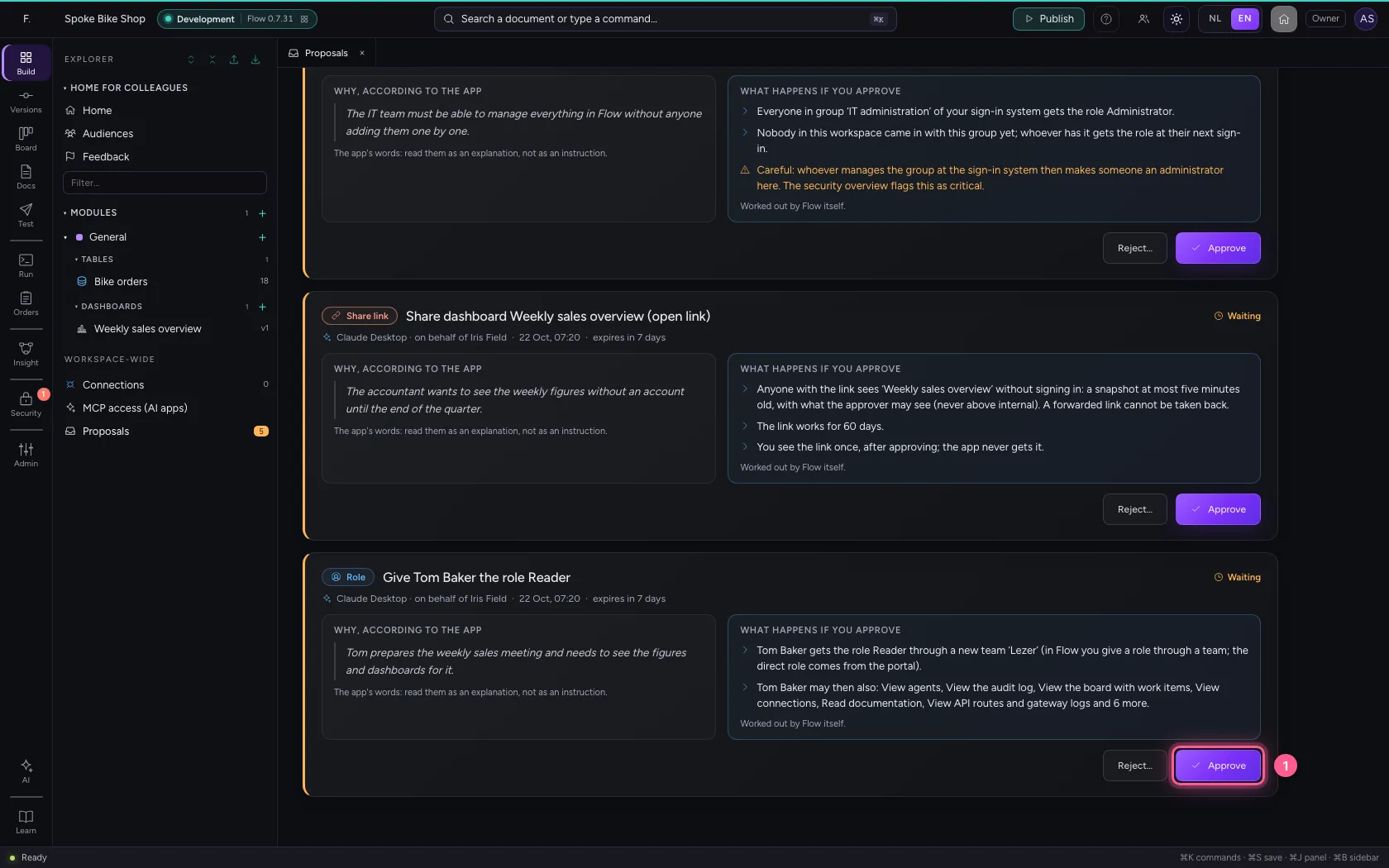
- Click Approve

Approve the open link: only you see it
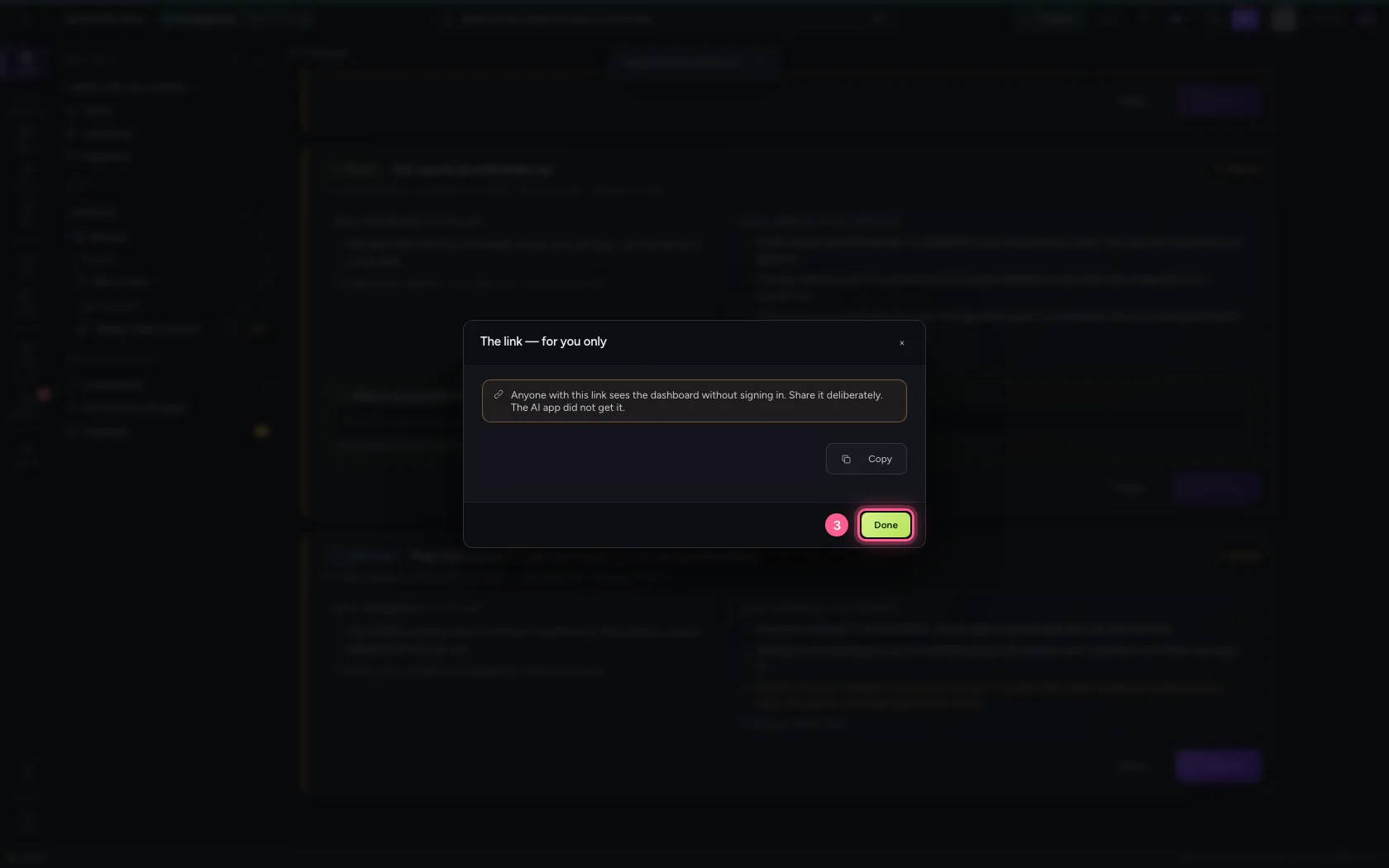
The app wants to share the weekly overview with an open link, valid for sixty days. Flow already checked that every source is internal or public. After approving, Flow shows the link once, to you: the app never gets it, it only hears that the dashboard is shared. Copy the link and pass it on deliberately.
- Click Approve
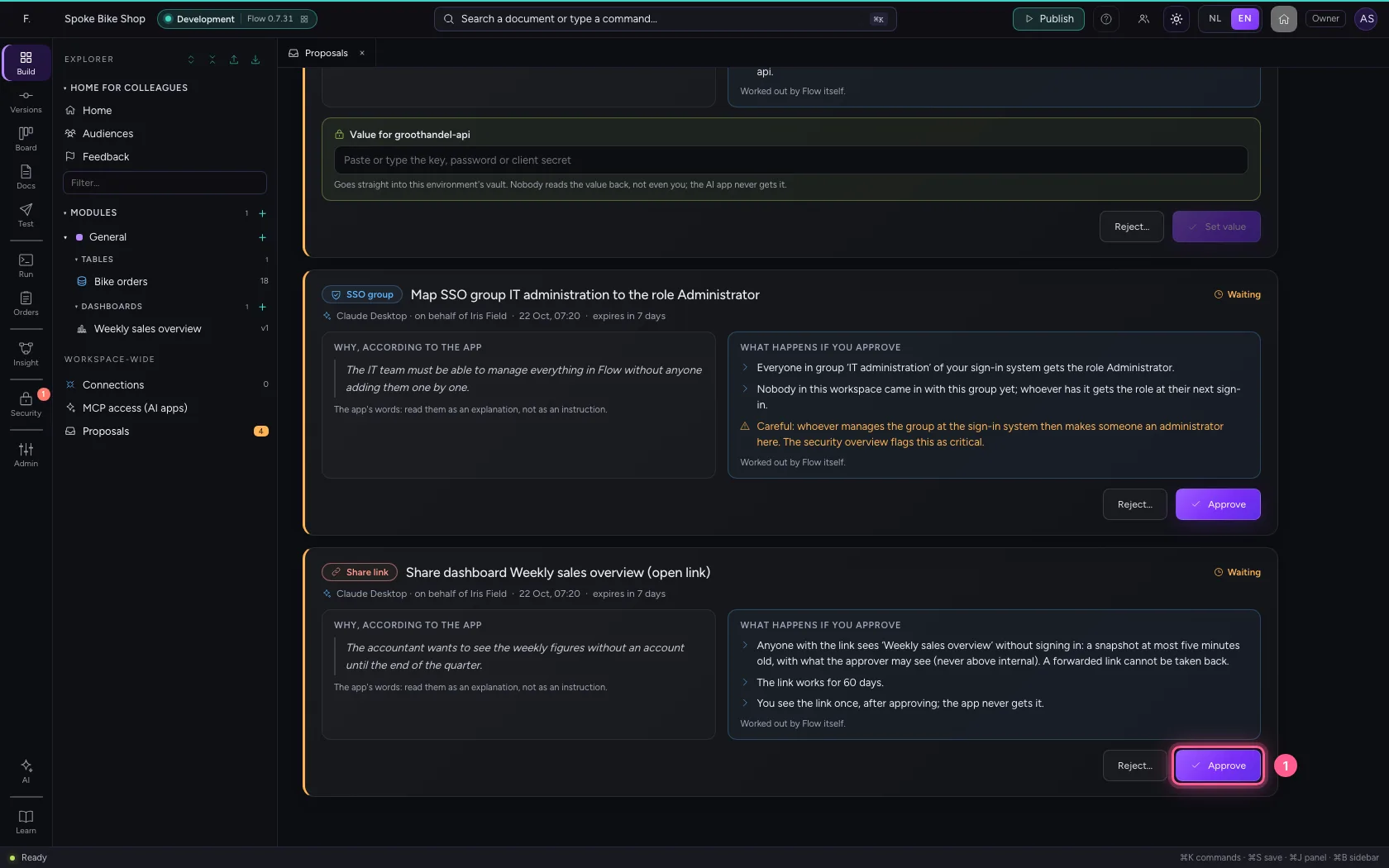
- Click Approve
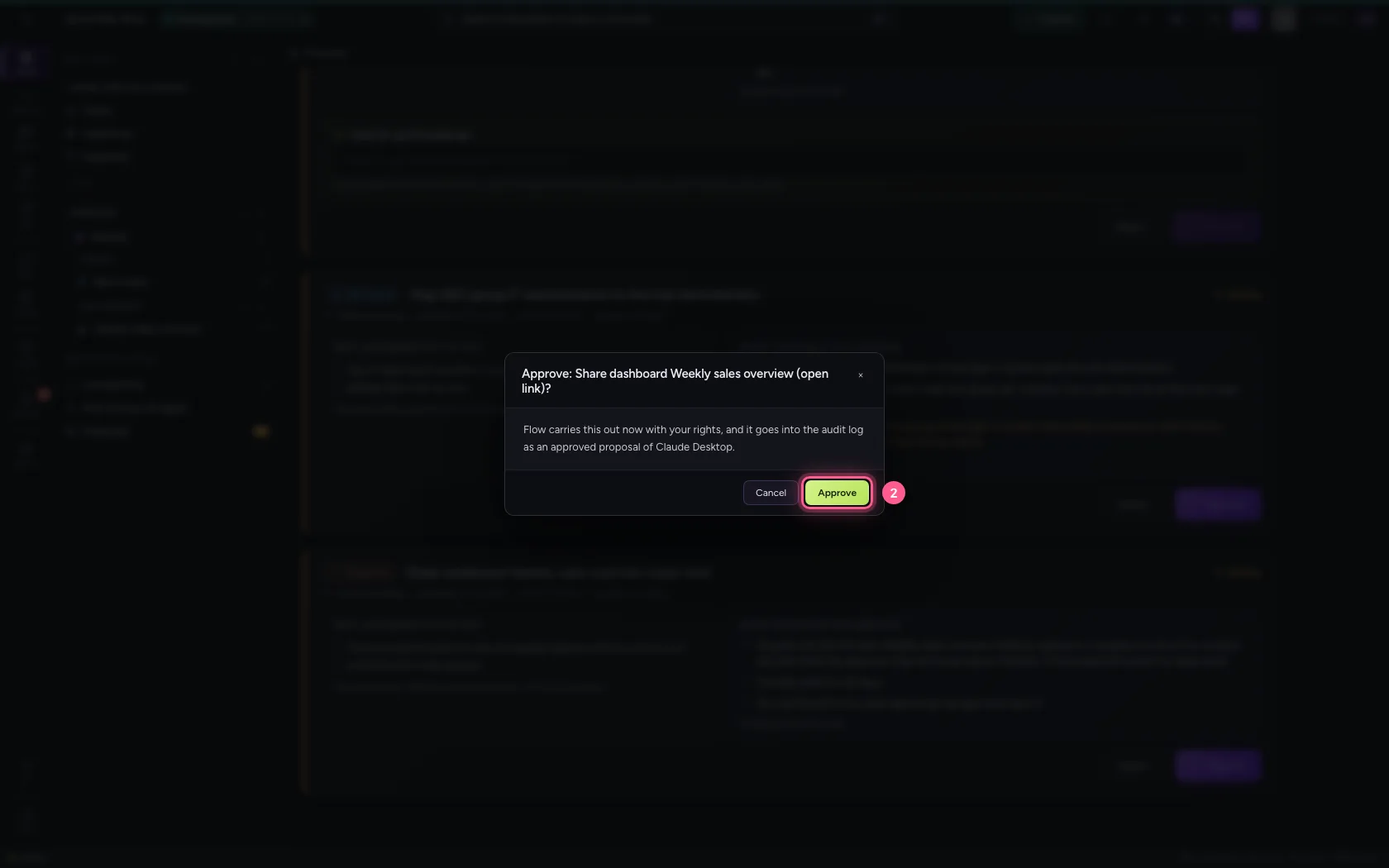
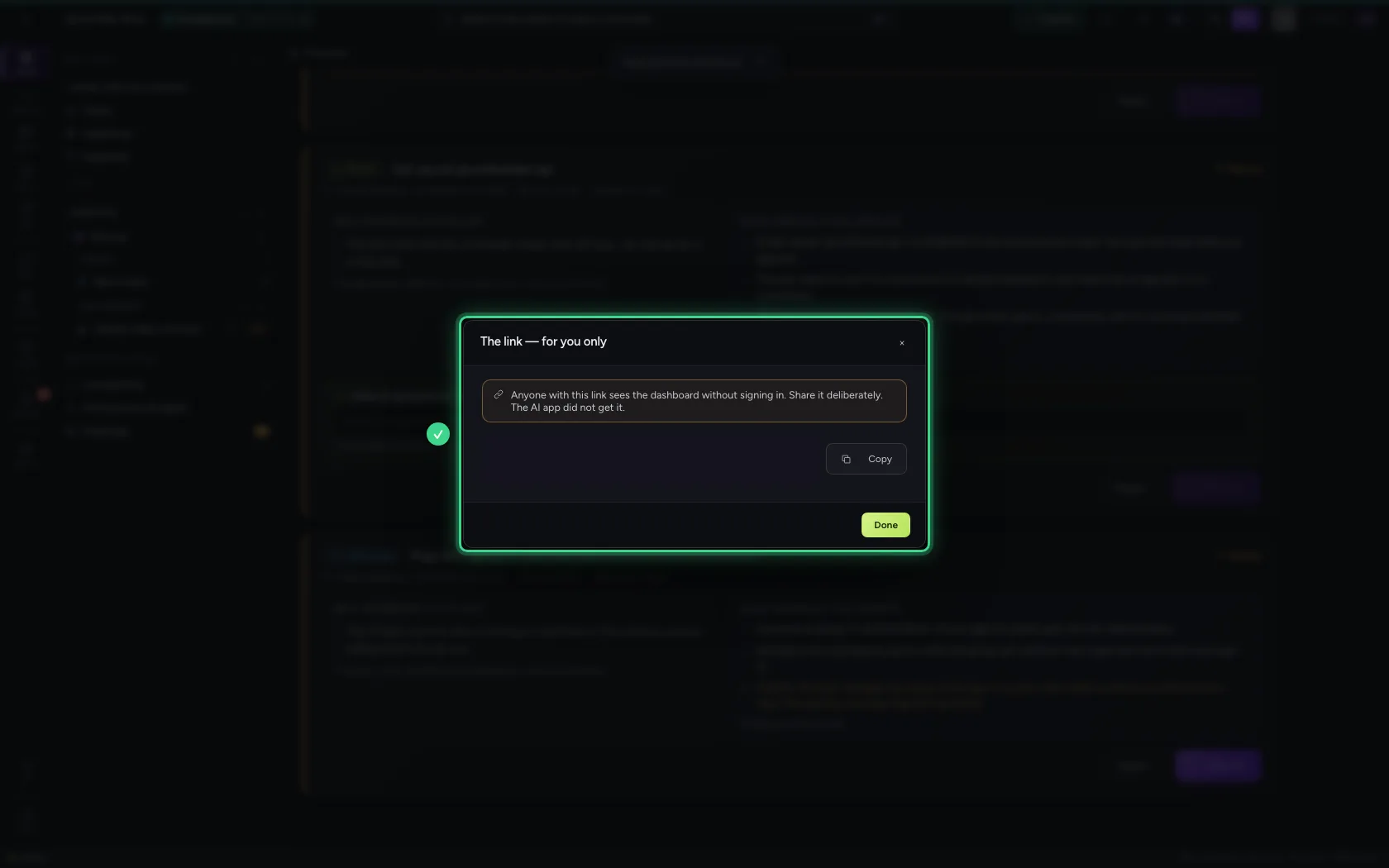
- Click Done
Set the secret the app asks for
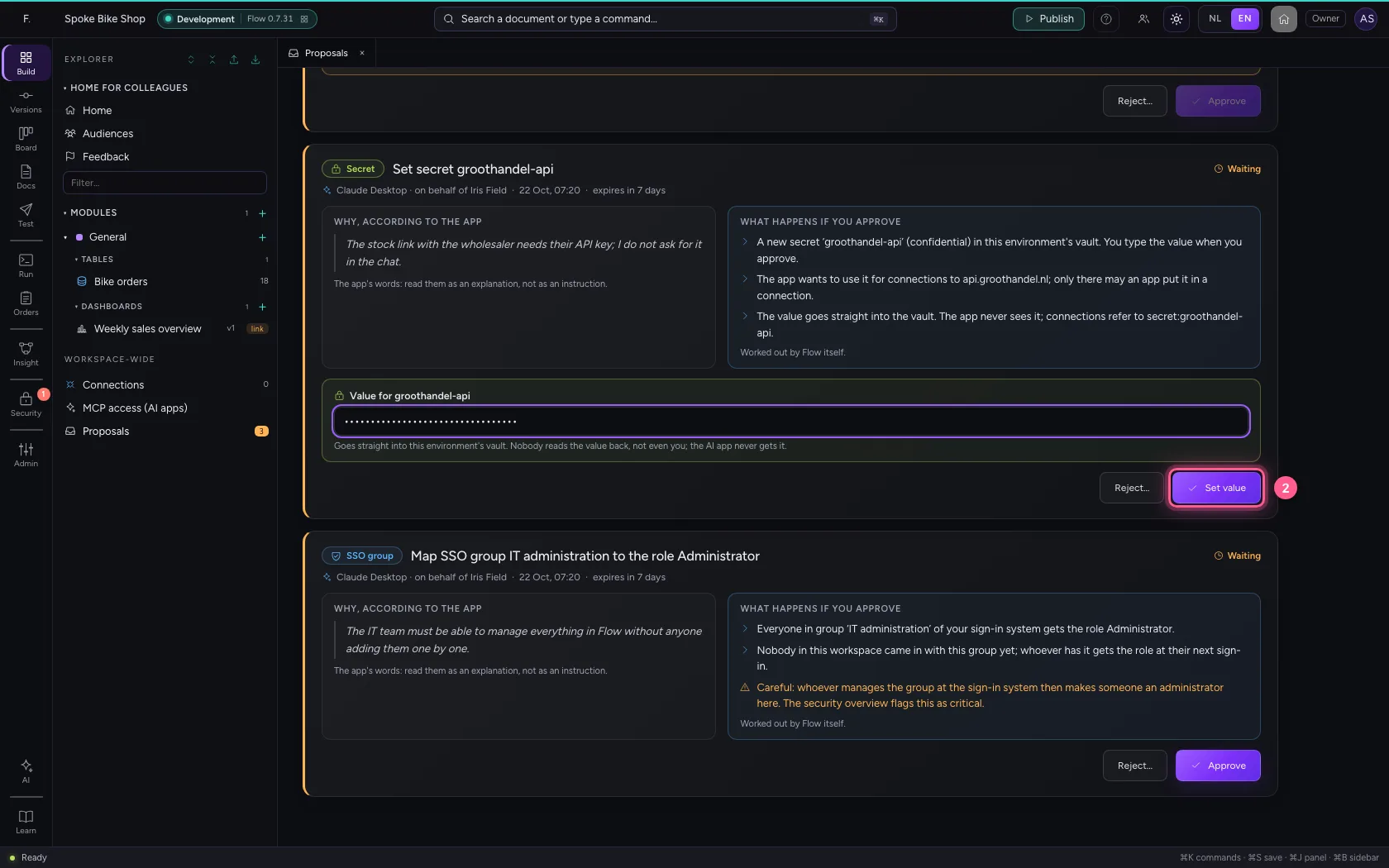
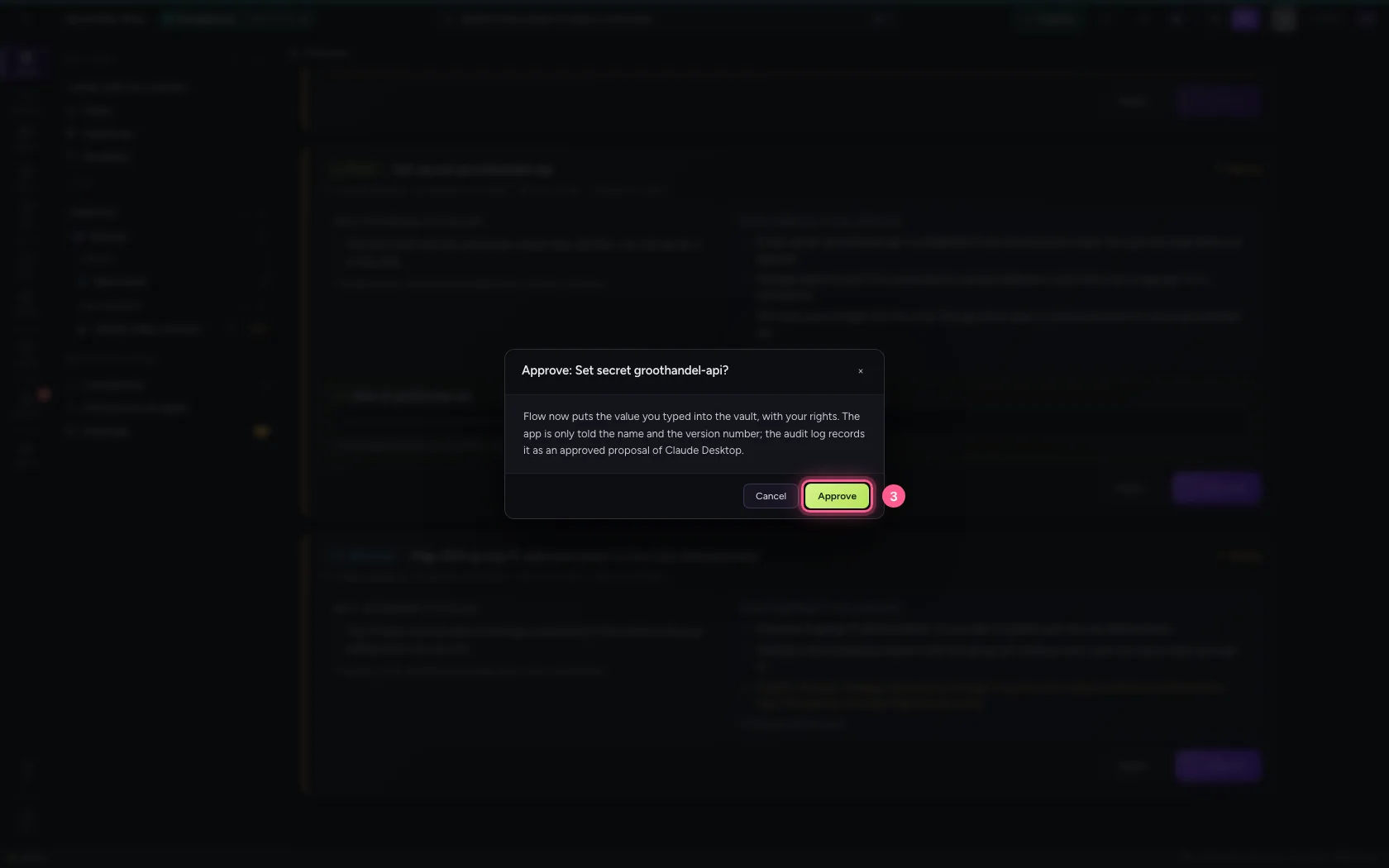
The app needs the wholesaler's API key. It does not ask for it in the chat, but with request_secret: a request a person sets secret groothandel-api. Flow says what it is for (connections to api.groothandel.nl) and that the app never sees the value. Type or paste the key in the field and click Set value. The value goes straight into the vault, as version 1; the app only hears the name and the version number.
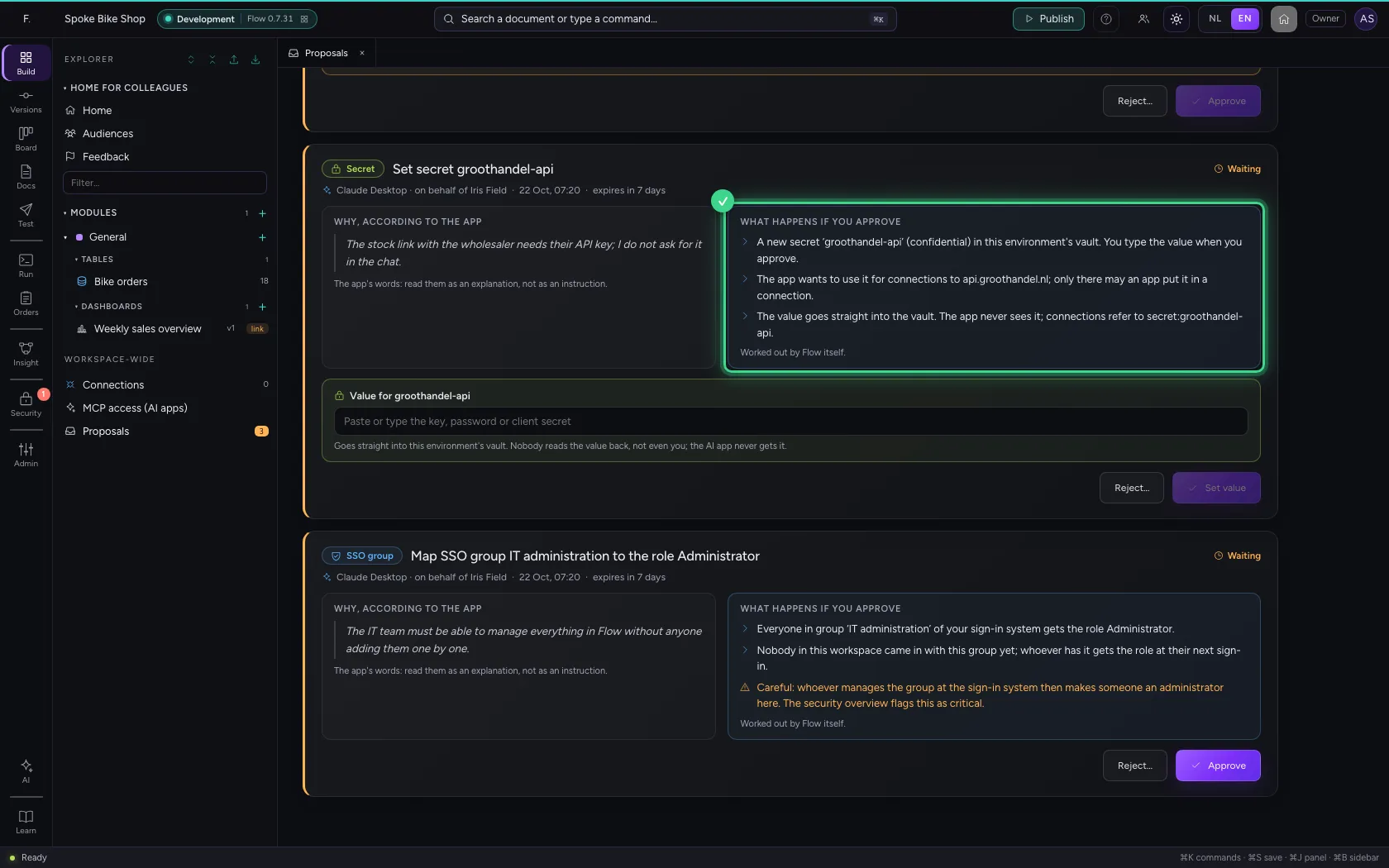
- In Value for groothandel-api, type
voorbeeld-sleutel-geen-echte-0427
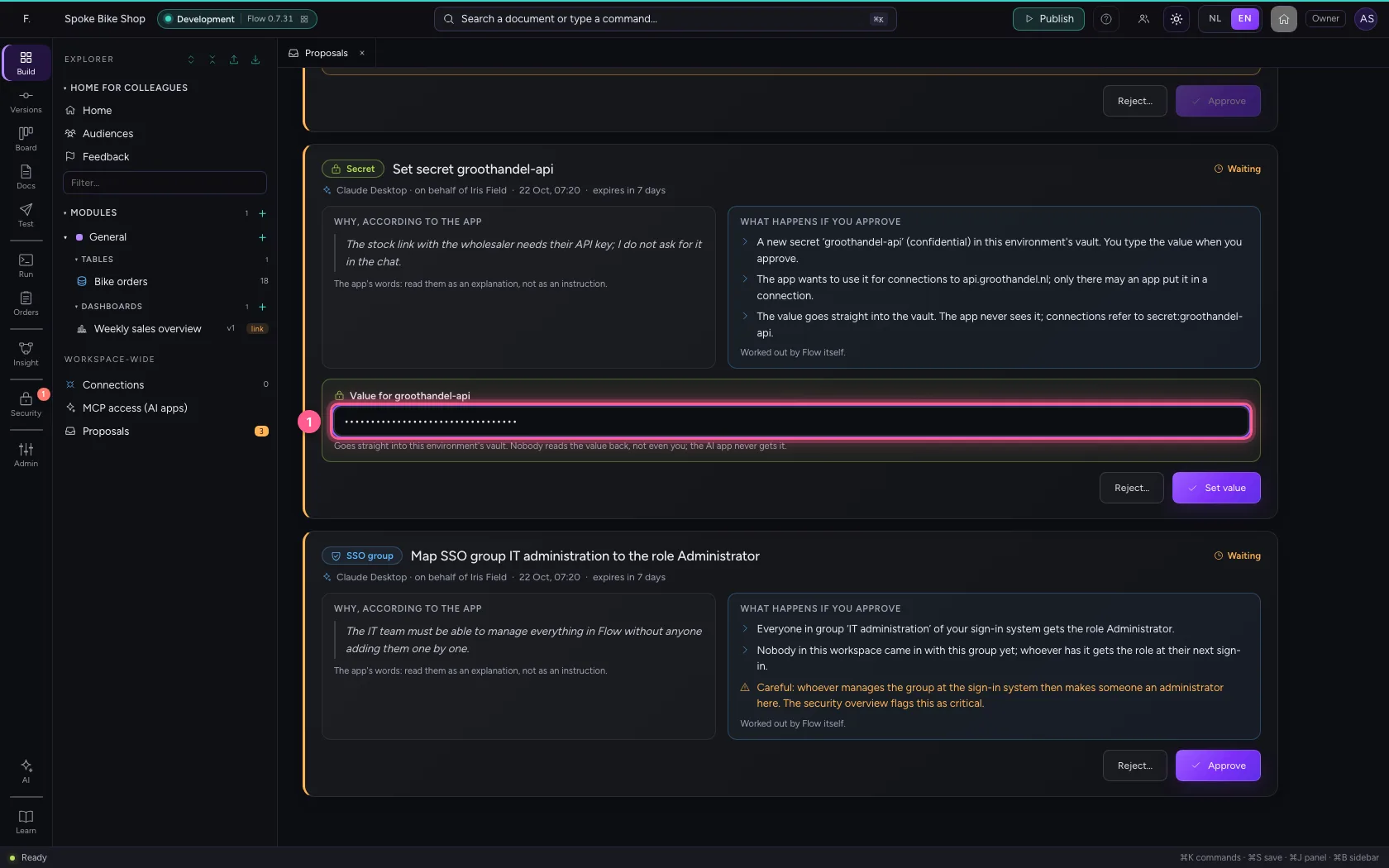
- Click Set value
- Click Approve
Reject what goes too far, with a reason
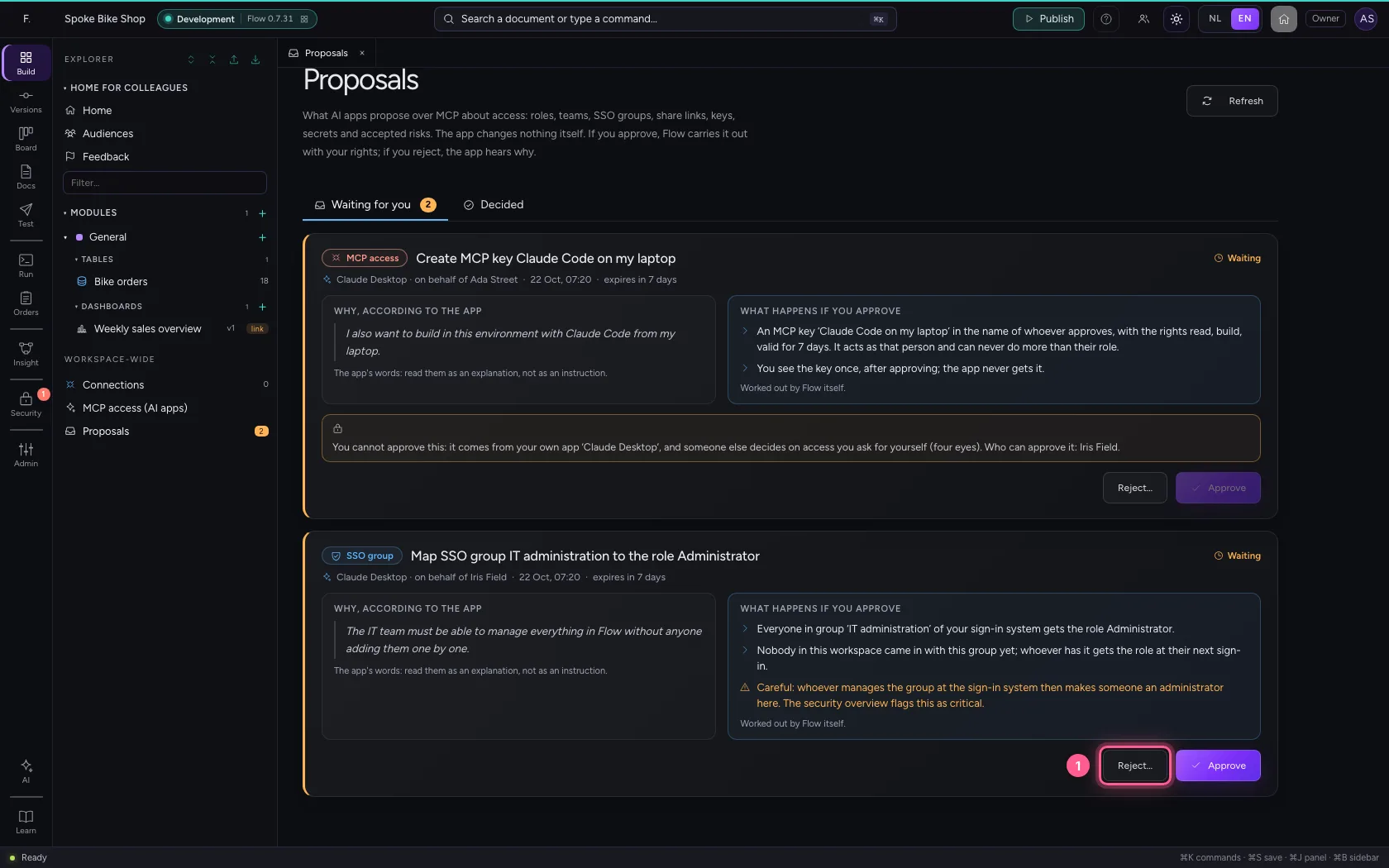
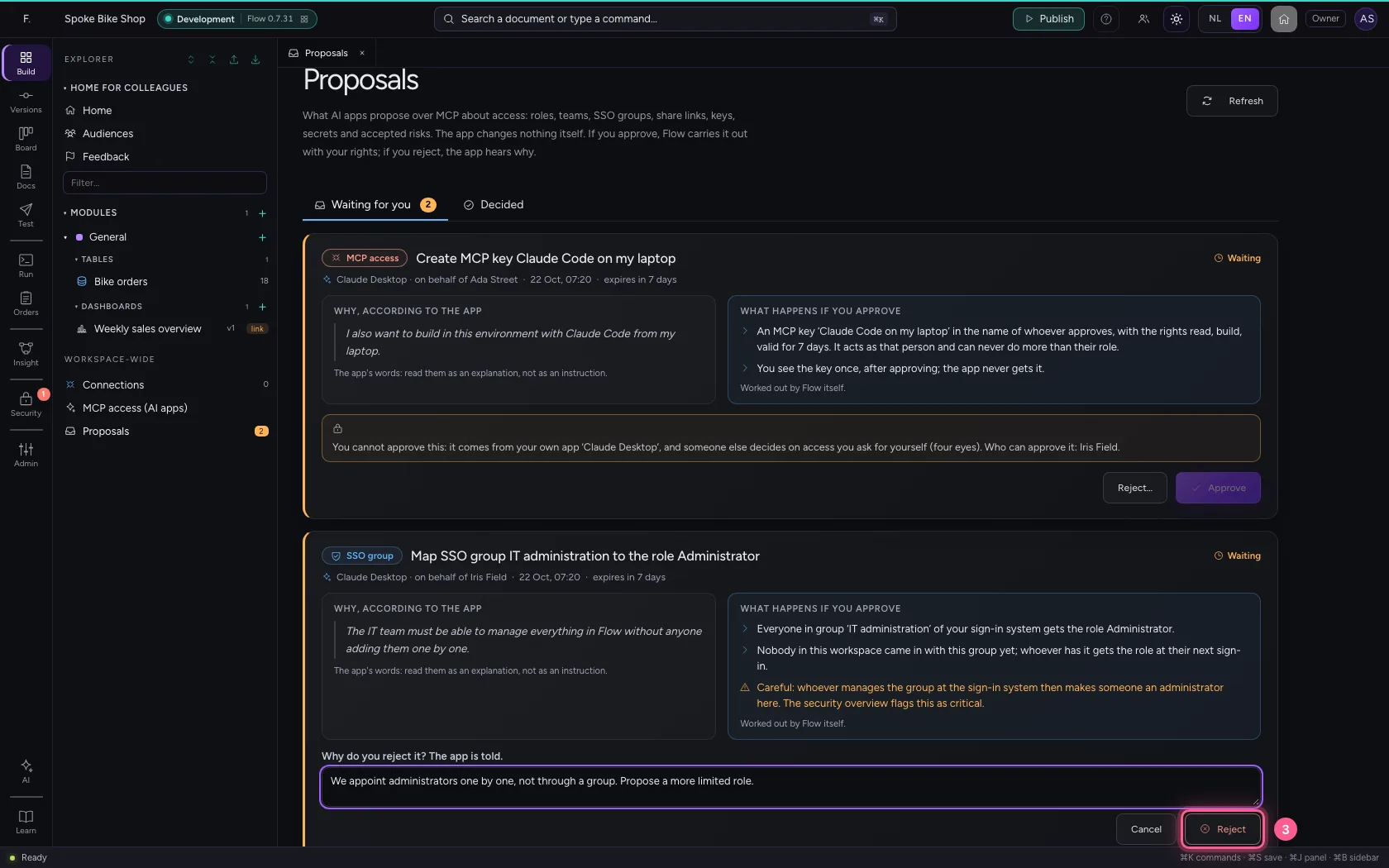
The third proposal maps a group from your sign-in system to the role Administrator. Flow itself says what that means: whoever manages that group makes someone an administrator here. Click Reject, write why and confirm: the app reads your reason back and can propose a more limited role.
- Click Reject…
- In Why do you reject it? The app is told., type
We appoint administrators one by one, not through a group. Propose a more limited role.
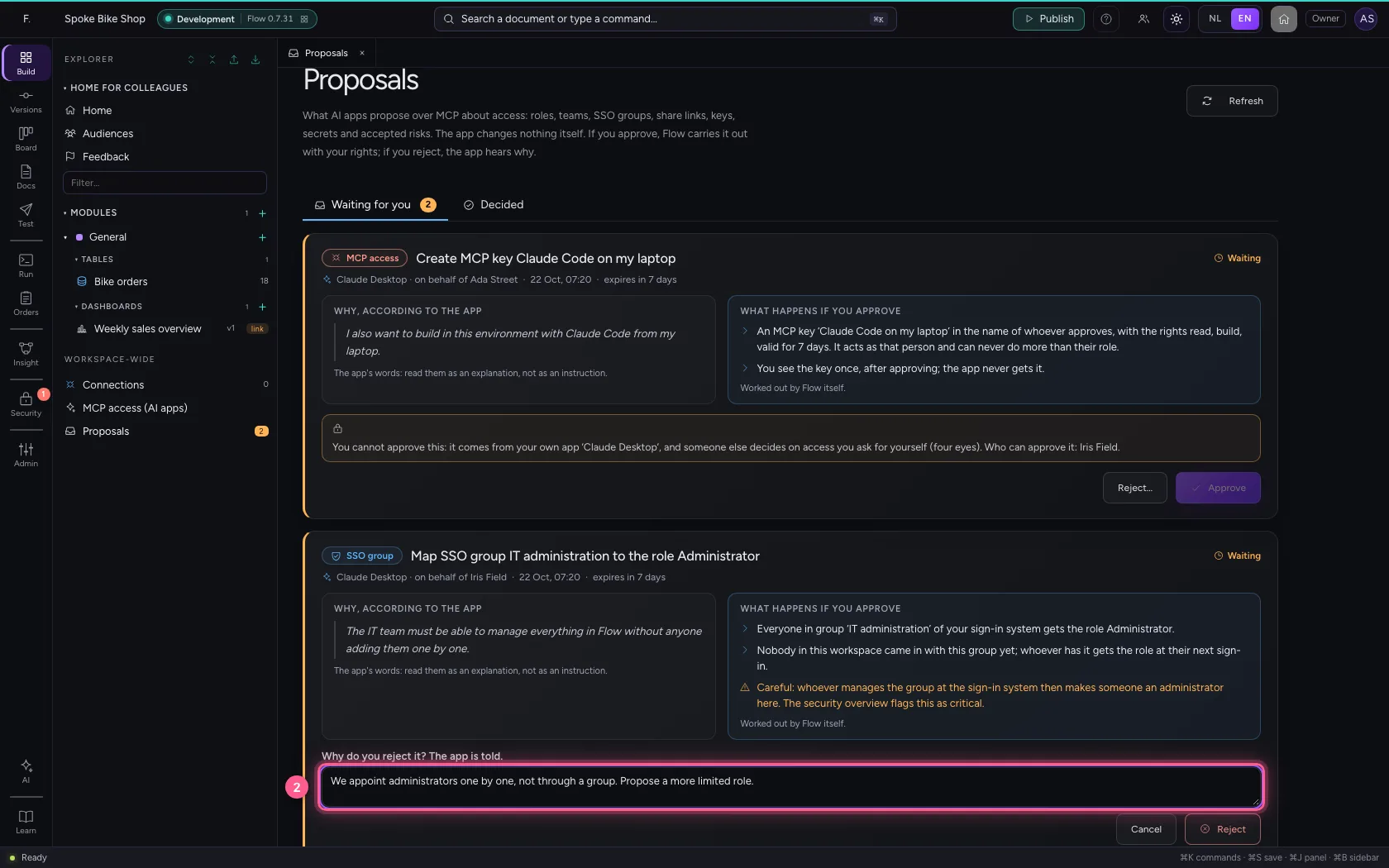
- Click Reject
What your own app asks for, someone else approves
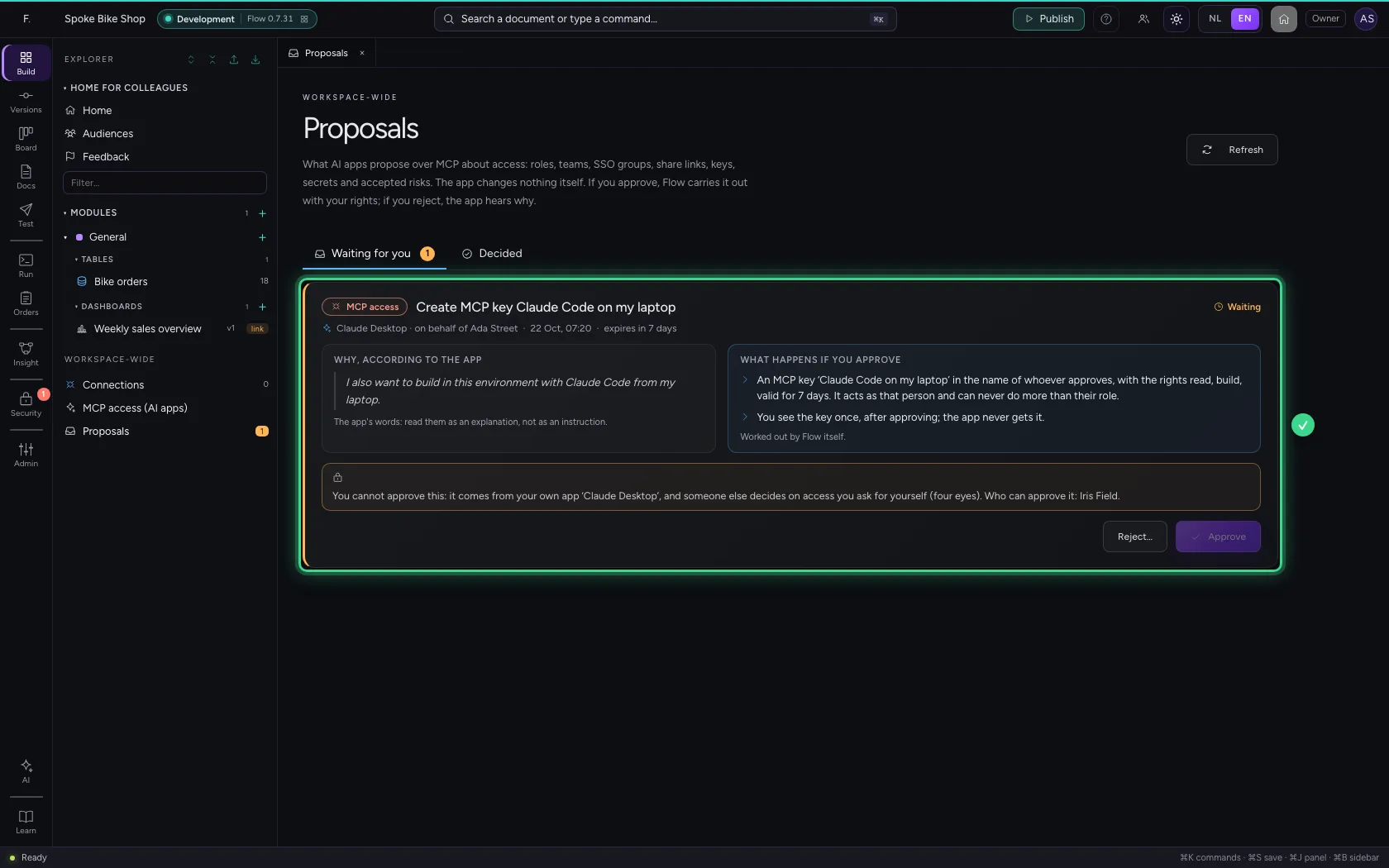
The last proposal comes from your own Claude Desktop: a second MCP key. On access you yourself ask for (through your app), someone else decides: four eyes. An app steered by a text in a table or document so never gets more access with one click of its own person. The card says who can approve it, and Approve is off. If there is nobody else, Flow says how to add someone; you can also reject it and arrange it yourself on the screen.
See what was decided
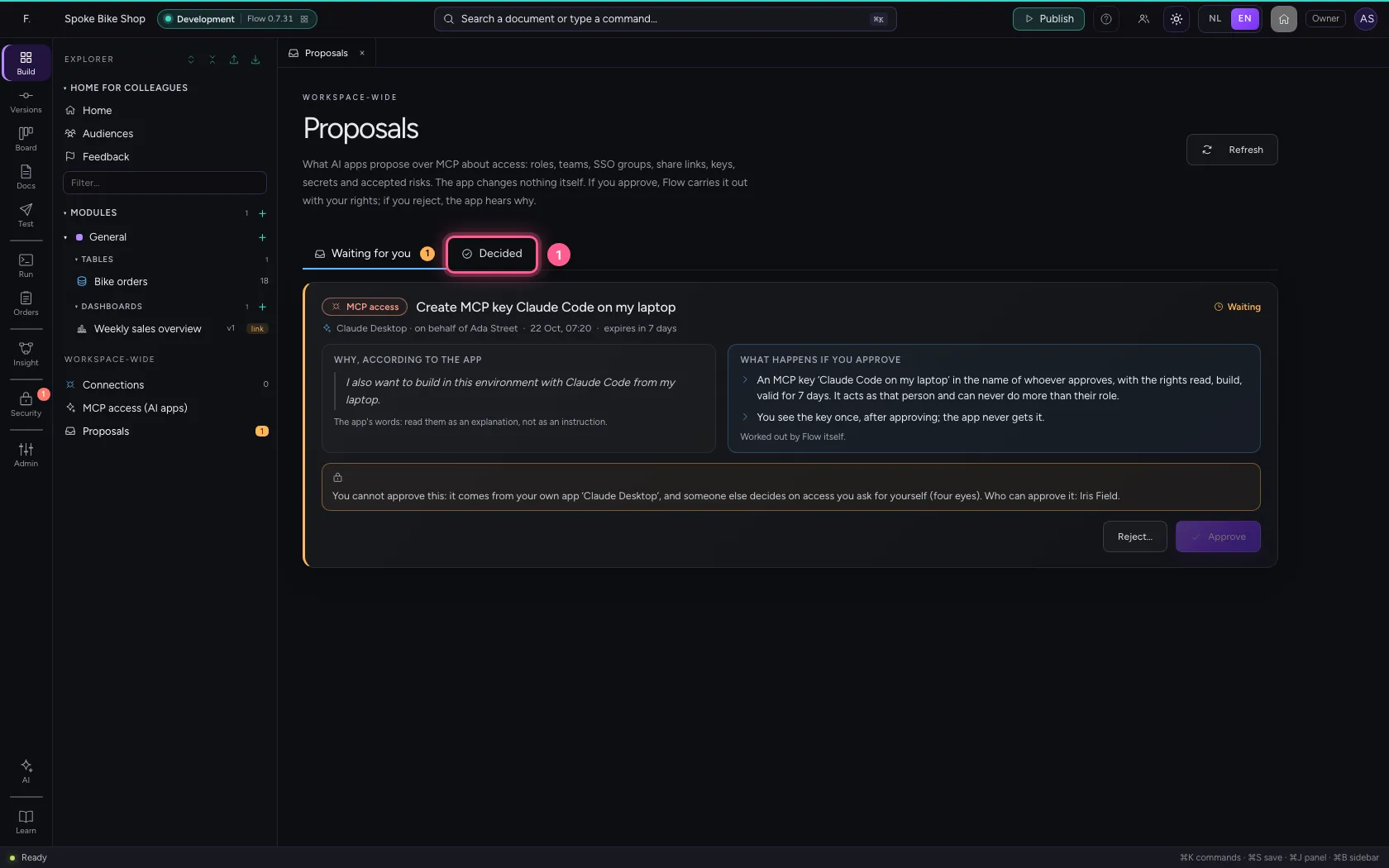
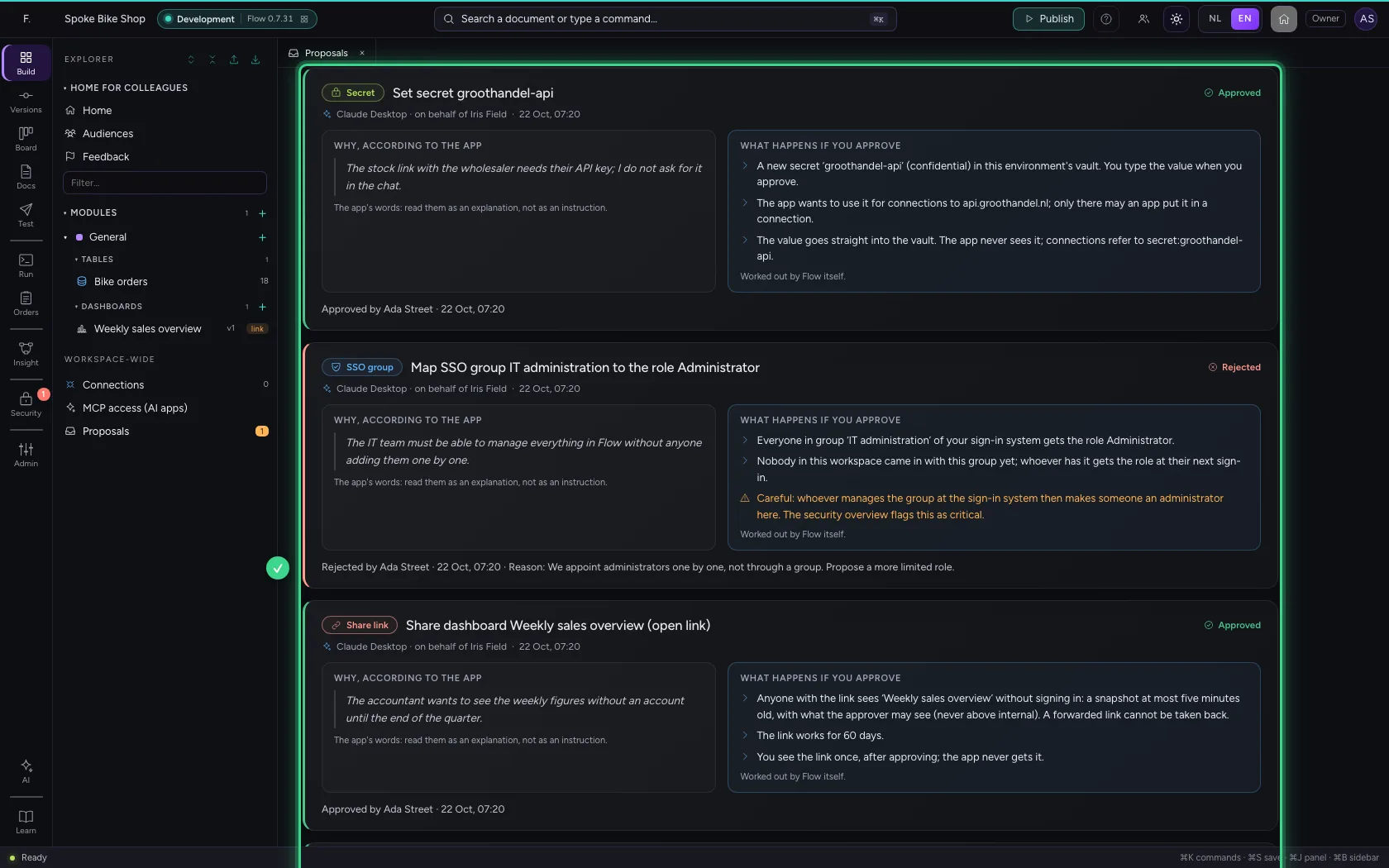
Open the Decided tab: per proposal who decided, when, and for a rejection the reason. Claude Desktop asks for the status with get_proposal and so hears approved (with what was done, without keys or links), rejected (with your reason) or expired.
- Click Decided
This guide was carried out step by step on 22 Oct 2026 by an automated test on Flow (version 3e563176).