The security overview
- Step 1 · Open your development environment
- Step 2 · Open the security overview
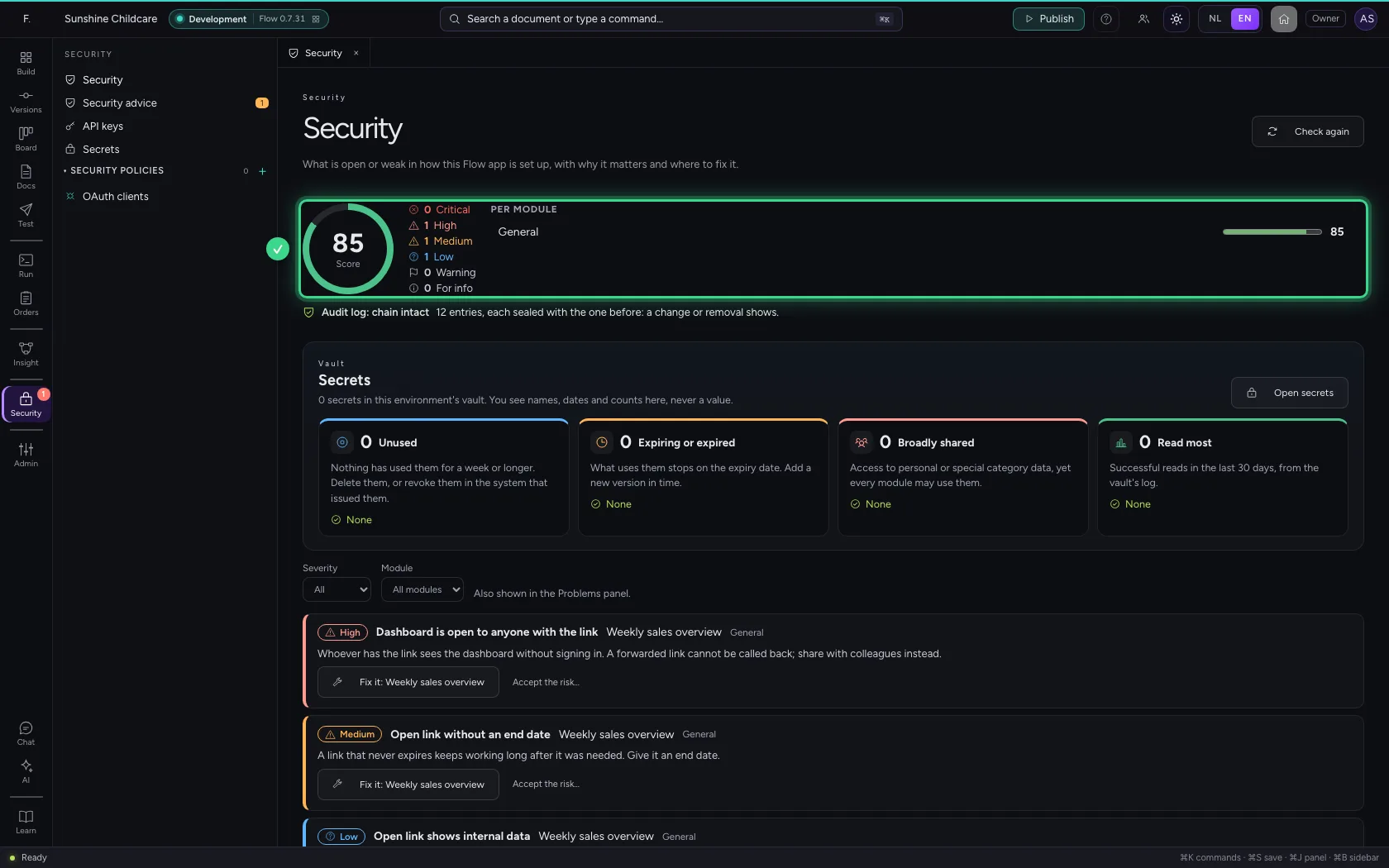
- Step 3 · See that the audit log is untouched
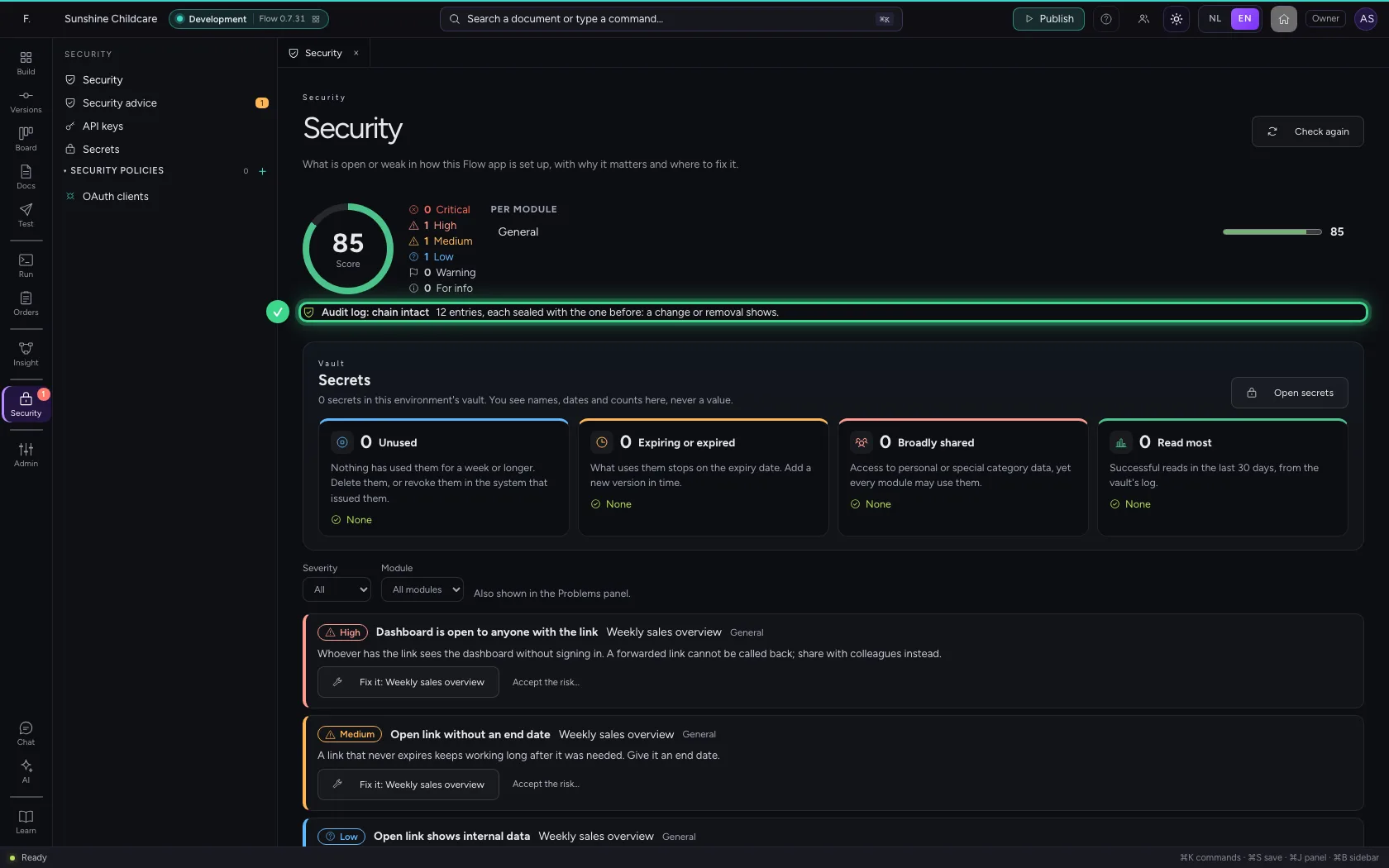
- Step 4 · Read a finding
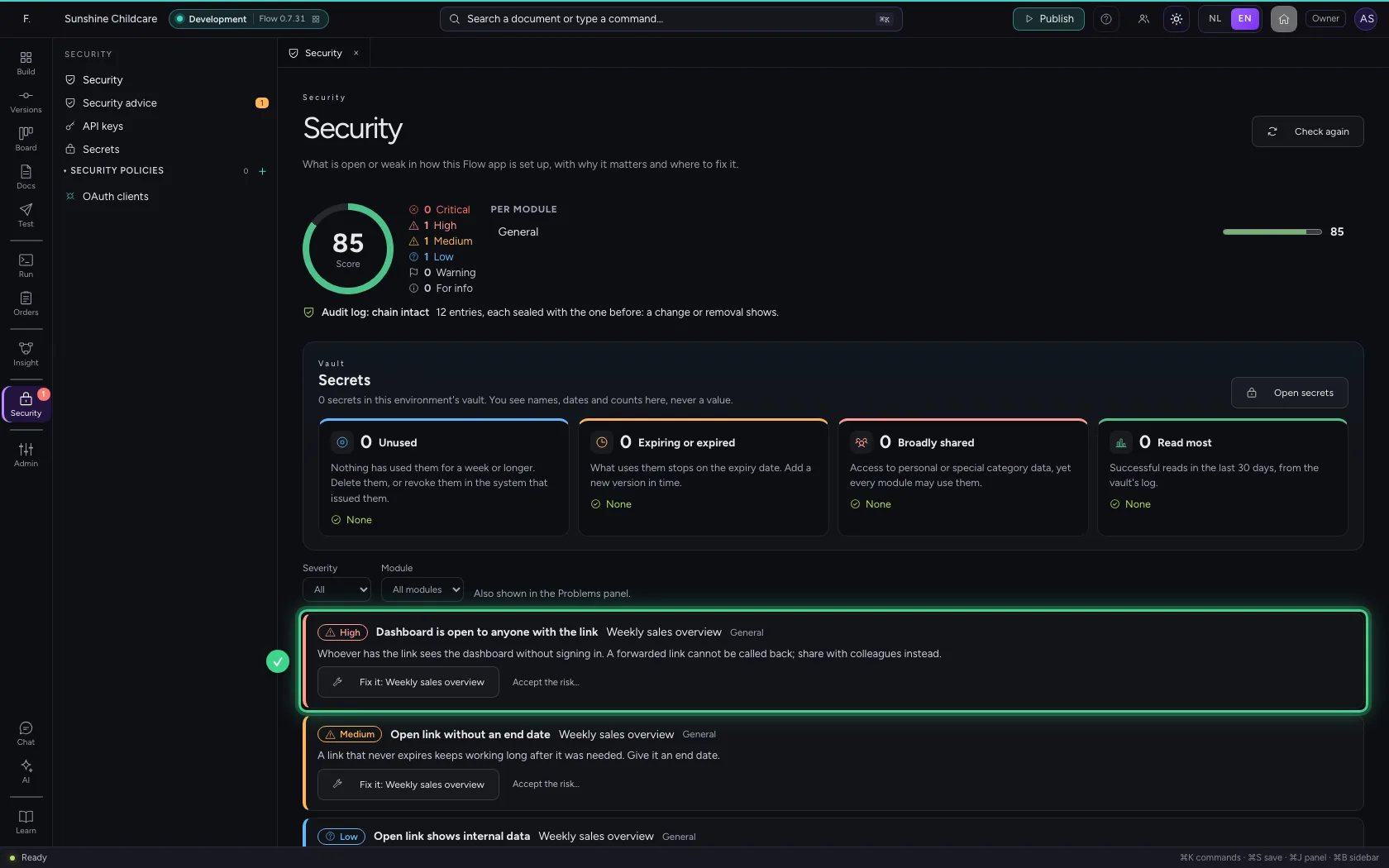
- Step 5 · Fix it from the finding
- Step 6 · Check again: the score goes up
- Step 7 · Publish the home: the check looks along
- Step 8 · Or accept the risk, with a reason
What is open or weak in how your Flow is set up? The security overview finds out for you: open links, menus that show confidential data to everyone, workflows without requirements, keys without an end date, builders without two-step verification. Every finding says why it matters and opens the place where you fix it with one click. Before the home goes live, the same check looks along: something critical stops the publishing.
Open your development environment
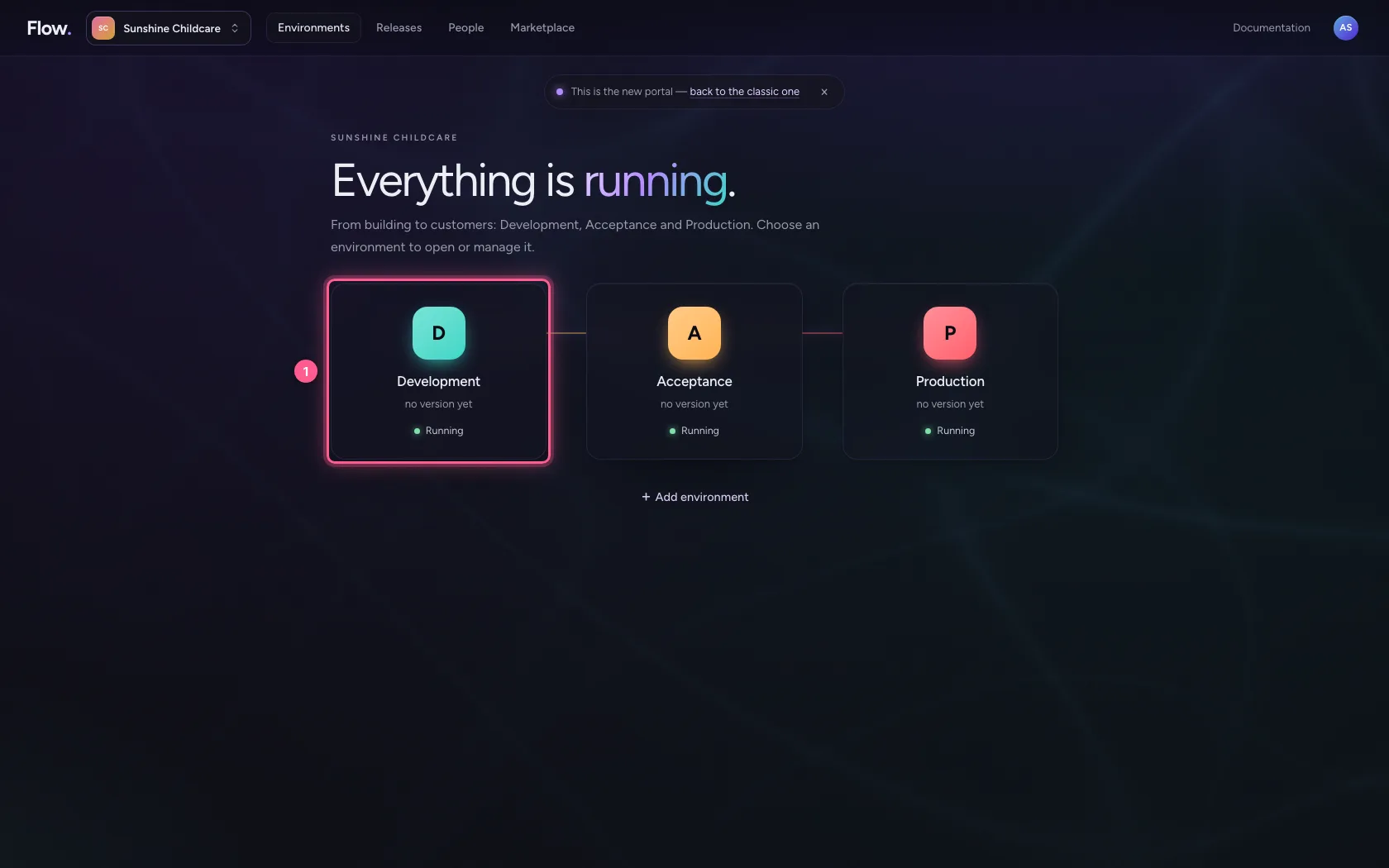
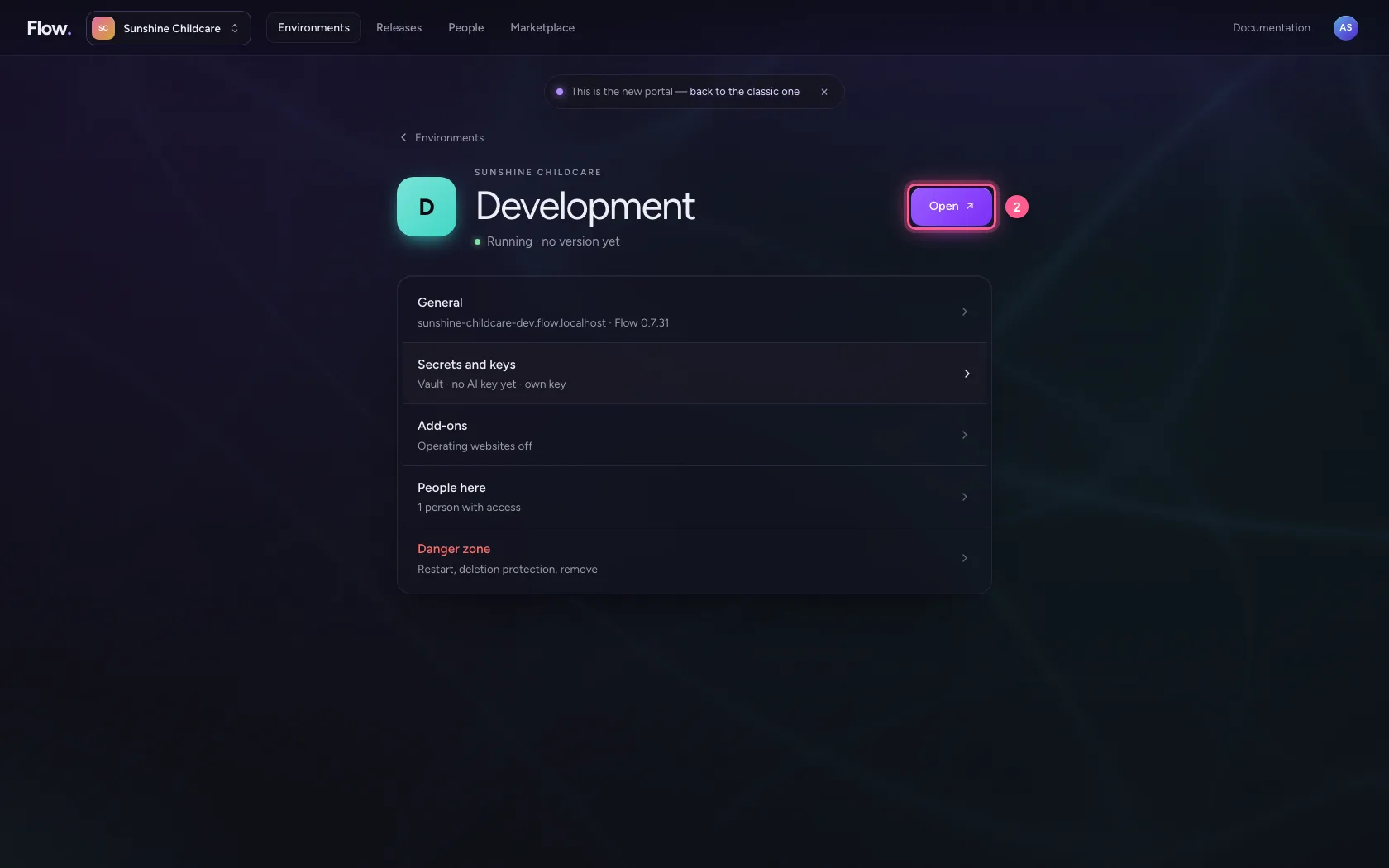
In the portal, under Environments, click Development, and there Open. Flow opens in a new tab and you are signed in straight away.
- Click Development
- Click Open ↗
Open the security overview
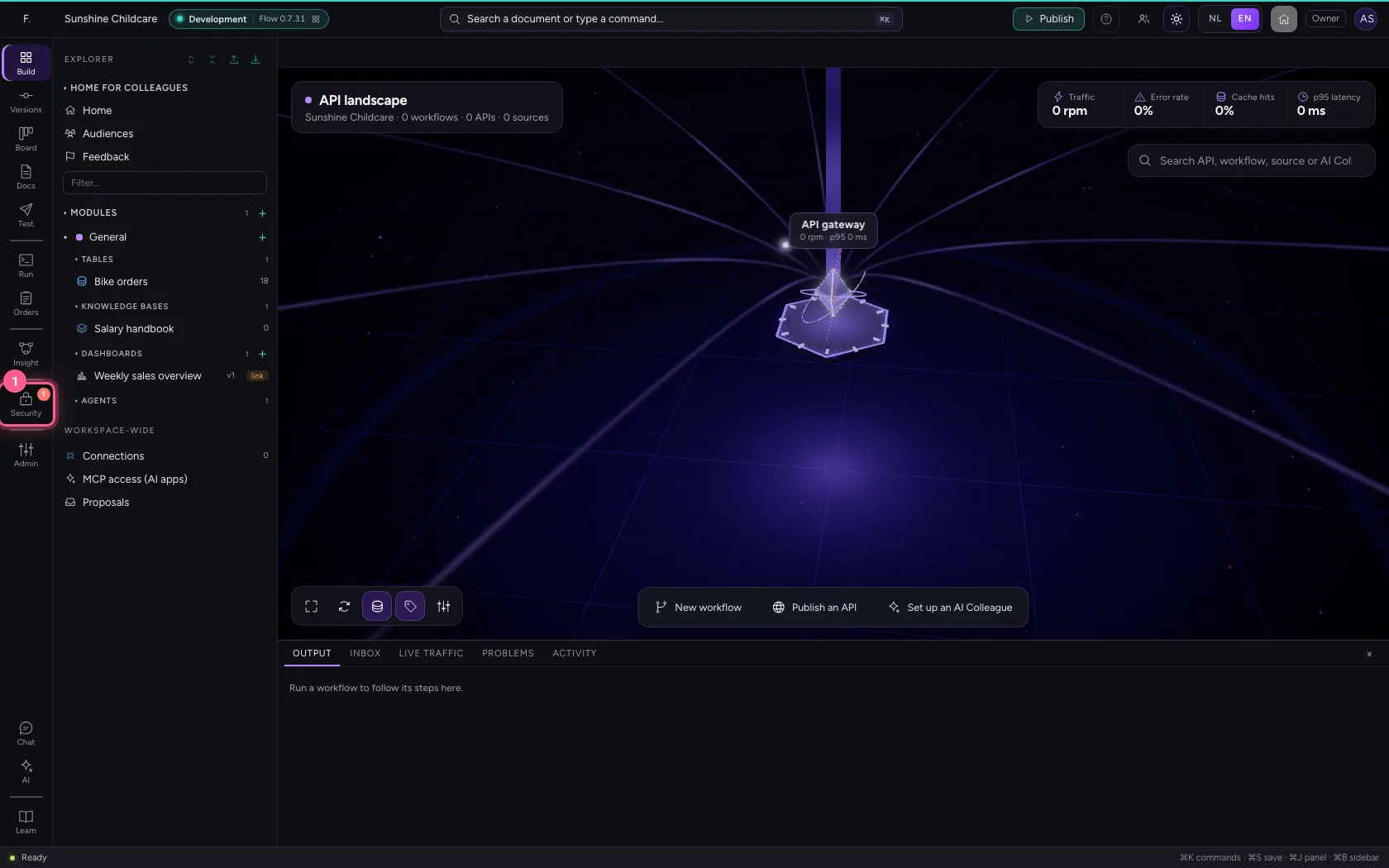
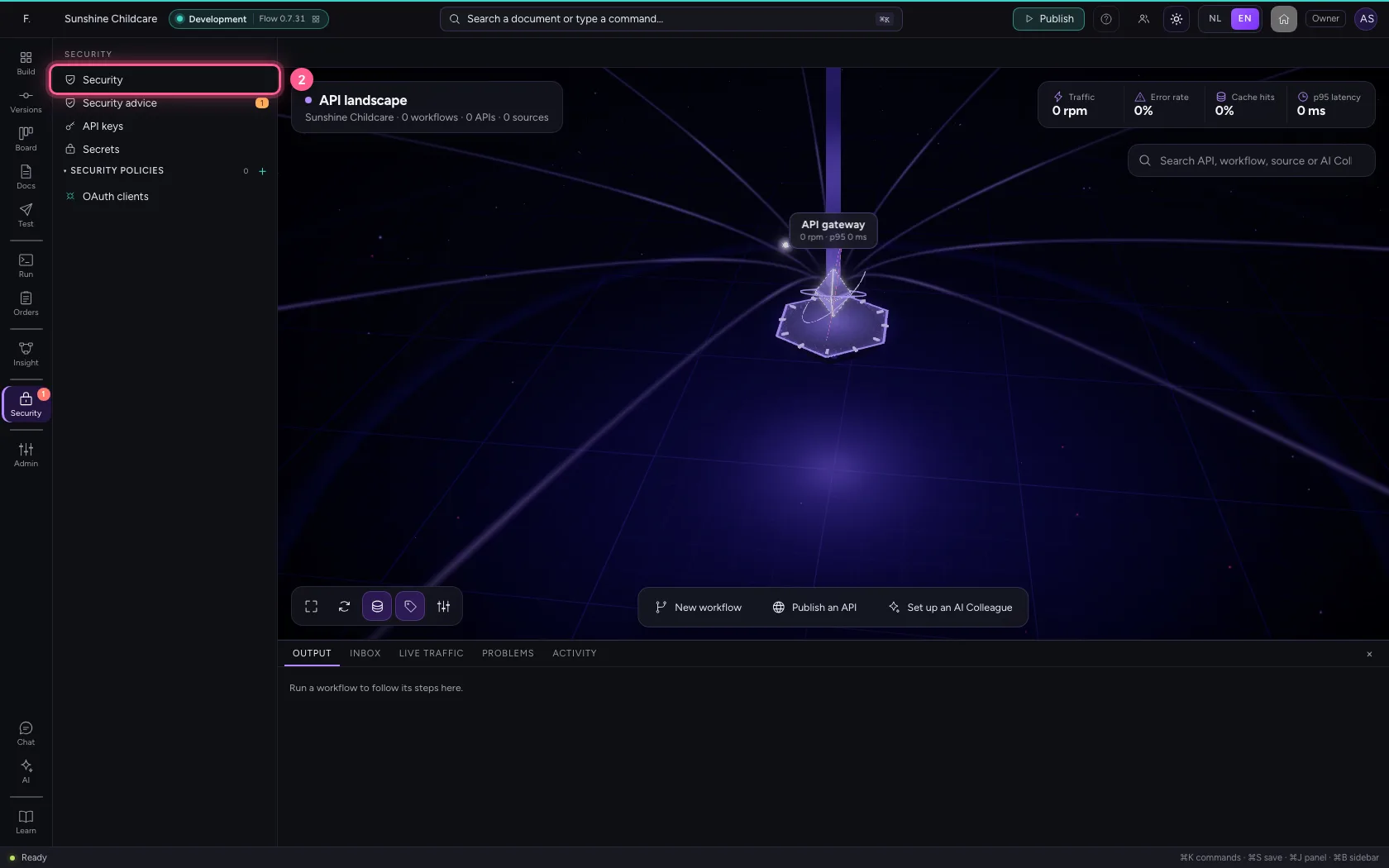
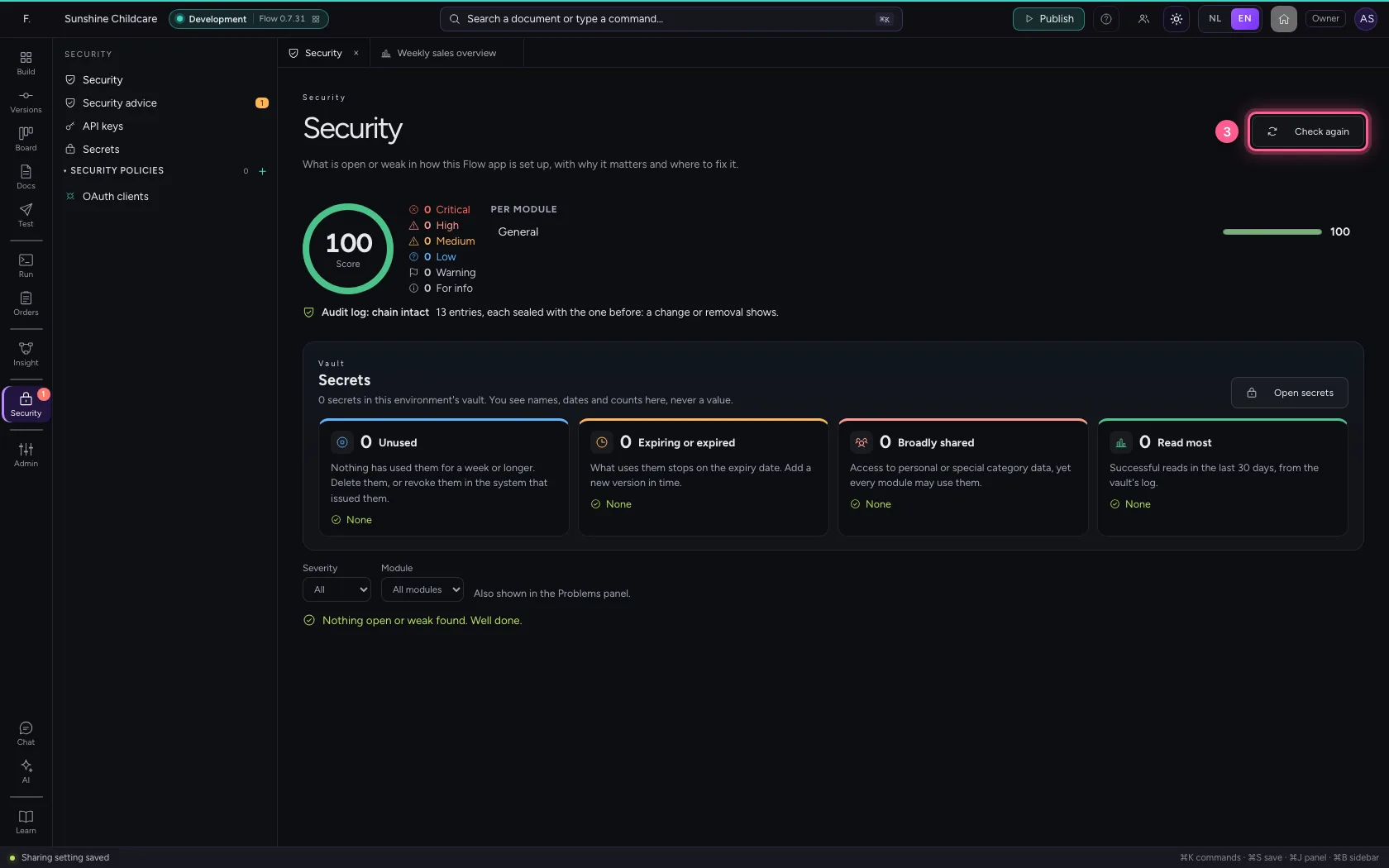
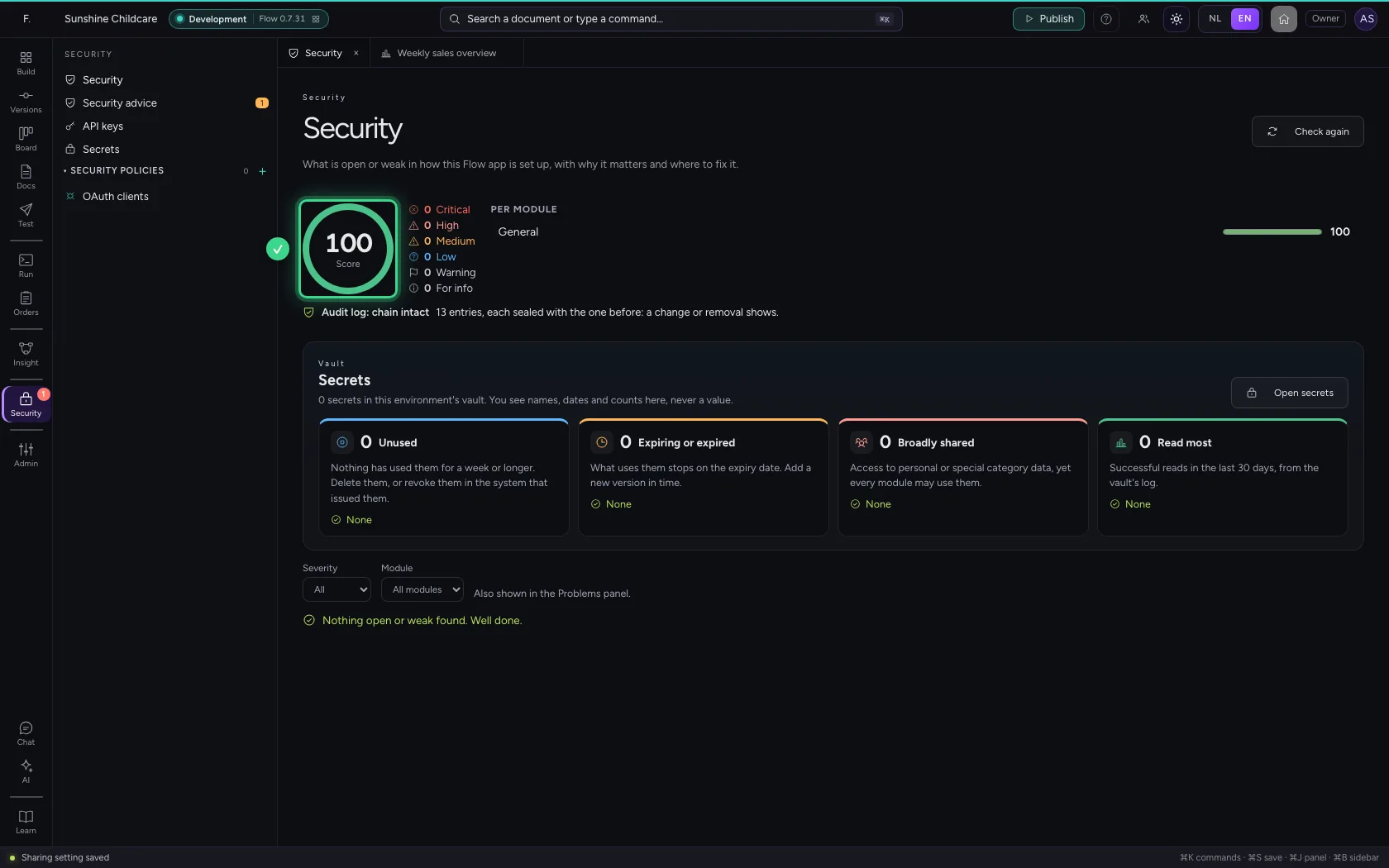
Click Security in the bar on the left and choose Security. At the top is the score (100 is nothing found), the number of findings per severity and a score per module. Below are the findings, the most serious first. They are also in the Problems panel.
- Click Security
- Click Security
See that the audit log is untouched
Below the score is one line about the audit log. Every entry of the audit log is sealed with the entry before it: whoever changes, removes or moves something afterwards breaks that chain. 'Chain intact' means everything is still as it was recorded. If something changed, this line says at which number the chain breaks (never what it said). Only people who may read the audit log see this line.
Read a finding
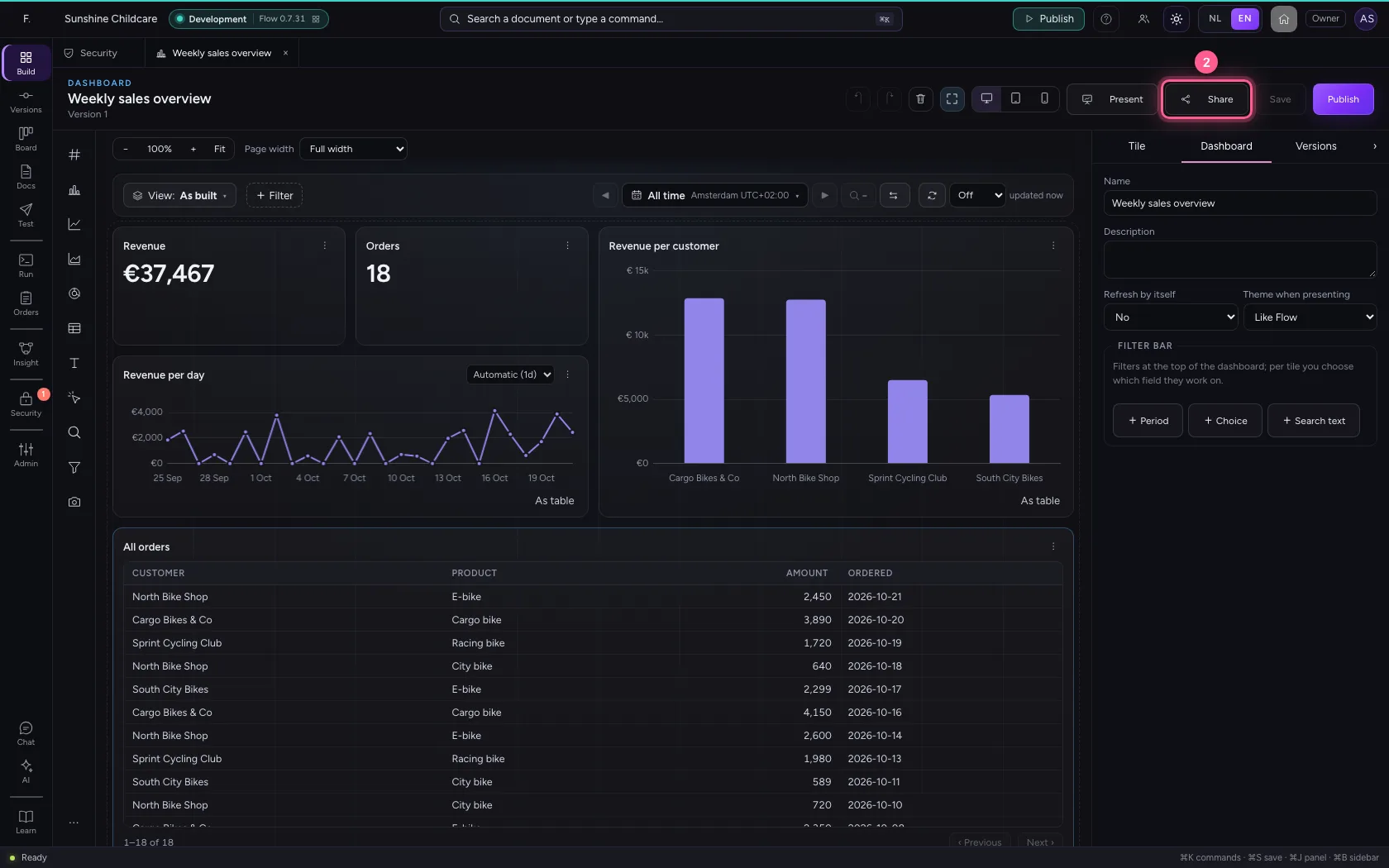
The dashboard Weekly sales overview is open to anyone with the link: whoever has the link sees it without signing in, and a forwarded link cannot be taken back. Every finding says in plain words why it matters. The same link has no end date either: that is a second, lighter finding.
Fix it from the finding
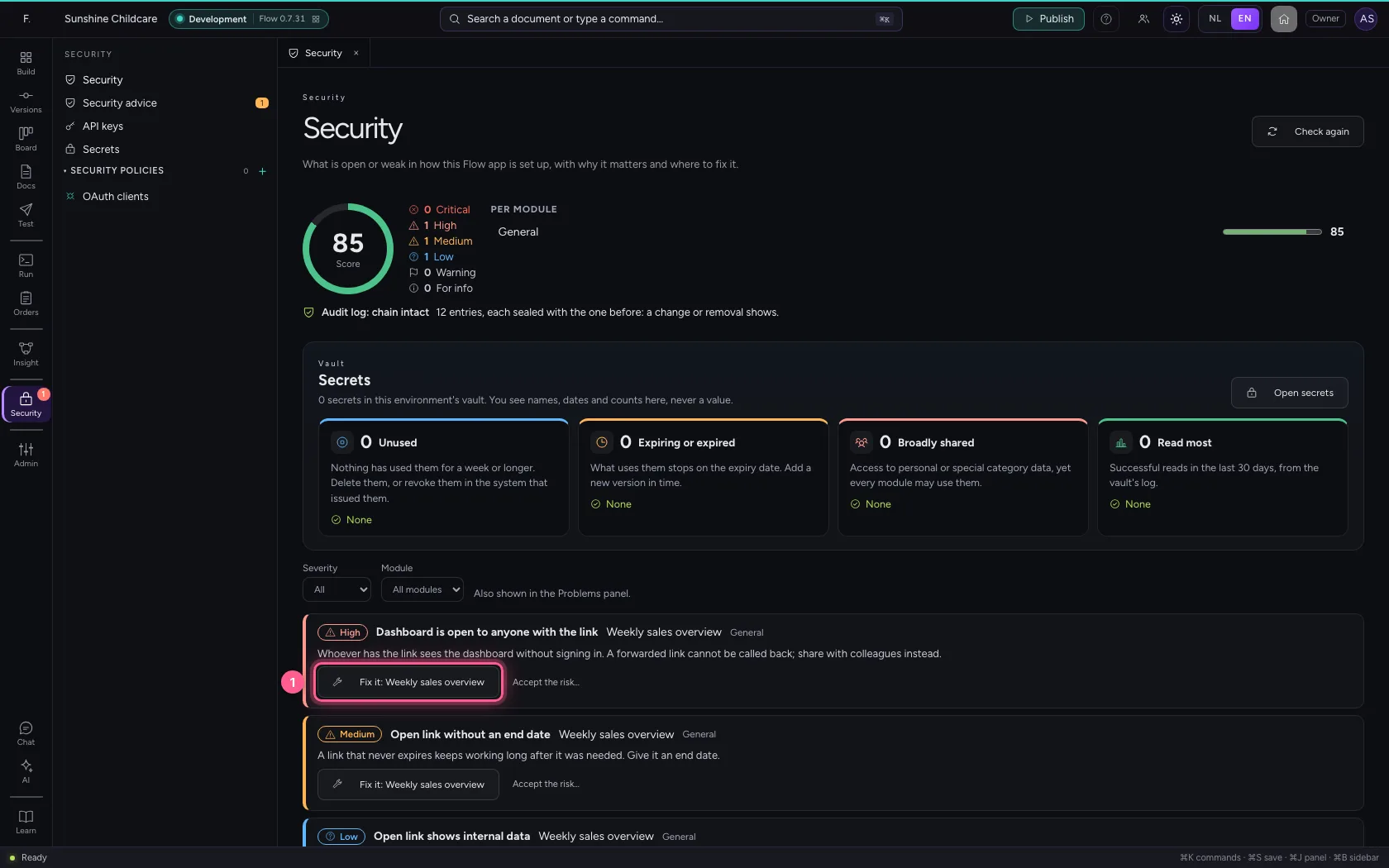
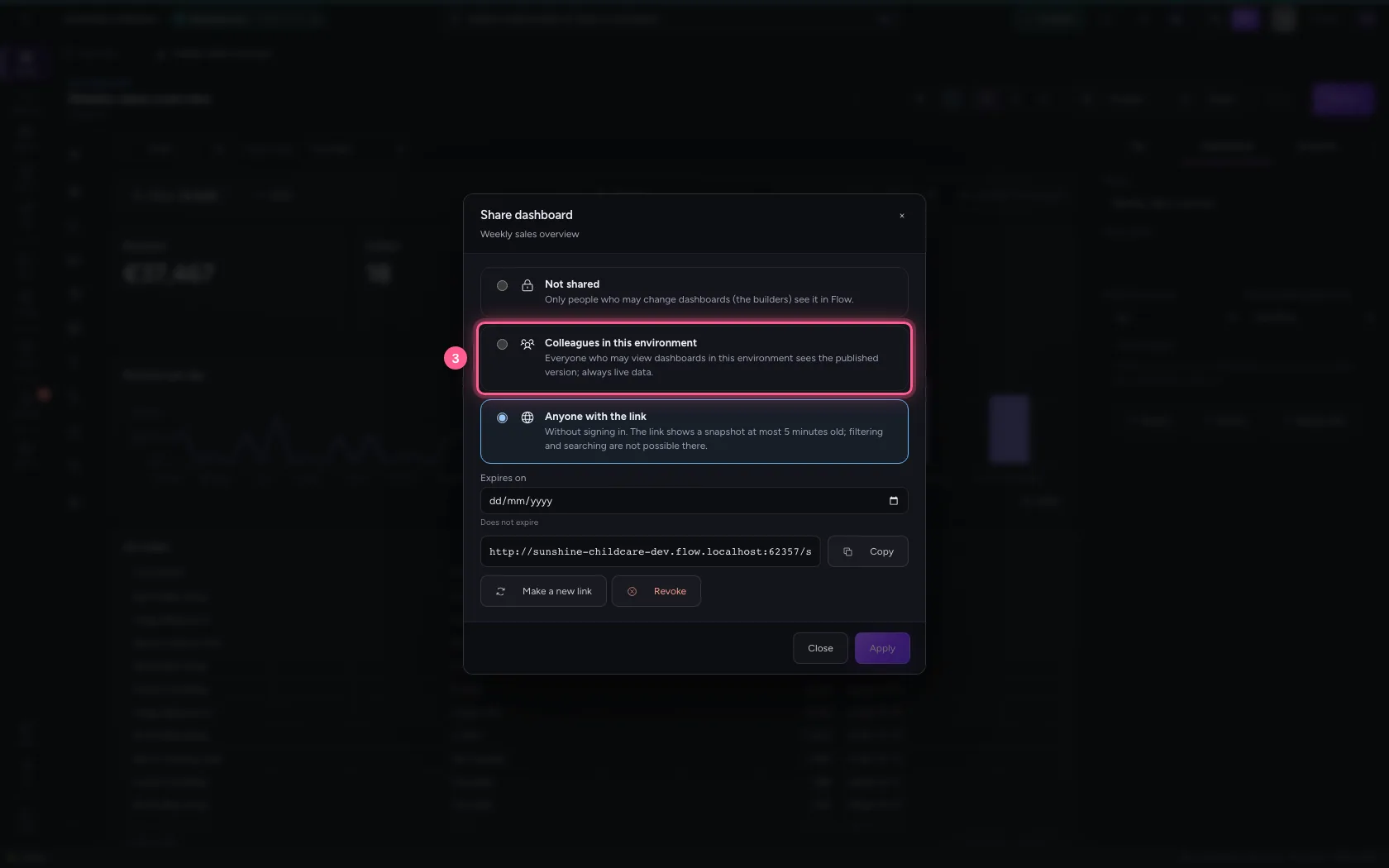
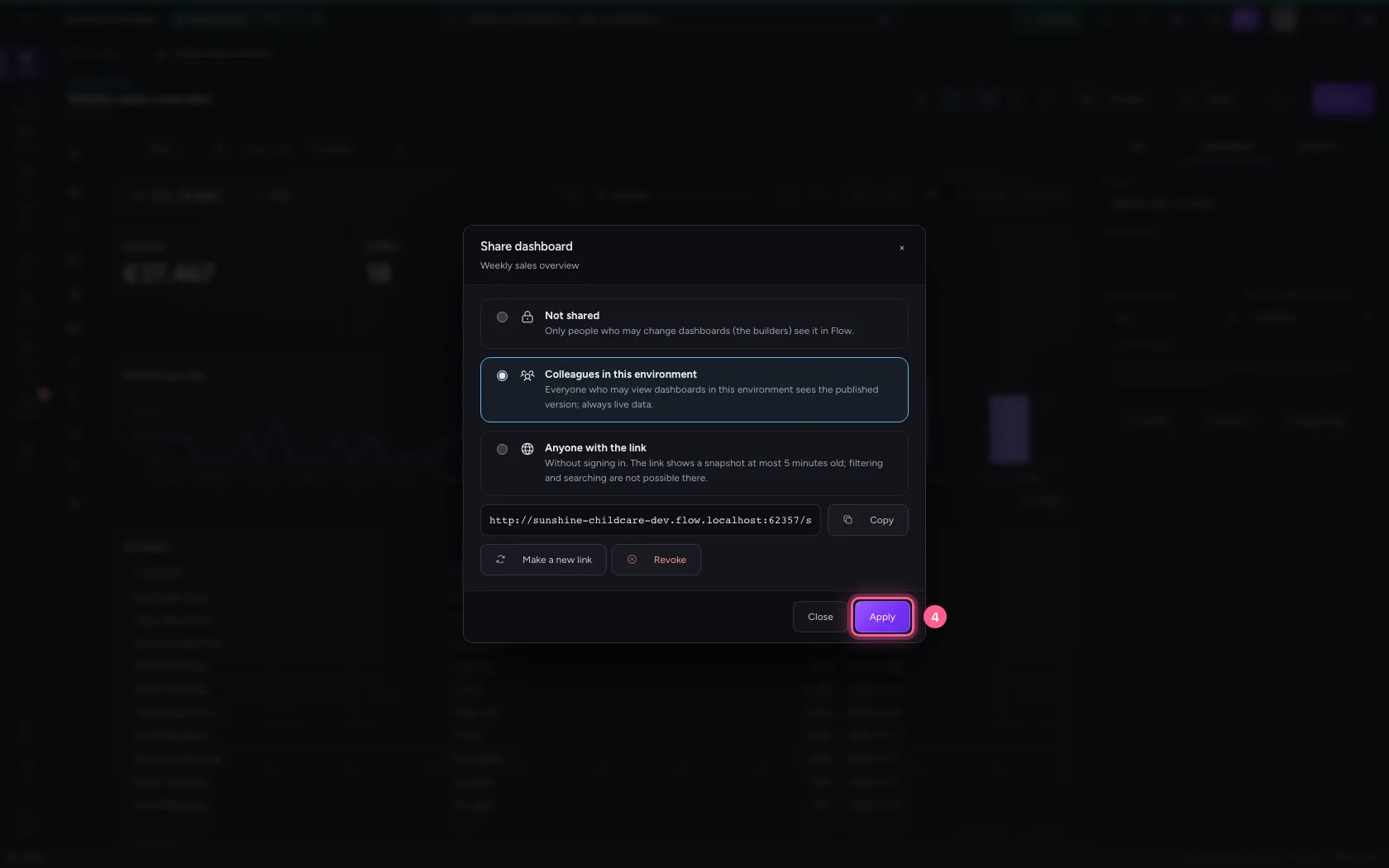
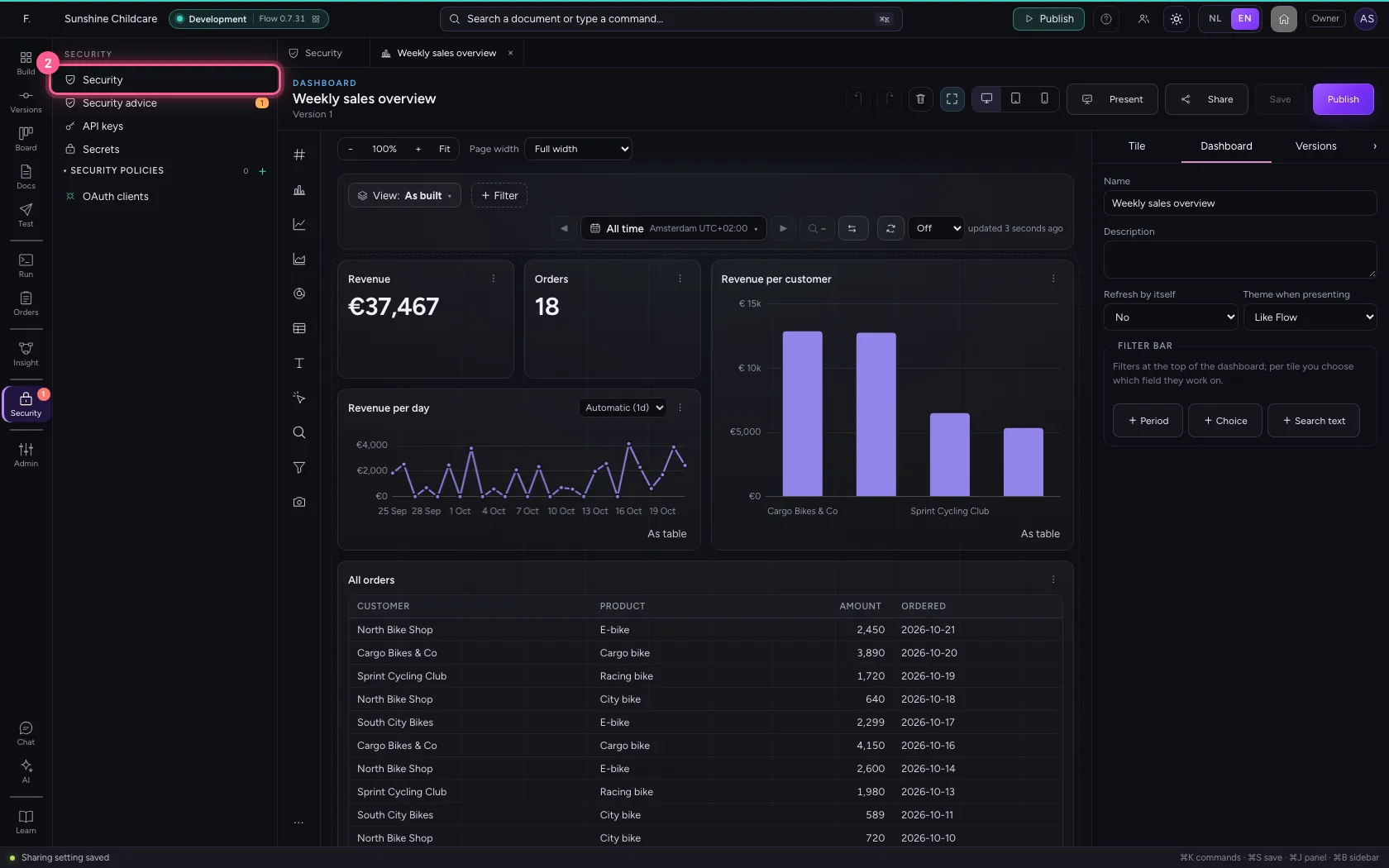
Click Fix it: the dashboard opens. Click Share and choose Colleagues in this environment: only people who may view dashboards in this environment still see it, with their own rights. The open link stops working at once.
- Click Fix it: Weekly sales overview
- Click Share
- Click Colleagues in this environment
- Click Apply
Check again: the score goes up
Back in the security overview, click Check again. The findings about the open link are gone and the score is higher.
- Click Security
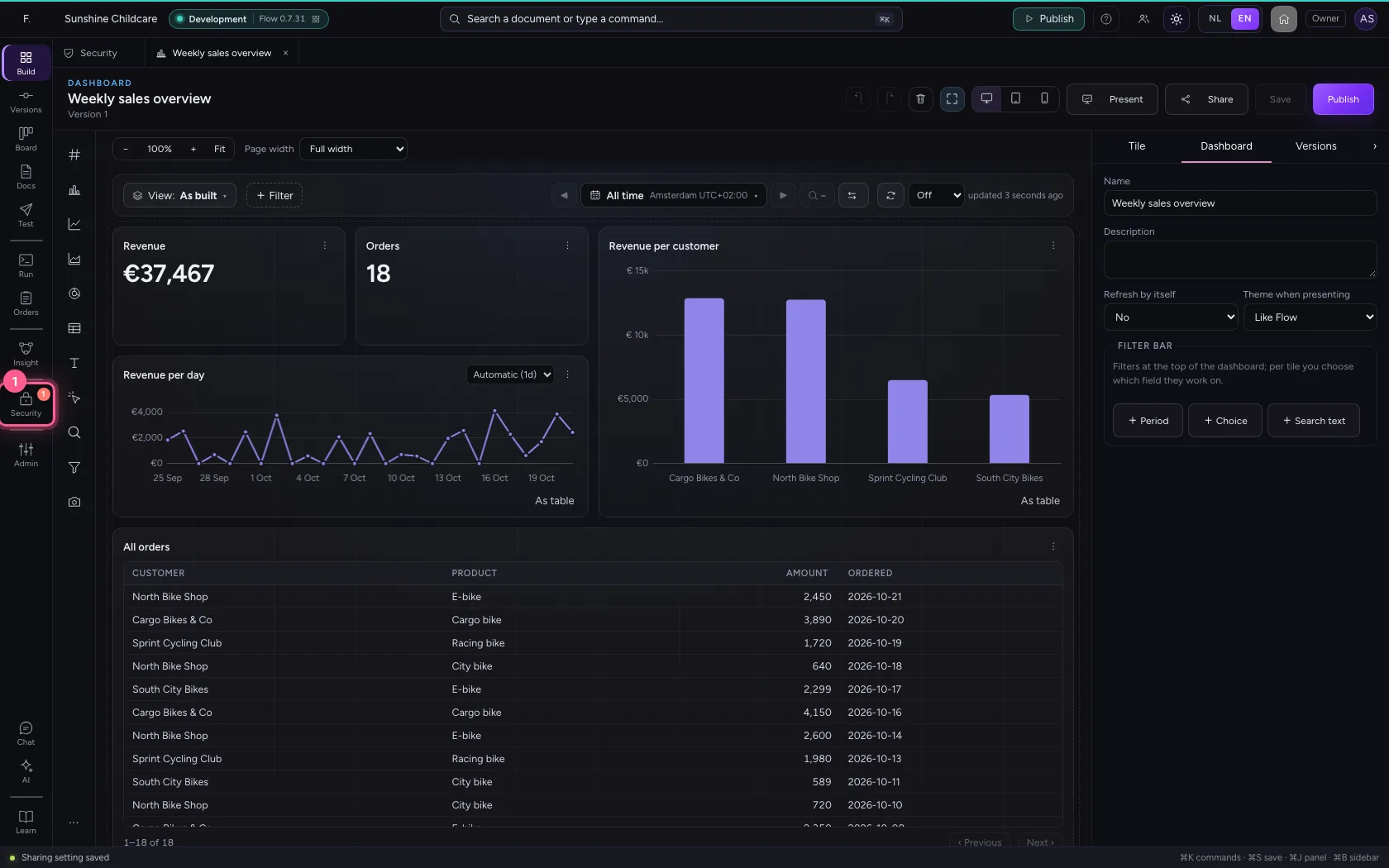
- Click Security
- Click Check again
Publish the home: the check looks along
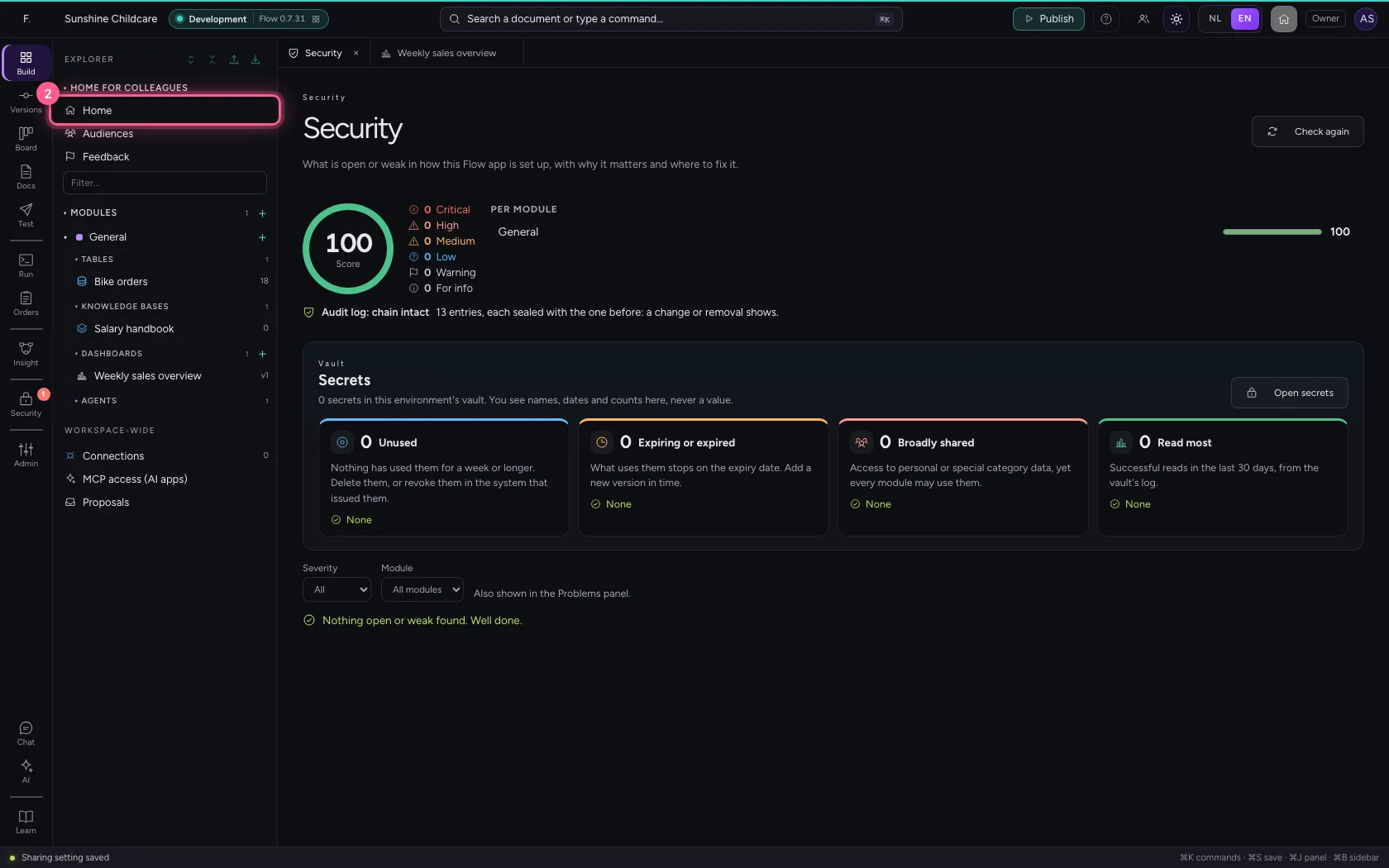
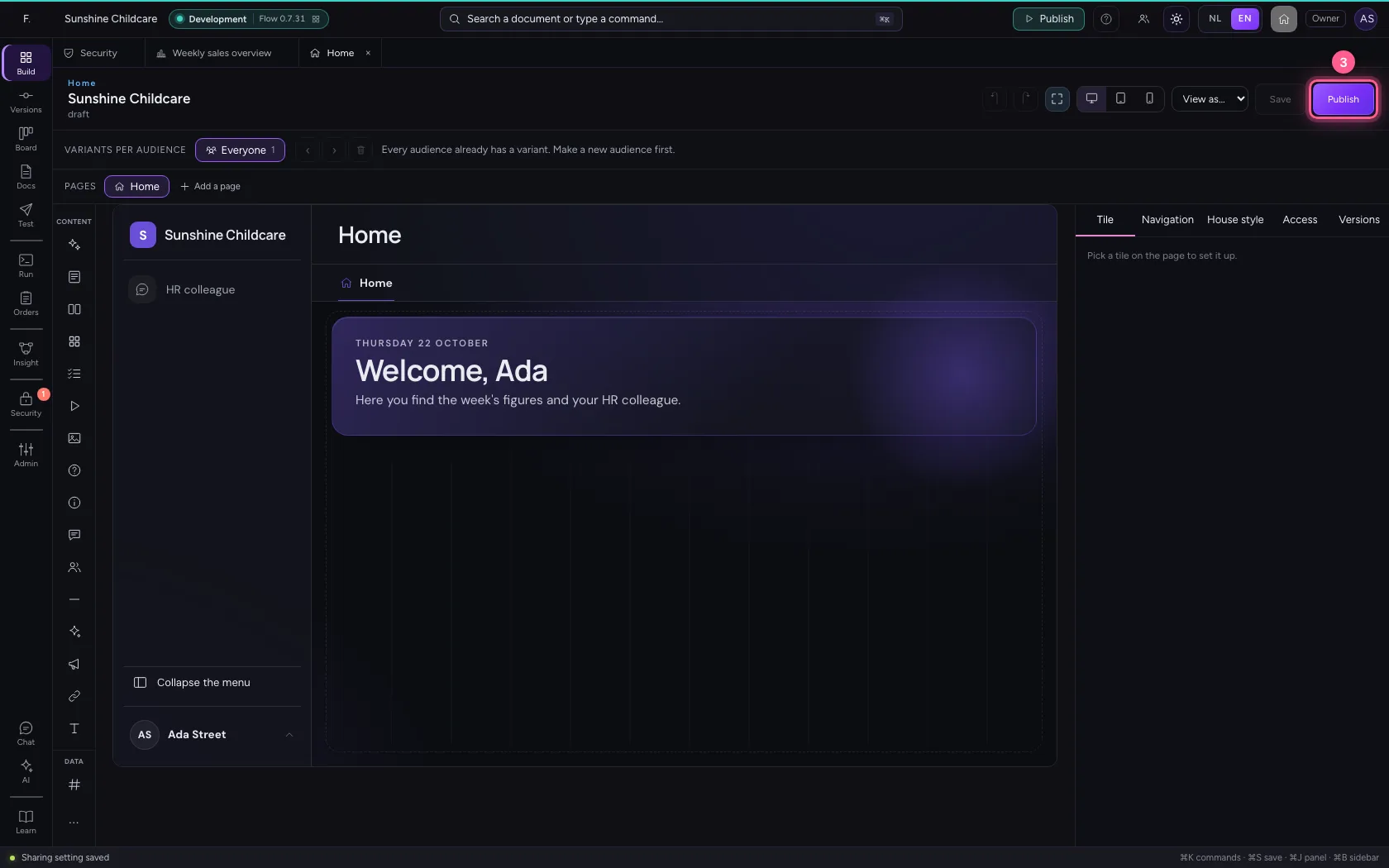
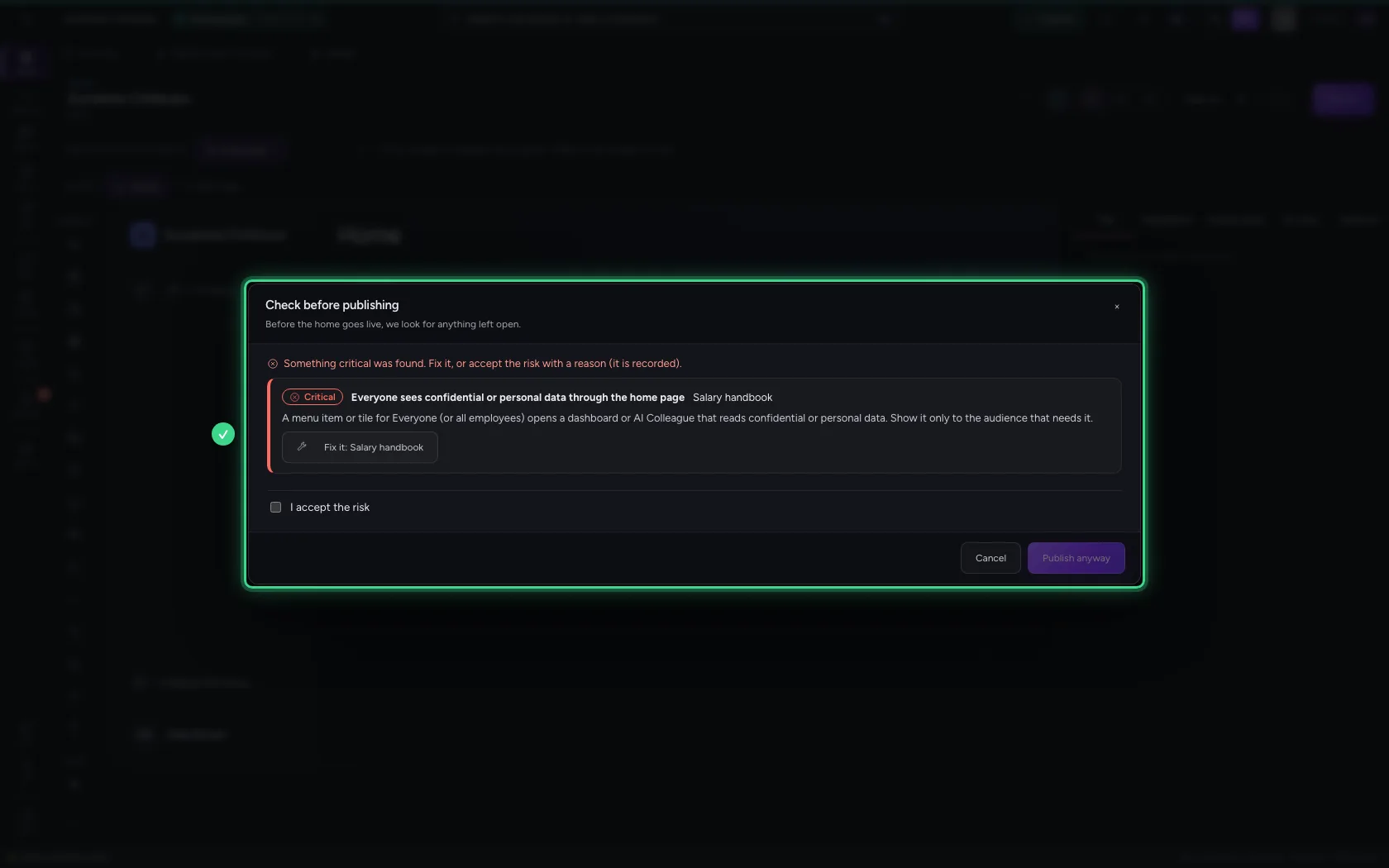
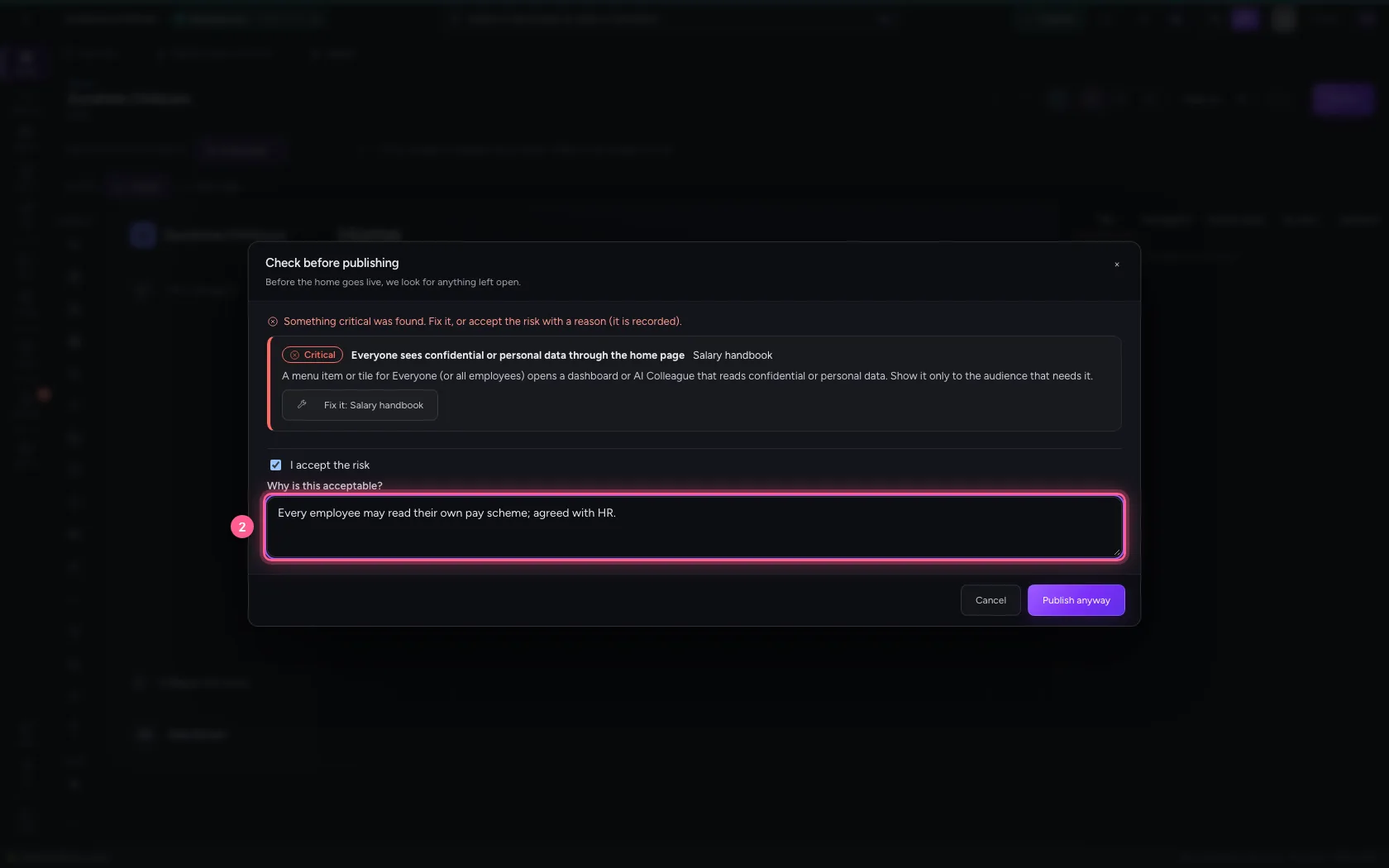
In the explorer, under Home for colleagues, open Home and click Publish. First the check looks for anything left open. Here everyone's menu offers the HR colleague, who reads the confidential salary handbook: critical. Then you cannot just publish.
- Click Explorer
- Click Home
- Click Publish
Or accept the risk, with a reason
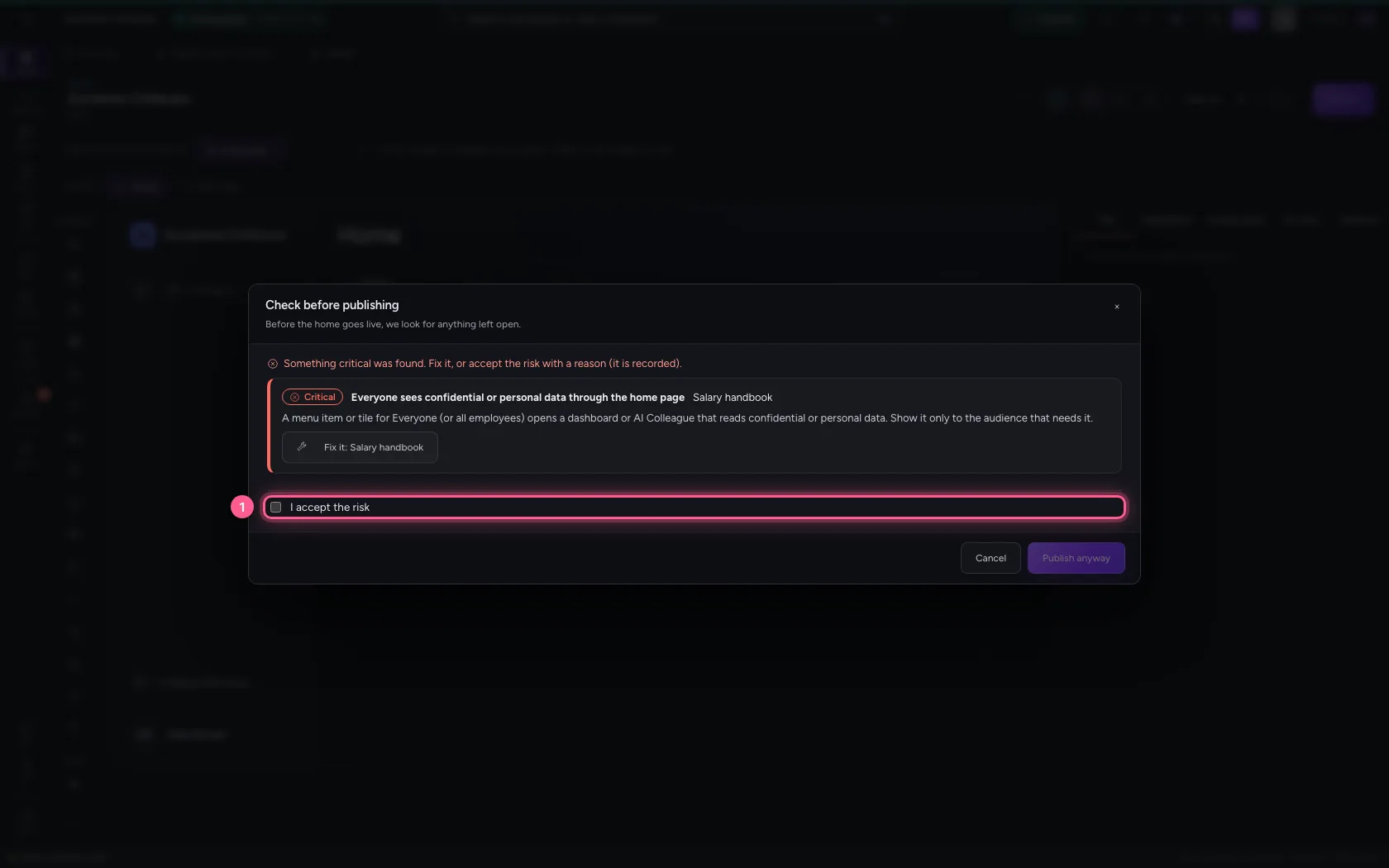
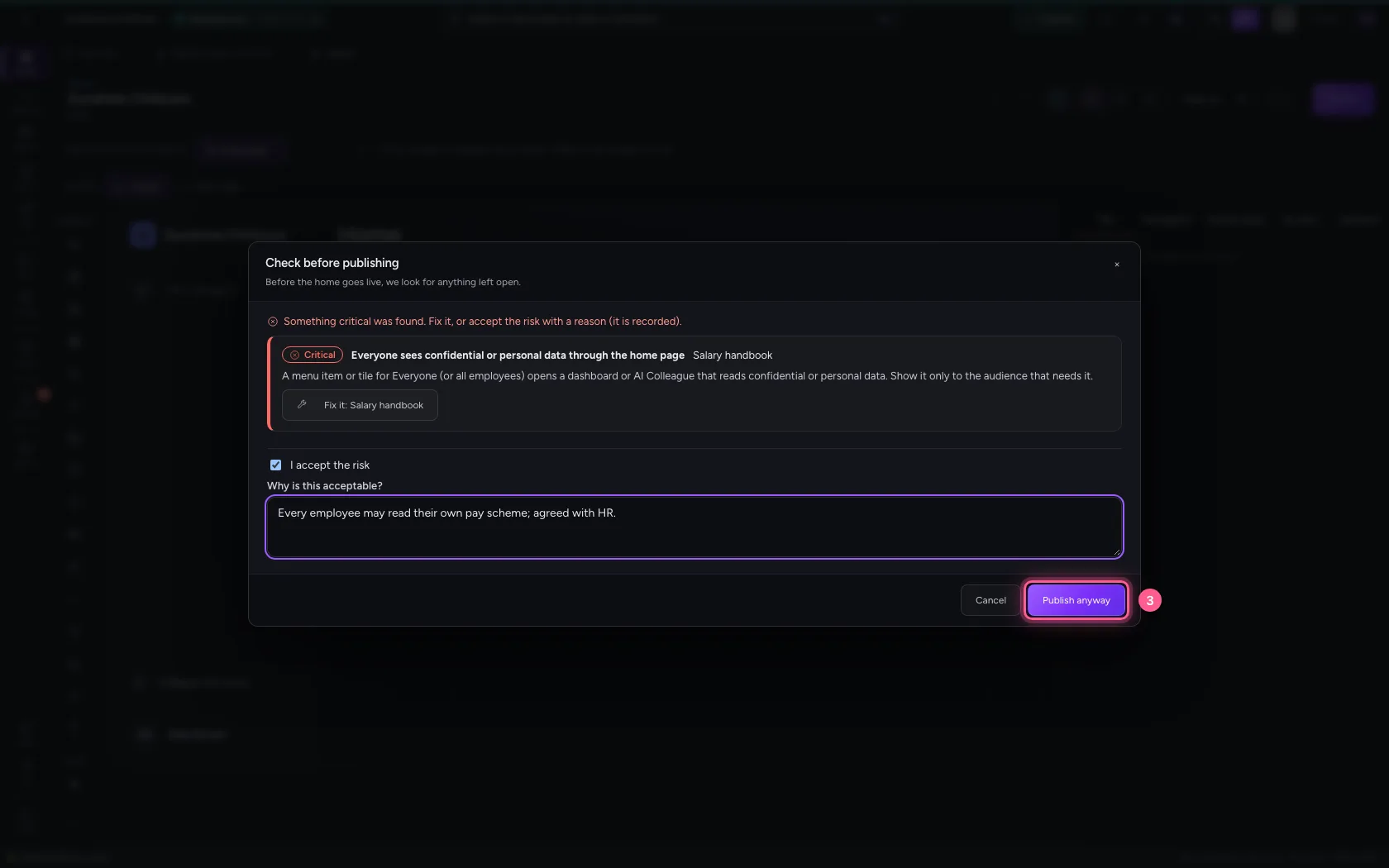
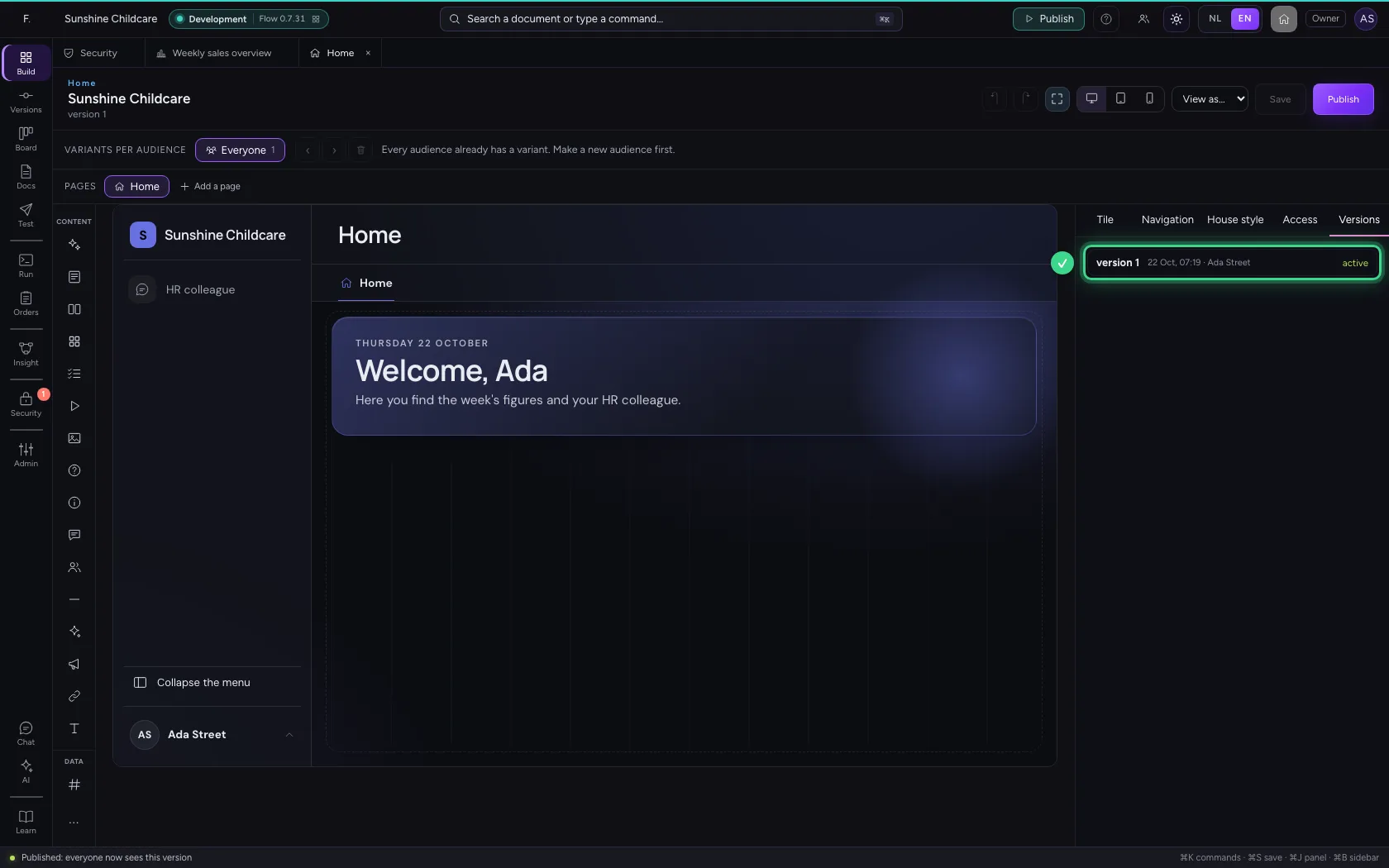
Best is to fix it: show the HR colleague only to the audience that needs it. If it really is intended, tick I accept the risk and write why. Only then is Publish anyway possible; who took the risk and why is in the audit log.
- Click I accept the risk
- In Why is this acceptable?, type
Every employee may read their own pay scheme; agreed with HR.
- Click Publish anyway
This guide was carried out step by step on 22 Oct 2026 by an automated test on Flow (version 3e563176).