Groups from your sign-in system (SSO)
- Step 1 · Require two-step verification for everyone
- Step 2 · Open your development environment
- Step 3 · Open the SSO groups
- Step 4 · Map a group to a role
- Step 5 · Never give a group all rights
- Step 6 · Who would I be with these groups?
- Step 7 · A colleague signs in with SSO
- Step 8 · At the sign-in system: the groups come along
- Step 9 · Anna is in
- Step 10 · See where her role comes from
With single sign-on your own sign-in system, such as Entra ID, decides who gets in. Map one of its groups to a role in Flow, and everyone in that group gets the role when signing in; whoever leaves the group loses it the next time. You require two-step verification for everyone without SSO, test which roles a set of groups gives, and see a colleague arrive with her group.
Require two-step verification for everyone
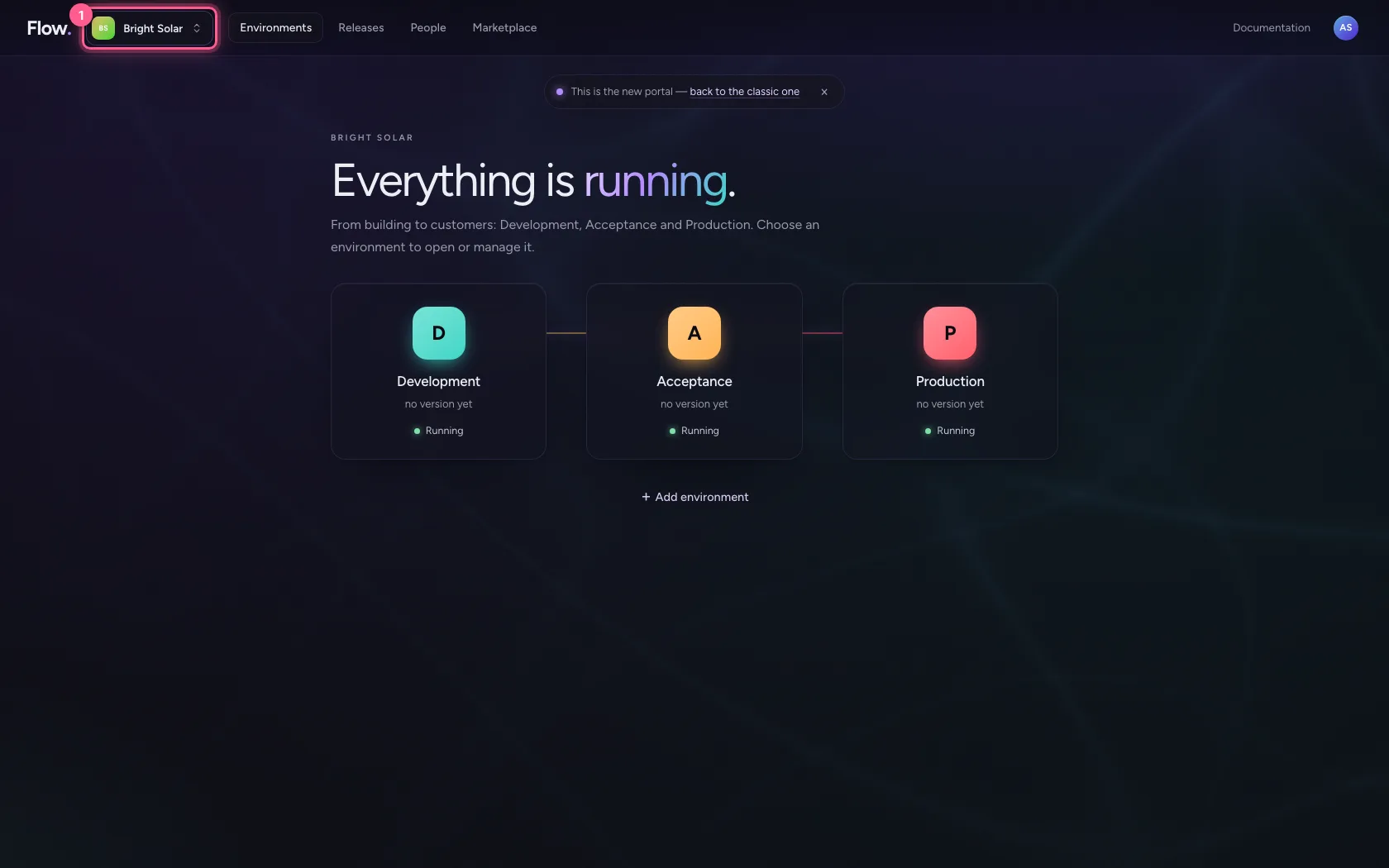
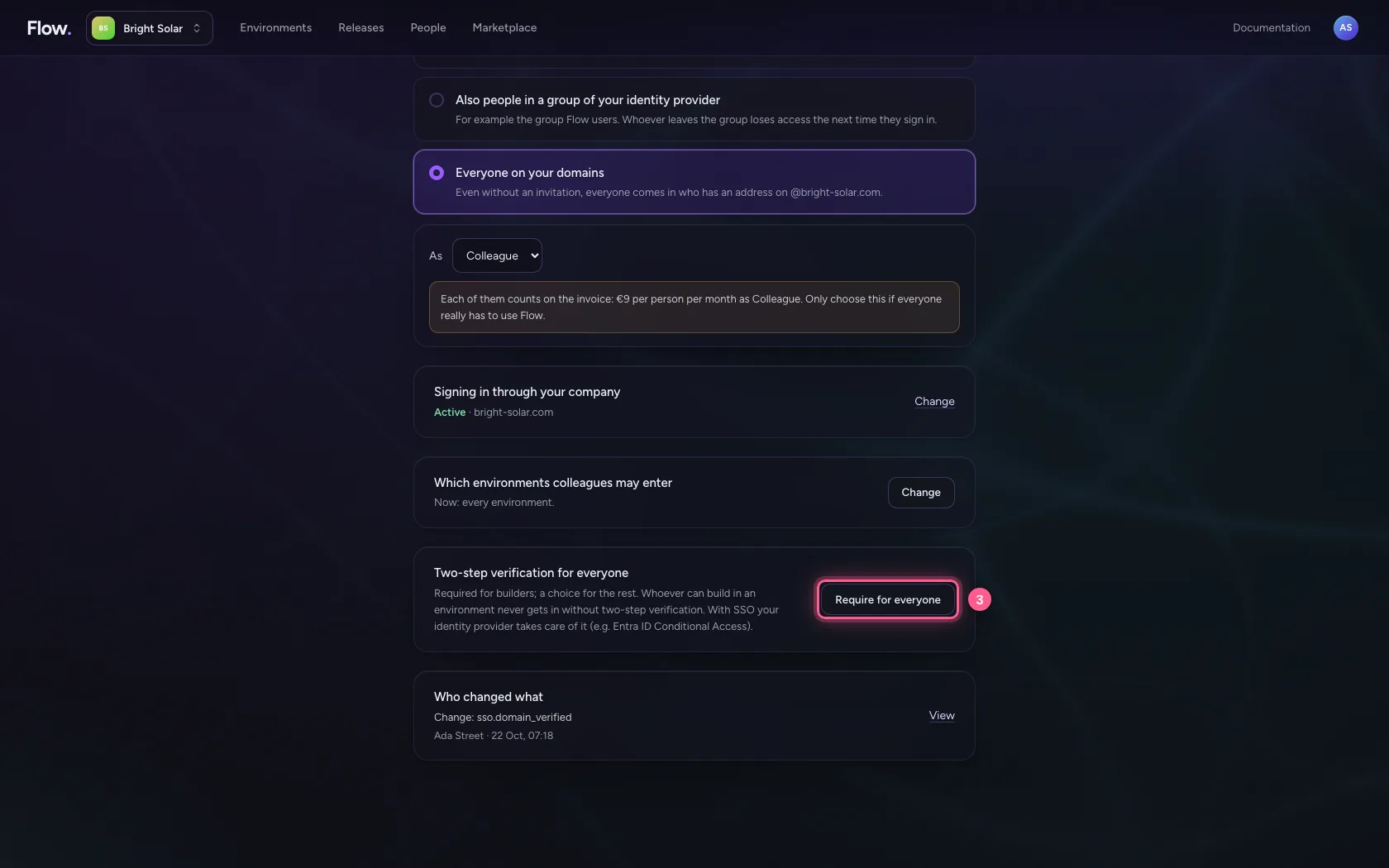
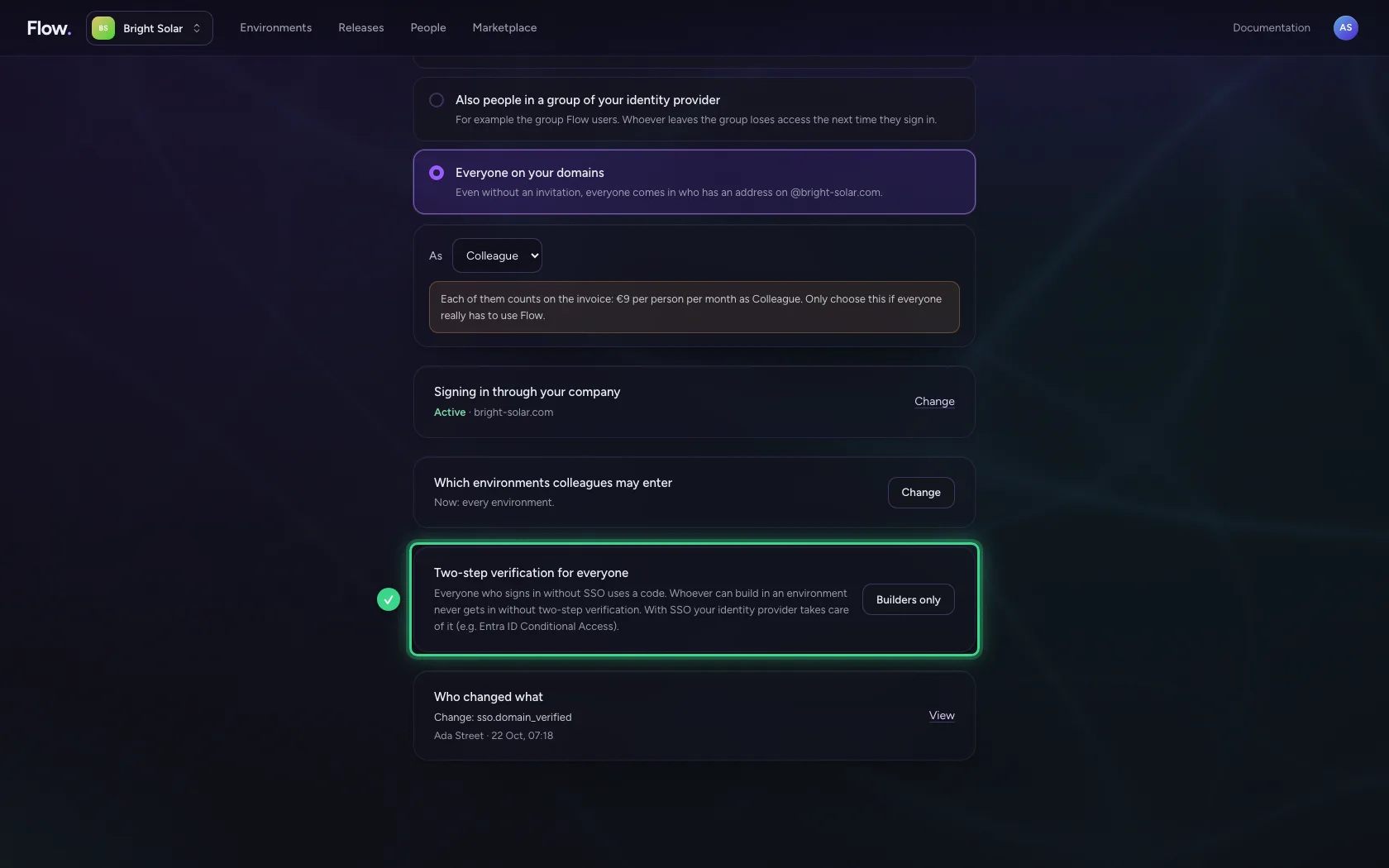
In the portal, behind your organisation's name, choose Security and sign-in. There you find Two-step verification for everyone. Whoever can build in an environment never gets in without it. Choose Require for everyone and people who only use the home also sign in with a code when they do not use SSO. With SSO your sign-in system takes care of the second step (for example Conditional Access in Entra ID).
- Click Bright Solar
- Click Security and sign-in

- Click Require for everyone
Open your development environment
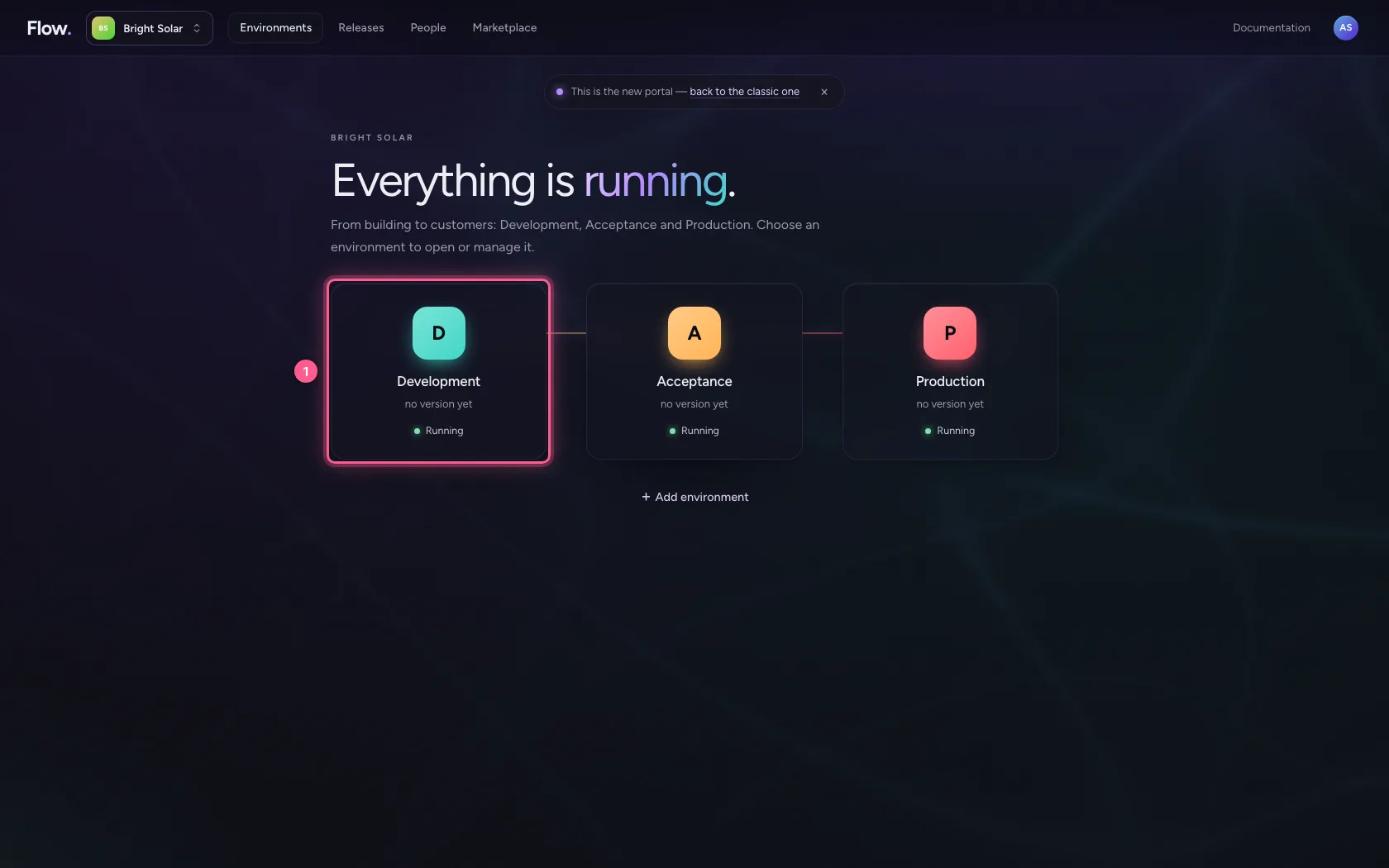
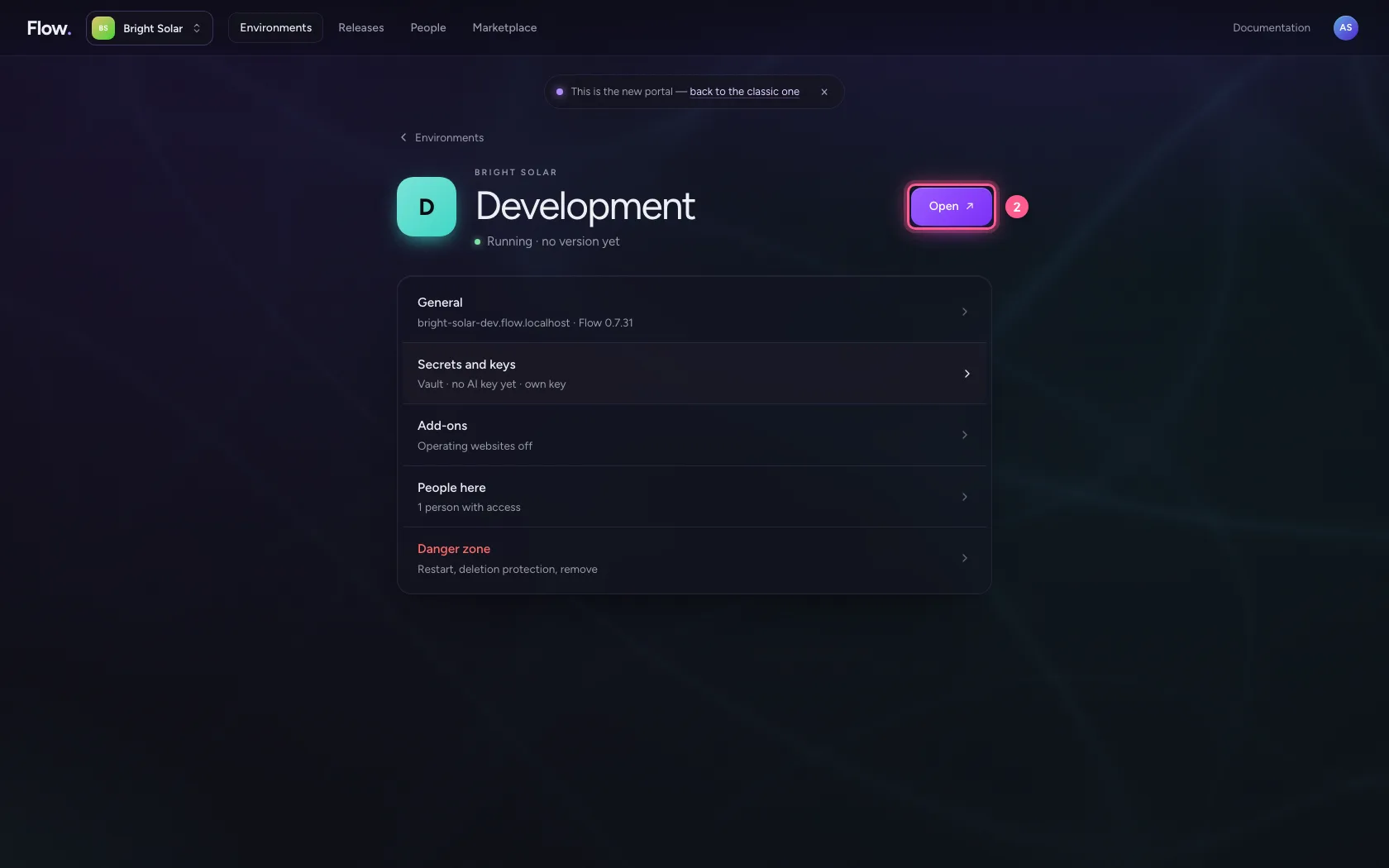
In the portal, under Environments, click Development, and there Open. Flow opens in a new tab and you are signed in straight away.
- Click Development
- Click Open ↗
Open the SSO groups
In Flow, click Administration → People and open the SSO groups tab. Here you map a group from your sign-in system to a role. Mind the note about many groups: when someone is in more groups than fit in a sign-in, Entra ID does not send them. Use app roles then, or have only this app's groups passed on.
- Click Administration
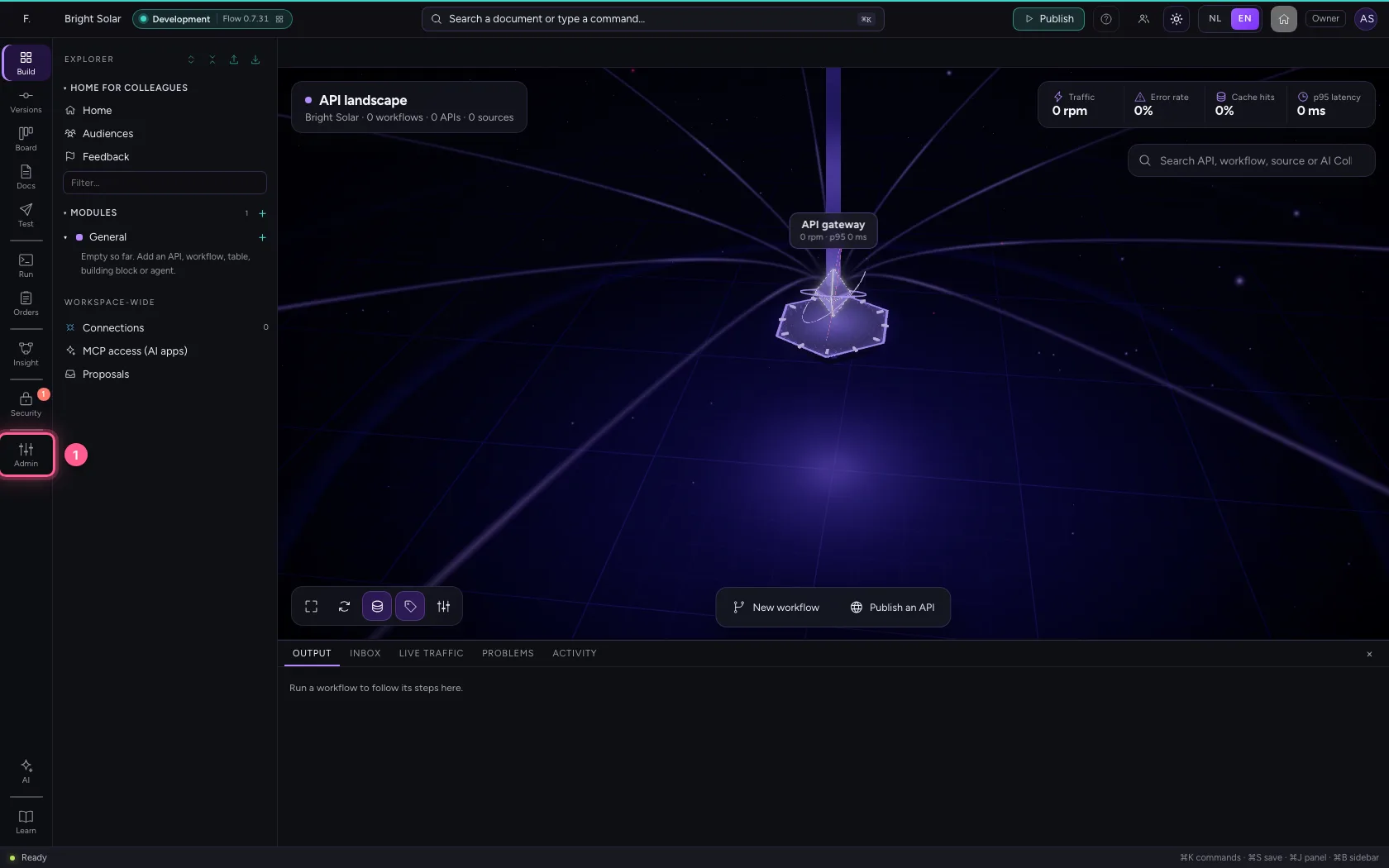
- Click People
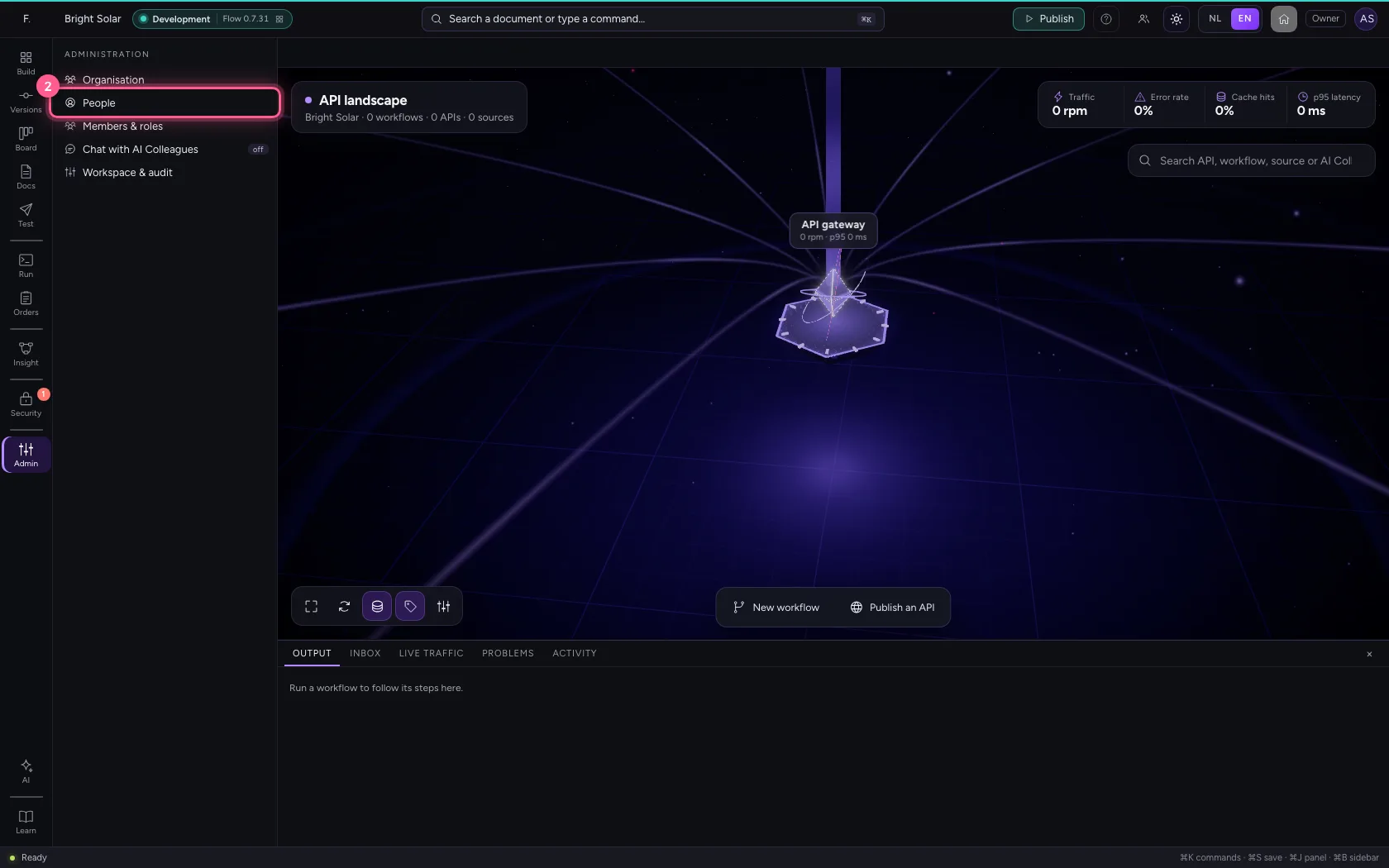
- Click SSO groups
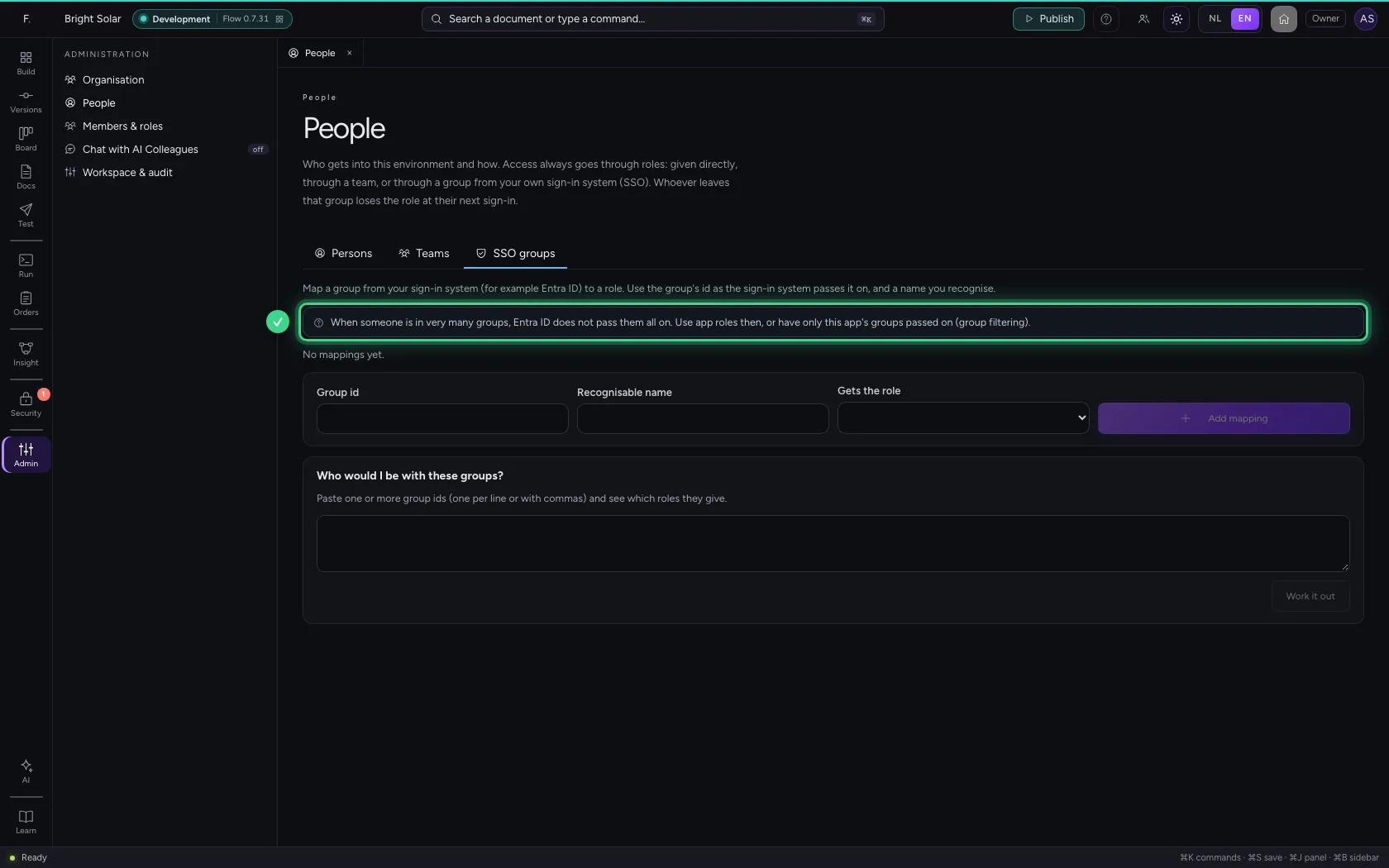
Map a group to a role
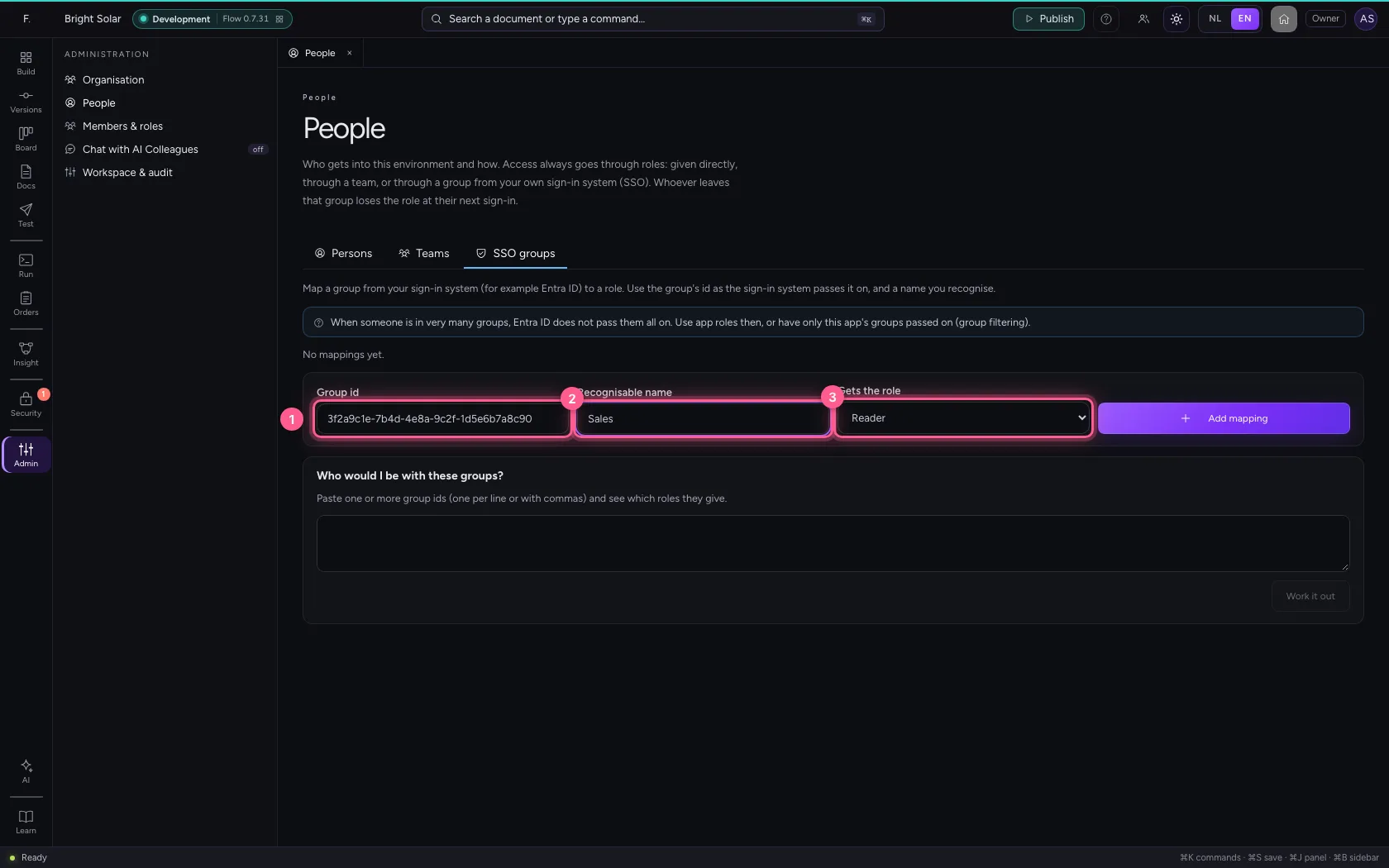
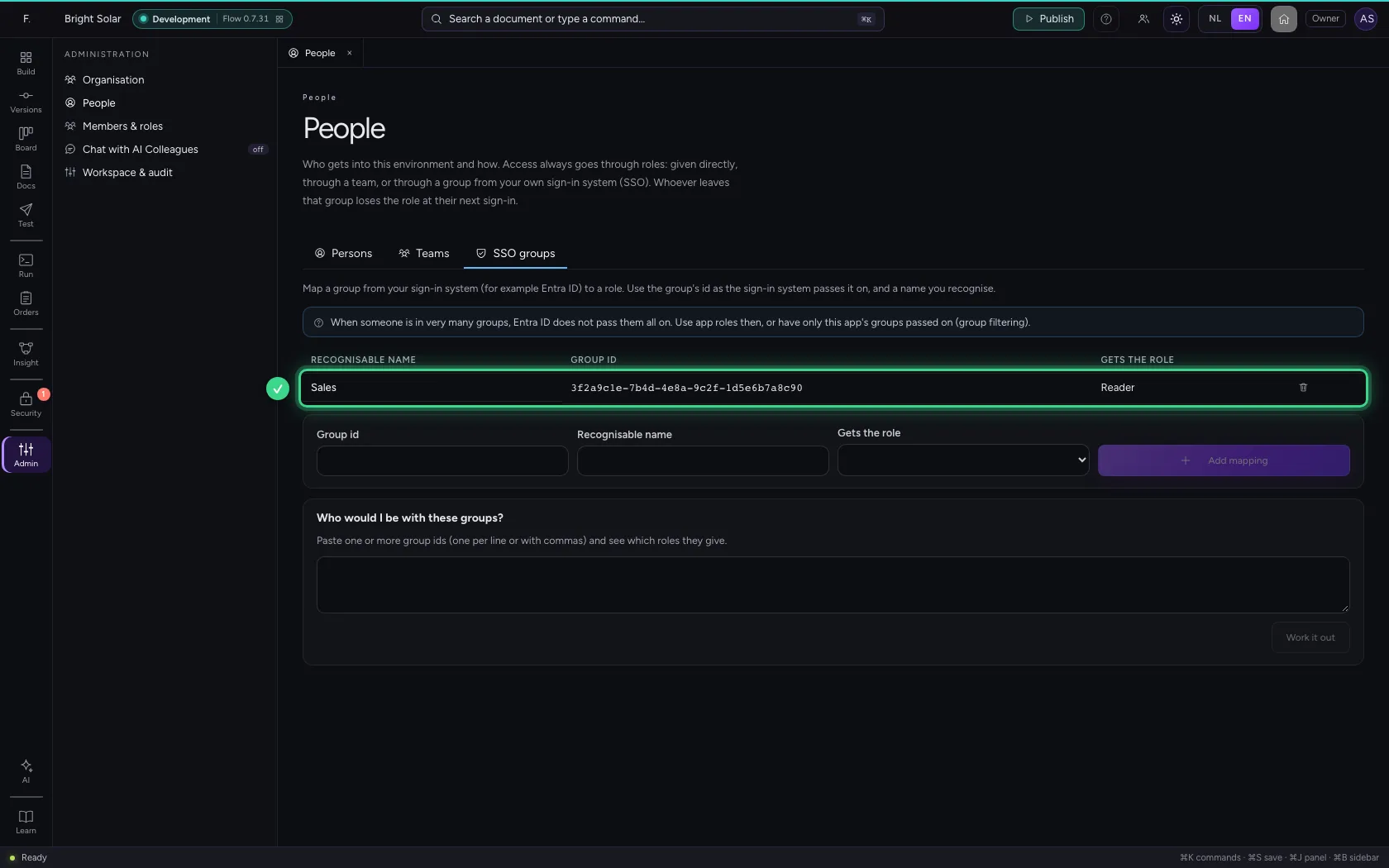
Fill in the group's id as the sign-in system passes it on (in Entra ID the object id), a name you recognise, and the role. Everyone in the group Sales gets the role Reader here: look at everything, change nothing.
- In Group id, type
3f2a9c1e-7b4d-4e8a-9c2f-1d5e6b7a8c90 - In Recognisable name, type
Sales - In Gets the role, choose Reader
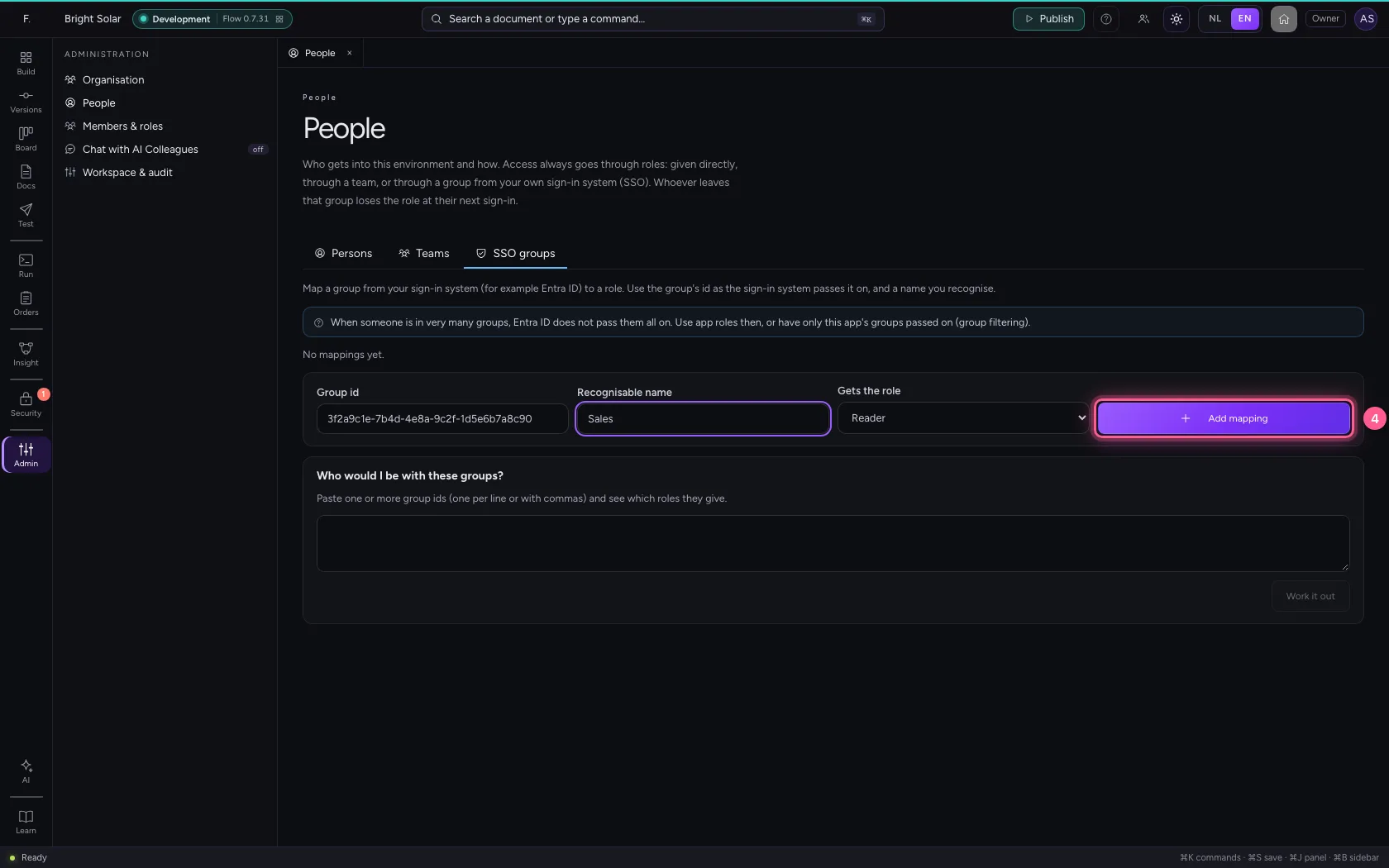
- Click Add mapping
Never give a group all rights
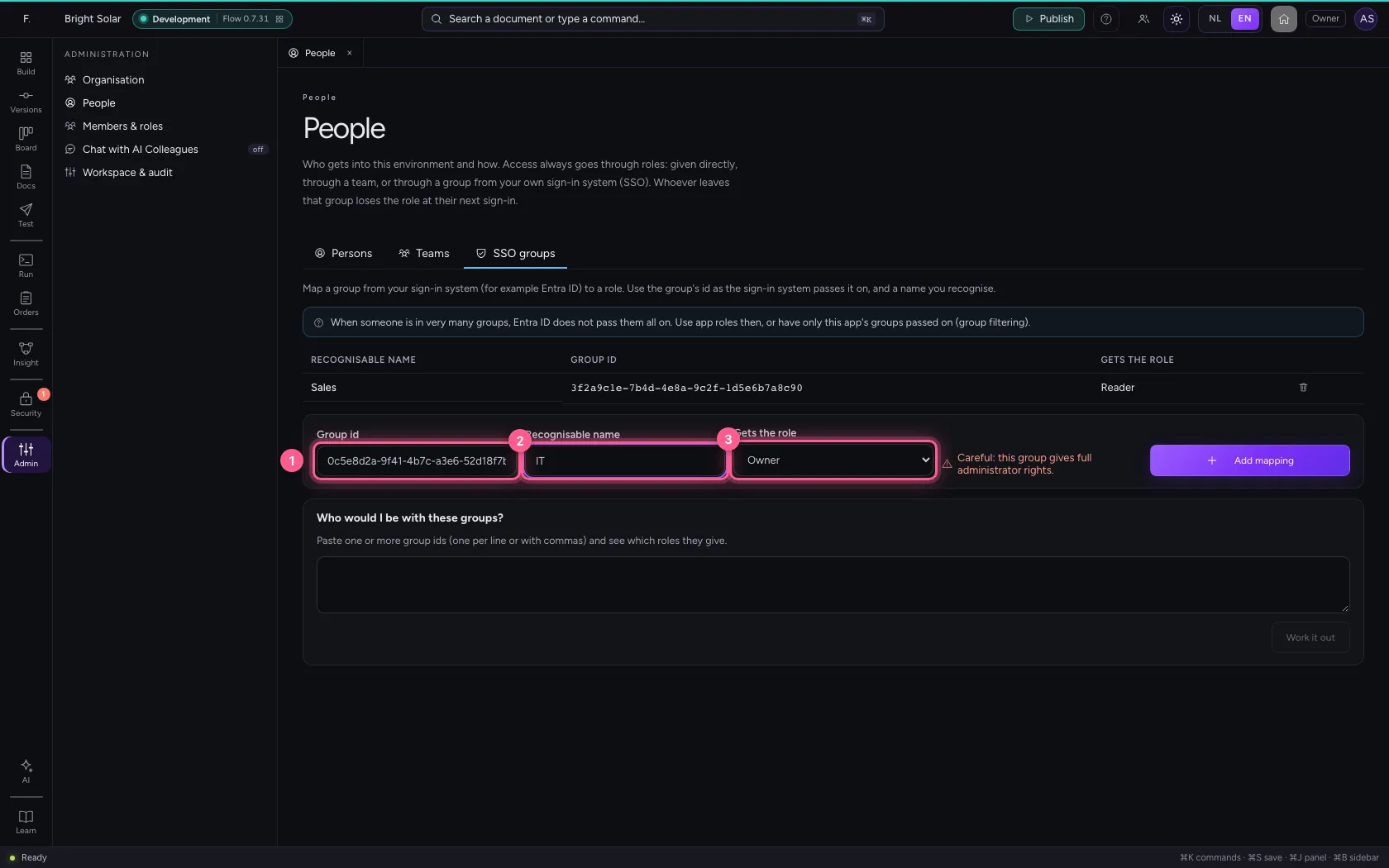
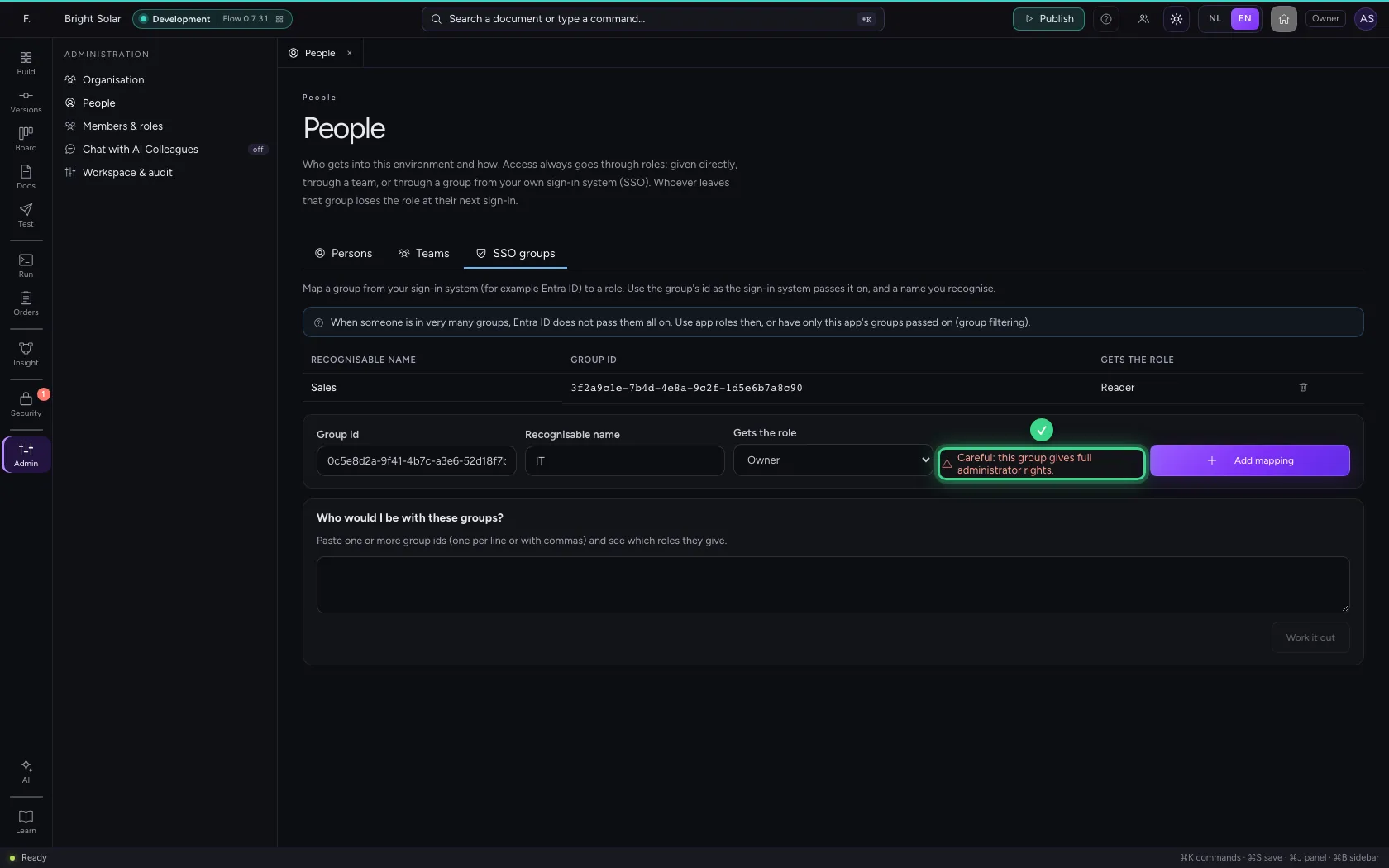
Choose Owner or Administrator and Flow warns: whoever manages the group in the sign-in system then makes someone owner here. The security overview reports such a mapping as critical. Rather appoint administrators one by one; so you do not save this mapping.
- In Group id, type
0c5e8d2a-9f41-4b7c-a3e6-52d18f7b9c03 - In Recognisable name, type
IT - In Gets the role, choose Owner
Who would I be with these groups?
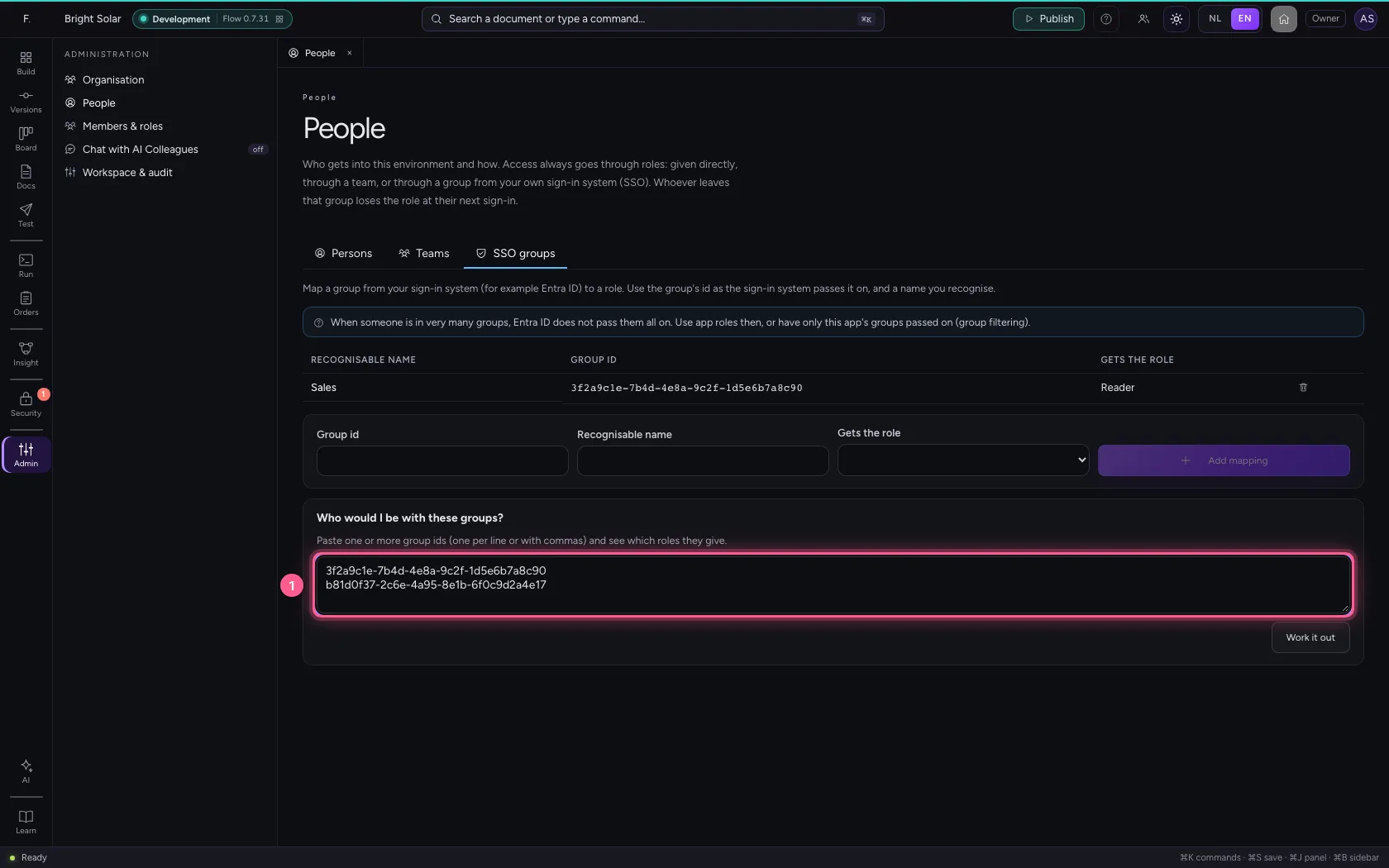
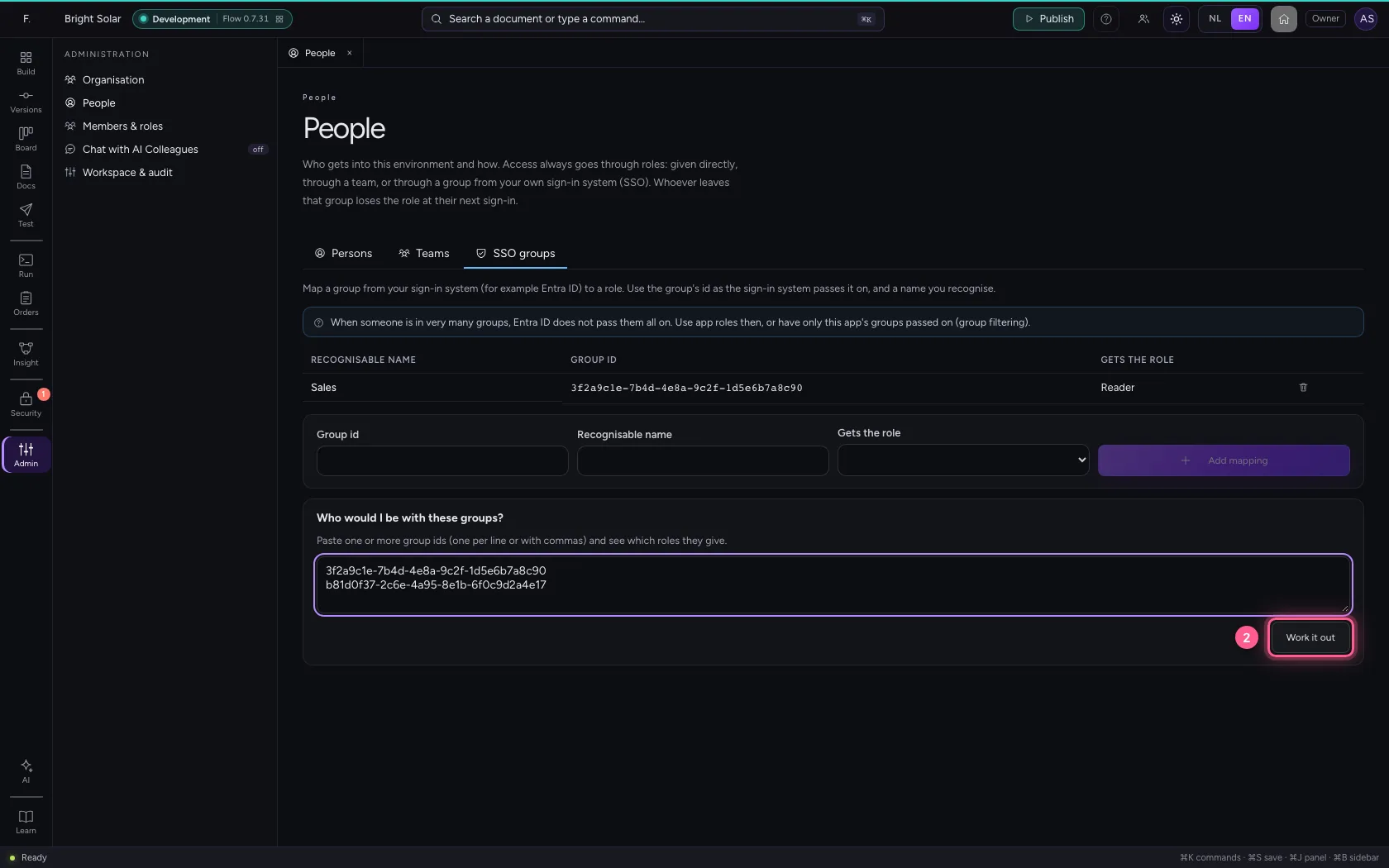
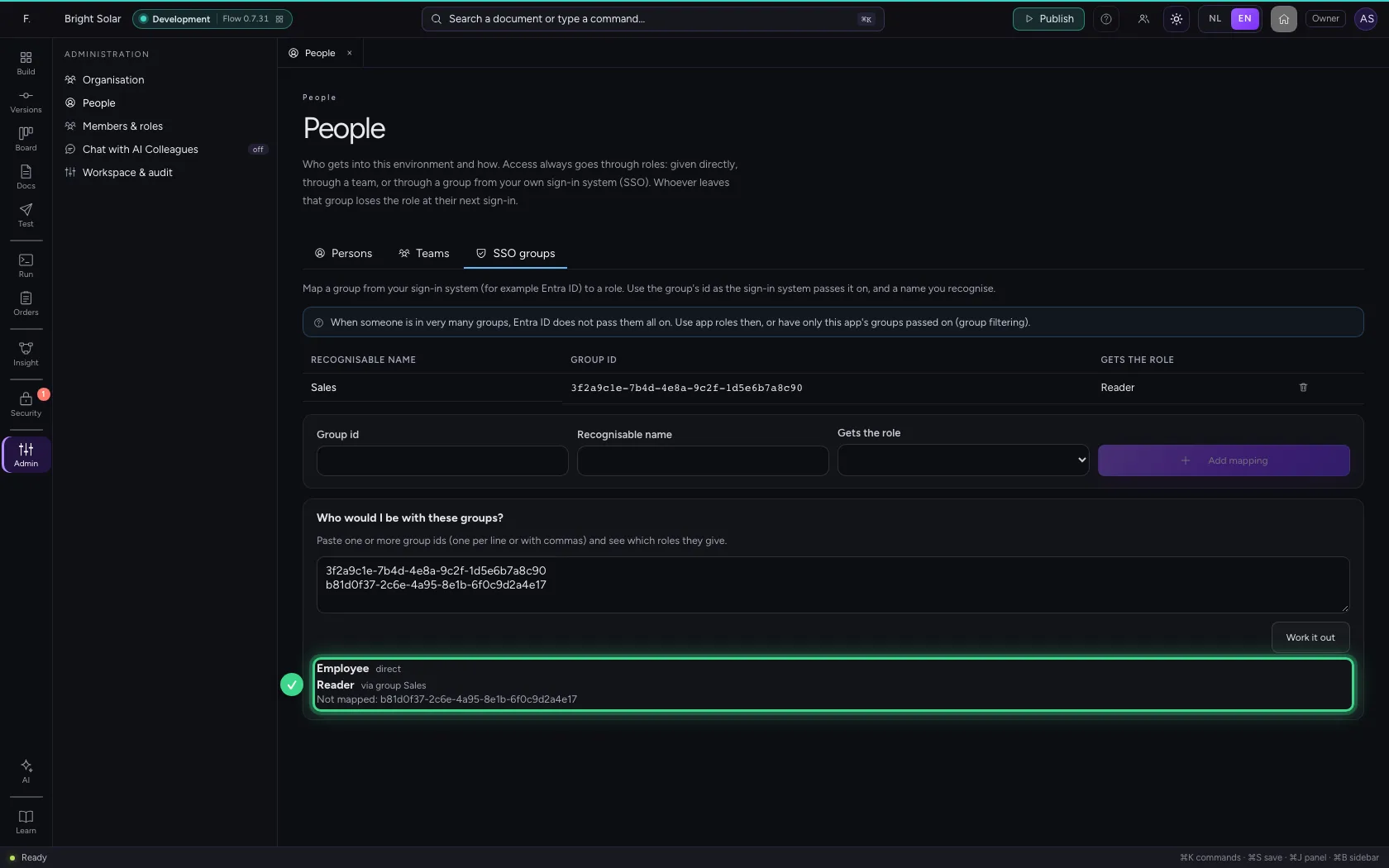
Paste someone's groups, one per line or with commas, and click Work it out. You see which roles they get with them and through which group, and which groups mean nothing here. So you test a mapping before anyone signs in.
- In the groups, type `3f2a9c1e-7b4d-4e8a-9c2f-1d5e6b7a8c90
- Click Work it out
A colleague signs in with SSO
Anna opens the environment's address, types her work e-mail address and clicks Sign in with your company's name. Flow sends her through the portal straight on to your sign-in system.
- In Your e-mail address, type
anna@bright-solar.com
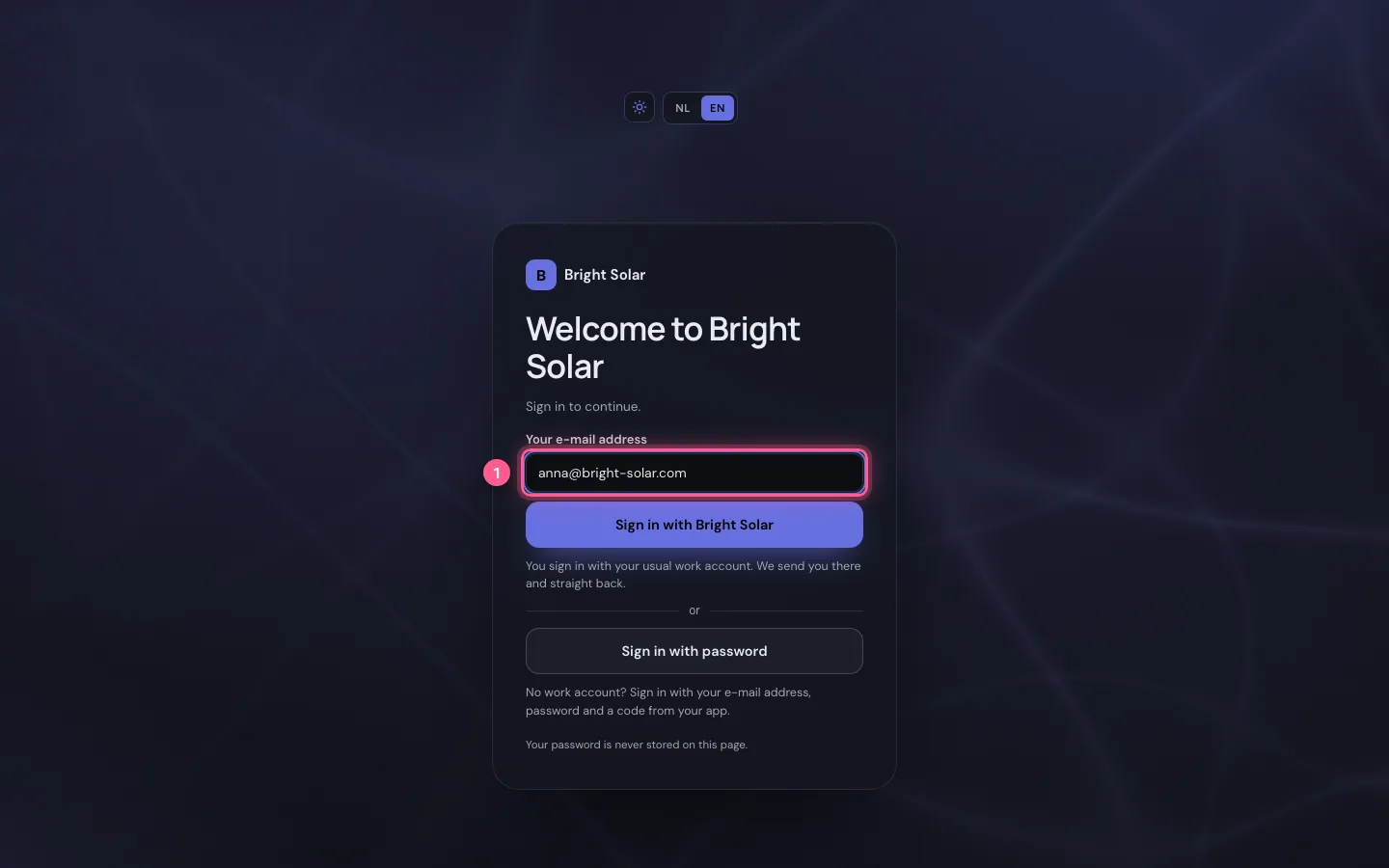
- Click Sign in with Bright Solar

At the sign-in system: the groups come along
Anna signs in at your sign-in system as always. It sends along which groups she is in (in Entra ID the groups claim); here, on the test environment's stand-in sign-in page, we type her group. Flow never sees her password.
- In Name, type
Anna White - In Groups, type
3f2a9c1e-7b4d-4e8a-9c2f-1d5e6b7a8c90

- Click Sign in

Anna is in
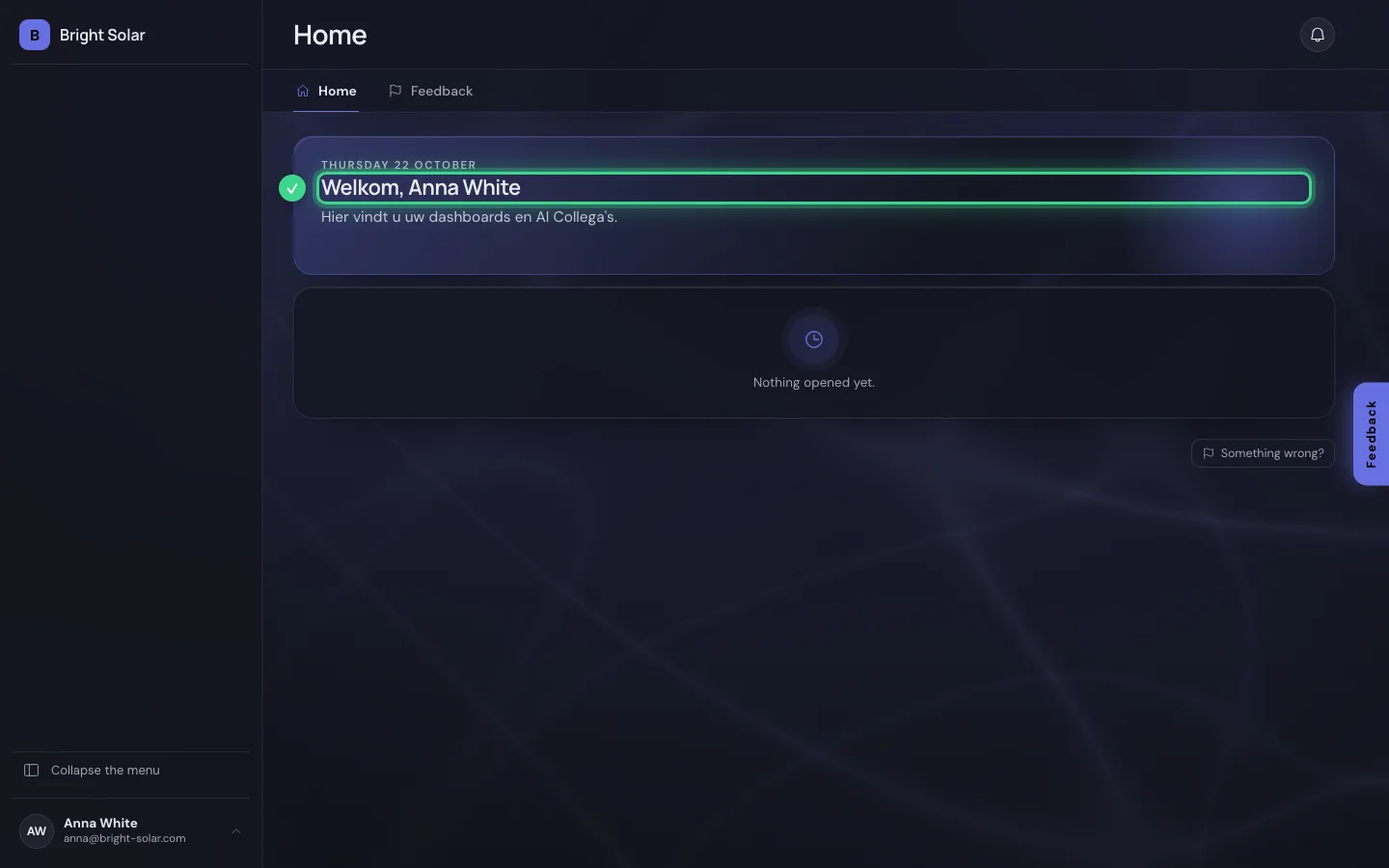
The sign-in system sends Anna back, through the portal, to Flow. She was not invited: whoever arrives this way for the first time gets the organisation's default role (Employee), and through her group also Reader.
See where her role comes from
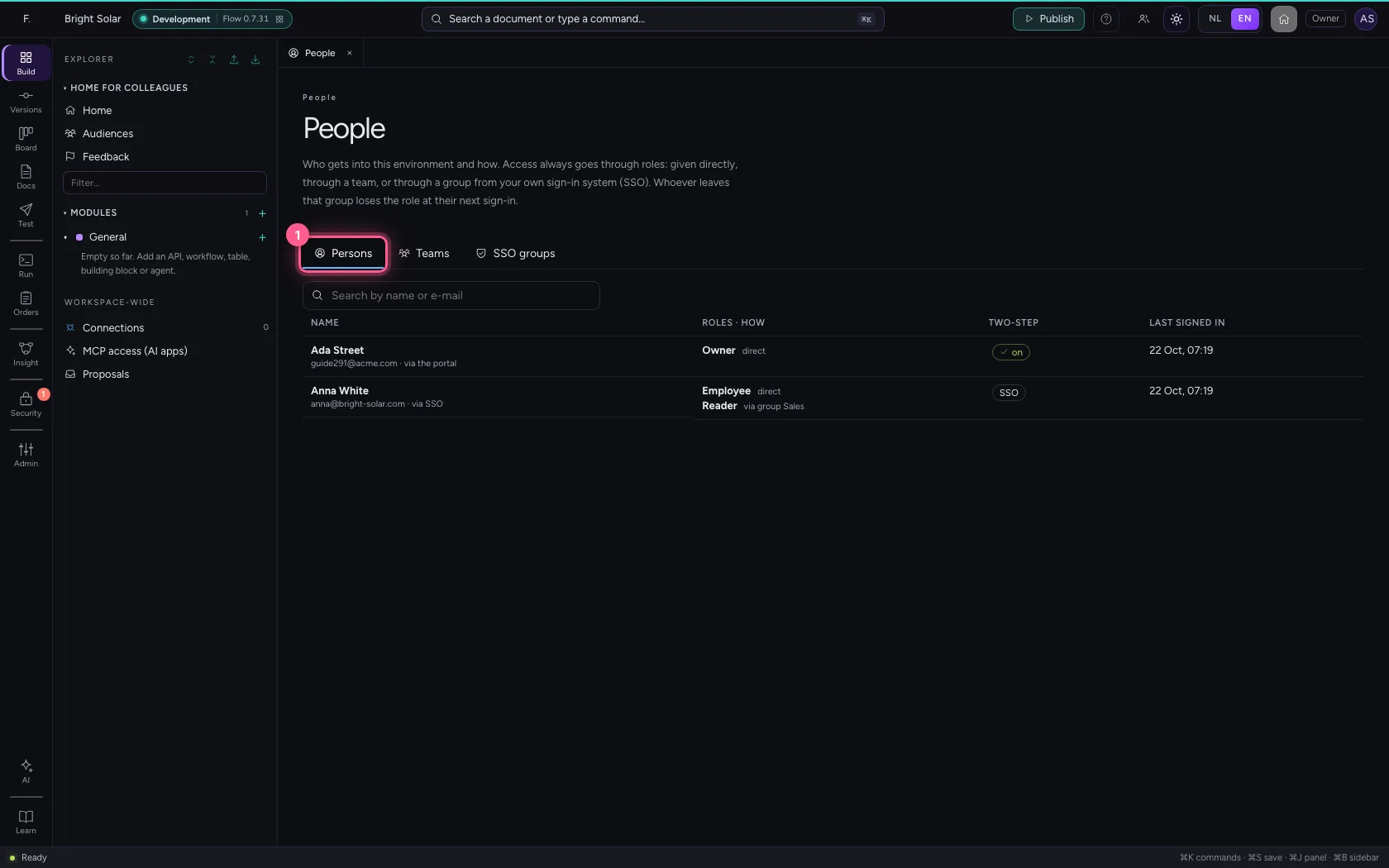
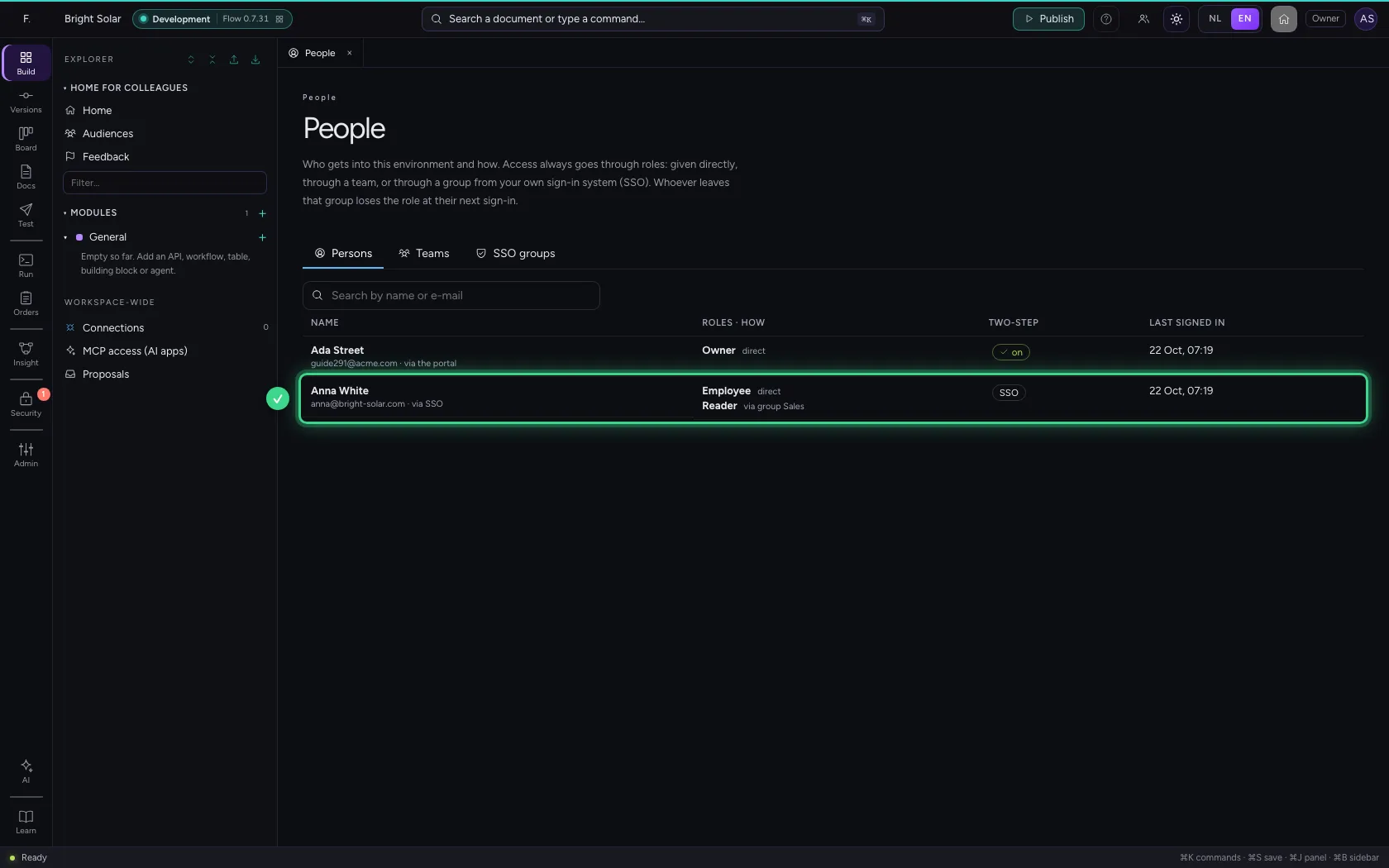
Back in People, on the Persons tab, is Anna: via SSO, with Employee directly and Reader via group Sales. If someone takes her out of the group in Entra ID, she loses Reader the next time she signs in.
- Click Persons
This guide was carried out step by step on 22 Oct 2026 by an automated test on Flow (version 3e563176).