Who sees this?
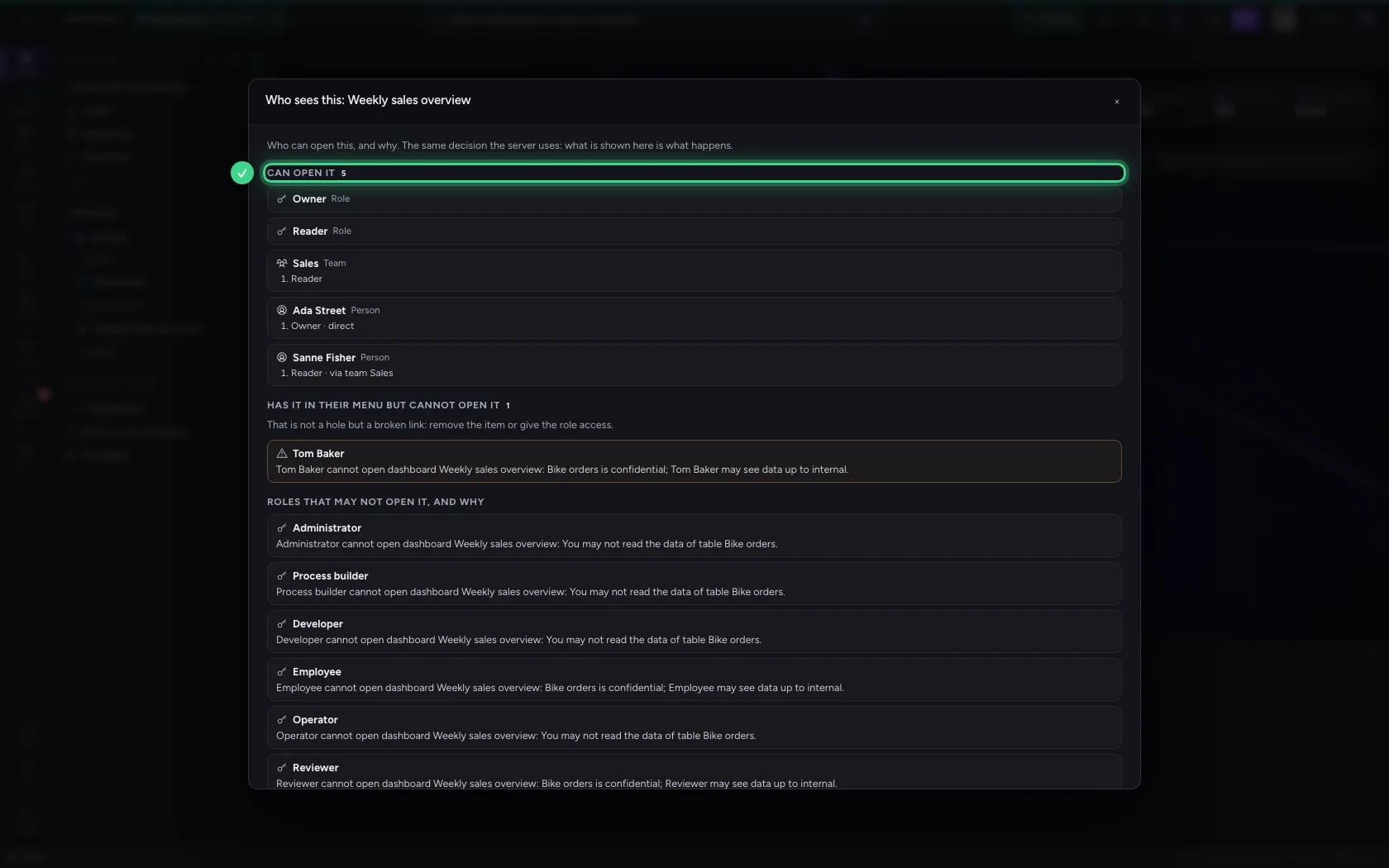
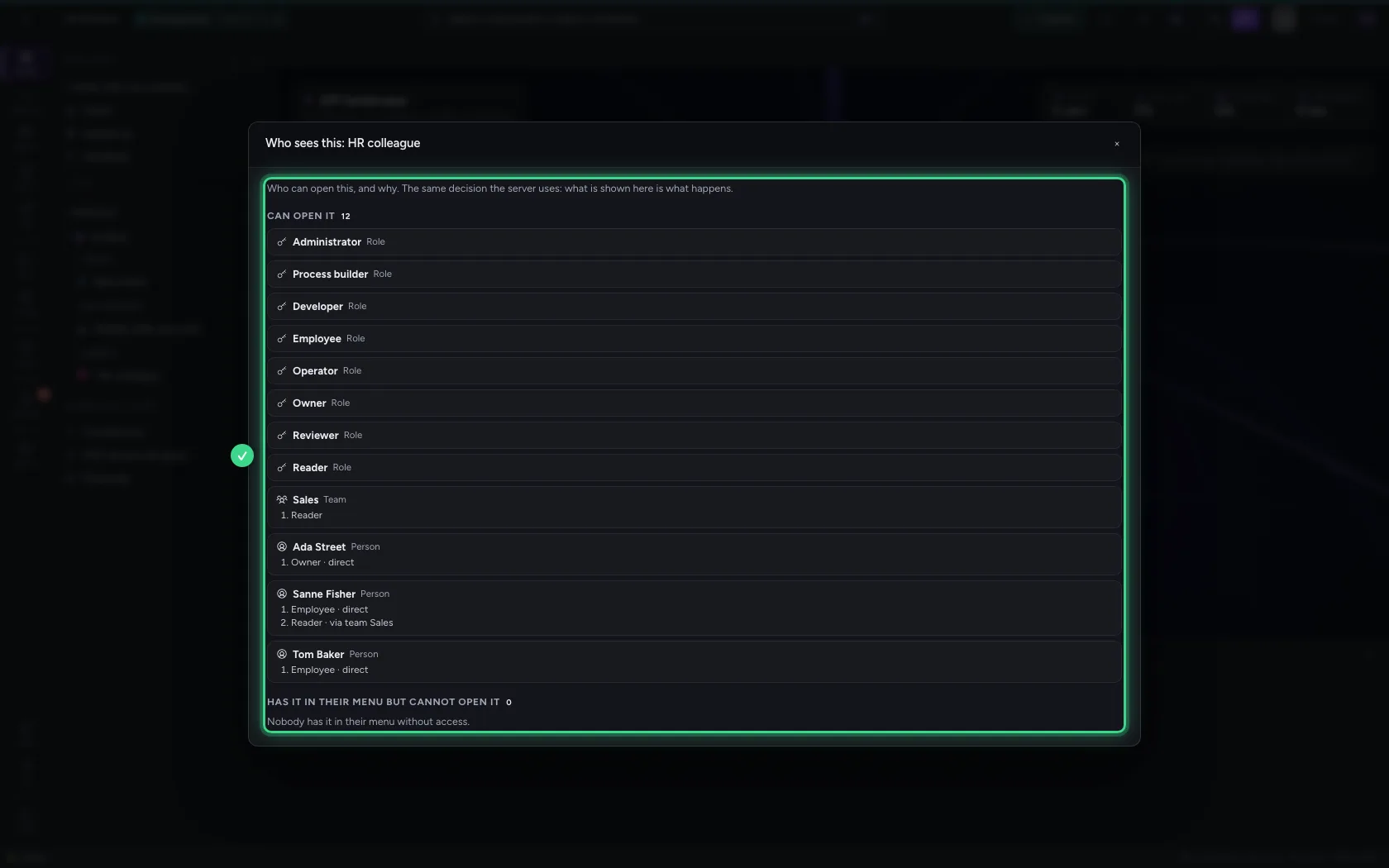
For every dashboard, AI Colleague, workflow, table and knowledge base you ask Flow who can open it, and why: which role, and how someone has that role (directly, via a team or via a group from your sign-in system). You also see who has it in their menu but cannot open it. The answer comes from the same access decision the server makes at every opening: what the panel says is what happens.
Open your development environment
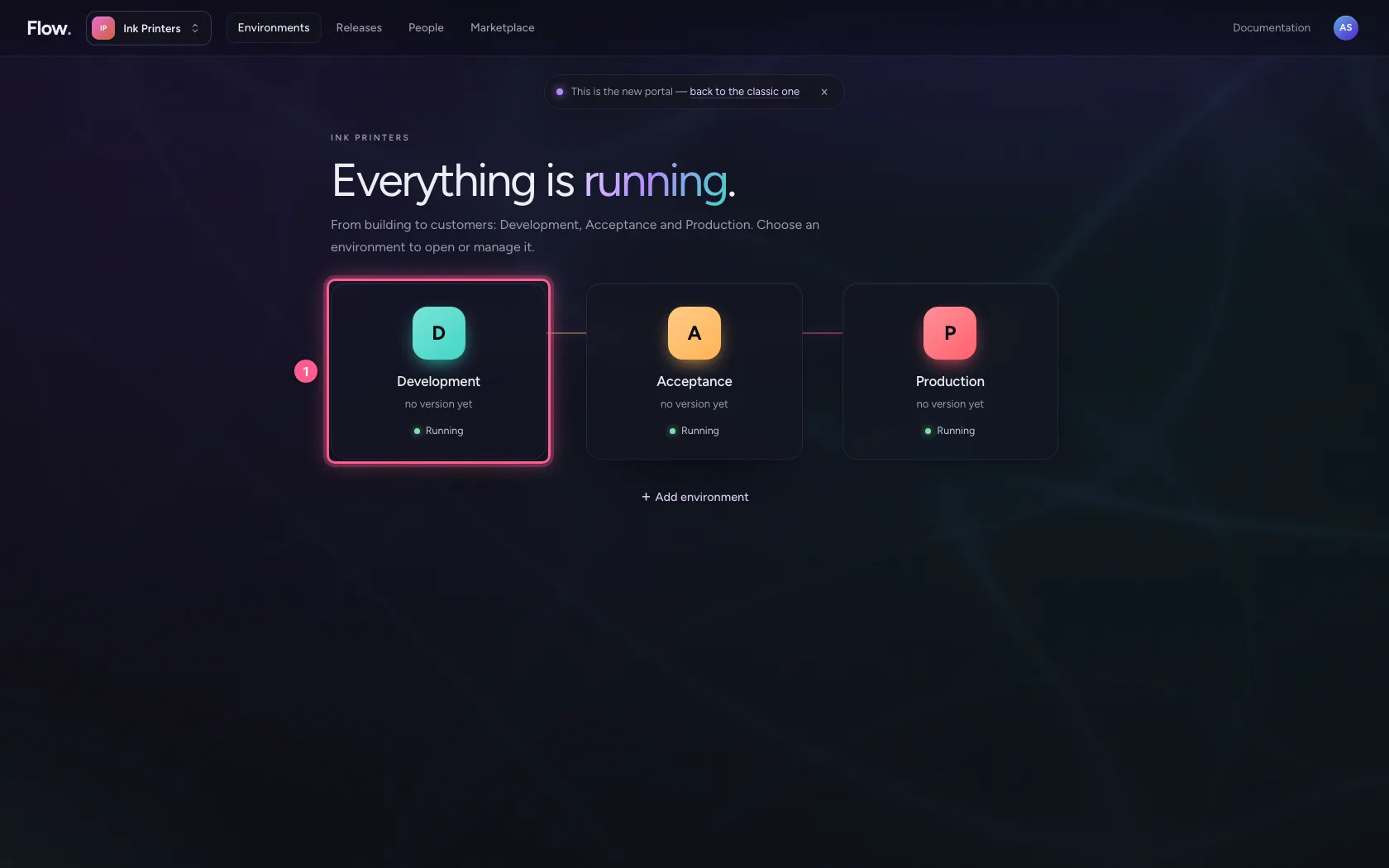
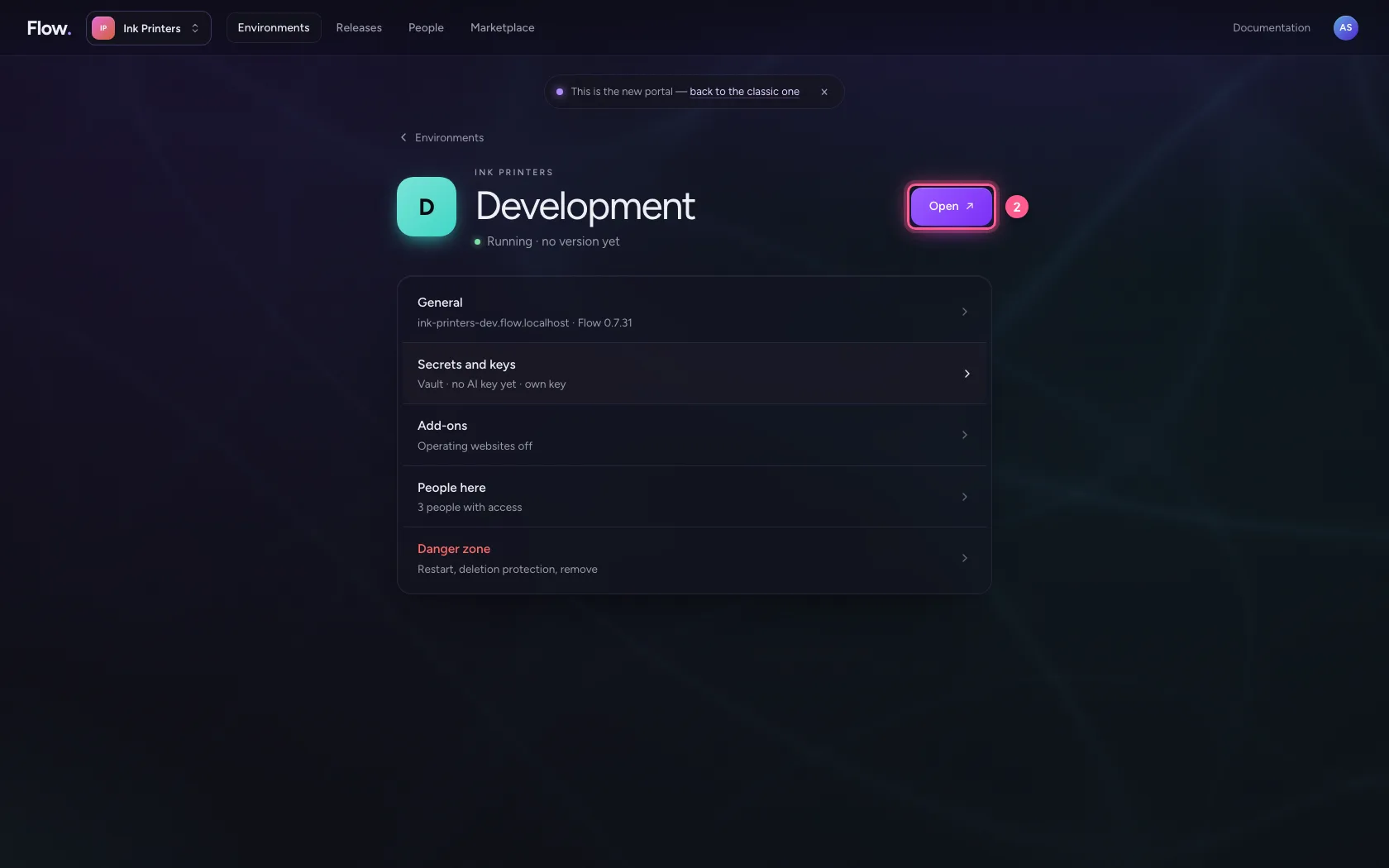
In the portal, under Environments, click Development, and there Open. Flow opens in a new tab and you are signed in straight away.
- Click Development
- Click Open ↗
Open Who sees this on a dashboard
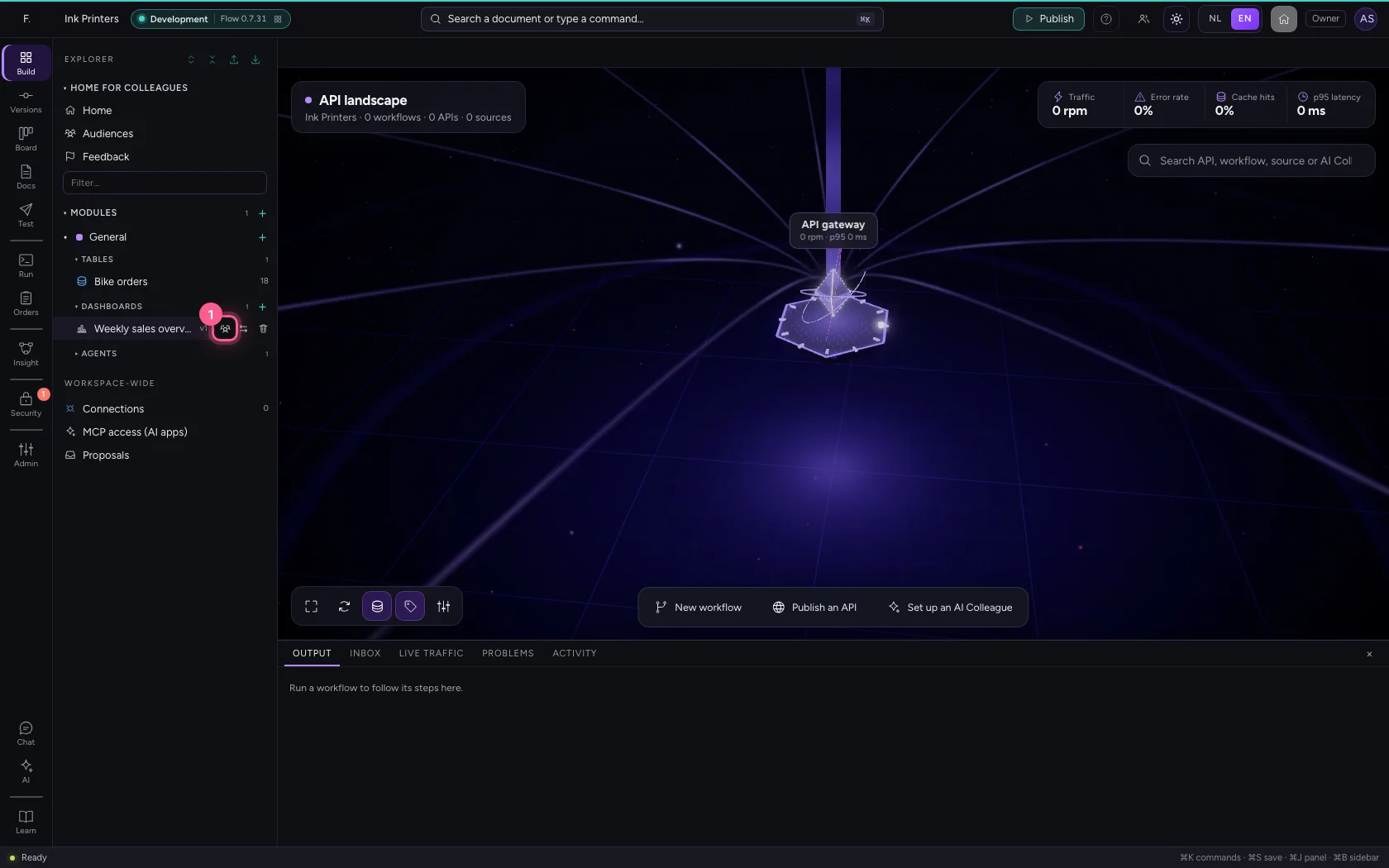
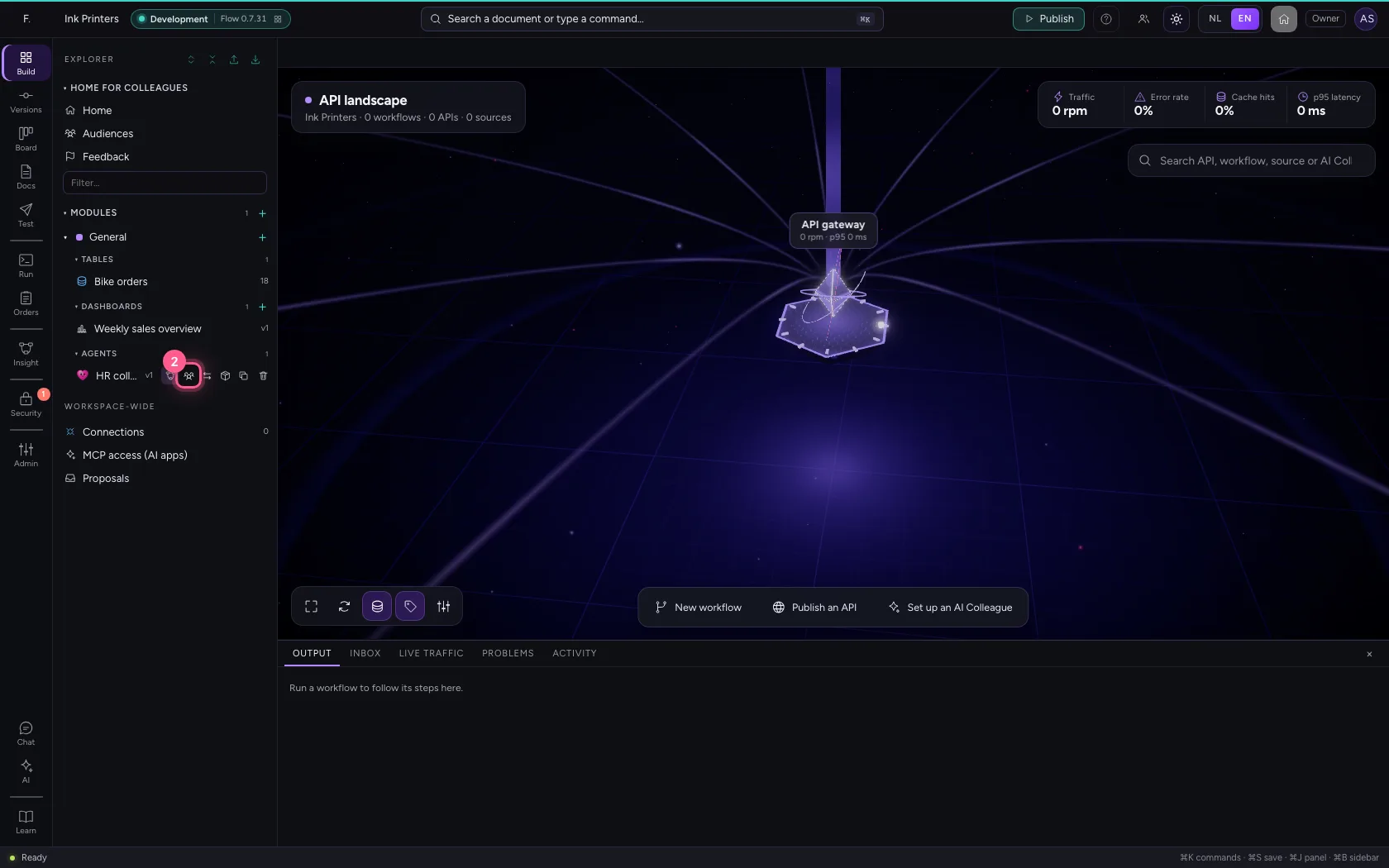
In the explorer, hover over the dashboard and click the icon with the people (Who sees this). The window lists at the top who can open it: the roles, the teams and groups, and the people themselves.
- Click Who sees this
Read why someone can open it
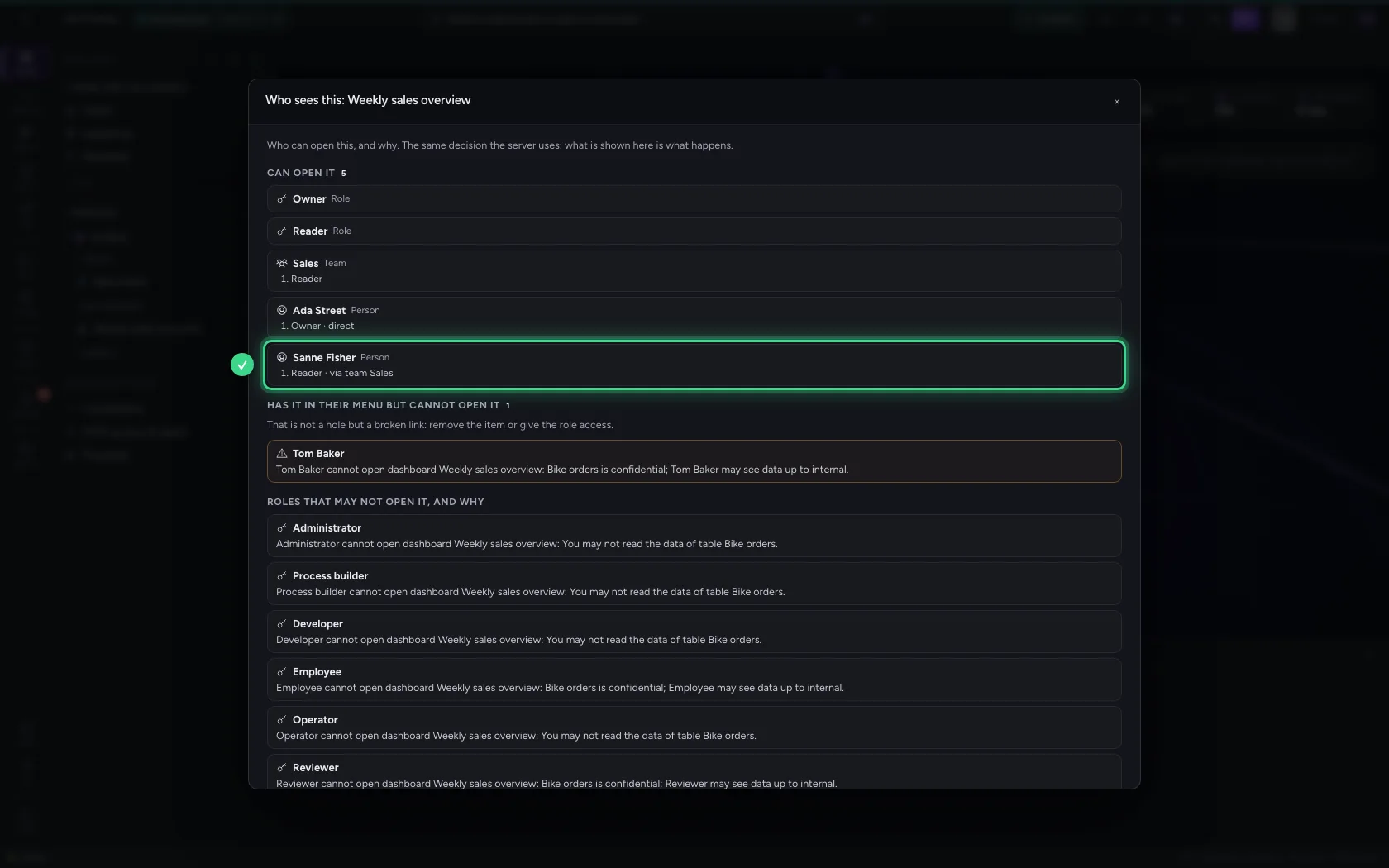
Next to each person is the chain: the role that gives access, and how they have that role. Sanne is an Employee, and that is not enough: the dashboard now reads a confidential table. She can open it anyway, because she is in the team Sales, which has the role Reader.
Find who has it in their menu but cannot open it
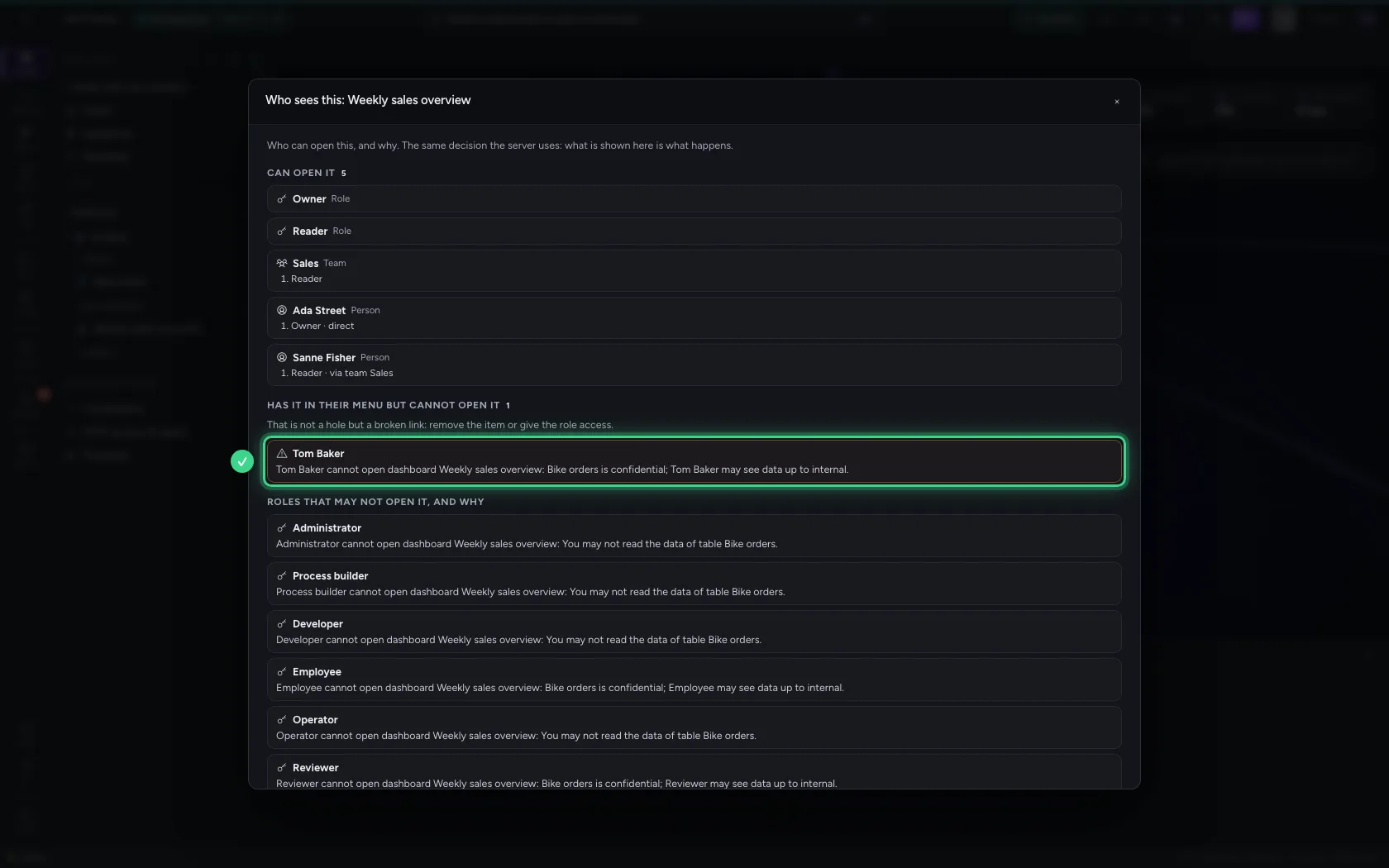
Below is who has the dashboard in their menu on the home but cannot open it. Tom is an Employee and is not in Sales: since the table became confidential, he may no longer see it. That is not a hole (Flow checks every opening) but a broken link: remove the item for his audience, or give that audience access. At the bottom, per role, is why it may not.
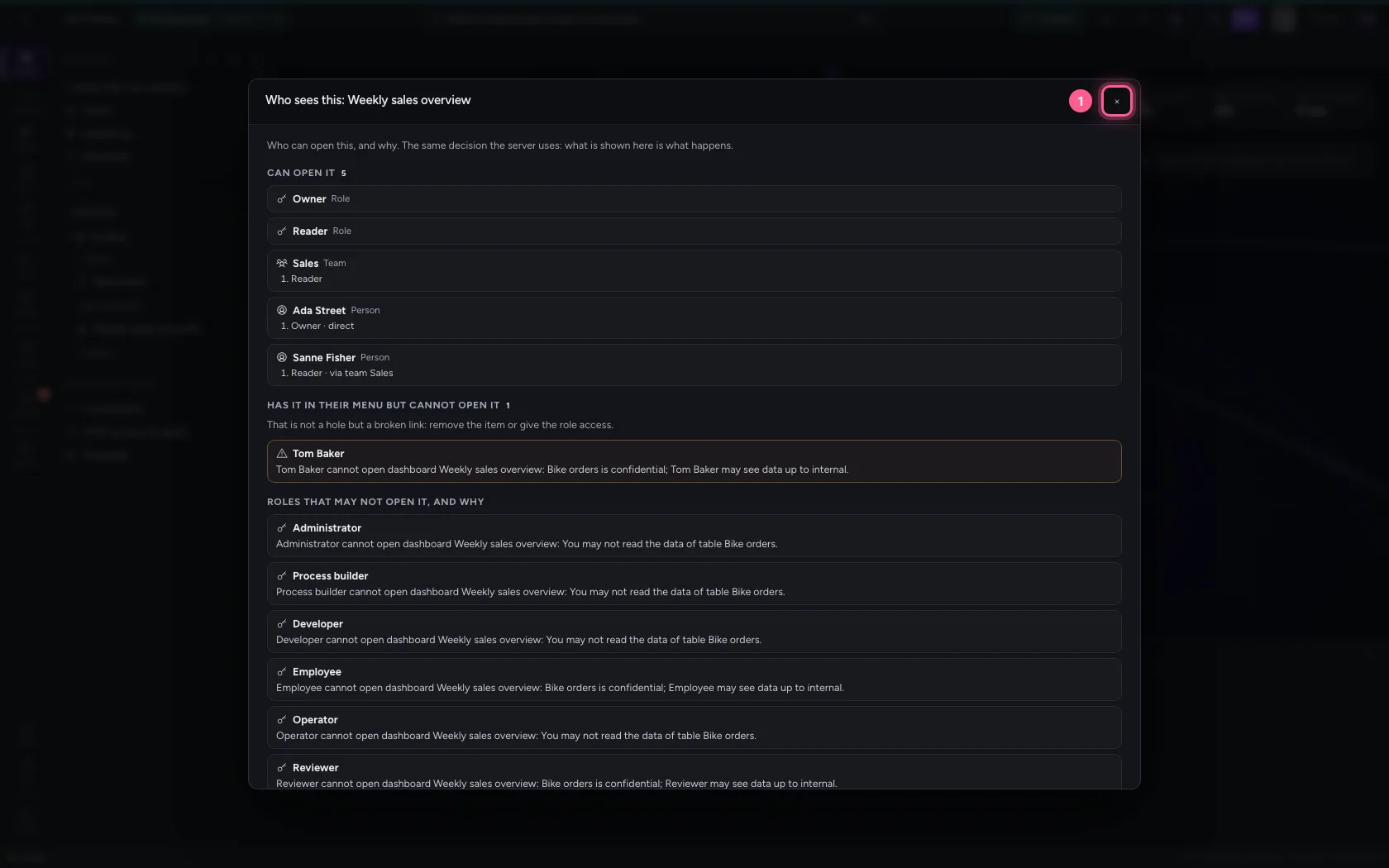
- Click × (close)
The same for an AI Colleague
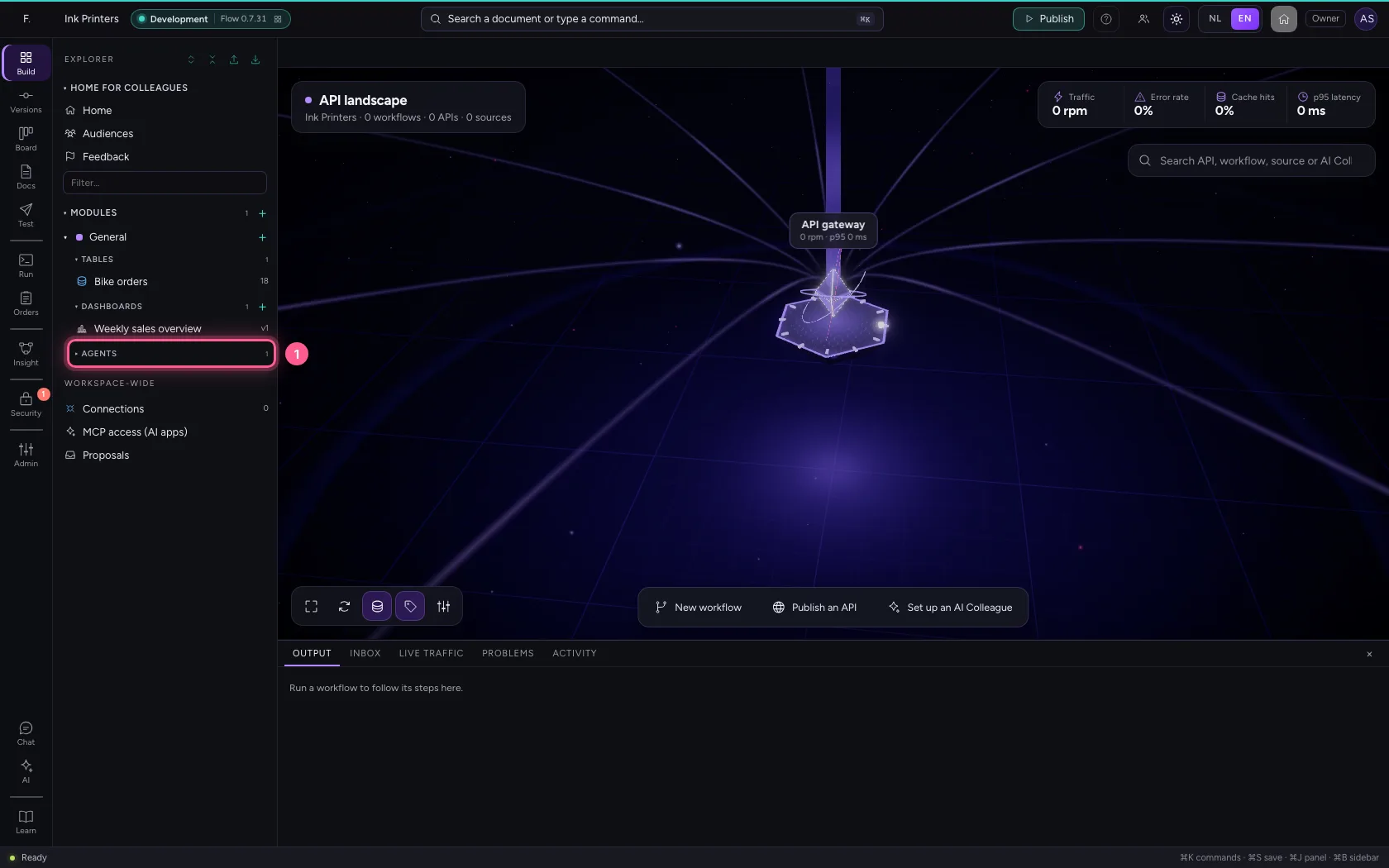
For an AI Colleague too you see who may chat with it and why. Everyone with a role that may chat can open it as long as the chat is on and it is published. To limit it to a few roles, set them in the AI Colleague's chat settings; the panel shows it straight away.
- Click Agents
- Click Who sees this
This guide was carried out step by step on 22 Oct 2026 by an automated test on Flow (version 3e563176).