People and teams
Under Administration → People you see who gets into this environment, with which role, and how each person got that role: directly through the portal, through a team, or through a group from your own sign-in system. You make a team, give it a role and put people in it: everyone in the team gets that role as well.
Open your development environment
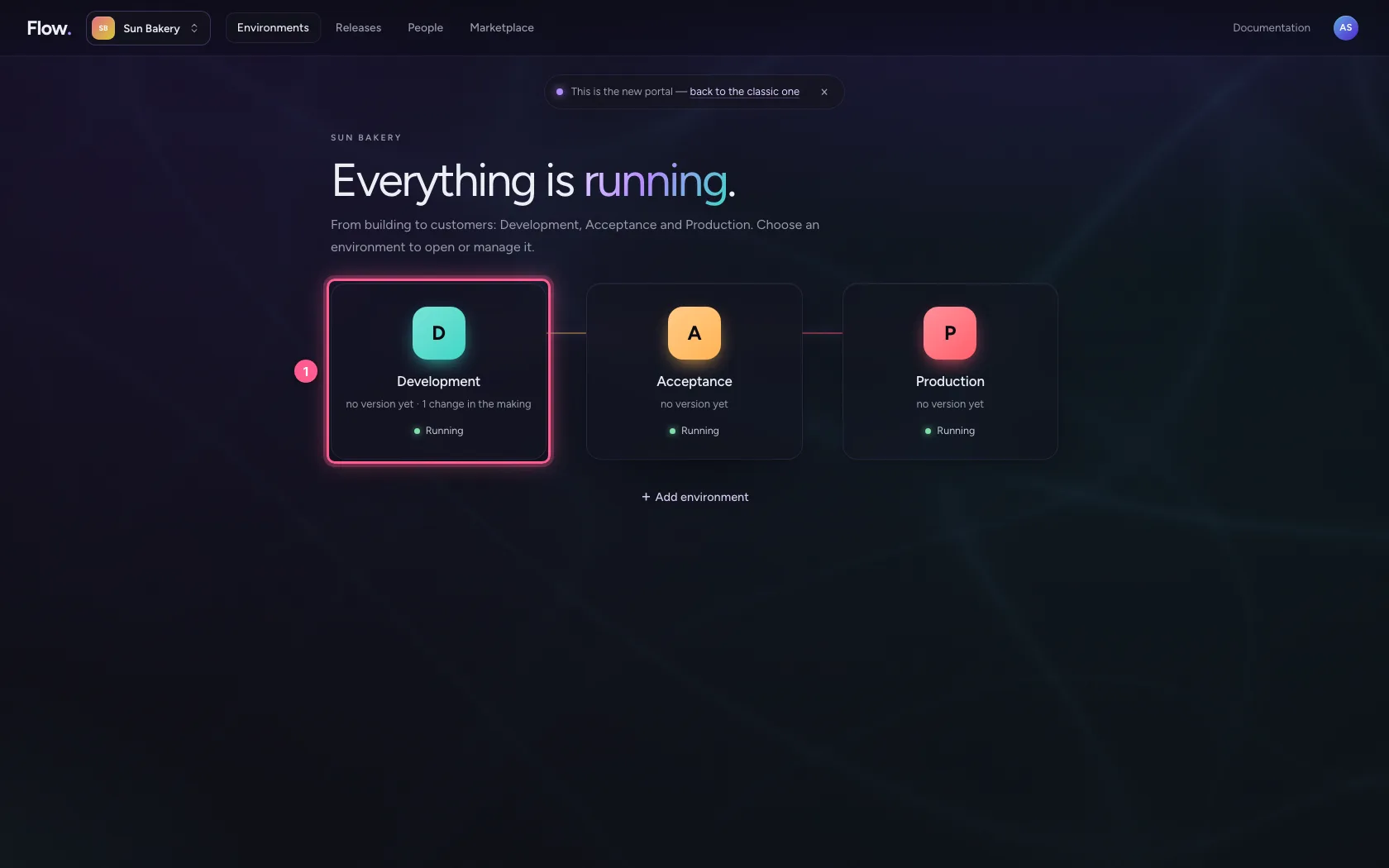
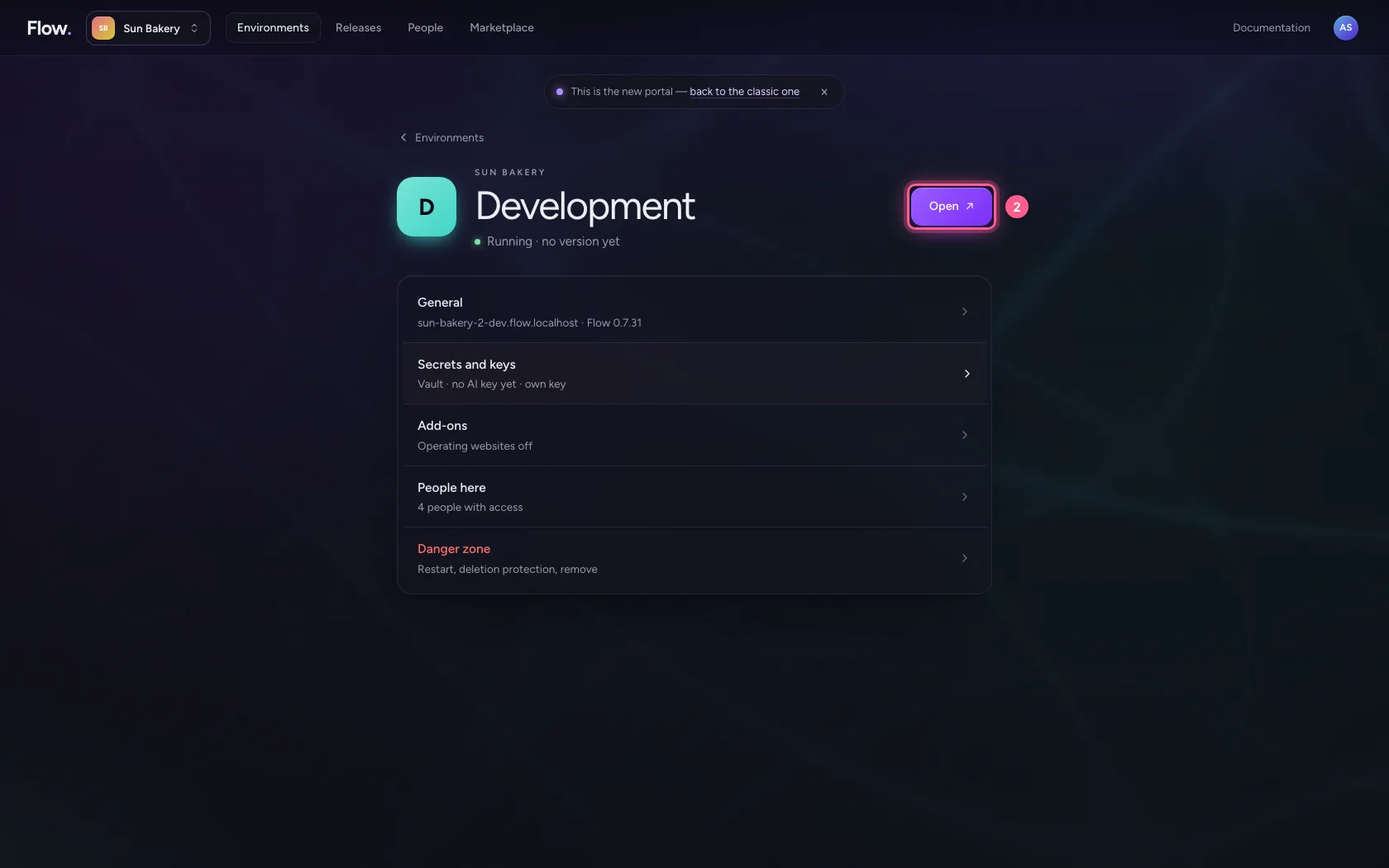
In the portal, under Environments, click Development, and there Open. Flow opens in a new tab and you are signed in straight away.
- Click Development
- Click Open ↗
Open People
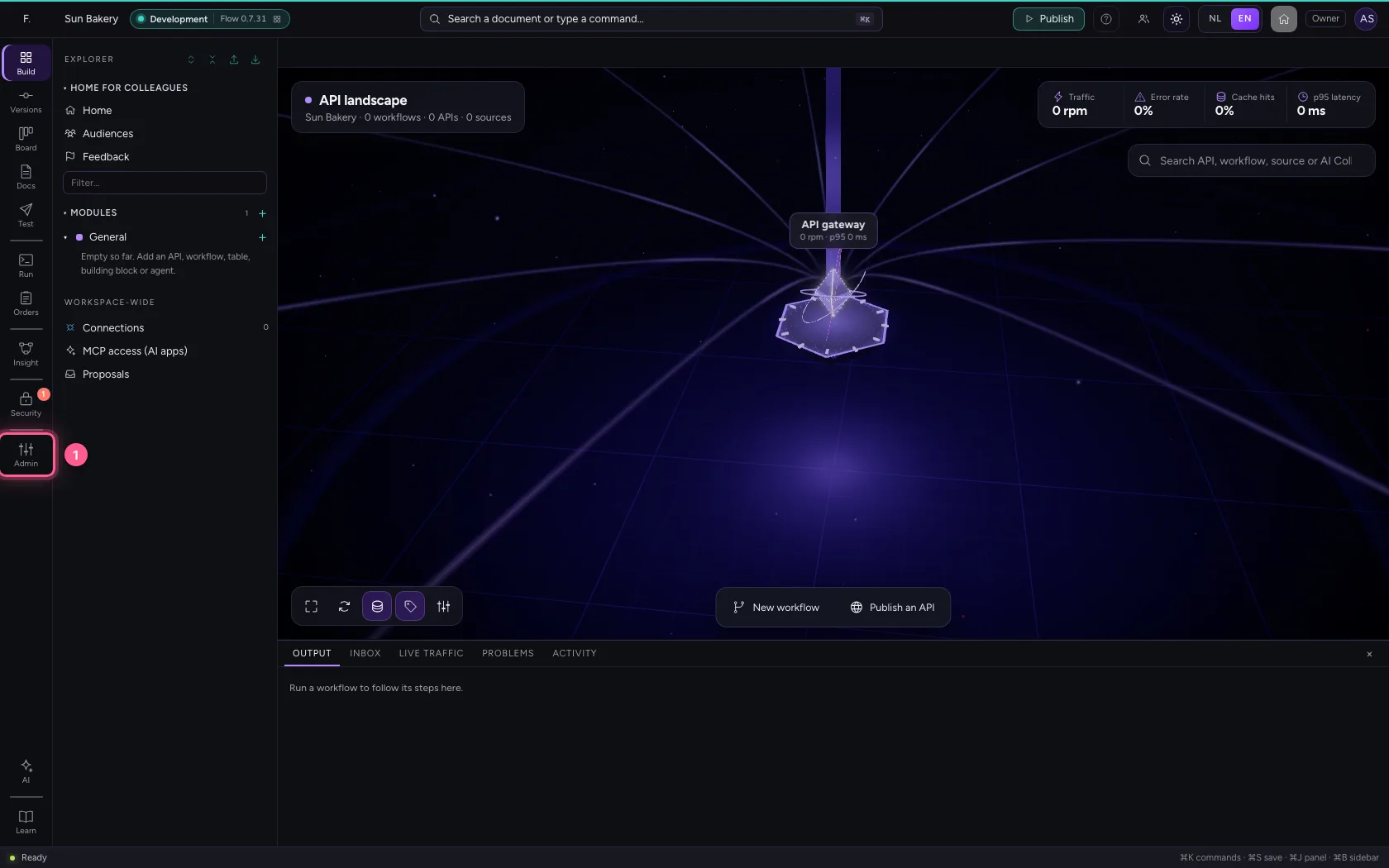
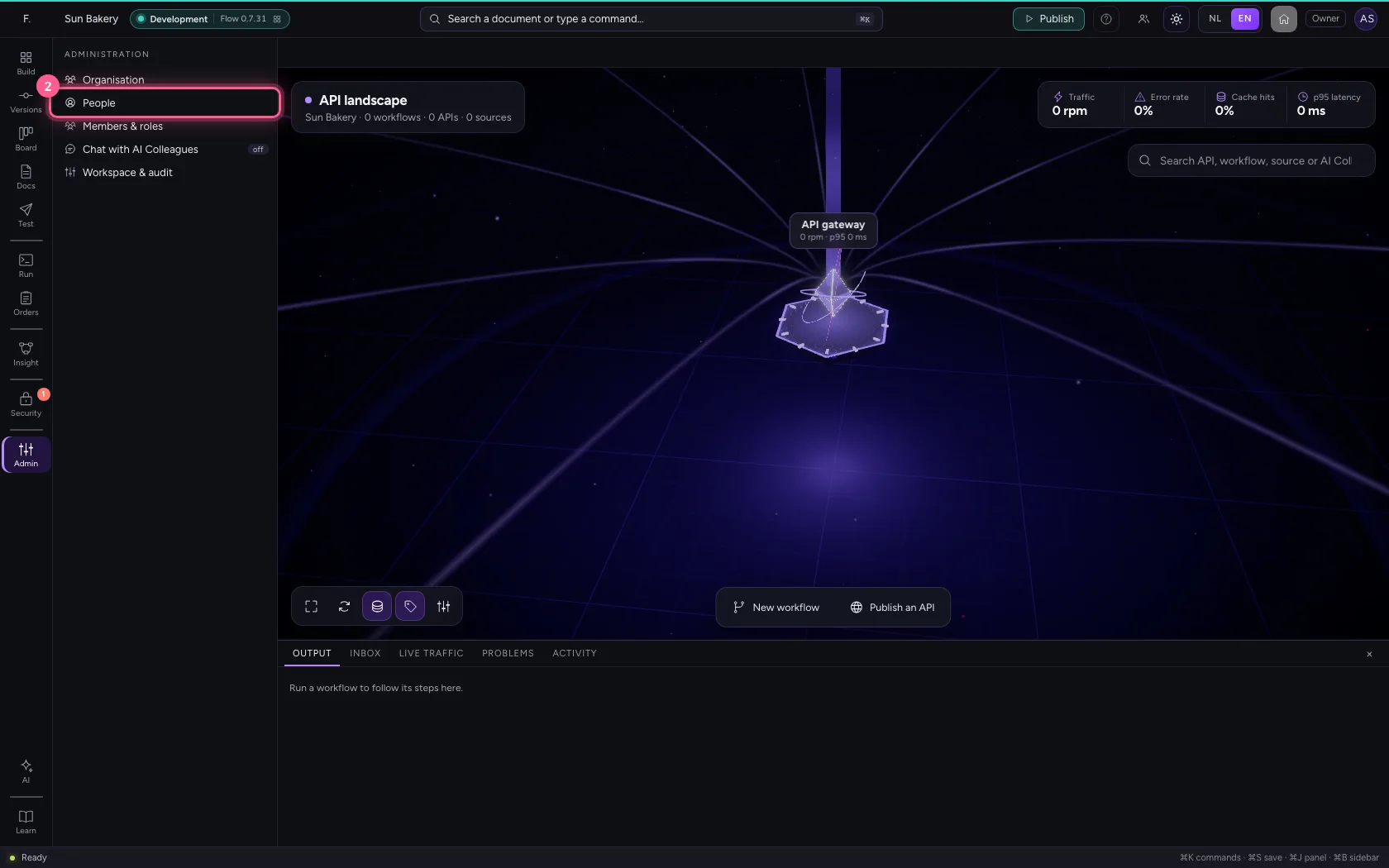
Click Administration in the bar on the left and choose People. You see everyone who has been in this environment: where they come from (invited, through SSO or through the portal), their roles and how they got them, whether two-step verification is on, and when they last signed in.
- Click Administration
- Click People

See how someone got their role
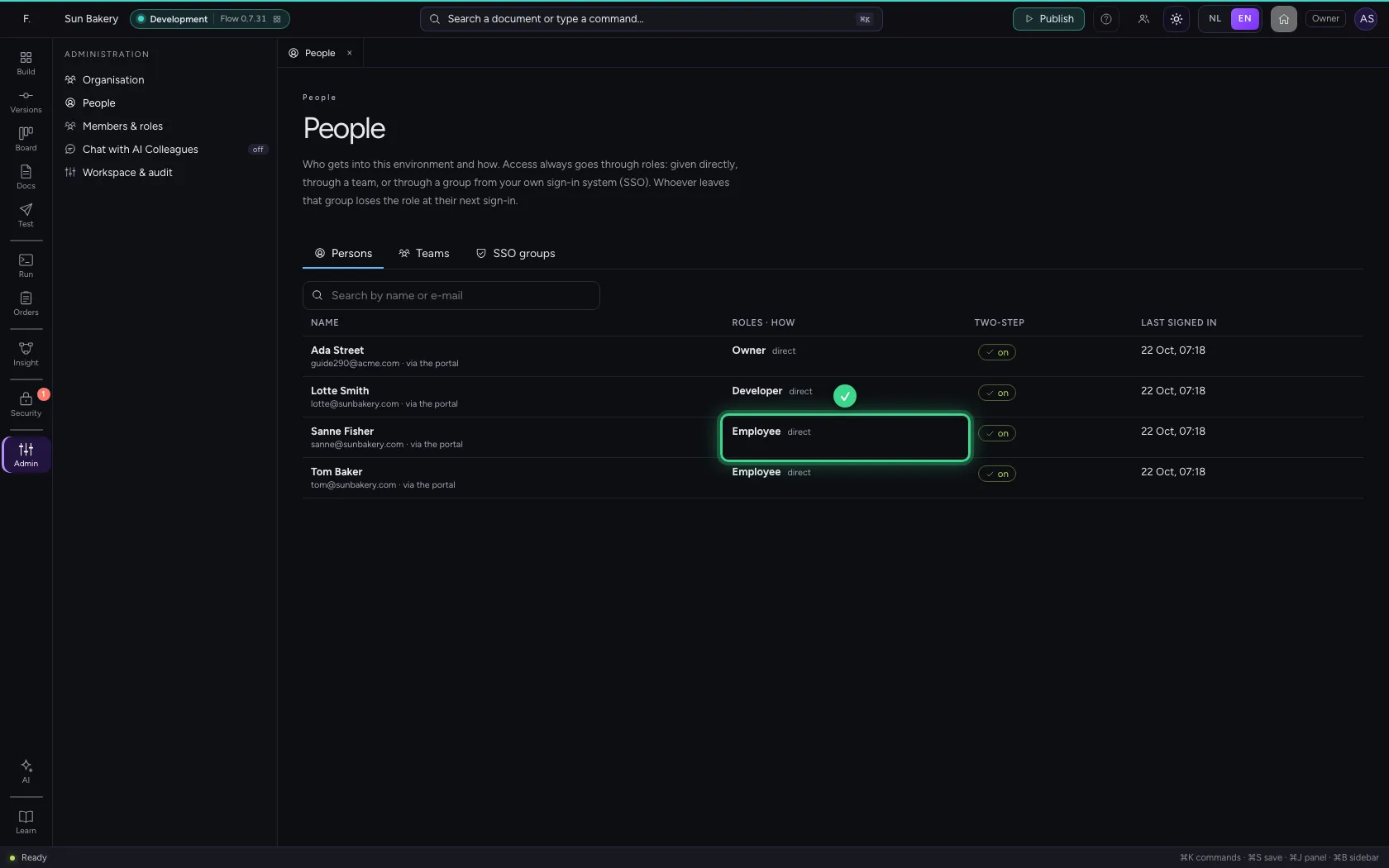
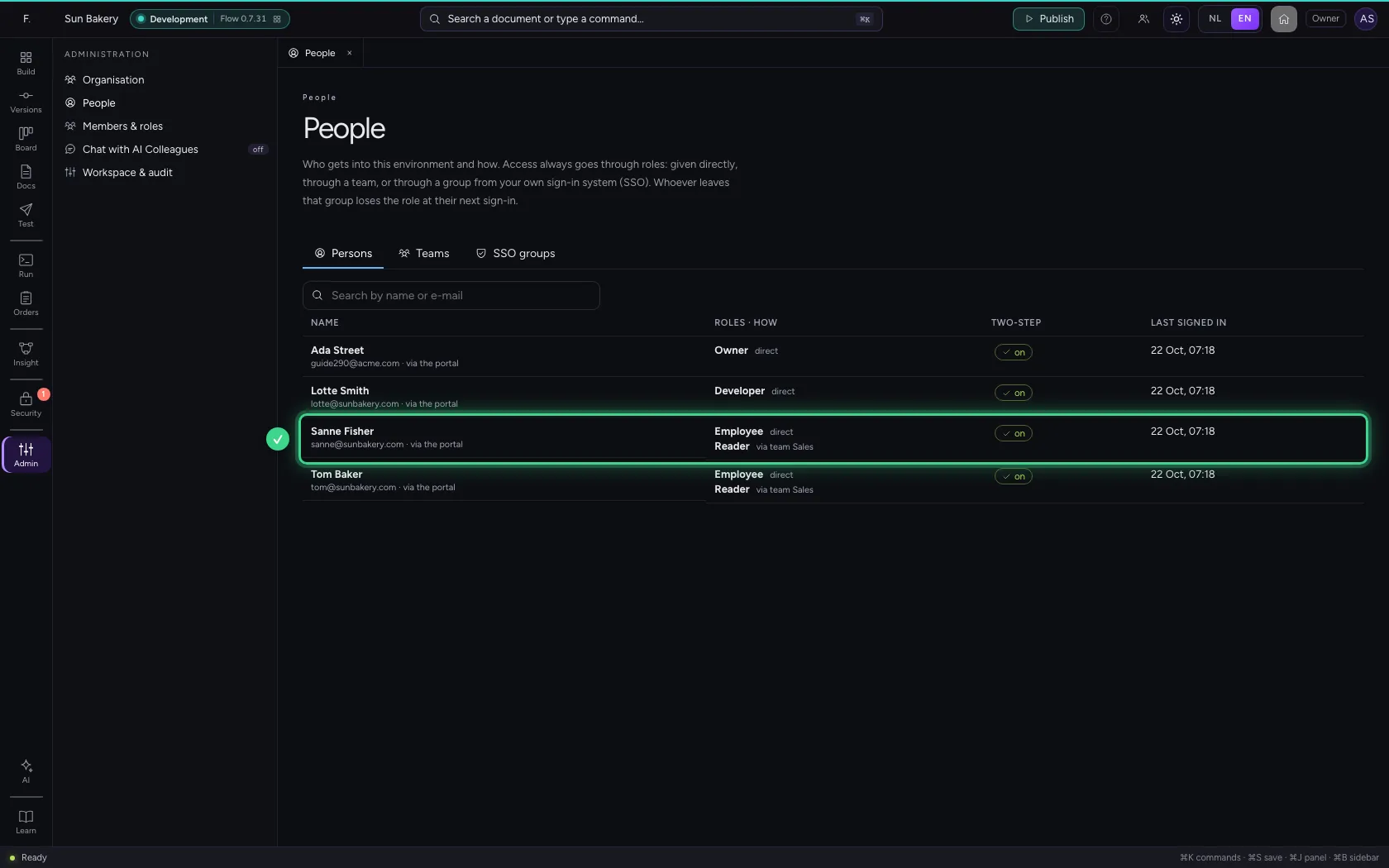
Access always goes through roles. Sanne works as Business in the portal; in Flow that is the role Employee: the home, dashboards and the chat, no studio. Next to the role is how she got it: direct, so as the portal passes it on at sign-in. Whoever builds always has two-step verification on here.
Make a team
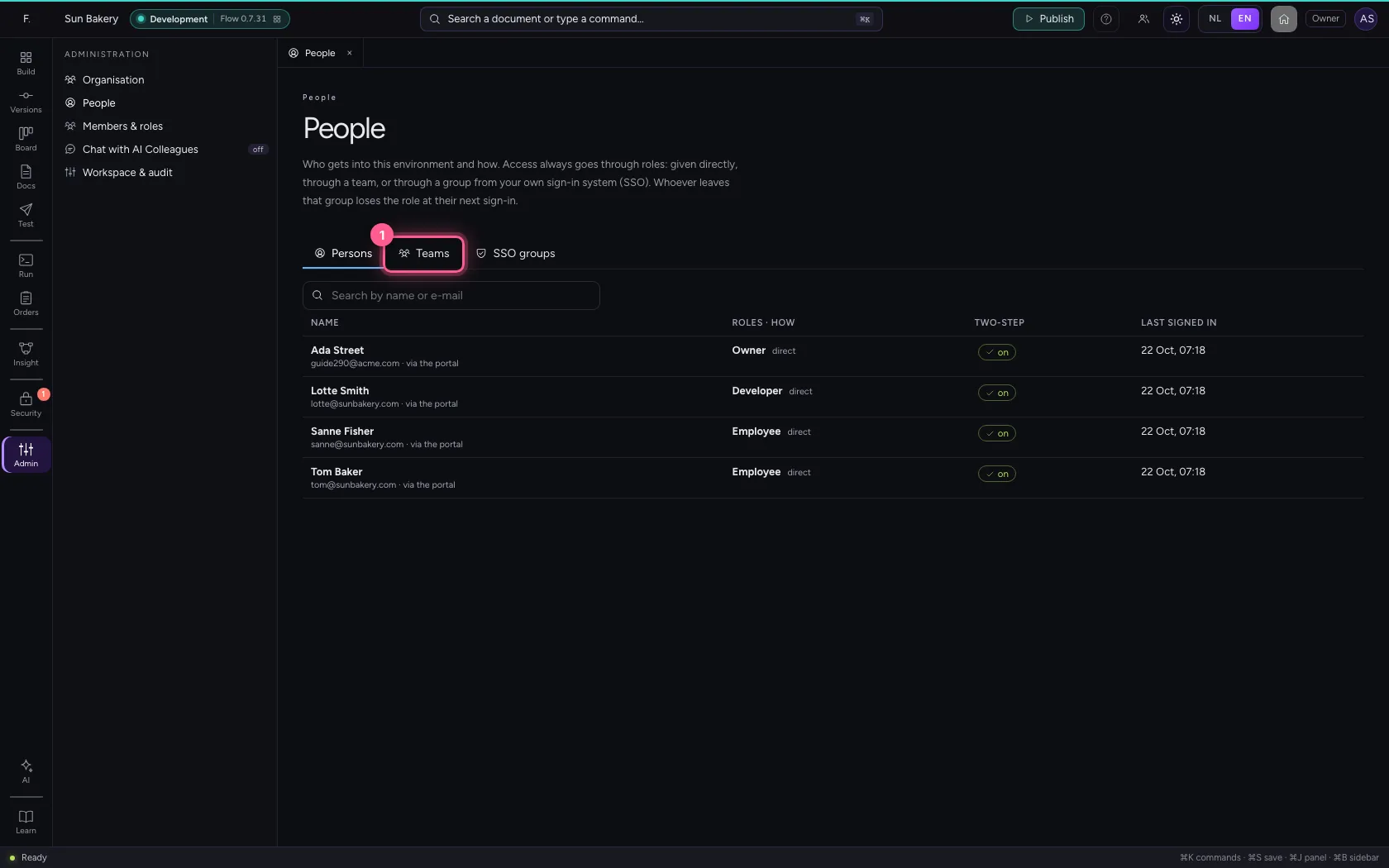
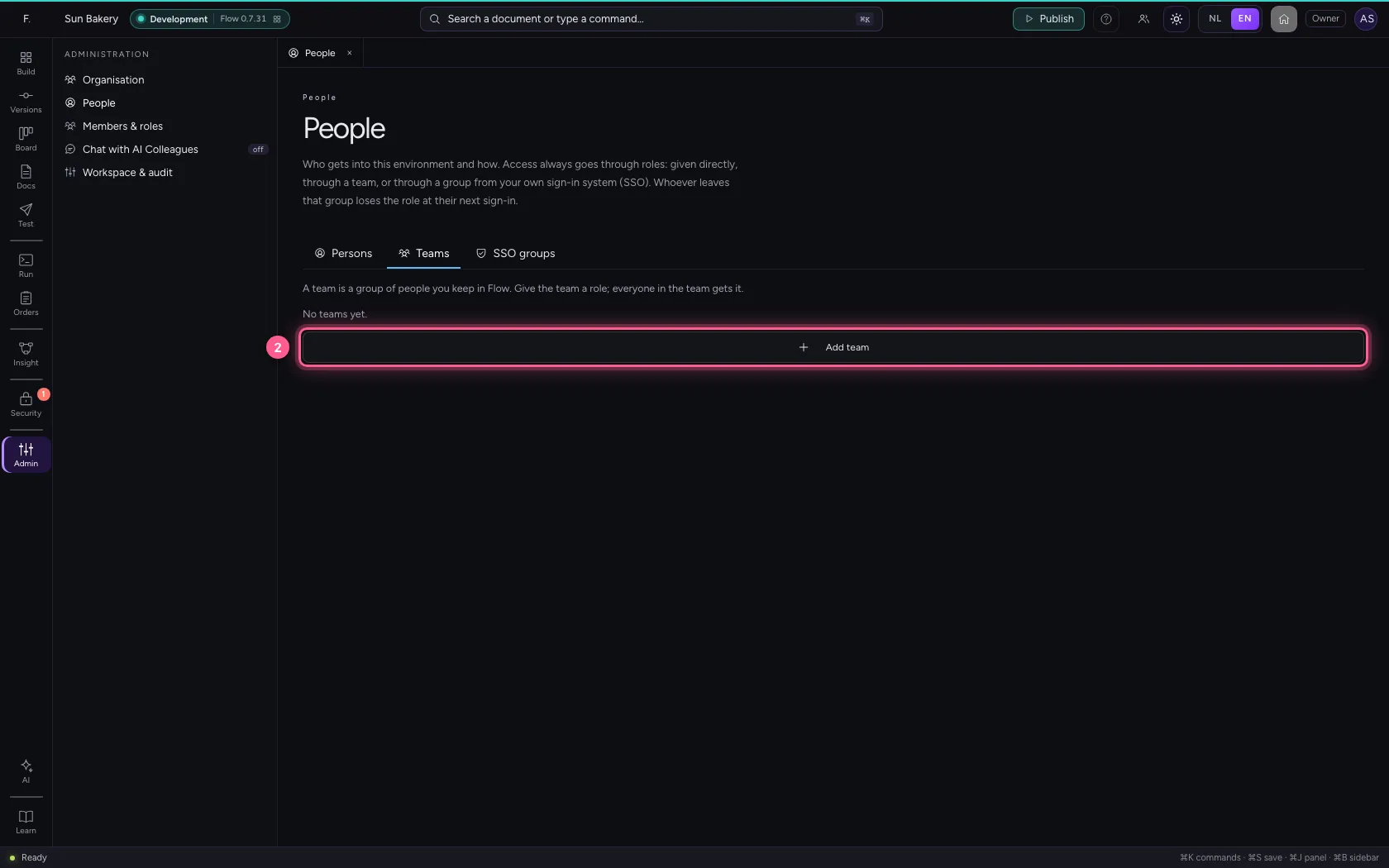
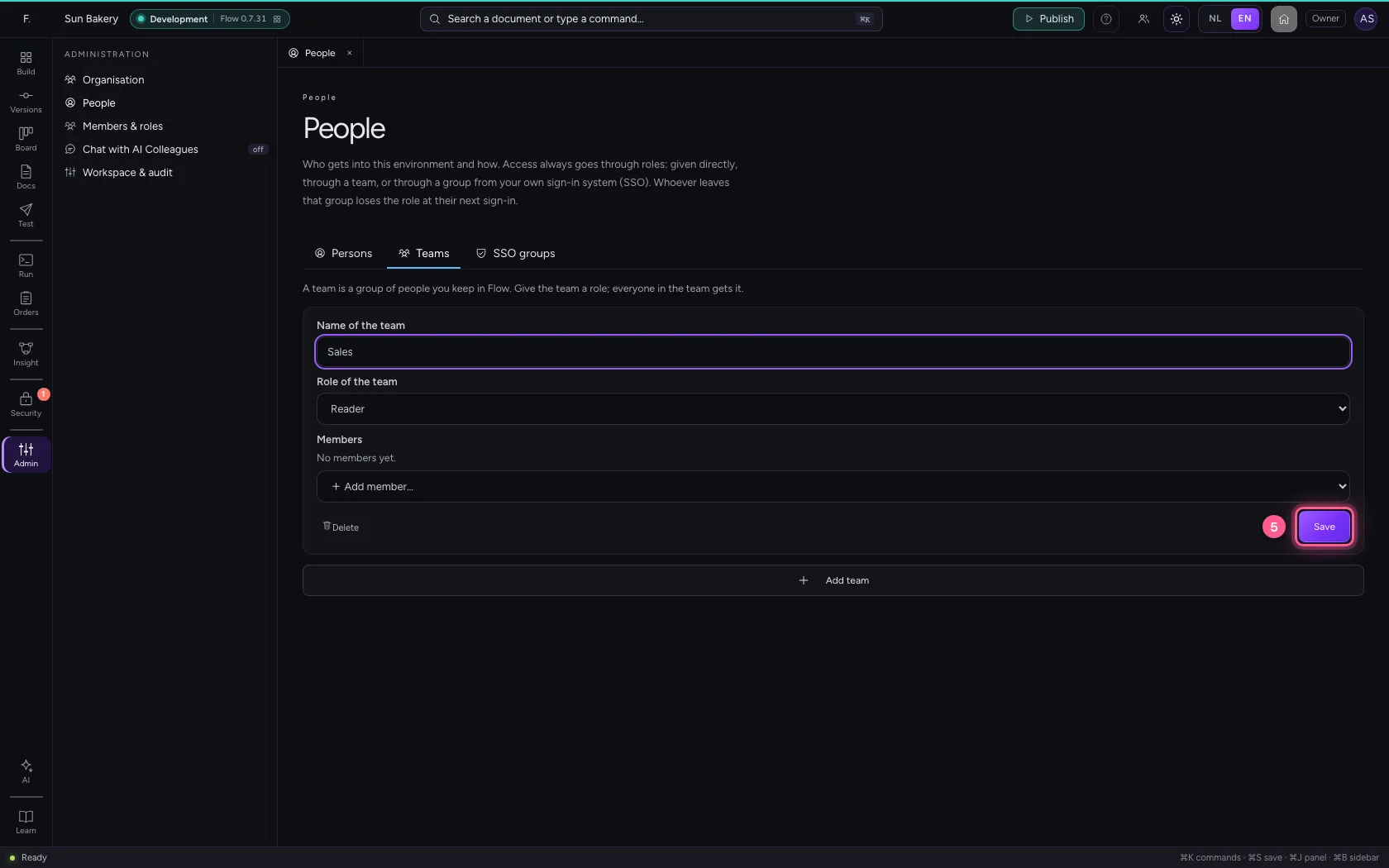
A team is a group of people you keep in Flow yourself, apart from the portal and your sign-in system. Open the Teams tab, click Add team, give it a name and a role, and save. Everyone in the team gets that role as well. Here Sales gets the role Reader: look at everything, change nothing.
- Click Teams
- Click Add team
- In Name of the team, type
Sales - In Role of the team, choose Reader
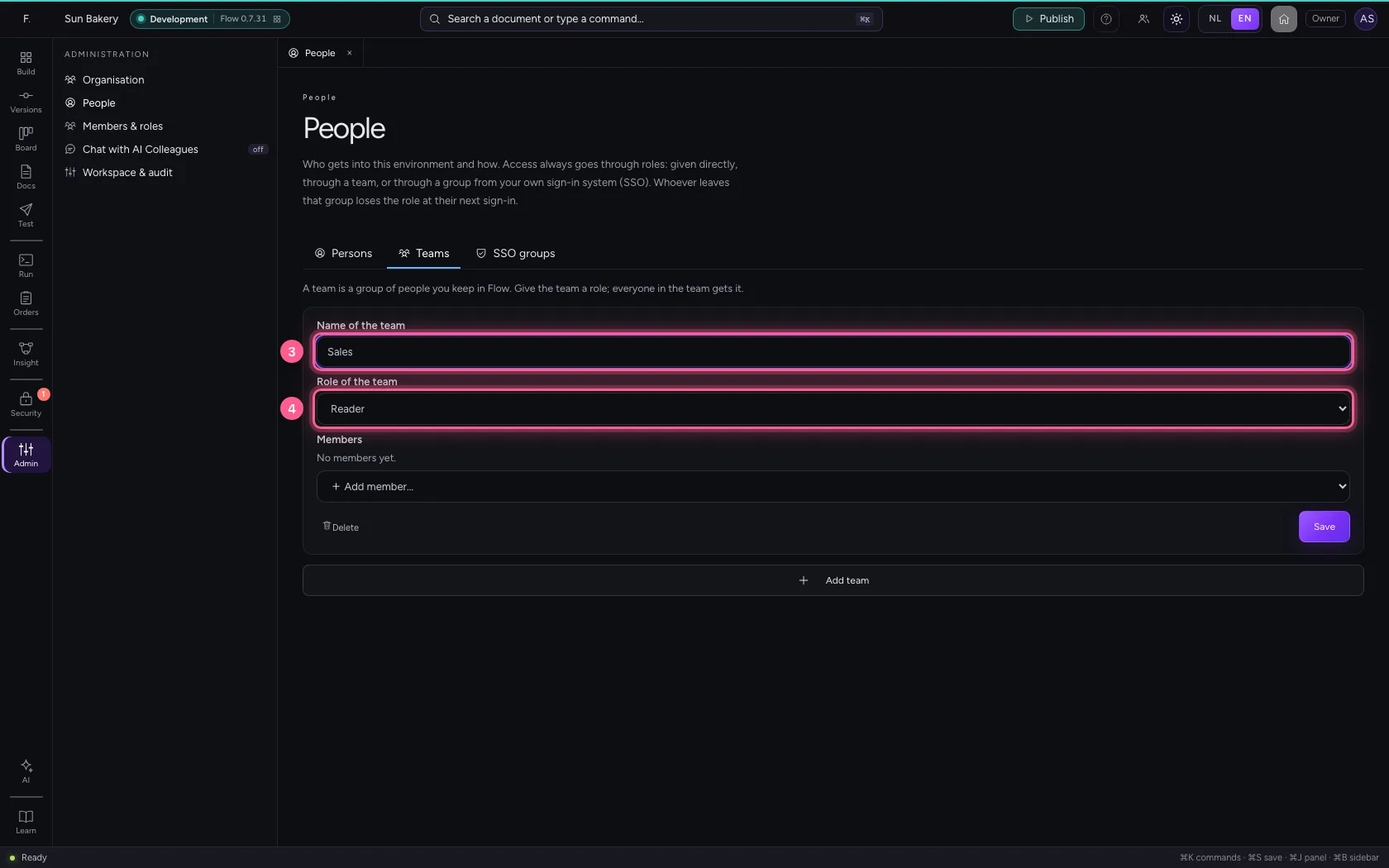
- Click Save
Put people in the team
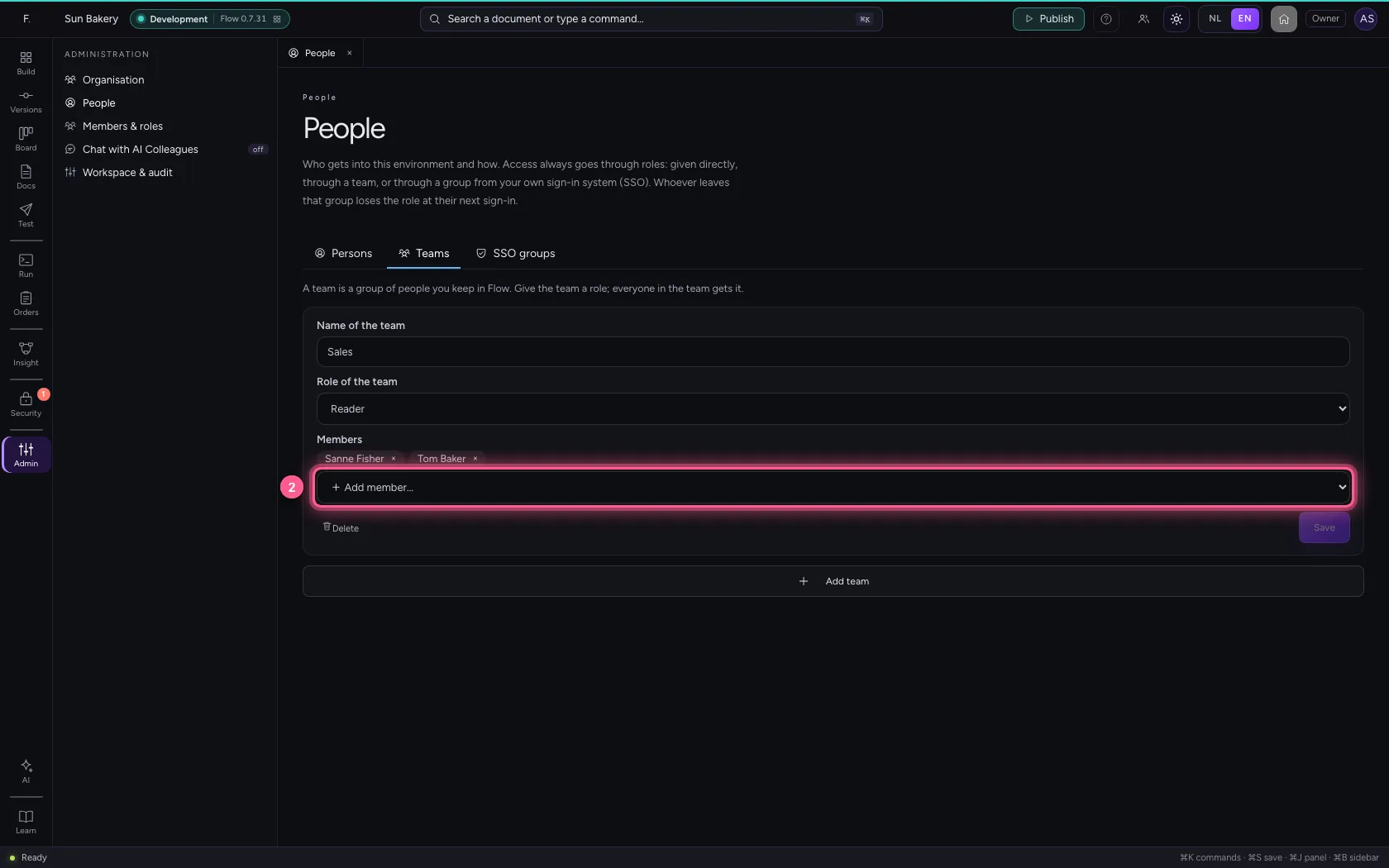
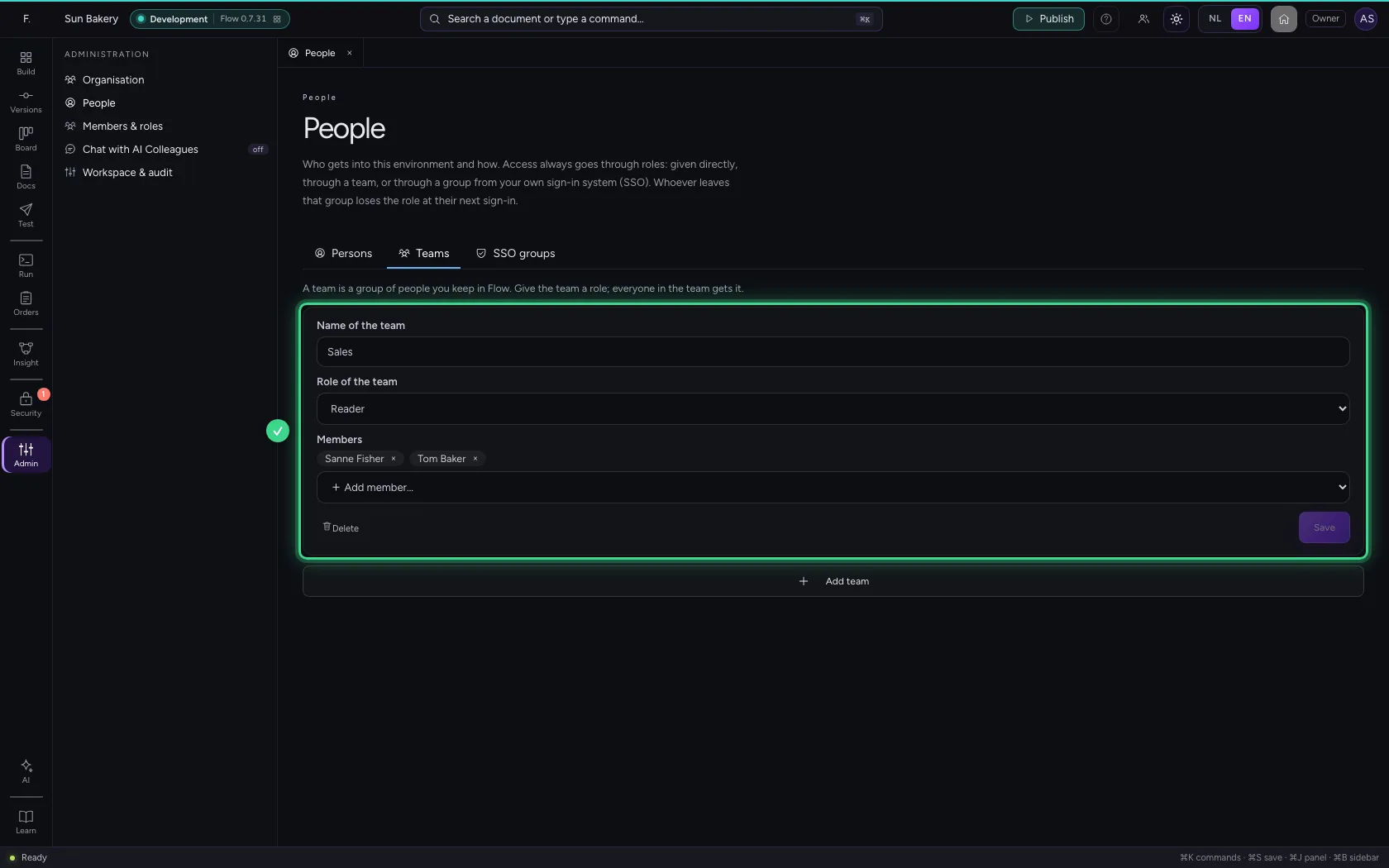
Under Members, choose who belongs. Adding or removing a member applies straight away; × takes someone out again. Whoever leaves the team loses the role they had through it.
- In Add member, choose Sanne Fisher
- In Add member, choose Tom Baker
See the role through the team
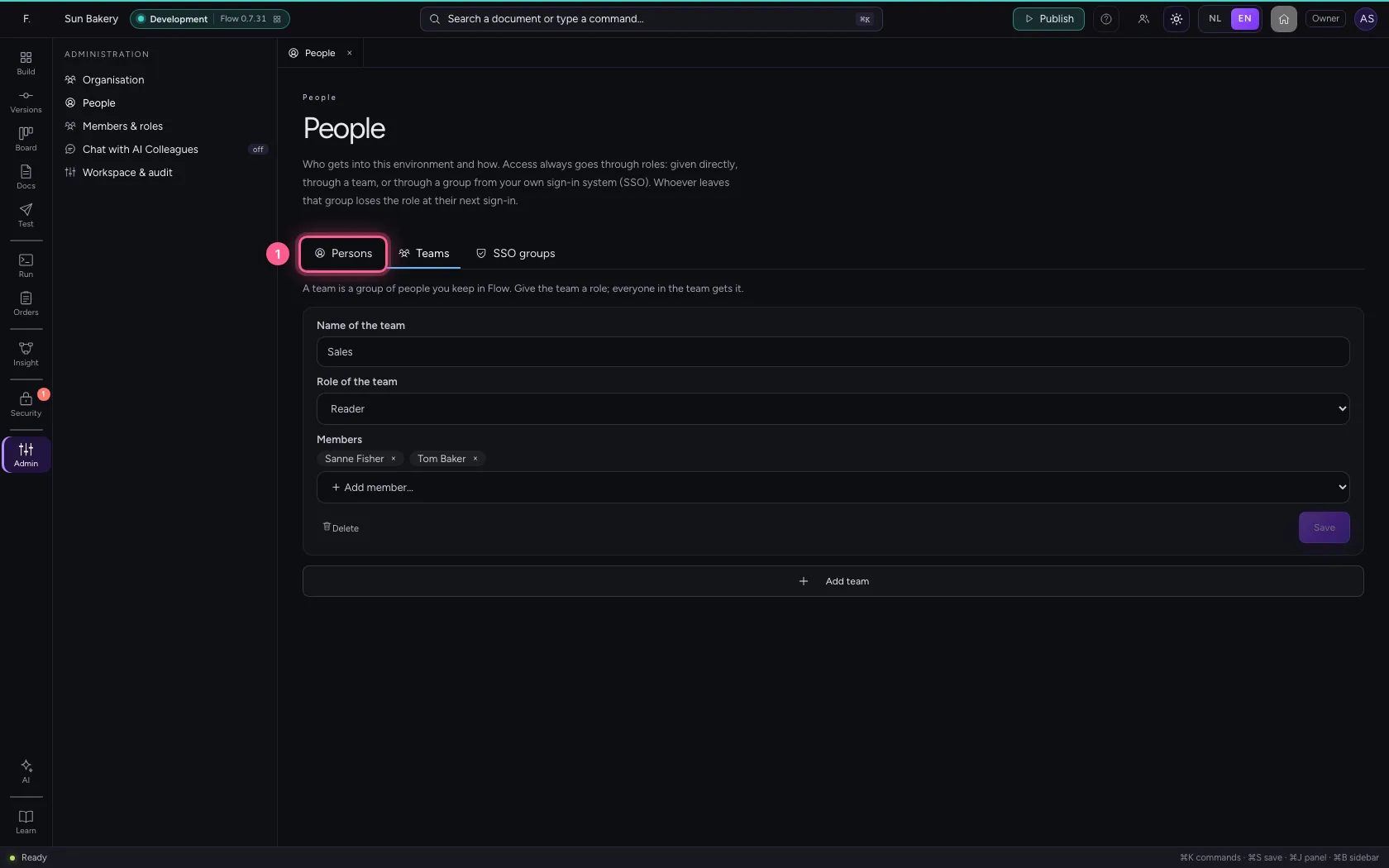
Back on the Persons tab, Sanne and Tom now also have Reader, via team Sales. What someone may do is everything together: the role they have directly plus those of their teams and groups. So you always see where a right comes from.
- Click Persons
This guide was carried out step by step on 22 Oct 2026 by an automated test on Flow (version 3e563176).