Find things fast with ⌘K
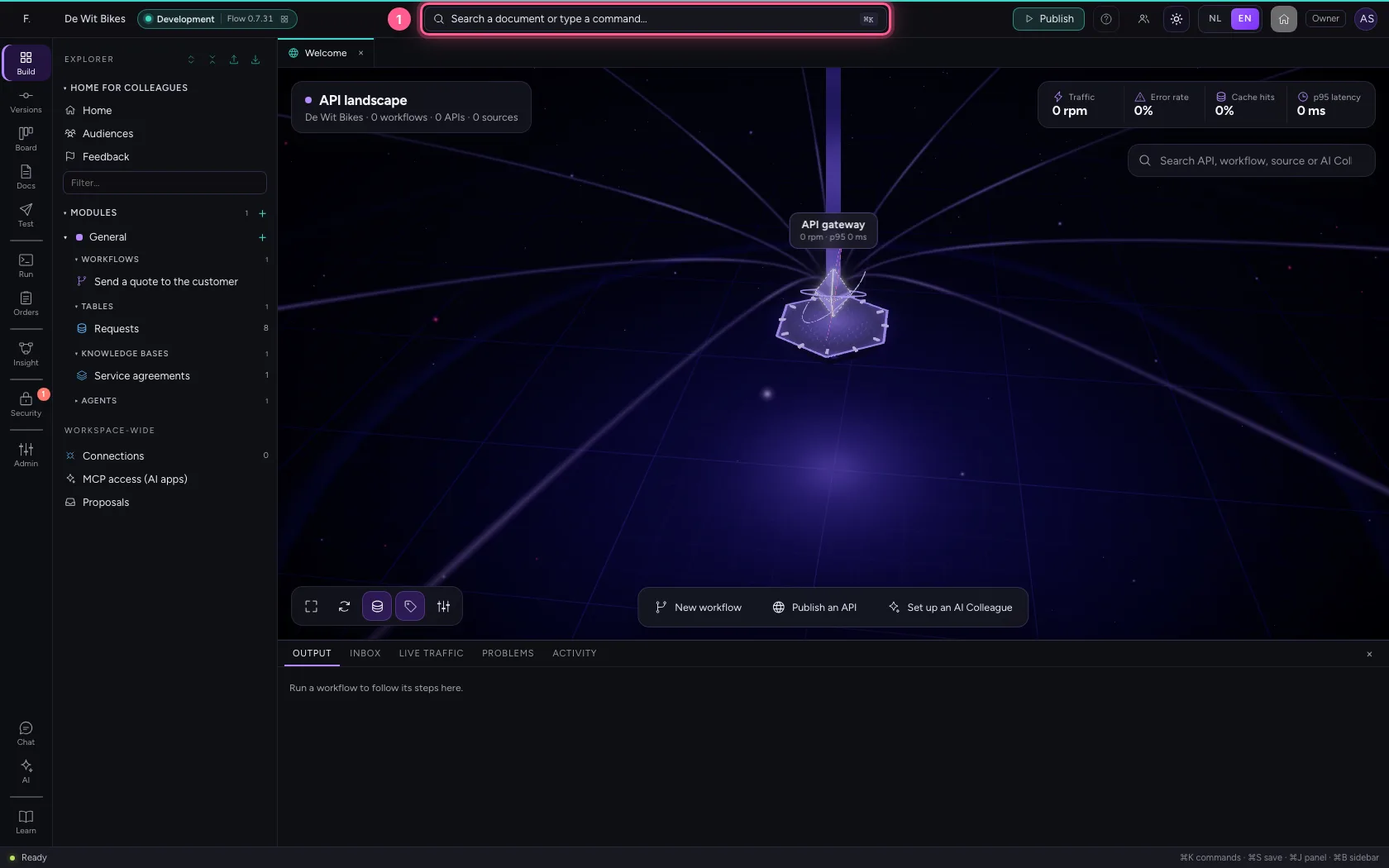
At the top of Flow is a search bar: the command palette. With it you open any document (workflow, API, module, agent, page) by typing part of its name, and you run commands without hunting for the button. The shortcut is ⌘K on a Mac and Ctrl+K on Windows.
Open your development environment
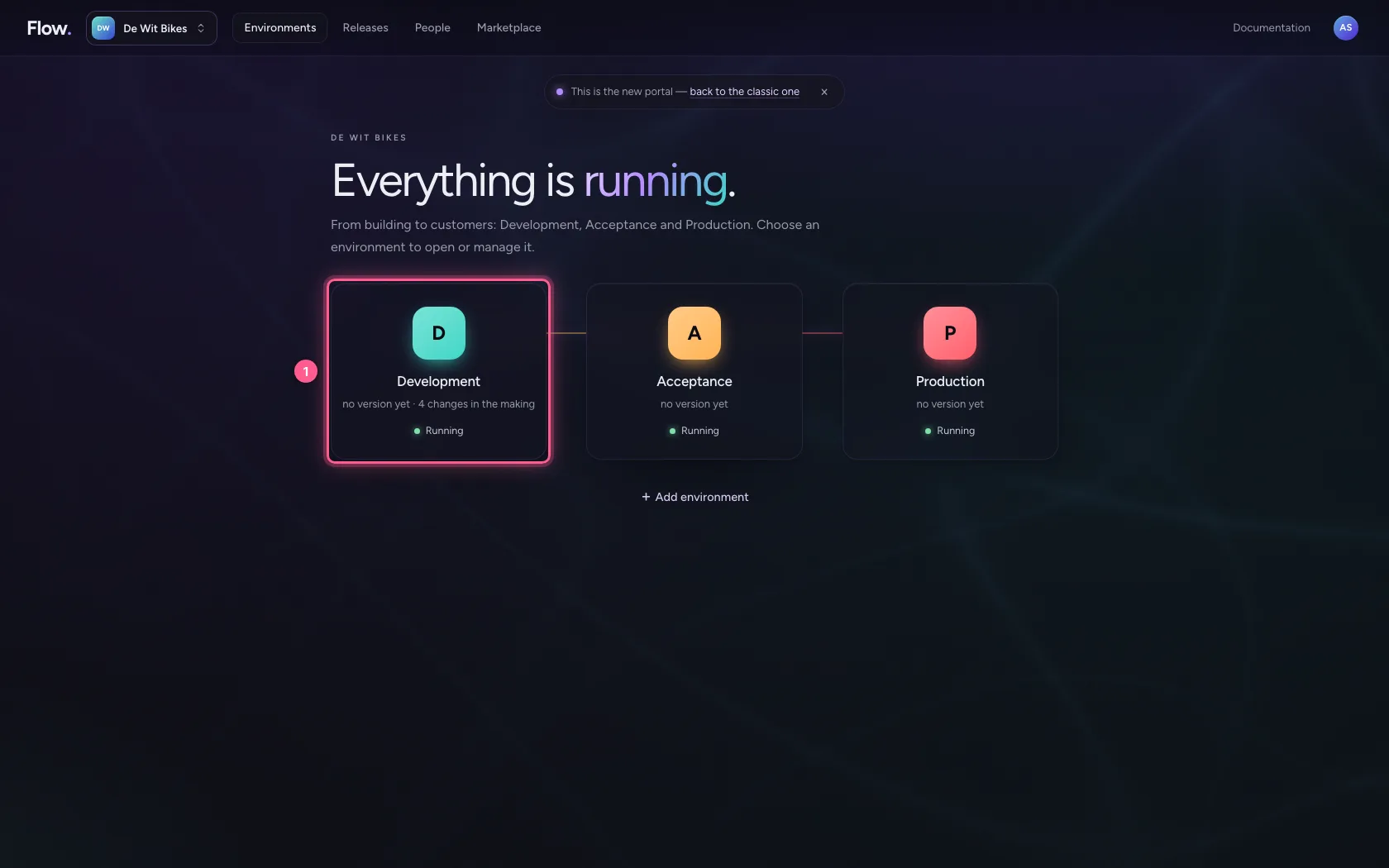
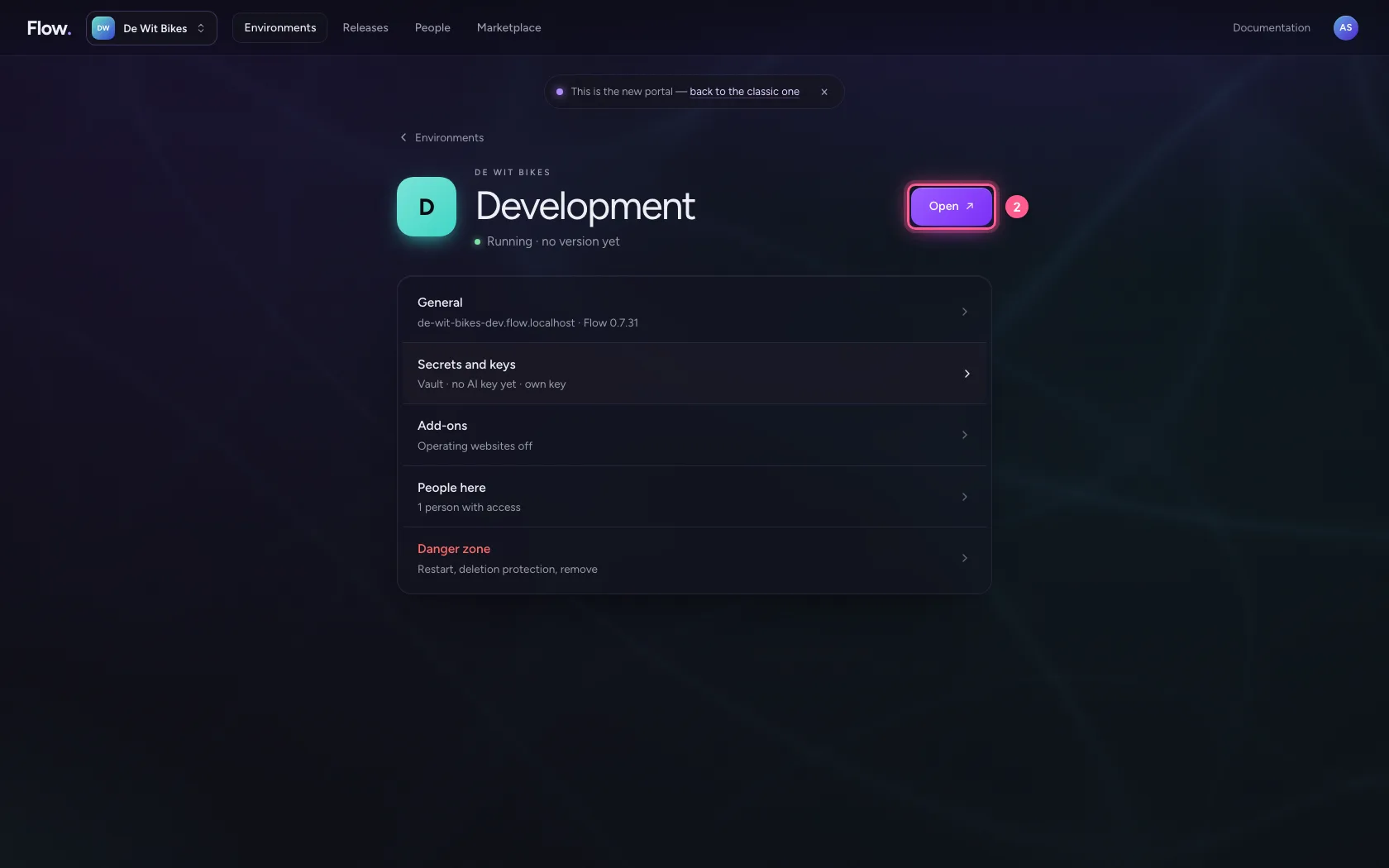
In the portal, under Environments, click Development, and there Open. Flow opens in a new tab and you are signed in straight away.
- Click Development
- Click Open ↗
Open the palette
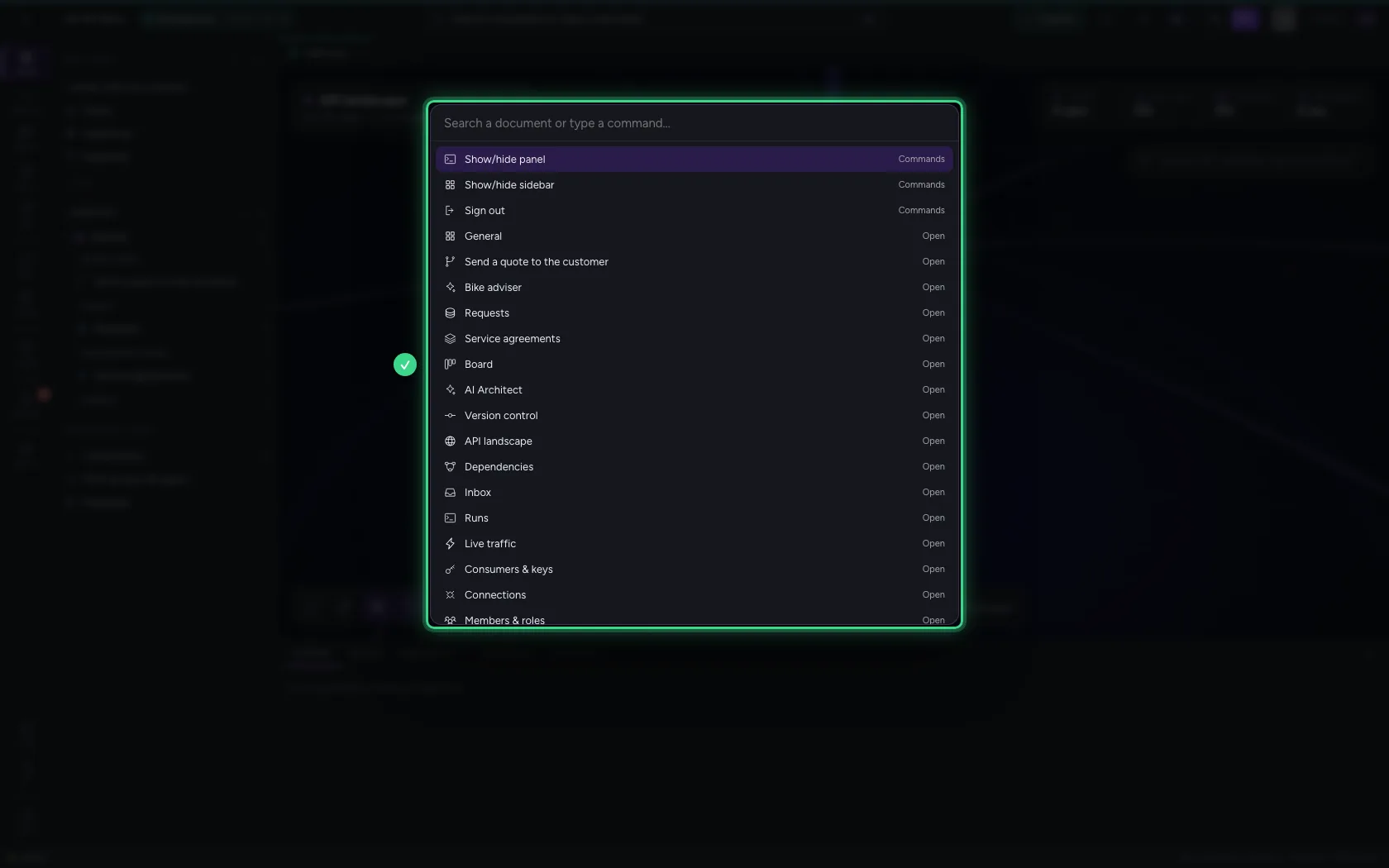
Click the search bar at the top, or press ⌘K (Ctrl+K). The palette opens with the commands at the top and all documents below.
- Click the search bar
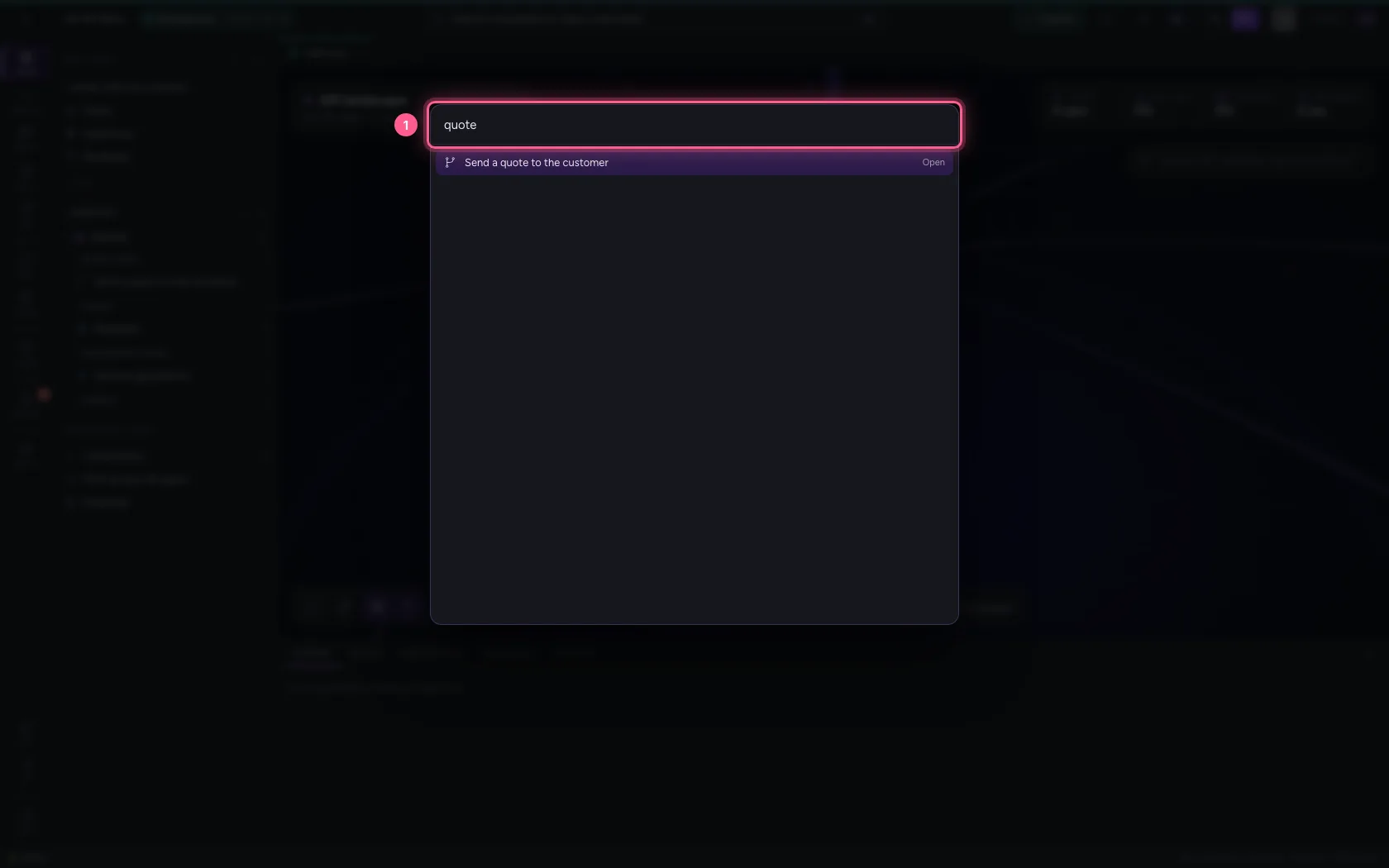
Type part of the name
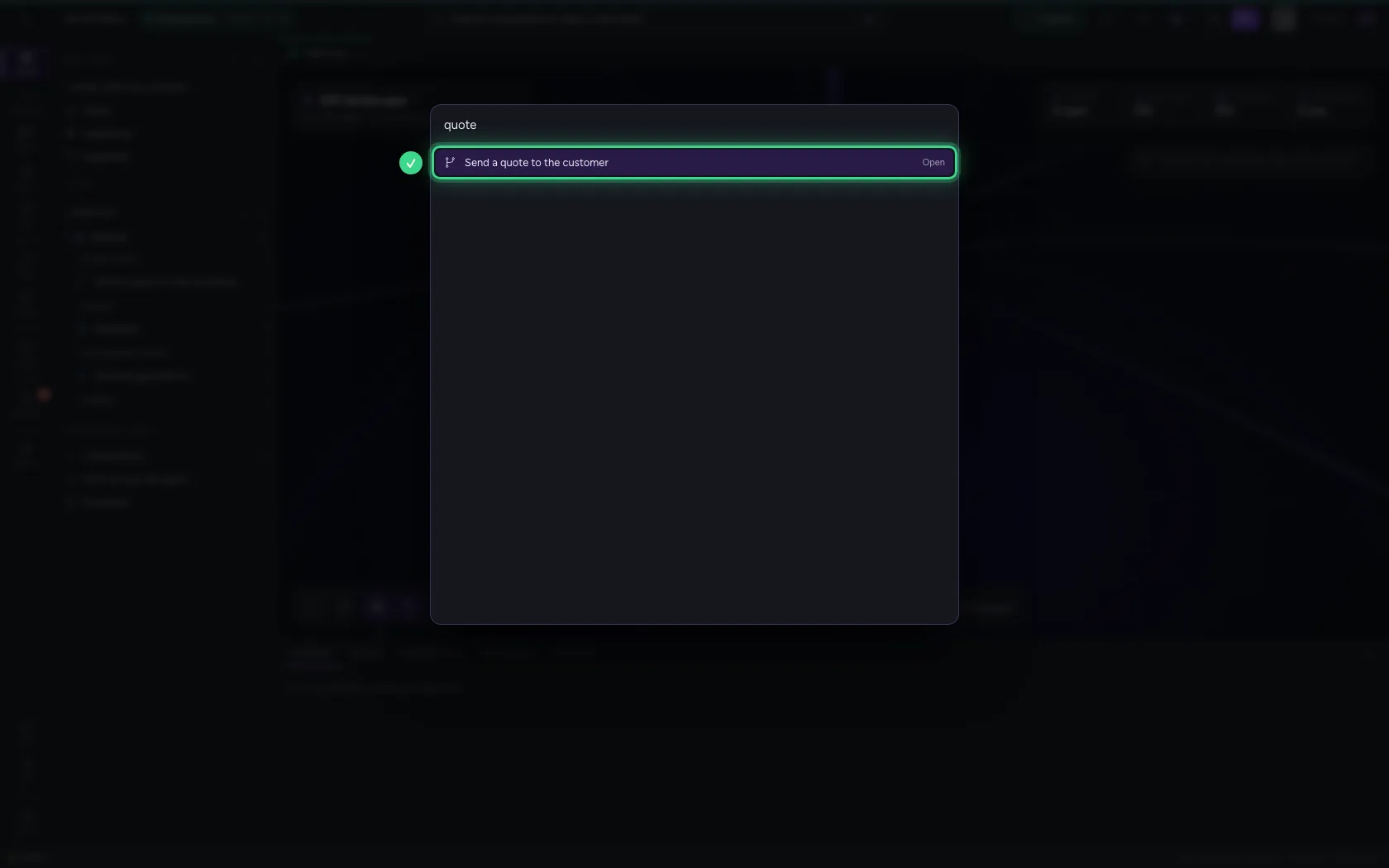
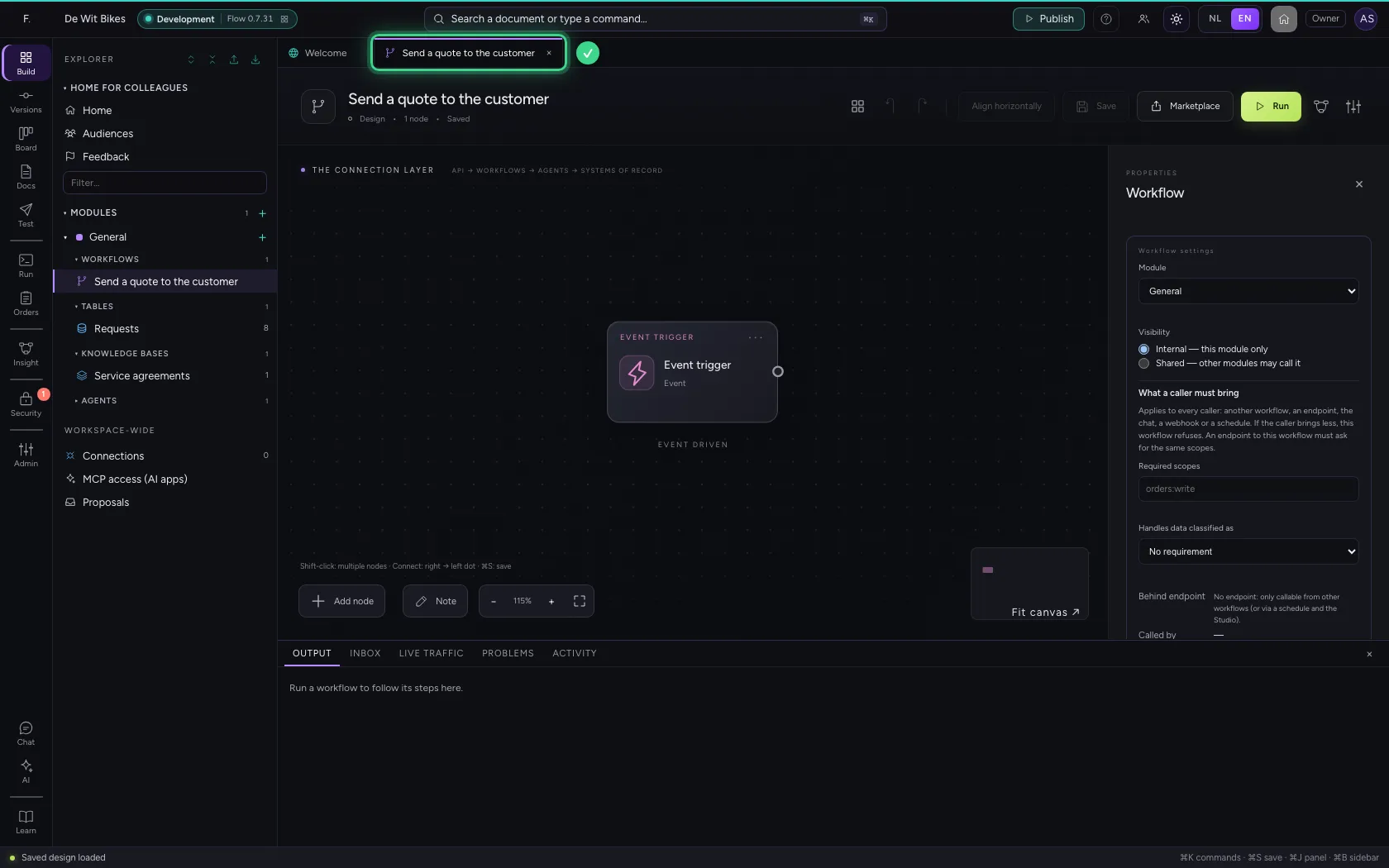
You do not need to know the exact name: a few letters from the middle are enough, and case does not matter. Use the arrow keys to choose and Enter to open. Escape closes the palette.
- In Search a document or type a command…, type
quote
Run a command
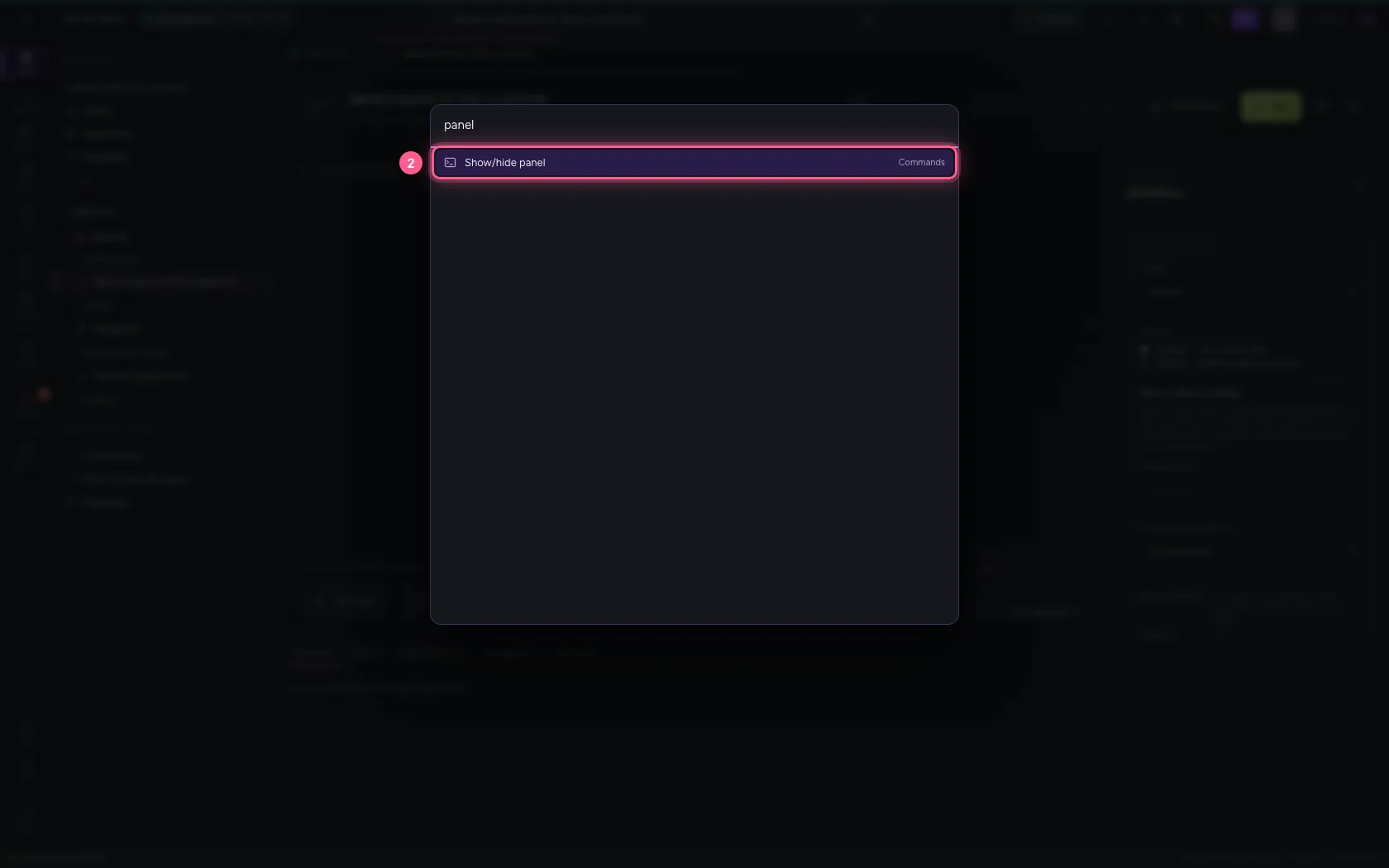
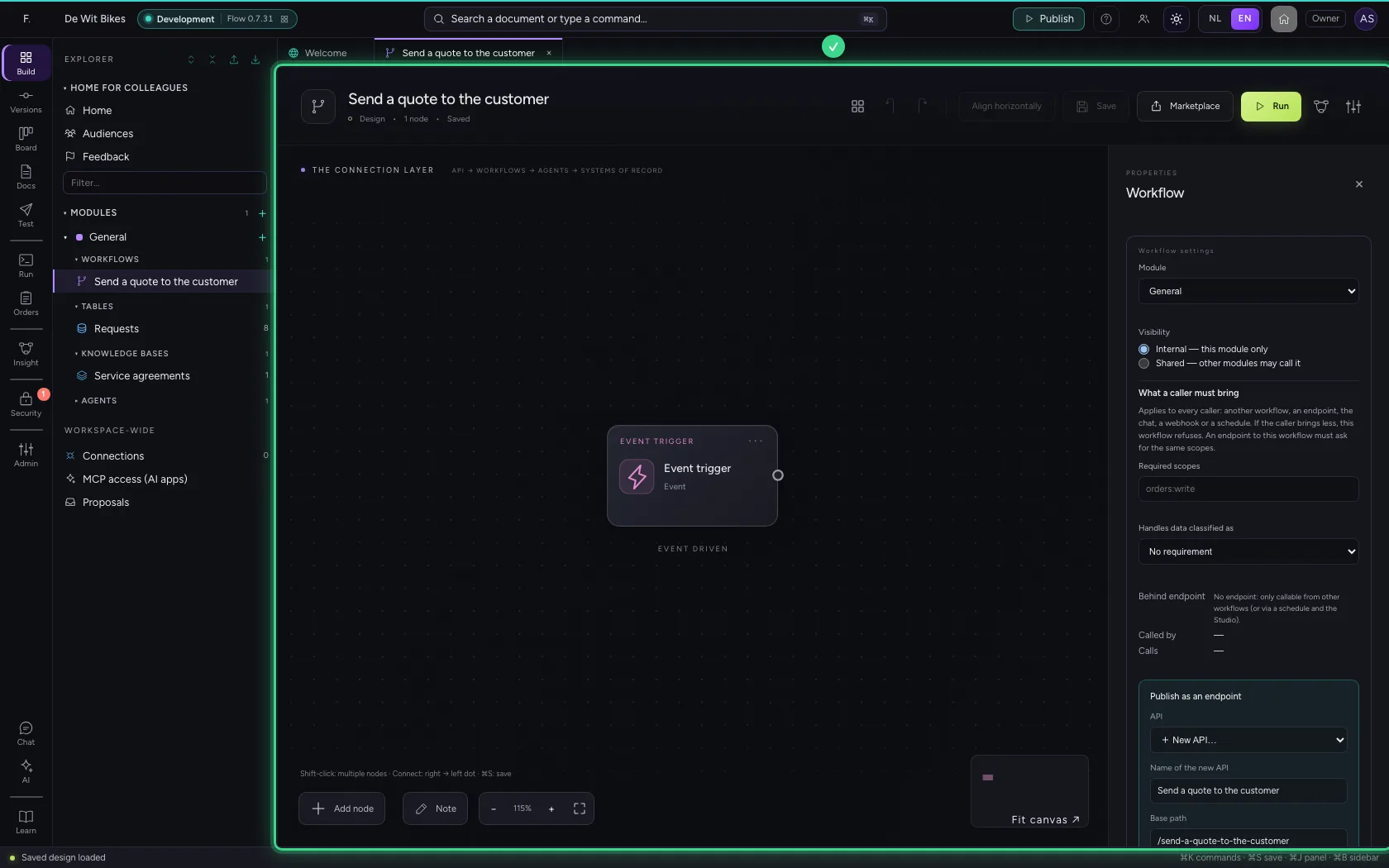
The palette also has commands, such as showing or hiding the bottom panel, showing or hiding the sidebar and signing out. Press ⌘K, type panel and choose the command: the bottom panel disappears (⌘J brings it back).
- In Search a document or type a command…, type
panel
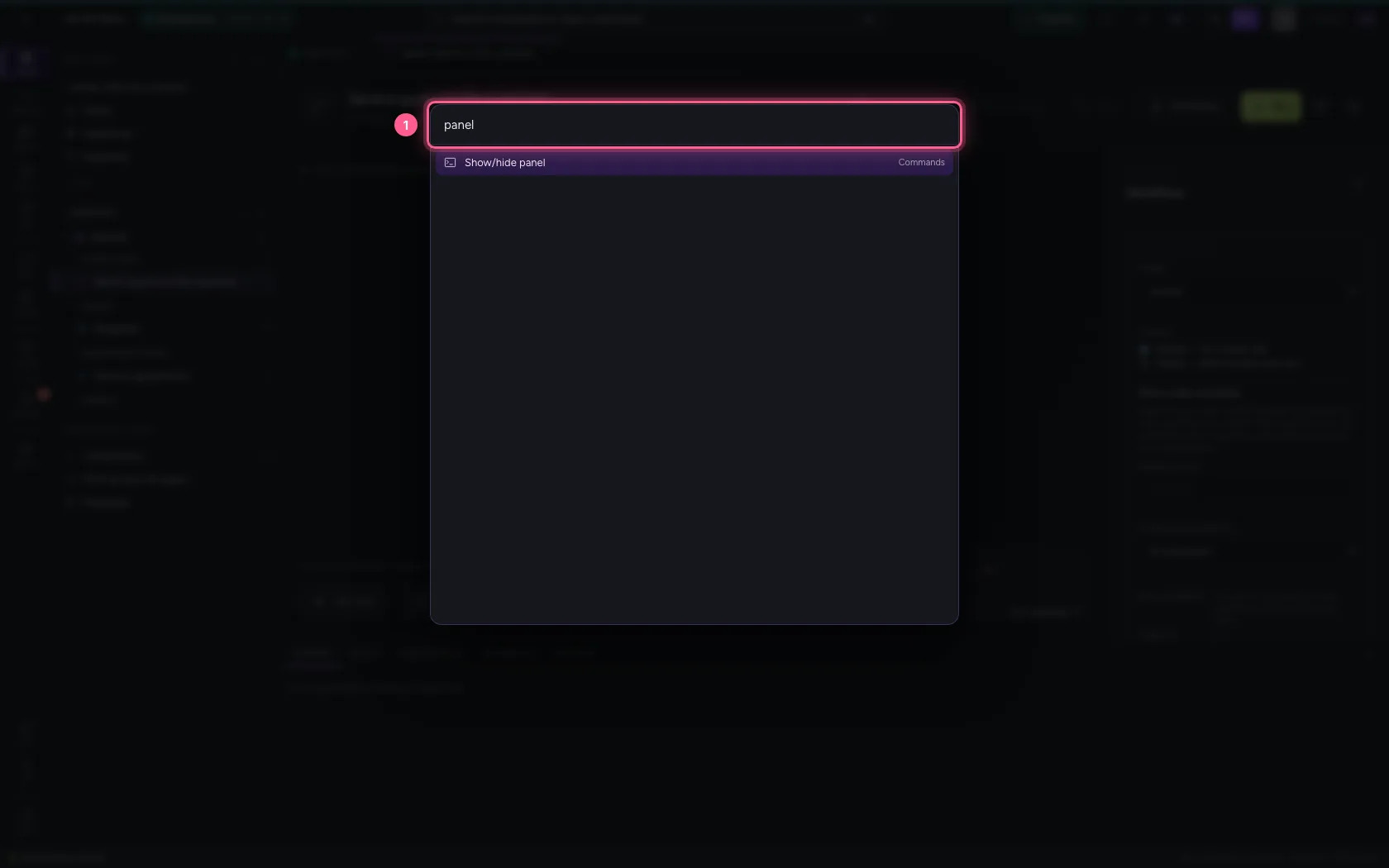
- Click Show/hide panel Commands
This guide was carried out step by step on 22 Oct 2026 by an automated test on Flow (version 3e563176).