Change and delete rows
Under Data you work directly in the rows of a table, as in a spreadsheet: you change a cell, save that row, or delete a row. Flow checks every change with the same rules as when adding. You update a bike shop's price list.
Open your development environment
In the portal, under Environments, click Development, and there Open. Flow opens in a new tab and you are signed in straight away.
- Click Development

- Click Open ↗

Open the data
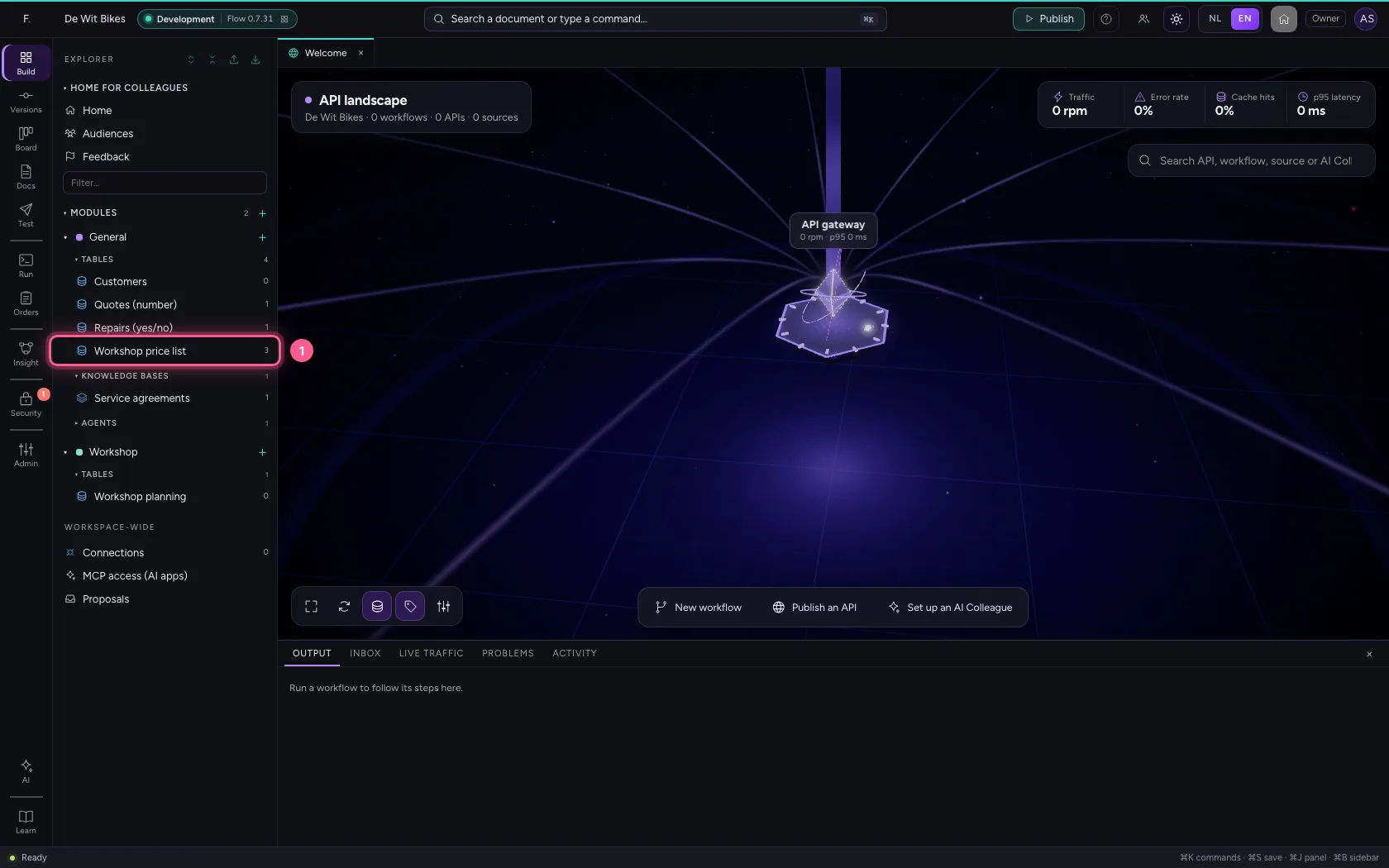
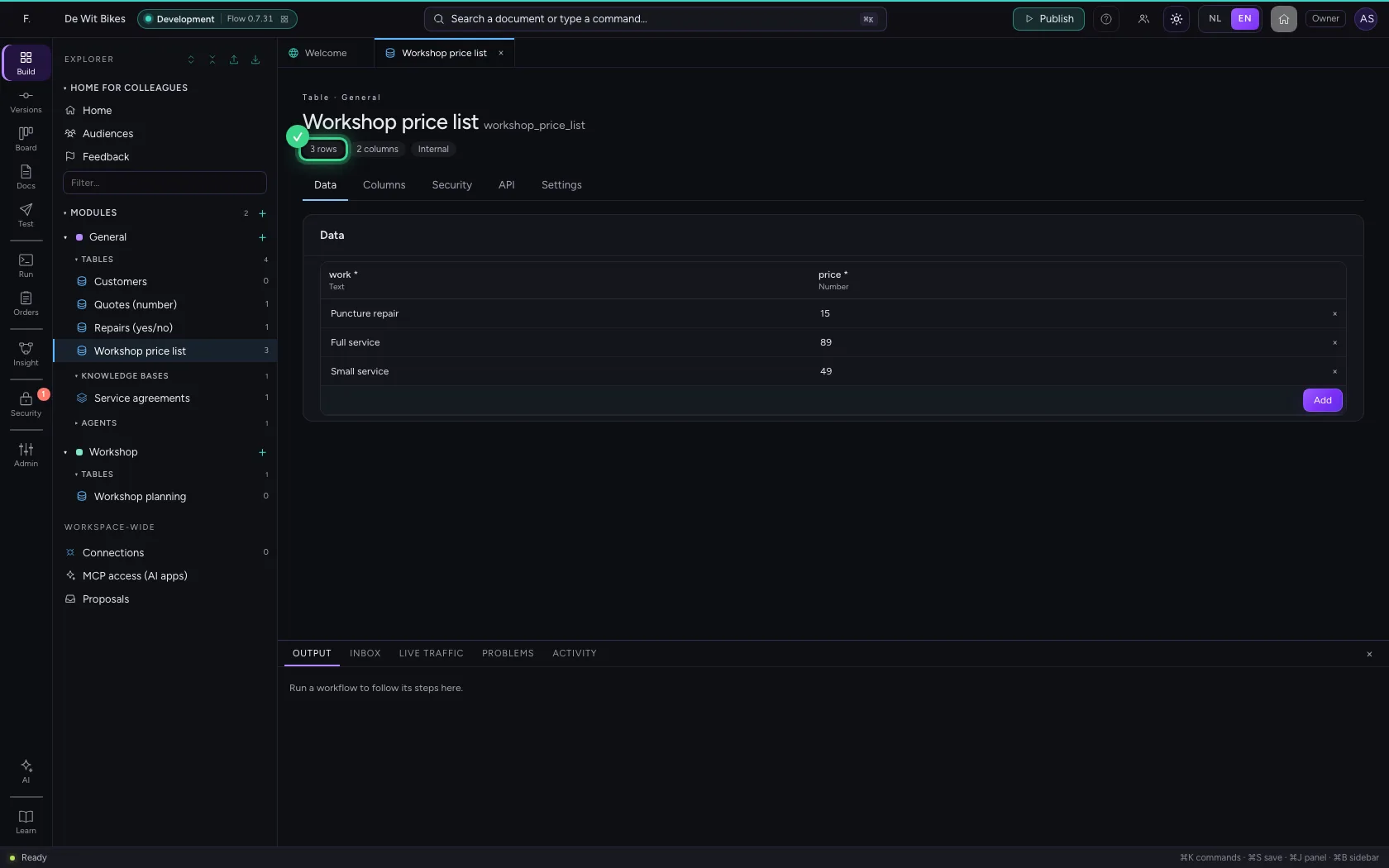
Click the table in the explorer. It opens on the Data tab: every row is a line of input fields. There are 50 per page; if the table has more, you page through with the buttons at the top right.
- Click the table ‘Workshop price list’
Change a cell
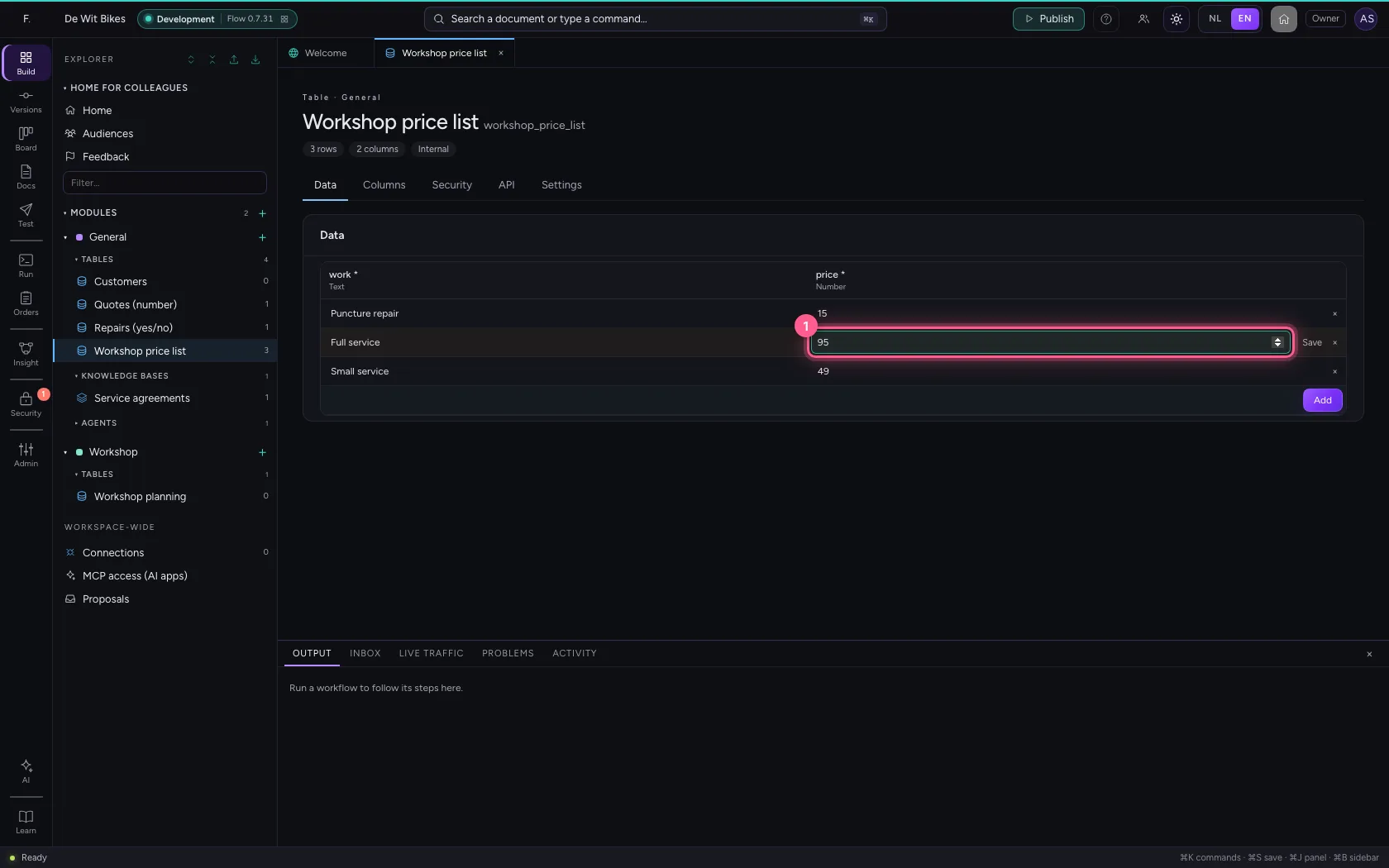
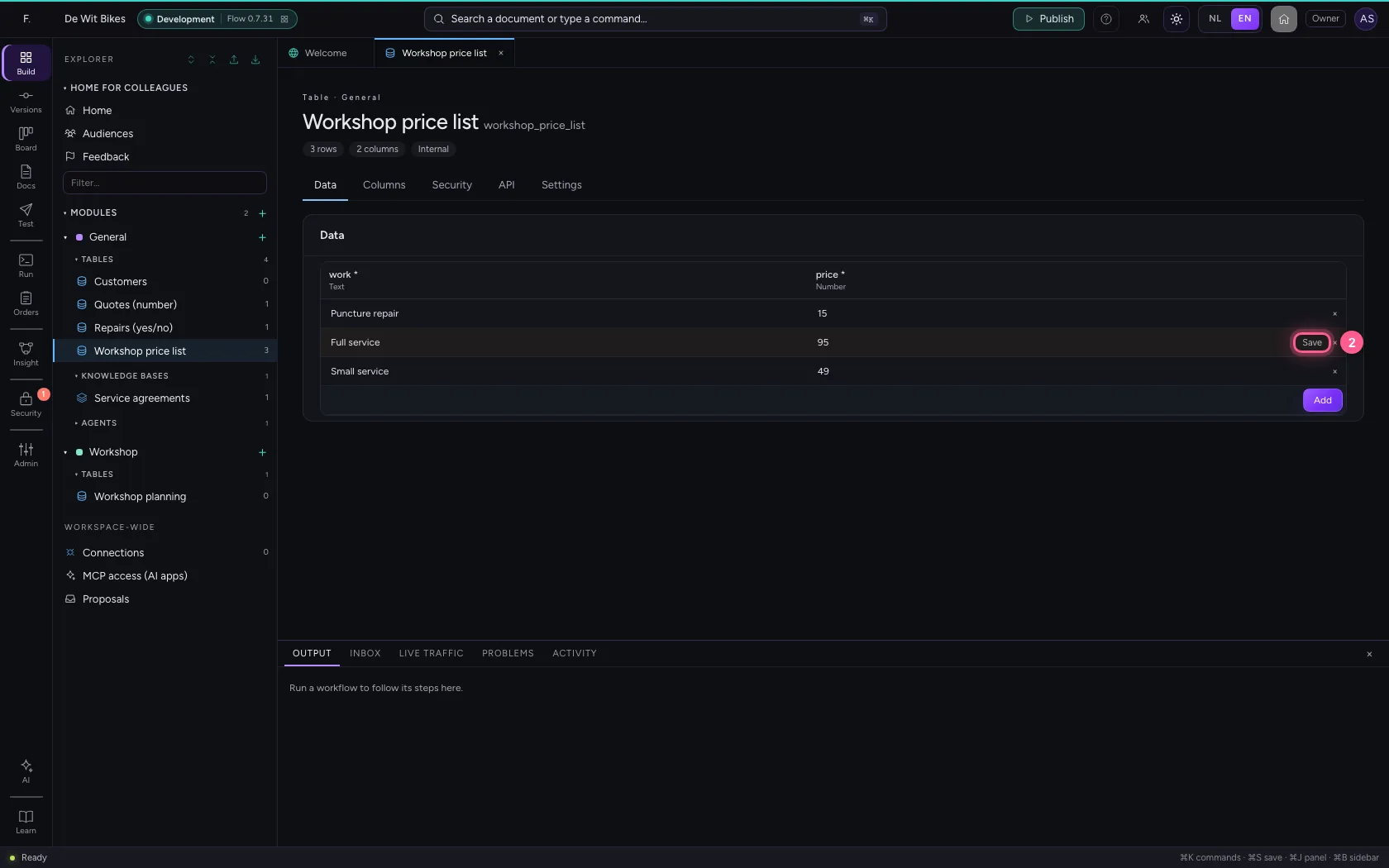
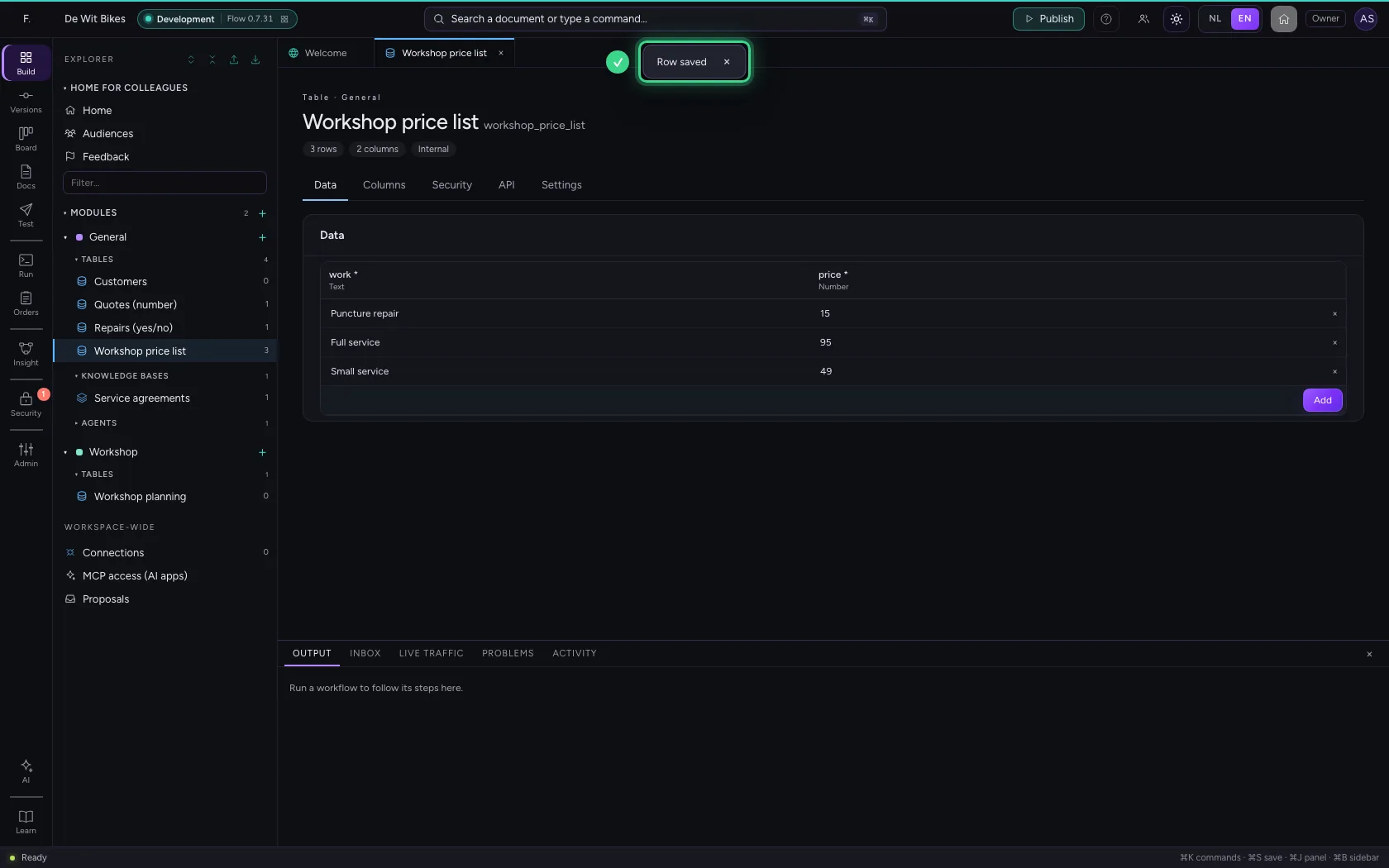
Click in a cell and type the new value. The row is highlighted and gets a Save button: nothing is stored until you click it. That way you can calmly change several cells of one row in one go.
- In price, type
95
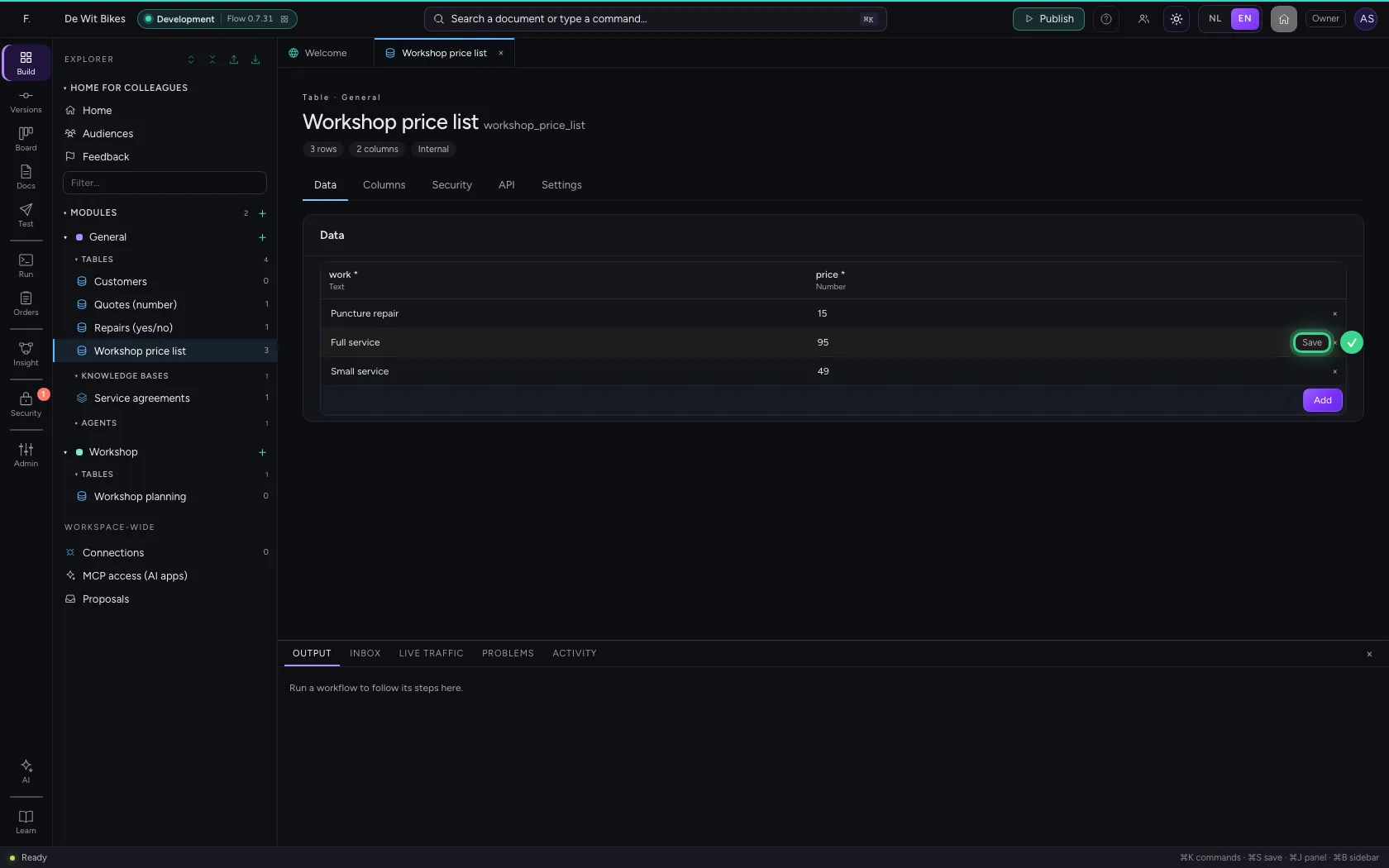
- Click Save
In the same row at the same time
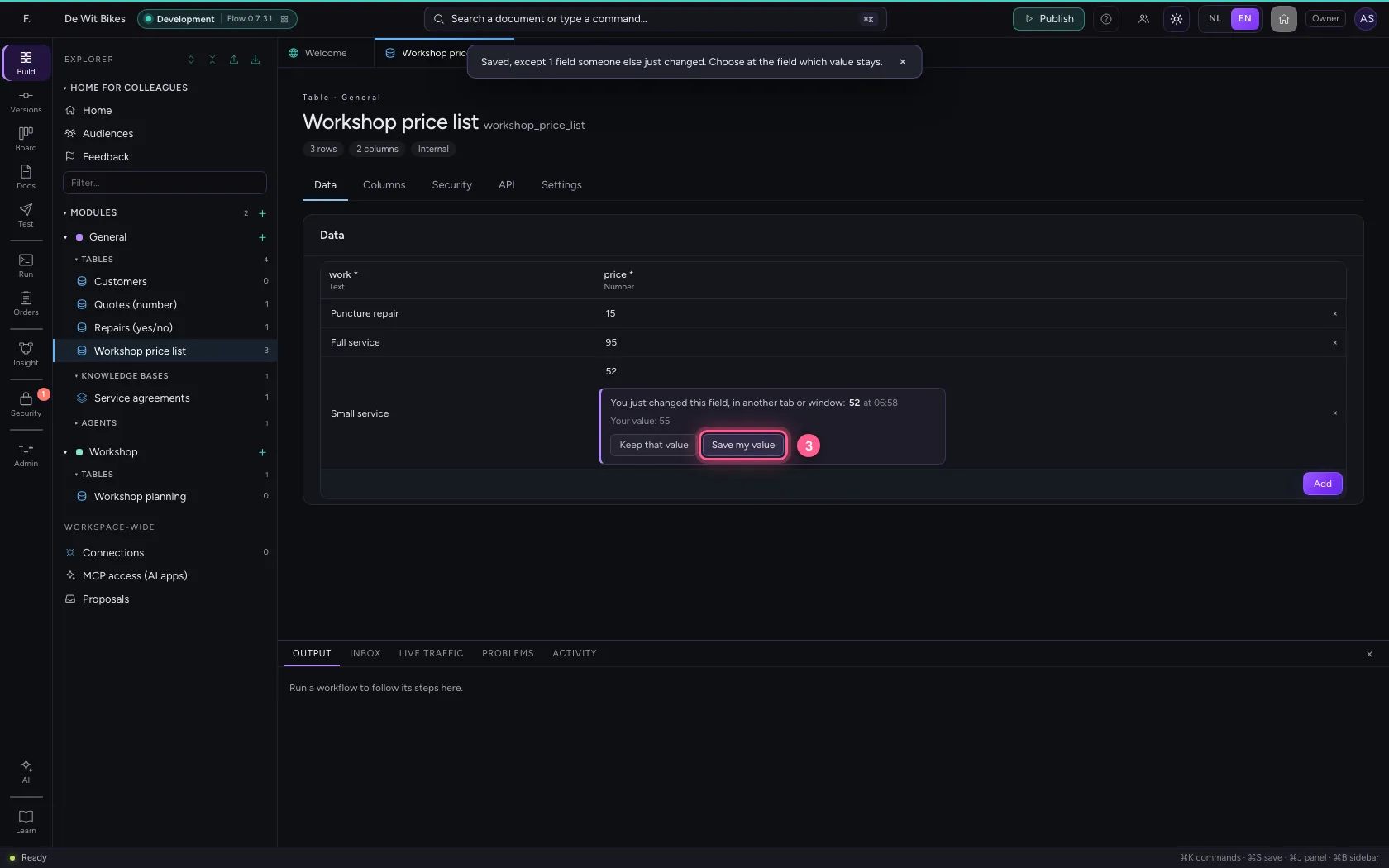
When someone else works in the same row at the same time (a colleague, a workflow, an AI app, or yourself in another window), Flow never silently overwrites the other's work. What someone else saves appears in the table straight away, without losing what you are typing, and another cell of the same row is simply kept as well. When the other just changed the same cell, Flow keeps the rest of your row and shows at that cell who changed it and to what: you keep that value, or choose Save my value.
- In price, type
55
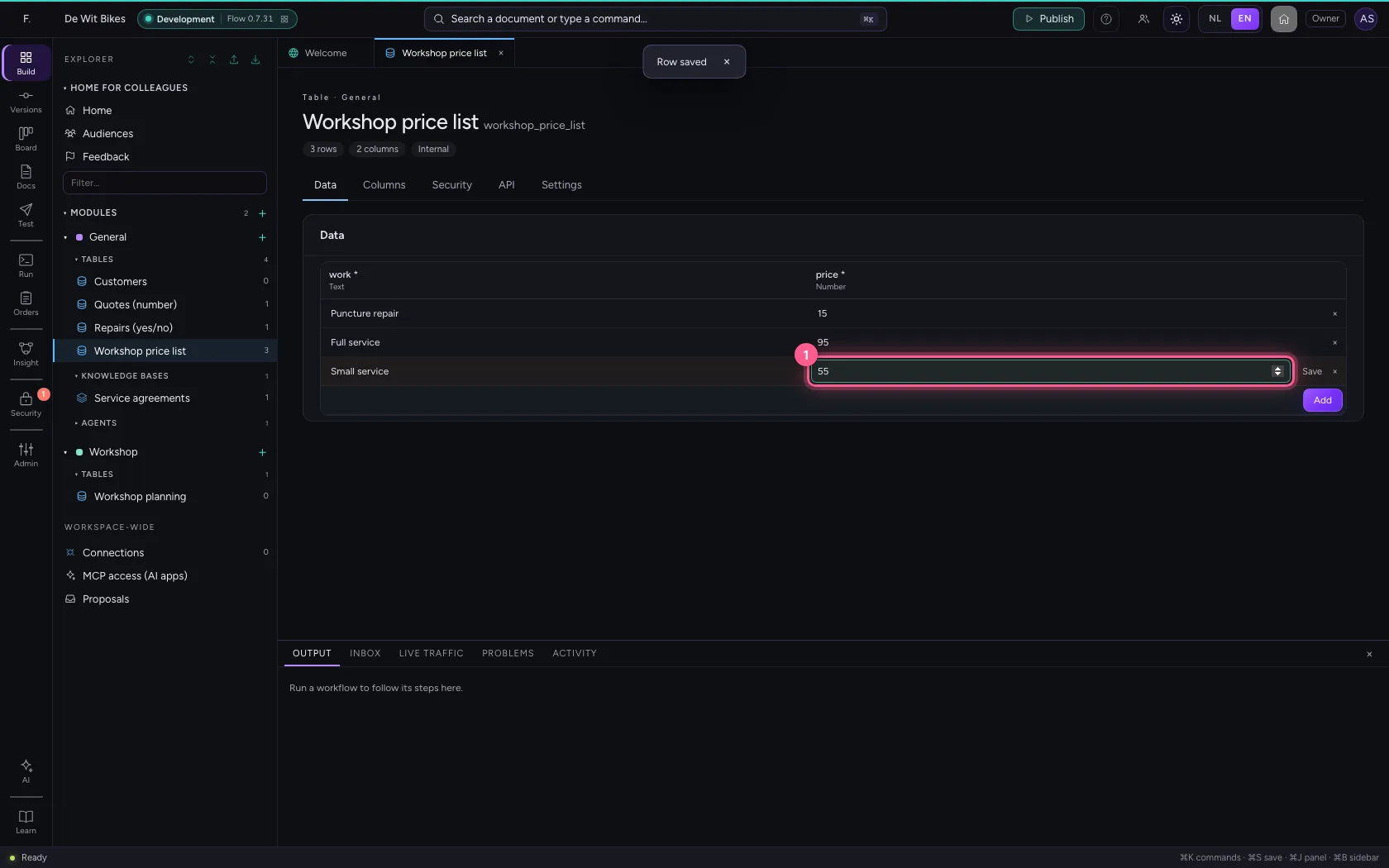
- Click Save
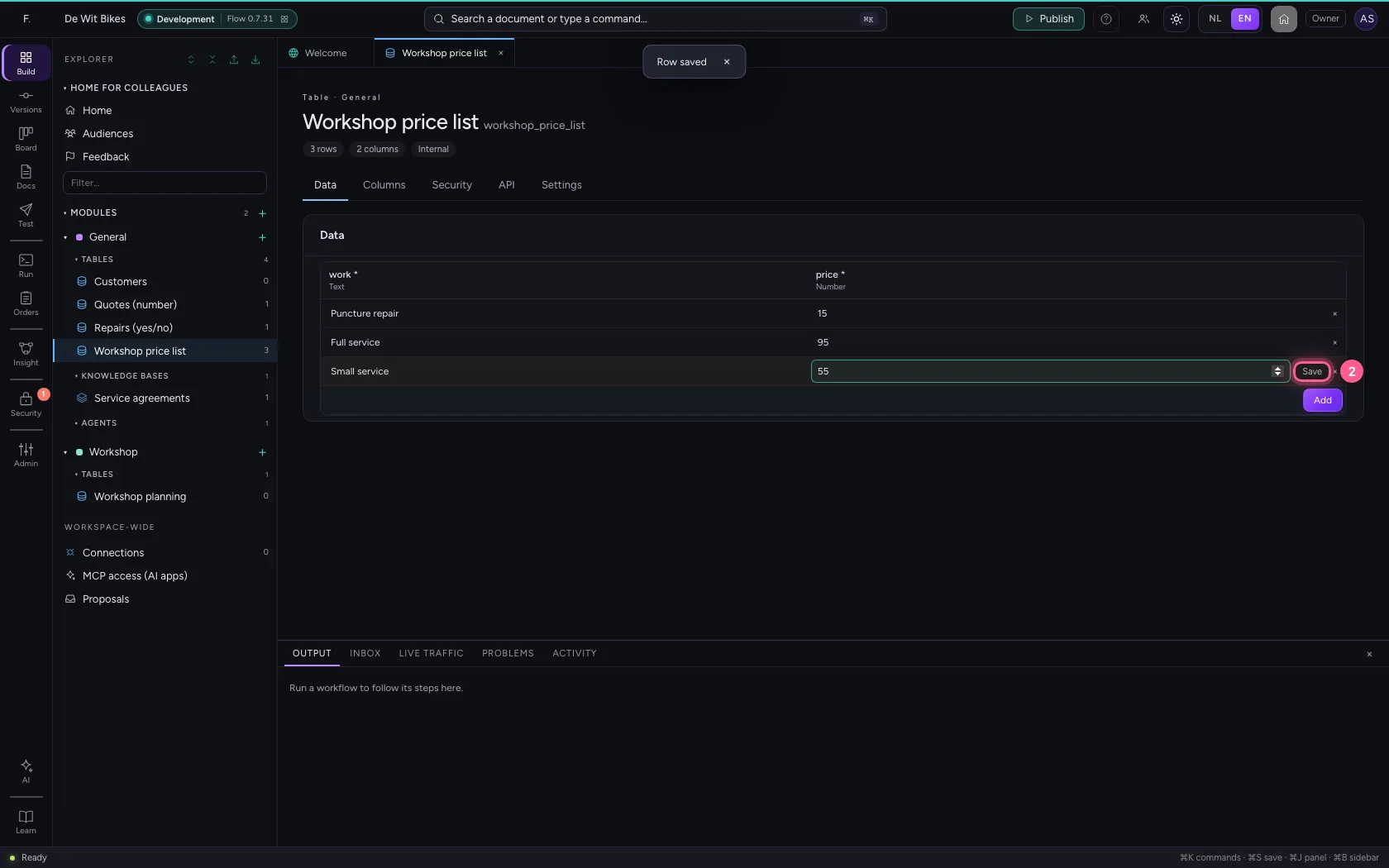
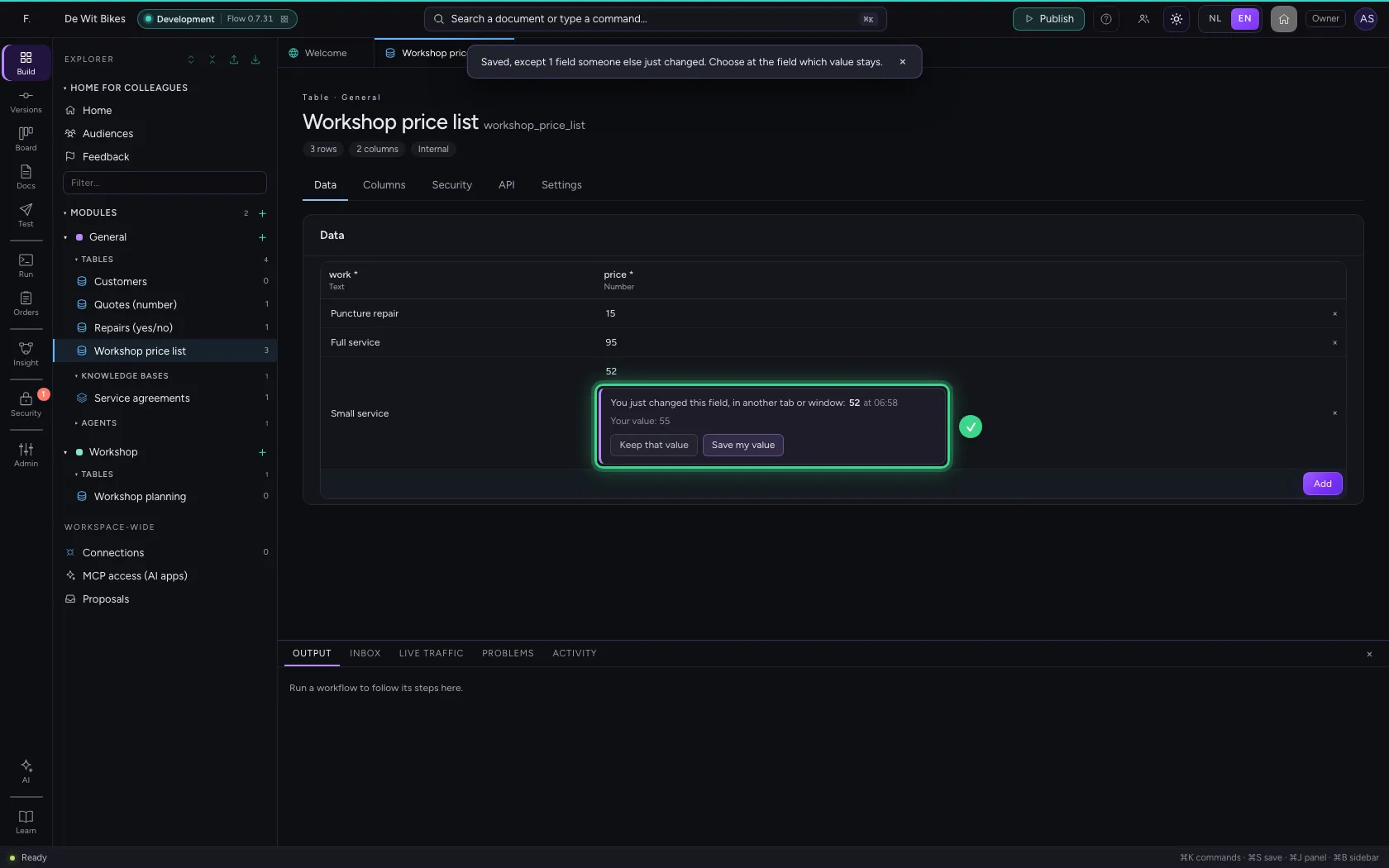
- Click Save my value
Delete a row
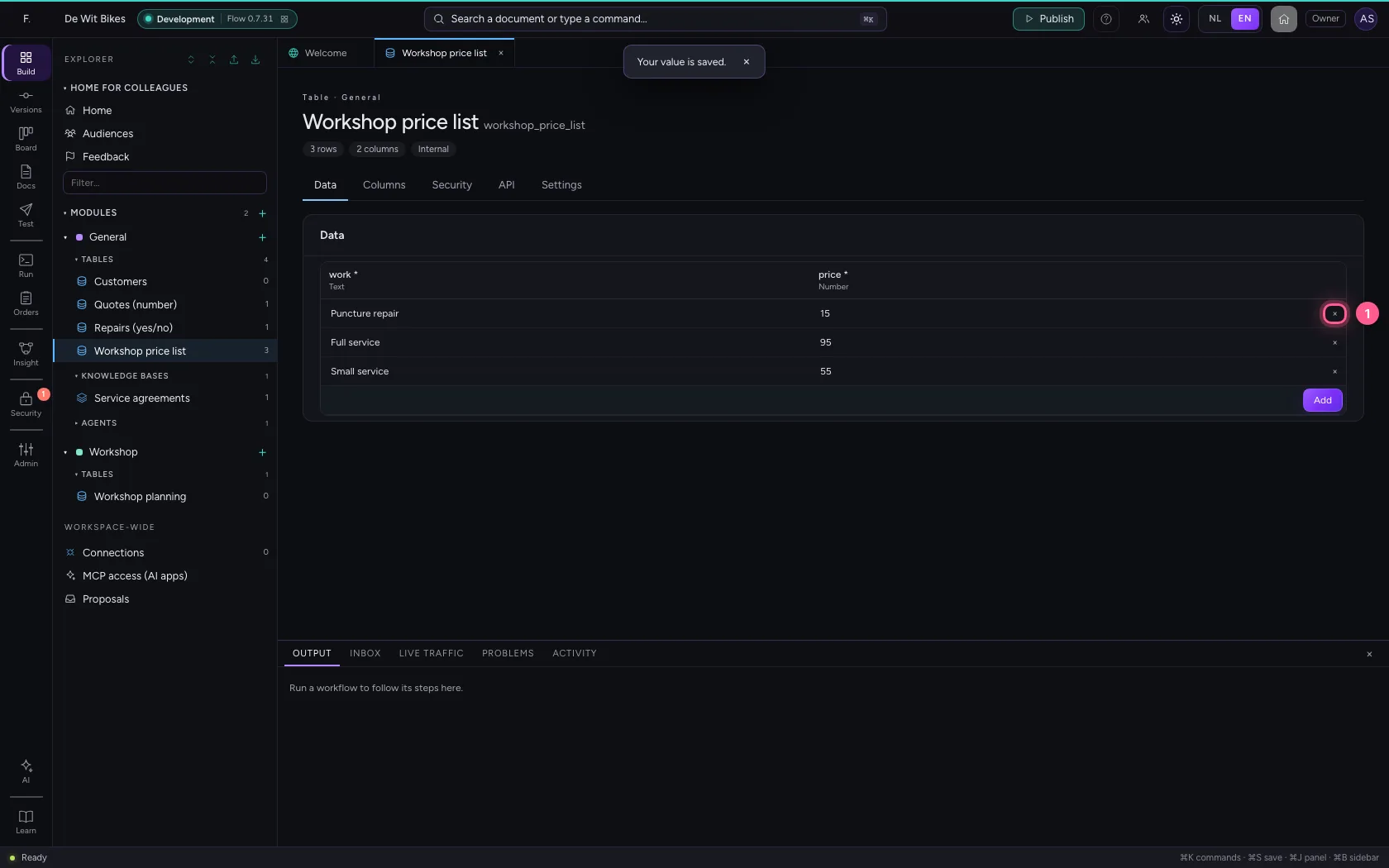
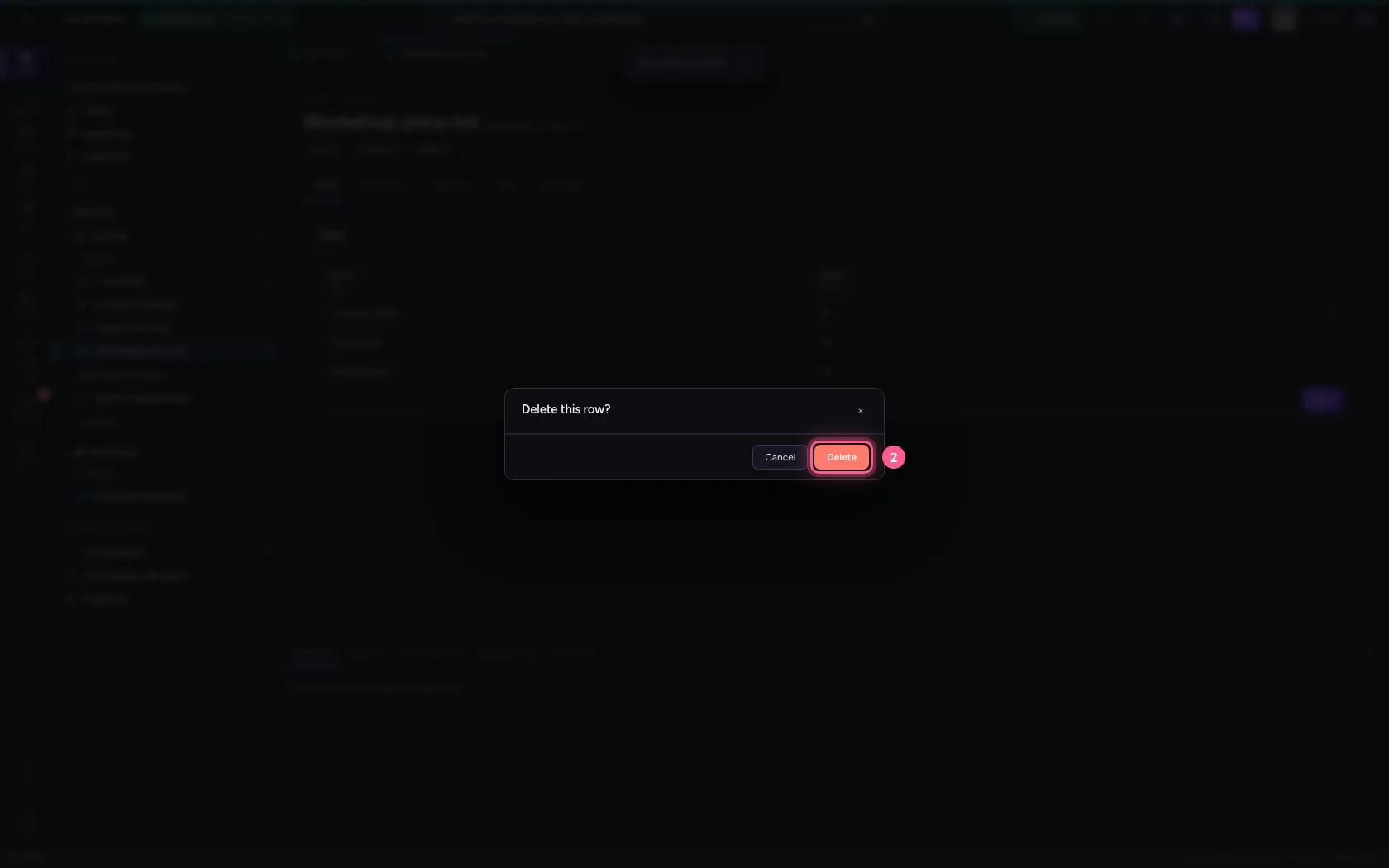
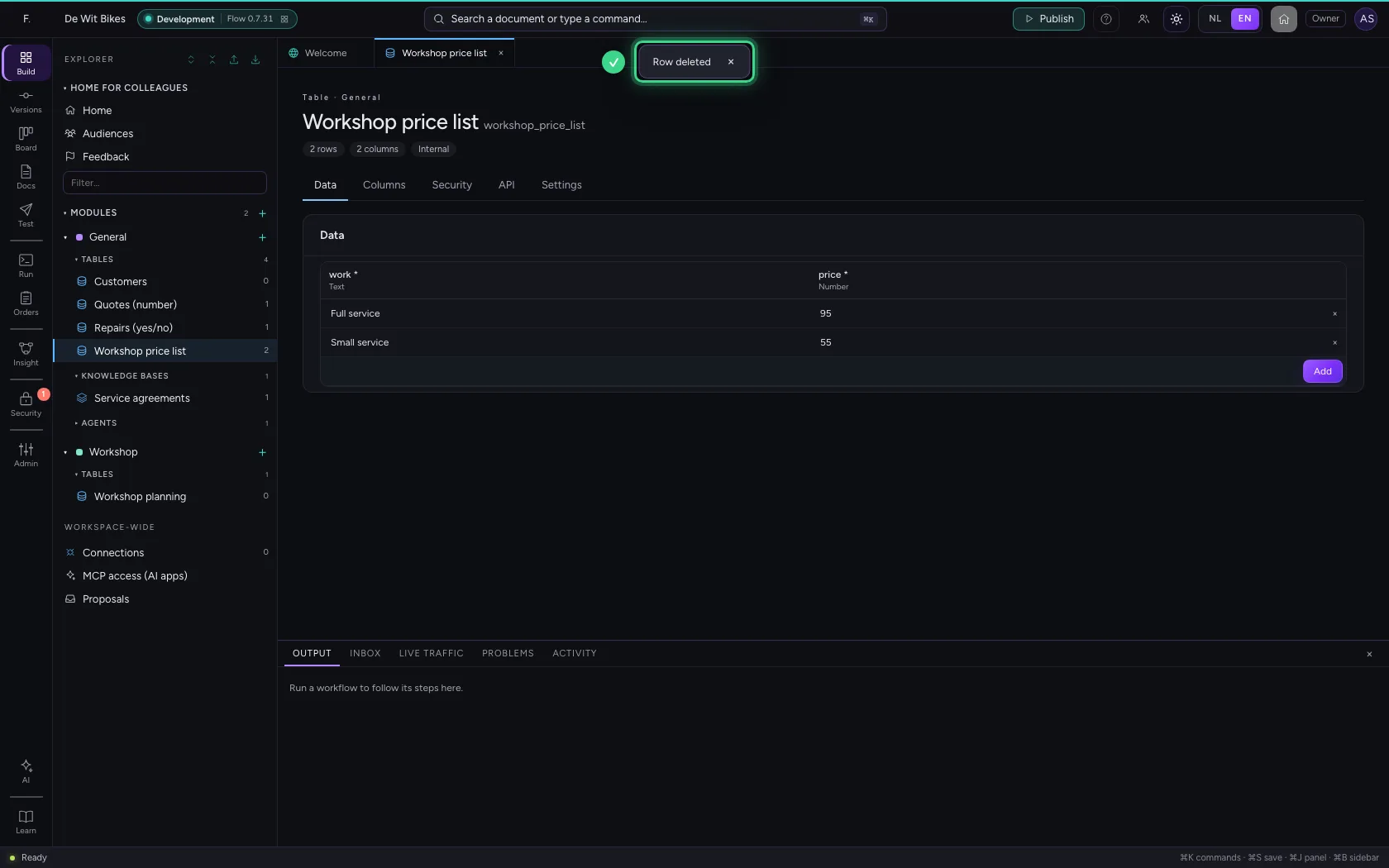
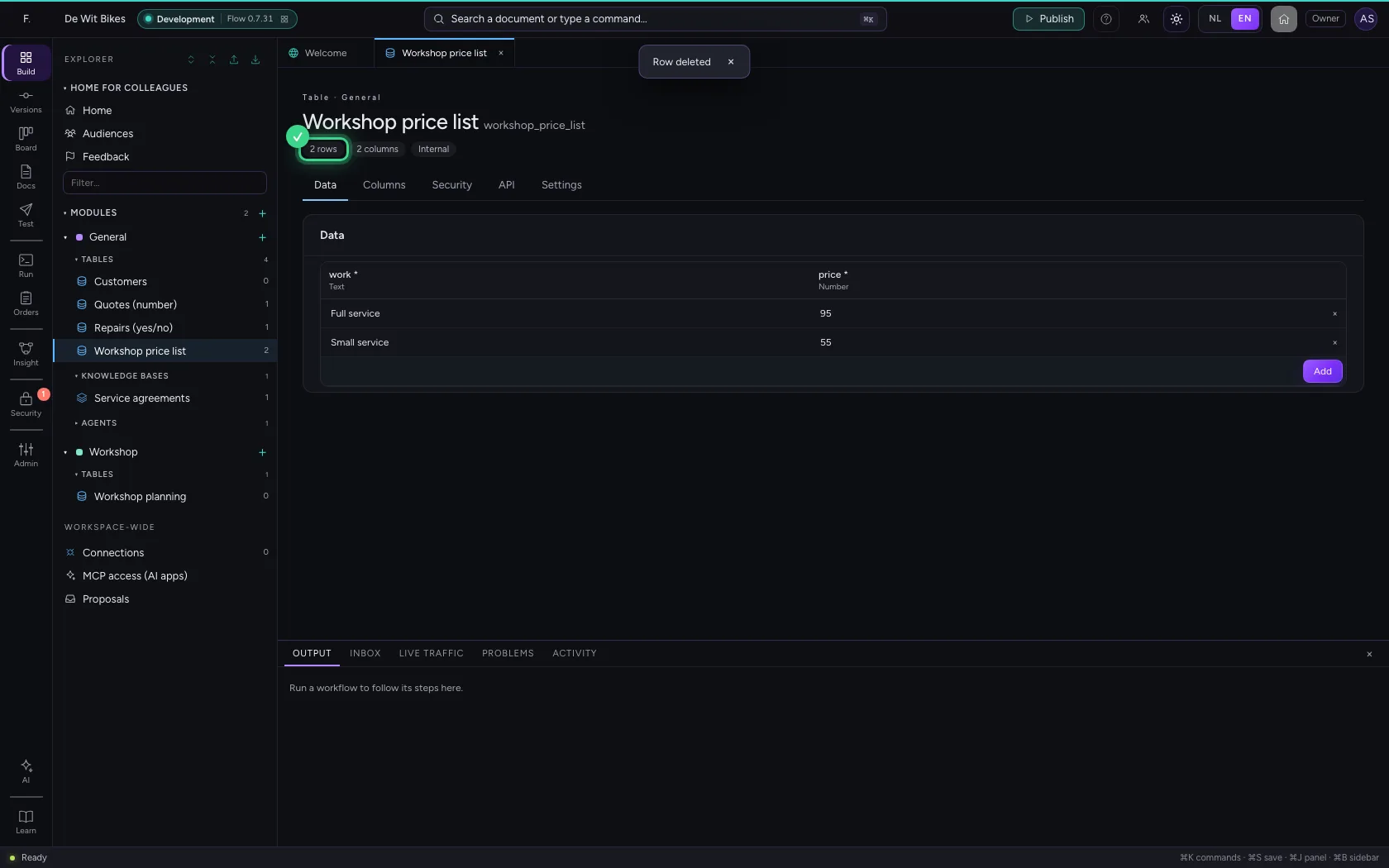
The cross at the end of a row deletes it. Flow asks first; deleting cannot be undone (except through version control or an export).
- Click Delete row
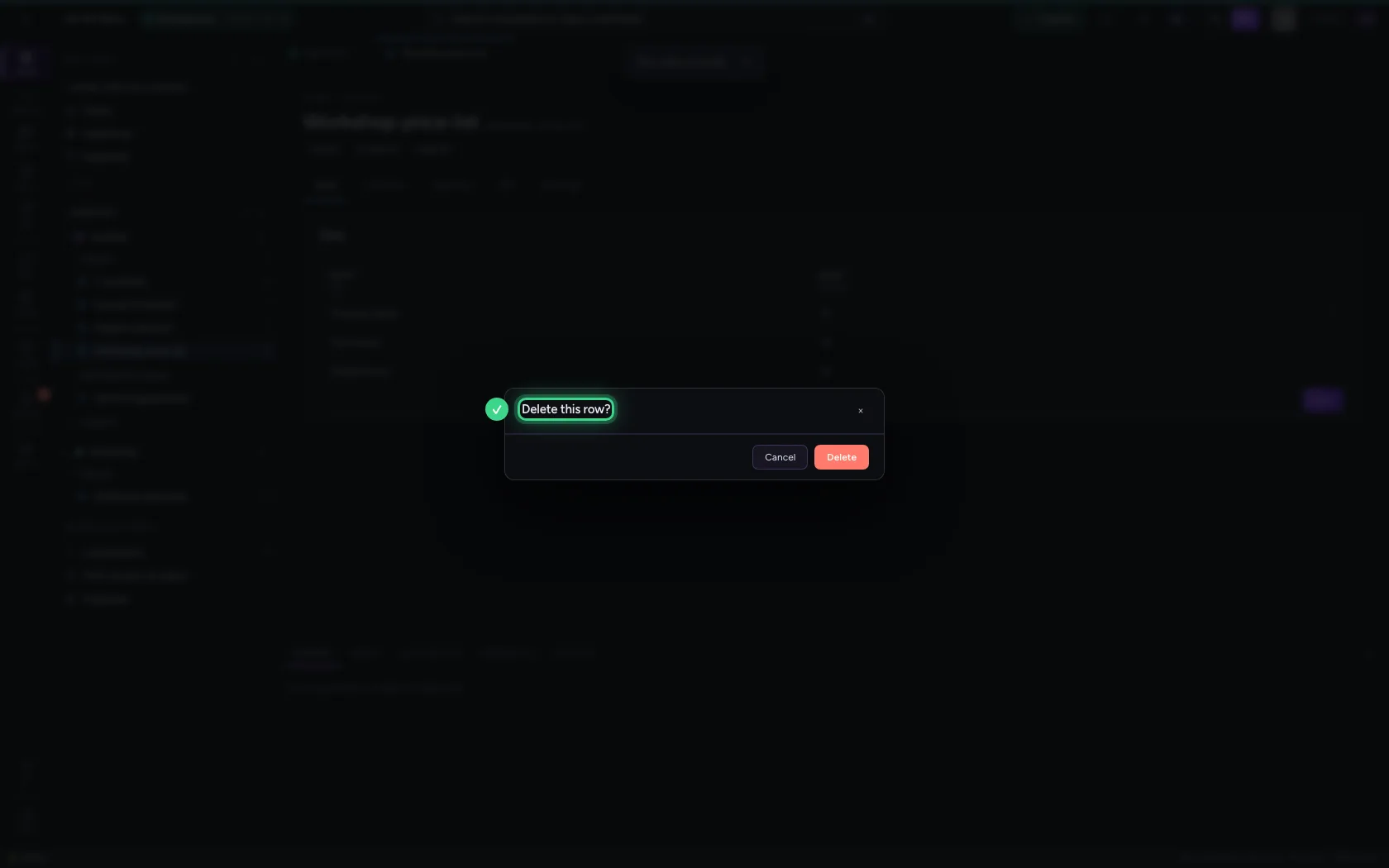
- Click Delete
This guide was carried out step by step on 22 Oct 2026 by an automated test on Flow (version 3e563176).