Your organisation's settings
Behind your organisation's name is Settings. There an owner changes the name, a colleague leaves the organisation and an owner deletes it, in the danger zone. You switch Governance on on a page of its own.
Open Settings
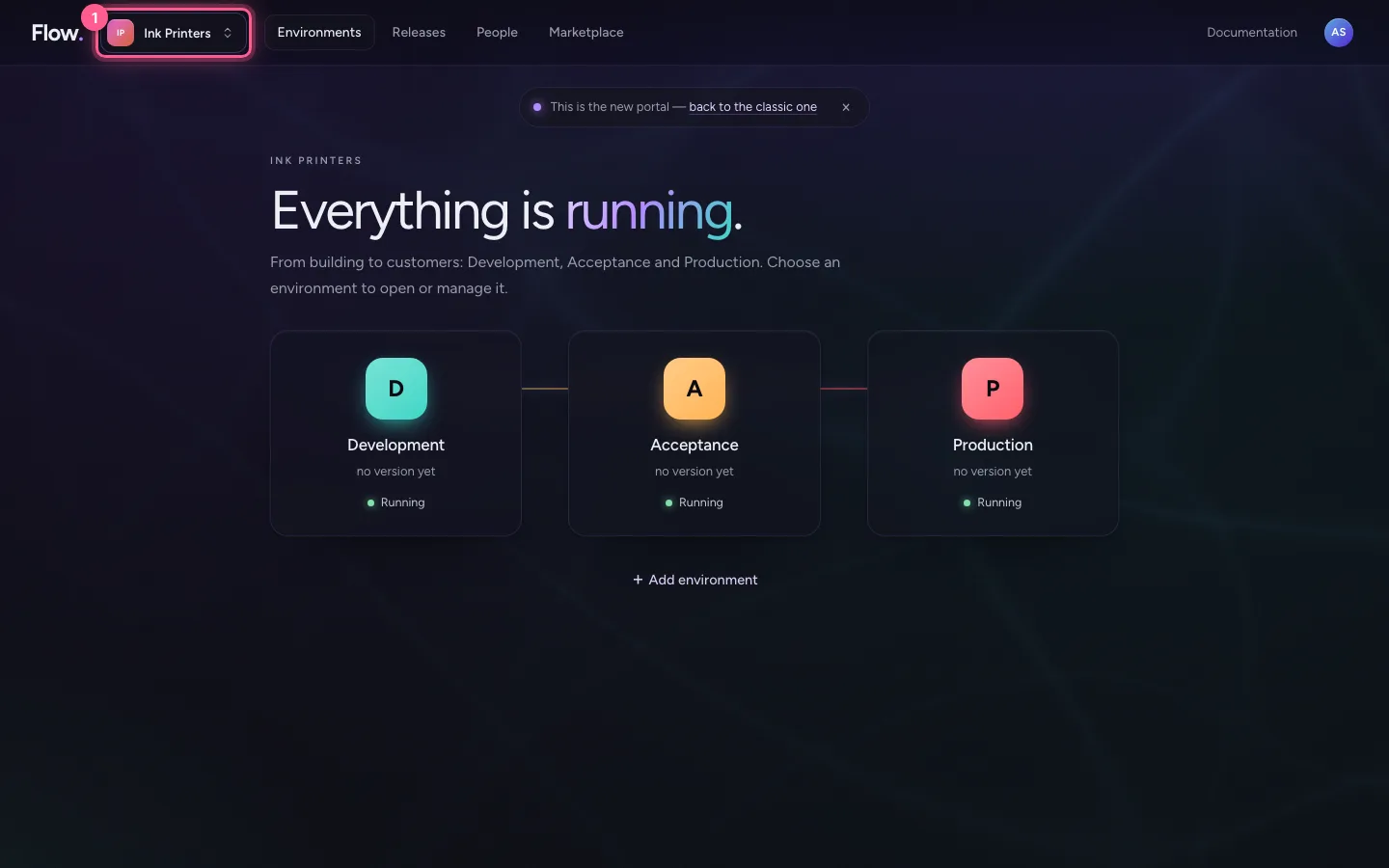
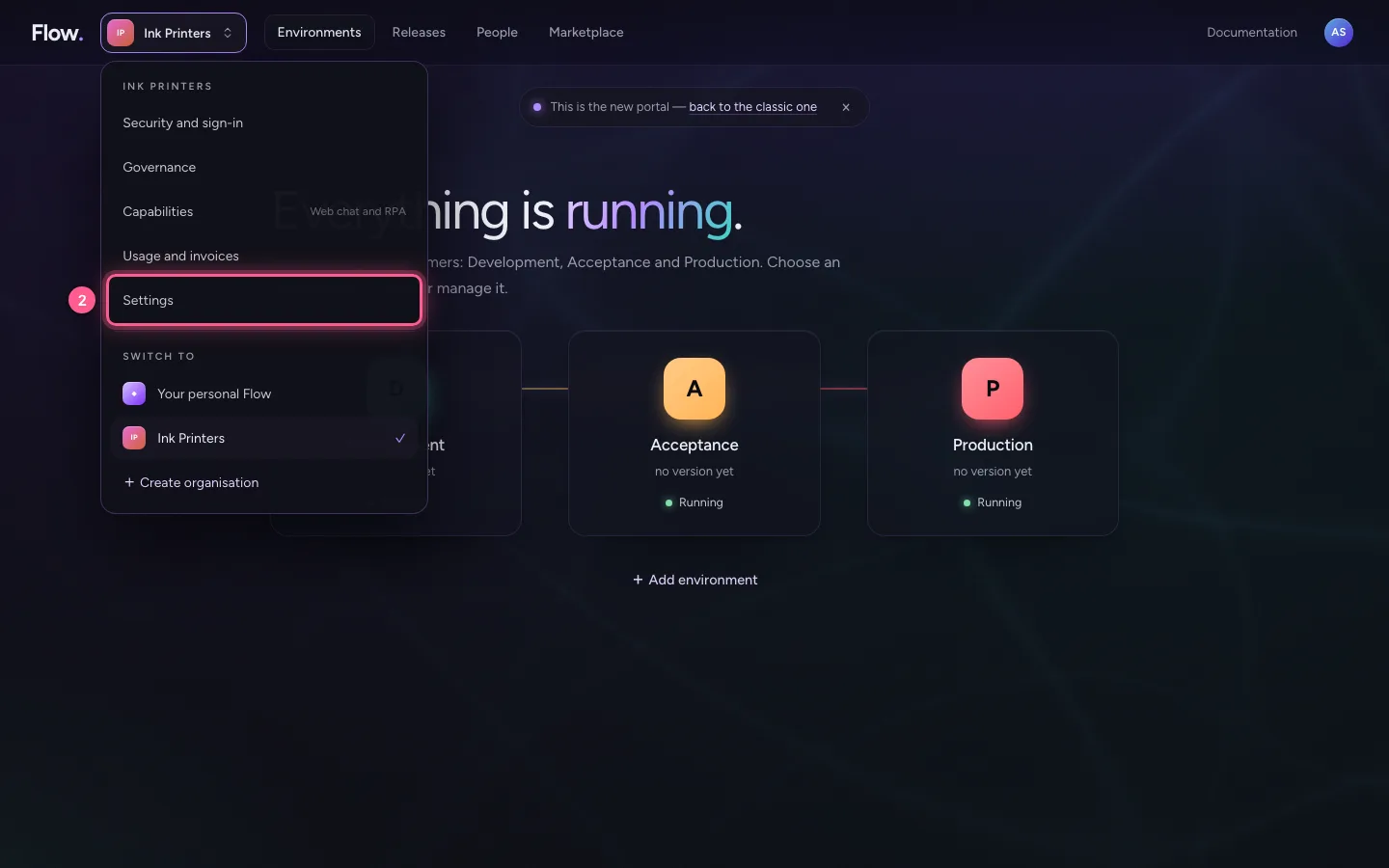
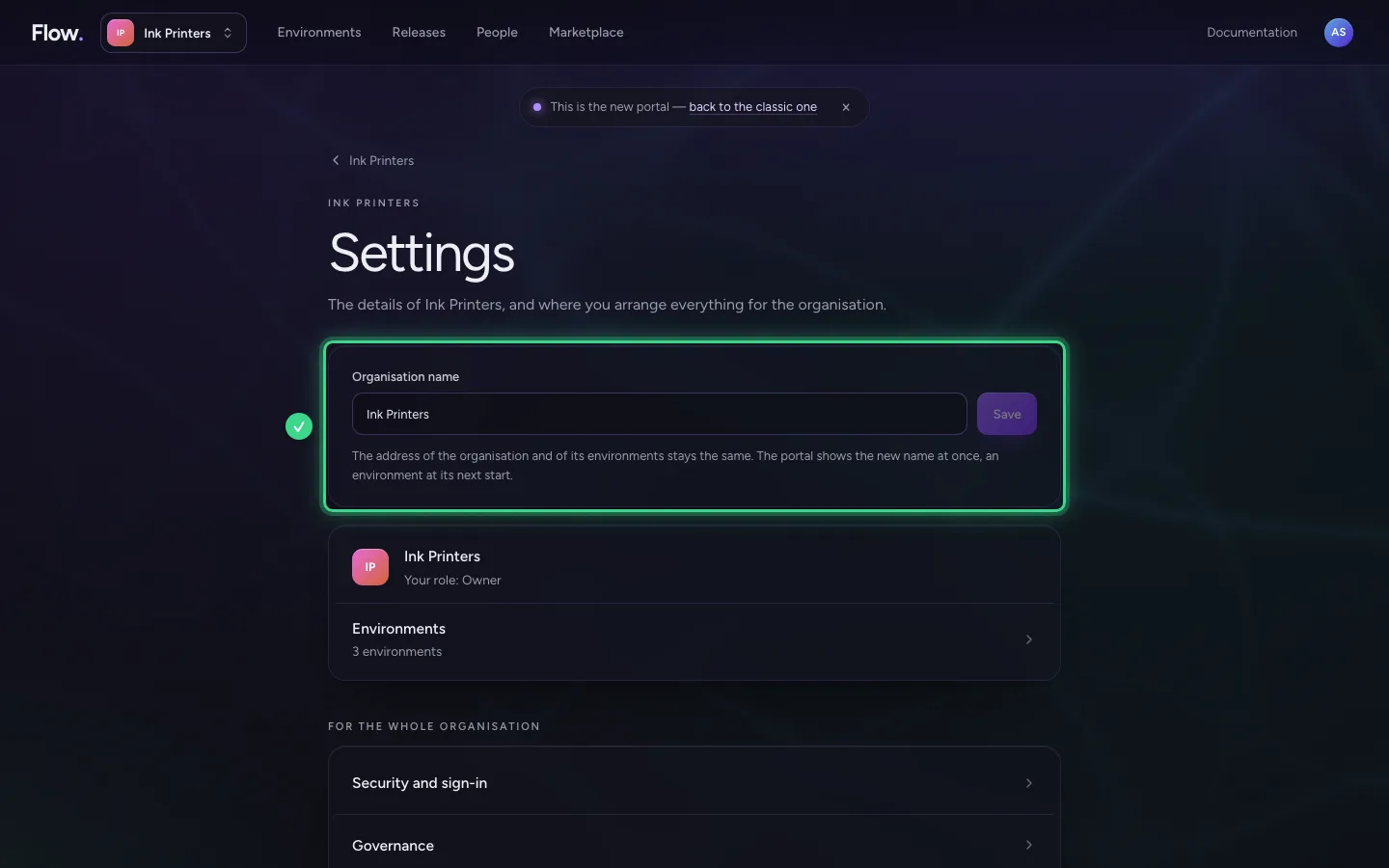
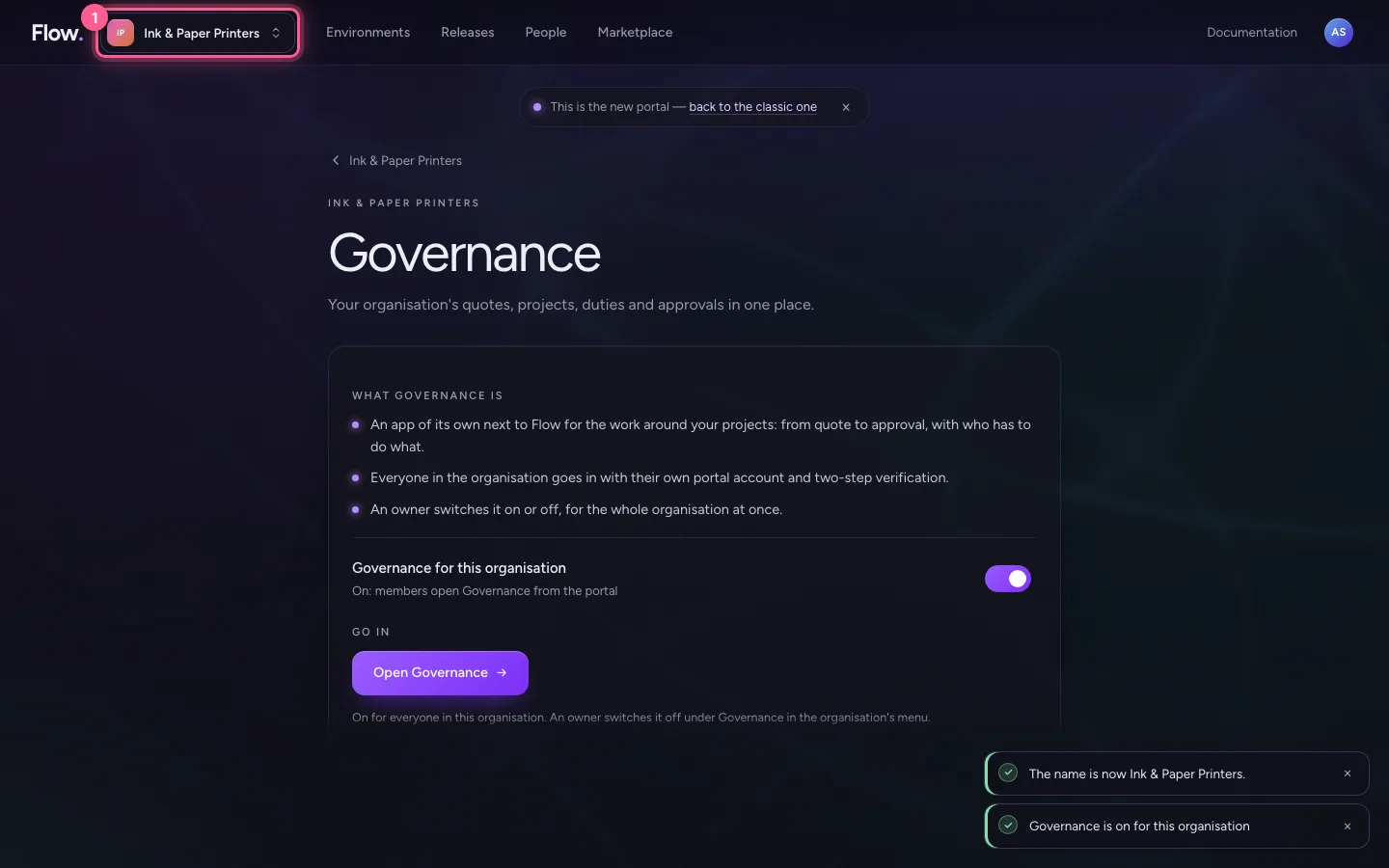
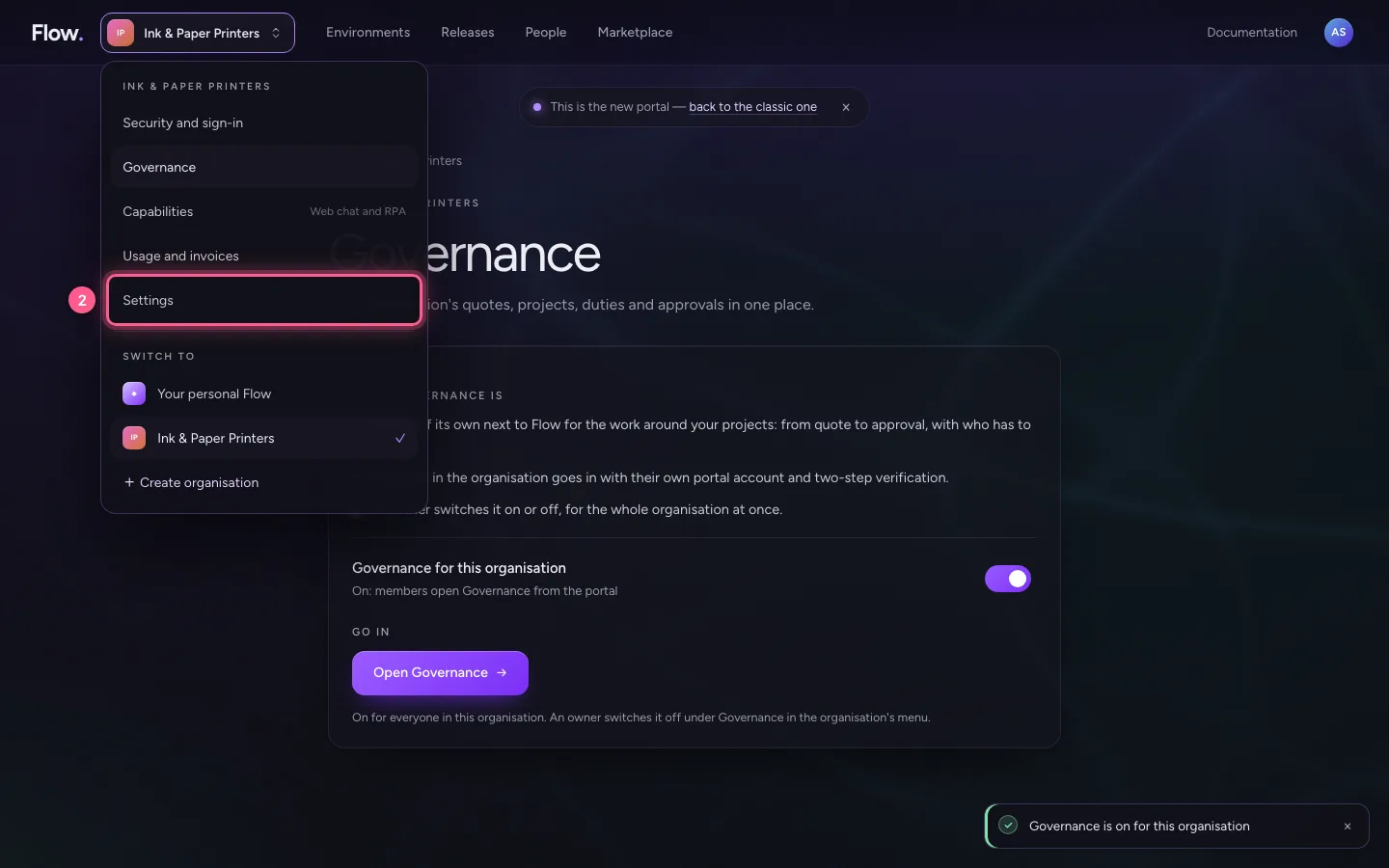
Click your organisation's name at the top left and choose Settings. At the top is the name; below it your role and the way to everything that is arranged for the whole organisation.
- Click Your organisation's name
- Click Settings
Change the name
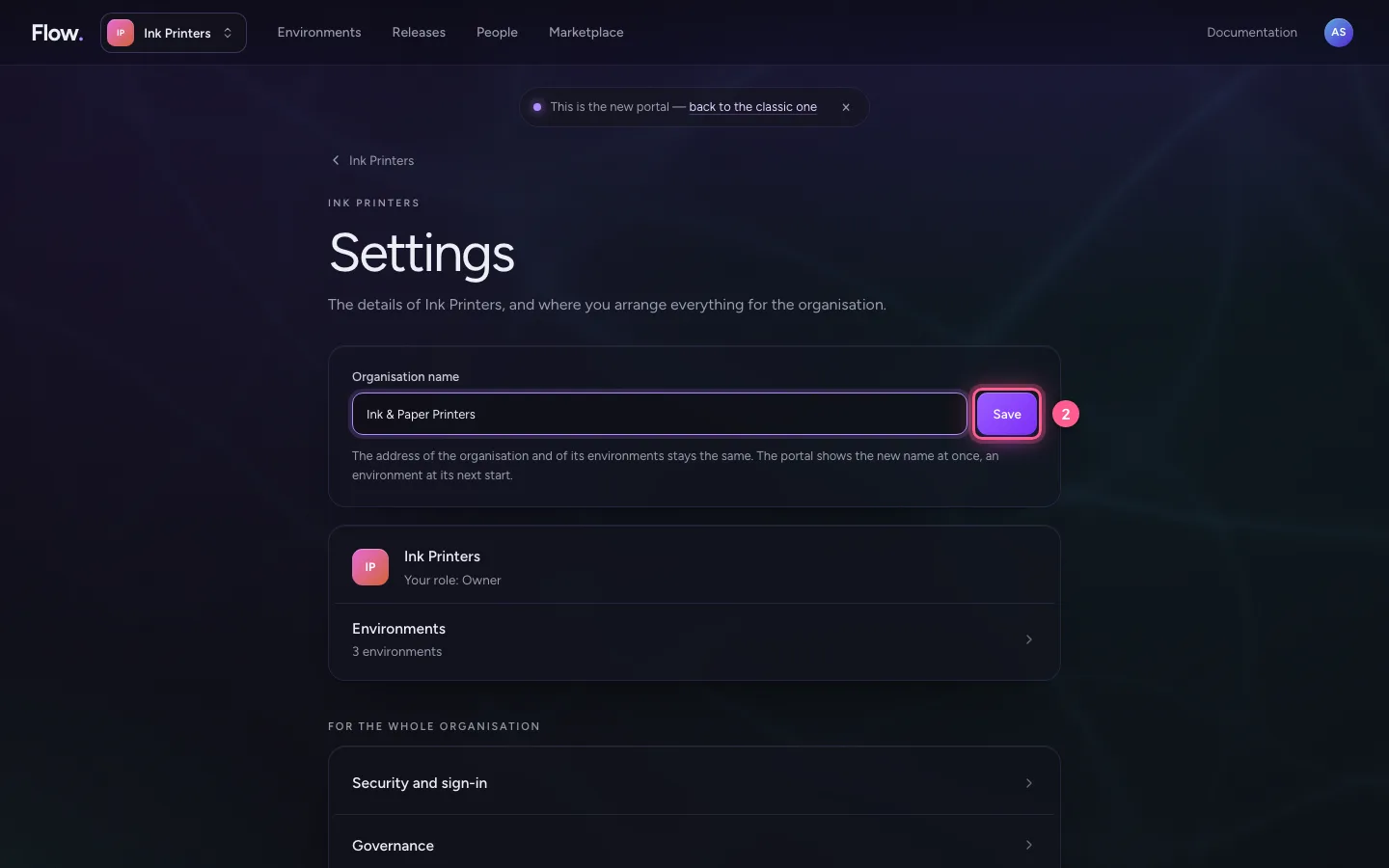
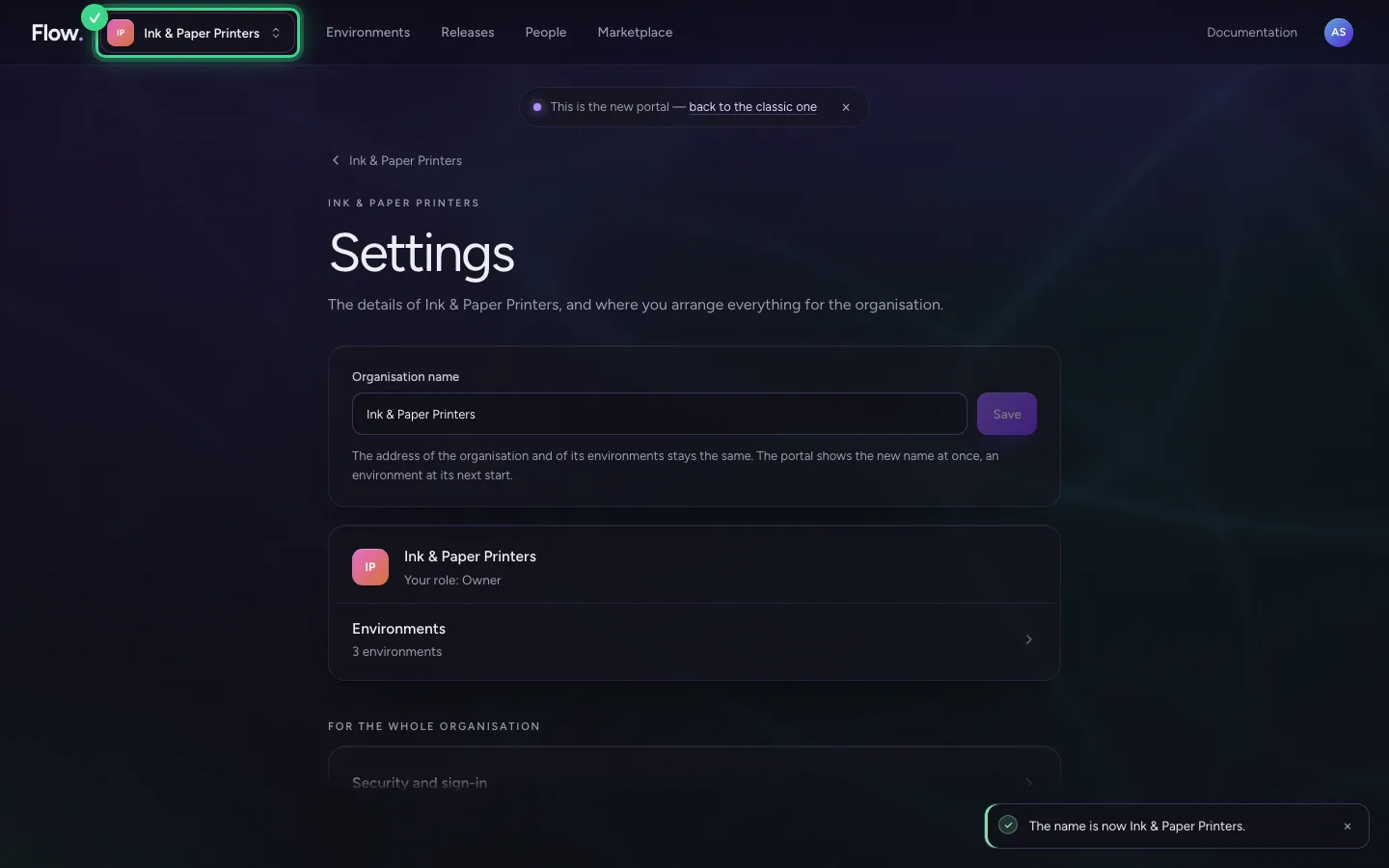
Type the new name and click Save. The addresses of the organisation and its environments stay the same, so links and bookmarks keep working. The portal shows the new name at once.
- In Organisation name, type
Ink & Paper Printers
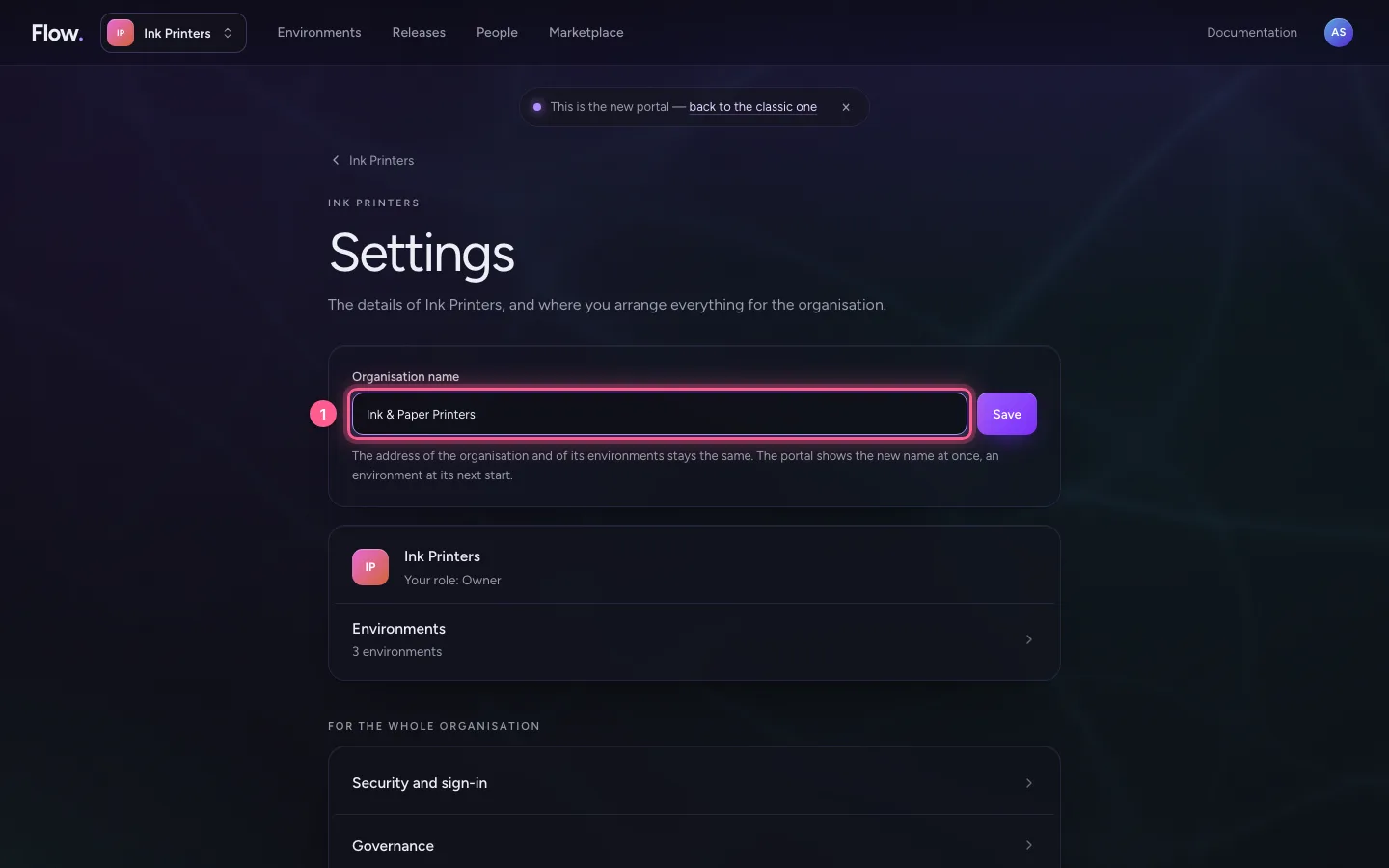
- Click Save
Switch Governance on
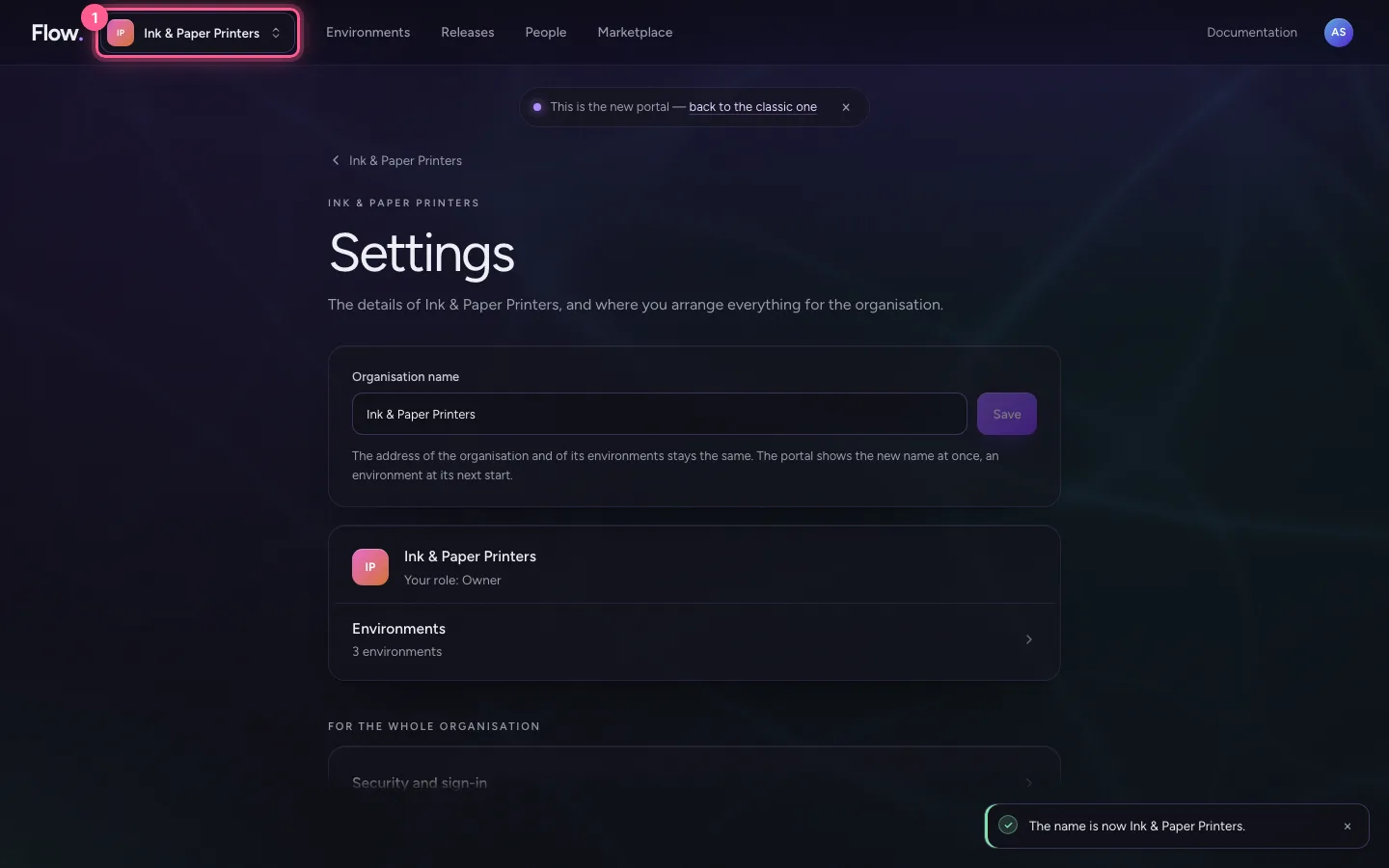
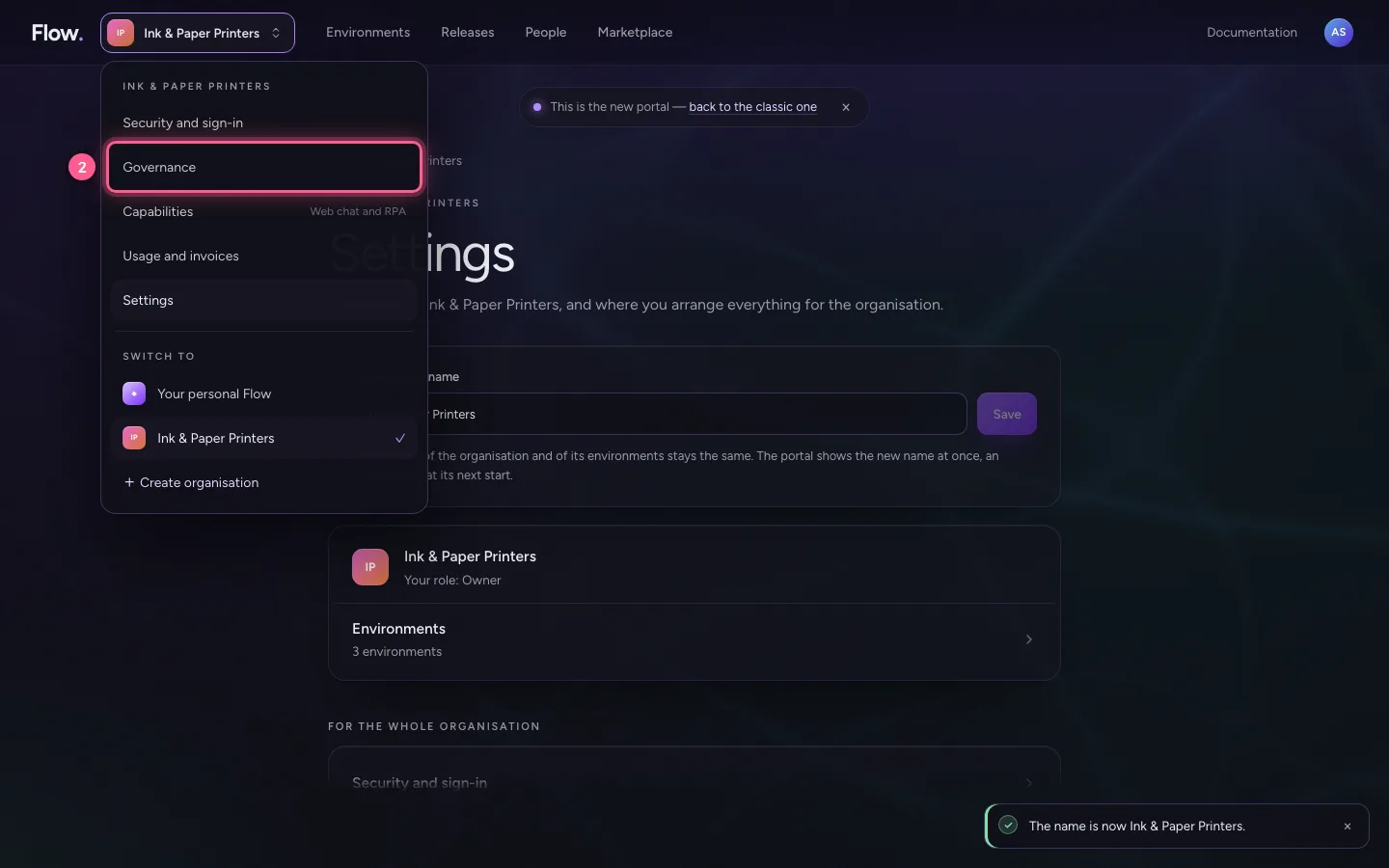
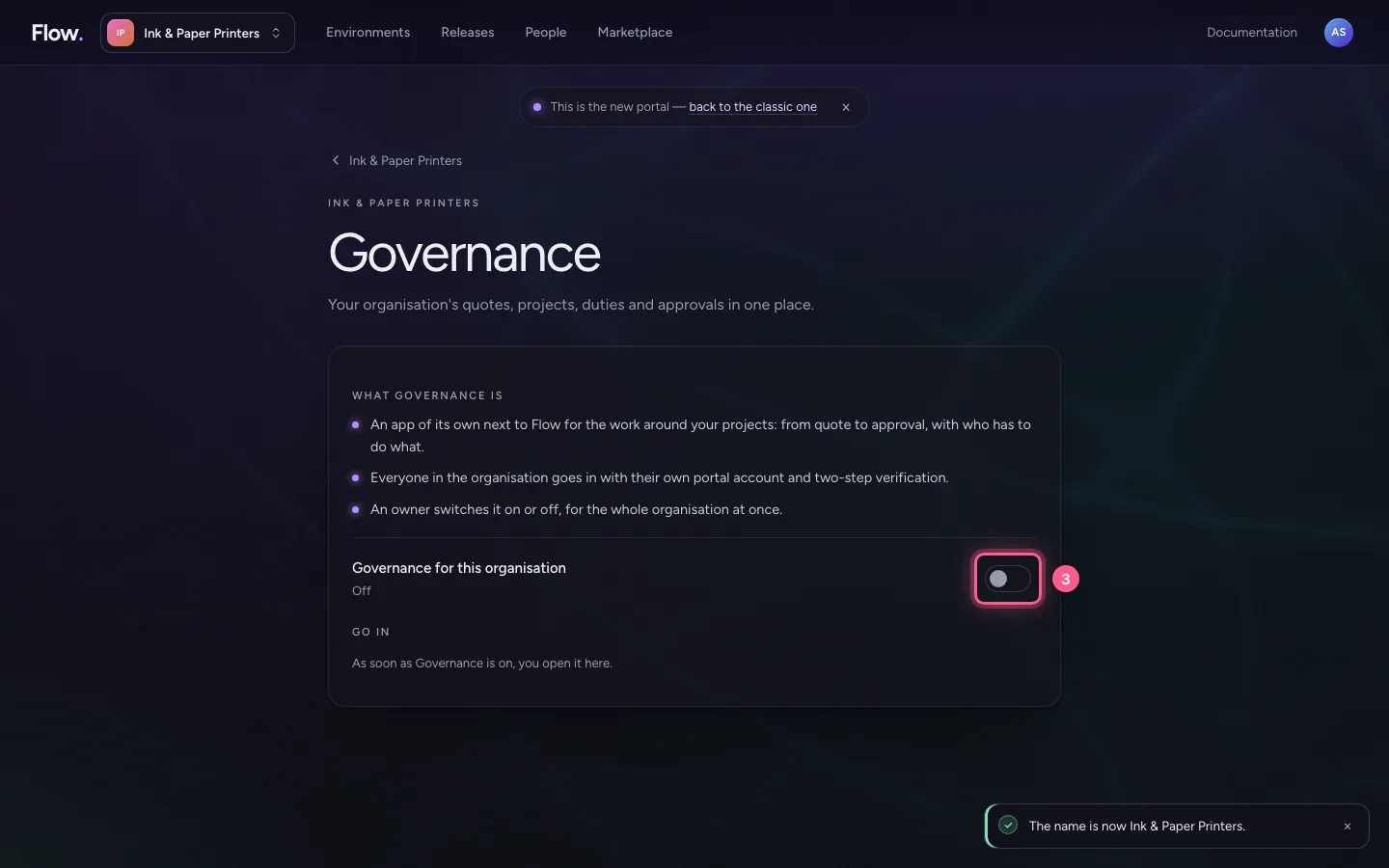
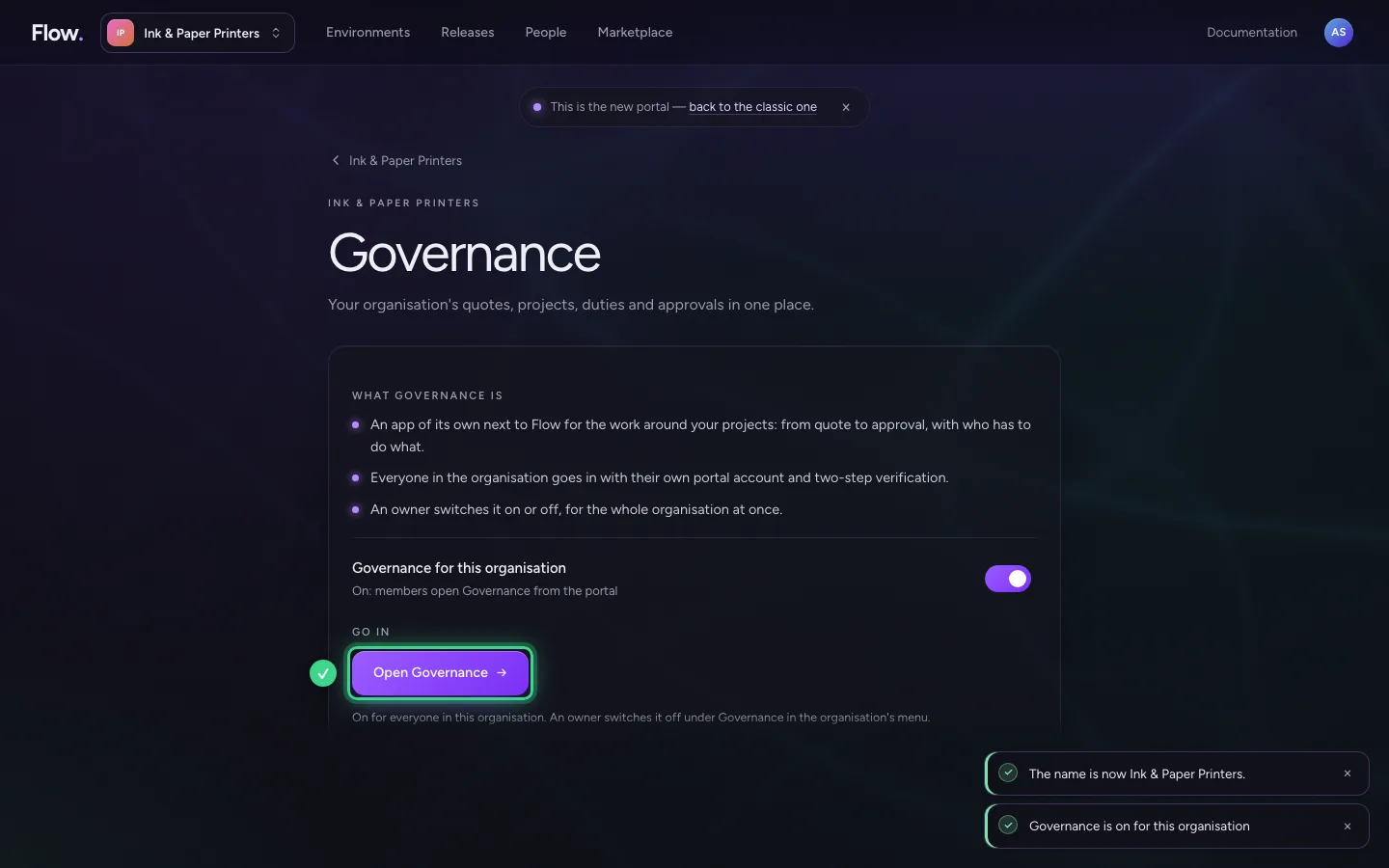
Behind your organisation's name, choose Governance. You read what it is: an app of its own next to Flow for the work around your projects. With the switch an owner turns it on for the whole organisation; after that everyone opens it here with Open Governance.
- Click Your organisation's name
- Click Governance
- Click Governance for this organisation
Delete the organisation
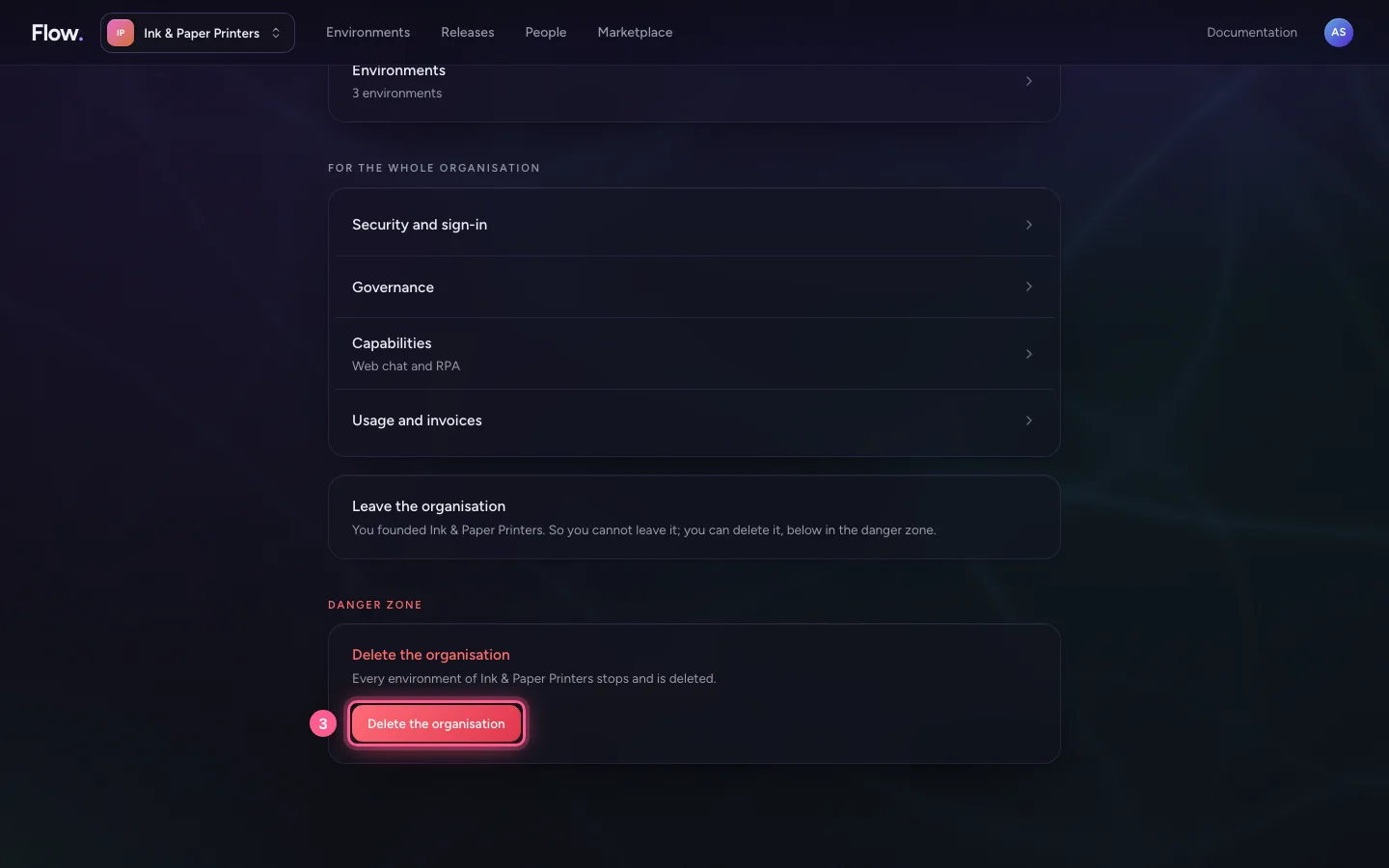
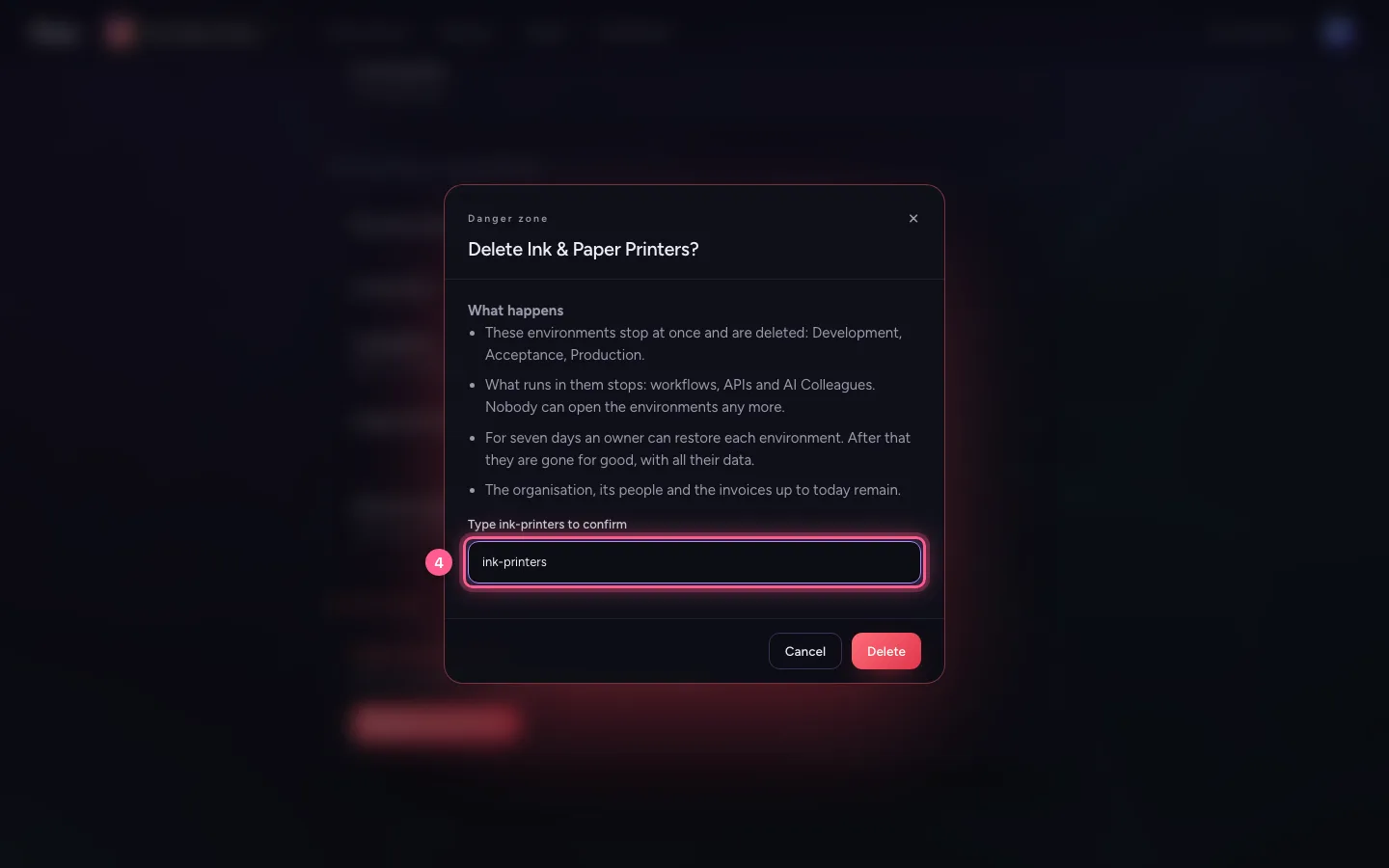
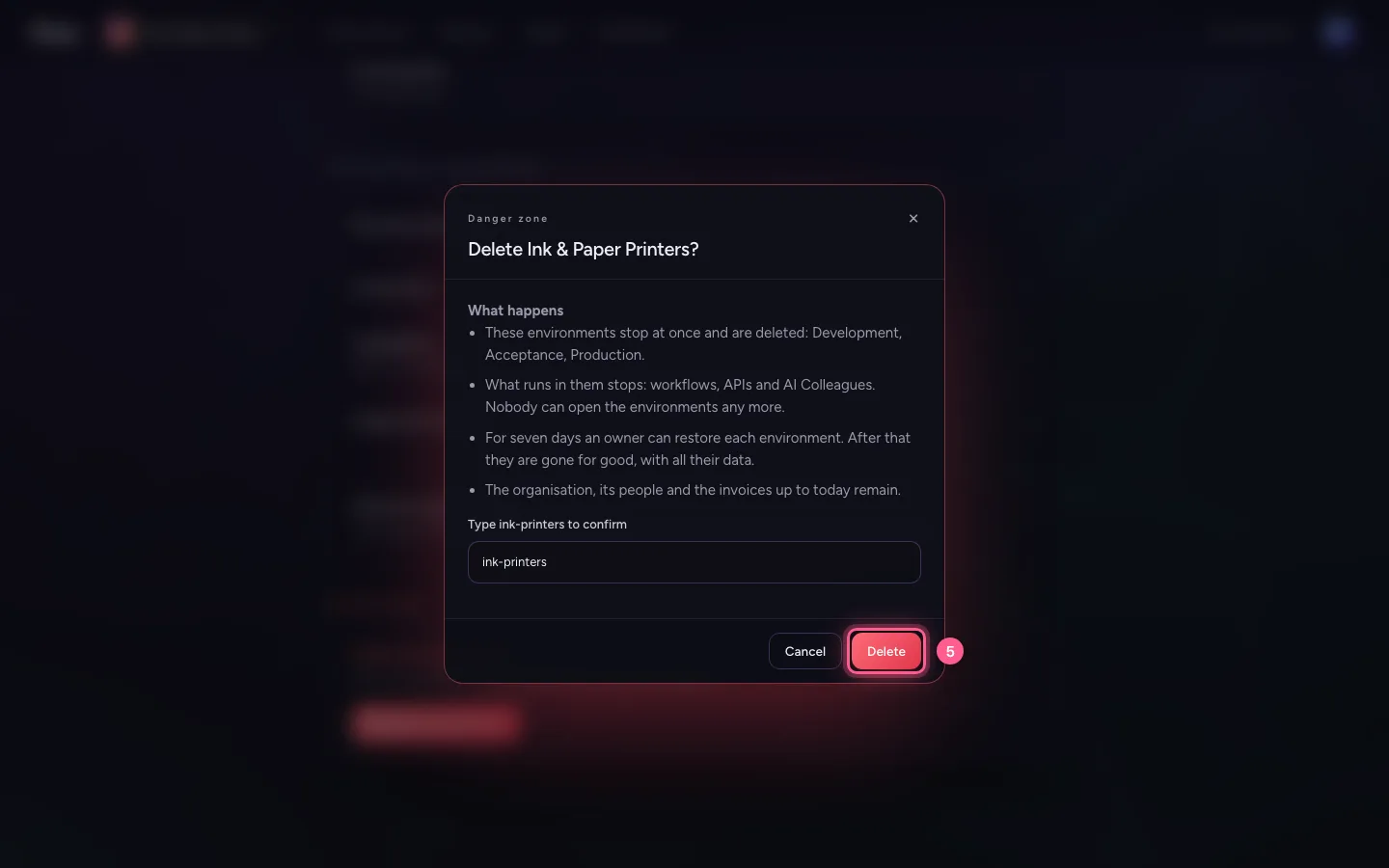
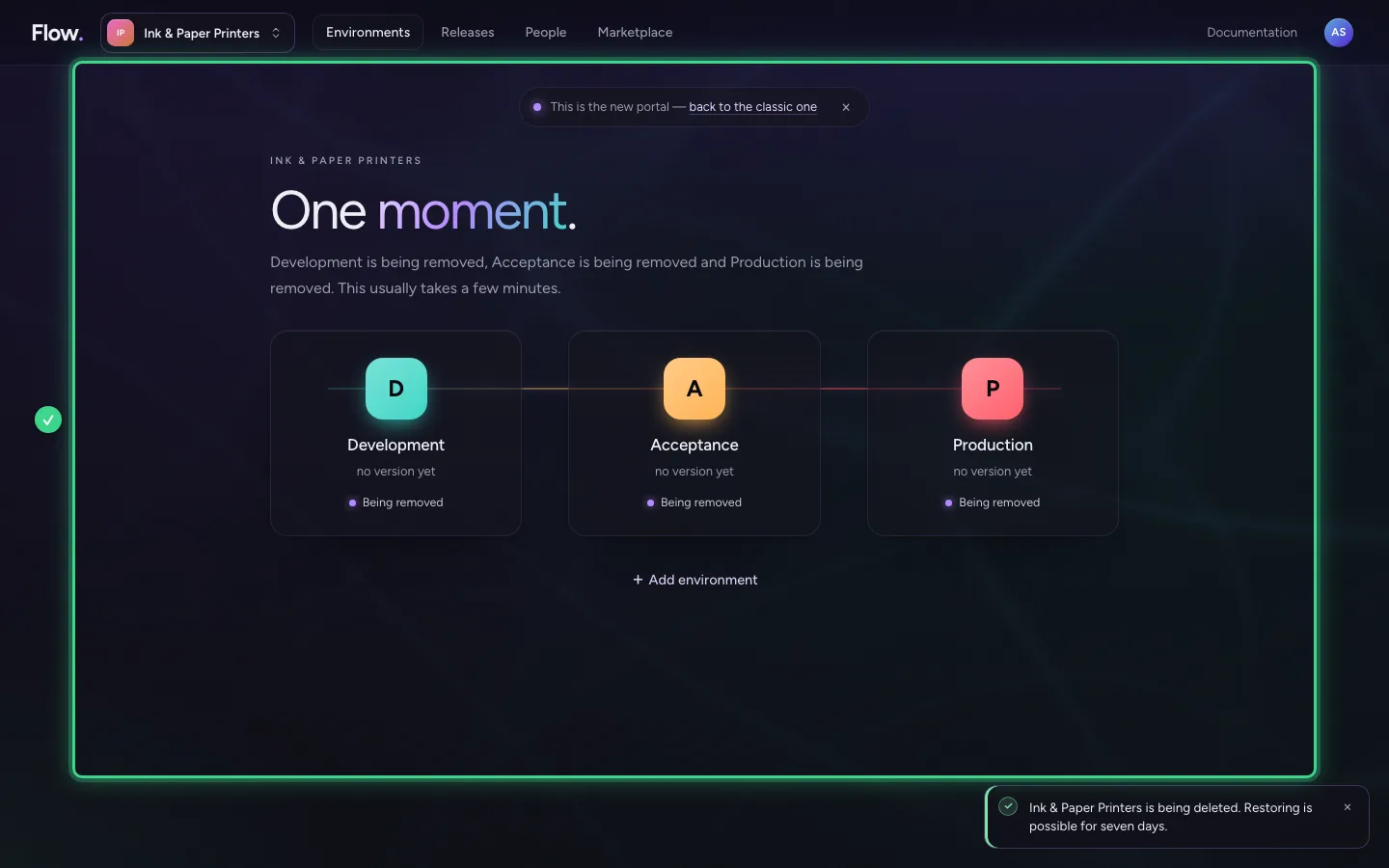
At the bottom of Settings is the danger zone. If an environment is protected against deletion (Production is from the start), the page says so, with the way to that protection. Without protection you click Delete the organisation. You read exactly what happens, and confirm by typing the organisation's address. For seven days you can still restore every environment.
- Click Your organisation's name
- Click Settings
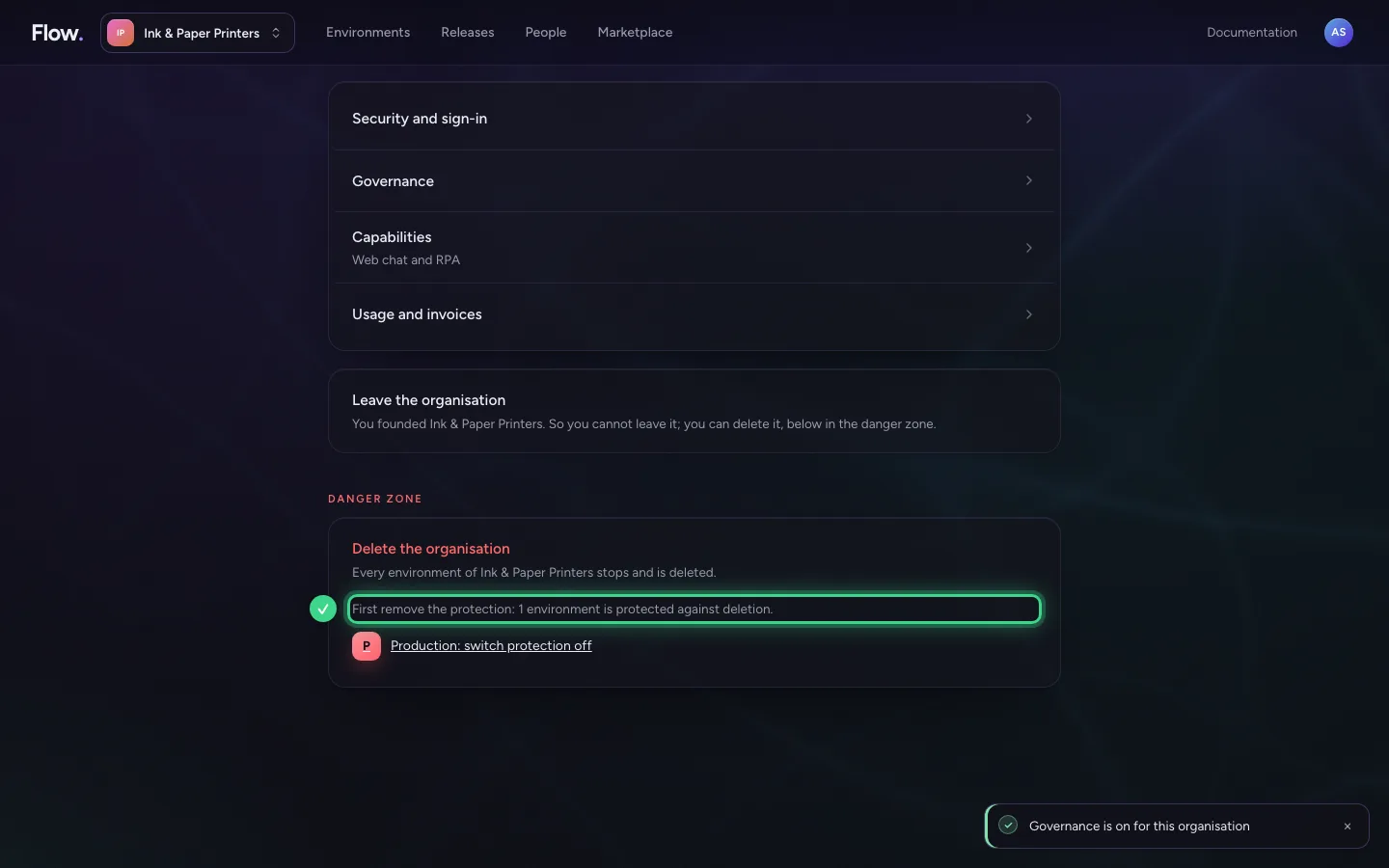
- Click Delete the organisation
- In Type ink-printers to confirm, type
ink-printers
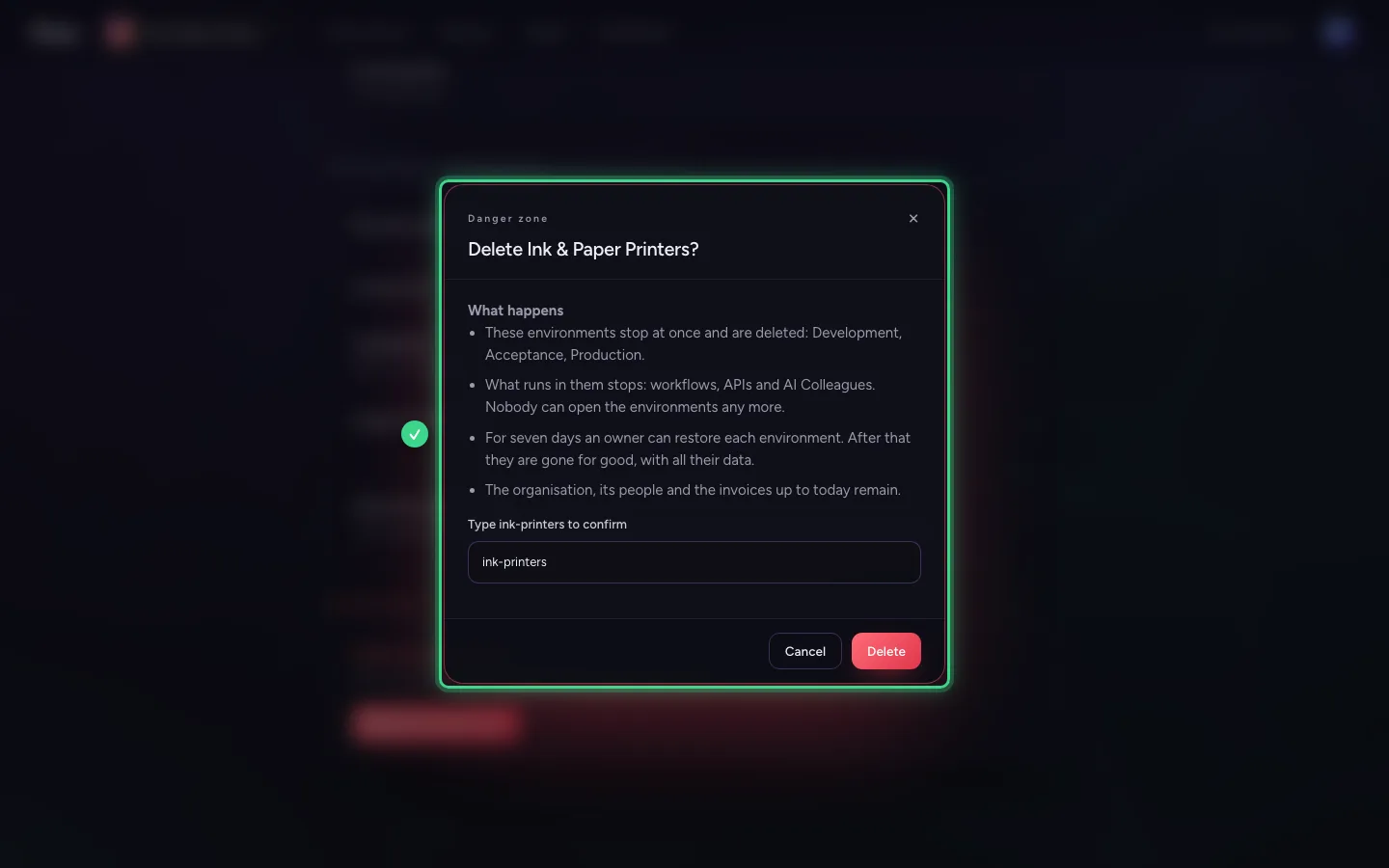
- Click Delete
This guide was carried out step by step on 28 Oct 2026 by an automated test on Flow (version 96971699).