Your profile: password and recovery codes
Under your avatar at the top right you manage your own account. You change your password, sign out, and sign in again with the new password and a recovery code, as you would when your phone with the authenticator app is not at hand. Then you see how many recovery codes you have left and make new ones.
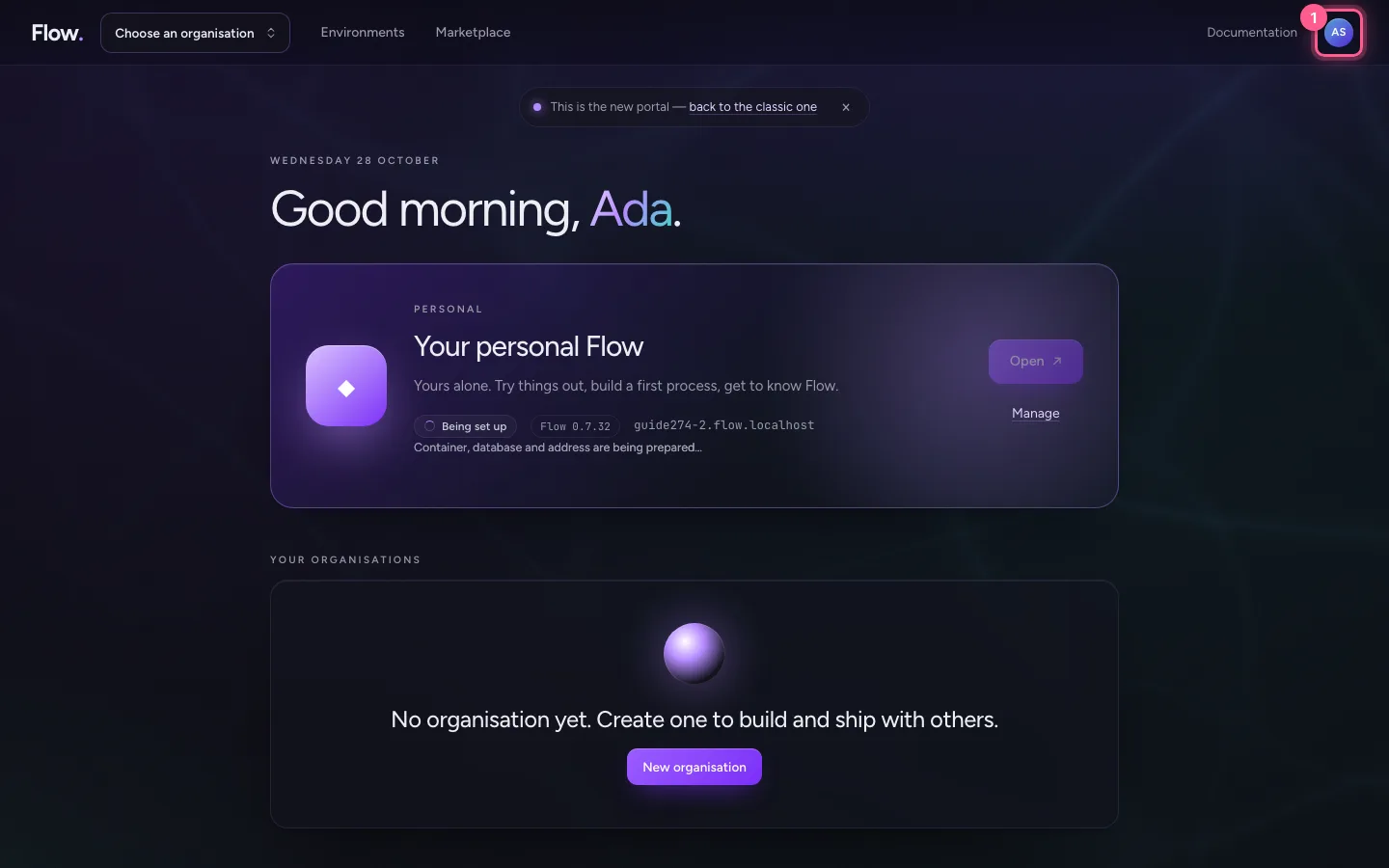
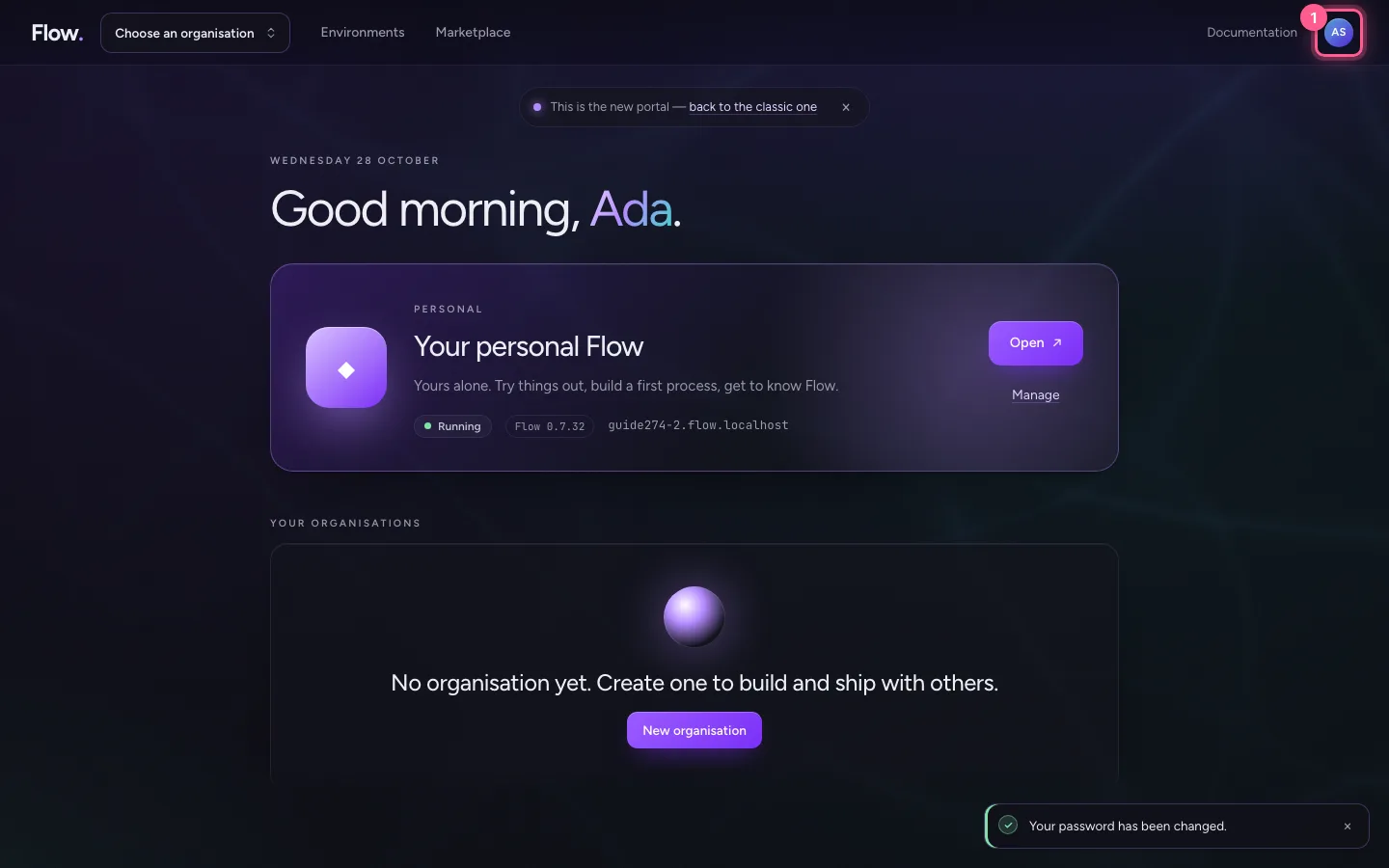
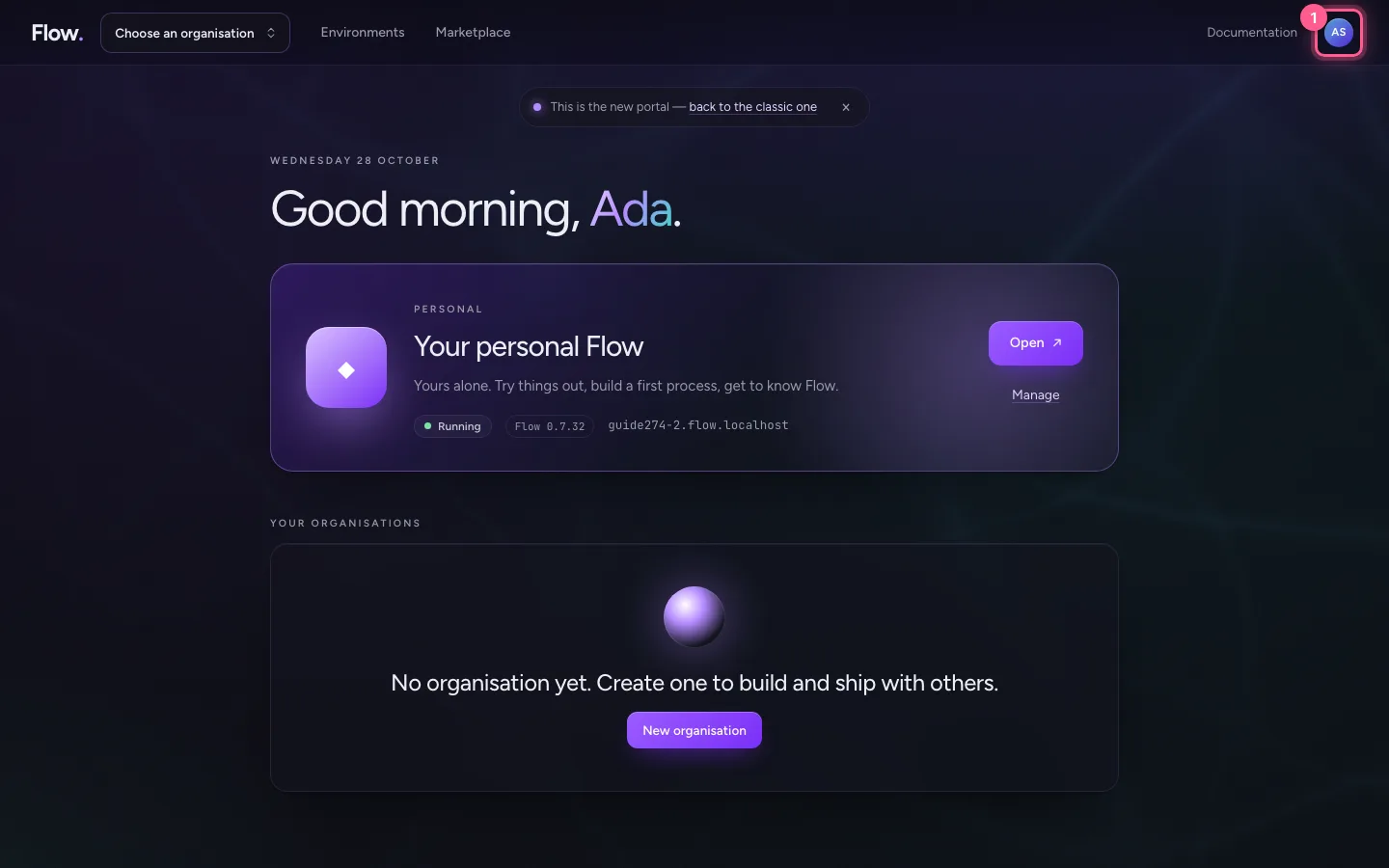
Open the menu under your avatar
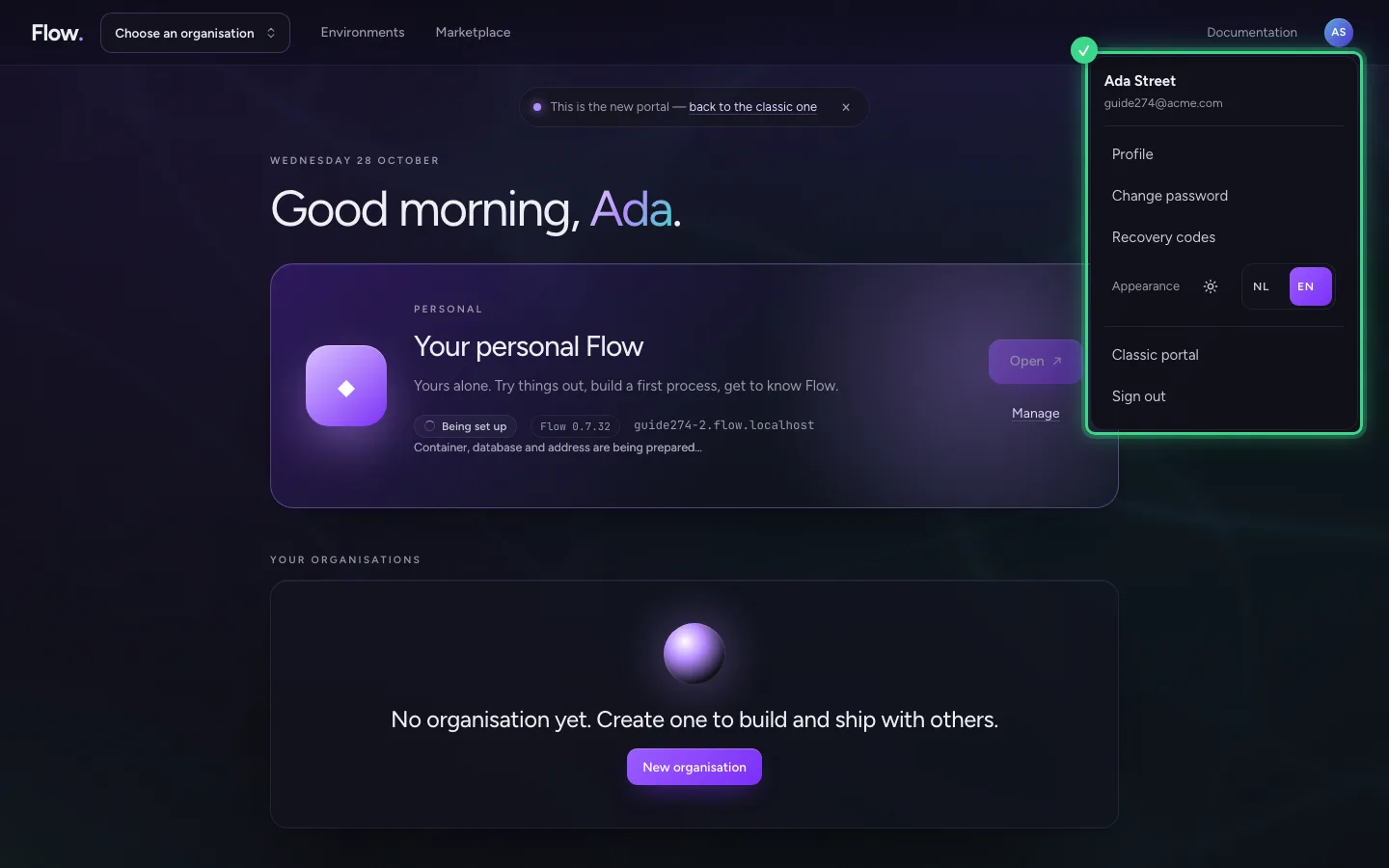
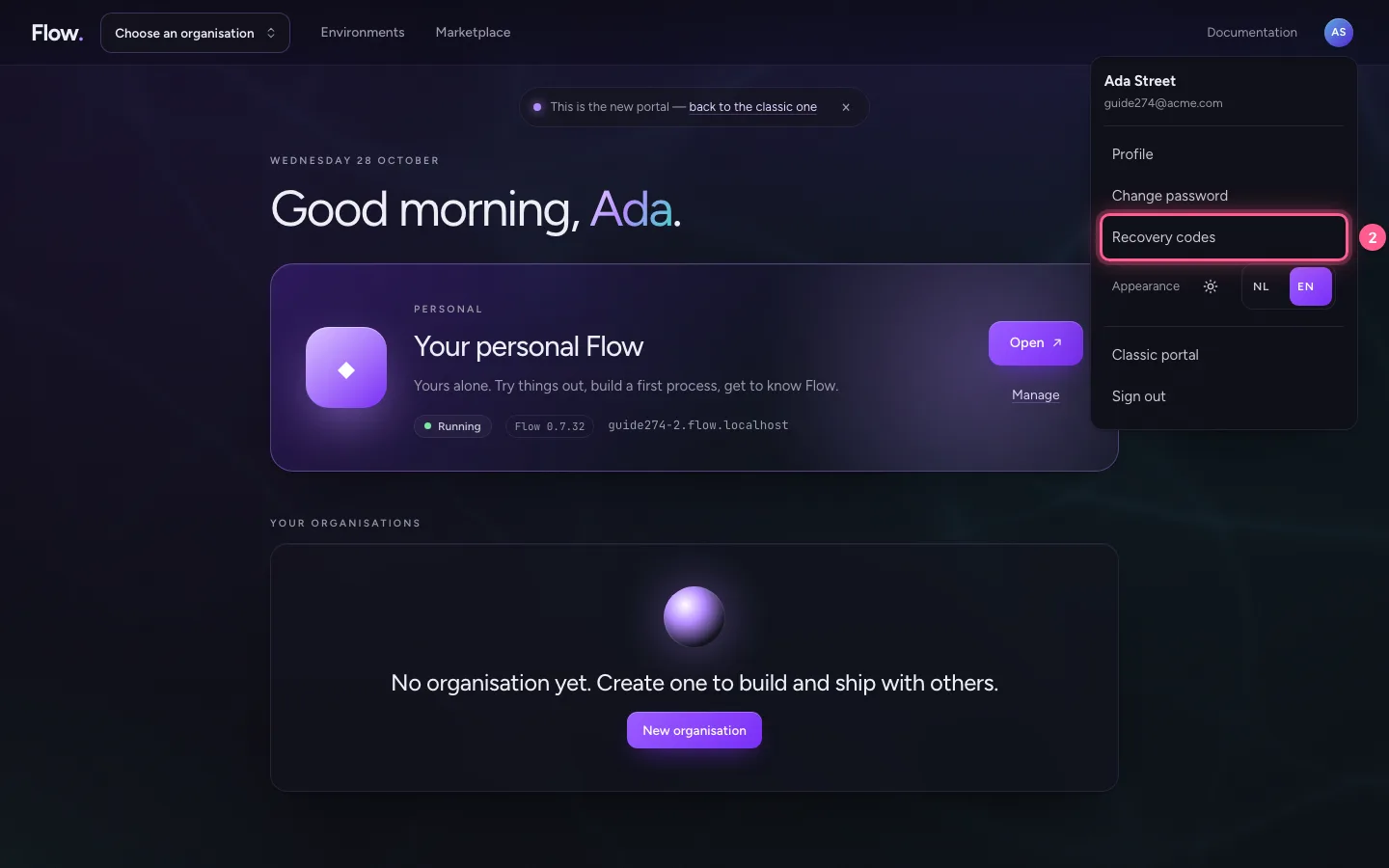
At the top right is a circle with your initials. Click it: you see the name and email address you are signed in with, and what you can do with your own account: your profile, your password, your recovery codes, light or dark and the language, the classic portal and signing out.
- Click your avatar
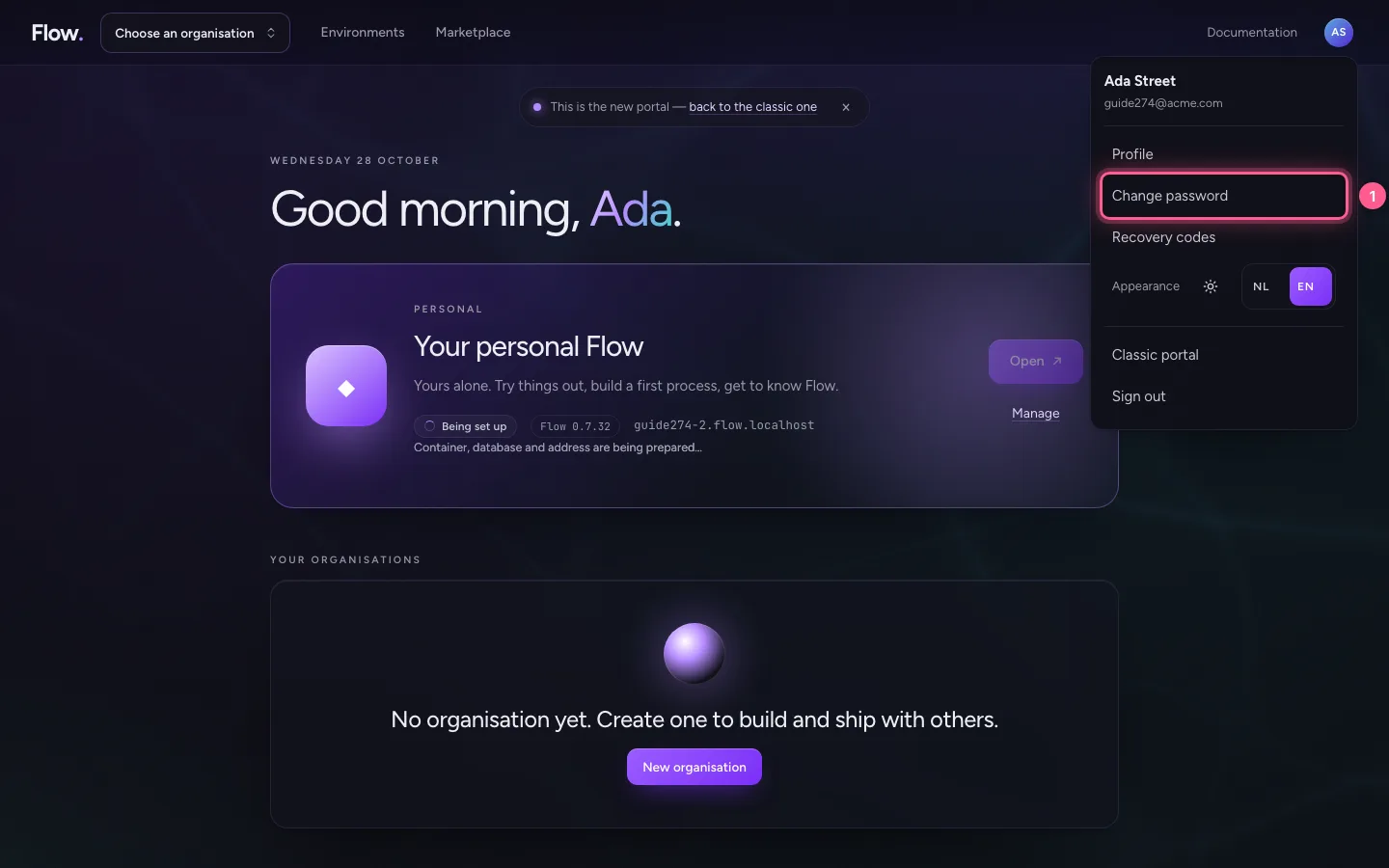
Change your password
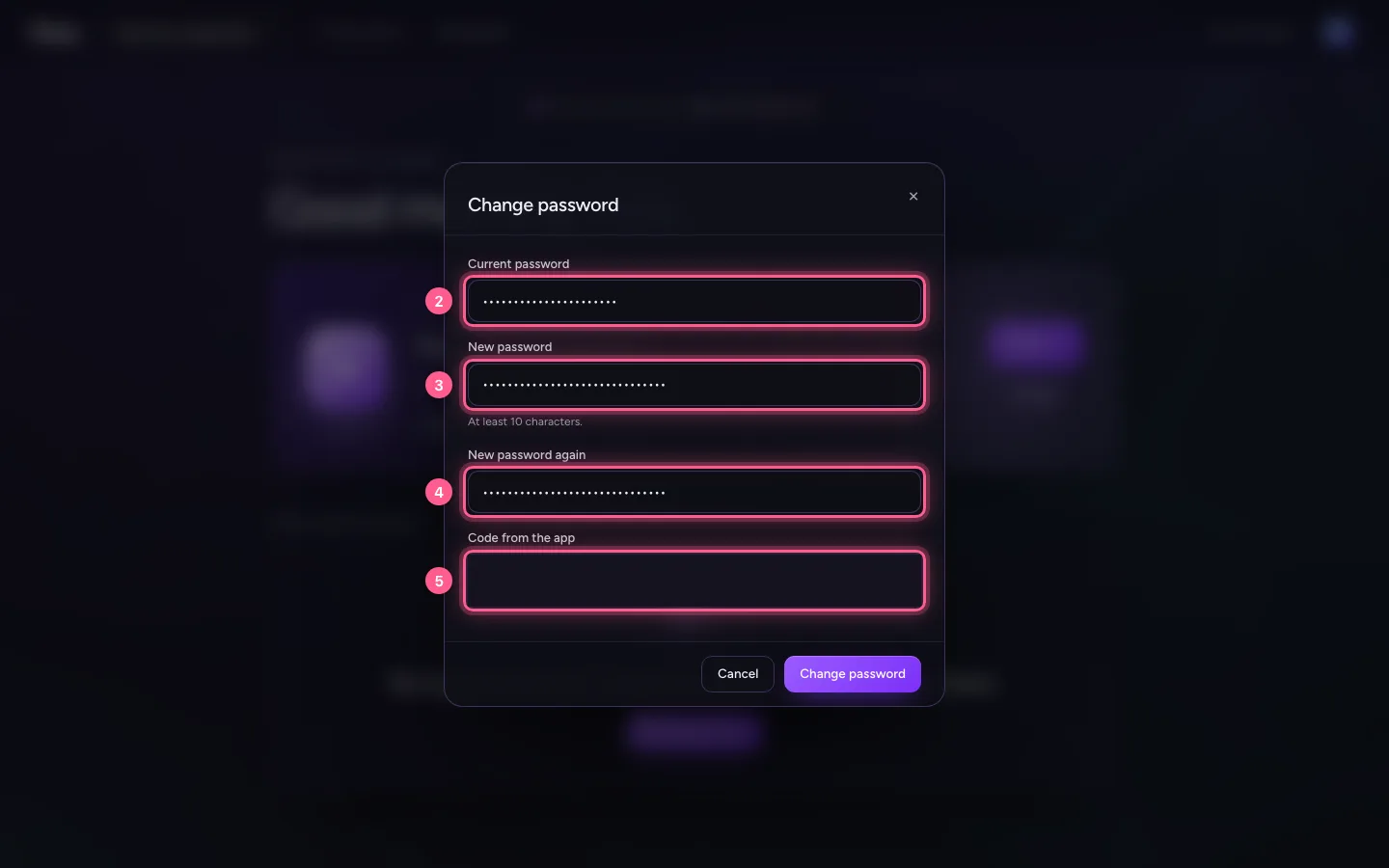
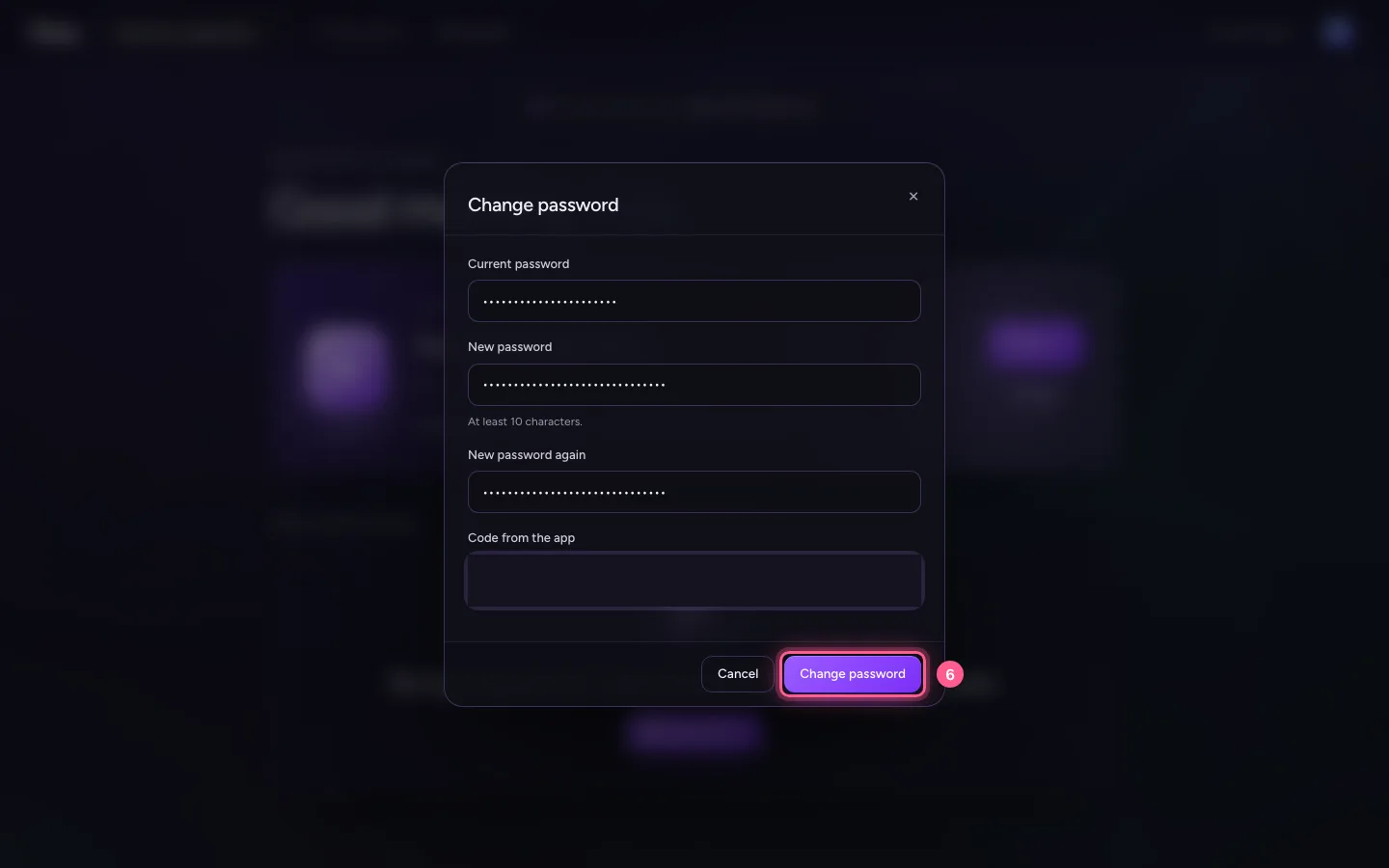
Fill in your current password, the new one twice (at least ten characters) and the code your authenticator app shows now. That code is there for a reason: whoever only has your open session cannot change your password.
- Click Change password
- In Current password, type
•••••••• - In New password, type
•••••••• - In New password again, type
•••••••• - In Code from the app, type
the six digits from your app
- Click Change password
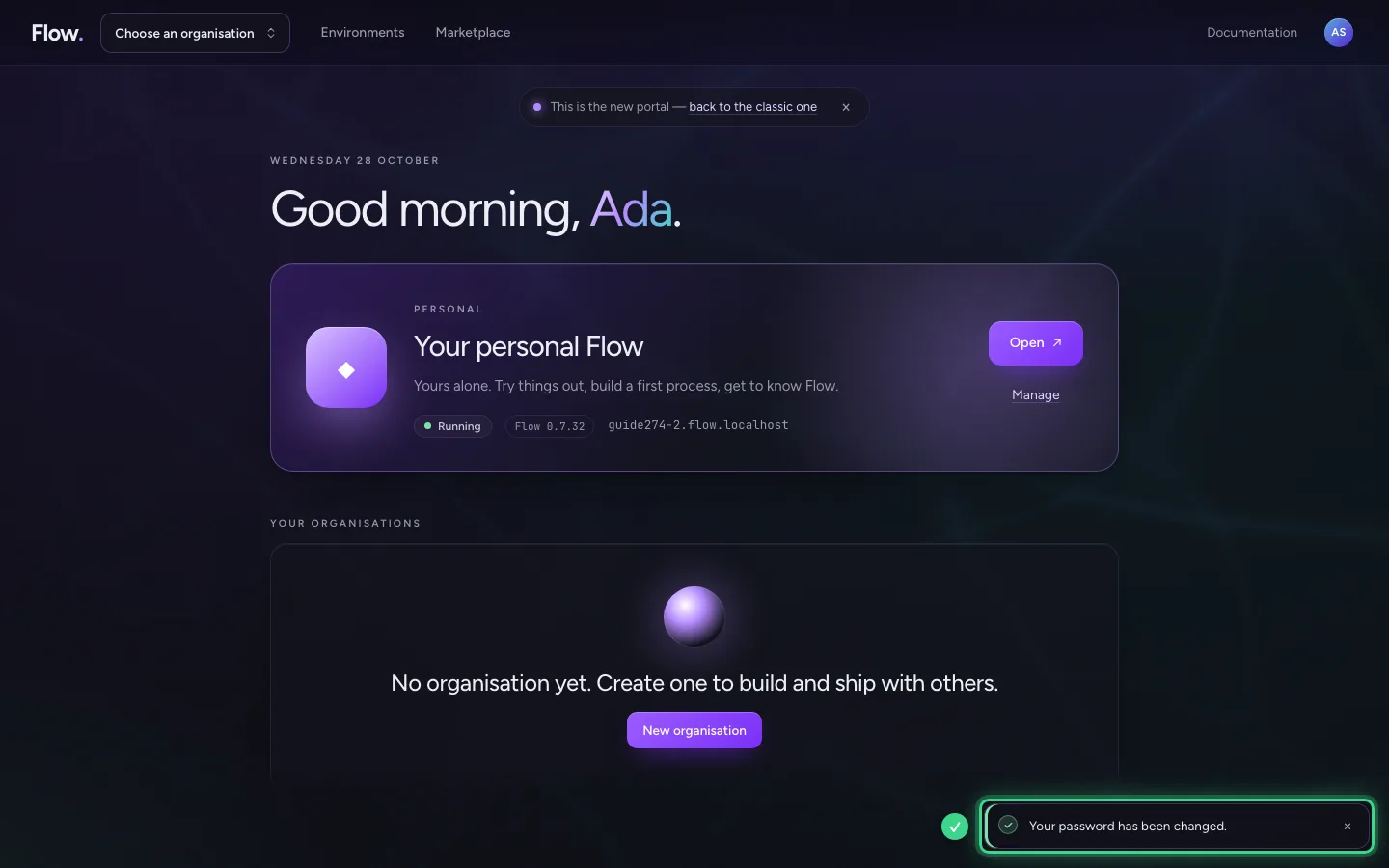
Sign out
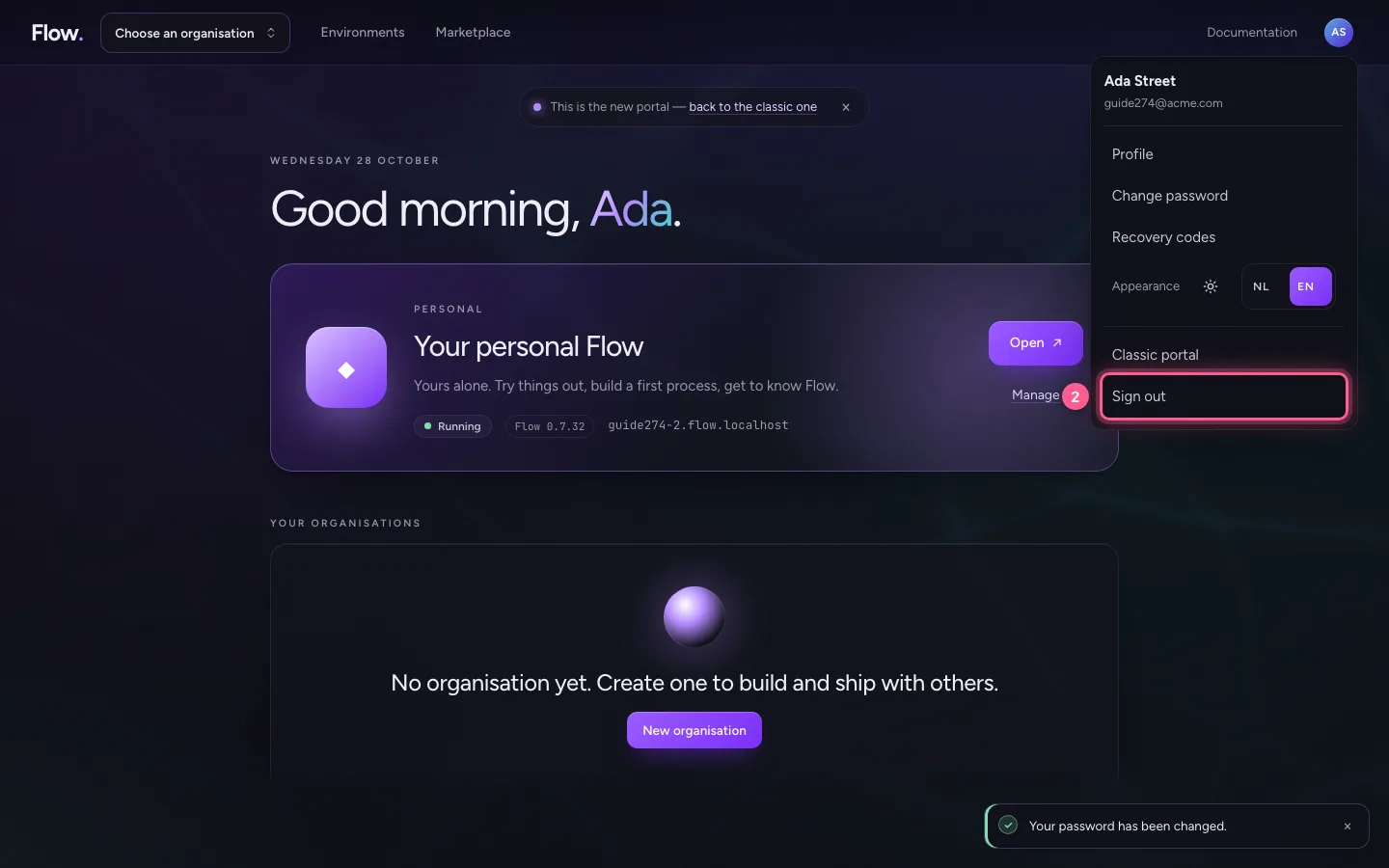
Sign out is in the same menu. Your session in the portal ends; next time you sign in with your new password.
- Click your avatar
- Click Sign out

The old password no longer works
Anyone who still knows your old password can no longer get in with it.
- In Email address, type
guide274@acme.com - In Password, type
••••••••
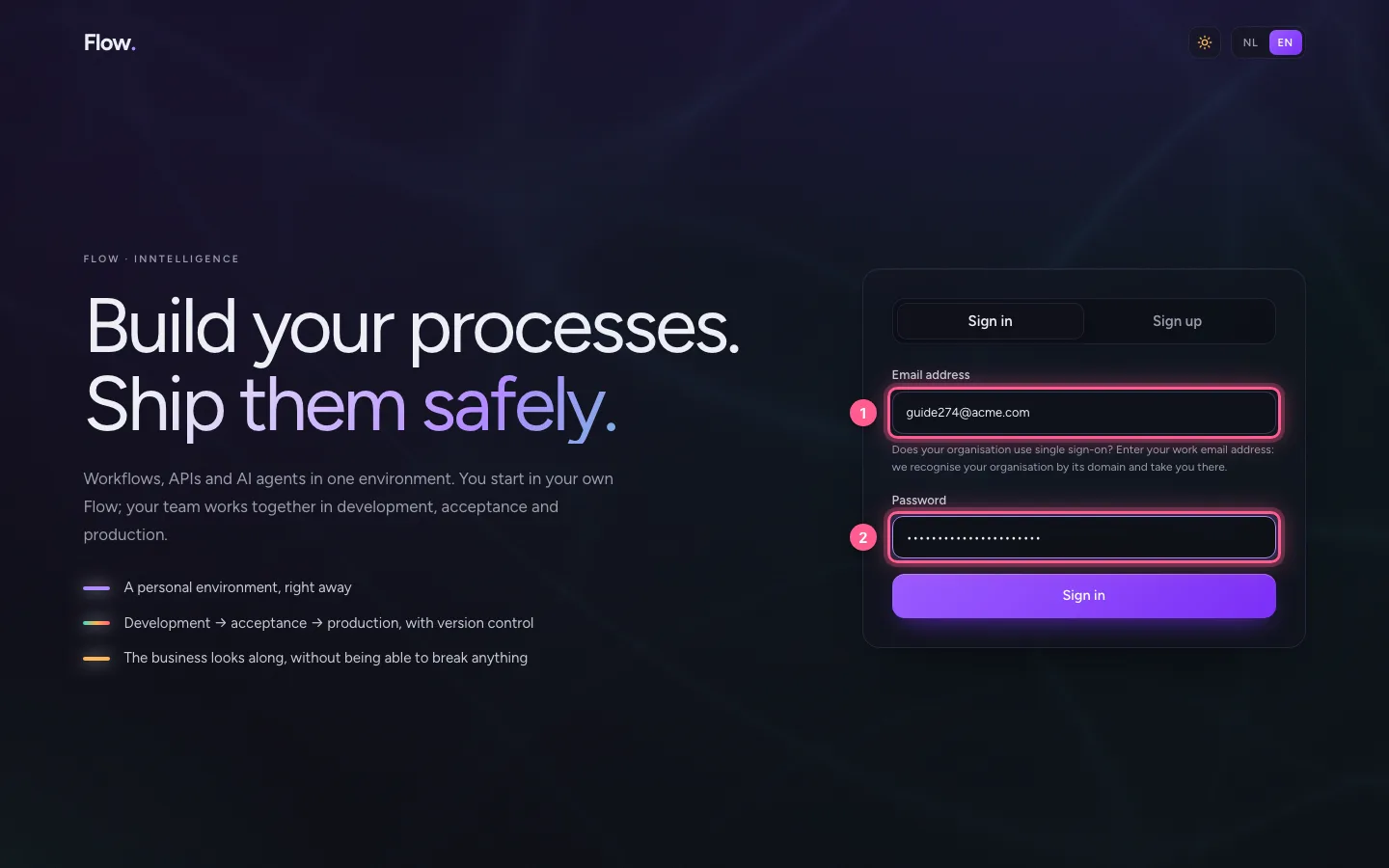
- Click Sign in

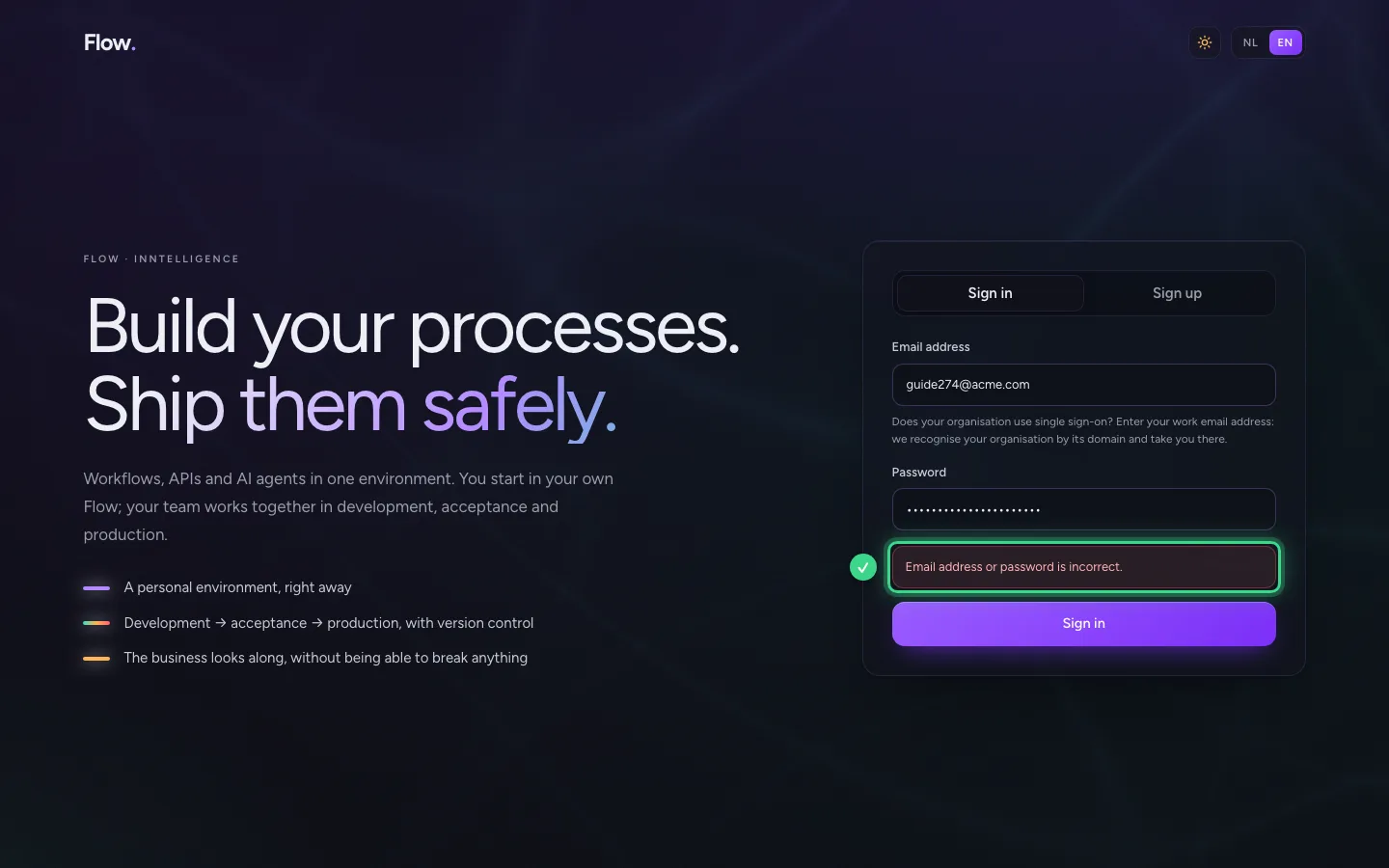
Sign in with a recovery code
With your new password the portal asks for the code from your app. Phone not at hand, or lost? Then enter one of the recovery codes you kept when you created your account. Each recovery code works only once: cross it off in your password vault afterwards.
- In Password, type
••••••••

- Click Sign in

- In Code from the app, type
one of your recovery codes

- Click Confirm


See your recovery codes and make new ones
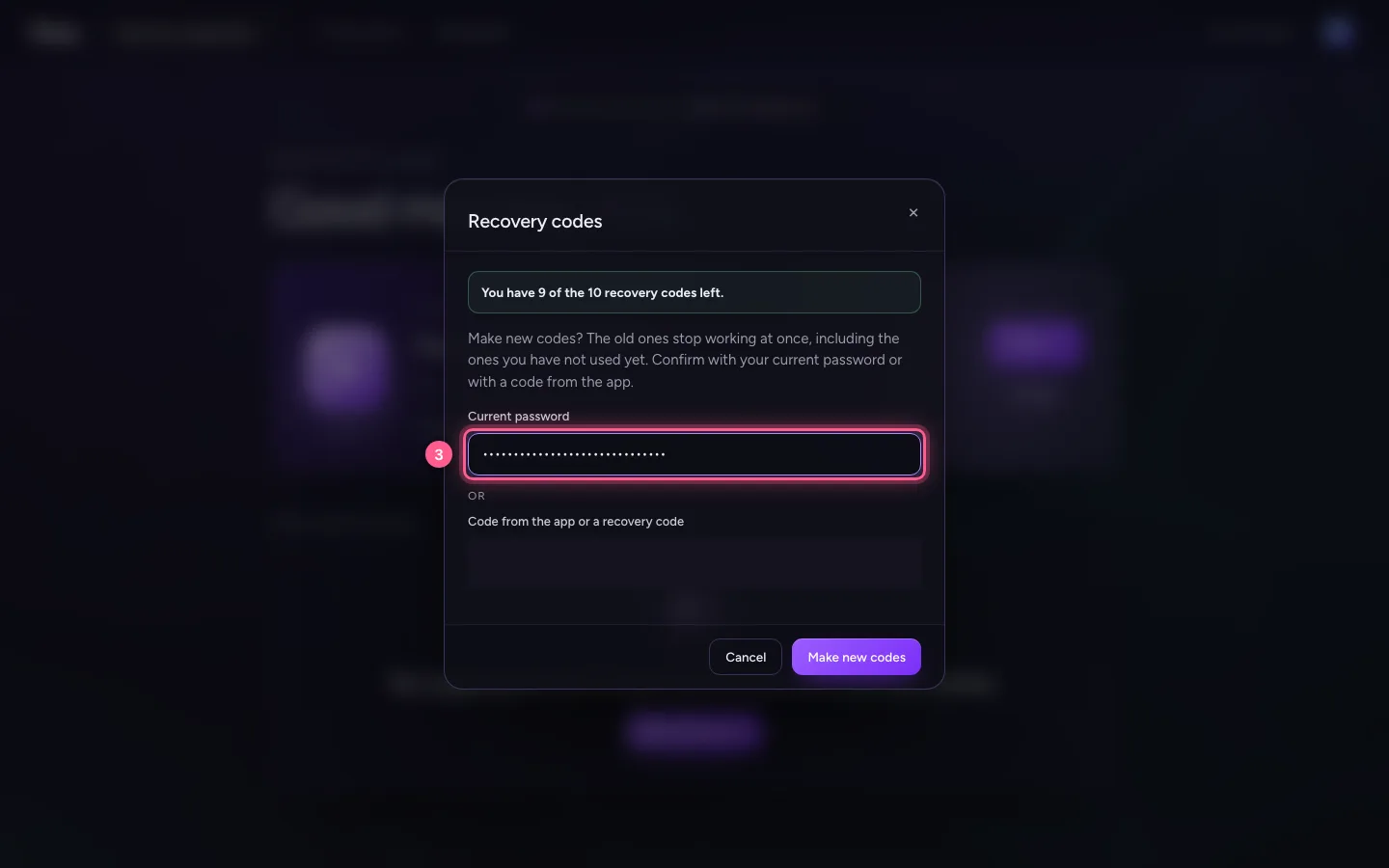
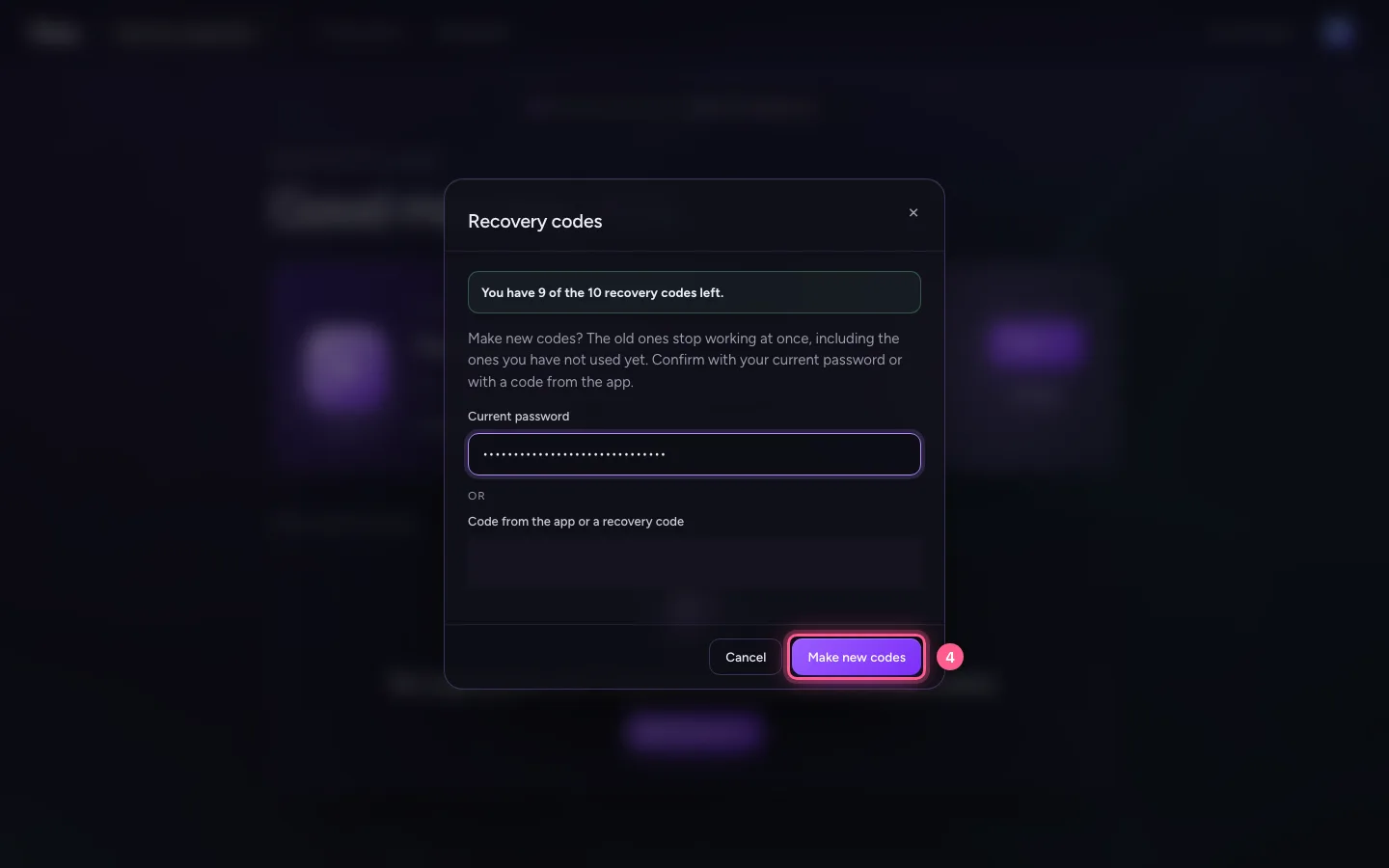
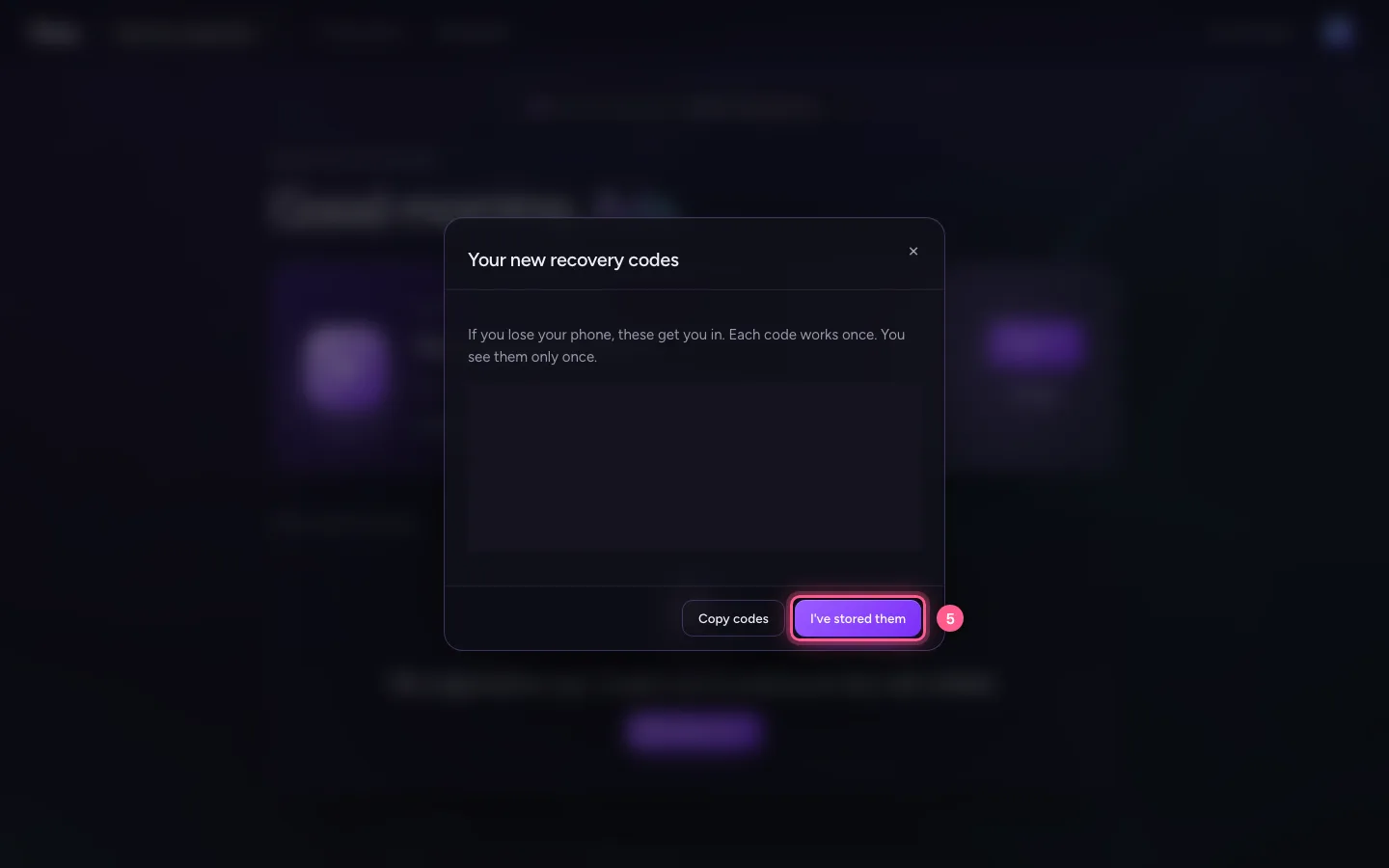
Under your avatar you also find Recovery codes. You see how many of the ten you have left: the code you just used no longer counts. Running low, or think someone has seen them? Then make new ones, with your current password or a code from the app. The old codes stop working at once; keep the new ones in your password vault.
- Click your avatar
- Click Recovery codes
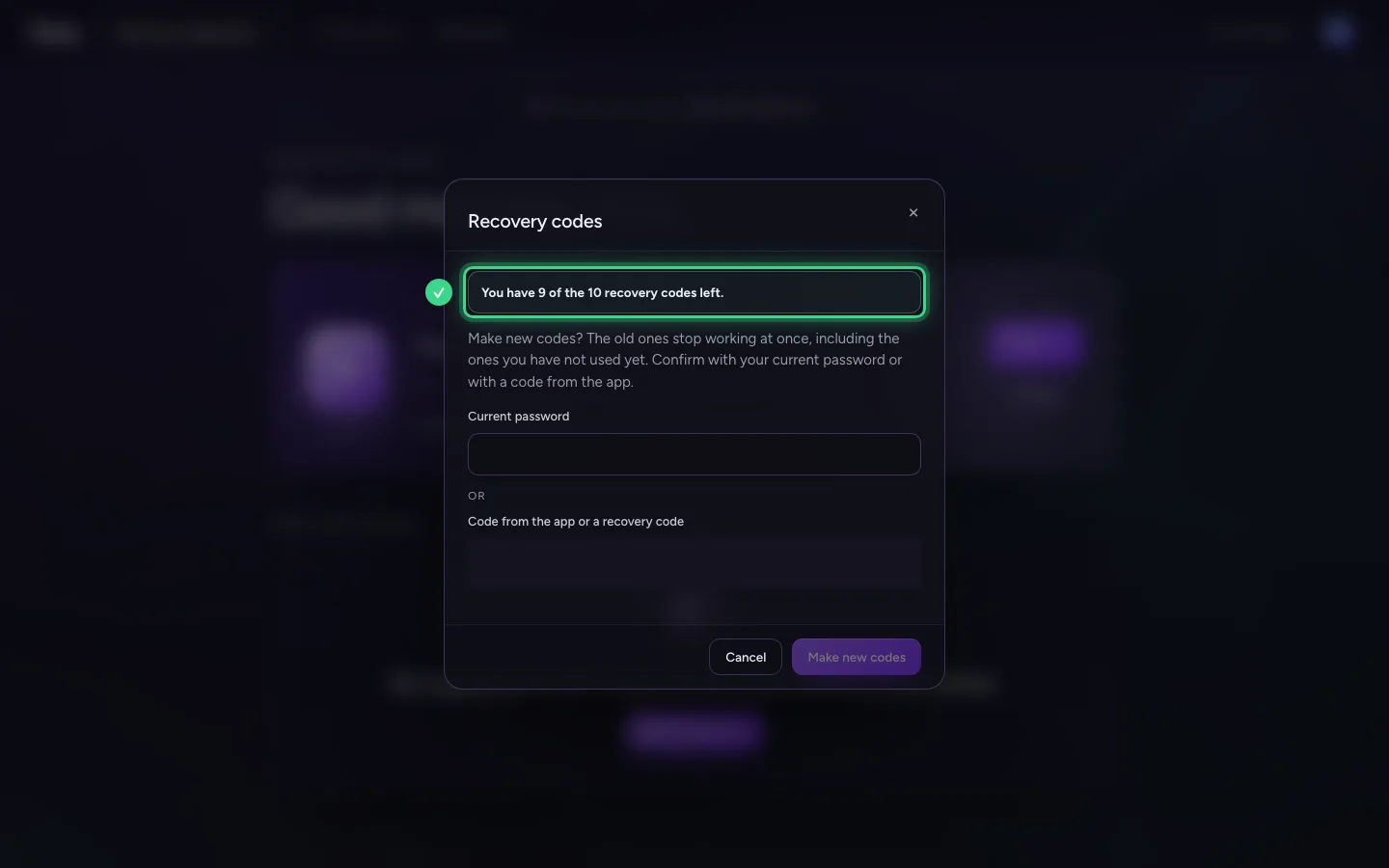
- In Current password, type
••••••••
- Click Make new codes
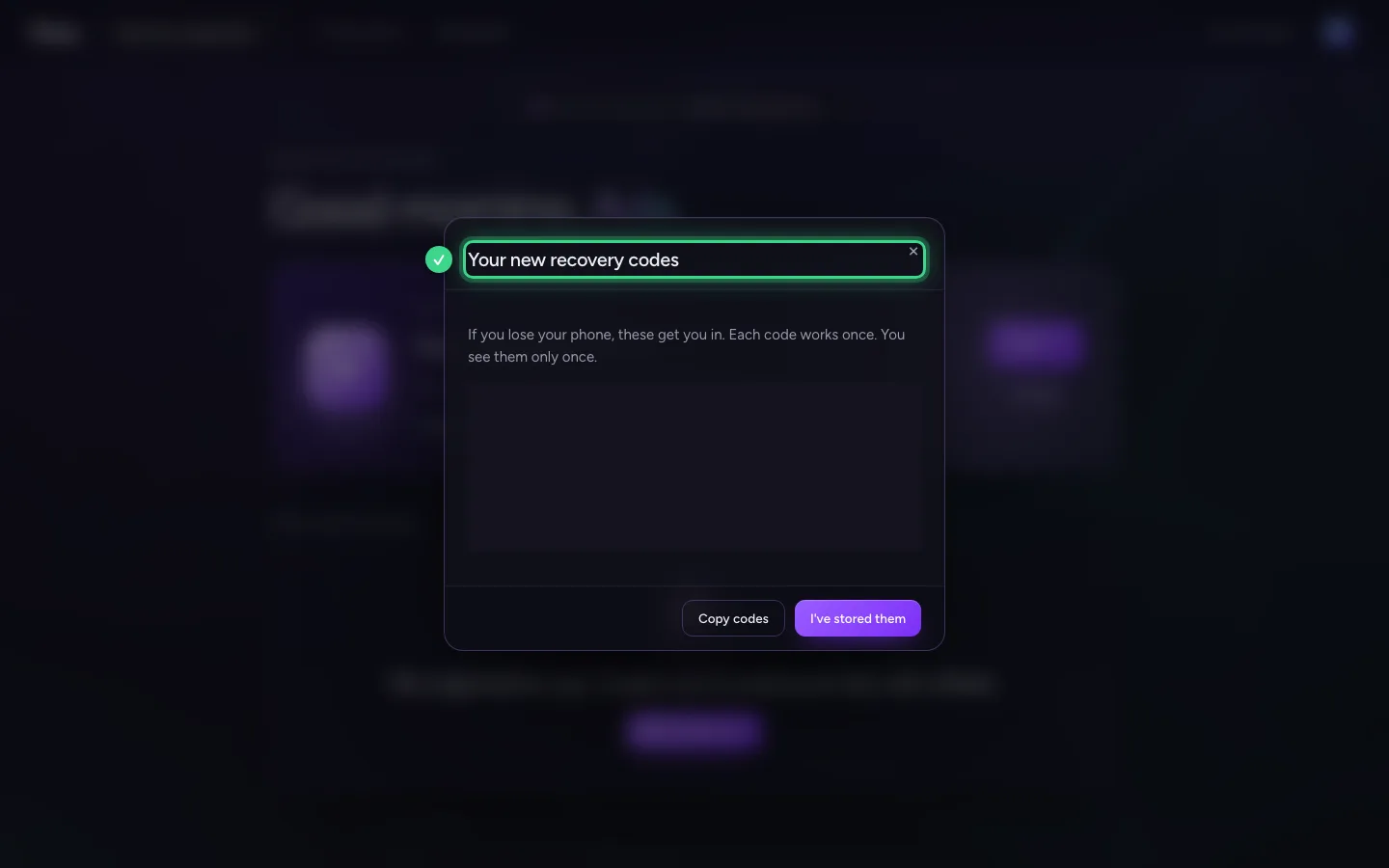
- Click I've stored them
This guide was carried out step by step on 28 Oct 2026 by an automated test on Flow (version 96971699).