Table from an Excel file
Flow reads Excel files (.xlsx) too. If the file has several sheets, you pick the one with the data. Flow recognises dates, amounts, counts, yes/no cells and times from what Excel stores in them, whatever the language of the spreadsheet. You read in September's services, exported from the till.
Open your development environment
In the portal, under Environments, click Development, and there Open. Flow opens in a new tab and you are signed in straight away.
- Click Development

- Click Open ↗

Choose the Excel file
Click + next to General, choose Table from a file and click the box to choose your .xlsx file (dragging works too). Flow opens the first sheet and shows what is on it.
- Click Add to General

- Click Table from a file (CSV/Excel)

- Click the box for your file


Choose the sheet with the data
The sheet Notes only holds an explanation. Under Sheet, click Servicing: Flow reads that sheet and counts the rows and columns. If the column names are not in the first row, untick First row holds the column names.
- Click Servicing


- Click Next

Check the kinds
Flow proposes a kind for every column based on its cells: dates become Date, a time Date and time, whole counts Whole number, amounts with cents Number and TRUE/FALSE Yes / no. If something is off, choose another kind yourself. Give the table a name.
- In Table name, type
Servicing September


- Click Next

Classification and import
Choose how sensitive the data is (customer names and amounts: Internal) and go to Import. Every row is checked; a row that does not fit is skipped and reported, with its line number from your file.
- Click Next

- Click Import


Look at the table
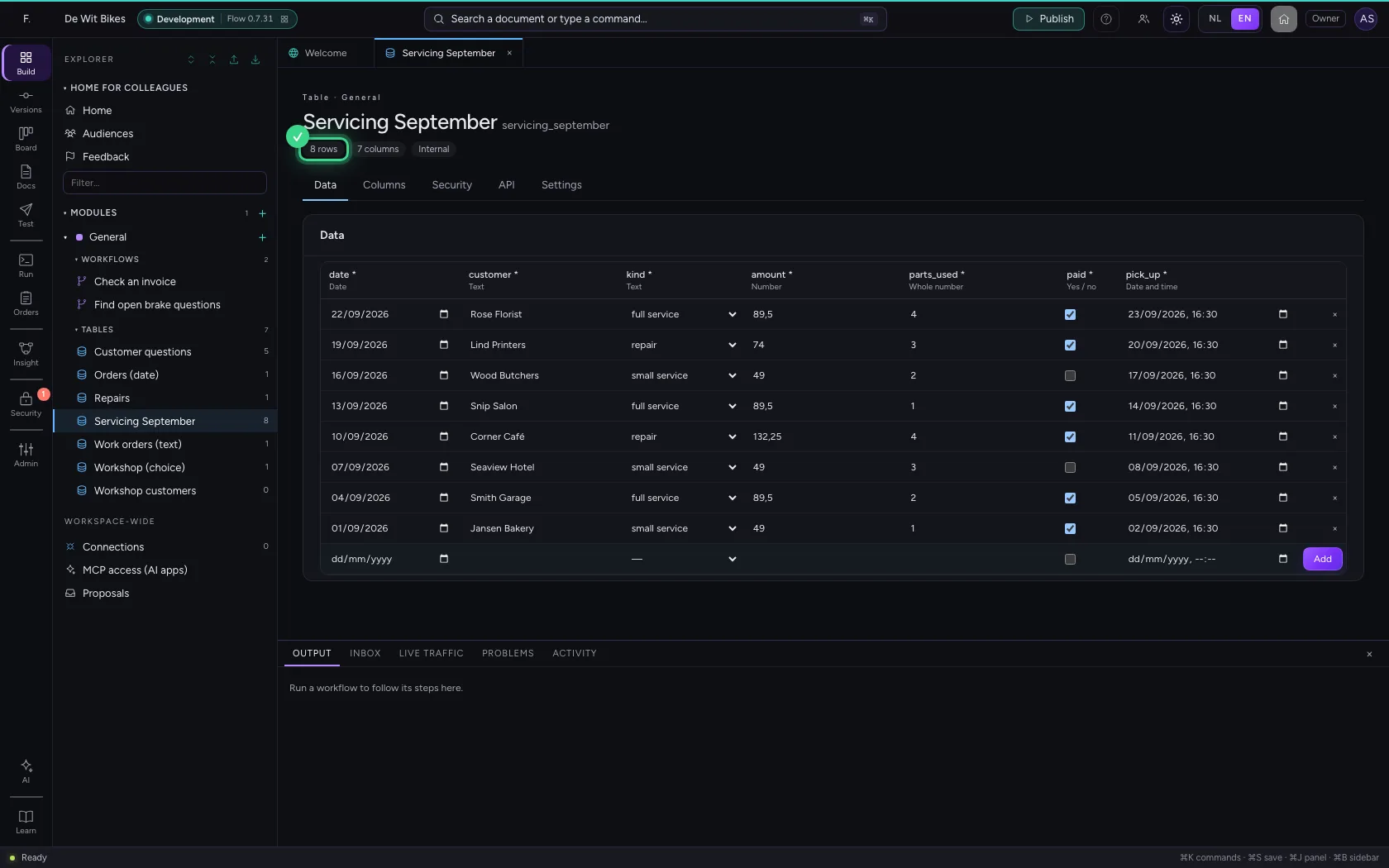
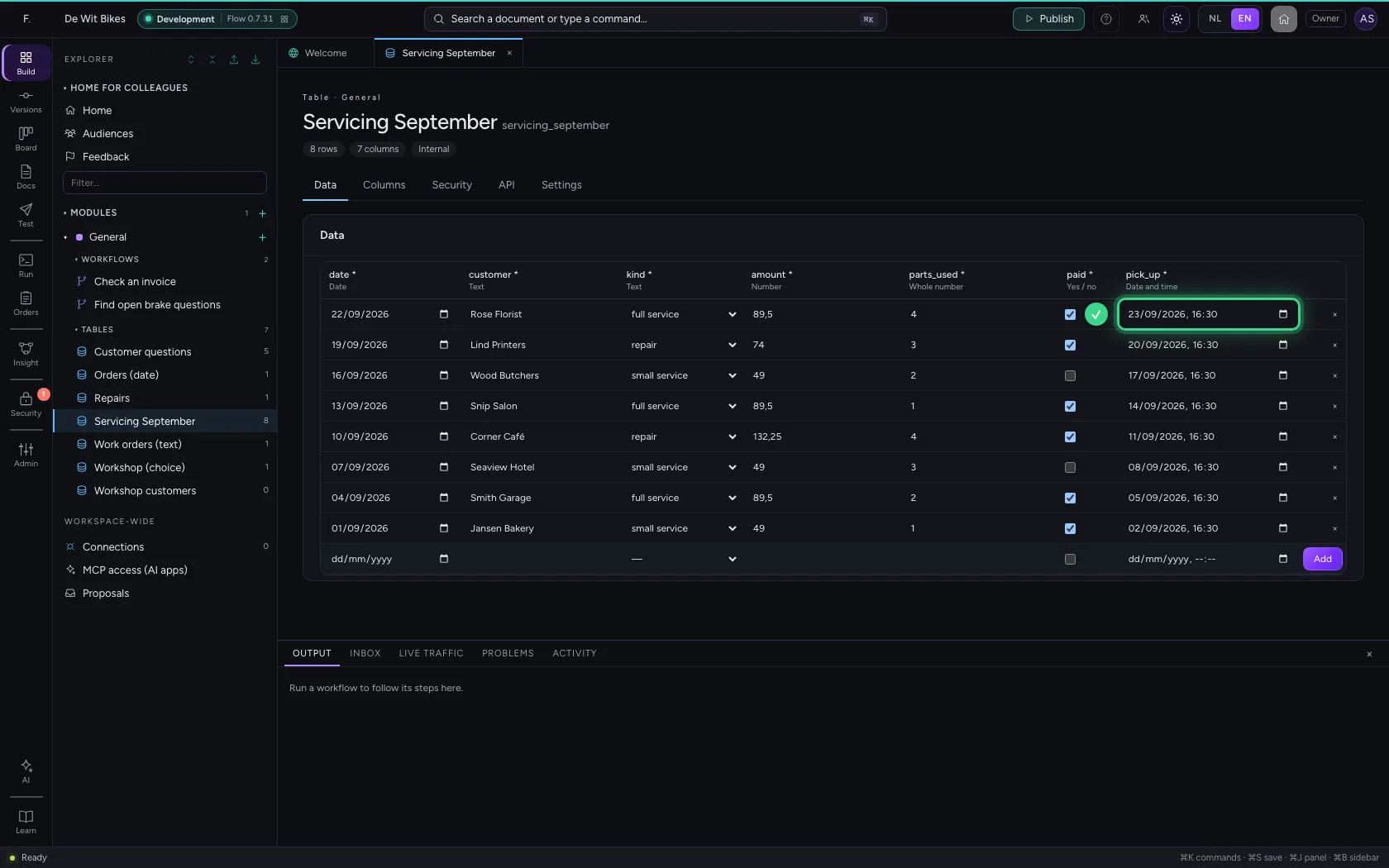
Open the table: every column has the right input, such as a date picker and a tick box.
- Click Open table

This guide was carried out step by step on 22 Oct 2026 by an automated test on Flow (version 3e563176).