Building together in Flow
Several people work in one environment at the same time. Flow shows who is there and what they have open: top right, in the explorer, on the tabs and on the step a colleague holds. And saving never silently overwrites someone else's work: when a colleague changed it in the meantime, Flow asks what you want and merges what does not collide. It works the same for an AI app or AI Colleague that builds; you see it marked as AI.
Open your development environment
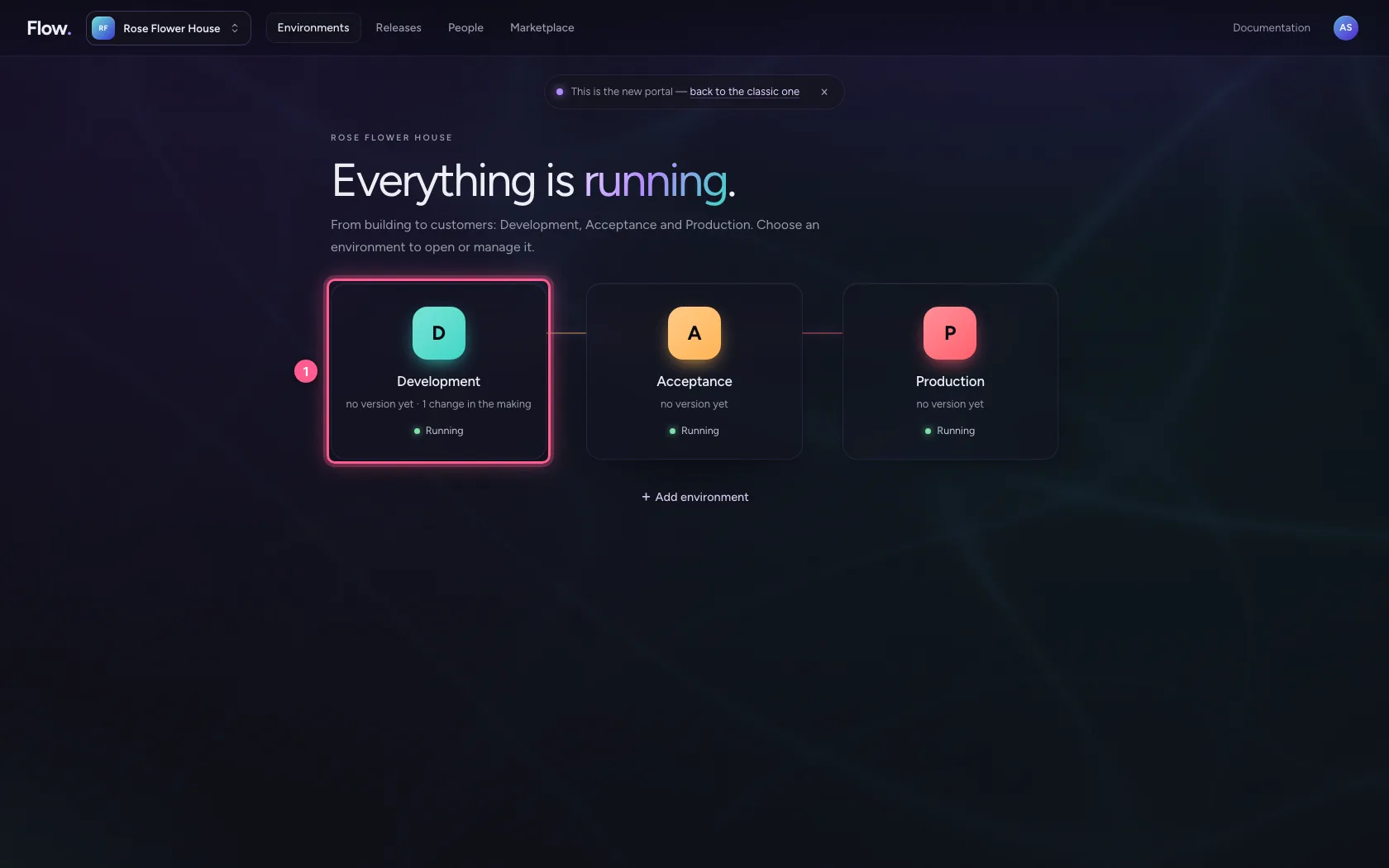
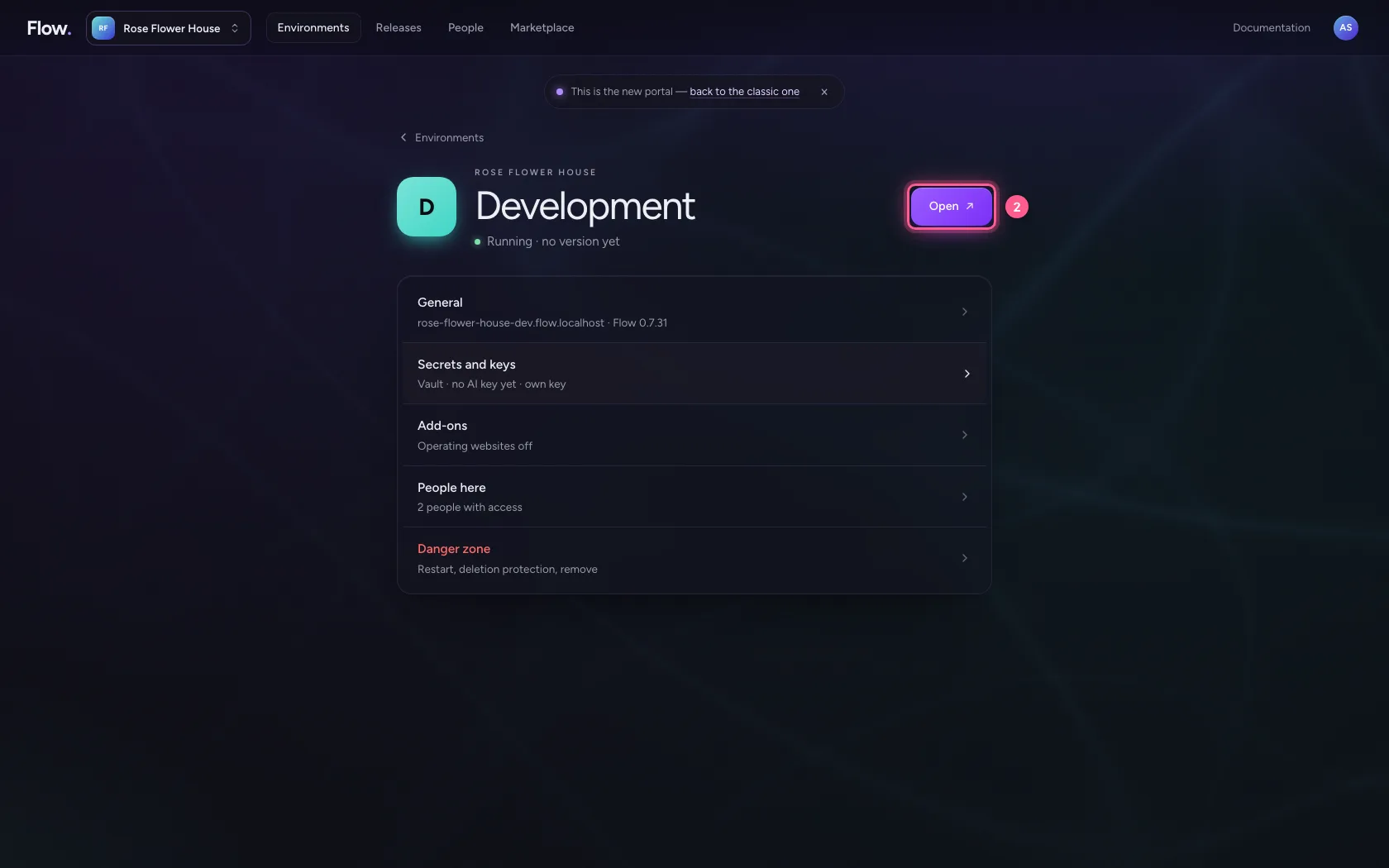
In the portal, under Environments, click Development, and there Open. Flow opens in a new tab and you are signed in straight away.
- Click Development
- Click Open ↗
See who is here
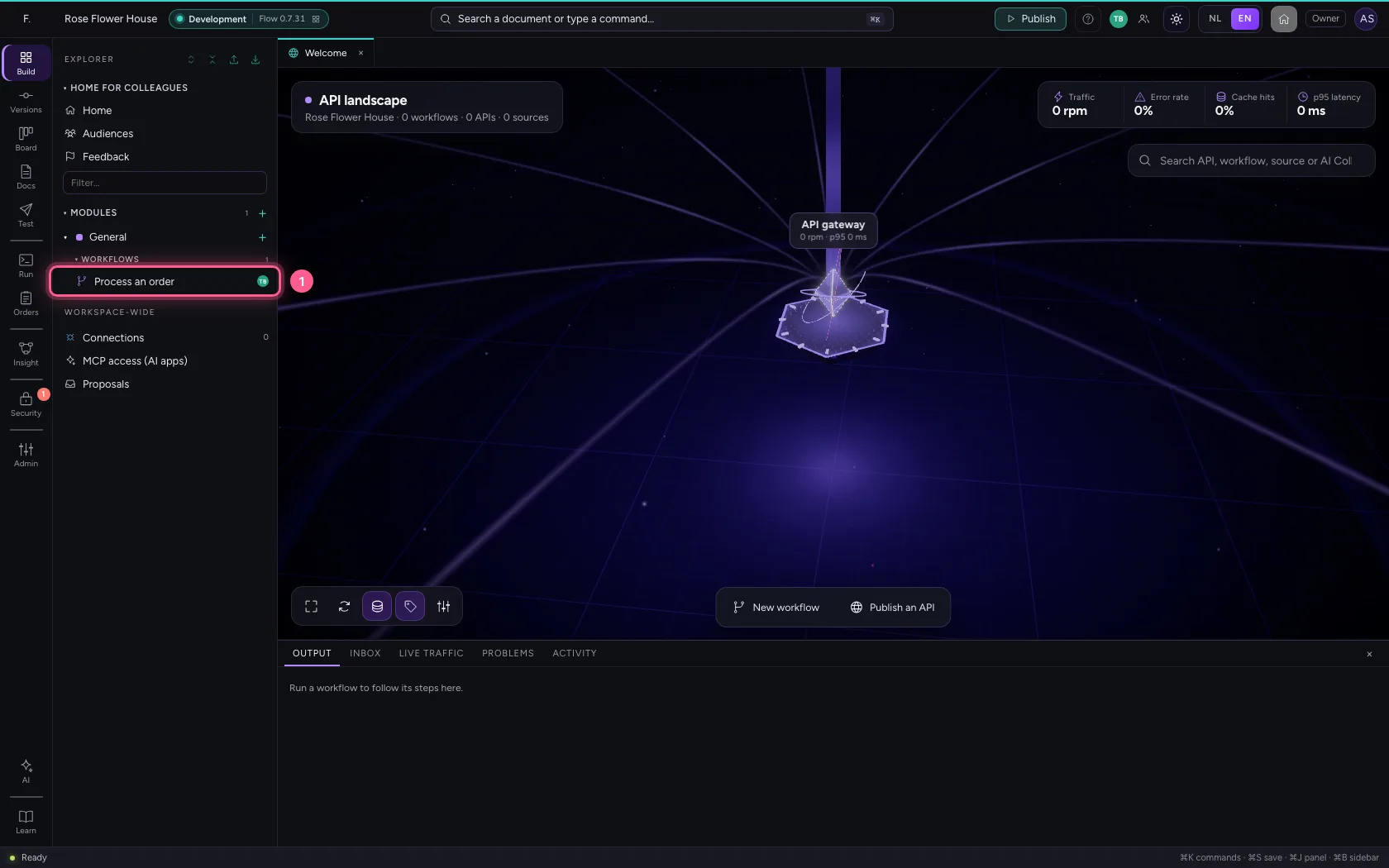
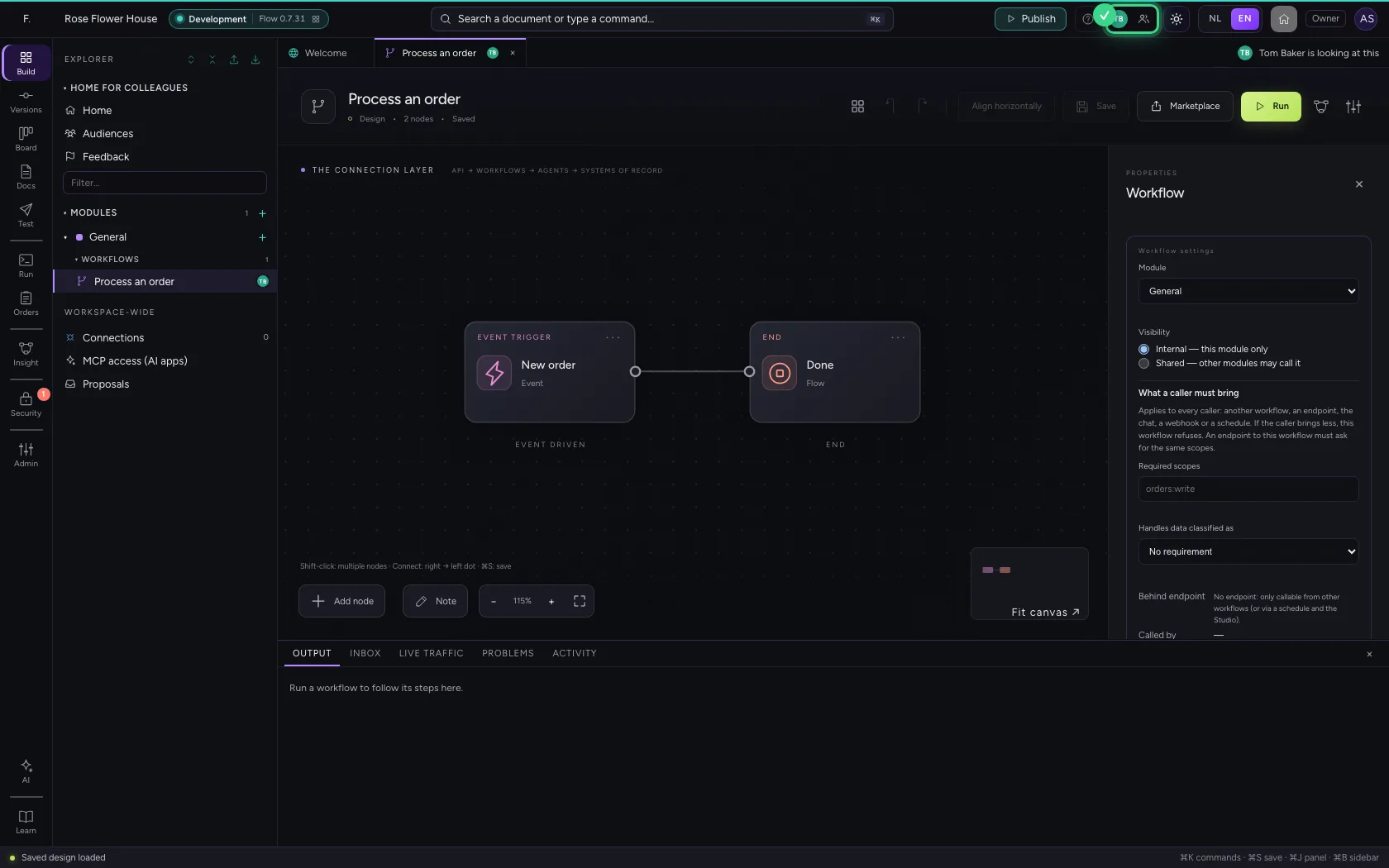
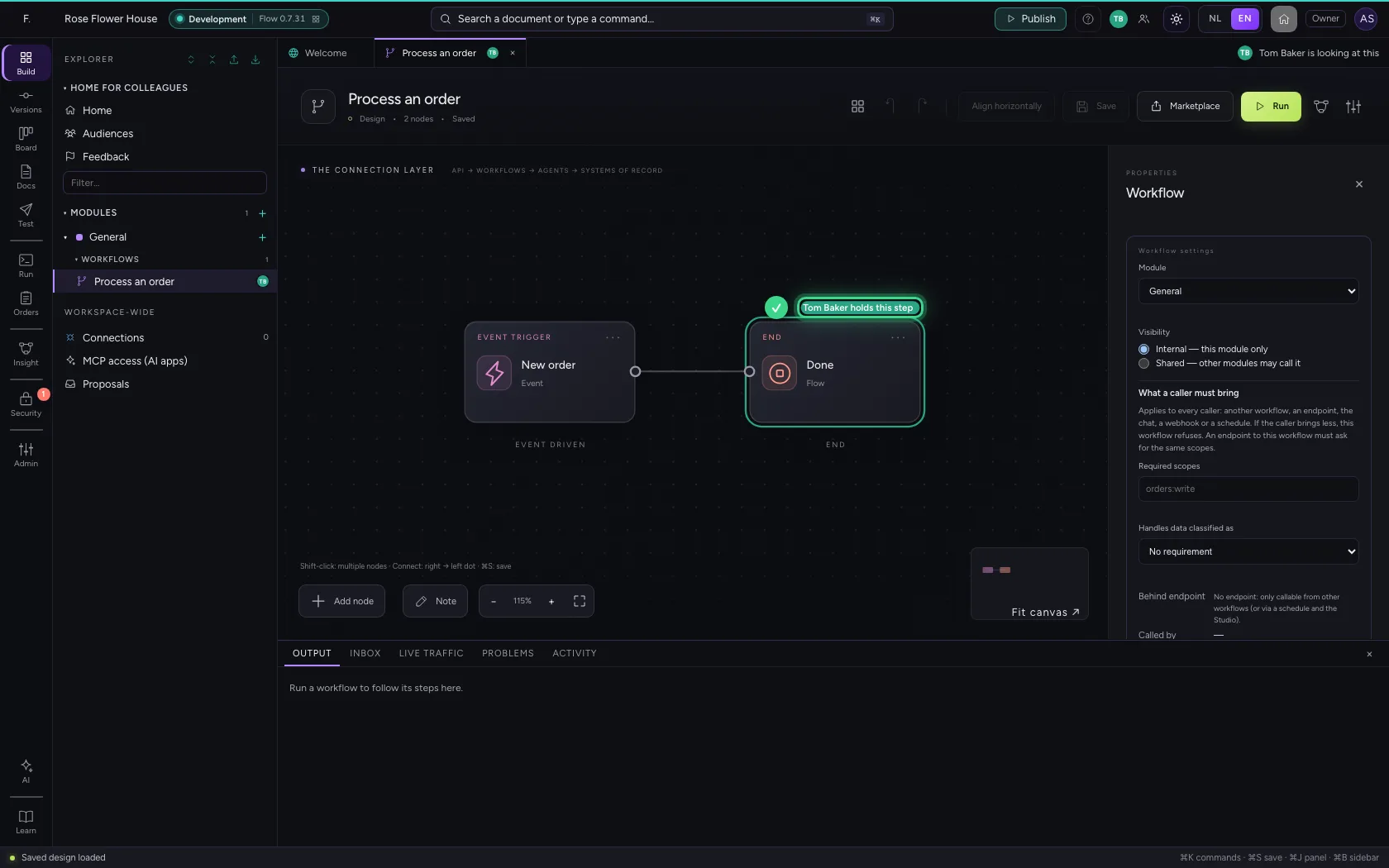
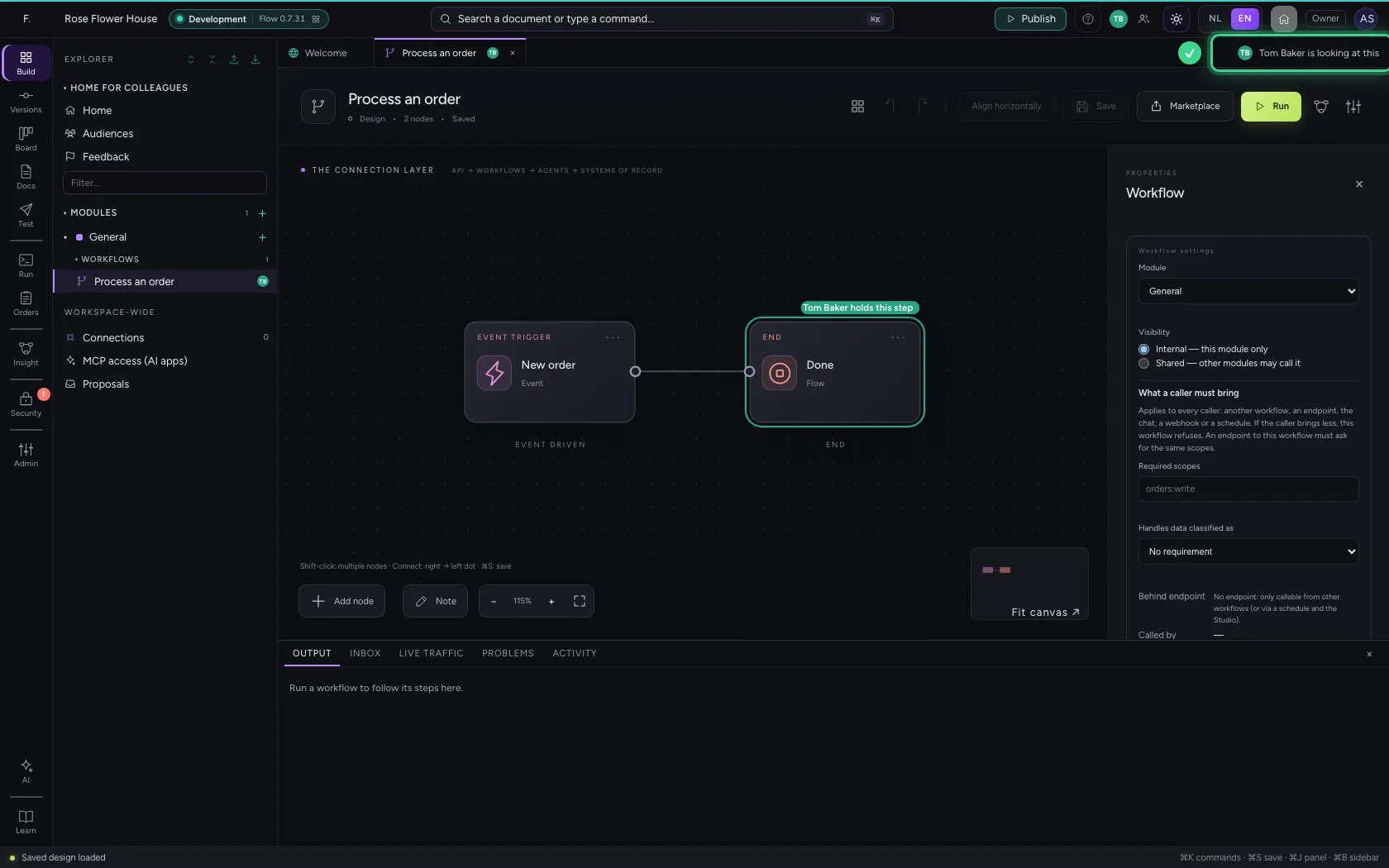
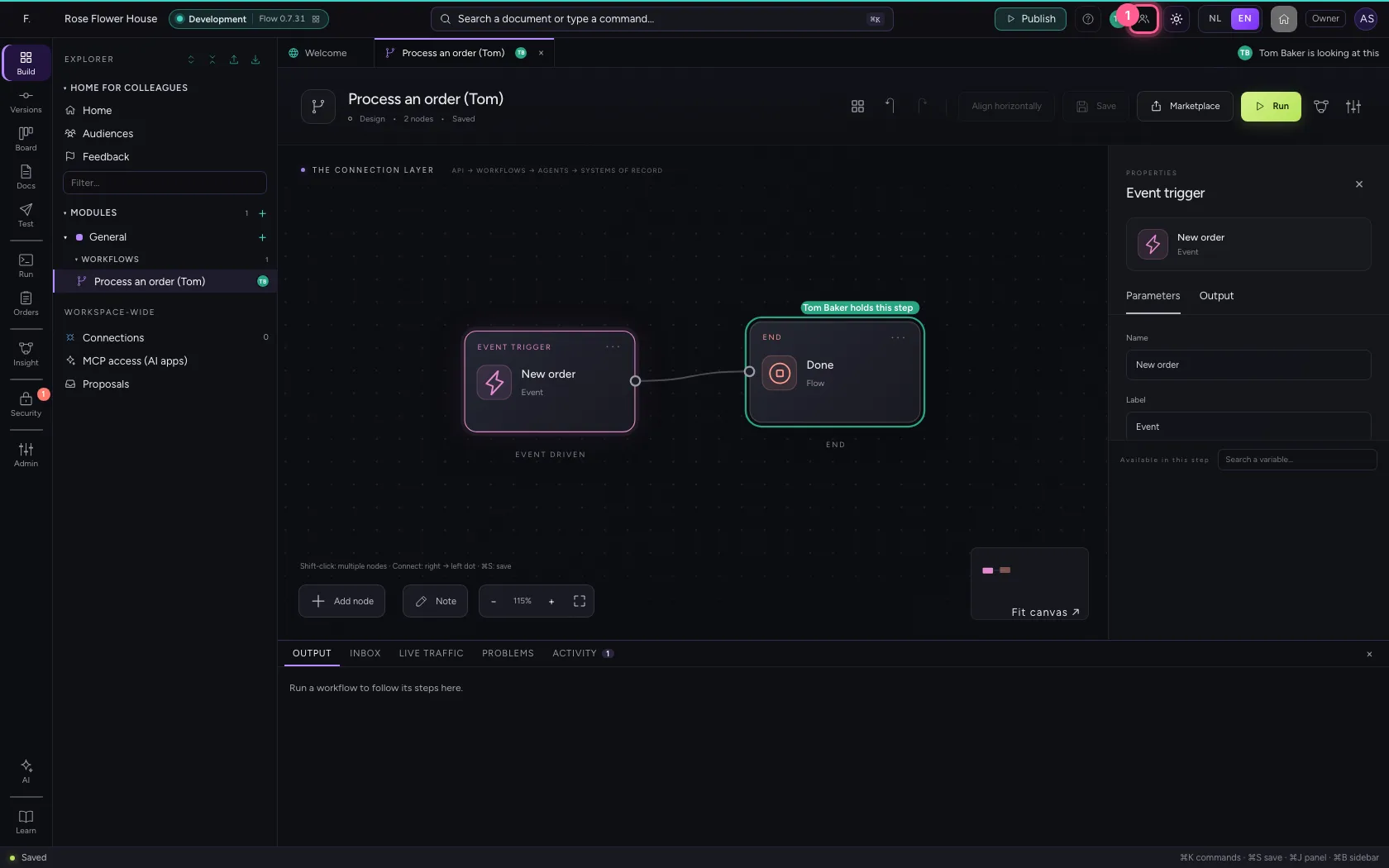
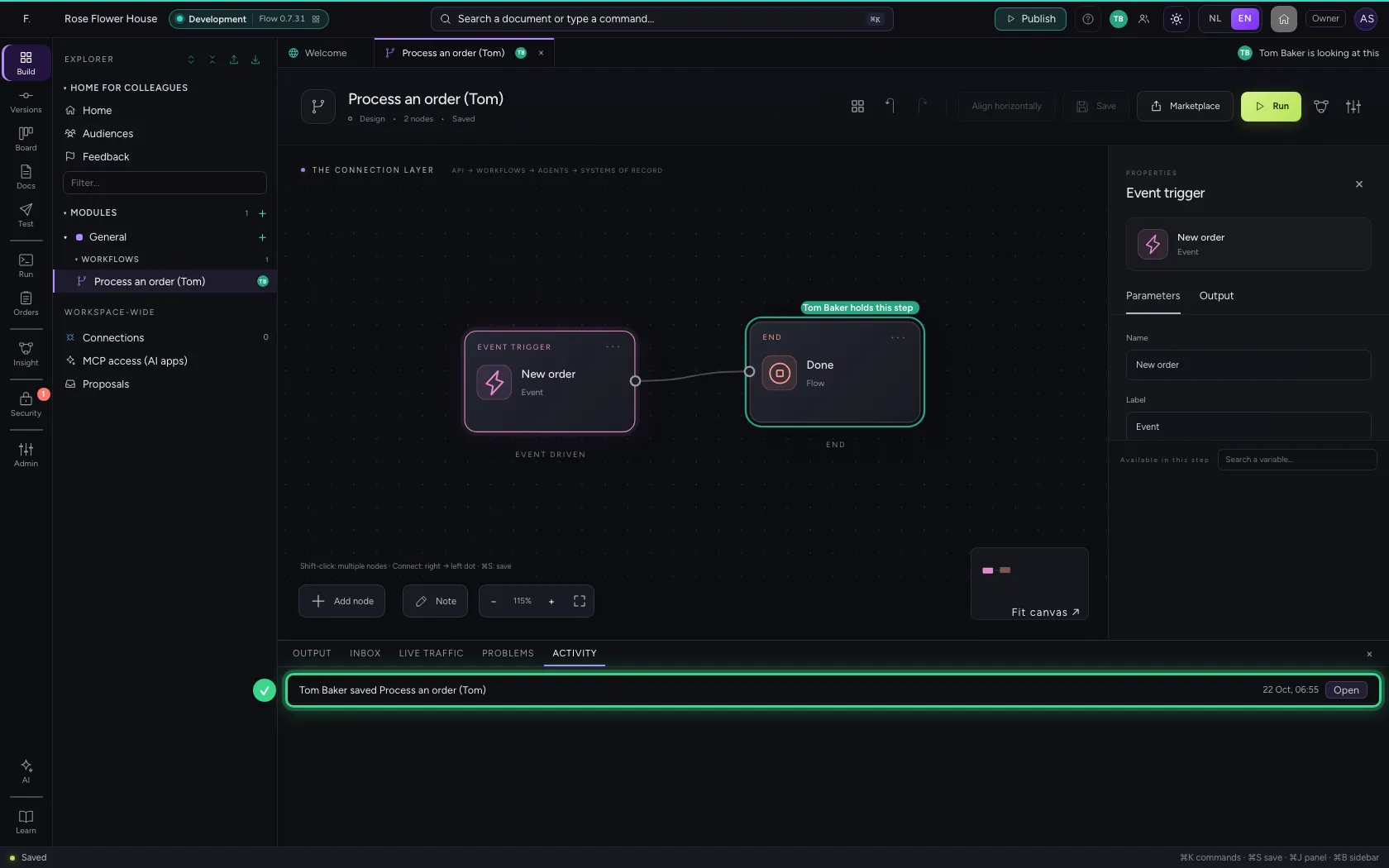
Top right are the people in this environment right now, each with their own colour. Hover over one to see what they have open. An AI Colleague or AI app that is building is there too, marked as AI.
- Click the workflow
Who has what open
On the tab and in the explorer you see who has the same item open, and at the right of the tab row it says so in words. When your colleague clicks a step, that step lights up for you in their colour: you know what they are working on.
A colleague saves
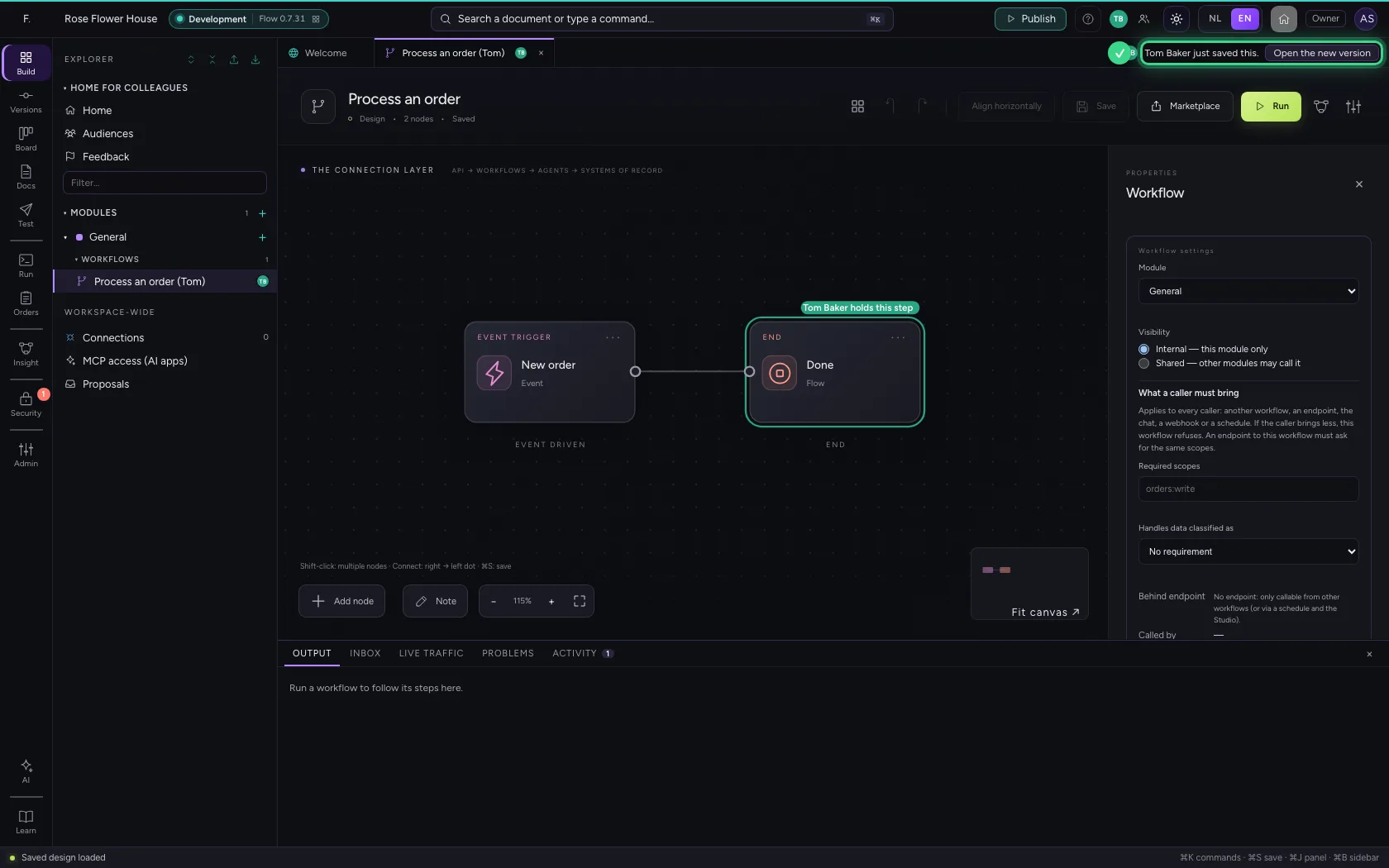
When your colleague saves something you have open, Flow says so at once. Open the new version shows theirs; if you just carry on, Flow asks what you want when you save.
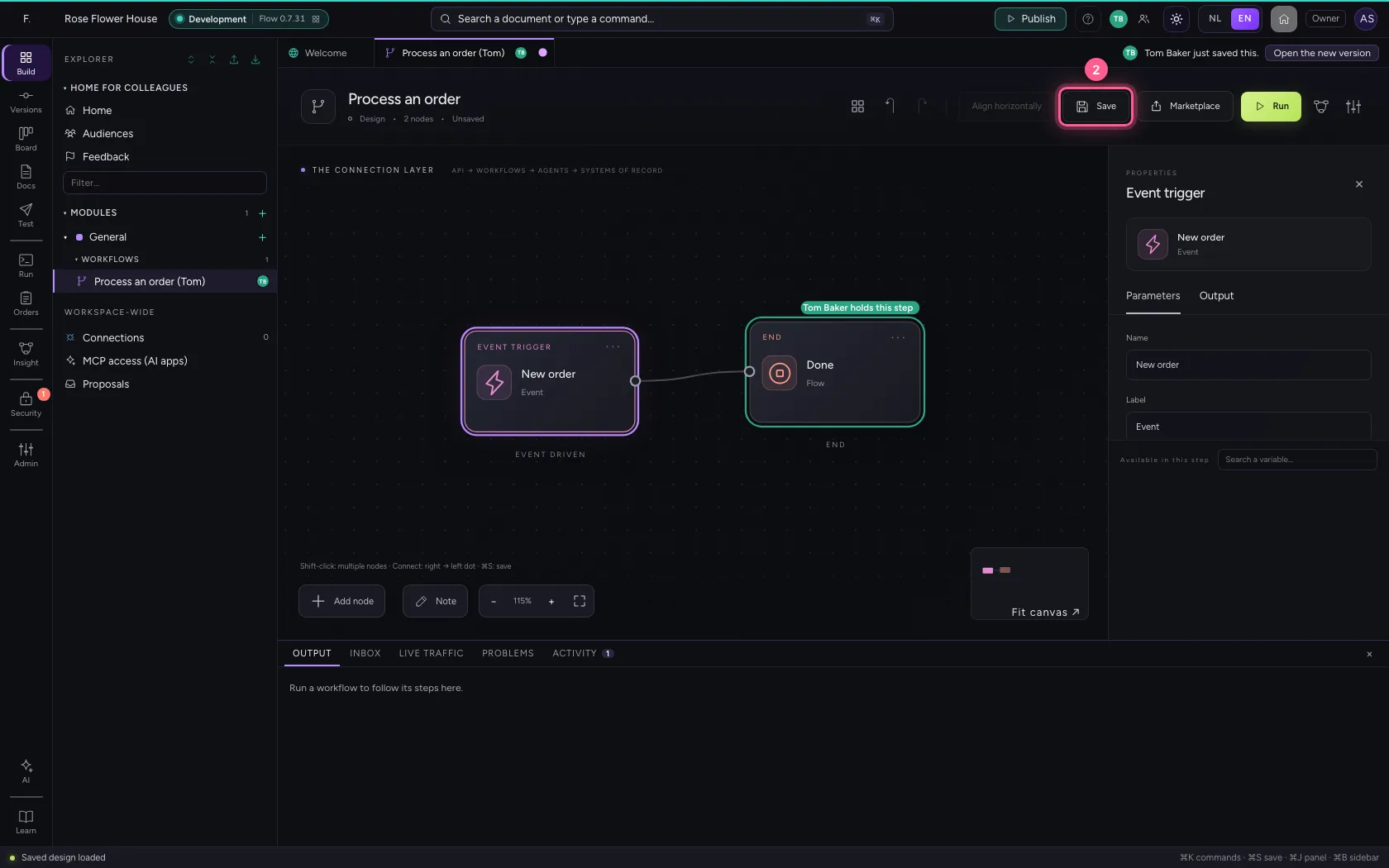
Saving after a colleague
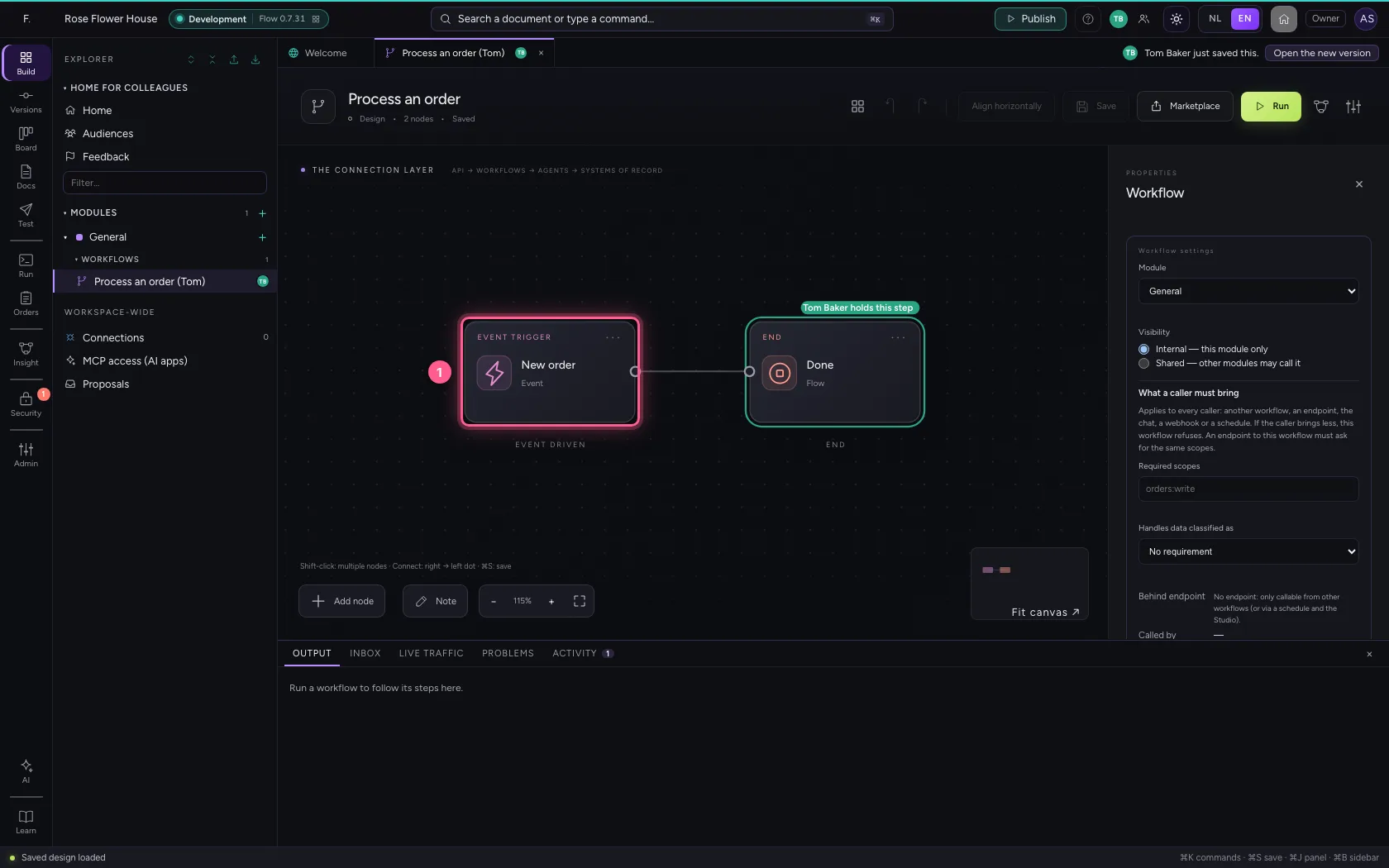
You move a step a little and save. Your colleague changed the name in the meantime: Flow does not overwrite that, but shows what each of you changed. Review lists it.
- Press the step down (arrow key)
- Click Save
- Click Review
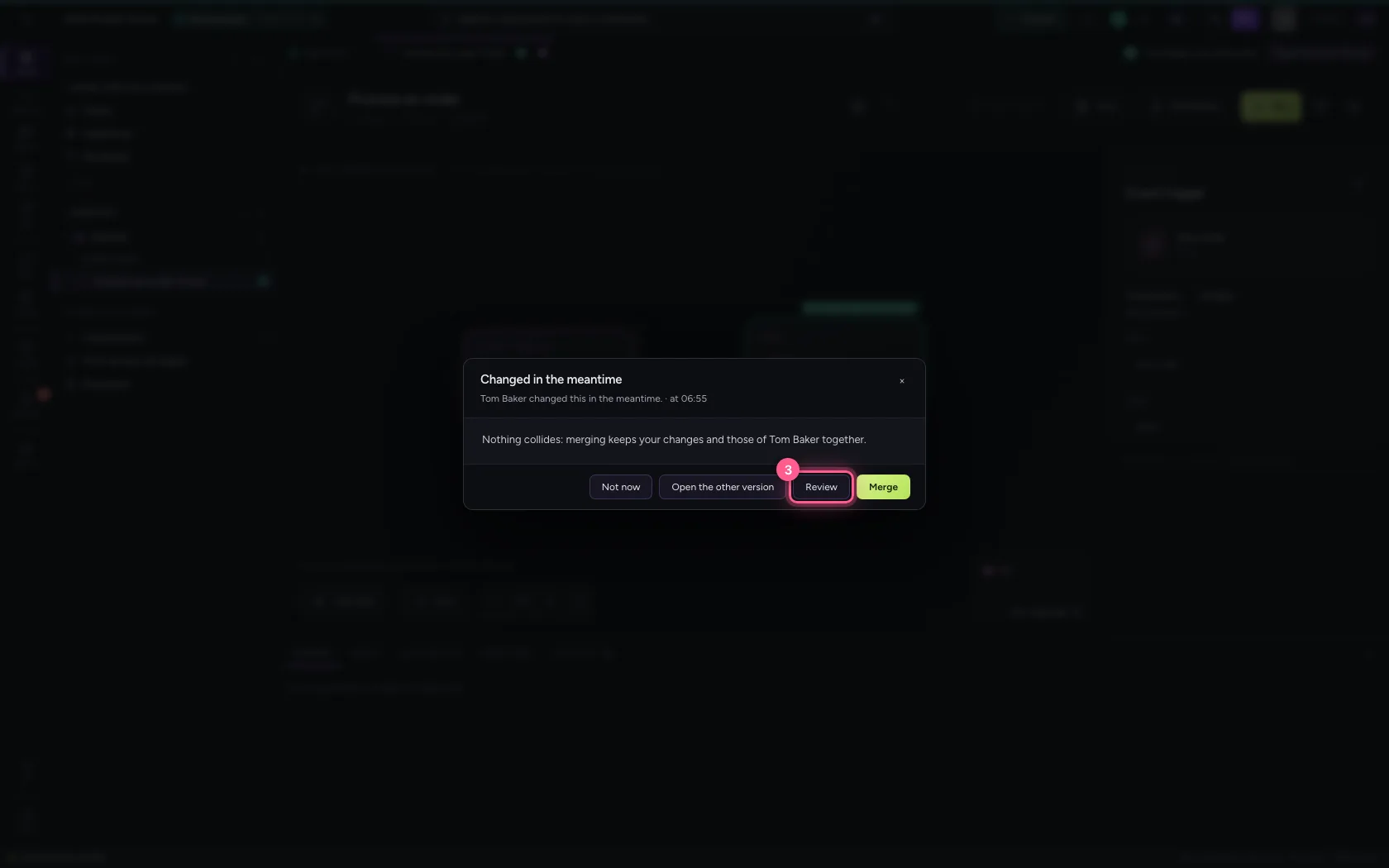
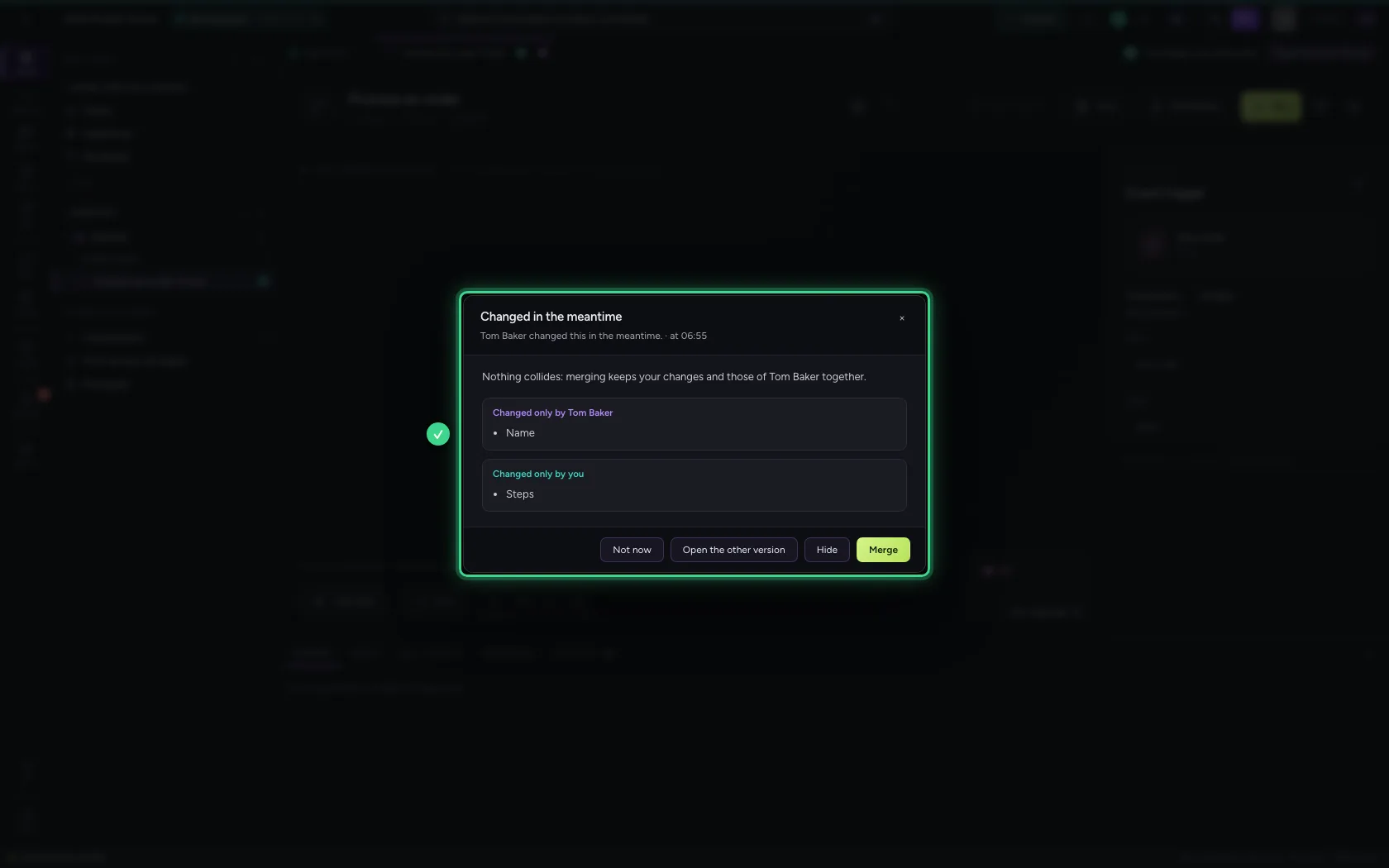
Merge
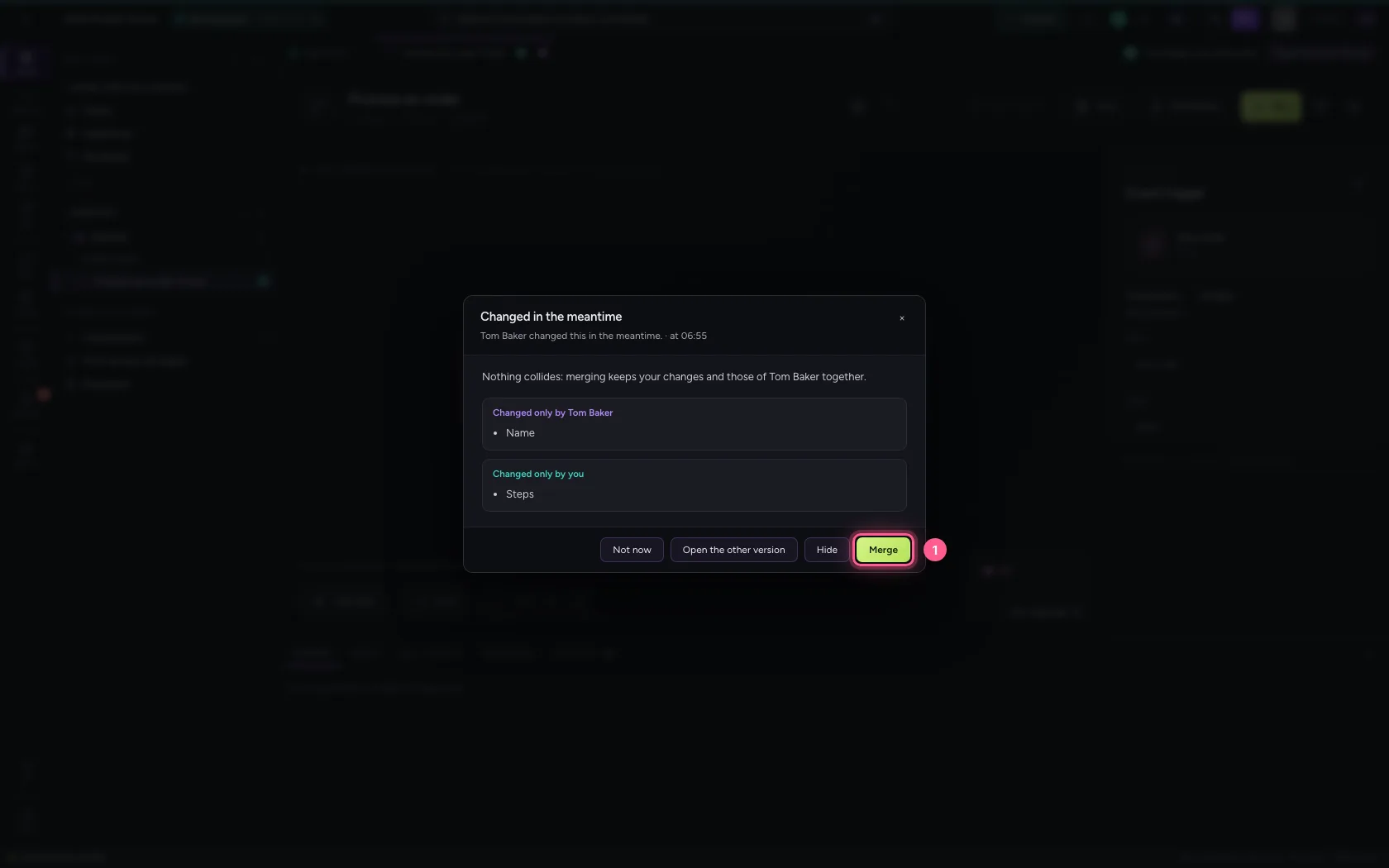
Merge saves your change and your colleague's together. The canvas shows the result at once: their name, your step.
- Click Merge
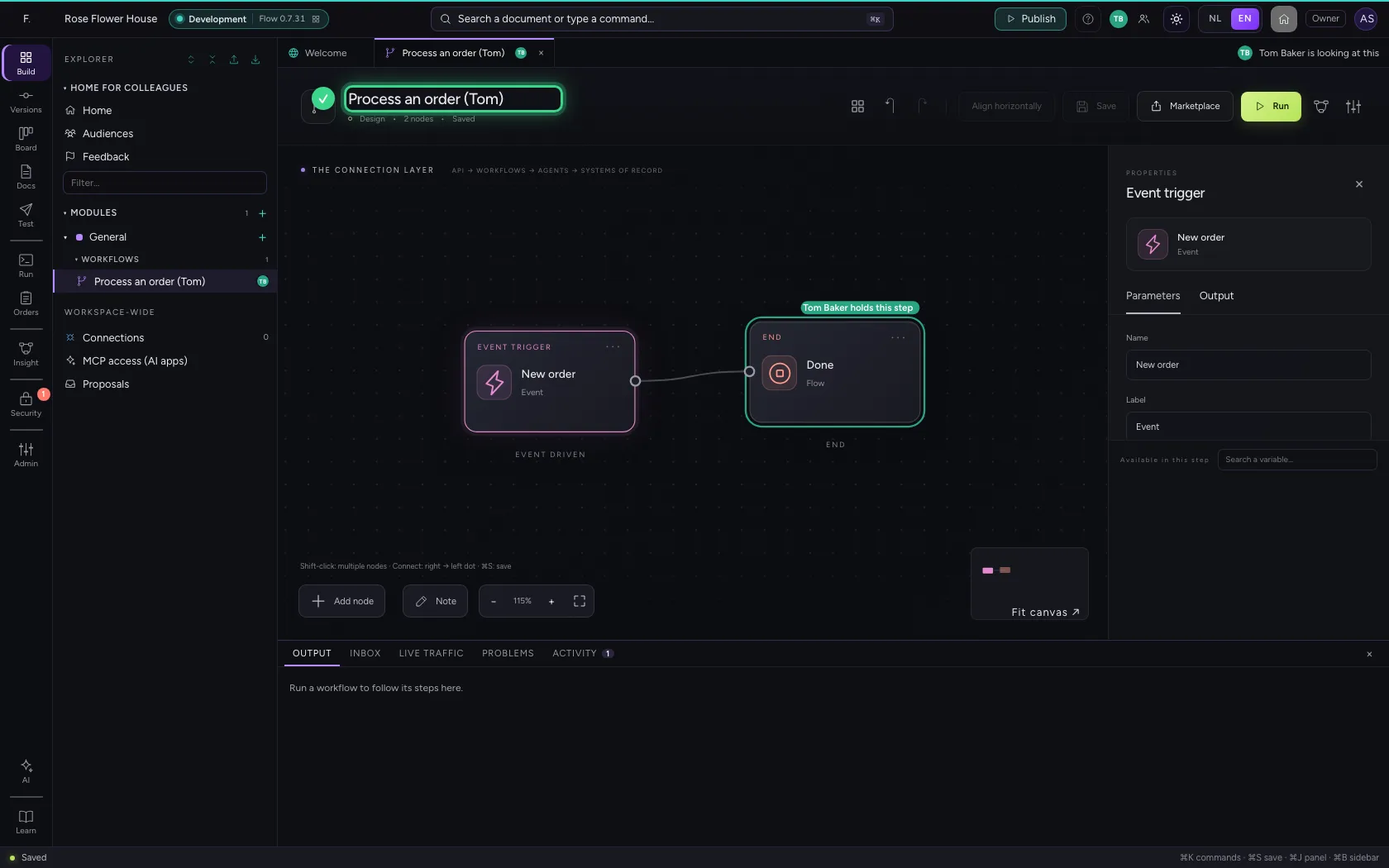
Focus mode
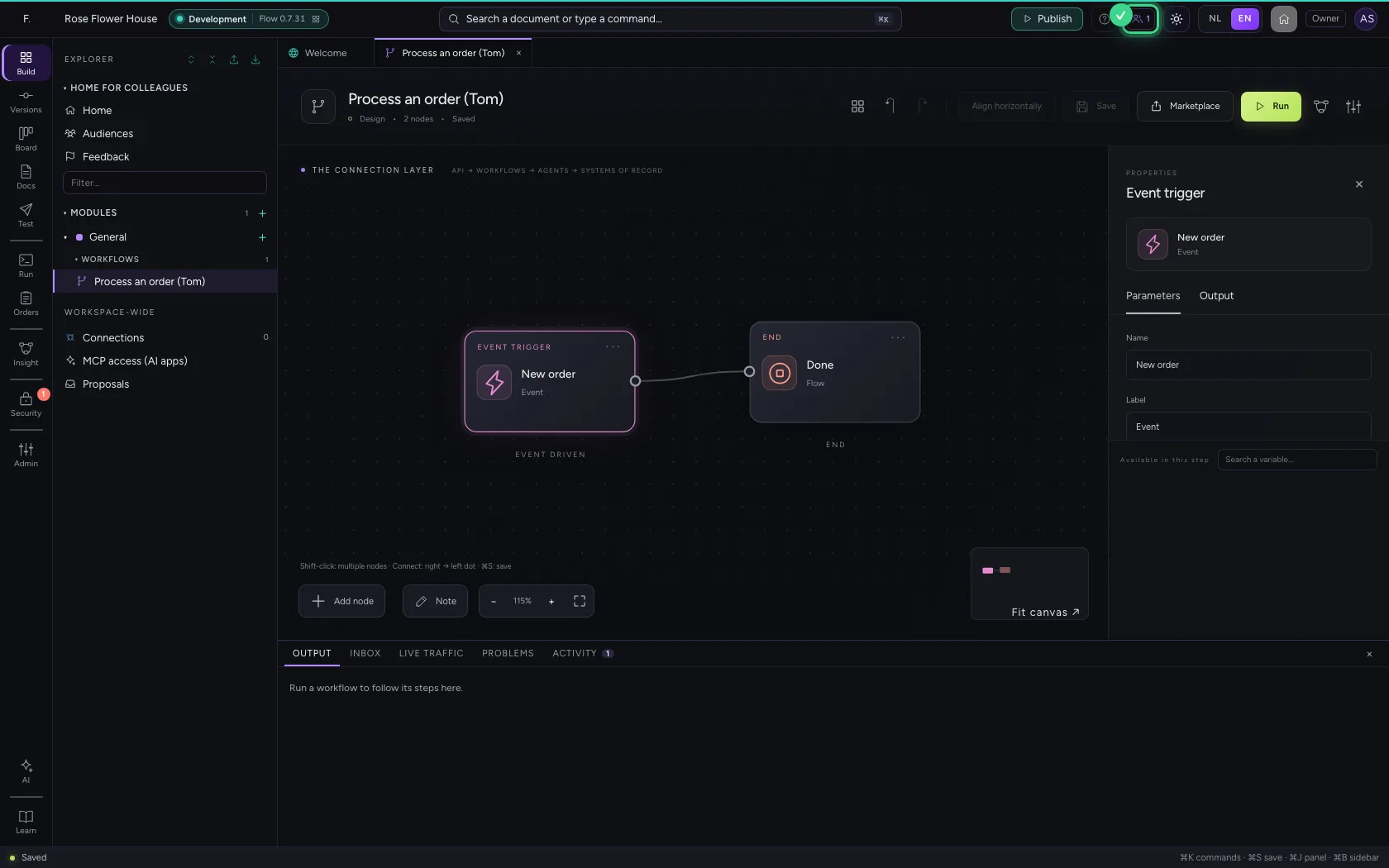
Want to see nobody for a while? Switch on focus mode with the button next to the people top right. Flow remembers it in this browser; the same button brings everyone back.
- Click Focus mode
See what happened
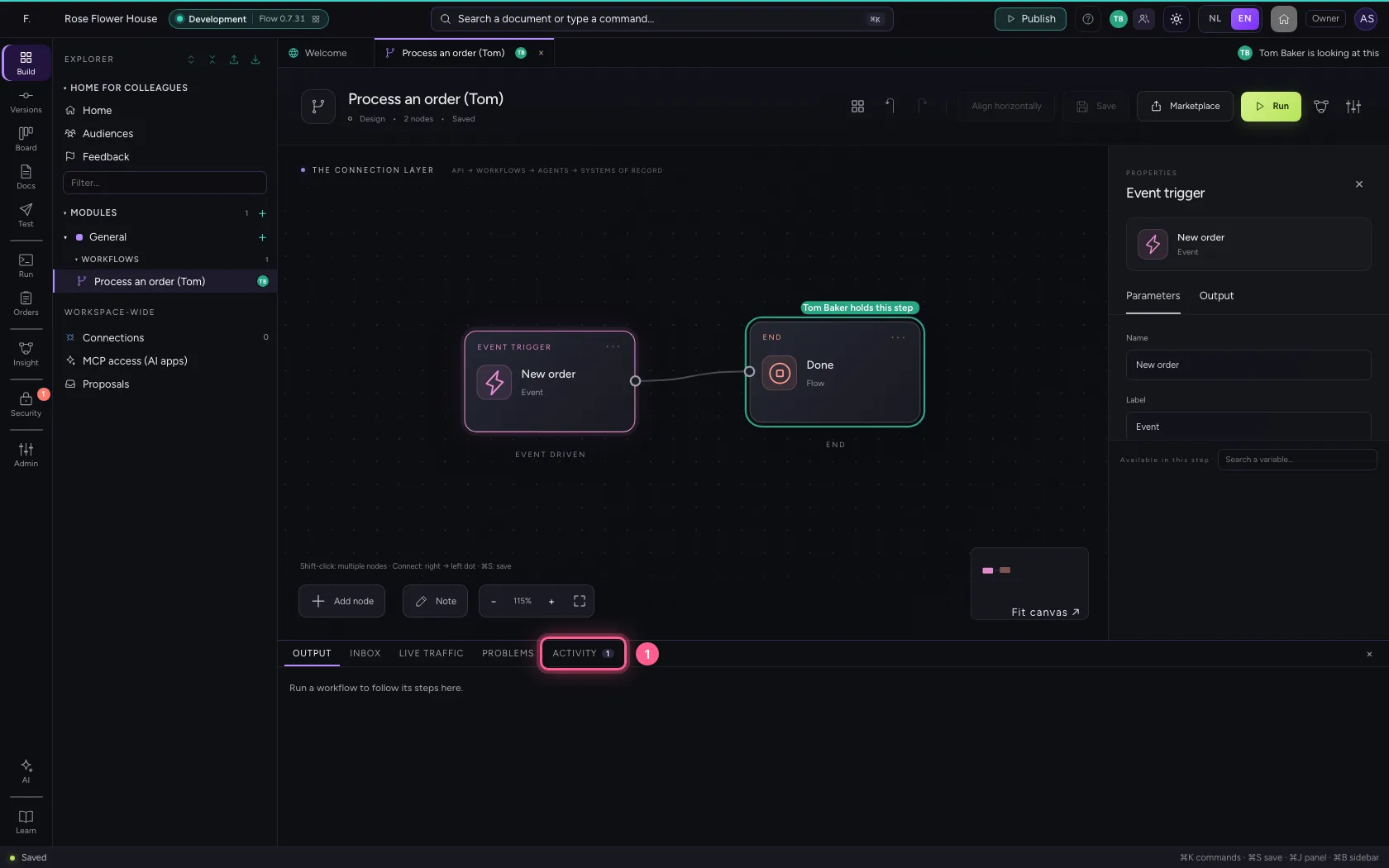
At the bottom is the Activity tab, with a number for what you have not seen yet: what colleagues and AI did in this environment since you opened Flow, who did it and when. Open takes you there at once. More in the guide Two people on one workflow.
- Click Activity
This guide was carried out step by step on 22 Oct 2026 by an automated test on Flow (version 3e563176).