Step: AI agent
With the step AI agent a workflow hands one well-defined task to a published agent: write an e-mail, assess a message, make a summary. The agent works within its own guard rails and budget, and the workflow gets its answer back to carry on with. You choose which version the step uses and what the agent gets to see.
Open your development environment
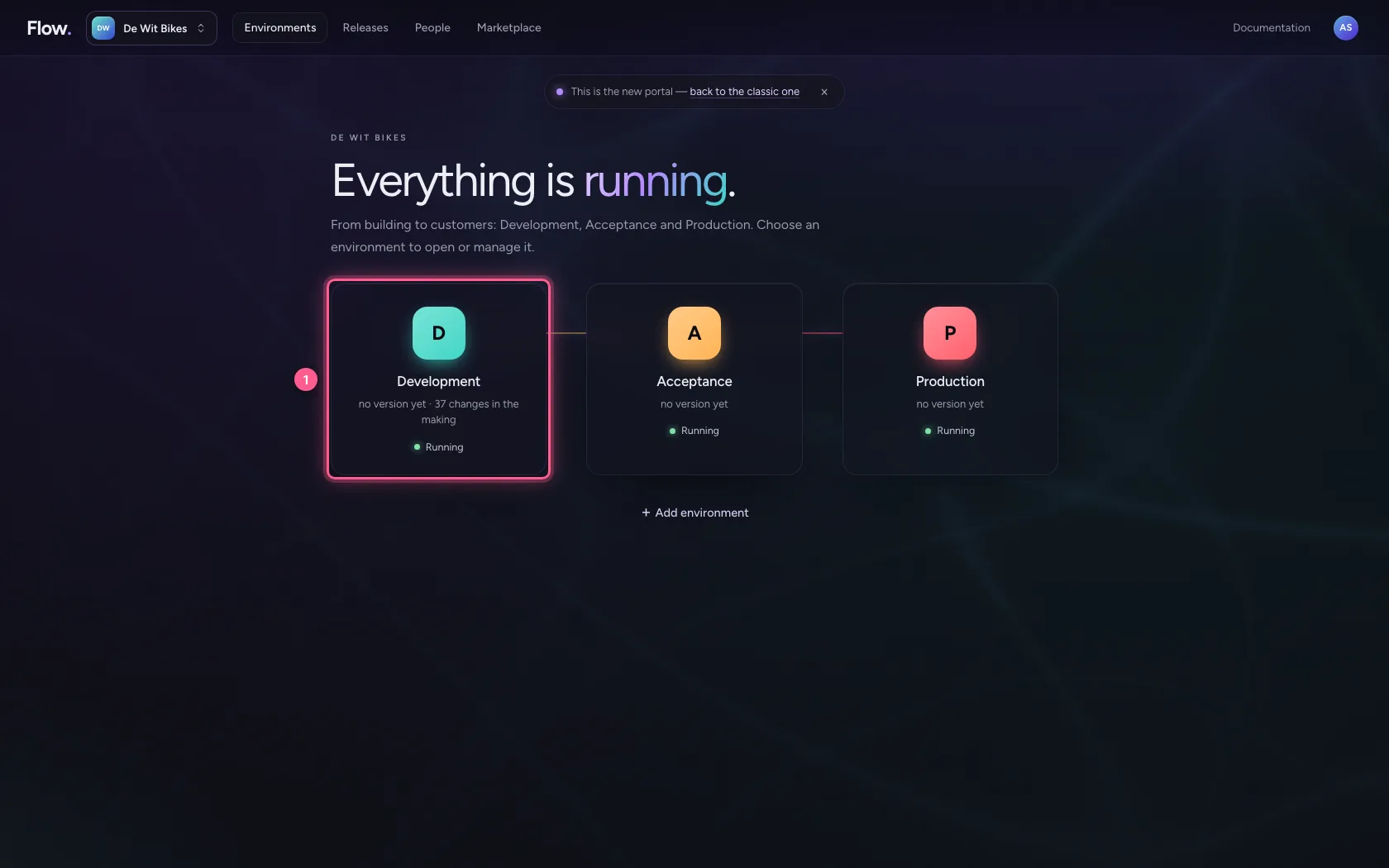
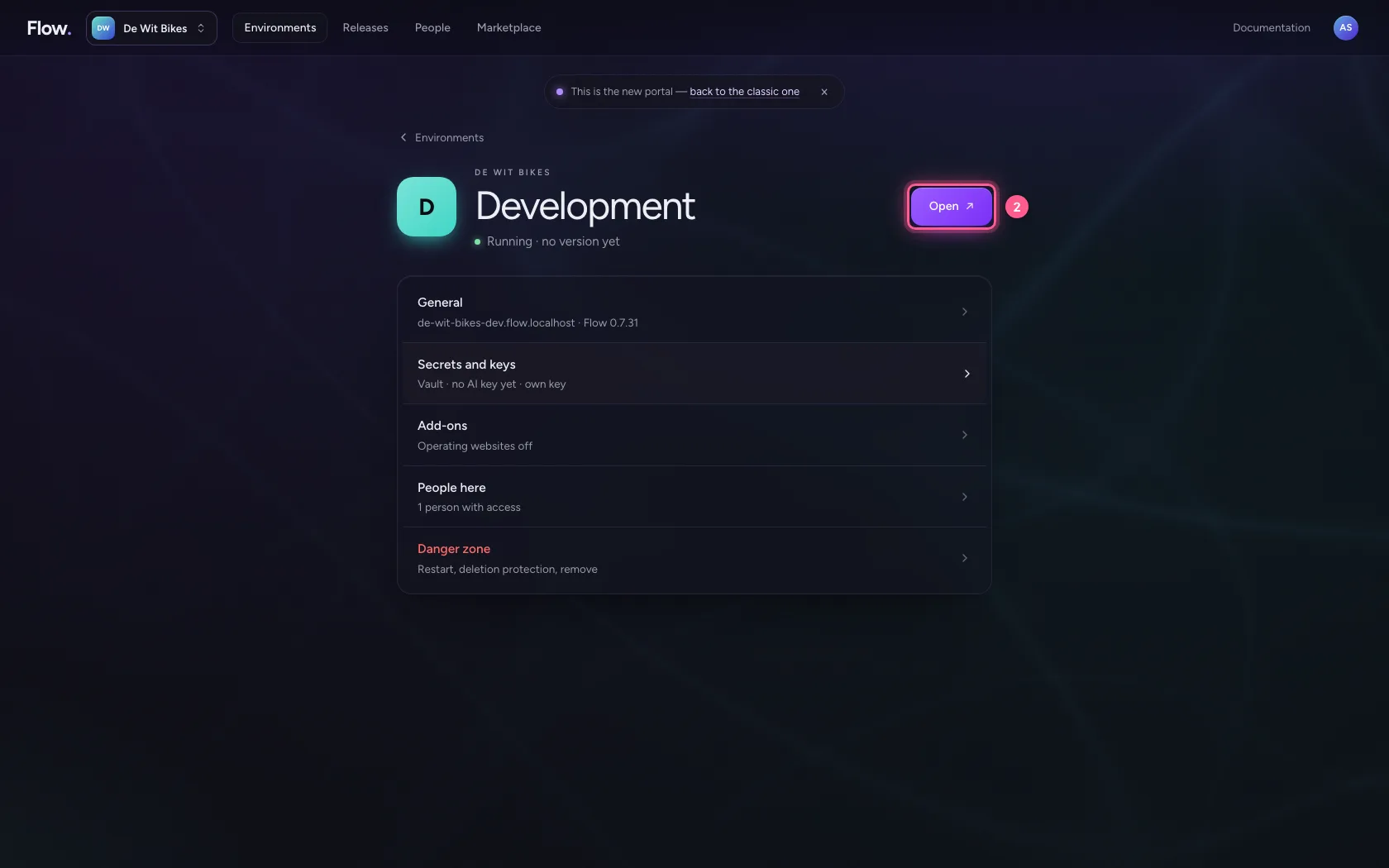
In the portal, under Environments, click Development, and there Open. Flow opens in a new tab and you are signed in straight away.
- Click Development
- Click Open ↗
Create a workflow with a new customer
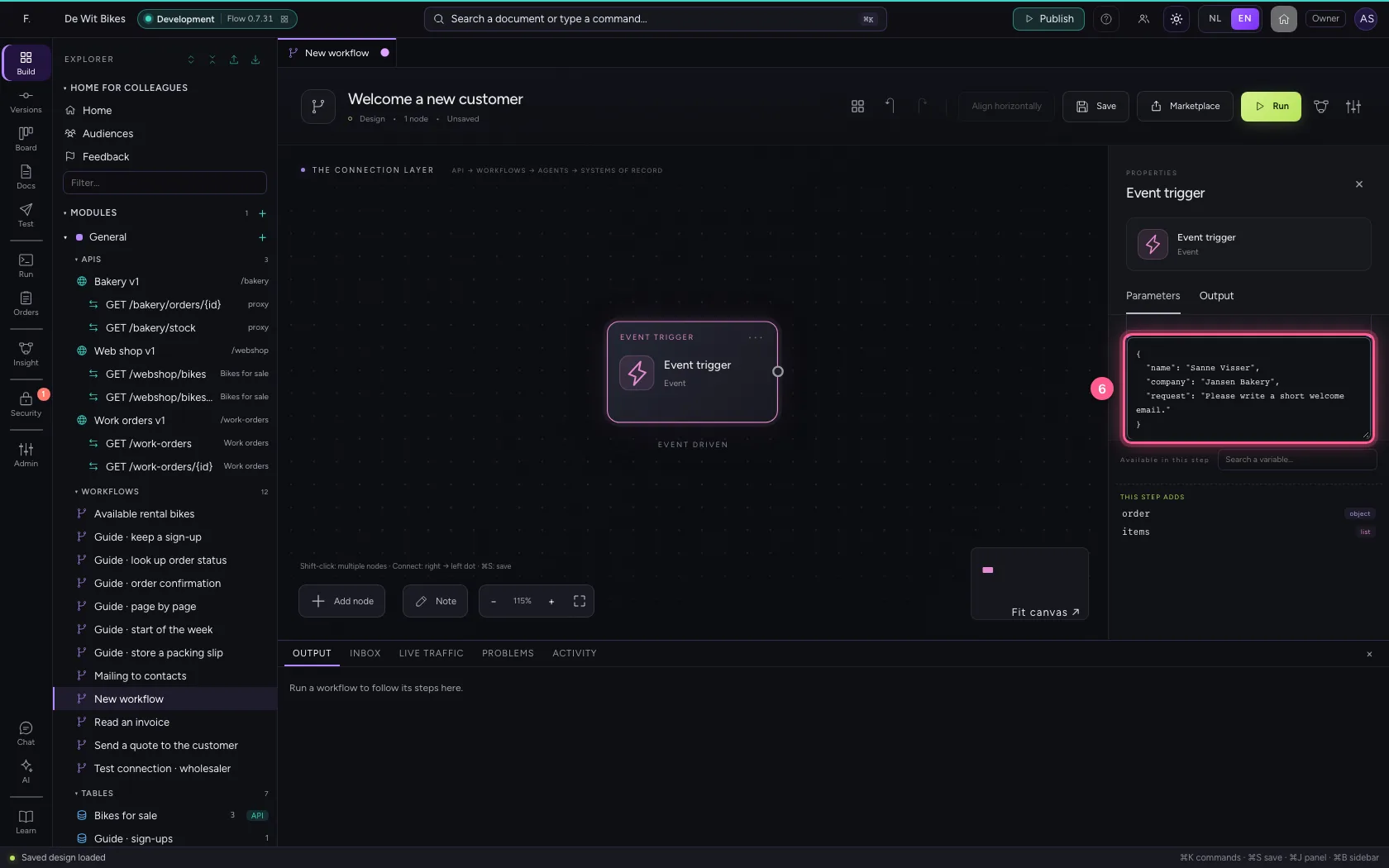
Create a new workflow and put a new customer in the trigger's sample data. In real life it comes, for example, from a sign-up form or your CRM.
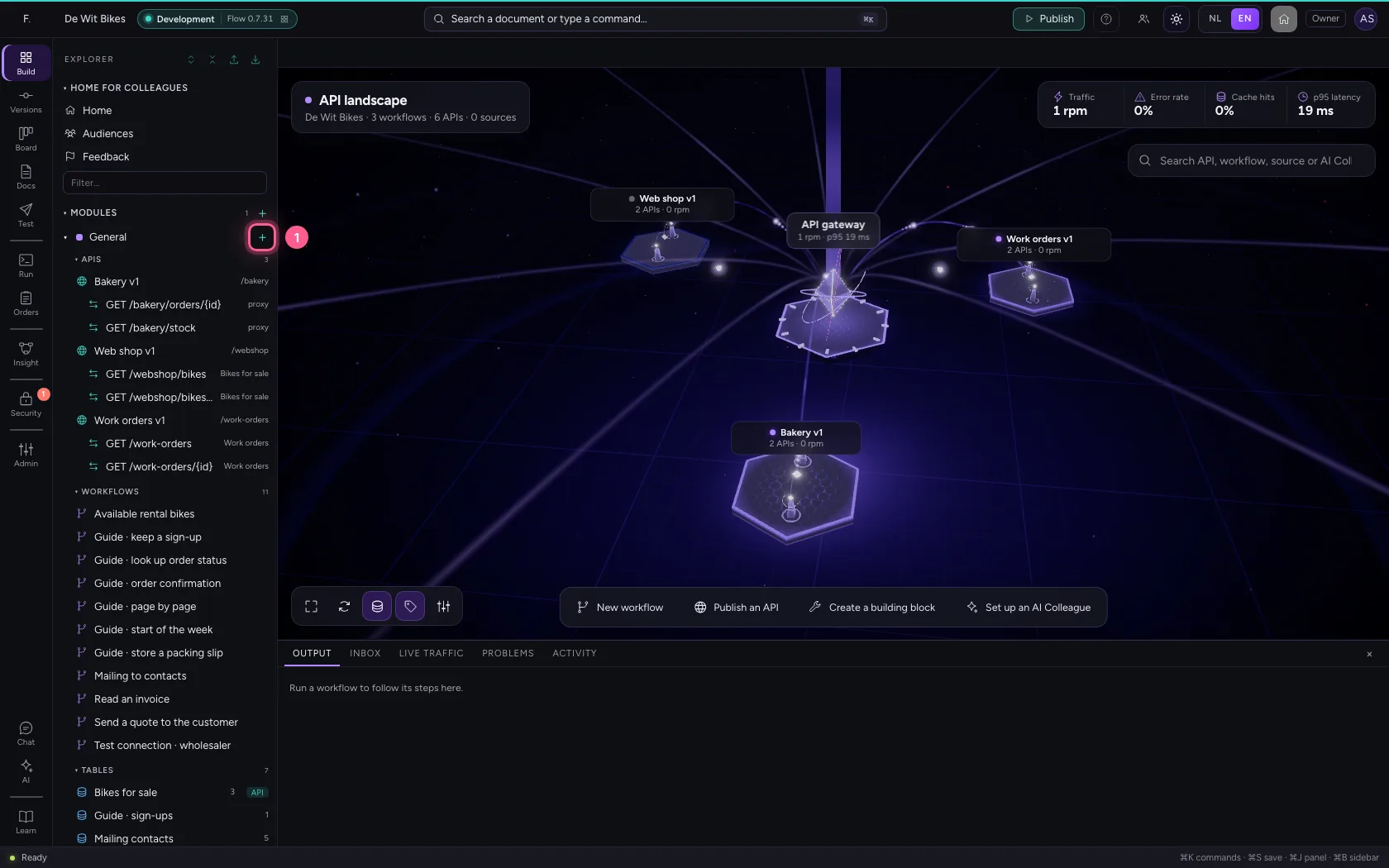
- Click Add to General
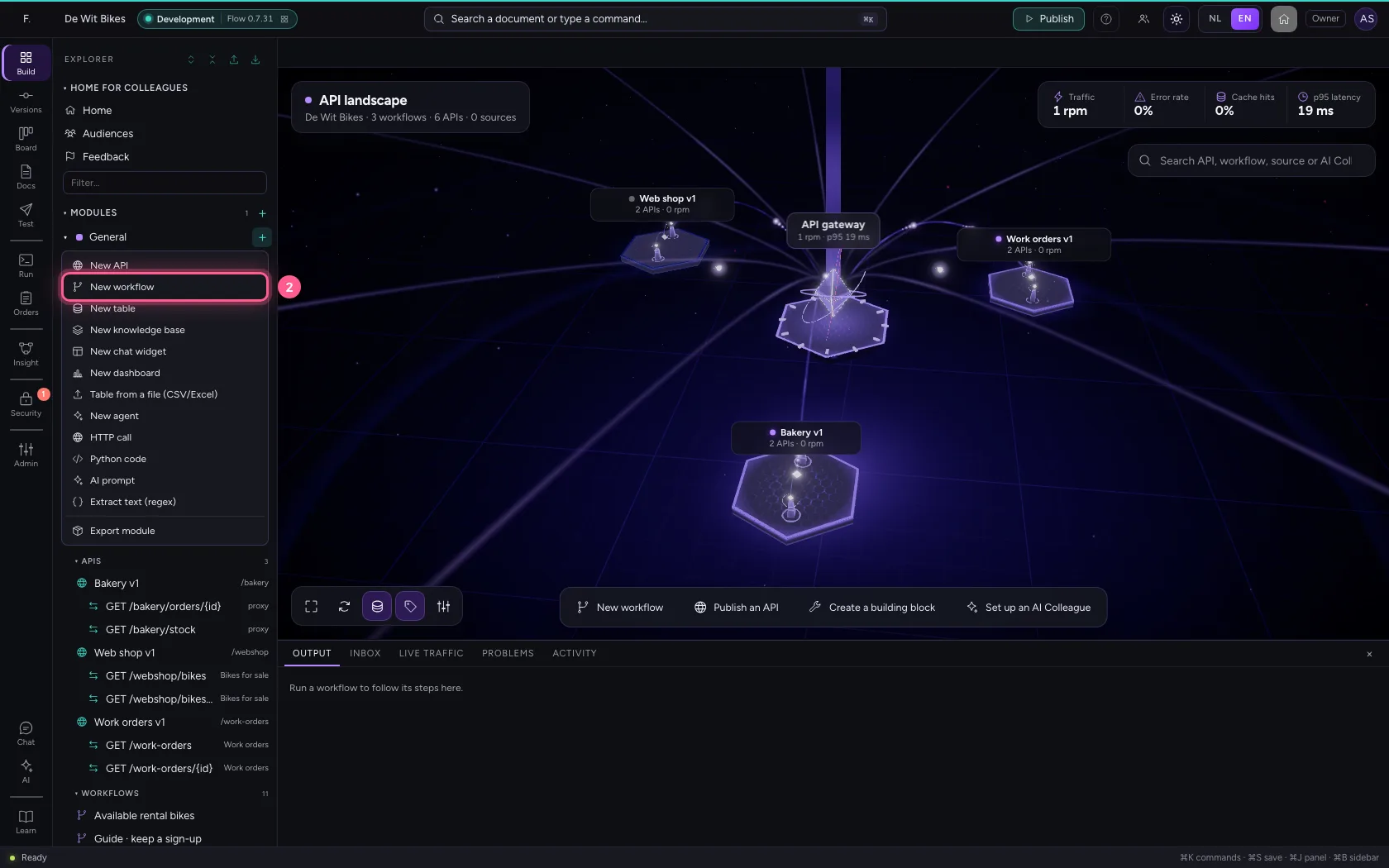
- Click New workflow
- In Workflow name, type
Welcome a new customer
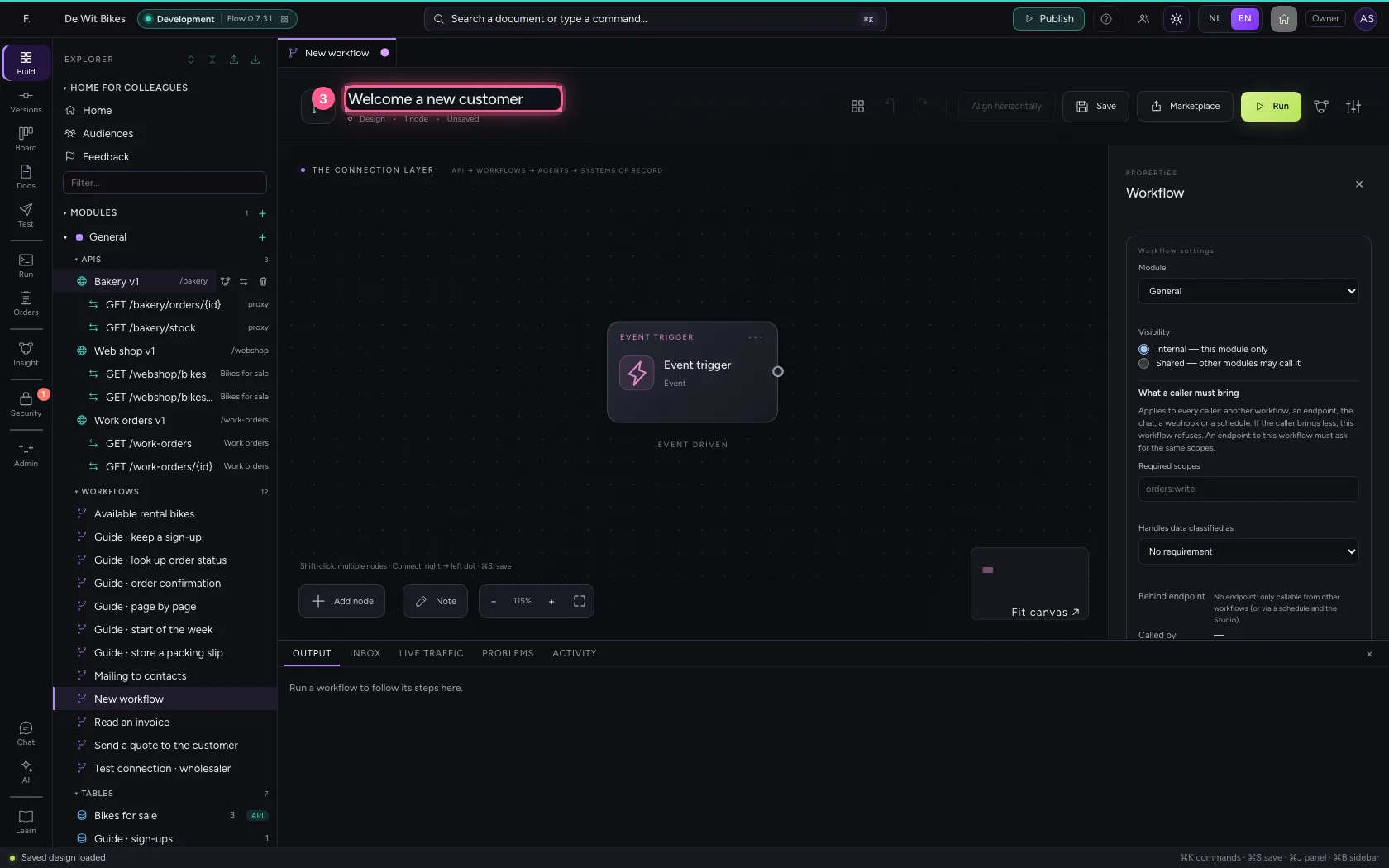
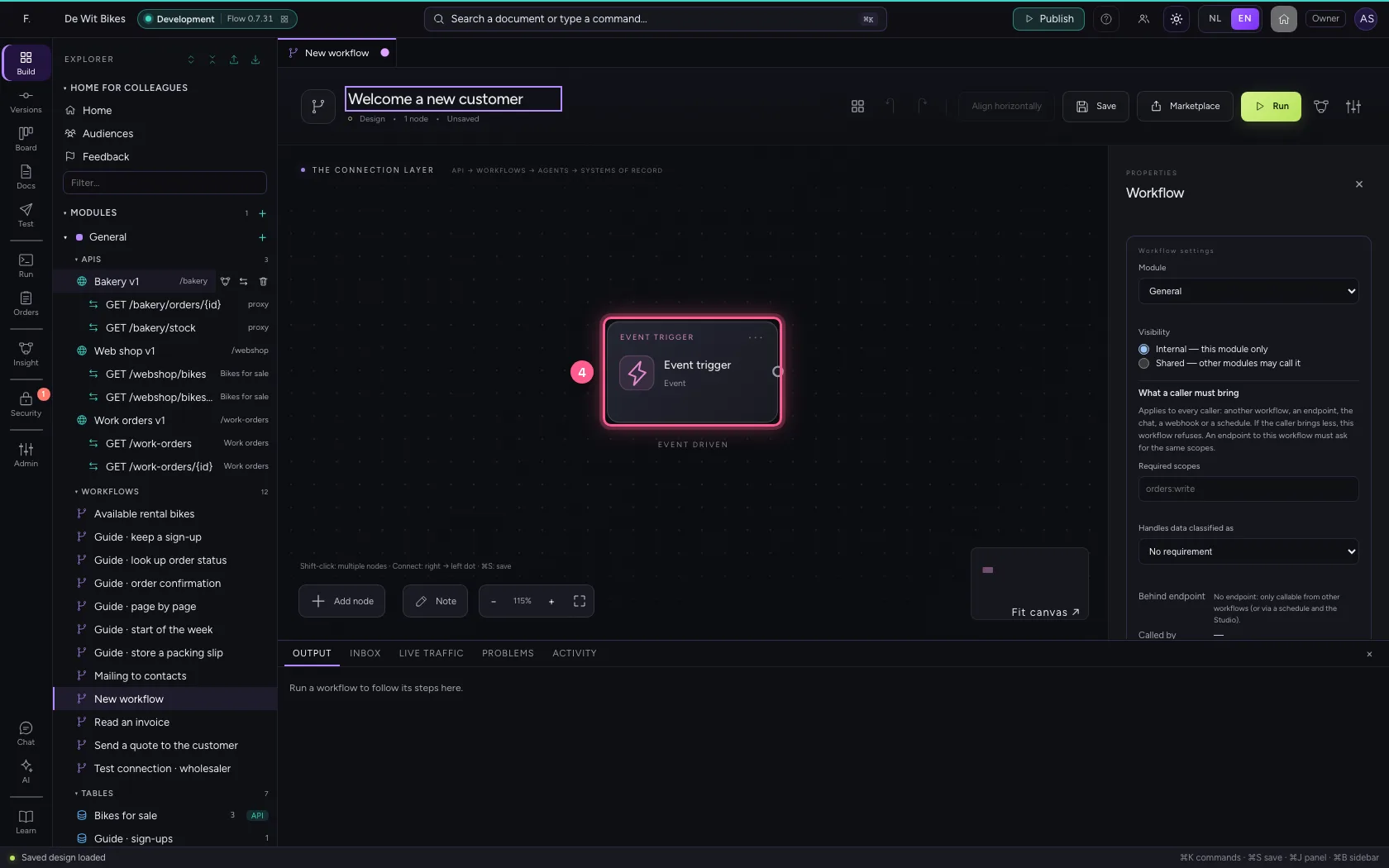
- Click the trigger
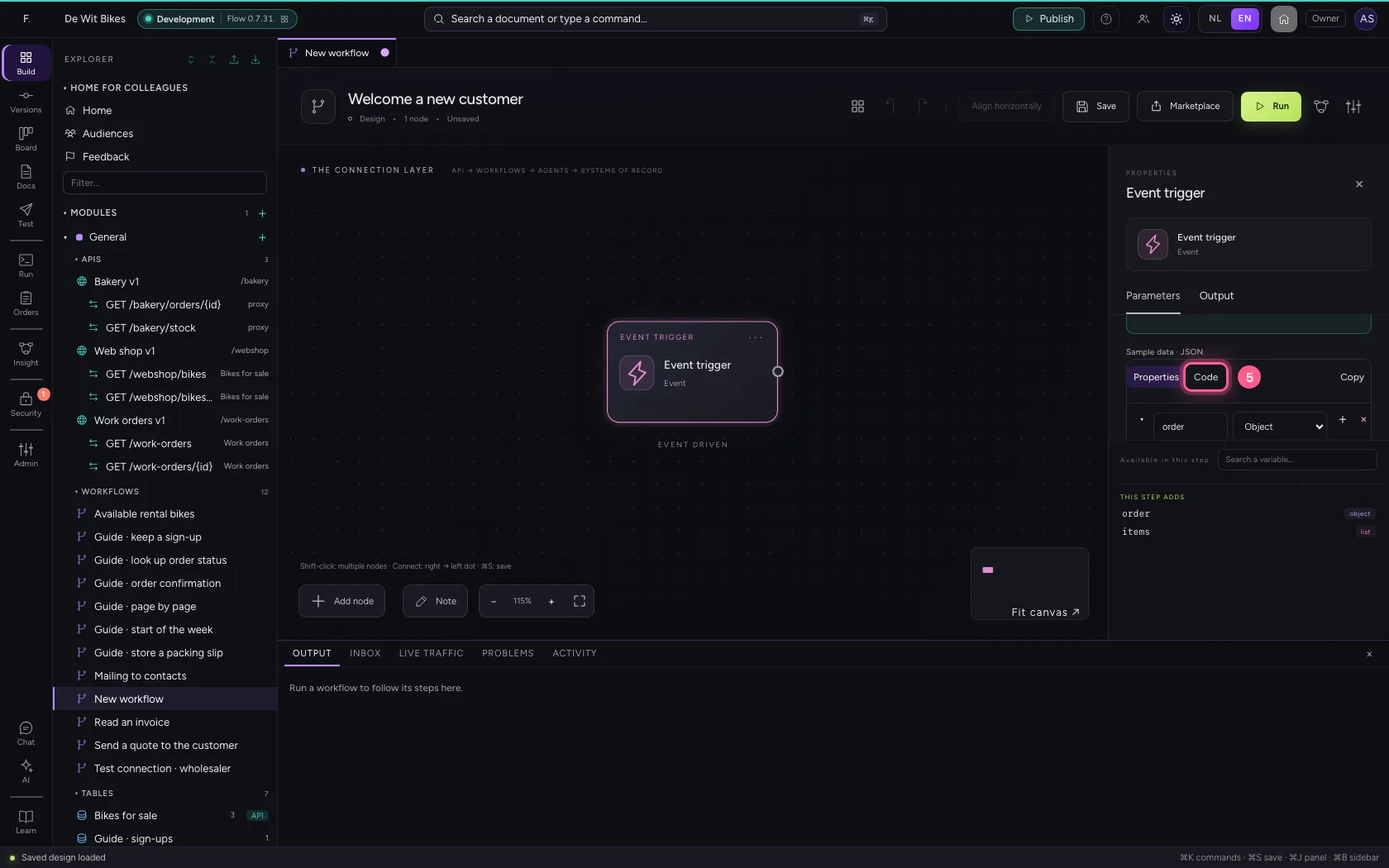
- Click Code
- In Sample data, type `{
Add the step AI agent
Choose the agent. Only published agents can carry out a step. Under Version choose Always the active version, or pin the step to one version so a new publication does not change it. The card below tells what the agent does and what it needs.
- Click Add node
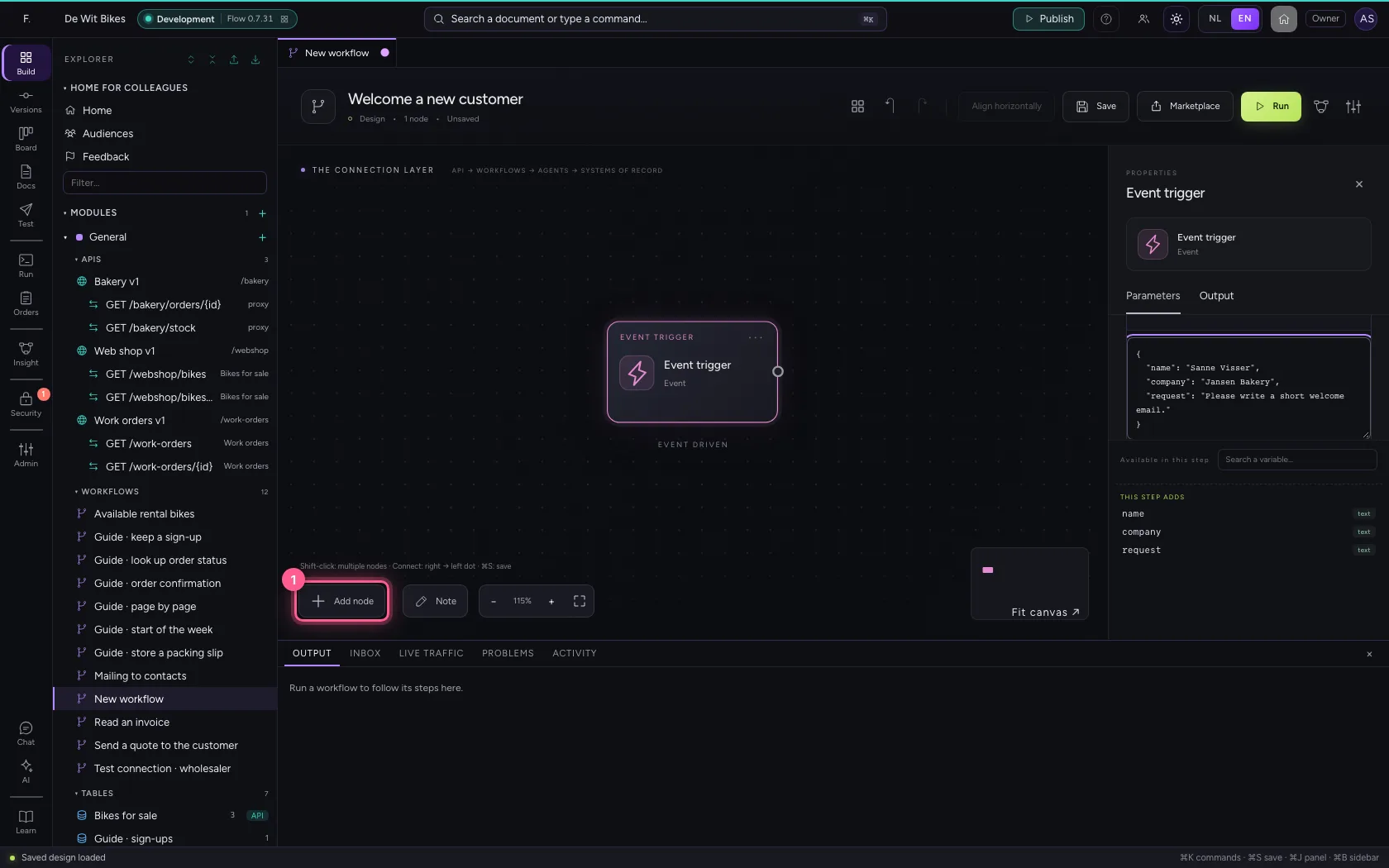
- Click AI agent
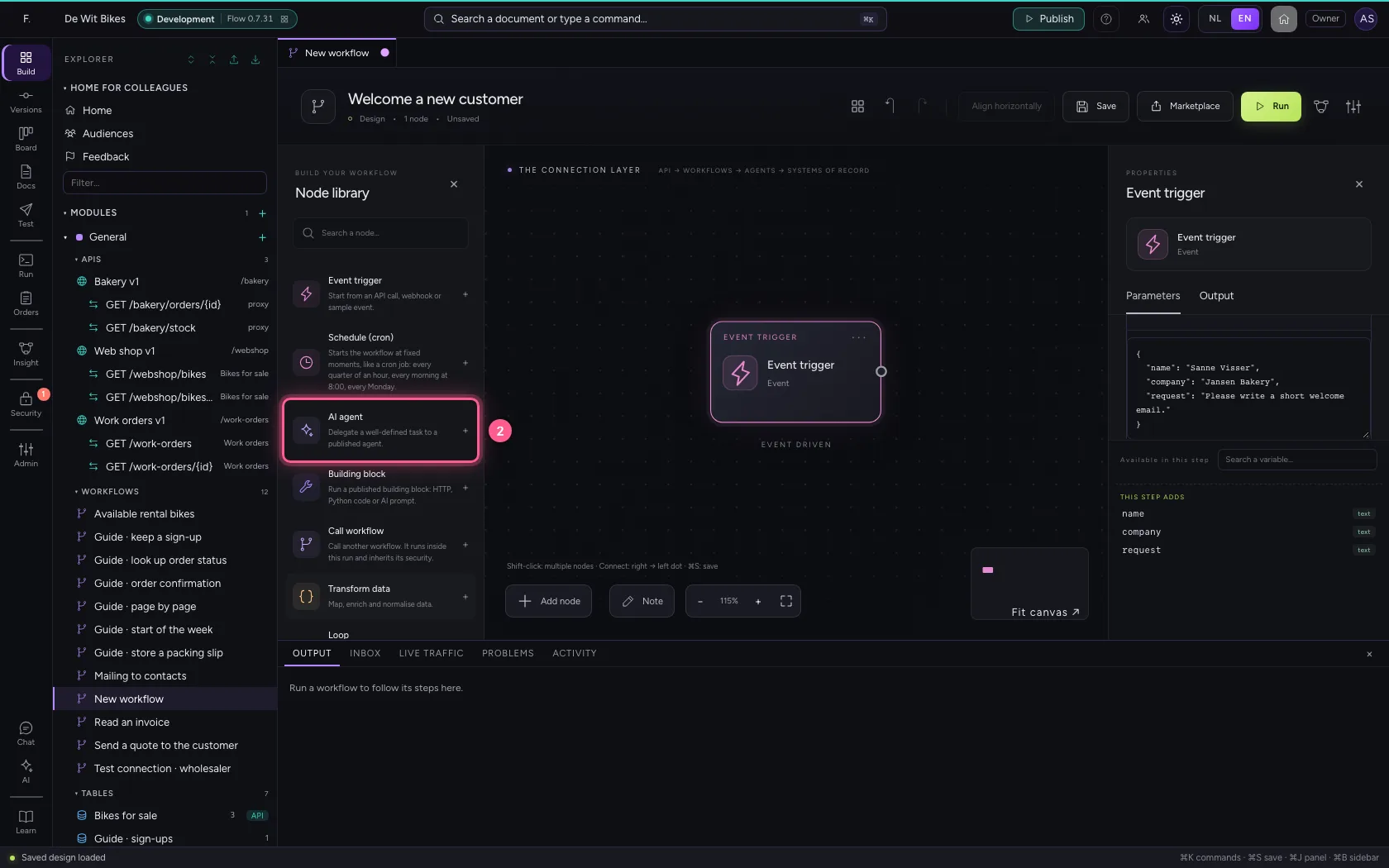
- In Agent, choose Welcome writer · v1
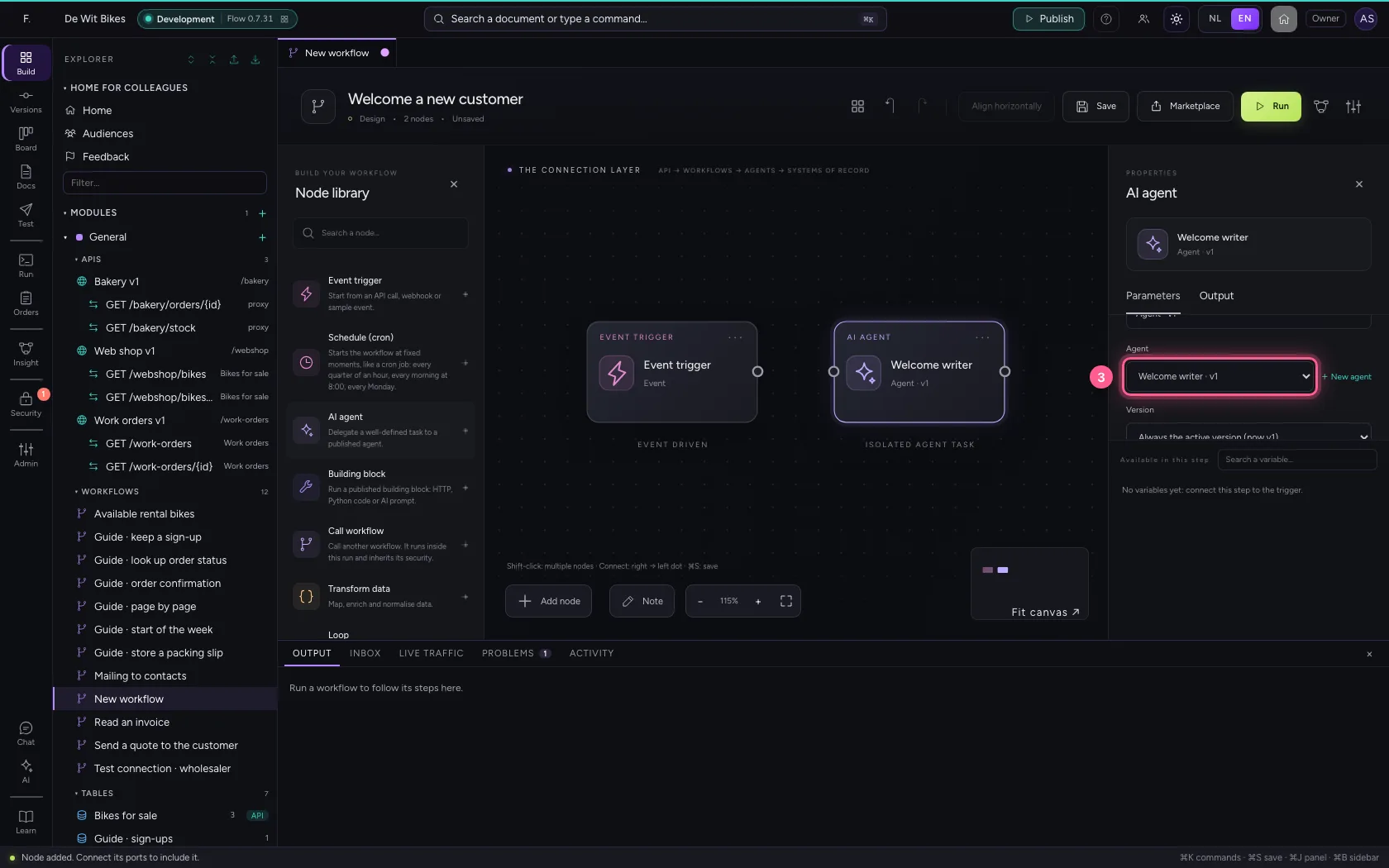
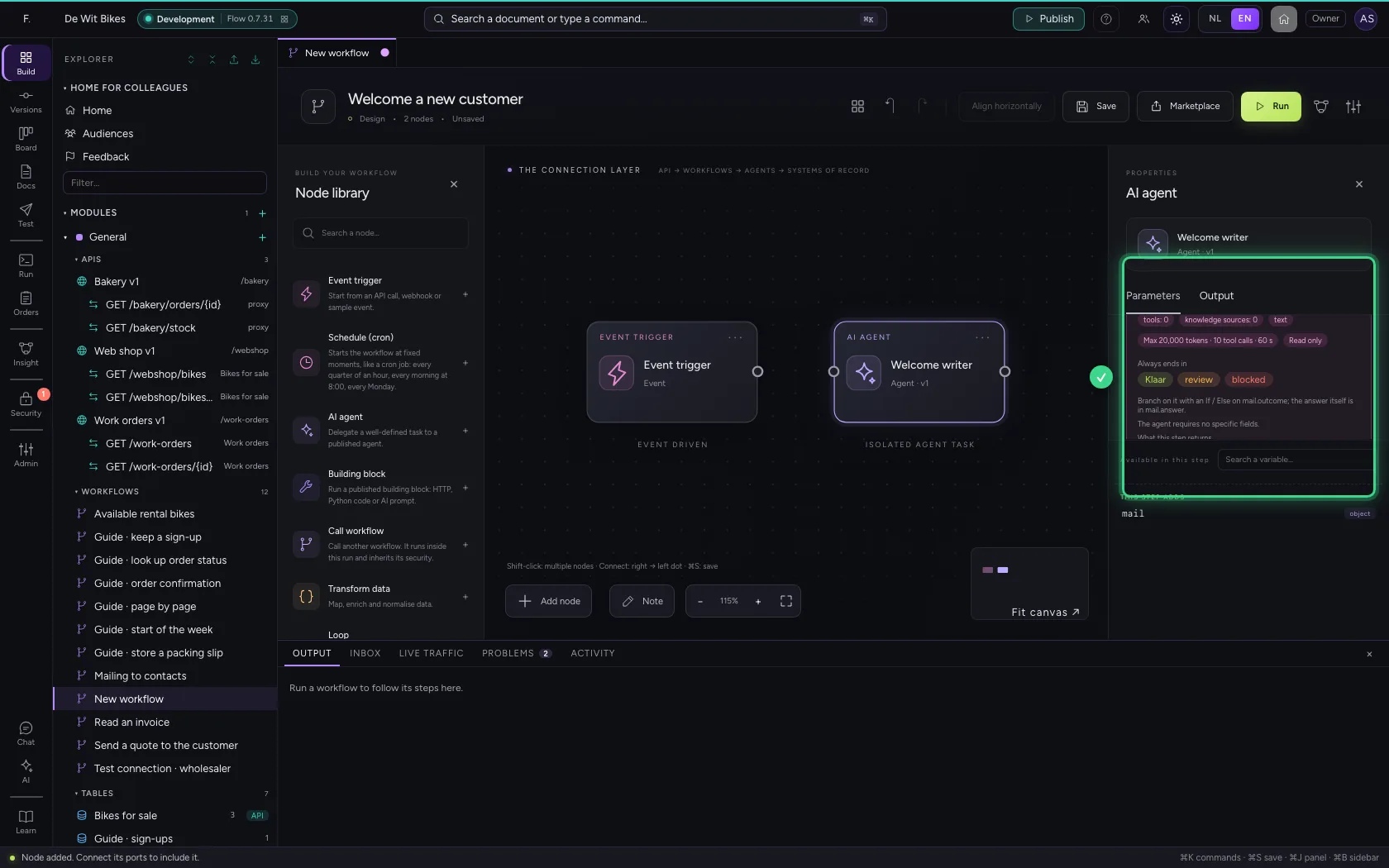
- Click the dot of ‘Event trigger’
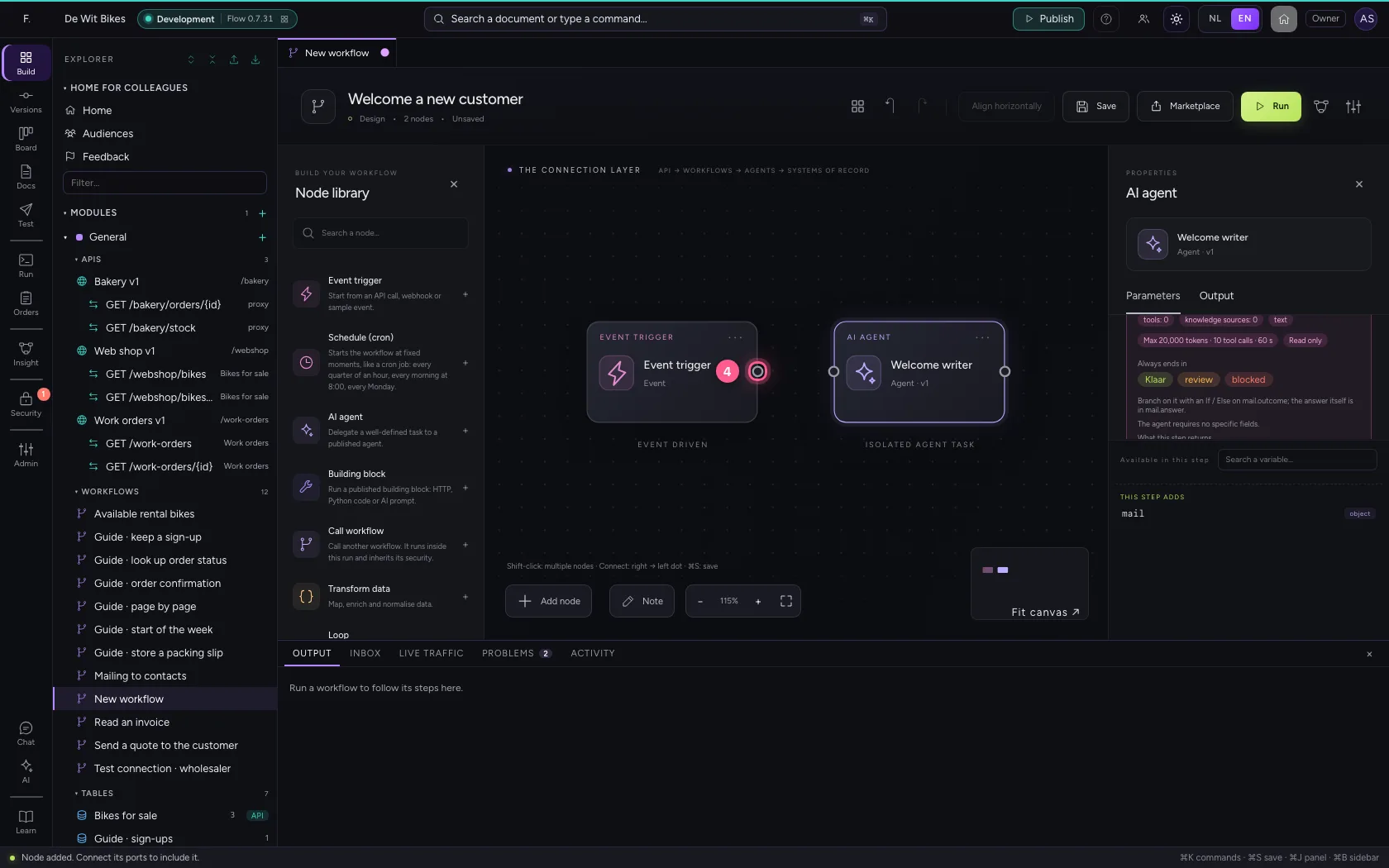
- Click the dot of ‘Welcome writer’
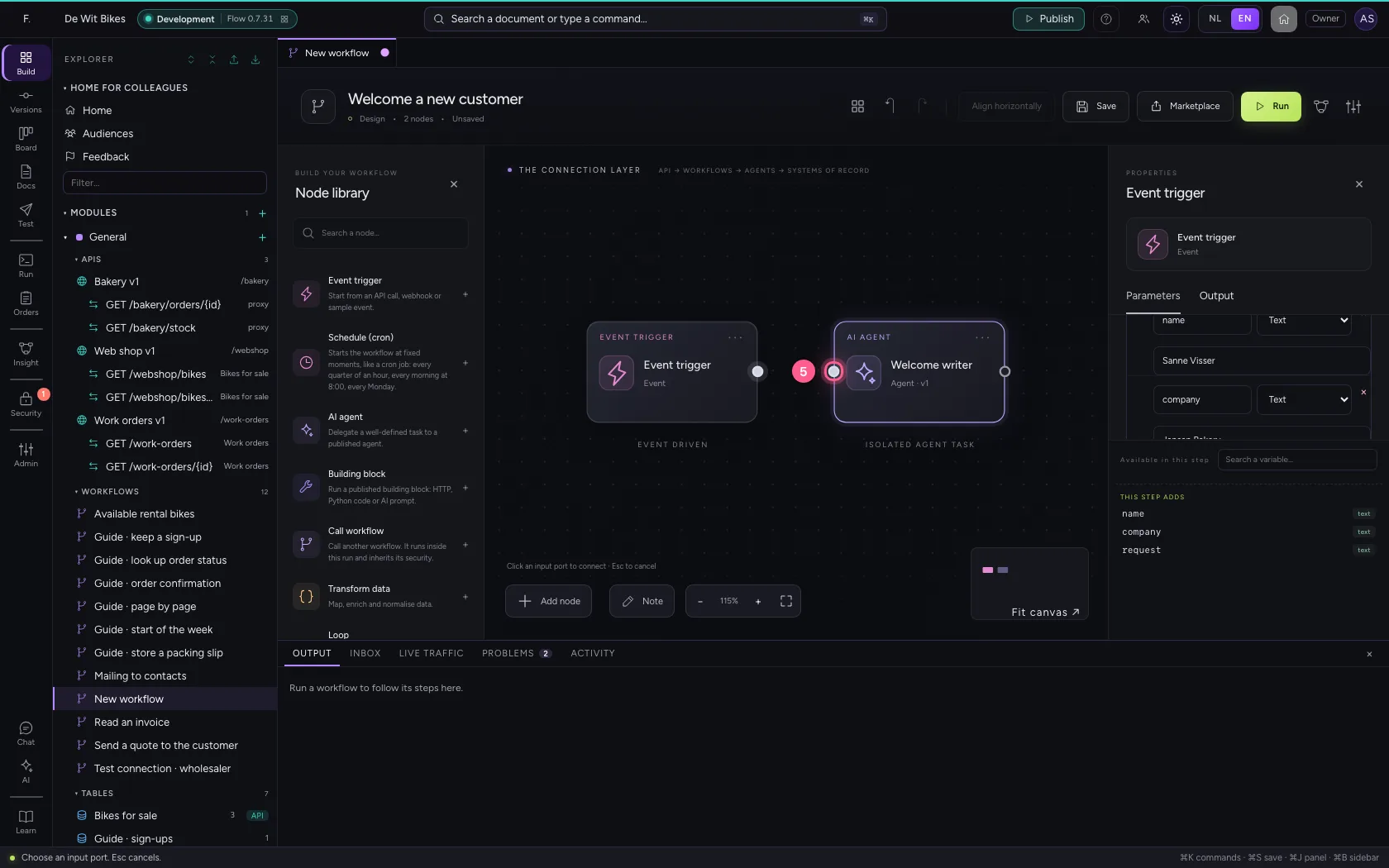
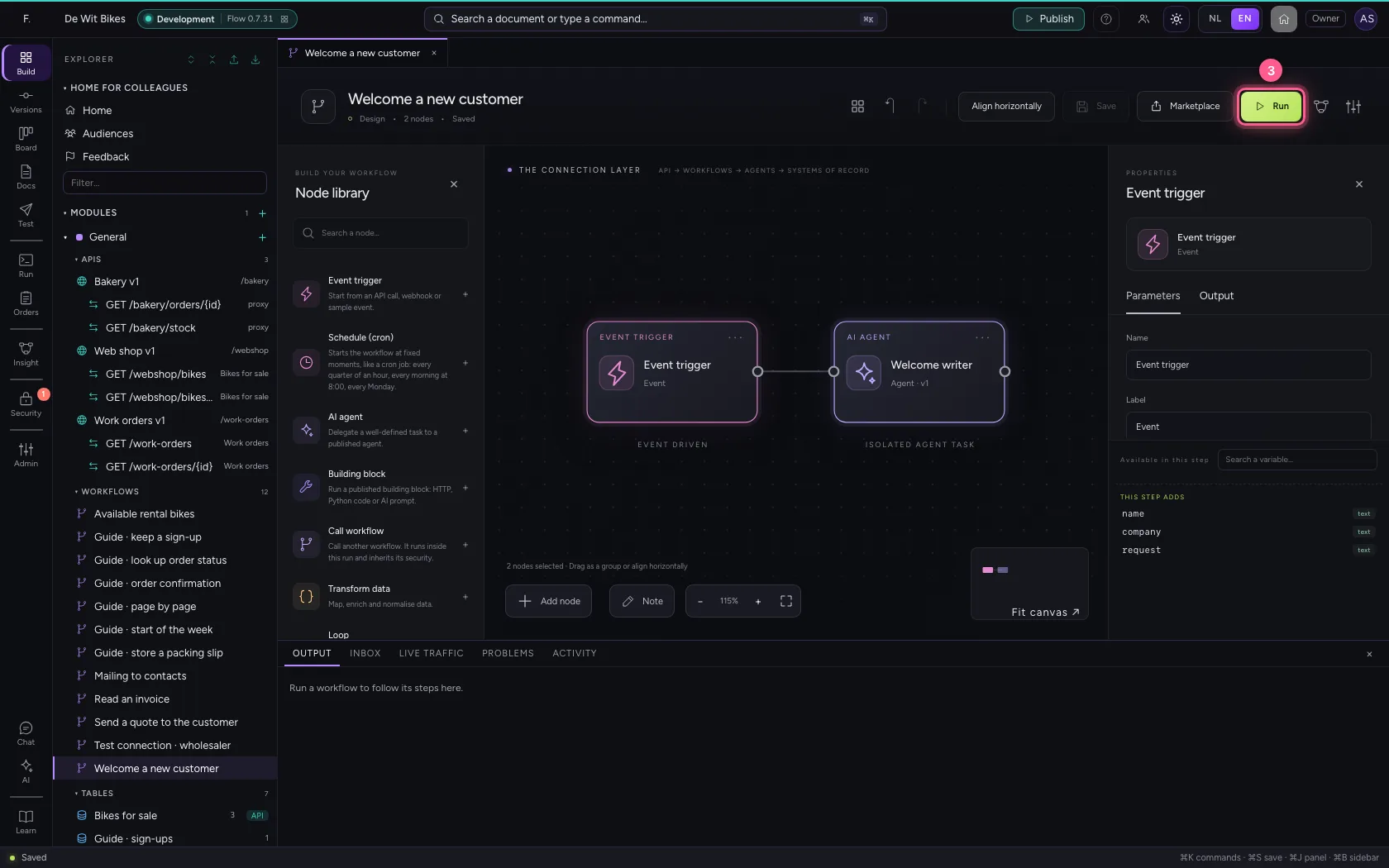
Align, save and run
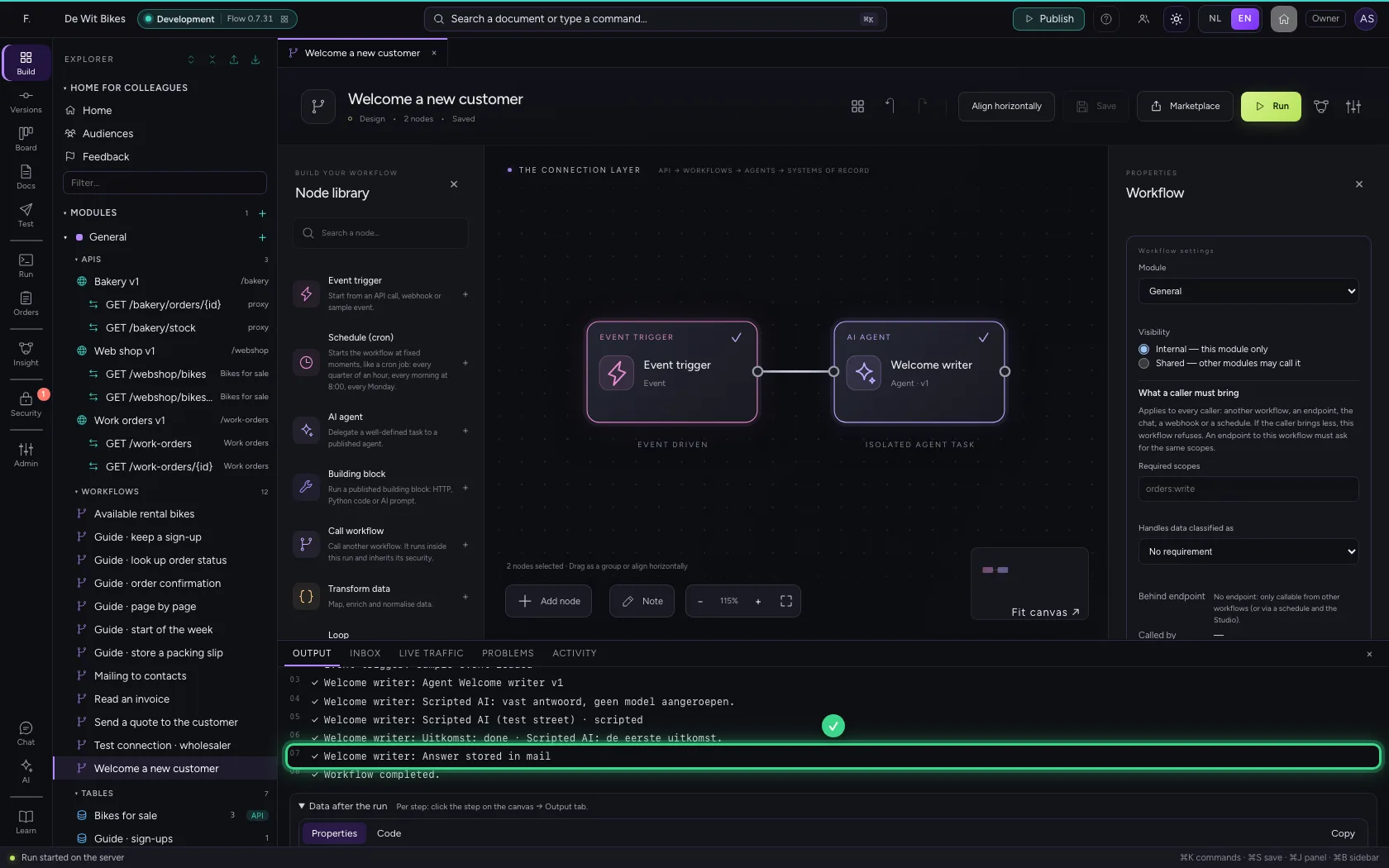
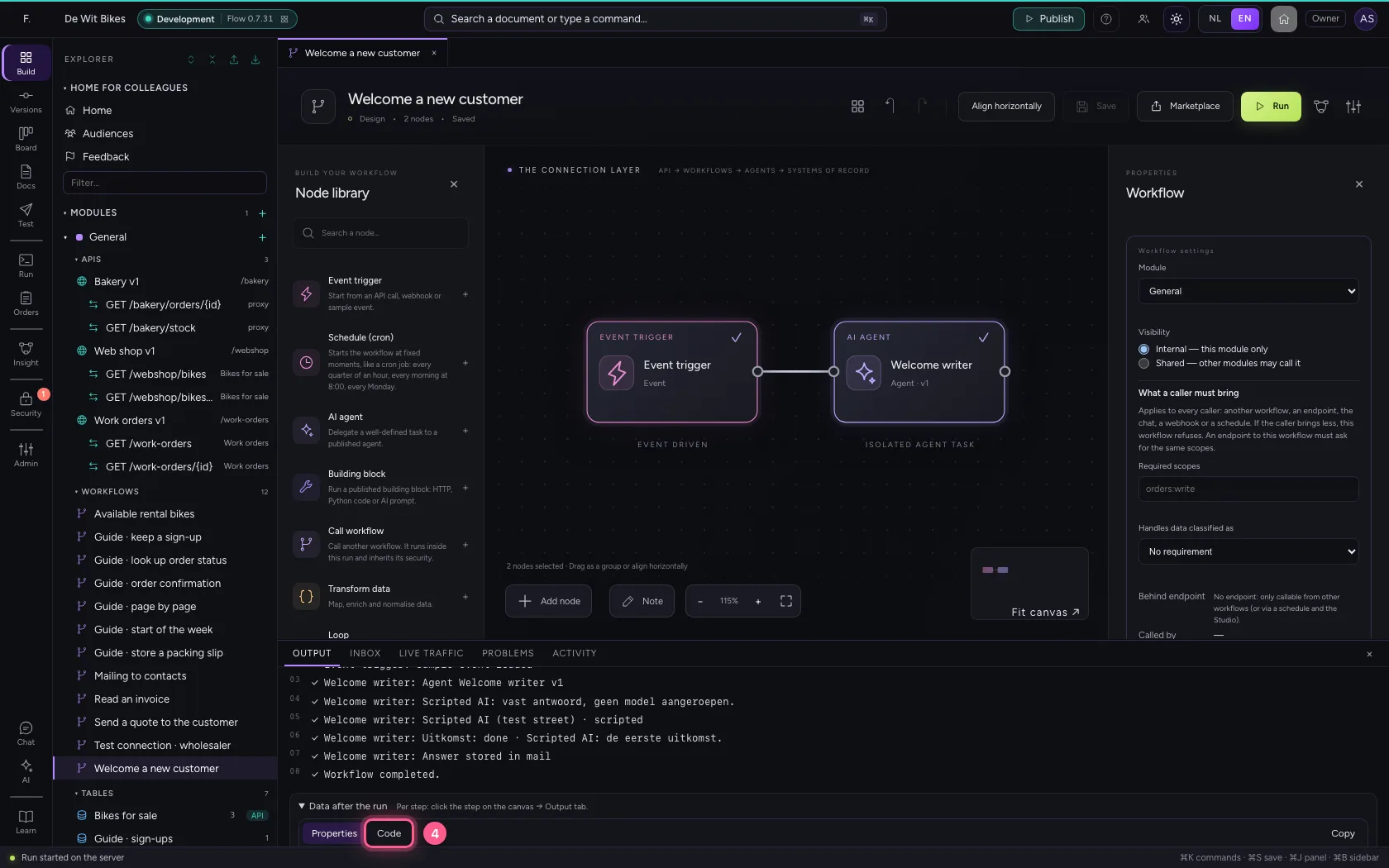
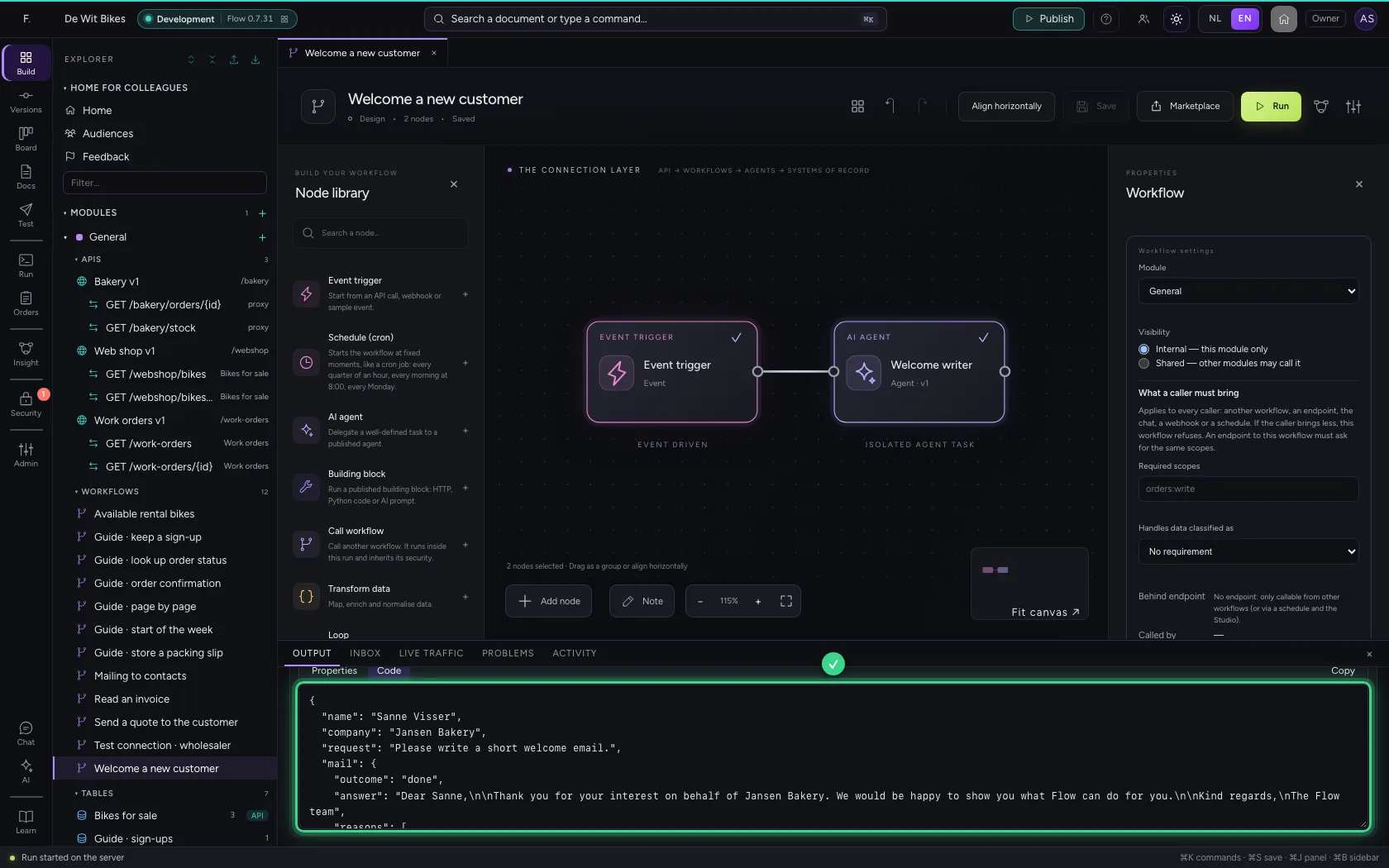
Align the steps, save and run. The agent gets the customer's data, writes the e-mail, and the workflow stores its answer under mail: the outcome, the answer itself and the reasons. Under Data after the run, tab Code, you read the e-mail; a next step can send it as {{mail.answer}}.
- Click Align horizontally
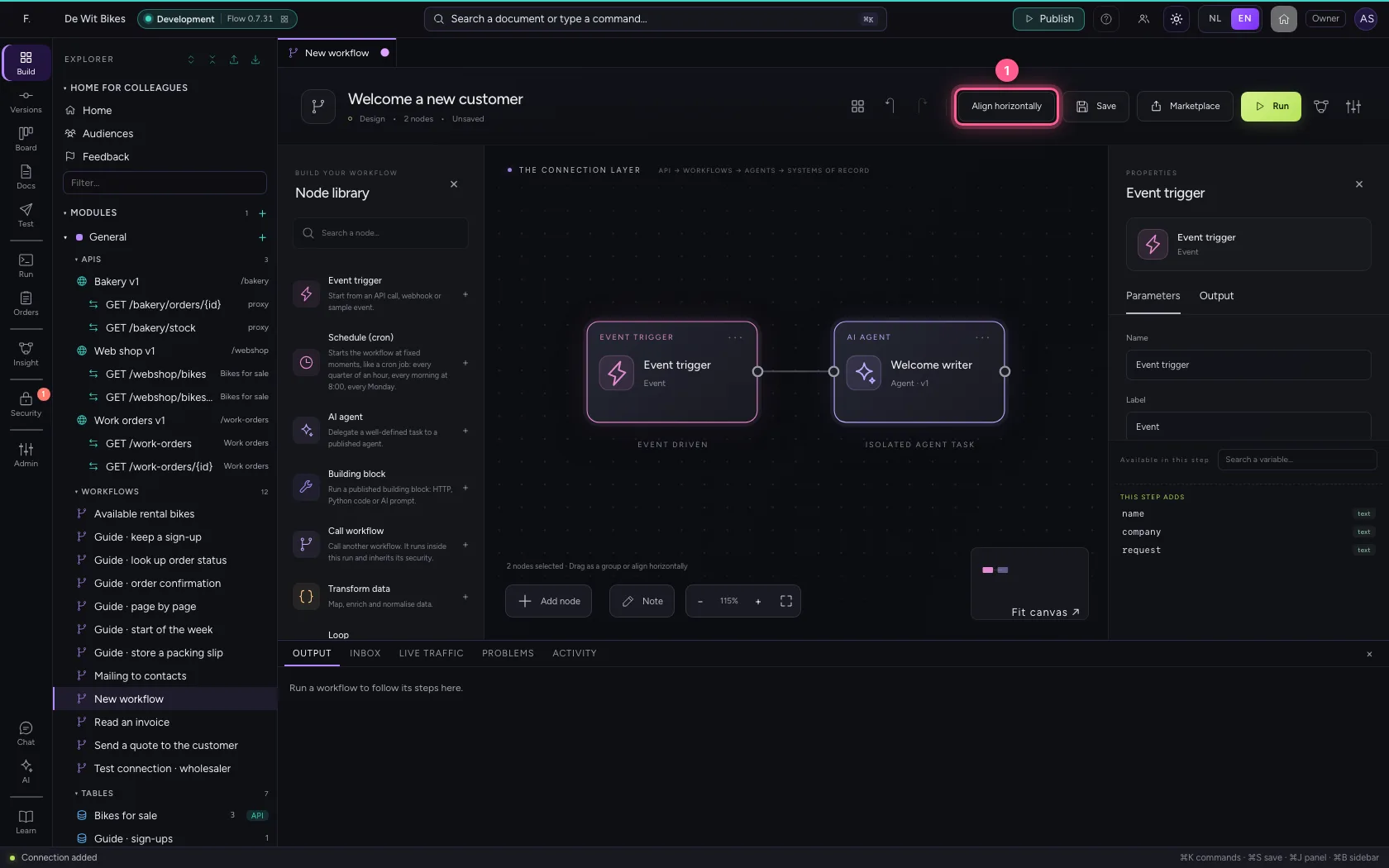
- Click Save
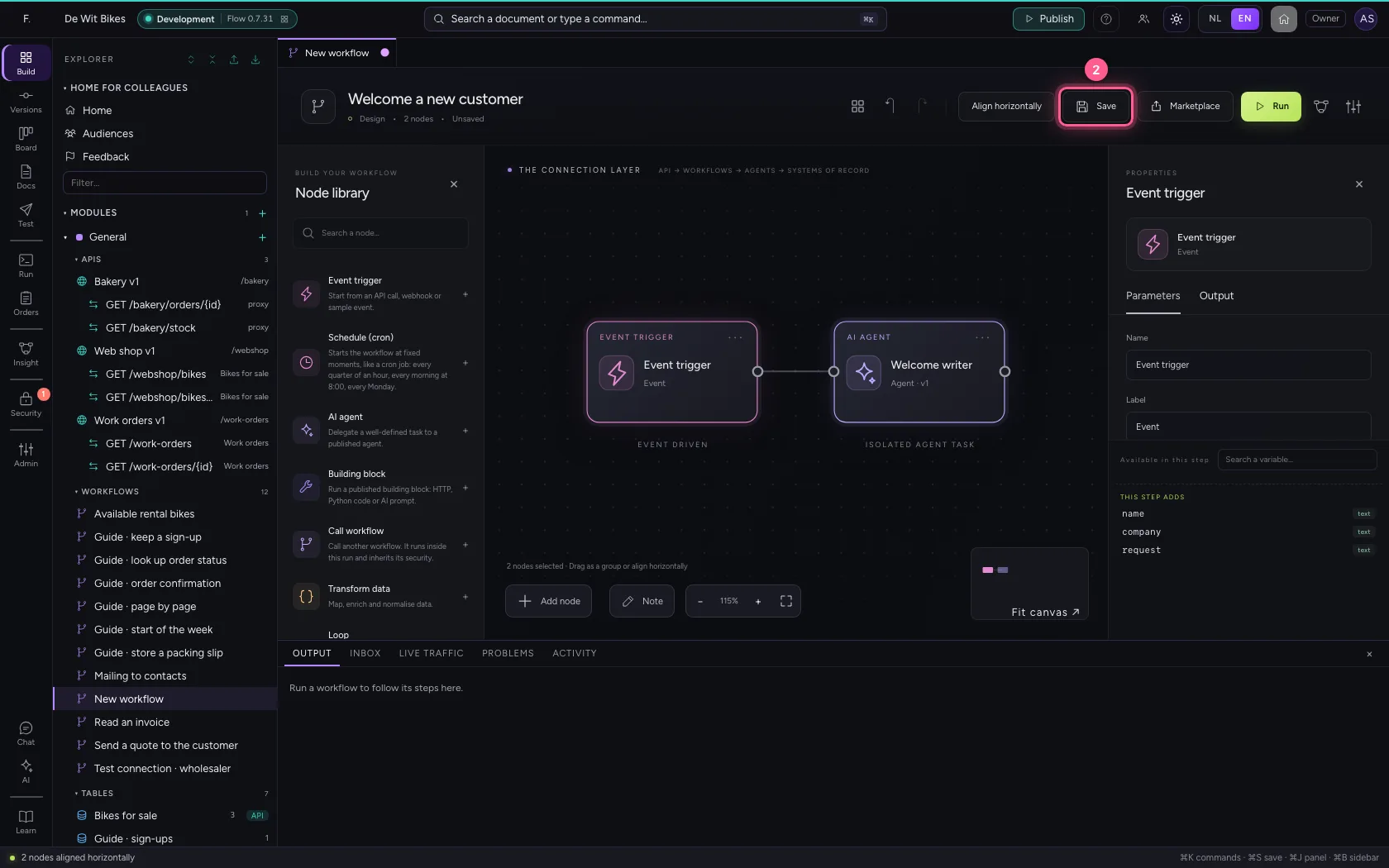
- Click Run
- Click Code
This guide was carried out step by step on 22 Oct 2026 by an automated test on Flow (version 3e563176).