Test cases for an agent
An agent that answers well today must do so tomorrow too — also after a new instruction or another model. Test cases record what the agent must do: an input, and what the answer must contain or which outcome you expect. Once an agent has test cases, you can only publish it when they all pass.
Open your development environment
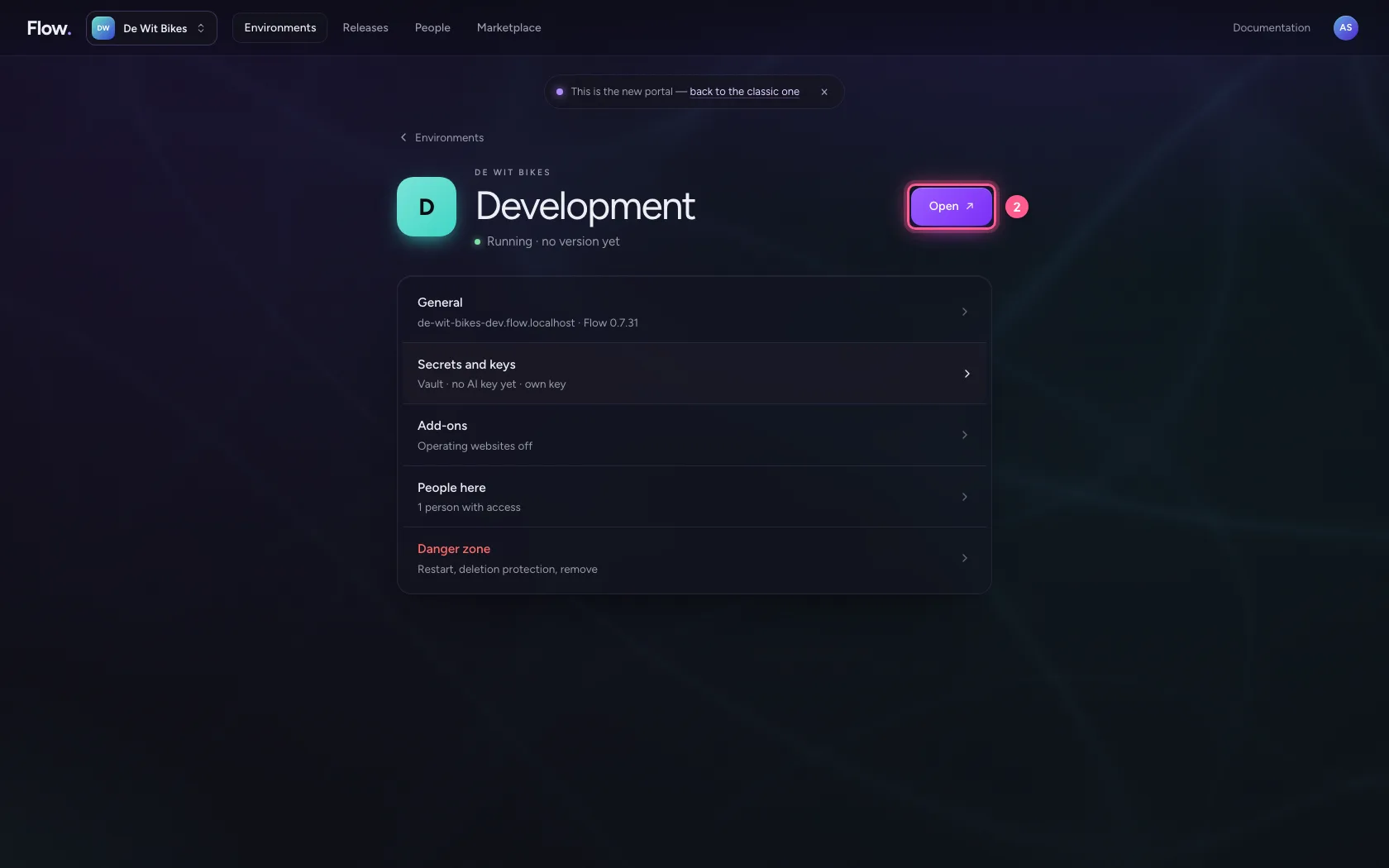
In the portal, under Environments, click Development, and there Open. Flow opens in a new tab and you are signed in straight away.
- Click Development

- Click Open ↗
Try the agent and keep it as a test case
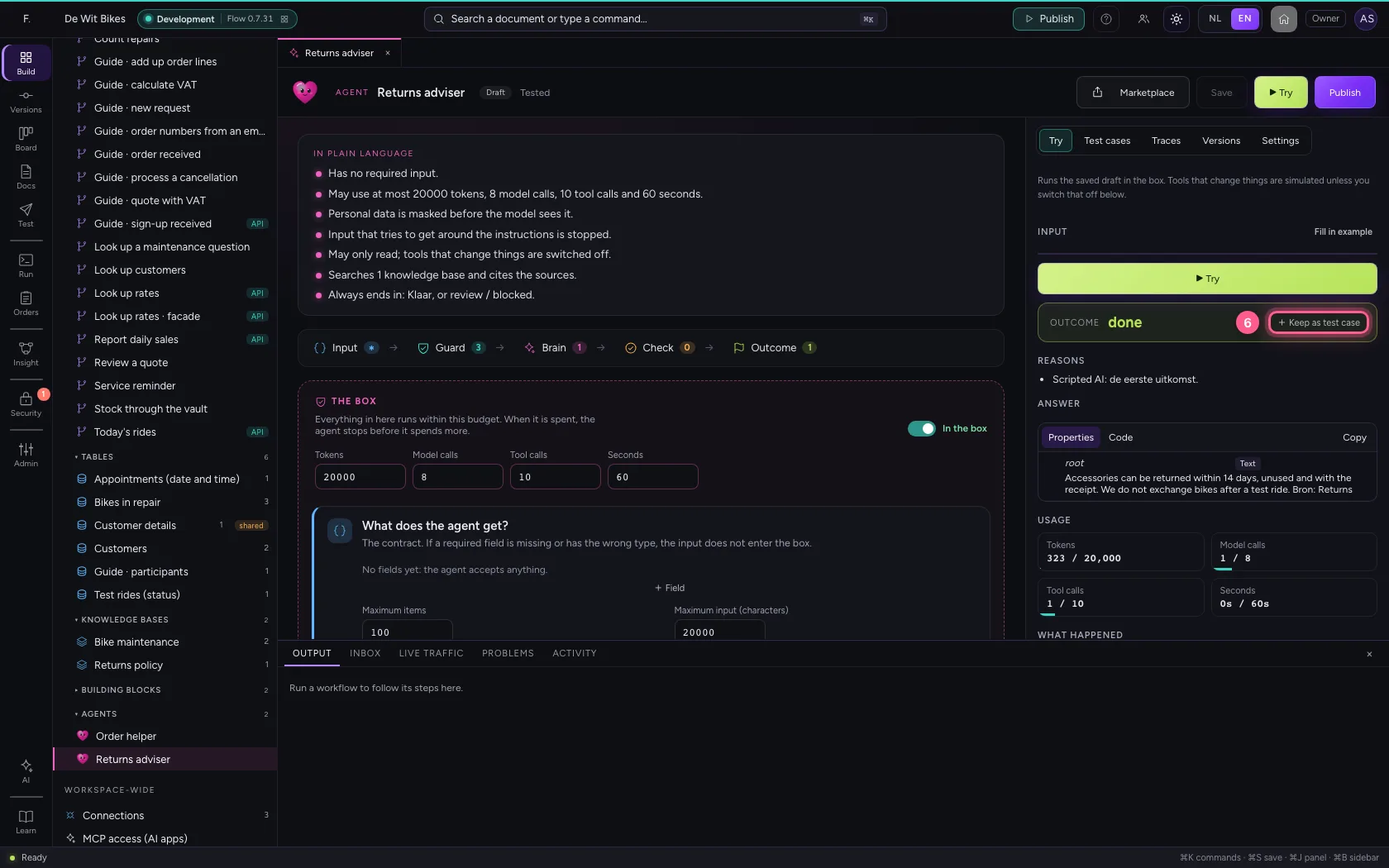
Open the agent and try it under Try. If you are happy with the answer, click Keep as test case: the input and the outcome become the first test case.
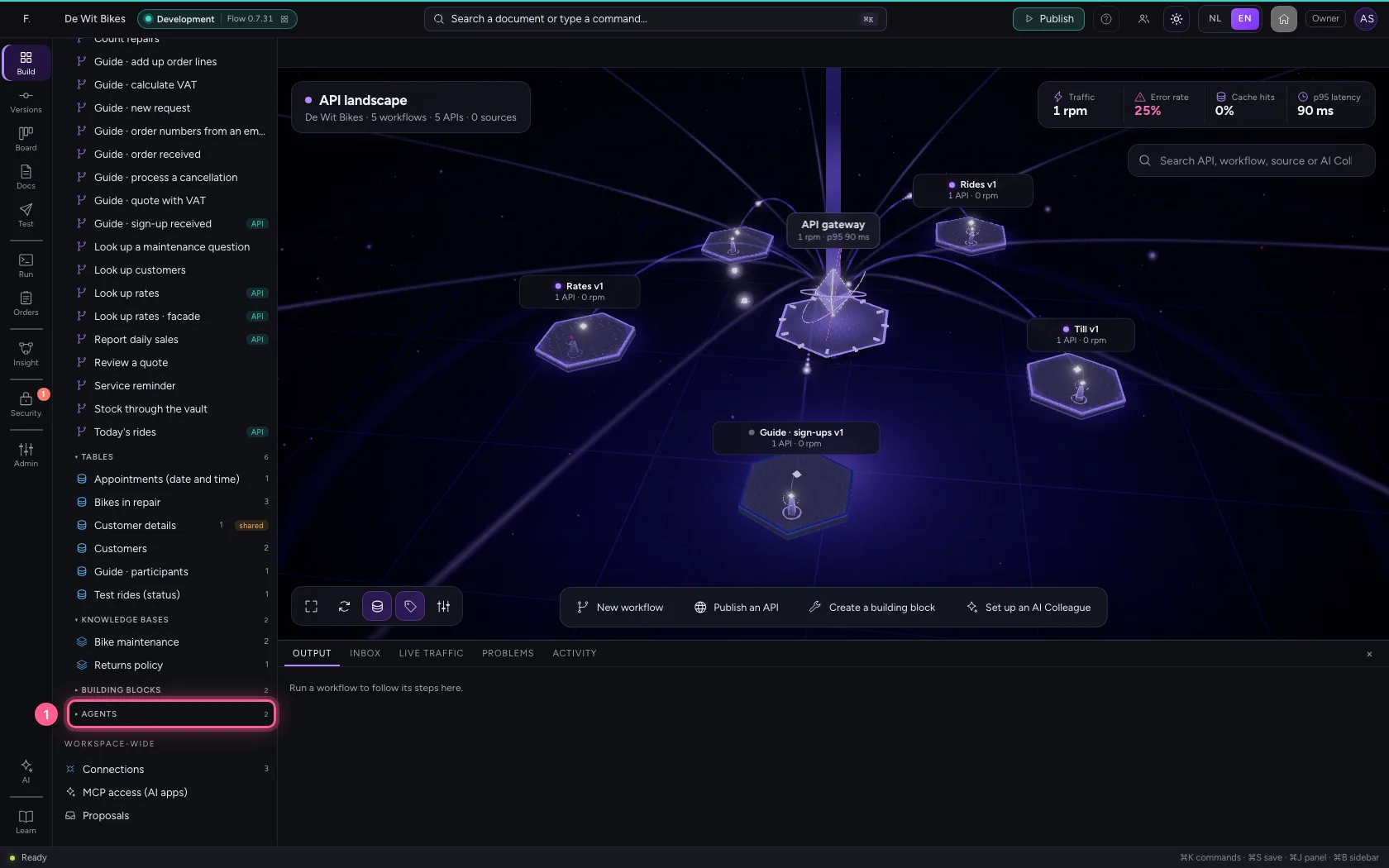
- Click Agents
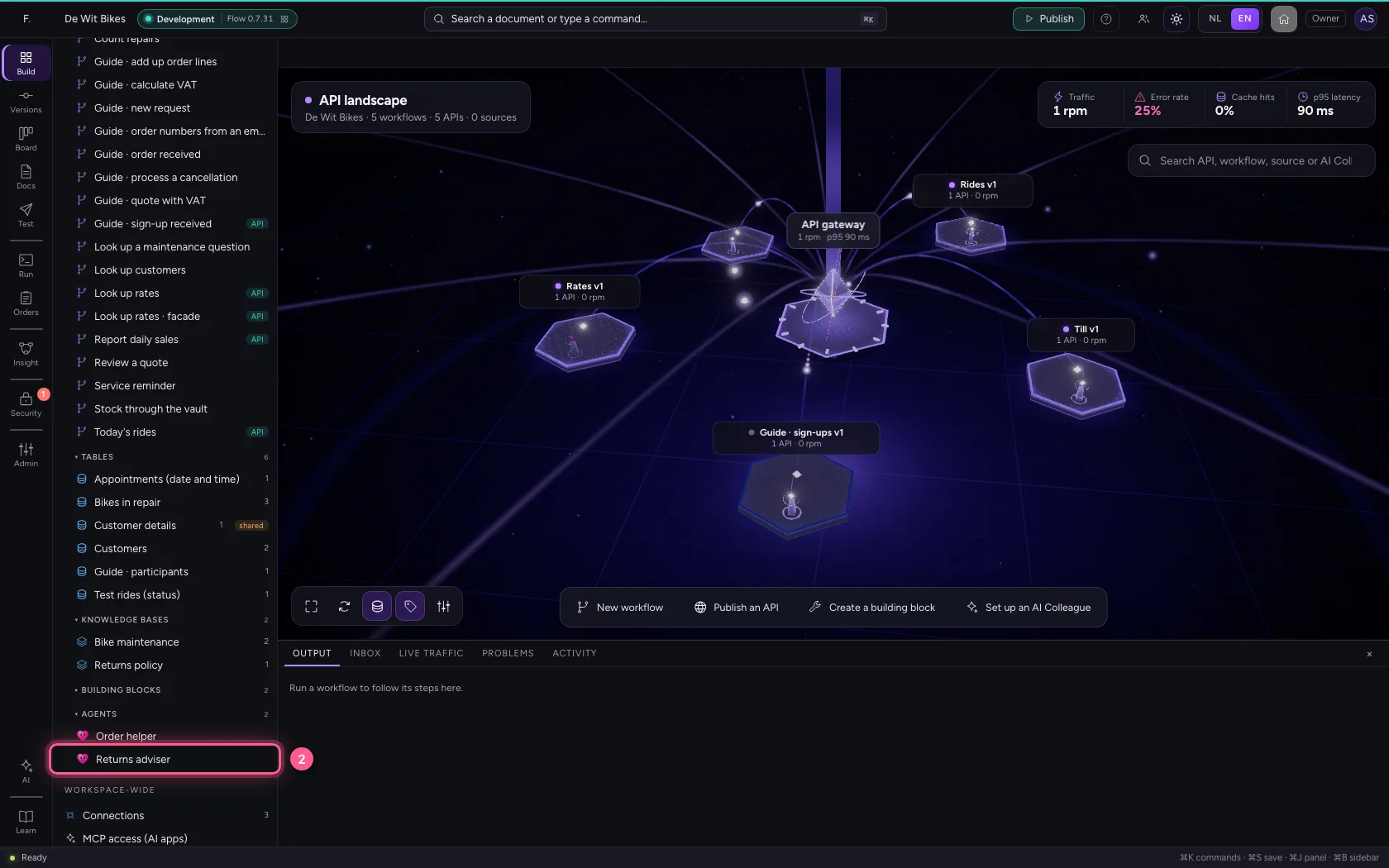
- Click the agent ‘Returns adviser’
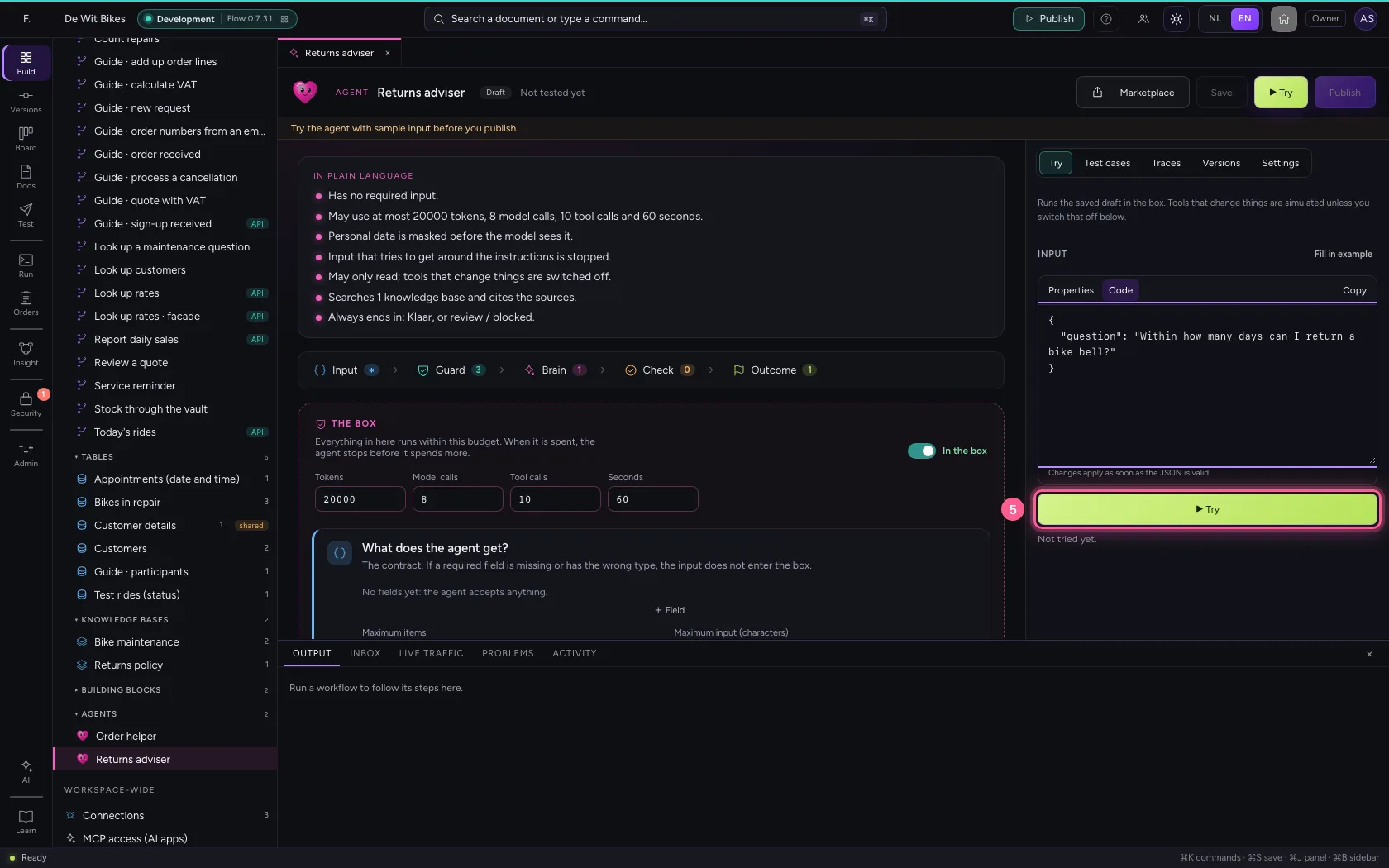
- Click Try
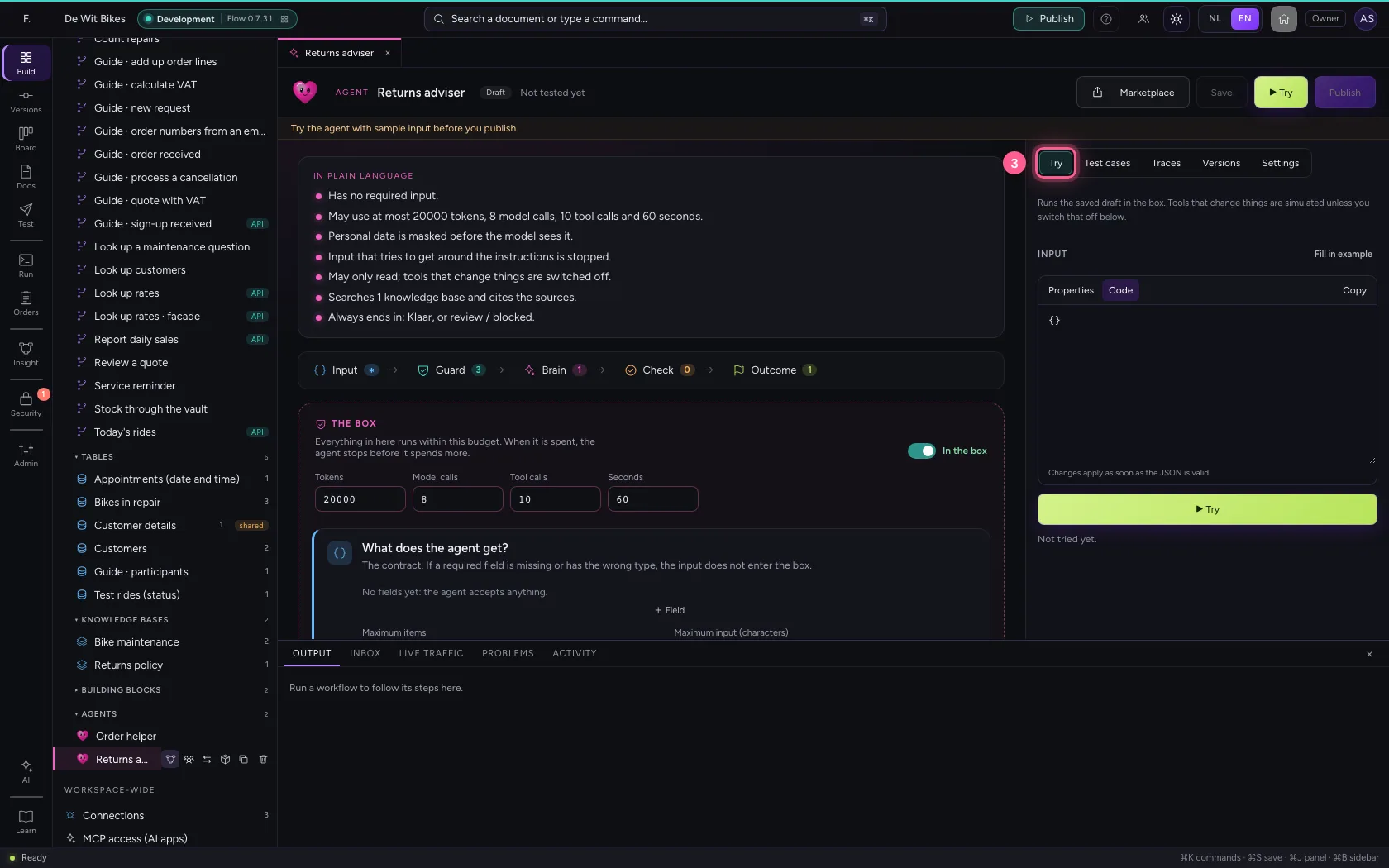
- In Input, type
{"question": "Within how many days can I return a bike bell?"}
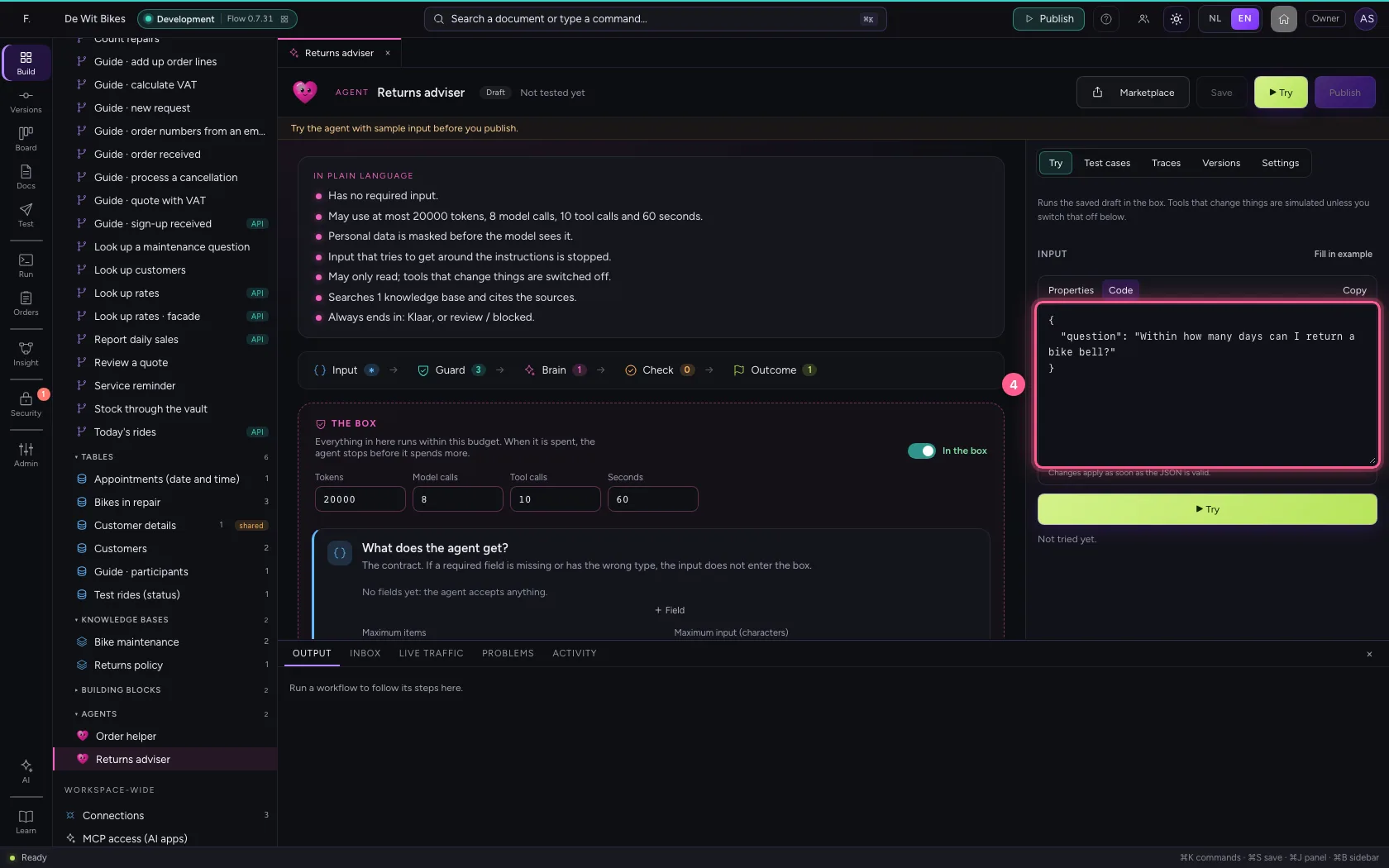
- Click ▶ Try
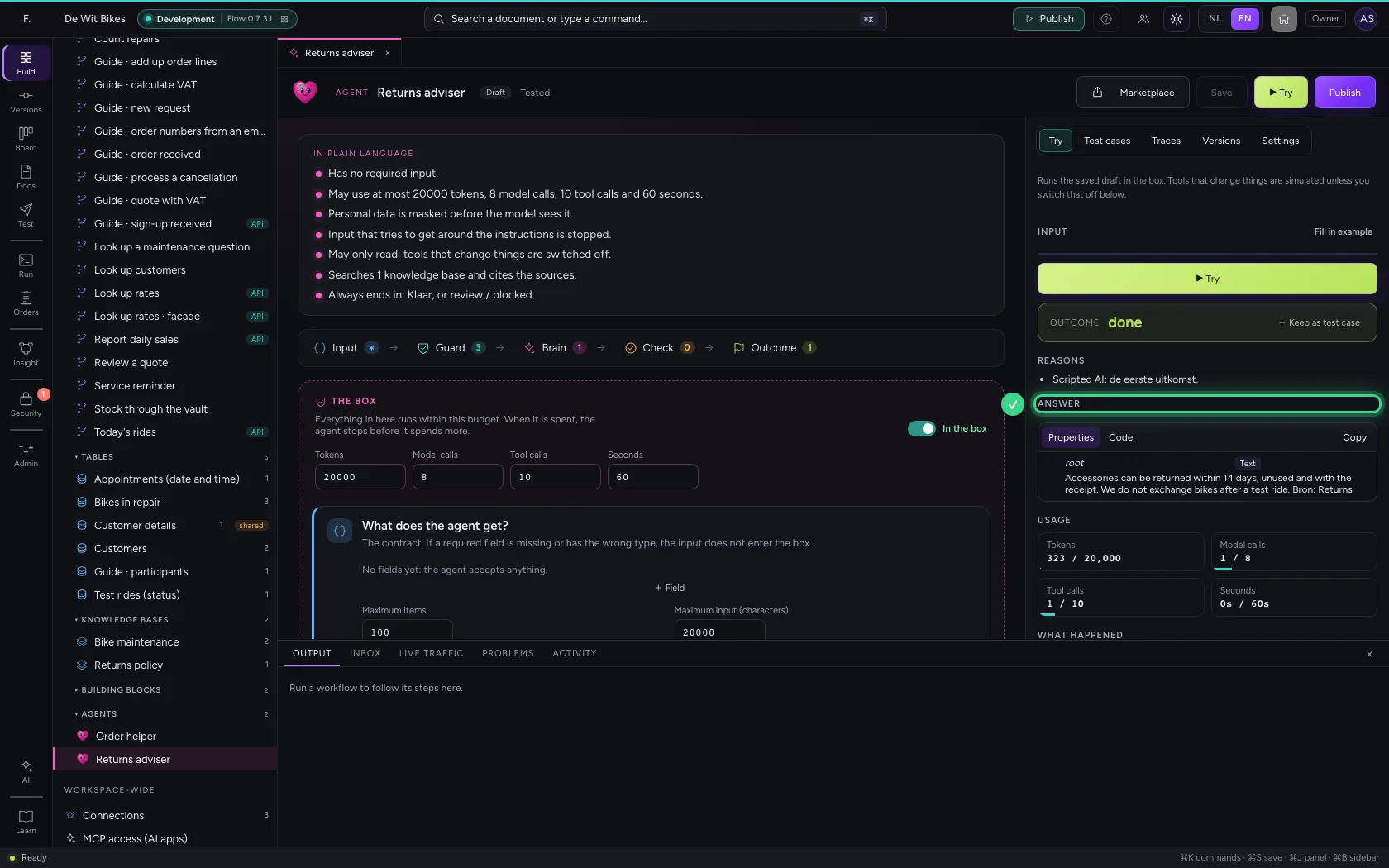
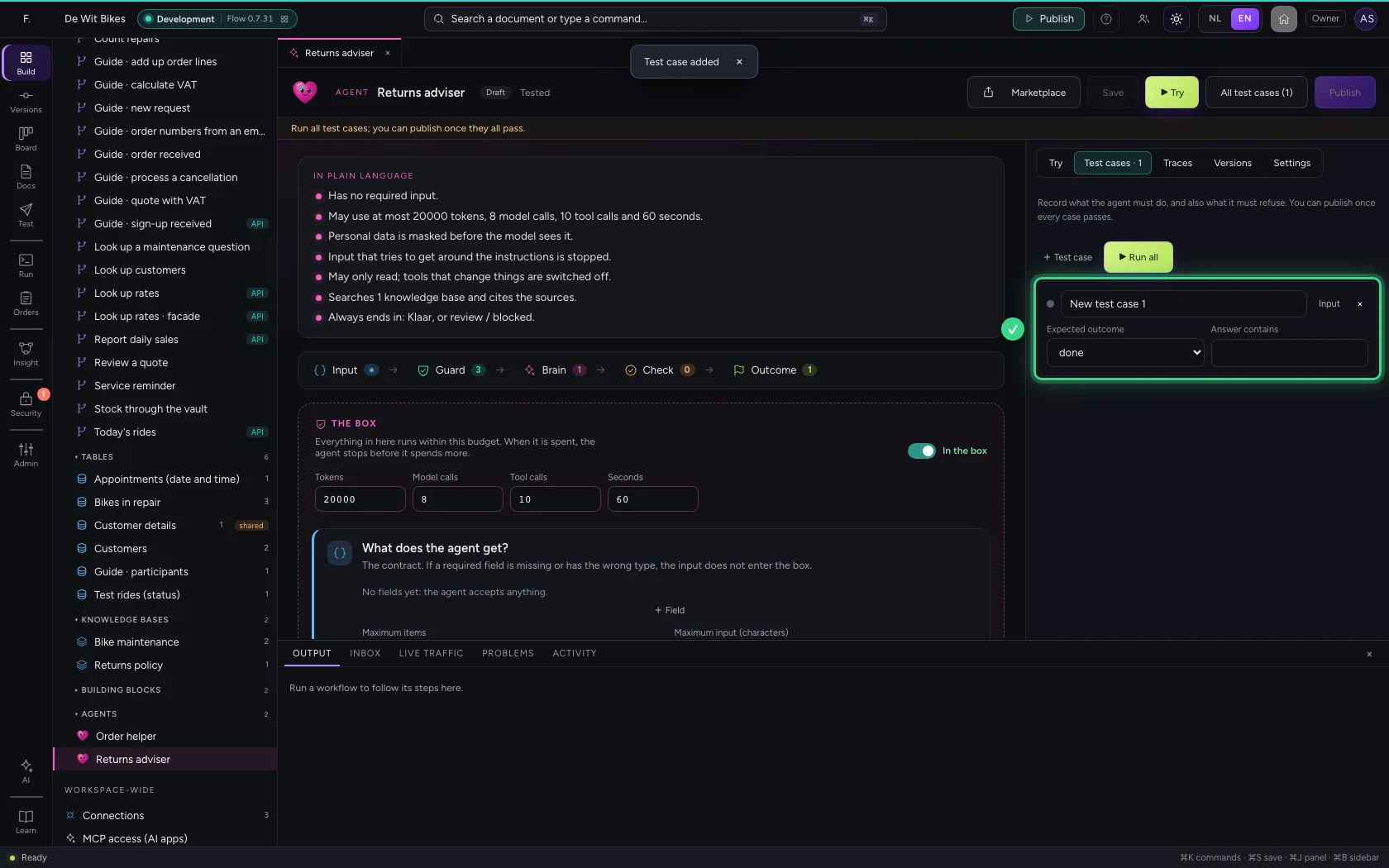
- Click + Keep as test case
Say what the answer must contain
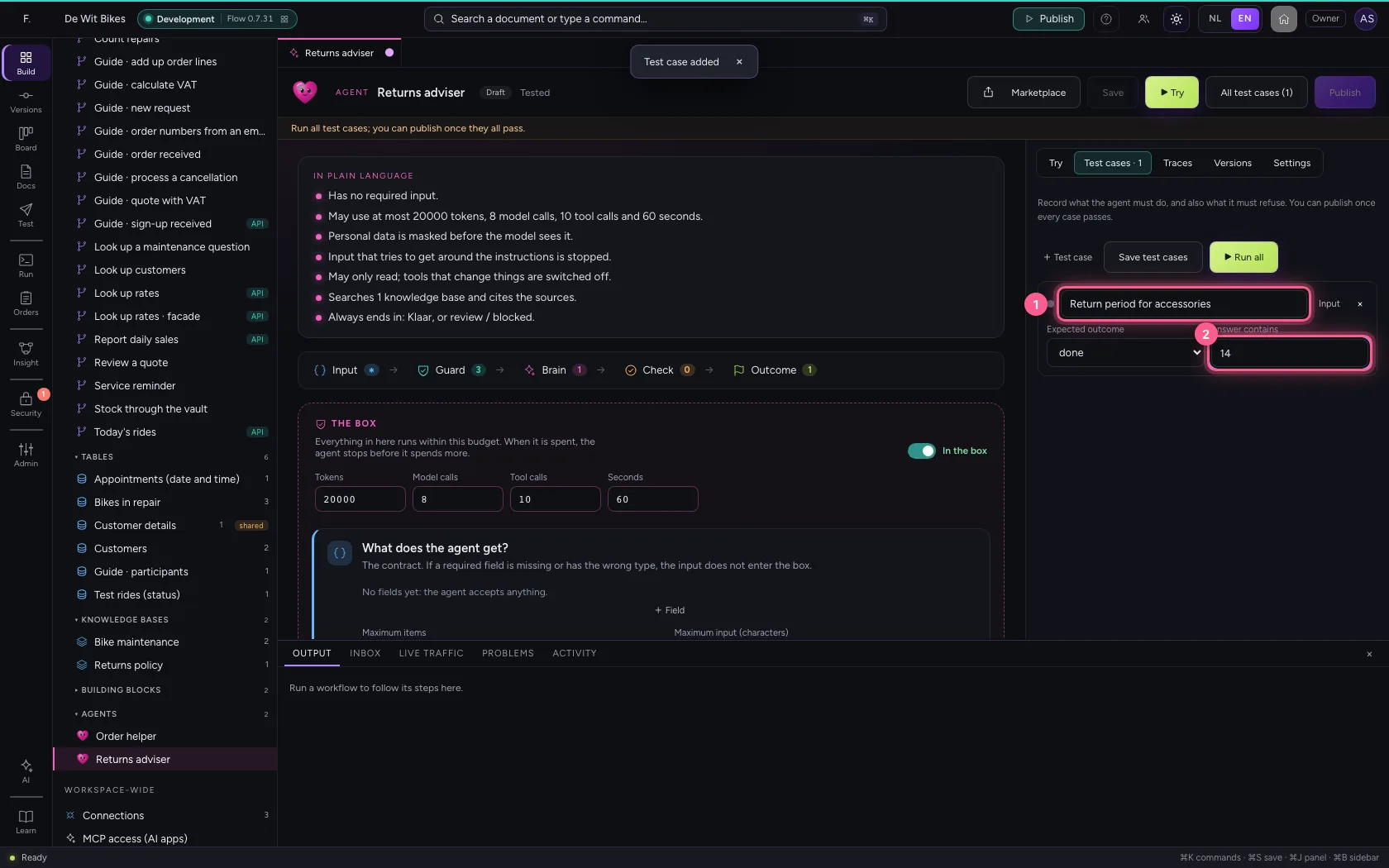
An outcome alone says little. Under Answer contains, fill in what must be in the answer: here the period of 14 days. Give the case a name that says what it checks.
- In Name, type
Return period for accessories - In Answer contains, type
14
Add a second case
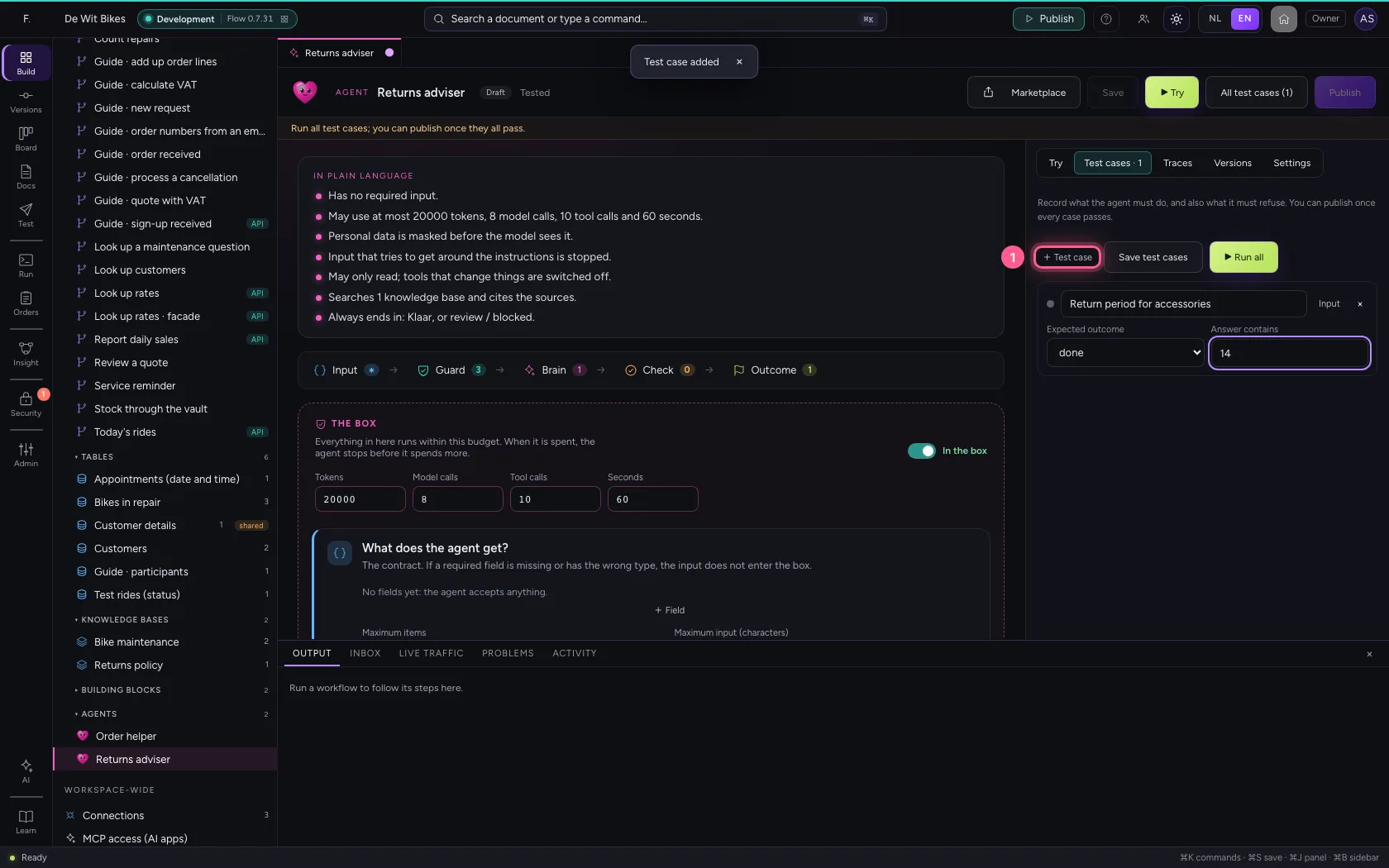
+ Test case adds a case; under Input you put the question. Also record what the agent must not say or must refuse: that way you notice at once when a change breaks something.
- Click + Test case
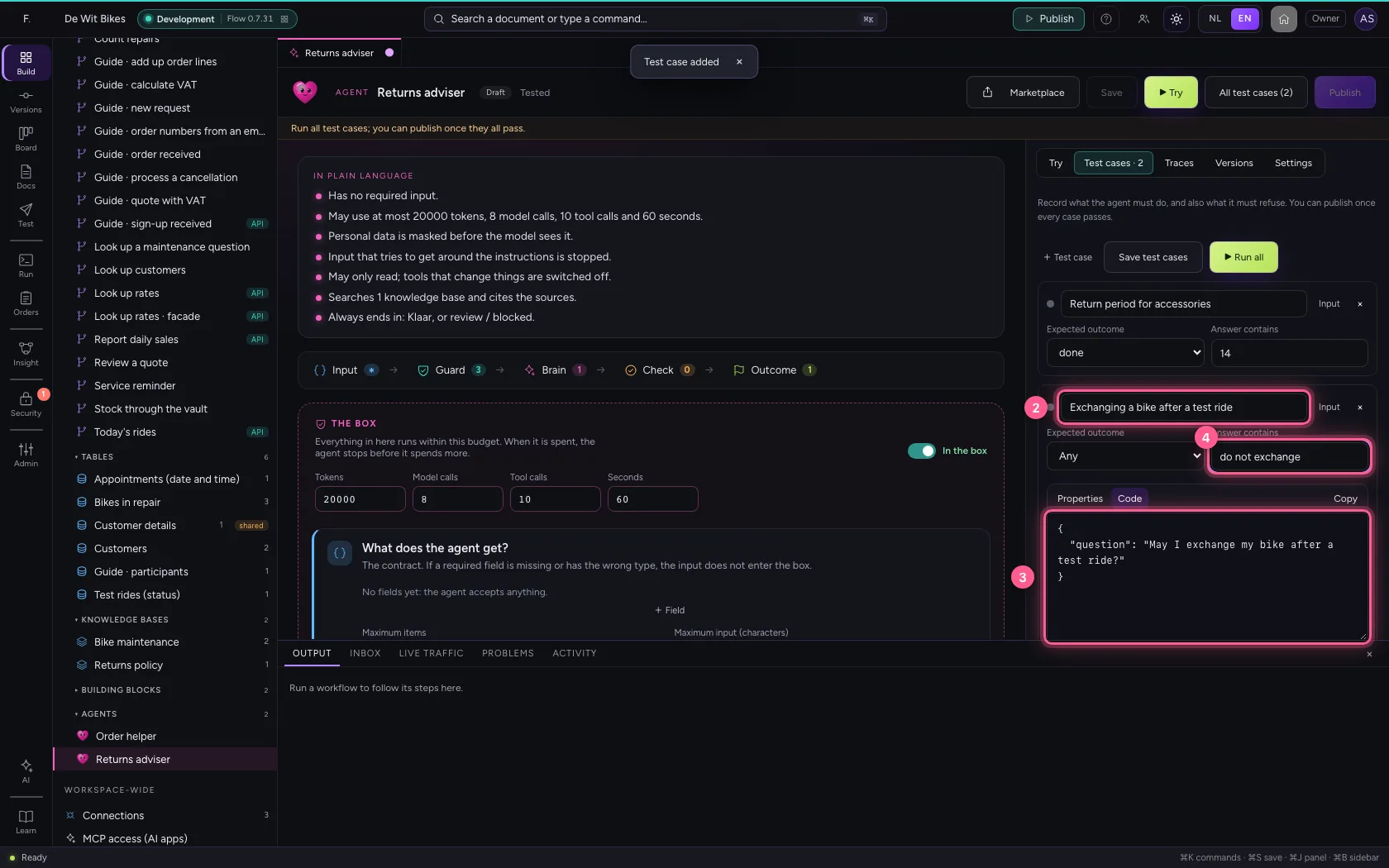
- In Name, type
Exchanging a bike after a test ride - In Input, type
{"question": "May I exchange my bike after a test ride?"} - In Answer contains, type
do not exchange
Run all test cases
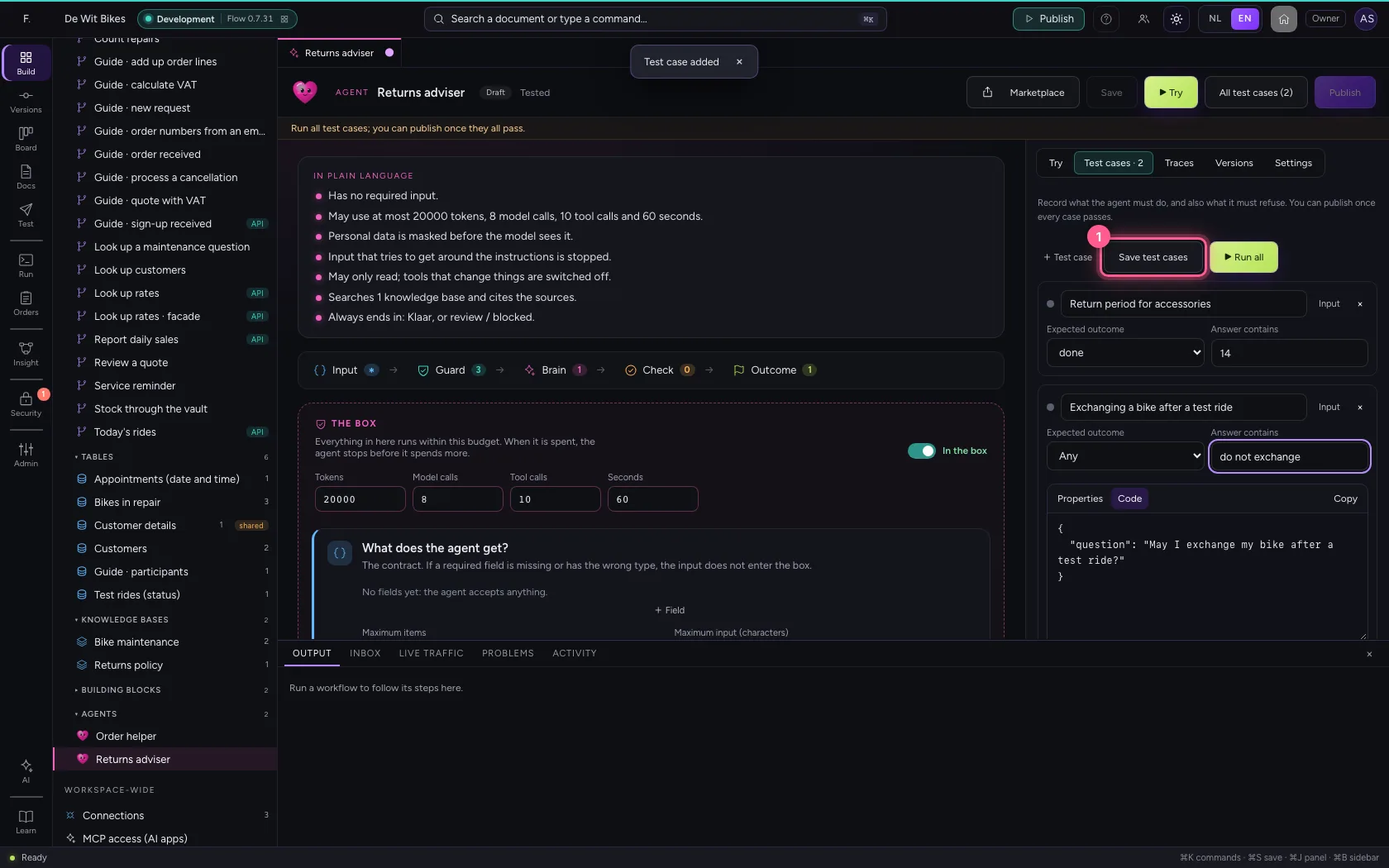
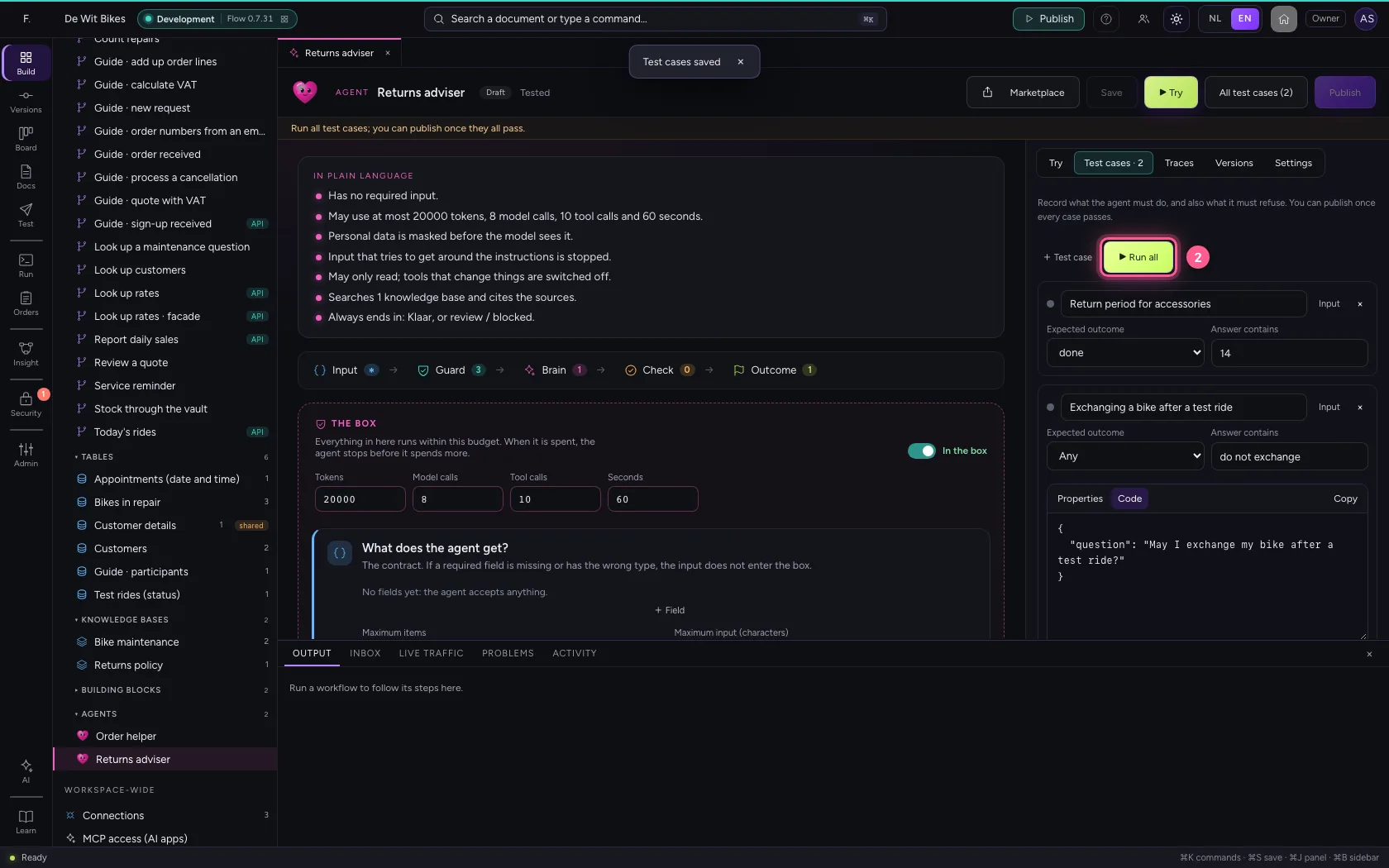
Save the test cases and click Run all. Every case runs as a real test, within the agent's guard rails and budget. Green has passed; for red you see why.
- Click Save test cases
- Click ▶ Run all
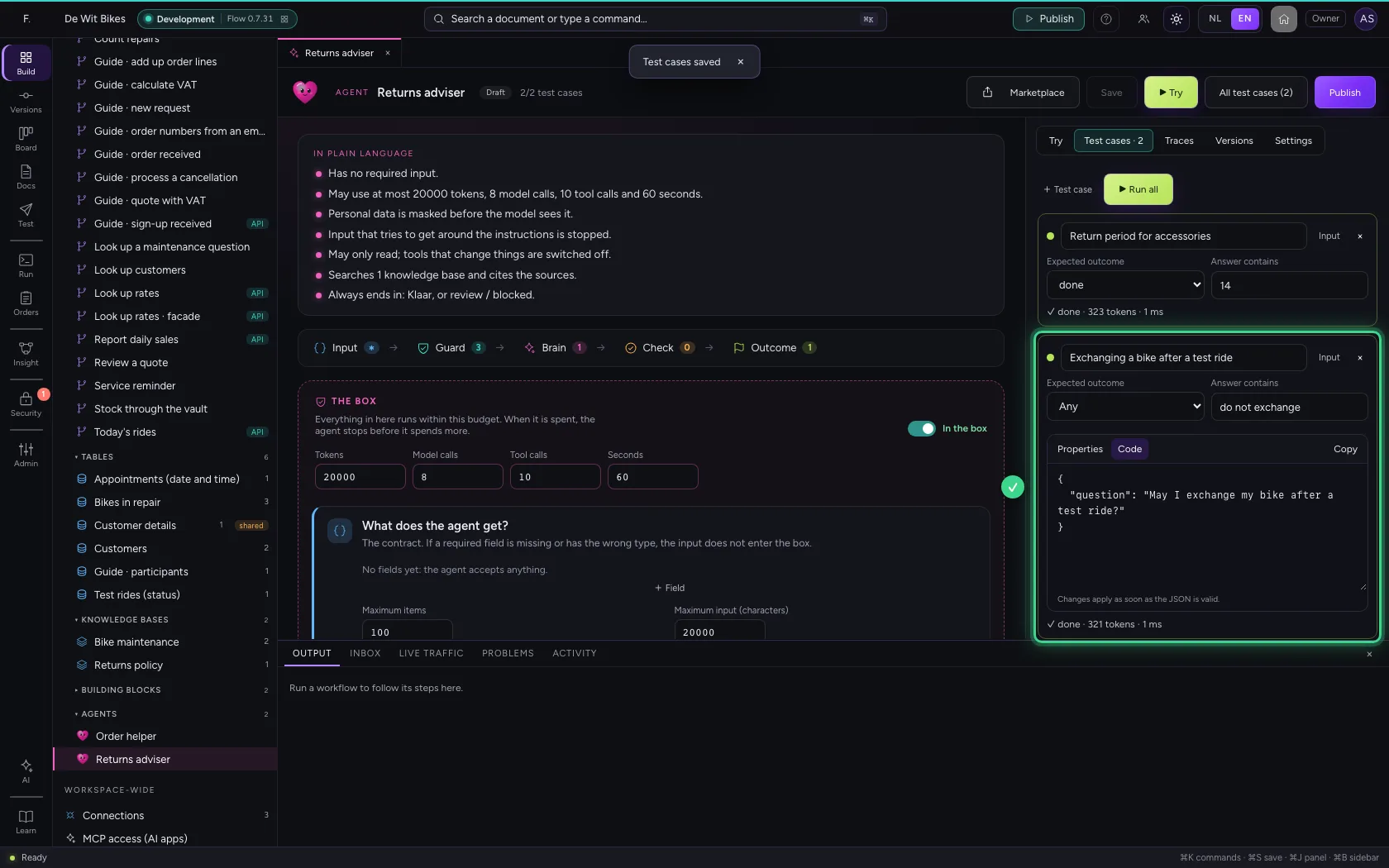
Publish
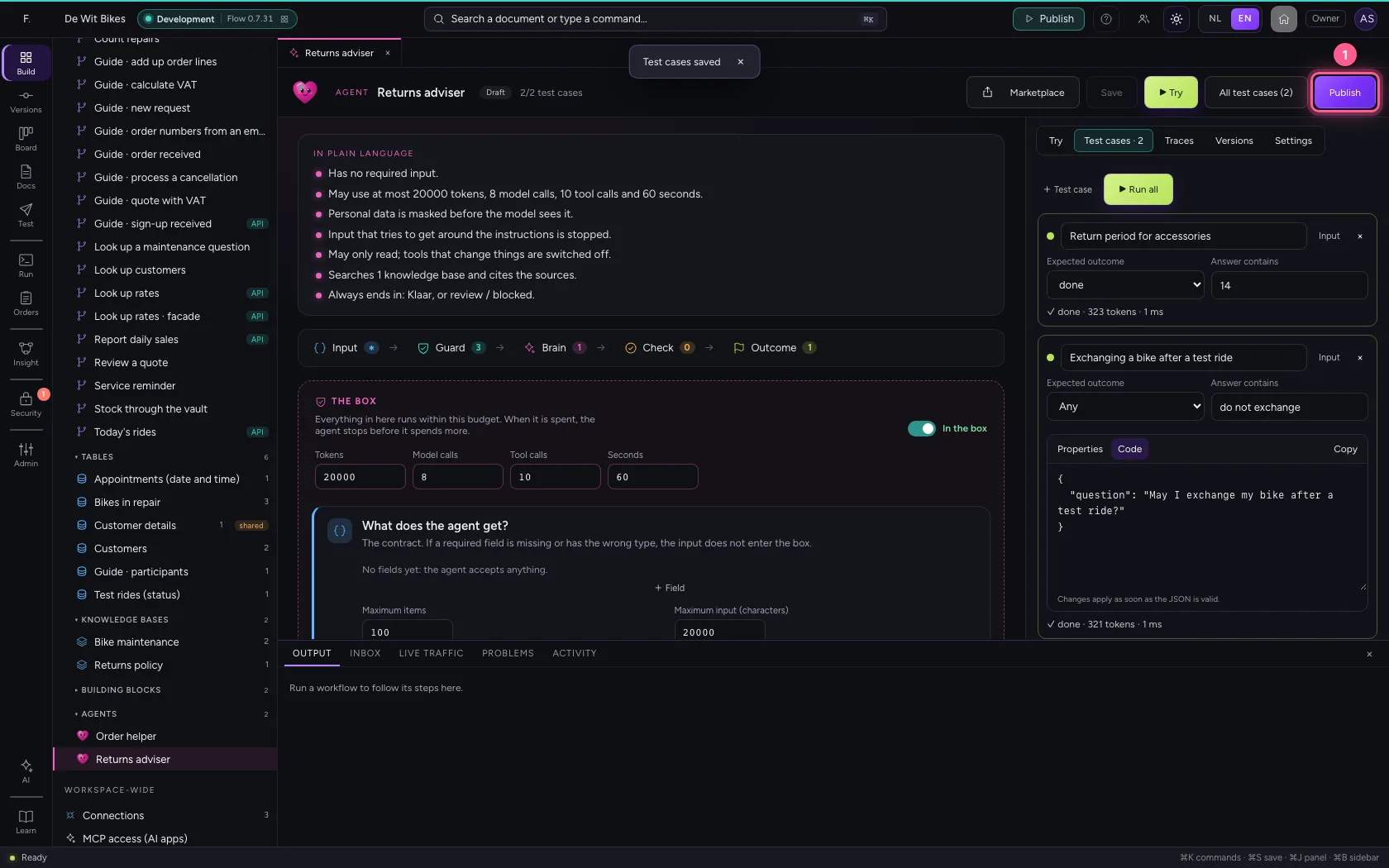
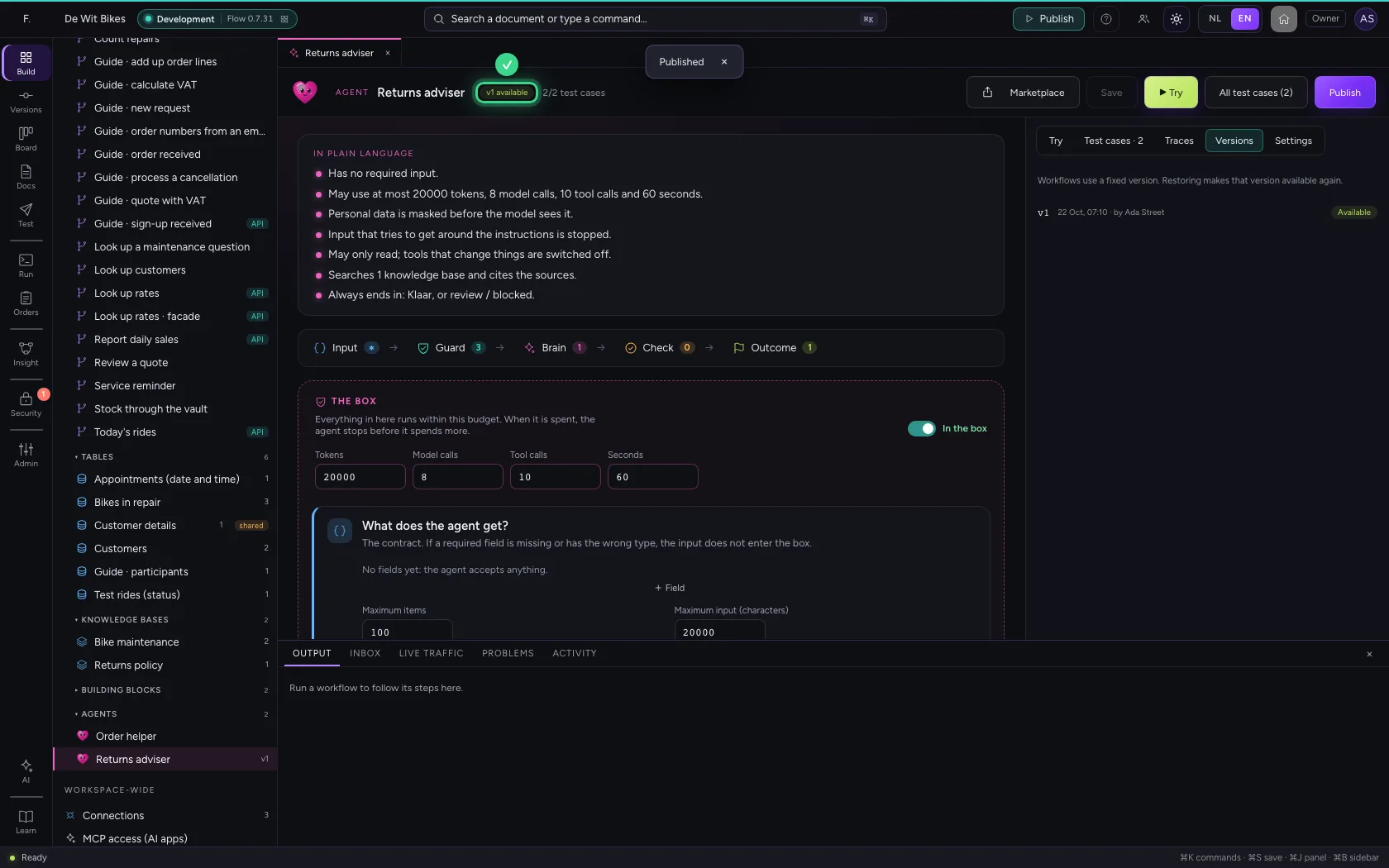
Now that all test cases pass, you can publish. If you change the instructions later, run all cases again: only when they pass again can the new version go live.
- Click Publish
This guide was carried out step by step on 22 Oct 2026 by an automated test on Flow (version 3e563176).